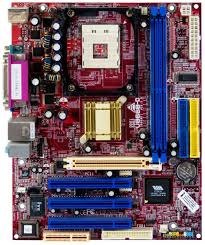
U8668-D - Motherboard BIOSTAR - Free user manual and instructions
Find the device manual for free U8668-D BIOSTAR in PDF.



| Product Type | Motherboard |
| Brand | BIOSTAR |
| Model | U8668-D |
| Socket | Socket-478 |
| Supported Processors | Intel Pentium 4 up to 3.06 GHz, Pentium 4 Prescott 478 (depending on version) |
| Front Side Bus | 400/533 MHz |
| Hyper-Threading | Supported |
| Memory Type | DDR |
| Maximum Memory Capacity | 2 GB |
| Memory Frequency | 200/266 MHz |
| Number of Memory Slots | 2 |
| Chipset | ITE IT8705 |
| Expansion Slots | 2 or 3 PCI, 1 AGP, 1 CNR or 1 AMR (depending on version) |
| IDE Ports | 4 (supports Ultra DMA 33/66/100/133) |
| LAN Controller | VT6103/6103L (versions 7.8+), 10/100 Mbps, Full/Half Duplex |
| Audio | AC'97 VIA1612A codec (2 channels) or CMI9739A (6 channels) depending on version |
| USB Ports | 6 USB 2.0 ports (2 rear + 4 front, or 4 rear + 2 front) |
| Serial and Parallel Ports | 1 serial, 1 multi-mode parallel (SPP/EPP/ECP) |
| PS/2 Ports | 1 mouse, 1 keyboard |
| BIOS | AWARD, APM 1.2, ACPI |
| Form Factor | Micro ATX |
| Dimensions | 19.5 cm x 22.8 cm or 19.5 cm x 24.4 cm depending on version |
| Supported Operating Systems | MS-DOS, Windows 2000, Windows Me, Windows XP, SCUNIX |
| Package Contents | Hard drive cable, floppy cable, user manual, USB cable (optional), rear I/O panel (optional), driver CD |
Frequently Asked Questions - U8668-D BIOSTAR
User questions about U8668-D BIOSTAR
0 question about this device. Answer the ones you know or ask your own.
Ask a new question about this device
Download the instructions for your Motherboard in PDF format for free! Find your manual U8668-D - BIOSTAR and take your electronic device back in hand. On this page are published all the documents necessary for the use of your device. U8668-D by BIOSTAR.
USER MANUAL U8668-D BIOSTAR
FCC Information and Copyright
This equipment has been tested and found to comply with the limits of a Class B digital device, pursuant to Part 15 of the FCC Rules. These limits are designed to provide reasonable protection against harmful interference in a residential installation. This equipment generates, uses and can radiate radio frequency energy and, if not installed and used in accordance with the instructions, may cause harmful interference to radio communications. There is no guarantee that interference will not occur in a particular installation.
The vendor makes no representations or warranties with respect to the contents here of and specially disclaims any implied warranties of merchantability or fitness for any purpose. Further the vendor reserves the right to revise this publication and to make changes to the contents here of without obligation to notify any party beforehand.
Duplication of this publication, in part or in whole, is not allowed without first obtaining the vendor's approval in writing.
The content of this user's manual is subject to be changed without notice and we will not be responsible for any mistakes found in this user's manual. All the brand and product names are trademarks of their respective companies.
ENGLISH 3
U8668-D Features 3
Package contents. 4
Layout of U8668-D (only for version 1.x and 6.x) .5
Layout of U8668-D (only for version 3.3)............6
Layout of U8668-D (only for version 4.0)
Layout of U8668-D (only for version 5.x). 8
Layout of U8668-D (only for version 5.A)............9
Layout of U8668-D (only for version 5.B & above). 10
Layout of U8668-D (only for version 7.0~7.3). 11
Layout of U8668-D (only for version 7.5~7.7). 12
Layout of U8668-D (only for version 7.8 & above). 13
CPU Installation 14
DDR DIMM Modules: DDR1-2 14
Jumper, Headers, Connectors & Slots. 15
TROUBLESHOOTING 21
ESPANOL 22
a r c e t e r i s c a t s del U8668-D 22
Chapter 3: WarpS peederTM 28
English
U8668-D Features
CPU
Provides Socket-478.
Support the Intel Pentium 4 Northwood CPU up to 3.06GHz.
Supports the Intel Pentium 4 478 Prescott CPU (for version 5.A/5.B and version 7.5 & above).
- 533FSB with 1024KBL2 Cache
Celeron D (533 FSB with 256KB L2 Cache)
Running at 400/533MHz Front Side Bus.
Supports Hyper-Threading Technology.
Version 7.8 and above do not support Willamette CPU.
Standard Intel CPU fan is suggested.
Chipset
North Bridge: P4M266A
South Bridge: VT8235
Main Memory
Supports up to 2 DDR devices.
Supports 200'266MHz DDR devices.
The largest memory capacity is 2GB.
Super I/O
Chipset: ITE IT8705.
Slots
Three 32-bit PCI bus masters slots (for version 3.x, 4.x, 5.x, 5.A, 5.B and 7.x).
Two 32-bit PCI bus master slots (only for version 1.x and 6x).
One CNR slot (for version 3.x, 4x, 5x, 5A, 5.B and 7.x only).
One AMR sld (for version 1.x and 6.x).
One AGP sla.
On Board IDE
Supports four IDE disk drives.
Supports PIO Mode 4, Master Mode and Ultra DMA 33/66/100/133 Bus
Master Mode.
LAN (only support for version 3.3)
Chip: RTL8201BL.
10/ 100Mbps.
Half/Full duplex operation.
LAN
VIA VT6103/6103L (Only Version 7.8 and above support VA VT6103L
chipset.)
Dual Speed: 10/100Mbps, Full/Half Duplex.
Auto Negotiation: 10/100 Mbps, Full/Half Duplex.
On Board AC'97 Sound Codec
Chip: VIA1612A (for version 3.x, 6.x, and 7.0-7.6)
Compliant with AC'97 specification.
Supports 2 channel speakers.
On Board AC'97 Sound Codec (optional)
Chip: CMI9739A (for version 1.x, 4.x, 5.x, 5.A, 5.B, 7.7, 7.8 & above)
Compliant with AC'97 specification.
Supports 6 channel speakers.
On Board Peripherals
Supports 360K, 720K, 1.2MB, 1.44MB and 2.88MB floppy disk drivers.
Supports 1 serial port.
Supports 1 VGA port.
Supports 1 multi-mode parallel port. (SPP/EPP/ECP mode)
Supports PS/2 mouse and PS/2 key board.
Supports 6 USB2.0 ports. (Either rear x 4 + front x 2 or rear x 2 + front x 4)
BIOS
AWARD legal Bios.
Supports APM1.2.
Supports ACPI.
Supports USB Function.
Operating System
Offers the highest performance for MS-DOS, Windows 2000, Windows Me, Windows XP, SCO UNIX etc.
Dimensions
Micro ATX Form Factor: 19.5cm X 22.8cm (W X L) (only for version 1.x and 6.x)
Micro ATX Form Factor: 19.5cm x 24.4cm (W x L) (only for version 3x, 4.x, 5.x, 5.A, 5.B and 7.x)
Package contents
FDD Cable
HDD Cable
User's Manual
Fully Setup Driver CD
USB Cable (optional)
Rear I/O Panel (optional)
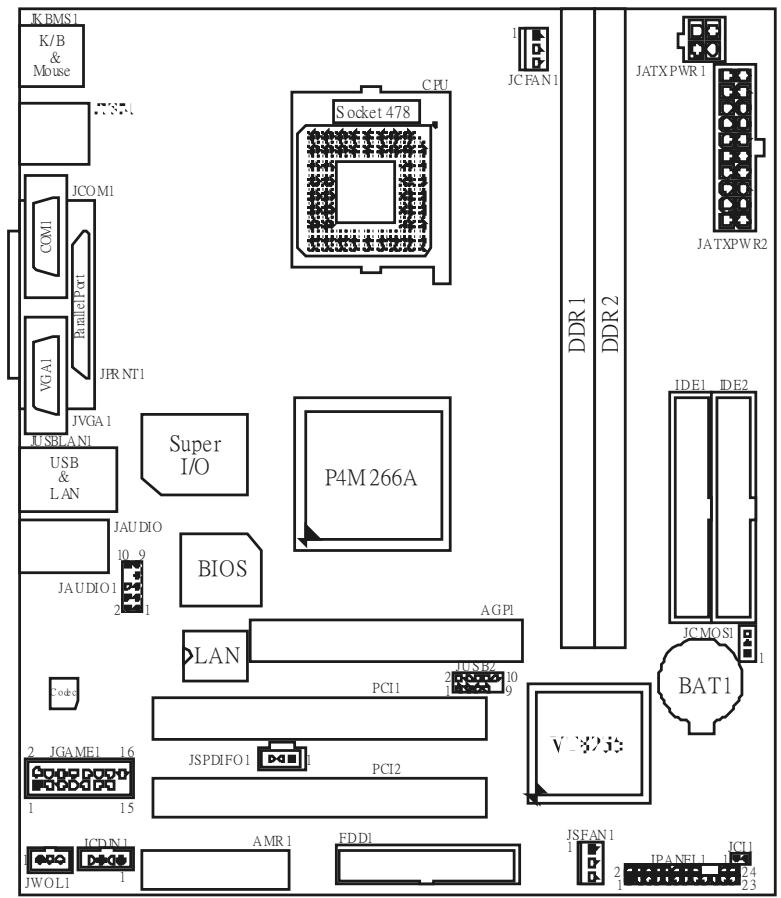
Layout of U8668-D (only for version 1.x and 6.x)
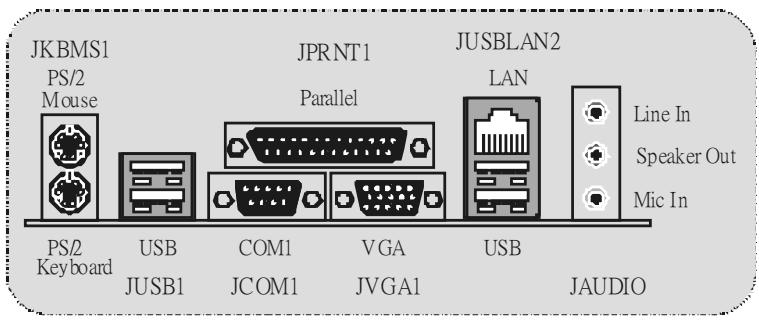
Back Panel Connector
Layout of U8668-D (only for version 3.3)
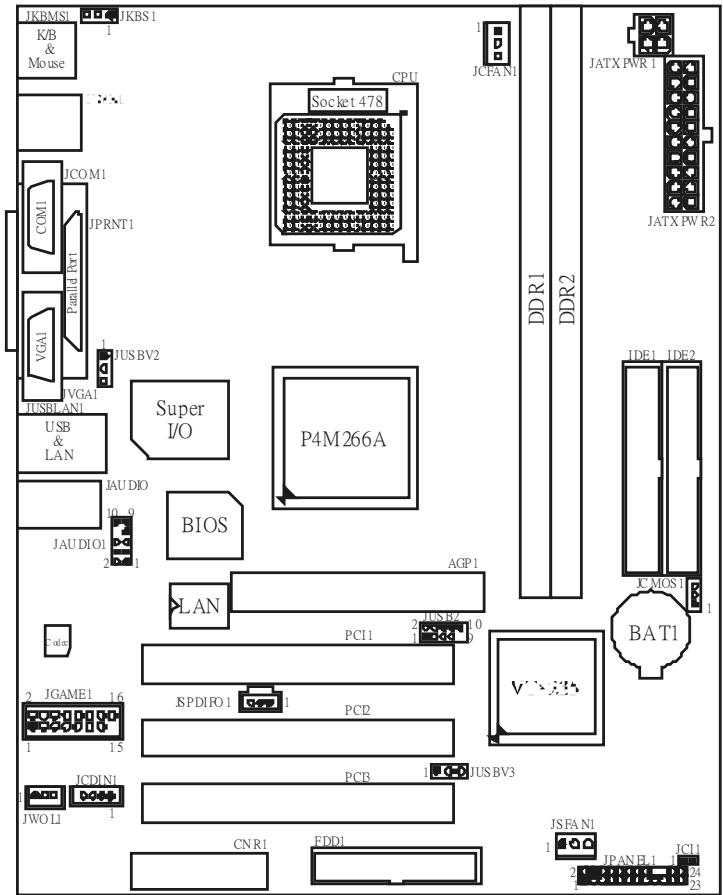
Back Panel Connector
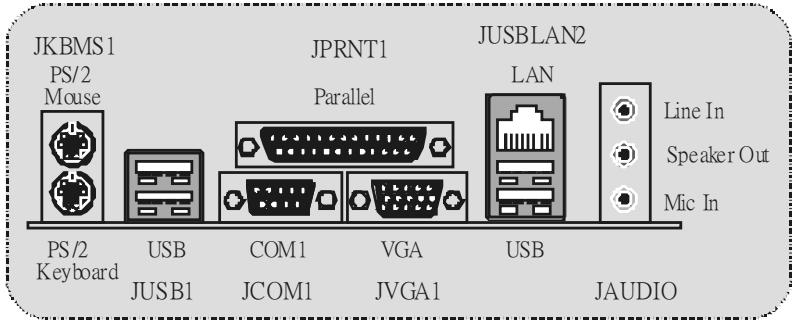
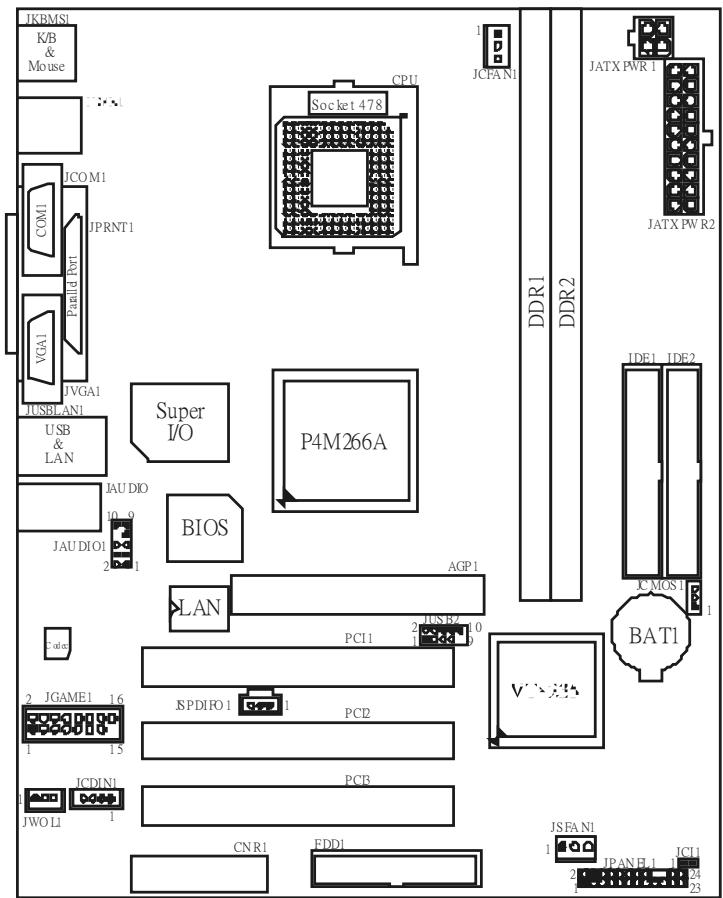
Layout of U8668-D (only for version 4.0)
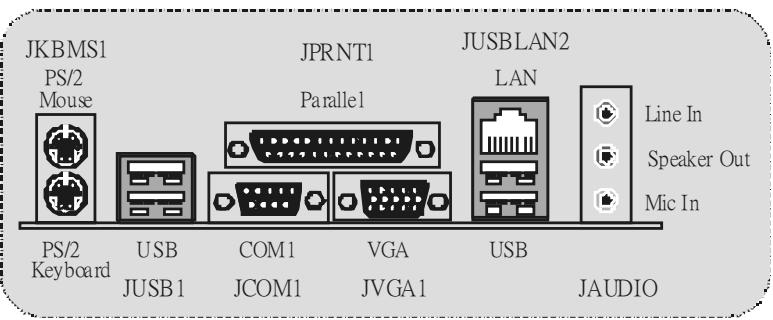
Back Panel Connector
Layout of U8668-D (only for version 5.x)
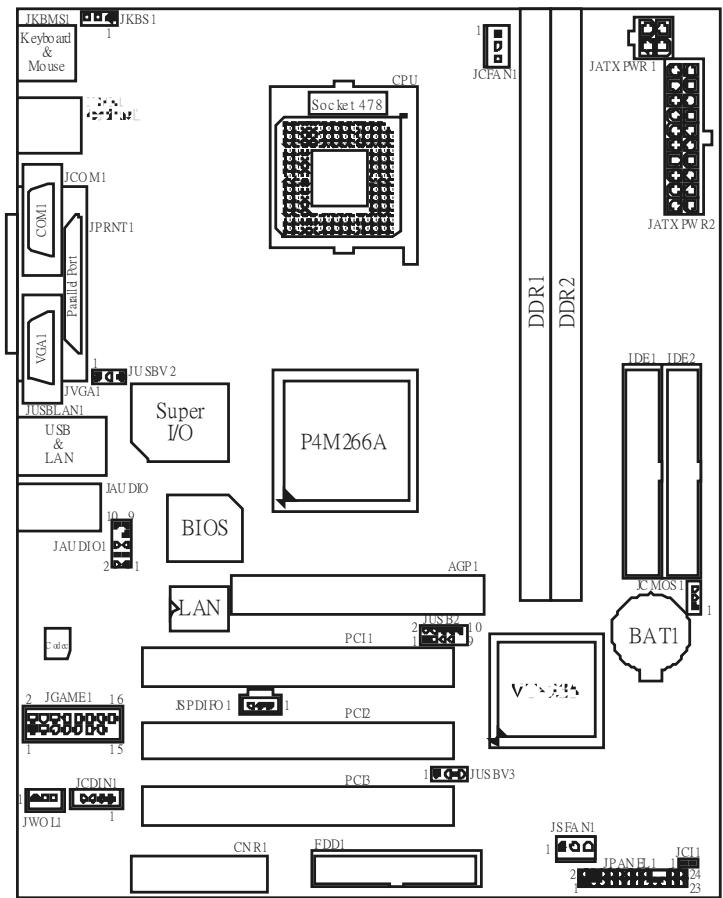
Back Panel Connector
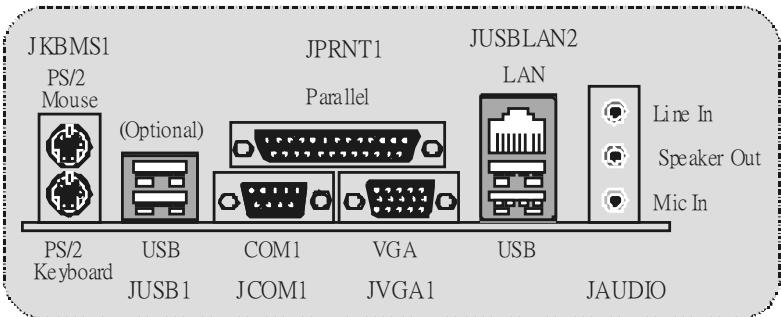
Layout of U8668-D (only for version 5.A)
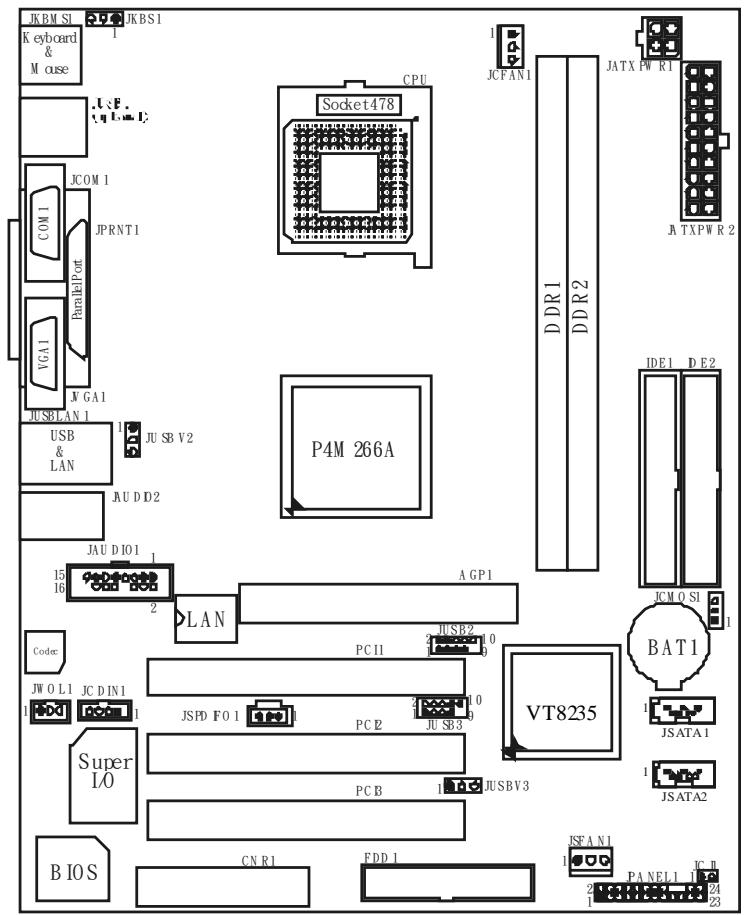
Back Panel Connector
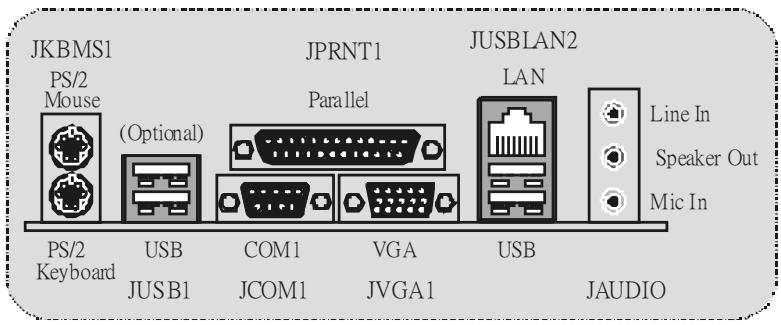
Layout of U8668-D (only for version 5.B & above)
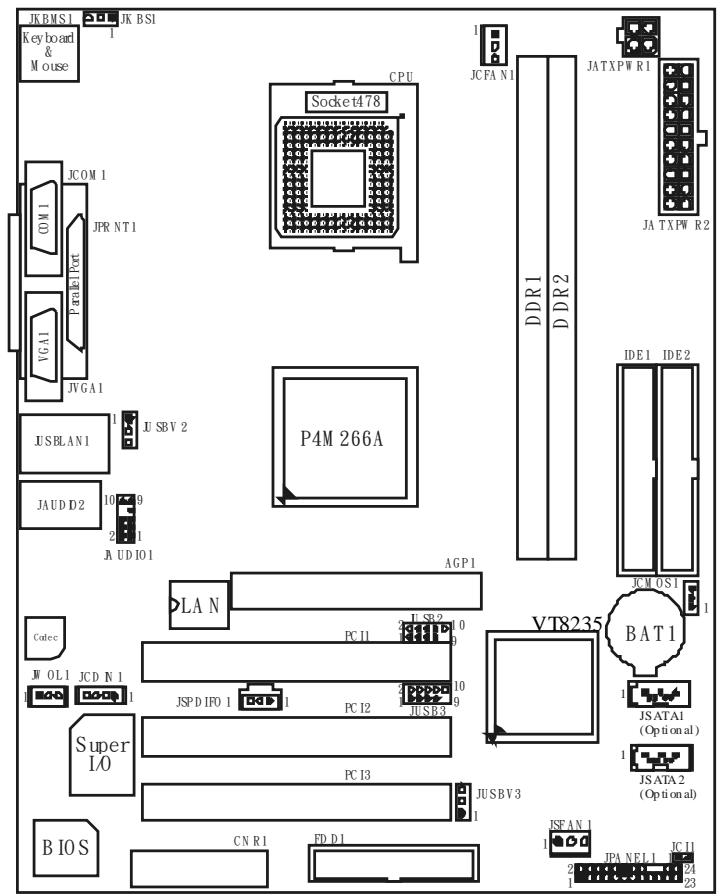
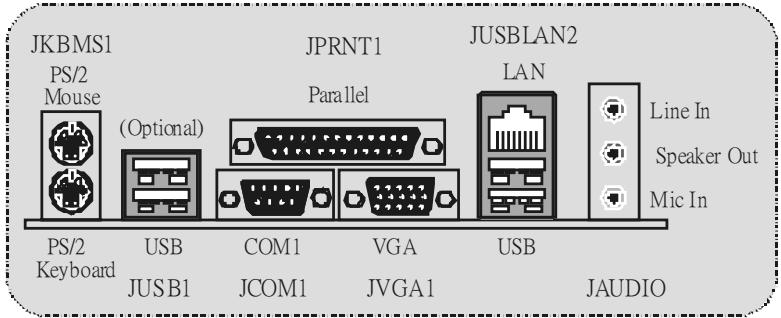
Back Panel Connector
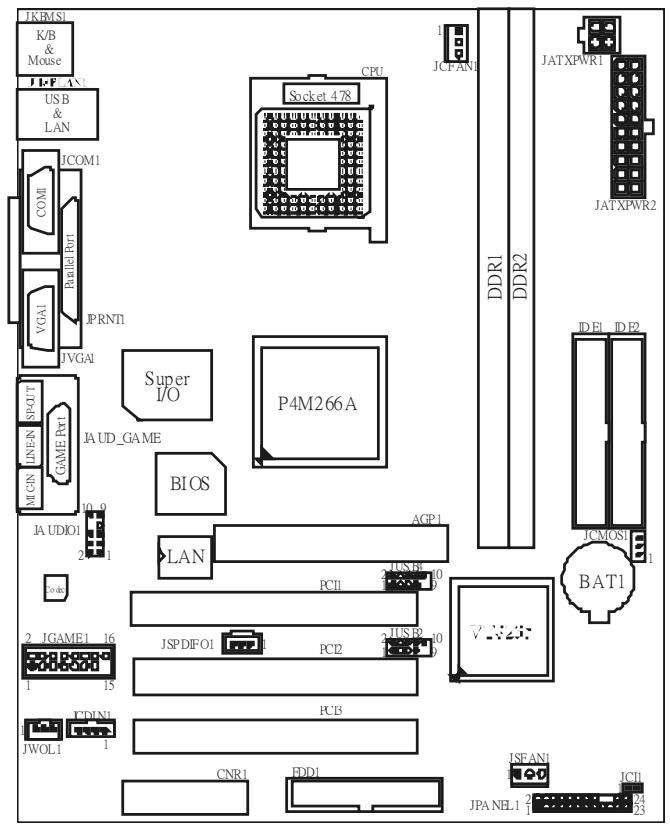
Layout of U8668-D (only for version 7.0~7.3)
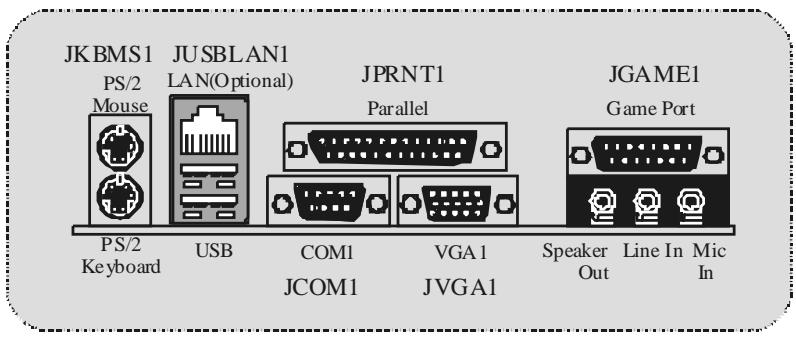
Back Panel Connector
Layout of U8668-D (only for version 7.5~7.7)
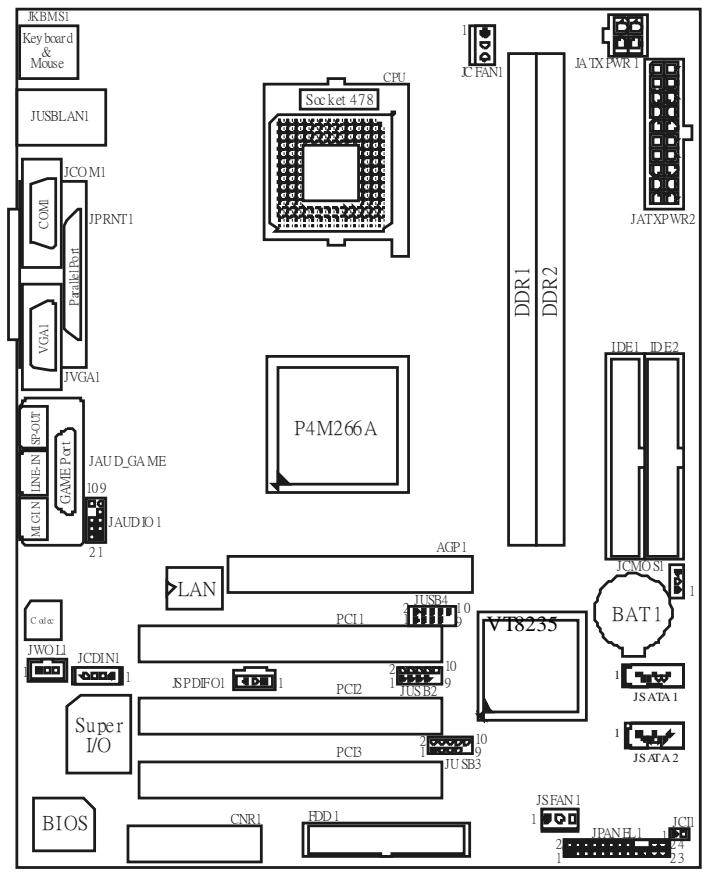
Back Panel Connector
JKBMS1
PS/2
JUSBLAN1
LAN(OptionaI)
JPRNT1
Parallel
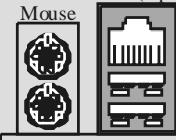
PS/2
Keyboard
USB
COM1
JCOM1
1
JVGA1
JGAME1
Game Port
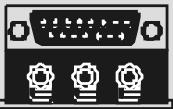
Speaker
Line In Mic
Out
In
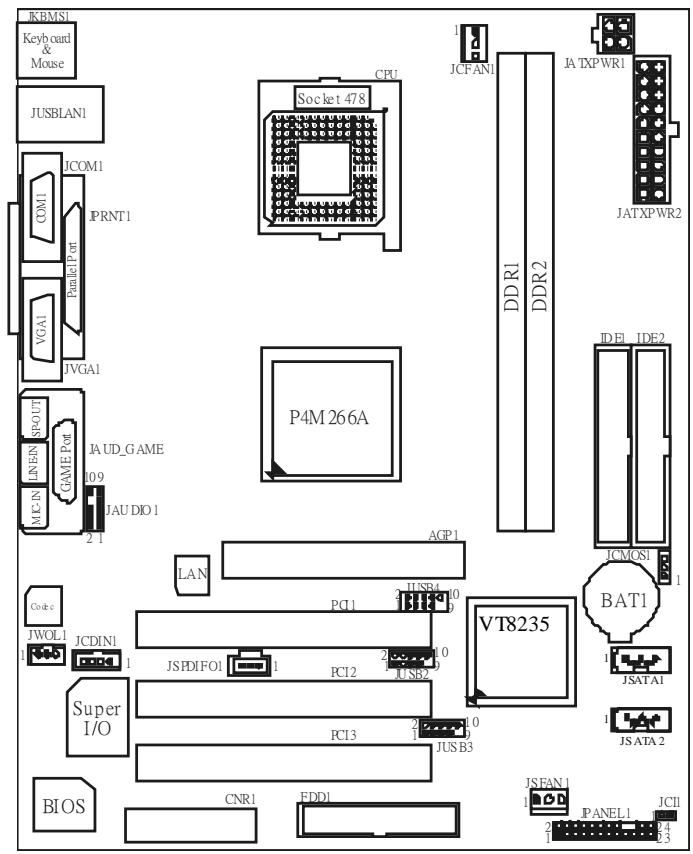
Layout of U8668-D (only for version 7.8 & above)
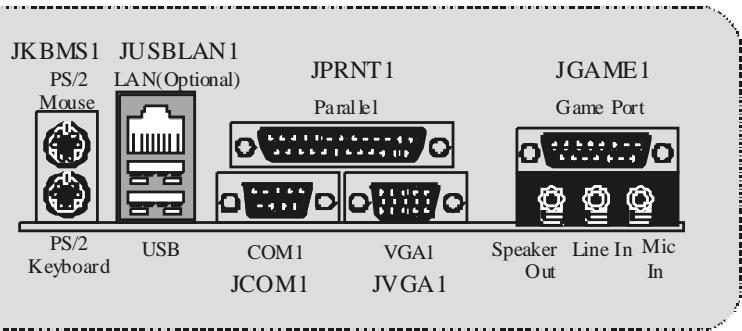
Back Panel Connector
CPU Installation
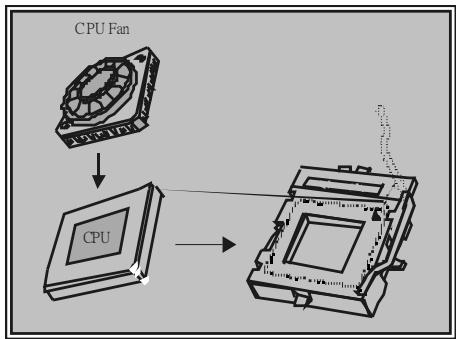
- Pull the lever sideways away from the socket then raise the lever up to a 90-degree angle.
- Locate Pin A in the socket and look for the white dd or cut edge in the CPU. Match Pin A with the white dot/cut edge then insert the CPU.
- Press the lever down. Then Put the fan on the CPU and buckle it and put the fan's power port into the JCFAN1, then to complete the installation.
CPU/ System Fan Headers: JCFAN1/ (JSFAN1 => optional)
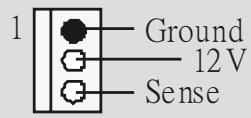
JCFAN1
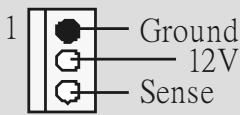
JSFAN1
DDR DIMM Modules: DDR1-2
DRAM Access Time: 2.5V Unbuffered/ Registered DDR 200 MHz (PC1600)/ DDR 266 MHz (PC2100) Type required.
DRAM Type: 64MB/ 128MB/ 256MB/ 512MB/ 1GB DIMM Module.(184 pin)
| DIMM Socket Location | DDR Module | Total Memory Size (MB) |
| DDR 1 | 64MB/128MB/256MB/512MB/1GB *1 | Max is |
| DDR 2 | 64MB/128MB/256MB/512MB/1GB *1 | 2GB |
The list shown above for DRAM configuration is only for reference.
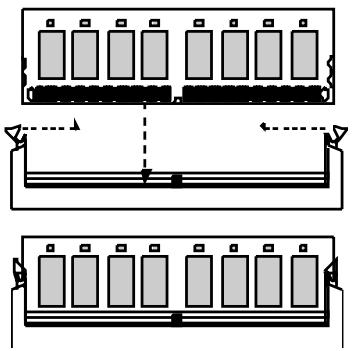
How to install DDR DIMM Module
- The DDR DIMM socket has a "Plastic Safety Tab", and the DDR DIMM memory module has an Asymmetrical notch, so the DDR DIMM memory module can only fit into the slot in one direction.
- Push the tabs out. Insert the DDR DIMM memory modules into the socket at a 90-degree angle, and then push down vertically so that it will fit into the place.
- The Mounting Holes and plastic tabs should fit over the edge and hold the DDR DIMM memory modules in place.
Jumpers, Headers, Connectors & Slots
Hard Disk Connectors: IDE1/IDE2
The motherboard has a 32-bit Enhanced PCI IDE Controller that provides PIO Mode 0~4, Bus Master, and Ultra DMA 33/66/100/133 functionality. It has two HDD connectors IDE1 (primary) and IDE2 (secondary).
The IDE connectors can connect a master and a slave drive, so you can connect up to four hard disk drives. The first hard drive should always be connected to IDE1.
Floppy Disk Connector: FDD1
The motherboard provides a standard floppy disk connector that supports 360K, 720K, 1.2M, 1.44M and 2.88M floppy disk types. This connedor supports the provided floppy drive ribbon cables.
Audio Modem Riser Slot: AMR1 (only for version 1.x and 6.x)
(Only support slave card)
The AMR specification is an open Industry Standard Architecture and that defines a hardware scalable riser card interface, which supports audio and modem only.
Peripheral Component Interconnect Slots: PCI1-3 (only for version 3.x, 4.x, 5x, 5.A, 5.B, 7.x)
This motherboard is equipped with 3 standard PCI slots. PCI stands for Peripheral Component Interconnect, and it is a bus standard for expansion cards. This PCI slot is designated as 32 bits.
Peripheral Component Interconnect Slots: PCI1-2 (only for version 1.x and 6.x)
This motherboard is equipped with 2 standard PCI slots. PCI stands for Peripheral Component Interconnect, and it is a bus standard for expansion cards. This PCI slot is designated as 32 bits.
Accelerated Graphics Port Slot: AGP1
Your monitor will attach directly to that video card. This motherboard supports video cards for PCI slots, but it is also equipped with an Accelerated Graphics Port (AGP). An AGP card will take advantage of AGP technology for improved video efficiency and performance, especially with 3D graphics.
Communication Network Riser Slot: CNR1 (optional)
The CNR specification is an open Industry Standard Architecture, and it defines a hardware scalable riser card interface, which supports audio and modem only.
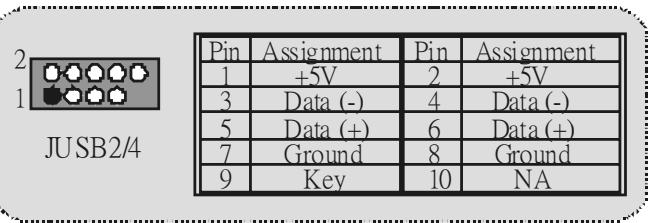
Front USB Header: JUSB2/ (JUSB3 => only for version 5.A & 5.B, 7.2; JUSB4 => only for version 7.x)
Power Connectors: JATXPWR1/ JATXPWR2
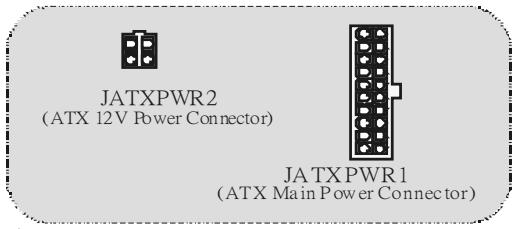
JATXPWR1
| PIN | Assignment | PIN | Assignment |
| 1 | +3.3V | 11 | +3.3V |
| 2 | +3.3V | 12 | -12V |
| 3 | Ground | 13 | Ground |
| 4 | +5V | 14 | PS_ON |
| 5 | Ground | 15 | Ground |
| 6 | +5V | 16 | Ground |
| 7 | Ground | 17 | Ground |
| 8 | PW_OK | 18 | -5V |
| 9 | +5V_Sstandby | 19 | +5V |
| 10 | +12V | 20 | +5V |
JATXPWR2
| PIN | Assignment | PIN | Assignment |
| 1 | 12V | 3 | Ground |
| 2 | 12V | 4 | Ground |
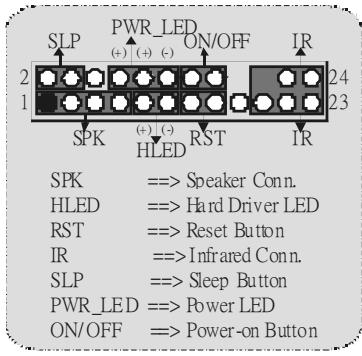
Front Panel Connector: JPANEL1
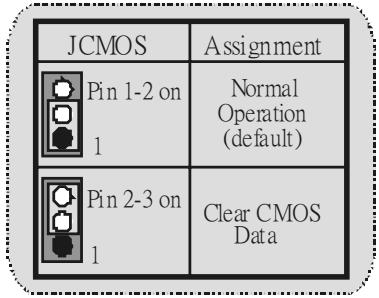
Clear CMOS Jumper: JCMOS
Clear CMOS Procedures:
- Remove AC power line.
- Set JCMOS1 (2-3) closed.
- Wait for five seconds.
- Set JCMOS1 (1-2) closed.
- Power on AC
- Reset your desired password or clear the CMOS data.
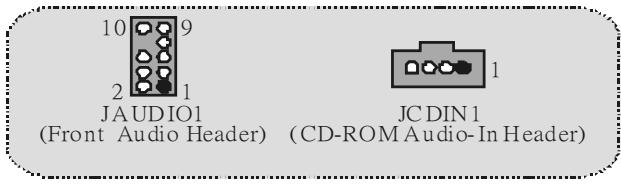
Audio Subsystem: JAUDIO1/ JCDIN1
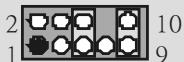
JF AUDIO1
| Pin | Assignment | Pin | Assignment |
| 1 | Mic In | 2 | Ground |
| 3 | Mic Power | 4 | Audio Power |
| 5 | RT Line Out | 6 | RT Line Out |
| 7 | Reserved | 8 | Key |
| 9 | LFT Line Out | 10 | LFT Line Out |
Front Panel Audio Connector/Jumper Block
| Jumper Setting | Configuration |
| Pin 5 and 6 9 10 3 2 6 2 4 6 3 5 6 9 10 No jumpers installed | Audio line out signals are routed to the back panel audio line out connector. |
| Audio line out and mic in signals are available for front panel audio connectors. |
Audio Subsystem: JCDIN1/ JAUDIO1 (only support for version 5.1 & 5.A)

JAUDIO1 (Front Audio Header)
JCDIN1 (CD-ROM Audio-In Header)
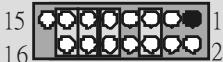
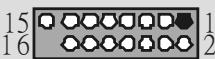
JAUDIO1
| Pin | Assignment | Pin | Assignment |
| 1 | Mic In | 2 | Ground |
| 3 | Mic Power | 4 | Audio Power |
| 5 | Right Line Out | 6 | Right Line Out |
| 7 | Reserved | 8 | NC |
| 9 | Left Line Out | 10 | Left Line Out |
| 11 | Surrender Right | 12 | Surrender Left |
| 13 | Center | 14 | Subwooof |
| 15 | Ground | 16 | KEY |
Game Header: JGAME1 (optional)
| Pin | Assignment | Pin | Assignment |
| 1 | +5V | 2 | +5V |
| 3 | GP6 | 4 | GP4 |
| 5 | GP2 | 6 | GPO |
| 7 | MIDI-OUTR | 8 | Ground |
| 9 | GP3 | 10 | Ground |
| 11 | GP7 | 12 | GP1 |
| 13 | MIDI-INR | 14 | GP5 |
| 15 | NC | 16 | +5V |
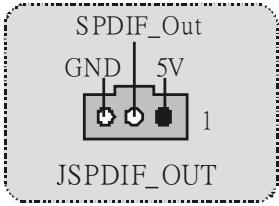
Digital Audio Connector: JSPDIF_OUT1 (optional)
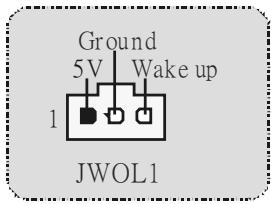
Wake On LAN Header: JWO L1 (optional)
Case Open Connector: JCI1 (optional)
| JCI1 | Assignment |
| 1 No jumper installed | Normal Operation (default) |
| 1 Pin 1-2 on | Case Open |
Power Source Selection for KB/MS and USB0/1: JKBS1 (only for version 3.3 and 5.x, 5.A, 5.B)
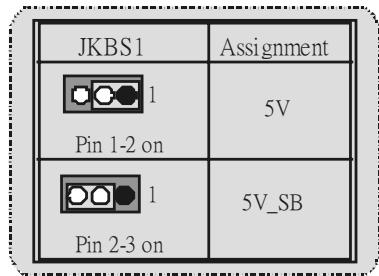
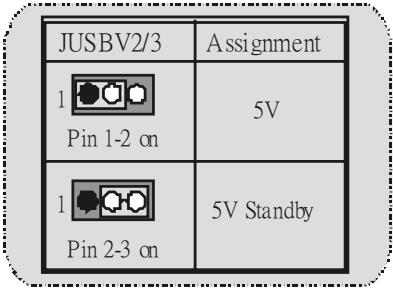
Power Source Selection for USB: JUSBV2/ JUSBV3 (only for version 3.3 and 5.x, 5.A, 5.B)
Trouble Shooting
| PROBABLE | SOLUTION |
| No power to the system at all Power light don't illuminate, f an inside power supply does not turn on. Indicator light on keyboard does not turn on | * Make sure power cable is securely plugged in * Replace cable * Contad technical support |
| System inoperative. Keyboard lights are on, power indicator lights are lit, hard drive is spinning. | * Using even pressure on both ends of the DIMM, press down firmly until the module snaps into place. |
| System does not boot from hard disk drive, can be booted from optical drive. | * Check cable running from disk to disk controller board. Make sure both ends are securely plugged in; check the drive type in the standard CMOS setup. * Backing up the hard drive is extremely important. All hard disks are capable of breaking down at any time. |
| System only boots from optical drive. Hard disk can be read and applications can be used but booting from hard disk is impossible. | * Back up data and applications files. Ref ormat the hard drive. Re-install applications and data using backup disks. |
| Screen message says "Invalid Configuration" or "CMOS Failure" | * Review system's equipment. Make sure correct information is in setup. |
| Cannot boot system after installing second hard drive. | * Set master/slave jumpers correctly. * Run SETUP program and select correct drive types. Call drive manufacturers for compatibility with other drives. |
Espanol
Characteristicas del U8668-D
CPU
North Bridge: P4M266A
South Bridge: VT8235
Memoria Principal
RealTek RTL8201BL.
10/100Mbps.
Full/Half Duplex.
LAN
VIA VT6103/6103L (Sólo la version 7.8y posteriores admiten el Conjunto de chips VT6103L).
Dual Speed: 10/100Mbps.
Full/Half Duplex.
Auto Negociación: 10/100 Mbps, Full/Half Duplex.
AC'97 Sound Codec Onboard
North Bridge: P4M266A
South Bridge: VT8235
Mémoire Principale
RealTek RTL8201BL.
10/100Mbps.
Full/Half Duplex.
LAN
[WarpSpeeder™], a new powerful control utility, features three user-friendly functions including Overclock Manager, Overvoltage Manager, and Hardware Monitor.
With the Overclock Manager, users can easily adjust the frequency they prefer or they can get the best CPU performance with just one click. The Overvoltage Manager, on the other hand, helps to power up CPU core voltage and Memory voltage. The cool Hardware Monitor smartly indicates the temperatures, voltage and CPU fan speed as well as the chipset information. Also, in the About panel, you can get detail descriptions about BIOS model and chipsets. In addition, the frequency status of CPU, memory, AGP and PCI along with the CPU speed are synchronically shown on our main panel. Moreover, to protect users' computer systems if the setting is not appropriate when testing and results in system fail or hang, [WarpSpeederTM] technology assures the system stability by automatically rebooting the computer and then restart to a speed that is either the original system speed or a suitable one.
3.2 System Requirement
OS Support: Windows 98 SE, Windows Me, Windows 2000, Windows XP
DirectX: DirectX 8.1 or above. (The Windows XP operating system includes DirectX 8.1. If you use Windows XP, you do not need to
install DirectX 8.1.)
3.3 Installation
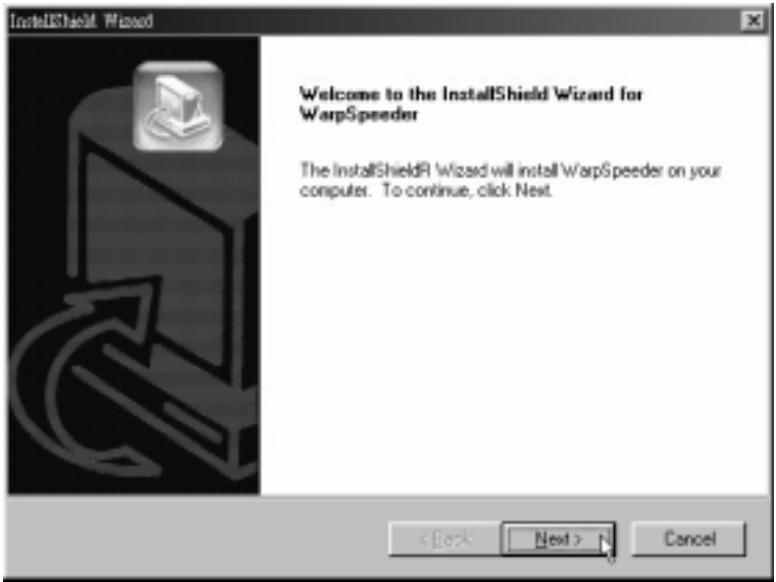
- Execute the setup execution file, and then the following dialog will pop up. Please click "Next" button and follow the default procedure to install.
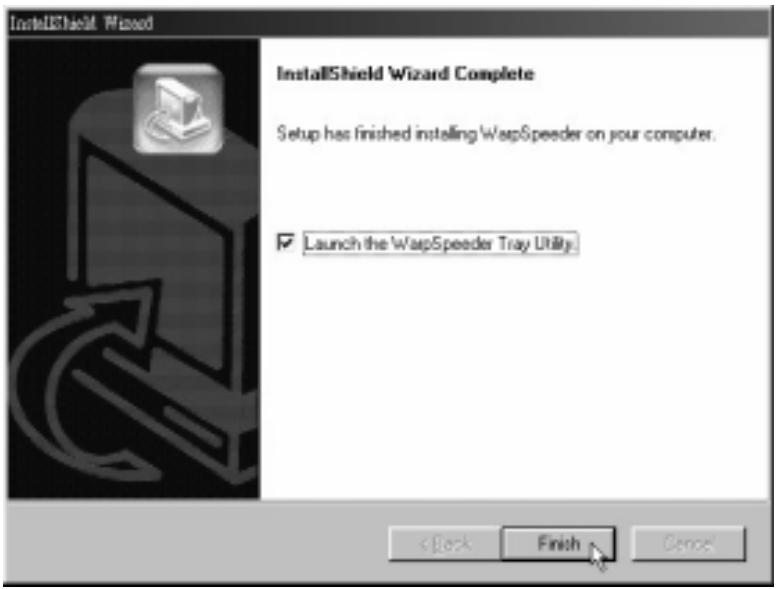
- When you see the following dialog in setup procedure, it means setup is completed. If the "Launch the WarpSpeeder Tray Utility" checkbox is checked, the Tray Icon utility and [WarpSpeederTM] utility will be automatically and immediately launched after you click "Finish" button.
Motherboard Description
Usage:
The following figures are just only for reference, the screen printed in this user manual will change according to your motherboard on hand.
[WarpSpeeder™] includes 1 tray icon and 5 panels:
1. Tray Icon:
Whenever the Tray Icon utility is launched, it will display a little tray icon on the right side of Windows Taskbar.
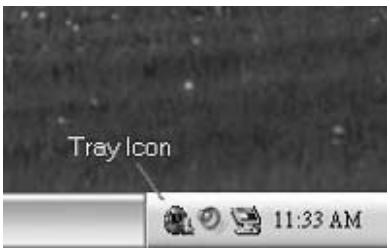
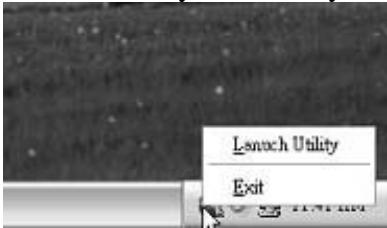
This utility is responsible for conveniently invoking [WarpSpeeder™] Utility. You can use the mouse by clicking the left button in order to invoke [WarpSpeeder™] directly from the little tray icon or you can right-click the little tray icon to pop up a popup menu as following figure. The "Launch Utility" item in the popup menu has the same function as mouse left-click on tray icon and "Exit" item will close Tray Icon utility if selected.
2. Main Panel
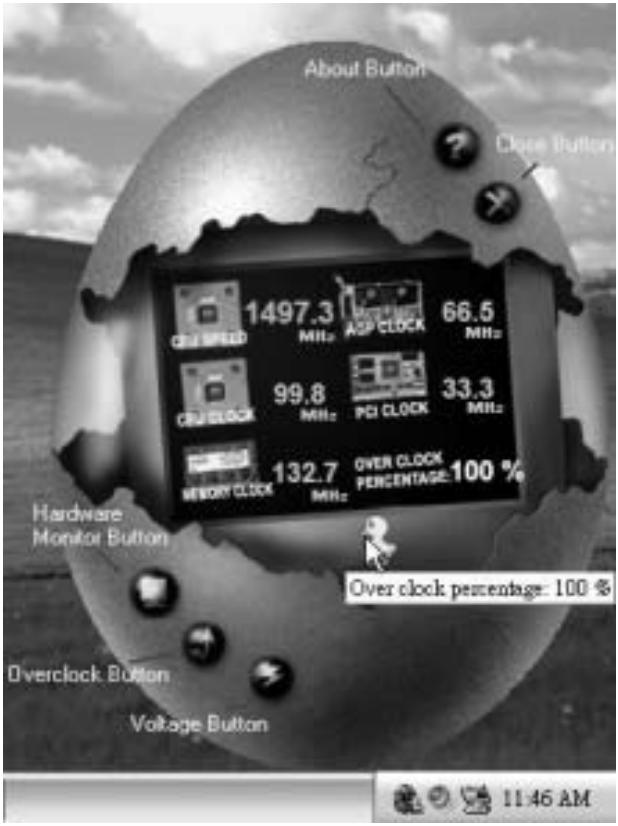
If you click the tray icon, [WarpSpeeder™] utility will be invoked. Please refer to the following figure; the utility's first window you will see is Main Panel.
Main Panel contains features as follows:
a. Display the CPU Speed, CPU external clock, Memory clock, AGP clock, and PCI clock information.
b. Contains About, Voltage, Overclock, and Hardware Monitor Buttons for invoking respective panels.
c. With a user-friendly Status Animation, it can represent 3
overclock percentage stages:
Man walking overclock percentage from 100% 110%
Panther running overclock percentage from 110% 120%
Car racing overclock percentage from 120% above
3. Voltage Panel
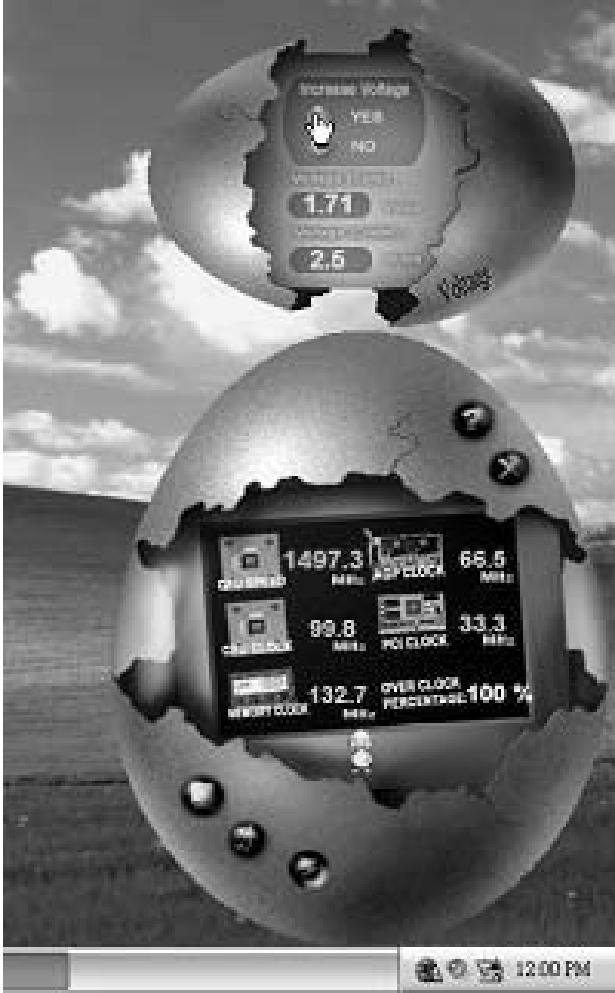
Click the Voltage button in Main Panel, the button will be highlighted and the Voltage Panel will slide out to up as the following figure.
In this panel, you can decide to increase CPU core voltage and Memory voltage or not. The default setting is "No". If you want to get the best performance of overclocking, we
recommend you click the option "Yes".
4. Overclock Panel
Click the Overclock button in Main Panel, the button will be highlighted and the Overclock Panel will slide out to left as the following figure.
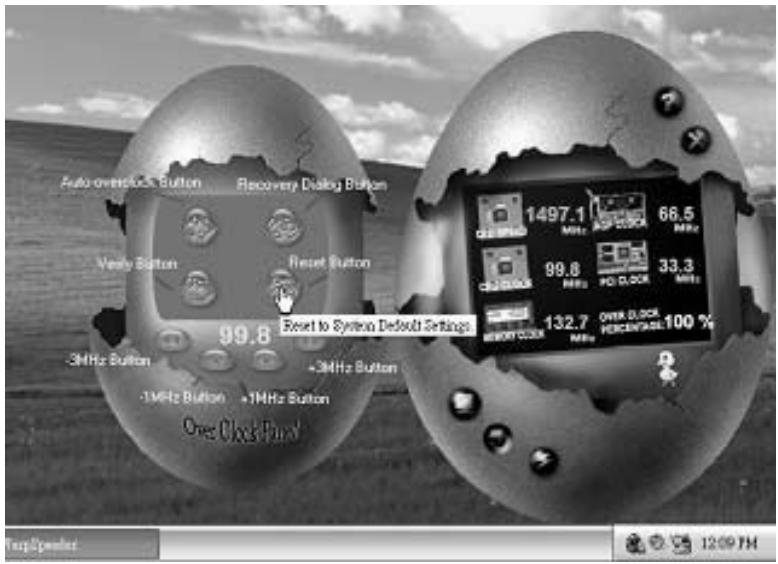
Overdock Panel contains the these features:
a. “-3MHz button”, “-1MHz button”, “+1MHz button”, and “+3MHz button”: provide user the ability to do real-time overclock adjustment.
Warning:
Manually overclock is potentially dangerous, especially when the overclocking percentage is over 110% . We strongly recommend you verify every speedy you overclock by dick the Verify button. Or, you can just click Autooverclock button and let [WarpSpeederTM] automatically gets the best result for you.
b. "Recovery Dialog button": Pop up the following dialog. Let user select a restoring way if system need to do a fail-safe reboot.
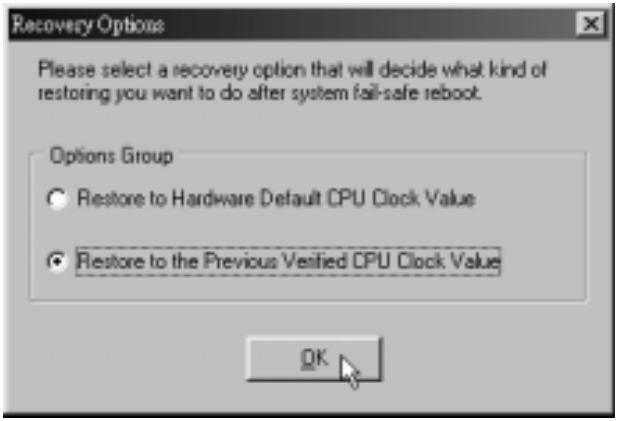
d. "Auto-overclock button": User can click this button and [WarpSpeeder™] will set the best and stable performance and frequency automatically. [WarpSpeeder™] utility will execute a series of testing until system fail. Then system will do fail-safe reboot by using Watchdog function. After reboot, the [WarpSpeeder™] utility will restore to the hardware default setting or load the verified best and stable frequency according to the Recovery Dialog's setting
e. "Verify button": User can click this button and [WarpSpeederTM] will proceed a testing for current frequency. If the testing is ok, then the current frequency will be saved into system registry. If the testing fail, system will do a fail-safe rebooting. After reboot, the [WarpSpeederTM] utility will restore to the hardware default setting or load the verified best and stable frequency according to the Recovery Dialog's setting
Note:
Because the testing programs, invoked in Auto-overclock and Verify, include DirectDraw, Direct3D and DirectShow tests, the DirectX 8.1 or newer runtime library is required. And please make sure your display card's color depth is High color (16 bit) or True color (24/32bit) that is required for DirectX3D rendering.
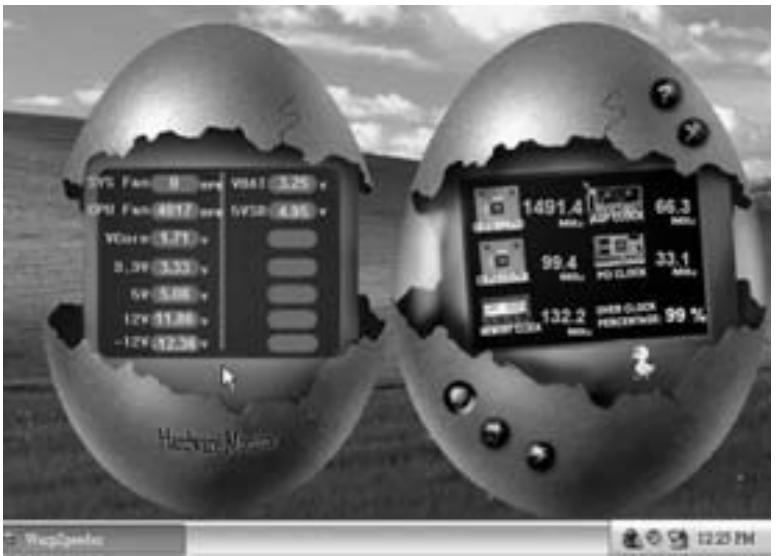
5. Hardware Monitor Panel
Click the Hardware Monitor button in Main Panel, the button will be highlighted and the Hardware Monitor panel will slide out to left as the following figure.
In this panel, you can get the real-time status information of your system. The information will be refreshed every 1 second.
6. About Panel
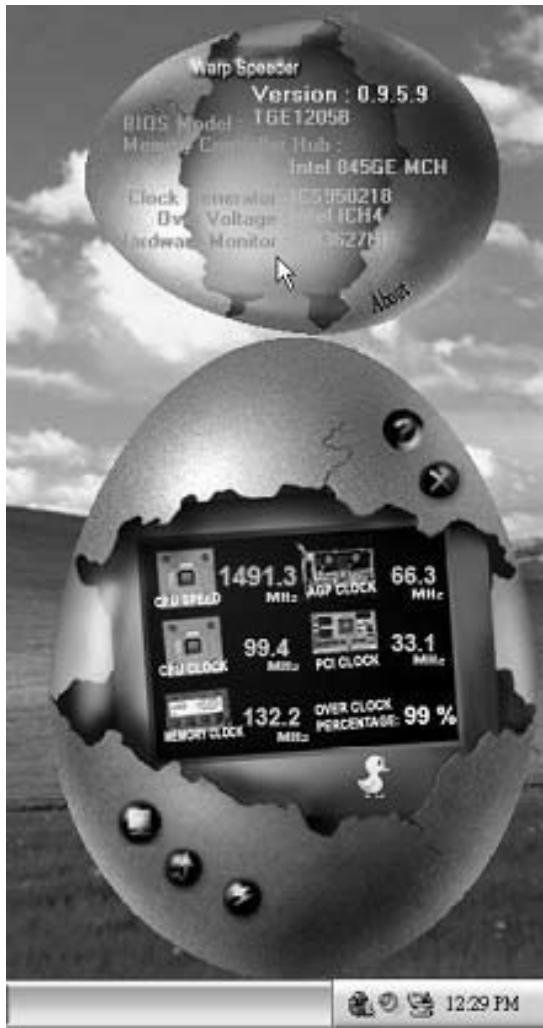
Click the "about" button in Main Panel, the button will be highlighted and the About Panel will slide out to up as the following figure.
In this panel, you can get model name and detail information in hints of all the chipset that are related to overclocking. You can also get the mainboard's BIOS model and the Version number of [WarpSpeeder™] utility.
Note:
Because the overclock, overvoltage, and hardware monitor features are controlled by several separate chip set,
[WarpSpeeder ^TM ] divide these features to separate panels. If one chipset is not on board, the correlative button in Main panel will be disabled, but will not interfere other panels' functions. This property can make [WarpSpeeder ^TM ] utility more robust.
06/29/2004
BIOS Setup 1
Main Menu. 3
Standard CMOS Features. 5
Standard CMOS Features. 6
Advanced BIOS Features. 8
Advanced Chipset Features 12
Integrated Peripherals 17
Power Management Setup 21
PnP/PCI Configurations. 26
PC Health Status 29
Frequency Control 31
BIOS Setup
Introduction
This manual discussed Award™ Setup program built into the ROM BIOS. The Setup program allows users to modify the basic system configuration. This special information is then stored in battery-backed RAM so that it retains the Setup information when the power is turned off.
The Award BIOS^TM installed in your computer system's ROM (Read Only Memory) is a custom version of an industry standard BIOS. This means that it supports Intel^TM processors input/output system. The BIOS provides critical low-level support for standard devices such as disk drives and serial and parallel ports.
Adding important has customized the Award BIOSTM, but nonstandard, features such as virus and password protection as well as special support for detailed fine-tuning of the chipset controlling the entire system.
The rest of this manual is intended to guide you through the process of configuring your system using Setup.
Plug and Play Support
These AWARD BIOS supports the Plug and Play Version 1.0A specification. ESCD (Extended System Configuration Data) write is supported.
EPA Green PC Support
This AWARD BIOS supports Version 1.03 of the EPA Green PC specification.
APM Support
These AWARD BIOS supports Version 1.1&1.2 of the Advanced Power Management (APM) specification. Power management features are implemented via the System Management Interrupt (SMI). Sleep and Suspend power management modes are supported. Power to the hard disk drives and video monitors can be managed by this AWARD BIOS.
PCI Bus Support
This AWARD BIOS also supports Version 2.1 of the Intel PCI (Peripheral Component Interconnect) local bus specification.
DRAM Support
DDR DRAM are supported.
Supported CPUs
This AWARD BIOS supports the Intel™ CPU.
Using Setup
In general, you use the arrow keys to highlight items, press
| Keystroke | Function |
| Up arrow | Move to previous item |
| Down arrow | Move to next item |
| Left arrow | Move to the item on the left (menu bar) |
| Right arrow | Move to the item on the right (menu bar) |
| Esc | Main Menu: Quit without saving changes Submenus: Exit Current page to the next higher level menu |
| Move Enter | Move to the item you desired |
| PgUp key | Increase the numeric value or make changes |
| PgDn key | Decrease the numeric value or make changes |
| + Key | Increase the numeric value or make changes |
| - Key | Decrease the numeric value or make changes |
| F1 key | General help on Setup navigation keys |
| F5 key | Load previous values from CMOS |
| F7 key | Load the optimized defaults |
| F10 key | Save all the CMOS changes and exit |
Main Menu
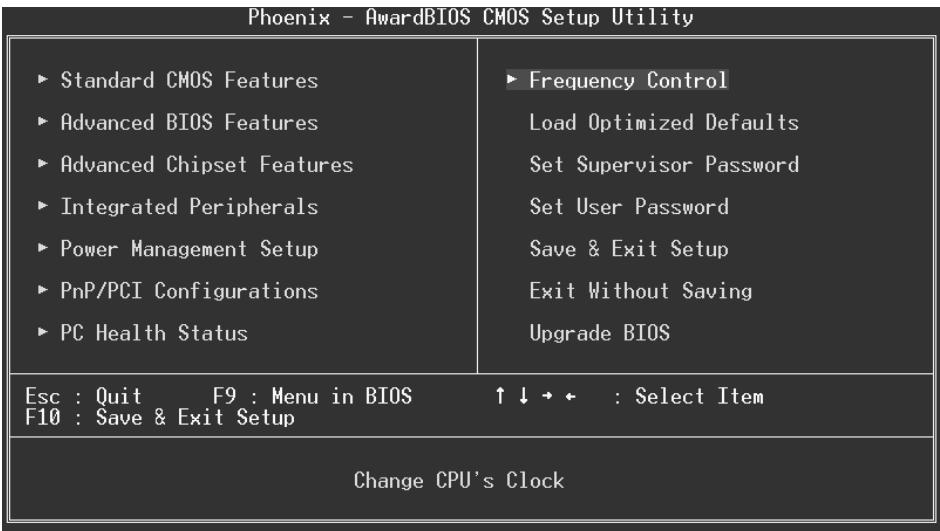
Once you enter Award BIOS™ CMOS Setup Utility, the Main Menu will appear on the screen. The Main Menu allows you to select from several setup functions. Use the arrow keys to select among the items and press
The information about BIOS defaults on manual is just for reference; please refer to the BIOS installed on board, for update information.
Figure 1. Main Menu
Standard CMOS Features
This submenu contains industry standard configurable options.
Advanced BIOS Features
This submenu allows you to configure enhanced features of the BIOS.
Advanced Chipset Features
This submenu allows you to configure special chipset features.
Integrated Peripherals
This submenu allows you to configure certain IDE hard drive options and Programmed Input/ Output features.
Power Management Setup
This submenu allows you to configure the power management features.
PnP/PCI Configurations
This submenu allows you to configure certain "Plug and Play" and PCI options.
PC Health Status
This submenu allows you to monitor the hardware of your system.
Frequency Control
This submenu allows you to change CPU clock ratio.
(However, when you try to change different CPU clock ratio, you should check your CPU frequency in advance. The CPU clock ratio should be changed depending on your CPU frequency.)
Load Optimized Defaults
This selection allows you to reload the BIOS when the system is having problems particularly with the boot sequence. These configurations are factory settings optimized for this system. A confirmation message will be displayed before defaults are set.
Load Optimized Defaults (Y/N)? N
Set Supervisor Password
Setting the supervisor password will prohibit everyone except the supervisor from making changes using the CMOS Setup Utility. You will be prompted with to enter a password.
Enter Password:
Set User Password
If the Supervisor Password is not set, then the User Password will function in the same way as the Supervisor Password. If the Supervisor Password is set and the User Password is set, the "User" will only be able to view configurations but will not be able to change them.
Enter Password:
Save & Exit Setup
Save all configuration changes to CMOS记忆) and exit setup. Confirmation message will be displayed before proceeding.
SAVE to CMOS and EXIT (Y/N)? Y
Exit Without Saving
Abandon all changes made during the current session and exit setup. Confirmation message will be displayed before proceeding.
Quit Without Saving (Y/N)? N
Upgrade BIOS
This submenu allows you to update bios.
BIOS UPDATE UTILITY (Y/N)? N
Standard CMOS Features
The items in Standard CMOS Setup Menu are divided into 10 categories. Each category includes no, one or more than one setup items. Use the arrow keys to highlight the item and then use the
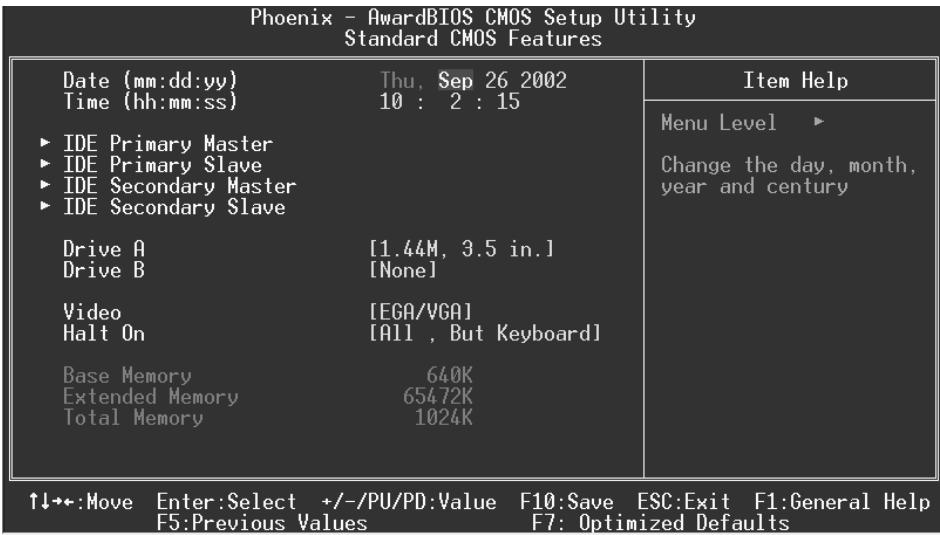
Figure 2. Standard CMOS Setup
Main Menu Selections
This table shows the selections that you can make on the Main Menu.
| Item | Options | Description |
| Date | MM DD YYYY | Set the system date. Note that the ‘Day’ automatically changes when you set the date. |
| Time | HH MM SS | Set the system internal clock. |
| IDE Primary Master | Options are in its sub menu. | Press <Enter> to enter the sub menu of detailed options |
| IDE Primary Slave | Options are in its sub menu. | Press <Enter> to enter the sub menu of detailed options. |
| IDE Secondary Master | Options are in its sub menu. | Press <Enter> to enter the sub menu of detailed options. |
| IDE Secondary Slave | Options are in its sub menu. | Press <Enter> to enter the sub menu of detailed options. |
| Drive A | 360K, 5.25 in 1.2M, 5.25 in 720K, 3.5 in 1.44M, 3.5 in 2.88M, 3.5 in None | Select the type of floppy disk drive installed in your system. |
| Drive B | ||
| Video | EGA/VGA CGA 40 CGA 80 MONO | Select the default video device. |
| Item | Options | Description |
| Halt On | All Errors | Select the situation in which you want the BIOS to stop the POST process and notify you. |
| No Errors | ||
| All, but Keyboard | ||
| All, but Diskette | ||
| All, but Disk/ Key | ||
| Base Memory | N/A | Displays the amount of conventional memory detected during boot up. |
| Extended Memory | N/A | Displays the amount of extended memory detected during boot up. |
| Total Memory | N/A | Displays the total memory available in the system. |
Advanced BIOS Features
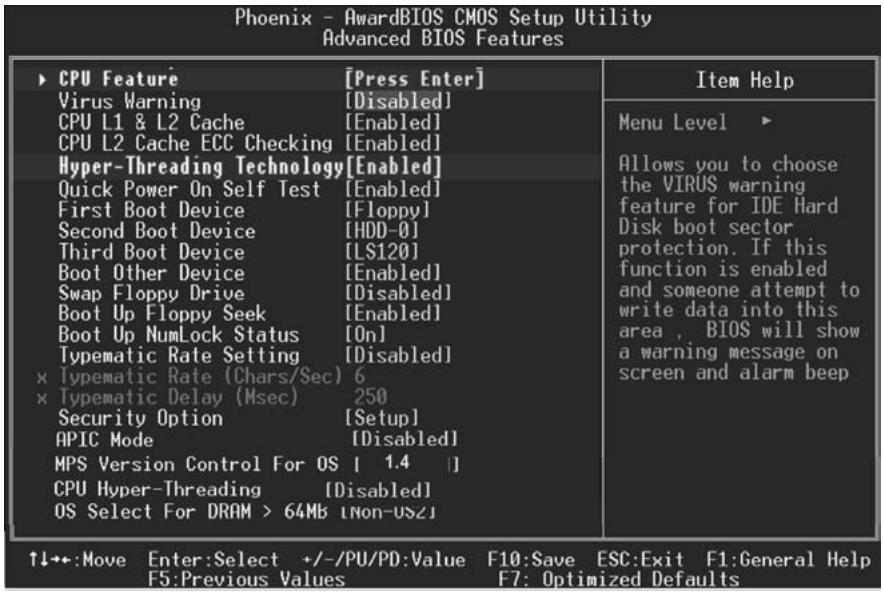
Figure 3. Advanced BIOS Setup
CPU Feature
Thermal Management
This option allows you to select the way to control the "Thermal Management."
The Choices: Thermal Monitor 1 (Default), Thermal Monitor 2.
TM2 Bus Ratio
This option represents the frequency (bus ratio of the throttled performance state that will be initiated when the on-diesensor goes from not hot to hot.)
Min= 0
Max=255
Key in a DEC number=
The Choices: 0 X (Default)
TM2 Bus VID
This option represents the voltage of the throttled performance state that will be initiated when the on-diesensor goes from not hot to hot.
The Choices: 0.8375V (Default), 0.8375-1.6000.
Limit CPUID MaxVal
Set Limit CPUID MaxVal to 3, it should be "Disabled" for WinXP.
The Choices: Disabled (Default), Enabled.
Virus Warning
- This option allows you to choose the VIRUS Warning feature that is used to protect the IDE Hard Disk boot sector. If this function is enabled and an attempt is made to write to the boot sector, BIOS will display a warning message on the screen and sound an alarm beep.
Disabled (default) Virus protection is disabled.
Enabled Virus protection is activated.
CPU L1 & L2 Cache
Depending on the CPU/chipse in use, you may be able to increase memory access time with this option.
Enabled (default) Enable cache.
Disabled Disable cache.
CPU L2 Cache ECC Checking
This item allows you to enable/disable CPU L2 Cache ECC Checking.
The Choices: Enabled (default), Disabled.
Hyper-Threading Technology
This option allows you to enable or disable Hyper-Threading Technology. "Enabled" for Windows XP and Linux 2.4.x (OS optimized for Hyper-Threading Technology). "Disable" for other OS (OS not optimized for Hyper-Threading Technology).
The Choices: Enabled (Default), Disabled.
Quick Power On Self Test
Enabling this option will cause an abridged version of the Power On Self-Test (POST) to execute after you power up the computer.
Enabled (default) Enable quick POST.
Disabled Normal POST.
First/Second/Third/Boot Other Device
These BIOS attempts to load the operating system from the devices in the sequence selected in these items.
The Choices: Floppy(First Boot: default), LS120(Third Boot: default), HDD-0(Second Boot: default), SCSI, CDROM, HDD-1, HDD-2, HDD-3, ZIP100, LAN, Enabled(Other Device: default), Disabled.
Swap Floppy Drive
For systems with two floppy drives, this option allows you to swap logical drive assignments.
The Choices: Enabled, Disabled (default).
Boot Up Floppy Seek
Enabling this option will test the floppy drives to determine if they have 40 or 80 tracks. Disabling this option reduces the time it takes to boot-up.
The Choices: Enabled (default), Disabled.
Boot Up NumLock Status
Selects the NumLock. State after power on.
The Choices: On (default) Numpad is number keys.
Off Numpad is arrow keys.
Typematic Rate Setting
When a key is held down, the keystroke will repeat at a rate determined by the keyboard controller. When enabled, the typematic rate and typematic delay can be configured.
The Choices: Disabled (default), Enabled.
Typematic Rate (Chars/Sec)
Sets the rate at which a keystroke is repeated when you hold the key down.
The Choices: 6 (default), 8,10,12,15,20,24,30.
Typematic Delay (Msec)
Sets the delay time after the key is held down before it begins to repeat the keystroke.
The Choices: 250 (default), 500,750,1000.
Security Option
This option will enable only individuals with passwords to bring the system online and/or to use the CMOS Setup Utility.
System A password is required for the system to boot and is also required to access the Setup Utility.
Setup (default) A password is required to access the Setup Utility only.
This will only apply if passwords are set from the Setup main menu.
APIC Mode
Selecting "Enabled" enables ACPI device mode reporting from the BIOS to the operating system.
The Choices: Enabled (default), Disabled.
MPS Version Control For OS
The BIOS supports version 1.1 and 1.4 of the Intel multiprocessor specification. Select version supported by the operation system running on this computer.
The Choices: 1.4(default), 1.1.
CPU Hyper-Treading
This option allows you to enable or disable CPU Hyper-Threading.
The Choices: Enabled, Disabled(Default).
OS Select For DRAM > 64MB
A choice other than Non-OS2 is only used for OS2 systems with memory exceeding 64MB.
The Choices: Non-OS2 (default), OS2.
Video BIOS Shadow
Determines whether video BIOS will be copied to RAM for faster execution.
The Choices: Enabled (default)
Disabled
Optional ROM is enabled.
Optional ROM is disabled.
Summary Screen Show
This item allows you to enable/ disable the summary screen. Summary screen means system configuration and PCI device listing.
The Choices: Enabled, Disabled (default).
Advanced Chipset Features
This submenu allows you to configure the specific features of the chipset installed on your system. This chipset manages bus speeds and access to system memory resources, such as DRAM and external cache. It also coordinates communications with the PCI bus. The default settings that came with your system have been optimized and therefore should not be changed unless you are suspicious that the settings have been changed incorrectly.
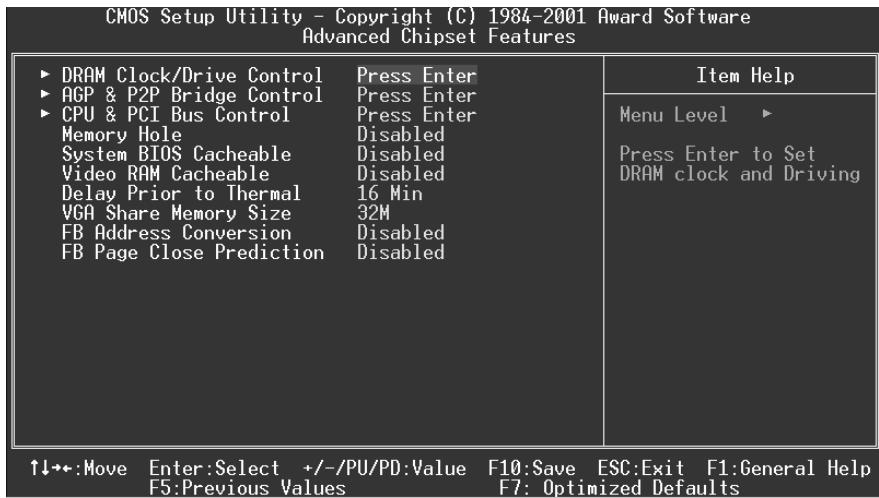
Figure 4. Advanced Chipset Setup
DRAM Clock/Drive Control
To control the Clock. If you highlight the literal "Press Enter" next to the "DRAM Clock" label and then press the enter key, it will take you a submenu with the following options:
DRAMClock
This item determines DRAM clock following 100MHz, 133MHz or By SPD.
The Choices: 100MHz, 133MHz, By SPD (default).
DRAM Timing
This item determines DRAM clock/ timing follow SPD or not.
The Choices: By SPD(default), Manual.
SDRAM CAS Latency
When DRAM is installed, the number of clock cycles of CAS latency depends on the DRAM timing.
The Choices: 2.5(default), 2.
Bank Interleave
This item allows you to enable or disable the bank interleave feature.
The Choices: Disabled (default).
Precharge to Active (Trp)
This items allows you to specify the delay from precharge command to activate command.
The Choices: 2T, 3T (default).
Active to Precharge (Tras)
This items allows you to specify the minimum bank active time.
The Choices: 6T (default), 5T.
Active to CMD (Trcd)
Use this item to specify the delay from the activation of a bank to the time that a read or write command is accepted.
The Choices: 2T, 3T (default).
DRAM Command Rate
This item controls clock cycle that must occur between the last valid write operation and the next command.
The Choices: 1T Command, 2T Command (default).
DRAM Burst Len
The Choices: 4 (default), 8.
CPU read DRAM Mode
The Choices: Medium (default), Slow, Fast.
AGP & P2P Bridge Control
If you highlight the literal "Press Enter" next to the "AGP & P2P Bridge Control" label and then press the enter key, it will take you a submenu with the following options:
AGP Aperture Size
Select the size of the Accelerated Graphics Port (AGP) aperture. The aperture is a portion of the PCI memory address range dedicated for
graphics memory address space. Host cycles that hit the aperture range are forwarded to the AGP without any translation.
The Choices: 64M (default), 256M, 128M, 32M, 16M, 8M, 4M.
AGP Mode
This item allows you to select the AGP Mode. × This item occurs only as using onboard VGA.
The Choices: 4X, 2X(default), 1X.
AGP Driving Control
By choosing "Auto" the system BIOS will the AGP output Buffer Drive strength P Ctrl by AGP Card. By choosing "Manual", it allows user to set AGP output Buffer Drive strength P Ctrl by manual.
The Choices: Auto (default), Manual.
AGP Driving Value
While AGP driving control item set to "Manual", it allows user to set AGP driving.
The Choices: DAH(218) (default).
AGP Fast Write
The Choices: Enabled, Disabled (default).
AGP Master 1 WS Write
When Enabled, writes to the AGP (Accelerated Graphics Port) are executed with one wait states.
The Choices: Disabled (default), Enabled.
AGP Master 1 WS Read
When Enabled, read to the AGP (Accelerated Graphics Port) are executed with one wait states.
The Choices: Disabled (default), Enabled.
CPU & PCI Bus Control
If you highlight the literal "Press Enter" next to the "CPU & PCI Bus Control" label and then press the enter key, it will take you a submenu with the following options:
CPU to PCI Write Buffer
When enabled, up to four Dwords of data. Can be written to the PCI bus without interrupting the CPU. When disabled, a write buffer is not used and the CPU read cycle will not be completed until the PCI bus signals that it is ready to receive the data.
The Choices: Enabled (default), Disabled.
PCI Master 0 WS Write
When Enabled, writes to the PCI bus are executed with zero-wait states.
The Choices: Enabled (default), Disabled.
PCI Delay Transaction
The chipset has an embedded 32-bit posted write buffer to support delay transactions cycles. Select Enabled to support compliance with PCI specification.
The Choices: Disabled, Enabled (default).
Memory Hole
When enabled, you can reserve an area of system memory for ISA adapter ROM. When this area is reserved, it cannot be cached. Refer to the user documentation of the peripheral you are installing for more information.
The Choices: Disabled (default), 15M - 16M.
System BIOS Cacheable
Selecting the "Enabled" option allows caching of the system BIOS ROM at F0000h-FFFFH which can improve system performance. However, any programs writing to this area of memory will cause conflicts and result in system errors.
The Choices: Enabled, Disabled (default).
Delay Prior to Thermal
The time periods would correspond to the amount of time required to boot various supported configurations. Example selections include 4, 8, 16, 32 minutes. The watchdog timer would generate an SMI, presenting the BIOS an opportunity to enable the TCC in non-ACPI compliant operating systems.
The Choices: 16Min (default), 4Min, 8Min, 32Min.
VGA Share Memory Size
This item allows you to select the VGA share memory size.
The Choices: 32M (default), 8M, 16M, Disabled.
FB Address Conversion
Setting this bit further optimizes the MA table for VGA frame buffer accesses according to the DRAM page size in use. Setting this should improve VGA performance especially in tiling address mode. This but cannot be used the same time as CPU Direct Access FB mode. If used, this bit must be set before enabling the internal VGA to prevent display corruption.
The Choices: Enabled (default), Disabled.
FB Page Close Prediction
This feature automatically close the FB DRAM pages that are no longer needed in tiling address mode. This bit can be set / cleared any time. This feature will show maximum performance increase if frame buffer address conversion is also enabled.
The Choices: Enabled (default), Disabled.
Integrated Peripherals
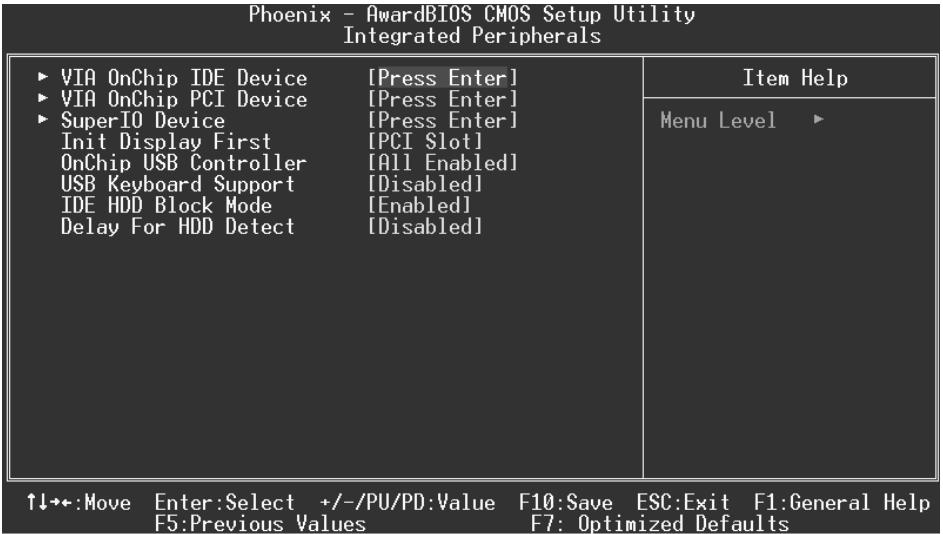
Figure 5. Integrated Peripherals
VIA OnChip IDE Device
If you highlight the literal "Press Enter" next to the "VIA OnChip IDE Device" label and then press the enter key, it will take you a submenu with the following options:
IDE DMA transfer access
The Choices: Enabled (default), Disabled.
OnChip IDE Channel 0/1
The motherboard chipset contains a PCI IDE interface with support for two IDE channels. Select "Enabled" to activate the first and/or second IDE interface. Select "Disabled" to deactivate an interface if you are going to install a primary and/or secondary add-in IDE interface.
The Choices: Enabled (default), Disabled.
IDE Prefetch Mode
The "onboard" IDE drive interfaces supports IDE prefetching for faster drive access. If the interface does not support prefetching, If you install a primary and/or secondary add-in IDE interface, set this option to "Disabled".
The Choices: Enabled (default), Disabled.
Primary / Secondary /Master / Slave PIO
The IDE PIO (Programmed Input / Output) fields let you set a PIO mode (0-4) for each of the IDE devices that the onboard IDE interface supports. Modes 0 to 4 will increase performance progressively. In Auto mode, the system automatically determines the best mode for each device.
The Choices: Auto (default), Mode0, Mode1, Mode2, Mode3, Mode4.
Primary / Secondary /Master / Slave UDMA
Ultra DMA/100 functionality can be implemented if it is supported by the IDE hard drives in your system. As well, your operating environment requires a DMA driver (Windows 95 OSR2 or a third party IDE bus master driver). If your hard drive and your system software both support Ultra DMA/100, select Auto to enable BIOS support.
The Choices: Auto (default), Disabled.
VIA OnChip PCI Device
If you highlight the literal "Press Enter" next to the "VIA OnChip PCI Device" label and then press the enter key, it will take you a submenu with the following options:
VIA-3058 AC97 Audio
This option allows you to control the onboard AC97 audio.
The Choices: Auto (default), Disabled.
VIA-3068 MC97 Modem
This option allows you to control the onboard MC97 modem.
The Choices: Auto (default), Disabled.
VIA-3043 OnChip LAN
This option allows you to control the onboard LAN.
The Choices: Enabled(default), Disabled.
Onboard LAN Boot ROM
This item allows you to enable or disable Onboard LAN Boot ROM.
The Choices: Disabled (default), Enabled.
Super IO Device
If you highlight the literal "Press Enter" next to the "Super IO Device" label and then press the enter key, it will take you a submenu with the following options:
Onboard FDC Controller
Select Enabled if your system has a floppy disk controller (FDC) installed on the system board and you wish to use it. If install and FDC or the system has no floppy drive, select Disabled in this field.
The Choices: Enabled (default), Disabled.
Onboard Serial Port 1
Select an address and corresponding interrupt for the first and second serial ports.
The Choices: Disabled, 3F8/IRQ4 (default), 2F8/IRQ3, 3E8/IRQ4, 2E8/IRQ3, Auto.
Onboard Serial Port 2
Select an address and corresponding interrupt for the first and second serial ports.
The Choices: Disabled(default), 2F8/IRQ3, 3F8/IRQ4, 3E8/IRQ4, 2E8/IRQ3, Auto.
UART Mode Select
This item allows you to determine which Infra Red (IR) function of onboard I/O chip.
The Choices: Normal, AS KIR, IrDA (default).
UR2 Duplex Mode
Select the value required by the IR device connected to the IR port. Full-duplex mode permits simultaneous two-direction transmission. Half-duplex mode permits transmission in one direction only at a time.
The Choices: Half (default), Full.
Onboard Parallel Port
This item allows you to determine access onboard parallel port controller with which I/O Address.
The Choices: 378/IRQ7 (default), 278/IRQ5, 3BC/IRQ7, Disabled.
Parallel Port Mode
The default value is SPP.
The Choices:
SPP(default) Using Parallel port as Standard Printer Port.
EPP Using Parallel Port as Enhanced Parallel Port.
ECP Using Parallel port as Extended Capabilities Port.
ECP+EPP Using Parallel port as ECP & EPP mode.
ECP Mode Use DMA
Select a DMA Channel for the port.
The Choices: 3 (default), 1.
Game Port Address
Game Port I/O Address.
The Choices: 201 (default), 209, Disabled.
Midi Port Address
Midi Port Base I/O Address.
The Choices: 330 (default), 300, 290, Disabled.
Midi Port IRQ
This determines the IRQ in which the Midi Port can use.
The Choices: 5, 10 (default).
Init Display First
With systems that have multiple video cards, this option determines whether the primary display uses a PCI Slot or an AGP Slot.
The Choices: PCI Slot (default), AGP.
OnChip USB Controller
This option should be enabled if your system has a USB installed on the system board. You will need to disable this feature if you add a higher performance controller.
The Choices: All Enabled(default), All Disabled, 1&2 USB Port, 2&3 USB Port, 1&3 USB Port, 1 USB Port, 2 USB Port, 3 USB Port.
Onboard USB Controller
VT6202 USB2.0 UHCI and EHCI Controller provides higher bandwidth (480 Mbps) and is backward compatible with USB 1.1.
The Choices: Enabled, Disabled (Default).
USB Keyboard Support
Enables support for USB attached keyboards.
The Choices: Disabled (default), Enabled.
IDE HDD Block Mode
Block mode is otherwise known as block transfer, multiple commands, or multiple sector read/write. Select the "Enabled" option if your IDE hard drive supports block mode (most new drives do). The system will automatically determine the optimal number of blocks to read and write per sector.
The Choices: Enabled(default), Disabled.
Delay For HDD Detect
Some old hard disk drive need much more time to wait it ready, if your hard disk drive can not been detected try to set this item to Enabled.
The Choices: Disabled (default), Enabled.
Power Management Setup
The Power Management Setup Menu allows you to configure your system to utilize energy conservation and power up/power down features.
Figure 6. Power Management Setup
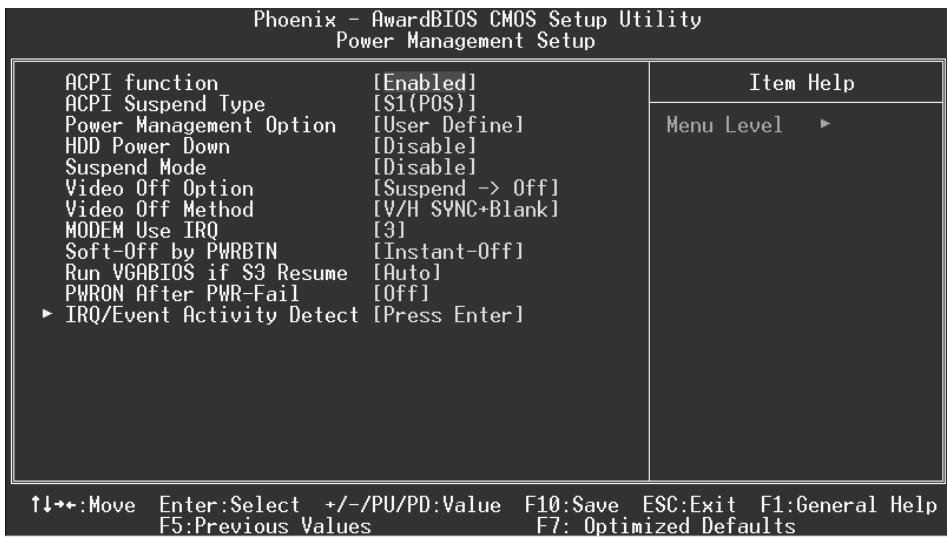
ACPI function
This item displays the status of the Advanced Configuration and Power Management (ACPI).
The Choices: Enabled (default), Disabled.
ACPI Suspend Type
The item allows you to select the suspend type under the ACPI operating system.
The Choices: S1 (POS) (default)
S3 (STR)
S1+S3
Power on Suspend.
Suspend to RAM.
POS+STR
Power Management Option
This category allows you to select the type (or degree) of power saving and is directly related to the following mode:
Suspend Mode.
There are four options of Power Management, three of which have fixed mode settings
Min. Power Saving
Minimum power management.
Suspend Mode = 1 hr.
Max. Power Saving
Maximum power management only available for sl CPU's.
Suspend Mode = 1 min.
User Defined (default)
Allows you to set each mode individually.
When not disabled, each of the ranges are from 1 min. to 1 hr.
HDD Power Down
When enabled, the hard disk drive will power down and after a set time of system inactivity. All other devices remain active.
The Choices: Disabled (default), 1 Min, 2 Min, 3 Min, 4 Min, 5 Min, 6 Min, 7
Min,8 Min,9 Min,10 Min,11 Min,12 Min,13 Min,14 Min,15Min.
Suspend Mode
The item allows you to select the suspend type under ACPI operating system.
The Choices: Disabled (default), 1 Min, 2 Min, 4 Min, 6 Min, 8 Min, 10 Min, 20
Min, 30 Min, 40 Min, 1 Hour.
Video Off Option
This field determines when to activate the video off feature for monitor power management.
The Choices: Suspend Off (default), Always on.
Video Off Method
This option determines the manner in which the monitor is goes blank.
V/H SYNC+Blank (default)
This selection will cause the system to turn off the vertical and horizontal synchronization ports and write blanks to the video buffer.
Blank Screen
This option only writes blanks to the video buffer.
DPMS Support
Initial display power management signaling
Modem Use IRQ
This determines the IRQ, which can be applied in MODEM use.
The Choices: 3 (default), 4 / 5 / 7 / 9 / 10 / 11 / NA
Soft-Off by PWRBTN
Pressing the power button for more than 4 seconds forces the system to enter the Soft-Off state when the system has "hung."
The Choices: Delay 4 Sec, Instant-Off (default).
Run VGABIOS if S3 Resume
The Choices: Auto (default), Yes, No.
PWRON After PWR-Fail
This field determines the action the system will automatically take when power is restored to a system that had lost power previously without any subsequent manual intervention. There are 3 sources that provide current to the CMOS area that retains these Power-On instructions; the motherboard battery (3V), the Power Supply (5VSB), and the Power Supply (3.3V). While AC is not supplying power, the motherboard uses the motherboard battery (3V). If AC power is supplied and the Power Supply is not turned on, 5VSB from the Power Supply is used. When the Power Supply is eventually turned on 3.3V from the Power Supply will be used.
There are 3 options: "Former-Sts", "On", "Off".
"Off" (default)
Means always set CMOS to the "Off" status when AC power is lost.
"On"
Means always set CMOS to the "On" status when AC power is lost
"Former-Sts"
Means to maintain the last status of the CMOS when AC power is lost.
For example: If set to "Former-Sts" and AC power is lost when system is live, then after AC power is restored, the system will automatically power on. If AC power is lost when system is not live, system will remain powered off.
IRQ/Event Activity Detect
If you highlight the literal "Press Enter" next to the "IRQ/Event Activity Detect" label and then press the enter key, it will take you a submenu with the following options:
VGA
When set to On, any event occurring at a VGA Port will awaken a
system which has been powered down.
The Choices: Off (default), On.
LPT & COM
When this option is set to On, any event occurring at a COM(serial)/LPT (printer) port will awaken a system which has been powered down.
The Choices: LPT/COM (default), COM, LPT, NONE.
HDD & FDD
When this option is set to On, any event occurring on a hard drive or a floppy drive will awaken a system which has been powered down.
The Choices: On (default), Off.
PCI Master
When set to On, you need a LAN add-on card which supports the power function. It should also support the wake-up on LAN jump.
The Choices: Off (default), On.
PowerOn by PCI Card
When you select Enabled, a PME signal from PCI card returns the system to Full ON state.
The Choices: Disabled (default), Enabled.
Wake Up On LAN/Ring
To use this function, you need a LAN add-on card which support power on function. It should also support the wake-up on LAN jump.
Disabled (default) Wake up on LAN/Ring not supported.
Enabled Wake up on LAN/Ring supported.
RTC Alarm Resume
When "Enabled", you can set the date and time at which the RTC (real-time clock) alarm awakens the system from Suspend mode.
The Choices: Enabled, Disabled (default).
Date (of Month)
You can choose which month the system will boot up. This field is only configurable when "RTC Resume" is set to "Enabled".
Resume Time (hh:mm:ss)
You can choose the hour, minute and second the system will boot up.
This field is only configurable when "RTC Resume" is set to "Enabled".
IRQs Activity Monitoring
Press Enter to access another sub menu used to configure the different wake up events (i.e. wake on LPT & COMM activity).
| Primary INTR | On |
| IRQ3 (COM2) | Disabled |
| IRQ4 (COM1) | Enabled |
| IRQ5 (LPT2) | Enabled |
| IRQ6 (Floppy Disk) | Enabled |
| IRQ7 (LPT1) | Enabled |
| IRQ8 (RTC Alarm) | Disabled |
| IRQ9 (IRQ2 Redir) | Disabled |
| IRQ10 (Reserved) | Disabled |
| IRQ11 (Reserved) | Disabled |
| IRQ12 (PS/2 Mouse) | Enabled |
| IRQ13 (Coprocessor) | Enabled |
| IRQ14 (Hard Disk) | Enabled |
| IRQ15 (Reserved) | Disabled |
PnP/PCI Configurations
This section describes configuring the PCI bus system. PCI, or Personal Computer Interconnect, is a system which allows I/O devices to operate at speeds nearing the speed of the CPU itself uses when communicating with its own special components. This section covers some very technical items and it is strongly recommended that only experienced users should make any changes to the default settings.
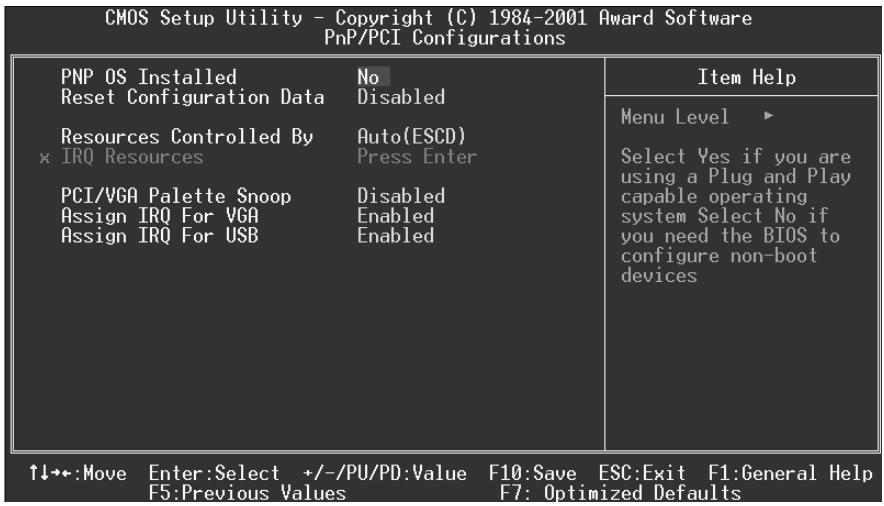
Figure 7. PnP/PCI Configurations
PNP OS Installed
When set to YES, BIOS will only initialize the PnP cards used for the boot sequence (VGA, IDE, SCSI). The rest of the cards will be initialized by the PnP operating system like Window™ 95. When set to NO, BIOS will initialize all the PnP cards. For non-PnP operating systems (DOS, Netware™), this option must set to NO.
The Choices: No (default), Yes.
Reset Configuration Data
The system BIOS supports the PnP feature which requires the system to record which resources are assigned and protects resources from conflict. Every peripheral device has a node, which is called ESCD. This node records which resources are assigned to it. The system needs to record and update ESCD to the memory locations. These locations (4K) are reserved in the system BIOS.
If the Disabled (default) option is chosen, the system's ESCD will update only when the new configuration varies from the last one. If the Enabled option is chosen, the system is forced to update ESCDs and then is automatically set to the "Disabled" mode.
| IRQ-3 | assigned to: PCI Device |
| IRQ-4 | assigned to: PCI Device |
| IRQ-5 | assigned to: PCI Device |
| IRQ-7 | assigned to: PCI Device |
| IRQ-9 | assigned to: PCI Device |
| IRQ-10 | assigned to: PCI Device |
| IRQ-11 | assigned to: PCI Device |
| IRQ-12 | assigned to: PCI Device |
| IRQ-14 | assigned to: PCI Device |
| IRQ-15 | assigned to: PCI Device |
The above settings will be shown on the screen only if "Manual" is chosen for the resources controlled by function.
Legacy is the term, which signifies that a resource is assigned to the ISA Bus and provides non-PnP ISA add-on cards. PCI / ISA PnP signifies that a resource is assigned to the PCI Bus or provides for ISA PnP add-on cards and peripherals.
The Choices: Disabled (default), Enabled.
Resources Controlled By
By Choosing "Auto(ESCD)" (default), the system BIOS will detect the system resources and automatically assign the relative IRQ and DMA channel for each peripheral.
By Choosing "Manual", the user will need to assign IRQ & DMA for add-on cards. Be sure that there are no IRQ/DMA and I/O port conflicts.
IRQ Resources
This submenu will allow you to assign each system interrupt a type, depending on the type of device using the interrupt. When you press the "Press Enter" tag, you will be directed to a submenu that will allow you to configure the system interrupts. This is only configurable when "Resources Controlled By" is set to "Manual".
PCI / VGA Palette Snoop
Choose Disabled or Enabled. Some graphic controllers which are not VGA compatible take the output from a VGA controller and map it to their display as a way to provide boot information and VGA compatibility.
However, the color information coming from the VGA controller is drawn from the palette table inside the VGA controller to generate the proper colors, and the
graphic controller needs to know what is in the palette of the VGA controller. To do this, the non-VGA graphic controller watches for the Write access to the VGA palette and registers the snoop data. In PCI based systems, where the VGA controller is on the PCI bus and a non-VGA graphic controller is on an ISA bus, the Write Access to the palette will not show up on the ISA bus if the PCI VGA controller responds to the Write.
In this case, the PCI VGA controller should not respond to the Write, it should only snoop the data and permit the access to be forwarded to the ISA bus. The non-VGA ISA graphic controller can then snoop the data on the ISA bus. Unless you have the above situation, you should disable this option.
The Choices: Disabled (default) Disables the function.
Enabled Enables the function.
Assign IRQ For VGA
This item allows the users to choose which IRQ to assign for the VGA. The Choices: Enabled (default), Disabled.
Assign IRQ For USB
This item allows the users to choose which IRQ to assign for the USB. The Choices: Enabled (default), Disabled.
PC Health Status
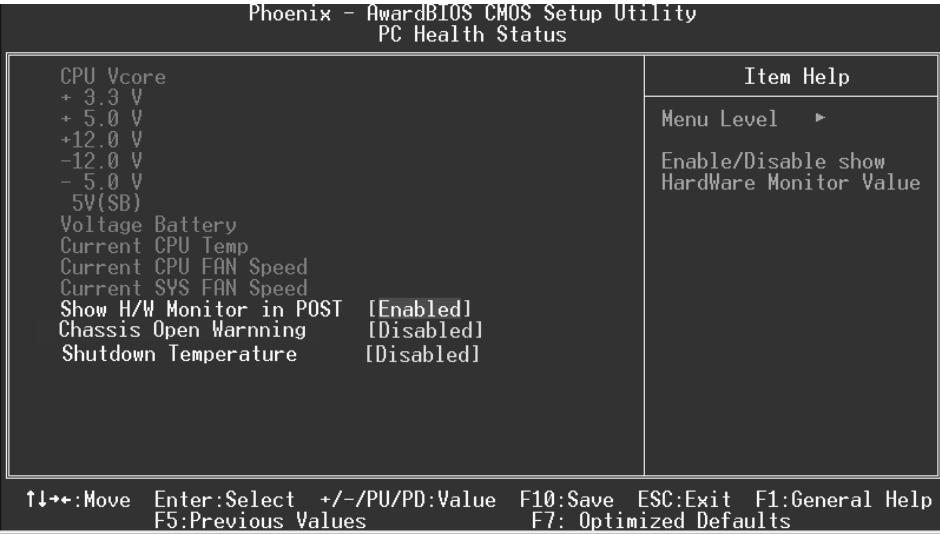
CPU Vcore +3.3V, +5V, +12V, -12V, -5V, 5VSB(V), Voltage Battery
Detect the system's voltage status automatically.
Current CPU Temperature
This field displays the current temperature of CPU.
Current CPU FAN Speed
This field displays the current speed of CPU fan.
Current SYS FAN Speed
This field displays the current speed SYSTEM fan.
Show H/W Monitor in POST
If your computer contains a monitoring system, it will show PC health status during POST stage.
The Choices: Disabled, Enabled (default).
Chassis Open Warning
This item allows you to enable or disable Chassis Open Warning beep.
The Choices: Disabled (Default), Enabled.
Shutdown Temperature
This item allows you to set the shutdown temperature of the CPU in order not to be damaged by the overheated temperature. When this function is enabled, the system will automatically shutdown if the CPU temperature reaches the shutdown temperature. This function only works under Windows 98 ACPI mode.
The Choices: Disabled(default), 60^ / 140^ , 65^ / 149^ , 70^ / 158^ .
Frequency Control
Frequency Control
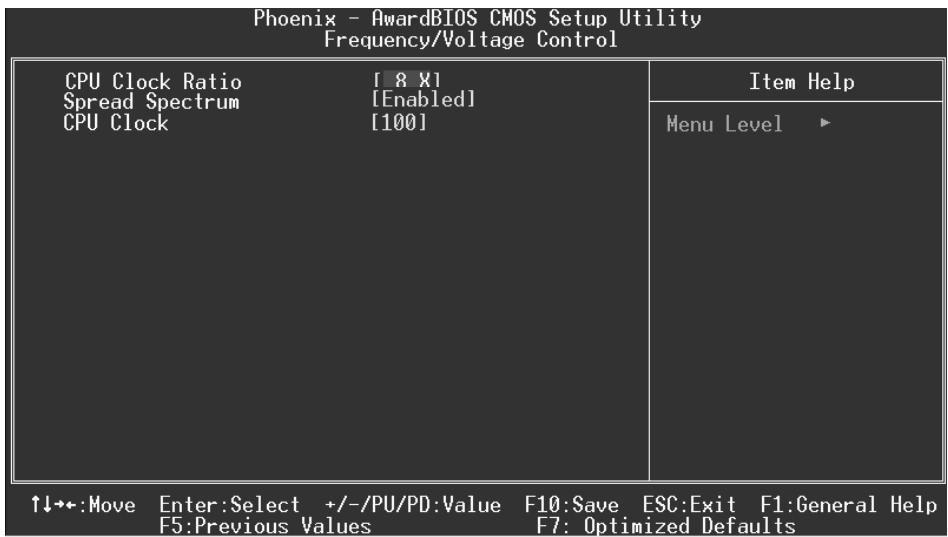
CPU Clock Ratio
This item allows you to select the CPU Ratio.
× This item occurs only in engineer's sample
The Choices: X8 (default), X9, X10, X11, X12, X13, X14, X15, X16, X17, X18, X19, X20, X21, X22, X23.
Spread Spectrum
This item allows you to enable/disable the Spread Spectrum function.
The Choices: Enabled(default), Disabled.
CPU Clock
This item allows you to select CPU Host Clock.
× The clock range depends on the FSB of your CPU.
①FSB 100MHz → CPU Clock Range 100~132Mhz
②FSB 133MHz → CPU Clock Range 133~165Mhz
The Choices: 100MHz (Min) (default) 132MHz (Max).
If unfortunately, the system's frequency that you are selected is not functioning, there are two methods of booting-up the system.
Method 1: Clear the CMOS data by setting the JCMOS1 ((2-3) closed)) as "ON" status. All the CMOS data will be loaded as defaults setting.
Method 2: Press the