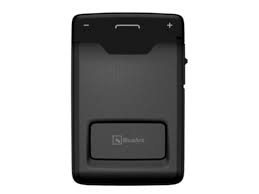
S3 - Bluetooth Headset BLUEANT - Free user manual and instructions
Find the device manual for free S3 BLUEANT in PDF.



| Product Type | Bluetooth hands-free kit for vehicle |
| Brand | BLUEANT |
| Model | S3 |
| Bluetooth Version | 2.1 + EDR |
| Range | Up to 10 meters |
| Supported Profiles | HFP 1.5, A2DP 1.2 |
| Frequency | 2.4 GHz |
| Battery Type | Rechargeable Lithium-Ion |
| Charging Time | Approximately 2.5 hours |
| Talk Time | Up to 20 hours |
| Standby Time | Up to 600 hours |
| Power Source | Rechargeable Lithium-Ion battery via USB cable |
| Main Functions | Voice calls, name announcement, A2DP audio streaming, multipoint, voice dialing, redial and call back, multiple call management |
| Vehicle Installation | Sun visor clip |
| Care and Cleaning | Clean with a soft, dry cloth |
| Safety | Use in accordance with national laws regarding the use of handheld devices while driving |
| Spare Parts and Repairability | Firmware updates available at blueantwireless.com; USB cable included |
| General Information | Online registration required for updates; technical support available |
Frequently Asked Questions - S3 BLUEANT
User questions about S3 BLUEANT
0 question about this device. Answer the ones you know or ask your own.
Ask a new question about this device
Download the instructions for your Bluetooth Headset in PDF format for free! Find your manual S3 - BLUEANT and take your electronic device back in hand. On this page are published all the documents necessary for the use of your device. S3 by BLUEANT.
USER MANUAL S3 BLUEANT
natural_image
Close-up of a black smartphone front panel with a 'BlueArt' button and battery indicator (no readable text or symbols beyond the button)
natural_image
Blue square icon with a white ant silhouette (no text or symbols)BlueAnt®
COMPACT
CAR SPEAKERPHONE
S3 COMPACT
User Guide
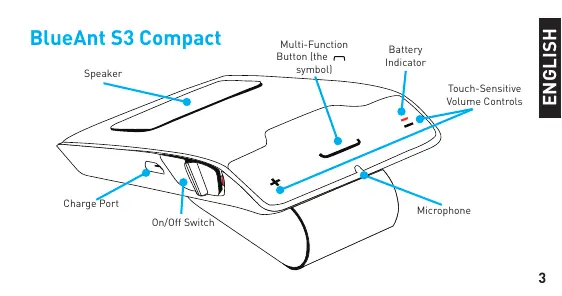
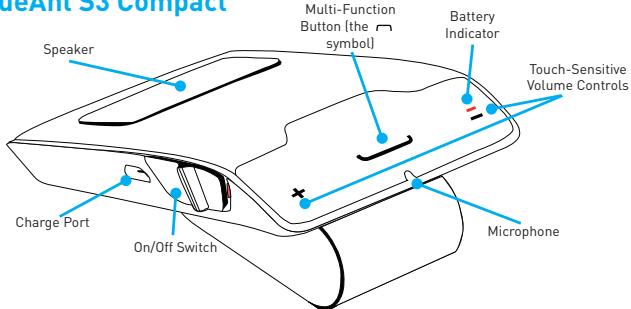
BlueAnt S3 Compact
1: Charge Your S3
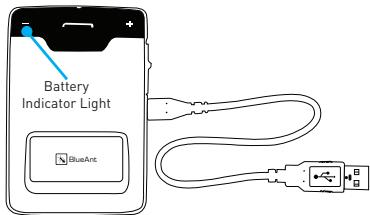
Before using your S3, charge it using the supplied USB cable and charger:
A full charge takes about 2.5 - 3 hours.
During charging, the battery indicator light turns red.
When the light goes out, the charge is complete.
Tip: You can also charge the S3 by connecting to your computer's USB port.
2: Pair the S3 with your Phone
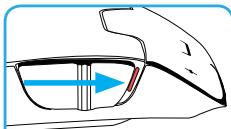
- Slide the power switch to the ON position.
- The S3 will announce the available languages. Tap the symbol when you hear your language.
- The S3 will now talk you through the pairing process.
- The pairing code is 0000 (four zeros).
natural_image
Diagram of a car's side profile showing airflow direction (no text or symbols)Slide the switch to power on then follow the prompts
If you select the wrong language: turn off your S3 without completing the pairing. When you switch it back on your S3 will ask you to select the language again. If this does not work, reset your S3 and start again (see "Reset the S3" on page 18 for help).
If the S3 does not go into pairing mode: hold down the symbol for about 6 seconds.
3: Transfer your Phonebook
Once the pairing is complete your S3 will attempt to transfer the contacts from your phonebook so that it can announce the names of incoming callers. On most phones this happens automatically.
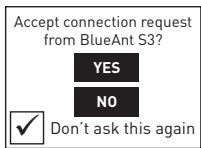
If your phone asks you to allow a connection to the S3, you must select "YES" or "OK".
BlackBerry®
If you are using a BlackBerry smartphone you may see a message like this one.
Select "Don't ask this again" so that a tick appears in the box, and then choose "YES".
Android™
On some Android devices a message about the phonebook transfer appears at the top of the screen.
You must swipe your finger over this message and accept the phonebook transfer request from the S3.
Automatic Transfer Not Supported
Some phones do not support automatic phonebook transfers. If this is the case for your phone the S3 will announce that it cannot transfer the contacts automatically.
Phonebook Access Request

Notification shown on Android devices
See “Manually Transferring your Phonebook Contacts to the S3” on page 14 for help.
Note: some phones do not support phonebook transfers at all. If this is the case, the S3 will read out the caller's number instead.
4: Install the S3 in your Car
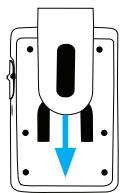
1 Slide the clip onto the back of the S3 until it clicks into place
natural_image
Diagram of a plug socket with a blue arrow indicating downward motion (no text or symbols)2 Slide the S3 and clip onto your car sun visor.

Don't forget: Drive safely and within the law.
Please refer to the relevant national or local legislation regarding the usage of mobile devices while driving. Remember that driving is your first priority: please read the enclosed safety information booklet for tips on the safe use of your BlueAnt device.
Answering Calls
When the phone rings, the S3 will announce the caller's name or number and ask you if you want to take the call. Wait for the prompt to finish, and then say Answer or Ignore:
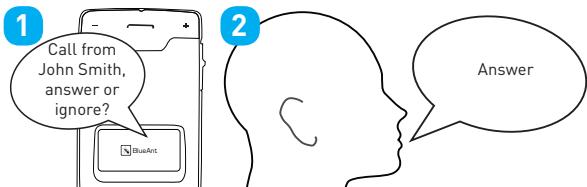
Or: tap the ∩ symbol at any time to answer the call. Double tap to ignore.
Tip: Tap the ∩ symbol to hang up and end the call.
Making Calls
If your phone supports voice dialing over Bluetooth you can make calls using your voice:
- Tap the symbol.
- The S3 activates your phone's voice dialing functionality. Please refer to your phone's manual for details on the commands you can use to control your phone.
Tip: Tap the ∩ symbol to hang up and end the call.
Note: Your phone must support voice dialing over Bluetooth:
The Apple iPhone 3GS (running firmware 3.1 or higher) and iPhone 4 support this feature, but older iPhone models do not.
Most Android phones running Android version 2.2 or above support this feature.
Most BlackBerry smartphones support this feature.
Adjusting the Volume
Swipe your finger across the top of the S3 to adjust the volume:
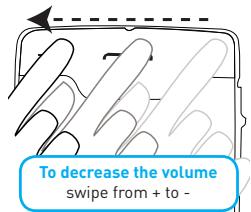
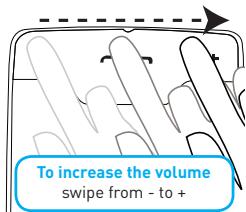
Adjusting the volume when you are not on a call sets the volume of the voice prompts.
Adjusting the volume during a call will change the loudness of the caller's voice.
Redial and Call Back
Hold down the + symbol for about 3 seconds to redial the last outgoing call.
Hold down the - symbol for about 3 seconds to call back the last incoming call.
Switching Between Multiple Calls (Call Waiting)\*
Tap the - symbol to end your call and answer an incoming call.
Tap the + symbol to put your call on hold and answer an incoming call.
Tap the + symbol to switch between an active and a held call.
* To use this feature, your phone and network must support call waiting.
Pairing Another Phone / Multipoint
To pair another phone, put your S3 back into pairing mode by holding down the symbol for about 6 seconds.
Your S3 can store pairing information for up to 2 phones.
Your S3 can connect to up to 2 phones at the same time (multipoint).
When 2 phones are connected at the same time:
You can answer calls on either phone through the S3.
Each time your phones reconnect to the S3 the one that connects first becomes the "primary phone". If you use the S3 buttons to activate a feature on your phone (such as redial, call back or phone voice dialing) then this action takes place on the primary phone.
Transferring your Phonebook Contacts to the S3
Your S3 uses Text To Speech technology (TTS) to read out the name of the person who is calling you. To do this, the S3 needs to store a copy of your phonebook contacts.
Automatically Transferring your Phonebook Contacts to the S3
When you pair your phone with the S3 it will attempt to transfer the phonebook contacts automatically. The S3 stores up to 2,000 contacts per phone.
Tip: Tap the ∩ symbol to cancel the phonebook transfer.
Manually Transferring your Phonebook Contacts to the S3
Some phones do not support automatic phonebook transfers: if this is the case on your phone then the S3 will instruct you to start sending contacts to the S3 manually. To do this:
- Wait to be prompted to start sending contacts to the S3.
- Go to your phonebook and select the contacts you want to send to the S3. Choose the option to "Mark All" or "Select All" if this is available on your phone (if this is not available, you will need to transfer each contact individually).
- Select the option on your phone to "send" or "beam" contacts, business cards, or v-cards via Bluetooth, and select the S3 from the list of Bluetooth devices. See your phone's manual for help with this step.
Note: some phones do not support phonebook transfers at all. If this is the case, the S3 will read out the caller's number instead.
Updating your Phonebook Contacts on the S3
If you add or change entries in your phonebook then you need to update the contacts on your S3 by pressing and holding the + and - symbols together for about 3 seconds.
If you have two phones connected, this updates the phonebook for the primary phone only.
Reconnecting to the S3
Your S3 includes a sensor that detects the vibration of your car door. This means that the S3 will automatically reconnect to your phone when you get back in the car.
If the S3 does not connect to your phone for any reason, tap the symbol to force the S3 to reconnect to your paired phone.
Tip: On some devices (including BlackBerry, LG, Nokia and Samsung devices), you must make sure you configure your phone to treat the S3 as an “authorized” or “trusted” connection in the phone’s Bluetooth options.
Listening to Audio
The S3 supports A2DP audio streaming. If your phone supports the A2DP profile then simply start playing music or any other audio (including turn-by-turn directions from a GPS application on your phone) and it will automatically transfer to the S3.
The streaming audio mutes automatically if the phone rings.
Note: When there are two phones connected, only the primary phone can play music through the S3 via A2DP.
Firmware Upgrades
From time to time we make firmware upgrades available on our website for you to download and apply to your S3. Go to www.blueantwireless.com for full details on the latest upgrades available for your S3.
You must register your product online at register.blueantwireless.com for access to firmware upgrades.
Reset the S3
If you are having problems with your S3, you can reset and start again:
- Delete any pairing information from your phone's Bluetooth pair list.
- Turn your phone off.
- Hold down the + and - symbols for about 6 seconds to reset the S3.
- Your S3 will reset and return to the language selection. Turn your phone back on and follow the prompts on the S3 to select your language and pair your phone.
Specifications
Bluetooth version 2.1 + EDR
Operating Range: Up to 10 metersSupported Profiles: HFP 1.5, A2DP 1.2
Frequency: 2.4 GHzTalk Time: Up to 20 hours
Charging Time: 2.5 hoursStandby Time: Up to 600 hours
Battery Type: Rechargeable Lithium Ion
Help and Support
If you are having trouble getting the S3 to work, please visit www.blueantwireless.com for online help, support, and troubleshooting tips.
Please call or email us before returning the S3 to a store and we will help you through any difficulty you may have.
North America: 1 866 891-3032
New Zealand: 0800 443 122Australia: 1300 669 049
customercare@blueantwireless.com

Terms and Conditions
By using this product, you are agreeing to BlueAnt's terms and conditions, available at www.blueantwireless.com and on the supplied warranty information card.
The Bluetooth ^® word mark and logos are registered trademarks owned by Bluetooth SIG, Inc. and any use of such marks by BlueAnt Wireless is under license.
Android is a trademark of Google Inc., Apple and iPhone are trademarks of Apple Inc., registered in the U.S. and other countries. The Trademark BlackBerry ^® is owned by Research In Motion Limited and is registered in the United States and may be pending or registered in other countries. BlueAnt Wireless is not endorsed, sponsored, affiliated with or otherwise authorized by Research In Motion Limited.
BlueAnt and other trademarks are trademarks of BlueAnt and other organizations and may not be used without permission. The BlueAnt logo is registered in the U.S. Patent and Trademark Office and globally with the World Intellectual Property Organization under the Madrid protocol. © 2010 BlueAnt Wireless. All Rights Reserved.
BlueAnt S3 Compact
natural_image
Diagram of a car's front wheel and side panel showing airflow direction (no text or symbols)natural_image
Diagram of a device with three vertical slots and a blue downward arrow, no text or symbols presentnatural_image
Diagram of a car's frontview showing the glass rim and side profile with an arrow indicating direction (no text or symbols)natural_image
Diagram of a plug or socket with a blue arrow indicating downward motion (no text or symbols)customercare@blueantwireless.com
www.blueantwireless.com/qr/s3/support


natural_image
Blue square icon with a white ant symbol (no text or numbers)BlueAnt®
North America
1866 891 3032
Australia
1300 669 049
New Zealand
0800 443 122
customercare@blueantwireless.com
www.blueantwireless.com
- BlueAnt®
- COMPACT
- CAR SPEAKERPHONE
- 1: Charge Your S3
- 2: Pair the S3 with your Phone
- 3: Transfer your Phonebook
- BlackBerry®
- Android™
- Automatic Transfer Not Supported
- 4: Install the S3 in your Car
- Answering Calls
- Making Calls
- Adjusting the Volume
- Redial and Call Back
- Switching Between Multiple Calls (Call Waiting)\*
- Pairing Another Phone / Multipoint
- Transferring your Phonebook Contacts to the S3
- Automatically Transferring your Phonebook Contacts to the S3
- Manually Transferring your Phonebook Contacts to the S3
- Updating your Phonebook Contacts on the S3
- Reconnecting to the S3
- Listening to Audio
- Firmware Upgrades
- Reset the S3
- Specifications
- Help and Support
- Terms and Conditions
Brand : BLUEANT
Model : S3
Category : Bluetooth Headset