
THE GAME OF - Board game HASBRO - Free user manual and instructions
Find the device manual for free THE GAME OF HASBRO in PDF.



| Product type | Board game |
| Brand | Hasbro |
| Model | The Game of Life (classic) |
| Number of players | 2 to 6 players |
| Recommended age | Ages 8 and up |
| Average game duration | 60 minutes |
| Dimensions of unfolded board | Approximately 51 x 51 cm |
| Game weight | Approximately 1 kg |
| Power required | None (board game) |
| Box contents | 1 game board, 6 pawns, 1 spinner, life cards, career cards, banknotes, instructions |
| Main functions | Simulated life journey with career choices, marriage, children, investments |
| Game rules | The richest player at the end of the game wins, with early retirement options |
| Board material | Thick laminated cardboard |
| Care and cleaning | Wipe with a dry cloth. Do not use liquid or abrasive products. |
| Safety | Contains small parts. Not suitable for children under 3 years. |
| Replacement parts and repairability | Replacement parts available through Hasbro consumer service or on the official website. |
| Warranty | 2 years against manufacturing defects |
| General information | Iconic Hasbro game, several editions exist (classic, junior, anniversary edition). |
Frequently Asked Questions - THE GAME OF HASBRO
User questions about THE GAME OF HASBRO
0 question about this device. Answer the ones you know or ask your own.
Ask a new question about this device
Download the instructions for your Board game in PDF format for free! Find your manual THE GAME OF - HASBRO and take your electronic device back in hand. On this page are published all the documents necessary for the use of your device. THE GAME OF by HASBRO.
USER MANUAL THE GAME OF HASBRO
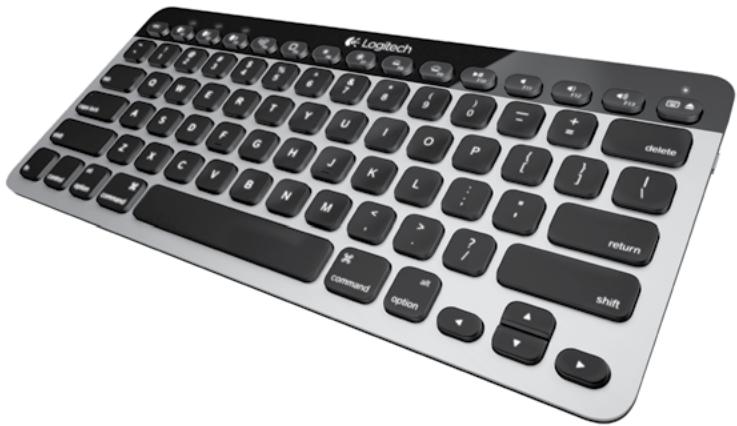
Logitech® Bluetooth® Illuminated Keyboard K811
for Mac, iPad, iPhone
Setup Guide
English. 3 Elambdaiká. 39
Francais 15 Turkce 51
Nederlands 27 63
www.logitech.com/support 75
Know your product
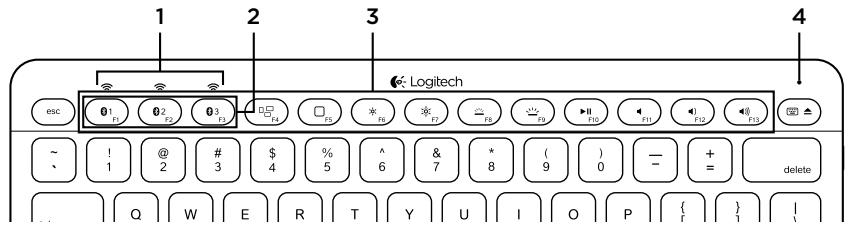
- Bluetooth® status lights
- Bluetooth keys
- Function keys
-
Battery status light
-
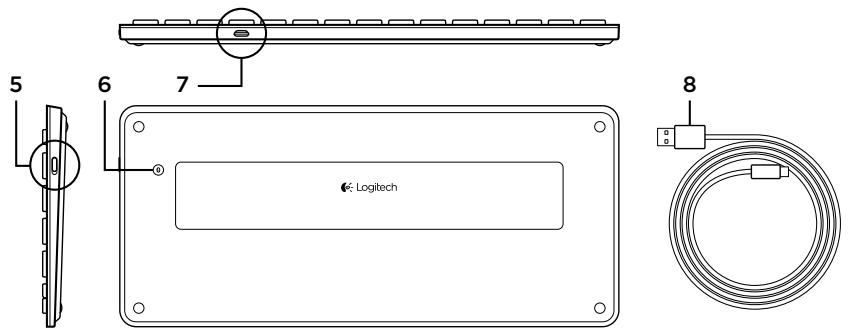
On/Off switch
- Bluetooth connect button
- Micro-USB port
- Micro-USB charging cable
Set up your product
Pair your first Apple* device
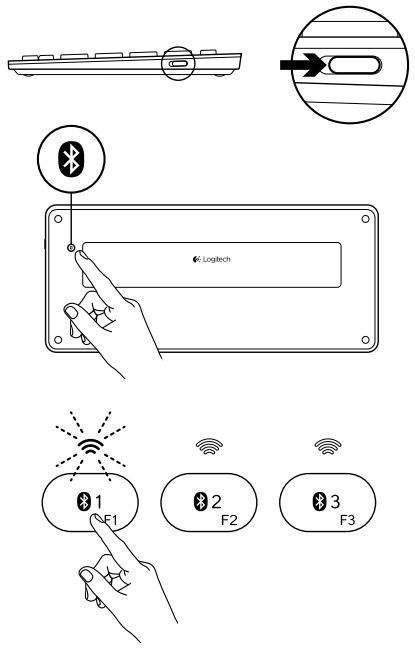
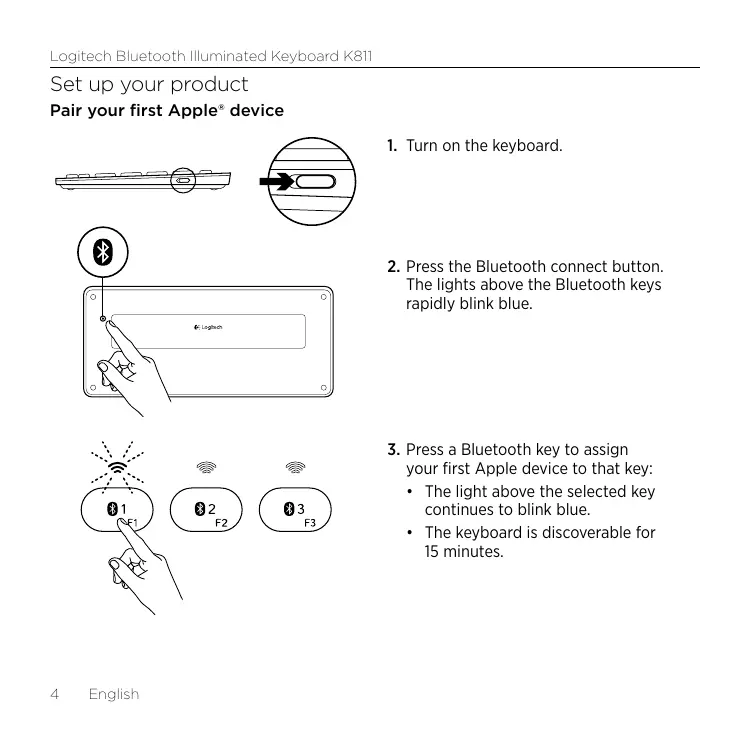
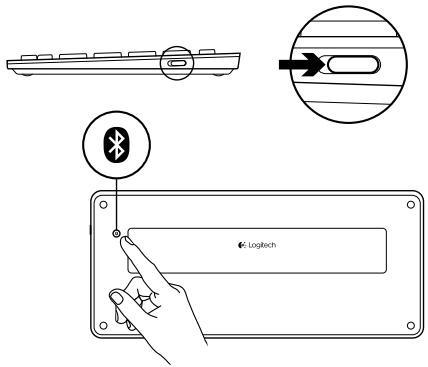
- Turn on the keyboard.
-
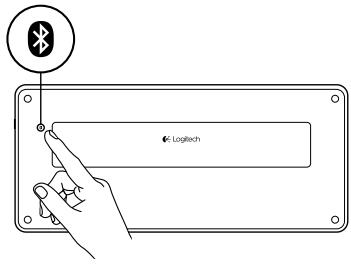
Press the Bluetooth connect button. The lights above the Bluetooth keys rapidly blink blue.
-
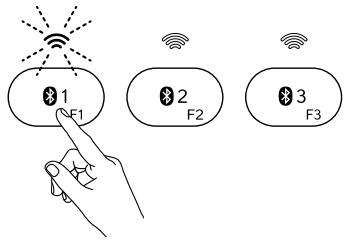
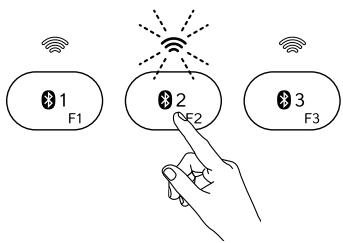
Press a Bluetooth key to assign your first Apple device to that key:
-
The light above the selected key continues to blink blue.
-
The keyboard is discoverable for 15 minutes.
-
Complete Bluetooth pairing on your Apple device:
Mac OS X:
a. Go to System Preferences > Bluetooth.
b. Click the "Setup new device" (+) button, and follow the on-screen instructions.
c. Choose "Logitech K811" from the device list.
d. Click "Continue."
Apple iOS® (iPad® or iPhone®):
a. In Settings, choose General > Bluetooth, and then turn on Bluetooth.
b. Choose "Logitech K811" from the Devices menu.
Note: If your Apple device requests a PIN, enter the code using the keyboard and not the virtual keyboard on your Apple device.
The keyboard and your Apple device are now paired. The light above the Bluetooth key you have selected turns blue for 30 seconds.
- Go to www.logitech.com/support/k811 to download and install software for your Mac to fully activate the function keys and to specify backlight settings.
Pair or reassign a Bluetooth key to another Apple device
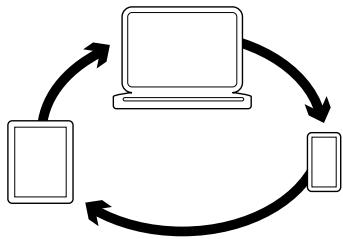
Pair up to three compatible Apple devices with the keyboard.
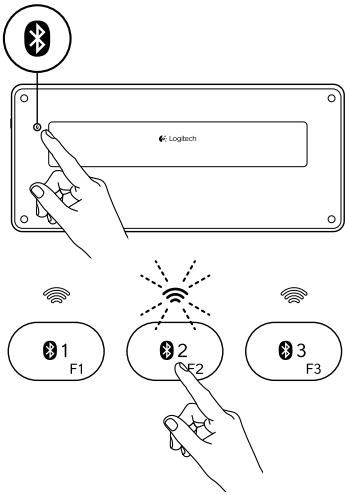
- Make sure the keyboard is on.
-
Press the Bluetooth connect button. The lights above the Bluetooth keys rapidly blink blue.
-
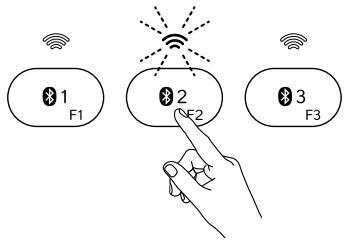
Press a Bluetooth key to assign your Apple device to that key. For example, if you already paired an Apple device to Bluetooth key 1, press the Bluetooth key 2.
-
The light above the selected key continues to blink blue.
The keyboard is discoverable for 3 minutes. -
Go to "Pair your first Apple device" and follow step 4 to complete Bluetooth pairing.
Note: After you press the Bluetooth connect button, the lights above the Bluetooth keys rapidly blink blue. All three Bluetooth keys can be assigned or reassigned, and the keyboard is discoverable for 3 minutes.
Switching among paired Apple devices
-
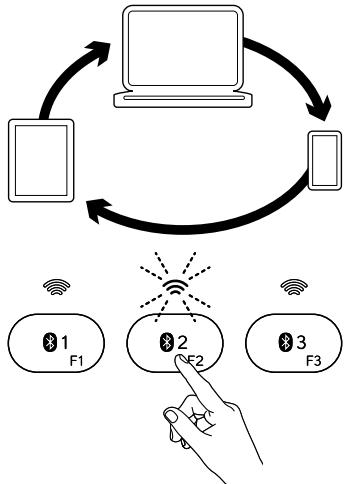
To select an Apple device to use, press the Bluetooth key (1, 2, or 3) associated with it.
-
The light above the selected Bluetooth key slowly blinks blue to show it is connecting. Then it turns solid blue for 5 seconds to confirm that the Bluetooth connection has been made. For example, if an iPad is paired with the Bluetooth 2 key, press that key to use the iPad with the keyboard.
Note: Only one Apple device can be active at a time.
Charge the batteries
A three-hour charge provides up to 10 days of use when you type about two hours a day with backlight on, or about one year without backlight. You can use the keyboard while it charges.
To check battery power and to charge the keyboard, do the following:
-
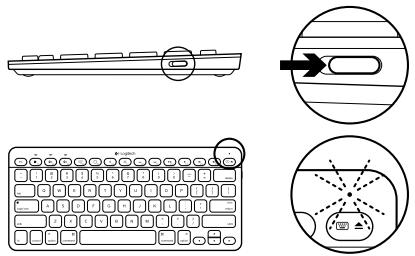
Turn on the keyboard.
-
Battery Status light flashes green: the battery has an adequate charge.
- Battery Status light flashes red: recharge the battery. Go to step 2.
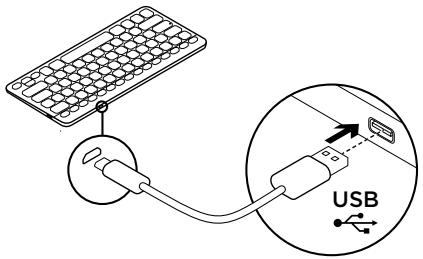
- Connect the keyboard to a computer using the Micro-USB charging cable. Charge for 1 to 3 hours, or until the Battery Status light turns solid green.
Note: If the battery power is critically low, the keyboard backlight is disabled and the battery status light will blink red.
Visit Product Central
There's more information and support online for your product. Take a moment to visit Product Central to learn more about your new keyboard.
Browse online articles for setup help, usage tips, or information about additional features. If your keyboard has optional software, learn about its benefits and how it can help you customize your product.
Connect with other users in our Community Forums to get advice, ask questions, and share solutions.
At Product Central, you'll find a wide selection of content
- Tutorials
- Troubleshooting
- Support community
- Software downloads
Online documentation
Warranty information - Spare parts (when available)
Go to www.logitech.com/support/k811
Use your product

Function and media keys
- Bluetooth keys 1, 2 and 3 Pair up to three compatible Apple devices (Mac®, iPad, or iPhone)
- Mission control Only works with Mac OS X v10.7 (Lion).
- Multifunction key
Home Only works with iPad and iPhone Launchpad Only works with a Mac and requires the Logitech Software for Mac. See "Software for your Mac".
- Decrease (F6) and Increase (F7) screen brightness Only works with Mac computers and Apple displays.
- Decrease (F8) and Increase (F9) keyboard backlight intensity
- Play/Pause
- Mute
- Volume down
- Volume up
- Multifunction key
Virtual keyboard Only works with iPad and iPhone.
Eject Only works with Mac.
Software for your Mac
Download and install the Logitech Software for your Mac to:
- Fully activate the function keys
Use the Launch pad - Adjust settings for the keyboard backlight
Go to www.logitech.com/support/k811
Keyboard backlight
Keyboard sensors detect your hands, turning the backlight on and off.
The backlight adjusts automatically to the level of your room light. Bright light and low battery power cause the backlight to turn off, which helps conserve battery power. In bright light, the F8 and F9 keys are disabled.
Automatic backlight control turns off when you use the F8 or F9 keys to adjust backlight intensity. You can restore automatic backlight control by turning the keyboard off then on. If the keyboard is idle for two hours or more, automatic backlight control is restored automatically.
Troubleshooting
Keyboard not working
- Slide the On/Off switch to Off then to On.
- If the Battery Status light flashes red, recharge the batteries. For more information, see "Charge the batteries."
- Restart your Apple device.
- Go to Bluetooth settings on your Apple device to check if "Logitech K811" is present. If it is, remove it. Then follow steps 2-4 in "Pair your first Apple device" to redo Bluetooth pairing.
Mission Control (F4 key) is not working
- Downloading and installing available Logitech software will solve the issue.
What do you think?
Please take a minute to tell us. Thank you for purchasing our product.
www.logitech.com/ithink
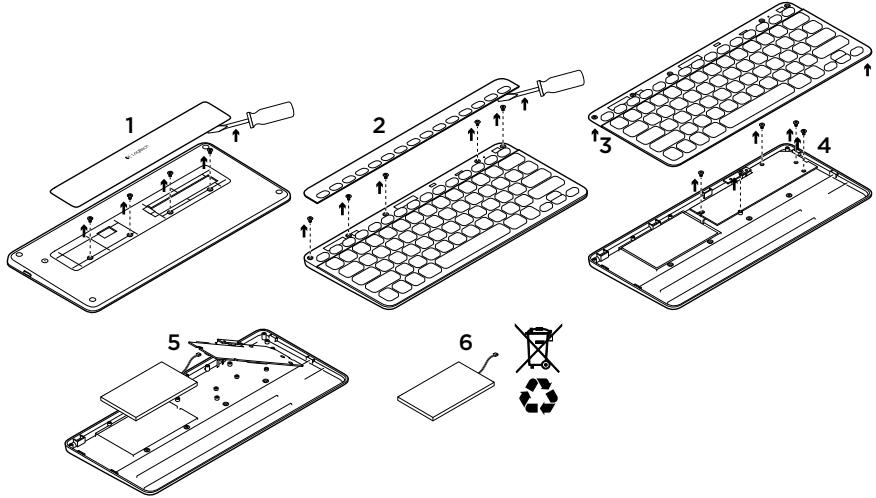
Battery disposal at product end of life
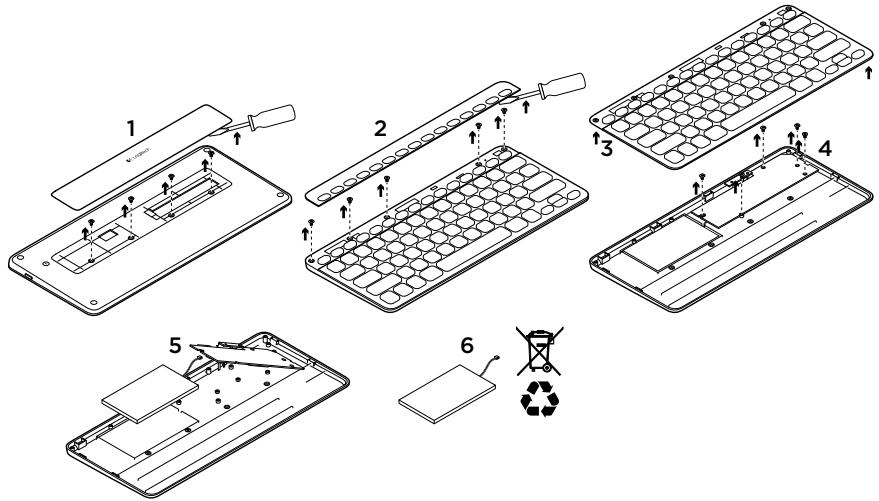
- On keyboard bottom, pry off cover and remove 4 screws.
- On keyboard top, pry off cover surrounding F-keys and remove 5 screws.
- Separate top and bottom cases.
- Remove 5 screws securing circuit board.
-
On bottom of circuit board, remove battery cable. Remove battery from bottom case.
-
Dispose of battery and product according to local laws.
www.logitech.com/ithink
Apple iOS® (iPad® of iPhone®):
Gaaarwww.logitech.com/support/k811
Gaaarwww.logitech.com/support/k811
www.logitech.com/ithink
Apple iOS® (iPad® and iPhone®):
a. Anio tic PuOmuieic, emiEeTe to oToiyeio Teivka > Bluetooth ka, otN ouvexia, evepyonoiote to Bluetooth.
b. Eπλέξτε «Logitech K811» από την ενότητα Σισκεύς.
www.logitech.com/ithink
www.logitech.com/ithink
PIN jay Apple jay ailllll alilal 1aall lalal all jay jay llal alal
:Apple jLj e Bluetooth 4.4
:Mac OS X 1
Bluetooth <bail dai a Jia.a
"Setup new device" jz b
0yall lalllg 1 + (+) (j)
"Logitech K811" jil .c.
lll Bluetooth c 1 Apple j 30 s
p 5
Apple
1 1
Culal. Bluetooth 2j z j g b iol .2
Ae y Bn Jy j Lg Blotho
jL jJ jll Bluetooth 1000000000000000000000000000000000000000000
Apple
Jaua Jaua Jaua Jaua Jaua
.
15 15 15
Apple j 1.1
lll Bluetooth cia 12
12
12
12
12
12
12
12
12
12
12
12
12
12
12
12
12
12
Apple
Apple i 1i Bluetooth
Aeeppe
1
Jluuall. Bluetooth 2.
.00000000000000000000000000000000000000000000000000
Apple jn Jnbluetooth 10000000000000000000000000000000000000000000
Jiai ci i ci 1j. Jia. Ciaai ai y
1 Bluetooth Apple
.2Bluetooth
Juslglssllgclss
.
3 3 3 3 3 3 3 3 3 3 3 3 3 3 3 3 3 3 3 3 3 3 3 3
"Apple
. Bluetooth 4 s
Jn Jn Jn Jn Jn Jn Jn Jn Jn Jn Jn Jn Jn Jn Jn Jn Jn Jn Jn Jn Jn Jn Jn Jn Jn Jn Jn Jn Jn Jn Jn Jn Jn
e e 1
e 1
3 3 3 3 3 3 3 3 3 3 3 3 3 3 3 3 3 3 3 3 3 3 3 3 3 3 3 3 3 3
Culjusall jauw yuuiy uuiy uuiy uuiy
a
LgDg, gIbSgIgS
cal jui ciuyi
juaaii ciay
(la jajic)jjell
www.logitech.com/
support/k811
Clll lss o jy jy J
i jyj y jgaiid aal ciaagaiid jy jall
jya jyj dgya 1 aai
iillll l 1
gL
Jg Clogkog pssuN Jgs Cuaaig aee
j 1
LgSgSgSgSgSgSgSgSgSgSgSgSgSgSgSgSgSgSgSgSg
iill 1
gaiol 1i jn jnnn nn nnnn
Jglal 1 Jlil jll 1 Jjil g Jd
yj
a 10 a 10 a 10 a 10 a 10 a 10 a 10 a 10 a 10 a 10 a 10 a 10 a 10 a 10 a 10 a 10 a 10 a 10 a 10 a 10 a 10 a 10 a 10 a 10 a 10 a 10
gaii aai jnaiy jai bai tai n gaii y la
1
aalee eae aee ae aee
(F9 Ciaa aaiy)
aJai/1jai.6
C.7
gall gina 8
gall gina 9
suii iililil cia.10
joo 1000
. iPhone , iPad
Mac 1aai bai cai jai "cji" o jia
aillgll gaiiil ciila
321 Bluetooth
Apple
(iPhone iPad Mac®)
Jusillu Jooa Mission control .2
.(Mac OS X v10.7 (Lion
suiiial ciilgl clia.3
iPad jjoo
iPhone
Jusillu Juae Lau Launchpad
Mac Logitech Mac
Mac
aaii aai iiaai iiaai
a 4
a
4.4.4.4.4.4.4.4.4.4.4.4.4.4.4.4.4.4.4.4.4.4.4.4.4.4.4.4.4.4.4.4.4.4.4.4.4.4.4.4.4.4.4.4.4.4.4.4.4.4.4
Jdalll 100
Aullll llll 1 6
1
S BCD = S COD + S BDO - S BOC
Culial 1 F Cuiy Jauu 1 Uaai .2
a
A. a. a. a. a. a. a. a. a. a. a. a. a. a. a. a. a. a. a. a. a. a. a. a. a. a. a. a. a. a. a. a. a. a. a. a. a. a. a. a. a. a. a. a. a.
J (F4 C) Mission Control
www.logitech.com/ithink
www.logitech.com/support/k811

| België/Belgique | Dutch: +32-(0)2 200 64 44; French: +32-(0)2 200 64 40 |
| Česká Republika | +420 239 000 335 |
| Danmark | +45-38 32 31 20 |
| Deutschland | +49-(0)69-51 709 427 |
| España | +34-91-275 45 88 |
| France | +33-(0)1-57 32 32 71 |
| Ireland | +353-(0)1 524 50 80 |
| Italia | +39-02-91 48 30 31 |
| Magyarország | +36 (1) 777-4853 |
| Nederland | +31-(0)-20-200 84 33 |
| Norge | +47-(0)24 159 579 |
| Österreich | +43-(0)1 206 091 026 |
| Polska | 00800 441 17 19 |
| Portugal | +351-21-415 90 16 |
| Rocsnja | +7(495) 641 34 60 |
| Schweiz/Suisse | D +41-(0)22 761 40 12 |
| Svizzzera | F +41-(0)22 761 40 16 |
| I +41-(0)22 761 40 20 | |
| E +41-(0)22 761 40 25 |
| South Africa | 0800 981 089 |
| Suomi | +358-(0)9 725 191 08 |
| Sverige | +46-(0)8-501 632 83 |
| Türkiye | 00800 44 882 5862 |
| United Arab Emirates | 8000 441-4294 |
| United Kingdom | +44-(0)203-024-81 59 |
| European, Mid. East., & African Hq. Morges, Switzerland | English: +41-(0)22 761 40 25 Fax: +41-(0)21 863 54 02 |
| Eastern Europe | English: 41-(0)22 761 40 25 |
| United States | +1 646-454-3200 |
| Argentina | +0800 555 3284 |
| Brasil | +0800 891 4173 |
| Canada | +1-866-934-5644 |
| Chile | +1230 020 5484 |
| Colombia | 01-800-913-6668 |
| Latin America | +1 800-578-9619 |
| Mexico | 01.800.800.4500 |
www.logitech.com

- Logitech® Bluetooth® Illuminated Keyboard K811
- Know your product
- Set up your product
- Pair your first Apple* device
- Mac OS X:
- Apple iOS® (iPad® or iPhone®):
- Pair or reassign a Bluetooth key to another Apple device
- Switching among paired Apple devices
- Charge the batteries
- Visit Product Central
- Use your product
- Function and media keys
- Software for your Mac
- Keyboard backlight
- Troubleshooting
- Keyboard not working
- Mission Control (F4 key) is not working
- Battery disposal at product end of life
- Apple iOS® (iPad® of iPhone®):
- Apple iOS® (iPad® and iPhone®):
- yj
- J (F4 C) Mission Control
- www.logitech.com/support/k811
Brand : HASBRO
Model : THE GAME OF
Category : Board game