USER MANUAL KD-R441 JVC
MANUEL D'INSTRUCTIONS
JVC KENWOOD Corporation
Please read all instructions carefully before operation to obtain the best possible performance from the unit.
Products and batteries with the symbol (crossed-out wheeled bin) cannot be disposed as household waste.
Old electrical and electronic equipment and batteries should be recycled at a facility capable of handling these items and their waste byproducts.
- Contact your local authority for details in locating a recycle facility nearest to you.
- Proper recycling and waste disposal will help conserve resources whilst preventing detrimental effects on our health and the environment.
Notice: The sign "Pb" below the symbol for batteries indicates that this battery contains lead.
JVC KENWOOD Corporation
3-12, Moriya-cho, Kanagawa-ku, Yokohama-shi, Kanagawa, 221-0022, Japan
EU Representative's:
JVC Technical Services Europe GmbH
Postfach 10 05 04,61145 Friedberg, Germany
The marking of products using lasers
The label is attached to the chassis/case and says that the component uses laser beams that have been classified as Class 1. It means that the unit is utilizing laser beams that are of a weaker class. There is no danger of hazardous radiation outside the unit.
How to read this manual
Operations explained mainly using buttons on the faceplate of KD-R547 / KD-R541 / KD-R449 / KD-R447 / KD-R443 / KD-R442 / KD-R441.
- [XX] indicates the selected items.
- ( XX) indicates references are available on the stated page number.
BEFORE USE
Warning
Do not operate any function that takes your attention away from safe driving.
Caution
Volume setting:
- Adjust the volume so that you can hear sounds outside the car to prevent accident.
- Lower the volume before playing digital sources to avoid damaging the speakers by the sudden increase of the output level.
General:
- Avoid using the USB device or iPod/iPhone if it might hinder driving safety.
- Make sure all important data has been backed up. We shall bear no responsibility for any loss of recorded data.
- Never put or leave any metallic objects (such as coins or metal tools) inside the unit, to prevent a short circuit.
- If a disc error occurs due to condensation on the laser lens, eject the disc and wait for the moisture to evaporate.
Remote control (RM-RK52):
- Do not leave the remote control in hot places such as on the dashboard.
- The Lithium battery is in danger of explosion if replaced incorrectly. Replace it only with the same or equivalent type.
- The battery pack or batteries shall not be exposed to excessive heat such as sunshine, fire or the like.
- Keep battery out of reach of children and in original package until ready to use. Dispose of used batteries promptly. If swallowed, contact a physician immediately.
Maintenance
Cleaning the unit: Wipe off dirt on the faceplate with a dry silicon or soft cloth.
Cleaning the connector: Detach the faceplate and clean the connector with a cotton swab gently, being careful not to damage the connector.
Handling discs:
- Do not touch the recording surface of the disc.
- Do not stick tape etc. on the disc, or use a disc with tape stuck on it.
- Do not use any accessories for the disc.
- Clean from the center of the disc and move outward.
- Clean the disc with a dry silicon or soft cloth. Do not use any solvents.
- When removing discs from this unit, pull them out horizontally.
- Remove burrs from the center hole and disc edge before inserting a disc.
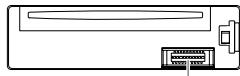
Connector (on the reverse side of the faceplate)
Faceplate
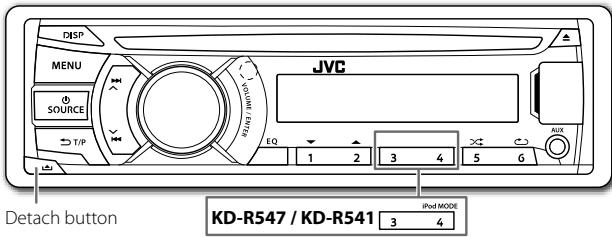
KD-R547 KD-R449 KD-R443 KD-R441
KD-R541 KD-R447 KD-R442
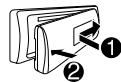
Attach
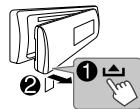
Detach
How to reset
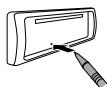
Your preset adjustments will also be erased.
Remote control (RM-RK52)
- Supplied for KD-R647.
- Need to purchase separately for KD-R641 / KD-R547 / KD-R541 / KD-R449.
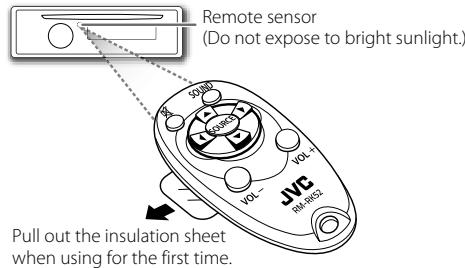
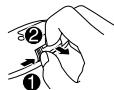
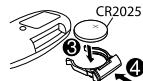
How to replace the battery
| To | Do this (on the faceplate) | Do this (on the remote control) |
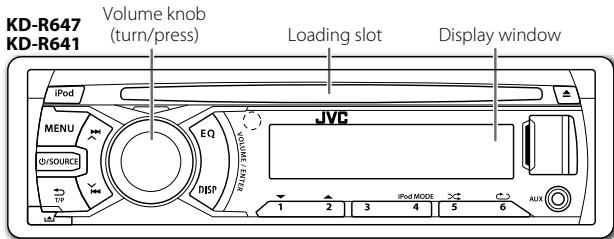
| Turn on the power | Press SOURCE.
• Press and hold to turn off the power. | (not available) |
| Adjust the volume | Turn the volume knob. | Press VOL + or VOL - . |
| Press the volume knob to mute the sound or pause playback.
• Press again to cancel. | Press to mute the sound or pause playback.
• Press again to cancel. |
| Select a source | • Press SOURCE repeatedly.
• Press SOURCE, then turn the volume knob within 2 seconds. | Press SOURCE repeatedly. |
| Change the display information | Press DISP repeatedly. (→10)
• Press and hold to scroll the current display information. | (not available) |
1 Cancel the demonstration
1 Press and hold MENU.
2 Press the volume knob to select [DEMO].
3 Turn the volume knob to select [DEMO OFF], then press the knob.
4 Press MENU to exit.
2 Set the clock
1 Press and hold MENU.
2 Turn the volume knob to select [CLOCK], then press the knob.
3 Turn the volume knob to select [CLOCK SET], then press the knob.
4 Turn the volume knob to select the day, then press the knob.
5 Turn the volume knob to adjust the hour, then press the knob.
6 Turn the volume knob to adjust the minute, then press the knob.
7 Turn the volume knob to select [24H/12H], then press the knob.
8 Turn the volume knob to select [24 HOUR] or [12 HOUR] then press the knob.
9 Press MENU to exit.
3 Set the basic settings
1 Press and hold MENU.
2 Turn the volume knob to make a selection, then press the knob.
See the following table for selection.
3 Press MENU to exit.
To return to the previous hierarchy, press T/P.
Default: XX
| CLOCK |
| 24H/12H | 24 HOUR/ 12 HOUR: Selects the clock format. |
| CLOCK ADJ | AUTO: The clock time is automatically set using the Clock Time (CT) data in FM Radio Data System signal. ; OFF: Cancels. |
| CLOCK DISP | ON: The clock time is shown on the display even when the unit is turned off. ; OFF: Cancels. |
| DIMMER |
| DIMMER SET | Selects the display and button illumination adjusted in the [BRIGHTNESS] setting.AUTO: Changes between the day and night adjustments when you turn off or on the car headlights. *1; ON: Selects the night adjustments. ; OFF: Selects the day adjustments. |
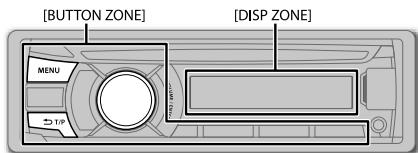
| BRIGHTNESS | Sets the display and button brightness for day and night separately.
1 DAY/NIGHT: Select day or night.
2 BUTTON ZONE/ DISP ZONE: Select the zone for setting.
3 Set the brightness level (00 to 31).
(Default: BUTTON ZONE: DAY: 25; NIGHT: 9 / DISP ZONE: DAY: 31; NIGHT: 12; For KD-R647 / KD-R641: DAY: 31; NIGHT: 11) |
| DISPLAY |
| SCROLL *2 | ONCE: Scrolls the display information once. ; AUTO: Repeats scrolling at 5-second intervals. ; OFF: Cancels. |
| TAG DISPLAY | ON: Shows the TAG information while playing MP3/WMA files. ; OFF: Cancels. |
| IPOD SWITCH*3: For KD-R647 / KD-R641 / KD-R547 / KD-R541 only |
| HEAD MODE: Controls music playback only from this unit. ; IPOD MODE: Controls music playback from both the unit and iPod/Phone. ; EXT MODE: Controls music playback only from the iPod/Phone. |
| SRC SELECT |
| AM*4 | ON: Enables AM in source selection. ; OFF: Disables. |
| AUX*4 | ON: Enables AUX in source selection. ; OFF: Disables. ; BT ADAPTER: Select when the KS-BTA100 Bluetooth adapter is connected to the AUX jack (→7). The source name will change to BT AUDIO. |
^1 The illumination control wire connection is required. ( 13)
2 Some characters or symbols will not be shown correctly (or will be blanked).
3 Displayed only when the source is USB-IPOD.
4 Not displayed when the corresponding source is selected.
Start playback
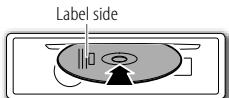
CD
The source changes to CD and playback starts.
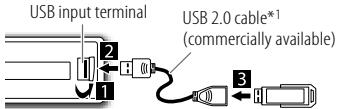
USB
The source changes to USB and playback starts.
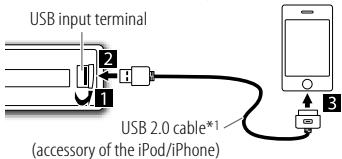
iPod/iPhone (KD-R647 / KD-R641 / KD-R547 / KD-R541 only)
The source changes to USB-IPOD and playback starts.
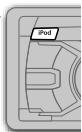
- You can also change the source from the other source to iPod by pressing iPod.
Press 4 iPod MODE repeatedly to select the control mode ([HEAD MODE] / [IPOD MODE] / [EXT MODE]) directly.
See also [IPOD SWITCH]. ( 4)
*1 Do not leave the cable inside the car when not using.
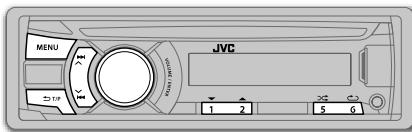
KD-R647 / KD-R641
KD-647 / KD-641
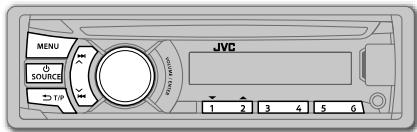
KD-547 / KD-541

:Applicable
Not applicable
| To | Do this | CD | USB | iPod |
| Select a track/file | Press / (or / on RM-RK52). | ✓ | ✓ | ✓*2 |
| Select a folder (MP3/WMA) | Press 1▼/2▲ (or ▲/▼ on RM-RK52). | ✓ | ✓ | — |
| Reverse/Fast-forward | Press and hold / (or / on RM-RK52). | ✓ | ✓ | ✓*2 |
| Select a track/file from a list | 1 Press MENU
2 Turn the volume knob to make a selection, then press the knob.
• MP3/WMA file: Select the desired folder, then a file.
• iPod or JVC Playlist Creator (JPC) / JVC Music Control (JMC) file*3: Select the desired file from the list (PLAYLISTS, ARTISTS, ALBUMS, SONGS, PODCASTS*4, GENRES, COMPOSERS*4).
• To return to the previous hierarchy, press T/P.
• To cancel, press MENU.
Note: Turn the volume knob quickly to fast-search. | | | |
| Repeat play | Press 6 repeatedly to make a selection.
• Audio CD or JPC / JMC file: TRACK RPT, RPT OFF
• MP3/WMA file: TRACK RPT, FOLDER RPT, RPT OFF
• iPod: ONE RPT, ALL RPT | ✓ | ✓ | ✓*5 |
| Random play | Press 5 repeatedly to make a selection.
• Audio CD: ALL RND, RND OFF
• MP3/WMA file or JPC / JMC file: FOLDER RND, ALL RND, RND OFF
• iPod: SONG RND, ALBUM RND*6, RND OFF | ✓ | ✓ | ✓*5 |
2 Applicable under [HEAD MODE] and [IPOD MODE] only. (→ 4)
^3 Only for files registered in the database created with JPC / JMC. ( 10)
4 Only for iPod.
5 Applicable under [HEAD MODE] only. (→4)
*6 Not applicable for some iPod/iPhone.
"ST" lights up when receiving an FM stereo broadcast with sufficient signal strength.
Search for a station
1 Press SOURCE to select FM or AM.
2 Press / (or / on RM-RK52) to search for a station automatically. (or)
Press and hold / (or / on RM-RK52) until "M" flashes, then press repeatedly to search for a station manually.
Store a station
You can store up to 18 stations for FM and 6 stations for AM.
While listening to a station....
Press and hold one of the number buttons (1 to 6) to store. (or)
1 Press and hold the volume knob until "PRESET MODE" flashes.
2 Turn the volume knob to select a preset number, then press the knob. The preset number flashes and "MEMORY" appears.
Select a stored station
Press one of the number buttons (1 to 6). (or)
1 Press MENU.
2 Turn the volume knob to select a preset number, then press the knob.
Search for your favorite program (PTY Search)
Available only for FM Radio Data System stations.
1 Press and hold T/P.
2 Turn the volume knob to select a PTY code ( 7) , then press the knob. If there is a station broadcasting a program of the same PTY code as you have selected, that station is tuned in.
Activate TA Standby Reception
Available only for FM Radio Data System stations.
Press T/P.
The unit will temporarily switch to Traffic Announcement (TA) (if available) from any source other than AM.
To deactivate, press T/P again.
Other settings
1 Press and hold MENU.
2 Turn the volume knob to select [TUNER], then press the knob.
3 Turn the volume knob to make a selection (see the table below and on page 7), then press the knob.
4 Press MENU to exit.
Default: XX
| SSM | For KD-R641 / KD-R541 / KD-R443 / KD-R442 / KD-R441: FM: SSM 01 - 06 / SSM 07 - 12 / SSM 13 - 18 Automatically preset up to 18 stations for FM.
“SSM” stops flashing when first 6 stations are stored.
Select SSM 07 - 12 / SSM 13 - 18 to store the following 12 stations.
For KD-R647 / KD-R547 / KD-R449 / KD-R447: FM: SSM 01 - 06 / SSM 07 - 12 ; FM-LO: SSM 01 - 06 Automatically preset up to 12 stations for FM and 6 stations for FM-LO.
“SSM” stops flashing when first 6 stations are stored.
Select SSM 07 - 12 to store the following 6 stations for FM. |
| AF-REG* | AF ON: Automatically searches for another station broadcasting the same program in the same Radio Data System network with better reception when the current reception is poor. ; AF-REG ON: Switches to another station only in the specific region using the AF control. ; AF OFF: Cancels. |
| NEWS-STBY* | Displayed only when the source is FM.
ON: The unit will temporarily switch to News Programme if available. ; OFF: Cancels. |
| P-SEARCH* | ON: When the signal of a preset station you have selected is weak, this unit searches for another station possibly broadcasting the same programme as the original preset station is broadcasting. ; OFF: Cancels. |
- Only for FM Radio Data System stations.
Default: XX
| MONO | Displayed only when the source is FM.
MONO ON: Improves the FM reception, but the stereo effect will be lost.;
MONO OFF: Cancels. |
| IF BAND | AUTO: Increases the tuner selectivity to reduce interference noises from adjacent stations. (Stereo effect may be lost).; WIDE: Subjects to interference noises from adjacent stations, but sound quality will not be degraded and the stereo effect will remain. |
| RADIO TIMER | Turns on the radio at a specific time regardless of the current source.
1 ONCE/ DAILY/ WEEKLY/ OFF: Select how often the timer will be turned on.
2 Select the band.
For KD-R641 / KD-R541 / KD-R443 / KD-R442 / KD-R441:
FM/ AM
For KD-R647 / KD-R547 / KD-R449 / KD-R447:
FM/ FM-LO/ AM
3 Select the preset station.
For KD-R641 / KD-R541 / KD-R443 / KD-R442 / KD-R441:
01 to 18 (for FM)/ 01 to 06 (for AM)
For KD-R647 / KD-R547 / KD-R449 / KD-R447:
01 to 12 (for FM)/ 01 to 06 (for FM-LO/AM)
4 Set the activation day and time.
• “◎” lights up when complete.
Radio Timer will not activate for the following cases.
• The unit is turned off.
• [OFF] is selected for [AM] in [SRC SELECT] after Radio Timer for AM is selected.
(→4) |
PTY code: NEWS, AFFAIRS, INFO, SPORT, EDUCATE, DRAMA, CULTURE, SCIENCE, VARIORED, POP M (music), ROCK M (music), EASY M (music), LIGHT M (music), CLASSICS, OTHER M (music), WEATHER, FINANCE, CHILDREN, SOCIAL, RELIGION, PHONE IN, TRAVEL, LEISURE, JAZZ, COUNTRY, NATION M (music), OLDIES, FOLK M (music), DOCUMENT
Use a portable audio player
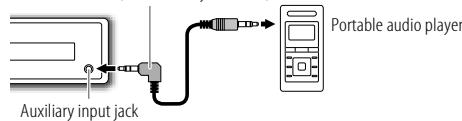
1 Connect a portable audio player (commercially available).
3.5 mm stereo mini plug with "L" shaped connector (commercially available)
2 Select [ON] for [AUX] in [SRC SELECT]. ( 4)
3 Press SOURCE to select AUX.
4 Turn on the portable audio player and start playback.

Use a 3-core plug head stereo mini plug for optimum audio output.
Use a Bluetooth device
1 Connect the Bluetooth adapter, KS-BTA100 (separately purchased).
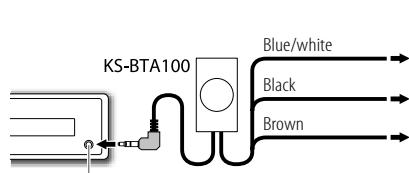
Auxiliary input jack
Wiring harness of the unit
(→13)
Blue/white: Remote
Black: Ground
Brown: Tel muting
2 Register (pair) the Bluetooth device with KS-BTA100.
3 Select [BT ADAPTER] for [AUX] in [SRC SELECT]. ( 4)
4 Press SOURCE to select BT AUDIO
5 Start using the Bluetooth device.
For details, refer to the instruction manual of KS-BTA100.
| To | Do this |
| Select a preset equalizer | Press EQ repeatedly. FLAT (default), NATURAL, DYNAMIC, VOCAL BOOST, BASS BOOST, USER |
| Store your own sound settings | 1 Press and hold EQ.
2 Turn the volume knob to make a selection, then press the knob. |
| SUB.W *1: | -08 to +08 | Default: (00) |
| BASS LVL: | -06 to +06 | (00) |
| MID LVL: | -06 to +06 | (00) |
| TRE LVL: | -06 to +06 | (00) |
| The setting is stored to [USER] in EQ. |
| To return to the previous item, press T/P. |
| To exit, press EQ. |
*1 For KD-R647 / KD-R641 / KD-R547 / KD-R541 / KD-R449: Displayed only when [L/O MODE] is set to [SUB.W] and [SUB.W] is set to [ON].
Other settings
1 Press and hold MENU.
2 Turn the volume knob to select [PRO EQ] or [AUDIO], then press the knob.
3 Turn the volume knob to make a selection (see the table below), then press the knob. Repeat step 3 until the desired item is selected.
4 Press MENU to exit.
PRO EQ
1 BASS/MIDDLE/TREBLE:Select a sound tone.
2 Adjust the sound elements of the selected sound tone.
| BASS | Frequency: | 60/80/100/200 Hz | Default: (80 Hz) |
| Level: | -06 to +06 | (00) |
| Q: | Q1.0/Q1.25/Q1.5/Q2.0 | (Q1.0) |
| MIDDLE | Frequency: | 0.5/1.0/1.5/2.5 kHz | Default: (1.0 kHz) |
| Level: | -06 to +06 | (00) |
| Q: | Q0.75/Q1.0/Q1.25 | (Q1.25) |
| TREBLE | Frequency: | 10.0/12.5/15.0/17.5 kHz | Default: (10.0 kHz) |
| Level: | -06 to +06 | (00) |
| Q: | Q FIX | (Q FIX) |
The setting is stored to [USER] in EQ.
Default: XX
| AUDIO |
| FADER*2*3 | R06 — F06 (00): Adjusts the front and rear speaker output balance. |
| BALANCE*3 | L06 — R06 (00): Adjusts the left and right speaker output balance. |
| BASS BOOST | +01 / +02: Selects your preferred bass boost level. ; OFF: Cancels. |
| LOUD | LOW / HIGH: Boosts low or high frequencies to produce a well-balanced sound at low volume. ; OFF: Cancels. |
| VOL ADJUST | -05 — +05 (00): Presets the volume adjustment level of each source (compared to the FM volume level). Before adjustment, select the source you want to adjust. ("VOL ADJ FIX" appears if FM is selected.) |
| L/O MODE | SUB.W / REAR: Selects whether rear speakers or a subwoofer are connected to the REAR/SW line out terminals on the rear panel (through an external amplifier). |
| SUB.W*4 | ON / OFF: Turns on or off the subwoofer output. |
| SUB.W LPF*5 | THROUGH: All signals are sent to the subwoofer. ; LOW 55Hz / MID 85Hz / HIGH 120Hz: Audio signals with frequencies lower than 55 Hz/ 85 Hz/ 120 Hz are sent to the subwoofer. |
| SUB.W LEVEL*5 | -08 — +08 (00): Adjusts the subwoofer output level. |
| BEEP | ON / OFF: Activates or deactivates the keypress tone. |
| TEL MUTING*6 | ON: Mutes the sounds while using the cellular phone (not connected through KS-BTA 100). ; OFF: Cancels. |
| AMP GAIN | LOW POWER: Limits the maximum volume level to 30. (Select if the maximum power of each speaker is less than 50 W to prevent damaging the speakers.) ; HIGH POWER: The maximum volume level is 50. |
[L/O MODE] / [SUB.W] / [SUB.W LPF] / [SUB.W LEVEL] is selectable only for KD-R647 / KD-R641 / KD-R547 / KD-R541 / KD-R449.
2 If you are using a two-speaker system, set the fader level to [00].
3 This adjustment will not affect the subwoofer output.
4 Displayed only when [L/O MODE] is set to [SUB.W].
5 Displayed only when [SUB.W] is set to [ON].
*6 Does not work if [BT ADAPTER] is selected for [AUX] in [SRC SELECT].
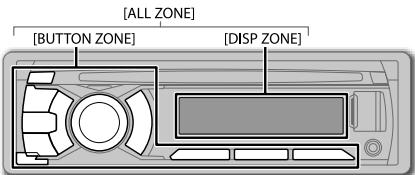
1 Press and hold MENU.
2 Turn the volume knob to select [COLOR] or [COLOR SETUP], then press the knob.
3 Turn the volume knob to make a selection (see the table below), then press the knob.
4 Press MENU to exit.
Default: XX
| COLOR: Select a color for [BUTTON ZONE], [DISP ZONE], and [ALL ZONE] separately. |
| KEY ILLUM*1 | GREEN / RED: Selects your preferred button illumination color. |
| BUTTON ZONE*2
[COLOR 06] | COLOR 01 to COLOR 29: The selected color is shown on the selected zone.
USER: The color you have created in [COLOR SETUP] is shown on the selected zone. |
| DISP ZONE*2
[COLOR 01] | COLOR FLOW 01 to COLOR FLOW 03: Color changes at different speeds. |
| ALL ZONE*2
[COLOR 06] | The button and display illumination will change to the current or selected [BUTTON ZONE] color. |
| COLOR SETUP*2: Store your own day and night colors for [BUTTON ZONE] and [DISP ZONE] separately. |
| DAY COLOR | 1 BUTTON ZONE / DISP ZONE: Select a zone.
2 RED / GREEN / BLUE: Select a primary color.
3 00 to 31: Select the level. |
| NIGHT COLOR | Repeat steps 2 and 3 for all the primary colors.
• Your setting is stored to [USER] in [COLOR].
• If [00] is selected for all primary colors for [DISP ZONE], nothing appears on the display. |
| MENU COLOR | ON: Changes the display and buttons illumination when settings are performed on menu and list search. ; OFF: Cancels. |
[NIGHT COLOR] or [DAY COLOR] is changed by turning on or off your car's headlight.
1 For KD-R547 / KD-R449.
2 For KD-R647 / KD-R641.
About discs and audio files
- This unit can only play the following CDs:

DIGITAL AUDK


DIGITAL AUDIO


DIGITAL AUDIO
-
This unit can play back multi-session discs; however, unclosed sessions will be skipped during playback.
-
Unplayable discs:
-
Discs that are not round.
- Discs with coloring on the recording surface or discs that are dirty.
- Recordable/ReWritable discs that have not been finalized.
-
8cmCD .Attempting to insert using an adapter may cause malfunction.
-
DualDisc playback: The Non-DVD side of a "DualDisc" does not comply with the "Compact Disc Digital Audio" standard. Therefore, the use of Non-DVD side of a DualDisc on this product cannot be recommended.
-
Playable files:
-
File extensions: MP3 (.mp3), WMA (.wma)
- Bit rate: MP3: 8 kbps — 320 kbps
WMA: 32 kbps — 192 kbps
- Sampling frequency:
MP3: 48 kHz, 44.1 kHz, 32 kHz, 24 kHz, 22.05 kHz, 16 kHz, 12 kHz, 11.025 kHz, 8 kHz
WMA: 48 kHz, 44.1 kHz, 32 kHz
- Variable bit rate (VBR) files.
Maximum number of characters for file/ folder name:
It depends on the disc format used (includes 4 extension characters < .mp3> or < wma> ).
- ISO 9660 Level 1 and 2: 64 characters
Romeo: 64 characters
- Joliet: 32 characters
- Windows long file name: 64 characters
About USB devices
- This unit can play MP3/WMA files stored on a USB mass storage class device.
- You cannot connect a USB device via a USB hub and Multi Card Reader.
-
Connecting a cable whose total length is longer than 5m may result in abnormal playback.
The maximum number of characters for:
-
Folder names: 63 characters
- File names: 63 characters
-
MP3 Tag: 60 characters
WMA Tag: 60 characters
-
This unit can recognize a total of 65 025 files, 255 folders (255 files per folder including folder without unsupported files), and of 8 hierarchies.
- This unit cannot recognize a USB device whose rating is other than 5V and exceeds 1 A.
About iPod/iPhone
Made for
- iPod touch (1st, 2nd, 3rd, and 4th generation)
- iPod classic
- iPod with video (5th generation)
- iPod nano (1st, 2nd, 3rd, 4th, 5th and 6th generation)
- iPhone, iPhone 3G, 3GS, 4, 4S
[IPOD MODE]/[EXT MODE] are not applicable.
- It is not possible to browse video files on the "Videos" menu in [HEAD MODE].
- The song order displayed on the selection menu of this unit may differ from that of the iPod/Phone.
- If some operations are not performed correctly or as intended, visit: http://www3.jvckenwood.com/english/car/index.html (English website only).
TROUBLESHOOTING
About "JVC Playlist Creator" and "JVC Music Control"
- This unit supports the PC application "JVC Playlist Creator" and Android™ application "JVC Music Control."
- When you use an audio file with database added using the "JVC Playlist Creator" or "JVC Music Control," you can search for a file by title, album or artist name using Music Search.
- "JVC Playlist Creator" and "JVC Music Control" are available from the following web site: http://www3.jvckenwood.com/english/car/index.html (English website only).
Display information
| FM or AM | Non-Radio Data System station:
Frequency ↔ Day/Clock |
| FM Radio Data System station:
Station name (PS) → Frequency → Program type
(PTY) → Day/Clock → (back to the beginning) |
| CD or USB | Album title/Artist* → Track title* → Track
no./Playing time → Day/Clock → (back to the
beginning) |
| USB-IPOD | [HEAD MODE] or [IPOD MODE]: Album title/
Artist* → Track title* → Track no./Playing time
→ Day/Clock → (back to the beginning)
[EXT MODE]: EXT MODE ↔ Day/Clock |
| AUX | AUX ↔ Day/Clock |
| BT AUDIO | BT AUDIO ↔ Day/Clock |
- "NO NAME" appears for conventional CDs or if not recorded.
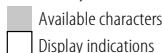
Available Cyrillic letters (for KD-R547 / KD-R449 / KD-R447)
| Symptom | Remedy |
| Sound cannot be heard. | ·Adjust the volume to the optimum level.
·Check the cords and connections.
·Be sure the rear ground terminal connected to the car's chassis are using shorter and thicker cords. |
| "MISWIRING CHK WIRING THEN RESET UNIT" / "WARNING CHK WIRING THEN RESET UNIT" appears and no operations can be done. | Check to be sure the terminals of the speaker wires are insulated properly, then reset the unit. If this does not solve the problem, consult your nearest service center. |
| Source cannot be selected. | Check the [SRC SELECT] setting. (→4) |
| Radio reception is poor. / Static noise while listening to the radio. | ·Connect the antenna firmly.
·Pull the antenna out all the way. |
| Correct characters are not displayed. | This unit can only display uppercase letters, numbers, and a limited number of symbols. For KD-R547 / KD-R449 / KD-R447: The unit can also display uppercase Cyrillic letters. (See left column.) |
| "PLEASE" and "EJECT" appear alternately. | Press ▲, then insert the disc correctly. |
| "IN DISC" appears. | Make sure nothing is blocking the loading slot when you eject the disc. |
| Disc cannot be ejected. | Press and hold ▲ to forcibly eject the disc. Be careful not to drop the disc when it is ejected. |
| Playback order is not as intended. | The playback order is determined by the file name (USB) or the order in which files were recorded (disc). |
| Elapsed playing time is not correct. | This depends on the recording process earlier. |
| "NOT SUPPORT" appears and track skips. | Check whether the track is a playable format. (→9) |
| "CANNOT PLAY" flashes and/or connected device cannot be detected. | ·Check whether the connected device is compatible with this unit and ensure the files are in supported formats. (→9)
·Reattach the device. |
| "READING" keeps flashing. | ·Do not use too many hierarchical levels and folders.
·Reload the disc or reattach the USB device. |
| The iPod/Phone does not turn on or does not work. | ·Check the connection between this unit and iPod/Phone.
·Detach and reset the iPod/Phone using hard reset.
·Check whether the [IPOD SWITCH] setting is appropriate. (→4) |
| Audio amplifier | Power Output | 50 W per channel |
| Continuous Power Output (RMS) | 20 W per channel into 4 Ω, 40 Hz to 20 000 Hz at less than 1% total harmonic distortion |
| Load Impedance | 4 Ω (4 Ω to 8 Ω allowance) |
| Frequency Response | 40 Hz to 20 000 Hz |
| Signal-to-Noise Ratio | 70 dB |
| Line-Out, Subwoofer-Out Level/Impedance | For KD-R647 / KD-R641 / KD-R547 / KD-R541 / KD-R449:2.5 V/10 kΩ load (full scale) |
| Output Impedance | ≤ 600 Ω |
| Tuner | FM Frequency Range | For KD-R641 / KD-R541 / KD-R443 /KD-R442 / KD-R441:FM 87.5 MHz to 108.0 MHzFor KD-R647 / KD-R547 / KD-R449 /KD-R447:FM 87.5 MHz to 108.0 MHzFM-LO 65.0 MHz to 74.0 MHz |
| Usable Sensitivity | 9.3 dBf (0.8 μV/75 Ω) |
| 50 dB Quieting Sensitivity | 16.3 dBf (1.8 μV/75 Ω) |
| Alternate Channel Selectivity | 65 dB (at 400 kHz) |
| Frequency Response | 40 Hz to 15 000 Hz |
| Stereo Separation | 40 dB |
| AM Frequency Range | MW 531 kHz to 1 611 kHzLW 153 kHz to 279 kHz |
| Sensitivity/Selectivity | MW 20 μV/40 dBLW 50 μV/- |
| CD player | Signal Detection System | Non-contact optical pickup (semiconductor laser) |
| Number of Channels | 2 channels (stereo) |
| Frequency Response | 5 Hz to 20 000 Hz |
| Signal-to-Noise Ratio | 98 dB |
| Wow and Flutter | Below measurable limit |
| USB | USB Standard | USB 1.1, USB 2.0 |
| Data Transfer Rate (Full Speed) | Max. 12 Mbps |
| Compatible Devices | Mass storage class |
| Compatible File Systems | FAT 32/16/12 |
| Playable Audio Formats | MP3/WMA |
| Maximum Supply Current | DC 5 V ≈ 1 A |
| General | Power Requirements (Operating Voltage) | DC 14.4 V (11 V to 16 V allowance) |
| Grounding System | Negative ground |
| Allowable Operating Temperature | 0°C to +40°C |
| Dimensions (W × H × D) | Installation Size (approx.) | 182 mm × 53 mm × 159 mm |
| Panel Size (approx.) | For KD-R647 / KD-R641:
188 mm × 59 mm × 10 mm
For KD-R547 / KD-R541 / KD-R449 /
KD-R447 / KD-R443 / KD-R442 /
KD-R441:
188 mm × 59 mm × 13 mm |
| Weight (excluding accessories) | 1.2 kg |
Subject to change without notice.
A Warning
- The unit can only be used with a 12V DC power supply, negative ground.
- Disconnect the battery's negative terminal before wiring and mounting.
- Do not connect Battery wire (yellow) and Ignition wire (red) to the car chassis or Ground wire (black) to prevent a short circuit.
- Insulate unconnected wires with vinyl tape to prevent a short circuit.
- Be sure to ground this unit to the car's chassis again after installation.
Caution
- For safety's sake, leave wiring and mounting to professionals. Consult the car audio dealer.
- Install this unit in the console of your vehicle. Do not touch the metal parts of this unit during and shortly after use of the unit. Metal parts such as the heat sink and enclosure become hot.
- Do not connect the wires of speaker to the car chassis, Ground wire (black), or in parallel.
- Connect speakers with a maximum power of more than 50W . If the maximum power of the speakers is lower than 50W , change the [AMP GAIN] setting to avoid damaging the speakers. ( 8)
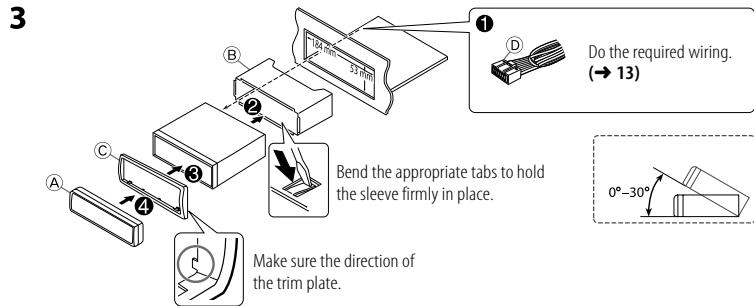
- Mount the unit with the angle of 30^ or less.
- If your vehicle wiring harness does not have the ignition terminal, connect Ignition wire (red) to the terminal on the vehicle's fuse box which provides 12 V DC power supply and is turned on and off by the ignition key.
- After the unit is installed, check whether the brake lamps, blinkers, wipers, etc. on the car are working properly.
- If the fuse blows, first make sure the wires are not touching car's chassis, then replace the old fuse with one that has the same rating.
Basic procedure
1 Remove the key from the ignition switch, then disconnect the terminal of the car battery.
2 Connect the wires properly.
See Wiring connection. ( 13)
3 Install the unit to your car.
See Installing the unit (in-dash mounting).
4 Connect the terminal of the car battery.
5 Reset the unit. ( 3)
Installing the unit (in-dash mounting)
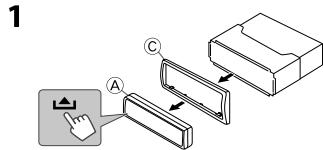
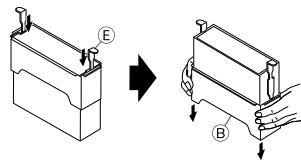
2
When installing without the mounting sleeve
Flat or round head screws (not supplied)
M5×8mm
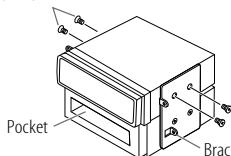
8mm

8mm

Pocket
Bracket (not supplied)
How to remove the unit
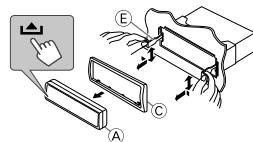
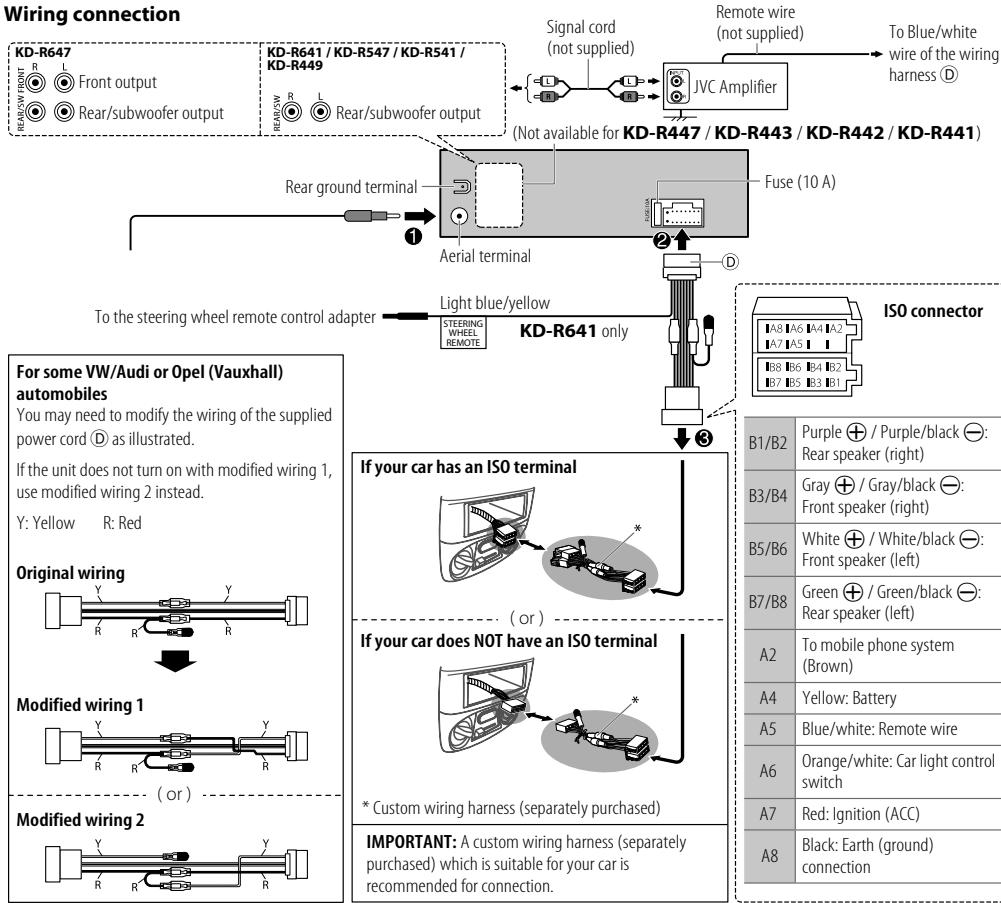
Wiring connection
Part list for installation
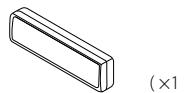
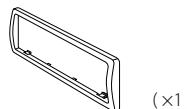
A Faceplate
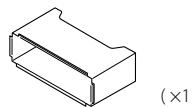
B Mounting sleeve
Trim plate
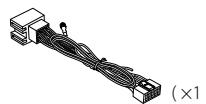
Wiring harness
E Extraction key
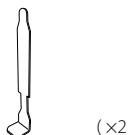
TABLE DES MATIERES
| AVANT L'UTILISATION | 2 |
| FONCTIONNEMENT DE BASE | 3 |
| PRISE EN MAIN | 4 |
| CD / USB / iPod | 5 |
| RADIO | 6 |
| AUX | 7 |
| RéGLAGES AUDIO | 8 |
| ÉCLAIRAGE | 9 |
| PLUS D'INFORMATIONS | 9 |
| GUIDE DE DÉPANNAGE | 10 |
| SPÉCIFICATIONS | 11 |
| INSTALLATION / RACCORDEMENT | 12 |
- Microsoft and Windows Media are either registered trademarks or trademarks of Microsoft Corporation in the United States and/or other countries.
- "Made for iPod," and "Made for iPhone" mean that an electronic accessory has been designed to connect specifically to iPod, or iPhone, respectively, and has been certified by the developer to meet Apple performance standards. Apple is not responsible for the operation of this device or its compliance with safety and regulatory standards. Please note that the use of this accessory with iPod, or iPhone may affect wireless performance.
- iPhone, iPod, iPod classic, iPod nano, and iPod touch are trademarks of Apple Inc., registered in the U.S. and other countries.
Android is trademark of Google Inc.



