
OFFICEJET 7612 - Multifunction Printer HP - Free user manual and instructions
Find the device manual for free OFFICEJET 7612 HP in PDF.
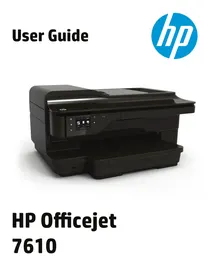


| Product type | Large format color inkjet multifunction printer (A3) |
| Dimensions (W x D x H) | 617 x 480 x 310 mm |
| Weight | 16 kg |
| Power supply | 100-240 V AC, 50/60 Hz |
| Main functions | Printing, copying, scanning, faxing, automatic duplex, Wi-Fi and Ethernet connectivity, color touchscreen |
| Maximum paper size | A3 (297 x 420 mm) |
| Print speed (black) | Up to 15 ppm |
| Print speed (color) | Up to 8 ppm |
| Print resolution | Up to 4800 x 1200 optimized dpi |
| Scan resolution | 1200 x 1200 dpi |
| Paper tray capacity | 250 sheets (main tray), 80 sheets (photo tray) |
| Display | 4.3-inch color touchscreen |
| Connectivity | Wi-Fi 802.11b/g/n, Ethernet 10/100, USB 2.0, PictBridge |
| Maintenance and cleaning | Clean the print heads from the control panel; use a soft, dry cloth for the exterior; do not use solvents |
| Safety | Turn off and unplug before any cleaning; do not expose to moisture; use a grounded outlet |
| Spare parts and repairability | HP 950/951 ink cartridges (black and color); maintenance kit available; spare parts on HP website |
| General information | Compliant with FCC and Industry Canada standards; REN number 0.08; use with approved antenna; RF safety distance > 20 cm |
Frequently Asked Questions - OFFICEJET 7612 HP
User questions about OFFICEJET 7612 HP
0 question about this device. Answer the ones you know or ask your own.
Ask a new question about this device
Download the instructions for your Multifunction Printer in PDF format for free! Find your manual OFFICEJET 7612 - HP and take your electronic device back in hand. On this page are published all the documents necessary for the use of your device. OFFICEJET 7612 by HP.
USER MANUAL OFFICEJET 7612 HP
Copyright information
© 2014 Copyright Hewlett-Packard Development Company, L.P.
Edition 2, 1/2014
Hewlett-Packard Company notices
The information contained in this document is subject to change without notice.
All rights reserved. Reproduction, adaptation, or translation of this material is prohibited without prior written permission of Hewlett-Packard, except as allowed under copyright laws.
The only warranties for HP products and services are set forth in the express warranty statements accompanying such products and services. Nothing herein should be construed as constituting an additional warranty. HP shall not be liable for technical or editorial errors or omissions contained herein.
Acknowledgements
Microsoft, Windows, Windows XP, Windows Vista, Windows 7, and Windows 8 are U.S. registered trademarks of Microsoft Corporation.
ENERGY STAR and the ENERGY STAR mark are registered U.S. marks.
Safety information

Always follow basic safety precautions when using this product to reduce risk of injury from fire or electric shock.
- Read and understand all instructions in the documentation that comes with the printer.
- Observe all warnings and instructions marked on the product.
- Unplug this product from wall outlets before cleaning.
- Do not install or use this product near water, or when you are wet.
- Install the product securely on a stable surface.
- Install the product in a protected location where no one can step on or trip over the line cord, and the line cord cannot be damaged.
- If the product does not operate normally, see Solve a problem on page 96.
- There are no user-serviceable parts inside. Refer servicing to qualified service personnel.
Table of contents
1 Get started 1
Accessibility 2
HP EcoSolutions (HP and the Environment) 3
Manage Power 3
Optimize Printing Supplies 3
Understand the printer parts 5
Front view 5
Printing supplies area 6
Back view 6
Use the printer control panel 7
Overview of buttons and lights 7
Control panel display icons 7
Change printer settings 8
Select the mode 9
To select a different mode 9
To change settings for a mode 9
Change the printer settings 9
HP Digital Solutions 10
HP Digital Scan (Scan to computer and Scan to Email) 10
HP Digital Fax (Fax to PC and Fax to Mac) 10
Select print paper 11
Recommended papers for printing and copying 11
Recommended papers for photo printing 12
Tips for selecting and using paper 13
Load an original on the scanner glass 14
Load an original in the automatic document feeder (ADF) 15
Load paper 16
Load standard-size paper 16
Load envelopes 16
Load cards and photo paper 17
Load custom-size paper 18
Insert a memory device 19
Install the accessories 20
Install the automatic two-sided printing accessory (duplexer) 20
Turn on accessories in the printer driver 20
To turn on accessories (Windows) 20
To turn on accessories on (Mac OS X) 20
Maintain the printer 22
Clean the scanner glass 22
Clean the exterior 22
Clean the automatic document feeder 23
Restore factory defaults 23
Update the printer 24
Update the printer using the embedded web server 24
Update the printer using the printer control panel 24
Open the HP printer software (Windows) 25
Turn the printer off 26
2 Print 27
Print documents 28
Print documents (Windows) 28
Print documents (Mac OS X) 28
Print brochures 29
Print brochures (Windows) 29
Print brochures (Mac OS X) 29
Print on envelopes 31
Print on envelopes (Windows) 31
Print on envelopes (Mac OS X) 31
Print photos 33
Print photos on photo paper (Windows) 33
Print photos on photo paper (Mac OS X) 33
Print photos from a memory device 34
Print on special and custom-sized paper 35
Print on special or custom-sized paper (Mac OS X) 35
Set up custom sizes (Mac OS X) 35
Print borderless documents or photos 37
Print borderless documents or photos (Windows) 37
Print borderless documents or photos (Mac OS X) 37
Print on both sides (duplexing) 39
Perform two-sided printing (Windows) 39
Perform two-sided printing (Mac OS X) 39
Tips for print success 40
3 Scan 43
Scan an original 44
Scan to a computer 44
Scan an original to a computer from the printer control panel 44
Scan an original to a computer from HP printer software 44
Scan to a memory device 45
Scan to Email 46
Scan using Webscan 47
Scanning documents as editable text 48
To scan documents as editable text 48
Guidelines for scanning documents as editable text 49
4 Copy 51
Copy documents 52
Change copy settings 53
Save copy settings 54
5 Fax 55
Send a fax 56
Send a standard fax 56
Send a standard fax from the computer 57
Send a fax manually from a phone 57
Send a fax using monitor dialing 58
Send a fax from memory 59
Schedule a fax to send later 59
Send a fax to multiple recipients 60
Send a fax in Error Correction Mode 60
Receive a fax 62
Receive a fax manually 62
Set up backup fax 63
Reprint received faxes from memory 63
Poll to receive a fax 64
Forward faxes to another number 64
Set the paper size for received faxes 65
Set automatic reduction for incoming faxes 65
Block unwanted fax numbers 65
Add numbers to the junk fax list 66
Remove numbers from the junk fax list 66
Print a Junk Fax Report 67
Receive faxes to your computer using HP Digital Fax (Fax to PC and Fax to Mac) 67
Fax to PC and Fax to Mac requirements 67 Activate Fax to PC and Fax to Mac 67 Modify Fax to PC and Fax to Mac settings 68
70
Set up and change speed-dial entries 70 Delete speed-dial entries 71 Print a list of speed-dial entries 71
Change fax settings 72
Configure the fax header 72 Set the answer mode (Auto answer) 72 Set the number of rings before answering 73 Change the answer ring pattern for distinctive ring 73 Set the dial type 74 Set the radial options 74 Set the fax speed 74 Set the fax sound volume 75
Fax and digital phone services 76
Fax over Internet Protocol 77
Use reports 78
Print fax confirmation reports 78 Print fax error reports 79 Print and view the fax log 79 Clear the fax log 79 Print the details of the last fax transaction 80 Print a Caller ID Report 80 View the Call History 80
6 Web Services 81
What are Web Services? 82
HP ePrint 82 Printer Apps 82
Set up Web Services 83
Set up Web Services using the printer control panel 83 Set up Web Services using the embedded web server 83 Set up Web Services using the HP printer software 84
Use Web Services 85
HP ePrint 85
Print using HP ePrint 85 Find the printer's email address 85 Turn off HP ePrint 85
Printer Apps 86
Use Printer Apps 86
Manage Printer Apps 86
Turn off Printer Apps 86
Remove Web Services 87
7 Work with ink cartridges 88
Information on ink cartridges and the printhead 89
Check the estimated ink levels 90
Printing with black or color ink only 91
Replace the ink cartridges 92
Store printing supplies 94
Anonymous usage information storage 95
8 Solve a problem 96
HP support 97
Obtain electronic support 97
HP support by phone 97
Before you call 98
Phone support period 98
Telephone support numbers 98
After the phone support period 99
General troubleshooting tips and resources 100
Solve printer problems 101
The printer shuts down unexpectedly 101
The printer is making some unexpected noises 101
Alignment fails 101
The printer is not responding (nothing prints) 102
The printer prints slowly 102
Solution 1: Use a lower print quality setting 102
Solution 2: Check the ink levels 102
Solution 3: Contact HP support 103
Blank or partial page printed 103
Something on the page is missing or incorrect 104
Placement of the text or graphics is wrong 104
Print quality troubleshooting 106
Solution 1: Make sure you are using original HP ink cartridges 106
Solution 2: Check the ink levels 106
Solution 3: Check the paper loaded in the input tray 107
Solution 4: Check the paper type 107
Solution 5: Check the print settings 107
Solution 6: Print and evaluate a print quality report 108 Solution 7: Contact HP support 108
Solve paper-feed problems 110
Solve copy problems 112
No copy came out 112 Copies are blank 112 Documents are missing or faded 112 Size is reduced 113 Copy quality is poor 113 Copy defects are apparent 114 The printer prints half a page, then ejects the paper 115 Paper mismatch 115
Solve scan problems 116
Scanner did nothing 116 Scan takes too long 116 Part of the document did not scan or text is missing 117 Text cannot be edited 117 Error messages appear 118 Scanned image quality is poor 118 Scan defects are apparent 120
Solve fax problems 121
The fax test failed 121
The "Fax Hardware Test" failed 122 The "Fax Connected to Active Telephone Wall Jack" test failed 122 The "Phone Cord Connected to Correct Port on Fax" test failed 123 The "Using Correct Type of Phone Cord with Fax" test failed 123 The "Dial Tone Detection" test failed 124 The "Fax Line Condition" test failed 125
The display always shows Phone Off Hook 126 The printer is having problems sending and receiving faxes 126 The printer is having problems sending a manual fax 128 The printer cannot receive faxes, but can send faxes 128 The printer cannot send faxes, but can receive faxes 129 Fax tones are recorded on my answering machine 130 The phone cord that came with my printer is not long enough 130 Color faxes do not print 130 The computer cannot receive faxes (Fax to PC and Fax to Mac) 131
Solve problems using Web Services and HP websites 132
Solve problems using Web Services 132 Solve problems using HP websites 133
Solve memory device problems 134
The printer cannot read the memory device 134
The printer cannot read photos on the memory device 134
Solve network problems 135
Solve Ethernet network problems 135
Solve wireless problems 135
Basic wireless troubleshooting 136
Advanced wireless troubleshooting 137
Step 1: Make sure your computer is connected to your network .... 138
Step 2: Make sure that the printer is connected to your network . . . 139
Step 3: Make sure your computer is not connected over a Virtual Private Network (VPN) 140
Step 4: Make sure the printer is online and ready 141
Step 5: Make sure the HP printer labeled (Network) is set as the default printer driver (Windows only)
Step 6: Check to see if the firewall software is blocking communication
After resolving the problems
Reset the Printer Network Settings
Configure your firewall software to work with the printer
Solve printer management problems
Embedded web server cannot be opened
Troubleshooting installation issues
Hardware installation suggestions
HP software installation suggestions
Understand the Printer Status Report
Understand the network configuration page
Printhead maintenance
Clean the printhead
Align the printhead
Uninstall and reinstall the HP software 156
Clear jams 157
Clear paper jams 157
Avoid paper jams 159
Appendix A Technical information 161
Warranty information 162
Hewlett-Packard limited warranty statement 163
Ink cartridge warranty information 163
Printer specifications 165
Physical specifications 165
Product features and capacities 166
Processor and memory specifications 166
System requirements 166
Network protocol specifications 166
Embedded web server specifications 167
Paper specifications 167
Understand specifications for supported paper 167
Understand supported sizes 167
Understand supported paper types and weights 170
Set minimum margins 170
Guidelines for printing on both sides of a page 172
Print resolution 172
Copy specifications 172
Fax specifications 172
Scan specifications 173
Web Services specifications 173
HP ePrint 174
Printer Apps 174
HP website specifications 174
Environmental specifications 174
Electrical specifications 175
Acoustic emission specifications 175
Memory device specifications 175
USB flash drives 175
Regulatory information 176
Regulatory Model Number 176
FCC statement 177
Notice to users in Korea 177
VCCI (Class B) compliance statement for users in Japan 178
Notice to users in Japan about the power cord 178
Noise emission statement for Germany 178
GS Declaration (Germany) 178
Notice to users of the U.S. telephone network: FCC requirements 179
Notice to users of the Canadian telephone network 180
Notice to users in the European Economic Area 181
Notice to users of the German telephone network 181
Australia wired fax statement 181
European Union Regulatory Notice 181
Regulatory information for wireless products 183
Exposure to radio frequency radiation 183
Notice to users in Brazil 183
Notice to users in Canada 184
Notice to users in Taiwan 184 Notice to users in Mexico 185 Notice to users in Japan 185
Environmental product stewardship program 186
Paper use 186 Plastics 186 Material safety data sheets 186 Recycling program 187 HP inkjet supplies recycling program 187 Disposal of waste equipment by users in private households in the European Union .... 188 Power consumption 188 Chemical Substances 189 Battery information 189 Battery disposal in Taiwan 189 Attention California users 189 Battery disposal in the Netherlands 189 RoHS notices (China only) 190 RoHS notices (Ukraine only) 190
Third-party licenses 191
Appendix B HP supplies and accessories 202
Order printing supplies online 203
Supplies 204
Ink cartridges 204 HP paper 204
Appendix C Additional fax setup 205
Set up faxing (parallel phone systems) 206
Select the correct fax setup for your home or office 207 Case A: Separate fax line (no voice calls received) 209 Case B: Set up the printer with DSL 210 Case C: Set up the printer with a PBX phone system or an ISDN line 211 Case D: Fax with a distinctive ring service on the same line 212 Case E: Shared voice/fax line 213 Case F: Shared voice/fax line with voice mail 214 Case G: Fax line shared with computer modem (no voice calls received) 215
Set up the printer with a computer dial-up modem 215 Set up the printer with a computer DSL/ADSL modem 216
Case H: Shared voice/fax line with computer modem 217
Shared voice/fax with computer dial-up modem 218 Shared voice/fax with computer DSL/ADSL modem 219
Case I: Shared voice/fax line with answering machine 221
Case J: Shared voice/fax line with computer modem and answering machine 222
Shared voice/fax line with computer dial-up modem and answering machine 223
Shared voice/fax line with computer DSL/ADSL modem and answering machine 224
Case K: Shared voice/fax line with computer dial-up modem and voice mail 226
Serial-type fax setup 229
Test fax setup 230
Appendix D Network setup 231
Set up the printer for wireless communication 232
Before you begin
Set up the printer on your wireless network
Set up the printer using the HP printer software
Setup the printer using the Wireless Setup Wizard
Set up the printer using WiFi Protected Setup (WPS)
To connect the printer using the Push Button Method
To connect the printer using the PIN Method
Set up the printer using the embedded web server (EWS)
Change the connection type
Change from an Ethernet connection to a wireless connection
Change from a USB connection to a wireless connection
Change from a wireless connection to a USB or Ethernet connection
Test the wireless connection
Guidelines for ensuring wireless network security
Overview of security settings
Add hardware addresses to a wireless router (MAC filtering) 237
Other wireless security guidelines 237
Guidelines for reducing interference on a wireless network 238
Change basic network settings 239
View and print network settings 239
Turn the wireless radio on and off 239
Change advanced network settings 240
Set link speed 240
View IP settings 240
Change IP settings 240
Reset network settings 241
HP wireless direct printing 242
Turn on HP wireless direct printing 242
Print from a wireless-capable mobile device 243
Print from a wireless-capable computer 243
Print from a wireless-capable computer (Windows) 243
Print from a wireless-capable computer (Mac OS X) 244
Appendix E Printer management tools 245
Toolbox (Windows) 246
Open the Toolbox 246
HP Utility (Mac OS X) 247
To open HP Utility 247
Embedded web server 248
About cookies 248
To open the embedded web server 248
Appendix F How do I? 250
Appendix G Errors (Windows) 251
Fax memory full 253
Unable to communicate with printer 254
Low on ink 255
Cartridge Problem
Replace the ink cartridge
Paper Mismatch
The cartridge cradle cannot move
Paper Jam
The printer is out of paper
Printer Offline
Printer Paused
Document failed to print
Printer failure
Door or cover open
Previously used ink cartridge installed
Ink cartridges depleted
Ink cartridge failure
Printer supply upgrade
Printer supply upgrade successful 271
Printer supply upgrade problem 272
Non-HP ink cartridges installed 273
Using Original HP Cartridges has its Rewards 274
Counterfeit Cartridge Advisory 275
Used, Refilled or Counterfeit Cartridge Detected 276
Use SETUP cartridges 277
Do not use SETUP cartridges 278
Not enough ink at startup 279
Use black ink only? 280
Use color ink only? 281
Incompatible ink cartridges 282
Ink sensor failure 283
Ink sensor warning 284
Problem with printer preparation 285
Color cartridge out of ink 286
Black cartridge out of ink 287
Automatic document feeder cover open 288
Problem with ink system 289
Index 290
1 Get started
This guide provides details about how to use the printer and how to resolve problems.
- Accessibility HP EcoSolutions (HP and the Environment)
- Understand the printer parts Use the printer control panel HP Digital Solutions
- Select print paper
- Load an original on the scanner glass
- Load an original in the automatic document feeder (ADF)
- Load paper
- Insert a memory device Install the accessories
- Maintain the printer
- Update the printer
- Open the HP printer software (Windows)
- Turn the printer off

NOTE: If you are using the printer with a computer running Windows XP Starter Edition, Windows Vista Starter Edition, Windows 7 Starter Edition, or Windows 8 Starter Edition, some features might not be available. For more information, see System requirements on page 166.
Accessibility
The printer provides a number of features that make it accessible for people with disabilities.
Visual
The HP software provided with the printer is accessible for users with visual impairments or low vision by using your operating system's accessibility options and features. The software also supports most assistive technology such as screen readers, Braille readers, and voice-to-text applications. For users who are color blind, colored buttons and tabs used in the HP software have simple text or icon labels that convey the appropriate action.
Mobility
For users with mobility impairments, the HP software functions can be executed through keyboard commands. The HP software also supports Windows accessibility options such as StickyKeys, ToggleKeys, FilterKeys, and MouseKeys. The printer doors, buttons, paper trays, and paper guides can be operated by users with limited strength and reach.
Support
For more details about the accessibility of this printer and HP's commitment to product accessibility, visit HP's website at www.hp.com/accessibility.
For accessibility information for Mac OS X, visit the Apple website at www.apple.com/accessibility.
HP EcoSolutions (HP and the Environment)
Hewlett-Packard is committed to helping you optimize your environmental footprint and empowering you to print responsibly—at home or in the office.
For more detailed information about environmental guidelines HP follows during the manufacturing process, see Environmental product stewardship program on page 186. For more information about HP's environmental initiatives, visit www.hp.com/ecosolutions.
This section contains the following topics:
Manage Power - Optimize Printing Supplies
Manage Power
To conserve electricity, the printer comes with the following features:
Sleep mode
Power usage is reduced while in Sleep mode. After initial setup of the printer, the printer goes into low-power mode after 5 minutes of inactivity.
To change the time to Sleep mode
From the printer control panel, touch the eco button, touch Sleep, and then touch the desired option.

NOTE: If you change your country or region from the printer control panel, the time to sleep mode is automatically set to the default, which is 5 minutes.
Schedule On and Off
Use the printer's Schedule On and Off feature, and then select the days and time you want the printer to turn on and turn off automatically. For example, you can schedule the printer to turn on at 8 a.m. and turn off at 8 p.m. from Monday to Friday. In this way, you will save energy during the night and weekends.
To configure the printer's Schedule On and Off feature
From the printer control panel, touch the eco button, touch Schedule On and Off, and then set the time to turn on and off the printer.

CAUTION: HP recommends that you replace a missing ink cartridge as soon as possible to avoid print quality issues and possible extra ink usage or damage to the ink system. Never turn off the printer when a cartridge is missing.
Optimize Printing Supplies
To optimize printing supplies such as ink and paper, try the following:
Recycle used original HP ink cartridges through HP Planet Partners. For more information, visit www.hp.com/recycle. - Optimize paper usage by printing on both sides of the paper. If the printer has an HP automatic two-sided printing accessory (duplexer), see Print on both sides (duplexing) on page 39. Otherwise, you can first print just the odd pages, flip the pages over, and then print just the even pages. - Save ink and paper when printing web content with HP Smart Print. For more information, visit www.hp.com/go/smartprint. - Change the print mode to a draft setting. The draft setting uses less ink. - Do not clean the printhead unnecessarily. Doing so wastes ink and shortens the life of the cartridges.
Understand the printer parts
This section contains the following topics:
- Front view
- Printing supplies area Back view
Front view
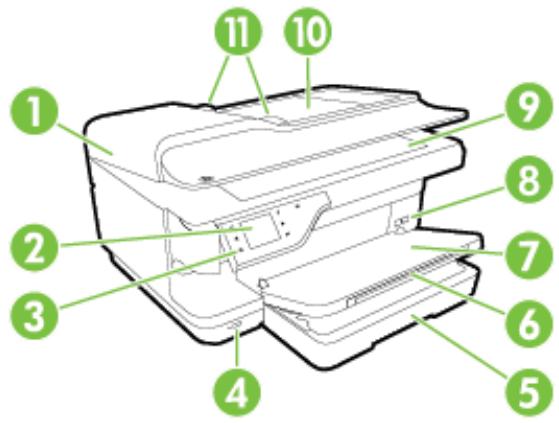
| 1 | Automatic document feeder (ADF) |
| 2 | Control panel display |
| 3 | Control panel |
| 4 | Front universal serial bus (USB) port |
| 5 | Input tray |
| 6 | Output tray extension |
| 7 | Output tray |
| 8 | Power button |
| 9 | Scanner glass |
| 10 | Document feeder tray |
| 11 | Paper guides |
Printing supplies area
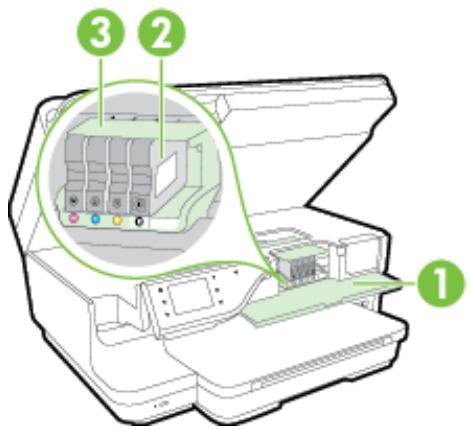
1 Ink cartridge access door 2 Ink cartridges 3 Printhead

NOTE: Printing supplies should be kept in the printer to prevent possible print quality issues or printhead damage. Avoid removing supplies for extended periods of time. Do not turn off the printer when a cartridge is missing.
Back view
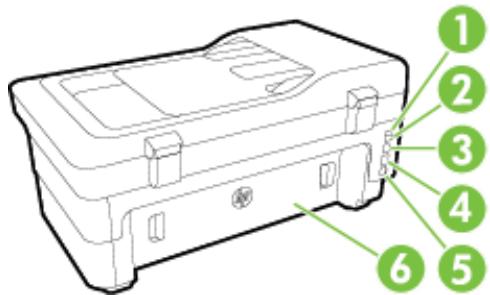
1 Fax port (1-LINE) 2 Fax port (2-EXT) 3 Rear universal serial bus (USB) port 4 Ethernet network port 5 Power input 6 Rear access panel
Use the printer control panel
This section contains the following topics:
- Overview of buttons and lights Control panel display icons
- Change printer settings
Overview of buttons and lights
The following diagrams and related tables provide a quick reference to the printer control panel features.
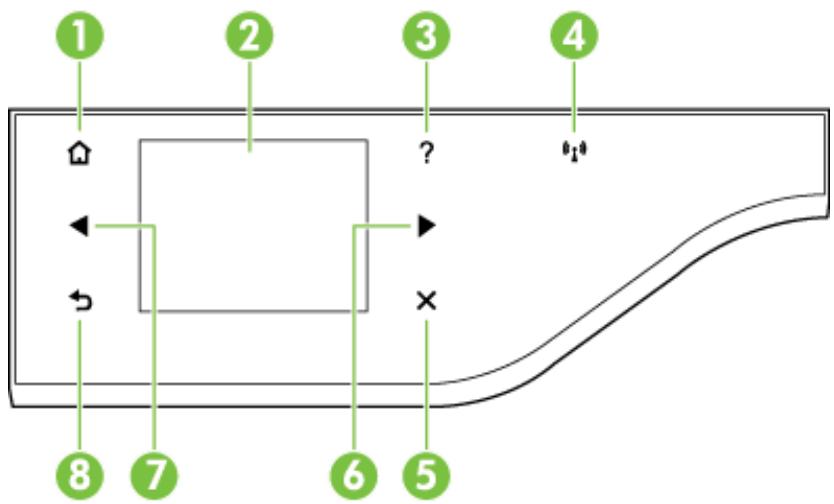
| Label | Name and Description |
| 1 | Home button: Returns to the home screen from any other screen. |
| 2 | Control panel display: Touch the screen to select menu options. For information about the icons that appear on the display, see Control panel display icons on page 7. |
| 3 | Help button: Opens the Help menu. |
| 4 | Wireless light: By default, the wireless light is off. For more information about the wireless light status, see Basic wireless troubleshooting on page 136. |
| 5 | Cancel button: Stops a job, exits a menu, or exits settings. |
| 6 | Right arrow button: Navigates through settings in the menu. |
| 7 | Left arrow button: Navigates through settings in the menu. |
| 8 | Back button: Returns to the previous menu. |
Control panel display icons
| Icon | Purpose |
| Shows that a wired network connection exists and also provides easy access to the network status screen. | |
| Shows that a wireless network connection exists. The signal strength is indicated by the number of curved lines. This is for infrastructure mode. It also provides easy access to the network status screen. For more information, see Set up the printer for wireless communication on page 232. | |
| eco | Displays a screen where you can learn about printer features that help conserve natural resources and reduce the environmental impact of your printing choices. |
| TIP: You can configure settings for some features from this screen. | |
| Shows that HP ePrint is turned on. For more information, see HP ePrint on page 85. | |
| Displays a screen where you can make copies or select other options. | |
| Displays a screen where you can send a fax, or choose fax settings. | |
| Displays a screen where you can make a scan, or change scan settings. | |
| Displays a screen where you can use HP Apps. | |
| Displays a screen where you can adjust photo printing options. | |
| Displays the Setup screen for generating reports, changing fax and other maintenance settings, and accessing the Help screen. | |
| Provides more information about the printer's features. | |
| Displays a screen where you can see information about the ink cartridges, including fill levels. This icon has a red border when an ink cartridge needs attention. | |
| NOTE: Ink level warnings and indicators provide estimates for planning purposes only. When you receive a low-ink warning message, consider having a replacement cartridge available to avoid possible printing delays. You do not need to replace cartridges until prompted to do so. | |
| Displays the status of the Auto Answer function. Touch Auto Answer to turn it on or off. For more information, see Set the answer mode (Auto answer) on page 72. |
Change printer settings
Use the control panel to change the printer mode and settings, print reports, or get help for the printer.

TIP: If the printer is connected to a computer, you can also change the printer settings using HP software tools available on your computer, such as the HP printer software, HP Utility (Mac OS X), or the EWS. For more information about these tools, see Printer management tools on page 245.
This section contains the following topics:
- Select the mode
- To select a different mode
- To change settings for a mode
- Change the printer settings
Select the mode
The main menu of the control panel display shows the available modes for the printer.
To select a mode, touch (Left arrow) or (Right arrow) to see the available modes, and then touch the icon to select the desired mode. Follow the prompts on the control panel display to complete the job. The control panel display returns to the main menu when the job is finished.
To select a different mode
Touch the Back button to return to the main menu. Touch Left arrow or Right arrow to scroll through the available modes, and then touch the icon to select the desired mode.
To change settings for a mode
- After selecting a mode, touch the arrow buttons to scroll through the available settings, and then touch the setting you want to change.
- Follow the prompts on the display to change the settings, and then touch Done.

NOTE: Touch the Back button to return to the previous menu.
Change the printer settings
To change the printer settings or print reports, use the options available in the Setup screen:
- Touch Right arrow, and then touch Setup.
- Touch the arrows to scroll through the screens.
- Touch the screen items to select screens or options.

NOTE: Use the Back button to return to the previous menu.
HP Digital Solutions
The printer includes a collection of digital solutions that can help you simplify and streamline your work.
HP Digital Scan (Scan to computer and Scan to Email) HP Digital Fax (Fax to PC and Fax to Mac)
HP Digital Scan (Scan to computer and Scan to Email)
You can simply walk up to the printer, select the options from the printer control panel, and either scan documents directly to a computer or quickly share them with business partners as email attachments.
For more information, see Scan on page 43.
HP Digital Fax (Fax to PC and Fax to Mac)
Never lose important faxes misplaced within a stack of paper pages again!
Use Fax to PC and Fax to Mac to automatically receive faxes and save faxes directly to your computer. With Fax to PC and Fax to Mac, you can store digital copies of your faxes easily and eliminate the hassle of dealing with bulky paper files. In addition, you can turn off fax printing altogether, saving money on paper and ink, and reduce paper consumption and waste.
For more information, see Receive faxes to your computer using HP Digital Fax (Fax to PC and Fax to Mac) on page 67.
Select print paper
The printer is designed to work well with most types of office paper. It is best to test a variety of print paper types before buying large quantities. Use HP paper for optimum print quality. Visit the HP website at www.hp.com for more information about HP paper.

HP recommends plain papers with the ColorLok logo for printing everyday documents. All papers with the ColorLok logo are independently tested to meet high standards of reliability and print quality, and produce documents with crisp, vivid color, bolder blacks, and that dry faster than ordinary plain papers. Look for papers with the ColorLok logo in a variety of weights and sizes from major paper manufacturers.
This section contains the following topics:
- Recommended papers for printing and copying Recommended papers for photo printing
- Tips for selecting and using paper
Recommended papers for printing and copying
If you want the best print quality, HP recommends using HP papers that are specifically designed for the type of project you are printing.
Depending on your country/region, some of these papers might not be available.
| HP Brochure Paper HP Professional Paper HP Brochure and Flyer Paper HP Tri-fold Brochure Paper | These papers are glossy-coated or matte-coated on both sides for two-sided use. They are the perfect choice for producing professional quality marketing materials such as brochures and mailers, as well as business graphics for report covers and calendars. |
| HP Premium Presentation Paper HP Professional Paper | These papers are heavy two-sided matte papers perfect for presentations, proposals, reports, and newsletters. They are heavyweight for an impressive look and feel. |
| HP Bright White Inkjet Paper | HP Bright White Inkjet Paper delivers high-contrast colors and sharp text. It is opaque enough for two-sided color usage with no showthrough, which makes it ideal for newsletters, reports, and flyers. It features ColorLok Technology for less smearing, bolder blacks, and vivid colors. |
| HP Printing Paper | HP Printing Paper is a high-quality multifunction paper. It produces documents that look and feel more substantial than documents printed on standard multipurpose or copy paper. It features ColorLok Technology for less smearing, bolder blacks, and vivid colors. |
| HP Office Paper | HP Office Paper is a high-quality multifunction paper. It is suitable for copies, drafts, memos and other everyday documents. It features ColorLok Technology for less smearing, bolder blacks, and vivid colors. |
| HP Office Recycled Paper | HP Office Recycled Paper is a high-quality multifunction paper made with 30% recycled fiber. It features ColorLok Technology for less smearing, bolder blacks, and vivid colors. |
| HP Premium Plus Photo Paper | HP's best photo paper is heavyweight for producing professional quality photos. Features an instant-dry finish for easy handling without smudging. It resists water, smears, fingerprints, and humidity. It is available in several sizes, including A4, 8.5 x 11 inch, 10 x 15 cm (4 x 6 inch), 13 x 18 cm (5 x 7 inch), and two finishes – glossy or soft-gloss (satin matte). It is acid-free for longer lasting documents. |
| HP Advanced Photo Paper | This thick photo paper features an instant-dry finish for easy handling without smudging. It resists water, smears, fingerprints, and humidity. Your prints have a look and feel comparable to a store processed photo. It is available in several sizes, including A4, 8.5 x 11 inch, 10 x 15 cm (4 x 6 inch), 13x18 cm (5 x7 inch), A3, and two finishes – glossy or soft-gloss (satin matte). It is acid-free for longer lasting documents. |
| HP Everyday Photo Paper | Print colorful, everyday snapshots at a low cost, using paper designed for casual photo printing. This affordable photo paper dries quickly for easy handling. Get sharp, crisp images when you use this paper with any inkjet printer. Available in semi-gloss finish in 8.5 x 11 inch, A4, 4 x 6 inch, and 10 x 15 cm. It is acid-free for longer lasting documents. |
To order HP papers and other supplies, go to www.hp.com. Go to Shop for Products & Services, and select Ink & Toner.

NOTE: At this time, some portions of the HP web site are available in English only.
Recommended papers for photo printing
For the best print quality, HP recommends using HP papers that are specifically designed for the type of project you are printing. Depending on your country/region, some of these papers might not be available.
| HP Premium Plus Photo Paper | HP's best photo paper is heavyweight for producing professional quality photos. Features an instant-dry finish for easy handling without smudging. It resists water, smears, fingerprints, and humidity. It is available in several sizes, including A4, 8.5 x 11 inch, 10 x 15 cm (4 x 6 inch), 13 x 18 cm (5 x 7 inch), and two finishes – glossy or soft-gloss (satin matte). It is acid-free for longer lasting documents. |
| HP Advanced Photo Paper | This thick photo paper features an instant-dry finish for easy handling without smudging. It resists water, smears, fingerprints, and humidity. Your prints have a look and feel comparable to a store processed photo. It is available in several sizes, including A4, 8.5 x 11 inch, 10 x 15 cm (4 x 6 inch), 13x18 cm (5 x7 inch), A3, and two finishes – glossy or soft-gloss (satin matte). It is acid-free for longer lasting documents. |
| HP Everyday Photo Paper | Print colorful, everyday snapshots at a low cost, using paper designed for casual photo printing. This affordable, photo paper dries quickly for easy handling. Get sharp, crisp images when you use this paper with any inkjet printer. Available in semi-gloss finish in 8.5 x 11 inch, A4, 4 x 6 inch, and 10 x 15 cm. It is acid-free for longer lasting documents. |
| HP Photo Value Packs | HP Photo Value Packs conveniently package original HP ink cartridges and HP Advanced Photo Paper to save you time and take the guesswork out of printing affordable, lab-quality photos with your HP printer. Original HP inks and HP Advanced Photo Paper have been designed to work together so your photos are long lasting and vivid, print after print. Great for printing out an entire vacation's worth of photos or multiple prints to share. |
To order HP papers and other supplies, go to www.hp.com. Go to Shop for Products & Services and select Ink & Toner.

NOTE: At this time, some portions of the HP web site are available in English only.
Tips for selecting and using paper
For the best results, observe the following guidelines.
- Always use paper that conforms to the printer specifications. For more information, see Paper specifications on page 167.
- Load only one type of paper at a time into a tray or automatic document feeder (ADF).
- When loading the trays and ADF, make sure the paper is loaded correctly. For more information see Load paper on page 16 or Load an original in the automatic document feeder (ADF) on page 15.
- Do not overload the tray or ADF. For more information, see Load paper on page 16 or Load and original in the automatic document feeder (ADF) on page 15.
- To prevent jams, poor print quality, and other printing problems, avoid loading the following paper in the trays or ADF:
Multipart forms Media that is damaged, curled, or wrinkled Media with cutouts or perforations Media that is heavily textured, embossed, or does not accept ink well Media that is too lightweight or stretches easily Media that contains staples or clips
Load an original on the scanner glass
You can copy, scan, or fax originals by loading them on the scanner glass.

NOTE: Many of the special features do not work correctly if the scanner glass and lid backing are not clean. For more information, see Maintain the printer on page 22.

NOTE: Remove all originals from the document feeder tray before lifting the lid on the printer.
To load an original on the scanner glass
Use these steps to load an original on the scanner glass.
- Lift the scanner lid.
- Load your original print-side down as shown in the following illustration.

TIP: For more help on loading an original, refer to the engraved guides along the edge of the scanner glass.
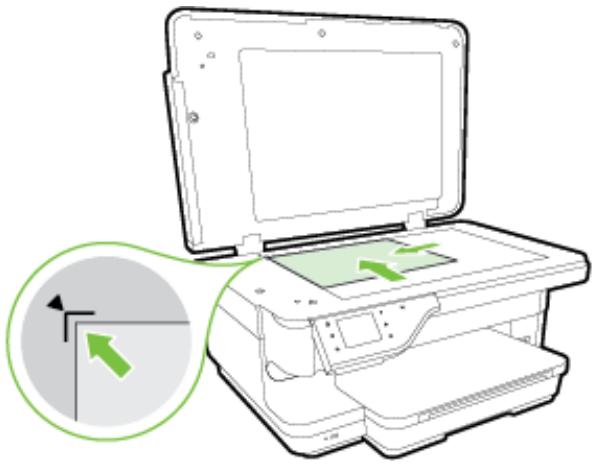
- Close the lid.
Load an original in the automatic document feeder (ADF)
You can copy, scan, or fax a document by placing it in the automatic document feeder (ADF).
CAUTION: Do not load photos in the ADF; this might cause damage to your photos. Use only paper that is supported by the printer. For more information, see Tips for selecting and using paper on page 13. NOTE: Only single-sided documents can be scanned, copied, or faxed using the ADF. The ADF does not support double-sided documents. NOTE: B-size documents cannot be scanned, copied, or faxed using the ADF. NOTE: Some features, such as the Fit to Page copy feature, do not work when you load your originals in the ADF. You must load your originals on the scanner glass.
To load an original in the ADF
Use these steps to load a document in the ADF.
- Load your original print-side up into the ADF.
a. If you are loading an original printed in portrait orientation, place the pages so that the top edge of the document goes in first. If you are loading an original printed in landscape orientation, place the pages so that the left edge of the document goes in first. b. Slide the paper into the ADF until you hear a tone or see a message on the display indicating that the loaded pages were detected.
TIP: For more help on loading originals in the ADF, refer to the diagram engraved in the document feeder tray.
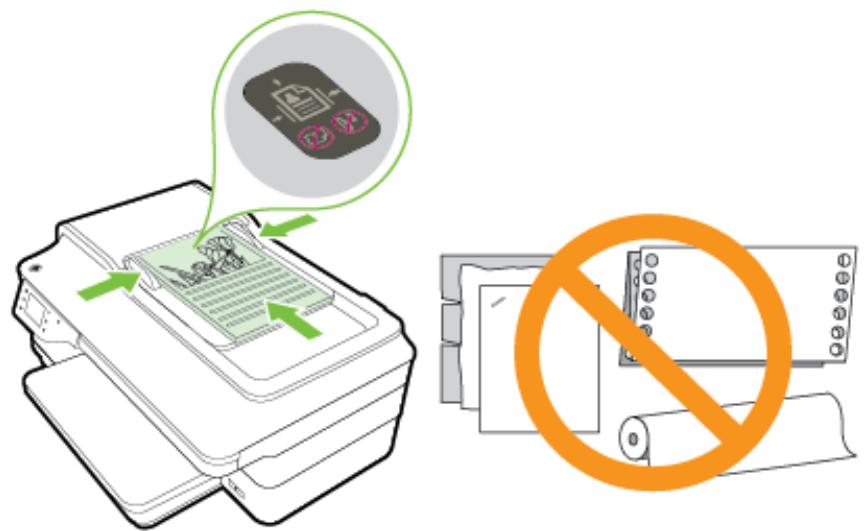
- Slide the paper guides inward until they stop at the left and right edges of the paper.
Load paper
This section provides instructions for loading paper into the printer.
- Load standard-size paper
- Load envelopes
- Load cards and photo paper
- Load custom-size paper
Load standard-size paper
Use these instructions to load standard paper.
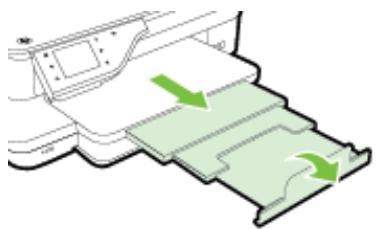
- Lift the output tray.
- Slide the paper width guide out as far as possible.

NOTE: If the paper is too long, pull the input tray to extend it.
- Load the paper in portrait orientation and with the side to be printed facing down.
Make sure the stack of paper is inserted as far inside the printer as possible and does not exceed the line marking in the tray.
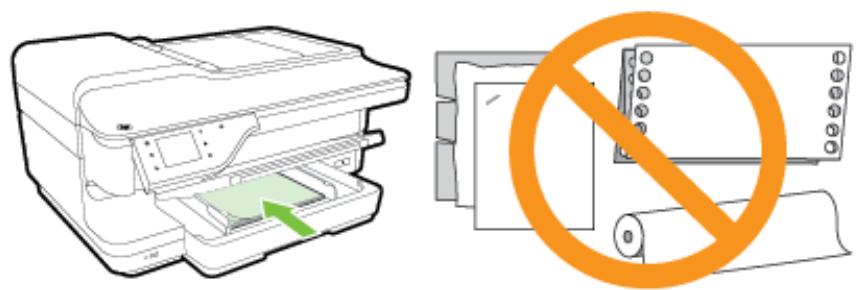

NOTE: Do not load paper while the printer is printing.
- Slide the paper guides in the tray until they touch the edge of the stack of paper.
- Lower the output tray.
- Pull out the output tray extension.
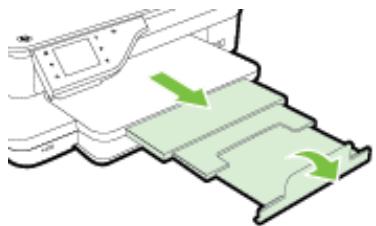
Load envelopes
Use these instructions to load an envelope.
- Lift the output tray.
- Slide out the paper width guides in the input tray as far as possible.

NOTE: If you are loading larger-size envelopes, pull up the front edge of the input tray to extend it.
- Insert the envelopes print-side down and load according to the graphic.
Make sure the stack of envelopes does not exceed the line marking in the tray.
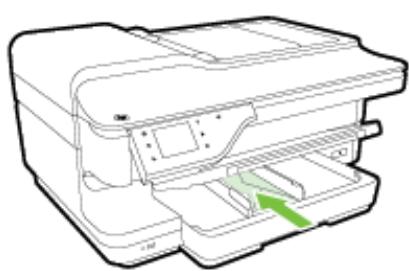



NOTE: Do not load envelopes while the printer is printing.
- Slide the paper guides in the tray until they touch the edge of the stack of envelopes.
- Lower the output tray.
- Pull out the output tray extension.
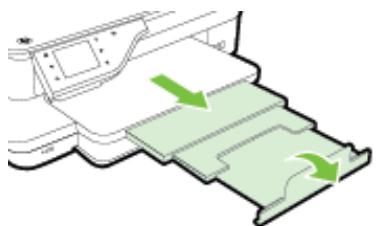
Load cards and photo paper
Use these instructions to load cards and photo paper.
- Lift the output tray.
- Slide out the paper width guide in the input tray as far as possible.

NOTE: If you are loading larger-size paper, pull up the front edge of the input tray to extend it.
- Insert the paper print-side down in the tray.
Make sure the stack of paper is inserted as far inside the printer as possible and does not exceed the line marking in the tray. If the photo paper has a tab along one edge, make sure the tab is pointing towards the front of the printer.

NOTE: Do not load paper while the printer is printing.
- Slide the paper guides in the tray until they touch the edge of the stack of paper.
- Lower the output tray.
- Pull out the output tray extension.
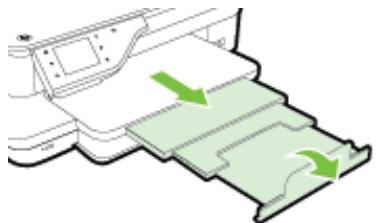
Load custom-size paper
Use these instructions to load custom-size paper.
CAUTION: Use only custom-size paper that is supported by the printer. For more information, see Paper specifications on page 167.
- Lift the output tray.
- Slide the paper width guide out as far as possible.

NOTE: If you are loading larger-size paper, pull up the front edge of the input tray to extend it.
- Insert the paper print-side down in the tray.
Make sure the stack of paper is inserted as far inside the printer as possible and does not exceed the line marking in the tray.

NOTE: Do not load paper while the printer is printing.
- Slide the paper guides in the tray until they touch the edge of the stack of paper.
- Lower the output tray.
- Pull out the output tray extension.
Insert a memory device
Using the USB port on the front of the printer, you can connect a USB flash drive. You can also transfer files from the USB flash drive to your computer or scan files to the USB flash drive from the printer.
CAUTION: Attempting to remove a USB flash drive while it is being accessed can damage files on the USB flash drive. You can safely remove a USB flash drive only when the status light is not blinking. NOTE: The printer does not support encrypted USB flash drives.
For more information about USB flash drives that can be used with the printer, see Memory device specifications on page 175.
To connect a USB flash drive
Insert the USB flash drive into the USB port on the front of the printer.
NOTE: If your USB flash drive does not fit into this port due to size limitations, or if the connector on the device is shorter than 11 mm (0.43 in), you will need to purchase a USB extension cable in order to use your device with this port.
Install the accessories
This section contains the following topics:
Install the automatic two-sided printing accessory (duplexer) - Turn on accessories in the printer driver
Install the automatic two-sided printing accessory (duplexer)
You can print on both sides of a sheet of paper automatically. For information on using the duplexer, see Print on both sides (duplexing) on page 39.
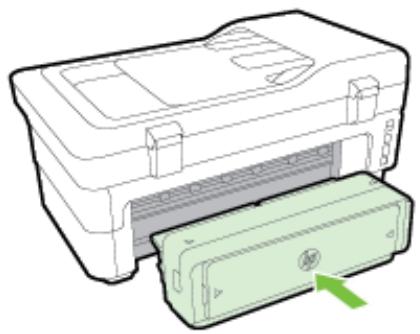
To install the duplexer:
Slide the duplexer into the back of the printer until the unit locks into place. Do not press the buttons on either side of the duplexer when installing the unit; use them only for removing the unit from the printer.
Turn on accessories in the printer driver
- To turn on accessories (Windows)
- To turn on accessories (Mac OS X)
To turn on accessories (Windows)
- Click Start, and then click Printers, Printers and Faxes, or Devices and Printers.
-Or-
Click Start, click Control Panel, and then double-click Printers.
-Or-
On the Start screen, click Control Panel, and then click View devices and printers.
- Right-click the printer icon, and then click Properties.
- Select the Device Settings tab. Click the accessory that you want to turn on, click Installed from the drop-down menu, and then click OK.
To turn on accessories (Mac OS X)
Mac OS X automatically turns on all accessories in the printer driver when you install the printer software. If you add a new accessory later, follow these steps:
- Open the System Preferences and then select Print & Fax or Print & Scan.
- Select the printer from list of printers, and then click Options & Supplies.
- Click the Driver tab.
- Select the options you want to install, and then click OK.
Maintain the printer
This section provides instructions for keeping the printer in top working condition. Perform these maintenance procedures as necessary.
Clean the scanner glass Clean the exterior Clean the automatic document feeder - Restore factory defaults
Clean the scanner glass

NOTE: Dust or dirt on the scanner glass, scanner lid backing, or scanner frame can slow down performance, degrade the quality of scans, and affect the accuracy of special features such as fitting copies to a certain page size.
To clean the scanner glass
- Turn off the printer. For more information, see Turn the printer off on page 26.
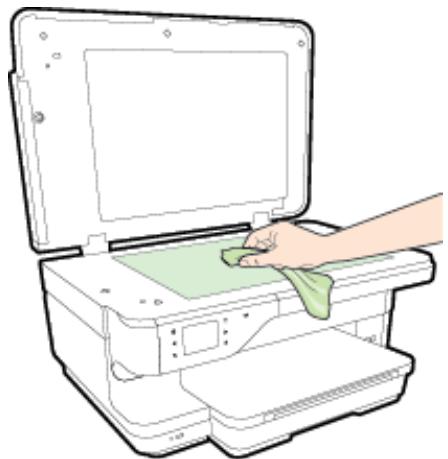
- Lift the scanner lid.
- Clean the scanner glass and lid backing by using a soft, lint-free cloth that has been sprayed with a mild glass cleaner. Dry the scanner glass with a dry, soft, lint-free cloth.

CAUTION: Use only glass cleaner to clean the scanner glass. Avoid cleaners that contain abrasives, acetone, benzene, and carbon tetrachloride, all of which can damage the scanner glass. Avoid isopropyl alcohol because it can leave streaks on the scanner glass.
CAUTION: Do not spray the glass cleaner directly on the scanner glass. If too much glass cleaner is applied, the cleaner could leak under the scanner glass and damage the scanner.
- Close the scanner lid, and turn on the printer.
Clean the exterior

WARNING! Before cleaning the printer, turn the printer off by pressing the (Power) button and unplug the power cord from the electrical socket.
Use a soft, damp, lint-free cloth to wipe dust, smudges, and stains off of the case. Keep fluids away from the interior of the printer, as well as from the printer control panel.
Clean the automatic document feeder
If the automatic document feeder picks up multiple pages or if it does not pick up plain paper, you can clean the rollers and separator pad. Lift the automatic document feeder cover to access the pick assembly inside the automatic document feeder, clean the rollers or separator pad, and then close the cover.
To clean the rollers or separator pad
- Remove all originals from the document feeder tray.
- Lift the automatic document feeder cover (1).
This provides easy access to the rollers (2) and separator pad (3).
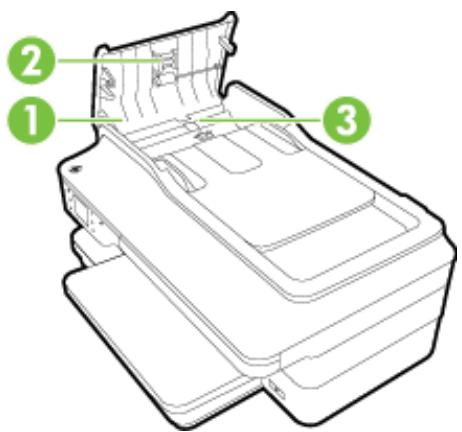
| 1 | Automatic document feeder cover |
| 2 | Rollers |
| 3 | Separator pad |
- Lightly dampen a clean lint-free cloth with distilled water, then squeeze any excess liquid from the cloth.
- Use the damp cloth to wipe any residue off the rollers or separator pad.

NOTE: If the residue does not come off using distilled water, try using isopropyl (rubbing) alcohol.
- Close the cover of the automatic document feeder.
Restore factory defaults
This section provides instructions about how to restore your printer back to the factory defaults.
- Touch (Right arrow), and then touch Setup.
- Touch Tools, and then touch Restore Factory Defaults.
Update the printer
HP is always working to improve the performance of its printers and bring you the latest features. If the printer is connected to a network and Web Services has been enabled, you can check for and install printer updates.
To update the printer, use one of the following methods:
- Update the printer using the embedded web server
- Update the printer using the printer control panel
Update the printer using the embedded web server
- Open the EWS. For more information, see Embedded web server on page 248.
- Click the Web Services tab.
- In the Web Services Settings section, click Product Update, click Check Now, and then follow the on-screen instructions.
- If the product update option is not available, follow these instructions:
a. In the Web Services Settings section, click Setup, click Continue, and follow the on-screen instructions. b. If prompted, choose to allow the printer to check for and install printer updates.

NOTE: If a printer update is available, the printer downloads and installs the update, and then restarts.

NOTE: If prompted for proxy settings and if your network uses proxy settings, follow the on-screen instructions to set up a proxy server. If you do not have the details, contact your network administrator or the person who set up the network.
Update the printer using the printer control panel
- On the printer control panel, touch (HP ePrint), touch OK, touch Settings, and then touch Printer Update.
- Touch Check for Product Update, and then follow the on-screen instructions.
To enable the printer to automatically check for updates:
- On the printer control panel, touch (HP ePrint), touch OK, touch Settings, and then touch Printer Update.
- Touch Auto Update and then touch On.
Open the HP printer software (Windows)
Open the HP printer software by doing one of the following:
- From the computer desktop, click Start, select Programs or All Programs, click HP, click the folder for the printer, and then select the icon with the printer's name.
- On the Start screen, right-click an empty area on the screen, click All Apps on the app bar, and then click the icon with the printer's name.
Turn the printer off
Turn the printer off by pressing the (Power) button located on the printer. Wait until the power light turns off before unplugging the power cord or turning off a power strip.
CAUTION: If you incorrectly turn the printer off, the print carriage might not return to the correct position, causing problems with the ink cartridges and print quality issues.
CAUTION: HP recommends that you replace any missing cartridges as soon as possible to avoid print quality issues, possible extra ink usage, or damage to the ink system. Never turn off the printer when ink cartridges are missing.
2 Print
Most print settings are automatically handled by the software application. Change the settings manually only when you want to change print quality, print on specific types of paper, or use special features. For more information about selecting the best print paper for your documents, see Select print paper on page 11.
Choose a print job to continue:
| Print documents on page 28 | |
| Print brochures on page 29 | |
| Print on envelopes on page 31 | |
| Print photos on page 33 | |
| Print on special and custom-sized paper on page 35 | |
| Print borderless documents or photos on page 37 |
Print documents
Follow the instructions for your operating system.
- Print documents (Windows)
- Print documents (Mac OS X)

TIP: This printer includes HP ePrint, a free service from HP that allows you to print documents on your HP ePrint-enabled printer anytime, from any location, without any additional software or printer drivers. For more information, see HP ePrint on page 85.
Print documents (Windows)
- Load paper in the tray. For more information, see Load paper on page 16.
- On the File menu in your software application, click Print.
- Make sure the printer you want to use is selected.
- To change settings, click the button that opens the Properties dialog box.
Depending on your software application, this button might be called Properties, Options, Printer Setup, Printer, or Preferences.
- Change the paper orientation on the Layout tab, and paper source, media type, paper size, and quality settings on the Paper/Quality tab. To print in black and white, click the Advanced button, and then select Black Ink Only from the Print in Grayscale drop-down list under Printer Features.
- Click OK.
- Click Print or OK to begin printing.
Print documents (Mac OS X)
- Load paper in the tray. For more information, see Load paper on page 16.
- From the File menu in your software application, click Print.
- Make sure the printer you want to use is selected in the Format For pop-up menu.
If you do not see print options in the Print dialog, do the following:
Mac OS X v10.6: Click the blue disclosure triangle next to the printer selection. OS X Lion: Click Show Details.
- Select a paper size from the pop-up menu.
If the Paper Size pop-up menu is not in the Print dialog, click the Page Setup button. When you are done selecting the paper size, click OK to close Page Setup and return to the Print dialog.
- Click Print.
Print brochures
Follow the instructions for your operating system.
- Print brochures (Windows)
- Print brochures (Mac OS X)

TIP: This printer includes HP ePrint, a free service from HP that allows you to print documents on your HP ePrint-enabled printer anytime, from any location, without any additional software or printer drivers. For more information, see HP ePrint on page 85.
Print brochures (Windows)

NOTE: To set print settings for all print jobs, make the changes in the HP software provided with the printer. For more information on the HP software, see Printer management tools on page 245.
- Load paper in the tray. For more information, see Load paper on page 16.
- On the File menu in your software application, click Print.
- Make sure the printer you want to use is selected.
- To change settings, click the button that opens the Properties dialog box.
Depending on your software application, this button might be called Properties, Options, Printer Setup, Printer, or Preferences.
- Change the paper orientation on the Layout tab, and paper source, media type, paper size, and quality settings on the Paper/Quality tab.
To print in black and white, click the Advanced button, and then select Black Ink Only from the Print in Grayscale drop-down list under Printer Features.
- Click OK.
- Click Print or OK to begin printing.
Print brochures (Mac OS X)
- Load paper in the tray. For more information, see Load paper on page 16.
- From the File menu in your software application, click Print.
- Make sure the printer you want to use is selected in the Format For pop-up menu.
If you do not see print options in the Print dialog, do the following:
Mac OS X v10.6: Click the blue disclosure triangle next to the printer selection. OS X Lion: Click Show Details.
- Select a paper size from the pop-up menu.
If the Paper Size pop-up menu is not in the Print dialog, click the Page Setup button. When you are done selecting the paper size, click OK to close Page Setup and return to the Print dialog.
- Click Paper Type/Quality from the pop-up menu, and then select the following settings:
- Paper Type: The appropriate brochure paper type Quality: Normal or Best
- Select any other print settings that you want, and then click Print to begin printing.
Print on envelopes
Avoid envelopes with the following characteristics:
- Very slick finish
- Self-stick adhesives, clasps, or windows
- Thick, irregular, or curled edges Areas that are wrinkled, torn, or otherwise damaged
Make sure the folds of envelopes you load in the printer are sharply creased.

NOTE: For more information about printing on envelopes, see the documentation available with the software program you are using.
Follow the instructions for your operating system.
- Print on envelopes (Windows)
- Print on envelopes (Mac OS X)
Print on envelopes (Windows)
- Load envelopes print-side down in the tray. For more information, see Load paper on page 16.
- On the File menu in your software application, click Print.
- Make sure the printer you want to use is selected.
- To change settings, click the button that opens the Properties dialog box.
Depending on your software application, this button might be called Properties, Options, Printer Setup, Printer, or Preferences.
- On the Layout tab, change the orientation to Landscape.
- Click Paper/Quality, and then select the appropriate envelope type from the Paper Size dropdown list.

TIP: You can change more options for the print job by using the features available on the other tabs in the dialog box.
- Click OK, and then click Print or OK to begin printing.
Print on envelopes (Mac OS X)
- Load envelopes print-side down in the tray. For more information, see Load paper on page 16.
- From the File menu in your software application, click Print.
- Make sure the printer you want to use is selected in the Format For pop-up menu.
If you do not see print options in the Print dialog, do the following:
Mac OS X v10.6: Click the blue disclosure triangle next to the printer selection. OS X Lion: Click Show Details.
- Select a paper size from the pop-up menu.
If the Paper Size pop-up menu is not in the Print dialog, click the Page Setup button. When you are done selecting the paper size, click OK to close Page Setup and return to the Print dialog.
- Select the Orientation option.
- Select any other print settings that you want, and then click Print to begin printing.
Print photos
Do not leave unused photo paper in the input tray. The paper might start to curl, which could impair the quality of your printout. Photo paper should be flat before printing.
Follow the instructions for your operating system.
- Print photos on photo paper (Windows)
- Print photos on photo paper (Mac OS X)
- Print photos from a memory device

TIP: This printer includes HP ePrint, a free service from HP that allows you to print documents on your HP ePrint-enabled printer anytime, from any location, and without any additional software or printer drivers. For more information, see HP ePrint on page 85.
Print photos on photo paper (Windows)
- Load paper in the tray. For more information, see Load paper on page 16.
- On the File menu in your software application, click Print.
- Make sure the printer you want to use is selected.
- To change settings, click the option that opens the printer Properties dialog box.
Depending on your software application, this option might be called Properties, Options, Printer Setup, Printer, or Preferences.
- On the Paper/Quality tab, select the appropriate photo paper type from the Media drop-down menu.

NOTE: Maximum DPI is only supported for color printing on HP Premium Plus Photo Papers and HP Advanced Photo Papers.
- Click Advanced, and then select Best or Maximum DPI from the Output Quality drop-down menu.
- To print the photo in black and white, click the Print in Grayscale drop-down menu, and then select one of the following options:
- High-Quality Grayscale: uses all the available colors to print your photo in grayscale. This creates smooth and natural shades of gray.
- Click OK, and then click Print or OK to begin printing.
Print photos on photo paper (Mac OS X)
- Load photo paper print-side down in the tray. For more information, see Load paper on page 16.
- From the File menu in your software application, click Print.
- Make sure the printer you want to use is selected.
If you do not see print options in the Print dialog, do the following.
Mac OS X v10.6: Click the blue disclosure triangle next to the printer selection. OS X Lion: Click Show Details.
- Select a paper size from the pop-up menu.
If the Paper Size pop-up menu is not in the Print dialog, click the Page Setup button. When you are done selecting the paper size, click OK to close Page Setup and return to the Print dialog.
- Click Paper Type/Quality from the pop-up menu, and then select the following settings:
- Paper Type: The appropriate photo paper type Quality: Best or Maximum dpi
- If necessary, change the photo and color options:
a. Click the disclosure triangle beside Color Options and select the appropriate Photo Fix options:
- Off: Applies no automatic adjustments to the image.
- Basic: Automatically focuses the image; moderately adjusts image sharpness.
b. To print the photo in black and white, click Grayscale from the Color pop-up menu, and then select one of the following options:
- High Quality: Uses all the available colors to print your photo in grayscale. This creates smooth and natural shades of gray.
- Select any other print settings that you want, and then click Print to begin printing.
Print photos from a memory device
You can connect a USB flash drive (such as a keychain drive or portable hard drive) to the USB port on the front of the printer.
For more information about using memory devices, see Insert a memory device on page 19.

CAUTION: Attempting to remove a memory device while it is being accessed can damage files on the memory device. You can safely remove a memory card only when the status light is not blinking.
To print selected photos

NOTE: This function is only available if the memory device does not contain Digital Print Order Format (DPOF) content.
- Insert your memory device into the appropriate slot on the printer. The Photo screen appears on the control panel display.
- Touch View & Print. The photos are displayed.
- Follow the instructions on the control panel display to select, edit, or print the photos.
Print on special and custom-sized paper
If your application supports custom-sized paper, set the size in the application before printing the document. If not, set the size in the printer driver. You might need to reformat existing documents to print them correctly on custom-sized paper.
Use only custom-sized paper that is supported by the printer. For more information, see Paper specifications on page 167.

NOTE: Defining custom-sized paper sizes is only available in the HP printing software in Mac OS X.
- Print on special or custom-sized paper (Mac OS X)
- Set up custom sizes (Mac OS X)
Print on special or custom-sized paper (Mac OS X)

NOTE: Before you can print on custom-sized paper, you must set up the custom sizes in the HP software provided with the printer. For instructions, see Set up custom sizes (Mac OS X) on page 35.
- Load the appropriate paper in the tray. For more information, see Load paper on page 16.
- From the File menu in your software application, click Print.
- Make sure the printer you want to use is selected in the Format For pop-up menu.
If you do not see print options in the Print dialog, do the following:
Mac OS X v10.6: Click the blue disclosure triangle next to the printer selection. OS X Lion: Click Show Details.
- Select a paper size from the pop-up menu.
If the Paper Size pop-up menu is not in the Print dialog, click the Page Setup button. When you are done selecting the paper size, click OK to close Page Setup and return to the Print dialog.
- Click Paper Handling from the pop-up menu.
- Under Destination Paper Size, click Scale to fit paper size, and then select the custom size.
- Select any other print settings that you want, and then click Print to begin printing.
Set up custom sizes (Mac OS X)
- Load paper in the tray. For more information, see Load paper on page 16.
- From the File menu in your software application, click Page Setup, and then make sure the printer you want to use is selected in the Format For pop-up menu.
-OR-
From the File menu in your software application, click Print, and then make sure the printer you want to use is selected.
- Select Manage Custom Sizes in the Paper Size pop-up menu.

NOTE: If you do not see these options in the Print dialog, click the disclosure triangle next to the Printer pop-up menu or click Show Details.
- Click the + on the left side of the screen, double-click Untitled, and type a name for the new custom size.
- In the Width and Height boxes, type the dimensions, and then set the margins, if you want to customize them.
- Click OK.
Print borderless documents or photos
Borderless printing lets you print to the edges of certain photo media types and a range of standard media sizes.
Before printing, open the file and make sure the size of the document or image matches the size of the media loaded in the printer.

NOTE: Borderless printing is only available in some applications.
Follow the instructions for your operating system.
- Print borderless documents or photos (Windows)
- Print borderless documents or photos (Mac OS X)
Print borderless documents or photos (Windows)
- Load paper in the tray. For more information, see Load paper on page 16.
- On the File menu in your software application, click Print.
- Make sure the printer you want to use is selected.
- To change settings, click the button that opens the Properties dialog box.
Depending on your software application, this button might be called Properties, Options, Printer Setup, Printer, or Preferences.
- Click the Paper/Quality tab, and then click the Advanced button.
- In the Borderless Printing option, click Print Borderless, and then click the OK button.
- In the Media drop-down list, select the appropriate paper type.
- Click OK, and then click Print or OK to begin printing.
Print borderless documents or photos (Mac OS X)
- Load paper in the tray. For more information, see Load paper on page 16.
- From the File menu in your software application, click Print.
- Make sure the printer you want to use is selected.
If you do not see print options in the Print dialog, do the following.
Mac OS X v10.6: Click the blue disclosure triangle next to the printer selection. OS X Lion: Click Show Details.
- Select a paper size from the pop-up menu.
If the Paper Size pop-up menu is not in the Print dialog, click the Page Setup button. When you are done selecting the paper size, click OK to close Page Setup and return to the Print dialog.
- Click Paper Type/Quality from the pop-up menu, and then select the following settings:
- Paper Type: The appropriate paper type Quality: Best or Maximum dpi

NOTE: If you do not see these options, click the disclosure triangle next to the Printer pop-up menu or click Show Details.
- Make sure the Print Borderless check box is selected.
- If necessary, click the disclosure triangle beside Color Options and select the appropriate Photo Fix options:
- Off: Applies no automatic adjustments to the image. Basic: Automatically focuses the image; moderately adjusts image sharpness.
- Select any other print settings that you want, and then click Print to begin printing.
Print on both sides (duplexing)
You can print on both sides of a sheet of media automatically by using the automatic two-sided printing accessory (duplexer).

NOTE: Two-sided printing requires an automatic two-sided printing accessory (duplexer) to be installed on the printer.

TIP: If the top and bottom margins in your document are smaller than 16 mm (0.63 inches), the document might not print out correctly.
Perform two-sided printing (Windows) Perform two-sided printing (Mac OS X)
Perform two-sided printing (Windows)
- Load the appropriate media. For more information, see Load paper on page 16.
- Make sure the duplexer is installed correctly. For more information, see Install the automatic two-sided printing accessory (duplexer) on page 20.
- With a document open, click Print on the File menu, and then under the Print on Both Sides options on the Layout tab, select either Flip on Long Edge or Flip on Short Edge.
- Change any other settings, and then click OK.
- Print your document.
Perform two-sided printing (Mac OS X)
- Load the appropriate media. For more information, see Load paper on page 16.
- Make sure the duplexer is installed correctly. For more information, see Install the automatic two-sided printing accessory (duplexer) on page 20.
- From the File menu in your software application, click Print.
- Make sure the printer you want to use is selected in the Format For pop-up menu.
If you do not see print options in the Print dialog, do the following:
Mac OS X v10.6: Click the blue disclosure triangle next to the printer selection. OS X Lion: Click Show Details.
- Select a paper size from the pop-up menu.
If the Paper Size pop-up menu is not in the Print dialog, click the Page Setup button. When you are done selecting the paper size, click OK to close Page Setup and return to the Print dialog.
- Click the Layout pop-up menu, and then select the appropriate binding options for the document from the Two-Sided pop-up menu.
- Select any other print settings that you want, and then click Print to begin printing.
Tips for print success
For good printing experience, HP ink cartridges should be correctly installed, have sufficient ink, and working properly; and paper should be properly loaded with correct print settings.
Ink tips
If the print quality is not acceptable, see Print quality troubleshooting on page 106 for more information. Use original HP ink cartridges. Install both the black and color cartridges correctly.
For more information, see Replace the ink cartridges on page 92.
- Check the estimated ink levels in the cartridges to make sure there is sufficient ink.
For more information, see Check the estimated ink levels on page 90.
Always turn off the printer with the Power button to allow the printer to protect the nozzles.
Paper loading tips
For more information, also see Load paper on page 16.
- Load a stack of paper (not just one page). All the paper in the stack should be of the same size and type to avoid a paper jam.
- Load paper with the print-side down in the main tray.
- Ensure that paper loaded in the input tray lays flat and the edges are not bent or torn.
- Adjust the paper-width guides in the input tray to fit snugly against all paper. Make sure the guides do not bend the paper in the tray.
Printer settings tips (Windows)
- To change default print settings, click Set Preferences under Print, Scan & Fax in the HP printer software. For more information to open the printer software, see Open the HP printer software (Windows) on page 25.
- To select the number of pages to print per sheet, on the Layout tab of the printer driver, select the appropriate option from the Pages per Sheet drop-down list. If you want to change the page orientation, set it in your application interface.
- To view more printing settings, on the Layout or Paper/Quality tab of the printer driver, click the Advanced button to open the Advanced Options dialog box.
Print in Grayscale: Allows you to print a black and white document using the black ink only. Select Black Ink Only, and then click the OK button. Pages per Sheet Layout: Helps you specify the order of the pages if you print document in more than two pages per sheet.

NOTE: The preview on the Layout tab cannot reflect what you select from the Pages per Sheet Layout drop-down list.
- Borderless Printing: Select this feature to print photos without border. Not all paper types support this feature. You will see an alert icon beside the option if the selected paper type in the Media drop-down list does not support it. o Preserve Layout: This feature only works with the duplex printing. If the image is larger than the printable area, select this feature to scale the page content to be within the smaller margins so that extra pages are not created. HP Real Life Technologies: This feature smooths and sharpens images and graphics for improved print quality. o Booklet: Allows you to print multiple-page document as a booklet. It places two pages on each side of a sheet that can then be folded into a booklet in half size of the paper. Select a binding method from the drop-down list, and then click OK.
- Booklet-LeftBinding: The binding side after folded into a booklet appears at the left side. Select the option if your reading habit is from left to right.
- Booklet-RightBinding: The binding side after folded into a booklet appears at the right side. Select the option if your reading habit is from right to left.

NOTE: The preview on the Layout tab cannot reflect what you select from the Booklet drop-down list.
Page Borders: Allows you to add the borders to the pages if you print the document with two or more pages per sheet.

NOTE: The preview on the Layout tab cannot reflect what you select from the Page Borders drop-down list.
- You can use printing shortcuts to save setting time. A printing shortcut stores the setting values that are appropriate for a particular kind of job, so that you can set all the options with a single click. To use it, go to the Printing Shortcut tab, select one printing shortcut, and then click OK.
To add a new printing shortcut, after making settings on the Layout or Paper/Quality tab, click the Printing Shortcut tab, click Save As and enter a name, and then click OK.
To delete a printing shortcut, select it, and then click Delete.

NOTE: You cannot delete the default printing shortcuts.
Printer settings tips (OS X)
- On the Print dialog, use the Paper Size pop-up menu to select the size of paper loaded in the printer.
- On the Print dialog, choose the Paper Type/Quality pop-up menu and select the appropriate paper type and quality.
- To print a black and white document using only black ink, choose the Paper Type/Quality from the pop-up menu and choose Grayscale from the Color pop-up menu.
Notes
- Original HP ink cartridges are designed and tested with HP printers and papers to help you easily produce great results, time after time.

NOTE: HP cannot guarantee the quality or reliability of non-HP supplies. Product service or repairs required as a result of using a non-HP supply will not be covered under warranty.
If you believe you purchased original HP ink cartridges, go to:
www.hp.com/go/anticounterfeit
- Ink level warnings and indicators provide estimates for planning purposes only.

NOTE: When you receive a low-ink warning message, consider having a replacement cartridge available to avoid possible printing delays. You do not need to replace the cartridges until print quality becomes unacceptable.
- Software settings selected in the print driver only apply to printing, they do not apply to copying or scanning. You can print your document on both sides of the paper.
3 Scan
You can scan documents, photos, and other originals and send them to a variety of destinations, such as a folder on a computer.
When scanning documents, you can use the HP software to scan documents into a format that you can search, copy, paste, and edit.

NOTE: Some scan functions are only available after you install the HP recommended software.

TIP: If you have problems scanning documents, see Solve scan problems on page 116.
This section contains the following topics:
Scan an original - Scan using Webscan - Scanning documents as editable text
Scan an original
This section contains the following topics:

NOTE: The printer must be connected to the computer and be turned on.

NOTE: Before scanning, make sure the HP software is installed, and on Windows computers, make sure the scan feature is turned on.

NOTE: If you are scanning a borderless original, load the original on the scanner glass, not the ADF.

NOTE: TIFF black and PDF black are not supported for B-size scan.
The minimum top and bottom margins for your large original must match or exceed 5 mm (0.2 inch).
- Scan to a computer
- Scan to a memory device
- Scan to Email
Scan to a computer
This section contains the following topics:
- Scan an original to a computer from the printer control panel
- Scan an original to a computer from HP printer software
Scan an original to a computer from the printer control panel
- Load your original print-side down in the left-rear corner of the scanner glass or in the ADF.
For more information, see Load an original on the scanner glass on page 14 or Load an original in the automatic document feeder (ADF) on page 15.
- Touch Scan, and then select Computer.
- Make changes to scan options, if needed.
- Touch Start Scan.
Scan an original to a computer from HP printer software

NOTE: You can also use the HP printer software to scan documents into editable text. For more information, see Scanning documents as editable text on page 48.
Windows
- Load your original print-side down in the left-rear corner of the scanner glass or print-side up in the ADF. For more information, see Load an original on the scanner glass on page 14 or Load an original in the automatic document feeder (ADF) on page 15.
- Open the HP printer software. For more information, see Open the HP printer software (Windows) on page 25. In the window that appears, select Print, Scan & Fax or Print & Scan, and then select Scan a Document or Photo under Scan.
- If necessary, make changes to the scan settings.
- Click Scan and select a scan shortcut.
Mac OS X
- Load the original print-side down in the left-rear corner of the scanner glass or print-side up in the ADF. For more information, see Load an original on the scanner glass on page 14 or Load an original in the automatic document feeder (ADF) on page 15.
- From the computer desktop, double-click HP Scan in the Applications/Hewlett-Packard folder.
- If necessary, make changes to the scan settings.
- Click Continue and follow the on-screen instructions to complete the scan.
Scan to a memory device
You can scan directly to a memory device, such as a USB flash drive, from the printer control panel without using a computer or the HP software provided with the printer.

NOTE: You can also use the HP printer software to scan documents into editable text. For more information, see Scanning documents as editable text on page 48.
To scan an original to a memory device from the printer control panel
Use these steps to scan an original to a memory card.
- Load your original print-side down in the left-rear corner of the scanner glass or print-side up in the ADF. For more information, see Load an original on the scanner glass on page 14 or Load an original in the automatic document feeder (ADF) on page 15.
- Insert a memory device. For more information, see Insert a memory device on page 19.
- Touch Scan, and then select Memory Device.
- Make changes to scan options, if needed.
- Touch Start Scan.
Scan to Email
- Load your original print-side down on the left-rear corner of the scanner glass or print-side up in the ADF.
For more information, see Load an original on the scanner glass on page 14 or Load an original in the automatic document feeder (ADF) on page 15.
- Touch Scan, and then touch Email.
- On the control panel display, select the name that corresponds to the Outgoing Email Profile you want to use.
- If prompted, enter the PIN.
- Select the TO email address (the email recipient) or enter an email address.
- Enter or change the SUBJECT for the email message.
- Change any scan settings, and then touch Start Scan.

NOTE: The connection might take some time, depending on network traffic and connection speed.
Scan using Webscan
Webscan is a feature of the embedded web server that lets you scan photos and documents from your printer to your computer using a web browser. This feature is available even if you did not install the printer software on your computer.

NOTE: If you are unable to open Webscan in the EWS, your network administrator might have turned it off. For more information, contact your network administrator or the person who set up your network.
For more information, see Embedded web server on page 248.
To scan using Webscan
- Load your original print-side down on the left-rear corner of the scanner glass or print-side up in the ADF
For more information, see Load an original on the scanner glass on page 14 or Load an original in the automatic document feeder (ADF) on page 15.
- Open the embedded web server. For more information, see Embedded web server on page 248.
- Click the Scan tab, click Webscan in the left pane, change any settings, and then click Start Scan.

TIP: To scan documents as editable text, you must install the HP software included with the printer. For more information, see Scanning documents as editable text on page 48.
Scanning documents as editable text
When scanning documents, you can use the HP software to scan documents into a format that you can search, copy, paste, and edit. This allows you to edit letters, newspaper clippings, and many other documents.
This section contains the following topics:
To scan documents as editable text Guidelines for scanning documents as editable text
To scan documents as editable text
Use the following guidelines for scanning documents as editable text.
Follow the instructions for your operating system.
Windows
- Load your original print-side down in the left-rear corner of the glass or print-side up in the ADF. For more information, see Load an original on the scanner glass on page 14 or Load an original in the automatic document feeder (ADF) on page 15.
- Open the HP printer software. For more information, see Open the HP printer software (Windows) on page 25. In the window that appears, select Print, Scan & Fax Print & Scan, and then select Scan a Document or Photo under Scan.
- Select the type of editable text you want to use in the scan:
| I want to... | Follow these steps |
| Extract just the text, without any of the formatting of the original | Select the Save as Editable Text (OCR) shortcut from the list, and then select Text (.txt) from the File Type drop-down menu. |
| Extract the text, as well as some of the formatting of the original | Select the Save as Editable Text (OCR) shortcut from the list, and then select Rich Text (.rtf) from the File Type drop-down menu. |
| Extract the text and make it searchable in PDF readers | Select the Save as PDF shortcut from the list, and then select Searchable PDF (.pdf) from the File Type drop-down menu. |
- To start the scan, click Scan, and then follow the on-screen instructions.
Mac OS X
- Load your original print-side down in the left-rear corner of the glass or print-side up in the ADF. For more information, see Load an original on the scanner glass on page 14 or Load an original in the automatic document feeder (ADF) on page 15.
- From the computer desktop, double-click HP Scan in the Applications/Hewlett-Packard folder.
- To start the scan, click Scan.
- Follow the on-screen instructions to complete the scan.
- After the scan is complete, click the File in the application menu bar, and then click Save.
- Select the type of editable text you want to use in the scan:
| I want to... | Follow these steps |
| Extract just the text, without any of the formatting of the original | Select TXT from the Format pop-up menu. |
| Extract the text, as well as some of the formatting of the original | Select RTF from the Format pop-up menu. |
| Extract the text and make it searchable in PDF readers | Select Searchable PDF from the Format pop-up menu. |
7. Click Save.
Guidelines for scanning documents as editable text
To ensure that the software can convert your documents successfully, do the following:
Make sure the scanner glass or ADF window is clean.
When the printer scans the document, smudges or dust on the scanner glass or ADF window can be scanned as well, and can prevent the software from converting the document to editable text.
Make sure the document is loaded correctly.
When scanning documents as editable text from the ADF, the original must be loaded into the ADF with the top forward and face up. When scanning from the scanner glass, the original must be loaded with the top facing the right edge of the scanner glass.
Also, make sure the document is not skewed. For more information, see "Load an original on the scanner glass" on page 14 or "Load an original in the automatic document feeder (ADF)" on page 15.
Make sure the text on the document is clear.
To successfully convert the document to editable text, the original must be clear and of high quality. The following conditions can cause the software to not convert the document successfully:
The text on the original is faint or wrinkled. The text is too small. The structure of the document is too complex. The text is tightly spaced. For example, if the text that the software converts has missing or combined characters, "rn" might appear as "m." The text is on a colored background. Colored backgrounds can cause images in the foreground to blend too much.
- Choose the correct profile.
Be sure to select a shortcut or preset that allows scanning as editable text. These options use scan settings designed to maximize the quality of your OCR scan. In Windows, use the Editable Text (OCR) or Save as PDF shortcuts. In Mac OS X, use the Documents preset.
- Save your file in the correct format.
If you want to extract just the text from the document, without any of the formatting of the original, select a plain text format (such as Text (.txt) or TXT). If you want to extract the text, as well as some of the formatting of the original, select Rich Text Format (such as Rich Text (.rtf) or RTF) or searchable PDF format (Searchable PDF (.pdf) or Searchable PDF).
4 Copy
You can produce high-quality color and grayscale copies on a variety of paper types and sizes.

NOTE: If you are copying a document when a fax arrives, the fax is stored in the printer's memory until the copying finishes. As a result, the number of fax pages that can be stored in memory might be reduced.
This section contains the following topics:
- Copy documents Change copy settings
- Save copy settings
Copy documents

NOTE: The minimum top and bottom margins for your large original must match or exceed 5 mm (0.2 inch).
You can make quality copies from the printer control panel.
To copy documents
- Make sure you have paper loaded in the main tray. For more information, see Load paper on page 16.
- Place your original face down on the scanner glass or face up in the ADF. For more information, see Load an original on the scanner glass on page 14 or Load an original in the automatic document feeder (ADF) on page 15.

NOTE: If you are copying a photo, place the photo on the scanner glass face down, as shown on the icon on the edge of the scanner glass.
- Touch Copy.
- Change any additional settings. For more information, see Change copy settings on page 53.
- To start the copy job, touch Black or Color.

NOTE: If you have a color original, selecting Black produces a black-and-white copy of the color original, while selecting Color produces a full-color copy of the color original.
Change copy settings
You can customize copy jobs using the various settings available from the printer control panel, including the following:
Number of copies - Copy paper size - Copy paper type - Two-sided printing (if the duplexer is installed) - ID copy - Copy speed or quality - Lighter/Darker settings - Resizing originals to fit on different paper sizes - Copy collation - Shifting the copy margin - Copy enhancements - Cropping the copy with the paper layout - Copy preview - Set as New Defaults
You can use these settings for single copy jobs.
To change copy settings for a single job
- Touch Copy.
- Select the copy function settings you want to change.
- Touch Black or Color.
Save copy settings
You can save settings to be used as defaults for future jobs.
To save the current settings as defaults for future jobs
- Touch Copy.
- Change the number of copies, and then touch Settings.
- Make any changes to the settings, and then touch Set As New Defaults.
- Touch Yes, and then touch Done.
5 Fax
You can use the printer to send and receive faxes, including color faxes. You can schedule faxes to be sent at a later time and set up speed-dials to send faxes quickly and easily to frequently used numbers. From the printer control panel, you can also set a number of fax options, such as resolution and the contrast between lightness and darkness on the faxes you send.

NOTE: Before you begin faxing, make sure you have set up the printer correctly for faxing. You might have already done this as part of the initial setup, by using either the control panel or the HP software provided with the printer. You can verify the fax is set up correctly by running the fax setup test from the control panel. For more information on the fax test, see Test fax setup on page 230.

NOTE: The printer does not support B-size fax.
This section contains the following topics:
Send a fax Receive a fax - Set up speed-dial entries - Change fax settings - Fax and digital phone services - Fax over Internet Protocol Use reports
Send a fax
You can send a fax in a variety of ways. Using the printer control panel, you can send a black-and-white or color fax. You can also send a fax manually from an attached phone. This allows you to speak with the recipient before sending the fax.
This section contains the following topics:
- Send a standard fax
- Send a standard fax from the computer
- Send a fax manually from a phone
- Send a fax using monitor dialing
- Send a fax from memory Schedule a fax to send later
- Send a fax to multiple recipients
- Send a fax in Error Correction Mode
Send a standard fax
You can easily send a single- or multiple-page black-and-white or color fax by using the printer control panel.

NOTE: If you need printed confirmation that your faxes were successfully sent, enable fax confirmation before sending any faxes.

TIP: You can also send a fax manually from a phone or by using monitor dialing. These features allow you to control the pace of your dialing. They are also useful when you want to use a calling card to charge the call and you have to respond to tone prompts while dialing.
To send a standard fax from the printer control panel
- Load your original print-side down in the left-rear corner of the scanner glass or print-side up in the ADF.
For more information, see Load an original on the scanner glass on page 14 or Load an original in the automatic document feeder (ADF) on page 15.
- Touch Fax.
- Enter the fax number by using the keypad.

TIP: To add a pause in the fax number you are entering, touch * repeatedly, until a dash (-) appears on the display.
- Touch Black or Color.
If the printer detects an original loaded in the automatic document feeder, it sends the document to the number you entered.

TIP: If the recipient reports issues with the quality of the fax you sent, you can try changing the resolution or contrast of your fax.
Send a standard fax from the computer
You can send a document on your computer as a fax, without printing a copy and faxing it from the printer.

NOTE: Faxes sent from your computer by this method use the printer's fax connection, not your Internet connection or computer modem. Therefore, make sure the printer is connected to a working telephone line and that the fax function is set up and functioning correctly.
To use this feature, you must install the printer software using the installation program provided on the HP software CD provided with the printer.
Windows
- Open the document on your computer that you want to fax.
- On the File menu in your software application, click Print.
- From the Name list, select the printer that has "Fax" in the name.
- To change settings (such as selecting to send the document as a black fax or a color fax), click the button that opens the Properties dialog box. Depending on your software application, this button might be called Properties, Options, Printer Setup, Printer, or Preferences.
- After you have changed any settings, click OK.
- Click Print or OK.
- Enter the fax number and other information for the recipient, change any further settings for the fax, and then click Send Fax. The printer begins dialing the fax number and faxing the document.
Mac OS X
- Open the document on your computer that you want to fax.
- Double-click HP Scan in the Applications/Hewlett-Packard folder.
- Select the printer that has "Fax" in the name.
- Select Fax Recipients from the pop-up menu below the Orientation setting.

NOTE: If you cannot find the pop-up menu, do the following:
Mac OS X v10.6: Click the blue disclosure triangle next to the Printer selection.
OS X 10.7: Click Show Details.
- Enter the fax number and other information in the boxes provided, and then click Add to Recipients.
- Select the Fax Mode and any other fax options you want, and then click Send Fax Now to begin dialing the fax number and faxing the document.
Send a fax manually from a phone
Sending a fax manually allows you to make a phone call and talk with the recipient before you send the fax. This is useful if you want to inform the recipient that you are going to send them a fax before sending it. When you send a fax manually, you can hear the dial tones, telephone prompts, or other
sounds through the handset on your telephone. This makes it easy for you to use a calling card to send your fax.
Depending on how the recipient has their fax machine set up, the recipient might answer the phone, or the fax machine might take the call. If a person answers the phone, you can speak with the recipient before sending the fax. If a fax machine answers the call, you can send the fax directly to the fax machine when you hear the fax tones from the receiving fax machine.
To send a fax manually from an extension phone
- Load your original print-side down in the left-rear corner of the scanner glass or print-side up in the ADF.
For more information, see Load an original on the scanner glass on page 14 or Load an original in the automatic document feeder (ADF) on page 15.
- Touch Fax.
- Dial the number by using the keypad on the phone that is connected to the printer.

NOTE: Do not use the keypad on the control panel of the printer when manually sending a fax. You must use the keypad on your phone to dial the recipient's number.
- If the recipient answers the telephone, you can engage in a conversation before sending your fax.

NOTE: If a fax machine answers the call, you will hear fax tones from the receiving fax machine. Proceed to the next step to transmit the fax.
- When you are ready to send the fax, touch Black or Color.

NOTE: If prompted, select Send Fax.
If you were speaking with the recipient before sending the fax, inform the recipient that they should press Start on their fax machine after they hear fax tones.
The telephone line is silent while the fax is transmitting. At this point, you can hang up the telephone. If you want to continue speaking with the recipient, remain on the line until the fax transmission is complete.
Send a fax using monitor dialing
Monitor dialing allows you to dial a number from the printer control panel as you would dial a regular telephone. When you send a fax using monitor dialing, you can hear the dial tones, telephone prompts, or other sounds through the speakers on the printer. This enables you to respond to prompts while dialing, as well as control the pace of your dialing.

TIP: If you are using a calling card and do not enter your PIN fast enough, the printer might start sending fax tones too soon and cause your PIN not to be recognized by the calling card service. If this is the case, you can create a speed dial entry to store the PIN for your calling card. For more information, see Set up speed-dial entries on page 70.

NOTE: Make sure the volume is turned on to hear a dial tone.
To send a fax using monitor dialing from the printer control panel
- Load your originals. For additional information, see Load an original on the scanner glass on page 14 or Load an original in the automatic document feeder (ADF) on page 15.
- Touch Fax, and then touch Black or Color.
If the printer detects an original loaded in the automatic document feeder, you hear a dial tone.
- When you hear the dial tone, enter the number by using the keypad on the printer control panel.
- Follow any prompts that might occur.

TIP: If you are using a calling card to send a fax and you have your calling card PIN stored as a speed dial, when prompted to enter your PIN, touch (Speed dial) to select the speed dial entry where you have your PIN stored.
Your fax is sent when the receiving fax machine answers.
Send a fax from memory
You can scan a black-and-white fax into memory and then send the fax from memory. This feature is useful if the fax number you are trying to reach is busy or temporarily unavailable. The printer scans the originals into memory and sends them once it is able to connect to the receiving fax machine.
After the printer scans the pages into memory, you can immediately remove the originals from the document feeder tray or scanner glass.

NOTE: You can only send a black-and-white fax from memory.
To send a fax from memory
- Load your originals. For additional information, see Load an original in the automatic document feeder (ADF) on page 15.
- Touch Fax, and then touch Settings.
- Touch Scan and Fax.
- Enter the fax number by using the keypad, touch (Speed dial) to select a speed dial, or touch (Call history) to select a previously dialed or received number.
- Touch Start Fax.
The printer scans the originals into memory and sends the fax when the receiving fax machine is available.
Schedule a fax to send later
You can schedule a black-and-white fax to be sent within the next 24 hours. This enables you to send a black-and-white fax late in the evening, when phone lines are not as busy or phone rates are lower, for example. The printer automatically sends your fax at the specified time.
You can only schedule one fax to be sent at a time. You can continue to send faxes normally, however, while a fax is scheduled.

NOTE: You can only send scheduled faxes in black-and-white.
To schedule a fax from the printer control panel
- Load your originals in the ADF. For additional information, see Load an original in the automatic document feeder (ADF) on page 15.
- Touch Fax, and then touch Settings.
- Touch Send Fax Later.
- Touch (Up arrow) and (Down arrow) to enter the send time, and then select Done.
- Enter the fax number by using the keypad, touch (Speed dial) to select a speed dial, or touch (Call history) to select a previously dialed or received number.
- Touch Start Fax.
The printer scans all pages and the scheduled time appears on the display. The fax is sent at the scheduled time.
To cancel a scheduled fax
- Touch Fax, touch Settings, and then touch Send Fax Later.
- Touch Cancel Scheduled Fax, and then touch OK.
Send a fax to multiple recipients
You can send a fax to multiple recipients at once by grouping individual speed dial entries into group speed dial entries.
To send a fax to multiple recipients using group speed dial
- Load your originals. For additional information, see Load an original in the automatic document feeder (ADF) on page 15.
- Touch Fax, touch Speed dial, and then select the recipient group.
- Touch Black.
If the printer detects an original loaded in the automatic document feeder, it sends the document to each number in the group speed dial entry.

NOTE: You can only use group speed dial entries to send faxes in black and white, because of memory limitations. The printer scans the fax into memory then dials the first number. When a connection is made, it sends the fax and dials the next number. If a number is busy or not answering, the printer follows the settings for Busy Redial and No Answer Redial. If a connection cannot be made, the next number is dialed and an error report is generated.
Send a fax in Error Correction Mode
Error Correction Mode (ECM) prevents loss of data due to poor phone lines by detecting errors that occur during transmission and automatically requesting retransmission of the erroneous portion. Phone charges are unaffected, or might even be reduced, on good phone lines. On poor phone lines, ECM increases sending time and phone charges, but sends the data much more reliably. The default setting is On. Turn ECM off only if it increases phone charges substantially, and if you can accept poorer quality in exchange for reduced charges.
Before turning the ECM setting off, consider the following. If you turn ECM off:
The quality and transmission speed of faxes you send and receive are affected. The Fax Speed is automatically set to Medium. - You can no longer send or receive faxes in color.
To change the ECM setting from the control panel
- From the printer control panel, touch the Right arrow, and then touch Setup.
- Touch Fax Setup, and then select Advanced Fax Setup.
- Select Error Correction Mode.
- Select On or Off.
Receive a fax
You can receive faxes automatically or manually. If you turn off the Auto Answer option, you must receive faxes manually. If you turn on the Auto Answer option (the default setting), the printer automatically answers incoming calls and receives faxes after the number of rings that are specified by the Rings to Answer setting. (The default Rings to Answer setting is five rings.)
If you receive a Legal-size or larger fax and the printer is not currently set to use Legal-size paper, the printer reduces the fax so that it fits on the paper that is loaded. If you have disabled the Automatic Reduction feature, the printer prints the fax on two pages.

NOTE: If you are copying a document when a fax arrives, the fax is stored in the printer memory until the copying finishes. This can reduce the number of fax pages stored in memory.
Receive a fax manually - Set up backup fax - Reprint received faxes from memory - Poll to receive a fax - Forward faxes to another number - Set the paper size for received faxes - Set automatic reduction for incoming faxes - Block unwanted fax numbers Receive faxes to your computer using HP Digital Fax (Fax to PC and Fax to Mac)
Receive a fax manually
When you are on the phone, the person you are speaking with can send you a fax while you are still connected. This is referred to as manual faxing. Use the instructions in this section to receive a manual fax.

NOTE: You can pick up the handset to talk or listen for fax tones.
You can receive faxes manually from a phone that is:
- Directly connected to the printer (on the 2-EXT port)
- On the same phone line, but not directly connected to the printer
To receive a fax manually
- Make sure the printer is turned on and you have paper loaded in the main tray.
- Remove any originals from the document feeder tray.
- Set the Rings to Answer setting to a high number to allow you to answer the incoming call before the printer answers. Or, turn off the Auto Answer setting so that the printer does not automatically answer incoming calls.
- If you are currently on the phone with the sender, instruct the sender to press Start on their fax machine.
- When you hear fax tones from a sending fax machine, do the following:
a. Touch Fax, and then select Black or Color. b. After the printer begins to receive the fax, you can hang up the phone or remain on the line. The phone line is silent during fax transmission.
Set up backup fax
Depending on your preference and security requirements, you can set up the printer to store all the faxes it receives, only the faxes it receives while the printer is in an error condition, or none of the faxes it receives.
To set backup fax from the printer control panel
- Touch (Right arrow), and then select Setup.
- Touch Fax Setup, and then select Advanced Fax Setup.
- Touch Backup Fax Reception.
- Touch the required setting.
| On | The default setting. When Backup fax is On, the printer stores all received faxes in memory. This enables you to reprint up to 30 of the most recently printed faxes if they are still saved in memory. |
| NOTE: When printer memory is low, it overwrites the oldest, printed faxes as it receives new faxes. If the memory becomes full of unprinted faxes, the printer stops answering incoming fax calls. | |
| NOTE: If you receive a fax that is too large, such as a very detailed color photo, it might not be stored in memory due to memory limitations. | |
| On Error Only | Causes the printer to store faxes in memory only if an error condition exists that prevents the printer from printing the faxes (for example, if the printer runs out of paper). The printer continues to store incoming faxes as long as there is memory available. (If the memory becomes full, the printer stops answering incoming fax calls.) When the error condition is resolved, the faxes stored in memory print automatically, and then they are deleted from memory. |
| Off | Faxes are never stored in memory. For example, you might want to turn off Backup fax for security purposes. If an error condition occurs that prevents the printer from printing (for example, the printer runs out of paper), the printer stops answering incoming fax calls. |
Reprint received faxes from memory
If you set the Backup fax mode to On, the received faxes are stored in memory, whether the printer has an error condition or not.

NOTE: After the memory becomes full, the oldest, printed faxes are overwritten as new faxes are received. If all the stored faxes are unprinted, the printer does not receive any fax calls until you print or delete the faxes from memory. You might also want to delete the faxes in memory for security or privacy purposes.
Depending on the sizes of the faxes in memory, you can reprint up to eight of the most recently printed faxes, if they are still in memory. For example, you might need to reprint your faxes if you lost the copy of your last printout.
To reprint faxes in memory from the printer control panel
- Make sure you have paper loaded in the main tray. For more information, see Load paper on page 16.
- Touch (Right arrow), and then touch Setup.
- Touch Fax Setup, touch Fax Tools, and then select Reprint Faxes in Memory.
The faxes are printed in the reverse order from which they were received with the most recently received fax printed first, and so on.
- If you want to stop reprinting the faxes in memory, touch the × (Cancel button).
Poll to receive a fax
- Polling allows the printer to ask another fax machine to send a fax that it has in its queue. When you use the Poll to Receive feature, the printer calls the designated fax machine and requests the fax from it. The designated fax machine must be set for polling and have a fax ready to send.

NOTE: The printer does not support polling pass codes. Polling pass codes are a security feature that require the receiving fax machine to provide a pass code to the printer it is polling in order to receive the fax. Make sure the printer you are polling does not have a pass code set up (or has not changed the default pass code) or the printer cannot receive the fax.
To set up polling to receive a fax from the printer control panel
- Touch Fax, and then touch Settings.
- Touch Poll to Receive.
- Enter the fax number of the other fax machine.
- Touch Start Fax.
Forward faxes to another number
You can set up the printer to forward your faxes to another fax number. If fax forwarding is enabled, your printer can receive and forward only black-and-white faxes.
Send a test fax to make sure the fax machine is able to receive your forwarded faxes.
To forward faxes from the printer control panel
- Touch (Right arrow), and then touch Setup.
- Touch Fax Setup, and then select Advanced Fax Setup.
- Touch Fax Forwarding.
- Touch On (Print and Forward) to print and forward the fax, or select On (Forward) to forward the fax.

NOTE: If the printer is not able to forward the fax to the designated fax machine (for example, if it is not turned on), the printer prints the fax. If you set up the printer to print error reports for received faxes, it also prints an error report.
- At the prompt, enter the number of the fax machine intended to receive the forwarded faxes, and then touch Done. Enter the required information for each of the following prompts: start date, start time, end date, and end time.
- Fax forwarding is activated. Touch OK to confirm.
If the printer loses power when fax forwarding is set up, it saves the fax forwarding setting and phone number. When the power is restored to the printer, the fax forwarding setting is still On.

NOTE: You can cancel fax forwarding by selecting Off from the Fax Forwarding menu.
Set the paper size for received faxes
You can select the paper size for received faxes. The paper size you select should match what is loaded in your main tray. Faxes can be printed on Letter, A4, or Legal paper only.

NOTE: If an incorrect paper size is loaded in the main tray when you receive a fax, the fax does not print and an error message appears on the display. Load Letter, A4, or Legal paper, and then touch OK to print the fax.
To set the paper size for received faxes from the printer control panel
- Touch (Right arrow), and then touch Setup.
- Touch Fax Setup, and then select Basic Fax Setup.
- Touch Fax Paper Size, and then select an option.
Set automatic reduction for incoming faxes
The Automatic Reduction setting determines what the printer does if it receives a fax that is too large for the default paper size. This setting is turned on by default, so the image of the incoming fax is reduced to fit on one page, if possible. If this feature is turned off, information that does not fit on the first page is printed on a second page. Automatic Reduction is useful when you receive a Legal-size fax and Letter-size paper is loaded in the main tray.
To set automatic reduction from the printer control panel
- Touch (Right arrow), and then touch Setup.
- Touch Fax Setup, and then select Advanced Fax Setup.
- Touch Automatic Reduction, and then select On or Off.
Block unwanted fax numbers
If you subscribe to a caller ID service through your phone provider, you can block specific fax numbers so the printer does not print faxes received from those numbers. When an incoming fax call is received, the printer compares the number to the list of junk fax numbers to determine if the call
should be blocked. If the number matches a number in the blocked fax numbers list, the fax is not printed. (The maximum number of fax numbers you can block varies by model.)

NOTE: This feature is not supported in all countries/regions. If it is not supported in your country/region, Junk Fax Blocker does not appear in the Fax Options or Fax Settings menu.

NOTE: If no phone numbers are added in the Caller ID list, it is assumed that you are not subscribed to a Caller ID service.
- Add numbers to the junk fax list
- Remove numbers from the junk fax list Print a Junk Fax Report
Add numbers to the junk fax list
You can block specific numbers by adding them to the junk fax list.
To add a number to the junk fax list
- Touch (Right arrow), and then touch Setup.
- Touch Fax Setup, and then select Basic Fax Setup.
- Touch Junk Fax Blocker.
- A message appears stating that Caller ID is required to block junk faxes. Touch OK to continue.
- Touch Add Numbers.
- To select a fax number to block from the caller ID list, touch Select from Caller ID History.
-or-
To manually enter a fax number to block, touch Enter new number.
- After entering a fax number to block, touch Done.

NOTE: Make sure you enter the fax number as it appears on the control panel display, and not the fax number that appears on the fax header of the received fax, as these numbers can be different.
Remove numbers from the junk fax list
If you no longer want to block a fax number, you can remove a number from your junk fax list.
To remove numbers from the list of junk fax numbers
- Touch (Right arrow), and then touch Setup.
- Touch Fax Setup, and then touch Basic Fax Setup.
- Touch Junk Fax Blocker.
- Touch Remove Numbers.
- Touch the number you want to remove, and then touch OK.
Print a Junk Fax Report
Use the following procedure to print a list of blocked junk fax numbers.
To print a Junk Fax Report
- Touch (Right arrow), and then touch Setup.
- Touch Fax Setup, and then touch Basic Fax Setup.
- Touch Junk Fax Blocker.
- Touch Print Reports, and then touch Junk Fax List.
Receive faxes to your computer using HP Digital Fax (Fax to PC and Fax to Mac)
If the printer is connected to your computer with a USB cable, you can use HP Digital Fax (Fax to PC and Fax to Mac) to automatically receive faxes and save faxes directly to your computer. With Fax to PC and Fax to Mac, you can store digital copies of your faxes easily and also eliminate the hassle of dealing with bulky paper files.
Received faxes are saved as TIFF (Tagged Image File Format). Once the fax is received, you get an on-screen notification with a link to the folder where the fax is saved.
The files are named in the following method: XXXX_YYYYYYYY_ZZZZZZ.tif, where X is the sender's information, Y is the date, and Z is the time that the fax was received.

NOTE: Fax to PC and Fax to Mac are available for receiving black-and-white faxes only. Color faxes are printed instead of being saved to the computer.
This section contains the following topics:
- Fax to PC and Fax to Mac requirements
- Activate Fax to PC and Fax to Mac
- Modify Fax to PC and Fax to Mac settings
Fax to PC and Fax to Mac requirements
- The administrator computer, the computer that activated the Fax to PC or Fax to Mac feature, must be on at all times. Only one computer can act as the Fax to PC or Fax to Mac administrator computer.
- The destination folder's computer or server must be on at all times. The destination computer must also be awake, faxes will not be saved if the computer is asleep or in hibernate mode.
- Paper must be loaded in the input tray. For more information, see Load paper on page 16.
Activate Fax to PC and Fax to Mac
On a computer running Windows, you can use the Digital Fax Setup Wizard to activate Fax to PC. On a Mac computer, you can use the HP Utility.
To set up Fax to PC (Windows)
- Open the HP printer software. For more information, see Open the HP printer software (Windows) on page 25.
- Double-click Fax Actions, and then double-click Digital Fax Setup Wizard.
- Follow the on-screen instructions.
To set up Fax to Mac (Mac OS X)
- Open HP Utility. For more information, see HP Utility (Mac OS X) on page 247.
- Select the printer.
- Click Digital Fax Archive in the Fax Settings section.
Modify Fax to PC and Fax to Mac settings
You can update the Fax to PC settings from your computer at any time from the Digital Fax Setup Wizard. You can update the Fax to Mac settings from the HP Utility.
You can turn off Fax to PC or Fax to Mac and disable printing faxes from the printer control panel.
To modify settings from the printer control panel
- Touch (Right arrow), and then touch Setup.
- Touch Fax Setup, touch Basic Fax Setup, and then touch Fax to PC.
- Select the setting that you want to change. You can change the following settings:
View PC hostname: View the name of the computer that is set up to administer Fax to PC or Fax to Mac. - Turn Off: Turn off Fax to PC or Fax to Mac.

NOTE: Use the HP software on your computer to turn on Fax to PC or Fax to Mac.
- Disable Fax Print: Choose this option to print faxes as they are received. If you turn off printing, color faxes will still print.
To modify settings from the HP software (Windows)
- Open the HP printer software. For more information, see Open the HP printer software (Windows) on page 25.
- Double-click Fax Setup, and then double-click Digital Fax Setup Wizard.
- Follow the on-screen instructions.
To modify settings from the HP software (Mac OS X)
- Open HP Utility. For more information, see HP Utility (Mac OS X) on page 247.
- Select the printer.
- Click Digital Fax Archive in the Fax Settings section.
Turn off Fax to PC or Fax to Mac
- Touch (Right arrow), and then touch Setup.
- Touch Fax Setup, touch Basic Fax Setup, and then touch Fax to PC.
- Touch Turn Off.
Set up speed-dial entries
You can set up frequently used fax numbers as speed-dial entries. This lets you dial those numbers quickly by using the printer control panel.

TIP: In addition to creating and managing speed-dial entries from the printer control panel, you can also use tools available on your computer, such as the HP software included with the printer and the printer's embedded web server (EWS). For more information, see Printer management tools on page 245.
This section contains the following topics:
- Set up and change speed-dial entries
- Set up and change group speed-dial entries
- Delete speed-dial entries
- Print a list of speed-dial entries
Set up and change speed-dial entries
You can store fax numbers as speed-dial entries.
To set up speed-dial entries
- On the printer control panel, touch the right arrow, and then touch Setup.
- Touch Fax Setup, and then select Speed Dial Setup.
- Touch Add/Edit Speed Dial, and then touch an unused entry number.
- Type the fax number, and then touch Next.

NOTE: Be sure to include any pauses or other required numbers, such as an area code, an access code for numbers outside a PBX system (usually a 9 or 0), or a long-distance prefix.
- Type the name for the speed-dial entry, and then touch Done.
To change speed-dial entries
- On the printer control panel, touch the right arrow, and then touch Setup.
- Touch Fax Setup, and then select Speed Dial Setup.
- Touch Add/Edit Speed Dial, and then touch the speed-dial entry you want to change.
- If you want to change the fax number, type the new number, and then touch Next.

NOTE: Be sure to include any pauses or other required numbers, such as an area code, an access code for numbers outside a PBX system (usually a 9 or 0), or a long-distance prefix.
- If you want to change the name of the speed-dial entry, type the new name, and then touch Done.
Set up and change group speed-dial entries
You can store groups of fax numbers as group speed-dial entries.

NOTE: Before you can create a group speed-dial entry, you must have already created at least one speed-dial entry.
- On the printer control panel, touch the right arrow, and then touch Setup.
- Touch Fax Setup, and then select Speed Dial Setup.
- Touch Group Speed Dial, and then touch an unused entry number.
- Touch the speed-dial entries you want to include in the group speed-dial entry, and then touch OK.
- Type the name for the speed-dial entry, and then touch Done.
To change group speed-dial entries
- On the printer control panel, touch the right arrow, and then touch Setup.
- Touch Fax Setup, and then select Speed Dial Setup.
- Select Group Speed Dial, and then touch the entry you want to change.
- If you want to add or remove speed-dial entries from the group, touch the speed-dial entries you want to include or those you want to remove, and then touch OK.
- If you want to change the name of the group speed-dial, type the new name, and then touch Done.
Delete speed-dial entries
To delete speed-dial entries or group speed-dial entries, complete the following steps:
- On the printer control panel, touch the right arrow, and then touch Setup.
- Touch Fax Setup, and then touch Speed Dial Setup.
- Touch Delete Speed Dial, touch the entry you want to delete, touch Delete, and then touch Yes to confirm.

NOTE: Deleting a group speed-dial entry does not delete the individual speed-dial entries.
Print a list of speed-dial entries
To print a list of all of the speed-dial entries that have been set up, complete the following steps:
- Load paper in the tray. For more information, see Load paper on page 16.
- On the printer control panel, touch the right arrow, and then touch Setup.
- Touch Fax Setup, and then touch Speed Dial Setup.
- Touch Print Speed Dial List.
Change fax settings
After completing the steps in the getting started guide that came with the printer, use the following steps to change the initial settings or to configure other options for faxing.
- Configure the fax header
- Set the answer mode (Auto answer)
- Set the number of rings before answering
- Change the answer ring pattern for distinctive ring
- Set the dial type
- Set the radial options
- Set the fax speed
- Set the fax sound volume
Configure the fax header
The fax header prints your name and fax number on the top of every fax you send. HP recommends that you set up the fax header by using the HP software provided with the printer. You can also set up the fax header from the printer control panel, as described here.

NOTE: In some countries/regions, the fax header information is a legal requirement.
To set or change the fax header
- Touch (Right arrow), and then touch Setup.
- Touch Fax Setup, and then touch Basic Fax Setup.
- Touch Fax Header.
- Enter your personal or company name, and then touch Done.
- Enter your fax number, and then touch Done.
Set the answer mode (Auto answer)
The answer mode determines whether the printer answers incoming calls.
- Turn on the Auto Answer setting if you want the printer to answer faxes automatically. The printer answers all incoming calls and faxes.
- Turn off the Auto Answer setting if you want to receive faxes manually. You must be available to respond in person to the incoming fax call or else the printer does not receive faxes.
To set the answer mode
- Touch (Right arrow), and then touch Setup.
- Touch Fax Setup, and then touch Basic Fax Setup.
- Touch Auto Answer, and then select On or Off.
Set the number of rings before answering
If you turn on the Auto Answer setting, you can specify how many rings occur before incoming calls are automatically answered.
The Rings to Answer setting is important if you have an answering machine on the same phone line as the printer, because you want the answering machine to answer the phone before the printer does. The number of rings to answer for the printer should be greater than the number of rings to answer for the answering machine.
For example, set your answering machine to a low number of rings and the printer to answer in the maximum number of rings. (The maximum number of rings varies by country/region.) In this setup, the answering machine answers the call and the printer monitors the line. If the printer detects fax tones, it receives the fax. If the call is a voice call, the answering machine records the incoming message.
To set the number of rings before answering
- Touch (Right arrow), and then touch Setup.
- Touch Fax Setup, and then touch Basic Fax Setup.
- Touch Rings to Answer.
- Touch the Up arrow or Down arrow to change the number of rings.
- Touch Done to accept the setting.
Change the answer ring pattern for distinctive ring
Many phone companies offer a distinctive ring feature that allows you to have several phone numbers on one phone line. When you subscribe to this service, each number is assigned a different ring pattern. You can set up the printer to answer incoming calls that have a specific ring pattern.
If you connect the printer to a line with distinctive ring, have your telephone company assign one ring pattern to voice calls and another ring pattern to fax calls. HP recommends that you request double or triple rings for a fax number. When the printer detects the specified ring pattern, it answers the call and receives the fax.

TIP: You can also use the Ring Pattern Detection feature in the printer control panel to set distinctive ring. With this feature, the printer recognizes and records the ring pattern of an incoming call and, based on this call, automatically determines the distinctive ring pattern assigned by your telephone company to fax calls.
If you do not have a distinctive ring service, use the default ring pattern, which is All Rings.

NOTE: The printer cannot receive faxes when the main phone number is off the hook.
To change the answer ring pattern for distinctive ring
- Verify that the printer is set to answer fax calls automatically.
- Touch (Right arrow), and then touch Setup.
- Touch Fax Setup, and then select Advanced Fax Setup.
- Touch Distinctive Ring.
- A message appears stating that this setting should not be changed unless you have multiple numbers on the same telephone line. Touch Yes to continue.
- Do one of the following:
- Touch the ring pattern assigned by your telephone company to fax calls. -Or-
- Touch Ring Pattern Detection, and then follow the instructions on the printer control panel.

NOTE: If the Ring Pattern Detection feature cannot detect the ring pattern or if you cancel the feature before it finishes, the ring pattern is automatically set to the default, which is All Rings.

NOTE: If you are using a PBX phone system that has different ring patterns for internal and external calls, you must call the fax number from an external number.
Set the dial type
Use this procedure to set tone-dialing or pulse-dialing mode. The factory-set default is Tone. Do not change the setting unless you know that your phone line cannot use tone dialing.

NOTE: The pulse-dialing option is not available in all countries/regions.
To set the dial type
- Touch (Right arrow), and then touch Setup.
- Touch Fax Setup, and then touch Basic Fax Setup.
- Touch the Down arrow, and then touch Dial Type.
- Touch to select Tone Dialing or Pulse Dialing.
Set the radial options
If the printer was unable to send a fax because the receiving fax machine did not answer or was busy, the printer attempts to redial based on the settings for the busy-redial and no-answer-redial options. Use the following procedure to turn the options on or off.
- Busy redial: If this option is turned on, the printer redials automatically if it receives a busy signal. The factory-set default for this option is On.
- No answer redial: If this option is turned on, the printer redials automatically if the receiving fax machine does not answer. The factory-set default for this option is Off.
To set the redial options
- Touch (Right arrow), and then touch Setup.
- Touch Fax Setup, and then touch Advanced Fax Setup.
- Touch Busy Redial or No Answer Redial, and then select the appropriate options.
Set the fax speed
You can set the fax speed used to communicate between your printer and other fax machines when sending and receiving faxes.
If you use one of the following, setting the fax speed to a slower speed might be required:
An Internet phone service A PBX system Fax over Internet Protocol (FoIP) An integrated services digital network (ISDN) service
If you experience problems sending and receiving faxes, try using a lower Fax Speed. The following table provides the available fax speed settings.
| Fax speed setting | Fax speed |
| Fast | v.34 (33600 baud) |
| Medium | v.17 (14400 baud) |
| Slow | v.29 (9600 baud) |
To set the fax speed
- Touch (Right arrow), and then touch Setup.
- Touch Fax Setup, and then touch Advanced Fax Setup.
- Touch Fax Speed.
- Touch to select an option.
Set the fax sound volume
Use this procedure to increase or decrease the volume of the fax sounds.
To set the fax sound volume
- Touch (Right arrow), and then touch Setup.
- Touch Fax Setup, and then touch Basic Fax Setup.
- Touch Fax Sound Volume.
- Touch to select Soft, Loud, or Off.
Fax and digital phone services
Many telephone companies provide their customers with digital phone services, such as the following:
- DSL: A Digital Subscriber Line (DSL) service through your telephone company. (DSL might be called ADSL in your country/region.) PBX: A Private Branch Exchange (PBX) phone system. ISDN: An Integrated Services Digital Network (ISDN) system.
- FoIP: A low-cost phone service that allows you to send and receive faxes with your printer by using the Internet. This method is called Fax over Internet Protocol (FoIP). For more information, see Fax over Internet Protocol on page 77.
HP printers are designed specifically for use with traditional analog phone services. If you are in a digital phone environment (such as DSL/ADSL, PBX, or ISDN), you might need to use digital-to-analog filters or converters when setting up the printer for faxing.

NOTE: HP does not guarantee that the printer will be compatible with all digital service lines or providers, in all digital environments, or with all digital-to-analog converters. It is always recommended that you discuss with the telephone company directly for the correct setup options based on their line services provided.
Fax over Internet Protocol
You might be able to subscribe to a low cost phone service that allows you to send and receive faxes with your printer by using the Internet. This method is called Fax over Internet Protocol (FoIP).
You probably use a FoIP service (provided by your telephone company) when you:
- Dial a special access code along with the fax number, or
- Have an IP converter box that connects to the Internet and provides analog phone ports for the fax connection.

NOTE: You can only send and receive faxes by connecting a phone cord to the port labeled "1-LINE" on the printer. This means that your connection to the Internet must be done either through a converter box (which supplies regular analog phone jacks for fax connections) or your telephone company.

TIP: Support for traditional fax transmission over any Internet protocol telephone systems is often limited. If you experience problems faxing, try using a slower fax speed or disabling the fax error-correction mode (ECM). However, if you turn off ECM, you cannot send and receive color faxes. (For more information about changing the fax speed, see Set the fax speed on page 74. For more information about using ECM, see Send a fax in Error Correction Mode on page 60.)
If you have questions about Internet faxing, contact your Internet faxing services support department or your local service provider for further assistance.
Use reports
You can set up the printer to print error reports and confirmation reports automatically for each fax you send and receive. You can also manually print system reports as required; these reports provide useful system information about the printer.
By default, the printer is set to print a report only if there is a problem sending or receiving a fax. A confirmation message that indicates whether a fax was successfully sent appears briefly on the control panel display after each transaction.

NOTE: If the reports are not legible, you can check the estimated ink levels from the control panel or the HP software. For more information, see Printer management tools on page 245.

NOTE: Ink level alerts and indicators provide estimates for planning purposes only. When you receive a low-ink alert, consider having a replacement cartridge available to avoid possible printing delays. You do not need to replace the ink cartridges until prompted to do so.

NOTE: Ensure that the printheads and ink cartridges are in good condition and installed properly. For more information, see Work with ink cartridges on page 88.
This section contains the following topics:
- Print fax confirmation reports
- Print fax error reports
- Print and view the fax log Clear the fax log
- Print the details of the last fax transaction
- Print a Caller ID Report View the Call History
Print fax confirmation reports
If you require printed confirmation that your faxes were successfully sent, follow these instructions to enable fax confirmation before sending any faxes. Select either On (Fax Send) or On (Send and Receive).
The default fax confirmation setting is Off. This means that a confirmation report is not printed for each fax sent or received. A confirmation message indicating whether a fax was successfully sent appears briefly on the control panel display after each transaction.

NOTE: You can include an image of the first page of the fax on the Fax Sent Confirmation report if you select On (Fax Send) or On (Send and Receive), and if you scan the fax to send from memory or use the Scan and Fax option.
To enable fax confirmation
- Touch (Right arrow), and then touch Setup.
- Touch Fax Setup, and then touch Fax Reports.
- Touch Fax Confirmation.
- Touch to select one of the following options.
| Off | Does not print a fax confirmation report when you send and receive faxes successfully. This is the default setting. |
| On (Fax Send) | Prints a fax confirmation report for every fax you send. |
| On (Fax Receive) | Prints a fax confirmation report for every fax you receive. |
| On (Send and Receive) | Prints a fax confirmation report for every fax you send and receive. |
To include an image of the fax on the report
- Touch (Right arrow), and then touch Setup.
- Touch Fax Reports, and then touch Fax Confirmation.
- Touch On (Fax Send) or On (Send and Receive).
- Touch Fax Confirmation with image.
Print fax error reports
You can configure the printer so that it automatically prints a report when there is an error during transmission or reception.
To set the printer to print fax error reports automatically
- Touch (Right arrow), and then touch Setup.
- Touch Fax Setup, and then touch Fax Reports.
- Touch Fax Error Report.
- Touch to select one of the following.
| On (Send and Receive) | Prints whenever a fax error occurs. |
| Off | Does not print any fax error reports. |
| On (Fax Send) | Prints whenever a transmission error occurs. This is the default setting. |
| On (Fax Receive) | Prints whenever a receiving error occurs. |
Print and view the fax log
You can print a log of faxes that have been received and sent by the printer.
To print the fax log from the printer control panel
- Touch (Right arrow), and then touch Setup.
- Touch Fax Setup, and then touch Fax Reports.
- Touch Fax Log.
Clear the fax log
Use the following steps to clear the fax log.
To clear the fax log
- Touch (Right arrow), and then touch Setup.
- Do one of the following:
- Touch Tools. -Or-
- Touch Fax Setup, and then touch Fax Tools.
- Touch Clear Fax Log.
Print the details of the last fax transaction
The Last Fax Transaction report prints the details of the last fax transaction to occur. Details include the fax number, number of pages, and the fax status.
To print the Last Fax Transaction report
- Touch (Right arrow), and then touch Setup.
- Touch Fax Setup, and then touch Fax Reports.
- Touch Last Transaction.
Print a Caller ID Report
Use the following procedure to print a list of Caller ID fax numbers.
To print a Caller ID History Report
- Touch (Right arrow), and then touch Setup.
- Touch Fax Setup, and then touch Fax Reports.
- Touch Caller ID Report.
View the Call History
Use the following procedure to view a list of all the calls placed from the printer.

NOTE: The call history cannot be printed. You can only view it from the printer control panel display.
To view the Call History
- Touch (Right arrow), and then touch Fax.
- Touch (Call history).
6 Web Services
The printer offers innovative, web-enabled solutions that can help you quickly access the Internet, obtain documents, and print them faster and with less hassle—and all without using a computer.

NOTE: To use these web features, the printer must be connected to the Internet (either using an Ethernet cable or wireless connection). You cannot use these web features if the printer is connected using a USB cable.
This section contains the following topics:
What are Web Services? - Set up Web Services Use Web Services - Remove Web Services
What are Web Services?
The printer includes the following Web Services:
HP ePrint - Printer Apps
HP ePrint
HP ePrint is a free service from HP that allows you to print to your HP ePrint-enabled printer anytime, from any location. It's as simple as sending an email to the email address assigned to your printer when you enable Web Services on the printer. No special drivers or software are needed. If you can send an email, you can print from anywhere, using HP ePrint.
Once you have signed up for an account on ePrintCenter, you can sign in to view your HP ePrint job status, manage your HP ePrint printer queue, control who can use your printer's HP ePrint email address to print, and get help for HP ePrint.
Printer Apps
Printer Apps allow you to easily locate and print preformatted web content, directly from your printer. You can also scan and store your documents digitally on the Web.
Printer Apps provide a wide range of content, from store coupons to family activities, news, travel, sports, cooking, photos, and many more. You can even view and print your online images from popular photo sites.
Certain Printer Apps also allow you to schedule the delivery of app content to your printer.
Pre-formatted content designed specifically for your printer means no cut-off text and pictures and no extra pages with only one line of text. On some printers, you can also choose paper and print quality settings on the print preview screen.
All without even having to turn on your computer!
Setup Web Services
To set up Web Services, use one of the following methods.

NOTE: Before you set up Web Services, make sure you are connected to the Internet using either an Ethernet or wireless connection.
- Set up Web Services using the printer control panel
- Set up Web Services using the embedded web server
- Set up Web Services using the HP printer software
Set up Web Services using the printer control panel
The printer control panel provides an easy way to set up and manage Web Services.
To set up Web Services, complete the following steps:
- Make sure the printer is connected to the Internet.
- On the printer control panel, touch (Apps) or (HP ePrint).
- Touch Yes to accept the Web Services terms of use and enable Web Services.
- In the Auto Update screen, touch Yes to allow the printer to automatically check for and install product updates.

NOTE: If a printer update is available, the printer will download and install the update, and then restart. You will have to repeat the instructions from step 1 to set up HP ePrint.

NOTE: If prompted for proxy settings and if your network uses proxy settings, follow the on-screen instructions to set up a proxy server. If you do not have the proxy details, contact your network administrator or the person who set up the network.
- When the printer is connected to the server, the printer prints an information page. Follow the instructions on the information page to finish the setup.
Set up Web Services using the embedded web server
You can use the printer's embedded web server (EWS) to set up and manage Web Services.
To set up Web Services, complete the following steps:
- Open the EWS. For more information, see Embedded web server on page 248.
- Click the Web Services tab.
- In the Web Services Settings section, click Setup, click Continue, and follow the on-screen instructions to accept the terms of use.
- If prompted, choose to allow the printer to check for and install printer updates.

NOTE: If a printer update is available, the printer downloads and installs the update, and then restarts. Repeat the instructions from step 1 to set up HP ePrint.

NOTE: If prompted for proxy settings and if your network uses proxy settings, follow the on-screen instructions to set up a proxy server. If you do not have the proxy details, contact your network administrator or the person who set up the network.
- When the printer is connected to the server, the printer prints an information page. Follow the instructions on the information page to finish the setup.
Set up Web Services using the HP printer software
If you did not set up Web Services when you installed the HP software on your computer, you can still use the software to set up Web Services.
To set up Web Services, complete the following steps for your operating system:
Windows:
- Open the HP printer software. For more information, see Open the HP printer software (Windows) on page 25.
- In the window that appears, select Print, Scan & Fax or Print & Scan, and then select ePrint Setup. The printer's embedded web server opens.
- Click the Web Services tab.
- In the Web Services Settings section, click Setup, click Continue, and follow the on-screen instructions to accept the terms of use.
- If prompted, choose to allow the printer to check for and install printer updates.

NOTE: If a printer update is available, the printer will download and install the update, and then restart. You will have to repeat the instructions from step 1 to set up HP ePrint.
- If your network uses proxy settings when connecting to the Internet, enter these settings:
a. Touch Enter Proxy. b. Enter the proxy server settings, and then touch Done.
- When the printer is connected to the server, the printer prints an information page. Follow the instructions on the information page to finish the setup.
Mac OS X:
To set up and manage Web Services in Mac OS X, you can use the printer's embedded web server (EWS). For more information, see Set up Web Services using the embedded web server on page 83.
Use Web Services
The following section describes how to use and configure Web Services.
HP ePrint - Printer Apps
HP ePrint
HP ePrint allows you to print to your HP ePrint-enabled printer anytime, from any location.
To use HP ePrint, make sure to have the following:
- An Internet- and email-capable computer or mobile device
- An HP ePrint-capable printer on which Web Services has been enabled

TIP: For more information about managing and configuring HP ePrint settings and to learn about the latest features, visit ePrintCenter at www.eprintcenter.com.
Print using HP ePrint
To print documents using HP ePrint, complete the following steps:
- On your computer or mobile device, open your email application.

NOTE: For information about using the email application on your computer or mobile device, see the documentation provided with the application.
- Create a new email message, and then attach the file that you want to print. For a list of files that can be printed using HP ePrint, as well as guidelines to follow when using HP ePrint, see Web Services on page 81 and HP website specifications on page 174.
- Enter the printer's email address in the "To" line of the email message, and then select the option to send the email message.

NOTE: The HP ePrint server does not accept email print jobs if there are multiple email addresses included in the "To" or "Cc" fields. Only enter the email address of your HP printer in the "To" field. Do not enter any additional email addresses in the other fields.
Find the printer's email address

NOTE: Make sure you have created an ePrint account.
To sign up for an account on ePrintCenter, visit ePrintCenter at www.eprintcenter.com.
From the printer control panel, touch (HP ePrint).
To customize the email address, touch Print Info. The printer prints an information page that contains the printer code and instructions on how to customize the email address.
Turn off HP ePrint
- From the printer control panel, touch (HP ePrint), and then touch Settings.
- Touch ePrint, and then touch Off.
Printer Apps
Printer Apps allow you to easily locate and print pre-formatted web content, directly from your printer.
Use Printer Apps Manage Printer Apps Turn off Printer Apps
Use Printer Apps
To use the Printer Apps on your printer, touch Apps on the printer control panel display, and then touch the Print App you want to use.
For more information about individual Printer Apps, visit www.eprintcenter.com.
Manage Printer Apps
You can manage your Printer Apps with ePrintCenter. You can add, configure, or remove Printer Apps, and set the order in which they appear on your printer's display.

NOTE: To manage Printer Apps from ePrintCenter, create an account on ePrintCenter and add your printer. For more information, visit www.eprintcenter.com.
Turn off Printer Apps
To turn off Printer Apps, complete the following steps:
- From the printer control panel, touch (HP ePrint), and then touch Settings.
- Touch Apps, and then touch Off.

NOTE: To remove all Web Services, see Remove Web Services on page 87.
Remove Web Services
To remove Web Services, complete the following steps:
- On the printer control panel display, touch (HP ePrint), and then touch Settings.
- Touch Remove Web Services.
7 Work with ink cartridges
To ensure the best print quality from the printer, you need to perform some simple maintenance procedures.

TIP: If you have problems copying documents, see Print quality troubleshooting on page 106.
This section contains the following topics:
Information on ink cartridges and the printhead - Check the estimated ink levels - Printing with black or color ink only - Replace the ink cartridges - Store printing supplies - Anonymous usage information storage
Information on ink cartridges and the printhead
The following tips help maintain HP ink cartridges and ensure consistent print quality.
The instructions in this user guide are for replacing ink cartridges, and are not intended for first time installation. - Keep all ink cartridges in the original sealed packages until they are needed. - Be sure to turn off the printer properly. For more information, see Turn the printer off on page 26. - Store ink cartridges at room temperature (15-35°C or 59-95°F). - Do not clean the printhead unnecessarily. This wastes ink and shortens the life of the cartridges. - Handle ink cartridges carefully. Dropping, jarring, or rough handling during installation can cause temporary printing problems. - If you are transporting the printer, do the following to prevent ink leaking from the printer or other damage from occurring to the printer:
Make sure you turn off the printer by pressing the (Power) button. Wait until all sounds of internal motion stop before unplugging the printer. For more information, see Turn the printer off on page 26. Make sure you leave the ink cartridges installed. The printer must be transported sitting flat; it should not be placed on its side, back, front, or top.
CAUTION: HP recommends that you replace any missing cartridges as soon as possible to avoid print quality issues and possible extra ink usage or damage to the ink system. Never turn off the printer when ink cartridges are missing.
Related topics
- Check the estimated ink levels on page 90
Check the estimated ink levels
You can check the estimated ink levels from the printer software or from the printer control panel. For information about using these tools, see Printer management tools on page 245 and Use the printer control panel on page 7. You can also print the Printer Status page to view this information (see Understand the Printer Status Report on page 149).
To check the estimated ink levels from the printer control panel
- On the printer control panel, touch the Right arrow, and then touch Setup.
- Touch Tools, and then touch Display Estimated Ink Levels.
NOTE: Ink level alerts and indicators provide estimates for planning purposes only. When you receive a low-ink alert, consider having a replacement cartridge available to avoid possible printing delays. You do not have to replace the cartridges until prompted to do so. NOTE: If you have installed a refilled or remanufactured cartridge, or a cartridge that has been used in another printer, the ink level indicator might be inaccurate or unavailable. NOTE: Ink from the cartridges is used in the printing process in a number of different ways, including in the initialization process, which prepares the printer and cartridges for printing, and in printhead servicing, which keeps print nozzles clear and ink flowing smoothly. In addition, some residual ink is left in the cartridge after it is used. For more information, see www.hp.com/go/inkusage.
Printing with black or color ink only
For regular usage, this product is not designed to print using only the black cartridge when the color cartridges are out of ink.
However, your printer is designed to let you print as long as possible when your cartridges start to run out of ink.
When there is sufficient ink in the printhead, the printer will offer you the use of black ink only when one or more of the color cartridges are out of ink, and the use of color ink only when the black cartridge is out of ink.
- The amount that you can print using black or color ink only is limited, so have replacement ink cartridges available when you are printing with black or color ink only.
- When there is no longer sufficient ink to print you will get a message that one or more cartridges are depleted, and you will need to replace the depleted cartridges before you resume printing.
CAUTION: While ink cartridges are not damaged when left outside of the printer, the printhead does need to have all cartridges installed at all times after the printer is set up and in use. Leaving one or more cartridge slots empty for an extended period may lead to print quality problems and possibly damage the printhead. If you have recently left a cartridge out of the printer for an extended period, or if you have had a recent paper jam, and have noticed poor print quality, clean the printhead. For more information, see Clean the printhead on page 153.
Replace the ink cartridges

NOTE: For information on recycling used ink supplies, see HP inkjet supplies recycling program on page 187.
If you do not already have replacement ink cartridges for the printer, see HP supplies and accessories on page 202.

NOTE: At this time, some portions of the HP web site are available in English only.

NOTE: Not all cartridges are available in all countries/regions.

CAUTION: HP recommends that you replace any missing cartridges as soon as possible to avoid print quality issues and possible extra ink usage or damage to the ink system. Never turn off the printer when ink cartridges are missing.
To replace the ink cartridges
Use these steps to replace the ink cartridges.
- Make sure the printer is turned on.
- Open the ink cartridge access door.

NOTE: Wait until the print carriage stops moving before proceeding.
- Press the front of the ink cartridge to release it, and then remove it from the slot.
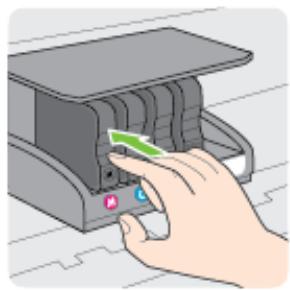
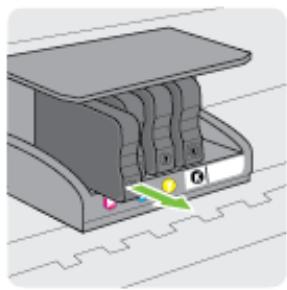
- Remove the new ink cartridge from its packaging.
- Using the color-coded letters for help, slide the ink cartridge into the empty slot until it is securely installed in the slot.
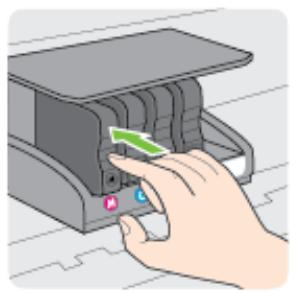
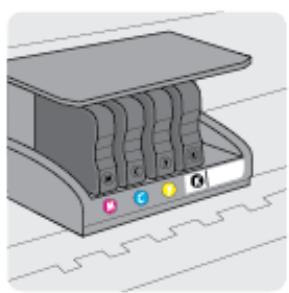
Make sure that you insert the ink cartridge into the slot that has the same colored letter as the color you are installing.
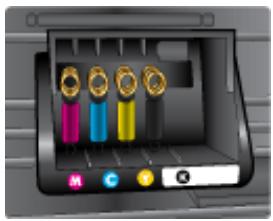
- Repeat steps 3 through 5 for each ink cartridge you are replacing.
- Close the print-carriage access door.
Related topics
HP supplies and accessories on page 202
Store printing supplies
Ink cartridges can be left in the printer for extended periods of time. However, to assure optimal ink cartridge health, be sure to turn off the printer properly. For more information, see Turn the printer off on page 26.
Anonymous usage information storage
The HP cartridges used with this printer contain a memory chip that assists in the operation of the printer. In addition, this memory chip stores a limited set of anonymous information about the usage of the printer, which might include the following: the date when the cartridge was first installed, the date when the cartridge was last used, the number of pages printed using the cartridge, the page coverage, frequency of printing, the printing modes used, any printing errors that might have occurred, and the printer model.
This information helps HP design future printers to meet our customers' printing needs. The data collected from the cartridge memory chip does not contain information that can be used to identify a customer or user of the cartridge or their printer.
HP collects a sampling of the memory chips from cartridges returned to HP's free return and recycling program (HP Planet Partners: www.hp.com/hpinfo/globalcitizenship/environment/recycle/). The memory chips from this sampling are read and studied in order to improve future HP printers. HP partners who assist in recycling this cartridge might have access to this data, as well.
Any third party possessing the cartridge might have access to the anonymous information on the memory chip. If you prefer to not allow access to this information, you can render the chip inoperable. However, after you render the memory chip inoperable, the cartridge cannot be used in an HP printer.
If you are concerned about providing this anonymous information, you can make this information inaccessible by turning off the memory chip's ability to collect the printer's usage information.
To disable the usage information function
- On the printer control panel, touch the right arrow, and then touch Setup.
- Select Preferences, and then touch Cartridge Chip Information.
- Touch OK to disable usage information collection.

NOTE: To re-enable the usage information function, restore the factory defaults. For more information about how to restore the defaults, see Restore factory defaults on page 23.

NOTE: You can continue to use the cartridge in the HP printer if you turn off the memory chip's ability to collect the printer's usage information.
8 Solve a problem
The information in this section suggests solutions to common problems. If your printer is not operating correctly and these suggestions did not solve your problem, try using one of the following support services to obtain assistance.
This section contains the following topics:
HP support - General troubleshooting tips and resources - Solve printer problems - Print quality troubleshooting - Solve paper-feed problems - Solve copy problems - Solve scan problems - Solve fax problems - Solve problems using Web Services and HP websites - Solve memory device problems - Solve network problems - Configure your firewall software to work with the printer - Solve printer management problems Troubleshoot installation issues - Understand the Printer Status Report - Understand the network configuration page - Printhead maintenance - Uninstall and reinstall the HP software Clear jams
HP support
If you have a problem, follow these steps:
- Check the documentation that came with the printer.
- Visit the HP online support web site at www.hp.com/support. This website provides information and utilities that can help you correct many common printer problems. HP online support is available to all HP customers. It is the fastest source for up-to-date printer information and expert assistance and includes the following features:
- Fast access to qualified online support specialists HP software and driver updates for the HP printer
- Valuable troubleshooting information for common problems
- Proactive printer updates, support alerts, and HP newsgrams that are available when you register the printer
For more information, see Obtain electronic support on page 97.
- Call HP support. Support options and availability vary by printer, country/region, and language. For more information, see HP support by phone on page 97.
If you still encounter the problems, do one of the following support services:
- Obtain electronic support HP support by phone
Obtain electronic support
To find support and warranty information, go to the HP web site at www.hp.com/support. This website provides information and utilities that can help you correct many common printer problems. If prompted, select your country/region, and then click Contact HP for information about calling for technical support.
This web site also offers technical support, drivers, supplies, ordering information and other options such as:
- Access online support pages.
- Send HP an email message for answers to your questions.
- Connect with an HP technician by using online chat.
- Check for HP software updates.
You can also obtain support from the HP software for Windows or Mac OS X, which provide easy, step-by-step solutions to common printing problems. For more information, see Printer management tools on page 245.
Support options and availability vary by printer, country/region, and language.
HP support by phone
The phone support numbers and associated costs listed here are those in effect at time of publication and are applicable only for calls made on a land line. Different rates may apply for mobile phones.
For the most current HP list of telephone support numbers and call costs information, see www.hp.com/support.
During the warranty period, you may obtain assistance from the HP Customer Care Center.

NOTE: HP does not provide telephone support for Linux printing. All support is provided online at the following web site: https://launchpad.net/hplip. Click the Ask a question button to begin the support process.
The HPLIP web site does not provide support for Windows or Mac OS X. If you are using these operating systems, see www.hp.com/support.
This section contains the following topics:
Before you call - Phone support period - Telephone support numbers After the phone support period
Before you call
Call HP support while you are in front of the computer and the printer. Be prepared to provide the following information:
Model number - Serial number (located on the back or bottom of the printer) - Messages that appear when the situation occurs - Answers to these questions:
- Has this situation happened before? Can you re-create it? Did you add any new hardware or software to your computer at about the time that this situation began? Did anything else occur prior to this situation (such as a thunderstorm or moving the printer)?
Phone support period
One year of phone support is available in North America, Asia Pacific, and Latin America (including Mexico). To determine the duration of phone support in Europe, the Middle East, and Africa, go to www.hp.com/support. Standard phone company charges apply.
Telephone support numbers
In many locations, HP provides toll free telephone support during the warranty period. However, some of the support numbers might not be toll free.
For the most current list of telephone support numbers, see www.hp.com/support. This website provides information and utilities that can help you correct many common printer problems.

www.hp.com/support
| Africa (English speaking) | (0027)112345872 |
| Afrique (francophone) | 0033 1 4993 9230 |
| 021 672 280 | الإستعمال |
| Algérie | 021 67 22 80 |
| Argentina (Buenos Aires) | 54-11-4708-1600 |
| Argentina | 0-800-555-5000 |
| Australia | 1300 721 147 |
| Australia (out-of-warranty) | 1902 910 910 |
| Osterreich | 0820 874 417 doppelter Ortstarif |
| Benoitry | (375) 17 328 4640 |
| 172 12 049 | الإستعمال |
| België (Nederland) | 078 600 019 0546 euro/min plekuren 0.0273 euro/min daluren |
| Belgique (Français) | 078 600 020 0546 euro/min heures de pointe 0.0273 euro/min heures creuses |
| Бългия | 0 700 1 0404 |
| Hrvatska | 0800 223213 |
| Brasil (Sao Paulo) | 55-11-4004-7751 |
| Brasil | 0-800-709-7751 |
| Canada | 1-(800)-474-6836 (1-800 hp invent) |
| Central America & The Caribbean | www.hp.com/ia/soporte |
| Chile | 800-360-999 |
| 中国 | 800-820-6616 |
| 中国 | 400-885-6616 |
| Colombia (Bogotá) | 571-606-9191 |
| Colombia | 01-8000-51-4746-8368 |
| Costa Rica | 0-800-011-1046 |
| Česká republika | 420 810 222 222 1.53 CZN/min |
| Danmark | 70 20 28 45 Opkald: 0,145 (kr, pr, min.) Pr. min. man-ler 08.00-19.30: 0,25 Pr. min. avrige bidspunkter: 0,125 |
| Eesti | 372 6813 823 |
| Ecuador (Andinatel) | 1-999-119 800-711-2884 |
| Ecuador (Pacifitel) | 1-800-225-528 800-711-2884 |
| 02 691 0602 | –– |
| El Salvador | 800-6160 |
| Espana | 902 010 059 Costa horario normal (de 8.00 a 20:00) 6.73 pts/min Costa horario reducido 4.03 pts/min Costa de establiecimiento de Ilamada 8.33 pts |
| France | 0969 320 435 Tarif local |
| Deutschland | 069 29 993 434 0,14 €/Min aus dem deutschen Festnetz - bei Anrufen aus Mobilfunknetzen können andere Preis getalten |
| ÉUλδα | 801-11-75400 0,30 Eupaul/kemro |
| Körpersön | 800 9 2654 |
| Guatemala | 1-800-711-2884 |
| 香港特别行政区 | (852) 2802 4098 |
| India | 1-800-425-7737 |
| India | 91-80-28526900 |
| Indonesia | +62 (21) 350 3408 |
| +971 4 224 9189 | الإستعمال |
| +971 4 224 9189 | –– |
| Ireland | 1890 923 902 Calls cost Cost 5.1 cent peak / 1.3 cent off-peak per minute |
| 1-700-503-048 ngnanyngnanyngnanyngnanyngnanyngnanyngnanyngnanyngnanyngnanyngnanyngnanyngnanyngnanyngnanyngnanyngnanyngnanyngnanyngnanyngnanyngnanyngnanyngnanyngnanyngnanyngnanyngnanyngnanyngnanyngnanyngnanyngnanyngnanyng | |
| Italia | 848 800 871 costing telemunico locale |
| Kazaxxtan | +7 7172 978 177 |
| (965) 6767 0099 | –– |
| Latvija | 8000 80 12 |
| 00961 1 217970 | –– |
| Lietuva | +370 5 210 3333 |
| Jamaica | 1-800-711-2884 |
| 日本 | 0120-96-1665 |
| 0800 222 47 | الإستعمال |
| ESPAC | 1588-3003 |
| Luxembourg (François) | 900 40 0060.15 €/min |
| Luxembourg (Deutsch) | 900 40 0070.15 €/Min |
| Madagascar | 262 262 51 21 21 |
| Magyarország | 06 40 200 6297,2 HUF/perc veszeltékes TelefonRa |
| Malaysia | 1800 88 8588 |
| Maurice | 262 262 210 404 |
| México (Ciudad de México) | 55-5258-9922 |
| México | 01-800-472-68368 |
| Maroc | 0801 005 010 |
| Nederland | +31 0900 2020 1650.10 €/Min |
| New Zealand | 0800 441 147 |
| Nigeria | (01) 271 2320 |
| Norge | 815 62 070starter på 0,59 Kr per min.,denominator: 0,39 Kr per min.Fra mobilitéfon gildermobilitiefontakter. |
| 24791773 | |
| Panamá | 1-800-711-2884 |
| Paraguay | 009 800 54 1 0006 |
| Perú | 0-800-10111 |
| Philippines | 2 867 3551 |
| Polska | (22) 583 43 73Koszt polaczenia: z tel.stacionarnego jak za 1 impuls wge tarryl operatoria; - z tel.komörkowego wge taryf operatora. |
| Portugal | 808 201 492Custo: 6 cintimos no primo minuto e 3 cintimos restantesminutos |
| Puerto Rico | 1-877-232-0589 |
| 00974 - 44761936 | الإستعمال |
| Republiça Dominicana | 1-800-711-2884 |
| La Réunion | 0820 890 323 |
| România | 0801 033 390(021 204 7090),0,029 pe minut |
| Pocnia | 800 500 9268 |
| 800 897 1415 | الإستعمال |
| Singapore | +65 6272 5300 |
| Srbija | 0700 301 301 |
| Slovenská republika | 0850 111 256miestna tarifla |
| Slovenija | 01 432 2001 |
| South Africa (RSA) | 0860 104 771Cells at Local Rate |
| Suomi | 0203 667 670,01476/min |
| Sverige | 0771-20 47 650,23 km/min |
| Schweiz (Deutsch) | 0848 672 6728Rp./Min |
| Suisse (François) | 0848 672 6720,08CHF/min |
| Svizzera | 0848 672 6720,08CHF/min |
| 臺湾 | 0800-010055 (免费) |
| Trnu | +66 (2) 353 9000 |
| 071 891 391 | الإستعمال |
| Trinidad & Tobago | 1-800-711-2884 |
| Tunisie | 23 927 000 |
| Türkije | 0(212) 444 0307Yerel numara: 444 03070,08 TL/djc, yerel numara (Istanbul,Bursa, Ankara ve Izmir) ve0,10 TL ulusal Üret |
| Uyipina | 38 (044) 230-51-06 |
| 600 54 47 47 | الإستعمال الحرفically |
| United Kingdom | 0844 369 03690.50 E/p/m |
| United States | 1-(800)-474-68368 |
| Uruguay | 0004-054-177 |
| Venezuela (Caracas) | 58-212-278-8666 |
| Venezuela | 0-800-474-68368 |
| Viète Nam | +84 88234530 |
After the phone support period
After the phone support period, help is available from HP at an additional cost. Help may also be available at the HP online support Web site: www.hp.com/support. Contact your HP dealer or call the support phone number for your country/region to learn more about support options.
General troubleshooting tips and resources

NOTE: Many of the following steps require HP software. If you did not install the HP software, you can install it using the HP software CD included with the printer, or you can download the HP software from the HP support web site, www.hp.com/support. This website provides information and utilities that can help you correct many common printer problems.
Check or do the following before you begin troubleshooting:
Try turning the printer off and then on again. For a paper jam, see Clear jams on page 157. - For paper-feed problems, such as the paper skew and paper pick, see Solve paper-feed problems on page 110. - The Power button light is on and is not blinking. When the printer is turned on for the first time, it takes approximately 9 minutes to initialize it after the ink cartridges are installed. - The power cord and other cables are working, and are firmly connected to the printer. Make sure the printer is connected firmly to a functioning alternating current (AC) power outlet, and is turned on. For voltage requirements, see Electrical specifications on page 175. Media is loaded correctly in the input tray and is not jammed in the printer. - All packing tapes and materials are removed. - The printer is set as the current or default printer. For Windows, set it as the default in the Printers folder. For Mac OS X, set it as the default in the Print & Fax or Print & Scan section of the System Preferences. See your computer's documentation for more information. - Pause Printing is not selected if you are using a computer running Windows. - You are not running too many programs when you are performing a task. Close programs that you are not using or restart the computer before attempting the task again.
Solve printer problems
This section contains the following topics:
The printer shuts down unexpectedly The printer is making some unexpected noises - Alignment fails The printer is not responding (nothing prints) The printer prints slowly - Blank or partial page printed - Something on the page is missing or incorrect - Placement of the text or graphics is wrong
The printer shuts down unexpectedly
Check the power and power connections
- Make sure the printer's power cord is connected firmly to a functioning power outlet. For voltage requirements, see Electrical specifications on page 175.
The printer is making some unexpected noises
You might hear some unexpected noises made by the printer. These are the servicing sounds when the printer performs automatic servicing functions to maintain the health of the printheads.

NOTE: To prevent any potential damage to your printer:
Do not turn off the printer while the printer is performing any servicing. If you are turning off the printer, wait for the printer to come to a complete stop before turning off using the (Power) button. For more information, see Turn the printer off on page 26.
Make sure all ink cartridges are installed. If any of the ink cartridge is missing, the printer will perform extra servicing to protect the printheads.
Alignment fails
If the alignment process fails, make sure you have loaded unused, plain white paper into the input tray. If you have colored paper loaded in the input tray when you align the ink cartridges, the alignment fails.
If the alignment process fails repeatedly, you may need to clean the printhead, or you might have a defective sensor. To clean the printhead, see Clean the printhead on page 153.
If cleaning the printhead does not solve the problem, contact HP support. Go to www.hp.com/support. This website provides information and utilities that can help you correct many common printer problems. If prompted, select your country/region, and then click Contact HP for information on calling for technical support.
The printer is not responding (nothing prints)
There are print jobs stuck in the print queue
- Open the print queue, cancel all documents, and then reboot the computer. Try to print after the computer reboots. Refer to the Help system for the operating system for more information.
Check the printer setup
For more information, see General troubleshooting tips and resources on page 100.
Check the HP software installation
- If the printer is turned off when printing, an alert message should appear on your computer screen; otherwise, the HP software provided with the printer might not be installed correctly. To resolve this, uninstall the HP software completely, and then reinstall the HP software. For more information, see Uninstall and reinstall the HP software on page 156.
Check the cable connections
- Make sure both ends of the USB cable or Ethernet cable are secure. If the printer is connected to a network, check the following:
Check the Link light on the back of the printer. Make sure you are not using a phone cord to connect the printer.
Check any personal firewall software installed on the computer
- The personal software firewall is a security program that protects a computer from intrusion. However, the firewall might block communication between the computer and the printer. If there is a problem communicating with the printer, try temporarily disabling the firewall. If the problem persists, the firewall is not the source of the communication problem. Re-enable the firewall.
The printer prints slowly
Try the following solutions if the printer is printing very slowly.
Solution 1: Use a lower print quality setting. Solution 2: Check the ink levels. Solution 3: Contact HP support.
Solution 1: Use a lower print quality setting
The print quality was set to a higher setting.
Check the print quality setting. Best and Maximum dpi provide the best quality but are slower than Normal or Draft. Draft provides the fastest print speed.
If this did not solve the issue, try the next solution.
Solution 2: Check the ink levels
The ink cartridges might have insufficient ink.
Check the estimated ink levels in the ink cartridges.

NOTE: Ink level alerts and indicators provide estimates for planning purposes only. When you receive a low on ink message, consider having a replacement cartridge available to avoid possible printing delays. You do not need to replace the ink cartridges until prompted to do so.

CAUTION: While ink cartridges are not damaged when left outside of the printer, the printhead does need to have all cartridges installed at all times after the printer is set up and in use. Leaving one or more cartridge slots empty for an extended period may lead to print quality problems and possibly damage the printhead. If you have recently left a cartridge out of the printer for an extended period and have noticed poor print quality, clean the printhead. For more information, see Clean the printhead on page 153.
For more information, see:
- Check the estimated ink levels on page 90
If this did not solve the issue, try the next solution.
Solution 3: Contact HP support
There was a problem with the printer.
Contact HP support for service.
Go to: www.hp.com/support. This website provides information and utilities that can help you correct many common printer problems.
If prompted, choose your country/region, and then click Contact HP for information on calling for technical support.
Blank or partial page printed
Clean the printhead
- Complete the printhead cleaning procedure. The printhead may need to be cleaned if the printer was turned off incorrectly.

NOTE: Incorrectly turning off the printer can cause print quality problems like blank or partial pages. Printhead cleaning can solve these problems, but turning off the printer correctly can prevent them in the first place. Always turn the printer off by pressing the (Power) button on the printer. Wait until the (Power) button light goes out before unplugging the power cord or turning off a power strip.
Check the paper settings
- Make sure you select the correct print quality settings in the printer driver for the paper loaded in the trays. Make sure the page settings in the printer driver match the page size of paper loaded in the tray.
More than one page is being picked
For more information on paper-feed problems, see Solve paper-feed problems on page 110.
There is a blank page in the file
- Check the file to make sure there is no blank page.
Something on the page is missing or incorrect
Check the Print Quality Diagnostic page
- Print a Print Quality Diagnostic page to help you decide whether to run any maintenance tools to improve the print quality of your printouts. For more information, see Understand the Printer Status Report on page 149.
Check the margin settings
- Make sure the margin settings for the document do not exceed the printable area of the printer. For more information, see Set minimum margins on page 170.
TIP: If the top and bottom margins in your document are smaller than 16 mm (0.63 inches), the document might not print out correct.
Check the color print settings
Make sure Print in Grayscale is not selected in the printer driver.
Check the printer location and length of USB cable
- High electromagnetic fields (such as those generated by USB cables) can sometimes cause slight distortions to printouts. Move the printer away from the source of the electromagnetic fields. Also, it is recommended that you use a USB cable that is less than 3 meters (9.8 feet) long to minimize the effects of these electromagnetic fields.
Check the paper size
- Make sure the selected paper size matches the actual loaded paper size.
Placement of the text or graphics is wrong
Check how the paper is loaded
- Make sure the paper guides fit snugly against the edges of the stack of paper, and make sure the tray is not overloaded. For more information, see Load paper on page 16.
Check the paper size
- Content on a page might be cut off if the document size is larger than the paper that you are using. Make sure the paper size selected in the printer driver matches the size of paper loaded in the tray.
Check the margin settings
- If the text or graphics are cut off at the edges of the page, make sure the margin settings for the document do not exceed the printable area of your printer. For more information, see Set minimum margins on page 170.
Check the page-orientation setting
- Make sure the paper size and page orientation selected in the application match the settings in the printer driver. For more information, see Print on page 27.
Check the printer location and length of USB cable
- High electromagnetic fields (such as those generated by USB cables) can sometimes cause slight distortions to printouts. Move the printer away from the source of the electromagnetic fields. Also, it is recommended that you use a USB cable that is less than 3 meters (9.8 feet) long to minimize the effects of these electromagnetic fields.
If the above solutions do not work, the problem may be caused by the inability of the application to interpret print settings correctly. See the release notes for known software conflicts, refer to the application's documentation, or contact the software manufacturer for specific help.

TIP: If you are using a computer running Windows, you can visit the HP online support website at www.hp.com/support. This website provides information and utilities that can help you correct many common printer problems.
Print quality troubleshooting
Try the solutions in this section to resolve print quality problems in your printout.
Solution 1: Make sure you are using original HP ink cartridges. Solution 2: Check the ink levels. Solution 3: Check the paper loaded in the input tray. Solution 4: Check the paper type. Solution 5: Check the print settings. Solution 6: Print and evaluate a print quality report. Solution 7: Contact HP support.
Solution 1: Make sure you are using original HP ink cartridges
Non-HP ink cartridges were being used.
Check to see if your ink cartridges are original HP ink cartridges.
HP recommends that you use original HP ink cartridges. Original HP ink cartridges are designed and tested with HP printers to help you easily produce great results, time after time.

NOTE: HP cannot guarantee the quality or reliability of non-HP supplies. Printer service or repairs required as a result of using a non-HP supply are not covered under warranty.
If you believe you purchased original HP ink cartridges, go to:
www.hp.com/go/anticounterfeit
If this did not solve the issue, try the next solution.
Solution 2: Check the ink levels
The ink cartridges might have insufficient ink.
Check the estimated ink levels in the ink cartridges.

NOTE: Ink level alerts and indicators provide estimates for planning purposes only. When you receive a low-ink alert, consider having a replacement cartridge available to avoid possible printing delays. You do not need to replace the ink cartridges until prompted to do so.

CAUTION: While ink cartridges are not damaged when left outside of the printer, the printhead does need to have all cartridges installed at all times after the printer is set up and in use. Leaving one or more cartridge slots empty for an extended period may lead to print quality problems and possibly damage the printhead. If you have recently left a cartridge out of the printer for an extended period, or if you have had a recent paper jam, and have noticed poor print quality, clean the printhead. For more information, see Clean the printhead on page 153.
For more information, see:
- Check the estimated ink levels on page 90
If this did not solve the issue, try the next solution.
Solution 3: Check the paper loaded in the input tray
The paper was loaded incorrectly, or it was wrinkled or too thick.
Make sure the paper is loaded correctly and that it is not wrinkled or too thick.
- Load paper with the print side facing down. For example, if you are loading glossy photo paper, load the paper with the glossy side down.
- Make sure the paper lays flat in the input tray and is not wrinkled. If the paper is too close to the printhead during printing, the ink might be smeared. This can happen if the paper is raised, wrinkled, or very thick, such as a mailing envelope.
For more information, see:
- Load paper on page 16
If this did not solve the issue, try the next solution.
Solution 4: Check the paper type
The wrong kind of paper was loaded in the input tray.
HP recommends that you use HP papers or any other paper type with ColorLok technology that is appropriate for the printer. All papers with the ColorLok logo are independently tested to meet high standards of reliability and print quality, and produce documents with crisp, vivid color, bolder blacks and dry faster than ordinary plain papers.
Always make sure the paper you are printing on is flat. For best results when printing images, use HP Advanced Photo Paper.
Store specialty paper in its original packaging inside a resealable plastic bag on a flat surface in a cool, dry place. When you are ready to print, remove only the paper you plan to use immediately. When you have finished printing, return any unused photo paper to the plastic bag. This prevents the photo paper from curling.

NOTE: For this issue, there is not a problem with your ink supplies. Therefore, replacing the ink cartridges is not necessary.
For more information, see:
- Select print paper on page 11
If this did not solve the issue, try the next solution.
Solution 5: Check the print settings
The print settings were set incorrectly.
Check the print settings.
- Check the print settings to see if the color settings are incorrect.
For example, check to see if the document is set to print in grayscale. Or, check to see if advanced color settings such as saturation, brightness, or color tone, are set to modify the appearance of colors.
- Check the print quality setting and make sure it matches the type of paper loaded in the printer.
You might need to choose a lower print quality setting if colors are running into each other. Or, choose a higher setting if you are printing a high-quality photo, and then make sure photo paper such as HP Advanced Photo Paper is loaded in the input tray.

NOTE: On some computer screens, colors might appear differently than they do when printed on paper. In this case, there is nothing wrong with the printer, print settings, or ink cartridges. No further troubleshooting is required.
For more information, see:
- Select print paper on page 11
If this did not solve the issue, try the next solution.
Solution 6: Print and evaluate a print quality report
Print quality problems can have many causes: software settings, a poor image file, or the printing system itself. If you are unhappy with the quality of your prints, a Print Quality Diagnostic page can help you determine if the printing system is working correctly.
To print a print quality report
- Control panel: Touch ▸ (Right arrow), touch Setup, touch Reports, and then touch Print Quality Report.
- Embedded web server: Click the Tools tab, click Print Quality Toolbox under Utilities, and then click the Print Quality Report button. HP Utility (Mac OS X): In the Information And Support section, click Print Quality Diagnostics, and then click Print.
Print quality diagnostic page
If defects are seen on the page, follow the steps below:
- If the lines in Test Pattern 1 are not straight and connected, align the printer. For more information, see Align the printhead on page 154.
- If you see white lines in any of the color blocks in Test Pattern 2, clean the printhead. For more information, see Clean the printhead on page 153.
- If you see white or dark lines where the arrows are pointing in Test Pattern 3, align the printer. For more information, see Align the printhead on page 154.
If there are no defects, then the printer and ink system are working properly. If you still see print quality problems in your output, double-check your software settings and paper as described in the previous solutions.
Solution 7: Contact HP support
There was a problem with the printhead.
Contact HP support for service.
If prompted, choose your country/region, and then click Contact HP for information on calling for technical support.
Solve paper-feed problems

TIP: You can visit the HP online support website at www.hp.com/support for information and utilities that can help you correct many common printer problems.
Media is not supported for the printer or tray
- Use only paper that is supported for the printer and the tray being used. For more information, see Paper specifications on page 167.
Paper is not picked up from a tray
- Make sure paper is loaded in the tray. For more information, see Load paper on page 16. Fan the paper before loading.
- Make sure the paper guides are set to the correct markings in the tray for the paper size you are loading. Also make sure the paper guides are snug, but not tight, against the stack.
- Make sure paper in the tray is not curled. Uncurl paper by bending it in the opposite direction of the curl.
Media is not coming out correctly
- Make sure the output tray extension is fully extended; otherwise, printed pages may fall off the printer.
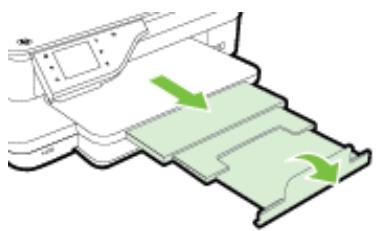
- Remove excess paper from the output tray. There is a limit to the number of sheets the tray can hold.
Pages are skewing
- Make sure the paper loaded in the trays is aligned to the paper guides. If needed, pull out the trays from the printer and reload the paper correctly, making sure that the paper guides are aligned correctly.
- Load paper into the printer only when it is not printing.
- Remove and replace the automatic two-sided printing accessory (duplexer).
Push the button on either side of the duplexer, and then remove the unit.
Reinsert the duplexer into the printer.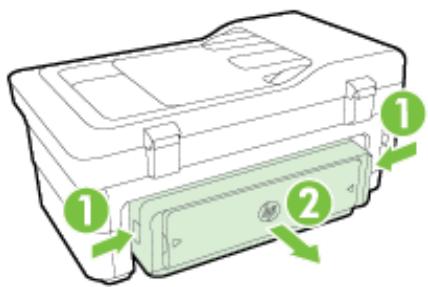
Multiple pages are being picked up
Fan the paper before loading. - Make sure the paper guides are set to the correct markings in the tray for the paper size you are loading. Also make sure the paper guides are snug, but not tight, against the stack. Make sure the tray is not overloaded with paper. - Use HP paper for optimum performance and efficiency.
Solve copy problems
If the following topics do not help, see HP support on page 97 for information about HP support.
No copy came out - Copies are blank - Documents are missing or faded Size is reduced - Copy quality is poor - Copy defects are apparent The printer prints half a page, then ejects the paper - Paper mismatch
No copy came out
- Check the power
Make sure that the power cord is securely connected, and the printer turned on.
- Check the status of the printer
The printer might be busy with another job. Check the control panel display for information about the status of jobs. Wait for any job that is processing to finish. The printer might be jammed. Check for jams. See Clear jams on page 157.
- Check the trays
Make sure that paper is loaded. For more information, see Load paper on page 16.
Copies are blank
Check the paper
The paper might not meet Hewlett-Packard paper specifications (for example, the paper is too moist or too rough). For more information, see Paper specifications on page 167.
- Check the settings
The contrast setting might be set too light. On the printer control panel, touch Copy, touch Settings, touch Lighter/Darker, and then use the arrows to create darker copies.
- Check the trays
If you are copying from the automatic document feeder (ADF), make sure that the originals have been loaded correctly. For more information, see Load an original in the automatic document feeder (ADF) on page 15.
Documents are missing or faded
Check the paper
The paper might not meet Hewlett-Packard paper specifications (for example, the paper is too moist or too rough). For more information, see Paper specifications on page 167.
Check the settings
The quality setting of Fast (which produces draft-quality copies) might be responsible for the missing or faded documents. Change to the Normal or Best setting.
Check the original
The accuracy of the copy depends on the quality and size of the original. Use the Copy menu to adjust the brightness of the copy. If the original is too light, the copy might not be able to compensate, even if you adjust the contrast. Colored backgrounds might cause images in the foreground to blend into the background, or the background might appear in a different shade. If you are copying a borderless original, load the original on the scanner glass, not the ADF. For more information, see Load an original on the scanner glass on page 14. If you are copying a photo, be sure to load it on the scanner glass as indicated by the icon on the scan bed.
Size is reduced
- The reduce/enlarge or other copy feature might have been set from the printer control panel to reduce the scanned image. Check the settings for the copy job to make sure that they are for normal size.
- The HP software settings might be set to reduce the scanned image. Change the settings, if needed. For more information, see the on-screen Help for the HP software.
- The dirty scanner glass might reduce the scanned image. Clean the scanner glass or lid backing. For more information, see Maintain the printer on page 22.
Copy quality is poor
Take steps to improve the copy quality
Use quality originals. Load the paper correctly. If the paper is loaded incorrectly, it might skew, causing unclear images. For more information, see Paper specifications on page 167. Use or make a carrier sheet to protect your originals.
- Check the printer
The scanner lid might not be closed correctly. The scanner glass or lid backing might need cleaning. For more information, see Maintain the printer on page 22. The automatic document feeder (ADF) might need cleaning. For more information, see Maintain the printer on page 22.
- Print a Print Quality Diagnostic Page and follow the instruction on the page to resolve poor quality copy problems. For more information, see Print quality troubleshooting on page 106.
Copy defects are apparent
Vertical white or faded stripes
The paper might not meet Hewlett-Packard paper specifications (for example, the paper is too moist or too rough). For more information, see Paper specifications on page 167.
- Too light or dark
Try adjusting the contrast and copy-quality settings.
Unwanted lines
The scanner glass, lid backing, or frame might need cleaning. For more information, see Maintain the printer on page 22.
- Black dots or streaks
Ink, glue, correction fluid, or an unwanted substance might be on the scanner glass or lid backing. Try cleaning the printer. For more information, see Maintain the printer on page 22.
- Copy is slanted or skewed
If you are using the automatic document feeder (ADF), check the following:
Make sure that the ADF input tray is not too full. Make sure that the ADF width adjusters are snug against the sides of the paper.
For more information, see Load an original in the automatic document feeder (ADF) on page 15.
Unclear text
Try adjusting the contrast and copy-quality settings. The default enhancement setting might not be suitable for the job. Check the setting and change it to enhance text or photographs, if needed. For more information, see Change copy settings on page 53.
- Incompletely filled text or graphics
Try adjusting the contrast and copy-quality settings.
Large, black typefaces look splotchy (not smooth)
The default enhancement setting might not be suitable for the job. Check the setting and change it to enhance text or photographs, if needed. For more information, see Change copy settings on page 53.
Horizontal grainy or white bands in light-gray to medium-gray areas
The default enhancement setting might not be suitable for the job. Check the setting and change it to enhance text or photographs, if needed. For more information, see Change copy settings on page 53.
The printer prints half a page, then ejects the paper
Check the ink cartridges
- Make sure the correct ink cartridges are installed and the ink cartridges are not low on ink. For more information, see Printer management tools on page 245 and Understand the Printer Status Report on page 149.
HP cannot guarantee the quality of non-HP ink cartridges.
Paper mismatch
Check the settings
- Verify that the loaded paper size and type matches the control panel settings.
Solve scan problems

TIP: You can visit the HP online support website at www.hp.com/support for information and utilities that can help you correct many common printer problems.
- Scanner did nothing
- Scan takes too long. Part of the document did not scan or text is missing. Text cannot be edited.
- Error messages appear
- Scanned image quality is poor
- Scan defects are apparent
Make sure that the original is loaded correctly. For more information, see Load an original on the scanner glass on page 14 or Load an original in the automatic document feeder (ADF) on page 15.
Check the printer
The printer might be coming out of Sleep mode after a period of inactivity, which delays processing a short while. Wait until the printer displays the Home screen.
Check the HP software
Make sure that the HP software provided with the printer is installed correctly.

NOTE: If you do not scan frequently, you can choose to turn off the feature.
Windows: Open the HP printer software. For more information, see Open the HP printer software (Windows) on page 25. In the window that appears, select Print, Scan & Fax or Print & Scan, and then select Scan a Document or Photo under Scan. Mac OS X: Open HP Utility. For more information, see HP Utility (Mac OS X) on page 247. Under Scan Settings, click Scan to Computer, and ensure that Enable Scan to Computer is selected.
Scan takes too long
Check the settings
Scanning with higher scan resolution takes longer and results in larger file sizes. Use high resolutions only when necessary. Lower the resolution to scan more quickly. If you acquire an image through TWAIN on Windows computers, you can change the settings so that the original scans in black and white. See the on-screen Help for the TWAIN program for information. You can also change scan settings to black and white in the HP scanning software for Mac.
TWAIN program for information. You can also change scan settings to black and white in the HP scanning software for Mac.
Check the status of the printer
If you sent a print or copy job before you tried to scan, the scan starts if the scanner is not busy. However, the printing and scanning processes share memory, which means that the scan might be slower.
Part of the document did not scan or text is missing
Check the original
Make sure that you loaded the original correctly. For more information, see Load an original on the scanner glass on page 14 or Load an original in the automatic document feeder (ADF) on page 15. If you scanned the document from the ADF, try scanning the document directly from the scanner glass. For more information, see Load an original on the scanner glass on page 14. - Colored backgrounds can cause images in the foreground to blend into the background. Try adjusting the settings before you scan the original, or try enhancing the image after you scan the original.
- Check the settings
o Make sure that the input paper size is large enough for the original that you are scanning. If you are using the HP Printer Software, the default settings in the HP Printer Software might be set to automatically perform a specific task other than the one that you are attempting. See the on-screen Help for the HP Printer Software for instructions about changing the properties.
Text cannot be edited
Make sure that the OCR has been installed:
Make sure that the OCR has been installed:
Windows: On the computer desktop, click Start, select Programs or All Programs, click HP, select your printer name, and then click Printer Setup & Software. Click Add More Software, click Customize Software Selections, and make sure the OCR option is selected.
-Or-
On the Start screen, click Printer Setup & Software.
Mac OS X: If you have installed the HP software using the Minimum installation option, the OCR software might not have been installed. To install this software, place the HP software CD into the computer, double-click the HP Installer icon on the software CD, and when prompted, select the HP Recommended Software option.
When you scan the original, make sure that you select a document type in the software that creates editable text. If text is classified as a graphic, it is not converted to text.
If you are using a separate OCR (optical character recognition) program, the OCR program might be linked to a word-processing program that does not perform OCR tasks. For more information, see the documentation provided with the OCR program. Make sure you have selected an OCR language that corresponds to the language used for the document you are scanning. For more information, see the documentation provided with the OCR program.
Check the originals
When scanning documents as editable text from the ADF, the original must be loaded into the ADF with the top forward and face up. When scanning from the scanner glass, the original must be loaded with the top facing the right edge of the scanner glass. Also, make sure the document is not skewed. For more information, see Load an original on the scanner glass on page 14 or Load an original in the automatic document feeder (ADF) on page 15. The software might not recognize text that is tightly spaced. For example, if the text that the software converts has missing or combined characters, "rn" might appear as "m." The accuracy of the software depends on the image quality, text size, and structure of the original and the quality of the scan itself. Make sure that your original has good image quality. - Colored backgrounds can cause images in the foreground to blend too much.
Error messages appear
- Unable to activate TWAIN source or An error occurred while acquiring the image
If you are acquiring an image from another device, such as another scanner, make sure that the other device is TWAIN-compliant. Devices that are not TWAIN-compliant do not work with the HP software provided with the printer. If you are using a USB connection, make sure that you have connected the USB Device Cable to the correct port on the back of your computer. Verify that the correct TWAIN source is selected. In the HP software, check the TWAIN source by selecting Select Scanner on the File menu.
- Reload document and then restart job
Touch OK on the printer control panel, and then reload the remaining documents in the ADF. For more information, see Load an original in the automatic document feeder (ADF) on page 15.
Scanned image quality is poor
The original is a second-generation photo or picture
Reprinted photographs, such as those in newspapers or magazines, are printed by using tiny dots of ink that make an interpretation of the original photograph, which degrades the quality. Often, the ink dots form unwanted patterns that can be detected when the image is scanned or printed or when the image appears on a screen. If the following suggestions do not solve the problem, you might need to use a better-quality version of the original.
To eliminate the patterns, try reducing the size of the image after scanning. Print the scanned image to see if the quality is better. o Make sure that the resolution and color settings are correct for the type of scan job. For best results, use the scanner glass for scanning rather than the ADF.
Text or images on the back of a two-sided original appear in the scan
Two-sided originals can "bleed" text or images from the back side to the scan if the originals are printed on paper that is too thin or too transparent.
The scanned image is skewed (crooked)
The original might have been loaded incorrectly. Be sure to use the paper guides when you load the originals into the ADF. For more information, see "Load an original in the automatic document feeder (ADF)" on page 15.
For best results, use the scanner glass for scanning rather than the ADF.
The image quality is better when printed.
The image that appears on the screen is not always an accurate representation of the quality of the scan.
Try adjusting your computer monitor settings to use more colors (or levels of gray). On Windows computers, you typically make this adjustment by opening Display on the Windows control panel. Try adjusting the resolution and color settings.
The scanned image shows blots, lines, vertical white stripes, or other defects.
If the scanner glass is dirty, the image produced does not have optimum clarity. See "Maintain the printer" on page 22 for cleaning instructions. The defects might be on the original and are not a result of the scanning process.
Graphics look different from the original.
Scan at a higher resolution.

NOTE: Scanning at high resolution can take a long time, and it can take up a large amount of space on your computer.
Take steps to improve the scan quality.
Use the scanner glass to scan rather than the ADF. Use high-quality originals. Place the paper correctly. If the paper is placed incorrectly on the scanner glass, it might skew, which causes unclear images. For more information, see "Load an original on the scanner glass" on page 14. Adjust the HP software settings according to how you plan to use the scanned page. Use or make a carrier sheet to protect your originals. Clean the scanner glass. For more information, see "Clean the scanner glass" on page 22.
Scan defects are apparent.
Blank pages.
Make sure that the original document is placed correctly. Place the original document face down on the flatbed scanner with the top-left corner of the document located in the lower-right corner of the scanner glass.
- Too light or dark
Try adjusting the settings. Be sure to use the correct resolution and color settings. The original image might be very light or dark or might be printed on colored paper.
Unwanted lines
Ink, glue, correction fluid, or an unwanted substance might be on the scanner glass. Try cleaning the scanner glass. For more information, see Maintain the printer on page 22.
- Black dots or streaks
Ink, glue, correction fluid, or an unwanted substance might be on the scanner glass; the scanner glass might be dirty or scratched; or the lid backing might be dirty. Try cleaning the scanner glass and lid backing. For more information, see Maintain the printer on page 22. If cleaning does not correct the problem, the scanner glass or lid backing might need to be replaced. The defects might be on the original and are not a result of the scanning process.
Unclear text
Try adjusting the settings. Make sure that the resolution and color settings are correct.
Size is reduced
The HP software settings might be set to reduce the scanned image. See the HP printer software Help for more information about changing the settings.
Solve fax problems
This section contains fax setup troubleshooting information for the printer. If the printer is not set up correctly for faxing, you might experience problems when sending faxes, receiving faxes, or both.
If you are having faxing problems, you can print a fax test report to check the status of the printer. The test fails if the printer is not set up correctly for faxing. Perform this test after you have completed setting up the printer for faxing. For more information, see Test fax setup on page 230.
If the test fails, review the report for information on how to fix any problems found. For more information, see The fax test failed on page 121.
Click here to go online for more information. (At this time, this website might not be available in all languages.)
For further assistance, visit the HP online support site at www.hp.com/support.
The fax test failed. The display always shows Phone Off Hook. The printer is having problems sending and receiving faxes. The printer is having problems sending a manual fax. The printer cannot receive faxes, but can send faxes. The printer cannot send faxes, but can receive faxes. Fax tones are recorded on my answering machine. The phone cord that came with my printer is not long enough. Color faxes do not print. The computer cannot receive faxes (Fax to PC and Fax to Mac).
The fax test failed.
If you ran a fax test and the test failed, review the report for basic information about the error. For more detailed information, check the report to see which part of the test failed, and then review the appropriate topic in this section for solutions to try.
This section contains the following topics:
The "Fax Hardware Test" failed. The "Fax Connected to Active Telephone Wall Jack" test failed. The "Phone Cord Connected to Correct Port on Fax" test failed. The "Using Correct Type of Phone Cord with Fax" test failed. The "Dial Tone Detection" test failed. The "Fax Line Condition" test failed.
The "Fax Hardware Test" failed.
- Turn the printer off by pressing the Power button located on the printer control panel, and then unplug the power cord from the back of the printer. After a few seconds, plug the power cord in again, and then turn the power on. Run the test again. If the test fails again, continue reviewing the troubleshooting information in this section.
- Try to send or receive a test fax. If you can send or receive a fax successfully, there might not be a problem.
- If you are running the test from the Fax Setup Wizard (Windows) or HP Setup Assistant (Mac OS X), make sure the printer is not busy completing another task, such as receiving a fax or making a copy. Check the display for a message indicating that the printer is busy. If it is busy, wait until it is finished and in the idle state before running the test.
- Make sure you use the phone cord that came with the printer. If you do not use the supplied phone cord to connect from the telephone wall jack to the printer, you might not be able to send or receive faxes. After you plug in the phone cord that came with the printer, run the fax test again.
- If you are using a phone splitter, this can cause faxing problems. (A splitter is a two-cord connector that plugs into a telephone wall jack.) Try removing the splitter and connecting the printer directly to the telephone wall jack.
After you resolve any problems found, run the fax test again to make sure it passes and the printer is ready for faxing. If the Fax Hardware Test continues to fail and you experience problems faxing, contact HP support. Go to www.hp.com/support. This website provides information and utilities that can help you correct many common printer problems. If prompted, select your country/region, and then click Contact HP for information on calling for technical support.
The "Fax Connected to Active Telephone Wall Jack" test failed
- Check the connection between the telephone wall jack and the printer to make sure the phone cord is secure.
- Make sure you use the phone cord that came with the printer. If you do not use the supplied phone cord to connect from the telephone wall jack to the printer, you might not be able to send or receive faxes. After you plug in the phone cord that came with the printer, run the fax test again.
- Make sure you have correctly connected the printer to the telephone wall jack. Using the phone cord supplied in the box with the printer, connect one end to your telephone wall jack, then connect the other end to the port labeled 1-LINE on the back of the printer. For more information on setting up the printer for faxing, see Additional fax setup on page 205.
- If you are using a phone splitter, this can cause faxing problems. (A splitter is a two-cord connector that plugs into a telephone wall jack.) Try removing the splitter and connecting the printer directly to the telephone wall jack.
- Try connecting a working phone and phone cord to the telephone wall jack that you are using for the printer and check for a dial tone. If you do not hear a dial tone, contact your telephone company and have them check the line.
- Try to send or receive a test fax. If you can send or receive a fax successfully, there might not be a problem.
After you resolve any problems found, run the fax test again to make sure it passes and the printer is ready for faxing.
The "Phone Cord Connected to Correct Port on Fax" test failed
Plug the phone cord into the correct port.
- Using the phone cord supplied in the box with the printer, connect one end to your telephone wall jack, then connect the other end to the port labeled 1-LINE on the back of the printer.

NOTE: If you use the 2-EXT port to connect to the telephone wall jack, you cannot send or receive faxes. The 2-EXT port should only be used to connect other equipment, such as an answering machine.
Figure 8-1 Back view of the printer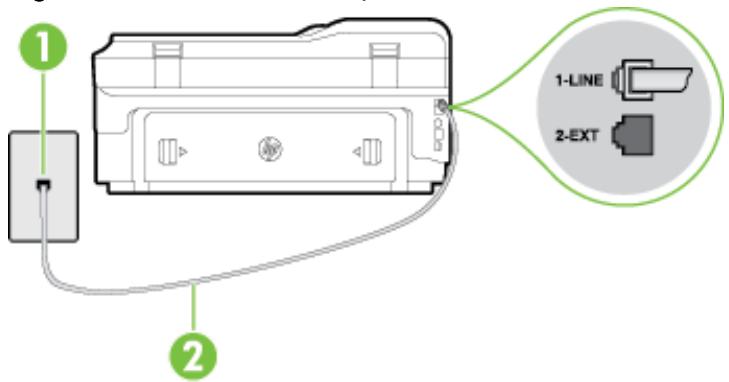
1 Telephone wall jack 2 Use the phone cord supplied in the box with the printer to connect to the "1-LINE" port
- After you have connected the phone cord to the port labeled 1-LINE, run the fax test again to make sure it passes and the printer is ready for faxing.
- Try to send or receive a test fax.
- Make sure you use the phone cord that came with the printer. If you do not use the supplied phone cord to connect from the telephone wall jack to the printer, you might not be able to send or receive faxes. After you plug in the phone cord that came with the printer, run the fax test again.
- If you are using a phone splitter, this can cause faxing problems. (A splitter is a two-cord connector that plugs into a telephone wall jack.) Try removing the splitter and connecting the printer directly to the telephone wall jack.
The "Using Correct Type of Phone Cord with Fax" test failed
- Make sure you used the phone cord supplied in the box with the printer to connect to the telephone wall jack. One end of the phone cord should be connected to the port labeled 1-LINE on the back of the printer, and the other end to your telephone wall jack, as shown in the illustration.
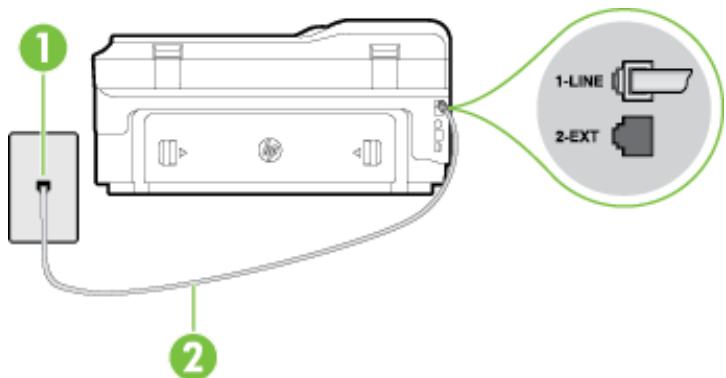
| 1 | Telephone wall jack |
| 2 | Use the phone cord supplied in the box with the printer to connect to the "1-LINE" port |
If the phone cord that came with the printer is not long enough, you can use a longer 2-wire phone cord to extend the length. You can purchase the cord at an electronics store that carries phone accessories.
- Check the connection between the telephone wall jack and the printer to make sure the phone cord is secure.
- Make sure you use the phone cord that came with the printer. If you do not use the supplied phone cord to connect from the telephone wall jack to the printer, you might not be able to send or receive faxes. After you plug in the phone cord that came with the printer, run the fax test again.
- If you are using a phone splitter, this can cause faxing problems. (A splitter is a two-cord connector that plugs into a telephone wall jack.) Try removing the splitter and connecting the printer directly to the telephone wall jack.
The "Dial Tone Detection" test failed
- Other equipment, which uses the same phone line as the printer, might be causing the test to fail. To find out if other equipment is causing a problem, disconnect everything from the phone line, and then run the test again. If the Dial Tone Detection Test passes without the other equipment, then one or more pieces of the equipment is causing problems; try adding them back one at a time and rerunning the test each time, until you identify which piece of equipment is causing the problem.
- Try connecting a working phone and phone cord to the telephone wall jack that you are using for the printer and check for a dial tone. If you do not hear a dial tone, contact your telephone company and have them check the line.
- Make sure you have correctly connected the printer to the telephone wall jack. Using the phone cord supplied in the box with the printer, connect one end to your telephone wall jack, then connect the other end to the port labeled 1-LINE on the back of the printer.
- If you are using a phone splitter, this can cause faxing problems. (A splitter is a two-cord connector that plugs into a telephone wall jack.) Try removing the splitter and connecting the printer directly to the telephone wall jack.
- If your telephone system is not using a standard dial tone, such as some PBX systems, this might cause the test to fail. This does not cause a problem sending or receiving faxes. Try sending or receiving a test fax.
- Check to make sure the country/region setting is set appropriately for your country/region. If the country/region setting is not set or is set incorrectly, the test might fail and you might have problems sending and receiving faxes.
- Make sure you connect the printer to an analog phone line or you cannot send or receive faxes. To check if your phone line is digital, connect a regular analog phone to the line and listen for a dial tone. If you do not hear a normal sounding dial tone, it might be a phone line set up for digital phones. Connect the printer to an analog phone line and try sending or receiving a fax.
- Make sure you use the phone cord that came with the printer. If you do not use the supplied phone cord to connect from the telephone wall jack to the printer, you might not be able to send or receive faxes. After you plug in the phone cord that came with the printer, run the fax test again.
After you resolve any problems found, run the fax test again to make sure it passes and the printer is ready for faxing. If the Dial Tone Detection test continues to fail, contact your telephone company and have them check the phone line.
The "Fax Line Condition" test failed
- Make sure you connect the printer to an analog phone line or you cannot send or receive faxes. To check if your phone line is digital, connect a regular analog phone to the line and listen for a dial tone. If you do not hear a normal sounding dial tone, it might be a phone line set up for digital phones. Connect the printer to an analog phone line and try sending or receiving a fax.
- Check the connection between the telephone wall jack and the printer to make sure the phone cord is secure.
- Make sure you have correctly connected the printer to the telephone wall jack. Using the phone cord supplied in the box with the printer, connect one end to your telephone wall jack, then connect the other end to the port labeled 1-LINE on the back of the printer.
- Other equipment, which uses the same phone line as the printer, might be causing the test to fail. To find out if other equipment is causing a problem, disconnect everything from the phone line, and then run the test again.
If the Fax Line Condition Test passes without the other equipment, then one or more pieces of the equipment is causing problems; try adding them back one at a time and rerunning the test each time, until you identify which piece of equipment is causing the problem. If the Fax Line Condition Test fails without the other equipment, connect the printer to a working phone line and continue reviewing the troubleshooting information in this section.
- If you are using a phone splitter, this can cause faxing problems. (A splitter is a two-cord connector that plugs into a telephone wall jack.) Try removing the splitter and connecting the printer directly to the telephone wall jack.
- Make sure you use the phone cord that came with the printer. If you do not use the supplied phone cord to connect from the telephone wall jack to the printer, you might not be able to send or receive faxes. After you plug in the phone cord that came with the printer, run the fax test again.
After you resolve any problems found, run the fax test again to make sure it passes and the printer is ready for faxing. If the Fax Line Condition test continues to fail and you experience problems faxing, contact your telephone company and have them check the phone line.
The display always shows Phone Off Hook
- You are using the wrong type of phone cord. Make sure you are using the 2-wire phone cord that came with the printer to connect the printer to your phone line. If the phone cord that came with the printer is not long enough, you can use a longer phone cord to extend the length. You can purchase the cord at an electronics store that carries phone accessories.
- Other equipment that uses the same phone line as the printer might be in use. Make sure extension phones (phones on the same phone line, but not connected to the printer) or other equipment are not in use or off the hook. For example, you cannot use the printer for faxing if an extension phone is off the hook, or if you are using a computer dial-up modem to send email or access the Internet.
The printer is having problems sending and receiving faxes
- Make sure the printer is turned on. Look at the display on the printer. If the display is blank and the Power button light is not lit, the printer is turned off. Make sure the power cord is firmly connected to the printer and plugged into a power outlet. Press the Power button to turn on the printer.
After turning on the printer, HP recommends you wait five minutes before sending or receiving a fax. The printer cannot send or receive faxes while it is initializing after being turned on.
- If Fax to PC or Fax to Mac has been enabled, you might not be able to send or receive faxes if the fax memory is full (limited by printer memory).
- Make sure you used the phone cord supplied in the box with the printer to connect to the telephone wall jack. One end of the phone cord should be connected to the port labeled 1-LINE on the back of the printer and the other end to your telephone wall jack, as shown in the illustration.
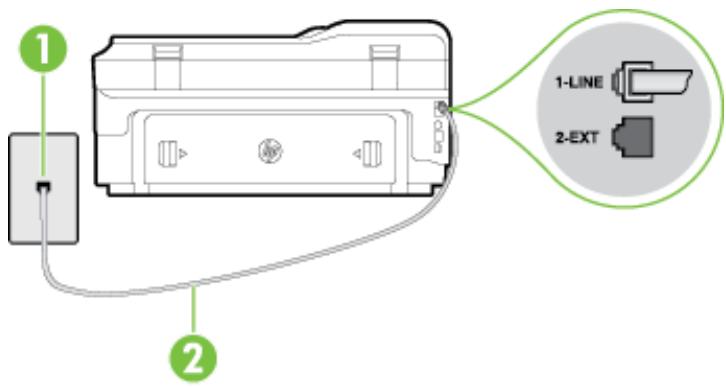
| 1 | Telephone wall jack |
| 2 | Use the phone cord supplied in the box with the printer to connect to the "1-LINE" port |
If the phone cord that came with the printer is not long enough, you can use a longer 2-wire phone cord to extend the length. You can purchase the cord at an electronics store that carries phone accessories.
- Try connecting a working phone and phone cord to the telephone wall jack that you are using for the printer and check for a dial tone. If you do not hear a dial tone, call your local telephone company for service.
- Other equipment, which uses the same phone line as the printer, might be in use. For example, you cannot use the printer for faxing if an extension phone is off the hook, or if you are using a computer dial-up modem to send an email or access the Internet.
- Check to see if another process has caused an error. Check the display or your computer for an error message providing information about the problem and how to solve it. If there is an error, the printer cannot send or receive a fax until the error condition is resolved.
- The phone line connection might be noisy. Phone lines with poor sound quality (noise) can cause faxing problems. Check the sound quality of the phone line by plugging a phone into the telephone wall jack and listening for static or other noise. If you hear noise, turn Error Correction Mode (ECM) off and try faxing again. For information about changing ECM, see Send a fax in Error Correction Mode on page 60. If the problem persists, contact your telephone company.
- If you are using a digital subscriber line (DSL) service, make sure that you have a DSL filter connected or you cannot fax successfully. For more information, see Case B: Set up the printer with DSL on page 210.
- Make sure the printer is not connected to a telephone wall jack that is set up for digital phones. To check if your phone line is digital, connect a regular analog phone to the line and listen for a dial tone. If you do not hear a normal sounding dial tone, it might be a phone line set up for digital phones.
- If you are using either a private branch exchange (PBX) or an integrated services digital network (ISDN) converter/terminal adapter, make sure the printer is connected to the correct port and the terminal adapter is set to the correct switch type for your country/region, if possible. For more information, see Case C: Set up the printer with a PBX phone system or an ISDN line on page 211.
- If the printer shares the same phone line with a DSL service, the DSL modem might not be grounded correctly. If the DSL modem is not grounded correctly, it can create noise on the phone line. Phone lines with poor sound quality (noise) can cause faxing problems. You can check the sound quality of the phone line by plugging a phone into the telephone wall jack and listening for static or other noise. If you hear noise, turn off your DSL modem and completely remove power for at least 15 minutes. Turn the DSL modem back on and listen to the dial tone again.

NOTE: You might notice static on the phone line again in the future. If the printer stops sending and receiving faxes, repeat this process.
If the phone line is still noisy, contact your telephone company. For information on turning your DSL modem off, contact your DSL provider for support.
- If you are using a phone splitter, this can cause faxing problems. (A splitter is a two-cord connector that plugs into a telephone wall jack.) Try removing the splitter and connecting the printer directly to the telephone wall jack.
The printer is having problems sending a manual fax

NOTE: This possible solution applies only in the countries/regions that receive a 2-wire phone cord in the box with the printer, including: Argentina, Australia, Brazil, Canada, Chile, China, Colombia, Greece, India, Indonesia, Ireland, Japan, Korea, Latin America, Malaysia, Mexico, Philippines, Poland, Portugal, Russia, Saudi Arabia, Singapore, Spain, Taiwan, Thailand, USA, Venezuela, and Vietnam.
- Make sure the telephone you use to initiate the fax call is connected directly to the printer. To send a fax manually, the telephone must be connected directly to the port labeled 2-EXT on the printer, as shown in the illustration.
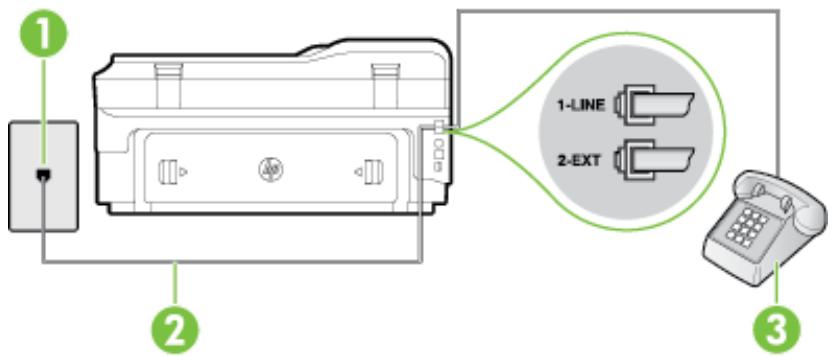
| 1 | Telephone wall jack |
| 2 | Use the phone cord supplied in the box with the printer to connect to the "1-LINE" port |
| 3 | Telephone |
- If you are sending a fax manually from your phone that is connected directly to the printer, you must use the keypad on the telephone to send the fax. You cannot use the keypad on the printer control panel.

NOTE: If using a serial-type phone system, connect your phone directly on top of the printer cable which has a wall plug attached to it.
The printer cannot receive faxes, but can send faxes
- If you are not using a distinctive ring service, check to make sure that the Distinctive Ring feature on the printer is set to All Rings. For more information, see Change the answer ring pattern for distinctive ring on page 73.
- If Auto Answer is set to Off, you need to receive faxes manually; otherwise, the printer cannot receive the fax. For information on receiving faxes manually, see Receive a fax manually on page 62.
- If you have a voice mail service at the same phone number you use for fax calls, you must receive faxes manually, not automatically. This means that you must be available to respond in person to incoming fax calls. For information on setting up the printer when you have a voice mail service, see Case F: Shared voice/fax line with voice mail on page 214. For information on receiving faxes manually, see Receive a fax manually on page 62.
- If you have a computer dial-up modem on the same phone line with the printer, check to make sure that the software that came with your modem is not set to receive faxes automatically. Modems that are set up to receive faxes automatically take over the phone line to receive all incoming faxes, which prevents the printer from receiving fax calls.
- If you have an answering machine on the same phone line with the printer, you might have one of the following problems:
Your answering machine might not be set up correctly with the printer. Your outgoing message might be too long or too loud to allow the printer to detect fax tones, and the sending fax machine might disconnect. Your answering machine might not have enough quiet time after your outgoing message to allow the printer to detect fax tones. This problem is most common with digital answering machines.
The following actions might help solve these problems:
When you have an answering machine on the same phone line you use for fax calls, try connecting the answering machine directly to the printer as described in Case I: Shared voice/fax line with answering machine on page 221. Make sure the printer is set to receive faxes automatically. For information on setting up the printer to receive faxes automatically, see Receive a fax on page 62. Make sure the Rings to Answer setting is set to a greater number of rings than the answering machine. For more information, see Set the number of rings before answering on page 73. Disconnect the answering machine and then try receiving a fax. If faxing is successful without the answering machine, the answering machine might be causing the problem. Reconnect the answering machine and record your outgoing message again. Record a message that is approximately 10 seconds in duration. Speak slowly and at a low volume when recording your message. Leave at least 5 seconds of silence at the end of the voice message. There should be no background noise when recording this silent time. Try to receive a fax again.
NOTE: Some digital answering machines might not retain the recorded silence at the end of your outgoing message. Play back your outgoing message to check.
- If the printer shares the same phone line with other types of phone equipment, such as an answering machine, a computer dial-up modem, or a multi-port switch box, the fax signal level might be reduced. The signal level can also be reduced if you use a splitter or connect extra cables to extend the length of your phone. A reduced fax signal can cause problems during fax reception.
To find out if other equipment is causing a problem, disconnect everything except the printer from the phone line, and then try to receive a fax. If you can receive faxes successfully without the other equipment, one or more pieces of the other equipment is causing problems; try adding them back one at a time and receiving a fax each time, until you identify which equipment is causing the problem.
- If you have a special ring pattern for your fax phone number (using a distinctive ring service through your telephone company), make sure that the Distinctive Ring feature on the printer is set to match. For more information, see Change the answer ring pattern for distinctive ring on page 73.
The printer cannot send faxes, but can receive faxes
- The printer might be dialing too fast or too soon. You might need to insert some pauses in the number sequence. For example, if you need to access an outside line before dialing the phone number, insert a pause following the access number. If your number is 95555555, and 9 accesses an outside line, you might insert pauses as follows: 9-555-5555. To enter a pause in the fax number you are typing, touch the * button repeatedly, until a dash (-) appears on the display.
number, insert a pause following the access number. If your number is 95555555, and 9 accesses an outside line, you might insert pauses as follows: 9-555-5555. To enter a pause in the fax number you are typing, touch the * button repeatedly, until a dash (-) appears on the display.
You can also send the fax using monitor dialing. This enables you to listen to the phone line as you dial. You can set the pace of your dialing and respond to prompts as you dial. For more information, see "Send a fax using monitor dialing" on page 58.
- The number you entered when sending the fax is not in the proper format, or the receiving fax machine is having problems. To check this, try calling the fax number from a telephone and listen for fax tones. If you cannot hear fax tones, the receiving fax machine might not be turned on or connected, or a voice mail service could be interfering with the recipient's phone line. You can also ask the recipient to check the receiving fax machine for any problems.
When you have an answering machine on the same phone line you use for fax calls, try connecting the answering machine directly to the printer as described in Case I: Shared voice/fax line with answering machine on page 221. If you do not connect the answering machine as recommended, fax tones might be recorded on your answering machine.
- When you have an answering machine on the same phone line you use for fax calls, try connecting the answering machine directly to the printer as described in Case I: Shared voice/fax line with answering machine on page 221. If you do not connect the answering machine as recommended, fax tones might be recorded on your answering machine.
- Make sure the printer is set to receive faxes automatically and that the Rings to Answer setting is correct. The number of rings to answer for the printer should be greater than the number of rings to answer for the answering machine. If the answering machine and the printer are set to the same number of rings to answer, both devices answer the call and fax tones are recorded on the answering machine.
- Set your answering machine to a low number of rings and the printer to answer in the maximum number of rings supported. (The maximum number of rings varies by country/region.) In this setup, the answering machine answers the call and the printer monitors the line. If the printer detects fax tones, the printer receives the fax. If the call is a voice call, the answering machine records the incoming message. For more information, see Set the number of rings before answering on page 73.
The phone cord that came with my printer is not long enough
If the phone cord that came with the printer is not long enough, you can use a longer 2-wire phone cord to extend the length. You can purchase the cord at an electronics store that carries phone accessories.

TIP: If the printer came with a 2-wire phone cord adaptor, you can use it with a 4-wire phone cord to extend the length. For information on using the 2-wire phone cord adaptor, see the documentation that came with it.
To extend your phone cord
- Using the phone cord supplied in the box with the printer, connect to the port labeled 1-LINE on the back of the printer.
- Connect another phone cord and the open port on the coupler and to the telephone wall jack.
Color faxes do not print
Turning the Incoming Fax Printing option off causes the color fax cannot print.
- To print color faxes, make sure that the Incoming Fax Printing option in the printer control panel is turned on.
The computer cannot receive taxes (Fax to PC and Fax to Mac)
Cause
The computer selected to receive faxes is turned off.
o Make sure the computer selected to receive faxes is switched on at all times.
- Different computers are configured for setup and receiving faxes and one of them may be switched off.
If the computer receiving faxes is different from the one used for setup, both computers should be switched on at all times.
- Fax to PC or Fax to Mac is not activated or the computer is not configured to receive faxes.
- Activate Fax to PC or Fax to Mac and make sure the computer is configured to receive faxes.
Solve problems using Web Services and HP websites
This section provides solutions to common problems using Web Services and HP websites.
- Solve problems using Web Services
- Solve problems using HP websites
Solve problems using Web Services
If you are having problems using Web Services, such as HP ePrint and Printer Apps, check the following:
- Make sure the printer is connected to the Internet using an Ethernet or wireless connection.

NOTE: You cannot use these web features if the printer is connected using a USB cable.
- Make sure the latest product updates have been installed on the printer. For more information, see Update the printer on page 24.
- Make sure Web Services is enabled on the printer. For more information, see Set up Web Services using the printer control panel on page 83.
- Make sure the network hub, switch, or router is turned on and working correctly.
- If you are connecting the printer using an Ethernet cable, make sure you are not connecting the printer using a phone cord or a crossover cable to connect the printer to the network and that the Ethernet cable is securely connected to the printer. For more information, see Solve Ethernet network problems on page 135.
- If you are connecting the printer using a wireless connection, make sure the wireless network is functioning properly. For more information, see Solve wireless problems on page 135. If you are using HP ePrint, check the following:
Make sure the printer's email address is correct. Make sure that the printer's email address is the only address listed in the "To" line of the email message. If other email addresses are listed in the "To" line, the attachments you are sending might not print. Make sure you are sending documents that meet the HP ePrint requirements. For more information, see Web Services specifications on page 173.
- If your network uses proxy settings when connecting to the Internet, make sure the proxy settings you are entering are valid:
Check the settings being used by the Web browser you are using (such as Internet Explorer, Firefox, or Safari). Check with the IT administrator or person who set up your firewall.
If the proxy settings used by your firewall have changed, you must update these settings in either the printer control panel. If these settings are not updated, you will not be able to use Web Services.
For more information, see Set up Web Services using the printer control panel on page 83.
Solve problems using HP websites
If you are having problems using HP websites from your computer, check the following:
Make sure the computer that you are using is connected to the Internet. - Make sure the web browser meets the minimum system requirements. For more information, see HP website specifications on page 174. - If your web browser uses any proxy settings to connect to the Internet, try turning off these settings. For more information, see the documentation provided with your web browser.
Solve memory device problems

TIP: You can visit the HP online support website at www.hp.com/support for information and utilities that can help you correct many common printer problems.

NOTE: If you are starting a memory device operation from a computer, see the software Help for troubleshooting information.
The printer cannot read the memory device. The printer cannot read photos on the memory device.
The printer cannot read the memory device.
- Check the memory device
Make sure that the memory device is one of the supported types. For more information, see Memory device specifications on page 175. Some memory devices have a switch that controls how they can be used. Make sure that the switch is set so that the memory device can be read. Inspect the ends of the memory device for dirt or material that closes a hole or spoils a metal contact. Clean the contacts with a lint-free cloth and small amounts of isopropyl alcohol. Make sure that the memory device is working correctly by testing it with other devices.
- Check the memory device slot
Make sure that the memory device is fully inserted into the correct slot. For more information, see Insert a memory device on page 19. Remove the memory device (when the light is not blinking) and shine a flashlight into the empty slot. See if any of the small pins inside are bent. When the printer is off, you can straighten slightly bent pins by using the tip of a thin, retracted ballpoint pen. If a pin has bent in such a way that it touches another pin, replace the memory card reader or have the printer serviced. For more information, see HP support on page 97.
The printer cannot read photos on the memory device.
- Check the memory device
The memory device might be corrupt.

TIP: If you are using a computer running Windows, you can visit the HP online support website at www.hp.com/support. This website provides information and utilities that can help you correct many common printer problems.
Solve network problems
This section provides solutions to common problems when you are unable to connect or use the printer over your network.
This section contains the following topics:
- Solve Ethernet network problems
- Solve wireless problems
- Reset the Printer Network Settings
Solve Ethernet network problems
If you are unable to connect the printer to your Ethernet network, verify that:
Make sure the Wireless light on the printer does not turn on. - Make sure the Ethernet light is on where the Ethernet cable is plugged into the printer. - All cable connections to the computer and the printer are secure. The network is operational and the network hub, switch, or router is turned on. - For computers running Windows, all applications, including virus protection programs, spyware protection programs, and firewalls, are closed or disabled. The printer is installed on the same subnet as the computers that use the printer. - If the installation program cannot discover the printer, print the network configuration page, and enter the IP address manually in the installation program. For more information, see Understand the network configuration page on page 151. - Reinstall the HP software. For more information, see Uninstall and reinstall the HP software on page 156.
Assigning the printer with a static IP address might resolve some installation problems, such as a conflict with a personal firewall. (Not recommended)

TIP: You can visit the HP online support website at www.hp.com/support for information and utilities that can help you correct many common printer problems.
Solve wireless problems
This section provides information about solving problems you might encounter when connecting the printer to your wireless network.
Follow these suggestions in order, starting with those listed in the "Basic wireless troubleshooting" section. If you still encounter problems, follow the suggestions provided in the "Advanced wireless troubleshooting" section.
Basic wireless troubleshooting Advanced wireless troubleshooting After resolving the problems

TIP: For more information about troubleshooting wireless problems, go to www.hp.com/go/wirelessprinting.

NOTE: After you resolve the problem, follow the instructions in After resolving the problems on page 142.
Basic wireless troubleshooting

NOTE: If you have already configured the printer for wireless connection but the wireless light is still blinking, restart components of the wireless network.
To restart the components, turn off the router and the printer, and then turn them back on in this order: router first and then the printer. If you still are unable to connect, turn off the router, printer, and your computer. Sometimes, turning off the power and then turning it back on recovers from a network communication issue.

NOTE: If you have not configured the printer for wireless connection, use the HP software to complete the setup. For more information, see Set up the printer for wireless communication on page 232.
Perform the following steps in the order presented.

TIP: If you are using a computer running Windows, use the HP Print and Scan Doctor to help diagnose and get assistance in installing and using HP printers on home network. To use this tool, visit the HP Wireless Printing Center (www.hp.com/go/wirelessprinting), and then click Print and Scan Doctor in the Quick Links section.
Step 1 - Make sure the wireless (802.11) light is turned on
- The Wireless light in the printer control panel indicates the status of the wireless capabilities.
To turn on the printer wireless capabilities
On the printer control panel, touch (Wireless), and then touch Settings. Touch Wireless, and then touch On to turn on the printer wireless capabilities.

NOTE: If your printer supports Ethernet networking, make sure that an Ethernet cable has not been connected to the printer. Connecting an Ethernet cable turns off the printer wireless capabilities.
Check the wireless light behavior according to the following table.
| Light description/Light pattern | Explanation |
| The Wireless light is off. | The wireless capabilities are turned off. |
| The Wireless light is on but blinking. | The wireless capabilities are turned on but the printer is not connected to a network. |
| The Wireless light is on and solid. | The wireless capabilities are turned on but the printer is connected to a network. |
Step 2 - Move the printer closer to the wireless router
- If you have configured the printer for wireless connection and the wireless light is solid, but the printer still has trouble staying connected, or you have print or scan communication issues, try moving the printer closer to the wireless router.
Step 3 - Run the Wireless Network Test
- For wireless networking issues, run the Wireless Network Test. If a problem is detected, the printed test report includes recommendations that might help solve the problem. For more information about how to print the wireless test page, see Test the wireless connection on page 236.
Advanced wireless troubleshooting
If you have tried the steps provided in Basic wireless troubleshooting on page 136 and are still unable to use the printer over the network with a computer or mobile devices for print or scan, try the following steps in the order presented:
- Step 1: Make sure your computer is connected to your network
- Step 2: Make sure that the printer is connected to your network
- Step 3: Make sure your computer is not connected over a Virtual Private Network (VPN)
- Step 4: Make sure the printer is online and ready
- Step 5: Make sure the HP printer labeled (Network) is set as the default printer driver (Windows only)
- Step 6: Check to see if the firewall software is blocking communication
Tip: If you are using a computer running Windows, use the HP Print and Scan Doctor to help diagnose and get assistance in installing and using HP printers on home network. To use this tool, visit the HP Wireless Printing Center (www.hp.com/go/wirelessprinting), and then click Print and Scan Doctor in the Quick Links section.
Step 1: Make sure your computer is connected to your network
Make sure your computer is connected to your network—either your Ethernet network or your wireless network. If the computer is not connected to the network, you cannot use the printer over the network.
To check an Ethernet connection
Many computers have indicator lights beside the port where the Ethernet cable from the router connects to your computer. Usually there are two indicator lights, one that is on and another that blinks. If your computer has indicator lights, check to see if the indicator lights are on. If the lights are not on, try reconnecting the Ethernet cable to the computer and the router. If you still do not see lights, there might be a problem with the router, the Ethernet cable, or your computer.

NOTE: Mac computers do not have indicator lights. To check the Ethernet connection on a Macintosh computer, click System Preferences in the Dock, and then click Network. If the Ethernet connection is working correctly, Built-in Ethernet appears in the list of connections, along with the IP address and other status information. If Built-in Ethernet does not appear in the list, there might be a problem with the router, the Ethernet cable, or your computer. For more information, click the Help button in the window.
To check a wireless connection
- Make sure that your computer's wireless has been turned on. For more information, see the documentation that came with your computer.
- If you are not using a unique network name (SSID), then it is possible that your wireless computer could be connected to a nearby network that is not yours.
The following steps can help you determine if your computer is connected to your network.
Windows
a. From the computer desktop, click Start, click Control Panel, point to Network and Internet, and then click View network status and tasks.
-Or-
From the computer desktop, click Start, select Settings, click Control Panel, double-click Network Connections.
-Or-
Right-click an empty area on the Start screen, click All Apps on the app bar, click Control Panel, click Network and Sharing Center, and then click View network status and tasks.
Leave the network dialog box open while you continue to the next step.
b. Disconnect the power cord from the wireless router. The connection status of your computer should change to Not Connected. c. Reconnect the power cord to the wireless router. The connection status should change to Connected.
Mac OS X
Click the Airport icon in the menu bar at the top of the screen. From the menu that appears, you can determine if the Airport is turned on and which wireless network your computer is connected to.

NOTE: For more detailed information about your AirPort connection, click System Preferences in the Dock, and then click Network. If the wireless connection is working correctly, a green dot appears next to AirPort in the list of connections. For more information, click the Help button in the window.
If you are unable to get your computer connected to your network, contact the person who set up your network or the router manufacturer as there might be a hardware issue with either your router or computer.

TIP: If you are using a computer running Windows, use the HP Print and Scan Doctor to help diagnose and get assistance in installing and using HP printers on home network. To use this tool, visit the HP Wireless Printing Center (www.hp.com/go/wirelessprinting), and then click Print and Scan Doctor in the Quick Links section.
Step 2: Make sure that the printer is connected to your network
If your printer is not connected to the same network as your computer, you cannot use the printer over the network. Follow the steps described in this section to find out if your printer is actively connected to the correct network.

NOTE: If your wireless router or Apple AirPort Base Station is using a hidden SSID, your printer cannot automatically detect the network.
A: Make sure the printer is on the network
- If the printer supports Ethernet networking and is connected to an Ethernet network, make sure an Ethernet cable is not plugged into the back of the printer. If an Ethernet cable is plugged into the back, then wireless connectivity is disabled.
- If the printer is connected to a wireless network, run the Wireless Network Test. For more information about how to print the wireless test page, see Test the wireless connection on page 236.
- After the page has been printed, check the wireless connection status, the Network Name (SSID), and the IP address:
| Connected | The Connected is listed in the Connectivity area, the Diagnostics Results section, which indicates if the printer is connected to your network — either your Ethernet network or your wireless network. · If the Connected is Ready, the printer is actively connected to a network. · If the Connected is Offline, the printer is not connected to a network. |
| Network Name (SSID) | The Network Name (SSID) is listed in the Current Configuration section, which shows the network name what your printer choose for connecting the wireless network. |
| IP Address | The IP Address is listed in the Current Configuration section, which indicates your printer has the valid IP address. |
| The IP address is the one used to open your printer's embedded web server (EWS). |
For information about connecting the printer to a wireless network, see Set up the printer for wireless communication on page 232.
For information about connecting the printer to a wireless network, see Set up the printer for wireless communication on page 232.
B: Check to see if you can access the EWS
After you establish that the computer and the printer both have active connections to a network, you can verify if they are on the same network by accessing the printer's EWS. For more information, see Embedded web server on page 248.
To access the EWS
- On your computer, open the EWS. For more information, see Embedded web server on page 248.

NOTE: If you are using a proxy server in your browser, you might need to disable it to access the EWS.
- If you can access the EWS, try using the printer over the network (such as to print) to see if your network setup was successful.
- If you cannot access the EWS or are still having problems using the printer over the network, continue to the next section regarding firewalls.
C: Check your printer connection status using the printer control panel
If the printer is connected to a network, open the network status screen to check the wireless status. For more information, see View and print network settings on page 239.
Step 3: Make sure your computer is not connected over a Virtual Private Network (VPN)
A Virtual Private Network (VPN) is a computer network that uses the Internet to provide a remote, secure connection to an organization's network. However, most VPN services do not allow you to access local devices (like your printer) on your local network while your computer is connected to the VPN.
To connect to the printer, disconnect from the VPN.

TIP: To use the printer while connected to the VPN, you can connect the printer to your computer with a USB cable. The printer uses its USB and network connections at the same time.
For more information, contact your network administrator or the person who set up the wireless network.
Step 4: Make sure the printer is online and ready
If you have the HP software installed, you can check the printer's status from your computer to see if the printer is paused or offline, preventing you from using it.
To check the printer's status, follow the instructions for your operating system:
Windows
- Click Start, and then click Printers, Printers and Faxes, or Devices and Printers.
-Or-
Click Start, click Control Panel, and then double-click Printers.
-Or-
On the Start screen, click Control Panel, and then click View devices and printers.
- If the printers on your computer are not being displayed in Details view, click the View menu, and then click Details.
- Do one of the following, depending on the printer status:
a. If the printer is Offline, right-click the printer, and click Use Printer Online. b. If the printer is Paused, right-click the printer, and click Resume Printing.
- Try using the printer over the network.
Mac OS X
- Click System Preferences in the Dock, and then click Print & Fax or Print & Scan.
- Select the printer, and then click Open Print Queue.
- If the print job is on hold, click Resume.
- If the printer is paused, click Resume Printer.
If you can use the printer after performing the steps above but find that the symptoms persist as you continue to use the printer, your firewall might be interfering. For more information, see Configure your firewall software to work with the printer on page 144.
If you still cannot use the printer over the network, continue to the next section for additional troubleshooting help.
Step 5: Make sure the HP printer labeled (Network) is set as the default printer driver (Windows only).
If you install the HP software again, the installer might create a second version of the printer driver in your Printers, Printers and Faxes, Devices and Printers, or View devices and printers folder. If you have difficulties printing or connecting to the printer, make sure the correct version of the printer driver is set as the default.
- Click Start, and then click Printers, Printers and Faxes, or Devices and Printers.
-Or-
Click Start, click Control Panel, and then double-click Printers.
-Or-
On the Start screen, click Control Panel, and then click View devices and printers.
- Right-click the printer icon for the version of the printer driver that is connected wirelessly, and select Set as Default Printer.

NOTE: If there is more than one icon in the folder for the printer, right-click the printer icon for the version of the printer driver that is connected wirelessly, and select Set as Default Printer.
Step 6: Check to see if the firewall software is blocking communication
Temporarily turn off the firewall security software running on your computer, and then try to print, scan, or fax to see if the communication is established.

TIP: The Print and Scan Doctor can also help identify if the detected firewall security software could be communication with the printer. To use this tool, visit the HP Wireless Printing Center www.hp.com/go/wirelessprinting, and then click Print and Scan Doctor in the Quick Links section.
Alternatively, the Firewall Help also provides the detailed information about firewall troubleshooting. For more information, visit the HP Wireless Printing Center www.hp.com/go/wirelessprinting, and then click Firewall Help in the Wireless Network Help section.
After resolving the problems
After you resolve any problems and have successfully connected the printer to your wireless network, complete the following steps for your operating system:
Windows
- On the computer desktop, click Start, select Programs or All Programs, click HP, select your printer name, and then click Printer Setup & Software.
-Or-
On the Start screen, click Printer Setup & Software.
- Click Connect a new printer, and then select the type of connection you want to use.
Mac OS X
- Open HP Utility. For more information, see HP Utility (Mac OS X) on page 247.
- Click the Applications icon on the toolbar, double-click HP Setup Assistant, and then follow the on-screen instructions.
Reset the Printer Network Settings
To reset the printer network settings, complete the following steps:
- On the printer control panel, touch (i) (Wireless), and then touch Settings. Touch Restore Network Defaults, and then touch Yes. A message appears stating that the network defaults have been restored.
- On the printer control panel, touch (Wireless), touch Settings, and then touch Print Network Configuration to print the network configuration page and verify that the network settings have been reset.

NOTE: Previously configured wireless settings are removed after you reset the printer network settings. You have to reconnect the printer to the wireless network using the Wireless Setup Wizard. For more information, see Set up the printer using the Wireless Setup Wizard on page 233.

TIP: You can visit the HP online support website at www.hp.com/support for information and utilities that can help you correct many common printer problems.
Configure your firewall software to work with the printer
A personal firewall, which is security software running on your computer, can block network communication between your printer and your computer.
If you are having problems such as:
- Printer not found when installing HP software
- Unable to print, print job stuck in queue or printer goes offline.
- Scan communication errors or scanner busy messages.
- Unable to see printer status on your computer.
The firewall might be preventing your printer from notifying computers on your network where it can be found.
If you are using the HP software on a computer running Windows and cannot find the printer during installation (and you know the printer is on the network)—or if you have already successfully installed HP software and experience problems—check the following:
- If you have just installed the HP software, try turning off your computer and the printer, and then turning them both on again.
- Keep your security software up to date. Many security software vendors provide updates that correct known issues and provide the latest defenses against new security threats.
- If your firewall has "High," "Medium," or "Low" security settings, use the "Medium" setting when your computer is connected to your network. If you have changed any firewall settings from default, try going back to the default setting.
- If your firewall has a setting called "trusted zone," use this setting when your computer is connected to your network.
- If your firewall has a setting to "not show alert messages," you should disable this. When installing the HP software and using the HP printer you may see alert messages from your firewall software that provide options to "allow," "permit" or "unblock." You should allow any HP software that causes an alert. Also, if the alert has a "remember this action" or "create a rule for this" selection, select it. This is how the firewall learns what can be trusted on your network.
- Do not have more than one firewall enabled at the same time on your computer. An example would be having both the Windows firewall provided by the operating system and a third party firewall enabled at the same time. Having more than one firewall enabled at the same time will not make your computer any safer and may cause problems.
For more information about using your printer with personal firewall software, visit www.hp.com/go/wirelessprinting, and then click Firewall Help in the Wireless Network Help section.

NOTE: At this time, some portions of this site are not available in all languages.
Solve printer management problems
This section provides solutions to common problems that involve managing the printer. This section contains the following topic:
- Embedded web server cannot be opened

NOTE: To use the embedded web server, the printer must be connected to a network using either an Ethernet or a wireless connection. You cannot use the embedded web server if the printer is connected to a computer with a USB cable.

TIP: You can visit the HP online support website at www.hp.com/support for information and utilities that can help you correct many common printer problems.
Embedded web server cannot be opened
Check your network setup
- Make sure you are not using a phone cord or a crossover cable to connect the printer to the network.
- Make sure the network cable is securely connected to the printer.
- Make sure the network hub, switch, or router is turned on and working correctly.
Check the computer
- Make sure the computer that you are using is connected to the network.

NOTE: To use the EWS, the printer must be connected to a network. You cannot use the embedded web server if the printer is connected to a computer with a USB cable.
Check your web browser
- Make sure the web browser meets the minimum system requirements. For more information, see Embedded web server specifications on page 167.
- If your web browser uses any proxy settings to connect to the Internet, try turning off these settings. For more information, see the documentation available with your web browser.
- Make sure JavaScript and cookies are enabled in your web browser. For more information, see the documentation available with your web browser.
Check the printer IP address
- To check the IP address of the printer, obtain the IP address by printing a network configuration page. On the printer control panel, touch (1) (Wireless), touch Settings, and then touch Print Network Configuration.
- Ping the printer using the IP address from the command prompt (Windows) or from Network Utility (Mac OS X). (Network Utility is located in the Utilities folder in the Applications folder at the top level of the hard disk.)
For example, if the IP address is 123.123.123.123, type the following at the command prompt (Windows):
C:\Ping 123.123.123.123
Or
In Network Utility (Mac OS X), click the Ping tab, type the 123.123.123.123 in the box, and then click Ping.
If a reply appears, the IP address is correct. If a time-out response appears, the IP address is incorrect.

TIP: If you are using a computer running Windows, you can visit the HP online support website at www.hp.com/support. This website provides information and utilities that can help you correct many common printer problems.
Troubleshoot installation issues
If the following topics do not help, see HP support on page 97 for information about HP support.

TIP: You can visit the HP online support website at www.hp.com/support for information and utilities that can help you correct many common printer problems.
Hardware installation suggestions HP software installation suggestions
Hardware installation suggestions
Check the printer
- Make sure that all packing tape and material have been removed from outside and inside the printer. Make sure that the printer is loaded with paper.
- Make sure that no lights are on or blinking except the Ready light, which should be on. If the Attention light is blinking, check for messages on the printer control panel.
Check the hardware connections
Make sure that any cords and cables that you are using are in good working order. Make sure that the power cord is connected securely to both the printer and to a working power outlet.
Check the ink cartridges
- Make sure that all of the ink cartridges are firmly installed and aligned in their correct, color-coded slot. A correctly installed ink cartridge should not move when pulled slightly. The printer cannot work if all the ink cartridges are not installed.
HP software installation suggestions
Check the computer system
- Make sure that your computer is running one of the supported operating systems. For more information, see System requirements on page 166.
- Make sure that the computer meets at least the minimum system requirements. For more information, see System requirements on page 166. If you are using a computer running Windows, make sure that the USB drivers have not been disabled in the Windows Device Manager.
- If you are using a computer running Windows, and the computer cannot detect the printer, uninstall and then reinstall the HP software that came with the printer. For more information, see Uninstall and reinstall the HP software on page 156.
Verify installation preliminaries
- Make sure to use the installation CD that contains the correct HP software for your operating system.
- Before installing HP software, make sure that all other programs are closed.
- If the computer does not recognize the path to the CD-ROM drive that you type, make sure that you are specifying the correct drive letter.
- If the computer cannot recognize the installation CD in the CD-ROM drive, inspect the installation CD for damage. You can download the printer driver from the HP web site, www.hp.com/support. This website provides information and utilities that can help you correct many common printer problems.

NOTE: After correcting any problems, run the installation program again.
Understand the Printer Status Report
Use the printer status report to view current printer information and ink cartridge status. Also use the printer status report to help you troubleshoot problems with the printer.
The printer status report also contains a log of recent events.
If you need to call HP, it is often useful to print the printer status report before calling.
To print the Printer Status Report
- From the printer control panel, touch the right arrow, and then touch Setup. Touch Reports, and then touch Printer Status Report.
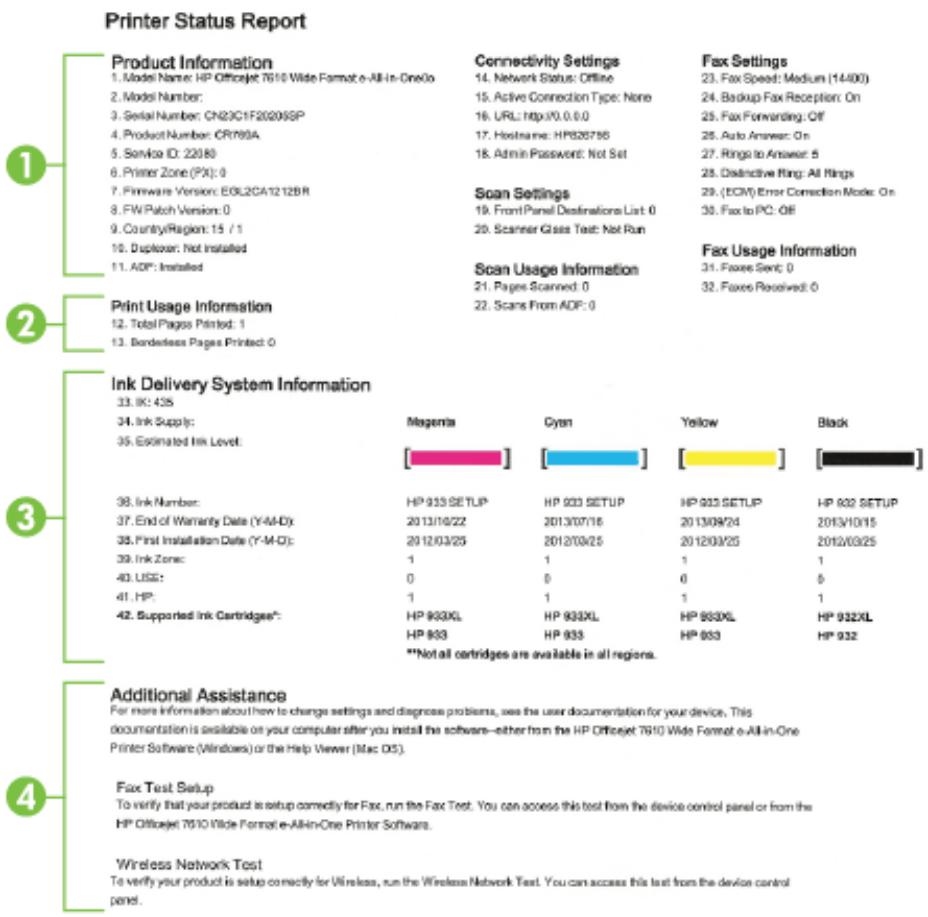
- Product Information: Shows printer information (such as the printer name, model number, serial number, and firmware version number), the accessories that are installed (such as the automatic
two-sided printing accessory or duplexer), and the number of pages printed from the trays and accessories.
- Print Usage Information: Shows summary information about pages printed from the printer.
- Ink Delivery System Information: Shows the estimated ink levels (represented in graphical form as gauges) and the part numbers and warranty expiration dates for the ink cartridges.

NOTE: Ink level warnings and indicators provide estimates for planning purposes only. When you receive a low-ink warning message, consider having a replacement cartridge available to avoid possible printing delays. You do not need to replace cartridges until prompted to do so.
- Additional Assistance: Provides information about where you can go to get more information about the printer, as well as information about how to set up a Fax Text and how to run a Wireless Network Test.
Understand the network configuration page
If the printer is connected to a network, you can print a network configuration page to view the network settings for the printer and a list of networks detected by your printer. You can use the network configuration page to help troubleshoot network connectivity problems. If you need to call HP, it is often useful to print this page before calling.
To print the network configuration page from the printer control panel
- From the printer control panel, touch the right arrow, and then touch Setup. Touch Reports, and then touch Network Configuration Page.
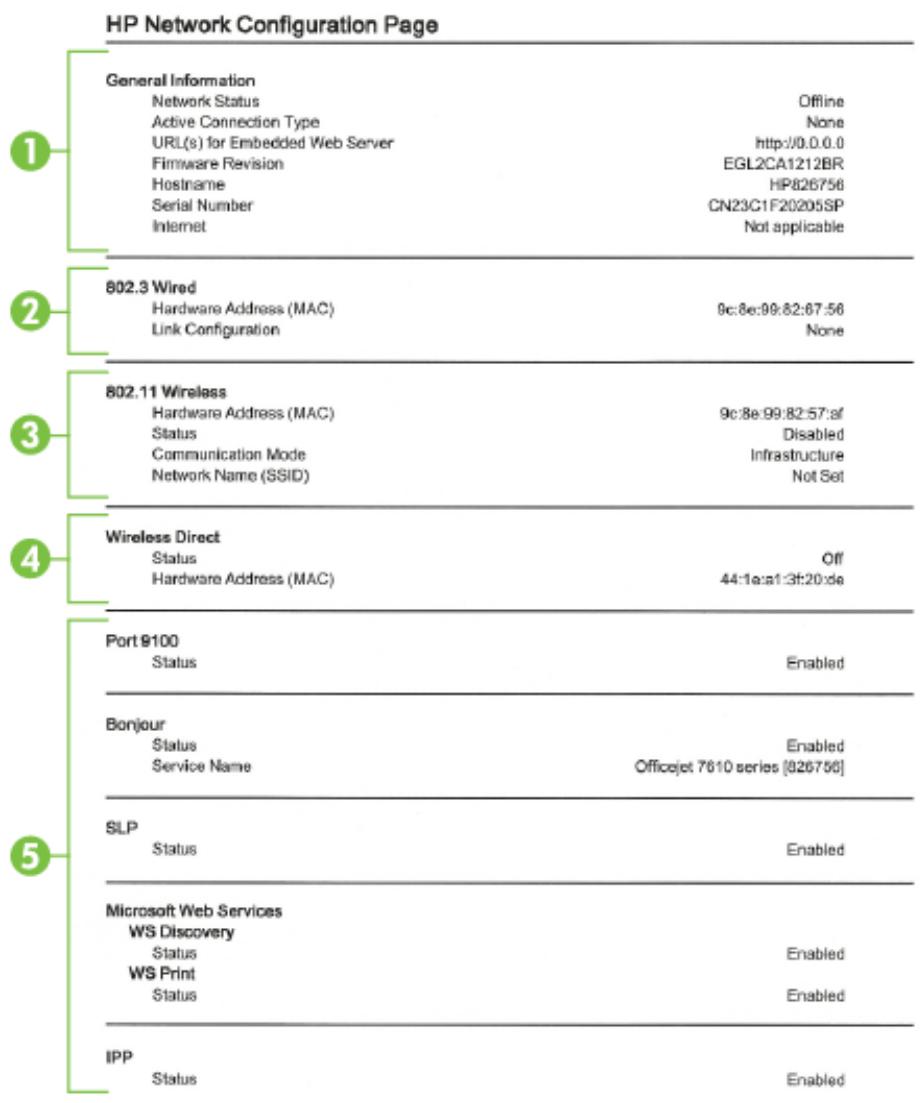
- General Information: Shows information about the current status and active connection type of the network, and other information, such as the URL of the embedded web server.
- 802.3 Wired: Shows information about the active Ethernet network connection, such as the IP address, subnet mask, default gateway, as well as the hardware address of the printer.
- 802.11 Wireless: Shows information about your wireless network connection, such as the host name, IP address, subnet mask, default gateway, and server. It also indicates the network name (SSID), the relative signal strengths and the channels being used. You can check the network list to view if your own network signal strength is good and change the wireless communication setup using Wireless Setup Wizard. For more information, see Set up the printer using the Wireless Setup Wizard on page 233.
- Wireless Direct: Shows information about your Wireless Direct Printing connection, such as the network name (SSID), IP address, subnet mask, default gateway, and server.
- Miscellaneous: Shows information about more advanced network settings.
- Port 9100: The printer supports raw IP printing through TCP Port 9100. This HP-proprietary TCP/IP port on the printer is the default port for printing. It is accessed by HP software (for example, the HP Standard Port).
- Bonjour: Bonjour services (which use mDNS, or Multicast Domain Name System) are typically used on small networks for IP address and name resolution (through UDP port 5353), where a conventional DNS server is not used.
- SLP: Service Location Protocol (SLP) is an Internet standard network protocol that provides a framework to allow networking applications to discover the existence, location, and configuration of networked services in enterprise networks. This protocol simplifies discovery and use of network resources such as printers, web servers, fax machines, video cameras, files systems, backup devices (tape drives), databases, directories, mail servers, calendars.
- Microsoft Web Services: Enable or disable the Microsoft Web Services Dynamic Discovery (WS Discovery) protocols or Microsoft Web Services for Devices (WSD) Print services supported on the printer. Disable unused print services to prevent access through those services.

NOTE: For more information about WS Discovery and WSD Print, visit www.microsoft.com.
- IPP: Internet Printing Protocol (IPP) is a standard network protocol for remote printing. Unlike other remote IP-based protocols, IPP supports access control, authentication, and encryption, allowing for more secure printing.
Printhead maintenance
If you are experiencing problems with printing, you might have a problem with the printhead. You should perform the procedures in the following sections only when directed to do so for resolving print quality issues.
Performing the aligning and cleaning procedures unnecessarily can waste ink and shorten the life of the cartridges.
This section contains the following topics:
Clean the printhead Align the printhead
Clean the printhead
If your printed output is streaked or has any incorrect or missing colors, the printhead might need to be cleaned.
There are two stages of cleaning. Each stage lasts about two minutes, uses one sheet of paper, and uses an increasing amount of ink. After each stage, review the quality of the printed page. You should only initiate the next phase of cleaning if the print quality is poor.
If print quality still seems poor after you complete both stages of cleaning, try aligning the printer. If print quality problems persist after cleaning and aligning, contact HP support. For more information, see HP support on page 97.

NOTE: Cleaning uses ink, so clean the printhead only when necessary. The cleaning process takes a few minutes. Some noise might be generated in the process. Before cleaning the printhead, make sure you load paper. For more information, see Load paper on page 16.
Not turning the printer off correctly can cause print quality problems. For more information, see Turn the printer off on page 26.
To clean the printhead from the control panel
- Load Letter, A4, or Legal unused plain white paper into the main input tray. For more information, see Load standard-size paper on page 16.
- Touch (Right arrow), and then touch Setup.
- Touch Tools, and then touch Clean Printhead.
To clean the printhead from Toolbox (Windows)
- Load Letter, A4, or Legal unused plain white paper into the main input tray. For more information, see Load standard-size paper on page 16.
- Open Toolbox. For more information, see Open the Toolbox on page 246.
- From the Device Services tab, click the icon to the left of Clean Printheads.
- Follow the on-screen instructions.
To clean the printhead from HP Utility (Mac OS X)
- Load Letter, A4, or Legal unused plain white paper into the main input tray. For more information, see Load standard-size paper on page 16.
- Open HP Utility. For more information, see HP Utility (Mac OS X) on page 247.
- In the Information And Support section, click Clean Printheads.
- Click Clean, and then follow the on-screen instructions.
To clean the printhead from the embedded web server (EWS)
- Load Letter, A4, or Legal unused plain white paper into the main input tray. For more information, see Load standard-size paper on page 16.
- Open the EWS. For more information, see Embedded web server on page 248.
- Click the Tools tab, and then click Print Quality Toolbox in the Utilities section.
- Click Clean Printhead and follow the on-screen instructions.
Align the printhead
The printer automatically aligns the printhead during the initial setup.
You might want to use this feature when the printer status page shows streaking or white lines through any of the blocks of color or if you are having print quality issues with your printouts.
To align the printhead from the control panel
- Load Letter, A4, or Legal unused plain white paper into the main input tray. For more information, see Load standard-size paper on page 16.
- On the printer control panel, touch the right arrow, and then touch Setup.
- Touch Tools, and then select Align Printhead.
To align the printhead from Toolbox (Windows)
- Load Letter, A4, or Legal unused plain white paper into the main input tray. For more information, see Load standard-size paper on page 16.
- Open Toolbox. For more information, see Open the Toolbox on page 246.
- From the Device Services tab, click the icon to the left of Align Printheads.
- Follow the on-screen instructions.
To align the printhead from HP Utility (Mac OS X)
- Load Letter, A4, or Legal unused plain white paper into the main input tray. For more information, see Load standard-size paper on page 16.
- Open HP Utility. For more information, see HP Utility (Mac OS X) on page 247.
- In the Information And Support section, click Align Printhead.
- Click Align, and then follow the on-screen instructions.
To align the printhead from the embedded web server (EWS)
- Load Letter, A4, or Legal unused plain white paper into the main input tray. For more information, see Load standard-size paper on page 16.
- Open the EWS. For more information, see Embedded web server on page 248.
- Click the Tools tab, and then click Print Quality Toolbox in the Utilities section.
- Click Align Printer and follow the on-screen instructions.
Uninstall and reinstall the HP software
If your installation is incomplete, or if you connected the USB cable to the computer before prompted by the HP software installation screen, you might need to uninstall and then reinstall the HP software that came with the printer. Do not simply delete the printer application files from your computer.
To uninstall from a Windows computer:
- On the computer desktop, click Start, select Settings, click Control Panel, and then click Add/Remove Programs.
-Or-
Click Start, click Control Panel, and then click Uninstall a Program or double-click Programs and Features.
-Or-
On the Start screen, click Control Panel, and then click Uninstall a program.
- Select the HP printer software, and then click Uninstall. Follow the on-screen instructions.
- Disconnect the printer from your computer.
- Restart your computer.

NOTE: It is important that you disconnect the printer before restarting your computer. Do not connect the printer to your computer until after you have reinstalled the HP software.
- Insert the HP software CD into your computer's CD drive and then start the Setup program.
- Follow the on-screen instructions.
To uninstall from a Mac computer:
- Double-click the HP Uninstaller in the Applications/Hewlett-Packard folder.
- When prompted, type the correct administrator's name and password, and then click OK.
- Follow the on-screen instructions.
- When the HP Uninstaller finishes, restart your computer.
Clear jams
Occasionally, paper becomes jammed during a job.
This section contains the following topics:
Clear paper jams - Avoid paper jams
Clear paper jams
Paper jams can occur either inside the printer or in the automatic document feeder.
CAUTION: To prevent possible damage to the printhead, clear paper jams as soon as possible.
Tip: If you notice poor print quality, clean the printhead. For more information, see Clean the printhead on page 153.
Use these steps to clear a paper jam.
To clear a jam inside the printer
- Remove all paper from the output tray.
CAUTION: Trying to clear a paper jam from the front of the printer can damage the print mechanism. Always access and clear paper jams through the automatic two-sided printing accessory (duplexer).
- Check the duplexer.
a. Push the buttons on either side of the duplexer, and then remove the duplexer.
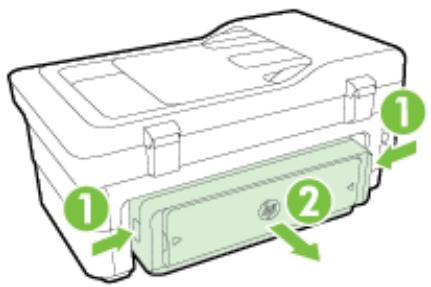
b. Locate any jammed paper inside the printer, grasp it with both hands, and then pull it towards you.
CAUTION: If the paper tears when you are removing it from the rollers, check the rollers and wheels for torn pieces of paper that might be remaining inside the printer. If you do not remove all the pieces of paper from the printer, more paper jams are likely to occur.
c. If the jam is not there, push the latch on top of the duplexer and lower the cover. If paper is jammed inside, carefully remove it. Close the cover. d. Reinsert the duplexer into the printer until it snaps into place.
- Check the front of the printer.
a. Open the ink cartridge access door.
b. If there is paper remaining inside the printer, ensure the carriage has moved to the right of the printer, free any paper scraps or wrinkled media, and pull paper towards you through the front of the printer.
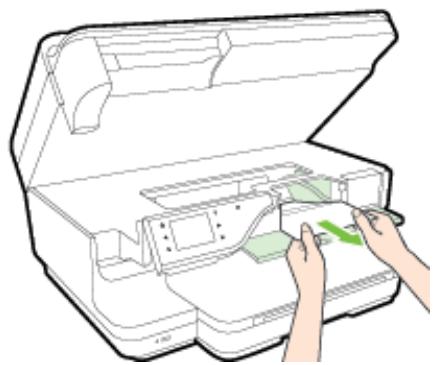
c. Move the carriage to the left, locate any jammed paper inside the printer on the right side of the carriage, free any paper scraps or wrinkled paper, and pull the paper towards you through the front of the printer.
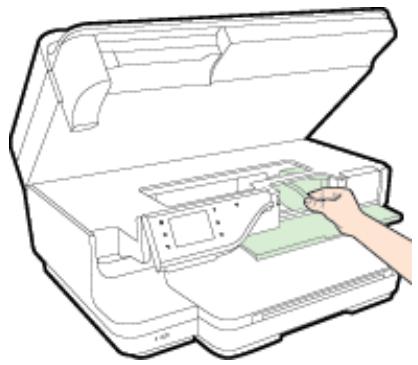
WARNING! Do not reach into the printer when it is turned on and the carriage is stuck. When you open the ink cartridge access door, the carriage should return to its position on the right side of the printer. If it does not move to the right, turn off the printer before you remove any jam.
- After clearing the jam, close all covers, turn on the printer (if you turned it off) and resend the print job.
To clear a paper jam in the automatic document feeder
- Lift the cover of the automatic document feeder.
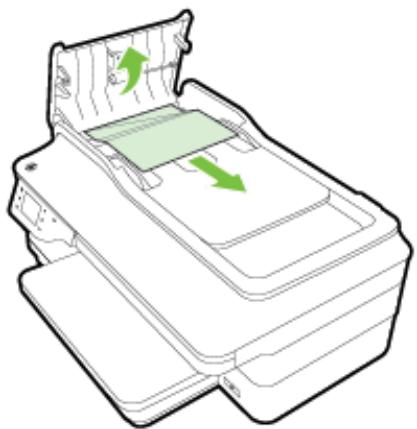
- Lift the tab located on the front edge of the ADF.
- Gently pull the paper out of the rollers.
CAUTION: If the paper tears when you are removing it from the rollers, check the rollers and wheels for torn pieces of paper that might remain inside the printer. If you do not remove all the pieces of paper from the printer, more paper jams are likely to occur.
- Close the cover of the automatic document feeder, pressing down firmly until it snaps into place.
Avoid paper jams
To help avoid paper jams, follow these guidelines.
- Remove printed papers from the output tray frequently. Make sure that you are printing with paper that is not wrinkled, folded, or damaged. Prevent curled or wrinkled paper by storing all unused paper flat in a resealable bag.
- Do not use paper that is too thick or too thin for the printer.
- Make sure that the trays are loaded correctly and are not too full. For more information, see Load paper on page 16.
- Ensure that paper loaded in the input tray lays flat and the edges are not bent or torn.
- Do not place too much paper in the document feeder tray. For information on the maximum number of sheets allowed in the automatic document feeder, see Paper specifications on page 167.
- Do not combine different paper types and paper sizes in the input tray; the entire stack of paper in the input tray must be the same size and type.
- Adjust the paper guides in the input tray to fit snugly against all paper. Make sure the paper guides do not bend the paper in the input tray.
- Do not force paper too far forward in the input tray.
- If you are printing on both sides of a page, do not print highly saturated images on light weight paper.
- Use paper types that are recommended for the printer. For more information, see Paper specifications on page 167.
- If the printer is about to run out of paper, allow the printer to run out of paper first, and then add paper. Do not try to add paper when the printer is trying to pick up a sheet. Make sure that the printer is clean. For more information, see Maintain the printer on page 22.
A Technical information
This section contains the following topics:
Warranty information - Printer specifications Regulatory information Environmental product stewardship program Third-party licenses
Warranty information
This section contains the following topics:
- Hewlett-Packard limited warranty statement
- Ink cartridge warranty information
Hewlett-Packard limited warranty statement
| HP product | Duration of limited warranty |
| Software Media | 90 days |
| Printer | 1 year |
| Print or Ink cartridges | Until the HP Ink is depleted or the "end of warranty" date printed on the cartridge has been reached, whichever occurs first. This warranty does not cover HP Ink products that have been refilled, remanufactured, refurbished, misused, or tampered with. |
| Printheads (only applies to products with customer replaceable printheads) | 1 year |
| Accessories | 1 year unless otherwise stated |
A. Extent of limited warranty
- Hewlett-Packard (HP) warrants to the end-user customer that the HP products specified above will be free from defects in materials and workmanship for the duration specified above, which duration begins on the date of purchase by the customer.
- For software products, HP's limited warranty applies only to a failure to execute programming instructions. HP does not warrant that the operation of any product will be interrupted or error free.
- HP's limited warranty covers only those defects that arise as a result of normal use of the product, and does not cover any other problems, including those that arise as a result of:
a. Improper maintenance or modification;
b. Software, media, parts, or supplies not provided or supported by HP;
c. Operation outside the product's specifications;
d. Unauthorized modification or misuse
- For HP printer products, the use of a non-HP cartridge or a refilled cartridge does not affect either the warranty to the customer or any HP support contract with the customer. However, if printer failure or damage is attributable to the use of a non-HP or refilled cartridge or an expired ink cartridge, HP will charge its standard time and materials charges to service the printer for the particular failure or damage.
- If HP receives, during the applicable warranty period, notice of a defect in any product which is covered by HP's warranty, HP shall either repair or replace the product, at HP's option.
- If HP is unable to repair or replace, as applicable, a defective product which is covered by HP's warranty, HP
shall, within a reasonable time after being notified of the defect, refund the purchase price f
- HP shall have no obligation to repair, replace, or refund until the customer returns the defective product to HP.
- Any replacement product may be either new or like-new, provided that it has functionality at least equal to that of the product being replaced.
- HP products may contain remanufactured parts, components, or materials equivalent to new in performance.
- HP's Limited Warranty Statement is valid in any country where the covered HP product is distributed by HP. Contracts for additional warranty services, such as on-site service, may be available from any authorized HP service facility in countries where the product is distributed by HP or by an authorized Importer.
B. Limitations of warranty
TO THE EXTENT ALLOWED BY LOCAL LAW, NEITHER HP NOR ITS THIRD PARTY SUPPLIERS MAKES ANY OTHER WARRANTY OR CONDITION OF ANY KIND, WHETHER EXPRESS OR IMPLIED, INCLUDING WARRANTIES OR CONDITIONS OF MERCHANTABILITY, SATISFACTORY QUALITY, AND FITNESS FOR A PARTICULAR PURPOSE.
C. Limitations of liability
- To the extent allowed by local law, the remedies provided in this Warranty Statement are the customer's sole and exclusive remedies.
- TO THE EXTENT ALLOWED BY LOCAL LAW, EXCEPT FOR THE OBLIGATIONS SPECIFICALLY SET FORTH IN THIS WARRANTY STATEMENT, IN NO EVENT SHALL HP OR ITS THIRD PARTY SUPPLIERS BE LIABLE FOR DIRECT, INDIRECT, SPECIAL, INCIDENTAL, OR CONSEQUENTIAL DAMAGES, WHETHER BASED ON CONTRACT, TORT, OR ANY OTHER LEGAL THEORY AND WHETHER ADVISED OF THE POSSIBILITY OF SUCH DAMAGES.
D. Local law
- This Warranty Statement gives the customer specific legal rights. The customer may also have other rights which vary from state to state in the United States, from province to province in Canada, and from country to country elsewhere in the world.
- To the extent that this Warranty Statement is inconsistent with local law, this Warranty Statement shall be deemed modified to be consistent with such local law. Under such local law, certain disclaimers and limitations of this Warranty Statement may not apply to the customer. For example, some states in the United States, as well as some governments outside the United States (including provinces in Canada), may:
a. Preclude the disclaimers and limitations in this Warranty Statement from limiting the statutory rights of a consumer (e.g., the United Kingdom);
b. Otherwise restrict the ability of a manufacturer to enforce such disclaimers or limitations; or
c. Grant the customer additional warranty rights, specify the duration of implied warranties which the manufacturer cannot disclaim, or allow limitations on the duration of implied warranties.
- THE TERMS IN THIS WARRANTY STATEMENT, EXCEPT TO THE EXTENT LAWFULLY PERMITTED, DO NOT EXCLUDE, RESTRICT, OR MODIFY, AND ARE IN ADDITION TO, THE MANDATORY STATUTORY RIGHTS APPLICABLE TO THE SALE OF THE HP PRODUCTS TO SUCH CUSTOMERS.
HP Limited Warranty
The name and address of the HP entity responsible for the performance of the HP Limited Warranty in your country is as follows:
United Kingdom: Hewlett-Packard Ltd, Cain Road Bracknell GB-Berks RG12 1HN
Ireland: Hewlett-Packard Ireland Limited, 63-74 Sir John Rogerson's Quay, Dublin 2
Malta: Hewlett-Packard International Trade B.V. Malta Branch, 48, Amery Street, Sliema SLM 1701, MALTA
You may have additional statutory rights against the seller based on your purchase agreement. Those rights are not in any way affected by this HP Limited Warranty.
Ink cartridge warranty information
The HP cartridge warranty is applicable when the product is used in its designated HP printing. This warranty does not cover HP ink products that have been refilled, remanufactured, refurbished, misused, or tampered with.
During the warranty period the product is covered as long as the HP ink is not depleted and the end of warranty date has not been reached. The end of warranty date, in YYYY-MM format, may be found on the product as indicated:
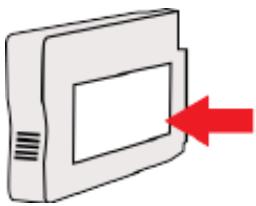
Printer specifications
This section contains the following topics:
Physical specifications, Product features and capacities, Processor and memory specifications, System requirements, Network protocol specifications, Embedded web server specifications, Paper specifications, Print resolution, Copy specifications, Fax specifications, Scan specifications, Web Services specifications, HP website specifications, Environmental specifications, Electrical specifications, Acoustic emission specifications, Memory device specifications
Physical specifications
Printer size (width x height x depth)
- 617 x 297 x 419.03 mm (24.3 x 11.7 x 16.5 inches)
Printer weight
The printer weight includes the automatic two-sided printing accessory (duplexer) and printing supplies.
16.17 kg (35.6 lb)
Product features and capacities
| Feature | Capacity |
| Connectivity | USB 2.0 high speed |
| USB 2.0 high-speed host port | |
| Wireless (802.11b/g/n 1) network | |
| Ethernet (802.3) network | |
| This product supports the 802.11n 2.4 GHz frequency band. | |
| Ink cartridges | Four ink cartridges (one each for black, cyan, magenta, and yellow) |
| NOTE: Not all ink cartridges are supported in all countries/regions. | |
| Supply yields | Visit www.hp.com/go/learnaboutsupplies/ for more information on estimated ink cartridge yields. |
| Printer languages | HP PCL 3 |
| Font support | US fonts: CG Times, CG Times Italic, Universe, Universe Italic, Courier, Courier Italic, Letter Gothic, Letter Gothic Italic. |
| Duty cycle | Up to 12,000 pages per month |
| Printer control panel language support | Bulgarian, Croatian, Czech, Danish, Dutch, English, Finnish, French, German, Greek, Hungarian, Italian, Japanese, Korean, Norwegian, Polish, Portuguese, Romanian, Russian, Simplified Chinese, Slovak, Slovenian, Spanish, Swedish, Traditional Chinese, Turkish. |
| Language availability varies by country/region. |
Processor and memory specifications
Printer processor
ARM R4
Printer memory
256 MB built-in RAM
System requirements
Software and system requirements are located in the Readme file.

NOTE: For the most current information about supported operating systems and system requirements, visit www.hp.com/support.
Network protocol specifications
Software and system requirements are located in the Readme file.
Embedded web server specifications
Requirements
A TCP/IP-based network (IPX/SPX-based networks are not supported) - A web browser (either Microsoft Internet Explorer 7.0 or higher, Mozilla Firefox 3.0 or higher, Safari 3.0 or higher, or Google Chrome 5.0 or higher) A network connection (cannot be used with a printer connected to a computer using a USB cable) An Internet connection (required for some features)
NOTE: You can open the embedded web server without being connected to the Internet. However, some features are not available.
NOTE: The embedded web server must be on the same side of a firewall as the printer.
Paper specifications
Use these tables to determine the correct paper to use with your printer, and determine what features work with your paper.
- Understand specifications for supported paper
- Set minimum margins Guidelines for printing on both sides of a page
Understand specifications for supported paper
Use the tables to determine the correct paper to use with your printer, and to determine what features work with your paper.
- Understand supported sizes
- Understand supported paper types and weights
Understand supported sizes

TIP: If you are using the duplexer, the minimum top and bottom margins must be at least 16 mm (0.63 inches).
| Paper size | Input tray | ADF | Duplexer |
| Standard paper sizes | |||
| 10x15cm* | ✓ | ||
| 2L* | ✓ | ||
| U.S. Letter (216 x 279 mm; 8.5 x 11 inches) | ✓ | ✓ | ✓ |
| 8.5 x 13 inches (216 x 330 mm) | ✓ | ✓ | ✓ |
| U.S. Legal (216 x 356 mm; 8.5 x 14 inches) | ✓ | ✓ | ✓ |
| A4 (210 x 297 mm; 8.3 x 11.7 inches)* | ✓ | ✓ | ✓ |
| U.S. Executive (184 x 267 mm; 7.25 x 10.5 inches) | ✓ | ✓ | ✓ |
| U.S. Statement (140 x 216 mm; 5.5 x 8.5 inches) | ✓ | ✓ | |
| B5 (JIS) (182 x 257 mm; 7.17 x 10.12 inches)* | ✓ | ✓ | ✓ |
| 6 X 8 inches | ✓ | ✓ | ✓ |
| A5 (148 x 210 mm; 5.8 x 8.3 inches)* | ✓ | ✓ | |
| Edge-to-Edge A4* | ✓ | ✓ | |
| Edge-to-Edge Letter* | ✓ | ✓ | |
| B size | |||
| 11 x 14 inches* | ✓ | ✓ | |
| 12 x 12 inches* | ✓ | ||
| B4 (JIS) (257 x 364 mm) | ✓ | ✓ | |
| Tabloid (11 x 17 inches)* | ✓ | ✓ | |
| Super B (13 x 19 inches)* | ✓ | ||
| A3 (297 x 420 mm; 11.69 x 16.54 inches)* | ✓ | ✓ | |
| A3+ (330 x 483 mm; 12.99 x 18.98 inches)* | ✓ | ||
| Edge-to-Edge Tabloid (11 x 17 inches)* | ✓ | ||
| Edge-to-Edge A3* | ✓ | ||
| Envelopes | |||
| U.S. #10 Envelope (105 x 241 mm; 4.12 x 9.5 inches) | ✓ | ||
| Monarch Envelope (98 x 191 mm; 3.88 x 7.5 inches) | ✓ | ||
| No. 6 % Envelope (92 x 165 mm; 3.63 x 6.5 inches) | ✓ | ||
| Card Envelope (111 x 152 mm; 4.4 x 6 inches) | ✓ | ||
| A2 Envelope (111 x 146 mm; 4.37 x 5.75 inches) | ✓ | ||
| DL Envelope (110 x 220 mm; 4.3 x 8.7 inches) | ✓ | ||
| C5 Envelope (162 x 229 mm; 6.4 x 9 inches) | ✓ | ||
| C6 Envelope (114 x 162 mm; 4.5 x 6.4 inches) | ✓ | ||
| Japanese Envelope Chou #3 (120 x 235 mm; 4.7 x 9.3 inches) | ✓ | ||
| Japanese Envelope Chou #4 (90 x 205 mm; 3.5 x 8.1 inches) | ✓ | ||
| Cards | |||
| Index card (76.2 x 127 mm; 3 x 5 inches) | ✓ | ||
| Index card (102 x 152 mm; 4 x 6 inches) | ✓ | ||
| Index card (127 x 203 mm; 5 x 8 inches) | ✓ | ||
| A6 card (105 x 148.5 mm; 4.13 x 5.83 inches)* | ✓ | ||
| A4 index card (210 x 297 mm; 8.3 x 11.7 inches) | ✓ | ||
| Hagaki** (100 x 148 mm; 3.9 x 5.8 inches) | ✓ | ||
| Also supports Borderless printing. | |||
| Ofuku Hagaki** (200 x 148 mm; 7.8 x 5.8 inches) | ✓ | ||
| Index Card Letter (216 x 279 mm; 8.5 x 11 inches) | ✓ | ||
| Photo paper | |||
| Photo paper (76.2 x 127 mm; 3 x 5 inches) | ✓ | ||
| Photo paper (102 x 152 mm; 4 x 6 inches)* | ✓ | ||
| Photo paper (5 x 7 inches)* | ✓ | ||
| Photo paper (8 x 10 inches)* | ✓ | ||
| Photo paper (8.5 x 11 inches)* | ✓ | ||
| Photo L (89 x 127 mm; 3.5 x 5 inches)* | ✓ | ||
| Photo 2L (127 x 178 mm)* | ✓ | ||
| Cabinet size (120x165mm)* | ✓ | ||
| 13 x 18 cm* | ✓ | ||
| Brochures | |||
| 11 x 14 inches* | ✓ | ✓ | |
| B4 (JIS) (257 x 364 mm) | ✓ | ✓ | |
| Tabloid (11 x 17 inches)* | ✓ | ✓ | |
| A3 (297 x 420 mm; 11.69 x 16.54 inches)* | ✓ | ✓ | |
| Other paper | |||
| NOTE: Defining custom-size paper sizes is only available in the HP printing software in Mac OS X. | |||
| Custom-size paper between 76.2 to 330 mm wide and 127 to 1118 mm long (3 to 13 inches wide and 5 to 44 inches long) | ✓ | ||
| Custom-size paper (ADF) between 147 to 216 mm wide and 211 to 356 mm long (5.8 to 8.5 inches wide and 8.3 to 14 inches long) | ✓ | ||
- These sizes can be used for borderless printing.
** The printer is compatible with plain and inkjet hagaki from Japan Post only. It is not compatible with photo hagaki from Japan Post.
Understand supported paper types and weights
| Tray | Type | Weight | Capacity |
| Input tray | Paper | 60 to 105 g/m2(16 to 28 lb bond) | Up to 250 sheets of plain paper(25 mm or 1 inch stacked) |
| Photo paper | 280 gsm(75 lb bond) | Up to 60 sheets of 280 gsmHP Premium Plus Photo Paper(17 mm or 0.67 inch stacked) | |
| Envelopes | 75 to 90 g/m2(20 to 24 lb bond envelope) | Up to 30 sheets(17 mm or 0.67 inch stacked) | |
| Cards | Up to 200 g/m2(110 lb index) | Up to 80 cards(17 mm or 0.67 inch stacked) | |
| Brochures | 180 gsm | Up to 65 sheets of 180 gsm HP Brochure and Flyer Paper Matte | |
| Duplexer | Plain and brochure | 60 to 180 g/m2(16 to 48 lb bond) | Not applicable |
| Output tray | All supported paper | Up to 75 sheets of plain paper(text printing) | |
| Automatic Document Feeder | Paper | 60 to 75 g/m2(16 to 20 lb bond) | 35 sheets of plain paper |
Set minimum margins
The document margins must match (or exceed) these margin settings in portrait orientation.
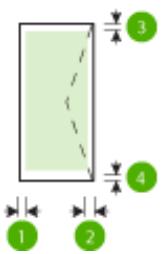
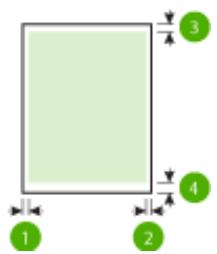
| Paper | (1) Left margin | (2) Right margin | (3) Top margin | (4) Bottom margin |
| U.S. Letter | 3.3 mm (0.13 inch) | 3.3 mm (0.13 inch) | 3.3 mm (0.13 inch) | 3.3 mm (0.13 inch) Windows and 12mm (0.47 inch) Mac and Linux |
| U.S. Legal | ||||
| A4 | ||||
| U.S. Executive | ||||
| U.S. Statement | ||||
| 8.5 x 13 inch | ||||
| B5 | ||||
| A5 | ||||
| Cards | ||||
| Custom-size paper | ||||
| Photo paper | ||||
| 11 x 14 inches | 5 mm (0.197 inch)1 | 5 mm (0.197 inch)1 | 5 mm (0.197 inch)2 | 5 mm (0.197 inch)2 |
| 12 x 12 Inches | ||||
| B4 (JIS) | ||||
| Tabloid | ||||
| Super B | ||||
| A3 | ||||
| A3+ | ||||
| Edge-to-Edge Tabloid | ||||
| Edge-to-Edge A3 | ||||
| Envelopes | 3.3 mm (0.13 inch) | 3.3 mm (0.13 inch) | 16.5 mm (0.65 inch) | 16.5 mm (0.65 inch) |
1 The margins for plain and brochure paper are 13 mm (0.51 inch) for simplex and duplex. 2 The margins for plain paper are 16 mm (0.63 inch) for simplex and 22 mm (0.87 inch) for duplex. For brochure paper, the margins are 16 mm (0.63 inch) for simplex and duplex.
Guidelines for printing on both sides of a page
Always use paper that conforms to the printer specifications. For more information, see Paper specifications on page 167. - Specify two-sided printing options in your application or in the printer driver. - Do not print on both sides of envelopes, photo paper, glossy paper, or paper lighter than 16 lb bond (60 g/m²) or heavier than 28 lb bond (105 g/m²). Jams might occur with these paper types. - Several kinds of paper require a specific orientation when you print on both sides of a page. These include letterhead, preprinted paper, and paper with watermarks and prepunched holes. When you print from a computer running Windows, the printer prints the first side of the paper first. Load the paper with the print side facing down. - For auto-duplexing, when printing finishes on one side of the paper, the printer holds the paper and pauses while the ink dries. Once the ink dries, the paper is pulled back into the printer and the second side is printed. When printing is complete, the paper is dropped onto the output tray. Do not grab it before printing is complete. - You can print on both sides of supported custom-size paper by turning the paper over and feeding it into the printer again. For more information, see Paper specifications on page 167.
Print resolution
| Draft mode | • Color Input/Black Render: 300x300dpi • Output (Black/Color): Automatic |
| Normal mode | • Color Input/Black Render: 600x600dpi • Output (Black/Color): Automatic |
| Best mode | • Color Input/Black Render: 600x600dpi • Output (Black/Color): Automatic |
| Max DPI mode | • Color Input/Black Render: 1200x1200dpi • Output: Automatic (Black), 4800x1200 optimized dpi (Color) |
Copy specifications
Digital image processing: Up to 99 copies from original. Digital zoom: from 25% to 400%. Fit to page, copy preview.
Fax specifications
- Walk-up black-and-white and color fax capability. Up to 99 speed dials.
- Up to 100-page memory (based on ITU-T Test Image #1 at standard resolution). More complicated pages or higher resolution takes longer and uses more memory.
- Manual fax send and receive. Automatic busy redial up to five times (varies by model). Automatic no-answer redial one time (varies by model). Confirmation and activity reports.
- CCITT/ITU Group 3 fax with Error Correction Mode. 33.6 Kbps transmission.
- 4 seconds per page speed at 33.6 Kbps (based on ITU-T Test Image #1 at standard resolution). More complicated pages or higher resolution takes longer and uses more memory.
- Ring detect with automatic fax/answering machine switching.
| Photo (dpi) | Very Fine (dpi) | Fine (dpi) | Standard (dpi) | |
| Black | 205 x 196 (8-bit grayscale) | 308 x 300 | 205 x 196 | 205 x 98 |
| Color | 205 x 200 | 205 x 200 | 205 x 200 | 205 x 200 |
Fax to PC/Fax to Mac Specifications
Supported file type: Uncompressed TIFF. Supported fax types: black-and-white faxes.
Scan specifications
- Integrated OCR software automatically converts scanned text to editable text. Twain-compliant interface (Windows) and Image Capture-compliant interface (Mac OS X). Resolution:
Scanner glass: 1200 x 1200 ppi
ADF: 300 × 300 ppi
Color: 24-bit color, 8-bit grayscale (256 levels of gray) Maximum scan size:
o Scanner glass: 297 x 243 mm (11.7 x 17 inches) ADF: 216 × 356 mm ( 8.5 × 14 inches)
Web Services specifications
An Internet connection using either an Ethernet or wireless connection.
HP ePrint
Maximum size of email and attachments: 5 MB Maximum number of attachments: 10
The HP ePrint server does not accept email print jobs if there are multiple email addresses included in the "To" or "Cc" fields. Only enter the email address of your HP printer in the "To" field. Do not enter any additional email addresses in the other fields.

NOTE: The HP ePrint server does not accept email print jobs if there are multiple email addresses included in the "To" or "Cc" fields. Only enter the email address of your HP printer in the "To" field. Do not enter any additional email addresses in the other fields.
Supported file types:
PDF, HTML, standard text file formats, Microsoft Word, PowerPoint, image files such as PNG, JPEG, TIFF, GIF, BMP

NOTE: You might be able to use other types of files with HP ePrint. However, HP cannot guarantee that they function correctly with the printer because they have not been fully tested.
Printer Apps
To use certain Printer Apps, you might need to set up an account with a partner website. For more information, visit www.eprintcenter.com.
HP website specifications
- A web browser (either Microsoft Internet Explorer 6.0 or higher, Mozilla Firefox 2.0 or higher, Safari 3.2.3 or higher, or Google Chrome 3.0) with the Adobe Flash plug-in (version 10 or higher). An Internet connection
Environmental specifications
Operating environment
- Operating temperature: 5° to 40°C (41° to 104°F)
Recommended operating conditions: 15° to 32°C (59° to 90°F)
Recommended relative humidity: 20 to 80% noncondensing
Storage environment
Storage temperature: -40° to 60°C (-40° to 140°F)
Storage relative humidity: Up to 90% noncondensing at a temperature of 60°C (140°F)
Electrical specifications
Power supply
Universal power adapter (external)
Power requirements
- Input voltage: 100 to 240 VAC, 50/60 Hz (Worldwide); 200 to 240 VAC, 50/60 Hz (China and India only)
Output voltage: +32V / +12V at 1094 mA/250 mA
Power consumption
26 watts in draft print; 20 watts in ADF draft copy
Acoustic emission specifications
Print in Draft mode, noise levels per ISO 7779
Sound pressure (bystander position)
LpAm 55 (dBA) (mono Draft print)
Sound power
LwAd 6.8 (BA)
Memory device specifications

NOTE: The product can only read memory devices that have been formatted using the FAT, FAT32, or EX_FAT file system.
This section contains the following topics:
- USB flash drives
USB flash drives
HP has fully tested the following USB flash drives with the printer:
Kingston: Data Traveler 100 USB 2.0 flash drive (4 GB, 8 GB, and 16 GB) - Lexar JumpDrive S73: 8 GB USB 3.0 Flash Drive Imation: 1 GB USB Swivel - SanDisk: Cruzer Micro Skin USB Flash Drive (4 GB) HP: Hi-Speed USB Flash Drive v100w (8 GB)

NOTE: You might be able to use other USB flash drives with the product. However, HP cannot guarantee correct functionality with the product because all unlisted USB flash drives have not been fully tested.
Regulatory information
The printer meets product requirements from regulatory agencies in your country/region.
This section contains the following topics:
Regulatory Model Number, FCC statement, Notice to users in Korea, VCCI (Class B) compliance statement for users in Japan, Notice to users in Japan about the power cord, Noise emission statement for Germany, GS Declaration (Germany), Notice to users of the U.S. telephone network: FCC requirements, Notice to users of the Canadian telephone network, Notice to users in the European Economic Area, Notice to users of the German telephone network, Australia wired fax statement, European Union Regulatory Notice, Regulatory information for wireless products
Regulatory Model Number
For regulatory identification purposes, your product is assigned a Regulatory Model Number. The Regulatory Model Number for your product is SNPRC-1103-01. This regulatory number should not be confused with the marketing name (HP Officejet 7610 Wide Format e-All-in-One) or product number (CR769A).
FCC statement
The United States Federal Communications Commission (in 47 CFR 15.105) has specified that the following notice be brought to the attention of users of this product.
This equipment has been tested and found to comply with the limits for a Class B digital device, pursuant to Part 15 of the FCC Rules. These limits are designed to provide reasonable protection against harmful interference in a residential installation. This equipment generates, uses and can radiate radio frequency energy and, if not installed and used in accordance with the instructions, may cause harmful interference to radio communications. However, there is no guarantee that interference will not occur in a particular installation. If this equipment does cause harmful interference to radio or television reception, which can be determined by turning the equipment off and on, the user is encouraged to try to correct the interference by one or more of the following measures:
Reorient or relocate the receiving antenna. Increase the separation between the equipment and the receiver. Connect the equipment into an outlet on a circuit different from that to which the receiver is connected. Consult the dealer or an experienced radio/TV technician for help.
For further information, contact:
Manager of Corporate Product Regulations
Howlett-Packard Company
3000 Hanover Street
Palo Alto, CA 94304
(650) 857-1501
Modifications (part 15.21)
The FCC requires the user to be notified that any changes or modifications made to this device that are not expressly approved by HP may void the user's authority to operate the equipment.
This device complies with Part 15 of the FCC Rules. Operation is subject to the following two conditions: (1) this device may not cause harmful interference, and (2) this device must accept any interference received, including interference that may cause undesired operation.
Notice to users in Korea
VCCI (Class B) compliance statement for users in Japan
Notice to users in Japan about the power cord
Use only the supplied power cord for this product.
Noise emission statement for Germany
Noise emission
GS Declaration (Germany)
Notice to users of the U.S. Telephone network: FCC requirements
This equipment complies with Part 68 of the FCC rules and the requirements adopted by the ACTA. On the rear (or bottom) of this equipment is a label that contains, among other information, a product identifier in the format US:AAAQAT100X. If requested, this number must be provided to the telephone company.
Applicable connector jack Universal Service Order Codes ("USOC") for the equipment is: RJ11C.
A plug and jack used to connect this equipment to the premises wiring and telephone network must comply with the applicable FCC Part 68 rules and requirements adopted by the ACTA. A compliant telephone cord and modular plug is provided with this product. It is designed to be connected to a compatible modular jack that is also compliant. See installation instructions for details.
The REN is used to determine the number of devices that may be connected to a telephone line. Excessive RENs on a telephone line may result in the devices not ringing in response to an incoming call. In most but not all areas, the sum of RENs should not exceed five (5.0). To be certain of the number of devices that may be connected to a line, as determined by the total RENs, contact the local telephone company. For products approved after July 23, 2001, the REN for this product is part of the product identifier that has the format US:AAAEQdTXXOc. The digits represented by d# are the REN without a decimal point (e.g., 00 is a REN of 0.0).
If this equipment causes harm to the telephone network, the telephone company will notify you in advance that temporary discontinuance of service may be required. But if advance notice isn't practical, the telephone company will notify the customer as soon as possible. Also, you will be advised of your right to file a complaint with the FCC if you believe it is necessary.
The telephone company may make changes in its facilities, equipment, operations or procedures that could affect the operation of the equipment. If this happens the telephone company will provide advance notice in order for you to make necessary modifications to maintain uninterrupted service.
If trouble is experienced with this equipment, please contact the manufacturer, or look elsewhere in this manual, for repair or warranty information. If the equipment is causing harm to the telephone network, the telephone company may request that you disconnect the equipment until the problem is resolved.
Connection to party line service is subject to state tariffs. Contact the state public utility commission, public service commission or corporation commission for information.
If your home has specially wired alarm equipment connected to the telephone line, ensure the installation of this equipment does not disable your alarm equipment. If you have questions about what will disable alarm equipment, consult your telephone company or a qualified installer.
WHEN PROGRAMMING EMERGENCY NUMBERS AND/OR MAKING TEST CALLS TO EMERGENCY NUMBERS:
1) Remain on the line and briefly explain to the dispatcher the reason for the call. 2) Perform such activities in the off-peak hours, such as early morning or late evening.

Note: The FCC hearing aid compatibility rules for telephones are not applicable to this equipment.
The Telephone Consumer Protection Act of 1991 makes it unlawful for any person to use a computer or other electronic device, including FAX machines, to send any message unless such message clearly contains in a margin at the top or bottom of each transmitted page or on the first page of the transmission, the date and time it is sent and an identification of the business or other entity, or other individual sending the message and the telephone number of the sending machine or such business, other entity, or individual. (The telephone number provided may not be a 900 number or any other number for which charges exceed local or long-distance transmission charges.)
In order to program this information into your FAX machine, you should complete the steps described in the software.
Notice to users of the Canadian telephone network
This equipment meets the applicable Industry Canada Terminal Equipment Technical Specifications. This is confirmed by the registration number. The abbreviation IC before the registration number signifies that registration was performed based on a Declaration of Conformity indicating that Industry Canada technical specifications were met. It does not imply that Industry Canada approved the equipment.
Users should ensure for their own protection that the electrical ground connections of the power utility, telephone lines and internal metallic water pipe system, if present, are connected together. This precaution might be particularly important in rural areas.

Note: The REN (Ringer Equivalence Number) assigned to each terminal device provides an indication of the maximum number of terminals allowed to be connected to a telephone interface. The termination on an interface might consist of any combination of devices subject only to the requirement that the sum of the Ringer Equivalence Numbers of all the devices does not exceed 5.
The REN for this product is 0.08, based on FCC Part 68 test results.
Notice to users in the European Economic Area
Notice to users in the European Economic Area
This product is designed to be connected to the analog Switched Telecommunication Networks (PSTN) of the European Economic Area (EEA) countries/regions.
Network compatibility depends on customer selected settings, which must be reset to use the equipment on a telephone network in a country/region other than where the product was purchased. Contact the vendor or Howlett-Packard Company if additional product support is necessary.
This equipment has been certified by the manufacturer in accordance with Directive 1999/5/EC (annex III) for Pan-European single-terminal connection to the public switched telephone network (PSTN). However, due to differences between the individual PSTNs provided in different countries, the approval does not, of itself, give an unconditional assurance of successful operation on every PSTN network termination point.
In the event of problems, you should contact your equipment supplier in the first instance.
This equipment is designed for DTMF tone dialing and loop disconnect dialing. In the unlikely event of problems with loop disconnect dialing, it is recommended to use this equipment only with the DTMF tone dial setting.
Notice to users of the German telephone network
Australia wired fax statement
In Australia, the HP device must be connected to the Telecommunication Network through a line card which meets the requirements of the Technical Standard AS/ACIF S008.
European Union Regulatory Notice
Products bearing the CE marking comply with the following EU Directives:
Low Voltage Directive 2006/95/EC, EMC Directive 2004/108/EC, Ecodesign Directive 2009/125/EC, where applicable
CE compliance of this product is valid if powered with the correct CE-marked AC adapter provided by HP.
If this product has wired and/or wireless telecommunications functionality, it also complies with the essential requirements of the following EU Directive:
R&TTE Directive 1999/5/EC
Compliance with these directives implies conformity to applicable harmonized European standards (European Norms) that are listed in the EU Declaration of Conformity issued by HP for this product or product family and available (in English only) either within the product documentation or at the following web site: www.hp.com/go/certificates (type the product number in the search field).
The compliance is indicated by one of the following conformity markings placed on the product:
| CE | For non-telecommunications products and for EU harmonized telecommunications products, such as Bluetooth® within power class below 10mW. |
| CE | For EU non-harmonized telecommunications products (If applicable, a 4-digit notified body number is inserted between CE and!). |
Please refer to the regulatory label provided on the product.
The telecommunications functionality of this product may be used in the following EU and EFTA countries: Austria, Belgium, Bulgaria, Cyprus, Czech Republic, Denmark, Estonia, Finland, France, Germany, Greece, Hungary, Iceland, Ireland, Italy, Latvia, Liechtenstein, Lithuania, Luxembourg, Malta, Netherlands, Norway, Poland, Portugal, Romania, Slovak Republic, Slovenia, Spain, Sweden, Switzerland, and United Kingdom.
The telephone connector (not available for all products) is intended for connection to analogue telephone networks.
Products with wireless LAN devices
- Some countries may have specific obligations or special requirements about the operation of Wireless LAN networks such as indoor use only or restrictions of the channels available. Please make sure that the country settings of the wireless network are correct.
France
- For 2.4-GHz Wireless LAN operation of this product, certain restrictions apply: This product may be used indoors for the entire 2400-MHz to 2483.5-MHz frequency band (channels 1 to 13). For outdoor use, only the 2400-MHz to 2454-MHz frequency band (channels 1 to 7) may be used. For the latest requirements, see www.arcep.fr.
The point of contact for regulatory matters is:
Hewlett-Packard GmbH, Dept./MS: HQ-TRE, Herrenberger Strasse 140, 71034 Boeblingen, GERMANY
Regulatory information for wireless products
This section contains the following regulatory information pertaining to wireless products:
- Exposure to radio frequency radiation Notice to users in Brazil
- Notice to users in Canada
- Notice to users in Taiwan
- Notice to users in Mexico
- Notice to users in Japan
Exposure to radio frequency radiation
Exposure to radio frequency radiation

Caution: The radiated output power of this device is far below the FCC radio frequency exposure limits. Nevertheless, the device shall be used in such a manner that the potential for human contact during normal operation is minimized. This product and any attached external antenna, if supported, shall be placed in such a manner to minimize the potential for human contact during normal operation. In order to avoid the possibility of exceeding the FCC radio frequency exposure limits, human proximity to the antenna shall not be less than 20 cm (8 inches) during normal operation.
Notice to users in Brazil
Under Industry Canada regulations, this radio transmitter may only operate using an antenna of a type and maximum (or lesser) gain approved for the transmitter by Industry Canada. To reduce potential radio interference to other users, the antenna type and its gain should be so chosen that the equivalent isotropically radiated power (e.i.r.p.) is not more than that necessary for successful communication.
This device complies with Industry Canada licence-exempt RSS standard(s). Operation is subject to the following two conditions: (1) this device may not cause interference, and (2) this device must accept any interference, including interference that may cause undesired operation of the device.
WARNING! Exposure to Radio Frequency Radiation: The radiated output power of this device is below the Industry Canada radio frequency exposure limits. Nevertheless, the device should be used in such a manner that the potential for human contact is minimized during normal operation.
To avoid the possibility of exceeding the Industry Canada radio frequency exposure limits, human proximity to the antennas should not be less than 20 cm (8 inches).
Notice to users in Taiwan
Regulations for Low-power Radio-frequency Devices
Article 12
Notice to users in Mexico
Notice to users in Japan
Environmental product stewardship program
Hewlett-Packard is committed to providing quality products in an environmentally sustainable manner:
- Design for recycling has been incorporated into this product.
- The number of materials has been kept to a minimum while ensuring proper functionality and reliability.
- Dissimilar materials have been designed to separate easily.
- Fasteners and other connections are easy to locate, access, and remove using common tools. High priority parts have been designed to access quickly for efficient disassembly and repair.
For more information, visit www.hp.com/ecosolutions
This section contains the following topics:
Paper use, Plastics, Material safety data sheets, Recycling program, HP inkjet supplies recycling program, Disposal of waste equipment by users in private households in the European Union, Power consumption, Chemical Substances, Battery information, RoHS notices (China only), RoHS notices (Ukraine only)
Paper use
This product is suited for the use of recycled paper according to DIN 19309 and EN 12281:2002.
Plastics
Plastic parts over 25 grams are marked according to international standards that enhance the ability to identify plastics for recycling purposes at the end of product life.
Material safety data sheets
Material safety data sheets (MSDS) can be obtained from the HP Web site at:
www.hp.com/go/msds
Recycling program
HP offers an increasing number of product return and recycling programs in many countries/regions, and partners with some of the largest electronic recycling centers throughout the world. HP conserves resources by reselling some of its most popular products. For more information regarding recycling of HP products, please visit:
www.hp.com/Hpinfo/globalcitizenship/environment/recycle/
HP inkjet supplies recycling program
HP is committed to protecting the environment. The HP Inkjet Supplies Recycling Program is available in many countries/regions, and lets you recycle used print cartridges and ink cartridges free of charge. For more information, go to the following Web site:
www.hp.com/hpinfo/globalcitizenship/environment/recycle/
Disposal of waste equipment by users in private households in the European Union

| Proposed of Works Experimenter by Usen: In Private House, Inc. |
| This proposed on the prcendence of the man in the panninging houla and this prcendence is a plan of making up for the other household estate. Indeed, it is your responsibility to dispose of the estate and pay for the costs of the construction of the house. The expenses and paying of your house equipment shall be paid directly from the owner. The owner shall be responsible for all the costs of the construction of the house. The owner shall be responsible for all the costs of the construction of the house. The owner shall be responsible for all the costs of the construction of the house. The owner shall be responsible for all the costs of the construction of the house. The owner shall be responsible for all the costs of the construction of the house. The owner shall be responsible for all the costs of the construction of the house. The owner shall be responsible for all the costs of the construction of the house. The owner Shall be responsible for all the costs of the construction of the house. The owner Shall be responsible for all the costs of the construction of the house. The owner Shall be responsible for all the costs of the construction of the house. The owner Shall be responsible for all the costs of the construction of the house. The owner Shall be responsible for all the costs of the construction of the house. The owner Shall be responsible for all the costs of the construction of the house. The owner Shall be responsible for All the costs of the construction of the house. The owner Shall be responsible for all the costs of the construction of the house. The owner Shall be responsible for all the costs of the construction of the house. The owner Shall be responsible for all the costs of the construction of the house. The owner Shall be responsible for all the costs of the construction of the house. The owner Shall be responsible for all the costs of the construction of the house. The owner Shall be responsible for all the costs ofthe construction of the house. The owner Shall be responsible for all the costs of the construction of the house. The owner Shall be responsible for all the costs of the construction of the house. The owner Shall be responsible for all the costs of the construction of the house. The owner Shall be responsible for all the costs of the construction of the house. The owner Shall be responsible for all the costs of the construction of the house. The owner Shall be responsible for all the costs of the construction of the House. The owner Shall be responsible for all the costs of the construction of the house. The owner Shall be responsible for all the costs of the construction of the house. The owner Shall be responsible for all the costs of the construction of the house. The owner Shall be responsible for all the costs of the construction of the house. The owner Shall be responsible for all the costs of the construction of the house. The owner Shall be responsible for all the costs of the construction of the house. The owner SHALL BE RESPONSIBLE FOR ALL THE WORKS OF THE MAN AND FOR ALL THE WORKS OF THE MAN. |
| Explain the requirements of the operation of the project. |
| Describe the requirements of the operation of the project. |
| Explain the requirements of the operation of the project. |
| Explain the requirements of the operation of the project. |
| Explain the requirements of the operation of the project. |
| Explain the requirements of the operation of the project. |
| Explain the requirements of the operation of the project. |
| Explain the requirements of the operation of the project. |
| Explain the requirements of the operation of the project. |
| Explain the requirement of the operation of the project. |
| Explain the requirements of the operation of the project. |
| Explain the requirements of the operation of the project. |
| Explain the requirements of the operation of the project. |
| Explain the requirements of the operation of the project. |
| Explain the requirements of the operation of the project. |
| Explain the requirements of the operation of the project. |
| Explain the requirements of 100% |
Power consumption
Hewlett-Packard printing and imaging equipment marked with the ENERGY STAR® logo is qualified to the U.S. Environmental Protection Agency's ENERGY STAR specifications for imaging equipment. The following mark appears on ENERGY STAR qualified imaging products:

Additional ENERGY STAR qualified imaging product model information is listed at:
www.hp.com/go/energystar
Chemical Substances
HP is committed to providing our customers with information about the chemical substances in our products as needed to comply with legal requirements such as REACH (Regulation EC No 1907/2006 of the European Parliament and the Council). A chemical information report for this product can be found at: www.hp.com/go/reach.
Battery information
This section contains the following topics:
Battery disposal in Taiwan - Attention California users Battery disposal in the Netherlands
Battery disposal in Taiwan

Please recycle waste batteries.
Please recycle waste batteries.
Attention California users
California Perchlorate Material Notice
Perchlorate material - special handling may apply. See: http://www.dtsc.ca.gov/hazardouswaste/perchlorate/
This product's real-time clock battery or coin cell battery may contain perchlorate and may require special handling when recycled or disposed of in California.
Battery disposal in the Netherlands
NL
RoHS notices (China only)
Figure A-1 Toxic and hazardous substance table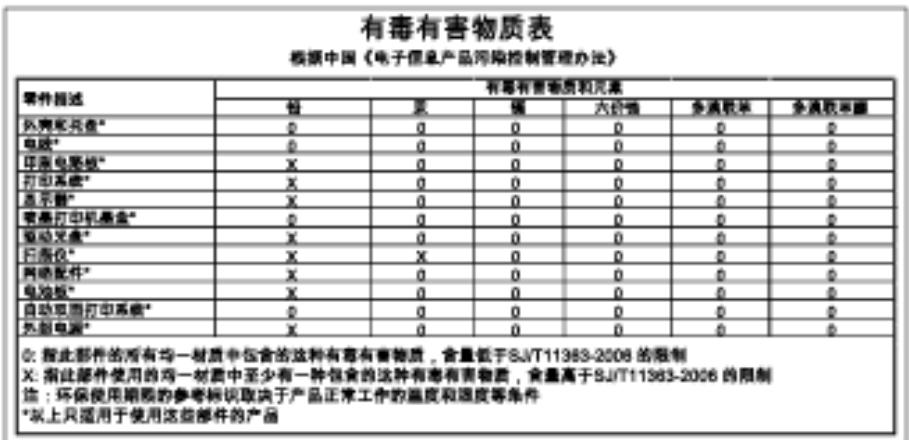
RoHS notices (Ukraine only)
Regulatory requirements for the safe handling of waste (Ukraine)
Complies with the technical regulations for the safe handling of hazardous substances in electrical and electronic equipment, approved by the Cabinet of Ministers of Ukraine on 3 December 2008 No. 1057
Third-party licenses
LICENSE.aes-pubdom--crypto
/* rijndael-alg-fst.c @version 3.0 (December 2000) Optimised ANSI C code for the Rijndael cipher (now AES) @author Vincent Rijmen vincent.rijmen@esat.kuleuven.ac.be @author Antoon Bosselaers anton.bosselaers@esat.kuleuven.ac.be @author Paulo Barreto paulo.barreto@terra.com.br This code is hereby placed in the public domain. THIS SOFTWARE IS PROVIDED BY THE AUTHORS "AS IS" AND ANY EXPRESS OR IMPLIED WARRANTIES, INCLUDING, BUT NOT LIMITED TO, THE IMPLIED WARRANTIES OF MERCHANTABILITY AND FITNESS FOR A PARTICULAR PURPOSE ARE DISCLAIMED. IN NO EVENT SHALL THE AUTHORS OR COLLABORATORS BE LIABLE FOR ANY DIRECT, INDIRECT, INCIDENTAL, SPECIAL, EXEMPLARY, OR CONSEQUENTIAL DAMAGES (INCLUDING, BUT NOT LIMITED TO, PROCUREMENT OF SUBSTITUTE GOODS OR SERVICES; LOSS OF USE, DATA, OR PROFITS; OR BUSINESS INTERRUPTION) HOWEVER CAUSED AND ON ANY THEORY OF LIABILITY, WHETHER IN CONTRACT, STRICT LIABILITY, OR TORT (INCLUDING NEGLIGENCE OR OTHERWISE) ARISING IN ANY WAY OUT OF THE USE OF THIS SOFTWARE, EVEN IF ADVISED OF THE POSSIBILITY OF SUCH DAMAGE. */
LICENSE.expat-mit--expat
Copyright (c) 1998, 1999, 2000 Thai Open Source Software Center Ltd
Permission is hereby granted, free of charge, to any person obtaining a copy of this software and associated documentation files (the "Software"), to deal in the Software without restriction, including without limitation the rights to use, copy, modify, merge, publish, distribute, sublicense, and/or sell copies of the Software, and to permit persons to whom the Software is furnished to do so, subject to the following conditions:
The above copyright notice and this permission notice shall be included in all copies or substantial portions of the Software.
THE SOFTWARE IS PROVIDED "AS IS", WITHOUT WARRANTY OF ANY KIND, EXPRESS OR IMPLIED, INCLUDING BUT NOT LIMITED TO THE WARRANTY OF MERCHANTABILITY, FITNESS FOR A PARTICULAR PURPOSE AND NONINFRINGEMENT. IN NO EVENT SHALL THE AUTHORS OR COPYRIGHT HOLDERS BE LIABLE FOR ANY CLAIM, DAMAGES OR OTHER LIABILITY, WHETHER IN AN ACTION OF CONTRACT, TORT OR OTHERWISE, ARISING FROM, OUT OF OR IN CONNECTION WITH THE SOFTWARE OR THE USE OR OTHER DEALINGS IN THE SOFTWARE.
LICENSE.hmac-sha2-bsd--nos_crypto
HMAC-SHA-224/256/384/512 implementation
- Last update: 06/15/2005
- Issue date: 06/15/2005
- Copyright (C) 2005 Olivier Gay olivier.gay@a3.epfl.ch
- All rights reserved.
- Redistribution and use in source and binary forms, with or without
- modification, are permitted provided that the following conditions
- are met:
- Redistributions of source code must retain the above copyright
- notice, this list of conditions and the following disclaimer.
- Redistributions in binary form must reproduce the above copyright
- notice, this list of conditions and the following disclaimer in the
- documentation and/or other materials provided with the distribution.
- Neither the name of the project nor the names of its contributors
- may be used to endorse or promote products derived from this software
- without specific prior written permission.
- THIS SOFTWARE IS PROVIDED BY THE PROJECT AND COLLECTORS `AS IS' AND
- ANY EXPRESS OR IMPLIED WARRANTY, INCLUDING, BUT NOT LIMITED TO, THE
- IMPLIED WARRANTIES OF MERCHANTABILITY AND FITNESS FOR A PARTICULAR
- PURPOSE ARE DISCLAIMED. IN NO EVENT SHALL THE PROJECT OR CONTRIBUTORS
- BE LIABLE FOR ANY DIRECT, INDIRECT, INCIDENTAL, SPECIAL, EXEMPLARY, OR
- CONSEQUENTIAL DAMAGES (INCLUDING, BUT NOT LIMITED TO, PROCUREMENT OF
- SUBSTITUTE GOODS OR SERVICES; LOSS OF USE, DATA, OR PROFITS; OR
- BUSINESS INTERRUPTION) HOWEVER CAUSED AND ON ANY THEORY OF LIABILITY,
- WHETHER IN CONTRACT, STRICT LIABILITY, OR TORT (INCLUDING NEGLIGENCE OR
- OTHERWISE) ARISING IN ANY WAY OUT OF THE USE OF THIS SOFTWARE, EVEN IF
- ADVISED OF THE POSSIBILITY OF SUCH DAMAGE.
*/
LICENSE.open_SSL--open_SSL
Copyright (C) 1995-1998 Eric Young (eay@cryptsoft.com)
All rights reserved.
This package is an SSL implementation written
by Eric Young (eay@cryptsoft.com).
The implementation was written so as to conform with Netscape's SSL.
This library is free for commercial and non-commercial use as long as the following conditions are adhered to. The following conditions apply to all code found in this distribution, be it the RC4, RSA, lhash, DES, etc., code; not just the SSL code. The SSL documentation included with this distribution is covered by the same copyright terms except that the holder is Tim Hudson (tjh@cryptsoft.com).
Copyright remains Eric Young's, and as such any copyright notices in the code are not to be removed.
If this package is used in a product, Eric Young should be given attribution as the author of the parts of the library used.
This can be in the form of a textual message at program startup or in documentation (online or textual) provided with the package.
Redistribution and use in source and binary forms, with or without modification, are permitted provided that the following conditions are met:
- Redistributions of source code must retain the copyright notice, this list of conditions and the following disclaimer.
- Redistributions in binary form must reproduce the above copyright notice, this list of conditions and the following disclaimer in the documentation and/or other materials provided with the distribution.
- All advertising materials mentioning features or use of this software must display the following acknowledgement:
"This product includes cryptographic software written by Eric Young (eay@cryptsoft.com)"
The word 'cryptographic' can be left out if the routines from the library being used are not cryptographic related :-).
- If you include any Windows specific code (or a derivative thereof) from the apps directory (application code) you must include an acknowledgement: "This product includes software written by Tim Hudson (tjh@cryptsoft.com)"
THIS SOFTWARE IS PROVIDED BY ERIC YOUNG "AS IS" AND ANY EXPRESS OR IMPLIED WARRANTIES, INCLUDING, BUT NOT LIMITED TO, THE IMPLIED WARRANTIES OF MERCHANTABILITY AND FITNESS FOR A PARTICULAR PURPOSE ARE DISCLAIMED. IN NO EVENT SHALL THE AUTHOR OR CONTRIBUTORS BE LIABLE FOR ANY DIRECT, INDIRECT, INCIDENTAL, SPECIAL, EXEMPLARY, OR CONSEQUENTIAL DAMAGES (INCLUDING, BUT NOT LIMITED TO, PROCUREMENT OF SUBSTITUTE GOODS OR SERVICES; LOSS OF USE, DATA, OR PROFITS; OR BUSINESS INTERRUPTION) HOWEVER CAUSED AND ON ANY THEORY OF LIABILITY, WHETHER IN CONTRACT, STRICT LIABILITY, OR TORT (INCLUDING NEGLIGENCE OR OTHERWISE) ARISING IN ANY WAY OUT OF THE USE OF THIS SOFTWARE, EVEN IF ADVISED OF THE POSSIBILITY OF SUCH DAMAGE.
The licence and distribution terms for any publicly available version or derivative of this code cannot be changed. i.e. this code cannot simply be copied and put under another distribution licence [including the GNU Public Licence.]
Copyright (c) 1998-2001 The OpenSSL Project. All rights reserved.
Redistribution and use in source and binary forms, with or without modification, are permitted provided that the following conditions are met:
- Redistributions of source code must retain the above copyright notice, this list of conditions and the following disclaimer.
- Redistributions in binary form must reproduce the above copyright notice, this list of conditions and the following disclaimer in the documentation and/or other materials provided with the distribution.
- All advertising materials mentioning features or use of this software must display the following acknowledgment: "This product includes software developed by the OpenSSL Project for use in the OpenSSL Toolkit. (http://www.openssl.org/)
- The names "OpenSSL Toolkit" and "OpenSSL Project" must not be used to endorse or promote products derived from this software without prior written permission. For written permission, please contact openssl-core@openssl.org.
- Products derived from this software may not be called "OpenSSL" nor may "OpenSSL" appear in their names without prior written permission of the OpenSSL Project.
- Redistributions of any form whatsoever must retain the following acknowledgment: "This product includes software developed by the OpenSSL Project for use in the OpenSSL Toolkit (http://www.openssl.org/"
THIS SOFTWARE IS PROVIDED BY THE OpenSSL PROJECT "AS IS" AND ANY EXPRESSED OR IMPLIED WARRANTIES, INCLUDING, BUT NOT LIMITED TO, THE IMPLIED WARRANTIES OF MERCHANTABILITY AND FITNESS FOR A PARTICULAR PURPOSE ARE DISCLAIMED. IN NO EVENT SHALL THE OpenSSL PROJECT OR ITS CONTRIBUTORS BE LIABLE FOR ANY DIRECT, INDIRECT, INCIDENTAL, SPECIAL, EXEMPLARY, OR CONSEQUENTIAL DAMAGES (INCLUDING, BUT NOT LIMITED TO, PROCUREMENT OF SUBSTITUTE GOODS OR SERVICES;
LOSS OF USE, DATA, OR PROFITS; OR BUSINESS INTERRUPTION) HOWEVER CAUSED AND ON ANY THEORY OF LIABILITY, WHETHER IN CONTRACT, STRICT LIABILITY, OR TORT (INCLUDING NEGLIGENCE OR OTHERWISE) ARISING IN ANY WAY OUT OF THE USE OF THIS SOFTWARE, EVEN IF ADVISED OF THE POSSIBILITY OF SUCH DAMAGE.
This product includes cryptographic software written by Eric Young (eay@cryptsoft.com). This product includes software written by Tim Hudson (tjh@cryptsoft.com).
Copyright (c) 1998-2006 The OpenSSL Project. All rights reserved.
Redistribution and use in source and binary forms, with or without modification, are permitted provided that the following conditions are met:
- Redistributions of source code must retain the above copyright notice, this list of conditions and the following disclaimer.
- Redistributions in binary form must reproduce the above copyright notice, this list of conditions and the following disclaimer in the documentation and/or other materials provided with the distribution.
- All advertising materials mentioning features or use of this software must display the following acknowledgment: "This product includes software developed by the OpenSSL Project for use in the OpenSSL Toolkit. (http://www.openssl.org/)
- The names "OpenSSL Toolkit" and "OpenSSL Project" must not be used to endorse or promote products derived from this software without prior written permission. For written permission, please contact openssl-core@openssl.org.
- Products derived from this software may not be called "OpenSSL" nor may "OpenSSL" appear in their names without prior written permission of the OpenSSL Project.
- Redistributions of any form whatsoever must retain the following acknowledgment:
"This product includes software developed by the OpenSSL Project for use in the OpenSSL Toolkit (http://www.openssl.org/)
THIS SOFTWARE IS PROVIDED BY THE OpenSSL PROJECT `AS IS" AND ANY EXPRESSED OR IMPLIED WARRANTIES, INCLUDING, BUT NOT LIMITED TO, THE IMPLIED WARRANTIES OF MERCHANTABILITY AND FITNESS FOR A PARTICULAR PURPOSE ARE DISCLAIMED. IN NO EVENT SHALL THE OpenSSL PROJECT OR ITS CONTRIBUTORS BE LIABLE FOR ANY DIRECT, INDIRECT, INCIDENTAL, SPECIAL, EXEMPLARY, OR CONSEQUENTIAL DAMAGES (INCLUDING, BUT NOT LIMITED TO, PROCUREMENT OF SUBSTITUTE GOODS OR SERVICES; LOSS OF USE, DATA, OR PROFITS; OR BUSINESS INTERRUPTION) HOWEVER CAUSED AND ON ANY THEORY OF LIABILITY, WHETHER IN CONTRACT, STRICT LIABILITY, OR TORT (INCLUDING NEGLIGENCE OR OTHERWISE) ARISING IN ANY WAY OUT OF THE USE OF THIS SOFTWARE, EVEN IF ADVISED OF THE POSSIBILITY OF SUCH DAMAGE.
This product includes cryptographic software written by Eric Young (eay@cryptsoft.com). This product includes software written by Tim
Copyright 2002 Sun Microsystems, Inc. ALL RIGHTS RESERVED.
ECC cipher suite support in OpenSSL originally developed by
SUN MICROSYSTEMS, INC., and contributed to the OpenSSL project.
LICENSE.sha2-bsd--nos_crypto
/* FIPS 180-2 SHA-224/256/384/512 implementation
- Last update: 02/02/2007
- Issue date: 04/30/2005
- Copyright (C) 2005, 2007 Olivier Gay olivier.gay@a3.epfl.ch
- All rights reserved.
- Redistribution and use in source and binary forms, with or without
- modification, are permitted provided that the following conditions
- are met:
- Redistributions of source code must retain the above copyright
- notice, this list of conditions and the following disclaimer.
- Redistributions in binary form must reproduce the above copyright
- notice, this list of conditions and the following disclaimer in the
- documentation and/or other materials provided with the distribution.
- Neither the name of the project nor the names of its contributors
- may be used to endorse or promote products derived from this software
- without specific prior written permission.
- THIS SOFTWARE IS PROVIDED BY THE PROJECT AND COLLABORATORS 'AS IS' AND
- ANY EXPRESS OR IMPLIED WARRANTIES, INCLUDING, BUT NOT LIMITED TO, THE
- IMPLIED WARRANTIES OF MERCHANTABILITY AND FITNESS FOR A PARTICULAR
- PURPOSE ARE DISCLAIMED. IN NO EVENT SHALL THE PROJECT OR CONTRIBUTORS
- BE LIABLE FOR ANY DIRECT, INDIRECT, INCIDENTAL, SPECIAL, EXEMPLARY, OR
- CONSEQUENTIAL DAMAGES (INCLUDING, BUT NOT LIMITED TO, PROCUREMENT OF
- SUBSTITUTE GOODS OR SERVICES; LOSS OF USE, DATA, OR PROFITS; OR BUSINESS
- INTERRUPTION) HOWEVER CAUSED AND ON ANY THEORY OF LIABILITY, WHETHER IN
- CONTRACT, STRICT LIABILITY, OR TORT (INCLUDING NEGLIGENCE OR OTHERWISE)
- ARISING IN ANY WAY OUT OF THE USE OF THIS SOFTWARE, EVEN IF ADVISED OF
- THE POSSIBILITY OF SUCH DAMAGE.
*/
LICENSE.zlib--zlib
zlib.h -- interface of the 'zlib' general purpose compression library
version 1.2.3, July 18th, 2005
Copyright (C) 1995-2005 Jean-loup Gailly and Mark Adler
This software is provided 'as-is', without any express or implied
warranty. In no event will the authors be held liable for any damages
arising from the use of this software.
Permission is granted to anyone to use this software for any purpose,
including commercial applications, and to alter it and redistribute it
freely, subject to the following restrictions:
- The origin of this software must not be misrepresented; you must not
claim that you wrote the original software. If you use this software
in a product, an acknowledgment in the product documentation would be
appreciated but is not required.
- Altered source versions must be plainly marked as such, and must not be misrepresented as being the original software.
- This notice may not be removed or altered from any source distribution.
Jean-Ioup Gailly Mark Adler
jloup@gzip.org madler@alumni.caltech.edu
The data format used by the zlib library is described by RFCs (Request for
Comments) 1950 to 1952 in the files http://www.ietf.org/rfc/rfc1950.txt
(zlib format), rfc1951.txt (deflate format) and rfc1952.txt (gzip format).
B HP supplies and accessories
This section provides information on HP supplies and accessories for the printer. The information is subject to changes, visit the HP web site (www.hpshopping.com) for the latest updates. You may also make purchases through the web site.

NOTE: Not all cartridges are available in all countries/regions.
This section contains the following topics:
- Order printing supplies online Supplies
Order printing supplies online
To order supplies online or create a printable shopping list, open the HP software that came with your printer and click Shopping. Select Shop for Supplies Online. The HP software uploads, with your permission, printer information, including model number, serial number, and estimated ink levels. The HP supplies that work in your printer are pre-selected. You can change quantities, add or remove items, and then print the list or purchase online at the HP Store or other online retailers (options differ by country/region). Cartridge information and links to online shopping also appear on ink alert messages.
You can also order online by visiting www.hp.com/buy/supplies. If prompted, select your country/region, follow the prompts to select your printer, and then the supplies you need.

NOTE: Ordering cartridges online is not supported in all countries/regions. However, many countries have information on ordering by telephone, locating a local store and printing a shopping list. In addition, you can select the 'How to Buy' option at the top of the www.hp.com/buy/supplies page to obtain information about purchasing HP products in your country.
Supplies
- Ink cartridges HP paper
Ink cartridges
Ordering cartridges online is not supported in all countries/regions. However, many countries have information on ordering by telephone, locating a local store and printing a shopping list. In addition, you can select the 'How to Buy' option at the top of the www.hp.com/buy/supplies page to obtain information about purchasing HP products in your country.
Use only the replacement cartridges that have the same cartridge number as the ink cartridge you are replacing. You can find the cartridge number in the following places:
- In the embedded web server, by clicking the Tools tab, and then, under Product Information, clicking Ink Gauge. For more information, see Embedded web server on page 248.
- On the printer status report (see Understand the Printer Status Report on page 149).
- On the label of the ink cartridge you are replacing.
On a sticker inside the printer.
CAUTION: The Setup ink cartridge that comes with the printer is not available for separate purchase. Check for the correct cartridge number through the EWS, on the printer status report, or on the sticker inside the printer.

NOTE: Ink level warnings and indicators provide estimates for planning purposes only. When you receive a low-ink warning message, consider having a replacement cartridge available to avoid possible printing delays. You do not need to replace cartridges until prompted to do so.
HP paper
To order paper such as HP Premium Paper, go to www.hp.com.

HP recommends plain papers with the ColorLok logo for printing everyday documents. All papers with the ColorLok logo are independently tested to meet high standards of reliability and print quality, and produce documents with crisp, vivid color, bolder blacks, and that dry faster than ordinary plain papers. Look for papers with the ColorLok logo in a variety of weights and sizes from major paper manufacturers.
C Additional fax setup
After completing all the steps in the getting started guide, use the instructions in this section to complete your fax setup. Keep your getting started guide for later use.
In this section, you learn how to set up the printer so that faxing works successfully with equipment and services you might already have on the same phone line.

TIP: You can also use the Fax Setup Wizard (Windows) or HP Setup Assistant (Mac OS X) to help you quickly set up some important fax settings such as the answer mode and fax header information. You can access these tools through the HP software you installed with the printer. After you run these tools, follow the procedures in this section to complete your fax setup.
This section contains the following topics:
- Set up faxing (parallel phone systems)
- Serial-type fax setup Test fax setup
Set up faxing (parallel phone systems)
Before you begin setting up the printer for faxing, determine which kind of phone system your country/region uses. The instructions for fax setup differ depending on whether you have a serial- or parallel-type phone system.
- If you do not see your country/region listed in the table, you probably have a serial-type phone system. In a serial-type phone system, the connector type on your shared telephone equipment (modems, phones, and answering machines) does not allow a physical connection to the "2-EXT" port on the printer. Instead, all equipment must be connected at the telephone wall jack.

NOTE: In some countries/regions that use serial-type phone systems, the phone cord that came with the printer might have an additional wall plug attached to it. This enables you to connect other telecom devices to the wall jack where you plug in the printer.
You might need to connect the supplied phone cord to the adapter provided for your country/region.
- If your country/region is listed in the table, you probably have a parallel-type telephone system. In a parallel-type phone system, you are able to connect shared telephone equipment to the phone line by using the "2-EXT" port on the back of the printer.

NOTE: If you have a parallel-type phone system, HP recommends you use the 2-wire phone cord supplied with the printer to connect it to the telephone wall jack.
Table C-1 Countries/regions with a parallel-type phone system
| Argentina | Australia | Brazil |
| Canada | Chile | China |
| Colombia | Greece | India |
| Indonesia | Ireland | Japan |
| Korea | Latin America | Malaysia |
| Mexico | Philippines | Poland |
| Portugal | Russia | Saudi Arabia |
| Singapore | Spain | Taiwan |
| Thailand | USA | Venezuela |
| Vietnam |
If you are unsure which kind of telephone system you have (serial or parallel), check with your telephone company.
This section contains the following topics:
- Select the correct fax setup for your home or office
- Case A: Separate fax line (no voice calls received) Case B: Set up the printer with DSL
- Case C: Set up the printer with a PBX phone system or an ISDN line
Case D: Fax with a distinctive ring service on the same line. Case E: Shared voice/fax line. Case F: Shared voice/fax line with voice mail. Case G: Fax line shared with computer modem (no voice calls received). Case H: Shared voice/fax line with computer modem. Case I: Shared voice/fax line with answering machine. Case J: Shared voice/fax line with computer modem and answering machine. Case K: Shared voice/fax line with computer dial-up modem and voice mail.
Select the correct fax setup for your home or office.
To fax successfully, you need to know what types of equipment and services (if any) share the same phone line with the printer. This is important because you might need to connect some of your existing office equipment directly to the printer, and you might also need to change some fax settings before you can fax successfully.
- Determine if your telephone system is serial or parallel. See "Set up faxing (parallel phone systems)" on page 206.
a. Serial-type telephone system—See "Serial-type fax setup" on page 229. b. Parallel-type telephone system—Go to step 2.
- Select the combination of equipment and services sharing your fax line.
- DSL: A Digital subscriber line (DSL) service through your telephone company. (DSL might be called ADSL in your country/region.)
- PBX: A private branch exchange (PBX) phone system or an integrated services digital network (ISDN) system.
- Distinctive ring service: A distinctive ring service through your telephone company provides multiple telephone numbers with different ring patterns.
Voice calls: Voice calls are received at the same phone number you use for fax calls on the printer.
- Computer dial-up modem: A computer dial-up modem is on the same phone line as the printer. If you answer Yes to any of the following questions, you are using a computer dial-up modem:
Do you send and receive faxes directly to and from your computer software applications through a dial-up connection? Do you send and receive email messages on your computer through a dial-up connection? Do you access the Internet from your computer through a dial-up connection?
- Answering machine: An answering machine that answers voice calls at the same phone number you use for fax calls on the printer.
- Voice mail service: A voice mail subscription through your telephone company at the same number you use for fax calls on the printer.
- From the following table, select the combination of equipment and services applicable to your home or office setting. Then look up the recommended fax setup. Step-by-step instructions are included for each case in the sections that follow.

NOTE: If your home or office setup is not described in this section, set up the printer as you would a regular analog phone. Make sure you use the phone cord supplied in the box to connect one end to your telephone wall jack and the other end to the port labeled 1-LINE on the back of the printer. If you use another phone cord, you might experience problems sending and receiving faxes.
You might need to connect the supplied phone cord to the adapter provided for your country/region.
| Other equipment or services sharing your fax line | Recommended fax setup | ||||||
| DSL | PBX | Distinctive ring service | Voice calls | Computer dial-up modem | Answering machine | Voice mail service | |
| Case A: Separate fax line (no voice calls received) on page 209 | |||||||
| ✓ | Case B: Set up the printer with DSL on page 210 | ||||||
| ✓ | Case C: Set up the printer with a PBX phone system or an ISDN line on page 211 | ||||||
| ✓ | Case D: Fax with a distinctive ring service on the same line on page 212 | ||||||
| ✓ | Case E: Shared voice/fax line on page 213 | ||||||
| ✓ | ✓ | Case F: Shared voice/fax line with voice mail on page 214 | |||||
| ✓ | Case G: Fax line shared with computer modem (no voice calls received) on page 215 | ||||||
| ✓ | ✓ | Case H: Shared voice/fax line with computer modem on page 217 | |||||
| ✓ | ✓ | Case I: Shared voice/fax line with answering machine on page 221 | |||||
| ✓ | ✓ | ✓ | Case J: Shared voice/fax line with computer modem and answering machine on page 222 | ||||
| ✓ | ✓ | ✓ | Case K: Shared voice/fax line with computer dial-up modem and voice mail on page 226 | ||||
Case A: Separate fax line (no voice calls received)
If you have a separate phone line on which you receive no voice calls, and you have no other equipment connected on this phone line, set up the printer as described in this section.
Figure C-1 Back view of the printer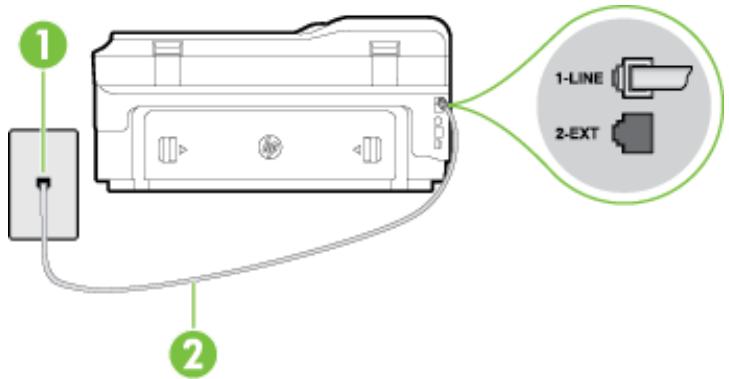
| 1 | Telephone wall jack |
| 2 | Use the phone cord supplied in the box with the printer to connect to the 1-LINE port. |
| You might need to connect the supplied phone cord to the adapter provided for your country/region. |
To set up the printer with a separate fax line
- Using the phone cord supplied in the box with the printer, connect one end to your telephone wall jack, then connect the other end to the port labeled 1-LINE on the back of the printer.

NOTE: You might need to connect the supplied phone cord to the adapter provided for your country/region.
If you do not use the supplied cord to connect from the telephone wall jack to the printer, you might not be able to fax successfully. This special phone cord is different from the phone cords you might already have in your home or office.
- Turn on the Auto Answer setting.
- (Optional) Change the Rings to Answer setting to the lowest setting (two rings).
- Run a fax test.
When the phone rings, the printer answers automatically after the number of rings you set in the Rings to Answer setting. The printer begins emitting fax reception tones to the sending fax machine and receives the fax.
Case B: Set up the printer with DSL
If you have a DSL service through your telephone company, and do not connect any equipment to the printer, use the instructions in this section to connect a DSL filter between the telephone wall jack and the printer. The DSL filter removes the digital signal that can interfere with the printer, so the printer can communicate correctly with the phone line. (DSL might be called ADSL in your country/region.)

NOTE: If you have a DSL line and you do not connect the DSL filter, you cannot send and receive faxes with the printer.
Figure C-2 Back view of the printer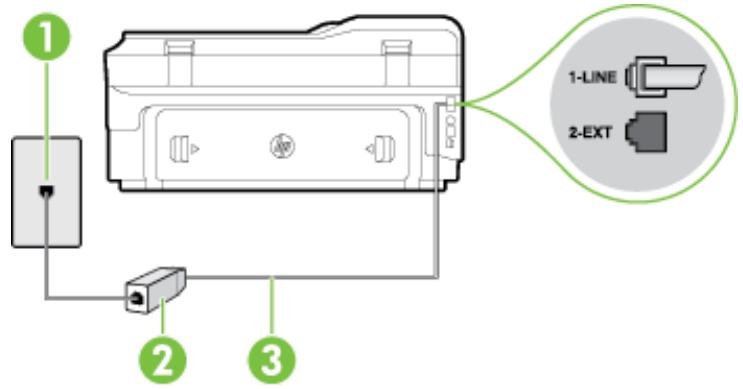
| 1 | Telephone wall jack |
| 2 | DSL (or ADSL) filter and cord supplied by your DSL provider |
| 3 | Use the phone cord supplied in the box with the printer to connect to the 1-LINE port. You might need to connect the supplied phone cord to the adapter provided for your country/region. |
To set up the printer with DSL
- Obtain a DSL filter from your DSL provider.
- Using the phone cord supplied in the box with the printer, connect one end to the open port on the DSL filter, and then connect the other end to the port labeled 1-LINE on the back of the printer.

NOTE: You might need to connect the supplied phone cord to the adapter provided for your country/region.
If you do not use the supplied cord to connect from the DSL filter to the printer, you might not be able to fax successfully. This special phone cord is different from the phone cords you might already have in your home or office.
As only one phone cord is supplied, you might need to obtain additional phone cords for this setup.
- Connect an additional phone cord from the DSL filter to the telephone wall jack.
- Run a fax test.
If you encounter problems setting up the printer with optional equipment, contact your local service provider or vendor for further assistance.
Case C: Set up the printer with a PBX phone system or an ISDN line
If you are using either a PBX phone system or an ISDN converter/terminal adapter, make sure you do the following:
- If you are using either a PBX or an ISDN converter/terminal adaptor, connect the printer to the port that is designated for fax and phone use. Also, make sure that the terminal adapter is set to the correct switch type for your country/region, if possible.

NOTE: Some ISDN systems allow you to configure the ports for specific phone equipment. For example, you might have assigned one port for telephone and Group 3 fax and another port for multiple purposes. If you have problems when connected to the fax/phone port of your ISDN converter, try using the port designated for multiple purposes; it might be labeled "multi-combi" or something similar.
If you are using a PBX phone system, set the call waiting tone to "off."

NOTE: Many digital PBX systems include a call-waiting tone that is set to "on" by default. The call waiting tone interferes with any fax transmission, and you cannot send or receive faxes with the printer. Refer to the documentation that came with your PBX phone system for instructions on how to turn off the call-waiting tone.
- If you are using a PBX phone system, dial the number for an outside line before dialing the fax number.
- Make sure you use the supplied cord to connect from the telephone wall jack to the printer. If you do not, you might not be able to fax successfully. This special phone cord is different from the phone cords you might already have in your home or office. If the supplied phone cord is too short, you can purchase a longer 2-wire phone cord from your local electronics store and extend it.
You might need to connect the supplied phone cord to the adapter provided for your country/ region.
If you encounter problems setting up the printer with optional equipment, contact your local service provider or vendor for further assistance.
Case D: Fax with a distinctive ring service on the same line
If you subscribe to a distinctive ring service (through your telephone company) that allows you to have multiple phone numbers on one phone line, each with a different ring pattern, set up the printer as described in this section.
Figure C-3 Back view of the printer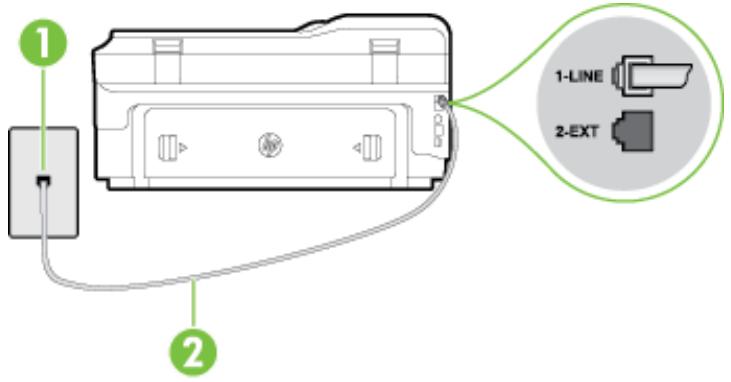
| 1 | Telephone wall jack |
| 2 | Use the phone cord supplied in the box with the printer to connect to the 1-LINE port. |
| You might need to connect the supplied phone cord to the adapter provided for your country/region. |
To set up the printer with a distinctive ring service
- Using the phone cord supplied in the box with the printer, connect one end to your telephone wall jack, then connect the other end to the port labeled 1-LINE on the back of the printer.

NOTE: You might need to connect the supplied phone cord to the adapter provided for your country/region.
If you do not use the supplied cord to connect from the telephone wall jack to the printer, you might not be able to fax successfully. This special phone cord is different from the phone cords you might already have in your home or office.
- Turn on the Auto Answer setting.
- Change the Distinctive Ring setting to match the pattern that the telephone company assigned to your fax number.

NOTE: By default, the printer is set to answer all ring patterns. If you do not set the Distinctive Ring to match the ring pattern assigned to your fax number, the printer might answer both voice calls and fax calls or it might not answer at all.

TIP: You can also use the Ring Pattern Detection feature in the printer control panel to set distinctive ring. With this feature, the printer recognizes and records the ring pattern of an incoming call and, based on this call, automatically determines the distinctive ring pattern assigned by your telephone company to fax calls. For more information, see Change the answer ring pattern for distinctive ring on page 73.
- (Optional) Change the Rings to Answer setting to the lowest setting (two rings).
- Run a fax test.
The printer automatically answers incoming calls that have the ring pattern you selected (Distinctive Ring setting) after the number of rings you selected (Rings to Answer setting). The printer begins emitting fax reception tones to the sending fax machine and receives the fax.
If you encounter problems setting up the printer with optional equipment, contact your local service provider or vendor for further assistance.
Case E: Shared voice/fax line
If you receive both voice calls and fax calls at the same phone number, and you have no other office equipment (or voice mail) on this phone line, set up the printer as described in this section.
Figure C-4 Back view of the printer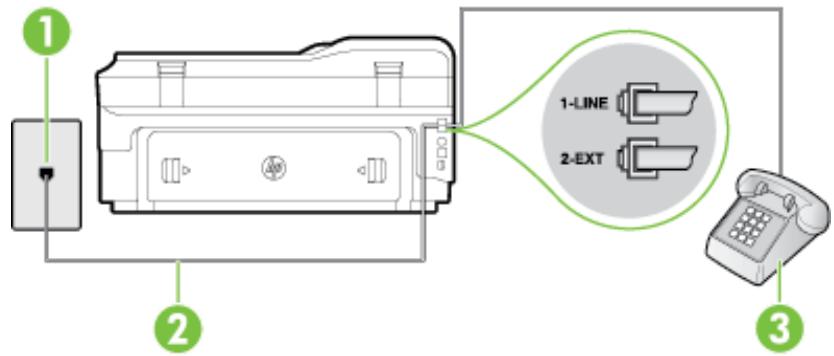
| 1 | Telephone wall jack |
| 2 | Use the phone cord supplied in the box with the printer to connect to the 1-LINE port. |
| You might need to connect the supplied phone cord to the adapter provided for your country/region. | |
| 3 | Telephone (optional) |
To set up the printer with a shared voice/fax line
- Using the phone cord supplied in the box with the printer, connect one end to your telephone wall jack, then connect the other end to the port labeled 1-LINE on the back of the printer.

NOTE: You might need to connect the supplied phone cord to the adapter provided for your country/region.
If you do not use the supplied cord to connect from the telephone wall jack to the printer, you might not be able to fax successfully. This special phone cord is different from the phone cords you might already have in your home or office.
- Do one of the following:
- If you have a parallel-type phone system, remove the white plug from the port labeled 2-EXT on the back of the printer, and then connect a phone to this port.
- If you have a serial-type phone system, you might plug your phone directly on top of the printer cable which has a wall plug attached to it.
- Now you need to decide how you want the printer to answer calls, automatically or manually:
- If you set up the printer to answer calls automatically, it answers all incoming calls and receives faxes. The printer cannot distinguish between fax and voice calls in this case; if
you suspect the call is a voice call, you need to answer it before the printer answers the call. To set up the printer to answer calls automatically, turn on the Auto Answer setting.
- If you set up the printer to answer faxes manually, you must be available to respond in person to incoming fax calls or the printer cannot receive faxes. To set up the printer to answer calls manually, turn off the Auto Answer setting.
4. Run a fax test.
If you pick up the phone before the printer answers the call and hear fax tones from a sending fax machine, you need to answer the fax call manually.
If you encounter problems setting up the printer with optional equipment, contact your local service provider or vendor for further assistance.
Case F: Shared voice/fax line with voice mail
If you receive both voice calls and fax calls at the same phone number, and you also subscribe to a voice mail service through your telephone company, set up the printer as described in this section.

NOTE: You cannot receive faxes automatically if you have a voice mail service at the same phone number you use for fax calls. You must receive faxes manually; this means you must be available to respond in person to incoming fax calls. If you want to receive faxes automatically instead, contact your telephone company to subscribe to a distinctive ring service, or to obtain a separate phone line for faxing.
Figure C-5 Back view of the printer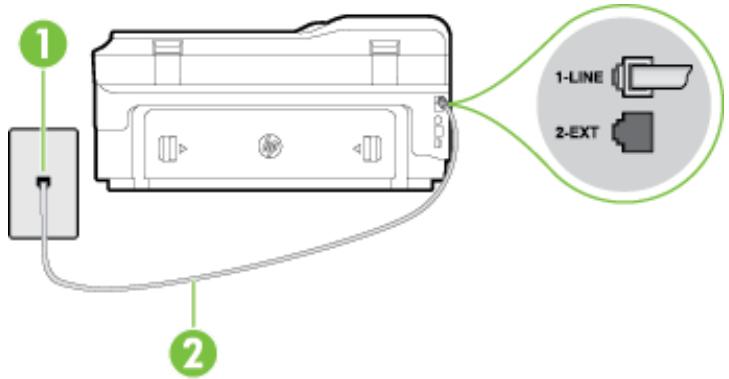
| 1 | Telephone wall jack |
| 2 | Use the phone cord supplied in the box with the printer to connect to the 1-LINE port. |
| You might need to connect the supplied phone cord to the adapter provided for your country/region. |
To set up the printer with voice mail
- Using the phone cord supplied in the box with the printer, connect one end to your telephone wall jack, then connect the other end to the port labeled 1-LINE on the back of the printer.
You might need to connect the supplied phone cord to the adapter provided for your country/region.

NOTE: You might need to connect the supplied phone cord to the adapter provided for your country/region.
If you do not use the supplied cord to connect from the telephone wall jack to the printer, you might not be able to fax successfully. This special phone cord is different from the phone cords you might already have in your home or office.
- Turn off the Auto Answer setting.
- Run a fax test.
You must be available to respond in person to incoming fax calls, or the printer cannot receive faxes. You must initiate the manual fax before voicemail picks up the line.
If you encounter problems setting up the printer with optional equipment, contact your local service provider or vendor for further assistance.
Case G: Fax line shared with computer modem (no voice calls received)
If you have a fax line on which you receive no voice calls, and you also have a computer modem connected on this line, set up the printer as described in this section.

NOTE: If you have a computer dial-up modem, your computer dial-up modem shares the phone line with the printer. You cannot use both your modem and the printer simultaneously. For example, you cannot use the printer for faxing while you are using your computer dial-up modem to send an email or access the Internet.
- Set up the printer with a computer dial-up modem
- Set up the printer with a computer DSL/ADSL modem
Set up the printer with a computer dial-up modem
If you are using the same phone line for sending faxes and for a computer dial-up modem, follow these directions for setting up the printer.
Figure C-6 Back view of the printer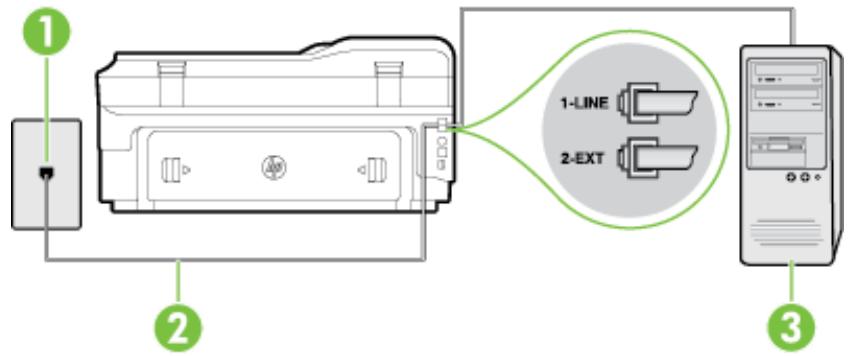
| 1 | Telephone wall jack |
| 2 | Use the phone cord supplied in the box with the printer to connect to the 1-LINE port. |
| You might need to connect the supplied phone cord to the adapter provided for your country/region. | |
| 3 | Computer with modem |
To set up the printer with a computer dial-up modem
- Remove the white plug from the port labeled 2-EXT on the back of the printer.
- Find the phone cord that connects from the back of your computer (your computer dial-up modem) to a telephone wall jack. Disconnect the cord from the telephone wall jack and plug it into the port labeled 2-EXT on the back of the printer.
- Using the phone cord supplied in the box with the printer, connect one end to your telephone wall jack, then connect the other end to the port labeled 1-LINE on the back of the printer.

NOTE: You might need to connect the supplied phone cord to the adapter provided for your country/region.
If you do not use the supplied cord to connect from the telephone wall jack to the printer, you might not be able to fax successfully. This special phone cord is different from the phone cords you might already have in your home or office.
- If your modem software is set to receive faxes to your computer automatically, turn off that setting.

NOTE: If you do not turn off the automatic fax reception setting in your modem software, the printer cannot receive faxes.
- Turn on the Auto Answer setting.
- (Optional) Change the Rings to Answer setting to the lowest setting (two rings).
- Run a fax test.
When the phone rings, the printer automatically answers after the number of rings you set in the Rings to Answer setting. The printer begins emitting fax reception tones to the sending fax machine and receives the fax.
If you encounter problems setting up the printer with optional equipment, contact your local service provider or vendor for further assistance.
Set up the printer with a computer DSL/ADSL modem
If you have a DSL line and use that phone line to send faxes, follow these instructions to set up your fax.
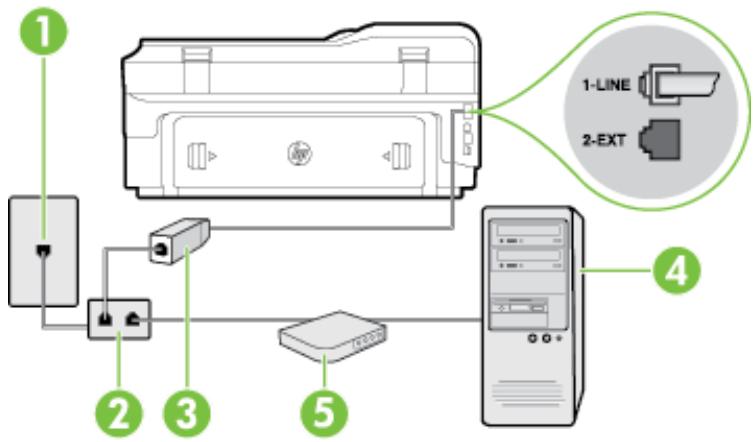
1
Telephone wall jack
| 2 | Parallel splitter |
| 3 | DSL/ADSL filter |
| Connect one end of the phone jack that was supplied with the printer to connect to the 1-LINE port on the back of the printer. Connect the other end of the cord to the DSL/ADSL filter. | |
| You might need to connect the supplied phone cord to the adapter provided for your country/region. | |
| 4 | Computer |
| 5 | Computer DSL/ADSL modem |

NOTE: You need to purchase a parallel splitter. A parallel splitter has one RJ-11 port on the front and two RJ-11 ports on the back. Do not use a 2-line phone splitter, a serial splitter, or a parallel splitter which has two RJ-11 ports on the front and a plug on the back.
Figure C-7 Example of a parallel splitter
To set up the printer with a computer DSL/ADSL modem
- Obtain a DSL filter from your DSL provider.
- Using the phone cord provided in the box with the printer, connect one end to the DSL filter, and then connect the other end to the port labeled 1-LINE on the back of the printer.

NOTE: You might need to connect the supplied phone cord to the adapter provided for your country/region.
If you do not use the supplied cord to connect from the DSL filter to the back of the printer, you might not be able to fax successfully. This special phone cord is different from the phone cords you might already have in your home or office.
- Connect the DSL filter to the parallel splitter.
- Connect the DSL modem to the parallel splitter.
- Connect the parallel splitter to the wall jack.
- Run a fax test.
When the phone rings, the printer automatically answers after the number of rings you set in the Rings to Answer setting. The printer begins emitting fax reception tones to the sending fax machine and receives the fax.
If you encounter problems setting up the printer with optional equipment, contact your local service provider or vendor for further assistance.
Case H: Shared voice/fax line with computer modem
There are two different ways to set up the printer with your computer based on the number of phone ports on your computer. Before you begin, check your computer to see if it has one or two phone ports.

NOTE: If your computer has only one phone port, you need to purchase a parallel splitter (also called a coupler), as shown in the illustration. (A parallel splitter has one RJ-11 port on the front and two RJ-11 ports on the back. Do not use a two-line phone splitter, a serial splitter, or a parallel splitter which has two RJ-11 ports on the front and a plug on the back.)
- Shared voice/fax with computer dial-up modem
- Shared voice/fax with computer DSL/ADSL modem
Shared voice/fax with computer dial-up modem
If you use your phone line for both fax and telephone calls, use these instructions to set up your fax.
There are two different ways to set up the printer with your computer based on the number of phone ports on your computer. Before you begin, check your computer to see if it has one or two phone ports.

NOTE: If your computer has only one phone port, you need to purchase a parallel splitter (also called a coupler), as shown in the illustration. (A parallel splitter has one RJ-11 port on the front and two RJ-11 ports on the back. Do not use a two-line phone splitter, a serial splitter, or a parallel splitter which has two RJ-11 ports on the front and a plug on the back.)
Figure C-8 Example of a parallel splitter To set up the printer on the same phone line as a computer with two phone ports
Figure C-9 Back view of the printer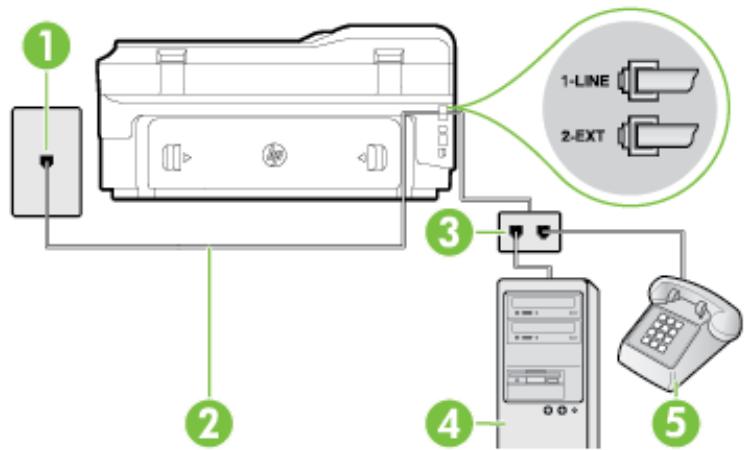
| 1 | Telephone wall jack |
| 2 | Use the phone cord supplied in the box with the printer to connect to the 1-LINE port. |
| 3 | Parallel splitter |
| 4 | Computer with modem |
| 5 | Telephone |
- Remove the white plug from the port labeled 2-EXT on the back of the printer.
- Find the phone cord that connects from the back of your computer (your computer dial-up modem) to a telephone wall jack. Disconnect the cord from the telephone wall jack and plug it into the port labeled 2-EXT on the back of the printer.
- Connect a phone to the "OUT" port on the back of your computer dial-up modem.
- Using the phone cord supplied in the box with the printer, connect one end to your telephone wall jack, then connect the other end to the port labeled 1-LINE on the back of the printer.

NOTE: You might need to connect the supplied phone cord to the adapter provided for your country/region.
If you do not use the supplied cord to connect from the telephone wall jack to the printer, you might not be able to fax successfully. This special phone cord is different from the phone cords you might already have in your home or office.
- If your modem software is set to receive faxes to your computer automatically, turn off that setting.

NOTE: If you do not turn off the automatic fax reception setting in your modem software, the printer cannot receive faxes.
- Now you need to decide how you want the printer to answer calls, automatically or manually:
- If you set up the printer to answer calls automatically, it answers all incoming calls and receives faxes. The printer cannot distinguish between fax and voice calls in this case; if you suspect the call is a voice call, you need to answer it before the printer answers the call. To set up the printer to answer calls automatically, turn on the Auto Answer setting.
- If you set up the printer to answer faxes manually, you must be available to respond in person to incoming fax calls or the printer cannot receive faxes. To set up the printer to answer calls manually, turn off the Auto Answer setting.
7. Run a fax test.
If you pick up the phone before the printer answers the call and hear fax tones from a sending fax machine, you need to answer the fax call manually.
If you use your phone line for voice, fax, and your computer dial-up modem, follow these directions to set up your fax.
If you encounter problems setting up the printer with optional equipment, contact your local service provider or vendor for further assistance.
Shared voice/fax with computer DSL/ADSL modem
Use these instructions if your computer has a DSL/ADSL modem.
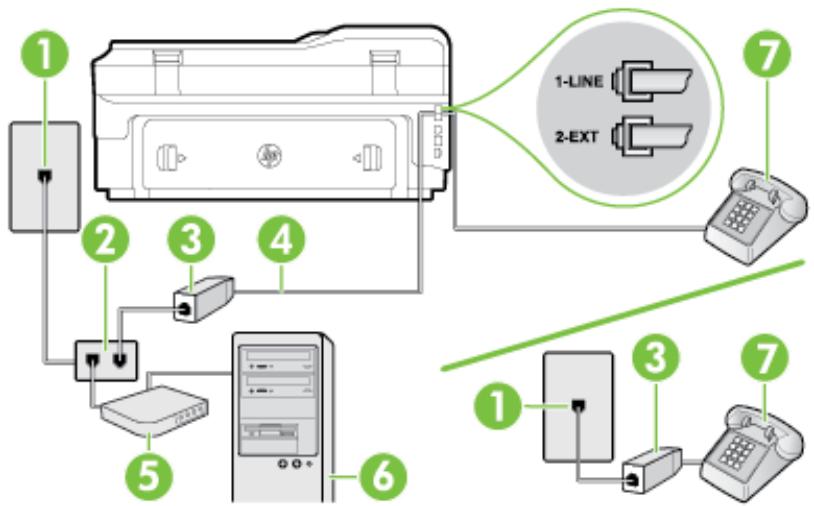
| 1 | Telephone wall jack |
| 2 | Parallel splitter |
| 3 | DSL/ADSL filter |
| 4 | Use the phone cord provided to connect to the 1-LINE port on the back of the printer. |
| You might need to connect the supplied phone cord to the adapter provided for your country/region. | |
| 5 | DSL/ADSL modem |
| 6 | Computer |
| 7 | Telephone |

NOTE: You need to purchase a parallel splitter. A parallel splitter has one RJ-11 port on the front and two RJ-11 ports on the back. Do not use a 2-line phone splitter, a serial splitter, or a parallel splitter which has two RJ-11 ports on the front and a plug on the back.
Figure C-10 Example of a parallel splitter
To set up the printer with a computer DSL/ADSL modem
- Obtain a DSL filter from your DSL provider.

NOTE: Phones in other parts of the home/office sharing the same phone number with DSL service need to be connected to additional DSL filters to avoid noise when making voice calls.
- Using the phone cord supplied in the box with the printers, connect one end to the DSL filter, then connect the other end to the port labeled 1-LINE on the back of the printer.

NOTE: You might need to connect the supplied phone cord to the adapter provided for your country/region.
If you do not use the supplied cord to connect from the DSL filter to the printer, you might not be able to fax successfully. This special phone cord is different from phone cords you might already have in your home or office.
- If you have a parallel-type phone system, remove the white plug from the port labeled 2-EXT on the back of the printer, and then connect a phone to this port.
- Connect the DSL filter to the parallel splitter.
- Connect the DSL modem to the parallel splitter.
- Connect the parallel splitter to the wall jack.
- Run a fax test.
When the phone rings, the printer automatically answers after the number of rings you set in the Rings to Answer setting. The printer begins emitting fax reception tones to the sending fax machine and receives the fax.
If you encounter problems setting up the printer with optional equipment, contact your local service provider or vendor for further assistance.
Case I: Shared voice/fax line with answering machine
If you receive both voice calls and fax calls at the same phone number, and you also have an answering machine that answers voice calls at this phone number, set up the printer as described in this section.
Figure C-11 Back view of the printer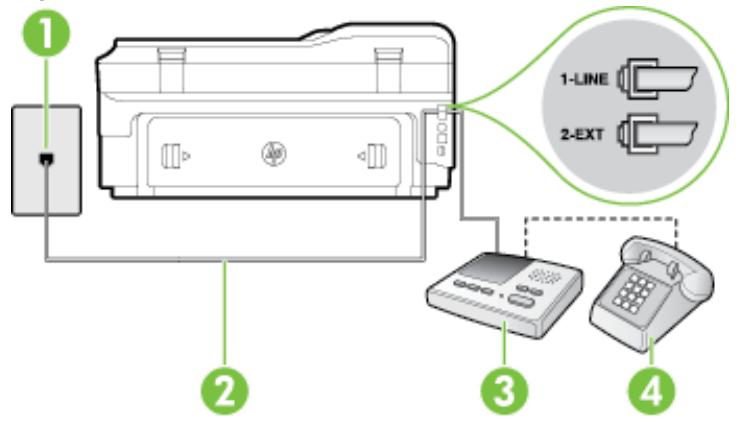
| 1 | Telephone wall jack |
| 2 | Use the phone cord provided to connect to the 1-LINE port on the back of the printer |
| You might need to connect the supplied phone cord to the adapter provided for your country/region. | |
| 3 | Answering machine |
| 4 | Telephone (optional) |
To set up the printer with a shared voice/fax line with answering machine
- Remove the white plug from the port labeled 2-EXT on the back of the printer.
- Unplug your answering machine from the telephone wall jack, and connect it to the port labeled 2-EXT on the back of the printer.

NOTE: If you do not connect your answering machine directly to the printer, fax tones from a sending fax machine might be recorded on your answering machine, and you might not receive faxes with the printer.
- Using the phone cord supplied in the box with the printer, connect one end to your telephone wall jack, then connect the other end to the port labeled 1-LINE on the back of the printer.

NOTE: You might need to connect the supplied phone cord to the adapter provided for your country/region.
If you do not use the supplied cord to connect from the telephone wall jack to the printer, you might not be able to fax successfully. This special phone cord is different from the phone cords you might already have in your home or office.
- (Optional) If your answering machine does not have a built-in phone, for convenience you might want to connect a phone to the back of your answering machine at the "OUT" port.

NOTE: If your answering machine does not let you connect an external phone, you can purchase and use a parallel splitter (also known as a coupler) to connect both the answering machine and telephone to the printer. You can use standard phone cords for these connections.
- Turn on the Auto Answer setting.
- Set your answering machine to answer after a low number of rings.
- Change the Rings to Answer setting on the printer to the maximum number of rings supported by your printer. (The maximum number of rings varies by country/region.)
- Run a fax test.
When the phone rings, your answering machine answers after the number of rings you have set, and then plays your recorded greeting. The printer monitors the call during this time, "listening" for fax tones. If incoming fax tones are detected, the printer emits fax reception tones and receives the fax; if there are no fax tones, the printer stops monitoring the line and your answering machine can record a voice message.
If you encounter problems setting up the printer with optional equipment, contact your local service provider or vendor for further assistance.
Case J: Shared voice/fax line with computer modem and answering machine
If you receive both voice calls and fax calls at the same phone number, and you also have a computer modem and answering machine connected on this phone line, set up the printer as described in this section.

NOTE: Since your computer dial-up modem shares the phone line with the printer, you cannot use both your modem and the printer simultaneously. For example, you cannot use the printer for faxing while you are using your computer dial-up modem to send an email or access the Internet.
- Shared voice/fax line with computer dial-up modem and answering machine
- Shared voice/fax line with computer DSL/ADSL modem and answering machine
Shared voice/fax line with computer dial-up modem and answering machine
There are two different ways to set up the printer with your computer based on the number of phone ports on your computer. Before you begin, check your computer to see if it has one or two phone ports.

NOTE: If your computer has only one phone port, you need to purchase a parallel splitter (also called a coupler), as shown in the illustration. (A parallel splitter has one RJ-11 port on the front and two RJ-11 ports on the back. Do not use a two-line phone splitter, a serial splitter, or a parallel splitter which has two RJ-11 ports on the front and a plug on the back.)
Figure C-12 Example of a parallel splitter
To set up the printer on the same phone line as a computer with two phone ports
Figure C-13 Back view of the printer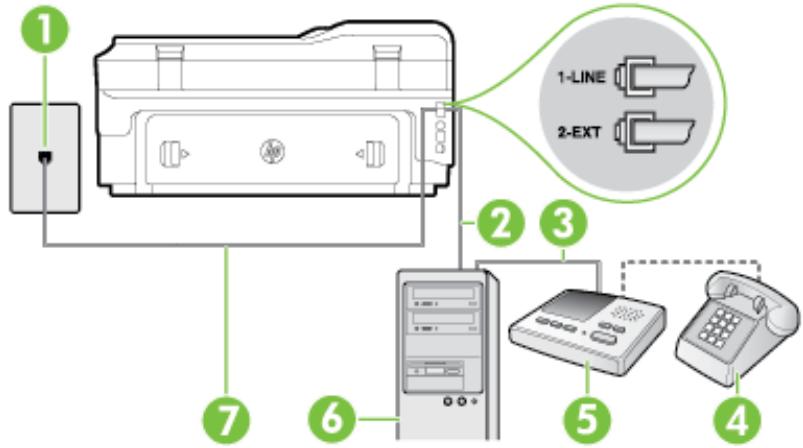
| 1 | Telephone wall jack |
| 2 | "IN" phone port on your computer |
| 3 | "OUT" phone port on your computer |
| 4 | Telephone (optional) |
| 5 | Answering machine |
| 6 | Computer with modem |
| 7 | Use the phone cord supplied in the box with the printer to connect to the 1-LINE port. You might need to connect the supplied phone cord to the adapter provided for your country/region. |
- Remove the white plug from the port labeled 2-EXT on the back of the printer.
- Find the phone cord that connects from the back of your computer (your computer dial-up modem) to a telephone wall jack. Disconnect the cord from the telephone wall jack and plug it into the port labeled 2-EXT on the back of the printer.
- Unplug your answering machine from the telephone wall jack, and connect it to the port labeled "OUT" on the back of the computer (the computer dial-up modem).
- Using the phone cord supplied in the box with the printer, connect one end to your telephone wall jack, then connect the other end to the port labeled 1-LINE on the back of the printer.

NOTE: You might need to connect the supplied phone cord to the adapter provided for your country/region.
If you do not use the supplied cord to connect from the telephone wall jack to the printer, you might not be able to fax successfully. This special phone cord is different from the phone cords you might already have in your home or office.
- (Optional) If your answering machine does not have a built-in phone, for convenience you might want to connect a phone to the back of your answering machine at the "OUT" port.

NOTE: If your answering machine does not let you connect an external phone, you can purchase and use a parallel splitter (also known as a coupler) to connect both the answering machine and telephone to the printer. You can use standard phone cords for these connections.
- If your modem software is set to receive faxes to your computer automatically, turn off that setting.

NOTE: If you do not turn off the automatic fax reception setting in your modem software, the printer cannot receive faxes.
- Turn on the Auto Answer setting.
- Set your answering machine to answer after a low number of rings.
- Change the Rings to Answer setting on the printer to the maximum number of rings supported by the product. (The maximum number of rings varies by country/region.)
- Run a fax test.
When the phone rings, your answering machine answers after the number of rings you have set, and then plays your recorded greeting. The printer monitors the call during this time, "listening" for fax tones. If incoming fax tones are detected, the printer emits fax reception tones and receives the fax; if there are no fax tones, the printer stops monitoring the line and your answering machine can record a voice message.
If you encounter problems setting up the printer with optional equipment, contact your local service provider or vendor for further assistance.
Shared voice/fax line with computer DSL/ADSL modem and answering machine
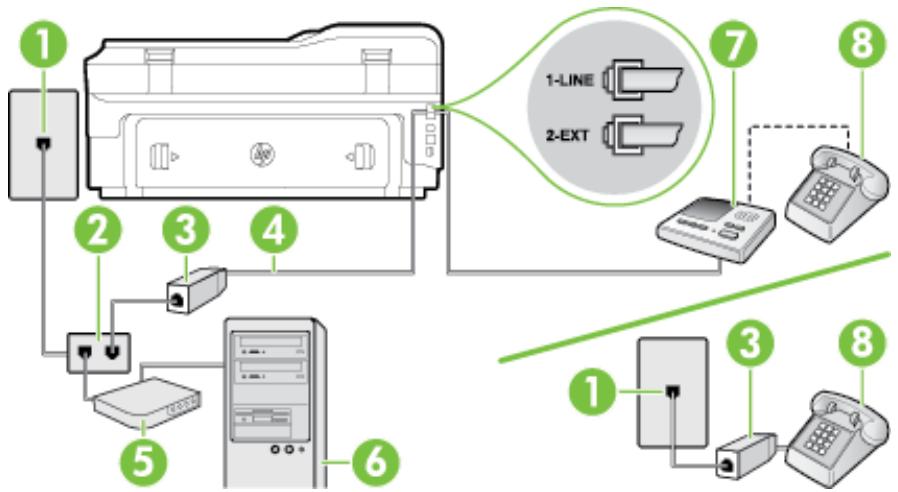
| 1 | Telephone wall jack |
| 2 | Parallel splitter |
| 3 | DSL/ADSL filter |
| 4 | Phone cord provided with the printer connected to the 1-LINE port on the back of the printer |
| You might need to connect the supplied phone cord to the adapter provided for your country/region. | |
| 5 | DSL/ADSL modem |
| 6 | Computer |
| 7 | Answering machine |
| 8 | Telephone (optional) |

NOTE: You need to purchase a parallel splitter. A parallel splitter has one RJ-11 port on the front and two RJ-11 ports on the back. Do not use a 2-line phone splitter, a serial splitter, or a parallel splitter which has two RJ-11 ports on the front and a plug on the back.
Figure C-14 Example of a parallel splitter
To set up the printer with a computer DSL/ADSL modem
- Obtain a DSL/ADSL filter from your DSL/ADSL provider.

NOTE: Phones in other parts of the home/office sharing the same phone number with DSL/ADSL service need to be connected to additional DSL/ADSL filters, to avoid noise when making voice calls.
- Using the phone cord supplied in the box with the printer, connect one end to the DSL/ADSL filter, then connect the other end to the port labeled 1-LINE on the back of the printer.

NOTE: You might need to connect the supplied phone cord to the adapter provided for your country/region.
If you do not use the supplied cord to connect from the DSL/ADSL filter to the printer, you might not be able to fax successfully. This special phone cord is different from the phone cords you might already have in your home or office.
- Connect the DSL/ADSL filter to the splitter.
- Unplug the answering machine from the telephone wall jack, and connect it to the port labeled 2-EXT on the back of the printer.

NOTE: If you do not connect your answering machine directly to the printer, fax tones from a sending fax machine might be recorded on your answering machine, and you might not receive faxes with the printer.
- Connect the DSL modem to the parallel splitter.
- Connect the parallel splitter to the wall jack.
- Set your answering machine to answer after a low number of rings.
- Change your Rings to Answer setting on the printer to the maximum number of rings supported by the printer.

NOTE: The maximum number of rings varies by country/region.
9. Run a fax test.
When the phone rings, your answering machine answers after the number of rings you have set, and then plays your recorded greeting. The printer monitors the call during this time, "listening" for fax tones. If incoming fax tones are detected, the printer emits fax reception tones and receives the fax; if there are no fax tones, the printer stops monitoring the line and your answering machine can record a voice message.
If you use the same phone line for telephone, fax, and have a computer DSL modem, follow these instructions to set up your fax.
If you encounter problems setting up the printer with optional equipment, contact your local service provider or vendor for further assistance.
Case K: Shared voice/fax line with computer dial-up modem and voice mail
If you receive both voice calls and fax calls at the same phone number, use a computer dial-up modem on the same phone line, and subscribe to a voice mail service through your telephone company, set up the printer as described in this section.

NOTE: You cannot receive faxes automatically if you have a voice mail service at the same phone number you use for fax calls. You must receive faxes manually; this means you must be available to respond in person to incoming fax calls. If you want to receive faxes automatically instead, contact your telephone company to subscribe to a distinctive ring service, or to obtain a separate phone line for faxing.
Since your computer dial-up modem shares the phone line with the printer, you cannot use both your modem and the printer simultaneously. For example, you cannot use the printer for faxing if you are using your computer dial-up modem to send an email or access the Internet.
There are two different ways to set up the printer with your computer based on the number of phone ports on your computer. Before you begin, check your computer to see if it has one or two phone ports.
- If your computer has only one phone port, you need to purchase a parallel splitter (also called a coupler), as shown in the illustration. (A parallel splitter has one RJ-11 port on the front and two RJ-11 ports on the back. Do not use a two-line phone splitter, a serial splitter, or a parallel splitter which has two RJ-11 ports on the front and a plug on the back.)
Figure C-15 Example of a parallel splitter
If your computer has two phone ports, set up the printer as follows:
Figure C-16 Back view of the printer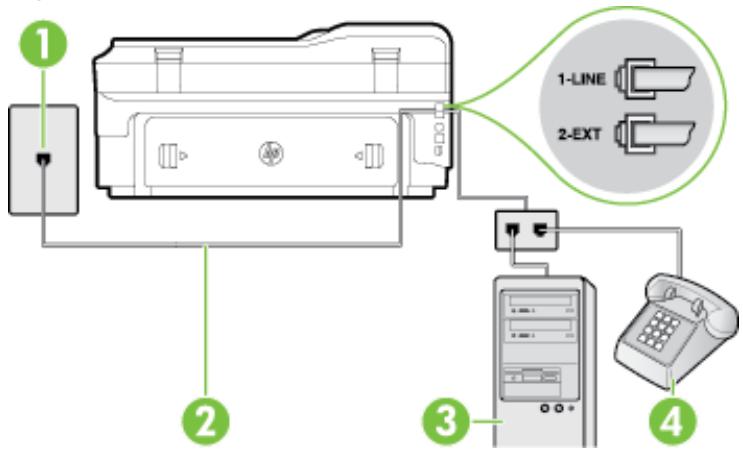
| 1 | Telephone wall jack |
| 2 | Use the phone cord supplied in the box with the printer to connect to the 1-LINE portYou might need to connect the supplied phone cord to the adapter provided for your country/region. |
| 3 | Computer with modem |
| 4 | Telephone |
To set up the printer on the same phone line as a computer with two phone ports
- Remove the white plug from the port labeled 2-EXT on the back of the printer.
- Find the phone cord that connects from the back of your computer (your computer dial-up modem) to a telephone wall jack. Disconnect the cord from the telephone wall jack and plug it into the port labeled 2-EXT on the back of the printer.
- Connect a phone to the "OUT" port on the back of your computer dial-up modem.
- Using the phone cord supplied in the box with the printer, connect one end to your telephone wall jack, then connect the other end to the port labeled 1-LINE on the back of the printer.

NOTE: You might need to connect the supplied phone cord to the adapter provided for your country/region.
If you do not use the supplied cord to connect from the telephone wall jack to the printer, you might not be able to fax successfully. This special phone cord is different from the phone cords you might already have in your home or office.
- If your modem software is set to receive faxes to your computer automatically, turn off that setting.

NOTE: If you do not turn off the automatic fax reception setting in your modem software, the printer cannot receive faxes.
- Turn off the Auto Answer setting.
- Run a fax test.
You must be available to respond in person to incoming fax calls, or the printer cannot receive faxes.
If you encounter problems setting up the printer with optional equipment, contact your local service provider or vendor for further assistance.
Serial-type fax setup
For information on setting up the printer for faxing using a serial-type phone system, see the Fax Configuration web site for your country/region.
| Austria | www.hp.com/at/faxconfig |
| Germany | www.hp.com/de/faxconfig |
| Switzerland (French) | www.hp.com/ch/fr/faxconfig |
| Switzerland (German) | www.hp.com/ch/de/faxconfig |
| United Kingdom | www.hp.com/uk/faxconfig |
| Finland | www.hp.fi/faxconfig |
| Denmark | www.hp.dk/faxconfig |
| Sweden | www.hp.se/faxconfig |
| Norway | www.hp.no/faxconfig |
| Netherlands | www.hp.nl/faxconfig |
| Belgium (Dutch) | www.hp.be/nl/faxconfig |
| Belgium (French) | www.hp.be/fr/faxconfig |
| Portugal | www.hp.pt/faxconfig |
| Spain | www.hp.es/faxconfig |
| France | www.hp.com/fr/faxconfig |
| Ireland | www.hp.com/ie/faxconfig |
| Italy | www.hp.com/it/faxconfig |
Test fax setup
You can test your fax setup to check the status of the printer and to make sure it is set up correctly for faxing. Perform this test after you have completed setting up the printer for faxing. The test does the following:
Tests the fax hardware - Verifies the correct type of phone cord is connected to the printer - Checks that the phone cord is plugged into the correct port - Checks for a dial tone - Checks for an active phone line Tests the status of your phone line connection
The printer prints a report with the results of the test. If the test fails, review the report for information on how to fix the problem and rerun the test.
To test fax setup via the printer control panel
- Set up the printer for faxing according to your particular home or office setup instructions.
- Make sure the ink cartridges are installed, and that full-size paper is loaded in the input tray before starting the test.
- From the printer control panel, touch the right arrow, and then touch Setup.
- Touch Tools, and then touch Run Fax Test.
The printer displays the status of the test on the display and prints a report.
- Review the report.
- If the test passes and you are still having problems faxing, check the fax settings listed in the report to verify the settings are correct. A blank or incorrect fax setting can cause problems faxing.
- If the test fails, review the report for more information on how to fix any problems found.
D Network setup
You can manage network settings for the printer through the printer control panel as described in the next section. Additional advanced settings are available in the embedded web server, a configuration and status tool you access from your web browser using an existing network connection to the printer. For more information, see Embedded web server on page 248.
This section contains the following topics:
- Set up the printer for wireless communication
- Change basic network settings
- Change advanced network settings HP wireless direct printing
Set up the printer for wireless communication
You can set up the printer for wireless communication.
This section contains the following topics:
Before you begin - Set up the printer on your wireless network - Change the connection type Test the wireless connection Guidelines for ensuring wireless network security Guidelines for reducing interference on a wireless network

NOTE: If you encounter problems connecting the printer, see Solve wireless problems on page 135

TIP: For more information about setting up and using the printer wirelessly, visit the HP Wireless Printing Center (www.hp.com/go/wirelessprinting).
Before you begin
Before you begin setting up the wireless connection, check the following:
The printer is not connected to the network using a network cable. - The wireless network is set up and functioning correctly. The printer and the computers that use the printer are on the same network (subnet).
While connecting the printer, you might be prompted to enter the wireless network name (SSID) and a wireless password.
The wireless network name is the name of your wireless network. - The wireless password prevents other people from connecting to your wireless network without your permission. Depending on the level of security required, your wireless network might use either a WPA key or WEP passphrase.
If you have not changed the network name or the security passkey since setting up your wireless network, you can sometimes find them on the back or side of the wireless router.
If you cannot find the network name or the security passkey or cannot remember this information, see the documentation available with your computer or with the wireless router. If you still cannot find this information, contact your network administrator or the person who set up the wireless network.

TIP: If you are using a computer running Windows, use the HP Print and Scan Doctor to help diagnose and get assistance in installing and using HP printers on your home network. To use this tool, visit the HP Wireless Printing Center (www.hp.com/go/wirelessprinting), and then click Print and Scan Doctor in the Quick Links section.
Set up the printer on your wireless network
To set up the printer on your wireless network, use one of the following methods:
- Set up the printer using the HP printer software
- Set up the printer using the Wireless Setup Wizard
- Set up the printer using WiFi Protected Setup (WPS)
- Set up the printer using the embedded web server (EWS)

NOTE: Make sure you have installed the HP software that came with the printer and the printer network drivers. For more information about how to install the drivers, see After resolving the problems on page 142.

NOTE: If you have already been using the printer with a different type of connection, such as a USB connection, follow the instructions in "Change the connection type" on page 235 to set up the printer on your wireless network.
Set up the printer using the HP printer software
In addition to enabling key printer features, you can use the HP printer software that came with your printer to set up wireless communication.
If you have already been using the printer with a different type of connection, such as a USB connection, follow the instructions in "Change the connection type" on page 235 to set up the printer on your wireless network.
Set up the printer using the Wireless Setup Wizard
The Wireless Setup Wizard provides an easy way to set up and manage a wireless connection to your printer from the printer control panel.
- Set up the printer hardware. See the getting started guide or the setup poster that came with your printer.
- On the printer control panel, touch (Wireless), and then touch Settings.
- Touch Wireless Setup Wizard, and then touch Continue.
- Follow the display instructions to complete the setup.
- After the setup has completed, the network printer drivers can be installed by opening the printer's HP folder in Programs or All Programs, clicking Printer Setup and Software, and selecting Connect a new printer.

NOTE: If you cannot find the wireless network name (SSID) and wireless password (WPA passphrase, WEP key), see "Before you begin" on page 232.
Set up the printer using WiFi Protected Setup (WPS)
Wi-Fi Protected Setup (WPS) allows you to quickly set up the printer on your wireless network, without having to enter the wireless network name (SSID), wireless password (WPA passphrase, WEP key), or other wireless settings.

NOTE: Only set up wireless using WPS if your wireless network uses WPA data encryption. If your wireless network uses WEP or is not using any encryption at all, use one of the other methods provided in this section to set up the printer on your wireless network.

NOTE: To use WPS, make sure your wireless router or wireless access point supports WPS. Routers that support WPS often have a (WPS) button or a button labeled "WPS".
You can use one of the following methods to set up the printer using WPS:
- Push Button Method: Use the (WPS) or WPS button, if available, on your router. PIN Method: Enter the PIN generated by the printer in the router's configuration software.
- To connect the printer using the Push Button Method
- To connect the printer using the PIN Method
To connect the printer using the Push Button Method
- On the printer control panel, touch (Wireless), and then touch Settings.
- Touch Wi-Fi Protected Setup, then follow the on-screen instructions.
- When prompted, touch Push Button.
- On the wireless router or wireless access point, press and hold the WPS button for 3 seconds.
Wait for about 2 minutes. If the printer connects successfully, the wireless light stops blinking but remains lit.
- After the setup has completed, the network printer drivers can be installed by opening the printer's HP folder in Programs or All Programs, clicking Printer Setup and Software, and selecting Connect a new printer.
To connect the printer using the PIN Method
- On the printer control panel, touch (Wireless), and then touch Settings.
- Touch Wi-Fi Protected Setup, and then follow the on-screen instructions.
- When prompted, touch PIN. The WPS PIN appears on the display.
- Open the configuration utility or software for the wireless router or wireless access point, and then enter the WPS PIN.

NOTE: For more information about using the configuration utility, see the documentation provided with the router or wireless access point.
Wait for about two minutes. If the printer connects successfully, the wireless light stops blinking but remains lit.
- After the setup has completed, the network printer drivers can be installed by opening the printer's HP folder in Programs or All Programs, clicking Printer Setup and Software, and selecting Connect a new printer.
Set up the printer using the embedded web server (EWS)
If the printer is connected to a network, you can use the printer's embedded web server (EWS) to set up wireless communication.
- Open the EWS. For more information, see Embedded web server on page 248.
- On the Home tab, click Wireless Setup Wizard in the Setup box.
- Follow the on-screen instructions.
- After the setup has completed, the network printer drivers can be installed by opening the printer's HP folder in Programs or All Programs, clicking Printer Setup and Software, and selecting Connect a new printer.

TIP: You can also set up wireless communication by entering or changing individual wireless settings. To change these settings, on the Network tab, click Advanced in the Wireless (802.11) section on the left, change the wireless settings, and then click Apply.
Change the connection type
After you have installed the HP software and connected the printer to your computer or to a network, you can use the HP software to change the connection type (for example, from a USB connection to a wireless connection).

NOTE: If you are changing to a wireless connection, make sure that an Ethernet cable has not been connected to the printer. Connecting an Ethernet cable turns off the printer's wireless capabilities. Also, you might be prompted to temporarily connect a USB cable during the setup process.
To change the connection type, do one of the following:
- Change from an Ethernet connection to a wireless connection
- Change from a USB connection to a wireless connection
- Change from a wireless connection to a USB or Ethernet connection
Change from an Ethernet connection to a wireless connection
- On the printer control panel, touch (Wireless), and then touch Settings.
- Touch Wireless Setup Wizard, and then touch Continue.
- Follow the display instructions to complete the setup.

NOTE: If you cannot find the wireless network name (SSID) and wireless password (WPA passphrase, WEP key), see Before you begin on page 232.
Change from a USB connection to a wireless connection
Follow the instructions for your operating system.
Windows
- On the computer desktop, click Start, select Programs or All Programs, click HP, select your printer name, and then click Printer Setup & Software.
-Or-
On the Start screen, click Printer Setup & Software.
- Click Convert a USB connected printer to wireless.
- Follow the display instructions to complete the setup.
Mac OS X
- Open HP Utility. For more information, see To open HP Utility on page 247.
- Click the Applications on the HP Utility toolbar.
- Double-click HP Setup Assistant, and then follow the on-screen instructions.
Change from a wireless connection to a USB or Ethernet connection
To change from a wireless connection to a USB or Ethernet connection, connect the USB or Ethernet cable to the printer.

NOTE: If you are using a computer with Mac OS X, add the printer to the print queue. Click System Preferences in the Dock, click Print & Fax or Print & Scan in the Hardware section, click +, and then select the printer.
Test the wireless connection
Print the wireless test page for information about the printer's wireless connection. The wireless test page provides information about the printer's status, hardware (MAC) address, and IP address. If the printer is connected to a network, the test page displays details about the network settings.
To print the wireless test page
- On the printer control panel, touch (Wireless), and then touch Settings.
- Touch Print Wireless Test Report.
Guidelines for ensuring wireless network security
The following information can help you keep your wireless network and wireless printer secure from unauthorized use.
For more information, visit www.hp.com/go/wirelessprinting.
This section contains the following topics:
Overview of security settings - Add hardware addresses to a wireless router (MAC filtering) - Other wireless security guidelines
Overview of security settings
To help improve the security of the wireless network and prevent unauthorized access, the printer supports many common types of network authentication, including WEP, WPA, and WPA2.
- WEP: Provides security by encrypting data sent over radio waves from one wireless device to another wireless device. Devices on a WEP-enabled network use WEP keys to encode data. If your network uses WEP, you must know the WEP key(s) it uses.
- WPA: Increases the level of over-the-air data protection and access control on existing and future wireless networks. It addresses all known weaknesses of WEP, the original native security mechanism in the 802.11 standard. WPA uses the Temporal Key Integrity Protocol (TKIP) for encryption and employs 802.1X authentication with one of the standard Extensible Authentication Protocol (EAP) types available today.
- WPA2: Provides enterprise and consumer wireless users with a high level of assurance that only authorized users can access their wireless networks. WPA2 provides the Advanced Encryption Standard (AES). AES is defined in counter cipher-block chaining mode (CCM) and supports the Independent Basic Service Set (IBSS) to enable security between client workstations operating connected wirelessly without a wireless router (such as a Linksys wireless router or Apple AirPort Base Station).
Add hardware addresses to a wireless router (MAC filtering)
MAC filtering is a security feature in which a wireless router or wireless access point is configured with a list of hardware addresses (also called "MAC addresses") of devices that are allowed to gain access to the network through the router.
If the router filters hardware addresses, then the printer's hardware address must be added to the router's list of accepted hardware addresses. If the router does not have the hardware address of a printer attempting to access the network, the router denies the printer access to the network.
CAUTION: This method is not recommended, however, because your MAC addresses can easily be read and falsified by unwanted users outside your network.
To add hardware addresses to a wireless router or wireless access point
- Print the network configuration page, and then locate the printer's hardware address. For more information, see "Understand the network configuration page" on page 151.

NOTE: The printer maintains separate hardware addresses for the Ethernet connection and for wireless connection. Both hardware addresses are listed on the printer's network configuration page. 2. Open the configuration utility for the wireless router or wireless access point, and add the printer's hardware address to the list of accepted hardware addresses.

NOTE: For more information about using the configuration utility, see the documentation provided with the router or wireless access point.
Other wireless security guidelines
To keep the wireless network secure, follow these guidelines:
- Use a wireless password with at least 20 random characters. You can use up to 64 characters in a WPA wireless password.
- Avoid any common words or phrases, easy sequences of characters (such as all 1s), and personally-identifiable information for wireless passwords. Always use random strings composed of uppercase and lowercase letters, numbers, and, if allowed, special characters such as punctuation.
- Change the default wireless password provided by the manufacturer for administrator access to the access point or wireless router. Some routers let you change the administrator name as well.
- Turn off administrative access over wireless if possible. If you do this, you need to connect to the router with an Ethernet connection when you want to make configuration changes.
- Turn off remote administrative access over the Internet on your router, if possible. You can use Remote Desktop to make an encrypted connection to a computer running behind your router and make configuration changes from the local computer you are accessing over the Internet.
- To avoid accidentally connecting to another party's wireless network, turn off the setting to automatically connect to non-preferred networks. This is disabled by default in Windows XP.
Guidelines for reducing interference on a wireless network
The following tips will help reduce the chances for interference in a wireless network:
- Keep the wireless devices away from large metal objects, such as filing cabinets, and other electromagnetic devices, such as microwaves and cordless telephones, as these objects can disrupt radio signals.
- Keep the wireless devices away from large masonry structures and other building structures as these objects can absorb radio waves and lower signal strength.
- Position the access point or wireless router in a central location in line of sight with the wireless devices on the network.
- Keep all wireless devices on the network within range of one another.
Change basic network settings
The control panel options enable you to set up and manage a wireless connection and to perform a variety of network management tasks. This includes viewing the network settings, restoring the network defaults, turning the wireless radio on and off, and changing the network settings.
This section contains the following topics:
View and print network settings - Turn the wireless radio on and off
View and print network settings
You can display a summary of the network settings on the printer control panel or the HP software that came with the printer. You can print a more detailed network configuration page, which lists all of the important network settings such as the IP address, link speed, DNS, and mDNS. For more information, see Understand the network configuration page on page 151.
To view the network setting using the printer control panel, touch (Wireless), and then touch Settings. The network status screen opens. For the information about viewing the network settings using the HP printer software, see View IP settings on page 240.
Turn the wireless radio on and off
The wireless radio is on by default, as indicated by the blue light on the front of the printer. In order to stay connected to a wireless network, the radio must stay on. However, if your printer is connected using either an Ethernet or a USB connection, the radio is not used. In this case you might want to turn the radio off.
- On the printer control panel, touch (i) (Wireless), and then touch Settings.
- Touch Wireless, and then touch On to turn on the radio, or Off to turn off the radio.
Change advanced network settings
CAUTION: Network settings are provided for your convenience. However, unless you are an advanced user, you should not change some of these settings (such as the link speed, IP settings, default gateway, and firewall settings).
This section contains the following topics:
- Set link speed View IP settings
- Change IP settings
- Reset network settings
Set link speed
You can change the speed at which data is transmitted over the network. The default is Automatic.
- On the printer control panel, touch (Wireless), and then touch Settings.
- Select Advanced Setup, then touch Link Speed.
- Touch the number next to the link speed that matches your network hardware:
View IP settings
To view the IP address of the printer:
- Print the network configuration page. For more information, see Understand the network configuration page on page 151.
- Open the HP software (Windows), double-click Estimated Ink Levels, click the Device Information tab. The IP address is listed in the Network Information section.
Change IP settings
The default IP setting for the IP settings is Automatic, which sets the IP settings automatically. However, if you are an advanced user, you might want to manually change settings such as the IP address, subnet mask, or the default gateway.
CAUTION: Be careful when manually assigning an IP address. If you enter an invalid IP address during the installation, your network components cannot connect with the printer.
- On the printer control panel, touch (Wireless), and then touch Settings.
- Touch Advanced Setup, and then touch IP Settings.
- A message appears warning that changing the IP address removes the printer from the network. Touch OK to continue.
- Automatic is selected by default. To change the settings manually, touch Manual, and then enter the appropriate information for the following settings:
IP Address - Subnet Mask
Default Gateway DNS Address
- Enter your changes, and then touch Done.
Reset network settings
To reset the administrator password and network settings
- On the printer control panel, touch (Wireless), and then touch Settings.
- Touch Restore Network Defaults, and then touch Yes.
A message appears stating that the network defaults have been restored.

NOTE: Previously configured wireless settings are removed after you reset the printer network settings. You have to reconnect the printer to the wireless network using the Wireless Setup Wizard. For more information, see Set up the printer using the Wireless Setup Wizard on page 233.

NOTE: Print the network configuration page and verify that the network settings have been reset. For more information, see Understand the network configuration page on page 151.
HP wireless direct printing
With HP wireless direct printing, you can print wirelessly from a computer, smart phone, tablet, or other wireless-capable device—without connecting to an existing wireless network.
When using HP wireless direct printing, note the following guidelines:
Make sure your computer or mobile device has the necessary software: If you are using a computer, make sure you have installed the HP printer software provided with the printer. - If you are using a mobile device, make sure you have installed a compatible printing app. For more information about mobile printing, visit www.hp.com/global/us/en/eprint/ mobile Printing apps.html. - Make sure HP wireless direct printing is turned on in the printer and, if necessary, security is enabled. For more information, see Turn on HP wireless direct printing on page 242. - Up to five computers and mobile devices can use the same HP wireless direct printing connection. HP wireless direct printing can be used while the printer is also connected to a computer using USB cable or to a network (using a wireless or Ethernet connection). HP wireless direct printing cannot be used to connect a computer, mobile device, or printer to the Internet.

Click here to go online for more information.
For more information about wireless printing, see Set up the printer for wireless communication on page 232.

NOTE: At this time, these websites might not be available in all languages.
This section contains the following topics:
- Turn on HP wireless direct printing
- Print from a wireless-capable mobile device
- Print from a wireless-capable computer
Turn on HP wireless direct printing
- From the printer control panel, touch (Wireless), and then touch Settings.
- Touch Wireless Direct, and then touch On.

TIP: If you would like to use HP wireless direct printing with greater security and if the computer or mobile device supports WPA2 encryption, select the option that will enable security. With security enabled, only users with the password can connect wirelessly to the printer. Without enabling security, anyone with a wireless device within the wireless range of the printer can connect to the printer.
- Touch Wireless Direct Name to display the wireless direct name.
- If you have enabled security, touch Security Passcode to display the wireless direct password.

TIP: You can also turn on HP wireless direct printing from the embedded web server (EWS). For more information about using the EWS, see Embedded web server on page 248.
Print from a wireless-capable mobile device
Make sure you have installed a compatible printing app on your mobile device. For more information, visit www.hp.com/global/us/en/eprint/mobile Printing apps.html.
- Make sure you have turned on HP wireless direct printing on the printer. For more information, see Turn on HP wireless direct printing on page 242.
- Turn on the wireless connection in your mobile device. For more information, see the documentation provided with the mobile device.
- From the mobile device, search for and connect to the HP wireless direct printing name, such as HP-Print-*Officejet 7610 series (where ** are the unique characters to identify your printer). If HP wireless direct is turned on with security, enter the password when prompted.
- From your mobile device's print app, confirm your HP printer is the default printer, and then print your document.
Print from a wireless-capable computer
Follow the instructions for your operating system.
- Print from a wireless-capable computer (Windows)
- Print from a wireless-capable computer (Mac OS X)
Print from a wireless-capable computer (Windows)
- Make sure you have turned on HP wireless direct printing on the printer. For more information, see Turn on HP wireless direct printing on page 242.
- Turn on the wireless connection in your computer. For more information, see the documentation provided with the computer.
- From the computer, click the wireless icon on your task tray, select the HP wireless direct printing name, such as HP-Print-**-Officejet 7610 series (where ** are the unique characters to identify your printer).
If HP wireless direct is turned on with security, enter the password when prompted.
- If the printer has been installed and connected to your computer with a USB cable, enable HP wireless direct printing in the HP printer software. Proceed to step 5 if the printer has been installed and connected to the computer over a network (Ethernet or wireless).
a. From the computer desktop, click Start, select Programs or All Programs, click HP, click the folder for the printer, and then select Printer Setup & Software.
-Or-
On the Start screen, right-click an empty area on the screen, click All Apps on the app bar, and then click the icon with the printer's name.
b. Select Connect New Printer. c. When the Connection Options software screen appears, select Wireless.
Select the printer from the list of detected printers, such as HP-Print-**-Officejet 7610 series (where ** are the unique characters to identify your printer).
d. Follow the on-screen instructions.
- Print your document.
Print from a wireless-capable computer (Mac OS X)
- Make sure you have turned on HP wireless direct printing on the printer. For more information, see Turn on HP wireless direct printing on page 242.
- Turn on AirPort. For more information, see the documentation provided by Apple.
- Click the AirPort icon and select the HP wireless direct printing name, such as HP-Print-**-Officejet 7610 series (where ** are the unique characters to identify your printer).
If HP wireless direct is turned on with security, enter the password when prompted.
- Add the printer.
a. In System Preferences, select Print & Fax or Print & Scan, depending on your operating system. b. Click + below the list of printers at the left. c. Select the printer from the list of detected printers (the word “Bonjour” is listed the right column beside the printer name), and click Add.
- Print your document.
E Printer management tools
This section contains the following topics:
- Toolbox (Windows) HP Utility (Mac OS X) Embedded web server
Toolbox (Windows)
The Toolbox provides maintenance information about the printer.

NOTE: The Toolbox can be installed from the HP Software CD if the computer meets the system requirements.
- Open the Toolbox
Open the Toolbox
- Open the HP printer software by doing one of the following:
- From the computer desktop, click Start, select Programs or All Programs, click HP, click the folder for the printer, and then select the icon with the printer's name.
- On the Start screen, right-click an empty area on the screen, click All Apps on the app bar, and then click the icon with the printer's name.
- In the window that appears, select Print, Scan & Fax or Print & Scan, and then select Maintain Your Printer under Print.
HP Utility (Mac OS X)
HP Utility contains tools to configure print settings, calibrate the printer, order supplies online, and find web site support information.

NOTE: The features available in HP Utility vary depending on the selected printer.
Ink level warnings and indicators provide estimates for planning purposes only. When you receive a low-ink warning message, consider having a replacement cartridge available to avoid possible printing delays. You do not need to replace cartridges until prompted to do so.
To open HP Utility
To open HP Utility
Double-click HP Utility in the Applications/ Hewlett-Packard folder.
Embedded web server
When the printer is connected to a network, you can use the printer's home page (embedded web server or EWS) to view status information, change settings, and manage it from your computer.

NOTE: For a list of system requirements for the embedded web server, see Embedded web server specifications on page 167.
To view or change some settings, you might need a password.
You can open and use the embedded web server without being connected to the Internet. However, some features are not available.
This section contains the following topics:
- About cookies
- To open the embedded web server
About cookies
The embedded web server (EWS) places very small text files (cookies) on your hard drive when you are browsing. These files let the EWS recognize your computer the next time you visit. For example, if you have configured the EWS language, a cookie helps remember which language you have selected so that the next time you access the EWS, the pages are displayed in that language. Though some cookies are cleared at the end of each session (such as the cookie that stores the selected language), others (such as the cookie that stores customer-specific preferences) are stored on the computer until you clear them manually.

NOTE: The cookies that the EWS stores on your computer are only used for saving settings on your computer or for sharing information between the printer and the computer. These cookies are not sent to any HP websites.
You can configure your browser to accept all cookies, or you can configure it to alert you every time a cookie is offered, which allows you to decide which cookies to accept or refuse. You can also use your browser to remove unwanted cookies.

NOTE: Depending on your printer, if you disable cookies, you also disable one or more of the following features:
Starting where you left the application (especially useful when using setup wizards) - Remembering the EWS browser language setting - Personalizing the EWS Home page
For information about how to change your privacy and cookie settings and how to view or delete cookies, see the documentation available with your web browser.
To open the embedded web server

NOTE: The printer must be on a network and must have an IP address. The IP address and hostname for the printer are listed on the status report. For more information, see Understand the network configuration page on page 151.
- In a supported web browser on your computer, type the IP address or hostname assigned to the printer.
For example, if the IP address is 123.123.123.123, type the following address into the web browser: http://123.123.123.123

TIP: After opening the embedded web server, bookmark it so that you can return to it quickly.
TIP: If you are using the Safari web browser in Mac OS X, you can also use the Bonjour bookmark to open the EWS without typing the IP address. To use the Bonjour bookmark, open Safari, and then from the Safari menu, click Preferences. On the Bookmarks tab, in the Bookmarks bar section, select Include Bonjour, and then close the window. Click the Bonjour bookmark, and then select your networked printer to open the EWS.
F How do I?
Get started on page 1 Print on page 27 Scan on page 43 Copy on page 51 Fax on page 55 Web Services on page 81 Work with ink cartridges on page 88 - Solve a problem on page 96
G Errors (Windows)
- Fax memory full
- Unable to communicate with printer Low on ink
- Cartridge Problem
- Replace the ink cartridge
- Paper Mismatch The cartridge cradle cannot move Paper Jam The printer is out of paper
- Printer Offline
- Printer Paused
- Document failed to print
- Printer failure Door or cover open
- Previously used ink cartridge installed
- Ink cartridges depleted
- Ink cartridge failure
- Printer supply upgrade
- Printer supply upgrade successful
- Printer supply upgrade problem Non-HP ink cartridges installed Using Original HP Cartridges has its Rewards Counterfeit Cartridge Advisory Used, Refilled or Counterfeit Cartridge Detected
Use SETUP cartridges - Do not use SETUP cartridges Not enough ink at startup Use black ink only? Use color ink only? Incompatible ink cartridges - Ink sensor failure - Ink sensor warning - Problem with printer preparation Color cartridge out of ink Black cartridge out of ink Automatic document feeder cover open - Problem with ink system
Fax memory full
If Backup Fax Reception HP Digital Fax (Fax to PC or Fax to Mac) is enabled and the printer has a problem (such as a paper jam), the printer saves incoming faxes to memory until the problem is resolved. However, the printer's memory might fill up with faxes that have not been printed yet or transferred to the computer.
To solve this problem, resolve any problems with the printer.
For more information, see Solve fax problems on page 121.
Unable to communicate with printer
The computer cannot communicate with the printer because one of the following events has occurred:
The printer has been turned off. - The cable connecting the printer, such as a USB cable or a network (Ethernet) cable, has been disconnected. - If the printer is connected to a wireless network, the wireless connection has been broken.
To solve this problem, try the following solutions:
- Make sure the printer is turned on and that the Power button light is on.
- Make sure the power cord and other cables are working and are firmly connected to the printer.
- Make sure the power cord is connected firmly to a functioning, alternating current (AC) power outlet.
- If the printer is connected to a network, make sure the network is functioning properly. For more information, see Solve Ethernet network problems on page 135.
- If the printer is connected to a wireless network, make sure the wireless network is functioning properly. For more information, see Solve wireless problems on page 135.
Low on ink
The ink cartridge identified in the message is low on ink.
Ink level warnings and indicators provide estimates for planning purposes only. When you receive a low ink warning message, consider having a replacement cartridge available to avoid possible printing delays. You do not need to replace cartridges until prompted to do so.
For information about replacing ink cartridges, see Replace the ink cartridges on page 92. For information about ordering ink cartridges, see Order printing supplies online on page 203. For information about recycling used ink supplies, see HP inkjet supplies recycling program on page 187.

NOTE: Ink from the cartridges is used in the printing process in a number of different ways, including in the initialization process, which prepares the printer and cartridges for printing. In addition, some residual ink is left in the cartridge after it is used. For more information see www.hp.com/go/inkusage.
Cartridge Problem
The ink cartridge identified in the message is missing, damaged, incompatible, or inserted into the wrong slot in the printer.

NOTE: If the cartridge is identified in the message as incompatible, see Order printing supplies online on page 203 for information about obtaining cartridges for the printer.
To solve this problem, try the following solutions. Solutions are listed in order, with the most likely solution first. If the first solution does not solve the problem, continue trying the remaining solutions until the issue is resolved.
Solution 1: Turn the printer off and on. Solution 2: Install the ink cartridges correctly.
Solution 1: Turn the printer off and on
Turn off the printer, and then turn it on again.
If the problem persists, try the next solution.
Solution 2: Install the ink cartridges correctly
Make sure all of the ink cartridges are properly installed:
- Gently pull open the ink cartridge access door.
- Remove the ink cartridge by pushing it in to release it, and then pulling it firmly toward you.
- Insert the cartridge into the slot. Press firmly on the cartridge to ensure proper contact.
- Close the ink cartridge access door and check if the error message has gone away.
Replace the ink cartridge
Replace the indicated ink cartridge. For more information, see Replace the ink cartridges on page 92.

NOTE: If your cartridge is still under warranty, contact HP support for service or replacement. For more information about ink cartridge warranty, see Ink cartridge warranty information on page 163. If the problem persists after you replace the cartridge, contact HP support. For more information, see HP support on page 97.
Paper Mismatch
The paper size or type selected in the printer driver does not match the paper loaded in the printer. Make sure that the correct paper is loaded in the printer, and then print the document again. For more information, see Load paper on page 16.

NOTE: If the paper loaded in the printer is the correct size, change the selected paper size in the printer driver, and then print the document again.
The cartridge cradle cannot move
Something is blocking the ink cartridge cradle (the part of the printer that holds the ink cartridges).
To clear the obstruction, press the Power button to turn off the printer, and then check the printer for jams.
For more information, see Clear jams on page 157.
Paper Jam
Paper has become jammed in the printer.
Before you try to clear the jam, check the following:
- Make sure that you have loaded paper that meets specifications and is not wrinkled, folded, or damaged. For more information, see Paper specifications on page 167. Make sure that the printer is clean. For more information, see Maintain the printer on page 22.
- Make sure that the trays are loaded correctly and are not too full. For more information, see Load paper on page 16.
For instructions on clearing jams, as well as more information about how to avoid jams, see Clear jams on page 157.
The printer is out of paper
The default tray is empty.
Load more paper, and then touch OK.
For more information, see Load paper on page 16.
Printer Offline
The printer is currently offline. While offline, the printer cannot be used.
To change the printer's status, complete the following steps.
- Click Start, and then click Printers, Printers and Faxes, or Devices and Printers.
-Or-
Click Start, click Control Panel, and then double-click Printers.
-Or-
On the Start screen, click Control Panel, and then click View devices and printers.
- If the printers listed in the dialog box are not being displayed in Details view, click the View menu, and then click Details.
- If the printer is Offline, right-click the printer, and click Use Printer Online.
- Try using the printer again.
Printer Paused
The printer is currently paused. While paused, new jobs are added to the queue but are not printed.
To change the printer's status, complete the following steps.
- Click Start, and then click Printers, Printers and Faxes, or Devices and Printers.
-Or-
Click Start, click Control Panel, and then double-click Printers.
-Or-
On the Start screen, click Control Panel, and then click View devices and printers.
- If the printers listed in the dialog box are not being displayed in Details view, click the View menu, and then click Details.
- If the printer is paused, right-click the printer, and click Resume Printing.
- Try using the printer again.
Document failed to print
The printer could not print the document because a problem occurred in the printing system.
For information about solving printing problems, see Solve printer problems on page 101.
Printer failure
There was a problem with the printer. Usually, you can resolve such problems by completing the following steps:
- Press the (Power) button to turn off the printer.
- Unplug the power cord, and then plug in the power cord again.
- Press the (Power) button to turn on the printer.
If this problem persists, write down the error code provided in the message, and then contact HP support. For more information about contacting HP support, see HP support on page 97.
Door or cover open
Before the printer can print documents, all doors and covers must be closed.

TIP: When completely closed, most doors and covers snap into place.
If the problem persists after you've securely closed all doors and covers, contact HP support. For more information, see HP support on page 97.
Previously used ink cartridge installed
The ink cartridge identified in the message was previously used in a different printer.
You can use ink cartridges in different printers, but if the cartridge was left outside of a printer for an extended period of time, the print quality of your documents might be affected. Also, if you use ink cartridges that have been used in a different printer, the ink level indicator might be inaccurate or unavailable.
If the print quality is unsatisfactory, try cleaning the printheads.

NOTE: Ink from the cartridges is used in the printing process in a number of different ways, including in the initialization process, which prepares the printer and cartridges for printing, and in printhead servicing, which keeps print nozzles clear and ink flowing smoothly. In addition, some residual ink is left in the cartridge after it is used. For more information, see www.hp.com/go/inkusage.
For more information about storing ink cartridges, see Supplies on page 204.
Ink cartridges depleted
The cartridges listed in the message must be replaced to resume printing. HP recommends that you do not remove an ink cartridge until a replacement is ready to install.
For more information, see Replace the ink cartridges on page 92.
Ink cartridge failure
The cartridges listed in the message are damaged or have failed.
See Replace the ink cartridges on page 92.
Printer supply upgrade
The cartridge listed in the message can only be used to upgrade one printer. Click OK to use it on this printer. If you do not wish to proceed with the supply upgrade for this printer, click Cancel Print and then remove the cartridge.
Printer supply upgrade successful
The supply upgrade was successful. The cartridges listed in the message can now be used in the printer.
Printer supply upgrade problem
The supply upgrade was not successful. The cartridges listed in the message can still be used in this printer. Replace the Supply Upgrade cartridge. For more information, see Replace the ink cartridges on page 92.
Non-HP ink cartridges installed
HP cannot guarantee the quality or reliability of non-HP supplies. Printer service or repairs required as a result of using a non-HP supply will not be covered under warranty. If you believe you purchased original HP ink cartridges, visit HP at www.hp.com/go/anticounterfeit for more information or to report fraud.
Using Original HP Cartridges has its Rewards
HP rewards loyal customers for using original HP supplies. Click the button below the message to view Rewards online. Reward may not be available in all regions.
Counterfeit Cartridge Advisory
The installed cartridge is not a new, original HP cartridge. Contact the store where this cartridge was purchased. To report suspected fraud, visit HP at www.hp.com/go/anticounterfeit. To continue using the cartridge, click Continue.
Used, Refilled or Counterfeit Cartridge Detected
The original HP ink in the cartridge has been depleted. The solution for this problem is to replace the ink cartridge or click OK to continue using the cartridge. For more information about replacing the cartridge, see Replace the ink cartridges on page 92. HP rewards loyal customers for using original HP supplies. Click the button below the message to view Rewards online. Rewards may not be available in all regions.
WARNING! HP's ink cartridge warranty does not cover non-HP ink or cartridges. HP's printer warranty does not cover repairs or service due to use of non-HP cartridges or ink. HP does not guarantee the quality or reliability of non-HP ink. Information about ink levels will not be available.
Use SETUP cartridges
When you first setup the printer, you must install the cartridges that shipped in the box with the printer. These cartridges are labeled SETUP, and they calibrate your printer before the first print job. Failure to install the SETUP cartridges during the initial product setup causes an error. If you installed a set of regular cartridges, remove them and install the SETUP cartridges to complete printer setup. After printer setup is complete, the printer can use regular cartridges.
If you still receive error messages and the printer cannot complete ink system initialization, contact HP support. For more information, see HP support on page 97.
Click here to go online for more information.
Do not use SETUP cartridges
SETUP cartridges cannot be used after the printer has been initialized. Remove and install non-SETUP cartridges. For more information, see Replace the ink cartridges on page 92.
Not enough ink at startup
The used cartridges listed in the message might not have enough ink to complete one-time startup processes.
Solution: Install new cartridges or click OK to use installed cartridges.
If startup cannot complete with installed cartridges, new cartridges will be needed. For information on how to install new cartridges, see Replace the ink cartridges on page 92.
Use black ink only?
The cartridges listed in the message are out of ink.
Solutions: To print in color, replace the empty cartridges. For information about how to install new cartridges, see Replace the ink cartridges on page 92.
To temporarily print using Black ink only, click Use Black Only. The printer will replace color with grayscale. The empty cartridges will need to be replaced soon.

CAUTION: Do NOT remove the empty color cartridge to print in Use Black Only mode.
Use color ink only?
The black cartridge is out of ink.
Solutions: To temporarily replace black with color, click Use Color Only. Black will be simulated. Text and photo quality will differ from those printed when using all cartridges. The black cartridge will need to be replaced soon.
To print with black, replace the black ink cartridge. For information about how to install new cartridges, see Replace the ink cartridges on page 92.
CAUTION: Do NOT remove the empty black cartridge to print in Use Color Only mode.
Incompatible ink cartridges
The ink cartridge is not compatible with your printer.
Solution: Remove this cartridge immediately and replace with a compatible ink cartridge. For information about how to install new cartridges, see Replace the ink cartridges on page 92.
Ink sensor failure
The ink sensor has failed and the printer can no longer print.
Contact HP support. For more information, see www.hp.com/support.
Ink sensor warning
The ink sensor is reporting an unexpected condition. This could be caused by the cartridge, or the sensor may have failed. If the sensor has failed, it can no longer sense when your cartridges are out of ink. Printing with an empty cartridge will cause air to enter the ink system, which causes poor print quality. Significant amounts of ink will be used up to recover from this condition, which will deplete much of the ink supply for all cartridges.
Solution: Click OK to continue printing or replace the cartridge. For information about how to install new cartridges, see Replace the ink cartridges on page 92.
Problem with printer preparation
The printer clock has failed and ink preparation may not be complete. The estimated Ink Level gauge might be inaccurate.
Solution: Check the print quality of your print job. If it is not satisfactory, running the printhead cleaning procedure from the toolbox might improve it.
Color cartridge out of ink
The cartridges listed in the message are out of ink.
Solutions: To print in color, replace the empty cartridges. For information about how to install new cartridges, see Replace the ink cartridges on page 92.
To temporarily print using black ink only, click Cancel Print and then re-send the print job. The Use black ink only? message appears before the job prints. The empty cartridges will need to be replaced soon.

CAUTION: Do NOT remove the empty color cartridge to print in Use Black Only mode.
Black cartridge out of ink
The black cartridge is out of ink.
Solutions: Replace the black ink cartridge. For information about how to install new cartridges, see Replace the ink cartridges on page 92.
CAUTION: Do NOT remove the empty black cartridge to print in Use Color Only mode.
To temporarily replace black with color, click Cancel Print and re-send the print job. The Use color ink only? message appears before the job prints. The black cartridge will need to be replaced soon.
Automatic document feeder cover open
Close the cover of the Automatic Document Feeder to continue.
Problem with ink system
Please remove the ink cartridges and examine them for any sign of leaks. If any cartridges have leaks, contact HP support. Do not use cartridges that are leaking.
If there are no leaks, re-install cartridges and close the printer cover. Turn the printer off then on again. If you get this message a second time, contact HP support.
For more information about contacting HP support, see HP support on page 97.
Index
A
accessibility 2
accessories
installation 20
primer status report 150
turn on and off in driver 20
warranty 163
acoustic emissions 175
ADF (automatic document feeder)
load originals 15
paper sizes supported 167
ADSL, fax setup with
parallel phone systems 210
after the support period 99
align printhead 154
answer ring pattern
change 73
parallel phone systems 212
answering machine
fax tones recorded 130
set up with fax (parallel phone systems) 221
set up with fax and modem 222
automatic document feeder (ADF)
clean 23
feeding problems, troubleshoot 23
load originals 15
paper sizes supported 167
automatic fax reduction 65
B
B size
sizes supported 168
backup fax 63
baud rate 74
black and white pages
copy 52
fax 55
fax 55
black dots or streaks, troubleshoot
copies 114
scan 120
blank pages, troubleshoot
copy 112
print 103
scan 120
blocked fax numbers
set up 65
both sides, print on 39
broadcast faxing
send 60
Brochures
sizes supported 169
buttons, control panel 7
C
cancel
scheduled fax 60
Cancel button 7
capacity
trays 170
cards
sizes supported 169
tray supporting 170
cartridges 204
clean
automatic document feeder 23
exterior 22
printhead 153
scatter glass 22
clear
fax logs 79
color copy 52
colored text, and OCR 48
computer modem
shared with fax (parallel phone systems) 215
shared with fax and answering machine (parallel phone systems) 222
shared with fax and voice line (parallel phone systems) 217
shared with fax and voice mail (parallel phone systems) 226
Configure
firewall 144
confirmation reports, fax 78
connectors, locating 6
control panel 52
buttons 7
lights 7
status icons 7
Copy 8
copy 52
quality 113
settings 53, 54
specifications 172
troubleshoot 112
copy settings
copy 53
correct port test, fax 123
custom-size paper
sizes supported 169
custom-sized paper
Mac OS 35
print on 35
customer support electronic 97
cut-off pages, troubleshoot 104
D
dark images, troubleshoot
copies 114
scans 120
default settings
copy 54
diagnostic page 108
dial tone test, failure 124
dial type, setting 74
dial-up modem
shared with fax (parallel phone systems) 215
shared with fax and answering machine (parallel phone systems) 222
shared with fax and voice line (parallel phone systems) 217
shared with fax and voice mail (parallel phone systems) 226
distinctive ringing
change 73
parallel phone systems 212
dots or streaks, troubleshoot copies 114
dots, troubleshoot
scan 120
double-sided printing 39
driver
accessories settings 20
warranty 163
DSL, fax setup with
parallel phone systems 210
duplexer
clear jams 157
installation 20
turn on and off in driver 20
duty cycle 166
E
ECM. See error correction mode edit
text in OCR program 48
electrical specifications 175
embedded web server
about 248
opening 248
troubleshoot, cannot be
opened 145
Webscan 47
envelopes
sizes supported 168
tray supporting 170
environmental specifications 174
environmental sustainability program 186
error correction mode 60
error messages
unable to activate TWAIN
source 118
error reports, fax 79
EWS. See embedded web server
F
faded copies 112
faded stripes on copies,
troubleshoot 114
fax
answer mode 72
answering machine and
modem, shared with (parallel phone systems) 222
answering machine troubleshoot 130
answering machine, set up (parallel phone systems) 221
auto answer 72
backup fax 63
blocking numbers 65
confirmation reports 78
dial tone test, failed 124
dial type, setting 74
distinctive ringing setup (parallel phone systems) 212
distinctive ringing, change pattern 73
DSL, set up (parallel phone systems) 210
error correction mode 60
error reports 79
forwarding 64
header 72
Internet Protocol, over 77
ISDN line, set up (parallel phone systems) 211
line condition test, failed 125
log, clear 79
log, print 79
manual receive 62
modem and answering machine, shared with (parallel phone systems) 222
modem and voice line, shared with (parallel phone systems) 217
modem and voice mail, shared with (parallel phone systems) 226
modem, shared with (parallel phone systems) 215
monitor dialing 58,60 paper size 65
parallel phone systems 206
PBX system, set up (parallel phone systems) 211
phone cord connection test, failed 123
phone cord too short 130
phone cord type test, failed 123
poll to receive 64
print last transaction details 80
receive 62
receive, troubleshoot 126, 128
redial options 74
reduction 65
reports 78
reprint 63
rings to answer 73
schedule 59
send 56
send, troubleshoot 126, 128, 129
separate line setup (parallel phone systems) 209
settings, change 72
setup types 207
shared phone line setup (parallel phone systems) 213
sound volume 75
specifications 172
speed 74
test failed 121
test setup 230
troubleshoot 121
voice mail, set up (parallel phone systems) 214
wall jack test, failed 122
Fax screen 8
Firewall
configure 144
firewalls, troubleshoot 102
FolP 77
fonts supported 166
forwarding faxes 64
G
glass, scanner
clean 22
load originals 14
locating 5
grainy or white bands on copies,
troubleshoot 114
graphics
incompletely filled on copies 114
look different from original scan 119
H
hardware, fax setup test 122
head 153
header, fax 72
Help 8
HP Utility (Mac OS X)
opening 247
humidity specifications 174
1
ink cartridges 6
check ink levels 90
locating 6
ordering online 203
part numbers 150,204
replace 92
status 150
supported 166
tips 89
warranty 163
warranty expiration dates 150
yields 166
ink level icons 8
ink levels, check 90
ink-cartridge access door,
locating 6
input tray
capacity 170
paper sizes supported 167
paper types and weights
supported 170
installation
accessories 20
duplexer 20
hardware installation
suggestions 147
HP software installation
suggestions 147
troubleshooting issues 147
Internet Protocol
fax, using 77
IP address
checking for printer 145
IP settings 240
ISDN line, set up with fax
parallel phone systems 211
J
jams
clear 157
paper 157, 159
paper to avoid 13
junk fax mode 65
L
language, printer 166
light images, troubleshoot
copies 114
scans 120
lights, control panel 7
line condition test, fax 125
lines
copies, troubleshoot 114
scans, troubleshoot 119, 120
link speed, setting 240
log, fax
print 79
M
Mac OS 29
custom-sized paper 35
Print borderless 37
Print photos 33
print settings 28
turn accessories on and off in
driver 20
Mac OS X
HP Utility 247
maintain
printhead 153
maintenance
align printhead 154
check ink levels 90
clean printhead 153
diagnostic page 108
print quality report 108
printhead 153
replace ink cartridges 92
manual faxing
receive 62
send 57, 58
margins
setting, specifications 170
media
duplexing 39
print on custom-sized 35
troubleshoot feeding 110
types and weights supported
170
memory
reprintfaxes 63
savefaxes 63
specifications 166
memory cards
insert 19
memory devices
print files 34
troubleshoot 134
missing or incorrect information,
troubleshoot 104
MMC memory card
insert 19
model number 150
modem
shared with fax (parallel phone systems) 215
shared with fax and answering machine (parallel phone systems) 222
shared with fax and voice line (parallel phone systems) 217
shared with fax and voice mail (parallel phone systems) 226
monitor dialing 58,60
shared with fax and voice line (parallel phone systems) 217
shared with fax and voice mail (parallel phone systems) 226
monitor dialing 58,60
networks
advanced settings 240
connector illustration 6
firewalls, troubleshoot 102
IP settings 240
link speed 240
settings, change 239
solve problems 135
view and print settings 239
wireless communication setup 232
wireless settings 151
noise information 175
0
OCR
edit scanned documents 48
troubleshoot 117
operating environment
specifications 174
operating systems supported 166
originals
scan 44
output tray
locating 5
paper supported 170
P
pages per month (duty cycle) 166
paper
clear jams 157
HP, order 204
jams 157, 159
load tray 16
selecting 13
size, set for fax 65
skewed pages 110
specifications 167
supported sizes 167
paper-feed problems,
troubleshoot 110
parallel phone systems
answering machine setup 221
countries/regions with 206
distinctive ringing setup 212
DSL setup 210
ISDN setup 211
modem and answering
machine setup 222
modem and voice mail setup 226
modem setup 215
modem shared with voice line setup 217
PBX setup 211
separate line setup 209
setup types 207
shared line setup 213
PBX system, set up with fax parallel phone systems 211
PCL3 support 166
phone cord
connected to correct port test failed 123
correct type test failed 123
extend 130
phone line, answer ring pattern 73
phone support 97
phone support period
period for support 98
phone, fax from
receive 62
send, 57
photo media
sizes supported 169
Photo screen 8
photos
insert memory cards 19
print from memory devices 34
troubleshoot memory devices 134
poll to receive fax 64
ports, specifications 166
power
specifications 175
troubleshoot 101
power input, locating 6
diagnostic page 108
double-sided 39
fax logs 79
fax reports 78
faxes 63
last fax details 80
photos from memory devices 34
print quality report 108
printer status report 149
troubleshoot 101
Print borderless
Mac OS 37
Windows 37
Print brochures
print 29
Print envelope 31
Print envelopes
Mac OS 31
Print photos
Mac OS 33
Windows 33
print quality report 108
print settings
print quality 106
print-carriage access door, locating 6
primer control panel
locating 5
network settings 239
scan from 44
sendfaxes 56
printer driver
accessories settings 20
warranty 163
printer software (Windows) about 246
opening 25, 246
printer status report
information on 149
print 149
printhead
clean 153
printhead, align 154
printheads
ordering online 203
printing
slow, troubleshoot 102
processor specifications 166
pulse dialing 74
Q
quality, troubleshoot
copy 113
scan 118
R
radio interference
reducing 238
regulatory information 183
radio, turn off 239
rear access panel
clear jams 157
illustration 6
receive taxes
auto answer mode 72
automatically 62
blocking numbers 65
forwarding 64
manually 62
polling 64
rings to answer 73
troubleshoot 126, 128
recycle
ink cartridges 187
redial options, setting 74
reduce fax 65
regulatory information 176, 183
regulatory model number 176
replace ink cartridges 92
reports
confirmation, fax 78
diagnostic 108
error, fax 79
fax test failed 121
print quality 108
printhead 153
reprint
faxes from memory 63
right navigation button 7
rings to answer 73
S
save
faxes in memory 63
scan
error messages 118
from printer control panel 44
from Webscan 47
OCR 48
quality 118
Scan screen 8
scan specifications 173
slow 116
troubleshoot 116
Scan screen 8
scatter glass
clean 22
load originals 14
locating 5
schedule fax 59
Secure Digital memory card
insert 19
send faxes
basic fax 56
manually 57
memory, from 59
monitor dialing 58,60
schedule 59
troubleshoot 126, 128, 129
send scans
troubleshoot 116
serial number 150
serial phone systems
countries/regions with 206
setup types 207
settings
copy 53, 54
network 239
speed, fax 74
volume, fax 75
Setup 8
setup
answering machine (parallel
phone systems) 221
answering machine and
modem (parallel phone
systems) 222
computer modem (parallel
phone systems) 215
computer modem and
answering machine (parallel
phone systems) 222
computer modem and voice
line (parallel phone
systems) 217
computer modem and voice
mail (parallel phone
systems) 226
distinctive ringing 73
distinctive ringing (parallel phone systems) 212
DSL (parallel phone systems) 210
fax scenarios 207
fax, with parallel phone systems 206
ISDN line (parallel phone systems) 211
PBX system (parallel phone systems) 211
separate fax line (parallel phone systems) 209
shared phone line (parallel phone systems) 213
test fax 230
systems) 211
separate fax line (parallel
phone systems) 209
shared phone line (parallel
phone systems) 213
test fax 230
voice mail (parallel phone
systems) 214
voice mail and computer
modem (parallel phone
systems) 226
size
scans, troubleshoot 120
troubleshoot copy 113
skew, troubleshoot
copy 114
print 110
scan 119
software
accessories settings 20
OCR 48
warranty 163
Webscan 47
sound pressure 175
specifications
acoustic emissions 175
electrical 175
operating environment 174
paper 167
physical 165
processor and memory 166
storage environment 174
system requirements 166
speed
troubleshoot for scanner 116
speed dial
send fax 56
status
network configuration page 151
printer status report 150
status icons 7
storage devices
USB flash drives supported 175
storage environment
specifications 174
streaks, troubleshoot
copies 114
scan 120
stripes on scans, troubleshoot 119
subscriber identification code 72
supplies
ordering online 203
printer status report 150
yields 166
support 97
system requirements 166
T
technical information
copy specifications 172
fax specifications 172
scan specifications 173
telephone line, answer ring pattern 73
telephone wall jack, fax 122
telephone, fax from
receive 62
send 57
temperature specifications 174
tests, fax
dial tone, failed 124
failed 121
fax line condition 125
fax phone cord type test failed 123
hardware, failed 122
port connection, failed 123
setup 230
telephone wall jack 122
text
cannot be edited after scan, troubleshoot 117
incompletely filled on copies 114
missing from scan,
troubleshoot 117
splotchy on copies 114
troubleshoot 104
unclear on copies,
troubleshoot 114
unclear scans 120
tone dialing 74
tray 2
paper sizes supported 167
turn on and off in driver 20
trays
capacities 170
clear jams 157
load paper 16
locating 5
media types and weights
supported 170
paper guides illustration 5
paper sizes supported 167
troubleshoot feeding 110
turn on and off in driver 20
troubleshoot
answering machines 130
blank pages printed 103
copy 112
copy quality 113
cut-off pages, incorrect text or
graphics placement 104
embedded web server 145
fax 121
fax dial tone test failed 124
fax hardware test failed 122
fax line test failed 125
fax phone cord connection test failed 123
fax phone cord type test failed 123
fax tests 121
fax wall jack test, failed 122
firewalls 102
jams, paper 159
memory devices 134
missing or incorrect information 104
multiple pages are picked 111
network configuration page 151
nothing prints 102
paper not picked up from tray 110
Paper not picked up from tray 110
paper-feed problems 110
power 101
print 101
printer status report 149
receive faxes 126, 128
scan 116
scan quality 118
send faxes 126, 128, 129
skewed copies 114
skewed pages 110
tips 100
troubleshooting
Ethernet network 135
hardware installation suggestions 147
HP software installation suggestions 147
installation issues 147
solve network problems 135
wireless problems 135
TWAIN
unable to activate source 118
two-sided printing 39
U
USB connection
port, locating 5, 6
specifications 166
USB flash drives 175
V
vertical stripes on copies, troubleshoot 114
view
network settings 239
voice mail
set up with fax (parallel phone systems) 214
set up with fax and computer modem (parallel phone systems) 226
voltage specifications 175
volume
fax sounds 75
W
wall jack test, fax 122
warranty 163
web sites
customer support 97
environmental programs 186
order supplies and accessories 202
order supplies and
accessories 202
supply yield data sheet 166
Webscan 47
websites
accessibility information 2
white bands or stripes,
troubleshoot
copies 114
scans 119
Windows 31
borderless 37
print brochures 29
Print photos 33
print settings 28
system requirements 166
turn accessories on and off in
driver 20
wireless communication
advanced wireless
troubleshooting 137
basic wireless
troubleshooting 136
radio, turn off 239
reducing interference 238
regulatory information 183
set up 232
wireless connection icons 8
X
xD-Picture memory card
insert 19
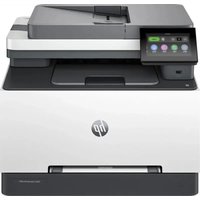
- COPYRIGHT INFORMATION
- HEWLETT-PACKARD COMPANY NOTICES
- ACKNOWLEDGEMENTS
- SAFETY INFORMATION
- TABLE OF CONTENTS
- GET STARTED
- SCAN
- COPY
- FAX
- CHANGE FAX SETTINGS
- FAX AND DIGITAL PHONE SERVICES
- FAX OVER INTERNET PROTOCOL
- USE REPORTS
- WEB SERVICES
- WHAT ARE WEB SERVICES
- SET UP WEB SERVICES
- USE WEB SERVICES
- WORK WITH INK CARTRIDGES
- SOLVE A PROBLEM
- SOLVE PAPER-FEED PROBLEMS
- SOLVE COPY PROBLEMS
- SOLVE SCAN PROBLEMS
- SOLVE FAX PROBLEMS
- SOLVE PROBLEMS USING WEB SERVICES AND HP WEBSITES
- SOLVE MEMORY DEVICE PROBLEMS
- ENVIRONMENTAL PRODUCT STEWARDSHIP PROGRAM
- THIRD-PARTY LICENSES
- APPENDIX B HP SUPPLIES AND ACCESSORIES
- APPENDIX C ADDITIONAL FAX SETUP
- APPENDIX D NETWORK SETUP
- APPENDIX E PRINTER MANAGEMENT TOOLS
- APPENDIX F HOW DO I
- APPENDIX G ERRORS (WINDOWS)
- ACCESSIBILITY
- VISUAL
- MOBILITY
- SUPPORT
- HP ECOSOLUTIONS (HP AND THE ENVIRONMENT)
- MANAGE POWER
- SLEEP MODE
- SCHEDULE ON AND OFF
- OPTIMIZE PRINTING SUPPLIES
- UNDERSTAND THE PRINTER PARTS
- FRONT VIEW
- PRINTING SUPPLIES AREA
- BACK VIEW
- USE THE PRINTER CONTROL PANEL
- OVERVIEW OF BUTTONS AND LIGHTS
- CONTROL PANEL DISPLAY ICONS
- CHANGE PRINTER SETTINGS
- SELECT THE MODE
- TO SELECT A DIFFERENT MODE
- TO CHANGE SETTINGS FOR A MODE
- CHANGE THE PRINTER SETTINGS
- HP DIGITAL SOLUTIONS
- HP DIGITAL SCAN (SCAN TO COMPUTER AND SCAN TO EMAIL)
- HP DIGITAL FAX (FAX TO PC AND FAX TO MAC)
- SELECT PRINT PAPER
- RECOMMENDED PAPERS FOR PRINTING AND COPYING
- RECOMMENDED PAPERS FOR PHOTO PRINTING
- TIPS FOR SELECTING AND USING PAPER
- LOAD AN ORIGINAL ON THE SCANNER GLASS
- TO LOAD AN ORIGINAL ON THE SCANNER GLASS
- LOAD AN ORIGINAL IN THE AUTOMATIC DOCUMENT FEEDER (ADF)
- TO LOAD AN ORIGINAL IN THE ADF
- LOAD PAPER
- LOAD STANDARD-SIZE PAPER
- LOAD ENVELOPES
- LOAD CARDS AND PHOTO PAPER
- LOAD CUSTOM-SIZE PAPER
- INSERT A MEMORY DEVICE
- TO CONNECT A USB FLASH DRIVE
- INSTALL THE ACCESSORIES
- INSTALL THE AUTOMATIC TWO-SIDED PRINTING ACCESSORY (DUPLEXER)
- TURN ON ACCESSORIES IN THE PRINTER DRIVER
- TO TURN ON ACCESSORIES (WINDOWS)
- TO TURN ON ACCESSORIES (MAC OS X)
- MAINTAIN THE PRINTER
- CLEAN THE SCANNER GLASS
- TO CLEAN THE SCANNER GLASS
- CLEAN THE EXTERIOR
- CLEAN THE AUTOMATIC DOCUMENT FEEDER
- TO CLEAN THE ROLLERS OR SEPARATOR PAD
- RESTORE FACTORY DEFAULTS
- UPDATE THE PRINTER
- UPDATE THE PRINTER USING THE EMBEDDED WEB SERVER
- UPDATE THE PRINTER USING THE PRINTER CONTROL PANEL
- OPEN THE HP PRINTER SOFTWARE (WINDOWS)
- TURN THE PRINTER OFF
- PRINT DOCUMENTS
- PRINT DOCUMENTS (WINDOWS)
- PRINT DOCUMENTS (MAC OS X)
- PRINT BROCHURES
- PRINT BROCHURES (WINDOWS)
- PRINT BROCHURES (MAC OS X)
- PRINT ON ENVELOPES
- PRINT ON ENVELOPES (WINDOWS)
- PRINT ON ENVELOPES (MAC OS X)
- PRINT PHOTOS
- PRINT PHOTOS ON PHOTO PAPER (WINDOWS)
- PRINT PHOTOS ON PHOTO PAPER (MAC OS X)
- PRINT PHOTOS FROM A MEMORY DEVICE
- TO PRINT SELECTED PHOTOS
- PRINT ON SPECIAL AND CUSTOM-SIZED PAPER
- PRINT ON SPECIAL OR CUSTOM-SIZED PAPER (MAC OS X)
- SET UP CUSTOM SIZES (MAC OS X)
- PRINT BORDERLESS DOCUMENTS OR PHOTOS
- PRINT BORDERLESS DOCUMENTS OR PHOTOS (WINDOWS)
- PRINT BORDERLESS DOCUMENTS OR PHOTOS (MAC OS X)
- PRINT ON BOTH SIDES (DUPLEXING)
- PERFORM TWO-SIDED PRINTING (WINDOWS)
- PERFORM TWO-SIDED PRINTING (MAC OS X)
- TIPS FOR PRINT SUCCESS
- INK TIPS
- PAPER LOADING TIPS
- PRINTER SETTINGS TIPS (WINDOWS)
- PRINTER SETTINGS TIPS (OS X)
- NOTES
- SCAN AN ORIGINAL
- SCAN TO A COMPUTER
- SCAN AN ORIGINAL TO A COMPUTER FROM THE PRINTER CONTROL PANEL
- SCAN AN ORIGINAL TO A COMPUTER FROM HP PRINTER SOFTWARE
- WINDOWS
- MAC OS X
- SCAN TO A MEMORY DEVICE
- TO SCAN AN ORIGINAL TO A MEMORY DEVICE FROM THE PRINTER CONTROL PANEL
- SCAN TO EMAIL
- SCAN USING WEBSCAN
- TO SCAN USING WEBSCAN
- SCANNING DOCUMENTS AS EDITABLE TEXT
- TO SCAN DOCUMENTS AS EDITABLE TEXT
- CLICK SAVE
- GUIDELINES FOR SCANNING DOCUMENTS AS EDITABLE TEXT
- SAVE YOUR FILE IN THE CORRECT FORMAT
- COPY DOCUMENTS
- TO COPY DOCUMENTS
- CHANGE COPY SETTINGS
- TO CHANGE COPY SETTINGS FOR A SINGLE JOB
- SAVE COPY SETTINGS
- TO SAVE THE CURRENT SETTINGS AS DEFAULTS FOR FUTURE JOBS
- SEND A FAX
- SEND A STANDARD FAX
- TO SEND A STANDARD FAX FROM THE PRINTER CONTROL PANEL
- SEND A STANDARD FAX FROM THE COMPUTER
- SEND A FAX MANUALLY FROM A PHONE
- TO SEND A FAX MANUALLY FROM AN EXTENSION PHONE
- SEND A FAX USING MONITOR DIALING
- TO SEND A FAX USING MONITOR DIALING FROM THE PRINTER CONTROL PANEL
- SEND A FAX FROM MEMORY
- TO SEND A FAX FROM MEMORY
- SCHEDULE A FAX TO SEND LATER
- TO SCHEDULE A FAX FROM THE PRINTER CONTROL PANEL
- TO CANCEL A SCHEDULED FAX
- SEND A FAX TO MULTIPLE RECIPIENTS
- TO SEND A FAX TO MULTIPLE RECIPIENTS USING GROUP SPEED DIAL
- SEND A FAX IN ERROR CORRECTION MODE
- RECEIVE A FAX
- RECEIVE A FAX MANUALLY
- TO RECEIVE A FAX MANUALLY
- SET UP BACKUP FAX
- TO SET BACKUP FAX FROM THE PRINTER CONTROL PANEL
- REPRINT RECEIVED FAXES FROM MEMORY
- TO REPRINT FAXES IN MEMORY FROM THE PRINTER CONTROL PANEL
- POLL TO RECEIVE A FAX
- TO SET UP POLLING TO RECEIVE A FAX FROM THE PRINTER CONTROL PANEL
- FORWARD FAXES TO ANOTHER NUMBER
- TO FORWARD FAXES FROM THE PRINTER CONTROL PANEL
- SET THE PAPER SIZE FOR RECEIVED FAXES
- TO SET THE PAPER SIZE FOR RECEIVED FAXES FROM THE PRINTER CONTROL PANEL
- SET AUTOMATIC REDUCTION FOR INCOMING FAXES
- TO SET AUTOMATIC REDUCTION FROM THE PRINTER CONTROL PANEL
- BLOCK UNWANTED FAX NUMBERS
- ADD NUMBERS TO THE JUNK FAX LIST
- TO ADD A NUMBER TO THE JUNK FAX LIST
- REMOVE NUMBERS FROM THE JUNK FAX LIST
- TO REMOVE NUMBERS FROM THE LIST OF JUNK FAX NUMBERS
- PRINT A JUNK FAX REPORT
- TO PRINT A JUNK FAX REPORT
- RECEIVE FAXES TO YOUR COMPUTER USING HP DIGITAL FAX (FAX TO PC AND FAX TO MAC)
- FAX TO PC AND FAX TO MAC REQUIREMENTS
- ACTIVATE FAX TO PC AND FAX TO MAC
- TO SET UP FAX TO PC (WINDOWS)
- TO SET UP FAX TO MAC (MAC OS X)
- MODIFY FAX TO PC AND FAX TO MAC SETTINGS
- TO MODIFY SETTINGS FROM THE PRINTER CONTROL PANEL
- TO MODIFY SETTINGS FROM THE HP SOFTWARE (WINDOWS)
- TO MODIFY SETTINGS FROM THE HP SOFTWARE (MAC OS X)
- TURN OFF FAX TO PC OR FAX TO MAC
- SET UP SPEED-DIAL ENTRIES
- SET UP AND CHANGE SPEED-DIAL ENTRIES
- TO SET UP SPEED-DIAL ENTRIES
- TO CHANGE SPEED-DIAL ENTRIES
- SET UP AND CHANGE GROUP SPEED-DIAL ENTRIES
- TO CHANGE GROUP SPEED-DIAL ENTRIES
- DELETE SPEED-DIAL ENTRIES
- PRINT A LIST OF SPEED-DIAL ENTRIES
- CONFIGURE THE FAX HEADER
- TO SET OR CHANGE THE FAX HEADER
- SET THE ANSWER MODE (AUTO ANSWER)
- TO SET THE ANSWER MODE
- SET THE NUMBER OF RINGS BEFORE ANSWERING
- TO SET THE NUMBER OF RINGS BEFORE ANSWERING
- CHANGE THE ANSWER RING PATTERN FOR DISTINCTIVE RING
- TO CHANGE THE ANSWER RING PATTERN FOR DISTINCTIVE RING
- SET THE DIAL TYPE
- TO SET THE DIAL TYPE
- SET THE RADIAL OPTIONS
- TO SET THE REDIAL OPTIONS
- SET THE FAX SPEED
- TO SET THE FAX SPEED
- SET THE FAX SOUND VOLUME
- TO SET THE FAX SOUND VOLUME
- PRINT FAX CONFIRMATION REPORTS
- TO ENABLE FAX CONFIRMATION
- TO INCLUDE AN IMAGE OF THE FAX ON THE REPORT
- PRINT FAX ERROR REPORTS
- TO SET THE PRINTER TO PRINT FAX ERROR REPORTS AUTOMATICALLY
- PRINT AND VIEW THE FAX LOG
- TO PRINT THE FAX LOG FROM THE PRINTER CONTROL PANEL
- CLEAR THE FAX LOG
- TO CLEAR THE FAX LOG
- PRINT THE DETAILS OF THE LAST FAX TRANSACTION
- TO PRINT THE LAST FAX TRANSACTION REPORT
- PRINT A CALLER ID REPORT
- TO PRINT A CALLER ID HISTORY REPORT
- VIEW THE CALL HISTORY
- TO VIEW THE CALL HISTORY
- HP EPRINT
- PRINTER APPS
- SETUP WEB SERVICES
- SET UP WEB SERVICES USING THE PRINTER CONTROL PANEL
- SET UP WEB SERVICES USING THE EMBEDDED WEB SERVER
- SET UP WEB SERVICES USING THE HP PRINTER SOFTWARE
- PRINT USING HP EPRINT
- FIND THE PRINTER'S EMAIL ADDRESS
- TURN OFF HP EPRINT
- USE PRINTER APPS
- MANAGE PRINTER APPS
- TURN OFF PRINTER APPS
- REMOVE WEB SERVICES
- INFORMATION ON INK CARTRIDGES AND THE PRINTHEAD
- RELATED TOPICS
- CHECK THE ESTIMATED INK LEVELS
- PRINTING WITH BLACK OR COLOR INK ONLY
- REPLACE THE INK CARTRIDGES
- TO REPLACE THE INK CARTRIDGES
- STORE PRINTING SUPPLIES
- ANONYMOUS USAGE INFORMATION STORAGE
- TO DISABLE THE USAGE INFORMATION FUNCTION
- HP SUPPORT
- OBTAIN ELECTRONIC SUPPORT
- HP SUPPORT BY PHONE
- BEFORE YOU CALL
- PHONE SUPPORT PERIOD
- TELEPHONE SUPPORT NUMBERS
- WWW.HP.COM/SUPPORT
- AFTER THE PHONE SUPPORT PERIOD
- GENERAL TROUBLESHOOTING TIPS AND RESOURCES
- SOLVE PRINTER PROBLEMS
- THE PRINTER SHUTS DOWN UNEXPECTEDLY
- THE PRINTER IS MAKING SOME UNEXPECTED NOISES
- ALIGNMENT FAILS
- THE PRINTER IS NOT RESPONDING (NOTHING PRINTS)
- THE PRINTER PRINTS SLOWLY
- SOLUTION 3: CONTACT HP SUPPORT
- BLANK OR PARTIAL PAGE PRINTED
- CLEAN THE PRINTHEAD
- CHECK THE PAPER SETTINGS
- MORE THAN ONE PAGE IS BEING PICKED
- THERE IS A BLANK PAGE IN THE FILE
- SOMETHING ON THE PAGE IS MISSING OR INCORRECT
- CHECK THE PRINT QUALITY DIAGNOSTIC PAGE
- CHECK THE MARGIN SETTINGS
- CHECK THE COLOR PRINT SETTINGS
- CHECK THE PRINTER LOCATION AND LENGTH OF USB CABLE
- CHECK THE PAPER SIZE
- PLACEMENT OF THE TEXT OR GRAPHICS IS WRONG
- CHECK HOW THE PAPER IS LOADED
- CHECK THE PAGE-ORIENTATION SETTING
- PRINT QUALITY TROUBLESHOOTING
- SOLUTION 1: MAKE SURE YOU ARE USING ORIGINAL HP INK CARTRIDGES
- SOLUTION 2: CHECK THE INK LEVELS
- SOLUTION 3: CHECK THE PAPER LOADED IN THE INPUT TRAY
- SOLUTION 4: CHECK THE PAPER TYPE
- SOLUTION 5: CHECK THE PRINT SETTINGS
- SOLUTION 6: PRINT AND EVALUATE A PRINT QUALITY REPORT
- TO PRINT A PRINT QUALITY REPORT
- SOLUTION 7: CONTACT HP SUPPORT
- MEDIA IS NOT SUPPORTED FOR THE PRINTER OR TRAY
- PAPER IS NOT PICKED UP FROM A TRAY
- MEDIA IS NOT COMING OUT CORRECTLY
- PAGES ARE SKEWING
- MULTIPLE PAGES ARE BEING PICKED UP
- NO COPY CAME OUT
- COPIES ARE BLANK
- DOCUMENTS ARE MISSING OR FADED
- CHECK THE SETTINGS
- CHECK THE ORIGINAL
- SIZE IS REDUCED
- COPY QUALITY IS POOR
- TAKE STEPS TO IMPROVE THE COPY QUALITY
- CHECK THE PRINTER
- COPY DEFECTS ARE APPARENT
- THE PRINTER PRINTS HALF A PAGE, THEN EJECTS THE PAPER
- CHECK THE INK CARTRIDGES
- PAPER MISMATCH
- CHECK THE HP SOFTWARE
- SCAN TAKES TOO LONG
- CHECK THE STATUS OF THE PRINTER
- PART OF THE DOCUMENT DID NOT SCAN OR TEXT IS MISSING
- TEXT CANNOT BE EDITED
- CHECK THE ORIGINALS
- ERROR MESSAGES APPEAR
- SCANNED IMAGE QUALITY IS POOR
- TEXT OR IMAGES ON THE BACK OF A TWO-SIDED ORIGINAL APPEAR IN THE SCAN
- THE SCANNED IMAGE IS SKEWED (CROOKED)
- THE IMAGE QUALITY IS BETTER WHEN PRINTED
- THE SCANNED IMAGE SHOWS BLOTS, LINES, VERTICAL WHITE STRIPES, OR OTHER DEFECTS
- GRAPHICS LOOK DIFFERENT FROM THE ORIGINAL
- TAKE STEPS TO IMPROVE THE SCAN QUALITY
- SCAN DEFECTS ARE APPARENT
- BLANK PAGES
- TOO LIGHT OR DARK
- UNWANTED LINES
- BLACK DOTS OR STREAKS
- UNCLEAR TEXT
- THE FAX TEST FAILED
- THE "FAX HARDWARE TEST" FAILED
- THE "FAX CONNECTED TO ACTIVE TELEPHONE WALL JACK" TEST FAILED
- THE "PHONE CORD CONNECTED TO CORRECT PORT ON FAX" TEST FAILED
- THE "USING CORRECT TYPE OF PHONE CORD WITH FAX" TEST FAILED
- THE "DIAL TONE DETECTION" TEST FAILED
- THE "FAX LINE CONDITION" TEST FAILED
- THE DISPLAY ALWAYS SHOWS PHONE OFF HOOK
- THE PRINTER IS HAVING PROBLEMS SENDING AND RECEIVING FAXES
- THE PRINTER IS HAVING PROBLEMS SENDING A MANUAL FAX
- THE PRINTER CANNOT RECEIVE FAXES, BUT CAN SEND FAXES
- THE PRINTER CANNOT SEND FAXES, BUT CAN RECEIVE FAXES
- WHEN YOU HAVE AN ANSWERING MACHINE ON THE SAME PHONE LINE YOU USE FOR FAX CALLS, TRY CONNECTING THE ANSWERING MACHINE DIRECTLY TO THE PRINTER AS DESCRIBED IN CASE I: SHARED VOICE/FAX LINE WITH ANSWERING MACHINE ON PAGE 221. IF YOU DO NOT CONNECT THE ANSWERING MACHINE AS RECOMMENDED, FAX TONES MIGHT BE RECORDED ON YOUR ANSWERING MACHINE
- THE PHONE CORD THAT CAME WITH MY PRINTER IS NOT LONG ENOUGH
- TO EXTEND YOUR PHONE CORD
- COLOR FAXES DO NOT PRINT
- THE COMPUTER CANNOT RECEIVE TAXES (FAX TO PC AND FAX TO MAC)
- CAUSE
- SOLVE PROBLEMS USING WEB SERVICES
- SOLVE PROBLEMS USING HP WEBSITES
- THE PRINTER CANNOT READ THE MEMORY DEVICE
- CHECK THE MEMORY DEVICE
- CHECK THE MEMORY DEVICE SLOT
- THE PRINTER CANNOT READ PHOTOS ON THE MEMORY DEVICE
- SOLVE NETWORK PROBLEMS
- SOLVE ETHERNET NETWORK PROBLEMS
- SOLVE WIRELESS PROBLEMS
- BASIC WIRELESS TROUBLESHOOTING
- STEP 1 - MAKE SURE THE WIRELESS (802.11) LIGHT IS TURNED ON
- TO TURN ON THE PRINTER WIRELESS CAPABILITIES
- STEP 2 - MOVE THE PRINTER CLOSER TO THE WIRELESS ROUTER
- STEP 3 - RUN THE WIRELESS NETWORK TEST
- ADVANCED WIRELESS TROUBLESHOOTING
- STEP 1: MAKE SURE YOUR COMPUTER IS CONNECTED TO YOUR NETWORK
- TO CHECK AN ETHERNET CONNECTION
- TO CHECK A WIRELESS CONNECTION
- STEP 2: MAKE SURE THAT THE PRINTER IS CONNECTED TO YOUR NETWORK
- A: MAKE SURE THE PRINTER IS ON THE NETWORK
- B: CHECK TO SEE IF YOU CAN ACCESS THE EWS
- TO ACCESS THE EWS
- C: CHECK YOUR PRINTER CONNECTION STATUS USING THE PRINTER CONTROL PANEL
- STEP 3: MAKE SURE YOUR COMPUTER IS NOT CONNECTED OVER A VIRTUAL PRIVATE NETWORK (VPN)
- STEP 4: MAKE SURE THE PRINTER IS ONLINE AND READY
- STEP 5: MAKE SURE THE HP PRINTER LABELED (NETWORK) IS SET AS THE DEFAULT PRINTER DRIVER (WINDOWS ONLY)
- STEP 6: CHECK TO SEE IF THE FIREWALL SOFTWARE IS BLOCKING COMMUNICATION
- AFTER RESOLVING THE PROBLEMS
- RESET THE PRINTER NETWORK SETTINGS
- CONFIGURE YOUR FIREWALL SOFTWARE TO WORK WITH THE PRINTER
- SOLVE PRINTER MANAGEMENT PROBLEMS
- EMBEDDED WEB SERVER CANNOT BE OPENED
- CHECK YOUR NETWORK SETUP
- CHECK THE COMPUTER
- CHECK YOUR WEB BROWSER
- CHECK THE PRINTER IP ADDRESS
- TROUBLESHOOT INSTALLATION ISSUES
- HARDWARE INSTALLATION SUGGESTIONS
- CHECK THE HARDWARE CONNECTIONS
- HP SOFTWARE INSTALLATION SUGGESTIONS
- CHECK THE COMPUTER SYSTEM
- VERIFY INSTALLATION PRELIMINARIES
- UNDERSTAND THE PRINTER STATUS REPORT
- TO PRINT THE PRINTER STATUS REPORT
- UNDERSTAND THE NETWORK CONFIGURATION PAGE
- TO PRINT THE NETWORK CONFIGURATION PAGE FROM THE PRINTER CONTROL PANEL
- PRINTHEAD MAINTENANCE
- TO CLEAN THE PRINTHEAD FROM THE CONTROL PANEL
- TO CLEAN THE PRINTHEAD FROM TOOLBOX (WINDOWS)
- TO CLEAN THE PRINTHEAD FROM HP UTILITY (MAC OS X)
- TO CLEAN THE PRINTHEAD FROM THE EMBEDDED WEB SERVER (EWS)
- ALIGN THE PRINTHEAD
- TO ALIGN THE PRINTHEAD FROM THE CONTROL PANEL
- TO ALIGN THE PRINTHEAD FROM TOOLBOX (WINDOWS)
- TO ALIGN THE PRINTHEAD FROM HP UTILITY (MAC OS X)
- TO ALIGN THE PRINTHEAD FROM THE EMBEDDED WEB SERVER (EWS)
- UNINSTALL AND REINSTALL THE HP SOFTWARE
- TO UNINSTALL FROM A WINDOWS COMPUTER
- TO UNINSTALL FROM A MAC COMPUTER
- CLEAR JAMS
- CLEAR PAPER JAMS
- TO CLEAR A JAM INSIDE THE PRINTER
- AVOID PAPER JAMS
- A TECHNICAL INFORMATION
- WARRANTY INFORMATION
- HEWLETT-PACKARD LIMITED WARRANTY STATEMENT
- EXTENT OF LIMITED WARRANTY
- LIMITATIONS OF WARRANTY
- LIMITATIONS OF LIABILITY
- LOCAL LAW
- INK CARTRIDGE WARRANTY INFORMATION
- PRINTER SPECIFICATIONS
- PHYSICAL SPECIFICATIONS
- PRINTER WEIGHT
- PRODUCT FEATURES AND CAPACITIES
- PROCESSOR AND MEMORY SPECIFICATIONS
- SYSTEM REQUIREMENTS
- NETWORK PROTOCOL SPECIFICATIONS
- EMBEDDED WEB SERVER SPECIFICATIONS
- REQUIREMENTS
- PAPER SPECIFICATIONS
- UNDERSTAND SPECIFICATIONS FOR SUPPORTED PAPER
- UNDERSTAND SUPPORTED SIZES
- SET MINIMUM MARGINS
- GUIDELINES FOR PRINTING ON BOTH SIDES OF A PAGE
- PRINT RESOLUTION
- COPY SPECIFICATIONS
- FAX SPECIFICATIONS
- FAX TO PC/FAX TO MAC SPECIFICATIONS
- SCAN SPECIFICATIONS
- WEB SERVICES SPECIFICATIONS
- HP WEBSITE SPECIFICATIONS
- ENVIRONMENTAL SPECIFICATIONS
- OPERATING ENVIRONMENT
- STORAGE ENVIRONMENT
- ELECTRICAL SPECIFICATIONS
- POWER SUPPLY
- POWER REQUIREMENTS
- POWER CONSUMPTION
- ACOUSTIC EMISSION SPECIFICATIONS
- MEMORY DEVICE SPECIFICATIONS
- USB FLASH DRIVES
- REGULATORY INFORMATION
- REGULATORY MODEL NUMBER
- FCC STATEMENT
- NOTICE TO USERS IN KOREA
- NOTICE TO USERS OF THE U.S. TELEPHONE NETWORK: FCC REQUIREMENTS
- NOTICE TO USERS OF THE CANADIAN TELEPHONE NETWORK
- NOTICE TO USERS IN THE EUROPEAN ECONOMIC AREA
- NOTICE TO USERS OF THE GERMAN TELEPHONE NETWORK
- AUSTRALIA WIRED FAX STATEMENT
- EUROPEAN UNION REGULATORY NOTICE
- PRODUCTS WITH WIRELESS LAN DEVICES
- FRANCE
- REGULATORY INFORMATION FOR WIRELESS PRODUCTS
- EXPOSURE TO RADIO FREQUENCY RADIATION
- NOTICE TO USERS IN BRAZIL
- NOTICE TO USERS IN TAIWAN
- REGULATIONS FOR LOW-POWER RADIO-FREQUENCY DEVICES
- ARTICLE
- NOTICE TO USERS IN MEXICO
- NOTICE TO USERS IN JAPAN
- PAPER USE
- PLASTICS
- MATERIAL SAFETY DATA SHEETS
- RECYCLING PROGRAM
- HP INKJET SUPPLIES RECYCLING PROGRAM
- DISPOSAL OF WASTE EQUIPMENT BY USERS IN PRIVATE HOUSEHOLDS IN THE EUROPEAN UNION
- CHEMICAL SUBSTANCES
- BATTERY INFORMATION
- PLEASE RECYCLE WASTE BATTERIES
- ROHS NOTICES (CHINA ONLY)
- ROHS NOTICES (UKRAINE ONLY)
- REGULATORY REQUIREMENTS FOR THE SAFE HANDLING OF WASTE (UKRAINE)
- B HP SUPPLIES AND ACCESSORIES
- ORDER PRINTING SUPPLIES ONLINE
- SUPPLIES
- INK CARTRIDGES
- HP PAPER
- C ADDITIONAL FAX SETUP
- SET UP FAXING (PARALLEL PHONE SYSTEMS)
- SELECT THE CORRECT FAX SETUP FOR YOUR HOME OR OFFICE
- CASE A: SEPARATE FAX LINE (NO VOICE CALLS RECEIVED)
- TO SET UP THE PRINTER WITH A SEPARATE FAX LINE
- CASE B: SET UP THE PRINTER WITH DSL
- TO SET UP THE PRINTER WITH DSL
- CASE C: SET UP THE PRINTER WITH A PBX PHONE SYSTEM OR AN ISDN LINE
- CASE D: FAX WITH A DISTINCTIVE RING SERVICE ON THE SAME LINE
- TO SET UP THE PRINTER WITH A DISTINCTIVE RING SERVICE
- CASE E: SHARED VOICE/FAX LINE
- TO SET UP THE PRINTER WITH A SHARED VOICE/FAX LINE
- RUN A FAX TEST
- CASE F: SHARED VOICE/FAX LINE WITH VOICE MAIL
- TO SET UP THE PRINTER WITH VOICE MAIL
- CASE G: FAX LINE SHARED WITH COMPUTER MODEM (NO VOICE CALLS RECEIVED)
- SET UP THE PRINTER WITH A COMPUTER DIAL-UP MODEM
- TO SET UP THE PRINTER WITH A COMPUTER DIAL-UP MODEM
- SET UP THE PRINTER WITH A COMPUTER DSL/ADSL MODEM
- TO SET UP THE PRINTER WITH A COMPUTER DSL/ADSL MODEM
- CASE H: SHARED VOICE/FAX LINE WITH COMPUTER MODEM
- SHARED VOICE/FAX WITH COMPUTER DIAL-UP MODEM
- SHARED VOICE/FAX WITH COMPUTER DSL/ADSL MODEM
- CASE I: SHARED VOICE/FAX LINE WITH ANSWERING MACHINE
- TO SET UP THE PRINTER WITH A SHARED VOICE/FAX LINE WITH ANSWERING MACHINE
- CASE J: SHARED VOICE/FAX LINE WITH COMPUTER MODEM AND ANSWERING MACHINE
- SHARED VOICE/FAX LINE WITH COMPUTER DIAL-UP MODEM AND ANSWERING MACHINE
- SHARED VOICE/FAX LINE WITH COMPUTER DSL/ADSL MODEM AND ANSWERING MACHINE
- CASE K: SHARED VOICE/FAX LINE WITH COMPUTER DIAL-UP MODEM AND VOICE MAIL
- TO SET UP THE PRINTER ON THE SAME PHONE LINE AS A COMPUTER WITH TWO PHONE PORTS
- SERIAL-TYPE FAX SETUP
- TEST FAX SETUP
- TO TEST FAX SETUP VIA THE PRINTER CONTROL PANEL
- D NETWORK SETUP
- SET UP THE PRINTER FOR WIRELESS COMMUNICATION
- BEFORE YOU BEGIN
- SET UP THE PRINTER ON YOUR WIRELESS NETWORK
- SET UP THE PRINTER USING THE HP PRINTER SOFTWARE
- SET UP THE PRINTER USING THE WIRELESS SETUP WIZARD
- SET UP THE PRINTER USING WIFI PROTECTED SETUP (WPS)
- TO CONNECT THE PRINTER USING THE PUSH BUTTON METHOD
- TO CONNECT THE PRINTER USING THE PIN METHOD
- SET UP THE PRINTER USING THE EMBEDDED WEB SERVER (EWS)
- CHANGE THE CONNECTION TYPE
- CHANGE FROM AN ETHERNET CONNECTION TO A WIRELESS CONNECTION
- CHANGE FROM A USB CONNECTION TO A WIRELESS CONNECTION
- CHANGE FROM A WIRELESS CONNECTION TO A USB OR ETHERNET CONNECTION
- TEST THE WIRELESS CONNECTION
- TO PRINT THE WIRELESS TEST PAGE
- GUIDELINES FOR ENSURING WIRELESS NETWORK SECURITY
- OVERVIEW OF SECURITY SETTINGS
- ADD HARDWARE ADDRESSES TO A WIRELESS ROUTER (MAC FILTERING)
- TO ADD HARDWARE ADDRESSES TO A WIRELESS ROUTER OR WIRELESS ACCESS POINT
- OTHER WIRELESS SECURITY GUIDELINES
- GUIDELINES FOR REDUCING INTERFERENCE ON A WIRELESS NETWORK
- CHANGE BASIC NETWORK SETTINGS
- VIEW AND PRINT NETWORK SETTINGS
- TURN THE WIRELESS RADIO ON AND OFF
- CHANGE ADVANCED NETWORK SETTINGS
- SET LINK SPEED
- VIEW IP SETTINGS
- CHANGE IP SETTINGS
- RESET NETWORK SETTINGS
- HP WIRELESS DIRECT PRINTING
- TURN ON HP WIRELESS DIRECT PRINTING
- PRINT FROM A WIRELESS-CAPABLE MOBILE DEVICE
- PRINT FROM A WIRELESS-CAPABLE COMPUTER
- PRINT FROM A WIRELESS-CAPABLE COMPUTER (WINDOWS)
- PRINT FROM A WIRELESS-CAPABLE COMPUTER (MAC OS X)
- E PRINTER MANAGEMENT TOOLS
- TOOLBOX (WINDOWS)
- OPEN THE TOOLBOX
- HP UTILITY (MAC OS X)
- TO OPEN HP UTILITY
- EMBEDDED WEB SERVER
- ABOUT COOKIES
- TO OPEN THE EMBEDDED WEB SERVER
- F HOW DO I
- G ERRORS (WINDOWS)
- FAX MEMORY FULL
- UNABLE TO COMMUNICATE WITH PRINTER
- LOW ON INK
- CARTRIDGE PROBLEM
- SOLUTION 1: TURN THE PRINTER OFF AND ON
- SOLUTION 2: INSTALL THE INK CARTRIDGES CORRECTLY
- REPLACE THE INK CARTRIDGE
- THE CARTRIDGE CRADLE CANNOT MOVE
- PAPER JAM
- THE PRINTER IS OUT OF PAPER
- PRINTER OFFLINE
- PRINTER PAUSED
- DOCUMENT FAILED TO PRINT
- PRINTER FAILURE
- DOOR OR COVER OPEN
- PREVIOUSLY USED INK CARTRIDGE INSTALLED
- INK CARTRIDGES DEPLETED
- INK CARTRIDGE FAILURE
- PRINTER SUPPLY UPGRADE
- PRINTER SUPPLY UPGRADE SUCCESSFUL
- PRINTER SUPPLY UPGRADE PROBLEM
- NON-HP INK CARTRIDGES INSTALLED
- USING ORIGINAL HP CARTRIDGES HAS ITS REWARDS
- COUNTERFEIT CARTRIDGE ADVISORY
- USED, REFILLED OR COUNTERFEIT CARTRIDGE DETECTED
- USE SETUP CARTRIDGES
- DO NOT USE SETUP CARTRIDGES
- NOT ENOUGH INK AT STARTUP
- USE BLACK INK ONLY
- USE COLOR INK ONLY
- INCOMPATIBLE INK CARTRIDGES
- INK SENSOR FAILURE
- INK SENSOR WARNING
- PROBLEM WITH PRINTER PREPARATION
- COLOR CARTRIDGE OUT OF INK
- BLACK CARTRIDGE OUT OF INK
- AUTOMATIC DOCUMENT FEEDER COVER OPEN
- PROBLEM WITH INK SYSTEM
- INDEX
- A
- B SIZE
- C
- D
- E
- F
- G
- H
- J
- L
- M
- P
- Q
- R
- S
Brand : HP
Model : OFFICEJET 7612
Category : Multifunction Printer