
MULTIFONCTION JET D ENCRE ENVY 4507 - Multifunction Printer HP - Free user manual and instructions
Find the device manual for free MULTIFONCTION JET D ENCRE ENVY 4507 HP in PDF.


| Product type | Multifunction inkjet printer |
| Brand | HP |
| Model | ENVY 4507 |
| Main functions | Print, copy, scan |
| Print speed (black) | Up to 9 pages per minute |
| Print speed (color) | Up to 6 pages per minute |
| Maximum print resolution | 4800 x 1200 dpi optimized |
| Supported paper sizes | A4, A5, B5, envelopes, photo cards |
| Input tray capacity | 80 sheets |
| Connectivity | Wi-Fi, USB 2.0, Wi-Fi Direct |
| Dimensions (W x D x H) | 44.7 x 35.2 x 13.5 cm |
| Weight | 4.0 kg |
| Power supply | 100-240 V AC, 50/60 Hz |
| Power consumption (standby) | 2.2 W |
| Noise level | 57 dB (printing) |
| Compatible cartridges | HP 62, HP 62XL |
| Maintenance and cleaning | Clean print heads via HP software |
| Safety | Use a grounded outlet, do not expose to moisture |
| Spare parts and repairability | Cartridges, external power supply |
| General information | Home multifunction printer, compatible with Windows and macOS |
Frequently Asked Questions - MULTIFONCTION JET D ENCRE ENVY 4507 HP
User questions about MULTIFONCTION JET D ENCRE ENVY 4507 HP
0 question about this device. Answer the ones you know or ask your own.
Ask a new question about this device
Download the instructions for your Multifunction Printer in PDF format for free! Find your manual MULTIFONCTION JET D ENCRE ENVY 4507 - HP and take your electronic device back in hand. On this page are published all the documents necessary for the use of your device. MULTIFONCTION JET D ENCRE ENVY 4507 by HP.
USER MANUAL MULTIFONCTION JET D ENCRE ENVY 4507 HP
HP ENVY 4500 e-All-in-One series
Table of contents
1 HP ENVY 4500 e-All-in-One series Help 2 Get to know the HP ENVY 4500 series 3
Printer parts 4 Control panel and status lights 5 Wireless settings 7 Auto-Off 8
3 Print 9
HP ePrint 10 Print documents 12 Print photos 14 Print Quick Forms 15 Print envelopes 16 Print with HP wireless direct 17 Print using the maximum dpi 19 Tips for print success 20
4 Paper basics 23
Recommended papers for printing 24 Load media 26 Order HP Paper Supplies 31
5 Copy and scan 33
Copy documents 34 Scan to a computer 36 Tips for copy success 38 Tips for scan success 39
6 Work with cartridges 41
Check the estimated ink levels 42
Order ink supplies 43 Choose right ink cartridges 44 Replace the cartridges 45 Use single-cartridge mode 47 Cartridge warranty information 48 Tips for working with cartridges 49
7 Connectivity 51
Wi-Fi Protected Setup (WPS - requires WPS router) 52 Traditional wireless connection (requires router) 53 USB connection (non-network connection) 54 Change from a USB connection to a wireless network 55 Connect wirelessly to the printer without a router 56 Tips for setting up and using a networked printer 57 Advanced printer management tools (for networked printers) 58
8 Solve a problem 61
Improve print quality 62 Clear a paper jam 66 Unable to print 70 Clear the print carriage 74 Prepare paper trays 75 Printer failure 77 Resolve ink cartridge problem 78 Ink cartridge problem 80 Older generation cartridges 81 Networking 82 HP support 83
Appendix A Technical information 85
Hewlett-Packard Company notices 86 Anonymous usage information storage 87 Specifications 88 Environmental product stewardship program 92 Regulatory notices 96
Index 103
1 HP ENVY 4500 e-All-in-One series Help
Learn how to use your HP ENVY 4500 series
- Printer parts on page 4 Control panel and status lights on page 5
- Load media on page 26 Print on page 9
- Copy documents on page 34
- Scan to a computer on page 36
- Replace the cartridges on page 45 Clear a paper jam on page 66 Check the estimated ink levels on page 42
2 Get to know the HP ENVY 4500 series
- Printer parts Control panel and status lights
- Wireless settings Auto-Off
Printer parts
- Front and top views of the HP ENVY 4500 series
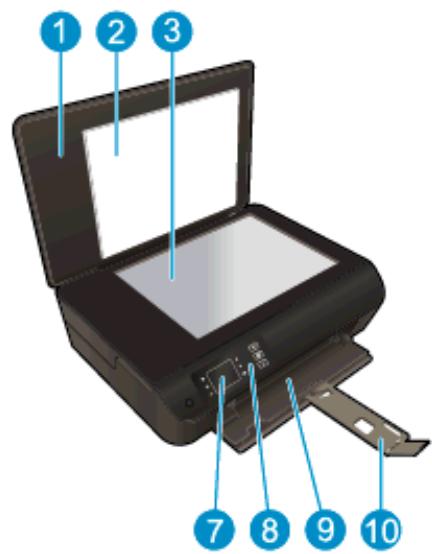
| 1 | Lid |
| 2 | Lid-backing |
| 3 | Scanner glass |
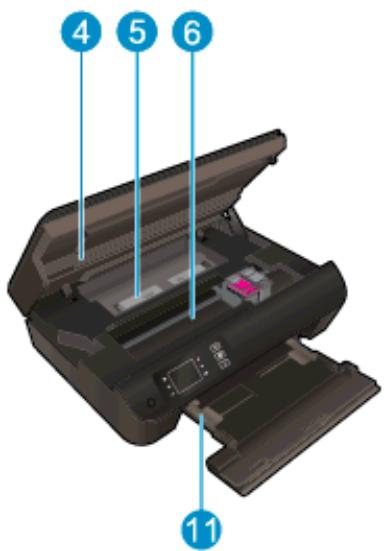
| 4 | Cartridge access door |
| 5 | Cleanout |
| 6 | Cartridge access area |
| 7 | Printer display |
| 8 | Control panel |
| 9 | Paper tray |
| 10 | Paper tray extender (also referred to as the tray extender) |
| 11 | Paper-width guides |
Rear view of the HP ENVY 4500 series
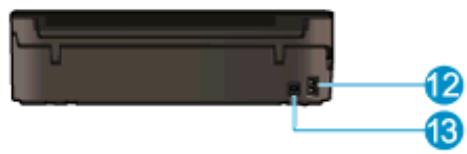
| 12 | Power connection |
| 13 | USB port |
Control panel and status lights
Figure 2-1 Control panel features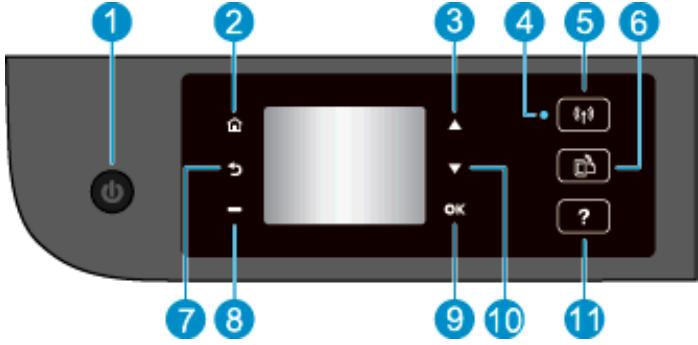
| Feature | Description |
| 1 | On button: Turns the printer on or off. |
| 2 | home: Returns to the Home screen, the screen that is displayed when you first turn on the printer. |
| 3 | Up button: Use this button to navigate menus and select number of copies. |
| 4 | Wireless status light: Blue light indicates wireless connection. |
| 5 | Wireless button: Press the button to view wireless status and menu options. Press and hold down the button until light blinks to start Wi-Fi Protected Setup (WPS) push button mode. |
| 6 | ePrint button: Press the button to display the Web Services Settings menu where you can view printer's email address and make ePrint settings. |
| 7 | Back: Returns to the previous screen. |
| 8 | Selection button: Contextual button that changes depending on what is displayed on the printer display. |
| 9 | OK: Confirms the current selection. |
| 10 | Down button: Use this button to navigate menus and select number of copies. |
| 11 | Help: On the Home screen, shows all Help topics. On another screen, shows information or animation on the display to assist in the current operation. |
Figure 2-2 On button light
| Light behavior | Solution |
| Off | The printer is powered off. |
| Dimmed | Indicates the printer is in Sleep mode. The printer automatically enters Sleep mode after 5 minutes of inactivity. |
| Fast blinking | Error has occurred. Refer to the messages on the printer display. |
| Pulsing | Indicates that the printer is initializing or is being shut down. |
| On | The printer is printing, scanning, copying, or is on and ready to print. |
Figure 2-3 Wireless status light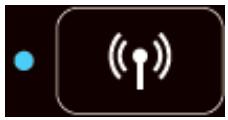
| Light behavior | Solution |
| Off | Wireless is off. Press the Wireless button to access wireless menu on the printer display. Use the wireless menu to enable wireless printing. |
| Slow blinking | Wireless is connecting or is on but not connected to a network. If the connection cannot be established, make sure the printer is within the range of wireless signal. |
| Fast blinking | Wireless error has occurred. Refer to the messages on the printer display. |
| On | Wireless connection has been established and you can print. |
Wireless settings
Press the Wireless button to view wireless status and menu options.
- If the printer has an active connection to a wireless network, the wireless light will be on solid blue. Meanwhile, the printer display will show Connected and the printer's IP address. If wireless is turned off, the wireless light will be off, and the display screen shows Wireless Off.
- If wireless is enabled (wireless radio on) and you do not have a wireless connection, the wireless light will be blinking. Meanwhile, the display screen shows that it is either in the process of Connecting or Not Connected.
You can use the printer display to retrieve information about your wireless network, establish a wireless connection, and more.
| How do I? | Instructions |
| Print network configuration page. | 1. Press the Wireless button to access the Wireless Status menu. |
| The network configuration page will display the network status, hostname, network name, and more. | 2. Press the button next to Settings to access the Wireless Settings menu. |
| 3. Select Print Report, and then select Configuration Page. | |
| Print wireless network test report. | 1. Press the Wireless button to access the Wireless Status menu. |
| The wireless network test report will display the diagnostics results for the status of the wireless network, wireless signal strength, detected networks, and more. | 2. Press the button next to Settings to access the Wireless Settings menu. |
| 3. Select Print Report, and then select Test Report. | |
| Restore network settings to default settings. | 1. Press the Wireless button to access the Wireless Status menu. |
| 2. Press the button next to Settings to access the Wireless Settings menu. | |
| 3. Select Restore Defaults. | |
| 4. Confirm selection to restore defaults. | |
| Turn wireless on or off. | 1. Press the Wireless button to access the Wireless Settings menu. |
| 2. Select Wireless. | |
| 3. From the Wireless On/Off menu select On or Off. | |
| Establish a Wi-Fi Protected Setup (WPS) connection. | For more information, see Wi-Fi Protected Setup (WPS - requires WPS router) on page 52. |
Auto-Off
Auto-Off is automatically enabled by default when you turn on the printer. When Auto-Off is enabled, the printer will automatically turn off after 2 hours of inactivity to help reduce energy use. Auto-Off turns the printer off completely, so you must use the On button to turn the printer back on. For printer models with wireless or Ethernet network capability, Auto-Off is automatically disabled when the printer establishes a wireless or Ethernet network connection. Even when Auto-Off is disabled, the printer enters Sleep mode after 5 minutes of inactivity to help reduce energy use.
You can change the Auto-Off setting from the control panel.
To change Auto-Off setting
- From the Home screen on the printer display, select Preferences.

NOTE: If you do not see the Home screen, press the Home button.
- From the Preferences menu, select Auto-Off.
- From the Auto-Off menu, select On or Off, and then press OK to confirm the setting.
Once you change the setting, the printer maintains the setting.
3 Print
HP ePrint - Print documents - Print photos - Print Quick Forms - Print envelopes - Print with HP wireless direct - Print using the maximum dpi - Tips for print success
HP ePrint
HP ePrint is a free service from HP that allows you to print to your HP ePrint-enabled printer anytime, from any location. It's as simple as sending an email to the email address assigned to your printer when you enable Web Services on the printer. No special drivers or software are needed. If you can send an email, you can print from anywhere, using HP ePrint.
Once you have signed up for an account on HP Connected (www.hpconnected.com), you can sign in to view your ePrint job status, manage your HP ePrint printer queue, control who can use your printer's HP ePrint email address to print, and get help for HP ePrint.
HP ePrint allows you to print to your HP ePrint-enabled printer anytime, from any location.
To use HP ePrint, make sure to have the following:
An Internet- and email-capable computer or mobile device - An HP ePrint-capable printer on which Web Services has been enabled
NOTE: The email will be printed once it is received. As with any email, there is no guarantee when or whether it will be received. You can check the print status on HP Connected (www.hpconnected.com). NOTE: Documents printed with HP ePrint may appear different from the original. Style, formatting, and text flow may differ from the original document. For documents that need to be printed with a higher quality (such as legal documents), we recommend that you print from the software application on your computer, where you will have more control over what your printout looks like. Tip: For more information about managing and configuring HP ePrint settings and to learn about the latest features, visit HP Connected (www.hpconnected.com)
To print using HP ePrint
- Enable Web Services.
a. From the printer control panel, press the ePrint button. b. Accept the Terms of Use, and then follow the on-screen instructions to enable Web Services. c. Print the ePrint information page, and then follow the instructions on the page to sign up for an HP ePrint account.
- On your computer or mobile device, open your email application.

NOTE: For information about using the email application on your computer or mobile device, see the documentation provided with the application.
- Create a new email message, and then attach the file that you want to print.
- Enter the printer's email address in the "To" line of the email message, and then select the option to send the email message.

NOTE: Do not include any email address in the "Bcc" field; this field is required to be blank. If there is an email address or printer address in the "Bcc" field, the job will not be printed.
To find the printer's email address
- Press the ePrint button on the control panel. You will see the Web Services Settings menu on the printer display.
- Select Display Email Address from the printer display to view the printer's email address.

TIP: To customize the email address, select Print Info Page from the Web Services Settings menu on the printer display. The printer prints an information page that contains the printer code and instructions on how to customize the email address.
To turn off ePrint
- Press the ePrint button on the control panel. You will see the Web Services Settings menu on the printer display.
- Select ePrint from the printer display, and then select Off.
Print documents
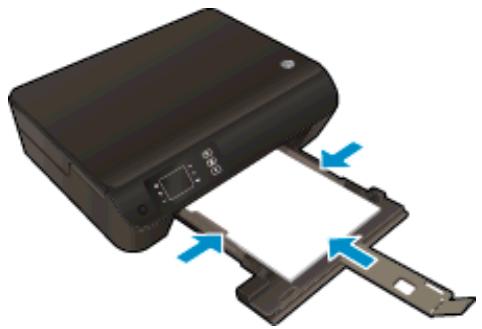
Load paper
- Make sure the paper tray is open.
- Slide the paper-width guides all the way open.
- Place the paper in the paper tray. The side to be printed on should face down.
- Push the paper into the printer until it stops.
- Slide the paper-width guides firmly against the edge of the paper.
To print a document
- From your software, click the Print button.
- Make sure your printer is selected.
- Click the button that opens the Properties dialog box.
Depending on your software application, this button might be called Properties, Options, Printer Setup, Printer Properties, Printer, or Preferences.
- Select the appropriate options.
- On the Layout tab, select Portrait or Landscape orientation.
- On the Paper/Quality tab, select the appropriate paper type from the Media drop-down list in the Tray Selection area, and then select the appropriate print quality in the Quality Settings area.
- Click Advanced to select the appropriate paper size from the Paper Size drop-down list.
- Click OK to close the Properties dialog box.
- Click Print or OK to begin printing.
To print on both sides of the page
- From your software, click the Print button.
- Make sure your printer is selected.
- Click the button that opens the Properties dialog box.
Depending on your software application, this button might be called Properties, Options, Printer Setup, Printer Properties, Printer, or Preferences.
- Select the appropriate options.
- On the Layout tab, select Portrait or Landscape orientation.
- On the Paper/Quality tab, select the appropriate paper type and print quality from the Media drop-down list.
- Click Advanced to select the appropriate paper size from the Paper Size drop-down list.
- On the Layout tab, select Flip on Long Edge or Flip on Short Edge from the Print on Both Sides drop-down list.
- Click OK to print.

NOTE: After one page of the document has been printed, you will be prompted to wait for a few seconds. Then the printer will automatically load the paper back to print on the other side. You do not need to manually reload the paper or make any operations.
Print photos
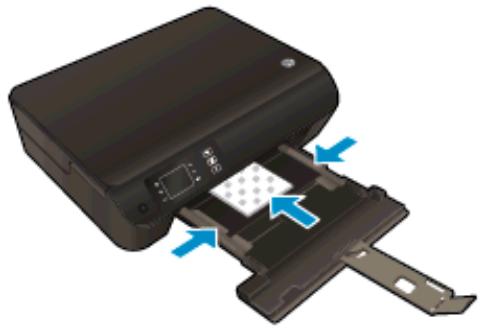
Load photo paper
- Make sure the paper tray is open.
- Slide the paper-width guides all the way open.
- Remove all paper from the paper tray, and then load the photo paper with the side to be printed on facing down.
- Push the photo papers into the printer until they stop.
- Slide the paper-width guides firmly against the edge of the photo papers.
To print a photo on photo paper
- On the File menu in your software, click Print.
- Make sure your printer is selected.
- Click the button that opens the Properties dialog box.
Depending on your software application, this button might be called Properties, Options, Printer Setup, Printer Properties, Printer, or Preferences.
- Select the appropriate options.
- On the Layout tab, select Portrait or Landscape orientation.
- On the Paper/Quality tab, select the appropriate paper type from the Media drop-down list in the Tray Selection area, and then select the appropriate print quality in the Quality Settings area.
- Click Advanced to select the appropriate paper size from the Paper Size drop-down list.

NOTE: For maximum dpi resolution, go to Paper/Quality tab, select Photo Paper from the Media drop-down list, and then select Best in the Quality Settings area. Then click the Advanced button and select Yes from the Print in Max DPI drop-down list. If you want to print max DPI in grayscale, select High Quality Grayscale from the Print in Grayscale drop-down list.
- Click OK to return to the Properties dialog box.
- Click OK, and then click Print or OK in the Print dialog box.

NOTE: After printing is finished, remove unused photo paper from the paper tray. Store the photo paper so it does not start to curl, which could reduce the quality of your printout.
Print Quick Forms
Use Quick Forms to print calendars, checklists, games, notebook paper, graph paper, music paper, and games.
Print Quick Forms
- Select Quick Forms from the Home screen on the printer display.
Tip: If the Quick Forms option does not appear on the printer display, press the Home button, and then press the Up and Down buttons until you see Quick Forms.
- Press the Up and Down buttons to select one of the Quick Forms options. Then press OK.
- After you have selected the type of form that you want to print, select the number of copies, then press OK.
Print envelopes
You can load one or more envelopes into the paper tray of the HP ENVY 4500 series. Do not use shiny or embossed envelopes or envelopes that have clasps or windows.

NOTE: For details on how to format text on envelopes, see the help files in your word application.
Load envelopes
- Make sure the paper tray is open.
- Slide the paper-width guides all the way open.
- Place the envelopes in the center of the paper tray. The side to be printed on should face down. The flap should be on the left side.
- Push the envelopes into the printer until they stop.
- Slide the paper-width guides firmly against the edge of the envelopes.
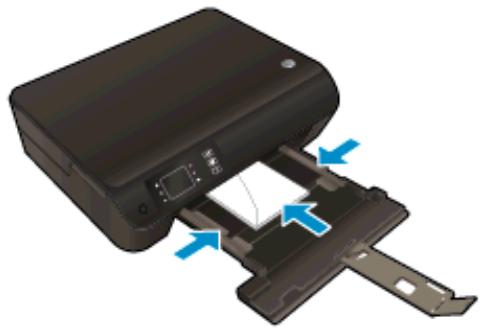
To print an envelope
- On the File menu in your software, click Print.
- Make sure your printer is selected.
- Click the button that opens the Properties dialog box.
Depending on your software application, this button might be called Properties, Options, Printer Setup, Printer Properties, Printer, or Preferences.
- Select the appropriate options.
- On the Layout tab, select Portrait or Landscape orientation.
- On the Paper/Quality tab, select the appropriate paper type from the Media drop-down list in the Tray Selection area, and then select the appropriate print quality in the Quality Settings area.
- Click Advanced to select the appropriate paper size from the Paper Size drop-down list.
- Click OK, and then click Print or OK in the Print dialog box.
Print with HP wireless direct
With HP wireless direct, you can print wirelessly from a computer, smart phone, tablet, or other wireless-capable device—without connecting to an existing wireless network.
When using HP wireless direct, note the following guidelines:
Make sure your computer or mobile device has the necessary software: If you are using a computer, make sure you have installed the printer software provided with the printer. If you are using a mobile device, make sure you have installed a compatible printing app. For more information about mobile printing, visit www.hp.com/global/us/en/eprint/ mobile Printing apps.html. - Make sure HP wireless direct is turned on in the printer and, if necessary, security is enabled. For more information, see Connect wirelessly to the printer without a router on page 56. Up to five computers and mobile devices can use the same HP wireless direct connection. HP wireless direct can be used while the printer is also connected to a computer using USB cable or to a network using a wireless connection. HP wireless direct cannot be used to connect a computer, mobile device, or printer to the Internet.

Click here to go online for more information.

NOTE: At this time, these websites might not be available in all languages.
This section contains the following topics:
- Print from a wireless-capable mobile device
- Print from a wireless-capable computer
Print from a wireless-capable mobile device
Make sure you have installed a compatible printing app on your mobile device. For more information, visit www.hp.com/global/us/en/eprint/mobile Printing apps.html.
- Make sure you have turned on HP wireless direct on the printer. For more information, see Connect wirelessly to the printer without a router on page 56.
- Turn on the Wi-Fi connection on your mobile device. For more information, see the documentation provided with the mobile device.

NOTE: If your mobile device does not support Wi-Fi, you are not able to use HP wireless direct.
- From the mobile device, connect to a new network. Use the process you normally use to connect to a new wireless network or hotspot. Choose the HP wireless direct name from the list
of wireless networks shown such as HP-Print-**-Envy 4500 series (where ** are the unique characters to identify your printer).
If HP wireless direct is turned on with security, enter the password when prompted.
- Print your document.
Print from a wireless-capable computer
- Make sure you have turned on HP wireless direct on the printer. For more information, see Connect wirelessly to the printer without a router on page 56 for more information.
- Turn on the computer's Wi-Fi connection. For more information, see the documentation provided with the computer.

NOTE: If your computer does not support Wi-Fi, you are not able to use HP wireless direct.
- From the computer, connect to a new network. Use the process you normally use to connect to a new wireless network or hotspot. Choose the HP wireless direct name from the list of wireless networks shown such as HP-Print-**-Envy 4500 series (where ** are the unique characters to identify your printer).
If HP wireless direct is turned on with security, enter the password when prompted.
- Proceed to step 5 if the printer has been installed and connected to the computer over a wireless network. If the printer has been installed and connected to your computer with a USB cable, follow the steps below to install the printer software using the HP wireless direct connection.
a. Depending on your operating system, do one of the following:
- Windows 8: On the Start screen, right-click an empty area on the screen, click All Apps on the app bar, and then click Printer Setup & Software.
- Windows 7, Windows Vista, and Windows XP: From the computer desktop, click Start, select All Programs, click HP, click HP ENVY 4500 series, and then click Printer Setup & Software.
b. Select Connect New Printer. c. When the Connection Options software screen appears, select Wireless.
Select HP ENVY 4500 series from the list of detected printers.
d. Follow the on-screen instructions.
- Print your document.
Print using the maximum dpi
Use maximum dots per inch (dpi) mode to print high-quality, sharp images on photo paper.
Printing in maximum dpi takes longer than printing with other settings and requires a large amount of memory.
To print in Maximum dpi mode
- On the File menu in your software, click Print.
- Make sure your printer is selected.
- Click the button that opens the Properties dialog box.
Depending on your software application, this button might be called Properties, Options, Printer Setup, Printer Properties, Printer, or Preferences.
- Click the Paper/Quality tab.
- On the Paper/Quality tab, select the appropriate paper type from the Media drop-down list in the Tray Selection area, and then select Best in the Quality Settings area.
- Click the Advanced button.
- In the Printer Features area, select Yes from the Print in Max DPI drop-down list.
- Select the appropriate paper size from the Paper Size drop-down list.
- Click OK to close the advanced options.
- Confirm Orientation on the Layout tab, and then click OK to print.
Tips for print success
To print successfully, the HP cartridges should be functioning properly with sufficient ink, the paper should be loaded correctly, and the printer should have the appropriate settings. Print settings do not apply to copying or scanning.
Ink tips
Use original HP ink cartridges. Install both the black and tri-color cartridges correctly.
For more information, see Replace the cartridges on page 45.
- Check the estimated ink levels in the cartridges to make sure there is sufficient ink.
For more information, see Check the estimated ink levels on page 42.
- If the print quality is not acceptable, see Improve print quality on page 62 for more information.
Paper loading tips
- Load a stack of paper (not just one page). All of the paper in the stack should be the same size and type to avoid a paper jam.
- Load paper with the side to be printed on facing down.
- Ensure that the paper loaded in the paper tray lies flat and that the edges are not bent or torn.
- Adjust the paper-width guides in the paper tray to fit snugly against all the paper. Make sure the paper-width guides do not bend the paper in the paper tray.
For more information, see Load media on page 26.
Printer settings tips
- On the Paper/Quality tab, select the appropriate paper type from the Media drop-down list in the Tray Selection area, and then select the appropriate print quality in the Quality Settings area.
- Select the appropriate paper size from the Paper Size drop-down list in the Advanced Options dialog box. Access the Advanced Options dialog box by clicking the Advanced button on the Layout or Paper/Quality tab. To change default print settings, click Print & Scan, and then click Set Preferences in the printer software.
Depending on your operating system, do one of the following to open the printer software:
Windows 8: On the Start screen, right-click an empty area on the screen, click All Apps on the app bar, and then click the icon with the printer's name. Windows 7, Windows Vista, and Windows XP: From the computer desktop, click Start, select All Programs, click HP, click HP ENVY 4500 series, and then click HP ENVY 4500 series.
- If you want to print a black and white document using black ink only, click the Advanced button. From the Print in Grayscale drop-down menu, select Black Ink Only, then click the OK button.
Notes
- Original HP ink cartridges are designed and tested with HP printers and papers to help you easily produce great results, time after time.

NOTE: HP cannot guarantee the quality or reliability of non-HP supplies. Product service or repairs required as a result of using a non-HP supply will not be covered under warranty.
If you believe you purchased original HP ink cartridges, go to:
www.hp.com/go/anticounterfeit
- Ink level warnings and indicators provide estimates for planning purposes only.

NOTE: When you receive a low-ink warning message, consider having a replacement cartridge available to avoid possible printing delays. You do not need to replace the cartridges until print quality becomes unacceptable.
- Software settings selected in the print driver only apply to printing, they do not apply to copying or scanning.
- You can print your document on both sides of the paper.
4 Paper basics
Recommended papers for printing - Load media Order HP Paper Supplies
Recommended papers for printing
If you want the best print quality, HP recommends using HP papers that are specifically designed for the type of project you are printing.
Depending on your country/region, some of these papers might not be available.
ColorLok
HP recommends plain papers with the ColorLok logo for printing and copying of everyday documents. All papers with the ColorLok logo are independently tested to meet high standards of reliability and print quality, and produce documents with crisp, vivid color, bolder blacks, and dry faster than ordinary plain papers. Look for papers with the ColorLok logo in a variety of weights and sizes from major paper manufacturers.

Photo printing
HP Premium Plus Photo Paper
HP Premium Plus Photo Paper is HP's highest-quality photo paper for your best photos. With HP Premium Plus Photo Paper, you can print beautiful photos that are instant-dry so you can share them right off the printer. It is available in several sizes, including A4, 8.5 x 11 inch, 4 x 6 inch (10 x 15 cm), 5 x 7 inch (13 x 18 cm), and 11 x 17 inch (A3), and in two finishes - glossy or soft gloss (semi-gloss). Ideal for framing, displaying, or gifting your best photos and special photo projects. HP Premium Plus Photo Paper delivers exceptional results with professional quality and durability.
HP Advanced Photo Paper
This thick photo paper features an instant-dry finish for easy handling without smudging. It resists water, smears, fingerprints, and humidity. Your prints have a look and feel comparable to a store-processed photo. It is available in several sizes, including A4, 8.5 x 11 inch, 10 x 15 cm (4 x 6 inch), 13 x 18 cm (5 x 7 inch). It is acid-free for longer lasting documents.
HP Everyday Photo Paper
Print colorful, everyday snapshots at a low cost, using paper designed for casual photo printing. This affordable photo paper dries quickly for easy handling. Get sharp, crisp images when you use this paper with any inkjet printer. It is available in glossy finish in several sizes, including A4, 8.5 x 11 inch, and 10 x 15 cm (4 x 6 inch). For longer-lasting photos, it is acid-free.
Business documents
HP Premium Presentation Paper or HP Professional Paper 120
These papers are heavy two-sided matte papers perfect for presentation, proposals, reports, and newsletters. They are heavyweight for an impressive look and feel.
HP Brochure Paper or HP Professional Paper 180
These papers are glossy-coated or matte-coated on both sides for two-sided use. They are the perfect choice for near-photographic reproductions and business graphics for report covers, special presentations, brochures, mailers, and calendars.
Everyday printing
HP Bright White Inkjet Paper
HP Bright White Inkjet Paper delivers high-contrast colors and sharp text. It is opaque enough for two-sided color usage with no show-through, which makes it ideal for newsletters, reports, and flyers. It features ColorLok Technology for less smearing, bolder blacks, and vivid colors.
HP Printing Paper
HP Printing Paper is a high-quality multifunction paper. It produces documents that look and feel more substantial than documents printed on standard multipurpose or copy paper. It features ColorLok Technology for less smearing, bolder blacks, and vivid colors. It is acid-free for longer lasting documents.
HP Office Paper
HP Office Paper is a high-quality multifunction paper. It is suitable for copies, drafts, memos, and other everyday documents. It features ColorLok Technology for less smearing, bolder blacks, and vivid colors. It is acid-free for longer lasting documents.
HP Office Recycled Paper
HP Office Recycled Paper is a high-quality multifunction paper made with 30% recycled fiber. It features ColorLok Technology for less smearing, bolder blacks and vivid colors.
Special projects
HP Iron-On Transfers
HP Iron-on Transfers (for light or white fabrics) are the ideal solution for creating custom T-shirts from your digital photos.
Load media
Select a paper size to continue.
Load full-size paper
- Lower the paper tray, and then pull out the paper tray and tray extender.
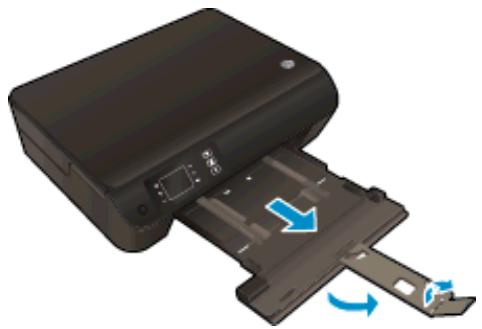
- Slide the paper-width guides outward.
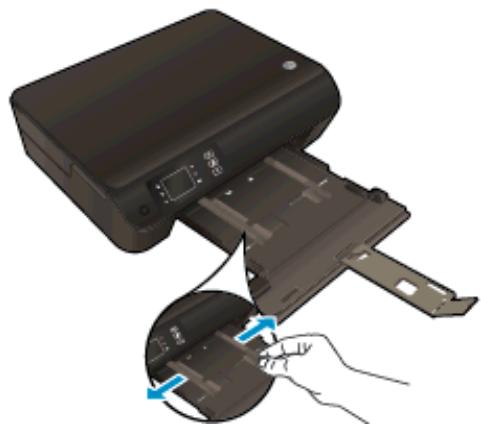
- Load the paper.
- Insert a stack of paper into the paper tray with the short edge forward and the print side down.
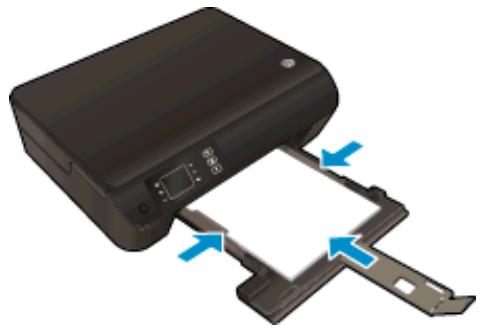
- Slide the stack of paper forward until it stops.
- Adjust the paper-width guides so they fit against both sides of the stack of paper.
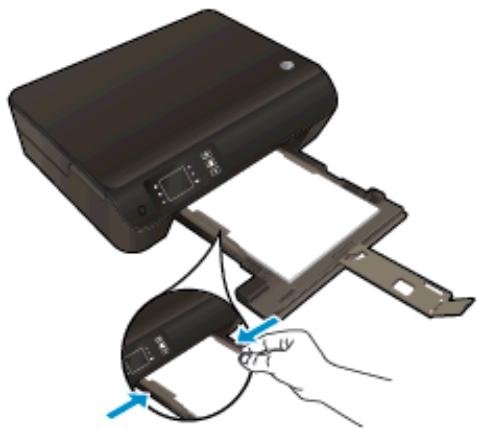
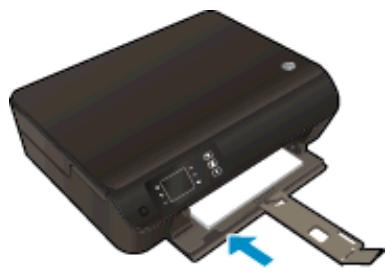
- Slide the paper tray in.
Load small-size paper
- Lower the paper tray, and then pull out the paper tray and tray extender.
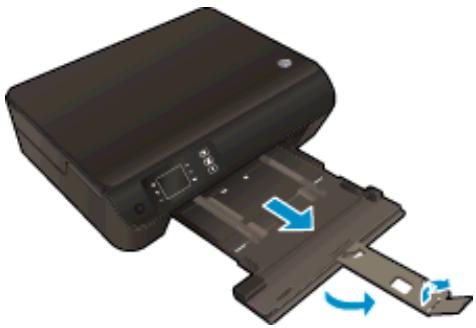
- Slide the paper-width guides outward.
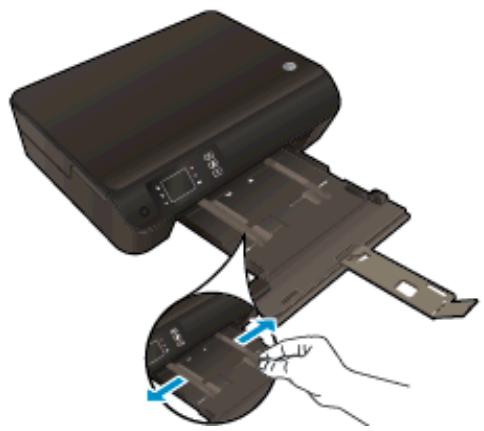
- Load the photo paper.
- Insert a stack of photo paper into the paper tray with the short edge forward and the print side down.
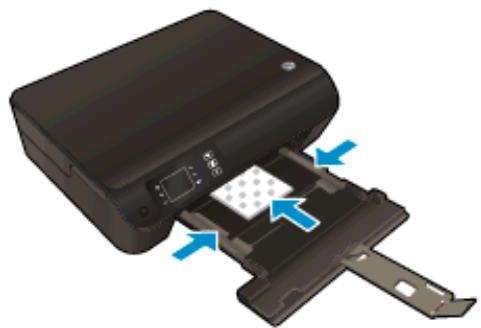
- Slide the stack of photo paper forward until it stops.
- Adjust the paper-width guides so they fit against both sides of the stack of photo paper.
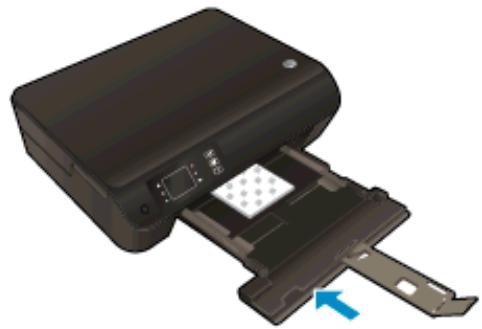
- Slide the paper tray in.
Load envelopes
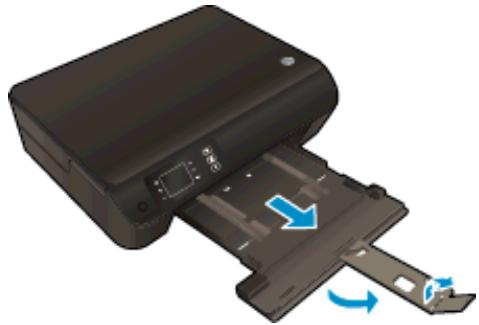
- Lower the paper tray, and then pull out the paper tray and tray extender.
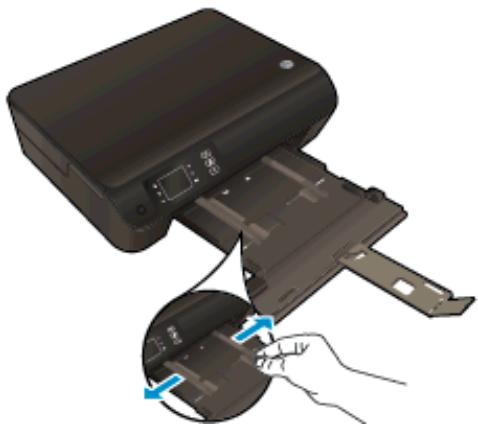
- Slide the paper-width guides outward.
- Load the envelopes.
- Insert one or more envelopes in the center of the paper tray. The side to be printed on should face down. The flap should be on the left side and facing up.
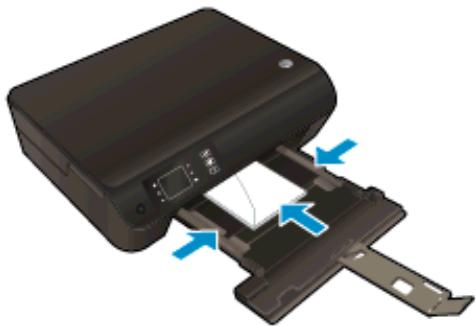
- Slide the stack of envelopes forward until it stops.
- Adjust the paper-width guides so they fit against both sides of the stack of envelopes.
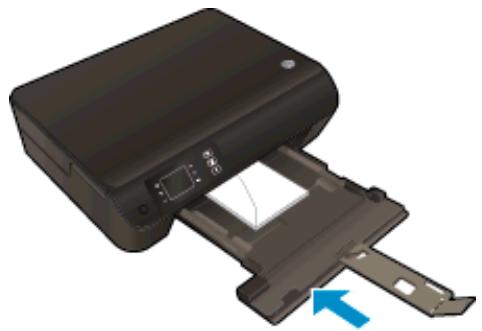
- Slide the paper tray in.
Order HP Paper Supplies
The printer is designed to work well with most types of office media. Use HP media for optimum print quality. Visit the HP website at www.hp.com for more information about HP media.
HP recommends plain papers with the ColorLok logo for printing and copying of everyday documents. All papers with the ColorLok logo are independently tested to meet high standards of reliability and print quality, and produce documents with crisp, vivid color, bolder blacks and dry faster than ordinary plain papers. Look for papers with the ColorLok logo in a variety of weights and sizes from major paper manufacturers.
To purchase HP papers, go to Shop for Products and Services and select ink, toner and paper.
5 Copy and scan
- Copy documents
- Scan to a computer
- Tips for copy success
- Tips for scan success
Copy documents
The Copy menu on the printer display allows you to easily select number of copies and color or black and white for copying on plain paper. You can also easily access advanced settings, such as changing the paper type and size, adjusting the darkness of the copy, and resizing the copy.
Easy Copy
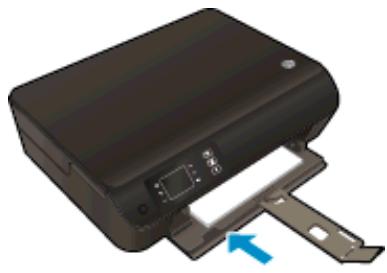
- Load full-size paper in the paper tray.
- Load the original.
- Lift the lid on the printer.
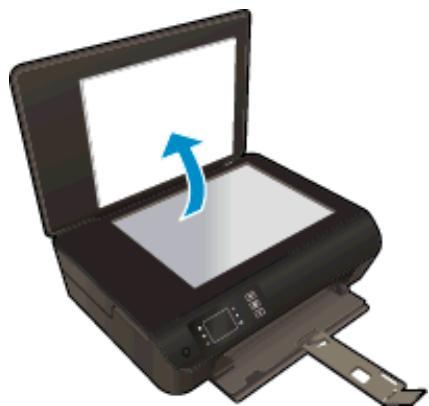
- Load the original print side down on the right front corner of the scanner glass.
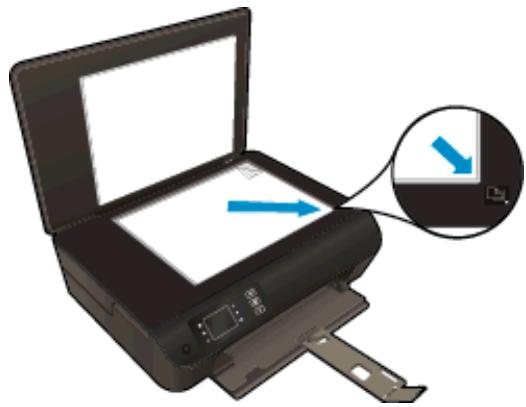
- Close lid.
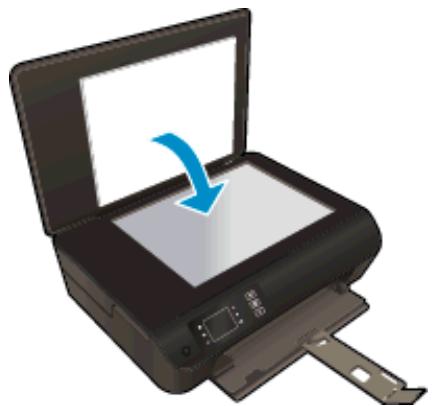
- Select Copy from the Home screen on the printer display to access the copy menu.
- If you do not see Copy on the printer display, press the Home button, and then press the Up and Down buttons until you see Copy.
- From the Copy menu, select Copies to increase or decrease the number of copies. Then press OK to confirm.
- Press the button next to Start Black Copy or Start Color Copy to copy onto A4 or 8.5" x 11" plain paper.
More copy features
While in the Copy menu, press the Up and Down buttons to select among settings.
- Paper Type: Selects paper size and paper type. A plain paper setting will print in plain paper normal print quality. A photo paper setting will print in photo paper best quality.
- Resize: Actual size makes a copy that is the same as the size of the original, but the margins of the copied image may be clipped. Resize to fit makes a copy that is centered with a white border around the edges. The resized image is either enlarged or reduced to fit the size of the selected output paper. Custom Size allows you to increase the size of the image by selecting values greater than 100% or reduce the image size by selecting values less than 100%. ID Copy: Allows you to copy both sides of ID card and print in the plain paper. Lighter / Darker: Adjusts the copy settings to make copies lighter or darker.

NOTE: After two minutes of inactivity the copy options will automatically return to the default settings of plain paper A4 or 8.5" x 11" (depending on region).
Scan to a computer
You can initiate a scan from the control panel of the printer or from your computer. Scan from the control panel if you want to quickly scan one page to an image file. Scan from your computer if you want to scan multiple pages into one file, define the file format of the scan, or make adjustments to the scanned image.
Prepare the scan
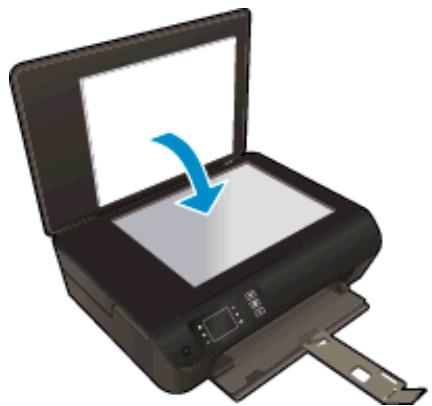
1. Load original.
- Lift the lid on the printer.
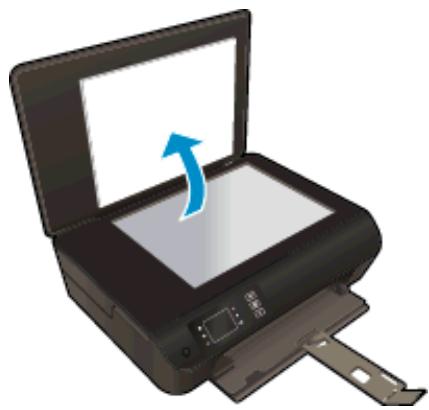
- Load the original print side down on the right front corner of the scanner glass.
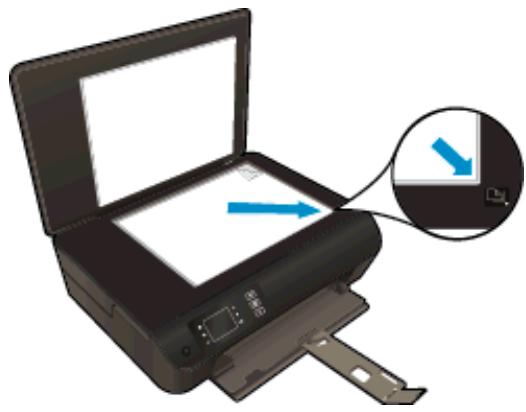
- Close the lid.
- Start the scan.
Scan from the printer control panel
- Select Scan from the Home screen on the printer display. If you do not see Scan on the printer display, press the Home button, and then press the Up and Down buttons until you see Scan.
- Select Scan to Computer.
- Select the computer that you want to scan to from the printer display.
If you do not see your computer listed on the printer display make sure that your computer is connected to the printer either wirelessly or through a USB cable. If you have a wireless connection and you have confirmed that the connection is working, you will need to enable wireless scanning in the software.
Scan from your computer
- Depending on your operating system, do one of the following to open the printer software.
- Windows 8: On the Start screen, right-click an empty area on the screen, click All Apps on the app bar, and then click the icon with the printer's name.
- Windows 7, Windows Vista, and Windows XP: From the computer desktop, click Start, select All Programs, click HP, click HP ENVY 4500 series, and then click HP ENVY 4500 series.
- In the printer software, click the Print & Scan icon, and then select Scan a Document or Photo.
- Select the type of scan that you want from the shortcut menu and then click Scan.

NOTE: If Show Scan Preview is selected, you will be able to make adjustments to the scanned image in the preview screen.
- Select Save if you want to keep the application open for another scan, or select Done to exit the application.
- After the scan is saved, a Windows Explorer window will open in the directory where the scan was saved.

NOTE: There is a limited number of computers that can have the scan function activated at the same time. Select Scan on the printer display and you will see the computers that are currently available for scanning.
Tips for copy success
- Load your original print side down on the right front corner of the scanner glass.
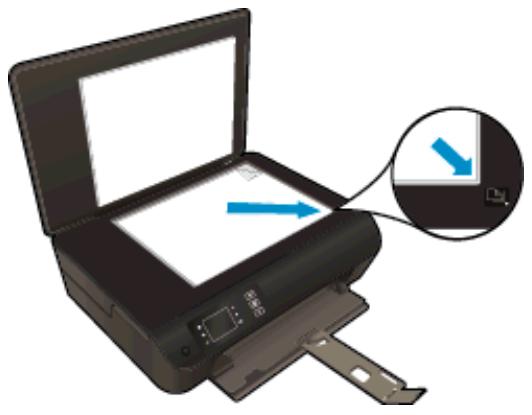
Clean the scanner glass and make sure that there are no foreign materials adhering to it. - To increase or decrease the contrast of your printed output, select Copy from the printer display and then select Lighter/Darker to adjust the contrast. - To select the paper size and paper type of the printed output, select Copy from the printer display. From the Copy menu select Paper Type to choose plain or photo paper and photo paper size. To resize the image, select Copy from the printer display and then select Resize.
Tips for scan success
- Load your original print side down on the right front corner of the scanner glass.
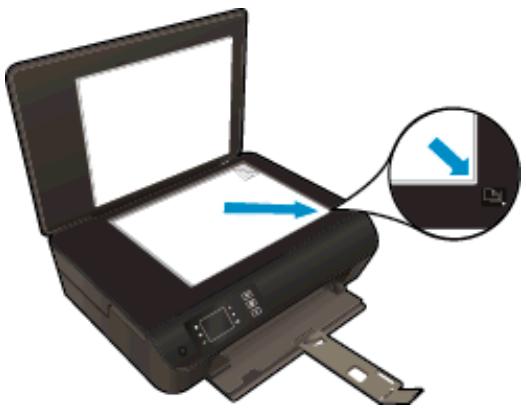
Clean the scanner glass and make sure that there are no foreign materials adhering to it. - If you have a wireless connection and you have confirmed that the connection is working, you will need to enable wireless scanning in the software to scan from the printer display. Open the printer software to select Print & Scan and then select Manage Scan to Computer. After you select Scan from the printer display, choose the computer that you want to scan to from the list of printers on the printer display. - If you have a wireless connection from your printer to your computer, and you want to always be able to quickly scan to your connected computer, choose to have Scan to Computer always active. - If you want to scan a document with several pages into one file instead of multiple files, start the scan with the printer software instead of selecting Scan from the printer display.
6 Work with cartridges
Check the estimated ink levels - Order ink supplies Choose right ink cartridges - Replace the cartridges Use single-cartridge mode - Cartridge warranty information - Tips for working with cartridges
Check the estimated ink levels
You can easily check the ink supply level to determine how soon you might need to replace a cartridge. The ink supply level shows an estimate of the amount of ink remaining in the cartridges.
To check the ink levels from the printer control panel
- From the Home screen on the printer display, select Ink Levels. Then the printer displays the current ink levels.

NOTE: If you do not see the Home screen, press the Home button.
To check the ink levels from the printer software
- Depending on your operating system, do one of the following to open the printer software:
- Windows 8: On the Start screen, right-click an empty area on the screen, click All Apps on the app bar, and then click the icon with the printer's name.
- Windows 7, Windows Vista, and Windows XP: From the computer desktop, click Start, select All Programs, click HP, click HP ENVY 4500 series, and then click HP ENVY 4500 series.
- In the printer software, click Estimated Ink Levels.

NOTE: If you have installed a refilled or remanufactured cartridge, or a cartridge that has been used in another printer, the ink level indicator might be inaccurate or unavailable.

NOTE: Ink level warnings and indicators provide estimates for planning purposes only. When you receive a low-ink warning message, consider having a replacement cartridge available to avoid possible printing delays. You do not have to replace the cartridges until the print quality is unacceptable.

NOTE: Ink from the cartridges is used in the printing process in a number of different ways, including in the initialization process, which prepares the printer and cartridges for printing, and in printhead servicing, which keeps print nozzles clear and ink flowing smoothly. In addition, some residual ink is left in the cartridge after it is used. For more information, see www.hp.com/go/inkusage.
Order ink supplies
Before ordering cartridges, locate the correct cartridge number.
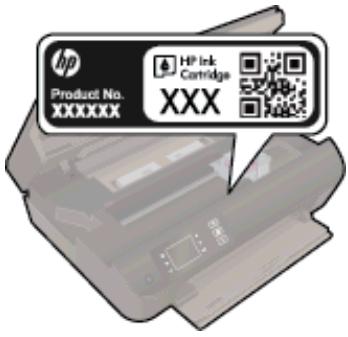
Locate the cartridge number on the printer
The cartridge number is located inside the cartridge access door.
Locate the cartridge number in the printer software
- Depending on your operating system, do one of the following to open the printer software:
- Windows 8: On the Start screen, right-click an empty area on the screen, click All Apps on the app bar, and then click the icon with the printer's name.
- Windows 7, Windows Vista, and Windows XP: From the computer desktop, click Start, select All Programs, click HP, click HP ENVY 4500 series, and then click HP ENVY 4500 series.
- In the printer software, click Shop, and then click Shop For Supplies Online.
The correct cartridge number appears when you use this link.
To order original HP supplies for the HP ENVY 4500 series, go to www.hp.com/buy/supplies. If prompted, choose your country/region, follow the prompts to select your product, and then click one of the shopping links on the page.

NOTE: Ordering ink cartridges online is not supported in all countries/regions. If it is not available in your country/region, you may still view supplies information and print a list for reference when shopping at a local HP reseller.
Choose right ink cartridges
HP recommends that you use original HP ink cartridges. Original HP ink cartridges are designed and tested with HP printers to help you easily produce great results, time after time.
Replace the cartridges
To replace the cartridges
- Check that power is on.
- Load paper.
- Remove cartridge.
a. Open the cartridge access door.
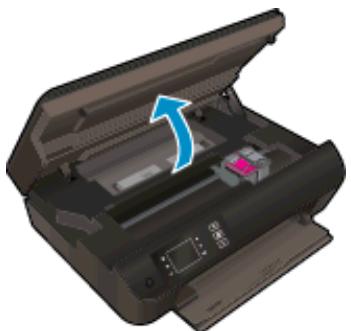
Wait for print carriage to move to the right side of the printer.
b. Lift up the cartridge tab, and then remove it from the slot.
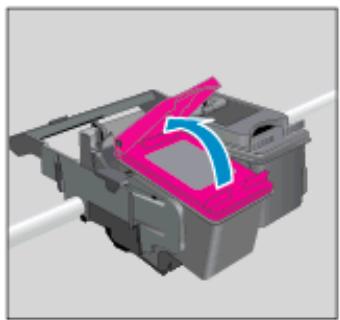
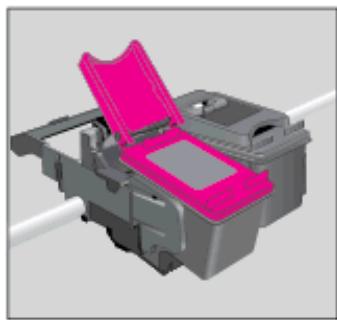
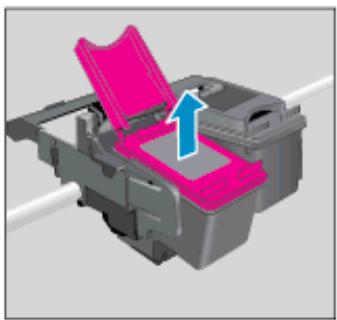
- Insert new cartridge.
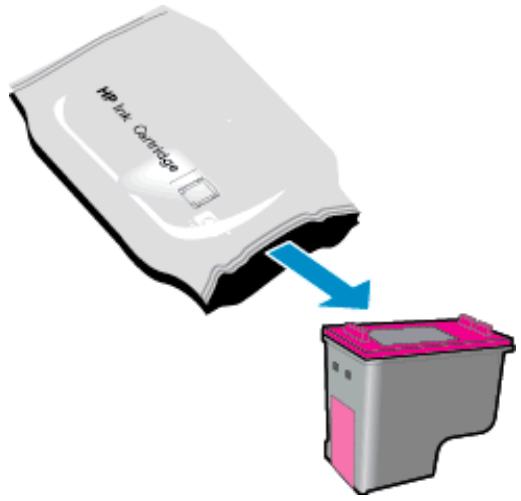
a. Remove cartridge from packaging.
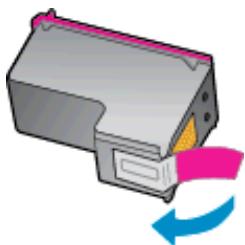
b. Remove plastic tape using pink pull tab.
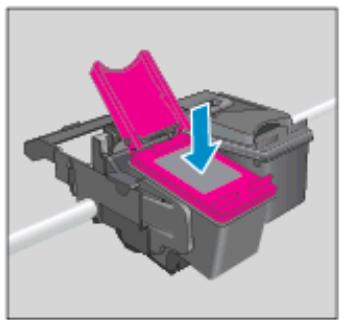
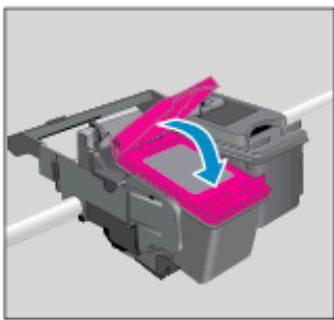
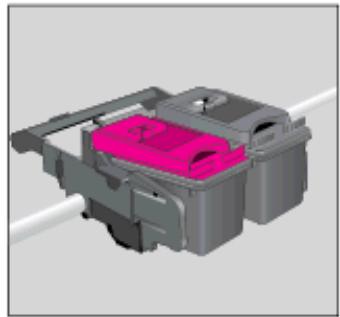
c. Place new cartridge in slot at an angle under the opened tab, and then squeeze the tab closed as the cartridge slides into place.
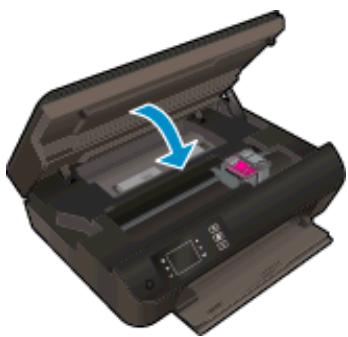
d. Close the cartridge access door.
- Align the cartridges. For more information about the printer alignment, see Improve print quality on page 62.
Use single-cartridge mode
Use the single-cartridge mode to operate the HP ENVY 4500 series with only one ink cartridge. The single-cartridge mode is initiated when an ink cartridge is removed from the ink cartridge carriage.

NOTE: When the HP ENVY 4500 series operates in single-cartridge mode, a message is displayed on the printer display. If the message is displayed and two ink cartridges are installed in the printer, verify that the protective piece of plastic tape has been removed from each ink cartridge. When plastic tape covers the ink cartridge contacts, the printer cannot detect that the ink cartridge is installed.
Exit single-cartridge mode
Install both the black and tri-color cartridges in the HP ENVY 4500 series to exit single-cartridge mode.
Cartridge warranty information
The HP cartridge warranty is applicable when the cartridge is used in its designated HP printing device. This warranty does not cover HP ink cartridges that have been refilled, remanufactured, refurbished, misused, or tampered with.
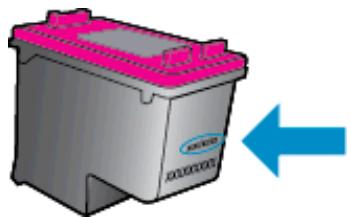
During the warranty period the cartridge is covered as long as the HP ink is not depleted and the end of warranty date has not been reached. The end of warranty date, in YYYYY/MM/DD format, may be found on the cartridge as indicated:
For a copy of the HP Limited Warranty Statement, see the printed documentation that came with the printer.
Tips for working with cartridges
Use the following tips to work with cartridges:
- To protect the cartridges from drying out, always turn the printer off using the On button, and wait until the On button light goes out.
- Do not open or untape cartridges until you are ready to install them. Leaving tape on the cartridges reduces ink evaporation.
- Insert the cartridges into the correct slots. Match the color and icon of each cartridge to the color and icon for each slot. Make sure the cartridges snap into place.
- Align the printer for best print quality. See Improve print quality on page 62 for more information.
- When the Estimated Ink Levels screen shows one or both cartridges in a low state, consider getting replacement cartridges to avoid possible printing delays. You do not need to replace the cartridges until print quality becomes unacceptable. See Replace the cartridges on page 45 for more information.
- If you remove a cartridge from the printer for any reason, try to replace it again as soon as possible. Outside of the printer, if unprotected, cartridges begin to dry out.
7 Connectivity
Wi-Fi Protected Setup (WPS - requires WPS router) - Traditional wireless connection (requires router) - USB connection (non-network connection) - Change from a USB connection to a wireless network - Connect wirelessly to the printer without a router - Tips for setting up and using a networked printer - Advanced printer management tools (for networked printers)
Wi-Fi Protected Setup (WPS – requires WPS router)
These instructions are for customers who have already setup and installed the printer software. For first time installation refer to the setup instructions that came with the printer.
To connect the HP ENVY 4500 series to a wireless network using Wi-Fi Protected Setup (WPS), you will need the following:
- A wireless 802.11b/g/n network that includes a WPS-enabled wireless router or access point.

NOTE: The HP ENVY 4500 series only supports connections using 2.4GHz.
- A desktop computer or laptop with either wireless networking support, or a network interface card (NIC). The computer must be connected to the wireless network that you intend to install the HP ENVY 4500 series on.

NOTE: If you have a Wi-Fi Protected Setup (WPS) router with a WPS push button, follow the Push Button method. If you are not certain your router has a push button, follow the Wireless Settings Menu method.
Push Button (PBC) method
- Press and hold the Wireless button on the printer until the wireless light starts blinking, approximately three seconds to start WPS push button mode.
- Press the Wi-Fi Protected Setup (WPS) button on your router.

NOTE: The printer begins a timer for approximately two minutes while a wireless connection is established.
PIN method
- Press the Wireless button on the printer control panel to display the Wireless menu. If the printer is printing, in an error state, or performing a critical task, wait until the task has been completed or the error cleared before pressing the Wireless button.
- Select Settings from the printer display.
- Select Wi-Fi Protected Setup from the printer display.
- If you have a Wi-Fi Protected Setup (WPS) router with a WPS push button, select Push Button, and then follow the on-screen instructions. If your router does not have a push button or you are not certain if your router has a push button, select PIN, and then follow the on-screen instructions.

NOTE: The printer begins a timer for approximately four minutes during which the corresponding button on the networking device needs to be pressed or the router PIN needs to be entered on the router's configuration page.
Traditional wireless connection (requires router)
To connect the HP ENVY 4500 series to an integrated wireless WLAN 802.11 network, you will need the following:
- A wireless 802.11b/g/n network that includes a wireless router or access point.

NOTE: The HP ENVY 4500 series only supports connections using 2.4GHz.
- A desktop computer or laptop with either wireless networking support, or a network interface card (NIC). The computer must be connected to the wireless network that you intend to install the HP ENVY 4500 series on. Network name (SSID). WEP key or WPA Passphrase (if needed).
To connect the printer
- Press the Wireless button from the printer control panel, and then select Settings.
- Scroll to select Wireless Setup Wizard, and then press OK.
- Follow the on-screen instructions to set up the wireless connection.
- Insert the printer software CD in the computer CD-ROM drive.
- Follow the on-screen instructions to install the printer software.
Connect a new printer
If you have not connected the printer to your computer, or you want to connect another new printer of the same model to your computer, you can use the Connect a new printer function to set up the connection.

NOTE: Use this method if you have already installed the printer software.
- Depending on your operating system, do one of the following.
- Windows 8: On the Start screen, right-click an empty area on the screen, click All Apps on the app bar.
- Windows 7, Windows Vista, and Windows XP: From the computer desktop, click Start, select All Programs, click HP, and then click HP ENVY 4500 series.
- Select Printer Setup & Software.
- Select Connect a new printer. Follow the on-screen instructions.
Change network settings
- Press the Wireless button from the printer control panel, and then select Settings.
- Scroll to select Advanced Settings.
- Select the item to be changed from the Advanced Settings menu.
- Follow the on-screen instructions.
USB connection (non-network connection)
The HP ENVY 4500 series supports a rear USB 2.0 High Speed port for connection to a computer.

NOTE: Web services will not be available with a USB direct connection.
To connect the printer with the USB cable
- Insert the printer software CD in the computer CD-ROM drive.

NOTE: Do not connect the USB cable to the printer until you are prompted to do so.
- Follow the on-screen instructions. When prompted, connect the printer to the computer by selecting USB on the Connection Options screen.
- Follow the on-screen instructions.
If the printer software has been installed, the printer will operate as a plug-and-play printer. If the software has not been installed, insert the CD that came with the printer and follow the on-screen instructions.
Change from a USB connection to a wireless network
If you first set up your printer and installed the software with a USB cable, directly connecting the printer to your computer, you can easily change to a wireless network connection. You will need a wireless 802.11b/g/n network that includes a wireless router or access point.

NOTE: The HP ENVY 4500 series only supports connections using 2.4GHz.
Before changing from a USB connection to a wireless network, make sure that:
- The printer is connected to your computer with the USB cable until you are prompted to disconnect the cable. The computer is connected to the wireless network that you intend to install the printer on.
Change from a USB connection to a wireless network
- Depending on your operating system, do one of the following.
- Windows 8: On the Start screen, right-click an empty area on the screen, click All Apps on the app bar.
- Windows 7, Windows Vista, and Windows XP: From the computer desktop, click Start, select All Programs, click HP, and then click HP ENVY 4500 series.
- Select Printer Setup & Software.
- Select Convert a USB connected printer to wireless. Follow the on-screen instructions.
Connect wirelessly to the printer without a router
HP wireless direct allows your Wi-Fi devices such as computers, smart phones, and tablets, to connect to your printer directly through Wi-Fi, using the process you currently use to connect your Wi-Fi device to new wireless networks and hotspots. With wireless direct, you can print directly to the printer wirelessly, without a wireless router, from your Wi-Fi enabled devices.
To connect wirelessly to the printer without a router
- From the Home screen on the printer display, select Wireless Direct.
- In the Wireless Direct menu, select Wireless Direct, and then press OK.
- Using the buttons to the right, select On without Security, and then press OK.

TIP: If you would like to use HP wireless direct with greater security and if the computer or mobile device supports WPA2 encryption, select the option that will enable security. With security enabled, only users with the password can connect wirelessly to the printer. Without enabling security, anyone with a wireless device within the wireless range of the printer can connect to the printer.
- Press the button next to Display Name to display the wireless direct name.
- If you have enabled security, press the button next to Display Password to display the wireless direct password.

TIP: You can also turn on HP wireless direct from the embedded web server (EWS). For more information about using the EWS, see To open the embedded Web server on page 58.
Tips for setting up and using a networked printer
Use the following tips to set up and use a networked printer:
- When the Wireless Setup Wizard on the printer is launched, the printer searches for wireless routers, and then lists the detected network names on the printer display.
- If your computer is connected to a Virtual Private Network (VPN), you need to disconnect from the VPN before you can access any other device on your network, including the printer.
- Learn how to find your network security settings. Click here to go online for more information.
- Learn about the HP Print and Scan Doctor. Click here to go online for more information.
- Learn about the network troubleshooting tips. Click here to go online for more information.
- Learn how to change from a USB to wireless connection. Click here to go online for more information.
- Learn how to work with your firewall and antivirus programs during printer setup. Click here to go online for more information.
Advanced printer management tools (for networked printers)
When the printer is connected to a network, you can use the embedded Web server to view status information, change settings, and manage the printer from your computer.

NOTE: To view or change some settings, you might need a password.
You can open and use the embedded Web server without being connected to the Internet. However, some features are not available.
- To open the embedded Web server
- About cookies
To open the embedded Web server
You can access the embedded Web server through either the network or Wireless Direct.
Open the embedded Web server through network

NOTE: The printer must be on a network and must have an IP address. The IP address for the printer can be found by pressing the Wireless button or by printing a network configuration page.
- In a supported Web browser on your computer, type the IP address or hostname that has been assigned to the printer.
For example, if the IP address is 192.168.0.12, type the following address into a Web browser: http://192.168.0.12.
Open the embedded Web server through Wireless Direct
- Press the Wireless button from the printer control panel, and then select Settings.
- If the display shows that wireless direct is Off, select Wireless Direct and then select On (No Security) or On (With Security).
- From your wireless computer, turn wireless on, search for and connect to the wireless direct name, for example: HP-Print-XX-Deskjet 3510 series. If you have wireless direct security on, enter the wireless direct password when prompted.
- In a supported Web browser on your computer, type the following address: http://192.168.223.1.
About cookies
The embedded Web server (EWS) places very small text files (cookies) on your hard drive when you are browsing. These files let the EWS recognize your computer the next time you visit. For example, if you have configured the EWS language, a cookie helps remember which language you have selected so that the next time you access the EWS, the pages are displayed in that language. Though some cookies are cleared at the end of each session (such as the cookie that stores the selected language), others (such as the cookie that stores customer-specific preferences) are stored on the computer until you clear them manually.
You can configure your browser to accept all cookies, or you can configure it to alert you every time a cookie is offered, which allows you to decide which cookies to accept or refuse. You can also use your browser to remove unwanted cookies.

NOTE: Depending on your printer, if you disable cookies, you also disable one or more of the following features:
Starting where you left the application (especially useful when using setup wizards) Remembering the EWS browser language setting Personalizing the EWS Home page
For information about how to change your privacy and cookie settings and how to view or delete cookies, see the documentation available with your Web browser.
8 Solve a problem
This section contains the following topics:
- Improve print quality Clear a paper jam
- Unable to print Clear the print carriage Prepare paper trays
- Resolve copy and scan issues
- Printer failure
- Resolve ink cartridge problem Ink cartridge problem Older generation cartridges Networking HP support
Improve print quality

NOTE: To protect the cartridges from drying out, always turn the printer off using the On button, and wait until the On button light goes out.
- Make sure you are using original HP ink cartridges.
- Check the printer software to make sure you have selected the appropriate paper type from the Media drop-down list and print quality from the Quality Settings drop-down list.
In the printer software, click Print & Scan and then click Set Preferences to access the print properties.
- Check the estimated ink levels to determine if the cartridges are low on ink. For more information, see Check the estimated ink levels on page 42. If the ink cartridges are low on ink consider replacing them.
For more information, see Check the estimated ink levels on page 42. If the ink cartridges are low on ink consider replacing them.
- Align the cartridges.
To align the cartridges from the printer software

NOTE: Aligning the cartridges ensures high-quality output. The printer prompts you to align the cartridges every time you install a new cartridge. If you remove and reinstall the same ink cartridge, the HP All-in-One will not prompt you to align the ink cartridges. The HP All-in-One remembers the alignment values for that ink cartridge, so you do not need to realign the ink cartridges.
a. Load letter or A4 unused plain white paper into the paper tray. b. Depending on your operating system, do one of the following to open the printer software:
- Windows 8: On the Start screen, right-click an empty area on the screen, click All Apps on the app bar, and then click the icon with the printer's name.
- Windows 7, Windows Vista, and Windows XP: From the computer desktop, click Start, select All Programs, click HP, click HP ENVY 4500 series, and then click HP ENVY 4500 series.
c. In the printer software, click Print & Scan, and then click Maintain Your Printer to access the Printer Toolbox. d. The Printer Toolbox appears. e. Click Align Ink Cartridges on the Device Services tab. The printer prints an alignment sheet.
f. Load the cartridge alignment sheet print side down on the right front corner of the scanner glass.
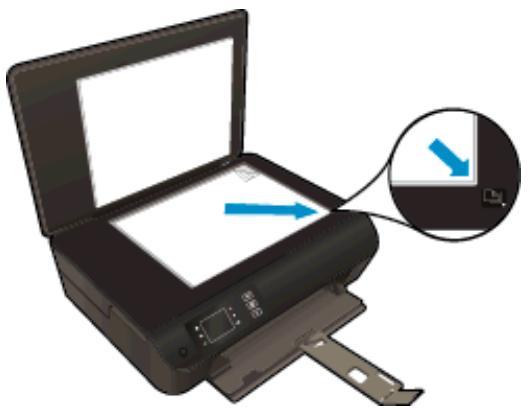
g. Follow the instructions on the printer display to align the cartridges. Recycle or discard the cartridge alignment sheet.
To align the cartridges from the printer display
a. From the Home screen on the printer display, select Tools.

NOTE: If you do not see the Home screen, press the Home button.
b. From the Tools menu on the printer display, select Align Printer. Follow the on-screen instructions.
- Print a diagnostics page if the cartridges are not low on ink.
To print a diagnostics page from the printer software
a. Load letter or A4 unused plain white paper into the paper tray. b. Depending on your operating system, do one of the following to open the printer software:
- Windows 8: On the Start screen, right-click an empty area on the screen, click All Apps on the app bar, and then click the icon with the printer's name.
- Windows 7, Windows Vista, and Windows XP: From the computer desktop, click Start, select All Programs, click HP, click HP ENVY 4500 series, and then click HP ENVY 4500 series.
c. In the printer software, click Print & Scan, and then click Maintain Your Printer to access the printer toolbox.
d. Click Print Diagnostic Information on the Device Reports tab to print a diagnostics page. Review the blue, magenta, yellow, and black boxes on the diagnostics page. If you are seeing streaks in the color and black boxes, or no ink in portions of the boxes, then automatically clean the cartridges.
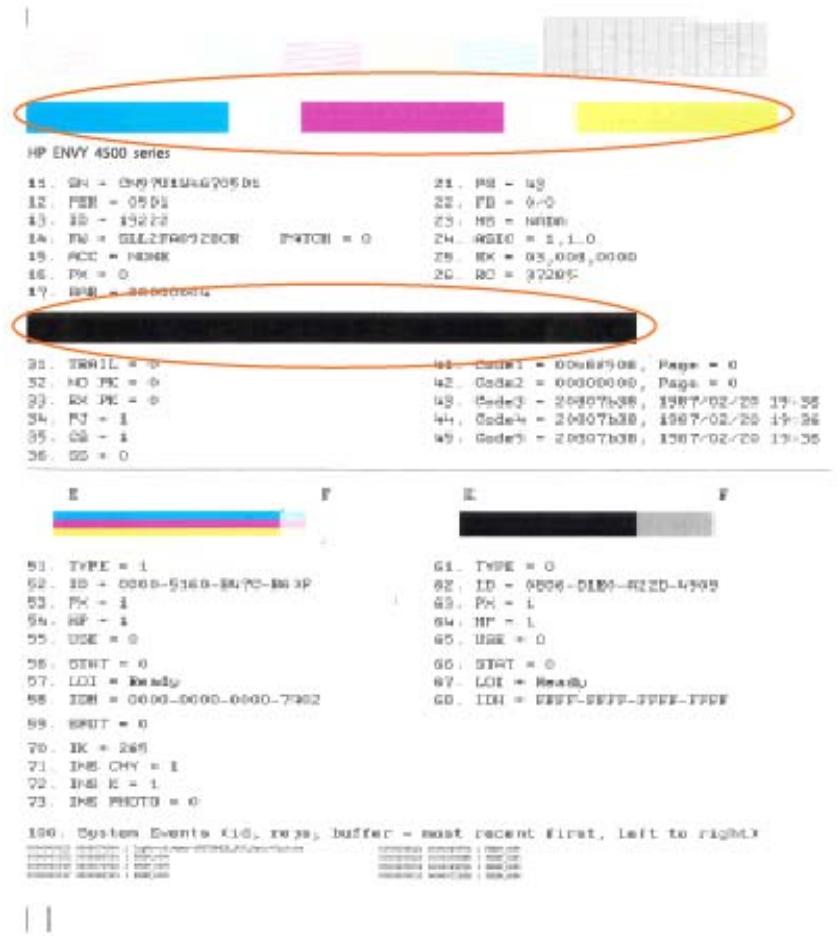
To print a diagnostics page from the printer display
a. From the Home screen on the printer display, select Tools.

NOTE: If you do not see the Home screen, press the Home button.
b. From the Tools menu on the printer display, select Print Quality Report. Follow the on-screen instructions.
- Clean the ink cartridges automatically, if the diagnostic page shows streaks or missing portions of the color and black boxes.
To clean the cartridges from the printer software
a. Load letter or A4 unused plain white paper into the paper tray. b. Depending on your operating system, do one of the following to open the printer software:
- Windows 8: On the Start screen, right-click an empty area on the screen, click All Apps on the app bar, and then click the icon with the printer's name.
- Windows 7, Windows Vista, and Windows XP: From the computer desktop, click Start, select All Programs, click HP, click HP ENVY 4500 series, and then click HP ENVY 4500 series.
c. In the printer software, click Print & Scan and then click Maintain Your Printer to access the Printer Toolbox. d. Click Clean Ink Cartridges on the Device Services tab. Follow the on-screen instructions.
To clean the cartridges from the printer display
a. From the Home screen on the printer display, select Tools.

NOTE: If you do not see the Home screen, press the Home button.
b. From the Tools menu on the printer display, select Clean Printhead. Follow the on-screen instructions.
If the above solutions do not resolve the problem, click here for more online troubleshooting.
Clear a paper jam
Clear a paper jam from the paper path.
To clear a paper jam from paper path
- Open the cartridge access door.
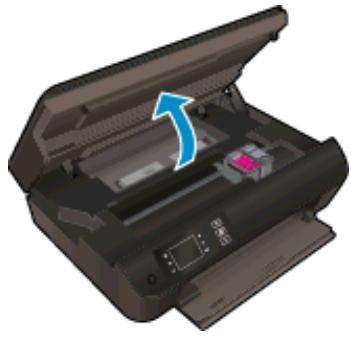
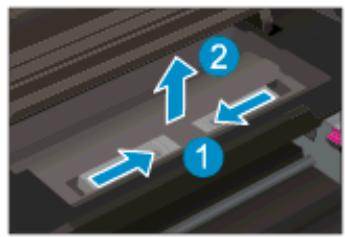
- Remove the cleanup.
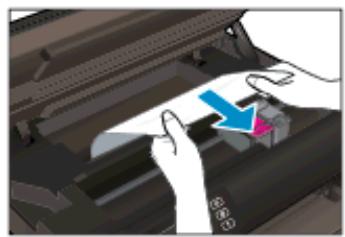
- Remove the jammed paper from the rear roller.
- Place the cleanout back.
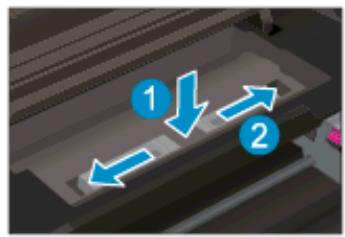
- Close the cartridge access door.
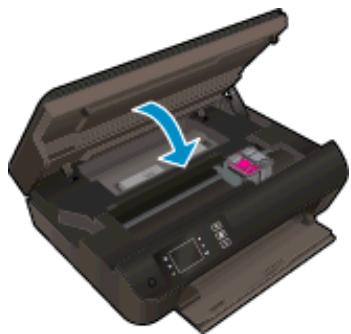
- Press the OK button on the control panel to continue the current job.
Clear a paper jam from the duplexer.
To clear a paper jam from duplexer
- Open the cartridge access door.
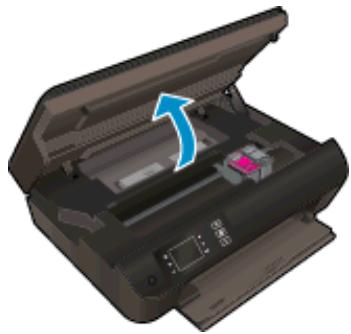
- Remove the cleanup.
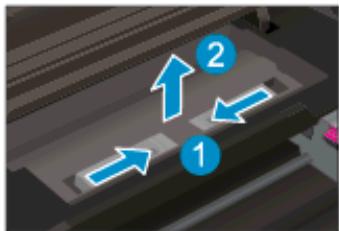
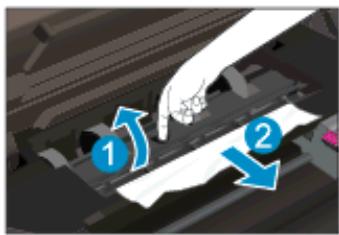
- Press on the hole of the duplexer path cover to lift it up. Remove the jammed paper.
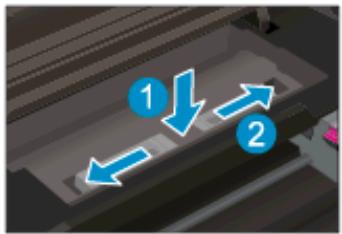
- Place the cleanout back.
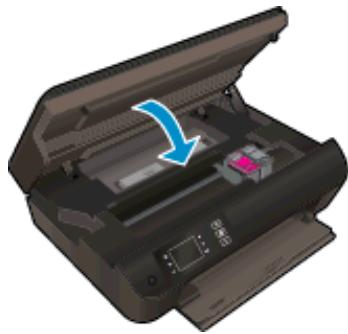
- Close the cartridge access door.
- Press the OK button on the control panel to continue the current job.
Clear a paper jam from the print zone.
To clear a paper jam from print zone
- Open the cartridge access door.
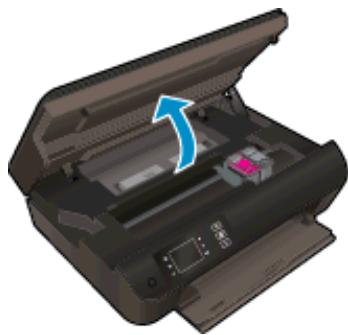
- Remove the jammed paper from inside the printer.
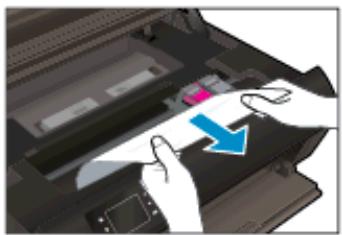
- Close the cartridge access door.
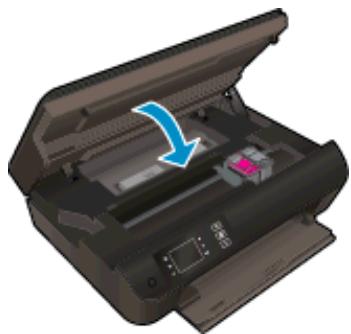
- Press the OK button on the control panel to continue the current job.
If the above solutions do not resolve the problem, click here for more online troubleshooting.
Prevent paper jams
- Do not overfill the paper tray.
- Remove printed papers from the paper tray frequently.
- Ensure that paper loaded in the paper tray lays flat and the edges are not bent or torn.
- Do not combine different paper types and paper sizes in the paper tray; the entire stack of paper in the paper tray must be the same size and type.
- Adjust the paper-width guides in the paper tray to fit snugly against all paper. Make sure the paper-width guides do not bend the paper in the paper tray.
- Do not force the paper too far forward in the paper tray.
- Do not add paper while the printer is printing. If the printer is about to run out of paper, wait until the out of paper message appears before adding paper.
If the above solutions do not resolve the problem, click here for more online troubleshooting.
Unable to print
If you're having trouble printing, you can download the HP Print and Scan Doctor, which can troubleshoot this issue for you automatically. To get the utility, click the appropriate link:

NOTE: The HP Print and Scan Doctor may not be available in all languages.
Take me to the HP Print and Scan Doctor download page.
Resolve print issues

NOTE: Make sure that the printer is turned on and that there is paper in the tray. If you are still unable to print, try the following in order:
- Check for error messages from the printer display and resolve them by following the on-screen instructions.
- If your computer is connected to the printer with a USB cable, disconnect and reconnect the USB cable. If your computer is connected to the printer with a wireless connection, confirm that the connection is working.
- Verify that the printer is not paused or offline.
To verify that the printer is not paused or offline:
a. Depending on your operating system, do one of the following:
- Windows 8: Point to or tap the upper-right corner of the screen to open the Charms bar, click the Settings icon, click or tap Control Panel, and then click or tap View devices and printers.
- Windows 7: From the Windows Start menu, click Devices and Printers.
- Windows Vista: From the Windows Start menu, click Control Panel, and then click Printers.
- Windows XP: From the Windows Start menu, click Control Panel, and then click Printers and Faxes.
b. Either double-click the icon for your printer or right-click the icon for your printer and select See what's printing to open the print queue. c. On the Printer menu, make sure there are no check marks next to Pause Printing or Use Printer Offline. d. If you make any changes, try to print again.
- Verify that the printer is set as the default printer.
To verify that the printer is set as the default printer:
a. Depending upon your operating system, do one of the following:
- Windows 8: Point to or tap the upper-right corner of the screen to open the Charms bar, click the Settings icon, click or tap Control Panel, and then click or tap View devices and printers.
- Windows 7: From the Windows Start menu, click Devices and Printers.
- Windows Vista: From the Windows Start menu, click Control Panel, and then click Printers.
- Windows XP: From the Windows Start menu, click Control Panel, and then click Printers and Faxes.
b. Make sure the correct printer is set as the default printer.
The default printer has a check mark in a black or green circle next to it.
c. If the wrong printer is set as the default printer, right-click the correct printer and select Set as Default Printer. d. Try using your printer again.
5. Restart the print spooler.
To restart the print spooler
a. Depending upon your operating system, do one of the following:
Windows 8
i. Point to or tap the upper-right corner of the screen to open the Charms bar, and then click the Settings icon. ii. Click or tap Control Panel, and then click or tap System and Security. iii. Click or tap Administrative Tools, and then double-click or double-tap Services. iv. Right-click or touch and hold Print Spooler, and then click Properties. v. On the General tab, next to Startup type, make sure that Automatic is selected. vi. If the service is not already running, under Service status, click or tap Start, and then click or tap OK.
Windows 7
i. From the Windows Start menu, click Control Panel, System and Security, and then Administrative Tools. ii. Double-click Services. iii. Right-click the Print Spooler, and then click Properties. iv. On the General tab, next to Startup type, make sure that Automatic is selected. v. If the service is not already running, under Service status, click Start, and then click OK.
Windows Vista
i. From the Windows Start menu, click Control Panel, System and Maintenance, Administrative Tools. ii. Double-click Services. iii. Right-click the Print Spooler service, and then click Properties.
iv. On the General tab, next to Startup type, make sure that Automatic is selected. v. If the service is not already running, under Service status, click Start, and then click OK.
Windows XP
i. From the Windows Start menu, right-click My Computer. ii. Click Manage, and then click Services and Applications. iii. Double-click Services, and then select Print Spooler. iv. Right-click Print Spooler, and click Restart to restart the service.
b. Make sure the correct printer is set as the default printer.
The default printer has a check mark in a black or green circle next to it.
c. If the wrong printer is set as the default printer, right-click the correct printer and select Set as Default Printer. d. Try using your printer again.
- Restart the computer.
- Clear the print queue.
To clear the print queue
a. Depending upon your operating system, do one of the following:
- Windows 8: Point to or tap the upper-right corner of the screen to open the Charms bar, click the Settings icon, click or tap Control Panel, and then click or tap View devices and printers. Windows 7: From the Windows Start menu, click Devices and Printers.
- Windows Vista: From the Windows Start menu, click Control Panel, and then click Printers.
- Windows XP: From the Windows Start menu, click Control Panel, and then click Printers and Faxes.
b. Double-click the icon for your printer to open the print queue. c. On the Printer menu, click Cancel all documents or Purge Print Document, and then click Yes to confirm. d. If there are still documents in the queue, restart the computer and try printing again after the computer has restarted. e. Check the print queue again to make sure it is clear, and then try to print again.
To check the power connection and reset the printer
- Make sure the power cord is firmly connected to the printer.
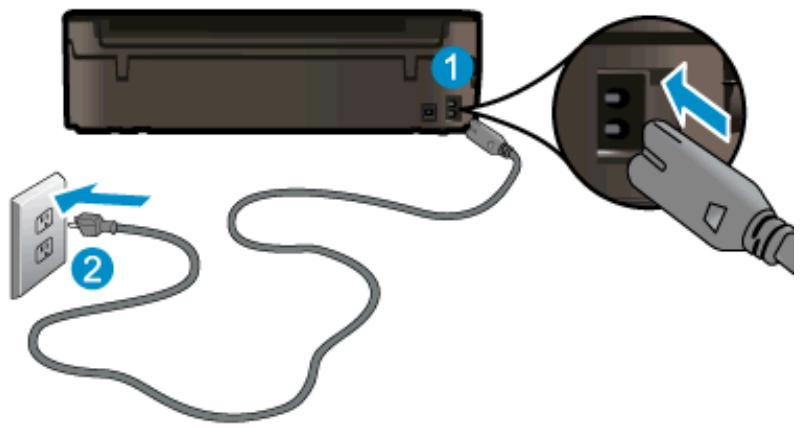
Power connection to the printer
Connection to a power outlet
- Look inside the printer and check for a green light indicating the printer is receiving electrical power. If it is not lit, make sure the cord is fully plugged into the printer, or connect to another power outlet.
- Look at the On button located on the printer. If it is not lit, the printer is turned off. Press the On button to turn on the printer.

NOTE: If the printer is not receiving electrical power, connect it to another power outlet.
- With the printer turned on, disconnect the power cord from the side of the printer under the cartridge access door.
- Unplug the power cord from the wall outlet.
- Wait at least 15 seconds.
- Plug the power cord back into the wall outlet.
- Reconnect the power cord to the side of the printer under the cartridge access door.
- If the printer does not turn on by itself, press the On button to turn on the printer.
- Try using the printer again.
If the above solutions do not resolve the problem, click here for more online troubleshooting.
Clear the print carriage
Remove any objects, such as paper, that are blocking the print carriage.
See Clear a paper jam on page 66 for more information.

NOTE: Do not use any tools or other devices to remove jammed paper. Always use caution when removing jammed paper from inside the printer.

Click here to go online for more information.
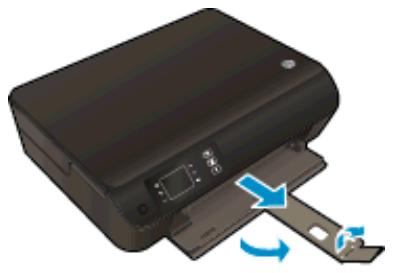
Prepare paper trays
Open paper tray
The paper tray must be open to begin printing.
Close cartridge access door
The cartridge door must be closed to begin printing.
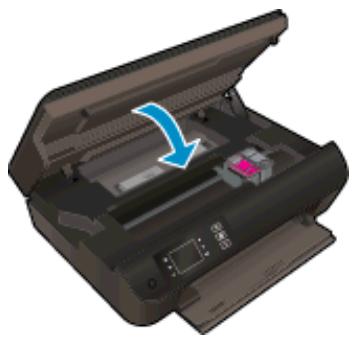

Click here to go online for more information.
Resolve copy and scan issues
HP provides an HP Print and Scan Doctor (Windows only) that can help solve many common "Unable to scan" issues. To get the utility, click the appropriate link:

NOTE: The HP Print and Scan Doctor may not be available in all languages.
Take me to the HP Print and Scan Doctor download page.
Learn more about how to solve scan issues. Click here to go online for more information.
Learn how to solve copy issues. Click here to go online for more information.
Printer failure
Resolve printer failure.
Turn the printer off, then on. If that does not resolve the problem, contact HP.

Please contact HP support for help.
Resolve ink cartridge problem
First try removing and reinserting the cartridges. If this does not work, clean the cartridge contacts. If your problem is still not resolved, see Replace the cartridges on page 45 for more information.
Clean the ink cartridge contacts

CAUTION: The cleaning procedure should take only a few minutes. Make sure that the ink cartridges are reinstalled in the printer as soon as possible. It is not recommended to leave the ink cartridges outside of the printer longer than 30 minutes. This could result in damage to the printhead or the ink cartridges.
- Check that power is on.
- Open the cartridge access door.
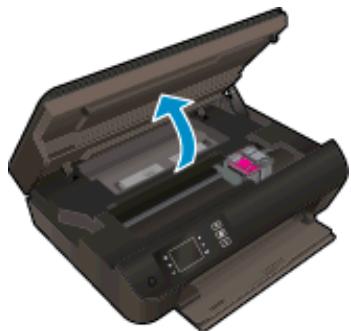
Wait for the print carriage to move to the right side of the printer.
- Remove the cartridge indicated in the error message.

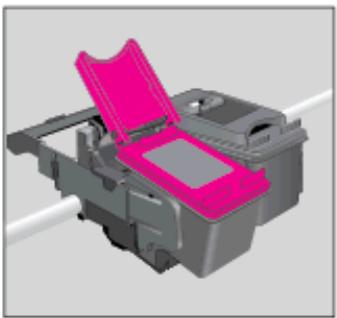
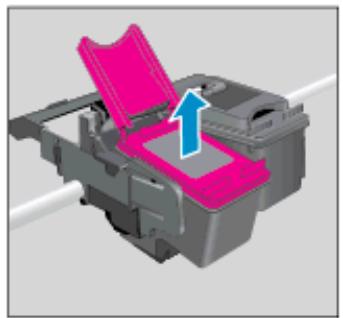
- Hold the ink cartridge by its sides with the bottom pointing up and locate the electrical contacts on the ink cartridge. The electrical contacts are the small gold-colored dots on the cartridge.
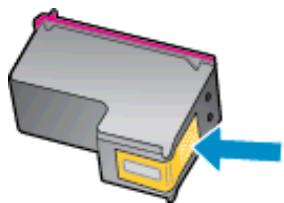
- Wipe only the contacts with a dry swab or lint-free cloth.

CAUTION: Be careful to wipe only the contacts, and do not smear any of the ink or other debris elsewhere on the cartridge.
- On the inside of the printer, locate the contacts in the printhead. The contacts look like a set of gold-colored bumps positioned to meet the contacts on the ink cartridge.
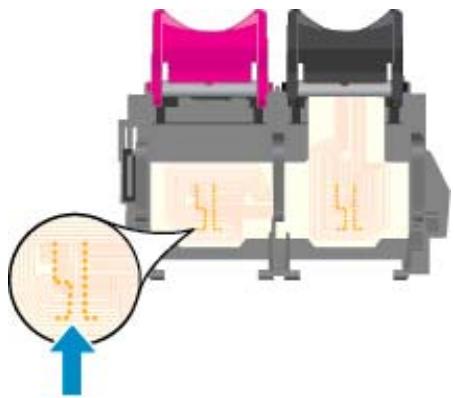
- Use a dry swab or lint-free cloth to wipe the contacts.
- Reinstall the ink cartridge.
- Close the cartridge access door, and check if the error message has gone away.
- If you still receive the error message, turn the printer off, and then on again.

NOTE: If one ink cartridge is causing problems, you can remove it and use the single-cartridge mode to operate the HP ENVY 4500 series with only one cartridge.

Click here to go online for more information.
Ink cartridge problem
The ink cartridge is not compatible with your printer. This error can occur if you install an HP Instant Ink cartridge into a printer that has not been enrolled in the HP Instant Ink program. It can also occur if the HP Instant Ink cartridge was previously used in a different printer enrolled in the HP Instant Ink program.
Visit the HP Instant Ink program website for more information.
Older generation cartridges
You will need to use a newer version of this cartridge. In most cases you can identify a newer version of the cartridge by looking at the exterior of the cartridge package and finding the Warranty Ends date.
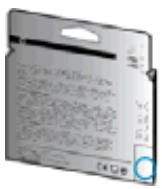
If it says 'v1' several spaces to the right of the date, then the cartridge is the updated newer version. If it is an older generation cartridge, contact HP support for help or replacement.

Click here to go online for more information.
Networking
- Learn how to find your network security settings. Click here to go online for more information.
- Learn about the HP Print and Scan Doctor. Click here to go online for more information.
- Learn about the network troubleshooting tips. Click here to go online for more information.
- Learn how to change from a USB to wireless connection. Click here to go online for more information.
- Learn how to work with your firewall and antivirus programs during printer setup. Click here to go online for more information.
HP support
Register printer Support process HP support by phone Additional warranty options
Register printer
By taking just a few quick minutes to register, you can enjoy quicker service, more efficient support, and product support alerts. If you did not register your printer while installing the software, you can register now at http://www.registererhp.com.
Support process
If you have a problem, follow these steps:
- Check the documentation that came with the printer.
- Visit the HP online support website at www.hp.com/support.
HP online support is available to all HP customers. It is the fastest source for up-to-date product information and expert assistance, and includes the following features:
- Fast access to qualified online support specialists
- Software and driver updates for the printer
- Valuable troubleshooting information for common problems
- Proactive printer updates, support alerts, and HP newsgrams that are available when you register the printer
- Call HP support.
Support options and availability vary by printer, country/region, and language.
HP support by phone
Phone support options and availability vary by printer, country/region, and language.
This section contains the following topics:
Phone support period - Placing a call Support phone numbers After the phone support period
Phone support period
One year of phone support is available in North America, Asia Pacific, and Latin America (including Mexico). To determine the duration of phone support in Europe, the Middle East, and Africa, go to www.hp.com/support. Standard phone company charges apply.
Placing a call
Call HP support while you are in front of the computer and the printer. Be prepared to provide the following information:
Product name (located on the printer, such as HP ENVY 4500) Product number (located inside the cartridge access door)
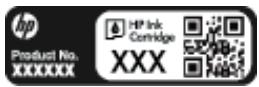
- Serial number (located on the back or bottom of the printer)
- Messages that appear when the situation occurs
- Answers to these questions:
Has this situation happened before? Can you recreate it? Did you add any new hardware or software to your computer at about the time that this situation began? Did anything else occur prior to this situation (such as a thunderstorm, the printer was moved, etc.)?
Support phone numbers
For the most current HP list of telephone support numbers and call costs information, see www.hp.com/support.
After the phone support period
After the phone support period, help is available from HP at an additional cost. Help may also be available at the HP online support website: www.hp.com/support. Contact your HP dealer or call the support phone number for your country/region to learn more about support options.
Additional warranty options
Extended service plans are available for the HP ENVY 4500 series at additional costs. Go to www.hp.com/support, select your country/region and language, then explore the services and warranty area for information about the extended service plans.
A Technical information
The technical specifications and international regulatory information for the HP ENVY 4500 series are provided in this section.
For additional specifications, see the printed documentation that came with the HP ENVY 4500 series.
This section contains the following topics:
- Hewlett-Packard Company notices
- Anonymous usage information storage
- Specifications, Environmental product stewardship program, Regulatory notices
Hewlett-Packard Company notices
The information contained herein is subject to change without notice.
All rights reserved. Reproduction, adaptation, or translation of this material is prohibited without prior written permission of Hewlett-Packard, except as allowed under the copyright laws. The only warranties for HP products and services are set forth in the express warranty statements accompanying such products and services. Nothing herein should be construed as constituting an additional warranty. HP shall not be liable for technical or editorial errors or omissions contained herein.
© 2012 Hewlett-Packard Development Company, L.P.
Microsoft®, Windows®, Windows® XP, Windows Vista®, Windows® 7 and Windows® 8 are U.S. registered trademarks of Microsoft Corporation.
Anonymous usage information storage
The HP cartridges used with this printer contain a memory chip that assists in the operation of the printer. In addition, this memory chip stores a limited set of anonymous information about the usage of the printer, which might include the following: the date when the cartridge was first installed, the date when the cartridge was last used, the number of pages printed using the cartridge, the page coverage, frequency of printing, the printing modes used, any printing errors that might have occurred, and the printer model.
This information helps HP design future printers to meet our customers' printing needs. The data collected from the cartridge memory chip does not contain information that can be used to identify a customer or user of the cartridge or their printer.
HP collects a sampling of the memory chips from cartridges returned to HP's free return and recycling program (HP Planet Partners: www.hp.com/hpinfo/globalcitizenship/environment/recycle/). The memory chips from this sampling are read and studied in order to improve future HP printers. HP partners who assist in recycling this cartridge might have access to this data, as well.
Any third party possessing the cartridge might have access to the anonymous information on the memory chip. If you prefer to not allow access to this information, you can render the chip inoperable. However, after you render the memory chip inoperable, the cartridge cannot be used in an HP printer.
If you are concerned about providing this anonymous information, you can make this information inaccessible by turning off the memory chip's ability to collect the printer's usage information.
To disable the usage information function
- From the Home screen on the printer display, using the buttons to the right, scroll to and select Preferences.
- Use the down arrow button to select Data Storage, and then press OK.
- Use the down arrow button to select Off, and then press OK to turn off the function.

NOTE: To re-enable the usage information function, restore the factory defaults.

NOTE: You can continue to use the cartridge in the HP printer if you turn off the memory chip's ability to collect the printer's usage information.
Specifications
Technical specifications for the HP ENVY 4500 series are provided in this section. For more product specifications, see the Product Data Sheet at www.hp.com/support.
System requirements Environmental specifications - Input tray capacity Output tray capacity Paper size Paper weights - Print specifications - Copy specifications - Scan specifications - Print resolution Power specifications - Cartridge yield Acoustic information
System requirements
Software and system requirements are located in the Readme file.
For information about future operating system releases and support, visit the HP online support website at www.hp.com/support.
Environmental specifications
Recommended operating temperature range: 15°C to 32°C (59°F to 90°F) - Allowable operating temperature range: 5°C to 40°C (41°F to 104°F) - Humidity: 15% to 80% RH non-condensing; 28°C maximum dewpoint Nonoperating (Storage) temperature range: -40°C to 60°C (-40°F to 140°F) - In the presence of high electromagnetic fields, it is possible the output from the HP ENVY 4500 series may be slightly distorted. HP recommends using a USB cable less than or equal to 3m (10 feet) in length to minimize injected noise due to potential high electromagnetic fields.
Input tray capacity
Plain paper sheets (80 g/m2 [20 lb]): Up to 50
Envelopes: Up to 5
Index cards: Up to 20
Photo paper sheets: Up to 20
Output tray capacity
Plain paper sheets (80 g/m2 [20 lb]): Up to 20
Envelopes: Up to 5
Index cards: Up to 10
Photo paper sheets: Up to 10
Paper size
For a complete list of supported media sizes, see the printer software.
Paper weights
Plain Paper: 64 to 90 g/m2 (16 to 24 lb)
Envelopes: 75 to 90 g/m2 (20 to 24 lb)
Cards: Up to 200 g/m² (110-lb index maximum)
Photo Paper: Up to 280 g/m² (75 lb)
Print specifications
- Print speeds vary according to the complexity of the document. Method: drop-on-demand thermal inkjet. Language: PCL3 GUI.
Copy specifications
Digital image processing. Copy speeds vary according to the complexity of the document and model. Resolution for photo paper copy: up to 600 dpi.
Scan specifications
Optical resolution: up to 1200 dpi. Hardware resolution: up to 1200 x 1200 dpi. Enhanced resolution: up to 1200 x 1200 dpi. Bit depth: 24-bit color, 8-bit grayscale (256 levels of gray). Maximum scan size from the scanner glass: 21.6 x 29.7 cm (8.5 x 11.7 inches).
Supported file types: BMP, JPEG, PNG, TIFF, PDF. Twain version: 1.9.
Print resolution
Draft mode
Color Input/Black Render: 300x300 dpi. Output (Black/Color): Automatic.
Normal mode
Color Input/Black Render: 600x300 dpi. Output (Black/Color): Automatic.
Plain-Best mode
Color Input/Black Render: 600x600dpi Automatic
Photo-Best mode
Color Input/Black Render: 600x600dpi - Output (Black/Color): Automatic
Max DPI mode
Color Input/Black Render: 1200x1200dpi Output: Automatic (Black), 4800x1200 optimized dpi (Color)
Power specifications
A9T80-60008
Input voltage: 100-240Vac (+/- 10%) Input frequency: 50/60 Hz (+/- 3 Hz)
A9T80-60009
Input voltage: 200-240Vac (+/- 10%) Input frequency: 50/60 Hz (+/- 3 Hz)

NOTE: Use only with the power adapter supplied by HP.
Cartridge yield
Visit www.hp.com/go/learnaboutsupplies for more information on estimated cartridge yields.
Acoustic information
If you have Internet access, you can get acoustic information from the HP website. Go to: www.hp.com/support.
Environmental product stewardship program
Hewlett-Packard is committed to providing quality products in an environmentally sound manner. Design for recycling has been incorporated into this product. The number of materials has been kept to a minimum while ensuring proper functionality and reliability. Dissimilar materials have been designed to separate easily. Fasteners and other connections are easy to locate, access, and remove using common tools. High priority parts have been designed to access quickly for efficient disassembly and repair.
For more information, visit HP's Commitment to the Environment website at:
www.hp.com/hpinfo/globalcitizenship/environment/index.html
Eco-Tips Paper use Plastics Material safety data sheets Recycling program HP inkjet supplies recycling program Power consumption - Sleep mode - Disposal of waste equipment by users Chemical substances - Toxic and hazardous substance table (China) - Restriction of hazardous substance (Ukraine) - Restriction of hazardous substance (India)
Eco-Tips
HP is committed to helping customers reduce their environmental footprint. Please visit the HP Environmental Programs and Initiatives website for more information on HP's environmental initiatives.
www.hp.com/hpinfo/globalcitizenship/environment/
Paper use
This product is suited for the use of recycled paper according to DIN 19309 and EN 12281:2002.
Plastics
Plastic parts over 25 grams are marked according to international standards that enhance the ability to identify plastics for recycling purposes at the end of product life.
Material safety data sheets
Material safety data sheets (MSDS) can be obtained from the HP website at:
www.hp.com/go/msds
Recycling program
HP offers an increasing number of product return and recycling programs in many countries/regions, and partners with some of the largest electronic recycling centers throughout the world. HP conserves resources by reselling some of its most popular products. For more information regarding recycling of HP products, please visit:
www.hp.com/hpinfo/globalcitizenship/environment/recycle/
HP inkjet supplies recycling program
HP is committed to protecting the environment. The HP Inkjet Supplies Recycling Program is available in many countries/regions, and lets you recycle used print cartridges and ink cartridges free of charge. For more information, go to the following website:
www.hp.com/hpinfo/globalcitizenship/environment/recycle/
Power consumption
Hewlett-Packard printing and imaging equipment marked with the ENERGY STAR® logo is qualified to the U.S. Environmental Protection Agency's ENERGY STAR specifications for imaging equipment. The following mark will appear on ENERGY STAR qualified imaging products:

Additional ENERGY STAR qualified imaging product model information is listed at: www.hp.com/go/energystar
Sleep mode
Power usage is reduced while in Sleep mode. After initial setup of printer, the printer will enter Sleep mode after 5 minutes of inactivity. The time to Sleep mode cannot be changed.
This symbol means do not dispose of your product with your other household waste. Instead, you should protect human health and the environment by handing over your waste equipment to a designated collection point for the recycling of waste electrical and electronic equipment. For more information, please contact your household waste disposal service, or go to http://www.hp.com/recycle.
Chemical substances
HP is committed to providing our customers with information about the chemical substances in our products as needed to comply with legal requirements such as REACH (Regulation EC No 1907/2006 of the European Parliament and the Council). A chemical information report for this product can be found at: www.hp.com/go/reach.
Toxic and hazardous substance table (China)
Restriction of hazardous substance (Ukraine)
Technical regulation on restricting the use of certain hazardous substances (Ukraine)
This equipment complies with the requirements of the Technical Regulation on restricting the use of certain hazardous substances in electrical and electronic equipment, approved by the Resolution of the Cabinet of Ministers of Ukraine dated December 3, 2008, No. 1057.
Restriction of hazardous substances (India)
Restriction of hazardous substances (India)
This product complies with the "India E-waste (Management and Handling) Rule 2011" and prohibits use of lead, mercury, hexavalent chromium, polybrominated biphenyls or polybrominated diphenyl ethers in concentrations exceeding 0.1 weight % and 0.01 weight % for cadmium, except for the exemptions set in Schedule 2 of the Rule.
Regulatory notices
The HP ENVY 4500 series meets product requirements from regulatory agencies in your country/region.
This section contains the following topics:
Regulatory model identification number; FCC statement; Notice to users in Korea; VCCI (Class B) compliance statement for users in Japan; Notice to users in Japan about the power cord; Noise emission statement for Germany; European Union Regulatory Notice; Visual display workplaces statement for Germany; Declaration of conformity; Regulatory wireless statements
Regulatory model identification number
For regulatory identification purposes, your product is assigned a Regulatory Model Number. The Regulatory Model Number for your product is SDGOB-1301. This regulatory number should not be confused with the marketing name (HP ENVY 4500 e-All-in-One series, etc.) or product numbers (A9T80A, A9T80B, A9T81A, etc.).
FCC statement
FCC statement
The United States Federal Communications Commission (in 47 CFR 15.105) has specified that the following notice be brought to the attention of users of this product.
This equipment has been tested and found to comply with the limits for a Class B digital device, pursuant to Part 15 of the FCC Rules. These limits are designed to provide reasonable protection against harmful interference in a residential installation. This equipment generates, uses and can radiate radio frequency energy and, if not installed and used in accordance with the instructions, may cause harmful interference to radio communications. However, there is no guarantee that interference will not occur in a particular installation. If this equipment does cause harmful interference to radio or television reception, which can be determined by turning the equipment off and on, the user is encouraged to try to correct the interference by one or more of the following measures:
Reorient or relocate the receiving antenna. - Increase the separation between the equipment and the receiver. - Connect the equipment into an outlet on a circuit different from that to which the receiver is connected. Consult the dealer or an experienced radio/TV technician for help.
For further information, contact:
Manager of Corporate Product Regulations
Hewlett-Packard Company
3000 Hanover Street
Palo Alto, CA 94304
(650) 857-1501
Modifications (part 15.21)
The FCC requires the user to be notified that any changes or modifications made to this device that are not expressly approved by HP may void the user's authority to operate the equipment.
This device complies with Part 15 of the FCC Rules. Operation is subject to the following two conditions: (1) this device may not cause harmful interference, and (2) this device must accept any interference received, including interference that may cause undesired operation.
Notice to users in Korea
VCCI (Class B) compliance statement for users in Japan
Notice to users in Japan about the power cord
Please use the power cord provided with the product.
European Union Regulatory Notice
Products bearing the CE marking comply with the following EU Directives:
Low Voltage Directive 2006/95/EC EMC Directive 2004/108/EC Ecodesign Directive 2009/125/EC, where applicable
CE compliance of this product is valid only if powered with the correct CE-marked AC adapter provided by HP.
If this product has telecommunications functionality, it also complies with the essential requirements of the following EU Directive:
R&TTE Directive 1999/5/EC
Compliance with these directives implies conformity to applicable harmonized European standards (European Norms) that are listed in the EU Declaration of Conformity issued by HP for this product or product family and available (in English only) either within the product documentation or at the following website: www.hp.com/go/certificates (type the product number in the search field).
The compliance is indicated by one of the following conformity markings placed on the product:

For non-telecommunications products and for EU harmonized telecommunications products, such as Bluetooth® within power class below 10mW.

For EU non-harmonized telecommunications products (If applicable, a 4-digit notified body number is inserted between CE and!).
Please refer to the regulatory label provided on the product.
The telecommunications functionality of this product may be used in the following EU and EFTA countries: Austria, Belgium, Bulgaria, Cyprus, Czech Republic, Denmark, Estonia, Finland, France, Germany, Greece, Hungary, Iceland, Ireland, Italy, Latvia, Liechtenstein, Lithuania, Luxembourg, Malta, Netherlands, Norway, Poland, Portugal, Romania, Slovak Republic, Slovenia, Spain, Sweden, Switzerland, and United Kingdom.
The telephone connector (not available for all products) is intended for connection to analogue telephone networks.
Products with wireless LAN devices
- Some countries may have specific obligations or special requirements about the operation of Wireless LAN networks such as indoor use only or restrictions of the channels available. Please make sure that the country settings of the wireless network are correct.
France
- For 2.4-GHz Wireless LAN operation of this product, certain restrictions apply: This product may be used indoors for the entire 2400-MHz to 2483.5-MHz frequency band (channels 1 to 13). For outdoor use, only the 2400-MHz to 2454-MHz frequency band (channels 1 to 7) may be used. For the latest requirements, see www.arcep.fr.
The point of contact for regulatory matters is:
Hewlett-Packard GmbH, Dept./MS: HQ-TRE, Herrenberger Strasse 140, 71034 Boeblingen, GERMANY
Visual display workplaces statement for Germany
Doc#:SDG0B-1301-drah1.0
Supplier's Name:
Howlett Packard Company
9 West Barmardo Drive, San Diego, CA 92127-1899, USA
Supplier's Address:
declares, that the product
Product Name and Model:
HP ENVY 4500 e-All-in-One Printer
HP Deskjet Ink Advantage 3540 e-All-in-One Printer
Regulatory Model Number:
SDG0B-1301
Product Options:
All
Radio Module:
SDG0B-1292 (802.11 b/g/n)
Power Adapter:
N/A
conforms to the following Product Specifications and Regulations:
EMC: Class B
CISPR 22:2005 +A1:2005/EN 55022:2006+A1:2007 Class B
CISPR 24:1997+A1:2001+A2:2002/EN 55024:1998+A1:2001+A2:2003
EN 301 489-1 v1.8.1:2008, EN 301 489-17 v2.1.1:2009
IEC 61000-3-2: 2005 + A1: 2008 + A2: 2009/EN 61000-3-2: 2006 + A1: 2009 + A2: 2009
IEC 61000-3-3:2008/EN 61000-3-3:2008
FCC CFR 47 Part 15/ICES-003, issue 5 Class B
Safety:
IEC 60950-1:2005 (2nd ed.) + A1:2009/EN 60950-1:2006 + A11:2009 + A1:2010 + A12:2011
EN 62479:2010
Telecom:
EN 300 328 v1.7.1:2006
IEC 62311:2007/EN 62311:2008
Energy Use:
Regulation (EC) No. 1275/2008
ENERGY STAR Qualified Imaging Equipment Operational Mode (OM) Test Procedure
RoHS:
HP Standard 011 General Specification for the Environment, Revision 0.01-August-2011
This device complies with part 15 of the FCC Rules. Operation is subject to the following two conditions:
(1) This device may not cause harmful interference, and (2) this device must accept any interference received.
including interference that may cause undesired operation.
The product herewith complies with the requirements of the Low Voltage Directive 2006/95/EC, the EMC Directive
2004/108/EC, the Ecodesign Directive 2009/125/EC, the R&TTE Directive 1999/5/EC, the RoHS Directive
2011/65/EU, the WEEE Directive 2002/96/EC and the European Council Recommendation 1999/519/EC on the
limitation of Electromagnetic fields to the general public and carries the CE marking accordingly.
Additional Information:
1) This product is assigned a Regulatory Model Number which stays with the regulatory aspects of the design. The
Regulatory Model Number is the main product identifier in the regulatory documentation and test reports, this
number should not be confused with the marketing name or the product numbers.
September 2012
San Diego, CA
Local contact for regulatory topics only:
EMEA: Hewlett-Packard GmbH, HQ-TRE, Harenberger Strasse 140, 71034 Boeblingen, Germany
U.S.: Hewlett-Packard, 3000 Hanover St., Palo Alto 94304, U.S.A. 650-857-1501 www.hp.eu/certificates
Regulatory wireless statements
This section contains the following regulatory information pertaining to wireless products:
- Exposure to radio frequency radiation Notice to users in Brazil Notice to users in Canada
- Notice to users in Mexico
- Notice to users in Taiwan
- Wireless notice to users in Japan
Exposure to radio frequency radiation

Caution: The radiated output power of this device is far below the FCC radio frequency exposure limits. Nevertheless, the device shall be used in such a manner that the potential for human contact during normal operation is minimized. This product and any attached external antenna, if supported, shall be placed in such a manner to minimize the potential for human contact during normal operation. In order to avoid the possibility of exceeding the FCC radio frequency exposure limits, human proximity to the antenna shall not be less than 20 cm (8 inches) during normal operation.
Notice to users in Brazil
Aviso aos usuários no Brasil
Notice to users in Canada
Under Industry Canada regulations, this radio transmitter may only operate using an antenna of a type and maximum (or lesser) gain approved for the transmitter by Industry Canada. To reduce potential radio interference to other users, the antenna type and its gain should be so chosen that the equivalent isotropically radiated power (e.i.r.p.) is not more than that necessary for successful communication.
This device complies with Industry Canada licence-exempt RSS standard(s). Operation is subject to the following two conditions: (1) this device may not cause interference, and (2) this device must accept any interference, including interference that may cause undesired operation of the device.
WARNING! Exposure to Radio Frequency Radiation: The radiated output power of this device is below the Industry Canada radio frequency exposure limits. Nevertheless, the device should be used in such a manner that the potential for human contact is minimized during normal operation.
To avoid the possibility of exceeding the Industry Canada radio frequency exposure limits, human proximity to the antennas should not be less than 20 cm (8 inches).
Notice to users in Taiwan
Regulations for the Management of Low-Power Radio-Wave Radiating Devices
Article 12
Wireless notice to users in Japan
A after the support period 84
B buttons, control panel 5
C control panel buttons 5 features 5
copy specifications 89
customer support warranty 84
E environment Environmental product stewardship program 92 environmental specifications 88
interface card 52, 53
N network interface card 52, 53
P paper recommended types 24 phone support 83 phone support period period for support 84 print specifications 89
R recycle ink cartridges 93 regulatory notices 96 regulatory model identification number 96 wireless statements 100
s scan scan specifications 89 support process 83 system requirements 88
Technical information: copy specifications 89, environmental specifications 88, print specifications 89, scan specifications 89, system requirements 88
Warranty 84
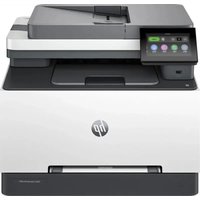
- HP ENVY 4500 E-ALL-IN-ONE SERIES
- TABLE OF CONTENTS
- CONNECTIVITY
- SOLVE A PROBLEM
- APPENDIX A TECHNICAL INFORMATION
- INDEX
- HP ENVY 4500 E-ALL-IN-ONE SERIES HELP
- GET TO KNOW THE HP ENVY 4500 SERIES
- PRINTER PARTS
- CONTROL PANEL AND STATUS LIGHTS
- WIRELESS SETTINGS
- AUTO-OFF
- TO CHANGE AUTO-OFF SETTING
- HP EPRINT
- TO PRINT USING HP EPRINT
- TO FIND THE PRINTER'S EMAIL ADDRESS
- TO TURN OFF EPRINT
- PRINT DOCUMENTS
- LOAD PAPER
- TO PRINT A DOCUMENT
- TO PRINT ON BOTH SIDES OF THE PAGE
- PRINT PHOTOS
- LOAD PHOTO PAPER
- TO PRINT A PHOTO ON PHOTO PAPER
- PRINT QUICK FORMS
- PRINT ENVELOPES
- LOAD ENVELOPES
- TO PRINT AN ENVELOPE
- PRINT WITH HP WIRELESS DIRECT
- PRINT FROM A WIRELESS-CAPABLE MOBILE DEVICE
- PRINT FROM A WIRELESS-CAPABLE COMPUTER
- PRINT USING THE MAXIMUM DPI
- TO PRINT IN MAXIMUM DPI MODE
- TIPS FOR PRINT SUCCESS
- INK TIPS
- PAPER LOADING TIPS
- PRINTER SETTINGS TIPS
- NOTES
- PAPER BASICS
- RECOMMENDED PAPERS FOR PRINTING
- COLORLOK
- PHOTO PRINTING
- BUSINESS DOCUMENTS
- EVERYDAY PRINTING
- SPECIAL PROJECTS
- LOAD MEDIA
- LOAD FULL-SIZE PAPER
- LOAD SMALL-SIZE PAPER
- ORDER HP PAPER SUPPLIES
- COPY AND SCAN
- COPY DOCUMENTS
- EASY COPY
- MORE COPY FEATURES
- SCAN TO A COMPUTER
- PREPARE THE SCAN
- LOAD ORIGINAL
- SCAN FROM THE PRINTER CONTROL PANEL
- SCAN FROM YOUR COMPUTER
- TIPS FOR COPY SUCCESS
- TIPS FOR SCAN SUCCESS
- WORK WITH CARTRIDGES
- CHECK THE ESTIMATED INK LEVELS
- TO CHECK THE INK LEVELS FROM THE PRINTER CONTROL PANEL
- TO CHECK THE INK LEVELS FROM THE PRINTER SOFTWARE
- ORDER INK SUPPLIES
- LOCATE THE CARTRIDGE NUMBER ON THE PRINTER
- LOCATE THE CARTRIDGE NUMBER IN THE PRINTER SOFTWARE
- CHOOSE RIGHT INK CARTRIDGES
- REPLACE THE CARTRIDGES
- TO REPLACE THE CARTRIDGES
- USE SINGLE-CARTRIDGE MODE
- EXIT SINGLE-CARTRIDGE MODE
- CARTRIDGE WARRANTY INFORMATION
- TIPS FOR WORKING WITH CARTRIDGES
- WI-FI PROTECTED SETUP (WPS – REQUIRES WPS ROUTER)
- PUSH BUTTON (PBC) METHOD
- PIN METHOD
- TRADITIONAL WIRELESS CONNECTION (REQUIRES ROUTER)
- TO CONNECT THE PRINTER
- CONNECT A NEW PRINTER
- CHANGE NETWORK SETTINGS
- USB CONNECTION (NON-NETWORK CONNECTION)
- TO CONNECT THE PRINTER WITH THE USB CABLE
- CHANGE FROM A USB CONNECTION TO A WIRELESS NETWORK
- CONNECT WIRELESSLY TO THE PRINTER WITHOUT A ROUTER
- TO CONNECT WIRELESSLY TO THE PRINTER WITHOUT A ROUTER
- TIPS FOR SETTING UP AND USING A NETWORKED PRINTER
- ADVANCED PRINTER MANAGEMENT TOOLS (FOR NETWORKED PRINTERS)
- TO OPEN THE EMBEDDED WEB SERVER
- OPEN THE EMBEDDED WEB SERVER THROUGH NETWORK
- OPEN THE EMBEDDED WEB SERVER THROUGH WIRELESS DIRECT
- ABOUT COOKIES
- IMPROVE PRINT QUALITY
- TO ALIGN THE CARTRIDGES FROM THE PRINTER SOFTWARE
- TO ALIGN THE CARTRIDGES FROM THE PRINTER DISPLAY
- TO PRINT A DIAGNOSTICS PAGE FROM THE PRINTER SOFTWARE
- TO PRINT A DIAGNOSTICS PAGE FROM THE PRINTER DISPLAY
- TO CLEAN THE CARTRIDGES FROM THE PRINTER SOFTWARE
- TO CLEAN THE CARTRIDGES FROM THE PRINTER DISPLAY
- CLEAR A PAPER JAM
- TO CLEAR A PAPER JAM FROM PAPER PATH
- TO CLEAR A PAPER JAM FROM DUPLEXER
- TO CLEAR A PAPER JAM FROM PRINT ZONE
- PREVENT PAPER JAMS
- UNABLE TO PRINT
- RESOLVE PRINT ISSUES
- TO VERIFY THAT THE PRINTER IS NOT PAUSED OR OFFLINE
- TO VERIFY THAT THE PRINTER IS SET AS THE DEFAULT PRINTER
- RESTART THE PRINT SPOOLER
- TO RESTART THE PRINT SPOOLER
- WINDOWS
- WINDOWS VISTA
- WINDOWS XP
- TO CLEAR THE PRINT QUEUE
- TO CHECK THE POWER CONNECTION AND RESET THE PRINTER
- CLEAR THE PRINT CARRIAGE
- PREPARE PAPER TRAYS
- OPEN PAPER TRAY
- CLOSE CARTRIDGE ACCESS DOOR
- RESOLVE COPY AND SCAN ISSUES
- PRINTER FAILURE
- RESOLVE INK CARTRIDGE PROBLEM
- CLEAN THE INK CARTRIDGE CONTACTS
- INK CARTRIDGE PROBLEM
- OLDER GENERATION CARTRIDGES
- NETWORKING
- HP SUPPORT
- REGISTER PRINTER
- SUPPORT PROCESS
- HP SUPPORT BY PHONE
- PHONE SUPPORT PERIOD
- PLACING A CALL
- SUPPORT PHONE NUMBERS
- AFTER THE PHONE SUPPORT PERIOD
- ADDITIONAL WARRANTY OPTIONS
- A TECHNICAL INFORMATION
- HEWLETT-PACKARD COMPANY NOTICES
- ANONYMOUS USAGE INFORMATION STORAGE
- TO DISABLE THE USAGE INFORMATION FUNCTION
- SPECIFICATIONS
- SYSTEM REQUIREMENTS
- ENVIRONMENTAL SPECIFICATIONS
- INPUT TRAY CAPACITY
- OUTPUT TRAY CAPACITY
- PAPER SIZE
- PAPER WEIGHTS
- PRINT SPECIFICATIONS
- COPY SPECIFICATIONS
- SCAN SPECIFICATIONS
- PRINT RESOLUTION
- DRAFT MODE
- NORMAL MODE
- PLAIN-BEST MODE
- PHOTO-BEST MODE
- MAX DPI MODE
- POWER SPECIFICATIONS
- A9T
- CARTRIDGE YIELD
- ACOUSTIC INFORMATION
- ENVIRONMENTAL PRODUCT STEWARDSHIP PROGRAM
- ECO-TIPS
- PAPER USE
- PLASTICS
- MATERIAL SAFETY DATA SHEETS
- RECYCLING PROGRAM
- HP INKJET SUPPLIES RECYCLING PROGRAM
- POWER CONSUMPTION
- SLEEP MODE
- CHEMICAL SUBSTANCES
- TOXIC AND HAZARDOUS SUBSTANCE TABLE (CHINA)
- RESTRICTION OF HAZARDOUS SUBSTANCE (UKRAINE)
- TECHNICAL REGULATION ON RESTRICTING THE USE OF CERTAIN HAZARDOUS SUBSTANCES (UKRAINE)
- RESTRICTION OF HAZARDOUS SUBSTANCES (INDIA)
- REGULATORY NOTICES
- REGULATORY MODEL IDENTIFICATION NUMBER
- FCC STATEMENT
- NOTICE TO USERS IN KOREA
- VCCI (CLASS B) COMPLIANCE STATEMENT FOR USERS IN JAPAN
- NOTICE TO USERS IN JAPAN ABOUT THE POWER CORD
- EUROPEAN UNION REGULATORY NOTICE
- PRODUCTS WITH WIRELESS LAN DEVICES
- FRANCE
- VISUAL DISPLAY WORKPLACES STATEMENT FOR GERMANY
- REGULATORY WIRELESS STATEMENTS
- EXPOSURE TO RADIO FREQUENCY RADIATION
- NOTICE TO USERS IN BRAZIL
- AVISO AOS USUÁRIOS NO BRASIL
- NOTICE TO USERS IN CANADA
- NOTICE TO USERS IN TAIWAN
- REGULATIONS FOR THE MANAGEMENT OF LOW-POWER RADIO-WAVE RADIATING DEVICES
- WIRELESS NOTICE TO USERS IN JAPAN
Brand : HP
Model : MULTIFONCTION JET D ENCRE ENVY 4507
Category : Multifunction Printer