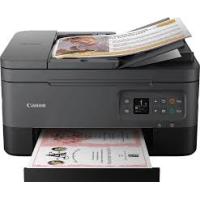
USER MANUAL PIXMA MX475 CANON
IMPORTANT SAFETY INSTRUCTIONS
SAVE THESE INSTRUCTIONS
When using your telephone equipment, basic safety precautions should always be followed to reduce the risk of fire, electric shock and injury to persons, including the following:
- Do not use this product near water, for example, near a bath tub, wash bowl, kitchen sink or laundry tub, in a wet basement or near a swimming pool.
- Avoid using this product during an electrical storm. There may be a remote risk of electric shock from lightning.
- Do not use this product to report a gas leak in the vicinity of the leak.
"CAUTION - To reduce the risk of fire, use only No. 26 AWG or larger telecommunication line cord."
IMPORTANT MESURES DE SECURITE
CONSERVER CES INSTRUCTIONS
FCC Notice (U.S.A. Only)
For 120V, 60Hz model
Model Number: K10400 (Contains FCC ID: AZDK30357)
This device complies with Part 15 of the FCC Rules. Operation is subject to the following two conditions: (1) This device may not cause harmful interference, and (2) this device must accept any interference received, including interference that may cause undesired operation.
Note: This equipment has been tested and found to comply with the limits for a Class B digital device, pursuant to Part 15 of the FCC Rules. These limits are designed to provide reasonable protection against harmful interference in a residential installation. This equipment generates, uses and can radiate radio frequency energy and, if not installed and used in accordance with the instructions, may cause harmful interference to radio communications.
However, there is no guarantee that interference will not occur in a particular installation. If this equipment does cause harmful interference to radio or television reception, which can be determined by turning the equipment off and on, the user is encouraged to try to correct the interference by one or more of the following measures:
- Reorient or relocate the receiving antenna.
- Increase the separation between the equipment and receiver.
- Connect the equipment into an outlet on a circuit different from that to which the receiver is connected.
- Consult the dealer or an experienced radio/TV technician for help.
Use of a shielded cable is required to comply with Class B limits in Subpart B of Part 15 of the FCC Rules.
Do not make any changes or modifications to the equipment unless otherwise specified in the manual. If such changes or modifications should be made, you could be required to stop operation of the equipment.
FCC ID:AZDK30357
Changes or modifications not expressly approved by the party responsible for compliance could void the user's authority to operate equipment.
This transmitter must not be co-located or operating in conjunction with any other antenna or transmitter.
The equipment complies with FCC radiation exposure limits for at uncontrolled equipment. This equipment should be installed and operated with minimum distance at least 20cm between the radiator and persons body (excluding extremities: hands, wrists, feet and ankles) and must not be colocated or operated with any other antenna or transmitter.
Canon U.S.A., Inc.
One Canon Park
Melville, New York 11747
1-800-652-2666
Pre-Installation Requirements
When ordering service from the telephone company for this equipment, the following may be required.
Universal Service Order Code (USOC): RJ11C
The Facility Interface Code (FIC): 02LS2
Service Order Code (SOC): 9.0F
Connection of the Equipment
This equipment complies with Part 68 of the FCC rules and the requirements adopted by the ACTA.
On the bottom of this equipment is a label that contains, among other information, a product identifier in the format US:AAAEQ##TXXXX. If requested, this number must be provided to the telephone company.
The REN is used to determine the number of devices that may be connected to a telephone line.
Excessive RENs on a telephone line may result in the devices not ringing in response to an incoming call. In most but not all areas, the sum of RENs should not exceed five (5.0). To be certain of the number of devices that may be connected to a line, as determined by the total RENs, contact the local telephone company. The REN for this product is part of the product identifier that has the format
US:AAAEQ##TXXXX. The digits represented by ## are the REN without a decimal point (e.g., 03 is a REN of 0.3).
A plug and jack used to connect this equipment to the premises wiring and telephone network must comply with the applicable FCC Part 68 rules and requirements adopted by the ACTA. A compliant telephone cord and modular plug is provided with this product. It is designed to be connected to a compatible modular jack that is also compliant. See installation instructions for details.
Connection to party lines is subjected to state tariffs. Contact the state public utility commission, public service commission or corporation commission for information.
If your home has specially wired alarm equipment connected to the telephone line, ensure the installation of this equipment does not disable your alarm equipment. If you have questions about what will disable alarm equipment, consult your telephone company or a qualified installer.
In Case of Equipment Malfunction
Should any malfunction occur which cannot be corrected by the procedures described in the Online Manual, disconnect the equipment from the telephone line cable, turn off the power and disconnect the power cord. The telephone line cable should not be reconnected or the main power switch turned ON until the problem is completely resolved. Users should contact their local authorized Canon Facsimile Service Dealer for the servicing of equipment.
Information regarding Authorized Service Facility locations can be obtained by calling the Canon Customer Center.
Rights of the Telephone Company
If this equipment causes harm to the telephone network, the telephone company may temporarily disconnect service. The telephone company also retains the right to make changes in facilities and services that may affect the operation of this equipment. When such changes are necessary, the telephone company is required to give adequate prior notice to the user. However, if advance notice is not possible, the telephone company will notify the customer as soon as possible. Also, the customer will be advised of his/her right to file a compliant with the FCC if he/she believes it is necessary.
Warning
The Telephone Consumer Protection Act of 1991 makes it unlawful for any person to use a computer or other electronic device to send any message via a telephone FAX machine unless such message clearly contains in a margin at the top or bottom of each transmitted page, or on the first page of the transmission, the date and time it is sent and an identification of the business or other entity, or other individual sending the message and the telephone number of the sending machine or such business, other entity, or individual.
In order to program this information into your FAX machine, you should complete the procedure to register your name, unit's telephone number, time, and date. Refer to the Online Manual.
Users in Canada
This device complies with Industry Canada license-exempt RSS standard(s). Operation is subject to the following two conditions:
(1) this device may not cause interference, and (2) this device must accept any interference, including interference that may cause undesired operation of the device.
This equipment complies with IC radiation exposure limits set forth for an uncontrolled environment and meets RSS-102 of the IC radio frequency (RF) Exposure rules. This equipment should be installed and
operated keeping the radiator at least 20cm or more away from person's body (excluding extremities: hands, wrists, feet and ankles).
Pre-Installation Requirements
Notice
This equipment meets the applicable Industry Canada technical specifications.
The Ringer Equivalence Number is an indication of the maximum number of devices allowed to be connected to a telephone interface. The termination on an interface may consist of any combination of devices subject only to the requirement that the sum of the RENs of all the devices does not exceed five.
Reducing your environmental impact while saving money
Power Consumption and Activation Time
The amount of electricity a device consumes depends on the way the device is used. This product is designed and set in a way to allow you to reduce your electricity costs. After the last print it switches to Ready Mode. In this mode it can print again immediately if required. If the product is not used for a time, the device switches to its Power Save Mode. The devices consume less power (Watt) in these modes. If you wish to set a longer Activation Time or would like to completely deactivate the Power Save Mode, please consider that this device may then only switch to a lower energy level after a longer period of time or not at all.
Canon does not recommend extending the Activation Times from the optimum ones set as default.
Energy Star®
The Energy Star® programme is a voluntary scheme to promote the development and purchase of energy efficient models, which help to minimise environmental impact.
Products which meet the stringent requirements of the Energy Star® programme for both environmental benefits and the amount of energy consumption will carry the Energy Star® logo accordingly.
Paper types
This product can be used to print on both recycled and virgin paper (certified to an environmental stewardship scheme), which complies with EN12281 or a similar quality standard. In addition it can support printing on media down to a weight of 64g / m^2 , lighter paper means less resources used and a lower environmental footprint for your printing needs.


(14) Bouton Configuration (Setup)
- Réduction image REC
- Pare-feu (Firewall)
- Adresse IP (IP Address)
- WCN (Windows Connect Now)
WPS (Wi-Fi Protected Setup)
Impression Mosaique/Poster
Correspondance pilot
Correspondance pilot
(Inverser verticalelement)
Inverser proportions