
MIIX 310 - 2-in-1 Tablet LENOVO - Free user manual and instructions
Find the device manual for free MIIX 310 LENOVO in PDF.

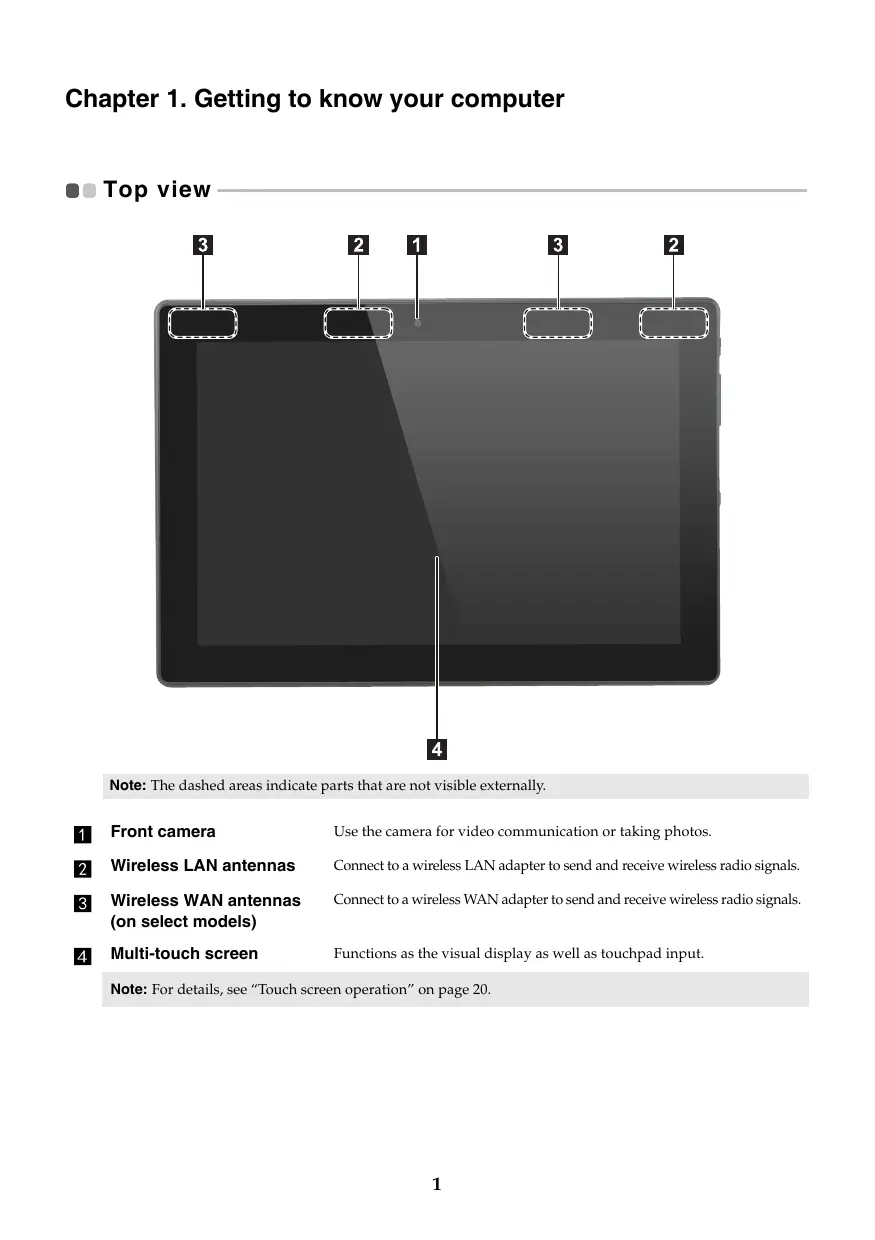

| Product type | 2-in-1 tablet with detachable keyboard |
| Brand and model | Lenovo MIIX 310 (MIIX 310-10ICR) |
| Display | 10.1-inch multi-touch touchscreen |
| Processor | Intel Atom (depending on configuration) |
| RAM memory | 2 GB or 4 GB (depending on configuration) |
| Storage | eMMC 32 GB or 64 GB (depending on configuration) |
| Operating system | Windows 10 |
| Front camera | Yes, for video conferencing |
| Rear camera | Yes, for photos and videos |
| Speakers | Built-in stereo |
| Microphone | Built-in |
| Wireless connectivity | Wi-Fi (standard model), optional 3G/4G (depending on model) |
| Ports | 1x Micro HDMI, 1x Micro USB, 1x Audio combo jack, Micro SD/micro SIM card reader |
| Docking keyboard | Detachable with touchpad, function keys |
| Sensors | Accelerometer for auto-rotation |
| Power supply | AC adapter (charges via dedicated connector) |
| Battery life | Approximately 8 hours (mixed usage, estimated) |
| Maintenance and cleaning | Clean with a soft, dry cloth; avoid liquids and abrasive products |
| Safety | Follow Lenovo safety guide instructions; do not expose to moisture or shocks |
| Spare parts available | AC adapter; battery not user-replaceable |
| Repairability | Complex repairs to be entrusted to a Lenovo authorized professional |
| Warranty | Check support.lenovo.com/warrantystatus for details |
Frequently Asked Questions - MIIX 310 LENOVO
User questions about MIIX 310 LENOVO
0 question about this device. Answer the ones you know or ask your own.
Ask a new question about this device
Download the instructions for your 2-in-1 Tablet in PDF format for free! Find your manual MIIX 310 - LENOVO and take your electronic device back in hand. On this page are published all the documents necessary for the use of your device. MIIX 310 by LENOVO.
USER MANUAL MIIX 310 LENOVO
- Before using the product, be sure to read Lenovo Safety and General Information Guide first.
-
The latest electronic compliance and environmental information are available from the Lenovo compliance information Web sites.
-
To view compliance information go to: http://www.lenovo.com/compliance
-
To download environmental information go to: http://www.lenovo.com/ecodeclaration
-
Some instructions in this guide may assume that you are using Windows® 10. If you are using another Windows operating system, some operations may be slightly different. If you are using other operating systems, some operations may not apply to you.
- The features described in this guide are common to most models. Some features may not be available on your computer or your computer may include features that are not described in this user guide.
- The illustrations in this manual may differ from the actual product. The screenshots of operating system are for reference only. Please refer to the actual product.
Regulatory Notice
- For details, refer to Guides & Manuals at http://support.lenovo.com.
First Edition (February 2016)
Copyright Lenovo 2016.
LIMITED AND RESTRICTED RIGHTS NOTICE: If data or software is delivered pursuant to a General Services Administration "GSA" contract, use, reproduction, or disclosure is subject to restrictions set forth in Contract No. GS-35F-05925.
Contents
Chapter 1. Getting to know your computer 1
Top view. 1
Left-side view. 3
Right-side view. 4
Bottom view. 7
Rear view. 8
Keyboard dock top view. 9
Keyboard dock left-side view. 11
Keyboard dock right-side view 11
Chapter 2. Starting to use Windows 10 14
Configuring the operating system for the first time. 14
Operating system interface. 14
Putting the computer to sleep or shutting it down. 16
Task and desktop management. 18
Connecting to a wireless network. 19
Get Started app. 19
Touch screen operation 20
Chapter 3. Recovery system 22
Chapter 4. Troubleshooting 24
Frequently asked questions. 24
Troubleshooting 25
Trademarks 28
Chapter 1. Getting to know your computer
Top view
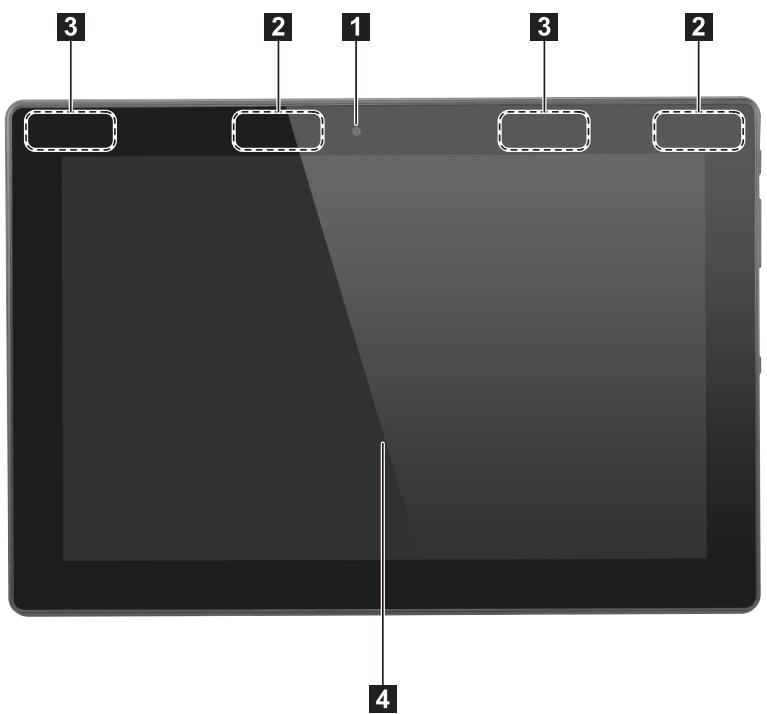
Note: The dashed areas indicate parts that are not visible externally.
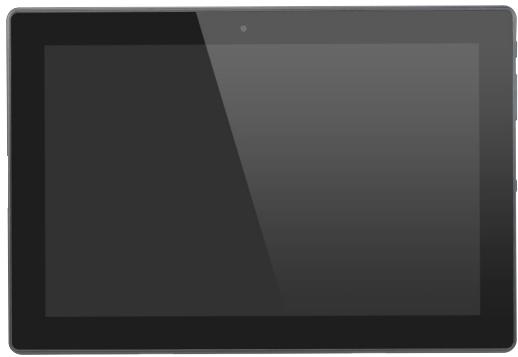
1 Front camera
Use the camera for video communication or taking photos.
2 Wireless LAN antennas
Connect to a wireless LAN adapter to send and receive wireless radio signals.
3 Wireless WAN antennas (on select models)
Connect to a wireless WAN adapter to send and receive wireless radio signals.
4 Multi-touch screen
Functions as the visual display as well as touchpad input.
Note: For details, see "Touch screen operation" on page 20.
Screen orientation
You can rotate the display panel to your preferred orientation.
The orientation of the display automatically changes (alternating between portrait and landscape modes) depending on how you hold it.
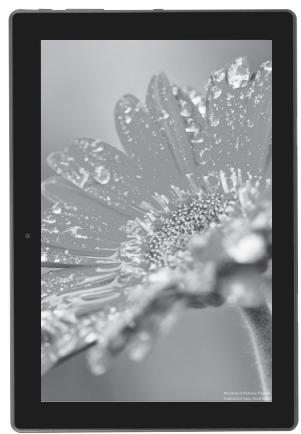
Portrait
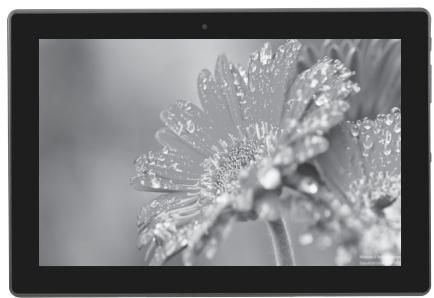
Landscape
Left-side view
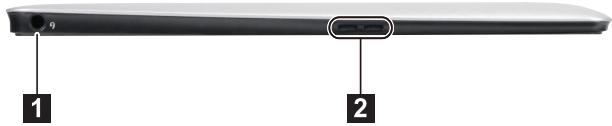
1 Combo audio jack
Connects to headsets.
Notes:
- The combo audio jack does not support conventional microphones.
- The recording function might not be supported if third-party headphones or headsets are connected, due to different industry standards.
2 Speaker
Provides audio output.
Right-side view
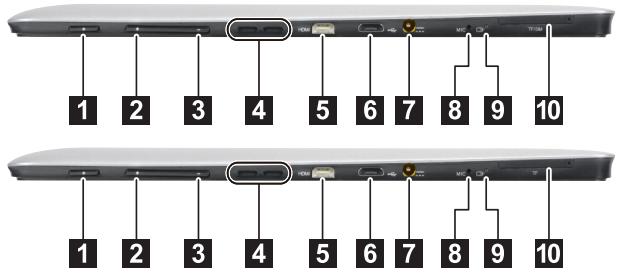
Power button
When the computer is off, press and hold this button to turn on the computer.
2 Volume up button
Increases the volume level.
3 Volume down button
Decreases the volume level.
4 Speaker
Provides audio output.
5 Micro HDMI port
Connects to devices with micro HDMI input such as a TV or an external display.
6 Micro USB port
Connects to USB devices.
7 AC power adapter jack
Connects to the AC power adapter.
Built-in microphone
Captures sound which can be used for video conferencing, voice narration, or audio recording.
9 Power indicator
| Symbol | Indicator | Indicator status | Meaning |
| + | Power | On (solid red) | The tablet is charging. |
| On (solid amber) | The tablet is connected to the AC power adapter and is fully charged. | ||
| Off | The tablet is disconnected from the AC power adapter. |
10 Card reader
Accept micro SD card (not supplied) and micro SIM card (not supplied).
Notes:
- Select models may not have the micro SIM card slot, please refer to the actual product.
- For details, see "Using the card reader" on page 5.
Using the card reader
Your computer supports the following types of cards:
- Micro Secure Digital (SD) card
- Micro Subscriber Identity Module (SIM) card (on select models)
Notes:
The card tray may have two slots for different types of cards. Insert only one card in one slot at a time.
- Select models may not have the micro SIM card slot, please refer to the actual product.
This card reader does not support SDIO devices (e.g., SDIO Bluetooth and so on.).
The illustrations are for reference only, please refer to the actual product.
Inserting card(s)
1 Turn off the tablet, and disconnect the AC adapter and any cable(s) from the tablet.
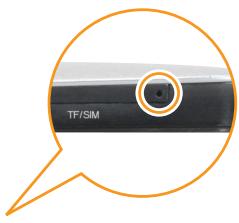
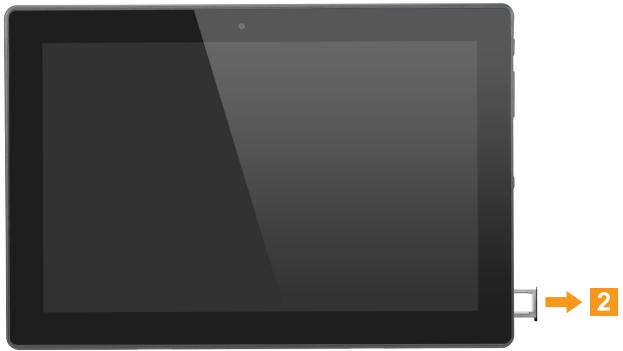
2 Insert a prying pin into the tiny hole on the card tray. Press firmly and push it straight in until the card tray pops out.
Gently pull the card tray out of the card reader.
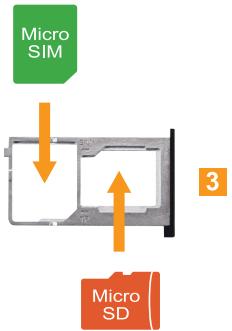
Put card(s) in the corresponding slot on the card tray.
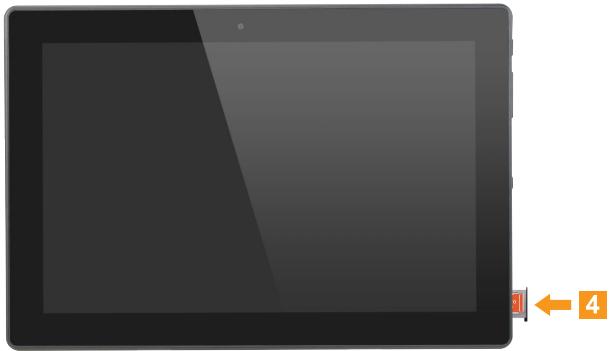
5 Reinsert the card tray.
Removing card(s)
1 Turn off the tablet, and disconnect the AC adapter and any cable(s) from the tablet.
2 Insert a prying pin into the tiny hole on the card tray. Press firmly and push it straight in until the card tray pops out.
Gently pull the card tray out of the card reader.
4 Remove card(s) from the card tray, then reinsert the card tray.
Notes:
- Do not insert or remove cards while the computer is turned on. Doing so may damage the card reader.
- Before removing the memory card, disable it by using the Windows safely remove hardware and eject media utility to avoid data corruption.
Bottom view
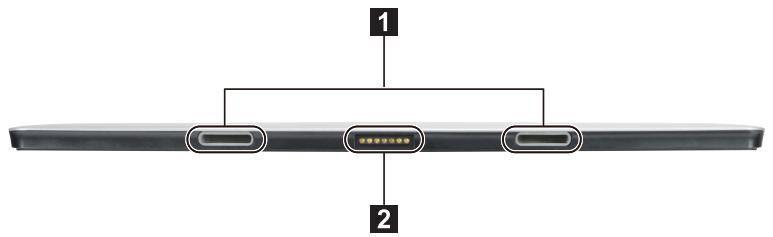
1 Tablet-keyboard dock latch
Note: For details, see "Combination of tablet and keyboard dock" on page 12.
2 Keyboard dock connector Connects the tablet to the keyboard dock.
Rear view
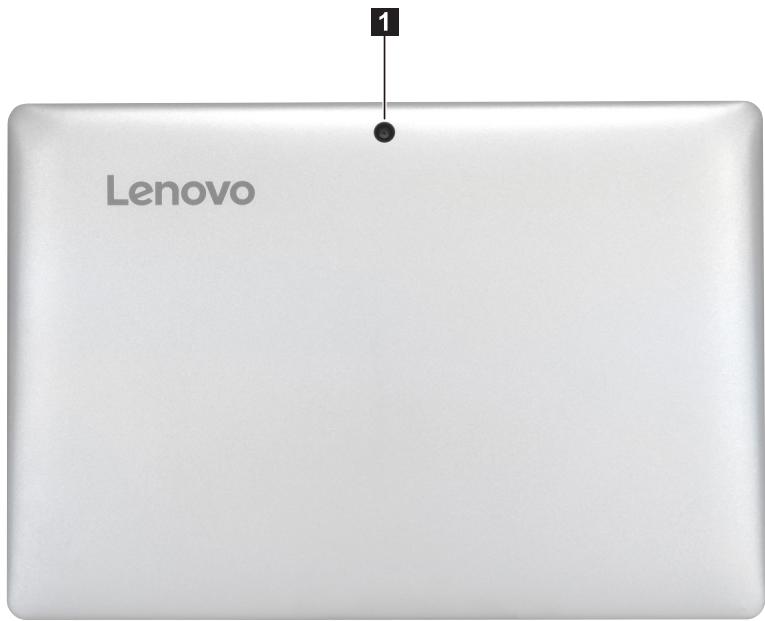
1 Rear camera
Use the camera for video communication or taking photos.
Keyboard dock top view
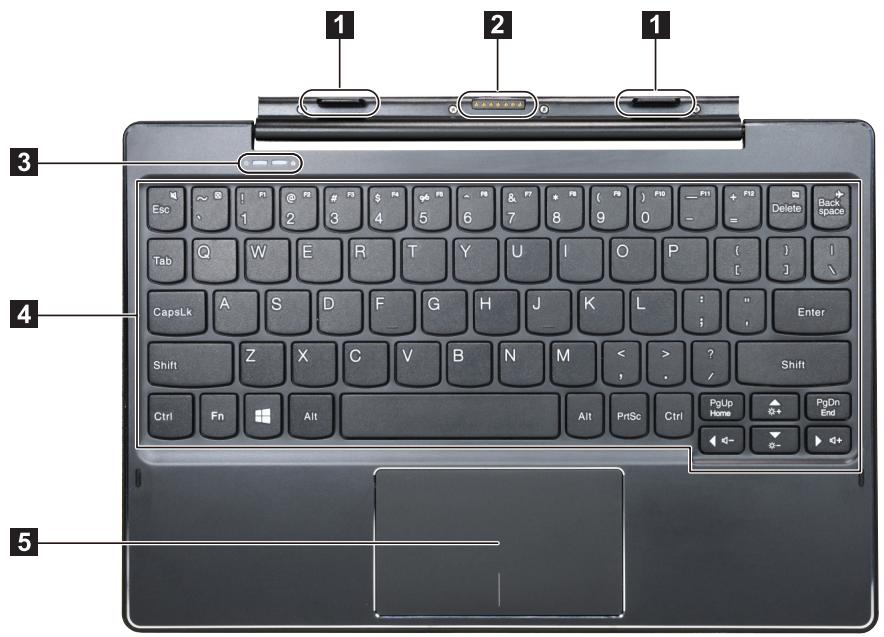
1 Tablet-keyboard dock latch Attaches the tablet to the dock keeping the tablet secured in place.
Note: For details, see "Combination of tablet and keyboard dock" on page 12.
2 Keyboard dock connector Connects the tablet to the keyboard dock.
3 System status indicators
| Symbol | Indicator | Indicator status | Meaning |
| \(\bigcirc\) | Power | On (solid white) | The computer is powered on. |
| Off | • The computer is in sleep mode, or the display is off. • The computer is powered off. • The tablet is detached from the keyboard dock. | ||
| \(\bigtriangleup\) | Caps lock | On (solid white) | Uppercase input mode is enabled. (All typed letters are uppercase by default.) |
| Off | Uppercase input mode is disabled. |
4 Keyboard
5 Touchpad
Function key combinations
Through the use of the function keys, you can change operational features instantly. To use this function, press and hold Fn 1; then press one of the function keys 2.
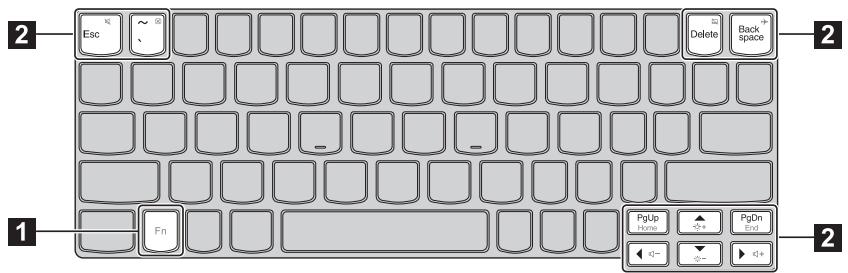
The following describes the features of each function key.
| Fn + Esc: | Mutes/unmutes the sound. |
| Fn + `: | Closes the currently active window. |
| Fn + Delete: | Enables/disables the touchpad. |
| Fn + Backspace: | Enables/disables Airplane mode. |
| Fn + PgUp: | Activates the home key function. |
| Fn + PgDn: | Activates the end key function. |
| Fn + -: | Increases the display brightness. |
| Fn + `: | Decreases the display brightness. |
| Fn + `: | Decreases the volume level. |
| Fn + `: | Increases the volume level. |
Keyboard dock left-side view
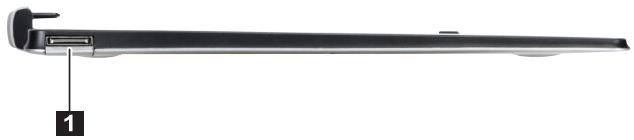
USB 2.0 port
Connects to USB devices.
Keyboard dock right-side view
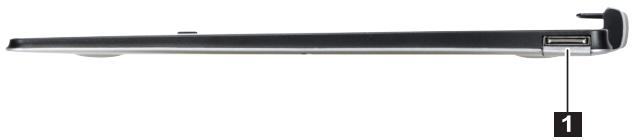
USB 2.0 port
Connects to USB devices.
Combination of tablet and keyboard dock
The Lenovo ideapad MIIX 310-10ICR is not only a tablet. It can be combined with a keyboard dock and used as a notebook computer.
Attaching the tablet
Align the connector of the keyboard dock with the tablet and then attach the tablet in the direction shown by the arrow.

Detaching the tablet
Carefully detaching the tablet in the direction shown by the arrow.
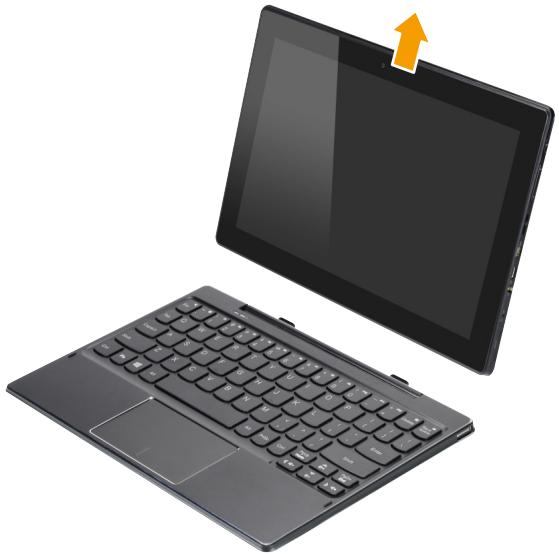
Notes:
- Be careful not to damage the connector when attaching or detaching the tablet.
- The illustrations above are for reference only, please refer to the actual product.
- Configuring the operating system for the first time
You may need to configure the operating system when it is first used. The configuration process may include the procedures below:
- Accepting the end user license agreement
- Configuring the Internet connection
- Registering the operating system
- Creating a user account
Operating system interface
Windows 10 comes with a powerful and useful start menu. To open the start menu, do one of the following:
- Press the Windows key # on the keyboard.
- Select Start on the lower-left corner of the desktop.
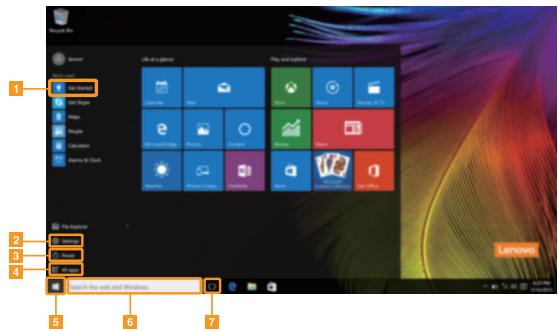
Get Started app
2 Settings button
3 Power button
All apps button
5 Start button
Search box
7 Task view button
Settings
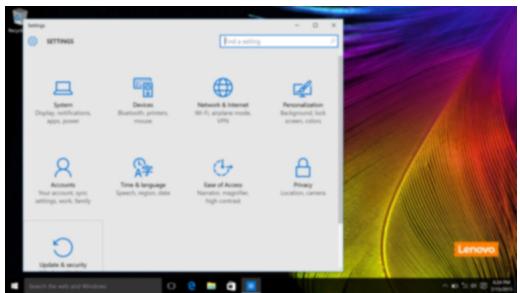
Settings lets you perform basic tasks. You can also search for more settings with the settings search box in the upper-right corner.
To open the settings, do the following:
- Open the start menu, and then select Settings
Personalize the start menu
You can personalize the start menu with your favorite apps.
To personalize the start menu, do the following:
1 Open the start menu, and then select All apps to display the apps list.
Right click the app you want to add to the start menu, and then select Pin to Start.
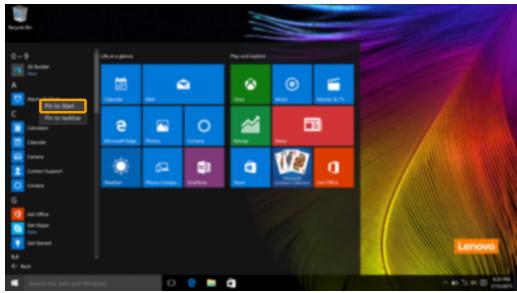
Note: You can also drag apps from the Most used or All apps columns to add them to the start menu.
Putting the computer to sleep or shutting it down
When you have finished working with your computer, you can put it to sleep or shut it down.
Putting your computer to sleep
If you will be away from your computer for only a short time, put the computer to sleep. When the computer is in sleep mode, you can quickly wake it to resume use, bypassing the startup process.
To put the computer to sleep, do one of the following:
- Press the Power button.
- Open the start menu, and then select Power Sleep.
Note: Wait until the power indicator light starts blinking (indicating that the computer is in sleep mode) before you move your computer. Moving your computer while the hard disk is spinning can damage the hard disk, causing loss of data.
To wake the computer, do one of the following:
- Press any key on the keyboard.
- Press the Power button.
Shutting down the computer
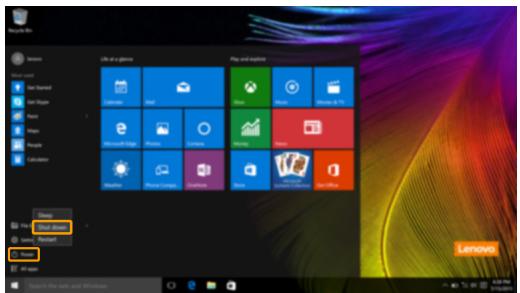
If you are not going to use your computer for a long time, shut it down. To shut down the computer, do one of the following:
- Open the start menu, and then select Power Shut down.
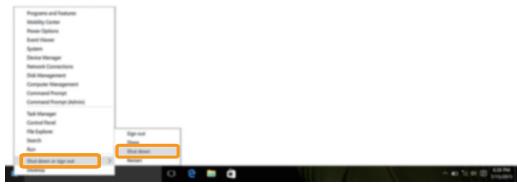
- Press and hold or right-click the Start button in the lower-left corner and select Shut down or sign out Shut down.
Task and desktop management
Task view
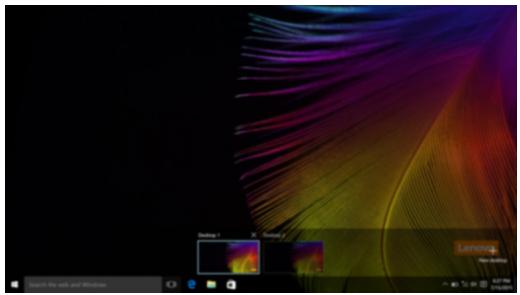
To open the task view, do one of the following:
- Select the Task view button on the task bar.
- Press the Windows key l + Tab.
- Swiping in from the left edge of the screen.
Virtual desktop management
Windows 10 supports the ability to create, manage and switch between virtual desktops. To create a new virtual desktop, do one of the following:
- Open the task view, and then select New desktop.
- Press the Windows key + Ctrl + D.
To switch between different desktops, do one of the following:
- Open the task view and select the desktop you want active.
- Press the Windows key 回 + Ctrl + / to scroll through the desktops you've created.
Connecting to a wireless network
Enabling wireless connection
To enable wireless functions, do the following:
Press Fn + Backspace to disable airplane mode.
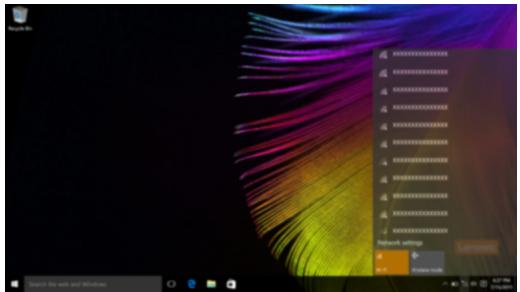
Click on the lower-right corner of the task bar to open the network configuration page.
Connecting to a wireless network
After wireless has been enabled, the computer will automatically scan for available wireless networks and display them in the wireless network list. To connect to a wireless network, click the network name in the list, and then click Connect.
Note: Some networks require a network security key or passphrase for connection. To connect to one of those networks, ask the network administrator or the Internet service provider (ISP) for the security key or passphrase.
Get Started app
Windows 10 also provides the Get Started app to explain the new features of Windows 10. You can find it on the start menu.
To open the Get Started app, do one of the following:
- Open the start menu and select Get Started.
- Press Windows key 回 + Fn + F1 (depending on your keyboard layout).
Touch screen operation
The display panel can accept inputs like a tablet, using the multi-touch screen, or like a traditional notebook computer, using the keyboard and touchpad.
Multi-touch gestures
You can touch the screen with one or more fingertips to perform a variety of tasks.
Frequently used gestures
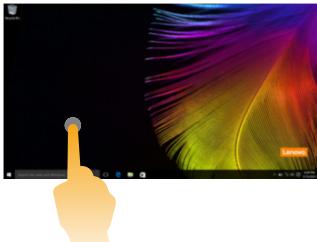
Tap
Tap once on an item.
Tasks performed
Performs an action, such as starting an app, opening a link, or performing a command. Similar to left-clicking with a mouse.
Press and hold
Press your finger down and leave it there for a moment.
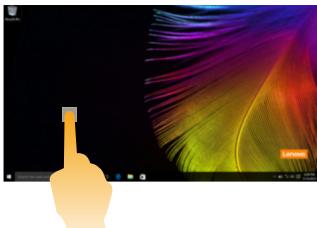
Enables you to see detailed information before selecting an action. Can also open a menu with more options. Similar to right-clicking with a mouse.
Zoom
Move two fingers together or apart while touching the screen.

Zooms in and out on visual apps, such as pictures and maps. Can also jump to the beginning or end of a list.
(continued)
| Frequently used gestures | Tasks performed |
| Rotate Place two or more fingers on an item and then turn your hand. | Rotates an object (Note: Not all items can be rotated, depending upon the app.). |
| Slide Drag your finger across the screen. | Pans or scrolls through lists and pages. Can also move an object or be used to draw or write, depending upon the app. Similar to pressing and holding to pan and to scrolling with a mouse. |
| Swipe Start from left/right edge of the screen, then swipe inwards toward the center. | Swiping in from the left edge of the screen can open the task view. |
| Swiping in from the right edge of the screen displays the action center. |
Chapter 3. Recovery system
Introduction
Push-button reset is a built-in recovery tool that enables users to restore their operating system to its original state. This preserves their data and important customizations, without the need to back up their data in advance.
The following Push-button reset features are available to users from multiple locations within Windows:
Refreshing the computer
Fixes software problems by reinstalling the factory default configuration. This preserves the user's data, important settings, and any Windows Store apps previously purchased from the Windows Store.
Resetting the computer
Prepares the computer for recycling or transfer of ownership. This reinstalls the factory default configuration and returns all user data and applications to the state of their original Out-of-Box Experience (OOBE).
Using Push-button reset
Push-button reset can be launched using one of the following methods:
-
Power button + Volume up button:
-
Shut down the computer and wait at least five seconds.
-
Press and hold the volume up button and then press the Power button, until the Novo Menu appears on the screen.
-
Settings:
-
Settings Update & security Recovery Advanced startup select Restart now.
For more instructions, see the Windows Help and Support file on your computer.
When I purchased my computer, it included a copy of Windows. How can I determine whether the copy of Windows is preinstalled by Lenovo?
On the outside of the sales package of your computer, you should find a label containing configuration information for your computer. Check the printed string next to OS. If it contains Windows or WIN, the copy of Windows was preinstalled by Lenovo.
What is the Recovery Partition?
If your computer is preinstalled with any version of Windows 10, the storage device of your computer contains a Recovery Partition. This partition contains the image file of the preinstalled Windows operating system. In cases of system failure, you can use the Lenovo OneKey Recovery system or the Windows Reset feature to restore the operating system to its factory status.
Note: The Recovery Partition is not assigned a drive letter and cannot be accessed through Windows File Explorer.
I uninstalled a preinstalled software, but there is no significant increase in the free drive space.
The copy of Windows running on your computer may be WIMBoot-enabled. For computers with WIMBoot-enabled Windows, the majority of files needed for preinstalled software are installed on the Recovery Partition and won't be deleted through normal uninstallation.
What happens if I attempt to delete or modify the Recovery Partition?
Attention:
- Do not delete or modify the Recovery Partition on a WIMBoot-enabled computer.
If the Recovery Partition is deleted or modified, you may not be able to restore Windows to the factory status. For computer models on which WIMBoot is enabled, deleting the Recovery Partition may cause Windows to fail to start.
How can I determine whether the Windows running on my computer is WIMBoot enabled?
WIMBoot technology is normally enabled on copies of Windows 10 Update running on SSD (or eMMC) -only computer models. To check your computer,
1 On the start menu, click the Search box.
2 Make sure Settings is selected as the search scope and type Disk Management in the search box.
3 Click the search result and the Disk Management program starts.
If Wim Boot is labeled on the Windows partition, WIMBoot is enabled on your copy of Windows.
Chapter 4. Troubleshooting
Frequently asked questions
This section lists frequently asked questions by category.
Finding information
What safety precautions should I follow when using my computer?
The Lenovo Safety and General Information Guide which came with your computer contains safety precautions for using your computer. Read and follow all precautions during use.
Where can I find the hardware specifications for my computer?
You can find hardware specifications for your computer on the printed flyers which came with your computer.
Where can I find warranty information?
For detailed warranty information on this machine, please visit below website to check out: support.lenovo.com/warrantystatus.
Drivers
Where can I find drivers for the various hardware devices of my computer?
You can download the latest device drivers from the Lenovo consumer support website.
Getting help
How can I contact the customer support center?
See "Chapter 3. Getting help and service" in the Lenovo Safety and General Information Guide.
Troubleshooting
If you do not find your problem here, see Chapter 1. The following section only describes problems that might negate the need to refer to the more comprehensive information in Chapter 1.
Display problems
When I turn on the computer, nothing appears on the screen.
-
If the screen is blank, make sure that:
-
The AC power adapter is connected to the computer and the power cord is plugged into a working electrical outlet.
-
The computer power is on. Press and hold the Power button for about three seconds for confirmation.
-
Press and hold the Power button for about ten seconds to force shut down the computer. Then press the Power button for about three seconds to restart.
-
If these items are set correctly and the screen remains blank, have the computer serviced.
The screen goes blank while the computer is on.
-
Your power management is enabled. Do one of the following to resume from sleep mode:
-
Press any key on the keyboard.
-
Press the Power button.
Sleep problems
The critical low-battery error message appears, and the computer immediately turns off.
- The battery power is getting low. Connect the AC power adapter to the computer.
The computer enters sleep mode immediately after Power-on.
Make sure that:
-
The battery is charged.
-
The operating temperature is within the acceptable range. See "Chapter 2. Use and care Information" in the Lenovo Safety and General Information Guide.
Note: If the battery is charged and the temperature is within range, do the following:
Press the Power button for about three seconds to turn on the computer.
Press and hold the Power button for about ten seconds to force shut down.
Press the Power button for about three seconds again to restart. Then reset the computer with the Push-button reset recovery system.
If the problem persists, have the computer serviced.
The computer does not return from sleep mode and the computer does not work.
- If the computer does not return from sleep mode, it might be because the battery is depleted.
- If your computer is in sleep mode, connect the AC power adapter to the computer. Then press the Power button.
- If your computer is powered-off, connect the AC power adapter to the computer. Then press the Power button to resume operation.
Note: If the system still does not return from sleep mode, your system has stopped responding, and you cannot turn off the computer; force shut down the computer (Unsaved data may be lost). To force shut down the computer, press and hold the Power button for about ten seconds or more. If the computer still does not turn off, remove the AC power adapter.
Display panel problems
The screen is blank.
-
Do the following:
-
If you are using the AC power adapter or the battery, press Fn + (located on the keyboard) to make the screen brighter.
- Press the Power button to confirm if the computer is in sleep mode.
- If the problem persists, follow the solution in the next problem "The screen is unreadable or distorted."
The screen is unreadable or distorted.
- Make sure that the screen resolution and color quality are correctly set.
Incorrect characters appear on the screen.
- Is the operating system or programs installed correctly?
If they are installed and configured correctly, do the following:
Press the Power button for about three seconds to turn on the computer.
Press and hold the Power button for about ten seconds to force shut down.
3 Press the Power button for about three seconds again to restart. Then reset the computer with the Push-button reset recovery system.
If the problem persists, have the computer serviced.
Sound problems
No sound can be heard from the speakers even when the volume is turned up.
Make sure that:
- The Mute function is off.
- The combo audio jack is not being used.
- Speakers are selected as the playback device.
Battery problems
Your computer shuts down before the battery status icon shows it is empty. -or- Your computer operates after the battery status icon shows it is empty.
- Recharge the battery.
A startup problem
The Microsoft® Windows operating system does not start.
- For details, see "Recovery system" on page 22.
Recovery System problems
Failure to restore system partition to factory default.
- The system partition (e.g. the partition size or the drive capacity of C) has been modified.
Other problems
Your computer does not respond.
- To turn off your computer, press and hold the Power button for about ten seconds or more. If the computer still does not respond, remove the AC power adapter.
Trademarks
The following terms are trademarks or registered trademarks of Lenovo in the United States, other countries, or both.
Lenovo
ideapad
Microsoft and Windows are trademarks of Microsoft Corporation in the United States, other countries, or both.

- Regulatory Notice
- Contents
- Chapter 1. Getting to know your computer 1
- Chapter 2. Starting to use Windows 10 14
- Chapter 3. Recovery system 22
- Chapter 4. Troubleshooting 24
- Trademarks 28
- Chapter 1. Getting to know your computer
- Top view
- Screen orientation
- Left-side view
- Combo audio jack
- Notes:
- Speaker
- Right-side view
- Using the card reader
- Inserting card(s)
- Removing card(s)
- Bottom view
- Rear view
- Rear camera
- Keyboard dock top view
- Function key combinations
- Keyboard dock left-side view
- Keyboard dock right-side view
- Combination of tablet and keyboard dock
- Attaching the tablet
- Detaching the tablet
- - Configuring the operating system for the first time
- Operating system interface
- Settings
- Personalize the start menu
- Putting the computer to sleep or shutting it down
- Putting your computer to sleep
- Shutting down the computer
- Task and desktop management
- Task view
- Virtual desktop management
- Connecting to a wireless network
- Enabling wireless connection
- Get Started app
- Touch screen operation
- Multi-touch gestures
- Tap
- Press and hold
- Zoom
- Chapter 3. Recovery system
- Introduction
- Refreshing the computer
- Resetting the computer
- Using Push-button reset
- When I purchased my computer, it included a copy of Windows. How can I determine whether the copy of Windows is preinstalled by Lenovo?
- What is the Recovery Partition?
- Attention:
- Chapter 4. Troubleshooting
- Frequently asked questions
- Finding information
- Drivers
- Getting help
- Troubleshooting
- Display problems
- Sleep problems
- Display panel problems
- Sound problems
- Battery problems
- A startup problem
- Recovery System problems
- Other problems
- Trademarks
Brand : LENOVO
Model : MIIX 310
Category : 2-in-1 Tablet