 ManualGo.com
R-S300 - Audio Receiver YAMAHA - Free user manual and instructions
Find the device manual for free R-S300 YAMAHA in PDF.



Download the instructions for your Audio Receiver in PDF format for free! Find your manual R-S300 - YAMAHA and take your electronic device back in hand. On this page are published all the documents necessary for the use of your device. R-S300 by YAMAHA.
USER MANUAL R-S300 YAMAHA
Receiver Ampli-Tuner Printed in Malaysia WV17430-2 CAUTION: READ THIS BEFORE OPERATING YOUR UNIT. CAUTION: READ THIS BEFORE OPERATING YOUR UNIT.
- To assure the finest performance, please read this manual carefully. Keep it in a safe place for future reference. Install this sound system in a well ventilated, cool, dry, clean place - away from direct sunlight, heat sources, vibration, dust, moisture, and/or cold. For proper ventilation, allow the following minimum clearances around this unit. Top: 30 cm (11-3/4 in) Rear: 20 cm (7-7/8 in) Sides: 20 cm (7-7/8 in) Locate this unit away from other electrical appliances, motors, or transformers to avoid humming sounds. Do not expose this unit to sudden temperature changes from cold to hot, and do not locate this unit in an environment with high humidity (i.e. a room with a humidifier) to prevent condensation inside this unit, which may cause an electrical shock, fire, damage to this unit, and/or personal injury. Avoid installing this unit where foreign object may fall onto this unit and/or this unit may be exposed to liquid dripping or splashing. On the top of this unit, do not place: – Other components, as they may cause damage and/or discoloration on the surface of this unit. – Burning objects (i.e. candles), as they may cause fire, damage to this unit, and/or personal injury. – Containers with liquid in them, as they may fall and liquid may cause electrical shock to the user and/or damage to this unit. Do not cover this unit with a newspaper, tablecloth, curtain, etc. in order not to obstruct heat radiation. If the temperature inside this unit rises, it may cause fire, damage to this unit, and/or personal injury. Do not plug in this unit to a wall outlet until all connections are complete. Do not operate this unit upside-down. It may overheat, possibly causing damage. Do not use force on switches, knobs and/or cords. When disconnecting the power cable from the wall outlet, grasp the plug; do not pull the cable. Do not clean this unit with chemical solvents; this might damage the finish. Use a clean, dry cloth. Only voltage specified on this unit must be used. Using this unit with a higher voltage than specified is dangerous and may cause fire, damage to this unit, and/or personal injury. Yamaha will not be held responsible for any damage resulting from use of this unit with a voltage other than specified. To prevent damage by lightning, keep the power cable and outdoor antennas disconnected from a wall outlet or this unit during a lightning storm. Do not attempt to modify or fix this unit. Contact qualified Yamaha service personnel when any service is needed. The cabinet should never be opened for any reasons. When not planning to use this unit for long periods of time (i.e. vacation), disconnect the AC power plug from the wall outlet. Be sure to read the “TROUBLESHOOTING” section on common operating errors before concluding that this unit is faulty. i En 17 Before moving this unit, press A to turn off this unit, and then disconnect the AC power plug from the wall outlet. 18 Condensation will form when the surrounding temperature changes suddenly. Disconnect the power cable from the outlet, then leave this unit alone. 19 When using this unit for a long time, this unit may become warm. Turn the power off, then leave this unit alone for cooling. 20 Install this unit near the AC outlet and where the AC power plug can be reached easily. 21 The batteries shall not be exposed to excessive heat such as sunshine, fire or the like. 22 Excessive sound pressure from earphones and headphones can cause hearing loss. As long as this unit is connected to the AC wall outlet, it is not disconnected from the AC power source even if you turn off this unit by A or set it to the standby mode by A button on the remote control. In this state, this unit is designed to consume a very small quantity of power. WARNING TO REDUCE THE RISK OF FIRE OR ELECTRIC SHOCK, DO NOT EXPOSE THIS UNIT TO RAIN OR MOISTURE. This label is required to be attached to a product of which the temperature of the top cover may be hot during operation. Connecting speakers and source components p. 10
- Connecting the FM and AM antennas p. 12
- Connecting power cable p. 12
- BASIC OPERATION BASIC OPERATION PREPARATION Automatic tuning p. 17
- Manual tuning p. 18
- Automatic station preset (FM stations only) p. 19
- Manual station preset p. 20
- Recalling a preset station p. 21
- Clearing a preset station p. 21
- Clearing all preset stations p. 22
- Receiving Radio Data System information (FM stations only) p. 23
- TP Search function (FM stations only) ADDITIONAL INFORMATION p. 24
PLAYING BACK TUNES
- FROM YOUR iPhone/iPod/ Bluetooth™ COMPONENT p. 25
- Using a Universal Dock for iPod p. 26
- Using a Wireless System for iPod p. 27
- Using a Bluetooth Wireless Audio Receiver English 1 En INTRODUCTION USEFUL FEATURES USEFUL FEATURES This unit allows you to: p. 28
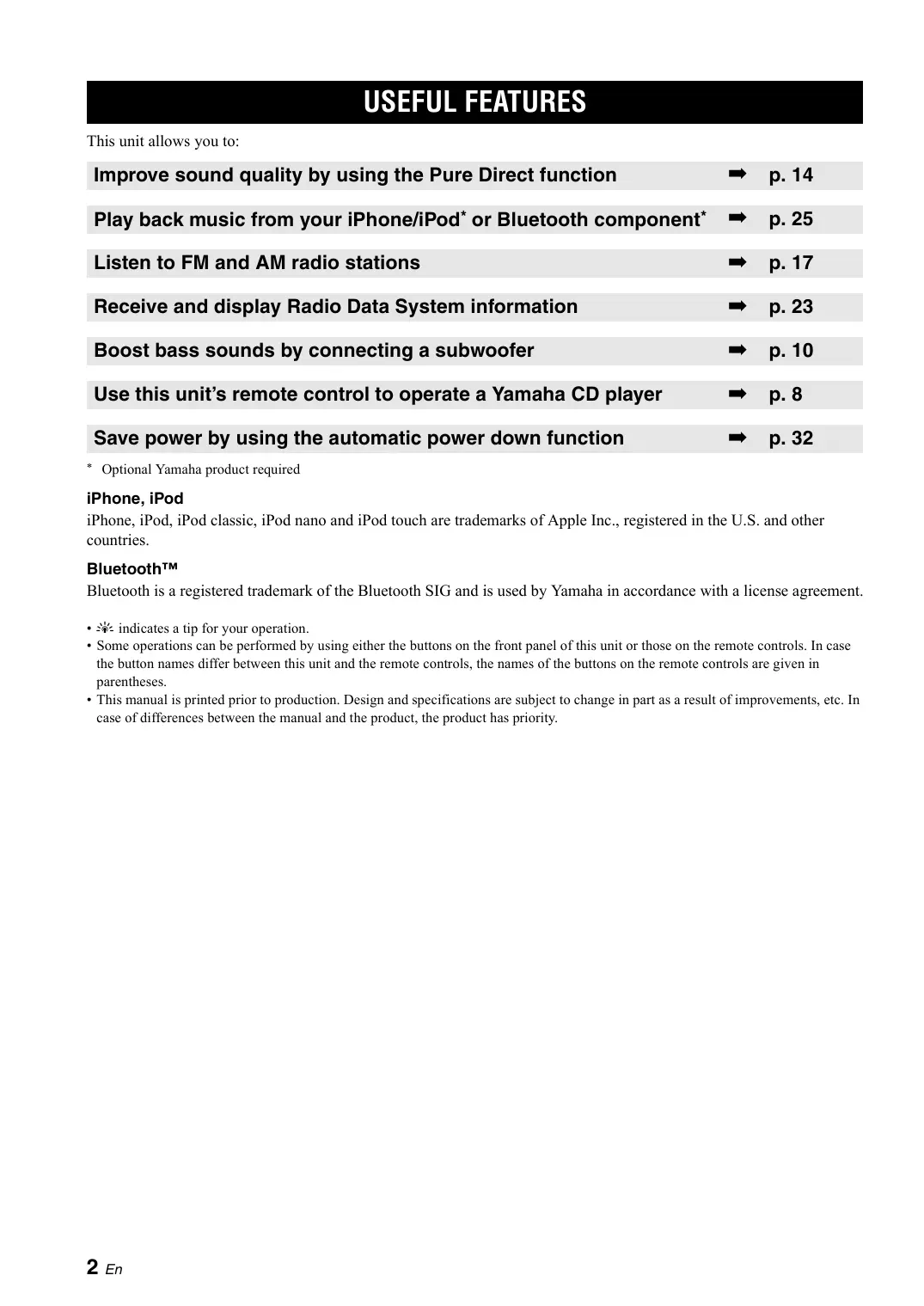
Improve sound quality by using the Pure Direct function ➡ p. 14 Play back music from your iPhone/iPod* or Bluetooth component* ➡ p. 25 Listen to FM and AM radio stations ➡ p. 17 Receive and display Radio Data System information ➡ p. 23 Boost bass sounds by connecting a subwoofer ➡ p. 10 Use this unit’s remote control to operate a Yamaha CD player ➡ p. 8 Save power by using the automatic power down function ➡ p. 32 Optional Yamaha product required iPhone, iPod iPhone, iPod, iPod classic, iPod nano and iPod touch are trademarks of Apple Inc., registered in the U.S. and other countries. Bluetooth™ Bluetooth is a registered trademark of the Bluetooth SIG and is used by Yamaha in accordance with a license agreement.
- y indicates a tip for your operation.
- Some operations can be performed by using either the buttons on the front panel of this unit or those on the remote controls. In case the button names differ between this unit and the remote controls, the names of the buttons on the remote controls are given in parentheses.
- This manual is printed prior to production. Design and specifications are subject to change in part as a result of improvements, etc. In case of differences between the manual and the product, the product has priority. 2 En SUPPLIED ACCESSORIES SUPPLIED ACCESSORIES Remote control AM loop antenna INTRODUCTION Please check that you received all of the following parts. Indoor FM antenna Batteries (x2) (AA, R6, UM-3)
Notes on remote control and batteries Do not spill water or other liquids on the remote control. Do not drop the remote control. Do not leave or store the remote control in the following conditions: – places of high humidity, such as near a bath – places of high temperatures, such as near a heater or stove – places of extremely low temperatures – dusty places Use AA, R6, UM-3 batteries for the remote control. Insert batteries according to the polarity markings (+ and -). Change all batteries if you notice the operation range of the remote control narrows. If the batteries run out, immediately remove them from the remote control to prevent an explosion or acid leak. If you find leaking batteries, discard the batteries immediately, taking care not to touch the leaked material. If the leaked material comes into contact with your skin or gets into your eyes or mouth, rinse it away immediately and consult a doctor. Clean the battery compartment thoroughly before installing new batteries. Do not use old batteries together with new ones. This may shorten the life of the new batteries or cause old batteries to leak. Do not use different types of batteries (such as alkaline and manganese batteries) together. Batteries that look the same may have a different specification. Before inserting new batteries, wipe the battery compartment clean. Dispose of batteries according to your regional regulations. English 3 En
CONTROLS AND FUNCTIONS
CONTROLS AND FUNCTIONS
Front panel 1 A (power) Turns on and off the power of this unit (see page 13). On position: Pushed inward Off position: Released outward Note This unit consumes a small amount of power even when turned off or when in standby mode. 2 Power indicator Lights up as follows: Brightly lit: Power is on Dimly lit: Standby mode Off: Power is off Note If an iPhone/iPod is charged while this unit is in standby mode, the power indicator lights up brightly.
3 SPEAKERS A/B
Turns on or off the speaker set connected to the SPEAKERS A and/or SPEAKERS B terminals on the rear panel each time the corresponding button is pressed (see page 13). 4 TP Searches automatically for a station that provides traffic program (TP) broadcasts (see page 24). 4 En 5 INFO Turns on and changes the Radio Data System display mode when TUNER is selected as the input source (see page 23). Changes the playback information displayed about the song playing on the iPhone/iPod when DOCK is selected as the input source (see page 26). Note Playback information can only be displayed for an iPhone/iPod that is connected using a Universal Dock for iPod. 6 MEMORY Stores the current FM/AM station as a preset when TUNER is selected as the input source (see page 20). 7 CLEAR Clears the current FM/AM preset station when TUNER is selected as the input source (see page 21). 8 Front panel display Shows information about the operational status of this unit. 9 PRESET j / i Selects a preset FM/AM station when TUNER is selected as the input source (see page 21). 0 FM, AM Sets the FM/AM tuner band to FM or AM when TUNER is selected as the input source (see page 17).
CONTROLS AND FUNCTIONS
A TUNING jj / ii Selects the tuning frequency when TUNER is selected as the input source (see page 17). INTRODUCTION B Remote control sensor Receives infrared signals from the remote control. C PURE DIRECT and indicator Allows you to listen to a source in the purest possible sound (see page 14). The indicator above it lights up and the front panel display turns off when this function is turned on. D PHONES jack Outputs audio to your headphones for private listening. Note Press SPEAKER A/B so that the SP A/B indicators turn off before you connect your headphones to the PHONES jack. E BASS control Increases or decreases the low frequency response. The center position produces a flat response (see page 14). F TREBLE control Increases or decreases the high frequency response. The center position produces a flat response (see page 14). G BALANCE control Adjusts the sound output balance of the left and right speakers to compensate for sound imbalances caused by speaker locations or listening room conditions (see page 14). H LOUDNESS control Retains a full tonal range at any volume level to compensate for the human ears’ loss of sensitivity to high and low-frequency ranges at a low volume level (see page 15). I INPUT selector Selects the input source you want to listen to. J VOLUME control Increases or decreases the sound output level. Note This does not affect the output level of the REC jacks. English 5 En
CONTROLS AND FUNCTIONS
Front panel display 1 SP (SPEAKERS) A/B indicators Light up according to the set of speakers selected. Both indicators light up when both sets of speakers are selected. 2 Input source indicators Light up brightly to indicate the input source that is currently selected. 3 PRESET indicator Lights up when you recall a preset radio station. Blinks while the automatic station preset feature is scanning for FM stations to register as presets. 4 MEMORY indicator Lights up or blinks when an FM/AM station is being stored as a preset. 5 TUNED indicator Lights up when this unit is tuned in to an FM or AM station. 6 STEREO indicator Lights up when this unit is receiving a strong signal for an FM stereo broadcast. 7 TP indicator Lights up when this unit is tuned in to a Traffic Program (TP) station. Blinks when searching for a TP station. 8 SLEEP indicator Lights up when the sleep timer is turned on. 9 MUTE indicator Blinks while the MUTE function is turned on. 0 P indicator Lights up when a preset number is selected. Blinks while you are registering a preset radio station. A Multi-information display Shows information when adjusting or changing settings. B Volume indicator Displays the current volume level. 6 En CONTROLS AND AND FUNCTIONS FUNCTIONS CONTROLS Rear panel INTRODUCTION 1 GND terminal Used to connect a turntable (see page 10). A SPEAKERS terminals Used to connect speakers (see page 10). 2 TAPE jacks Used to connect a tape deck (see page 10). B IMPEDANCE SELECTOR switch Used to select the impedance setting (see page 11). 3 Antenna terminals Used to connect FM and AM antennas (see page 12). 4 DOCK jack Used to connect an optional Yamaha Universal Dock for iPod (such as the YDS-12), Wireless System for iPod (YID-W10), or Bluetooth Wireless Audio Receiver (YBA-10) (see page 25). 5 Power cable For connecting this unit to an AC wall outlet (see page 12). 6 PHONO jacks Used to connect a turntable (see page 10). 7 CD jacks Used to connect a CD player (see page 10). 8 LINE 1-2 jacks Used to connect audio components (see page 10). 9 SUBWOOFER OUT jack Used to connect a subwoofer with built-in amplifier (see page 10). The SUBWOOFER OUT jack attenuates signals over 90 Hz. English 0 POWER MANAGEMENT switch Used to enable or disable the automatic power down function. When this function is enabled, this unit automatically enters standby mode if it is not operated for a certain amount of time (3 settings are available; see page 32). 7 En
CONTROLS AND FUNCTIONS
Remote control This section describes the function of each button on the remote control used to control this unit or a Yamaha CD player. 3 DIMMER Changes the brightness level of the front panel display. Choose brightness from 3 levels by pressing this button repeatedly. This setting is retained even if you turn off this unit. 4 SLEEP Sets the sleep timer (see page 16). 5 Input selector buttons Select the input source you want to listen to.
- The input source names correspond to the names of the connection jacks on the rear panel.
- To select TUNER as the input source using the remote control, press FM or AM. 6 OPTION Turns the OPTION menu on and off (see page 30).
7 SPEAKERS A/B
Turns on and off the set of speakers connected to the SPEAKERS A and/or SPEAKERS B terminals on the rear panel of this unit when the corresponding button is pressed. 8 MUTE Mutes the sound output. Press again to restore the sound output to the previous volume level. 9 VOLUME +/– Increases or decreases the sound output level. Note This does not affect the output level of the REC jacks. 0 RETURN Returns to the previous menu or ends the menu display when using the Option menu (see page 30).
A B / C / D / E / ENTER
Selects and confirms items in the Option menu (see page 30). ■ Common controls The following buttons can be used no matter which input source is selected. 1 Infrared signal transmitter Sends infrared signals. 2 A (power) Turns this unit on, or sets it to standby mode. Note This button functions only when the A (power) button on the front panel is in the on position. 8 En
CONTROLS AND FUNCTIONS
■ iPod controls B TP Searches automatically for a station that provides traffic program (TP) broadcasts (see page 24). 0 REPEAT The following buttons can be used when TUNER is selected as the input source. C PRESET j / i Selects a preset FM/AM station when TUNER is selected as the input source (see page 21). D FM, AM Selects TUNER as the input source and sets the FM/AM tuner band to FM or AM (see page 17). E INFO Turns on and changes the Radio Data System display mode when TUNER is selected as the input source (see page 23). The following buttons can be used when DOCK is selected as the input source for listening to an iPhone/ iPod. For more information, see page 25. ■ Yamaha CD player controls The following buttons can be used to control a Yamaha CD player when CD is selected as the input source. I Yamaha CD player control buttons
- DISC SKIP Skips to the next disc in a CD changer
- f Ejects the disc Rewinds playback Fast-forwards playback Note Even when using a Yamaha CD player, certain components and features may not be available. Refer to your component’s owner’s manual for more information. Using the remote control ■ Installing batteries ■ Operation range The remote control transmits a directional infrared beam. Be sure to aim the remote control directly at the remote control sensor on the front panel of this unit during operation. AA, R6, UM-3 batteries Approximately 6 m (20 ft) English Remote control 9 En PREPARATION CONNECTIONS CONNECTIONS Connecting speakers and source components CAUTION
- Do not connect this unit or other components to the main power until all connections between components are complete.
- All connections must be correct: L (left) to L, R (right) to R, “+” to “+” and “–” to “–”. If the connections are faulty, no sound will be heard from the speakers, and if the polarity of the speaker connections is incorrect, the sound will be unnatural and lack bass. Refer to the owner’s manual for each of your components.
- Use RCA cables for audio components (except for speaker connections and DOCK jack connections).
- The IMPEDANCE SELECTOR must be set to the appropriate position before connecting speakers. See page 11 for details.
- Do not let bare speaker wires touch each other or any metal part of this unit. This could damage this unit and/or the speakers. For information about other components that can be connected to this unit, see page 25. Turntable Tape deck Audio out Audio out CD player GND Audio out Audio out DVD player, etc. Speakers A Audio
Audio out CD recorder, etc. Subwoofer Speakers B
- The PHONO jacks are designed for connecting a turntable with an MM cartridge.
- Connect your turntable to the GND terminal to reduce noise in the signal. However, for some turntables, you may hear less noise without the GND connection. 10 En CONNECTIONS
- If you use one set (A or B), the impedance of each speaker must be 8 Ω or higher.
- If you use two sets (A and B) simultaneously, the impedance of each speaker must be 16 Ω or higher.
- If you make bi-wire connections, the impedance of each speaker must be 8 Ω or higher. See page 11 for Bi-wire connection. LOW
- If you use one set (A or B), the impedance of each speaker must be 4 Ω or higher.
- If you use two sets (A and B) simultaneously, the impedance of each speaker must be 8 Ω or higher.
- If you make bi-wire connections, the impedance of each speaker must be 4 Ω or higher. See page 11 for Bi-wire connection. ■ Connecting speaker cables Bi-wire connection separates the woofer from the combined midrange and tweeter section. A bi-wire compatible speaker has four binding post terminals. These two sets of terminals allow the speaker to be split into two independent sections. With these connections, the mid and high frequency drivers are connected to one set of terminals and the low frequency driver to another set of terminals. This unit Speaker PREPARATION Do not change the IMPEDANCE SELECTOR switch while the power of this unit is turned on, as doing so may damage the unit. If the unit fails to turn on, the IMPEDANCE SELECTOR switch may not be fully slid to either position. If this is the case, remove the power cable and slide the switch all the way to either position. Select the switch position (LOW or HIGH) according to the impedance of the speakers in your system. ■ Bi-wire connection Connect the other speaker to the other set of terminals in the same way. CAUTION When making bi-wire connections, set the IMPEDANCE SELECTOR switch to HIGH or LOW depending on the impedance of your speakers: 8 Ω or higher: HIGH 4 Ω or higher: LOW See page 11 for more information about the IMPEDANCE SELECTOR switch. Note Remove approximately 10 mm (3/8 in) of insulation from the end of each speaker cable. When making bi-wire connections, remove the shorting bridges or cables on the speaker.
To use the bi-wire connections, press SPEAKERS A and SPEAKERS B on the front panel or on the remote control so that both SP A and B light up on the front panel display. Note When inserting speaker cables into the speaker terminals, insert only the bare speaker wire. If insulated cable is inserted, the connection may be poor and sound may not be heard.
SPEAKERS A/B
SPEAKERS A/B
CONNECTIONS Connecting the FM and AM antennas Indoor antennas for receiving FM and AM broadcasts are included with this unit. In general, these antennas should provide sufficient signal strength. Connect each antenna correctly to the designated terminals. Note If you experience poor reception quality, install an outdoor antenna. Consult the nearest authorized Yamaha dealer or service center about outdoor antennas. Outdoor FM antenna Outdoor AM antenna Use 5 to 10 m of vinylcovered wire extended outdoors from a window. Indoor FM antenna (included) AM loop antenna (included)
- The AM loop antenna should always be connected, even if an outdoor AM antenna is connected to this unit.
- The AM loop antenna should be placed away from this unit. Ground (GND terminal) For maximum safety and minimum interference, connect the antenna GND terminal to a good earth ground. A good earth ground is a metal stake driven into moist earth. ■ Assembling the supplied AM loop antenna ■ Connecting the wire of the AM loop antenna Connecting power cable Plug the power cable into the AC wall outlet after all other connections are complete. 12 En To the wall outlet with the power cable BASIC OPERATION
PLAYING AND RECORDING
CAUTION Extreme caution should be exercised when you play back CDs encoded in DTS. If you play back a CD encoded in DTS on a CD player that does not support DTS, only noise will be heard, and this noise may damage your speakers. Check whether your CD player supports CDs encoded in DTS. Also, check the sound output level of your CD player before you play back a CD encoded in DTS. Playing a source
Press SPEAKERS A and/or SPEAKERS B on the front panel or on the remote control to select speakers A and/or speakers B. When speaker set A or speaker set B are turned on, SP A or SP B is displayed on the front panel display accordingly (see page 6). Notes INPUT selector VOLUME A (power)
SPEAKERS A/B
Rotate the VOLUME control on the front panel (or press VOLUME +/– on the remote control) to adjust the sound output level. Input selector buttons BASIC OPERATION
- When one set of speakers is connected using bi-wire connections, or when using two sets of speakers simultaneously (A and B), make sure SP A and SP B are displayed on the front panel display.
- When listening with headphones, turn off the speakers.
FM, AM You can adjust the tonal quality by using the BASS, TREBLE, BALANCE and LOUDNESS controls, or the PURE DIRECT switch on the front panel (see page 14).
VOLUME +/– When finished listening, press A (power) on the front panel outward to turn off this unit.
If A (power) on the remote control is pressed while the A (power) button on the front panel is in the on position, this unit enters standby mode. Press A (power) again to turn this unit on. Press A (power) on the front panel inward to turn on this unit.
Rotate the INPUT selector on the front panel (or press one of the input selector buttons or FM or AM on the remote control) to select the input source you want to listen to. English
13 En Adjusting the tonal quality ■ Adjusting the BASS and TREBLE controls Routes input signals from your audio sources so that the input signals bypass the BASS, TREBLE, BALANCE and LOUDNESS controls, thus eliminating any alterations to the audio signals and creating the purest possible sound. The PURE DIRECT indicator lights up and the front panel display turns off after a few seconds. PURE DIRECT switch TREBLE BASS The BASS and TREBLE controls adjust high and low frequency response. The center position produces a flat response. Notes
- The BASS, TREBLE, BALANCE, and LOUDNESS controls do not function while the PURE DIRECT feature is turned on.
- This setting is retained even if you turn off this unit. BASS When you feel there is not enough bass (low frequency sound), rotate clockwise to boost. When you feel there is too much bass, rotate counterclockwise to suppress. Control range: –10 dB to +10 dB (20 Hz) TREBLE When you feel there is not enough treble (high frequency sound), rotate clockwise to boost. When you feel there is too much treble, rotate counterclockwise to suppress. Control range: –10 dB to +10 dB (20 kHz) ■ Adjusting the BALANCE control BALANCE The BALANCE control adjusts the sound output balance of the left and right speakers to compensate for sound imbalance caused by speaker locations or listening room conditions. 14 En ■ Adjusting the LOUDNESS control
Rotate the LOUDNESS control until the desired volume is obtained.
LOUDNESS VOLUME After setting the LOUDNESS control, enjoy listening to music at your preferred volume level. If the effect of the LOUDNESS control setting is too strong or weak, readjust the LOUDNESS control. VOLUME +/– BASIC OPERATION Retain a full tonal range at any volume level, thus compensating for the human ears’ loss of sensitivity to high and low-frequency ranges at low volume. CAUTION If the PURE DIRECT switch is turned on with the LOUDNESS control set at a certain level, the input signals bypass the LOUDNESS control, resulting in a sudden increase in the sound output level. To prevent your ears or the speakers from being damaged, be sure to press the PURE DIRECT switch after lowering the sound output level or after checking that the LOUDNESS control is properly set.
Set the LOUDNESS control to the FLAT position.
Rotate the VOLUME control on the front panel (or press VOLUME +/– on the remote control) to set the sound output level to the loudest listening level that you would listen to. English 15 En Recording a source Using the sleep timer Notes
- The audio from the current input source is output to the TAPE REC and LINE 1 REC jacks. When TAPE is selected, audio is output to the LINE 1 REC jacks only. When LINE 1 is selected, audio is output to the TAPE REC jacks only.
- This unit must be turned on in order to record.
- The VOLUME, BASS, TREBLE, BALANCE and LOUDNESS controls and the PURE DIRECT switch have no effect on the source being recorded.
- Check the copyright laws in your country before recording from records, CDs, radio, etc. Recording copyright-protected material may infringe on copyright laws. Use this feature to automatically set this unit to standby mode after a certain amount of time. The sleep timer is useful when you are going to sleep while this unit is playing or recording a source. A (power) SLEEP A (power) INPUT selector Note The sleep timer can only be set with the remote control.
Input selector buttons Press SLEEP repeatedly to set the amount of time before this unit is set to standby mode. Each time you press SLEEP, the front panel display changes as shown below. FM, AM The SLEEP indicator blinks while setting the amount of time for the sleep timer.
Rotate the INPUT selector on the front panel (or press one of the input selector buttons or FM or AM on the remote control) to select the source you want to record. Play the source and begin recording using the recording device connected to the REC jacks (TAPE and/or LINE 1) on the rear panel. See page 10. 16 En If the sleep timer is set, the SLEEP indicator on the front panel display lights up. To cancel the sleep timer, do one of the following:
- Press A (power) on the remote control to set this unit to standby mode.
- Press A (power) on the front panel to turn off this unit.
FM/AM TUNING
FM/AM TUNING
There are 2 tuning methods; automatic and manual. Select either method according to your preference and the strength of station signals. Automatic tuning
Automatic tuning is effective when station signals are strong and there is no interference. Press and hold TUNING jj / ii on the front panel for more than 1 second to begin automatic tuning. Press ii to tune in to a higher frequency. Press jj to tune in to a lower frequency. Notes
- When you tune in to a station, the frequency of the station is displayed on the front panel display.
- If the tuning search does not stop at the desired station because the station signals are weak, try using the manual tuning method. INPUT selector TUNING jj / ii FM, AM ■ Auto Mute feature BASIC OPERATION When listening to an FM radio station, the output will automatically be muted when the radio signal is weak if the station was tuned in to by:
- using the automatic tuning feature
- recalling a preset that was registered using the automatic preset registration feature If you want to listen to a station that has a weak signal, tune in to the station manually. FM, AM
Rotate the INPUT selector on the front panel (or press FM or AM on the remote control) to select TUNER as the input source. Note If you press FM or AM on the remote control to select TUNER as the input source, the corresponding band is also selected, therefore you may skip step 2.
Press FM or AM on the front panel (or FM or AM on the remote control) to select the reception band (FM or AM). FM or AM is displayed on the front panel display. English 17 En
FM/AM TUNING
■ Improving FM reception Manual tuning Manual tuning is effective when station signals are weak. If the signal from the station is weak and the sound quality is not good, set the FM band reception mode to monaural mode to improve reception. B/C/D/E ENTER RETURN INPUT selector TUNING jj / ii FM, AM OPTION
Press OPTION on the remote control when this unit is tuned in to an FM radio station. The Option menu for TUNER is displayed (see page 30).
Press B / C on the remote control to select “FM Mode”, and then press ENTER. FM, AM
Rotate the INPUT selector on the front panel (or press FM or AM on the remote control) to select TUNER as the input source. Note
To cancel the operation and return to the Option menu, press RETURN on the remote control.
If you press FM or AM on the remote control to select TUNER as the input source, the corresponding band is also selected, therefore you may skip step 2.
Press FM or AM on the front panel (or FM or AM on the remote control) to select the reception band (FM or AM). FM or AM is displayed on the front panel display.
- When MONO is selected, FM broadcasts will be heard in monaural sound.
- When STEREO is selected and an FM station with a stereo broadcast is tuned in, the broadcast will be heard in stereo. Press TUNING jj / ii on the front panel to manually tune in to the desired station. Note When you tune in to a station, the frequency of the received station is shown in the front panel display. Press D / E on the remote control to select “STEREO” (automatic stereo mode) or “MONO” (monaural mode).
To exit the Option menu, press OPTION or RETURN on the remote control. Note The STEREO indicator on the front panel lights up while listening to a station in stereo. 18 En
FM/AM TUNING
Automatic station preset (FM stations only)
You can use the automatic station preset function to automatically register FM stations as presets. This function enables this unit to automatically tune in to FM stations that have a strong signal and store up to 40 of those stations in order. You can then easily recall any preset station by selecting its preset number. Press FM on the front panel (or FM on the remote control) to select FM as the reception band. FM is displayed on the front panel display.
Press OPTION on the remote control. The Option menu for TUNER is displayed (see page 30). Notes
Press B / C on the remote control to select “Auto Preset”, and then press ENTER.
- If a station is registered to a preset number that already has a station registered to it, the previously registered station is overwritten.
- If the station you want to store is weak in signal strength, try using the manual preset tuning method.
FM stations registered as presets using the automatic preset registration feature will be heard in stereo. This unit starts scanning the FM band about 5 seconds later from the lowest frequency upwards.
- Before scanning begins, you can specify the first preset number to be used by pressing PRESET j / i on the front panel (or PRESET j / i or B/C on the remote control).
- To cancel scanning, press FM or AM on the front panel (or FM or AM or RETURN on the remote control). INPUT selector When presets are registered, information is displayed on the front panel display as shown in the illustration above. When scanning is complete, “FINISH” is displayed and then the display returns to the Option menu. To return the display to the original state, press OPTION or RETURN on the remote control. Rotate the INPUT selector on the front panel (or press FM on the remote control) to select TUNER as the input source. English Note If you press FM on the remote control to select TUNER as the input source, the corresponding band is also selected, therefore you may skip step 2. 19 En
FM/AM TUNING
Manual station preset You can manually register up to 40 FM/AM stations (40 total). You can then easily recall any preset station by selecting its preset number.
Tune in to the desired FM/AM station. See pages 17 and 18 for tuning instructions.
Press MEMORY on the front panel. “MANUAL PRESET” is displayed briefly on the front panel display, and then the preset number to which the station will be registered is displayed.
When stations are registered manually, the FM Mode setting (mono or stereo) at the time of registration is also registered. Confirm the FM Mode setting (see page 18) before registering stations manually.
By holding down MEMORY on the front panel for more than 2 seconds, you can skip the following steps and automatically register the selected station to an empty preset number (i.e., the preset number following the last preset number used). PRESET j / i
MEMORY PRESET j / i Press PRESET j / i on the front panel (or PRESET j / i on the remote control) to select the preset number to which the station will be registered. When you select a preset number to which no station is registered, “EMPTY” is displayed. When you select a preset number to which a station has already been registered, the frequency of the station is displayed. Preset number RETURN
Press MEMORY on the front panel. When registration is complete, the display returns to the original state.
To cancel registration, RETURN on the remote control or do not perform any operations for about 30 seconds. 20 En
FM/AM TUNING
Recalling a preset station You can recall preset stations that were registered using automatic station preset or manual station preset. Clearing a preset station Follow the steps below to clear a preset station. CLEAR PRESET j / i RETURN BASIC OPERATION PRESET j / i
Press PRESET j / i on the front panel (or PRESET j / i on the remote control) to select a preset number.
Select the desired preset station number. See “Recalling a preset station” on page 21.
Press CLEAR on the front panel. The selected preset number flashes on the front panel display.
- Preset numbers to which no stations are registered are skipped.
- “NO PRESETS” is displayed if no stations are registered.
To cancel clearing the preset station, press RETURN on the remote control or leave this unit without any operations for about 30 seconds.
Press CLEAR on the front panel to confirm. “PXX: CLEARED” (XX indicates the preset number) is displayed on the front panel display, and then the display returns to its original state. English 21 En
FM/AM TUNING
Clearing all preset stations
Follow the steps below to clear all preset stations. Press D / E on the remote control to select “YES”, and then press ENTER.
To cancel without clearing the presets, select “NO”. When all presets have been cleared, “PRESET CLEARED” is displayed, and then the display returns to the Option menu. INPUT selector FM, AM Rotate the INPUT selector on the front panel (or press FM or AM on the remote control) to select TUNER as the input source.
Press OPTION on the remote control. The Option menu for TUNER is displayed (see page 30).
Press B / C on the remote control to select “Clr All Preset”, and then press ENTER.
To cancel the operation and return to the Option menu, press RETURN on the remote control. 22 En To exit the Option menu, press OPTION or RETURN on the remote control.
FM/AM TUNING
Receiving Radio Data System information (FM stations only) Radio Data System is a data transmission system used by FM stations in many countries. This unit can receive four types of Radio Data System data information: Program Service, Program Type, Radio Text, and Clock Time. INFO When you select “PRG TYPE”, the following program types can be displayed. Program type Description News AFFAIRS Current affairs INFO General information SPORT Sport EDUCATE Education DRAMA Drama CULTURE Culture SCIENCE Science VARIED Light entertainment POP M Popular music ROCK M Rock music M.O.R. M Middle-of-the-road music (easy listening) LIGHT M Light classics CLASSICS Serious classics OTHER M Other music BASIC OPERATION NEWS INFO
Tune in to the desired Radio Data System broadcasting station.
Press INFO on the front panel (or INFO on the remote control) repeatedly to select the desired Radio Data System display mode. Choice Description Default setting. This unit displays the name of the Radio Data System program currently being received. PRG TYPE (Program Type) This unit displays the type of the Radio Data System program currently being received. This unit displays about the Radio Data System program currently being received. This unit displays the current time. FREQUENCY (Frequency) This unit displays the frequency of the current station. English PRG SERVICE (Program Service) 23 En
FM/AM TUNING
- It may take a while for this unit to receive all of the Radio Data System data from the station.
- If the signals being received are not strong enough, this unit may not be able to utilize the Radio Data System data. In particular, the “RADIO TEXT” mode requires a large amount of data and may not be available even when the other Radio Data System display modes are available.
- If reception is poor, set FM Mode to “MONO” (see page 18).
- If the signal is weakened by external interference while this unit is receiving the Radio Data System data, the reception may be cut off unexpectedly.
- When the “RADIO TEXT” mode is selected, this unit can display program information using a maximum of 128 alphanumeric characters, including the umlaut symbol. Unavailable characters are displayed as “_” (underscore). The displayed information scrolls continuously. TP Search function (FM stations only) This unit can automatically search for Radio Data System stations that provide traffic programs (TP).
Press TP on the front panel (or TP on the remote control) to search for a TP station. “TP SEARCH” is displayed on the front panel display for about 3 seconds, and then the unit starts searching. When a TP station is received, the TP indicator lights up and the unit stops searching. TP indicator
To search for the next TP station, press TP again. Notes
- Press TP during TP search to cancel.
- If no TP Stations are found, “TP NOT FOUND” is displayed on the front panel display and this unit returns to the state before searching. 24 En PLAYING BACK TUNES FROM YOUR iPhone/iPod/ Bluetooth™ COMPONENT Once you have connected an optional Yamaha Universal Dock for iPod (such as the YDS-12), Wireless System for iPod (YID-W10), or Bluetooth Wireless Audio Receiver (YBA-10) to the DOCK jack on the rear panel of this unit, you can enjoy playback of your iPhone/iPod or Bluetooth component using the remote control supplied with this unit. Such as the YDS-12 YID-W10 YBA-10 Position the connected device as far as possible from the unit. Model (As of July 2010) Operated by Supported iPhone/iPod (As of July 2010) Remarks Wireless System for iPod Bluetooth Wireless Audio Receiver
- YDS-10 YID-W10 YBA-10
- iPhone/iPod connected to the dock
- iPhone/iPod connected to the YID-W10 transmitter
- Remote control Bluetooth components
- iPhone/iPod charging also supported.
- The YDS-10/YDS-11 does not support iPhone connection. BASIC OPERATION Universal Dock for iPod
- iPod (5th Gen/ • iPhone 3G
- iPod nano iPhone/iPod charging also supported. CAUTION To prevent accidents, unplug the power cable of this unit before connecting a Universal Dock for iPod, a Wireless System for iPod or a Bluetooth Wireless Audio Receiver. Note If the iPhone connected to the YID-W10 receives a call while this unit is in standby mode, the unit turns on automatically and the ringtone is heard through this unit. If you do not want this unit to turn on when a call is received, set the iPhone to silent mode. English 25 En Using a Universal Dock for iPod ■ Controlling your iPhone/iPod After setting your iPhone/iPod in your dock, rotate the INPUT selector on the front panel (or press DOCK on the remote control) to select DOCK as the input source to play your iPhone/iPod. DOCK While viewing the information displayed on your iPhone/iPod, use the following remote control buttons to operate (playback, pause, skip, etc.) your iPhone/iPod. Remote control Operation MENU
- If an item is selected: Confirms the item and displays the next screen.
- If a song is selected: Plays the selected song.
- If a song is playing: Pauses the song.
- If a song is paused: Plays the song.
- If a song is playing or paused: Skips to the beginning of the next song.
- If pressed and held: Searches forward.
- If a song is playing or paused: Skips to the beginning of the current song.
- Pressing repeatedly skips one song backwards with each press.
- If pressed and held: Searches backward. Switches between shuffle modes (Off → Songs → Albums → Off). Switches between repeat modes (Off → One → All → Off). INFO Switches between items displayed on the front panel display of this unit (Song number and elapsed time → Songs → Artists → Albums → Song number and elapsed time). Note Some shuffle modes and repeat modes may not be available depending on the model or the software version of your iPhone/iPod.
When this unit is turned on or is in standby mode, your iPhone/iPod can be charged automatically if it is connected to a Universal Dock for iPod. If an iPhone/iPod is charged while this unit is in standby mode, the power indicator lights up brightly. 26 En Using a Wireless System for iPod By connecting a Wireless System for iPod to this unit, you can play songs on your iPhone/iPod and listen to them using a wireless connection. You can use the remote control to control the iPhone/iPod. For more information, see page 26. Note When playing an iPhone/iPod using a Wireless System for iPod, playback information is not displayed on the front panel display. YID-W10 receiver ■ Establishing a wireless connection Once the iPhone/iPod is connected to the YID-W10 transmitter and playback begins, it takes about 5 seconds for audio to be heard. During this time the wireless connection between the YID-W10 transmitter and receiver is established. The status of the wireless connection between the YIDW10 transmitter and receiver is indicated by the respective indicator. Status of Connection YID-W10 receiver indicator No connection Off Off Confirming connection Green, flashing Blue, flashing Connected Green, lit Blue, lit
- When playback begins on an iPhone/iPod that is connected to a YID-W10 transmitter, and if the YIDW10 transmitter is within range of the YID-W10 receiver, this unit performs as follows: – If this unit is already turned on when playback begins: The input source switches to DOCK. – If this unit is in standby mode when playback begins: This unit turns on and the input source switches to DOCK.
- In the following situations, the wireless connection between the transmitter and receiver is disconnected. After 30 seconds this unit automatically enters standby mode. – The iPhone/iPod is not operated for about 30–120 seconds after the playback is paused. – The sleep timer of the iPhone/iPod is activated. – The iPhone/iPod is disconnected from the YIDW10 transmitter. – The iPhone/iPod battery level decreases to a level where it cannot provide enough power to the YIDW10 transmitter. – The YID-W10 transmitter is moved outside of the wireless communication range of the YID-W10 receiver. – Communication between the YID-W10 transmitter and receiver becomes disrupted due to interference from other wireless LAN devices, cordless telephones, microwave ovens, etc.
BASIC OPERATION ■ Controlling this unit with your iPhone/ iPod These features can be disabled by setting “Interlock” to “OFF” in the Option menu (see page 31).
- Adjusting the volume on the iPhone/iPod also adjusts the volume of this unit. The iPhone/iPod can increase the volume to up to 0 dB (or the value set for the “MaxVol” setting in the Option menu). To further increase the volume, adjust the volume using this unit’s VOLUME control or the remote control.
- When this unit is turned on or is in standby mode, your iPhone/ iPod can be charged automatically if the YID-W10 transmitter connected to your iPhone/iPod is stationed in the YID-W10 receiver. If an iPhone/iPod is charged while this unit is in standby mode, the power indicator lights up brightly.
- Refer to the operating instructions of the YID-W10 for more information. English 27 En Using a Bluetooth Wireless Audio Receiver Note This unit supports A2DP (Advanced Audio Distribution Profile) and AVRCP (Audio and Video Remote Control Profile) of the Bluetooth profile. ■ Pairing Bluetooth™ components MEMORY
Rotate the INPUT selector on the front panel (or press DOCK on the remote control) to select DOCK as the input source.
Turn on the Bluetooth component you want to pair and set it to pairing mode.
Press OPTION on the remote control. The Option menu for DOCK displayed (see page 30).
Press B / C on the remote control to select “Pairing”, and then press ENTER. “Searching...” is displayed and pairing begins. INPUT selector
To cancel pairing, press RETURN on the remote control.
Make sure the Bluetooth component recognizes the Bluetooth Wireless Audio Receiver. When the component is recognized, it will be displayed in the Bluetooth component list, for example as “YBA-10 YAMAHA”.
Select the Bluetooth Wireless Audio Receiver from the Bluetooth component list, and enter a pass key “0000” using the Bluetooth component. When pairing is complete, “Completed” is displayed on the front panel display. To exit the Option menu, press OPTION on the remote control. DOCK
Be sure to pair the Bluetooth Wireless Audio Receiver and the Bluetooth component when connecting for the first time or when settings have been deleted. Refer to the operating instructions of your Bluetooth component as necessary when carrying out pairing. Note The Bluetooth Wireless Audio Receiver can be paired with up to eight Bluetooth components. When the ninth device is paired, the pairing settings for the device which has not been used for the longest period of time will be deleted. 28 En When the input source is set to DOCK, you can also begin pairing by pressing and holding MEMORY on the front panel (or ENTER on the remote control). ■ Playing back BluetoothTM components MEMORY
Press B / C on the remote control to select “Connect”, and then press ENTER. When wireless connection is complete, “Connected” is displayed on the front panel display. To exit the Option menu, press OPTION on the remote control. INPUT selector Note DOCK “Not found” is displayed if there is a connection error. Check that the following conditions have been satisfied, and try to establish a wireless connection again.
- Both this unit and the Bluetooth component are paired.
- The Bluetooth component is switched on.
- The Bluetooth component is within 32 feet/10 meters of the Bluetooth wireless audio receiver. Operate the Bluetooth component for playback. While the Bluetooth component is playing, “BLUETOOTH” is displayed on the front panel display. BASIC OPERATION
B/C ENTER Note OPTION When pairing is complete, carry out the following procedure to achieve a wireless connection between this unit and the Bluetooth component. When the wireless connection is complete, you can enjoy playback from Bluetooth components. To disconnect a wireless connection, repeat these steps and select “Disconnect” in step 3.
When the input source is set to DOCK, you can also establish a wireless connection by pressing MEMORY on the front panel (or ENTER on the remote control). Note Depending on the Bluetooth component, a wireless connection is established automatically or when the Bluetooth component is operated. In these cases, it is not necessary to carry out the following procedure. Rotate the INPUT selector on the front panel (or press DOCK on the remote control) to select DOCK as the input source.
Press OPTION on the remote control. The Option menu for DOCK displayed (see page 30). English
29 En SETTING THE OPTION MENU FOR EACH INPUT SOURCE The Option menu allows you to configure various settings for each input source and recall those settings automatically when an input source is selected. Also, you can view the signal information for certain input sources. The procedure for setting the Option menu items is described below. INPUT selector
Press B / C on the remote control to select the desired menu item, and then press ENTER.
Press B / C / D / E on the remote control to change the settings.
For certain menu items, you must press ENTER to save the new setting.
Input selector buttons To exit the Option menu, press OPTION on the remote control. To return to the previous menu, press RETURN on the remote control. Note FM, AM If B / C / D / E on the remote control or other buttons do not work after closing the Option menu, rotate the INPUT selector on the front panel (or press one of the input selector buttons or FM or AM on the remote control) to select the current input source again. The following menu items are provided for each input source. Input source RETURN OPTION
Rotate the INPUT selector on the front panel (or press one of the input selector buttons or FM or AM on the remote control) to select the desired input source. Press OPTION on the remote control. Note If the input source is changed while the Option menu is displayed, the front panel display exits the Option menu and the display for the selected input source is displayed. 30 En PHONO, CD, TAPE, LINE 1-2 FM Mode, Auto Preset, Clr All Preset DOCK (iPhone/iPod) Interlock*2 DOCK (Bluetooth) Connect, Disconnect, Pairing Notes
“Volume” is a common menu item for all input sources. “Interlock” is displayed in the Option menu only when using a Wireless System for iPod. SETTING THE OPTION MENU FOR EACH INPUT SOURCE Details of the menu items are as follows. The configuration will be reflected to the input source currently selected. The default settings are marked with “*”. Volume Submenus: MaxVol, IniVol Adjustable range (MaxVol): –30.0dB to +15.0dB, +16.5dB* (5.0 dB step) Adjustable range (IniVol): Off*, Mute, –89.5dB to +16.5dB (0.5 dB step) Sets items for volumes. MaxVol (Maximum volume) Sets the maximum volume level so that the volume will not be accidentally increased above a certain level. For example, you can adjust the volume between –89.5 dB and –5.0 dB (or Mute) when you set this parameter to “–5.0dB”. The volume can be increased to the maximum level when this parameter is set to +16.5 dB (default). IniVol (Initial volume) Sets the volume at the time this unit is turned on. When this parameter is set to “Off”, the volume level used when this unit was set to standby is applied. Interlock Choices: ON*, OFF When an iPhone/iPod is connected to this unit wirelessly using a Wireless System for iPod, the iPhone/iPod can be used to turn this unit on, set it to standby mode or select DOCK as the input source. “Interlock” is displayed in the Option menu only when using a Wireless System for iPod and DOCK is selected as the input source. OFF This unit responds to certain iPhone/iPod operations. Disables this feature. Connect/Disconnect Connects to or disconnects from a Bluetooth component (see page 29). “Connect/Disconnect” is displayed in the Option menu only when DOCK (Bluetooth) is selected as the input source. Pairing Pairs the Bluetooth Wireless Audio Receiver and a Bluetooth component (see page 28). “Pairing” is displayed in the Option menu only when DOCK (Bluetooth) is selected as the input source. If “MaxVol” is set to a value lower than the “IniVol” setting, the setting for “MaxVol” overrides the “IniVol” setting. For example, if you set “MaxVol” to “–30.0dB” and “IniVol” to “0.0dB”, the volume is automatically set to “–30.0dB” the next time this unit is turned on. FM Mode Choices: STEREO*, MONO Sets the FM broadcast receiving mode (see page 18). “FM Mode” is displayed in the Option menu only when TUNER is selected as the input source. Auto Preset Automatically detects FM radio stations and registers them as preset stations (see page 19). “Auto Preset” is displayed in the Option menu only when TUNER is selected as the input source. Clr All Preset Clears all preset stations (see page 22). “Clr All Preset” is displayed in the Option menu only when TUNER is selected as the input source. English 31 En ADVANCED SETUP ADVANCED SETUP ■ ADVANCED SETUP menu parameters Change the initial settings to reflect the needs of your listening environment. The default settings are marked with “*”. APD (Automatic Power Down) TIMER Choices: 4H (4 hours), 8H* (8 hours), 12H (12 hours) When the POWER MANAGEMENT switch on the rear panel of this unit (see page 7) is set to ON, this unit automatically enters standby mode if it is not operated for the specified amount of time. Changing the ADVANCED SETUP menu parameters The ADVANCED SETUP menu is displayed in the front panel display.
- Audio output is muted while setting parameters in the ADVANCED SETUP menu.
- While setting parameters in the ADVANCED SETUP menu, most controls on the front panel are disabled; only A (power), the INPUT selector and INFO are operational. Note When the POWER MANAGEMENT switch is set to OFF, “APD TIMER -OFF” is displayed. INITIALIZE Choices: NO*, YES Resets all parameters to their factory presets.
- Select NO to cancel without resetting all parameters to their factory presets.
- Select YES to reset all parameters to their factory presets. A (power) INFO INPUT selector
Press and hold INFO on the front panel, and then press A (power) inward. This unit turns on, and the ADVANCED SETUP menu is displayed on the front panel display.
Rotate the INPUT selector on the front panel to select the parameter you want to change. See “ADVANCED SETUP menu parameters” on page 32 for a complete list of available parameters.
Press INFO on the front panel repeatedly to change the selected parameter setting. To change other settings, repeat steps 2 and 3.
Press A (power) on the front panel outward to turn off this unit to confirm your setting. Note If “YES” is selected the parameters are reset the next time you turn on the power of this unit. Note The settings you made take effect the next time you turn on this unit. 32 En ADDITIONAL INFORMATION TROUBLESHOOTING TROUBLESHOOTING Refer to the chart below if this unit does not function properly. If the problem you are experiencing is not listed below or if the instructions below do not help, turn off this unit, disconnect the power cable, and contact the nearest authorized Yamaha dealer or service center. ■ General Problem This unit fails to turn on. No sound Only the speaker on one side can be heard. See page The power cable is not connected or the plug is not completely inserted. Connect the power cable firmly. The impedance setting is incorrect. Set the impedance to match your speakers.
The protection circuitry has been activated because of a short circuit, etc. Check that the speaker wires are not touching each other and then turn the power of this unit back on.
The IMPEDANCE SELECTOR switch on the rear panel is not set to either end. Set the IMPEDANCE SELECTOR switch to either end when the power of this unit is turned off.
This unit has been exposed to a strong external electric shock (such as lightning or strong static electricity). Turn off this unit, disconnect the power cable, plug it back in after 30 seconds, then use it normally. Incorrect input or output cable connections. Connect the cables properly. If the problem persists, the cables may be defective.
No appropriate input source has been selected. Select an appropriate input source with the INPUT selector on the front panel (or one of the input selector buttons or FM or AM on the remote control).
The SPEAKERS A/B switches are not set properly. Turn on the corresponding SPEAKERS A or SPEAKERS B.
Speaker connections are not secure. Secure the connections.
Output has been muted. Turn off the mute.
The MaxVol or IniVol setting is set too low. Set the setting to a higher value. The component corresponding to the selected input source is turned off or is not playing. Turn the component on and make sure it is playing. The protection circuitry has been activated because of a short circuit, etc. Check that the IMPEDANCE SELECTOR switch is set to the correct position.
Check that the speaker wires are not touching each other and then turn the power of this unit back on.
This unit has become too hot. Make sure the openings on the top panel are not blocked.
The automatic power down function has turned this unit off. Change the automatic power down setting (“APD TIMER” in the Advanced Setup menu) to a longer setting, or disable the automatic power down function by setting the POWER MANAGEMENT switch on the rear panel to OFF.
Incorrect cable connections. Connect the cables properly. If the problem persists, the cables may be defective.
Incorrect setting for the BALANCE control. Set the BALANCE control to the appropriate position.
The + and – wires are connected in reverse at the amplifier or the speakers. Connect the speaker wires to the correct + and – phase.
33 En English There is a lack of bass and no ambience. Remedy ADDITIONAL INFORMATION The sound suddenly goes off. Cause TROUBLESHOOTING Problem Cause Remedy See page Incorrect cable connections. Connect the audio plugs firmly. If the problem persists, the cables may be defective.
No connection from the turntable to the GND terminal. Make the GND connection between the turntable and this unit.
The volume level is low while playing a record. The record is being played on a turntable with an MC cartridge. The turntable should be connected to this unit through the MC head amplifier. The volume level cannot be increased, or the sound is distorted. The component connected to the TAPE REC or LINE 1 REC output jacks of this unit is turned off. Turn on the power of the component. The sound is degraded when listening with the headphones connected to the CD player or the tape deck connected to this unit. The power of this unit is turned off, or this unit is set to standby mode. Turn on the power of this unit. The sound level is low. The loudness control function is operating. Turn down the volume, set the LOUDNESS control to the FLAT position, and then adjust the volume again. Using the BASS, TREBLE, BALANCE and LOUDNESS controls does not affect the tonal quality. The PURE DIRECT switch is turned on. The PURE DIRECT switch must be turned off to use those controls. A “humming” sound can be heard. 34 En
TROUBLESHOOTING ■ Tuner Problem
Remedy See page FM stereo reception is noisy. The particular characteristics of the FM stereo broadcasts being received may cause this problem when the transmitter is too far away or the antenna input is poor. Check the antenna connections. Try using a high-quality directional FM antenna.
Switch to monaural mode.
There is distortion, and clear reception cannot be obtained even with a good FM antenna. There is multipath interference. Adjust the antenna position to eliminate the multipath interference. The desired station cannot be tuned in with the automatic tuning method. The signal is too weak. Radio Data System information does not appear. Radio Data System information is not provided by the radio station. The signal is too weak. Use a high-quality directional FM antenna. NO PRESETS is displayed. No preset stations are registered. Register stations you want to listen to as preset stations before operation.
The desired station cannot be tuned in with the automatic tuning method. The signal is weak or the antenna connections are loose. Tighten the AM loop antenna connections and orient it for the best reception.
Automatic station preset does not work. Automatic station preset is not available for AM stations. Use manual station preset. There are continuous crackling and hissing noises. The noises may result from lightning, fluorescent lamps, motors, thermostats or other electrical equipment. Try using an outdoor antenna and a earth ground. This will help somewhat, but it is difficult to eliminate all noise. There are buzzing and whining noises. A TV set is being used nearby. Move this unit away from the TV set.
Try using a high-quality directional FM antenna.
Try using the manual tuning method.
Try using the manual tuning method.
ADDITIONAL INFORMATION
English 35 En TROUBLESHOOTING ■ iPhone/iPod The following messages may be displayed on the front panel display in certain situations. Message Connect error Status/Cause There is a problem with the signal path from your iPhone/iPod to the unit. Remedy See page Turn off the unit and reconnect the Universal Dock for iPod to the DOCK jack of the unit.
Remove your iPhone/iPod from the Universal Dock for iPod and then place it back in the dock.
Unknown iPod The iPhone/iPod being used is not supported by the unit. Connected Your iPhone/iPod is properly placed in the Universal Dock for iPod.
Your iPhone/iPod is properly placed in the Wireless System for iPod and connected with this unit via wireless transmission.
Your iPhone/iPod is removed from the Universal Dock for iPod.
Your iPhone/iPod is disconnected with this unit via wireless transmission.
Disconnected The wireless connection is poor. Problem When using the Universal Dock for iPod: Your iPhone/iPod is not being charged even though it is connected to the Universal Dock for iPod. When using the Wireless System for iPod: Your iPhone/iPod is not being charged even though the YID-W10 transmitter connected to your iPhone/iPod is stationed in the YID-W10 receiver. 36 En Cause Connect an iPhone/iPod supported by the unit. Place the YID-W10 receiver as far away from this unit as possible. Remedy This unit is not turned on. Turn on this unit or set it to standby mode. The iPhone/iPod is not connected securely. Connect the iPhone/iPod securely to the Universal Dock for iPod.
This unit is not turned on. Turn on this unit or set it to standby mode. The YID-W10 transmitter is not stationed securely in the YID-W10 receiver. Station the YID-W10 transmitter connected to your iPhone/iPod securely in the YID-W10 receiver. 4, 8
TROUBLESHOOTING ■ Bluetooth™ The following messages may be displayed on the front panel display in certain situations. Message Status/Cause Remedy See page The Bluetooth Wireless Audio Receiver and the Bluetooth component are in the process of pairing.
The Bluetooth Wireless Audio Receiver and the Bluetooth component are in the process of establishing a connection.
Completed The pairing is completed.
Canceled The pairing is canceled.
Connected The connection between the Bluetooth Wireless Audio Receiver and the Bluetooth component is established.
The Bluetooth component is disconnected from the Bluetooth Wireless Audio Receiver.
Searching... Disconnected Not found The Bluetooth component is not found. Pairing may not have been achieved. During pairing: – pairing must be performed on the Bluetooth component and this unit simultaneously. Check if the Bluetooth component is in pairing mode. During connecting: – check if the Bluetooth component is turned on. – check if the Bluetooth component is within 10 m (32 feet) of the Bluetooth Wireless Audio Receiver.
■ Remote control Problem See page Wrong distance or angle. The remote control will function within a maximum range of 6 m (20 ft) and no more than 30 degrees offaxis from the front panel.
Direct sunlight or lighting (from an inverter type of fluorescent lamp, etc.) is striking the remote control sensor of this unit. Reposition this unit. The batteries are weak. Replace all batteries.
ADDITIONAL INFORMATION The remote control does not work nor function properly. Remedy Cause English 37 En SPECIFICATIONS SPECIFICATIONS AUDIO SECTION
- Minimum RMS output power (8 Ω, 20 Hz to 20 kHz, 0.04% THD) ...................... 50 W + 50 W
- Dynamic power per channel (IHF) (8/6/4/2 Ω) ........................................................... 70/77/89/100 W
- Maximum power per channel [Europe model only] (1 kHz, 0.7% THD, 4 Ω) ...................................................... 55 W
- IEC power [Europe model only] (1 kHz, 0.04% THD, 8 Ω) .................................................... 52 W
- Power band width (0.06% THD, 25 W, 8 Ω) .................................... 10 Hz to 50 kHz
- Damping factor (SPEAKERS A) 1 kHz, 8 Ω .................................................................. 150 or more
- Maximum effective output power (JEITA) [Asia and Central/South America models only] (1 kHz, 10% THD, 8 Ω) ....................................................... 85 W
- Input sensitivity/Input impedance PHONO (MM) ....................................................... 3.5 mV/47 kΩ CD, etc. ................................................................. 200 mV/47 kΩ
- Maximum input signal PHONO (MM) (1 kHz, 0.003% THD) ................. 60 mV or more CD, etc. (1 kHz, 0.5% THD) ................................... 2.2 V or more
- Output level/Output impedance CD, etc. (Input 1 kHz, 200 mV) REC ................................................................... 200 mV/1.0 kΩ CD, etc. (Input 1 kHz, 200 mV, 8 Ω) PHONES ............................................................ 340 mV/470 Ω
- Frequency response CD, etc. (20 Hz to 20 kHz) .......................................... 0 ± 0.5 dB CD, etc., PURE DIRECT on (10 Hz to 100 kHz) ........ 0 ± 1.0 dB
- RIAA equalization deviation PHONO (MM) ................................................................ ± 0.5 dB
- Total harmonic distortion PHONO (MM) to REC (20 Hz to 20 kHz, 3 V) ........................................... 0.025% or less CD, etc. to SPEAKERS (20 Hz to 20 kHz, 25 W, 8 Ω) ................................ 0.015% or less
- Signal to noise ratio (IHF-A network) PHONO (MM) (5 mV input shorted) ..................... 87 dB or more CD, etc., PURE DIRECT on (200 mV input shorted) ........................................ 100 dB or more
- Residual noise (IHF-A network) ............................................ 30 µV
- Channel separation CD, etc. (5.1 kΩ input shorted, 1/10 kHz) ........ 65/50 dB or more
- Tone control characteristics BASS Boost/Cut (50 Hz) ......................................................... ± 10 dB Turnover Frequency ........................................................ 350 Hz TREBLE Boost/Cut (20 kHz) ....................................................... ± 10 dB Turnover Frequency ....................................................... 3.5 kHz
- Continuous loudness control Attenuation (1 kHz) ............................................................ –30 dB
- Gain tracking error (0 to –99 dB) ............................... 0.5 dB or less FM SECTION
- Tuning range [U.S.A. and Canada models] ........................... 87.5 to 107.9 MHz [Asia and Central/South America models] ................................................. 87.5/87.50 to 107.9/108.00 MHz [Europe, Russia and Australia models] ....... 87.50 to 108.00 MHz
- 50 dB quieting sensitivity (IHF, 1 kHz, 100% MOD.) Mono ................................................................ 3.0 µV (20.8 dBf)
- Signal to noise ratio (IHF) Mono/Stereo .............................................................. 74 dB/70 dB 38 En AM SECTION
- Tuning range [U.S.A. and Canada models] .............................. 530 to 1710 kHz [Asia and Central/South America models] .......................................................... 530/531 to 1710/1611 kHz [Europe, Russia and Australia models] .............. 531 to 1611 kHz GENERAL
- Power supply [U.S.A. and Canada models] ............................. AC 120 V, 60 Hz [Central/South America models] .............................................. AC 110-120/220-240 V, 50/60 Hz [Australia model] ............................................... AC 240 V, 50 Hz [Europe and Russia model] ............................... AC 230 V, 50 Hz [Asia model] .......................................... AC 220-240 V, 50/60 Hz
- Power consumption ............................................................... 150 W
- Standby power consumption ........................................ 0.5 W or less
- YID-W10 standby power consumption (YID-W10 connect) .................................................. 1.2 W or less
- iPod charge power consumption ................................... 30 W or less
- Maximum power consumption [Central/South America models only] (8 Ω , 1 kHz, 10% THD) .................................................... 280 W
- Dimensions (W × H × D) ............................... 435 × 151 × 387 mm (17-1/8" × 6" × 15-1/4")
- Weight .................................................................... 8.8 kg (19.4 lbs)
- Specifications are subject to change without notice. Information for Users on Collection and Disposal of Old Equipment and Used Batteries These symbols on the products, packaging, and/or accompanying documents mean that used electrical and electronic products and batteries should not be mixed with general household waste. For proper treatment, recovery and recycling of old products and used batteries, please take them to applicable collection points, in accordance with your national legislation and the Directives 2002/96/EC and 2006/66/EC. By disposing of these products and batteries correctly, you will help to save valuable resources and prevent any potential negative effects on human health and the environment which could otherwise arise from inappropriate waste handling. For more information about collection and recycling of old products and batteries, please contact your local municipality, your waste disposal service or the point of sale where you purchased the items. [Information on Disposal in other Countries outside the European Union] These symbols are only valid in the European Union. If you wish to discard these items, please contact your local authorities or dealer and ask for the correct method of disposal. Note for the battery symbol (bottom two symbol examples): This symbol might be used in combination with a chemical symbol. In this case it complies with the requirement set by the Directive for the chemical involved. 39 En Piles (x2) (AA, R6, UM-3)
Remarque FM, AM PHONO, CD, TAPE, LINE 1-2 OPTION
FM Mode, Auto Preset, Clr All Preset DOCK (iPhone/iPod) Interlock*2 DOCK (Bluetooth) Connect, Disconnect, Pairing Remarques
Assurez les raccordements. Not found (Introuvable) Distance ou angle incorrect. Actions correctives Voir la page TUNING jj / ii FM, AM TUNING jj / ii FM, AM
CLEAR PRESET j / i Middle-of-the-roadMusik (Easy Listening) LIGHT M PRG SERVICE (Sendername) 23 De UKW/MW-ABSTIMMUNG Bluetooth Wireless Audio Receiver
- YDS-10 YID-W10 YBA-10 Verwenden eines Bluetooth Wireless Audio Receiver
FM Mode, Auto Preset, Clr All Preset DOCK (iPhone/iPod) Interlock*2 DOCK (Bluetooth) Connect, Disconnect, Pairing Hinweise
Batterier (x2) (AA, R6, UM-3)
SPELA UPP OCH SPELA IN
Justera ljudkvaliteten
SPELA UPP OCH SPELA IN
SPELA UPP OCH SPELA IN
Ställa in önskad Radio Data System-station.
PRG SERVICE (Programservice) 23 Sv
FM/AM-STATIONSINSTÄLLNING
FM Mode, Auto Preset, Clr All Preset DOCK (iPhone/iPod) Interlock*2 DOCK (Bluetooth) Connect, Disconnect, Pairing Anmärkningar
STÄLLA IN OPTION-MENYN FÖR VARJE INGÅNGSKÄLLA Selettore INPUT TUNING jj / ii FM, AM B/C/D/E ENTER RETURN Selettore INPUT TUNING jj / ii FM, AM OPTION
Bluetooth Wireless Audio Receiver
- YDS-10 YID-W10 YBA-10 FM Mode, Auto Preset, Clr All Preset DOCK (iPhone/iPod) Interlock*2 DOCK (Bluetooth) Connect, Disconnect, Pairing Note
Pilas (×2) (AA, R6, UM-3)
Selector INPUT VOLUME A (alimentación) Selector INPUT TUNING jj / ii FM, AM OPTION
PHONO, CD, TAPE, LINE 1-2 FM Mode, Auto Preset, Clr All Preset DOCK (iPhone/iPod) Interlock*2 DOCK (Bluetooth) Connect, Disconnect, Pairing Notas
Active SPEAKERS A o SPEAKERS B. Cd-recorder, enz. Subwoofer Luidsprekers B CLEAR PRESET j / i BASISBEDIENING RETURN PRESET j / i
Middle-of-the-road muziek (easy-listening) LIGHT M Licht klassiek CLASSICS Ernstig klassiek OTHER M Overige muziek BASISBEDIENING NEWS INFO
PRG SERVICE (programmaservice) Opmerking FM, AM PHONO, CD, TAPE, LINE 1-2 FM Mode, Auto Preset, Clr All Preset DOCK (iPhone/iPod) Interlock*2 DOCK (Bluetooth) Connect, Disconnect, Pairing Opmerkingen
Menu-onderdelen FM Mode Keuzes: STEREO*, MONO MaxVol of IniVol is te laag ingesteld. Controleer of de schakelaar IMPEDANCE SELECTOR correct is ingesteld.
Schakel de component in. CLEAR PRESET j / i
PHONO, CD, TAPE, LINE 1-2 OPTION
FM Mode, Auto Preset, Clr All Preset DOCK (iPhone/iPod) Interlock*2 DOCK (Bluetooth) Connect, Disconnect, Pairing
Receiver Ampli-Tuner Printed in Malaysia WV17430-2