
WFP-151U - IP Camera AIRLIVE - Free user manual and instructions
Find the device manual for free WFP-151U AIRLIVE in PDF.

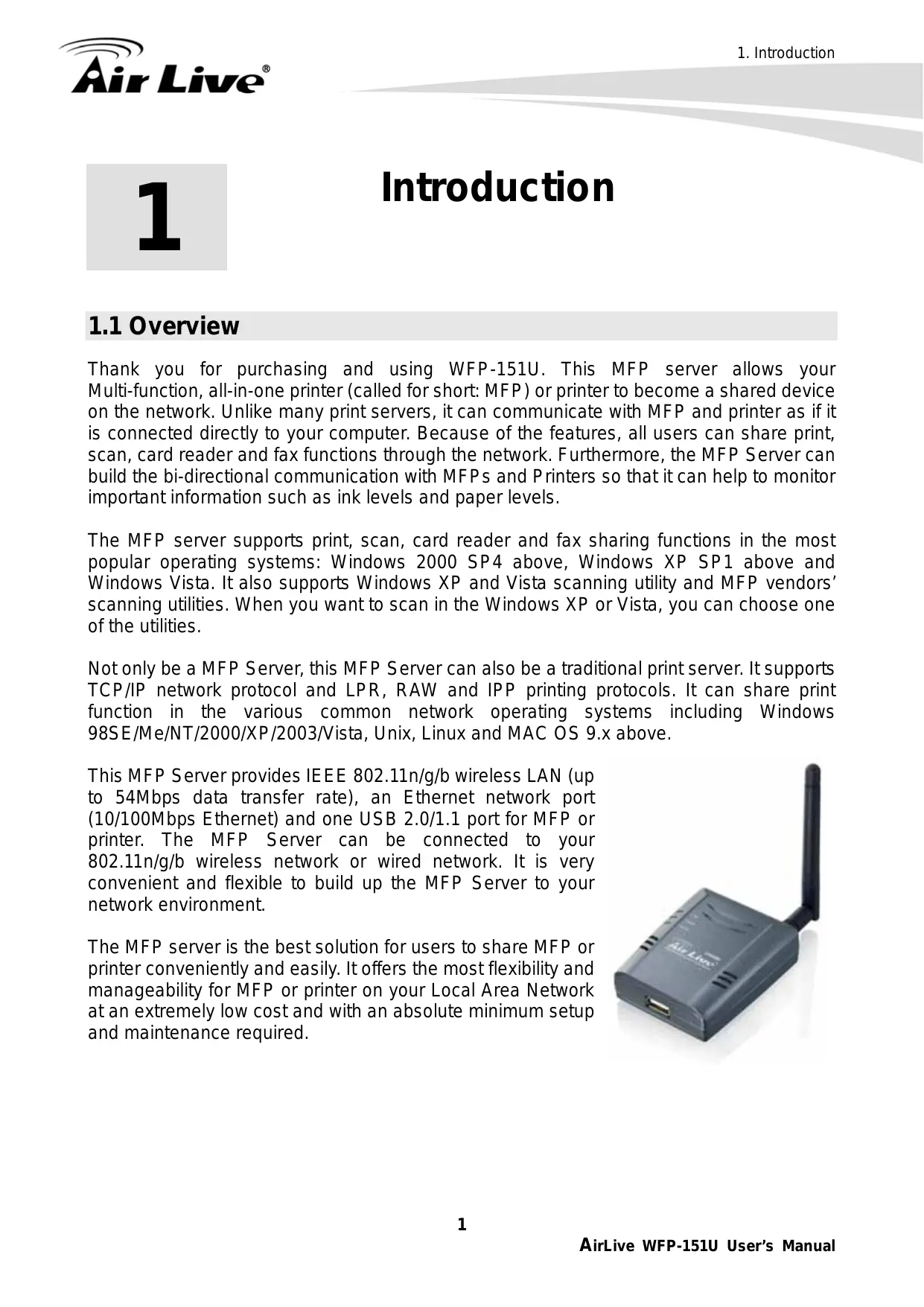

| Product Type | Multifunction Print Server (MFP Server) |
| Brand | AirLive |
| Model | WFP-151U |
| Dimensions | 75 x 60 x 20 mm |
| Weight | 65 g |
| Power Supply | 5V DC, 1A (adapter included) |
| Wired Network Standards | IEEE 802.3 10BASE-T, 802.3u 100BASE-TX |
| Wireless Network Standards | IEEE 802.11n/g/b (2.4 GHz) |
| Wireless Speed | Up to 54 Mbps (802.11g) |
| Interfaces | 1 Ethernet port 10/100 Mbps, 1 USB 2.0 Type A port |
| Antenna | External dipole antenna 3 dBi |
| Main Functions | Print sharing, scan, memory card reader, and fax over network |
| Supported Operating Systems | Windows 2000 SP4+, XP SP1+, Vista (32/64 bits), Mac OS 9.x+, Linux/Unix |
| Print Protocols | LPR, RAW, IPP |
| Management | Windows utility, Web interface, UPnP |
| Wireless Security | WEP 64/128 bits, WPA-PSK (TKIP/AES), WPA2-PSK |
| Operating Temperature | 0 to 40 °C |
| Humidity | 10 to 90% (non-condensing) |
| Package Contents | 1 × WFP-151U, 5V power adapter, quick installation guide, CD-ROM (user guide, utilities) |
Frequently Asked Questions - WFP-151U AIRLIVE
User questions about WFP-151U AIRLIVE
0 question about this device. Answer the ones you know or ask your own.
Ask a new question about this device
Download the instructions for your IP Camera in PDF format for free! Find your manual WFP-151U - AIRLIVE and take your electronic device back in hand. On this page are published all the documents necessary for the use of your device. WFP-151U by AIRLIVE.
USER MANUAL WFP-151U AIRLIVE
11n Wireless Multi-function Print Server
User's Manual

AirLive
Powered by OvisLink Corp.
Copyright & Disclaimer
No part of this publication may be reproduced in any form or by any means, whether electronic, mechanical, photocopying, or recording without the written consent of OvisLink Corp.
OvisLink Corp. has made the best effort to ensure the accuracy of the information in this user's guide. However, we are not liable for the inaccuracies or errors in this guide. Please use with caution. All information is subject to change without notice
All Trademarks are properties of their respective holders.
Table of Contents
1. Introduction 1
1.1 Overview 1
1.2 How to Use This Guide 2
1.3 Firmware Upgrade and Tech Support 3
1.4 Features 4
2. Installing the WFP-151U 5
2.1 Before You Start 5
2.2 Package Content 5
2.3 Knowing your WFP-151U 6
2.4 Hardware Installation 6
2.5 LED Table 7
2.6 Software Installation 7
2.7 MFP Server Utilities 15
2.8 Install MFP Drivers/Utilities 16
2.8.1 Never Install MFP Driver/Utilities 17
2.8.2 MFP Drivers/Utilities has been installed 18
3. Using the WFP-151U 20
3.1 Important Information 20
3.2 Share Print 21
3.3 Share Scan 22
3.4 Share Card Reader 23
3.5 Fax a File 24
4.MFP Manager. 26
4.1 MFP Server List 26
4.2 My Favorite 28
4.3 Auto Connect List 29
4.4 Quick Setup 31
4.5 Option Settings 32
4.5.1 General Setting 32
4.5.2 Search for MFP Server 33
5. Server Configuration 34
5.1 Option Settings 34
5.2 Search for All Available MFP Server 35
5.3 Status of MFP Server 36
5.4 Setup the MFP Server 37
5.5 General Configuration 38
5.6 TCP/IP Configuration 39
5.7 System Configuration 41
5.8 Wireless Configuration 42
5.9 MFP Server Management 50
5.10 Report 51
6. Web Management in WFP-151U. 52
6.1 Menu Structure of WFP-151U 52
6.2 Login 54
6.3 Device Setup 55
6.3.1 System 55
6.3.2 Device 55
6.3.3 TCP/IP 56
6.4 Setup Wizard 56
6.4.1 System 57
6.4.2 Wireless Setting 58
6.4.3 TCP/IP 63
6.4.4 Save Setting 64
6.5 System Tools 64
6.5.1 Load Default 64
6.5.2 Upgrade Firmware from Browser 65
7. Printing Protocols 66
7.1 LPR Printing 66
7.2 RAW Printing 72
7.3 IPP Printing 78
7.3.1 System Setup 78
8. MFP Server Installation in Win98SE/ME/NT 83
8.1 Software Installation Procedure 83
8.2 Server Utilities 92
8.3 Network Port Setup 93
8.4 Add Printer 94
9. MFP Server Installation in UNIX/Linux 99
9.1 GUI Mode 99
9.2 Console Mode 103
9.2.1 Enable MFP Server's TCP/IP Support 104
9.2.2 Setup MFP Server's IP Address 104
9.2.3 Verify MFP Server's IP Address 105
9.2.4 Configure Remote LPD Printing on the Host 105
10. MFP Server Installation in MAC OS 108
10.1 MAC 10.4.x 108
10.2 MAC 10.3.x 108
- Troubleshooting 113
- Specifications 117
- Network Glossary 119
1
Introduction
1.1 Overview
Thank you for purchasing and using WFP-151U. This MFP server allows your Multi-function, all-in-one printer (called for short: MFP) or printer to become a shared device on the network. Unlike many print servers, it can communicate with MFP and printer as if it is connected directly to your computer. Because of the features, all users can share print, scan, card reader and fax functions through the network. Furthermore, the MFP Server can build the bi-directional communication with MFPs and Printers so that it can help to monitor important information such as ink levels and paper levels.
The MFP server supports print, scan, card reader and fax sharing functions in the most popular operating systems: Windows 2000 SP4 above, Windows XP SP1 above and Windows Vista. It also supports Windows XP and Vista scanning utility and MFP vendors' scanning utilities. When you want to scan in the Windows XP or Vista, you can choose one of the utilities.
Not only be a MFP Server, this MFP Server can also be a traditional print server. It supports TCP/IP network protocol and LPR, RAW and IPP printing protocols. It can share print function in the various common network operating systems including Windows 98SE/Me/NT/2000/XP/2003/Vista, Unix, Linux and MAC OS 9.x above.
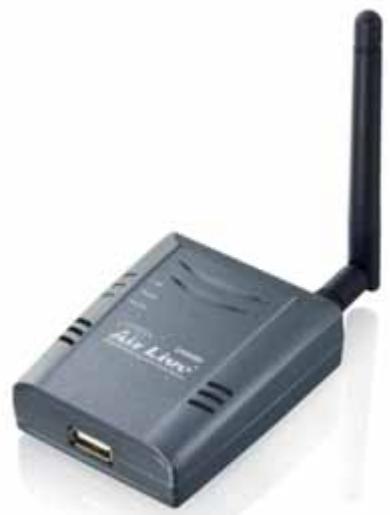
This MFP Server provides IEEE 802.11n/g/b wireless LAN (up to 54Mbps data transfer rate), an Ethernet network port (10/100Mbps Ethernet) and one USB 2.0/1.1 port for MFP or printer. The MFP Server can be connected to your 802.11n/g/b wireless network or wired network. It is very convenient and flexible to build up the MFP Server to your network environment.
The MFP server is the best solution for users to share MFP or printer conveniently and easily. It offers the most flexibility and manageability for MFP or printer on your Local Area Network at an extremely low cost and with an absolute minimum setup and maintenance required.
1.2 How to Use This Guide
This MFP Server supports dual functionalities: MFP Server Mode and Print Server Mode at the same time. Users can choose one of the modes to share MFP or Printer functions through the MFP Server.
MFP Server Mode
The MFP Server can communicate with MFP and printer as if it is connected directly to your computer. This enables users to connect to MFP for sharing print, scan, card reader and fax functions. If the MFP Server is connected to a printer but not MFP, users still can share printing function through the operation mode. The supported OS in this mode is Windows 2000 SP4 above, Windows XP SP1 above and Windows Vista. The MFP Server mode doesn't support Windows 98SE/ME/NT, Linux/Unix or MAC OS.
Print Server Mode
The MFP Server also supports LPR, IPP and RAW printing protocols, which enable users to share print function from MFP or Printer. The supported OS is Windows 98SE/Me/NT/2000/XP/2003, Unix, Linux and MAC OS 9.x above. In Windows Vista, the MFP Server only supports LPR printing protocol.
It is recommended that you read through the entire user's guide whenever possible. The user guide is divided into different chapters. You should read at least go through the first 3 chapters before attempting to install the device.
Recommended Reading
Chapter 1: This chapter explains the basic information for WFP-151U. It is a must read.
Chapter 2: This chapter is about hardware and software installation. You should read through the entire chapter.
Chapter 3: This chapter will introduce what WFP-151U can do for users
Chapter 4: This chapter explains how to use MFP Manager Utility.
Chapter 5: This chapter explains how to use Server ManagerUtility.
Chapter 6: This chapter explains how to make configuration in WFP-151U via Web browser.
Chapter 7: This chapter will introduce how to use three printing protocols.
Chapter 8: This chapter will introduce how to install the MFP Server to be print server in Windows 98SE/Me/NT.
Chapter 9: This chapter will introduce how to install the MFP Server to be print server in UNIX/LINUX.
Chapter 10: This chapter will introduce how to install the MFP Server to be print server in MAX OS.
Chapter 11: If any trouble in using WFP-151U, you can refer to this chapter.
Chapter 12: This chapter shows technical specification of WFP-151U.
Chapter 13: Explanation on network technical terms from A to Z. Highly recommended for reference when you encounter an unfamiliar term.
1.3 Firmware Upgrade and Tech Support
If you encounter a technical issue that can not be resolved by information on this guide, we recommend that you visit our comprehensive website support at www.airslive.com. The tech support FAQ are frequently updated with latest information.
In addition, you might find new firmwaresthat either increase software functions or provide bug fixes for WFP-151U. You can reach our on-line support center at the following link: http://www.airlive.com/support/support_2.jsp
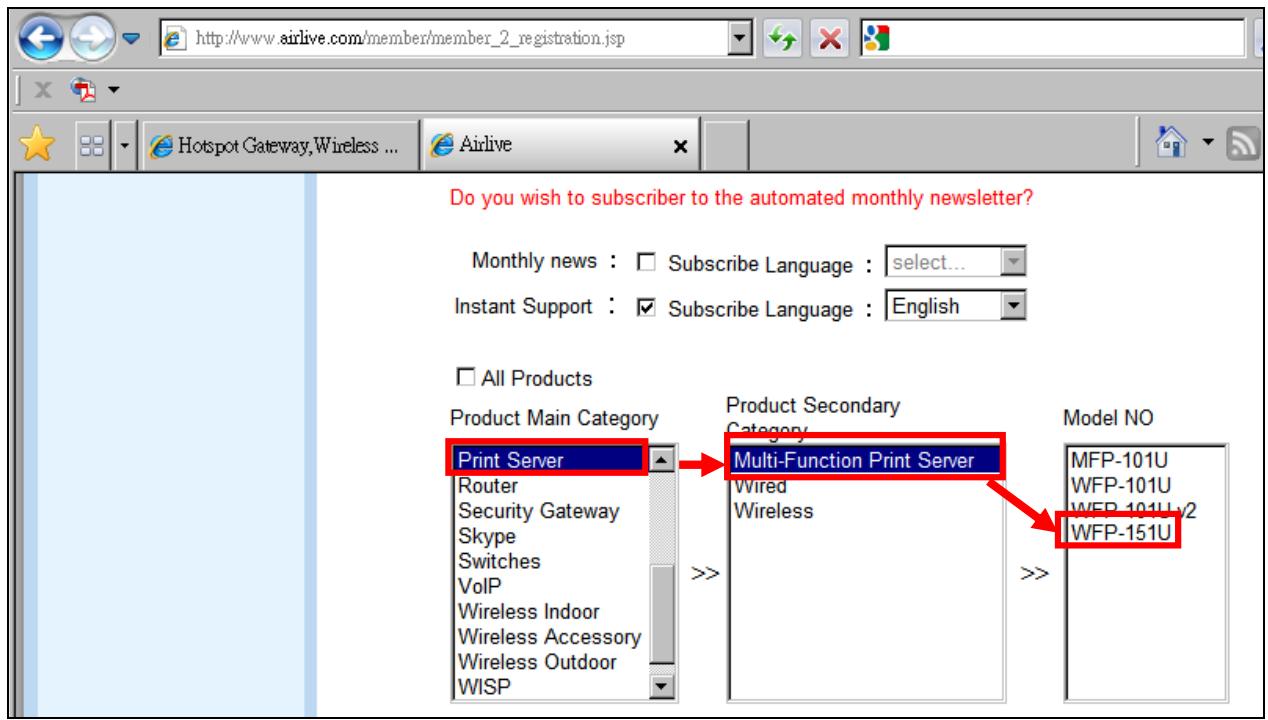
Since 2009, AirLive has added the "Newsletter Instant Support System" on our website. AirLive Newsletter subscribers receive instant email notifications when there are new download or tech support FAQ updates for their subscribed airlive models. To become an AirLive newsletter member, please visit: http://www.airlive.com/member/member_3.jsp
1.4 Features
Confirms to IEEE802.3 10BASE-T, 802.3u 100BASE-TX, 802.11 802.11n/g/b (2.4GHz) Wireless LAN standards
One USB 2.0 port to connect to MFP or printer
Compatible with the majority of HP, EPSON, Lexmark, Canon, Brother, Konica Minolta, Samsung, etc. MFPs and Printers
Supports DHCP Client protocol
Supports Web-based management and Windows Configuration Utility
- Provides easy-to-use installation and setup programs
Supports Fault-Tolerant Upgrade capability
Supported operating system
MFP Server: Windows 2000 SP4 above/XP SP1 above/Vista (32-bit/64-bit)
■ Print Server: Windows 2000/XP/2003/Vista, MAC OS 9.x above and Linux/Unix
2
Installing the WFP-151U
This chapter describes the hardware features, hardware installation procedure and software installation procedure for the WFP-151U.
2.1 Before You Start
It is important to read through this section before you install the WFP-151U.
The maximum cabling distance is 100 meters.
Only use the power adapter which in the package
Always check the LED lights for troubleshooting
2.2 Package Content
Unpack the contents of the WFP-151U and verify them against the checklist below.
One unit of WFP-151U
5V Power Adapter
User Guide (CD-ROM)
Quick Installation Guide
WFP-151U
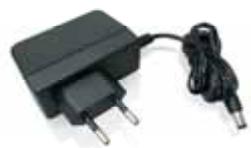
5V Power Adapter
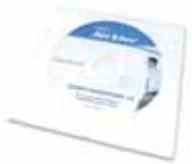
User Guide
(CD-ROM)
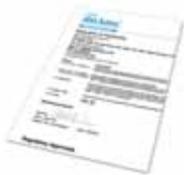
Quick Installation
Guide
Compare the contents of your WFP-151U package with the standard checklist above. If any item is missing or damaged, please contact your local dealer for service.
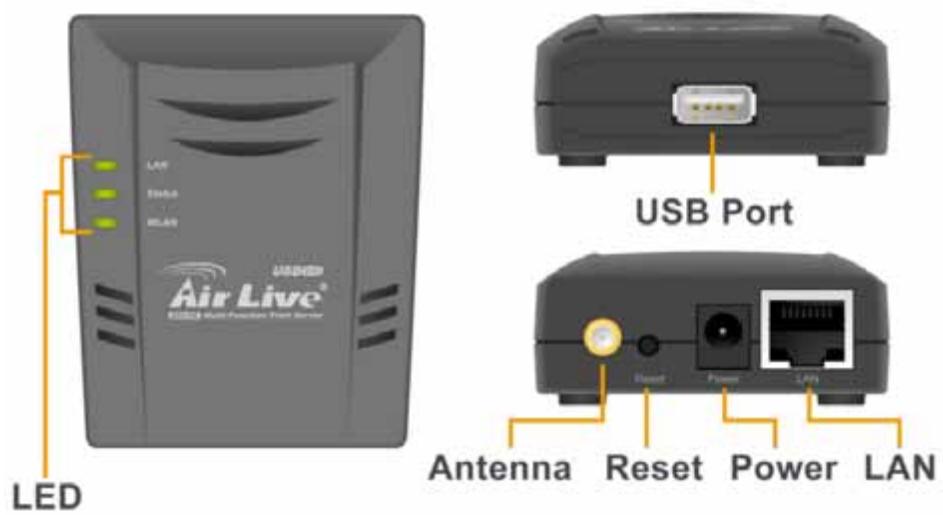
2.3 Knowing your WFP-151U
Below are descriptions and diagrams of the product:
2.4 Hardware Installation
Set the WFP-151U on a sufficiently large flat space with a power outlet nearby. The surface where you put your WFP-151U should be clean, smooth, level and sturdy. Make sure there is enough clearance around the WFP-151U to allow attachment of cables, power adapter and allow air circulation.
A. Unpack the MFP Server package and verify that all the items listed in the previous section are provided.
B. Plug the USB cable to the MFP Server with the MFP or printer that you want to share on the network.
C. Connect the MFP Server to your network by attached the network cable to the network port of the MFP server.
D. Connect the power adapter to the MFP Server. The MFP Server will perform the Power-On-Self-Test (POST) after it is powered on. When the Status LED is unlighted, the MFP Server is ready.
Note:
- You must use the power adapter shipped along with the MFP Server, do NOT use any other power adapter from other sources.
- To prevent the compatibility problem between MFP Server and a few MFP or printer, it is recommended that you power on the MFP Server before the MFP or printer.
2.5 LED Table
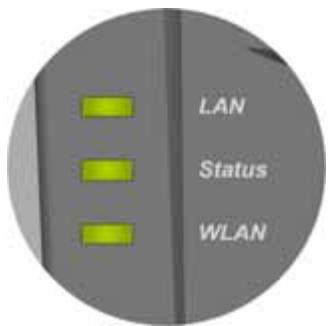
The LED Indicators gives real-time information of systematic operation status. The following table provides descriptions of LED status and their meaning.
| LED | Status | Description |
| LAN | Green | WFP-151U is connected to LAN. |
| Blink | The port is receiving or transmitting data. | |
| Off | WFP-151U is not connected to LAN. | |
| Status | Green | PC is connected |
| Off | PC is disconnected | |
| WLAN | Green | WFP-151U is connected to wireless AP/Router. |
| Blink | WFP-151U is receiving or transmitting data via wireless connection or trying to connect to AP/Router | |
| Off | WFP-151U is disabled |
2.6 Software Installation
Before you start, you should check your computer's operating system. This program can be run in Windows 2000 SP4 above, Windows XP SP1 above and Windows Vista. The following procedures are running in Windows XP, for Windows 2000 and Windows Vista, the procedures are similar. For the installation procedures in Windows 98SE/ME/NT and other operating systems, please refer to the manual of the MFP Server.
Tip: You have to uninstall all the MFP server drivers and utilities if you have installed the
previous version.
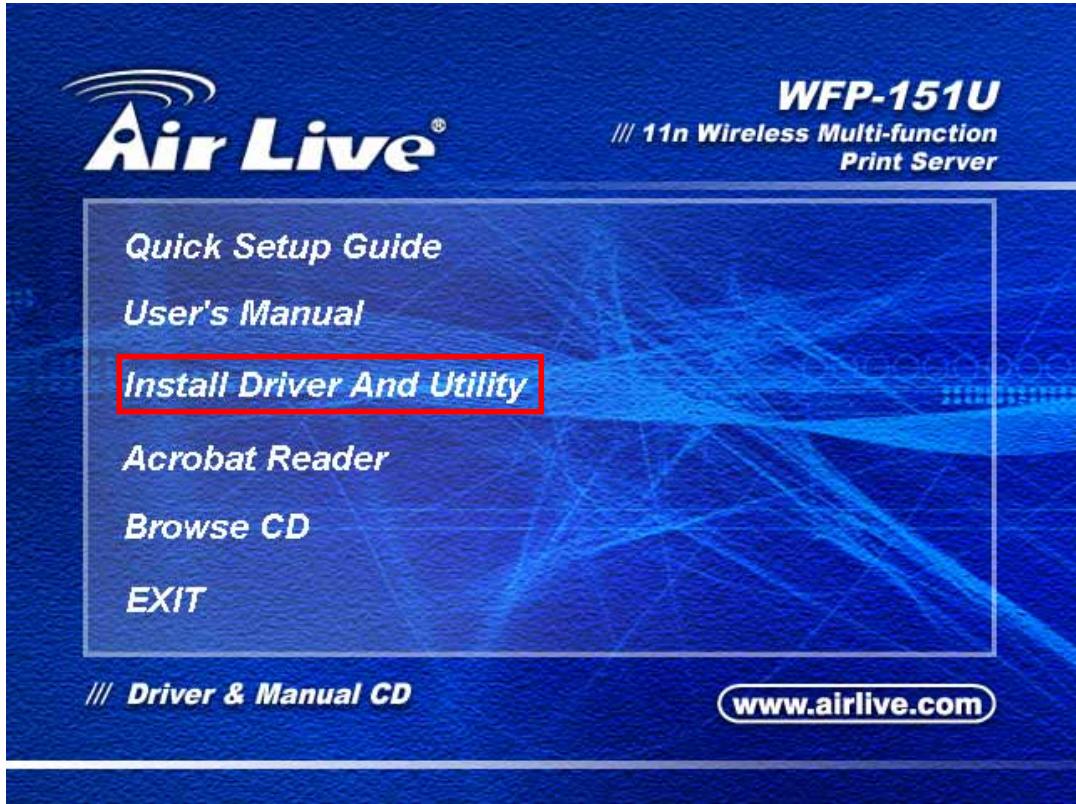
- Insert the CD shipped along with the MFP Server into your CD-ROM drive. The Autorun.exe program should be executed automatically. If not, run Autorun.exe manually from CD-ROM drive's root directory
- The following screen will be displayed. Click "Driver and Utility".
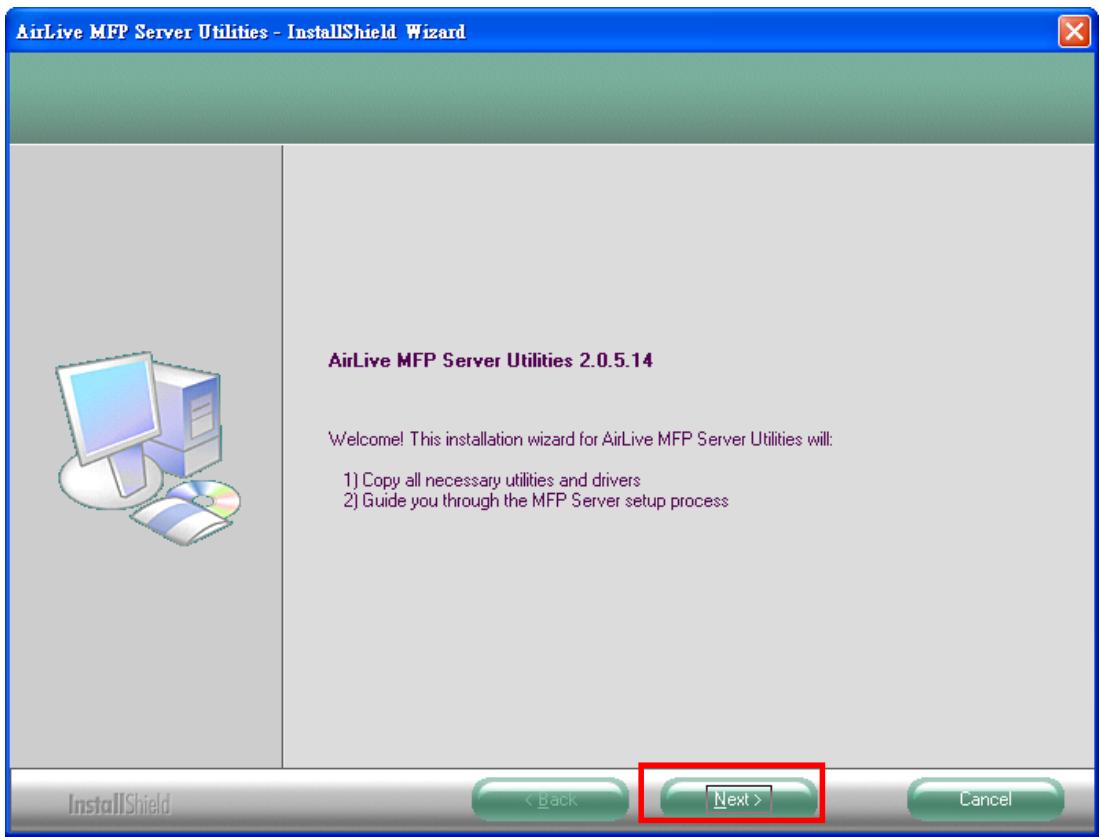
- The "MFP Server Utilities - InstallShield Wizard" is displayed, click "Next".
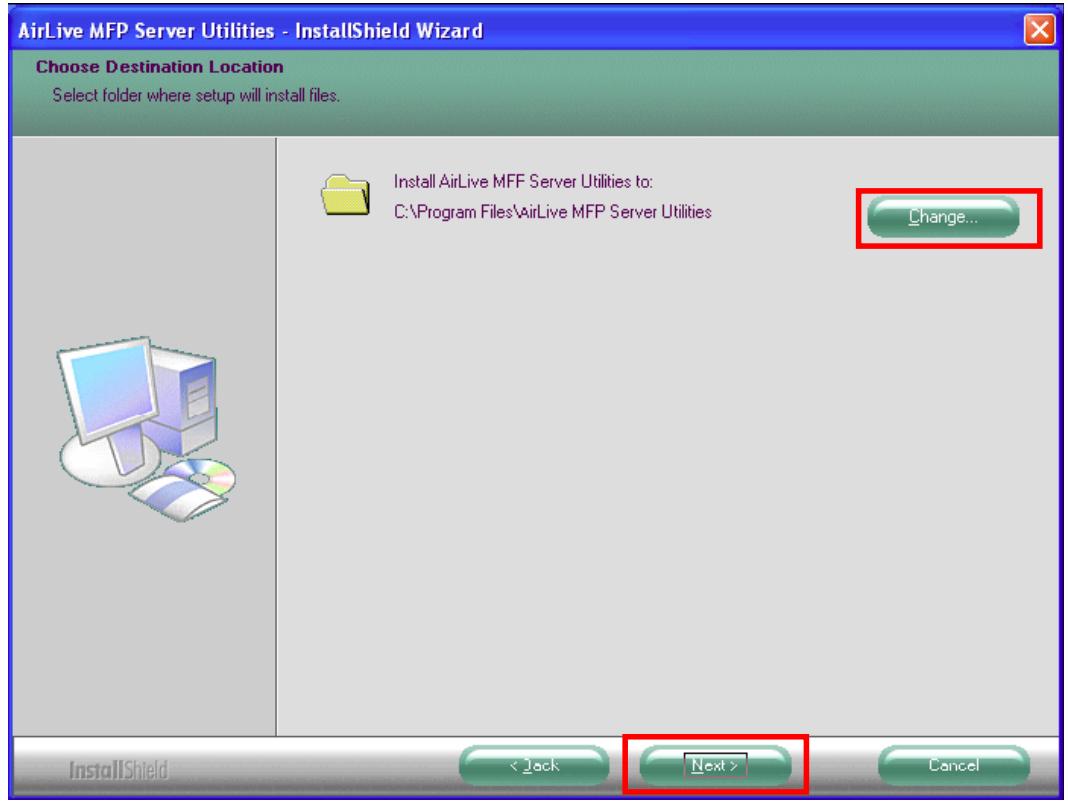
- Click "Next" to install the MFP Server utilities in the default folder or click "Change" to specify the destination folder where you would like to install the MFP Server utilities.
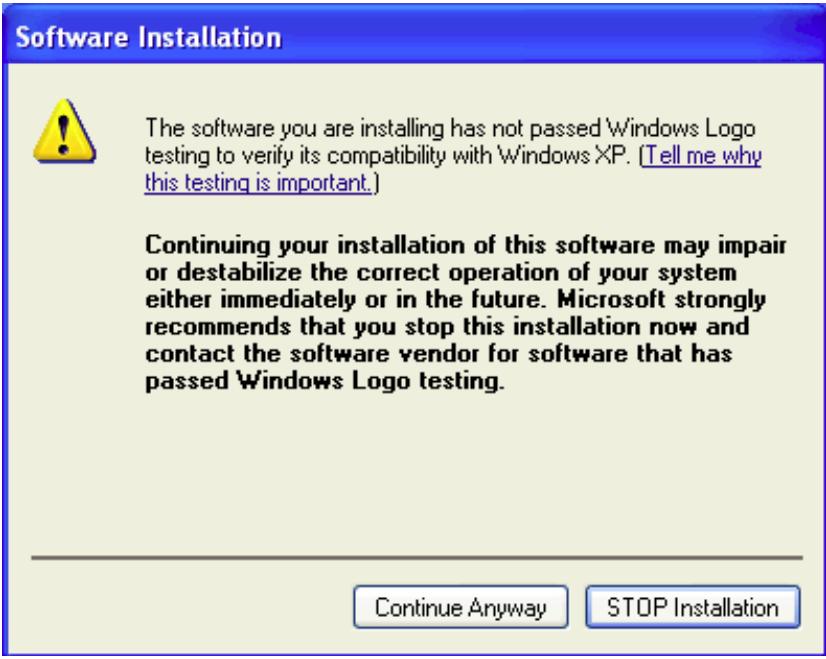
- Click the" Continue Anyway button " for software installation
- The system starts installing the MFP Server Utilities.
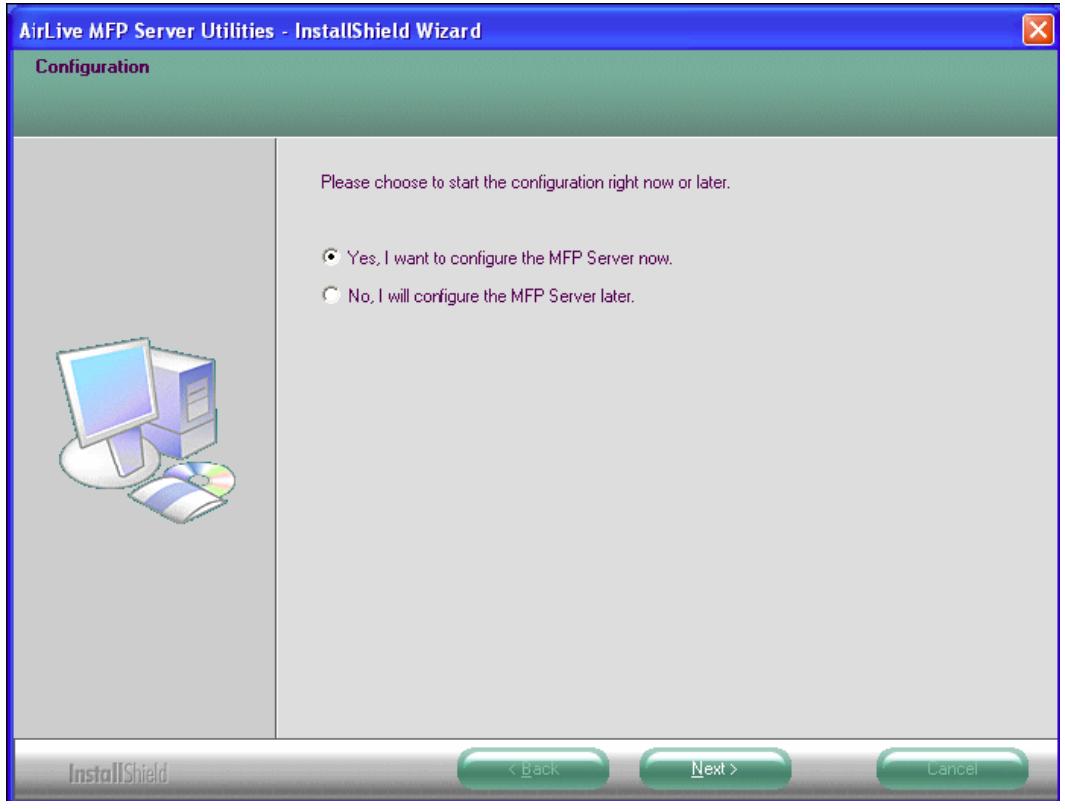
- The "MFP Server Configuration" screen is displayed. If you want to configure the MFP Server, please click "Next" directly. Or you can select "No, I will configure the MFP Server later" and click "Next" to complete the installation.
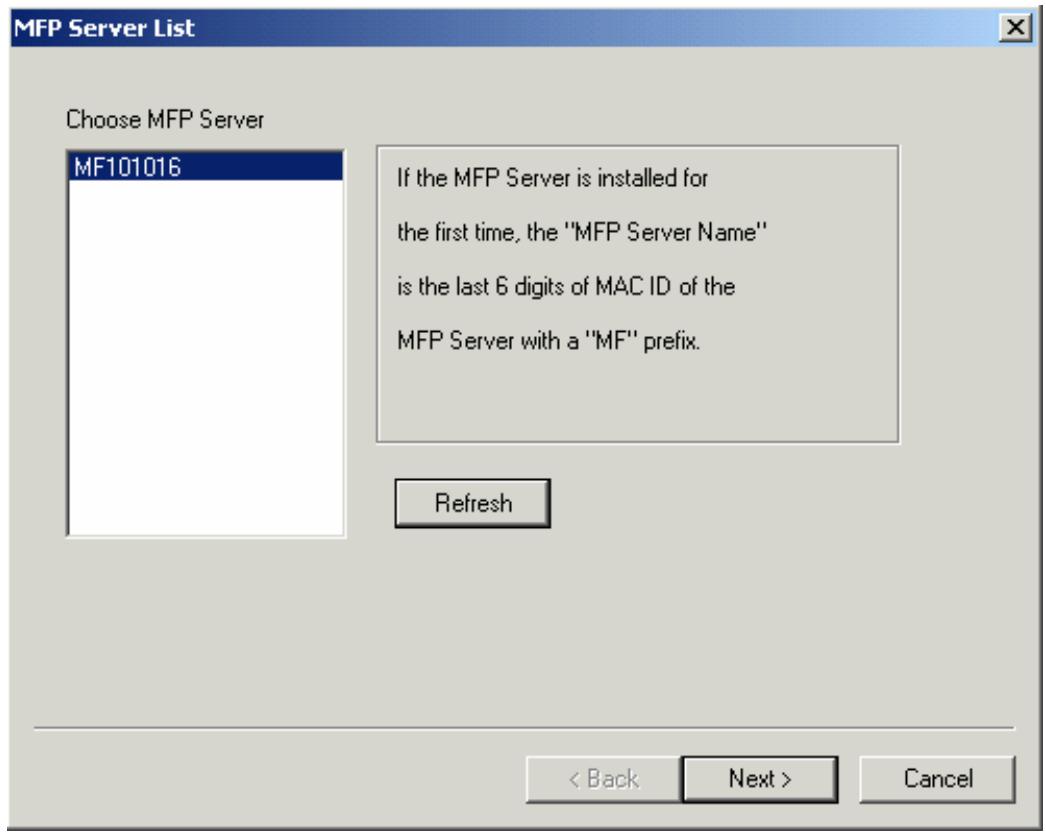
- Once choosing "Yes, I want to configure MFP Server now." and click "Next". The MFP
Server List will auto search the MFP Servers in the network. Select the MFP Server you want to setup and click "Next" to continue.
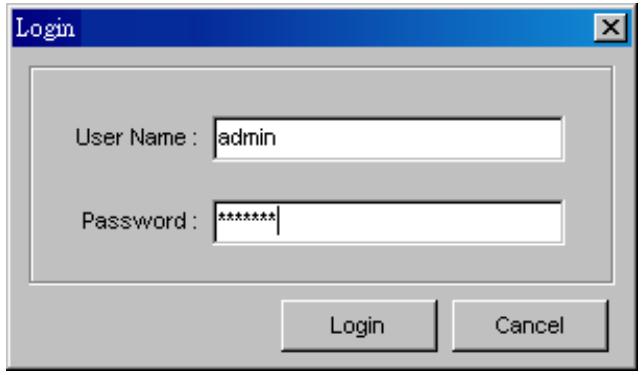
- Enter the "UserID" and "Password" of the MFP Server you have selected to login the MFP Server. The default "UserID" is "admin"; default "Password" is "airlive."
- Set the "Alias Name" and the "MFP Server Description" to the MFP Server here. Click on "Next".
Note: You can define the location or other information of the MFP Server for easy to find the MFP by filling "MFP Server Description".
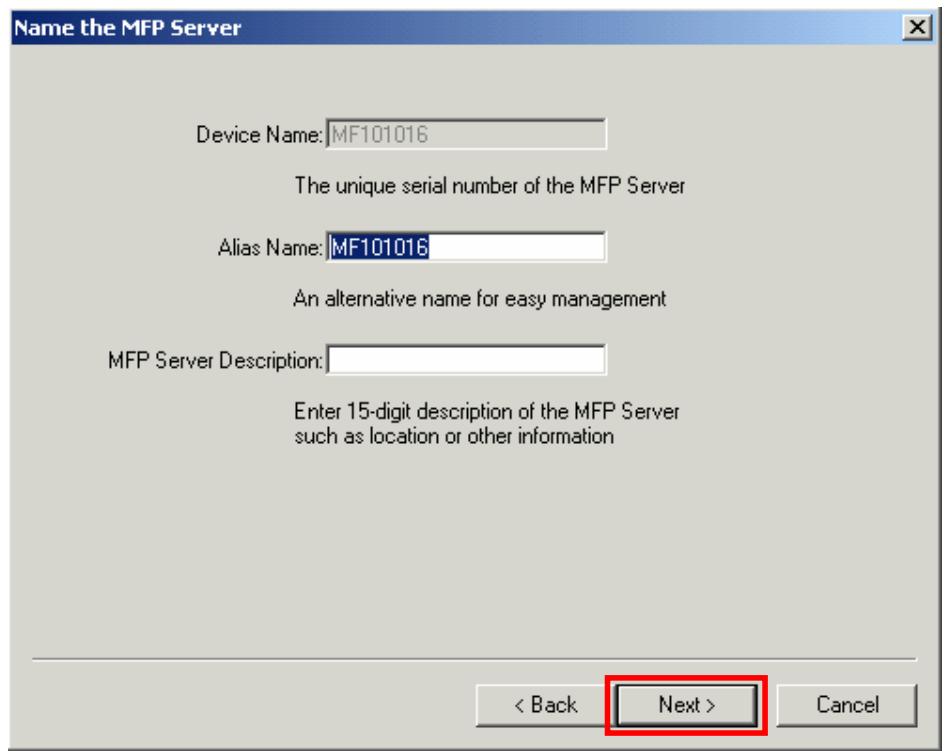
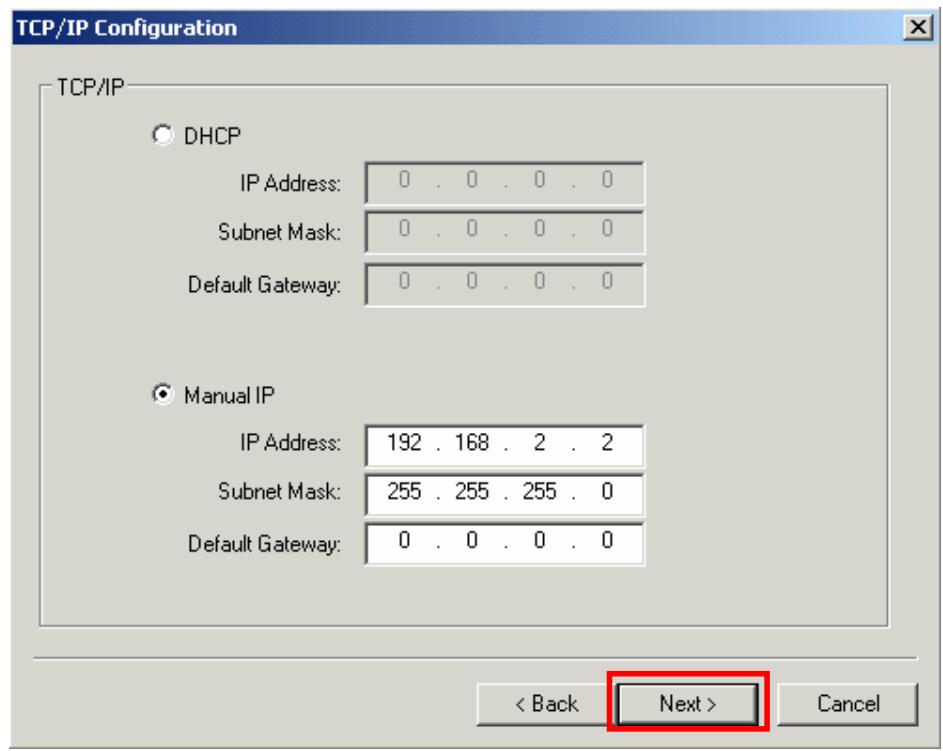
- Please set the network settings for the MFP Server manually. By default, the network settings are as follows.
IP Address: 192.168.2.2
Subnet Mask: 255.255.255.0
If you have selected "DHCP", the MFP Server will try to determine your network settings automatically. If a DHCP Server is present within the network, the MFP Server will automatically obtain and configure the network settings assigned by the DHCP Server. The assigned IP Address will be shown in the IP Address fields. If no DHCP Server is present within the network, please assign the network settings of the MFP Server manually. Please click "Next" once you have found appropriate network settings for the MFP Server.
Note: The MFP Server IP Address should be in the same network segment with the connected computer. If the network settings are incorrect, a message will be prompted to remind you after you click "Next". Please make sure that you have set the right settings before going to the next step. If you don't want to set it now, please click "Cancel" to finish the installation. You can then use the "Server Manager" utility to configure the MFP Server.
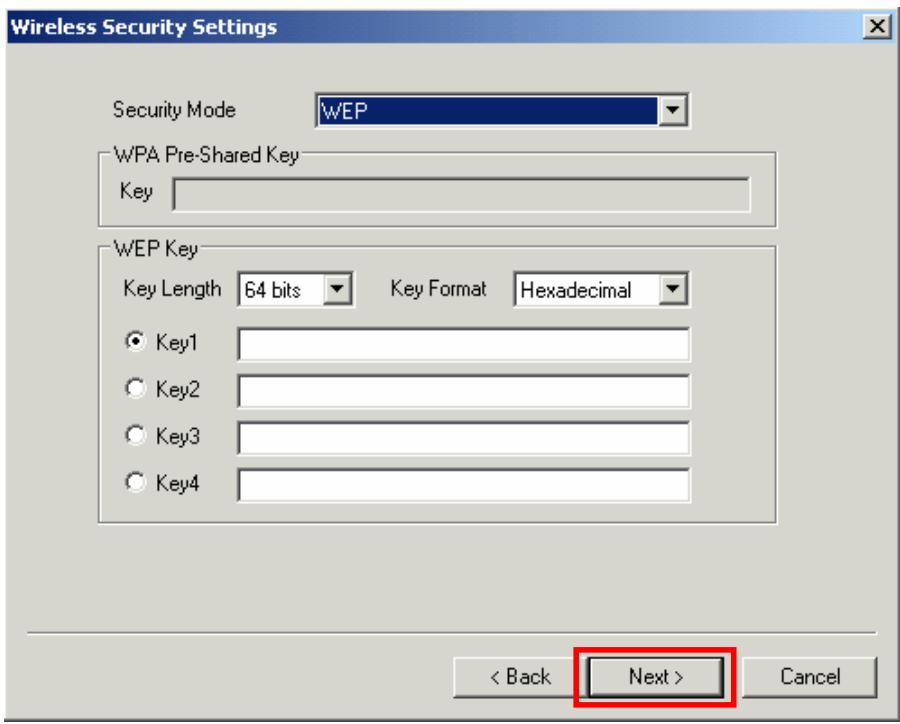
- The "Wireless Network Settings" screen will allow you to connect your wireless MFP Server to your wireless router, access point, or point-to-point ad-hoc connection.
The MFP Server will automatically scan the wireless networks nearby. Please select the appropriate wireless network that you would like to connect from the list and click "Next".
You may choose to scan for the wireless access point or router (Infrastructure mode) or the wireless adapters (Ad Hoc mode). Or, you can manually enter the wireless network information (Manual mode). By default, the wireless settings are as below.
Mode: Infrastructure
SSID: Default
Channel: 11
- If you chose to connect to an encrypted network, the "Wireless Security Settings" screen will be appeared. You have to select the "Security Mode" and enter the key the same as the settings on your wireless devices. For more information about the security settings, please refer to the Chapter 4.
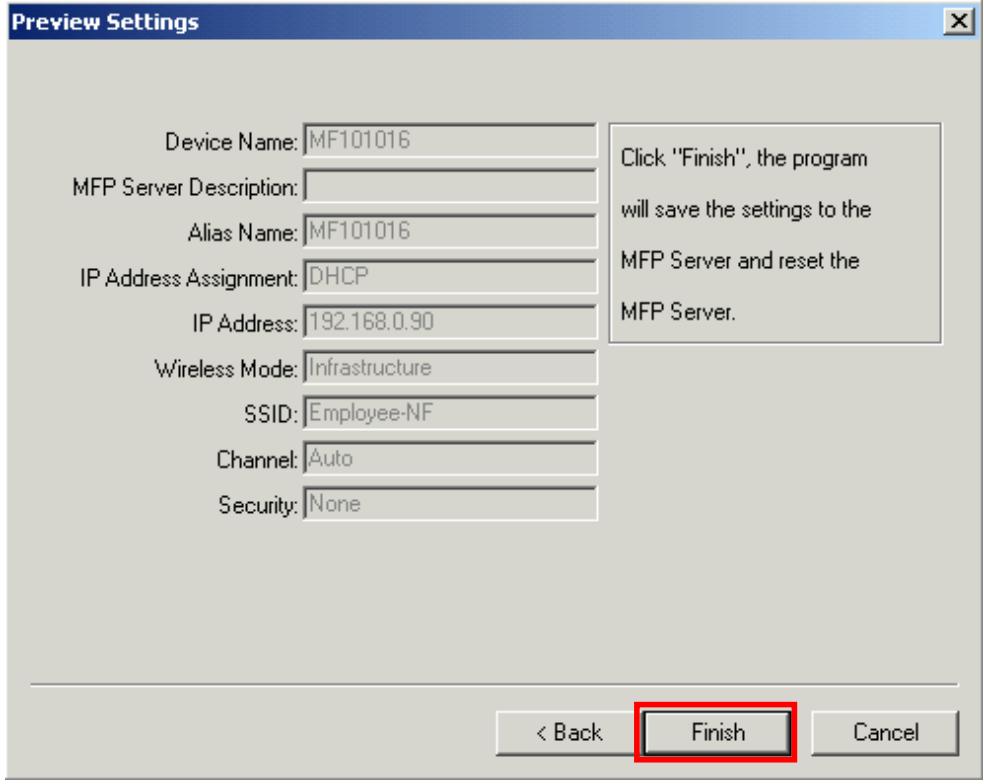
- The configurations are finished. Please click "Finish" to apply new settings.
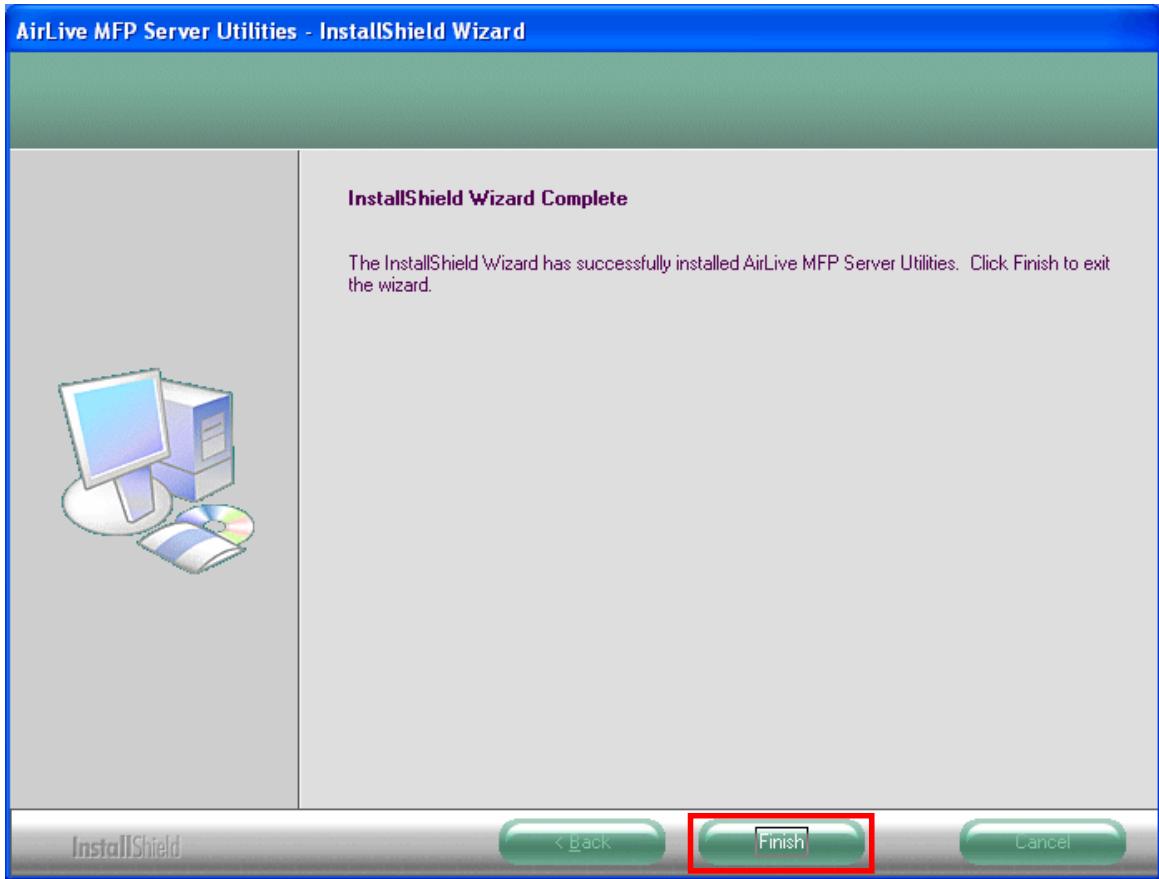
- Click "Finish" to complete the installation.
Note: If the Windows XP Firewall in your system has been enabled, the MFP Server will automatically open ports for the MFP Server programs smoothly run in your system. It will not cause abnormal behaviors or unsafe on your system.
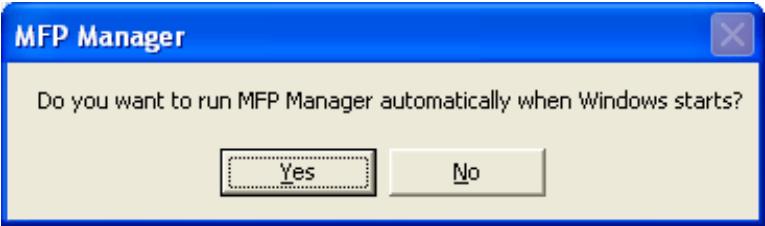
- Choose if you want to run the "MFP Manager" utility automatically when Windows starts. It is recommended to enable the setting.
- The default wireless setting is "Auto" mode. The MFP Server will detect if the MFP Server is connected to a wired LAN network through the attached Ethernet cable. If yes, it will work in wired network. To enable the wireless setting, please remove the Ethernet cable. For more detailed information about wireless setting, please refer to Chapter 4.
2.7 MFP Server Utilities
After the installation is completed, there will be three utilities and a text file in the MFP Server's Program folder.
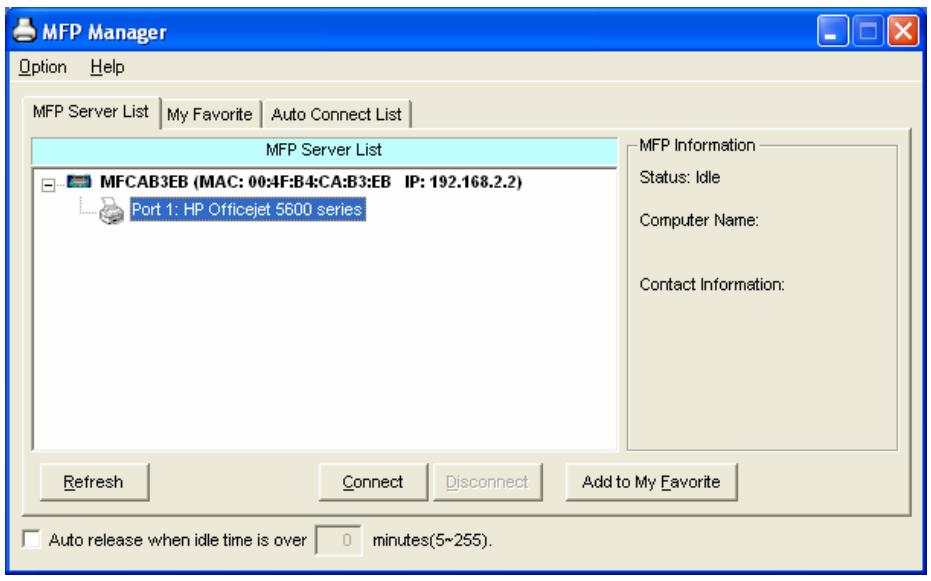
MFP Manager - Allows you to manage the connection between the MFP and your computer for sharing MFP function.
Server Configuration - Allows you to configure the MFP Server's IP Address, network protocols and other advanced features. It also allows you to manage the MFP Server.
Uninstall - Assistant for removing all installed MFP Server software programs.
About Version - Display the version of each utility including in the MFP Server software programs.
2.8 Install MFP Drivers/Utilities
When the installation is completed, the "MFP Manager" will be popped up. It will automatically find the MFP Servers and the connected MFPs in the network and show it in the "MFP Server List".
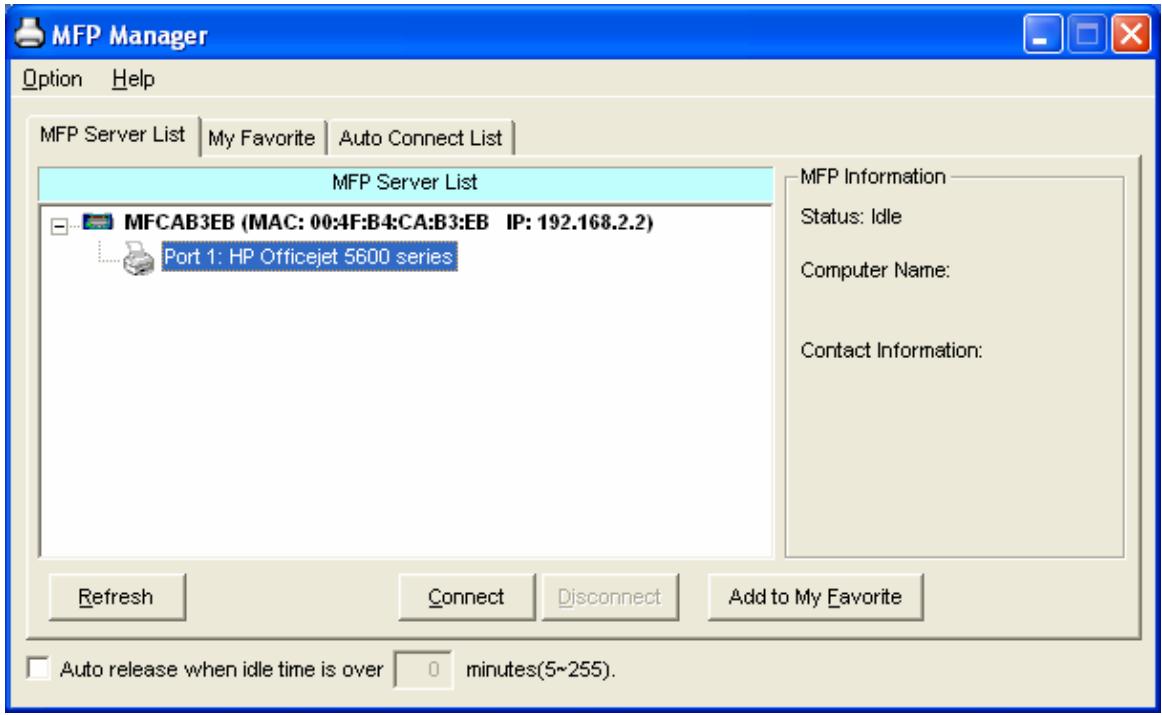
Before you start to install the MFP selected from the "MFP Server List", please check your computer's MFP installation status.
2.8.1 Never Install MFP Driver/Utilities
Before the installation, please read the manual of the MFP. Some MFP requires users to install the drivers/utilities before connecting the MFP to your computer. Some MFP requires connecting the MFP to your computer during the installation. Please refer to the below illustration of "HP ALL-In-One Series" which is the screen displayed during the installation.
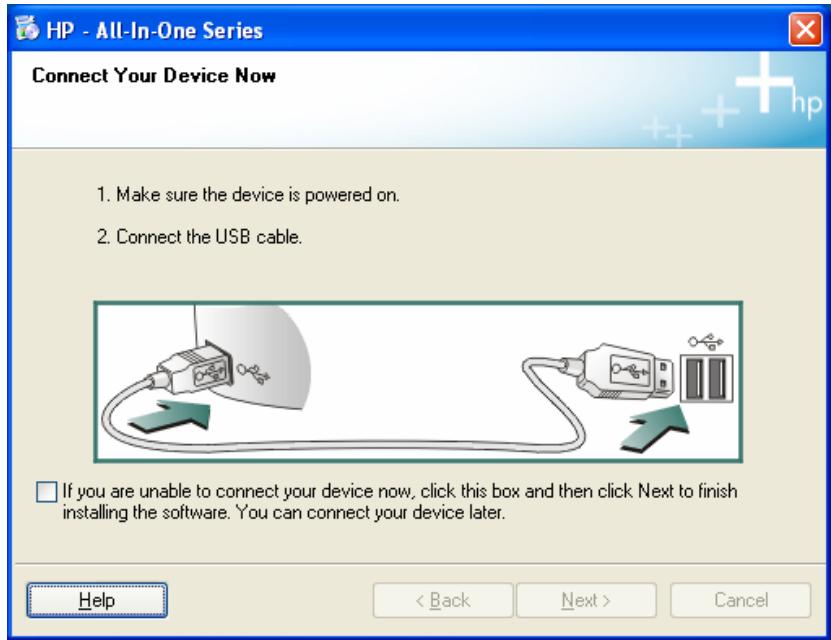
To connect the MFP to your computer through the MFP Server just like you have directly connected the MFP to your computer through the USB cable, you can follow the steps below.
- Select the MFP that you want to install in the "MFP Server List" and click "Connect" button.
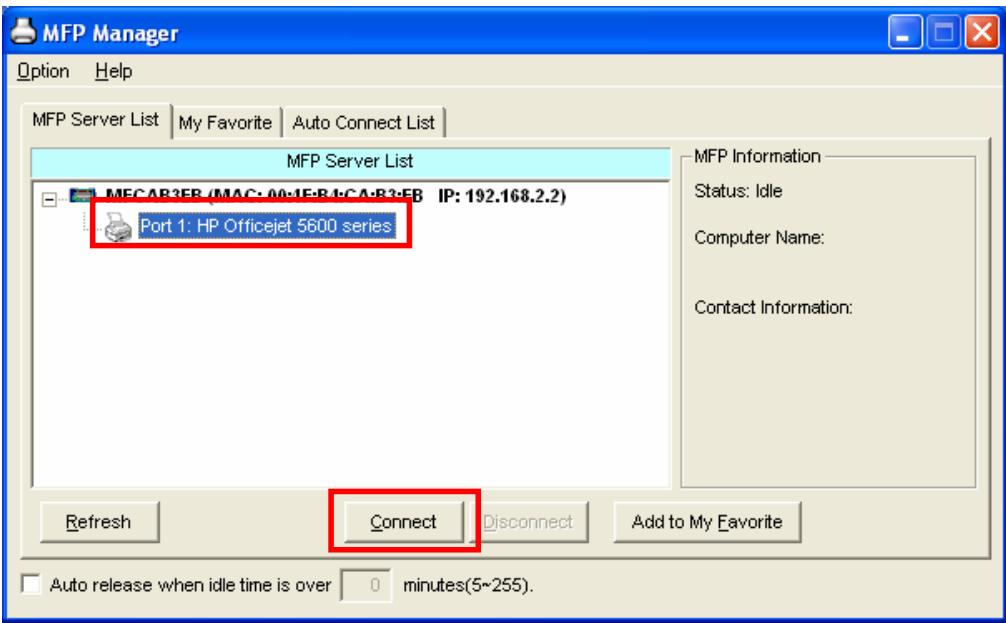
- The Windows will detect the new hardware and prompt to install the MFP Server drivers and then the MFP drivers. When the system stops prompting, the drivers are all installed. If the system can't find the MFP driver, please insert the installation CD of the MFP and designated to find drivers in the CD.
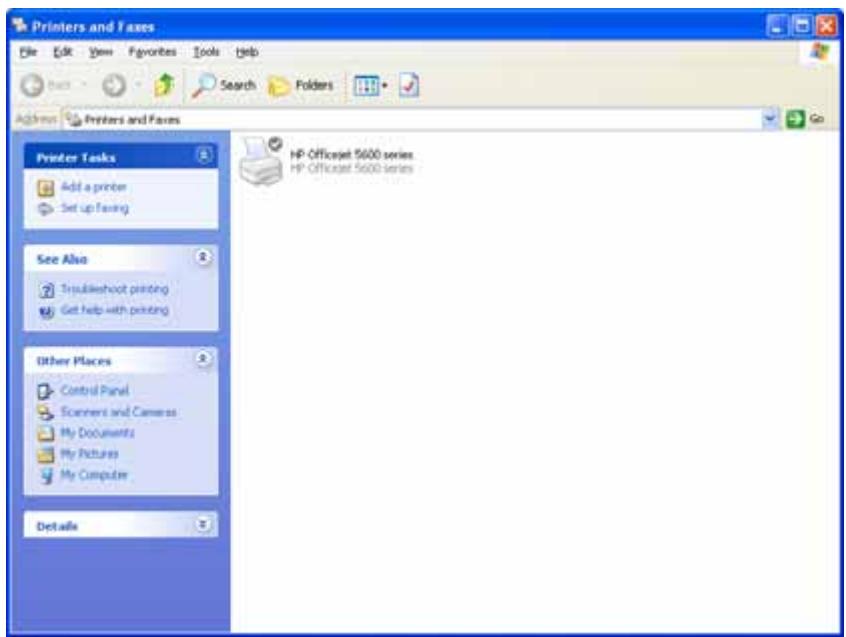
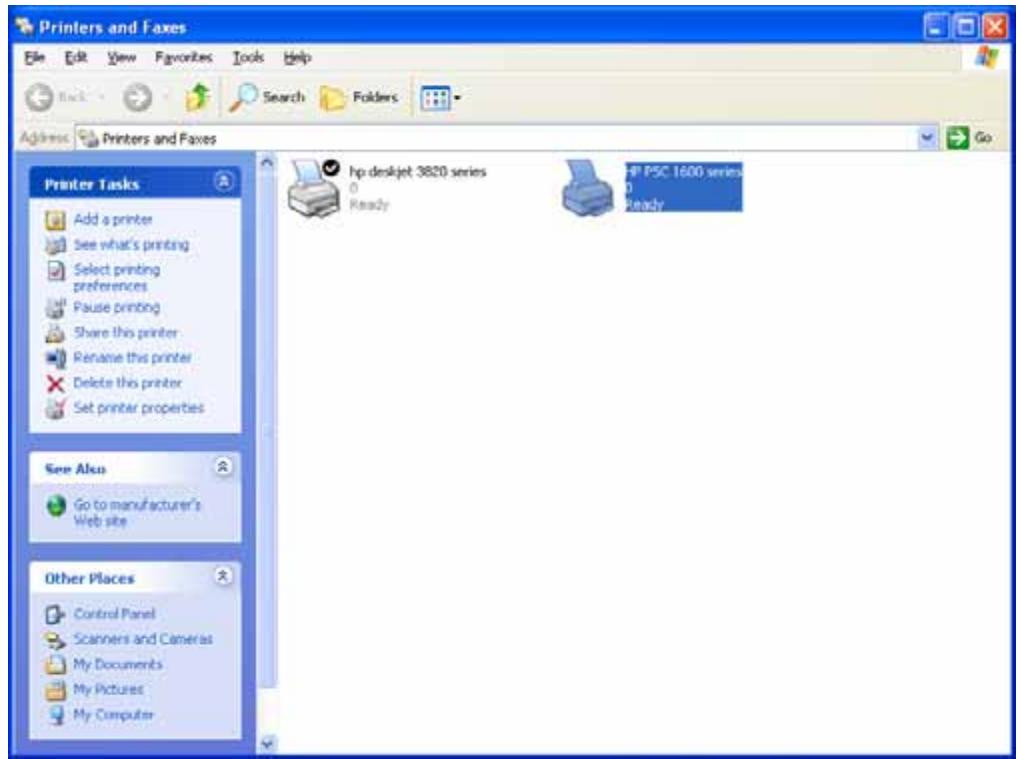
- After you have completed the MFP installation, you will see the MFP is added to the "Printers and Faxes" in Windows.
2.8.2 MFP Drivers/Utilities has been installed
- To bundle the MFP drivers/utilities that you have installed to the MFP Server, please follow the steps below. Select the MFP that you want to install in the "MFP Server List" and click "Connect" button.
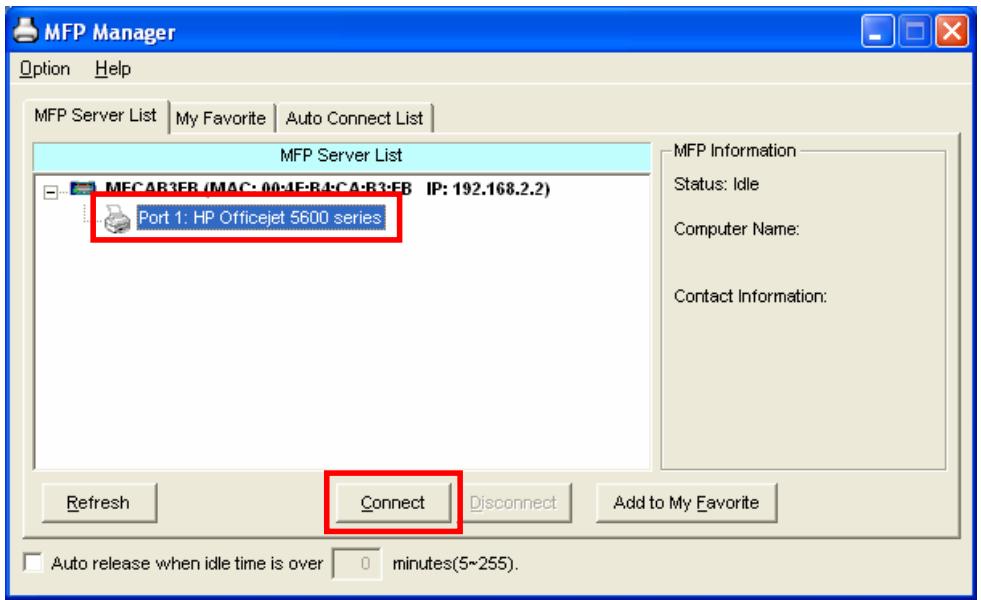
- The Windows will detect the new hardware and prompt to install the MFP Server drivers and then the MFP drivers. When the system stops prompting, the drivers are all installed. If the system can't find the MFP driver, please insert the installation CD of the MFP and designated to find drivers in the CD.
- After the installation, a copy of the MFP will be added to the "Printers and Faxes" in Windows.
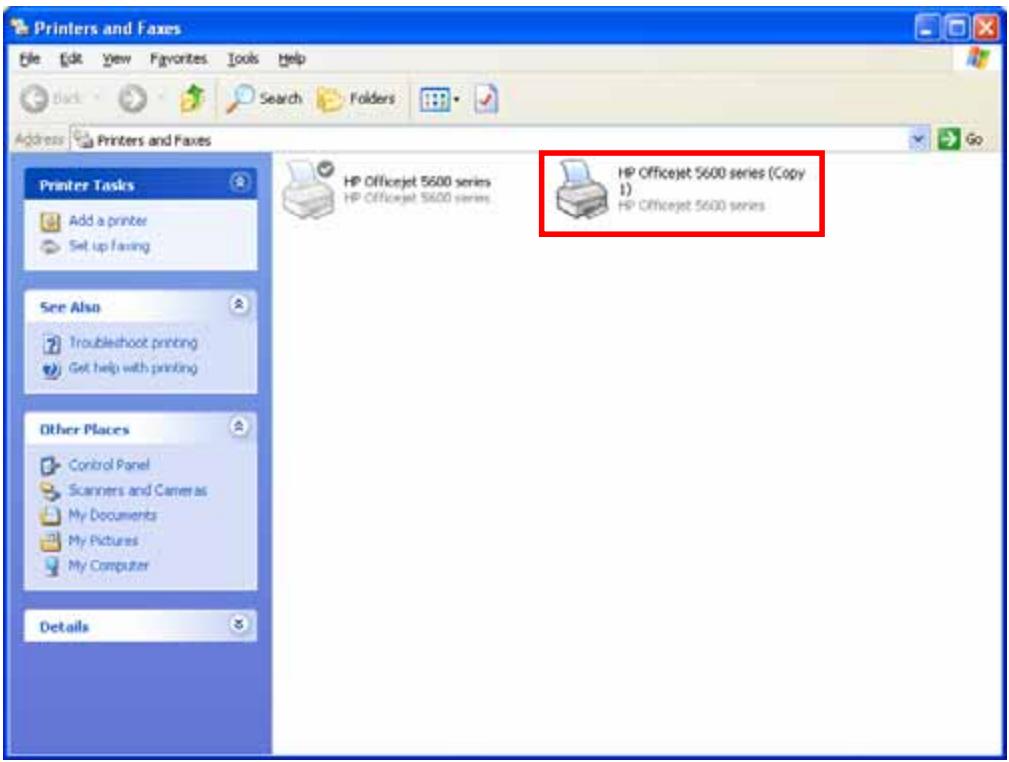
Tip : The new copy of the MFP is bundled to the MFP Server. Please use the MFP to share print, scan, card reader or fax functions through the network.
3
Using the WFP-151U
After you have followed the install wizard to finish the MFP installation, the WFP-151U is now connected to your computer. You can start sharing print, scan, card reader or fax function provided by the MFP.
3.1 Important Information
The following information will help you to get start quickly. However, we recommend you to read through the entire manual before you start. Please note the username and password are case sensitive.
The default IP address is 192.168.2.2
The default Subnet Mask is 255.255.255.0
The default username is admin
The default password is airlive
Tip 1: If you have finished using the WFP-151U, please click "Disconnect" to release the WFP-151U. Another users can't use the WFP-151U until the WFP-151U is released
Tip 2: It is recommended to enable "Auto Release" setting. The WFP-151U Server will auto release your connection to the WFP-151U after a period of idle time that you have assigned. So the WFP-151U will not be occupied too long and other users can share the WFP-151U frequently.
3.2 Share Print
The WFP-151U will be added to "Printers and Faxes" in the Windows after the MFP is installed. When you have connected to the WFP-151U by clicking "Connect" in the "MFP Manager", the WFP-151U will auto create the connection between WFP-151U and your computer and then you can print a document just follows the same steps as usual.
Tip: If you have sent a printing job to the WFP-151U while the WFP-151U is connecting by a user, you may be prompted that the device is not found or the document is failed to print. Please resend the printing job after the WFP-151U is idle or not being connected.
3.3 Share Scan
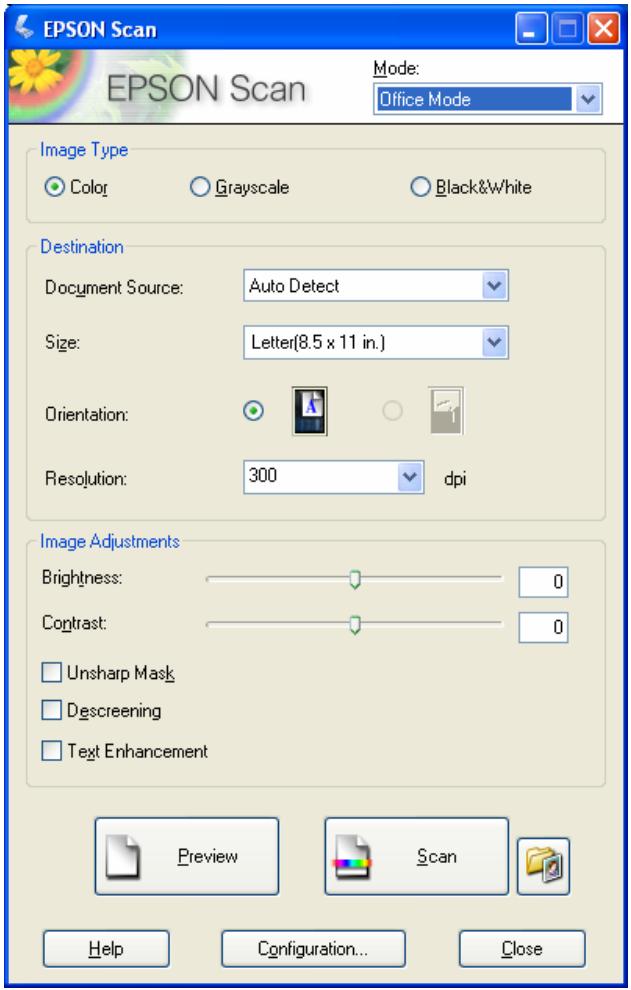
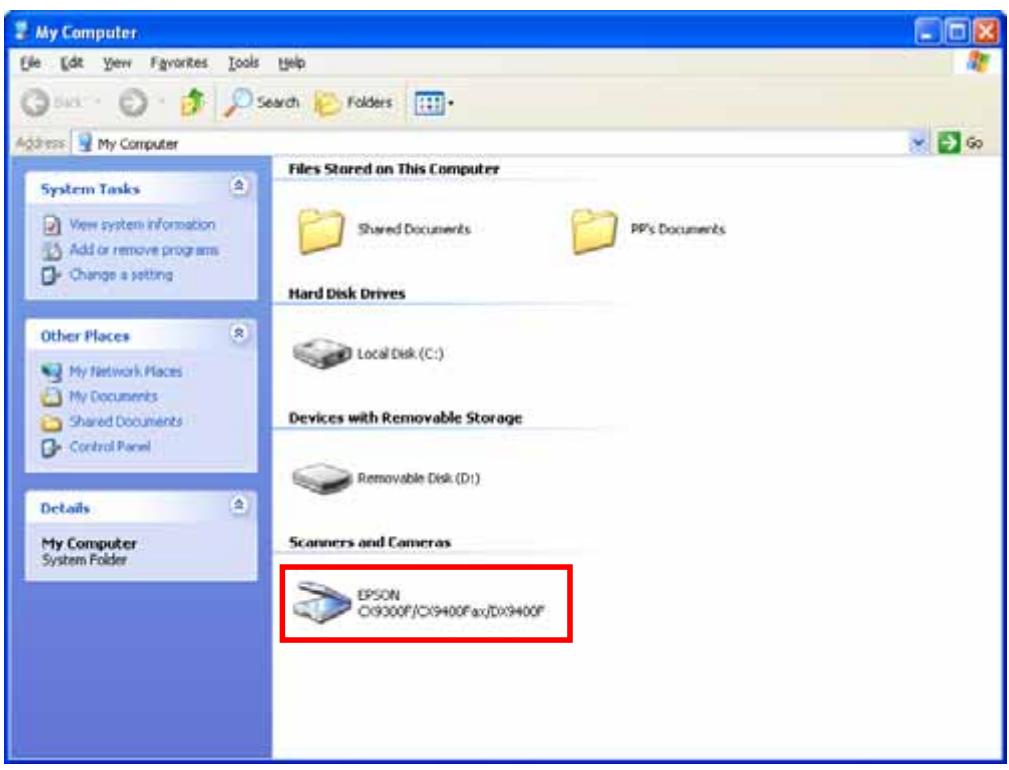
Most of the MFP provides scan utility for users. You can scan pictures or documents through the utility. In Windows XP and Windows Vista, user can also scan from Windows XP and Windows Vista scanning utility.
Example: CX-8400/9400 Series Utilities
Windows XP Scanning Utility
3.4 Share Card Reader
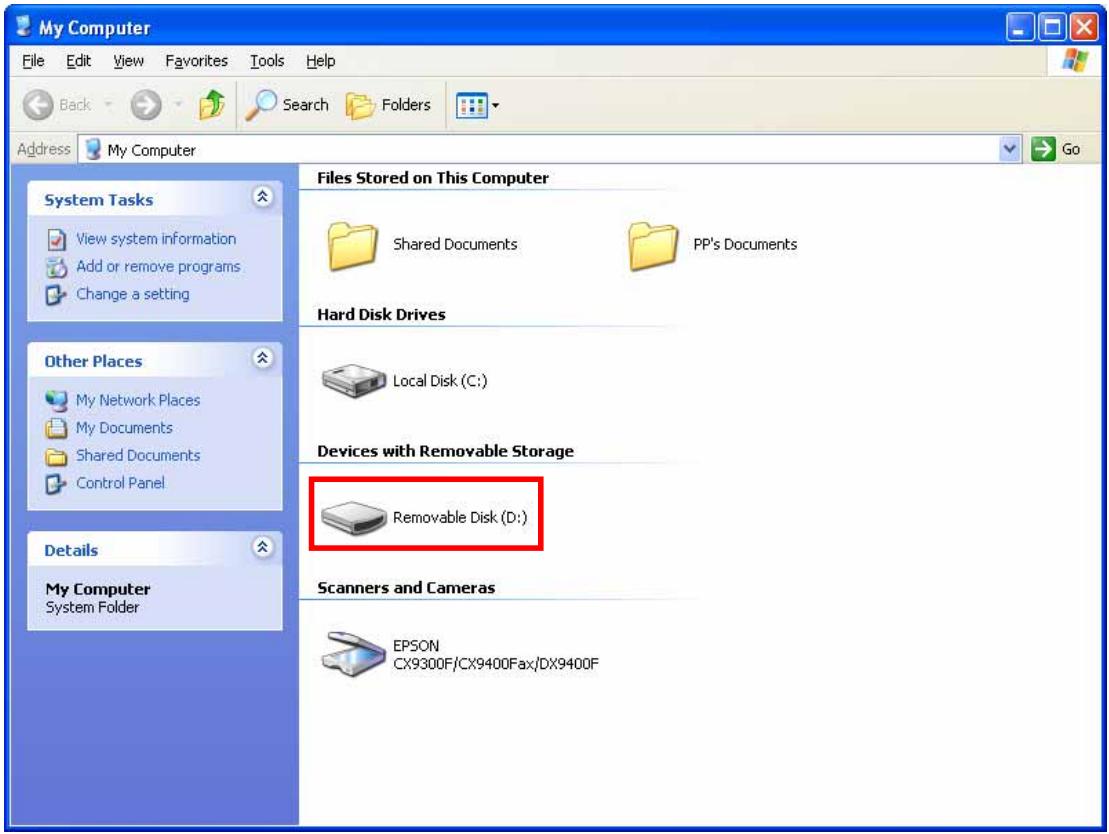
If the MFP supports card reader function, you can read the files from the plugged card reader through the MFP Server.
3.5 Fax a File
WFP-151U supports fax function, you can fax files from your computer to the fax number you designated.
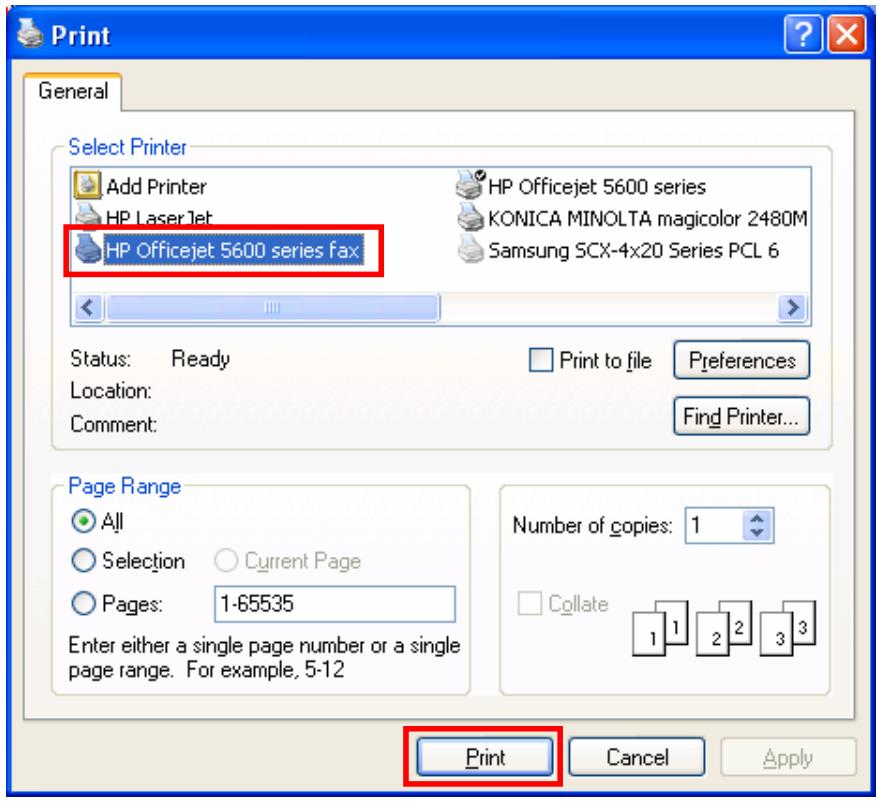
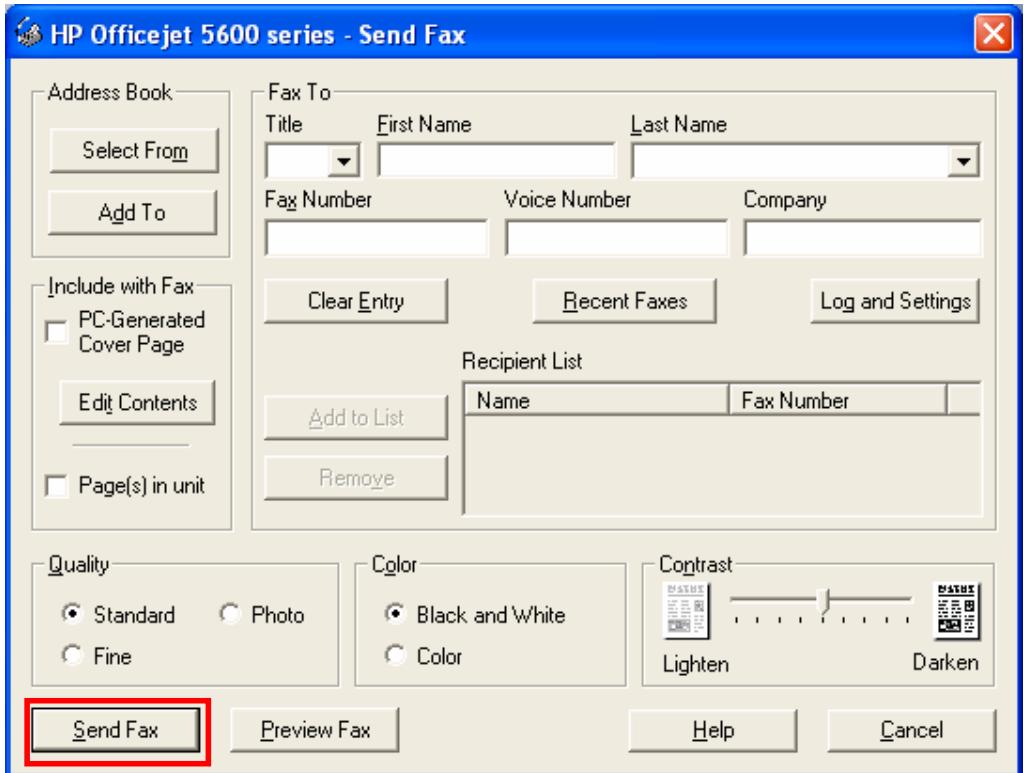
Example: Fax through HP Officejet 5600 Series
After the WFP-151U is installed, there is a fax device will be added to "Printers and Faxes" in the Windows. When you have connected to the WFP-151U by clicking "Connect" in the "MFP Manager", you can fax a file through the WFP-151U to the fax device.
Procedures to fax a file
- In the Microsoft Office or other programs, select "Print" from the "File" menu.
- The following screen will be popped up, select the fax device and then click "Print".
- The "Send Fax" screen is popped up, please configure the file and enter the fax number. Click "Send Fax" to fax the file.
4
MFP Manager
In this chapter, we will explain configuration of MFP Manager Please be sure that you already installed the utility.
4.1 MFP Server List
The "MFP Manager" can automatically find the MFP server in the network and show it in the MFP Server List. Users can select a MFP and click "Connect" to connect the MFP just like you have directly connected the MFP to your computer through USB cable. It also displays the information of the connection status.
When you don't want to use the MFP or Printer, please click "Disconnect" so that other users can use the device. Or you can enable the "Auto Release" setting, so that the MFP Server will release your connection after a period of idle time that you have assigned.
If you unplug the USB cable or turn off the WFP-151U while using, the device will not display in the list. After you reconnect the USB cable or turn on MFP, you have to click "Refresh" and "Connect" buttons in the "MFP Manager" to recover the connection.
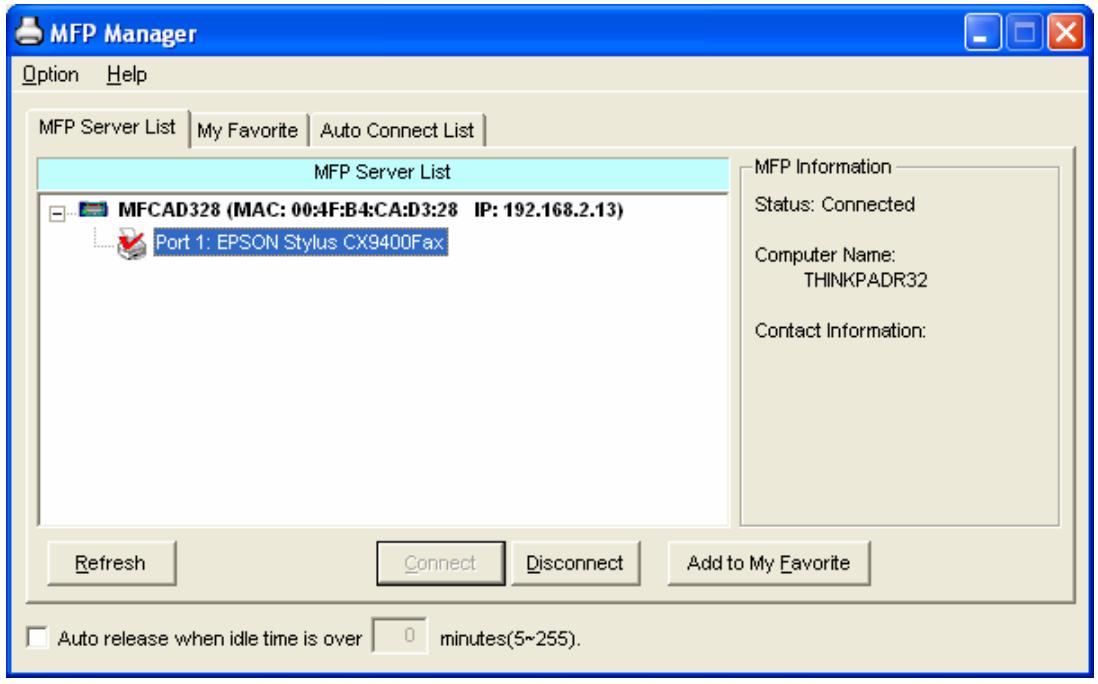
| MFP Server List | The “MFP Server List” will list all the MFP Servers within the network. You can find the information of the MFP Servers including “MFP Server Name”, “MAC ID”, “IP Address” and the device that is connected to the MFP Server. |
| MFP Server/MFP Information | When you are clicking on the “MFP Server” in the “MFP Server List”, you will see the “MFP Server Description” and the “Idle Timeout” setting for the MFP Server.MFP Server Description – It is a description that can help users to identify where or what the MFP Server is.Idle Timeout – From here, each user can know his/her auto release setting. To avoid occupying the MFP overtime, each user can enable the “Auto Release” setting at the bottom of the “MFP Manager” utility. It is used to automatically disconnect the connection after the MFP is idle for a specified period of time. By default, it is never released.When you are clicking on the “MFP” in the “MFP Server List”, you will see the information including “Status”, “Computer Name” and “Contact Information”.Status – It displays the status of the MFP including Connected, Idle and Busy. When the status is “Connected”, it indicates that you are connecting the MFP. When the status is “Idle”, it indicates that the MFP is not being used. When the status is “Busy”, it indicates that other user is using the MFP to scan, print, or etc Computer Name – It display the computer name of the user who is connecting to the MFP.Contact Information – When the current user has set his “Contact Information”, you can see it here. You can contact with the current user for asking to disconnect the MFP. |
| Refresh | Refresh the “MFP Server List” immediately. |
| Connect | Let the MFP be connected to your computer. |
| Disconnect | Disconnect the selected MFP. |
| Add to My Favorite | Add the MFP Servers that you frequently use to “My |
Auto Release when idle time is over xx minutes (5-255)
Favorite List".
To avoid you occupy the MFP overtime; you can setup auto release function. It is used to automatically disconnect the current connection after the MFP is idle for a specified period of time. By default, it is never released. It is recommended to enable the setting after the MFP and MFP Server are installed completely so that the MFP resource will not be occupied permanently.
4.2 My Favorite
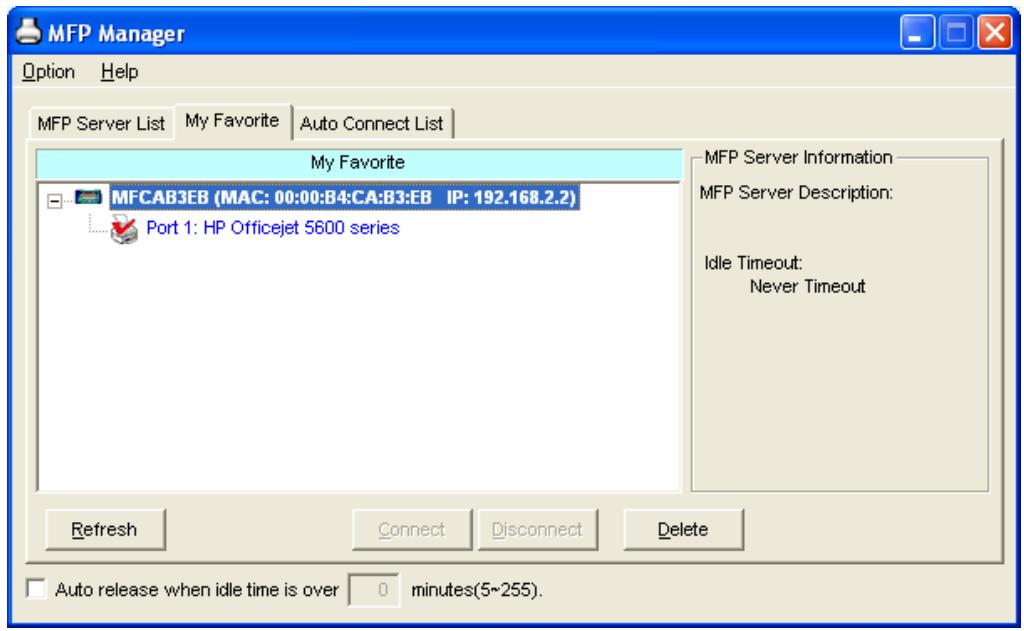
You can add the frequently use MFP Servers to "My Favorite" list. The MFP Server in the list will be added to the quick link list when you right click the MFP Server icon in the system tray.
My Favorite List
The "My Favorite List" will list your favorite MFP Servers. You can find the information of the MFP Servers including "MFP Server Name", "MAC ID", "IP Address" and the device that is connected to the MFP Server.
MFP Server/MFP Information
The information listed here are the same as MFP Server List
Refresh
Refresh the "MFP Server List" immediately.
Connect
Let the MFP be connected to your computer.
4.3 Auto Connect List
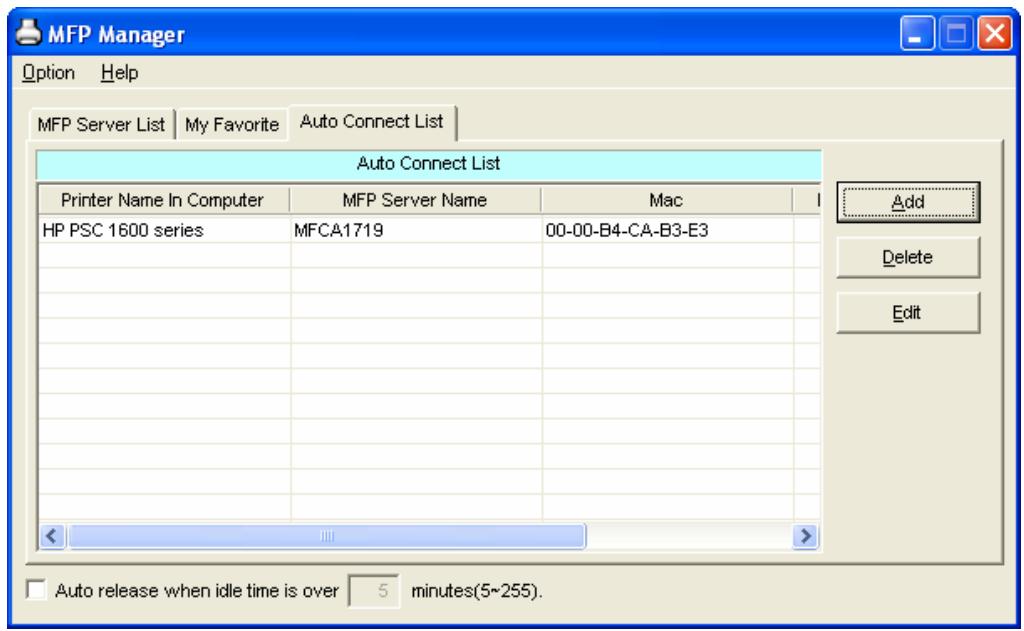
To let the system occupy the MFP server automatically when you want to print a document just like the behavior of using traditional print server, you can add the MFP into your Auto Connect List. The system will send the printing jobs to the MFP when the MFP Server is idle and not being connected.
Tip: If you have sent a printing job to the MFP while the MFP is connecting by a user, you may be prompted that the device is not found or the document is failed to print. It also happens in some MFPs or printers even though the MFP is not connecting by a user. Please follow the message to retry and the MFP will queue your printing job in your computer spooler. The MFP Server will then print the job after the MFP is idle or disconnected.
To add the MFP to the Auto Connect List, please follow the steps below.
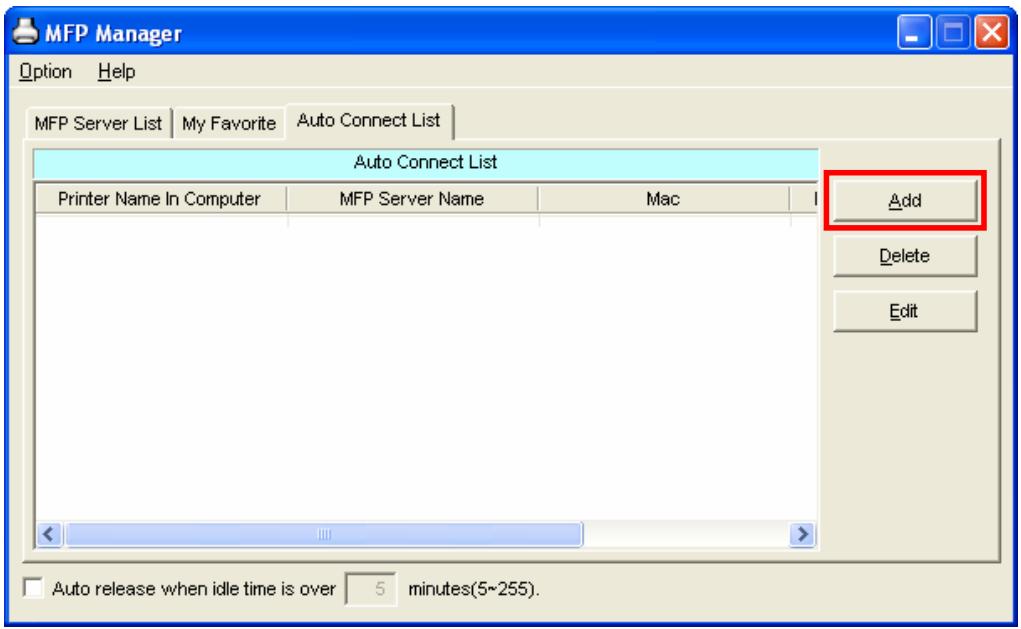
- Click "Add" from the "Auto Connect List".
- The MFP Servers within the network will be displayed in the following screen. Select the MFP Server you would like to add to the list.
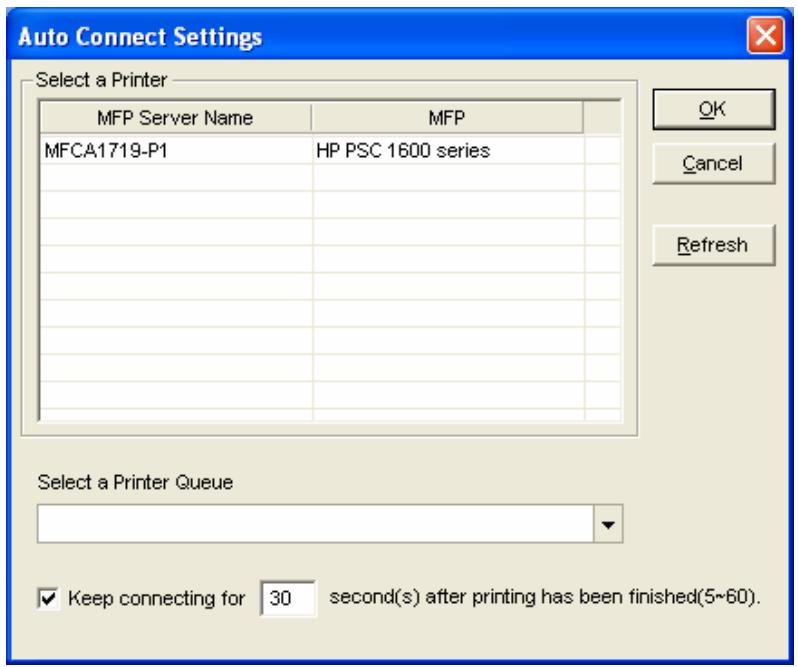
- Select the MFP that is connected to the selected MFP Server. Click "Ok". Note that in some cases, new coming printing jobs cannot be printed because the MFP is already disconnected. It will cause unformatted messages to be printed out. "Keep connecting for 30 second(s) after printing has been finished (5-60)" is enabled by default. It will help to avoid this kind of situation.
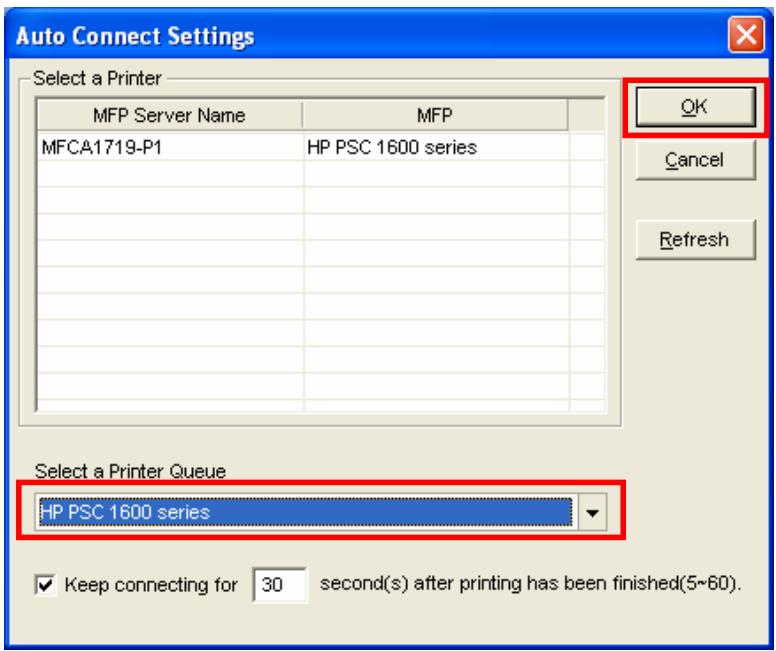
- The setup is finished.
4.4 Quick Setup
Right click on the MFP Server icon in the system tray you can see the MFP servers you have designated to "My Favorite List". You can directly connect or disconnect the MFP and check the MFP information from the here easily.
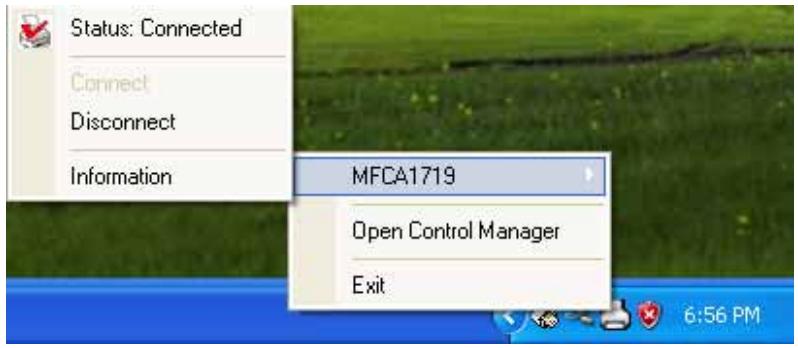
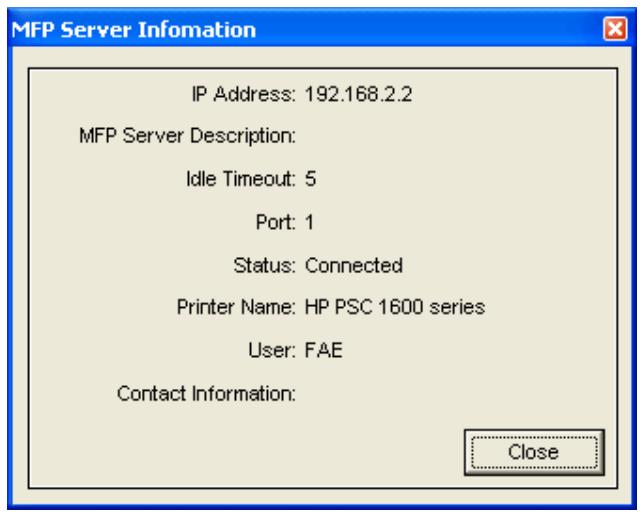
| Status | The current status of the MFP will be displayed here. “Connected” indicates that you are connecting to the MFP. “Busy” indicates the MFP is being used. “Idle” indicates that the MFP is free to use by any users. |
| Connect | If the MFP is free to use, the “Connect” will be available to click for occupying the MFP. Or it will be grayed. |
| Disconnect | Disconnect the selected MFP. The “Disconnect” will be available only for the current user. |
| Information | To check more information about the MFP Server and the MFP, please click this button. The information will be listed as the illustration above. |
4.5 Option Settings
4.5.1 General Setting
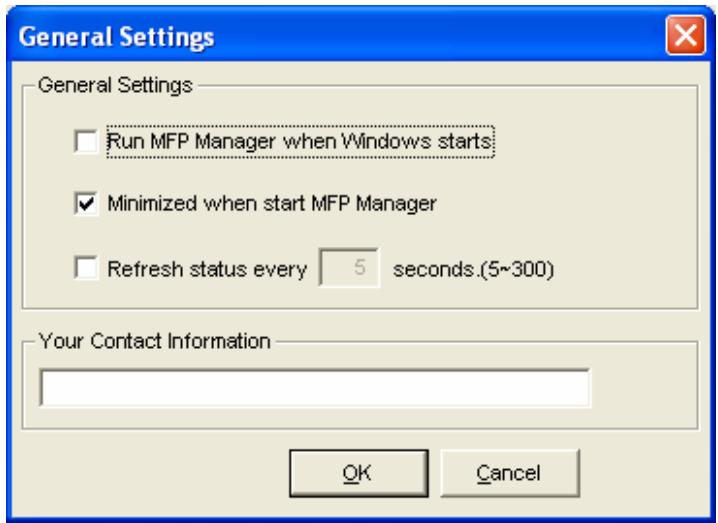
| Run MFP Manager when Windows starts | Execute the “MFP Manager” when Windows starts every time. By default, it is enabled. |
| Minimized when start MFP Manager | Minimized the “MFP Manager” to an icon in the system tray when you start the “MFP Manager”. By default, it is disabled. |
| Refresh status every | Setup the refresh interval for device status update. |
| xx seconds. (5~300) | By default, it is disabled. |
| Your Contract Information | Enter your contact information here. When you connect to the MFP, your contact information will be displayed in the right side of the program for other users to contact you. |
4.5.2 Search for MFP Server
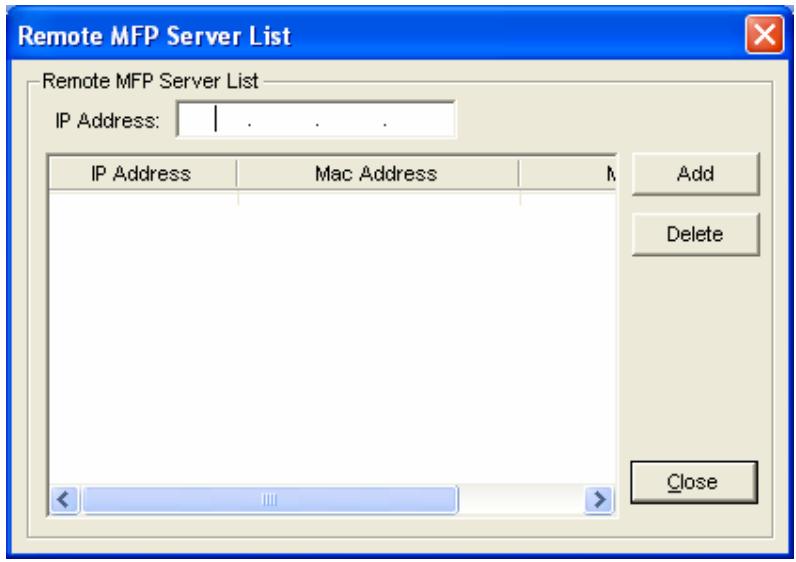
If there is an MFP Server is not in the network as your computer, you can enter the IP Address of the MFP Server to do the remote search. The MFP Server in the "Remote MFP Server List" will be added to the "MFP Server List" for you to configure.
Note:
If the remote MFP Server you have searched is behind NAT Router, the MFP Server may not operate normally.
5
Server Configuration
This chapter introduces MFP Server's system configuration utility in Windows environment. This utility provides the most complete management and configuration functions on the MFP Server side. This utility only provides configuration functions for MFP Server itself; it does not include configuration functions for client side or other file server in the network environment.
5.1 Option Settings
The Configuration Utility provides the following configuration and management functions:
Search MFP Server: Search All Available MFP Servers on the Network.
Status: Display MFP Server Network Status.
General Configuration: Configure general settings about the MFP Server such as Server Name, Password, etc.
TCP/IP Configuration: IP Address and DHCP Server Configuration.
System Configuration: MFP Server Network Ability Setting and Firmware Upgrade.
■ Wireless Configuration: Search for the available wireless networks and configure the wireless settings of the MFP Server for the wireless connection.
MFP Server Management: For administrator to manage the MFP Server. Administrator can force disconnect the current connection of the MFP Server.
Report: List the some information of All Available MFP Servers on the Network.
We will explain each function separately in the following section.
5.2 Search for All Available MFP Server
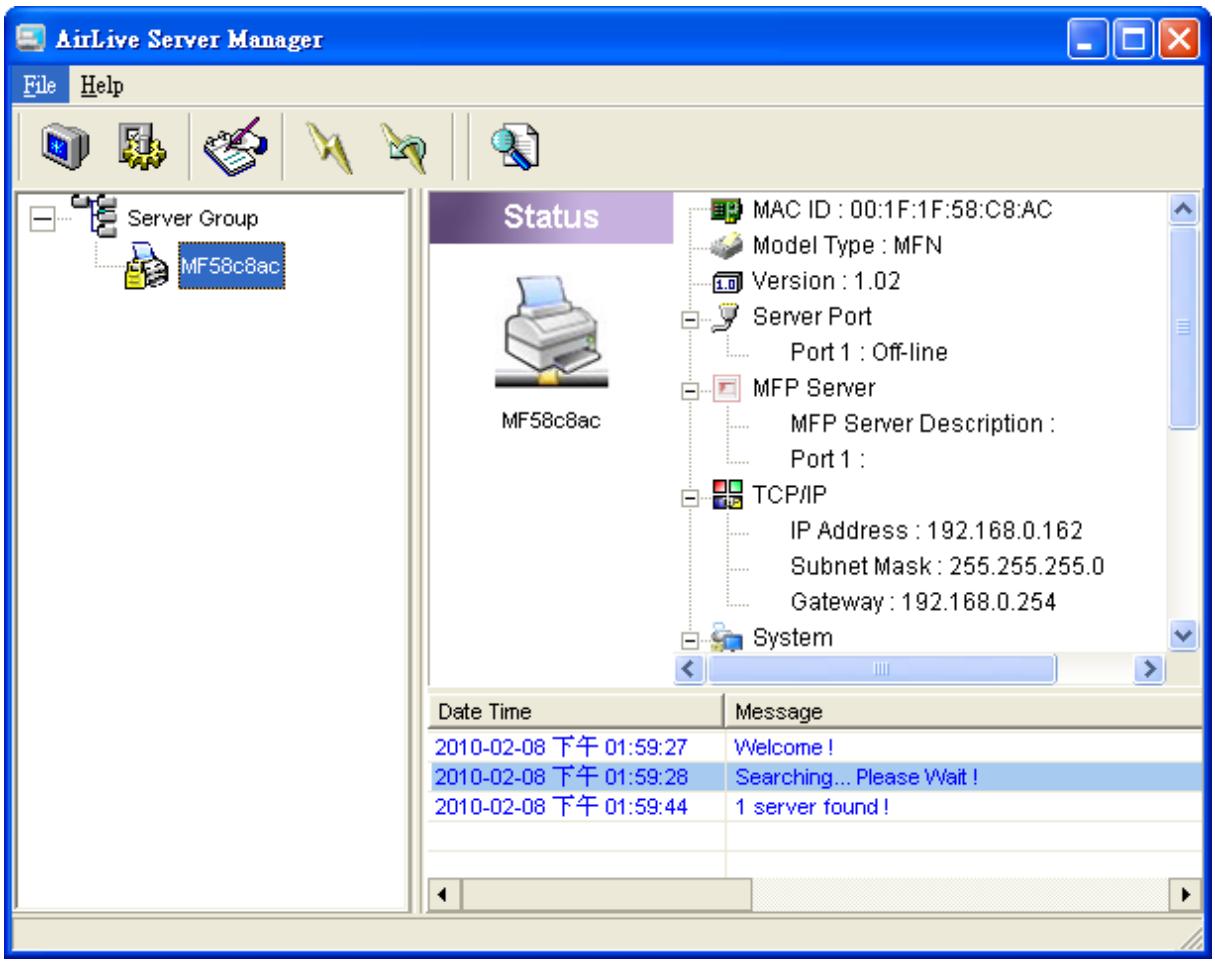
Every time when you run the "Server Manager" configuration utility, click the "Search" icon

on the tool bar. The configuration utility will delay for several seconds because the
utility is using system's available network protocols to search for all MFP Servers on the network. All available MFP Servers will be listed under "Server Group" on the left side of the window.
You must select the MFP Server you would like to configure from the list. The system will, at the same time, display the selected MFP Server's status on the right side of the window.
5.3 Status of MFP Server
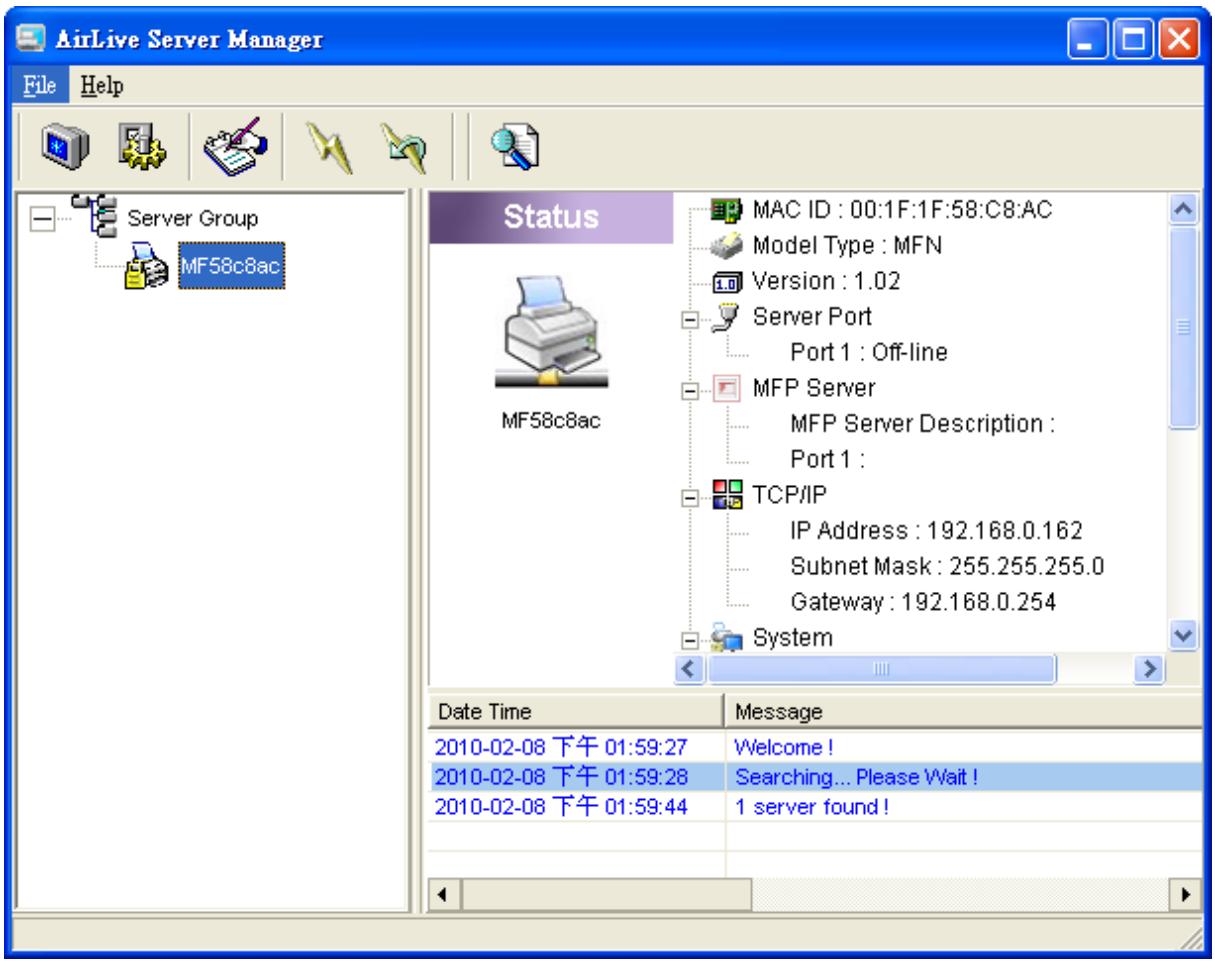
Click "Status" icon on the tool bar, the status of the currently selected MFP Server will be showed on the right side of the window. The information of the MFP Server displayed are including MAC ID, Model Type, Firmware Version, status of each server port, IP address, subnet mask, default gateway and supported printing protocols...etc.
You can refresh the MFP Server's status by pressing the "Refresh" button

You can restart the MFP Server by pressing the "Reboot" button

5.4 Setup the MFP Server
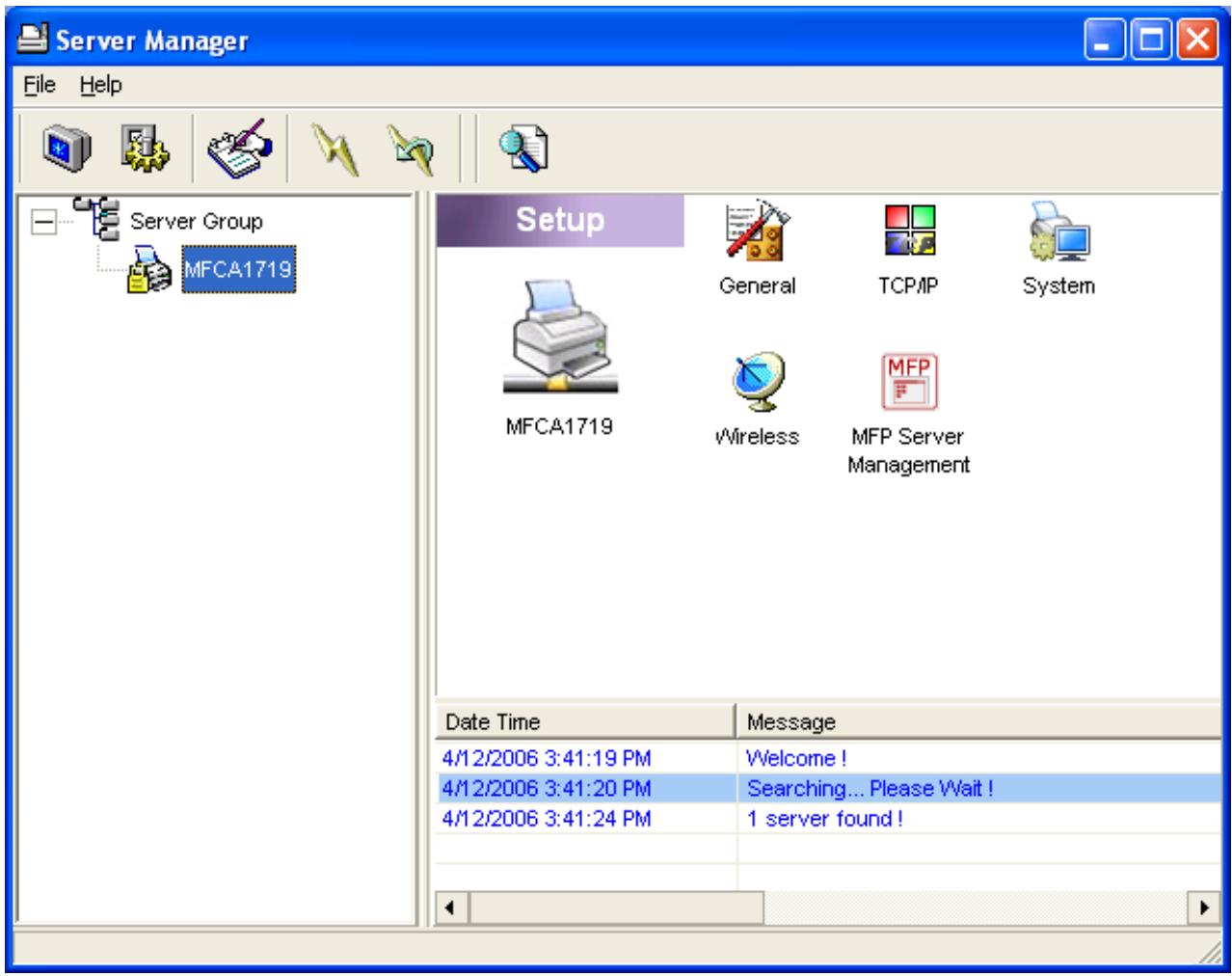
Click “Setup” icon on the tool bar, the setup items of the current selected MFP Server will be showed on the right side of the window.
Double click one of the icons to set up the selected MFP Server. A screen will pop up to verify "UserID" and "Password" of the MFP Server. The default values are: User Name: admin, Password: airlive.
Tip: When you have finished the settings, please click “” to restart the MFP Server to let the settings take effect.
5.5 General Configuration
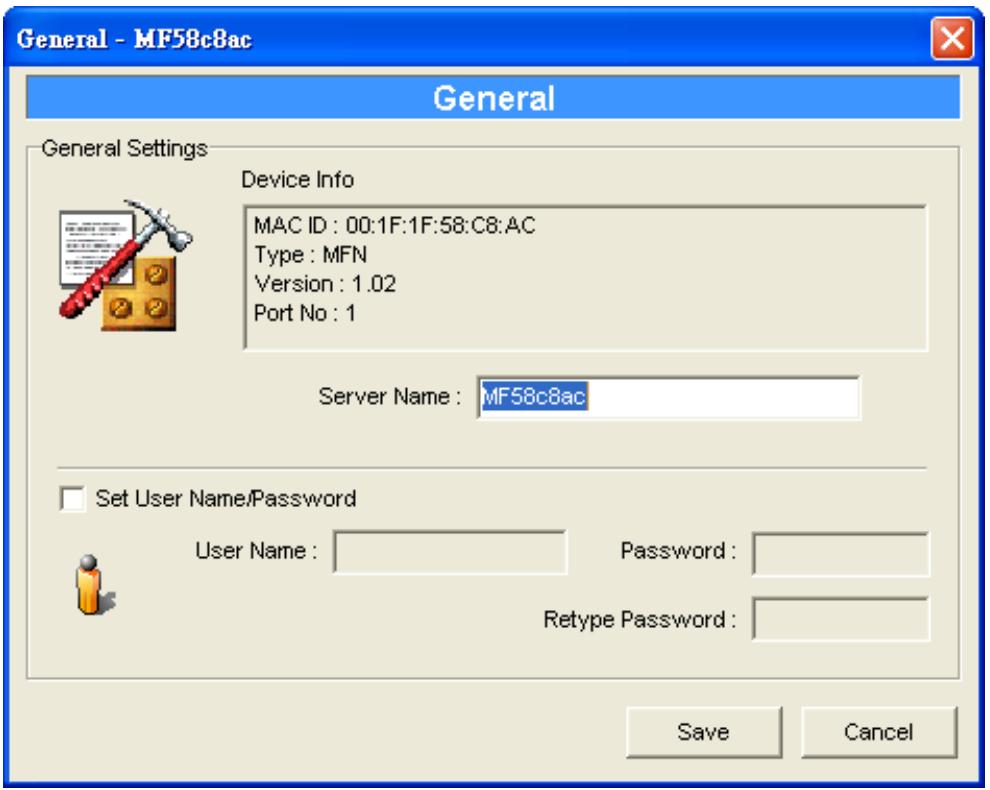
Double Click "General" icon and the General configuration window will pop-up.
You can see basic MFP Server information in this page. You also can configure the "Server Name", "UserID" and "Password" here.
Server Name, the name of the MFP Server. You can use this name to identify the MFP Server when you are searching for the MFP Server by the "Server Manger" utility.
User Name / Password is used to authenticate the administrator to login the MFP Server for configuring it from the "Server Manger" utility or the Web Management tool.
5.6 TCP/IP Configuration
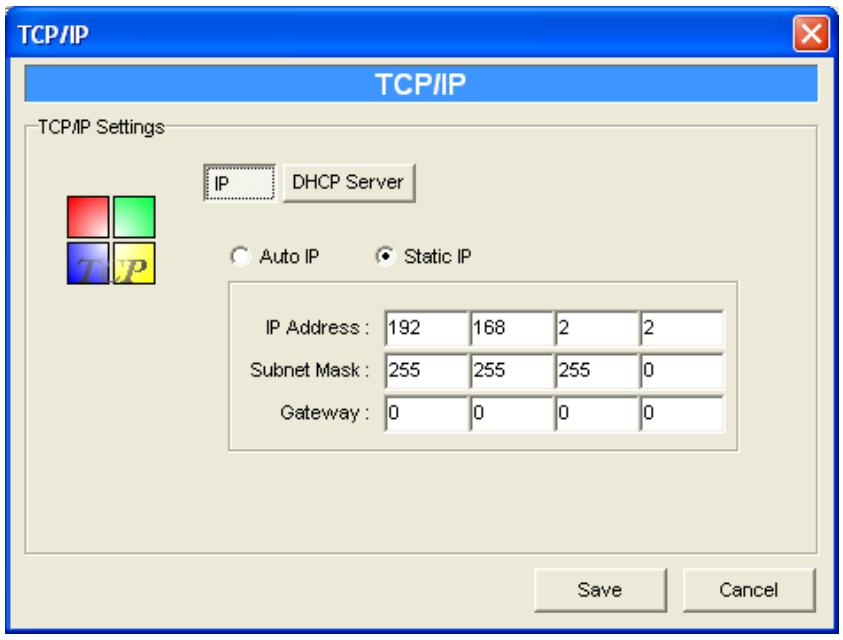
Double Click "TCP/IP" icon and the TCP/IP configuration window will pop-up.
You can configure the MFP Server to automatically get IP from DHCP server or manually specify static IP. The MFP Server also has a built-in DHCP server. You can enable this DHCP server and let it manage IP for you.
IP Address Assignment
Click the "IP" button to enter the IP setting page. If you need the MFP Server to automatically get an IP from DHCP server, select "Auto IP". You also can select "Static IP" to manually assign "IP Address", "Subnet Mask" and "Gateway" for the MFP Server. By default, "Static IP" is enabled and the default settings are as follows.
IP Address: 192.168.2.2
Subnet Mask: 255.255.255.0
Auto IP - The IP Address information of the MFP Server obtained from DHCP Server will be displayed in the address field. If no DHCP Server is present, you have to assign the information manually.
Static IP - Manually assign the IP address information in the same network with your computer to the MFP Server.
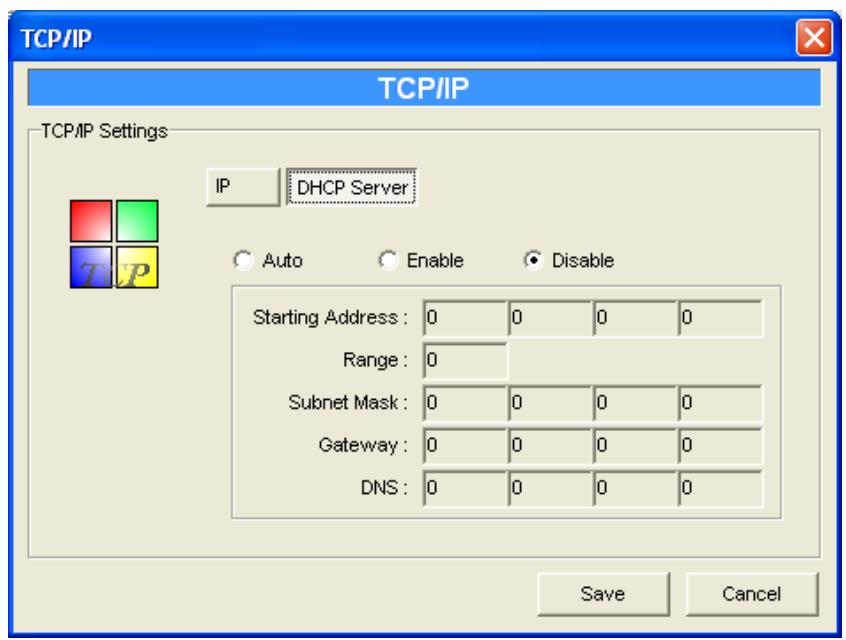
DHCP Server
Click the "DHCP Server" button to enter into the DHCP server's setting page. By the default, the DHCP server is disabled.
Auto - If "Auto" is selected, the MFP Server will detect DHCP server within the network automatically and once the DHCP server doesn't exist, the MFP Server will turn on his own DHCP server and assign IP Address to client. Please fill in the "Starting Address", "Range", "Subnet Mask", "Gateway" and "DNS"; then the MFP Server will assign a unique IP within the range for each DHCP client.
Enable – If the DHCP is enabled, you have to assign a range of IP addresses. Fill in the "Starting Address", "Range", "Subnet Mask", "Gateway" and "DNS"; then the MFP Server will assign a unique IP within the range for each DHCP client.
Disable - The DHCP Server is disabled. You have to build up a DHCP Server in the network or set the IP Address for each client manually.
5.7 System Configuration
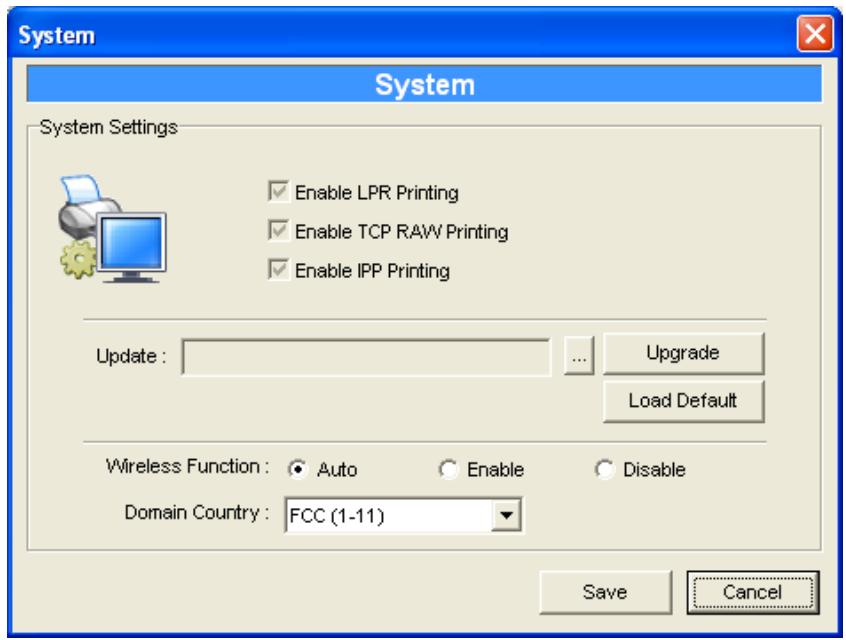
Double Click "System" icon and the System configuration window will pop-up.
In the System configuration page, you can see all available printing protocols and upgrade the new firmware for this MFP Server.
Upgrade: You can use this "Upgrade" function to update the newest firmware of the MFP Server. Click "..." button and select the correct firmware in your PC. After selecting the firmware file, click the "Upgrade" button to finish the firmware update process.
Tip: Before you upgrade the firmware, please make sure that the IP Address settings of the MFP Server are in the same network as your computer.
Load Default: If you want to reset the MFP Server to default factory settings, please click "Load Default".
Wireless Function: You can select "Auto", Enable" or "Disable" to manually configure the wireless function.
Auto - "Auto" is the default setting of the MFP Server. At this mode, the MFP Server will automatically decide to enable or disable the wireless function. When the MFP Server starts up, it will auto-detect if the LAN port is connected to an active network by an Ethernet cable. If this is the case, the MFP Server will run in Ethernet mode. If the MFP Server is not connected to an active network by Ethernet cable, the MFP Server will run in wireless LAN mode.
Users can plug the Ethernet cable to the MFP Server at the first, after configuring the MFP Server features and wireless settings; they can unplug the Ethernet cable to enable the
wireless connection. It makes the configuration much easier without creating the wireless connection in advance.
Note: After you have set the wireless function, please remove the Ethernet cable and then re-plug the power jack of the MFP Server to activate the wireless connection.
Enable - Enable wireless function only, the MFP Server's wireless LAN will be always enabled and Ethernet will be always disabled.
Disable - Disable the wireless function, the MFP Server's wireless LAN will be always disabled and Ethernet will be always enabled.
Domain Country: The wireless channels are different from country to country. Generally, the channels are from 1 to 11 in USA and from 1 to 13 in Europe. The operating channel will be set to the MFP Server before importing. If you are in different country, please make sure that you have set the available channels according to your location.
5.8 Wireless Configuration
If you want to use the MFP Server through wireless LAN, please set up the MFP Server through Ethernet first and make sure your wireless LAN setting is correct. After setting the wireless LAN, unplug the Ethernet cable and restart the MFP Server, then you can start to use the MFP Server through wireless LAN. If the wireless configuration does not work, please plug the Ethernet cable again, restart the MFP Server and configure the MFP Server through Ethernet until the wireless LAN settings are correct.
The default settings of the MFP Server wireless function are as follows.
Mode: Ad Hoc; SSID: Default; Channel: 11
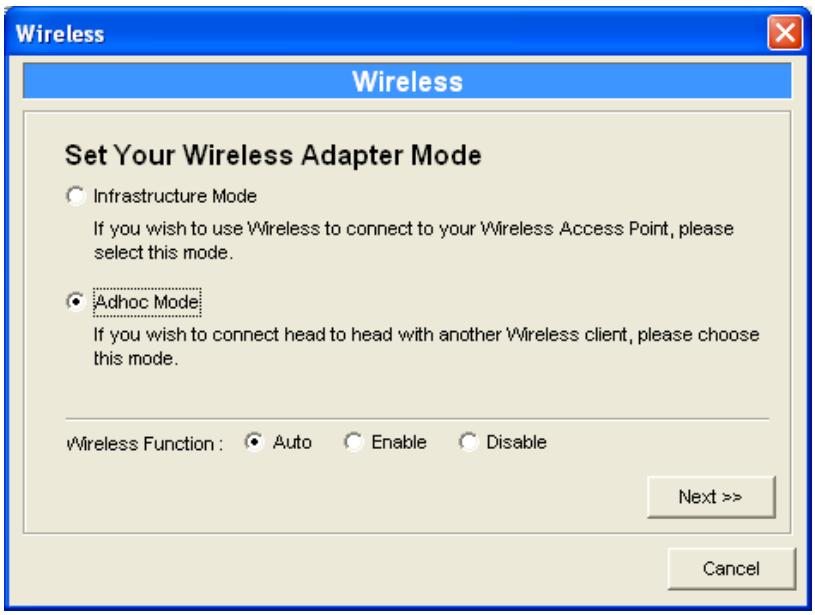
Double Click "Wireless" icon and the wireless configuration window will pop-up. If you use access point to build up wireless network, you have to select "Infrastructure Mode". If you do not have any access point and want to use peer-to-peer connection to build up wireless network, you have to select "Ad-Hoc Mode".
For Wireless Function, you can select "Auto", Enable" or "Disable" to manually configure the wireless function.
Auto - "Auto" is the default setting of the MFP Server. At this mode, the MFP Server will automatically decide to enable or disable the wireless function. When the MFP Server starts up, it will auto-detect if the LAN port is connected to an active network by an Ethernet cable. If this is the case, the MFP Server will run in Ethernet mode. If the MFP Server is not connected to an active network by Ethernet cable, the MFP Server will run in wireless LAN mode.
Users can plug the Ethernet cable to the MFP Server at the first, after configuring the MFP Server features and wireless settings; they can unplug the Ethernet cable to enable the wireless connection. It makes the configuration much easier without creating the wireless connection in advance.
Note: After you have set the wireless function, please remove the Ethernet cable and then re-plug the power jack of the MFP Server to activate the wireless connection.
Enable - Enable wireless function only, the MFP Server's wireless LAN will be always enabled and Ethernet will be always disabled.
Disable - Disable the wireless function, the MFP Server's wireless LAN will be always disabled and Ethernet will be always enabled.
After selecting the operation modes of the wireless function, click "Next" to go to further detailed configuration.
Infrastructure Mode
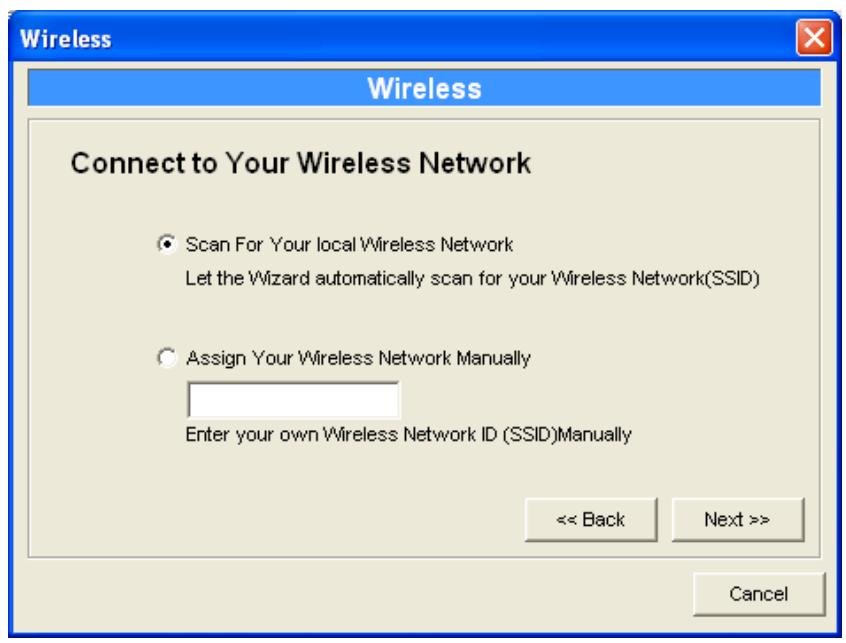
In the Infrastructure mode, you have to let the MFP Server associate with an access point. You let the MFP Server scan for an available access point automatically or manually assign the SSID of the access point you want to use.
If you select to let the MFP Server scan for an available access point, the following window will pop up.
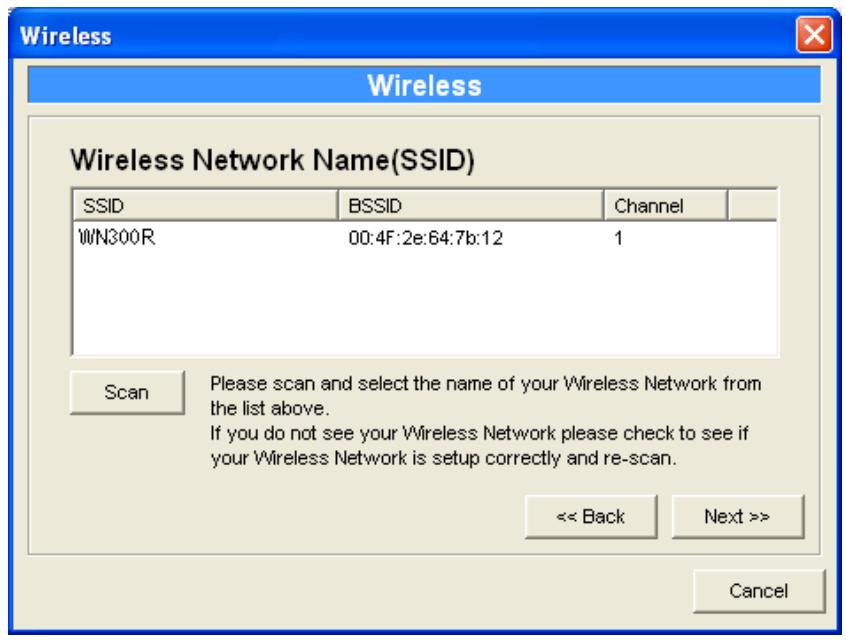
The table will list the available access points near the MFP Server. Select an access point in the list and click "Next". If you cannot find the access point that you want to use, click "Scan" to let the MFP Server scan again.
Ad Hoc Mode
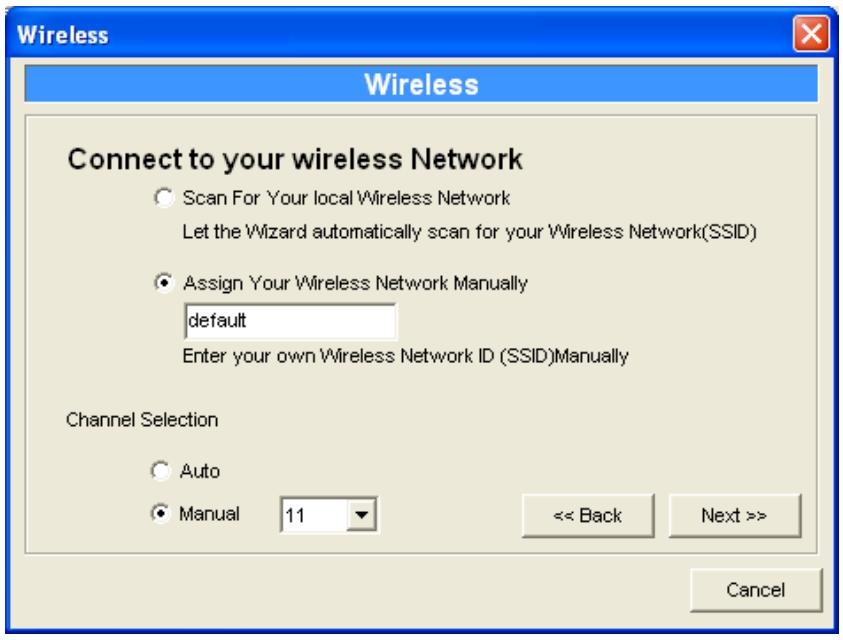
In the Ad-Hoc mode, you can let the MFP Server automatically associate with other wireless station or manually assign the SSID of your wireless network. You can let the MFP Server automatically select the channel that is the same with the wireless station that you want to connect or manually assign a channel.
If you select to let the MFP Server scan for an active wireless station, the following window will pop up.
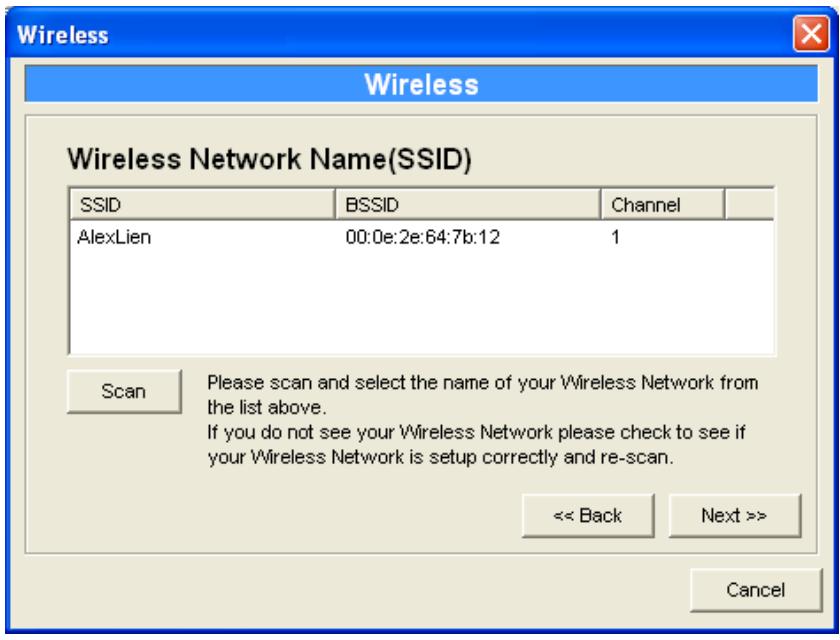
Both "Infrastructure" and "Ad-Hoc" mode have to go through the following procedure:
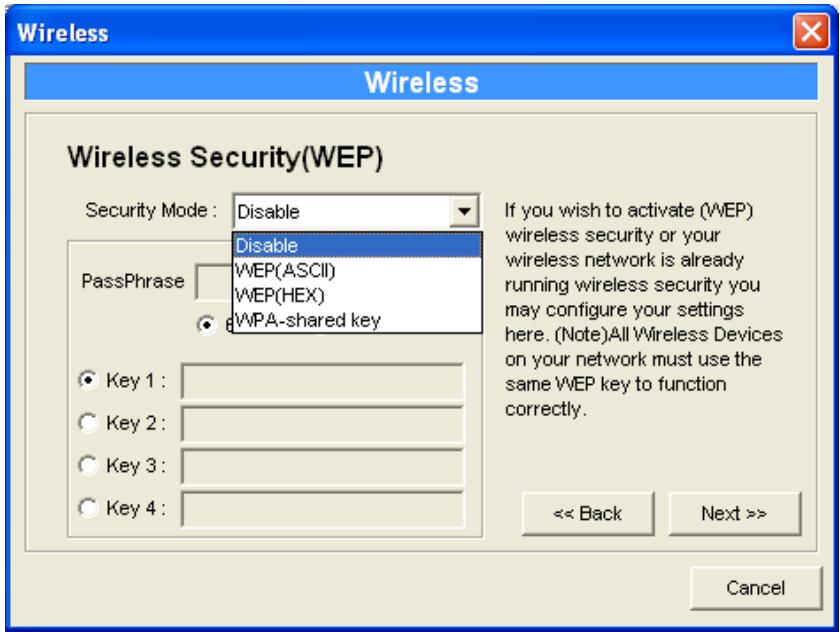
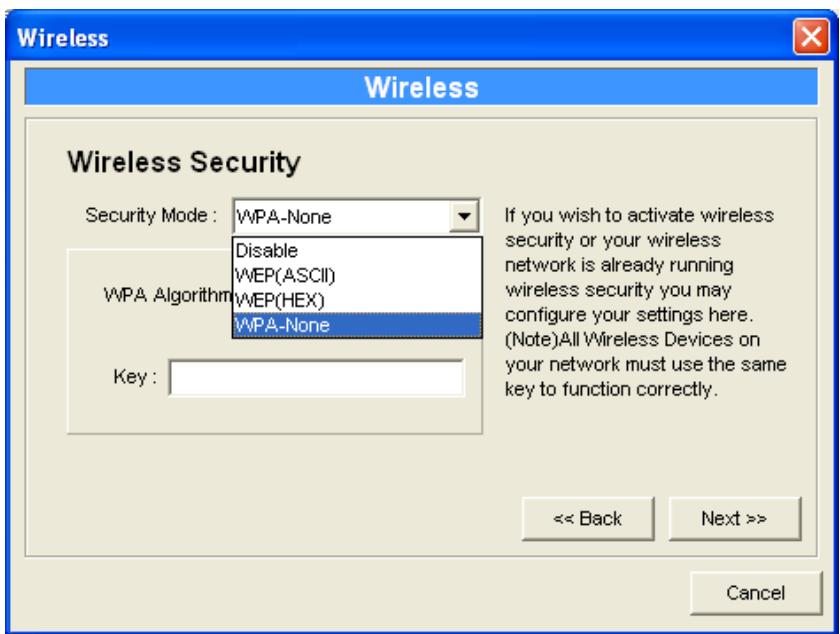
This MFP Server supports WEP and WPA-PSK security mode. If you want to use WEP encryption to protect your wireless network, you have to select "WEP(ASCII)" or "WEP(HEX)". If you want to use WPA-PSK, you have to select "WPA-shared key" or "WPA-None" specified for Ad Hoc mode. The wireless security setting should be the same with other wireless devices in the same network.
WEP Security Mode
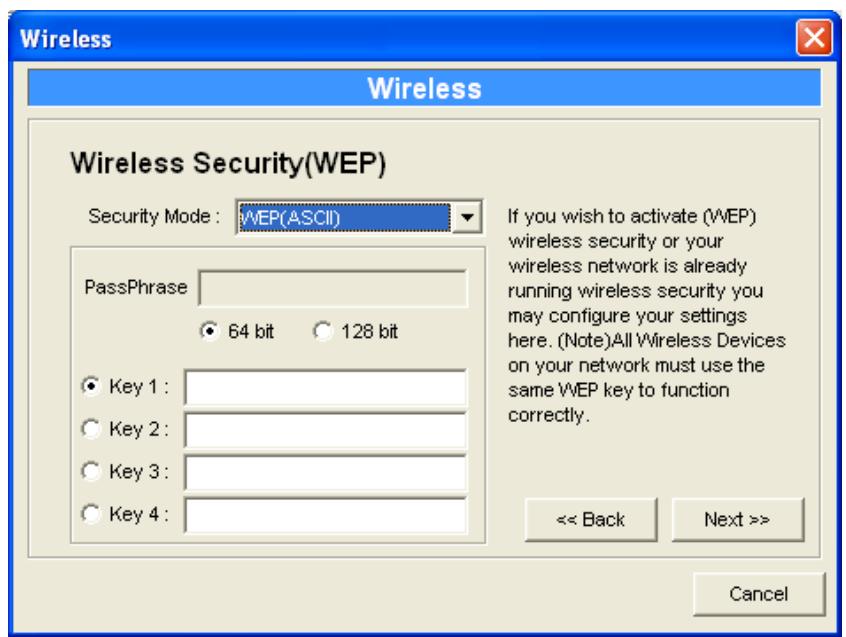
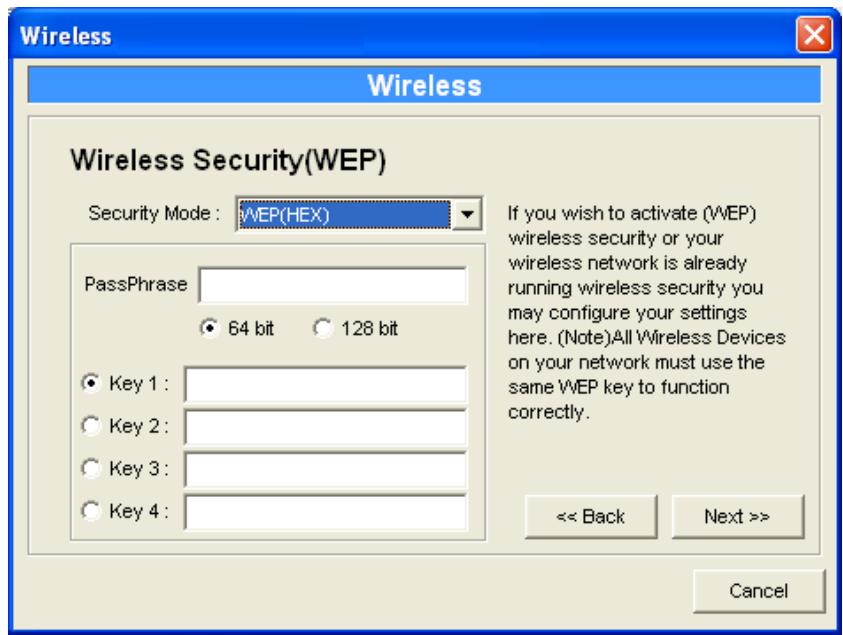
You can select "64 bit" or "128 bit" length and "Hexadecimal" or "ASCII" format for the encryption key. Longer key length can provide stronger security but worth communication performance.
PassPhrase - A "PassPhrase" simplifies the WEP encryption process by automatically generating the WEP encryption keys for the MFP Server. This setting is only valid when the security mode is in "WEP(HEX)".
Key 1 to Key 4 – Enter four key values by following the rules below and select one key as the default key.
If the key length is 64-bit, enter 10-digit Hex values or 5-digit ASCII values as the encryption
keys. For example: "0123456aef" or "Guest".
If the key length is 128-bit, enter 26-digit Hex values or 13-digit ASCII values as the encryption keys. For example: "01234567890123456789abcdef" or "administrator".
WPA-shared key or WPA-None Security Mode
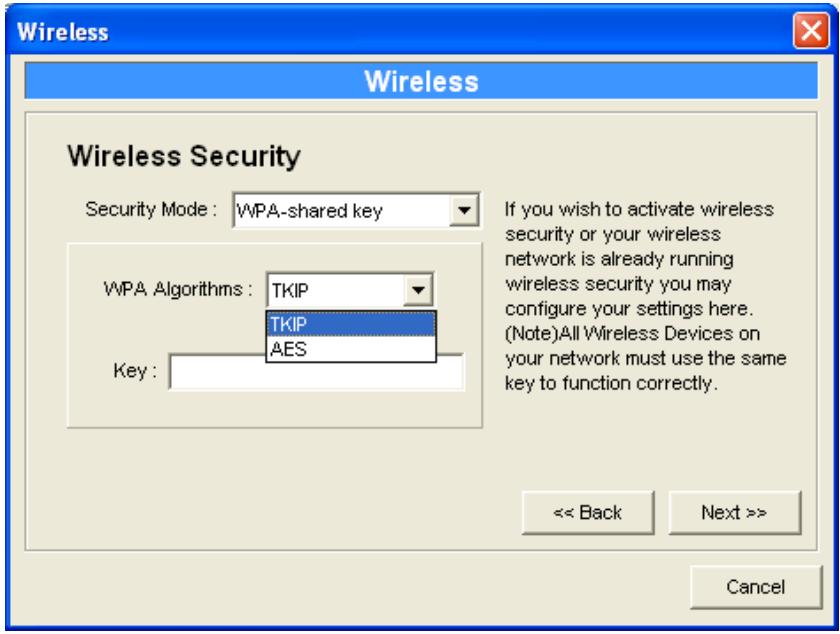
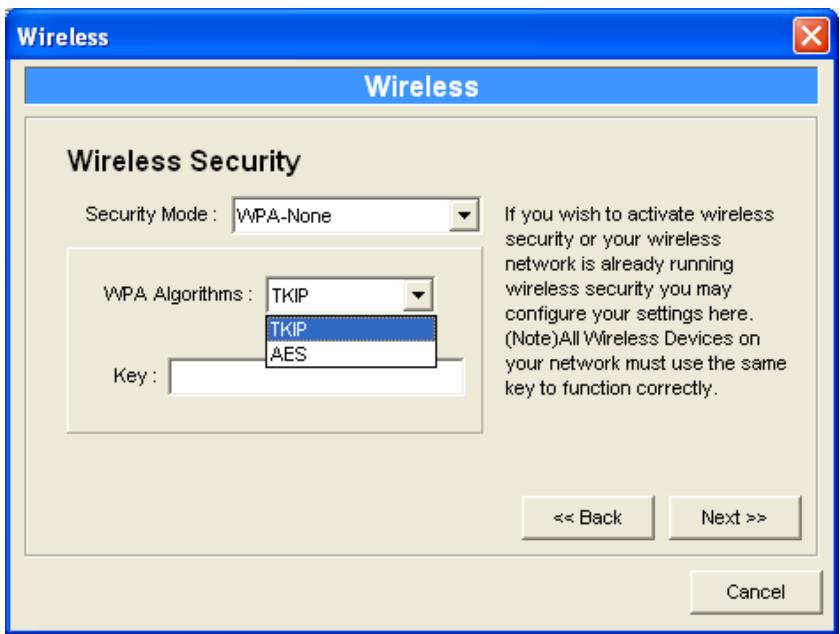
"WPA-shared key" (for an infrastructure network) or "WPA-None" (enables WPA security for your ad hoc network) requires users to select the advanced encryption methods, i.e. TKIP or AES and enter a set of shared key.
TKIP - TKIP (Temporal Key Integrity Protocol) changes the temporal key every 10,000 packets. This insures much greater security than the standard WEP security.
AES – AES has been developed to ensure the highest degree of security and authenticity for digital information and it is the most advanced solution defined by IEEE 802.11i for the security in the wireless network.
Key - Enter 8 to 63 digits of ASCII format to be the key for the authentication within the network.
When you finish configuring the wireless security, click "Next" to go to next step.
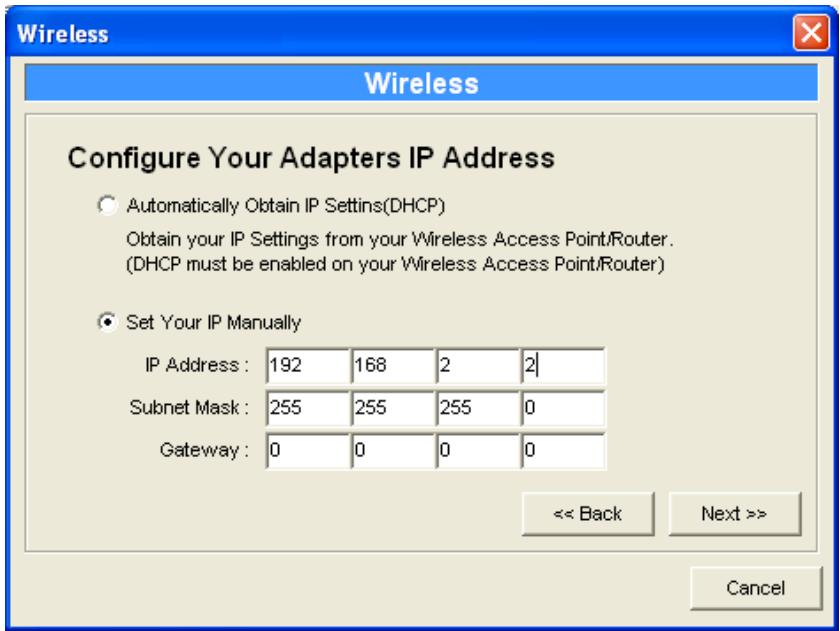
You can select to let the MFP Server automatically obtain IP settings with DHCP client or manually assign the IP settings.
If you manually assign the IP settings, you have to enter IP address, subnet mask and default gateway address.
When you finish configuring the IP settings, click "Next" to confirm the IP Address configuration.
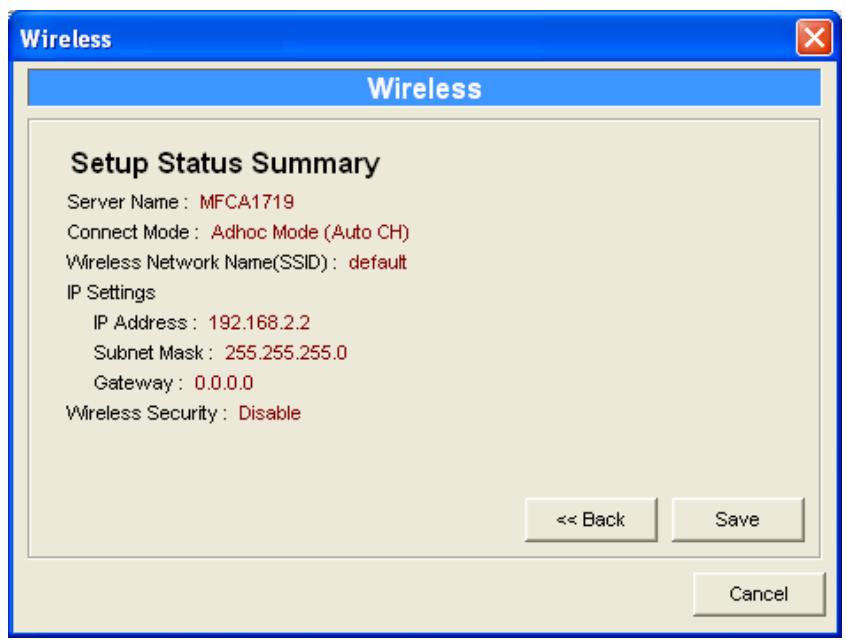
Click "Save" to save the wireless configuration.
5.9 MFP Server Management
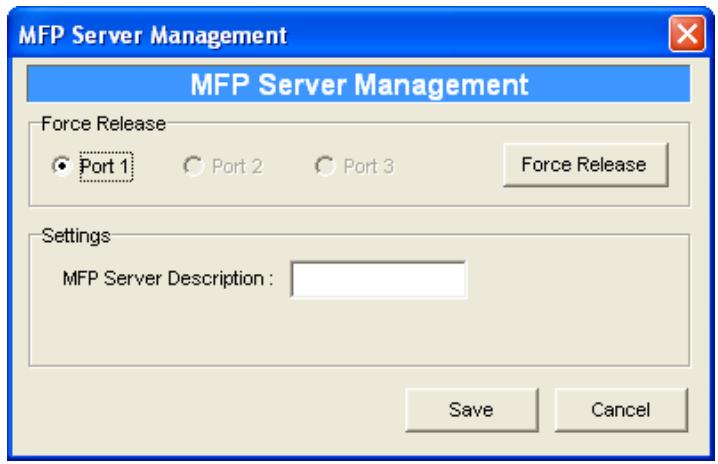
Double Click "MFP Server Management" icon and the MFP Server configuration window will pop-up. You are able to manage the MFP Server as below.
Force Release: Select the port number and then click "Force Release" will help to you disconnect the current connection between the user and the connected device. It is very useful when a user forgets to disconnect the MFP, administrator can force to disconnect the connection and let the MFP be free to use.
MFP Server Description: Enter 15 digits description of the MFP Server such as location or other information to help user to find the MFP Server easily.
5.10 Report
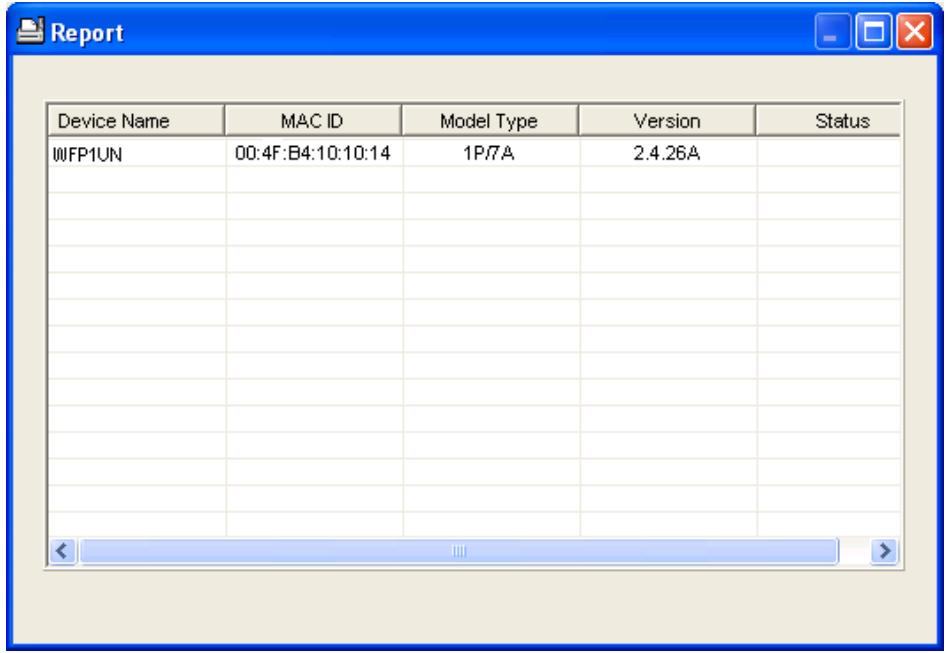
Click "Report" icon

on the tool bar, the Report window will pop up.
The report lists basic information of all available MFP Servers on the network. The information includes Device Name, MAC ID, Model Type and Firmware Version of MFP Server.
6
Web Management in WFP-151U
In this chapter, we will explain all settings in web management interface. The default IP Address, User Name and Password settings of the MFP Server are as follows.
IP Address: 192.168.2.2
User Name: admin
Password: airlive
6.1 Menu Structure of WFP-151U
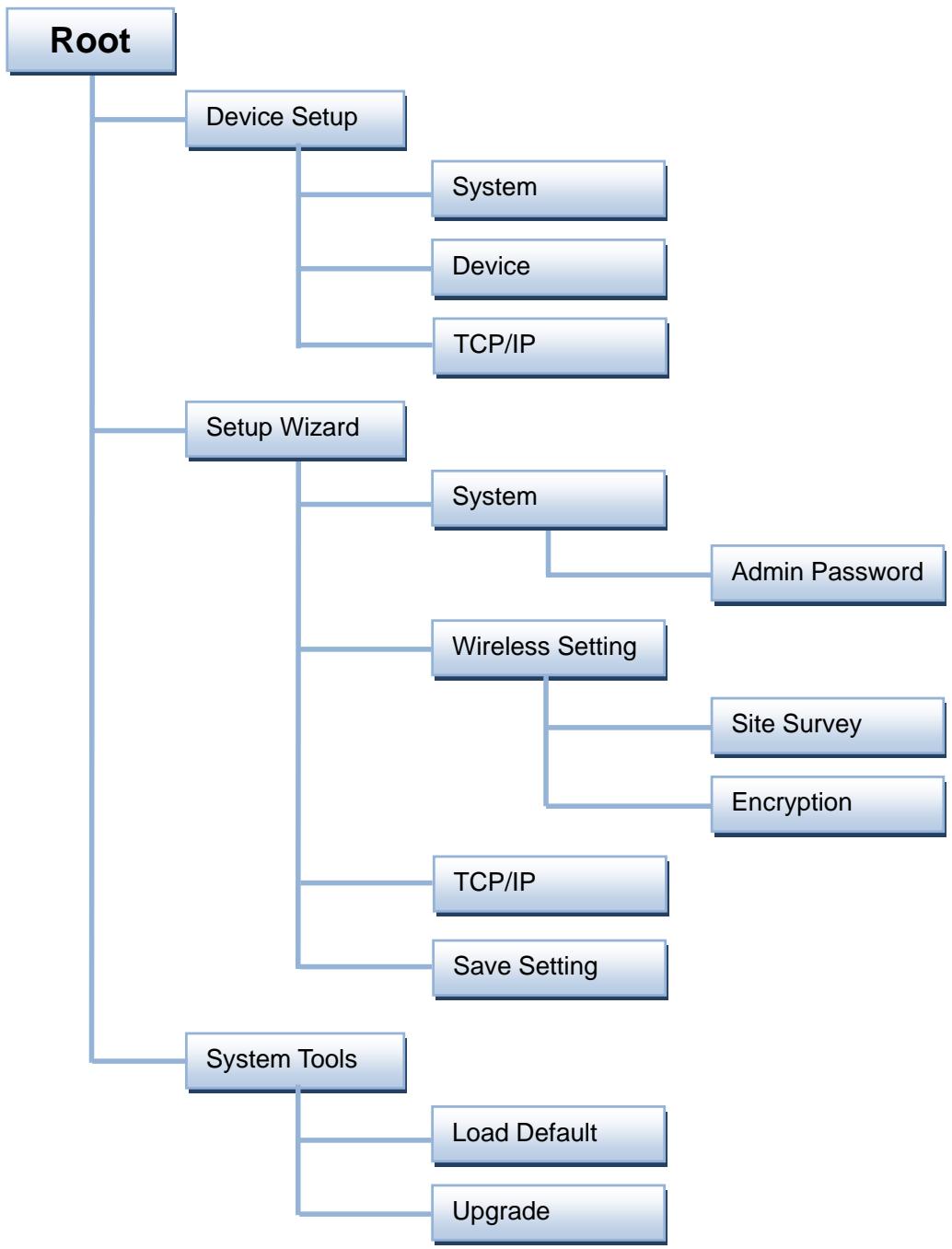
The web management menu of WFP-151U is divided into 3 parts: Top Bar, Side Menu Bar, and Main Screen.
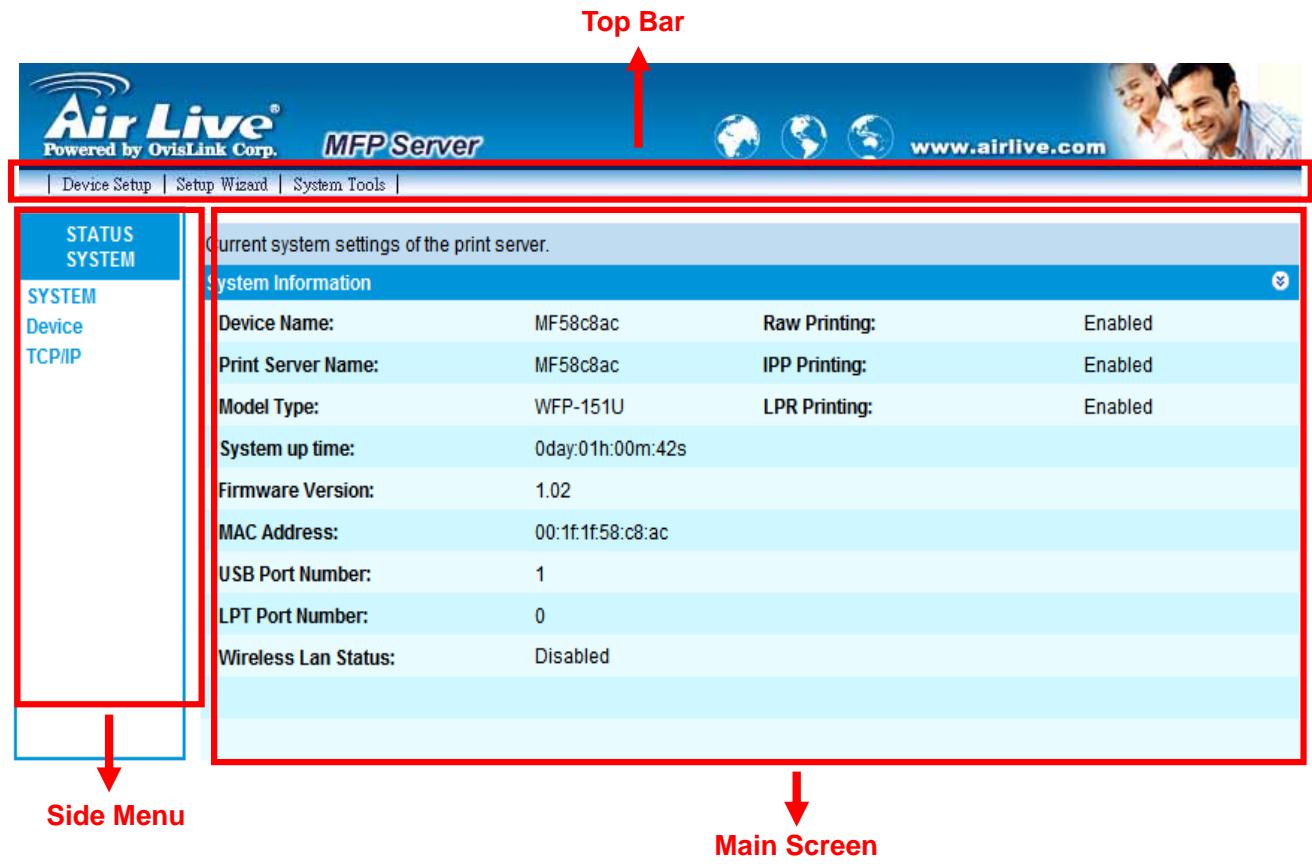
Top Bar: It display main three menus, Device Setup. Setup Wizard and System Tool. Once you click one of them, the side menu will display all of the functions.
- Side Menu: All management functions will show in Side Menu, you can choose any one of them to configure its setting. The detailed introduction for all management function will explain in below chapters. The following list is the full function tree for web user interface.
- Main Screen: Once choosing any function of Side Menu, the configuration page of the function will show in Main Screen. You can configure the function by instruction of manual.
6.2 Login
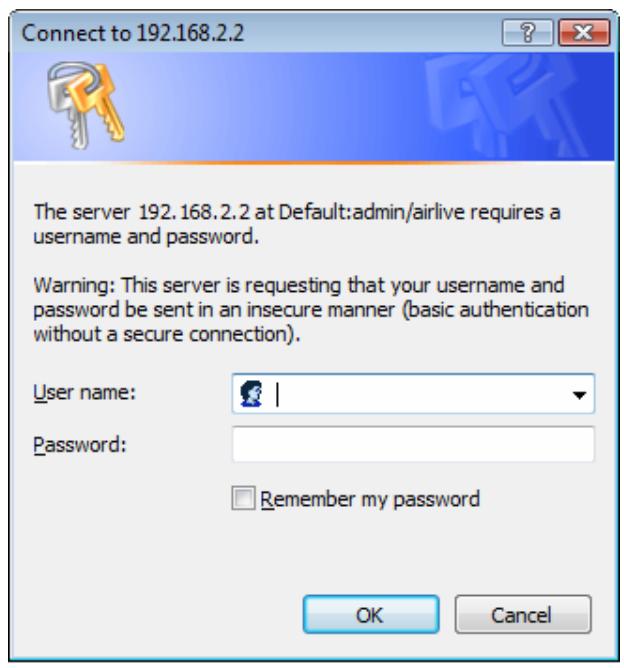
You may use any Web Browser to review the status or configure the settings of the MFP Server. After entering the IP address of the MFP Server, a login page display. You have to enter correct "UserID" and "Password" before going to the Web Management pages.
Note: Default User Name is "admin", default password is "airlive".
6.3 Device Setup
6.3.1 System
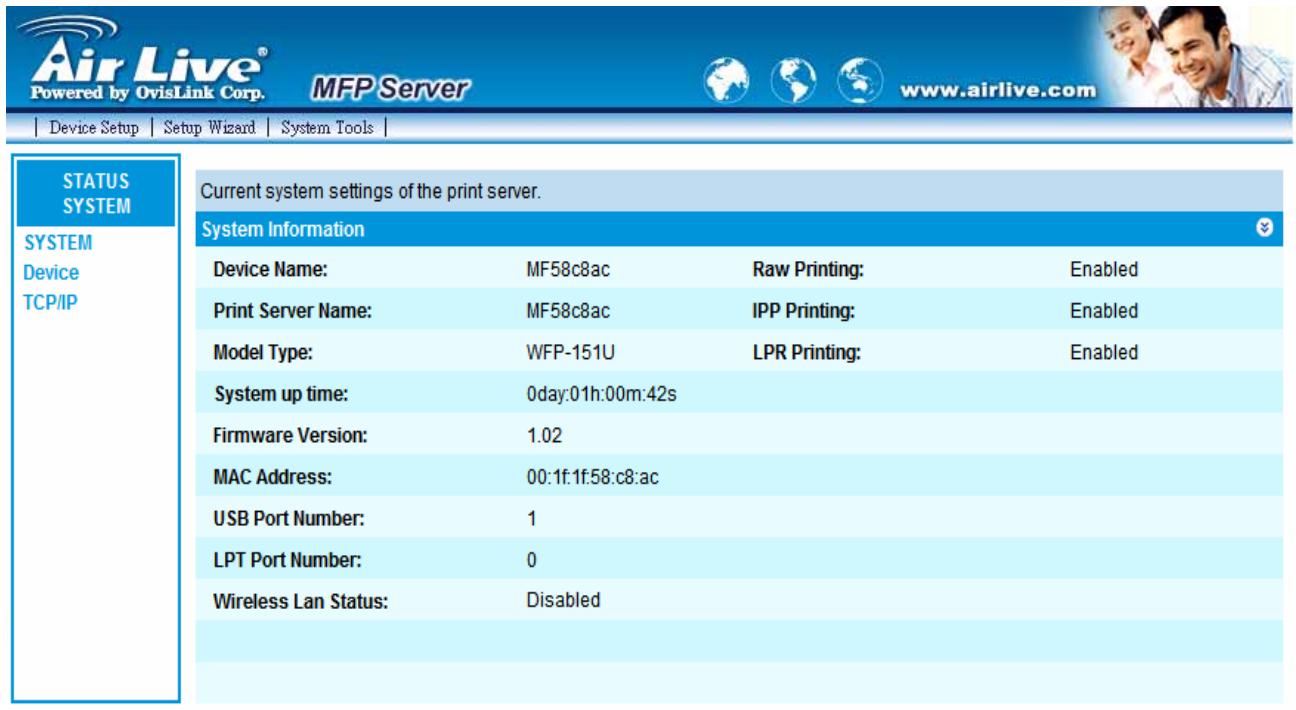
System Information includes "Device Name", "MFP Server Name", "Model Type", "Firmware Version", "MAC Address", "Wireless Configuration", and the protocols enabled status, etc.
6.3.2 Device
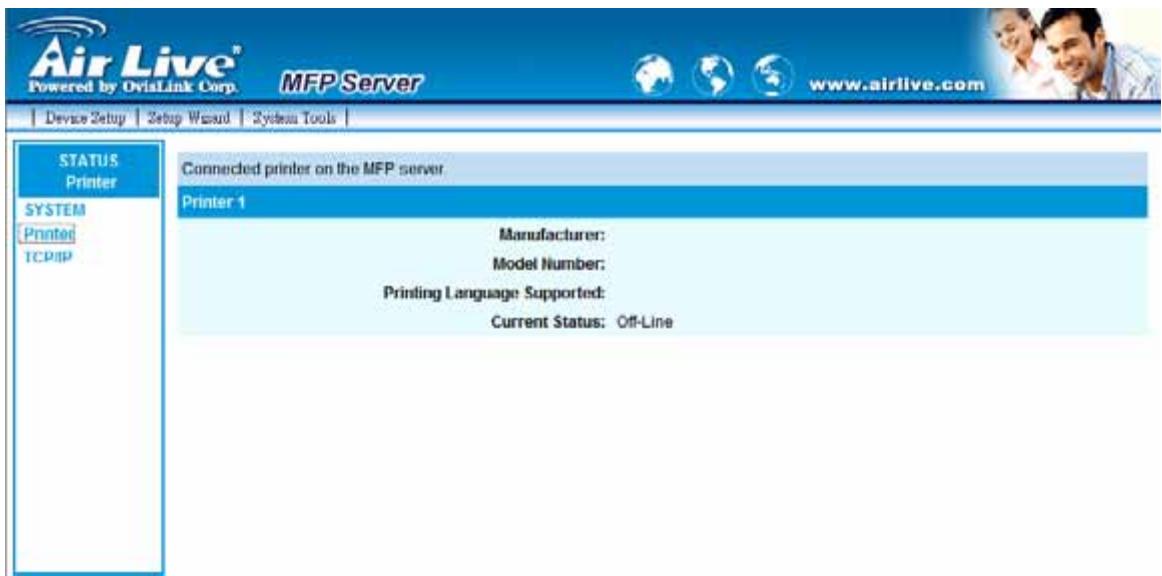
This page lists information and the status of MFP or printer connected to the MFP Server port. The status of the MFP or printer includes "Connected", "Ready", "Off Line" or "Paper Out".
Connected: a user clicks "Connect" button in the "MFP Manager" utility, and the connection between the user's computer and the MFP is built.
Ready: the MFP or printer is not connected by a user and is ready to use.
Off Line: the MFP or printer is not connected by a user and is not connected to MFP Server through USB cable or it is turned off.
Paper Out: the MFP or printer not connected by a user and is paper out.
6.3.3 TCP/IP
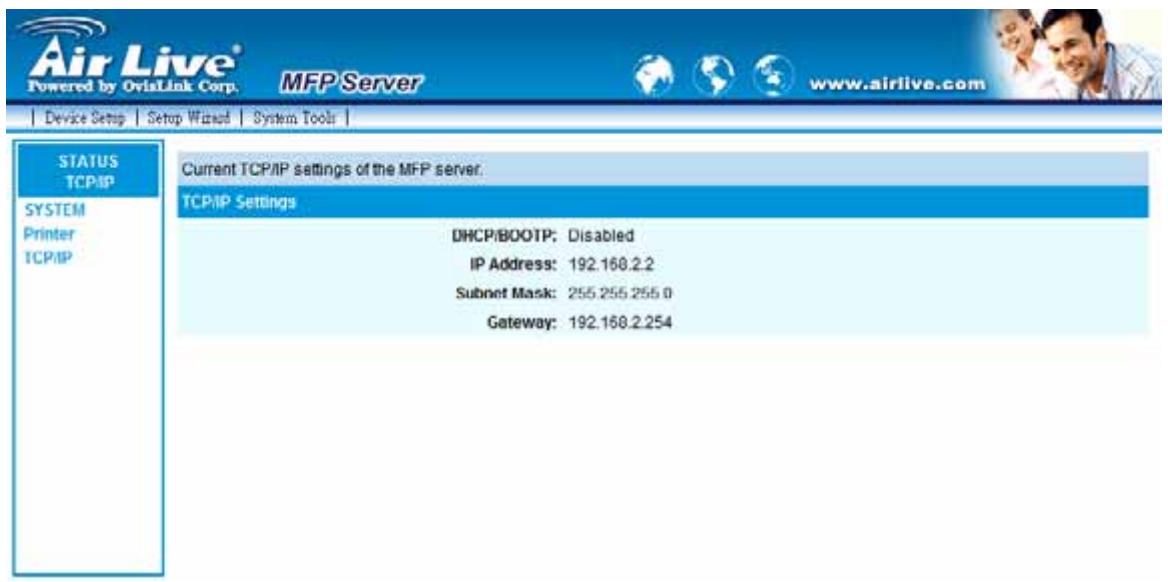
This page lists all TCP/IP settings of the MFP Server including "IP Address", "Subnet Mask" and "Gateway". It also can tell the DHCP server is "On" or "Off".
6.4 Setup Wizard
Note: You can configure the MFP Server from the Setup Wizard. To let the changes take effect, you have to click "Save Settings" in the menu of the left side to reboot the MFP Server.
6.4.1 System
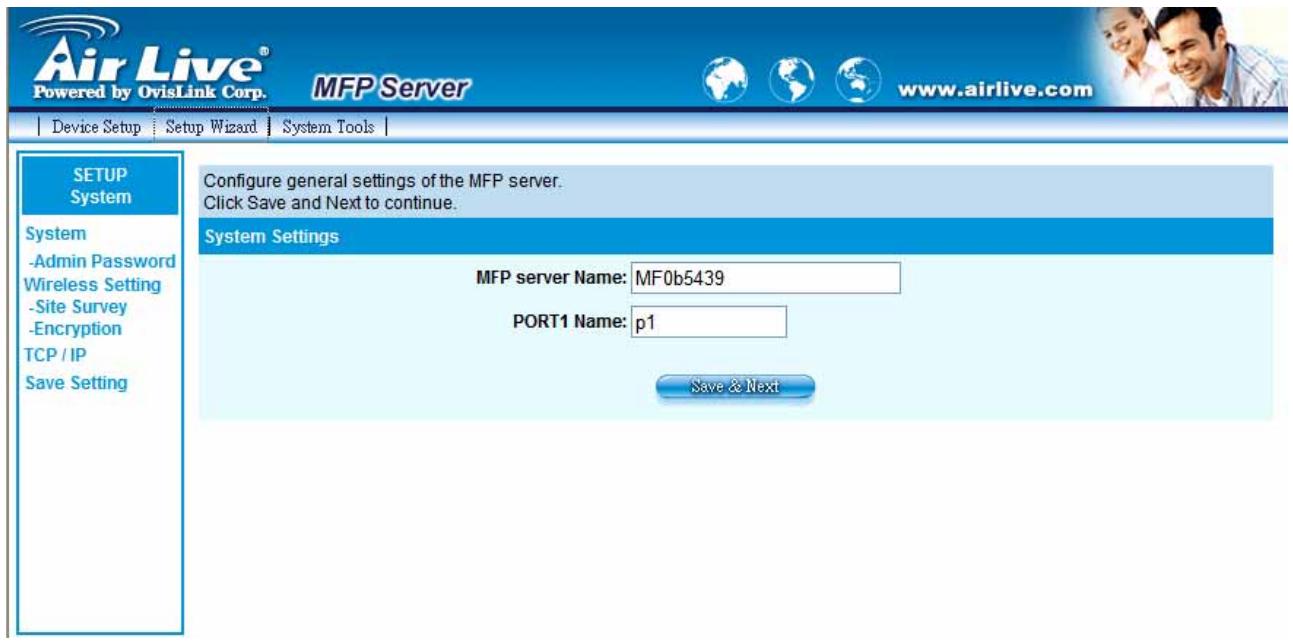
You can change the MFP Server name and port name from here.
MFP Server Name: the name of the MFP Server. You can use this name to identify the MFP server when you are searching for if using by the "Server Manager" utilities.
PORT Name: The name of the port which MFP server plugs on. The default port name is "p1".
6.4.1.1 Admin Password
You can change the administrator's name and password from here.
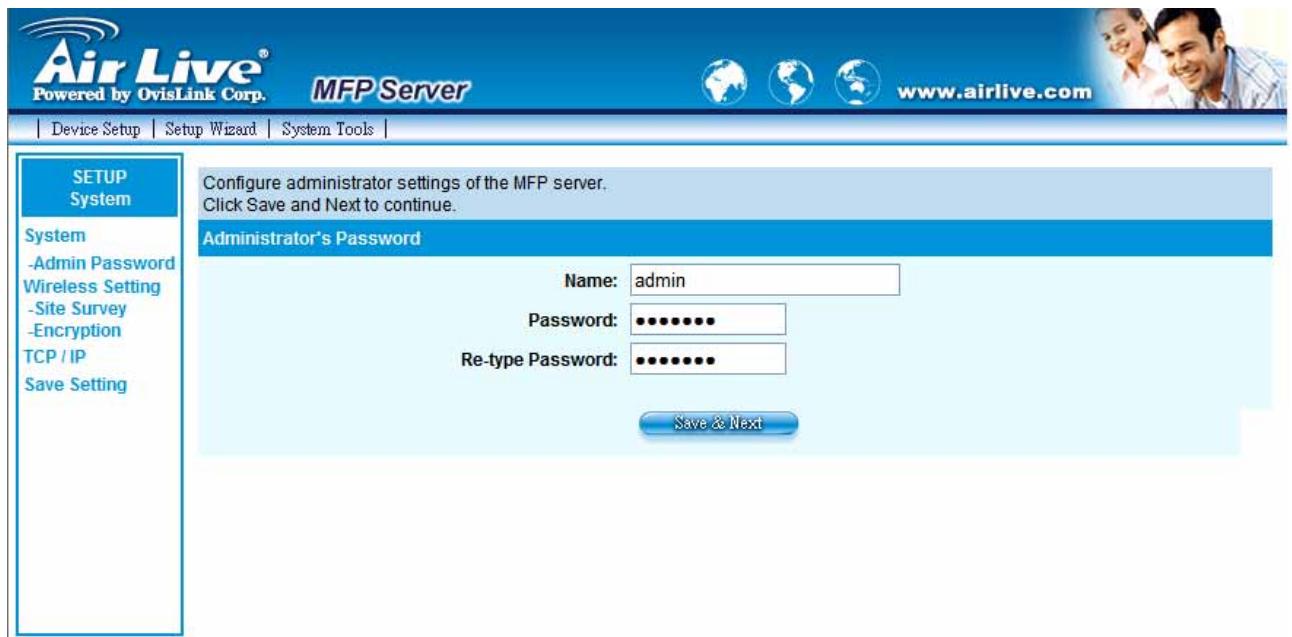
Name, the name of the MFP Server. You can use this name to identify the MFP Server when you are searching for the MFP Server by the "Server Manager" utilities.
Password, enter the password you want to change to the MFP Server. The password can be up to 7-digit alphanumeric format. The default password is "airlive".
Re-type Password, enter the same password for the MFP Server again.
6.4.2 Wireless Setting
If you want to use the MFP Server through wireless LAN, please set up the MFP Server through Ethernet first and make sure your wireless LAN setting is correct. After setting the wireless LAN, unplug the Ethernet cable and restart the MFP Server, then you can start to use the MFP Server through wireless LAN. If the wireless configuration does not work, please plug the Ethernet cable again, restart the MFP Server and configure the MFP Server through Ethernet until the wireless LAN settings are correct.
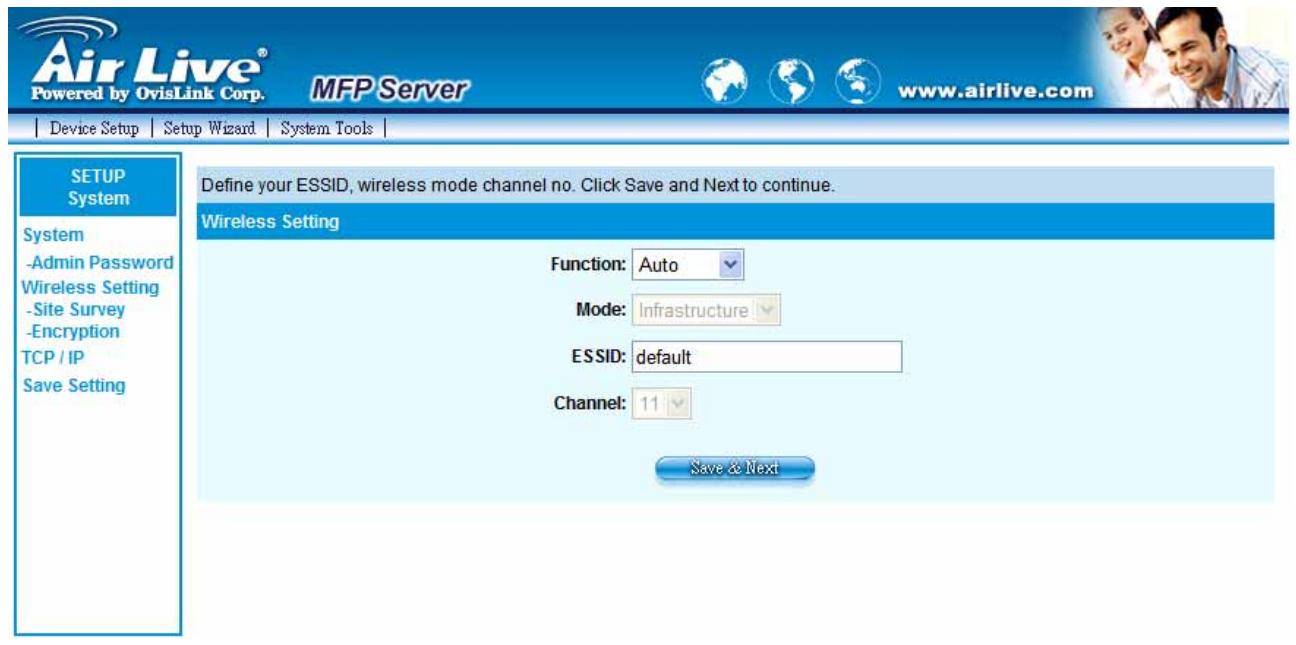
You can enable/disable the wireless function and set up the wireless parameters for the MFP Server from here. The parameters include "Function", "Mode", "ESSID" and "Channel Number". You can manually set the wireless network that you want to connect in this page or use the "Site Survey" function to automatically search for an available wireless network and associate with it.
Function is for user to disable, enable or let the MFP Server auto select to connect to the
wired or wireless network. If "Disable" is selected, the MFP Server can only connect to the network through wired Ethernet. If "Enable" is selected, the MFP Server can only connect to the network through Wireless LAN. If "Auto" is selected, the MFP Server can automatically decide to enable or disable the wireless function. The MFP Server only can work in either Ethernet or wireless LAN mode. It cannot work in both Ethernet and wireless LAN mode at the same time. When the MFP Server starts up, it will auto-detect if the LAN port is connected to an active network by an Ethernet cable. If the MFP Server is connected to an active network by Ethernet cable when starting up, the MFP Server will run in Ethernet mode. If the MFP Server is not connected to an active network by Ethernet cable when starting up, the MFP Server will run in wireless LAN mode. The MFP Server default is in "Auto" mode.
Mode is the operation mode of wireless station. You can choose either "Ad Hoc" or "Infrastructure" mode. If you do not have any access point and want to use peer-to-peer connection, you have to choose "Ad Hoc" mode. If you have an access point as the wireless LAN infrastructure, you have to choose "Infrastructure" mode.
ESSID is the unique name identified by in a wireless LAN. The ID prevents the unintentional merging of two co-located WLANs. Please make sure that the ESSID of all stations and access points in the same WLAN network are the same.
Channel Number is the channel number of your wireless LAN. Please make sure that the channel number of all stations and access points in the same WLAN network are the same.
6.4.2.1 Site Survey
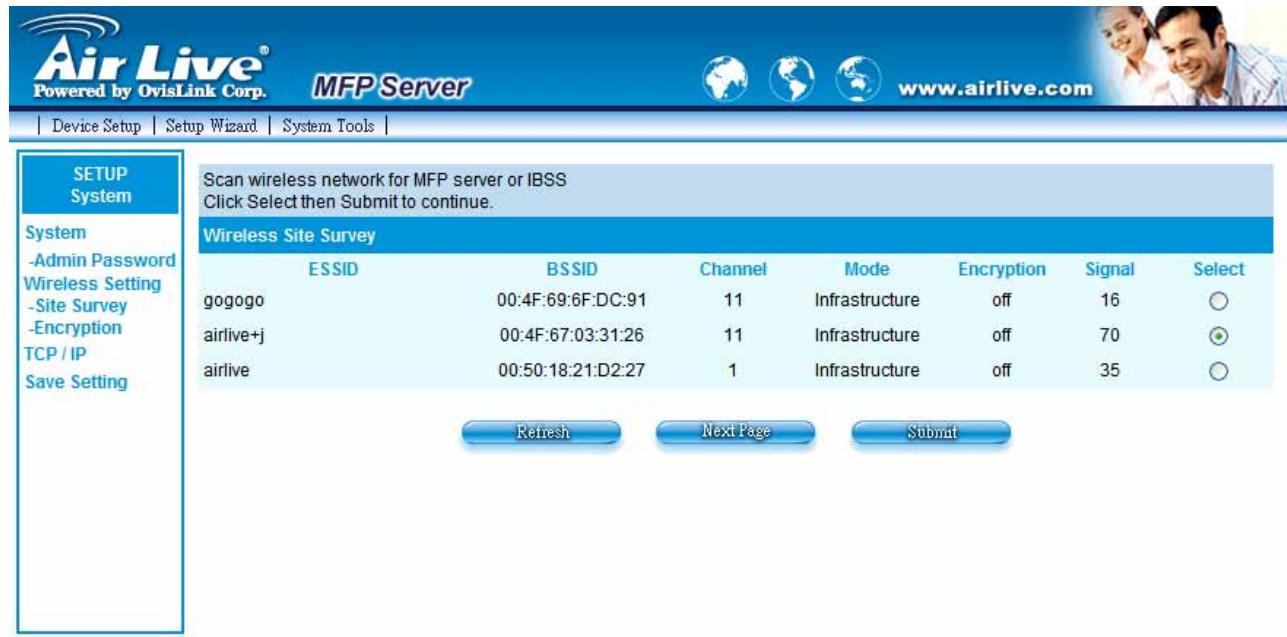
You can use this "Site Survey" function to search for available access points in you location. In the list is the information of all available access points or wireless stations, includes SSID, BSSID, Channel, Type, Encryption and Signal Strength. You can select one wireless device in the list for this MFP Server to associate with or you have to go back to Wireless page to manually setup the wireless parameters.
There is "WLAN Function" setting for you to setup Auto/Disable/Enable wireless function of the MFP Server here. Please refer to section 8.4.2 to know more about the setting.
6.4.2.2 Encryption
This MFP Server supports WEP, WPA-PSK and WPA2-PSK security mode. If you want to use WEP encryption to protect your wireless network, you have to select "WEP". If you want to use WPA-PSK, you have to select "WPA-PSK". The wireless security setting should be the same with other wireless devices in the same network.
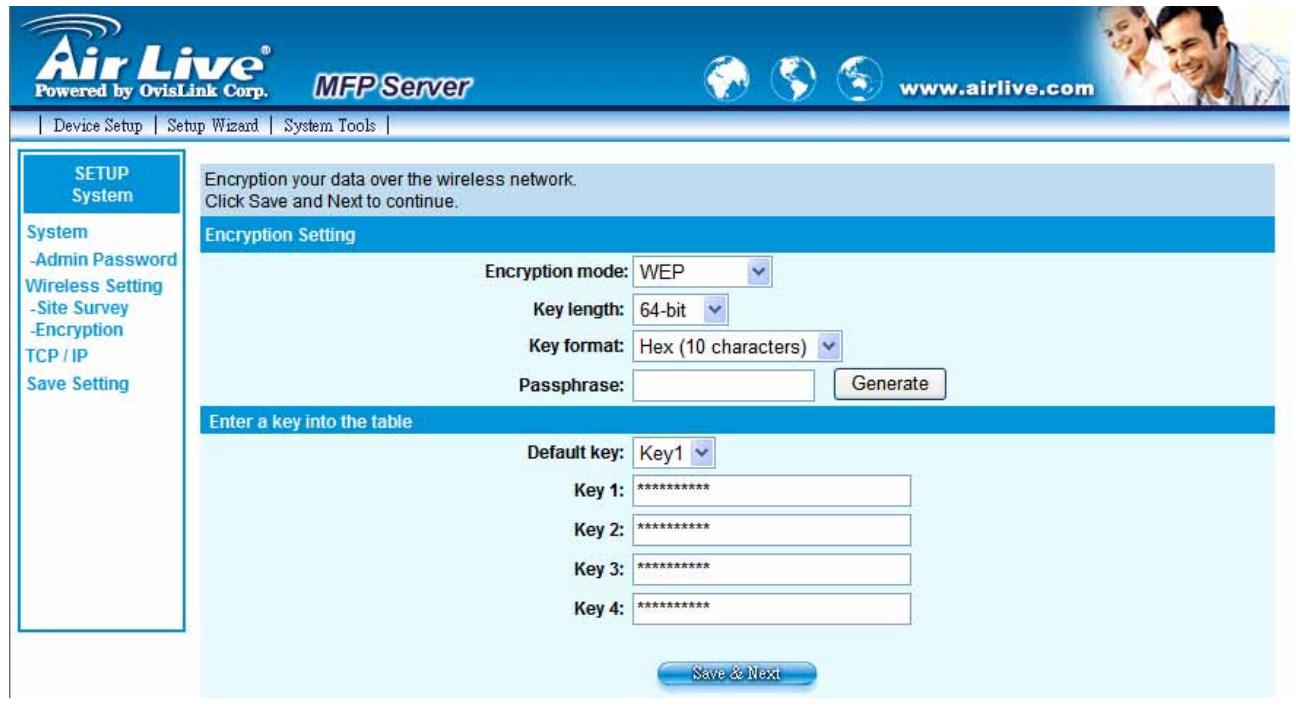
WEP Security Mode
Key Length – You can choose “64-bit” to use WEP with 64-bit key length encryption or choose “128-bit” to use WEP with 128-bit key length encryption. The longer key length can provide better security but worse transmission throughput.
Key Format - You may select to use ASCII Characters (alphanumeric format) or
Hexadecimal digits (in the "A-F", "a-f" and "0-9" range) to be the WEP Key.
PassPhrase - A "PassPhrase" simplifies the WEP encryption process by automatically generating the WEP encryption keys for the MFP Server.
Default Key – Select one of the four keys to encrypt your data. Only the key you select it in the “Default key” will take effect.
Key 1 – Key 4 – The WEP keys are used to encrypt data transmitted within the wireless network. Fill the text box by following the rules below.
64-bit WEP: input 10-digit Hex values (in the "A-F", "a-f" and "0-9" range) or 5-digit ASCII character as the encryption keys. For example: "0123456aef" or "Guest".
128-bit WEP: input 26-digit Hex values (in the "A-F", "a-f" and "0-9" range) or 10-digit ASCII characters as the encryption keys. For example: "01234567890123456789abcdef" or "administrator".
WPA-PSK Security Mode
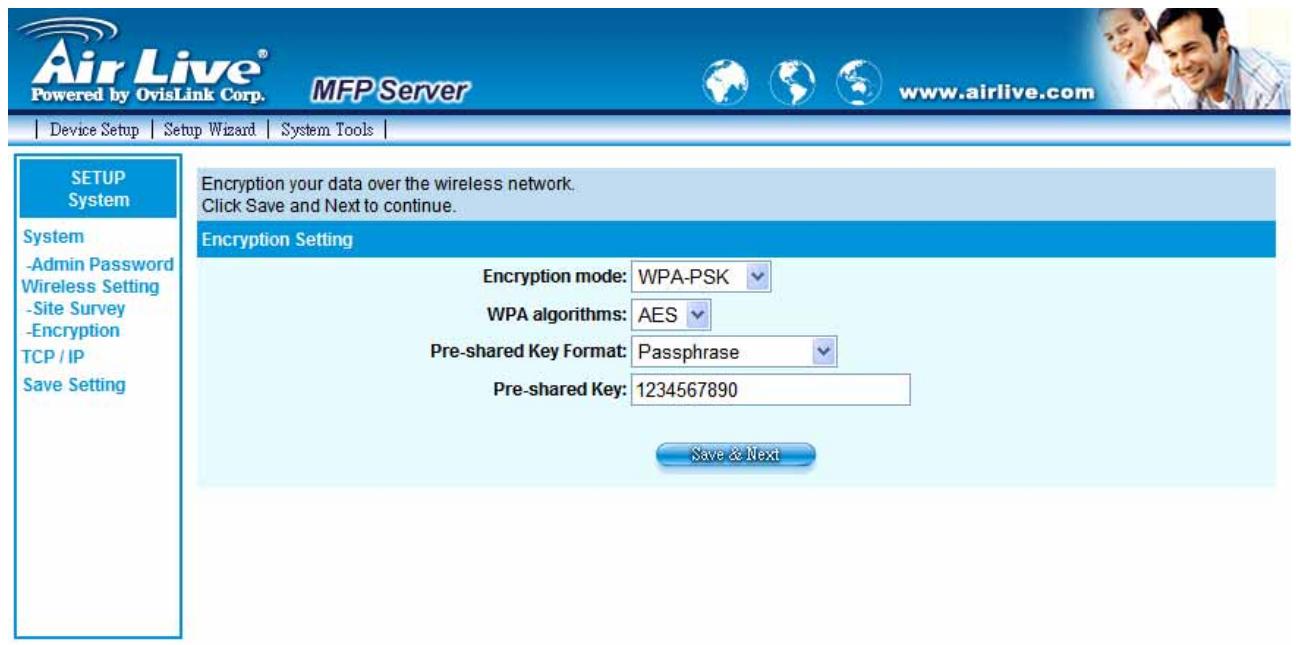
WPA-PSK requires users to select the advanced encryption methods, i.e. TKIP or AES and enter a set of shared key.
TKIP - TKIP (Temporal Key Integrity Protocol) changes the temporal key every 10,000
packets. This insures much greater security than the standard WEP security.
AES – AES has been developed to ensure the highest degree of security and authenticity for digital information and it is the most advanced solution defined by IEEE 802.11i for the security in the wireless network.
Key - Enter 8 to 63 digits of ASCII format to be the key for the authentication within the network.
When you finish configuring the wireless security, click "Save & Next" to confirm the configuration.
WPA2-PSK Security Mode
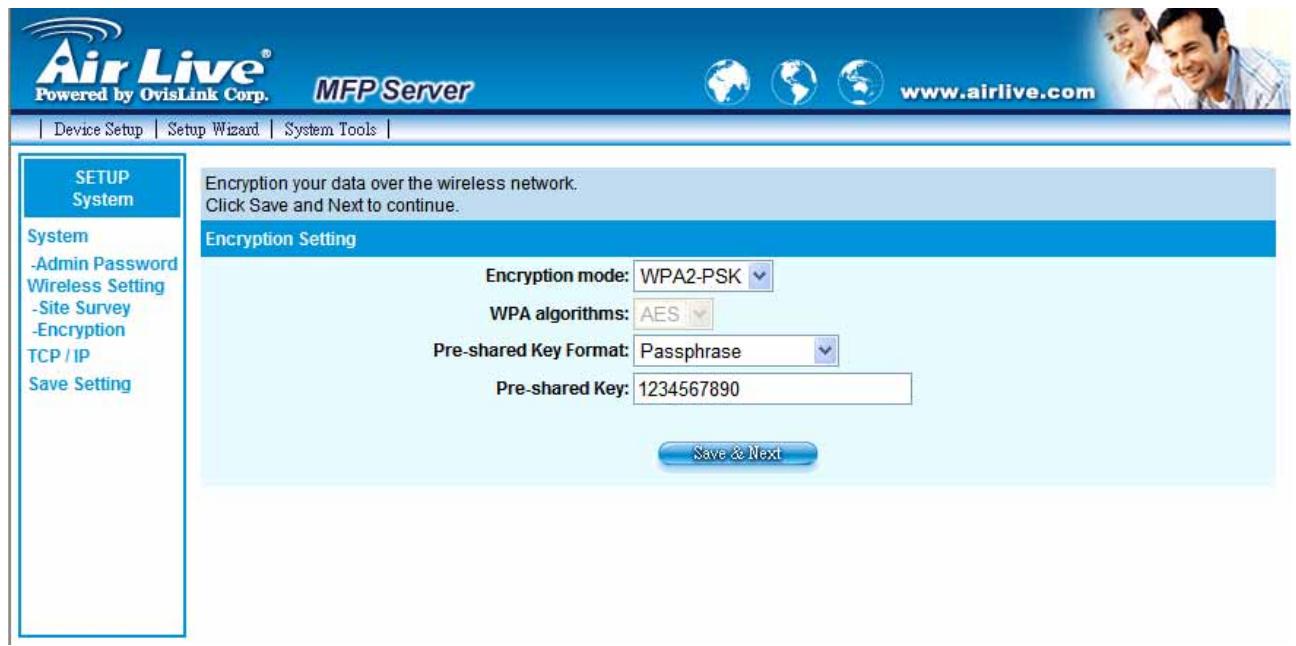
Pre-shared Key Format – Select the type of pre-shared key, you can select Passphrase (8 or more alphanumeric characters, up to 63), or Hex (64 characters of 0-9, and a-f).
WPA Pre-Shared Key -Enter 8 to 63 digits of ASCII format to be the key for authentication within the network.
When you finish configuring the wireless security, click "Save & Next" to confirm the configuration.
6.4.3 TCP/IP
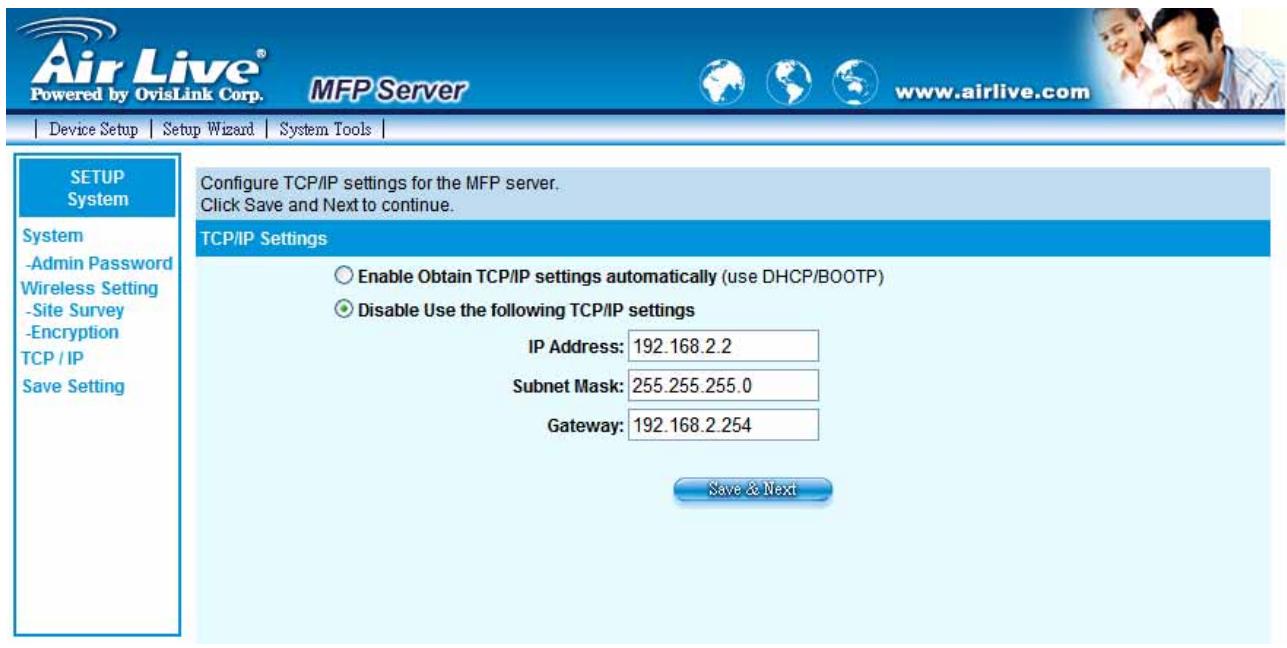
You can configure the MFP Server to automatically get IP from DHCP server or manually specify static IP.
If you need the MFP Server to automatically get an IP from DHCP server, select "Enable Obtain TCP/IP Settings Automatically (Use DHCP/ BOOTP)". You also can select "Disable Use the following TCP/IP Settings" to manually assign "IP Address", "Subnet Mask" and "Gateway" for the MFP Server.
6.4.4 Save Setting
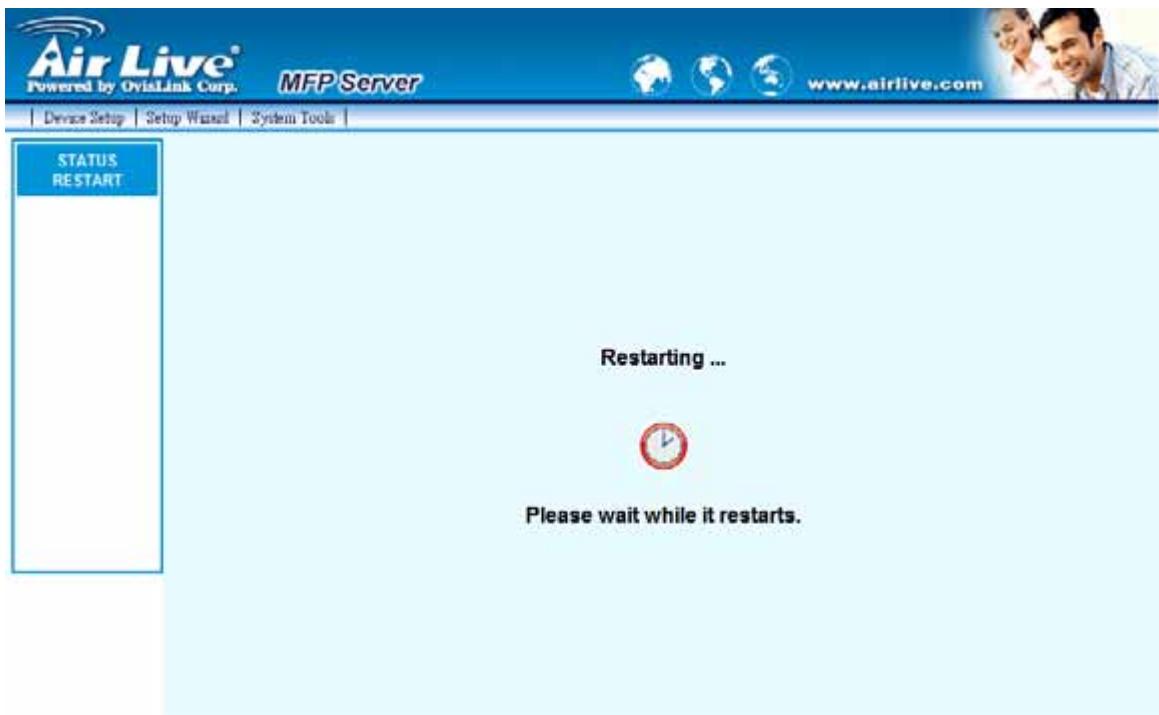
After configuring the MFP Server, you have to click the "Save Settings" to save the settings and restart the system.
6.5 System Tools
6.5.1 Load Default
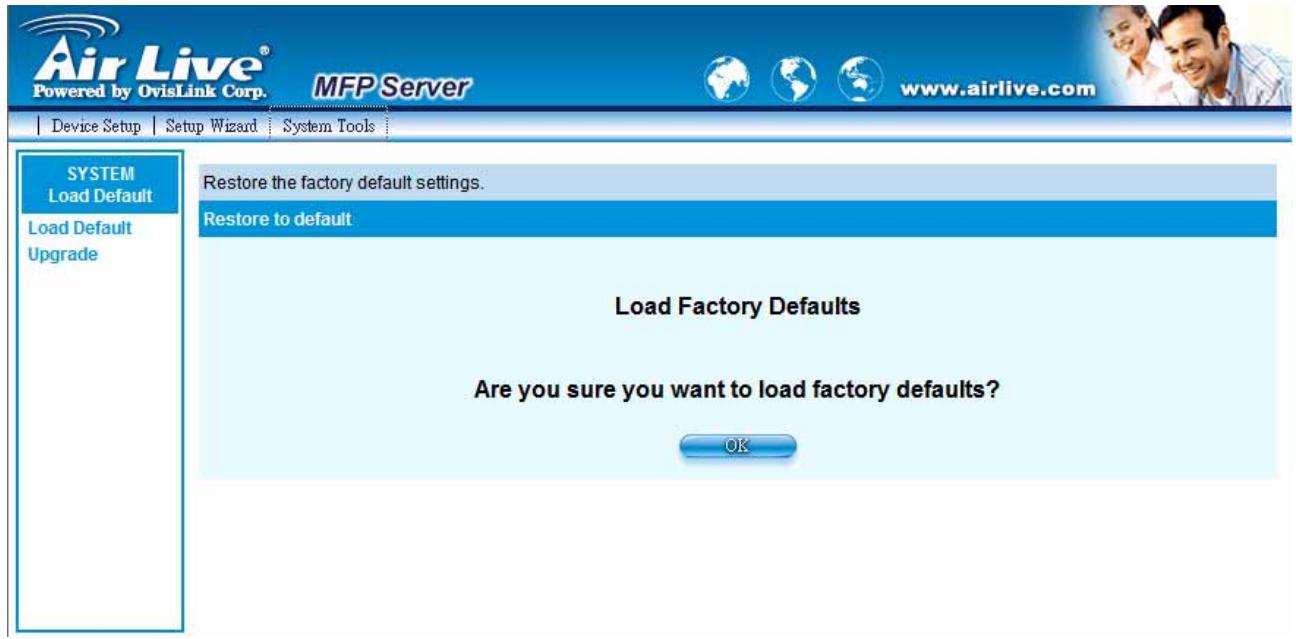
You can use this page to restore the factory default settings. All of your previous setup will be cleared.
6.5.2 Upgrade Firmware from Browser
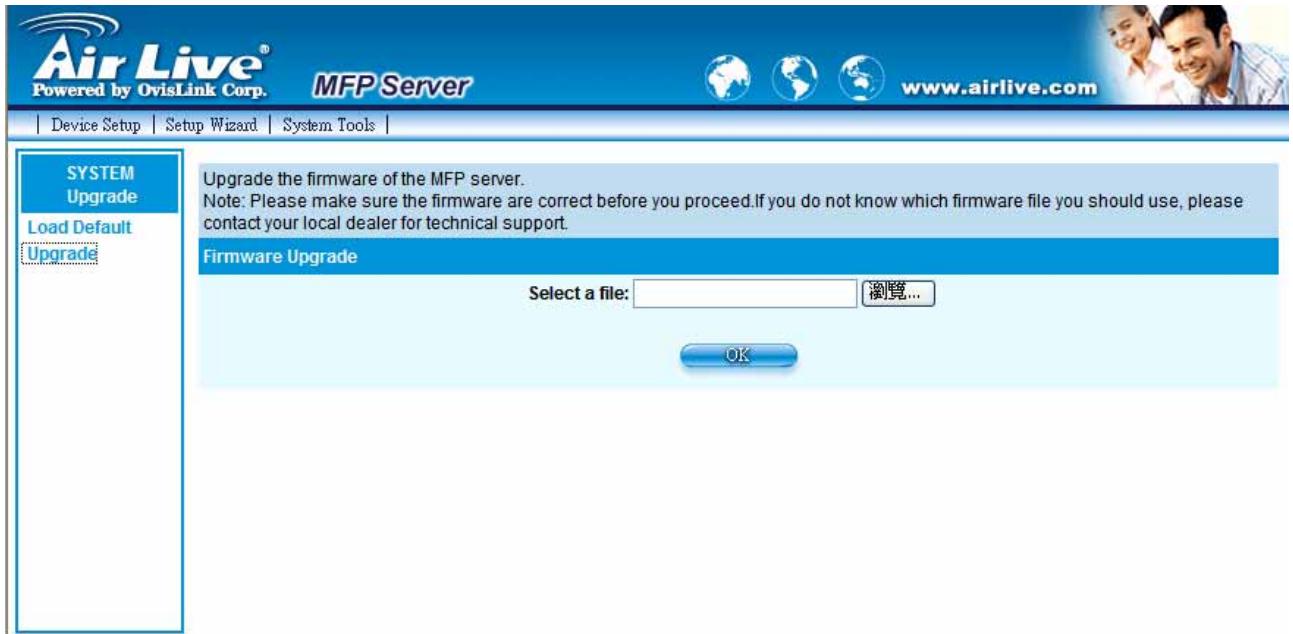
You can upgrade new firmware for this MFP Server in this page. Click "Browse" to select the new firmware in your storage and then click "OK", the firmware will be updated in several minutes.
Be aware that if you have started upgrading firmware, you have to follow all the upgrading steps or the MFP Server can't turn back to normal configuration.
7
Printing Protocols
In this chapter, we will explain three main printing protocols in WFP-151U. Different protocols can be used in different network structure for your need.
7.1 LPR Printing
LPR Printing (Line Printer Remote technology) allows users to connect to MFPs or printers via TCP/IP for printing sharing. The computer with Windows 98SE / Me / NT / 2000 / XP / 2003 / Vista operating system can use the protocol to share printing in the network. MFP Server can support LPR printing by default.
If you install the MFP Server in Windows 98SE/Me/NT, the MFP Server provides a tool "Network Port Setup" that helps to add the LPR protocol to users' computer easily. Please refer to Chapter 10.
To configure the LPR setting in Windows 2000/XP/2003/Vista, please follow the steps below. Note that the following procedures are running in Windows XP, for Windows 2000/2003/Vista, the procedures are similar.
- Click "Start", choose "Settings" and select "Printers and Faxes".
- Click "Add a Printer".
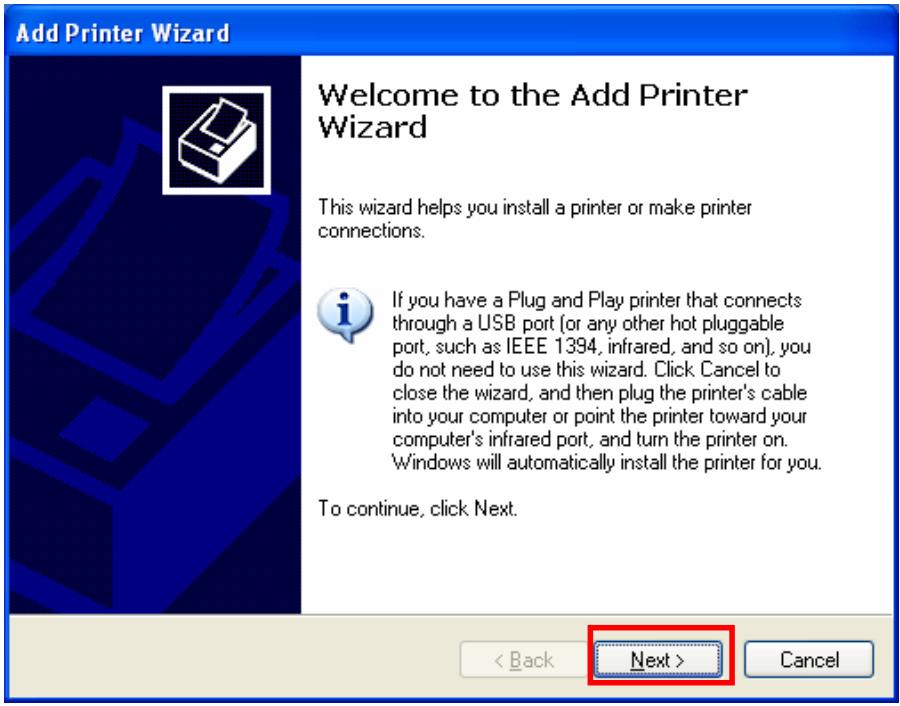
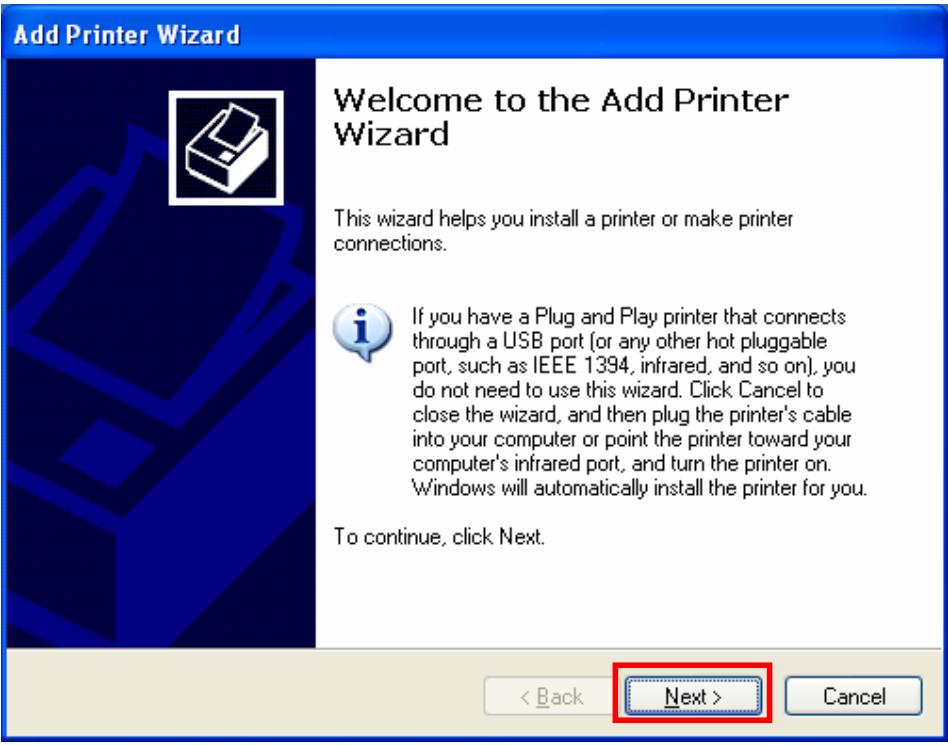
- The "Add Printer Wizard" is displayed. Click "Next".
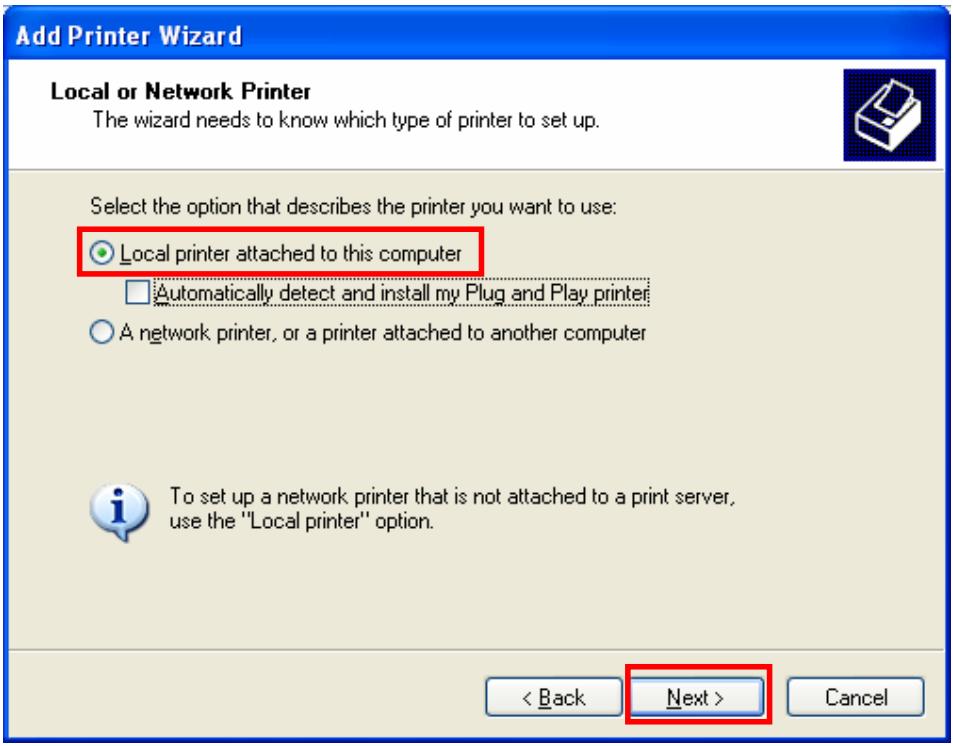
- Select "Local Printer attached to this computer" and click "Next".
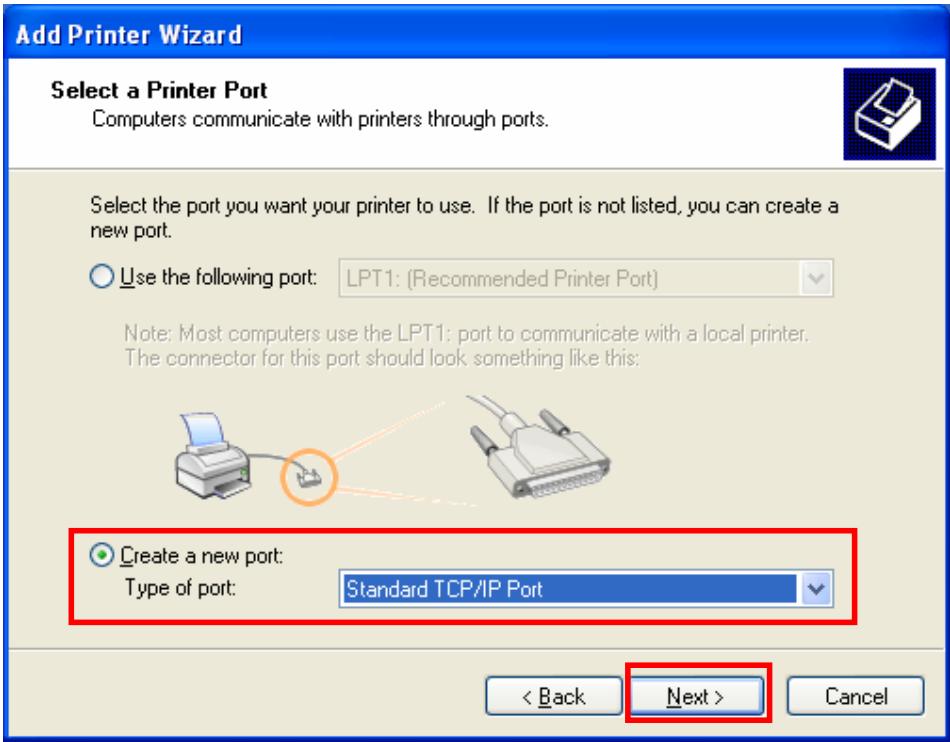
- Choose "Create a new port" and "Standard TCP/IP Port". Click "Next".
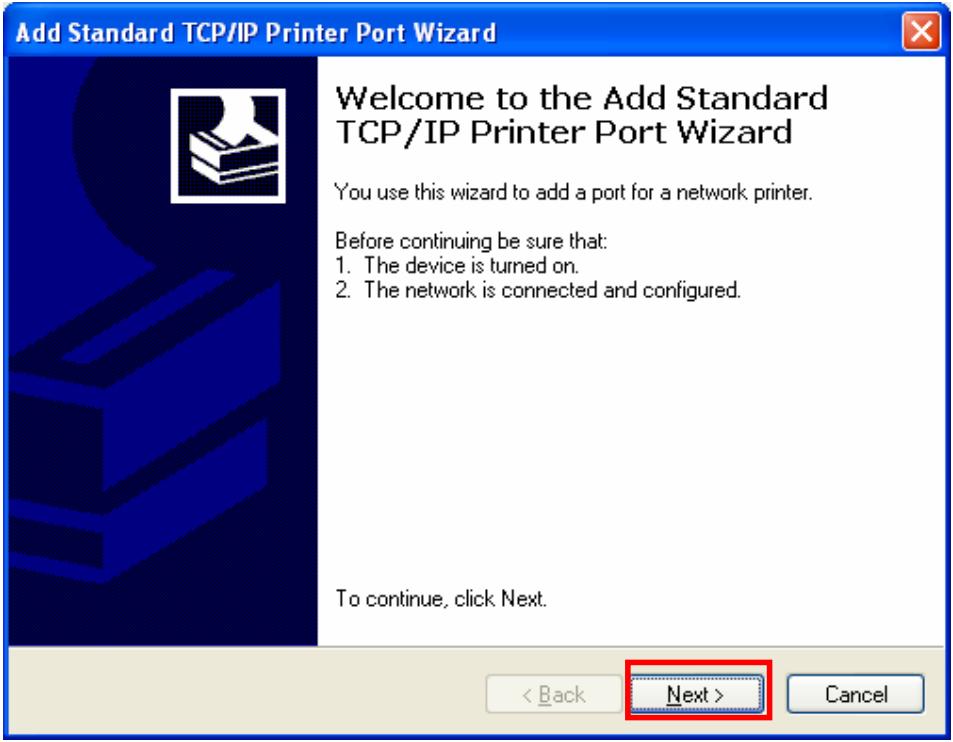
- Please make sure that the MFP Server and the MFP or Printer have turned on and connected to the network correctly before you continue. Click "Next".
- Enter the IP Address of the MFP Server in the "Printer Name or IP Address". Click
"Next".
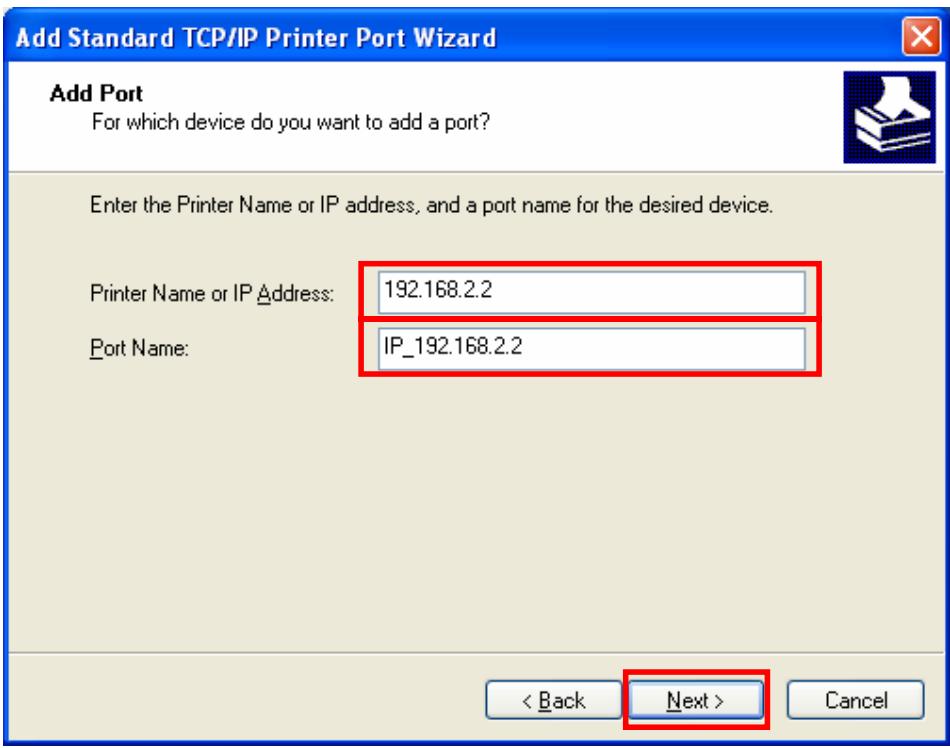
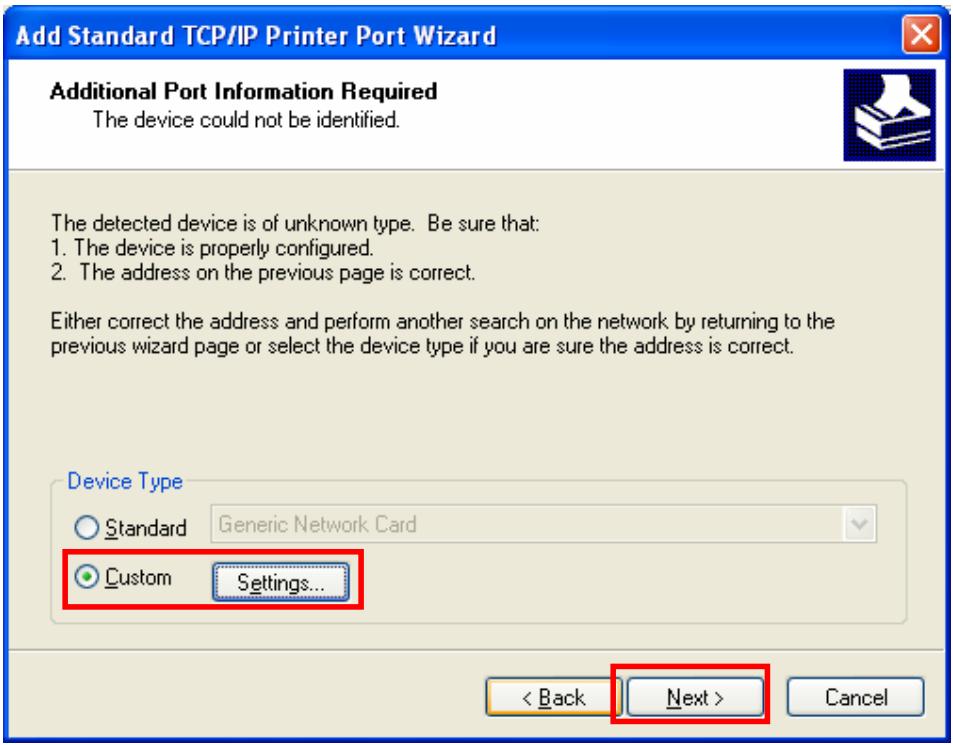
- Select "Custom" and click "Settings". When you have finished the settings at step 9, click "Next" to continue.
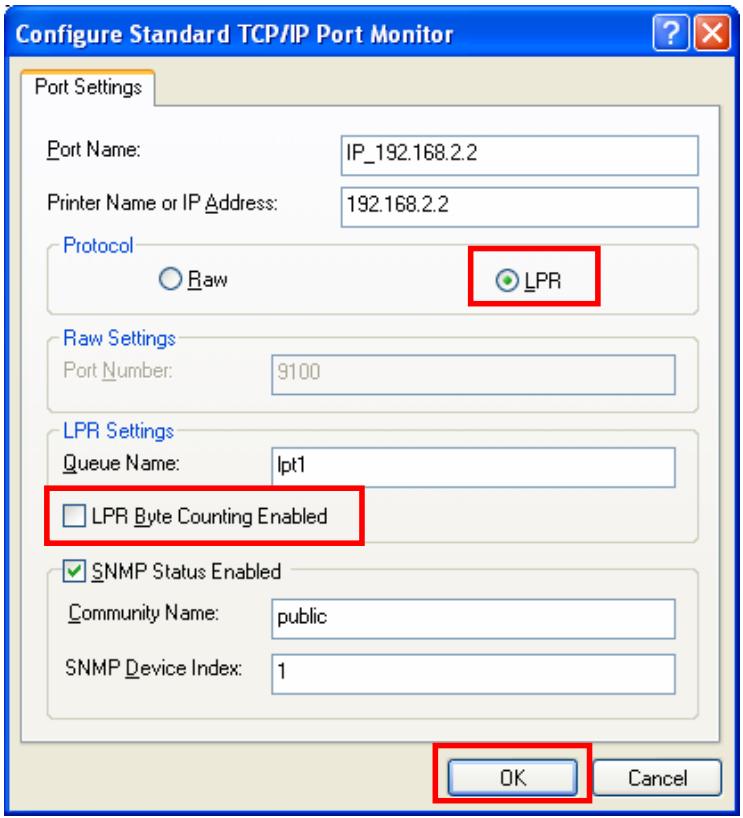
- Select "LPR" and enter "Ipt1" in the "Queue Name", click "OK". By default the queue name of the MFP Server is "Ipt1".
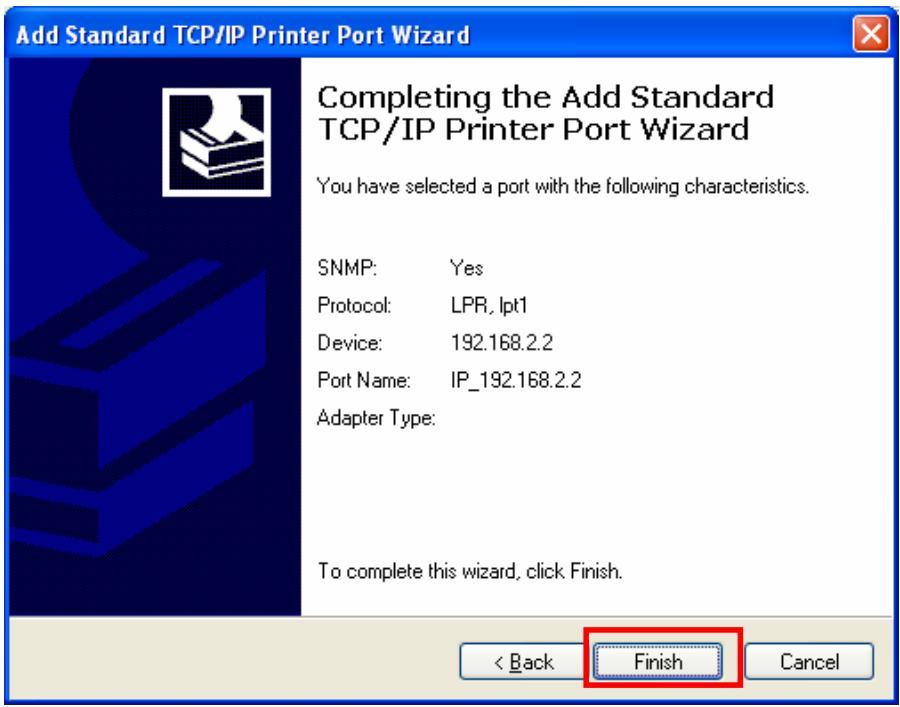
- Click "Finish".
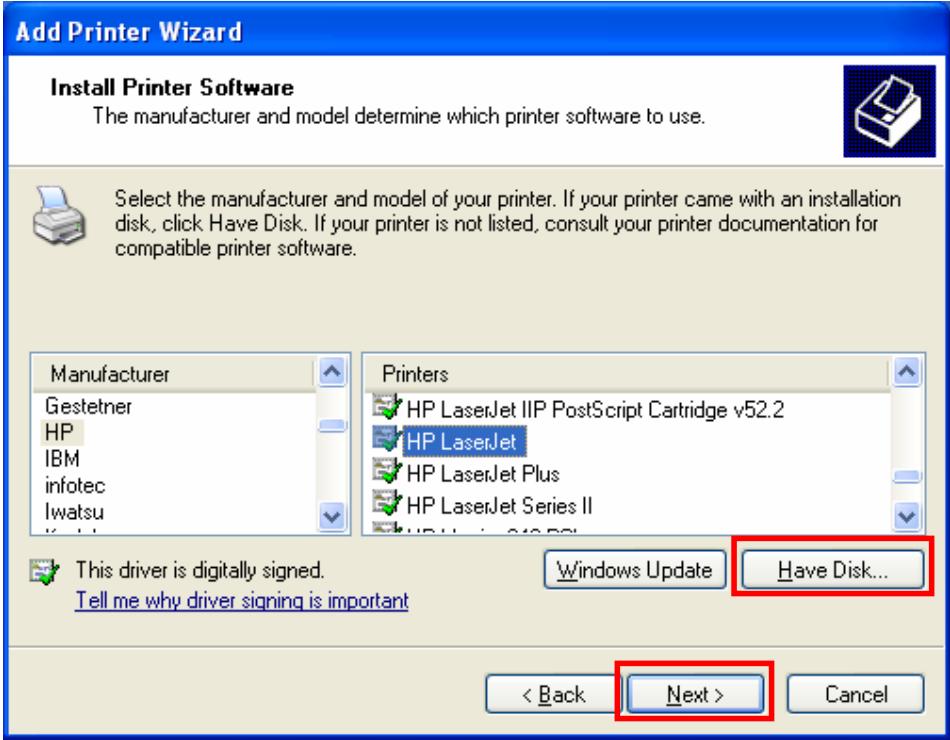
- Select a suitable printer manufacturer and the printer model and click "Next". If your printer is not in the list, click "Have Disk..." to install the driver of the printer. After installation, the printer model will be added to the list.
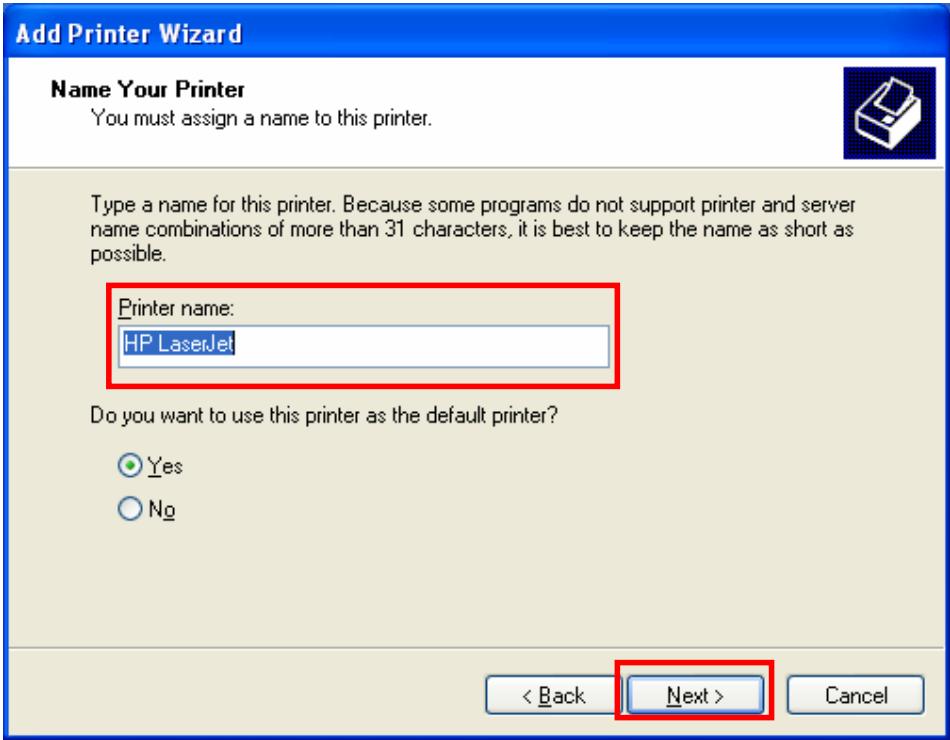
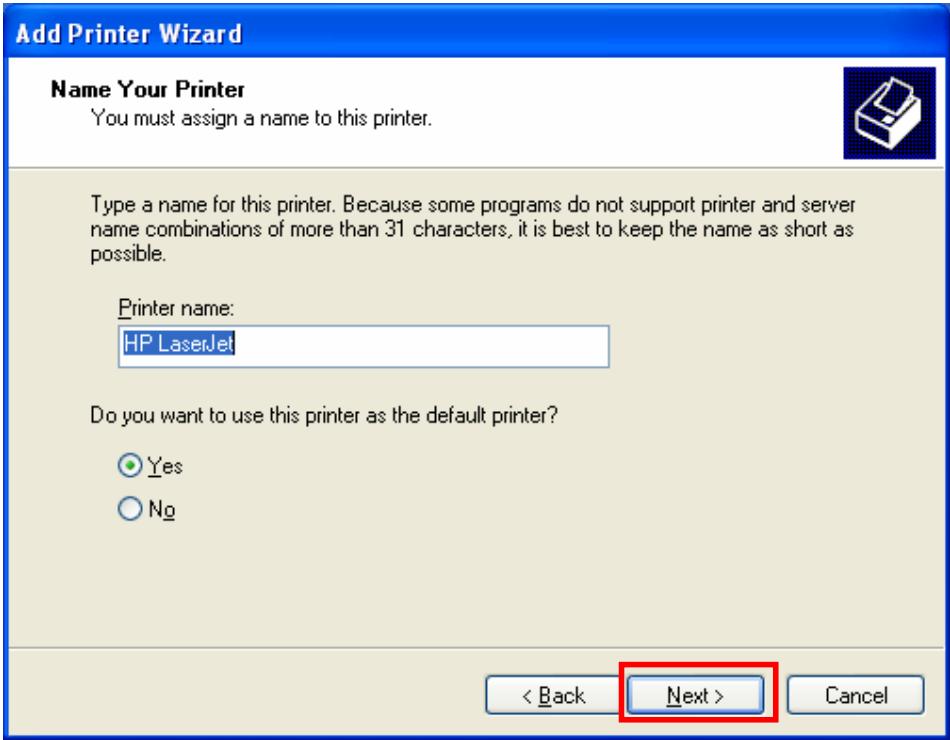
- Choose to set the print whether as a default printer or not. Click "Next".
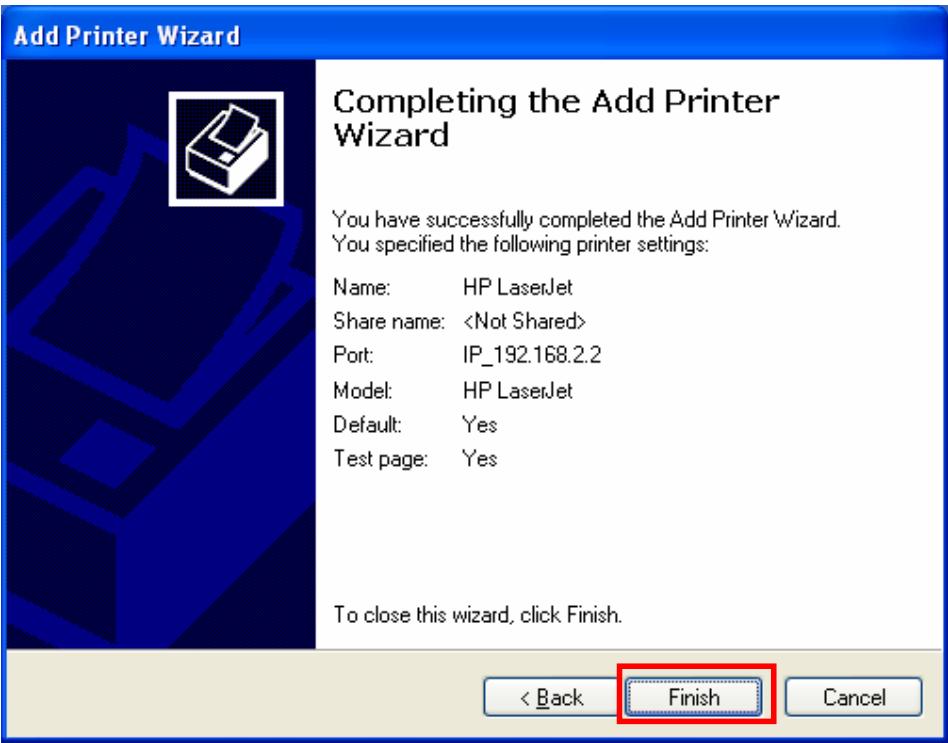
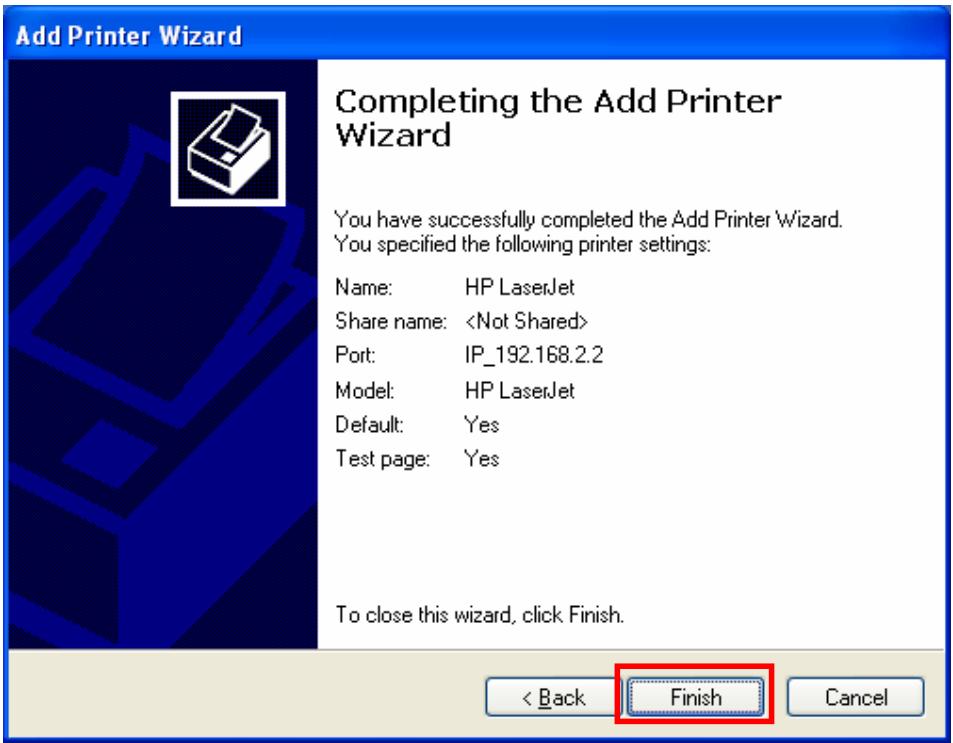
- You have added the network printer to the PC successfully. The information of the printer is displayed in the windows. Click "Finish".
7.2 RAW Printing
RAW Printing allows users to connect to MFPs or printers via TCP/IP for printing sharing. The computer with Windows 2000/XP/2003 operating system can use the protocol to share printing in the network. MFP Server can support RAW printing by default.
To configure the RAW setting in Windows 2000/XP/2003, please follow the steps below. Note that the following procedures are running in Windows XP, for Windows 2000/2003, the procedures are similar.
- Click "Start", choose "Settings" and select "Printers and Faxes".
- Click "Add a Printer".
- The "Add Printer Wizard" is displayed. Click "Next".
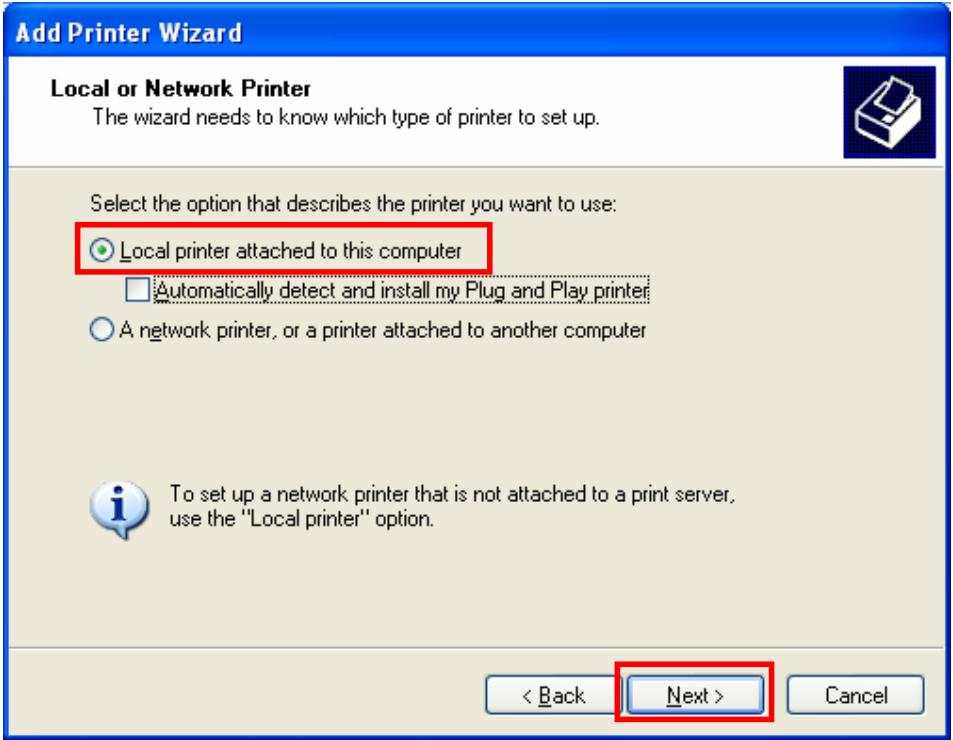
- Select "Local Printer attached to this computer" and click "Next".
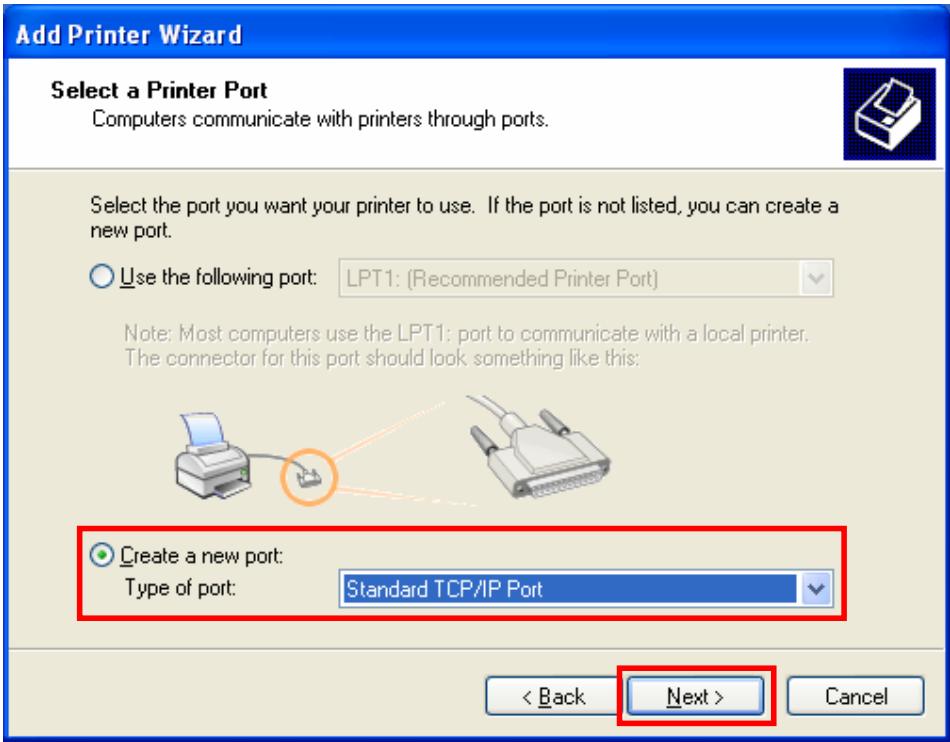
- Choose "Create a new port" and "Standard TCP/IP Port". Click "Next".
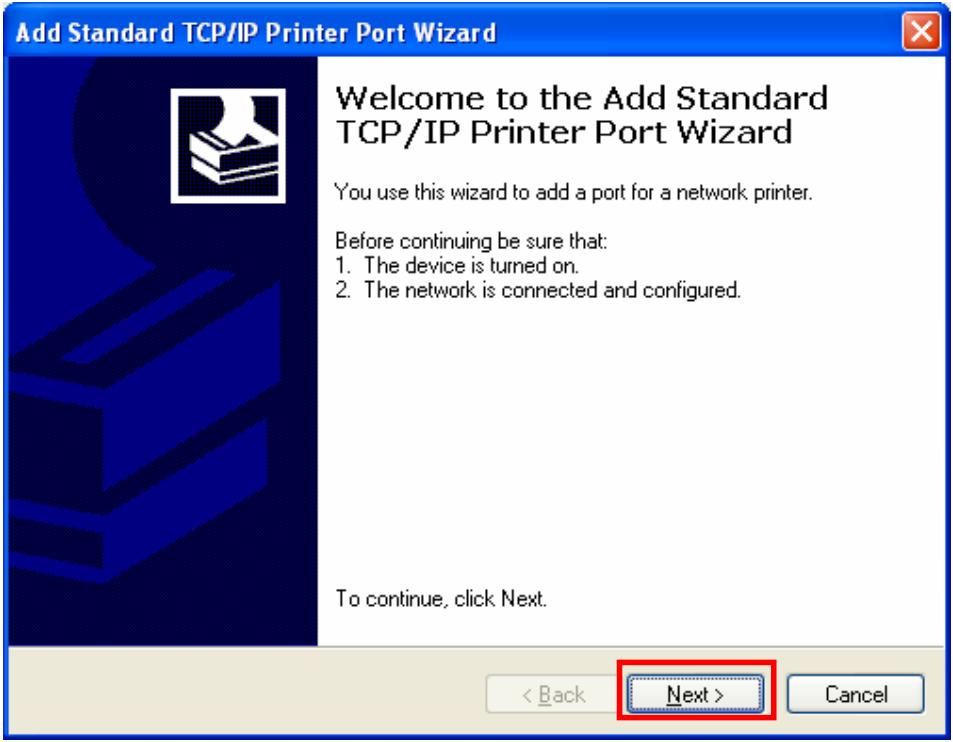
- Please make sure that the MFP Server and the MFP or Printer have turned on and connected to the network correctly before you continue. Click "Next".
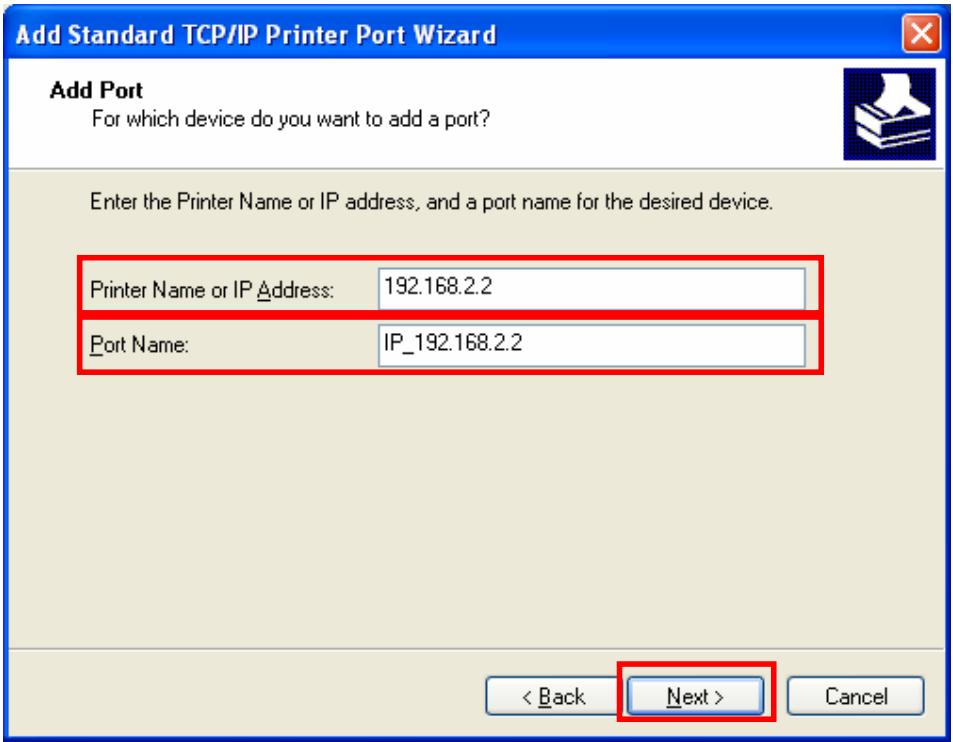
- Enter the IP Address of the MFP Server in the "Printer Name or IP Address". Click "Next".
- Select "Custom" and click "Settings". When you have finished the settings at step 9, click "Next" to continue.
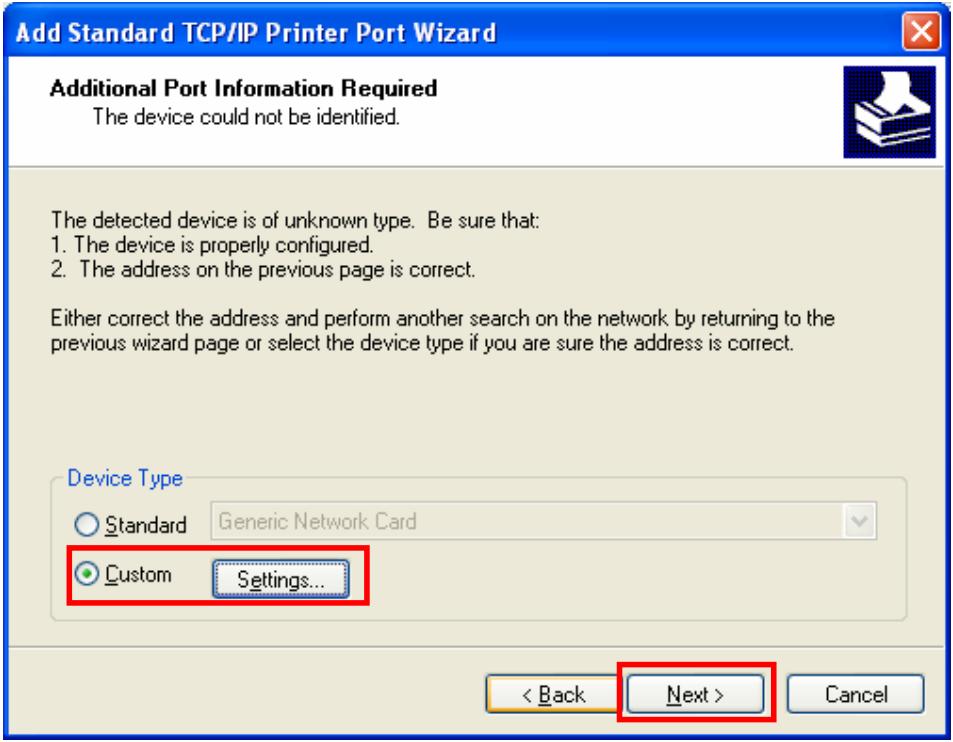
- Select "RAW" and enter "lpt1" in the "Queue Name", click "OK". By default the queue name of the MFP Server is "lpt1".
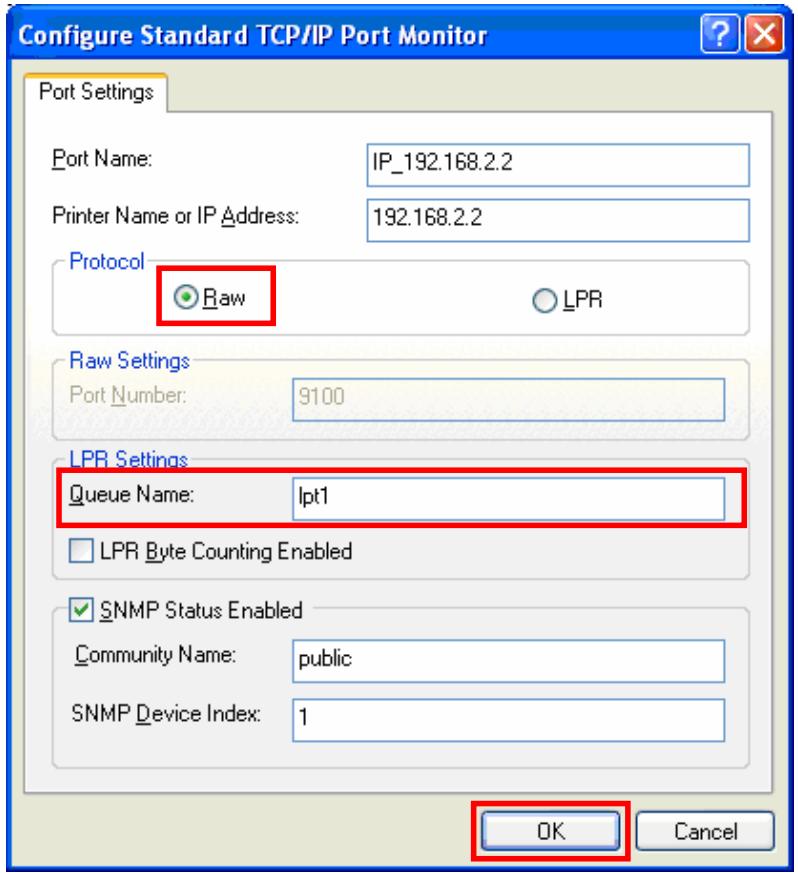
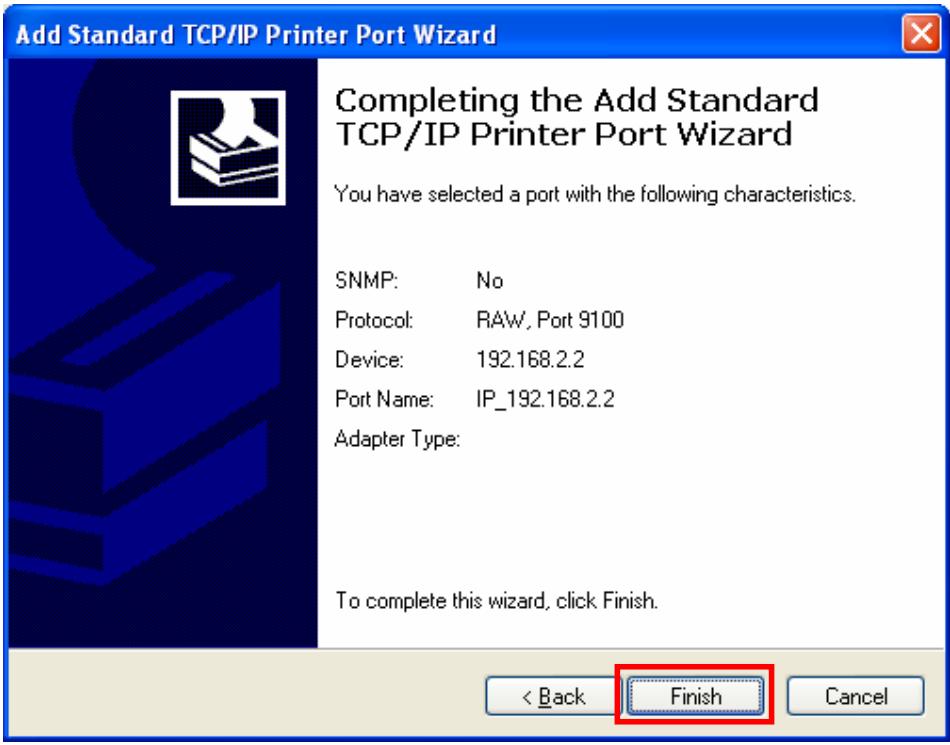
- Click "Finish".
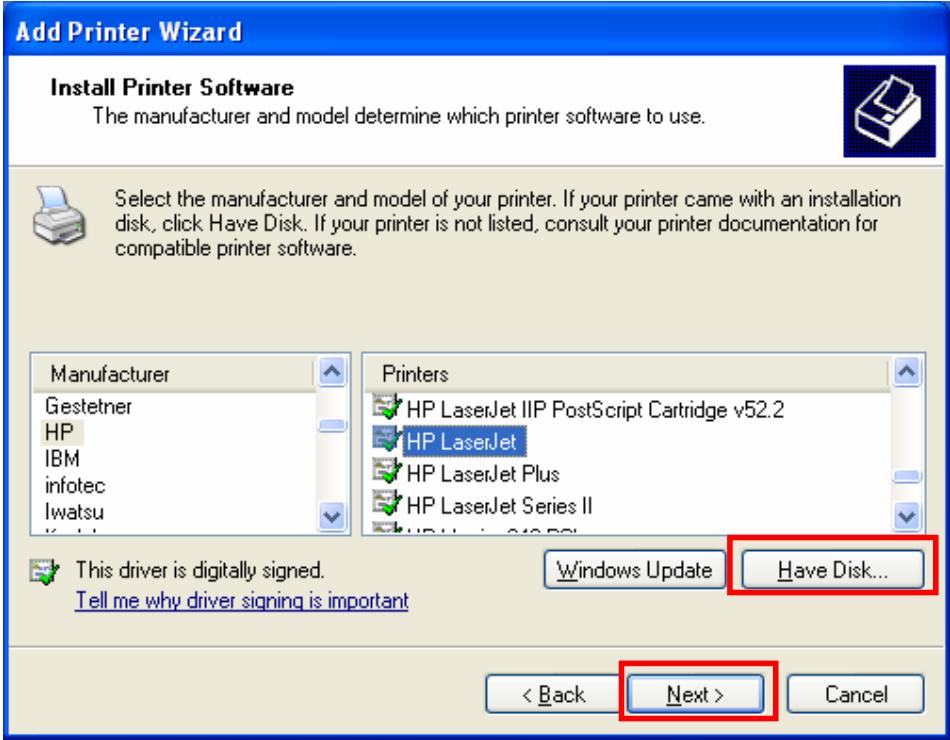
- Select a suitable printer manufacturer and the printer model and click "Next". If your printer is not in the list, click "Have Disk..." to install the driver of the printer. After installation, the printer model will be added to the list.
- Choose to set the print whether as a default printer or not. Click "Next".
- You have added the network printer to the PC successfully. The information of the printer is displayed in the windows. Click "Finish".
7.3 IPP Printing
IPP (Internet Printing Protocol) Printing provides a convenient way of remote printing service by TCP/IP. The MFP Server can support IPP printing in Windows 2000/XP/2003 by default. By using the IPP printing, you can share the printer to all the PC's that can access the MFP Server by IP. You can even share your MFP or printer to Internet users.
7.3.1 System Setup
7.3.1.1 MFP Server Side
It does not need to do any setting on the MFP Server side. Make sure the MFP Server has correct IP settings. If you want to share the printers to Internet users, you have to set a real IP to the MFP Server. You also have to make sure that any gateway, router or firewall does not block IPP protocol if you have these gateway devices installed in your network.
7.3.1.2 Client Side
You only need to perform Window's standard Add New Printer procedure.
- Click "Start", choose "Settings" and select "Printers and Faxes".
- Click "Add a Printer".
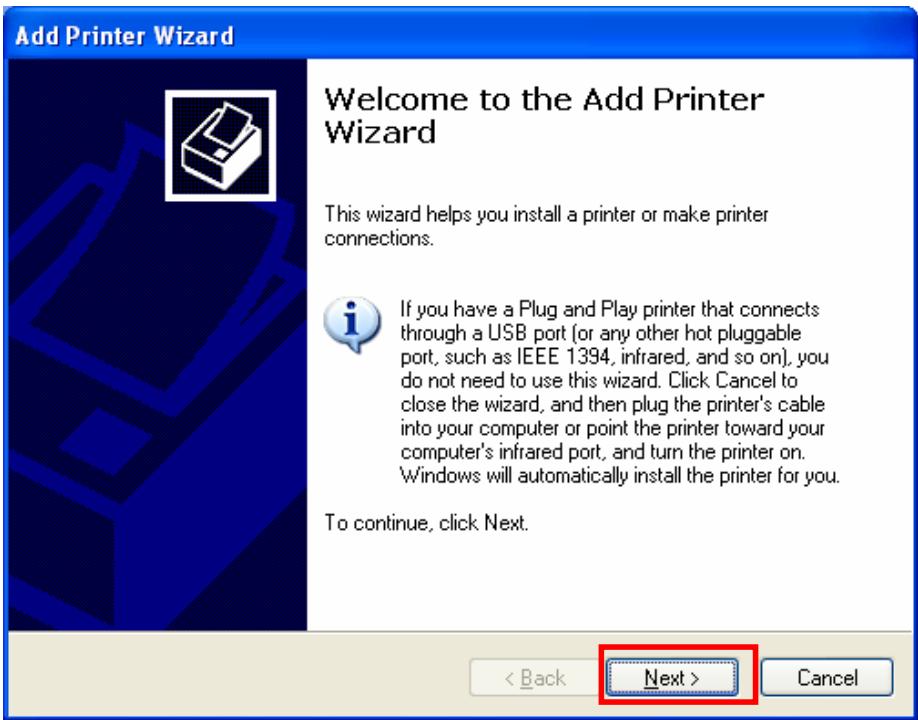
- The "Add Printer Wizard" is displayed. Click "Next".
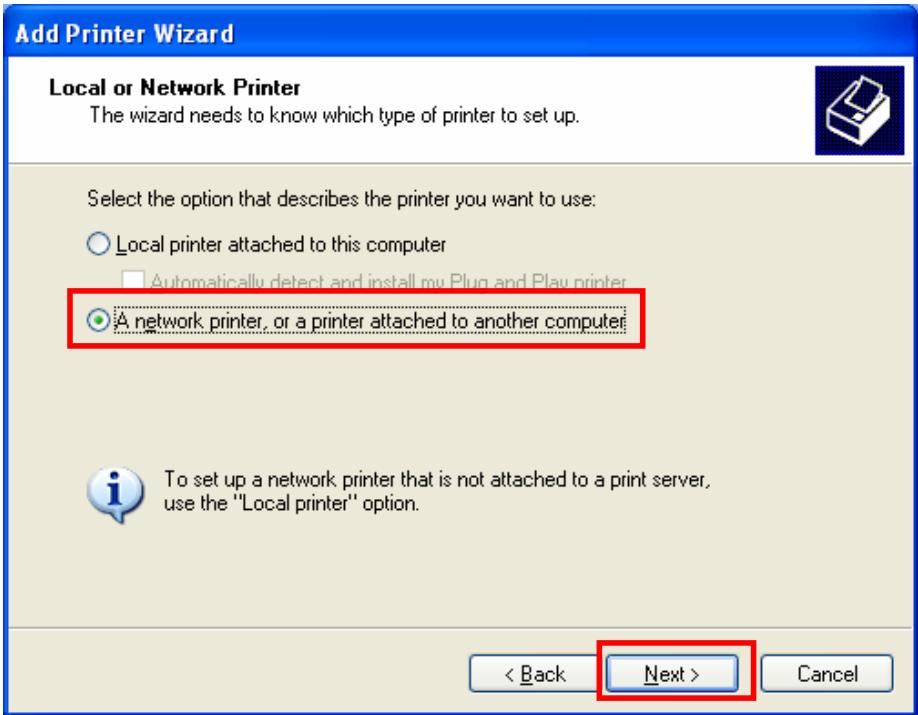
- Select "A network printer, or a printer attached to another computer". Click "Next".
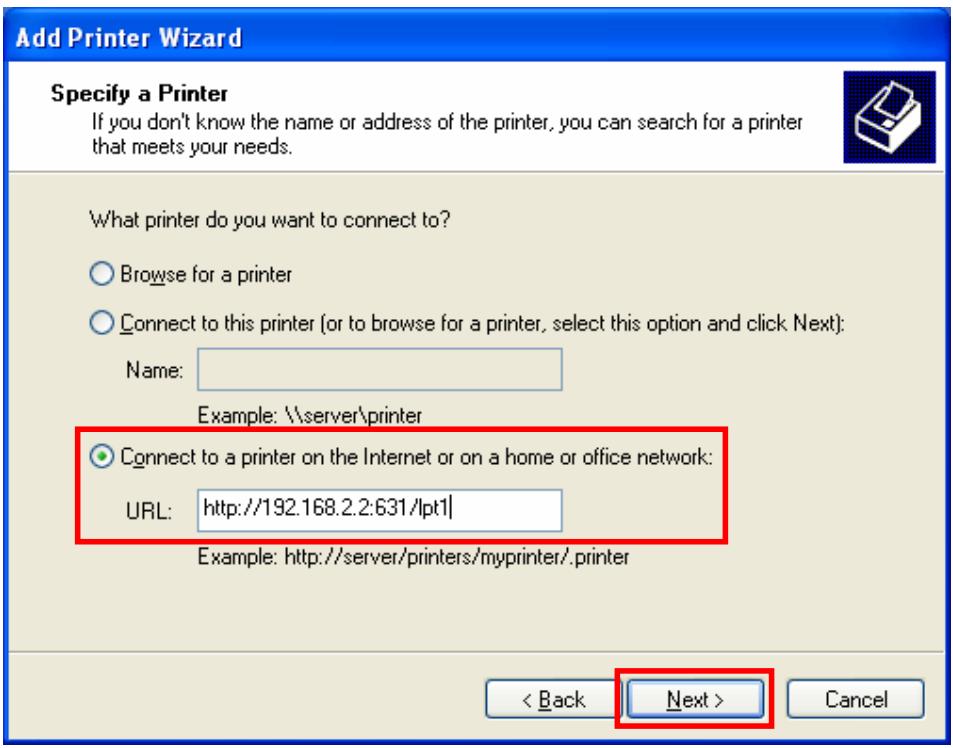
- Select “Connect to a printer on the Internet or on a home or office network” and enter the URL of MFP Server. The URL format is “http://IP:631/Port Name”. The IP should be the MFP Server’s IP. The number 631 is IPP standard port number. Port Name is the port name of MFP Server that your printer is connected to. The default port name is “lpt1”. One example of the URL is http://192.168.2.2:631/lpt1. After entering the URL of MFP Server, click “Next”.
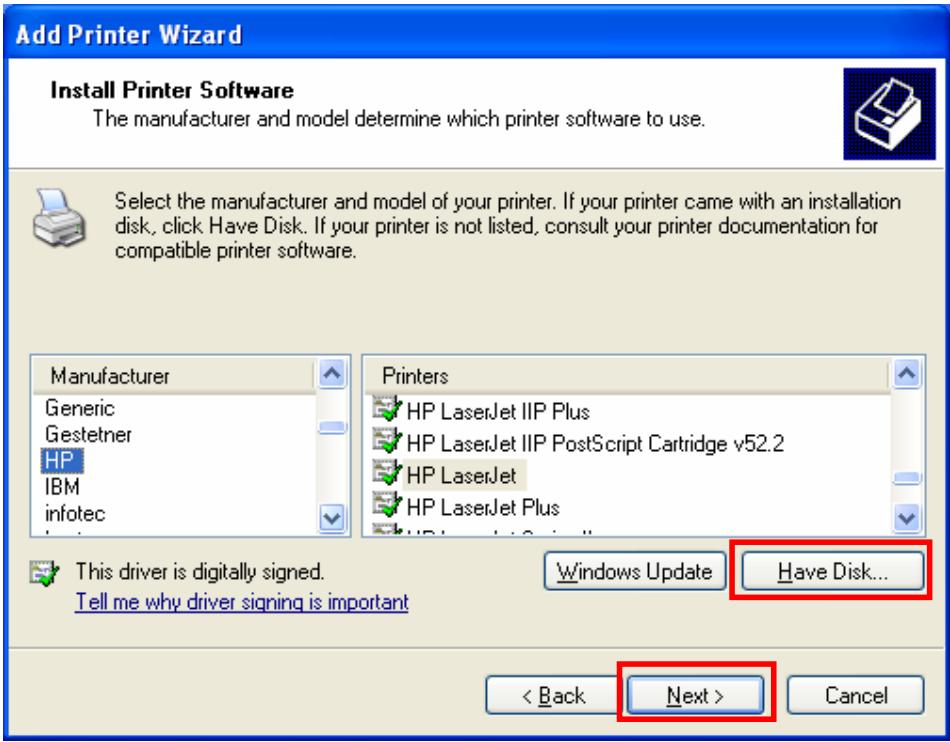
- Select a suitable printer manufacturer and the printer model and click "Next". If your printer is not in the list, click "Have Disk..." to install the driver of the printer. After installation, the printer model will be added to the list.
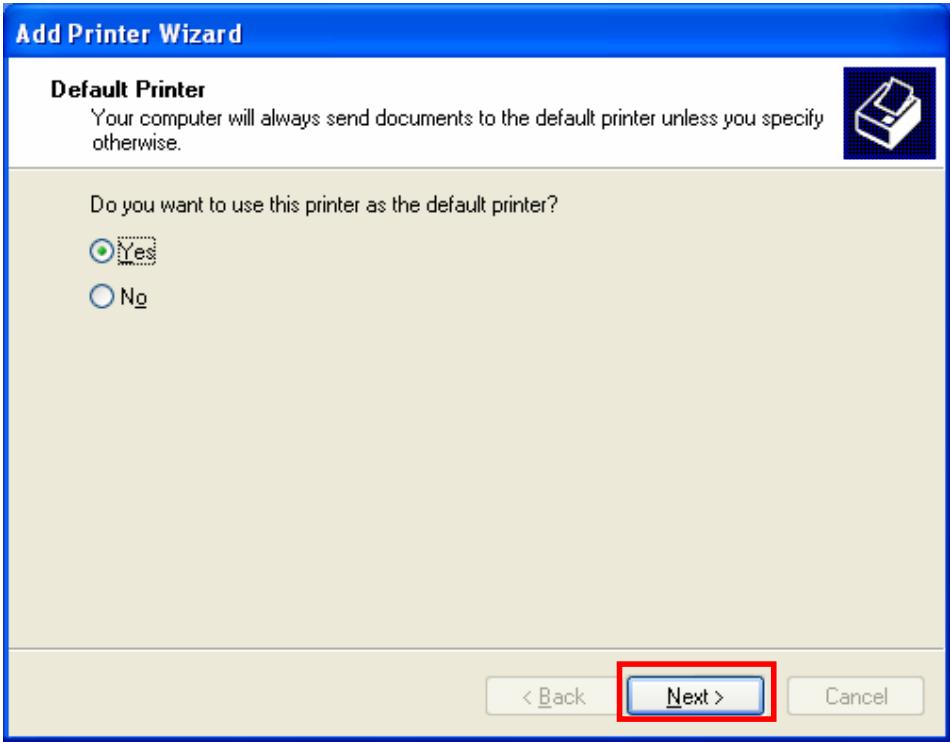
- Choose to set the print whether as a default printer or not. Click "Next".
- You have added the network printer to the PC successfully. The information of the printer is displayed in the windows. Click "Finish".
Add Printer Wizard

Completing the Add Printer Wizard
You have successfully completed the Add Printer Wizard. You specified the following printer settings:
Name: unknown on http://192.168.2.2:631
Default: Yes
Location:
Comment:
To close this wizard, click Finish.
<Back
Finish
Cancel
8
MFP Server Installation in Win98SE/ME/NT
This MFP Server supports TCP/IP network protocol and IPP, RAW and LPR printing protocols, it can be a print server when you operate it in Win 98SE / Me / NT / 2000 / XP / 2003 / Vista, Unix / Linux and MAC OS. The IPP and RAW printing protocols can be used in Windows 2000/XP/2003. The LPR printing protocol can be used in Windows 98SE/Me/NT/2000/XP/2003/Vista, Unix/Linux and MAC OS.
This chapter will introduce you how to install the MFP Server to be print server in Win98SE / Me / NT.
Before you start, you should have:
One computer with Win98SE / Me / NT.
The TCP/IP network protocol has been installed in the PC.
8.1 Software Installation Procedure
The following are the installation steps in Windows 98SE. To install MFP Server in Windows Me/NT, the procedures are similar.
- Insert the CD shipped along with the MFP server into your CD-ROM drive. The Autorun.exe program should be executed automatically. If not, run Autorun.exe manually from CD-ROM drive's root directory.
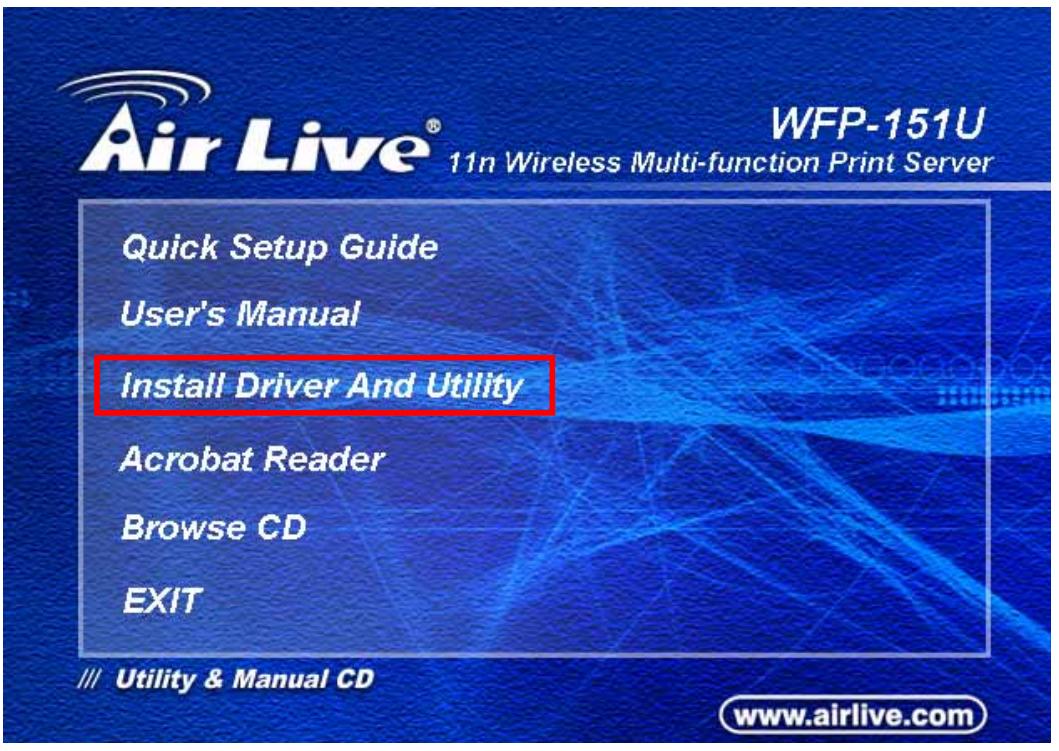
- The following screen will be displayed. Click "Driver and Utility".
- The "MFP Server Utilities - InstallShield Wizard" is displayed, click "Next".
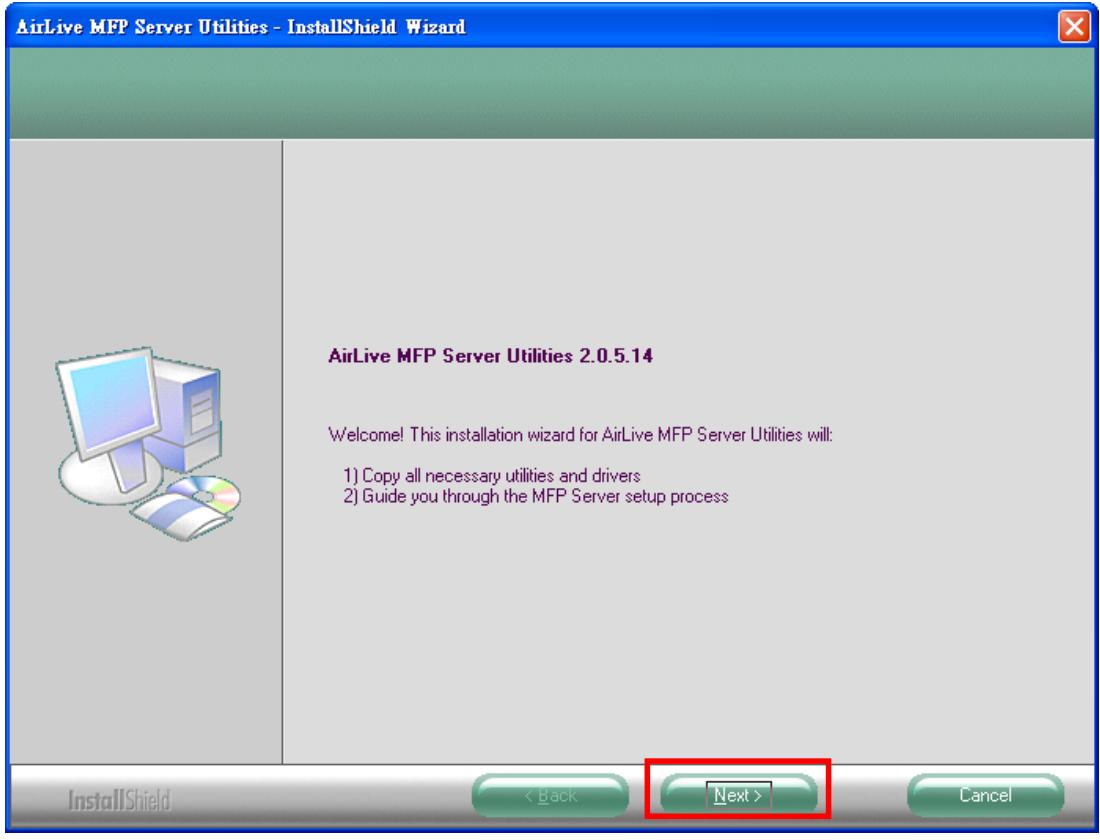
- Click "Next" to install the MFP Server utilities in the default folder or click "Change" to specify the destination folder where you would like to install the MFP Server utilities.
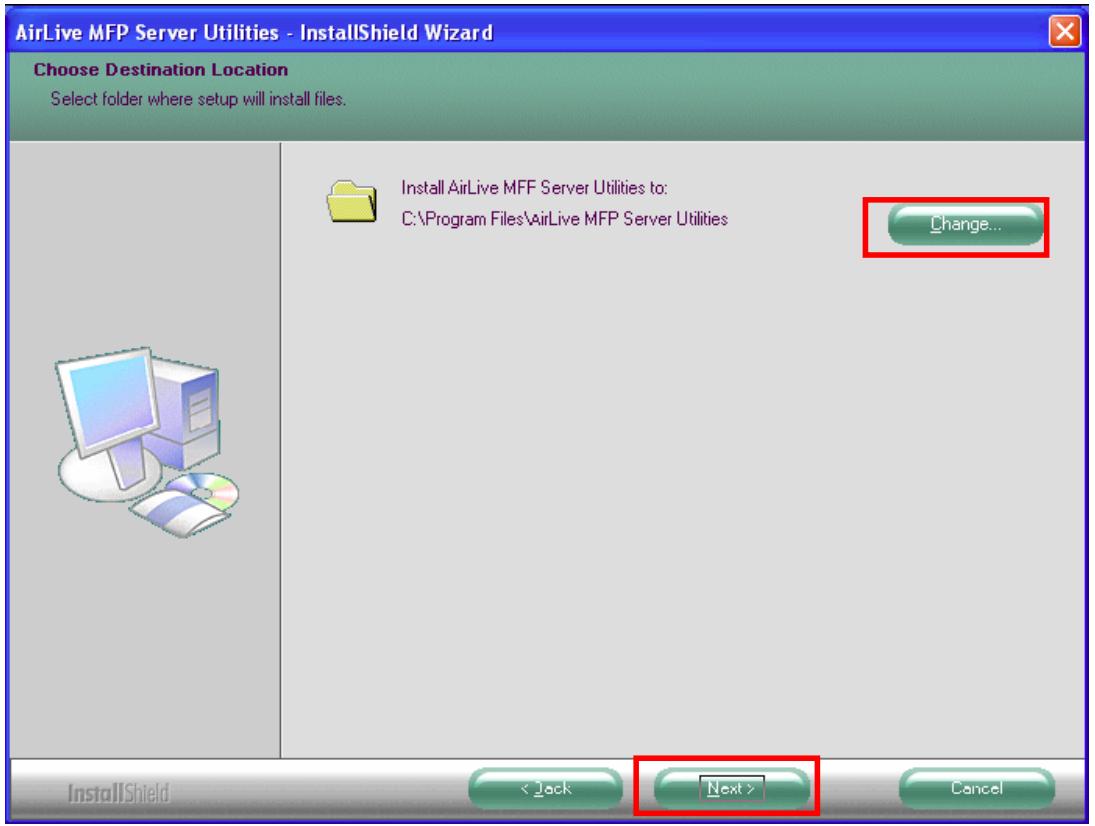
- Click the" Continue Anyway button " for software installation
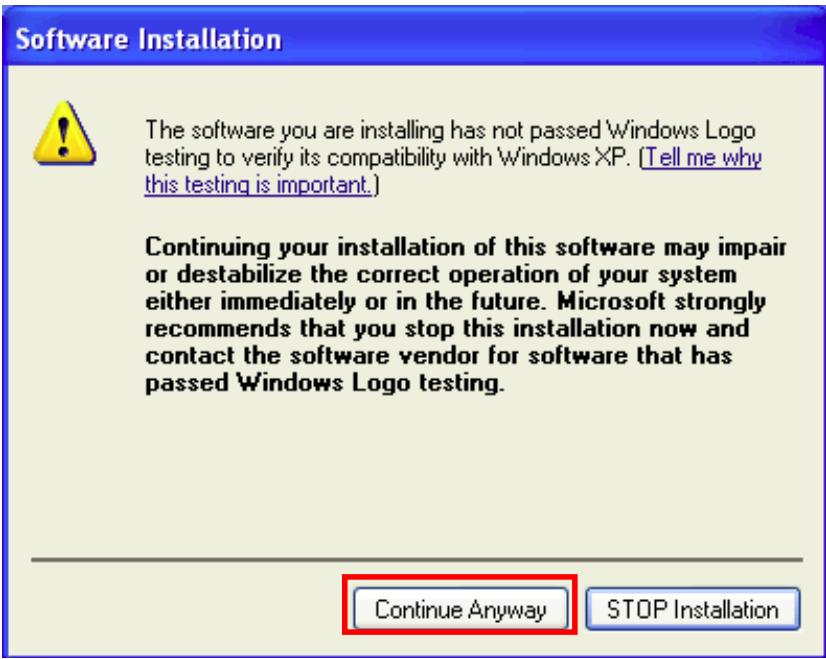
- The system starts installing the MFP Server Utilities.
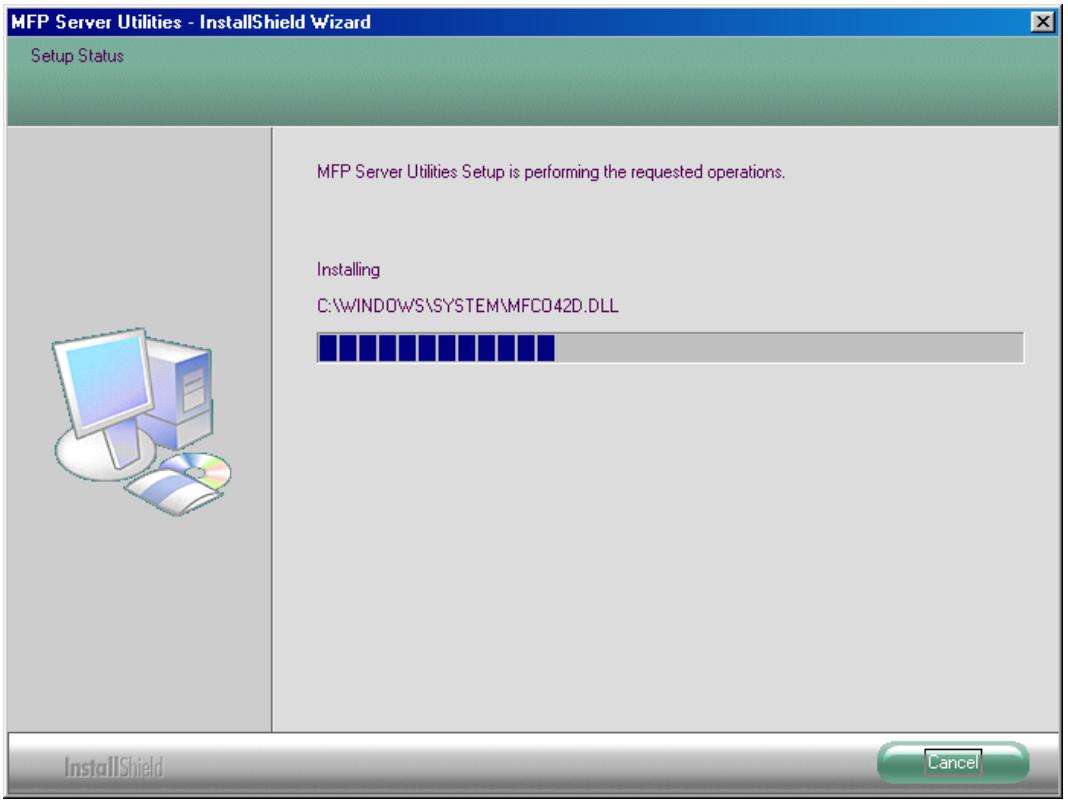
- The "MFP Server Configuration" screen is displayed. If you want to configure the MFP Server, please click "Next" directly. Or you can select "No, I will configure the MFP Server later" and click "Next" to complete the installation.
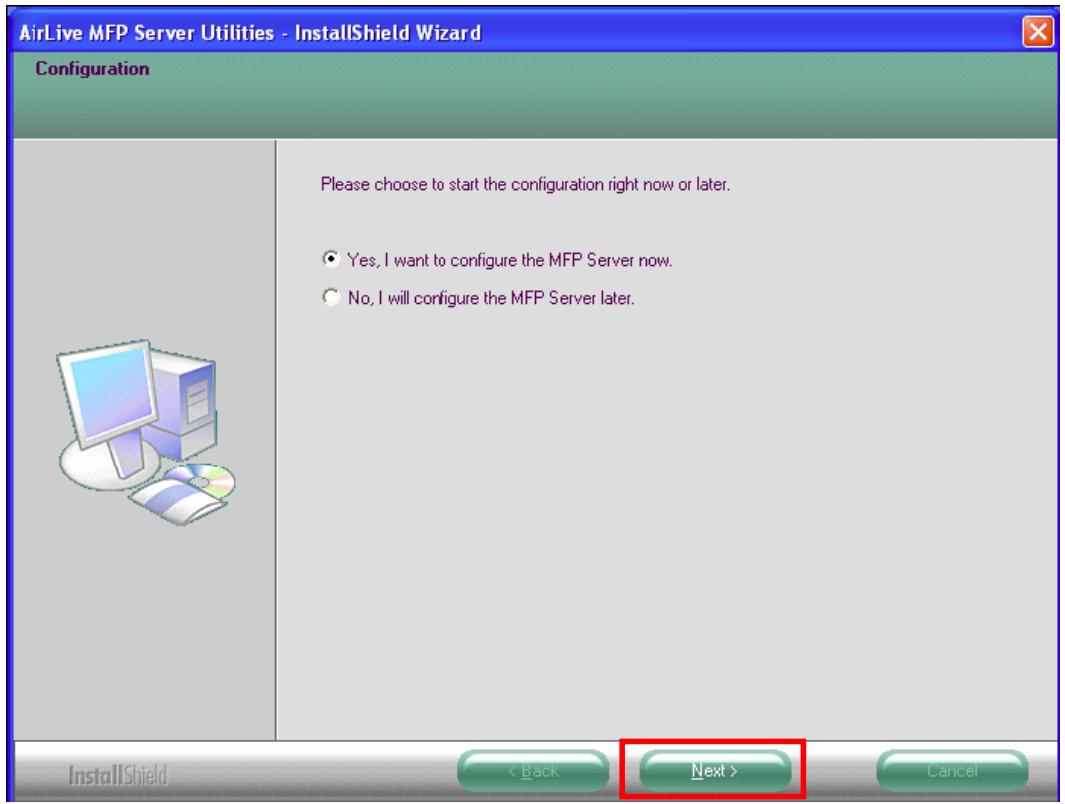
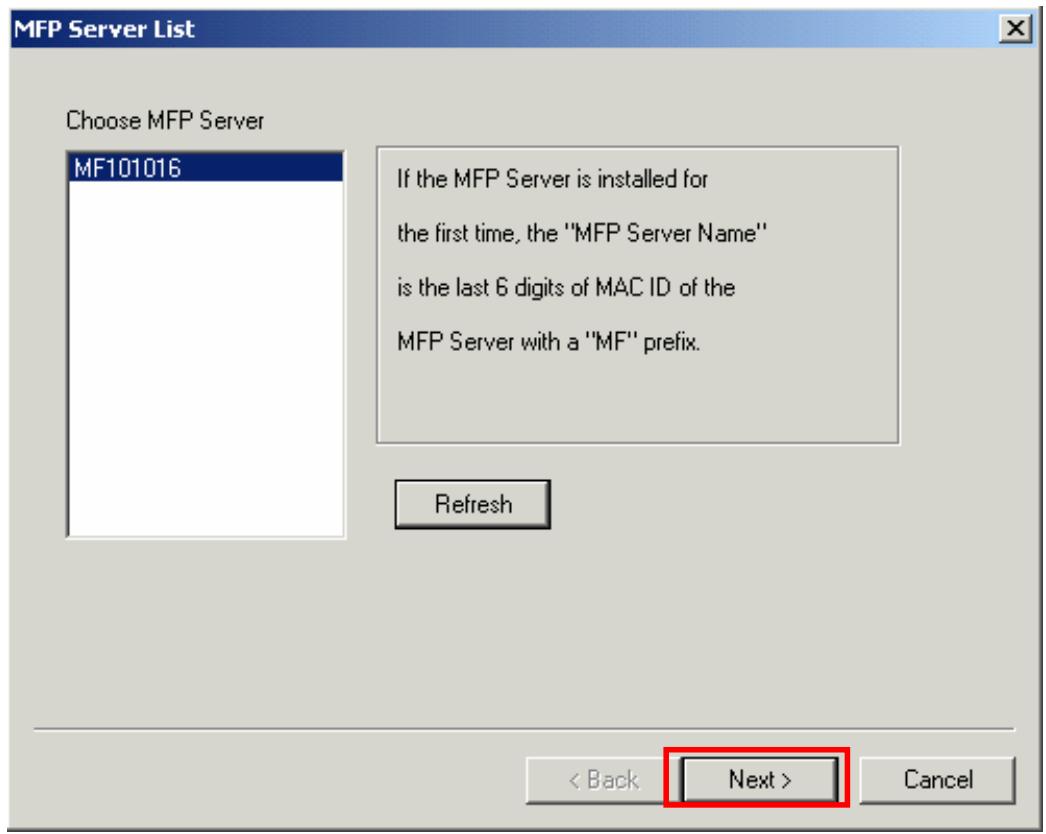
- Once choosing "Yes, I want to configure MFP Server now." and click "Next". The MFP Server List will auto search the MFP Servers in the network. Select the MFP Server you want to setup and click "Next" to continue.
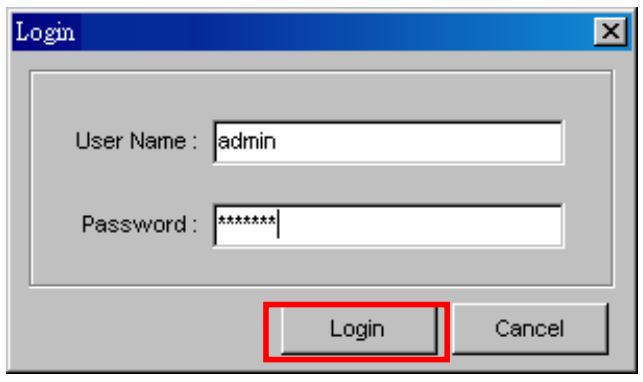
- Enter the "UserID" and "Password" of the MFP Server you have selected to login the MFP Server. The default "UserID" is "admin"; default "Password" is "airlive".
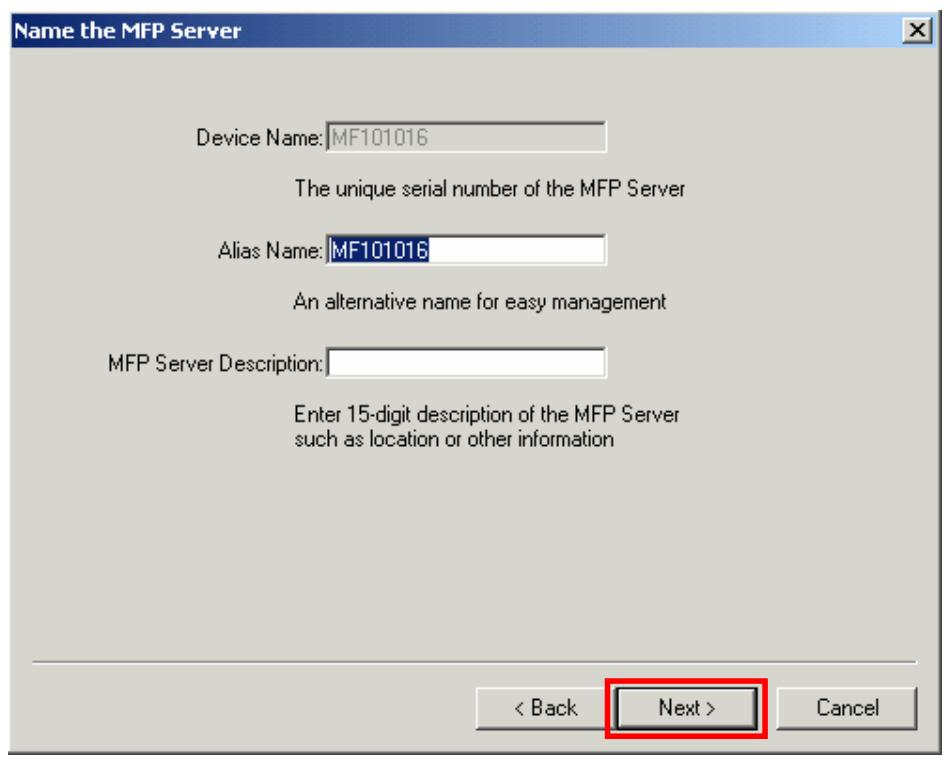
- Set the "Alias Name" and the "MFP Server Description" to the MFP Server here. Click on "Next".
Note: You can define the location or other information of the MFP Server for easy to find the MFP by filling "MFP Server Description".
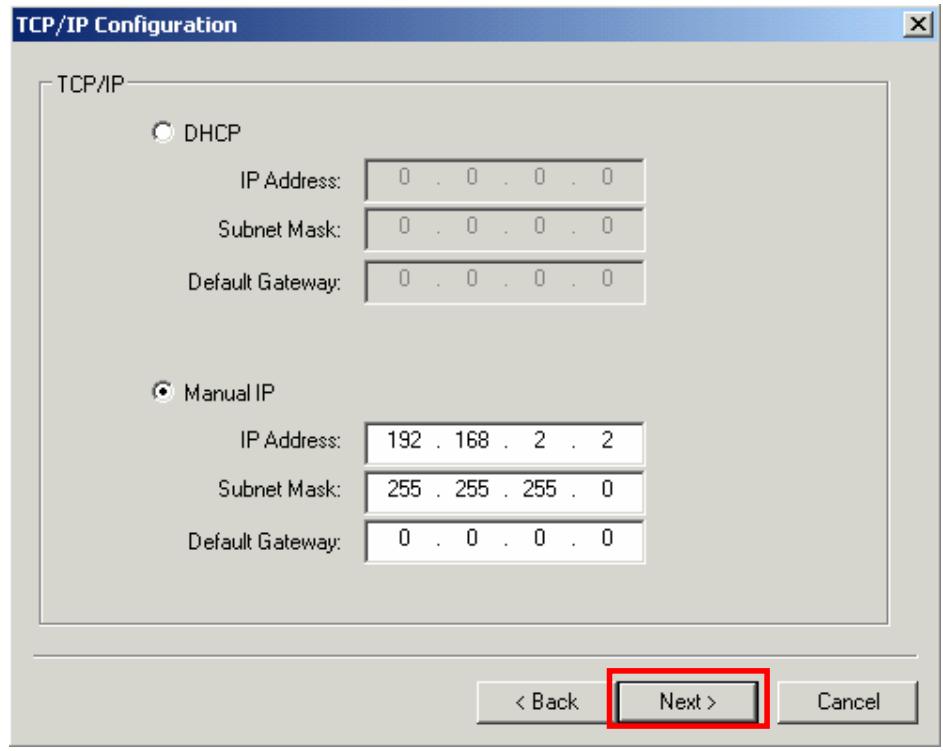
- Please set the network settings for the MFP Server manually. By default, the network settings are as follows.
IP Address: 192.168.2.2
Subnet Mask: 255.255.255.0
If you have selected "DHCP", the MFP Server will try to determine your network settings automatically. If a DHCP Server is present within the network, the MFP Server will automatically obtain and configure the network settings assigned by the DHCP Server. The assigned IP Address will be shown in the IP Address fields. If no DHCP Server is present within the network, please assign the network settings of the MFP Server manually. Please click "Next" once you have found appropriate network settings for the MFP Server.
Note: The MFP Server IP Address should be in the same network segment with the connected computer. If the network settings are incorrect, a message will be prompted to remind you after you click "Next". Please make sure that you have set the right settings before going to the next step. If you don't want to set it now, please click "Cancel" to finish the installation. You can then use the "Server Manager" utility to configure the MFP Server.
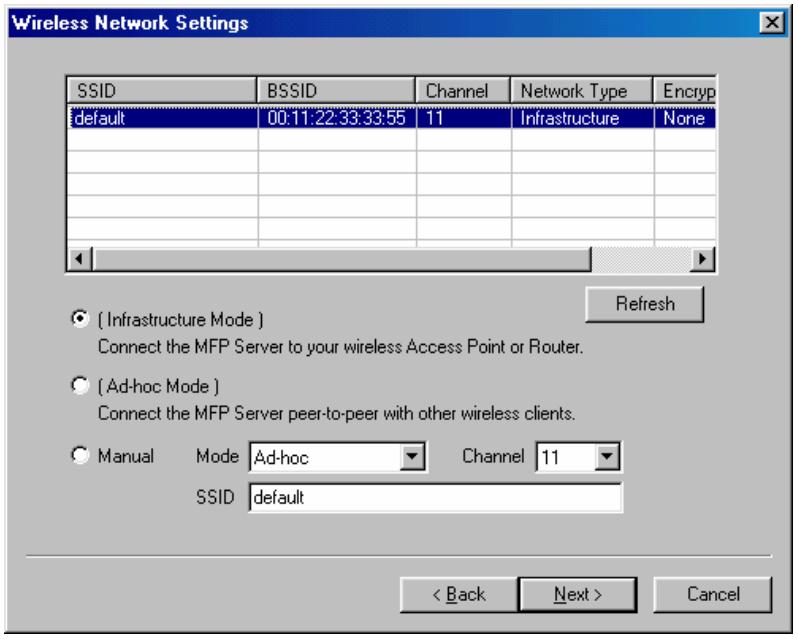
- The "Wireless Network Settings" screen will allow you to connect your wireless MFP Server to your wireless router, access point, or point-to-point ad-hoc connection.
The MFP Server will automatically scan the wireless networks nearby. Please select the appropriate wireless network that you would like to connect from the list and click "Next".
You may choose to scan for the wireless access point or router (Infrastructure mode) or the wireless adapters (Ad Hoc mode). Or, you can manually enter the wireless network information (Manual mode). By default, the wireless settings are as below.
Mode: Infrastructure
SSID: Default
Channel: 11
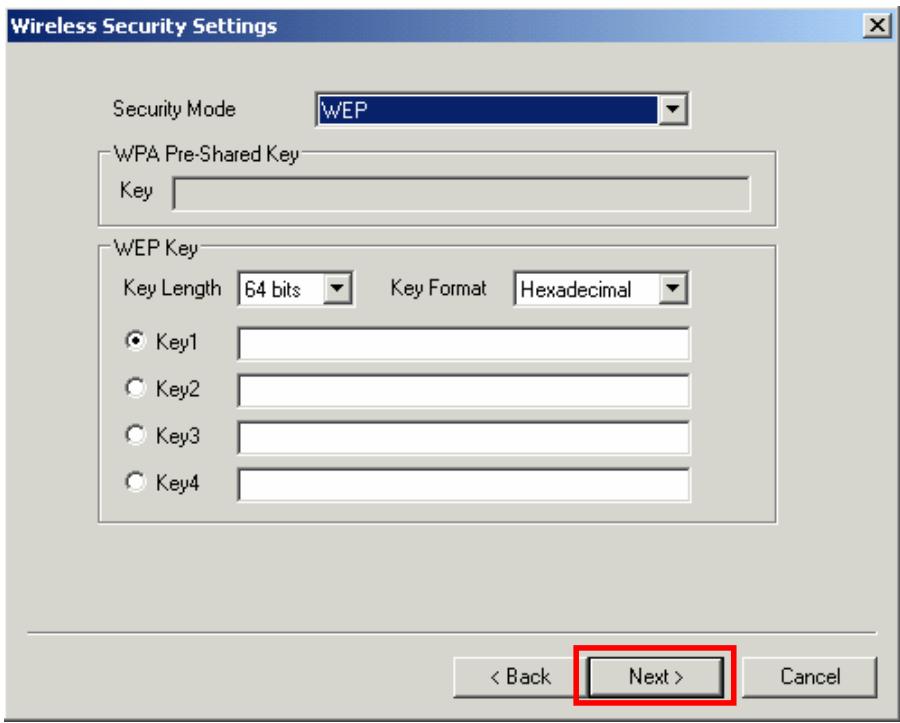
- If you chose to connect to an encrypted network, the "Wireless Security Settings" screen will be appeared. You have to select the "Security Mode" and enter the key the same as the settings on your wireless devices. For more information about the security settings, please refer to the Chapter 4.
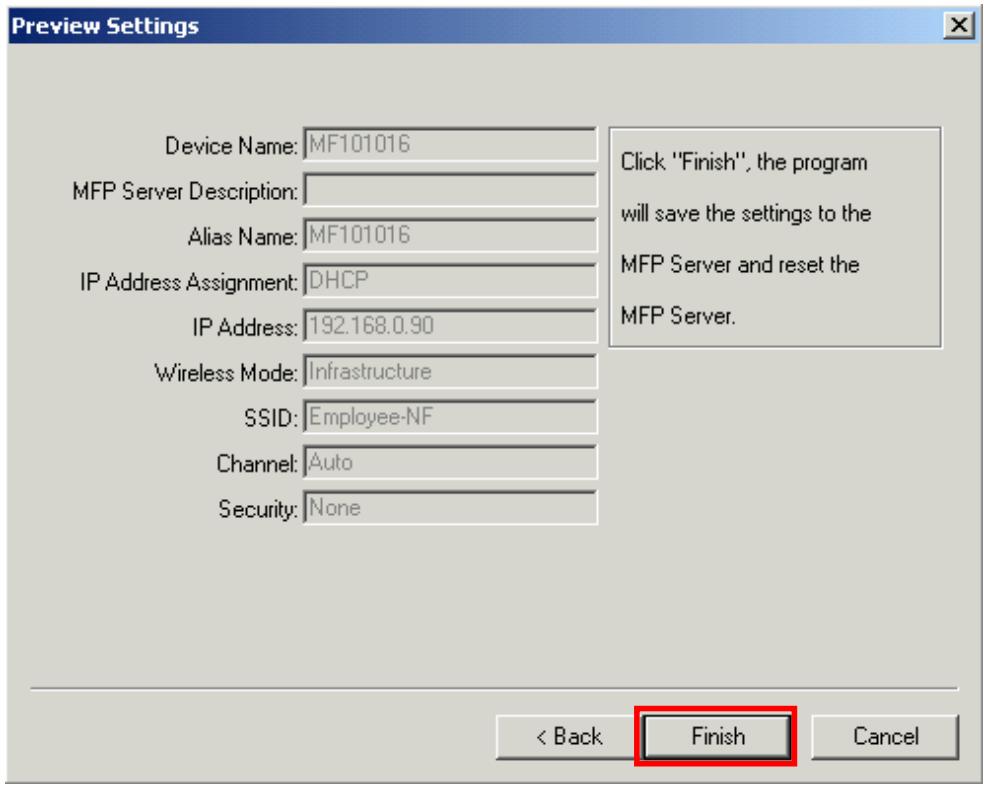
- The configurations are finished. Please click "Finish" to apply new settings.
- Click "Finish" to complete the installation.
Note: If the Windows XP Firewall in your system has been enabled, the MFP Server will automatically open ports for the MFP Server programs smoothly run in your system. It will not cause abnormal behaviors or unsafe on your system.
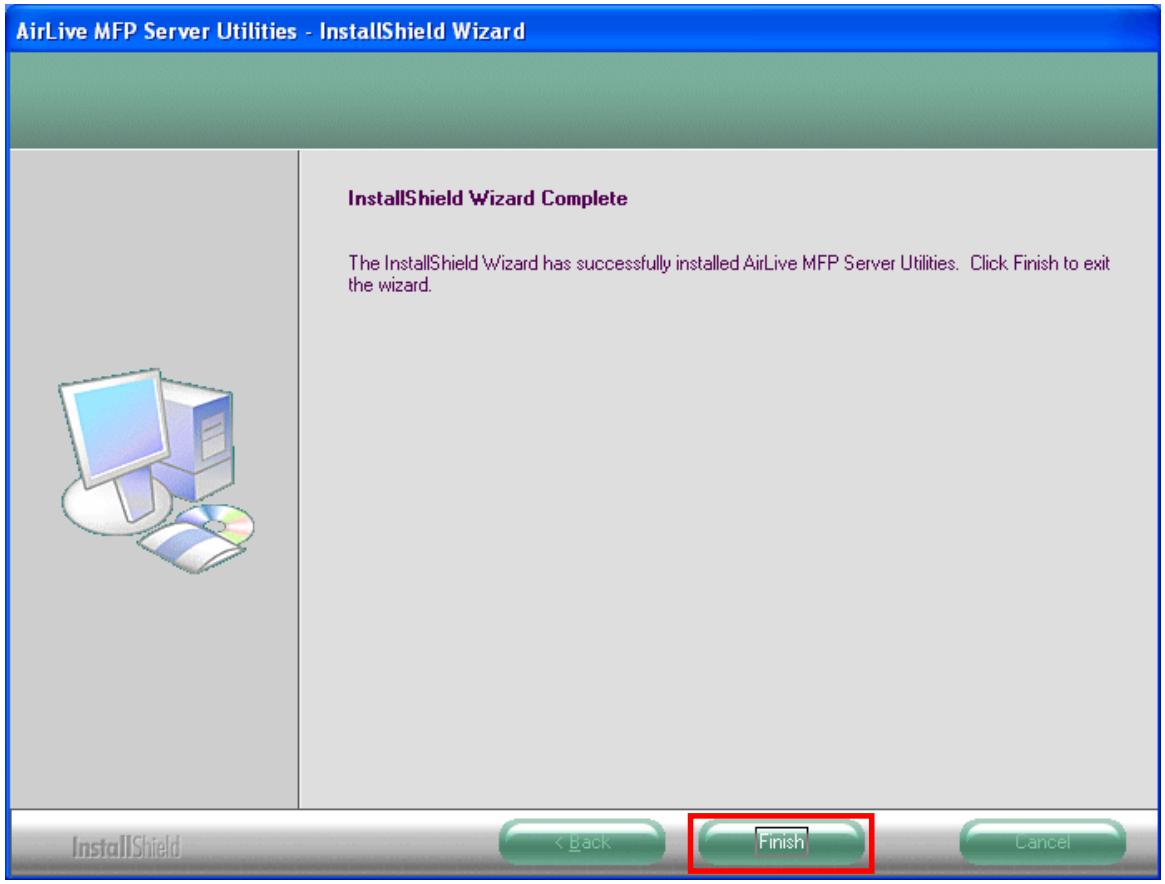
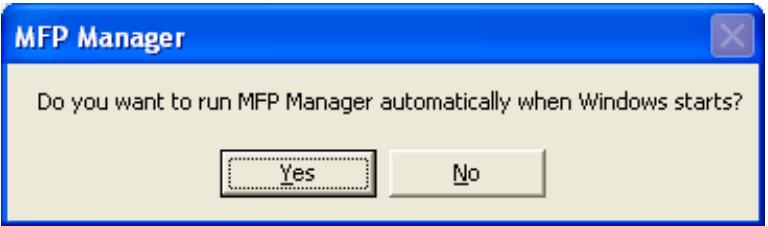
- Choose if you want to run the "MFP Manager" utility automatically when Windows starts. It is recommended to enable the setting.
- The default wireless setting is "Auto" mode. The MFP Server will detect if the MFP Server is connected to a wired LAN network through the attached Ethernet cable. If yes, it will work in wired network. To enable the wireless setting, please remove the Ethernet cable. For more detailed information about wireless setting, please refer to Chapter 4.
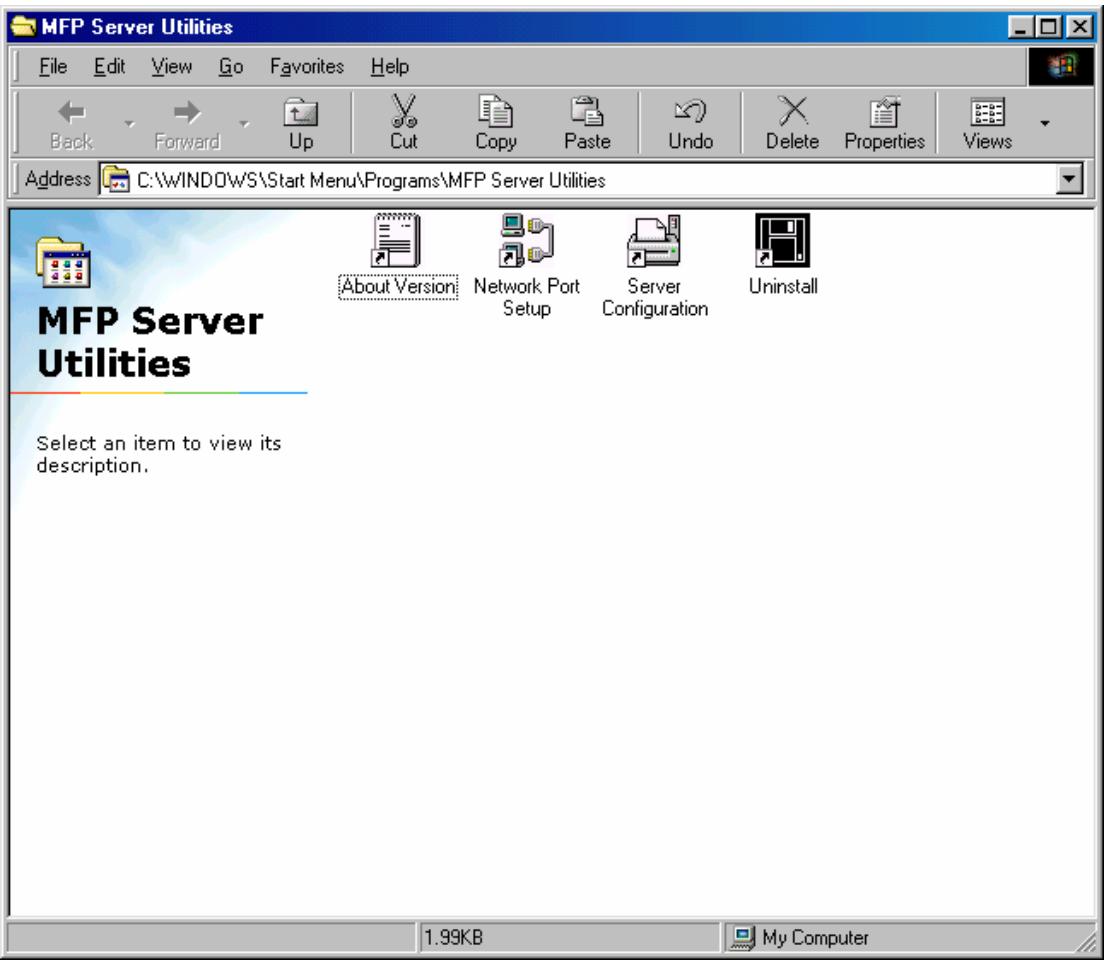
8.2 Server Utilities
After the installation is completed, there will be three utilities and a text file in the MFP Server's Program folder.
Network Port Setup - Add the network ports of MFP Server within the network to your PC.
Server Manager - Allows you to configure IP Address, network protocols and other advanced functions. Please refer to Chapter 6 for the detail instruction of the configuration.
Uninstall - Assistant for removing all installed software.
About Version - Display the version of each utility including in the MFP Server software programs.
8.3 Network Port Setup
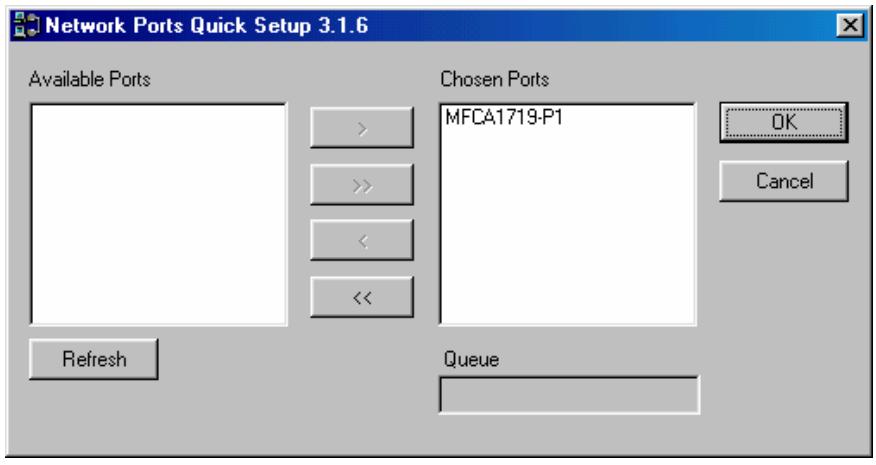
"Network Port Setup" Utility offers a very simple method to add or remove MFP Server's printer port from the client's computer.
During the MFP Server's installation procedure, the system will automatically search for all MFP Servers on the network, and add the printer port of the MFP Server you have selected to user's computer (see below).
If you have just installed another new MFP Server in the network, you must run this program first. This program will search for new MFP Servers and allow you to add the new network printer port into your computer conveniently. Perform the standard Add Printer procedure, then you can print directly to the printer through the newly installed MFP Server.
Note: Please be aware that Network Port Setup Utility can only detect and configure all MFP Servers within the same network; it cannot search and configure the MFP Servers on other subnets across network segments.
8.4 Add Printer
After adding a "Network Port" of the MFP Server to your computer, you can follow the procedure described below to add printer to the Windows. Note that following "Add Printer" steps are running in Windows 98SE, the steps in other Operating Systems are similar.
- Click "Start", choose "Settings" and select "Printers".
- Click "Add Printer".
- The "Add Printer Wizard" is displayed. Click "Next".
Add Printer Wizard
This wizard will help you to install your printer quickly and easily.
To begin installing your printer, click Next.
Back
Next>
Cancel
- Select "Local printer" and click "Next".
Add Printer Wizard
How is this printer attached to your computer?
If it is directly attached to your computer, click Local
Printer. If it is attached to another computer, click Network Printer

Network printer
Back
Next>
Cancel
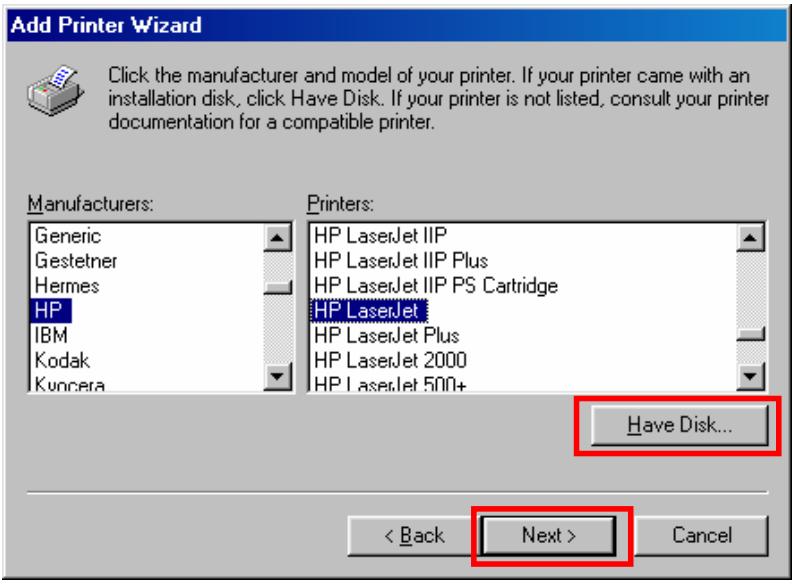
- Select a suitable printer manufacturer and the printer model and click "Next". If your printer is not in the list, click "Have Disk..." to install the driver of the printer. After installation, the printer model will be added to the list.
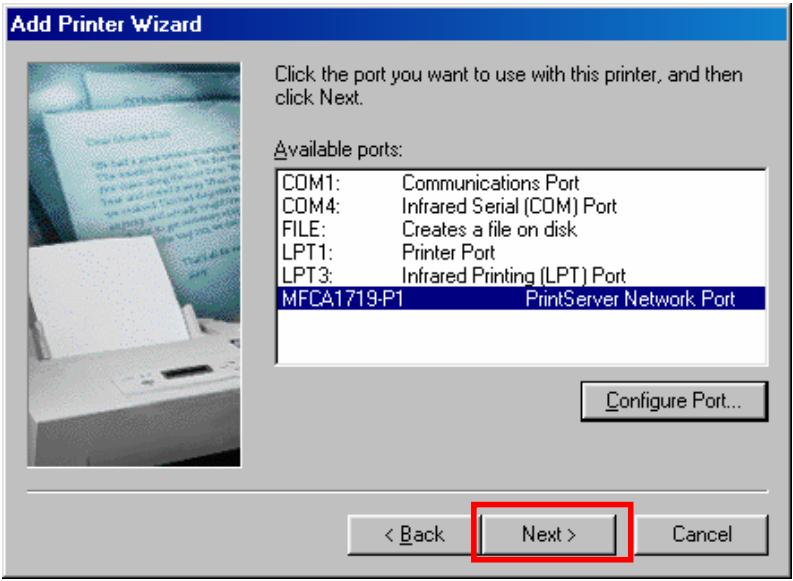
- Choose the suitable "Print Server Network Port" and click "Next".
- Please enter the new name for the printer or click "Next" to keep the default printer name.
Add Printer Wizard
You can type a name for this printer, or you can use the name supplied below. When you have finished, click Next.
Printer name:
HP LaserJet
Your Windows-based programs will use this printer as the default printer.
<Back
Next>
Cancel
- Choose to print the test page or not. It is recommended to print a test page. Click "Finish".
Add Printer Wizard
After your printer is installed, Windows can print a test page so you can confirm that the printer is set up properly.
Would you like to print a test page?

Yes [recommended]

No
<Back
Finish
Cancel
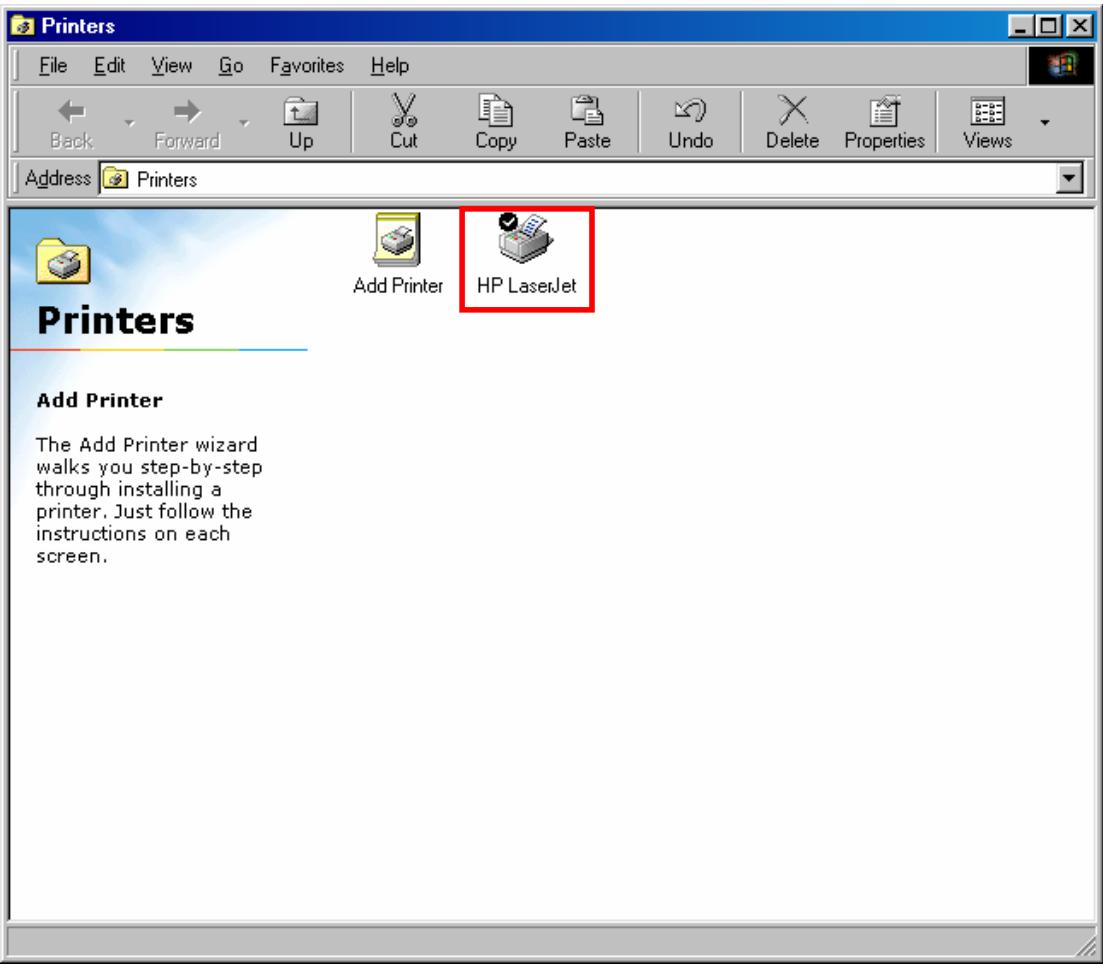
- The drivers of the printer will be installed. After complete the installation, the printer has been added to your computer.
9
MFP Server Installation in UNIX/Linux
The MFP Server is available for TCP/IP printing by Unix/Linux LPD (Line Printer Daemon) protocol. This chapter explains how to set the MFP Server with the LPD protocol in the Unix/Linux system. Following describe two modes to configure the MFP Server. In the GUI Mode, we follow the settings in the Fedora Core 4 system. If you are in different system, you can refer to the configurations in the Console Mode.
9.1 GUI Mode
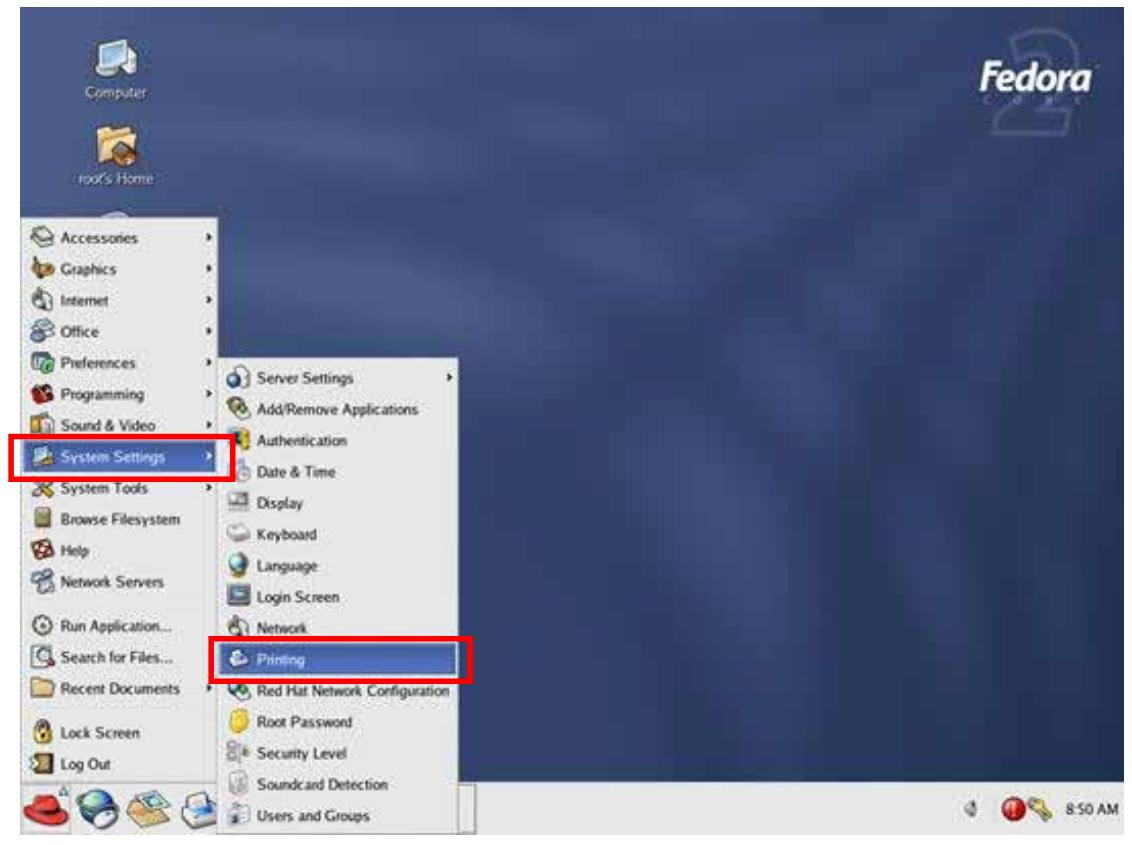
- Select "Printing" from "System Settings".
- Click "New" to add the MFP or printer with the MFP Server.
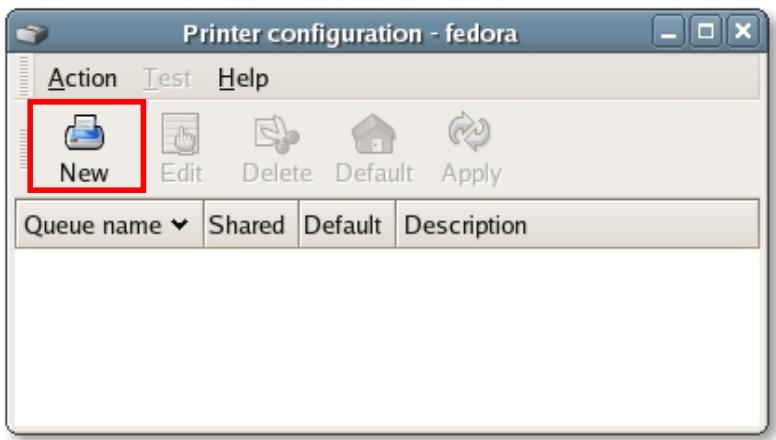
- Click "Forward".
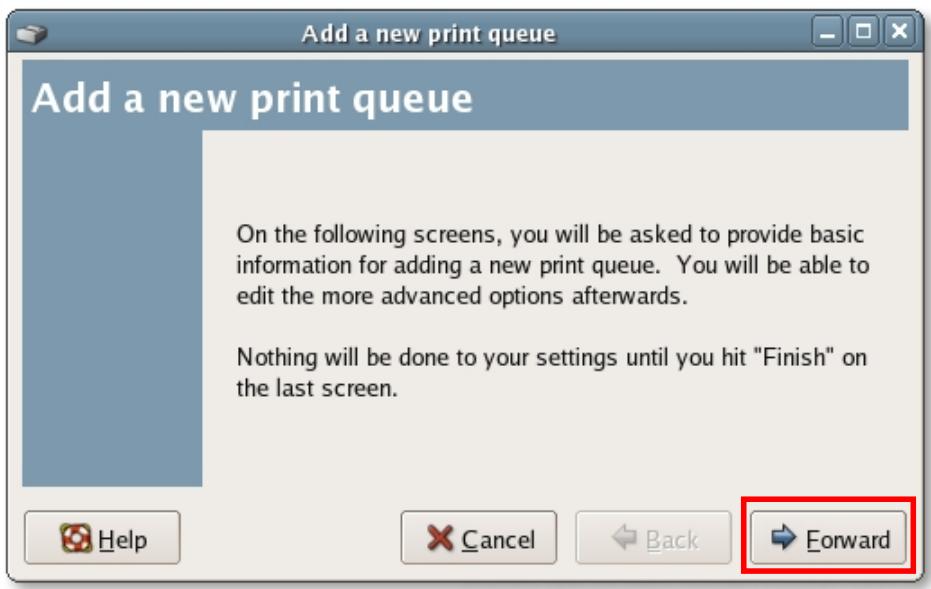
- Set the printer queue name and the short description of the MFP or printer and click "Forward".
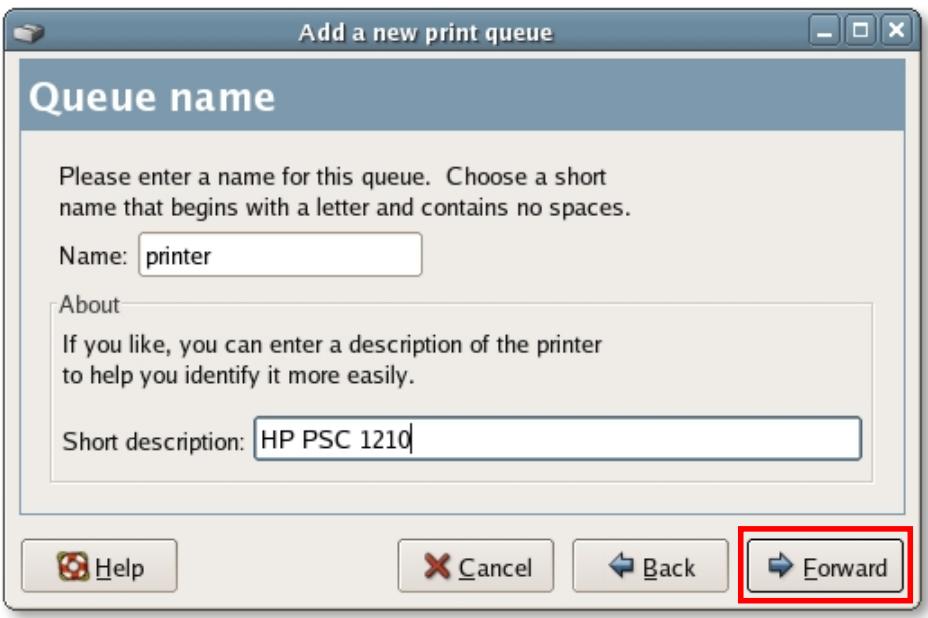
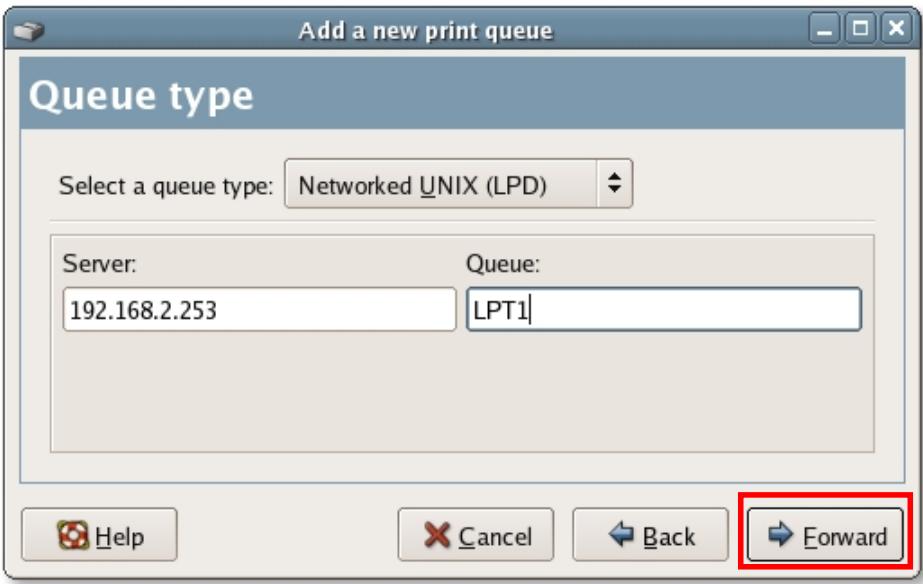
- In the following screen, please configure as below. Then click "Forward" to continue.
Select a queue type: Select "Network Unix (LPD)" as the queue type.
Server: Enter the IP Address of the MFP Server, for example: 192.168.2.253.
Queue: Set the queue name to lpt1.
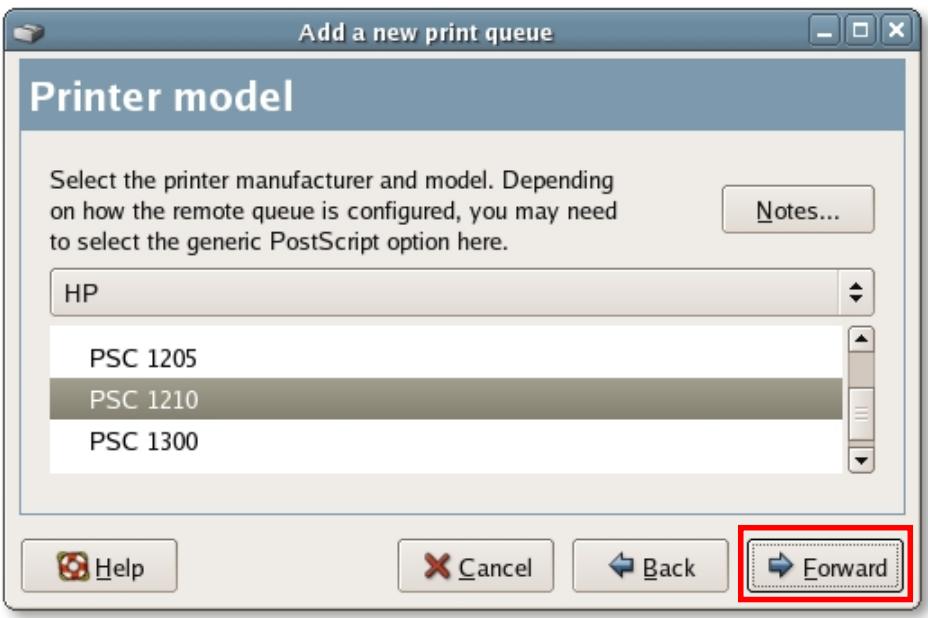
- Select the MFP or printer manufacturer and model and click "Forward".
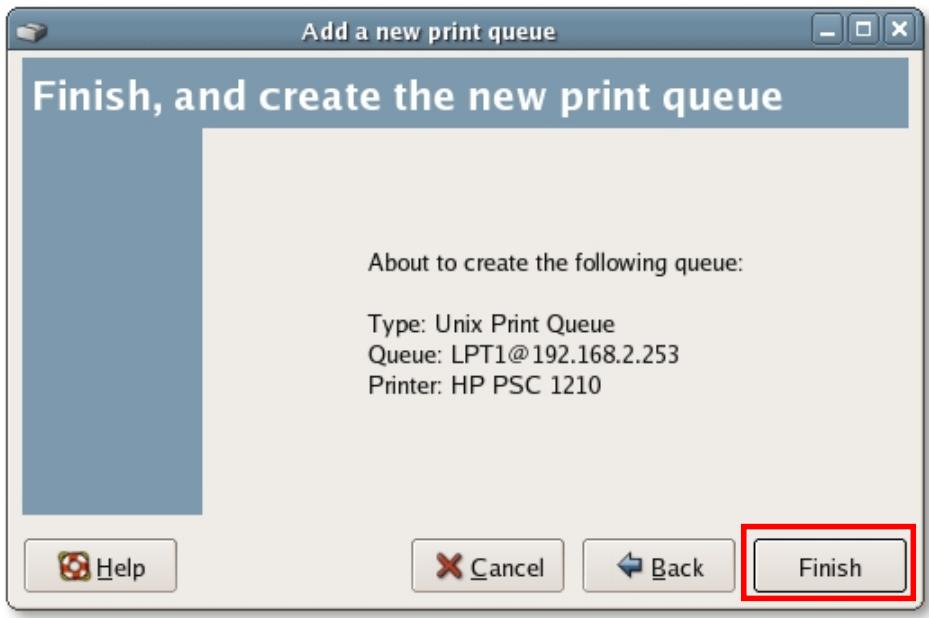
- Please review the settings. If the settings are no problem, click "Finish"
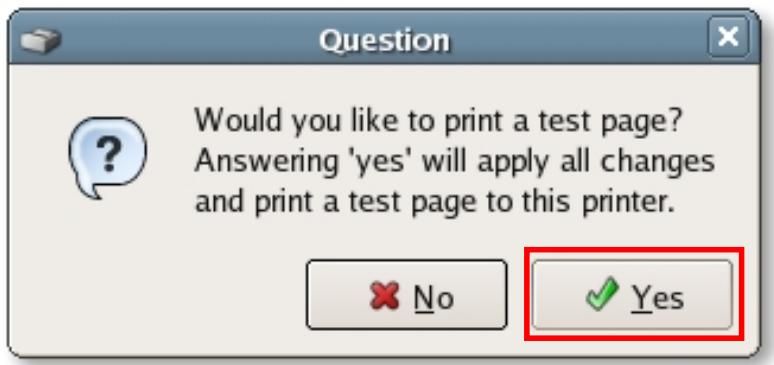
- To print a test page and apply all the settings, please click "Yes".
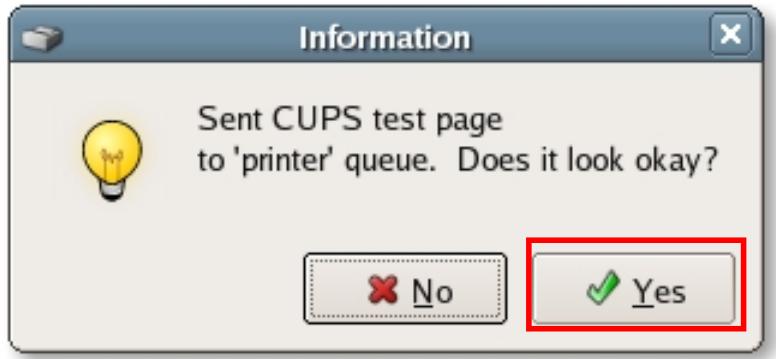
- If the test page is printed without problem, please click “Yes”. If it is failed to print, please click “No” to go back to “Printer configuration - fedora” screen and configure again.
9.2 Console Mode
To configure the MFP Server for LPD printing, perform the procedures below:
- Enable MFP Server's TCP/IP Support.
- Set up MFP Server's IP address.
- Verify MFP Server's IP Address.
- Configure remote LPD printing on the host.
- Print a test page.
In the next sections, we will describe these five procedures step by step.
9.2.1 Enable MFP Server's TCP/IP Support
The default configuration of the MFP Server is with TCP/IP support enabled. Anyway, you can configure the MFP Server to enable TCP/IP support using the configuration program.
9.2.2 Setup MFP Server's IP Address
The MFP Server must have a unique IP address in order to be recognized by the network.
You can set up the IP address on the various Unix/Linux systems using any one of the following methods:
- DHCP (Dynamic Host Configuration Protocol)
- BOOTP (Bootstrap Protocol)
The MFP Server will use the last two methods to obtain its IP address automatically if its IP address is configured as Auto (0.0.0.0).
9.2.2.1 DHCP
There are many Unix/Linux systems that support DHCP protocol, and the procedures to configure the DHCP server database are different. Please refer to the manual of Unix/Linux for the way to use different DHCP Server. It is highly recommended that the DHCP server should be located on the same network as the MFP Server.
9.2.2.2 BOOTP
If you have the BOOTP daemon, bootpd, running on your UNIX/Linux system that is accessible by the MFP Server, you can use the BOOTP protocol to set up the IP address of the MFP Server. We recommend that the BOOTP server should be located on the same subnet as the MFP Server. If you use Network Information Services (NIS) in your system, you may need to rebuild the NIS map with the BOOTP services before doing the following BOOTP configuration. To rebuild the NIS map, please refer to your system documentation.
To configure the IP address data for the BOOTP server, you will need to log in the host of BOOTP server as the superuser (root). Perform the following steps to add address entries,
- Optionally, assign a name corresponding to the MFP Server's IP address. You can add this address to the /etc/hosts file, by adding a line such as:
203.66.191.12 pserver
- Add an entry to the host's /etc/bootptab file, similar to the following:
hostname:\
:ht=1:\
:ha=MFP Servers_eernet_address:\
:ip=MFP Servers_ip_address:
Lines should be indented with tabs.
Where hostname is the device name of a MFP Server, the ht=1 tag specifies the hardware type is Ethernet, the ha= tag specifies the Ethernet address of a MFP Server, which is the Node ID located on the MFP Server. The ha tag must be preceded by the ht tag. The ip= tag should correspond to the IP address you want to assign to the MFP Server.
For example, a MFP Server with the following configuration:
Node ID: 0000B4010101 (this implies Ethernet address is 0000B4010101),
IP address: 203.66.191.12
The entry for this MFP Server in the /etc/bootstab file should be:
MF010101:\
:ht=1:\n
:ha=0000B4010101:\n\n
:ip=203.66.191.12:
9.2.3 Verify MFP Server's IP Address
To verify your MFP Server is responding to the newly assigned IP address using a PING command:
ping ip-address
9.2.4 Configure Remote LPD Printing on the Host
The procedure you use to configure your Unix/Linux host(s) to allow printing to your network remote MFP Server varies between different varieties of Unix/Linux. The
procedure below can be used for Unix/Linux variants that are related to BSD Unix, such as SunOS or Linux. For other versions of Unix/Linux, consult your system documentation, keeping in mind that:
- The MFP Server should be treated as a BSD networked MFP Server host.
- The host name should be the name (or IP address) that you have assigned to the MFP Server.
- The printer name (or queue name) on the remote host should be lpt1, lpt2 or lpt3, the name of the printer port on the MFP Server.
You will need to perform the tasks below, logged in as the superuser (root). To configure your Unix/Linux host for printing,
- Optionally, assign a name corresponding to the MFP Server's IP address. You can add this address to the /etc/hosts file, by adding a line such as:
203.66.191.186 pserver
- Create a spool directory for the printer in the same directory where spool directories are normally kept on the machine, such as /var/spool or /var/spool/lpd:
mkdir /var/spool/lpd/pserverd
chown daemon /var/spool/lpd/pserverd
chgrp daemon /var/spool/lpd/pserverd
chmod 775 /var/spool/lpd/pserverd
- Add an entry to the host's /etc/printcap file, similar to the following:
printer-name:\
:lp=:\
:rm=203.66.191.186:\
:rp=Ipt1:\
:lf=/var/spool/lpd/pserverd.log:\
:sd=/var/spool/lpd/pserverd:\
:mx#0:
Lines should be indented with tabs. More than one printer name can be used, with
variants separated by vertical bars (name1|name2).
The rm= entry should correspond to the IP address you have assigned to the MFP Server. You can also use a host name if you have assigned one in the /etc/hosts file.
The sd= entry should correspond to the spool directory you created in the previous step.
The rp= entry should correspond to the port name of the remote printer. The values should be one of lpt1, lpt2 or lpt3 depends on the printer port.
The MFP Server should now be available for printing from your Unix/Linux host.
10
MFP Server Installation in MAC OS
LPR Printing (Line Printer Remote technology) allows Macintosh computers to connect to MFPs or printers via TCP/IP. LPR Printing can be set up on any Macintosh with version 9.x above.
10.1 MAC 10.4.x
To enable LPR Printing in Macintosh 10.4.x, please follow the procedures below.
- Open Print and Fax from the System Preferences.
- With the Printing tab selected, click the "Add" button.
- When the Printer Browser opens, select "IP Printer".
- In the "IP Printer" screen, please configure as below.
Protocol: Select Line Printer Daemon - LPD as the Protocol.
IP Address: Set the address to the MFP Server's IP Address, for example: 192.168.2.3.
Queue: Set the queue name to lpt1.
Name: You can designate a name for the MFP or printer.
Location: You can enter the location of the MFP or printer.
Printer: Select the MFP or printer model that is attached to the MFP Server.
- Click "Add" to complete the MFP or printer installation.
10.2 MAC 10.3.x
To enable LPR Printing in Macintosh 10.3.x, please follow the procedures below.
- In the Desktop, click "System Preferences".

2. Click "Print & Fax".
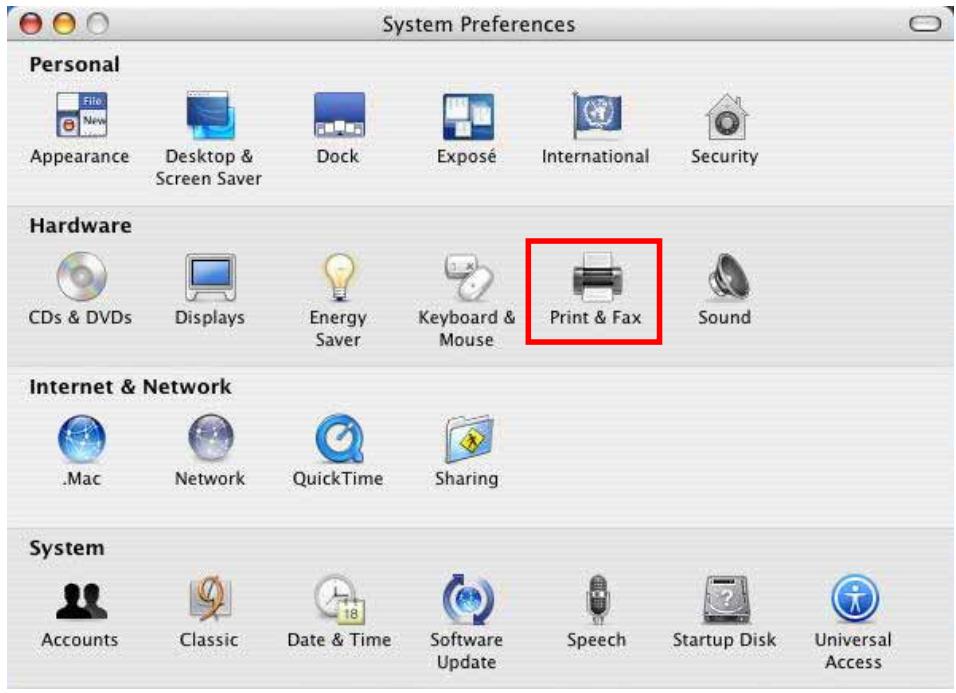
3. From the "Print & Fax" screen, click "Set Up Printers...".
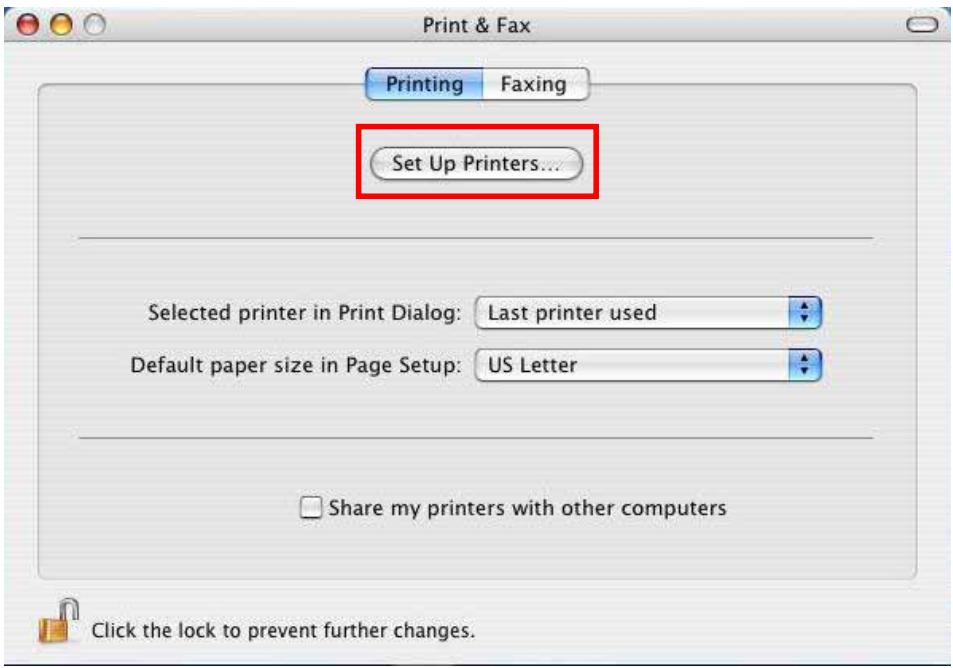
- Click "Add" to add the new MFP Server through TCP/IP.
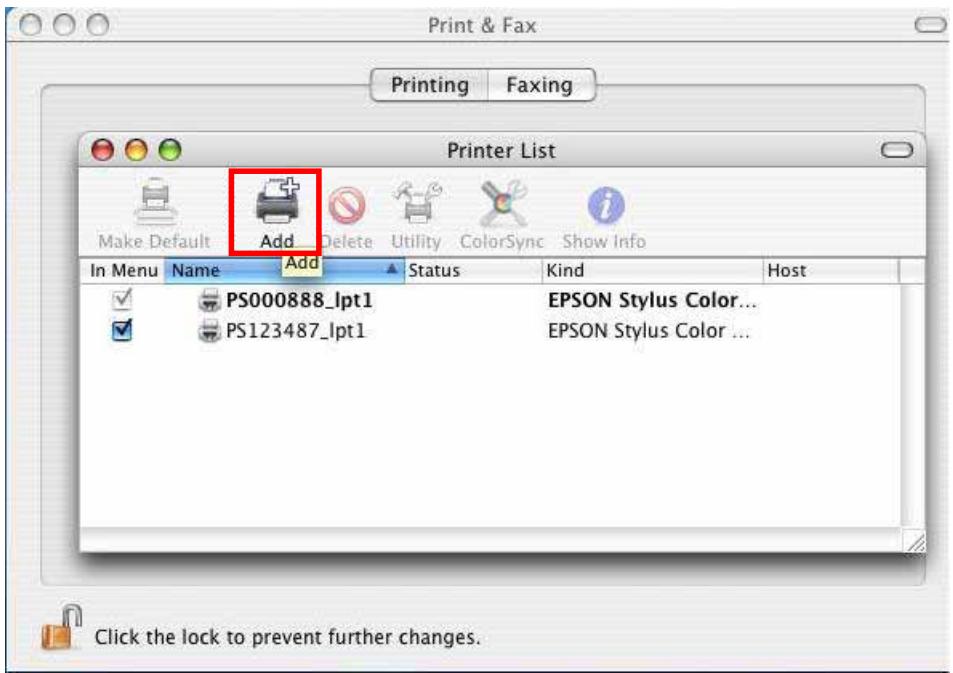
- Enter the "Printer Type", "Printer Address" and "Queue Name" and select the "Printer Model" to setup the MFP Server. Click "Add" to continue.
Printer Type: LPD/LPR
Printer Address: Input the IP Address of the MFP Server
Queue Name: The queue name of the MFP Server is "Ipt1".
Printer Model: Select the MFP or Printer Model that is attached to the MFP Server.
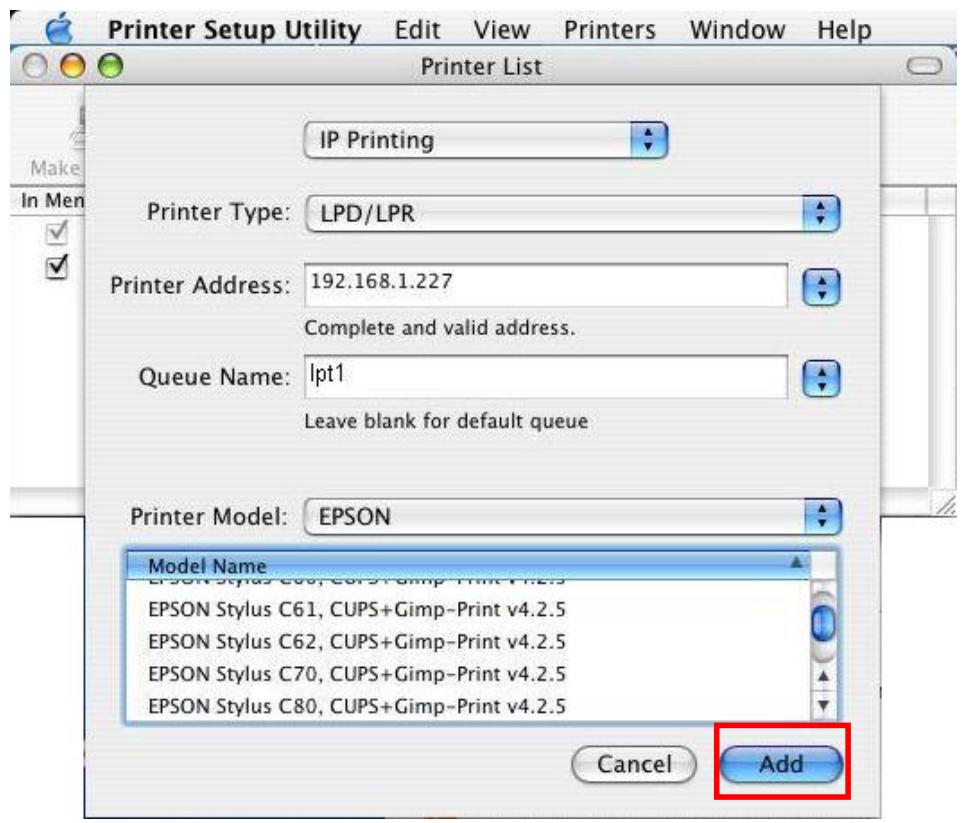
- The MFP Server is installed completely. You can see it in the "Printer List".
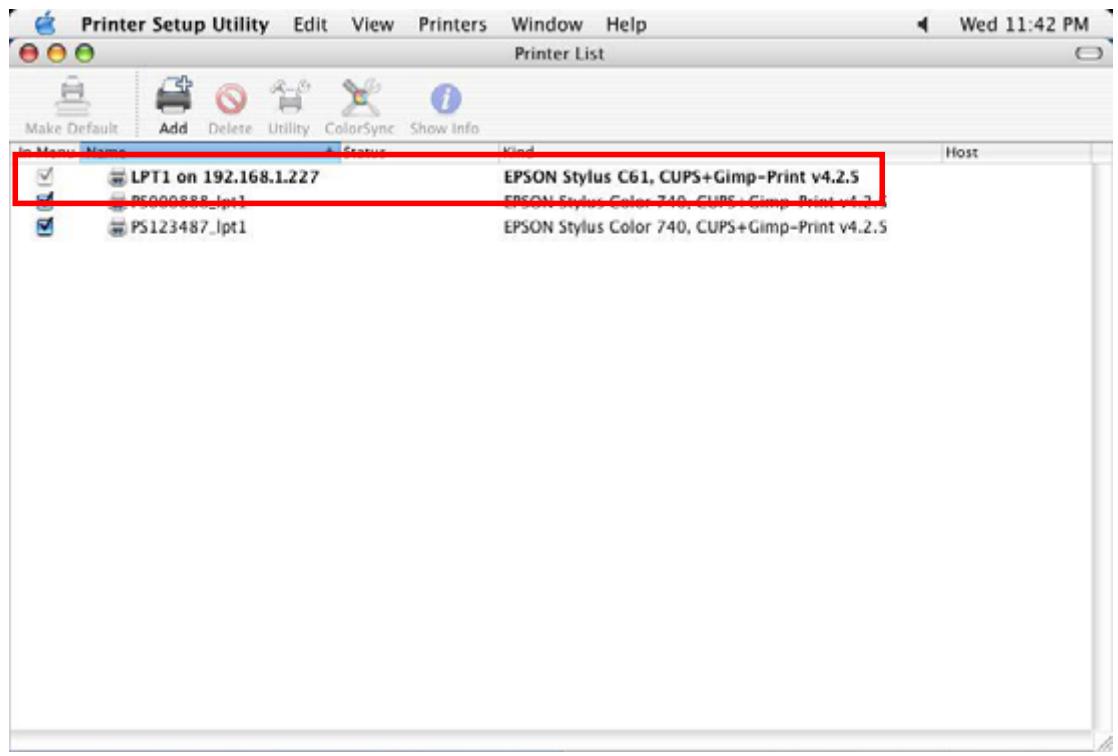
- You can print a file to check whether the MFP Server is installed successfully.
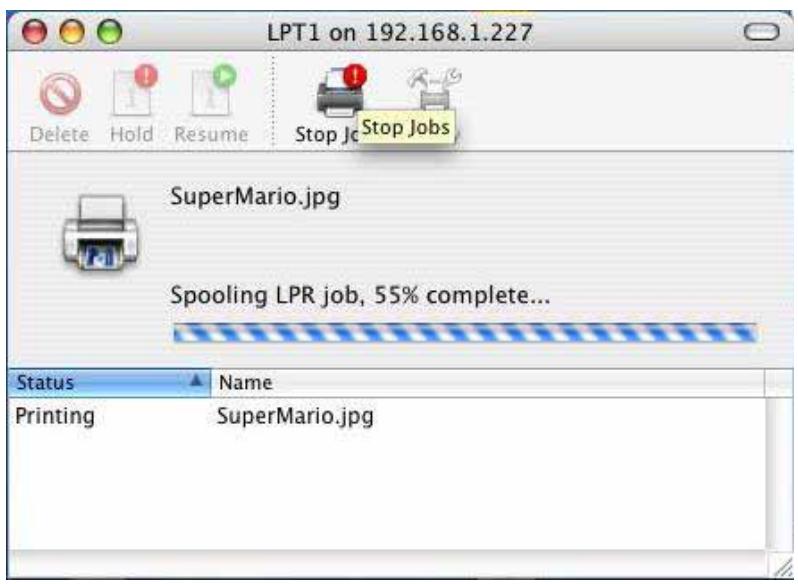
11
Troubleshooting
This section is intended to help you solve the most common problems on the WFP-151U.
-
This product is not found even after searching by the "MFP Manager".
-
Check if the power adapter and the network cable are connected to the MFP Server properly.
Check if the LAN is turned on. -
Check if the IP Address of the MFP Server is in the network segment same as your computer.
-
If you are not sure about IP Address setting of the MFP Server, please check the TCP/IP setting of the MFP Server from the "Server Manager".
-
The ways to change the IP Address of the MFP Server.
A DHCP Server is installed in the network
If a DHCP Server is installed, you can setup to let the MFP Server get IP Address from the DHCP Server automatically.
- Open "Server Manager" and then select "TCP/IP" setting.
- Select "Auto IP" and click "Save".
- Reboot the MFP Server.
Set up the IP Address Manually
- Open "Server Manager" and then select "TCP/IP" setting.
- Select "Static IP" and enter the IP Address and Subnet Mask as your computer. Click "Save".
- Reboot the MFP Server.
Note: Set a static IP Address to MFP Server is recommended since DHCP assignment may dramatically change the IP Address for MFP Server.
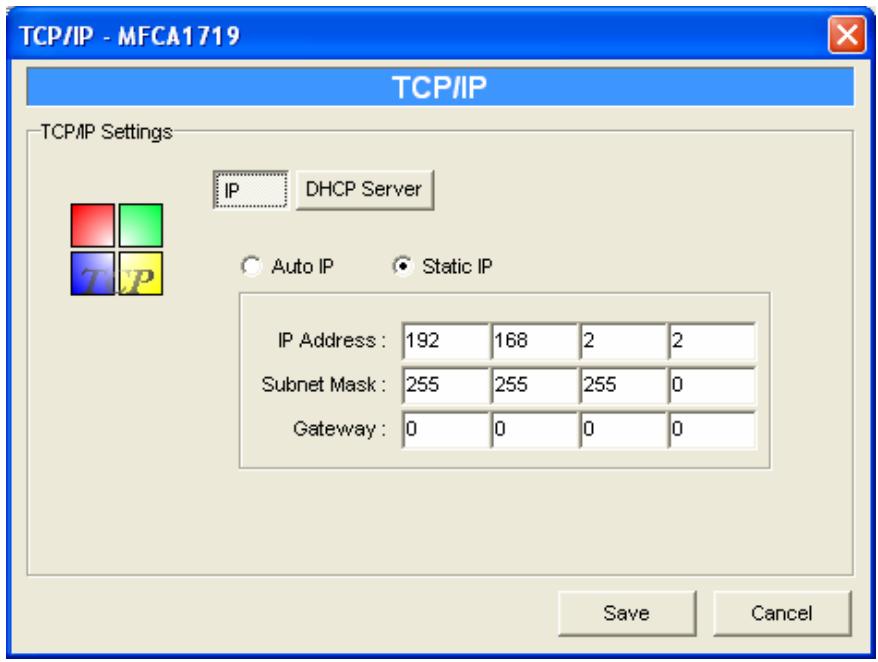
-
A user always connects the MFP Server.
-
Contact with the current user and ask the user to disconnect the device.
If the user forgets to disconnect the device, you can inform the administrator to release the device. -
I can't use the MFP to scan, print, read the card reader or fax a file even I have followed the installation of MFP as the manual.
-
Check if the MFP you are using is in the "Compatibility List".
-
Attached the MFP to PC directly and try if the MFP is able to use.
-
My computer has installed the firewall and the MFP Server can't work normally in my computer.
-
Some firewalls, for example, the "Network Access Manager" firewall program attached with nVidia network card may block the communication between MFP Server and your computer; you have to add the MFP Server programs to the exception list of your firewall. The programs are as follows.
-
Add "servoap.exe" program to the exception list.
-
Add "mfpagent.exe" program to the exception list.
-
When I use LPR, IPP or RAW printing, the printing jobs are not able to print to the MFP or printer.
-
Check if the MFP is "Idle" but not being connected. Printing from all PC connected to MFP server will be performed when the MFP Server is not being connected. The printing jobs are been queuing in the Windows spooler when there is a PC which is under connected with MFP Server.
-
Disable "Bi-Directional Support". Please follow the steps below.
-
Right click the printer from "Printer and Faxes" in the Windows.
- Select "Properties" and select "Ports".
- Uncheck the "Enable bidirectional support".
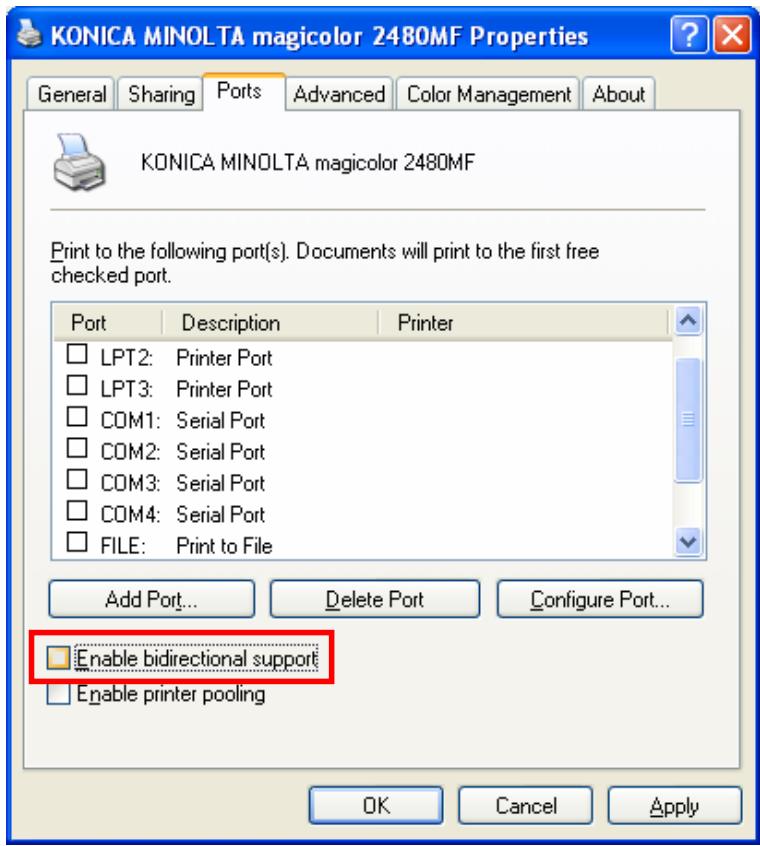
- Check if the MFP you are using is in the "Compatibility List" in Appendix or contact
your dealer.
12
Specifications
This section provides the specifications of WFP-151U, and the following table lists these specifications.
| Chipset | ● RT 3050 |
| Standard | ● IEEE802.3 10BASE-T ● IEEE802.3u 100BASE-TX/100BASE-FX ● IEEE802.11 n/b/g |
| Interface | ● 1 x 10/100Mbps ports, Auto-negotiation, Auto-MDIX ports ● 1 x USB 2.0 Type A |
| Flash | ● 2MB NOR Flash |
| Memory | ● 16MB SDRAM |
| LED | ● LAN ● Status ● WLAN |
| Antenna | ● External 3dBi Dipole Antenna |
| Output Power | ● 16dBm-18dBm |
| Management | ● Quick Install Wizard ● Web Installation Wizard ● UPnP (Universal Plug-N-Play) ● Internet Printing Protocol |
| Supported MFP | ● Printing: via Virtual USB utility or Print Server function ● Scanning ● Card Reader |
| Supported Network Protocols | ● TCP/IP |
| • LPR, IPP, Raw Printing • BooTP • DHCP Client | |
| Supported OS | • Printing, Scanning, Card Reade Functions ■ Windows 2000 SP4 and above ■ Windows XP SP1 and above ■ Windows Vista 32 and Vista 64 • Print Only ■ Windows 98SE/Me/2003 ■ Mac OS 9.X or above ■ LINUX/UNIX |
| Temperature | • Operating: 0 to 40°C |
| Humidity | • 10~90% (Non-condensing) |
| Power | • 5V DC, 1A Power Adaptor |
| Produce Weight (g) | • 65 g |
| Dimensions | • 75 x 60 x 20 mm |
13
Network Glossary
The network glossary contains explanation or information about common terms used in wireless networking products. Some of information in this glossary might be outdated, please use with caution.
100Base-FX
The IEEE standard defines how to transmit Fast Ethernet 100Mbps data using multi-mode or single fiber optic cable
100Base-TX
Also known as 802.3u. The IEEE standard defines how to transmit Fast Ethernet 100Mbps using Cat.5 UTP/STP cable. The 100Base-TX standard is backward compatible with the 10Mbps 10-BaseT standard.
802.11b
International standard for wireless networking that operates in the 2.4 GHz frequency band (2.4 GHz to 2.4835 GHz) and provides a throughput up to 11 Mbps.
802.11g
A standard provides a throughput up to 54 Mbps using OFDM technology. It also operates in the 2.4 GHz frequency band as 802.11b. 802.11g devices are backward compatible with 802.11b devices.
802.11n
A standard provides a throughput up to 150 Mbps using MIMO technology. It operates in the 2.4 and/or 5 GHz frequency band. 802.11n devices are backward compatible with 802.11b/g devices even 802.11a devices.
Access Point (AP)
The central hub of a wireless LAN network. Access Points have one or more Ethernet ports that can connect devices (such as Internet connection) for sharing. Multi-function Access Point can also function as an Ethernet client, wireless bridge, or repeat signals from other AP. Access Points typically have more wireless functions comparing to wireless routers.
DHCP
Dynamic Hosting Configuration Protocol. A protocol that enables a server to dynamically assign IP addresses. When DHCP is used, whenever a computer logs onto the network, it automatically gets an IP address assigned by DHCP server. A DHCP server can either be a designed PC on the network or another network device, such as a router.
Firmware
The program that runs inside embedded device such as AP or Switch. Many network devices are firmware upgradeable through web interface or utility program.
IP Address
IP (Internet Protocol) is a Layer 3 network protocol that is the basis of all Internet communication. An IP address is 32-bit number that identifies each sender or receiver of information that is sent across the Internet. An IP address has two parts: an identifier of a particular network on the Internet and an identifier of the particular device (which can be a server or a workstation) within that network. The new IPv6 specification supports 128-bit IP address format.
MAC
Media Access Control. MAC address provides Layer-2 identification for network devices. Each Ethernet device has its own unique address. The first 6 digits are unique for each device manufacturers. When a network device has MAC access control feature, only the devices with the approved MAC address can connect with the network.
Mbps
Megabits Per Second. One million bits per second; a unit of measurement for data transmission.
Packet
A unit of data sent over a network.
SNMP
Simple Network Management Protocol. A set of protocols for managing complex networks. The SNMP network contains three key elements: managed devices, agents, and network-management system (NMS). Managed devices are network devices that contain SNMP agents. SNMP agents are programs that reside SNMP capable device's firmware to provide SNMP configuration service. The NMS typically is PC-based software that can monitor and control managed devices remotely.
Subnet Mask
An address code mask that determines the size of the network. An IP subnet are determined by performing a BIT-wise AND operation between the IP address and the subnet mask. By changing the subnet mask, you can change the scope and size of a network.
TFTP
Trivial File transfer Protocol. A file transfer protocol, with the functionality of a very basic form of FTP. It is used to transfer small amounts of data between hosts on a network, such as Switch firmware.
WDS
Wireless Distribution System. WDS defines how multiple wireless Access Point or Wireless Router can connect together to form one single wireless network without using wired uplinks. WDS associate each other by MAC address, each device
Wi-Fi
Wireless Fidelity. An interoperability certification for wireless local area network (LAN)
products based on the IEEE 802.11 standards. The governing body for Wi-Fi is called Wi-Fi Alliance (also known as WECA).
WLAN
Wireless Local Area Network. A type of local-area network that uses high-frequency radio waves rather than wires to communicate between nodes. The most popular standard for WLAN is the 802.11 standards.
- AirLive
- Powered by OvisLink Corp.
- Copyright & Disclaimer
- Table of Contents
- Introduction 1
- Installing the WFP-151U 5
- Using the WFP-151U 20
- 4.MFP Manager. 26
- Server Configuration 34
- Web Management in WFP-151U. 52
- Printing Protocols 66
- MFP Server Installation in Win98SE/ME/NT 83
- MFP Server Installation in UNIX/Linux 99
- MFP Server Installation in MAC OS 108
- 1
- Introduction
- Overview
- How to Use This Guide
- MFP Server Mode
- Print Server Mode
- Recommended Reading
- Firmware Upgrade and Tech Support
- Features
- 2
- Installing the WFP-151U
- Before You Start
- Package Content
- Knowing your WFP-151U
- Hardware Installation
- Note:
- LED Table
- Software Installation
- MFP Server Utilities
- Install MFP Drivers/Utilities
- Never Install MFP Driver/Utilities
- MFP Drivers/Utilities has been installed
- 3
- Using the WFP-151U
- Important Information
- Share Print
- Share Scan
- Example: CX-8400/9400 Series Utilities
- Share Card Reader
- Fax a File
- Example: Fax through HP Officejet 5600 Series
- Procedures to fax a file
- 4
- MFP Manager
- MFP Server List
- My Favorite
- My Favorite List
- MFP Server/MFP Information
- Refresh
- Connect
- Auto Connect List
- Quick Setup
- Option Settings
- General Setting
- Search for MFP Server
- 5
- Server Configuration
- Option Settings
- Search for All Available MFP Server
- Status of MFP Server
- Setup the MFP Server
- General Configuration
- TCP/IP Configuration
- IP Address Assignment
- DHCP Server
- System Configuration
- Wireless Configuration
- Infrastructure Mode
- Ad Hoc Mode
- WEP Security Mode
- WPA-shared key or WPA-None Security Mode
- MFP Server Management
- Report
- 6
- Web Management in WFP-151U
- Menu Structure of WFP-151U
- Login
- Device Setup
- System
- Device
- TCP/IP
- Setup Wizard
- System
- Admin Password
- Wireless Setting
- Site Survey
- Encryption
- WPA-PSK Security Mode
- WPA2-PSK Security Mode
- TCP/IP
- Save Setting
- System Tools
- Load Default
- Upgrade Firmware from Browser
- 7
- Printing Protocols
- LPR Printing
- RAW Printing
- IPP Printing
- System Setup
- MFP Server Side
- Client Side
- Add Printer Wizard
- Completing the Add Printer Wizard
- 8
- MFP Server Installation in Win98SE/ME/NT
- Software Installation Procedure
- Server Utilities
- Network Port Setup
- Add Printer
- 9
- MFP Server Installation in UNIX/Linux
- GUI Mode
- Console Mode
- Enable MFP Server's TCP/IP Support
- Setup MFP Server's IP Address
- DHCP
- BOOTP
- Verify MFP Server's IP Address
- Configure Remote LPD Printing on the Host
- 10
- MFP Server Installation in MAC OS
- MAC 10.4.x
- MAC 10.3.x
- Click "Print & Fax".
- From the "Print & Fax" screen, click "Set Up Printers...".
- 11
- Troubleshooting
- 12
- Specifications
- 13
- Network Glossary
- 100Base-FX
- 100Base-TX
- 802.11b
- 802.11g
- 802.11n
- Access Point (AP)
- DHCP
- Firmware
- IP Address
- MAC
- Mbps
- Packet
- SNMP
- Subnet Mask
- TFTP
- WDS
- Wi-Fi
- WLAN
Brand : AIRLIVE
Model : WFP-151U
Category : IP Camera