
AV610 - To scan AVISION - Free user manual and instructions
Find the device manual for free AV610 AVISION in PDF.

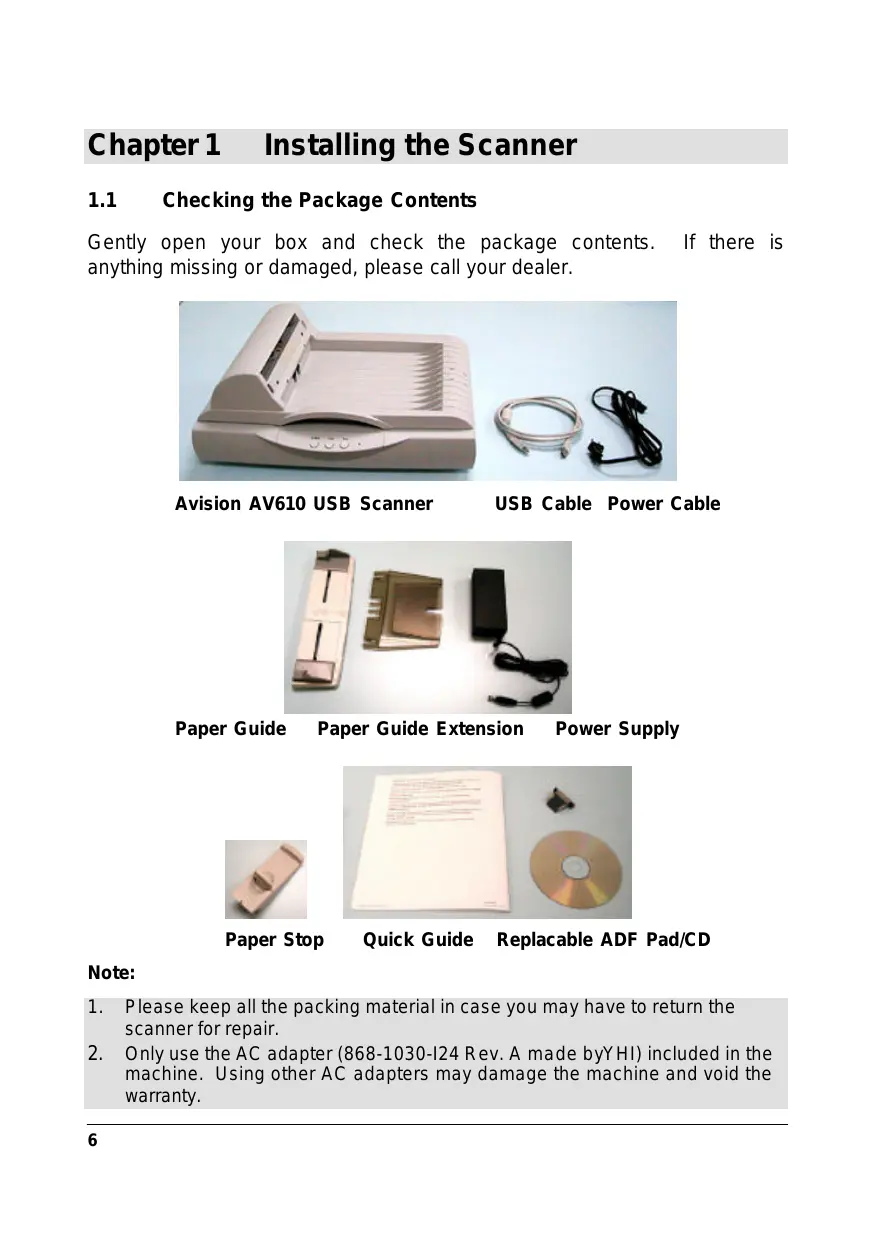

| Scanner type | Flatbed scanner with automatic document feeder (ADF) |
| Optical resolution | 600 x 1200 dpi |
| Maximum resolution | 2400 dpi |
| Scanning speed | 20 pages per minute (B&W, 200 dpi, A4) |
| Interface | USB 2.0 |
| Power supply | AC adapter input 100-240V, output 24Vdc/1.25A |
| Power consumption | Less than 30 W |
| Dimensions (W x D x H) | 444 x 316 x 275 mm |
| Weight | 4.7 kg |
| Operating temperature | 10 to 35 °C |
| Operating humidity | 20 to 80 % RH |
| Light source | Cold cathode fluorescent lamp |
| ADF capacity | Approximately 50 sheets (80 g/m²) |
| Accepted paper sizes (ADF) | Width: 4.5 to 8.5 inches, Length: 5 to 14 inches, Thickness: 0.07 to 0.15 mm |
| Supported image types | Black and white, halftones, 8-bit grayscale, 8-bit color, 24-bit color |
| Function buttons | 3 buttons: E-mail, Copy, Scan |
| Included software | TWAIN driver, Button Manager, Roxio PhotoSuite |
| Recommended cleaning | Clean the ADF rollers and pad with isopropyl alcohol (95%); clean the glass with a soft cloth moistened with alcohol |
| Replacement parts | Replaceable ADF pad (after approximately 50,000 pages) |
| Safety | Scanning unit lock for transport; FCC Class B and CE compliance |
Frequently Asked Questions - AV610 AVISION
User questions about AV610 AVISION
0 question about this device. Answer the ones you know or ask your own.
Ask a new question about this device
Download the instructions for your To scan in PDF format for free! Find your manual AV610 - AVISION and take your electronic device back in hand. On this page are published all the documents necessary for the use of your device. AV610 by AVISION.
USER MANUAL AV610 AVISION
The Federal Communication Commission Statement
NOTE: This equipment has been tested and found to comply with the limits for a Class B digital device, pursuant to part 15 of the FCC Rules. These limits are designed to provide reasonable protection against harmful interference when the equipment is operated in a commercial environment. This equipment generates, uses, and can radiate radio frequency energy and, if not installed and used in accordance with the instruction manual, may cause harmful interference to radio communications. Operation of this equipment in a residential area is likely to cause harmful interference in which case the user will be required to correct the interference at his own expense.
You are cautioned that changes or modifications not expressly approved by the party responsible for compliance could void your authority to operate the equipment.
This device complies with part 15 of the FCC Rules.
Operation is subject to the following two conditions:
(1) This device may not cause harmful interference, and
(2) This device must accept any interference received, including interference that may cause undesired operation.
CE Warning!
This is a class B product. In a domestic environment this product may cause radio interference in which case the user may be required to take adequate measures.
Copyright 2002 Avision
Trademark
All brands and product names mentioned in this document are trademarks of their respective holders.
Warranty
Avision makes no warranty of any kind with regard to this material, including, but not limited to, the implied warranties of fitness for a particular purpose.
System Requirements
Windows
IBM compatible PC 586, Pentium III 600 or above
Microsoft Windows 98, Windows Me, Windows 2000, Windows XP
A USB (universal serial bus) port
- At least 100M bytes of free hard disk space
128M bytes of RAM or above
- A CD-ROM drive
Table of Contents
CHAPTER 1 INSTALLING THE SCANNER 6
1.1 CHECKING THE PACKAGE CONTENTS 6
1.2 UNLOCKING THE SCANNING UNIT 7
1.3 INSTALLING THE ADF PAPER TRAY 7
1.4 INSTALLING THE PAPER STOP 8
1.4.1 DOCUMENT TYPES TO BE AVOIDED IN THE ADF 9
1.5 CONNECTING TO THE ADF AND POWER 9
1.6 INSTALLING THE SOFTWARE 10
CHAPTER 2 COMPLETING YOUR FIRST SCAN. 13
2.1 PLACING THE ORIGINAL. 13
2.1.1 LOADING YOUR PAPER FROM THE ADF 13
2.1.2 FIXING PAPER ON THE GLASS BOARD 14
2.2 SCANNING WITH IMAGE EDITING SOFTWARE 15
2.2.1 A GLANCE OF THE USER INTERFACE 16
CHAPTER 3 EDITING YOUR IMAGE. 17
3.1 USING THE BASIC FEATURES 17
3.1.1 CHOOSING YOUR SCAN METHOD 17
3.1.2 SELECTING A PROPER IMAGE TYPE 18
3.1.3 DETERMINING A PROPER RESOLUTION 20
3.1.4 ADJUSTING THE BRIGHTNESS AND CONTRAST 21
3.1.5 ENLARGING PREVIEWED IMAGE 22
3.1.6 INVERTING AND SELECTING YOUR IMAGE 23
3.1.7 ENHANCING YOUR IMAGE 25
3.2 USING THE ADVANCED FEATURES 27
3.2.1 THE SWITCH BUTTON 27
3.2.2 ADJUSTING HIGHLIGHT/SHADOW LEVELS 28
3.2.3 ADJUSTING THE BRIGHTNESS CURVE 31
3.2.4 CHANGING COLOR HUE/SATURATION/LIGHTNESS.... 32
3.2.5 USING COLOR BALANCE 33
3.2.6 COLOR DROP-OUT 34
3.3 USINGOTHERTOOLS 35
CHAPTER 4 USING THE BUTTONS 36
4.1 CUSTOMIZING YOUR BUTTON SETTINGS 36
4.2 USING THE BUTTONS 38
CHAPTER 5 CARE AND MAINTENANCE 39
5.1 CLEANING THE ADF 39
5.2 CLEANING THE GLASS 40
5.3 REPLACING THE ADF DETACHABLE PAD MODULE 41
APPENDIX 42
TROUBLESHOOTING 42
SPECIFICATION 44
INDEX 45
Chapter 1 Installing the Scanner
1.1 Checking the Package Contents
Gently open your box and check the package contents. If there is anything missing or damaged, please call your dealer.
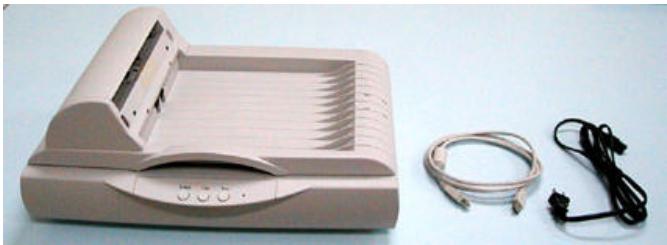
Avision AV610 USB Scanner
USB Cable Power Cable
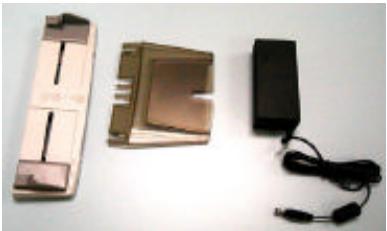
Paper Guide
Paper Guide Extension
Power Supply
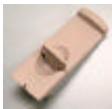
Paper Stop
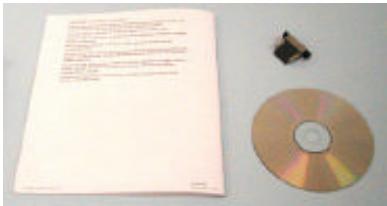
Quick Guide
Replacable ADF Pad/CD
Note:
- Please keep all the packing material in case you may have to return the scanner for repair.
- Only use the AC adapter (868-1030-I24 Rev. A made byYHI) included in the machine. Using other AC adapters may damage the machine and void the warranty.
1.2 Unlocking the Scanning Unit
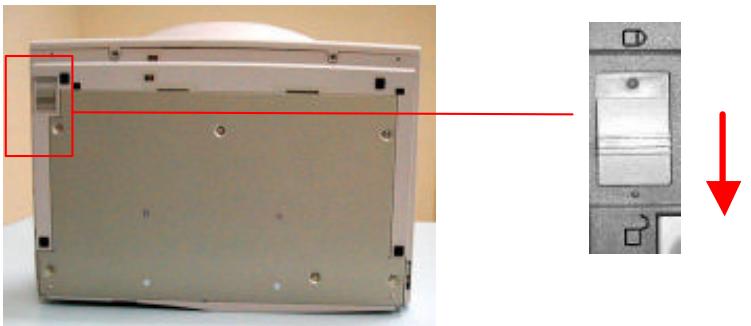
The scanner is designed with a lock switch to protect the scanning unit from damage during shipment. Before using the scanner, you must unlock the scanning unit. To unlock the scanning unit, locate the lock switch at the bottom of the scanner. Move the lock switch to the "unlocked position" as shown below.
Warning:
- Using the scanner without unlocking the scanning unit will cause damage to the machine and void the warranty.
- To transport the machine, you must lock the scanning unit before transporting to other locations.
1.3 Installing the ADF Paper Tray
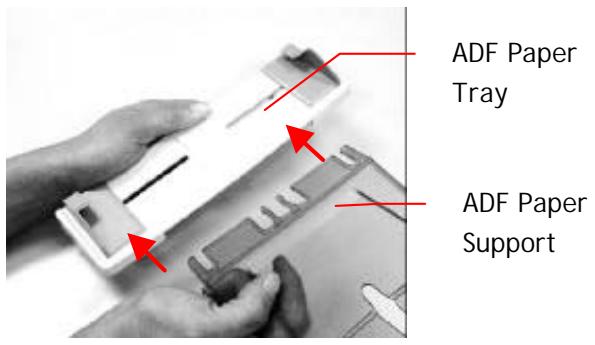
- Insert the notched corners of the ADF Paper Support to the clip-joints on the ADF Paper Tray.
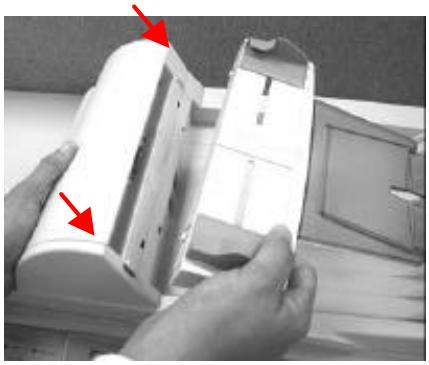
- Insert the notched corners of the ADF Paper Tray into the clip-joints on the ADF document cover.
1.4 Installing the Paper Stop
Insert the Paper Stop onto the back of the scanner and slide it downward to "snap" its tabs into place.
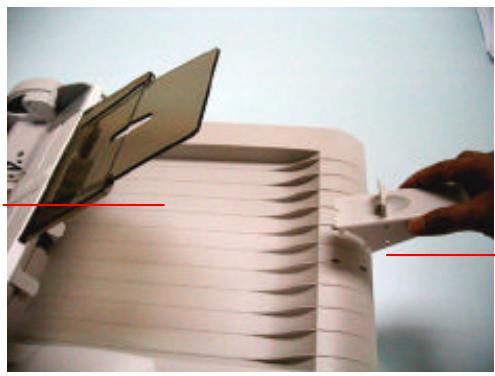
Document Cover
Paper Stop
1.4.1 Document Types to Be Avoided in the ADF
- Paper with clip or staple attached;
- Paper with ink not totally dry;
- Paper with inconsistent thickness, such as envelopes;
- Paper with wrinkles, curls, folds or tears;
Coated paper;
Carbonless paper; - Paper narrower than 4.5" or wider than 8.5"; Shorter than 5" or longer than 14"
- Paper thinner than 0.07mm ; thicker than 0.15mm
- Items other than papers, such as cloth, metal or OHP film;
Notched paper; - Paper with an odd (non-rectangular) shape;
Please use the flatbed to copy or scan documents that cannot be fed by the ADF.
1.5 Connecting to the ADF and Power
- Plug the ADF connector to the document cover to the ADF port.
- Plug the small end of the power adaptor into the power jack of your scanner. Insert the other end to an appropriate power outlet.
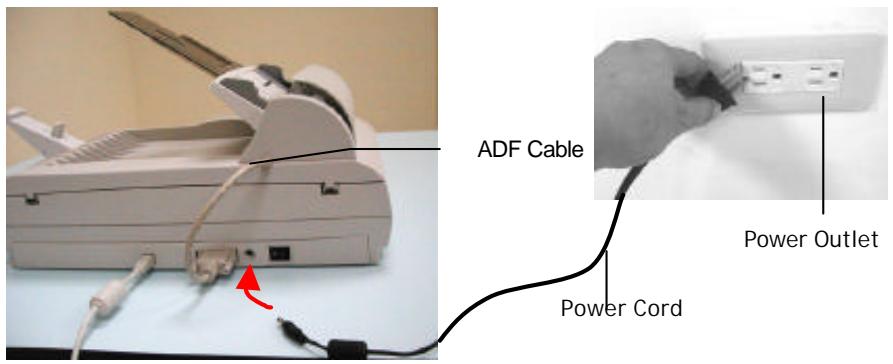
Note: The scanner is designed with power saving mode. After stop using the scanner for 15 minutes, the scanner automatically turns off the scanning lamp.
1.6 Installing the Software
Note:
- The Windows system CD may be required when installing on some PC's.
-
To ensure your computer can identify the USB scanner, please install scanner driver first before connecting the scanner to your computer.
-
Place the supplied CD-ROM onto your CD-ROM drive.
- The software installation graphic appears. If not, run "cdsetup.exe".
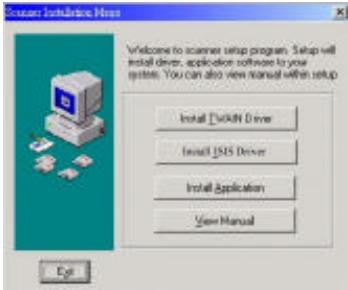
- Choose Install TWAIN Driver and follow the instructions on the screen to complete the installation.
- Connecting to Computer
Connect the square end of the USB cable to the USB port of your scanner. Connect the rectangle end to the USB port of your computer.
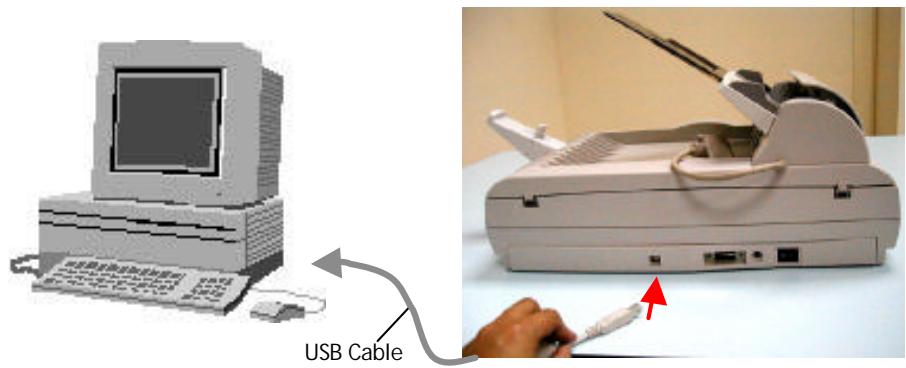
- The computer should detect a new USB device and prompt a New Hardware Found message.
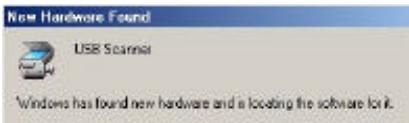
(Windows 9X/Windows ME)
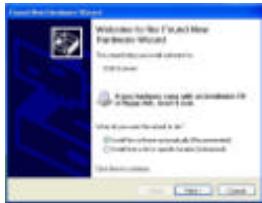
(Windows XP)
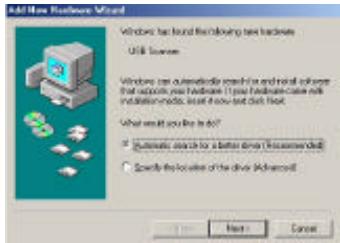
- In Windows 9X or Windows ME, confirm that Search for a better driver is selected and click the Next button.
In Windows XP, click the Next button to continue.
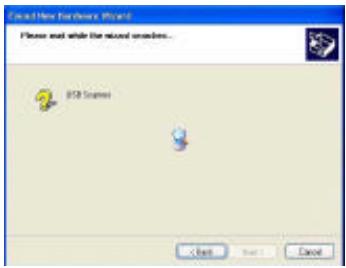
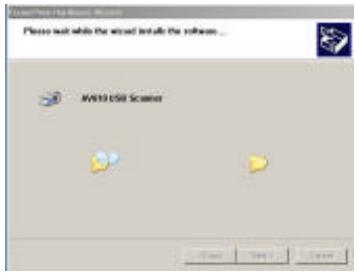
- When the Finish dialog is prompted, click the Finish button.
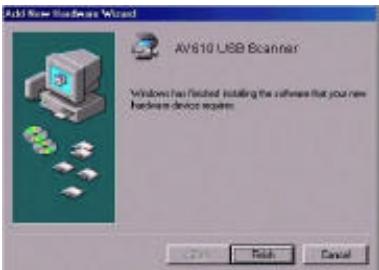
(Windows 9X/Windows ME)
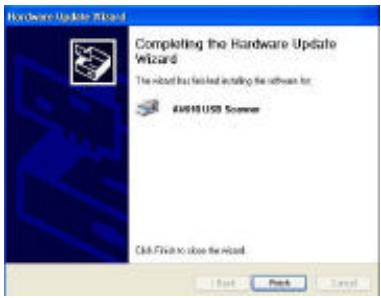
(Windows XP)
Note:
To uninstall the scanner driver in Windows XP, be sure to keep your scanner connecting to your computer.
2.1 Placing the Original
2.1.1 Loading Your Paper From the ADF
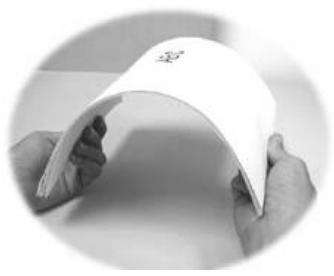
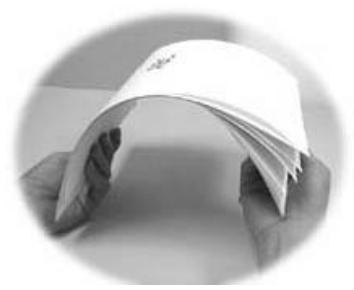
1. Fan the paper before loading
Standard paper should be fed easily. To prevent occasional paper jams when automatically feeding multi-page documents, fan the paper before loading.
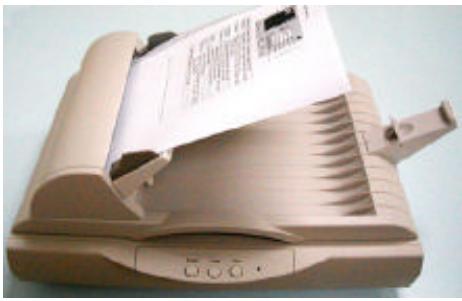
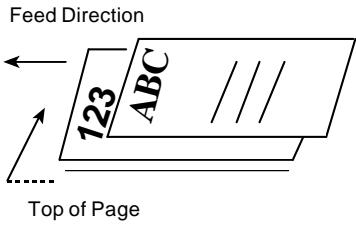
2. Place your document face up
Place your document with the text face up and make the top of the page to the left side as shown below.
2.1.2 Fixing Paper on the Glass Board
- Open document cover.
- Place your document with your text FACE DOWN on the glass.
- Make sure the upper left corner of your original near the home position as marked in the scanner.
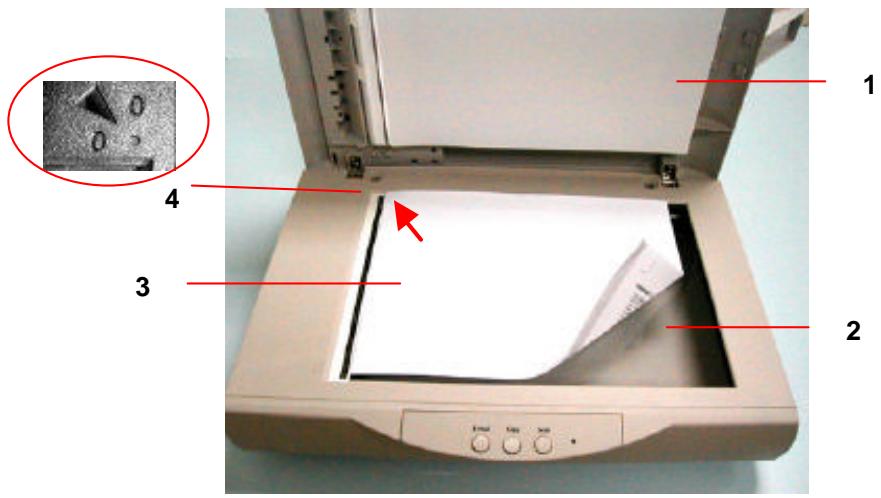
- Document Cover
- Glass
- Document
- Home Position
2.2 Scanning with Image Editing Software
The scanner driver is not a stand-alone software, it has to be started from within a TWAIN-compliant software application and then the scanner driver is able to scan and load the image to your computer. The command to start the scanner driver may vary due to different software applications.
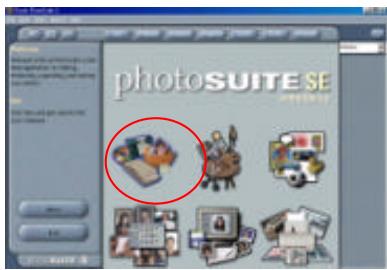
- Start a TWAIN compliant software application such as Roxio PhotoSuite 4.
- Click Get>Scanner (TWAIN).
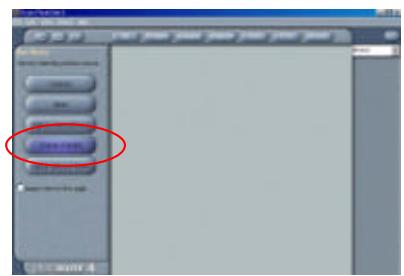
- Choose AV610 as your scanning source. (You only need to do this once.)
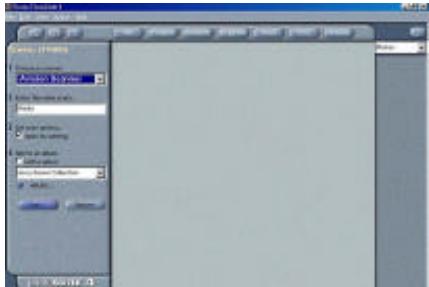
- Place the document FACE DOWN on the document glass.
- Click the Scan button to prompt the TWAIN user interface.
- Click Preview to get an initial scan of your document. Allocate your scanned area and choose Scan button to scan the document.
- Click Exit to return to the main screen and click Open Library and Photos at the upper-right corner to open your scanned image.
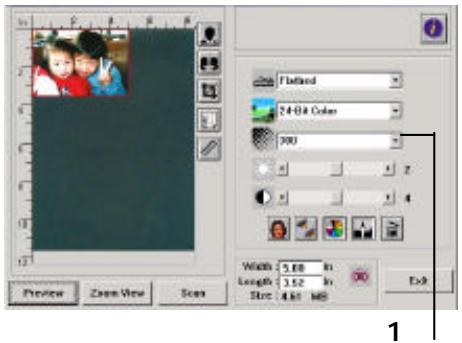
2.2.1 A Glance of the User Interface
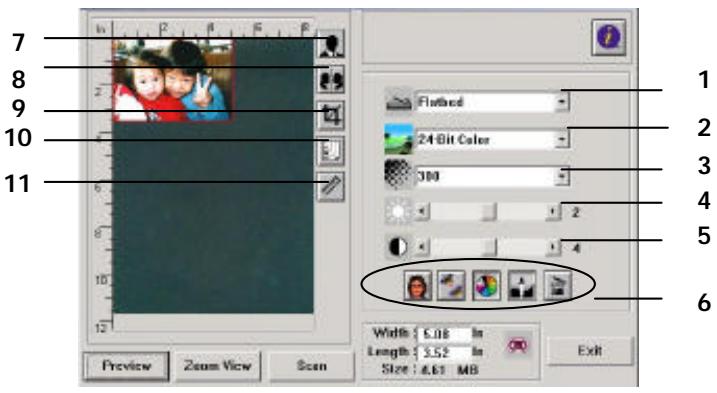
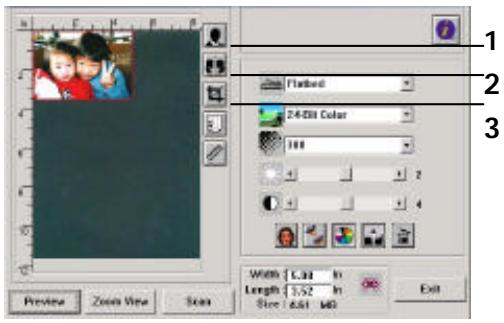
| 1. Original Source | Choice: Flatbed, Transparency, Negative Film. |
| 2. Image Type | Choice:Black & White, Halftone, 8-bit Gray, 8-bit Color, 24-bit Color. |
| 3. Resolution | Choice: 50, 72, 100, 144, 150, 200, 300, 600, 1200, 2400 (dpi). |
| 4. Brightness: | Adjust the brightness level from -100 to +100. |
| 5. Contrast | Adjust the contrast level from -100 to +100. |
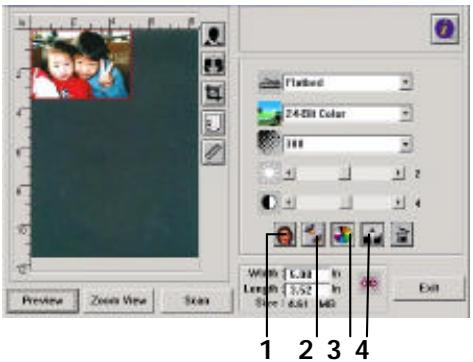
| 6. Further Tools | Descreen, Sharpen, Color Adjustment, Auto Level, Advanced Settings (From left to right). |
| 7. Invert | Reverse the color of your scanned image. |
| 8. Mirror Function | Flap your image. |
| 9. Crop | Resize your scanned area. |
| 10. Paper Size | Select your paper size from Card 4" x 2.5", Photo 5"x3", Photo 6"x4", A5, B5, A4, Letter, Legal, or scanner maximum. |
| 11. Measuring Unit | Choice: cm, Inch, and Pixel. |
Chapter 3 Editing Your Image
3.1 Using the Basic Features
3.1.1 Choosing Your Scan Method
1. Scan Method
Choice:
Flatbed: Select this setting if you need to scan single-page document, newspaper clipping, or a photo.
ADF/Multipage: Select this setting if you need to scan multi-page document from the automatic document feeder (ADF).
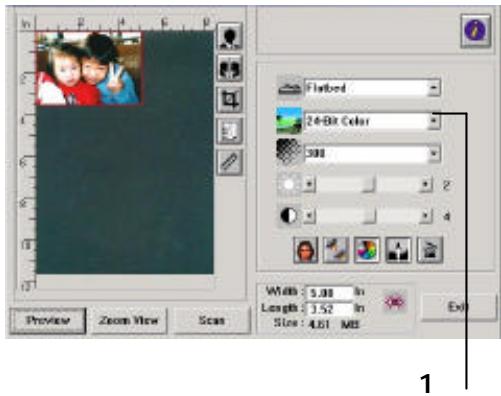
ADF/Singlepage: Select this setting if you need to scan single page from the automatic document feeder (ADF).
3.1.2 Selecting a Proper Image Type
1. Image Type
Please see following table for a choice of an ideal image type.
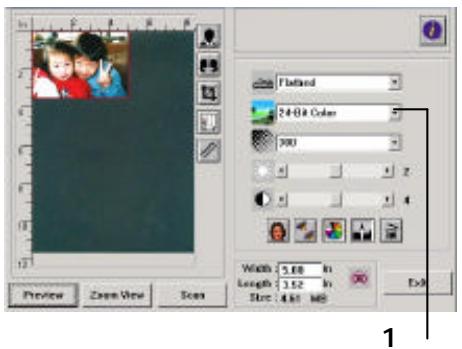
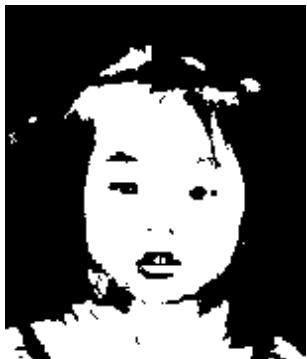
| Black & White | Choose B&W if your original contains only B&W text, pencil or ink sketch. |
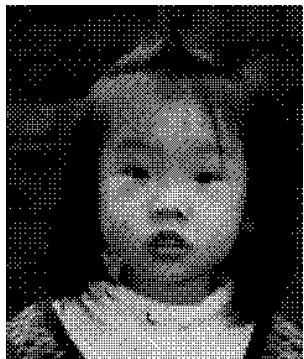
| Halftone | Halftones are reproduction of image that gives the illusion gray. An example of halftone imaged would be the pictures you see in newspapers. |
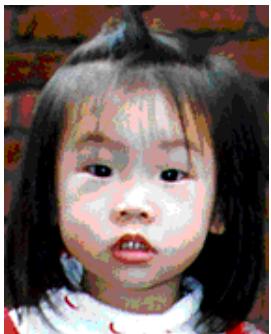
| 8-bit Gray | 8-bit Gray images contain actual shades of gray. |
| 8-bit Color | 8-bit Color image provides 256 levels of color hues. |
| 24-bit Color | Choose 24-bit Color if you wish to scan a color image. |
Black & White
Halftone

Gray
8-bit Color

24-bit Color
3.1.3 Determining a Proper Resolution
1. Resolution
A proper resolution reproduces a clear image with good details. The resolution is measured by dots per inch (dpi).
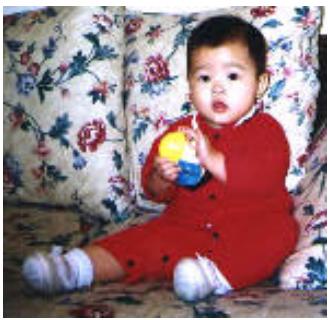
Resolution: 50 dpi
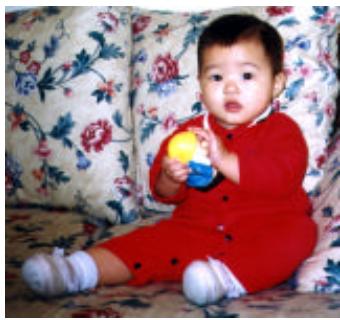
Resolution: 100 dpi
Note
For your information, an A4 size color image scanned at 300 dpi at True Color mode consumes approximately 25 MB of disk space. A higher resolution (usually means over 600 dpi) is only recommended when you need to scan a small area at True Color mode.
3.1.4 Adjusting the Brightness and Contrast
1. Brightness
Adjusts the lightness or darkness of an image. The higher the value, the brighter the image.
2. Contrast
Adjusts the range between the darkest and the lightest shades in the image. The higher the contrast, the bigger the different grayscale.
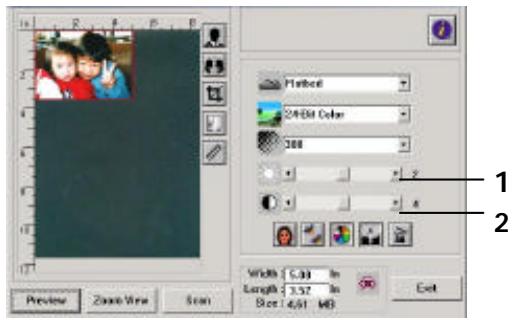

Decrease Brightness

Normal

Increase Brightness

Decrease Contrast

Normal

Increase Contrast
3.1.5 Enlarging Previewed Image
1. Zoom View
Enlarge your previewed image to the max. of the preview window.
Note this function only enlarging your preview image. This does not enlarge your real image.
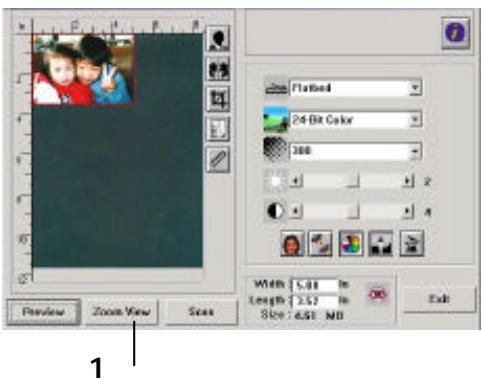
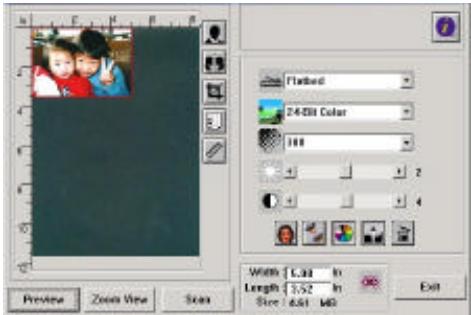
Before Zoom
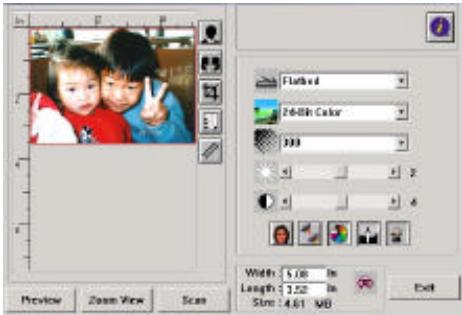
After Zoom
3.1.6 Inverting and Selecting Your Image
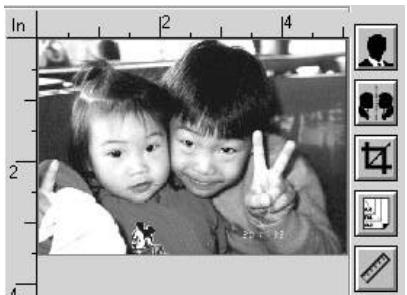
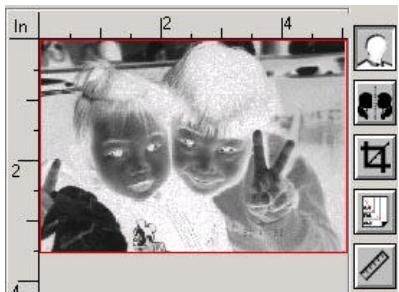
1. Invert
The invert command reverses the brightness and the color in the image. For color images, each pixel will be changed into its complementary color at the command of Invert.
Before Invert
After Invert
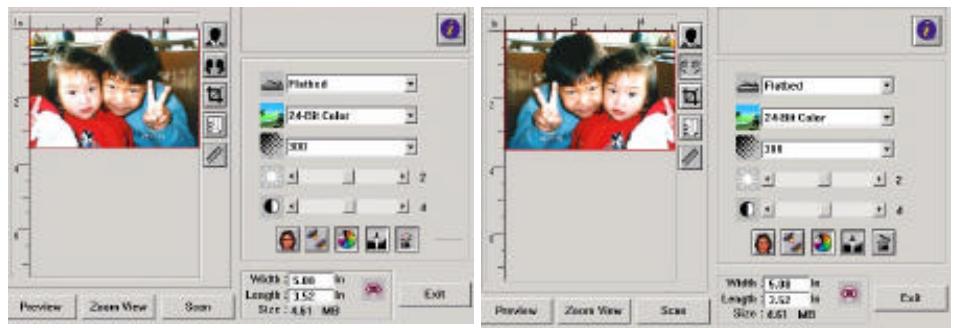
2. Mirror Function
Reverse the right and left side of your image.
Before Mirror
After Mirror
3. Auto Select Image
Automatically set the whole image as your scan area. (Or you may resize the area by "drag and drop" diagonally.)
3.1.7 Enhancing Your Image
1. Desscreen
Eliminates the moire patterns* commonly found in printed matter.
2. Sharpen
Sharpen the scanned image.
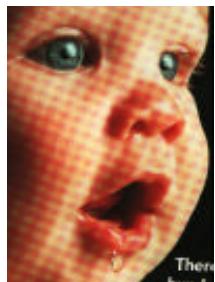
Before Descreen

After Descreen

Before Sharpen
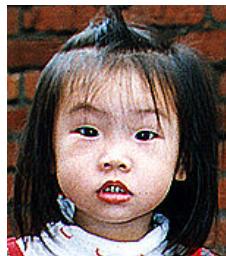
After Sharpen
*Moire pattern: An undesirable pattern in a color printing resulting from incorrect screen angle of overprinting halftone.
3. Color Adjustment
Adjusts the color quality of the image so that it comes close to the original. This function uses default parameters to adjust the image.

Normal

After Color Matching
4. Auto Level
Automatically adjusts the highlight and shadow areas of the scanned image to optimize your image.

Normal

After Auto Level
3.2 Using the Advanced Features
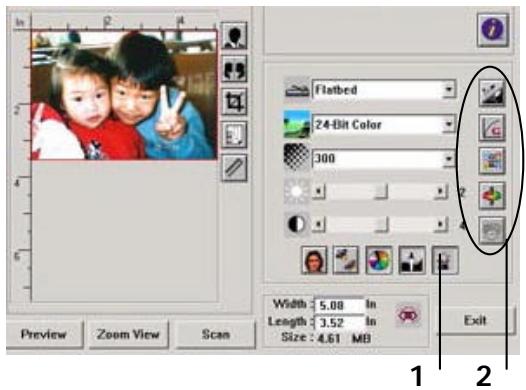
3.2.1 The Switch button
- Click the button to pop up the advanced settings bar at the right side. The advanced settings include Highlight/Shadow, Hue/Saturation/Lightness, Curve, Color Balance, Color Drop-out.
- The Advanced Settings bar
3.2.2 Adjusting Highlight/Shadow Levels

Highlight refers the lightest point in a scanned image while shadow refers the darkest point. Using Highlight and Shadow tool together allows you to extend the range of color and reveal more details in a gray or color image.
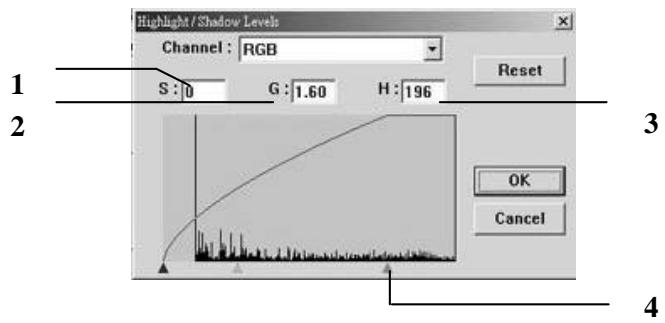
- Shadow: The darkest point of an image.
- Gamma: The midtones of the image.
- Highlight: The lightest point of an image.
- Pointer: Move the pointer to change the value.
When the value of gamma changes, the image changes accordingly.
Gamma Value: 1.0

Gamma Value: 1.4

Gamma Value: 2.0

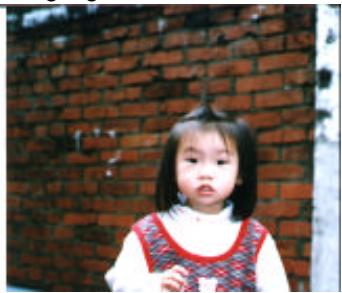
When the value of highlight and shadow change, the image changes accordingly.
Highlight: 255/Shadow: 0(Normal)

Highlight: 200/Shadow:0
Highlight: 210/Shadow:10

Highlight: 255/Shadow: 50

3.2.3 Adjusting the Brightness Curve

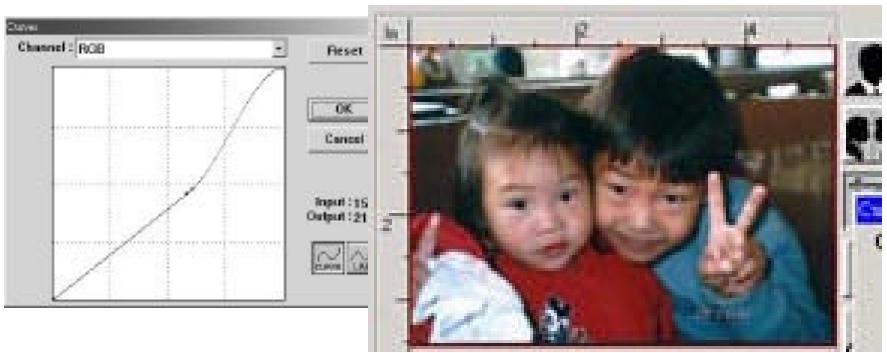
Adjusts the midtones of the image without dramatically altering then lightest and the darkest areas.
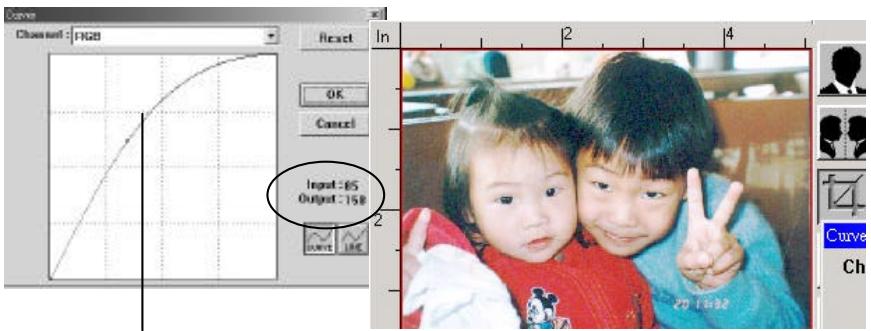
When the curve is moved up or down, the image turn brighter or darker.
3.2.4 Changing Color Hue/Saturation/Lightness

Improve your image by changing the level of hue/saturation/lightness.
(1)
(2)
(3)
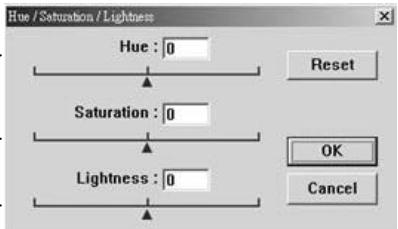
| (1).Hue | Adjust the hue by moving the triangle to the right or left. (Note the level of intensity for the color will be changed simultaneously when the hue adjustment is made). |
| (2).Saturation | Move the triangle to the right to increase the saturation level or to the left to decrease the level. The level of saturation decides if the color is pale or rich. |
| (3).Lightness | Increase the lightness by moving the triangle to the right or to the left to decrease the lightness. |
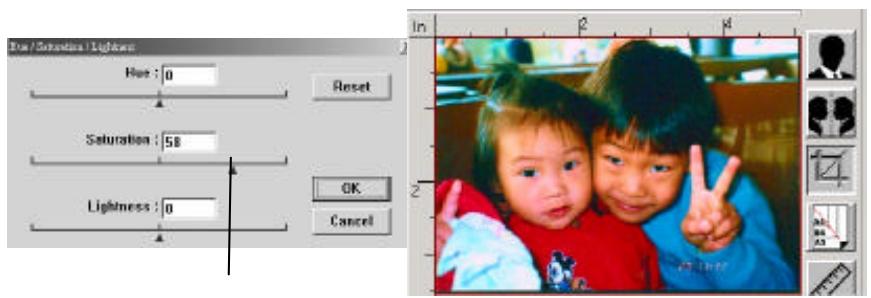
Move the Saturation pointer to the right, the color turns rich.
3.2.5 Using Color Balance

The Color Balance allows you to obtain an optimal image quality.
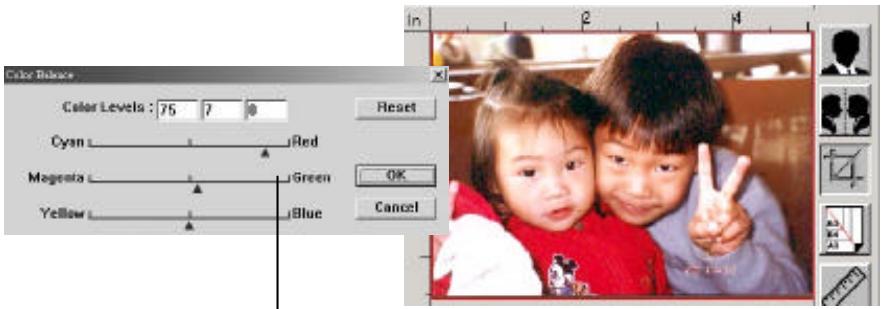
Move the pointer toward Red, the image turns into a reddish hue.
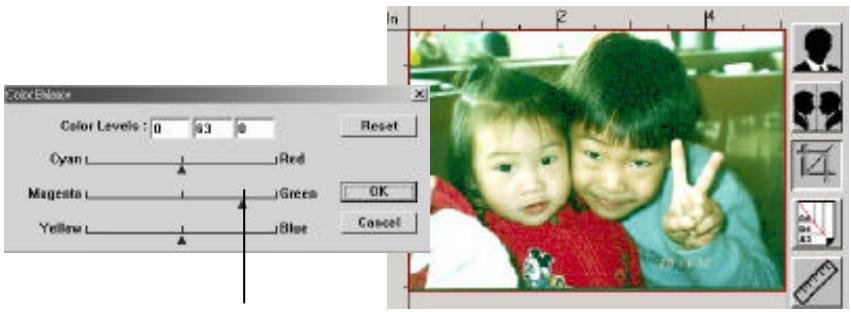
Move the pointer toward Green, the image turns into a greenish hue.
3.2.6 Color Drop-out

Click the button and a dialog box in below will be displayed. This dialog allows you to remove one of the R (Red), G (Green), or B (Blue) color channel. This function is particularly useful when you need to convert text using OCR software.
Note that this function supports only black & white and gray image. Therefore, be sure to choose any black & white or gray image type while applying this function.
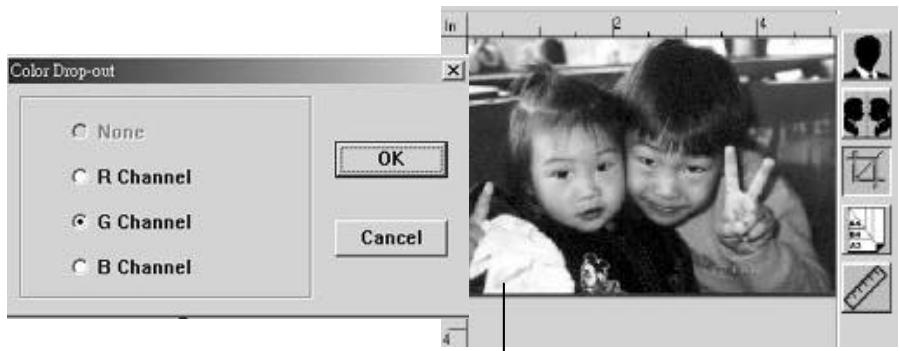
The effect on image after removing the G channel.
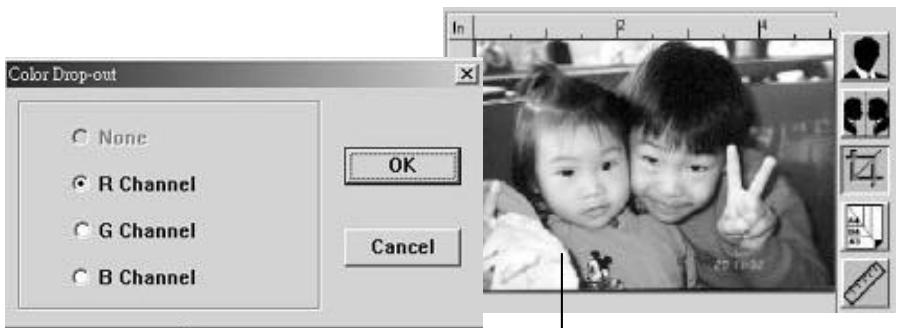
The effect on image after removing the R channel.
3.3 Using other Tools
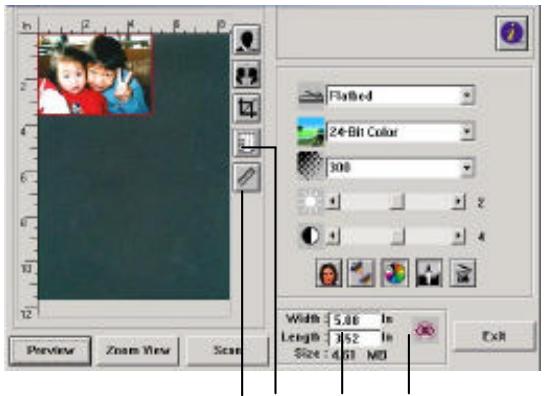
1 2 3 4
| 1. Measuring Unit | A reminder of the measuring system in use. By clicking the button, you can change the measuring unit. Choice: Inch, cm, Pixel. |
| 2. Paper Size | Provide frequently scan sizes. Choice: Card 4"x2.5", Photo 5"x3", Photo 6"x4", B5, A5, A4, Letter, and Scanner Maximum. |
| 3. Image Size | Display image size for the scanned area. |
| 4. Lock Image | Fix your output width and height. |
Chapter 4 Using the Buttons
4.1 Customizing your button settings
After you have successfully installed the scanner driver on your computer, please first customize your button settings to use the buttons properly.
To Customize your Button Preferences,
- Start your Button program by clicking Start>Programs>Scanner Software>Button Manager. The Button Manager icon appears at the lower-right corner.
Button Manager icon
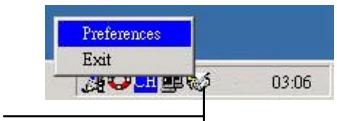
- Click "Preferences" to prompt the Preferences dialog.
OR
- Press either one of the three buttons on the front of the scanner to prompt the Preference dialog.
- Please see next page on how to customize your preferences.
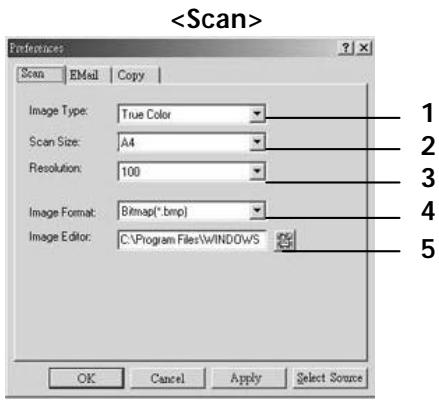
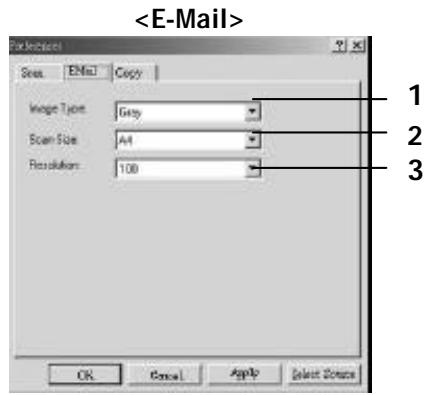
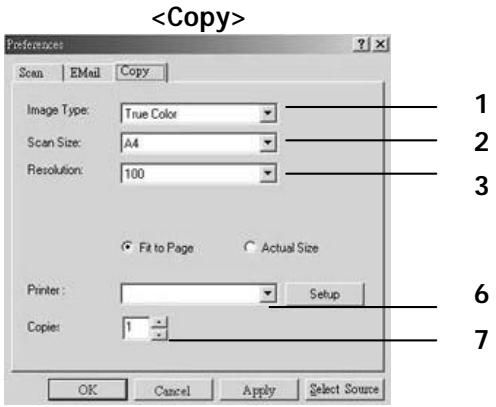
- Image Type: Choose a proper image type. (Default: Scan(True Color, E-Mail(Gray), Copy(True Color))
- Scan Size: Choose your scan size from Letter, A4, or Business Card.
- Resolution: Choose a proper resolution from 100 dpi to 1200 dpi.
- Image Format: Choose from BMP, PCX, TIFF, or JPEG.
- Image Editor: Choose your favorite image editing application.
- Printer: Choose your favorite printer.
- Copies: Choose your copy count.
4.2 Using the Buttons
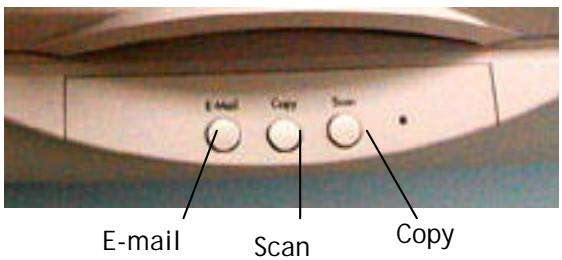
- Press the button you desire.
E-mail:
Scan and load your scanned image to Microsoft Outlook Express to send the image as e-mail attachment.
Scan:
Scan and load your scanned image to your image editing software application.
Copy:
Scan and print your scanned image from your printer.
- The status bar will display to indicate the progress of your task.
Chapter 5 Care and Maintenance
5.1 Cleaning the ADF
Your scanner is designed to be maintenance-free.
However, it still needs to be cleaned occasionally to ensure optimum image quality and performance. The scanner parts may be contaminated with ink, toner particles or paper coatings. As a result, the scanner needs to be cleaned occasionally particularly in the following cases:
- Documents do not feed smoothly or easily;
- Several documents feed at one time.
The Cleaning Procedures
- Wet a cotton swab with some isopropyl alcohol. (95%)
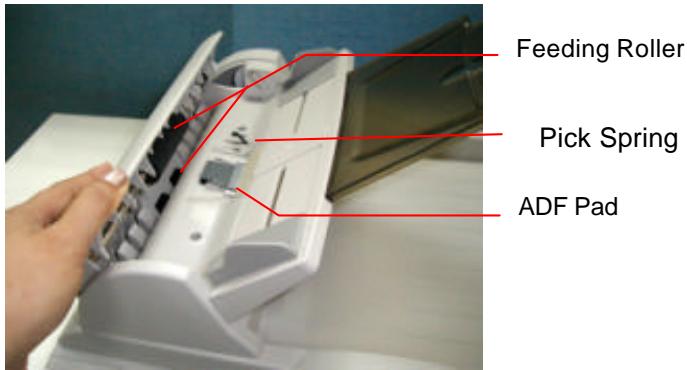
- Open the ADF unit and wipe the upper feeding roller by moving the swab from side to side. Rotate the roller forward with your finger and repeat the above cleaning procedures until the entire roller is cleaned. Be careful not to snag or damage the pick springs.
- Wipe the pad in the direction from top to bottom. Be careful not to hook the pick springs.
- Close the ADF unit. Your scanner is now ready for use.
5.2 Cleaning the Glass
The Procedures
1) Soak a cotton swab with some isopropyl alcohol. (95%)
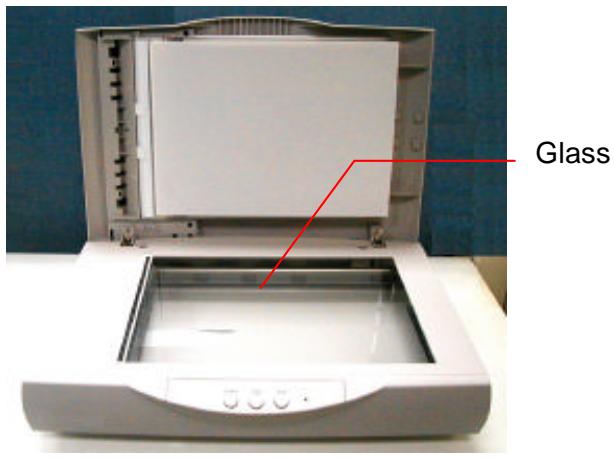
2) Open the document cover. Wipe the glass area by moving the swab from side to side.
3) Close the ADF unit and document cover. Your scanner is now ready for use.
5.3 Replacing the ADF detachable pad module
After scanning approximately 50,000 pages through the ADF, the pad spring may be worn out and you may experience problems with document feeding. In this case, it is highly recommended to replace the pad module with a new one. For ordering the pad module, please consult your nearest dealer and follow the procedure in below to replace it.
Removing Procedure
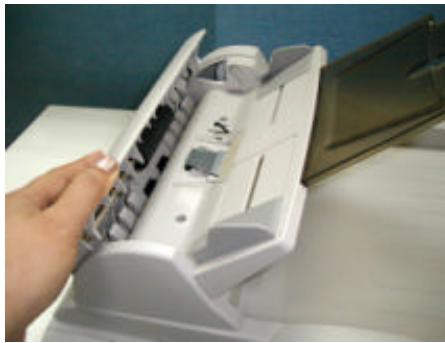
- Open the ADF front cover to the left.
- Use two fingers to pull the ADF detachable pad as indicated in below.
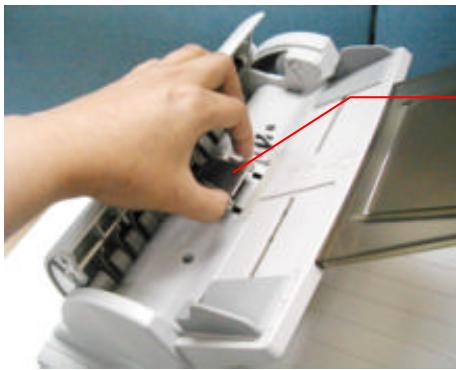
ADF pad
Assembling Procedure
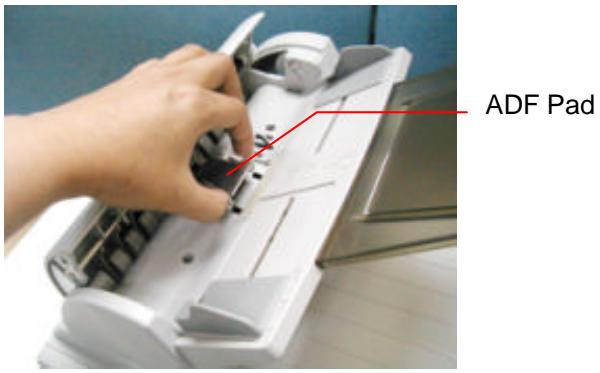
- Take out the ADF pad module from the box.
- Use two fingers to hold the ADF pad and place it gently to the pad holder.
Appendix
Troubleshooting
| Error Code/Status | Solution |
| Scanner continues to generate noise | Unlock your scanner by moving the lock switch underneath the scanner to the “Unlock” position. |
| No response after pressing the front buttons | 1. Check if the power cable is connected. 2. Check if the USB cable is connected. 3. Check if the software is installed. |
Paper jam in the ADF
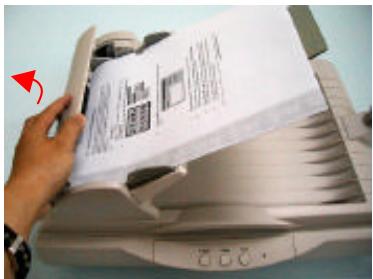
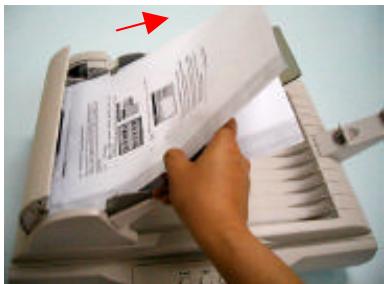
In the event of a paper jam, follow the procedures below to remove the paper:
- Turn the scanner off by disconnecting the power cable.
- Gently open the ADF front cover to the left.
-
Carefully pull the paper out of the ADF unit.
-
Close the ADF front cover.
- Turn on the scanner by reconnecting the power cable. Your scanner is now ready to use.
Specification
Scanner Type Flatbed & ADF
Scanning Source Cold Fluorescent Lamp
Optical Resolution 600 dpi * 1200 dpi (H*V)
Max. Resolution 2400 dpi
Scanning Speed 20 PPM (B&W, 200 dpi, A4)
Interface USB2.0
Input Voltage: 100 ~ 240V, 50 ~ 60 Hz
Output Voltage 24Vdc, 1.25A
Power Consumption <30W
Button 3 buttons (E-mail, Copy, Scan)
Humidity 20~80% RH
Operating Temperature 10~35 degree C
Storing Temperature -15 ~ 45 degree C
Dimension 275(H) x 316(W) x 444(L) mm
Weight 4.7 Kg (10.37 lbs)
Specifications are subject to change without notice.
Index
| A | I | |
| Auto Level, 26 | Image Type | |
| Auto Select, 24 | Black & White, Halftone, 8-bit Gray, 8-bit Color, 24-bit Color, 18 | |
| B | ||
| Brightness, 21 | Invert, 23 | |
| Brightness Curve, 31 | L | |
| C | Lightness, 32 | |
| Color Adjustment, 26 | M | |
| Color Balance, 33 | Mirror Function, 24 | |
| Color Drop-out, 34 | Moire pattern, 25 | |
| Contrast, 21 | R | |
| Copy, 38 | ||
| D | Resolution, 20 | |
| Descreen, 25 | S | |
| E | Saturation, 32 | |
| E-mail, 38 | Scan, 38 | |
| Scan Method, 17 | ||
| H | Shadow, 28 | |
| Sharpen, 25 | ||
| Highlight, 28 | ||
| Hue, 32 | Z | |
| Zoom View, 22 | ||