SC8800 - Scanner AVISION - Free user manual and instructions
Find the device manual for free SC8800 AVISION in PDF.


| Product Type | Document Scanner |
| Model | Avision SC8800 |
| Scanning Speed | Up to 80 ppm (black & white, A4 landscape) |
| Optical Resolution | 600 dpi |
| Daily Duty Cycle | 10,000 pages |
| Document Size | Up to A3 (ledger) via ADF |
| Auto Document Feeder (ADF) | Yes, 200-sheet capacity |
| Scan Methods | ADF scanning, flatbed scanning (optional) |
| Connectivity | USB 2.0 / 3.0, Ethernet (optional) |
| Software Included | Avision Capture Tool, TWAIN driver, OCR |
| Power Source | 100-240 V AC, 50/60 Hz |
| Power Consumption | 70 W (operating), <30 W (standby) |
| Dimensions (W x D x H) | 460 x 445 x 340 mm |
| Weight | 18 kg |
| Noise Level | < 60 dB (operating) |
| Maintenance | Clean ADF rollers and glass periodically; replace pickup roller and separation pad after 200,000 scans |
| Safety | Laser Class 1, CE, FCC, RoHS compliant |
| Spare Parts & Repairability | Pickup roller, separation pad, and glass available; user-replaceable with manual instructions |
| Warranty | 1 year limited |
Frequently Asked Questions - SC8800 AVISION
User questions about SC8800 AVISION
0 question about this device. Answer the ones you know or ask your own.
Ask a new question about this device
Download the instructions for your Scanner in PDF format for free! Find your manual SC8800 - AVISION and take your electronic device back in hand. On this page are published all the documents necessary for the use of your device. SC8800 by AVISION.
USER MANUAL SC8800 AVISION
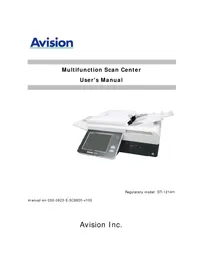
Multifunction Scan Center User's Manual
Regulatory model: DT-1214H
manual-en-250-0823-E-SC8800-v100
Avision Inc.
Safety Information
When using this equipment, the following safety precautions should always be followed.
Safety During Operation
In this manual, the following important symbols are used:
WARNING:
Indicates potentially hazardous situations, which if instructions are not followed, could result in death or serious injury.
CAUTION:
Indicates a potentially hazardous situation which, if instructions are not followed, may result in minor or moderate injury or damage to property.
Important:
Indicates operational requirements and restrictions. Please read and follow these instructions to ensure a proper operation and to avoid damage to the machine.
Note:
Indicates further explanation or clarification. Reading this is highly recommended.
⚠ WARNING:
To avoid hazardous electric shock or fire, do not remove any covers or screws other than those specified in this manual.
CAUTION:
√ To reduce the risk of fire, use only no.26AWG or larger telecommunication line cord.
√ Disconnect the power plug by pulling the plug, not the cable.
Do not touch the metal fingers of the ADF pad module. The edges are sharp and touching them may result in injury.
Precautions
- Do not install the equipment near heating or air conditioning units.
- Do not install the equipment in a humid or dusty place.
- Place the equipment securely on an even, flat surface. Tilted or uneven surfaces may cause mechanical or paper-feeding problems.
- Retain the box and packing materials for shipping purposes.
Notice
Important
- Do not make copies of any item for which copying is prohibited by law.
• Copying the following items are normally prohibited by the local law:
Bank bills, revenue stamps, bonds, stock certificates, bank drafts, checks, passports, driver's licenses.
Copyrights and Trademarks
Ethernet is a registered trademark of Xerox Corporation.
Microsoft, Windows, Windows NT, Windows XP, and Windows Vista are registered trademarks of Microsoft Corporation in the United States and/or other countries.
Other product names used herein are for identification purposes only and may be trademarks of their respective companies. We disclaim any and all rights to those marks.
Warranty
The information contained in this document(s) is subject to change without notice.
The manufacturer makes no warranty of any kind with regard to this material, including, but not limited to, the implied warranties of fitness for a particular purpose.
The manufacturer shall not be liable for errors contained herein or for incidental or consequential damages in connection with the furnishing, performance, or use of this material.
Federal Communications Commission (FCC) compliance information statement Part 15
The product has been tested and found to comply with the limits for a Class A digital device pursuant to Part 15 of the FCC Rules. Operation is subject to the following two conditions: (1) this device may not cause harmful interference and (2) this device must accept any interference received including interference that may cause undesired operation.
The FCC Class A limits are designed to provide reasonable protection against harmful interference when the equipment is operated in a commercial environment. This equipment generates, uses, and can radiate radio frequency energy and, if not installed and used in accordance with the instruction manual may cause harmful interference in which case the user will be required to correct the interference at his own expense.
CE
European Union Regulatory Notice
Products bearing the CE marking comply with the following EU Directives:
● Low Voltage Directive 2006/95/EC
● EMC Directive 2004/108/EC
- Restriction of the use of certain hazardous substances (RoHS) Directive 2011/65/EU CE compliance of this product is valid if powered with the correct CE-marked AC adapter provide by Avision.
This product satisfies the Class A limits of EN55022, EN55024, safety requirements of EN 60950 and ROHS requirements of EN50581.
CE Warning
This is a class A product. In a domestic environment this product may cause radio interference in which case the user may be required to take adequate measures.
Table of Contents
1 Getting Started.... 1
Introduction....1
Features....1
External View 3
The Front View .... 3
The Connection Ports 4
The Control Panel....5
Pre-installation & Symbol Information....6
Preinstallation....6
Frequently Used Buttons on the Touch Panel 9
2 Installing Your Machine....10
Minimum Configuration Requirements 10
Installing the ADF Output Tray....11
Unlocking the Scan Unit 12
Connecting the Cables....14
Connecting the Ethernet Cables 14
Connecting the Power and Turning on the Machine....14
Installing the Print Cartridge 16
3 Operation 18
Document Loading Tips....18
Placing Document(s) in the ADF.... 19
Placing Document(s) on the Flatbed Glass 21
Copying 22
Basic Copy Operation 22
Change More Copy Settings....24
Advanced Copy 31
Sending Your Document to E-mail Addresses 36
Basic E-mail Operation 36
Change More E-mail Settings 38
Sending Your Document to Filing Servers 40
Basic Filing Operation 40
Change Filing Settings....42
Using the Shortcut Button.... 45
Storage Printing 46
Scanning and Broadcasting Your Images 48
Creating A New Shortcut Button....51
Viewing the User's Manual 57
4 Configuring the Machine 58
Specifying the Product's Network Settings 59
Specifying More Administrator Settings by The Touch Panel....62
Information Report.... 63
Configuration.... 63
Network Settings.... 64
Security Management 65
Service Mode 65
E-Mail Default 65
Filing Default 66
System Update 66
Bug Report.... 67
Activity Log Report 67
Specifying More Administrator Settings by an Embedded Web Page......68
Summary of the Web Pages....70
Specifying A Filing Destination 83
5 Customizing Your Scan Options 85
6 Troubleshooting....97
Clearing Paper Jams 97
Errors Indicated in the Operational Panel....98
Technical Support 103
7 Maintenance 105
Cleaning the Touch Panel Monitor....105
Cleaning the Flatbed Glass....106
Cleaning the ADF 107
Cleaning the Skew Sensor....110
Cleaning the Imprinter 111
Cleaning the Print Cartridge....112
Consumables and Replacement Cycle 114
Replacing the ADF Friction Roller Assembly....114
Replacing the ADF Pick Roller 116
Replacing the Print Cartridge....120
Replacing the Attract Ink Box Assembly 123
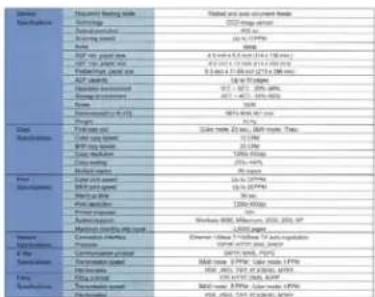
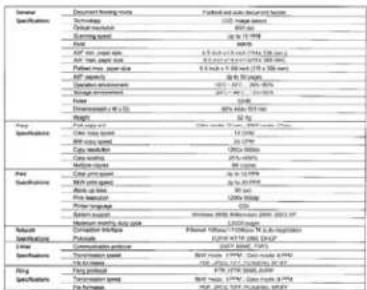
8 Specifications 125
Index 128
1 Getting Started
Introduction
Thank you for purchasing this multi-functional product (MFP). With the product, you can instantly scan single-sided or double-sided paper-based document and deliver the electronic image to various destinations including e-mail addresses, ftp servers, a network printer, web site, or someone else's computer on the network. In addition, the product allows you to save the scanned image to a network printer, a USB flash drive, or the product's own memory.
Features
Digital Copying:
Connected to a network printer in an intranet environment, the product allows you to perform digital copies with outstanding copy quality. With an intuitive control panel and a quality LCD Touch Panel, making digital copy becomes fast and easy.
E-mailing:
Connected to an ethernet network and a SMTP server, the product allows you to transmit document(s) to your e-mail as attachment. With a tap of the e-mail key and the selection of your recipients' e-mail addresses, the document(s) is/are first scanned and converted into an image file, and then transmitted to remote recipients within minutes.
Filing (Scan to a Network Folder):
The product allows you to send the scanned documents to a server or a personal computer's file folder over intranet with FTP (File Transfer Protocol), FTPS (FTP Secure), CIFS (Common Internet File System). This feature off-loads the mail server from handling large attachments.
Duplex Scanning:
Through the auto document feeder, the product allows you to scan double-sided documents to digitize your documents more effectively.
Sending Multi-Page Document:
With the Auto Document Feeder, the product allows a stack of 50-page document(s) to be continuously scanned at one time in reliable quality to increase your efficiency.
Managing the Product Remotely:
The product provides a convenient way to manage your e-mail address book, filing destinations (folders), and telephone book remotely. By simply typing the machine's IP address in the URL field of your browser, the product web page will be prompted. This web page allows the administrator to create up to 2000 e-mail addresses, 40 filing destinations, and 200 fax numbers to conveniently deliver the scanned documents to multiple recipients.
Using Convenient Shortcuts:
By assigning your frequently used working modes as shortcut buttons, the product allows you to scan your document and send the scanned images to your desired destinations in seconds including Google Drive and Microsoft SharePoint.
Scanning and Saving Your Images to a USB Flash Drive:
By plugging a USB flash drive into the USB port of the product, the product allows you to scan your document and save the scanned images to your USB flash drive.
Scanning and Saving Your Images to the Product's Memory:
By selecting a public folder as a filing destination, the product allows you to scan and save the scanned image in the product's memory and access the file from the product's embedded web page.
Preview:
Before sending your documents over the network, the product allows you to view a reduced size of the scanned document to verify if the scanned image has been skew, or upside down. If one of the pages is skew, you can delete and rescan that page to save your time.
Scancast:
Scan and broadcast the images respectively to various destinations including a public folder (the product's memory), a USB flash drive, an e-mail address, a file server on the network such as FTP、CIFS, or a network printer.
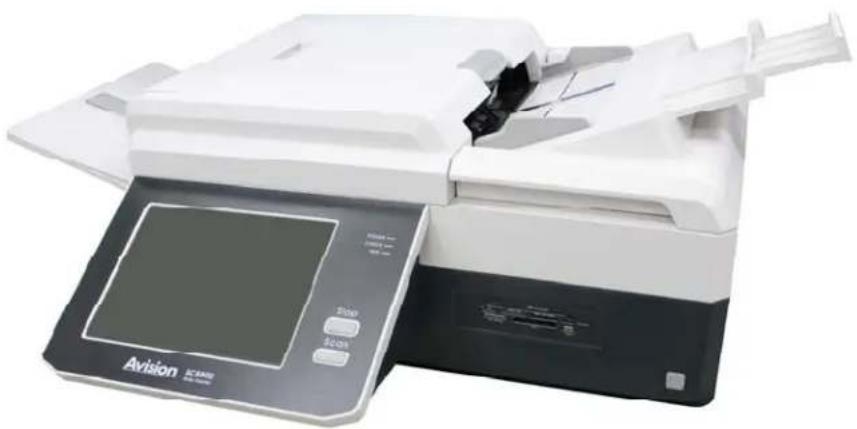
The Front View

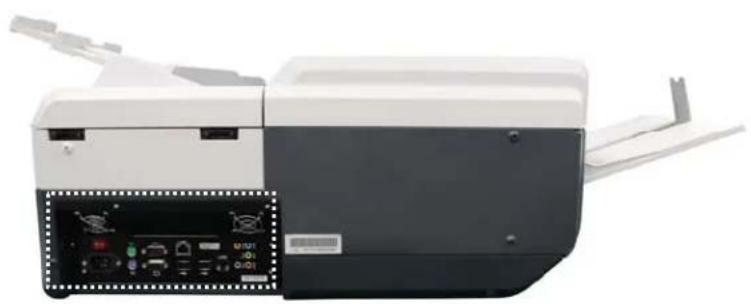
The Connection Ports

Preinstallation
The product has to be setup properly on your network to perform e-mail and filing functions. The following network parameters have to be set.
Important!
Make a copy of the following table and ask your Network Administrator to complete the information.
| 1. DHCP Enable: | |
| 2. IP Address: | . . |
| 3. Subnet Mask: | . . |
| 4. Gateway IP: | . . |
| 5. DNS Server: | . . |
| 6. WINS Server: | . . |
| 7. SMTP Server: | |
| 8. SMTP Port: 25 | |
| 9. LDAP Server: | . . |
| 10. LDAP Port: |
Explanation of contents:
| 1. * DHCP Enable: Choose | Yes to obtain IP/subnet/gateway/DNS server/WINS server addresses automatically from DHCP server. |
| 2. * IP Address: | The Internet Protocol (IP) address assigned to your machine by your network administrator or by DHCP server. |
| 3. Subnet Mask: | The net mask address assigned by your network administrator or by DHCP server. |
| 4. Gateway IP: The gateway IP address assigned by your network administrator or by DHCP server or by DHCP server. | |
| 5. * DNS server: | The IP address of DNS server assigned by your network administrator. |
| 6. * WINS Server: The IP address of WINS server assigned by your network administrator. | |
| 7. * SMTP Server: | The IP address of your SMTP mail server assigned by your network administrator. |
| 8. SMTP Port: | The port number of your SMTP Mail Server. |
| 9. * LDAP Server: | The IP address of your LDAP server. |
| 10. LDAP Port: | The port number of your LDAP server. |
Note:
- DHCP server: With DHCP (Dynamic Host Configuration Protocol), a host can automatically be given a unique IP address each time it connects to a network--making IP address management an easier task for network administrators. If the DHCP server is available from your network, you do not need to enter TCP/IP, subnet mask, gateway, and DNS information. Instead, this information will be automatically given for the product.
- IP Address: An IP (Internet Protocol) address uniquely identifies a host connection to an IP network. System administrator or network designer assigns the IP address. The IP address consists of two parts, one identifying the network and the one identifying your node. The IP address is usually written as four numbers separated by periods. Each number can be zero to 255. For example, 10.1.30.186 could be an IP address.
- SMTP: Stands for Simple Mail Transfer Protocol. It is the main communication protocol used to send and receive e-mail on the internet.
- DNS: Stands for Domain Name System. The DNS server identifies hosts via names instead of IP addresses. If the DNS server is available on your network, you can enter the domain name instead of digits for the IP address.
- WINS: Stands for Windows Internet Naming Service. WINS resolves Windows network computer names (also known as NetBIOS names) to Internet IP addresses, allowing Windows computers on a network to easily find and communicate with each other.
- LDAP: Stands for Lightweight Directory Access Protocol. LDAP enables users to access directories and address books directly from external networked devices to simplify document distribution.
Frequently Used Buttons on the Touch Panel
The following table lists the frequently used buttons and their functions on the touch panel:
 | The Shutdown button:Choose to shutdown, reboot, sleep, or refresh the machine. |
 | The Information button:Choose to inform you current status of the machine. |
 | The Start button:Choose to start scanning the document and sending the scanned image to E-mail, Public Folder, USB Flash Drive, or other destinations. |
 | The Exit button:Choose to exit current dialog box. |
 | The OK button:Choose to confirm the current settings and leave current dialog box. |
 | The Abort button:Choose to abort the current action. |
2 Installing Your Machine
This chapter is specifically targeted to the persons who are responsible for the administration of the product. It is recommended that the administrator read this chapter before installing the machine.
Minimum Configuration Requirements
To make the best use of the product, the following configuration is required:
To send e-mails from the product:
- TCP/IP network
- A SMTP server
To file document(s) via intranet
- FTP, FTPS, or CIFS protocol environment
- Windows 2000, Windows Me, Windows XP, Windows Vista, Windows 7, Windows 8
To make copies:
- A network printer
-
Raise the Stacker Tray to about 45 degrees and then insert the left pin of the Stacker Tray to the left hole in the back of the product as illustrated.
-
Hold the left side of the Stacker Tray with your left hand and press the right end of the Stacker Tray inward to position the right pin above the right hole in the back of the product as illustrated. Press down the right pin to slide it into the right hole.
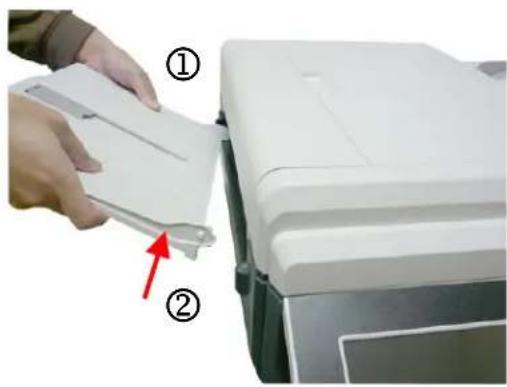
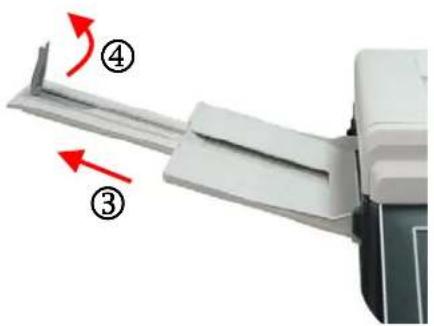
- Pull out the Stacker Extension to the length of the document (③), and raise the Stopper to stop the document (④) to prevent documents from falling.
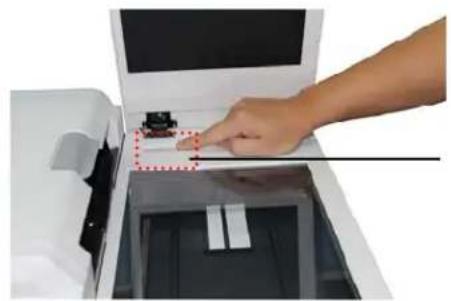
Before using the product, please first unlock the product. The Transportation Lock is designed to prevent the optical unit from moving during transportation.
To unlock the product, follow these steps:
- Open the Flatbed Scanner Backside Cover.
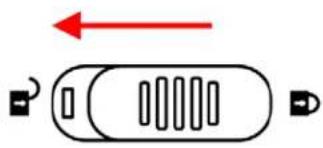
- The Transportation Lock is located at the upper-left corner as indicated.
- Move the lock to the "Unlocked position".
- Close the Flatbed Scanner Backside Cover.
Warning:
● Turning on the product without unlocking the product will generate a noise and cause the optical unit to vibrate. This might result in product malfunction.
- To transport the product, you need to move the Transportation Lock back to the "Locked" position to protect the optical unit. Transporting the product without locking the product might cause product malfunction.
Note:
To lock the product, please do the following,
- Turn off the product.
- If the scan unit is not located at the home position, turn on the product. After the scan unit returns to home position, turn off the product.
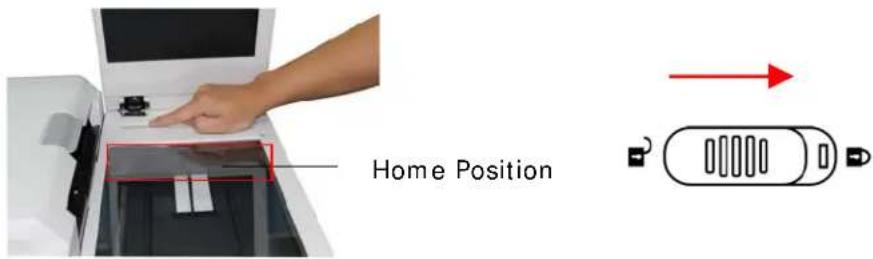
- Move the lock switch to the "Locked Position".
Connecting the Ethernet Cables
Connecting to the Network
-
Connect one end of your Ethernet LAN cable to an available port of your Ethernet Hub.
-
Connect the other end to the LAN port at the back of the product.
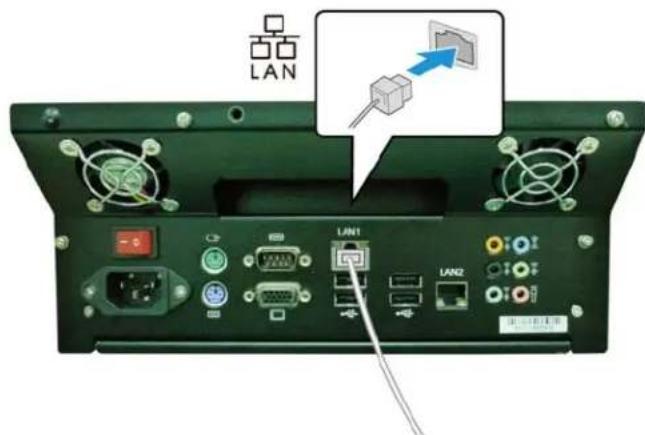
Connecting the Power and Turning on the Machine
- Connect one end of the power cable to the power receptacle of the product.
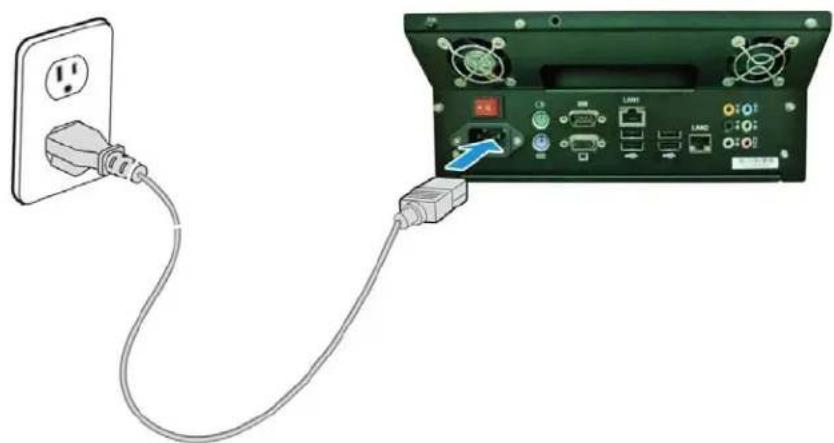
-
Connect the other end to an appropriate power outlet.
-
Press the [-] side of the main Power Switch.
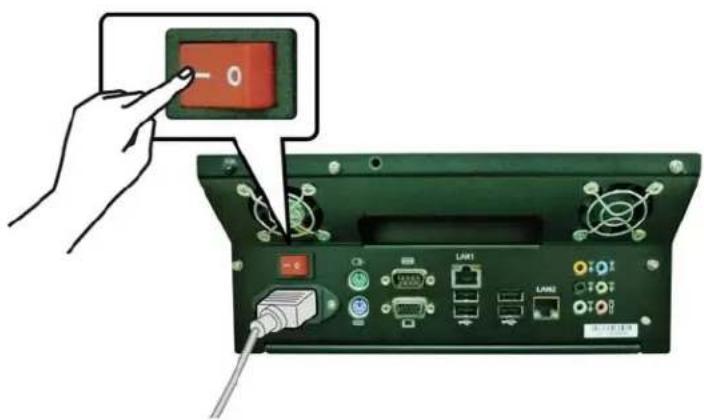
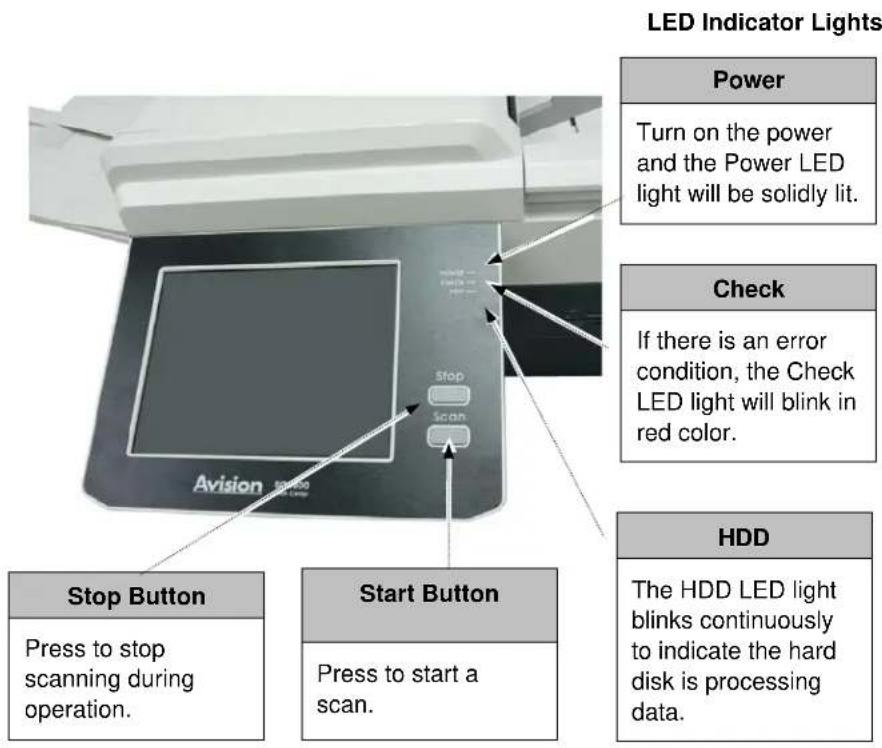
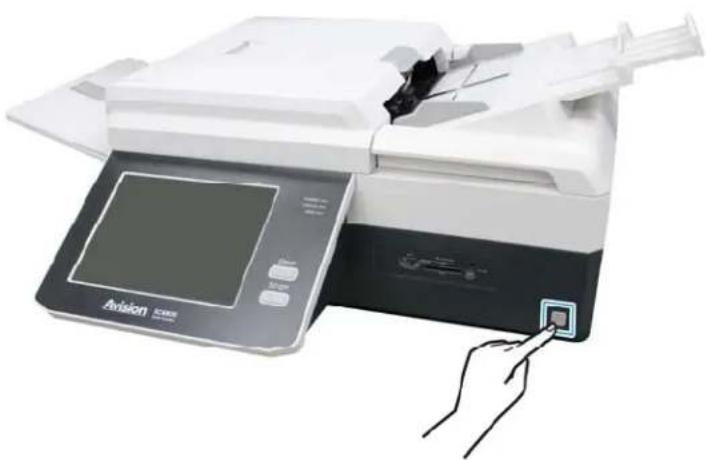
- Press the [Power] button on the lower right corner of the product. The product is turned on, and the Power LED lights in green. After showing the booting up message, the LCD Touch Panel prompts the preset ready status.
Note:
-
If you turn off the product by pressing the main Power switch while the touch panel has not been completely shut down, this may cause damage to the product.
-
If the product will not be used for a long time, press the [0] side of the Power Switch to turn off the power. Then unplug the product from the power outlet.
-
To wake up the product in the sleeping mode, simply short press the [Scan] or the [Stop] button on the control panel.
Installing the Print Cartridge
- Open the box of the print cartridge and remove the protective tape from the bottom of the cartridge.
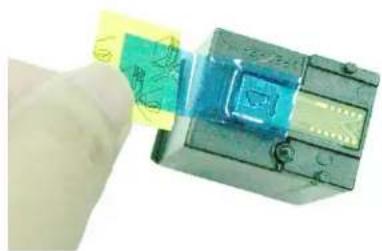
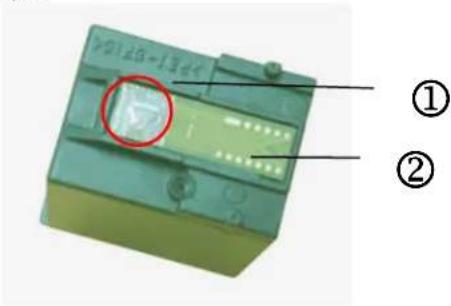
- Do not touch the ink nozzles (①) or the gold contacts (②) after the tape has been removed.
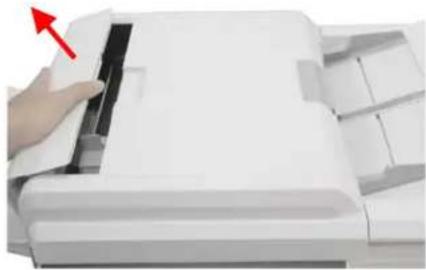
- Open the Imprinter Cover.
- Open the Print Cartridge Holder by lifting up the locking lever with your finger.
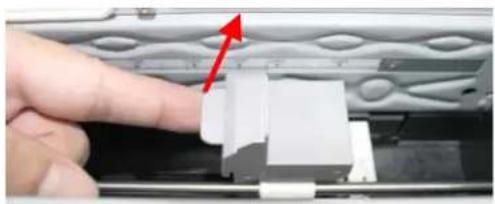
- Grasp the tab of the cartridge and insert the cartridge into the holder with the label facing up and the tab pointing to the left.

- Lower the locking lever of the Print Cartridge Holder until it locks in.
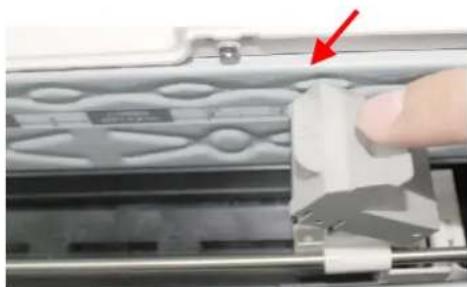
- Position the print cartridge holder along where the document will pass through.
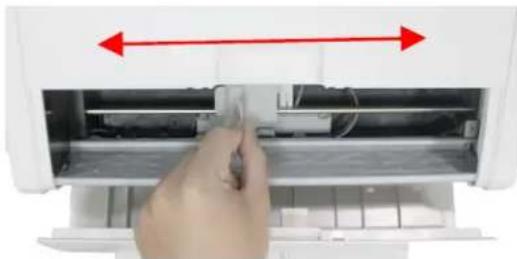
- Close the Imprinter Cover.
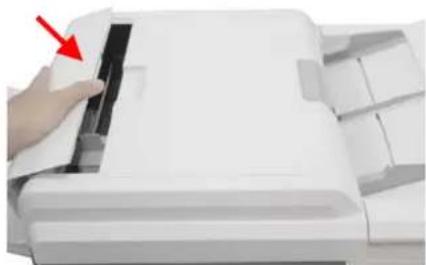
3 Operation
Document Loading Tips
Feeding the following types of documents might result in paper jams or damages to the documents. To scan these documents, use the flatbed (platen glass) instead.
- Documents with paper clips or staples
- Documents on which the ink is still wet
- Documents of non-uniformed thickness (eg. envelopes, photo-attached document)
- Coated paper
- Wrinkled or curled document
- Folded or torn document
● Photosensitive paper - Photos
- Carbon-backed paper
● Documents smaller than 50mm (width) x 88mm (height)
● Documents larger than 297 mm(width) x 432 mm (height) (A3 size) - Documents other than paper such as fabric, metal foil, or transparencies
- Document weight is less than 28 g/m 2
- Document weight is more than 209 g/m 2
- Documents that are not uniformed in width, or documents that are not square or rectangle
-
Documents that are old and contain paper dusts
● Paper with wet substances such as glue or correction fluid
● Paper with adhesive notes or flags
● A stack of document with mixed weight and types -
Check if your documents are within these guidelines and make sure your document is free of staples, paper clips and is not tore out.
| Type | High Quality Paper, PPC Paper (Xerox specified paper), Carbonless Paper |
| Weight | 28 ~ 209 g/m 2 |
| Size | A3, A4, A5, A6, A7, B4, B5, B6, B7, B8, Letter, Double LetterMinimum size: 50 mm (width) x 88 mm (height)Maximum size: 297 mm (width) x 420 mm (height) |
- If you have multiple pages, fan your document(s) to avoid occasional paper jam.
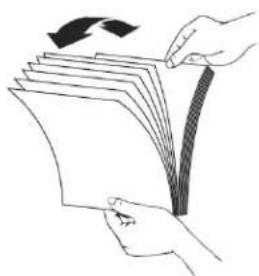
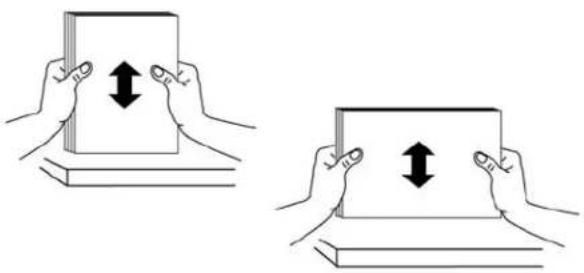
- Align the edges of the documents by tapping the bottom of the stack against the table top. Rotate the stack 90 degrees and repeat.
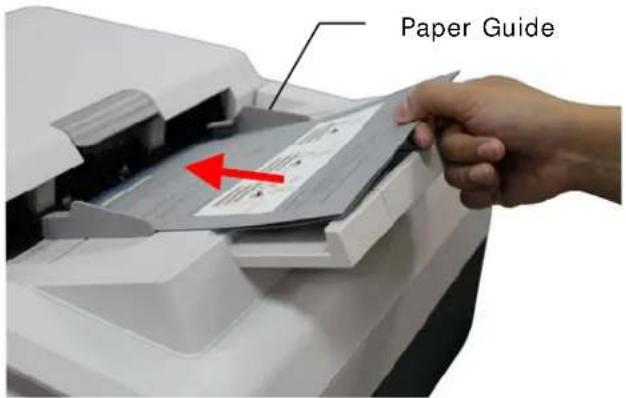
- Place your document(s) with the text FACE Down in the ADF and the 1 st page facing down and the top of the pages pointing to the feeder.
-
Adjust the Paper Guides to center the document(s) in the ADF. Side the paper guide so that they will touch the edges of document lightly.
-
Open the document(s) cover to reveal the glass.
-
Place your document with the text FACE DOWN on the glass and align the document in the upper-right corner.
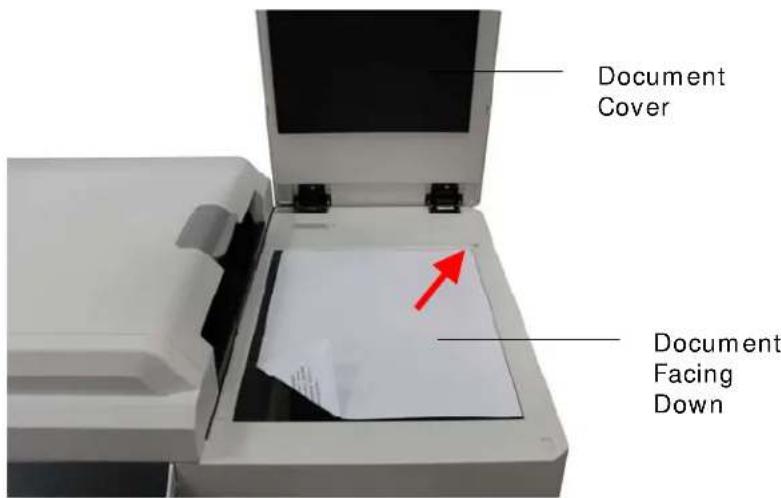
- Close the document cover.
Basic Copy Operation
Important!
Before making copies through a network printer, please make sure the printer has been connected to the network and that the power of the printer has been turned on FIRST. Otherwise, the copy function may not work properly.
To make copies:
- Place your document(s) with text FACE DOWN in the ADF or FACE DOWN on the glass.
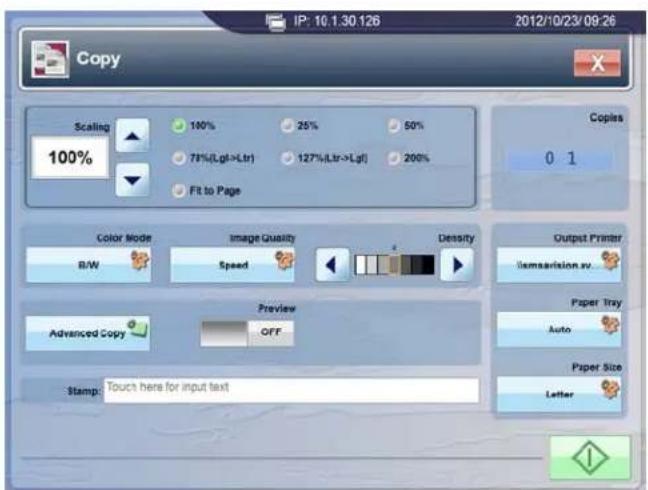
- Tap the [Copy] button on the touch panel to open the following Copy window.
-
Tap the [Copies] dropdown list in the upper right corner of the touch panel to choose the number of copies.
-
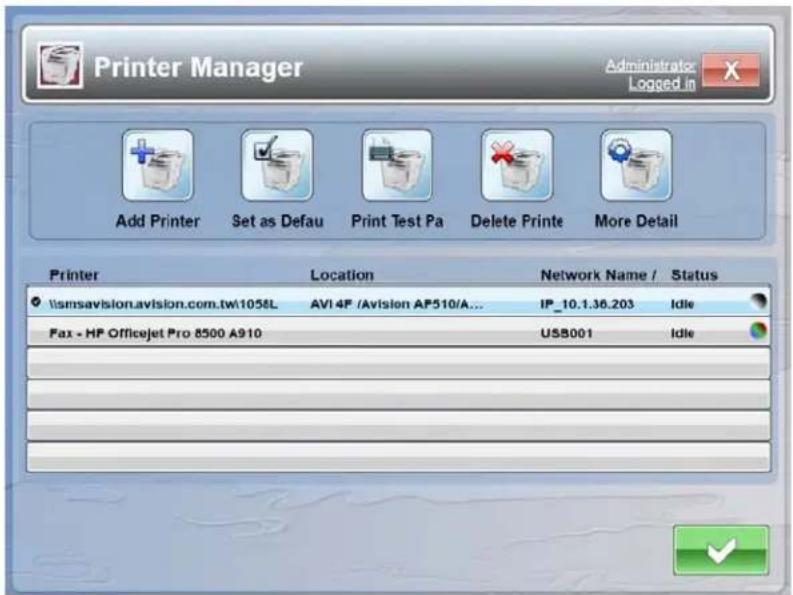
Tap the [Output Printer] button to open the following Printer Manager.
-
Tap the [Add Printer] button. Select Browse for a printer to list all available printers in the same domain section and choose a printer, or Add a printer by name and enter a desired printer path with its login name and password to specify a printer you want.
-
If desired, change the other copy settings. For details, see Change more copy settings on the next page.
-
Tap either the [Start] button ( ) on the touch panel or the [Scan] button on the control panel.
-
The product starts scanning and the preview image will be displayed.
-
On the Preview screen,
- If the scanned image is OK, press the [Start] button ( ) on the touch panel or the [Scan] button ( ) on the control panel to distribute the scanned image. You may also insert more pages by taping the [Insert Pages ( )] button on the bottom of the screen.
- If the scanned image is not OK, tap the [Cancel] button to abort the job.
- In a second, the scanned image will be printed out from a specified printer.
Change More Copy Settings
You can customize copy jobs using the various settings available from the touch panel, including the following:
- Copies
- Color Mode
- Image Quality
- Density
- Output Printer
- Paper Tray
- Paper Size
- Preview
- Stamp
- Advanced Copy
- Reducing or Enlarging the originals
Copies
Use the Copies feature to set the number of copies for the current copy jobs.
To select the number of copies:
- Tap the [Copies dropdown list] button.
- Under the Copies dropdown list, specify the number of copies by tapping any number respectively in the left/right column. The maximum number is up to 99.
Reducing or Enlarging the Originals
Reduce the original to as little as 25% of its size or enlarge it as much as 200%.
To reduce an original's image, tap the [Down arrow] button to specify a scaling percentage that is less than 100. To enlarge the image, tap the [Up arrow] button to specify a scaling percentage that is greater than 100.
You can also choose one of the preset values including 100%, 25%, 50%, 78%, 127%, 200%, and Fit to Page (Automatically rescaling your original to fit the output paper).
Color Mode
Use the Color Mode feature to specify whether to print copies in color or black/white.
To select the color mode for your output color:
- Tap the [Color Mode] button.
- Select B/W or Color.
Image Quality
There are 3 types of image quality modes you can choose to optimize the output for a particular type of content. These image quality modes are:
Speed: Suitable when you prefer scan speed to quality.
Photo: Suitable when your original contains photos.
Text: Select to sharpen your text.
To choose the image quality modes for your output:
- Tap the [Image Quality] button.
- Choose Speed, Photo, or text.
Density
Density allows you to lighten or darken your original's image. There are 7 levels of density available.
To specify the density level for your output:
Tap the [Right arrow] button to increase the density level, or [Left] to decrease the density level.
Output Printer
Use the Output Printer feature to add a printer for the product.
To add a printer for the product:
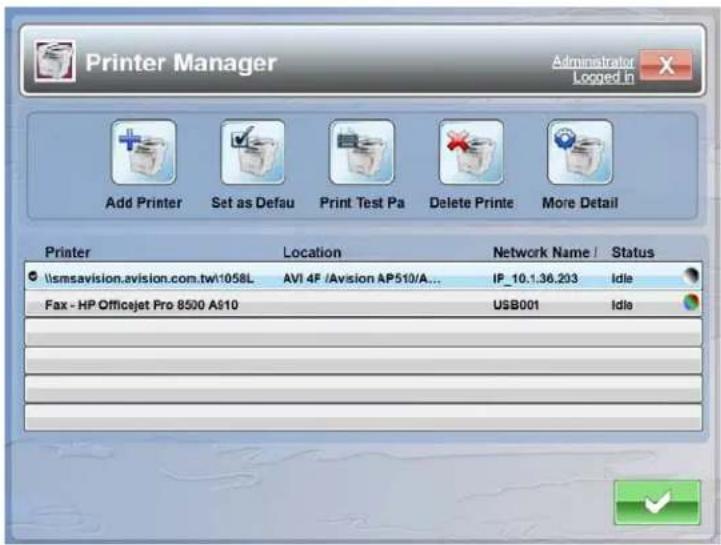
- Tap the [Output Printer] button to open the following Printer Manager.
-
Tap the [Add Printer] button.
-
Select Browse for a printer to list all available printers in the same domain section and choose a printer, or Add a printer by name and enter a desired printer path with its login name and password to specify a printer you want.
Options for Printer Manager
| Printer Manager | |
| Item Description | |
| Add Printer | Adds a printer for the product. |
| Set As Default | Checks to specify a default printer. |
| Print Test Page | Prints a test page from the chosen printer. |
| Delete Printer | Deletes the chosen printer. |
| More Detail | Displays the chosen printer's information such as name, location, IP, status, color, default, and Duplex. |
Paper Tray
Use the Paper Tray feature to specify what printer tray to use for copy job. There are 3 types of paper tray available, including Auto (Automatic selection of paper tray), Tray1, and Bypass (Multi-purpose tray).
To choose what printer tray to use:
- Tap the [Paper Tray] button.
- Choose Auto, Tray1, or Bypass.
Paper Size
Choose your paper size in the printer tray. There are 8 types of paper size available, including A4, A5, B5, Letter, Legal, A3, B4, and Ledger (double size of Letter).
To choose a paper size in the printer tray:
- Tap the [Paper Size] button.
- Choose a desired paper size.
Stamp
The Stamp feature allows you to add some text (such as CONFIDENTIAL, IMPORTANT, DRAFT, etc) on your document.
To add some stamp text for your output:
- Tap the blank space in the Stamp field to open the keyboard.
- Type in your desired stamp text in the Stamp field, and then tap [Done].
Preview
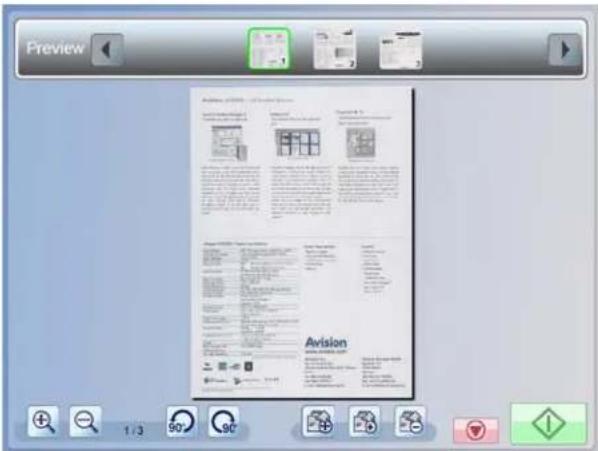
The preview feature allows you to view the scanned images in a low resolution to check if the scanned image is corrected.
To preview your scanned documents:
- Tap [Preview] to show ON in the [Preview] button.
- Tap [Start], and the [Preview] window appears after scanning as shown below:
Options on the Preview screen
| Preview | |
| Item Description | |
Move Page  | On the horizontal scroll bar at the top, tap a thumbnail page that you want to move its order. Tap this [Move Page] button, and a Tilted arrow, as shown below. The selected page is moved to order of the tilted arrow's position.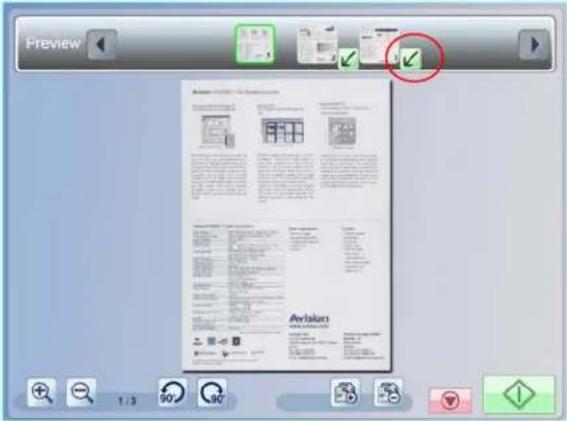 The page is now moved from Position1 to Position3 (the specified Tilted arrow's position), as shown below: The page is now moved from Position1 to Position3 (the specified Tilted arrow's position), as shown below: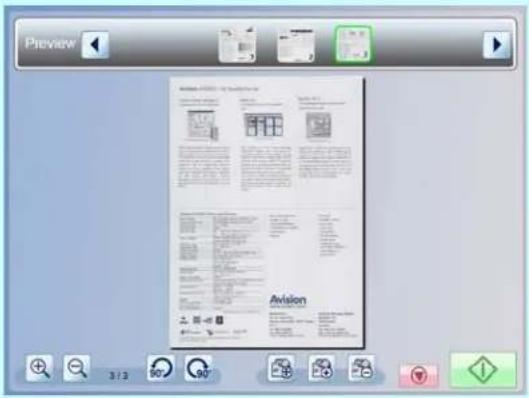 |
Insert Page  | Tap a thumbnail page and then the [Insert Pages] button ( ) . The scanned images will be added after the selected page.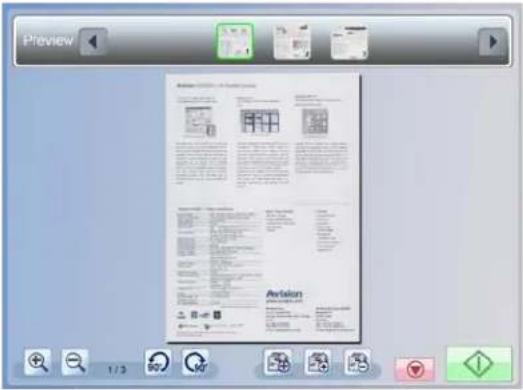 The following message box appears to instruct you to continue scanning your desired original that is going to be inserted. Follow the on-screen instructions to complete the remaining process. The following message box appears to instruct you to continue scanning your desired original that is going to be inserted. Follow the on-screen instructions to complete the remaining process.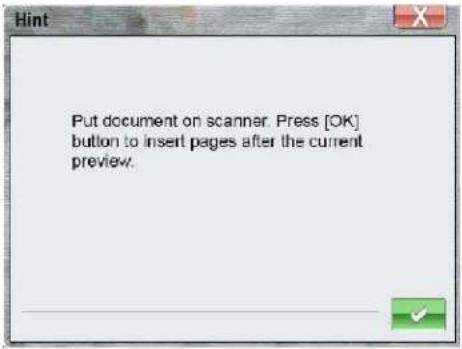 |
| Delete Page | Tap a thumbnail page that you want to delete.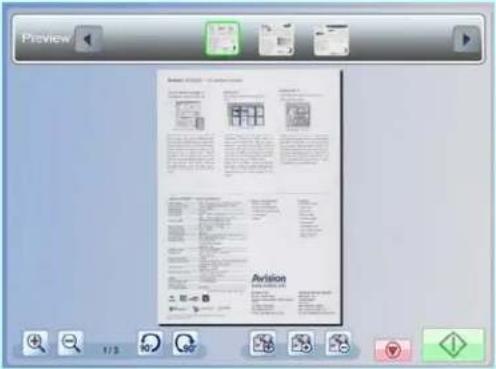 The chosen page is deleted, and the rest pages remain on the horizontal scroll bar. The chosen page is deleted, and the rest pages remain on the horizontal scroll bar.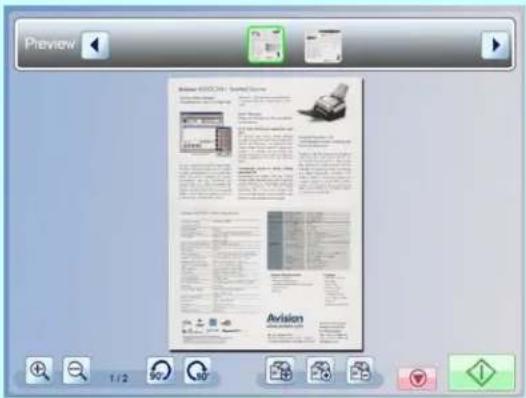 |
Rotate 90° to Left | Rotates the previewed image by 90 degrees counterclockwise. |
Rotate 90° to Right | Rotates the previewed image by 90 degrees clockwise. |
Zoom in  | Enlarge the previewed image. |
Zoom out  | Reduce the previewed image. |
Advanced Copy
Use the Advanced Copy features to further customize your scanned document. These features include Collate, Duplex, Orientation, N-up, Deskew, Shrink, Color Dropout, Blank Removal, and Position. Tap the [Advanced Copy] button to open the following Advanced Copy window.
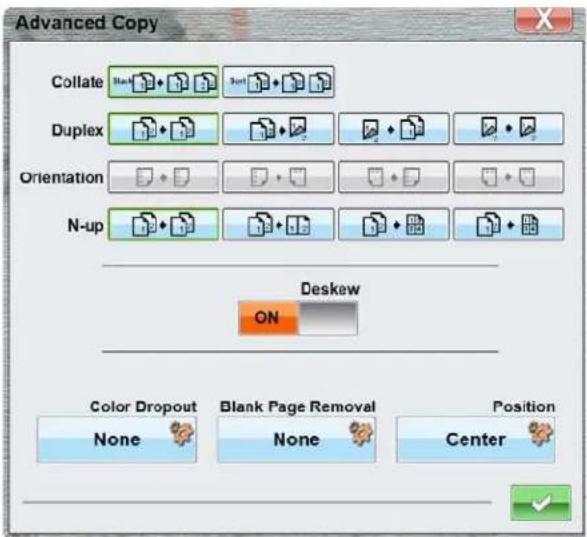
To use these advanced copy features, see the table depicted below:
Options for Advanced Copy
| Advanced Copy | |
| Item Description | |
| Collate | Choose your copies to be placed in “Sort” (e.g. pages 1,2,3/1,2,3/1,2,3) or “Stack” (e.g. pages 1,1,1/2,2,2/3,3,3) orders. Collated DocumentsChoice: * Stack, Sort Collated DocumentsChoice: * Stack, Sort |
| * Factory Default | |
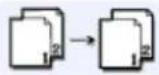
| Duplex | Choose one of the four types for your duplex printing.(Check if your printer includes a duplex option.)Choice: * 1 to 1 Sided, 1 to 2 Sided, 2 to 2 Sided,2 to 1 Sided1 to 1 Sided: Copy single-sided originals onto oneside of one sheet of paper.1 to 2 Sided: Copy single-sided original onto twosides of one sheet of paper.2 to 1 Sided: Copy double-sided original onto oneside of one sheet of paper.2 to 2 Sided: Copy double-sided original onto twosides of one sheet of paper. | |
 | 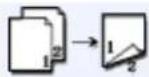 | |
| 1 to 1 Sided | 1 to 2 Sided | |
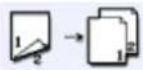 | 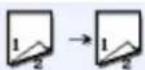 | |
| 2 to 1 Sided | 2 to 2 Sided | |
| Example: | ||
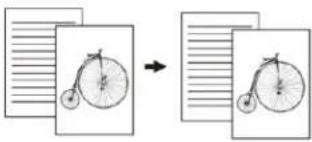 | 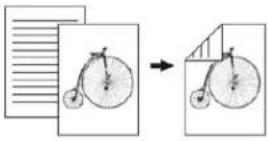 | |
| 1 to 1 Sided | 1 to 2 Sided | |
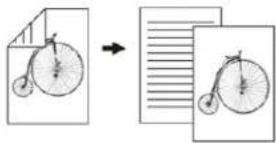 |  | |
| 2 to 1 Sided | 2 to 2 Sided | |
| * Factory Default | ||
Orientation Specify how you would bind your duplex printing.
Note: This feature is only available for a printer which supports the duplex feature.
Long Edge means documents to be bound or to be flipped on the long edge of paper.
Short Edge means documents to be bound or to be flipped on the short edge of paper.
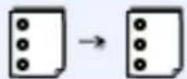
Turn your documents from long-edge binding to long-edge binding.
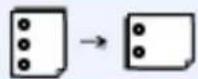
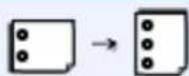
Turn your documents from short-edge binding to long-edge binding.
Turn your documents from long-edge binding to short-edge binding.
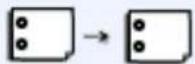
Turn your documents from short-edge binding to short-edge binding.
Note: The selection of orientation varies depending on type of duplex printing.
| Duplex Type | Availability of Orientation |
| 1 to 1 sided | All options are unavailable. |
| 2 to 1 sided | Only Long Edge to Long Edge and Short Edge to Long Edge are available. |
| 1 to 2 sided | Only Long Edge to Long Edge and Long Edge to Short Edge are available. |
| 2 to 2 sided | All options are available. |
* Factory Default
N-up When copying multiple-page documents, you can copy more than one page on a single sheet of paper. The scanned images are resized to fit on the copied page.Choice: * Off (  ): Copies an original onto one sheet of paper.2-up(2-in-1 ): Copies an original onto one sheet of paper.2-up(2-in-1 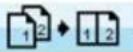 ): Copies two separate originals onto one sheet of paper.4-up(4-in-1 ): Copies two separate originals onto one sheet of paper.4-up(4-in-1 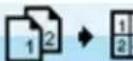 ): Copies four separate originals onto one page. The copy direction is Down, then Right.4-up(4-in-1 ): Copies four separate originals onto one page. The copy direction is Down, then Right.4-up(4-in-1 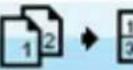 ): Copies four separate originals onto one page. The copy direction is Right, then Down.The diagram for 4-up copy directions on a single sheet is shown below: ): Copies four separate originals onto one page. The copy direction is Right, then Down.The diagram for 4-up copy directions on a single sheet is shown below: Down, then Right Down, then Right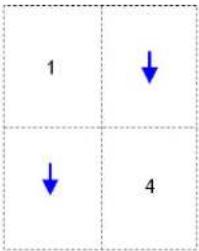 | |
| Deskew | Use this option to automatically straighten your image.Choice: * ON, OFF |
| * Factory Default | |
| Color Dropout | Color Dropout allows you to drop either of the red, blue, or green color in your scanned image. If your image contains red color watermark or background, choose the R (Red) channel then any red watermark or background will be removed. This feature is used to sharpen your text when using OCR (Optical Character Recognition) software. | |
 |  | |
| Original | After Removing the Blue Color | |
| Choice: * NONE, Red, Green, Blue | ||
| Blank Page Removal | Removes a blank page by your chosen threshold, including 20%, 40%, 60%, 80%, and 100%.The threshold is defined by how many percentages the blank area in an original occupies.Choice includes * None, 20%, 40%, 60%, 80%, 100%. | |
| Position | Specifies the print position on the output paper.Choice: * Upper Left, Center | |
| * Factory Default | ||
Basic E-mail Operation
To Send a Scanned Image as an attachment to an Email Address:
-
Place your document(s) with text FACE DOWN in the ADF or FACE DOWN on the glass.
-
Tap the [E-mail] button on the touch panel to open the following [E-mail] window.
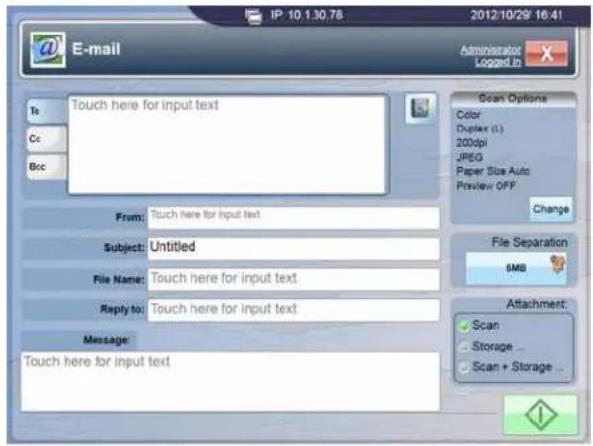
- To enter e-mail addresses with their relevant information:
a. Tap the [To], [Cc], or [Bcc] tab from the E-mail window respectively.
b. Tap the [Touch here for input text] field to bring up the virtual keyboard to type in your email address. Press Enter to type the next e-mail address if you have an additional email address.
c. Tap Next and enter the From address, Subject of your e-mail, File Name of the scanned document, Reply to address, or e-mail Message respectively.
d. When you are done, tap Done to return to the [E-mail] window.
- To enter email addresses from the address book:

Tap the [Address Book] button, , to choose your email addresses from E-mail list or Group List. You can also type a key word to search a complete email address by tapping the [Public] folder or [LDAP] server button. To add an email address to the address book, see the section of the E-mail settings on the embedded web page.
-
If desired, change the other E-mail settings. For details, see Change more E-mail settings on the next page.
-
Tap either the [Start] button on the touch panel or the [Scan] button (L) on the control panel.
-
The product starts scanning and the preview image will be displayed.
-
On the Preview screen,
- If the scanned image is OK, press the [Start] button ( ) on the touch panel or the [Start] button ( ) on the control panel to distribute the scanned image. You may also insert more pages by taping the [Insert

Pages (☐) button on the bottom of the screen.
- If the scanned image is not OK, tap the [Cancel] button to abort the job.
- In a second, the scanned image will be sent to your email addresses.
You can customize E-mail jobs using the various settings available from the touch panel, including the following:
- Scan Options
- File Separation
- Attachment
Scan Options
The product roughly classifies regular scanning jobs into 3 main document types, including:
Photo: Used for the original containing pictures or photographs.
Document: Used for documents containing mostly text.
Mix: Used for documents mixing with text and photographs.
If these 3 document types do not meet your favorite scan job, Custom may help you to customize your scan settings.
To change your scan options:
- Tap the [Change] button to bring up the following Document Type window.
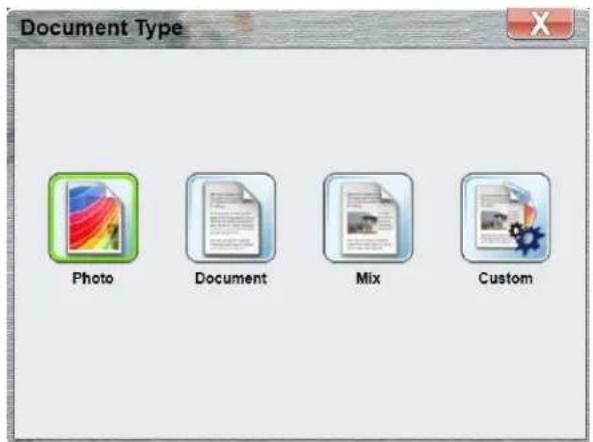
- Select and tap your favor document type button.
Tapping the [Custom] button will open the following Custom window.
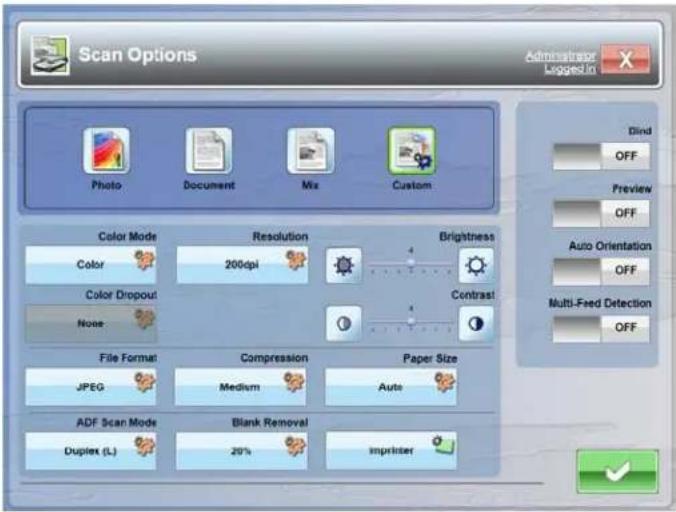
Refer to Chapter 5 Customizing Scan Options for further details.
File Separation
Choose default maximum image size for attachment sent by the product. The purpose to set file separation is to avoid the file size limitation of SMTP servers.
To choose a file separation size for your attachment :
-
Tap the [File Separation] button.
-
Choose a maximum image size for attachment.
Choice: Unlimited, 3MB, *5MB, 10MB
Attachment
This option allows you to scan and send your current document image or select and send images from your USB flash drive to your specified destination.
- Scan: Select this button to scan and send your document to your e-mail address as attachments.
- Storage: Select this button to choose current files from your USB flash disk to your e-mail address as attachments.
- Scan + Storage: Select this button to attach both of your documents and current image files from your USB flash disk to your e-mail address as attachments.
Basic Filing Operation
To Send a Scanned Image to a Filing Server:
-
Place your document(s) with text FACE DOWN in the ADF or FACE DOWN on the glass.
-
Tap the [Filing] button on the touch panel to open the following Filing window.
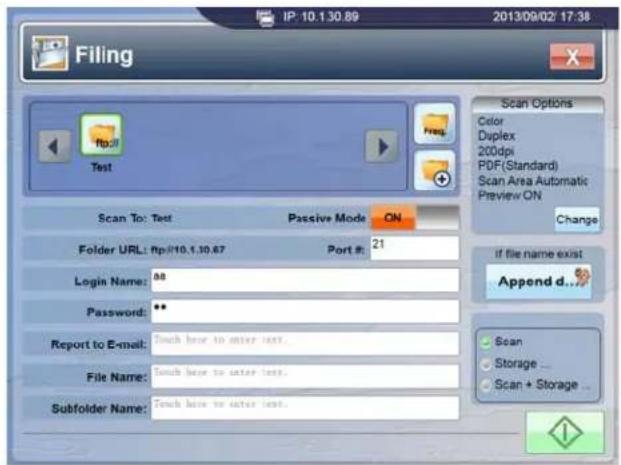
- To select a folder to save your scanned image into (Suppose some folders are added in the product's web page):
Tap the [Left / Right] arrow button in the Folder scroll box and then a desired folder name from the list. If the product has too many folders to find, tap Freq. and the most frequently used folder appears at the most left side, and the least frequent one appears toward the most right side.
-
If your location to save the current scanned document is not in the current folder list, add a new one by tapping the [Add a New Folder] button ( + ). For details, see Change Filing settings on the next page.
-
Tap either the [Start] button ( ) on the touch panel or the [Scan] button ( ) on the control panel.
-
The product starts scanning and the preview image will be displayed.
-
On the Preview screen,
- If the scanned image is OK, press the [Start] button ( ) on the touch panel or the [Scan] button ( ) on the control panel to distribute the scanned image. You may also insert more pages by taping the [Insert
Pages ( )] button on the bottom of the screen.
- If the scanned image is not OK, tap the [Cancel] button to abort the job.
- In a second, the scanned image will be sent to your specified destination.
Tapping the [Add New Folder] button opens the following New Folder window.
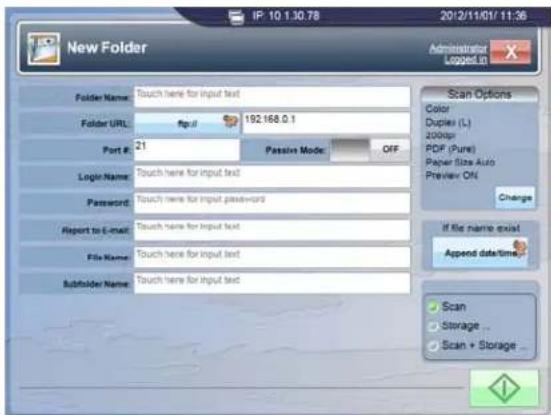
The New Folder screen contains server destinations with various parameters. Refer to the following table to enter the relevant values.
| New Folder | |
| Item Description | |
| Folder Name Enter name of your folder. | |
| Folder URL Tap and choose a type of protocol of your filing server in the Folder URL. Choice includes * ftp://, file://, ftps://.Enter the Folder URL in the second field. You can enter either the domain name or the IP address with the directory path.Choice: * ftp://, file://, ftps:/// | |
| Port # | Enter the port number for the server into which you want to store your scanned document.If the default value is different from the real case, input the correct port number in this field. Tap anywhere on the “Port” field to bring up the soft keyboard to enter the text.Choice: * FTP:21, * FTPS:21 |
| Passive Mode If | your ftp connection in the active mode fails, select the passive mode instead.Choice: * ON, OFF. |
| Login Name Enter your login name for the server. | |
| Password Enter your password for the server. | |
| Report to E-mail | The product will send a report to the Report to E-mail address after sending a file to the target server. The receiver can be notified and choose to download your scanned document after the document is sent to the target filing server. |
| File Name Give your desired file name. | |
| Subfolder Name | Give your desired subfolder name in the target server. |
| If file name exist | If the file name you enter is duplicated in the target server, the current date/time will be appended to the newly added file name in order to distinguish the new file from the old one.Append date/ time: Using # Y# M# D# h# m# s makes a file name change as time goes. Y, M, D, h, m, and s represents year, month, date, hour, minute, and second respectively. For example, typing the file name, myscanfile, will bring your filing file name as myscanfile-20121101140519-000.pdf, in which 2012 represents Year, 11 Month, 01 Date, 14 Hour, 05 Minute, and 19 Second, respectively.Replace:Replace the content of the same file name if there is a same file name existing in the target server.Choice: * Append date/ time, Replace. |
| * Factory Default | |
Note:
After sending the scanned document to your target server, the new folder will not be automatically added to the folder list in the Folder main screen. On how to add a new folder to the folder list in the Folder main screen, please refer to the section, "Specifying More Administrator Settings by the Product's Web Page".
Sending Source
This option allows you to scan and send your current document image or select and send images from your USB flash drive to your specified destination.
- Scan: Select this button to scan and send your document to your specified filing destination.
- Storage: Select this button to choose current files from your USB flash disk to your specified filing destination.
- Scan + Storage: Select this button to attach both of your documents and current image files from your USB flash disk to your specified filing destination.
Scan Options
The scan options in Filing are the same with those in E-mail. Refer to Section Change More E-MAIL Settings or Chapter 5 Customizing Scan Options to configure your favorite scan options for Filing.
To use a shortcut button,
- Select and tap the green [Start] button of a shortcut button to use from the shortcut button list on the main screen of the touch panel.
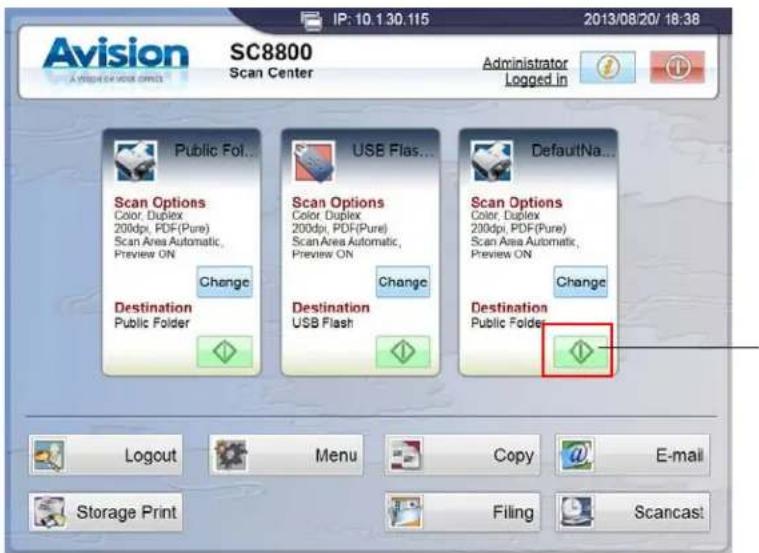
Green Start Button of Shortcut Button
Note: If you want to change settings of your shortcut button before tapping the green [Start] button, simply tap the [Change] button on the shortcut button to update your settings, and then tap OK.
- The product starts scanning and the preview image will be displayed.
- On the Preview screen,
- If the scanned image is OK, press the [Start] button ( ) on the touch panel or the [Scan] button ( ) on the control panel to distribute the scanned image. You may also insert more pages by taping the [Insert

Pages ( [+] )] button on the bottom of the screen.
- If the scanned image is not OK, tap the [Cancel] button to abort the job.
- The scanned images are sent to your specified destination.
Storage Printing allows a user to print a document from a USB flash device or the public folder embedded in the product to a designated printer in network. The Storage Print screen will change to reflect a number of choices you can use when working with USB Flash or Public Folder.
To print a document from a USB storage device,
- Insert your USB Flash Drive in a USB port at the back of the product, and wait for the product to successfully detect the USB Flash Drive in a moment.
- Tap the [Storage Print] button at the bottom-left corner of the touch panel.
- Select USB Flash from the pop-up dialog box, and tap OK.
- The [Storage Print] screen pops up on the touch panel, as shown below:
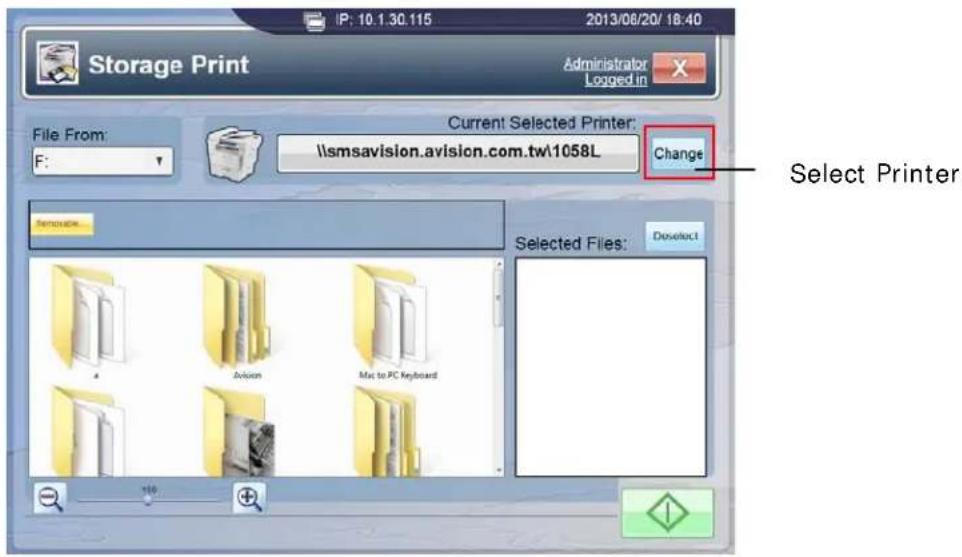
- Select your designated printer by tapping the [Change] button.
- Tap and select a file from the graphical interface displaying all folders and files in your USB flash device. (If more than one USB storage devices are inserted, select your desired USB drive from the [File From] dropdown menu. To cancel your selection, simply tap the [Deselect] button.)
- Tap either the [Start] button ( ) on the touch panel or the [Scan] button ( ) on the control panel.
- The selected file will be printed out from your designated printer.
To print a document from the public folder,
- Tap the [Storage Print] button at the bottom-left corner of the touch panel.
- Select the [Public Folder] button and enter your PIN number (If necessary) from the pop-up dialog box, and tap OK.
- Storage Print screen pops up on the touch panel, as shown below:
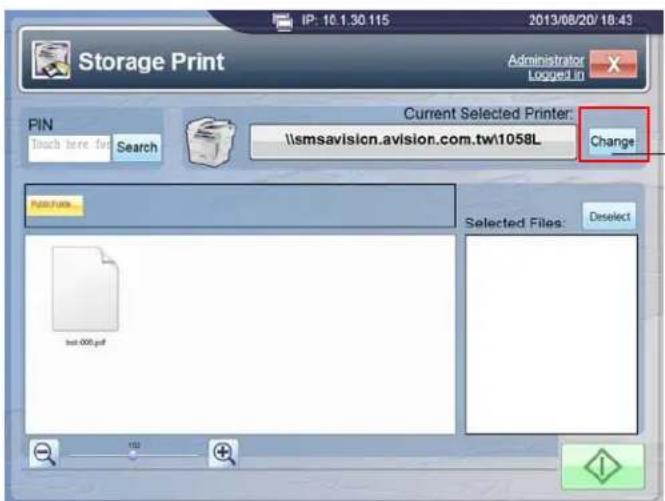
Select Printer
- Select your designated printer by tapping [Change].
- Tap and select a file from the graphical interface displaying all files in your public folder. (If your PIN numbers are forgotten, search your desired PIN number from the [PIN] dropdown menu. To cancel your selection, simply tap the [Deselect] button.)
- Tap either the [Start] button ( ) on the touch panel or the [Scan] button ( ) on the control panel.
- The selected file will be printed out from your designated printer.
The Scancast (Scan and broadcast) feature allows you to scan a document and save the image to the product's memory and then respectively specify various destinations to send the images to these destinations.
To send a scanned document to multiple destinations,
- Tap the [Scancast] button on the main screen of the touch panel.
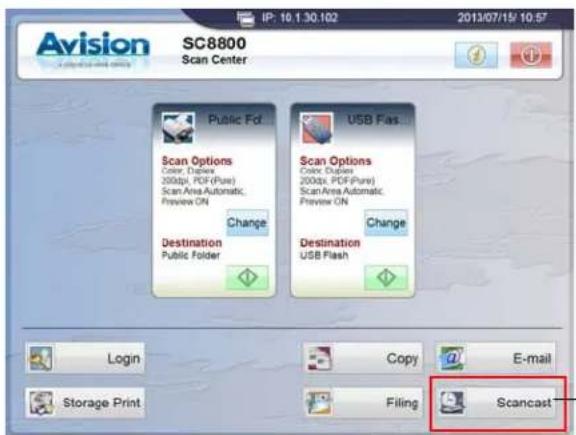
Scancast Button
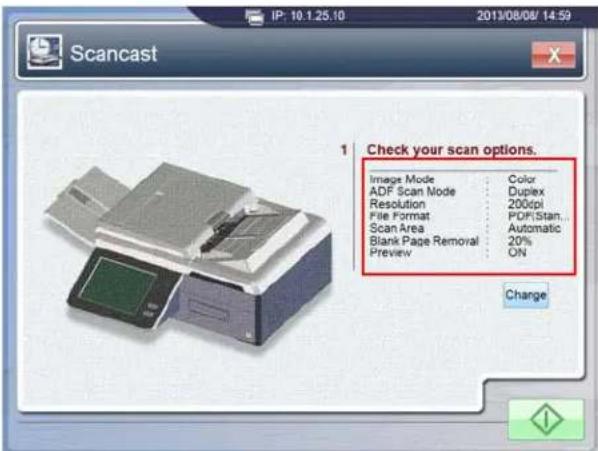
- The [Scancast] window is shown, prompting you to check and confirm if the scan options meet your requirements.
-
The scan options in Scancast are the same with those in E-mail or Filing. Tap the [Change] button to update scan options. Refer to Section Change More E-MAIL Settings or Chapter 5 Customizing Scan Options to configure your favorite scan options for Scancast.
-
Tap either the [Start] button on the touch panel or the [Scan] button on the control panel.
-
The product starts scanning and the preview image will be displayed.
-
On the Preview screen,
- If the scanned image is OK, press the [Start] button ( ) on the touch panel or the [Scan] button ( ) on the control panel to distribute the scanned image. You may also insert more pages by taping the [Insert Pages ( )] button on the bottom of the screen.
- If the scanned image is not OK, tap the [Cancel] button to abort the job.
-
The scanned document is temporarily saved to the product's memory.
-
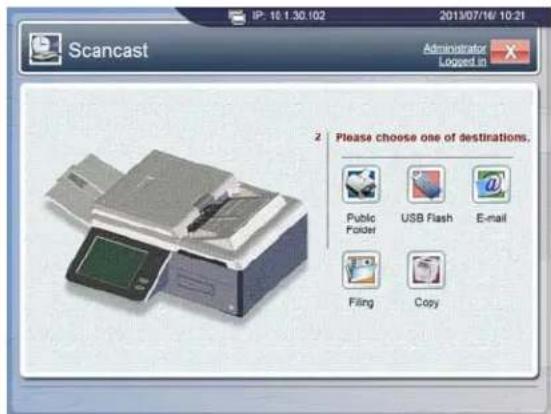
The [Scancast] window for multiple destinations appears on the touch panel, prompting you to choose a destination, as shown below:
-
Select and tap one of destinations (Public Folder/USB Flash/E-mail/Filing/Copy) you want your scanned document to send to, and then tap OK.
-
The scanned documents are sent to your selected destination while the document images remain in the product's memory until deleted from Step 13.
-
The [Scancast] window for multiple destinations appears again to allow a user to select another destination where to resend the same scanned document.
- Repeat Step 8 to 10 until you finish sending all your desired destinations.
- If your job has been completed, tap the [Close (X)] button to close the window and delete the scanned images.
The product's Shortcut buttons provides you an effective way to make copy or distribute your documents in seconds. This function saves you a considerable amount of time in typing or choosing your favorable settings.
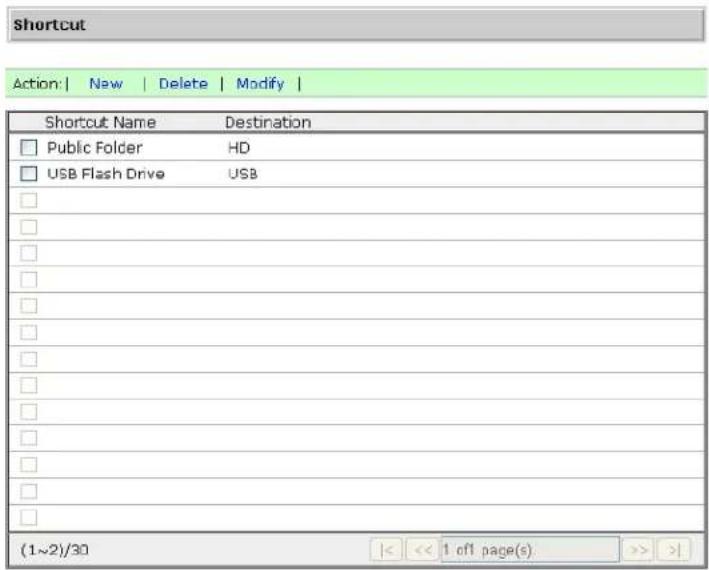
Before using a shortcut button, you need to first create a shortcut button. There are two ways to create a shortcut button, via the product's web page and through the touch panel on the product. Up to 30 ShortCut buttons can be set.
To create a new shortcut button via the embedded web page,
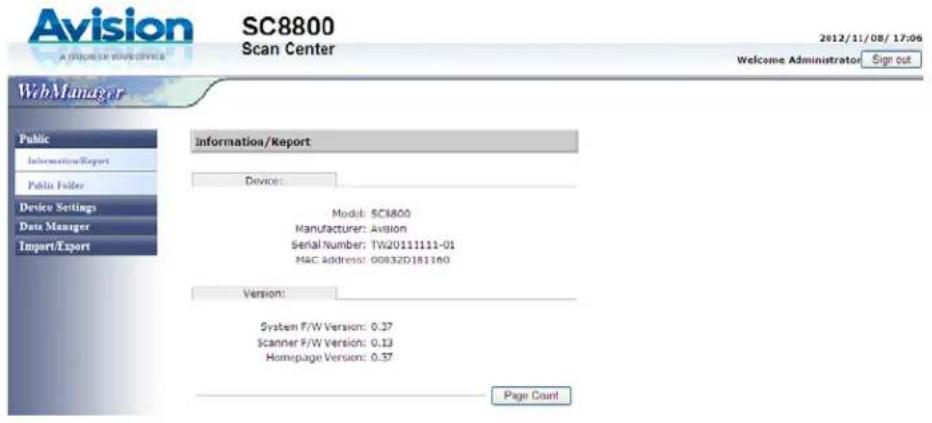
- Type the IP address of the product in the URL field of your browser and then press Enter. The product's embedded web page with limited options appears as shown below.
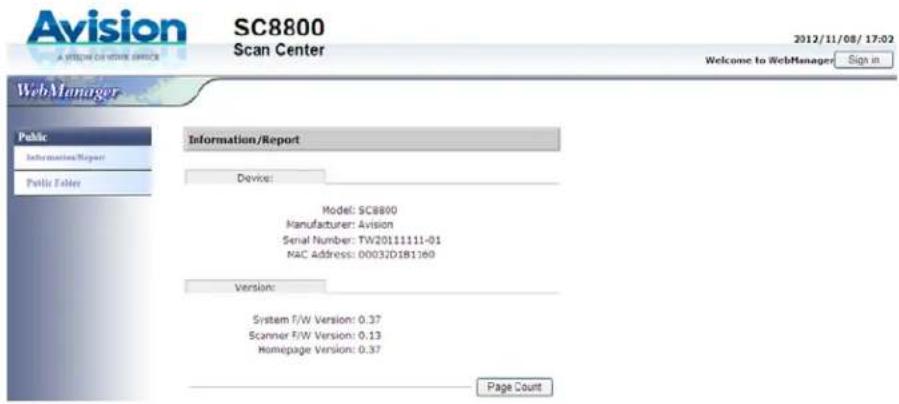
- Click Sign in since the Device Settings, Data Manager, and Import/ Export are blocked by system administrator's login name and password. You will be prompted to enter a login name and password.
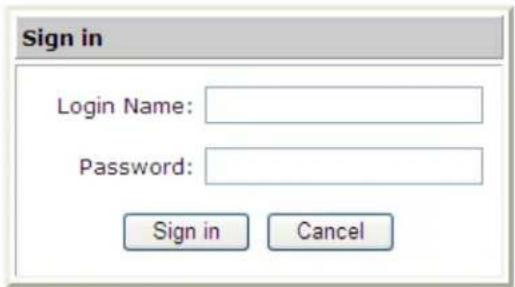
- Click Sign in since the machine is shipped with no specific login name and password and then the web page will be automatically display to contain full options.
- Click Data Manager, and Shortcut to open the Shortcut screen, as shown below:
- Click New to open the following shortcut-setting screen, as an example:
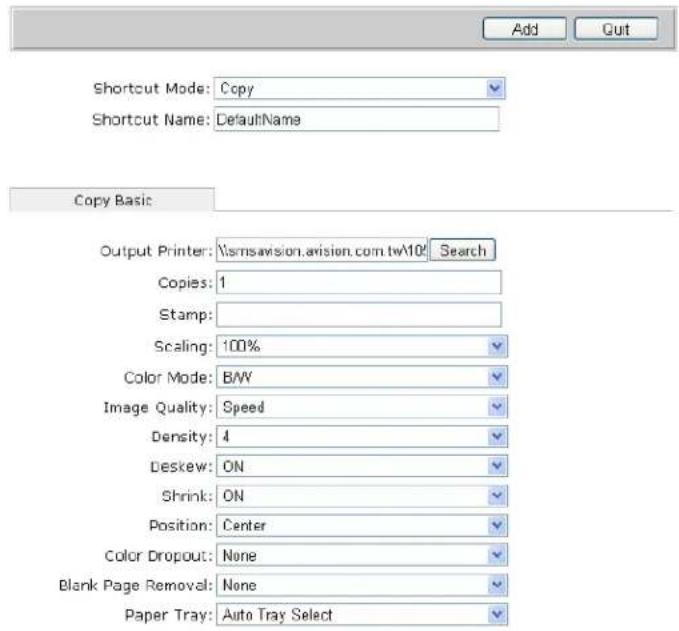
- Choose your desired shortcut mode from the Shortcut Mode drop-down list box. The shortcut-setting screen will change to reflect a number of choices you can use when working with Copy, E-mail, Filing, Public Folder, USB Flash Drive, Google Drive, or Microsoft SharePoint.
- Type in your desired shortcut name (For example, My Copy) in the Shortcut Name box.
-
Enter or modify specific settings under all these Tabs to meet your custom need. Refer to Chapter 4 Operation or Section Summary of the Web Pages for these settings.
-
Click the [Add] button to create a shortcut button, My Copy, on the touch panel, as shown below:

To create a new shortcut button via the Touch Panel,
- Tap the [Login] button (Login) to bring up the administrator Login screen since you need the administrator privilege to create a shortcut button. Enter your login name and password respectively in the Login Name and Password field via the soft keyboard, and then tap OK.
- Tap Copy, E-mail, or Filing on the touch panel to open the Copy, E-mail, or Filing window. The [Add A New ShortCut] button is shown near to the upper-right corner on the touch panel screen. The following is an example screenshot of the Copy's touch panel screen.
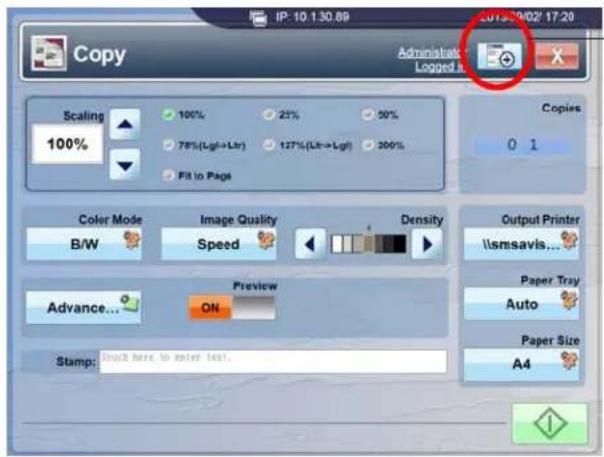
Add A New ShortCut Button
-
Enter or modify specific settings on Copy, E-mail, or Filing window to meet your custom need.
-
Tap the [Add A New ShortCut] button on the touch panel screen to enter your favor shortcut name in the following dialog box.
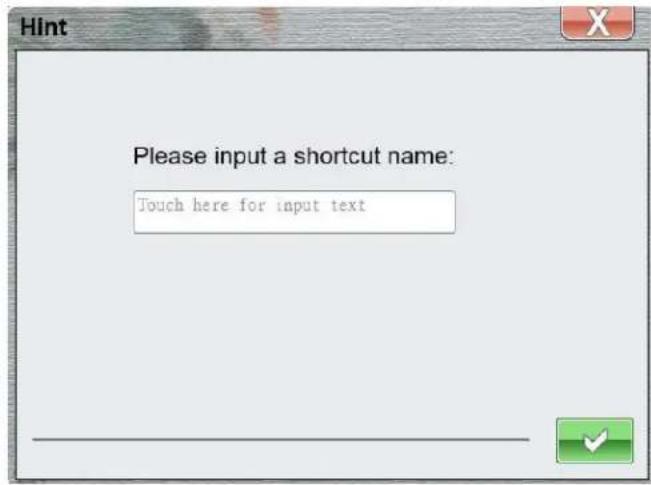
- Your new shortcut button will be added to the main screen of the touch panel, as shown below:
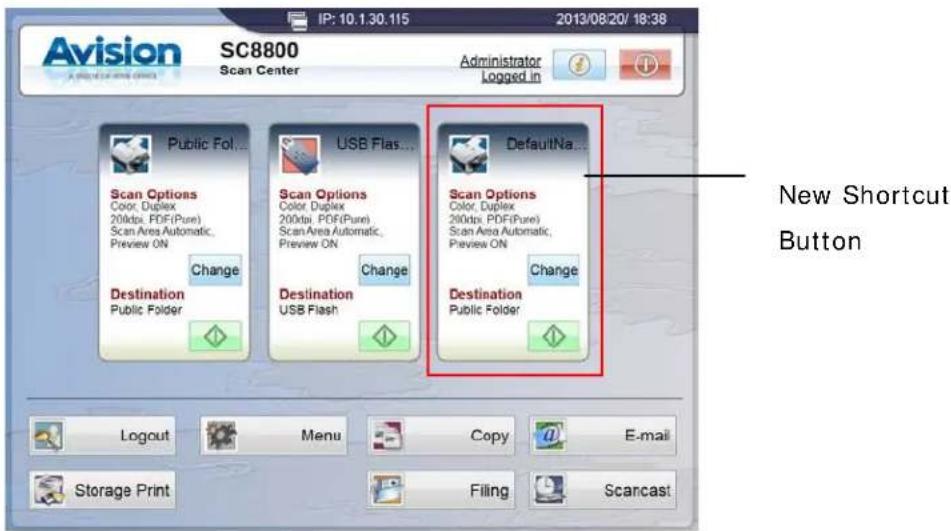
The SC8800 provides a very convenient feature to view the user's manual on the touch screen. To view or download the user's manual, please follow these steps:
-
On the main operation screen, tap the Information button ( ), the Information/ Report page appears.
-
On the Information/ Report page, tap on the screen. The user's manual will be displayed on the screen.
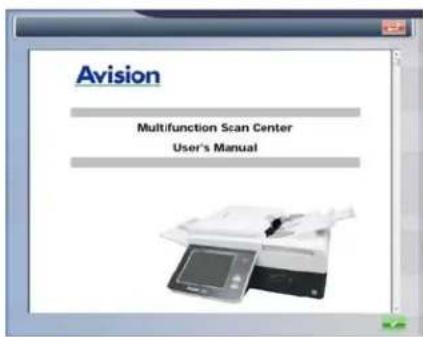
- Use the scroll bar on the screen to go through the rest pages. Or you may download the manual (PDF file) to your computer by inserting a SD card or a USB flash drive on the card reader of the machine and saving the manual to your SD card or USB flash drive.
To download the user's manual to the SD card or USB flash drive,
-
Insert a SD card or USB flash drive to the SD card port or USB port on the card reader of the machine.
-
On the User's Manual's page, tape on the screen.
-
Select your desired destination if you have inserted more than one disk drive.
-
Tap on the screen to start download the file to your selected disk drive.
-
In a second, the file will be downloaded and the "Sending file successful" message will be displayed on the screen. Tap on the screen to return to the main screen.
4 Configuring the Machine
The following settings or destinations must be defined by the system administrator before the product is used to distribute the scanned document in the network.
- Network and E-mail parameters: Defines the parameters for TCP/IP, and SMTP protocols to send your scanned document to e-mail addresses.
- Filing Destinations: Defines the protocols and destinations to send your scanned document to FTP servers, web, or any personal computers in the network.
To specify these settings or destinations, the administrator can enter relevant values from the Network Settings, E-Mail Default, and Filing Default under Menu on the touch panel. In addition to using the touch panel, the product allows the administrator to remotely configure the machine by launching the product's embedded web page.
Note:
- If the system administrator has chosen DHCP, then the IP address of TCP/IP, gateway, subnet mask, and DNS server will be automatically given.
- When installing the product for the first time, it is recommended that the Administrator retain the default system settings. The settings can be customized at a later date once you are familiar with the operation and functionality.
-
To ensure your system reflects correct date and time, please tap the [Menu] button and select Configuration to revise the system clock.
-
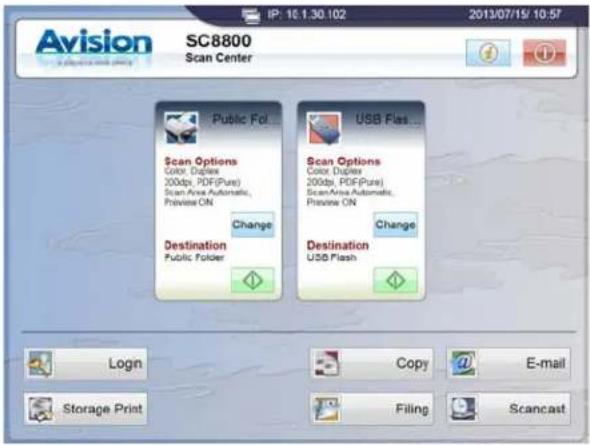
Turn on the product. After the product is warming up for a few seconds, the Main (also called Shortcut) screen appears on the touch panel, as shown below:
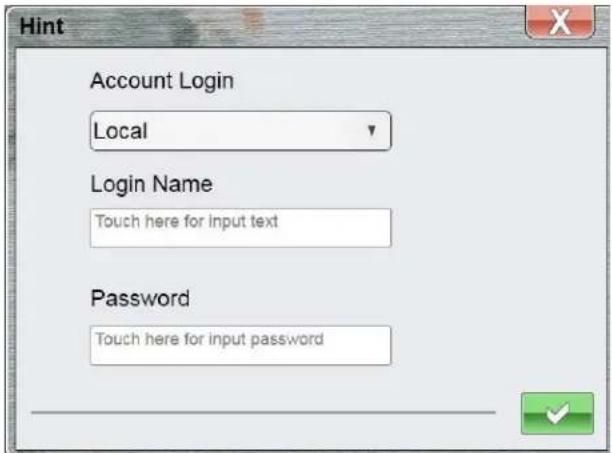
- Tap the [Login] button (Login) to bring up the administrator Login screen since you need the administrator privilege to make initial setup. Enter your login name and password respectively in the Login Name and Password field via the soft keyboard, and then tap OK. (Note: the machine is shipped without a specified login name and password.)
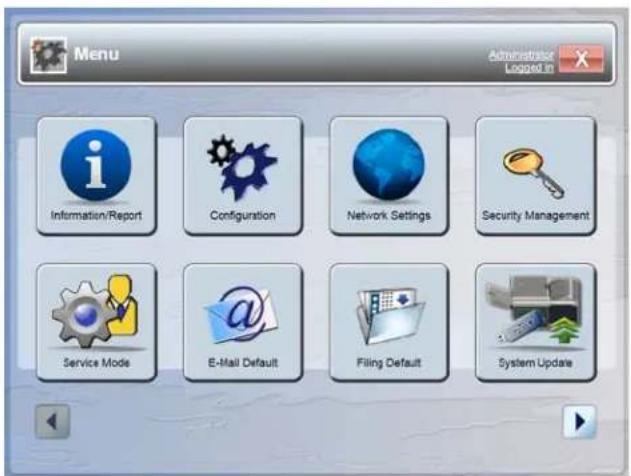
- Tap the [Menu] button on the touch panel. This opens the following [Menu] screen.
- Tap the [Network Settings] button to open the following Network Settings screen.
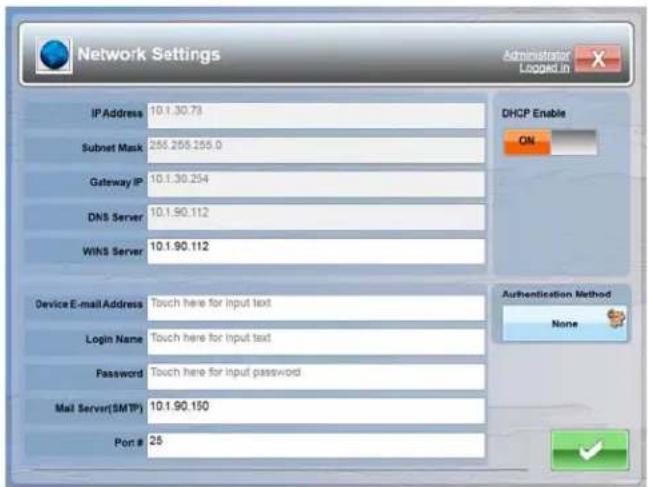
- Tap anywhere respectively on the IP Address/Subnet Mask/Gateway IP/DNS Server/WINS Server field to bring up the soft keyboard and then enter the relevant values. (Of course, you don't need to specify the first three settings if you enable DHCP by tapping the [DHCP Enable] button.)
![Network Settings IF Address: 10.130.78 Submit User: 255.255.255.0 Date Previous Next Backspace @ q w e r t y u i o p [ ] / Caps Lot a s d f g h j k l ; Enter shift z x c v b n m , . / ↑ English .com ← ↓ →](/content/2026/06/1146521/images/65340ff0ee1c3f383e3cce68c5a7ec0b9d10da5a628e3d35f1467249286be1db.jpg)
-
Tap Done to return to the Network Settings screen after entering your information.
-
In the Network Settings screen, tap OK to return to the [Menu] screen.
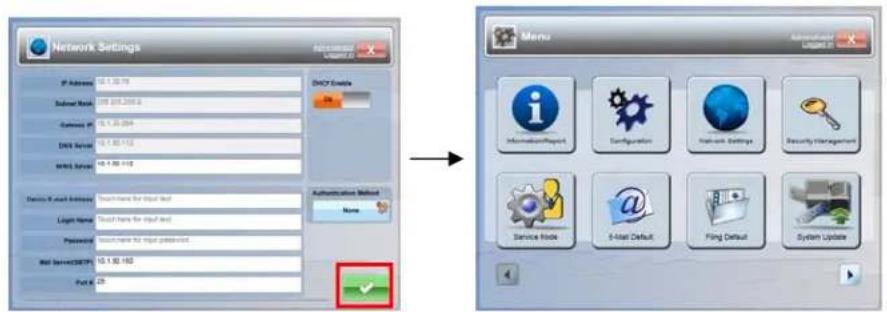
Specifying More Administrator Settings by The Touch Panel
After the product is turned on, an administrator has privilege to bring up the [Menu] button on the touch panel. Tapping the [Menu] button opens the [Menu] screen, which displays 10 buttons for an administrator to view or modify various settings.
To view or modify various settings from the 10 buttons on the Menu screen,
- Tap the [Login] button (Login) on the touch panel to bring up the administrator Login screen.
- Enter your login name and password respectively in the Login Name and Password field via the soft keyboard, and then tap OK. The [Menu] button pops up on the touch panel.
- Tap the [Menu] button to open the following Menu screen.
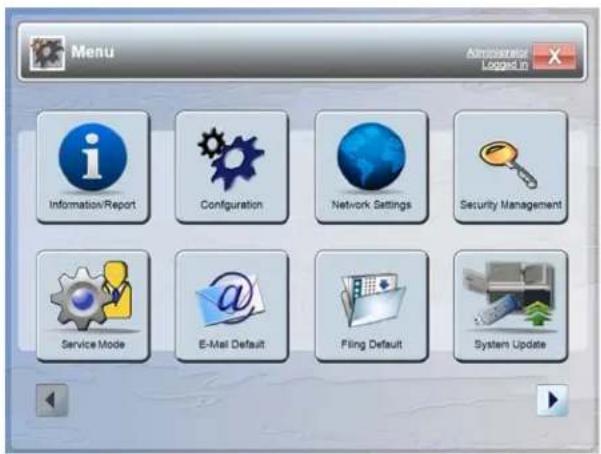
These 10 buttons displaying in Menu screen are: Information Report, Configuration, Network Settings, Security Management, Service Mode, E-Mail Default, Filing Default, System Update, Bug Report, and Activity Log Report. (Tap the right arrow key ▶ to show the Bug Report and the Activity Log Report button.) For each respective option of the 10 buttons, refer to the descriptions of the next few pages.
Information Report
Displays the product's basic information.
| Item Description | |
| Device Displays the product's model name, manufacturer, serial number, and Mac address. | |
| Version Displays the product's system version, scanner firmware version, scan library version, and image library version. | |
| Page Count | Displays the page count respectively for color and black/white modes. The types of counters are classified as Public Folder, USB Flash, E-mail, Filing, Copy, ADF, ADF Pad, and ADF Roller. |
Configuration
Presets the basic settings on the product.
| Item Description | |
| Machine Name Presets a | machine name for the product. |
| NTP Server Presets a NTP | Server for the product. |
| Date Sets up the current | date on the product. |
| Time Sets up the current | time on the product. The time format is 12-hour system. |
| Time Zone Sets a time zone for the product. | |
| Administrator Profile Sets up an Administrator's login name, password, and E-mail address. | |
| Device Management Presets language, energy saver timer, and return to default timer.Language: Sets up the language displayed in the touch panel. Languages supported: English, Traditional Chinese, Simplified Chinese, Portuguese, Spanish, RussianEnergy Saver Timer: Sets up the time the product spends in idle mode before it transitions to lower power status. Timers included: Disable, 5min, 15min, 30min, 60min, 240minReturn to Default Timer: Sets up the time for resetting to the default settings. Timers included: 20sec, 40sec, 60sec, 120sec, 180sec | |
Network Settings
Presets the settings and defaults for network features.
| Item Description | |
| DHCP Enable If a DHCP server is available in your network and the DHCP is also enabled, the IP, subnet mask, Gateway IP, WINS server, and DNS server will be automatically given. | |
| IP Address If DHCP is disabled, set up IP Address for your Static IP. | |
| Subnet Mask If DHCP is disabled, set up Subnet Mask for your Static IP. | |
| Gateway IP If DHCP is disabled, set up Gateway IP for your Static IP. | |
| DNS Server | If DHCP is disabled, set up a DNS server address for the product. |
| Wins Server | If DHCP is disabled, set up a Wins server address for the product. |
| Device E-mail Address | Enter the email address of the device. |
| Login Name Enter the login name for SMTP authentication. | |
| Password Enter the password for SMTP authentication. | |
| Mail Server(SMTP) Enter the SMTP IP. | |
| Port# Enter the SMTP Port number. | |
| Authentication Method | Disable the SMTP Authentication by selecting None. Enable the SMTP Authentication by selecting SMTP. |
Security Management
Assigns local users' privileges to perform the individual product function such as the Copy, E-mail, Filing, or USB Flash function.
| Item Description | |
| ShortCut And | Check the names of functions to be allowed to perform.Choice:Copy, Email, Filing, USB Flash |
| ShortCut Only Allowed to | use only the shortcut buttons shown on the main (or Shortcut) screen of the touch panel. |
Service Mode
Tapping this button lets you enter the Windows 7 operating system.
E-Mail Default
Presets the settings and defaults for E-mail features.
| Item Description | |
| Default Subject | Enter your favor default subject for your E-mail. |
| File Separation | Choose default maximum image size for attachment sent by the product. |
| Scan Options | Previews all available settings of scan options.Tapping the [Change] button allows you to update scan options. Refer to Section Change More E-MAIL Settings or Chapter 5 Customizing Scan Options to configure your favorite scan options. |
Filing Default
Presets the settings and defaults for Filing features.
| Item Description | |
| Folder URL Tap and choose a type of protocol of your filing server in the Folder URL. Choice includes * ftp://, file://, ftps://.Enter the Folder URL in the text field. You can enter either the domain name or the IP address with the directory path. | |
| Port # Enter the port number for the server into which you want to store your scanned document. | |
| Passive Mode | Select the passive mode. |
| File Name Give your default file name. | |
| Report to E-mail The product will send a report to the Report to E-mail address after sending a file to the target server. | |
| Scan Options | Previews all available settings of scan options.Tapping the [Change] button allows you to update scan options. Refer to Section Change More E-MAIL Settings or Chapter 5 Customizing Scan Options to configure your favorite scan options. |
System Update
Update system firmware (.sc file) for the product.
To update your product system,
- Download the latest firmware file (.sc file) to your USB Flash Drive.
- Insert this USB Flash drive in a USB port at the back of the product, and wait for the product to successfully detect the USB Flash Drive in a moment.
- Tap the [System Update] button to update the system settings in the product.
Bug Report
Tap the option to create a bug report and then send it to your USB flash drive or an e-mail address. The bug report is useful for a service personnel to troubleshoot your problem.
To send the product's bug report to your USB flash,
- Insert this USB Flash drive in a USB port at the back of the product, and wait for the product to successfully detect the USB Flash Drive in a moment.
- Tap the right-arrow button at the bottom from Menu screen to move to the next Menu screen.
- Tap the [Bug Report] button.
- Select USB Flash to send the product's bug report to your USB flash.
To send the product's bug report to your E-mail address,
- Tap the right-arrow button at the bottom from Menu screen to move to the next Menu screen.
- Tap the [Bug Report] button.
- Select E-mail to send the product's bug report to your E-mail address.
Activity Log Report
Tap the option to create an activity log report and then send it to your e-mail address.
To send the product's activity log report to your E-mail address,
- Tap the right-arrow button at the bottom from Menu screen to move to the next Menu screen.
- Tap the [Activity Log Report] button.
- Select E-mail to send the product's activity log report to your E-mail address.
Specifying More Administrator Settings by an Embedded Web Page
- Specify the network settings on the touch panel via the soft keyboard. (Please refer to the preceding section, Specifying the Product's Network Settings.)
- The product is designed with an embedded web page to allow the system administrator to remotely manage the product. Simply type the IP address of the product in the URL field of your browser and then press Enter. The product's embedded web page with limited options appears as shown below.
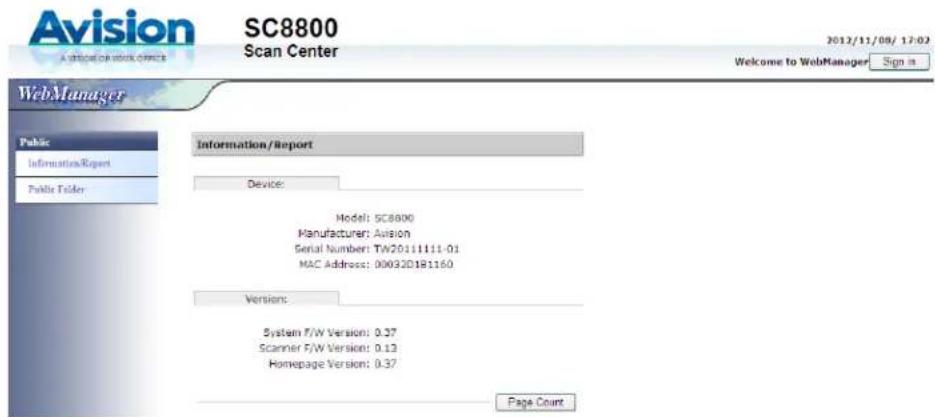
- Click Sign in on the upper right corner of the web page since the Device Settings, Data Manager, and Import/ Export are blocked by login name and password. (Note the machine is shipped without a specified login name and password.) You will be prompted to enter a login name and password on the Sign-in dialog box as shown below:
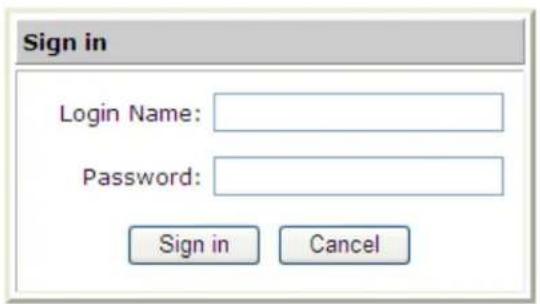
- Click Sign in on the Sign-in dialog box since the machine is shipped with no specific login name and password and then the web page will be automatically updated to contain full options.
- In the left side of the web page, click each item on the menu to enter relevant value respectively. For details on each setting, please refer to the subsequent section, Summary of the Web Pages.
Note:
The Device Setting, Data Manager, Data Exchange, and System Update are blocked by login name and password. Click Login to enter the detailed settings since the machine is shipped with no specific password. You can create a password later and write it in your notes in case you may forget it.
For effective management, it is recommended to create administrator's login name and password later.
Please note that some of the settings in the "Menu" can also be set by users while they are making copies, sending individual mails, or sending individual files to folder when they press the "Copy", "E-mail", or "Folder", button on the control panel. However, if the users fail to set these settings, then the default settings will be automatically applied to the copier, e-mails, or folder sent by the users. That is to say, the administrator assigns default settings for common functions. Yet, an individual user also has a chance to set his or her own settings when he or she is performing one of the function modes.
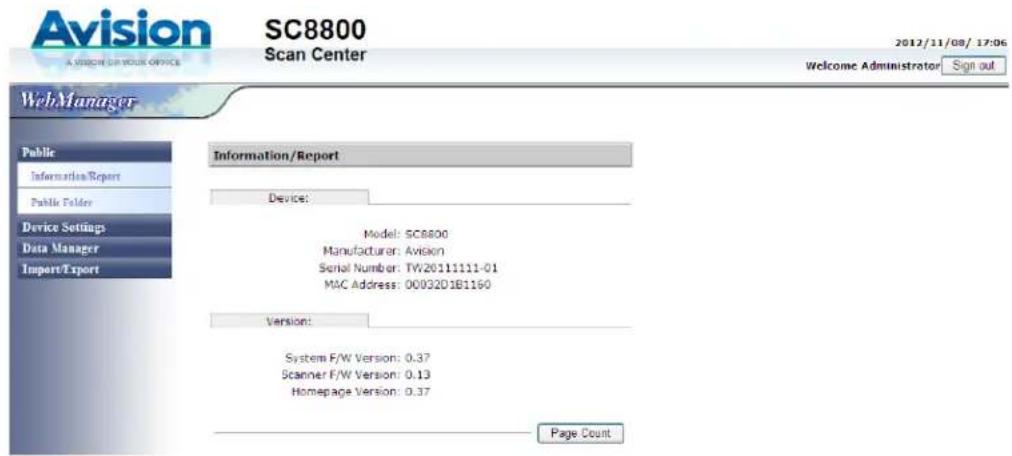
Information/ Report: Used to display the product's basic information.
| Item Description | |
| Model Displays the product's model name. | |
| Manufacturer Displays the manufacturer name. | |
| MAC Address Displays the scan unit's MAC address. | |
| Serial Number Displays the product's serial number. | |
| System F/ W Version | Displays the system's firmware version. |
| Scan Library Version Displays the scanner's library version. | |
| Image Library Version Displays the image library version. | |
| Page Count Displays the counters of Public Folder, USB Flash, Copy, E-mail, Filing respectively in Black/White and Color mode.Displays the counters of ADF roller, ADF pad, ADF, and Scan Total.Clear: Tap the [Clear] button of Page Count to reset all counter values. | |
Public Folder: Used to download a file name to your computer from the host device in the product. A user may be required to enter a pin number if the file was given a pin number by the sender. Note the files in the Public Folder can be saved for 24 hours. After 24 hours, the files will be automatically deleted.
| Item Description | |
| Download Check a file name | name to download the file to the default path in your computer. For example, C:\Documents and Settings\John(login name)\My Documents\Downloads |
| Search Enter a key word | in the box, and click Search to list all file names containing the key word. |
| Delete Check a file name | to delete the file. |
| Delete All Delete all files | in the list. |
IP information on Network Settings: Used to specify the product's network settings.
| Item Description | |
| DHCP Enable If you have | a DHCP server available on your network and the DHCP has been enabled, the IP, subnet mask, Gateway IP, WINS server, and DNS server will be automatically given.Choice: * ON, OFF |
| IP Address | The Internet Protocol (IP) address assigned to your machine by your network administrator. |
| Subnet Mask | The net mask address assigned by your network administrator. |
| Gateway IP The gateway | IP address assigned by your network administrator. |
| DNS Server The Domain | Name Server assigned by your network administrator. |
| WINS Server The WINS | (Windows Internet Naming Service)assigned by your network administrator. |
| Update Update all the above information. | |
| * Factory Default | |
Mail information on Network Settings: Used to specify the product's mail server information.
| Item Description | |
| Mail Server Enter the SMTP IP. | |
| Port# Enter the SMTP Port number. | |
| Device E-mail Address | |
| E-mail Address Enter the email address of the device. This is also the default “From” address when you are sending email from the device.After sending the email with the mail server not specified, the product will automatically detect a mail server with its authentication method, and queries a user to determine the acceptance of the detected mail server. | |
| Authentication Method | Enter the email authentication method.Choice: * None, SMTP |
| Login Name Enter the login name for SMTP authentication. | |
| Password Enter the password for SMTP authentication. | |
| Update Update all the above information. | |
| * Factory Default | |
Note:
The login name and password are case-sensitive and are up to 28 characters.
LDAP Settings: Used to specify the product's LDAP server information.
| Item Description | |
| Server Name Enter your LDAP server name. | |
| IP/ URL Enter your LDAP server IP or URL address. | |
| Port# Enter the Port number of the LDAP server. | |
| Login Name Enter the login name of the LDAP server.Note:1. In Microsoft Active Directory, some servers may require you to add “domain name” as your full login name. For example, if your domain name is “company” and your user name is “administrator”, then your full login name is “company\administrator”.2. When your LDAP server requests an “anonymous login”, please leave your login name and password blank instead of typing “anonymous” as your login name and password. | |
| Password Enter the password of the LDAP server. | |
| Base DN Enter your base DN. Base DN (distinguished name) identifies the starting point of a search. A dn indicates what record to view in an LDAP tree. The top level of the LDAP directory tree is the base, referred to as the "base DN". For example, you could indicate a base of dc=com,dc=net for a search that starts at the top and proceeds downward. | |
| SSL Enable Enable or disable SSL.Choice: ON,* OFF | |
| New/ Delete/ Modify Add/delete/modify a LDAP server. | |
| Update Update a LDAP server information. | |
| Quit Leave without updating a LDAP server information. | |
| * Factory Default | |
Configuration: Used to specify the product's general information, administration's profile and other management settings such as energy saver (timer), display language, and so on.
| Item Description | |
| General | |
| Machine Name | Sets product's machine name. (The name that you wish to show in recipient's e-mail.) |
| NTP Server Specify the NTP server address. | |
| Date/ Time Specify the year, month, and day for the device./Specify the hour, minute, and second for the device. | |
| Time Zone | Sets local time zone based on Greenwich Mean Time (GMT). With the time zone setting, your overseas e-mail will display your local time instead of sender's local time. |
| Administrator Profile | |
| Login Name | Enter the administrator's login name to use the [Menu] button.Up to 32 characters or digits are allowed and is case-sensitive. |
| Password | Enter the administrator's password to use the [Menu] button.Up to 8 characters or digits are allowed and is case-sensitive. |
| E-mail Address | Enter the e-mail address of the administrator of the product so that the system can send the error or warning message. Up to 64 characters or digits are allowed and is case-sensitive. |
| Device Management | |
| Energy Saver (Timer) | Choose how long the machine will be idle before it automatically enters the energy saving mode after the last action.Choice:Disable, *5, 15, 30, 60, 240 minutes |
| Return to Default (Timer) | Specify the system's auto reset time. If users have not performed any action during the limited reset time, the LCD Touch Panel will automatically return to the default operation mode.Choice: 20, 40, 60, 120, *180 seconds |
| Language Choose the language you wish to show in the LCD Touch Panel.Choice: * English, Chinese Traditional, Chinese Simplified, Spanish, Portuguese, Russian. | |
| Update Update all the above information. | |
| * Factory Default | |
Account Management: Used to set user's privileges including using the copy, e-mail, or filing function of the product by assigning an account authentication method.
| Basic | |
| Item Description | |
| Default Enable Functions | |
| ShortCut And | Check the names of functions to be allowed to perform.Choice:Copy, E-mail, Filing, USB Flash Drive |
| ShortCut Only Allow to use only the shortcut buttons shown on the Main (or Shortcut) screen. | |
| Account List | |
| User Name Set up your user name for a new account.The name is case-sensitive and up to 64 characters can be entered in the Name field. | |
| Password Set up your password for a new account.The password is case-sensitive and up to 16 characters can be entered in the Name field. | |
| E-mail Address | Enter the e-mail address for a new account. |
| Enable Functions Check the names of functions (Copy, E-mail, Filing, USB Flash Drive) to be allowed to perform. | |
| New/ Delete/ Modify | Add/delete/modify an account. |
| Update Update account information. | |
| Quit Leave without updating account information. | |
E-Mail Default: Used to specify the default settings set by the administrator when sending an e-mail from the product. The default settings mean the e-mail settings will be reset to these values when the system auto reset time is over or when the product turns off and on again.
| Basic | |
| Item Description | |
| Default Subject | Enter text for the default email subject for all outgoing mails sending from the product. Up to 64 characters are allowed. |
| Default File Separation | Choose default maximum image size for attachment sent by the product. The purpose to set file separation is to avoid the file size limitation of SMTP servers. Use the combo box to select from the list.Choice: 3MB/ 5M/ 10MB/ * Unlimited |
| Scan Options & Imprinter | Scan Options & Imprinter in the product's embedded web page are the same with those E-mail options on the touch panel. Refer to Section Change More E-MAIL Settings or Chapter 5 Customizing Scan Options to configure your favorite scan options. |
| * Factory Default | |
Filing Default: Used to specify the parameters for a Filing Template.
| Basic | |
| Item Description | |
| Target URL | Choose a type of protocol of your filing server in the Folder URL.Choice includes * ftp://, file://, ftps://.Enter the Folder URL in the second field. You can enter either the domain name or the IP address with the directory path.Choice: * ftp://, file://, ftps://. |
| Port # | Enter the port number for the server into which you want to store your scanned document.If the default value is different from the real case, input the correct port number in this field.Choice: * FTP:21, * FTPS:21 |
| Reply to E-mail | The product will send a report to the Reply to E-mail address after sending a file to the target server. The receiver can be notified and choose to download your scanned document after the document is sent to the target filing server. |
| File Name Give your desired file name. | |
| Passive Mode | If your ftp connection in the active mode fails, select the passive mode instead.Choice: * ON, OFF. |
| Scan Options & Imprinter | Scan Options & Imprinter in the product's embedded web page are the same with those E-mail options on the touch panel.Refer to Section Change More E-MAIL Settings or Chapter 5 Customizing Scan Options to configure your favorite scan options. |
| * Factory Default | |
Address Book: Used to add/delete/modify an E-mail address information in the address book containing the Email list and Group list.
| Item Description | |
| Email List | |
| Name Enter the name of your E-mail Address. | |
| E-mail Address | Enter an email address in the list. |
| Description Enter the description of an E-mail address. | |
| New/ Delete/ Modify Add/delete/modify an E-mail address. | |
| Update Update an E-mail address information. | |
| Quit Leave without updating an E-mail address information. | |
| Group List | |
| Group Name Enter a group name for your E-mail Addresses.Choose and check your desired E-mail Addresses in the list, which will be contained in the group name. | |
| Description Enter the description of the group name. | |
| New/ Delete/ Modify Add/delete/modify a group name. | |
| Update Update group name information. | |
| Quit Leave without updating group name information. | |
Filing Folder: Used to add/delete/modify a Filing Template containing server destinations with various parameters.
| Item Description | |
| Folder Name Enter name of your folder. | |
| Folder URL Tap and choose a type of protocol of your filing server in the Folder URL. Choice includes * ftp://, file://, ftps://.Enter the Folder URL in the second field. You can enter either the domain name or the IP address with the directory path.Choice: * ftp:// / , file:// / , ftps:// / | |
| Port # | Enter the port number for the server into which you want to store your scanned document.If the default value is different from the real case, input the correct port number in this field. Tap anywhere on the “Port” field to bring up the soft keyboard to enter the text.Choice: * FTP:21, * FTPS:21 |
| Passive Mode If your | ftp connection in the active mode fails, select the passive mode instead.Choice: * ON, OFF. |
| Login Name Enter your | ur login name for the server. |
| Password Enter your | password for the server. |
| Reply to E-mail The | product will send a report to the Reply to E-mail address after sending a file to the target server. The receiver can be notified and choose to download your scanned document after the document is sent to the target filing server. |
| File Name Give your | desired file name. |
| Subfolder Name | Give your desired subfolder name in the target server. |
| New/ Delete/ Modify | Add/delete/modify a filing folder. |
| Update Update a folder | der information. |
| Quit Leave without up | dating a folder information. |
| Scan Options & Imprinter | Scan Options & Imprinter in the product's embedded web page are the same with those E-mail options on the touch panel. Refer to Section Change More E-MAIL Settings or Chapter 5 Customizing Scan Options to configure your favorite scan options. |
| * Factory Default | |
Shortcut: Refer to these two sections, Creating A New Shortcut Button & Using the Shortcut Button for further details.
| Item Description | |
| Shortcut Mode | Shortcut modes are classified as Copy, E-mail, Filing, Public Folder (The product's built-in hard disk), USB Flash Drive, Google Drive, and Microsoft SharePoint. |
| Shortcut Name | Gives a shortcut name for your shortcut button. |
| Public Folder | |
| Report to E-mail | Sends a report to the Report to E-mail address. The receiver can be notified and choose to download your scanned document. |
| File Name Give your desired file name. | |
| USB Flash Driver | |
| File Name Give your desired file name. | |
| Subfolder Name | Give your desired subfolder name. |
| Google Drive | |
| E-mail Address Enter your E-mail address for Google Drive. | |
| Password Enter your password for Google Drive. | |
| Directory Enter the preset directory for Google Drive. | |
| Convert the file to comply with the format of Google Drive | Check to comply with the format of Google Drive. |
| Use proxy Check to use proxy for Google Drive. | |
| Automatically detect the proxy | Select “Automatically detect the proxy” without manually specifying Proxy Host and port number for Google Drive. |
| Specify the Proxy | Select “Specify the Proxy” to manually specify Proxy Host and port number for Google Drive. |
| Login's certificate | Use Login's certificate without manually specifying user name and password for Google Drive. |
| Specify the certificate | Specify the certificate to manually specify user name and password for Google Drive. |
| Microsoft SharePoint | |
| Use Microsoft SharePoint account | Specify your user name/ password for Microsoft SharePoint. |
| Use Windows login account | Use Windows login account for Microsoft SharePoint. |
| Host/ Website Specify your Microsoft SharePoint's address. | |
| Document Library/ Folder | Specify your Microsoft SharePoint's folder for storing scanned documents.. |
| Use proxy Check to use proxy for Microsoft SharePoint. | |
| Automatically detect the proxy | Select “Automatically detect the proxy” without manually specifying Proxy Host and port number for Microsoft SharePoint. |
| Specify the Proxy | Select “Specify the Proxy” to manually specify Proxy Host and port number for Microsoft SharePoint. |
| Login's certificate | Use Login's certificate without manually specifying user name and password for Microsoft SharePoint. |
| Specify the certificate | Specify the certificate to manually specify user name and password for Microsoft SharePoint. |
Import/ Export: Used to export the product's current settings to an xnd file as a backup. The advantage of this xnd file is to allow an administrator to use this backup file to import your product settings to other products with the same model and firmware version.
| Item Description | |
| Export Click to export all settings in the product to an xnd file as a backup.The default name for the file is ScanCenter8800.xnd. | |
| Import All Click to import all settings in an xnd file to the product, and all current settings in the product will be overwritten. Under the pop-up Import File dialog box, browse to locate the file, and click OK. This procedure causes the product to restart and be unavailable over the network for several minutes. | |
| Import Menu Click to import an xnd file to the product.Under the pop-up Import File dialog box, browse to locate the file, and click OK.Check any of the 5 menu item boxes including Configuration, NetWork Setting, Security Manager, Email Default, and Filing Default, and then click Import.All of the current settings in the chosen menu will be overwritten. | |
| Import Account Management | Click to import an xnd file to the product, check an account name, and then click Import. The current settings in the Account Management will be overwritten. |
| Import Address Book | Click to import an xnd file to the product, check an E-mail address name, and then click Import. The current settings in the Address Book will be overwritten. |
| Import Filing Folder | Click to import an xnd file to the product, check a folder name, and then click Import. The current settings in the Filing Folder will be overwritten. |
| Import LDAP Settings | Click to import an xnd file to the product, check a LDAP name, and then click Import. The current names in the LDAP Settings will be overwritten. |
| Import Shortcut | Click to import an xnd file to the product, check a Shortcut name, and then click Import. The current names in the Shortcut will be overwritten. |
Before you begin to send your scanned document to your destination server, there are a few things you need to be aware of. The following will introduce you several server systems used with the product.
Setting the Servers to Store Your Image
FTP
FTP Stands for "File Transfer Protocol." It is a common method of transferring files via the Internet from one computer to another. FTP use RFC 959[FTP] as their protocol, and the default Port is usually 21. Therefore, please make sure you have legal FTP account with the privilege of writing under the directory to save the files and the password before using FTP to save the files. To add a sub-directory from the product, you need to have the privilege of adding a new directory.
CI FS
CIFS (Windows Network Share) is a file saving protocol generally used for "recourse sharing" of network in Microsoft Windows systems. Please set up the "shared directory" per the network settings for sharing in MS Windows. Generally, on the shared directory Properties dialog box under the Windows XP, select "Sharing" tab, and select "Share this folder". Click the [Permissions] button to open "Permissions for the shared directory" dialog box.
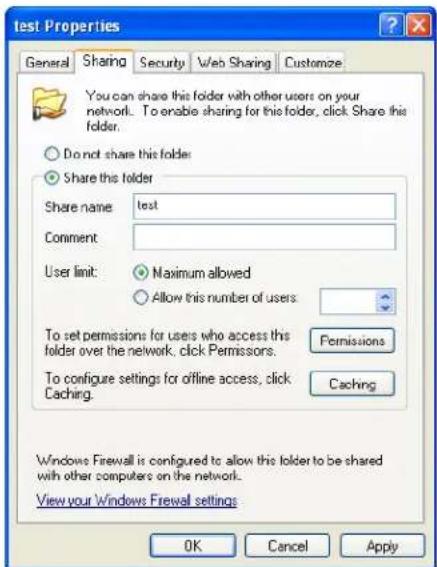
Check the "Full Control" to have full privileges of the shared directory.
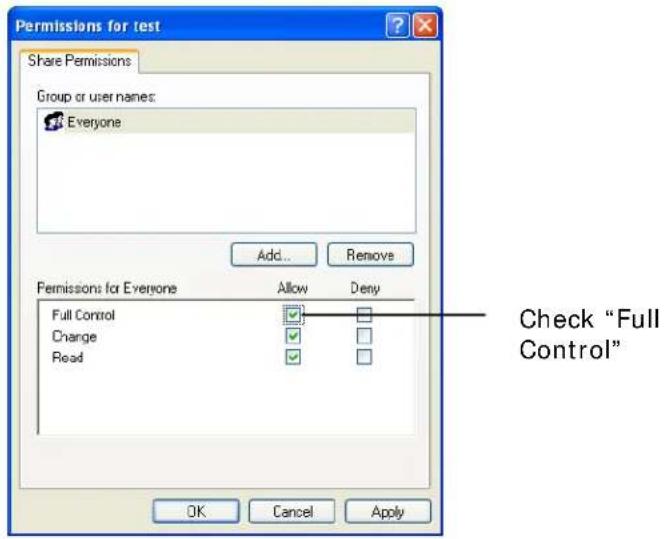
5 Customizing Your Scan Options
The product classifies regular scanning jobs into 3 main document types, including Photo, Document, and Mix.
If the current scan settings of Photo, Document, or Mix do not fit your requirement for a particular scanning task, tap the [Custom] button to change your scan settings.
To customize scan options:
Tap the [E-mail (or Filing)] button on the touch panel to open the following [E-mail] window.
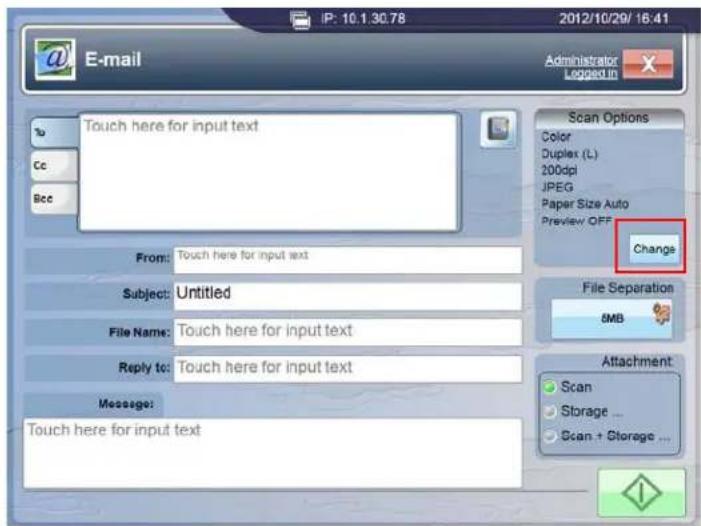
Tap the [Change] button under Scan Options to open the [Document Type] window.
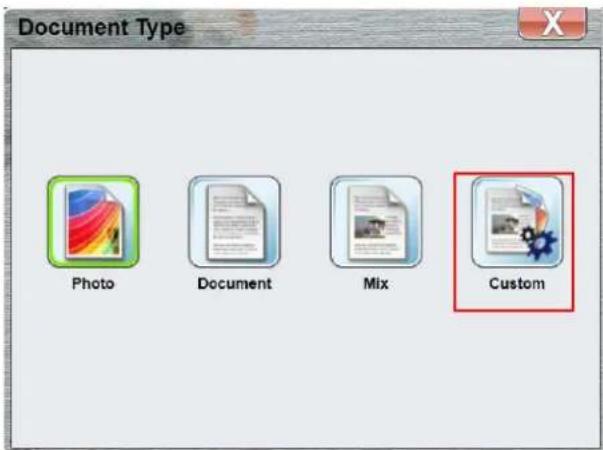
Tap the [Custom] button on the [Document Type] window to open the following [Custom] window.
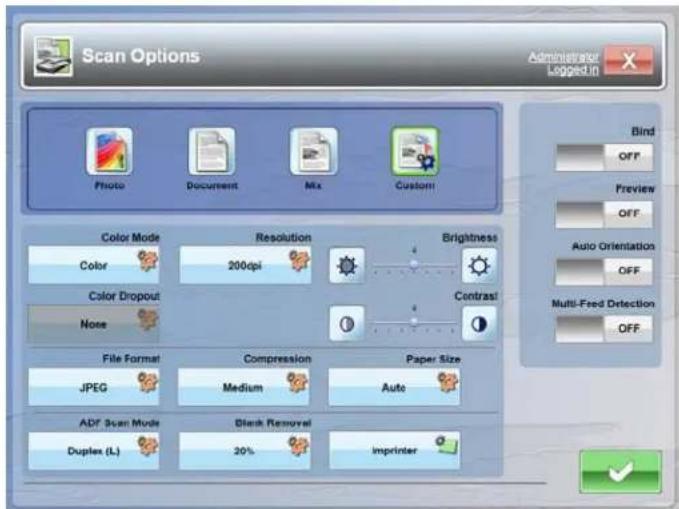
The following table shows detailed option instructions in [Custom] Window.
Options for Custom Window
| Custom | ||
| Item Description | ||
| Image Mode | Auto Color Detection (B/ W): Automatically detects and scans your color document in color. If your original is not in color, the product will scan the original in black & white.Auto Color Detection (Gray): Automatically detects and scans your color document in color. If your original is not in color, the product will scan the original in gray.Color: Choose Color if you wish to scan a color image for your original in color.Gray: Choose Gray image if your original contains actual shades of gray.Gray(Document): chosen if your original contains lots of text or a little graphic. Brightness and Contrast can not be adjusted.Gray(Photo): chosen if your original contains lots of pictures and a little text. Brightness and Contrast can not be adjusted.Gray(Normal): chosen if the pictures in your original are almost of the same importance as that of text. Brightness and Contrast can be adjusted.B/ W: Choose B&W if your original contains only text, pencil or ink sketch.Halftone: In addition to the black and white display, Halftone can present a somehow gray shade of image by using different size of dots. Halftone image looks like the picture we have seen in the newspaper. The output effects of Halftone1~5 are available. Halftone Image Halftone Image | |
Diffusion: Diffusion is a type of Halftone. Diffusion gives good image texture and makes text in images more readable than Halftone. Diffusion ImageFixed Processing: Used for black-and-white and other high contrast documents. A single level is set to determine the black-and-white transition. The threshold is programmable over the entire density range. Fixed Processing sets Contrast to 0. If Fixed Processing is selected, Contrast is not available.Dynamic Threshold: Selecting Dynamic Threshold allows the product to dynamically evaluate each document to determine the optimal threshold value to produce the highest quality image. This is used to scan mixed document containing faint text, shaded background, or color background with a single setting.Choice: Auto Color Detection,* Color, Gray, B/ W Diffusion ImageFixed Processing: Used for black-and-white and other high contrast documents. A single level is set to determine the black-and-white transition. The threshold is programmable over the entire density range. Fixed Processing sets Contrast to 0. If Fixed Processing is selected, Contrast is not available.Dynamic Threshold: Selecting Dynamic Threshold allows the product to dynamically evaluate each document to determine the optimal threshold value to produce the highest quality image. This is used to scan mixed document containing faint text, shaded background, or color background with a single setting.Choice: Auto Color Detection,* Color, Gray, B/ W | ||
| Color Dropout | Color Dropout allows you to drop either of the red, blue, or green color in your scanned image. If your image contains red color watermark or background, choose the R (Red) channel then any red watermark or background will be removed. This feature is used to sharpen your text when using OCR (Optical Character Recognition) software.Choice: * None, Red, Green, BlueOriginal  After Removing the Blue Co After Removing the Blue Co | |
| * Factory Default | ||
| File Format | Six types of Portable Document Format (PDF) file formats are supported.Standard: A Standard PDF filePassword: A PDF with passwordDigital Signature: The PDF file with a digital signature.Searchable: A PDF file with searchable text. .Mix: A PDF file combines with its password, digital sign, and OCR capabilities.PDF/ A: An ISO-standardized version of the PDF specialized for the digital preservation of electronic documents.JPEG2000: A PDF file which has images compressed using jpeg2000 compression.Choice: * PDF, TIFF, MTIFF, JPEG |
| ADF Scan Mode | Simplex(Front): If your original is a single-sided document, select Simplex(Front) to scan your documents only in its front side.Simplex(Rear): If your original is a single-sided document, select Simplex(Rear) to scan your documents only in its back side.Duplex: If your original is a double-sided document, select Duplex to scan your document in the front and rear side.Choice: Simplex(Front), Simplex(Rear), * Duplex |
| * Factory Default | |
| Resolution | The resolution is measured in pixels per inch (ppi) (sometimes referred to as dots per inch or dpi). Higher resolutions result in more detail in the scan, slower scanning and in general, greater file sizes. For example, an A4 size color image scanned at 300 dpi with color mode consumes approximately 25 MB of disk space. When OCR (Optical Character Recognition) is to be performed on a scan, 300dpi should be used for most languages except Asian languages. For Asian languages, 400 dpi is recommended. | ||
 |  | ||
| Resolution: 75 dpi | Resolution: 150 dpi | ||
| Choice: 75dpi, 100dpi, 150dpi, *200dpi, 300dpi, 400dpi, 600dpi. | |||
| Brightness | Lighten or darken the image by adjusting the brightness slider right or left. | ||
 |  |  | |
| Brightness: 1 | Brightness: 4 | Brightness(Normal) | |
| Choice: Level1~7. Default value: 4 | |||
| * Factory Default | |||
| Contrast | Adjust the Contrast slider right or left to increase or decrease the contrast. | ||
 |  |  | |
| Contrast: 1 | Contrast: 4(Normal) | Contrast: 7 | |
| Choice: Level1~7. Default value: 4 | |||
| Compression | Choose the compression level for your scanned image.The compression levels of MTIFF or TIFF includes G4 only.Choice: Low, * Medium, High, G4, None | ||
| Blank Page Removal | Remove a blank page by your chosen threshold.The threshold is defined by how many percentages the blank area in an original occupies.Choice: None, * 20%, 40%, 60%, 80%, 100%. | ||
| * Factory Default | |||
| Scan Area | Choose your paper size in the printer tray.Choice: * Auto, A4, A5, B5, Letter, Legal, A3, B4, Ledger. |
| Imprinter | The [lmprinter] button allows you to print alphanumeric characters, date, time, document count and custom message on your scanned image if digital imprinter is selected or at the back of your document if external imprinter is selected. Tapping the [lmprinter] button opens the following Imprinter window: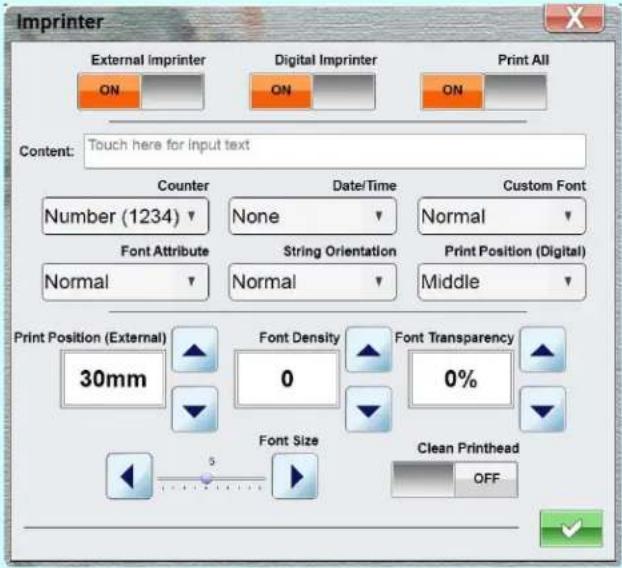 External Imprinter, Digital Imprinter: External Imprinter provides a vertical and rear-side print capability while digital printer provides a horizontal and front-side print capability.Choice: ON, * OFF.Print All: Select ON from Print All to automatically print the text at all pages of your documents. Select OFF from Print All to print the text for the first page of your documents only.Choice: * ON, OFF.Content: Enter your custom text to be included in your print string. External Imprinter, Digital Imprinter: External Imprinter provides a vertical and rear-side print capability while digital printer provides a horizontal and front-side print capability.Choice: ON, * OFF.Print All: Select ON from Print All to automatically print the text at all pages of your documents. Select OFF from Print All to print the text for the first page of your documents only.Choice: * ON, OFF.Content: Enter your custom text to be included in your print string. |
| * Factory Default | |
| Counter: Show the document count for the scan session. This value is increased sequentially by the scanner.Choice: * Number(1234), Number(12345),Number(123456), Number(123457), Number(12345678),Number(123456789), Number(1234567890)Date/ Time: Choose if you wish to include the date and time in your print string.Format: YYYYMMDDHHSSFor example, 20090402170645-check0001 indicates year, month, date, hour, seconds, your custom text and the counter.Choice: * None, Date, Time, Date+ Time.Custom Font: Choose your desired font.Fixed Width (Mono spaced) fonts have a fixed character spacing.So each character occupies the same width.Choice: * Normal, Fixed Width.Font Attribute: Choose your font attributes.Choice: * Normal, Underline, Double, Bold. | |
| * Factory Default | |
String Orientation: Choose your string orientation.
Choice: * Normal, Rotated, Vertical, Vertical Inversion, 90 degrees CW, 90 degrees CCW
| 2010abcNormal | 2010abcRotated |
| 2010abcVertical | Vertical Inversion |
| 2010abc90 degrees CW | 2010abc90 degrees CCW |
If you select the digital imprinter to stamp text on your scanned image, the illustration of normal and rotated string is shown below:
| 2010abcNormal | 2010abcRotated |
Print Position (Digital)
Choose the position of your printed string.
Choice: Top, * Middle, Bottom.
* Factory Default
Print Position (External)
Choose the position you wish to print your string. Tap Up arrow button to increase the value or Down arrow to decrease the value.
Range: 0\~355mm, default:30mm
The value indicates the height from the bottom of your paper to the last letter of your string.
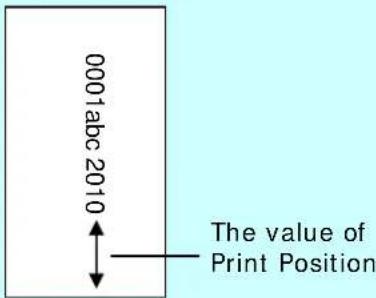
Choice: 0\~355mm. Default value: 355
Font Density
Choose your desired font density value by tapping the Up/Down arrow button.
Choice: 0\~255mm. Default value: 0
Font Transparency
Choose your desired font transparency value by tapping the Up/Down arrow button.
Choice: 0\~100%. Default value: 0
| Font TransparencyChoose your desired font transparency value by tapping the Up/Down arrow button.Choice: 0~100%. Default value: 0Font SizeChoose your desired font size value by tapping the Left/Right arrow button.Choice: Level1~10. Default value: 5Clean PrintheadIf the print quality is not good or the imprinter does not print, it is probably the ink emission holes in the nozzle plate (printhead) are blocked. Selecting ON from the [Printhead] button to clean the print head on the imprinter.Choice: ON, * OFF. | |
| Bind | The Bind feature allows you to scan and combine separate documents continuously at the same scan settings. If your scanner comes with a flatbed option and you place your paper on the flatbed, this feature allows you to start auto scan to increase your efficiency.Choice: ON, * OFF |
| Preview | Enable the Previewing function. See the Preview section of Change More Copy Settings.Choice: * ON, OFF. |
| Rotation | Even though some page's orientation is opposite to that of others, Rotation will adjust all page orientations to one consistent direction.Choice: ON, * OFF. |
| Multi-Feed Detection | Multi-Feed Detection allows you to detect overlapped document that go through the auto document feeder. Multi-Feed usually occurs due to stapled documents, adhesives on documents, or electro-statically charged document. Whenever a multi-feed error occurs, the product stops scanning to allow a user to remove the troubled page.Choice: ON, * OFF. |
| * Factory Default | |
6 Troubleshooting
Clearing Paper Jams
If document is jammed, follow the procedure in below to remove it.
- Pull the Handle of the ADF to open the ADF cover.

- Gently pull the jammed paper out of the ADF.
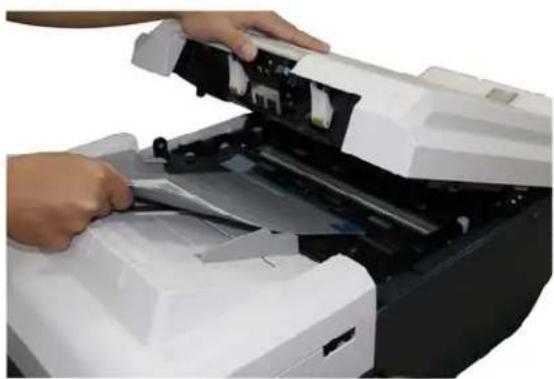
- Close the ADF cover by pressing down on the center of the ADF until it clicks into place.
Warning:
Be careful, the ADF may close and pinch your fingers.
When an error occurs, the Check LED will blink in red.
Error Code and Error Messages
| Error Code Error Message Suggested Solution | ||
| Hardware Error | ||
| 110103 Paper jam | Remove the jammed paper. Fan your paper, flatten the corners of your documents and try again. | |
| 110104 | ADF cover open | Close the ADF cover. |
| 110105 No paper in automatic document feeder | Load paper in the auto document feeder. | |
| 110010 | Sensor error. | Unlock the scanner by turning the scanner lock to the use position. |
| 110101 Power off or cable failure. | Turn on the product or check if the cable connection is correct. | |
| 110252 | ADF rear lamp error | Restart and try again. If this error still happens, contact the service personnel to replace the lamp. |
| 110129 | Can not find scanner | Check if the cable connection is correct. |
| 910019110172110173 | Connection failure | Ping the IP address of the product from another PC in DOS prompt. For example, type “Ping 10.1.20.144” in Dos prompt. If the product has no response, then perform the following steps.1. Check if the RJ-45 connector is firmly plugged-in.2. Check the Ethernet cable.3. Check the product’s IP address.4. Check the destination IP address.5. Check Subnet Mask.6. Check Gateway IP. |
| 110176 Back to home position error | Home position sensor fails. Contact the service personnel to replace the sensor or main board. | |
| 110178 | Lamp failure | Restart and try again. If this error still happens, contact the service personnel to replace the lamp. |
| 110179 Scanner lock | Move the scanner lock to the “unlock” position. | |
| Error Code | Error Message Suggested Solution | |
| Scan Error | ||
| 110127 | Memory is not enough. | Restart the product and try again. If this error still occurs, contact your system administrator. |
| 110150 | Driver busy | Wait until the scan job is completed. |
| 910163 | Disk is full. | Free more space by deleting some files stored in the public folder or the USB flash drive. |
| 110253 | Occurs skew | Open the Auto document cover to remove the skewed paper. Rearrange or fan your paper and try again. |
| 110187 | Multi-Feed. | Open the Auto document cover to remove the multi-fed paper. Rearrange or fan your paper and try again. |
| 110131 | Time out | Failed to take next step during a specified time.Try again. |
| 110186 | Disk does not have enough space to store temporary scanning data. | Free more disk space by reducing the page number of your batch document or choosing a lower resolution. |
| Error Code Error Message Suggested Solution | ||
| Network Error | ||
| 410094 Check password. | Check with your System Administrator and make sure the password is correct. | |
| 310156 | Check your login name and password. | Check with your System Administrator and make sure your login name and password are correct. |
| 630159 | E-Mail address is too long. | Check your e-mail address and retype. |
| 210160 | Make sure the name of the network printer | Check the name of your specified network printer and try again. |
| 310164 Please Check Mail Server Settings. | Make sure the settings of your mail server are correct. | |
| 110197 IP format incorrect | Make sure your IP format is correct. | |
| 110198 | Invalid IP gateway | Check the gateway of your IP address. |
| 110199 | Invalid IP mask | Check the subnet mask of your IP address. |
| 110200 Invalid IP | Check your IP address and retype. | |
| 640165 Storage or Scan+Storage can not be made as ShortCut | Inserting current images from storage device can not be made as ShortCut. | |
| 210166 When sending the image to a printer, if you scan in black and white mode in less than 600 dpi, the output image will be reduced. | Recommend to set resolution to 600 dpi. | |
Technical Support
If your problem still exists after trying the above solution, please contact our technical support.
Headquarter
Avision Inc.
No. 20, Creation Road I, Science-Based Industrial Park,
Hsinchu 300, Taiwan, ROC
TEL: +886 (3) 578-2388
FAX: +886 (3) 577-7017
E-MAIL: service@avision.com.tw
Web Site: http://www.avision.com.tw
US and Canada Area
Avision Labs, Inc.
6815 Mowry Ave., Newark CA 94560, USA
TEL: +1 (510) 739-2369
FAX: +1 (510) 739-6060
E-MAIL: support@avision-labs.com
Web Site: http://www.avision.com
China Area
Hongcai Technology Limited
7A, No.1010, Kaixuan Road, Shanghai 200052 P.R.C.
TEL :+86-21-62816680
FAX :+ 86-21-62818856
E-MAIL: sales@avision.net.cn
Web Site: http://www.avision.com.cn
Europe Area
Avision Europe GmbH
Bischofstr. 101 D-47809 Krefeld Germany
TEL: +49-2151-56981-40
FAX: +49-2151-56981-42
E-MAIL: info@avision-europe.com
Web Site: http://www.avision.de
South American
Avision Brasil Ltda.
This section describes how to clean the product, and replace the consumables.
 Caution! Caution! | Before you clean the inside of the scanner, turn off its power and unplug the power cable from the power outlet.Cleaning the scanner without turning off its power may cause an electric shock. |
| Use only the specified cleaner to clean the scanner.Using other cleaners such as household cleaner or neutral detergent may damage the finish of the product or result in scanner malfunction. | |
| [CWZW]Warning! | Do not use aerosol or alcohol based sprays to clean the product.Dust blown up by strong air from the sprays may enter the inside of the scanner. This may cause the scanner to malfunction. Sparks caused by static electricity, generated when blowing up dust and dirt from outside of the scanner, may cause a fire. |
Cleaning the Touch Panel Monitor
Wipe the Touch Panel Monitor with a wet cloth first then wipe it with a dry cloth.
Touch Panel Monitor
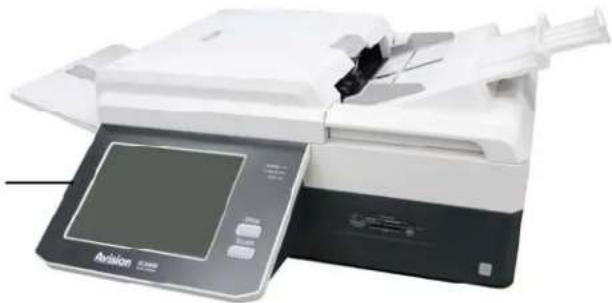
Warning:
Do not use liquids, household cleaners, or neutral detergents, as they may damage the touch screen.
Cleaning the Flatbed Glass
Wipe the platen glass with a soft, lint-free cloth moistened with a specified cleaner to clean the smudges and fingerprints on the platen glass. If the platen glass is dirty, dirt will appear on the scanned image.
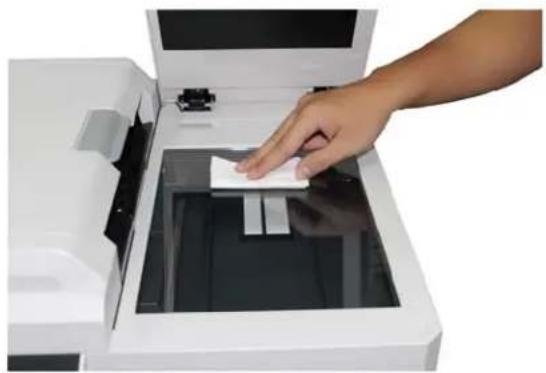
Notice:
Wait a few minutes until the cleaner is completely vaporized.
Cleaning the ADF
After using the scanner for a long period of time, the rollers and glass inside the scanner may become contaminated with ink, toner particles or paper dust. It is necessary to perform routine cleaning to ensure the optimum image quality and performance. As a guideline, please clean the rollers and glass after first 4,000 to 5,000 scans and then perform the cleaning on a weekly basis. Note that the guideline varies according to the type of documents you are scanning.
Tip! If documents do not feed easily, if several documents feed at the same time or if streaks appear on the scanned images, it is time to clean your scanner.
- Pull the Handle and open the ADF cover with a light force.
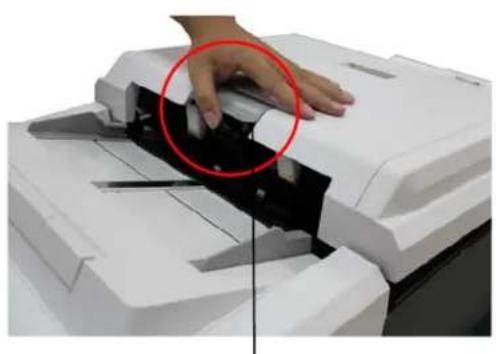
ADF Handle
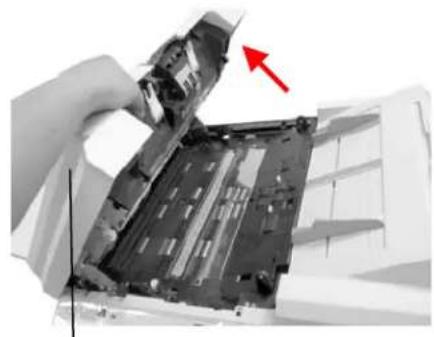
ADF Cover
The ADF Glass:
Clean the following locations with a soft cloth moistening with a included cleaner. Wipe the upper and lower ADF glass (①) with a soft, and lint-free cloth moisten with a specified cleaner.
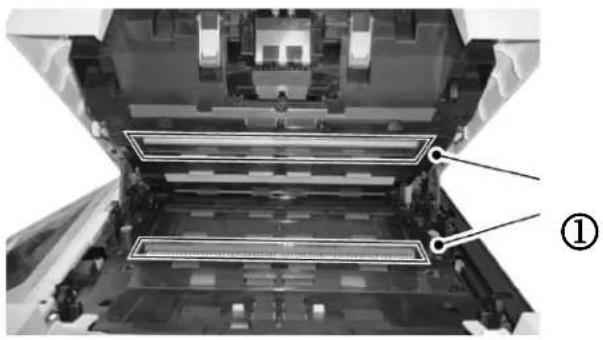
Warning:
The glass surface inside the ADF becomes hot during the scanner operation. Before you start cleaning the inside of the scanner, turn off the product and wait a few minutes to let the product cool down.
The ADF Friction Roller Assembly
Clean the ADF Pad (②):
Wipe the pad from side to side ( ⇔ ) with a soft, lint-free cloth moistened with a specified cleaner. When cleaning the ADF Pad, take care to prevent the cloth from catching the metal parts.
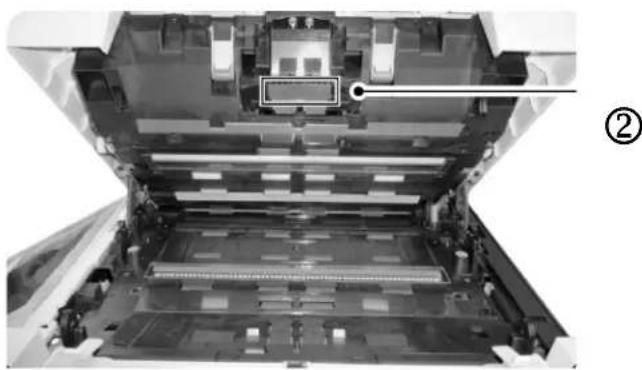
Clean the Separator Rollers (③) that do not rotate freely:
Push one of the ADF Roller inward, rotate it, this will reposition the other Separator Roller, too. Then wipe the Rollers from side to side (⇐) with a soft, lint-free cloth moistened with a specified cleaner. Rotate the roller to clean the entire surface.
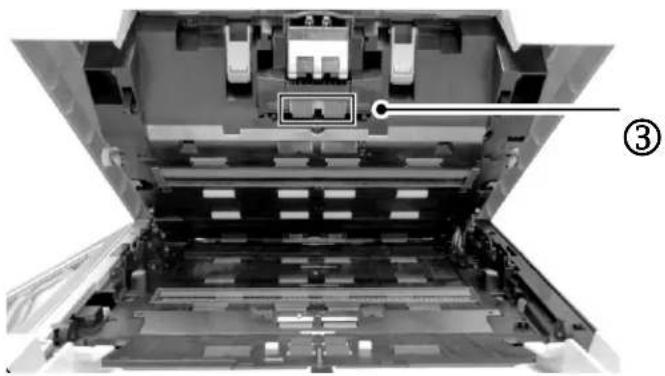
The Feeding Rollers that do not rotate freely
Clean the Feeding Rollers (④) that do not rotate freely.
a. Wipe the roller from side to side (⇐) with a soft, lint-free cloth moistened with a specified cleaner.
b. To rotate the rollers, push one of the Feeding Rollers as shown inward, rotate it. This will reposition the rest rollers that do not rotate freely. Wipe each roller to clean the entire surface.
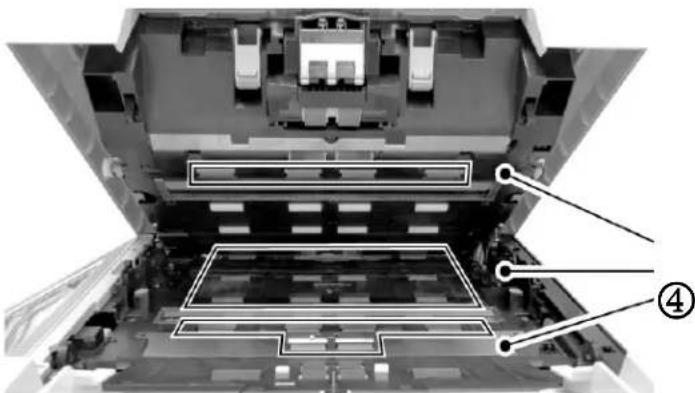
The Feeding Rollers that rotate freely
Clean the Rollers (⑤) that rotate freely.
Wipe the rollers from side to side ( ↔ ) with a soft, lint-free cloth moistened with a specified cleaner. Rotate the rollers to clean the entire surface. Be careful not to snag or damage the hopper tray sensor while cleaning the pickup rollers.
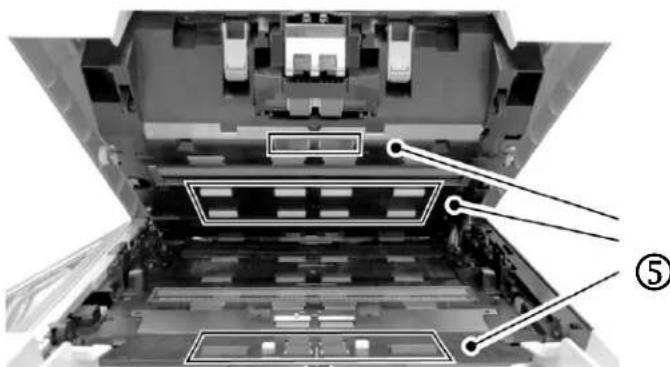
Wait 3 minutes to let the rollers dry.
Then close the ADF by pressing down on the center of the ADF to return it to its original position until it clicks into place.
Note:
When the ADF has returned to its original position, make sure that it is completely closed. Feeding errors may occur if the ADF is not completely closed.
Dust or paper residue on the skew sensors can cause scan quality issues or false paper jam messages. Make sure there is no residue on the surface of the skew sensors.
- Pull the Handle and open the ADF cover with a light force.
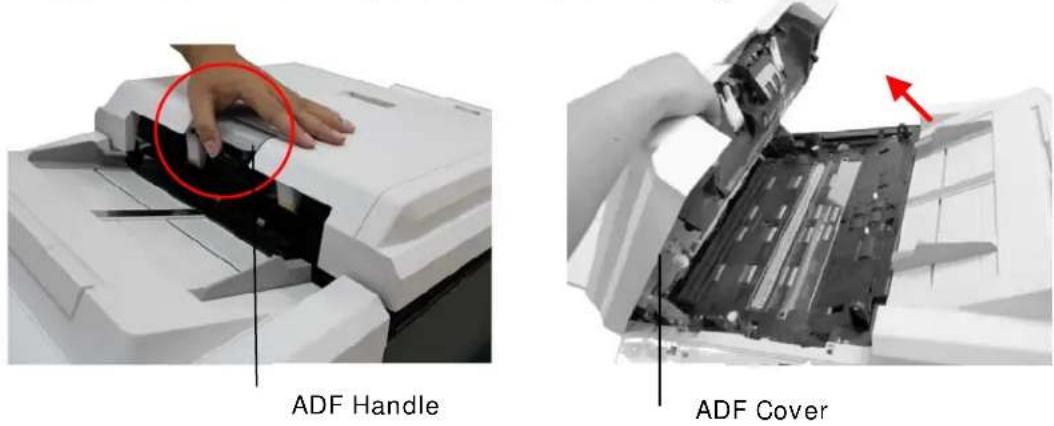
- Remove the dust or paper residue left on the surface of the Skew Sensors (x4 pcs, ①) with an air blower.
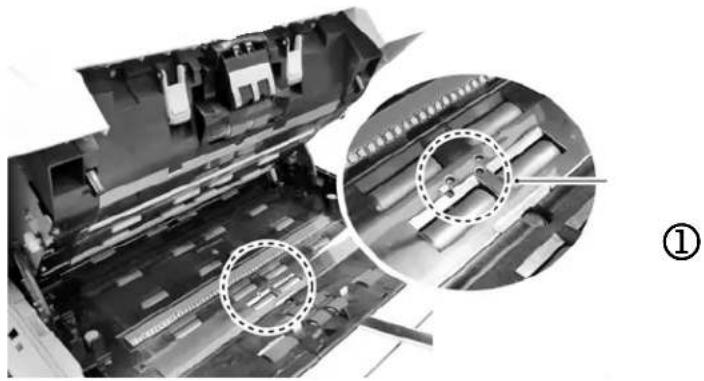
- Close the ADF by pressing down on the center of the ADF to return it to its original position until it clicks into place.
Note:
When the ADF has returned to its original position, make sure that it is completely closed. Feeding errors may occur if the ADF is not completely closed.
Cleaning the Imprinter
After frequent use, the waste ink will begin to accumulate on the base surface of the print cartridge holder which can damage the printouts. Make sure to maintain the base surface clean.
- Wipe off any dirt or dust on the base surface of the Print Cartridge Holder with a soft lint-free cloth.
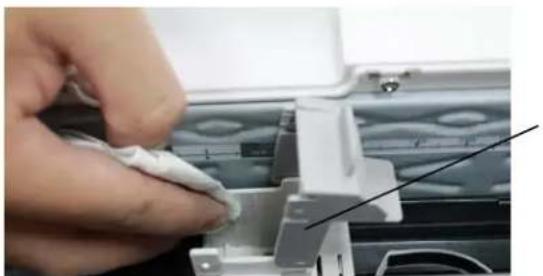
Print Cartridge Holder
- Reinsert the Print Cartridge and close the Print Cartridge Cover.
a. Grasp the tab of the Cartridge and insert the Cartridge into the holder with the text side facing up and the tab pointing to the left.
b. Lower the locking lever of the Print Cartridge Holder until it locks in.
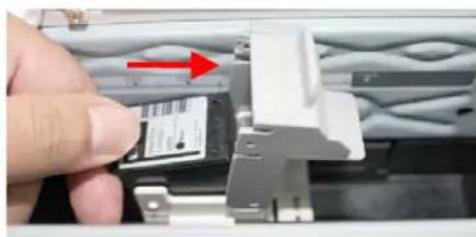
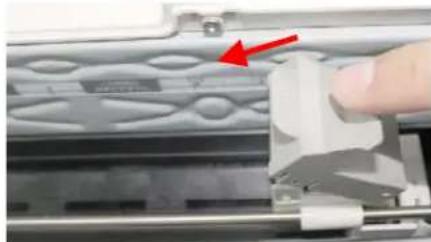
Cleaning the Print Cartridge
Poor quality prints may occur due to blocked ink emission holes in the Ink Nozzles of the Print Cartridge. Leaving the imprinter unused for a long period of time can also cause the ink emission holes to become blocked. When these holes are blocked, clean the Ink Nozzles.
- Remove the Print Cartridge.
a. Open the Print Cartridge Holder by lifting up the locking lever with your finger.
b. Hold the tab of the cartridge and remove the Cartridge from its holder.
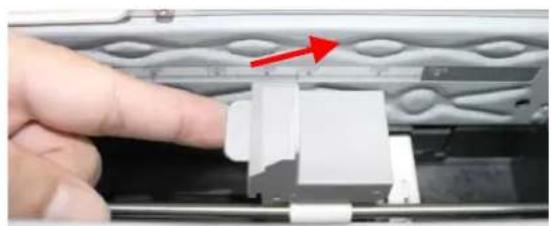
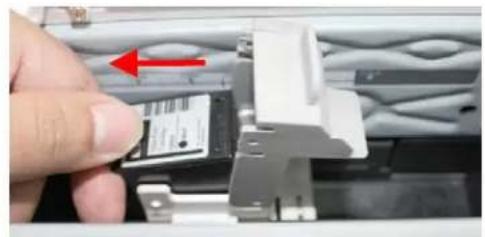
- Wipe the Ink Nozzles at the bottom of the Print Cartridge with a clean, damp lint-free cloth lightly moistened with clean distilled water.
Ink Nozzles
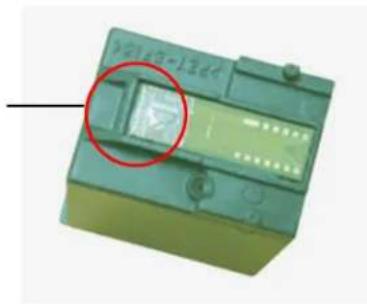
-
Once again, gently and slowly wipe the residual ink off of the Ink Nozzle with a clean cotton swab.
-
Reinsert the Print Cartridge and close the Print Cartridge Cover.
a. Grasp the tab of the Cartridge and insert the Cartridge into the holder with the text side facing up and the tab pointing to the left.
b. Lower the locking lever of the Print Cartridge Holder until it locks in.
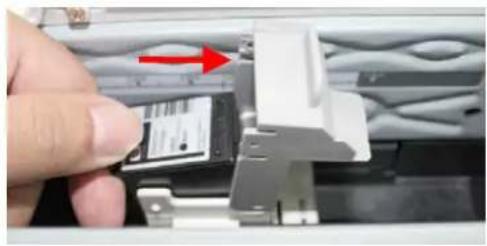
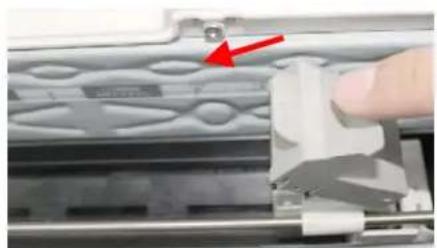
The following table shows the consumables and their standard replacement cycle.
| Consumables Standard Replacement Cycle | |
| ADF Friction Roller AssemblyP/N 002-5966A-0-SP | 100,000 sheets |
| ADF Pick-Up Roller AssemblyP/N 002-5949A-0-SP | 200,000 sheets |
| Print Cartridge (Black Ink)P/N 008-0236A-09-SP | Over 7 million characters (economical, non-stop printing)or 6 months after the package is opened |
| Attract Ink box Assembly002-5944A-0-SP | 2 years |
The replacement cycles above are rough guidelines for the case using A4/Letter sized woodfree or wood containing paper of 80 g/m 2 (20 lbs) in weight. These cycles vary according to the type of paper used and how frequently the product is used and cleaned. Please replenish the consumables from the store where you purchased the product or a Avision authorized service provider.
Replacing the ADF Friction Roller Assembly
- Pull the ADF Handle and open the ADF cover with a light force.
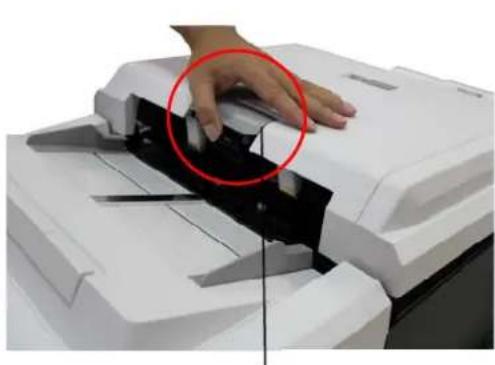
ADF Handle
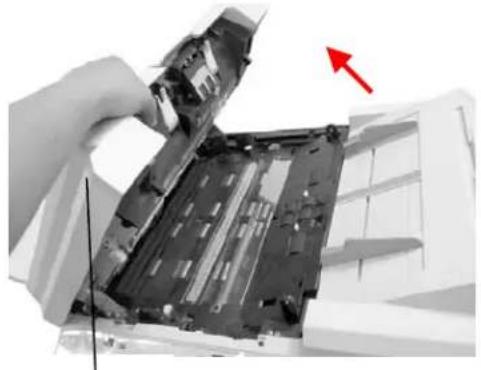
ADF Cover
- Pinch the ADF Friction Roller Assembly and slide it outward to remove it.
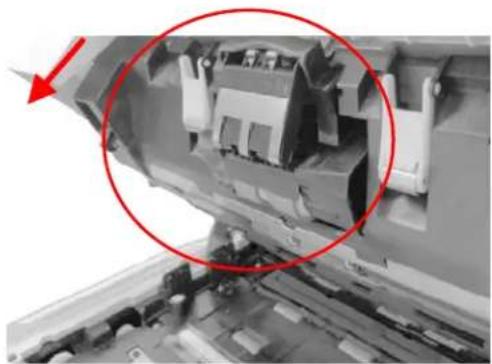
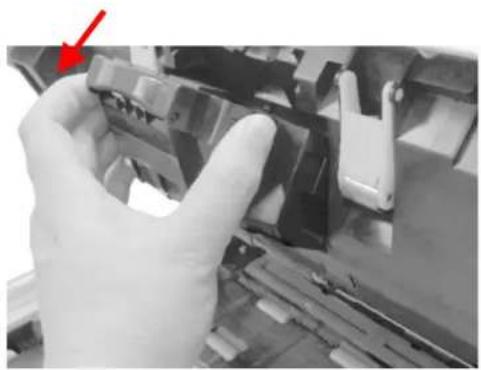

ADF Friction Roller
- Reinsert the new ADF Separator Roller Assembly to its original slot and slide it inward.
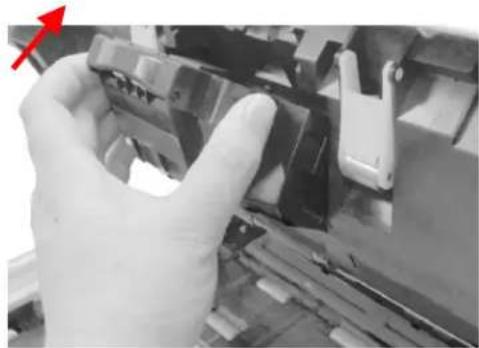
- Pull the ADF Handle and open the ADF cover with a light force.
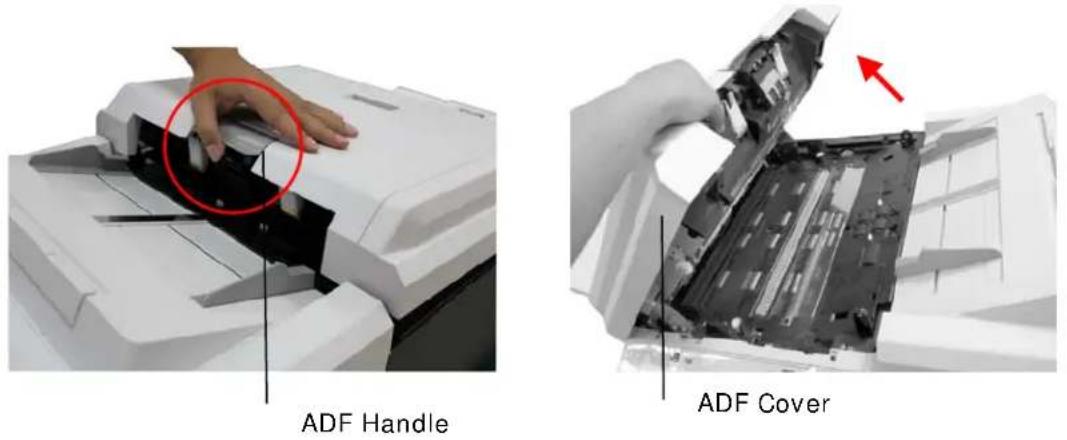
- Open the Pick Roller Cover.
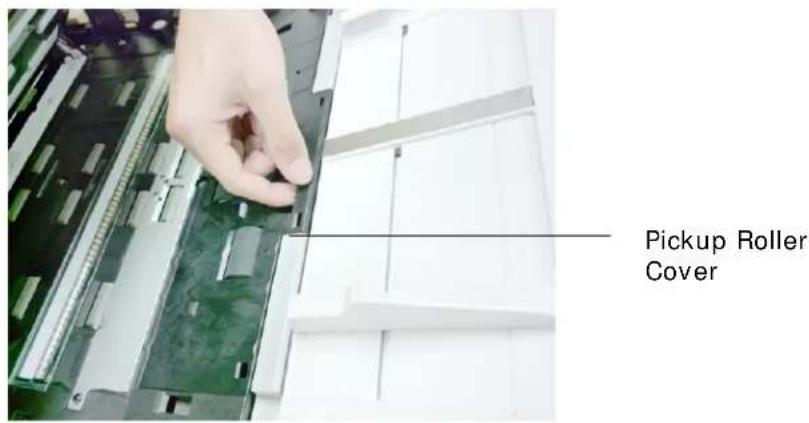
- Loosen the lower roller from its slot.
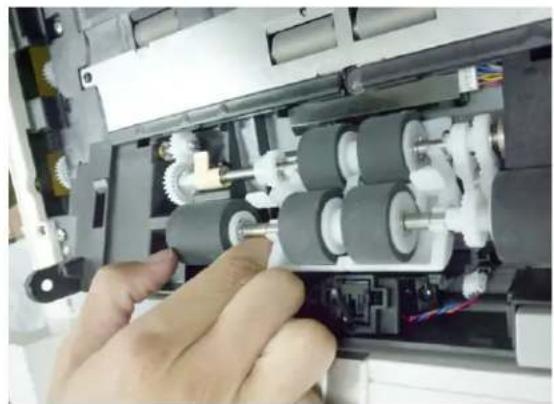
- Move the tab of the Upper Pickup Roller outward to remove it from the scanner.
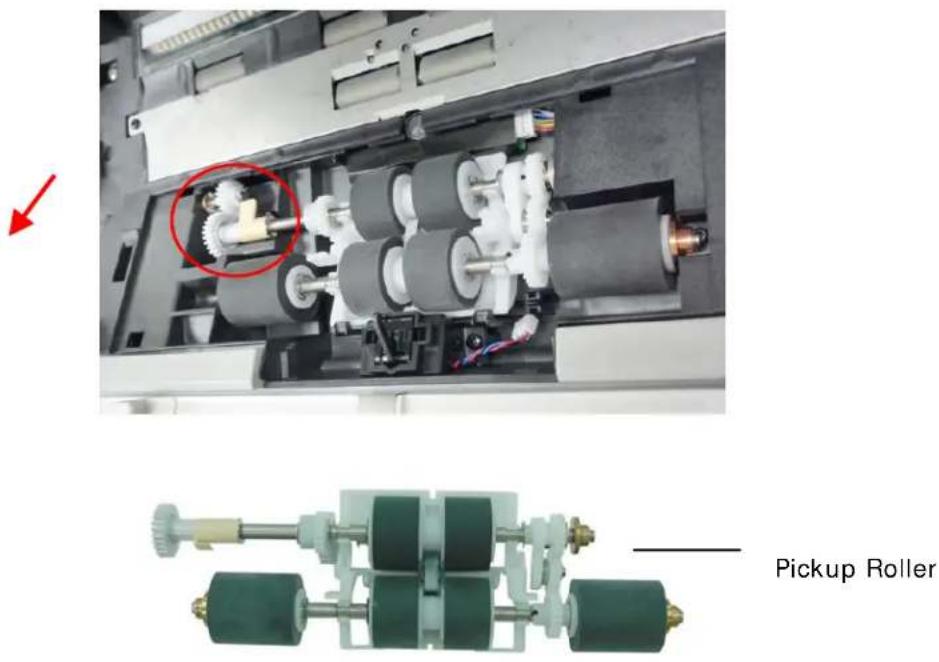
- Reinsert the new ADF Pick Rollers by first insert the right end of the Upper Pick Roller to its slot.
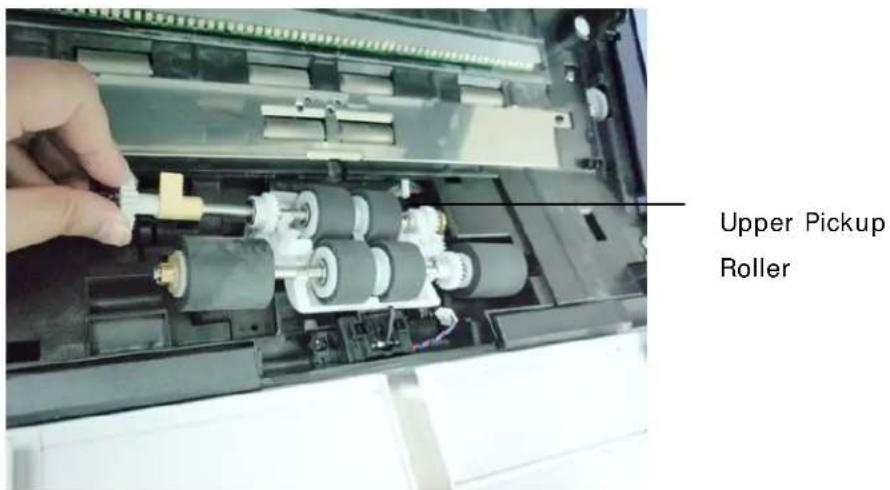
- Move the tab of the Upper Pickup Roller inward as shown.
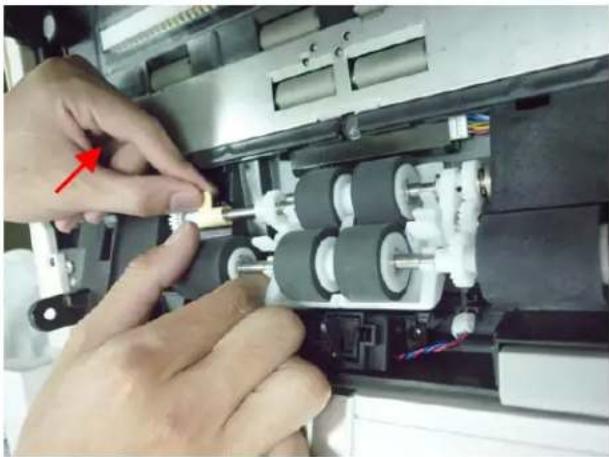
- Position the lower ADF Pickup Roller to its slot.
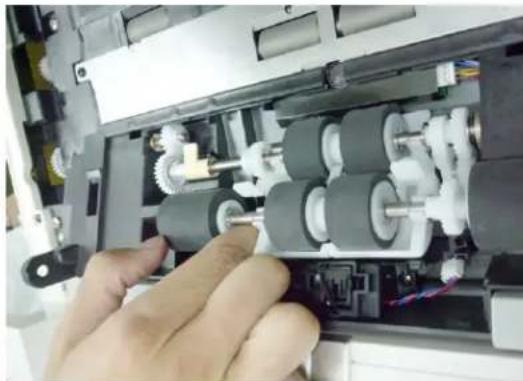
- After installing ADF Pickup Roller to the slot, lubricate the corresponding gear on the machine as shown with EM-D110 P/N 076-0010A-0-SP. Rotate the gear until all surface is completed lubricated.
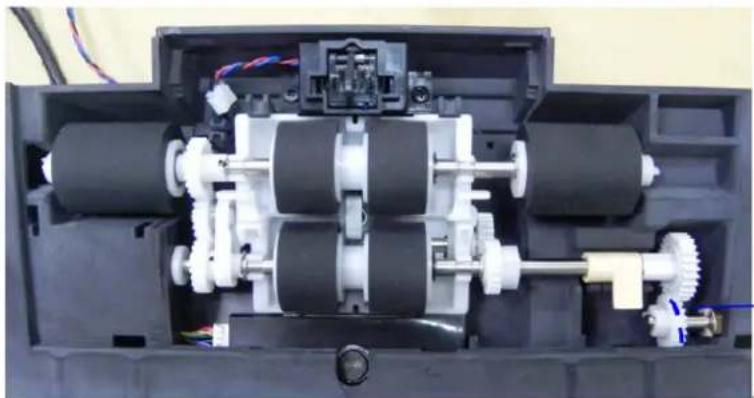
Lubricate this gear with EM-D110 P/N 076-0010A-0-SP
- Close the ADF Pickup Roller Cover.
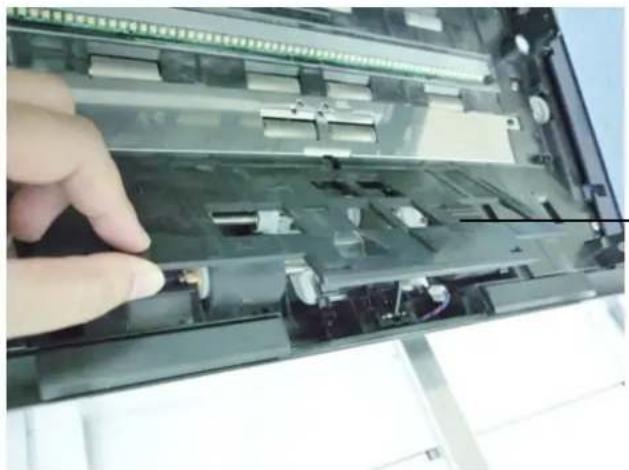
Pick Roller Cover
- Reset the ADF Pick Roller counter from the touch panel (login>Menu>Information/Report).
Notice:
- Do not close the ADF while the Pickup Roller Cover is kept open.
- Note: Make sure the ADF is completely closed. Feeding errors may occur if the ADF is not closed completely.
- Confirm that the Pickup Rollers are attached firmly. If not, paper feed errors such as paper jams will occur.
When printed characters appear light or missing characters are evident, complete the following steps to replace your print cartridge:
- Open the Imprinter Cover.
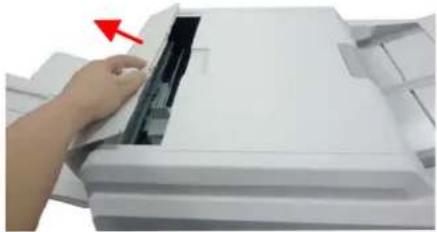
- Open the Print Cartridge Holder by lifting up the locking lever with your finger.
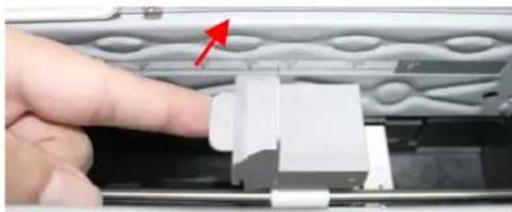
- Hold the tab of the cartridge and remove the Cartridge from its holder.
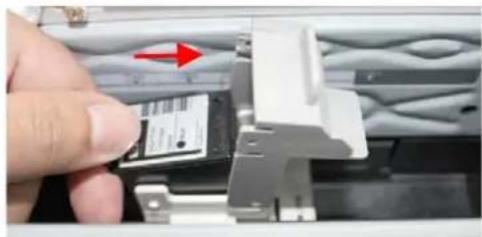
Note: Dispose the empty Print Cartridge according to the local regulations.
- Open the box of the print cartridge and remove the protective tape from the bottom of the cartridge.
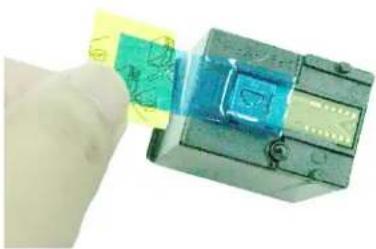
- Do not touch the ink nozzles (①) or the gold contacts (②) after the tape has been removed.
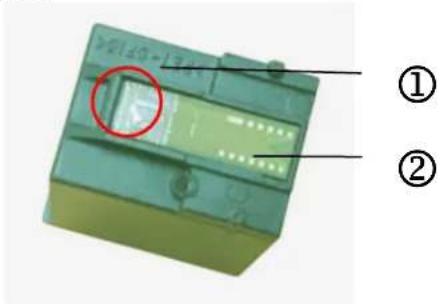
- Grasp the tab of the cartridge and insert the cartridge into the holder with the print side face up and the tab pointing to the left.
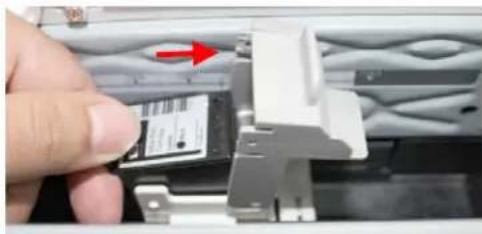
- Lower the locking lever of the Print Cartridge Holder until it locks in.
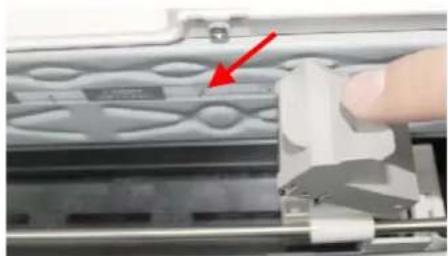
- Position the print cartridge holder along where the document will pass through.
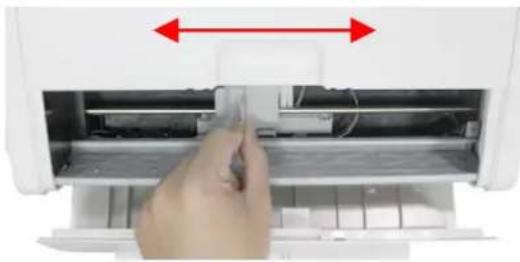
- Close the Imprinter Cover.
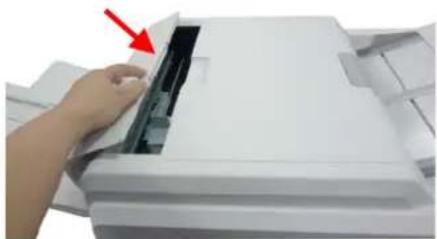
-
Pull the ADF Handle and open the ADF cover with a light force.
-
Press the right end of the Attract Ink Box Assembly and lift it up to remove it from the device.
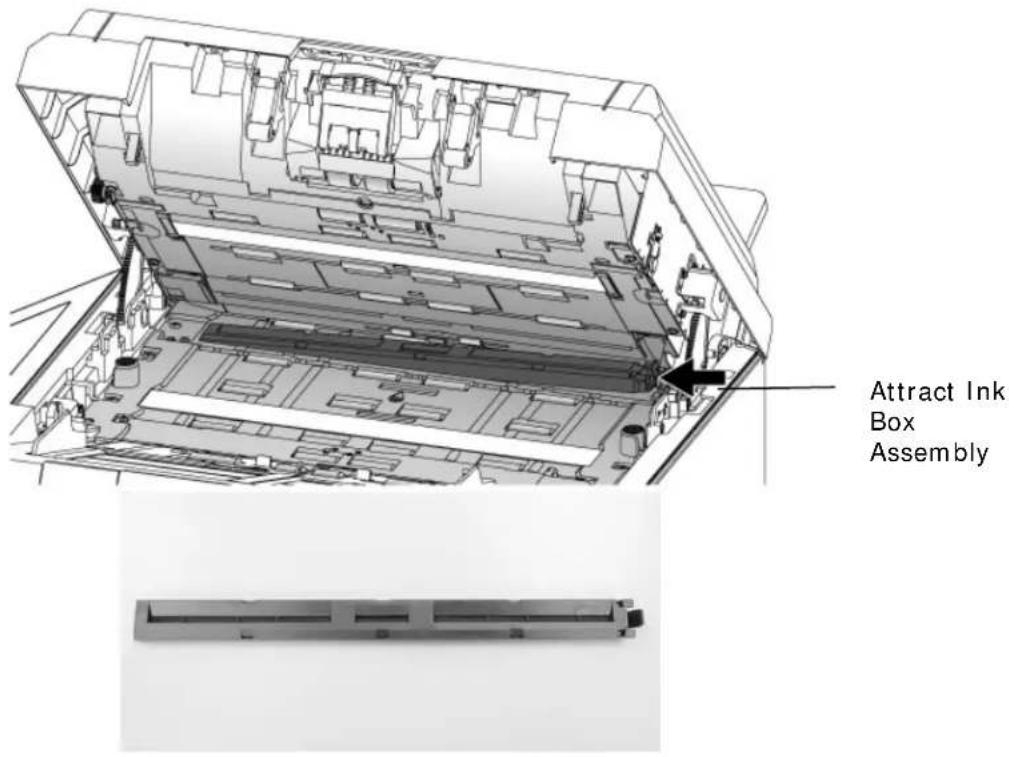
Note:
How to judge the Attract Ink Box Assembly is near its life time:
The life time of the Attract Ink Box Assembly is approximately two years. When the assembly is near its life time, there will be a lot of ink on the surface of the assembly as shown in the following figure. If so, it is time to replace the Attract Ink Box Assembly.
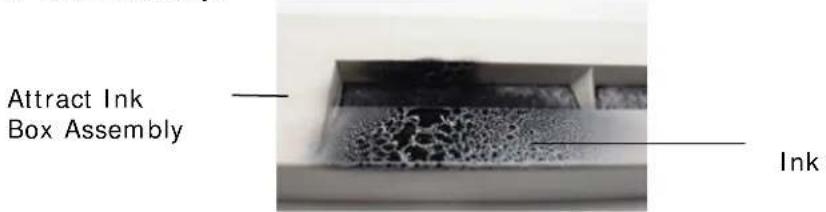
Reassembling:
To install the Attract Ink Box Assembly, follow these steps:
-
Pull the ADF Handle and open the ADF Cover with a light force.
-
Insert the left end of the Attract Ink Box Assembly to the left side of its original position as illustrated.
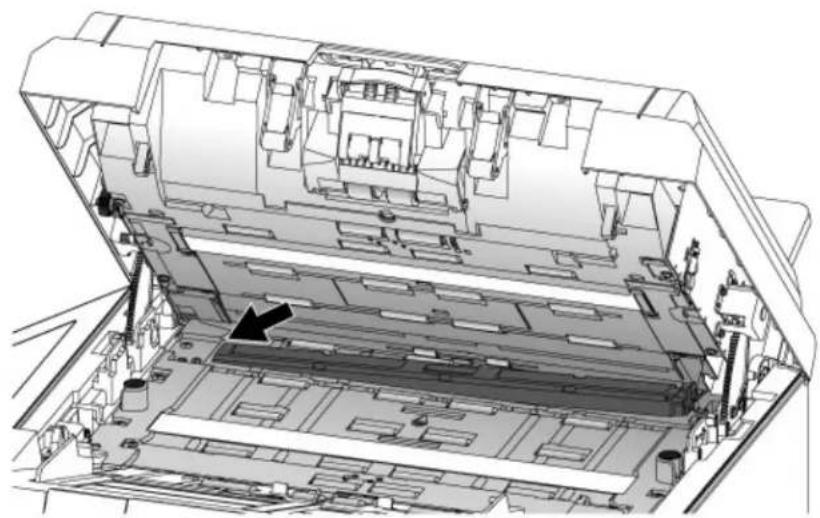
- Press the right end of the Attract Ink Box Assembly inward and move it down.
Warning: Be careful, the ADF may close and pinch your fingers.
Note: Make sure the ADF is completely closed. Feeding errors may occur if the ADF is not closed completely.
8 Specifications
All specifications are subject to change without notice.
| Items Specifications | |
| Model Number : DT-1214H | |
| General Specifications | |
| System Description Stand-alone Internet Appliance | |
| Image Sensor Color Charged | Coupled Device (CCD) |
| Light Source LED Light Bar | |
| Optical Resolution 600 x 600 | dpi |
| Output Quality Input: 48 bits | colorOutput: 24 bits Color8 bits Gray4 bits CMYK1 bit Monochrome |
| Memory Size 2GB | |
| LCD Size 10" XGA | (1,024 x 768) TFT touch panel |
| External Connections 1. RJ-4 | 5 (for Network connection)2. USB COPYPORT3. USB keyboard4. ADF port |
| Network Connection 10/100 Mbits auto-negotiation | |
| Networked WorkgroupSolution for: | Stand-alone CopyE-Mail via Internet/IntranetFiling |
| Output Format PDF, JPEG, PCX, TIFF, MTIFF, PCX, GDI | |
| Duty Cycle 1,000 pages/day | |
| Dimension (WxDxH) | 24.4" x 26.4" x 10.8" (620 x 670 x 275 mm) |
| Weight | 30 Kg (66.1 lb) |
| Power Requirement | 100-240Vac, 50-60Hz, 3.5A |
| Power Consumption | <133 W (operation)<58 W (standby) |
| Operating Temperature | 10%~85% RH |
| Humidity | 10°C~35°C |
| Scan Size | |
| ADF Paper Capacity | 100 sheets (75 g/m+2 or 20 lb. Paper)150 sheets (60 g/m2 or 16 lb. Paper) |
| ADF Paper Size 2" x 3.5" | (50 x 88 mm) ~ 11.7" x 36" (297 x 914 mm) |
| Flatbed Max. Paper Size 8 | 5" x 11.7" (216 x 297 mm) |
| Paper Thickness 28 ~ 209 | g/m2 |
| Copy Specification | |
| USB Copy Port USB2.0 Copy port | |
| First copy time Depend on | printer |
| Multiple Copies Up to 99 | |
| Copy Resolution 600 x 600 | dpi |
| Copy Mode Speed, Fine | |
| Density Control 7 Levels | |
| Output Format GDI | |
| Enlarge / Reduce Fit to Page (98%)25%~400% in 1% increment/decrementPre-set Scales | |
| Network Specification | |
| Connectivity | Ethernet 10BaseT/100BaseTX auto-negotiaRJ-45 connector |
| Communication Protocol TCP/IP, SMTP, MIME, FTP, CIFS, DHCP, DNS, LDAP | |
| Supported Browsers Microsoft | soft IE 5.0 or higherNetscape Navigator 6.0 or higher |
| ConfigurationRequirement | IP addressSubnet maskGatewaySMTP server/POP3 serverFTP serverWeb server |
| E-mail Specification | |
| Communication Protocol SMTP, MIME, POP3 | |
| File FormatsB&WGray/Color | PDF, TIFF, MTIFFPDF, TIFF, MTIFF, JPEG |
| Default File Format | |
| Separation Limit 1MB, 3MB, 5MB, 10MB,30MB, Unlimited | |
| Resolution | 75, 100, 150, 200, 300, 400, 600 dpi |
| Default Resolution | 200 dpi |
| Address Book VolumeMax. AddressesGroupNo. of Addresses inEach Group | 200010099 |
| Multiple Recipients Allow | Yes |
| Security Check | Yes |
| Mail Server Authentication SMTP, POP3 | |
| Supported Mail Server Application | Lotus Mail Server 5.0MS Exchange Server 2000RedHat 7.0 SendMailMAC Mail Server in OS 9.04 |
| Supported LDAP Server Windows 2000 Active DirectoryWindows NT 4.0 + MS Exchange 5.5Lotus Notes R5 | |
| Supported Mail Application Microsoft Outlook 2000Microsoft Outlook Express 5.0Microsoft Outlook Express 6Netscape Messenger 4.7Netscape Messenger 4.73MAC built-in MAIL applicationEudora 4.3.2JLotus Notes R5 | |
| Filing Specification | |
| Communication Protocol | FTP, CIFS, FTPS |
| File FormatsB & WGray/Color | PDF, TIFF, MTIFF, PCXPDF, TIFF, MTIFF, JPEG |
| Default File Format PDF | |
| Resolution 75, 100, 150, 200, | 300, 400, 600 dpi |
| Default ResolutionB & WGray/Color | 200 dpi200 dpi |
| Number of Most Used Profiles 5 | |
| Max. Number of Profiles 50 | |
Index
A
Account Management, 75
Activity Log Report, 67
Address Book, 78
ADF Friction Roller Assembly, 108
Advanced Copy, 31
Attachment, 39
B
Bug Report, 67
C
Change Filing Settings, 42
Change More Copy Settings, 24
Change More E-mail Settings, 38
CI FS, 83
Cleaning the Imprinter, 111
Cleaning the Skew Sensor, 110
Clearing Paper Jams, 97
Collate
Sort, Stack, 31
Connecting the Cables, 14
Connecting the Power, 14
Creating A New Shortcut Button, 51, 57
D
Default File Separation
3MB/5M/10MB/Unlimited, 76
Deskew, 34
DHCP server, 8
Digital Copying, I
DNS, 8
Document Loading Tips, 18
Duplex
1 to 1 Sided, 1 to 2 Sided, 2 to 2 Sided, 2 to 1 Sided, 32
E
Energy Saver
5, 15, 30, 60, 240 minutes, 74
Ethernet Hub, 14
F
File Separation, 39
Fixed Width, 93
FTP, 83
Full Control, 84
I
Import/ Export, 82
Information Report, 63
Installing the ADF Output Tray, 11
Installing the Print Cartridge, 16
IP Address, 8
L
LAN, 14
LDAP, 8
M
Making Copies, 22
Menu screen, 62
Minimum Configuration Requirements, 10
N
network parameters
DHCP Enable, IP Address, Subnet Mask,
Gateway IP, SMTP Server, SMPT Port, 6
Network Settings
IP address, Subnet mask, Gateway IP, DNS Server, 60
O
Orientation
Placing Document(s) in the ADF, 19
Placing Document(s) on the Flatbed Glass, 21
Preview, 28
Print All, 92
R
Replacing the ADF Pick Roller, 116
Replacing the Print Cartridge, 120, 123
Rotate 90° to Left, 30
Rotate 90° to Right, 30
S
Scan Options, 85
Scan to Network Folder, 1
Scancast
Public Folder/USB Flash/E-mail/Filing/Copy, 48
Security Management, 65
Sending Multi-Page Document, 2
ShortCut And
Copy, Email, Filing, USB Flash, 65
SMTP, 8
soft keyboard, 61
Specifying More Administrator Settings by an Embedded Web Page, 68
Specifying More Administrator Settings by The Touch, 62
Specifying the Product's Network Settings, 59
Storage Printing
USB storage device, public folder, 46
Summary of the Web Pages, 70
System Update, 66
T
Target URL
CIFS filing format, 77
TCP/IP network, 10
U
unlocked position, 12
Using the Shortcut Button, 45
Z
Zoom in, 30
Zoom out, 30
- MULTIFUNCTION SCAN CENTER USER'S MANUAL
- SAFETY INFORMATION
- SAFETY DURING OPERATION
- WARNING
- CAUTION
- IMPORTANT
- NOTE
- ⚠ WARNING
- PRECAUTIONS
- NOTICE
- COPYRIGHTS AND TRADEMARKS
- WARRANTY
- FEDERAL COMMUNICATIONS COMMISSION (FCC) COMPLIANCE INFORMATION STATEMENT PART 15
- CE
- EUROPEAN UNION REGULATORY NOTICE
- CE WARNING
- TABLE OF CONTENTS
- 1 GETTING STARTED.... 1
- 2 INSTALLING YOUR MACHINE....10
- 3 OPERATION 18
- 4 CONFIGURING THE MACHINE 58
- 5 CUSTOMIZING YOUR SCAN OPTIONS 85
- 6 TROUBLESHOOTING....97
- 7 MAINTENANCE 105
- 8 SPECIFICATIONS 125
- INDEX 128
- 1 GETTING STARTED
- INTRODUCTION
- FEATURES
- DIGITAL COPYING
- E-MAILING
- FILING (SCAN TO A NETWORK FOLDER)
- DUPLEX SCANNING
- SENDING MULTI-PAGE DOCUMENT
- MANAGING THE PRODUCT REMOTELY
- USING CONVENIENT SHORTCUTS
- SCANNING AND SAVING YOUR IMAGES TO A USB FLASH DRIVE
- SCANNING AND SAVING YOUR IMAGES TO THE PRODUCT'S MEMORY
- PREVIEW
- SCANCAST
- THE FRONT VIEW
- THE CONNECTION PORTS
- PREINSTALLATION
- FREQUENTLY USED BUTTONS ON THE TOUCH PANEL
- 2 INSTALLING YOUR MACHINE
- MINIMUM CONFIGURATION REQUIREMENTS
- TO SEND E-MAILS FROM THE PRODUCT
- TO FILE DOCUMENT(S) VIA INTRANET
- TO MAKE COPIES
- CONNECTING THE ETHERNET CABLES
- CONNECTING TO THE NETWORK
- CONNECTING THE POWER AND TURNING ON THE MACHINE
- INSTALLING THE PRINT CARTRIDGE
- 3 OPERATION
- DOCUMENT LOADING TIPS
- BASIC COPY OPERATION
- CHANGE MORE COPY SETTINGS
- COPIES
- REDUCING OR ENLARGING THE ORIGINALS
- COLOR MODE
- IMAGE QUALITY
- DENSITY
- OUTPUT PRINTER
- LSMSAVISION.AVISION.COM.TW1058L
- PAPER TRAY
- PAPER SIZE
- STAMP
- OPTIONS ON THE PREVIEW SCREEN
- ADVANCED COPY
- OPTIONS FOR ADVANCED COPY
- BASIC E-MAIL OPERATION
- SCAN OPTIONS
- FILE SEPARATION
- ATTACHMENT
- BASIC FILING OPERATION
- TO SEND A SCANNED IMAGE TO A FILING SERVER
- SENDING SOURCE
- TO USE A SHORTCUT BUTTON
- TO PRINT A DOCUMENT FROM A USB STORAGE DEVICE
- TO PRINT A DOCUMENT FROM THE PUBLIC FOLDER
- TO SEND A SCANNED DOCUMENT TO MULTIPLE DESTINATIONS
- TO CREATE A NEW SHORTCUT BUTTON VIA THE EMBEDDED WEB PAGE
- TO CREATE A NEW SHORTCUT BUTTON VIA THE TOUCH PANEL
- 4 CONFIGURING THE MACHINE
- SPECIFYING MORE ADMINISTRATOR SETTINGS BY THE TOUCH PANEL
- TO VIEW OR MODIFY VARIOUS SETTINGS FROM THE 10 BUTTONS ON THE MENU SCREEN
- INFORMATION REPORT
- CONFIGURATION
- NETWORK SETTINGS
- SECURITY MANAGEMENT
- SERVICE MODE
- E-MAIL DEFAULT
- FILING DEFAULT
- SYSTEM UPDATE
- TO UPDATE YOUR PRODUCT SYSTEM
- BUG REPORT
- TO SEND THE PRODUCT'S BUG REPORT TO YOUR USB FLASH
- TO SEND THE PRODUCT'S BUG REPORT TO YOUR E-MAIL ADDRESS
- ACTIVITY LOG REPORT
- TO SEND THE PRODUCT'S ACTIVITY LOG REPORT TO YOUR E-MAIL ADDRESS
- SPECIFYING MORE ADMINISTRATOR SETTINGS BY AN EMBEDDED WEB PAGE
- SETTING THE SERVERS TO STORE YOUR IMAGE
- FTP
- CI FS
- 5 CUSTOMIZING YOUR SCAN OPTIONS
- TO CUSTOMIZE SCAN OPTIONS
- OPTIONS FOR CUSTOM WINDOW
- PRINT POSITION (EXTERNAL)
- FONT DENSITY
- FONT TRANSPARENCY
- 6 TROUBLESHOOTING
- CLEARING PAPER JAMS
- TECHNICAL SUPPORT
- HEADQUARTER
- AVISION INC
- US AND CANADA AREA
- AVISION LABS, INC
- CHINA AREA
- HONGCAI TECHNOLOGY LIMITED
- EUROPE AREA
- AVISION EUROPE GMBH
- SOUTH AMERICAN
- AVISION BRASIL LTDA
- CLEANING THE TOUCH PANEL MONITOR
- CLEANING THE FLATBED GLASS
- CLEANING THE ADF
- THE ADF GLASS
- THE ADF FRICTION ROLLER ASSEMBLY
- CLEAN THE SEPARATOR ROLLERS (③) THAT DO NOT ROTATE FREELY
- THE FEEDING ROLLERS THAT DO NOT ROTATE FREELY
- THE FEEDING ROLLERS THAT ROTATE FREELY
- CLEANING THE IMPRINTER
- CLEANING THE PRINT CARTRIDGE
- REPLACING THE ADF FRICTION ROLLER ASSEMBLY
- HOW TO JUDGE THE ATTRACT INK BOX ASSEMBLY IS NEAR ITS LIFE TIME
- REASSEMBLING
- TO INSTALL THE ATTRACT INK BOX ASSEMBLY, FOLLOW THESE STEPS
- 8 SPECIFICATIONS
- INDEX
- A
- B
- C
- D
- E
- F
- I
- L
- M
- N
- ORIENTATION
- SENDING MULTI-PAGE DOCUMENT, 2
- SHORTCUT AND
- STORAGE PRINTING
- TARGET URL
Brand : AVISION
Model : SC8800
Category : Scanner