
DVD-3 - DVD player VIETA - Free user manual and instructions
Find the device manual for free DVD-3 VIETA in PDF.


| Product type | DVD player |
| Brand | VIETA |
| Model | DVD-3 |
| Dimensions (W x H x D) | 435 x 48 x 278 mm |
| Weight | 2.4 kg |
| Power supply | 110-230 V AC, 60 Hz |
| Power consumption | 15 W max |
| Compatible disc formats | DVD, VCD (1.0/2.0), SVCD, CD, CD-R, CD-RW, MP3, JPEG |
| DVD region code | 2 |
| Built-in audio decoder | Dolby Digital |
| Video outputs | CVBS (composite), S-Video, SCART |
| Audio outputs | Analog (L/R), Optical, Coaxial |
| Main functions | DVD/VCD/CD/MP3/JPEG playback, fast search, slow motion, repeat, zoom, angle, subtitles, multilingual OSD |
| Parental control | Limitation levels with password |
| Remote control | AAA batteries (not included) |
| Maintenance and cleaning | Clean with a dry cloth; do not use solvents |
| Safety | Do not expose to moisture; unplug during storms; do not open the case |
| Spare parts and repairability | Have any service done by a qualified technician |
| Operating temperature | 0 to 40 degrees Celsius |
| Operating humidity | 15 to 75 % |
Frequently Asked Questions - DVD-3 VIETA
User questions about DVD-3 VIETA
0 question about this device. Answer the ones you know or ask your own.
Ask a new question about this device
Download the instructions for your DVD player in PDF format for free! Find your manual DVD-3 - VIETA and take your electronic device back in hand. On this page are published all the documents necessary for the use of your device. DVD-3 by VIETA.
USER MANUAL DVD-3 VIETA
- TO PREVENT FIRE OR SHOCK HAZARD, DO NOT USE THIS PLUG WITH AN EXTENSION CORD, RECEPTACLE OR OTHER OUTLET UNLESS THE BLADES CAN BE FULLY INSERTED TO PREVENT BLADE EXPOSURE.
- TO PREVENT FIRE OR SHOCK HAZARD, DO NOT EXPOSE THIS APPLIANCE TO RAIN OR MOISTURE.
- TO AVOID ELECTRICAL SHOCK, DO NOT OPEN THE CABINET. REFER SERVICING TO QUALIFIED PERSONAL ONLY.
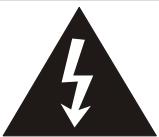
The lightning flash with arrowhead symbol, within an equilateral triangle, is intended to alert the user to the presence of uninsulated dangerous voltage within the products enclosure that may be of sufficient magnitude to constitute a risk of electric shock to persons.
WARNING
RISK OF ELECTRIC SHOCK DO NOT OPEN
WARNING: TO REDUCE THE RISK OF ELECTRIC SHOCK, DO NOT REMOVE COVER (OR BACK) NO USER SERVICEABLE PARTS INSIDE. REFER SERVICING TO QUALIFIED SERVICE PERSONNEL.

The exclamation point within an equi-lateral triangle is intended to alert the user to the presence of important operating and maintenance (servicing) instructions in the literature accompanying the appliance.
IMPORTANT SAFETY INSTRUCTION
1) Read these instructions.
2) Keep these instructions.
3) Heed all warnings.
4) Follow all instructions.
5) Do not use this apparatus near water.
6) Clean only with dry cloth.
7) Do not block any ventilation openings. Install in accordance with the manufacturer's instructions.
8) Do not install near any heat sources such as radiators, heat registers, stoves, or other apparatus (including amplifiers) that produce heat.
9) Do not defeat the safety purpose of the polarized or grounding-type plug. A polarized plug has two blades with one wider than the other. A grounding type plug has two blades and a third grounding prong. The wide blade or the third prong are provided for your safety. If the provided plug does not fit into your outlet, consult an electrician for replacement of the obsolete outlet.
10) Protect the power cord from being walked on or pinch particularly at plugs, convenience receptacles, and the point where they exit from the apparatus.
11) Only use attachments/accessories specified by the manufacturer.
12) Unplug this apparatus during lightning storms or when unused for long periods of time.
13) Refer all servicing to qualified service personnel. Servicing is required when the apparatus has been damaged in any way, such as power-supply cord or plug is damaged, liquid has been exposed to rain or moisture, does not operate normally, or has been dropped.
14) This appliance shall not be exposed to dripping or splashing water and that no object filled with liquid such as vases shall be placed on the apparatus.
Important Safeguards and Precautions
Power Cord Protection
To avoid any malfunctions of the unit, and to protect against electric shock, fire or personal injury, please observe the following:
- Hold the plug firmly when connecting or disconnecting the AC power cord.
- Keep the AC power cord away from the heating appliances.
- Never put any heavy object on the AC power cord.
- Do not attempt to repair or reconstruct the AC power cord in any way.
Location and Handing
Air vents are provided in the cabinet to prevent excessive temperatures inside the unit. Do not place this unit in closed spaces, cover it, or otherwise block the vents.
- Do not place this unit in direct sunlight, or near heat sources.
- Keep this unit away from strong magnetic objects.
- Do not insert or drop anything into this unit through the air vents as this could cause serious damage, possibly resulting in fire.
- Do not place any object containing water or other liquids on this unit. In the event that liquid should enter the cabinet, unplug this unit immediately and contact the retailer or service centre immediately.
- Do not remove the cabinet. Touching parts inside the cabinet could result in electric shock and / or damage to the unit.
- Do not use the unit in a car. The operation can not guaranteed.
Nonuse Periods
- When the unit is not being used, turn the unit off.
- When left unused for a long period of time, the unit should be unplugged from the house hold AC outlet.
No Fingers or Other Objects Inside
- Do not put any foreign object on the disc tray.
Stacking
- Place the unit in a horizontal position, and do not place anything heavy on it.
Condensation
Moisture may form on the pickup lens in the following conditions:
- Immediately after a heater has been turned on.
In a steamy or very humid room. - When the unit is suddenly moved from a cold environment to a warm one.
If moisture forms inside this unit, it may not operate properly. In this case, turn on the power and wait about one hour for the moisture to evaporate.
On adjusting volume
- Do not turn up the volume while listening to a portion with very low level inputs or no audio signals. If you do, the speakes may be damaged when a peak level portion is played.
If There is Noise Interference on the TV While a Broadcast is being Received
Depending on the reception condition of the TV, interference may appear on the TV monitor while you watch a TV broadcast and the unit is left on. This is not a malfunction of the unit or the TV. To watch a TV broadcast, turn off the unit.
Service
- Do not attempt to service the unit yourself.
- Please refer any service to the nearest service centre.
Copyright
Audio-visual material may consist of copyrighted works which must not be recorded without the authority of the owner of the copyright. Please refer to relevant laws in your country.
Copy protection
This DVD player supports Macrovision copy protection
On DVD discs that include a copy protection code, if the contents of the DVD disc are copied using a VCR, the copy protection code prevents the videotape copy from playing normally.
Recommended Measures for Optimum Picture Ex- cellence
This unit is a precision device that is constructed using extremely accurate technology.
Soiling or friction affecting the pickup lens or disc drive can impair the image quality. At the worst, neither video nor audio will be played back. To obtain optimum picture quality, the player should be checked (cleaning and replacement of some parts) every 1,000 hours. Note that this period varies depending on the environment (temperature, humidity, dust, ect.) in which the player is used.
Do not attempt to clean the pickup lens yourself.
Table of Contents
General Information
Features 5
DVD region codes 5
Glossary of disc terms 5
Conventions about this manual 5
Notes on disc 6
Inserting batteries into the remote control 6
Function Overview
Front panel 7
Back panel 7
Remote control 8
Connections
Connecting to TV and additional components 9
Basic Setup
GENERAL SETUP 10
Setting the TV display 10
Setting the TV system 10
Setting vedio output 10
Slecting the on screen display (OSD) language 10
SETTING THE SPEAKERS 10
Downmix 10
AUDIO SETUP 11
Digital output setup 11
Selecting the dynamic range 11
PREFERENCES SETUP 11
Selecting the Audio language 11
Selecting the disc menu language 12
Selecting the parental control 12
Change the parental control password 13
Returning to the original factory default settings 13
Playing Discs
General operation 14
Basic playback 14~15
Fast search 14
Slow motion playback 14
Repeat playback 14
A-B repeat playback 15
Playing video CDs with PBC 15
Playing MP3 with PBC 15
Using the menu for each DVD 15
Checking the information using display 16
Selecting the start time 17
Program play 17
Selecting audio mode for karaoke music 17
Special Function
Picture CD disc playback 18
Setting the sleep timer 19
Angle selection 19
Picture Zoom 19
Selecting subtitle language 19
Troubleshooting 20
Electrical Specifications 21
General Information
Features
DVD player built-in Dolby Digital decoder.
- Conforming DVD, VCD(1.0/2.0), SVCD, CDR, CDRW, CD, MP3, DISC, JPEG CD discs.
DVD navigation and SVCD, VCD PBC controlling functions.
VFD front panel display and OSD menu display.
Full function remote control.
DVD region codes
DVD players and discs are designed with region numbers which dictate the region (printed on the rear panel). If the region number does not match the region number in your DVD player, you will not be able to play the disc. If you try to play the DVD, the message "WRONG REGION" will appear on OSD.
The region number for this DVD player is 2.
Glossary of disc terms
- Title (DVD)
The longest sections of a picture or a music piece on a DVD; a movie, ect., for a picture piece on a video software; or an album, etc., for a music piece on a audio software. Each title is assigned a title number enabling you to locate the title you want.
Chapter (DVD)
Sections of a picture or a music piece that are smaller than titles. A title is composed of several chapters. Each chapter is assigned a chapter number enabling you to locate the chapter you want. Depending on the disc, no chapters may be recorded.
- Track (Video or audio CD)
Sections of a picture or a music piece on a VIDEO or a CD. Each track is assigned a track number enabling you to locate the track you want.
Conventions about this manual
- Instructions in this manual describe the controls on the system. You can also use the controls on the remote control if they have the same or similar names as those on the system.
- The types of functions and operations that can be used for a particular disc vary depending on the features of that disc. In some cases, these functions and operations may differ from the descriptions given in this Operations Manual. In this event, follow the instructions given on the screen. This Operations Manual only covers basic disc operations.
- For some operations, the icon may appear on the screen. This indicates that the operation described in this Operations Manual is not permitted for the current disc.
- The drawings about the TV screen and front panel display used in this Operations Manual are purely for the purposes of explanation. The actual displays may differ slightly from what are shown here.
General Information
Notes on disc
Disc handling precautions
- To keep the disc clean, handle the disc by its edge. Do not touch the surface.
- Do not stick paper or tape on the disc.
If there is glue (or a similar substance) on the disc, remove the glue completely before using the disc.
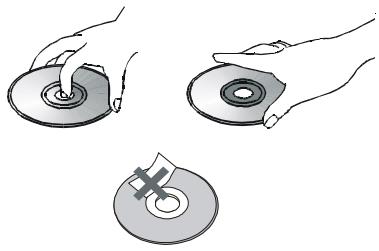
- Do not expose the disc to direct sunlight or sources such as hot air ducts, or leave it in a car parked in direct sunlight as there can be considerable rise in temperature inside the car.
After playing, store the disc in its case. - Do not write on the label side with a ball-point pen or other writing utensils.
- Be careful not to drop or bend the disc.
Disc cleaning precautions
Before playing, clean the disc with a cleaning cloth. Wipe the disc from the center out.
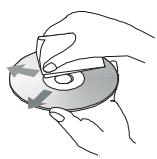
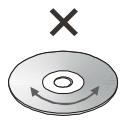
- Do not use solvents such as benzine, thinner, commercially available cleaners or anti-static spray intended for vinyl1 LPs.
Disc installing precautions
- Do not install more than 1 disc on disc tray.
- Do not place the disc on the tray up-side down.
- Do not try to close the disc tray when the disc is not installed properly.
Inserting batteries into the remote control
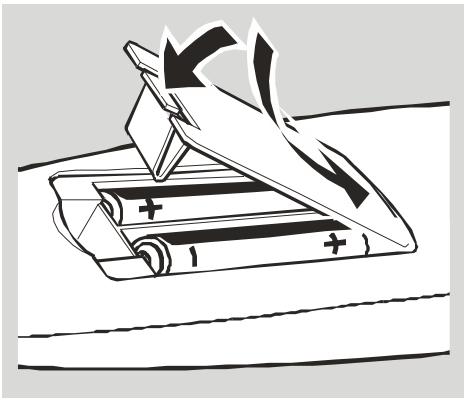
You can control the system using the supplied remote control. Insert two AA batteries (not included) by matching the + and - on the batteries. When using the remote control, point it at the remote sensor on the front panel of this system.
Note
- Do not leave the remote in an externally hot or humid place.
- Do not use a new battery with an old one.
- Do not drop any foreign object into the remote casing, particularly when replacing the batteries.
- Do not expose the remote sensor to direct sunlight or lighting apparatuses. Doing so many cause a malfunction.
- If you will not use the remote for an extended period of time, remove the batteries to avoid possible damage from battery leakage and corrosion.
Function Overview
Front panel
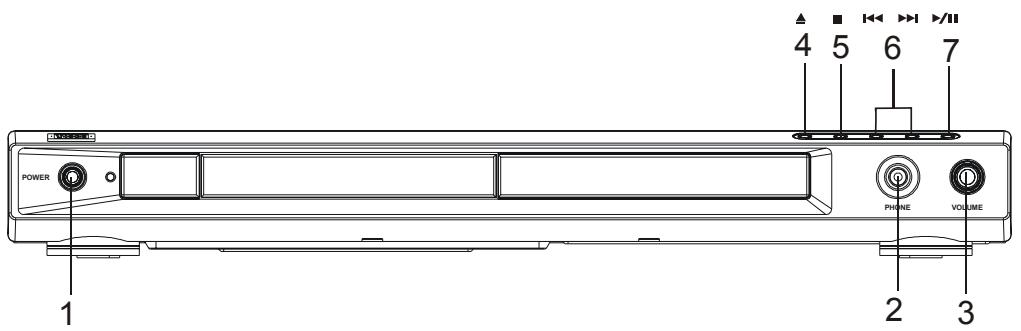
1 POWER switch
To turn or and off the main power of the system.
2 PHONE
Connect to headphone or earphone.
3 VOLUME
Increase or decrease the master volume level.
4 OPEN/CLOSE
To open or close the disc tray.
5 STOP
To stop playing a disc.
6 /
In disc mode, press to skip to next or previous track
7 PLAY/PAUSE
To start or interrupt disc playback.
Back panel
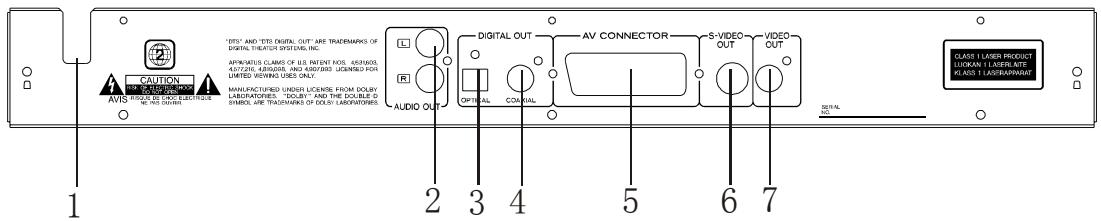
1 AC POWER CORD
Connect to a standard AC outlet.
2 AUDIO OUT JACK
Connect to the audio input of an external recording device or amplifier.
3 DIGTIAL OUT - OPTICAL
Connect to audio equipment with digital-optical audio input.
4 DIGITAL OUT - COAXIAL
Connect to audio equipment with digital-coaxial audio input.
5 SCART OUT connector
Connect to the TV scart input terminals.
6 S-VIDEO JACK
Connect to a TV S-video input connector.
7 VIDEO JACK
Connect to TV video input connector.
Function Overview
Remote control
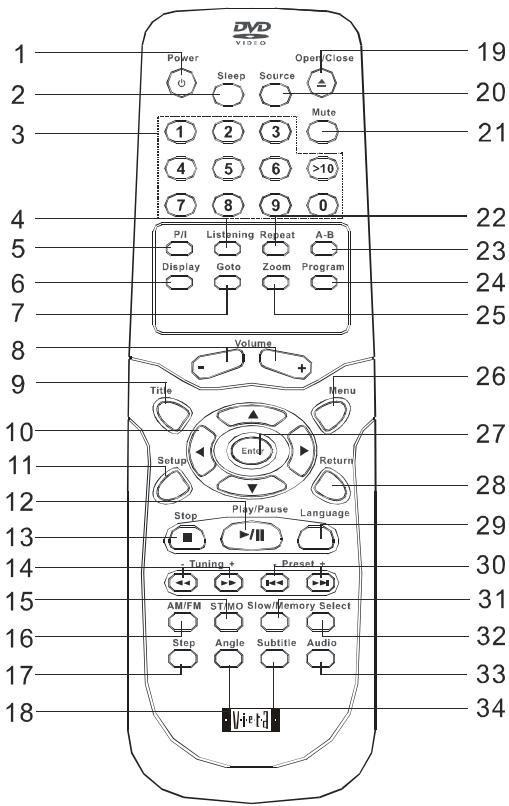
1. POWER
Turn the system POWER ON or STANDBY.
2. SLEEP
Activates the sleep timers.
3. NUMBER buttons (0 9 / > 10)
Select the track or title directly.
4. LISTENING
No function.
5. P/I
No function.
6. DISPLAY
Display the information about the playing disc.
7. GOTO
Select desired title/chapter or timing to start playback.
8. VOLUME (+/ -)
Increase or decrease the master volume level.
9. TITLE
Display the title menu.
10. / / / ENTER Buttons
Select and move the screen cursor to a desired option.
11. SETUP
Enter or exit the setup menu.
12. PLAY / PAUSE (▶/II)
Press to start or stop temporarily playback.
13. STOP
Stop the playback.
14. TUNNING +/- (▲▲/▶)
In disc mode, press to skip to next or previous track. In tuner mode, press to tuning the lower or higher frequency.
15. ST/MO Button
No function.
16. AM/FM Button
No function.
17. STEP
Press to see the picture slowly.
18. ANGLE
Press to change the angles.
19. ▲ OPEN/CLOSE
Open or close the disc tray.
20. SOURCE
No function
21. MUTE Button
Shut off all of the sound.
22. REPEAT
Press to select variations of continuous play.
23. A-B
Specify a section and play if repeatedly.
24.PROGRAM
Press to play the disc in a programmable order.
25.ZOOM
Enlarge the picture.
26. MENU
Switch to set the PBC function on or off.
27. ENTER
Confirm and execute the highlighted item.
28. RETURN
Press return back the menu
29. LANGUAGE
No function.
30. +PRESET-Buttons
Press to play a disc in fast forward / reverse mode.
In tuner mode, press to select the preset stations.
31. SLOW/MEMORY (I▶)
In Disc mode, press to do slow-motion.
NO memory function.
32. SELECT
No function.
33. AUDIO
Press to select a desired audio language.
34. SUBTITLE
Press to select a desired subtitle language.
Connections
Connecting to TV and Additional Components
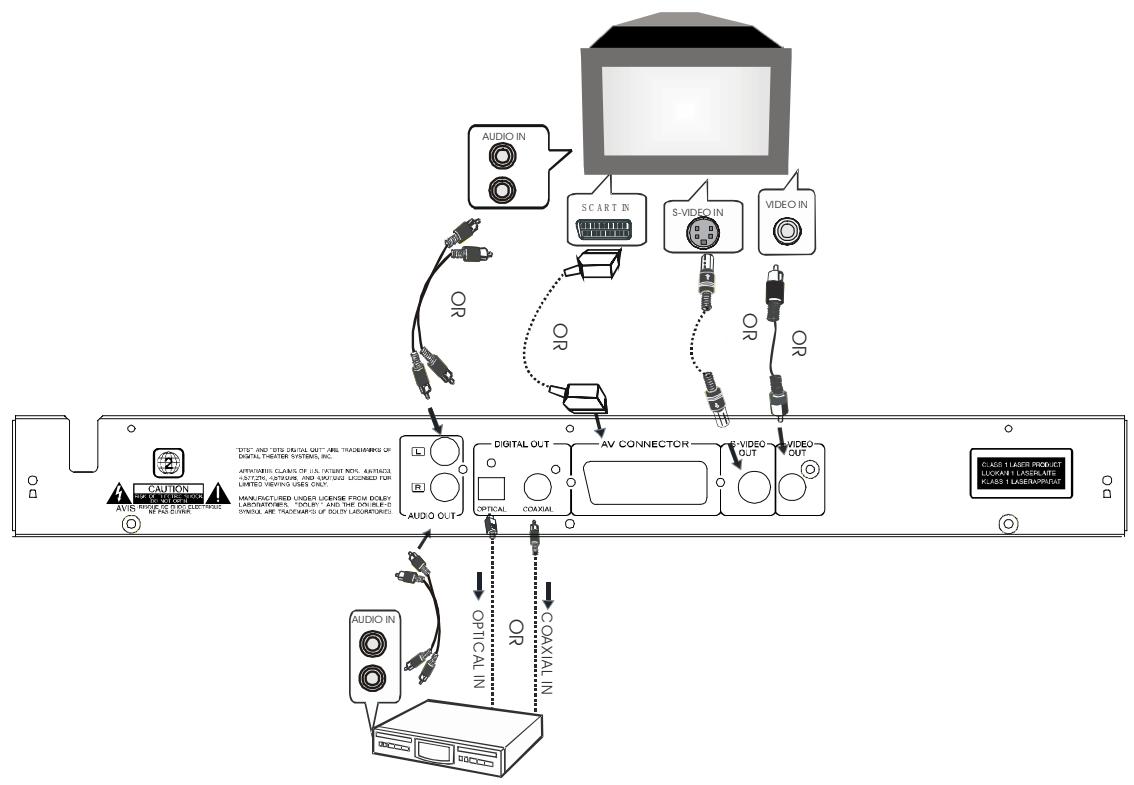
You must connect a TV to the DVD system in order to use DVD player. You can connect other audio and audio / visual components to the DVD system in order to use the Home Cinema Audio system's surround sound capabilities.
Important!
- There are various ways to connect the system to a TV (as shown in the illustration). You only need to make one of these connections.
- Always refer to the instruction manual of the connected equipment to make an optical connection
1 Use the audio cables to connect AUDIO OUT jacks to the corresponding AUDIO IN jacks on the TV or other audio/visual components (supplied).
2 Use the Scart cable to connect SCART OUT jacks to the corresponding SCART VIDEO IN jack on a TV. (not supplied) If your TV is not equipped with SCART video input jacks, you can select one of the following alternative connections:
Option 1
Connect the S-VIDEO OUT jack to the S-Video input jack on the TV using a S-Video cable. (not supplied).
Option 2
Connect the Video OUT jack to the video input jack on the TV using a video cable (supplied).
Use the AUDIO OUT jacks
- For connecting to an amplifier, audio system or TV with analog audio inputs.
- For connecting to a CD or some type of recoder to make an analog recording.
Use the OPTICAL or COAXIAL jacks
- You can connect the OPTICAL or COAXIAL output to another amplifier with DTS, Dolby Digital decoder. (not supplied)
Basic Setup
General setup
Initial settings
This system is designed with a user-friendly setup menu. Use the section to take you through the system and disc setup options and recommendations.
Using the SETUP menu
Press SETUP on your remote control unit to display the setup menu. Use the / / / buttons to select your preferred option, and press ENTER to confirm a highlighted selection. To exit setup menu, press SETUP.
Setting the TV display
You can select the aspect ratio of the TV to be connected.
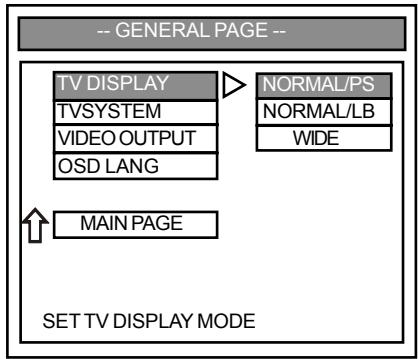
The default setting is NORMAL/PS.
NORMAL/PS
If you have a conventional TV set and your DVD is not formatted for widescreen viewing, use this setting. A wide picture is displayed on the whole TV screen with a portion automatically cut off.
NORMAL/LB
If you have a conventional TV set and your DVD is formatted for widescreen viewing, use this setting. Wide bands will be displayed on the upper and lower portions of the TV screen.
WIDE
If you have a widescreen TV set, use this setting (you must also set your widescreen TV to "full size")
Selecting the TV SYSTEM
This function allows you to select the color system matching the connected TV set.
The initial setting is PAL.
Option:PAL, NTSC, MULT.
General setup
Setting the video output
Selects the video output terminals.
The default setting is S-VIDEO.
Option: S-VIDEO,SCART.
S-VIDEO
Select this setting when VIDEO OUT or S-VIDEO is connected.
SCART
Select this setting when SCART is connected.
Selecting the on screen display (OSD) language
This function allows you to select the desired language.
The default setting is ENGLISH.
Option: ENGLISH, FRENCH, GERMAN, ITANISH, SPANISH, DUTCH.
Setting the speakers
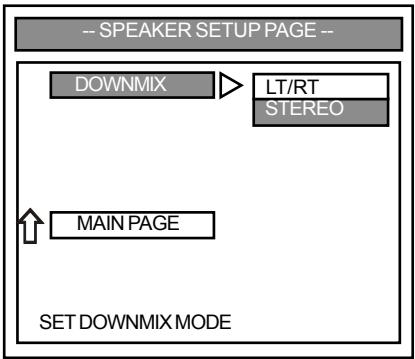
Downmix
Select the DOWNMIX for LT/RT,STEREO.
The default setting is STEREO.
- LT/RT(LEFT TOTAL/RIGHT TOTAL)
A two-channel delivery format for Dolby surround four channels (audio left,center, right and surround) are matrix encoded two channels. The terms refer to a Dolby surround compatible downmix.
STEREO
All sound is reproduced and played through the front left and
right speakers. This enables standard stereo reproduction.
Note
- LT: Only matrix encoded audio left, center, and surround RT: Only matrix encoded audio right center and surround.
Basic Setup
Audio setup
Digital output setup
Select the preferred language for audio.
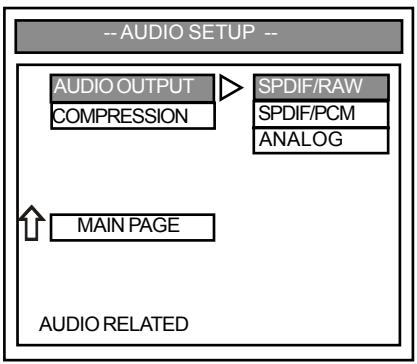
The default setting is SPDIF/PCM
SPDIF/RAW
If the optical or coaxial output on the rear panel is connected with a receiver built-in Dolby Digital, DTS or MPEG decoder, select this item.
SPDIF/PCM
If the optical or coaxial output is connected with a receiver which accepts PCM audio signal, select this item.
ANALOG
If the optical or coaxial output is connected with any equipment, select this item.
Notes
-
If the ANALOG is selected, the optical or coaxial will not have audio outputs.
-
If the DIGITAL/RAW is selected and the audio source is LPCM
(DVD), the outputs in the optical or coaxial is PCM.
- If the DIGITAL/PCM is selected and the audio source is audio
CD, the outputs in the optical or coaxial is PCM
Audio setup
Selecting the dynamic range
In many listening situations, it is objectionable to allow the sound to become very loud, and thus the loudest sounds must be compressed downwards in level. Likewise, the very quiet sounds would be inaudible and must be brought upwards in level to be heard. Dolby Digital satisfies these needs through the dynamic range controlling.
Selects the dynamic range compression to fit the individual listening situation of the audience. The variable range is from FULL, 7/8 to 1/8, or OFF.
The default setting is OFF.
- FULL: Audio with fully compressed dynamic range.
7/8~1/8: Audio with partially compressed dynamic range.
OFF: Audio with uncompressed dynamic range.
Notes
- The Dual Mono and Dynamic Range settings only support Dolby Digital programs.
- The higher the setting selected will result in audio with a more fully compressed dynamic range.
Preferences setup
- You can access PREFERENCES PAGE only in STOP status.
Selecting the audio language
Select a desired audio language for a DVD disc that has audio data recorded in multiple-languages.
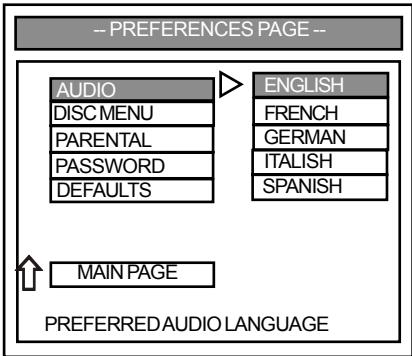
The default setting is ENGLISH.
Note
- When you select a preferred language that is not recorded on the DVD, one of the recorded language is automatically selected.
- You can select any recorded language for audio by pressing AUDIO button when playing a DVD disc.
Basic Setup
Preferences setup
Selecting the disc menu language
Select a desired language when playing a DVD disc that has menu data recorded in multiple-languages.
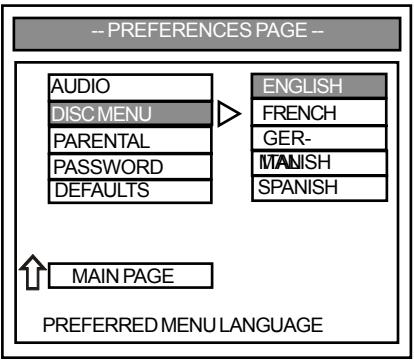
The default setting is ENGLISH.
Note
- When you select a preferred language that is not recorded on the DVD, one of the recorded language is automatically selected.
Selecting the parental control
This function allows to set playback limitation level. Playing someDVD discs can be limited depending on the age of the user
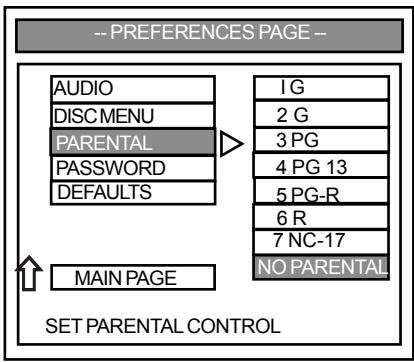
The default setting is NO-PARENTAL.
Press / buttons to select the desired parental level, press Enter button to enter password.
Notes
The lower the value is, the more strict the limitation.
- If the parental control level of the loading DVD disc is lower than the setting level, OSD will show "Parental Violation"
Preferences setup
message, and refuse to play this disc.
- Before change the parental control level, you must enter the preset password(4-digits) to unlock this function, if the entered password is incorrect, you will not be able to change the level.
- Some DVD discs are not encoded with a rating though the movie rating is printed on the disc jacked. The parental lock function does not work for such discs.
Basic Setup
Preferences setup
Change the parental control password
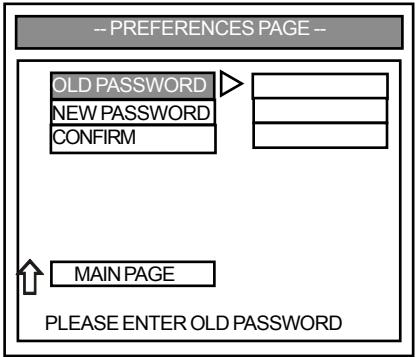
To change the parental control password use the SETUP menu, select PREFERENCES to access the password menu. Press ENTER to enter the old password “3308”. (“XXXX” will appear as you enter the numbers).
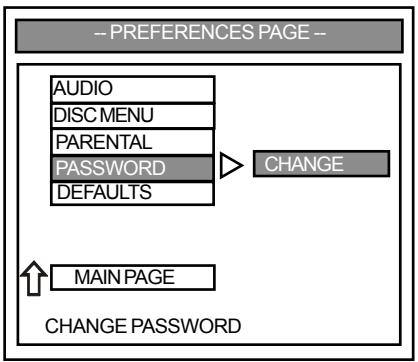
When prompted to enter a new password, enter a 4-digit code and enter it again when prompted to confirm password. Press ENTER once more to change the password from "3308" to the new 4-digit password you have entered.
Notes
- This password is used to unlock the parental control level reset function. So, select a password you can easily remember.
- The disc must be recorded with a parental lock, for this feature to function. Some DVD discs are not encoded with a rating though the movie rating is printed on the disc jacket. The parental lock function does not work for such discs.
- If you forget the new password code, press ZOOM four times when prompted for the password and the system will return to the default password.
Preferences setup
Returning to the original factory default settings
To return all settings to the factory defaults, use the SETUP menu, select PREFERENCES to access the defaults menu as shown:
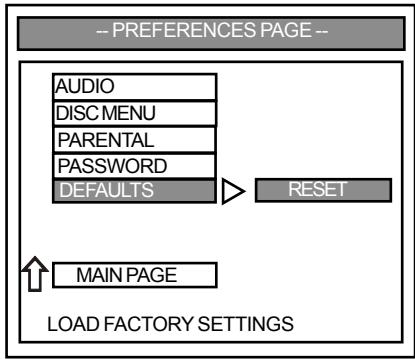
Select and press ENTER to return the system to its original factory settings.
IMPORTANT: The parental control level and the password will not be reset.
Playing Discs
General operation
IMPORTANT: Please note that some DVD movie discs may not have all the features described in this chapter. For example, older movies may not allow you to select multiple camera angles. Refer to the instructions or liner notes that are included with each disc to determine what features and operations are available on that particular disc.
- Turn your television set's power on, and set the channel to the video input.
- Press POWER on the front panel to turn on the main power of this system. The front panel display lights up, and the DVD logo screen appears on the television screen.
- Press OPEN/CLOSE, and place a disc on the disc tray. Press it again to close the tray.
Note
- Load the disc placing the label side face up, and using the disc tray as a guide for proper alignment. When playing a double-sided DVD disc, load it with the desired playing side face down.
- Use the master VOLUME (+/-) buttons to increase or decrease the volume level.
- Press MUTE to shut off the sound. To restore the volume, press it again.
- To start playback, press /II. To interrupt or pause playback, press /II again.
Note
- Some discs will start playing automatically, and others will display a menu on the television screen. Use the / / / or the number (0 9, >10) buttons to select desired a track/ chapter and then press ENTER to start playback.
- To stop playback, press STOP
- To skip to the next or previous track / chapter press I / I repeatedly during playback.
Basic playback
Fast search
1 Press / to fast reverse or fast forward.
For DVD / MP3 discs
FF(fast forward):FFX2--> FFX4--> FFX6--> FFX8--> PLAY
FF(fast reverse) : FRX2 -> FRX4 -> FRX6 -> FRX8 -> PLAY
Basic playback
- For VCD / CD discs
FF(fast forward) : FFX1 -> FFX2 -> FFX3 -> FFX4 -> PLAY
FR(fast reverse) : FRX1 -> FRX2 -> FRX3 -> FRX4->PALY
2 To resume normal play, press PLAY/PAUSE /II.
Slow motion playback
To view playback in slow-motion, press SLOW on the remote control unit during playback.
When playing DVD discs:
Press SLOW repeatedly to select the slow motion speed and direction as follows:
SF (slow forward), SR (slow reverse).
SFX2 SFX4 SFX8 SRX2 SRX4 SRX8 SLOW OFF.
When playing CVD, SVCD or VCD discs:
Press SLOW repeatedly to select the slow motion speed as follows:
SFX1 SFX2 SFX3 SLOWOFF.
Notes
The smaller the number, the slower the speed.
This function is not available for CD or MP3 discs.
- On some discs, the slow-motion playback function is not available.
Repeat playback
Use this function to set the player to repeat individual tracks on CD or Video CD discs, chapters or titles on DVD discs, an entire disc, or all the discs loaded in the player.
When playing DVD discs:
Press REPEAT repeatedly to select the following:
CHAPTER REPEATON TITLE REPEATON REPEAT OFF
When playing CVD, SVCD, CD and MP3 discs
Press REPEAT repeatedly to select the following:
REPEAT ONE REPEAT ALL REPEAT OFF
When playing MP3 discs (In menu mode):
Press REPEAT repeatedly to select the following:
REPEAT ONE REPEAT ONE ALBUM REPEAT ALL REPEAT OFF
Notes:
- Use the repeat function with the programming mode to repeat tracks or chapters.
This function is only available when playback is selected. - When playing CVD and SVCD discs, set the PBC (playback control) mode to OFF to use this function.
- The front panel display will display "REP 1" when chapter repeat mode is selected; and "REP ALL" when repeat mode is selected.
Playing Discs
Basic playback
A-B repeat playback
Use this function to play a specific portion in a chapter or track repeatedly. This is useful to memorize lyrics or watch a portion of a disc over and over.
- Press A-B at the beginning of the selection you want to repeat. The "A" indicator will be displayed.
- Press A-B again at the end of the selection. The "A-B indicator will be displayed, and this section will now repeat continuously.
- Press A-B again to cancel and resume normal playback.
Notes
- When using this function with DVD discs, both the start and end point of the repeat must be in the same title.
- To repeat a section of a disc just once, press A-B at the beginning of the section, then press PLAY/PAUSE at the end. The playback will jump back to the start point.
- This function is only available when playback mode is selected.
- The A-B repeat function is canceled when you stop the playback, open the disc tray, or turn the power off.
Playing Video CDs with PBC
When playing Video CDs (Version 2.0) with PBC functions, you can enjoy simple interactive operations, operations with search functions, etc.
PBC playback allows you to play Video CDs interactively, following the menu on the TV screen.
1 When the player read a SVCD or VCD Disc, the system will set the PBC function to ON automatically, and automatically play disc with PBC menu.
2 Use NUMBER buttons to select the item you want.
3 Press ENTER button to execute your selection.
4 Follow the instructions on the menu screen for interactive operations.
Refer to the instructions supplied with the disc, as the operating procedure may differ according to the Video CD.
Note
- While playing a disc in PBC ON mode, you couldn't use the number buttons to select the item you want. In PBC off mode you can.
To cancel PBC playback function and play a Video CD without PBC menu.
1 Press the MENU button. "PBC OFF" will appear on the TV screen. If a disc is playing, the playback will stop.
2 Press the / to start (or restart) playing the disc from the beginning or use number button to select track you like.
3 Use the number button to select track you like, then you press ENTER to confirm it.
Playing MP3 with PBC
1 When playing a MP3 disc, press MENU button to switch MP3 menu ON.
2 Then use / / cursor to select the song or JPEG picture that you want, press PLAY/ENTER button to start playback.
3 Press MENU again to switch MENU OFF.
Using the menu for each DVD
Using the TITLE menu
1 Press TITLE while playing a DVD disc.
The "TITLE MENU" will be shown on TV screen for two seconds, and then the title menu appears. The contents of the menu vary from disc to disc.
2 Use / buttons to select the title (or chapter) you want to play. Depending on the disc, you can use the number buttons (0 - 9 / > 10) to select the title (or chapter). Then press PLAY to play.
Notes
Depending on the DVD disc, you may not be able to select the title or chapter.
Depending on the DVD disc, a "title menu" may simply be called a "menu" or "title" in the instructions supplied with the disc.
- For some DVD disc, when you press the TITLE, the playback will restart from the beginning of the disc.
- Some DVD disc have no TITLE recorded, pressing this button will restart the disc play.
Using the ROOT menu
1 When playing a DVD disc, press RETURN button The "ROOT MENU" will be shown on TV screen for a moment, and then the root menu appears. The contents of the menu vary from disc to disc.
2 Use / / / buttons to select the title (or chapter) you want to play.
Depending on the disc, you can use the number buttons (0 9 / > 10) to select the title (or chapter).
3 Then press PLAY to play.
4 When playing a CVD, SVCD or VCD2.0 disc with PBC function set to ON, use this button to go back to the PBC menu of disc. “GO BACK TO MAIN PAGE” will display on the OSD.
Notes
Depending on the DVD disc, you may not be able to enter the root menu.
- For some DVD disc, when you press the RETURN, the playback will restart from the beginning of the disc.
Playing Discs
Checking the information using display
You can check information about the disc, such as the total number of titles or chapters or tracks or time, using the Display function. The information you want appears on the TV screen or and on the front panel display.
When playing back a DVD
1 Press DISPLAY repeatedly to show on TV screen as the following:
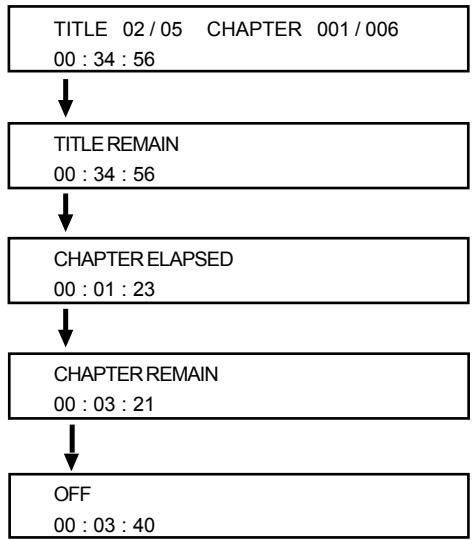
The display will disappear after a few seconds.
Note
- When stop the playback, the display function will be set to off automatically.
When playing MP3 discs
1 Press DISPLAY repeatedly to show on TV screen as the following :
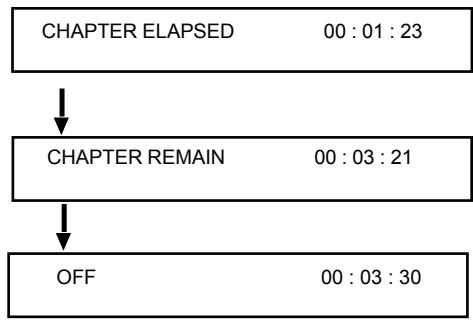
The display will disappear after a few seconds.
Checking the information using display
When playing back a Video CD or CD
1 Press DISPLAY repeatedly to show on TV screen as the following:
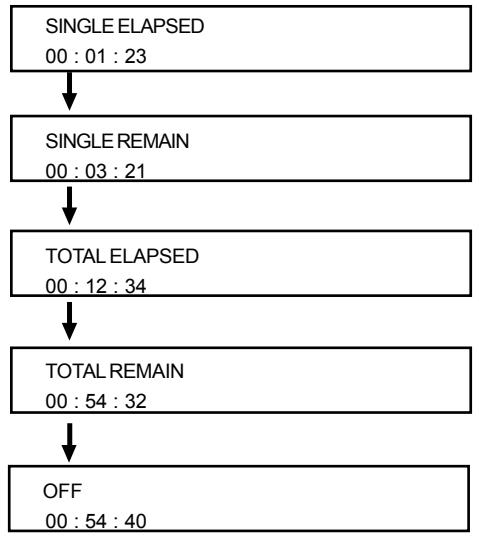
For Video CD, SVCD if PBC is set to on.
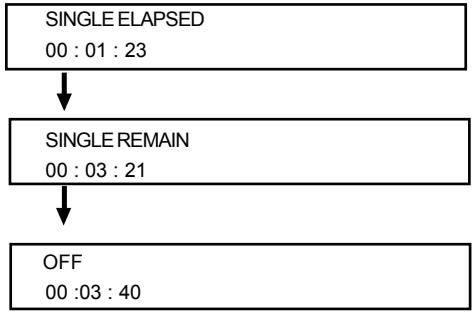
The display will disappear after a few seconds.
Notes
- When playing CD disc, track and time information will appear on the front panel display.
Some VCD discs will display the time information on the television screen. - When playback stops, the display function automatically resets to off.
Playing Discs
Selecting the start time
This function allows you to start playing at any chosen time on the disc.
When playing DVD disc
1 Press GOTO repeatedly, the following menu appears on the TV screen.
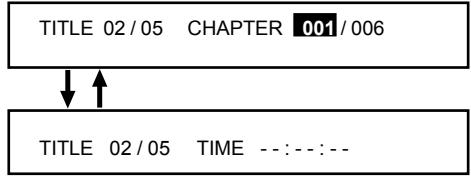
2 Use the or buttons to select desired title or chapter number, and press ENTER / PLAY to start playback from that selection.
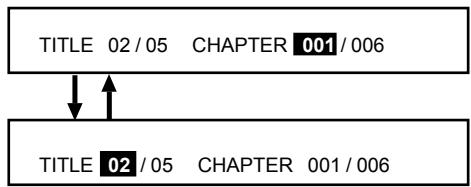
3 Use the number buttons (0 9 / > 10) to input the title or chapter number you want. The time you enter must be less than the total time of the disc.
4 Press ENTER/ PLAY to start playback from your selection.
When playing Video CD and CD disc.
1 Press GOTO, the following menu appears on the TV screen.
GOTO:---:--
2 Use the number buttons (0 9 / > 10) to input the time you want.
The time you enter must be less than the total time of the disc.
GOTO: 12:34
3 Press ENTER/PLAY to start playback from the point of select time.
Notes
This function is not available for MP3.
- When playing VCD with PBC ON status, this function is ineffective.
Program play
You can play the contents of the disc in the order you want by programming the order of the tracks to be played. UP to 99 tracks can be stored.
1 While playback is stopped, select or press PROGRAM to enter program mode.

2 Use the number buttons (0 9 / > 10) to input the track number in the order you want.

If you attempt to program more than 99 tracks, the FULL will be displayed.

3 Repeat step 2 to store other tracks.
4 To start program play, press PLAY/PAUSE /II.
5 To stop playback, press once.
6 To cancel the program, press again.
Note
This function is not available for DVD and MP3 disc.
Selecting audio mode for karaoke music
When playing karaoke or similarly formatted DVD discs, it is possible to select vocal audio, or either right or left channel depending on the disc.
Press AUDIO repeatedly during playback to switch the audio output mode as follows: AUDIO 1 AUDIO 2 AUDIO 1 VOCAL AUDIO 2 VOCAL.
When playing karaoke or similarly formatted VCD discs, it is possible to select stereo, or either right or level channel mono depending on the disc.
Press AUDIO repeatedly during playback to switch to the audio output mode as follows: LEFT VOCAL RIGHT VOCAL MONO LEFT MONO RIGHT STEREO.
When playing karaoke or similarly formatted CD discs, it is possible to select stereo, or either right or level channel mono depending on disc.
Press AUDIO repeatedly during playback to switch to the audio output mode as follows: MONO LEFT MONO RIGHT STEREO.
Note
- This system does not support CD-G formatted discs.
Special Function
Picture CD disc playback
This system allows you to view Kodak and JPEG formatted Picture CD discs on your television screen. Load the disc with the lable side up. It may take a few moments for the system to read the contents before beginning playback.
Viewing Kodak Picture discs
Kodak Picture CD disc menus will be displayed automatically on the television screen with up to 9 thumbnail pictures at a time, and continue as a slide show until all photos are previewed.
| 1 | 2 | 3 |
| 4 | 5 | 6 |
| 7 | 8 | 9 |
Use the / / buttons to select a picture, and press ENTER to enlarge it to fill the television screen, or use the or buttons in the menu to view the previous / next page (if available).
During playback you can:
- Press / / / on the remote to rotate / flip the picture files.
- Press / to pause / resume playback.
- Press to stop playback, and return to the 9 thumbnail menu.
Viewing JPEG formatted discs
To begin playback, press MENU on the remote control unit. Picture CD discs with JPEG format menus will be displayed as a list of albums / titles menu on the television screen.
| DATE CD MENU | |
| Root | ROOT 0 |
| TITLE NAM E1 1 | |
| TITLE NAM E2 2 | |
| TITLE NAM E3 3 | |
| TITLE NAM E4 4 | |
| TITLE NAM E5 5 | |
| TITLE NAM E6 6 | |
| TITLE NAM E7 7 | |
Picture CD disc playback
In the menu use the / / buttons to select the desired albums / titles and press ENTER. A slideshow will begin from this point.
During playback you can:
- Press or to select another title / picture in the current folder.
- Press / / / on the remote to rotate / flip the picture files.
- Press / II to pause / resume playback.
- Press to stop playback.
Note
- Some files on Kodak or JPEG discs may be distorted during playback due to the configuration and characteristics of the disc.
Setting the sleep timer
Use this function to program the system to turn off automatically after a specified amount of time. Press SLEEP repeatedly, to select the following time intervals in minutes:
$$ 1 5 \rightarrow 3 0 \rightarrow 4 5 \rightarrow 6 0 \rightarrow 9 0 \rightarrow 1 2 0 \rightarrow O F F $$
- When you have selected the specified time, the "SLEEP" indicator lights on the television screen and front panel display.
- To reset the time, press SLEEP again to make another selection.
- To check the remaining time before the system turns off, press SLEEP. The remaining time will be displayed on the television screen and front panel for a few seconds.
- To cancel the sleep function, press SLEEP until it reaches OFF.
Special Function
Angle selection
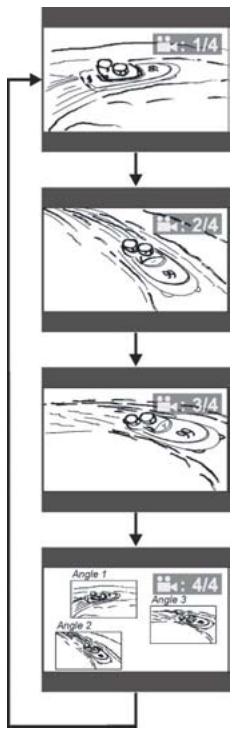
Some DVD discs contain scenes which have been shot simultaneously from a number of different angles. For these discs, the same scenes can viewed from each of the different angles. (The recorded angles differ from disc to disc).
- Set the angle function to ON by pressing ANGLE on the remote control during playback.
- As scenes recorded with multiple angles begin to play, the angle icon will appear on the television screen.
- Press ANGLE repeatedly to view the scene from different angles.
For example: 1/4, 2/4, 3/4, 4/4.
Notes
- The angle icon will disappear immediately when you press ANGLE on the remote control, or after five seconds.
- This function is only available when the disc has been recorded with scenes shot from more than one angle.
- If after pressing ANGLE, the inhibit icon is displayed on the television screen, this indicates that the angle function is not available for the disc.
Picture zoom
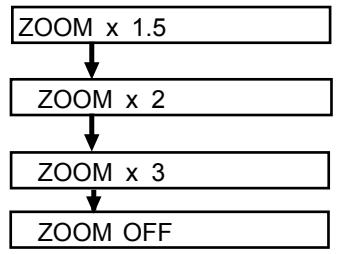
The zoom function allows you to enlarge the picture on the television screen and to pan through the enlarged image.
- Press ZOOM on the remote control unit repeatedly to select the following magnification factors:
- Press / / / to pan through the enlarged image
Notes
- This function is only available during playback.
This function is not available when playing CD or MP3 discs. - This setting will be cancelled automatically when the disc tray is opened or the power is turned off.
Selecting the subtitle language
This function is available for DVD discs recorded with subtitles in multiple languages. To display the current language selection press SUBTITLE once during playback. Continue pressing to select other subtitle languages. Press ENTER to continue playback with the desired subtitle language.
Notes
- Some DVD discs are recorded with subtitles that cannot be turned off.
- Subtitles may not appear immediately after you have turned them on.
- Some DVD discs allow you to change subtitle selections only via the disc menu. Use the / / / buttons to select the desired language or turn the subtitles ON or OFF and then press ENTER.
- Use the SETUP menu to select a preferred subtitle language.
- The maximum number of subtitle languages stipulated by the manufacturer is 32.
Troubleshooting
If you experience any of the following difficulties while using the system, use this troubleshooting guide to help you remedy the problem. Should any problem persist, consult your nearest service center.
No power
- Is the power cord firmly plugged into the power outlet?
- One of the safety mechanisms may be operating. In this event, unplug the player from the power outlet briefly and then plug it in again.
No picture
- Check that the system is connected securely.
- The video connecting cord is damaged. Replace it with a new one.
- Make sure you connect the system to video input connector on the TV.
Make sure you turn on the TV. - Make sure you select the video input on the TV so that you can view the pictures from this system.
The picture noise appears
Clear the disc.
- If video from this system has to go through your VCR to get to your TV, the copy-protection applied to some DVD programs could affect picture quality. If you still experience problems after checking your connections, please try connecting your DVD system directly to your TV's S-Video input, if your TV is equipped with this input.
The aspect ratio of the screen cannot be changed even though you set "TV DISPLAY" in the SETUP menu when you play a wide picture.
The aspect rate is fixed on your DVD disc.
- If you connect the system with the S-Video cable, connect directly to the TV. Otherwise, you may not change the aspect rate.
Depending on the TV, you may not change the aspect rate.
Severe hum or noise is heard
- Check that the speakers and components are connected securely.
- Check that the connecting cords are away from a transformer or motor, and at least 3 meters away from a TV set or fluorescent light.
- Move your TV away from the audio components.
- The plugs and jacks are dirty. Wipe them with a cloth slightly moistened with alcohol.
Clear the disc.
The sound loses stereo effect when you play a Video CD or a CD
- Set the Audio mode to "STEREO" in the SETUP menu.
Make sure you connect the system appropriately.
The surround effect is difficult to hear when you are playing a Dolby Digital sound track
- Check the speaker connections.
- Depending on the DVD disc, the output signal may not be the entire 5.1 channel but monaural or stereo even if the sound track is recorded in Dolby Digital format.
No sound or only a very low-level sound is heard from the rear speakers
Make sure the Rear is set to "ON" in SETUP menu.
- Adjust the speaker volume.
The language for the subtitles cannot be changed when you play a DVD
Multilingual subtitles are not recorded on the DVD.
- Changing the language for the subtitles is prohibited on the DVD.
The subtitles cannot be turned off when you play a DVD
Depending on the DVD, you may not be able to turn the subtitles off.
The angles cannot be changed when you play a DVD
- Multi-angles are not recorded on the DVD.
- Change the angles when the angle mark appears on the TV screen.
- Changing the angles is prohibited on the DVD.
The system does not operate properly
- Static electricity, etc., may affect the system's operation. Press the POWER button to turn off, then press again to turn on.
Electrical Specification
DVD Player
Pickup Semiconductor laser, Wavelength 650 nm
Video signal horizontal resolution 480 lines (DVD)
Video signal-to-noise ratio 50 dB (DVD)
Audio frequency response (at 2 CH stereo mode) DVD (PCM): 20Hz 20kHz(+/-3.0dB)
CD: 20 Hz ~ 20 kHz (+/- 3.0 dB)
Audio signal-to-noise ratio 60 dB
Dynamic range DVD:80 dB;CD:80 dB
Video outputs
CVBS Video 1 Vp-p 75 ohms
S-video Y:1 Vp-p 75 ohms
C: PAL 0.3 Vp-p 75 ohms / NTSC 0.286 Vp-p 75 ohms
Scart out 1 Vp-p 75 ohms
Optical and Coaxial out 1 Vp-p 75 ohms
Audio line outputs
Audio.L/R 2 Vrms, 1k ohms
Main Unit
Power supply. 110-230V AC 60Hz
Hz
power consumption. 15W maximum
Dimensions W 435 x H48x D 278 mm
Weight 2.4kg
Operation Temperature 32 F \~19.4 F (0° C \~ 40° C)
Operation Humidity 15~75%
Design and specifications are subjected to change without notice. Weight and dimensions are approximate.