
ANTIVIR WEBGATE - Internet Security AVIRA - Free user manual and instructions
Find the device manual for free ANTIVIR WEBGATE AVIRA in PDF.


User questions about ANTIVIR WEBGATE AVIRA
0 question about this device. Answer the ones you know or ask your own.
Ask a new question about this device
Download the instructions for your Internet Security in PDF format for free! Find your manual ANTIVIR WEBGATE - AVIRA and take your electronic device back in hand. On this page are published all the documents necessary for the use of your device. ANTIVIR WEBGATE by AVIRA.
USER MANUAL ANTIVIR WEBGATE AVIRA
1.1 Introduction 4
1.2 The Structure of the Manual 5
1.3 Signs and Symbols 5
1.4 Abbreviations 6
2 Product Information 7
2.1 Features 8
2.2 Licensing Concept 8
2.3 Modules and Operating Mode of Avira AntiVir WebGate 9
2.3.1 System Requirements 10
3 Installation 11
3.1 Choosing the WebGate Computer 11
3.2 Getting the Installation Files 11
3.3 Licensing 12
3.4 Installing Avira AntiVir WebGate 13
3.5 Reinstalling and uninstalling AntiVir 16
4 Configuration 18
4.1 Monitoring HTTP Traffic 18
4.2 Monitoring FTP Traffic 23
4.3 Integration over ICAP Interface 24
4.4 Configuration Files 26
4.4.1 Product Configuration in avwebgate.conf 26
4.4.2 Scanner Configuration in avwebgate-scanner.conf 33
4.4.3 Updater Configuration in avupdate.conf 34
4.4.4 Access Control Configuration in avwebgate.acl 36
4.5 Templates Configuration 37
4.6 Testing Avira AntiVir WebGate 38
5 Operation 39
5.1 Starting and Stopping Avira AntiVir WebGate manually 39
5.2 Procedures when Detecting Viruses or Unwanted Programs 40
6 Updates 42
6.1 Internet Updates 42
7 Service 44
7.1 Support 44
7.2 Online Shop 44
7.3 Contact 45
8 Appendix 46
8.1 Glossary 46
8.2 Further Information 47
8.3 Golden Rules for Protection Against Viruses 48
1 About this Manual
In this Chapter you can find an overview of the structure and contents of this manual.
After a short introduction, you can read information about the following issues:
The Structure of the Manual - Page 5
Signs and Symbols - Page 5
1.1 Introduction
We have enclosed in this manual all the information you need about Avira AntiVir WebGate and it will guide you step by step through installation, configuration and operation of the software.
The appendix contains a Glossary, which explains the basic terms.
The RELEASE_NOTES file included in the product kit presents additional current information about Avira AntiVir WebGate.
For further information and assistance, please refer to our Website, to the Hotline of our Technical Support and to our regular Newsletter (see Service – Page 44).
Your Avira Team
1.2 The Structure of the Manual
The manual of your AntiVir software consists in a number of Chapters, bringing you the following information:
| Chapter | Contents |
| 1 About this Manual | The structure of the manual, signs and symbols |
| 2 Product Information | General information about Avira AntiVirWebGate software, its modules, features, system requirements and licensing |
| 3 Installation | Instructions to install Avira AntiVir WebGate on your system |
| 4 Configuration | Directions for optimum setting of Avira AntiVirWebGate on your system |
| 6 Updates | Running manual or automatic updates |
| 5 Operation | Working with Avira AntiVir WebGate;Reactions when detecting viruses and unwanted programs |
| 7 Service | Avira GmbH Support and Service |
| 8 Appendix | Glossary of technical terms and abbreviationsGolden Rules for Protection against Viruses |
1.3 Signs and Symbols
The manual uses the following signs and symbols:
| Symbol | Meaning |
| ✓ | ... shown before a condition that must be met, prior to performing an action |
| ▲ | ... shown before a step you have to perform |
| ↓ | ... shown before the result that directly follows the preceding action |
| ... shown before a warning in case there is a danger of critical data loss or hardware damage | |
| ! | ... shown before a note containing particularly important information, e.g. on the steps to be followed |
| i | ... shown before a tip that makes it easier to understand and use Avira AntiVir WebGate |
For improved legibility and clear marking, the following types of emphasis will also be used in the text:
| Emphasis in text | Explanation |
| Ctrl+Alt | Key or key combination |
| /usr/lib/AntiVir/avupdate | Path and filename |
| ls /usr/lib/AntiVir | User entries |
| Choose component Select all | Elements of the software interface such as menu items, window titles and buttons in dialog windows |
| http://www.avira.com | URLs |
| Signs and Symbols – Page 5 | Cross-reference within the document |
1.4 Abbreviations
The manual uses the following abbreviations:
| Abbreviation | Meaning |
| ACL | Access Control List |
| FTP | File Transfer Protocol |
| GUI | Graphical User Interface |
| HTTP | Hypertext Transfer Protocol |
| HTTPS | Hypertext Transfer Protocol Secure |
| ICAP | Internet Content Adaptation Protocol |
| SMTP | Simple Mail Transfer Protocol |
| SNEWS | Secure NEWS Server |
| SSL | Secure Sockets Layer |
| VDF | Virus Definition File |
2 Product Information
Internet connection is an underestimated invasion doorway for malware on your computer. If you transfer unfiltered data from the Internet on your system, you can spread all types of malware throughout the entire network.
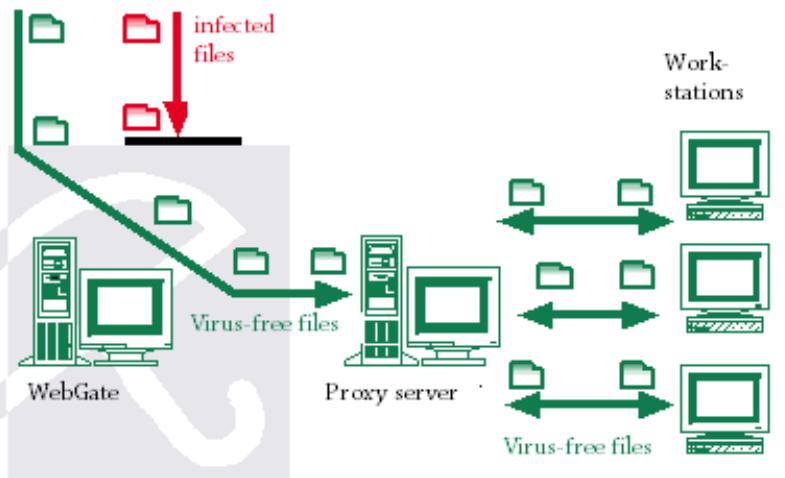
Avira AntiVir WebGate is a reliable protection for your computer, by scanning, filtering and if necessary blocking access to all files from the Internet.
Furthermore, Avira AntiVir WebGate also scans the entire outgoing traffic.
Usually company computers access the Internet indirectly, via a proxy server. Avira AntiVir WebGate co-operates with the proxy server and completes it in an ideal way.
Internet
Right from the beginning, two really important hints:

Losing valuable files usually has dramatic consequences. Not even the best antivirus software can fully protect you against file loss.
Ensure regular backups for your files.

An antivirus program can be reliable and effective only if kept up-to-date.
Ensure that you maintain your Avira AntiVir WebGate up-to-date, using Automatic Updates. You will learn how to do it in this user guide.
2.1 Features
Avira AntiVir WebGate supports a variety of configuration settings for controlling Internet data transfer. The essential features are:
- Extended access control, for setting rules to allow tunneling for certain types of requests and responses.
- Local URL filtering, using the categories in Avira URL Filtering library
- Online URL filtering, using the categories in Avira Web Access and Content Control library (available in Avira WebGate Suite)
Real-time scanning for viruses/unwanted programs
Heuristic detection of macroviruses - Scanning all downloaded files (HTTP and FTP)
- Scanning all outgoing files (e.g. PUT and POST)
- Recognition of all common archive types
Automatic Internet Update for product, scan engine and VDF - Configurable notification functions for the administrator (protocol, warnings, reports); sending email warnings (SMTP)
- Self-Integrity Program Check, which ensures the antivirus system is operating correctly
- Access control to WebGate using IP addresses
- ICAP support (enables connection through ICAP interface)
2.2 Licensing Concept
You must have a license to use Avira AntiVir WebGate. You are required to accept the license terms
(see http://www.avira.com/documents/general/pdf/en/avira_eula_en.pdf).
There are 2 license modes for Avira AntiVir WebGate:
Test version
Full version
The license depends upon the number of users in the network, which are to be protected by Avira AntiVir WebGate.
The license is given in a license file named hbedv.key. You will receive it by email from Avira GmbH. It contains certain data, such as the programs you will use and the time interval of your license. The same license file may refer to more Avira products.
Test Version Details about the 30-days Test License can be found on our Website:
http://www.avira.com.
Full Version The range of Full Version features includes:
Download of Avira AntiVir WebGate Versions from the Internet
License file by email, for activating the Test Version to a Full Version
- Complete installation instructions (digital)
Four weeks Installation Support, starting from acquisition date
-Newsletter Service(per email)
- Internet Update Service for program files and VDF
After installing an AntiVir product, you can read the information on your current license, using the license tool avlinfo:
Change to /usr/lib/AntiVir and call ./avlinfo
Use avlinfo -h to get information about using this tool.
2.3 Modules and Operating Mode of Avira AntiVir WebGate
Avira AntiVir WebGate security software consists in the following modules:
AntiVir Engine
Avira Updater
WebGate Main Program
Avira URL Filtering library
Avira Web Access and Content Control library
AntiVir Engine
AntiVir Engine essentially represents the scanning and repairing modules of Avira software. These are also used by the other AntiVir products.
Avira Updater
Avira Updater downloads current updates from the AntiVir web servers and installs them at regular intervals, manually or automatically. It can also send update notifications by email.
You can update Avira AntiVir WebGate entirely or only certain components: signatures, engine, scanner.
WebGate Main Program
The Main Program is the actual WebGate function, supervising the HTTP and FTP network access over the Internet. It detects viruses and unwanted programs using the AntiVir Engine.
Avira URL Filtering library
AntiVir WebGate uses a local filter to determine if an URL is dangerous, based on a list of known URLs, grouped in three categories: Malware, Phishing, Fraud. To increase your security, Avira URL Filter is enabled in every valid WebGate or WebGate Suite installation.
Avira Web Access and Content Control library
AntiVir WebGate allows clients to filter outgoing requests based on URL
categories, such as Violence, Gambling,Erotic etc. To determine the categories for a certain URL, the Web Access and Content Control library is used. (This module is only activated with the license for Avira WebGate Suite.)
To find out more details about the Web Access and Content Control library, please refer to the MANUAL file within the WebGate installation directory.
2.3.1 System Requirements
Avira AntiVir WebGate asks for the following minimum system requirements:
Computer: x386, Sparc
OS: Linux or Sun Solaris
CPU: 32-bit or 64-bit UNIX
Running AntiVir software on 64-bit UNIX systems, requires the ability to execute 32-bit binaries. For instructions about checking and eventually enabling this behavior, please refer to the documentation of your UNIX system.
HD: 100 MB (1 GB or more recommended)
RAM: 256 MB (1280 MB for Solaris)
- Administration through Avira SMC: Please consider that the libstdc++so.5 is required for the SMC Agent.
Officially supported distributions for Avira AntiVir WebGate and for Avira WebGate Suite:
Red Hat Enterprise Linux 5 Server
Red Hat Enterprise Linux 4 Server
Novell Open Enterprise Server (10.2)
Novell Linux Desktop 9 (NLD 9)
Novell SUSE Linux Enterprise Server 11 (SLES 11)
Novell SUSE Linux Enterprise Server 10 - 10.2 (SLES 10)
Novell SUSE Linux Enterprise Server 9 (SLES 9)
Debian GNU/Linux 4
Debian GNU/Linux 5 (stable, lenny)
- Ubuntu Server Edition 8
- Ubuntu Server Edition 9 (intrepid)
Sun Solaris 9 (SPARC)
Sun Solaris 10 (SPARC)
Gentoo
3 Installation
You can find the current version of Avira AntiVir WebGate on our website.
Avira AntiVir WebGate is supplied as packed archive. This archive contains the AntiVir Engine and VDF files, the Avira Updater, the WebGate Main Program and the optional SMC plug-in.
You are guided through the installation process, step-by-step. This Chapter is composed of the following Sections:
- Choosing the WebGate Computer - Page 11
- Getting the Installation Files - Page 11
- Licensing - Page 12
- Installing Avira AntiVir WebGate - Page 13
- Reinstalling and uninstalling AntiVir - Page 16
3.1 Choosing the WebGate Computer
Depending on network and hardware configuration, there are more possibilities for choosing an Avira AntiVir WebGate computer, as a "guard" between the user's client and the Internet.
A connection to the proxy server is especially needed, for ensuring a controlled Internet access.
Avira AntiVir WebGate is adjusted first in terms of network configuration (see Configuration - Page 18). At the time of the installation, it must be decided on which computer WebGate will be installed.

If you have also installed Avira AntiVir UNIX Server or Avira AntiVir Professional (UNIX) and you use the Graphical User Interface to configure and operate these products, please note that the GUI is not compatible with the current versions (starting with version 3) of Avira AntiVir UNIX MailGate and Avira AntiVir UNIX WebGate.
3.2 Getting the Installation Files
Downloading the Installation Files from the Internet
Download the current version file from our Website http://www.avira.com/en/downloads/avira antivirus_unix_webgate.html on your local computer. The file name is antivirus-webgate-prof-.
- Save the file in a /tmp folder on the computer, on which you want to run WebGate.
Unpacking Program Files
Go to the temporary directory:
cd /tmp
Unpack the AntiVir archive:
tar -xzvf antivirus-webgate-prof-
in the temporary directory will then appear antivirus-webgate-prof- <version> .
3.3 Licensing
You must have a license for AntiVir WebGate, in order to use the program (see
Licensing (Concept - Page 8). The license comes in a file named hbedv.key.
This license file contains information regarding the range and period of the license.
Purchasing the License
- You can request a 30-day Test License for Avira AntiVir WebGate from our website (www.avira.com).
You will receive the license file by email.
- You can easily acquire Avira AntiVir WebGate using our Online Shop (for details, visit
http://www.avira.com).
Copying the License File
Copy the license file hbedv.key in the installation directory on your system:
/tmp/antivir-webgate-prof-.
3.4 Installing Avira AntiVir WebGate
Avira AntiVir WebGate installation is performed automatically using an installation script. This script performs the following tasks:
- Checks integrity of the installation files
- Checks for the required permissions for installation
- Checks for existing installed versions of AntiVir products on the computer
- Copies the program files and overwrites the existing obsolete files
- Copies the configuration files. Existing AntiVir configuration files are kept
Installs Avira Updater - Optionally: installs the plug-in for SMC
- Optionally: configures the automatic start of Avira AntiVir WebGate and Avira Updater
For the first installation, you must follow these steps:
Preparing Installation - Page 13
- Installing Avira AntiVir WebGate - Page 13
Preparing Installation
Login as root. Otherwise you don't have the required authorization for the installation and the script returns an error message.
- Go to the directory where you have unpacked Avira AntiVir WebGate: cd /tmp/antivir-webgate-prof-
Installing Avira AntiVir WebGate

Depending on the AntiVir products you have already installed on your computer, the installation procedure may vary.
Type: ./install
Confirm the License Agreement.
The installation script starts. First, the AntiVir Core Components are installed:
Do you agree to the license terms? [n] y
creating /usr/lib/AntiVir ... done
copying LICENSE to /usr/lib/AntiVir/License-webgate ... done
1) installing AntiVir Core Components (Engine, Savapi and Avupdate)
copying uninstall to /usr/lib/AntiVir/ ... done
copying uninstall_smcplugin.sh to /usr/lib/AntiVir/ ... done
After you type the path to the key file, the installer continues with updates configuration:
Enter the path to your key file: [/root/Desktop/HBEDV. Key
copying /root/Desktop/HBEDV. KEY to /usr/lib/AntiVir/hbedv.key ... done
installation of AntiVir Core Components (Engine, Savapi and Avupdate) com
plete
2) Configuring updates
An internet updater is available...
...
Would you like to create a link in /usr/sbin for avupdate ? [y]
Type Y
Then the script can create a cron task for automatic Scanner updates:
linking /usr/sbin/avupdate to /usr/lib/AntiVir/avupdate ... done Would you like to setup Scanner update as cron task ? [y]
Type Y , if you want to create these cron tasks.
Then eventually select the interval to check for updates:
Please specify the interval to check. Recommended values are daily or 2 hours. available options: d [2]
- Type Enter, if you want to check for updates every 2 hours, or type d, if daily.
Then the script asks, if you want to check for product updates once a week:
creating Scanner update cronjob ... done Would you like to check for WebGate updates once a week? [n]
Type Y , if you want to create this task.
The next step of the installation process is installing the main program:
creating WebGate update cronjob ... done
setup internet updater complete
3) installing main program
copying doc/avwebgate_en.pdf to /usr/lib/AntiVir/ .. done
copying bin/linux_glibc22/avwebgate.bin to /usr/lib/AntiVir/ .. done
The program is installed. Then you are asked if you want to create a link to avwebgate and if the Updater should be automatically activated at system start:
Would you like to create a link in /usr/sbin for avwebgate? [y] linking /usr/sbin/avwebgate to /usr/lib/AntiVir/avwebgate ... done Please specify if boot scripts should be set up. Set up boot scripts [y]:
Confirm with Enter. You can change these settings later.
The automatic system start is configured:
setting up boot script ... done installation of main program complete
Then you are asked if you want to install WebGate with the optional plug-in for AntiVir Security Management Center.
4) activate SMC support
If you are going to use AVIRA Security Management Center (SMC) to manage this software remotely you need this
Would you like to activate SMC support? [y]
If you are using Avira SMC:
Type Y or confirm with Enter.
The plug-in is installed and the installation process completed:
Installation of the following features complete:
AntiVir Core Components (Engine, Savapi and Avupdate)
AVIRA Internet Updater
AVIRA WebGate
AntiVir SMC plugin
Finally, you can start Avira AntiVir WebGate:
/usr/lib/AntiVir/avwebgate start

Modified binaries will not run. For example, if binaries are prelinked: Either disable prelinking or add /usr/lib/AntiVir as an excluded prelink path in /etc/prelink.conf.

Starting with version 3.0.0, a new scanner backend is used. Old scanner specific configuration options, that are not known to WebGate, must be moved from /etc/avwebgate.conf
to the scanner specific configuration file /etc/avwebgate-scanner.conf.

It is highly recommended that you perform an update after installation, to ensure up-to-date protection. This can be done by running:
/usr/lib/AntiVir/avupdate --product=WebGate
For more details on updating, see Updates - Page 42.
3.5 Reinstalling and uninstalling AntiVir
You can re-launch the installation script anytime. There are more situations possible:
-
Installing a new version (upgrade). The installation script checks the previous version and installs the necessary new components. The configuration settings already made are not overwritten, but inherited (see Configuration - Page 18).
-
Later installation of some components.
- Activating or deactivating the automatic start of Avira AntiVir WebGate or Avira Updater.
Reinstalling Avira AntiVir WebGate
The procedure is the same in all cases listed above:
▶ Go to the temporary directory where you have unpacked AntiVir WebGate: cd /tmp/antivir-webgate-prof-
Type: ./install
The installation script runs as described above (see Installing Avira AntiVir WebGate - Page 13).
Make the necessary changes during installation.
Avira AntiVir WebGate is installed, with the desired settings.
Uninstalling AntiVir
You can use the uninstall script, located in the temporary AntiVir directory, to remove AntiVir WebGate. The syntax is:
install [--product=productname] [--no-interactive]
[--force] [--version] [--help]
where productname is Webgate.
Open the AntiVir directory: cd /usr/lib/AntiVir
Type:
./uninstall --product=Webgate
The script starts uninstalling the product, asking you step by step, if you want to keep backups for the license file, for the configuration files and logfiles; it can also remove the cronjobs you made for WebGate and Scanner.
Answer the questions with y or n and press Enter.
AntiVir WebGate is removed from your system.
4 Configuration
You can configure Avira AntiVir WebGate for optimum performance. The most common settings are suggested in this Chapter. You can modify these settings anytime, to adjust WebGate to your requirements.
You will be guided step by step through the configuration process:
- In Monitoring HTTP Traffic - Page 18 you can read about the different possibilities for WebGate's network setting.
- Monitoring FTP Traffic - Page 23 is a description of integrating WebGate as FTP proxy.
- Integration over ICAP Interface - Page 24 presents the integration of WebGate over ICAP interface.
- In Configuration Files - Page 26 we describe the parameter entries for Product, Scanner, Updater and Access Control List.
- In Templates Configuration - Page 37 you find out how to customize various notification web pages and emails generated by WebGate.
- Testing Avira AntiVir WebGate - Page 38 describes how you can test the performance of WebGate, after completing the configuration.
4.1 Monitoring HTTP Traffic
WebGate can scan the entire incoming and outgoing HTTP traffic for viruses and unwanted programs. It can even scan the web-based FTP transfers (FTP over HTTP). WebGate works with the existing proxy servers and supplements them, but it can also be set as stand-alone HTTP proxy.
Depending on the network and configuration, there are more possibilities for setting Avira AntiVir WebGate as "guard" between the Client computer and the Internet. In all these cases, the user does not have direct connection to the Internet, but through WebGate.
There are three different configurations:
- WebGate without Proxy Server (Network Configuration 0) - Page 19
- WebGate between Client and Proxy Server (Network Configuration 1) - Page 20
- WebGate between Proxy Server and Internet (Network Configuration 2) - Page 21

If you set ports under 1024 during configuration, you have to run WebGate as root.
WebGate without Proxy Server (Network Configuration 0)
If there is no proxy server, WebGate stands between Clients and the Internet. It can be installed directly on Clients or on another computer.
WebGate directs the Clients' enquiries to the Internet and scans the answer from the Internet. The access to infected files from a Website is blocked and only not infected files are forwarded to the Client. From the Client's point of view, WebGate is functioning as a proxy server.
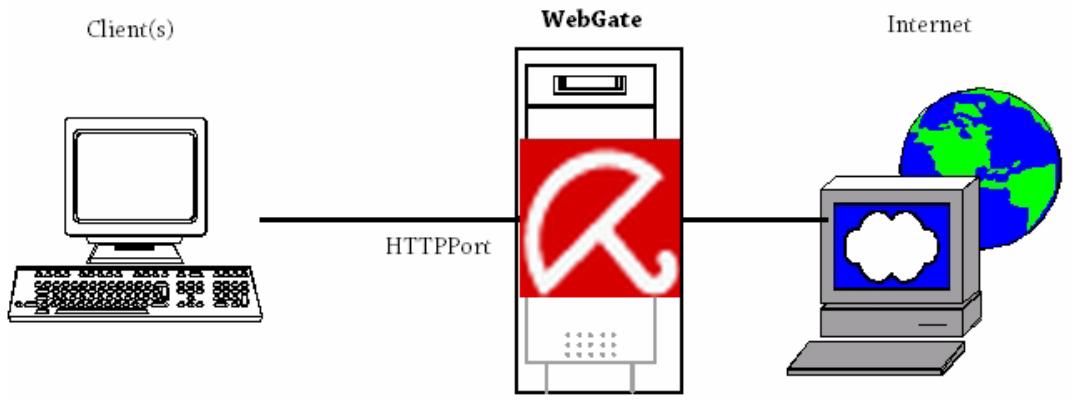
Make the following settings in avwebgate.conf (example):
HTTPPort 8080
Configure the browser according to the Clients.
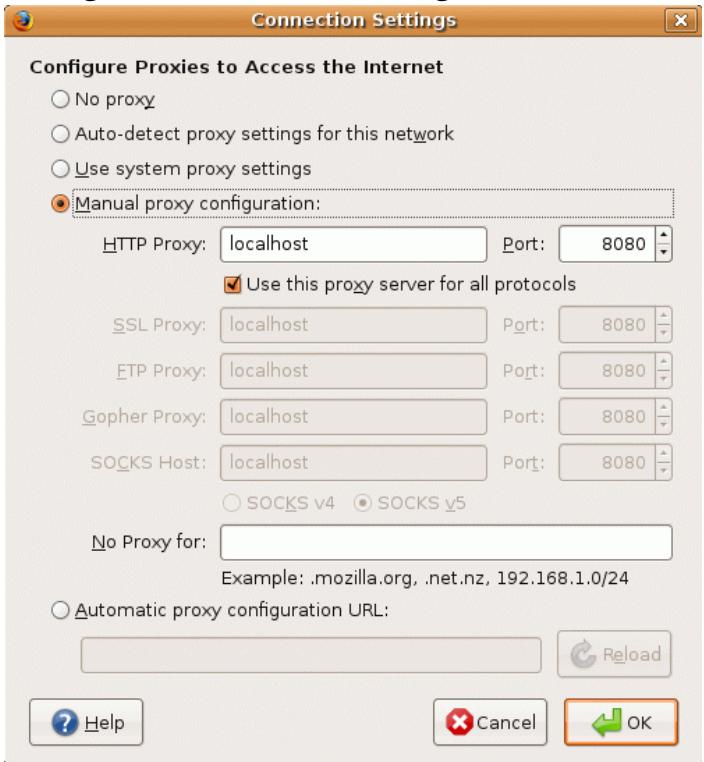
If WebGate is installed on the actual Client, we recommend the following settings in avwebgate.conf:
HTTPPort 127.0.0.1:8080.
For HTTP Proxy enter the IP address 127.0.0.1 or localhost.


The real settings can differ from those given in the example, but for a correct configuration, the settings in avwebgate.conf must be compatible with the Client's browser configuration.
WebGate between Client and Proxy Server (Network Configuration 1)

In this configuration, the other proxy server can be attacked by malicious software. If you want complete protection for your proxy server (normally), network configuration 2 is recommended. See WebGate between Proxy Server and Internet (Network Configuration 2) - Page 21.
This configuration is suitable when the proxy is connected to other servers and the Clients need to be protected from infection. WebGate can be installed directly on the proxy server or on another computer.
WebGate directs the Client's inquiries through the proxy server to the Internet and scans the answers from the Internet, which are received through the proxy server. The access to infected files from a Website is blocked and only not infected files are directed to the Clients.
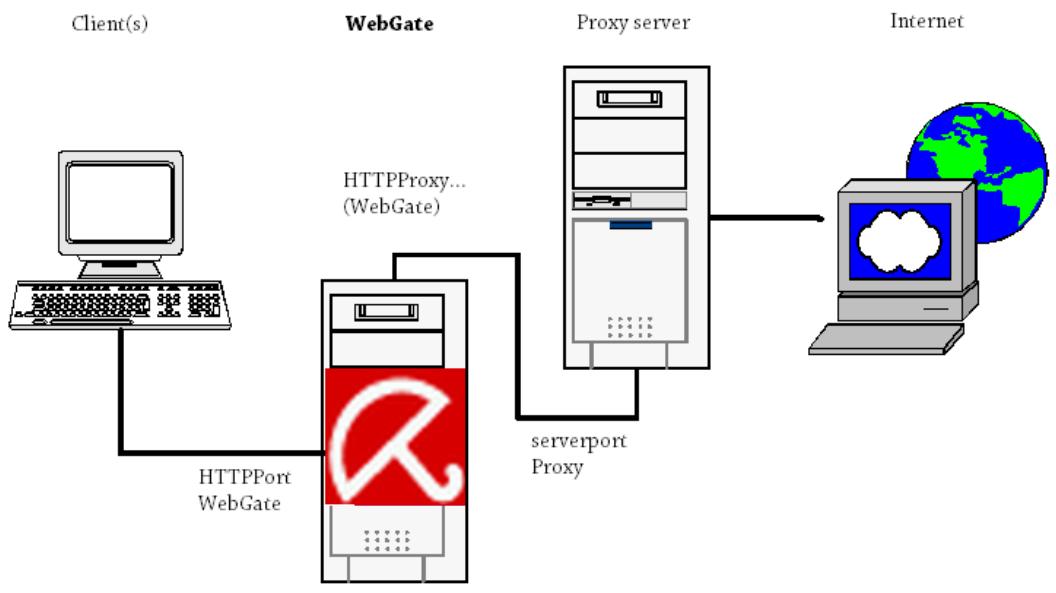

If WebGate and the proxy server are installed on the same computer:
It is usually easier to adapt the settings of the proxy server and to inherit the initial settings of the WebGate. In this way, you do not need to make any changes on the Clients.
This example assumes the following proxy server configuration:
host proxy.mycompany.com
serverport 3128
So, the proxy server communicates with the Clients over port 3128.
InstallWebGateonthemachineproxy.mycompany.com.
Make the following settings in avwebgate.conf (example):
HTTPPort 3128
Now, the Clients will communicate through WebGate for HTTP and FTP inquiries, not directly through the original proxy server. The browser settings on the Client computers must not be changed.
Enter the following values in avwebgate.conf (example):
HTTPProxyServer 127.0.0.1
HTTPProxyPort 8080
WebGate forwards the HTTP and FTP inquiries to localhost port 8080.
- Change the port of the original proxy server according to the value of HTTPProxyPort (in avwebgate.conf), so that it can contact WebGate. For example:
serverport 8080
If WebGate is installed on the actual proxy server:
- Make sure that WebGate does not respond on the same server port, as is the case in the example above.

It is also possible to install WebGate on a computer, other than the proxy server. The settings must be done accordingly.

In this network configuration, a Client could also be a proxy server (for example, by installing WebGate between two proxies).
WebGate between Proxy Server and Internet (Network Configuration 2)
If you already use a proxy server, it is better to install WebGate between the proxy and the Internet. In this way malicious software is intercepted by the proxy server. WebGate can be installed directly on the proxy server machine or on another one.
WebGate directs the Clients' inquiries through the proxy towards the Internet and scans the answers from the Internet. The access to infected files from a Website is blocked and only uninfected ones are forwarded to the Clients, through the proxy server.
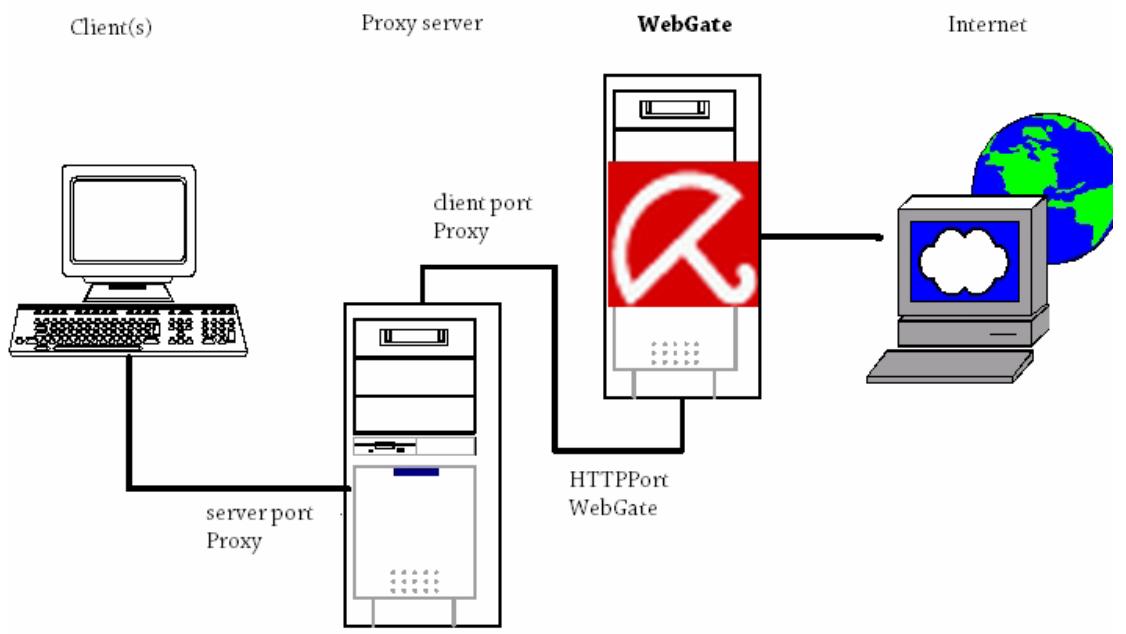
The example assumes the following configuration of the proxy server:
host proxy.mycompany.com
serverport 3128
So the proxy server responds on port 3128.
Make the following settings in avwebgate.conf (example):
HTTPPort 8080
- Configure the other proxy server, so that it does not directly serve inquiries to the Internet, but directs them to WebGate (e.g. port 8080). This port must correspond to the value of HTTPPort in avwebgate.conf.
Example for a Squid proxy server:
In this configuration, you must first start WebGate and then the proxy server. Squid proxy has to direct all inquiries to WebGate (parent proxy), so you have to configure the Squid configuration file squid.conf as follows:
cachepeer proxy.mycompany.com parent 8080 0 no-query no-digest default
acl all src 0.0.0.0/0.0.0.0
never_direct allow all
If WebGate is installed on the proxy server machine:
- Make sure that WebGate and the proxy server do not respond on the same server ports, such as is the case in the above example.

When a Client asks for data, which can be found on the proxy server's cache, it will receive its data directly from there. These data will not be scanned, until the cache is emptied. It bears a risk, because a new virus might "penetrate" and it could be forwarded to Clients, even if they have updated VDFs.

If you modify the proxy server's port, you have to adapt the settings of the Clients' browsers, which access the proxy.
It is usually easier to keep the proxy settings and to adapt the WebGate settings, just like in the above example.
4.2 Monitoring FTP Traffic
WebGate can also be set as real FTP proxy, so that it can scan the files transferred through an FTP Client and even block them. It scans both downloads and uploads.
In avwebgate.conf set the port for the WebGate to communicate with the FTP Clients:
FTPPort 2121
Now, the FTP Clients can communicate to FTP servers, through WebGate, which means that the Clients have no direct connection to the FTP servers, but to WebGate. In order for WebGate to make a substitute connection to FTP servers, you need to specify the address and the name of the FTP servers. WebGate must receive this information from FTP Clients at login with the USER command:
USER
Compared to making a direct connection to FTP server, the connection through WebGate also needs, apart from the user name at login, the host name – separated with the @ character from the user name – or the IP address (optionally with port) of the FTP server.
Example
This example illustrates the login procedure, when using a standard Unix FTP Client:
Assumption: WebGate runs on a machine with the IP address 192.168.0.1 and receives inquiries from FTP Clients on port 2121. You should establish a connection to a remote FTP server with the IP address 10.0.0.1, the user name "foo" and the password "bar".
$ ftp 192.168.0.1 2121
Connected to 192.168.0.1.
220 AntiVir WebGate FTP proxy. Login with <user-
name>@<host>[::<port)]
Name (192.168.0.1:user): foo@10.0.0.1
331 Password required for foo.
Password: bar
230 User foo logged in.
Remote system type is UNIX.
Using binary mode to transfer files.
ftp>
On login, the FTP Client should be used just as before, i. e. when it was not using WebGate. WebGate acts as proxy between FTP Client and FTP server and scans the transferred data.

Many FTP Clients allow FTP proxy configuration. This enables a certain transparency of WebGate towards the user, i. e. the user senses no difference at login, when using the FTP Client with or without proxy.
Optionally, WebGate allows a parent FTP proxy. For example, it can be set in avwebgate.conf as follows:
FTPProxyServer 127.0.0.1
FTPProxyPort 2121
In this case, WebGate does not communicate directly to the FTP server, but with the indicated parent FTP proxy. Thus, more FTP servers can operate consecutively.
In order to avoid Client timeouts during the transfer of larger files, WebGate sends Keepalive messages to the Client. The time interval is the value of
RefreshInterval or - if this is 0 - the value of KeepaliveInterval.
Furthermore, WebGate sends "NOOP" commands to the server within the established KeepaliveInterval, so that it also maintains the connection to the server during sending and receiving larger files to or from the Client.
4.3 Integration over ICAP Interface
If there is a caching server with ICAP support in the network, WebGate can be integrated with the ICAP interface. WebGate can still scan and block incoming (RESPMOD) and outgoing (REQMOD) files.
In avwebgate.conf you must set the port, through which WebGate will communicate with the ICAP Client:
ICAPPort 1344
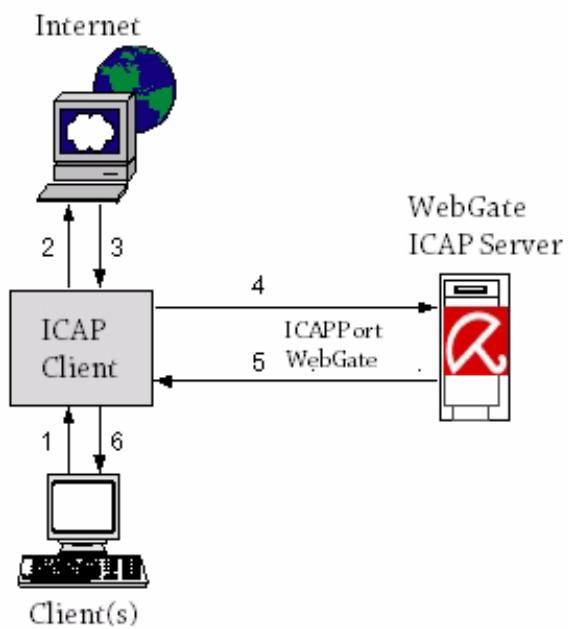
Scanning Incoming Data Traffic (Response Modification)
The ICAP Client sends an HTTP response for WebGate to scan (ICAP server). If the data is not infected, it is returned to the ICAP Client and from there forwarded to the Client. If the answer is blocked (e.g. in case of a virus detection), WebGate generates an HTML page, based on the corresponding HTML template, and sends this to the ICAP Client. The page is then forwarded to the Client instead of the original answer from the server.
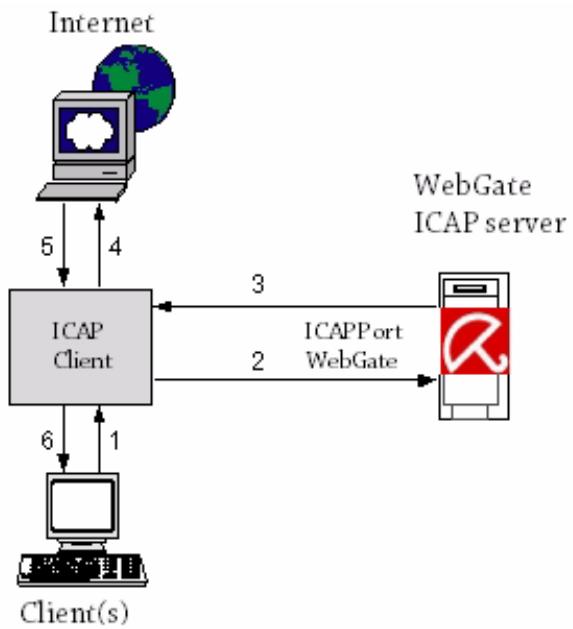
Scanning Outgoing Data Traffic (Request Modification)
The ICAP Client sends an HTTP request to WebGate (ICAP-Server) for scanning. If the data is not infected, it is returned to the ICAP Client and from there it is sent to the destination server. If the request is blocked (i.e. in case of a virus detection), WebGate generates an HTML page, based on the corresponding HTML template, and sends this to the ICAP Client. In this case, the original request is not sent to the server anymore.

You can find further details about ICAP server integration in the ICAP Client documentation.
4.4 Configuration Files
This part describes the contents of Avira AntiVir WebGate configuration files:
/etc/avwebgate.conf - Product configuration
/etc/avwebgate-scanner.conf - Scanner configuration
/etc/avira/avupdate.conf - Updater configuration
/etc/avwebgate.acl - Access Control List configuration

The program is provided with default values, which are important for many procedures. Some options can be deactivated with a # at the beginning of the line (commented) or can be set with default values. These can be activated by removing the # character or by changing the values.
4.4.1 Product Configuration in avwebgate.conf
This section provides a short description of the entries in /etc/avwebgate.conf. The settings affect only Avira AntiVir WebGate's behavior and no other AntiVir programs. They partly depend on the basic configuration, on which WebGate has to run (see Monitoring HTTP Traffic - Page 18).
HTTPPort Port for scanning HTTP connections:
This sets the port on which WebGate responds to HTTP requests from Client or proxy computers. There are various setups needed, according to the configuration (see Monitoring HTTP Traffic - Page 18).
The default is:
HTTPPort [host_ip_or_name:]8080

We recommend not to allow access to WebGate from outside your network. WebGate should be therefore connected only to the internal network interface. If you have installed WebGate as parent proxy on the same computer as your existing proxy server, we recommend for example, the following settings:
HTTPPort 127.0.0.1:8080.
If neither hostname nor IP address are specified, the port is linked to all interfaces.
FTPPort Port for scanning FTP connections:
WebGate can also monitor real FTP connections. Unlike "FTP over HTTP", WebGate communicates with the Client over FTP. This entry sets the port on which WebGate responds to Client computers or to the FTP proxy server for FTP connections.
FTPPort [hostname_or_ip:]2121
ICAPPort Port for ICAP support:
WebGate can be integrated with the ICAP interface (as ICAP server). This entry sets the communication port between WebGate and the ICAP Clients.
ICAPPort [hostname_or_ip:]1344
User Group
Switching to users and groups:
After starting, WebGate can switch to other user and group, for running its process. WebGate should not run as root. Enter the user and group IDs, which
WebGate should assume after start (and thus turning in the root permissions).
User 65534
Group antivir

ScannerListen Address
WebGate must first start as root. If you do not want this, you must specify the values for User and Group in the file /etc/avwebgate.conf.
WebGate no longer starts the SAVAPI daemon. Instead it connects to a running instance using a UNIX socket.
ScannerListenAddress /var/run/avwebgate/scanner

If you modify this parameter, you must also change the value for ListenAddress in /etc/avwebgate-scanner.conf. See Scanner Configuration in avwebgate-scanner.conf - Page 33
AllowHTTPS Tunnel
Allow HTTPS tunnel:
WebGate allows tunneling for SSL connections (HTTPS). As the data is encrypted, it is not scanned. WebGate does not interfere with the transaction, it just forwards the data. Due to this fact, it can not verify if the protocol being spoken is really HTTP on top of SSL. For this reason, it allows only connections to ports 443 (HTTPS) and 563 (SNEWS). Default:
AllowHTTPStunnel no

AllowedHTTP ConnectPorts
The data transferred through the HTTPS tunnel will not be scanned by WebGate.
Tunneling SSL-encrypted connections:
If you want to allow HTTPS connections to non-standard ports, you can do so by adding the desired ports to this list. Each port will be separated by a comma or a whitespace.
AllowedHTTPConnectPorts 443, 563
Max Connections
Maximum number of connections allowed:
The maximum number of simultaneous connections allowed to run through WebGate. A thread is created for every connection. The value sets the limit for the number of connections or threads allowed simultaneously. Default:
MaxConnections 1024
Refresh/ Redirect/ Keepalive Interval
Avoiding Client-timeouts by large downloads:
Some browsers and proxies send an error message, if no data is received after a certain interval (timeout). WebGate may come to such timeout messages, because of delays during large downloads and scanning.
In order to avoid timeouts, WebGate offers the following possibilities. The entries are given in seconds.
- If the Client is a browser, WebGate sends an HTML progress page, which is updated at regular intervals. Default:
RefreshInterval 0
- If the option RefreshInterval is deactivated or the Client is not a browser, (temporary) HTTP redirects are sent to the Client. Thus, the Client is cyclically redirected to a dynamic-generated URL, intercepted by WebGate in order to avoid the timeout. Default:
RedirectInterval 0
- The above method does not work for all Clients. When encountering problems, use the KeepaliveInterval option, to make WebGate send messages to the Client at certain intervals. The value must be smaller than the one set in the Client or proxy server. Default:
KeepaliveInterval 30
KeepaliveMode
- If you encounter client timeout problems, because the timeout methods described above are not appropriate in your environment or do not work properly, you may enable data trickling by setting KeepaliveMode in avwebgate.conf to trickle. If this method is used, WebGate sends small pieces of the data at the specified KeepaliveInterval, until the download and scan is complete. Once the file is downloaded and scanned, the remainder of the file will be immediately transferred to the client (if clean).

It is NOT recommended to enable data trickling unless you are experiencing problems using the other timeout prevention methods. Be aware of the risks and limitations before you enable this feature. In MANUAL.avwebgate under "Client Timeout Prevention", you can find more details about related parameters, limitations and about setting domain/file type rules.
HTTPProxy...
Settings for HTTP proxy server:
These settings work only for Network Configuration 1. For the installation before a proxy server, WebGate needs the following information:
- HTTPProxyServer: Name or IP address of the proxy server
- HTTPProxyPort: The port for the proxy server
- HTTPProxyUsername, HTTPProxyPassword: Login and password for proxy server, if needed
Example:
HTTPProxyServer [hostname|ip]
HTTPProxyPort 3128
HTTPProxyUsername username
HTTPProxyPassword password
FTPProxy...
Settings for FTP proxy server:
If WebGate serves as FTP proxy (see FTPPort option), you can set a parent proxy for FTP connections. Example:
FTPProxyServer NONE
FTPProxyPort 2121
Temporary
Dir
Temporary directory:
You can change the name of the temporary directory. The standard is /tmp. This
directory contains for example, the files during scanning.
TemporaryDir /tmp (/var/tmp for Solaris binaries)
ArchiveScan
Scanning archives:
By default, all files in archives are unpacked on access and scanned, according to the settings for ArchiveMaxSize, ArchiveMaxRecursion and ArchiveMaxRatio.
It is recommended not to deactivate these options.
ArchiveScan yes
ArchiveMax Size
Maximum size of archived files:
This option limits the scanning process to the files with unpacked size smaller than ArchiveMaxSize (in Bytes). The null value means no limit. Default is 1 GB:
ArchiveMaxSize 1GB
ArchiveMax Recursion
Maximum recursion level:
When scanning recursive archives, the level of the recursion can be limited. The null value means all archives are completely unpacked, regardless of their recursion level. Default:
ArchiveMaxRecursion 20
ArchiveMax Ratio
Maximum compression rate for archives:
This option limits the scanning to files which do not exceed a certain compression level. It ensures protection against so-called "Mail bombs", which occupy unexpectedly large amount of memory when decompressed. The null value means all archives are completely decompressed, regardless of their compression rate.
Default:
ArchiveMaxRatio 150
Block Suspicious Archive
Blocking suspicious archives:
When activated, this option blocks archives which exceed one of the limits set for ArchiveMaxSize, ArchiveMaxRecursion and ArchiveMaxRatio.
If this option is deactivated, all archives are forwarded, regardless of the settings for ArchiveMaxSize, ArchiveMaxRecursion and ArchiveMaxRatio.
BlockSuspiciousArchive no
Block Encrypted Archive
Blocking password-protected archives:
If this option is activated, WebGate blocks password-protected archives. BlockEncryptedArchive no
BlockPartial Archive
If enabled, multi-volume archives will be blocked. BlockPartialArchive no
BlockArchive Bomb
If enabled, WebGate blocks files detected as possible archive bombs. BlockArchiveBomb yes
This option is not affected by ArchiveMaxSize, ArchiveMaxRecursion and ArchiveMaxRatio.
Block Extensions
Blocking certain file extensions:
WebGate can block files that have certain extensions. It will also apply for file names in archives.
BlockExtensions exe scr pif
Move Concerning FilesTo
Quarantine directory:
By default, blocked files are deleted. But you can specify a quarantine directory to store them. For example,
MoveConcerningFilesTo /home/quarantine
LogFile
Path and name of the logfile:
All important WebGate operations are logged through a syslog daemon. You could specify an additional logfile, by entering the full path. For example,
LogFile /var/log/avwebgate.log
LogLevel
Level for log notes:
This option defines the logging level for WebGate notifications (possible values: 0 to 7). The higher the level, the more information is logged. The values correspond to Unix standard levels used in syslog:
- 0: no messages
1: alerts
2: alerts
3: alerts and errors
4: alerts, errors and warnings - 5: alerts, errors and warnings
- 6: alerts, errors, warnings and info
- 7: alerts, errors, warnings, infos and debug messages
Default:
LogLevel 4
Syslog Facility
Syslog facility:
WebGate sends notifications to syslog daemon for all important operations. You can specify the facility for these messages. Default:
SyslogFacility user
The detail level of these messages depends on the settings for LogLevel.
EmailTo
Email messages:
Avira AntiVir WebGate is able to send emails with additional information (for example about the relevant file), if it detects a virus or unwanted program. There is no default value. In order to send emails, you must enter a recipient address. For example,
EmailTo root@localhost
AddX
ForwardedFor
Header
Header analysis:
In case of a proxy chain network, a downstream proxy server can make no analysis based on the Client's IP address, because it sees all requests as coming from the same address: from the proxy upstream. So the proxy knows only the address of its
direct communication partners' and not the address of the computer issuing the request.
If the AddXForwardedForHeader option is active, WebGate adds a header field (X-Forwarded-For) to the HTTP request or adds the IP address of the Client it received the request from. In this way WebGate can forward the Client IP address to the downstream proxy servers. These are then able to analyze the header field and to use the included indirect data for example, for access control mechanisms or for logging purposes.
This option could also enable the use of ACLs for a Squid proxy, which is configured by WebGate as parent proxy. The parent proxy must certainly hold the necessary functionality for header analysis.
AddXForwardedForHeader no
Allow Client Addresses
Allowing connections for certain Clients/ networks:
WebGate can activate certain Clients or networks using this option. Single Clients are set using their IP address. A network is set typing a '/' and its netmask (for example, 192.168.1.0/24).
AllowClientAddresses 127.0.0.1 192.168.0.0/16
If you do not specify any IP address, the access is not restricted.
If you specify at least one IP address, the access is permitted only to the entered IPs. Anyone else has no access.

Forbidden UserAgents
Denying access to specific user agents:
You can specify one or more user agent strings that will be denied access. The main purpose is to avoid unnecessary traffic generated by clients issuing range requests (such as Microsoft's BITS "Background Intelligent Transfer Service") or streaming services (such as Apple's iTunes). Range requests and data streaming are only permitted if specified in AclConfigFile (see below).
ForbiddenUserAgents BITS iTunes
Allow Destination Ports
Allowing connections for certain ports:
WebGate can limit the connections to certain destination ports, using this option. You may specify domains with a hyphen.
AllowDestinationPorts 21 80 1025-65535

AclConfigFile
If you do not specify any ports, the access is not restricted.
If you specify at least one port, the access is permitted only on the entered ports. Any other port has no access.
Access control scheme:
WebGate can also support more complex rules by implementing a Squid-like access control scheme. To use the access control scheme you must create a new configuration file containing the rules describing the desired behavior and have AclConfigFile contain the path to it. The syntax supported by the access control scheme is described in MANUAL.avwebgate file.
AclConfigFile /etc/avwebgate.acl
Block
Categories
URL filtering:
First, the access control (ACL) rules are evaluated, which means a rule allowing tunneling for a request will not be blocked by URL filters. Connections that are not tunneled would still pass through the URL filter module, similar to the scanning behavior.
Then, the Avira URL Filtering library (LocalFilter) applies. The library tries to determine if an URL is dangerous based on a list of known URLs. A category is returned for each dangerous URL: Malware (60), Phishing (61), Fraud (63). If this category is found in the BlockCategories configuration option, the request is denied. The Avira URL Filtering library is available with every valid WebGate or WebGate Suite license.
If the Avira URL Filtering library does not find any match for the URL or the category is not blocked in the configuration file, the Avira Web Access and Content Control library (OnlineFilter) is used. It filters requests based on URL categories. This feature is only available with the Avira AntiVir WebGate Suite.
The categories can be specified as single categories or as category ranges. You can specify ranges with a '-' between two category numbers. For a list of all categories please consult the MANUAL.avwebgate file.
BlockCategories 0-2 12 14 61
LocalFilter
Avira URL Filtering library:
This option controls the status of the local URL filter. The local filter is enabled by default with every WebGate or WebGate Suite license. By setting this to off, the filter will be disabled.
LocalFilter on
OnlineFilter
Avira Web Access and Content Control library:
This option controls the status of Avira Web Access and Content Control Library. This is enabled by default with every WebGate Suite license. By setting this to off, the Avira Web Access and Content Control Library will be disabled.
OnlineFilter on
Detect...
Detection of other types of unwanted programs:
Besides viruses, there are some other types of harmful or unwanted software. You can activate their detection using the following options:
DetectADSPY yes
DetectAPPL yes
DetectBDC yes
DetectDIAL yes
DetectGAME no
DetectHEUR-DBLEXT yes
DetectJOKE no
DetectPCK no
DetectPHISH yes
DetectSPR no
Heuristics Macrovirus Heuristics:
Macro
Activates the heuristics for macroviruses in documents. This option is activated by default:
HeuristicsMacro yes
Heuristics Win32-Heuristics:
Level
Sets the detection level of Win32-Heuristics. available values are 0 (off), 1 (low), 2 (medium) and 3 (high). Default:
HeuristicsLevel 1
GUI... SSL parameters for secure communication with Avira SMC :
These options must be activated, for a secure communication with SMC.
GuiSupport yes
GuiCertFile /usr/lib/AntiVir/gui/cert/server.pem
GuiCertPass antivirus_default
GuiCAFile /usr/lib/AntiVir/gui/cert/cacert.pem
Optional:
GuiRandFile /dev/urandom

Please refer to the MANUAL.avwebgate file in WebGate's installation directory, for more details about advanced configuration options.
4.4.2 Scanner Configuration in avwebgate-scanner.conf
A new configuration file has been introduced, starting with WebGate v.3: /etc/avwebgate-scanner.conf. It contains configuration options specific to the new scanner backend. Usually, you don't have to change the options in this file, but there might be a few exceptions.
User, Group
If you change one of these options, you have to make sure that the files avwebgate-scanner.conf and avwebgate.conf contain the same values for these options and that all directories and files are still accessible to this user.
You also have to adapt awebgate-scanner.conf if you updated from a previous WebGate version (< 3.0.0) and the current settings for User/Group differ from the default settings. Defaults:
User 65534
Group antivirus
In /etc/avwebgate-scanner.conf:
- Change the owner/group of the path given with ListenAddress (NOTE: the option consists of a path and a socket file. Don't forget to stop WebGate before making any changes. If the socket file exists, delete it and only change the owner/group of the directory.)

When changing the user and/or group here, you must also change the options User and Group in WebGate's configuration file (/etc/avwebgate.conf).
- Adapt the option SocketPermissions to the new user/group. See below.
In /etc/avwebgate.conf:
- Change the option User/Group
| Socket Permissions | The owner and permissions of the scanner backend's socket. SocketPermissions 0600 |
| ListenAddress | ListenAddress (in avwgate-scanner.conf) and ScannerListenAddress (in avwgate.conf) specify how the scanner backend can be reached. Both options must point to the same path (the string "unix:" must not be used with the option ScannerListenAddress): ListenAddressunix:/var/run/avwgate/scanner ScannerListenAddress /var/run/avwgate/scanner |
| UseSavapi Proxy | To make scanning processes more efficient, you can use a given pool of scanners. Please note that too many scanners would overload the computer, while too few would cause unnecessary waiting for applications. Values: 0 or 1. Default: UseSavapiProxy 1 |
| PoolScanners | The number of AntiVir scanners set in the pool. Default: PoolScanners 24 |
| Pool Connections | The maximum number of simultaneous connections WebGate allows to the scanner pool. Default: PoolConnections 192 |
| LogFileName | Path to the scanner's logfile. For example: LogFileName /var/log/avwgate-scanner.log Default: LogFileName NONE |
| SyslogFacility | The facility that is used, when logging to syslog. SyslogFacility user |
| ReportLevel | The scanner can be set to log on different levels: • 0 - Log errors • 1 - Log errors and alerts • 2 - Log errors, alerts, warnings • 3 - Log errors, alerts, warnings, info and debug messages "errors" means information about potential malicious code. Default: ReportLevel 0 |
4.4.3 Updater Configuration in avupdate.conf
Updates ensure that AntiVir WebGate components (WebGate, scanner, VDF and engine), which provide security against viruses or unwanted programs, are always
kept up to date.
With Avira Updater you can update Avira software on your computers, using Avira update servers. To configure the update process, use the options in /etc/avira/avupdate.conf described below. All parameters from avupdate.conf can be passed to the Updater via command line. For example:
- parameter in avupdate.conf:
    temp-dir=/tmp
- command line:
    /usr/lib/AntiVir/avupdate.bin --temp-dir=/tmp
internet-srvs The list of Internet update servers. internet-srvs http://dl1.pro.antivir.de,http:// dl2.pro.antivir.de,http://dl3.pro.antivir.de
master-file Specifies the master.idx file.
master-file=/idx/master.idx
install-dir Specifies the installation directory for updated product files. install-dir=/usr/lib/Antivir
temp-dir Temporary directory for downloading update files. temp-dir=/tmp/avira_update
Setting update email reports
All reports on AntiVir updates are sent to the email address given in avupdate.conf:
mailer Emails can be sent via smtp engine or using sendmail: mailer=
smtp... Authentication for smtp connection. Activate the auth-method option and then provide the smtp server, port, user and password.
auth-method=password
smtp-user=<your_username>
smtp-password=<your_password>
smtp-server=<servername>
smtp-port=25
notify-when There are three situations to set for email notifications:
- 0 - no email notifications are sent,
- 1 - email notifications are sent in case of "successful update", "unsuccessful update", or "up to date".
- 2 - email notification only in case of "unsuccessful update".
- 3 - email notification only in case of "successful update" (default).
notify-when= email-to The recipient of notification emails. email-to=root@localhost
Setting proxy configuration for updates
proxy... If the machine uses a HTTP proxy server, proxy configuration settings must be specified in order to make Internet updates.
proxy-host=
proxy-port=
proxy-username=
proxy-password=
Logfile settings
log Specify a full path with a filename to which AntiVir Updater will write its log messages.
log=/var/log/avupdate.log
log-append By default, the logfile is overwritten. You can use this option to append the logfile. log-append
Integration into Avira Security Management Center (SMC)
In order to configure updates via Avira Security Management Center (SMC), it is necessary to add the update plug-in package to the SMC repository. Once added, a new product "Avira Updater" will be available for installation on machines administered by the SMC.
The "Avira Updater" product allows updates to be configured for all products installed on computers administered by the SMC. For more details, please refer to the SMC documentation.
4.4.4 Access Control Configuration in avwebgate.acl
WebGate implements an access control scheme that is a subset of Squid's. All the supported features are described in the Manual file contained in the program's package.
This feature enables you to set up rules to allow tunneling for certain types of requests and responses. This is useful for supporting streaming Internet content or user agents, that require using HTTP range requests.
The access control scheme is saved in a separate file, specified with the parameter AclConfigFile in /etc/avwebgate.conf
Several examples are included in /doc/avwebgate.acl.example.
4.5 Templates Configuration
If you have a valid license file, you may customize various notification web pages and emails generated by Avira AntiVir WebGate. WebGate will send these for example, in case of detecting viruses or unwanted programs: alert, blocked, error or progress template.
These templates are usually created and saved in /usr/lib/AntiVir/templates. You may also set another directory, using the following entry in /etc/avwebgate.conf:
TemplateDir /home/template
You can use different keywords for editing template files (see manual file /usr/lib/ AntiVir/MANUAL.avwebgate).
Following is a description of the available templates.
HTML Templates
| Template | Meaning |
| alert.html | Displayed when an alert is found by AntiVir WebGate. |
| blocked.html | Displayed when AntiVir WebGate has blocked a suspicious file (using various block-settings in avwebgate.conf) |
| error.html | Displayed if an error occurred while processing the user's request |
| progress_downloading.html | Displayed while a file is being downloaded (this template is used only when the refresh method for timeout prevention is used) |
| progress_scanning.html | Displayed while a file is being scanned (this template is used only when the refresh method for timeout prevention is used) |
| progress_COMPLETE.html | Displayed after a file has been downloaded and scanned (this template is used only when the refresh method for timeout prevention is used) |
| progress_aborted.html | Displayed if the user has aborted the download (this template is used only when the refresh method for timeout prevention is used) |
| wsBlocked.html | Displayed if the page was part of a category blocked by the user |
Email Templates
Template
alert.mail
blocked.mail
Meaning
Used when an alert is found by AntiVir WebGate.
Used when AntiVir WebGate has blocked a suspicious file (using various block-settings in avwebgate.conf)
4.6 Testing Avira AntiVir WebGate
After completing the installation and configuration, you can test the functionality of AntiVir WebGate using a test virus. This will not cause any damage, but it will force the security program to react when the computer is scanned.
Testing Avira AntiVir WebGate with a Test-Virus
StartWebGate:
/usr/lib/AntiVir/avwebgate start
Type the following URL in your Web browser http://www.eicar.org.
Read the information about the test virus eicar.com.
Download the test virus on your computer.
Avira AntiVir WebGate will block the access to the file and issues a warning in the browser:
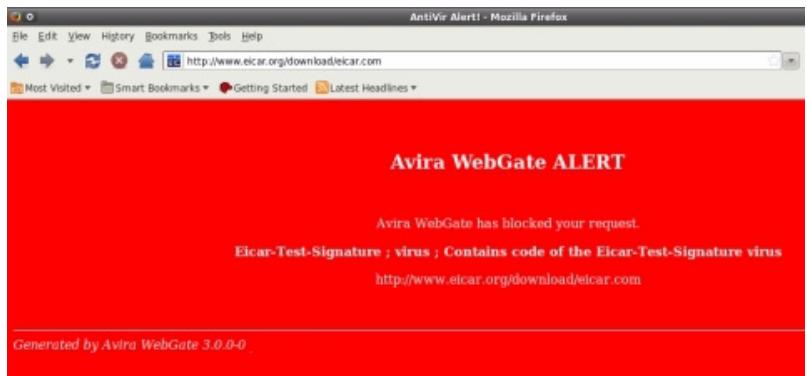
- Check the logfile for detailed notifications about the detection.
5 Operation
After concluding installation and configuration and Avira AntiVir WebGate is running, WebGate guarantees continuous monitoring of your system. During operation you might have to make occasional changes in settings, as described in Configuration - Page 18.
This Chapter is divided in the following parts:
- Starting and Stopping Avira AntiVir WebGate manually - Page 39, describing the start and stop procedure of WebGate from the console.
- In Procedures when Detecting Viruses or Unwanted Programs – Page 40 you can learn what you should do, in case of an infection in your network.
5.1 Starting and Stopping Avira AntiVir WebGate manually

You must log in as root or you must have the required permissions, in order to start or stop Avira AntiVir WebGate.
If you have installed WebGate as described in Installing Avira AntiVir WebGate - Page 13, it will start automatically by system start.
Starting Avira AntiVir WebGate
Type:
/usr/lib/AntiVir/avwebgate start
The program starts with the following message:
Starting AVIRA AntiVir WebGate ...
Starting: savapi
Starting:avwebgate.bin
Stopping Avira AntiVir WebGate
Type:
/usr/lib/Antivir/avwebgate stop
The program ends with the following message:
Stopping AVIRA AntiVir WebGate ...
Stopping: avwebgate.bin
Stopping: savapi
Restarting AntiVir WebGate
This is used, for example, after making changes in configuration scripts.
Type:
/usr/lib/AntiVir/avwebgate restart
The program restarts after showing the following message:
Stopping AVIRA AntiVir WebGate ...
Stopping: avwebgate.bin
Stopping: savapi
Starting AVIRA AntiVir WebGate ...
Starting: savapi
Starting: avwebgate.bin
Checking AntiVir WebGate status
Type:
/usr/lib/AntiVir/avwebgate status
The program shows information on the WebGate daemons:
Status: avwebgate.bin running
Status: savapi running
5.2 Procedures when Detecting Viruses or Unwanted Programs
If correctly configured, AntiVir is set to deal automatically with all the tasks on your computer:
- The infected file is repaired or at least deleted.
- If it could not be repaired, the access to the file is blocked and, according to the configuration, the file is renamed or moved. This eliminates the risk of infection.
You should however follow these guidelines:
Try to detect the way the infection "sneaked" on your system.
Perform targeted scanning on the data storage that might be infected.
Inform your team, superiors or partners.
Inform your system administrator and security provider.
Submitting Infected Files to Avira GmbH
Please send us the malware or suspicious files that our product does not yet recognize or remove. Send us the virus or file packed (gzip, WinZIP, PKZip, Arj) in the attachment of an email to virus@antivir.de.

When packing, use the password virus. This way, the file will not be deleted by virus scanners on email gateway.
6 Updates
With Avira Updater you can update Avira software on your computers, using Avira update servers. The program can be configured either by editing the configuration file (see Updater Configuration in avupdate.conf - Page 34), or by using parameters in the command line.
It is recommended to run the Updater as root. If the Updater does not run as root, it does not have the necessary rights to restart AntiVir daemons, so the restart has to be made manually, as root.
Advantage: any running processes of AntiVir daemons (such as Scanner, Engine, WebGate) are automatically updated with the current antivirus files, without interrupting the running scan processes. It is thus ensured that all files are scanned.
6.1 Internet Updates
Manually
If you want to update AntiVir WebGate or some of its components:
Use the command:
/usr/lib/AntiVir/avupdate --product=[product]
As [product], you can use:
- Scanner - (recommended) to update the scanner, engine and vdf files.
- WebGate - complete update (WebGate, scanner, engine and vdf files).
If you just want to check for a new AntiVir version without updating AntiVir:
Use the command:
/usr/lib/AntiVir/avupdate --check --product=[product]
The [product] values are the same as above.
Automatic updates with cron daemon
Regular updates are made using cron daemon.
The settings for automatic updates in /etc/crontab have already been made if, when you installed Avira AntiVir WebGate with the install script, the answer for installing AntiVir Updater and starting it automatically was yes.
You can find further information on cron daemon in your UNIX documentation.
To make or change the settings for automatic updates in crontab manually:
Add or edit the entry in /etc/cron.d/avira updater, similar to the example below.
Example: for an hourly update at *:23, enter the following command: 23 * * * * root /usr/lib/AntiVir/avupdate --product=[product]
As [product], you can use:
- Scanner - (recommended) to update the scanner, engine and vdf files.
- WebGate - complete update (WebGate, scanner, engine and vdf files).
Start the update process to test the settings:
/usr/lib/AntiVir/avupdate --product=[product]
where [product] takes the same values as above.
If successful, a report will appear in the logfile /var/log/avupdate.log
7 Service
7.1 Support
Support Service Our Webpage http://www.avira.com contains all the necessary information on our extensive support service.
The competence and experience of our developers is at your disposal. The experts from Avira answer your questions and help you with difficult technical problems.
During the first 30 days after you have purchased a license, you can use our AntiVir Installation Support by phone, email or by online form.
In addition we recommend that you optionally purchase our AntiVir Classic Support, with which you can contact and obtain advice from our experts during the business hours, when encountering technical problems. The annual fee for this service, which includes eliminating viruses and hoax support, is 20 % of the list price of your purchased AntiVir program.
Another optional service is the AntiVir Premium Support which offers you, additionally to the scope of the AntiVir Classic Supports, the possibility to reach competent partners at any time - even after business hours, in case of emergency. When virus alerts occur, you will receive an SMS on your mobile phone.
Forum Before you contact our Hotline, we recommend that you visit our user forum at http://forum.antivir.de.
Your questions may already have been answered for another user and posted on the forum.
Email Support Support via email can be obtained at http://www.avira.com.
7.2 Online Shop
Would you want to buy our products per mouse-click?
You can visit Avira Online Shop at http://www.avira.com and buy, upgrade or extend AntiVir licenses fast and safely. The Online Shop guides you step-by-step through the orders menu. A multi language Customer Care Center explains to you the ordering process, the payment transaction and the delivery. Resellers can order by invoice and use a reseller panel.
7.3 Contact
Address Avira GmbH
Lindauer Strasse 21
D-88069 Tettnang
Germany
Internet You can find further information about us and our products by visiting http://www.avira.com.
8 Appendix
8.1 Glossary
| Item | Meaning |
| Backdoor (BDC) | A backdoor is a program infiltrated in order to steal data from the computer, without the user's knowledge. This program is manipulated by third-parties using a remote backdoor-control software, over the Internet or network.AntiVir detects backdoor-control programs. |
| cron (daemon) | A daemon which starts other programs on specified times. |
| Daemon | A background process for administration on Unix systems. On average, there are about a dozen daemons running on a computer. These processes usually start up and shut down with the computer. |
| Dialer | Paid dialing program. When installed on your computer, this program builds a Premium Rate Number Internet connection, charging you at higher rates. This can lead to huge phone bills.AntiVir detects Dialers. |
| Engine | The scanning module of AntiVir software. |
| Heuristic | The systematic process of solving a problem using general and specific rules drawn from previous experience. The solution is however not guaranteed.AntiVir uses a heuristic process for detecting unknown macro viruses. When typical virus-like functions are found, the respective macro is classified as "suspicious". |
| Kernel | The base component of a Unix operating system, which performs elementary functions (e.g. memory and process administration) |
| Logfile | also: Report file. A file containing reports generated by the program at run-time, when a certain event occurs. |
| Malware | Generic term for "foreign bodies" of any type. These can be interferences such as viruses or other software, which the user generally considers as unwanted (see also Unwanted Programs). |
| Quarantine directory | The directory where infected files are stored, to block the user's access to them. |
| root | The user with unlimited access rights (such as system administrator on Windows) |
| SAVAPI | Secure AntiVirus Application Programming Interface |
| Signature | A bytes-combination used for recognizing a virus or unwanted program. |
| Script | A text file containing commands to be executed by the system. (similar to batch files in DOS) |
| SMP (Symmetric Multi Processing) | Unix SMP: Unix version for computers with parallel processors. |
| SMTP | Simple Mail Transfer Protocol: protocol for email transport on the Internet. |
| syslog daemon | A daemon used by programs for logging various information. These reports are written in different logfiles. The syslog daemon configuration is in /etc/syslog.conf. |
| Unwanted programs | The name for programs that do not directly harm the computer, but are not desired by the user or administrator. These can be backdoors, dialers, jokes and games. AntiVir detects various types of unwanted programs. |
| VDF (Virus Definition File) | A file with known signatures for viruses and unwanted programs. In many cases it is enough for an Update to load the most recent version of this file. |
8.2 Further Information
You can find further information on viruses, worms, macro viruses and other unwanted programs at http://www.avira.com.
8.3 Golden Rules for Protection Against Viruses
Always keep boot floppy-disks, for your network server and for your workstations.
Always remove floppy-disks from the drive after finishing the work. Even if they have no executable programs, disks can contain program code in the boot sector and these can serve to carry boot sector viruses.
Regularly backup your files.
Limit program exchange: particularly with other networks, mailboxes, Internet and acquaintances.
- Scan new programs before installation and the disk after this. If the program is archived, you can detect a virus only after unpacking and during installation.
If there are other users connected to your computer, you should set the following rules for protection against viruses:
Use a test computer for controlling downloads of new software, demo versions or virus suspicious media (floppies, CD-R, CD-RW, removable drives).
Disconnect the test computer from the network!
- Appoint a person responsible with virus infection operations and establish all steps for virus elimination.
- Organize an emergency plan as a precaution for avoiding damage due to destruction, robbery, failure or loss/change due to incompatibility. You can replace programs and storage devices, but not your vital business data.
Set up a plan for data protection and recovery.
- Your network must be correctly configured and the access rights must be wisely assigned. This is a good protection against viruses.
///Avira AntiVir WebGate | Avira AntiVir WebGate Suite
Avira GmbH
Lindauer Str. 21
88069 Tettnang
Germany
Telephone: +49 (0) 7542-5000
Fax: +49 (0) 7542-525 10
Internet: http://www.avira.com
© Avira GmbH. All rights reserved.
This manual was created with great care. However, errors in design and contents cannot be excluded. The reproduction of this publication or parts thereof in any form is prohibited without previous written consent from Avira GmbH.
Errors and technical subject to change.
Issued Q3-2009
AntiVir® is a registered trademark of the Avira GmbH.
All other brand and product names are trademarks or registered trademarks of their respective owners. Protected trademarks are not marked as such in this manual. However, this does not mean that they may be used freely.