ANTIVIR SERVER - Antivirus AVIRA - Free user manual and instructions

Find the device manual for free ANTIVIR SERVER AVIRA in PDF.

📄 65 pages English EN 💬 AI Question
Notice AVIRA ANTIVIR SERVER - page 5
View the manual : Français FR English EN
Manual assistant
Powered by ChatGPT
Waiting for your message
Product information

Brand : AVIRA

Model : ANTIVIR SERVER

Category : Antivirus

Download the instructions for your Antivirus in PDF format for free! Find your manual ANTIVIR SERVER - AVIRA and take your electronic device back in hand. On this page are published all the documents necessary for the use of your device. ANTIVIR SERVER by AVIRA.

USER MANUAL ANTIVIR SERVER AVIRA

Trademarks and Copyright Trademarks AntiVir is a registered trademark of Avira GmbH. Windows is a registered trademark of the Microsoft Corporation in the United States and other countries. All other brand and product names are trademarks or registered trademarks of their respective owners. Protected trademarks are not marked as such in this manual. This does not mean, however that they may be used freely. Copyright information À code provided by a third party has been used for Avira AntiVir Server. We thank the copyright owners for making the code available to us. For detailed information on copyright, please refer to in the help of Avira AntiVir Server under the Third Party Licenses.

3.3 System requirements.

4.3 Installation and uninstallation on the network

4.3.2 Uninstallation on the network

4.3.4 Parameter of the file setup.inf

8.1 Viruses and other malware.

8.2 Extended threat categories.

Info and Service ue rrerrerrerreeneerernesresnesneesneesneene 25

9.1 Technical Support

9.2 Suspicious file …

9.3 Reporting false positives

9.4 Your feedback for more security

Reference: Configuration options

10.11 Action for concerning files

10.12 Further actions

10.2.1 Action for concerning file:

10.2.2 Further actions

10.53 Acoustic alerts.

1 Introduction Avira AntiVir Server from Avira GmbH protects you computer against viruses, malware, adware and spyware, unwanted programs and other dangers. This manual deals with viruses and software in brief. The manual describes the program installation and operation. Please go to our website http://www.avira.com where you can download the Avira AntiVir Server manual in PDF from, update Avira AntiVir Server or renew your license. You can also find information on our website such as telephone numbers for technical support and information on how to subscribe to our newsletter. Your Avira GmbH team

Icons and emphases The following icons are used: The fol Icon / Explanation Designation Ÿ Placed before a condition which must be fulfilled prior to implementation. + Placed before an action step that you implement. + Placed before an event that follows the previous action. Warning Placed before a warning of the danger of critical data loss. Note Placed before a link to particularly important information or a tip which makes Avira AntiVir Server easier to use. Ilowing emphases are used: Emphasis | Explanation Cursive File name or path data. Displayed software interface elements (e.g. window heading, window field or options box). Bold Clicked software interface elements (e.g. menu item, section or button)

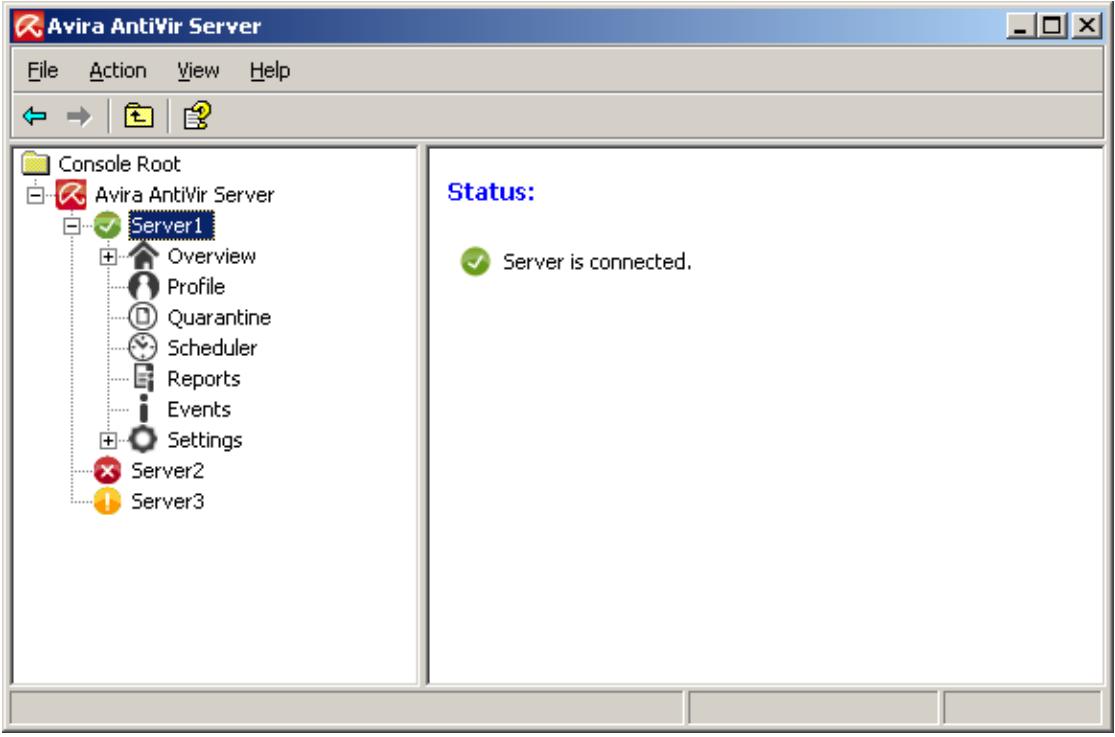
The protection package Avira AntiVir Server includes the Avira AntiVir Server service and the AntiVir Server Console. The Avira AntiVir Server service protects your Windows Server from viruses and malware. The AntiVir Server Console is used for administration, control and monitoring of the servers to be protected or of the AntiVir services on the servers to be protected. You can access any number of servers via the AntiVir Server Console. CE - ci Elle Action View Help -e|&|æ C3 Console Root EQ avira Antivir Server Status: Overview @ Server is connected. O Proñe (© Quarantine ©) Scheduler Ei Reports Î Events © settings Server2 © Servers The Avira AntiVir Server service … protects your servers against viruses and malware. You install the service on all Windows servers to be protected on the network. The AntiVir Server service provides comprehensive functions to protect your system in one package with several program components and other help programs. Overview of the main components: — The Scanner scans your computer system for viruses and unwanted programs (on-demand scan). Affected files are deleted, repaired or moved to quarantine depending on the configuration. Scanner scans are carried out automatically. The interval and scope of scans can be configured. — The Guard runs in the background. It monitors and repairs files, if necessary, during operations such as opening, writing and copying in real time.
Avira AntiVir Server The Scheduler supports you in planning regular tasks such as scans and updates via the Internet or Intranet. The Updater always keeps your program up to date via an Internet or intranet connection. The quarantine manager conveniently manages and monitors the files placed in quarantine. AntiVir Server console … provides a desktop for AntiVir Server services with which you can control, configure and monitor AntiVir Server services. You install the AntiVir Server Console on at least one computer with a network connection to the servers to be protected. AntiVir Server Console can also be installed on the servers to be protected. The AntiVir Server Console can be connected to any number of servers to be protected and provides access to components, reports, events and to the Configuration of the connected AntiVir Server service.

Main features: Console for monitoring, administration and control of the whole program Simple, keyword-based configuration: support of configuration through integrated wizard and context-sensitive help Configuration and operation from separate computer possible: User interface (AntiVir Server Console) can be installed separately from the AntiVir server service Network administration via the Avira Security Management Center (SMC) Scanner (on-demand scan) with profile-controlled and configurable scan for all known types of viruses and malware Resident virus guard (real-time scan or on-access scan) for constant monitoring of all file accesses Extremely high virus and malware detection via innovative scanning technology (scan engine) including heuristic scanning method Innovative AHeAD (Advanced Heuristic Analysis and Detection) technology for detection of unknown or fast changing attackers for proactive security Detection of all conventional archive types including detection of nested archives and smart extension detection Comprehensive filter functions and file caching to increase scanning speed "Multi-threading capability;: simultaneous scanning of many files at high speed Configurable reactions to a detection: repair, deletion, moving to a quarantine directory, blocking, renaming and isolation of programs or files; automatic removal of viruses and malware Quarantine manager: infected files can be deleted in the quarantine directory or restored at their place of origin Integrated scheduler for planning one-off or recurring jobs such as updates or scans

Product information — Automatable updating via the Internet or network-wide distribution (without system interruption) — Comprehensive logging, warning and messaging functions for the administrator; sending of warnings in Windows networks and by email (SMTP), SMTP- authentication possible — Protection against modifications of the program files via intensive self-test — Extended terminal server support — Rootkit protection (not under Windows XP 64 bit, Windows 2003 64 bit, Windows Server 2003 64 bit) — Support for Windows Management Instrumentation

3.3 System requirements

Avira AntiVir Server has the following requirements for successful use of the Avira AntiVir Server service and the AntiVir Server Console: — Computer as from Pentium, at least 266 MHz — Operating system — Windows 2000, SP4 and update rollup 1 or — Windows XP, SP2 (32 or 64 Bit) or — Windows Vista (32 or 64 Bit, SP 1 recommended) or — Windows 7 (32 or 64 Bit) or — Windows 2000 Server, SP4 and update rollup 1 or — Windows Server 2003, SP1 (32 or 64 Bit) or — Windows Server 2008 (32 or 64 Bit) or — Windows Server 2008 R2 (64 Bit only) — Atleast 150 MB of free hard disk memory space (more if using Quarantine for temporary storage) — Atleast 256 MB RAM under Windows 2000 Server/XP — Atleast 512 MB RAM under Windows Server 2003 — At least 1024 MB RAM under Windows Vista, Windows 7, Windows Server 2008 and Windows Server 2008 R2 — Fortheinstallation of Avira AntiVir Server: Administrator rights Internet access For regular updates it is necessary for a server of your network to have Internet access. Alternatively, the updates can also be downloaded from a file or HTTP server in the Intranet. More information is available under Update.

You require a license to use Avira AntiVir Server. Activate your license for Avira AntiVir Server with the license file hbedv.key. You can obtain the license file by email from Avira GmbH. The license file contains the license for all products that you have ordered in one order process. You hereby accept the license terms.

3.4.1 License models

You can use the many functions of Avira AntiVir Server with the following license models: — Evaluation version: Complete range of functions, 30-day license. — Full version Licensing comprises a license for all platforms and depends on the number of users in the network who are to be protected by Avira AntiVir Server. For further information on the licensing versions and the optional support offers, please refer to our website http://www.avira.com. The delivery scope of a full version comprises: — provision of AntiVir version to download from the Internet — four weeks installation support from date of purchase — newsletter service (by email) — update service via Internet

4 Installation and uninstallation

Before installing Avira AntiVir Server, certain conditions must be met: — Please ensure that the system requirements are met (see System requirements), and that the Windows Server used is running. — Ensure that you are logged in on the server as an administrator or as a user with administrator rights. — Ensure that an Internet connection or network connection to a download server exists for updating AntiVir Server. If you use a fileserver, you may require a user name and a password for server login. - When installing the full version: ensure that a valid license file hbedv.key exists andis stored in a local directory on the server. - Wheninstalling the service Avira AntiVir Server: If you want to connect remotely to the protected server with the AntiVir Server Console, ensure that the following ports are opened: 139 (NetBIOS SSN) 137 (NetBIOS NS) 138 (NetBIOS DGM) Types of use Detailed information on types of use can be found under Licensing concept. Installation types During installation you can select a setup type in the installation wizard: Express — AntiVir Server is installed together with the Avira AntiVir Server service, the AntiVir Server console and all recommended program components. — No destination folder can be selected for the program files to be installed. User-defined — You can select whether you want to install the Avira AntiVir Server service and/or the AntiVir Server Console. — You have the option to select and install additional functions for the Avira AntiVir Server service: AntiVir Rootkit Protection: This function contains the rootkit scan profile, which you can use to look for hidden malware. VMware Offline Scanner: This function contains the VMware-Image scan profile, which you can use to perform an offline scan of VMware images for viruses and unwanted programs. Shell Extension This function generates an entry in the context menu of Windows Explorer that can be used to scan directories for viruses and unwanted programs.

Avira AntiVir Server AntiVir Systray tool: This function generates a tray icon for AntiVir Server in the notification area of the protected server. This enables you to monitor the status of AntiVir Server and gives you access to other AntiVir Server functions. The function is part of the express installation and can be deselected if you are performing a custom install. — A target folder can be selected for the program files to be installed. Performing installation How to install AntiVir Server: — Start the setup by double-clicking on the installation file that you have downloaded from the Internet or insert the program-CD. The installation wizard opens. — Follow the instructions of the installation wizard. Complete the following installation steps: — Where appropriate, install Microsoft Visual C++ 2008 - Redistributable Kit, if the kit has not already been installed. Note Avira AntiVir Server uses runtime libraries of the Microsoft Visual C++ 2008 - Redistributable Kit. To use AntiVir Server, Microsoft Visual C++ 2008 - Redistributable Kit must therefore be installed. — Confirmation of license agreements — Selection of the type of setup (express installation or custom installation) — Licensing of AntiVir Server: Load the license file or select a 30-day test license — Installation of Avira AntiVir Server service and/or AntiVir Server Console If you have installed the Avira AntiVir Server service, a configuration wizard opens after the installation has been completed. You have the option of configuring the most important settings of the installed Avira AntiVir Server service. - Defining AHeAD (Advanced Heuristic Analysis and Detection) technology settings. The settings are defined for Scanner and Guard. — Selection of extended threat categories: By selecting other extended threat categories to be detected and reported by AntiVir Server, you can adapt the protective function of AntiVir Server to meet your needs. - Selection of product exceptions (Guard): You can select software products to be exempt from monitoring by the Guard (on-access scanner). In this way you can avoid any loss of performance that the Guard may cause. — Select email settings: You can define the server settings for sending email. AntiVir Server uses SMPT to send emails send email alerts to the AntiVir Server administrator. Note After installation, your own system is automatically added by the AntiVir Server Console (Local Host/127.0.0.1) as a server to be protected, even if no AntiVir Server service is installed. Note If you want to add or remove program components of the current AntiVir Server installation, use the setup of AntiVir Server.

Installation and uninstallation

Carry out uninstallation via the control panel of the operating system or via the setup of AntiVir Server. During uninstallation, the AntiVir services are stopped, all report files and infected files (in quarantine) are deleted. During uninstallation you can specify that the directories with the report files and the quarantine are not deleted.

4.3 Installation and uninstallation on the network

To simplify installation of Avira AntiVir Server on a network of multiple client computers for the system administrator, Avira AntiVir Server has a special procedure for the initial installation and the modification installation. For automatic installation of Avira AntiVir Server, the setup program works with the control file setup.inf. The setup program (presetup.exe) is contained in the Avira AntiVir Server installation package. Installation is started with a script or batch file and all necessary information is obtained from the control file. The script commands therefore replace the usual manual inputs during installation. Note Please note that a license file is obligatory for initial installation on the network. Note Please note that a Avira AntiVir Server installation package is required for installation via a network. An installation file for internet-based installation cannot be used. Avira AntiVir Server can be easily shared on the network with a server login script or via SMS. For information on installation and uninstallation on the network: — see Chapter: Command line parameter for the setup program — see Chapter: Parameter of the file setup.inf — see Chapter: Installation on the network — see Chapter: Uninstallation on the network

4.3.1 Installation on the network

The installation can be script-controlled in batch mode. The setup is suitable for the following installations - Initial installation via the network (unattended setup) > Modification installation and update Note We recommend that you test automatic installation before the installation routine is implemented on the network. To install Avira AntiVir Server on the network automatically:

Use the following parameters for installation and uninstallation: - /INF=<Script name with path> The setup program starts with the script mentioned and retrieves all parameters required. Installation: PRESETUP .EXE /INF=e:\disks\setup.inf Uninstallation: PRESETUP.EXE /INF=e:\disks\setup.inf /AVUNINSTALL — /SILENT The setup script runs down completely without user interaction.

4.3.4 Parameter of the file setup.inf

In the control file setup.inf, you can set the following parameters in the [DATA] field for the automatic installation of Avira AntiVir Server. The sequence of the parameters is unimportant. If a parameter setting is missing or wrong, the setup routine is aborted and an error message is displayed. - InstallPath

Installation and uninstallation Destination path, in which Avira AntiVir Server is installed. It has to be included to the script. The environment variable cannot be used. Example: InstallPath="%PROGRAMFILES%\Avira\AntiVir Server\" - LicenseFile=<Path and file name of the license file> AntiVir Server will be installed with the license. If you enter the file name only, the license file will be searched in the source folder of the setup only. Example: LicenseFile="A:\hbedv.key" - RestartWindows= © | 1 If a restart of the system is required after the installation, this can be carried out automatically (standard) or a message box is displayed. 0: Disabled (restart with Message Box) 1: Enabled (automatic restart) - DeleteFolderOnUninstall=1 Deletes the configuration during uninstallation - Guard= 0 | 1 Installs the AntiVir Guard (on-access scanner). 1: Install AntiVir Guard (default) 0: Do not install AntiVir Guard - RootKit= 6 | 1 Installs the AntiVir rootkit protection module. The module detects malware hidden in the system. 1: Install AntiVir Rootkit Protection 0: Do not install AntiVir rootkit protection (default) - VMWare= 6 | 1 Installs the VMWare offline scanner. The module performs an offline scan of VMWare images for viruses and malware. 1: Install VMWare offline scanner 0: Do not install VMWare offline scanner (default) - ShellExtension= © | 1 Installs the Shell extension. Directories can be scanned directly for viruses and unwanted programs using an entry in the Windows Explorer context menu. 1: Install Shell extension (default)

Avira AntiVir Server 0: Do not install Shell extension - Systray= 0 | 1 Installs the Systray tool. À AntiVir Server tray icon is visible in the notification area of the protected server. The tray icon enables you to monitor the status of AntiVir Server and gives you access to other AntiVir Server functions. 1: Install Systray tool (default) 0: Do not install Systray tool - GUI= 0 | 1 Installs the AntiVir server console user interface, which allows you to remotely administer and configure the AntiVir server services running on protected servers. 1: Installs the AntiVir server console (default) 0: Does not install the AntiVir server console In the [FEEDBACK] section the setup enters error codes and error test which are reported by the setup: Example: ErrCode=0 ErrMsg=Product was installed successfully

5 User interface and operation

5.1 User interface: AntiVir Server console

The Avira AntiVir Server service that is installed on the servers to be protected is administered via theAntiVir Server Console. The AntiVir Server Console is a snap-in of the Microsoft Management Console (MMC). You can create any number of servers to be protected on the AntiVir Server Console in order to configure and monitor them on the AntiVir Server Console. CR Avira Antivir Server -|0{ x| Elle Action View Help -|&|æ CA Console Root Eff Avira Antivir Server Status: E-g EH Overview © server is connected. @ rroie (© Quarantine © Scheduler Ei Reports Î Events © settings @ Sserverz © Servers Note Please note that only the proprietary elements of the AntiVir Server Console are documented in this help. For information on the MMC and on manual integration of a snap-in, please refer to the user manual or the online help of the operating system. Starting and closing the AntiVir ISA Server Console Start the AntiVir Server Console via the Avira AntiVir Server user interface link in the Windows Start menu or under All programs. You can also load the AntiVir Server Console directly in the MMC. You will find the pre-configured AntiVir Server Console in the installation directory of the AntiVir Server Console. To close the AntiVir Server Console, you must close MMC. Operation

— Navigate via the console structure in the left-hand window of the MMC. Navigation elements are also displayed as objects in the right-hand detail window of the MMC. Open these objects in the detail window by double-clicking. The Configuration is located under the Settings node. You can select various configuration sections in the detail window: the window Settings is opened in which you can configure the selected section. — Commands and actions are available via icons in the detail window and via context menus of the individual console nodes or of objects in the detail window. — When configuring a server, you must confirm information in the window Settings with the button OK or Accept in order to accept the new settings. Your settings are cancelled with the button Cancel. AntiVir Server Console overview Avira AntiVir Server — Display of the created servers with connection status — Actions: Add server Note The local AntiVir server and all AntiVir severs added by the registered user are displayed on the AntiVir Server Console. Server — Display of server status — Actions: Start product update, update license file, reload configuration, display report file, rename server, disconnect server, connect server, delete server Overview Overview of … — the system status (last system test, last update, license) - thestatistical data of the on-access scan of the Guard and the on-demand scan of the Scanner — the version of AntiVir Server — Contact and support addresses Profiles — Display of the default profiles and of the profiles created for the on-demand scan — Actions: create new profiles, rename profiles, delete profiles Quarantine — Display of the objects in quarantine — Actions: Display object properties, restore object, add file to quarantine, send object to Avira Malware Research Center, delete object Scheduler — Display of all created scanning and update jobs — Actions: insert new jobs, display job properties, edit job, delete job Reports — Display reports of scans of on-demand scan and updates — Display report, display report file, print report, delete report Events

User interface and operation — Display all events of the Avira AntiVir Server service on the server to be protected — Actions: display events, export events, delete events Settings — Configuration of the Avira AntiVir Server service on the server to be protected Configuration sections: — Scanner: Configuration of on-demand scan — Guard: Configuration of on-access scan — General: Extended risk categories for on-demand and on-access scans, password protection for the server on the AntiVir Server Console, security alerts for outdated AntiVir Server, directories used, restriction of reports and of event log — Update: Download via Webserver or fileserver, product updates, configuration of connection to the download server — Alerts: Configuration of network alerts of the Guard and Scanner — Email: Configuration of email alerts via SMTP from the Guard, Scanner, Updater modules

5.2 User interface: Tray icon

After installation of the Avira AntiVir Server service, the Avira AntiVir Server tray icon is displayed on the protected server in the notification area. The tray icon displays the status of the AntiVir Guard service: Icon Description AntiVir Guard is enabled. AntiVir Guard is disabled You can access AntiVir Server functions via the tray icon context menu. To open the context menu, click on the tray icon with the right-hand mouse button. — Start AntiVir: Opens the AntiVir Server Console for the administration of the connected AntiVir Server. This option is only available if an AntiVir Server Console has been installed locally on the computer and if you are logged on to the computer with administrator rights. — Check'My Documents": Starts the scanner scan profile "My Documents": The standard "My files" location of the logged-in user is scanned for viruses and unwanted programs. — Help: Opens online help for AntiVir Server. — Avira on the Internet: Opens the web portal of AntiVir Server. Note The AntiVir Server console can also be opened by double-clicking the Tray icon.

Carry out these steps if you are using Avira AntiVir Server for the first time:

Install the Avira AntiVir Server service on the servers that you want to protect against viruses and unwanted programs. Install the AntiVir Server Console on at least one computer on your network. see ch. Installation

2. Administration on the AntiVir Server Console

Add server Add all servers on the AntiVir Server Console that you want to administer on the AntiVir Server Console. see Chapter AntiVir ISA Server Console Carry out the following steps for every server added: Configuration Configure the Avira AntiVir Server service on the server to be protected. Assign a password for the server on the AntiVir Server Console. see ch. Settings and Settings::General::Password Carry out update and system scan First carry out one update of AntiVir Server. For this, create an update job in the Scheduler. Select "Immediately" as the start time. Carry out a complete system scan. For this, create a scan job in the Scheduler. For the scan job, select "Local hard disks" as the profile and "Immediately" as the start time. see Chapter Scheduler Define scans and update jobs Define scans and update jobs. To configure Scanner scans, first create, where appropriate, user-defined profiles under Scheduler In the next step you can create the scans and update jobs under Scheduler. see Chapter Scan andScheduler

With the Scanner component, you can carry out targeted scans (on-demand scans) for viruses and unwanted programs. The following options are available for scanning for infected files: - Scan in Scheduler (remote and local) The scheduler gives you the option to schedule the times at which scan jobs are to be executed on the protected server. — Suche über Profile (remote und lokal) Profiles enable you to initiate defined and configured scan profiles on the protected server. - Shell Extension: Scan from the context menu in Windows Explorer (local only) You have the option to use the Scan selected files with AntiVirentry in the context menu of a directory to scan that directory for viruses and unwanted programs. The Shell Extension function is an additional component that is only available if it was selected during the custom installation. — Scanning of own documents using the context menu of the tray icon (local only) You can initiate a scan for viruses and unwanted programs in the Windows "My files’ user directory of the protected server by choosing the My Documents entry in the tray icon context menu . Special processes are required when scanning for rootkits, boot sector viruses, and when scanning active processes. The following options are available: — Scan for rootkits isomg the scan profile Scan for active malware — Scan active processes via the scan profile Active processes — Scan for boot sector viruses in all scan profiles by activating the corresponding options under Settings::Scanner::Scan: Additional settings

7 Updates The effectiveness of antivirus software depends entirely on the scanning engine and the virus definitions being up to date. For this reason, regularly download updates for AntiVir Server from our download servers. To carry out regular updates, the Updater component is integrated into AntiVir Server. The Updater component updates the following program components: — Virus definition file — Scanning engine — Program files (product update) The Scheduler facility on the AntiVir server console allows you to create update jobs that will be executed by AntiVir Updater at the specified intervals. Following the installation of AntiVir server, an update job is created that will be executed by default at the following interval: 60 minutes. With every update order, the status of the virus definition files and the scanning engine is checked and updated if necessary, product updates are carried out in accordance with the configuration. You can initiate a manual product update from the context menu of a server node on the AntiVir server console. A restart of the system after an update is required only after a product update. You can obtain updates via the following servers: — directly from the Internet via a web server of Avira GmbH — via a web server or file server on an intranet, which downloads the update files from the Internet as the master server and supplies them to other servers. This is useful if you want to update AntiVir Server on multiple computers on a network. À download server on an intranet can be used to ensure AntiVir Server is up-to-date on the protected servers using a minimum of resources. To set up a functioning download server on an intranet, you need a server which is compatible with the update structure of AntiVir Server. When a web server is used, the HTTP protocol is used for the download. When using a file server, access to the update file is provided via the network. The update is configured on the AntiVir Server Console. Note You can use AntiVir Internet Update Manager (file server or web server in Windows) as a web server or file server in the intranet. AntiVir Internet Update Manager mirrors the download servers of AntiVir products (including AntiVir Server) and can be obtained on the Internet at http://www.avira.com.

8.1 Viruses and other malware

Adware Adware is software that presents banner ads or in pop-up windows through a bar that appears on a computer screen. These advertisements usually cannot be removed and are consequently always visible. The connection data allow many conclusions on the usage behavior and are problematic in terms of data security. Backdoors A backdoor can gain access to a computer by circumventing computer access security mechanisms. A program that is being executed in the background generally enables the attacker almost unlimited rights. User's personal data can be spied with the backdoor's help, but are mainly used to install further computer viruses or worms on the relevant system. The connection data allow many conclusions on the usage behavior and are problematic in terms of data security. Boot viruses The boot or master boot sector of hard disks is mainly infected by boot sector viruses. They overwrite important information necessary for the system execution. One of the awkward consequences: the computer system cannot be loaded any more&ldots; Bot-Net À bot net is defined as a remote network of PCs (on the Internet), which is composed of bots that communicate with each other. À Bot-Net can comprise a collection of cracked machines running programs (usually referred to as worms, Trojans) under a common command and control infrastructure. Bot-Nets serve various purposes, including Denial- of-service attacks etc., partly without the affected PC user's knowledge. The main potential of Bot-Nets is that the networks can achieve dimensions on thousands of computers and its bandwidth sum bursts most conventional Internet accesses. Exploit An exploit (security gap) is a computer program or script that takes advantage of a bug, glitch or vulnerability leading to privilege escalation or denial of service on a computer system. À form of an exploit for example are attacks from the Internet with the help of manipulated data packages. Programs can be infiltrated in order to obtain higher access. Hoaxes

For several years, Internet and other network users have received alerts about viruses that are purportedly spread via email. These alerts are spread per email with the request that they should be sent to the highest possible number of colleagues and to other users, in order to warn everyone against the "danger". Honeypot A honeypot is a service (program or server) installed in a network. It has the function to monitor a network and to protocol attacks. This service is unknown to the legitimate user - because of this reason he is never addressed. If an attacker examines a network for the weak points and uses the services which are offered by a Honeypot, it is logged and an alert is triggered. Macro viruses Macro viruses are small programs that are written in the macro language of an application (e.g. WordBasic under WinWord 6.0) and that can normally only spread within documents of this application. Because of this, they are also called document viruses. In order to be active, they need that the corresponding applications are activated and that one of the infected macros has been executed. Unlike "normal" viruses, macro viruses do consequently not attack executable files but they do attack the documents of the corresponding host-application. Pharming Pharming is a manipulation of the host file of web browsers to divert enquiries to spoofed websites. This is a further development of classic phishing. Pharming fraudsters operate their own large server farms on which fake websites are stored. Pharming has established itself as an umbrella term for various types of DNS attacks. In the case of a manipulation of the host file, a specific manipulation of a system is carried out with the aid of a Trojan or virus. The result is that the system can now only access fake websites, even if the correct web address is entered. Phishing Phishing means angling for personal details of the Internet user. Phishers generally send their victims apparently official letters such as emails that are intended to induce them to reveal confidential information to the culprits in good faith, in particular user names and passwords or PINs and TANS of online banking accounts. With the stolen access details, the phishers can assume the identities of the victims and carry out transactions in their name. What is clear is that banks and insurance companies never ask for credit card numbers, PINs, TANSs or other access details by email, SMS or telephone. Polymorph viruses Polymorph viruses are the real masters of disguise. They change their own programming codes - and are therefore very hard to detect. Program viruses

Viruses and more À computer virus is a program that is capable to attach itself to other programs after being executed and cause an infection. Viruses multiply themselves unlike logic bombs and Trojans. In contrast to a worm, a virus always requires a program as host, where the virus deposits his virulent code. The program execution of the host itself is not changed as a rule. Rootkit A rootkit is a collection of software tools that are installed after a computer system has been infiltrated to conceal logins of the infiltrator, hide processes and record data - generally speaking: to make themselves invisible. They attempt to update already installed spy programs and reinstall deleted spyware. Script viruses and worms Such viruses are extremely easy to program and they can spread - if the required technology is on hand - within a few hours via email round the globe. Script viruses and worms use one of the script languages, such as Javascript, VBScript etc., to insert themselves in other, new scripts or to spread themselves by calling operating system functions. This frequently happens via email or through the exchange of files (documents). A worm is a program that multiplies itself but that does not infect the host. Worms can consequently not form part of other program sequences. Worms are often the only possibility to infiltrate any kind of damaging programs on systems with restrictive security measures. Spyware Spyware are so-called spy programs that intercept or take partial control of a computer's operation without the user's informed consent. Spyware is designed to exploit infected computers for commercial gain. Trojan horses (short Trojans) Trojans are pretty common nowadays. We are talking about programs that pretend to have a particular function, but that show their real image after execution and carry out a different function that, in most cases, is destructive. Trojan horses cannot multiply themselves, which differentiates them from viruses and worms. Most of them have an interesting name (SEX.EXE or STARTME.EXE) with the intention to induce the user to start the Trojan. Immediately after execution they become active and can, for example, format the hard disk. A dropper is a special form of Trojan that 'drops' viruses, .e. embeds viruses on the computer system. Zombie A Zombie-PC is a computer that is infected with malware programs and enables hackers to abuse computers via remote control for criminal purposes. On command, the affected PC starts denial-of-service (DoS) attacks, for example, or sends spam and phishing emails.

Dialers (DIALERS) Certain services available in the Internet have to be paid for. They are invoiced in Germany via dialers with 0190/0900 numbers (or via 09x0 numbers in Austria and Switzerland; in Germany, the number is set to change to 09x0 in the medium term). Once installed on the computer, these programs guarantee a connection via a suitable premium rate number whose scale of charges can vary widely. The marketing of online content via your telephone bill is legal and can be of advantage to the user. Genuine dialers leave no room for doubt that they are used deliberately and intentionally by the user. They are only installed on the user's computer subject to the user’s consent, which must be given via a completely unambiguous and clearly visible labeling or request. The dial-up process of genuine dialers is clearly displayed. Moreover, genuine dialers tell you the incurred costs exactly and unmistakably. Unfortunately there are also dialers which install themselves on computers unnoticed, by dubious means or even with deceptive intent. For example they replace the Internet user’s default data communication link to the ISP (Internet Service Provider) and dial a cost-incurring and often horrendously expensive 0190/0900 number every time a connection is made. The affected user will probably not notice until his next phone bill that an unwanted 0190/0900 dialer program on his computer has dialed a premium rate number with every connection, resulting in dramatically increased costs. We recommend that you ask directly your telephone provider to block this number range to be immediately protected against undesired dialers (0190/0900 dialers). Avira AntiVir Server can detect the familiar dialers by default. If the option Dialers is enabled with a check mark in the configuration under Extended threat categories, you receive a corresponding alert if a dialer is detected. You can now simply delete the potentially unwanted 0190/0900 dialer. However, if it is a wanted dial- up program, you can declare it an exceptional file and this file is then no longer scanned in future. Games (GAMES) There is a place for computer games - but it is not necessarily at work (except perhaps in the lunch hour). Nevertheless, with the wealth of games downloadable from the Internet, a fair bit of mine sweeping and Patience playing goes on among company employees and civil servants. You can download a whole array of games via the Internet. Email games have also become more popular: numerous variants are circulating, ranging from simple chess to "fleet exercises" (including torpedo combats): The corresponding moves are sent to partners via email programs, who answer them. Studies have shown that the number of working hours devoted to computer games has long reached economically significant proportions. It is therefore not surprising that more and more companies are considering ways of banning computer games from workplace computers. Avira AntiVir Server detects computer games. If the Games option is enabled with a check mark in the configuration under Extended threat categories, you receive a corresponding alert if Avira AntiVir Server detects a game. The game is now over in the truest sense of the word, because you can simply delete it.

Viruses and more Jokes (JOKES) Jokes are merely intended to give someone à fright or provide general amusement without causing harm or reproducing. When a joke program is loaded, the computer will usually start at some point to play a tune or display something unusual on the screen. Examples of jokes are the washing machine in the disk drive (DRAIN.COM) or the screen eater (BUGSRES.COM). But beware! AIl symptoms of joke programs may also originate from a virus or Trojan. At the very least users will get quite a shock or be thrown into such a panic that they themselves may cause real damage. Thanks to the extension of its scanning and identification routines, Avira AntiVir Server is able to detect joke programs and eliminate them as unwanted programs if required. If the option Jokes is enabled with a check mark in the configuration under Extended threat categories, a corresponding alert is issued if a joke program is detected. Security Privacy Risk (SPR) Software that maybe is able to compromise the security of your system, initiate unwanted program activities, damage your privacy or spy out your user behavior and might therefore be unwanted. Avira AntiVir Server detects "Security Privacy Risk" software. If the option Security Privacy Risk is enabled with a check mark in the configuration under Extended threat categories, you receive a corresponding alert if Avira AntiVir Server detects such software. Backdoor Clients (BDC] In order to steal data or manipulate computers, a backdoor server program is smuggled in unknown to the user. This program can be controlled by a third party using backdoor control software (client) via the Internet or a network. Avira AntiVir Server detects "backdoor control software". If the option Backdoor Clients is enabled with a check mark in the configuration under Extended threat categories, you receive a corresponding alert if Avira AntiVir Server detects such software. Adware/Spyware (ADSPY] "Software that displays advertising or software that sends the user&apos;s personal data to a third party, often without their knowledge or consent, and for this reason may be unwanted." Avira AntiVir Server detects "Adware/Spyware". If the option Adware/Spyware is enabled with a check mark in the configuration under Extended threat categories, you receive a corresponding alert if Avira AntiVir Server detects such software. Unusual Runtime Compression Tools (PCK) Files that have been compressed with an unusual runtime compression tool and that can therefore be classified as possibly suspicious.

Avira AntiVir Server detects "Unusual runtime Compression Tools". If the option Unusual runtime Compression Tools is enabled with a check mark in the configuration under Extended threat categories, you receive a corresponding alert if Avira AntiVir Server detects such packers. Double Extension Files (HEUR-DBLEXT) Executable files that hide their real file extension in a suspicious way. This camouflage method is often used by malware. Avira AntiVir Server detects "Double Extension Files". If the option Double Extension files (HEUR-DBLEXT) is enabled with a check mark in the configuration under Extended threat categories, you receive a corresponding alert if Avira AntiVir Server detects such files. Phishing Phishing, also known as brand spoofing is a clever form of data theft aimed at customers or potential customers of Internet service providers, banks, online banking services, registration authorities. When submitting your email address on the Internet, filling in online forms, accessing newsgroups or websites, your data can be stolen by "Internet crawling spiders" and then used without your permission to commit fraud or other crimes. Avira AntiVir Server detects "Phishing". If the option Phishing is enabled with a check mark in the configuration under Extended threat categories, you receive a corresponding alert if Avira AntiVir Server detects such behavior. Application (APPL] The term APPL refers to an application which may involve a risk when used or is of dubious origin. Avira AntiVir Server detects "Application (APPL)". If the option Application (APPL) is enabled with a check mark in the configuration under Extended threat categories , you receive a relevant alert if Avira AntiVir Server detects such behavior.

9 Info and Service This chapter contains information on how to contact us. see Chapter Contact address see Chapter Technical support see Chapter Suspicious files see Chapter Report false positives see Chapter Your feedback for more security

9.1 Technical Support

Avira AntiVir Server support provides reliable assistance in answering your questions or solving a technical problem. All necessary information on our comprehensive support service can be obtained from our website http://www.avira.de/en/support. All necessary information on our comprehensive support service can be obtained from our website http://www.avira.de/en/support. — License information. This can be found on the program interface under the menu item Help :: About AntiVir Server :: License information. — Version information. This can be found on the program interface under the menu item Help :: About AntiVir Server :: Version information. — Operating system version and any Service Packs installed. — Installed software packages, e.g. anti-virus software of other vendors. — Exact messages of the program or of the report file.

Viruses that may not yet be detected or removed by our products or suspect files can be sent to us. We provide you with several ways of doing this. — Identify the file in the Quarantine Manager of the AntiVir Server Console and select the item Send file via the context menu or the corresponding button. — Send the required file packed (WinZIP, PKZip, Arj etc.) in the attachment of an email to virus@avira.com. As some email gateways work with anti-virus software, you should also provide the file(s) with a password (please remember to tell us the password). You can also send us the suspect file via our website.

9.3 Reporting false positives

If you believe that Avira AntiVir Server reports something about a file that is most likely "clean", send the required file packed (WinZIP, PKZip, Arj etc.) in the attachment of an email to virus@avira.com. As some email gateways work with anti-virus software, you should also provide the file(s) with a password (please remember to tell us the password).

9.4 Your feedback for more security

At Avira GmbH, the security of our customers is our top priority. For this reason, we don't just have an in-house expert team who tests the quality and security of every Avira GmbH solution before the product is released. We also attach great importance to the indications regarding security relevant gaps which could develop and we treat those frankly. If you think you have detected a security gap in one of our products, please send us an email to vulnerabilities@avira.com.

The configuration reference documents all configuration options available in Avira AntiVir Server. Scanner Here you define the basic behavior of the scan routine for an on-demand scan. If you select certain directories to be scanned with an on-demand scan, depending on the configuration the Scanner scans: — with a certain scanning power (priority), — also boot sectors and main memory, — certain or all boot sectors and the main memory, — all or selected files in the directory. Files The Scanner can use a filter to scan only those files with a certain extension (type). Al files If this option is enabled, all files are scanned for viruses or unwanted programs, irrespective of their content and file extension. The filter is not used. Note If All files is enabled, the button File extensions cannot be selected. Smart Extensions If this option is enabled, the selection of the files scanned for viruses or unwanted programs is automatically chosen by Avira AntiVir Server. This means that Avira AntiVir Server decides whether the files are scanned or not based on their content. This procedure is somewhat slower than Use file extension list, but more secure, since not only on the basis of the file extension is scanned. This setting is activated by default and is recommended. Note If Smart Extensions is enabled, the button File extensions cannot be selected. Use file extension list If this option is enabled, only files with a specified extension are scanned. All file types that may contain viruses and unwanted programs are preset. The list can be edited manually via the button File extension. Note If this option is enabled and you have deleted all entries from the list with file extensions, this is indicated with the text "No file extensions" under the button File extensions. File extensions

With the aid of this button, a dialog window is opened in which all file extensions are displayed that are scanned in Use file extension list mode. Default entries are set for the extensions, but entries can be added or deleted. Note Please note that the default list may vary from version to version. Additional settings Scan boot sectors of selected drives If this option is enabled, the Scanner only scans the boot sectors of the drives selected for the on-demand scan. This option is enabled as the default setting. Scan master boot sectors If this option is enabled, the Scanner scans the master boot sectors of the hard disk(s) used in the system. Ignore offline files If this option is enabled, the direct scan ignores so-called offline files completely during a scan. This means that these files are not scanned for viruses and unwanted programs. Offline files are files that were physically moved by a so-called Hierarchical Storage Management System (HSMS) from the hard disk onto a tape, for example. This option is enabled as the default setting. Optimized scan When the option is enabled, the processor capacity is optimally utilized during a Scanner scan. For performance reasons, an optimized scan is only logged on standard level. Note This option is only available on multi-processor systems, but is always displayed in the configuration and can be enabled: If the administered server does not have more than one processor, the Scanner option is not used. Follow symbolic links If this option is enabled, Scanner performs a scan that follows all symbolic links in the scan profile or selected directory and scans the linked files for viruses and malware. This option is not supported by Windows 2000 and has been deactivated. Important The option does not include any shortcuts, but refers exclusively to symbolic links (generated by mklink.exe) or Junction Points (generated by junction.exe) which are transparent in the file system. Search for Rootkits before scan If this option is enabled and a scan is started, the scanner scans the Windows system directory for active rootkits in a so-called shortcut. This process does not scan your computer for active rootkits as comprehensively as the scan profile Scan for rootkits, but it is significantly quicker to perform. Important The rootkit scan is not available for Windows XP 64 bit, Windows 2003 64 bit and Windows Server 2003 64 bit! Important The rootkit scan is not carried out remotely. Scan Registry If this option is enabled, the Registry is scanned for references to malware.

Reference: Configuration options Do not scan files and paths on network drives Scan process Scanner priority With the on-demand scan, the Scanner distinguishes between priority levels. This is only effective if several processes are running simultaneously on the workstation. The selection affects the scanning speed. Low The Scanner is only allocated processor time by the operating system if no other process requires computation time, i.e. as long as only the Scanner is running, the speed is maximum. All in all, work with other programs is optimal: The computer responds more quickly if other programs require computation time while the Scanner continues running in the background. This setting is activated by default and is recommended. Medium The Scanner is executed with normal priority. All processes are allocated the same amount of processor time by the operating system. Under certain circumstances, work with other applications may be affected. High The Scanner has the highest priority. Simultaneous work with other applications is almost impossible. However, the Scanner completes its scan at maximum speed.

10.1.1 Action for concerning files

Action for concerning files You can define the actions to be carried out by Scanner when a virus or unwanted program is detected. Backup to quarantine If this option is enabled, the Scanner creates a backup copy before carrying out the requested primary or secondary action. The back-up copy is saved in quarantine, where the file can be restored if it is of informative value. You can also send the backup copy to the Avira Malware Research Center for further investigation. Primary action Primary action is the action carried out when the Scanner finds a virus or an unwanted program. If the option repair is selected but a repair of the file involved is not possible, the action selected under Secondary action is carried out. Note The option Secondary action can only be selected if the setting repair was selected under Primary action. repair If this option is enabled, the Scanner repairs affected files automatically. If the Scanner cannot repair an affected file, it carries out the action selected under Secondary action. Note An automatic repair is recommended, but means that the Scanner modifies files on the workstation.

delete If this option is enabled, the file is deleted. This process is much faster than "overwrite and delete". overwrite and delete If this option is enabled, the Scanner overwrites the file with a default pattern and then deletes it. It cannot be restored. rename If this option is enabled, the Scanner renames the file. Direct access to these files (e.g. with double-click) is therefore no longer possible. Files can later be repaired and given their original names again. ignore If this option is enabled, access to the file is allowed and the file is left asit is. Warning The affected file remains active on your workstation! It may cause serious damage on your workstation! Quarantine If this option is enabled, the Scanner moves the file to the quarantine. These files can later be repaired or - if necessary - sent to the Avira Malware Research Center. Secondary action The option Secondary action can only be selected if the setting Repair was selected under Primary action. With this option it can now be decided what is to be done with the affected file if it cannot be repaired. delete If this option is enabled, the file is deleted. This process is much faster than "overwrite and delete". overwrite and delete If this option is enabled, the Scanner overwrites the file with a default pattern and then deletes (wipes) it. It cannot be restored. rename If this option is enabled, the Scanner renames the file. Direct access to these files (e.g. with double-click) is therefore no longer possible. Files can later be repaired and given their original names again. ignore If this option is enabled, access to the file is allowed and the file is left asit is. Warning The affected file remains active on your workstation! It may cause serious damage on your workstation! Quarantine If this option is enabled, the Scanner moves the file to quarantine. These files can later be repaired or - if necessary - sent to the Avira Malware Research Center. Note If you have selected Deleteor Overwrite and Delete as the primary or secondary action, you should note the following: In the case of heuristic hits, the affected files are not deleted, but are instead moved to quarantine.

Launch program following detection After the on-demand scan, the Scanner can open a file of your choice (for example a program) if at least one virus or unwanted program has been detected, for example an email program, so that you can inform other users or the administrator. Note For security reasons it is only possible to start a program after a detection when a user is logged on the computer. The file is then opened with the rights that apply to the logged on user. If no user is logged on, this option is not carried out. Program name In this input box you can enter the name and the relevant path of the program that the Scanner should start after a detection.

This button opens a window in which you can select the desired program with the aid of the file selection dialog. Arguments In this input box you can enter command line parameters for the program to be started if necessary. Event log Use event log If this option is enabled, an event report with the results of the scan is transferred to Windows event logging after a Scanner scan has been completed. The events can be called up in the Windows event viewer. The option is disabled as the default setting.

When scanning archives, the Scanner uses a recursive scan: Archives in archives are also unpacked and scanned for viruses and unwanted programs. The files are scanned, decompressed and scanned again. Scan archives If this option is enabled, the selected archives in the archive list are scanned. This option is enabled as the default setting. AL archive types If this option is enabled, all archive types in the archive list are selected and scanned. Smart Extensions

If this option is enabled, the Scanner detects whether a file is a packed file format (archive), even if the file extension differs from the usual extensions, and scans the archive. However, for this every file must be opened - which reduces the scanning speed. Example: if a “zip archive has the file extension *.xyz, the Scanner also unpacks this archive and scans it. This option is enabled as the default setting. Note Only those archive types are supported, which are marked in the archive list. Limit recursion depth Unpacking and scanning recursive archives can require a great deal of computer time and resources. If this option is enabled, you limit the depth of the scan in multi-packed archives to a certain number of packing levels (maximum recursion depth). This saves time and computer resources. Note In order to find a virus or an unwanted program in an archive, the Scanner must scan up to the recursion level in which the virus or the unwanted program is located. Maximum recursion depth In order to enter the maximum recursion depth, the option Limit recursion depth must be enabled. You can either enter the requested recursion depth directly or by means of the right arrow key on the entry field. The permitted values are 1 to 99. The standard value is 20 which is recommended. Default values The button restores the pre-defined values for scanning archives. Archives In this display area you can set which archives the Scanner should scan. For this, you must select the relevant entries.

File objects to be omitted for the scanner The list in this window contains files and paths that should not be included by the Scanner in the scan for viruses or unwanted programs. Please enter as few exceptions as possible here and really only files that, for whatever reason, should not be included in a normal scan. We recommend that you always scan these files for viruses or unwanted programs before they are included in this list! Note The entries on the list must not result in more than 6000 characters in total. Warning These files are not included in a scan! Note The files included in this list are entered in the report file. Please check the report file from time to time for unscanned files, as perhaps the reason you excluded a file here no longer exists. In this case you should remove the name of this file from this list again.

Reference: Configuration options Input box In this input box you can enter the name of the file object that is not included in the on- demand scan. No file object is entered as the default setting.

The button opens a window in which you can select the required file or the required path. When you have entered a file name with its complete path, only this file is not scanned for infection. If you have entered a file name without a path, all files with this name (rrespective of the path or drive) are not scanned. Add With this button, you can add the file object entered in the input box to the display window. Delete The button deletes a selected entry from the list. This button is inactive if no entry is selected. Note If you add a complete partition to the list of the file objects, only those files which are saved directly under the partition will be excluded from the scan, which does not apply for files in sub-directories on the corresponding partition: Example: File object to be skipped: D:\ = D:\file.txt will be excluded from the scan of the Scanner, D:\folder\file.txt will not be excluded from the scan.

This configuration section contains the settings for the heuristic of the Avira AntiVir Server search engine. Avira AntiVir Server contains very powerful heuristics that can proactively uncover unknown malware, i.e. before a special virus signature to combat the damaging element has been created and before a virus guard update has been sent. Virus detection involves an extensive analysis and investigation of the affected codes for functions typical of malware. If the code being scanned exhibits these characteristic features, it is reported as being suspicious. This does not necessarily mean that the code is in fact malware. False positives do sometimes occur. The decision on how to handle affected code is to be made by the user, e.g. based on his or her knowledge of whether the source of the code is trustworthy or not. Macrovirus heuristics Macrovirus heuristics Avira AntiVir Server contains a highly powerful macro virus heuristic. If this option is enabled, all macros in the relevant document are deleted in the event of a repair, alternatively suspect documents are only reported, i.e. you receive an alert. This option is enabled as the default setting and is recommended. Advanced Heuristic Analysis and Detection (AHeAD) enable AHeAD

Avira AntiVir Server contains a very powerful heuristic in the form of AntiVir AheAD technology, which can also detect unknown (new) malware. If this option is activated, you can define how "aggressive" this heuristic should be. This option is enabled as the default setting. Low detection level If this option is enabled, Avira AntiVir Server detects slightly less unknown malware, the risk of false alerts is low in this case. Medium detection level This setting is activated by default if you have selected the use of this heuristic. High detection level If this option is enabled, Avira AntiVir Server detects much more unknown malware, however false positives can also be expected.

The Scanner has a comprehensive reporting function. You thus obtain precise information on the results of an on-demand scan. The report file contains all entries of the system as well as alerts and messages of the on-demand scan. Note To enable you to establish what actions the Scanner has carried out when viruses or unwanted programs have been detected, a report file should always be created. Reporting Off If this option is enabled, the Scanner does not report the actions and results of the on- demand scan. Default When this option is activated, the Scanner logs the names of the files concerned with their path. In addition, the configuration for the current scan, version information and information on the licensee is written in the report file. Advanced When this option is activated, the Scanner logs alerts and tips in addition to the default information. Complete When this option is activated, the Scanner also logs all scanned files. In addition, all files involved as well as alerts and tips are included in the report file. Note If you have to send us a report file at any time (for troubleshooting), please create this report file in this mode. Guard

Reference: Configuration options You will normally want to monitor your system constantly. To this end, use the Guard (= on-access scanner). You can thus scan all files that are copied or opened on the computer “on the fly", for viruses and unwanted programs. Scan mode Here the time for scanning of a file is defined. Scan when reading If this option is enabled, the Guard scans the files before they are read or executed by the application or the operating system. Scan when writing If this option is enabled, the Guard scans a file when writing. You can only access the file again after this process has been completed. Scan when reading and writing If this option is enabled, the Guard scans files before opening, reading and executing and after writing. This option is enabled as the default setting and is recommended. Files The Guard can use a filter to scan only those files with a certain extension (type). Al files If this option is enabled, all files, irrespective of their content and their file extension, are scanned for viruses or unwanted programs, i.e. the filter is not used. Note If All files is enabled, the button File extensions cannot be selected. Smart Extensions If this option is enabled, the selection of the files scanned for viruses or unwanted programs is automatically chosen by Avira AntiVir Server. This means that Avira AntiVir Server decides whether the files are scanned or not based on their content. This procedure is somewhat slower than Use file extension list, but more secure, since not only on the basis of the file extension is scanned. Note If Smart Extensions is enabled, the button File extensions cannot be selected. Use file extension list If this option is enabled, only files with a specified extension are scanned. All file types that may contain viruses and unwanted programs are preset. The list can be edited manually via the button File extension. This setting is activated by default and is recommended. Note If this option is enabled and you have deleted all entries from the list with file extensions, this is indicated with the text "No file extensions" under the button File extensions. File extensions With the aid of this button, a dialog window is opened in which all file extensions are displayed that are scanned in Use file extension list mode. Default entries are set for the extensions, but entries can be added or deleted.

Note Please note that the file extension list may vary from version to version. Archives Scan archives If this option is enabled, then archives will be scanned. Compressed files are scanned, then decompressed and scanned again. This option is deactivated by default. The archive scan is restricted by the recursion depth, the number of files to be scanned and the archive size. You can set the maximum recursion depth, the number of files to be scanned and the maximum archive size. Note This option is deactivated by default, since the process puts heavy demands on the computer's performance. It is generally recommended that archives be checked using an on-demand scan. Maximum recursion depth When scanning archives, the Guard uses a recursive scan: Archives in archives are also unpacked and scanned for viruses and unwanted programs. You can define the recursion depth. The default value for the recursion depth is 1 and is recommended: all archives that are directly located in the main archive are unpacked and scanned. Maximum number of files When scanning archives, you can restrict the scan to a maximum number of files in the archive. The default value for the maximum number of files to be scanned is 10 and is recommended. Maximum size [KB] When scanning archives, you can restrict the scan to a maximum archive size to be unpacked. The standard value of 1000KB is recommended. Drives Local Drives When the option has been activated, files of local drives, such as HDUSs, CD and diskette drives, MO and ZIP drives, etc. only are monitored. This option is enabled as the default setting and is recommended. Network drives If this option is enabled, files on network drives (mapped drives) such as server volumes, peer drives etc., are scanned. Note In order not to reduce the performance of your computer too much, the option Network drives should only be enabled in exceptional cases. Warning If this option is disabled, the network drives are not monitored. You are no longer protected against viruses or unwanted programs!

Reference: Configuration options Note When files are executed on network drives, they are scanned by the Guard irrespective of the setting for the Network Drives option. In some cases files on network drives are scanned while being opened, even though the Network Drives option is disabled. Reason: These files are accessed with ‘Execute File’ rights. If you want to exclude these files or even executed files on network drives from scanning by the Guard, enter the files in the list of file objects to be excluded (see: Guard::Scan::Exceptions). Enable caching If this option is enabled, monitored files on network drives will be made available in the Guard's cache. Monitoring of network drives without the caching function is more secure, but does not perform as well as the monitoring of network drives with caching.

10.2.1 Action for concerning files

Action for concerning files You can define the actions to be carried out by Guard when a virus or unwanted program is detected. Extended terminal server support If this option is enabled, a dialog window appears during the on-access scan when a virus or unwanted program is detected in which you can choose what is to be done with the file concerned. repair Guard repairs the infected file if possible. rename Guard renames the file. Direct access to these files (e.g. with double-click) is therefore no longer possible. The file can be repaired at a later time and renamed again. Quarantine Guard moves the file to the quarantine folder. The file can be recovered from quarantine manager if it has an informative value or - if necessary - sent to the Avira Malware Research Center. Depending on the file, further selection options may be available in the Quarantine Manager. delete The file will be deleted. This process is much faster than "overwrite and delete". ignore Access to the file is permitted and the file is ignored. overwrite and delete Guard overwrites the file with a default pattern before deleting it. It cannot be restored. Deny access Access is denied to the file. Guard logs the detection to the report file if the report function is activated. In addition, the Guard writes an entry in the Event log, if this option is enabled. Default

This button allows you to select an action that is activated in the dialog box by default when a virus is detected. Select the action that should be activated by default and click on the Default button. Note The action repair cannot be selected as the default action. Automatic If this option is enabled, then no dialog box for selecting an action appears following the detection of a virus or unwanted program. Guard reacts according to the settings you define in this section. Backup to quarantine If this option is enabled, the Guard creates a backup copy before carrying out the requested primary or secondary action. The backup copy is saved in quarantine. It can be restored via the Quarantine manager if it is of informative value. You can also send the backup copy to the Avira Malware Research Center. Depending on the object, there are more selection possibilities in the Quarantine manager. Display detection alerts If this option is enabled, then for each detection of a virus or unwanted program a warning message appears. Primary action Primary action is the action carried out when the Guard finds a virus or an unwanted program. If the option repair is selected but a repair of the file involved is not possible, the action selected under Secondary action is carried out. Note The option Secondary action can only be selected if the option Repair was selected under Primary action. repair If this option is enabled, the Guard repairs affected files automatically. If the Guard cannot repair an affected file, it carries out the action selected under Secondary action. Note An automatic repair is recommended, but means that the Guard modifies files on the workstation. delete If this option is enabled, the file is deleted. This process is much faster than "overwrite and delete". overwrite and delete If this option is enabled, the Guard overwrites the file with a default pattern and then deletes it. It cannot be restored. rename If this option is enabled, the Guard renames the file. Direct access to these files (e.g. with double-click) is therefore no longer possible. Files can later be repaired and given their original names again. ignore If this option is enabled, access to the file is allowed and the file is left asit is. Warning The affected file remains active on your workstation! It may cause serious damage on your workstation!

Reference: Configuration options Deny access If this option is enabled, the Guard only enters the detection in the report file if the report function is enabled. In addition, the Guard writes an entry in the Event log, if this option is enabled. Quarantine If this option is enabled, the Guard moves the file to the quarantine. The files in this directory can later be repaired or - if necessary - sent to the Avira Malware Research Center. Secondary action The option Secondary action can only be selected if the option Repair was selected under Primary action. With this option it can now be decided what is to be done with the affected file if it cannot be repaired. delete If this option is enabled, the file is deleted. This process is much faster than "overwrite and delete". overwrite and delete If this option is enabled, the Guard overwrites the file with a default pattern and then deletes it. It cannot be restored. rename If this option is enabled, the Guard renames the file. Direct access to these files (e.g. with double-click) is therefore no longer possible. Files can later be repaired and given their original names again. ignore If this option is enabled, access to the file is allowed and the file is left asit is. Warning The affected file remains active on your workstation! It may cause serious damage on your workstation! Deny access If this option is enabled, the Guard only enters the detection in the report file if the report function is enabled. In addition, the Guard writes an entry in the Event log, if this option is enabled. Quarantine If this option is enabled, the Guard moves the file to the quarantine. The files can later be repaired or - if necessary - sent to the Avira Malware Research Center. Note If you have selected Delete or Overwrite and Delete as the primary or secondary action, you should note the following: In the case of heuristic hits, the affected files are not deleted, but are instead moved to quarantine.

10.2.2 Further actions

Event Log Use event log When this option is enabled, an entry is added to the event log for every detection. The administrator can identify detections and react accordingly. This option is enabled as the default setting.

With these options you can configure exception objects for the Guard (on-access scan). The relevant objects are then not included in the on-access scan. The Guard can ignore file accesses to these objects during the on-access scan via the list of processes to be omitted. This is useful, for example, with databases or back-up solutions. Processes to be omitted by the Guard AI file accesses of processes in this list are excluded from monitoring by Guard. Input box In this field, enter the name of the process that is to be ignored by the real-time scan. No process is entered as the default setting. Note You can enter up to 128 processes. Note The entries on the list must not result in more than 6000 characters in total.

The specified path and file name of the process should contain a maximum of 255 characters. Warning Please note that all file accesses by processes recorded in the list are excluded from the scan for viruses and unwanted programs! The Windows Explorer and the operating system itself cannot be excluded. A corresponding entry in the list is ignored.

The button opens a window in which you can select an executable file. Add With this button, you can add the process entered in the input box to the display window. Delete With this button you can delete a selected process from the display window. File objects to be omitted by the Guard AI file accesses to objects in this list are excluded from monitoring by the Guard. Input box In this box you can enter the name of the file object that is not included in the on-access scan. No file object is entered as the default setting.

Reference: Configuration options Note The entries in the list must have no more than 6000 characters in total. Note For each drive you can specify a maximum of 20 exceptions by entering the complete path (starting with the drive letter). E.g:: C:\Program Files\Application\Name.log The maximum number of exceptions without a complete path is 64. For example: *log \computer1\C\directory1

The button opens a window in which you can select the file object to be excluded. Add With this button, you can add the file object entered in the input box to the display window. Delete With this button you can delete a selected file object from the display window. Please observe the following points: — The file name can only contain the wildcards * (any number of characters) and ? (a single character). — Directory names must end with a backslash \, otherwise a file name is assumed. — The list is processed from top to bottom. — Individual file extensions can also be excluded (inclusive wildcards). — Ifa directory is excluded, all its sub-directories are automatically also excluded. — The longer the list is, the more processor time is required for processing the list for each access. Therefore, keep the list as short as possible. — In order to also exclude objects when they are accessed with short DOS file names (DOS name convention 8.3), the relevant short file name must also be entered in the list. — In order to exclude files and folders on connected network drives from the Guard scan, specify the UNC path you use to connect the network drive in the list of exceptions. \\<Computer name>\<Enable>\ - OR - \\<IP address>\<Enable>\ Note A file name that contains wildcards may not be terminated with a backslash. For example: C:\Program Files\Application\applic*.exe\ This entry is not valid and not treated as an exception!

Note With regard to exceptions on connected network drives, please note the following: if you use the drive letter of the connected network drive, the files and folders specified are NOT excluded from the Guard scan. If the UNC path in the list of exceptions differs from the UNC path used to connect to the network drive (IP address specification in the list of exceptions — specification of computer name for connection to network drive), the specified folders and files are NOT excluded by the Guard scan. Locate the relevant UNC path in the Guard report file. Note In case of dynamic drives which are mounted as a directory on another drive, the alias of the operating system for the integrated drive in the list of the exceptions has to be used: e.g. \Device\HarddiskDmVolumes\PhysicalDmVolumes\BlockVolume1\ If you use the mount point itself, for example, C:\DynDrive, the dynamic drive will be scanned nonetheless. You can determine the alias of the operating system to be used from the Guard report file. Note You can locate the path Guard uses to scan for infected files in the Guard report file. Indicate exactly the same path in the list of exceptions. Proceed as follows: set the protocol function of Guard to Complete in the configuration under Guard :: Report. Now access the files, folders, mounted drives or connected network drives with the activated Guard. You can now read the path to be used from the Guard report file.Local protection :: Guard Examples:

Products to be skipped by Guard In this display box, you can select products which are excluded by the Guard scan. AI applications, services or databases of the selected products are excluded from the monitoring by Guard.

This configuration section contains the settings for the heuristic of the Avira AntiVir Server search engine. Avira AntiVir Server contains very powerful heuristics that can proactively uncover unknown malware, i.e. before a special virus signature to combat the damaging element has been created and before a virus guard update has been sent. Virus detection involves an extensive analysis and investigation of the affected codes for functions typical of malware. If the code being scanned exhibits these characteristic features, it is reported as being suspicious. This does not necessarily mean that the code is in fact malware. False positives do sometimes occur. The decision on how to handle affected code is to be made by the user, e.g. based on his or her knowledge of whether the source of the code is trustworthy or not. Macrovirus heuristics Macrovirus heuristics Avira AntiVir Server contains a highly powerful macro virus heuristic. If this option is enabled, all macros in the relevant document are deleted in the event of a repair, alternatively suspect documents are only reported, i.e. you receive an alert. This option is enabled as the default setting and is recommended. Advanced Heuristic Analysis and Detection (AHeAD) enable AHeAD Avira AntiVir Server contains a very powerful heuristic in the form of AntiVir AheAD technology, which can also detect unknown (new) malware. If this option is activated, you can define how "aggressive" this heuristic should be. This option is enabled as the default setting. Low detection level If this option is enabled, Avira AntiVir Server detects slightly less unknown malware, the risk of false alerts is low in this case. Medium detection Level This setting is activated by default if you have selected the use of this heuristic. High detection Level If this option is enabled, Avira AntiVir Server identifies far more unknown malware, but you must also accept that there are likely to be false positives.

Guard includes an extensive logging function to provide the user or administrator with exact notes about the type and manner of a detection. Guard includes an extensive Logging function to provide the user or administrator with exact notes about the type and manner of a detection. This group allows for the content of the report file to be determined. Off If this option is enabled, then Guard does not create a log. It is recommended that you should turn off the logging function only in exceptional cases, such as if you are executing trials with multiple viruses or unwanted programs. Default If this option is enabled, Guard records important information (concerning detections, alerts and errors) in the report file, with less important information ignored for improved clarity. This option is enabled as the default setting. Advanced If this option is enabled, Guard logs less important information to the report file as well. Complete If this option is enabled, Guard logs all available information in the report file, including file size, file type, date, etc. Limit report file Limit size to n MB If this option is enabled, the report file can be limited to a certain size; possible values: 1 to 100 MB. If the size of the log file exceeds the indicated size by more than 50 kilobytes, then old entries are deleted until the indicated size minus 50 kilobytes is reached. Backup report file before shortening If this option is enabled, the report file is backed up before shortening. Save location, see Configuration :: General :: Directories :: Report directory. Write configuration in report file If this option is enabled, the configuration of the on-access scan is recorded in the report file. General

10.3.1 Extended threat categories

Selection of extended threat categories Avira AntiVir Server protects you against computer viruses. In addition, you can scan according to the following extended threat categories.

Reference: Configuration options — Backdoor Clients (BDC) — Dialer (DIALER) — Games (GAMES) — Jokes (JOKES) — Security Privacy Risk (SPR) — Adware/Spyware (ADSPY) — Unusual runtime packers (PCK) — Double Extension Files (HEUR-DBLEXT) — Phishing — Application (APPL) By clicking on the relevant box, the selected type is enabled (check mark set) or disabled (no check mark). Select all If this option is enabled, all types are enabled. Default values This button restores the predefined default values. Note If a type is disabled, files recognized as being of the relevant program type are no longer indicated. No entry is made in the report file.

You can protect access to servers you wish to protect in the AntiVir Server Console with a password. The password of the server must always be entered when a connection is made to the server. Connection to servers protected by a password is ended as soon as you close the AntiVir Server Console. Password Enter password Enter your required password here. For security reasons, the actual characters you type in this space are replaced by asterisks (*). The password can only have a maximum of 20 chars. Once the password has been issued, the program refuses access if an incorrect password is entered. An empty box means "No password". Confirm password Confirm the password entered above by entering again here. For security, the actual characters you type in this space are replaced by asterisks (*). Note The password is case-sensitive!

Update Alert if last update older than n day{s) In this box you can enter the maximum number of days allowed to have passed since the last update of Avira AntiVir Server. If this number of days has passed, a red icon is displayed for the update status in the status overveiw . Show notice if the virus definition file is out of date If this option is enabled, you will obtain an alert message if the virus definition file is not up-to date. With the help of the alert option, you can configure the temporal interval for an alert message if the last update is older than n day(s).

Support for Windows Management Instrumentation Windows Management Instrumentation is a basic Windows administration technique that uses script and programming languages to allow read and write access, both local and remote, to settings on Windows systems. AntiVir Server supports WMI and provides data (status information, statistical data, reports, planned requests, etc.) as well as events and methods (stopping and starting processes) at an interface. WMI enables you to download operating data from AntiVir Server and to control AntiVir Server . You can request a complete reference guide to the WMI interface from the AntiVir Server manufacturer. The reference file is available in PDF format when you sign a confidentiality agreement. Enable WMI support When this option is enabled, you can download operating data from AntiVir Server via WMI. Allow enabling/disabling of services When this option is enabled, you can enable and disable services from AntiVir Server via WMI.

Limit size of event database Limit maximum number of events to n entries If this option is enabled, the maximum number of events listed in the event database can be limited to a certain size; possible values: 100 to 10 000 entries. If the number of entered entries is exceeded, the oldest entries are deleted. Delete events older than n days] If this option is enabled, events listed in the event database are deleted after a certain period of time; possible values: 1 to 90 days. This option is enabled as the default setting, with a value of 30 days.

Reference: Configuration options Do not limit size of event database [delete events manually) When this option has been activated, the size of the event database is not limited. However, a maximum of 20,000 entries are displayed in the program interface under Events.

Limit number of reports When this option is enabled, the maximum number of reports can be limited to a specific amount. Values between 1 and 300 are permissible. If the specified number is exceeded, then the oldest report at that time is deleted. Delete all reports more than n day{s]) old If this option is enabled, reports are automatically deleted after a specific number of days. Permissible values are: 1 to 90 days. This option is enabled by default with a value of 30 days. Do not limit number of reports (manually delete reports) If this option is enabled, the number of reports is not restricted.

Temporary path In this input box, enter the path where Avira AntiVir Server will store its temporary files. Use default system settings If this option is enabled, the settings of the system are used for handling temporary files. Use following directory If this option is enabled, the path displayed in the input box is used.

The button opens a window in which you can select the required temporary path. Default The button restores the pre-defined directory for the temporary path. Report directory This input box contains the path to the report file of Avira AntiVir Server.

The button opens a window in which you can select the required directory. Default The button restores the pre-defined path to the report directory. Quarantine directory

This box contains the path to the quarantine directory of Avira AntiVir Server.

The button opens a window in which you can select the required directory. Default The button restores the predefined path to the quarantine directory. Update

The connection to the download servers is configured in the Update section. Download via web server The update is carried out via a web server using an HTTP connection. You can use a proprietary web server on the Internet or a web server on an intranet, which obtains the update files from a proprietary download server on the Internet. Note If this option is enabled, you can configure the Web server and, where necessary, the proxy server. The update is carried out via a file server on an intranet which obtains the update files from a proprietary download server on the Internet. Note If this option is enabled, you can configure the file server you are using. Under Product update, configure how product updates or the notification of available product updates are handled. Product updates Download and automatically install product updates When this option is enabled, you can define a time for the product update. Specify a day and time for the product update. The product update will take place at this time, provided there are product updates available. Updates to the virus definition file and search engine are carried out independently of this setting. The conditions for this option are: complete configuration of the update and an open connection to a download server. Before a product update is carried out, you will receive an alert on the AntiVir Server Console used to administer the server to be protected. Download product updates. If a restart is necessary, install the update after the system restart, otherwise install it immediately.

Reference: Configuration options If this option is enabled, product updates will be downloaded as soon as they become available. If no restart is necessary, the update is installed automatically after the update file is downloaded. If a product update requires you to restart your computer, it will be executed at the next user-controlled system reboot and not immediately after the download of the update file. This has the advantage that the restart is not carried out while users are working at their computers. Updates to the virus definition file and search engine are carried out independently of this setting. The conditions for this option are: complete configuration of the update and an open connection to a download server. Notification when new product updates are available If this option is enabled, you will be notified by email when new product updates become available. Updates to the virus definition file and search engine are carried out independently of this setting. The conditions for this option are: complete configuration of the update and an open connection to a download server. You will be notified in the AntiVir Server Console and by email, provided that email notification has been configured. Notify again after n day{s) If the product update was not installed after the initial notification, enter in this box the number of days that are to elapse before you are again notified that product updates are available. Do not download product updates If this option is enabled, no automatic product updates or notifications of available product updates by the Updater are carried out. Updates to the virus definition file and search engine are carried out independently of this setting. Important An update of the virus definition file and of the search engine is carried out during every update process independent of the settings for the product update (see chapter Updates). Note If you have enabled an option for an automatic product update, you can configure further restart notification and cancellation options under Restart settings. The update can be performed directly via a web server on the Internet or the intranet. Download Standard-Server Enter the addresses (URL) of the web servers from which the updates and the required update directory ‘update’ are to be loaded. The format for the address of the web server is as follows: http://<address of the web server>[:Port]/update. If you do not specify a port, port 80 will be used. By default, the accessible web servers of Avira GmbH are specified for updating AntiVir Server. You can, however, use your own web servers on the company intranet. If a number of web servers are specified, separate each one by a comma. Default The button restores the predefined addresses. Priority server

In this field, enter the update directory and URL of the web server that will first be requested to provide the update. If this server cannot be reached, the standard servers indicated will be used. The format for the address of the web server is as follows: http://<address of web server>[:Port]/update. If you do not specify a port, port 80 will be used.

In the case of more than one workstation in a network, Avira AntiVir Server can download an update from a file server in the intranet, which in turn obtains the update files from a proprietary download server on the Internet. It can thus be ensured that the Avira AntiVir Server is up to date on all workstations. Note The configuration section is only enabled if the option Via file server / shared folders has been selected under Settings::Update::Update Download Enter the name of the file server on which the AntiVir Server update files and the required directories /release/update/" are located. The following must be specified: file:// <IP address of the file server>/release/update/. The ‘release’ directory must be a directory that can be accessed by all users.

The button opens a window in which you can select the required download directory. Server login Login name Enter your login name on the server. Login password Enter the relevant password for logging in on the server here. The characters entered are masked with *. Note If you do not specify any data in the Server login section, no authentication will be carried out when accessing the file server. In this case sufficient user rights must be available on the file server.

Proxy server Do not use a proxy server If this option is enabled, your connection to the web server is not carried out via a proxy server. Use the following proxy server

If your web server connection is set up via a proxy server, you can enter the relevant information here. Address Please enter the URL or the IP address of the proxy server you should use to connect to the web server. Port Please enter the port number of the proxy server you should use to connect to the web server. Login name Enter your login name on the proxy server here. Login password Enter the relevant password for logging in on the proxy server here. For security, the actual characters you type in this space are replaced by asterisks (*). Examples: Address: proyx.domain.com Port: 8080 Address: 192.168.1.100 Port: 3128 Warnings You can send individually configurable alerts from the Scanner or from the Guard to any workstations in your network. Note An alert is always sent to computers, NOT to a certain user. Warning This functionality is no longer supported by the following operating systems: Windows Server 2008 and higher Windows Vista and higher Send message to The list in this window shows names of computers that receive a message when a virus or unwanted program is found. Note À computer can always be entered only once in this list. Add This button lets you add another computer. À window is opened in which you can enter the names of new computers. À computer name can be a maximum of 15 characters long.

The button opens a window in which you can alternatively select a computer directly from your computer environment. Delete

Avira AntiVir Server This button lets you delete the currently selected entry from the list.

Network alerts If this option is enabled, network alerts are sent. This option is disabled as the default setting. Note To enable this option, at least one recipient must be entered under General::Alerts::Network . Message to be sent The window shows the message sent to the selected workstation when a virus or unwanted program is detected. You can edit this message. À text may contain a maximum of 500 characters. You can use the following key combinations for formatting the message: ETS Inserts a tab. The current line is indented by several characters to the right. (Strg]+{Enter] inserts a line break. The message can include wildcards for information which was found during the search. These wildcards are replaced by the actual text when sent. The following wildcards can be used: PVIRUS% contains the name of the detected virus or of the unwanted program PFILEX contains the path and file name of the affected file %COMPUTER% contains the name of the computer on which the Guard is running PNAME% contains the name of the user who accessed the affected file PACTIONX contains the action carried out after the detection of the virus ZMACADDR% contains the MAC address of the computer on which the Guard is running Default The button restores the predefined default text for an alert.

Enable network alerts If this option is enabled, network alerts are sent. This option is disabled as the default setting.

Reference: Configuration options Note To enable this option, at least one recipient must be entered under General::Alerts::Network . Message to be sent The window shows the message sent to the selected workstation when a virus or unwanted program is detected. You can edit this message. À text may contain a maximum of 500 characters. You can use the following key combinations for formatting the message: ETS Inserts a tab. The current line is indented by several ee characters to the right. (Strg]+{Enter] inserts a line break. The message can include wildcards for information which was found during the search. These wildcards are replaced by the actual text when sent. The following wildcards can be used: PVIRUS% contains the name of the detected virus or of the unwanted program NAME% contains the name of the logged in user using the Scanner Default The button restores the predefined default text for an alert.

10.5.3 Acoustic alerts

Acoustic alert You can deactivate or activate an acoustic alert to signal that a virus has been found during a scan by the Guard. The acoustic alert is only emitted in Extended terminal server support action mode. An alternative Wave file can be selected as an acoustic alert. Note The action mode for the Guard is set under the following heading: Settings::Guard::Action for concerning files No warning When this option is activated, there is no acoustic alert when a virus is detected by the Guard. Play on PC speakers (extended terminal server support mode only] When this option is activated, there is an acoustic alert with the default signal when a virus is detected by the Guard. The acoustic alert is sounded on the PCs internal speaker. Use the following Wave file (extended terminal server support mode only] If this option is enabled, there is an acoustic alert with the selected WAV file when a virus is detected by the Guard. The selected Wave file is played over a connected external speaker. Wave file

In this input box you can enter the name and the associated path of an audio file of your choice. The default acoustic signal of AntiVir Server is entered as standard.

The button opens a window in which you can select the required file with the aid of the file explorer. Test This button is used to test the selected wave file. Email

With certain events, Avira AntiVir Server can send alerts and messages via email to one or more recipients. This is done with the Simple Message Transfer Protocol (SMTP). The messages can be triggered by various events. The following components support email sending: — Guard: Sending notifications — Scanner: Sending notifications — Updater: Sending notifications — Quarantine manager: Sending suspicious files to the Avira Malware Research Center Note Please note that ESMTP is not supported. In addition, an encrypted transfer via TLS (Transport Layer Security) or SSL (Secure Sockets Layer) is currently not possible. Email messages SMTP Server Enter the name of the host to be used here - either its IP address or the direct host name. The maximum possible length of the host name is 127 characters. For example:

192.168.1.100 or mail.musterfirma.de.

Sender address In this input box, enter the email address of the sender. The maximum length of the sender's address is 127 characters. Authentication Some mail servers expect a program to verify itself to the server (log in) before an email is sent. Avira AntiVir Server can transmit alerts with authentication to the SMTP server via email. Use authentication

Reference: Configuration options If this option is enabled, a user name and a password can be entered in the relevant boxes for login (authentication). — User name: Enter your user name here. — Password: Enter the relevant password here. The password is saved in encrypted form. For security, the actual characters you type in this space are replaced by asterisks (*). Send test email When you click on the button, Avira AntiVir Server attempts to send a test email to the sender address to check the data entered.

AntiVir Guard can send alerts by email to one or more recipients for certain events. Guard Email alerts If this option is enabled, AntiVir Guard sends email messages with the most important information when a certain event occurs. This option is disabled as the default setting. Email messages for the following events The on-access scan detected a virus or unwanted program If this option is enabled, you always receive an email with the name of the virus or unwanted program and the affected file when the on-access scan detects a virus or an unwanted program. Edit TheEdit button opens theEmail template window in which you can configure the notification for an 'On-access detection’ event. You have the option of inserting text for the subject line and body of the email. You can use variables for this purpose (seeConfiguration::General::Email::Alerts::Email Template). If this option is enabled, you receive an email if Avira AntiVir Server detects an internal critical error. Note In this case, please inform our technical support and include the data given in the email. The specified file should also be sent for examination. Edit TheEdit button opens theEmail template window in which you can configure the notification for a ‘Critical error in Guard’ event. You have the option of inserting text for the subject line and body of the email. You can use variables for this purpose (seeConfiguration::General::Email::Alerts::Email Template). Recipient(s Enter the email address(es) of the recipient(s) in this box. The individual addresses are separated by commas. The maximum length of all addresses together (i.e. the total character string) is 260 characters.

With certain events, the on-demand scan can send alerts and messages via email to one or more recipients. Scanner Enable email alerts If this option is enabled, Avira AntiVir Server sends email messages with the most important information when a certain event occurs. This option is disabled as the default setting. Email messages for the following events The on-demand scan detected a virus or unwanted program. If this option is enabled, you receive an email with the name of the virus or unwanted program and the affected file whenever the on-demand scan detects a virus or an unwanted program. Edit TheEdit button opens theEmail template window in which you can configure the notification for an Scan detection’ event. You have the option of inserting text for the subject line and body of the email. You can use variables for this purpose (seeConfiguration::General::Email::Alerts::Email Template). End of scheduled scan. When the option is activated, an email is sent when a scan job has been carried out. The email contains data on the point and duration of the scan job, on the folders and files scanned as well as on the viruses found and warnings. Edit TheEdit button opens theEmail template window in which you can configure the notification for the End of scan’ event. You have the option of inserting text for the subject line and body of the email. You can use variables for this purpose (seeConfiguration::General::Email::Alerts::Email Template). Add report file as attachment If this option is enabled, the current report file of the Scanner component is added to the email as an attachment when sending Scanner notifications. Recipient address{es, Enter the email address(es) of the recipient(s) in this box. The individual addresses are separated by commas. The maximum length of all addresses together (i.e. the total character string) is 260 characters.

The Updater component can send notifications by email to one or more recipients for specific events. Updater Email alerts

Reference: Configuration options If this option is enabled, the Update component sends email messages with the most important data when a specific event occurs. This option is disabled by default. Email messages for the following events No update necessary. Your program is up to date. If this option is enabled, an email is sent if the Updater has successfully made a connection to the download server but there are no new files available on the server. This means that AntiVir Server is up to date. Edit TheEdit button opens theEmail template window in which you can configure the notification for a 'No update necessary' event. You have the option of inserting text for the subject line and body of the email. You can use variables for this purpose (seeConfiguration::General::Email::Alerts::Email Template). Update finished successfully. New files have been installed. If this option is enabled, an email is sent for all updates carried out: This may be a product update or an update of the virus definition file or of the scanning engine. Edit TheEdit button opens theEmail template window in which you can configure the notification for an ‘Update successful - new files installed’ event. You have the option of inserting text for the subject line and body of the email. You can use variables for this purpose (seeConfiguration::General::Email::Alerts::Email Template). Update finished successfully. À new product update is available. If this option is enabled, an email is only sent if an update of the scanning engine or virus definition file was carried out without a product update, but a product update is available. Edit TheEdit button opens theEmail template window in which you can configure the notification for an ‘Update successful - product update available’ event. You have the option of inserting text for the subject line and body of the email. You can use variables for this purpose (seeConfiguration::General::Email::Alerts::Email Template). Update failed. If this option is enabled, an email is sent if the update has failed due to an error. Edit TheEdit button opens theEmail template window in which you can configure the notification for an ‘Update failed’ event. You have the option of inserting text for the subject line and body of the email. You can use variables for this purpose (seeConfiguration::General::Email::Alerts::Email Template). Add report file as attachment If this option is enabled, the current report file of the Updater component is added to the email as an attachment when sending Updater notifications. Recipient(s) Enter the email address(es) of the recipient(s) in this box. The individual addresses are separated by commas. The maximum length of all addresses together (i.e. the total character string) is 260 characters.

Avira AntiVir Server Note Warning messages are always sent by email for the following events if a SMTP server and a recipient address have been configured for Updater notifications: A product update is required for every further update of AntiVir Server. An update of the scanning engine or of the virus definition file could not be carried out as a product update is necessary. These warning messages are sent irrespective of your email warning settings for the Update component.

10.6.5 Email template

In theEmail template window you can configure the email notifications for the individual components to the enabled events . You can insert text of up to a maximum of 128 characters in the subject line and up to a maximum of 1024 characters in the message field. The following variables can be used in the email subject and email message: Globally acceptable variables Specific component variables

Variable Windows environment variables RSYSTEM_IP% RFQDN% RTIMESTAMP% COMPUTERNAME% ZUSERNAME% PRODUCTVER% PRODUCTNAME% ZMODULENAME% ZMODULEVER% Variable PRENGINEVER% PVDFVER% SOURCE% PVIRUSNAME% Value The email notifications component supports all Windows environment variables. IP address of the computer: Fully qualified domain name Event time stamp: Time and date format as per the language settings of the operating system NetBIOS computer name Name of user accessing the component Product version Product name Name of the component sending the email Version of the component sending the email Value Version of search engine used Version of virus definition file used Fully qualified file name Name of the virus or Component emails Guard Scanner Guard Scanner Guard Guard

Reference: Configuration options PRACTIONX ZMACADDR% PUPDFILESLIST# PUPDATETYPE% ZUPDATEURL% UPDATE_ERROR% PDIRCOUNT% PFILECOUNT% ZMALWARECOUNT% PREPAIREDCOUNT% PRENAMEDCOUNT% PDELETEDCOUNT% ZWIPECOUNT% ZMOVEDCOUNT% ZWARNINGCOUNT%# PENDTYPE% PSTART_TIME% PEND_TIME% PTIME_TAKEN% unwanted program. Action carried out after the detection MAC address of the first registered network card List of updated files Update type: Update of search engine and virus definition file, or product update with update of search engine and virus definition file URL of download server used for update Update error in words Number of scanned directories Number of files scanned Number of viruses or unwanted programs detected Number of infected files repaired Number of infected files renamed Number of infected files deleted Number of infected files overwritten and deleted Number of infected files moved to quarantine Number of warnings Status of scan: Terminated/Successfully completed Start time of the scan: Start time of the update End of the scan End of the update Duration of scan in minutes Duration of the update in minutes Guard Guard Updater Updater Updater Updater Scanner Scanner Scanner Scanner Scanner Scanner Scanner Scanner Scanner Scanner Scanner Updater Scanner Updater Scanner Updater

Avira AntiVir Server LOGFILEPATH% Path and file name of Scanner the report file Updater

Avira AntiVir Server | Windows www.avira.com Avira GmbH Lindauer Str. 21 88069 Tettnang Germany Telephone: +49 (0) 7542-500 0 Fax: +49 (0) 7542-525 10 Internet: http:/Avww.avira.com soso AntiVir? is a registered trademark ofthe Avira GmbH. All other brand and product names are trademarks or registered trademarks of their respective owners. Protected trademarks are not marked as such in this manual. However, this does not mean that they may be used freely. © Avira GmbH. ALL rights reserved. This manual was created with great care. However, errors in design and contents cannot be excluded. The reproduction of this publication or parts thereof in any form is prohibited without previous written consent from Avira GmbH Errors and technical subject to Issued 01-2010