
VOYAGER AWM970 - Hi-Fi System JENSEN - Free user manual and instructions
Find the device manual for free VOYAGER AWM970 JENSEN in PDF.


| Product Type | 1 DIN Car Stereo Hi-Fi System |
| Dimensions (W x H x D) | Approx 180 x 50 x 160 mm (standard DIN) |
| Power Supply | 12 V DC (negative ground system), 10-16 VDC |
| Output Power | 108 W total (18 W per channel) on 4-8 Ω |
| Tuning Range | AM 530-1710 kHz, FM 87.5-108 MHz (not specified, standard) |
| Supported Formats | CD, CD-R/RW, DVD, VCD, MP3, USB, iPod (3G/4G/5G/Nano/Mini) |
| Main Functions | CD/DVD player, AM/FM tuner with 18 presets (6 per band), front/rear auxiliary input, USB port, iPod control, headphone output, 3 speaker zones (A, B, C), remote control |
| Audio Settings | Bass, treble, balance, fader, loudness, equalizer (via menu) |
| Display | Backlit LCD screen, adjustable brightness (LIGHT 1-3) |
| Special Functions | Clock, alarm, sleep timer, random/repeat playback, track programming, DVD zoom, subtitles, angles |
| Connectivity | Front AUX 3.5mm input, rear AV inputs (RCA), USB connector, iPod cable, video output, 12V 100mA trigger output |
| Frequency Response | 20-20,000 Hz |
| Signal-to-Noise Ratio | 70 dB |
| Channel Separation | 50 dB |
| Total Harmonic Distortion | 0.2% |
| Maintenance and Cleaning | Clean the faceplate with a slightly damp cloth, do not use cleaners |
| Safety | Class 1 laser product, do not open or attempt to repair yourself, disconnect battery before installation, avoid moisture |
| General Information | Brand JENSEN, model VOYAGER AWM970, category Car Stereo Hi-Fi System, manual available in French |
Frequently Asked Questions - VOYAGER AWM970 JENSEN
User questions about VOYAGER AWM970 JENSEN
0 question about this device. Answer the ones you know or ask your own.
Ask a new question about this device
Download the instructions for your Hi-Fi System in PDF format for free! Find your manual VOYAGER AWM970 - JENSEN and take your electronic device back in hand. On this page are published all the documents necessary for the use of your device. VOYAGER AWM970 by JENSEN.
USER MANUAL VOYAGER AWM970 JENSEN
DESIGNED TO MOVE [YOU]
AWM970
Thank you for choosing a Jensen product. We hope you will find the instructions in this owner's manual clear and easy to follow. If you take a few minutes to look through it, you'll learn how to use all the features of your new Jensen receiver for maximum enjoyment.
Features
Features of the Jensen AWM970 mobile audio system include:
Digital AM/FM Tuner
- Skip Protected Disc Mechanism
DVD/CD-R/RW and MP3 Compatible
Time/Alarm Clock
Backlit Controls
Auxiliary Audio/Video Input
USB Input
- iPod Control
- Headphone Output
3 Zone / 6 Speaker Output
Wireless Remote Included
Precautions
Use the Proper Power Supply.
This product is designed to operate with a 12 volt DC, negative ground battery system (the standard system in a North American vehicle).
- Protect the Disc Mechanism.
Avoid inserting any foreign objects into the slot of this player. Failure to observe this may cause malfunction due to the precise mechanism of this unit.
Use Authorized Service Centers.
Do not attempt to disassemble or adjust this precision product; contact a professional for assistance.
- Avoid Moisture.
To reduce the risk of fire or electric shock, do not expose this equipment to rain or moisture.
- Avoid Cleaning Products.
The front of this unit should only be cleaned with a slightly damp cloth. Do not use cleansers.
Use Recommended Accessories.
TO REDUCE THE RISK OF FIRE OR ELECTRIC SHOCK AND ANNOYING INTERFERENCE, USE ONLY THE RECOMMENDED ACCESSORIES.
CAUTION: This mobile DVD player is a Class I laser product that uses a visible/invisible laser beam which could cause hazardous radiation exposure if improperly directed. Be sure to operate the mobile DVD player as instructed. Use of controls or adjustments or performance of procedures other than those specified herein may result in hazardous radiation exposure. Do not open covers and do not attempt to repair the unit yourself. Refer servicing to qualified personnel.
Tools and Supplies
You will need these tools and supplies to install your AWM970:
Philips screwdriver
- Wire cutters and strippers
- Tools to remove existing radio (screwdriver, socket wrench set or other tools)
- Electrical tape
Crimping tool
Volt meter/test light
Crimp connections
16 gauge wire for power connections
16-18 gauge speaker wire
Disconnecting the Battery
To prevent a short circuit, be sure to turn off the ignition and remove the negative (-) battery cable prior to installation.
NOTE: If the AWM970 is to be installed in a vehicle equipped with an on-board drive or navigation computer, do not disconnect the battery cable. If the cable is disconnected, the computer memory may be lost. Under these conditions, use extra caution during installation to avoid causing a short circuit.
Packing List
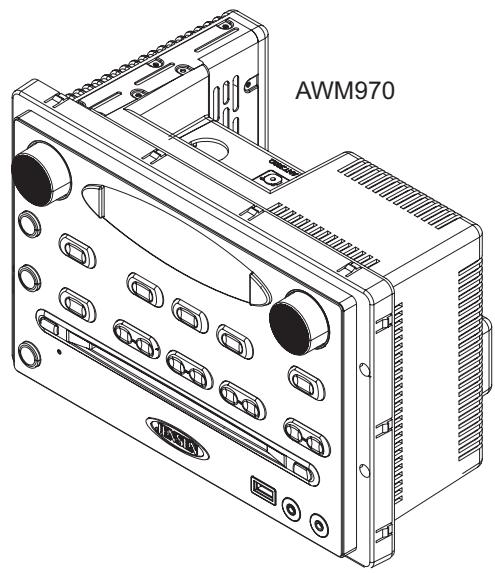
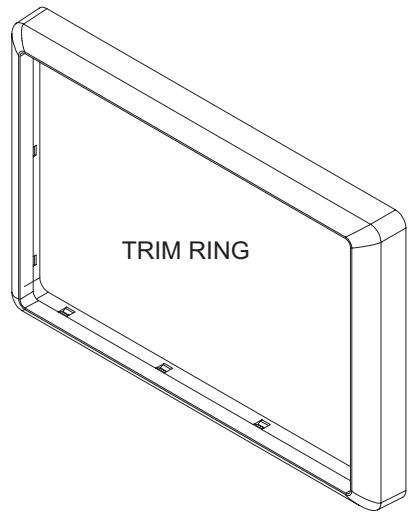
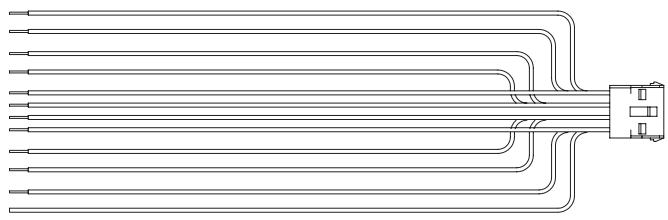
12-PIN POWER/A-B SPEAKER MATING PIGTAIL

REMOTE CONTROL WITH BATTERY

4-PIN C SPEAKER MATING PIGTAIL

M3 x 20MM SCREW (x 4)
It's a good idea to read all of the instructions before beginning the installation. We recommend having your JENSEN AWM970 installed by a reputable installation shop.
Selecting the Mounting Location
Select a mounting location, taking care to avoid the following:
- Places exposed to heat-radiating appliances such as electric heaters
- Adjacent to other equipment that radiates heat
Poorly-ventilated or dusty places - Moist or humid locations
Preparing the Opening
Use the mounting hole diagram (below) to measure and cut a mounting hole, and mount the unit using the four M3x20mm screws provided.
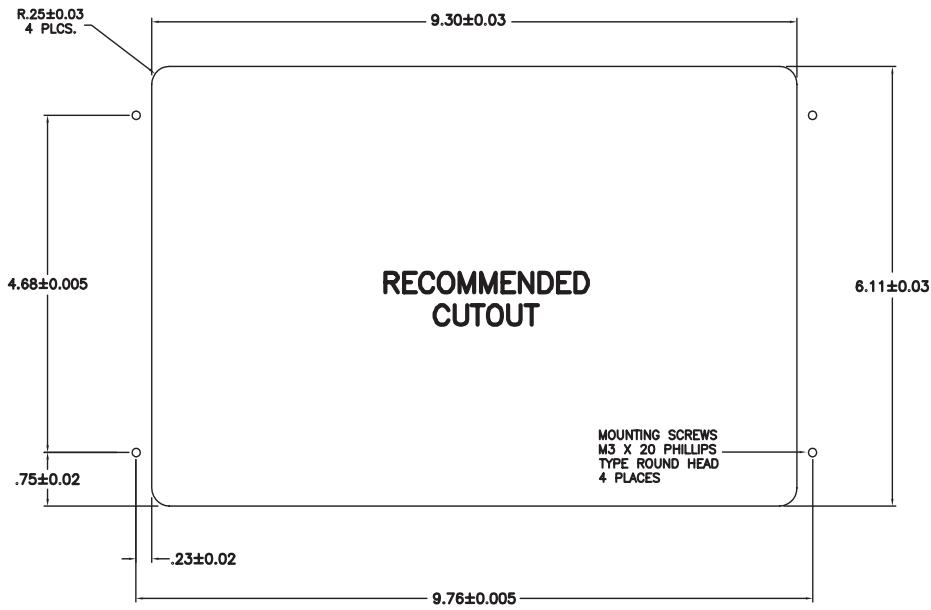
NOTE: Before cutting the mounting hole, make sure the area behind the mounting location is clear of wires, fuel and vacuum or brake lines.
Mounting the Radio
Route power, speaker and antenna cables through the hole, and connect them to the unit as outlined in the wiring diagram. After ensuring correct connections, test operation.
Wiring
The wiring diagram depicts all the wiring connections required for proper operation of the unit.
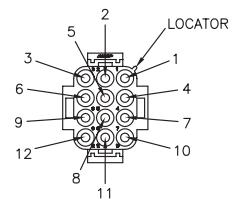
VIEW A-A
WIRE INSERTION VIEW
| PIN NO | COLOR | FUNCTION |
| 1 | BLACK | POWER GROUND (-12VDC) |
| 2 | YELLOW | +12VDC BATTERY POWER |
| 3 | RED | +12VDC SWITCHED POWER |
| 4 | VIOLET | RIGHT (B) SPEAKER (+) |
| 5 | GRAY/BLACK | RIGHT (A) SPEAKER (-) |
| 6 | WHITE | LEFT (A) SPEAKER (+) |
| 7 | VIOLET/BLACK | RIGHT (B) SPEAKER (-) |
| 8 | GREEN | LEFT (B) SPEAKER (+) |
| 9 | WHITE/BLACK | LEFT (A) SPEAKER (-) |
| 10 | PINK | +12VDC TRIGGER 100mA |
| 11 | GREEN/BLACK | LEFT (B) SPEAKER (-) |
| 12 | GRAY | RIGHT (A) SPEAKER (+) |
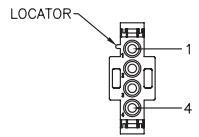
VIEW B-B
WIRE INSERTION VIEW
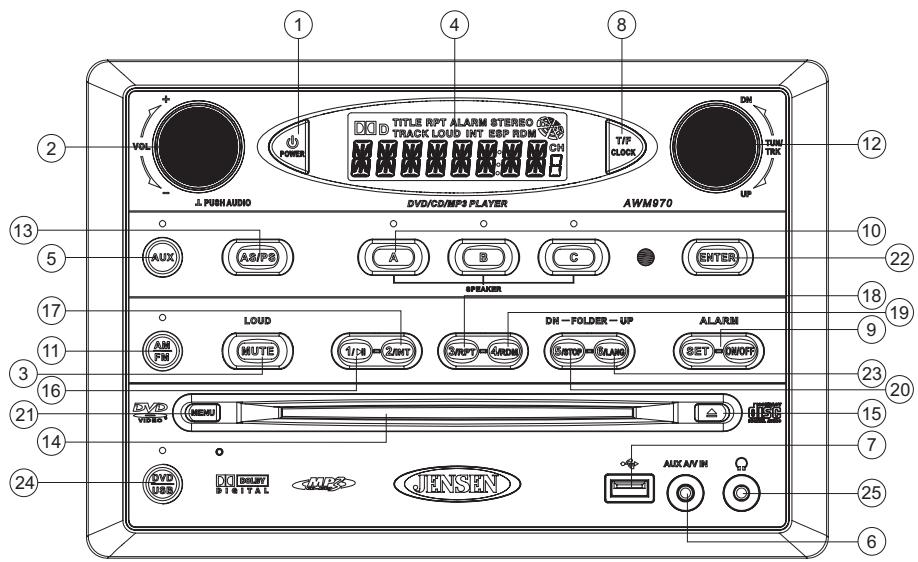
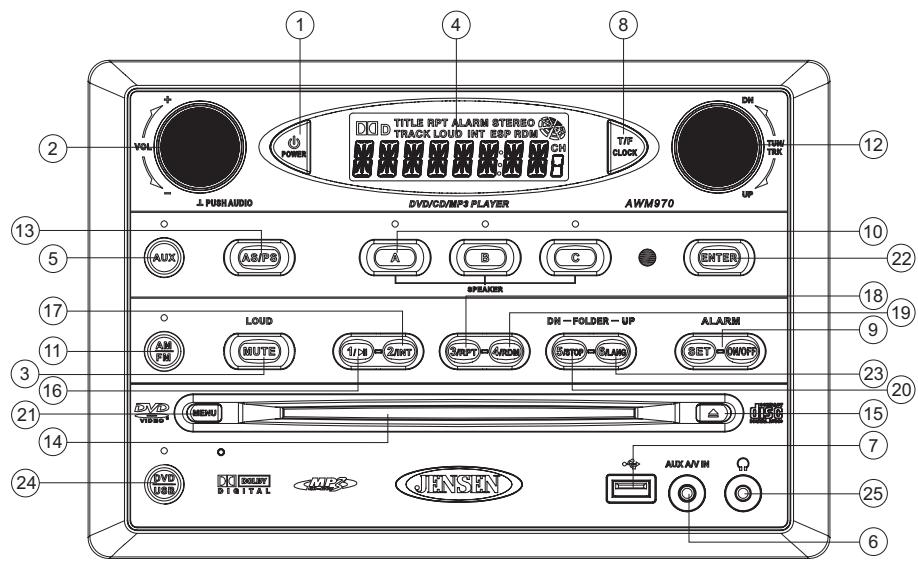
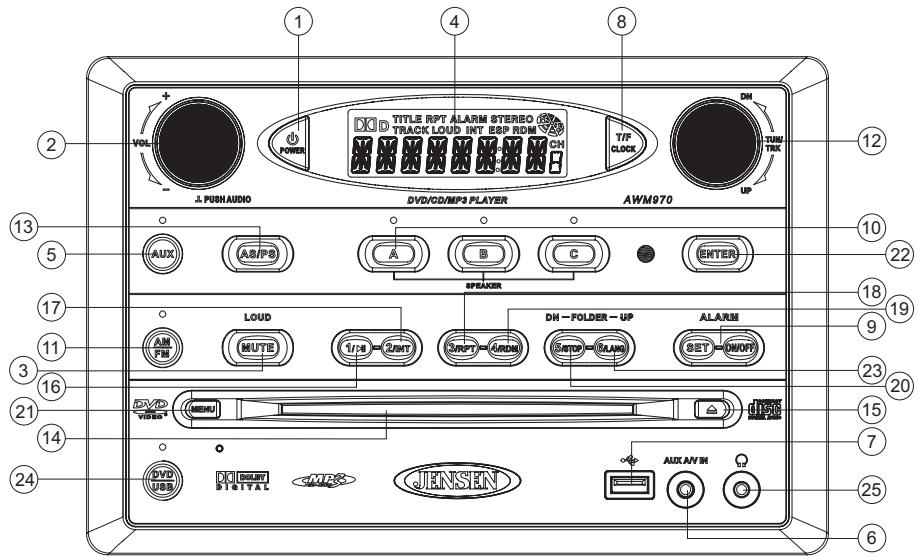
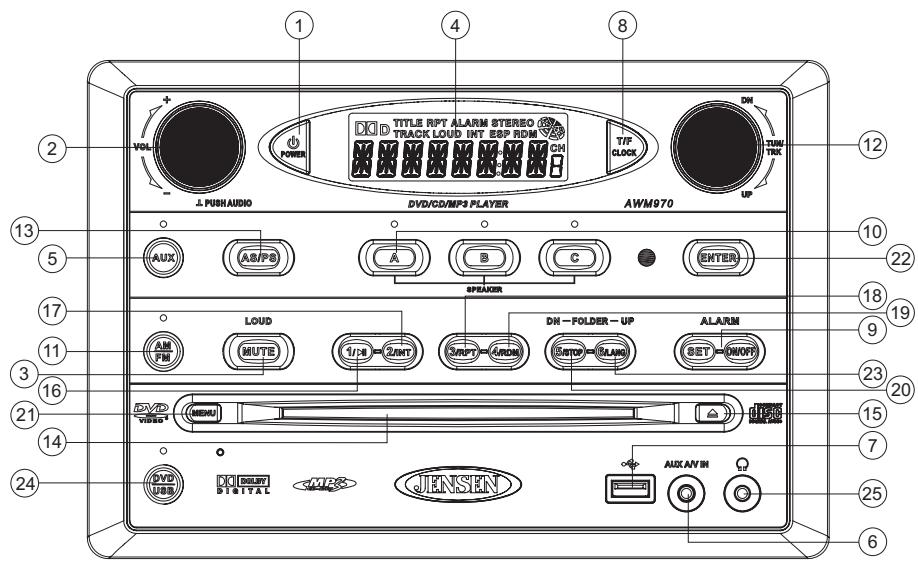
Press the POWER button (1) to turn the unit on or to enter standby mode.
Volume Control / Audio Adjustment / Menu
- Rotate the VOL control (2) clockwise to increase or counter-clockwise to decrease the volume output.
- Press the VOL control to step through the following audio adjustment options. Rotate the VOL control to adjust the selected audio feature.
BAS: Adjust the Bass level from " -7" to +7".
TRE: Adjust the trable from “-7” to “+7”.
- BAL: Adjust the speaker output balance between "L7" (left) and "R7" (right). "BAL 0" indicates an equal balance between the left and right speakers.
- FAD: Adjust the speaker fade between "R7" (rear) and "F7" (front). "FAD 0" indicates and equal balance between the rear and front speakers.
This function will time out after three seconds of inactivity and the unit will resume normal operation.
- Press and hold the VOL control to access the user menu. Press the VOL control to step through the menu options. Rotate the VOL control to adjust the selected menu feature.
LIGHT: Adjust the standby mode LCD brightness from "LIGHT 1" (least bright) to "LIGHT 3" (brightest).
BEEP: Turn the audible beep confirmation "ON" or "OFF".
This function will time out after three seconds of inactivity and the unit will resume normal operation.
Mute / Loudness
Press the MUTE button (3) to silence the audio output in tuner, CD, DVD, USB or auxiliary input mode. Press again to restore the previous volume level.
Press and hold the MUTE (LOUD) button to toggle the Loudness function on/off.
Liquid Crystal Display (LCD)
The liquid crystal display (LCD) panel (4) displays the frequency, time and activated functions.
To adjust the brightness of the LCD, press and hold the VOL control to access the user menu. Press the VOL control to step through the menu options. Rotate the VOL control to adjust the LCD brightness from "LIGHT 1" (brightest) to "LIGHT 3" (least bright).
NOTE: When subjected to cold temperatures for an extended period of time, LCD panels will take longer to illuminate and the display visibility may slightly decrease. Optimal LCD operation will return to normal when the temperature increases to a normal range.
Auxiliary Input Function
Press the AUX button (5) to directly access auxiliary input modes (AUX 1 IN, AUX 2 IN, and AUX 3 IN) from any other mode when a portable audio device is connected to the unit. To connect a portable audio device, insert a standard 3.5mm (audio line output or headphone output from your portable CD / MP3 / iPod or other media player) into the AUX A/V IN (AUX 3 IN) connector (6) on the front of the unit or the Audio/Video Inputs (AUX 1 IN and AUX 2 IN) on the back of the unit (see "Wiring" on page 4).
Auxiliary Input Connector
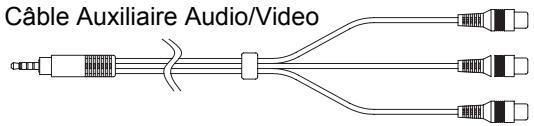
For front panel A/V input, an external audio/video (A/V) source such as a video game player, camera, etc. can be connected to the front panel A/V input with the provided 3.5mm A/V cable adapter. Connect the device to the AUX A/V IN connector (6) on the front panel, and then press AUX to engage the input circuit to "AUX 3 IN".
Please note that there are several different A/V cable "standards". The AWM970 is
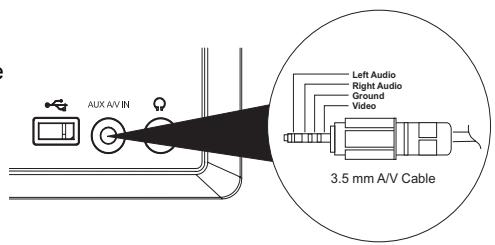
designed to support the Apple Video iPod™ cable type, as shown in the inset drawing.
USB Interface Connector
You can connect a USB device directly to USB interface (7) on the front of the AWM970 for playback of compatible files. Playback begins automatically. Press the DVD/USB button (24) to switch to USB mode from another source. Refer to "MP3/USB Operation" on page 12 for additional operating instructions.
Clock Display
Press the T/F button (8) to alternate between playing time and clock time while in Tuner, CD, DVD, USB or auxiliary input mode.
Basic Operation (continued)
Clock Setup
Press and hold the T/F button (8) to access Clock Setup mode. The number representing the hours will flash. Rotate the TUN/TRK control (12) to adjust the hour. Press T/F again briefly and the number representing the minutes will flash. Rotate the TUN/TRK control to adjust the minutes. The new time will be saved five seconds after the last adjustment is made.
Setting the Sleep Time
The Sleep Timer will automatically turn off the AWM970 in the designated number of minutes. To set the Sleep Time, press the ALARM SET button (9a) and the sleep time will appear in the display with the number representing the minutes (SLEEP 0). Press ALARM SET repeatedly to change the sleep time from 15 to 30, 45 or 60 minutes.
Setting the Alarm
To set the alarm, press and hold the ALARM SET button (9a). The number representing the hours will flash. Rotate the TUN/TRK control (12) to adjust the hour. Press ALARM SET again briefly and the number representing the minutes will flash. Rotate the TUN/TRK control to adjust the minutes. Press and hold the ALARM SET button again to store the alarm time.
Once a time is set, press ALARM ON/OFF (9b) to turn the alarm function on or off.
Speaker Output
The three speaker output buttons (10) (SPEAKER A, SPEAKER B and SPEAKER C) control speaker output from the radio. Press any of the three buttons to turn the corresponding speaker sets on or off. The red light above each button will illuminate when that speaker set is on.
Tuner Operation
Selecting a Band
Press the AM/FM button (11) to directly access tuner mode from any other function mode or to change between two AM bands (AM1 and AM2) and three FM bands (FM1, FM2 and FM3).
Tuning / Preset Stations
Manual Tuning
Rotate the TUN/TRK (12) control clockwise or UP to tune the frequency one step h
Rotate the TUN/TRK control counter-clockwise or DN to tune the frequency one step lower.
Seek Tuning
Rotate and hold the TUN/TRK control to automatically tune to the next strong station.
Preset Stations
Six numbered preset buttons store and recall stations for each AM and FM band.
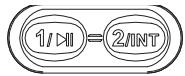
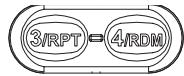
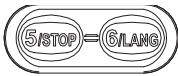
To store a station, select a band (if needed), and then select a station. Press and hold a preset button for three seconds to store the current station. The corresponding preset number will appear on the right side of the LCD under the letters "CH".
To recall a station, select the preferred band and then press a preset button. The unit will automatically tune to the corresponding stored station.
Automatic Store / Preset Scan (AS/PS)
Automatically Store
Press AS/PS (13) for more than three seconds, and the unit will automatically scan for and store the six strongest stations for all bands. To stop this function before the automatic storing is complete, briefly press AS/PS again.
Preset Scan
Briefly press AS/PS to scan all preset stations in the current band. The unit will play each station for five seconds before moving on to the next station. To stop this function and play the current station, press the AS/PS button again.
CD Operation
Inserting a CD
Insert a CD label-side up into the disc slot (14) and the disc will begin to play.
Ejecting a CD
Press the eject button (15) to stop CD play and eject the CD.
PausingPlayback
Press the 1/ button (16) to suspend or resume disc play.
Stopping Playback
Press the 5/STOP button (20) to suspend disc play, and "PRE STOP" will appear in the display. Press the 1/ button (16) to resume disc play from the last position. Press 5/STOP twice and "STOP" appears.
Track Select
Rotate the TUN/TRK control (12) to advance to the next or previous track on the CD. The selected track number will appear on the display. Rotate the TUN/TRK control for more than three seconds to fast forward or fast reverse through the disc. CD play starts when the play/pause button is pressed.
Fast Forward/Reverse
Rotate the TUN/TRK control for more than three seconds or press the >> or << buttons on the remote control (17) to fast forward or fast reverse. Press and hold once for FORWARD X 2. Press and hold additional times for FORWARD X 4, X 8, X 20 or PLAY. Press the play/pause button on the control panel (16) or remote control (18) to end fast forward or reverse and resume normal playback.
Intro Scan (INT)
Press the 2/INT button (17) during disc play to play the first 10 seconds of each track on the current disc. Press 2/INT again to end the scan and play the selected track.
Repeat (RPT)
Press the 3/RPT button (18) during disc play to continuously repeat the selected track (REP 1). Press again to repeat all tracks (REP ALL). Press a third time to stop repeating.
Random Shuffle (RDM)
Press 4/RDM (19) during disc play to play all tracks on a CD in random, shuffled order. Press 4/RDM again to stop random play.
Programmed Playback
- Press the PROG button (8) on the remote control to access the programmed playback screen:
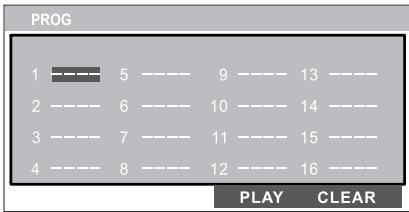
- Use the , , or cursor buttons (16) on the remote control to access the fields on the "PROG" screen.
- Use the number buttons on the remote control to enter a track number in each field.
- Press the >I|| button (19) on the remote control or highlight "PLAY" on screen and then press the ENTER button (5) to begin playback in the numbered order indicated.
To delete the list, highlight "CLEAR" and then press ENTER. Press PROG to exit the programmed playback screen.
Remote Control Direct Track Entry
To select a track directly, use the number pad on the remote control (10). For single digit entries, press the corresponding number. For two digit entries, press the 10+ button followed by the last digit (i.e., for track 16, press 10+ and then 6).
GOTO Direct Track/Chapter Access
Use the GOTO function to access a track (chapter) directly.
- Press the GOTO button (26) on the remote control. The On Screen Display information will appear with the track number highlighted.
- Use the number keys on the remote control to enter the 3-digit track number directly (i.e. for track 10, enter "010".
- Press the ENTER button (5) to confirm and begin playback.
CD Operation (continued)
CDPlaybackInformation
The following information is displayed at the top of the screen during CD playback:

- TRK ##/### - "1/18" indicates the first of 18 tracks on the CD is currently playing.
- - "X" indicates repeat play is OFF, "1" indicates repeat track, and "A" indicates repeat disc.
- Press the button on the remote control (27) repeatedly to view the following information for elapsed/remaining playing time:
00:02:18 - total elapsed playing time for disc
C-00:34:37 - remaining playing time
T 00:02:18 - total elapsed playing time for current track
C-00:34:37 - remaining playing time for current track
DVD/VCD Operation
Inserting a Disc
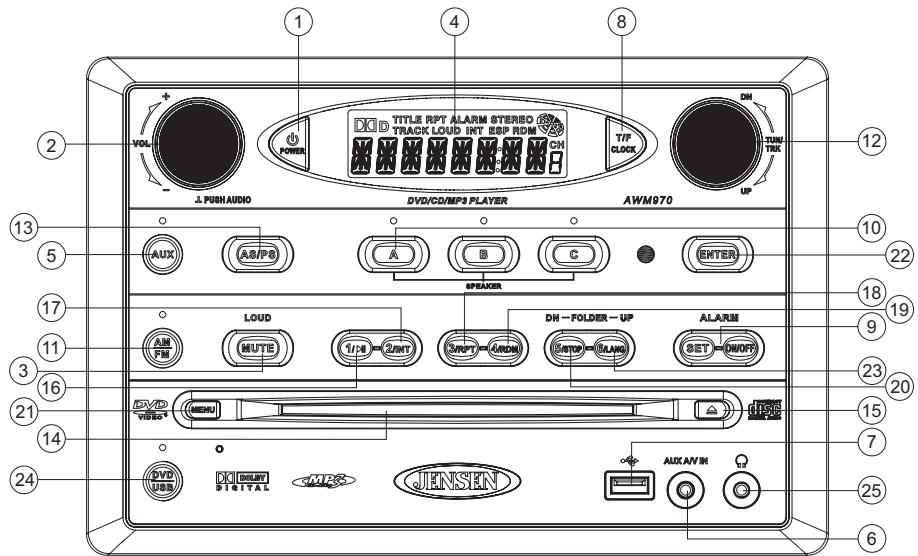
Insert a disc label-side up into the disc slot (14) and the disc will begin to play.
NOTE: Press the DVD/USB button (24) to alternate between the USB and DVD source.
Ejecting a DVD
Press the eject button (15) to stop DVD play and eject the DVD.
Pausing Playback
Press the 1/ button (16) to suspend or resume disc play.
Stopping Playback
Press the 5/STOP button (20) to suspend disc play, and "PRE STOP" will appear in the display. Press the 1/ button (16) to resume disc play from the last position. Press 5/STOP twice and "STOP" appears.
Track Select
Rotate the TUN/TRK control (12) to advance to the next or previous track on the disc. The selected track number will appear on the display.
Enter/Select
While in menu mode, press the ENTER button (22) to select a menu option.
Language Selection
While playing a DVD, press the 6/LANG button (23) to change the DVD audio language.
Fast Forward/Reverse
Rotate the TUN/TRK control for more than three seconds or press the >> or << buttons on the remote control (17) to fast forward or fast reverse. Press and hold once for FORWARD X 2. Press and hold additional times for FORWARD X 4, X 8, X 20 or PLAY. Press the play/pause button on the control panel (16) or remote control (18) to end fast forward or reverse and resume normal playback.
Repeat Chapter/Title
Press the 3/RPT button (18) on the control panel or the RPT button (21) on the remote control multiple times during playback to select from the following repeat play options:
VCD: REP 1 (track), REP ALL (disc), REP OFF
DVD: REP Chapter, REP Title, REP All, REP OFF
Playback Control (VCD Only)
Press the MENU button (6) on the remote control to turn Playback Control on/off when this feature is available on your VCD.
Programmed Playback
- Press the PROG button (8) on the remote control to access the programmed playback screen:
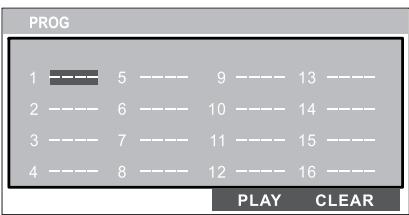
- Use the , , or cursor buttons (16) on the remote control to access the fields on the "PROG" screen.
- Use the number buttons on the remote control to enter a track number in each field.
- Press the > / || button (19) on the remote control or highlight "PLAY" on screen and then press the ENTER button (5) to begin playback in the numbered order indicated.
To delete the list, highlight "CLEAR" and then press ENTER. Press PROG to exit the programmed playback screen.
DVDPlaybackFeatures
The following remote control features, along with many others, are available during DVD playback (see "Remote Control Operation" on page 15 for complete functionality):
- LANG: Press to choose an alternate audio language, if available.
- SUBTITLE: Press to select an alternate subtitle language, if available.
- ANGLE: Press to select an alternate viewing angle, if available.
- ZOOM: Press to zoom the picture at ZOOM 2, ZOOM 3, ZOOM 4, ZOOM 1/2, ZOOM 1/3 or ZOOM 1/4, or select OFF to return to normal view.
NOTE: Feature availability is dependent upon DVD embedded information.
DVD/VCD Operation (continued)
Playback Information
During DVD and VCD playback, press the button (27) on the remote control to display playback information on the screen, including the media playing and current playback time. Continue pressing the button to display additional information, as indicated below.
DVD Playback Information
The following information is displayed at the top of the screen during DVD playback:
| DVD | TT | 5/8 | CH | 2/16 | -00:33:34 |
| 1/5 ENG | 5.1 CH | 1/4 ENG | |||
TT 5/8 - "5 / 8" indicates the fifth of 8 titles on the DVD is currently playing.
- CH 2/16 - "2 / 16" indicates that the second of 16 chapters on the DVD is currently playing.
- Press repeatedly to view the following information: for elapsed/remaining playing time:
00:02:18 - total elapsed playing time for disc
C-00:34:37 - remaining playing time
T 00:02:18 - total elapsed playing time for current track
C-00:34:37 - remaining playing time for current track
1/5 ENG-English is the selected audio language out of 5 possible choices
- 5.1 CH - The current language is recorded in 5.1 surround sound
- 1/4 ENG - English is the selected subtitle language out of 4 possible choices
OFF-There are no alternate angles recorded for this scene
VCD Playback Information
The following information is displayed at the top of the screen during VCD playback:
| VCD | TRK | 1/18 | -00:33:34 |
- TRK ##/### - "1/18" indicates the first of 18 tracks on the VCD is currently playing.
PBC: Indicates when PBC (Playback Control) is turned on. - X - X indicates repeat play is OFF, "1" indicates repeat track, "D" indicates repeat directory, and "A" indicates repeat disc.
- Press repeatedly to view the following information for elapsed/remaining playing time:
00:02:18 - total elapsed playing time for disc
C-00:34:37 - remaining playing time
T 00:02:18 - total elapsed playing time for current track
C-00:34:37 - remaining playing time for current track
Remote Control Direct Track Entry
To select a track directly, use the number pad on the remote control (10). For single digit entries, press the corresponding number. For two digit entries, press the 10+ button followed by the last digit (i.e., for track 16, press 10+ and then 6).
GOTO Direct Track/Chapter Access
Use the GOTO function to access a track (chapter) directly.
- Press the GOTO button (26) on the remote control. The On Screen Display information will appear with the track number highlighted.
- Use the number keys on the remote control to enter the 3-digit track number directly (i.e. for track 10, enter "010".
- Press the ENTER button to confirm and begin playback.
MP3/USB Operation
Insert/Eject Disc
Insert a disc label-side up into the disc slot (14), and the disc will begin to play. Press the eject button (15) to stop playback and eject the disc.
Insert/Remove USB Device
To connect a USB device, locate the USB interface connector (7) located near the bottom right corner on the front of the radio. Insert the USB device into the USB jack and the unit will read the files on the USB device automatically. To remove the USB device, press the AM/FM button (11), DVD/USB button (24) or AUX button (5) to change to another mode and then remove the USB device from the USB connector.
Press the DVD/USB button (24) to access USB mode from any other mode.
NOTE: MP4 streaming video format is not supported.
MP3 Monitor Display
After loading an MP3 disc or USB device, the following screen will appear on your output monitor.
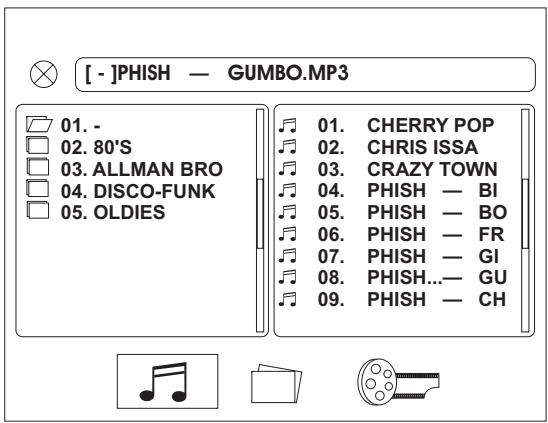
Select one of these icons to access the corresponding media on your disc or USB device. If the media type is not present, the icon will not be selectable.
Audio
Photos
Video
Play/Pause
Press the 1/ button (16) to suspend or resume playback.
Track Select
When playback is stopped, rotate the TUN/TRK control (12) to search in current folder. During playback, rotate the TUN/TRK control to access the previous/next file. The selected file number will appear on the display.
Folder Up/Down
Press the 6/LANG button (23) to access a higher folder level (FOLDER UP).
Press the 5/STOP button (20) to access a lower folder level (FOLDER DN).
Intro Scan (INT)
Press the 2/INT button (17) during playback to play the first 10 seconds of each file in the current folder. Press 2/INT again to end the scan and play the selected file.
Repeat (RPT)
Press the 3/RPT button (18) on the control panel or the RPT button (21) on the remote control multiple times during playback to select from the following repeat play options: REP 1 (track), REP DIR (folder), REP ALL (disc), OFF.
Random Shuffle (RDM)
Press 4/RDM (19) during disc play to play all files in random, shuffled order. Press 4/RDM again to stop random play.
MP3/USB Operation (continued)
Fast Forward/Reverse
Rotate the TUN/TRK control for more than three seconds or press the >> or << buttons on the remote control (17) to fast forward or fast reverse. Press and hold once for FORWARD X 2. Press and hold additional times for FORWARD X 4, X 8, X 20 or PLAY. Press the play/pause▶/ || button on the control panel (16) or remote control (18) to end fast forward or reverse and resume normal playback.
Programmed Playback
- Press the PROG button (8) on the remote control to access the programmed playback screen:
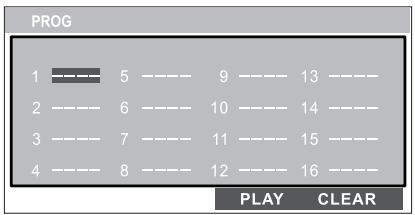
- Use the , , or cursor buttons (16) on the remote control to access the fields on the "PROG" screen.
- Use the number buttons on the remote control to enter a track number in each field.
- Press the >I|J button (19) on the remote control or highlight "PLAY" on screen and then press the ENTER button (5) to begin playback in the numbered order indicated. To delete the list, highlight "CLEAR" and then press ENTER. Press PROG to exit the programmed playback screen.
Remote Control Direct Track Entry
To select a file directly, use the number pad on the remote control (10). For single digit entries, press the corresponding number. For two digit entries, press the 10+ button followed by the last digit (i.e., for file 16, press 10+ and then 6).
GOTO Direct Track/Chapter Access
Use the GOTO function to access a track (chapter) directly.
- Press the GOTO button (26) on the remote control. The On Screen Display information will appear with the file number highlighted.
- Use the number keys on the remote control to enter the 3-digit file number directly (i.e. for file 10, enter "010".
- Press the ENTER button to confirm and begin playback.
MP3Playback Information
The following information is displayed at the top of the screen during CD playback:
| CDrom | TRK | 9/150 |
- TRK ##/#- "9/150" indicates the ninth of 150 tracks on the disc is currently playing.
- X - X indicates repeat play is OFF, "1" indicates repeat song, and "D" indicates repeat directory (folder).
- Press repeatedly to view the following information for elapsed/remaining playing time:
00:02:18 - total elapsed playing time for disc
C-00:34:37 - remaining playing time for disc
iPod Operation
This unit is equipped with an iPod ready function that allows you to control your compatible iPod using the control buttons on the panel. The following iPod versions are supported:
- iPod 3G (firmware version 2.2 only)
- iPod Mini
- iPod 4G
- iPod Photo
- iPod Nano (1st, 2nd and 3rd generation)
- iPod 5G (Video)
NOTE: iPod Touch and iPhone are not supported. iPod and iPod Cable sold separately.
Accessing iPod Mode
The unit will automatically switch to iPod mode when an iPod is connected to the iPod cable at rear of unit (iPod cable sold separately).
iPod mode can be selected by pressing the AUX button (5): AUX1, AUX2, AUX3, iPod. The unit will display "MENU" with "iPod" in the upper left corner of the LCD, indicating the iPod is connected. The external video monitor will display the iPod menu.
NOTE: The iPod will continuously recharge when connected to the unit, as long as the vehicle ignition is turned on. Please note that the AWM970 will not support charging of the iPod Nano 4th generation (Chromatic) or any iPod models released after September 2008.
Turning the iPod On/Off
The iPod power turns on automatically when connected to the main unit iPod cable while the Accessory Power is turned on. You can turn the iPod off by disconnecting it from the cable or by turning the Accessory Power off. When the Accessory Power is turned off, the iPod will pause and then enter sleep mode after 2 minutes. Power can not be turned on or off on the
iPod itself while connected to the main unit.
| IPOD | |
| Playlists | > |
| Artists | > |
| Albums | > |
| Genres | > |
| Songs | > |
ControllingPlayback
- Access iPod Menu - Press the MENU button (21).
- Pause/Play - During playback, press the 1/ >|| button (16) to suspend or resume play.
- Repeat (RPT) - During playback, press 3/RPT button (18) to continuously repeat the selected track. Press again to repeat all tracks (RPT ALL). Press a third time to stop repeat play.
| Albums | |
| Beat Dominator | > |
| Classic Queen | > |
| Dark Side of the Moon | > |
| Daughterry | > |
| American IV | > |
- Random (RDM) - Press the 4/RDM button (19) to play all songs in the selected album in random order. Press again to play all albums in random order. Press a third time to stop random play.
- Fast Forward/Reverse - During playback, turn and hold the TUN/TRK knob (12) for more than 3 sec clockwise to fast forward or counter-clockwise to fast reverse. To resume normal playback, release the knob and press the 1/> button (16).
- Folder Up/Down - From the initial iPod menu, press the 6/LANG (folder up) button (23) to access a higher folder level, or the 5/STOP (folder down) button (20) to access a lower folder level. When using the remote control, press the four-way up/down arrows (16) to navigate the folder list up/down.
Press the ENTER
button (22) on the
control panel or the
center navigation button (8) on the remote control to select a folder (play list, artist, album, etc.).
Repeat the above navigation for each screen.
While playing, use the TUN/TRK knob (12) to select the next file to play.
It is also possible to search the song list while listening to the current song by using the folder up/down button to scroll through the list.
- Press the ENTER button to play the selected file.
- Press the MENU button (21) to reverse navigate the folders.
Remote Control Operation
| REF | DESCRIPTION | TUNER | CD/MP3/USB | DVD | iPod |
| 1 | Power | Turn radio on/standy mode. | Turn radio on/standby mode. | Turn radio on/standby mode. | Turn radio on/standby mode. |
| 2 | VOL +/- | Adjust volume up/down.Press for Audio Control Setup menu. | Adjust volume up/down.Press for Audio Control Setup menu. | Adjust volume up/down.Press for Audio Control Setup menu. | Adjust volume up/down.Press for Audio Control Setup menu. |
| 3 | TUNE + | Search higher station. | Stopping State: UP - Search in current folder.Playing State: UP - Next Track. | Stopping State: UP: Next Item.Playing State: UP: Next Track. | |
| 4 | TUNE - | Search lower station. | Stopping State: DN - Search in current folder.Playing State: DN - Prev Track. | Stopping State: DN: Previous Item.Playing State: DN: Previous Track. | |
| 5 | ENTER | Confirm menu selection. | Confirm selected item. | ||
| 6 | MENU | Access main DVD menu. | Reverse navigate folders. | ||
| 7 | T/F | Press to toggle clock time/playing time.Press and hold to set clock. | Press to toggle clock time/playing time.Press and hold to set clock. | Press to toggle clock time/playing time.Press and hold to set clock. | Press to toggle clock time/playing time.Press and hold to set clock. |
| 8 | PROG | Display Setup Program. | Display Setup Program. | ||
| 9 | LANG | Display MONO/L, MONO/R, or STEREO. | Select alternate audio language, if available. | ||
| 10 | Numeric Keypad | Use 1-6 to access preset stations. | Enter track number to access track directly. For track number > 10, use 10+ followed by second digit. | Enter track number to access track directly. For track number > 10, use 10+ followed by second digit. | |
| 11 | Setup | View SETUP menu. | View SETUP menu. | ||
| 12 | Subtitle | Choose subtitle language, if available. | |||
| 13 | Mute/LOUD | Silence Audio output. Press and hold to turn LOUDNESS feature on/off. | Silence Audio output. Press and hold to turn LOUDNESS feature on/off. | Silence Audio output. Press and hold to turn LOUDNESS feature on/off. | Silence Audio output. Press and hold to turn LOUDNESS feature on/off. |
| 14 | Eject | Eject Disc. | Eject Disc. | Eject Disc. | Eject Disc. |
| 15 | Previous/Next | Select next/previous track. | Select next/previous chapter. | Select next/previous file. | |
| 16 | Directional Buttons | Move to desired menu item and then press ENTER to confirm. | Use with DVD menu to move to desired menu item and then press ENTER to confirm. | Move to desired menu item and then press ENTER to confirm. | |
| 17 | Fast Reverse/Forward | Fast Forward 2X, 4X, 8X, 20X.Fast Reverse 2X, 4X, 8X, 20X. | Fast Forward 2X, 4X, 8X, 20X.Fast Reverse 2X, 4X, 8X, 20X. | Fast Forward/Fast Reverse | |
| 18 | Play/Pause | Pause/resume playback. | Pause/resume playback. | Pause/resume playback. | |
| 19 | Stop | Stop playback. | Stop playback. | Stop playback. | |
| 20 | TITLE | Press to view title menu, then use directional arrows and play button play selected title. May not be supported by all discs. | |||
| 21 | RPT | Repeat track. | Repeat chapter. | Repeat file. | |
| 22 | SOURCE | Select source for playback. | Select source for playback. | Select source for playback. | Select source for playback. |
| 23 | ZOOM | Zoom picture or press repeatedly to change magnification level. | |||
| 24 | ANGLE | Select alternate viewing angle, if available. | |||
| 25 | AUD | Access Audio Menu options. | |||
| 26 | GOTO | Select exact time, track or chapter for playback. | Select exact time, track or chapter for playback. | ||
| 27 | Display | Display current playback information on the screen. | Display current playback information on the screen. |
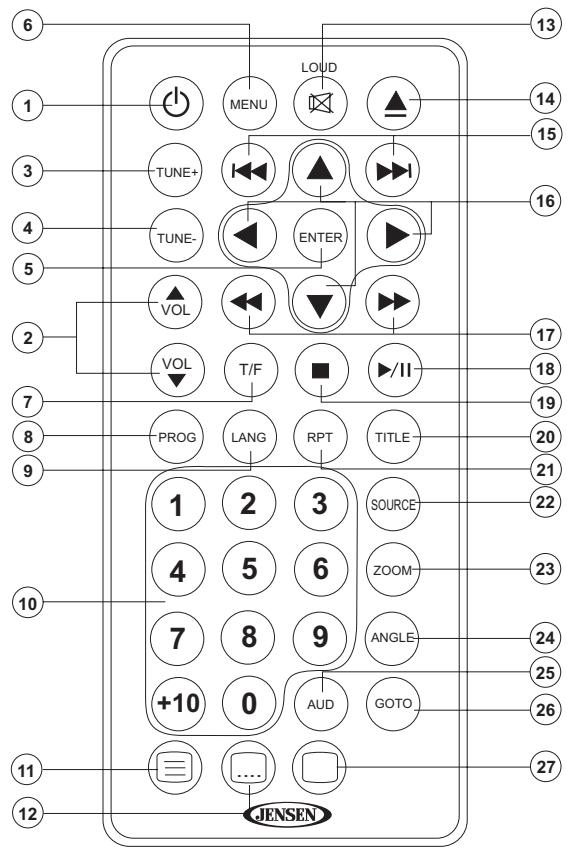
Setup Menu
Press the (setup) button (11) on the remote control to access the SETUP menu and adjust system settings for the following categories:
System Setup
Language Setup
Audio Setup
Video Setup
Digital Setup
While in the setup menus, use your directional arrows to select and change settings. The "up" and "down" arrows highlight the options, and the "right" and "left" arrows will change the setting for the highlighted option.
System Setup
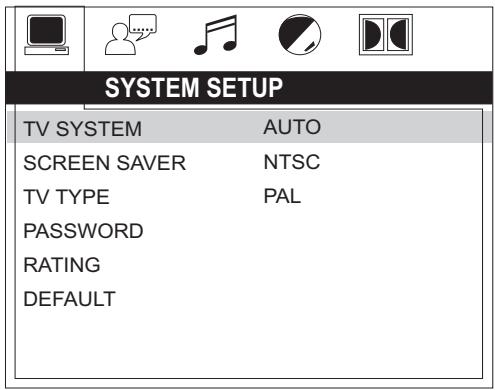
The System Setup menu controls the following features:
TV SYSTEM: This item is used to select a TV signal system to match your TV set. Select one of the following options: AUTO, NTSC or PAL.
SCREEN SAYER: Turn Screen Saver feature On/Off.
TV TYPE: Select one of the following picture formats: 4:3PS, 4:3 LB or 16:9. 4:3 is a letterbox selection, and 16:9 is wide screen.
password: This item allows the selection of a new four-digit code to use for security purposes.
RATING: Select the parental control level for all DVD play. The security password is required to make changes to this feature.
DEFAULT: Use this item to restore default settings at any time.
Language Setup
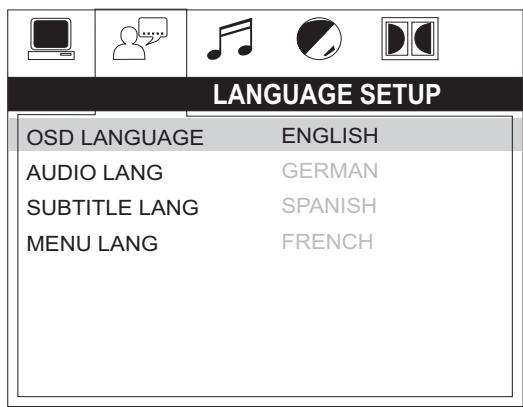
The Language Setup menu controls the following features:
On-Screen Display (OSD) Language: Set the OSD language to one of the following: English, Chinese, German, Spanish, French, or Russian.
Audio Language: Set the audio language to one of the following: Chinese, English, Japan, French, Spanish, Russian, Latin or German.
Subtitle Language: Set the subtitle language to one of the following: Chinese, English, Japan, French, Spanish, Russian, German or OFF.
Menu Language: Set the menu language to one of the following: Chinese, English, Japan, French, Spanish, Russian, German or Latin.
Audio Setup
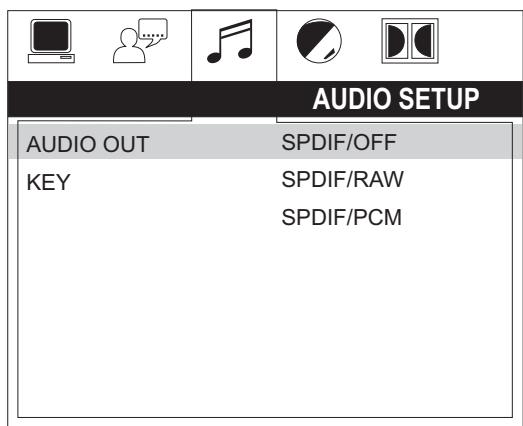
The Audio Setup menu controls the following features:
Audio Out: This item defines the digital output format.
Key: This item changes the audio output key.
Setup Menu (continued)
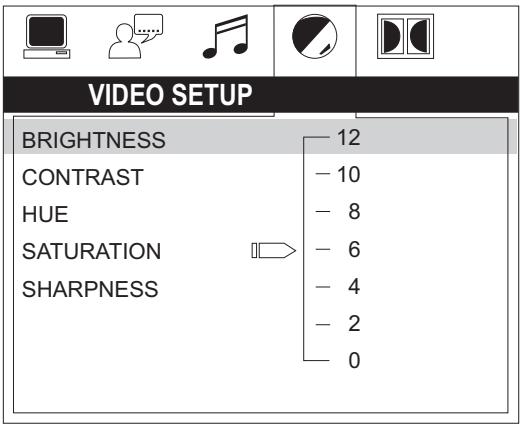
Video Setup
The Video Setup menu controls the following features:
Brightness: Adjust the brightness of the screen from the following levels: 12, 10, 8, 6, 4, 2 or 0.
Contrast: Adjust the contrast of the screen from the following levels: 12, 10, 8, 6, 4, 2 or 0.
Hue: Adjust the hue of the screen from the following levels: +6, +4, +2, 0, -2, -4 or -6.
Saturation: Adjust the saturation of the screen from the following levels: 12, 10, 8, 6, 4, 2 or 0.
Sharpness: Adjust the sharpness of the screen from the following levels: 8, 6, 4, 2 or 0.
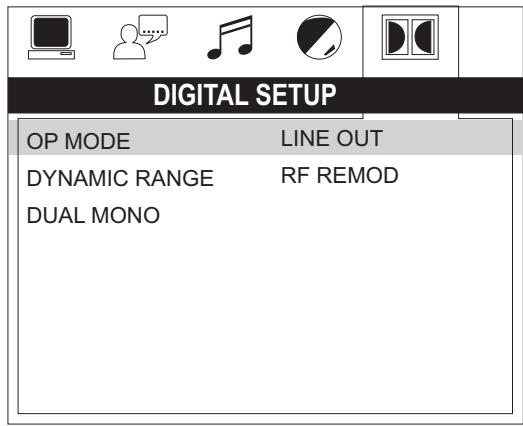
Digital Setup
The Digital Setup menu controls the following features:
OP Mode: Select LINE OUT or RF REMOD.
Dynamic Range: Select FULL, 6/8, 4/8, 2/8 or OFF.
Dual Mono: Select STEREO, MONO/L, MONO/R or MIX MONO.
Specifications
General
Power Supply Requirements. DC 12 Volts, Negative Ground
Operating Voltage 10-16VDC
Overall Dimensions. 265mm(W)x178mm(H)x159mm(D)
Mounting Dimensions 235mm(W)x154mm(H)x133mm(D)
Weight 5.5 lbs.
FM Tuner
Tuning range 87.5-107.9FM
Sensitivity <2.5uV
Stereo separation @ 1 kHz. >30dB
AM Tuner
Tuning range 530-1710
Sensitivity <15uV
Amplifier
Output Power 108 Watts Total (18 Watts per Channel)
Output Impedance. .Compatible with 4-8 Ohm Speakers, 4 Ohm Load Minimum
DVD
Frequency Response 20-20,000 Hz
Channel Separation 50dB
S/N Ratio 70dB
Distortion 0.2%
Specifications subject to change without notice.
This device complies with Part 15 of the FCC Rules. Operation is subject to the following two conditions:
(1) This device may not cause harmful interference, and
(2) This device must accept any interference received, including interference that may cause undesired operation.
NOTE: The manufacturer is not responsible for any radio or TV interference caused by unauthorized modifications to this equipment. Such modifications could void the User's authority to operate the equipment."
Merci!

4-PIN C SPEAKER MATING PIGTAIL

M3 x 20mm Ecrou x 4
Installation
Reproduction programme
VCD: REP 1 (track), REP ALL (disc), REP OFF
DVD: REP Chapter, REP Title, REP All, REP OFF
Reproduction programme
Reproduction programme
Dimensions 265mm(W)x178mm(H)x159mm(D)
Dimensions de montage 235mm(W)x154mm(H)x133mm(D)
Poids 5.5 lbs.
FM Tuner
Gamme de syntonisation 87.5-107.9FM
Sensibilité <2.5uV
Séparation stéreo @ 1 kHz. >30dB
AM Tuner
- DESIGNED TO MOVE [YOU]
- AWM970
- FEATURES
- PRECAUTIONS
- TOOLS AND SUPPLIES
- DISCONNECTING THE BATTERY
- PACKING LIST
- SELECTING THE MOUNTING LOCATION
- PREPARING THE OPENING
- MOUNTING THE RADIO
- WIRING
- VOLUME CONTROL / AUDIO ADJUSTMENT / MENU
- MUTE / LOUDNESS
- LIQUID CRYSTAL DISPLAY (LCD)
- AUXILIARY INPUT FUNCTION
- AUXILIARY INPUT CONNECTOR
- USB INTERFACE CONNECTOR
- CLOCK DISPLAY
- BASIC OPERATION (CONTINUED)
- CLOCK SETUP
- SETTING THE SLEEP TIME
- SETTING THE ALARM
- SPEAKER OUTPUT
- TUNER OPERATION
- SELECTING A BAND
- TUNING / PRESET STATIONS
- MANUAL TUNING
- SEEK TUNING
- PRESET STATIONS
- AUTOMATIC STORE / PRESET SCAN (AS/PS)
- AUTOMATICALLY STORE
- PRESET SCAN
- CD OPERATION
- INSERTING A CD
- EJECTING A CD
- PAUSINGPLAYBACK
- STOPPING PLAYBACK
- TRACK SELECT
- FAST FORWARD/REVERSE
- INTRO SCAN (INT)
- REPEAT (RPT)
- RANDOM SHUFFLE (RDM)
- PROGRAMMED PLAYBACK
- REMOTE CONTROL DIRECT TRACK ENTRY
- GOTO DIRECT TRACK/CHAPTER ACCESS
- CD OPERATION (CONTINUED)
- CDPLAYBACKINFORMATION
- DVD/VCD OPERATION
- INSERTING A DISC
- EJECTING A DVD
- PAUSING PLAYBACK
- ENTER/SELECT
- LANGUAGE SELECTION
- REPEAT CHAPTER/TITLE
- PLAYBACK CONTROL (VCD ONLY)
- DVDPLAYBACKFEATURES
- DVD/VCD OPERATION (CONTINUED)
- PLAYBACK INFORMATION
- DVD PLAYBACK INFORMATION
- VCD PLAYBACK INFORMATION
- MP3/USB OPERATION
- INSERT/EJECT DISC
- INSERT/REMOVE USB DEVICE
- MP3 MONITOR DISPLAY
- PLAY/PAUSE
- FOLDER UP/DOWN
- MP3/USB OPERATION (CONTINUED)
- MP3PLAYBACK INFORMATION
- IPOD OPERATION
- ACCESSING IPOD MODE
- TURNING THE IPOD ON/OFF
- CONTROLLINGPLAYBACK
- SETUP MENU
- SYSTEM SETUP
- LANGUAGE SETUP
- AUDIO SETUP
- SETUP MENU (CONTINUED)
- SPECIFICATIONS
- GENERAL
- FM TUNER
- AM TUNER
- AMPLIFIER
- DVD
- SPECIFICATIONS SUBJECT TO CHANGE WITHOUT NOTICE
- MERCI
- INSTALLATION
- REPRODUCTION PROGRAMME
Brand : JENSEN
Model : VOYAGER AWM970
Category : Hi-Fi System