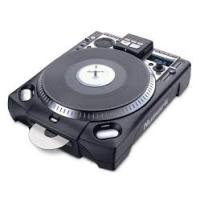
CDX-1 - DJ turntable NUMARK - Free user manual and instructions
Find the device manual for free CDX-1 NUMARK in PDF.



User questions about CDX-1 NUMARK
0 question about this device. Answer the ones you know or ask your own.
Ask a new question about this device
Download the instructions for your DJ turntable in PDF format for free! Find your manual CDX-1 - NUMARK and take your electronic device back in hand. On this page are published all the documents necessary for the use of your device. CDX-1 by NUMARK.
USER MANUAL CDX-1 NUMARK
Quick Start Owner's Manual
BOX CONTENTS
- CD Player
- Platter Assembly
- Wrench
• Power Cable
• Audio Cable
• Fader Start Cable
- Make sure all items listed on the front of this guide were in the box.
- READ SAFETY INSTRUCTION BOOKLET BEFORE USING THE PRODUCT.
- Assemble unit following the Quick Assembly Instructions.
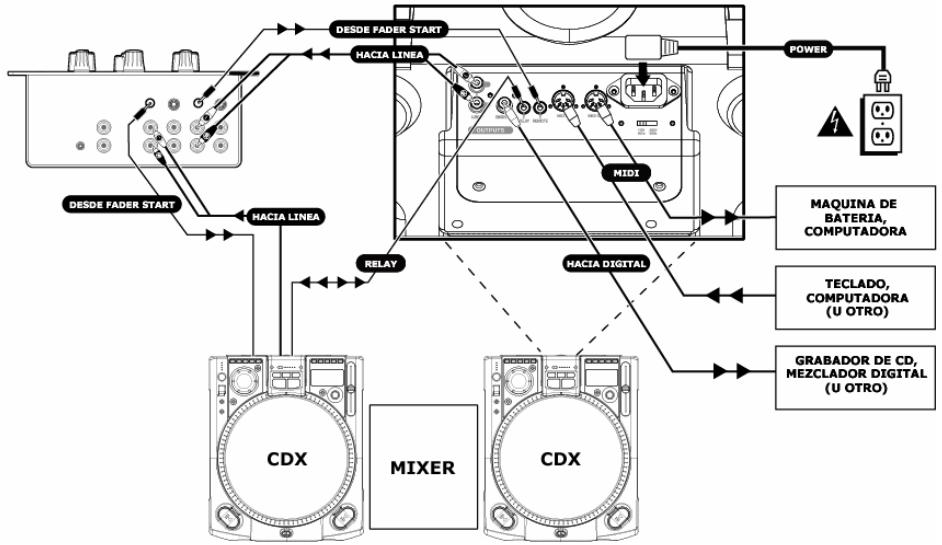
- Study this setup diagram.
- Place the unit in an appropriate position for operation.
- Make sure all devices are turned off and all faders and gain knobs are set to "zero"
- Connect all stereo input sources as indicated in the diagram, your microphone, and headphones
-
Connect the stereo outputs to power amplifier(s), tape decks, and/or other audio sources.
-
Plug all devices into AC power.
-
Switch everything on in the following order.
• audio sources (i.e. turntables or CD players)
- mixer
• last, any amplifiers or output devices
- When turning off, always reverse this operation by,
• turning off amplifiers
- mixer
• last, any audio sources
- Go to http://www.numark.com for product registration.
More information about this product may be found at http://www.numark.com
natural_image
Technical line drawing of a mechanical component with no visible text or symbols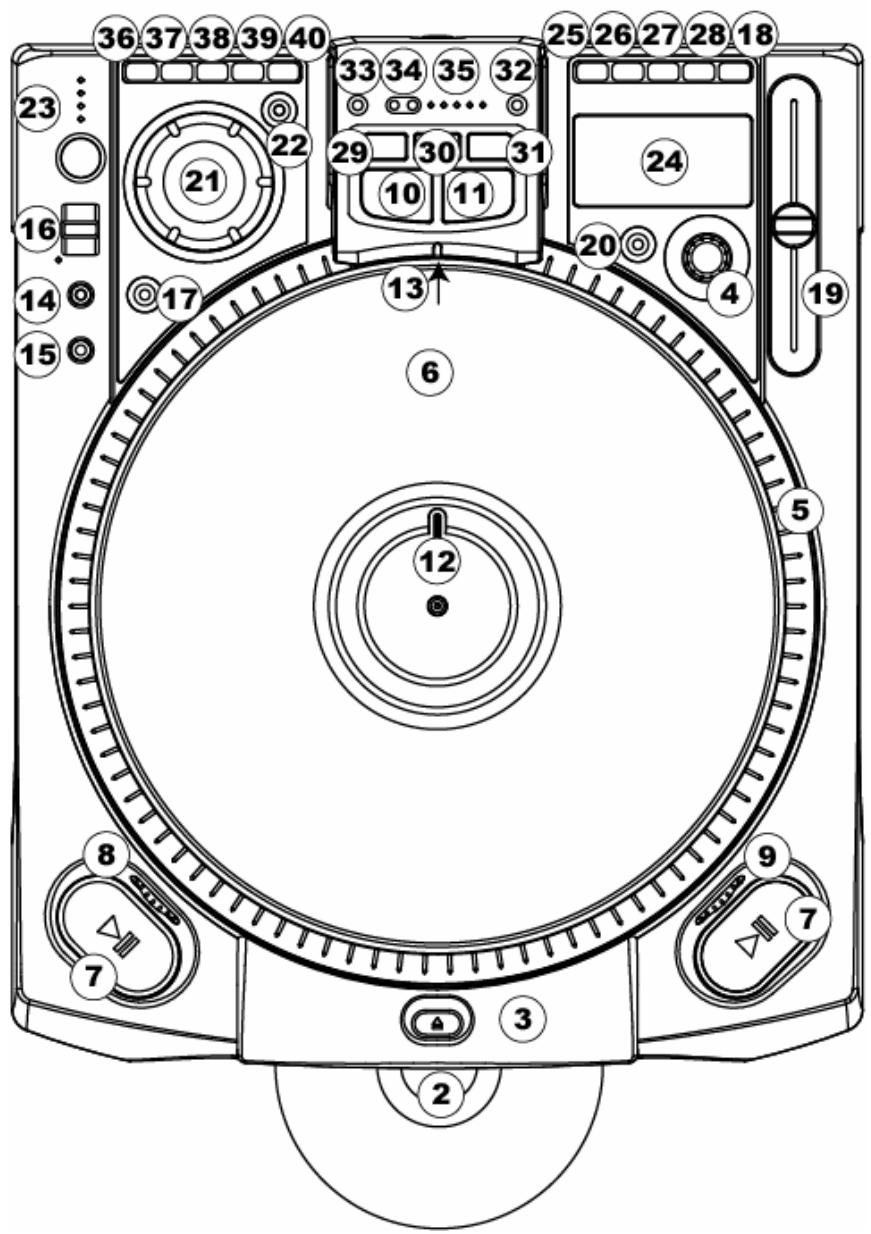
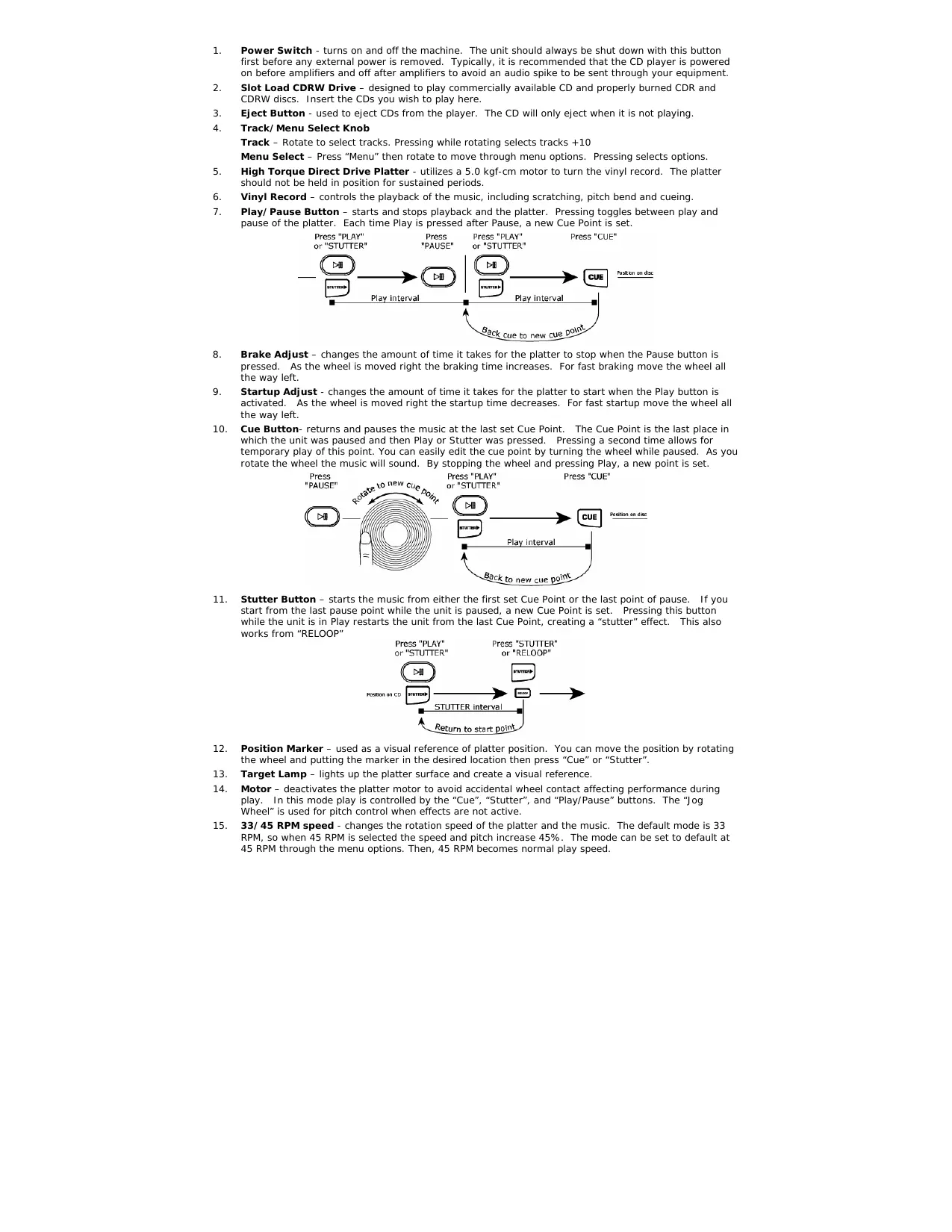
- Power Switch - turns on and off the machine. The unit should always be shut down with this button first before any external power is removed. Typically, it is recommended that the CD player is powered on before amplifiers and off after amplifiers to avoid an audio spike to be sent through your equipment.
- Slot Load CDRW Drive – designed to play commercially available CD and properly burned CDR and CDRW discs. Insert the CDs you wish to play here.
- Eject Button - used to eject CDs from the player. The CD will only eject when it is not playing.
- Track/Menu Select Knob
Track - Rotate to select tracks. Pressing while rotating selects tracks +10
Menu Select – Press "Menu" then rotate to move through menu options. Pressing selects options.
- High Torque Direct Drive Platter - utilizes a 5.0 kgf-cm motor to turn the vinyl record. The platter should not be held in position for sustained periods.
- Vinyl Record – controls the playback of the music, including scratching, pitch bend and cueing.
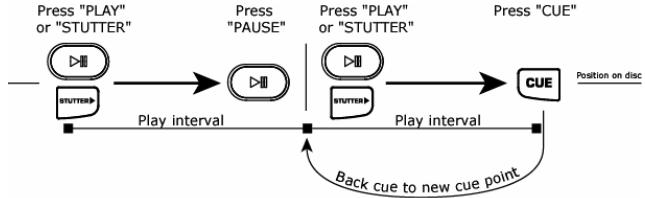
- Play/Pause Button – starts and stops playback and the platter. Pressing toggles between play and pause of the platter. Each time Play is pressed after Pause, a new Cue Point is set.
flowchart
graph LR
    A["Press "PLAY" or "STUTTER""] --> B["Play interval"]
    B --> C["Press "PAUSE""]
    C --> D["Play interval"]
    D --> E["Press "PLAY" or "STUTTER""]
    E --> F["CUE"]
    F --> G["Position on disc"]
    H["Back cue to new cue point"] --> D
- Brake Adjust – changes the amount of time it takes for the platter to stop when the Pause button is pressed. As the wheel is moved right the braking time increases. For fast braking move the wheel all the way left.
- Startup Adjust - changes the amount of time it takes for the platter to start when the Play button is activated. As the wheel is moved right the startup time decreases. For fast startup move the wheel all the way left.
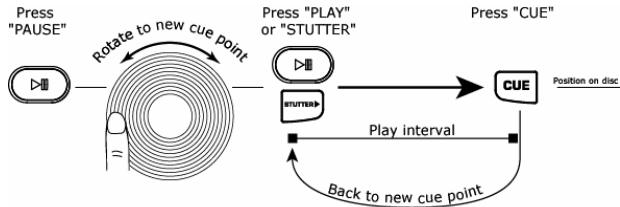
- Cue Button- returns and pauses the music at the last set Cue Point. The Cue Point is the last place in which the unit was paused and then Play or Stutter was pressed. Pressing a second time allows for temporary play of this point. You can easily edit the cue point by turning the wheel while paused. As you rotate the wheel the music will sound. By stopping the wheel and pressing Play, a new point is set.
flowchart
graph LR
    A["Press "PAUSE""] --> B["Rotate to new cue point"]
    B --> C["Press "PLAY" or "STUTTER""]
    C --> D["Press "CUE""]
    D --> E["CUE"]
    E --> F["Position on disc"]
    G["Play interval"] --> H["Back to new cue point"]
    H --> I["Sturmbox"]
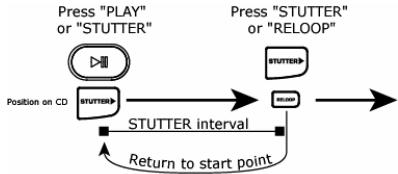
- Stutter Button – starts the music from either the first set Cue Point or the last point of pause. If you start from the last pause point while the unit is paused, a new Cue Point is set. Pressing this button while the unit is in Play restarts the unit from the last Cue Point, creating a "stutter" effect. This also works from "RELOOP"
flowchart
graph LR
    A["Position on CD"] --> B["STUTTER interval"]
    B --> C["Return to start point"]
    C --> D["STUTTER"]
    D --> E["Press "STUTTER" or "RELOOP""]
    E --> F["Press "PLAY" or "STUTTER""]
- Position Marker – used as a visual reference of platter position. You can move the position by rotating the wheel and putting the marker in the desired location then press "Cue" or "Stutter".
- Target Lamp – lights up the platter surface and create a visual reference.
- Motor – deactivates the platter motor to avoid accidental wheel contact affecting performance during play. In this mode play is controlled by the "Cue", "Stutter", and "Play/Pause" buttons. The "Jog Wheel" is used for pitch control when effects are not active.
- 33/45 RPM speed - changes the rotation speed of the platter and the music. The default mode is 33 RPM, so when 45 RPM is selected the speed and pitch increase 45%. The mode can be set to default at 45 RPM through the menu options. Then, 45 RPM becomes normal play speed.
16. Reverse/Bleep Button
Reverse – changes the direction of the platter and the music until it is released. This action can be adjusted to be instant or controlled by the platter action through the program menu options.
Bleep – temporarily reverses the music from buffer while the unit continues forward motion. When the toggle is released the unit resumes play from the point where play would have occurred otherwise.
- Scratch Mode Button- toggles between the way the music reacts to movement by the record.
Scratch – allows the vinyl to act just like a typical record on turntable.
Scratch + FWD - allows the vinyl to act just like a typical record on turntable but only plays forward actions. Hold "Scratch" for 1 second to get in the FWD mode.
Scratch + CUE – moves the music to the last set Cue Point every time the wheel is grabbed for scratch.
Scratch + CUE + FWD – moves the music to the last set Cue Point every time the wheel is grabbed for scratch. Hold "Scratch+CUE" for 1 second to get in the FWD mode.
-
Pitch Button - adjusts the amount of control the Pitch Slider has on the overall speed of music and platter. Pressing the button will cycle through pitch ranges of 6, 12, 25, and 100%. Pressing and holding 2 seconds will deactivate and activate pitch.
-
Pitch Slider - controls the overall speed of the music and platter. At pitch settings of -80% to -100% , the platter will deactivate and the music will be controlled by the slider. By moving the slider toward "+" the speed of the music speeds up. By moving toward "-" the speed slows down. At 100% pitch range, the music can be completely stopped or played at 2 times the original speed.
To match the speeds of two units, you can either monitor the music of both units by ear, or use the automatic BPM readout and adjust the speed to match. When the tempo of the music of the CD you wish to match is slow compared to the tempo of the other music, move the slider to the (+) end and match the BPM. When faster, move the pitch slider to the (-) end. By making this adjustment the speeds will be matched, though the beats may not yet be aligned.
- Key Lock – holds the music at the current key. If the pitch slider is moved, the speed will change, but the key will remain the same. By putting the pitch at 100% you can actually slow the music to a complete stop while playing the last heard tones of the music. This works very well on vocals and can be a very cool effect. If the unit has Key Lock active after the track has been changed and before Play is hit, the unit will lock to the 0% key. If "Key" is deactivated during Pause, the unit will reset to match the current pitch position. If "Key" is deactivated during Play, the key will remain at the new position until the track is changed.
To change the key of the music press and hold "Key Lock" while moving the "Track/Menu Select Knob". The key can increase to 1 octave above normal, or up to 2 octaves above normal when the Slide effect is used. The key can decrease up to 5 octaves below normal. The display will limit to 19 half steps above or below the normal key.
- Jog Wheel - is used for searching, adjusting the parameters of effects, trim, and key. When the motor is off, this wheel is used to control pitch.
- Search - changes the mode of the "Jog Wheel" search mode. Search will remain active while the wheel is being moved and for 8 seconds after. Moving the wheel clockwise rapidly moves forward through the music. Counterclockwise moves backwards through the music. Search will automatically turn off after 8 seconds of non-use.
- The Beatkeeper™ - utilizes the latest patented Beatkeeper™ technology. The Beatkeeper™ automatically tracks beats based upon a combination of frequencies and rhythm patterns in the music. It shows BPM in the display and outputs 4-count (a.k.a. one measure) information about the music in a marching bar graph.
○
○
○
○
The Bar Graph: Most dance music and rock is set up in 4 beat increments called measures. Many of the features within the unit use this information for incredible results. It's important to understand the basics of how the Beatkeeper™ works to effectively take advantage of other advanced features in the unit. The bottom LED is for the 1^st beat or "Down Beat". Typically, most music starts on the downbeat so the unit sets the first beat to where the music begins. Occasionally this may not be correct or you may wish to reset it. To reset the downbeat simply tap the "TAP" button at the new downbeat location as the music is playing or while in Pause.
TAP: This button is used for resetting the downbeat and also re-calibrating the BPM. The Beatkeeper™ is considered by many to be the most accurate automatic beat counter on the market today, however, it occasionally may have trouble determining the correct BPM. This can happen when the music contains complex rhythms, or if it starts without a beat at all. If you know the BPM showing in the display is incorrect, or if the beat LEDs are not flashing with the beat, you have 2 options to reset the Beatkeeper™.
- Press the Tap button on the downbeat and hold for a second. This will tell the unit to re-calculate and display the next BPM it finds.
- If holding the "TAP" button doesn't work, you can manually hit the "TAP" button on the beat and the display will indicate the new BPM. The BPM will be based upon the average of your last 8 taps. The Beatkeeper™ will then know which beats in the music it should be using to determine the correct BPM and it will track them through the song.
Occasionally, the unit will be tracking the wrong beat but have the correct BPM. To reset the downbeat, simply hit the "TAP" button once on the downbeat.

-
LCD Display- indicates all the functions as they are occurring with the CD.
-
Display/Back
Display - switches the Time Modes on the display between Elapsed Playing Time, Remaining Time on the track and Remaining Time on the entire CD.
Back - allows you to step back when using the menu options.
- Store/Recall
Store - will store all Cue Points for the CD when this button his held for 1 second (one Cue Set can be stored per CD)
Recall - will recall all Cue Points for the CD.
- Menu – is used for setting track order and various special commands. Follow the directions on the display while using select knob to implement the desired changes. These changes will be stored and retained on unit power off.
- Program – Allows you to play back a sequence of tracks on a CD. Follow the onscreen directions after entering this mode.
- Relay – By turning this on, the unit will automatically start Playing when another unit attached via a 1/8" relay cable stops playing. In Single Mode, this would be at the end of each track. In Continuous Mode this would be after a complete CD has played.
- Interlock – This synchronizes the beats of two units. The units need to be interconnected by MIDI cables plugged into the IN and OUT of each unit respectively. Activating this will cause the second unit to align itself to the first unit. The first unit can also be a drum machine or other MIDI Device.
- 33/45 – This sets the default normal speed of the platter to either 33RPM or 45RPM depending upon your desired use. When set to Default, the music will be normal at 0% no matter the platter speed. If the 33/44 button is toggled, then the speed of the music and platter will change accordingly for effect.
- Buffer - This gives an option for eliminating the dead space at the end of tracks. The unit already automatically removes dead space at the beginning of tracks. End-of-track dead space elimination is useful if you are playing a CD continuously and want to eliminate all the gaps between songs.
Utility –
Sleep Mode - The unit will automatically enter sleep mode after 15 minutes of inactivity. In this mode, playback will still start instantly from buffer, however, the laser will be off to extend its life. If this feature is undesirable, then it can be turned off.
Remote Type (Fader, On/On, On/Off) – allows you to set the unit to remotely start via a fader-start mixer or switch. Fader - allows you to use an industry-standard fader-start mixer by attaching an 1/8" fader-start cable between the unit and your mixer. Typically, if you move the crossfader toward the active channel, the attached CD play it is moved away,y the unit will Cue or Pause, depending upon the CD. Some mixers allow the input channel also to start the player. On/On a momentary-type switch to start the unit. On/Off – allows you to u to start and stop the unit. This will work with some older style fade well.

- Digital out (audio/CDG)
- Calibration – allows you to recalibrate your pitch slider, vinyl encoders, and effect wheel by following the on-screen instructions.
- Version – shows all software versions in the unit.
- Reset – allows you to reset the machine options to the factory defaults.
Auto CD Insert – sets the unit to automatically bring the CD into the unit after a predefined period. This can be turned off if not desired.
- Reverse Mode – Allows the Reverse function activate instantly, or to be delayed based upon the actual platter motion.
-
Single- toggles the unit to play back just one track at a time (Single) or play continuously through all tracks and then start over repeating the CD infinitely (Continuous).
-
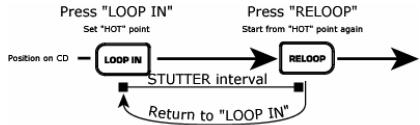
Loop In- is the point where you wish the loop to start. A loop is any area of a CD that you choose to repeat seamlessly. The initial "CUE" or "PLAY" point of the CD is by default the "Loop In" point. If you wish to set a new loop-in point, just press "Loop In" while the CD is playing when it reaches the desired point. The "Loop In" button will light indicating a new loop is set. The "Reloop/Stutter" button will also illuminate indicating a point has been set and is accessible for "Stutter". The unit will always remember a point until you set a new point or put in a new CD. The new point will be accessible until you remove the CD from the unit. If you change tracks and you previously set a "Loop In" on another track, pressing "Reloop" will jump to that point.
flowchart
graph LR
    A["Position on CD"] --> B["LOOP IN"]
    B --> C["STUTTER interval"]
    C --> D["RELOOP"]
    D --> E["Return to "LOOP IN""]
    E --> D
    style B fill:#f9f,stroke:#333
    style D fill:#ccf,stroke:#333
If you wish to change the loop-in point, just press "Loop In" again.
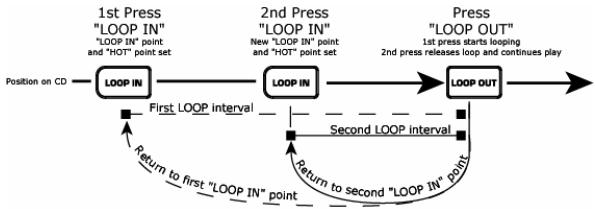
flowchart
graph LR
    A["1st Press "LOOP IN" point and "HOT" point set"] --> B["LOOP IN"]
    B --> C["2nd Press "LOOP IN" New "LOOP IN" point and "HOT" point set"]
    C --> D["LOOP OUT"]
    D --> E["Return to first "LOOP IN" point"]
    E --> F["First LOOP interval"]
    F --> G["Second LOOP interval"]
    G --> H["Return to second "LOOP IN" point"]
    H --> I["Loop OUT"]
    I --> J["Press "LOOP OUT" 1st press starts looping 2nd press releases loop and continues play"]
- Loop Out - sets the end point of the loop. The first time you press "Loop Out" while a CD is in play mode, the "Loop Out" button will turn on and flash while the song automatically returns to the "Loop In" point with no breaks and continues to play. When the song reaches the "Loop Out" point again, it jumps to the "Loop In" point and continues to repeat this action. You will notice the "Loop In" button will also be flashing during loop action. To release, or end the loop, press "Loop Out" a second time and play will continue forward when the song passes the previously set "Loop Out" point. The "Loop Out" button will be lit solid indicating that the loop is now in memory for "Reloop" purposes. The "Loop Out" point will be erased if "Loop In" is pressed or a new "Cue" point is set after the "Loop Out" point. This is important because without this point, "Reloop" will not be possible.
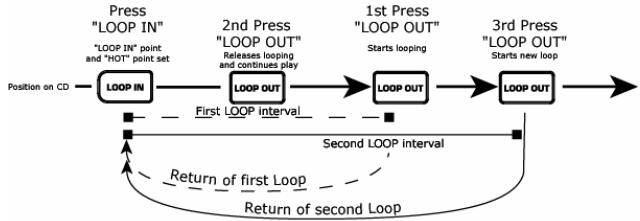
flowchart
graph LR
    A["Position on CD"] --> B["LOOP IN"]
    B --> C["LOOP OUT"]
    C --> D["LOOP OUT"]
    D --> E["LOOP OUT"]
    E --> F["3rd Press "LOOP OUT" Starts new loop"]
    F --> G["Return of second Loop"]
    G --> H["Second LOOP interval"]
    H --> I["First LOOP interval"]
    I --> J["2nd Press "LOOP OUT" Releases looping and continues play"]
    J --> K["1st Press "LOOP OUT" Starts looping"]
    K --> L["Press "LOOP IN" "LOOP IN" point and "HOT" point set"]
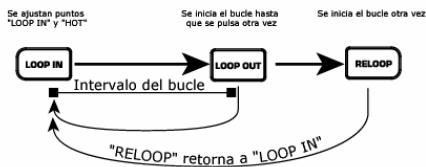
- Reloop/Stutter- repeats play "stutters" from the "Loop In" point. If a loop has been set, it plays and repeats a previously set loop, until it is released by "Loop Out".
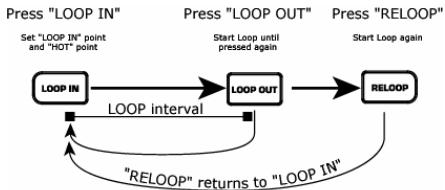
flowchart
graph TD
    A["LOOP IN"] --> B["LOOP OUT"]
    B --> C["RELDO"]
    C -->|LOOP interval| A
    B -->|Start Loop until pressed again| B
    C -->|Start Loop again| C
    D["RELOOP" returns to "LOOP IN"]
    D --> A
    style A fill:#f9f,stroke:#333
    style B fill:#ccf,stroke:#333
    style C fill:#cfc,stroke:#333
-
Smart Loop – makes the Beatkeeper and loop buttons work together to create loops synchronized to the beat. First, properly align the Beatkeeper ^™ to the beat. After this has been done, all loop points and stuttering will be synchronized perfectly to the beat of the music.
-
Trim – allows the loop-in and loop-out points to be adjusted. To adjust a point, press "Trim" followed by the button of the point you wish to adjust (LOOP IN, LOOP OUT, RELOOP), then rotate the "jog wheel".
-
When used with "Reloop" the unit will shift the entire loop by moving both the loop-in and loop-out points at the same time.
-
When used with "Smart Loop", the unit will adjust all points in 1-beat increments.
-
Shift (-, +) – adjusts the loop length by half length or double length increments. During "Smart Loop" this will be limited to a minimum of 1 beat.
-
Length LEDS – Shows the length of the loop based upon "the Beatkeeper" setting. The middle LED is 4 beats.
Effect Buttons 36-40 are used to activate the desired Effect. Holding an Effect button puts the Effect into a Hold or Alternate Effect mode. Once an effect is active, rotate the jog wheel to get the desired effect sound. The parameter value will show in the display. You can preset a desired value by holding the button and rotating the wheel.
-
Sonar – creates a metallic hollow effect to the audio. Pressing and holding this button will keep the sound from automatically returning to normal when movement stops. Tapping the button will turn the effect on and off at the desired setting.
-
Slide - smoothly changes the key of the music. In the key display you will see the key change as the wheel is moved. Pressing and holding this button will keep the sound from automatically returning to normal when movement stops. Tapping the button will turn the effect on and off at the desired setting.
-
Echo - adds echo to the music also based upon the Beatkeeper™. The start parameter is no echo "0". If you move the wheel to the right the numbers will go 1-64, 1-32, 1-16, 1-8, 1-4, 1-2, and 1-1 indicating the amount of echo added to the unit. If you move the wheel to the left you will create negative or preceding echo. This essentially plays the music before you get to it. At 1-1 the music will echo 1 full measure or 4 beats of music. If you turn off the effect then back on again it remembers the last set parameter. (Note: a preceding echo requires the unit to play from buffer memory. If the buffer becomes unavailable the effect will stop until but
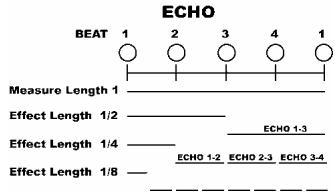
A.D. (hold the Echo button to activate)- stands for "Auto Decimation". It reduces the bit rate of the music, creating increasing distortion. To activate this effect, hold the "Echo" button for 2 seconds.
- Filter – is an isolation (bandpass) filter that lets you play only a specific frequency of the music. Rotation of the wheel moves the filter frequency. If you turn off the effect, then on again, it remembers the last set parameter.

KILL (hold the Filter button to activate)- This elimination (bandstop) filter lets you play all but a specified frequency. To activate, hold "Filter" for 2 seconds. Rotation of the wheel moves the filter frequency. If you turn off the effect, then on again, it remembers the last set parameter value.

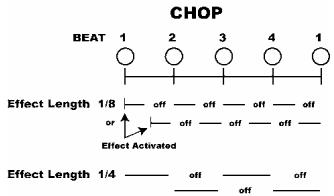
- Chop – breaks up the music by turning the volume on and off based upon the BPM of the Beatkeeper ^™ . This effect works best when the Beatkeeper ^™ is properly aligned. First activation of this effect plays 1/8th note or half of every beat. The BPM display will indicate "1-8", which means one measure (4
beats) of music has been broken into 8 parts. Rotation of the wheel to the left decreases the parts to 1-4, 1-2, and 1-1. At 1-1 the music plays for 4 beats then is silent. Rotating to the right breaks up the music into 1-16, 1-32, 1-64, then smaller increments, creating another interesting effect. When the effect is first activated, the music will play the section then turn off for a section. This is important because you can reverse the sections that are on and off by activating the effect in the other section. If you deactivate the effect, then turn it on again, it remembers the last set parameter value.
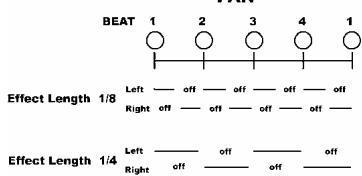
Pan (hold the Chop button to activate)- alternates playing right and left audio based upon the BPM of the Beatkeeper™. This effect works best when the PAN
Beatkeeper™ is properly aligned. To activate, hold "Chop" for 2 seconds. First activation of the effect alternates on 1/8th notes or half of every beat. The BPM display will indicate an "1-8", which means one measure (4 beats) of music has been broken into 8 parts. Rotation of the wheel to the left decreases the parts to 1-4, 1-2, and 1-1. Rotating to the right makes faster changes of 1-16, 1-32, 1-64, then smaller increments, creating another interesting effect. If you deactivate the effect then turn it on again, it remembers the last set parameter value.
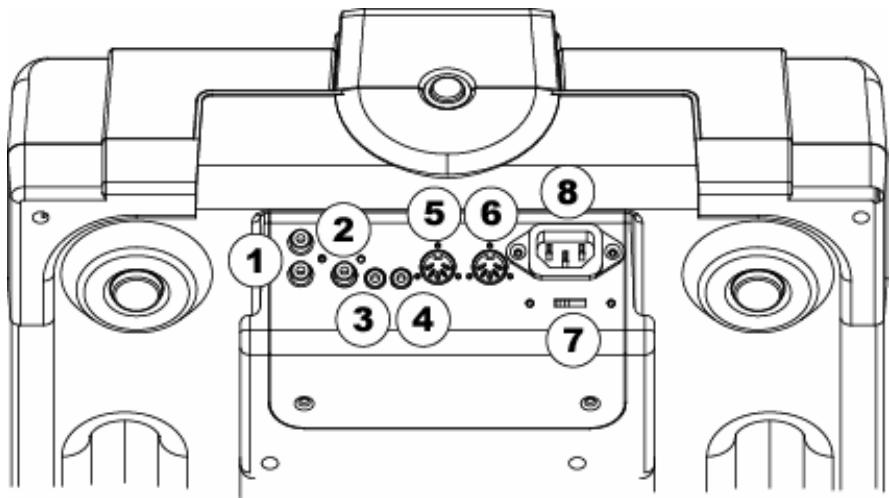
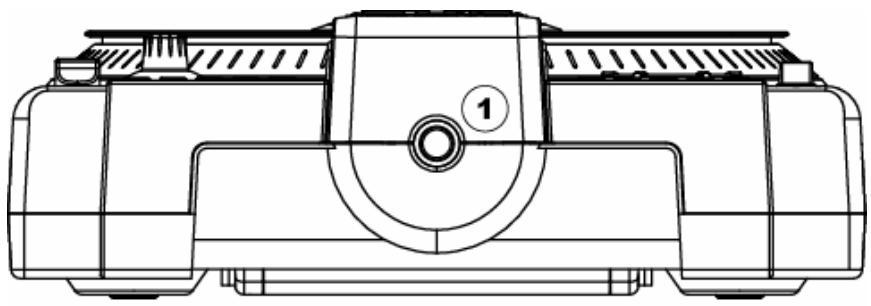
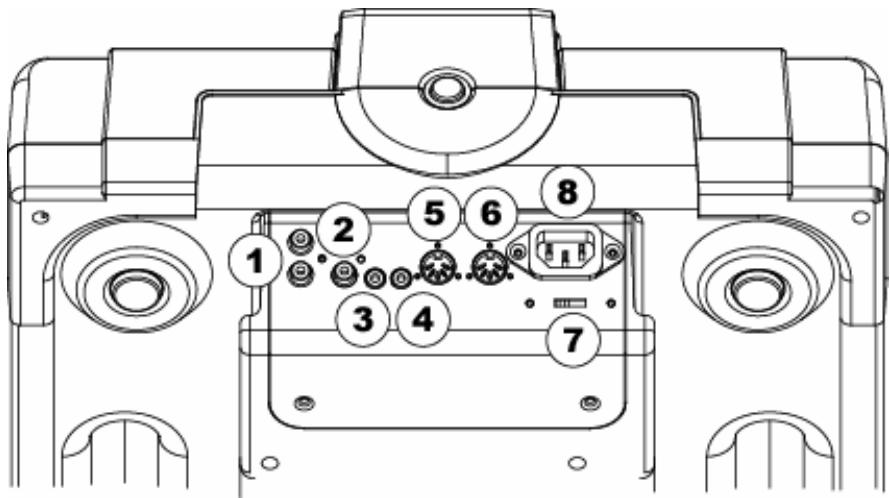
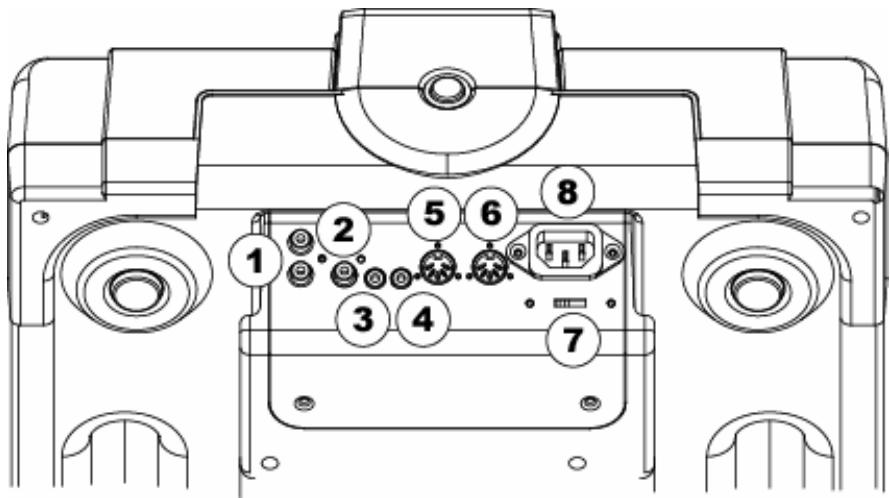
- RCA Audio Connectors - Connect your CD player to your mixer from this line level output.
- Digital Output - The format is Type 2, Form 1, also known as S/PDIF (Sony/Phillips Digital Interface Format). To active Digital Output Mode, use the Program Menu. This allows digital audio information to be sent.
- Relay Connector- If you wish to use the relay function, plug in your 3.5mm stereo control cables into here and then into your other CD player. The cable must have a stereo-style plug for the units to work properly
- Remote Start Connector – Use this connector to plug into your fader-start compatible mixer or remote switch. This function is always active.
a. To use this connector for fader-start, connect the supplied fader-start cable to a fader-start compatible mixer. Every time you move the crossfader on the mixer to the side that the unit is on, it will start playing. When you move the fader away from that side, the unit will stop. Moving the fader back will start playback again.
b. Foot switches can also be attached to this jack for creative mixing techniques and can be found in most music shops. Connector plugs are often 14 ", so a 1/8" adapter will be needed for connection. There are also two types of footswitches that will work with this connector. The first is a typical, on/off pushbutton switch and is generally used for switching channels on guitar amps. The second type is a momentary footswitch, which is usually used for keyboard sustain pedals.
-
MIDI IN Connector – This port is for receiving MIDI (Musical Instrument Digital Interface) signals from other MIDI devices such as CD players, keyboards, or drum machines.
-
MIDI OUT Connector – The port is for sending MIDI signals to other MIDI devices.
- Voltage Selector - Set this switch to the voltage for your location.
- IEC Power Plug Connector - Plug your supplied power cord in here.
flowchart
graph TD
    A["CDX"] --> B["MIXER"]
    B --> C["CDX"]
    D["Power"] --> E["MIDI"]
    F["MAQUINA DE BATERIA, COMPUTADORA"] --> G["HACIA DIGITAL"]
    H["TECLADO, COMPUTADORA (U OTRO)"] --> I["HACIA LINEA"]
    J["GRABADOR DE CD, MEZCLADOR DIGITAL (U OTRO)"] --> K["Relay"]
    L["DESDE FADER START"] --> M["HACIA LINEA"]
    N["DESDE FADER START"] --> O["HACIA LINEA"]
    P["Power"] --> Q["POWER"]
natural_image
Technical line drawing of a mechanical component with no visible text or symbols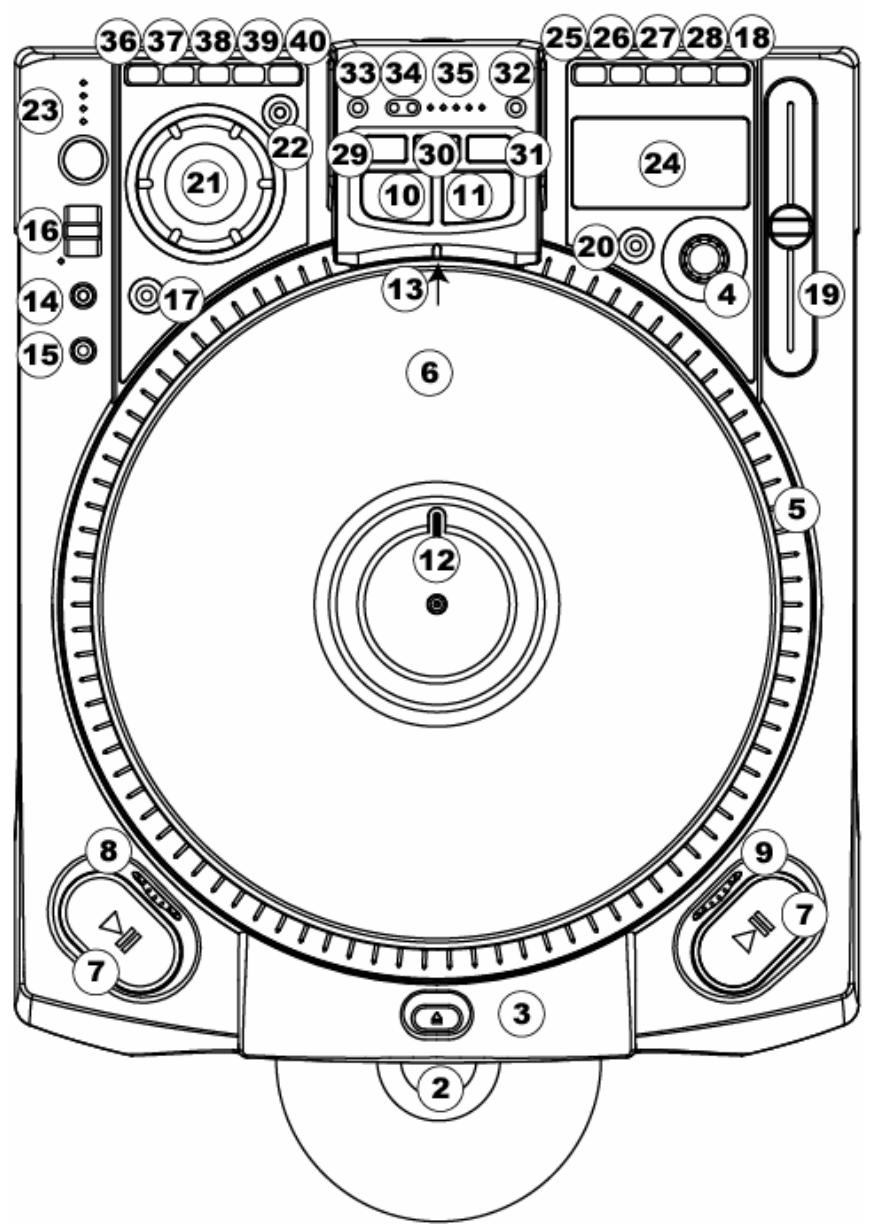
Pulse "LOOP IN" Pulse "LOOP OUT" Pulse "RELOOP"
flowchart
graph TD
    A["LOOP IN"] --> B["LOOP OUT"]
    B --> C["RELOOP"]
    C -->|“RELOOP” retorna a “LOOP IN”| A
    B -->|Intervalo del bucle| A
    style A fill:#f9f,stroke:#333
    style B fill:#ccf,stroke:#333
    style C fill:#cfc,stroke:#333
natural_image
Technical line drawing of a mechanical component with no visible text or symbols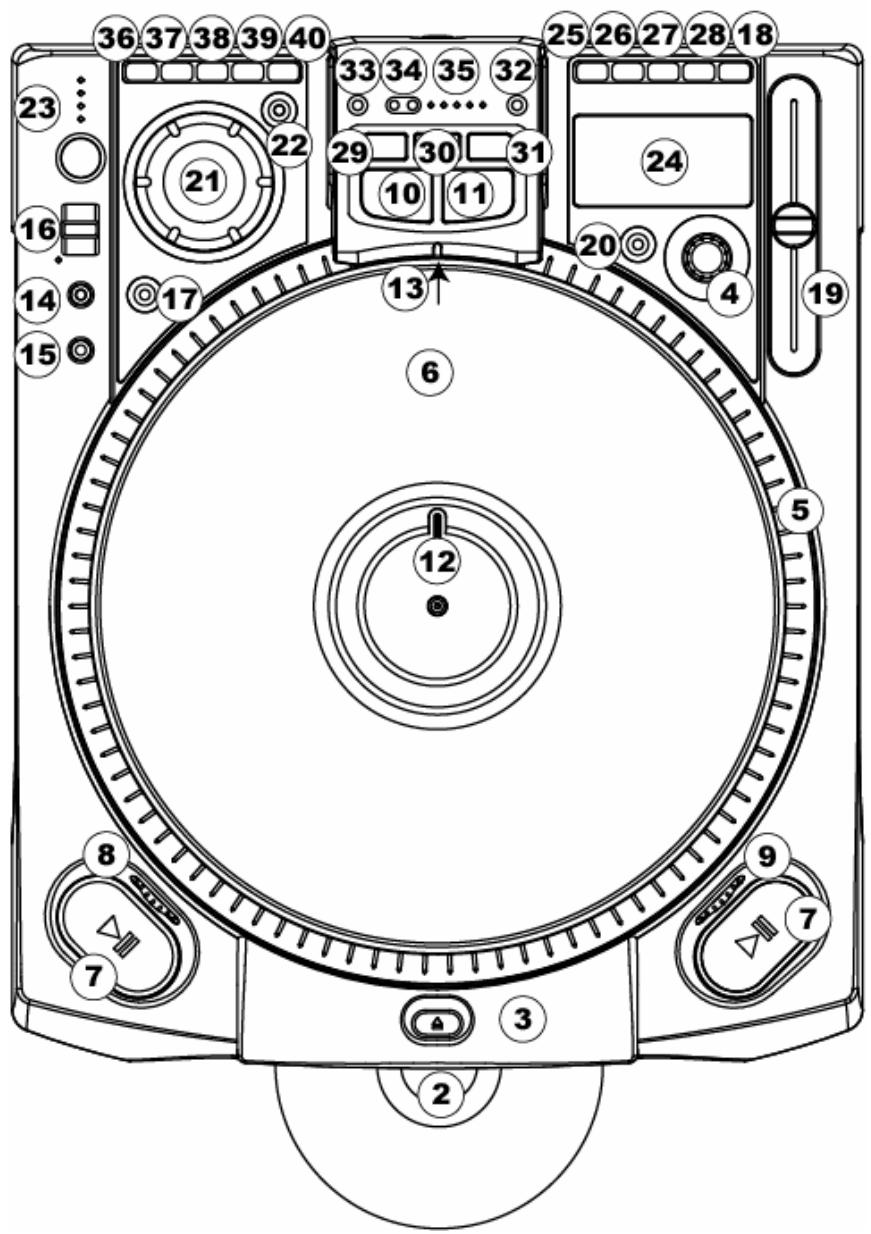
natural_image
Technical line drawing of a mechanical component with no visible text or symbols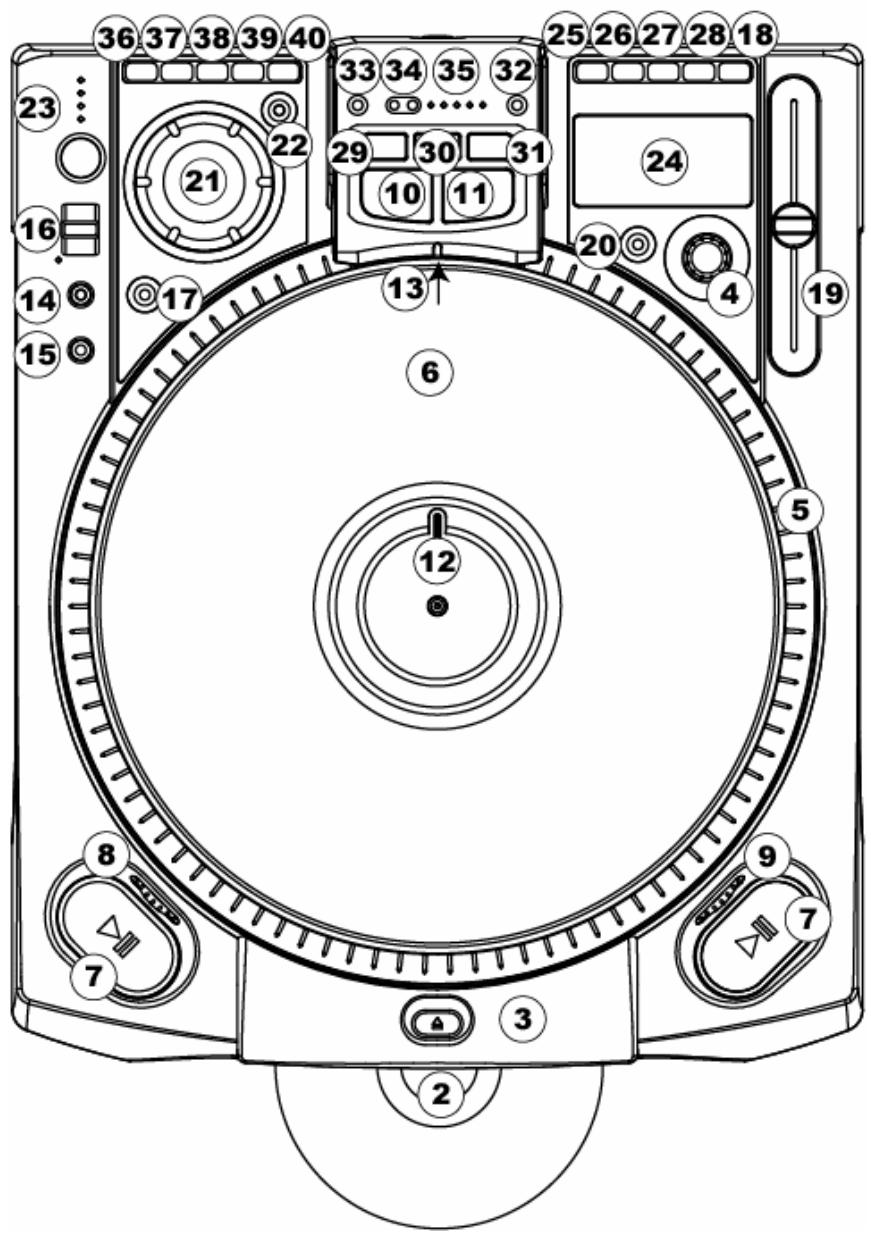
natural_image
Technical line drawing of a mechanical component with no visible text or symbols
| TYPE: | Internal transformer with voltage selector switch |
| CONNECTOR: | Standard IEC |
| VOLTAGE: | AC 115V/230V ~ 50-60Hz |
CD PLAYER
| TYPE: | Removable slot-load |
| MEDIA: | CD, CD-R, CD-RW, MP3 CD |
| QUANTIZATION: | 1-bit linear/channel, 3 beam laser |
| OVERSAMPLING: | 8 times |
AUDIO
| ANALOG OUTPUT: | 1.3V RMS+/- 0.2V |
| DISTORTION: | Less than 0.03% |
| SNR: | More than 85dB |
| SEPARATION: | More than 70dB |
| FREQUENCY RESPONSE: | 20-20kHz +/- 2dB |
| DIGITAL OUTPUT: | Type 2, form 1, S/PDIF |
PHYSICAL
| DIMENSIONS: | 14.5" by 17.75" by 5.25" (368mm by 450mm by 130mm) |
| WEIGHT: | 22.0 lbs (10kg) |
Specifications are subject to change due to ongoing improvements.