
DUW1608ARR0407A - DVD Player AOPEN - Free user manual and instructions
Find the device manual for free DUW1608ARR0407A AOPEN in PDF.


| Product Type | Internal DVD Burner |
| Brand | AOPEN |
| Model | DUW1608ARR0407A |
| DVD+R Write Speed | 16x |
| DVD-R Write Speed | 8x |
| DVD+RW Write Speed | 4x |
| DVD-RW Write Speed | 4x |
| CD-R Write Speed | 48x |
| CD-RW Write Speed | 32x |
| DVD Read Speed | 16x |
| CD Read Speed | 40x |
| Maximum Media Capacity | 8.5 GB (DVD+R Double Layer) |
| Interface | E-IDE (UDMA Mode 4, 66 MB/s) |
| Included Software | Nero 6 OEM Suite, PowerDVD 5 |
| Supported Formats | CD-DA, CD-ROM, CD-Extra, CD-ROM XA, Photo CD, CD-I, CD+G, CD-Text, DVD+RW/+R, DVD-RW/-R, DVD-ROM, DVD-Video |
| Anti-Error Technology | JustLink, JustSpeed, Running Optimum Power Control (ROPC) |
| Vibration Reduction System | Auto Balance System (ABS), Dynamic Damping System (DDS) |
| Dimensions (W x H x D) | 148 x 42 x 170 mm (approx.) |
| Weight | 0.9 kg (approx.) |
| Power Supply | DC +5V / +12V |
| Laser Type | Class 1 (laser product) |
| Cleaning | Use compressed air; avoid solvents |
| DVD Region Code | RPC2, changeable up to 5 times |
| Jumper Configuration | Master / Slave / CSEL |
Frequently Asked Questions - DUW1608ARR0407A AOPEN
User questions about DUW1608ARR0407A AOPEN
0 question about this device. Answer the ones you know or ask your own.
Ask a new question about this device
Download the instructions for your DVD Player in PDF format for free! Find your manual DUW1608ARR0407A - AOPEN and take your electronic device back in hand. On this page are published all the documents necessary for the use of your device. DUW1608ARR0407A by AOPEN.
USER MANUAL DUW1608ARR0407A AOPEN
© Copyright 2004. All rights reserved. No part of this publication may be reproduced, transmitted, transcribed, stored in a retrieval system, or translated into any language or computer language, in any form or by any means, electronic, mechanical, magnetic, optical, chemical, manual or otherwise, without the prior written permission of our company. All brand and product names are trademarks and/or registered trademarks of their respective holders.
Disclaimer
We make no representations or warranties, either expressed or implied, with respect to the contents hereof and specifically disclaims any warranties, merchantability or fitness for any particular purpose. Any software described in this manual is sold or licensed "as is". Should the programs prove defective following their purchase, the buyer (and not our company., its distributor, or its dealer) assumes the entire cost of all necessary servicing, repair, and any incidental or consequential damages resulting from any defect in the software. Further, we reserve the right to revise this publication and to make changes from time to time in the contents hereof without obligation to notify any person of such revision or changes.
Federal Communications Commission (FCC) Statement
This equipment has been tested and found to comply with the limits for a class B device, pursuant to part 15 of the FCC rules. These limits are designed to provide reasonable protection against harmful interference in residential installation. This equipment generates, uses, and can radiate radio frequency energy and, if not installed and used in accordance with the instructions may cause harmful interference to radio communications. However, there is no guarantee that interference will not occur in a particular installation. If this equipment does cause harmful interference to radio or television reception, which can be determined by turning equipment off and on, the user is encouraged to try to correct the interference by one or more of the following measures:
• Reorient or relocate the receiving antenna.
- Increase the separation between the equipment and receiver.
- Connect the equipment into an outlet on a circuit different from that to which the receiver is connected.
- Consult the dealer or an experienced radio / TV technician help.
FCC Warning
Changes or modification not expressly approved by the party responsible for compliance could void the user's authority to operate the equipment.
Table of Contents
1. Use Precautions....1
Warning for Safety....1
Warning as to Use....5
2. Introduction......6
Overview 6
Features 7
Format Compatibility....8
Type of Writing Mode 9
Disc-At-Once....9
Track-At-Once 9
Session-At-Once 9
Multi-session....9
Packet Write....9
3. Hardware Installation ......10
System Requirements ....10
Hardware Instruction 11
3.2.1 Front Panel.... 11
3.2.2 Rear Panel 13
Installing the 16x DVD Dual drive....15
Required Tools 15
Installation Procedure 15
DVD Region Coding 20
Supported DVD±RW/±R, CD-R and CD-RW Media....21
Supported Media....21
The handling of DVD±RW/±R, CD-R and CD-RW Discs 22
4. Software Installation......23
Before You Start....23
Installing Software 23
Installing Nero 6 OEM Suite....23
Installing PowerDVD 5 25
5. The Latest Features......27
Auto Balance System (ABS): 27
Dynamic Damping System (DDS): 27
Noise Control System (NCS):......28
Buffer underrun Prevention (JustLink):......28
Writing Speed Control (JustSpeed): 29
Running Optimum Power Control (ROPC): 29
Perfect Compatibility with blank media....29
Chameleon Bezel 30
Double Layer 30
Universal Bezel 30
6. Technical Support ....31
Firmware Upgrade....31
Troubleshooting....31
Appendix A. Glossary 34
Appendix B. Frequently Asked Question (FAQ) 37
1. Use Precautions
These precautions explain how to use the device correctly and safely, thereby preventing injury to you or to others. This section relates to your personal safety, and also helps you minimize the risk of damaging the device. Please read carefully before proceeding.
Warning for Safety
When you use this 16x DVD Dual, please pay heed to the following
| At the time of installation: As suggested in your specifications please do not install in an unstable position or in one that vibrates. | 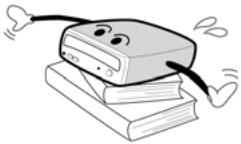 |
| Do not install in high humidity, direct sunlight, or damp conditions. | 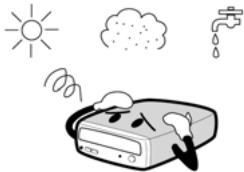 |
| Do not use near magnetic fields, or place near a television or a radio signal as the performance of the device may be affected. | 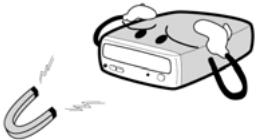 |
| Do not open to try to repair as the laser may be harmful. | 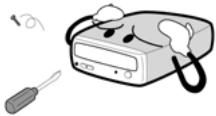 |
- Read these instructions carefully. Save these instructions for future reference.
• Follow all warnings and instructions marked on the product.
• Do not use this product near water. - This product should be operated from the type of power indicated on the marking label. If you are not sure of the type of power available, consult your dealer or local power company.
- Never push objects of any kind into this product through cabinet slots as they may touch dangerous voltage points or short out parts that could result in a fire or electric shock. Never spill liquid of any kind on the product.
- Do not attempt to service this product yourself, as opening or removing covers may expose you to dangerous voltage points or other risks. Refer all servicing to qualified service personnel.
- Do not move from a cool environment to a warm one, as this will abruptly change the temperature of the device
- When moving the device, remove any disc from the device because any harm caused to the disc may result in data loss.
- Prevent liquids or metals from entering the device. If this situation should occur please contact your reseller for advice.
- Do not use any evaporating solvents to clean the device. If a spray solvent does happen to spray on the device please use a cloth to wipe it clean, or use a neutral cleaner to dilute the solvent and wipe the device clean.
- When the device is reading/writing please do not interrupt power supply.
- Do not place damaged discs inside the device. In the winter do not use discs brought in from outside immediately but wait until they have reached room temperature.
- Unplug this product and refer servicing to qualified service personnel under the following conditions:
a. When the power cord or plug is damaged or frayed
b. If liquid has been spilled into the product
c. If the product has been exposed to rain or water
d. If the product does not operate normally when the operating instructions are followed. Adjust only those controls that are covered by the operating instructions since improper adjustment of other controls may result in damage and will often require extensive work by a qualified technician to restore the product to normal condition.
e. If the product has been dropped or the cabinet has been damaged
f. If the product exhibits a distinct change in performance, indicating a need for service.
When installing the IDE device please pay attention to these following details:
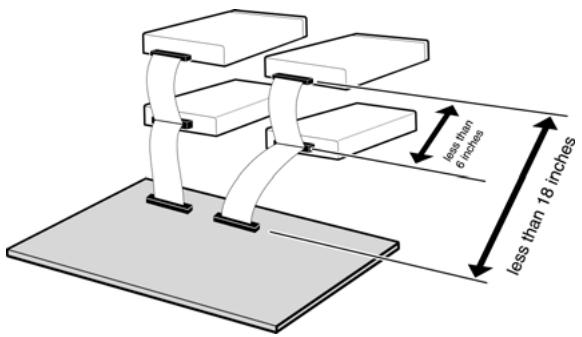
- Keep the IDE cable within 6 inches in length (15 cm).
• Before connecting the IDE cable, please make sure the power supply is off.
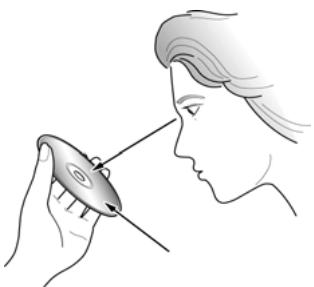
When cleaning CD / DVD disc, please note:
- Press the eject button to remove the disc
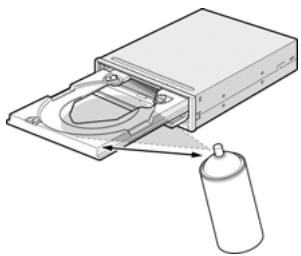
- Use compressed air to rid dust from the disc (spray with compressed air for about five seconds)
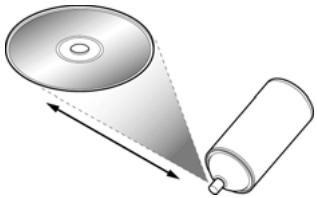
natural_image
Diagram showing a CD emitting a droplet onto a cylindrical object (no text or symbols present)- When checking for dust, please make sure that your hands do not touch the surface of the disc.
natural_image
Line drawing of a person applying makeup to their forehead (no text or symbols)Other points to pay attention to:
When moving the drive, please make sure that the disc has already been ejected.
- If you have not used the drive for some time, there will be dust collected on the cover and in the tray. Before using the drive spray with compressed air to clean it of dust.
natural_image
Diagram of a mechanical device with a container and a spray bottle, showing no text or symbols.- Before connecting all cables and wires, please make sure the power supply is off otherwise this may cause a short circuit.
Warning as to Use
This 16x DVD Dual drive together with software is a product for utilizing 16x DVD Dual recording media with rewriting, erasing and readout capabilities, as an internal computer memory device. Except in the case where copying of CD-ROMs/DVD-ROMs or the like is especially recognized under the copyrights laws as being for the purpose of individual use by the customer or the like, or in the case where the customer has obtained permission to make copies from the right holder, reproduction of CD-ROMs/DVD-ROMs and copyright laws. Take notice that unauthorized copying may be subject to claims for damages and to penalties.
DANGER
INVISIBLE / VISIBLE RADIATION WHEN OPEN. AVOID EXPOSURE TO BEAM.
2. Introduction
Overview
Thank you for purchasing this 16x DVD Dual drive. In this manual, we will explain how to install your 16x DVD Dual drive correctly. Please read this manual carefully before using the drive.
High Speed
This 16x DVD Dual drive offers unprecedented performance to handle today's demands by reading DVD's at up to 16x speed and writing DVD+R(Single Layer) discs at 16x speed. This product writes a DVD+R 4.7 GB disc in about 6 minutes. Beside, this product writes CD-R or CD-RW discs at fast 48x / 32x speed. To read CD's up to 40x speed.
High Reliability
An improved anti-heat design and the OPC design boost recording reliability. Optimum Power Control continually monitors signal levels during recording and adjusts laser power to compensate for a dirty disc. This feature ensures a flat signal, significantly enhancing reliability.
High Compatibility
This product supports all major CD / DVD formats, offering full backward-compatibility through the huge installed base of CD-ROM/DVD-ROM drives and media. What's more, reordered DVD±RW/±R media can be played in a DVD player with multi-read feature, maintaining future compatibility.
Features
• 8.5GB DVD+R DL (Double Layer) capacity
• UDMA Mode 4 (66MB/sec)
• 16x DVD+R writing speed
• Legacy DVD-ROM and DVD Player can play DVD±RW/±R disc
- Can read not only CD-R, CD-RW and DVD±RW/±R discs, but also video CDs, music CDs, photo CDs, and CD-Text
• JustLink technology prevents buffer underrun.
• JustSpeed technology for adaptive writing speeds.
- Excellent media compatibility: The firmware of 16x DVD Dual drive has tuned up to the best compatibility.
• Running Optimum Power Control (ROPC) boosts recording reliability
- Versatile writing mode
• Disc breakage protection mechanism
• Extensive software bundled
• Emergency disk unload
• Automatic Tilt Calibration System (ATCS) for warped disc.
• Dynamic Damping System (DDS) to reduce vibration/noise
• An improved anti-heat design means that no cooling fan is needed.
- Compliant with Orange Book Part II (CD-R) and Part III, Volume 2 V1.0 (CD-RW)
• Back panel included analog audio output and digital audio output
Format Compatibility
This 16x DVD Dual drive is compatible with the following formats:
"Read" means Data Transfer; "Play" means Audio Play back.
| FORMAT | Write | Read | Play*1 |
| CD-DA | √ | √ | √ |
| CD-ROM | √ | √ | |
| CD-Extra | √ | √ | √ |
| CD-ROM XA | √ | √ | |
| Photo CD*2 | √ | √ | |
| CD-I*2 | √ | √ | |
| CD+G | √ | ||
| CD-Text | √ | √ | |
| DVD+RW/+R | √ | √ | |
| DVD-RW/-R | √ | √ | |
| DVD-ROM*3 | √ | ||
| DVD-Video | √ |
*1 Play means audio play back. Read means data transfer.
*2 CD-I, Photo-CD requires special reader/player. Photo-CD writing requires Kodak license.
*3 Theoretically allows if disc being read is compatible with DVD-ROM Not recommended and unwarranted by us be recorded onto a disk, it is called “Disc-At-Once”.
Type of Writing Mode
Disc-At-Once
When only a single recording session (lead in/data/lead out) is to be recorded onto a disk, it is called “Disc-At-Once”.
When using Disc-At-Once, no additional data can be recorded onto the disc, even if there is available capacity.
The advantage of this method recording is that it enables creation of discs that can be played back on almost any CD player or CD-ROM drive, because there are no links inserted between the data tracks.
Track-At-Once
When many sessions are to be recorded onto a disc, it is called “Track-At-Once”. If there is space available on the disc, additional data can be recorded onto it.
The advantages of this method include being able to record additional sessions onto a disc, and using a CD-ROM of backup data. (Refer to “Multi-session”.)
Session-At-Once
A "Session-at-Once" recording almost corresponds to a "Disc-at-Once recording", i.e. all data ("Lead-in", data area and "Lead-out" are written in one go.
The only difference is that the CD is not "finished", i.e. after a "Session-at-Once" recording you still have the possibility to write a further "Session" on the CD at a later date.
Multi-session
The recording of lead-in/data/lead-out is referred to as one session. The Disc-At-Once method is also referred to as “Single Session”, because the disc is only recorded once. A disc that has had multiple additional session recorded onto it using the Track-At-Once method is called “Multi-session”.
Packet Write
The Packet Write recording method was developed. It differs from Track-At-Once or Disc-At-Once in that data is recorded in small fixed sectors of 64k bytes, known as packets.
The advantages of this method are elimination in overhead per session and the elimination of buffer under run errors. This method, however, cannot be utilized for audio data. A number of formats, such as UDF and CD-R FS, can be used when recording using the Packet Write method.
*
3. Hardware Installation
The installation of this product is fast and easy. Please follow these instructions described below:
System Requirements
A PC system with the following features is highly recommended for ensuring a stable 16x DVD Dual performance.
| System requirements | CPU | We suggest using a Pentium!!! 450MHz or above (JustLink in use) |
| Memory | 64MB or above | |
| Operating systems | Windows 98SE, Windows 2000, WindowsXP, Windows Me, | |
| Interface | Compatible with Enhanced IDE, and Blank Primary Slave, Secondary Master, and Secondary Slave | |
| Hard disc | Average saving time is 19ms or lower, max data transfer speed is 33.3MB/sec; disc space 500MB or over | |
| Voltage | +12V or +5V voltage switches | |
*CD-RW discs: perhaps are unable to be read in the CD-ROM. If this situation comes about it is likely that your CD-ROM is not compatible with multi-read please change to a Multi-read compatible CD-ROM or use your 16x DVD Dual.
*All Multi-read CD-ROM devices have the following features
(1) CD-ROM is able to read data created by optical heads
(2) CD-ROM will support the UDF specification (Packet Writing)
Hardware Instruction
3.2.1 Front Panel
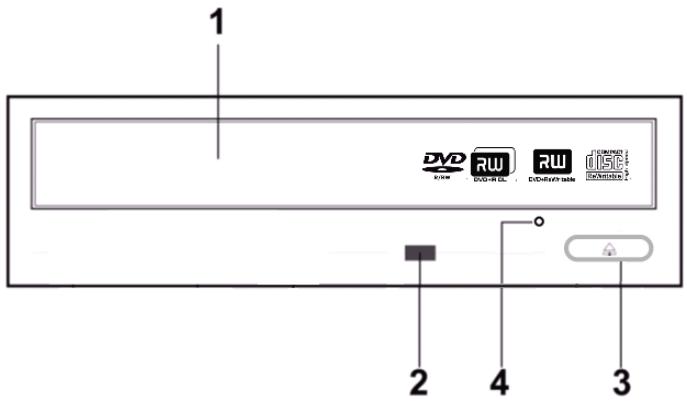
- Disc Tray
- Indicator
- Eject Button
- Emergency Eject Hole

Don't use force to pull out or push in the disc tray. This might cause damage to the loading section of the drive.
| Name | Features |
| Disc Tray | This tray is for loading the CD disc. It will accept 120mm and 80mm discs. Please place the disc in the exact center of the tray |
| Indicator | When a disc has been ejected or is being saved the display light will shine. When a disc is being burnt, or a disc cannot be saved the display light will go out. When a disc is unable to be read, or the device is being repaired the display light will flash. |
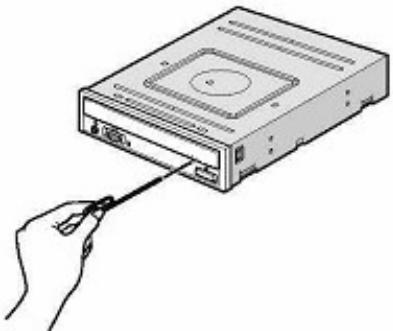
| Emergency Eject Hole | When the power supply has been interrupted or it is impossible to eject a disc please use a pin to press the emergency eject hole so that the tray will eject the disc. |
| Eject Button | Pressing this controls the insertion and ejection of the tray. |
Emergency Eject Hole
natural_image
Illustration of a hand inserting a USB into a CD drive into a compact drive (no text or symbols visible)
This function is only for emergency case. Do not use this function in usual case to prevent from mechanical damage.
3.2.2 Rear Panel
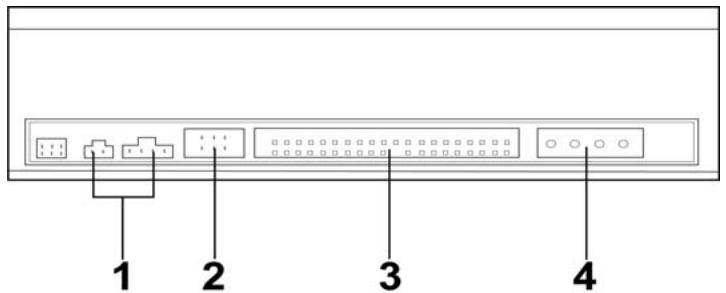
- Audio Output Connector
- Device Configuration Jumper
- IDE Connector
- Power Connector
| Name | Features |
| Audio Output Connector | Is able to be connected to a sound card audio input and can use a sound card to listen to a CD music |
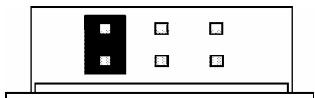
| Device Configuration Jumper | Used when selecting the device configuration of E-IDE. Don’t use jumpers to change anything besides the device configuration. Configuration changes become valid after power is turned off, then on again. The device configuration jumper will be set to Master as factory default setting |
| E-IDE Connector | Use a two-headed 40pin IDE cable and an IDE connector head. Before connecting please switch off the power supply |
| Power Connector | Connect DC 5V/12V to the power connector |

Be careful not to reverse the power connector when attaching it. A reversed connection may cause damage to the equipment (not covered by the warranty)

Connecting or disconnecting E-IDE connectors while power is on may result in a short circuit, causing damage to the equipment. When connecting or disconnecting connectors, make sure to turn off the power beforehand.
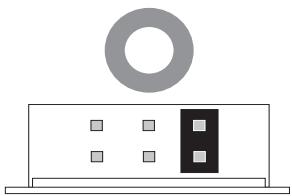
There is another very important thing to take care of before the installation of the 16x DVD Dual drive is setting the master/slave jumpers. Please examine the panel at the rear of the machine in order to set the master/slave jumpers.
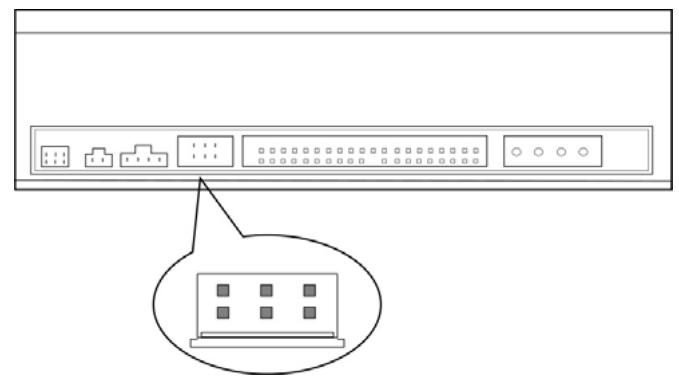
natural_image
Front view of a server rack with multiple ports and indicator lights, showing a magnified inset of the front panel (no text or symbols)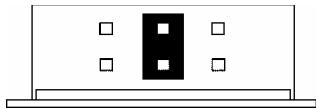
natural_image
Simple line drawing of a rectangular box with four small squares on top and a central black rectangle (no text or symbols)SLAVE
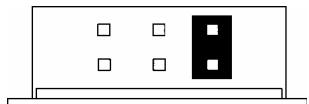
natural_image
Simple diagram with four white squares and one black rectangle on a horizontal line (no text or symbols)MASTER
natural_image
Simple line drawing of a rectangular box with a black rectangle and six small squares inside, no text or symbols present.USE CSEL

Please do not use USE
CSEL setting
natural_image
Simple diagram with a large gray ring above a rectangular block with four small squares and one black rectangle (no text or symbols)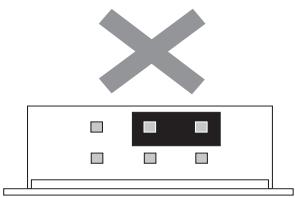
natural_image
Simple line drawing of a device with a cross symbol above it and a black box on the screen (no text or symbols)
Before plugging in the jumpers please make sure you have switched off the power supply of both the 16x DVD Dual and the computer.

Please make sure the jumpers are inserted as displayed in the diagram otherwise you may cause irreparable damage to your 16x DVD Dual device

Note: Installing jumper pins besides the ones for device configuration settings may be the cause of damage or abnormal drive operation.
Installing the 16x DVD Dual drive
Firstly, power off your computer and all peripheral devices. Unplug the computer's power cord from wall outlet or from the power strip.
Required Tools
• A medium-size screwdriver
• A long-nosed pliers
- Your computer system or motherboard manual (to locate your computer system's IDE controller).
Installation Procedure

The discharge of static electricity can damage electronic circuitry. You can avoid static discharge by touching a grounded metal object, like your computer case, before and during installation of hardware inside your computer.
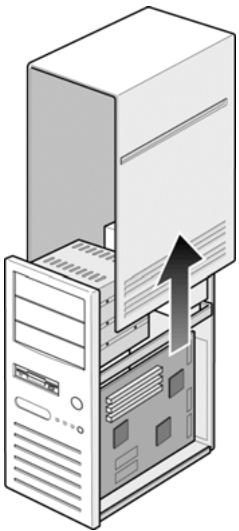
- Remove the housing or casing of your computer. Be careful of any sharp edges, which might be hidden inside your computer.
natural_image
Illustration of a server tower with an upward arrow indicating file transfer or loading (no text or symbols present)- If there is not any other CD-ROM drive installed in your system.
We recommend installing the 16x DVD Dual in the Secondary IDE port. It is unnecessary to adjust any other jumpers on the 16x DVD Dual. Proceed to step 4 for further installation.
- If a CD-ROM drive is already installed in your system.

We recommend that you install the CD-ROM on the Secondary IDE channel as the master device (MA), and the 16x DVD Dual on the Secondary IDE channel as the slave device (SL). Please follow the steps below to fulfill this arrangement.
- First make sure that your Secondary IDE cable has two ports available for two IDE devices. If not, ask your main board vendor or purchase one from computer hardware stores.
- If the CD-ROM drive was installed in the Primary IDE channel, disconnect it from the Primary IDE cable.
- Adjust the Device Configuration Jumper of the CD-ROM drive to "Master" (MA) position.
-
Adjust the Device Configuration Jumper of the 16x DVD Dual to "Slave" (SL) position.
-
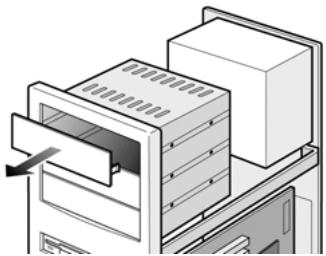
First remove the 5.25-inch panel. Further detail of how to remove this can be found in your computer manual.
natural_image
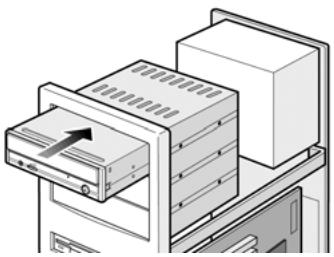
Illustration of a computer tower with an open storage unit and a file slot (no text or symbols visible)- Place the 16x DVD Dual into the slot. Do not force it in any further than need be due to the connector cables.
natural_image
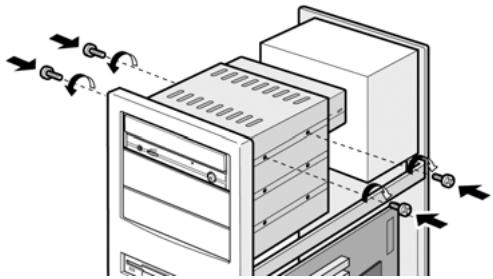
Illustration of a file storage or filing process with a rack, stack of boxes, and an arrow indicating direction (no text or symbols present)- Use four provided screws (size: M3x0.5x4mm) to secure the drive into the half-height bay. The screws electronically ground the drive.
natural_image
Diagram of a server rack with ventilation ducts and scroll arrows indicating airflow direction (no text or symbols)
This 16x DVD Dual drive can be horizontally/vertically installed and operated.
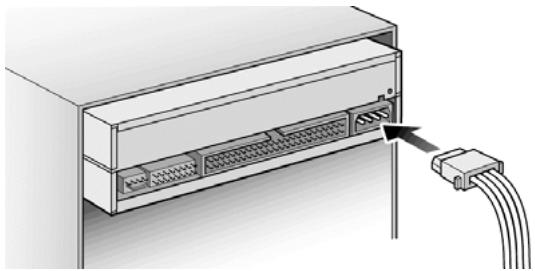
- Locate your computer's power supply and find an unused power cable connector. If you do not have an available power connector, you'll need to purchase a Y-power cable splitter that expands one power connector into two. You may purchase it from your local vendor.
natural_image
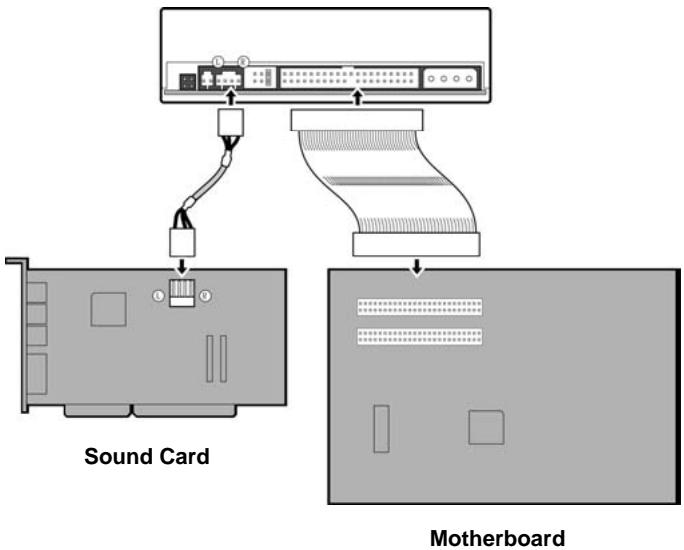
Diagram of an electronic device showing a cable connector inserted into a rack with multiple ports (no text or symbols visible)- From your main board, find out the 40-pin Secondary IDE interface cable. Then connect them to your 16x DVD Dual. And attach the audio cable if necessary. If you had another CD-ROM drive with audio cable attached, it is not necessary to attach audio cable for your 16x DVD Dual.
flowchart
graph TD
    A["Sound Card"] --> B["User"]
    B --> C["Computer"]
    D["Motherboard"] --> E["Computer"]
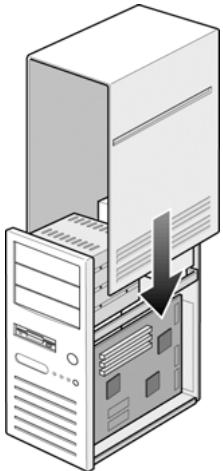
- Put your computer cover back on. Be careful of any sharp edges, which might be hidden inside your computer.
natural_image
Illustration of a desktop computer tower with an open file and a download arrow indicating compression (no text or symbols present)- Plug in your computer power cord, and turn on the computer.
DVD Region Coding
Region Playback Control Management
All DVD Video Playback systems have “Region Playback Control” management (PRC) which is required by Hollywood movie industry and defined by DVD Forum. This includes DVD-Video players and PC systems with DVD-Video capability. You can only play DVD-Video discs with the same region codes as your DVD-Video Playback system.
As for DVD-ROM drives, one kind of the DVD-Video Playback system, there are 2 types:
RPC Phase 1 (as RPC1):
RPC1 drives do not have built-in hardware support for region management. DVD-ROM drives of this kind don't play a part in controlling the playback region. It solely depends on the decoder.
RPC Phase 2 (as RPC2):
RPC2 drives maintain the region change count information in hardware, and in general, the region of such drives can be changed up to 5 times by the end users under some software decoder (e.g. PowerDVD)
And referring to the region codes, there are 6 regions worldwide, and normally, there is a region code mark on the package of DVD titles.
Region 1: Canada, US
Region 2: Japan, Europe, South Africa, and Middle East (including Egypt)
Region 3: Southeast Asia and East Asia (including Hong Kong)
Region 4: Australia, New Zealand, Pacific Islands, Central America, Mexico, South America, and the Caribbean
Region 5: Eastern Europe, Indian subcontinent, Africa, North Korea, and Mongolia
Region 6: China
About This 16X DVD Dual Drive
This 16x DVD Dual drive is a RPC2 drive and according to DVD-Forum, PC chip must be designed into DVD-ROM drives to record how many times a user has changed the region code. Once the limit of 5 changes is reached, the drive won't allow you to change the region code anymore. It means the code will be locked and only those DVD titles of the same region code could be played afterwards, so set the code carefully.
Supported DVD±RW/±R, CD-R and CD-RW Media
Supported Media
This drive can write to blank media that carry the following logos:
 | DVD+R Double Layer mediaThis 16x DVD Writes at 2.4x on Double Layer 8.5 GB DVD+R. |
 | DVD-R/-RW mediaThis 16 x DVD Dual drive can write DVD-R /-RW media at 8x/4x speed. These discs can be read / played by DVD-ROM drive or DVD player that bears this logo. |
 | DVD+R mediaThis 16x DVD Dual drive can writing DVD+R (Single Layer) disc at 16x speed. These discs can be read / played by DVD-ROM drive or DVD player that bears the DVD+R logo. |
 | DVD+RW mediaThis 16x DVD Dual drive can writing/re-writing DVD+RW disc at 4x speed. These discs can be read / played by DVD-ROM drive or DVD player that bears the DVD+RW logo. |
 | CD-R mediaThis 16x DVD Dual drive can write to these discs up to 48x speed. These discs can be played back in a CD-ROM drive or a CD player. |
 | High Speed CD-RW mediaThis 16x DVD Dual drive can write/re-write these discs up to 32x speed. These discs can be read / played by a CD-RW drive that bears the High Speed CD-RW logo. |
The handling of DVD±RW/±R, CD-R and CD-RW Discs
Please read the following regarding the handling of DVD±RW/±R, CD-R and CD-RW discs.
- Do not expose the discs to excessive heat such as in direct sunlight or near a heater. Also avoid keeping them in a humid place.
- Do not touch disc surfaces. When handling a disc, hold it by its edges.
- Remove dust and dirt from disc surfaces. Use air-based dust removers. The surfaces may be scratched if wiped with a dry cloth.
• Do not stick labels on disc surfaces. - Do not write on disc surfaces except where indicated.
• Do not clean discs with chemicals or detergents.
• Do not bend or drop discs
4. Software Installation
Before You Start
Please understand that CD & DVD recording are non-interruptible process. Therefore, a stable recording environment is a must. If you have a HDD set up only for CD or DVD recording purpose, the recording process shall be smooth.
However, if an extra HDD is not available, you might prefer carrying out the following steps to optimize your Windows2000/XP/ME/98SE/98 CD/DVD recording arrangement:
- Close all resident programs that include Anti-Virus, Screen Saver, System Agent, Power Management, etc. Turn off Auto Insert Notification. Further, maximizing and minimizing windows are not recommended either. If not, any operation of these applications will intrude the CD/DVD recording process and damage your disk.
- Defrag your HDD before any CD/DVD recording. This is particularly important. When you write files to CD/DVD+RW from HDD. Defragmentation of HDD reallocates all the files so that these relevant files are placed in the nearby clusters. This saves time and risks when CD/DVD burning software is trying to search for the files you want to record on CD or DVD.
Installing Software
After installing your new 16x DVD Dual drive, you need to install the appropriate applications from the bundled software CDs. Specifications of the supplied software may be changed without notice in the interest in product improvement.
Installing Nero 6 OEM Suite
- Insert the Nero 6 OEM Suite into your 16x DVD Dual. If Auto run is enabled on your system, the installation window appears automatically.
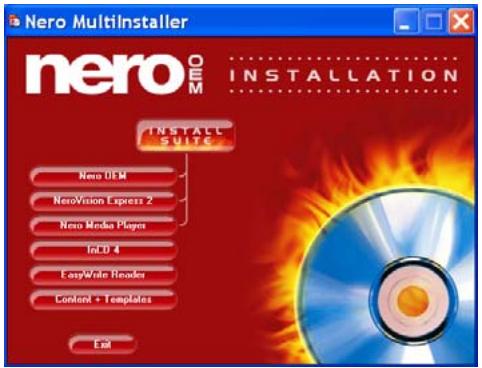
- If the program does not automatically start, then on the [Nero 6 OEM Suite] in the main directory select [setup.exe] in the Start menu under [Run/Browse]. Then click on [OK] - or select the DVD Dual drive with the [Nero 6 OEM Suite] in Explorer. Double click on the [setup.exe] program in the main directory.
- Follow the instructions on the setup wizard window to complete the installation. When the installation is complete, restart the PC.
- After the installation, to use the recording software CD bundled with your new drive, please refer to the appropriate user's guide or Help supplied on the NERO 6 OEM Suite CD.
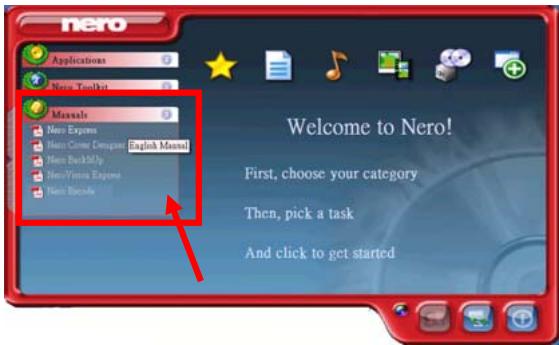
- If you want to use another type of authoring software not bundled with this product, please refer to each manual on how to install and operate. Please note that some authoring software or version of authoring software may not support this product.
Please visit http://www.nero.com and download free updates if necessary.
Installing PowerDVD 5
- Insert the PowerDVD 5 installation CD into your 16x DVD Dual; If Auto run is enabled on your system, the installation window should start automatically. If the installation window does not start automatically then browse to the 16x DVD Dual and click on the [setup.exe] in [PowerDVD5] folder.
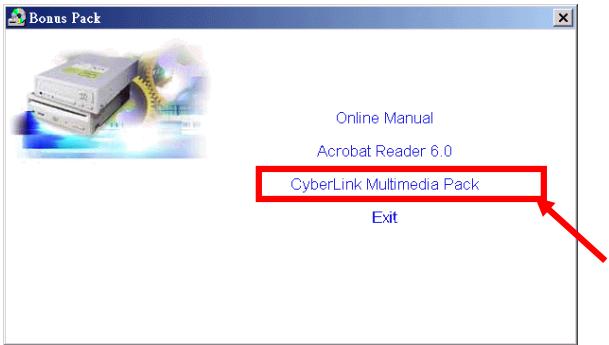
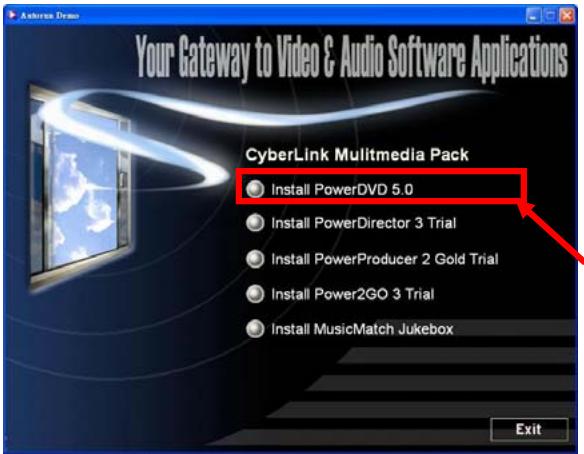
-
Follow the instructions on the setup wizard window to complete the installation. When the installation is complete, restart the PC.
-
After the installation, please click on the question mark [?] for the detailed instruction of using PowerDVD 5.
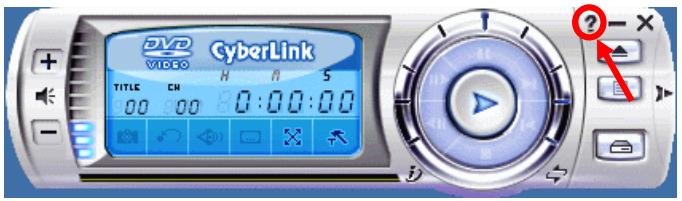
Please visit http://www.gocyberlink.com/english/index.jsp and download free updates if necessary.
5. The Latest Features
Auto Balance System (ABS):
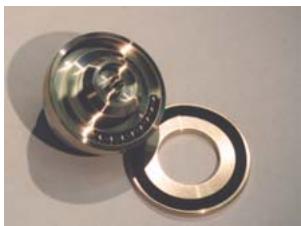
With the rotary speed of optical drives becoming higher and higher, the off-center load of the disc obviously increases and the vibration of the spindle motor becomes aggravated. Our Auto Balance System can effectively decrease the vibration under the high-speed rotation and improve the quality of information reading and writing sharply.
natural_image
Close-up of two metallic mechanical components, one cylindrical and one circular, with no visible text or symbols.Dynamic Damping System (DDS):
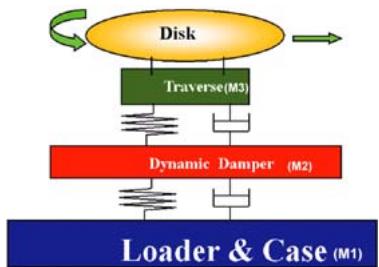
When a disc drive reads an imbalanced disc, an outer force emerges from the rotating transverse axle as follows: M3 is the rotating axle, and M2 is called the dynamic damping apparatus and M1 is the loader and frame. This dynamic damping system can decrease vibration by one-third or less. With this design, operating quality and read speed of the disc drive are both improved significantly. The vibration and noise are then effectively absorbed through this specially designed vibration-proof apparatus, and burn quality is improved and stabilized.
flowchart
graph TD
    A["Disk"] --> B["Traverse(M3)"]
    B --> C["Dynamic Damper (M2)"]
    C --> D["Loader & Case (M1)"]
    D --> A
    style A fill:#FFD700,stroke:#333
    style B fill:#90EE90,stroke:#333
    style C fill:#FFB6C1,stroke:#333
    style D fill:#66B2FF,stroke:#333
Noise Control System (NCS):
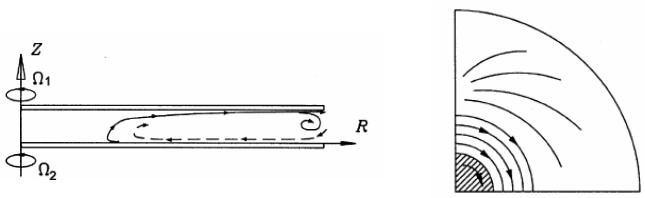
Analysis of the airflow field led us to find the factors influencing the field and new design ideas, which in turn changed the tray design of our drives and the way sound absorbing foam was attached to the inner side of the top cover.
Buffer underrun Prevention (JustLink):
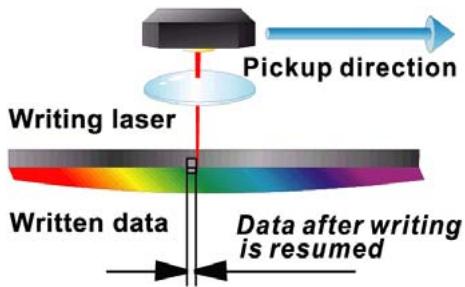
In case the data transfer cannot catch up during the writing process, the Buffer underrun errors will occur. This error has always been major concern for CD-R/ RW drive users. JustLink is a new technology that automatically prevents buffer underrun errors by predicting them before they happen. This 16x DVD Dual drive features JustLink technology to enable stable writing in the following situations where buffer underrun errors may otherwise occur in a conventional drive.
- With high-speed writing.
- When some other operation is being performed on the computer during writing.
- When writing CD-R / RW drive from a CD-ROM drive.
- When writing directly via network.
Writing Speed Control (JustSpeed):
JustSpeed is the function that prevents writing error when high writing speed is selected. When JustSpeed is ON, the drive decides the most appropriate writing speed according to the result of medium calibration (using the ATIP information, such as maker name, model-number, etc. pre-recorded in disc) and writes with the speed. This function is changeable in "mode select command", and the default setting is "JustSpeed" is ON.
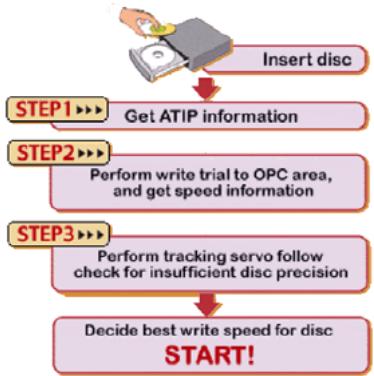
flowchart
graph TD
    A["Insert disc"] --> B["Get ATIP information"]
    B --> C["Perform write trial to OPC area, and get speed information"]
    C --> D["Perform tracking servo follow check for insufficient disc precision"]
    D --> E["Decide best write speed for disc START!"]
Running Optimum Power Control (ROPC):

During the process of high-speed recording/writing, an unbalanced optical disc will wobble slightly; under CLV (Constant Linear Velocity) mode, recording/writing quality will decrease due to this wobble and the constant power. However, by adopting the ROPC technique, the device can adjust its power by detecting feedback signals from the disc so as to create
optimal writing / recording quality.
Perfect Compatibility with blank media

natural_image
Purple square icon with a white cartoon dinosaur-like figure holding a ring (no text or symbols)Media Coverage
As far as users of CD/DVD Writers are concerned, what they care about most is compatibility of blank media, writing/recording quality and access performance. Taking advantage of a global operation system, we collected and tested most brands of blank media available on the market place in order to optimize and adjust our CD/DVD Writer products. Combining with other relevant systems and special technologies (e.g. JustLink and JustSpeed), these drives obtain optimal access and recording/writing quality. We had collected and tested almost every brand of blank media, and the results show that compatibility with our CD/DVD writer products is incontestable. Users may visit our website http://english.aopen.com.tw for the most up-to-date information about media compatibility.
Chameleon Bezel

natural_image
Green square icon with a white dinosaur head silhouette and colorful abstract patterns (no text or symbols)Chameleon Bezel
For raising the added value of our optical drives and for taking the lead in the field, we produced the “Chameleon Bezel”, which allows customers to change between different-colored panels in order to satisfy personal requirements. Individualized appearance and color of “Chameleon Bezel”: fits different computer profiles; choose between black, silver, and many other colors;
Double Layer
Double Layer
The double layer DVD+R media uses two thin embedded organic dye films for data storage separated by a spacer layer. Heating with a focused laser beam irreversibly modifies the physical and chemical structure of each layer such that the modified areas have different optical properties to those of their unmodified surroundings. This causes a variation in reflectivity as the disc rotates to provide a read-out signal as with commercially pressed read-only discs.
Universal Bezel
No More Earphone Jack and Volume Knob

natural_image
Simple icon of a stylized figure with a letter 'A' on top, set against a yellow background (no text or symbols)Universal Bezel
Taking the lead in the field, we initiated “Universal Bezel” that unifies the panels of all desktop optical drives into a uniform style, which not only fit customer styles but can also remarkably reduce noise, thus systematic assembly and product planning for customers becomes even more flexible.
The decision brought with it many advantages. Besides unique appearance and better noise reduction, fewer parts are in line with the
environment protection concept.
6. Technical Support
Firmware Upgrade
This drive uses Flash type firmware, a small piece of software that can be overwritten and updated. To ensure more reliable operations and enhanced performance of the drive, updates to the firmware will be made available. You can download and upgrade the latest version via our website http://download.aopen.com.tw if necessary.
Troubleshooting
Write problems
| Symptom | Possible Causes | Solutions |
| No drive recognition | Bad connection between IDE cable and your 16x DVD Dual drive. | Ensure that cables or IDE connectors are not damaged, bent or dented. Check especially the pins. |
| Conflicts with other IDE devices. | Ensure the Master/Slave device setting of 16x DVD Dual is not conflict with the other IDE device connected to the same IDE port. | |
| Using other writing software which not supports your 16x DVD Dual drive. | Use the writing software provided with this 16x DVD Dual drive. When using other software, ensure your 16x DVD Dual drive is supported by contacting the software supplier. | |
| Cannot write | Using other writing software which not supports your 16x DVD Dual drive. | Use the writing software provided with this 16x DVD Dual drive. When using other software, ensure your 16x DVD Dual drive is supported by contacting the software supplier. |
| Disc inserted upside down. | Reinsert the disc with label side up. | |
| No power. | Check if the power cord is securely connected to the connector. | |
| IDE cable isn't connected properly | Ensure the cable of IDE connectors are not damaged, bent or dented. Check especially the pins. | |
| Install more than one CD/DVD writing software simultaneously. | Remove other writing software. Just keep one software on your hard disk. | |
| Cannot add writing on blank DVD media. | Wrote with another writing software | If different writing software is used comparing to the previous writing, errors may occur. Use always the same writing software. |
| Short of DVD±RW capacity | Capacity of CD-R/RW media is limited to 650MB (74 min-type) and DVD±RW/±R (Single Layer) media limited to 4.7GB including lead-in, lead-out and TOC data. Use a new CD-R/RW or DVD±RW/±R media if the capacity is insufficient for the additional data. | |
| Cannot write at highest speed | CD-R/RW media not compatible with the highest speed.Defective CD-R/RW or DVD ± RW/ ± R media. | Use the highest speed compatible discs or writ with lower speed.CD-R/RW or DVD ± RW/ ± R media may be dirty, scratched or damaged. Rewrite on another CD-R/RW or DVD ± RW/ ± R media. |
| Using other writing software not bundled with your DVD Dual. | Use the writing software provided with this DVD Dual drive. When using other software, ensure your DVD Dual drive is supported by contacting the software supplier. | |
| Source Drive not supports highest speed on the fly. | Copy all files to hard disk, and then write from hard disk to CD-R or DVD ± RW/ ± R. Otherwise, please slow down writing speed. | |
| Source Disc is bad-quality | Make image files then burn image file onto the CD-R/RW or DVD ± RW/ ± R disc. | |
| DMA function disable | Ensure to enable DMA function on both source and target drives. |
Read problems
| Symptom | Possible Causes | Solutions |
| No drive recognition | IDE cable and the 16x DVD Dual drive not connected properly. | Ensure both connectors of IDE cable is properly connected to the IDE ports on the main board and 16x DVD Dual. |
| Conflicts with other IDE devices. | Ensure the Master/Slave device setting of 16x DVD Dual is not conflict with the other IDE device connected to the same IDE port. | |
| Power is not switched on. | Check if the LED of your 16x DVD Dual drive is lit. If not, there is no power. | |
| No operation | No power | Check if the power cord is connected securely to the connector. |
| IDE cable isn't connected properly. | Ensure the IDE cable and connectors are not damaged, bent or dented. Check especially the pins. | |
| Cannot read photo CD discs | Bad photo CD disc. | Try to play another photo CD disc and see if it reads fine. If it works, you should replace the defective disc. |
| Need special application software | Check if install “Kodak Photo CD Access Plus Software”. | |
| Cannot read CD-I discs | Need special application software | Check if install application software such as “Cyberlink Powerplayer” |
| Read error occurs | Defective CD-ROM disc | Deep scratches, fingerprints or other contaminates on the discs surface can disable the drive from reading data. Always keep it clean. |
| Music CD inserted. | Because audio compact discs do not have computer data, typing computer commands while an audio CD is in your drive will result in an error message. | |
| Disc inserted upside down. | Remove the disc from tray and reinsert it with the label side up. | |
| Excessive noise when reading | Eccentric disc loaded. | Replace it by another one. |
| Seal attached on the surface. | Detach the seal very carefully. Don’t make any scratches. | |
| Cannot eject tray | Eject locked by software. | When you are working under Windows 98SE/NT 4.0, check if locked on the 16x DVD Dual properly. |
| CD/DVD set incorrectly into tray. | Insert emergency eject stick into the emergency eject hole and eject the tray. Use a pair of tweezers or pliers if it won’t eject with emergency eject stick. | |
| Can read only the first session of a multisession disc | “Close session” was not selected at the previous writing | Additional session cannot be read because the previous session was not closed. Rewrite on other CD-R/RW or DVD±RW/±R media. |
| Cannot read the former session of the CD-R/RW or DVD±RW/±R disc which has been written at least twice | “Load Contents” or “Import Session” was NOT clicked on the software. | If recorded without checked “Load Contents” or “Import Session”, it is impossible to read. But when using utility software such as “Session Selection” from Adaptec, the former session can be read. |
Appendix A. Glossary
CD-DA
Compact Disc - Digital Audio. The typical music CD is written with this CD format. At this time, up to 74 minutes of music can be written on a CD. The corresponding standard is the Red Book.
CD-I
Compact Disc - Interactive. This format allows the storage of different types of data such as images, music or video on a CD. The process is defined in the Green Book.
CD-R
Compact Disc - Recordable. A technology for CD-R (recordable) media. Also refer to CD-WO, Compact Disc - Write Once, limited to just one writing.
CD-ROM
Compact Disc - Read Only Memory. This is described in the Yellow Book. Differing types of data that can be read by a computer such as programs, text, image data or sound may be stored with this CD format.
CD-ROM - Mode 1 and Mode 2
A supplement to the CD-ROM format which provides an additional error recognition and correction function. Mode 1 is especially used for computer data and employs a code for error correction. Mode 2 is used with CD-ROM/ XA and CD-I with audio data and contains an error recognition code only.
CD-ROM/ XA
CD-ROM/ Extended Architecture. This CD format makes it possible to store computer data and audio or video data on one track. The different types of data are linked to each other (Interleaving) so that synchronization problems can be reduced.
CD-RW
Compact Disc - ReWritable. A technology for CD-RW (rewritable) media. It is not limited to just one writing, but may be erased and re-written as often as desired.
CD-WO
CD - Write Once. As the name implies, it is a CD that may only be written on once. Also refer to CD-R.
DVD+RW
Compact Disc – ReWritable. A technology for DVD+RW (rewritable) media. It is not limited to just one writing, but may be erased and re-written as often as desired.
DVD+R
A technology for DVD+R (limited to just one writing.)
Disc At Once
Disc At Once is a method for recording of data onto a CD. With this method, the entire CD is written in a single process. The CD-recorder first writes a Lead-In, then the data block, and finally a Lead-Out. In contrast to Track At Once, linking blocks are not used between the individual tracks with Disc At Once.
Enhanced Music CD, CD + and CD Extra
An expansion of Audio or Mixed-Mode CD consists of two sessions. The first session corresponds to CD-DA, while the second session consists of computer data. The process is specified in the Blue Book.
Finalization
Finalization is the permanent closing of the writing procedure on a CD. After that, it cannot be written to, regardless of whether it was produced as a single-session or a multi-session CD.
Green Book
A book of CD Interactive (CD-I) standards published by Philips and Sony in 1986
High Sierra
The forerunner of today's ISO Standard 9660. It was published in 1986. With the passage of time it has lost its significance.
Hybrid Type CD
A CD-ROM disc storing "two different platforms of softwares" for Windows and Macintosh etc.
Image
The term “image” describes all edited data that will later be located on a CD. The creation of an image file is known as premastering.
ISO 9660
ISO Standard 9660 describes the construction of a CD-ROM, so that it may be read and processed by different types of operating systems.
Joliet
This supplement to the standards comes from Microsoft and is supported by Windows 95 and Windows NT. The CDs that are created under this standard are in conformity with ISO 9660, which allows long file names based on Unicode in additional directory structures.
Mixed Mode-CD
Music and computer data are stored on one CD with this type of CD. The computer data are generally located on track 1 and audio data are located in the ensuing tracks.
Multi-Session-CD
A CD which is written in several sequential sessions is known as a multi-session CD.
On-The-Fly
A process for burning data onto a CD-R. There are two different methods of doing this. With the classical and older method, all of the data which are to be recorded onto the CD are first stored in a buffer in a large file known as an image file. From there, they are copied or burned onto the CD-R. In contrast to this, the method known as On-The-Fly transfers the data directly from their original memory locations on a hard drive onto the CD-R.
Orange Book
The Orange Book is a physical format of recordable CD announced in 1989 by Philips and Sony. The Orange Book describes CD-MO in part-I and CD-R in part-II. Later on part-II was updated. In 1994, version-II was announced for the CD-ROM and its double speed type. In 1996, the standards for phase change optical disc, rewritable CD (CD-RW) was added as part-III.
Photo-CD
A CD format and system devised by Eastman Kodak to record digitized photograph data.
Rainbow Books
The collection of standards which define the different types of CDs. Through these standards, it has been achieved that CDs can be read and processed by as many devices and operating systems of the different manufacturers as possible.
Red Book
A book setting the standards for the Compact Disc physical format and audio recording methods, published by Philips and Sony in 1981.
Session
An inter-related writing procedure is defined as a session. A session consists of the Lead In area, the data area, and the Lead Out area. A CD can be written with several sessions. This is then called a multi-session CD, in contrast to a single-session CD which only contains one session. A silver CD generally consists of one session.
TOC
Contents of the Lead-in, this contains the addresses of all the tracks on the CD.
Track
In an Audio-CD, one track corresponds to one piece of music. With a CD-ROM, one track contains computer data and it may have any number of files and folders.
UDF
UDF is short for Universal Disc Format, another file layout standard for CDROM. The UDF format can use in CD-R, CD-RW, and DVD by Packet writing method, which would not cause "Buffer Under-Run" and can be compatible with ISO9660. The advantage of UDF is provided similar function like hard disk.
Video CD
A CD-ROM storing MPEG-1-compressed moving pictures, still pictures, audio sounds etc.
Video DVD
A DVD-ROM storing MPEG-2-compressed moving pictures, still pictures, audio sounds etc.
Yellow Book
A book of CD-ROM standards published by Philips and Sony in 1985.
Appendix B. Frequently Asked Question (FAQ)
The following FAQ's are the most common problems you may find during installation or regular use. Please review these FAQ's to have your problem solved. In case you do not find any items that answer your problem, please contact your dealer or technical support.
Q: Computer won't boot up after installation.
Please proceed the following procedures to get your computer back to work:
- Turn off and unplug your computer first. Check each connector along both IDE cables. (Bent pins, orientations or bad contacts.)
- Check if the power cable attached correctly to each drive.
- If an IDE cable is connected with 16x DVD Dual and other device, check the jumper settings of both devices and make sure the "MA" (master) and "SL" (slave) settings are different from each other.
Q: The 16x DVD Dual doesn't show up in My Computer or Explorer.
The following steps will assist you to get your drive to work as a DVD-ROM:
- If you cannot find 16x DVD Dual in Explorer, restart your computer, or shut it down and then turn it on again.
- Is the 16x DVD Dual receiving power properly? You can test it by pressing eject button to see if the tray opens and closes.
- Is the IDE cable connected properly? Be careful to turn off and unplug your computer system before checking this item. Check the connection by your opening computer system to see if the IDE connector well inserted and the colored stripe on the side of the IDE cable lines up with PIN-1 of each connector.
- Select "enable both IDE channels" to enable the IDE channels. Then reboot your PC.
Q: The 16x DVD Dual has problem in reading CD/DVD disc, or Error message when double-clicking on the 16x DVD Dual icon.
There are several ways to solve this problem as follows:
- The CD/DVD disc in the tray may be loaded upside-down, or a little off-center. Try re-loading the CD/DVD disc with its label side up.
- After loading a CD/DVD disc, it will take a moment to let the 16x DVD Dual read the disc information. When the indicator on the front panel stops flashing and stays green, it is ready for access.
- If the disc you just loaded is a blank disc, try it later after copying some information to the disk.
Q: Unable to see a second session reading from a CD-ROM/DVD-ROM drive.
• Eject the CD/DVD and re-load it.
- Refresh the screen. Select the My Computer icon in Windows Explorer and press F5.
- Make sure if your CD-ROM/DVD-ROM drive reads CD-RW/DVD±RW/±R discs. CD-RW/DVD±RW/±R discs can only be used in CD-R/RW, DVD Dual or newer MultiRead CD-ROM/DVD-ROM.
- See if the CD-ROM, CD-R/RW, DVD-ROM or other DVD Dual drives can read the CD/DVD ± RW/ ± R discs properly. If so, then the problem is probably with the CD-ROM/DVD-ROM drive. Contact the manufacturer of the drive for updated drivers or patch files.
Q: Applications cannot locate the DVD in 16x DVD Dual drive.
- Some programs only locate the first logical drive letter assigned to a DVD-ROM or a 16x DVD Dual drive. For example, if your DVD-ROM drive is assigned drive D: and 16x DVD Dual is assigned drive E:, the program locates drive D: only and will not locate drive E:. Thus you need to reassign drive letters to both your DVD-ROM and 16x DVD Dual drives in case you need to run the program in 16x DVD Dual.
- Windows ME/98: right-click My Computer icon. Click Properties item, open Device Manager and double-click CD-ROM drive, then click Setting tab. Under Reserved drive letters, select the drive letter after the existing letter (for both start and end drive letter) and click OK. Then double-click 16x DVD Dual icon, then click Setting tab. Under Reserved drive letters, select the drive letter before current one and click OK.
- Windows NT: click on Start | Programs | Administrative Tolls (common). Choose Disk Administrator. Right-click on the drive letter you would like to change. Select Assign Drive Letter and change the drive letter accordingly.
The above are only GENERAL rules that do not necessarily apply to any combination of 16x DVD Dual drives, HDD and motherboards. A few trials on different configurations before recording are recommended. Also, try out different DVD±RW/±R media before you proceed to make volumes duplication as you may figure out which brand of CD-R/-RW/DVD±RW/±R media originates smoother recording and easier access. As long as you find the best CD/DVD recording way, stick to it.
- Disclaimer
- Federal Communications Commission (FCC) Statement
- FCC Warning
- Table of Contents
- Use Precautions....1
- Introduction......6
- Hardware Installation ......10
- Software Installation......23
- The Latest Features......27
- Technical Support ....31
- Appendix A. Glossary 34
- Appendix B. Frequently Asked Question (FAQ) 37
- Use Precautions
- Warning for Safety
- When installing the IDE device please pay attention to these following details:
- When cleaning CD / DVD disc, please note:
- Other points to pay attention to:
- Warning as to Use
- DANGER
- Introduction
- Overview
- High Speed
- High Reliability
- High Compatibility
- Features
- Format Compatibility
- Type of Writing Mode
- Disc-At-Once
- Track-At-Once
- Session-At-Once
- Multi-session
- Packet Write
- Hardware Installation
- System Requirements
- Hardware Instruction
- Front Panel
- Rear Panel
- Installing the 16x DVD Dual drive
- Required Tools
- Installation Procedure
- DVD Region Coding
- Region Playback Control Management
- RPC Phase 1 (as RPC1):
- RPC Phase 2 (as RPC2):
- About This 16X DVD Dual Drive
- Supported DVD±RW/±R, CD-R and CD-RW Media
- Supported Media
- The handling of DVD±RW/±R, CD-R and CD-RW Discs
- Software Installation
- Before You Start
- Installing Software
- Installing Nero 6 OEM Suite
- Installing PowerDVD 5
- The Latest Features
- Auto Balance System (ABS):
- Dynamic Damping System (DDS):
- Noise Control System (NCS):
- Buffer underrun Prevention (JustLink):
- Writing Speed Control (JustSpeed):
- Running Optimum Power Control (ROPC):
- Perfect Compatibility with blank media
- Chameleon Bezel
- Double Layer
- Universal Bezel
- Technical Support
- Firmware Upgrade
- Troubleshooting
- Appendix A. Glossary
- CD-DA
- CD-I
- CD-R
- CD-ROM
- CD-ROM - Mode 1 and Mode 2
- CD-ROM/ XA
- CD-RW
- CD-WO
- DVD+RW
- DVD+R
- Disc At Once
- Enhanced Music CD, CD + and CD Extra
- Finalization
- Green Book
- High Sierra
- Hybrid Type CD
- Image
- ISO 9660
- Joliet
- Mixed Mode-CD
- Multi-Session-CD
- On-The-Fly
- Orange Book
- Photo-CD
- Rainbow Books
- Red Book
- Session
- TOC
- Track
- UDF
- Video CD
- Video DVD
- Yellow Book
- Appendix B. Frequently Asked Question (FAQ)
- Q: Computer won't boot up after installation.
- Q: The 16x DVD Dual doesn't show up in My Computer or Explorer.
- Q: The 16x DVD Dual has problem in reading CD/DVD disc, or Error message when double-clicking on the 16x DVD Dual icon.
- Q: Unable to see a second session reading from a CD-ROM/DVD-ROM drive.
- Q: Applications cannot locate the DVD in 16x DVD Dual drive.
Brand : AOPEN
Model : DUW1608ARR0407A
Category : DVD Player