710 - Laptop MAXDATA - Free user manual and instructions
Find the device manual for free 710 MAXDATA in PDF.


User questions about 710 MAXDATA
0 question about this device. Answer the ones you know or ask your own.
Ask a new question about this device
Download the instructions for your Laptop in PDF format for free! Find your manual 710 - MAXDATA and take your electronic device back in hand. On this page are published all the documents necessary for the use of your device. 710 by MAXDATA.
USER MANUAL 710 MAXDATA
Table of Contents 39
Notice 41
Regulatory Information 41
Usage & References 41
Federal Communications Commission Statement: FCC 42
Sound pressure level 42
Note for the user: 42
CD-ROM-Drive: 43
Take back guarantee 43
Important safety instructions 44
Item Checklist 46
The preparation 47
Inserting the Battery 48
Power supply Hardware 49
Turning on the computer 50
The Finger Print Sensor 51
Power Management 53
Intel® SpeedStep® 54
A Short tour around your system 55
Left and right side 55
Rear and Bottom view 56
Power/ Status indicators 57
Key combinations 58
The Launch Keys 59
The Keyboard 60
The Touchpad 61
The CD - device 62
The PC - Card - Slot 62
Data/Fax Modem 63
Appendix A - Specifications 64
Appendix B - Troubleshooting 67

NOTICE
The company reserves the right to revise this publication or to change its contents without notice. Information contained herein is for reference only and does not constitute a commitment on the part of the manufacturer or any subsequent vendor. They assume no responsibility or liability for any errors or inaccuracies that may appear in this publication nor are they in anyway responsible for any loss or damage resulting from the use (or misuse) of this publication.
This publication and any accompanying software may not, in whole or in part, be reproduced, translated, transmitted or reduced to any machine readable form without prior consent from the vendor, manufacturer or creators of this publication, except for copies kept by the user for backup purposes.
Brand and product names mentioned in this publication may or may not be copyrights and/ or registered trademarks of their respective companies. They are mentioned for identification purposes only and are not intended as an endorsement of that product or its manufacturer.
November 2001
Regulatory Information
This product incorporates copyright protection technology that is protected by method claims of certain U.S. patents and other intellectual property rights owned by Macrovision Corporation and other rights owners. Use of this copyright protection technology must be authorized by Macrovision Corporation, and is intended for home or other limited viewing uses only unless otherwise authorized by Macrovision Corporation. Reverse engineering or disassembly is prohibited. Intel and Pentium are registered trademarks of Intel Corporation.
MS-DOS, Windows, Windows 95, Windows Me, Windows 98, Windows 2000 and Windows NT are registered trademarks of Microsoft Corporation.
Usage & References
This Concise User, s Manual is a brief introduction and quick guide to getting your system started. This is a supplement, not a substitute for the expanded Service Manual. All references are to the accompanying CD-ROM, Device Drivers and Tools which contains the expanded Service Manual (in Adobe Acrobat format), drivers, and special tools for your notebook computer. If you plan on using another operating system, not covered in these publications, please
refer to the „ ReadMe“ files on the CD-ROM and consult that operating system’s vendor to see if it is suitable with our components. The Device Drivers & Tools CD-ROM does not contain the operating system itself.
Note: Some or all of the computer's features may already be setup. If they aren't, or if you need to reconfigure (or reinstall) portions of the system, refer to the expanded Service Manual on the Device Drivers and Tools CD-ROM
Federal Communications Commission (FCC) Statement
This equipment has been tested and found to comply with the limits for a Class B digital device, pursuant to Part 15 of the FCC Rules. These limits are designed to provide reasonable protection against harmful interference in a residential installation.
This equipment generates, uses and can radiate radio frequency energy and, if not installed and used in accordance with the instructions, may cause harmful interference to radio communications. However, there is no guarantee that interference will not occur in a particular installation. If this equipment does cause harmful interference to radio or television reception, which can be determined by turning the equipment off and on, the user is encouraged to try to correct the interference by one or more of the following measures:
Reorient or relocate the receiving antenna.
Increase the separation between the equipment and receiver.
Connect the equipment into an outlet on a circuit different from that to which the receiver is connected.
Consult the dealer or an experienced radio/TV technician for help.
Sound pressure level
The sound pressure level in your working environment does not exceed 55dB A.
Note for the user:
- Although this device has been tested excessively on harmful interference and has found to comply FCC regulations, you should consider that, when using external data cables, in some cases this device may emit some interference.
Therefore please follow the instructions listed below:
- In case a data cable that was supplied by the manufacturer needs replacement,
please make sure that you obtain a new cable that meets the quality of the original cable, in order to assure further compliance with FCC regulation.
- Please only use shielded cables and only devices that meets the same high EMC and Safety standards as this notebook.
- Not following these notes, may cause the device not to comply with above standards anymore!
CD-ROM Drive:
- The CD-ROM drive in this product is a Class 1 Laser Product. Do not open the device or look into the laser beam, not even with optical instruments.
- If the device is not explicitly reported to be fit for simultaneous multiple CD usage, insert one CD only.

Take back guarantee
We issue a take back guarantee on your notebook:
All materials used on your notebook are fully recyclable. The card board box and all other card board material contained within is fully recyclable
IMPORTANT SAFETY INSTRUCTIONS
The notebook computer is quite rugged, but it can be damaged. To ensure that does not happen, follow these suggestions:
- Don't drop it.
- Don ,t overheat it. Keep the system away from heating elements and direct sunlight.
- Avoid electromagnetic interference. It can also damage your data.
- Keep it dry. This is an electrical appliance!
- Be careful with power. The computer has specific power requirements: Only use an approved power adapter. Your AC adapter requires a steady, uninterrupted power flow. If you are unsure of your local power specifi-
WARNING

ons, consult your dealer or local power company.
The power adapter must have a grounded plug. If you do not have access to a compatible outlet, have a qualified electrician install one.
When you want to unplug the power cord, disconnect it by the plug head, not the wire.
Before cleaning, disconnect the computer from any external power supplies (i.e. AC adapter or car adapter).
- Battery Precautions
ATTENTION

Only use batteries designed for this computer.
Recharge the batteries using the notebook ,s system.
Do not try to repair a battery pack. Contact your dealer or qualified service personnel to replace a defective battery. Keep children away from and promptly dispose of a damaged battery. Always dispose of batteries carefully.
Batteries may explode or leak if exposed to fire, or improperly handled or discarded.
The product that you have purchased contains a rechargeable battery. The battery is recyclable. At the end of its useful life, under various state and local laws, it may be illegal to dispose of this battery into the municipal waste stream. Check with your local solid waste officials for details in your area for recycling options or proper disposal.
WARNING

- UL® Mainboard Battery Note
CAUTION: Danger of explosion if battery is incorrectly replaced. Replace only with the same or equivalent type recommended by the manufacturer. Discard used battery according to the manufacturer's instructions.
- SERVICING & CLEANING
Do not attempt to service the computer yourself! Doing so may violate your warranty and expose you and the computer to electric shock. Refer all servicing to authorized service personnel. Unplug the computer from the power supply. Then refer servicing to qualified service personnel under any of the following conditions:
WARNING

- When the power cord or AC/DC adapter is damaged or frayed.
- If the computer has been exposed to rain or other liquids
- If the computer does not work normally when you follow the operating instructions.
- If the computer has been dropped or damaged.
- Cleaning
Do not apply cleaner directly to the computer, use a soft clean cloth. Do not use volatile (petroleum distillates) or abrasive cleaners on any part of the computer.
ITEM CHECKLIST
When you are unpacking your notebook, please make sure your package is complete. If you discover damaged or missing items, please contact your retailer.
First unpack
- Notebook
- Accu
- Utility CD Intel® SpeedStep® incl.
- Power Supply
- Power Cord
- Manual
- CD-ROM Drive (built in)
Modem Cable
In case you have to ship your notebook for servicing or upgrading, always use the original packaging. Therefore do not throw the original packaging away.
THE PREPARATION
Before you use the notebook the first time, please take some time to get accustomed with your note-book. Shift the cover latch (1) to the left and open the display.
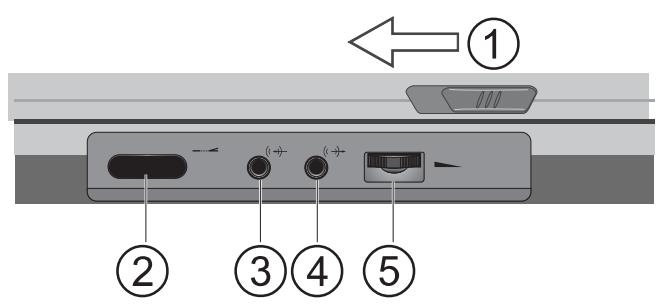
Figure 1
(1) Cover latch
(2) Infrared port
(3) Line IN jack
(4) Line OUT jack
(5) Volume control
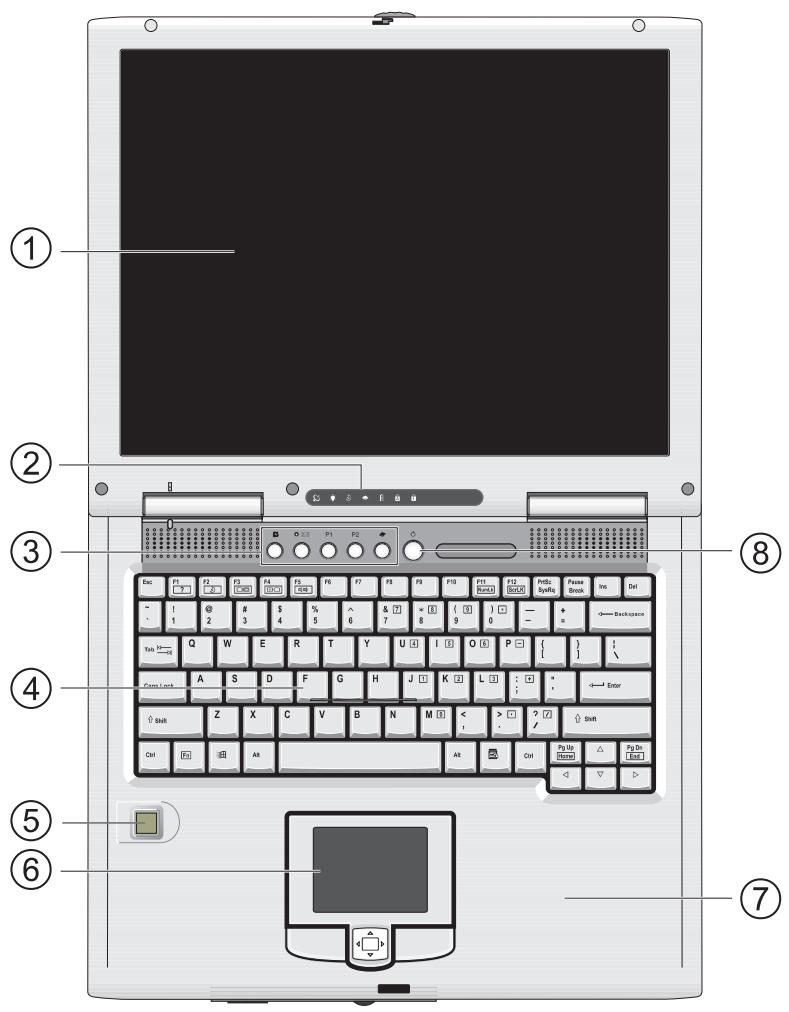
Figure 2
(1) LCD-Display
(2) Status indicator
(3) Hot-keys
(4) Keyboard
(5) Finger print sensor
(6) TouchPad and buttons
(7) Palm rest
(8) Power button (A short pressing of this button - less than 1sec.- with running system will activate the „suspend“ Mode)
INSERTING THE BATTERY
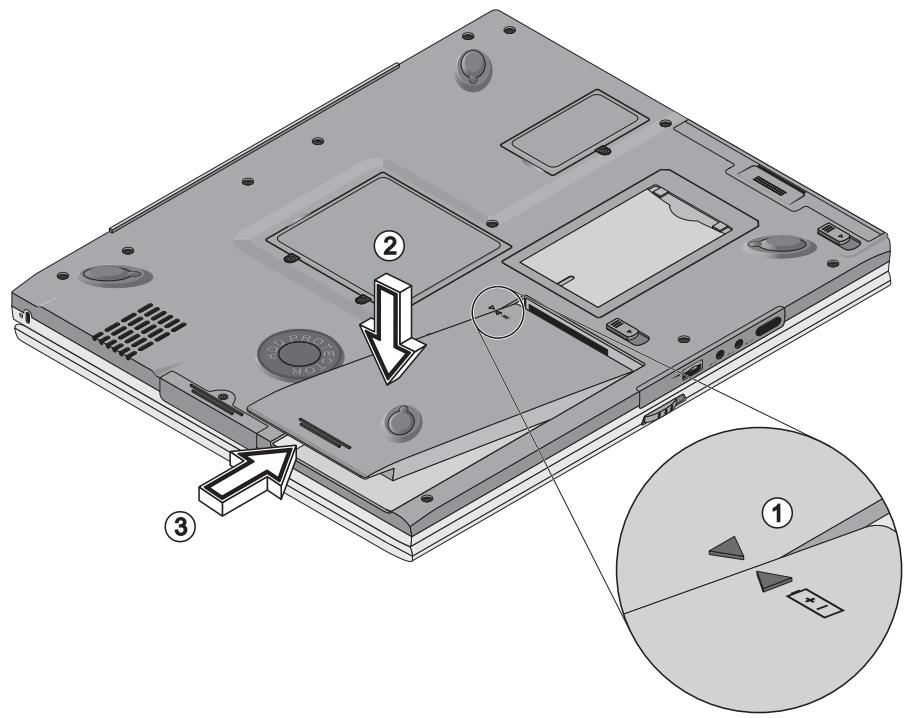
Figure 3
Your Notebook comes with a partially charged battery.
Take the new battery from its wrapping and insert it into the notebook as shown in Figure 3.
Place the battery pack into the battery compartment slot, aligning the 2 arrows (circle 1), and then slide it into place until you hear a click (circle 2 and 3).
The battery is now ready to charge.
- Please note the following charging times for the battery:
- Notebook switched off: 4 Hours
- Notebook in use: 6 Hours

ATTENTION
It is absolutely imperative that the battery is fully charged, before the notebook is switched on for the first time! Do not separate the notebook from the power supply before the battery has been fully charged!
POWER SUPPLY HARDWARE
The Notebook can be operated by battery or by power supply.
The initial use will be by power supply, as the battery is ony partially loaded for shipping.
Only use the original power supply. A wrong power supply can damage your notebook.

WARNING
The Power Supply contains no servicable parts
DANGER!!
The notebook comes with an AC power cord and a universal, autoswitching power adapter.
You can use the adapter anywhere the voltage is steady, between 100 and 240 volts.
When the adapter is connected to a power source and then to the computer, the Power icon lights up to indicate the system is receiving AC power.
To use the AC adapter: :
- Plug the power cord to the power adapter.
- Plug the power adapter to the DC IN socket on the computer's rear panel.
- Plug the power cord into a wall outlet.
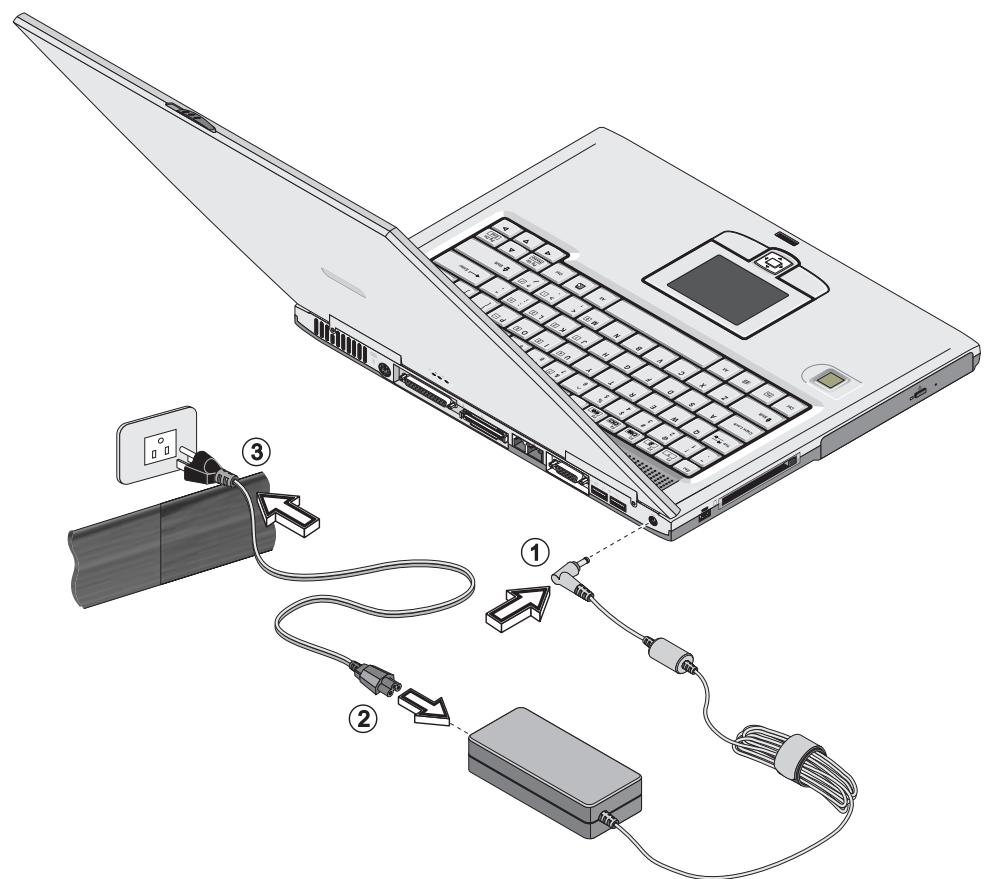
Figure 4
TURING ON THE COMPUTER
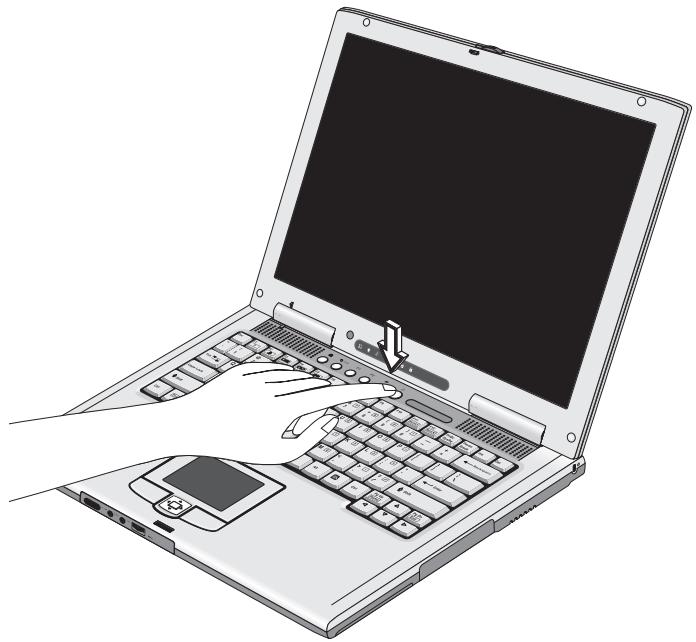
Figure 5
Now you are ready to begin using your new notebook computer. To turn it on simply press the power button in the top right of the front panel. When the computer is turned on, the Power Button can also be used as a Standby/ Hibernate/Shutdown hotkey button if pressed less than 4 seconds (pressing and holding the Power Button for longer than this will shut the computer down) and appropriately configured in the OS Control Panel (Power Management or Power Options).
Shutdown
Please note that you should always shut your computer down by choosing the Shut Down command from the Start menu in Windows. This will help prevent hard disk or system problems.
Forced Off
If the Ctrl + Alt + Del key combination doesn't work when the system "hangs", press the power button for 4 seconds to force the system to turn itself off.
THE FINGER PRINT SENSOR
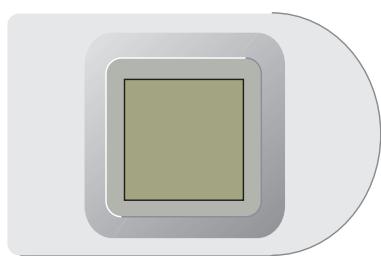
Figure 6
Message:
Press F2 to enter
Setup F12 to enter
Multi Boot
Selector Menu
Your system is equipped with an intelligent User- Identify - System (Finger Print Sensor).
This sensor is not active by default and must be activated in the BIOS-Settings, if desired.
First Step : Enable Fingerprint
- Turn on the system and push F2 button enter BIOS Setup Screen.
- Use Up and Down button to select ,, System Security ,,
- Select Fingerprint Sensor, use Left and Right to select „ Enabled „.
- Exit from BIOS Setup Screen and system will reboot.
Second Step : Enroll Administrator Fingerprint.
- Select ,, Add new user ,, then push Enter.
- Type in the user name.
- Use Left/Right button to select which finger you want to enroll.
- Place a finger firmly on the Sensor. After twice check.
- Repeat 3 4 to enroll another finger.
- Press
when done.
Note : If user wants to enter the Preboot Authentication Screen again. Please push „F1“ before identify your finger and only Administrator’s fingerprint can enter this screen.
Preboot Authentication Brief Introduction (Administrator only)
Add New User
Add new user here the process is same as Second Step.
Erase All Information
Erase all user date, user must enroll at least one user's biometric for
Administrator.
Change Admin. Status
User can change or add Administrator to other exist user.
Add Fingerprint
User can add new finger here.
List Users
List all current user information.
Change Security Level
The Security Level is a number that can vary between 1 and 4. A value of 1 is the highest security. A value of 4 is the lowest. The BIOS-PBA defaults to Security Level 4.
Delete User
User can delete user here.
Delete Fingerprint
User can delete finger here.
Exit
Exit from Preboot Authentication Screen.
Is there any way to bypass the fingerprint security sensor?
User can disabled the fingerprint security function easily. After fingerprint identify, push „F2“ enter the BIOS Setup Screen. Select the „System
Security“ then you can disable the fingerprint Preboot Authentication function.
Why can't the sensor correctly detect my fingerprint?
Locating the Core on Sensor
Although fingerprint patterns vary widely from type to type, each fingerprint has a small central area around which the remainder of the pattern is
distributed. This core is opposite the point that the fingernail emerges from the cuticle. So place your finger core on sensor. It will be easy to recognize.
Using the Full Fingerprint
Lay the finger down flat, lightly but firmly on the sensor. This results in minimal distortion of the skin. If the finger is pulled or pushed left or right, forward or back, the image is distorted and fingerprint quality is reduced.
Other problem
If your fingers are too wet or dry, it impacts the sensor detecting. It may be necessary to let your finger have normally finger surface. If you still have problems properly verifying your fingerprint, you may need to re-register the same finger or another finger.
POWERMANAGEMENT
Your system is designed to work with both APM and the newer (and more effective) ACPI power management systems.
PC Card Warning
Do not remove or change the PC Card while the system is in Save to Disk Mode. The slot is turned off and any change in the system configuration may cause prob-lems when the computer comes back on.

ATTENTION
HARDWARE (BATTERY STATUS & WARNINGS) After the POST finishes, the battery status LED indicates the battery's charge level. When the battery is low, this icon flashes. Save your work immediately and connect the AC- Adaptor.
LOW BATTERY & SUSPEND
The most basic of the computer's features provide some protection when battery levels get too low ( and you're not using the adapter). The computer reacts in one of two ways:
WITHOUT SAVE TO DISK
If your system doesn't have a Save to Disk file or partition on your HDD, information is saved to the RAM and the system goes into Suspend ( low power) mode.
WITH SAVE TO DISK
The system records status information to a special file or partition on the HDD and then turns itself OFF. If a Save to Disk file or partition isn't available, the system goes into „Suspend „mode
INTEL® SPEEDSTEP®
If you have purchased a product with the Intel ® SpeedStep Pentium -M ® CPU, please read the following note carefully:
The software for a fault free use of the SpeedStep - Frequency switching in the Powermanagement is preinstalled on your hard disc.
After the system has rebooted, double click the newly generated flag symbol on the bottom right hand corner of your screen.
By doing this, you can change additional settings. Pressing the „Apply“ Button will implement these changes.
ATTENTION

! IMPORTANT !
Keep the Intel ® SpeedStep diskette / CD in a safe place, together with your Operatings System CD. In case you need to re-install your OS, the diskette is needed again.
! IMPORTANT
Left and right side view
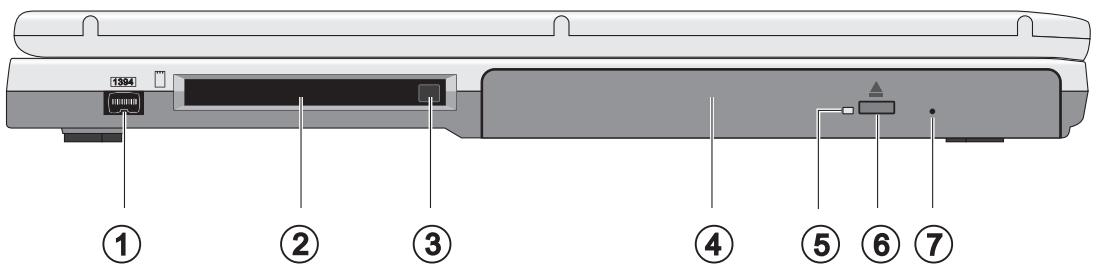
Figure 7
(1) IEEE 1394 port
(2) PC card slot
(3) PC card socket eject button
(4) CD- resp. DVD- ROM Drive *
(5) Busy Indicator
(6) CD-Eject button
(7) Emergency Unlock *2
- depending on system configuration *2 Use a small object (e.g. a needle) Only use when you have to open the drive without power
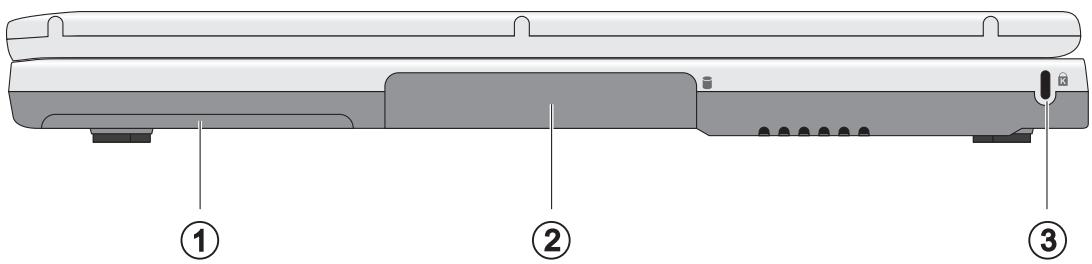
Figure 8
(1) Battery bay
(2) Hard disk bay
(3) Security keylock (Kensington-compatible)
Rear View
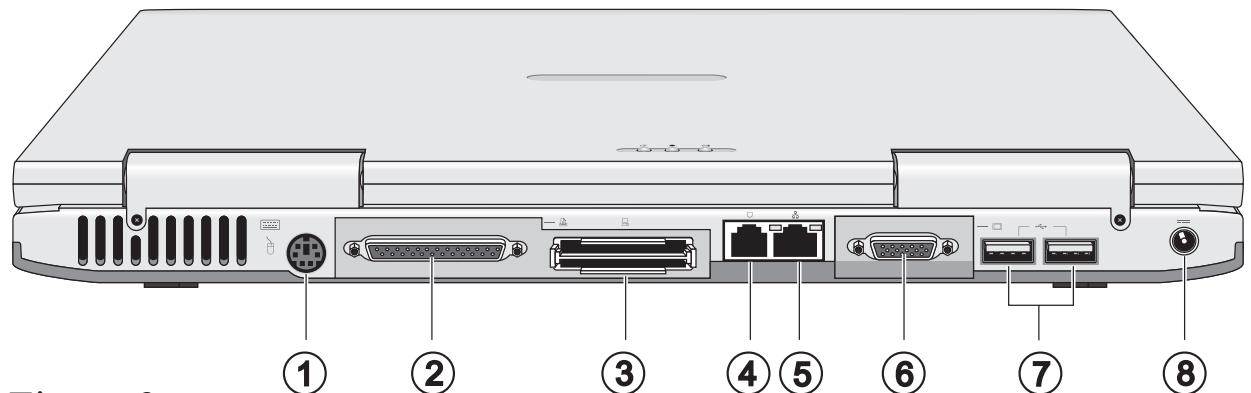
Figure 9
(1) PS/2 type port (ext. Mouse or Keyboard)
(2) Parallel port
(3) Expansion port - used for an optional port replicator
(4) Modem jack
(5) LAN jack
(6) External Monitor (CRT) Port
(7) Dual USB ports
(8) AC-in jack
Bottom View
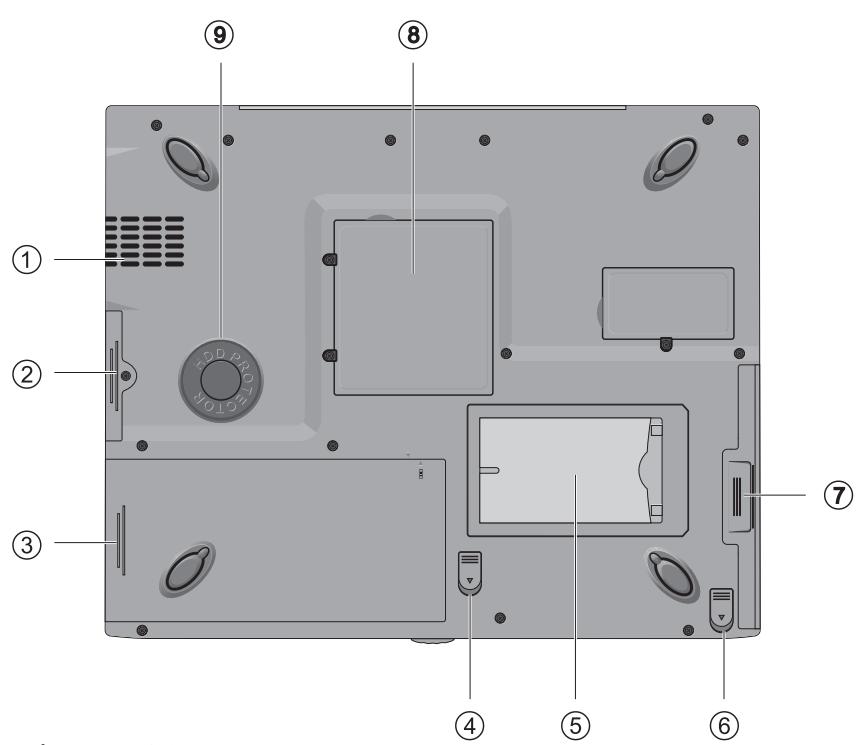
Figure 10
(1) Fan outlet *
(2) Hard Disk bay
(3) Battery bay
(4) Battery release latch
(5) Personal identification slot
(6) Optical media bay release latch
(7) Optical media bay
(8) Memory compartment
(9) HDD Protector
*Overheating To prevent your computer from overheating make sure nothing blocks the vent while the computer is in use.
LED Power / Status Indicators
Table 1
| Function | Description |
| Power | Lights when the computer is on. Blinks when a battery-low condition occurs. |
| Standby | Blinks when computer enters Hibernation mode. |
| Battery Charge | Lights when the battery is being charged. |
| Wireless communication | Lights when the BlueTooth/Wireless LAN (optional) capabilities are enabled. |
| Media Activity | Lights when the hard disk, or CD or DVD drive is active. |
| Caps Lock | Lights when Caps Lock is activated. |
| Num Lock | Lights when Numeric Lock is activated. |
Key Combinations - Hot keys
The computer employs hotkeys or key combinations to access most of the computer's controls like screen contrast and brightness, volume output and the BIOS setup utility.
Table 2
| Keys | Description |
| Fn + F1 | Displays a list of the hotkeys and their functions. |
| Fn + F2 | Puts the computer in Sleep mode. |
| Fn + F3 | Toggle between LCD / CRT or both |
| Fn + F4 | Turns the display screen backlight off to save power. |
| Fn + F5 | Turns the speakers on and off; mutes the sound. |
| Fn + → | Increase LCD brightness. |
| Fn + ← | Decrease LCD brightness. |
| Fn + F11 | Toggle Num Lock off/on |
| Fn + F12 | Toggle Scroll Lock off/on |
The Launch keys
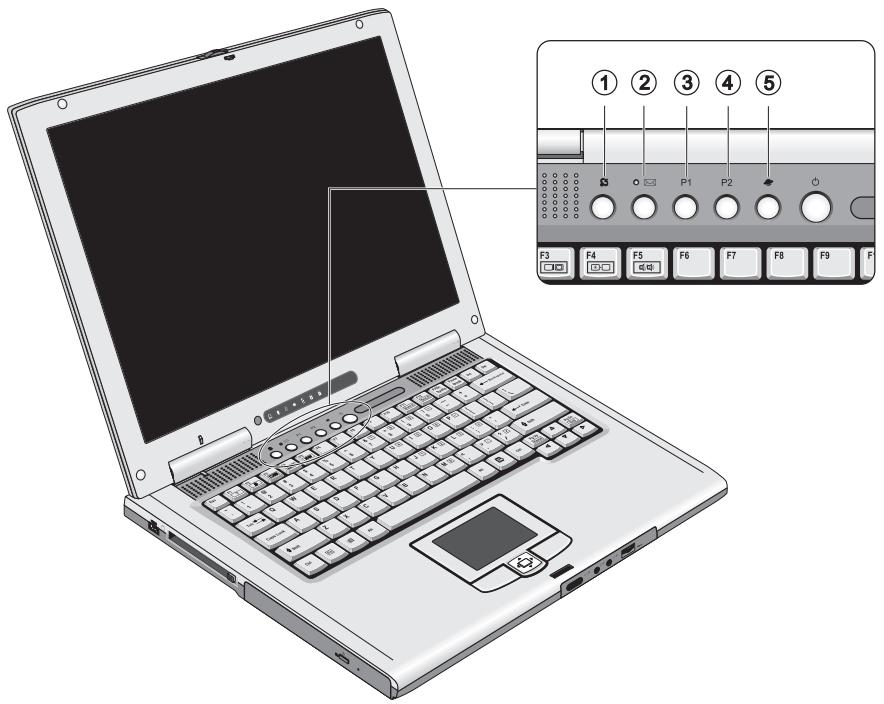
Located at the top of the keyboard are five launch keys. Used to launch frequently used applications.
The driver to activate this functions is located on the Utility CD. You find it in the directory Operationsystem\Launch Manager. For example: D:\WinXP\LaunchManager\setup.exe.
Figure 11
Table 3
| Function | Description |
| Wireless communication | This button is used to enable or disable the BlueTooth/ Wireless LAN (optional) function. |
| The mail button is used to launch the email application. | |
| P1 | This button is programmable by the user. |
| P2 | This button is programmable by the user. |
| Internet | By default, is used to launch your internet browser. |
The Keyboard
Type -
Your computer's keyboard has all the functions of a full-sized AT-compatible keyboard plus a few extras: These keys are like those on a typewriter.
Function -
Many operating systems (and applications) use these keys to access special features, so you should consult those manuals.
Hot Keys -
These keys (and combinations) control some of the hardware.
Press Fn + F11 to turn on the embedded numeric keypad (outlined).
The LED will light
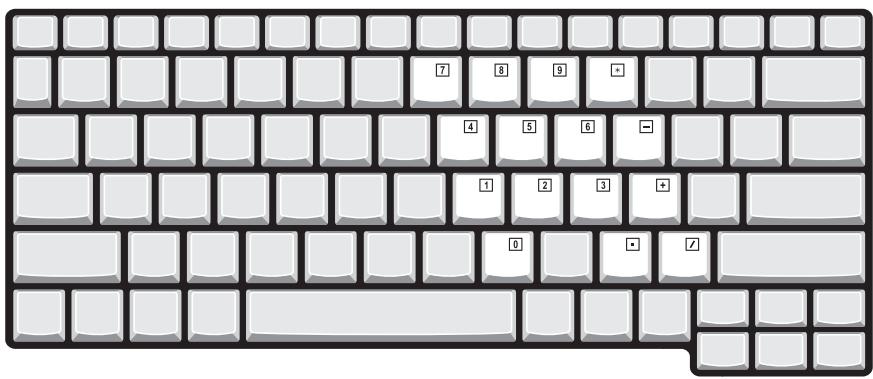
Figure 12
Hot Keys:
See also Table 2 Hot keys
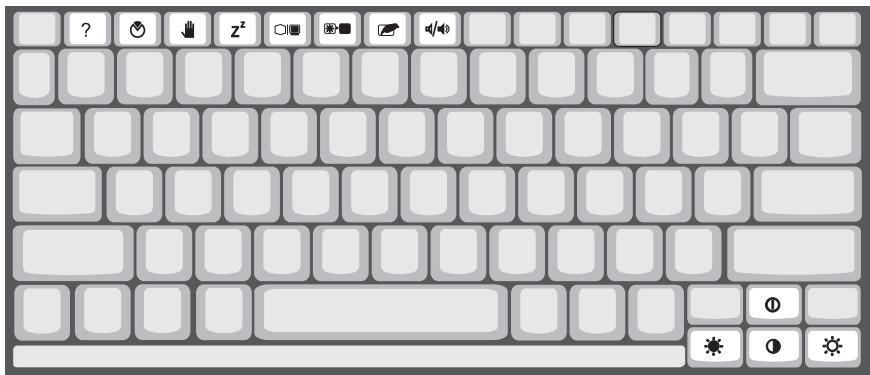
Figure 13
The TouchPad
The system automatically enables the built- in TouchPad. So, if you're using any version of Windows , you don't have to install any drivers for basically function.
If you want to use the extended Touch Pad functions, you have to install the TouchPad driver from the Utility CD. The drivers, depending on your operating system, are located in following directory:
for example: D:\WinXP\Synaptics TouchPad\setup.exe Simply doubleclick the file - the driver will be installed.
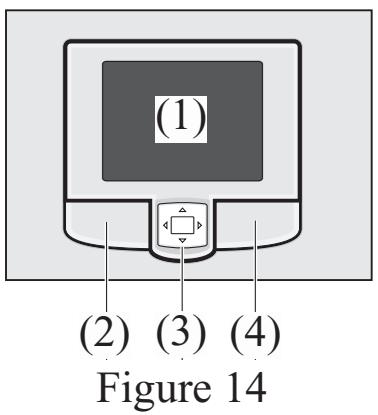
(1) sensor pad
(2) left ,,mouse ,,button
(3) Rocker Switch - may be configured to function as a "third" button
(4) right ,,mouse“ button
Note for left-handers:
Most operating systems allow you to reverse the mouse-button settings
Configuration of TouchPad and Buttons
You can configure the functions from the TouchPad driver icon on the Task Bar.
When you connect an external PS/2 mouse, the computer automatically disables the internal touchpad.

ATTENTION
Please note that peripherals (printers, digital cameras, etc.) which attach to your computer by either USB or IEEE1394 ports may be connected after Windows is up and running. All other peripherals must be connected before you turn on the system.

ATTENTION
The CD Device
To insert a CD disk, press the Open Button and carefully place a CD disk onto the Disc tray with label-side facing up.
Push the CD tray in until its lock " clicks" and you are ready to start. The Busy Indicator will light up while data is being accessed or while an audio CD is playing. If power is unexpectedly interrupted, insert an object such as a straightened paper clip into the emergency eject hole to open the tray.
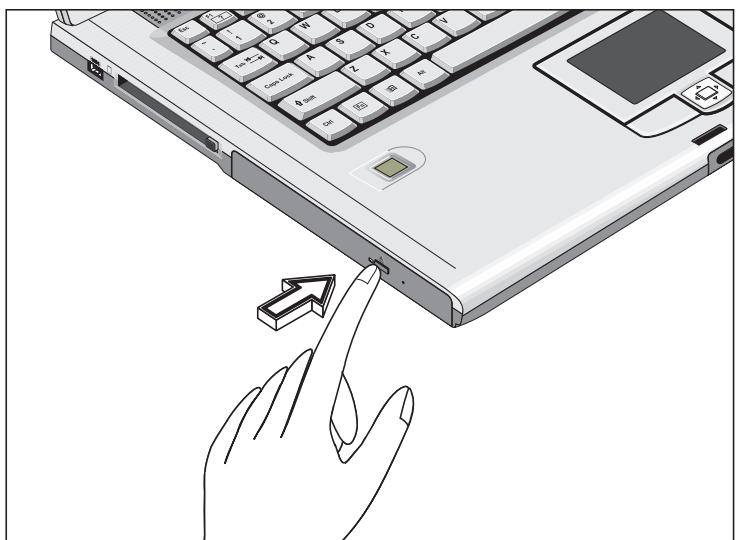
Figure 15
The PC Card Slot
The computer is equipped with a PC card slot. This is a PCMCIA 3.3V/ 5V/ 12V socket, type I or type II.
Align the PC card with the slot and push the card in until it locks into place.
To remove a PC card, simply press the eject button next to the slot.
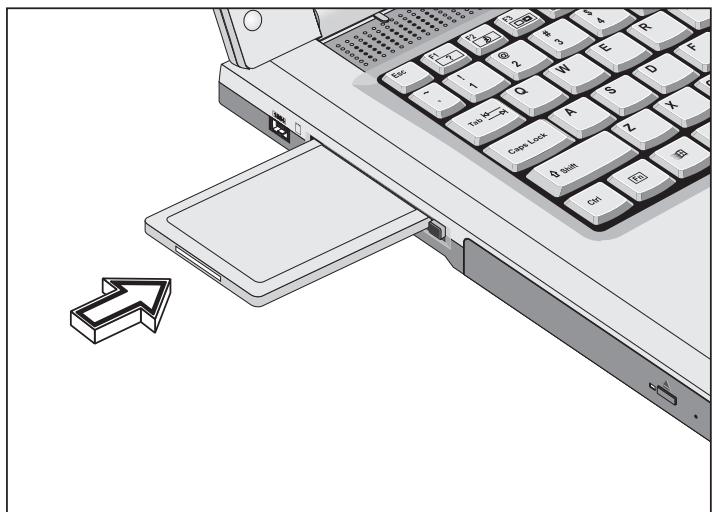
Figure 16
Data / Fax Modem
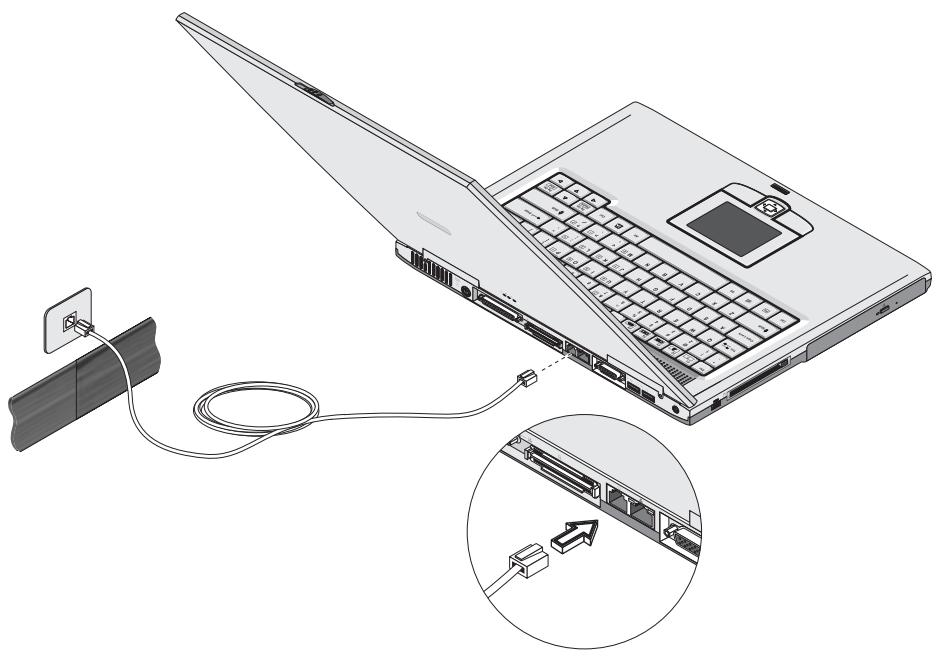
The system detects and installs the modem automatically. To use the fax/data modem port, connect a phone cable from the modem port to a telephone jack. (no ISDN).
Due to the original Windows 2000^TM driver for the modem, by standard the country is set to „United States of America“.
You can change this in the following way: Left click the following buttons in this order -
- Select the „Phone and Modem Options“
At the register tab „Dialing Rules“ select „New Location“ and click on
· You can enter your location optionally, (e.g. at home, office or similar), at the „Country / region“ tab, select your country and enter your Area code.
- Click
- Click
You can close the Control Panel now

ATTENTION
Warning: This modem port is not compatible with digital phone lines (ISDN). Plugging this modem into a digital phone line will damage the modem.
Microprocessor
- Intel® Pentium™ III SpeedStep with 512/256K level 2 cache
Memory
- Main memory expandable to 1 GB
- Two 144-pin SoDIMM sockets SDRAM (Synchronous Dynamic Random Access Memory)
- 512 KB Flash ROM BIOS
Data storage
One high-capacity, Enhanced-IDE hard disk
One 5.25-inch internal optical drive
Display and video
14.1”/15” Thin Film Transistor (TFT) XGA/SXGA/UXGA LCD
- 1024x768 16M up to 1600x1200 16M colors for UXGA
Simultaneous LCD and CRT display
Dual display support
Audio
16-bit stereo audio
3-dimensional sound with built-in wavetable synthesizer
Dual speakers
Sound Blaster Pro- and Windows Sound System-compatible
- Separate audio ports for line-out, line-in devices
Keyboard and pointing device
84-/85-/88-key Windows keyboard
- Ergonomically-centered touchpad pointing device
I/O ports
One type II/ I CardBus PC Card slot
One RJ-11 phone jack
One RJ-45 network jack (Ethernet 10/100)
One DC-in jack
One parallel port (ECP/EPP compliant)
One 100-pin port replicator connector
One external monitor port (DDC 2.0-compliant)
One keyboard/mouse port (PS/2-compatible)
One audio line-in jack
One audio line-out jack
Two USB ports
One IEEE 1394 port
- Ethernet
Weight and dimensions
• 2.8 ~kg(5.5 ~lbs)
323 × 266 × 32.9 ~mm
Temperature
- Operating: 10^ C 35^ C
Non-operating: -20^ C 60^ C
Humidity (non-condensing)
- Operating: 20% 80% RH
Non-operating: 20% 80% RH
System
- Windows operating system: Windows 98 SE, Windows 2000 and Windows XP
Battery pack
37-WattHour Li-Ion battery pack
2-hour rapid charge/5-hour charge-in-use
AC adapter
65-Watt
- Auto sensing 100 240 Vac, 50 60 Hz
Options
128/256/512 MB SDRAM memory upgrade module
PS/2 Y-cable
Additional AC adapter
- Secondary battery (swappable with the optical drive media bay)
Numeric keypad
Swappable optical module upgrade
USB-to-Serial port
Easy replicator
External USB FDD
Remote control module
TROUBLESHOOTING
If something goes wrong with your system, check here before you panic. If you don't find the answer, check the expanded Service Manual (on the Device Drivers &Tools CD-ROM). If the system still won't cooperate, try turning it off for a few minutes and then rebooting. You will lose any unsaved data, but it may start working again. Then call your dealer or service representative..
YOU TURNED THE POWER ON BUT IT DOESN'T WORK .
possible cause:
Battery missing /incorrectly installed
indicator: Power LED doesn't light.
solution:
Check the power bay, make sure the battery is present and seated properly.
o Make sure there's nothing interfering with the battery contacts.
Plug in the AC power source and allow the system to recharge the battery (if present).
possible cause:
Low battery
indicator: Battery LED is flashing.
solution:
Plug in the AC power source. If the computer doesn't start up immediately, turn it off then on again
NOTHING APPEARS ON THE SCREEN.
possible cause:
Power saving activated.
indicator: The Suspend LED is flashing.
solution:
o Toggle Fn + F4
possible cause: The screen controls need to be adjusted..
solution:
o Toggle Fn + F7
If an external monitor is connected, turn it on
possible cause: The computer is set for a different display
solution:
o Toggle Fn + CRT
o If connected to an external monitor, plug in the monitor and turn it on. Also check its brightness and contrast controls.(Refer to the expanded Service Manual for a more permanent solution.).
THE SYSTEM FREEZES.
possible cause:
Power saving features have timed-out.
indicator: The screen goes dark.
solution:
Press the Fn +F4 key combination, or press the On/Off switch if no LEDs are lit indicator:
A software conflict made the system „crash „
solution:
o Consult your operating system manual.
As a last resort, since you will lose any unsaved data, try to reboot the system or if that doesn't work, turn the computer off and on again.
WARNING MESSAGES
Each time you boot up, the computer performs a self-diagnostic check. If there is an error, a short message will appear to identify it. You should refer to the expanded User's Manual for an explanation of what to do.