ECO 4510 IW - Laptop MAXDATA - Free user manual and instructions
Find the device manual for free ECO 4510 IW MAXDATA in PDF.


| Product Type | Laptop |
| Brand | MAXDATA |
| Model | ECO 4510 IW |
| Display Size | 15.6 inches (typical) |
| Processor | Intel Celeron or similar |
| RAM | 4 GB DDR4 |
| Storage | 128 GB SSD or 500 GB HDD |
| Operating System | Windows 10 Home |
| Weight | Approx. 2.2 kg (4.85 lbs) |
| Dimensions | 370 x 250 x 25 mm |
| Power Supply | AC adapter 65W, Li-ion battery |
| Battery Life | Up to 5 hours |
| Connectivity | Wi-Fi 802.11 b/g/n, Bluetooth 4.0 |
| Ports | 2x USB 2.0, 1x USB 3.0, HDMI, VGA, Ethernet, headphone/mic |
| Webcam | 0.3 MP or 1.0 MP |
| Audio | Built-in speakers, microphone |
| Keyboard | Full-size chiclet keyboard |
| Touchpad | Multi-touch touchpad |
| Warranty | 1 year limited warranty |
| Care and Cleaning | Use a soft dry cloth; avoid liquids |
| Safety Warnings | Do not block ventilation; use only supplied charger |
| Spare Parts & Repairability | Battery, RAM, HDD/SSD accessible; contact support |
Frequently Asked Questions - ECO 4510 IW MAXDATA
User questions about ECO 4510 IW MAXDATA
0 question about this device. Answer the ones you know or ask your own.
Ask a new question about this device
Download the instructions for your Laptop in PDF format for free! Find your manual ECO 4510 IW - MAXDATA and take your electronic device back in hand. On this page are published all the documents necessary for the use of your device. ECO 4510 IW by MAXDATA.
USER MANUAL ECO 4510 IW MAXDATA
Information on the return of electrical and electronic waste 52
Important Safety Information 53
Wireless LAN 55
Additional safety notes for units with wireless LAN 56
CE-labeling for devices with wireless LAN 57
Restrictions 58
France 58
Italy 58
Netherlands 58
Radio frequencies for units with wireless LAN 59
Legal requirements - exception clauses 60
Shipping Contents 61
Preparation 63
Inserting the Battery....64
Removing the Battery....64
Power Supply 65
Switching the Notebook On 66
Power Management....67
System Overview 69
Left Side 69
Right Side....69
Front View....70
Underside....70
Explanation of LED Displays 71
Hot Keys 72
The Quick Launch Buttons....72
The Keyboard....73
The TouchPad....74
The TouchPad - Operation 74
The Optical Drive 75
The ExpressCard Slot 75
The Data/Fax Modem....76
The LAN Port 76
Installation Instructions 77
Restoring the Drivers....77
The Utility CD 77
Setting the Resolution 77
Specifications 79
Fault Diagnosis and Troubleshooting 8 3
Index 8 5
Note
The company reserves the right to make unadvertised modifications to this document. Information contained in this document is intended solely for reference purposes and in no way constitutes a basis for asserting obligations on the part of the manufacturer or vendor. Neither the manufacturer nor the vendor accept liability for any errors or inaccuracies that this document may contain. Nor is liability accepted for damages or losses that arise from the incorrect application of this guide. No part of this document and the accompanying software may be copied, translated, or distributed without the prior permission of the dealer, manufacturer, or authors. Archive copies for private use are excepted from this rule. Brand or product names mentioned in this document may be names protected by copyright law or registered trademarks of other companies. These are mentioned only for identification purposes and have no recommendatory character in regard to the product or manufacturer.
© MAXDATA 2006
Legal Information
Acrobat and the Acrobat Logo are trademarks of Adobe Systems Incorporated or its subsidiaries. In certain jurisdictions these trademarks may be registered.
Intel ® , Pentium ® and Celeron ® are registered trademarks of Intel Corporation. MS-DOS ® , Microsoft ® Windows ® , Microsoft ® Windows ® 95, Microsoft ® Windows ® 98, Microsoft ® Windows ® Me, Microsoft ® Windows ® 2000, Microsoft ® Windows ® XP, and Microsoft ® Windows ® NT are registered trademarks of Microsoft.
UK
Application and References
This user's manual offers an introduction and is intended to provide instructions for your first steps with your new notebook. All references refer to the accompanying Utility CD, which contains the drivers and special utilities for your notebook. If you wish to use an operating system that is not mentioned in these documents, consult the ReadMe files on the CD-ROM for the relevant information. Please also consult your dealer to make sure that it is possible to run your chosen operating system on your notebook. The operating system is not provided on the Utility CD.
Note: Some or all system configurations may have been made already.
Declaration:
This device meets the EN 55022 product standard for interference emissions, the EN 50082-1 basic standard for interference, and the EN 60950 low voltage directive standard.
If any modification that has not been agreed upon with the manufacturer is made to the device, adherence to these standards can no longer be guaranteed.
To ensure electromagnetic compatibility (EMC), please observe the information given in the handbook.
Sound Power Level
The workplace-based sound power level is less than 55 dB A.
Federal Communications Commission (FCC) Note
This device has been tested and found to comply with the limits for a Class B digital device, pursuant to Part 15 of the FCC Rules.
Warranty
The warranty period for the device is 24 months. In the case of damage occurring outside the scope of the warranty, it is the intention to offer repair of the devices through original replacement parts or exchange of modules or devices with cost for at least 3 years (from end of production).
Operator Note:
This device has been carefully RF suppressed and tested to avoid radio interference. However, please pay attention to the following concerning external data cables:
If it becomes necessary to replace a data cable specified by the manufacturer, the operator must ensure that replacement cables also match the original cable in terms of screening quality for correct radio interference suppression.
Use only screened cables and external devices that are identical with this product in terms of safety level and EMC behavior.
In the event of non-observance, compliance with the standards mentioned above is no longer guaranteed!
Optical Disk Drive (ODD):
Built-in ODDs are Class 1 laser products. Do not open the device and do not look into the beam, even using optical instruments.
Unless the drive is expressly designated for the simultaneous use of more than one CD, never insert more than one CD into the drive.

natural_image
Symbolic tree icon enclosed in a circular arrow, no text or symbols presentReturning the Device/Battery
We accept the return of all our products after they have been used if the condition corresponds to standard proper usage. Returned devices are either slated for further use or dismantled and recycled in an environmentally sound manner. The return is handled through your dealer.
Rechargeable and disposable batteries containing heavy metals should not be thrown in with household waste. They are accepted free of charge by manufacturers, dealers or their representatives for recycling or disposal.
The outside packaging and all inner parts of the box can be disposed of as waste paper.
UK
Information on the return of electrical and electronic waste in EU countries according to Directive 2002/96/EC, and its implementation in respective national regulations
a) Reason and Purpose of Separate Collection
Users of electrical and electronic equipment are required to dispose of used devices separately. Electrical and electronic equipment must not be disposed of together with unsorted municipal solid waste (domestic refuse), as it contains a range of dangerous elements that cause problems for waste management. Separate collection from regular municipal waste is a prerequisite for the special treatment and appropriate recycling of electrical and electronic waste. This is essential, as many components of electrical and electronic devices are damaging to the environment if they are not disposed of professionally. Disposing of the devices along with unsorted municipal waste can cause harmful substances to enter the waste flow. The consequence would be a considerable burden on the environment.
b) Significance the 'Crossed-Out Wheelie Bin'

The crossed-out wheelie bin is the symbol for separate collection.
Electrical and electronic equipment marked with this symbol must not be disposed of to-gether with municipal sorted waste (domestic refuse). Such items can be handed in free of charge at public collection points.
c) Reuse, Recycling and Recovery
Electrical and electronic waste contains valuable raw materials such as iron, aluminum and copper. These components must be treated selectively. A separate collection and a selective treatment are the basis for environmentally-friendly disposal and protection of human health.
According to the particular terms, manufacturers are obligated to assume the costs associated with disposing of these devices as well as other obligations. This is to promote the chief objectives of reuse and recycling. For this to be possible, consumers must dispose of used devices that are no longer needed at communal collection points. Actively using these return and collection systems contributes to the reuse, recycling and recovery of electrical and electronic equipment and protects the environment.
d) Weight
Information on the weight of the acquired product can be found on the item list as well as on the packaging.
Important Safety Information
Although the notebook is highly robust, it is not indestructible. To prevent damage from occurring, please pay attention to the following:
- Avoid exposing the notebook to strong shocks or vibrations.
- Keep it away from intense heat (radiators, direct sunlight).
- Protect the notebook from electromagnetic interference. This will also prevent data loss.
- Don't expose it to moisture. This is an electrical device!
- Be sure to use the correct power supply.
• Always use an approved power adapter.

The power adapter requires a fluctuation-free and uninterrupted power supply. If you have any questions, consult your local electricity supply company.
Never pull on the cable to unplug the power supply – always pull the plug itself.
Disconnect the external power supply (poswer adapter or car adapter) before cleaning the notebook.
UK
• Notes on Using Batteries

Only use batteries designed exclusively for use with this notebook.
Recharge batteries via the notebook.
Do not attempt to repair faulty batteries yourself. En-trust repairs to your dealer or qualified service personnel.
Keep damaged batteries away from children and dispose of them properly as soon as possible. Exercise caution in handling damaged batteries. Batteries may explode if exposed to fire or improperly handled or disposed of.
The notebook is provided with a battery. The battery is recyclable. It is prohibited by law to dispose of the battery in ordinary household waste. If you have questions concerning proper disposal, consult your garbage collection service.
• Note on folding back the display

Caution: Do not fold back the display further than 135°.

• Note on the System Clock Battery

Caution: There is a risk of explosion if batteries are replaced incorrectly. Replace the battery only with a battery recommended by the manufacturer or with a battery of the same type. Dispose of the battery according to the manufacturer's instructions.
- Servicing
Do not service the notebook yourself! You could invalidate your warranty rights and expose yourself and the device to the risk of electrical shock. If servicing is required, consult qualified service personnel. Disconnect the notebook from the power supply.
If the following problems occur, consult qualified service personnel:

- Power adapter or power cable is damaged or frayed.
- Liquid has entered the notebook.
- Despite operating it correctly, the notebook is not functioning properly.
- The notebook has been dropped or damaged.
- Cleaning
Never apply cleaning agents directly to the notebook. Use only a soft, lint-free cloth. Never use volatile (petroleum distillates) or scouring cleaning agents.
Wireless LAN
(wireless network - abbreviation = WLAN)
Your notebook may contain a Wireless LAN module (optional). This module allows you to set up a wireless-based network, and to connect with an existing wireless network. It works according to the IEEE802.11a+b+g standard.
WLAN technology allows users to set up wireless connections inside a local area (e.g. in a company or campus building, or in a public building such as an airport). WLANs can be used in temporary offices, in locations where it is not possible to set up extensive cable installations, or to extend an existing LAN so that users in different parts of a building can work at different times.
There are two different ways to operate a WLAN.
In fixed WLANs, wireless stations (devices with radio network cards or external modems) set up connections with wireless access points, which act as bridges between the stations and the existing network backbone. In Peer-to-Peer (ad hoc) WLANs several users can set up a temporary network within a limited area such as a conference room, without using access points, and providing there is no need to use network resources.
In 1997 the IEEE confirmed the standard 802.11 for WLANs; this set a data transfer rate of 1 to 2 Mbit/s (Megabits per second). Under 802.11a+b+g, the new governing standard, the maximum data transfer rate is 54 Mbit/s over a frequency band of 2.4 or 5 GHz (Giga-hertz).
Additional safety notes for units with wireless LAN
A wireless LAN component is integrated into your Notebook. For this reason you must make sure that you comply with the following notes on safety:

- Switch off the Notebook when you are in an aircraft or while driving a car.
- If you are in a hospital, an operating room or close to an electronic medical system, switch off the wireless components in the Notebook! The radio waves which are transmitted could disrupt the working of the medical equipment.
- Keep the Notebook at least 20 cm away from a heart pace-maker, otherwise there is a risk that the radio waves could disrupt the normal working of the pacemaker.
- The radio waves which are transmitted could give rise to interference noise in hearing aids.
- When its radio components are switched on, do not place the Notebook close to inflammable gases or in an environment which could be at risk of explosion (e.g. paint shop), since the radio waves which are transmitted could set of a fire or an explosion.
- The range of the wireless connection depends on the environmental and other ambient conditions.
- When transferring data over a wireless connection, unauthorized Third Parties can also receive the data.
MAXDATA Computer GmbH is not responsible for disruptions to radio or television reception which are caused by unauthorized alterations to this unit. MAXDATA also accepts no responsibility for the replacement or the exchange of connecting cables and units which were not specified by MAXDATA Computer GmbH. The user alone is responsible for the elimination of disruptions caused by this type of unauthorized alteration; he is also responsible for the replacement or the exchange of the units.
CE-labeling for devices with wireless LAN
CE
As delivered, this device complies with the requirements of the Guideline 1999/5/EG of the European Parliament and of the Council dated the 9. March 1999 concerning radio equipment and telecommunications facilities, and the mutual recognition of conformity.
This notebook may be used in Belgium, Germany, France, Great Britain, Italy Luxembourg, the Netherlands, Austria, Switzerland, Spain and Poland.
Current information on any possible restrictions in its operation can be obtained from the appropriate authorities in each country. If your country is not included in the above list, then please contact the appropriate supervising authority, in order to check whether the use of this product is permitted in your country.
Belgium - www.bipt.be
Italy - www.agcom.it
Luxembourg - www.etat.lu/ILT
Netherlands - www.opta.nl
Austria - www.rtr.at
Portugal - www.urt.gov.pt
Sweden - www.pts.se
Switzerland - www.bakom.ch
Spain - www.cmt.es
Iceland - www.pta.is
Liechtenstein - www.ak.li
Norway - www.npt.no
Restrictions
France
Restricted frequency range: In France, you may only use channels 10 to 11 (2457 MHz or 2462 MHz). It is forbidden to use the unit outside of enclosed areas.
Info: www.art-telecom.fr
Italy
An official authorization is also required to use the unit in internal areas. For more detailed information about the necessary procedure to do this, please contact your provider. It is forbidden to use the unit outside of enclosed areas.
Info: www.agcom.it
Netherlands
A licence is required to use the unit in the open. For more detailed information about the procedure to be followed for this, please contact your provider.
Info: www.opta.nl
Radio frequencies for units with wireless LAN
The following information was correct at January 2002. You can obtain current information from the appropriate authorities in your country (e.g. www.regtp.de).
FREQUENCIES
Radio network cards and adapters are designed in accordance with IEEE-Standard 802.11b+g for use in the ISM frequency band (Industrial, Scientific, Medical) between 2.4 and 2.4835 GHz. Because of the DSSS-procedure (Direct Sequence Spread Spectrum), each of the 11 usable radio channels takes up a width of 22 MHz; this means that up to three, independent channels are available (e.g. 3, 8 and 11). The following table lists the authorised channels in your country:
| Channel MHz Europe, R&TTE France, R&TTE | |||
| 1 2412 X | |||
| 2 2417 X | |||
| 3 2422 X | |||
| 4 2427 X | |||
| 5 2432 X | |||
| 6 2437 X | |||
| 7 2442 X | |||
| 8 2447 X | |||
| 9 2452 X | |||
| 10 2457 X | X | ||
| 11 2462 X | X | ||
In addition, the integrated radio network card supports the standard 802.11a. For more information regarding 5 GHz band frequencies authorized in your country, please contact your respective appropriate authority.
Legal requirements - exception clauses EXCEPTION CLAUSES FOR UNITS WITH WIRELESS LAN
The installation and use of an unit with Wireless LAN may only take place when in accordance with the instructions contained in the user documents. The user documents are included in the material supplied with the product. All alterations or modifications made to this unit which are not expressly authorised by the manufacturer may lead to cancellation of the right of the user to operate the unit. The manufacturer is not liable for radio disruptions during the reception of radio and television signals which are due to non-authorised alterations to the unit or to the exchange or connection of cables and accessories, where these are not in accordance with the recommendations of the manufacturer. It is the responsibility of the user to remove any interference which may arise as a result of any non-authorised alterations, or the addition or replacement of components. Neither the manufacturer nor his authorised dealer and wholesaler are liable for damages or breaches of legal regulations which result from an infringement of these guidelines.
Shipping Contents
Before you begin installing your notebook, make sure that all components are present. If any item listed in the shipping contents is missing from your notebook package, please contact your dealer immediately.
- Notebook
- Battery
- Utility CD
- Power adapter
- Power cable
- User guide
- Modem cable
Please retain the original packaging in case you need to send the device for repairs or upgrades. Please store the packaging safely.
UK

Preparation
Before first using the computer, make sure you are familiar with the individual components of your system.
Slide the release catch to the right and open the display.

Fig. 1
(1) LC display catch
(2) Loudspeakers
(3) Microphone
(4) Status LEDs
(5) TouchPad and TouchPad buttons
(6) Keyboard
(7) On/off button
(8) Silent mode button
(9) Internet quick button
(10) Display cover switch
(11) LC display
Inserting the Battery
The battery is included in the notebook's shipping contents. This battery is only partially charged.
Note that the charging time for the battery is about 3 hours if the computer is switched off, or about 4.5 hours if the computer is switched on.

It is absolutely essential to fully charge the battery for initial operation! Do not unplug the power adapter until the battery is fully charged.

natural_image
Diagram of a computer monitor with ventilation slots and a downward arrow indicating compression (no text or symbols)Fig. 2
(1) Insert the battery into the battery slot in the direction of the arrow.
(2) Gently push the battery until it locks into place.
The battery can now be charged.
Removing the Battery

Fig. 3
(1) Push the battery release catch to the left.
(2) Remove the battery from the holder.
You can now operate the notebook using the power adapter alone.
Power Supply
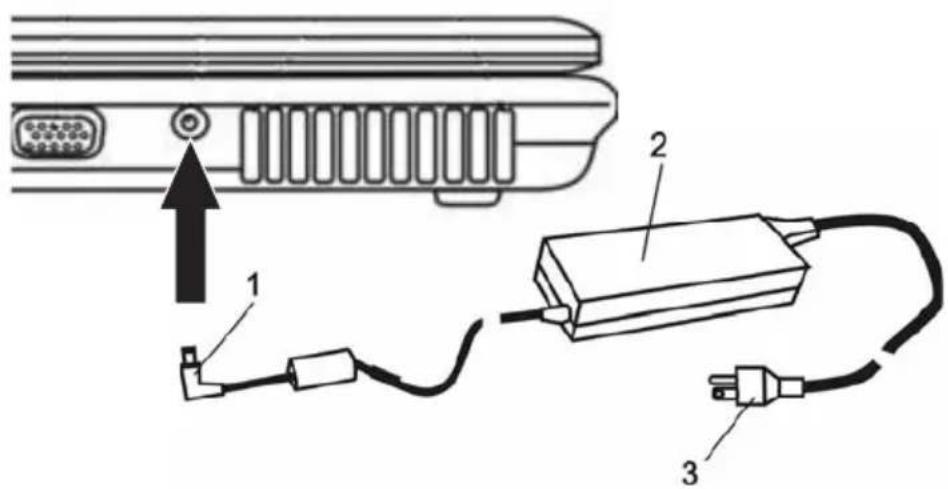
The notebook is supplied with a power cable and a universal, self-adjusting power adapter. The power adapter can operate with any constant voltage between 100 and 240 volts.
To use the power adapter:
- Connect the power adapter to the DC IN socket located on the side of the notebook.
- Connect the power cable to the power adapter.
- Connect the power cable to a power outlet.

You can choose to run the notebook via battery or power supply. The first time you use the computer, you need to use the power adapter. Use only the supplied power adapter. Using the wrong power adapter can cause damage to the notebook.
The power adapter contains no service-able parts.

NEVER OPEN THE POWER ADAPTER!
DANGER OF DEATH!
Switching the Notebook On
You've now completed the preparations. Now press the on/off button to switch on the notebook.
Tip:
If you experience a program or system crash, press the keys: Ctrl + Alt + Del at the same time. In most cases, this will enable you to end only the task that has crashed and restart the notebook (warm start). If this does not work, hold down the on/off button for more than four seconds – this will switch off the notebook.s You can now start up the computer as normal (cold start).

Please note that with Microsoft® Windows operating systems you should always switch off the notebook as follows:
Click the Start button.
Select Shut Down.
Click OK.
This avoids any problems with the hard disk and operating system.
Once the notebook is switched on, the on/off button can perform several functions depending on the energy settings. In the standard setting, pressing the on/off button again will switch off the notebook.

natural_image
Top-down diagram of a keyboard with a highlighted key and arrow pointing to it (no text or symbols present)Fig. 4
The operating system is installed the first time you switch on the computer. Please follow the operating system's installation instructions here.
After installation and restarting, the notebook is ready to use.
The basic graphics functions allow you to modify the resolution, the color depth and the desktop appearance.
You can find more detailed information on this point in the installation instructions.
Power Management
Your system is compatible with the ACPI power saving system.
The basic power management settings can be found under the following in Windows operating systems:
Here you can set the behavior separately for various battery charge levels.
Standby: – low energy consumption –
The display is dimmed and the hard disk remains unchanged. The power LED flashes. By pressing the on/off button, the notebook returns to the normal operating state. The user must log on again.
Sleep: – Without power adapter no energy consumption –
The current operating state is saved to the hard disk; the notebook is switched off. All open documents or applications become available again when the computer is switched on. Switching off the notebook and disconnecting it from the power supply (pulling the plug of the power adapter) can prevent any energy consumption.
- Notes on the ExpressCard:

Never remove an ExpressCard when the system is in sleep mode. This deactivates the slot, thus changing the system configuration. This can lead to problems the next time the computer is started.

System Overview
Left Side

Fig. 5
(1) Kensington Lock anti-theft device
(2) Modem port
(3) Optical disk drive with eject button
(4) Emergency release for optical disk drive (use only if notebook is switched off)
(5) USB ports
Right Side

All air intake and ventilation openings must be kept free from obstructions at all times. If not, the device is liable to overheat.

Fig. 6
(1) ExpressCard slot
(2) USB port
(3) Ethernet/LAN port
(4) S-Video TV output
(5) VGA port
(6) Power adapter socket
(7) Ventilation slots
(8) Memory card slot
(9) FireWire port
Front View

Fig. 7
(1) WLAN switch
(2) Microphone socket
(3) Audio output
Underside

All air intake and ventilation openings must be kept free from obstructions at all times. If not, the device is liable to overheat.

Fig. 8
(1) Battery slot and battery release
(2) Ventilation slots
(3) Cover for WLAN card, RAM, hard disk and main processor
Explanation of LED Displays

Fig. 9
(1) Power on LED
(2) WLAN
(3) Battery level
(4) Hard disk drive / optical disk drive
(5) Caps Lock
(6) Num Lock
(7) Silent mode
Table 1
| Symbol Bedeutung | |
| [TYW0] | Lights green when the notebook is switched on. Flashes green in power save mode. |
 | Lights green when the wireless LAN function (wireless network) is activated. |
 | Lights green when the battery is fully charged. Flashes orange when the battery is being charged. Flashes red when the battery is almost empty. |
 | Lights or flashes green when the optical disk drive or hard disk drive is being accessed. |
| [ABD2] | Lights when Caps Lock is on. |
 | Lights when Num Lock is on. |
| [k4XX] | Lights green when the silent mode is on. |
Hot Keys
(Shortcut key combinations with special functions)
To activate the hot keys, press and hold down the Fn key and then press the desired additional key. For certain functions it may be necessary to install a driver or additional software. Please refer to the 'Installation Instructions' section.
Table 2
| Keys Meaning |
| Fn + F1 Switches to power save mode. |
| Fn + F3 Switches the loudspeaker on/off. |
| Fn + F4 Switches between LC display/monitor/both. |
| Fn + F5 Increases the volume. |
| Fn + F6 Reduces the volume. |
| Fn + F7 Increases LCD brightness. |
| Fn + F8 Reduces LCD brightness. |
The Quick Launch Buttons
The quick launch buttons are located just above the keyboard. You can use these to launch frequently used applications.
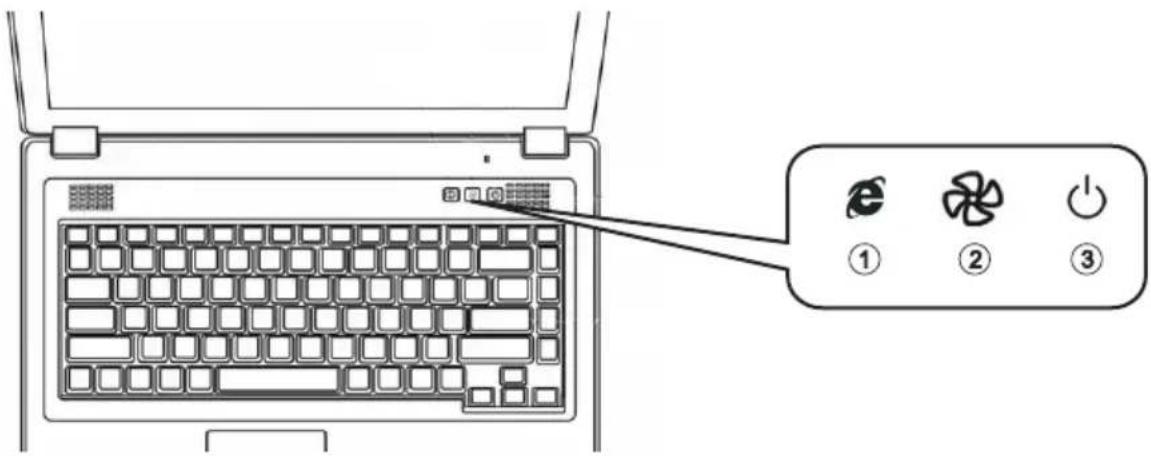
Fig. 10
(1) Internet Explorer button
(2) Silent mode button
(3) On/off button
The Keyboard
Your notebook's keyboard has all the functions of a normal AT-compatible keyboard plus some extras:
Typewriter
These keys correspond to a typewriter's keys.
Function keys
In many operating systems (and applications), special functions are available via these keys. You can find more detailed information on this in the relevant handbooks.
Special keys
These keys (and key combinations) are used for controlling various hardware functions.

Fig. 11
(1) Function keys – For the functions, see Table 2 – Hot Keys
(2) Fn key
(3) Microsoft Windows key (position may vary for different layouts)
(4) Numerical keypad (press Num Lock key to activate this keypad - see Fig. 11)
(5) Microsoft Windows key (position may vary for different layouts)
(6) Arrow keys
The TouchPad
The system automatically sets up the integrated TouchPad. If you are using Microsoft Windows®, no driver needs to be installed for the basic functions. If you wish to use the advanced functions, you can find the driver to activate the function on the Utility CD. To do this, please follow the instructions in the “Installation Instructions” section.
(1) Sensor field
(2) Left "mouse" button
(3) Right "mouse" button
(4) Scrolling area: works like a mouse wheel
Note for left-handed users: most operating systems enable reversal of the mouse buttons.

Fig. 12
The TouchPad - Operation

natural_image
Line drawing of a hand inserting a small object into a device (no text or symbols)

natural_image
Line drawing of a hand pressing down on a device with a grid of small components (no text or symbols)
natural_image
Line drawing of a hand pressing down on a device with a tray and two compartments (no text or symbols)(1) Select
(2) Select, move and release (Drag & Drop)
(3) Double-click to run/open files
(4) Scroll
When using the TouchPad, make sure it as well as your finger are clean and dry. The TouchPad reacts to finger movements. The lighter it is touched, the better it reacts. Pressing hard will not increase its accuracy.
The Optical Drive
To insert a CD, press the eject button on the front side of the drive.

natural_image
Line drawing of a laptop with a CD inside, showing the front panel and keyboard (no text or symbols)Fig. 13

natural_image
Illustration of a hand placing a CD into a laptop keyboard (no text or symbols)Fig. 14
Place the CD/DVD onto the spindle with the label facing up and push it gently down onto the spindle.
Press the drive tray back until it snaps into place. The CD/DVD is now ready to read. Some CDs have an autostart function. This means that installation programs or music CDs automatically run after you place them in the drive.
The ExpressCard Slot
The notebook is equipped with an ExpressCard slot. The slot is 54 mm wide and is suitable for ExpressCard/34 and ExpressCard/54 expansion cards.
To insert an ExpressCard, push it into the slot until it locks into place. Establish the required connection (for example, a network connection). Also consult the documentation for the relevant card.
To remove the ExpressCard, first push it gently inward. This releases the catch, allowing the ExpressCard to be removed.

natural_image
Diagram of a computer monitor rear panel showing internal components and an external card slot (no text or symbols)Fig. 15
The Data/Fax Modem
The system automatically sets up the integrated analog modem. To use the modem functions, connect the modem socket to an analog telephone socket (not ISDN) using the telephone cable.
Proper use:
The modem can be connected to all analog sockets in Europe. It is to be used solely for data communication purposes.

Do not attempt to connect the modem to an ISDN telephone socket! This would result in serious damage to the device.

natural_image
Line drawing of a hair iron with attached cable and connector (no text or symbols)Fig. 16
The LAN Port
The built-in network adapter enables your computer to connect to the Internet via a 10/100 Mbps network or DSL.
The connection is made via an Ethernet network cable and RJ-45 connectors. These are connected to the notebook and to an available network hub or DSL socket.

Under no circumstances should you confuse a network cable RJ-45 connector with an ISDN connector! NEVER attempt to connect the LAN adapter to an ISDN telephone socket!
This would result in serious damage to the device.

natural_image
Diagram of a computer cable connector showing cable routing and port connections (no text or symbols)Fig. 17
Installation Instructions
Restoring the Drivers
Your system is supplied in a preloaded condition. This means that all the data and drivers that the system requires are already on the hard disk. In case you erase and/or format your hard disk drive, the system drivers are stored on the Utility CD supplied with the computer. After reinstalling the operating system (for example, with the Recovery CD), this allows you to restore your notebook to a usable condition.
The Utility CD
The Utility CD will run automatically after you place it in the drive. If this is not the case, you can run the CD as follows: select
You can select the driver that you want to install in the "Drivers" section. Recommended: Install all listed drivers from top to bottom.
In addition, you can later install the advanced functions you require in the "Utility" section.
When using the Utility CD, please follow the menu instructions.
Setting the Resolution
After installation of the graphics driver, you can set the resolution to the desired size (e.g. 1280 × 800 ).
You do this in the following way:
Right-click on any free area of the desktop. Select
In the Display Properties window, click the Settings tab.
Here you can set the slider to a resolution you find comfortable.
Click

Specifications
Processor and Platform
- Intel Core TM2 Duo Processor up to 7200 (up to 2.0 GHz)
- µ FC-PGA package
- Intel 945-GM & ICH7-M
RAM
- Main memory expandable to 2 GB DDR2 SDRAM (Only allow qualified service personnel to expand the main memory)
- Two PC25300 SODIMM sockets (DDR2667, 333 MHz)
Display and Video
- 15,4 inch WXGA TFT display Supported resolution 1280 × 800 with up to 16.7 million colors
- Integrated graphics adapter: Intel GMA 950
- Simultaneous LCD/external monitor
- External monitor: Supports up to 1600 × 1200, 16.7 million colors
Storage Capacity
• One SATA hard disk (2.5", 9.5 mm)
• One internal optical drive
- One memory card slot for MultimediaCard (MMC), SecureDigital Card (SD), Memory Stick (MS), and MS Pro
Audio
- Intel DirectSound 3D
• Built-in stereo loudspeakers
Communications
- Fast Ethernet function for 10/100 Mbps, built in
- MiniCard for 802.11a+b+g wireless network (optional)
• High-speed 56 Kbps V.90 fax/data software modem (MDC)
Input Devices
- 86/87/88-key Microsoft Windows keyboard
- Ergonomically positioned TouchPad
- Quick launch buttons
Ports
- One 15-pin VGA port
• One S-Video TV output
• One stereo output socket
• One microphone input socket - Three USB ports (v2.0)
• One IEEE 1394 port (FireWire/i.Link)
• One standard telephone socket (RJ-11)
• One standard network port (RJ-45) - One DC IN socket
• One ExpressCard slot (54 mm)
Power Supply
• Main battery Li-Ion 4000 mAh
- AC power adapter 100-240 V, AC 50-60 Hz, 65 W.
• Recharging System OFF: about 3 hours (95 %)
System ON: about 4.5 hours (95 %)
- Fully-supported ACPI Power Management, suspend to Disk, suspend to RAM
Operating System
• O/S Microsoft ® Windows ® XP
Other Data
• Dimensions 258 (D) × 358 (W) × 28-36 (H) mm
• Weight 2.8 kg (depending on model)
- Operating temperature: 5 to 35irc C
- Operating humidity: 20 to 80% RH
• Storage temperature: -15 to +50 °C
UK

Fault Diagnosis and Troubleshooting
If a problem occurs while working with your notebook, first of all try using the following information to solve the problem. If the problem persists, switch off the system for several minutes and then restart it. You will lose all unsaved data, but the system may work properly again. Subsequently contact your dealer or customer support agent.
Despite pressing the on/off button, the notebook remains switched off.
Possible cause of the problem:
- The battery is missing or is incorrectly installed.
Note:
- The power on LED is not lit.
Troubleshooting:
- Make sure that the battery is in the battery compartment and is inserted properly.
- Check that the battery terminals are making direct contact.
- Connect your notebook to the power adapter so that the battery (if present) can recharge.
Possible cause of the problem:
- Battery level low.
Note:
- The battery display LED flashes.
Troubleshooting:
- Operate the notebook using the power adapter. If the system does not immediately start up, switch off the notebook and then restart it.
The screen is not working.
Possible cause of the problem:
- The energy saving mode is activated.
Note:
- The suspend LED flashes.
Troubleshooting:
- Press the on/off button.
Possible cause of the problem:
- The screen settings are incorrect.
Troubleshooting:
- Press the spacebar, several times if necessary.
- If an external monitor is connected, switch it on.
Possible cause of the problem:
- In the System Settings, a screen type other than the existing one has been set.
Troubleshooting:
- Press the Fn + F4 key combination.
- If an external monitor is connected, connect this to a power source and switch it on. Also check the brightness and contrast settings.
The system stops working.
Possible cause of the problem:
- An energy saving function has been activated.
Note:
- The screen switches itself off.
Troubleshooting:
- Press any key, or press the on/off button if none of the status LEDs are lit.
Possible cause of the problem:
- A software error has caused a system crash.
Troubleshooting:
• Additional information is available in the operating system handbook.
- If you cannot remedy the problem, restart the system. You will lose any unsaved data! If this doesn't work either, briefly switch off the notebook and then switch it back on again.

Each time the system starts, it carries out a self-test (POST). If an error occurs, an error message appears, briefly describing the problem.
Index
A
Accuracy 74
ACPI power saving system 67
Arrow keys 73
Audio output 70
B
Battery 51, 54, 61, 64, 83
Battery or power supply 65
C
Caps Lock 71
Charging times 64
Cleaning 54
Cold start 66
Color depth 66
Ctrl + Alt + Del 66
D
Data/Fax Modem 76
Desktop appearance 66
Display 63, 67, 83
E
Energy consumption 67
Ethernet/LAN port 69
ExpressCard slot 69
External monitor 83, 84
F
Finger movements 74
FireWire port 69
Fn key 72, 73
Function keys 73
G
Garbage collection service 53
Graphics functions, basic 66
H
Hard disk drive 71
Hot Keys 72
Household waste 51, 53
|
Instructions 66
Internet Explorer button 72
Internet Quick button 63
ISDN connector 76
K
Kensington Lock 69
Keyboard 63, 73, 80
Keys. 72
L
LAN Port 76
LC display 63
Loudspeakers 63
M
Memory card slot 69
Microphone 63
Microphone socket 70
Modem port 69
Modem socket 76
Moisture 53
N
Network 55,76
Network adapter ....76
Num Lock 71
0
Operating system 66, 74
Optical disk drive 69,71
Original packaging 61
P
Power adapter ..... 53, 64, 65, 67, 80, 83
Power adapter socket 69
Power cable 54, 65
Power supply 53,80
Q
Qualified service personnel ..... 53, 54, 79
R
Release catch 63
Resolution 66, 77, 79
S
S-Video TV output 69
Shipping contents 61
Shocks/Vibrations 53
Silent mode 71
Silent mode button 63,72
Sleep 67
Standby 67
Status LEDs 63
Sunlight 53
Switch on 66
System crash 84
T
TouchPad 63,74,80
TouchPad buttons 63
Typewriter 73
U
USB ports 69
V
Ventilation slots 69
VGA port 69
Voltage 50,65
W
Warranty 50
Wireless LAN 55
WLAN 71
WLAN switch 70
- Important Safety Information 53
- Shipping Contents 61
- Preparation 63
- System Overview 69
- Installation Instructions 77
- Specifications 79
- Fault Diagnosis and Troubleshooting 8 3
- Index 8 5
- Note
- Legal Information
- Application and References
- Declaration:
- Sound Power Level
- Federal Communications Commission (FCC) Note
- Warranty
- Operator Note:
- Optical Disk Drive (ODD):
- Returning the Device/Battery
- Information on the return of electrical and electronic waste in EU countries according to Directive 2002/96/EC, and its implementation in respective national regulations
- a) Reason and Purpose of Separate Collection
- b) Significance the 'Crossed-Out Wheelie Bin'
- c) Reuse, Recycling and Recovery
- d) Weight
- Important Safety Information
- Wireless LAN
- (wireless network - abbreviation = WLAN)
- Additional safety notes for units with wireless LAN
- CE-labeling for devices with wireless LAN
- CE
- Restrictions
- France
- Italy
- Netherlands
- Radio frequencies for units with wireless LAN
- FREQUENCIES
- Legal requirements - exception clauses EXCEPTION CLAUSES FOR UNITS WITH WIRELESS LAN
- Shipping Contents
- Preparation
- Inserting the Battery
- Removing the Battery
- Power Supply
- Switching the Notebook On
- Tip:
- Power Management
- System Overview
- Left Side
- Right Side
- Front View
- Underside
- Explanation of LED Displays
- Hot Keys
- The Quick Launch Buttons
- The Keyboard
- Typewriter
- Function keys
- Special keys
- The TouchPad
- The TouchPad - Operation
- The Optical Drive
- The ExpressCard Slot
- The Data/Fax Modem
- The LAN Port
- Installation Instructions
- Restoring the Drivers
- The Utility CD
- Setting the Resolution
- Specifications
- Processor and Platform
- RAM
- Display and Video
- Storage Capacity
- Audio
- Communications
- Input Devices
- Ports
- Operating System
- Other Data
- Fault Diagnosis and Troubleshooting
- Despite pressing the on/off button, the notebook remains switched off.
- Possible cause of the problem:
- Note:
- Troubleshooting:
- The screen is not working.
- The system stops working.
- Index
- A
- B
- C
- D
- E
- F
- G
- H
- |
- K
- L
- M
- N
- 0
- P
- Q
- R
- S
- T
- U
- V
- W
Brand : MAXDATA
Model : ECO 4510 IW
Category : Laptop