M-BOOK 1200 - Laptop MAXDATA - Free user manual and instructions
Find the device manual for free M-BOOK 1200 MAXDATA in PDF.


User questions about M-BOOK 1200 MAXDATA
0 question about this device. Answer the ones you know or ask your own.
Ask a new question about this device
Download the instructions for your Laptop in PDF format for free! Find your manual M-BOOK 1200 - MAXDATA and take your electronic device back in hand. On this page are published all the documents necessary for the use of your device. M-BOOK 1200 by MAXDATA.
USER MANUAL M-BOOK 1200 MAXDATA
Removing the Battery. 50
Inserting the Battery 50
power supply 51
Switching the Computer On 52
Power Management 53
Right Side 54
Left Side 54
SYSTEM OVERVIEW 54
Rear View 55
Underside 55
Explanation of LED Displays 56
Display System status 56
Hot Keys 57
The Quick Buttons (Quick Launch keys) 58
The Keyboard 59
The TouchPad 60
The TouchPad - Operation 60
The CD-ROM/DVD Drive 61
The PC Card Slot 62
The Memory Card Slot 62
The Data/Fax Modem 63
The LAN Port 63
INSTALLATION INSTRUCTIONS 64
Restoring the Drivers. 64
The Utility CD 64
Setting the Resolution 65
SPECIFICATIONS 66
FAULT DIAGNOSIS AND TROUBLESHOOTING 70
Index 73

NOTE
The company reserves the right to make unadvertised modifications to this document. Information contained in this document is intended solely for reference purposes and in no way constitutes a basis for asserting obligations on the part of the manufacturer or vendor. Neither the manufacturer nor the vendor accept liability for any errors or inaccuracies that this document may contain. Nor is liability accepted for damages or losses that arise from the incorrect application of this guide. No part of this document and the accompanying software may be copied, translated, or distributed without the prior permission of the dealer, manufacturer, or authors. Archive copies for private use are excepted from this rule. The use of this product's trademarks is subject to the conditions listed in the advanced service handbook on the device drivers and utilities CD-ROM. Brand or product names mentioned in this document may be names protected by copyright law or registered trademarks of other companies. These are mentioned only for identification purposes and have no recommendatory character in regard to the product or manufacturer.
© MAXDATA 2003
Legal Information
You can find additional legal information and conditions in the advanced service handbook on the device drivers and utilities CD-ROM (Utility CD).
Acrobat and the Acrobat Logo are trademarks of Adobe Systems Incorporated or its subsidiaries. In certain jurisdictions these trademarks may be registered.
Intel and Pentium are registered trademarks of Intel Corporation. MS-DOS, Windows, Windows 95, Windows 98, Windows Me, Windows 2000, Windows XP, and Windows NT are registered trademarks of Microsoft.
Application and References
This user guide offers an introduction and is intended to provide instructions for your first steps with your new computer.
For more in-depth specialist information, please consult the advanced service handbook.
All references refer to the accompanying device drivers and utilities CD-ROM, which contains the advanced service handbook (in Adobe Acrobat format), drivers, and special utilities for your notebook.
If you wish to use an operating system that is not mentioned in these documents, consult the ReadMe files on the CD-ROM for the relevant information.
Please also consult your dealer to make sure that it is possible to run your chosen
operating system on your notebook. The operating system is not contained on the device drivers and utilities CD-ROM.
Note: Some or all system configurations may have been made already. If this is not the case or if parts of the system need to be reconfigured, please consult the advanced service handbook on the device drivers and utilities CD-ROM for instructions on how to do this.
Declaration:
This device meets the EN 55022 product standard for interference emissions, the EN 50082-1 basic standard for interference, and the EN 60950 low voltage directive standard.
If any modification that has not been agreed upon with the manufacturer is made to the device, adherence to these standards can no longer be guaranteed.
To ensure electromagnetic compatibility (EMC), please observe the information given in the handbook.
Sound Power Level
The workplace-based sound power level is less than 55 dB A.
Federal Communications Commission (FCC) Note
This device has been tested and found to comply with the limits for a Class B digital device, pursuant to Part 15 of the FCC Rules.
Warranty
The warranty period for the device is 24 months. In the case of damage occurring outside the scope of the warranty, it is the intention to offer repair of the devices through original replacement parts or exchange of modules or devices with cost for at least 3 years (from end of production).
Operator Note:
This device has been carefully RF suppressed and tested to avoid radio interference.
However, please pay attention to the following concerning external data cables:
If it becomes necessary to replace a data cable specified by the manufacturer, the operator must ensure that replacement cables also match the original cable in terms of screening quality for correct radio interference suppression.
Use only screened cables and external devices that are identical with this product in terms of safety level and EMC behavior.
In the event of non-observance, compliance with the standards mentioned above is no longer guaranteed!
CD-ROM Drive:
Built-in CD-ROM drives are Class 1 laser products. Do not open the device and do not look into the beam, even using optical instruments.
Unless the drive is expressly designated for the simultaneous use of more than one CD, never insert more than one CD into the drive.
Returning the Device/Battery

We accept the return of all our products after they have been used if the condition corresponds to standard proper usage. Returned devices are either slated for further use or dismantled and recycled in an environmentally sound manner. The return is handled through your dealer.
Rechargeable and disposable batteries containing heavy metals should not be thrown in with household waste. They are accepted free of charge by manufacturers, dealers or their representatives for recycling or disposal.
The outside packaging and all inner parts of the box can be disposed of as waste paper.
IMPORTANT SAFETY INFORMATION
Although the notebook is highly robust, it is not indestructible. To prevent damage from occurring, please pay attention to the following:
- Avoid exposing the notebook to strong shocks or vibrations.
- Keep it away from intense heat (radiators, direct sunlight).
- Protect the notebook from electromagnetic interference. This will also prevent data loss.
- Do not expose it to moisture. This is an electrical device!
- Be sure to use the correct power supply.
WARNING

Always use an approved power adapter.
The power adapter requires a fluctuation-free and uninterrupted power supply. If you have any questions, consult your local electricity supply company.
The power adapter must be fitted with a grounded (earthed) plug.
Never pull on the cable to unplug the power supply – always pull the plug itself.
Disconnect the external power supply (power adapter or car adapter) before cleaning the computer.
Notes on Using Batteries
ATTENTION

Only ever use batteries designed for use with this computer.
Recharge batteries via the notebook.
Do not attempt to repair faulty batteries yourself. Entrust repairs to your dealer or qualified service personnel.
Keep damaged batteries away from children and dispose of them properly as soon as possible. Exercise caution in handling damaged batteries. Batteries may explode if exposed
to fire or improperly handled or disposed of.
The notebook is provided with a battery. The battery is recyclable. It is prohibited by law to dispose of the battery in ordinary household waste. If you have questions concerning proper disposal, consult your garbage collection service.
Note on the System Clock Battery
WARNING

Caution: There is a risk of explosion if batteries are replaced incorrectly. Replace the battery only with a battery recommended by the manufacturer or with a battery of the same type. Dispose of the battery according to the manufacturer's instructions.
Servicing
Do not service your computer yourself! You could invalidate your warranty rights and expose yourself and the device to the risk of electrical shock. If servicing is required, consult qualified service personnel. Disconnect the computer from the power supply. If the following problems occur, consult qualified service personnel:
WARNING

- Power adapter or power cable is damaged or frayed.
- Liquid has entered the computer.
- Despite operating it correctly, the computer is not functioning properly.
- The computer has been dropped or damaged.
- Cleaning
Never apply cleaning agents directly to the computer. Use only a soft, lint-free cloth. Never use volatile (petroleum distillates) or scouring cleaning agents.
SHIPPING CONTENTS
Before you begin installing your notebook, make sure that all components are present.
If any item listed in the shipping contents is missing from your computer package, please contact your dealer immediately.
- Notebook
- Battery
- Utility CD
- Power adapter
Power cable - User guide
- CD- or DVD- or Combo drive (built-in)
Modem cable
Please retain the original packaging in case you need to send the device for repairs or upgrades. Please store the packaging safely.
PREPARATION
Before first using the computer, make sure you are familiar with the individual components of your system.
Slide the release catch (1) to the right and open the display (2).
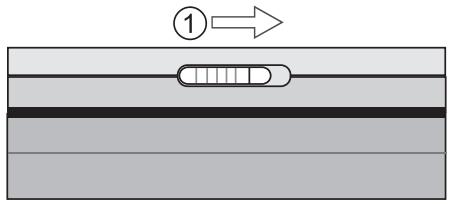
(1) Release catch
(2) Open the display
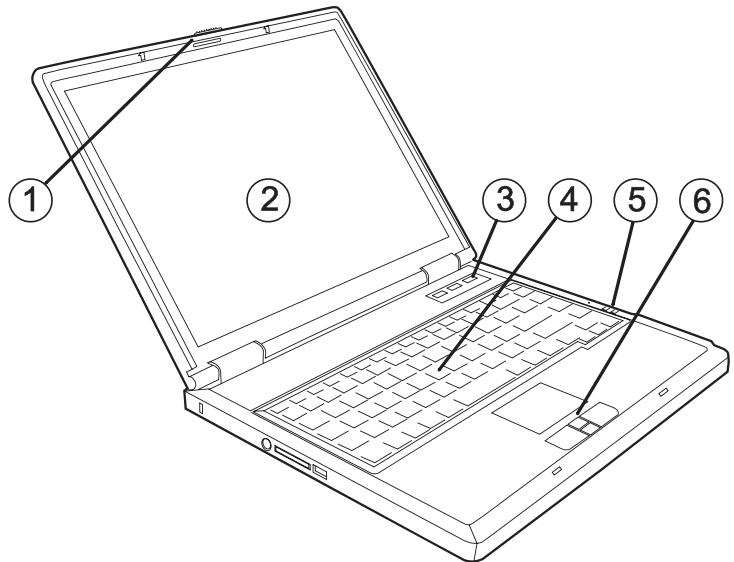
Fig. 1
Fig. 2
(1) Release catch
(2) LCD display
(3) Power button, Status LEDs and Quick Launch keys
(4) Keyboard
(5) Display of the operating state
(6) TouchPad, keys and Scroll Pad
REMOVING THE BATTERY
The battery is included in the notebook's shipping contents. This battery is only partially charged. Note that the charging time for the battery is three hours if the computer is switched off, or six hours if the computer is switched on.
It is absolutely essential that the first time you charge the battery you fully charge it! Do not unplug the notebook from the power adapter until the battery is fully charged!
(1) Please remove the 3 screws displayed using the appropriate tool.
(2) Slide the cover sideways and then lift it upwards.
(3) The battery is released from the holder by pulling on the strip of material. You can now run the notebook with the power adapter alone!
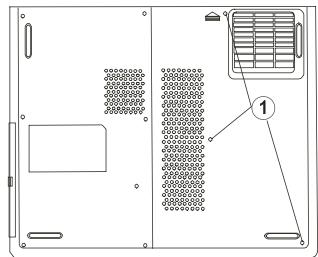
Fig. 3
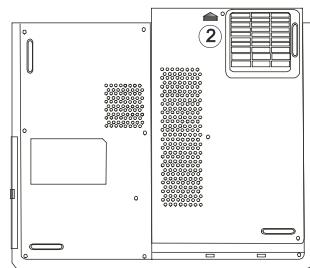
Fig. 4
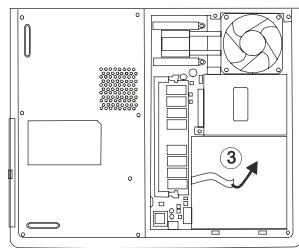
Fig. 5
INSERTING THE BATTERY
To re-install the battery, simply follow the steps in the reverse order
POWER SUPPLY
You can choose to run the notebook via battery or power supply. The first time you use the computer, you need to use the power adapter. Use only the supplied power adapter. Using the wrong power adapter can cause damage to the computer.
The notebook is supplied with a power cable and a universal, self-adjusting power adapter. The power adapter can operate with any constant voltage between 100 and 240 volts.
To use the power adapter:
- Connect the power adapter to the DC IN socket on the computer.
- Connect the power cable to the power adapter.
- Connect the power cable to a power outlet.

WARNING
The power adapter contains no serviceable parts.

WARNING
NEVER OPENTHEPOWDER ADAPTER!
DANGER OF DEATH!
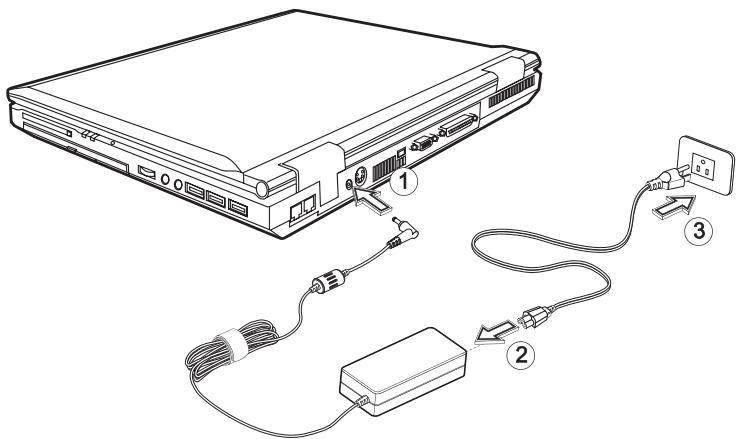
Fig. 6
SWITCHING THE COMPUTER ON
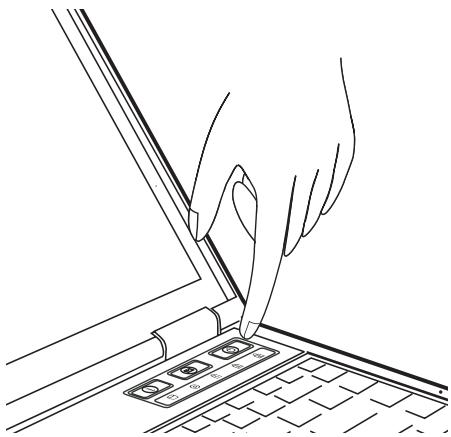
Fig. 7
You've completed the preparation. Now switch on the notebook using the on/off button.
Once the computer is switched on, the on/off button can perform several functions depending on the energy settings. In the standard setting, pressing it again will switch off the computer.
Note:
Please note that with the Windows operating systems you should always switch off the computer as follows: Click the Start button Select Shut Down Click OK.
This avoids any problems with the hard disk and operating system.
Tip:
If you experience a program or system crash, press the buttons: Ctrl + Alt + Del at the same time. If you're fortunate this will enable you to end only the task that has crashed and/or restart the computer (warm start). If this does not work, hold down the on/off button for more than four seconds – this will switch off the computer. You can now start up the computer as normal (cold start).
The operating system is installed the first time you switch on the computer. Please follow the operating system's installation instructions here.
After installation and restarting, the computer is ready to use.
The basic graphics functions allow you to modify the resolution, the color depth and the desktop appearance.
You can find more detailed information on this point in the installation instructions.
POWER MANAGEMENT
Your system is compatible with the ACPI power saving system.
Note on PC Cards
Never remove a PC card while the system is in save-to-disk mode. This would deactivate the slot and problems could arise from a modified system configuration the next time you start up the computer.
The basic power management settings can be found under the following in Windows operating systems:
Here you can set the behavior separately for various battery charge levels.
Standby: low energy consumption.
The display is dimmed and the hard disk remains unchanged. The power LED flashes. By pressing the on/off button, the computer returns to the normal operating state. The user must log on again.
ATTENTION

Sleep: without power adapter no energy consumption.
The current operating state is saved to the hard disk; the computer is switched off. All open documents or applications become available again when the computer is switched on.
Switching off the notebook and disconnecting it from the power supply (pulling the plug of the power adapter) prevents any energy consumption.
SYSTEM OVERVIEW
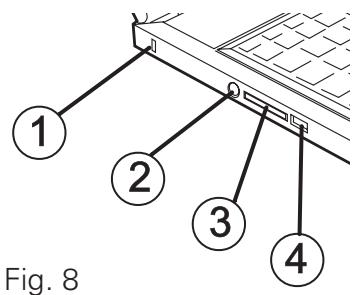
LEFT SIDE
(1) Kensington lock - anti-theft device
(2) PS/2 mouse/keyboard ports
(3) Memory card slot
(4) USB port
RIGHT SIDE
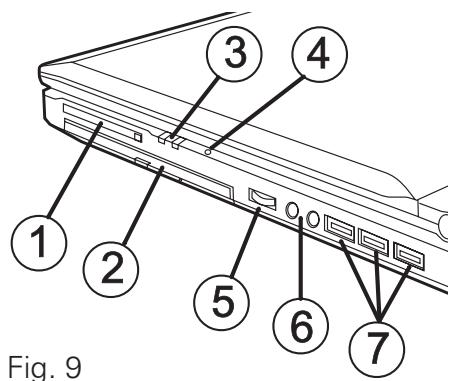
Fig. 9
(1) PC card slot with release catch
(2) CD/combo or DVD-ROM drive
(3) Display of the operating state
(4) Built-in microphone
(5) Volume control
(6) Microphone/ headphones socket
(7) USB ports
REAR VIEW
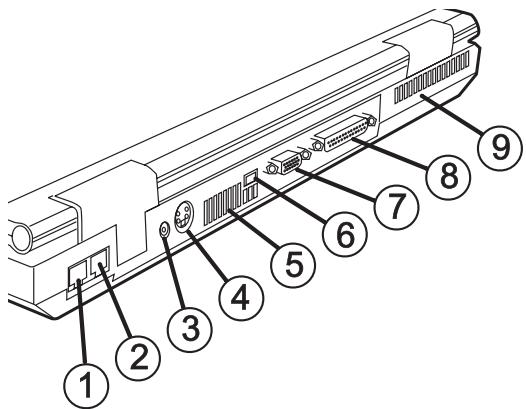
Fig. 10
(1) Network port
(2) Modem port
(3) Socket for power adapter
(4) S-Video TV output
(5) Ventilation opening
(6) IEEE 1394 port
(7) Connector for external monitor
(8) Printer port
(9) Ventilation opening

ATTENTION
All air intake and ventilation openings must be kept free from obstructions at all times. If not, the device is liable to overheat.
UNDERSIDE
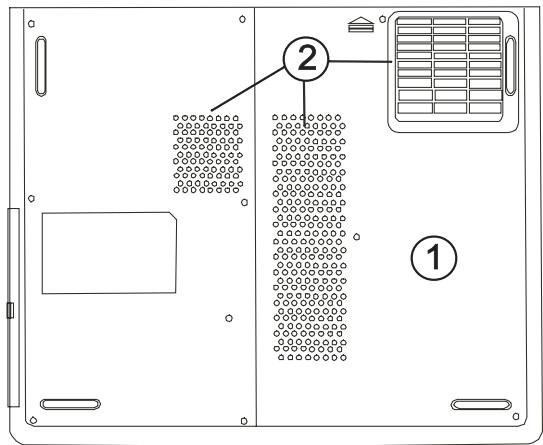
Fig. 11
(1) System cover
(2) Ventilation openings
EXPLANATION OF LED DISPLAYS
Table 1
| DISPLAY SYSTEM STATUS | |
| Symbol | Meaning |
| Lights when the hard disk is being accessed. | |
| Lights when the optical drive is being accessed. | |
| Lights when Num Lock is on. | |
| Lights when Caps Lock is on. | |
| Lights when Scroll Lock is on. | |
| Flashes red when the battery is being charged (when sys-tem is on/off). Flashes green to indicate that the battery level is low. | |
| Flashes green when the notebook is in power saving mode. | |
HOT KEYS
(Shortcut key combinations with special functions)
To activate the hot keys, press and hold down the Fn key and then press the desired additional key.
Table 2
| Symbol | Keys | Meaning |
| ∑ | Fn + F1 | Switches the computer to power saving mode. |
| + | Fn + F3 | Switches the battery warning on/off. |
| Fn + F4 | Switches between LCD display/monitor/both. | |
| Fn + F5 | Increases the volume. | |
| Fn + F6 | Reduces the volume. | |
| + | Fn + F7 | Increases LCD brightness. |
| - | Fn + F8 | Reduces LCD brightness. |
| Num Lock | Activates the numerical keypad. | |
| Scroll Lock | If the Scroll Lock is activated, the function of the Page Up and Page Down keys changes depending on the software. |
THE QUICK BUTTONS (QUICK LAUNCH KEYS)
There are two quick launch buttons just above the keyboard. You can use these to launch frequently used applications.
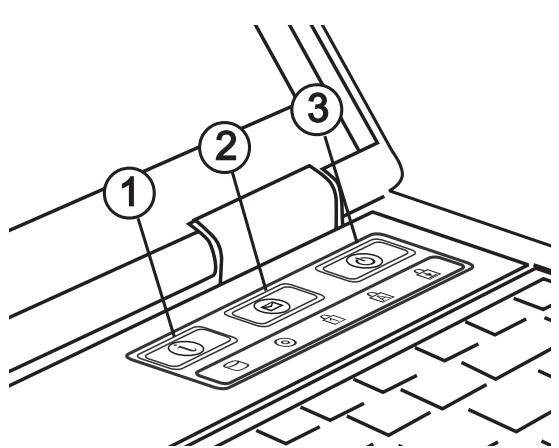
Fig. 12
(1) Internet - starts the Internet browser
(2) E-mail - starts the e-mail program
(3) On/off button
THE KEYBOARD
Typewriter -
Your notebook's keyboard has all the functions of a normal AT-compatible keyboard plus some extras:
These keys correspond to a typewriter's keys.
Function keys -
In many operating systems (and applications), special functions are available via these keys. You can find more detailed information on this in the relevant handbooks.
Special keys -
These keys (and key combinations) are used for controlling various hardware functions.
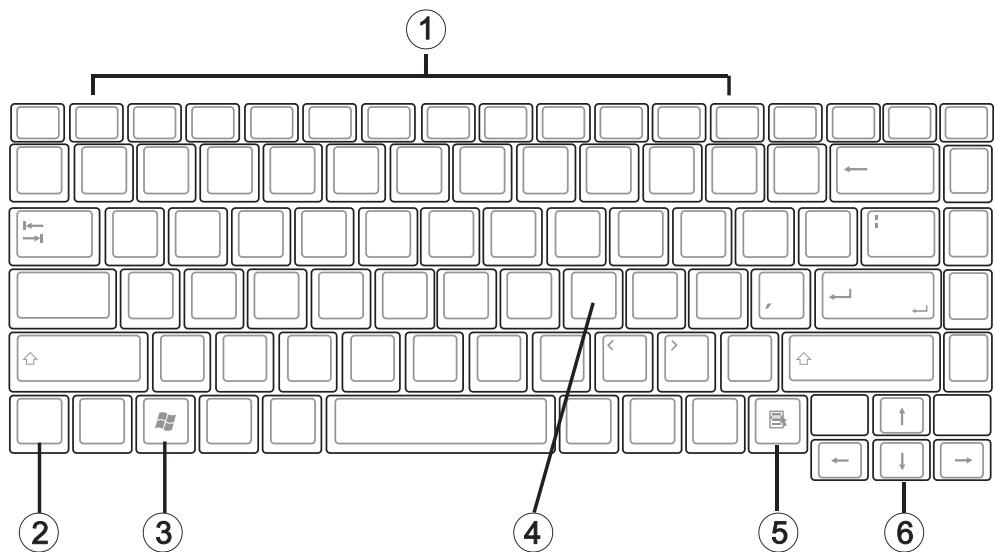
Fig. 13
(1) Function keys - For the functions, see Table 2 - Hot Keys
(2) Fn key
(3) + (5) Windows keys
(4) Numerical keypad (press Num Lock to activate this keypad – see Fig. 11)
(6) Arrow keys
THE TOUCHPAD
The system automatically sets up the integrated TouchPad. Provided you are using Windows, you do not need to install any drivers for the basic functions. If you wish to use the advanced functions, you can find the drivers to activate the keys on the Utility CD. To do this, please follow the instructions in the "Installation Instructions" section.
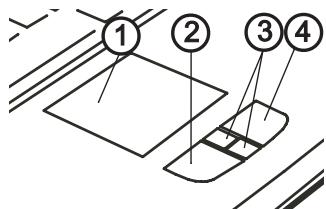
Fig. 14
(1) Sensor field
(2) Left "mouse" button
(3) Scroll buttons - work like a mouse wheel
(4) Right "mouse" button
Note for left-handed users: Most operating systems enable reversal of the mouse buttons.
(1) Select
(2) Select, move and release (Drag & Drop)
(3) Double-click to run/open files
(4) Scroll
When using the TouchPad, make sure it as well as your finger are clean and dry. The TouchPad reacts to finger movements. The lighter it is touched, the better it reacts. Pressing hard will not increase its accuracy.
THE CD-ROM/DVD DRIVE
(1) To insert a CD, press the eject button on the front side of the drive.
(2) The tray is released and must be pulled out by hand.
(3) Place a CD onto the spindle with the label side facing up and push it gently down onto the spindle.
(4) Push the CD tray back in until it locks into place. The CD is now ready to read.
Some CDs have an autostart function. This means that installation programs or music CDs automatically run after you place them in the drive.
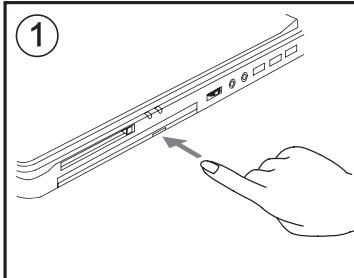
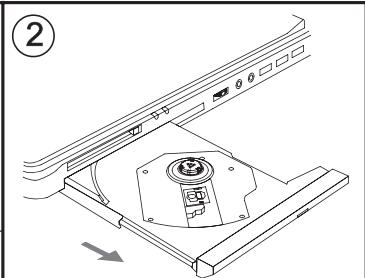
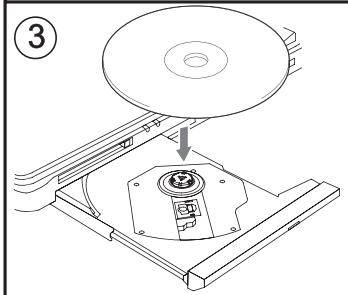
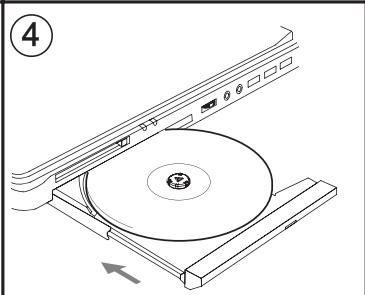
Fig. 16
THE PC CARD SLOT
The computer is equipped with a PC card slot. This is a PCMCIA 3.3 V/5 V slot, Type II.
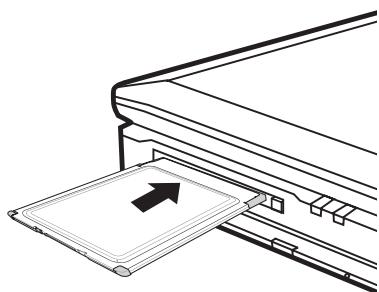
Fig. 17
To insert a PC card, push it into the slot until it locks into place. Set the connection you require (e.g. network connection).
You can also consult the documents for the relevant card.
To remove the card, push the eject button next to the slot. The button will pop outwards. Pressing the slot again releases the PC card.
The computer is provided with a combination slot. This slot accepts Memory Sticks and SD (Secure Digital) cards.
Insert these cards into the slot with the printed side upwards.
After the card snaps into place, it is recognized as an additional drive and you can access the data.
To remove the card, simply pull it out.
Never remove the card while data is being read from or written to the card!
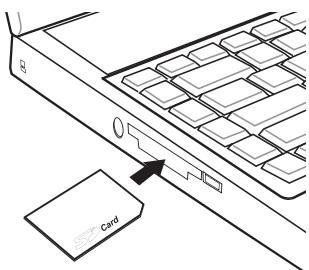
Fig. 18
DO NOT use the "Safely Remove Hardware" function to remove the memory card! In this situation you must restart the system to reactivate the combo slot.

ATTENTION
THE DATA/FAX MODEM
The system automatically sets up the integrated analog modem. To use the modem functions, connect the modem socket to an analog telephone socket (not ISDN) using the telephone cable.
Proper use:
The modem can be connected to all analog sockets (TBR 21) in Europe.
It is to be used solely for data communication purposes.
Do not attempt to connect the modem to an ISDN telephone socket! This would result in serious damage to the device.

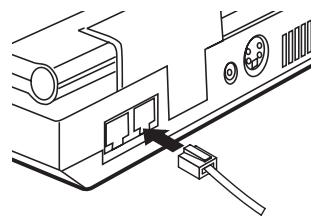
Fig. 19
THE LAN PORT
The built-in network adapter enables your computer to connect to the Internet via a 10/100 Mbps network or DSL.
The connection is made via an Ethernet network cable and RJ45 connectors. These are inserted on the back of the computer and into an available network hub or DSL socket.
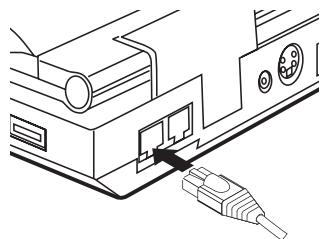
Fig. 20
Under no circumstances should you confuse a network cable RJ45 connector with an ISDN connector! NEVER attempt to connect the LAN adapter to an ISDN telephone socket! This would result in serious damage to the device.

ATTENTION
INSTALLATION INSTRUCTIONS
RESTORING THE DRIVERS
Your system is supplied in a preloaded state. This means all the data and drivers that the system requires are already on the hard disk. In case you erase and/or format your hard disk drive, the system drivers are stored on the Utility CD supplied with the computer. After reinstalling the operating system (for example, with the Recovery CD), this allows you to restore your notebook to a usable condition.
THE UTILITY CD
The Utility CD will run automatically after you place it in the drive. If this is not the case, you can run the CD as follows: select My Computer, CD Drive and then the utility.exe file.
You can select the driver that you want to install in the "Drivers" section. Recommended: All of the drivers listed from top to bottom.
In addition, you can later install the advanced functions you require in the "Applications" section.
When using the Utility CD, please follow the instructions on the menu.
SETTING THE RESOLUTION
After installing the graphics drivers, set the resolution to 1024 × 768 pixels.
You do this in the following way:
Right-click on any free area of the desktop.
Select
In the Display Properties window, click the Settings tab.
Here you can set the slider to 1024 x 768.
Click
SPECIFICATIONS
Processor
Mobile AMD Athlon™ XP-M processor
RAM
Main memory expandable up to 1 GB DDR SDRAM (Only allow qualified service personnel to expand the main memory.)
Two DDR-SDRAM 266/333 MHz sockets
Display and Video
14,1/15.0 inch XGA TFT display. Supported resolution 1024 x 768 with up to 16.7 million colors
VIA/S3G Uni Chrome Graphics Controller
Simultaneous LCD/external monitor
External monitor:
Supports up to 1280 x 1024, 16.7 million colors, 85 Hz or
1600 × 1200,16.7millioncolors,75 Hz
S-Video output
Storage Capacity
One external USB floppy disk drive (3.5", 1.44 MB) (optionally available)
One E-IDE hard disk drive (2.5", 9.5 mm)
One internal CD- or DVD- or DVD-RW- or Combo drive
One Memory Stick / Secure Digital combo slot
Audio
AC97 Audio
Built-in loudspeaker and microphone
Modem
High-speed 56 Kbps V.90 fax/data software modem
LAN
Fast Ethernet for 10Base-T and 100Base-TX network standards
Input Devices
88/90-key Windows keyboard
Ergonomically positioned TouchPad with scroll button
Two quick launch keys
Ports
One 15-pin VGA port
One headphones output socket
One microphone input socket (mono)
Four USB ports
One standard telephone socket (RJ-11)
One standard network port (RJ-45)
One DC IN socket
One S-Video OUT port
One IEEE1394 i.Link port
One Type II/1 PC card slot
One parallel port (ECP) printer port
One 6-pin PS/2 port
Power Supply
Main battery Li-Ion 57 W
AC power adapter 100-240 V AV, 50-60 Hz, 120 W.
Recharging System OFF: 3 hours (95%)
System ON: 6 hours (95%)
Battery power low warning
Suspend/restore capability
Operating System
O/S Microsoft Windows 2000/XP
Other Data
Dimensions 282 (D) × 345 (W) × 41 (H) mm
Weight 3.6 ~kg (depending on model)
- Operating temperature: 5 to 35^ C
- Operating humidity: 20 to 80 % RH
Storage temperature: -10 to 65^ C

FAULT DIAGNOSIS AND TROUBLESHOOTING
If a problem occurs while working with your computer, first of all try using the following information to solve the problem. If the problem cannot be solved in this way, you can find additional information in the advanced service handbook (on the device drivers and utilities CD-ROM). If the problem persists, switch off the system for several minutes and then restart it. You will lose all unsaved data, but the system may work properly again. Subsequently contact your dealer or customer support agent.
Despite pressing the power switch the computer remains switched off.
Possible cause of the problem: The battery is missing or is incorrectly installed.
Note: The power on LED is not lit.
Troubleshooting:
o Make sure that the battery is in the battery compartment and is inserted properly.
Check that the battery terminals are making direct contact.
o Connect your notebook to the power adapter so that the battery (if present) can recharge.
Possible cause of the problem: Battery level low.
Note: The battery display LED flashes.
Troubleshooting:
o Operate the computer using the power adapter. If the system does not immediately start up, switch off the computer and then restart it.
The screen is not working.
Possible cause of the problem: The energy saving mode is activated.
Note: The suspend LED flashes.
Troubleshooting:
o Press the on/off button.
Possible cause of the problem: The screen settings are incorrect.
Troubleshooting:
o Press the spacebar, several times if necessary.
If an external monitor is connected, switch it on.
Possible cause of the problem: In the System Settings, a screen type other than the existing one has been set.
Troubleshooting:
o Press the Fn + F4 key combination.
If an external monitor is connected, connect this to a power source and switch it on. Also check the brightness and contrast settings (you can find additional information on this topic in the advanced service handbook).
The system stops working.
Possible cause of the problem: An energy saving function has been activated.
Note: The screen switches itself off.
Troubleshooting:
o Press any key, or press the on/off button if none of the status LEDs are lit.
Possible cause of the problem: A software error has caused a system crash.
Troubleshooting:
o Additional information is available in the operating system handbook.
If you cannot remedy the problem, restart the system. You will lose any unsaved data! If this doesn't work either, briefly switch off the computer and then switch it back on again.
Warnings
Each time the system starts, it carries out a self-test (POST). If an error occurs, an error message appears, briefly describing the problem. You can find information on what to do next in the advanced service handbook.
| Index | F | N |
| Factory preloaded state 64 | Network 55 | |
| Network adapter 63 | ||
| A | Finger movements 61 | Number pad 57 |
| First time use 51 | ||
| ACPI power saving sys-tem 53 | Fn key 59 | O |
| Additional key 57 | Formatted hard drive 64 | On/Off- button 52 |
| Autostart function 61 | Function keys 59 | Operating state 49,54 |
| G | Operating system 52 | |
| B | Overheating 55 | |
| Battery 46 | Graphics functions, basic 52 | P |
| Brightness 57 | ||
| C | H | PC Card 62 |
| Power adapter 50,51 | ||
| CD tray 61 | Headphones 54 | Power adapterl 55 |
| Charging times 50 | Household waste 46 | Power button 49 |
| Cleaning agents 47 | I | Power cable 51 |
| Color depth 52 | Power management 53 | |
| Combination slot 62 | Internet 58 | Power saving mode 57 |
| Components 49 | ISDN connector 63 | Power supply 46 |
| Ctrl + Alt + Del 52 | K | Preparation 52 |
| Printer 55 | ||
| PS/2 54 | ||
| D | Kensington lock 54 | |
| Data cables 44 | Keyboard 49 | Q |
| Desktop appearance 52 | Keys 49 | |
| Display 49 | L | Quick Buttons 58 |
| Disposal of battery 46 | Quick Launch keys 49 | |
| Disposal of packaging 45 | Laser 45 | R |
| LCD- display 49 | ||
| Drag & Drop 60 | Lefthanders 60 | Recovery CD 64 |
| DSL 63 | Release catch 49 | |
| M | RESOLUTION 65 | |
| E | Memory Sticks 62 | Resolution 52 |
| Eject button 61 | Microphone 54 | Returns 45 |
| EMC 44 | Modem 55,63 | Risk of explosion 47 |
| Energy consumption 53 | Modem socket 63 | S |
| Energy settings 52 | ||
| Ethernet 63 | Scroll buttons 60 | |
| e-mail 58 | Scroll Pad 49 |
SD 62
Secure Digital 62
Servicing 47
Shipping contents 48
Sleep 53
Spindle 61
Standard setting 52
Standby 53
Status LEDs 49
System cover 55
S-Video 55
T
TouchPad 49,60
Typewriter 59
U
USB port 54
utility.exe 64
Utility CD 64
V
Ventilation openings 55
Volume 57
Volume control 54
W
Warranty 44
Warranty rights 47
Windows keys 59