
FHD-2 - External hard drive FREECOM - Free user manual and instructions
Find the device manual for free FHD-2 FREECOM in PDF.


| Product type | External hard drive |
| Available interfaces | USB 2.0 / USB 2.0 & FireWire (depending on version) |
| System compatibility | Windows 98 SE, Windows ME, Windows 2000, Windows XP |
| Pre-installed file format | FAT32 (1 partition) |
| Power supply | AC adapter included (used with i.LINK interface or if USB/FireWire power insufficient) |
| LED indicators | Blue LED (disk access), Red LED (power) |
| On/off button | Yes, button to turn on/off |
| Package contents | Hard drive, AC adapter, interface cable, CD with manual and drivers, quick installation guide, warranty card |
| Main functions | Data storage, file sharing, backup, archiving, digital video editing, audio playback |
| Usage precautions | Safely remove via operating system; avoid shocks, dust, liquids, extreme temperatures |
| Operating temperature | Between 10°C and 45°C |
| Support and assistance | Hotline and online support at www.freecom.com |
Frequently Asked Questions - FHD-2 FREECOM
User questions about FHD-2 FREECOM
0 question about this device. Answer the ones you know or ask your own.
Ask a new question about this device
Download the instructions for your External hard drive in PDF format for free! Find your manual FHD-2 - FREECOM and take your electronic device back in hand. On this page are published all the documents necessary for the use of your device. FHD-2 by FREECOM.
USER MANUAL FHD-2 FREECOM
Thank you for choosing the Freecom FHD-2 external hard drive. For optimal use and performance we advise you to read this manual carefully before using this product.
Freecom Technologies · Germany
www.freecom.com
Contents of the box
Please check the contents of the box; the following items should be included:
- Freecom FHD-2 external hard drive
Power Adapter * - Interface Cable
- CD-ROM with manual, driver and application software
- Quick Install Guide
-
Warranty card + envelope
-
Use the included AC adapter with i.LINK interface or when the power provided by the USB or FireWire port is not sufficient.
Warning!
All rights reserved. The products named in this manual are only used for identification purposes and may be trademarks or registered trademarks of the respective companies. This device was designed for home or office use.
Freeecom cannot be made liable for any damages, loss of data or damage following thereof -whatsoever (including, without limitation, damages for loss of business profits, business interruption, loss of business information, or other pecuniary loss) arising out of the use of or inability to use this Freecom product, even if Freecom has been advised of the possibility of such damages.
We reserve the right to upgrade our products in keeping with technological advances.
USERMANUAL
General Information.. page 4
Precautionary measures page 5
CHAPTER 1:
FHD-2 external USB 2.0 hard drive . page 6
CHAPTER 2:
Hardware installation.. page 7
CHAPTER 3:
Driver installation 9
FHD-2 USB 2.0 version page 9
FHD-2 USB 2.0 & FireWire version page 12
CHAPTER 4:
Daily use of the FHD-2. page 15
CHAPTER 5:
Partitioning your FHD-2 page 16
Freecom Internet Service & Support Hotline page 29
General Information
The following hardware and software requirements must be fulfilled to ensure trouble-free operation.
Hardware Requirements
In order to use the Freecom FHD-2, following components are needed:
Intel Pentium II 233MHz or higher
64MB RAM or higher
- CD-ROM drive for installing drivers and/or software
- USB-2 version: Available USB 2.0 or USB 1.1 port
USB-2 & FireWire version: Available USB 2.0 or USB 1.1 port
and/or FireWire interface
- Internet connection for online warranty registration and driver/software updates and downloads
Software Requirements
Windows 98 SE
Windows ME
Windows 2000
- Windows XP
Precautionary measures
To ensure that your Freecom FHD-2 functions properly, please take note of the following precautions. If these are not followed, you may void your warranty and damage the FHD-2.
- Safely remove the FHD-2 via your operating system (the "unplug or eject hardware" option in the Windows taskbar) before disconnecting the Cable or the power cable. Failing to do so may result in data loss.
- Do not drop the Freecom FHD-2 or expose it to other kinds of sudden mechanical shocks as this may result in data loss and damage to the hard drive.
- Do not use the Freecom FHD-2 when the ambient temperature is below 10^ or above 45^ .
- If the Freecom FHD-2 is moved from a cool environment to a warmer environment, please allow the drive to acclimatize to the ambient temperature before operating the device. Failing to do so may lead to condensation within the drive enclosure, which in turn may cause the drive to malfunction.
- Do not place liquids or drinks on the FHD-2. When liquids are spilled and get in contact with the electronics within the drive enclosure, it will damage the drive and will cause the drive to malfunction.
- Do not use the FHD-2 in a dusty environment. Dust inside the enclosure may damage the internal electronics and result in drive malfunction.
- Only use the power adapter that was supplied with the FHD-2.
- Opening the FHD-2 will void the warranty.
USB-Note: Since USB 2.0 is backwards compatible with USB 1.1, the FHD-2 can be connected to all USB ports. When connected to a USB 1.1 port, however, the performance (data transfer rate) of the FHD-2 will be much lower than when the drive is connected to a USB 2.0 port.
CHAPTER 1: FHD-2 external hard drive
If you are looking for maximum performance, maximum storage capacity and maximum reliability from an external hard drive, the FreeBSD FHD-2 is the right choice. The hi-speed data transfer through the USB 2.0 and/or FireWire interface makes it ideally suitable for data-storage, file sharing, backup, archiving, digital video editing, audio playback and all applications that need fast file access.
For your convenience, the FreeBSD FHD-2 has been partitioned (1 partition) and pre-formatted (FAT32 file system). The FAT32 format ensures maximum interchangeability of the FHD-2 between different computers. Should you choose to format the FHD-2 in another file system (e.g. NTFS), please be aware of possible problems when connecting the FHD-2 to another computer than the one you used for formatting.
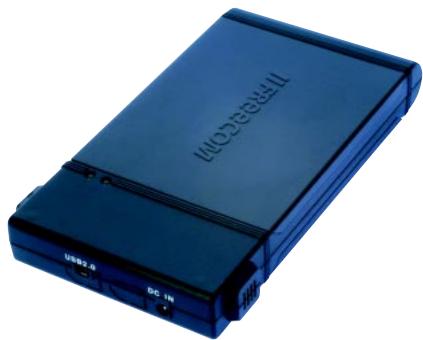
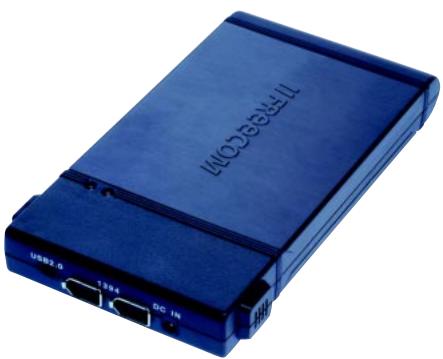
USB 2.0-Version
USB 2.0 & FireWire-Version
Options:
- Freecom USB 2.0 LE PCI Host Controller, 2 ports
Freecom FireWire PCI Card
Additional Cable USB, FireWire Cable, Power Adapter
See www.freecom.com for these and other Freecom products, or contact your local Freecom reseller/dealer.
CHAPTER 2: Hardware Installation
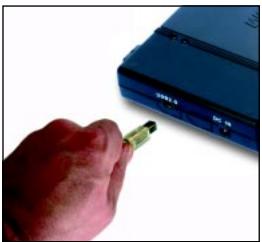
- Connect the interface cable to the FreeBSD FHD-2.
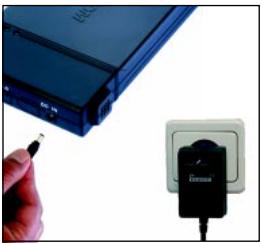
- Connect the cable of the power supply to the FHD-2 and the power supply itself to the socket. Use the included AC adapter with i.LINK interface or when the power provided by the USB or FireWire port is not sufficient.
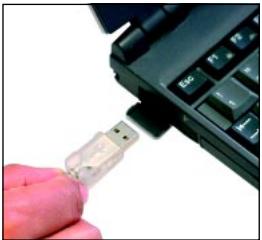
- Connect the interface cable to the interface port of your computer.
USB-Note: Since USB 2.0 is backwards compatible with USB 1.1, the FHD-2 can be connected to all USB ports. When connected to a USB 1.1 port, however, the performance (data transfer rate) of the FHD-2 will be much lower than when the drive is connected to a USB 2.0 port.
Connect the drive always only either by the FireWire or by the USB port.
USB 2.0 version
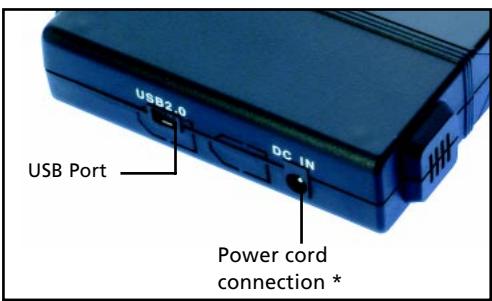
Remark (if your drive is connected to the computer via USB): Since USB 2.0 is backwards compatible with USB 1.1, the FHD-2 can be connected to all USB ports. When connected to a USB 1.1 port, however, the performance (data transfer rate) of the FHD-2 will be much lower than when the drive is connected to a USB 2.0 port.
USB 2.0 &
FireWire version
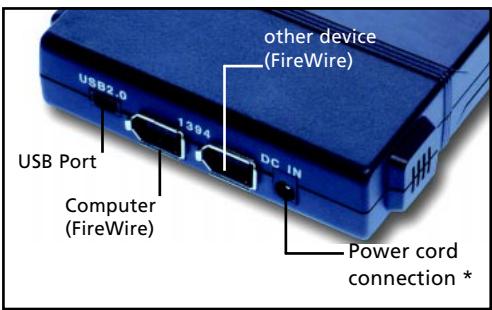
Remark when connecting by the FireWire port): When the drive is connected to the computer by the FireWire port you can connect further peripheral devices to the drive's second FireWire jack.
For optimal performance, the FHD-2 should always be connected to a USB 2.0 port or FireWire port. Freecom USB 2.0 PCI Host Controllers or Freecom FireWire PCI Card are available at www.freecom.com.
CHAPTER 3: Driver installation
Under Windows ME / 2000 / XP a separate FreeBSD driver is not required. The drivers will be installed automatically by the operating system after plugging in the FreeBSD FHD-2 into the USB port of the computer.
3.1 FHD-2 USB 2.0 version
Driver installation USB under Windows 98 SE
Note: Your FreeBSD FHD-2 is fully backwards compatible with USB 1.1. The installation for USB 1.1 is the same as described below for USB 2.0.
- Insert the Freecom Manual and driver CD into the CD-ROM drive.
- Connect your Freecom FHD-2 to the USB connector of your notebook or computer.
- The "Add New Hardware Wizard" opens and a "USB 2.0 Device" (USB 2.0 PCI Host Controller) or a "USB TO IDE" (USB 1.1 connector) is found.
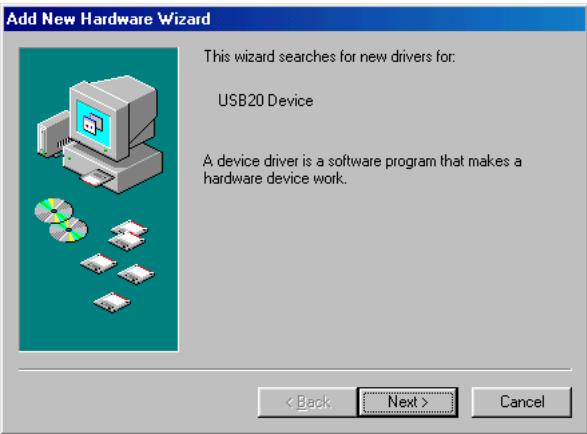
Click on "Next".
- In the next window select "Search for the best driver for your device. (Recommended)". Click on "Next".
Add New Hardware Wizard
What do you want Windows to do?
Search for the best driver for your device. [Recommended].
Display a list of all the drivers in a specific location, so you can select the driver you want.
<Back
Next>
Cancel
- Make sure that the checkbox "CD-ROM drive" is activated in the next window.
Add New Hardware Wizard
Windows will search for new drivers in its driver database on your hard drive, and in any of the following selected locations. Click Next to start the search.
Floppy disk drives
CD-ROM drive
Microsoft Windows Update
Specify a location:
D:\w98SE\win98

Browse...
<Back
Next>
Cancel
Continue by clicking on "Next".
- The Hardware Wizard finds a "Freecom Freecom FHD-2".
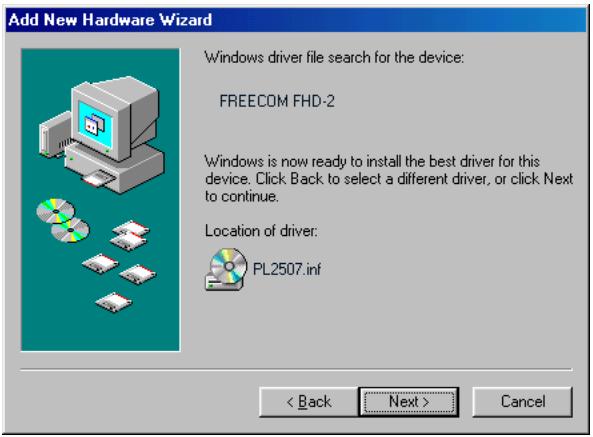
By clicking on "Next" the necessary files will be installed. Afterwards click on "Finish" to complete the installation. Congratulations! You've just finished to install the Freecom FHD-2 and the external hard drive is almost ready to use.
3.2 FHD-2 USB 2.0 & FireWire version
Driver installation USB under Windows 98 SE
Connect the drive always only either by the FireWire or by the USB port.
Note: Your FreeBSD FHD-2 is fully backwards compatible with USB 1.1. The installation for USB 1.1 is the same as described below for USB 2.0.
- Insert the Freecom Manual and driver CD into the CD-ROM drive.
- Connect your Freecom FHD-2 to the USB connector of your notebook or computer.
- The "Add New Hardware Wizard" opens and a "USB 2.0 Device" (USB 2.0 PCI Host Controller) or a "USB TO IDE" (USB 1.1 connector) is found.
Add New Hardware Wizard
This wizard searches for new drivers for:
USB20 Device
A device driver is a software program that makes a hardware device work.
<Back
Next>
Cancel
Click on "Next".
- In the next window select "Search for the best driver for your device. (Recommended)". Click on "Next".
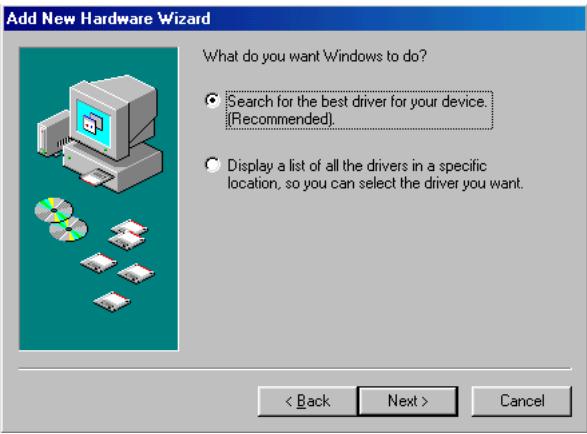
- Make sure that the checkbox "CD-ROM drive" is activated in the next window.
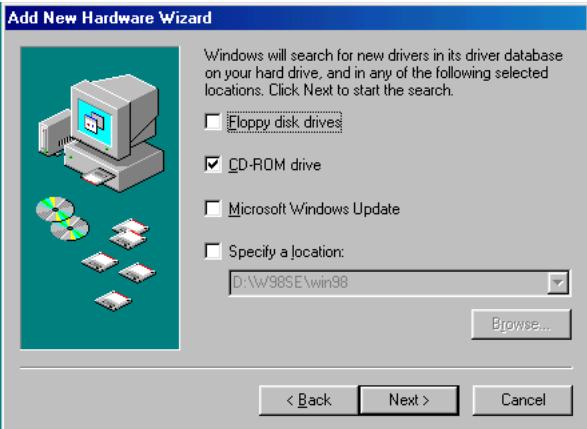
Continue by clicking on "Next".
- The Hardware Wizard finds a "Freecom Freecom FHD-2".
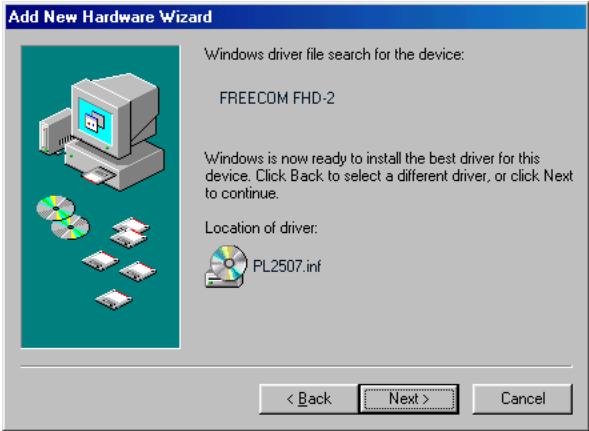
By clicking on "Next" the necessary files will be installed. Afterwards click on "Finish" to complete the installation. Congratulations! You've just finished to install the Freecom FHD-2 and the external hard drive is almost ready to use.
Driver installation FireWire under Windows 98 SE
The required driver for is automatically installed under Windows ME / 2000/XP once the FireWire cable has been inserted and it is immediately allocated a drive letter.
Note: FireWire is only supported by Windows 98 SE (and above). If you are using an older version, you must first update Windows.
- The driver database is loaded automatically after you have connected the FireWire cable to the PC.
- (Only when you need) Now place the "Windows 98 Installation CD" in your internal CD-ROM drive.
- The "Hardware assistant" window appears on the screen. Click on "Next".
- Select the item "Search for the best driver for the device" (Recommended) and confirm with "Next".
- The CD-ROM drive for the "Windows 98 Installation CD" driver installation is selected in the next window. If the search in the CD-ROM drive has not yet been activated, you should dial this point. Confirm with "Next".
- The next window shows the driver file found on the CD-ROM. Confirm with "Next".
- Click on "Finish" in the next window.
- In order for the changes to take effect, you must restart your computer.
Note: You can plug the drive in and unplug it at the FireWire port while the PC is running. The drive will be recognized automatically under "My Computer" when it is reconnected ("hot plug & play").
CHAPTER 4: Daily use of the FHD-2
The hi-speed data transfer through the USB 2.0 and/or FireWire interface makes it ideally suitable for data-storage, file sharing, backup, archiving, digital video editing, audio playback and all applications that need fast file access.
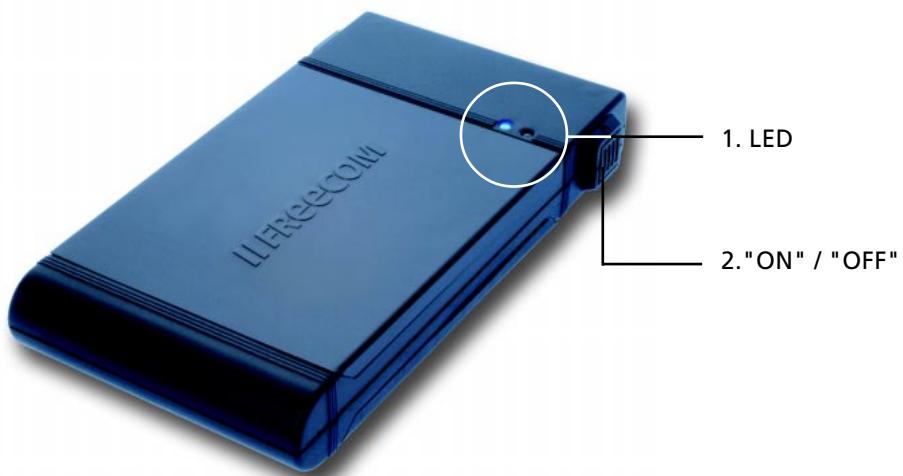
- The status of LEDs
Die Freecom FHD-2 has two LEDs to indicate its status
| LED: | ● blue (left) | ● red (right) |
| "Hardisk Access" | "Power On" |
- Button for switching the FHD-2 on and off
CHAPTER 5: Partitioning your FHD-2
5.1 General information
Your FHD-2 was partitioned and formatted to provide you with the maximum available capacity and compatibility. FAT32 was chosen as file system to assure that you will be able to read your files on any PC. It is recommended not to change the current configuration of your FHD-2.
For some users another file system might fit better for their needs. This manual describes current limitations of most common file systems and Instructions to enable you to adapt the FHD-2 to your needs.
5.2 File System features
Please refer to the tables below for an overview:
File systems supported by different operating systems
| File system Operating system | FAT | FAT32 | NTFS |
| Windows 98SE | yes | yes | not supported |
| Windows ME | yes | yes | not supported |
| Windows 2000 | yes | yes | yes |
| Windows XP | yes | yes | yes |
Maximum size of a partition
| File system Operating system | FAT | FAT32 | NTFS |
| Windows 98SE | 2 GB | 60 GB *1, 2 | n.a. |
| Windows ME | 2 GB | 2 TB *2 | n.a. |
| Windows 2000 | 4 GB *3 | 32 GB | 16 TB |
| Windows XP | 4 GB *3 | 32 GB | 16 TB |
Example for different partitions with different file systems on one FHD-2
| Total size of FHD-2\File system | NTFS | FAT32 |
| 120 GB | 90GB | 30 GB |
The example above is a good solution for Windows 2000/XP users who sometimes exchange data with Windows 98SE/ME PCs.
For storing the data under Windows 2000/XP both partitions can be used. As the NTFS file system is not recognized by Windows 98SE/ME data to be used on these operating systems must be stored on the FAT32 partition.
Please follow the steps below to adapt the FHD-2 for your needs.
5.3 Partitioning your FHD-2 under Windows 98SE / Windows ME
Windows 98SE only: The fdisk version which is installed together with your operating system does not recognize the correct size of hard disks larger than 64 GB.
Windows 98SE/ME: For large partitions fdisk will not display the partition size correctly! Please ignore this as the partitioning results will still be OK.
5.3.1 Deleting a partition on the FHD-2 under Windows 98SE / ME
The following steps will explain how to delete a partition on your FHD-2.
- Click on the "Start" button.
- Select "Run".
- Enter "fdisk" and confirm with "OK".
- fdisk will be started. Answer the question "Do you wish to enable large disk support?" by pressing the 'Return' key. FAT32 is now activated.
- Choose Option 5 "(Change current fixed disk drive)" by pressing '5' and 'Return'.
- Select the hard disk to be deleted by its number. ATTENTION: Please make sure that the correct drive is selected. Selecting the wrong drive will lead to a loss of your data!
- Choose Option "3 (Delete partition or Logical DOS Drive)" by pressing '3' and 'Return'.
- Your FHD-2 comes formatted as primary partition. Select option 1 "Delete Primary DOS Partition" by pressing '1' and 'Return'.
- Select the partition to be deleted by pressing its number and 'Return'.
- Enter the drive label and press 'Return'.
- Confirm with 'Y' and 'Return' to delete the partition.
- Press the 'ESC' key to return to the fdisk options.
- Press 'ESC' to exit fdisk. Stop your hard disk by using the hot unplug icon in the lower right corner of your screen and remove the FireWire cable from your hard disk. Afterwards connect your hard disk again with your computer. The hard disk will now be recognized by Windows.
As Windows tries to access your hard disk an error message will appear. This happens, because your hard disk is not yet formatted.
5.3.2 Creating a partition on the FHD-2 under Windows 98 SE / ME
The following steps will guide you the process of creating partitions on your FHD-2 under Windows 98SE/ME. After this procedure your FreeBSD FHD-2 will be ready for use and it will be allocated a drive letter.
- Click on the "Start" button.
- Select "Run".
- Enter "fdisk" and confirm with "OK".
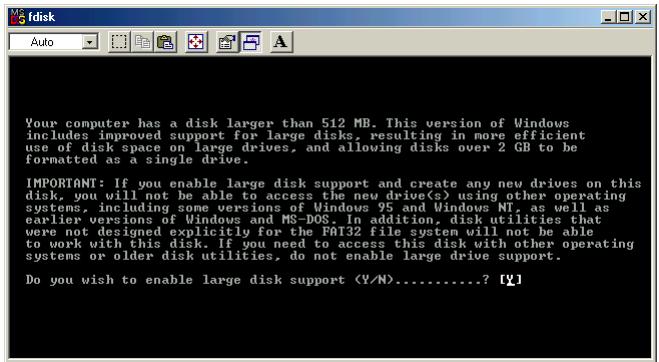
- Answer the question "Do you wish to enable large disk support?" by pressing the 'Return' key. FAT32 is now activated.
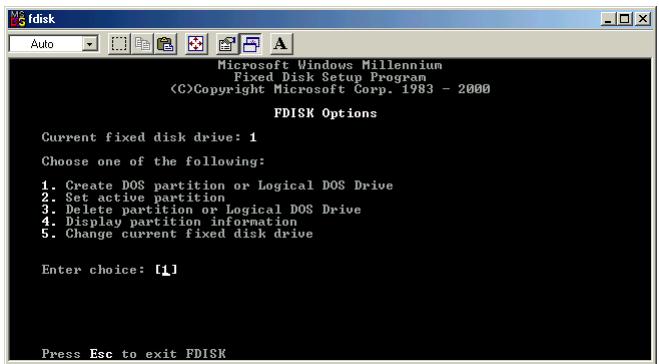
- Choose Option "5 (Change current fixed disk drive)" by pressing '5' and 'Return'.
- Select the hard disk by its number where the "Usage" contains no value but only a percent symbol. Select the number of the corresponding hard disk and confirm by pressing the "Return" key.
Now your hard disk is activated and ready to be partitioned.
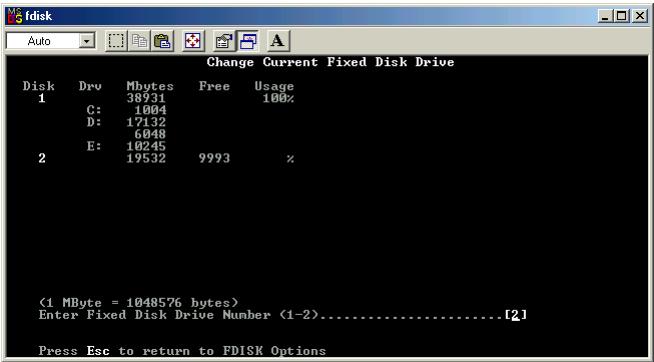
Note: Partition size of large hard disks will not be displayed correctly! However partitioning results will be OK.
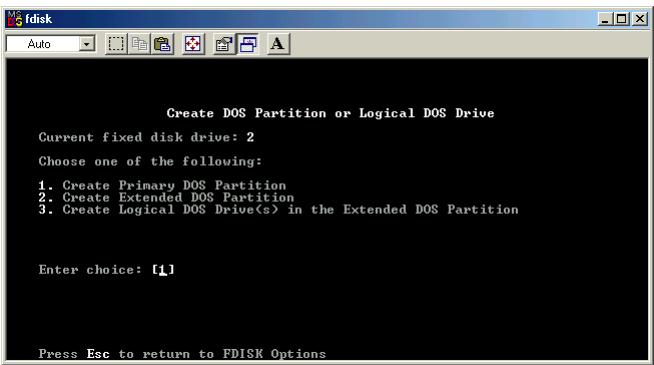
- Select Option 1 " (Create DOS partition or Logical DOS drive)" by pressing '1' and confirm with 'Return'.
- Select Option 1 " (Create primary DOS partition)" by pressing '1' and confirm with 'Return'.
Wait until drive integrity is completely checked.
- If only one partition is required then answer "Y" to the question: "Do you wish to use the maximum available size for a Primary DOS partition?" If more than on partition is required go to the next section "Create two or more partitions on the FHD-2 under Windows 98 / Windows ME".
Now the whole disk will be partitioned as one primary partition. Wait until the drive integrity check is completed.
- Press the 'ESC' key to return to the fdisk options.
-
Now press the 'ESC' key to close the "fdisk window". Your hard disk is now partitioned.
-
Stop your hard disk by using the hot unplug icon in the lower right corner of your screen and remove the FireWire cable from your hard disk. Afterwards connect your hard disk again with your computer. The hard disk will now be recognized by Windows.
As Windows tries to access your hard disk an error message will appear. This happens, because your hard disk is not yet formatted.
5.3.3 Creating two or more partitions on the FHD-2 under Windows 98SE / ME
- Repeat steps 1 to 7 from the previous chapter (Create one partition on the FHD-2 under Windows 98SE/Windows ME).
- Answer the question "Do you wish to use the maximum available size for a primary DOS partition?" with "N".
- Enter either the size or a percentage value for the partition size. Press 'Return' and wait until the drive integrity check is completed.
- Press the 'ESC' key to return to the fdisk options.
- Select Option 1 " (Create DOS partition or Logical DOS drive)" by pressing '1' and confirm with 'Return'.
- Select Option 2 " (Create Extended DOS Partition)" by pressing '2' and confirm with 'Return'. Wait until the drive integrity check is completed.
- Enter either the size or a percentage value for the partition size or press 'Return' to accept the default value.
- Press 'ESC' to return and wait until the drive integrity check is completed.
- A logical drive needs to be defined now. Enter the size of the logical drive and press 'Return' or accept the default value by pressing 'Return'.
- Press 'ESC' to return to the fdisk options.
- Now press the 'ESC' key to close the "fdisk window". Your hard disk is now partitioned.
- Stop your hard disk by using the hot unplug icon in the lower right corner of your screen and remove the FireWire cable from your hard disk. Afterwards connect your hard disk again with your computer. The hard disk will now be recognized by Windows.
As Windows tries to access your hard disk an error message will appear. This happens, because your hard disk is not yet formatted.
5.3.4 Formatting partitions on the FHD-2 under Windows 98SE / ME
- Double-click on the "My Computer" icon on your desktop.
- Click with the right mouse button on the drive symbol of your FHD-2. Now a menu will appear where you can choose the option "Format".
- Please perform a complete formatting of your drive. You can also assign a name to your drive here.
- After you have completed your selection, click on "Start".
Attention: Selecting the wrong drive will lead to a loss of your data. Please ensure that the correct drive is selected!
- Confirm the next message with "OK".
- After formatting is finished you can perform a disk scan. To do so, follow the instructions of the Windows Help system. If you don't want to scan your disk, just close the message window.
Repeat these steps for each partition if more than one partition was created. Now your FHD-2 is ready for use. You can use it like an internal hard disk for storing your data.
5.4 Partitioning your FHD-2 under Windows XP / 2000
5.4.1 Deleting a partition on the FHD-2 under Windows XP / 2000
- Click with the right mouse button on the "My Computer" icon on your desktop.
- Select the option "Manage".
- Select the option "Storage" -> "Disk Management".
- Choose your external hard drive and right-click on the partition.
- Select "Delete Partition" and confirm by clicking on "Yes". The partition will be deleted now.
5.4.2 Creating a partition on the FHD-2 under Windows XP / 2000
The following steps will guide you through the process of creating partitions on your FHD-2. After this procedure your FreeBSD FHD-2 will be ready for use and it will be allocated a drive letter.
- Click with the right mouse button on the "My Computer" icon on your desktop.
- Select the option "Manage".
- Select the option "Storage" -> "Disk Management".
- Choose the hard disk, which is "unallocated". Ensure that the entire drive is "unallocated".
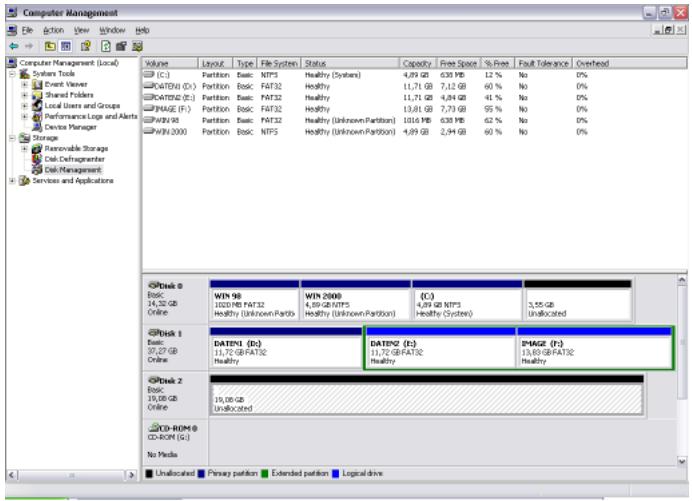
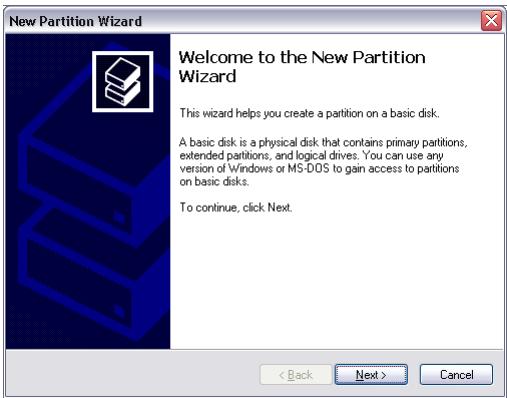
- Click with the right mouse button on the "unallocated" area and select the option "New Partition" (Windows 2000: "Create Partition Wizard"). The "New Partition Wizard" opens. Click on "Next".
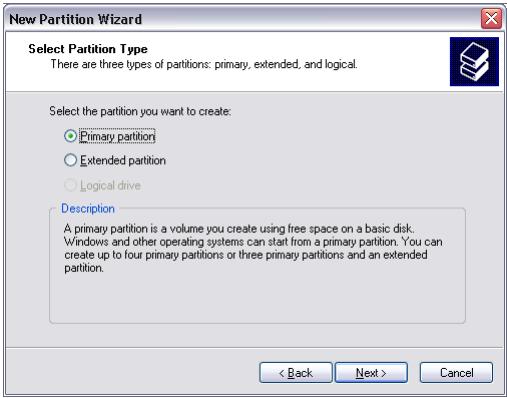
- Select "Primary partition" and click on "Next".
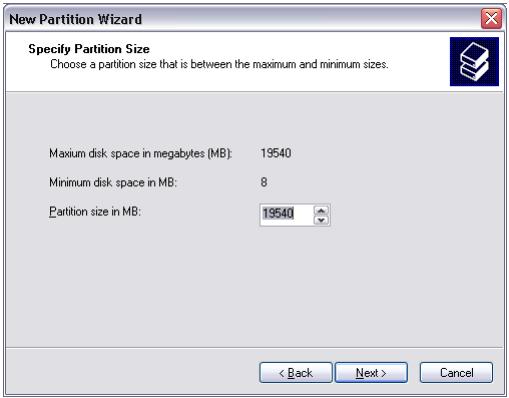
- Now you can adjust the size of your partition. Click on "Next" if only one partition is to be created. See next chapter (Creating two or more partitions on the FHD-2 under Windows XP/2000) how to create more than one partition.
- Assign a drive letter to your hard disk. Normally you can use the default options. Click on "Next".
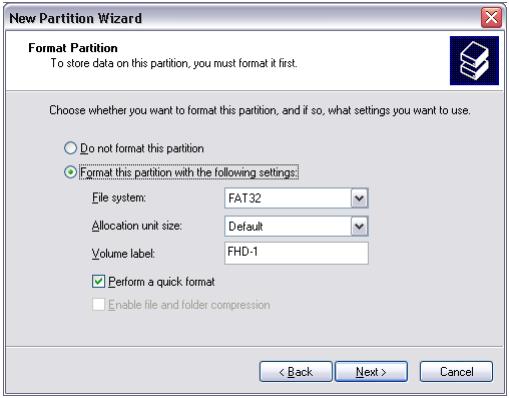
- Select the formatting option. Choose either "FAT32" or "NTFS", the "Allocation Unit Size" should remain on "Default". Finally select "Perform Quick Format" and click on "Next".
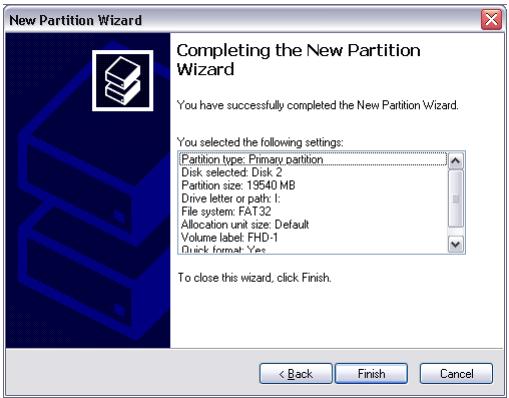
- Click on "Finish" to complete the partitioning of your FHD-2. Your FHD-2 will be formatted now and is ready-to-use afterwards.
5.4.3 Creating two or more partitions on the FHD-2 under Windows XP / 2000
- Repeat the steps from the previous chapter (Creating a partition on the FHD-2 under Windows XP/2000) for creating the first partition.
- Click with the right mouse button on the "My Computer" icon on your desktop.
- Select the option "Manage".
- Select the option "Storage" -> "Disk Management".
- Right-click on the unallocated space of your FHD-2 and select the option "New partition" (Windows 2000: "Create partition"). The "New Partition Wizard" (Windows 2000: "Create Partition Wizard") opens. Click on "Next".
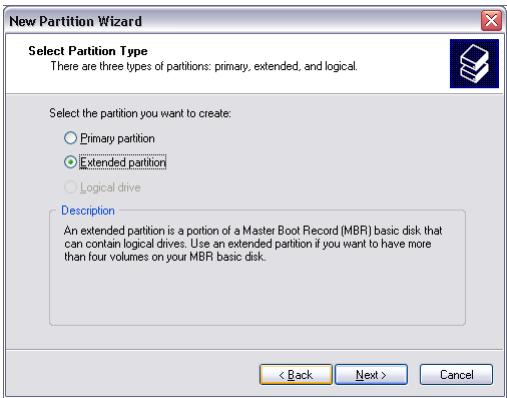
- Select "Extended partition" and click on "Next".
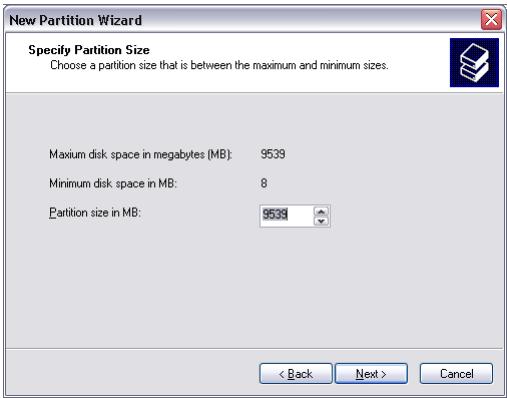
- Now you can adjust the size of your partition. Enter the size and click on "Next".
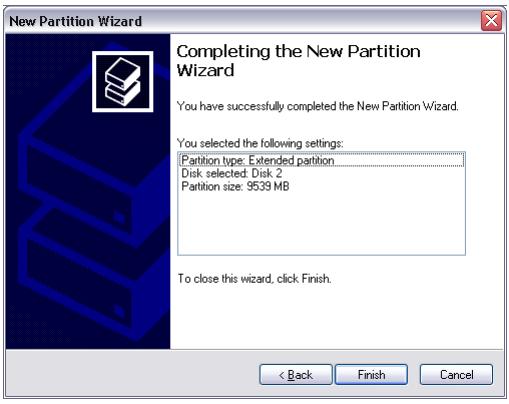
- Click on "Finish" to create the "Extended partition". The unallocated space now changed to "Free space".
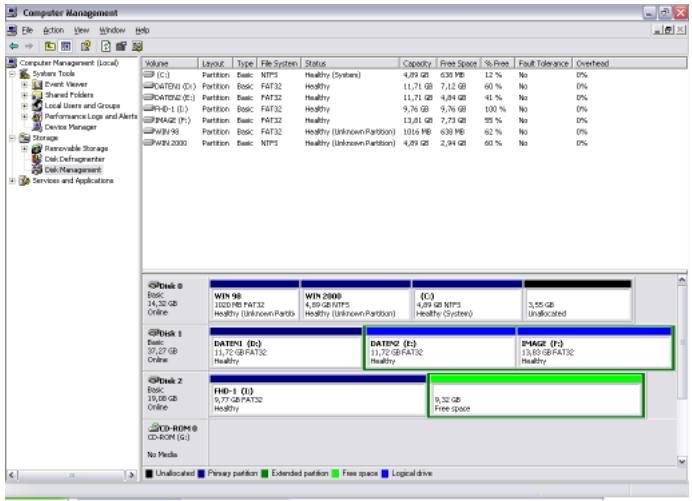
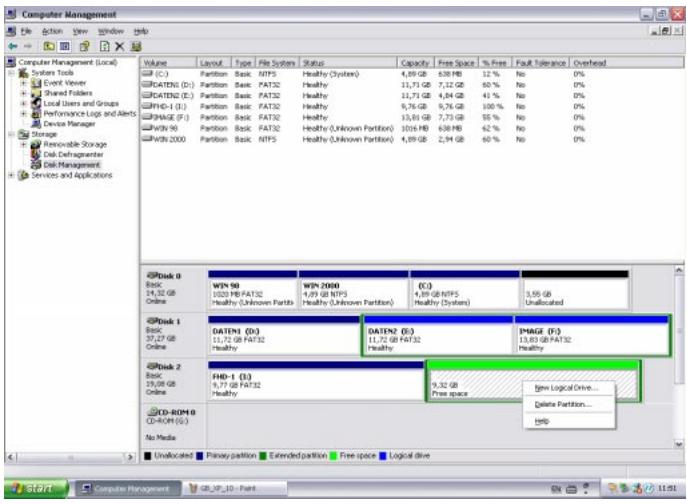
- Right-click on "Free Space" and select "New Logical Drive" (Windows 2000: "Create Logical Drive"). The "New Partition Wizard" (Windows 2000: "Create Partition Wizard") opens. Click on "Next".
- "Logical drive" is already selected. Click on "Next".
- Specify the partition size and click on "Next".
12.Assign a drive letter and click on "Next". - Select the formatting option. Choose either "FAT32" or "NTFS", the "Allocation Unit Size" should remain on "Default". Finally select "Perform Quick Format" and click on "Next".
- Click on "Finish" to complete partitioning. Your partition will be formatted now and is ready-to-use.
Freecom Internet Service
Freecom Technologies makes the following service available in the Internet under www.freecom.com
Online information about technical problems
current product information
- Drivers, driver updates and software information
- Forum
Support Hotline
The following hotlines are available if you still are unable to get your Freecom FHD-2 to work properly after reading the manual and the suggestions for troubleshooting:
| Hotline | ||
| België (NL)* | 0 78 25 00 00 | supportnl@freecom.com |
| Belgique (F)* | 0 78 25 00 01 | supportfr@freecom.com |
| Belgien (D)* | 0 78 25 00 02 | supportde@freecom.com |
| Danmark | 33 11 42 00 | supportint@freecom.com |
| Deutschland | 020 37 68 09 50 | supportde@freecom.com |
| Österreich | +49 (0)20 37 68 09 50 | supportde@freecom.com |
| France | 01340 472 05 | supportfr@freecom.com |
| Nederland | 015 888 0110 | supportnl@freecom.com |
| Norge | 62 82 13 67 | supportint@freecom.com |
| Schweiz (D) | 0848 88 99 10 | supportde@freecom.com |
| Suisse (F) | 0848 88 77 10 | supportfr@freecom.com |
| Suomessa | 03 - 6 10 13 82 | supportint@freecom.com |
| Sverige | 08 - 29 66 00 | supportint@freecom.com |
| United Kingdom | 01423 704 715 | supportuk@freecom.com |
| Ireland | +44 1423 704 715 | supportuk@freecom.com |
| USA | 510 548 48 49 | supportusa@freecom.com |
| other countries | +31 (0) 1 58 88 01 10 | supportint@freecom.com |
If possible, try to call from a phone near your computer.
Please have the following information on hand for your call:
the serial number on the rear side of your Freecom FHD-2
the revision number of the Manual & Driver CD
information on the power supply
- the version number of your operating system and the software you are having problems with
- the precise error description or error message displayed
- the name and the model of your notebook or computer and, in case it is needed, the installed hardware
Is the problem reproduced every time?