Mobile Drive Classic 3.0 - External hard drive FREECOM - Free user manual and instructions
Find the device manual for free Mobile Drive Classic 3.0 FREECOM in PDF.


User questions about Mobile Drive Classic 3.0 FREECOM
0 question about this device. Answer the ones you know or ask your own.
Ask a new question about this device
Download the instructions for your External hard drive in PDF format for free! Find your manual Mobile Drive Classic 3.0 - FREECOM and take your electronic device back in hand. On this page are published all the documents necessary for the use of your device. Mobile Drive Classic 3.0 by FREECOM.
USER MANUAL Mobile Drive Classic 3.0 FREECOM
FREECOM CLASSIC MOBILE 2.5" HARD DRIVE

text_image
II FRECOMDear user!
Thank you for choosing the Freecom Classic Mobile 2.5" Hard Drive external hard drive. For optimal use and performance we advise you to read this manual carefully before using this product.
Freecom Technologies • Germany
www.freecom.com
Contents of the box
Please check the contents of the box; the following items should be included:
- external Freecom Classic Mobile 2.5" Hard Drive
- USB interface cable
• Power-to-USB cable * - CD-ROM with manual, driver and application software
- Quick Install Guide
- Warranty card + envelope
* Use the included power-to-USB cable when the power provided by the USB port is not sufficient, or visit www.freecom.com/support for an optional AC adapter.
Warning!
All rights reserved. The products named in this manual are only used for identification purposes and may be trademarks or registered trademarks of the respective companies. This device was designed for home or office use.
Warning! This device is equipment complying with EN55022 class A. This equipment can cause radio disturbances in a residential area. If this is the case, the user has to take appropriate measures and assume all responsibility and costs for. It may not be used near or with any life-sustaining systems.
Freecom cannot be made liable for any damages, loss of data or damage following thereof -whatsoever (including, without limitation, damages for loss of business profits, business interruption, loss of business information, or other pecuniary loss) arising out of the use of or inability to use this Freecom product, even if Freecom has been advised of the possibility of such damages.
We reserve the right to upgrade our products in keeping with technological advances.
User manual
General Information ...... page 4
Precautionary measures ...... page 5
Freecom Classic Mobile 2.5" Hard Drive ...... page 6
Chapter 1:
Installation of the Freecom Personal Media Suite Software (PC) .... page 7
Chapter 2:
Hardware installation ...... page 11
Chapter 3:
Driver installation (PC) ...... page 12
Chapter 4:
Daily use of the Freecom Classic Mobile 2.5" Hard Drive with Freecom Personal Media Suite software (PC) ...... page 15
Chapter 5:
The User Interface of the Freecom Personal Media Suite (PC) ...... page 16
Chapter 6:
Partitioning your Freecom Classic Mobile 2.5" Hard Drive (PC) ..... page 31
Chapter 7:
Troubleshooting ...... page 45
General Information
The following hardware and software requirements must be fulfilled to ensure trouble-free operation.
Hardware Requirements
In order to use the Freecom Classic Mobile 2.5" Hard Drive, following components are needed:
- Intel Pentium III / AMD Duron 700 MHz or higher
• 128 MB RAM or higher - CD-ROM drive for installing drivers and/or software
• Available USB 2.0 or USB 1.1 port* - Internet connection for online warranty registration and driver/software updates and downloads
Software Requirements
- Windows 98 SE
- Windows ME
- Windows 2000
- Windows XP
Mac
- iMac, iBook, Mac G3 or Power Book G3 with USB interface
- Operating system: Mac OS X v10.1 or higher
Precautionary measures
To ensure that your Freecom Classic Mobile 2.5" Hard Drive functions properly, please take note of the following precautions. If these are not followed, you may void your warranty and damage the Freecom Classic Mobile 2.5" Hard Drive.
- Safely remove the Freecom Classic Mobile 2.5" Hard Drive via your operating system (the "unplug or eject hardware" option in the Windows taskbar) before disconnecting the USB cable or power cable and before switching off the device. Failing to do so may result in data loss.
- Do not drop the Freecom Classic Mobile 2.5" Hard Drive or expose it to other kinds of sudden mechanical shocks as this may result in data loss and damage to the hard drive.
- Do not use the Freecom Classic Mobile 2.5" Hard Drive when the ambient temperature is below 10^ or above 45^ .
- If the Freecom Classic Mobile 2.5" Hard Drive is moved from a cool environment to a warmer environment, please allow the drive to acclimatize to the ambient temperature before operating the device. Failing to do so may lead to condensation within the drive enclosure, which in turn may cause the drive to malfunction.
- Do not place liquids or drinks on the Freecom Classic Mobile 2.5" Hard Drive. When liquids are spilled and get in contact with the electronics within the drive enclosure, it will damage the drive and will cause the drive to malfunction.
- Do not use the Freecom Classic Mobile 2.5" Hard Drive in a dusty environment. Dust inside the enclosure may damage the internal electronics and result in drive malfunction.
- Only use the power adapter that was supplied with the Classic Mobile 2.5" Hard Drive.
- Opening the Freecom Classic Mobile 2.5" Hard Drive will void the warranty.
- Since USB 2.0 is backwards compatible with USB 1.1, the Freecom Classic Mobile 2.5" Hard Drive can be connected to all USB ports. When connected to a USB 1.1 port, however, the performance (data transfer rate) of the Freecom Classic Mobile 2.5" Hard Drive will be much lower than when the drive is connected to a USB 2.0 port.
- When using the Freecom SYNC software, please be aware that all files in the SYNC folder on the Classic Mobile 2.5" Hard Drive are linked to the original files on your PC or network. If you delete a file in the SYNC folder, its original will be deleted during the next synchronization, too! To avoid this, you have to 'Split From Original' the file prior to deleting it. Please refer to chapter 5 for further information on Freecom SYNC and Microsoft Briefcase.
Freecom Classic Mobile 2.5" Hard Drive external hard drive
The hi-speed data transfer through the USB 2.0 interface makes it ideally suitable for data-storage, file sharing, backup, archiving, audio playback and all applications that need fast file access.
For your convenience, the Freecom Classic Mobile 2.5" Hard Drive has been partitioned (1 partition) and pre-formatted (FAT32 file system). The FAT32 format ensures maximum interchangeability of the Freecom Classic Mobile 2.5" Hard Drive between different computers. Should you choose to format the Freecom Classic Mobile 2.5" Hard Drive in another file system (e.g. NTFS), please be aware of possible problems when connecting the Freecom Classic Mobile 2.5" Hard Drive to another computer than the one you used for formatting.
Chapter 1: Installation of the Freecom Personal Media Suite software (PC only)
If you want to use the SYNC function on the Freecom Classic Mobile 2.5" Hard Drive, you need to install the Freecom Personal Media Suite software first.
Note: To use the functions of the Freecom Personal Media Suite described in this handbook, your Freecom Classic Mobile 2.5" Hard Drive has to be connected to your PC.
1.1 Installation of the Freecom Personal Media Suite
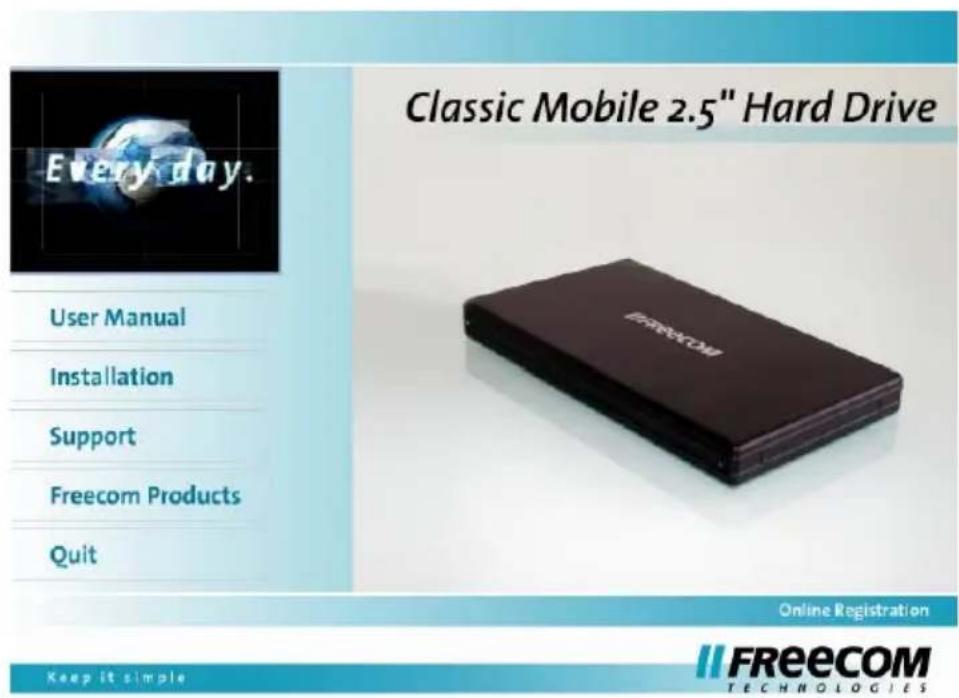
- Insert the Freecom Classic Mobile 2.5" Hard Drive Software & Manual CD into your CD drive. The Freecom start menu opens:
text_image
Classic Mobile 2.5" Hard Drive Every day. User Manual Installation Support Freecom Products Quit Online Registration Keep it simple FREECOM TECHNOLOGIESIn case the software does not open automatically, please click on "Start" in the main directory of the CD.
- Click on "Freecom Personal Media Suite". The installation of the Freecom Personal Media Suite starts now. Follow the instructions on the screen, confirm with "Next" in order to continue with the installation.
Freecom Classic Mobile 2.5" Hard Drive

text_image
Setup - Freecom Personal Media Suite Welcome to the Freecom Personal Media Suite Setup Wizard This will install Freecom Personal Media Suite 1.18 on your computer. It is recommended that you close all other applications before continuing. Click Next to continue, or Cancel to exit Setup. Next > Cancel- Please read the license agreement carefully. To accept the license agreement, confirm with "Yes". Note: Clicking on "No" ends the installation. Select the target folder and program folder in the start menu in which the Freecom Personal Media Suite symbol is to appear.

text_image
Setup - Freecom Personal Media Suite License Agreement Please read the following important information before continuing. Please read the following License Agreement. You must accept the terms of this agreement before continuing with the installation. Freecom Technologies End User License Agreement Software Product: FREECOM PERSONAL MEDIA SUITE Licensor: FREECOM TECHNOLOGIES GmbH LICENSE TERMS AND CONDITIONS APPLICABLE TO SOFTWARE PURCHASED FROM FREECOM OR A I accept the agreement I do not accept the agreement < Back Next > Cancel- Default target folder is C:\Programs\Freecom Personal Media Suite. You can select a different target folder for the program files by selecting another folder on your hard drive.

text_image
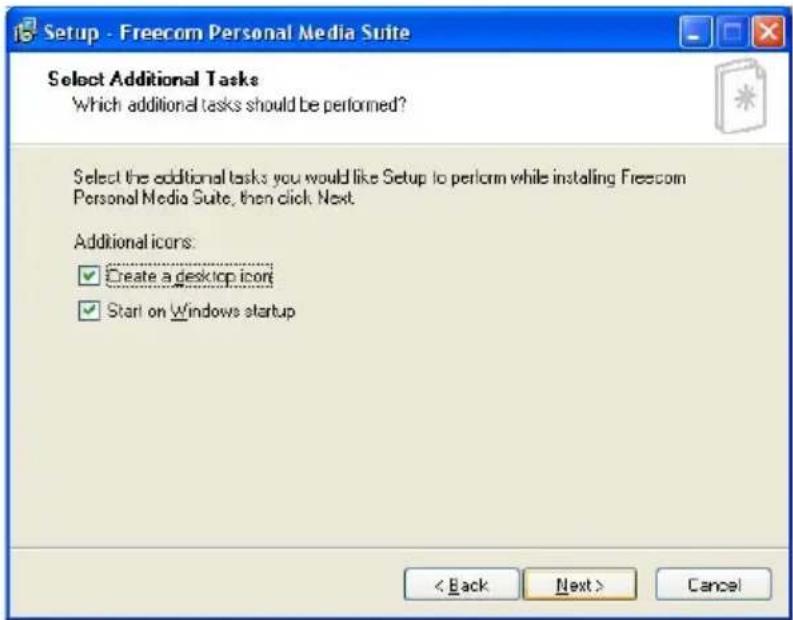
Setup - Freecom Personal Media Suite Select Start Menu Folder Where should Setup place the program's shortcuts? Select the Start Menu folder in which you would like Setup to create the program's shortcuts, then click Next. Freecom Personal Media Suite Accessories Administrative Tools Games Don't create a Start Menu folder: < Back Next > Cancel- In the dialogue "Options" you can select whether to create a link to the Freecom Personal Media Suite Software on the desktop and whether the program should be started automatically when starting Windows. It is recommended to select both options for better operation of the Freecom Personal Media Suite.
text_image
Setup - Freecom Personal Media Suite Select Additional Tasks Which additional tasks should be performed? Select the additional tasks you would like Setup to perform while installing Freecom Personal Media Suite, then click Next. Additional icons: ✓ Create a desktop icon ✓ Start on Windows startup < Back Next > Cancel- Click on "Next" to start the installation. All necessary program files are now written on the hard drive of your computer.
- In the last window, you will be asked whether you want to start Freecom Personal Media Suite now. It is recommended to select this option so that you can configure the software for your Freecom Classic Mobile 2.5" Hard Drive. Please click on "Finish".
1.2 Deinstallation of the Freecom Personal Media Suite
In order to remove the Freecom Personal Media Suite from your computer, please proceed as follows:
- In the "Start" menu, please click on "Programs" - "Freecom Personal Media Suite".
- Select "Uninstall Freecom Personal Media Suite". The software is now removed from your computer.
Chapter 2: Hardware Installation
natural_image
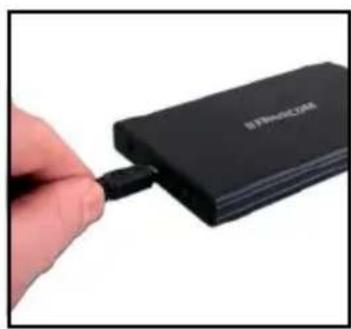
Close-up of a hand inserting a USB into a black electronic device labeled 'STENOCOM' (no other text or symbols visible)- Connect the interface cable to the Freecom SL Classic Hard Drive.
natural_image
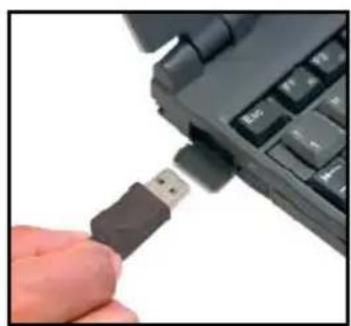
Close-up of a hand inserting a USB into a black keyboard (no visible text or symbols)- Connect the interface cable to the interface port of your computer.
Since USB 2.0 is backwards compatible with USB 1.1, the Freecom Classic Mobile 2.5" Hard Drive can be connected to all USB ports. When connected to a USB 1.1 port, however, the performance (data transfer rate) of the Freecom Classic Mobile 2.5" Hard Drive will be much lower than when the drive is connected to a USB 2.0 port.
Chapter 3: Driver installation (PC only)
Under Windows ME / 2000 / XP a separate Freecom driver is not required. The drivers will be installed automatically by the operating system after plugging in the Freecom Classic Mobile 2.5" Hard Drive into the USB port of the computer.
Driver installation USB under Windows 98 SE
Note: Your Freecom Classic Mobile 2.5" Hard Drive is fully backwards compatible with USB 1.1. The installation for USB 1.1 is the same as described below for USB 2.0.
- Insert the Freecom Manual and driver CD into the CD-ROM drive.
- Connect your Freecom Classic Mobile 2.5" Hard Drive to the USB connector of your notebook or computer.
- The "Add New Hardware Wizard" opens and a "USB 2.0 Device" (USB 2.0) or a "USB TO IDE" (USB 1.1) is found.

text_image
Add New Hardware Wizard This wizard searches for new drivers for: USB20 Device A device driver is a software program that makes a hardware device work. < Back Next > CancelClick on "Next".
- In the next window select "Search for the best driver for your device. (Recommended)". Click on "Next".

text_image
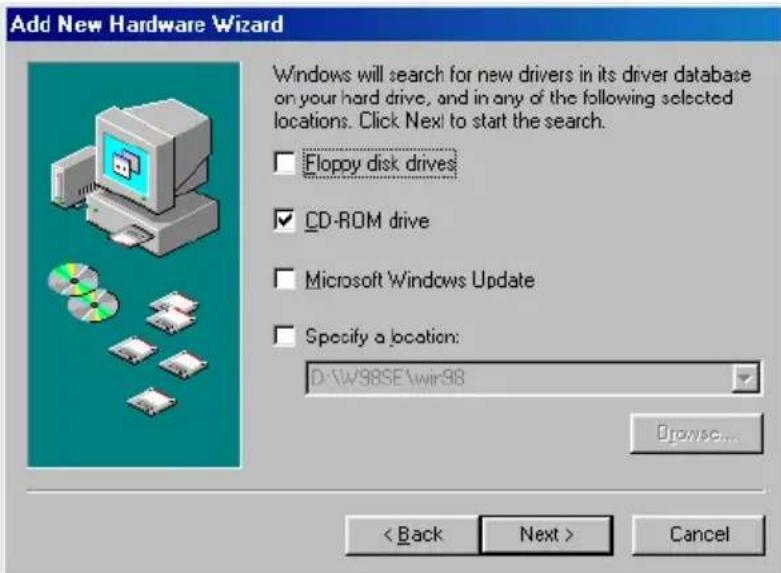
Add New Hardware Wizard What do you want Windows to do? • Search for the best driver for your device. (Recommended). • Display a list of all the drivers in a specific location, so you can select the driver you want. < Back Next > Cancel- Make sure that the checkbox "CD-ROM drive" is activated in the next window.
text_image
Add New Hardware Wizard Windows will search for new drivers in its driver database on your hard drive, and in any of the following selected locations. Click Next to start the search. Floppy disk drives CD-ROM drive Microsoft Windows Update Specify a location: D:\W98SE\wir98 Browse... < Back Next > CancelContinue by clicking on "Next".
Freecom Classic Mobile 2.5" Hard Drive
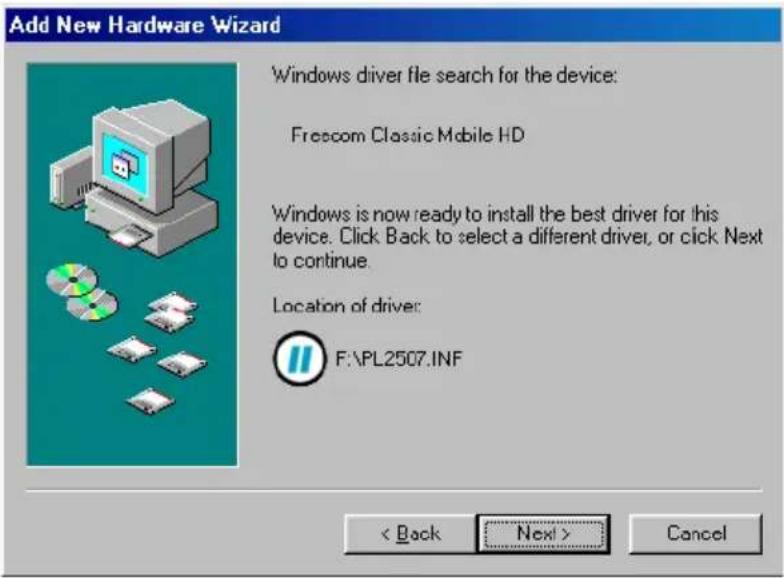
- The Hardware Wizard finds a "Freecom Classic Mobile HD".
text_image
Add New Hardware Wizard Windows driver file search for the device: Frescom Classic Mobile HD Windows is now ready to install the best driver for this device. Click Back to select a different driver, or click Next to continue. Location of driver: F:\PL2507.INF < Back Next > CancelBy clicking on "Next" the necessary files will be installed. Afterwards click on "Finish" to complete the installation. Congratulations! You've just finished to install the Freecom Classic Mobile 2.5" Hard Drive and the external hard drive is almost ready to use.
Chapter 4: Daily use of the Freecom Classic Mobile 2.5" Hard Drive
The hi-speed data transfer through the USB 2.0 interface makes it ideally suitable for data-storage, file sharing, backup, archiving, audio playback and all applications that need fast file access.
4.1 Daily use of the Freecom Classic Mobile 2.5" Hard Drive with Freecom Personal Media Suite software (PC only)
Creating a SYNC folder (PC)
After the installation of the Freecom Classic Mobile 2.5" Hard Drive is finished, the Freecom SYNC folder will be created automatically when Freecom Personal Media Suite was installed before. If not, please refer to chapter 5.4.2 (Creating a new SYNC folder).
4.2 LEDs

text_image
IIFRECOM DCW USB LEDs1. The status of LEDs
The Freecom Classic Mobile 2.5" hard drive has two LEDs to indicate its status
| LED: | green (left) red (right) | |
| "Harddisk Access" "Power On" |
Chapter 5: The User Interface of the Freecom Personal Media Suite (PC only)

text_image
Secure & Compress Freecom Sync Autorun Secure & Compress Crypt and compress all files in this folder no folder selected 3 Open folder Select folder Set Password Delete folder 5 Freecom |G:) - 37 GByte (99 %) Free space www.freecom.com Exit 6 7 81 Tabs for configuration of the Freecom Personal Media Suite components
- Secure & Compress
- Freecom SYNC
- Autorun
2 Minimizes Freecom Personal Media Suite in the taskbar
3 Input field (also shows the selected folder)
4 User menu
5 Connected Freecom Classic Mobile 2.5" Hard Drive (drive letter + available memory capacity)
6 Link to www.freecom.com. Click on this to access the Freecom homepage. Here you can find further information about your Freecom Classic Mobile 2.5" Hard Drive.
7 Quick Help for Freecom Personal Media Suite
8 Minimizes Freecom Personal Media Suite in the system tray.
5.1 Configuration
To open the configuration menu, please right-click on the Freecom Personal Media Suite icon in the system tray and select "Configuration":
- "Show splash screen": Deactivate this function to prevent the display of the start screen when starting the program.
- "Start program on Windows start": Starts the Freecom Personal Media Suite in the background with every Windows start. You will know this by the icon of the Freecom Personal Media Suite in the system tray.
Important: We recommend to leave the function "Start program on Windows start" activated under all circumstances in order to be able to use all the functions of the Freecom Personal Media Suite (e.g. "Autorun", "SYNC on Freecom device plug-in")!
5.2 Autorun
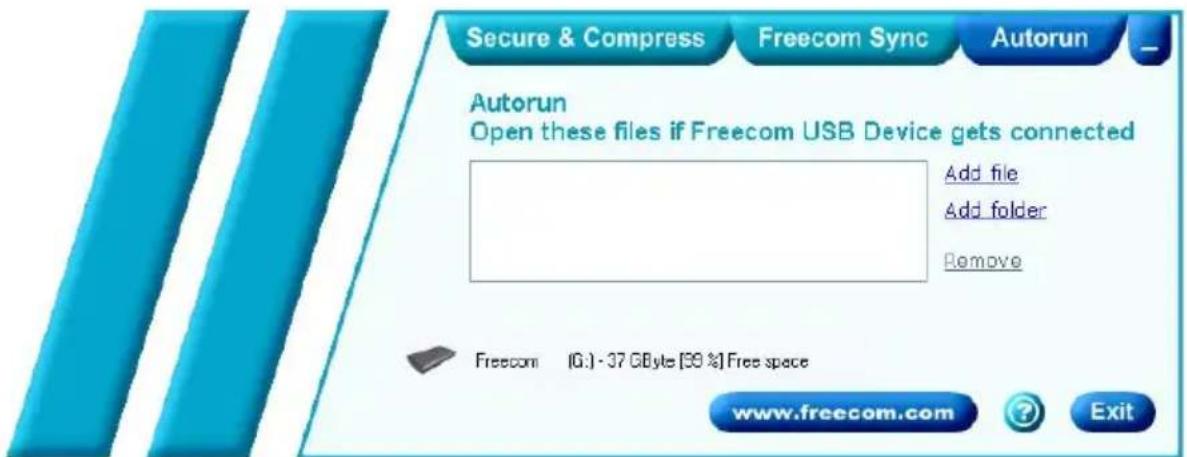
The "Autorun" function enables you to open or start documents, files or programs automatically when your Freecom Classic Mobile 2.5" Hard Drive is connected to your PC.
Automatically start, for example, the last document you were working on, MP3 play lists, your favourite film and much more. These files do not have to be on your Freecom Classic Mobile 2.5" Hard Drive for this.
text_image
Secure & Compress Freecom Sync Autorun Autorun Open these files if Freecom USB Device gets connected Add file Add folder Remove Freecom (G:) - 37 GB/Byte [59 %] Free space www.freecom.com Exit5.2.1 Adding files / folders
- Open the Freecom Personal Media Suite and select the "Autorun" tab.
- Add files, folders and programs to the Autorun list by either clicking on "Add file" and selecting the corresponding file or by pulling the files into the Autorun list field using drag&drop.
- For folders, please select "Add folders" or pull a folder into the Autorun list field using drag&drop.
- Alternatively, you can create a new folder on your Freecom Classic Mobile 2.5" Hard Drive using the "Add folder" function by clicking on "Create new folder", naming the folder and selecting it.
Freecom Classic Mobile 2.5" Hard Drive
5.2.2 Removing files / folders from the Autorun list
- Open the Freecom Personal Media Suite and select the "Autorun" tab.
- Select the file or the folder to be removed in the Autorun list field.
- Click on "Remove". The corresponding entry is removed from the list.
5.3 Secure&Compress
The Secure&Compress function serves to compress and encrypt your documents. Unauthorized access to your personal data is therefore impossible.

text_image
Secure & Compress Freecom Sync Autorun Secure & Compress Crypt and compress all files in this folder no folder selected Open folder Select folder Set Password Delete folder Freecom |G: - 37 GByte [99 %] Free space www.freecom.com Exit5.3.1 Add / Select Folders
- Open the Freecom Personal Media Suite and select the tab "Secure&Compress".
- Click on "Change folder" and select the folder on your Freecom Classic Mobile 2.5" Hard Drive whose content is to be compressed and encrypted.
- Alternatively, you can create a new folder to be encrypted on your Freecom Classic Mobile 2.5" Hard Drive using the "Change folder" function by clicking on "Create new folder", naming the folder (e.g. "Secure") and selecting it.
In the selected folder, all files - even in sub-directories - are compressed and then encrypted.
The active Secure&Compress folder is easily recognised on your Freecom Classic Mobile 2.5" Hard Drive by the "Padlock".
5.3.2 Opening the Secure&Compress folder
- Open the Freecom Personal Media Suite and select the tab "Secure&Compress".
- Click on "Open folder" in order to open the Secure&Compress folder.
- If the Freecom Personal Media Suite is already open and has started minimised in the taskbar, you can also open the Secure&Compress folder with a right-click on the taskbar symbol of the Freecom Personal Media Suite:
| Open |
| Open Secure & Compress folder «Secure» |
| Configuration |
| Exit |
- Of course you can also open the Secure&Compress folder over the Windows Explorer.
5.3.3 Encrypting files and folders
- Open the Secure&Compress folder.
- Pull the files or folders to be encrypted in the Secure&Compress folder using the drag&drop function. Each file is now compressed and then encrypted.
- The first time you will be requested to enter and confirm a password. Select "Save password on this computer" if you do not want to be requested to enter a password again.
- Alternatively, you can also right-click on the files or folders and select the Secure&Compress folder in the context menu under "Send to ...".
5.3.4 Decrypting files and folders
In order to decrypt files and folders which are in the Secure&Compress folder, please proceed as follows:
- Open the Secure&Compress folder.
- Select the file(s) or folder(s) to be decrypted and pull them into the target folder (e.g. with the Windows Explorer) using drag&drop.
- Your files are now decrypted and decompressed. The encrypted original remains on the Freecom Classic Mobile 2.5" Hard Drive.
5.3.5 Deleting the Secure&Compress folder
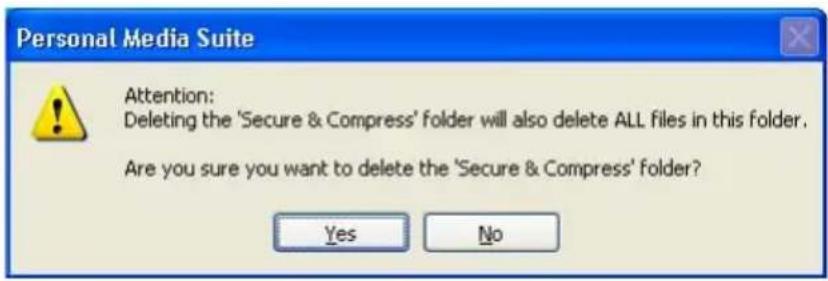
Click on "Delete folder" in order to delete the selected Secure&Compress folder.
ATTENTION: All files in the folder are irrevocably deleted!
Before the deletion, a security request is carried out whether you really want to delete the folder:
text_image
Personal Media Suite Attention: Deleting the 'Secure & Compress' folder will also delete ALL files in this folder. Are you sure you want to delete the 'Secure & Compress' folder? Yes No5.3.6 Changing the password
- Open the Freecom Personal Media Suite and select the tab "Secure&Compress".
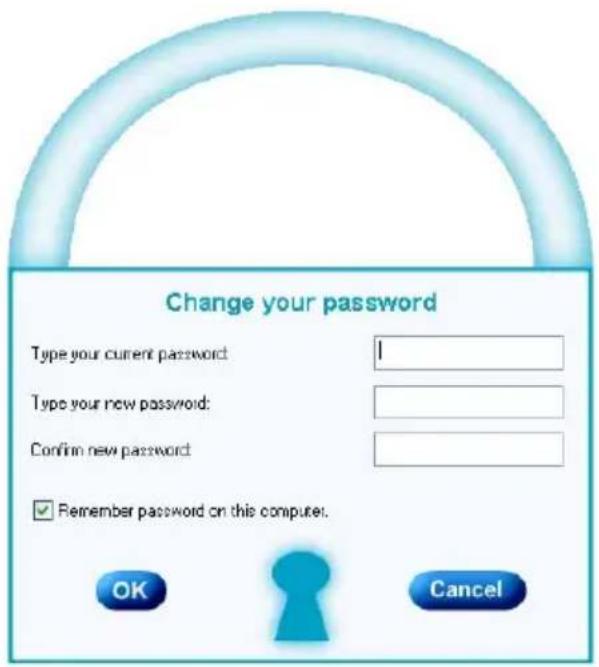
- Click on "Change password". The following window opens:
text_image
Change your password Type your current password: Type your new password: Confirm new password: ✓ Remember password on this computer. OK Cancel- Please enter your current password in the top input field. Enter your new password in the middle input field and confirm it in the bottom input field.
Please note: Your changed password applies to all files and folders encrypted from the time of the change. For files and folders which were encrypted before, the password which was used for encryption remains.
Changes of the password do not apply to files and folders already encrypted!
5.4 Freecom SYNC
5.4.1 What is Freecom SYNC?
The Freecom SYNC integrated in the Freecom Personal Media Suite is a program for synchronizing files. The computer serves as origin of the data. This data can be processed on any number of other computers.
Example:
You create a document at work and want to work on it at home (Freecom Personal Media Suite is installed on your PC at work):
- Copy the document from the PC at work to your Freecom SYNC folder on your Freecom Classic Mobile 2.5" Hard Drive.
- Open the document at home directly out of the Freecom SYNC folder. Work on it and save it in the Freecom SYNC folder.
- Connect the Freecom Classic Mobile 2.5" Hard Drive to your PC at work and click "Sync now" in the Freecom Personal Suite. The document will now be synchronized between your PC at work and the Freecom Classic Mobile 2.5" Hard Drive. While synchronizing, only modified files will be replaced by newer files.
Freecom Classic Mobile 2.5" Hard Drive


text_image
Secure & Compress Freecom Sync Autorun Freecom Sync Synchronize all files in this folder no folder selected Open folder Select folder Sync on: Freecom USB Device plugin Delete folder Sync now! Freecom (G:) - 37 GByte [99 %] Free space www.freecom.com Exit5.4.2 Creating a new SYNC folder
- Open the Freecom Personal Media Suite and select the tab "Freecom SYNC". Click on "Change folder" and select a folder on your Freecom Classic Mobile 2.5" Hard Drive.
- Alternatively, you can create a new SYNC folder on your Freecom Classic Mobile 2.5" Hard Drive using the "Change folder" function by clicking on "Create new folder", naming the folder (e.g. "SYNC") and selecting it.
- Click on "Complete" so that the new folder is created. Then opens the Freecom SYNC folder.
5.4.3 Opening the SYNC folder
- Open the Freecom Personal Media Suite and select the tab "Freecom SYNC".
- Click on "Open folder" in order to open the SYNC folder.
- If the Freecom Personal Media Suite is already open and has been started minimised in the taskbar, you can also open the SYNC folder through a right-click on the taskbar symbol of the Freecom Personal Media Suite.
5.4.4 Adding files into the SYNC folder
- Open the SYNC folder.
- Pull the respective files or folders in the SYNC folder using the drag&drop function.
- Alternatively, you can also right-click on the file(s) or folder(s) and select the SYNC folder in the context menu under "Send to ...". Your files/folders are now copied into the SYNC folder.
5.4.5 Synchronisation of files and folders
There are two possibilities for the synchronization of your files:
- Click "Sync now" in the Freecom Personal Suite. Your data is now synchronized.
- Synchronisation of the data when your Freecom Classic Mobile 2.5" Hard Drive is connected to your computer.
For this, please proceed as follows:
a) Open the Freecom Personal Media Suite and click on the tab "Freecom SYNC".
b) Select a SYNC folder if you have not yet done so.
c) Activate the function "SYNC on Freecom USB device plug-in" in the tab "Freecom SYNC":
Freecom Sync Synchronize all files in this folder
G:\Sync
Sync on Freecom Device plug-in
Your files are now synchronized each time when you connect your Freecom Classic Mobile 2.5" Hard Drive to your computer (Freecom Personal Media Suite has to be started).
This function is activated as standard when a SYNC folder is created!
- Starting the synchronization manually
a) Open the Freecom Personal Media Suite and click on the tab "Freecom SYNC".
b) Select a SYNC folder if you have not yet done so.
c) Click on "Synchronize now" to start the data synchronization.
d) Alternatively, right-click on the system tray icon of the Freecom Personal Media Suite and select "Start synchronization" there.
Freecom Classic Mobile 2.5" Hard Drive
5.4.6 Changing the SYNC folder
a) Open the Freecom Personal Media Suite and click on the tab "Freecom SYNC".
b) Click on "Change folder" to select a new folder for data synchronization.
c) Important: The selected folder may not contain any files or folders! The selected fo
5.4.7 Deleting the SYNC folder
a) Open the Freecom Personal Media Suite and click on the tab "Freecom SYNC".
b) Click on "Delete folder" in order to delete the active SYNC folder.
ATTENTION: All files in the folder are irrevocably deleted!
Before the deletion, a security request is carried out whether you really want to delete the folder:

text_image
Personal Media Suite Attention: Deleting the SYNC folder will also delete ALL files in this folder. Are you sure you want to delete the SYNC folder? Yes No5.4.8 Every day use
After you have installed all software, created the SYNC folder and configured the software and Freecom Classic Mobile 2.5" Hard Drive you can start using Freecom SYNC to synchronize all your data with the Freecom Classic Mobile 2.5" Hard Drive. You can use the SYNC function for instance to make backups of important files, to take files from work to your home or on the road.
Usage of the SYNC folder with other computers
Please follow these instructions if you want to use the SYNC folder with another (second) computer.
All files you want to work with on another computer have to be opened directly out of the Freecom SYNC folder! You should not copy them to another hard disk, as this might cause a later synchronization to perform incorrectly.
Synchronization of new or changed files
This example shows how you can synchronize files which were changed or created on the Freecom Classic Mobile 2.5" Hard Drive, with the original files on the primary computer.
- Connect the Freecom Classic Mobile 2.5" Hard Drive with the primary computer.
- Open the context menu on the SYNC icon in the taskbar and click on "Start synchronization".
| Open |
| Open Sync folder «Sync» |
| Open Secure & Compress folder «Secure» |
| Start synchronization «Sync» |
| Configuration |
| Exit |
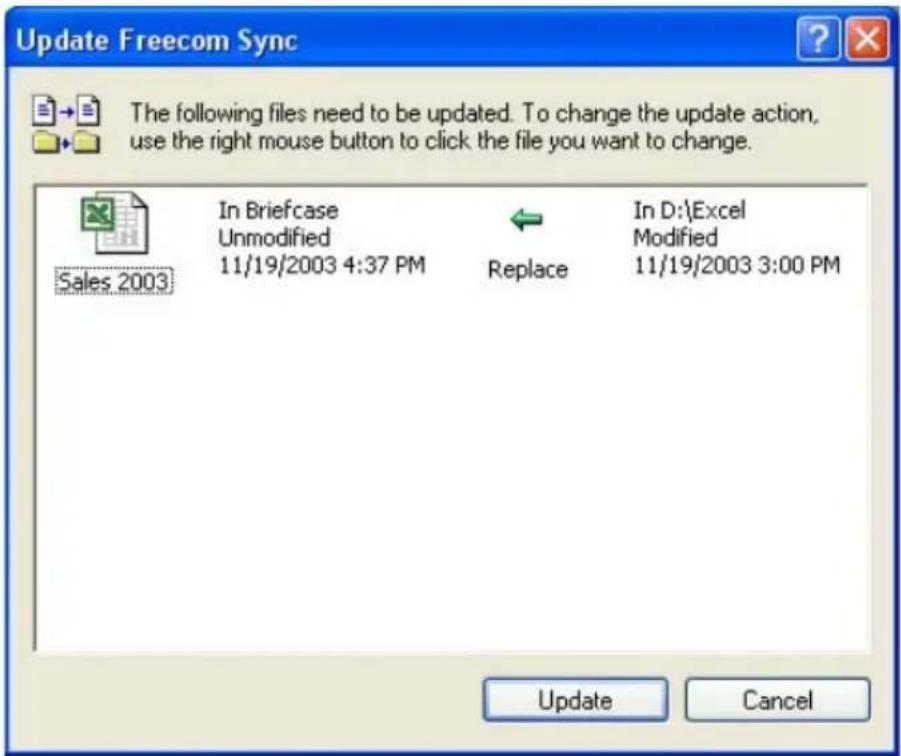
- A status window appears. Please select "Update" if you wish to synchronize the file or otherwise select "Cancel". If you choose not to synchronize the file (Cancel) you will be able to synchronize this file during the next synchronization.
text_image
Update Freecom Sync The following files need to be updated. To change the update action, use the right mouse button to click the file you want to change. In Briefcase Unmodified 11/19/2003 4:37 PM Replace In D:\Excel Modified 11/19/2003 3:00 PM Sales 2003 Update CancelFreecom Classic Mobile 2.5" Hard Drive
5.5 Skip files during synchronization
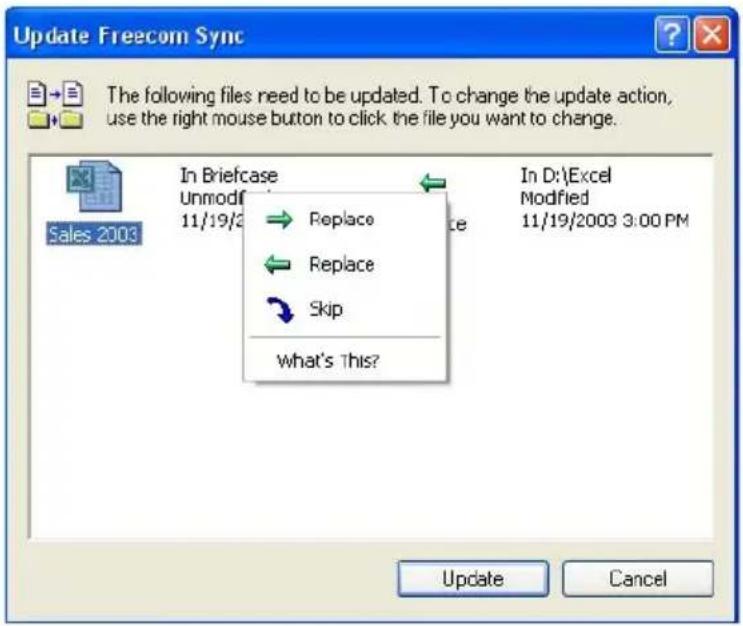
If you want to skip just one file out of many, please click on this file with the right mouse button and select "Skip". The green arrow next to the selected file changes to a blue one, indicating that this file will not be synchronized. You will be able to synchronize this file during the next synchronization.
text_image
Update Freecom Sync The following files need to be updated. To change the update action, use the right mouse button to click the file you want to change. In Briefcase Unmodif 11/19/2 Replace Replace Skip What's This? In D:\Excel Modified 11/19/2003 3:00 PM Sales 2003 Update Cancel5.5.1 Handling deleted files
Deleting files on either the primary computer or the SYNC folder on the Freecom Classic Mobile 2.5" Hard Drive results in a red X next to the file during the next synchronization.

text_image
Update Freecom Sync The following files need to be updated. To change the update action, use the right mouse button to click the file you want to change. In Briefcase Deleted Sales 2003 Delete In D:\ Unmodified 11/21/2003 10:44 AM Update CancelThis indicates that the file has been deleted and that its counterpart will be deleted, too. Please select "Update" to proceed.
If you wish to keep the file, please click with the right mouse button on the file and select "Don't Delete". The file will not be deleted and will be disregarded during the next synchronization.
If you want to delete a file on either the primary computer or in the SYNC folder and do not want to affect its counterpart, it is necessary to "Split From Original" the files. Please follow the instructions:
- Select the file or folder you want to delete.
- Choose "Properties" in the context menu.

text_image
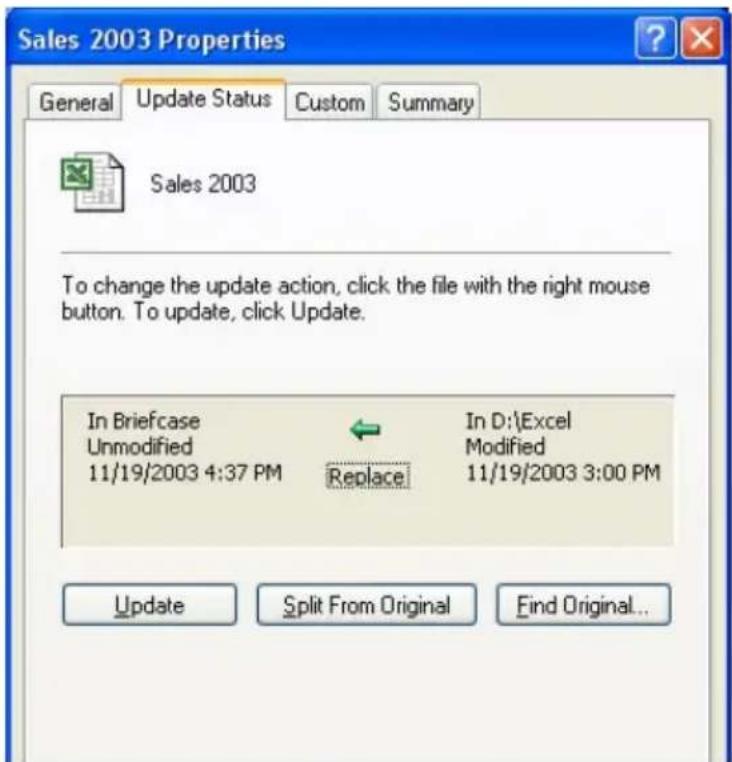
Freecom Sync File Edit View Favorites Tools Briefcase Help Back Search Folders Address G:/Freecom Sync Briefcase Tasks Update this item File and Folder Tasks Rename this file Move this file Copy this file Publish this file to the Web E-mail this file Delete this file Name Sync Copy In Status Size Solutions Update Open With Send to Cut Copy Create Shortcut Delete Rename Properties Dr:\Excel Needs updating 14 KB- Select "Update" and "Split From Original".
text_image
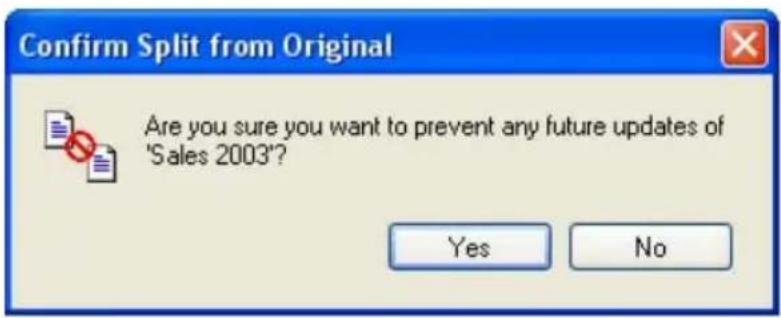
Sales 2003 Properties General Update Status Custom Summary Sales 2003 To change the update action, click the file with the right mouse button. To update, click Update. In Briefcase Unmodified 11/19/2003 4:37 PM Replace In D:\Excel Modified 11/19/2003 3:00 PM Update Split From Original Find Original...- Select "Yes".
Freecom Classic Mobile 2.5" Hard Drive

text_image
Confirm Split from Original Are you sure you want to prevent any future updates of 'Sales 2003'? Yes No5.5.2 Office use
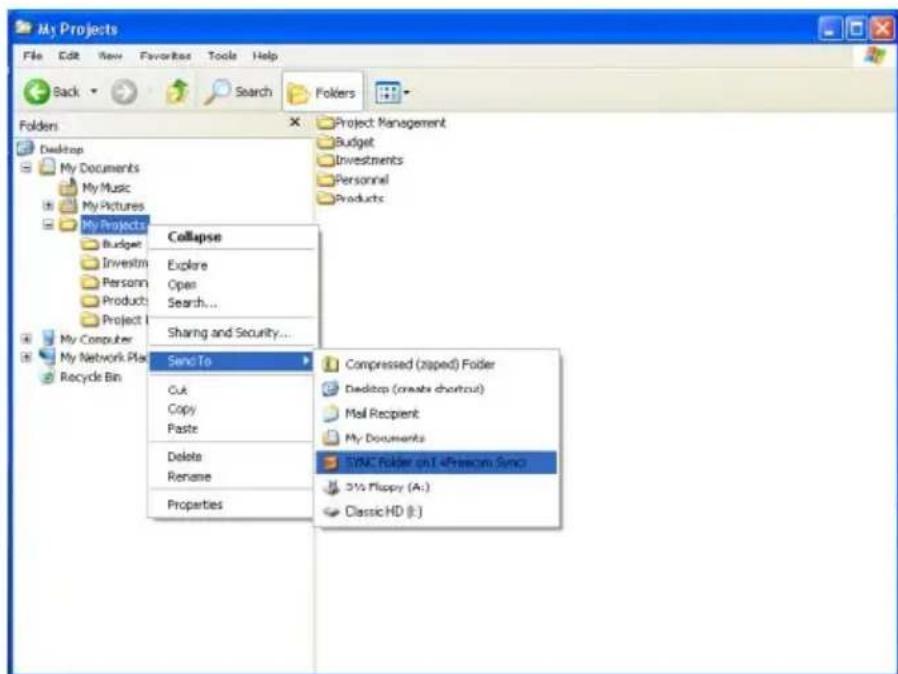
Have you ever had doubts storing your data on the network of your company only? Sure, there is always a backup of the server but do you really feel good with this 'remote' backup? The Freecom Classic Mobile 2.5" Hard Drive is ideal for making a local backup, which stores your data independently from your network or local computer. Simply 'send to' your important files and directories to the SYNC folder on the Freecom Classic Mobile 2.5" Hard Drive and update your backup from time to time click "Sync now". This is extremely easy and very fast, because the SYNC tool only backups changed files via the fast USB 2.0 connection.
The best thing is, even when your network or local computer is not working, you can take your Freecom Classic Mobile 2.5" Hard Drive to any other computer (equipped with an USB port) and continue. Even at your home-office, where you can be close to the people you love and still having all your business data available. Simply click "Sync now" before you leave the office and you are always up to date and can work with the data on the Freecom Classic Mobile 2.5" Hard Drive.
The Freecom Classic Mobile 2.5" Hard Drive provides a vast amount of memory – more than most computers are equipped with. It is ideal for storing large graphics or videos. The files can be edited directly from the Freecom Classic Mobile 2.5" Hard Drive, as its USB 2.0 connection is fast enough by far.
This is what you have to do:
Follow the instruction in the manual to install the Freecom Classic Mobile 2.5" Hard Drive and the SYNC folder. Mark the files and folders you want to copy to the SYNC folder. Click with the right mouse button on the files and folders and select 'Send to SYNC folder...'
Done.
Now all your valuable data has been copied to the Freecom Classic Mobile 2.5" Hard Drive. Every time you click "Sync now", all changed or added/deleted files and folders from the selected folders will be synchronized with the data on the Freecom Classic Mobile 2.5" Hard Drive.
text_image
My Projects File Edit View Favorites Tools Help Back Search Folders Folders Desktop My Documents My Music My Pictures My Projects Collapse Explore Open Search... Sharing and Security... Send To Cut Copy Paste Delete Rename Properties Project Management Budget Investments Personnel Products My Computer My Network Plan Recycle Bin Compressed (zapped) Folder Desktop (create checkout) Mail Recipient My Documents SYNC Folder on I afternoon Sunday 3½ Floppy (A:) Classic HD (I:)5.5.3 Home use
At the office, there is always a backup of your important business data. But how about your data at home? All the memories stored in digital photo's made during your last holiday? Or the first pictures and movies of your children! You do not want to loose those! The Freecom Classic Mobile 2.5" Hard Drive is ideal for making a safety backup, which stores your data independently from your computer. Simply 'send to' your important files and directories to the SYNC folder on the Freecom Classic Mobile 2.5" Hard Drive and update your backup from time to time click "Sync now". This is extremely easy and very fast, because the SYNC tool only backups changed files via the fast USB 2.0 connection. And all your memories are safe.
Freecom Classic Mobile 2.5" Hard Drive
This is what you have to do:
Follow the instruction in the manual to install the Freecom Classic Mobile 2.5" Hard Drive and the SYNC folder. Mark the files and folders you want to copy to the SYNC folder. Click with the right mouse button on the files and folders, which contain the pictures or videos you want to be in a safe place and select 'Send to SYNC folder...'
Done.
Now all your valuable data has been copied to the Freecom Classic Mobile 2.5" Hard Drive. Every time click "Sync now", all changed or added/deleted files and folders from the selected folders will be synchronized with the data on the Freecom Classic Mobile 2.5" Hard Drive.

text_image
Screenshot of The Ocean software interface showing folder navigation and a context menu for Sync Folder on Firefox Sync.Chapter 6: Partitioning your Freecom Classic Mobile 2.5" Hard Drive (PC only)
6.1 General information
Your Freecom Classic Mobile 2.5" Hard Drive was partitioned and formatted to provide you with the maximum available capacity and compatibility. FAT32 was chosen as file system to assure that you will be able to read your files on any PC. It is recommended not to change the current configuration of your Freecom Classic Mobile 2.5" Hard Drive.
For some users another file system might fit better for their needs. This manual describes current limitations of most common file systems and Instructions to enable you to adapt the Freecom Classic Mobile 2.5" Hard Drive to your needs.
6.2 File System features
Please refer to the tables below for an overview:
File systems supported by different operating systems
| Operating system\File system | FAT FAT32 NTFS | |
| Windows 98SE yes yes not supported | ||
| Windows ME yes yes not supported | ||
| Windows 2000 yes yes yes | ||
| Windows XP yes yes yes | ||
Maximum size of a partition
| Operating system\File system | FAT FAT32 NTFS | ||
| Windows 98SE 2 GB | 60 GB | *1,2 | n.a. |
| Windows ME 2 GB 2 TB | *2 | n.a. | |
| Windows 2000 4 GB | *3 | 32 GB 16 TB | |
| Windows XP 4 GB | *3 | 32 GB 16 TB | |
*1: A patch for Windows 98SE is required for hard disk larger than 60 GB. The maximum partition size can never exceed the capacity of your HDD.
*2: Hard disk capacity will not be displayed correctly by fdisk!
*3: FAT partitions larger than 2 GB can only be administrated by Windows 2000/XP.
Example for different partitions with different file systems on one Freecom Classic Mobile 2.5" Hard Drive
| File systemTotal size of Freecom ClassicMobile 2.5" HD | NTFS FAT32 | |
| 80 GB 60 GB 20 GB |
The example above is a good solution for Windows 2000/XP users who sometimes exchange data with Windows 98SE/ME PCs.
For storing the data under Windows 2000/XP both partitions can be used. As the NTFS file system is not recognized by Windows 98SE/ME data to be used on these operating systems must be stored on the FAT32 partition.
Please follow the steps below to adapt the Freecom Classic Mobile 2.5" Hard Drive for your needs.
6.3 Partitioning your Freecom Classic Mobile 2.5" Hard Drive under Windows 98SE / Windows ME
- Windows 98SE only: The fdisk version which is installed together with your operating system does not recognize the correct size of hard disks larger than 64 GB.
- Windows 98SE/ME: For large partitions fdisk will not display the partition size correctly! Please ignore this as the partitioning results will still be OK.
Further information and an update to fix this problem can be found in article 263044 of the "Microsoft Knowledge Base" on the Microsoft Website under http://support.microsoft.com.
6.3.1 Deleting a partition on the Freecom Classic Mobile 2.5" Hard Drive under Windows 98SE / ME
The following steps will explain how to delete a partition on your Freecom Classic Mobile 2.5" Hard Drive.
- Click on the "Start" button.
- Select "Run".
- Enter "fdisk" and confirm with "OK".
- fdisk will be started. Answer the question "Do you wish to enable large disk support?" by pressing the 'Return' key. FAT32 is now activated.
- Choose Option 5 "(Change current fixed disk drive)" by pressing '5' and 'Return'.
- Select the hard disk to be deleted by its number. ATTENTION: Please make sure that the correct drive is selected. Selecting the wrong drive will lead to a loss of your data!
- Choose Option "3 (Delete partition or Logical DOS Drive)" by pressing '3' and 'Return'.
- Your Freecom Classic Mobile 2.5" Hard Drive comes formatted as primary partition. Select option 1 "Delete Primary DOS Partition" by pressing '1' and 'Return'.
- Select the partition to be deleted by pressing its number and 'Return'.
- Enter the drive label and press 'Return'.
- Confirm with 'Y' and 'Return' to delete the partition.
- Press the 'ESC' key to return to the fdisk options.
- Press 'ESC' to exit fdisk. Stop your hard disk by using the hot unplug icon in the lower right corner of your screen and remove the USB cable from your hard disk. Afterwards connect your hard disk again with your computer. The hard disk will now be recognized by Windows.
6.3.2 Creating a partition on the Freecom Classic Mobile 2.5" Hard Drive under Windows 98 SE / ME
The following steps will guide you the process of creating partitions on your Freecom Classic Mobile 2.5" Hard Drive under Windows 98SE/ME. After this procedure your Freecom Classic Mobile 2.5" Hard Drive will be ready for use and it will be allocated a drive letter.
Freecom Classic Mobile 2.5" Hard Drive
- Click on the "Start" button.
- Select "Run".
- Enter "fdisk" and confirm with "OK".
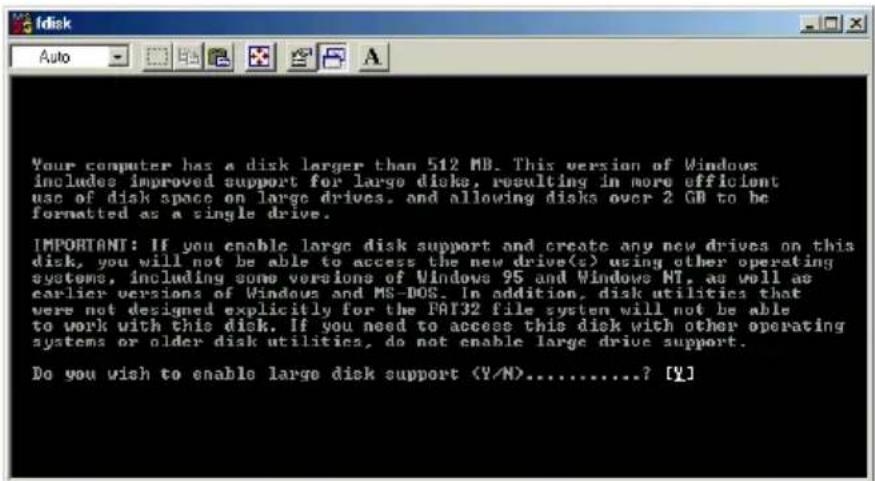
text_image
Your computer has a disk larger than 512 MB. This version of Windows includes improved support for large disks, resulting in more efficient use of disk space on large drives, and allowing disks over 2 GB to be formatted as a single drive. IMPORTANT: If you enable large disk support and create any new drives on this disk, you will not be able to access the new drive(s) using other operating systems, including some versions of Windows 95 and Windows NT, as well as earlier versions of Windows and MS-DOS. In addition, disk utilities that were not designed explicitly for the FAT32 file system will not be able to work with this disk. If you need to access this disk with other operating systems or older disk utilities, do not enable large drive support. Do you wish to enable large disk support (Y/N)......? [Y]- Answer the question "Do you wish to enable large disk support?" by pressing the 'Return' key. FAT32 is now activated.
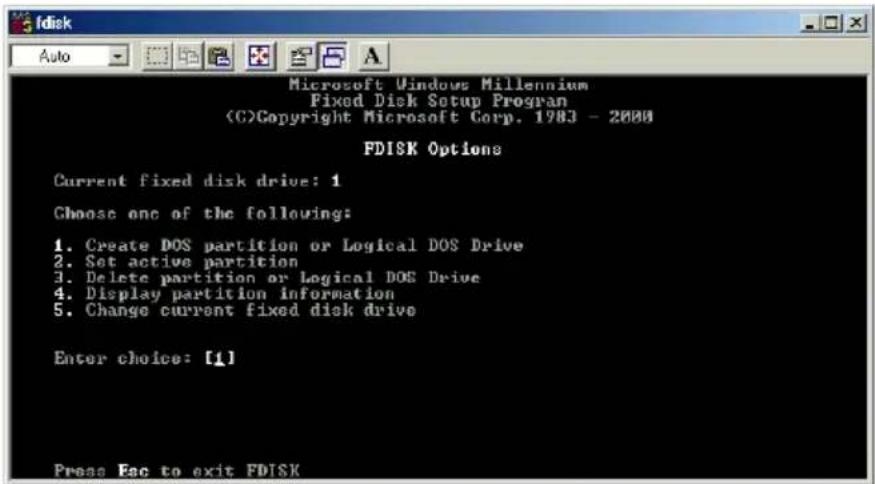
- Choose Option "5 (Change current fixed disk drive)" by pressing '5' and 'Return'.
text_image
Microsoft Windows Millennium Fixed Disk Setup Progran (C)Copyright Microsoft Corp. 1983 - 2000 FDISK Options Current fixed disk drive: 1 Choose one of the following: 1. Create DOS partition or Logical DOS Drive 2. Set active partition 3. Delete partition or Logical DOS Drive 4. Display partition information 5. Change current fixed disk drive Enter choice: [1] Press Esc to exit FDISK- Select the hard disk by its number where the "Usage" contains no value but only a percent symbol. Select the number of the corresponding hard disk and confirm by pressing the "Return" key.
Now your hard disk is activated and ready to be partitioned.

text_image
Disk Auto Change Current Fixed Disk Drive Disk Dru Mbytes Prec Usage 1 38931 100% C: 1004 D: 17132 6048 E: 10245 2 19532 9993 % <1 MByte = 1048576 Bytes> Enter Fixed Disk Drive Number (1-2)............[2] Press Esc to return to FDISK OptionsNote: Partition size of large hard disks will not be displayed correctly! However partitioning results will be OK.
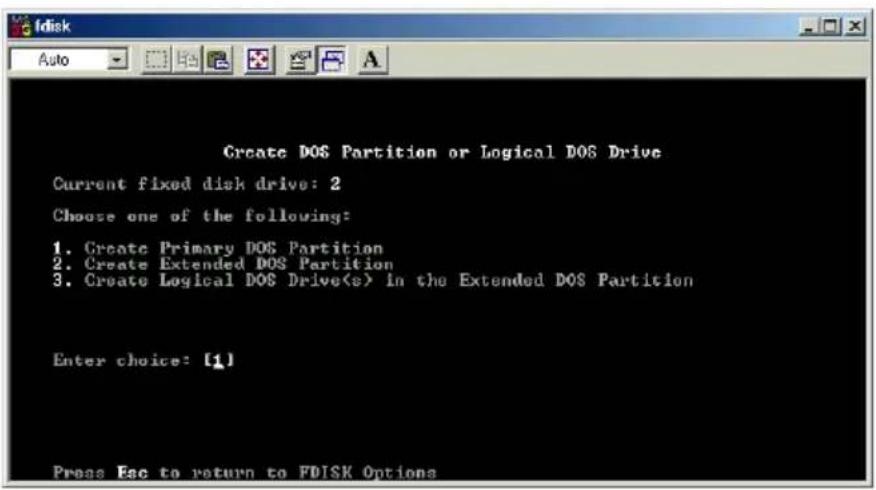
- Select Option 1 "(Create DOS partition or Logical DOS drive)" by pressing '1' and confirm with 'Return'.
- Select Option 1 " (Create primary DOS partition)" by pressing '1' and confirm with 'Return'.
Wait until drive integrity is completely checked.
text_image
Create DOS Partition or Logical DOS Drive Current fixed disk drive: 2 Choose one of the following: 1. Create Primary DOS Partition 2. Create Extended DOS Partition 3. Create Logical DOS Drive(s) in the Extended DOS Partition Enter choice: [1] Press Esc to return to FDISK Options- If only one partition is required then answer "Y" to the question: "Do you wish to use the maximum available size for a Primary DOS partition?" If more than on partition is required go to the next section "Create two or more partitions on the Freecom Classic Mobile 2.5" Hard Drive under Windows 98 / Windows ME".
Now the whole disk will be partitioned as one primary partition. Wait until the drive integrity check is completed.
- Press the 'ESC' key to return to the fdisk options.
- Now press the 'ESC' key to close the "fdisk window". Your hard disk is now partitioned.
Freecom Classic Mobile 2.5" Hard Drive
- Stop your hard disk by using the hot unplug icon in the lower right corner of your screen and remove the USB cable from your hard disk. Afterwards connect your hard disk again with your computer. The hard disk will now be recognized by Windows.
As Windows tries to access your hard disk an error message will appear. This happens, because your hard disk is not yet formatted.
6.3.3 Creating two or more partitions on the Freecom Classic Mobile 2.5" Hard Drive under Windows 98SE / ME
- Repeat steps 1 to 7 from the previous chapter (Create one partition on the Freecom Classic Mobile 2.5" Hard Drive under Windows 98SE/Windows ME).
- Answer the question "Do you wish to use the maximum available size for a primary DOS partition?" with "N".
- Enter either the size or a percentage value for the partition size. Press 'Return' and wait until the drive integrity check is completed.
- Press the 'ESC' key to return to the fdisk options.
- Select Option 1 "(Create DOS partition or Logical DOS drive)" by pressing '1' and confirm with 'Return'.
- Select Option 2 "(Create Extended DOS Partition)" by pressing '2' and confirm with 'Return'. Wait until the drive integrity check is completed.
- Enter either the size or a percentage value for the partition size or press 'Return' to accept the default value.
- Press 'ESC' to return and wait until the drive integrity check is completed.
- A logical drive needs to be defined now. Enter the size of the logical drive and press 'Return' or accept the default value by pressing 'Return'.
- Press 'ESC' to return to the fdisk options.
- Now press the 'ESC' key to close the "fdisk window". Your hard disk is now partitioned.
- Stop your hard disk by using the hot unplug icon in the lower right corner of your screen and remove the USB cable from your hard disk. Afterwards connect your hard disk again with your computer. The hard disk will now be recognized by Windows.
As Windows tries to access your hard disk an error message will appear. This happens because your hard disk is not yet formatted.
6.3.4 Formatting partitions on the Freecom Classic Mobile 2.5" Hard Drive under Windows 98SE / ME
- Double-click on the "My Computer" icon on your desktop.
- Click with the right mouse button on the drive symbol of your Freecom Classic Mobile 2.5" Hard Drive. Now a menu will appear where you can choose the option "Format".
- Please perform a complete formatting of your drive. You can also assign a name to your drive here.
- After you have completed your selection, click on "Start".
Attention: Selecting the wrong drive will lead to a loss of your data. Please ensure that the correct drive is selected!
- Confirm the next message with "OK".
- After formatting is finished you can perform a disk scan. To do so, follow the instructions of the Windows Help system. If you don't want to scan your disk, just close the message window.
Repeat these steps for each partition if more than one partition was created. Now your Freecom Classic Mobile 2.5" Hard Drive is ready for use. You can use it like an internal hard disk for storing your data.
6.4 Partitioning your Freecom Classic Mobile 2.5" Hard Drive under Windows XP / 2000
6.4.1 Deleting a partition on the Freecom Classic Mobile 2.5" Hard Drive under Windows XP / 2000
- Click with the right mouse button on the "My Computer" icon on your desktop.
- Select the option "Manage".
- Select the option "Storage" -> "Disk Management".
- Choose your external hard drive and right-click on the partition.
- Select "Delete Partition" and confirm by clicking on "Yes". The partition will be deleted now.
6.4.2 Creating a partition on the Freecom Classic Mobile 2.5" Hard Drive under Windows XP / 2000
The following steps will guide you through the process of creating partitions on your Freecom Classic Mobile 2.5" Hard Drive. After this procedure your Freecom Classic Mobile 2.5" Hard Drive will be ready for use and it will be allocated a drive letter.
- Click with the right mouse button on the "My Computer" icon on your desktop.
- Select the option "Manage".
- Select the option "Storage" -> "Disk Management".
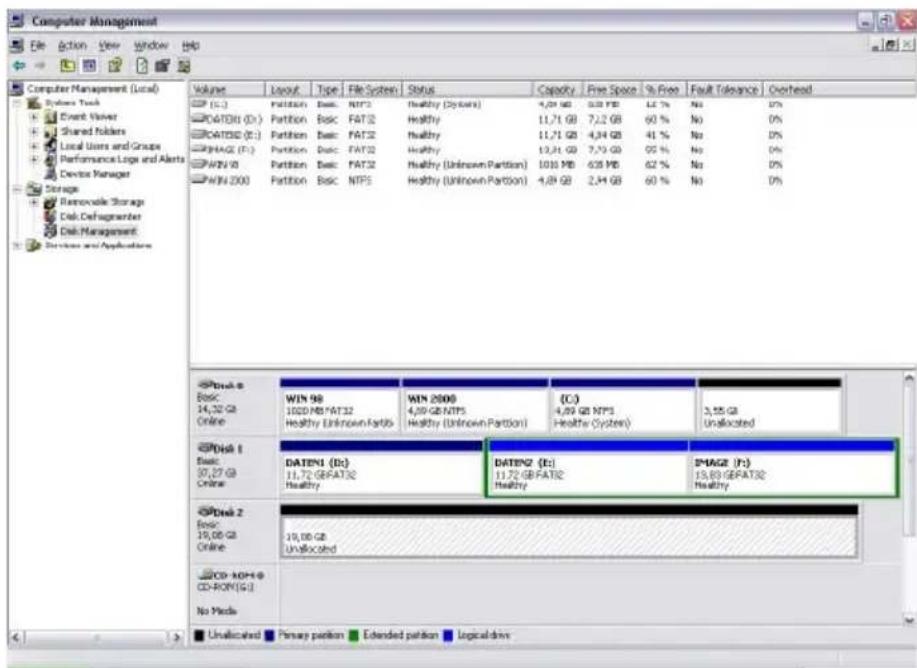
- Choose the hard disk, which is "unallocated". Ensure that the entire drive is "unallocated".
text_image
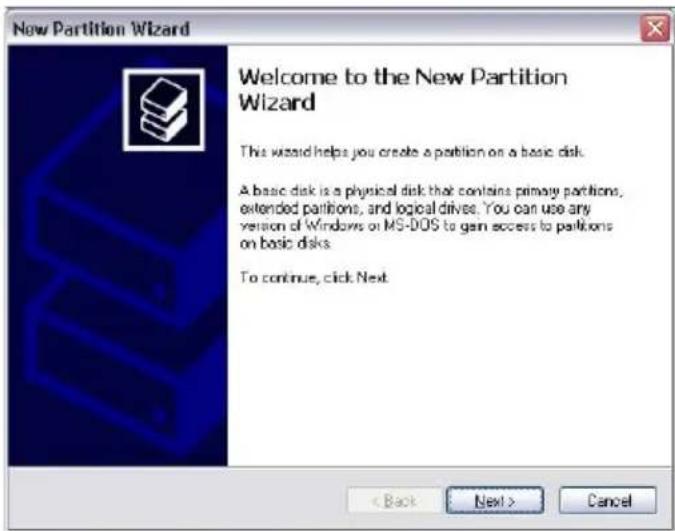
Computer Management File Action View Window Help Computer Management (Local) System Tools Event Viewer Shared folders Local Users and Groups Performance Log and Alerts Device Manager Storage Removable Storage Disk Defragmenter Disk Management Services and Applications Volume Layout Type File System Status Capacity Free Space % Free Fault Tolerance Overhead (C:) Partition Basic NTFS Healthy (Systems) 4,29 GB 633 GB 12% No 0% CATD01 (C:) Partition Basic FAT32 Healthy 11,71 GB 7,12 GB 60% No 0% CATD50 (C:) Partition Basic FAT32 Healthy 11,71 GB 4,34 GB 41% No 0% PHAG2 (F:) Partition Basic FAT32 Healthy 13,31 GB 7,79 GB 92% No 0% WIN 98 Partition Basic NTFS Healthy (Unknown Partition) 1010 MB 638 MB 62% No 0% WIN 2000 Partition Basic NTFS Healthy (Unknown Partition) 4,89 GB 2,34 GB 60% No 0% Disk 0 Basic 14,32 GB Online WIN 98 WIN 2000 (C:) 1020 MB FAT32 4,39 GB NTFS 4,89 GB NTFS Healthy (Unknown Partition) Healthy (Systems) 3,55 GB Disk 1 Basic 37,27 GB Online DATEN1 (R:) DATEN2 (E:) ZMAG2 (F:) 11,72 GB FAT32 11,72 GB FAT32 Healthy Healthy 15,80 GB FAT32 Disk 2 Basic 19,08 GB Online 19,08 GB Unallocated CD-ROM © CD-ROM(G) No Media Unallocated Primary partition Extended partition Logical drive- Click with the right mouse button on the "unallocated" area and select the option "New Partition" (Windows 2000: "Create Partition Wizard"). The "New Partition Wizard" opens. Click on "Next".
text_image
New Partition Wizard Welcome to the New Partition Wizard This wizard helps you create a partition on a basic disk. A basic disk is a physical disk that contains primary partitions, extended partitions, and logical drives. You can use any version of Windows or MS-DOS to gain access to partitions on basic disks. To continue, click Next < Back Next > Cancel- Select "Primary partition" and click on "Next".

text_image
Now Partition Wizard Select Partition Type These are three types of partitions: primary, extended, and logical Select the partition you want to create: ○ Primary partition ○ Extended partition ○ Logical data Description A primary partition is a volume you create using free space on a basic disk. Windows and other operating systems can start from a primary partition. You can create up to four primary partitions or three primary partitions and an extended partition. < Back Next > CancelFreecom Classic Mobile 2.5" Hard Drive
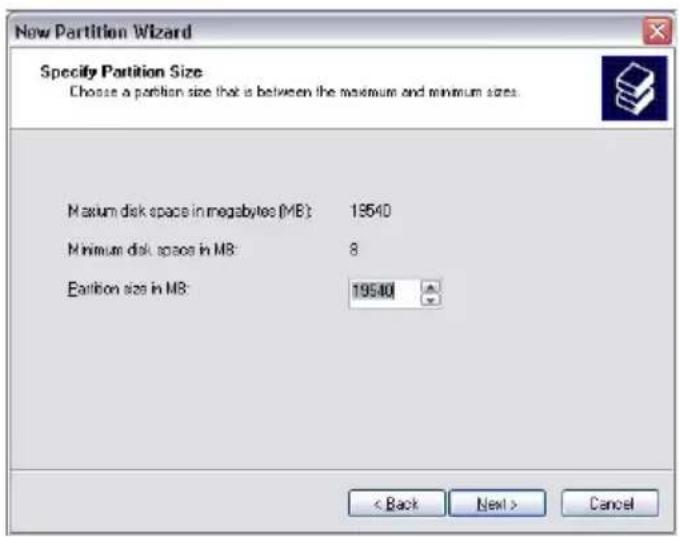
- Now you can adjust the size of your partition. Click on "Next" if only one partition is to be created. See next chapter (Creating two or more partitions on the Freecom Classic Mobile 2.5" Hard Drive under Windows XP/2000) how to create more than one partition.
text_image
New Partition Wizard Specify Partition Size Choose a partition size that is between the maximum and minimum sizes. Maximum disk space in megabytes (MB): 19540 Minimum disk space in MB: 8 Partition size in MB: 19540 < Back Next > Cancel- Assign a drive letter to your hard disk. Normally you can use the default options. Click on "Next".
- Select the formatting option. Choose either "FAT32" or "NTFS", the "Allocation Unit Size" should remain on "Default". Finally select "Perform Quick Format" and click on "Next".

text_image
Now Partition Wizard Format Partition To store data on this partition, you must format it first. Choose whether you want to format this partition, and if so, what settings you want to use. ○ Do not format this partition ● Format this partition with the following settings: File system: FAT32 Allocation unit size: Default Volume label: Classic HD ✓ Perform a quick format ☐ Enable file and folder compression < Back Next > CancelPartitioning your Freecom Classic Mobile 2.5" Hard Drive
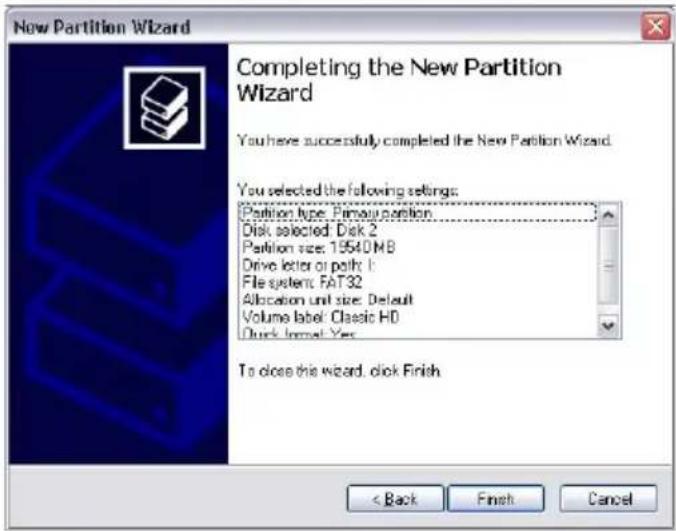
- Click on "Finish" to complete the partitioning of your Freecom Classic Mobile 2.5" Hard Drive. Your Freecom Classic Mobile 2.5" Hard Drive will be formatted now and is ready-to-use afterwards.
text_image
New Partition Wizard Completing the New Partition Wizard You have successfully completed the New Partition Wizard. You selected the following settings: Partition type: Primary partition Disk selected: Disk 2 Partition size: 19540 MB Drive letter or path 1 File system: FAT32 Allocation unit size: Default Volume label: Classic HD Quick format: Yes To close this wizard, disk Finish < Back Finish Cancel6.4.3 Creating two or more partitions on the Freecom Classic Mobile 2.5" Hard Drive under Windows XP / 2000
- Repeat the steps from the previous chapter (Creating a partition on the Freecom Classic Mobile 2.5" Hard Drive under Windows XP/2000) for creating the first partition.
- Click with the right mouse button on the "My Computer" icon on your desktop.
- Select the option "Manage".
- Select the option "Storage" -> "Disk Management".
- Right-click on the unallocated space of your Freecom Classic Mobile 2.5" Hard Drive and select the option "New partition" (Windows 2000: "Create partition"). The "New Partition Wizard" (Windows 2000: "Create Partition Wizard") opens. Click on "Next".
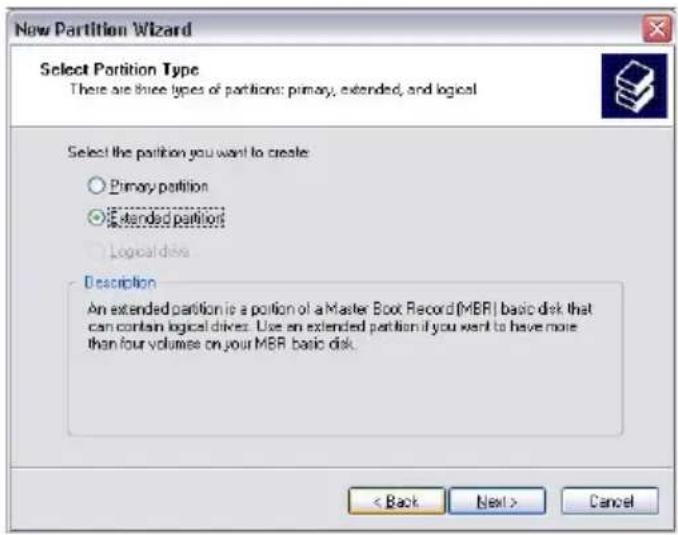
- Select "Extended partition" and click on "Next".
text_image
New Partition Wizard Select Partition Type There are three types of partitions: primary, extended, and logical Select the partition you want to create ○ Primary partition ● Extended partitions ○ Logical disks Description An extended partition is a portion of a Master Box Record (MBR) basic disk that can contain logical drives. Use an extended partition if you want to have more than four volumes on your MBR basic disk. < Back Next > Cancel-
Now you can adjust the size of your partition. Enter the size and click on "Next".
-
Click on "Finish" to create the "Extended partition". The unallocated space now changed to "Free space".

text_image
New Partition Wizard Completing the New Partition Wizard You have successfully completed the New Partition Wizard. You selected the following settings: Partition type: Extended partition Disk selected: Disk 2 Partition size: 9539 MB To close this wizard, click Finish < Back Finish Cancel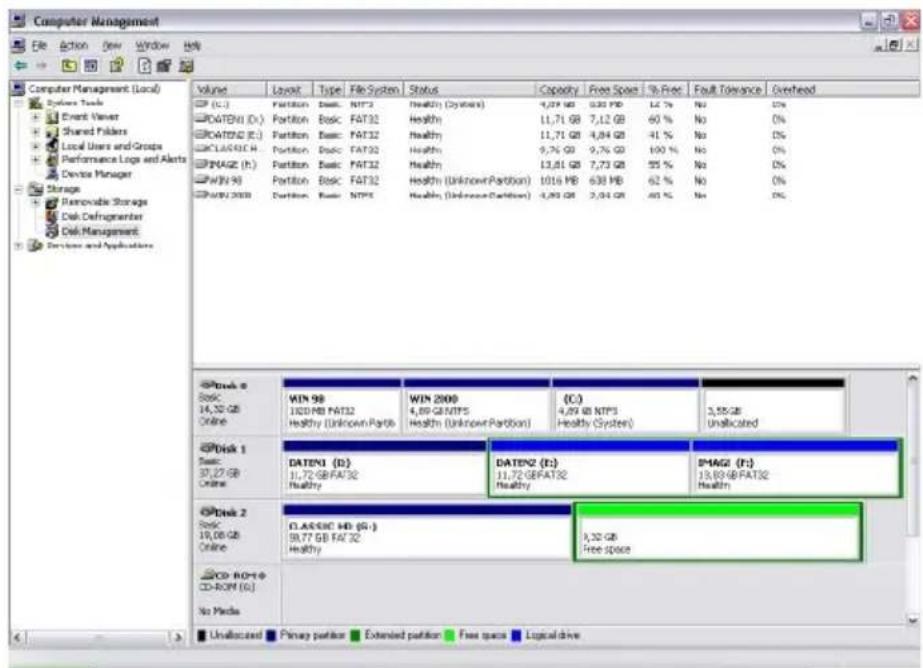
text_image
Computer Management File Action View Window Help Volume Layout Type File System Status Capacity Free Space % Free Fault Tolerance Overhead CP (C:) Partition Basic NT3 Health (Systems) 4,77 GB 0.32 GB 12% No 0% CPATEN1 (D:) Partition Basic FAT32 Health 11,71 GB 7,12 GB 60% No 0% CPATEN2 (E:) Partition Basic FAT32 Health 11,71 GB 4,84 GB 41% No 0% CPCLASSIC H: Partition Basic FAT32 Health 9,76 GB 9,76 GB 100% No 0% PMAG2 (F:) Partition Basic FAT32 Health 13,81 GB 7,73 GB 55% No 0% WIN 98 Partition Basic FAT32 Health (UnknownPartition) 1016 MB 638 MB 62% No 0% WIN 98 Partition Basic NTFS Health (UnknownPartition) 4,89 GB 2,94 GB 60% No 0% Disk 0 Basic 14,32 GB Online WIN 98 120 MB FAT32 Healthy (Unknown Partition) WIN 2000 4,89 GB NTFS Health (Unknown Partition) (C:) 4,89 GB NTFS Healthy (System) 3,55 GB Unallocated Disk 1 Basic 37,27 GB Online DATEN1 (D): 11,72 GB FAT32 Healthy DATEN2 (F): 11,72 GERAT32 Healthy PMAG2 (F): 13,89 GB FAT32 Healthy Disk 2 Basic 10,08 GB Online CLASSIC HD (G:) 58,77 GB FAT32 Healthy 9,32 GB Free space CD-ROM (G:) No Media Unallocated Primary partition Extended partition Free space Logical driveFreecom Classic Mobile 2.5" Hard Drive
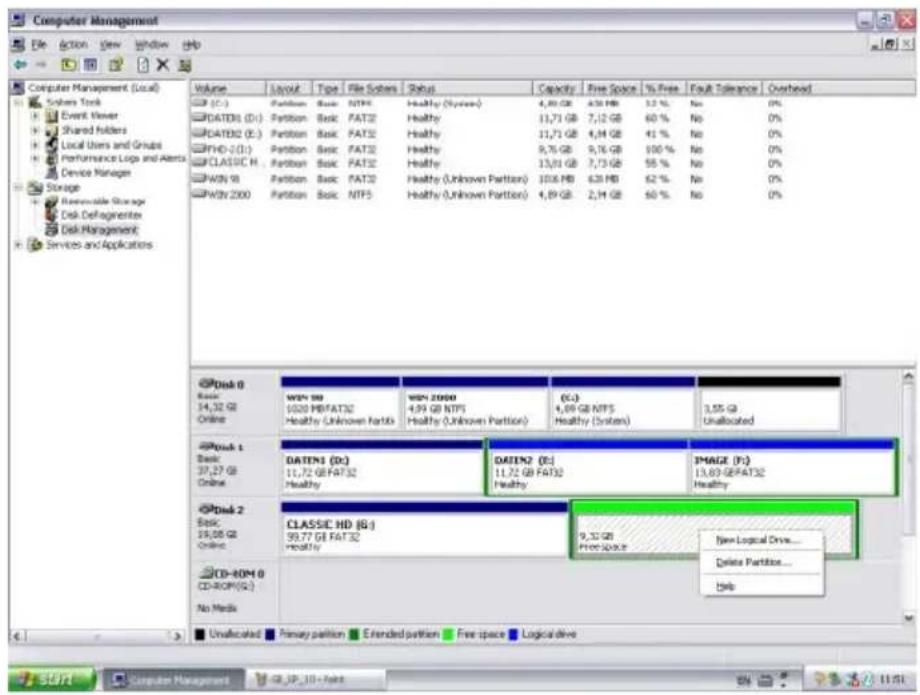
- Right-click on "Free Space" and select "New Logical Drive" (Windows 2000: "Create Logical Drive"). The "New Partition Wizard" (Windows 2000: "Create Partition Wizard") opens. Click on "Next".
text_image
Computer Management File Action View Window Help Volume Layout Type File Sectors Status Capacity Fire Space % Free Fault Tolerance Overhead C:\D (C:) Partition Basic NTFS Healthy (Systems) 4,80 GB 438 GB 12 % No 0% C:\DATDS (D:) Partition Basic FAT32 Healthy 11,71 GB 7,12 GB 60 % No 0% C:\DATED2 (E:) Partition Basic FAT32 Healthy 11,71 GB 4,94 GB 41 % No 0% C:\FHD-2(D:) Partition Basic FAT32 Healthy 9,76 GB 9,76 GB 100 % No 0% C:\CLASSIC H: PHON 98 Partition Basic FAT32 Healthy 13,01 GB 7,73 GB 58 % No 0% C:\WIN 2000 Partition Basic NTPS Healthy (Unknown Partition) 1036 MB 638 MB 62 % No 0% Disk 0 Basic 14,32 GB Online WIN 98 1020 MB/FAT32 Healthy Unknown Partition WIN 2000 4,99 GB NTPS Healthy (Unknown Partition) (C:) 4,89 GB NTPS Healthy (Systems) 3,55 GB Unallocated Disk 1 Basic 37,27 GB Online DATEN1 (D:) 11,72 GB/FAT32 Healthy DATEN2 (E:) 11,72 GB/FAT32 Healthy IMAGE (P:) 13,83 GB/FAT32 Healthy Disk 2 Basic 19,08 GB Online CLASSIC HD (G:) 59,77 GB/FAT32 Healthy 9,32 GB Free Space New Logical Drive... Delete Partition... Help CD-ROM 0 CD-ROM(5) No Media Unallocated Primary partition Extended partition Free space Logical drive- "Logical drive" is already selected. Click on "Next".
- Specify the partition size and click on "Next".
- Assign a drive letter and click on "Next".
- Select the formatting option. Choose either "FAT32" or "NTFS", the "Allocation Unit Size" should remain on "Default". Finally select "Perform Quick Format" and click on "Next".
- Click on "Finish" to complete partitioning. Your partition will be formatted now and is ready-to-use.
Chapter 7: Troubleshooting
| Issue | Solution |
| After I connected the Freecom Classic Mobile 2.5" Hard Drive to my computer for the first time no Freecom SYNC folder has been created automatically. | • Install the Freecom Personal Media Suite software and safely remove and reconnect the Freecom Classic Mobile 2.5" Hard Drive• Follow the instructions on chapter 5.4.2 Creating a new SYNC folder. |
| After installation of Freecom Personal Media Suite, the message "No Freecom device found." appears. | • Connect the Freecom Classic Mobile 2.5" Hard Drive to your computer.• Check all connections between the Freecom Classic Mobile 2.5" Hard Drive, the power supply and the computer.• Safely remove and reconnect the Freecom Classic Mobile 2.5" Hard Drive. |
| Files deleted in the SYNC folder, are still appearing during the synchronization. | You have to "Split From Original" the files from their counterparts before you may delete them. Please refer to chapter 5.5.1 Handling deleted files. |
| An empty folder is not synchronized. | Empty folders are not taken into account during synchronization. |
| If you are working with the program "Total Commander" and are using the "send to" dialog to add items to the SYNC folder, the message "The brief-case is in use on another computer" could appear. | The SYNC folder is opened by another program. Please close all applications, which are using the SYNC folder. |
| You cannot create a SYNC folder with a name you used for another, deleted, SYNC folder. | This happens only under Windows 98. Please restart Windows 98. After re-start, you can create the new SYNC folder. |
| Not enough memory on the target drive (Freecom Classic Mobile 2.5" Hard Drive) during creation of SYNC folder. | Delete files on the target drive (Freecom Classic Mobile 2.5" Hard Drive) or select less files. |
| Not enough memory on the target drive (Freecom Classic Mobile 2.5" Hard Drive) during synchronization. | Delete files on the target drive (Freecom Classic Mobile 2.5" Hard Drive). |
WARRANTY (Valid in Europe/Turkey only):
We thank you for purchasing this Freecom product and hope you will enjoy using it
In order to avoid unnecessary inconvenience on your part we suggest reading the quick install guide instruction manual and any additional electronic and or printed manuals. When problems occur we have a database with Frequently Asked Questions (FAQ) on our Freecom website (www.freecom.com) please check this site before you contact the helpdesk.
Your Guarantee
All Freecom products come with unlimited technical phone and web support. By this Guarantee, Freecom warrants their products to be free from defects in material and workmanship for a period listed below from the date of its original purchase. If during this period of guarantee the product proves defective due to improper materials or workmanship, Freecom will' without charge for labour or parts' at its sole discretion, repair or replace the product or its defective parts upon the terms and conditions set out below.
Conditions
This guarantee will be granted only when the original invoice or sales receipt (indicating the date of purchase product and serial number) is presented together with the defective product and a Freecom RMA number received from the Freecom Website or given by a Freecom Service Center. Freecom reserves the right to refuse the free-of-charge guarantee services when the date of purchase of the product cannot be proven. This guarantee will not apply if the RMA number is missing, the serial number on the product has been altered, removed or made illegible.
This guarantee covers only the hardware components packaged with the product. This guarantee covers none of the following: (a) any consumable supplied with the product, such as media or batteries; (b) damage to or loss of any software programs' data or removable storage media; (c) any damage resulting from adaptations' changes or adjustments' which may have been made to the product without the prior written consent of Freecom; (d) attempted repair by any party other than authorized by Freecom and (e) accidents' lightning' water' fire or any other such cause beyond the reasonable control of Freecom.
With respect to all services provided, Freecom is not responsible for any damage to or loss of any programs' data or other information stored on any media or any part of any product service. Freecom is not liable for the consequence of business loss in case of system failure. Be sure to exclude all parts not covered by this guarantee prior to returning the product to Freecom. Freecom is not liable for any loss or damage to these items. If during the repair of the product the contents of the hard drive are altered, deleted or in any way modified. Freecom is not liable whatsoever.
Repair parts and replacement products will be provided on an exchange basis and will be either new equivalent to new or reconditioned. All replaced parts and products become the property of Freecom The period of guarantee for any product or part repaired or replaced in warranty shall be the balance of the original guarantee. Repairs or replacements on product or parts out of warranty carry 6 (six) months guarantee:
All Freecom products come with unlimited free technical phone and web support
Freecom product Warranty period
Traveller & Portable 1 year (Two years in Europe)
Classic & Internal Series 1 year (Two years in Europe)
FC' FS & FX Series 1 year (Two years in Europe)
FHD Series & FireWire Harddrive 1 year (Two years in Europe)
USB Floppy Disk Drive 1 year (Two years in Europe)
USBCard 1 year (Two years in Europe)
DAT & LTO Drives (retail) 3 years
DAT'S Kits 2 years
ThinServer* 1 year (Two years in Europe)
Beatman 1 year (Two years in Europe)
Cables 1 year (Two years in Europe)
* Controller inside 3 years after online registration only (GB)