 EasyManual
DVBT-STICK USB - USB TV Receiver FREECOM - Free user manual and instructions
Find the device manual for free DVBT-STICK USB FREECOM in PDF.


User questions about DVBT-STICK USB FREECOM
0 question about this device. Answer the ones you know or ask your own.
Ask a new question about this device
Download the instructions for your USB TV Receiver in PDF format for free! Find your manual DVBT-STICK USB - FREECOM and take your electronic device back in hand. On this page are published all the documents necessary for the use of your device. DVBT-STICK USB by FREECOM.
USER MANUAL DVBT-STICK USB FREECOM
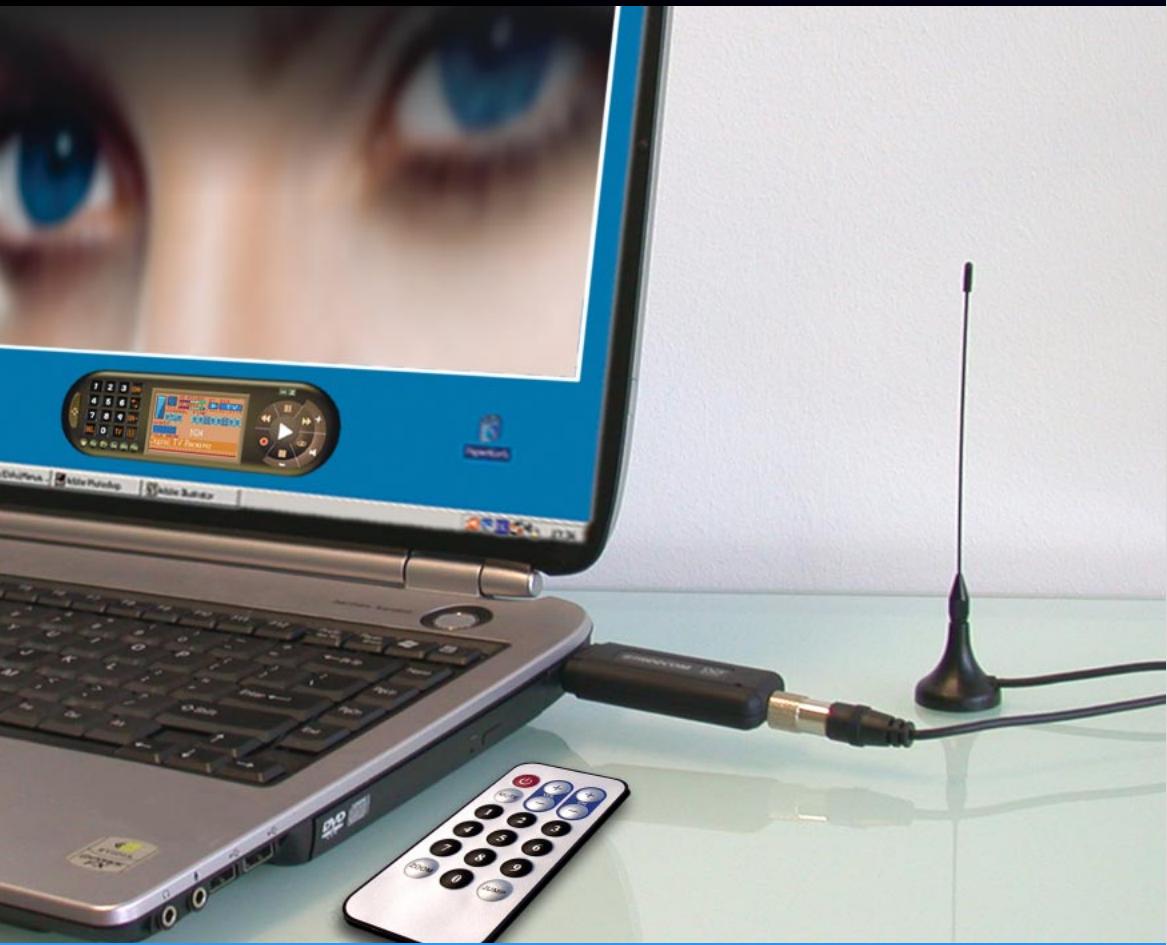
FREECOM DVB-T USB STICK
MANUAL
Rev. 535
Dear customer,
The Freecom DVB-T Stick is fully compatible with DVB-T protocol for your desktop PC or laptop use. Its tiny size design with high speed USB2.0 interface let you enjoy digital TV programs anywhere!
It is also a Digital Video Recorder that you may record your favorite TV programs on your hard disk either real time or scheduling. Quick setup makes it easy to use. It provides you an immediate personal access with lots useful functions such as Channel Auto Scan, Teletext, Electronic Program Guide, Favorite List etc. Yet, there is no need for an extra power supply.
Freecom Technologies · Germany
www.freecom.com
Warning!
All rights reserved. The products named in this manual are only used for identification purposes and may be trademarks or registered trademarks of the respective companies. This device was designed for home or office use.
This device is equipment complying with EN55022 class B.
Freecom Technologies is not liable for any damages that may occur from the use of a Freecom system. All rights reserved. We reserve the right to upgrade our products in keeping with technological advances.
Users manual
General Information.. 4
Warnings and Safety Instructions 5
How to Install
Installation Steps 6
Chapter 1:
Connect Freecom DVB-T Stick.. 7
Chapter 2:
Install Driver and Application 8
Install Driver.. page 8
Install Application page 12
Chapter 3:
DTV Software / System Introduction 17
Chapter 5:
DTV Software Introduction. 25
Chapter 6:
Trouble Shooting / Frequently Asked Questions (FAQ) page 31
Package Contents
- Freecom DVB-T Stick
IR Remote Control - Quick Installation Guide
- Terrestrial Antenna
MCX-IEC Connector - Manual & Application CD
System Requirements
The following hard- and software requirements must be fulfilled to ensure trouble-free operation.
Hardware Requirements
- IBM or IBM compatible computer
CPU:1GHz or above
Memory: 128MB or more
Sound card
Software Requirements
OS:Windows2000(SP4)/XP(SP1)or higher
Microsoft DirectX9.0 or above
Microsoft Media Player7.0 or above
Important Notice: "All channels are subject to coverage and may be changed from time to time. Reception may depend on the type and condition of your existing aerial. Aerial upgrade may be required. Please confirm coverage in your area." We strongly recommend that you install an outdoors antenna when you use the DTV receiver indoors.
Warnings and Safety Instructions
Please read and follow the below mentioned instructions. They should be observed in order to prevent injury to the user, damage to the device and damage to property, as well as to ensure safe use of the product. Not following these instructions may cause the unit to malfunction.
Note:
- Terrestrial digital wireless broadcast signal may be affected by topography, objects and weather. This would cause a poor signal quality. Therefore, we strongly suggest you to use a rooftop antenna when received indoors.
- This product is moveable but not be suitable of using in a high speed moving environment. Please check other associated products for these requirements.
- When you use the function of pre-recording, real time recording, or time shifting, please make sure you have enough hard disk space to save huge recording data.
- In order to operate properly, please follow the user manual and suggestive setup. Improper operations may cause the system unstable or crash. Before you remove hard disk devices, please check other related application has been closed.
We reserves the right to add or delete the application and its functions; all new release drivers and application will be mentioned in our website. We are not responsible for further notice

How to Install
Installation Steps
- Connect the Freecom DVB-T Stick to your computer.
Install Driver
Install DTV application - Install DirectX 9.0 and reboot your system. (If DirectX 9.0 is already installed, you may skip to next step)
- Restart Computer
Chapter 1: Connect Freecom DVB-T Stick
Receiver to your computer
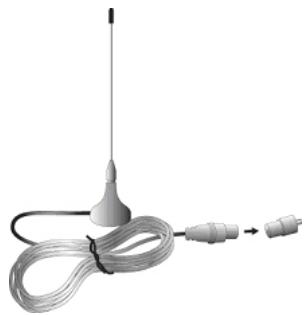
- Connecting IEC connector to antenna.
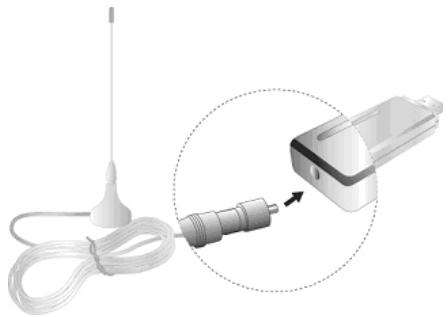
- Connecting antenna to PenType Receiver
- Connecting PenType Receiver to USB interface on your computer.
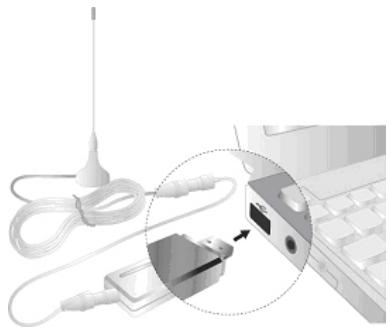
- (Option:) You may need longer USB cable for the connection between PenType Receiver and USB interface on your computer.
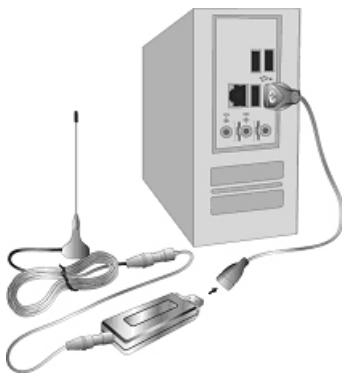
Note: When connecting the Freecom DVB-T USB Stick to a notebook, make sure the energy saving function is deactivated. The energy saving function reduces CPU performance and might influence the operation of the DVB-T USB stick.
Note: The antenna and the DVB-T USB receiver must be placed in an appropriate position for best reception each time the DTV is used.
Chapter 2: Install Driver and Application
2.1 Install Driver
Please connect the Freecom DVB-T Stick to your computer to start the driver installation.
- Insert the included CD in your CD-ROM drive.
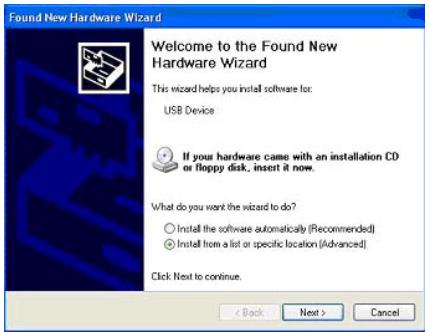
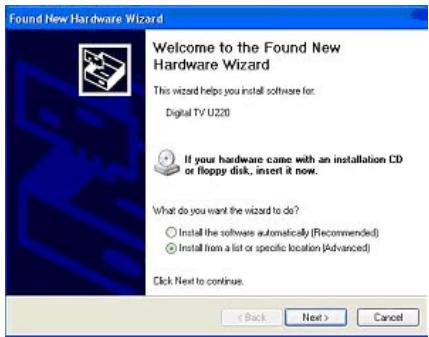
- Computer will detect the new hardware and Found New Hardware Wizard window will be popped up. Please select "Install from a list or specific location (Advanced)".
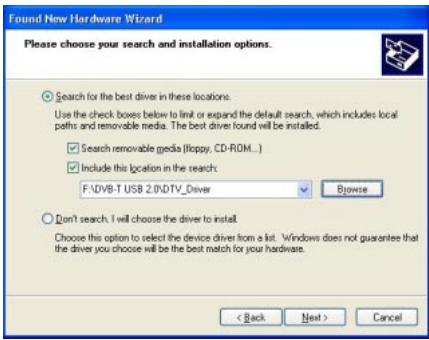
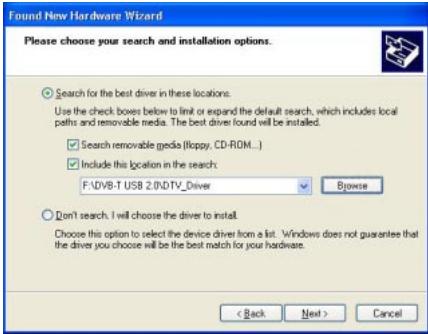
- Please select "Search for the best driver in these locations". You may click "Browse" to find the driver location on CD-ROM directory. Choose "DVB-T USB 2.0\DTV_Driver".
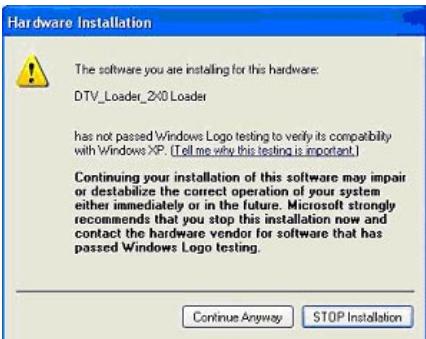
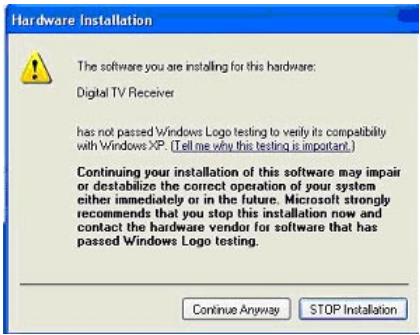
- Click "Continue Anyway" to continue
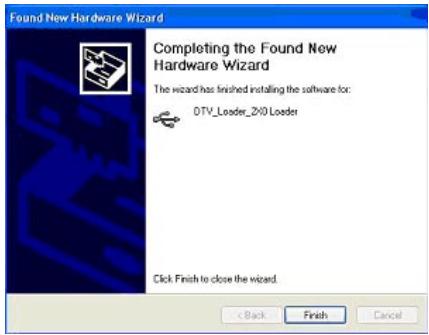
- Click "Finish" to continue.
- Please select "Install from a list or specific location (Advanced)" then click "Next" to continue.
- Please select "Search for the best driver in these locations". You may click "Browse" to find the driver location on CD-ROM directory. Choose ""\DVB-T USB 2.0\DTV_Driver""
- Please click "Continue Anyway" to continue.
- Click "Finish" to exit.
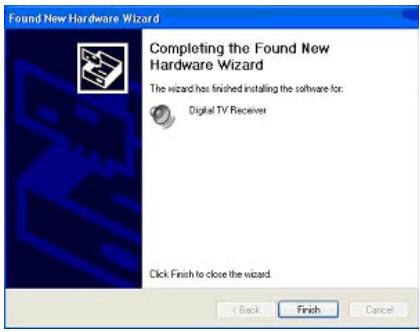
- Installation of the application software will now start automatically.
Remark: Run the setup from the "DVB-T USB 2.0" folder on the included CD if the installation does not start automatically.
2.2 Install Application
- Click "Next" to continue.
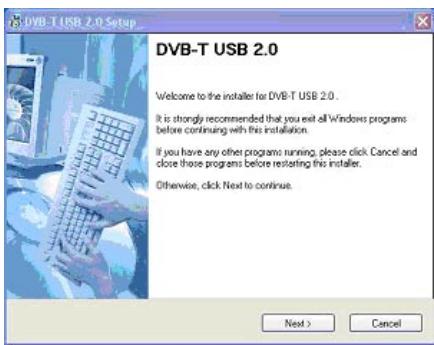
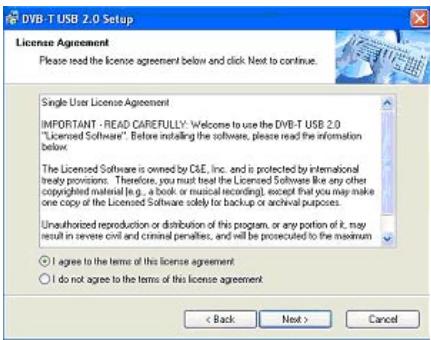
- Please read the license agreement carefully then select "I agree to the terms of this license agreement". Click "Next" to continue.
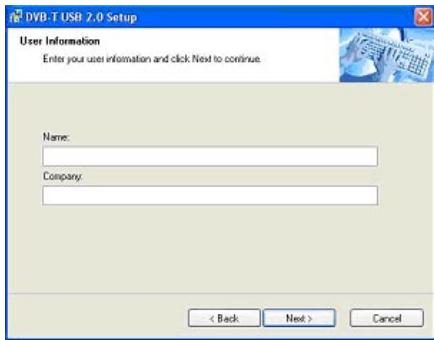
- Fill in user's information in the column. Click "Next" to continue.
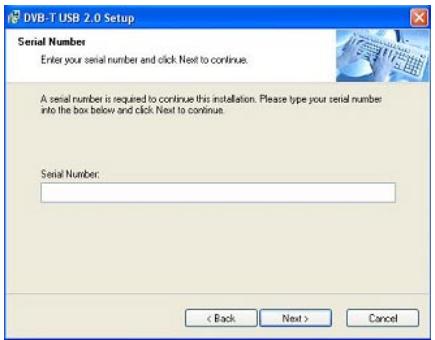
- Enter product's serial number and click "Next" to continue.
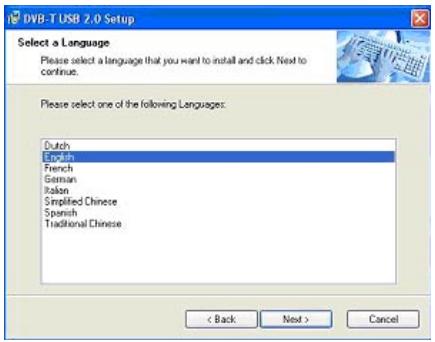
- Select a language edition. Choose English and click "Next" to continue.
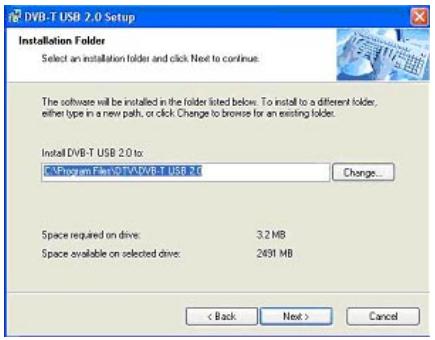
- This window is the original setting path and folder name. You may change it according to personal reference. Click "Next" to continue.
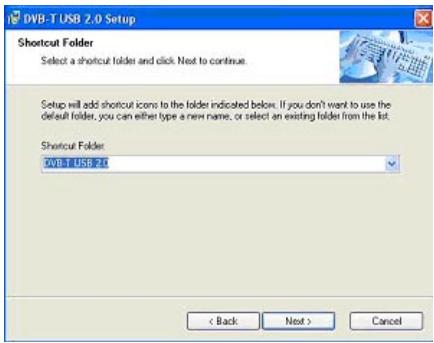
- This window is the original shortcut icon and pre-setting shortcut folder. You may change the folder name or appoint to an existing folder. Click "Next" to continue.
- Please make sure the path and folder name is correct. Click "Next" to continue.
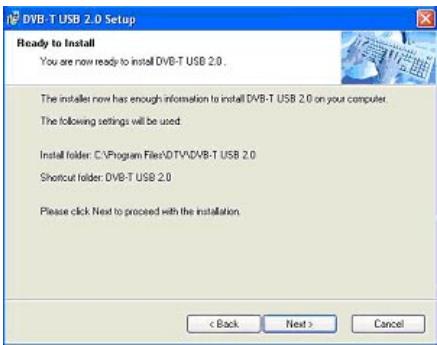
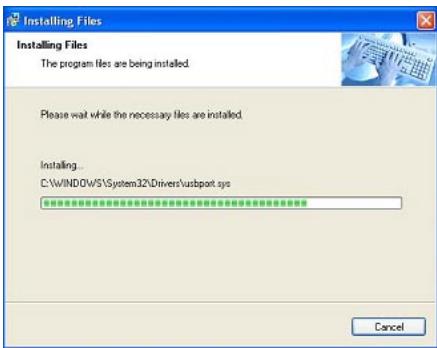
- The following window indicates that the installation of DTV application is proceeding.
- Please check "Yes, restart my computer now." Click "Finish" to continue.
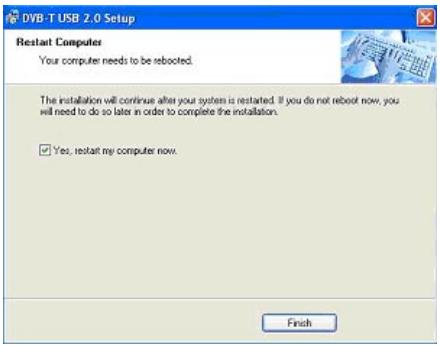
- Click "Finish" and computer will be restarted automatically. The application installation is done successfully.
Note: You MUST restart your computer to complete application installation.
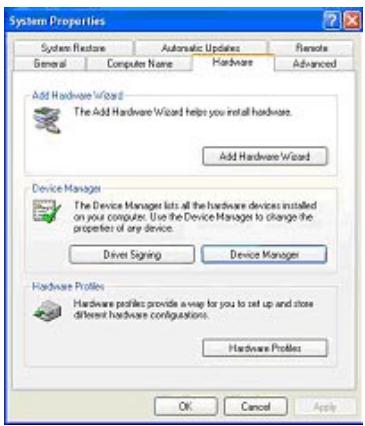
- You may double check if the product drivers are installed properly. Please press Start then right click My Computer. Click "Properties".
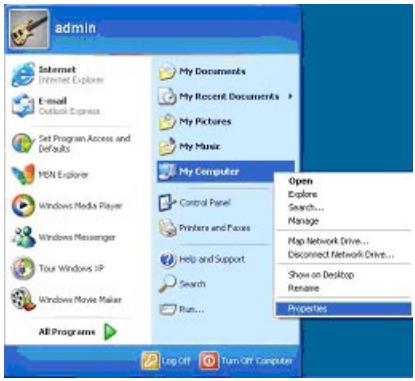
- Click "Device Manager" from Hardware tab. Find "Sound, video and game controllers" category and you may see "Digital TV Receiver" on the list. If you do not see it. Please go back and install the drivers again.
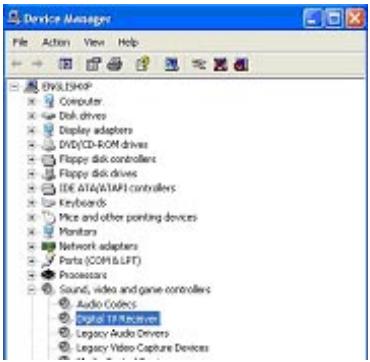
- If one of the drivers wasn't installed correctly, the device will be shown with a yellow exclamation mark in the device manager. To reinstall the driver, right-click on the device and select "Update driver". Install the driver again as described in chapter 2.1.
Later installation of the DVB-T application
If you uninstalled the software or cancelled the software installation, you can run the software installation again any time by running the "Setup.exe" from the "DVB-T USB 2.0" folder on the CD.
Chapter 3: DTV Software / System Introduction
DVB-T player Software is very powerful. You can easily enjoy the high quality digital sound and visual effect. Not only it provides the TV program, you can also use it to do the instant digital video recording (DVR) and Scheduling Recording. With the help of the operation of Time Shift, you won't miss any best moment.
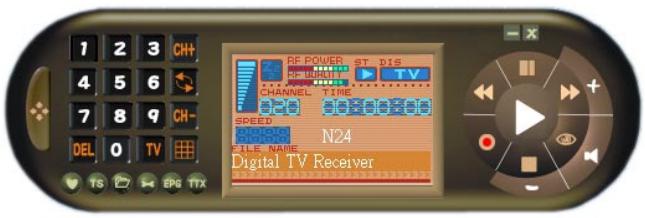
After you finish the installation of the software, you will find an icon "DVB-TPlayer". Just move the cursor and double click it to run the program.

After you run the DTV software, you can use the control panel as following.
3.1 Setup of the Digital Broadcasting program
Due to different country or region, digital TV program has its own choice of operating frequency channel, frequency width, transmitting parameter and frequency. The following instructions will show you environment setup.
Scan Frequency:
- Click the operating panel then choose Scan Channel tab.
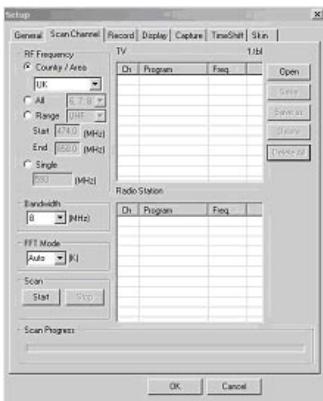
- Choose RF Frequency. You may select one of the following.
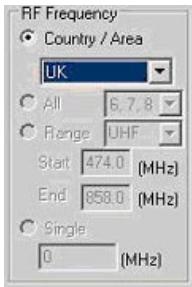
- Country/ Area: You may choose the location where you are.
- All: If you can not find your location list in Country/ Area list, you may select this option.
- Range: You may define your own frequency range. Choose VHF or UHF then enter its frequency range.
-
Single: If you know exact frequency of a digital program, you may enter its frequency here.
-
Click "Start" to scan frequency based on the option of RF Frequency you select.
- You may save all scanned channels by Click "Save as".
- Click "OK" to exit the operating panel.
Note: Channel list will be saved as TBL file.
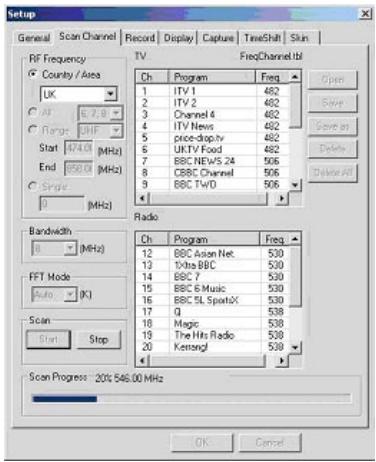
Channel/ Frequency Sorting
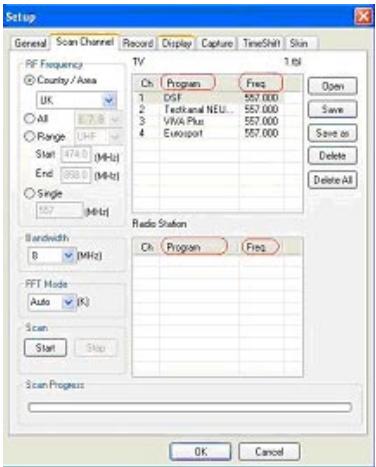
You may use channel/ frequency sorting option after scan.
- Click on "Program" and it will be shown by channel sorting.
- Click on "Freq" and it will be shown by frequency sorting.
In addition, you may prioritize the channel list. Simply click on a channel and drag it to where you want (move up or down).
3.2 Recording Setting
There are two ways of recording: one is real time recording and another is scheduling recording.
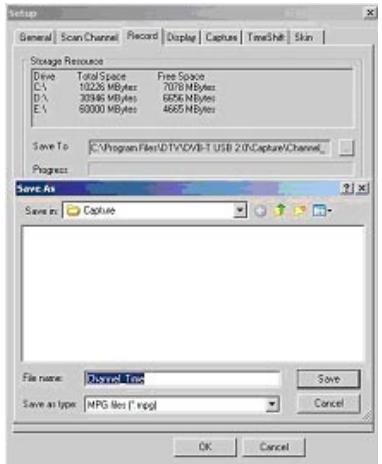
- Real time recording: when you record the program under the real time mode, the recorded file will be saved to the default destination folder at C:\Program Files\DTV\DVB-T USB 2.0\Capture\Video.mpg. If you want to save the program file to a different destination, you may set up the path based on your preference.
After the above setting finished, you can click the "□" on the control panel when you watch digital programs. If you start recording, the clock on the left of the control panel will turn red. If you wish stop the recording, please press the button "□".
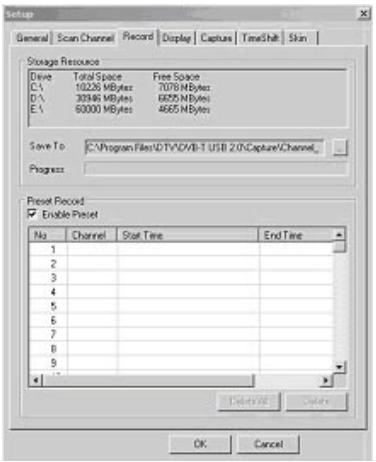
- Scheduling Recording: Please choose Setup. Select Record tab and check Enable Preset. Double click on Channel column in Preset Record section.
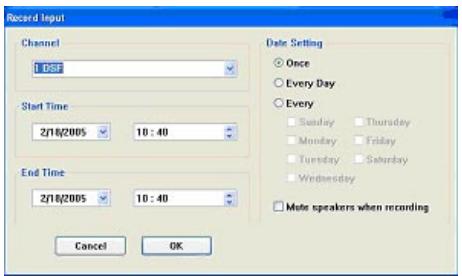
When Record Input Window pops up, please follow the instructions below.
- Choose a channel
- Set recording start time and end time
- You may have date setting options which are once, everyday and one specific day.
- Mute speakers when recording is available when checked. Click "OK" to continue.
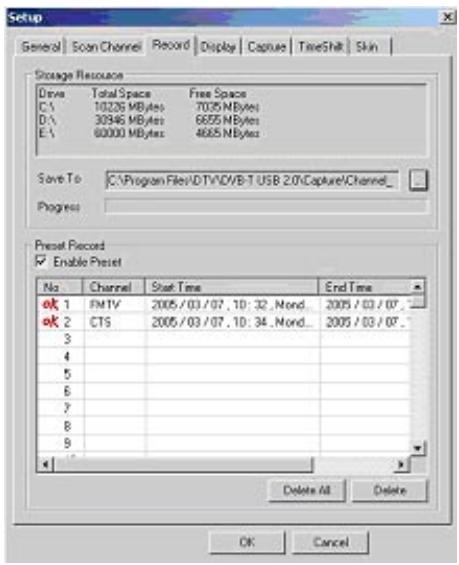
- When recording is finished, the menu will show "ok" as below.
Note: At the same period of time, you can't record two programs from different frequencies. Please be aware of the capacity of the recording device. Long hours recording might exceed the hard disk capacity.
3.3 Display setup
On the display setup window, you can adjust the brightness, contrasting, and fullness based on your own preference. Drag the mouse cursor to do the adjustments. If you want to go back to the original setting, click "Reset".
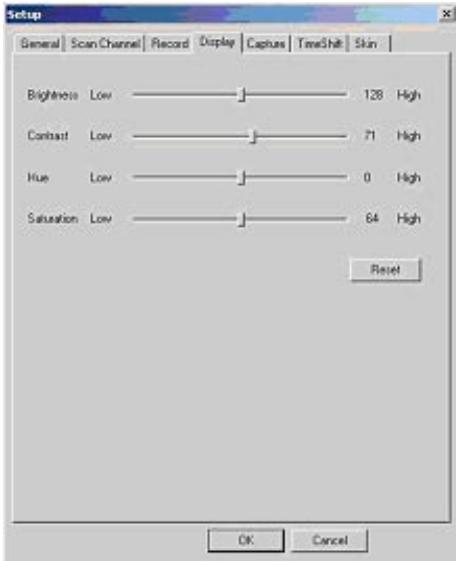
3.4 Capture setup
You may capture image and save it. When TV program displays, you may click button. The image is captured and saved. You may click to find and get your image file.
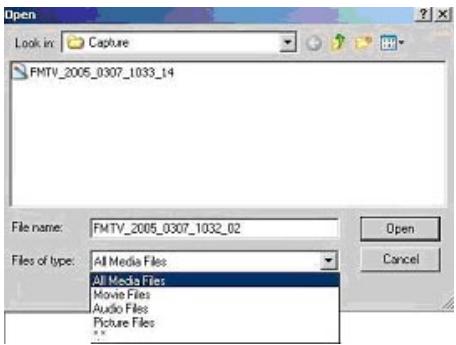
3.5 Time shift Setup
If you need to leave in the middle of a program, you may start recording function by clicking the Time-Shift button on real time. When you return, just move the scroll bar which indicates recording status on the panel to playback the program you pre-record. The system will continually record the program when you play until the time limit you set. You may use Rewind, Fast-Forward or Pause function when pre-record program is playing and press Play button to return.
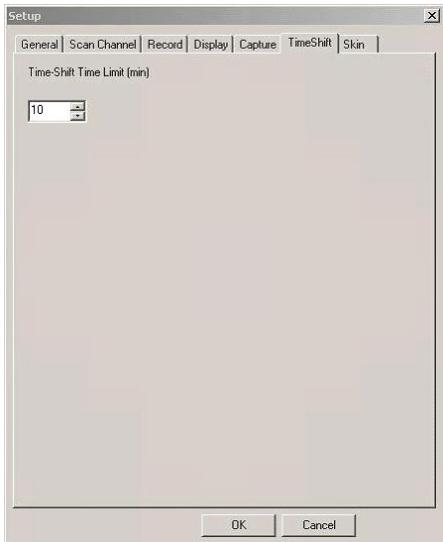
Note: The pre-record program is temporarily saved in your hard drive and it will be automatically removed when time is up. The default setting is 10 minutes and you may change Time-Shift time limit.
Chapter 4: DTV Software Introduction
4.1 Control Panel
| Icon Functions | |||
| Icon | Function | Icon | Function |
| Full screen | |||
| On-Line Help | |||
| Multi-channel Preview | |||
| Channel up and down | |||
| Channel recall | |||
| My favorite | |||
| Time shift | |||
| Open saving file | |||
| System property setup | |||
| Electronic program guide | TV | Receive DVB-T broadcasting | |
| Teletext | |||
4.2 Right Click Menu and Keyboard Shortcuts
Click the right button of the mouse when DTV application software is in playback. You will see the function and keyboard shortcuts menu as following:
| Function display | Fast-link | Function description |
| Playback | Enter | Playback program |
| Pause | Space | Pause the playing |
| Stop | S | Stop playing |
| Record | R | Record the on-going program |
| Mute | M | Shut down sound |
| Fast-forward | F | Fast –forward the on-going program |
| Rewind | B | Rewind the on-going program |
| Next Channel | N | Switch to next program |
| Previous channel | P | Switch to previous program |
| Channel recall | L | Switch to previous watching channel |
| My favorite | Ctrl+M | Open the favorite menu |
| Multi-channel browse | Ctrl+W | Provide multi-channel browse (non-Synchronized) |
| Choice of language | Ctrl+L | Provide language switch |
| Time shift | T | Start or pause time shift function |
| Capture | G | Capture single picture as photo |
| Setup | E | Start setup function |
| Display control panel | O | Display control panel or not |
| Display ratio | Select display ratio either 4:3 or 16:9 | |
| Image size | Choice of image size 60%,100%,150% | |
| Full screen | W | Switch full screen or window |
| Increase volume | + | Increase volume |
| Decrease volume | - | Decrease volume |
| Close to bar | Ctrl+Z | Close control panel to bar |
| About | Ctrl+A | Display DTV version information |
| Help | H | On-line help |
| Close | Ctrl+X | Close DTV playing software |
4.3 Functions
Channel Title Display
The current channel name will be displayed on the control panel in the language assigned by the channel provider.
Video Recording
You can record video by clicking on . You can also schedule recordings in the "Recording Setup" screen.
Multi-Channel Preview
Click on on the control panel to preview multi-channel at the same time. To watch the program you want, select it and click "Play".
Note: You can only preview FTA channels from the same transponder.
Capture
Click on to capture a still frame of the program you are currently watching.
Teletext
The application "Teletext" is a simple teletext browser. To start this function, click on on the control panel. It only works when Freecom DVB-T Stick is running.
Electronic Program Guide(EPG)
Click on EPG on the control panel to see the electronic program guide provided by the content provider. Here you can get more information about the broadcasting programs.
4.4 More Functions
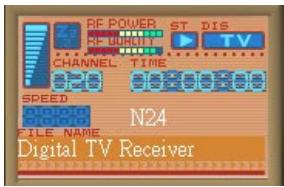
Mute display : When you click "Mute" button, will light up on the control panel.
Signal display: In the setting menu "General", choose (refresh RF information).
Move the cursor to RF POWER, then you can see the signal receiving in motion. But it's very power consuming. We do not suggest using it if the battery is not enough in the system.
Warning! This selection will affect some quality and function. Don't use it under normal circumstance. We suggest that you turn off this function after executing the "Refresh RF information"
Recording display: When you start real-time or scheduling recording, the ST on the control panel will turn red.
Program channel display :
CHANNEL on the control panel will indicates the channel of on-going playing on recording program.
Source of display : When digital broadcasting program is playing , the control panel will indicate its source as following Digital TV Receiver . If it's playing the recorded or selected image, the control panel will indicate the file name or status as following Video004.mpg
Volume display : When you adjust the volume, the volume icon will change accordingly .
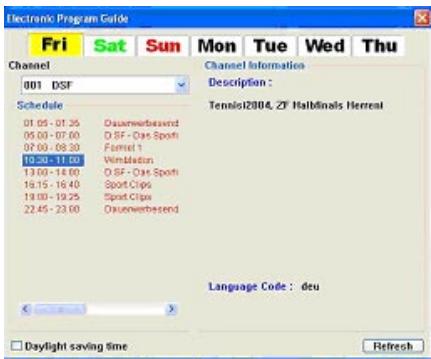
Electronic Program Menu : You may enter the program menu by choosing
on the control panel. You will receive the information of channel programs such as programs schedule and introductions of the programs. (This function is provided by the channel provider). You may double click on a "channel schedule" and scheduling recording setup window will pop out.
Teletext : It is an application of words and numbers broadcasting. You may receive program information from channel provider. Select TX to start this function.
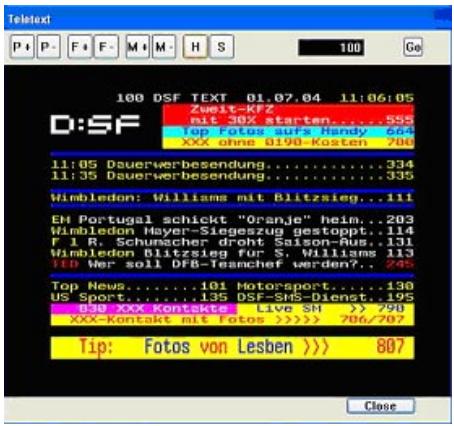
| P+/ P- | Go to next/ previous page. |
| F+/ F- | Go to next/ previous 10 pages. |
| M+/ M- | Go to next/ previous 100 pages. |
| H | Back to default setting |
| S | Show subtitle |
General setting function :
a. Full screen function- when the function is selected, the play window will be enlarged to the full screen.
b. OSD function-display the selected command or function on the lower right corner of the screen for several seconds.
c. Splash item- If this feature is selected, the screen will show a static picture when radio channel is playing.
4.5 Introduction of remote control function
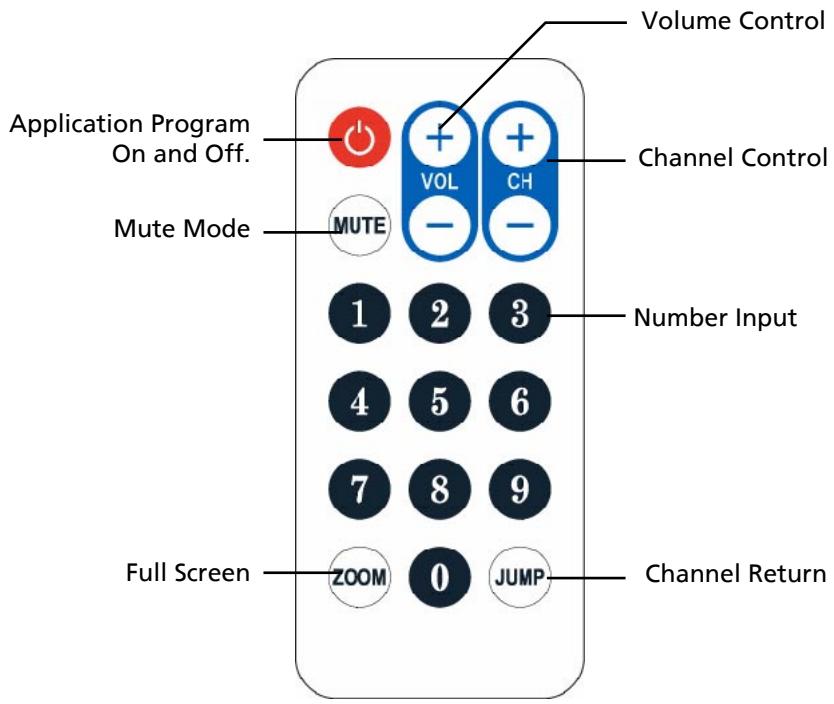
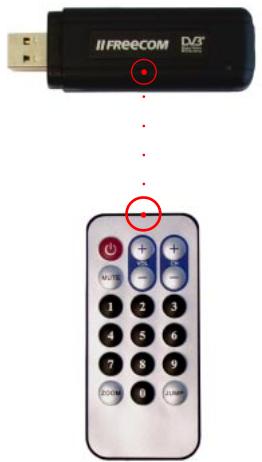
When using the remote control, always aim directly to the top side (logo side) of the DVB-Tstick. The maximum distance should not exceed 3 metres.
Chapter 5: Trouble Shooting
This Chapter will help you to resolve the problems which you may encounter during the installation and operation.
1. Freecom DVB-T Stick does not work properly
a. Driver installation might not complete. Click "Device Manager" from Hardware tab. Find "Sound, video and game controllers" category and you may see "Digital TV Receiver" on the list. If you do not see it. Please go back and install the drivers again.
2. Windows cannot find Freecom DVB-T Stick
a. Check if Freecom DVB-T Stick is connected to your PC.
b.Before you launch FreeBSD DVB-T Stick, please wait for at least 3 seconds when device is just plugged into the USB interface.
c. Try to restart operation system.
d. Run "Add/Remove Hardware Device" from Windows "control Panel" to install the correct drivers.
e. Unplug the Freecom DVB-T Stick, then plug it again. Please note that the interval between plug and unplug should be at least 3 seconds.
f. Plug FreeBSD DVB-T Stick into another USB port of the PC.
3. Windows cannot find the driver of DTV USB Receiver
a.Make sure the original CD-ROM is in the CD-ROM drive during the installation.
b. Please indicate the correct directory where the drivers located for Windows if install the drivers by manual.
4. Set up Digital TV Receiver software
a. Please run "Setup.exe" on the CD-ROM disc.
b.Follow the instruction of setup wizard for software installation.
5. Can not see any program channel when auto scan.
a. Check the cable connection between Freecom DVB-T Stick and the antenna.
b.Exit the application. Unplug the FreeBSD DVB-T Stick, then plug it again. Note that the interval between plug and unplug should be at least 3 seconds. Launch FreeBSD DVB-T Stick and test again.
6. When error dialog box pops up or black screen appears
a. Might be resulted from poor signal quality, FreeBSD DVB-T Stick doesn't receive enough data of program or does receive wrong data. Please check the connection between FreeBSD DVB-T Stick and the antenna.
b. Please check the driver of VGA card or on board VGA chip.
c. Please make sure your operation system is Microsoft Windows 2000(SP4)/ XP(SP1) or higher.
d. Please install Microsoft DirectX9.0 and Media Player 7.0 or higher version.
7. Video is playing but Audio is failed
a. Please check the sound card or the volume setting.
8. Failed to play program
a. Make sure you have installed Sound Card Driver and the Sound Card is working.
b. Please note that no matter if you want to listen to the audio or not, the sound card and its driver must be installed. Please check the signal quality and strength.
9. When playing program, audio is ok, but screen is blank. Why?
a. Please make sure your VGA driver and Microsoft DirectX9.0 were installed correctly.
10. DTV Mpeg2 video playback on Notebook PCs is not smooth
a.MPEG2 video playback consumes lots of CPU power. To get better performance, please make sure "Power-saving" mode of the Notebook PC is disabled and the CPU should run at its maximum frequency.
11. The Remote controller does not work. DTV USB Receiver does not react to the key presses.
a. DVB-T PenType Receiver window must be the "focus" window to receive the remote controller input. You might click on the caption of DVB-T PenType Receiver window, then try again.
Following information is only for EU-member states:
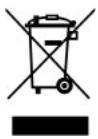
The use of the symbol indicates that this product may not be treated as household waste. By ensuring this product is disposed of correctly, you will help prevent potential negative consequences for the environment and human health, which could otherwise be caused by inappropriate waste handling of this product. For more detailed information about recycling of this product, please contact your local city office, your household waste disposal service or the shop where you purchased the product.
WARRANTY (valid in Europe/Turkey only):
We thank you for purchasing this Freecom product and hope you will enjoy using it.
In order to avoid unnecessary inconvenience on your part, we suggest reading the quick install guide, instruction manual and any additional electronic and or printed manuals. When problems occur we have a database with Frequently Asked Questions (FAQ) on our Freecom website (www.freecom.com), please check this site before you contact the helpdesk.
Your Guarantee
All Freecom products come with unlimited technical phone and web support. By this Guarantee, Freecom warrants their products to be free from defects in material and workmanship for a period listed below from the date of its original purchase. If during this period of guarantee the product proves defective due to improper materials or workmanship, Freecom will, without charge for labour or parts, at its sole discretion, repair or replace the product or its defective parts upon the terms and conditions set out below.
Conditions
This guarantee will be granted only when the original invoice or sales receipt (indicating the date of purchase, product and serial number) is presented together with the defective product and a Freecom RMA number received from the Freecom Website or given by a Freecom Service Center. Freecom reserves the right to refuse the free-of-charge guarantee services when the date of purchase of the product cannot be proven. This guarantee will not apply if the RMA number is missing, the serial number on the product has been altered, removed or made illegible.
This guarantee covers only the hardware components packaged with the product. This guarantee covers none of the following: (a) any consumable supplied with the product, such as media or batteries; (b) damage to or loss of any software programs, data or removable storage media; (c) any damage resulting from adaptations, changes or adjustments, which may have been made to the product, without the prior written consent of Freecom; (d) attempted repair by any party other than authorized by Freecom and (e) accidents, lightning, water, fire or any other such cause beyond the reasonable control of Freecom.
With respect to all services provided, Freecom is not responsible for any damage to or loss of any programs, data or other information stored on any media or any part of any product serviced. Freecom is not liable for the consequence of business loss in case of system failure. Be sure to exclude all parts not covered by this guarantee prior to returning the product to Freecom. Freecom is not liable for any loss or damage to these items. If during the repair of the product the contents of the hard drive are altered, deleted or in any way modified, Freecom is not liable whatsoever.
Repair parts and replacement products will be provided on an exchange basis and will be either new, equivalent to new or reconditioned. All replaced parts and products become the property of Freecom. The period of guarantee for any product or part repaired or replaced in warranty shall be the balance of the original guarantee. Repairs or replacements on product or parts out of warranty carry 6 (six) months guarantee.
All Freecom products come with unlimited free technical phone and web support.
Freecom Product
Classic & Internal Series
FS & FX Series
FHD Series
FSG-xxx
MediaPlayer-xxx
DVB-T/USBStick
USB Floppy Disk Drive
USBCard (Pro)
USB 2.0 CardReader
DAT & LTO Drives (retail)
DAT-S Kits
Warranty period
1 year (Two years in Europe)
1 year (Two years in Europe)
1 year (Two years in Europe)
1 year (Two years in Europe)
1 year (Two years in Europe)
1 year (Two years in Europe)
1 year (Two years in Europe)
1 year (Two years in Europe)
1 year (Two years in Europe)
3 years
2 years