GIGA ONE ULTRA - Digital video camera JOBO - Free user manual and instructions
Find the device manual for free GIGA ONE ULTRA JOBO in PDF.


| Product type | Digital video camera |
| Brand | JOBO |
| Model | GIGA ONE ULTRA |
| Dimensions | 123 x 77 x 25 mm |
| Hard drive capacity | 40, 80, 120 or 200 GB |
| Power supply | Rechargeable Li-Polymer battery 3.7 V / 1300 mAh; AC adapter 5 V / 1 A |
| Main functions | Copy memory cards to hard drive without PC, multi-format card reader, external USB hard drive |
| Supported card formats | CompactFlash Type I/II, SD/SDHC, MMC, Memory Stick/Duo/Pro/Duo, xD, MiniSD |
| PC interface | USB 2.0 High Speed (480 Mbit/s) |
| Supported operating systems | Windows 98SE/ME/XP/2000/2003, Mac OS X, Linux 2.4.x |
| Copy speed (CF to HDD) | Up to 5.47 MB/s |
| Hard drive format | FAT32 |
| Battery life | Automatic standby after 30 seconds in copy mode |
| Care and cleaning | Wipe with a soft, dry cloth; do not use solvents or chemicals |
| Safety | Do not expose to water, humidity, extreme temperatures; do not open the casing; avoid shocks |
| Spare parts and repairability | Battery not user-replaceable; hard drive replaceable only by JOBO after-sales service; legal warranty |
Frequently Asked Questions - GIGA ONE ULTRA JOBO
User questions about GIGA ONE ULTRA JOBO
0 question about this device. Answer the ones you know or ask your own.
Ask a new question about this device
Download the instructions for your Digital video camera in PDF format for free! Find your manual GIGA ONE ULTRA - JOBO and take your electronic device back in hand. On this page are published all the documents necessary for the use of your device. GIGA ONE ULTRA by JOBO.
USER MANUAL GIGA ONE ULTRA JOBO
What is GIGA one ultra? 4
General remarks 5
- Liability 5
- Safety instructions 5
- Instructions for use 5
4.Waste disposal of batteries 6
1. First use 7
1.1.Introduction 7
1.2. Safety instructions for GIGA one ultra 7
1.3. Scope of delivery 8
1.4. Charging the battery 8
1.5 Buttons 9
1.6. LED Indication 9
1.7. Connectors (see drawing on page 2) 9
1.8. Buttons and Switch Description 10
2.COPY/DELETEMode 11
2.1 Copy Memory card to HDD 11
2.2. Delete Content of Memory Card 12
3. Connect to the PC 13
3.1. Minimum systems requirements 13
3.2.Driver Windows 98/ME/XP/VISTA,Linux 2.4.x,MacOS 10.2.x 13
3.3. Log off GIGA ONE ULTRA under Windows 13
3.4. GIGA ONE ULTRA format for hard disks 13
3.4.1 Installing Swissknife 14
3.4.2 Prepare formatting 14
3.4.3 Formatting 14
3.5 Connect to PC 16
4.Warranty and Service 16
4.1.Warranty conditions 16
4.2. Contact/Service 17
4.3. STATEMENT & CAUTIONS 17
4.4. Technical specifications 18
What is GIGA one ultra?
GIGA one ultra is one of the smallest & light integrated solution that provides a memory card backup function, a card reader and an external hard disk in one device. As a portable external storage device, GigaOne Ultra is a perfect choice for active mobile photographers providing a very light and optimal solution for storing photos and videos on the integrated HDD. Most importantly, GigaOne Ultra enhances the mobile users by enabling them to copy the content of a memory card onto the internal hard disk without any PC or notebook required. The User can backup the memory card content with a single touch of one button and even erase the memory card after downloading. GigaOne Ultra allows users to easily free up more expansive memory cards for re-use in the field. In addition, GigaOne Ultra also acts as an all-in-one card reader supporting all major memory card types. Any PC with a USB port is enough for the user to access the downloaded images, or any other data stored on the internal hard disk.
GigaOne Ultra supports Type I & II of Compact Flash (CF), MagicStore, Secure Digital Card (SD and SDHC), Multimedia Card (MMC), Memory Stick /DUO, Memory Stick PRO/DUO, Picture Card (xD), MiniSD, GigaOne Ultra hook to PC can be achieved using USB 2.0 High Speed (480Mbps) link.
GigaOne Ultra comes equipped with an internal Li-polymer rechargeable battery. The battery can be charged either with an external AC adapter or via the USB port when connect to the PC or notebook.
General remarks
1. Liability
The manufacturer only guarantees suitability for the original purpose of this product. Furthermore the manufacturer cannot be held responsible for the damage of data. This also includes the loss of data as well as any consequential damage resulting from the use of this product. The manufacturer reserves the right to further develop the product continuously. Any such changes can be made without being directly described in this manual. Thus, information contained in this manual must not necessarily reflect the state of technical execution. For information on updates please go to our Internet page under www.jobo.com.
2. Safety instructions
- Work on the product must only be carried out by appropriately qualified staff of JOBO AG.
- Please, read this manual carefully and observe the appropriate instructions when installing the device.
- Do not open the product or try to make changes to it. Never insert metallic objects into the product as this may cause an electric shock, fire, a short circuit or hazardous emissions. The components cannot be serviced by the user. If the device does not function properly it must be examined by a qualified staff member of the JOBO Technical Service. In this context please observe the warranty conditions listed in Chapter 4.
- Never expose the device to rain and keep it away from water and moisture. Never place liquid-filled containers on the device as its contents might penetrate into the opening of the drive as a result of which the danger of an electric shock, a short circuit, a fire or an injury would be increased.
3. Instructions for use
- Never expose the device to temperatures outside the range of between 5^ C and 40^ C (41 F and 104 F). This could result in damage to the drive or other electronic components. Do not place the device in the proximity of heat sources and do not expose it to direct sun light (also not through a window). Excessively cold or damp environments may also cause damage to the drive.
JOBD FOR YOUR BEST IMAGE
- Always pull the mains cable from the socket when there is the danger of lightning or when the drive is not being used for an extended period of time because otherwise the danger of electrical shocks, of fire or of short circuits will increase.
- Do not place the drive next to other electrical devices like television sets, radios or loudspeakers as this may impair the functioning of these other devices.
- Do not place the drive next to sources of magnetic interferences like computer screens, television sets or loudspeakers. Magnetic interferences may impair the operation and the stability of the drive. Do not place any heavy objects on the drive and do not exert any excessive force or pressure on the device.
- During use or storage keep the device as free of dust as possible. Dust may accumulate on the inside of the device and thus increase the danger of damage or dysfunction.
- Never clean the surface of the device with solvents, paint thinners, cleaning agents or any other chemical products. Instead clean the device by wiping it down with a soft, dry cloth.
- In security checks at airports, customs stations etc. the device should be treated like a laptop and not be put through X-ray machines or other control systems.
- Do not switch on GIGA ONE ULTRA above an altitude of 3,000m above sea level. The hard disk could be damaged by this and as a result data could be lost.
Attention! If the above instructions for use are not observed the warranty for this device may lapse.
4. Waste disposal of batteries
Batteries do not belong into household waste. As a consumer you are legally obliged to return spent batteries to the point of purchase. Under no circumstances must batteries be disposed of in an open fire, in a trash can, in a recycling container unsuitable for batteries or in any other way that might constitute an environmental hazard.
1. First use
1.1. Introduction
Many thanks for choosing the JOBO GIGA one ultra. The GIGA ONE ULTRA is the perfect solution if you want to download your data from a memory card the fast way! With the new GIGA ONE ULTRA you can download your data with a copy speed of up to 5,47 MB/sec. while you are still traveling, no matter where you are – and you can do so without a PC!
The GIGA ONE ULTRA supports SDHC memory cards as well as all other conventional memory cards such as CF, MS and SD. The mobile storage device which is available with a 40, 80 or 120 and 200GB hard disk starts the data transfer with just pressing one button. The integrated Li-Ion battery makes the GIGA ONE ULTRA your ideal companion with which you can store your photos wherever you are.
For more information on all JOBO premium class photo storage products please go to www.jobo.com
1.2. Safety instructions for GIGA one ultra
The hard disk of the GIGA ONE ULTRA is factory-formatted.
In order to prevent short circuits and electrical discharges you must avoid exposing this product under all circumstances to water, rain or moisture. Please, also observe the warranty provisions in Chapter 4.
In security checks at airports, customs stations etc. the device should be treated like a laptop and not made to go through an X-ray machine or other control systems.
Do not switch on GIGA ONE ULTRA above an altitude of 3,000m above sea level. The hard disk could be damaged by this and as a result data could be lost.
1.3. Scope of delivery
The package contains the following parts:
- JOBO GIGA one ultra
- integrated battery
- integrated hard disk
- AC power adapter
- driver CD including software
- USB cable
- manual
- light bag
1.4. Charging the battery
The device has an integrated Li-Ion battery with 1300 mAh. Please, charge the battery once completely for 12 hours before the first use by way of the mains adapter supplied with GIGA ONE ULTRA. Only use the original mains adapter that comes with the device for charging. The internal battery will then be charged via the mains adapter. If the GIGA ONE ULTRA is connected to a computer the charging is effected via the USB cable as long as the computer is switched on. Since the battery is a Li-Ion battery the so-called memory effect is eliminated, which means you can recharge the battery to be on the safe side when it is still half full. The charging level of the battery is indicated by the battery symbol in the display.
The battery must not be exchanged by anyone other than the manufacturer.
1.5. Buttons
This section gives a briefly overview of the buttons on the GIGA one ultra.
| Key | Activation | Operation |
| Select | Press & Hold | Power On |
| Press & Hold | Power Off. | |
| Press once | Select Copy or Delete mode | |
| ← Copy | Press | Copy memory card to Hard disk in Copy mode |
| Delete memory card in Delete mode |
1.6. LED Indication
| LED | Definition | Indication |
| Card access | Memory card is accessed | |
| HDD access | Hard disk is accessed |
1.7. Connectors (see drawing on page 2)
| Type | Definition | Purpose |
| CON1 | DC jack | DC source +5V @ 1A |
| CON2 | Mini USB connector | Connect to PC or Notebook USB 1.0 or 2.0 port |
| CON3 | Memory Card connector | Memory Card slot (SD/SDHC/MMC/MS/MS-PRO/xD) |
| CON4 | CF Card connector | Compact Flash memory card slot |
| CON5 | Memory Card connector | Memory Card slot (MiniSD/MS Duo/MS Pro Duo) |
1.8. Buttons and Switch Description
| Key | Activation | Operation Mode | Description |
| Power/Select | PressHold | USB / Standalone | - Press and hold this button for a second to power-up the device. - Press and hold this button for few seconds, release the button to power down the device. |
| ←Copy/Execu-te | Press | Standalone | - Press this button once to initiate copy in copy mode. The device copies all the content of the memory card to Hard disk. - Press this button once to initiate delete in delete mode. The device delete all the content in the memory card. |
2. COPY / DELETE Mode
2.1 Copy Memory card to HDD
Turn on the GIGA one ultra by pressing the ON button.
Now you can insert any of the memory cards to the memory card slot. Then the COPY sign blinks in the display, by pressing the COPY button you initiate the copy process.
During copying, the content of the memory card is copying to the hard disk. The ACCESS and HDD LED blink to indicate to user that both media are accessing and copy is in progress. A directory is self-generated on the hard disk and the sub folder is self generated as well (i.e. CF000001, CF000002 ... MS000001, MS000002..., SD00001..., MS00001..., XD00001...) The CFxxxxxx sub folder contains the content of the Compact Flash memory card, likewise to MSxxxxxx contains the content of the MS memory card.
In the unlikely event of an error occurring during copying the ERROR symbol lights up.
An error may occur due to your memory card or Harddisk is not FAT32 formatted.
The copy mode does not support memory cards or hard disk that is NTFS formatted. You can resolve the error by re-partition& re-format the hard disk with FAT32 formatted or reformat the memory card to FAT32 formatted.
If more than two memory cards are inserted in the memory card slots, the CF is set as default to be copied to Hard disk. If you want the other memory card to be copied, eject the CF card from the CF memory card slot.
To save power the GIGA one ultra will automatically shutdown after 30 seconds not in use.
User can press & hold the ON button for few seconds to shutdown the device manually.
2.2. Delete Content of Memory Card
Turn on the device by pressing the ON button, notice the OK LED lights up.
Now you can insert any of the memory cards to the memory card slot. Notice the ACCESS LED blinks to prompt user to press the POWER button again. The display swichtes to the delete mode (DEL) press the copy button for 3 sec. to initiate deleting.
3. Connect to the PC
3.1. Minimum systems requirements
- Microsoft Windows TM 98/ Me/ 2000/ XP, MacOS 10.2 or higher, Linux 2.4.x or higher
- CD-ROM drive
- Pentium2, 400 MHz
- RAM 32MB (Windows ME, 2000) - 64MB (Windows XP)
- 20MB hard disk memory
- USB interface
3.2. Driver Windows 98/ME/XP/VISTA, Linux 2.4.x, MacOS 10.2.x
For these operating systems no drivers are required. Please, make sure that you have installed the most recent Service Packs of the operating systems in question.
3.3. Log off GIGA ONE ULTRA under Windows
Windows 2000/ME/XP users click on the,Remove or eject hardware' symbol in the bottom right-hand corner of the systems tray (next to the clock). Now select,USB mass memory' and click on the ,End' button.
Windows 98 users must use the,Device Manager' to log off GIGA ONE ULTRA. Find the GIGA ONE ULTRA in the 'Device Manager' and click on the name with the right-hand mouse key. After having selected,Remove' you can disconnect GIGA ONE ULTRA from your PC.
3.4. GIGA ONE ULTRA format for hard disks
The hard disk of GIGA ONE ULTRA is factory-formatted.
GIGA ONE ULTRA is a hard-disk based product. In the event of malfunctions the internal hard disk can be reformatted.
It is imperative that this is done in the FAT32 format.
For Windows XP you need the program „Swissknife" or „FAT32API.exe" in order to do the formatting. You will find the „FAT32API.exe" program under www.jobo.com (GIGA ONE ULTRA formatting program) and „Swissknife" on the enclosed driver CD.
For the formatting on MAC you do not need any additional program. The hard disk must be formatted in the MS-Dos mode.
3.4.1 Installing Swissknife
Install the „Swissknife“ program on a computer with a Windows operating system (WIN 2000, ME, XP). The installation is either automatic or after inserting the CD you can activate the program with > Start / Execute / Jobo / Swissknife / and a double click on „Swissknife.exe“. All the installation queries can be confirmed. The computer may have to be re-started after the installation.
3.4.2 Prepare formatting
- To be on the safe side unplug all connections to external hard disk drives.
- Connect the GIGA ONE ULTRA via the USB cable to the computer and switch it on (ON).
- Open the "Swissknife" program.
3.4.3 Formatting
The formatting is done in two steps:
- Delete data
- Format hard disk (Create)
IMPORTANT: Make sure that during all activities involving the formatting program that the USB area (Devices) for the GIGA ONE ULTRA has been selected.
You should under all circumstances avoid going to „Internal" or „Primary"!
Click on "Delete"
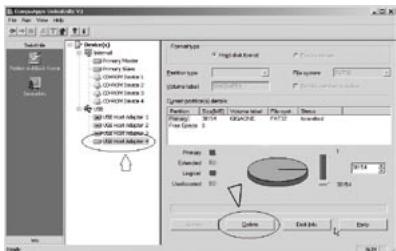
The following queries can all be answered in the affirmative > Yes.
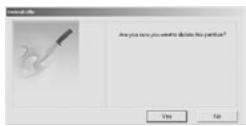
All data on the hard disk is now deleted and you can proceed to re-format.
Important settings for the re-formating process:
The File System must be adjusted to FAT 32 > 2
Under Volume label enter the name GIGA ONE ULTRA and this drive description will then also appear in the connection with the computer in the drive structure > 1
Click on Create > 3
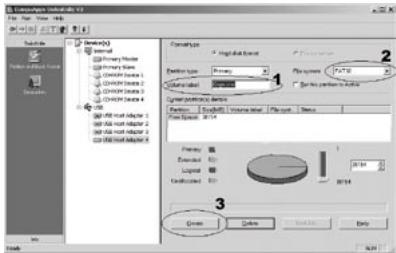
This completes the re-formating of the GIGA ONE ULTRA. Under Partition the system will show the available storage space under the drive name (Volume label) GIGA ONE ULTRA.
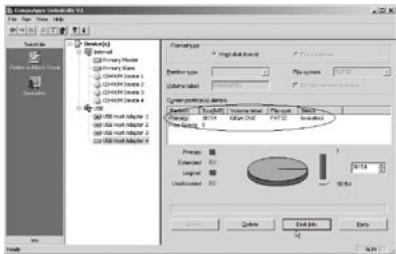
The capacity indication in the GIGA ONE ULTRA will return to the maximum storage capacity as a result of the re-formatting of the hard disk.
3.5 Connect to PC
If there are any problems in the USB connection to the PC or MAC these can be removed by connecting a USB HUB between the GIGA ONE ULTRA and the computer.
4. Warranty and Service
4.1. Warranty conditions
This product is subject to the legal warranty periods relating to manufacturing faults and defects.
Substance of the warranty:
- In the event of malfunctioning caused by manufacturing defects JOBO AG will repair or replace the defective product at its own discretion.
-
JOBO AG and its suppliers do not assume any liability for data losses occurring during operation of the device or consequential damage resulting from this. Under no circumstances will JOBO AG assume liability for any direct, concrete or special damage or consequential damage like for example damage to or loss of property or devices, loss of profits or sales, costs for spare parts, expenditure or inconvenience caused by the interruption of service or any other damage. The user will be exclusively responsible for the loss, damage or destruction of data during the operation of a JOBO product. Under no circumstances will JOBO AG be liable for the recreation of such data. Under no circumstances can claims be lodged that exceed the purchase price of the product.
-
The following repairs are not covered by the warranty and must be paid for separately:
-
Malfunctions after the end of the legal warranty periods
- Change of battery after the end of the warranty period
- Change of hard disk after the end of the warranty period
- Malfunctions due to incorrect operation by the user (if device is not used as described in the manual)
- Malfunctions caused by other devices
- Changes or damage to the device not caused by the manufacturer; especially, warranty claims will lapse if the device has been opened by anyone other than
by a JOBO AG repair workshop
- Damage caused by natural disasters (acts of God)
- A hard disk change during the warranty period must only be performed by JOBO.
Such a change by any other party will entail the loss of all warranty claims.
If you want to make any claims under the warranty you are asked to contact the Technical Service of JOBO AG. You will be expected to quote the serial number of the JOBO product and may also have to submit proof of purchase to show that the warranty period has not yet elapsed.
4.2. Contact/Service
If you have any questions on or need help with our products please do not hesitate to get in touch with our Technical Service. You can reach our service people by phone under the telephone number indicated below from Monday through Thursday from 9:00 am to 4:00 pm and on Friday from 9:00 am to 1:00 pm. Independently of these service times you can also get in touch by e-mail, fax or mail:
JOBO AG
Kolner Straße 58
D-51645 Gummersbach
Tel. 0049 2261 545-72
Fax: 0049 2261 545-42
E-mail: support@jobo.com
www.jobo.com
4.3. STATEMENT & CAUTIONS
In order to maintain excellent service the contents of the manual may be subject to change.
Yet, product changes in terms of performance and function will no longer be announced.
If you find that the methods of use and the settings are not the same as in the manual please visit our website to check the latest product information.
- Do not use the product under adverse conditions like excessive heat, cold, dust, humidity, etc.
- Keep it out of the reach of children, avoid it being struck or dropped
-
Please do not change the battery by yourself! CAUTION: The battery may explode and hurt people
-
When you use the product do not allow it to fall or collide with other object otherwise the cover, battery or other parts may be damaged.
- Try not to avoid use under too dry condition. Try to block out static.
- Do not shut off power suddenly while you are uploading/downloading, otherwise it will result in driver errors
- When you use the hard disk please make sure to operate the file correctly. If you lose any file because of wrong operation we will not assume any responsibility.
- Hard disk partition should be at most 3, because you may not see the files stored outside the third partition in the machine; yet when connected to the PC the files will display in the PC
4.4. Technical specifications
Copy mode Data Transfer Rate
CF to HDD Up to 5,47 MB/sec.
SD to HDD Up to 4,20 MB/sec.
MMC to HDD Up to 3,37 MB/sec.
MS to HDD Up to 4,68 MB/sec.
USB Transfer Rate
USB Transfer Rate -Read Up to 24.5MBps
USB Transfer Rate -Write Up to 16.7MBps
Operating OS
Windows 98SE, ME, XP, 2K(above), Mac OS X (above), Linux 2.4 (above)
Features
File System: FAT32
Long Filename: Max 256 character, Support Unicode character
Auto sleep: 30seconds (copy)
USB compliance
USB 2.0, 1.0
Operating Condition 0^ 70^
DC output +5Volt @ 1.0Amper
Lithium polymer
rechargeable battery 3.7V
1300mAh
Unit Size 123mm x 77mm x 25mm
Minimum PC system requirement
PC IBM Compatible PC or MAC
CPU Pentium III (and above)
RAM 64MB
USB Port USB1.0 or 2.0
HDD space 20MB
OS Microsoft Platform (98SE/ME/XP/2000/2003)
Mac OS X