
PX-760A - DVD Player PLEXTOR - Free user manual and instructions
Find the device manual for free PX-760A PLEXTOR in PDF.


User questions about PX-760A PLEXTOR
0 question about this device. Answer the ones you know or ask your own.
Ask a new question about this device
Download the instructions for your DVD Player in PDF format for free! Find your manual PX-760A - PLEXTOR and take your electronic device back in hand. On this page are published all the documents necessary for the use of your device. PX-760A by PLEXTOR.
USER MANUAL PX-760A PLEXTOR
INSTALLATION AND USERS MANUAL

PLEXTOR
March 2006
Plextor reserves the right to make improvements in the products described in this manual at any time without prior notice.
Plextor makes no representation or warranties with respect to the contents thereof and specifically disclaims any implied warranties of merchantability or fitness for any particular purpose. Further, Plextor Corp. reserves the right to revise this manual and to make changes in its content without obligation to notify any person or organization of such revision or change.
This manual is copyrighted, all rights reserved. It may not be copied, photocopied, translated, or reduced to any electronic medium or machine-readable form without Plextor's prior permission.
Manual copyright ©2006 Plextor Corp.
First edition, March 2006.
Licenses and Trademarks
Plextor, PlexTools, and the Plextor logo are registered trademarks of Plextor Corp. All other licenses and trademarks are property of their respective owners.
Record Your Serial Number
For future reference, record the serial number and the TLA code (found on your drive's label) in the space provided below.
TLA/Firmware Revision Number
FEDERAL COMMUNICATIONS COMMISSION STATEMENT
This device complies with Part 15 of the FCC Rules. Operation is subject to the following two conditions:
(1) This device may not cause harmful interference, and
(2) this device must accept any interference received, including interference that may cause undesired operation.
CAUTION: Any changes or modifications not expressly approved by the party responsible for compliance could void the user's authority to operate the equipment.
CANADIAN DEPARTMENT OF COMMUNICATIONS STATEMENT
This digital apparatus does not exceed the Class B limits for radio noise emissions from digital apparatus set out in the Radio Interference Regulations of the Canadian Department of Communications.
This class B digital apparatus complies with Canadian ICES-003.
These products have been designed and manufactured according to IEC 60825-1 on the Safety of Laser products. This product comes under "Class 1 Laser Products."
CAUTION: Use of controls or adjustments or performance of procedures other than those specified herein may result in hazardous radiation exposure.
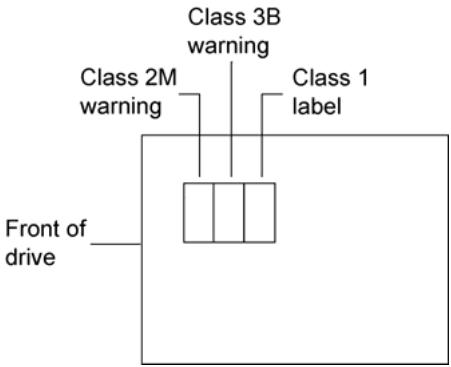
A Laser Caution Label is attached on the top of the internal drive model.
The laser beam emitted from the optical pickup is visible and invisible. Accordingly:
- Do not open the optical pickup housing.
- Obtain service only from Plextor-authorized personnel.
CAUTION: To disconnect the internal DVD/CD drive from an electrical current, pull out the computer's power plug.
Top View of Internal Drive, Showing Caution Label Location
Detail of PX-760A and PX-760SA Laser Caution Labels
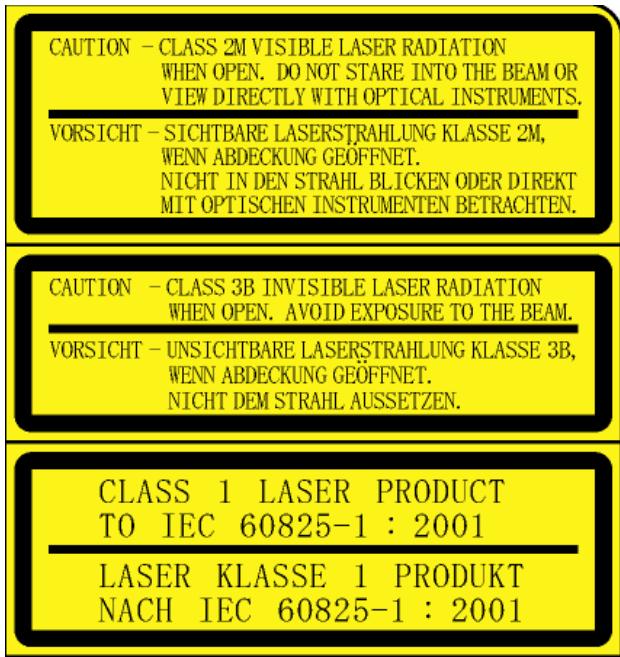
Table of Contents
1. Getting Started 1
About this Manual 1
Printing the Manual 1
Meet Your PX-760 2
What the PX-760 Does. 2
Features of the PX-760 3
Minimum Configuration to Use the PX-760 7
What You Can Do with the PX-760 7
About Plextools Professional 8
Precautions 8
Where to Go From Here. 9
2. Installing the PX-760A Internal ATAPI Drive 11
PX-760A Drive Features and Controls. 11
Front Panel—PX-760A Internal Drive 11
Rear Panel—PX-760A Internal Drive 12
What Else Is In the PX-760A Box 13
Save Your Box! 14
PX-760A QuickStart Installation 15
Install the Bezel. 16
Mount the PX-760A Drive 16
Open the Computer and Prepare for Installation 16
Determine Your Existing IDE Configuration 17
Inspect Your Computer's Cables. 18
Confirm That You Have an 80-Conductor IDE Cable .19
Do You Have Cable Select? 20
Do You Need a Power Cable? 21
Set the Drive's Mode Jumper 21
Changing the Mode Jumper on Your PX-760A Drive 22
Select an IDE Configuration 24
About Cable Select 29
Set the PX-760A for Multiword DMA (If Needed) 30
Mount the PX-760A Drive 31
Record the Serial Number 31
Mount the Drive in the Computer 31
3. Installing the PX-760SA Internal SATA Drive 37
PX-760SA Drive Features and Controls 37
Front Panel—PX-760SA Internal Drive 38
Rear Panel—PX-760SA Internal SATA Drive 39
What Else Is In the PX-760SA Box. 40
Save Your Box! 40
Set the PX-760SA DMA Jumper (If Needed). 41
Mount the PX-760SA Drive 42
Record the Serial Number. 42
Mount the Drive in the Computer 42
4.Using Your PX-760 47
What Media to Use 47
DVD Media. 47
CD-ROM Media 48
Tray Loading and Operation 49
Handling DVD and CD Media 49
Cleaning Discs 50
Mounting Position 51
Playing DVDs. 51
Writing to DVD Media 51
Specifying +R / RW or -R/RW 51
Writing to CD-R and CD-RW Media 52
Using the LED Indicator 52
Switching to SpeedRead for Video Playback 53
5. Maintenance and Troubleshooting 55
Cleaning the PX-760 Drive 55
Upgrading Firmware 56
Emergency Eject 57
Changing the Front-Panel Color 58
Troubleshooting 62
Make Sure the Drive Is Recognized. 62
Using the PX-760A Self-Test Diagnostics. 64
Using the PX-760SA Self-Test Diagnostics 68
6. Frequently Asked Questions 71
Appendix A: PX-760 Specifications. 75
Specifications for All PX-760 Drives 75
Specifications for the PX-760A Internal ATAPI Drive 84
Specifications for the PX-760SA Internal SATA Drive 87
Appendix B: Technical Support. 89
How to Contact Plextor Technical Support. 90
Before You E-mail or Call for Support 90
Returns 91
Contacting Plextor's RMA Department 91
Packing Your Drive. 91
Shipping Your Drive to Plextor. 92
Appendix C: Warranty 93
If You're Outside the U.S. or Canada 94
Index 95
Notes 103
This page intentionally left blank.
1. Getting Started
Congratulations! Thank you for purchasing the Plextor® PX-760, a reliable, high-performance recordable DVD and CD writer, rewriter, and player. We appreciate the confidence you have shown in us. Our goal is to put you—and keep you—on the leading edge of DVD and CD technology.
About this Manual
Please read this manual carefully and keep it handy for easy reference. Use the manual for installation, operation and troubleshooting. If your drive needs service, see your dealer or call Plextor's Technical Support Department.
In this manual you should find all the information you need to successfully install, operate and troubleshoot your drive. If you run into a problem that doesn't seem to be covered, however, please contact us. (See "Appendix B: Technical Support" for the different ways you can reach us.) You will be connected to our friendly, helpful band of tech support engineers. What might seem like an uncooperative drive to you could very well be a 30-second fix to them. But we will never know unless you contact us.
Printing the Manual
This manual has been sized for viewing on a computer monitor screen.
To print a hard copy of this manual:
- In Acrobat, select File | Print. You see the Print dialog box.
- In the Print dialog box, choose the printer.
- If you want to print on standard 8-1/2 x 11 paper, you can check the Expand small pages to paper size box. This expands the manual's pages so they nearly fill up a standard-sized page.
- When you have made your selections, click OK. The manual is printed.
Meet Your PX-760
The PX-760 is a DVD ReWritable/CD ReWritable drive that provides professional quality DVD and CD performance for writing, rewriting and reading.
What the PX-760 Does
For DVDs, the PX-760:
- Writes DVD+R (recordable DVD, "plus" format) media at up to 18X speed.
- Writes DVD+R DL (double layer) media at up to 10X speed.
- Writes DVD-R (recordable DVD, "dash" format) media at up to 18X speed.
- Writes DVD-R DL (dual layer) media at up to 6X speed.
- Writes DVD+RW (rewritable DVD, "plus" format) media at up to 8X speed. (Requires 8X media for 8X writing.)
- Writes DVD-RW (rewritable DVD, "dash" format) media at up to 6X speed.
Supports DVD+VR and DVD-VR format for read and write. - Reads stamped DVD discs at up to 16X.
- Reads DVD-Video discs with CSS at up to 2X CLV.
Supports DVD-RW DRT-DM (Distributed Real Time Defect Management)
Supports DVD+RW background format
For CDs, the PX-760:
- Writes to CD-R (recordable CD) media at up to 48X speed.
- Writes to CD-RW (rewritable CD) media at up to 24X speed.
- Reads all CD-ROM and CD-R data media at a maximum of 48X speed.
- Reads CD-DA (audio), CD-RW data media, and CD-R audio media at up to 40X speed.
- Reads CD-RW audio media at up to 32X speed.
Features of the PX-760
-
Choice of interfaces:
-
ATAPI interface: The PX-760A easily installs in virtually any PC with an E-IDE ATAPI interface.
- Serial ATA interface: The PX-760SA takes advantage of the benefits of the Serial Advanced Technology Attachment interface, with its smaller, more flexible cables and faster interface speed.
High speed transfers:
The PX-760A supports data transfers via Ultra DMA66, DMA Mode 2, and PIO Mode 4.
The PX-760SA supports next-generation high speed transfers via the Serial ATA 1.0 interface.
- AUTOSTRATEGY: Writing technology for unknown media. When a writeable disc isn't listed in the drive's internal media catalog, AUTOSTRATEGY automatically checks the disc and develops a write strategy for it.
- PoweRec for CD-R, DVD+R, DVD-R, DVD+R DL, and DVD-R DL media: Plextor Optimized Writing Error Reduction Control (PoweRec) adjusts laser power and writing speed so they're at the optimum settings for that particular disc.
- Replaceable front panel: For mounting in any PC, you can change the front-panel bezel and tray door from beige to black in a few moments.
- VariRec: Lets you change the write strategy to record at highest quality on different types of discs. Also provides user adjustment of the recording power above or below a default level. This adjustment lets you customize the optimum laser power to your own needs.
-
Silent Mode: Unique technology that sets the drive for super-silent operation. By controlling access speed, read/write speed, and tray opening and closing speed, you reduce drive noise to a whisper.
-
MMC compliance: Supports the MMC-4 command set.
- Flash memory: Allows upgrading the PX-760 to the latest firmware revision (available from the Plextor web site) without opening the computer or physically accessing the drive.
- Black tray: Reduces the effect of optical distortion by absorbing reflections from the laser beam, enhancing read quality.
- Plug and Play: Supports Windows Plug and Play.
- CPRM support: The PX-760 supports Content Protection for Recordable Media, so you can play CPRM copy-controlled media.
- Self-test diagnostics: The PX-760 has a self-test diagnostic function for easy troubleshooting.
- PlexEraser: This data destruction utility makes a recorded disc (CD-R, DVD+R, DVD-R) unreadable by overwriting the disc's lead-in and user data sectors.
- Q-Check tests: The Plextor PX-760 achieves high-quality recording on virtually any DVD or CD media. To see for yourself, use the Q-Check features to check laser operation or measure and display characteristics of the media you're using.
- Q -Check TA (Time Analyzer): The PX-760 supports time interval analysis that shows a histogram of a disc's lands and pits, a valuable aid in assessing disc quality.
DVD Features
- Lossless linking for DVD+R/RW and DVD+R DL: Allows DVD+RW discs to be edited and still play on DVD-ROM players.
- Zero Link for DVD-R/RW, DVD-R DL: Has 0 byte gap between sessions so the discs are compatible with all players. This allows DVD-RW discs to be edited and still play on DVD-ROM players.
- Double layer and dual layer DVD discs: Reads and writes DVD+R DL (double layer) and DVD-R DL (dual layer) discs, so you can burn up to 4 hours of high quality MPEG-2/DVD video on a single 8.5-gigabyte DVD disc.
- Wide DVD+R/RW and DVD-R/RW media compatibility: Compatible with a wide range of DVD±R and DVD±RW media.
- Multiple DVD types: Supports DVD-ROM, DVD-Video, multi-border, multi-session, DVD± VR , DRT-DM, for read and write.
- Versatile recording modes for DVD+R/RW: Including disc-at-once (DAO), multi-session, and incremental write for DVD+R DL (double layer) discs; DAO, multi-session, and incremental write for DVD+R; and random access write and sequential write for DVD+RW.
- Recording versatility for DVD-R/RW, too: Including sequential write for DVD-R DL (dual-layer); DAO, incremental recording, multi-border recording for DVD-R; and DAO, multi-border recording, incremental recording, restricted overwriting, and DRT-DM for DVD-RW.
- SpeedRead: For DVD-Video discs equipped with CSS copy protection, you can enable fast playback (SpeedRead) or leave at the factory default for quiet video playback.
CD-R and CD-RW Features
- Variety of recording modes: Supports track-at-once, disc-at-once, session-at-once, multi-session, and variable and fixed packet writing.
- Buffer Underrun Proof Technology: Eliminates buffer underrun errors, so you can safely use your computer for other tasks while you're writing to a CD-R or CD-RW disc.
- Wide compatibility: Wide CD-R and CD-RW media compatibility.
- Orange Book compatibility: Compatible with Orange Book, Parts II and III.
- OPC and ROPC: Optimum Power Control and Running Optimum Power Control, which adjust the laser power for the optimum write strategy.
- CD-TEXT, CD + G : Supports CD-TEXT and CD + G writing.
- GigaRec: Variable capacity recording that lets you change CD-R disc capacity over a range from 60 percent to 130 percent of the rated value. You can get much more data onto a CD. Or decrease disc capacity while gaining improved audio quality.
- SecureRecording: Security protection that lets you make your CDs readable only by persons with the correct password.
- Overburn: Another way of burning more information onto a CD—audio up to 99 minutes 59 seconds in length, or a data disc up to 875 megabytes in capacity.
Minimum Configuration to Use the PX-760
Here's what you'll need in order to install and use the PX-760 drive.
- Computer: Pentium 4, 1.4-GHz or faster CPU.
- Minimum RAM: 256 MB.
- Interface:
Model PX-760A requires an IDE ATAPI interface.
- Model PX-760SA requires a Serial ATA 1.0 interface that supports the ATAPI command set.
- Hard disk size: To write to a CD in image mode (that is, to write an image of a CD to your hard disk), you need 1 GB of free space. For a DVD, 10 GB of free space is recommended. (For more accurate guidelines, see the help files or documentation for the recording software you're using.)
-
Operating System:
-
Model PX-760A requires Windows XP, Windows XP 64-bit, or Windows 2000.
- Model PX-760SA requires Windows XP, Windows XP 64-bit, or Windows 2000.
What You Can Do with the PX-760
Just look at some of the things you can do with your PX-760:
- Record slide shows or digital video onto DVD+R DL, DVD-R DL, DVD+R, DVD-R, DVD+RW and DVD-RW discs.
- Play DVD-ROM, DVD+R DL, DVD-R DL, DVD+R, DVD+RW, DVD-R, and DVD-RW discs.
- Record data or audio onto writable or rewritable CD media.
- Play music CDs.
- Save photos and other images on rewritable or writeable CDs.
- Create a CD or DVD "sneakernet" to share information with colleagues—just use software to drag and drop files onto DVD+R, DVD+RW, CD-R or CD-RW media, then continue adding files and sharing the same disc.
- Archive images and video to DVD or CD.
- Master new software programs on DVD or CD.
About Plextools Professional
PlexTools® Professional is a powerful application software package that lets you take full advantage of the CD/DVD functions of the PX-760 drive. When installed on your computer, this software lets you use your Plextor PX-760 to burn CD-R, CD-RW, and DVD discs. It also lets you take advantage of all the special features found in the Plextor PX-760 drive, including Q-Check tests, Secure Recording, GigaRec, and more. For PlexTools Professional details and downloads, see http://www.plextools.com/.
Precautions
Like the rest of your computer system, your PX-760 requires reasonable care in its installation and use.
- Keep the area around your drive clean from dust, smoke, and other contaminants.
- Do not allow moisture or liquids, including water or cleaning fluids, to touch the drive. Thinner, benzene, or alcohol-based solvents can mar your drive's surface.
- Do not drop or jolt the drive.
- Do not move, carry or transport a disc in the drive because this can cause damage.
- Do not attempt to open the drive and service it yourself. Removing the cover may expose you to harmful electrical voltages or the laser beam. For your safety, entrust service to experienced service personnel only.
-
Keep your DVDs and CDs free of dirt or other contaminants, by storing them in jewel cases. Use only industry-standard discs. Do not insert dirty, warped, poorly balanced, or cracked discs into the drive.
-
Do not clean discs using a circular motion. Instead, using a soft, dry cloth, wipe gently in a radial motion; start at the center of the disc and proceed to the outer edge.
- Do not attempt to clean your drive using solvent-based cleaners or an air compressor.
- Do not attempt to clean your drive using a CD cleaning disc. These discs can damage your drive permanently.
Where to Go From Here
- If you have a PX-760A internal ATAPI drive, see Section 2, beginning on page 11, to learn how to install your drive.
- If you have a PX-760SA internal drive with the Serial ATA interface, see Section 3, beginning on page 37, to install it.
This page intentionally left blank.
2. Installing the PX-760A Internal ATAPI Drive
This section explains how to physically install your PX-760A internal ATAPI drive in your computer.
PX-760A Drive Features and Controls
Before proceeding, become familiar with the controls and features of your Plextor drive. Match the parts of your drive to the illustrations below.
Front Panel—PX-760A Internal Drive
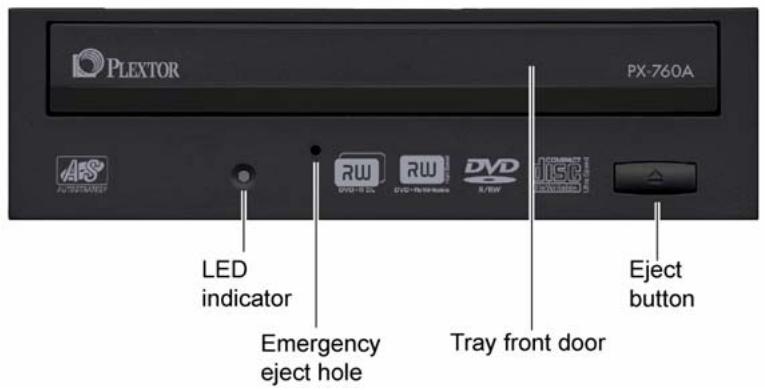
Figure 1: Front panel of the PX-760A internal ATAPI drive
-
LED indicator: Illuminated yellow for disc initializing, reading, and ejecting. Illuminated amber for writing. (Blink rate indicates writing speed.) Illuminated green during standby and when Buffer Underrun Proof Technology is operational. Illuminated yellow, green and amber when AUTOSTRATEGY is operational.
-
Emergency eject hole: If the automatic eject button does not work, insert the emergency eject tool, paper clip, or other thin, rigid object in this hole to eject tray. Turn OFF power before using this feature.
- Tray front door: Attached to tray drawer.
- Eject button: Push once to eject tray. Push again to insert the tray back into the PX-760A. To prevent wear on the drive, always use the eject button to insert the tray.
Rear Panel—PX-760A Internal Drive
Also familiarize yourself with the drive's rear panel.
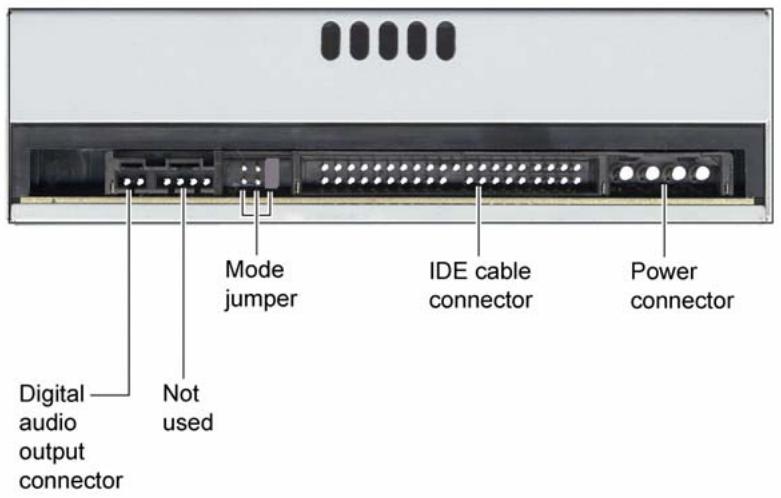
Figure 2: Rear panel of the PX-760A internal ATAPI drive
- Digital audio output connector: Outputs a digital stereo signal. Use this to connect to a sound board that supports Sony/Philips Digital Interface (SPDIF) or Digital-In.
-
Analog audio output connector: Not used.
-
Mode jumper: Use the mode jumper to select operation as an IDE master or slave, or for cable select. In general, leave this jumper at its factory setting, which is master; and ensure that any other device on the bus is jumpered as slave.
- IDE cable connector: Connects to your computer's IDE (ATAPI) interface using 80-conductor Ultra cable.
NOTE: Although the PX-760A will operate with a 40-wire IDE cable, it may not be able to write at 18X unless an 80-conductor IDE/ATA cable is used.
- Power connector: Connects to your computer's power supply to provide DC +5 volts and +12 volts to the PX-760A.
What Else Is In the PX-760A Box
What you find in your Plextor box depends on what the company that sold you the box put in—or took out—while the Plextor drive was in their possession. Plextor currently sells the PX-760A drive in this configuration:
- PX-760A DVD±R DL, DVD±R/RW and CD-R/RW drive
- Replacement front bezel (beige) and disc tray front panel
80-conductor IDE/ATA cable
1 piece of approved DVD+R media
4 mounting screws
Emergency eject tool - Spare jumper
- Plextor software disc with bundled PlexTools® Professional. Also contains Roxio Easy Media Creator 7 Basic DVD Edition, and a PDF of the PX-760 Installation and Users Manual.
- PX-760 Quick Installation Guide
Save Your Box!
Be sure to save the box after you have installed your drive. The box and its packaging material were designed and drop tested to ensure your drive can endure rough treatment and still arrive in working order. If you have to ship your drive back to Plextor, you'll want to send it in the original box. (For more details about returning your drive to Plextor, see page 91.)
If the security sticker on top of your box is cut, there may be a good reason: for example, a dealer may have added other components or software. Carefully check the contents to ensure nothing has been removed. If something is missing, contact the party from whom you purchased the box for an explanation.
NOTE: This applies to the Plextor retail box. Your drive may have been shipped in a different box with other contents, depending on whom you purchased the drive from and what they included inside the box.
If your drive came pre-installed, some or all of the items above may have been installed and may not be separately available. See the Plextor web site for locations to purchase additional or replacement accessories.
PX-760A QuickStart Installation For Experienced PC Users Only
If you've installed computer peripherals before, use this QuickStart installation to get up and running quickly.
IMPORTANT NOTE: To ensure maximum writing speed, you must connect the PX-760A to an 80-conductor IDE/ATA flat ribbon cable. (This newer 80-conductor ribbon cable is physically interchangeable with the 40-conductor cable found in older computers.) The Plextor-supplied cable is an 80-conductor cable.
Typical Scenario 1: You have a PC with an IDE interface installed, you have Windows 2000 or XP, and you have nothing installed on the secondary IDE port. What to do: Leave the PX-760A's jumper set to Master, attach it to the secondary IDE port, and go. Windows will recognize the drive automatically.
Typical Scenario 2: You have a PC with an IDE interface installed, you have Windows 2000 or XP, the primary IDE port already has two devices connected and you have a CD-ROM installed on the secondary IDE port. What to do: Change the CD-ROM to Slave, leave the PX-760A's jumper set to Master and attach the PX-760A to the secondary IDE port. Windows recognizes the new drive automatically.
If neither of these situations applies to you, or you're not comfortable with IDE installation, read the rest of this section for more detailed installation instructions.
Install the Bezel
If the PX-760A drive's current front-panel color is suitable for your computer, you can proceed to "Mount the PX-760A Drive" below. But if you want to change the bezel color, first install the ivory or the black bezel and disc tray front panel as outlined under "Changing the Front-Panel Color" on page 58.
Mount the PX-760A Drive
Here's an overview of what you'll do to mount the drive:
- Turn OFF your computer system.
- Set the jumpers for your new PX-760A drive, if necessary.
- Mount the drive into an available drive bay inside the computer system.
- Make all necessary cabling connections: IDE cable, power cable, and audio cable.
- Turn your computer system ON.
The following pages give more details for this procedure.
Open the Computer and Prepare for Installation
To determine whether your PX-760A will be a Master or a Slave, open your computer and examine the IDE connections to the motherboard.
To open the computer:
-
Before proceeding, make sure the power to your computer and any external peripherals is OFF and your computer is UNPLUGGED from its power source.
-
Remove your computer's cover, following the directions provided by your computer's manufacturer. Typically, this involves loosening or removing several screws on the back panel of your computer and sliding off the cover. See Figure 3 for an example.
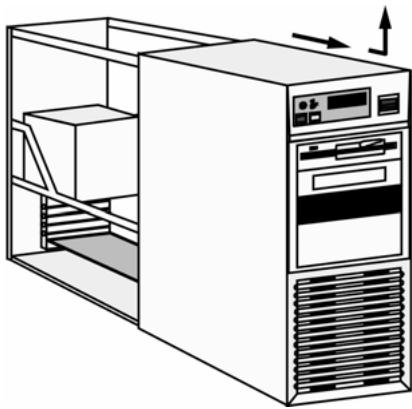
Figure 3: Removing a typical computer's cover
Determine Your Existing IDE Configuration
With your computer open, determine the existing IDE configuration. You can do this by looking at the IDE ribbon cable (or cables—there may be two) and seeing what is connected to them.
One end of the IDE cable connects to the IDE port on your computer's motherboard; and there are usually two other connectors for attaching peripheral devices such as a hard disk, DVD or CD-ROM drive, or your PX-760A drive. If there are two devices, one is configured as Master and the other the Slave, as indicated by the position of jumpers on the back of the drive.
If your computer is set up for Cable Select, or CSEL, both devices will be jumpered as Cable Select. In older computer, this configuration required a special Cable Select cable.
If there are two IDE cables, one is for the primary IDE bus and the other is for the secondary bus.
Before you install your PX-760A, your computer's IDE configuration is usually one of the following:
- Configuration A: Hard disks connected as Master and Slave devices on primary IDE port; DVD or CD-ROM drive connected as the Master device on secondary IDE port.
- Configuration B: Hard disk connected as Master device and DVD or CD-ROM drive connected as Slave on the primary IDE port; nothing connected to secondary IDE port.
- Configuration C: Hard disk connected as Master device on primary IDE port; nothing connected to secondary IDE port.
- Configuration D: System uses special "Cable Select" cables; all devices are jumpered for Cable Select.
Inspect Your Computer's Cables
To ensure that it can write at maximum rated speed (18X), you should make sure the PX-760A is connected to an 80-conductor IDE/ATA flat ribbon cable. If you have an older computer, it may still be equipped with a 40-conductor cable.
NOTE: Although the newer IDE/ATA cable has 80 conductors (wires), its connectors have only 40 pins, so it's physically interchangeable with the older cable. And in fact, your PX-760A drive may work fine with a 40-conductor cable. But to ensure writing at maximum speed, it's best to use the newer 80-conductor cable, such as the one provided by Plextor. The 80-conductor cable cancels interference much better than the older model, allowing faster data transfers.
CAUTION: The length of any IDE cable cannot exceed 18 inches.
Confirm That You Have an 80-Conductor IDE Cable
How can you tell? The 80-conductor cable is slightly wider than the older 40-conductor version. The wires in the 80-conductor version are narrower, too.
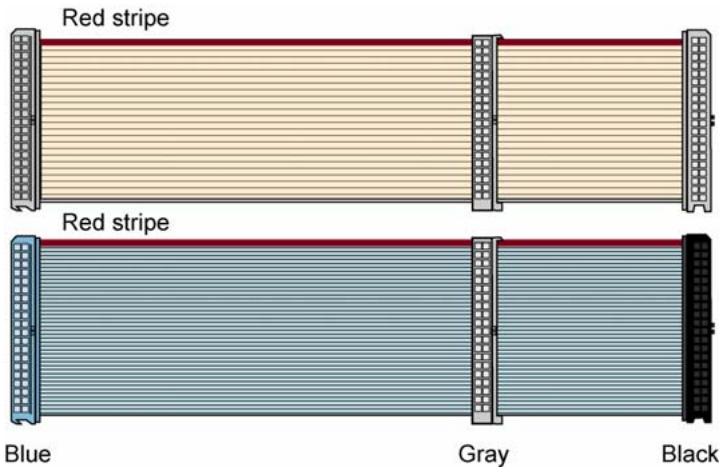
Figure 4: Comparing the older 40-conductor cable (top) to the new 80-conductor type (bottom). Be sure to use the 80-conductor cable.
The extra IDE/ATA cable shipped with your PX-760A is the new 80-conductor version. So if you have an older 40-conductor cable, replace it with the 80-conductor cable that came with your Plextor drive. (Or purchase an 80-conductor IDE/ATA cable at an electronics supply store.)
Do You Have Cable Select?
Many computers from major manufacturers use special Cable Select cables. The Cable Select cable typically has markings that identify the connectors for Master, Slave, and Motherboard.
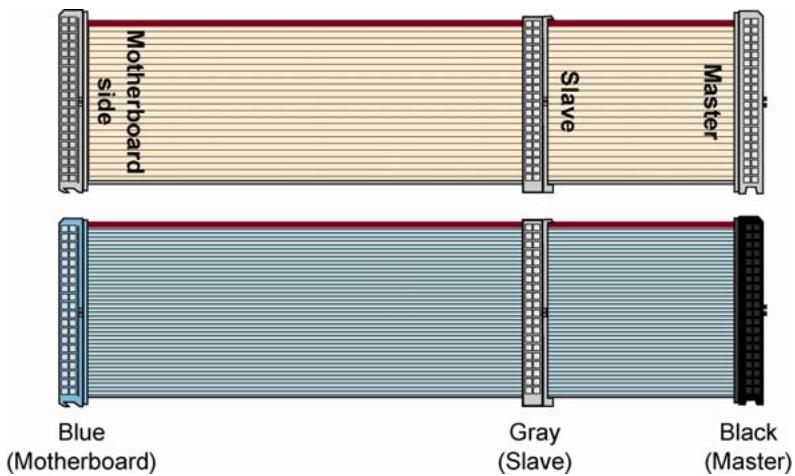
Figure 5: If you have an older 40-conductor Cable Select cable (top), replace it with the new 80-conductor cable (bottom).
If you have one of these older Cable Select cables, replace it with the 80-conductor IDE/ATA cable from Plextor. (All 80-conductor cables that meet the ATA specifications also support Cable Select.) The connector color identifies master and slave.
With the 80-conductor cable:
- The blue connector attaches to the computer motherboard or controller.
- The gray connector is in the middle of the cable, and goes to any slave (device 1) drive, if present.
- The black connector is at the opposite end from the host connector and goes to the master drive (device 0), or to a single drive if only one is used.
If you are unsure whether or not your system has a Cable Select cable installed, either look at the cable or look at the jumpers on the existing DVD-ROM or CD-ROM drive. If any device is jumpered as Cable Select, then both devices on that cable must be jumpered that way.
Do You Need a Power Cable?
In most computers, you will find extra power connectors in the computer ready for your use. When you open the computer, check the cable running from your power supply to your hard disk drive and see if it has extra connectors on it. If so, you can plug one of these into the power connector found on the rear panel of the PX-760A.
If you do not find any additional connectors (either because they were not supplied or they are all in use), you will have to buy a "splitter" or a "Y-connector." These can also be found at most retail and mail-order computer stores.
Set the Drive's Mode Jumper
You specify your drive's Master, Slave, or Cable Select setting before installing it. You do this by changing the position of a jumper on the mode jumper block at the rear of the drive.
Your drive ships from our factory with its mode jumper set to operate the PX-760A as a Master. This will work in most custom system configurations. If your computer is from a large OEM system manufacturer such as IBM, Hewlett Packard/Compaq, Dell, or Gateway, you will need to pay particular attention to whether the computer uses the Cable Select scheme.
NOTE: The jumper configuration on the drive has priority over Cable Select. So if the jumper of one device on a cable is set to Master, the jumper of the other device must be set for Slave. In this case, location of the devices on the cable is not important.
If you have only one device, it must be set to Master or Cable Select, and it must be at the end of the cable.
Changing the Mode Jumper on Your PX-760A Drive
The drive arrives from the factory with its mode jumper set to Master. (A function is ON if the jumper is installed and OFF if the jumper is removed.)
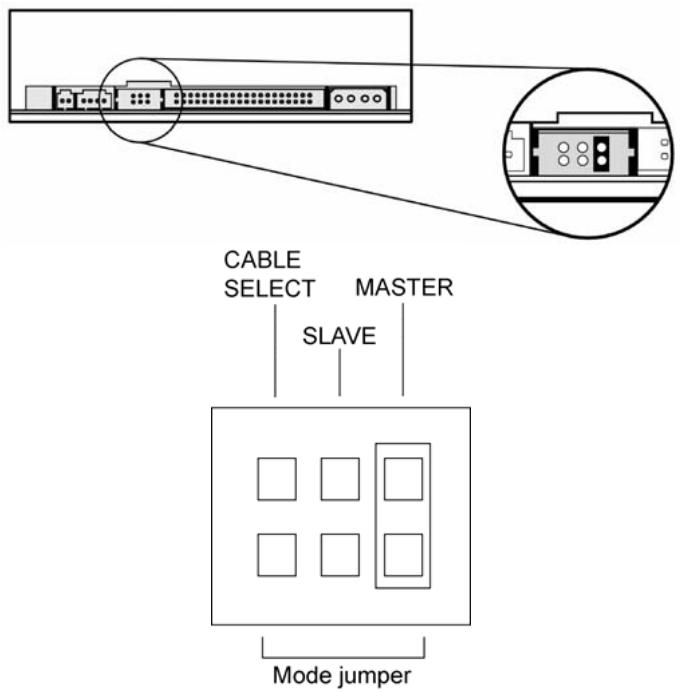
Figure 6: Factory settings for mode jumper at the rear of the PX-760A drive
Changing to a Master, Slave, or Cable Select
The Master/Slave/Cable Select setting for the drive is determined by the mode jumper. The jumper is placed over one of the sets of mode pins. To change the drive from Master to Slave or to Cable Select, you must move the jumper.
For example, to change the drive to be a Slave, move the jumper to the middle set of mode pins, leaving the other pins uncovered. To change the drive for Cable Select, move the jumper to the left set of mode pins.
Note that if any device is jumpered as Cable Select, then both devices connected to that cable must be jumpered as Cable Select. (And if you're not using the newer 80-conductor IDE/ATA cable, the cable you use must be a special Cable Select cable.)
Changing Jumper Settings
- To remove a jumper, pull it off with your fingers or a pair of needle-nose pliers.
- To install a jumper, push it onto the jumper pins.
CAUTION: Ensure power to the drive is OFF before installing or removing a jumper.
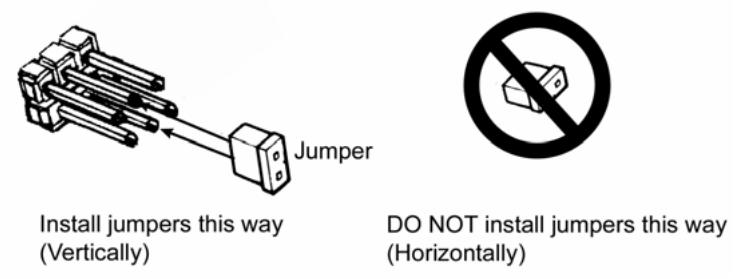
Figure 7: Install the mode jumper across vertical pairs of pins
CAUTION: Install the mode jumper across the pins as shown (vertically). Do not connect one pin switch to another by installing the jumper lengthwise (horizontally). Doing so could result in damage to the drive.
Select an IDE Configuration
Set the PX-760A's jumper and cable it according to the desired configuration. Keep these rules in mind:
- For best DVD±RW and CD-RW performance, try to connect the PX-760A to the IDE port that is not connected to the hard disk drive or to a DVD or CD-ROM drive. In most cases, this will be the secondary IDE port.
- For best results, set the PX-760A to be the Master, if possible.
- If you have only one device on a cable, always set its jumper as the Master, never as the Slave.
Figure 8. How to install the PX-760A if your computer is originally set up in configuration A
| Before PX-760A Installation | How to Install the PX-760A | |
| A | Hard disks connected as Master and Slave devices on primary IDE port; DVD-ROM or CD-ROM drive connected as Master device on secondary IDE port. | Remove the DVD-ROM or CD-ROM drive, change it to Slave, and re-connect it to the secondary IDE port. Set the mode jumper to Master, and connect the PX-760A as Master device to the secondary IDE port. |
| Primary IDE Port Connect Plextor drive as master Connect Plextor drive as slave Set Plextor drive's jumper to: CS S M □□□ □□□ | Hard disk connected as slave Hard disk connected as slave Connect DVD or CD-ROM drive as slave Set Plextor drive's jumper to: CS S M □□□ □□□ | |
NOTE: The configuration shown in Figure 8 can make it very difficult to write from the DVD or CD drive to the PX-760A at maximum rated speed using "on-the-fly" copying.
System configuration and performance will make a big difference. Depending on how fast the DVD or CD-ROM drive can stream data to the PX-760A, it may not be fast enough to keep the buffer full. In this case, the buffer may become empty and a buffer underrun error may occur. However, because it is equipped with Buffer Underrun Proof Technology, your PX-760A can still make successful copies if you use software that supports this feature. (All software shipped with PX-760A drive retail kits supports Buffer Underrun Proof Technology.)
If you still have problems writing with this configuration, use the image writing method (that is, write an image to your hard drive, then write that image onto the DVD±R/RW or CD-R/RW media), or record at a lower speed. We also recommend that DMA be enabled on your computer, if your system supports it.
Figure 9. How to install the PX-760A if your computer is originally set up in configuration B
| Before PX-760A Installation | How to Install the PX-760A | |
| B | Hard disk connected as Master device, and CD-ROM or DVD-ROM drive connected as Slave on the primary IDE port; nothing connected to secondary IDE port. | Set the mode jumper to Master, and connect the PX-760A as Master to secondary IDE port. |
| DVD or CD-ROM drive connected as slave Primary IDE Port Connect Plextor drive as master Secondary IDE Port | Set Plextor drive's jumper to: CS S M | |
Figure 10. How to install the PX-760A if your computer is originally set up in configuration C
| Before PX-760A Installation | How to Install the PX-760A | |
| C | Hard disk connected as Master device on primary IDE port; nothing connected to secondary IDE port. | Set the mode jumper to Master, and connect the PX-760A as Master to secondary IDE port. |
| Primary IDE Port Secondary IDE Port | Hard disk connected as master Connect Plextor drive as master Set Plextor drive's jumper to: CS S M □□□ □□□ | |
Figure 11: How to install the PX-760A if your computer is originally set up in configuration D
| Before PX-760A Installation | How to Install the PX-760A | |
| D | System uses special Cable Select cables; all devices are jumpered for Cable Select. | Set the PX-760A's mode jumper to CSEL, and connect the drive to the end of the cable from the computer's IDE interface connector. |
| Hard disk connected as slave Primary IDE Port Connect DVD or CD-ROM drive as slave Secondary IDE Port | Hard disk connected as master Connect Plextor drive as master Set Plextor drive's mode jumper to: CS S M | |
About Cable Select
The Cable Select jumper position sets the PX-760A drive to use the CSEL signal from the IDE interface for configuration purposes. This signal automatically selects the correct Master/Slave setting for the drive.
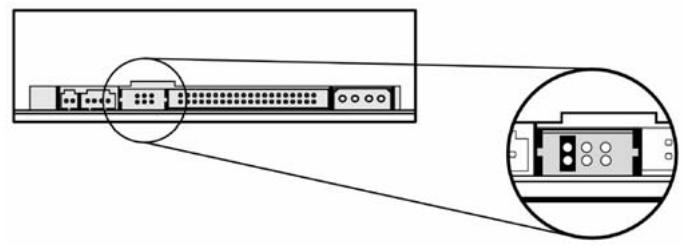
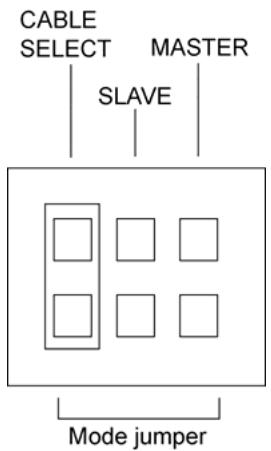
Figure 12: Configuring the PX-760A drive for Cable Select
To use CSEL, you must have:
- A computer that supports CSEL.
- An IDE cable that supports CSEL (Cable Select). The 80-conductor IDE/ATA cable from Plextor supports CSEL.
Set the PX-760A for Multiword DMA (If Needed)
Your PX-760A ships from the factory with the drive set to Ultra DMA. This setting should work in most cases, so you don't have to do anything more.
With some personal computers (usually older ones) that do not have an Ultra DMA IDE chipset, the computer may "hang" or crash with the PX-760A set to the default Ultra DMA setting.
If this happens, change the PX-760A to multiword DMA mode by adding the spare jumper to the mode jumper pins. Add it this way:
- If your drive is set to be Master, add the second jumper to the CSEL pins.
- If your drive is set to be a Slave, add the second jumper to the CSEL pins.
- If your drive is set for Cable Select, add the second jumper to either Master or Slave pins.
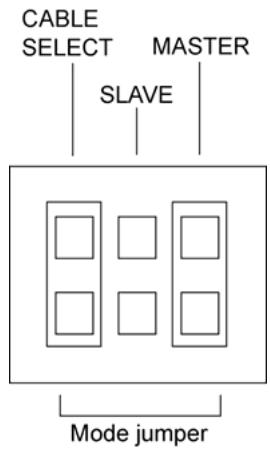
Figure 13: Add a second jumper if you need to change to multiword DMA
Mount the PX-760A Drive
Before proceeding to install the PX-760A drive in your personal computer, double-check your jumper setting.
Record the Serial Number
Record the serial number and TLA number of your drive before you install it.
Mount the Drive in the Computer
You can mount your internal drive in any available bay. You must remove the small panel that covers the bay that you want to use.
NOTE: The drive can be mounted horizontally or vertically
If you don't have an empty bay, remove the existing IDE DVD-ROM or CD-ROM drive and install the PX-760A.
You must make a minimum of two cable connections to your PX-760A. The two cable connections that you must make are:
- IDE cable
Power cable
There is also an optional digital audio cable connection. Make this connection if the sound board is equipped with SPDIF or Digital-In and you wish to use the digital audio output from your PX-760A.
To mount the PX-760A drive:
- Make sure the power to your computer and any external peripherals is turned OFF and your computer is UNPLUGGED from its power source.
-
If you haven't already removed the cover from your computer, remove it now, following the directions provided by your computer's manufacturer. Typically, this involves loosening or removing several screws on the back panel of your computer and sliding off the cover. See Figure 3 for details.
-
Remove the cover panel from the bay that will hold the drive. To remove the cover panel, pop it out by pressing outward lightly. (In some older computers, you may have to remove screws that hold the panel in place.)
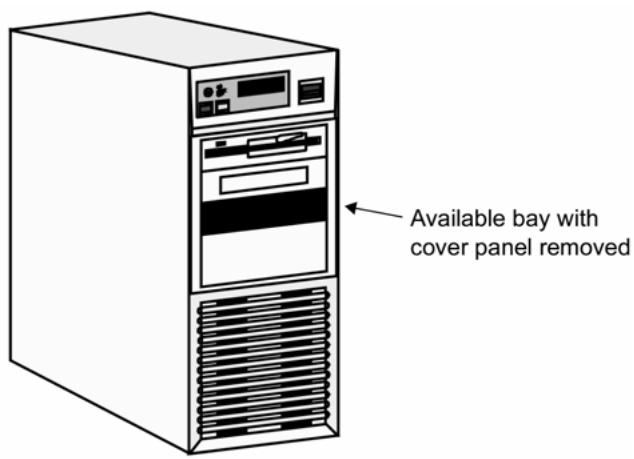
Figure 14: Removing the cover panel from a bay
- Determine if you must install mounting rails on the sides of your drive. To do so, insert the drive into the open bay. If the drive fits tightly with little or no clearance on either side of the drive, you will not have to use mounting rails. The drive can be mounted directly into your computer. Go to step 6.
NOTE: Plextor does not provide rails. If you need rails, you can obtain them from the computer manufacturer or from a computer supply retail or mail-order store.
- If you must use mounting rails, fasten the rails to the lower pair of holes as shown in Figure 15. (In some instances, you may need to fasten the rails to the upper set of holes.) After fastening the rails, check their positioning by sliding the drive into the bay before you mount the drive or connect any cables.
CAUTION: Be sure not to mistake the inner and outer face of the rail when attaching. Typically, the smooth side of the rail faces away from the drive's chassis.
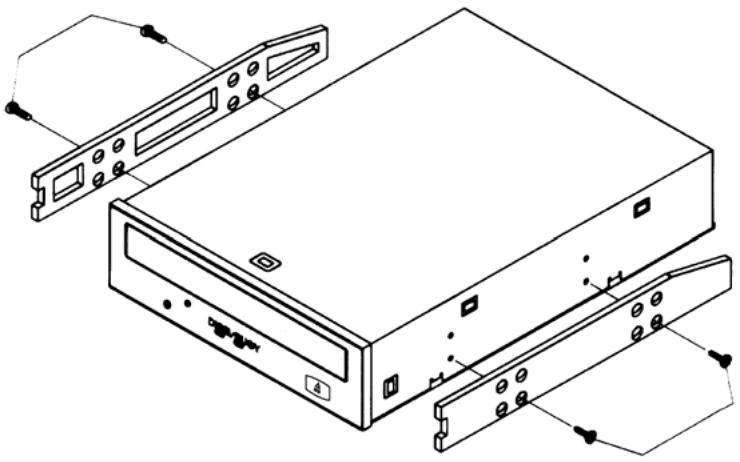
Figure 15: Installing mounting rails (if needed)
- Plug one connector of the 80-conductor IDE/ATA cable into the IDE connector on the rear panel of the drive before you insert the drive into your computer. Then thread the cable through the front of the open bay and back toward the motherboard. The drive should slide smoothly into the bay. If it does not, check for obstructions in the bay and ensure the side rails are attached properly.
- If not already connected, attach the other end of the IDE ribbon cable to the connector on the motherboard.
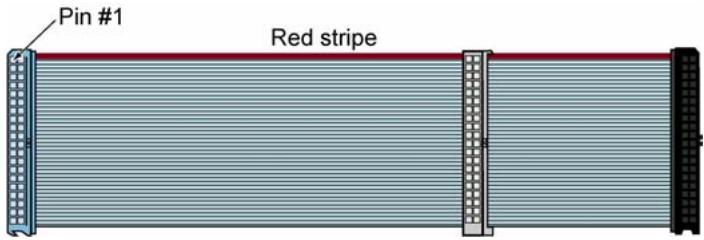
Figure 16: Connect one end of the IDE cable to the motherboard and the other end to the drive. If your Plextor drive is the only device on the cable, attach it at the end of the cable, leaving the center connector free.
CAUTION: With some IDE ribbon cables, it is easy to accidentally plug your IDE cable upside down into both your drive and the motherboard. Be sure you match the red stripe along one side of the IDE cable to Pin 1 on the motherboard and Pin 1 on the drive. (Pin 1 on the drive is closest to the power connector.) Note that each connector on most ribbon cables also has a "key" in the middle. This key should fit into a slot in the middle of each connector of the motherboard, your PX-760A drive, and any other internal IDE peripherals.
- Double-check your work. You must ensure the side of the IDE cable with the red stripe is matched to Pin 1 on the interface board and on the drive.
CAUTION: In the case of only one IDE device, you must make certain that one end of the cable is always connected to the IDE connector on the motherboard. The other end of the connector must be connected to a device. The end connector of the cable should never be left unconnected.
- Connect a power cable from the computer to the power connector (DC INPUT) of the drive. In most computers, you will find free power connectors that are ready for your use.
CAUTION: The power connector on the cable and the receptacle on the drive are keyed. Do not force the power connector into the drive, or the drive and/or the computer may be damaged.
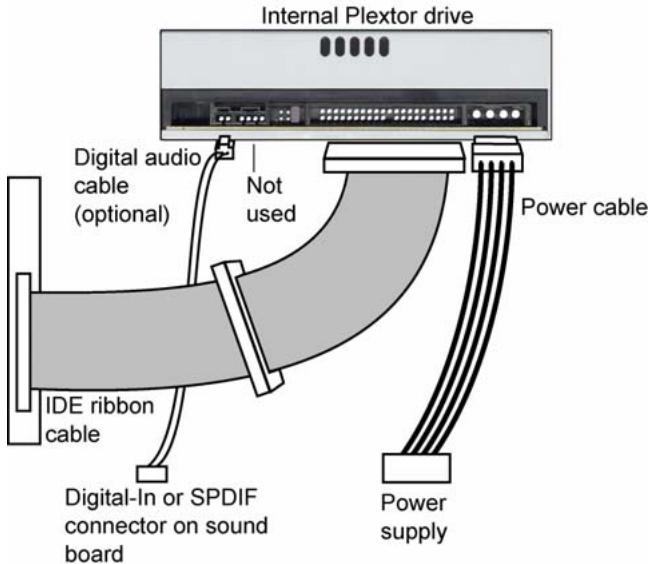
Figure 17: Cable connections for an internal IDE drive
- Connect a digital audio cable if your sound board is equipped with the Sony/Philips Digital Interface (SPDIF) or Digital-In, and you wish to use the digital audio output from your PX-760A. This cable runs from the digital audio output connector pins on the PX-760A back panel to the sound board. (This cable is not supplied by Plextor.)
- Mount the PX-760A drive in the computer using the four screws that were supplied with your drive. Use only these screws.
CAUTION: Do not mount your drive in your computer using screws other than those supplied by Plextor. You may damage the drive if you insert screws that are too long or the wrong thread type.
This completes the installation procedure. Go to "Section 4. Using Your PX-760" on page 47 to see how to use your PX-760A drive.
This page intentionally left blank.
3. Installing the PX-760SA Internal SATA Drive
This section explains how to physically install your PX-760SA internal Serial ATA drive in your computer. The steps are as follows:
- Turn OFF your computer system.
- Mount the drive into an available drive bay inside the computer system.
- Make the cabling connections: Serial ATA cable and power cable.
- Turn your computer system ON.
The following pages give more details for this procedure.
NOTE: Your computer's SATA connection must support the ATAPI command set. Some computer motherboards have SATA RAID (Redundant Array of Independent Discs) chipsets that do not support the ATAPI command set used by optical disc drives, or that do not have BIOS settings to enable IDE/ATAPI functions. If you are unsure, consult your motherboard manual or vendor web site for compatibility, BIOS versions, and BIOS settings. And check the Plextor PX-760SA motherboard compatibility listing at http://www.plextor.com/english/support/support_compatibility.html
PX-760SA Drive Features and Controls
Before proceeding, become familiar with the controls and features of your Plextor drive. Match the parts of your drive to the illustrations below.
Front Panel—PX-760SA Internal Drive
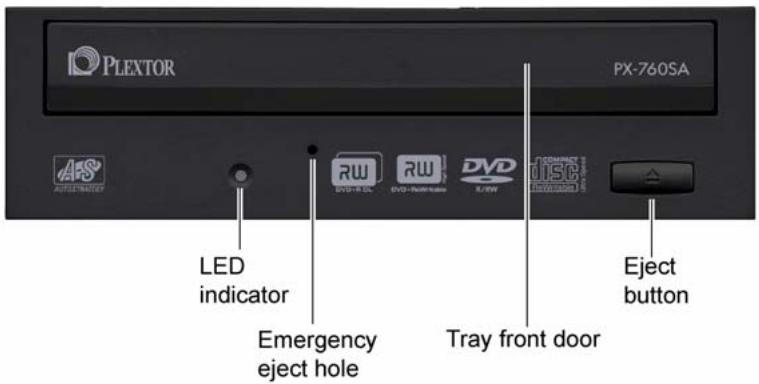
Figure 18: Front panel of the PX-760SA internal SATA drive
- LED indicator: Illuminated yellow for disc initializing, reading, and ejecting. Illuminated amber for writing. (Blink rate indicates writing speed.) Illuminated green during standby and when Buffer Underrun Proof Technology is operational. Illuminated yellow, green and amber when AUTOSTRATEGY is operational.
- Emergency eject hole: If the automatic eject button does not work, insert the emergency eject tool, paper clip, or other thin, rigid object in this hole to eject tray. Turn OFF power before using this feature.
- Tray front door: Attached to tray drawer.
- Eject button: Push once to eject tray. Push again to insert the tray back into the PX-760SA. To prevent wear on the drive, always use the eject button to insert the tray.
Rear Panel—PX-760SA Internal SATA Drive
Also familiarize yourself with the drive's rear panel.

Figure 19: Rear panel of the PX-760SA internal SATA drive
- SATA cable connector: Connects to your computer's SATA interface using a 7-pin SATA interface cable.
- Power connector: Connects to your computer's 15-pin SATA power cable to provide DC +5 volts and +12 volts to the PX-760SA.
NOTE: If your computer has only 4-pin power connectors, use the SATA power cable adapter to connect to the 15-pin power connector on the PX-760SA.
-
Self-test/DMA jumper: Leave this jumper off for normal operation.
-
When the jumper is installed, the PX-760SA drive runs in PIO/multiword DMA mode.
- When the jumper is installed and you hold down the eject button during computer startup, the drive's self-test diagnostic routine is initiated.
What Else Is In the PX-760SA Box
What you find in your Plextor box depends on what the company that sold you the box put in—or took out—while the Plextor drive was in their possession. Plextor currently sells the PX-760SA drive in this configuration:
- PX-760SA DVD±R DL, DVD±R/RW and CD-R/RW drive
- Replacement front bezel (beige) and disc tray front panel
- 7-pin SATA interface cable
4-pin-to-15-pin SATA power cable adapter
1 piece of approved DVD+R media
4 mounting screws - Spare jumper
Emergency eject tool - Plextor software disc with bundled PlexTools® Professional. Also contains Roxio Easy Media Creator 7 Basic DVD Edition and a PDF of the PX-760 Installation and Users Manual.
- PX-760 Quick Installation Guide
Save Your Box!
Be sure to save the box after you have installed your drive. The box and its packaging material were designed and drop tested to ensure your drive can endure rough treatment and still arrive in working order. If you have to ship your drive back to Plextor, you'll want to send it in the original box. (For more details about returning your drive to Plextor, see page 91.)
If the security sticker on top of your box is cut, there may be a good reason: for example, a dealer may have added other components or software. Carefully check the contents to ensure nothing has been removed. If something is missing, contact the party from whom you purchased the box for an explanation.
NOTE: This applies to the Plextor retail box. Your drive may have been shipped in a different box with other contents, depending on whom you purchased the drive from and what they included inside the box.
If your drive came pre-installed, some or all of the items above may have been installed and may not be separately available. See the Plextor web site for locations to purchase additional or replacement accessories.
Set the PX-760SA DMA Jumper (If Needed)
Your PX-760SA ships from the factory with no DMA jumper installed. (The pins are empty.) The empty pins mean the drive is set to Ultra DMA. This setting should work in most cases, so you don't have to do anything more.
With some personal computers that do not have an embedded non-RAID Serial ATA chipset, the computer may "hang" or crash with the PX-760SA installed. If this happens, change the PX-760SA to multiword DMA mode by installing the spare jumper across the two DMA jumper pins.
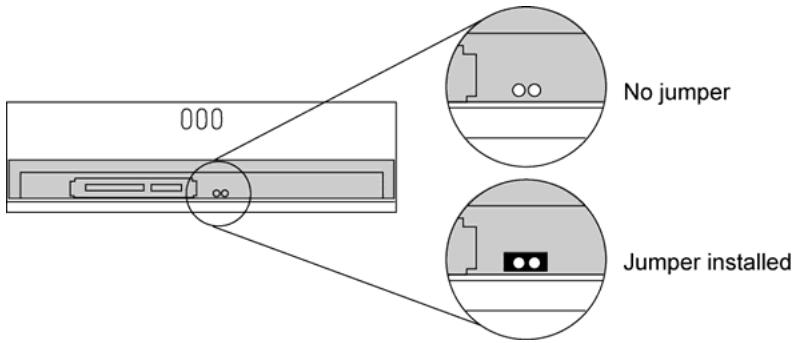
Figure 20: Add the PX-760SA DMA jumper if you need to change from Ultra DMA (default) to multiword DMA
Adding the jumper also configures the PX-760SA for self-test. See "Using the PX-760SA Self-Test Diagnostics" on page 68 for more details.
Mount the PX-760SA Drive
Before proceeding to install the PX-760SA drive in your personal computer, make sure you have all the cables you'll need.
Record the Serial Number
Note the serial number and TLA number of your drive, and record those numbers.
Mount the Drive in the Computer
You can mount your internal drive in any available bay. You must remove the small panel that covers the bay that you want to use.
NOTE: The drive can be mounted horizontally or vertically
If you don't have an empty bay, remove the existing DVD-ROM or CD-ROM drive and install the PX-760SA.
You must make two cable connections to your PX-760SA. The two cable connections that you must make are:
- SATA cable
Power cable
To mount the PX-760SA drive:
- Before proceeding, make sure the power to your computer and any external peripherals is OFF and your computer is UNPLUGGED from its power source.
- Remove your computer's cover, following the directions provided by your computer's manufacturer. Typically, this involves loosening or removing several screws on the back panel of your computer and sliding off the cover. See the illustration below for an example.
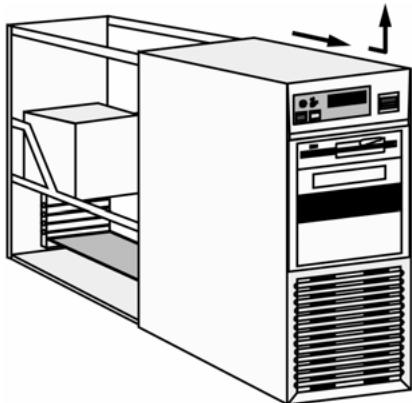
Figure 21: Removing a typical computer's cover
- Remove the cover panel from the bay that will hold the drive. To remove the cover panel, pop it out by pressing outward lightly. (In some older computers, you may have to remove screws that hold the panel in place.)
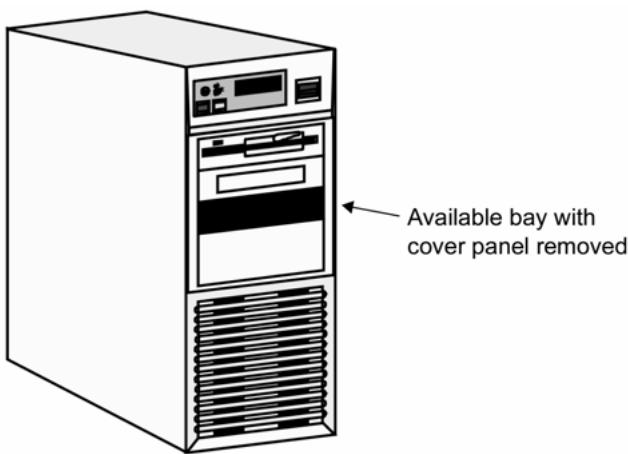
Figure 22: Removing the cover panel from a bay
- Determine if you must install mounting rails on the sides of your drive. To do so, insert the drive into the open bay. If the drive fits tightly with little or no clearance on either side of the drive, you will not have to use mounting rails. The drive can be mounted directly into your computer. Go to step 6.
NOTE: Plextor does not provide rails. If you need rails, you can obtain them from the computer manufacturer or from a computer supply retail or mail-order store.
- If you must use mounting rails, fasten the rails to the lower pair of holes as shown in the illustration below. (In some instances, you may need to fasten the rails to the upper set of holes.) After fastening the rails, check their positioning by sliding the drive into the bay before you mount the drive or connect any cables.
CAUTION: Be sure not to mistake the inner and outer face of the rail when attaching. Typically, the smooth side of the rail faces away from the drive's chassis.
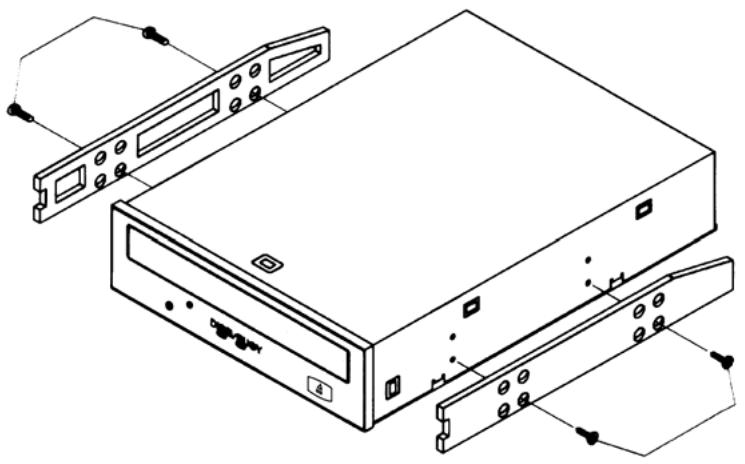
Figure 23: Installing mounting rails (if needed)
- Plug one connector of the 7-pin SATA interface cable into the SATA connector (the right-hand connector) on the rear panel of the drive before you insert the drive into your computer. Then thread the cable through the front of the open bay and back toward the motherboard. The drive should slide smoothly into the bay. If it does not, check for obstructions in the bay and ensure the side rails are attached properly.
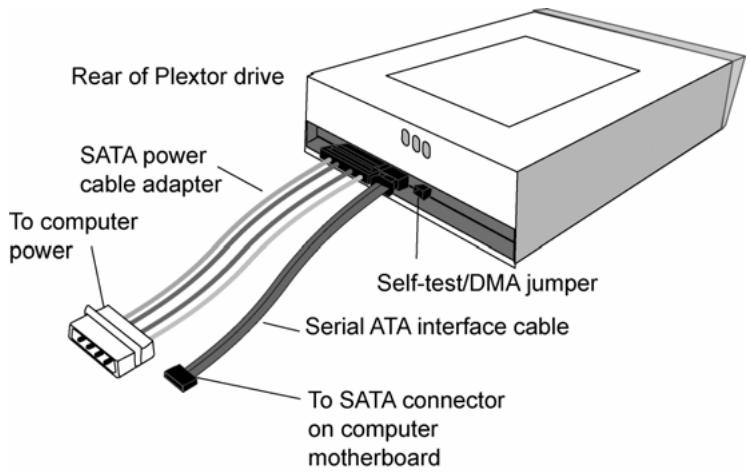
Figure 24: Cable connections for an internal SATA drive
NOTE: Your computer's SATA connection must support the ATAPI command set. Some computer motherboards have SATA RAID (Redundant Array of Independent Discs) chipsets that do not support the command set used by optical disc drives, or that do not have BIOS settings to enable IDE/ATAPI functions. If you are unsure, consult your motherboard manual or vendor web site for compatibility, BIOS versions, and BIOS settings. And check the Plextor PX-760SA motherboard compatibility listing at http://www.plextor.com/english/support/support_compatibility.html
-
If not already connected, attach the other end of the 7-pin SATA interface cable to the Serial ATA connector on the computer motherboard (or on a PCI board, if that is how the Serial ATA interface is provided in your computer). When connecting the Serial ATA cable, note that cable connectors are keyed, and will fit only one way. For example, the initials "SATA" on the cable connector should be up.
-
Connect a power cable from the computer to the power connector of the drive. In most computers, you will find free power connectors that are ready for your use.
If your computer is equipped with 15-pin SATA power cables, you can connect a power cable directly to the PX-760SA drive.
If your computer's power cables have only 4-pin power connectors, use the 4-pin SATA power cable adapter that came with your PX-760SA drive.
CAUTION: The power connector on the cable and the receptacle on the drive are keyed. Do not force the power connector into the drive, or the drive and/or the computer could be damaged.
- Mount the PX-760SA drive in the computer using the four screws that were supplied with your drive. Use only these screws.
CAUTION: Do not mount your drive in your computer using screws other than those supplied by Plextor. You may damage the drive if you insert screws that are too long or the wrong thread type.
This completes the installation procedure. Go on to the next section to see how to use your PX-760SA drive.
This section explains how to use your PX-760 drive and how to load, handle and care for your DVDs and CDs.
What Media to Use
Use the right media! Your PX-760 drive's capabilities change depending on which type of compact disc you use.
DVD Media
DVD recordable media is available in two different, non-compatible formats:
- DVD+R, DVD+R DL (double layer) and DVD+RW
DVD-R, DVD-R DL (dual layer) and DVD-RW
Your PX-760 can read and write either media format, in single layer or double layer media. It supports all these types of DVD media:
- Digital Video Discs: You can immediately play pre-recorded DVD discs, including movies and other DVDs.
- DVD+R DL, DVD-R DL, DVD+R, DVD-R: Recordable DVD. You can record on these discs, but only once. You can also read them.
- DVD+RW, DVD-RW: ReWritable DVD. You can record and re-record (up to 1,000 times) on these discs. You can also read them.

DVD+RDL

DVD+R

DVD+ReWritable

R/RW

DVD+ReWritable
Figure 25: The logo identifies the type of DVD media
With double layer media, you don't need to turn the disc over to record on side 2.
CD-ROM Media
In addition, you can use these types of CD media:
- CD-ROM: You can immediately play or read prerecorded compact discs, such as audio CDs and data discs.
- CD-R: Recordable CD. You can record on these discs, but only once. You can also read them.
- CD-RW: Normal Speed, High Speed, and Ultra Speed ReWritable CD. These discs support recording and re-recording (up to 1,000 times). You can also read them.
To achieve a certain writing speed, you must use the appropriate media. To achieve 48X CD-R writing speed you must use certified 48X media; and to achieve 24X CD-RW writing speed you must use Ultra Speed CD-RW media.
Remember:
- Using Normal Speed CD-RW discs (that is, NS-RW media) you can rewrite at 4X.
- Using High Speed CD-RW discs (HS-RW media), you can rewrite at 10X.
- Using Ultra Speed CD-RW discs (US-RW media) in this drive, you can rewrite at up to 24X.
You can write to Ultra Speed CD-RW discs only on drives that support this media. Drives that are capable of writing to Ultra Speed ReWritable media, such as the Plextor PX-760, are identified by a "Compact Disc ReWritable Ultra Speed" logo.

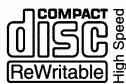
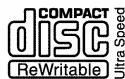
Figure 26: The logo also identifies the type of CD-RW media
See the Plextor web site at www.plextor.com for the latest list of recommended media for the PX-760.
Tray Loading and Operation
To load and unload the tray:
- While the drive is powered up, push the eject button on the front panel. The tray drawer slides out in 3-4 seconds.
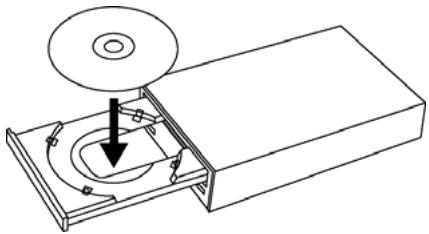
Figure 27: Loading the tray
- Lay a CD or DVD disc in the depression in the tray, label side up.
- Press the eject button again and the tray will slide shut within seconds.
NOTE: Always use the eject button to close the tray in a smooth and secure manner. Closing the tray by pressing the front of the drawer using your hand is not recommended and risks damage or premature wearing of the mechanism.
Handling DVD and CD Media
Take care when handling blank CD and DVD media. Dust, scratches, and fingerprints on either side of the disc can cause write errors during recording. When picking up or holding blank media you can either place your fingers along the outer edge of the disc, or place one finger through the center hole and one finger on the outer edge. Once you have finished creating a disc, label it by writing on the top using permanent ink.
CAUTION: We recommend using a "non-toxic" marker, such as a Sharpie® pen, that conforms to the ASTM D-4236 standard. Some permanent markers will damage the media. Also, do not press too hard when writing on the disc.
NOTE: We do not recommend placing self-sticking CD-R labels on the disc. The weight of the label may unbalance the disc and cause write errors during recording or read errors during reading. Also, attempting to remove the label may permanently damage the disc.
Cleaning Discs
For proper read and write performance, your discs must be clean. Trying to record on a dirty disc may result in a failed session and ruin the disc.
To clean the disc, wipe the disc using a clean, soft cotton cloth to remove surface dirt such as fingerprints. Use a straight-line motion, wiping from the center out. Do not wipe the disc in a circular motion.
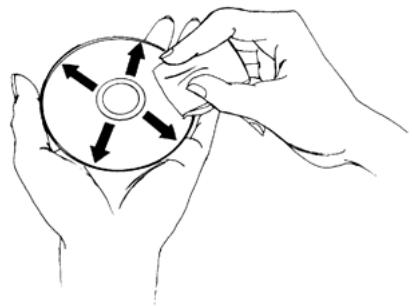
Figure 28: Wipe the disc from the center outward
HINT: Keep your frequently used discs in jewel cases at all times to prevent them from becoming dirty or damaged.
Mounting Position
You can operate your PX-760 drive in either a horizontal or a vertical position.
Playing DVDs
To play a digital video disc, insert the DVD as you would any other disc. The drive plays both single layer and double layer discs.
The first time: A code on each DVD allows it to be played only on players designed for a certain regional area, such as North America, Europe, etc. When the drive ships from the factory there is no region code set. The first time a DVD that has a region setting is inserted into the drive, the drive is automatically set to that region code.
If you later insert a DVD with a different region code, you are prompted to either accept changing the new region code or not. If you don't accept the change, then that DVD will not play. If you do accept the change, then the region code setting is changed. But remember: you can change the drive's region code only 5 times. After that, you can't change it any more.
Writing to DVD Media
You need special software that supports writing to DVD+R, DVD+R DL, and DVD+RW discs; or to DVD-R DL, DVD-R and DVD-RW discs.
Specifying +R/RW or -R/RW
You don't need to specify whether to write to +R / RW or -R/RW. The selection is automatically made for you, based on the media you insert in the drive.
Writing to CD-R and CD-RW Media
In conjunction with your drive, mastering and packet writing software allows you to write audio, video, data, or other information to writable (CD-R) or rewritable (CD-RW) media. The PX-760 writes to all types of CD-RW media.
Using the LED Indicator
The color and blink rate of the front-panel LED indicator give you information about the drive's operation.
When you are writing to a CD-R or CD-RW disc, the color and blink rate of the front-panel LED indicator indicate the speed of writing, as follows:
| Operation | LED color | On/Off/Blink | Blinking interval |
| No disc | - | Off | - |
| Eject | Yellow | On | - |
| Loading | - | Off | - |
| Initialize | Yellow | On | - |
| Standby | Green | On | - |
| Read | Yellow | On | - |
| DVD write, 8X and higher | Amber | Blink | 40ms |
| DVD write, 4-7X | Amber | Blink | 80ms |
| DVD write, less than 4X | Amber | Blink | 150ms |
| CD-R write, 32X and higher | Amber | Blink | 40ms |
| CD-R write, 16-31X | Amber | Blink | 80ms |
| CD-R write, less than 16X | Amber | Blink | 150ms |
| CD-RW write, 24X | Amber | Blink | 40ms |
| CD-RW write, 10-23X; 10X CLV | Amber | Blink | 80ms |
| CD-RW write, 4X | Amber | Blink | 150ms |
| Buffer Underrun Proof / DVD linking active | Green | On | - |
| Write setting created by AUTOSTRATEGY | Yellow-green-amber | Blink | 200ms |
Switching to SpeedRead for Video Playback
When you are playing a DVD-Video disc that has CSS (copy protection via the Content Scrambling System), the PX-760 normally plays at a slow speed with a maximum of 2X CLV speed to reduce drive noise. You can speed up DVD playback by turning on SpeedRead with PlexTools Professional software. In PlexTools Professional, go to Drive Settings | Advanced and enable or disable SpeedRead with the check box.
This page intentionally left blank.
5. Maintenance and Troubleshooting
This section explains maintenance and troubleshooting procedures for your PX-760 drive.
With proper maintenance, you can prevent problems. If trouble arises, you can often solve many simple problems on your own, rather than wait for assistance from a Plextor representative.
Cleaning the PX-760 Drive
Plextor drives are sealed against external contamination, so in a normal computer environment and with normal use, your drive should not require internal cleaning. However, if your drive has been in use for some time and has just recently started to exhibit read/write problems, it is possible that dust has accumulated on the laser lens. In this case:
- If your drive is still in warranty and you are experiencing problems, send the drive to Plextor. (See "Returns" on page 91.)
- If your drive is out of warranty, before returning the drive for repair you may want to try a short blast of canned air aimed at the center of the drive. Use only electronics-grade canned air: sterile, filtered, and moisture-free. If you notice no improvements after this step, you will need to return the drive for repair.
CAUTION: Do not attempt to clean your drive using any solvent-based cleaners. Also, do not use an air compressor, because the high-pressure blast can damage the drive.
ANOTHER CAUTION: Do not use a CD cleaning disc. Cleaning discs that use a felt pad can scratch the laser lens surface and render the drive inoperable. Cleaning discs with brushes may also scratch the lens. Moreover, these cleaning discs are often out of balance, making their operation very noisy.
Upgrading Firmware
Plextor creates firmware revisions to meet the particular needs of large computer manufacturers. It is rare that these revisions will impact the performance or operation of your drive. However, we advise that you always update your drive with the latest available firmware. Among other benefits, updating firmware ensures that your drive has the latest media catalog. Before troubleshooting a possible problem with your PX-760 drive please visit our web site at www.plextor.com to check if you have the latest firmware.
To obtain new firmware for your drive:
- Go to the Plextor web site at www.plextor.com.
- Look for firmware upgrades in the Support area, on the Downloads page. There is a description of the latest firmware revision and its intended use.
- Download the firmware to your computer.
To upgrade firmware in your drive's flash memory:
- Run the executable file that you downloaded from Plextor's web site.
- Accept all defaults by continuing to click on the Next button until you see the message:
Firmware update has completed.
- Restart your system.
Emergency Eject
If the computer power is turned off or the automatic eject button at the front of the drive does not work, use this procedure to open the drive.
To use the emergency eject tool to open the drive:
- Make sure power to the drive is OFF. (That is, turn off your computer.)
- At the front of the drive, insert the emergency eject tool, or a paper clip or other thin, rigid object, into the emergency eject hole.
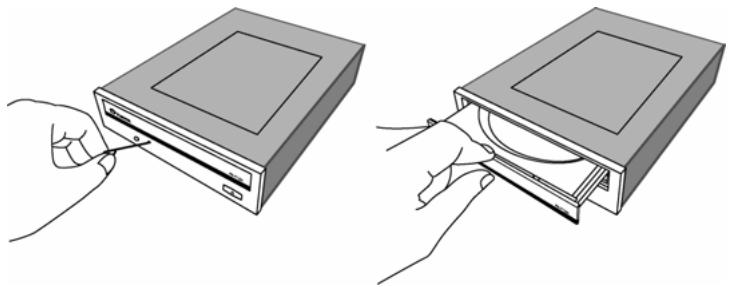
Figure 29: Emergency eject
- Push the tool or other object straight in, until the disc tray clicks open.
- Carefully continue to slide the disc tray open.
- Remove the CD from the disc tray.
- Carefully push the disc tray shut.
Changing the Front-Panel Color
By using the replacement bezel and disc tray face plate you can change the PX-760's front-panel color in a few moments.
CAUTION: Avoid creating static electricity. Be sure to wear a grounding strap when performing this procedure.
To install a different bezel and disc tray face plate:
- If the PX-760 is already installed in a computer, turn the computer power OFF and open the computer case.
- If necessary, remove cables from the rear of the PX-760 and remove the drive. (You may be able to gain access to the necessary parts of the drive by sliding it forward without removing any cables.)
- Use the emergency eject tool or a paper clip to open the tray drawer as illustrated in Figure 29 above.
- Turn the drive upside down (or work from the bottom) and locate the two hooks at the bottom of the disc tray face plate. The hooks are toward the left and right edges of the tray mask.
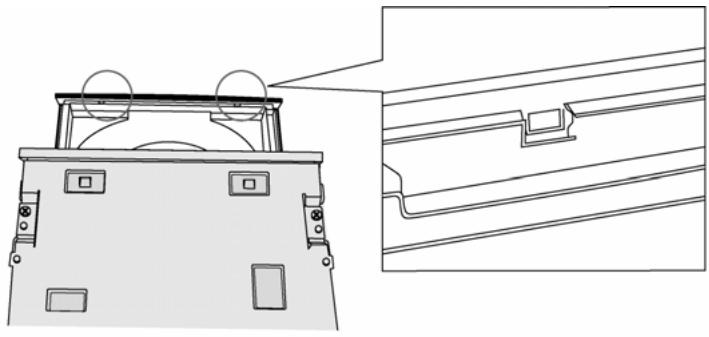
Figure 30: Locate the two disc tray face plate hooks
- Hold the disc tray securely and gently push the tray face plate slightly to release it from the hooks. Pry a hook away from the tray and press down. When both hooks are released, remove the mask by pressing it off the disc tray.
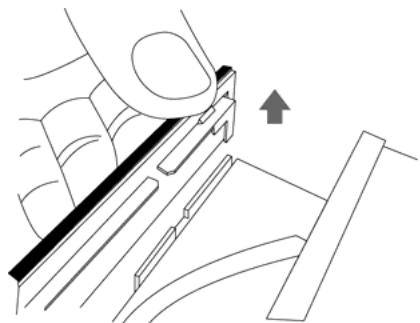
Figure 31: Unhook the tray mask and push to release it
- Locate the four bezel hooks. Two are on the bottom of the drive, and one is on each side.
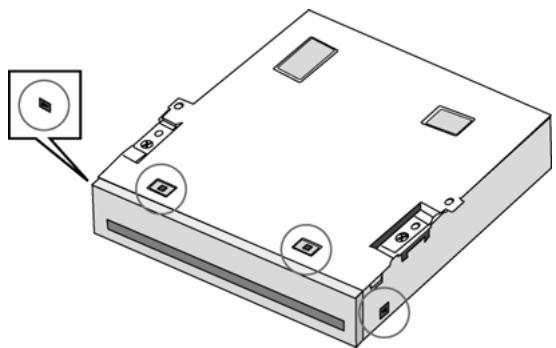
Figure 32: Locate the four bezel hooks
- Turn the drive right side up and locate the catch at the center of the top of the drive.
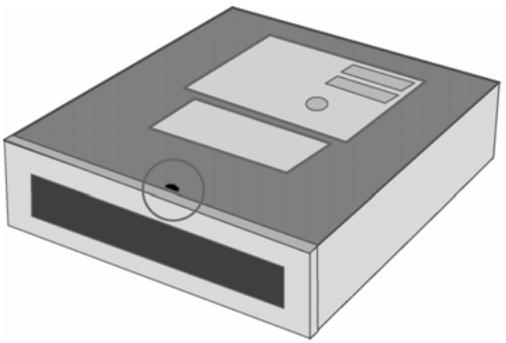
Figure 33: Also locate the catch at the top front of the drive.
- With the drive right side up, release the two side bezel hooks. To release the hooks, press inward using the angled portion of the eject tool. Do this only for the two bezel hooks on the sides. (You don't have to do this for the hooks on the bottom.)
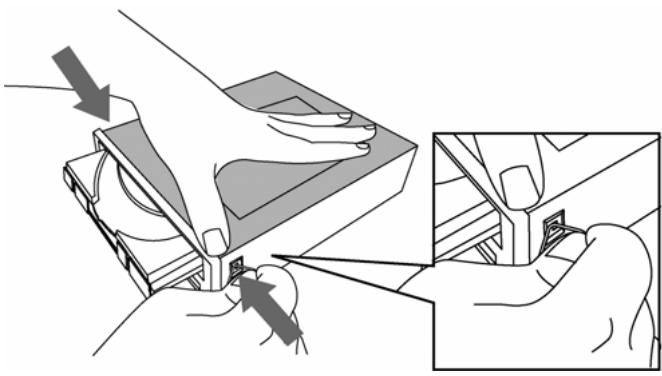
Figure 34: Press in with the angled portion of the eject tool to release the two side bezel hooks
- With the two side bezel hooks released, tilt the top of the bezel slightly forward to release the top catch, then slide the bezel forward to remove it.
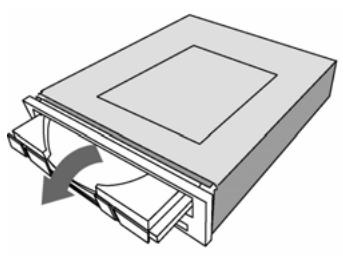
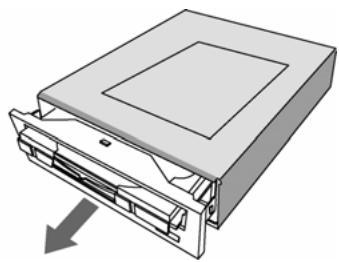
Figure 35: Pull forward gently to remove the front bezel
CAUTION: Do not touch any of the internal components that are visible.
- Position the new bezel in front of the drive and slide it gently in place. Ensure that the top clip and all four bezel hooks lock into place.
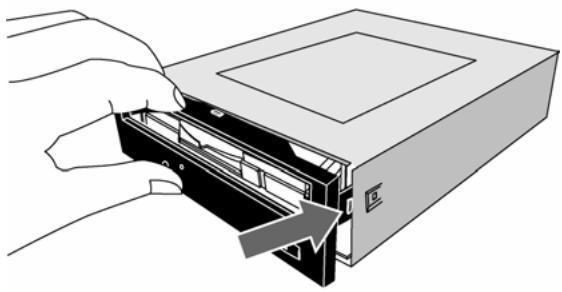
Figure 36: Slide the new bezel into position and make sure all four bezel hooks snap into place
- Install the new tray face plate by pressing the L-shaped forms on both sides of the face plate into the rib of the disc tray, and sliding the face plate downward until the two hooks are fixed.
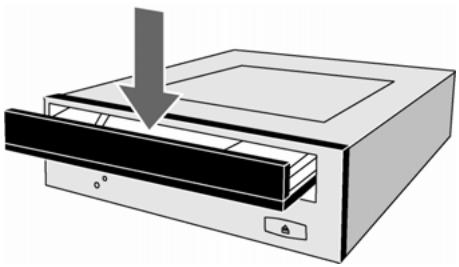
Figure 37: Install the tray face plate Close the disc tray gently, and reinstall the drive in the computer.
To install the drive in your computer, go to Section 2 on page 11 (for the PX-760A drive) or Section 3 on page 37 (for the PX-760SA drive).
Troubleshooting
If you have problems during or right after installation of your drive, first make sure the drive is recognized. If you still have problems, visit the Plextor web site for tips and troubleshooting help.
Make Sure the Drive Is Recognized
If you're having trouble after installation, make sure the PX-760 drive is recognized by your computer. To check whether the drive is recognized:
To see if the drive is recognized in Windows:
- Turn the computer ON. After the computer boots up, you should see the Windows display.
-
Open Windows Explorer or My Computer and ensure there is an icon for the Plextor drive, the hard disk, and another DVD or CD-ROM drive, if present. The Plextor icon may be D: or E: or another designator.
-
If the PX-760 drive is not recognized in Windows, reboot the computer and use your computer's setup program to program the BIOS to recognize it.
NOTE: Refer to the computer's documentation for information on how to run the motherboard BIOS setup program.
For the PX-760A, use the motherboard BIOS setup program to set up IDE Master and Slave designations, as needed for your configuration, on the primary or secondary IDE bus. If the IDE interface is disabled on your computer, you will need to enable it. If a Master or Slave device is set to "disable" or "none" or a similar designation, change it as appropriate to "enable" or "auto" (or something similar, depending on your setup program).
For the 760SA, verify the SATA chipset supports the ATAPI Command set. Use your computer's motherboard BIOS setup program to enable SATA/IDE/ATAPI as needed for your configuration.
Note that if your computer's SATA chipset is dedicated for SATA RAID, the connection may not support optical disc drives like the PX-760SA. Consult your motherboard manual or vendor website for assistance in configuration or for questions of compatibility.
- Save and exit your CMOS setup to restart your computer with the new settings.
- In Windows 2000 or XP, right-click on the My Computer icon and select Properties. Click on the Hardware tab, then click on the Device Manager button. Click the + sign next to the DVD/CD-ROM drives heading and look for the “PLEXTOR DVDR PX-760A” entry underneath.
If you do not see this drive listed as one of the devices, or if it has a yellow diamond with an excclamation point (!), contact Plextor Technical Support. (See "Appendix B: Technical Support" for the different ways you can contact us.)
Using the PX-760A Self-Test Diagnostics
The PX-760A drive contains a set of self-test diagnostics that can help isolate trouble and determine if a problem is in the drive or elsewhere.
NOTE: Using the self-test diagnostics requires opening the computer and removing a cable from the drive, then replacing the cable at the end of the test. If you previously installed the PX-760A in your computer, you should have no fear of the simple procedures that are required. However, if you're not comfortable with opening your PC and disconnecting cables, you may want to let someone with more experience handle this aspect of troubleshooting for you.
To perform the tests you'll need:
- Tools to remove the computer's cover
- An extra jumper (supplied)
- A blank piece of Plextor-recommended DVD+R, DVD-R, or CD-R media. (See page 78 or visit our web site.) The self-test will write to this media, so you won't be able to use this disc again.
This tests three functions of the drive: writing at maximum speed, continuous playback at maximum speed, and random access.
To perform the self-test:
- Turn the computer's power OFF, unplug it from its power source, and open the computer to gain access to the rear of the PX-760A drive. Typically, this involves loosening or removing several screws on the back panel of your computer and sliding off the cover. (See Figure 3 for an example.)
CAUTION: Before you attempt to open your computer be sure to properly ground yourself by wearing an anti-static wristband. This will help prevent static damage to your computer system.
- You should be able to see the back of the PX-760A drive connected to the ATAPI cable, power connector, and, optionally, a digital sound cable.
NOTE: You may have to remove the drive from the computer to perform the next two steps.
-
Hold the ATAPI cable at or near the base of its connection to the PX-760A drive. Carefully remove the ATAPI cable from the drive by pulling the cable gently rearward.
-
Note the position of the mode jumper at the rear of the PX-760A. A jumper will be installed on either the Cable Select, Slave, or Master position. Write down this jumper position. (You'll need to replace the jumper after the test.) Then:
If the jumper is on the Master position, leave it in place.
If the jumper is on the Slave position, leave it in place.
If the jumper is on the Cable Select position, move it to the Master position.
- Install an extra jumper so that both the Master and Slave positions are jumpered, as shown in Figure 38.
- If you removed the drive for access to the cable and mode jumpers, slide it back into the computer and connect the power cable to the drive.
- Replace the computer's cover and re-connect the computer's power cord to the power source.
CAUTION: Turning on the computer power without first replacing the cover can be dangerous to the computer's components and also to you. Be aware of the danger of electric shock and do not touch any components inside the computer.
- Turn the computer power on. The LED indicator blinks green, then amber, and the tray ejects.
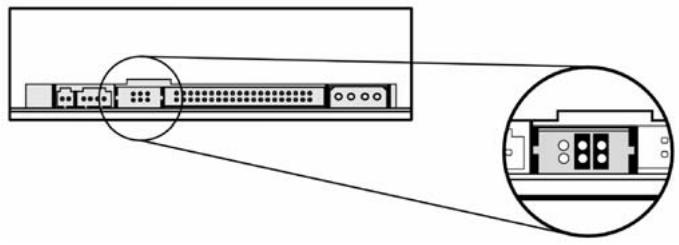
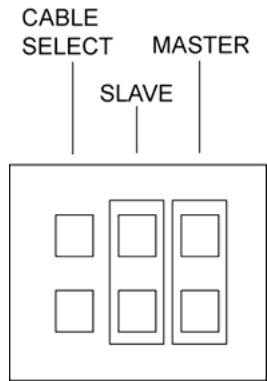
Figure 38: Place jumpers across both the Slave and Master pins to perform the self-test diagnostics on the PX-760A.
- Insert a blank Plextor-recommended DVD±R or CD-R disc. Be sure to use only media of the type recommended by Plextor.
If the LED indicator blinks amber three times, the loaded disc is not a blank DVD±R or CD-R disc. Remove the disc and insert a blank, Plextor-recommended DVD±R or CD-R disc.
- The drive begins the diagnostic routine. Upon completion of the diagnostic, you see the results:
If there was no problem, the disc is ejected automatically.
If there was a problem, the disc is not ejected, and you see the LED indicator blink green:
One green blink indicates a write or read error.
Two green blinks indicate an initialization error.
Three green blinks indicate the disc is not blank or cannot be detected properly.
- If the disc was not ejected automatically, press the eject button to eject the disc.
- Turn off the computer power.
- Reset the mode jumper at the rear of the PX-760A to its original setting as noted in Step 4 above. Also, remove the extra jumper you installed.
- Reconnect the IDE cable to the PX-760A drive. If you removed the drive to gain access to the cable or jumpers, replace the drive in the computer. Then replace the computer cover.
If you discover a problem with the PX-760A drive, do not attempt to service the drive yourself. Contact us to get an RMA number and take steps to return the drive to Plextor. See "Returns" on page 91 for details.
Using the PX-760SA Self-Test Diagnostics
The PX-760SA drive contains a set of self-test diagnostics that can help isolate trouble and determine if a problem is in the drive or elsewhere.
NOTE: Using the self-test diagnostics requires opening the computer and adding a jumper to the rear panel of the drive. If you're are not comfortable with opening your PC and adding a jumper, you may want to let someone with more experience handle this aspect of troubleshooting for you.
To perform the tests you'll need:
- Tools to remove the computer's cover
- A jumper (supplied)
- A blank piece of Plextor-recommended DVD+R, DVD-R, or CD-R media. (See page 78 or visit our web site.) The self-test will write to this media, so you won't be able to use this disc again.
This tests three functions of the drive: writing at maximum speed, continuous playback at maximum speed, and random access.
To perform the self-test:
- Turn the computer's power OFF, unplug it from its power source, and open the computer to gain access to the rear of the PX-760SA drive. Typically, this involves loosening or removing several screws on the back panel of your computer and sliding off the cover. (See Figure 21 for an example.)
CAUTION: Before you attempt to open your computer be sure to properly ground yourself by wearing an anti-static wristband. This will help prevent static damage to your computer system.
You should be able to see the back of the PX-760SA drive connected to the SATA cable and power connector. There are two cable connections to the drive: the left-hand connection is a 15-pin SATA power cable. The right-hand connection is a 7-pin SATA interface cable.
NOTE: You may have to remove the drive from the computer to perform the next two steps.
- Hold the SATA interface cable (the right-hand cable) at its connection to the PX-760SA drive. Carefully remove the SATA cable from the drive by pulling the cable gently rearward. Leave the SATA power cable attached to the drive.
- Note the self-test/DMA jumper at the rear of the PX-760SA. If no jumper is installed, place a jumper across the two pins.
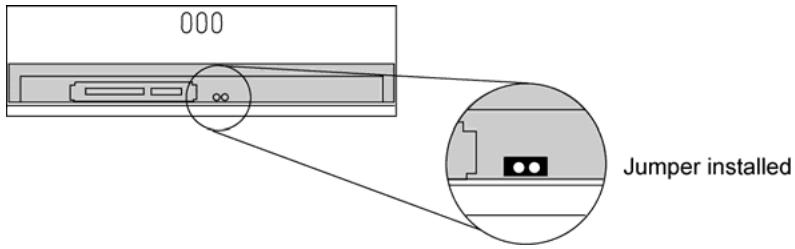
Figure 39: Add the PX-760SA self-test/DMA jumper to enable the self-test diagnostics
- If you removed the drive for access to the cable and self-test/DMA jumper, slide it back into the computer and reconnect the power cable to the drive. (Do not connect the SATA interface cable.)
- Replace the computer's cover and re-connect the computer's power cord to the power source.
CAUTION: Turning on the computer power without first replacing the cover can be dangerous to the computer's components and also to you. Be aware of the danger of electric shock and do not touch any components inside the computer.
-
While pressing the PX-760SA's eject button, turn the computer power on. The drive's LED indicator blinks green, then amber, and the tray ejects.
-
Insert a blank Plextor-recommended DVD±R or CD-R disc. Be sure to use only media of the type recommended by Plextor.
If the LED indicator blinks amber three times, the loaded disc is not a blank DVD±R or CD-R disc. Remove the disc and insert a blank, Plextor-recommended DVD±R or CD-R disc.
- The drive begins the diagnostic routine. Upon completion of the diagnostic, you see the results:
If there was no problem, the disc is ejected automatically.
If there was a problem, the disc is not ejected, and you see the LED indicator blink green:
One green blink indicates a write or read error.
Two green blinks indicate an initialization error.
Three green blinks indicate the disc is not blank or cannot be detected properly.
- If the disc was not ejected automatically, press the eject button to eject the disc.
- Turn off the computer power.
- Reset the self-test/DMA jumper at the rear of the PX-760SA to its original setting as noted in Step 3 above.
- Reconnect the SATA interface cable to the PX-760SA drive. If you removed the drive to gain access to the cable or jumpers, replace the drive in the computer. Then replace the computer cover.
If you discover a problem with the PX-760SA drive, do not attempt to service the drive yourself. Contact us to get an RMA number and take steps to return the drive to Plextor. See "Returns" on page 91 for details.
Q: Which is better, DVD+R and DVD+RW? Or DVD-R and DVD-RW?
A: Neither is "better" or "worse." They're just different standards, like English versus metric measurement.
Different manufacturers support different standards. The DVD+R and DVD+RW formats are supported by Plextor, Philips, Sony, Hewlett-Packard, Dell, Ricoh, Yamaha and other manufacturers. DVD-R, DVD-RW and DVD-RAM are also supported by Plextor, as well as Panasonic, Toshiba, Apple Computer, Hitachi, NEC, Pioneer, Samsung and Sharp.
No matter which format a DVD disc is recorded in, it can be read by most commercial DVD-ROM players.
Q: What is "recommended media"?
A: Recommended media are recordable or rewritable CD and DVD media that have been tested by Plextor and found to operate well consistently, from one manufacturing lot to another. For each drive, Plextor engineers test media from many different manufacturers and manufacturing facilities, creating a recommended media list and determining the optimum write strategy for that particular media type. The results are listed as "recommended media," and are also assembled into a media catalog and stored in firmware in Plextor drives. (See the Plextor web site at www.plextor.com for the latest list of recommended media for the PX-760.)
From time to time, the media catalog is updated with new manufacturers and part numbers as Plextor tests additional media. When this happens, Plextor makes new drive firmware available. You can download this new firmware and update your drive.
Q: What is AUTOSTRATEGY?
AUTOSTRATEGY is a self-adjusting writing technology for unknown media. AUTOSTRATEGY enables high quality disc recording, even if the disc is not listed in the drive's internal media catalog. You control AUTOSTRATEGY via PlexTools Professional or other recording software.
AUTOSTRATEGY works like this: When you insert a piece of DVD+R or DVD-R media—whether an unknown media type or even a type that is currently in the media catalog in the drive's firmware—
AUTOSTRATEGY can create a write strategy for that new media and add it to a separate database. This non-volatile memory of the drive holds up to 31 write strategies. You can activate, deactivate, and delete entries in this separate AUTOSTRATEGY database. You can also view and save or print the list of database entries.
With PlexTools Professional, you have full control over AUTOSTRATEGY. You can allow AUTOSTRATEGY to pick the best write strategy, whether that strategy is in its own database or the drive's media catalog. Or you can force AUTOSTRATEGY to always use its own database, or to always use the media catalog database. For PlexTools Professional details and downloads, see http://www.plextools.com/.
Q: What's the difference between "double layer" and "dual layer"?
A: Nothing, really. It's simply a difference of opinion within the industry about how to label media and drive capabilities. DVD+R DL (as named by the DVD+RW Alliance) stands for DVD+R Double Layer. DVD-R DL (from the DVD Forum) stands for DVD-R Dual Layer. Whether your DL media is labeled "double layer" or "dual layer," the PX-760 can handle it.
Q: In the list of Recommended Media, what's the difference between "rated," "compatible," and "recommended" speeds?
A: "Rated" is the manufacturer's rated write speed for the media; it's what you see on the box. "Compatible" is a looser term that indicates the maximum safe writing speed according to the manufacturer.
"Recommended" is the Plextor-recommended speed for ensuring top-quality writing using this media. Plextor tests media and enters the "compatible" and "recommended" speeds into the drive's media catalog.
For example, 8X-rated media listed as "12X writing recommended" and "16X compatible" indicates the manufacturer believes this 8X-rated media can be written at 16X. Plextor factory testing has determined you will achieve the highest quality write at 12X. Plextor's testing also indicates you can write this media at 16X and still achieve good quality, although perhaps not as high as at the recommended speed.
Just because the vendor rates a disc for a certain speed doesn't mean that the disc will give you a high-quality write at that speed. However, the PoweRec technology in your Plextor drive ensures you will write at the highest possible speed that still achieves high quality.
Q: Why do I need an 80-conductor IDE cable for the PX-760A?
Your PX-760A will operate with either the older 40-conductor cable or the newer 80-conductor IDE/ATA cable. However, the 80-conductor cable improves performance, and the PX-760A may not be able to write at maximum speed (18X) without it. Although the new cable has 80 conductors (wires), it still has only 40 connector pins, so it's compatible with the connector on your PX-760A. (The extra wires are present to reduce interference that would slow high-speed transfers.)
Q: Where can I find out more information about the PX-760SA's Serial ATA interface?
A: Go to www.sata-io.org.
This page intentionally left blank.
This appendix shows specifications for all PX-760 drives, followed by unique specifications for the PX-760A and PX-760SA.
Specifications for All PX-760 Drives
Front Panel
Eject Eject button; manual emergency eject; software eject.
LED Indicator
- Yellow when initializing, reading, or ejecting disc.
- Green during standby and when Buffer Underrun Proof Technology or Lossless Linking/Zero Link is active.
- Blinking amber when writing to disc. Blink rate indicates writing speed.
Disc Loading Auto
DVD Regional Setting
Compatibility RPC phase-2-compatible
Changing Max. 5 times regional setting
Other Features
Data Buffer 2 MB
| Usable Formats | |
| Logical DVD Read/Write | DVD-ROM, DVD-Video, Multi-border, Multi-session, DVD+VR, DVD-VR, DRT-DM |
| Logical CD Read/Write | Sector layer: CD-DA (CD-DA/CD+G/CD-TEXT), CD-ROM (Mode 0/Mode 1/ Mode 2), CD-ROM XA (Mode 2 Form1/2) Application layer: Audio CD, Data CD, Photo-CD, Video-CD, CD-I, CD-I Ready, Mixed CD, CD-Extra, Multi-session CD, Packet Write CD, (Method 1, Method 2), Bootable CD |
| Write Methods, DVD+R/RW, DVD+R DL | DVD+R: Disc-at-once (DAO), multi-session, incremental recording DVD+RW: Random access write, sequential write DVD+R DL: DAO, multi-session, incremental recording |
| Write Methods, DVD-R/RW, DVD-R DL | DVD-R: DAO, incremental recording, multi-border recording DVD-RW: DAO, multi-border recording, incremental recording, restricted overwriting, DRT-DM DVD-R DL: Sequential write |
| Write Methods, CD-R/RW | Track-at-once (TAO), DAO, packet write (variable and fixed), session-at-once (SAO) |
Supported Media
Supported Media, DVD
- Stamped DVDs: Single layer / Double layer
DVD-R: For General Part 1 Physical Specification Version 2.1
DVD-R DL: Part 1 Physical Specification 3.0
DVD-RW: Part 1 Physical Specification Version 1.1/1.2
DVD+R: Part 1 Volume 1 Basic Format Version 1.3
DVD+R DL: Part 2 Basic Format Specification Version 1.0
DVD+RW: Part 1 Volume 1 Basic Format Specification Version 1.3; Part 1 Volume 2 Basic Format Specification Version 1.0
Supported Media, CD
- Stamped CDs: Discs compliant with Red/Yellow/Green/White/Blue Book
- CD-R: Orange Book Pt II-compliant discs (Type 74, Type 80)
CD-RW: Orange Book Pt III-compliant discs
Supported Media Size
CD:12cm
DVD: 12 cm, 8cm (DVD-R/RW)
Recommended Media
You can use virtually any media in your PX-760 and be assured of the best possible write quality. However, Plextor-recommended media are recordable or rewritten CD and DVD media that have been tested by Plextor and found to operate well consistently, from one manufacturing lot to another. For each drive, Plextor engineers test media from many different manufacturers and manufacturing facilities, creating a recommended media list and determining the optimum write strategy for that particular media type. The results are listed as "recommended media," and are also assembled into a media catalog and stored in firmware in Plextor drives.
See the Plextor web site at www.plextor.com for the latest list of recommended media for the PX-760.
In the media lists:
- "Rated" is the manufacturer's rated write speed for the media; it's what you see on the box.
- "Compatible" is a looser term that indicates the maximum safe writing speed according to the manufacturer.
- "Recommended" is the Plextor-recommended speed for ensuring top-quality writing using this media.
Plextor tests media and enters the "compatible" and "recommended" speeds into the drive's media catalog.
Performance Specifications
Read Speed, DVD
| Speed | Stamped DVD | DVD ±R | DVD ±RW | DVD ±R DL | |
| SL | DL | ||||
| 6-16X CAV | ✓ | - | - | - | - |
| 5-12X CAV | ✓ | ✓ | ✓ | ✓ | - |
| 3-8X CAV | ✓ | ✓ | ✓ | ✓ | ✓ |
| 2-5X CAV | ✓ | ✓ | ✓ | ✓ | ✓ |
| 2X CLV | ✓ | ✓ | ✓ | ✓ | ✓ |
NOTES: SL = Single layer disc, DL = Double layer disc.
When a DVD-Video with CSS (copy protection via the Content Scrambling System) is loaded, the PX-760 slows its playback speed to reduce drive noise.
Read Speed, CD
| Speed | Mode-1 Discs | Mode-2 Discs | CD-DA Discs |
| 20-48X CAV | Stamp,R (48X with SpeedRead; default is 40X) | - | - |
| 17-40X CAV | Stamp,R, RW | Stamp,R, RW | Stamp,R |
| 14-32X CAV | Stamp,R, RW | Stamp,R, RW | Stamp,R, RW |
| 10X-24X CAV | Stamp,R, RW | Stamp,R, RW | Stamp,R, RW |
| 8X CLV | Stamp,R, RW | Stamp,R, RW | Stamp,R, RW |
| 4X CLV | Stamp,R, RW | Stamp,R, RW | Stamp,R, RW |
NOTE: "Stamp" indicates commercially pressed "silver" discs.
Performance Specifications (continued)
| Write Speed, DVD ± R/RW | Speed | +R | +RW | +R DL | -R DL | -R | -RW |
| 7-18X CAV | ✓ | - | - | - | ✓ | - | |
| 6-16X CAV | ✓ | - | - | - | ✓ | - | |
| 6-12X PCAV | ✓ | - | - | - | ✓ | - | |
| 6-10X PCAV | - | - | ✓ | - | - | ||
| 6X-8X CAV | ✓ | ✓ | ✓ | - | ✓ | - | |
| 6X CLV | ✓ | ✓ | ✓ | ✓ | ✓ | ✓ | |
| 4X CLV | ✓ | ✓ | ✓ | ✓ | ✓ | ✓ | |
| 2.4X CLV | ✓ | ✓ | ✓ | - | - | - | |
| 2X CLV | - | - | - | ✓ | ✓ | ✓ | |
| 1X CLV | - | - | - | - | - | ✓ | |
| Write Speed, CD-R/RW | Speed | CD-R | Ultra Speed CD-RW Media | High Speed CD-RW Media | Normal Speed CD-RW Media | ||
| 48X CAV | ✓ | - | - | - | |||
| 32X PCAV | ✓ | - | - | - | |||
| 24X PCAV | - | ✓ | - | - | |||
| 16X CLV | ✓ | - | - | - | |||
| 10X CLV | - | - | ✓ | - | |||
| 8X CLV | ✓ | - | - | - | |||
| 4X CLV | ✓ | - | - | ✓ | |||
Performance Specifications (continued)
| DVD Transfer Rate | Speed | Write (KB/s) | Read (KB/s) |
| 18X | 9972-24930(CAV) | - | |
| 16X | 9280-22160 (CAV) | 9280-22160 (CAV) | |
| 12X | 8310-16620 (PCAV) | 6925-16620 (CAV) | |
| 10X | 8310-13850 (PCAV) | - | |
| 8X | 8310-11080 (PCAV) | 4709-11080 (CAV) | |
| 6X | 8310 (CLV) | - | |
| 5X | - | 2909-6925 (CAV) | |
| 4X | 5540 (CLV) | - | |
| 2.4X | 3324 (CLV) | - | |
| 2X | 2770 (CLV) | 2770 (CLV) | |
| 1X | 1385 (CLV) | - | |
| CD Transfer Rate | Speed | Write (KB/s) | Read (KB/s) |
| 48X | 3150-7290(CAV) | 3000-7200 (CAV) | |
| 40X | - | 2600-6000 (CAV) | |
| 32X | 3150-4800 (PCAV) | 2080-4800 (CAV) | |
| 24X | 3000-3600 (PCAV) | 1600-3600 (CAV) | |
| 16X | 2400 (CLV) | - | |
| 10X | 1500 (CLV) | - | |
| 8X | 1200 (CLV) | 1200 (CLV) | |
| 4X | 600 (CLV) | 600 (CLV) | |
| Initialization Time | Time measured from power on until disc is available to read: • DVD: < 18 sec. (typical), < 20 sec. (max.) • CD: < 13 sec. (typical), < 15 sec. (max.) | ||
| Access Time | Time measured from command phase until bus free (no disconnect): • DVD: < 150 msec. (typical), < 180 msec (max.) • CD: < 100 msec. (typical), < 130 msec (max.) | ||
Performance Specifications (continued)
Sleep Mode Entered after 2 minutes of no access to drive (default setting)
Wake Mode < 5 sec. (max.) to start drive after sleep
Environmental Conditions
| Mounting Position | Horizontal or vertical orientation: ■ Horizontal: ±15 degrees ■ Vertical: Front side up or down, ±15 degrees |
| Operating Temperature | 5 to 40 degrees Celsius |
| Operating Humidity | 20 to 80% (non-condensing) |
| Storage Temperature | -40 to 60 degrees Celsius |
| Storage Humidity | 20 to 95% (non-condensing) |
| Acoustic Noise | Playing balanced disc: Maximum 46dB Playing unbalanced disc: Maximum 46dB 18X write: Maximum 52dB Tray ejecting: Maximum 50dB |
| Vibration, Operating | Sine sweep 5 minutes: ■ CD/DVD read: 0.15G0-Pk (5-300Hz) ■ CD-R write: 0.15G0-Pk (5-300Hz ■ CD-RW rewrite: 0.10G0-Pk (5-300Hz) ■ DVD write: 0.10G0-Pk (5-300Hz) |
| Vibration, Non-Operating | Sine sweep 5 minutes: 2.0G0-Pk (5-300Hz) (Power off, without disc) |
Environmental Conditions (continued)
Shock, 11msec half sine, 10 sec interval:
Operating CD read: 5.0G0 - PK (5-300Hz)
DVD read: 5.0G0 - PK(5 - 300Hz)
CD-R write: 1.5G0 - Pk (5-300Hz)
- CD-RW rewrite: 0.5G0 - PK( 5 - 300 Hz)
DVD write: 0.5G_0 - Pk (5-300Hz)
Shock, Non- Permissible acceleration range (cm/sec):
operating Bottom:594.0
Top: 420.0
- Left: 507.9
Right: 507.9
Front: 462.5
Rear: 462.5
(Power off, without disc)
Electrostatic ±8KV aerial discharge Discharge ±4KV contact discharge Both with no hard errors, no damage
Reliability
MTBF 60,000 hours
Tray Loading 50,000 load/unload cycles
Read Error CD-ROM Mode 1: 1 block/10 ^12 bits
Rate CD-ROM Mode 2: 1 block/10 ^9 bits
Safety, Laser, and EMC Standards
| Country/ Region | Type | Agency | Standard |
| USA | Safety | UL | UL 60950 |
| Laser | FDA | FDA 21 CFR 1040.10 and 1040.11 | |
| EMC | FCC | FCC Part15B | |
| Canada | Safety | UL (C-UL) | CSA 22.2 No. 60950 |
| Europe | Safety | CE | EN60950-1/IEC60950-1 |
| Laser | CE | EN60825-1 | |
| EMC | CE | EN55024, EN55022 Class B |
Specifications for the PX-760A Internal ATAPI Drive
Minimum System Requirements—PX-760A Internal ATAPI Drive
Computer Pentium 4, 1.4-GHz or equivalent
NOTE: For real-time MPEG-2 capture and burning, Easy Media Creator 7 requires a 1.6-GHz Pentium 4 or equivalent.
Minimum RAM 256 MB
Hard Disk Size 1 GB of free space to write to a CD in image mode, or 10 GB of free space to create DVD images. (For more accurate guidelines, see the help files or documentation for the recording software you're using.)
Interface IDE (ATAPI) supported
Operating Windows XP, XP 64-bit, or 2000 System
Rear Panel, PX-760A Internal ATAPI Drive
Power Supply
| DC +12V, ±10% | DC +5V, ±5% | |
| Typical standby current | 100 mA | 230 mA |
| Typical DVD read current (DVD 16X) | 1.4 A | 700 mA |
| Typical CD read current (CD 48X) | 1.4 A | 750 mA |
| Typical DVD write current (DVD+R 18X) | 1.4 A | 1.4 A |
| Typical write current (CD-R 48X) | 1.4 A | 800 mA |
| Typical pause current | 1.0 A | 700 mA |
| Peak current | 2.3 A | 1.7 A |
Power Consumption
Average 22.2 W for DVD read/write
IDE Interface Connector
IDE bus, 40-pin flat ribbon type. Interface complies with ATA/ATAPI-5. Must use 80-conductor IDE/ATA cable.
NOTE: Although the PX-760A will operate with a 40-conductor cable, it may not be able to write at 18X unless an 80-conductor IDE/ATA cable is used.
Maximum total cable length cannot exceed 18 in (45.7 cm).
Analog Audio Output Connector
Not used
Digital Audio Output Connector
Digital audio output for input to SPDIF or Digital-In input
Mode Jumper
Master (default), slave, cable select (CSEL)
Dimensions and Weight, PX-760A Internal ATAPI Drive
| Dimensions | 5.75" x 1.63" x 6.69" |
| (W/H/D) | 146 mm x 41.3 mm x 170 mm |
| (excluding | |
| front panel) |
Weight < 2.2 lbs. (1.0kg)
Host Interface, PX-760A Internal ATAPI Drive
Type ATA/ATAPI-5-compliant
PIO Transfers Modes 0-4
Multiword Modes 0-2 DMA Transfers
Ultra DMA Modes 0-4 (Ultra DMA66) Transfers
ATAPI Refer to the Plextor ATAPI command manual. Command Set
Inquiry string PLEXTOR sp DVDR sp sp sp PX-760A sp sp (where "sp" is one space)
Specifications for the PX-760SA Internal SATA Drive
Minimum System Requirements—PX-760SA Internal SATA Drive
Computer Pentium 4, 1.4-GHz CPU or equivalent
NOTE: For real-time MPEG-2 capture and burning, Roxio Easy Media Creator 7 requires a 1.6-GHz Pentium 4 or equivalent.
Minimum RAM 256 MB
Hard Disk Size 1 GB of free space to write to a CD in image mode, or 10 GB of free space to create DVD images. (For more accurate guidelines, see the help files or documentation for the recording software you're using.)
Interface Serial ATA 1.0. Must support ATAPI command set.
Operating Windows XP, XP 64-bit, or 2000 System
Rear Panel, PX-760SA Internal SATA Drive
Power Supply
| DC +12V, ±10% | DC +5V, ±5% | |
| Typical standby current | 100 mA | 380 mA |
| Typical DVD read current (DVD 16X) | 1.4 A | 900 mA |
| Typical CD read current (CD 48X) | 1.4 A | 900 mA |
| Typical DVD write current (DVD+R 18X) | 1.2 A | 1.0 A |
| Typical write current (CD-R 48X) | 1.2 A | 1.0 A |
| Typical pause current | 700 mA | 650 mA |
| Peak current | 2.4 A | 1.7 A |
Rear Panel, PX-760SA Internal SATA Drive (continued)
Power Average 20.4W for DVD read/write Consumption
Dimensions and Weight, PX-760SA Internal SATA Drive
Dimensions 5.75" x 1.63" x 6.69"
(W/H/D) 146 mm x 41.3 mm x 170 mm
(excluding
front panel)
Weight < 2.2 lbs. (1.0kg)
Host Interface, PX-760SA Internal SATA Drive
Type Serial ATA Generation 1
Data Serial ATA: Power, 15 pins; signal, 7 pins Connector
Serial ATA 1.5 Gbps (150MB/s) Transfers
ATAPI Refer to the Plextor ATAPI command manual. Command Set
PIO Transfers Modes 0-4
Multiword Modes 0-2 DMA Transfers
Ultra DMA Modes 0-4 (Ultra DMA66) Transfers
Inquiry string PLEXTOR sp DVDR sp sp sp PX-760A sp sp (where "sp" is one space)
Store Plextor's e-mail, web site, phone, and fax numbers in a convenient location. Keep your drive's serial number and a copy of your sales receipt handy as well.
If you experience a problem while installing or operating your drive, please refer first to the relevant sections of this manual regarding setup and installation (Sections 1-3). If you do not uncover the solution there, please refer next to the maintenance and troubleshooting section that begins on page 55. You may also wish to refer to the Frequently Asked Questions (FAQ) section of our web site to assist you in troubleshooting the problem on your own.
NOTE: We encourage you to go the Plextor web site (www.plextor.com) before attempting to contact Technical Support. The answers to the most common questions callers ask can be found quickly in the support area. Select PlexHelper for online troubleshooting or FAQs for answers to common questions.
If you have not been successful in your quest, our Technical Support Department will help you solve problems that relate specifically to your PX-760 drive. In many cases, a problem that appears to be caused by your Plextor drive actually originates in another part of your computer. In such instances, our technical support staff will try to help you identify the part at fault and will refer you to the manufacturer of that part for further assistance.
How to Contact Plextor Technical Support
There are several ways for you to contact Plextor's Technical Support Department:
- Visit our web site (www.plextor.com) for answers to Frequently Asked Questions.
- Send us e-mail (techsupport@plextor.com). Include your telephone number and the hours during which you can be reached. Be as detailed as possible in describing your problem. Please include system configuration, hardware and software, as well as versions of drivers used.
- Call 1-800-204-0332 or 937-615-1610 and select the tech support option.
Before You E-mail or Call for Support
Please gather as much of the following information as possible before contacting us.
- The serial number and TLA (top level assembly) number of your PX-760 drive. Your serial number and TLA number appear both on the drive label and on a sticker at the rear of internal drives.
- The latest version of firmware you loaded onto the drive, if applicable.
- The version of the Windows operating system you are using.
- The brand name and model number of your computer (e.g., Dell 466/NP, Hewlett-Packard Pavilion 752n, etc.).
- The type of VGA, Super VGA, or other graphics board you use.
- Brand name and model number of any other peripherals you have installed or connected to your computer (e.g., CD-ROM, scanner, fax board, network board).
Returns
In the unlikely event that you need to return a drive to Plextor, you need an RMA (Returned Materials Authorization) number. You will need this number before any Plextor drive can be returned for replacement. Here's how you get an RMA number and return your drive:
- Contact Plextor Technical Support. You will receive assistance in troubleshooting your system. If the drive is determined to be defective, you will receive an RMA number.
- Plextor will e-mail you with the RMA number and shipping information.
- When you receive the RMA number, pack the Plextor drive securely in a box, and include the RMA number with the drive.
- Write the RMA number in large bold numbers on the outside of the box, and ship it to Plextor.
Contacting Plextor's RMA Department
You can contact our RMA Department and request RMA forms at:
- rmasupport@plextor.com
- Or by calling us at 1-800-204-0332 or 937-615-1610.
Packing Your Drive
Check the drive to make sure there is no disc inside, and if possible, pack your drive in the original box. Some of our customers have not held on to their boxes and have had to resort to less-than-secure methods to get drives back to us.
CAUTION: Never ship the drive with a CD or DVD disc inside it.
If you did not receive a box (for example, your drive came pre-installed in a computer), we recommend you pay a packaging store (such as The UPS Store) to ship your drive. If you don't have a packaging store in your area, ask for packaging pointers when you contact us to get an RMA number before returning any drive.
Shipping Your Drive to Plextor
Be sure to write the RMA number on the outside of the shipping box. Any drive sent to Plextor without an RMA number will not be accepted.
NOTE: The RMA number must be clearly visible on the outside of the shipping box.
Drives must be sent postage prepaid. We recommend that you insure your shipment, as Plextor cannot be held responsible for any damage that may occur during shipment.
PLEXTOR CORP. ("Plextor") warrants your PX-760A or PX-760SA drive against any defect in material and workmanship, under normal use, for a period of one year following its date of purchase. In the event this product is found to be defective within the warranty period, PLEXTOR will, at its option, repair or replace the defective unit.
This warranty is void: a) if the unit is operated or stored under abnormal use and/or conditions; b) if the unit is repaired, modified or altered, unless such repair, modification or alteration is expressly authorized in writing by PLEXTOR; c) if the unit is subjected to abuse, neglect, lightning strike, electrical fault, improper packaging, or accident; d) if the unit is installed improperly; or e) if the serial number of the unit is defaced or missing.
PLEXTOR will not, under any circumstances, be liable for direct, special, or consequential damages such as, but not limited to, damage or loss of property or equipment, loss of profits or revenues, cost of replacement goods, or expense or inconvenience caused by service interruptions. Under no circumstances will any person be entitled to any sum greater than the purchase price paid for the unit.
To obtain warranty service, you must contact PLEXTOR's Technical Support Department by e-mail (techsupport@plextor.com) or by calling 1-800-204-0332 or 937-615-1610. The Technical Support Department will attempt to diagnose and correct your problem. If the unit does not function properly, they will provide you with a Return Material Authorization (RMA) number. You may be asked to furnish proof of purchase to confirm that the unit is still under warranty.
All product returns must be authorized in advance by PLEXTOR. Authorization is confirmed by issuance of the RMA number, which must be written prominently on the outside of the box in which the defective unit is returned to PLEXTOR.
All drives returned to PLEXTOR must be securely packaged and shipped postage prepaid.
The drive will be returned to the customer at Plextor's expense when originating within the United States. For a drive originating outside of the United States, the customer is responsible for shipping costs in both directions.
NOTE: Warranty validity is limited to that applicable in the location where the drive was originally purchased.
If You're Outside the U.S. or Canada
Note that the warranty and RMA policy only apply to the United States and Canada. If you are in South America, contact your dealer or reseller for all warranty and RMA claims.
A
access time · 81
achieving best performance, PX760A · 24, 25
analog audio output connector not used · 12 ,85
ATAPI command set · 86, 88
audio, digital · 85
AUTOSTRATEGY · 3,72
LEDindicatorand·11,38
B
background format, DVD · 2
bay cover panel · 32,43
black tray · 4
blue book · 77
box contents
PX-760A·13
PX-760SA·40
buffer · 6,75
Buffer Underrun Proof Technology 6
LEDindicatorand·11,38,75
C
cable
40-conductor IDE · 13, 19
80-conductor IDE/ATA·13, 19
cable select, replacing · 20
IDE·31,34
IDE/ATA·13
power·31,42
power for drive · 21
SATA·42
cable connections
PX-760A·35
PX-760SA·45
cable select · 17,28,29,85
cable for · 20
configuring PX-760A for · 29
identifying·20
master·20
PX-760A installation · 28
setting mode jumper · 22
signal·29
slave·20
using 80-conductor Plextor cable for · 20
cable, IDE/ATA, 80-conductor · 18
required·13,73
CD
formats supported · 76
reading speed · 79
recording modes · 6, 76
write methods · 6 ,76
CD cleaning disc, don't use · 9 , 55
CD reading speed · 79
CD + G· 6
CD-R
compatibility · 6
media·48
reading speed · 2
writing·52
writing speed · 2 ,80
CD-ROM, playing · 48
CD-RW
compatibility · 6
high speed · 80
media·48
normal speed · 80
ultra speed · 80
writing·52
writing speed · 2 ,80
CD-TEXT·6
cleaning disc · 50
cleaning your drive · 55 precautions · 9, 55
closing tray · 49
compatibility
CD-R·6
CD-RW·6
DVD·5
DVD+R·71
DVD+RW·71
computer, minimum
PX-760A·7,84
PX-760SA·87
configuration
cable select · 29
PX-760A minimum · 7 ,84
PX-760SA minimum · 87
types of IDE · 18
connection, digital audio · 85
connector
digital audio · 12, 35
IDEinterface·13,33,39,85
power·13,39
SATA interface · 45
connectors and jumpers, PX-760A
rear-panel · 85
connectors, PX-760SA rear-panel 87, 88
content scrambling system · 5 , 53
controls, front-panel
PX-760A·11
PX-760SA·38
cover panel, bay · 32, 43
CSEL · See cable select
CSS·See content scrambling system
D
data buffer · 75
diagnostics, PX-760A · 64
diagnostics, PX-760SA · 68
digital audio output · 85
connector · 12,35,85
Digital-In connector · 12 35,85
dimensions
PX-760A·86
PX-760SA·88
disc
cleaning·50
labels·50
loading·75
testing · 4
disc capacity, changing with
GigaRec·6
distributed real time defect
management · 2
DMA jumper · 30 ,41
DMA support · 3 ,86,88
double layer side 2·47
drive, recognizing in Windows · 62
DVD
compatibility · 5
formats compared · 71
formatssupported·5,76
media·47
playing · 51
reading speed · 2 , 79
recording modes · 5 ,76
regional setting · 51 ,75
write methods · 5 ,76
DVD+R
compatibility·71
media·47
writing · 51
writing speed · 2 ,80
DVD+R DL
lossless linking · 5
writing speed · 80
DVD+RW
compatibility·71
editing·5
media·47
writing · 51
writing speed · 80
DVD±R DL
media·47
DVD-R·71
drive capabilities · 47
writing speed · 2 ,80
DVD-R DL
writing speed · 80
zero link · 5
DVD-RW·71
drive capabilities · 47
writing speed · 80
zero link · 5
DVD-Video
reading speed · 2,5,53
E
Easy Media Creator·51,52
editing DVD+RW·5
eject
emergency · 12 ,38,57
methods for · 75
eject button · 12,38
closing tray · 49
used for PX-760A self-test · 65
electrostatic discharge
specification · 83
EMC standards·84
emergency eject hole · 12 38,57
emergency eject tool · 12 , 13, 38, 40, 57
error rate specification · 83
F
FAQs·71
features · 3
CD-R·6
DVD·5
firmware
obtaining · 56
upgrading · 4 ,56,71
flash memory · 4 ,56
forms·76
CD·6,76
DVD·5,71,76
frequently asked questions · 71
front panel
changing color of · 3 , 58
controls·75
replacing · 3,58
front-panel controls
PX-760A·11
PX-760SA·38
G
GigaRec · 6
H
hard disk size · 7 ,84,87
high speed CD-RW
media·48
write speed · 80
host interface
PX-760A·86
PX-760SA·88
humidity
specification·82
storage·82
1
IDE cable, 40-conductor · 19
IDE cable, connecting · 34
IDE configuration
determining for PX-760A · 17
examples·24
selecting for PX-760A · 24
types of · 18
IDE interface connector · 13 ,33, 39,85
IDE ports · 18
IDE/ATA cable, 80-conductor · 13, 18, 19
initialization time · 81
inquiry string
PX-760A·86
PX-760SA·88
installation
examples·24
PX-760A·11, 16, 26, 27, 31
PX-760SA·37,42
interface
ATAPI·7
PX-760A·84
PX-760SA·87
J
jumper
DMA·30,41
mode·13,21,85
L
label, disc · 50
laser standards · 84
laser testing · 4
LEDindicator·11,38,75
blink rate · 52
Buffer Underrun Proof
Technology and · 75
color·52,75
lossless linking · 5
M
maintenance·55
master·17,24,85
cable select · 20
PX-760A as · 21
setting drive as · 21
setting in BIOS · 63
setting mode jumper · 22
media·47
care and handling · 49
CD-R·48
CD-RW·48
DVD·47
DVD+R DL·47
DVD+RW·47
DVD-R DL·47
high speed CD-RW·48
recommended·71,73,78
size·77
supported·6,77
ultra speed CD-RW · 48
memory, minimum · 7 , 84, 87
minimum cable connections
PX-760A·31
PX-760SA·42
minimum computer · 7 ,84
minimum configuration · 7 ,84
minimum RAM·7,84,87
MMC-4 command set · 4
mode jumper · 13,85
changing·22,23
setting · 21
motherboardBIOSsetupprogram· 63
mounting
PX-760A·31
PX-760SA·42
mounting position · 31 ,42,51,82
mounting rails · 32, 33, 44
MTBF·83
multiword DMA, PX-760A set to 30
multiword DMA, PX-760SA set to 41
N
noise specification · 82
normal speed CD-RW
media·48
write speed · 48 ,80
0
OPC · See optimum power control
opening the computer · 16
operatingsystem·7
PX-760A·84
PX-760SA·87
optimum power control · 6
orange book · 6, 77
overburn · 6
P
packing for shipment · 91
password protection · 6
PIO support · 3 ,86,88
playing DVD·51
PlexTools Professional · 8
plug and play, support for · 4
position, mounting · 31 , 42, 51, 82
power
cable·21
connecting cable · 34, 46
connector · 39
PX-760SA·87
connector, PX-760A · 13,85
PoweRec·3,73
precautions · 8
primary IDE port · 18
PX-760A
achieving best performance · 24 25
cable connections · 35
configuration examples · 24
connectors and jumpers, rearpanel · 12
contents of box · 13
controls, front-panel · 11
determining IDE configuration for · 17
dimensions·86
DMA jumper setting · 30
hostinterface·86
inquiry string · 86
installation · 11, 16, 26, 27
installation examples · 24
installation, cable select · 28
interface · 3 ,7,84
minimum computer · 84 , 87
minimum configuration · 84
mode jumper · 21
mounting·31
operatingsystem·7,84
power requirements·85
quickstart installation · 15
rear-panel connectors · 12,85
selecting IDE configuration · 24
self-test diagnostics · 64
system requirements · 84
weight·86
PX-760SA
cable connections · 45
connectors, rear-panel · 39
contents of box · 40
controls, front-panel · 38
dimensions·88
DMA jumper setting · 41
hostinterface·88
inquiry string · 88
installation·37,42
interface · 3 ,7,87
minimum configuration · 87
mounting·42
operatingsystem·7,87
power requirements·87
rear-panel connectors · 39,87 88
self-test diagnostics · 68
system requirements·87
weight·88
Q
Q-Check · 4
time analyzer · 4
questions, frequently asked · 71
quickstart installation, PX-760A
15
R
rails·32,33,44
RAM, minimum · 7 , 84, 87
read specification
CD·79
DVD·79
reading speed
CD-R·2
controlling for video playback 5, 53
digital audio·79
DVD·2
DVD-Video · 2,5,53
rear-panel connectors
PX-760A·12
PX-760SA·39
recognizing the PX-760 drive in
Windows·62
recommended media · 73, 78
definition·71
recording modes
CD·6,76
DVD·5,76
red book · 77
region code · 51, 75
regional setting · 51 ,75
reliability·83
returns·14,40,91
RMA number · 14 40,91,92
ROPC · See running optimum
power control
running optimum power control · 6
S
safety standards · 84
SATA interface connector · 45
screws, mounting · 35, 46
secondary IDE port · 18
SecureRecording · 6
security sticker · 14, 40
selecting an IDE configuration · 24
self-test diagnostics · 4
PX-760A·64
PX-760SA·68
serial number, recording · 31 , 42
shipping your drive · 14, 40, 91, 92
shock specification · 83
silent mode · 3
slave·17,24,85
cable select · 20
setting drive as · 21
setting in BIOS·63
setting mode jumper · 22
sleep mode · 82
software
Easy Media Creator · 51, 52
PlexTools Professional · 8
Sony/Philips digital interface · See
SPDIF connector
SPDIF connector · 12 35,85
specifications·75
speed
monitoring·52
reading CD-R · 2
reading CD-ROM · 79
reading digital audio · 79
readingDVD·2,79
reading DVD-Video · 2 ,5,53
writing CD-R · 2
writing DVD + R· 2
writing DVD + RDL· 2
writing DVD+RW·2
writing DVD-R DL · 2
writing DVD-RW · 2
SpeedRead·5,53
support·89
T
TA test · See time analyzer
technical support · 89 , 90
temperature
specification·82
storage·82
testing
laser operation · 4
media · 4
time analyzer · 4
TLA code · 31,42
transfer rate
CD·81
DVD·81
tray
upgrading firmware · 4 ,56,71
V
VariRec · 3
vibration specification · 82
video playback speed ^·5,53
W
wake mode · 82
warranty·93
web site, Plextor · 89
weight
PX-760A·86
PX-760SA·88
white book · 77
write methods
CD·6,76
DVD·5,76
writing a CD image · 7 ,84,87
writing speed
achieving·48
CD-R·2,80
CD-RW·2,80
compatible·73
DVD + R· 2,80
DVD + RDL· 2,80
DVD+RW·80
DVD-R·80
DVD-R DL · 2 ,80
DVD-RW·80
high speed CD-RW·48
IDE/ATA cable and · 13 73
max·73
monitoring·52
normal speed CD-RW · 48
recommended media and · 73
ultra speed CD-RW · 48
VariRec and · 3
writing to CD-R · 52
writing to CD-RW · 52
writing to DVD + R· 51
writing to DVD+RW·51
Y
yellow book · 77
Z
zero link · 5
PLEXTOR CORP.
48383 Fremont Blvd.
Suite 120
Fremont CA 94538-6509
Phone: 510-440-2000
Fax: 510-651-9755
E-mail: info@plextor.com