USER MANUAL XPRESS PASSPORT 6.1 QUARK
QuarkXPress and QuarkXPress Passport 6.1 ReadMe — Dansk 2
QuarkXPress und QuarkXPress Passport 6.1 LiesMich — Deutsch 26
QuarkXPress and QuarkXPress Passport 6.1 ReadMe — English 50
Léame de QuarkXPress y
QuarkXPress Passport 6.1 — Espanol 74
LisezMoi QuarkXPress et QuarkXPress Passport 6.1 — Français 98
Leggimi - QuarkXPress e QuarkXPress Passport 6.1 — Italiano 122
Leesme bij QuarkXPress en QuarkXPress Passport 6.1 — Nederlands 146
Viktig-fil for QuarkXPress og QuarkXPress Passport 6.1 — Norsk 170
Informationsfil for QuarkXPress och QuarkXPress Passport 6.1 — Svenska 194
EditOriginal QuarkXTensions Software
This document contains important information about QuarkXPress™ and QuarkXPress Passport™ software. Please read this document for information about installing QuarkXPress and for any last-minute information about the software.
QuarkXPress 6.1 contains several new features and enhancements. For a brief list of these changes, see What's New in QuarkXPress 6.0, included on the QuarkXPress CD-ROM. For detailed information about how to use each enhancement, see A Guide to QuarkXPress Addendum, included on the QuarkXPress CD-ROM.
Topics
Minimum System Requirements
Important Feature Information
Before You Install QuarkXPress
Installing QuarkXPress on Mac OS
Installing QuarkXPress on Windows
Activating QuarkXPress
Upgrading QuarkXPress From a Previous Version
Learning QuarkXPress
Documentation Errata
Compatibility Issues
Known Problems
Contacting Quark
Legal Notices
Minimum System Requirements
Mac OS
Hardware
G3 or faster processor
- CD-ROM drive for installation
RAM: 128MB
- Available hard disk space for installation: 230MB
- Site licenses only: TCP/IP-compatible network
Software
Mac OS X v10.2 or later
Optional
PostScript printer with 2MB of RAM (additional printer memory may be required for graphic-intensive documents)
- An Internet connection and Microsoft® Internet Explorer version 5.0 or later, Netscape Navigator version 6.0 or later, or Safari for online registration
- An Internet connection for Internet activation
Windows
Hardware
Software
- Microsoft Windows 2000 or Windows XP
Optional
- Windows compatible PostScript printer with 2MB of RAM (additional printer memory may be required for graphic-intensive documents)
- An Internet connection and Microsoft Internet Explorer version 5.0 or later, or Netscape Navigator version 6.0 or later for online registration
- An Internet connection for Internet activation
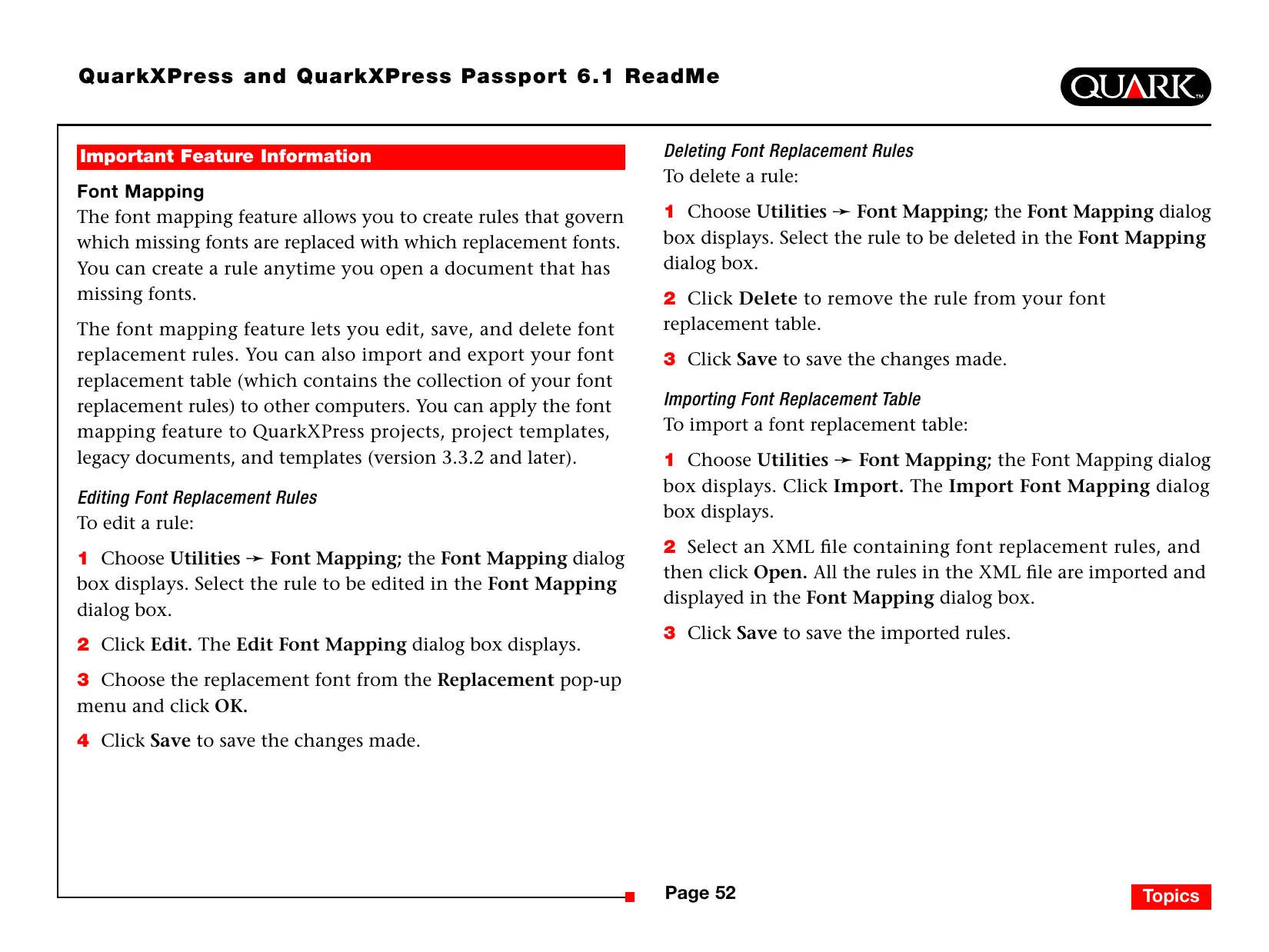
Font Mapping
The font mapping feature allows you to create rules that govern which missing fonts are replaced with which replacement fonts. You can create a rule anytime you open a document that has missing fonts.
The font mapping feature lets you edit, save, and delete font replacement rules. You can also import and export your font replacement table (which contains the collection of your font replacement rules) to other computers. You can apply the font mapping feature to QuarkXPress projects, project templates, legacy documents, and templates (version 3.3.2 and later).
Editing Font Replacement Rules
To edit a rule:
1 Choose Utilities → Font Mapping; the Font Mapping dialog box displays. Select the rule to be edited in the Font Mapping dialog box.
2 Click Edit. The Edit Font Mapping dialog box displays.
3 Choose the replacement font from the Replacement pop-up menu and click OK.
4 Click Save to save the changes made.
Deleting Font Replacement Rules
To delete a rule:
1 Choose Utilities → Font Mapping; the Font Mapping dialog box displays. Select the rule to be deleted in the Font Mapping dialog box.
2 Click Delete to remove the rule from your font replacement table.
3 Click Save to save the changes made.
Importing Font Replacement Table
To import a font replacement table:
1 Choose Utilities → Font Mapping; the Font Mapping dialog box displays. Click Import. The Import Font Mapping dialog box displays.
2 Select an XML file containing font replacement rules, and then click Open. All the rules in the XML file are imported and displayed in the Font Mapping dialog box.
3 Click Save to save the imported rules.
Exporting Font Replacement Table
To export a font replacement table:
1 Choose Utilities → Font Mapping; the Font Mapping dialog box displays. Click Export. The Export Font Mapping dialog box displays.
2 Specify the location on your hard drive where you want to save the table. Enter the name of the XML file in the File name field. Click Save to save the file.
Setting Font Mapping Preferences
To set preferences for the font mapping feature:
1 Choose QuarkXPress → Preferences (Mac OS) or Edit → Preferences (Windows). The Preferences dialog box displays.
2 In the Font Mapping pane, check Specify Default Replacement Font to choose a replacement font from the Default Replacement Font pop-up menu.
3 To suppress the display of the Missing Fonts dialog box, check Do not display the "Missing fonts" dialog box. If there are no rules for missing fonts, you can:
- Click Display "Missing Fonts" dialog box to display the Missing Font dialog box.
- Click Replace missing fonts with default replacement font to replace a missing font with a default font.
EditOriginal QuarkXTensions Software
Mac OS only: EditOriginal is a QuarkXTensions™ software for QuarkXPress and QuarkXPress Passport that allows you to open pictures with a default application, and update modified pictures by providing you with Edit Original and Update commands in the context menu for picture boxes and picture cells.
Table Import QuarkXTensions Software
Table Import QuarkXTensions software, when used in conjunction with QuarkXPress or QuarkXPress Passport, lets you create and update tables in QuarkXPress with a Microsoft Excel file as the data source. It also allows you to import and update charts and pictures from Microsoft Excel files.
Full Resolution Preview and EPS Preview
QuarkXTensions Software
Full Resolution Preview QuarkXTensions software allows you to display pictures on-screen using the picture file's resolution. In addition, EPS Preview QuarkXTensions software lets you display only EPS and PDF pictures on-screen using the pictures file's full resolution.
With these QuarkXTensions modules, you can also scale or magnify the image with minimal pixelation, position page elements more precisely, and create more accurate QuarkXPress clipping paths.
XSLT Export QuarkXTensions Software
XSLT Export QuarkXTensions software allows you to generate XSL transformations in an XSL file from a Web-optimized layout containing XML nodes. These XSL transformations, when applied to XML using an XSLT processor, can produce an HTML file (XHTML 1.1 compliant) representing the XML data in your Web browser window.
Item Sequence QuarkXTensions Software
This QuarkXTensions software is more powerful and now lets you also add tables, group boxes, none boxes, and lines to a sequence. For more information about using new enhancements, please see A Guide to Item Sequence QuarkXTensions software on QuarkXPress or QuarkXPress Passport CD-ROM.
Before You Install QuarkXPress
For information about registering QuarkXPress, see "Performing online registration at installation" or "Performing online registration after installation" in the installation sections of this document.
Activating QuarkXPress
If you have a single-user copy of QuarkXPress, you must activate QuarkXPress. If you have an Internet connection, you can register and activate QuarkXPress using this connection; you can also register and activate QuarkXPress by phone.
If you do not activate QuarkXPress, you can use it for five days; after five days, it will become a demo version and must be activated before it will run as a full version.
You can install QuarkXPress on one hardware configuration per year without reactivating it; after you install QuarkXPress on the second hardware configuration, QuarkXPress must be reactivated. Updating QuarkXPress, reinstalling QuarkXPress on the same computer, or restoring a computer from a backup does not require reactivation.
For more information about activation, see the Activation-Help on the QuarkXPress CD-ROM.
Installing QuarkXPress on Mac OS
1 Disable any virus protection software. If you are concerned about a virus infecting your computer, use virus protection software to check your hard drive and the discs provided by Quark.
2 Restart the computer.
3 Insert the CD-ROM into your computer or mount the QuarkXPress CD-ROM over the network.
4 Double-click the QuarkXPress Installer icon on the QuarkXPress CD-ROM.
5 The Authenticate dialog box displays. Enter your administrator name and password in the appropriate fields, and then click OK.
6 The QuarkXPress 6.1 Installer screen displays. Click Continue.
NOTE This is a new installation of QuarkXPress; running this installer will not install any third-party XTensions™ software or "XPress Preferences" files from previous versions of QuarkXPress.
7 The License Agreement screen displays. Read the License Agreement carefully. If you accept the terms in the agreement, click Accept. If you do not accept the terms, click Decline.
NOTE If you do not accept the terms of the license agreement, you will not be able to install QuarkXPress.
8 If you clicked Accept, the Validation Code screen displays. Enter the validation code provided in the product package.
NOTE Do not discard the validation code. It may be required for reinstallations.
9 After entering the validation code, click Next. The User Registration screen displays. Enter your information in the appropriate fields. Click Next.
If Quark™ License Administrator is installed, please see the "Installing QuarkXPress with Quark License Administrator" section of this document for help entering Quark License Administrator information. If Quark License Administrator is not installed, proceed to the next step.
10 The QuarkXPress 6.1 Installer screen displays.
- Choose Complete Install from the pop-up menu if you want to install all the program files. This option takes the most disk space.
- Choose Custom Install from the pop-up menu if you want to install only selected program files. This option is recommended for experienced QuarkXPress users.
11 If you chose Custom Install, the Custom Install list displays. Click a disclosure box to see individual files. If you want a file to be installed, check the box next to it. Only checked items will be installed. To see a description of the file, click the I button after its name.
NOTE QuarkXPress may install required files that are not displayed in the Custom Install list.
12 The Install Location area at the bottom of the screen displays the path to the folder or volume where QuarkXPress will be installed. If you want to install QuarkXPress in another location, choose Select Folder from the Install Location pop-up menu. Navigate to the desired folder; click Choose when done. You will return to the QuarkXPress 6.1 Installer screen.
13 When you have selected the files you want to install and verified the location where QuarkXPress will be installed, click Install. As items are installed, the Installing status bar progresses from empty to full.
14 After installation is finished, a screen displays asking if you want to register QuarkXPress online. If you click Yes, the installer will proceed to register your software with Quark.
If the QuarkXPress Installer software is unable to find a Web browser to process your registration, the installation will be completed without registering your software. To register your software later, follow the steps outlined in "Performing Online Registration After Installation."
15 After registration (if you specified this in step 13), an alert displays: "The software was successfully installed." If you did not specify registration, the alert displays immediately after installation. Click Quit.
If you clicked Yes to register during installation, the Online Registration form will automatically open in your Web browser. The fields will contain the information you entered in the User Registration screen; you can also modify the information before submitting it.
1 Review the information in the form; re-enter data as necessary and click Submit Request to submit your registration. The Web browser will submit the information to Quark.
2 Once your information has been received by Quark, the Web browser will display a window stating that registration was successful. You can then exit the Web browser.
NOTE If the QuarkXPress Installer software is unable to locate a Web browser or process your registration, the installation will be completed without registering your software. To register your software, follow the steps outlined in "Performing Online Registration After Installation."
NOTE It may take as many as three days for Quark to process your online registration.
NOTE You may also register by phone. See the "Contacting Quark" section of this document for contact information.
When QuarkXPress is installed, a folder called "Registration Folder" is created. The "Register.htm" file in this folder allows you to register using any computer that has Internet access and a Web browser that can perform online registration. (Refer to the optional system requirements for specific information about the Web browser.)
1 Use the File menu in your Web browser to open the "Register.htm" file in the "Registration Folder" folder, or double-click the "Register.htm" file to launch the Web browser and open the file.
2 Review the information in the form; re-enter data as necessary and click Submit to submit your registration. The Web browser will submit the information to Quark.
3 Once your information has been received by Quark, the Web browser will display a window stating that registration was successful. You can then exit the Web browser.
NOTE To register QuarkXPress using your Web browser, make sure you meet the optional system requirements listed in "Minimum System Requirements."
NOTE You may also register by phone. See the "Contacting Quark" section of this document for contact information.
Adding files after installation
1 Repeat steps 1-8 in "Installing QuarkXPress on Mac OS."
2 The QuarkXPress 6.1 Installer screen displays.
3 To install additional files, choose Custom Install from the pop-up menu. The Custom Install list displays. Click a disclosure box to see individual files. If you want a file to be installed, check the box next to it. Only checked items will be installed. To see a description of the file, click the I button after its name.
NOTE QuarkXPress may install required files that are not displayed in the Custom Install list.
4 The Install Location area at the bottom of the screen displays the path to the folder or volume where the selected items will be installed. Navigate to your QuarkXPress application folder; click Choose when done. You will return to the QuarkXPress 6.1 Installer screen.
5 Click Install. As items are installed, the Installing status bar progresses from empty to full.
6 When the QuarkXPress files are installed, an alert displays: "The software was successfully installed." Click OK.
Installing QuarkXPress with Quark License Administrator
Quark License Administrator is software that manages licensed Quark products. If you have a Multi-Pak or a Lab-Pak, you may have received a Quark License Administrator CD-ROM when you purchased QuarkXPress. Quark License Administrator must be installed before you install QuarkXPress.
If Quark License Administrator is installed and you are now installing QuarkXPress, the License Server Details screen displays after you enter your validation code. Before proceeding, verify that you have the information you need to enter values in the following fields:
- License Server IP Address: Enter the IP address or server name for the server you have designated as the license server. The license server handles requests from license clients.
- License Server Port: Enter the value for the license server port. This number is determined when the Quark License Administrator software is registered online. The license server port is the port through which license server requests flow.
- Backup Server IP Address: Enter the IP address or server name for the server you have designated as the backup license server.
- Backup Server Port: Enter the value for the backup license server port.
When you have entered the values, click Next. The Installation Type screen displays. Return to the "Installing QuarkXPress" section of this document and follow steps 9-14.
Installing QuarkXPress on Windows
1 Disable any virus protection software. If you are concerned about a virus infecting your computer, use virus protection software to check your hard drive and the discs provided by Quark.
2 Restart the computer.
3 Insert the CD-ROM into your computer or mount the QuarkXPress CD-ROM over the network.
4 The installer will automatically launch. An alert displays, informing you that the system is being configured. When the configuration is complete, you may be prompted to restart your computer.
NOTE This is a new installation of QuarkXPress; running this installer will not install any third-party XTensions software or "XPress Preferences" files from previous versions of QuarkXPress.
5 Double-click the QuarkXPress Installer icon on the QuarkXPress CD-ROM. The Quark Welcome screen displays. Click Next.
6 The Software Verification screen displays. Enter the validation code provided in the product package. Click Next.
NOTE Do not discard the validation code. It may be required for reinstallations.
If Quark License Administrator is installed, please see the "Installing QuarkXPress with Quark License Administrator" section for help entering the Quark License Administrator information. If Quark License Administrator is not installed, proceed to the next step.
7 The License Agreement screen displays. Read the License Agreement carefully. If you accept the terms in the agreement, click Accept. If you do not accept the terms, click Decline.
NOTE If you do not accept the terms in the License Agreement, you will not be able to install QuarkXPress.
8 If you accepted the terms of the License Agreement, click Next.
9 The Customer Information screen displays. Enter your organization information in the Organization field. In the Install this application for: area, click Only for me or Anyone who uses this computer (All Power Users for Windows 2000). Click Next.
10 The User Registration screen displays. Enter your information in the appropriate fields. Click Next.
11 The Destination Folder screen displays, showing the path to the folder where QuarkXPress will be installed. Click Change to navigate to a different folder. Navigate to the desired folder; click OK when done.
12 Once you have selected a folder, click Next. The Setup Type screen displays.
- Check Complete if you want to install all the program files. This option takes the most disk space.
- Check Custom if you want to install only selected program files. This option is recommended for experienced QuarkXPress users.
13 If you clicked Custom, the Custom Setup screen displays. Click a disclosure box to see individual files. Click a file to see its description in the Feature Description area. Click the pop-up menu next to each file name and choose an option:
- This feature will be installed on local hard drive.
- This feature and subfeatures will be installed on local hard drive.
- This feature will be installed when required.
This feature will not be available.
(A feature may not display every option.)
If you want to know how much disk space is available before you select files to install, click the Space button. The Disk Space Requirements screen displays. You can view how much space is available on the selected drive, and how much space is required for the files you have selected. Click OK after reviewing this screen; you will return to the Custom Setup screen.
NOTE QuarkXPress requires that certain files be installed; you will not be able to deselect them.
14 The Install to area at the bottom of the screen displays the path to the folder in which QuarkXPress will be installed. If you want to install QuarkXPress in another folder, click Change to display the Change Current Destination screen. Navigate to the desired folder; click OK when done. You will return to the Setup Type screen.
15 When you have selected the files you want to install and verified the location where the QuarkXPress folder will be installed, click Next.
16 The Ready to Install the Program screen displays. If you want to automatically register online after installation, check Run online registration after installation.
17 Click Install.
18 When QuarkXPress is installed, the Installation Wizard Completed screen displays. Click Finish.
If you checked Run online registration after installation, the Online Registration form will automatically open in your Web browser. The fields will contain the information you entered in the User Registration screen; you can modify the information before submitting it.
1 Review the information in the form; re-enter data as necessary and click Submit to submit your registration. The Web browser will submit the information to Quark.
2 Once your information has been received by Quark, the Web browser will display a window stating that registration was successful. You can then exit the Web browser.
NOTE If the QuarkXPress Installer software is unable to find a Web browser or process your registration, the installation will be completed without registering your software. To register your software later, follow the steps outlined in "Performing Online Registration After Installation."
NOTE It may take as many as three days for Quark to process your online registration.
NOTE You may also register by phone. See the "Contacting Quark" section of this document for contact information.
When QuarkXPress is installed, a folder called "Registration Folder" is created. The "Register.htm" file in this folder allows you to register using any computer that has Internet access and a Web browser that can perform online registration. (Refer to the optional system requirements for specific information about the Web browser.)
1 Use the File menu in your Web browser to open the "Register.htm" file in the "Registration Folder" folder, or double-click the "Register.htm" file to launch the Web browser and open the file.
2 Review the information in the form; re-enter data as necessary and click Submit to submit your registration. The Web browser will submit the information to Quark.
3 Once your information has been received by Quark, the Web browser will display a window stating that registration was successful. You can then exit the Web browser.
NOTE To register QuarkXPress using your Web browser, make sure you meet the optional system requirements listed in "Minimum System Requirements."
NOTE You may also register by phone. See the "Contacting Quark" section of this document for contact information.
Adding and removing files after installation
1 Disable any virus protection software. If you are concerned about a virus infecting your computer, use virus protection software to check your hard drive and the discs provided by Quark.
2 Restart the computer.
3 Double-click the QuarkXPress Installer icon on the QuarkXPress CD-ROM. The Quark Welcome screen displays.
4 Click Next. The Program Maintenance screen displays. Click a radio button:
- Modify allows you to change which QuarkXPress files are installed. You can install new files or remove previously installed files. Use this option to add files after your initial installation.
- Repair fixes minor problems related to QuarkXPress files, such as missing shortcuts or files. Use this option if you are having problems with missing or damaged QuarkXPress files, shortcuts, or registry entries.
NOTE If you want to remove any installed versions of QuarkXPress from the computer, use the Repair feature in the installer for that application before you use the Windows Uninstall feature to remove the application. If you do not use the Repair feature before using the Uninstall feature, some files will be incorrectly removed and QuarkXPress 6.1 will not operate correctly.
NOTE If you did not remove earlier versions of QuarkXPress prior to installing QuarkXPress 6.1, and then used the Windows Uninstall feature to remove the previous version, thus causing your copy of QuarkXPress 6.1 to operate incorrectly, you can use the Repair feature to fix this problem.
- Remove will remove all installed QuarkXPress 6.1 files from your computer. Use this option when you are installing new system software, or before reinstalling QuarkXPress.
5 Click Next. If you clicked Modify in the previous screen, the Custom Setup screen displays. Repeat step 11 of "Installing QuarkXPress," then click Next. The Ready to Modify the Program screen displays. Check Install to make your changes.
If you clicked Repair in the previous screen, the Ready to Repair the Program screen displays. Click Install to begin repairing program files.
If you clicked Remove in the previous screen, the Remove the Program screen displays. Click Remove to remove QuarkXPress 6.1 files.
6 When the QuarkXPress files are installed, repaired, or removed, the Installation Wizard Completed screen displays. Click Finish.
Installing QuarkXPress with Quark License Administrator
Quark License Administrator is software that manages licensed Quark products. If you have a Multi-Pak or a Lab-Pak, you may have received a Quark License Administrator CD-ROM when you purchased QuarkXPress. Quark License Administrator should be installed before you install QuarkXPress.
If Quark License Administrator is installed and you are now installing QuarkXPress, the License Server Details screen displays after you enter your validation code. Before proceeding, verify that you have the information you need to enter values in the following fields:
- License Server IP Address: Enter the IP address or server name for the server you have designated as the license server. The license server handles requests from license clients.
- License Server Port: Enter the value for the license server port. This number is determined when the Quark License Administrator software is registered online. The license server port is the port through which license server requests flow.
- Backup Server IP Address: Enter the IP address or server name for the server you have designated as the backup license server.
- Backup Server Port: Enter the value for the backup license server port.
When you have entered the values, click Next. The Installation Type screen displays. Return to the "Installing QuarkXPress" section of this document and follow steps 8-18.
Activating QuarkXPress
The first time you launch QuarkXPress the Activate QuarkXPress 6.1 dialog box displays and requests that you activate your copy of QuarkXPress. To activate QuarkXPress:
1 When the Activate QuarkXPress 6.1 dialog box displays, select the method you will use to activate QuarkXPress:
- Click Over the Internet (preferred method) to automatically activate using an Internet connection.
- Click Over the telephone to receive your activation code from Quark Customer Service using the phone.
NOTE To activate QuarkXPress using the Internet, make sure you meet the optional system requirements listed in "Minimum System Requirements."
2 Click Activate QuarkXPress.
3 Follow the instructions on the screen.
- If you clicked Over the Internet (preferred method), a QuarkXPress 6.1 Internet Activation message displays with a progress bar. When the progress bar is full, a message displays indicating that QuarkXPress has activated successfully.
- If you clicked Over the telephone, the QuarkXPress 6.1 Telephone Activation dialog box displays. Call one of the phone numbers listed in the dialog box and read the installation key value in the dialog box to a Quark Customer Service Agent. The agent will then give you an activation code. Enter the code in the appropriate fields in the dialog box, and then click Activate QuarkXPress.
Skipping activation
If you do not want to activate QuarkXPress when you launch it, click Skip. If you click Skip, QuarkXPress presents the option to activate it every time you launch the application, until you opt to activate it.
If you do not activate QuarkXPress, you can use it for five days after installation; after five days, it will become a demo version and must be activated before it will run as a full version.
Upgrading QuarkXPress From a Previous Version
If you are upgrading QuarkXPress from a previous version, follow the installation instructions in the "Installing QuarkXPress on Mac OS" or "Installing QuarkXPress on Windows" section of this document. After you enter your validation code in step 7 and click Next, the QuarkXPress installer searches the computer for existing copies of QuarkXPress that match the validation code you entered. If it locates a match, continue following the installation instructions at step 8.
If the installer locates an earlier version of QuarkXPress that does not match your validation code, a screen displays and lets you indicate which copy to upgrade:
- Select QuarkXPress Application and then click Browse to navigate to the copy of QuarkXPress you want to upgrade.
- Select Serial Number and enter the serial number that you want to upgrade.
After you have made your selection, click OK. The Contact Information screen displays. Continue following the installation instructions at step 8.
The upgrader installs a new copy of QuarkXPress 6.1 in the same folder where your earlier copy of QuarkXPress is located. It does not replace the earlier version.
Upgrading QuarkXPress with Quark License Administrator If Quark License Administrator is installed and you are upgrading QuarkXPress, the License Server Details screen displays after you enter your validation code. Before proceeding, verify that you have the information you need to enter values in the following fields:
- License Server IP Address: Enter the IP address or server name for the server you have designated as the license server. The license server handles requests from license clients.
- License Server Port: Enter the value for the license server port. This number is determined when the Quark License Administrator software is registered online. The license server port is the port through which license server requests flow.
- Backup Server IP Address: Enter the IP address or server name for the server you have designated as the backup license server.
- Backup Server Port: Enter the value for the backup license server port.
When you have entered the values, click Next. The Installation Type screen displays. Return to the "Installing QuarkXPress" section of this document and continue following the installation steps at step 8.
Learning QuarkXPress
If you have little or no experience with QuarkXPress and QuarkXPress Passport software and you want to begin learning about them, Quark offers training modules to teach you the basic skills necessary to create documents using these applications. You can find these training modules on the Quark Web site at www.quark.com/service/Desktop/training/.
Documentation Errata
Following is information that was documented incorrectly or has changed since A Guide to QuarkXPress Addendum or A Guide to QuarkXPress: Using QuarkXPress was published.
- The name of the Layout palette has been changed to Page Layout (Window → Show/Hide Page Layout). This palette was called the Document Layout palette in previous versions of QuarkXPress.
- The Delete Rollover command (Item → Rollovers → Delete Rollover) has been changed to Remove Rollover.
- You cannot copy items from one layout to another within the same project.
- The "Modifiable Picture File Formats" chart provided in Chapter 11, "Pictures," has been updated since A Guide to QuarkXPress: Using QuarkXPress was published. Following is the new chart:
| Type | Color | Shade | Negative | Contrast | Halftone |
| EPS/DCS | no | no | no | no | no |
| GIF | † | † | yes | yes | no |
| JPEG (*.JPG) | | | | | |
| Grayscale | yes | yes | yes | yes | yes |
| Color | † | † | yes | yes | no |
| Type | Color | Shade | Negative | Contrast | Halftone |
| PICT (*.PCT) on Mac OS |
| 1-bit | yes | yes | no | no | yes |
| Grayscale | yes | yes | yes | yes | yes |
| Color | no | no | no | no | no |
| PICT (*.PCT) on Windows |
| 1-bit | yes | yes | yes | no | yes |
| Grayscale | yes | yes | yes | yes | yes |
| Color | no | no | yes | yes | no |
| PNG | † | † | yes | yes | no |
| TIFF (*.TIF) |
| 1-bit | yes | yes | yes | no | yes |
| Grayscale | yes | yes | yes | yes | yes |
| Color | † | † | yes | yes | no |
| Windows .BMPon Mac OS | no | no | no | no | no |
| Windows PCX on Mac OS |
| 1-bit | no | no | no | yes | yes |
| Grayscale | no | no | no | yes | yes |
| Color | no | no | no | yes | yes |
| Windows bitmap (*.BMP)/PCX on Windows |
| 1-bit | yes | yes | yes | no | yes |
| Grayscale | yes | yes | yes | yes | yes |
| Color | † | † | yes | yes | no |
| WMF | no | no | no | no | no |
† Adjustable through the Picture Contrast Specifications dialog box (Style → Contrast).
- A Guide to QuarkXPress Addendum erroneously states that you can apply Full-Resolution Preview to a picture as you import it. You can apply Full-Resolution Preview to pictures only after you have imported them.
- The Text pop-up menu has been removed from the Colors area in the following Web layout dialog boxes: New Project (File → New → Project), New Layout (Layout → New), Duplicate Layout (Layout → Duplicate), and Layout Properties (Layout → Layout Properties).
- You can open a book over a network on Mac OS and Windows at the same time, although you cannot open a chapter on two computers at the same time.
- Windows only: The file extension for an auto-saving version of a project is now“.a\$v.”
- Windows only: A Guide to QuarkXPress: Using QuarkXPress erroneously states that pressing Ctrl changes the Append button to Compare in the H&Js dialog box (Edit → H&Js). The correct key to press for this function is the Alt key.
Compatibility Issues
Netscape Navigator 6.0 for Windows only: When you preview a Web layout using a cascading menu, the error message "Unable to create export file" displays on subsequent attempts to preview the page if the previous preview window is still open. As a workaround, close each preview window before you request another page preview. This problem has been fixed in Netscape Navigator 6.2.
Known Problems
For a list of problems that have been found in this version of QuarkXPress, visit the Quark Web site at www.quark.com.
For information about technical support and how to contact Quark, see the "Contacting Quark.pdf" file on the QuarkXPress or QuarkXPress Passport CD-ROM.
In the Americas
If you are unable to access the "Contacting Quark.pdf" file, contact Quark Technical Support by phone at 303.894.8899 between 7:00 a.m. and 5:00 p.m. Mountain Time, Monday through Friday, or click the "Contact Us" link on the Quark Web site at www.quark.com.
Outside the Americas
If you are unable to access the "Contacting Quark.pdf" file, contact your local Quark office or Quark Full Service Distributor.
For an up-to-date list of Quark offices and Quark Full Service Distributors, click the "Contact Us" link on the Quark Web site at euro.quark.com.
Legal Notices
©2003 Quark Technology Partnership as to the content and arrangement of this material. All rights reserved.
©1986-2003 Quark Technology Partnership and its licensors as to the technology. All rights reserved.
Information in this document is subject to change without notice and does not represent a commitment on the part of Quark Technology Partnership or its licensee, Quark, Inc. Use of the Quark Products is subject to the terms of the end user license agreement or other applicable agreements for such product/service. In the event of a conflict between agreements and these provisions the relevant agreements shall control.
Quark Products and materials are subject to the copyright and other intellectual property protection of the United States and foreign countries. Unauthorized use or reproduction without Quark's written consent is prohibited.
Quark, QuarkXPress, QuarkXPress Passport, the Quark logo, QuarkXTensions, and XTensions are trademarks of Quark, Inc. and all applicable affiliated companies, Reg. U.S. Pat. & Tm. Off. and in many other countries. Other Quark related marks which Quark may adopt from time to time are trademarks of Quark, Inc. and all applicable affiliated companies.
Mac OS is a registered trademark of Apple Computer, Inc. in the U.S.A. and other countries.
Adobe and Distiller are registered trademarks of Adobe Systems Incorporated in the United States and/or other countries.
Microsoft and Windows are registered trademarks of Microsoft Corporation in the United States and/or other countries.
All other marks are the properties of their respective owners.
Software QuarkXTensions EditOriginal
Minimale systeemeisen
Mac OS
Hardware