
INSTANT VIDEO PCI PTV-390 - Video Capture Card ADS TECH - Free user manual and instructions
Find the device manual for free INSTANT VIDEO PCI PTV-390 ADS TECH in PDF.


| Brand | ADS TECH |
| Model | INSTANT VIDEO PCI PTV-390 |
| Product type | PCI video capture card |
| Interface | PCI port |
| Supported compression formats | DivX, MPEG-1 (VCD), Windows Media Video 9 (WMV9) |
| Capture resolutions | Up to 640×480 (DivX), 352×240/288 (MPEG-1) |
| Included software | Ulead VideoStudio 8 SE VCD |
| Minimum system requirements | Pentium 4 2.4 GHz, 128 MB RAM, 100 MB hard disk, Windows XP SP1, CD-ROM drive, sound card |
| Power supply | Via PCI port (motherboard bus) |
| Connectors | Composite input (RCA), S-Video input, audio connector |
| Main functions | Analog video capture, real-time compression, VCD creation, video editing |
| Care and cleaning | Keep away from moisture and dust. Clean with a dry, lint-free cloth. |
| Safety | Discharge static electricity before handling. Do not plug/unplug while powered on. |
| Spare parts and repairability | No spare parts available. Device is not user-serviceable. |
| Warranty | Legal warranty of conformity (2 years in France) |
| Country of origin | France (headquarters in Ivry-sur-Seine) |
Frequently Asked Questions - INSTANT VIDEO PCI PTV-390 ADS TECH
User questions about INSTANT VIDEO PCI PTV-390 ADS TECH
0 question about this device. Answer the ones you know or ask your own.
Ask a new question about this device
Download the instructions for your Video Capture Card in PDF format for free! Find your manual INSTANT VIDEO PCI PTV-390 - ADS TECH and take your electronic device back in hand. On this page are published all the documents necessary for the use of your device. INSTANT VIDEO PCI PTV-390 by ADS TECH.
USER MANUAL INSTANT VIDEO PCI PTV-390 ADS TECH
Instant Video PCI : English/French
Archive & Share Your Home Movies On CD
User's Guide: First Edition
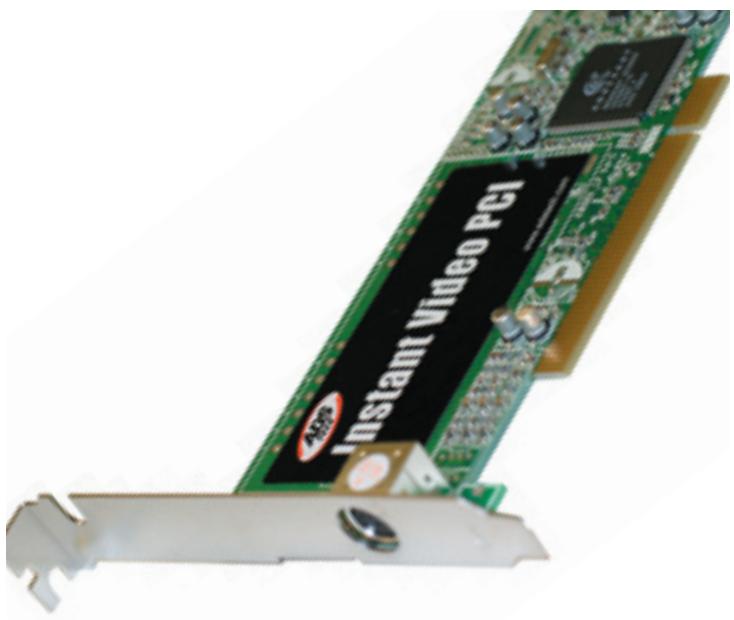
Table of Contents
Introduction 4
Installation Guide 8
Step 1. Driver Installation 10
Step 2. Plugging In the Hardware 12
Software Installation 14
Ulead VideoStudio 8 15
French Manual 31
Help Resources 58
Service and Warranty 59
FCC Information 60
© 2004 ADS Technologies. All Rights Reserved
First Edition: September 2004
Microsoft, MS-DOS, Windows, Windows 95, Windows 98SE, Windows 2000, Windows ME and Windows XP are registered trademarks of Microsoft Corporation.
IBM is a registered trademark of the International Business Machines, Inc.
ADS is a registered trademark of ADS Technologies Inc.
ADS Technologies (ADS) makes no warranty of any kind with regard to this material, including but not limited to, the implied warranties of merchantability and fitness for a particular purpose. The information furnished within this written document is for information purposes only and is subject to change without notice. ADS Technologies assumes no responsibility or liability for any errors or inaccuracies that may appear herein.
ADS makes no commitment to update or to keep current information contained within this document. (rtt)
Introduction
Package Contents:
- Instant Video PCI device
- Audio/Video connection cable
- Instant Video PCI Installation CD
- User's Guide
System Requirements:
- A computer system equipped with a Pentium 4 2.4GHz or greater.
- Operating system: Windows XP Home or Professional Editions with SP1 only (minimum)
- Minimum of 256MB of RAM or greater
- Minimum of 100MB of hard disk space for software installation
- CD-ROM drive for installation of the bundled software
- CD-R/RW or DVD+-R/+--RW drive required for creating your DivX, WMV or VCD Video on CD's
Sound Card
Applications:
- Ulead Video Studio 8SE VCD
Instant Video PCI allows you to easily capture video in multiple video compression formats. This product is targeted at compressing video into low bit rate formats that generate compact video files which are easily transferred to portable devices or allow for lots of video to fit on a normal CD-R disc.
The Instant Video PCI acts as a video digitizer and video pipeline enabling raw uncompressed video to flow into the PC via the PCI port on Windows XP machines. Once in the PC any number of software video compression engines can be used to compress the video into the chosen format.
Your Instant Video PCI includes the Ulead VideoStudio 8 video capture and editing application which supports direct capture and real time compression into popularly used video formats such as MPEG-1, VCD, Windows Media Video 9^® and Divx® Video.
What is video compression?
When video is digitized the file size is very large. The video is more manageable when it is compressed to smaller size. At its most basic level, compression is performed when an input video stream is analyzed and information that is not noticeable to the viewer is discarded. There are different video compression schemes and each one analyzes the video stream in a different way. Each video compression method has the general goal of reducing the overall size of the finished video file while retaining video quality but each video compression method may have a different application goal, such as producing video for satellite TV transmission, video e-mail, DVD video or getting as much video on a standard CD. The result is that there are different video compression formats for different purposes and applications.
What compression formats can I capture in with Instant Video PCI?
Because Instant Video PCI brings raw, uncompressed video into your PC via the PCI port on your Windows XP machine it can be used to compress video in to virtually any video compression/decompression (video codec) installed on your computer that is Microsoft DirectX Show compliant. This is called software compression. This means that the software video codec installed on your computer makes use of the computers powerful CPU to complete both video compression and decompression. Keep in mind that video compression can be very CPU intensive. New video codecs like DivX and WVM9 work to compress to very low bit rates while retaining very good video quality. This process is very CPU intensive. Divx Video, for example, is a compression
technology that can reduce the file size of video more than 5 times smaller than DVD while offering similar quality. This takes intense processing power. This is why the minimum CPU requirement Instant Video PCI is set at 2.4 GHz.
The software included with your Instant Video PCI installs the Divx Video codec, Microsoft Windows Media Video 9 codec and MPEG-1 codec allowing you to easily capture into any of these video formats.
What can I do with these video compression formats?
DivX Video
DivX™, much like MP3 is a format for digital music. DivX™ is the brand name of a very popular patent-pending video compression technology created by DivXNetworks, Inc. The DivX™ codec is based on the MPEG-4 compression standard. This codec is so advanced that it can reduce an MPEG-2 video (the same format used for DVD or Pay-Per-View) to ten percent of its original size.
- Divx video files can be copied to a CD-R disc and then be played back in DivX Certified DVD players. You can generally get a 2 hour movie on a single CD-R disc.
- Many portable video players support DivX playback.
- Most Pocket PC and PALM PDA's can support DivX video playback when a compatible software player has been installed.
- DivX Video is compatible with the ADS Tech Media-Link Entertainment receiver. Capture video in the DivX video format and then distribute the video over your wired or wireless Ethernet network. The Media-Link Receiver decodes the video and displays it on your Big Screen TV.
MPEG-1
MPEG-1 video can be played back on any Windows PC with the Microsoft Media Player. No extra software required. This makes MPEG-1 a very easy video format to share with friends or business colleagues. MPEG-1 is generally targeted at a low bit rate of 1.5Mb (Megabit) per second. This is about the speed of a double speed CD-ROM. The video resolution is also rather low, commonly set to 352 × 240 (NTSC) or 352 × 288 (PAL), commonly referred to as SIF resolution.
Applications:
- Insert MPEG-1 Video into PowerPoint presentations
- Archive video clips to hard drive or CD in small files sizes for viewing on the PC
Create a Video PCI
Video CD (VCD)
VCD is probably the most common application for MPEG-1 video and has been a popular format in Europe and Asia for many years for movies. Before DVD players existed, VCD players were very popular virtually everywhere except North America. VCD is the same video bit rate and resolution as MPEG-1 but copied to a CD-R in a format that will play in VCD players. The advantage of VCD is that you can record approximately 70 minutes of audio and video on a CD-R. The disadvantage is that the quality will be much lower than a DVD movie.
- Create Video CD's - they play back in most late model DVD players.
Microsoft Windows Media Video 9
This is Microsoft's proprietary video compression standard that is similar to MPEG-4. Windows Media video 9 can be captured in a variety of resolutions and video bit rates depending upon the target application.
With Instant Video PCI we have included two ways to create Windows Media Video 9 (WMV 9) content:
- VideoStudio 8 - you can easily select the Windows Media Capture plug-in to capture video directly into a WMV 9 file.
- Windows Media Encoder - install the Windows Media Encoder to capture WMV 9 files on your PC or broadcast video across your home, office network or serve over the Internet.
INSTALLATION GUIDE
NOTE: INSERT the CD and install the Drivers before plugging the Instant Video PCI Device in your computer!
Quick Installation Guide
This Quick Installation Guide should be used as a reference guide only! It is highly recommended that you read the complete Instant Video CD Manual before using this product to help ensure you get the most out of your Instant Video CD.
1) Insert Installation CD
2) Click on "Install Drivers" when the installation menu appears
3) Windows will automatically detect the Instant Video CD and a "Found New Hardware" wizard will appear
4) Follow the directions on-screen
5) Install
Installation Instructions:
Optional precaution:
Please disable/close/turn off any applications that may be running in the background (i.e. anti-virus software, popup blockers, screenshotsavers, etc.). In addition, remove all other devices that are not currently in use.
Insert the Installation CD into the CD-ROM. The installation menu will appear.
Click on "Install Video Studio 8". Follow the directions for each window that appears. When the software installation is complete, click on "Exit" at the lower right hand corner of the screen.
Connect Your Instant Video PCI Device to your Computer:
A. Plug the PCI card directly into an open PCI port on your computer's motherboard.
B. Once plugged in, turn on your computer and a "Driver Setup Wizard" will appear on your screen.
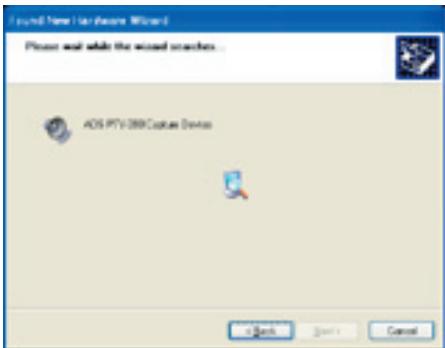
1) With the "Install the software automatically (Recommended)" selected, click on "Next".
2) Wait while Windows searches for the proper drivers, then when found, the "Hardware Installation" pop-up window will appear.
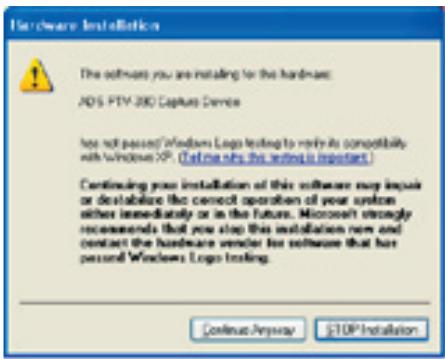
3) Click on "Continue Anyway" when prompted to do so.
Note: Cicking on "Continue Anyway" will not harm your computer in any way and will allow you to finish the install of your new hardware.
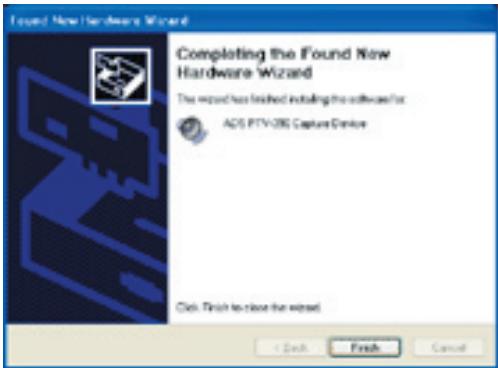
4) Your device, Instant Video PCI, is now installed, Click on "Finish" when the installation is complete.
Note: Welcome to found new hardware wizard will come up for the second time.
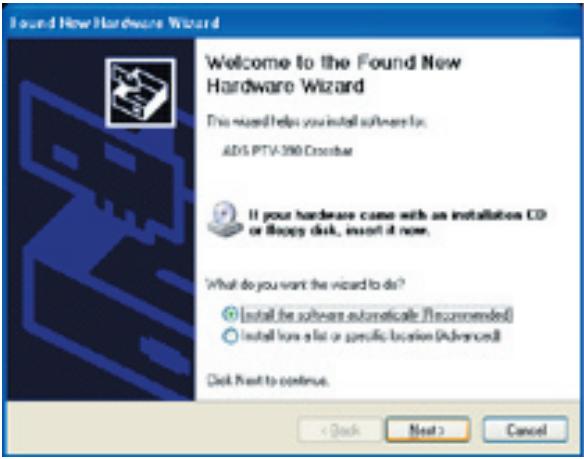
5) Click on "next" to start the driver install.
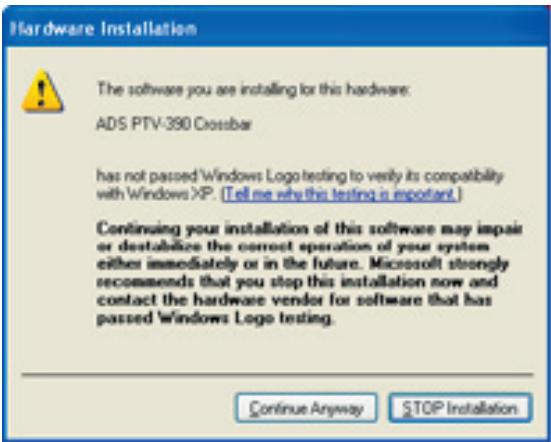
6) Click on "Continue Anyways" to continue with the driver install.
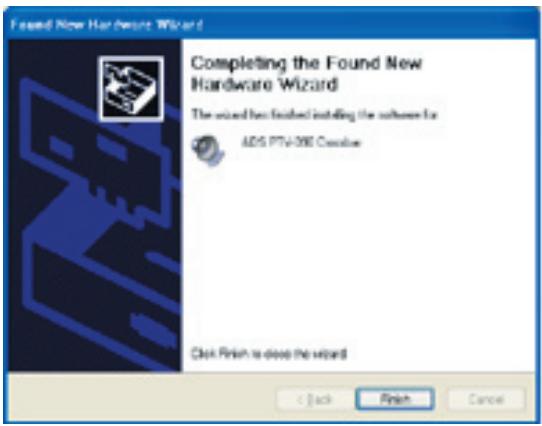
7) Click on "finish" button to finish the driver install.
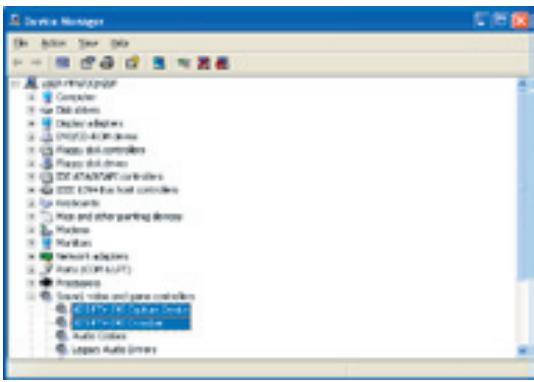
- Click on the "+" sign next to "Imaging Devices" and you should see: "Instant Video PCI".
- Click on the "+" sign next to "Sound, video and game controllers" and you should see: "ADS PTV-390 Capture Devices" and "ADS PTV-390 Crossbar".
Once you have confirmed the 2 locations, close the "Device Manager" window. Congratulations, you have installed the Instant Video PCI properly.
Step 2. Driver Installation:
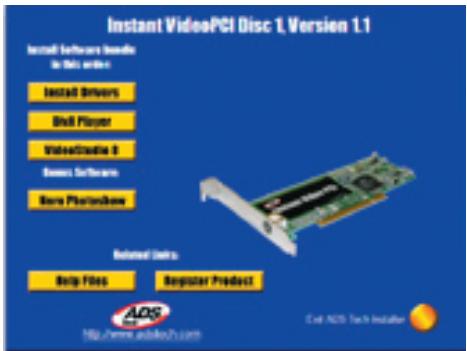
1) Click on the "Install Drivers" button to start the driver installation.
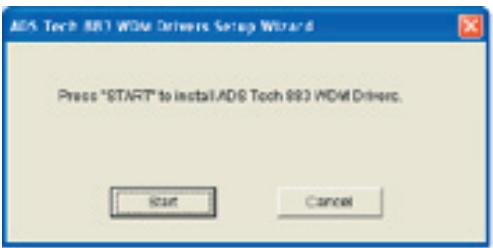
2) Click on the "Start" button to continue installation.
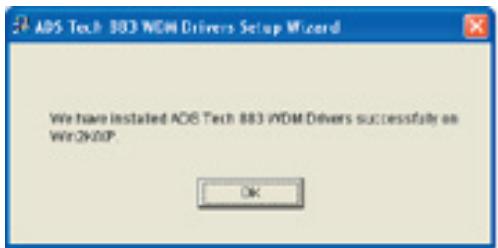
3) Click on the "OK" button to finish the install.
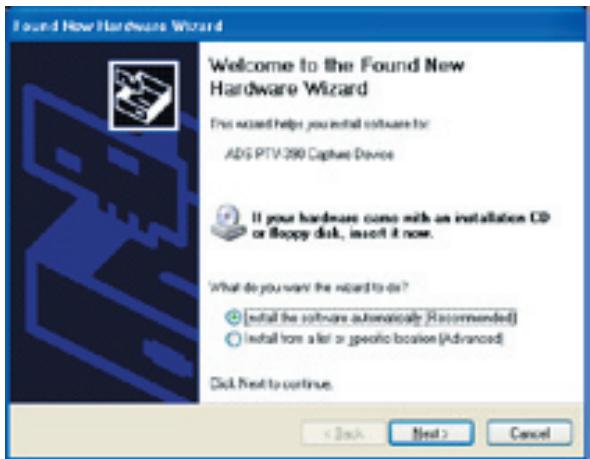
Note: This alert will appear 2 times during the installation process. Click on "Continue Anyway" to proceed.
Software Application Installation
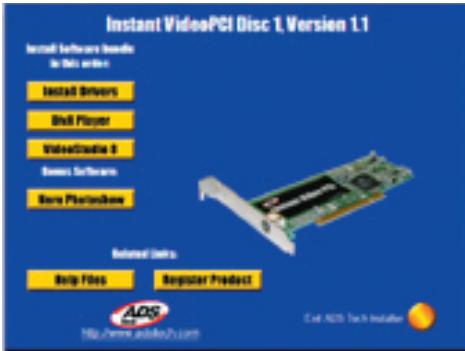
To start the installation of VideoStudio 8, click on the "VideoStudio 8" button.
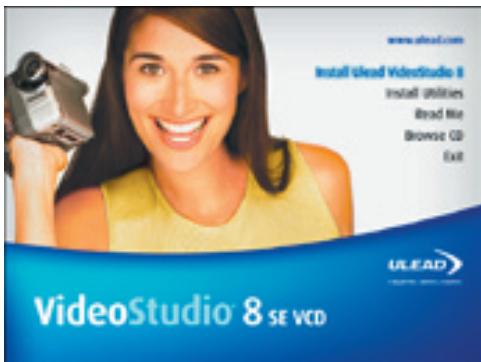
To install VideoStudio 8, click on the "Install Ulead VideoStudio 8" button.
Getting Started with Video Studio 8 SE VCD:
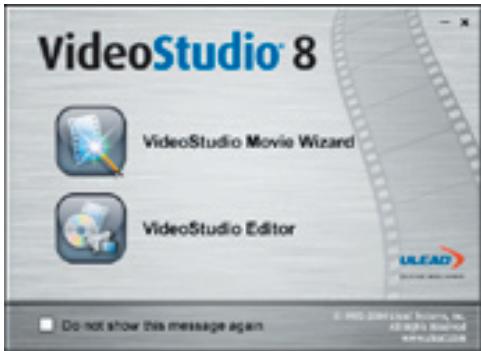
1) Click on "VideoStudio Editor" to capture, edit, and burn your home movies.
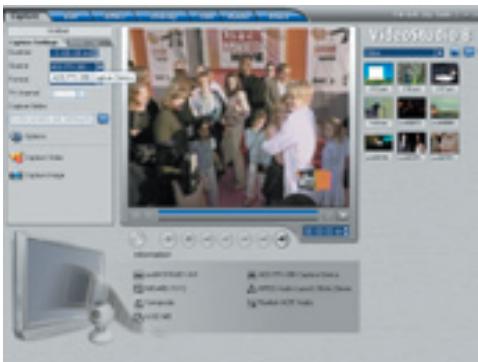
2) Click on the "Capture" tab and ensure that your Source is set to ADS PTV-390 Capture Device.
How VideoStudio works
VideoStudio follows a step-by-step paradigm so that editing tasks remain uncomplicated from start to finish. VideoStudio also offers more than a hundred transition effects, professional tilting capabilities and simple soundtrack creation tools. Learn in seconds, create in minutes.
To make a movie production, first capture footage from a camcorder or another video source. You can then trim the captured videos, arrange their order, apply transitions, and add overlays, animated titles, voiceover narration, and background music. These elements are organized in separate tracks. Changes to one track do not affect other tracks.
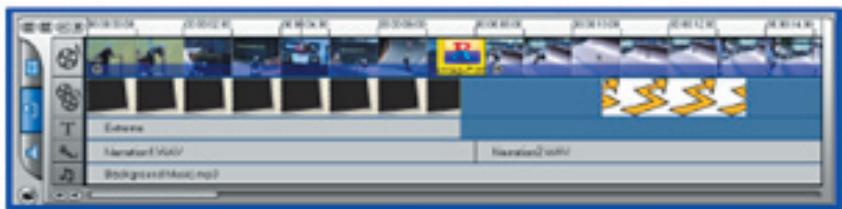
Components of a project as displayed in Timeline View
A movie production is in the form of a VideoStudio project file (*.VSP), which contains information on the path location of the clips and how the movie has been put together. After you have finished your movie production, you can burn it to a VCD. You can also output your movie as a video file for playback on the computer.
VideoStudio Editor
VideoStudio Editor provides a step-by-step workflow that makes creating movies simple and easy.
This section introduces you to the VideoStudio Editor interface and briefly explains the steps involved in creating a movie. Refer to the succeeding chapters for more in-depth information on each step.
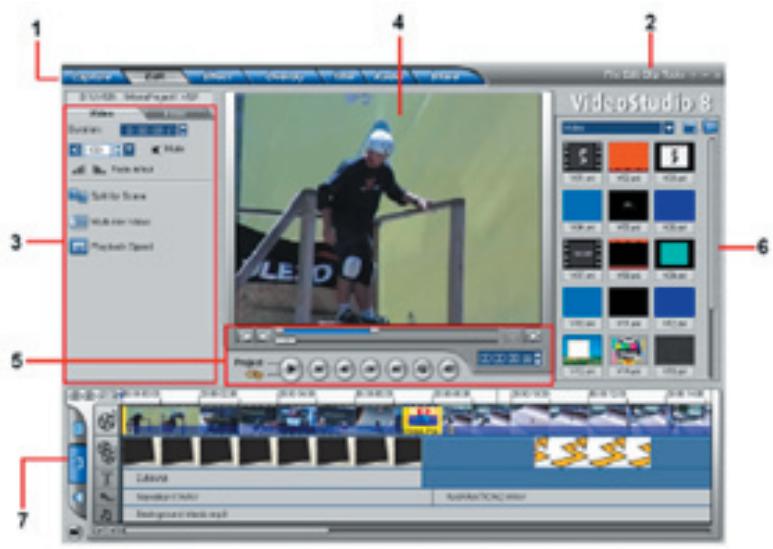
1 Step Panel
Contains buttons that correspond to the different steps in video editing.
2 Menu Bar
Contains menus that provide different set of commands.
3 Options Panel
Contains controls, buttons, and other information that you can use to customize the settings of the selected clip. The contents of this panel change depending on the step you are in.
4 Preview Window
Shows the current clip, video filter, effect, or title.
5 Navigation Panel
Provides buttons for playback and for precision trimming of clips. In the Capture Step, this also acts as the device control for the DV camcorder.
6 Library
Stores and organizes all of your media clips.
7 Timeline
Displays all the clips, titles, and effects included in your project.
The Step Panel
VideoStudio simplifies the process of creating movies into seven simple steps. Click the buttons in the Step Panel to switch between steps.
Capture
Once a project is opened in VideoStudio, video can be recorded directly to your computer's hard disk in the Capture Setup. Footage from a video tape can be captured as a single file or automatically divided into multiple files. This step allows you to capture video and still images.
Edit
The Edit Step and the Timeline are the heart of VideoStudio. This is where you arrange, edit, and trim your video clips. Video filters can also be applied to your video clips in this step.
Effect
The Effect Step lets you add transitions between video clips in your project. Choose from the variety of transitions effects in the Library.
Overlay
The Overlay Step allows you to superimpose one clip over another to create a picture-in-picture effect.
TJ6
No movie would be complete without opening titles, captions and closing credits. In the Title Step, you can create animated text titles or choose from various presets in the Library.
Audio
Background music sets the mood of the movie. The Audio Step lets you select and record music files from one or several CD-ROM drives attached to your computer. You can also dub over your video in this step.
Share
When your movie is complete, you can create a video file for sharing on the Web or output the movie on tape, DVD, or CD in the Share Step.
Note: These steps do not necessarily need to be followed in the order that they are presented.
The Menu Bar
File Edit Cap Tools? = x
The Menu Bar provides various commands for customizing VideoStudio, opening and saving movie projects, working with individual clips, and more.
Capturing in DivX Format:
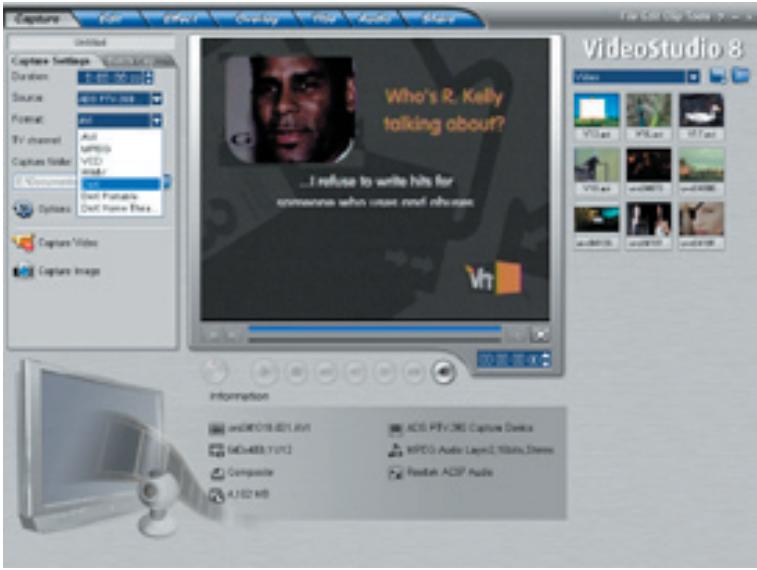
1) On the "Format" pull down menu make sure that you select "DivX".
Planning your DivX Video Project:
You can change the video resolution and video bit rate settings to adjust for quality and also the file size of your video capture project. You may have the goal of fitting up to 2 hours of DivX video on CD-R disc. Here are some guidelines showing resolutions, video settings and approximate file sizes:
| Resolution | Video Bit Rate | File Size |
| 640 x 480 | 500 kb/sec. | @ 300 MB/Hr. |
| 352 x 240 | 100 kb/sec. | @ 110 MB/Hr. |
Step 1. Setting Video and Audio Capture Properties:
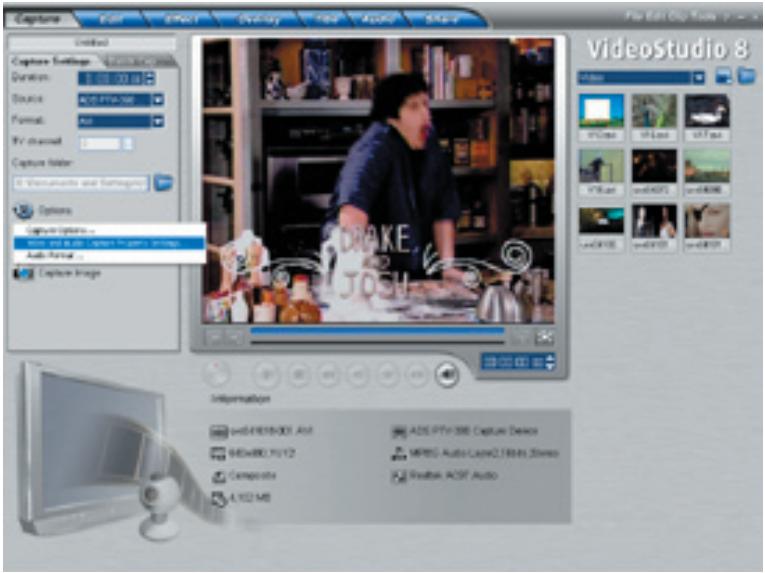
1) Click on the "Options" button and then "Video and Audio Capture Property Settings..."
2) Verify that the "Input Source:" is correct if you are connecting your analog source with RCA cables then please select Video Composite and if connected with S-Video then Video S-video.
Step 2. Adjusting the DivX bitrate:
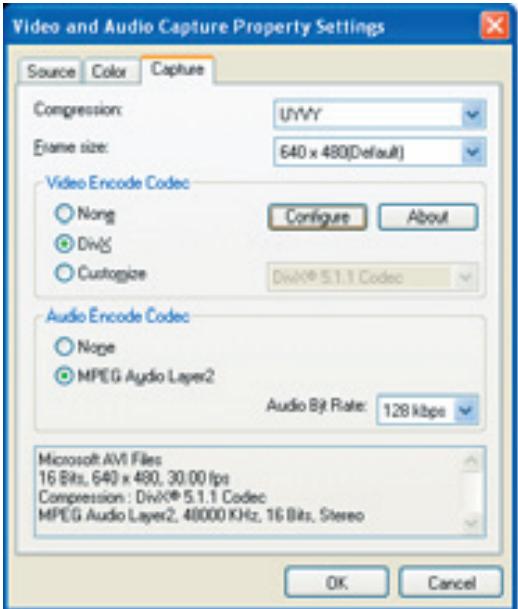
1) Click on the "Capture" tab and then click on "Configure".
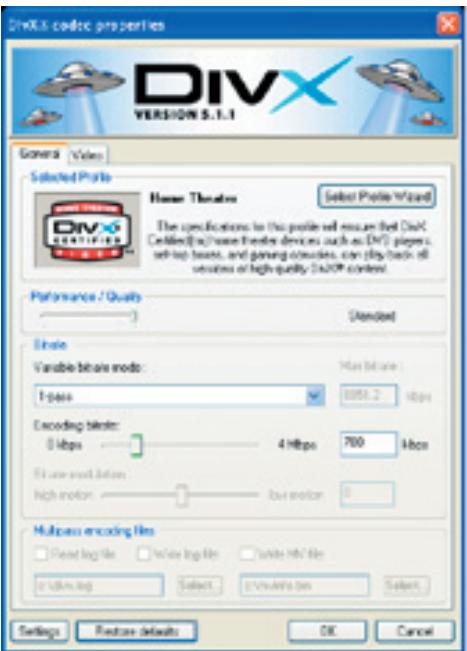
2) Then choose the desired Variable Bitrate Mode by clicking the pull-down arrow.
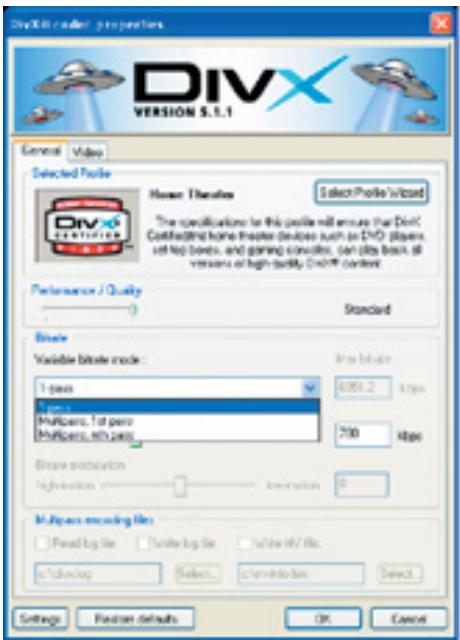
1-Pass Encoding: (RECOMMENDED)
1-pass encoding is the quickest way to encode your video in the DivX format, at the expense of some quality - it allows you to set a fixed average bit-rate to use for the entire encoding.
Step 3. Selecting the Audio Bitrate:
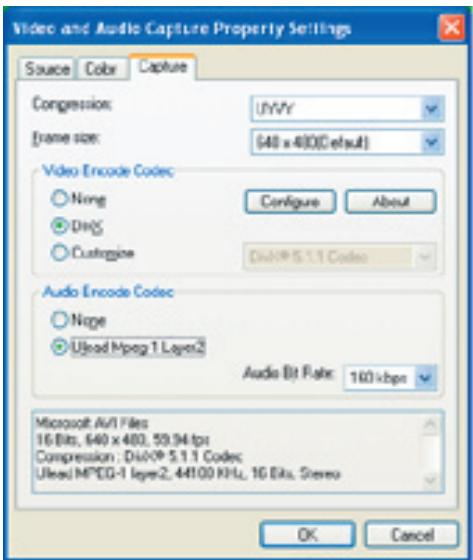
1) Make sure that you select "Ulead Mpeg-1 Layer2" for your Audio Encode Codec and then click "OK" to finish and save your settings.
Step 4. Start Capturing your VVideo in DivX Format:
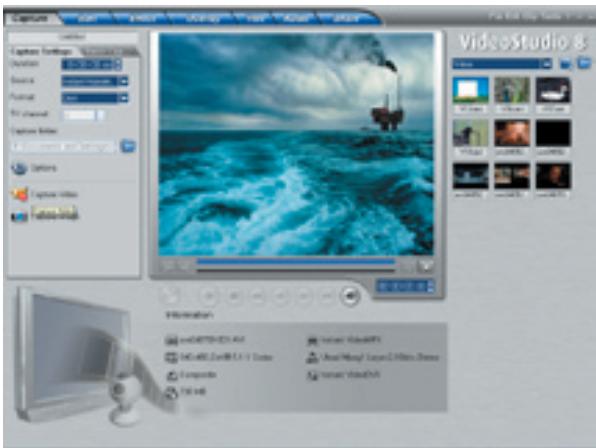
1) Click on the "Capture Video" button to start capturing.
2) When finished, click on the "Stop Capture" button or simply hit the ESC key.
3) Now your ready to burn your CD.
How do I burn the DivX file to a CD?
DivX files are saved as .avi format and can be burned directly onto a CD without any special formatting or disc authoring. You can use any commercially available CD burning software to copy the DivX .avi file to a CD. If you have a CD burner you most likely received CD burning software with the drive, so you should be all set. If you use Windows XP, the capability of writing files to a CD is built in so no extra software is required.
Many new DVD players are offering DivX compatibility. If you have DivX certified DVD player you can play your DivX CD in one of these players.
Capturing in Windows Media Video (WMV) Format:
Windows Media video is a format that is generally created to send video broadcasts over the Internet. The compression quality is very good so you can capture video at a low bit rate (small file size) yet still have good quality.
You may want to capture video in the Windows Media Video format for sending video over the internet or simply to archive to CD-R for your personal video archive for playback on a PC.
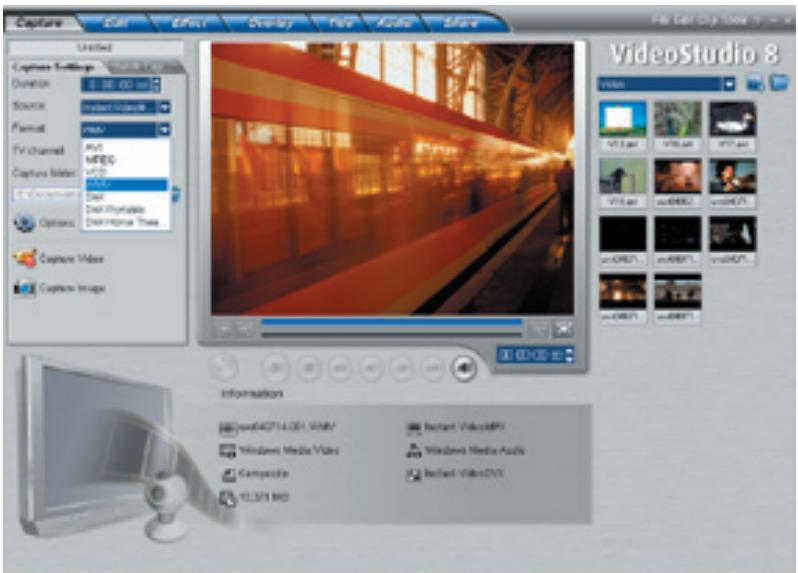
1) Click on the "Format" pull down menu and select "WMV".
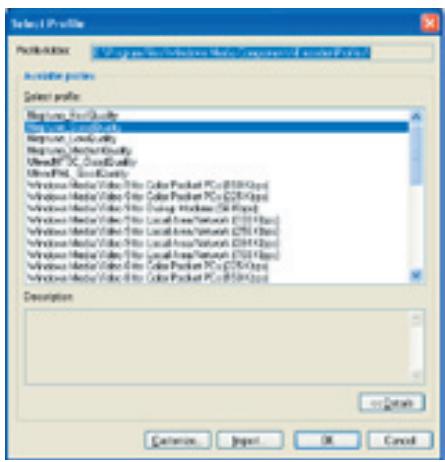
Step 1. Customize or Select Different Quality Profiles:
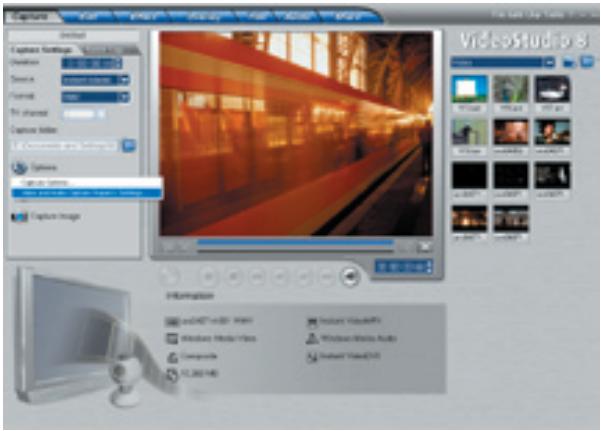
1) Click on the "Options" button and select "Video and Audio Capture Property Settings..."
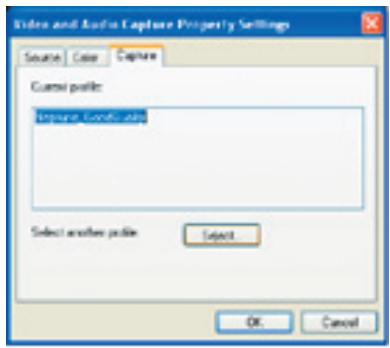
2) Click on the "Capture" tab and then click on the "Select..." where you will see a list of different Profiles you can select from.
Step 2. Start Capturing your Video in WMV Format:
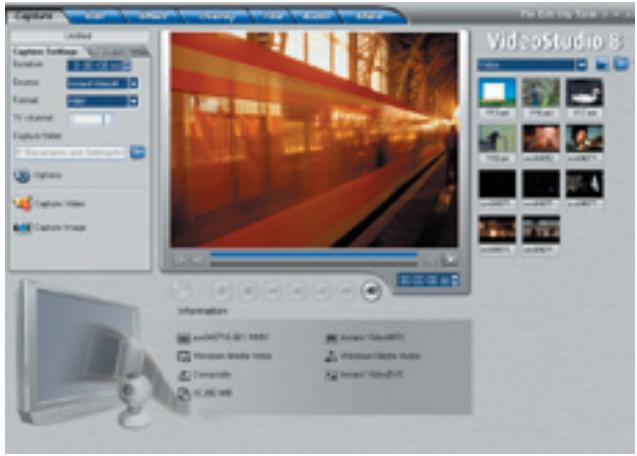
1) Click on the "Capture Video" button to start capturing.
2) When finished, click on the "Stop Capture" button or simply hit the ESC key.
3) Now your ready to burn your CD*.
*Use the CD burning software that came with your PC or CD burner to write Windows Media Video files to a CD.
Capturing in VCD (MPEG-1) Format:
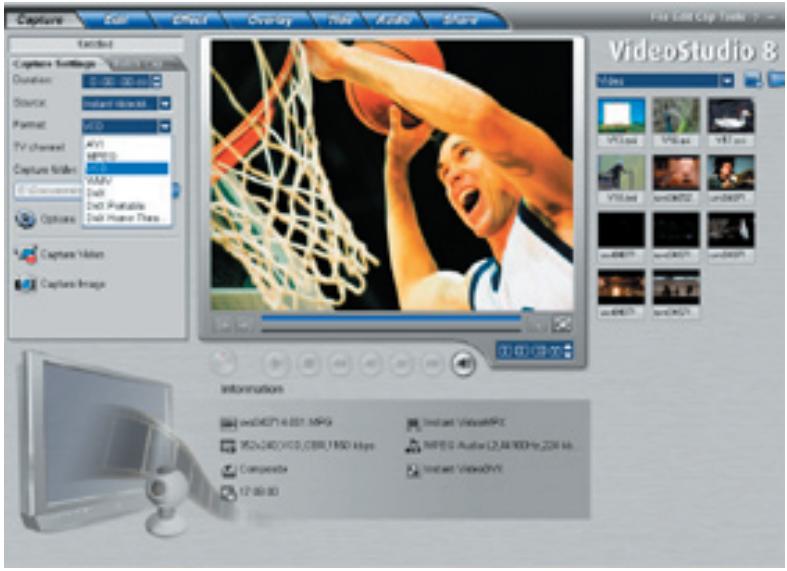
1) Click on the "Format" pull down menu and select "VCD".
Planning your VCD Project:
VCD is a format that was specifically created to put video on a CD-R disc. The video is always in the MPEG-1 format with a set video bit rate of 1.15 Mb/sec.
You can capture approximately 70 minutes of audio and video to fill a 700 MB CD-R.
Capturing video in the VCD format with Video Studio 8 will allow you to easily "Share" the captured and or edited movie to a CD. Once you have captured your video in the VCD format you can jump to the Share Step, Click the "Create Disc" button and follow the VCD authoring wizard to create background menus and burn your VCD movie to CD.
Step 1. Selecting Capture Properties:
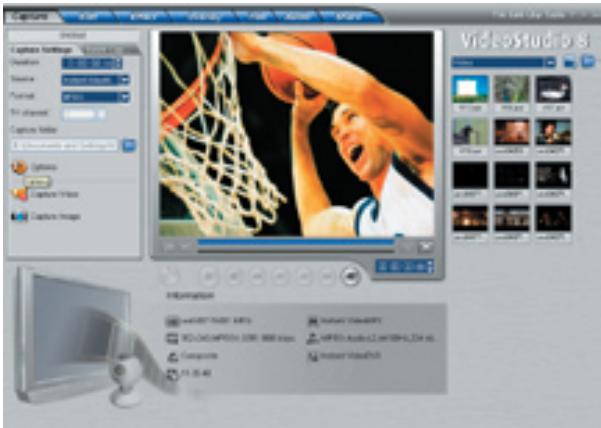
1) Click on the "Options" button and select "Video and Audio Capture Property Settings..."
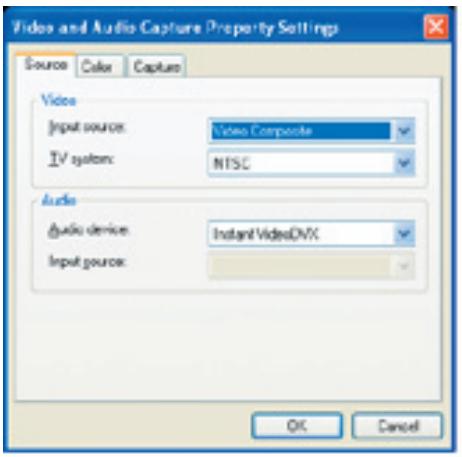
2) Verify that the "Input Source:" is correct if you are connecting your analog source with RCA cables then please select Video Composite and if connected with S-Video then Video S-video.
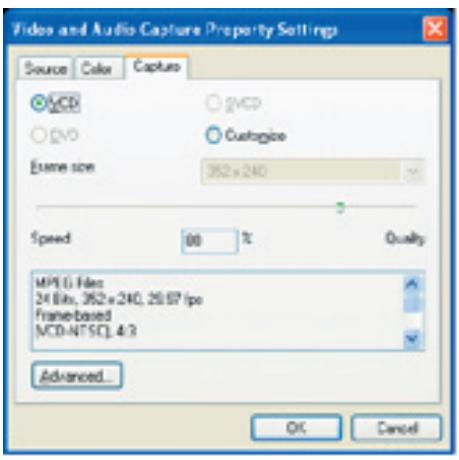
3) Under the "Capture" tab, the VCD setting is selected by default (recommended), but you can also customize the frame size by clicking on the "Customize" setting.
Step 2. Start Capturing your Video in VCD (MPEG-1) Format:
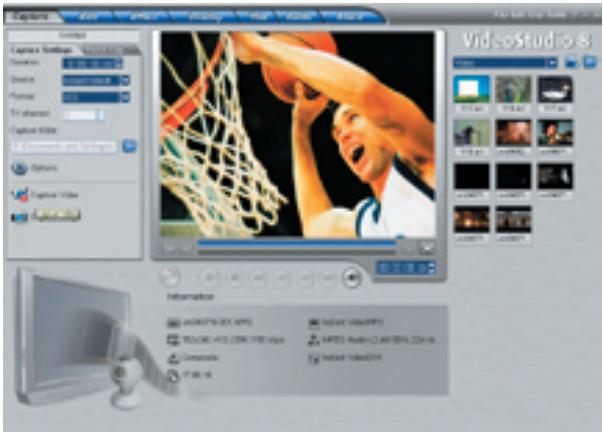
1) Click on the "Capture Video" button to start capturing.
2) When finished, click on the "Stop Capture" button or simply hit the ESC key.
3) Now your ready to burn your CD.
Step 3. Burning your VCD on Disc:
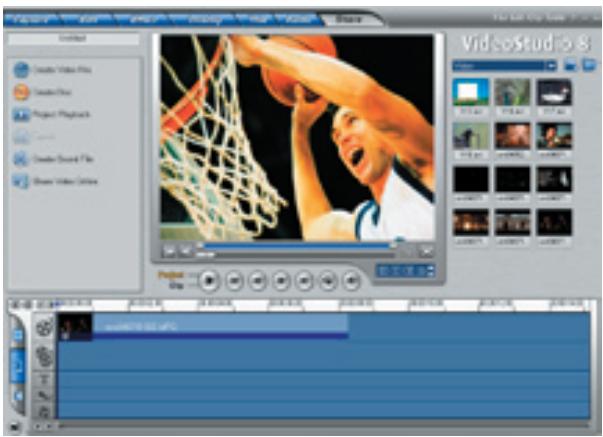
1) Click on the "Share" tab and then click on "Create Disc" to start creating your VCD disc.
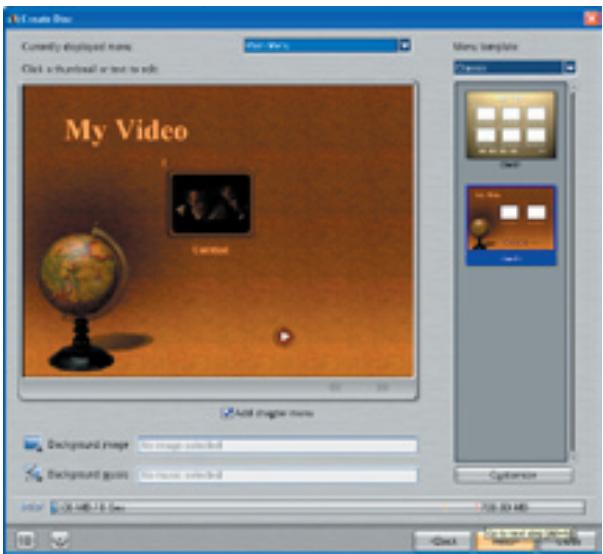
2) Select desired menu and name your own titles and then click "Next".
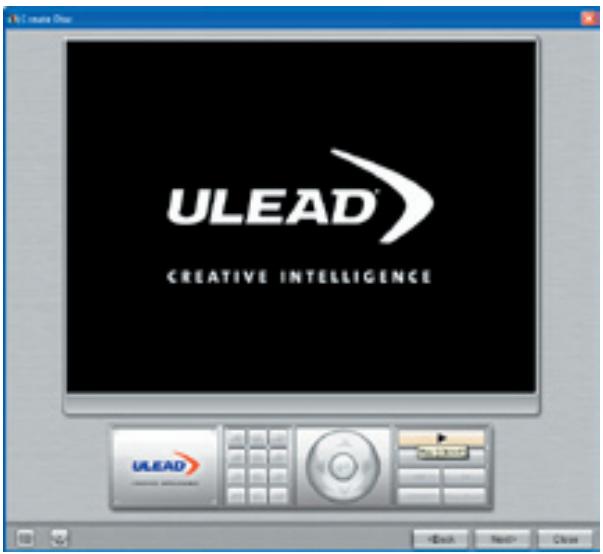
3) This screen allows you to preview your project before burning your disc or you can just skip it by clicking "Next".
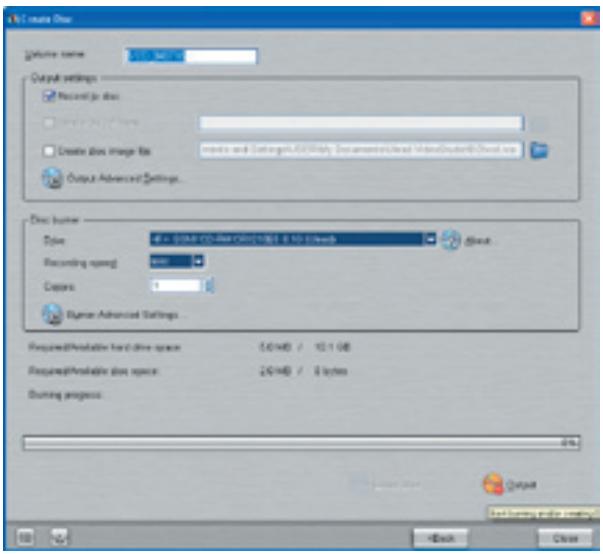
4) Here you can rename your disc, then select the Drive your recordable disc is in and then click "Output" to start the burn.
Note: VCD discs will playback in most late model DVD players. Check your DVD specifications.
For more detailed information on using VideoStudio 8, please refer to the manual on the CD.
Introduction: French Manual
Contenu:
File Edit Cut Tools = x
Video Studio Help - Press "F1" on your keyboard at any time.
Video Studio User Manual - on CD
ADS Web Site: www.adstech.com
Support Online:
We are constantly adding more information to the On-Line Help section of our web site. Click the "Support" button on the home page and select your product. Here you find support F.A.Q.'s with questions and answers to common issues, downloads, patches, manuals, and other resource material to help you get the most out of your product.
For Specific Video Studio software questions:
Check the Ulead web site: www.ulead.com
E-mail Ulead for help: http://www.ulead.com.tw/ulead/suppform.cfm
Call Ulead for help: 1-310-896-6391
For Instant Video Hardware questions:
Check the ADS web site: www.adstech.com
E-mail ADS for help: www.adstech.com - click e-mail link on support page
Call ADS for help: 1-562-926-4338
Support Hours: M-F 8:00 AM - 5:00 PM PST
Service and Warranty:
Service:
If you require assistance with the installation, operation, or application of your ADS Technologies, Inc. product there are several options available to you as described in the technical support section of this manual. Your primary source for information and assistance is always your computer store or computer parts dealer. If your ADS product needs repair or replacement, contact your dealer for on-site repair service.
The ADS Technologies technical support and customer service staff can aid in solving many problems. Our technical support department is available to repair any ADS Technologies product. You or your dealer must return products to our factory for repair or warranty replacement.
Return/Replacement:
If you need to return your ADS Technologies product you should return the product directly to the dealer or store where you purchased the product. Each individual computer store or dealer sets product returns policies for their customers. ADS Technologies, Inc. cannot be responsible for the actions or policies set by our dealers. If you desire to return the product for a refund, you must get the refund from the dealer or store you purchased the product from. If you purchased the product directly from ADS please see the "Terms and Conditions of Sale" on the reverse side of your sales invoice.
Returns to ADS Technologies, Inc. are for repair or warranty replacement only. If you need to return product to ADS Technologies, Inc. for repair or replacement you must follow these steps:
- Call our Technical Support department at (562) 926-4338 to obtain a Return Merchandise Authorization (RMA) number.
- The RMA number is valid for 30 days.
- Ship the product to the ADS factory with the RMA number marked on the inside and outside of the package. If there is no RMA number on the package or the RMA number has expired, the shipment will be refused. ADS will not be liable for lost or mis-shipped products.
- Replacement product cannot be shipped to you until the defective product has been received by ADS.
- Once the product is received at the factory it will be tested and then repaired or replaced.
- Turn around time is approximately one week. A repaired or replacement product will be shipped back to you.
Warranty:
This ADS Technologies, Inc. product comes with a One (1) year hardware warranty. ADS Technologies, Inc. (ADS) warrants this product against defects in material and workmanship for a period of One (1) year from the date of original purchase from ADS or an authorized ADS dealer. This warranty applies only to the original purchase of the product and is not transferable. This warranty does not cover any incompatibilities due to the user's computer, hardware, software or other related system configuration in which the product interfaces.
Proof of
purchase will be required before any warranty consideration by ADS occurs.
This warranty does not cover any damage caused by negligence, non-authorized modifications, or parts installed without prior written permission from ADS.
This warranty does not apply if the product has been damaged by accident, abuse, or misapplication, nor as a result of service to the product by anyone other than ADS.
If your ADS product is not in working order, your only recourse is repair or warranty replacement, as described above. UNDER NO CIRCUMSTANCES will ADS Technologies, Inc. be liable for consequential damages, including but not limited to any lost savings, lost profits, or any other damages, caused by the use of any ADS Technologies, Inc. product or inability to use the product, even if the dealer or ADS Technologies, Inc. has been advised of such liability or other claims. This includes damage to property and, to the extent permitted by law, damages for personal injury. This warranty is in lieu of all other warranties including implied warranties of merchantability and fitness for a particular purpose.
FCC Information:
Federal communications Commission Radio Frequency Interference Statement
Note: This equipment has been tested and found to comply with the limits for a class B digital device, pursuant to Part 15 of the FCC Rules. These limits are designed to provide reasonable protection against harmful interference when the equipment is operated in a residential installation. This equipment generates, uses and can radiate radio frequency energy and if not installed and used in accordance with the instruction manual may cause harmful interference to radio communications. However, there is no guarantee that interference will not occur in a particular installation. If this equipment does cause harmful interference to radio or television reception, which can be determined by turning the equipment off and on, the user is encouraged to try to correct the interference by one or more of the following measures:
- Reorient or relocate the receiving antenna
- Increase the separation between the equipment and receiver.
- Connect the equipment into an outlet on a circuit different from that to which the receiver is connected.
- Consult the dealer or an experienced radio TV technician for help.
Notice:
(1) The changes or modifications not expressly approved by the party responsible for compliance could void the user's authority to operate the equipment.
(2) Shielded interface cables and AC power cord, if any, must be used in order comply with the emission limits.
North American Support Hours
Phone: 562-926-4338
M-F: 8:00 am - 5:00 pm, PST
www.adstech.com
Support: www.adstech.com/support/support.asp
ADS TECH
NORTH AMERICAN OFFICE
Cerritos, CA 90703
Phone. 562.926.1928
Support. 562.926.4338
EUROPE OFFICE
Unit 1b, Shannon Industrial Estate,
Shannon, County Clare, Ireland
Phone. +353.61.702042
Support. +353.61.702001
SOUTHERN EUROPE AND MEA OFFICE
51-55 rue Hoche