
ANTI-VIRUS 2011 - Antivirus Software KASPERSKY - Free user manual and instructions
Find the device manual for free ANTI-VIRUS 2011 KASPERSKY in PDF.


| Product type | Antivirus software |
| Brand | KASPERSKY |
| Model | ANTI-VIRUS 2011 |
| Compatible operating system | Mac OS X 10.5 or 10.6 (Intel processor) |
| Required RAM | 512 MB |
| Required disk space | 270 MB |
| Main features | Real-time protection (File Anti-Virus), on-demand virus scan (Virus Scan), database updates, quarantine, object backup, activity reports, notifications |
| License types | Free trial version (30 days) and commercial license (one year period) |
| Activation method | Activation code or key file (.key) |
| Database updates | Automatic (scheduled) or manual from Kaspersky servers |
| Scheduled scan | Yes, configurable (quick, full, or custom scan) |
| Technical support | Via Internet (website, forum, knowledge base) and telephone hotline |
| Available languages | Multiple (French, English, etc.) |
| Distribution | Box version (CD) or online download |
| Box pack contents | Installation CD, license agreement, activation code, PDF documentation |
| Number of computers allowed | Depending on purchased license (e.g., 1, 15 workstations) |
| Kaspersky Security Network | Optional participation to improve security (sending anonymous data) |
| User interface | Icon in menu bar and Dock, main window with protection indicator (green/yellow/red) |
| Uninstallation | Uninstallation wizard included in distribution pack |
Frequently Asked Questions - ANTI-VIRUS 2011 KASPERSKY
User questions about ANTI-VIRUS 2011 KASPERSKY
0 question about this device. Answer the ones you know or ask your own.
Ask a new question about this device
Download the instructions for your Antivirus Software in PDF format for free! Find your manual ANTI-VIRUS 2011 - KASPERSKY and take your electronic device back in hand. On this page are published all the documents necessary for the use of your device. ANTI-VIRUS 2011 by KASPERSKY.
USER MANUAL ANTI-VIRUS 2011 KASPERSKY
Thank you for choosing our product. We hope that this documentation will help you in your work and will provide answers regarding this software product.
Warning! This document is the property of Kaspersky Lab and all rights to this document are reserved by the copyright laws of the Russian Federation and international treaties. Illegal reproduction and distribution of this document or parts thereof will result in civil, administrative or criminal liability pursuant to the laws of the Russian Federation.
Any type of reproduction and distribution of any materials, including translation thereof, is allowed only with the written permission of Kaspersky Lab.
This document and graphic images related to it can be used exclusively for information, non-commercial or personal purposes.
Kaspersky Lab reserves the right to change the document at any time without notice. You can find the latest version of this document at the Kaspersky Lab website, at http://www.kaspersky.com/docs.
Kaspersky Lab assumes no liability for the content, quality, relevance, or accuracy of any materials used in this document for which the rights are held by third parties, or for any potential damages associated with the use of such documents.
This document contains registered trademarks and service marks, which are the property of their respective owners.
Document revision date: 10/25/2010
© 1997-2010 Kaspersky Lab ZAO. All Rights Reserved.
http://www.kaspersky.com
http://support.kaspersky.com
KASPERSKY LAB END USER LICENSE AGREEMENT
IMPORTANT LEGAL NOTICE TO ALL USERS: CAREFULLY READ THE FOLLOWING LEGAL AGREEMENT BEFORE YOU START USING THE SOFTWARE.
BY CLICKING THE ACCEPT BUTTON IN THE LICENSE AGREEMENT WINDOW OR BY ENTERING CORRESPONDING SYMBOL(-S) YOU CONSENT TO BE BOUND BY THE TERMS AND CONDITIONS OF THIS AGREEMENT. SUCH ACTION IS A SYMBOL OF YOUR SIGNATURE AND YOU ARE CONSENTING TO BE BOUND BY AND ARE BECOMING A PARTY TO THIS AGREEMENT AND AGREE THAT THIS AGREEMENT IS ENFORCEABLE LIKE ANY WRITTEN NEGOTIATED AGREEMENT SIGNED BY YOU. IF YOU DO NOT AGREE TO ALL OF THE TERMS AND CONDITIONS OF THIS AGREEMENT, CANCEL THE INSTALLATION OF THE SOFTWARE AND DO NOT INSTALL THE SOFTWARE.
AFTER CLICKING THE ACCEPT BUTTON IN THE LICENSE AGREEMENT WINDOW OR AFTER ENTERING CORRESPONDING SYMBOL(-S) YOU HAVE THE RIGHT TO USE THE SOFTWARE IN ACCORDANCE WITH THE TERMS AND CONDITIONS OF THIS AGREEMENT.
1. Definitions
1.1. Software means software including any Updates and related materials.
1.2. Rightholder (owner of all rights, whether exclusive or otherwise to the Software) means Kaspersky Lab ZAO, a company incorporated according to the laws of the Russian Federation.
1.3. Computer(s) means hardware(s), including personal computers, laptops, workstations, personal digital assistants, 'smart phones', hand-held devices, or other electronic devices for which the Software was designed where the Software will be installed and/or used.
1.4. End User (You/Your) means individual(s) installing or using the Software on his or her own behalf or who is legally using a copy of the Software; or, if the Software is being downloaded or installed on behalf of an organization, such as an employer, "You" further means the organization for which the Software is downloaded or installed and it is represented hereby that such organization has authorized the person accepting this agreement to do so on its behalf. For purposes hereof the term "organization," without limitation, includes any partnership, limited liability company, corporation, association, joint stock company, trust, joint venture, labor organization, unincorporated organization, or governmental authority.
1.5. Partner(s) means organizations or individual(s), who distributes the Software based on an agreement and license with the Rightholder.
1.6. Update(s) means all upgrades, revisions, patches, enhancements, fixes, modifications, copies, additions or maintenance packs etc.
1.7. User Manual means user manual, administrator guide, reference book and related explanatory or other materials.
2. Grant of License
2.1. The Rightholder hereby grants You a non-exclusive license to store, load, install, execute, and display (to "use") the Software on a specified number of Computers in order to assist in protecting Your Computer on which the Software is installed, from threats described in the User Manual, according to the all technical requirements described in the User Manual and according to the terms and conditions of this Agreement (the "License") and you accept this License:
Trial Version. If you have received, downloaded and/or installed a trial version of the Software and are hereby granted an evaluation license for the Software, you may use the Software only for evaluation purposes and only during the single
applicable evaluation period, unless otherwise indicated, from the date of the initial installation. Any use of the Software for other purposes or beyond the applicable evaluation period is strictly prohibited.
Multiple Environment Software; Multiple Language Software; Dual Media Software; Multiple Copies; Bundles. If you use different versions of the Software or different language editions of the Software, if you receive the Software on multiple media, if you otherwise receive multiple copies of the Software, or if you received the Software bundled with other software, the total permitted number of your Computers on which all versions of the Software are installed shall correspond to the number of computers specified in licenses you have obtained from the Rightholder provided that unless the licensing terms provide otherwise, each acquired license entitles you to install and use the Software on such a number of Computer(s) as is specified in Clauses 2.2 and 2.3.
2.2. If the Software was acquired on a physical medium You have the right to use the Software for protection of such a number of Computer(s) as is specified on the Software package.
2.3. If the Software was acquired via the Internet You have the right to use the Software for protection of such a number of Computers that was specified when You acquired the License to the Software.
2.4. You have the right to make a copy of the Software solely for back-up purposes and only to replace the legally owned copy if such copy is lost, destroyed or becomes unusable. This back-up copy cannot be used for other purposes and must be destroyed when you lose the right to use the Software or when Your license expires or is terminated for any other reason according to the legislation in force in the country of your principal residence or in the country where You are using the Software.
2.5. You can transfer the non-exclusive license to use the Software to other individuals within the scope of the license granted from the Rightholder to You provided that the recipient agrees to be bound by all the terms and conditions of this Agreement and substitute you in full in the license granted from the Rightholder. In case You fully transfer the rights granted from the Rightholder to use the Software You must destroy all copies of the Software including the back-up copy. If You are a recipient of a transferred license You must agree to abide by all the terms and conditions of this Agreement. If You do not agree to be bound by all the terms and conditions of this Agreement, You may not install and/or use the Software. You also agree as the recipient of a transferred license that You do not have any additional or better rights than what the original End User who acquired the Software from the Rightholder, did.
2.6. From the time of the Software activation or after license key file installation (with the exception of a trial version of the Software) You have the right to receive the following services for the defined period specified on the Software package (if the Software was acquired on a physical medium) or specified during acquisition (if the Software was acquired via the Internet):
- Updates of the Software via the Internet when and as the Rightholder publishes them on its website or through other online services. Any Updates that you may receive become part of the Software and the terms and conditions of this Agreement apply to them;
- Technical Support via the Internet and Technical Support telephone hotline.
3. Activation and Term
3.1. If You modify Your Computer or make changes to other vendors' software installed on it, You may be required by the Rightholder to repeat activation of the Software or license key file installation. The Rightholder reserves the right to use any means and verification procedures to verify the validity of the License and/or legality of a copy of the Software installed and/or used on Your Computer.
3.2. If the Software was acquired on a physical medium, the Software can be used, upon your acceptance of this Agreement, for the period that is specified on the package commencing upon acceptance of this Agreement.
3.3. If the Software was acquired via the Internet, the Software can be used, upon your acceptance of this Agreement, for the period that was specified during acquisition.
3.4. You have the right to use a trial version of the Software as provided in Clause 2.1 without any charge for the single applicable evaluation period (30 days) from the time of the Software activation according to this Agreement provided that the trial version does not entitle You Updates and Technical support via the Internet and Technical support telephone hotline. If Rightholder sets another duration for the single applicable evaluation period You will be informed via notification.
3.5. Your License to Use the Software is limited to the period of time as specified in Clauses 3.2 or 3.3 (as applicable) and the remaining period can be viewed via means described in User Manual.
3.6. If You have acquired the Software that is intended to be used on more than one Computer then Your License to Use the Software is limited to the period of time starting from the date of activation of the Software or license key file installation on the first Computer.
3.7. Without prejudice to any other remedy in law or in equity that the Rightholder may have, in the event of any breach by You of any of the terms and conditions of this Agreement, the Rightholder shall at any time without notice to You be entitled to terminate this License to use the Software without refunding the purchase price or any part thereof.
3.8. You agree that in using the Software and in using any report or information derived as a result of using this Software, you will comply with all applicable international, national, state, regional and local laws and regulations, including, without limitation, privacy, copyright, export control and obscenity law.
3.9. Except as otherwise specifically provided herein, you may not transfer or assign any of the rights granted to you under this Agreement or any of your obligations pursuant hereto.
3.10. The Rightholder reserves the right to limit the possibility of activation outside the region in which the Software was acquired from the Rightholder and/or its Partners.
3.11. If You have acquired the Software with activation code valid for language localization of the Software of that region in which it was acquired from the Rightholder or its Partners, You cannot activate the Software with applying the activation code intended for other language localization.
3.12. In case of limitations specified in Clauses 3.10 and 3.11 information about these limitations is stated on package and/or website of the Rightholder and/or its Partners.
4. Technical Support
4.1. The Technical Support described in Clause 2.6 of this Agreement is provided to You when the latest Update of the Software is installed (except for a trial version of the Software).
Technical support service: http://support.kaspersky.com
5. Information Collection
5.1. Having agreed with the terms and conditions of this Agreement You consent to provide information to the Rightholder about executable files and their checksums to improve Your security protection level.
5.2. In order to improve security awareness about new threats and their sources and in order to improve Your security protection level the Rightholder, with your consent, that has been explicitly confirmed in the Kaspersky Security Network Data Collection Statement, is expressly entitled to receive such information. You can deactivate the Kaspersky Security Network service during installation. Also, You can activate and deactivate the Kaspersky Security Network service at any time in the Software options page.
You further acknowledge and agree that any information gathered by Rightholder can be used to track and publish reports on security risk trends in the Rightholder's sole and exclusive discretion.
5.3. The Software does not process any personally identifiable data and does not combine the processing data with any personal information.
5.4. If you do not wish for the information collected by the Software to be sent to the Rightholder, You should not activate and/or de-activate the Kaspersky Security Network service.
6. Limitations
6.1. You shall not emulate, clone, rent, lend, lease, sell, modify, decompile, or reverse engineer the Software or disassemble or create derivative works based on the Software or any portion thereof with the sole exception of a non-waivable right granted to You by applicable legislation, and you shall not otherwise reduce any part of the Software to human readable form or transfer the licensed Software, or any subset of the licensed Software, nor permit any third party to do so, except to the extent the foregoing restriction is expressly prohibited by applicable law. Neither Software's binary code nor source may be used or reverse engineered to re-create the program algorithm, which is proprietary. All rights not expressly granted herein are reserved by Rightholder and/or its suppliers, as applicable. Any such unauthorized use of the Software shall result in immediate and automatic termination of this Agreement and the License granted hereunder and may result in criminal and/or civil prosecution against You.
6.2. You shall not transfer the rights to use the Software to any third party except as set forth in Clause 2.5 of this Agreement.
6.3. You shall not provide the activation code and/or license key file to third parties or allow third parties access to the activation code and/or license key which are deemed confidential data of Rightholder and you shall exercise reasonable care in protecting the activation code and/or license key in confidence provided that you can transfer the activation code and/or license key to third parties as set forth in Clause 2.5 of this Agreement.
6.4. You shall not rent, lease or lend the Software to any third party.
6.5. You shall not use the Software in the creation of data or software used for detection, blocking or treating threats described in the User Manual.
6.6. The Rightholder has the right to block the key file or to terminate Your License to use the Software in the event You breach any of the terms and conditions of this Agreement and without any refund to You.
6.7. If You are using the trial version of the Software You do not have the right to receive the Technical Support specified in Clause 4 of this Agreement and You don't have the right to transfer the license or the rights to use the Software to any third party.
7. Limited Warranty and Disclaimer
7.1. The Rightholder guarantees that the Software will substantially perform according to the specifications and descriptions set forth in the User Manual provided however that such limited warranty shall not apply to the following: (w) Your Computer's deficiencies and related infringement for which Rightholder's expressly disclaims any warranty responsibility; (x) malfunctions, defects, or failures resulting from misuse; abuse; accident; neglect; improper installation, operation or maintenance; theft; vandalism; acts of God; acts of terrorism; power failures or surges; casualty; alteration, non-permitted modification, or repairs by any party other than Rightholder; or any other third parties' or Your actions or causes beyond Rightholder's reasonable control; (y) any defect not made known by You to Rightholder as soon as practical after the defect first appears; and (z) incompatibility caused by hardware and/or software components installed on Your Computer.
7.2. You acknowledge, accept and agree that no software is error free and You are advised to back-up the Computer, with frequency and reliability suitable for You.
7.3. The Rightholder does not provide any guarantee that the Software will work correctly in case of violations of the terms described in the User Manual or in this Agreement.
7.4. The Rightholder does not guarantee that the Software will work correctly if You do not regularly download Updates specified in Clause 2.6 of this Agreement.
7.5. The Rightholder does not guarantee protection from the threats described in the User Manual after the expiration of the period specified in Clauses 3.2 or 3.3 of this Agreement or after the License to use the Software is terminated for any reason.
7.6. THE SOFTWARE IS PROVIDED "AS IS" AND THE Rightholder MAKES NO REPRESENTATION AND GIVES NO WARRANTY AS TO ITS USE OR PERFORMANCE. EXCEPT FOR ANY WARRANTY, CONDITION, REPRESENTATION OR TERM THE EXTENT TO WHICH CANNOT BE EXCUSED OR LIMITED BY APPLICABLE LAW THE Rightholder AND ITS PARTNERS MAKE NO WARRANTY, CONDITION, REPRESENTATION, OR
TERM (EXPRESSED OR IMPLIED, WHETHER BY STATUTE, COMMON LAW, CUSTOM, USAGE OR OTHERWISE) AS TO ANY MATTER INCLUDING, WITHOUT LIMITATION, NONINFRINGEMENT OF THIRD PARTY RIGHTS, MERCHANTABILITY, SATISFACTORY QUALITY, INTEGRATION, OR APPLICABILITY FOR A PARTICULAR PURPOSE. YOU ASSUME ALL FAULTS, AND THE ENTIRE RISK AS TO PERFORMANCE AND RESPONSIBILITY FOR SELECTING THE SOFTWARE TO ACHIEVE YOUR INTENDED RESULTS, AND FOR THE INSTALLATION OF, USE OF, AND RESULTS OBTAINED FROM THE SOFTWARE. WITHOUT LIMITING THE FOREGOING PROVISIONS, THE Rightholder MAKES NO REPRESENTATION AND GIVES NO WARRANTY THAT THE SOFTWARE WILL BE ERROR-FREE OR FREE FROM INTERRUPTIONS OR OTHER FAILURES OR THAT THE SOFTWARE WILL MEET ANY OR ALL YOUR REQUIREMENTS WHETHER OR NOT DISCLOSED TO THE Rightholder.
8. Exclusion and Limitation of Liability
8.1. TO THE MAXIMUM EXTENT PERMITTED BY APPLICABLE LAW, IN NO EVENT SHALL THE Rightholder OR ITS PARTNERS BE LIABLE FOR ANY SPECIAL, INCIDENTAL, PUNITIVE, INDIRECT, OR CONSEQUENTIAL DAMAGES WHATSOEVER (INCLUDING, BUT NOT LIMITED TO, DAMAGES FOR LOSS OF PROFITS OR CONFIDENTIAL OR OTHER INFORMATION, FOR BUSINESS INTERruption, FOR LOSS OF PRIVACY, FOR CORRUCTION, DAMAGE AND LOSS OF DATA OR PROGRAMS, FOR FAILURE TO MEET ANY DUTY INCLUDING ANY STATUTORY DUTY, DUTY OF GOOD FAITH OR DUTY OF REASONABLE CARE, FOR NEGLIGENCE, FOR ECONOMIC LOSS, AND FOR ANY OTHER PECUNIARY OR OTHER LOSS WHATSOEVER) ARISING OUT OF OR IN ANY WAY RELATED TO THE USE OF OR INABILITY TO USE THE SOFTWARE, THE PROVISION OF OR FAILURE TO PROVIDE SUPPORT OR OTHER SERVICES, INFORMATION, SOFTWARE, AND RELATED CONTENT THROUGH THE SOFTWARE OR OTHERWISE ARISING OUT OF THE USE OF THE SOFTWARE, OR OTHERWISE UNDER OR IN CONNECTION WITH ANY PROVISION OF THIS AGREEMENT, OR ARISING OUT OF ANY BREACH OF CONTRACT OR ANY TORT (INCLUDING NEGLIGENCE, MISREPRESENTATION, ANY STRICT LIABILITY OBLIGATION OR DUTY), OR ANY BREACH OF STATUTORY DUTY, OR ANY BREACH OF WARRANTY OF THE Rightholder OR ANY OF ITS PARTNERS, EVEN IF THE Rightholder OR ANY PARTNER HAS BEEN ADVISED OF THE POSSIBILITY OF SUCH DAMAGES.
YOU AGREE THAT IN THE EVENT THE RighthOLDER AND/OR ITS PARTNERS ARE FOUND LIABILE, THE LIABILITY OF THE RighthOLDER AND/OR ITS PARTNERS SHALL BE LIMITED BY THE COSTS OF THE SOFTWARE. IN NO CASE SHALL THE LIABILITY OF THE RighthOLDER AND/OR ITS PARTNERS EXCEED THE FEES PAID FOR THE SOFTWARE TO THE RighthOLDER OR THE PARTNER (AS MAY BE APPLICABLE).
NOTHING IN THIS AGREEMENT EXCULES OR LIMITS ANY CLAIM FOR DEATH AND PERSONAL INJURY. FURTHER IN THE EVENT ANY DISCLAIMER, EXCLUSION OR LIMITATION IN THIS AGREEMENT CANNOT BE EXLUDED OR LIMITED ACCORDING TO APPLICABLE LAW THEN ONLY SUCH WARRANTY, EXCLUSION OR LIMITATION SHALL NOT APPLY TO YOU AND YOU CONTINUE TO BE BOUND BY ALL THE REMAINING DISCLAIMERS, EXCLUSIONS AND LIMITATIONS.
9. GNU and Other Third Party Licenses
9.1. The Software may include some software programs that are licensed (or sublicense) to the user under the GNU General Public License (GPL) or other similar free software licenses which, among other rights, permit the user to copy, modify and redistribute certain programs, or portions thereof, and have access to the source code ("Open Source Software"). If such licenses require that for any software, which is distributed to someone in an executable binary format, that the source code also be made available to those users, then the source code should be made available by sending the request to source@kaspersky.com or the source code is supplied with the Software. If any Open Source Software licenses require that the Rightholder provide rights to use, copy or modify an Open Source Software program that are broader than the rights granted in this Agreement, then such rights shall take precedence over the rights and restrictions herein.
10. Intellectual Property Ownership
10.1. You agree that the Software and the authorship, systems, ideas, methods of operation, documentation and other information contained in the Software, are proprietary intellectual property and/or the valuable trade secrets of the Rightholder or its partners and that the Rightholder and its partners, as applicable, are protected by civil and criminal law, and by the law of copyright, trade secret, trademark and patent of the Russian Federation, European Union and the United States, as well as other countries and international treaties. This Agreement does not grant to You any rights to the intellectual property including any the Trademarks or Service Marks of the Rightholder and/or its partners ("Trademarks"). You may use the Trademarks only insofar as to identify printed output produced by the Software in accordance with accepted trademark practice, including identification of the Trademark owner's name. Such use of any Trademark does not give you any rights of ownership in that Trademark. The Rightholder and/or its partners own and retain all right, title, and interest in and to the Software, including without limitation any error corrections, enhancements, Updates or other modifications to the Software, whether made by the Rightholder or any third party, and all copyrights, patents, trade secret rights, trademarks, and other intellectual property rights therein. Your possession, installation or use of the Software does not transfer to you any title to the intellectual property in the Software, and you will not acquire any rights to the Software except as expressly set forth in this Agreement. All copies of the Software made hereunder must contain the same proprietary notices that appear on and in the Software. Except as stated herein, this Agreement does not grant you any intellectual property rights in the Software and you acknowledge that the License, as further defined herein, granted under this Agreement only provides you with a right of limited use under the terms and conditions of this Agreement. Rightholder reserves all rights not expressly granted to you in this Agreement.
10.2. You agree not to modify or alter the Software in any way. You may not remove or alter any copyright notices or other proprietary notices on any copies of the Software.
11. Governing Law; Arbitration
11.1. This Agreement will be governed by and construed in accordance with the laws of the Russian Federation without reference to conflicts of law rules and principles. This Agreement shall not be governed by the United Nations Convention on Contracts for the International Sale of Goods, the application of which is expressly excluded. Any dispute arising out of the interpretation or application of the terms of this Agreement or any breach thereof shall, unless it is settled by direct negotiation, be settled by in the International Commercial Arbitration Court at the Russian Federation Chamber of Commerce and Industry in Moscow, the Russian Federation. Any award rendered by the arbitrator shall be final and binding on the parties and any judgment on such arbitration award may be enforced in any court of competent jurisdiction. Nothing in this Section 11 shall prevent a Party from seeking or obtaining equitable relief from a court of competent jurisdiction, whether before, during or after arbitration proceedings.
12. Period for Bringing Actions
12.1. No action, regardless of form, arising out of the transactions under this Agreement, may be brought by either party hereto more than one (1) year after the cause of action has occurred, or was discovered to have occurred, except that an action for infringement of intellectual property rights may be brought within the maximum applicable statutory period.
13. Entire Agreement; Severability; No Waiver
13.1. This Agreement is the entire agreement between you and Rightholder and supersedes any other prior agreements, proposals, communications or advertising, oral or written, with respect to the Software or to subject matter of this Agreement. You acknowledge that you have read this Agreement, understand it and agree to be bound by its terms. If any provision of this Agreement is found by a court of competent jurisdiction to be invalid, void, or unenforceable for any reason, in whole or in part, such provision will be more narrowly construed so that it becomes legal and enforceable, and the entire Agreement will not fail on account thereof and the balance of the Agreement will continue in full force and effect to the maximum extent permitted by law or equity while preserving, to the fullest extent possible, its original intent. No waiver of any provision or condition herein shall be valid unless in writing and signed by you and an authorized representative of Rightholder provided that no waiver of any breach of any provisions of this Agreement will constitute a waiver of any prior, concurrent or subsequent breach. Rightholder's failure to insist upon or enforce strict performance of any provision of this Agreement or any right shall not be construed as a waiver of any such provision or right.
14. Rightholder Contact Information
Should you have any questions concerning this Agreement, or if you desire to contact the Rightholder for any reason, please contact our Customer Service Department at:
Kaspersky Lab ZAO, 10 build. 1, 1st Volokolamsky Proezd
Moscow, 123060
Russian Federation
Tel: +7-495-797-8700
Fax: +7-495-645-7939
E-mail: info@kaspersky.com
Web site: www.kaspersky.com
© 1997-2010 Kaspersky Lab ZAO. All Rights Reserved. The Software and any accompanying documentation are copyrighted and protected by copyright laws and international copyright treaties, as well as other intellectual property laws and treaties.
CONTENT
KASPERSKY LAB END USER LICENSE AGREEMENT 3
ABOUT THIS GUIDE 14
In this document 14
Document conventions 16
ADDITIONAL SOURCES OF INFORMATION 17
KASPERSKY ANTI-VIRUS 2011 18
Distribution kit 19
Hardware and software system requirements 19
INSTALLING THE APPLICATION 20
Preparing for installation 20
Installing the application 20
Kaspersky Anti-Virus default installation 21
Kaspersky Anti-Virus custom installation 22
Preparing for use after installation 23
Deleting the application 24
LICENSE MANAGEMENT 25
About license 25
Viewing license information 26
Purchasing a license 26
Renewing a license 27
About End User License Agreement 28
About the activation code 28
About the key file 28
Kaspersky Anti-Virus activation 28
Trial version activation 28
Activating the application with an activation code 29
Activating the application with a key file 30
APPLICATION INTERFACE 31
Kaspersky Anti-Virus icon 31
Main application window 33
Application settings window 35
Notification windows and pop-up messages 36
About notifications 36
Methods of receiving notifications 36
Configuring receipt of notifications 37
About pop-up messages 38
Configuring the Kaspersky Anti-Virus interface 38
STARTING AND STOPPING THE APPLICATION 40
Closing Kaspersky Anti-Virus 40
Configuring the automatic startup of Kaspersky Anti-Virus. 40
Configuring the power-saving mode 41
COMPUTER PROTECTION STATUS 42
Assessing the computer's protection status 42
Security Assistant 43
SOLVING TYPICAL TASKS 44
How to perform a full scan of your computer for viruses 44
How to perform a quick scan of your computer 45
How to scan a file, folder or disk for viruses 45
How to configure a scheduled scan of your computer 45
How to purchase or renew license. 46
How to update application databases and modules 46
How to export the application settings to Kaspersky Anti-Virus installed on another computer 46
What to do if file access is blocked 47
What to do if you suspect an object of being infected with a virus. 48
How to restore an object that has been deleted or disinfected by the application 48
How to view the report on the application's operation 49
What to do when the application's notifications appear 49
ADVANCED APPLICATION SETTINGS 50
Creating a protection scope 50
Selecting malicious programs to be monitored 50
Creating a trusted zone 51
File Anti-Virus 54
Disabling file protection 55
Restoring protection on your computer 57
Configuring File Anti-Virus 58
Selecting the security level 58
Specifying the types of files to scan 60
Creating a protection scope 61
Configuring additional settings 62
Selecting actions on objects 63
Restoring default file protection settings 64
File protection statistics 64
Virus Scan 66
Managing virus scan tasks 66
Launching / pausing virus scan task. 67
Creating virus scan tasks 69
Creating a list of objects to scan 70
Configuring virus scan tasks 72
Selecting the security level 72
73
Selecting actions on objects 74
Configuring the virus scan task schedule 76
Running scan tasks under user account 77
Assigning uniform scan settings to all tasks 78
Restoring default scan settings 79
Virus Scan statistics 80
Updating the application 81
Starting update 82
Rolling back the last update 83
Updating from a local source 84
Configuring the update. 85
Selecting the update mode and objects 86
Selecting an update source 87
Configuring the update task schedule 88
Configuring connection to a proxy server 89
Update statistics. 89
ports and Storages 91
Quarantine 91
Viewing the contents of Quarantine. 92
Actions on quarantined objects 92
Scan of Quarantine after update 94
Backup Storage 94
Viewing the contents of Backup 95
Actions on backup copies 96
Reports 97
Configuring reports and storages 98
Configuring the report settings 98
Configuring Quarantine and Backup Storage 99
ticipating in the Kaspersky Security Network 100
WORKING WITH THE APPLICATION FROM THE COMMAND LINE 102
wingHelp. 103
is Scan 103
dating the application 105
ling back the last update. 106
rting / stopping a protection component or a task. 107
tistics on a component's operation or a task 108
porting protection settings 108
porting protection settings. 108
ivating the application 109
sing the application 109
urn codes of the command line 109
CONTACTING TECHNICAL SUPPORT SERVICE 110
APPENDIX 112
of objects to scan by extension 112
missible file exclusion masks 114
Rowed exclusion masks according to the Virus Encyclopedia classification 115
GLOSSARY 116
KASPERSKY LAB. 120
INFORMATION ABOUT THIRD-PARTY CODE 121
gram code 121
ADOBE ABI-SAFE CONTAINERS 1.0 122
BOOST 1.39.0 122
CURL 7.19.3 122
EXPAT 1.2 123
FMT.H. 123
GROWL 1.1.5 123
INFO-ZIP 5.51 124
LIBPNG 1.2.8 124
LIBUTF 125
LZMALIB 4.43 125
MD5.H 125
MD5.H 125
RFC1321-BASED (RSA-FREE) MD5 LIBRARY 125
SHA1.C 1.2 126
STLPORT 5.2.1 126
TINYXML 2.5.3 126
WEB-SOCKET-JS 126
ZLIB 1.0.8, 1.2.3 127
Development tools 127
GCC 4.0.1 127
Other information 132
INDEX 133
ABOUT THIS GUIDE
This document is a guide describing how to install, set up, and use Kaspersky Anti-Virus 2011 for Mac. The document is designed for a wide audience. Users should have a basic knowledge of working with a Mac. They should be familiar with the interface of the Mac OS X operating system, have basic skills of working with it and be able to use email programs and the Internet.
The aim of the document is:
to help users to install the application on the computer on their own, and activate and configure it with regard to their needs;
to provide a quick search of the information on application related issues;
to tell users about additional sources of information about the application and explain how to contact Kaspersky Lab Technical Support Service.
IN THIS SECTION:
In this document 14
Document conventions 16
IN THIS DOCUMENT
Kaspersky Anti-Virus 2011 User Guide is comprised of the following sections:
Additional sources of information
This sections lists sources of additional information about the application and Internet resources where you can discuss it, share your ideas, ask questions, and receive answers.
Kaspersky Anti-Virus 2011
This section contains a description of the application's new features, and brief information on its components and functionality. It shows the function of each part of the package supplied and a range of services available to registered users of the application. This section contains hardware and software requirements that a computer must meet to allow the installation of Kaspersky Anti-Virus.
Installing the application
This section contains instructions that will help you to install the application on the computer locally. This section also describes the application uninstall procedure.
License management
This section contains information regarding the basic concepts used in the context of the application licensing. This section describes how to activate the application, where to view information about the current license, and how to purchase and renew a license.
Application interface
This section contains description of the basic GUI components of the application: icon and context menu, main application window, settings window, and notification windows.
Starting and stopping the application
This section provides you with information about how to launch the application and close it.
Computer protection status
This section contains information about how to know whether your computer is protected at the moment, or if its security is under threat, as well as how to eliminate emerging threats with the help of Security Assistant.
Solving typical tasks
This section describes the tasks encountered by the most users when working with the application as well as the procedures developed for carrying out these tasks.
Advanced application settings
This section provides detailed information about each application component and describes the operation and configuration algorithms for each component.
Working with the application from the command line
This section contains a detailed description of the use of the application and its components using the command line.
Contacting Technical Support Service
This section contains instructions for contacting Kaspersky Lab support services.
Appendix
This section includes reference information which complements the document text.
Glossary
This section contains the list of terms used in the document and their definitions.
DOCUMENT CONVENTIONS
The document conventions described in the table below are used in this Guide.
Table 1. Document conventions
| SAMPLE TEXT | DOCUMENT CONVENTIONS DESCRIPTION |
| Please note that... | Warnings are highlighted in red and enclosed in frames.Warnings contain important information, for example, on safety-critical computer operations. |
| It is recommended to use... | Notes are enclosed in frames. Notes contain additional and reference information. |
| Example: ... | Examples are given in section, on a yellow background, and under the heading "Example". |
| A virus is... | New terms are marked in italics. |
| Command-A | Names of keyboard keys appear in a bold typeface.Key names joined by a "minus" sign represent key combinations. |
| Enable | Names of interface components, for example, input fields, menu commands, buttons, etc., are indicted in bold. |
| To configure a task schedule: | Instructions are marked by the arrow symbol.Introductory phrases to introductions are marked in italics. |
| kav update | Text in the command line or text of messages displayed on screen has a special font. |
| <IP address of your computer> | Variables are enclosed in angle brackets. Instead of a variable, the corresponding value is placed in each case, and the angle brackets are omitted. |
ADDITIONAL SOURCES OF INFORMATION
You can refer to the following sources of information about the application:
- application page at the Kaspersky Lab website;
- application page at the Technical Support Service website (Knowledge Base);
Kaspersky Lab products users forum;
help system.
Application page at the Kaspersky Lab website
This page (http://www.kaspersky.com/kaspersky-anti-virus-for-mac) will provide you with general information on Kaspersky Anti-Virus 2011 and its features and options. You can purchase Kaspersky Anti-Virus 2011 or extend your license at our eStore.
Application page at the Technical Support Service website (Knowledge Base)
Knowledge Base is a separate section of the Technical Support Service website (http://www.kaspersky.com/support/kavmac), which provides recommendations for using Kaspersky Lab products. This page contains articles published by Technical Support Service.
These articles provide useful information, recommendations, and answers to frequently asked questions related to the purchase, installation, and use of Kaspersky Anti-Virus 2011. They are grouped by topics, for example: "Troubleshooting", "Configuring the update", or "Configuring File Anti-Virus". The articles may answer questions, which are related not only to Kaspersky Anti-Virus 2011 but also to other Kaspersky Lab products; they also may contain news from the Technical Support Service.
To switch to the Knowledge Base, open the main application window (on page 33), click the button and click the Technical Support Service button in the window that opens.
Users forum
If your question does not require an urgent answer, you can discuss it with Kaspersky Lab specialists and other users in our forum (http://forum.kaspersky.com). It is also a separate section on the Technical Support Service website, containing questions, feedback, and requests from users of Kaspersky Anti-Virus 2011.
In this forum you can view existing topics, leave comments, create new topics, and use the search engine.
To go to this resource, open the main application window (on page 33), click the button and in the window that opens click the Forum button.
Help system
The application includes the full help and context help files. The full help file contains information about how to manage the protection of your computer: view the protection status, scan various areas of your computer for viruses, perform updates, handle reports and storages. Besides that, the context help file provides you with information about all windows of the application, listing and describing the settings and tasks related to each of them.
To open the full help, open the main application window (on page 33) and click the button. To open the context help, open the required window or the tab, and click the button.
If you cannot find a solution to your problem in the Knowledge Base, in the Users forum, in the help system or documentation, we recommend that you contact Kaspersky Lab Technical Support Service (see section "Contacting Technical Support Service" on page 110).
KASPERSKY ANTI-VIRUS 2011
Kaspersky Anti-Virus 2011 for Mac (hereinafter referred to as Kaspersky Anti-Virus) is intended for use under the Mac OS X operating system to protect your computer from viruses and malware. The following functions are implemented in the application:
File Anti-Virus
Real-time protection of the computer's file system: interception and analysis of attempts to access the file system; disinfection, deletion of malicious objects and isolation of potentially infected objects for further analysis.
Virus Scan
Search and deactivation of malicious code at the user's request: search and analysis of malicious and potentially infected objects in the designated protection areas; disinfection, deletion, or isolation of objects for further analysis.
The most useful virus scan tasks are included in the Kaspersky Anti-Virus package: full computer scan and quick scan of critical areas.
Update
Updating databases and modules of Kaspersky Anti-Virus from Kaspersky Lab update servers, creating backup copies of all updatable files to allow a future rollback, distributing updates into a local source to allow other networked computers to access them, thus reducing Internet traffic.
Quarantine
Moving potentially infected objects to Quarantine: storing potentially infected objects in the Quarantine folder, further scanning them using updated databases, restoring objects from the storage upon the user's request.
Backup Storage
Creating a copy of each infected object to store in Backup before disinfecting or deleting it so that it could be restored later.
Reports
Compiling a detailed report on the performance of each component of Kaspersky Anti-Virus.
Notifications
Notifying the user about specified events occurring during the operation of Kaspersky Anti-Virus. You can select the notification for each event type, whether an audio or pop-up message.
You can change the appearance of Kaspersky Anti-Virus by applying various graphic elements and color schemes.
When working with Kaspersky Anti-Virus, you will be provided with complete information support: the application displays messages on the protection status and offers detailed help. Security Assistant (on page 43), included in the application package, provides a complete picture of the computer's current protection status and troubleshooting options.
IN THIS SECTION:
Distribution kit. 19
Hardware and software system requirements 19
DISTRIBUTION KIT
You can purchase Kaspersky Anti-Virus from our resellers (boxed edition) or at an online store (such as www.kaspersky.com, eStore section).
If you buy the boxed version of the program, the package will include:
- A sealed envelope containing the installation CD containing the program files and documentation in PDF format.
The end-user license agreement (EULA).
In addition, the package may include:
- A printed User Guide (if this item was included in the order) or a Product Guide.
The program activation code, attached to the installation CD envelope. - Registration card (with product serial number).
Before breaking the seal on the installation disk envelope, carefully read through the License Agreement. By unsealing the envelope with the installation CD, you accept all the provisions of the License Agreement.
When purchasing Kaspersky Anti-Virus online, you visit the Kaspersky Lab website to download the product distribution package, which includes this documentation. You will be sent a key file or activation code by email once payment has been made.
HARDWARE AND SOFTWARE SYSTEM REQUIREMENTS
For the proper functioning of Kaspersky Anti-Virus, a computer must meet the following minimum requirements:
Intel-based Mac computer (PowerPC processor not supported);
512 MB RAM;
270 MB free disk space (depending on the anti-virus databases size);
Mac OS X 10.5 or 10.6 operating system.
INSTALLING THE APPLICATION
This section contains instructions that will help you to install the application on the computer locally. This section also describes the application uninstall procedure.
Kaspersky Anti-Virus distribution package includes the Installation Assistant and the Uninstallation Assistant.
IN THIS SECTION:
Preparing for installation 20
Installing the application 20
Preparing for use after installation 23
24
PREPARED FOR INSTALLATION
Before installing Kaspersky Anti-Virus on your computer, follow these preparatory steps:
- Make sure that your computer meets the minimum system requirements (see section "Hardware and software requirements" on page 19).
- Check your computer's connection to the Internet. Internet access is needed to activate the application using the activation code and to download updates.
- Delete any existing anti-virus software to avoid system conflicts and maximize performance.
INSTALLING THE APPLICATION
The following methods of installation are available:
- Default installation (see section "Kaspersky Anti-Virus default installation" on page 21).
The default set of application components will be installed.
Custom installation (see section "Kaspersky Anti-Virus custom installation" on page 22).
Recommended for experienced users and allows customizing installation of components.
KASPERSKY ANTI-VIRUS DEFAULT INSTALLATION
To install Kaspersky Anti-Virus on your computer with the default settings:
- Open the contents of the Kaspersky Anti-Virus distribution package. To do this, insert an installation CD into the disk drive.
If you have purchased Kaspersky Anti-Virus at an online store, the application distribution package in ZIP format will be available for downloading from the Kaspersky Lab website. Extract it and run the dmg-file to view the package contents.
- Launch the Kaspersky Anti-Virus Installation Assistant. To do this, open the Kaspersky Anti-Virus 2011 installation package in the window containing the distribution package.
Confirm the installation launch in the request window. Then follow the Installation Assistant's instructions to install the application.
-
In the Introduction window, click Continue.
-
In the Information window, read the information about the application.
Make sure that your computer meets the minimum system requirements. To print the information, click the Print button. To save the information as a text file, click the Save button. To proceed with the installation, click Continue.
- In the License window, read through the text of the Kaspersky Anti-Virus License Agreement concluded by you and Kaspersky Lab. The text of the agreement is available in several languages. To print the text of the agreement, click the Print button. To save the agreement as a text file, click the Save button.
If you agree with all the clauses in the agreement, click Continue. A window opens to request confirmation of your consent to the conditions of the licensing agreement. You can perform the following actions:
- Proceed with the installation of Kaspersky Anti-Virus. To do so, click the Agree button.
- Return to the text of the agreement. To do this, click the Read license button.
-
Stop the installation. To do so, click the Do not agree button.
-
In the Kaspersky Security Network window, read through the terms of participation in Kaspersky Security Network (see section "Participating in the Kaspersky Security Network" on page 100). When you participate in Kaspersky Security Network, information about new threats detected on your computer, applications being run, applications with signatures being loaded, a unique ID of your copy of Kaspersky Anti-Virus, as well as system information, are automatically sent to Kaspersky Lab. It is guaranteed that Kaspersky Security Network does not collect or process any personal user information.
If you agree with all the terms of Kaspersky Security Network Data Collection Statement, check the I agree to participate in Kaspersky Security Network box. To proceed with the installation, click Continue.
Later you can resign the terms of participation in Kaspersky Security Network (see section "Participating in Kaspersky Security Network" on page 100) at any time.
- In the Type of installation window, read the information about the drive on which the application will be installed and the volume of free disk space required.
To install the application using the recommended settings, click the Install button and enter the administrator's password to confirm your choice.
To select a different drive for installation, click the Change location button, select a different drive and then click Continue.
The drive used to install the application must be bootable. The minimum version, or higher, of the operating system specified in the system requirements (see section "Hardware and software system requirements" on page 19) must be installed on the hard drive.
Wait until the Kaspersky Anti-Virus Installation Assistant installs the application components.
- In the Summary window, read the information about the installation process and click the Close button to exit the Installation Assistant.
Kaspersky Anti-Virus starts up automatically when installation is complete. You do not have to restart the computer.
KASPERSKY ANTI-VIRUS CUSTOM INSTALLATION
To install Kaspersky Anti-Virus on your computer with the default settings:
- Open the contents of the Kaspersky Anti-Virus distribution package. To do this, insert an installation CD into the disk drive.
If you have purchased Kaspersky Anti-Virus at an online store, the application distribution package in ZIP format will be available for downloading from the Kaspersky Lab website. Extract it and run the dmg-file to view the package contents.
- Launch the Kaspersky Anti-Virus Installation Assistant. To do this, open the Kaspersky Anti-Virus 2011 installation package in the window containing the distribution package.
Confirm the installation launch in the request window. Then follow the Installation Assistant's instructions to install the application.
- In the Introduction window, click Continue.
- In the Information window, read the information about the application.
Make sure that your computer meets the minimum system requirements. To print the information, click the Print button. To save the information as a text file, click the Save button. To proceed with the installation, click Continue.
- In the License window, read through the text of the Kaspersky Anti-Virus License Agreement concluded by you and Kaspersky Lab. The text of the agreement is available in several languages. To print the text of the agreement, click the Print button. To save the agreement as a text file, click the Save button.
If you agree with all the clauses in the agreement, click Continue. A window opens to request confirmation of your consent to the conditions of the licensing agreement. You can perform the following actions:
- Proceed with the installation of Kaspersky Anti-Virus. To do so, click the Agree button.
- Return to the text of the agreement. To do this, click the Read license button.
-
Stop the installation. To do so, click the Do not agree button.
-
In the Kaspersky Security Network window, read through the terms of participation in Kaspersky Security Network (see section "Participating in the Kaspersky Security Network" on page 100). When you participate in Kaspersky Security Network, information about new threats detected on your computer, applications being run, applications with signatures being loaded, a unique ID of your copy of Kaspersky Anti-Virus, as well as system information, are automatically sent to Kaspersky Lab. It is guaranteed that Kaspersky Security Network does not collect or process any personal user information.
If you agree with all the terms of Kaspersky Security Network Data Collection Statement, check the I agree to participate in Kaspersky Security Network box. To proceed with the installation, click Continue.
Later you can resign the terms of participation in Kaspersky Security Network (see section "Participating in the Kaspersky Security Network" on page 100) at any time.
- In the Type of installation window, read the information about the drive on which the application will be installed and the volume of free disk space required.
To select a different drive for installation, click the Change location button, select a different drive and then click Continue.
The drive used to install the application must be bootable. The minimum version, or higher, of the operating system specified in the system requirements (see section "Hardware and software system requirements" on page 19) must be installed on the hard drive.
Click the Preferences button to select application components for custom installation.
-
In the window that opens, specify which components are to be installed on the computer. Check the boxes next to the components that are not to be installed.
-
Virus Scan. Scans objects in the user-defined scopes.
This component of Kaspersky Anti-Virus is always installed by default.
- File Anti-Virus. Scans all objects opened, executed or saved in real-time.
- Finder Contextual Menu. Scans objects displayed in Finder. Scans are started from the object context menu.
- Kaspersky URL Advisor. Automatically browser links for safety.
Once the components are selected, click the Install button and enter the administrator's password to confirm the installation. To return to the default installation settings (see section "Kaspersky Anti-Virus default installation" on page 21), click the Default installation button.
Wait until the Kaspersky Anti-Virus Installation Assistant installs the selected application components.
- In the Summary window, read the information about the installation process and click the Close button to exit the Installation Assistant.
Kaspersky Anti-Virus starts up automatically when installation is complete. You do not have to restart the computer.
PREPARED FOR USE AFTER INSTALLATION
After Kaspersky Anti-Virus has been installed, we recommend that you take the following steps:
- Activate Kaspersky Anti-Virus (see section "Kaspersky Anti-Virus activation" on page 28). Using a licensed version will let you update the application's databases on a regular basis and access Technical Support Service.
- Assess the current protection status (see section "Protection status overview" on page 42) to make sure that Kaspersky Anti-Virus is set at the right protection level.
- Update Kaspersky Anti-Virus (see section "How to update databases and application modules" on page 46). It is important to keep the Kaspersky Anti-Virus databases up-to-date so that the application is capable of detecting and neutralizing malware.
- Run a full computer virus scan (see section "How to perform a full computer virus scan" on page 44).
If you encounter any problems or errors in the operation of the application, open the Kaspersky Anti-Virus operation report window (see section "Reports" on page 97). The cause may be described in the report. If you cannot solve the problem on your own, please contact Kaspersky Lab Technical Support Service (see section "Contacting Technical Support Service" on page 110).
DELETING THE APPLICATION
Uninstalling Kaspersky Anti-Virus exposes your computer to a serious risk of infection.
Before uninstalling the application, we recommend that you process all objects stored in Quarantine and Backup Storage. All stored objects that have not been processed will be deleted without any opportunity to restore them in the future.
To uninstall Kaspersky Anti-Virus from your computer:
- Open the contents of the Kaspersky Anti-Virus distribution package. To do this, insert an installation CD into the disk drive
If you have purchased Kaspersky Anti-Virus at an online store, the application distribution package in ZIP format will be available for downloading from the Kaspersky Lab website. Extract it and run the dmg-file to view the package contents.
- Launch the Kaspersky Anti-Virus Uninstallation Assistant. To do this, select Kaspersky Anti-Virus 2011 Uninstaller in the window containing the distribution package.
Follow the steps to uninstall Kaspersky Anti-Virus.
- In the Introduction window, click Continue.
- In the Information window, read the important information. To start the uninstallation procedure, click the Delete button and enter the administrator's password to confirm. Wait until the application removal is complete.
- In the Summary window, read the information about the uninstallation process termination and click the Finish button to exit the Uninstall Assistant.
There is no need to reboot the computer after the Kaspersky Anti-Virus is uninstalled.
LICENSE MANAGEMENT
This section contains information regarding the basic concepts used in the context of the application licensing. This section describes how to activate the application, where to view information about the current license, and how to purchase and renew a license.
IN THIS SECTION:
About license 25
Viewing license information 26
Purchasing a license 26
Renewing a license 27
About End User License Agreement 28
About the activation code 28
About the key file 28
Kaspersky Anti-Virus activation 28
ABOUT LICENSE
License is the right to use Kaspersky Anti-Virus and additional services provided by Kaspersky Lab and its partners.
Each license is defined by its validity period and type.
License term - a period during which the additional services are offered:
- technical support;
- update databases and application modules.
The services available depend on the type of license.
There are two types of license:
- Trial - a free license with a limited validity period, for example, 30 days, intended to acquaint users with Kaspersky Anti-Virus.
Trial license can be used only once.
If you have a trial license, you may contact Technical Support Service only if your question is about activating the product or purchasing a commercial license. When the trial license expires, Kaspersky Anti-Virus keeps performing all of its functions, but the application anti-virus databases are no longer updated. To proceed with the application, you should activate it (see section "Kaspersky Anti-Virus activation" on page 28).
- Commercial - paid license with a limited validity period (for example, one year).
All functions and additional services are available during the validity period of a commercial license.
After the commercial license expires, Kaspersky Anti-Virus keeps performing all of its functions, but the anti-virus databases are no longer updated. As before, you will be able to scan your computer for viruses and use the protection components, but using only the anti-virus databases you had when the license expired. To protect your computer from infection with new viruses, we recommend that you renew your application license.
After you have activated the application with the commercial license, you can purchase the additional license for Kaspersky Anti-Virus and activate it. In this case, when the active license expires, the additional license will automatically replace it, thus allowing the application to keep running without any changes. Only one additional license can be activated for Kaspersky Anti-Virus.
VIEWING LICENSE INFORMATION
To view information about your current license,
open the main application window (on page 33) and click the button.
License number and type (commercial or trial), maximum number of hosts, expiration date and time, and days remaining until the expiration are all displayed in the window that opens (see figure below).
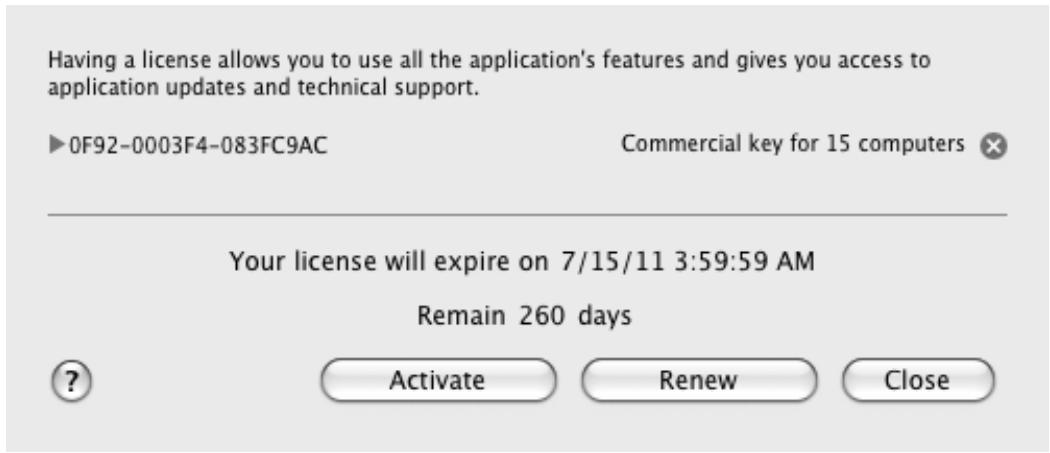
Figure 1. License management
If there is no license, Kaspersky Anti-Virus will notify you of this. If the application is not activated, you can start the activation procedure (see section "Kaspersky Anti-Virus activation" on page 28). If the trial version of the application is activated, you can purchase the commercial license (see section "Purchasing a license" on page 26). If your commercial license expires, you can renew it (see section "Renewing a license" on page 27).
PURCHASING A LICENSE
To purchase a new license:
- Open the main application window (on page 33) and click the button.
- In the window that opens (see figure below), click the Purchase button.
The web page that opens contains all the information on purchasing a key through Kaspersky Lab eStore or corporate partners. On purchasing a license at an online store, an activation code for Kaspersky Anti-Virus (see section "About activation code" on page 28) will be sent to the email address that you have specified in the order form.
Having a license allows you to use all the application's features and gives you access to application updates and technical support.
License not found.
Databases update is not available. Please purchase a license or activate the trial version to enable all features of the application.

Figure 2. Purchasing a license
Activate
Purchase
Close
RENEWING A LICENSE
The application license needs to be renewed when the current license expires. In this case, Kaspersky Anti-Virus keeps performing all of its functions, but the anti-virus databases are no longer updated.
To renew your current license:
- Open the main application window (on page 33) and click the button.
- In the window that opens (see figure below), click the Renew button.
The web page that opens contains all the information on license renewal through Kaspersky Lab eStore or corporate partners. On renewing a license at an online store, an activation code for Kaspersky Anti-Virus (see section "About activation code" on page 28) will be sent to the email address that you have specified in the order form.
Kaspersky Lab regularly organizes special pricing offers on license renewals for our products. Check for special offers at Kaspersky Lab website, in the Products → Sales and special offers section.
Having a license allows you to use all the application's features and gives you access to application updates and technical support.
OF92-0003F4-083FC9AC
Commercial key for 15 computers

Your license will expire on 7/15/11 3:59:59 AM
Remain 260 days

Figure 3. License management
Activate
Renew
Close
ABOUT END USER LICENSE AGREEMENT
End User License Agreement – is an agreement between Kaspersky Lab and a natural or legal person lawfully in possession of a copy of Kaspersky Anti-Virus. The EULA is included in each Kaspersky Lab application. It provides detailed information on the rights and usage restrictions of Kaspersky Anti-Virus.
ABOUT THE ACTIVATION CODE
Activation code is a code supplied with Kaspersky Anti-Virus commercial license. This code is required for application activation.
The activation code represents a sequence of Latin characters and digits divided by hyphens into four groups of five symbols without spaces. For example, 11111-11111-11111-11111.
ABOUT THE KEY FILE
The availability of Kaspersky Anti-Virus is ensured by a key file. You are provided with a key file on the basis of the activation code (see section "About the activation code" on page 28) obtained when purchasing the application; it entitles you to use the latter starting from the day of activation. The key file contains information about the license: the type, date of expiry and number of hosts.
KASPERSKY ANTI-VIRUS ACTIVATION
Before activating Kaspersky Anti-Virus, make sure that the current system date value on your computer matches the actual date and time.
The activation procedure consists of installing a key file (see section "About the key file" on page 28) that Kaspersky Anti-Virus applies to verify the rights for the use of the application and define the term of its use.
The application is activated using the Activation Assistant. Follow these steps to activate the application.
At any stage in the Activation Wizard you can click the Cancel button to interrupt the activation. The Activation Assistant will close. If the application has not been activated, all options of Kaspersky Anti-Virus are available, except the retrieval of updates. The application can be updated only once after installation.
IN THIS SECTION:
Trial version activation. 28
Activating the application with an activation code 29
Activating the application with a key file 30
TRIAL VERSION ACTIVATION
The Activation Assistant offers you to activate the trial version only if this version of Kaspersky Anti-Virus has never been installed on your computer.
Select this activation option if you want to install the trial version of the application before deciding whether to purchase the commercial version. You will be granted a free license key with validity period limited by the trial license.
Your computer must be connected to the Internet. If the Internet connection is currently unavailable, you can activate the trial version later.
To activate the trial version of the application:
- Open the main application window (on page 33) and click the button.
- In the window that opens, click the Activate button. This launches the Activation Assistant. Follow these steps to activate the application.
- In the Activation method window, select Activate trial version.
- In the Obtaining key file window, wait until the Activation Assistant establishes connection with Kaspersky Lab servers and sends data for verification. If the data are successfully verified, the Assistant receives and installs a key file with a validity period limited by the trial license.
If the validity period of the trial license has expired, an onscreen notification will appear.
- In the Key file information window, the Activation Assistant notifies you of the successful completion of the activation process. In addition, information about the installed key is displayed, including the key number, key type (trial), and the license key's expiration date. Click the Finish button to close the Activation Assistant.
ACTIVATING THE APPLICATION WITH AN ACTIVATION CODE
Select this activation option if you have purchased a commercial version of the application, and you have been provided an activation code. Using this activation code, you will obtain a key file, which provides access to the functionality of Kaspersky Anti-Virus throughout the entire license validity period.
Your computer must be connected to the Internet. If the Internet connection is currently unavailable, you can activate the trial version later.
To activate the application with your activation code, do the following:
- Open the main application window (on page 33) and click the button.
- In the window that opens, click the Activate button. This launches the Activation Assistant. Follow these steps to activate the application.
- In the Activation method window, select Activate using activation code.
- In the Enter activation code window, enter the activation code that you received when you purchased Kaspersky Anti-Virus.
The activation code is a sequence of numbers and letters delimited with hyphens in four groups of five symbols without spaces, for example: 11AA1-11AAA-1AA11-1A111. Please note that the activation code should only be entered in Latin characters.
- In the Obtaining key file window, wait until the Activation Assistant establishes connection with Kaspersky Lab servers and sends data for verification. If the activation code is verified, the Assistant downloads the key file.
Kaspersky Anti-Virus does not download a physical key file (with .key extension) from the server, but receives the relevant information to save in the operating system. To obtain a real key file, you should go through the registration procedure on the Kaspersky Lab website (http://support.kaspersky.com/).
If the activation code is not verified, the Assistant will display this information on the screen. In this case, contact the software vendor, from which you purchased Kaspersky Anti-Virus, for details.
- In the Key file information window, the Activation Assistant notifies you of the successful completion of the activation process. In addition, information about the installed key is displayed, including the key number, key type (commercial), and the license key's expiration date. Click the Finish button to close the Activation Assistant.
ACTIVATING THE APPLICATION WITH A KEY FILE
Use this option to activate the application with an existing key file.
If you have selected the activation with a key file, no Internet connection is required. This method of application activation is recommended to use if the computer cannot be connected to the Internet, or if it is temporarily unavailable.
To activate the application with an existing key file:
- Open the main application window (on page 33) and click the button.
- In the window that opens, click the Activate button. This launches the Activation Assistant. Follow these steps to activate the application.
- In the Activation method window, select Use existing key file.
- In the Selecting key file window, click the Select button and select the key file in the window that opens. Information about the current key will be displayed in the bottom part of the window, including the key number, the key type (commercial), and the license key expiration date.
- In the Key file information window, the Activation Assistant notifies you of the successful completion of the activation process. In addition, information about the installed key is displayed, including the key number, key type, and the license key's expiration date. Click the Finish button to close the Activation Assistant.
APPLICATION INTERFACE
This section contains description of the basic GUI components of the application: icon and context menu, main application window, settings window, and notification windows.
IN THIS SECTION:
Kaspersky Anti-Virus icon 31
Main application window 33
Application settings window 35
36
Configuring the Kaspersky Anti-Virus interface 38
KASPERSKY ANTI-VIRUS ICON
Immediately after Kaspersky Anti-Virus is installed, its icon appears in the Menu Bar. This icon is an indicator of the application's operation. If the icon is active, it means that real-time protection against malware is enabled for the computer's file system. The inactive icon indicates that the protection is disabled. In addition, the context menu of the icon provides access to the basic commands of Kaspersky Anti-Virus: disabling and resuming the computer's file system protection, launching the update or virus scan task, opening the application settings window, etc.
By default, the icon is located on the Menu Bar. You can edit the application settings to display the Kaspersky Anti-Virus icon in Dock.
To display the application icon in the Dock quick launch panel, do the following:
- Open the application preferences window (on page 35) and select the Appearance tab (see figure below).
- In the Show application icon section select the In Dock option.
Note that this modification will only take place after Kaspersky Anti-Virus is restarted.
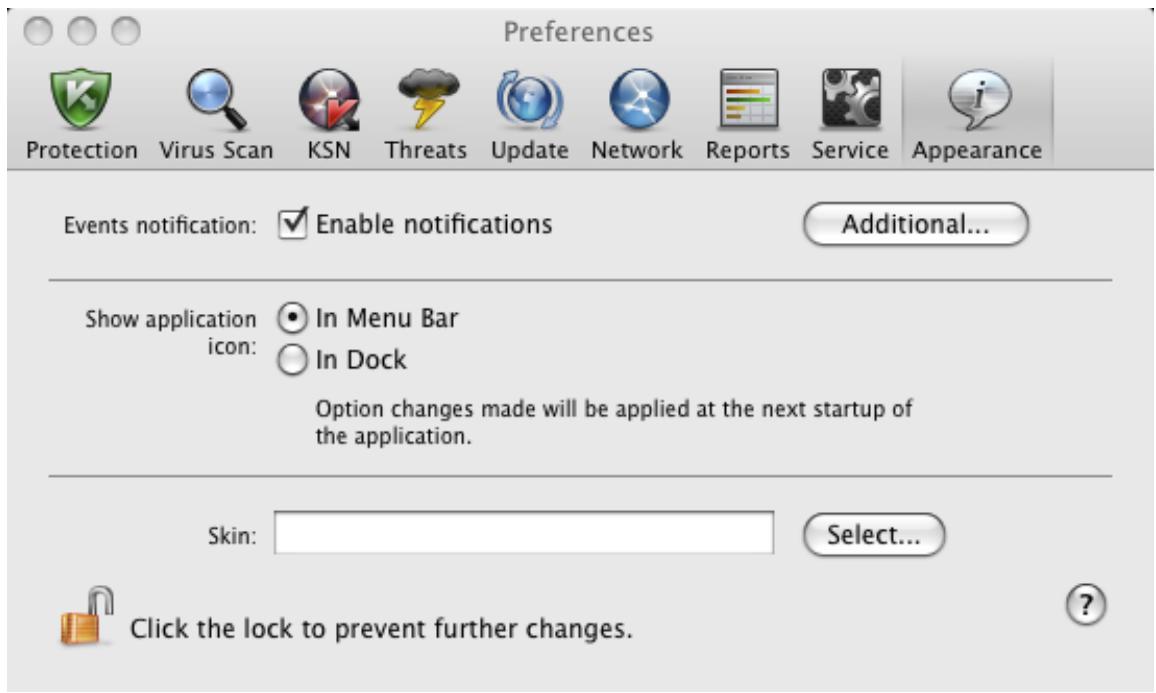
Figure 4. Application settings window. Appearance
If you selected the option to display the application icon in the menu bar, the icon will not appear in Dock when the application is started or the main window is opened. The Command-Tab key combination to switch to the application is also unavailable.
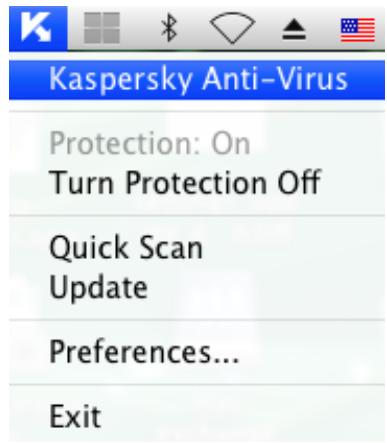
Figure 5. Context menu of the Kaspersky Anti-Virus icon in the Menu Bar
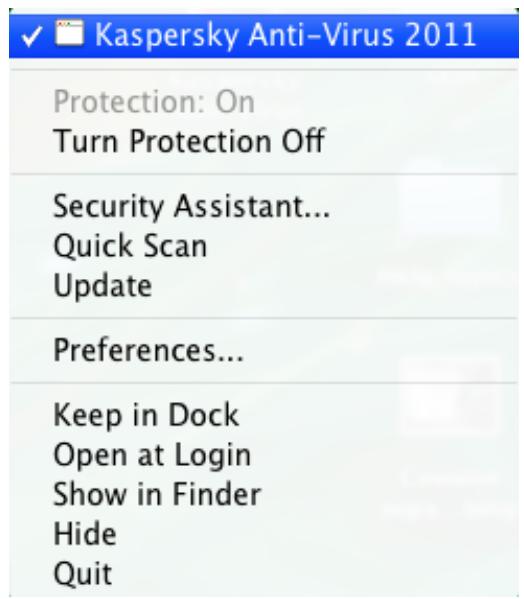
Figure 6. Context menu of the Kaspersky Anti-Virus icon in the Dock
MAIN APPLICATION WINDOW
To open the main application window,
click the Kaspersky Anti-Virus icon in the Menu Bar or in the Dock and select the Kaspersky Anti-Virus command from the menu that opens.
The main purpose of the Kaspersky Anti-Virus main window (see figure below) is to inform the user of the computer protection status and any related problems, provide information about software components (File Anti-Virus, virus scan and update tasks), and ensure access to the main tasks and the application settings window.
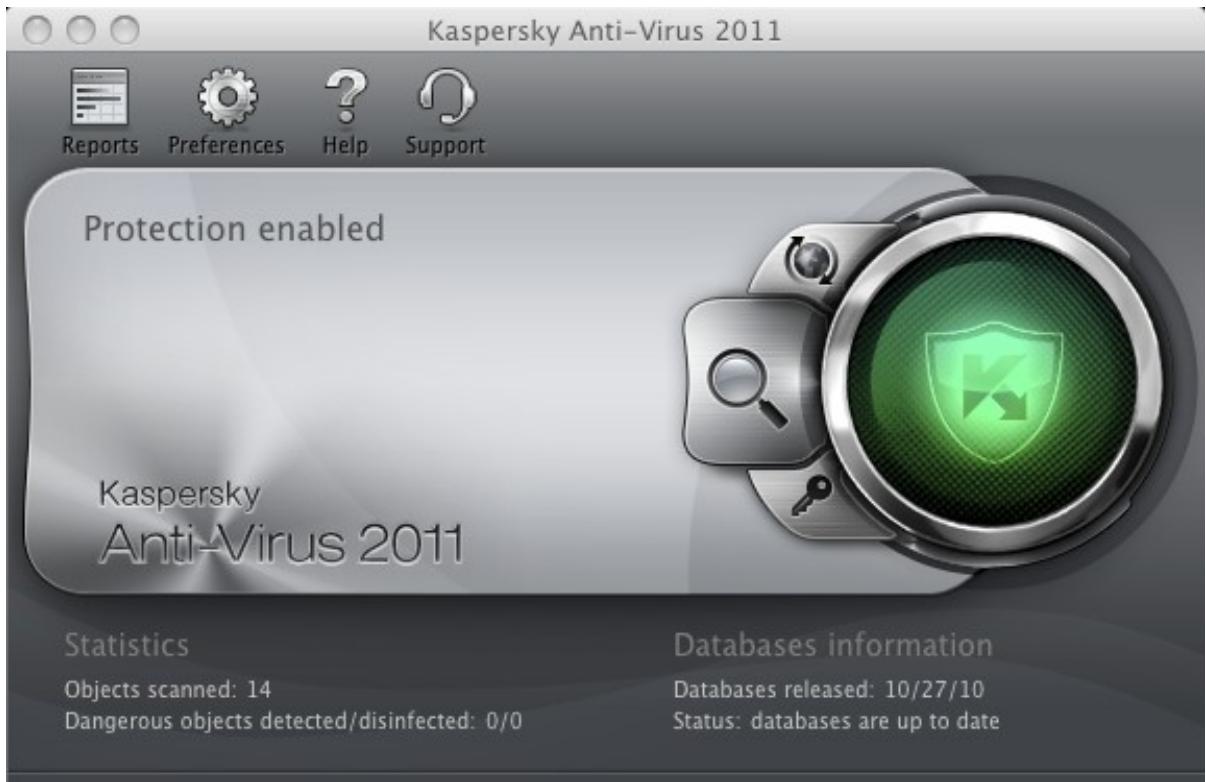
Figure 7. Kaspersky Anti-Virus 2011 main window
There are three possible protection status values (see section "Protection status overview" on page 42), which use a traffic-light color scheme. The color of the main window indicator shows the current protection status. Green indicates that protection of your computer is at an optimal level, while yellow and red warn of the presence of various problems related to Kaspersky Anti-Virus configuration or operation. For more detailed information on these problems and how to fix them, use the Security Assistant (see section "Security Assistant" on page 43) that opens when you click on the color indicator.
In addition to the color indicator, the left part of the main window contains a block of text which describes the protection status, and lists any security threats logged by the Security Assistant. If a virus scan or update task is running, information on their progress (percentage completion) will also be displayed in the left part of the main window.
The lower part of the window displays summary statistics on the operation of File Anti-Virus and information about the databases used by the application.
In the main window, you can update Kaspersky Anti-Virus, start a user-defined virus scan, and switch to the license management. To do this, use the following buttons:

Launch Kaspersky Anti-Virus update. At the end of the update the report window (see section "Reports" on page 97) will show detailed information about the task execution.

Switch to virus scan tasks: Quick Scan, Full Scan, and Virus Scan in an area specified by the user, as well as all custom virus scan tasks if any of them have been created. At the end of the update the report window (see section "Reports" on page 97) will show detailed information about the task execution.

Switch to the window that displays information about the current license.
The top part of the main window contains a navigation panel with the following buttons:

Open the report window (see section "Reports" on page 97) of Kaspersky Anti-Virus and obtain access to Quarantine (see section "Quarantine" on page 91) and Backup (see section "Backup Storage" on page 94).

Open the application settings window (on page 35).

Open the Kaspersky Anti-Virus help system.

Open the Technical Support window (see section "Contacting Technical Support Service" on page 110).
APPLICATION SETTINGS WINDOW
The Kaspersky Anti-Virus settings window (see figure below) can be opened using one of the following methods:

- by clicking the button in the main application window (see section "Main application window" on page 33);
- by selecting Preferences in the context menu that opens by clicking the Kaspersky Anti-Virus icon (on page 31) in the Dock or the Menu Bar.
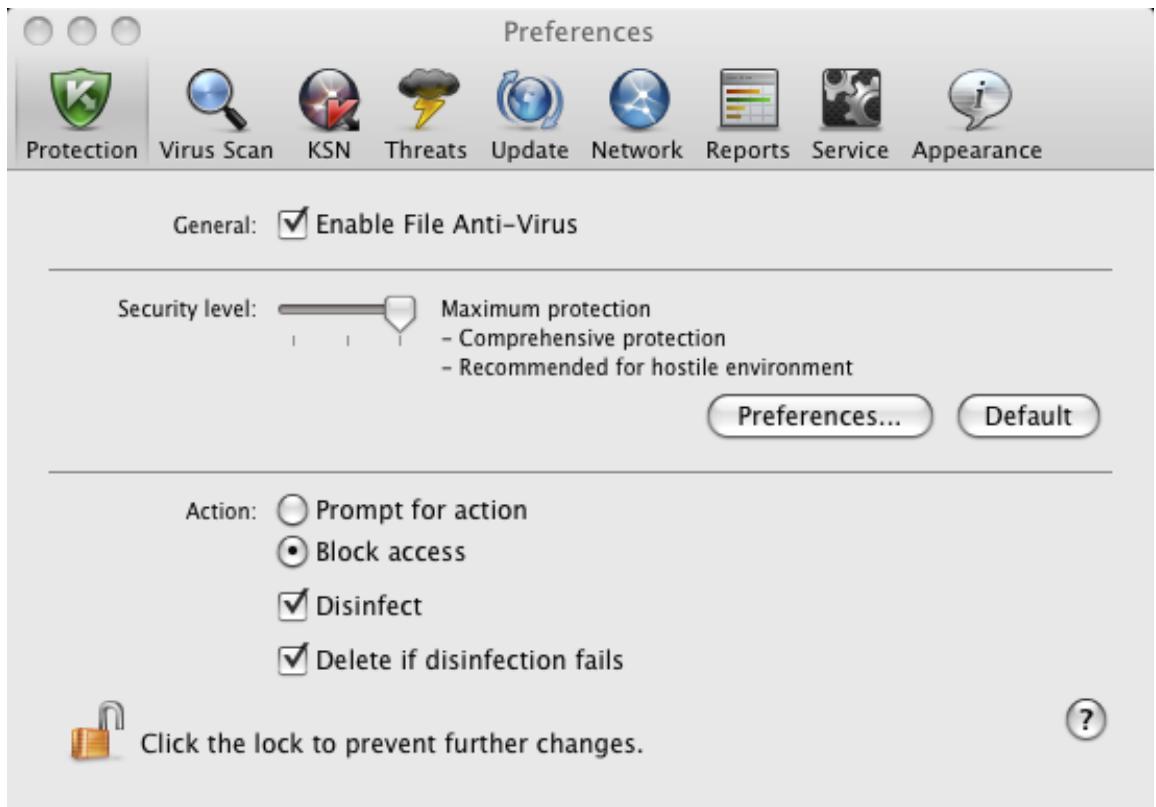
Figure 8. Application settings window. Protection
The tabs in the top part of the window provide quick access to the following options of the application:
- configuration of File Anti-Virus;
- configuration of virus scan tasks;
- configuration of application updates;
- selection of malicious programs to control and creation of a trusted zone;
- service settings of Kaspersky Anti-Virus;
- configuration of participating in Kaspersky Security Network.
To fine-tune certain settings, you will need to open the second- and third-level settings windows.
To prevent unauthorized users from modifying the Kaspersky Anti-Virus settings, click the button in the bottom part of the window. You will need to enter the administrator's username and password to remove the restrictions on modifying the settings.
The button provides access to the Kaspersky Anti-Virus help system with a description of the settings for the current application window.
NOTIFICATION WINDOWS AND POP-UP MESSAGES
Various events may occur in the operation of Kaspersky Anti-Virus. They may be of an informative nature or contain important information. For example, an event may notify the user of a successful update or of an error in File Anti-Virus or during a virus scan that requires urgent attention. The application will inform you of new events with notification windows and pop-up messages.
IN THIS SECTION:
About notifications 36
Methods of receiving notifications 36
Configuring receipt of notifications 37
About pop-up messages 38
ABOUT NOTIFICATIONS
When active, Kaspersky Anti-Virus notifies you of new events of the following types:
Critical notifications are events of critical importance that should be notified of, since they indicate problems in the operation of Kaspersky Anti-Virus or vulnerabilities in the protection of your computer: for example, application databases are out of date or license expired.
- Functional failure - events that disable Kaspersky Anti-Virus: for example, application databases corrupted.
- Important events are events that should be attended to, since they reflect important situations in the operation of Kaspersky Anti-Virus: for example, protection is disabled or computer has not been scanned for viruses for a long time.
Informational notifications are reference-type messages, for example, all dangerous objects disinfected.
To be aware of events, which occur in the operation of Kaspersky Anti-Virus, use the notification service.
METHODS OF RECEIVING NOTIFICATIONS
Notifications can delivered using one or both of the following:
- pop-up messages on screen;
audio message.
Kaspersky Anti-Virus supports Growl notifications. If Growl is enabled, it is used to display onscreen messages.
CONFIGURING RECEIPT OF NOTIFICATIONS
To receive notifications about events, do the following:
- Open the application settings window (on page 35) and select the Appearance tab (see figure below).
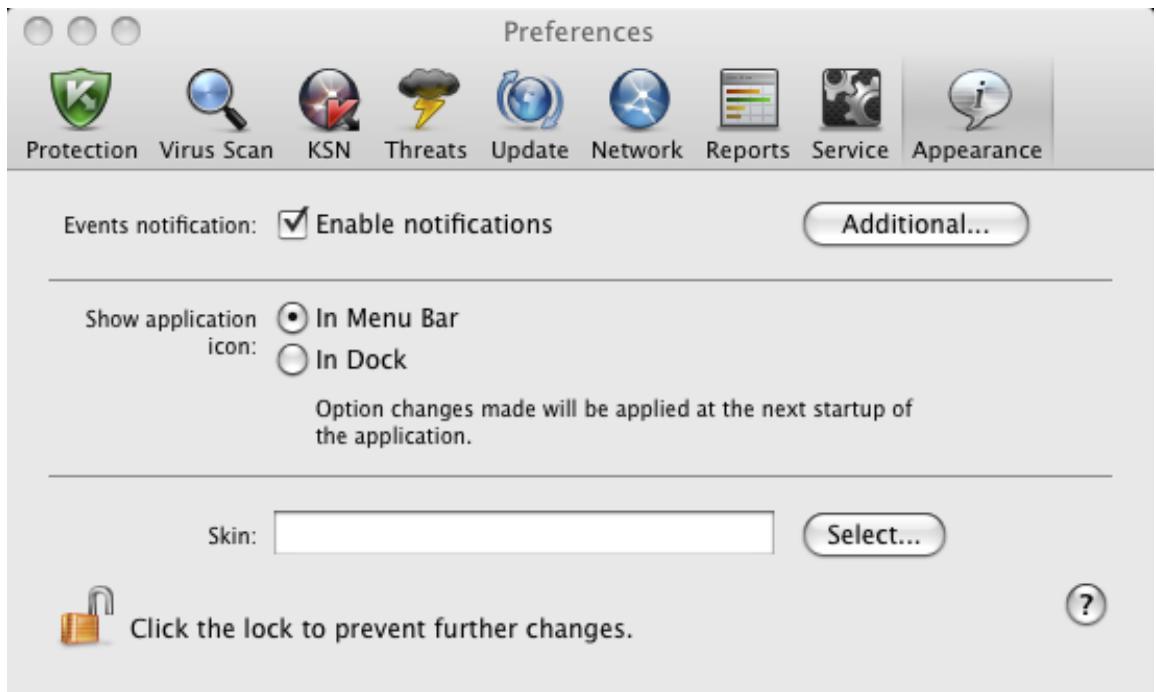
Figure 9. Application settings window. Appearance
- Check the Enable notifications box in the Events notification section and switch to advanced settings. To do so, click the Additional button.
In the window that opens (see figure below), you may configure the following types of notifications about events listed above:
- Pop-up message on screen, which contains information about an event that has occurred.
To use this notification type, check the box in the Balloon field next to the event you want to be notified of.
Audio message.
If you want this notification to be accompanied by a sound file, check the box in the Sound field next to the event name.
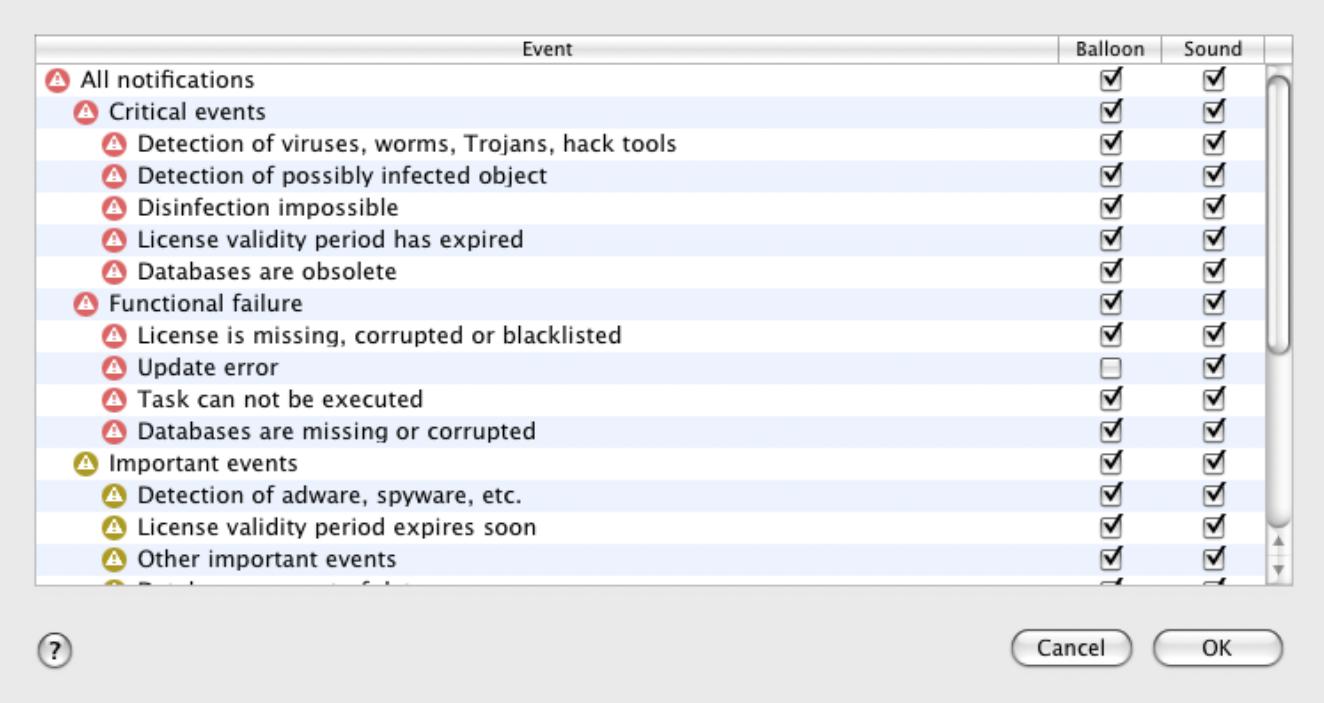
Figure 10. Configuring receipt of notifications
ABOUT POP-UP MESSAGES
Pop-up messages are displayed on the screen by Kaspersky Anti-Virus to inform you of events that do not require the obligatory selection of an action. Pop-up messages appear under the application icon in the Menu Bar and automatically disappear from the screen shortly after.
CONFIGURING THE KASPERSKY ANTI-VIRUS INTERFACE
You can change the appearance of Kaspersky Anti-Virus by creating and using various graphics and color schemes. All the colors, fonts, icons and texts used in the application interface can be changed.
To enable the graphics shell, do the following:
- Open the application preferences window (on page 35) and select the Appearance tab (see figure below).
- In the Skin section, click the Select button and in the window that opens select the folder containing the skin files.
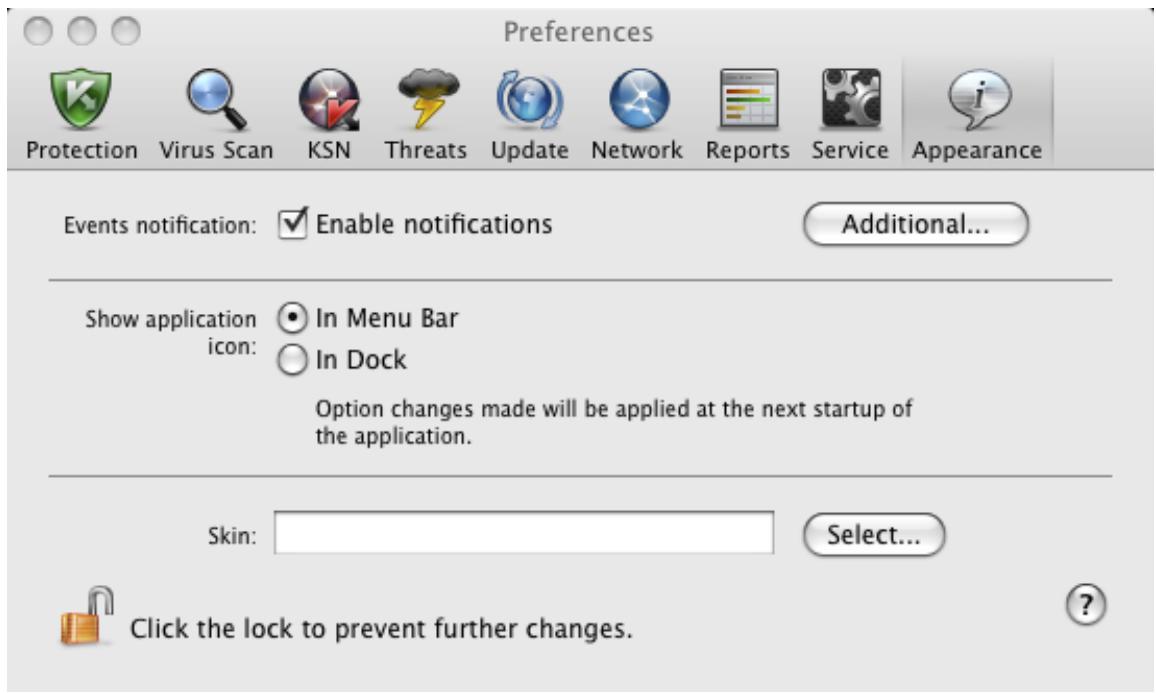
Figure 11. Application settings window. Appearance
STARTING AND STOPPING THE APPLICATION
This section provides you with information about how to launch the application and close it.
The application starts up immediately after the installation, and the Kaspersky Anti-Virus icon (on page 31) appears in the Menu Bar.
IN THIS SECTION:
Closing Kaspersky Anti-Virus 40
Configuring the automatic startup of Kaspersky Anti-Virus 40
Configuring the power-saving mode 41
CLOSING KASPERSKY ANTI-VIRUS
If you need to close Kaspersky Anti-Virus for any reason, click the Kaspersky Anti-Virus icon (on page 31) in the Menu Bar or in the Dock and select the Quit command from the menu that opens. The application's operation will be stopped, the process will be discarded from the computer's RAM.
After Kaspersky Anti-Virus closes, the computer continues to operate in unprotected mode and may be exposed to a risk of infection.
CONFIGURING THE AUTOMATIC STARTUP OF KASPERSKY ANTI-VIRUS
By default, Kaspersky Anti-Virus starts up automatically when the computer is turned on or rebooted.
To disable automatic start-up, do the following:
- Open the application settings window (on page 35) and select the Service tab (see figure below).
- In the Autorun section uncheck the Launch application at computer startup box.
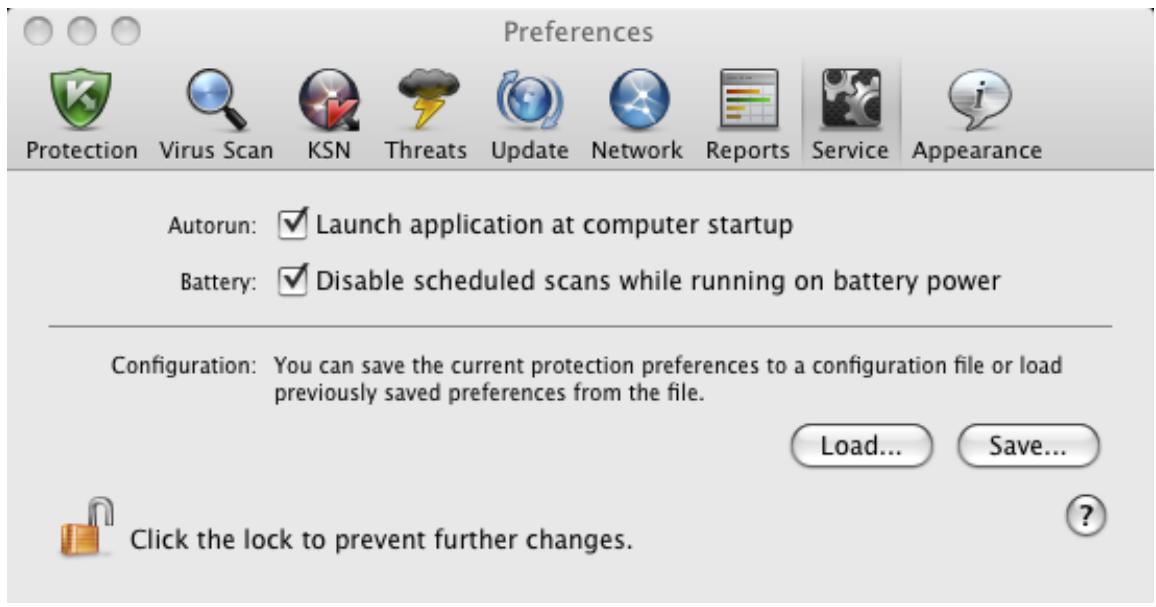
Figure 12. Application settings window. Service
Disabling the automatic startup mode of Kaspersky Anti-Virus results in unprotected operation mode of your computer next time it is turned on, which may expose it to a risk of being infected.
CONFIGURING THE POWER-SAVING MODE
By default, Kaspersky Anti-Virus runs in power-saving mode. In this mode, the virus scan task for which the schedule is set will not start if a computer is powered with a battery.
To disable the power-saving mode:
- Open the application settings window (on page 35), select the Service tab (see figure below).
- In the Battery section, uncheck the Disable scheduled scans while running on battery power box.
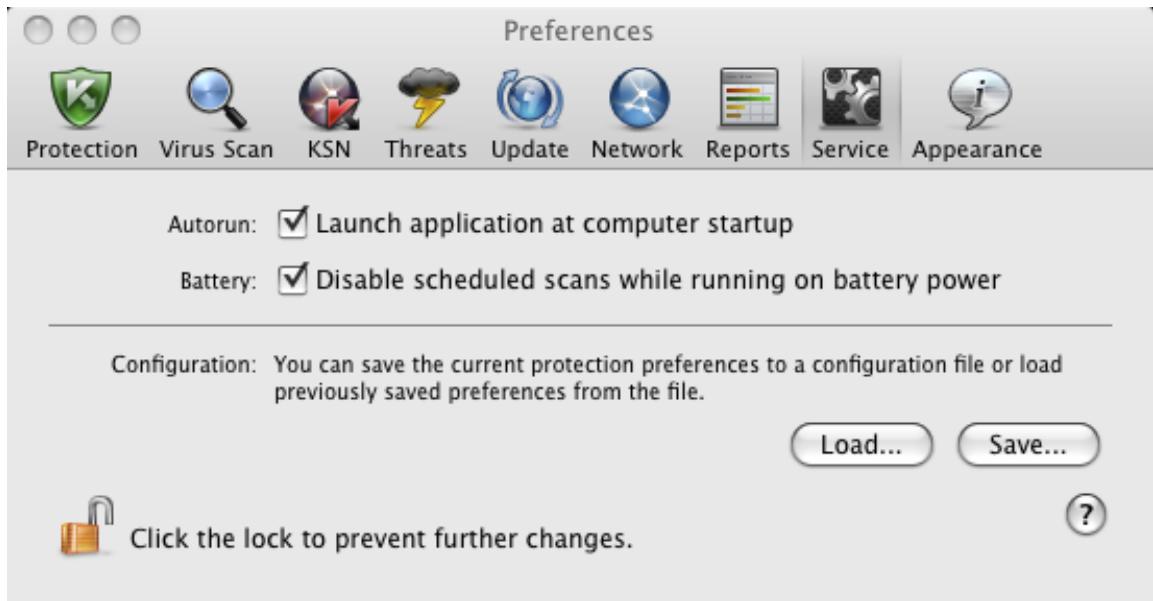
Figure 13. Application settings window. Service
COMPUTER PROTECTION STATUS
Your computer's protection state gives you a summary of your computer's overall security level. These threats include malicious programs, outdated databases, disabling of File Anti-Virus, and use of minimum Kaspersky Anti-Virus protection settings.
The Security Assistant lets you review all the current threats and begin to eliminate them.
IN THIS SECTION:
Assessing the computer's protection status 42
Security Assistant 43
ASSESSING THE COMPUTER'S PROTECTION STATUS
The computer's protection status is displayed in the main application window (see section "Main application window" on page 33) in the form of a traffic-light color scheme. Depending on the situation, the color scheme of the window will change. If any security threats are detected, the change of the color is supplemented by a text message.
The main application window's color, acting as a security indicator, can take the following values:
- Green. Your computer's protection is at the appropriate level.
This means that the databases have been recently updated, File Anti-Virus is enabled, Kaspersky Anti-Virus is running with the settings recommended by Kaspersky Lab, and either no malicious objects have been discovered by a virus scan, or all detected malicious objects have been disinfected.
- Yellow. Your computer's protection level is reduced.
This protection status indicates problems in the configuration or operation of Kaspersky Anti-Virus. Such problems include, for example: slight deviations from the recommended settings, or several days without updating the Kaspersky Anti-Virus databases.
Red. Your computer is at risk of infection.
This state indicates that there are problems which may lead to the infection of your computer and the loss of data. Such problems include, for example: a failure in the operation of File Anti-Virus; the Kaspersky Anti-Virus databases have not been updated for a long time; malicious objects have been detected and need to be disinfected immediately; the application has not been activated.
If there are problems in the protection system, you are advised to fix them immediately. To do this, click the color indicator in the main window to launch the Security Assistant (on page 43).
SECURITY ASSISTANT
Security Assistant is a service that allows users to analyze existing threats and troubleshoot them (see figure below).
To launch the Security Assistant,
click the color indicator in the main application window (see section "Main application window" on page. 33).
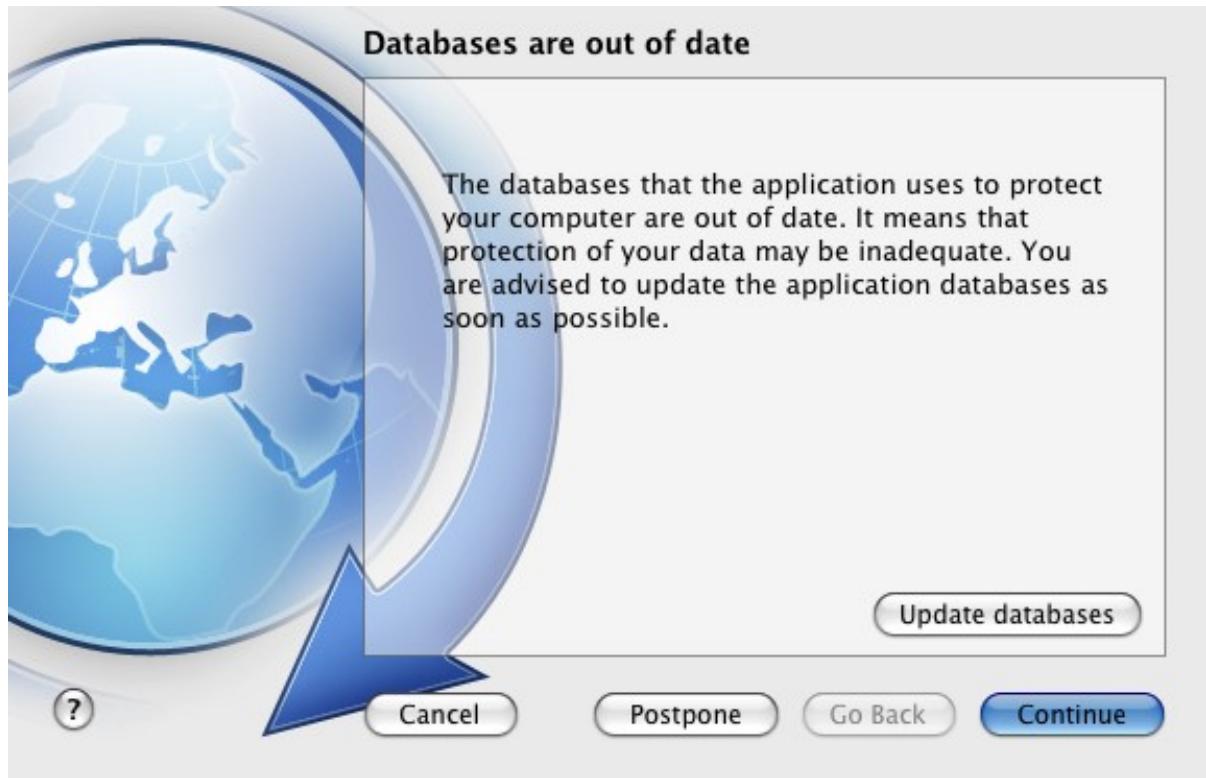
Figure 14. Security Assistant interface
To browse the list of existing threats, click the Continue or Go Back buttons. A detailed description is provided for each threat, and the following actions are available:
- Eliminate threat immediately.
To eliminate a threat, click the button with the recommended action. For example, if infected objects have been detected on the computer, the recommended action will be Disinfect infected objects. If the anti-virus database used by the application are out of date, the recommended action is Update databases. Detailed information about threats can be found in the report window (see section "Reports" on page 97).
Postpone threat elimination.
If you do not want to eliminate the threat immediately for some reason, you can postpone the action and return to it later. To do so, use the Postpone button. Note that this option does not cover such dangerous threats as persistence of malicious objects that have not been processed, failures in the operation of File Anti-Virus, or corruption of files in the Kaspersky Anti-Virus databases.
If you close the Security Assistant without eliminating all serious threats, the color indicator in the main application window will signalize that there is a problem. If you postpone the elimination of some threats, they will not be present in the list of active threats when Security Assistant is opened for the next time. However, you can still return to view and eliminate postponed threats by clicking the View postponed threats button in the last window of the Security Assistant.
SOLVING TYPICAL TASKS
This section describes the tasks encountered by the most users when working with the application as well as the procedures developed for carrying out these tasks.
IN THIS SECTION:
How to perform a full scan of your computer for viruses 44
How to perform a quick scan of your computer 45
How to scan a file, folder or disk for viruses 45
How to configure a scheduled scan of your computer 45
How to purchase or renew license 46
How to update application databases and modules 46
How to export the application settings to Kaspersky Anti-Virus installed on another computer 46
What to do if file access is blocked 47
What to do if you suspect an object of being infected with a virus 48
How to restore an object that has been deleted or disinfected by the application 48
How to view the report on the application's operation 49
What to do when the application's notifications appear 49
HOW TO PERFORM A FULL SCAN OF YOUR COMPUTER FOR VIRUSES
The full scan task created by default is included in Kaspersky Anti-Virus. While running this task, the application scans all hard drives for viruses.
To launch a full computer scan, do the following:
- Open the main application window (on page 33) and click the button.

- In the menu that opens, select the Full Scan task.
You can view the scan results in the report window (see section "Virus Scan statistics" on page 80).
HOW TO PERFORM A QUICK SCAN OF YOUR COMPUTER
The quick scan task created by default is included in Kaspersky Anti-Virus. While running this task, the application performs virus scan of critical areas of your computer, such as folders containing operating system files and system libraries, which may, when infected with malware, cause corruption of your operating system.
To launch a full computer scan, do the following:
- Open the main application window (on page 33) and click the button.
- In the menu that opens, select the Quick scan task.
You can view the scan results in the report window (see section "Virus Scan statistics" on page 80).
HOW TO SCAN A FILE, FOLDER OR DISK FOR VIRUSES
If you want to scan an individual object (such as a hard drive, folder, file, or removable device) for viruses, use the integrated Virus Scan task.
To scan an individual object for viruses, do the following:
-
Open the main application window (on page 33) and click the button.
-
In the menu that opens, select Virus Scan. A window opens to select objects to be scanned.
- Create a list of objects to be scanned (see section "Creating a list of objects to scan" on page 70) and click the Start button to run the virus scan.
You can view the scan results in the report window (see section "Virus Scan statistics" on page 80).
You can start the virus scan of any object on your computer from the Finder application if the Finder Contextual Menu component is installed (see section "Kaspersky Anti-Virus custom installation" on page 22). To do this, open the context menu of the object and select Scan for viruses1.
HOW TO CONFIGURE A SCHEDULED SCAN OF YOUR COMPUTER
Timely virus scans ensure your computer is kept secure. You can create a scheduled virus scan using the tasks: Quick Scan and Full Scan. In accordance with set mode, the application will automatically perform a scan of the whole computer or the most critical areas of its file system.
To configure a scheduled Quick Scan or Full Scan task:
- Open the application settings window (on page 35) and select the Virus Scan tab.
- In the list to the left, select a task name and enable scheduled run of the task in the Run mode section. To edit the startup schedule, click the Edit button.
- In the window that opens, set the frequency with which the scan task will run.
You can view the task completion results in the report window (see section "Virus Scan statistics" on page 80).
HOW TO PURCHASE OR RENEW LICENSE
If you have installed Kaspersky Anti-Virus without a license, you can purchase one after the installation. When your current license expires, you can renew it. When purchasing or renewing a license, you receive an activation code that you should use to activate the application (see section "Kaspersky Anti-Virus activation" on page 28).
To purchase a license:
- Open the main application window (on page 33) and click the button.
- In the window that opens, click the Purchase button.
The eStore web page opens where you can purchase a license.
To renew a license:
- Open the main application window (on page 33) and click the button.
- In the window that opens, click the Renew button.
The eStore web page opens where you can renew a license.
HOW TO UPDATE APPLICATION DATABASES AND MODULES
Kaspersky Lab updates Kaspersky Anti-Virus databases and modules using dedicated update servers. Kaspersky Lab update servers are Kaspersky Lab websites, to which updates of Kaspersky Anti-Virus are regularly uploaded.
An Internet connection is required to download updates from the servers.
By default, Kaspersky Anti-Virus periodically checks for update packages on Kaspersky Lab servers. If Kaspersky AntiVirus detects new updates, it downloads and installs them on the computer.
To update Kaspersky Anti-Virus manually,
open the main application window (on page 33) and click the button.
You can view the scan results in the report window (see section "Virus Scan statistics" on page 89).
HOW TO EXPORT THE APPLICATION SETTINGS TO KAspersky Anti-Virus INSTALLED ON ANOTHER COMPUTER
Kaspersky Anti-Virus allows exporting and importing its settings. This is useful if, for example, when the application is installed both on your home and office computers. You can configure the application in a convenient mode at home, save those settings in a special configuration file on a disk, and then import them quickly onto your office workstation. The settings are stored in a special configuration file.
To save the current Kaspersky Anti-Virus settings into a file:
- Open the application preferences window (on page 35) and select the Service tab.
- In the Configuration section, click the Save button. The Save window opens.
- In the Save as field enter the file name and select the folder in which it will be saved.
To import the Kaspersky Anti-Virus settings from a configuration file:
- Open the application preferences window (on page 35) and select the Service tab.
- In the Configuration section, click the Load button and select the file containing the Kaspersky Anti-Virus settings in the window that opens.
WHAT TO DO IF FILE ACCESS IS BLOCKED
Kaspersky Anti-Virus blocks access to a file or program if File Anti-Virus (on page 54) suspects the object of being infected or potentially infected by a malicious program, and the Block access option has been selected.
To process the dangerous objects listed on the Detected tab of the report window, do the following:
- Open the main application window (on page 33) and click the button. Kaspersky Anti-Virus report window opens.
- In the left part of the report window, select Detected. The right part of the window displays a list of dangerous objects that have been detected with their status.
- Press the Disinfect all button. After each object is processed, a notification will appear on screen to prompt for further action. If you check the Apply to all box in the notification window, the selected action will be applied to all objects with the same status.
To process potentially infected objects in Quarantine:
- Open the main application window (on page 33) and click the button. Kaspersky Anti-Virus report window opens.
- In the left part of the report window, select Quarantine. The contents of Quarantine are displayed in the right-hand part of the window.
- Click the Scan all button to scan and disinfect all potentially infected objects in Quarantine using the current Kaspersky Anti-Virus databases.
The status of an object in Quarantine is changed only after it is scanned using anti-virus databases released no earlier than three days after the file was placed in Quarantine.
- Click the Restore button to restore the files to the folder specified by the user or the folder from which they were moved to Quarantine (by default).
We recommend that you only restore objects with the false positive, OK, and disinfected statuses since restoring other objects can lead to your computer becoming infected.
- Click the Delete or Clear all button to delete the selected object from Quarantine or clear Quarantine completely.
If you are confident that the objects being blocked by File Anti-Virus are safe, include them in a trusted zone by creating an exclusion rule (see section "Creating a trusted zone" on page 51).
WHAT TO DO IF YOU SUSPECT AN OBJECT OF BEING INFECTED WITH A VIRUS
If you suspect an object of being infected, first scan it for viruses (see section "How to scan a file, folder or disk for viruses" on page 45).
If the virus scan performed by Kaspersky Anti-Virus reveals that the object is not infected, though you suspect the opposite, move the object to Quarantine. Objects once moved in Quarantine are stored as archives, thus causing no risk to your computer. After the databases are updated, Kaspersky Anti-Virus will probably be able to clearly identify and neutralize the threat.
To move an object to Quarantine:
- Open the main application window (on page 33) and click the button. Kaspersky Anti-Virus report window opens.
- In the left part of the report window, select Quarantine. The contents of Quarantine are displayed in the right-hand part of the window.
- Click the Add button and in the window that opens select the required file. It is added to the list with the added by user status.
Kaspersky Anti-Virus can change the status of a file moved to Quarantine manually after it is scanned using updated databases only if at least three days have passed since it had been scanned in Quarantine for the first time. If a file is assigned the false operation status, it will be automatically restored. If a file is identified as infected, it is deleted from Quarantine and a copy is stored in Backup Storage.
HOW TO RESTORE AN OBJECT THAT HAS BEEN DELETED OR DISINFECTED BY THE APPLICATION
We recommend that you avoid restoring deleted and disinfected objects unless it is extremely necessary, because they may threaten your computer.
Sometimes it is not possible to save objects in their entirety during the disinfection process. If a disinfected file contained important information that is partly or completely inaccessible following disinfection, you can attempt to restore the original object from its backup copy.
To restore an object that has been deleted or modified by the application:
- Open the main application window (on page 33) and click the button. Kaspersky Anti-Virus report window opens.
- In the left part of the report window, select the Backup Storage section. The right part of the window displays the contents of Backup in the form of a list of copies of objects.
- Select the copy of the object you require in the list and click the Restore button. Confirm the action. The object is restored to its original location with its original name. If there is an object with the same name in the original location (this situation is possible when restoring an object with a copy created prior to disinfection), a warning will pop up on screen. You can change the location of the object being restored or rename it.
We recommend that you scan the object for viruses immediately after restoring it. It is possible that the object will be disinfected using the updated databases without losing its integrity.
Information about events that occur during the operation of File Anti-Virus (see section "File Anti-Virus" on page 54), during a virus scan (see section "Scanning for viruses" on page 66) or during an update (see section "Updating the application" on page 81) is displayed in the reports window (see section "Reports" on page 97).
To open the report window,
open the main application window (on page 33) and click the button.
WHAT TO DO WHEN THE APPLICATION'S NOTIFICATIONS APPEAR
Application notifications (see section "Notification windows and pop-up messages" on page 36) in the form of pop-up on-screen messages inform you of events that occur during the application's operation, that require your attention.
If such notification is displayed on the screen, you should select one of the suggested options. Optimum option is the one recommended by Kaspersky Lab experts by default.
ADVANCED APPLICATION SETTINGS
This section provides detailed information about each application component and describes the operation and configuration algorithms for each component.
IN THIS SECTION:
Creating a protection scope 50
File Anti-Virus 54
Virus Scan 66
Updating the application 81
Reports and Storages 91
Participating in the Kaspersky Security Network 100
CREATING A PROTECTION SCOPE
The scope of protection for your computer is defined by the following settings:
- the list of malware programs which the application protects against;
- list of objects in the trusted zone which are excluded from the protection scope.
IN THIS SECTION:
Selecting malicious programs to be monitored 50
Creating a trusted zone 51
SELECTING MALICIOUS PROGRAMS TO BE MONITORED
Kaspersky Anti-Virus provides protection against various types of malware. Regardless of your settings, the application protects your computer against the most dangerous types of malware such as viruses, Trojans, and hacking tools. These programs may cause significant damage to your computer. To achieve a greater level of security for your computer, you can expand the list of threats that the application will detect, turning on monitoring of various potentially dangerous programs.
Malicious and unwanted programs, against which Kaspersky Anti-Virus protects you, are grouped as follows:
- Viruses, worms, Trojans, hack tools. This group contains the most common and dangerous categories of malware. This is the minimum admissible security level. In accordance with the recommendations of Kaspersky Lab experts, Kaspersky Anti-Virus always monitors this group of malware.
- Spyware and Adware. This group includes potentially dangerous software that may cause inconvenience to the user or even cause damage.
- Auto-dialers. This group includes programs, which set up hidden dial-up connections, such as adult services auto-dialers.
- Other programs. This group includes programs that are not malicious or dangerous, but which under certain circumstances could be used to cause harm to your computer.
To select the groups of malware, against which Kaspersky Anti-Virus should protect your computer:
- Open the application settings window (on page 35) and select the Threats tab (see figure below).
- In the Malware categories section, check the boxes next to the names of the malware groups, against which Kaspersky Anti-Virus should protect your computer.
Kaspersky Anti-Virus always protects your computer against viruses, worms, Trojans, and hack tools. Therefore, it is not possible to uncheck the box for this group.
Depending on the groups that you have selected, Kaspersky Anti-Virus will fully or partially use the anti-virus databases while File Anti-Virus is running (see section "File Anti-Virus" on page 54) and during virus scans (see section "Scanning for viruses" on page 66).
If all groups of malware are selected, Kaspersky Anti-Virus provides the maximum level of anti-virus protection for your computer. If protection against viruses, worms, Trojans and hacking tools is only selected, Kaspersky Anti-Virus does not control unwanted and other malicious programs that may be installed on your computer, thus inflicting moral or material damage.
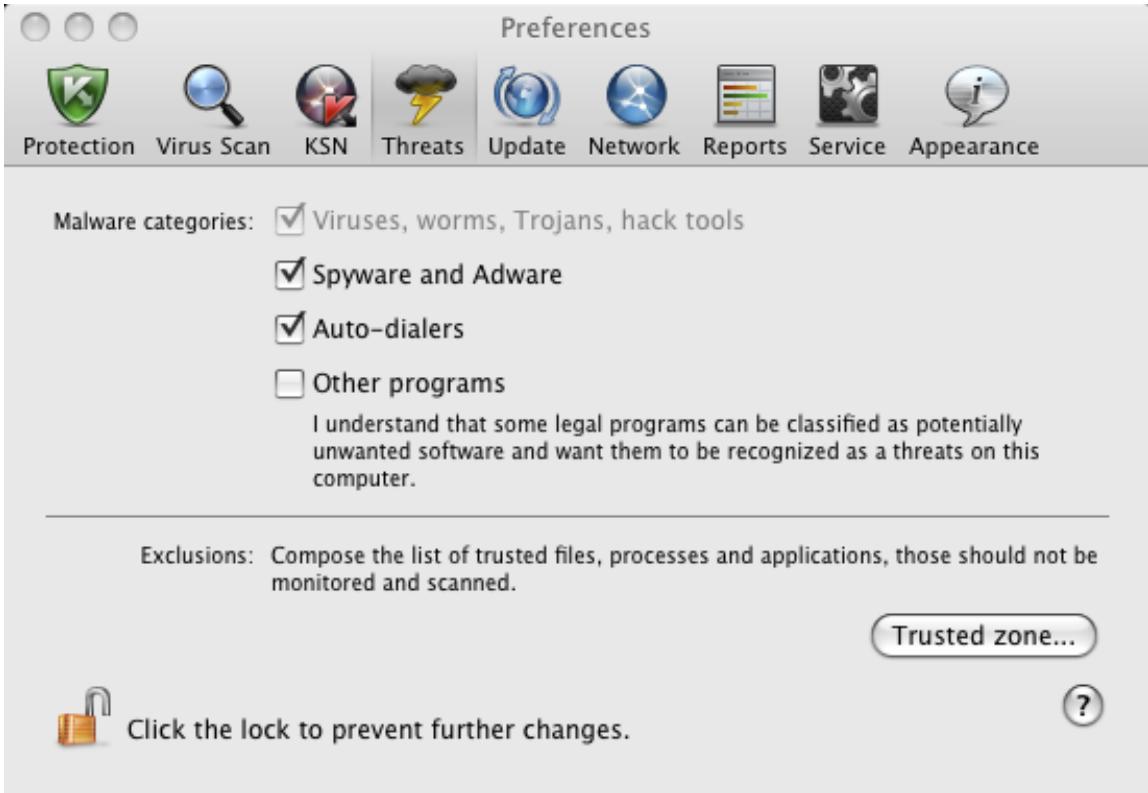
Figure 15. Application settings window. Threats
Kaspersky Lab does not recommend disabling monitoring of spyware, adware and auto-dialers. If Kaspersky Anti-Virus classifies a program, which you do not consider to be dangerous, as unwanted, you can configure an exclusion rule for it (see section "Creating a trusted zone" on page 51).
CREATING A TRUSTED ZONE
Trusted zone is a user-created list of objects that Kaspersky Anti-Virus does not monitor.
The user creates a trusted zone with regard to the objects he/she works with and the programs installed on the computer. You may need to create such list of exclusions if, for example, Kaspersky Anti-Virus blocks access to an object or program that you know is safe.
Exclusion rules are sets of conditions, under which Kaspersky Anti-Virus does not scan an object. It is possible to exclude from a scan files of a certain format (see section "List of objects scanned by their extension" on page 112), files by their mask (see "Permissible file exclusion masks" on page 114), a particular area (for example, a folder or program), application processes or objects by the type of threat in accordance with the Virus Encyclopedia (http://www.securelist.com).
An exclusion object will not be scanned when the disk or folder where it is located is being scanned. However, if you select that object specifically, the exclusion rule will not be applied to it.
Threat type is the status that Kaspersky Anti-Virus assigns to an object during the scan. The status is assigned based on the classification of malware and riskware listed in the Kaspersky Lab Virus Encyclopedia.
Riskware does not have any malicious features but can be used as an auxiliary component by malicious software, since such programs can contain holes and errors. This category includes, for example, remote administration programs, IRC clients, FTP servers, various utilities for stopping processes or hiding them, keyloggers, password macros, and autodialers. Such programs are classified in not-a-virus group. They can be divided into several types such as Adware, Joke, and Riskware. (for detailed information about unwanted programs detected by Kaspersky Anti-Virus, see the Virus Encyclopedia (http://www.securelist.com)). Such programs may be blocked after the scan. Since several of them are popular with users, you have the option of excluding them from the scan.
To create a new exclusion rule or view and modify an existing one, do the following:
- Open the application settings window (on page 35) and select the Threats tab (see figure below).
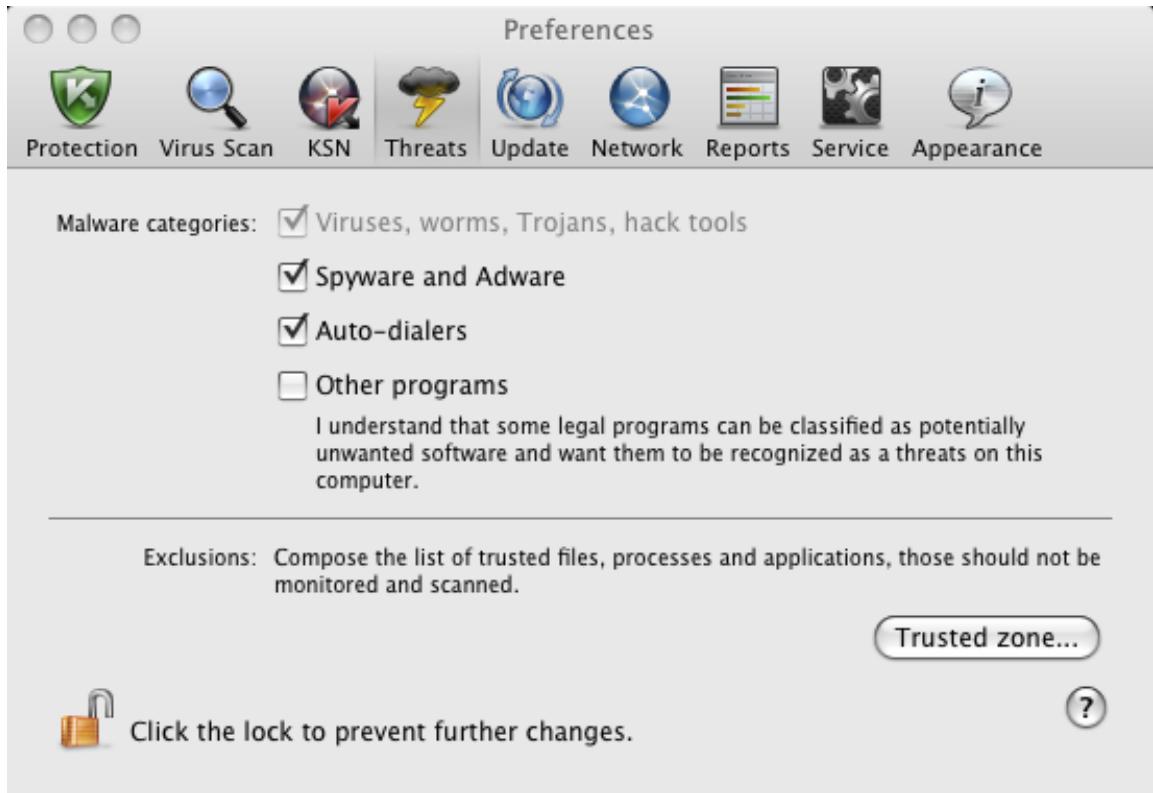
Figure 16. Application settings window. Threats
- In the Exclusions section, click the Trusted zone button (see figure above). A window (see figure below) opens, displaying a list of objects that Kaspersky Anti-Virus will not control.
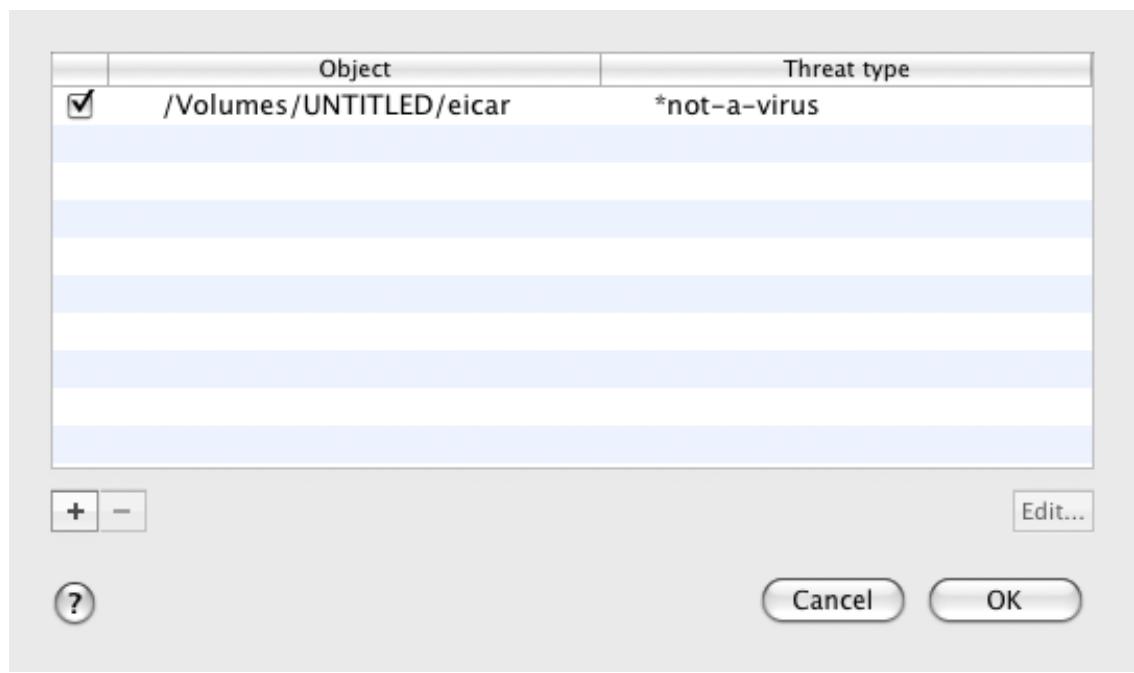
Figure 17. The list of exclusion objects
You can perform the following actions:
- Create new exclusion rule.
Click the + button and set the conditions in the Exclusion rule window that opens (see figure below).
- Modify existing exclusion rule.
Select the exclusion rule in the list and click the Edit button. In the Exclusion rule window that opens (see figure below), modify the conditions.
- Temporarily disable exclusion rule.
Select the exclusion rule in the list and uncheck the box next to it. The exclusion rule will be disabled until the box is checked again.
- Delete exclusion rule.
Select the exclusion rule in the list and click the Edit button
Creating an exclusion rule
In the Exclusion rule window that opens, specify the conditions for the exclusion rule in accordance with the following settings:
- Object / All objects. Specify a file, folder or file mask (see section "Permissible file exclusion masks" on page 114) as an exclusion object. You can enter the name / name mask of the object in the field manually or by clicking the Select button and selecting the object in the window that opens.
If the All objects option is selected, all objects on your computer which are of the threat type specified in the field below will be excluded from scan.
- Threats type / All threats. The setting allows to exclude objects from scan based on the threat type assigned according to the Virus Encyclopedia classification. To enter the name of a threat, use the values in the dropdown list: start with, end with, contain, whole word, and specify the corresponding fragment of the name in the field on the right side of the list. For example, if the start with not-a-virus value is selected, then legal but potentially dangerous programs will be excluded from scan. Specifying the name of the threat by mask (see section "Allowed exclusion masks according to the Virus Encyclopedia classification" on page 115) is also admissible.
If the All threats value is selected, then all objects specified in the Object field above will be excluded from scan, regardless of the threat type assigned to them.
If both the exclusion object and the threat type are selected, the rule will apply as follows:
- If you specify a certain file as the object and a certain status as the threat type, the specified file will only be excluded if during the scan it is assigned the selected threat status.
-
If you select an area or folder as the object and a status (or a mask) as the threat type, objects with that status will be excluded from the scan only in that area or folder.
-
Component / All components. Select the Kaspersky Anti-Virus components, to which the rule being created should be applied: File Anti-Virus or Virus Scan.
If the All components option is selected, then all virus scan tasks and File Anti-Virus will use this rule.
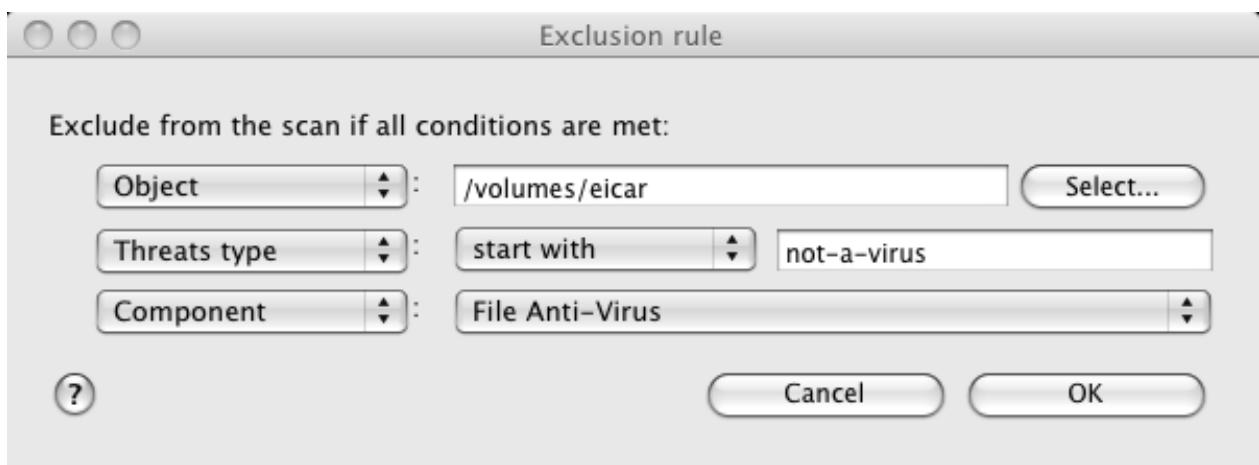
Figure 18. Creating an exclusion rule
FILE ANTI-VIRUS
The computer's file system may contain viruses and other malicious programs that have persisted for years, having initially penetrated the computer from a removable disk drive or from the Internet and never causing any trouble.
File Anti-Virus is the component that monitors the computer's file system in real-time mode. By default, it is launched during startup of the operating system, persists continuously in RAM, and scans all files that are opened, started or saved on your computer and all associated disk drives.
File Anti-Virus works with files in the following manner:
- The component intercepts every attempt by the user or by any program to access any file.
- File Anti-Virus scans the iSwift (see section "Configuring additional settings" on page 62) database for information about the file. A decision is made whether to scan the file based on the information retrieved.
- The file is analyzed for viruses. Malicious objects are detected using the Kaspersky Anti-Virus databases. These databases contain descriptions of all the currently known malicious programs along with instructions to neutralize them.
Depending on the results of the scan, the following options are available:
If no malicious code is detected in the file, it will immediately become accessible.
- If malicious code is detected in a file, File Anti-Virus blocks the file and attempts to disinfect it. After successful disinfection, the file will become accessible. If disinfection fails, the file will be deleted. A copy of the file will be moved to Backup Storage (on page 94).
- If a malicious code is detected in the file, it is moved to a special storage area known as Quarantine (on page 91). An attempt can be made later to cure it using the updated anti-virus databases.
By default, Kaspersky Anti-Virus is launched when the operating system starts, protecting your computer during the entire session. The Kaspersky Anti-Virus icon indicates that File Anti-Virus is running (on page 31). If the icon is active, your computer's protection is enabled; if the icon is inactive, protection is disabled.
IN THIS SECTION:
Disabling file protection 55
Restoring protection on your computer 57
Configuring File Anti-Virus 58
64
File protection statistics 64
DISABLING FILE PROTECTION
Kaspersky Lab strongly recommends that you do not disable Anti-Virus real-time protection since this could lead to your computer becoming infected and loss of data.
Note that the icon indicates the protection status provided by File Anti-Virus (see section "Anti-virus protection of computer's file system" on page 54). Disabling or pausing File Anti-Virus does not impact the execution of virus scan tasks (see section "Scanning for viruses" on page 66) or application updates (see section "Updating the application" on page 81).
There are several ways to disable File Anti-Virus. However, before doing so you should know why you want to disable the component.
There is likely to be a different solution to the problem: change the security level (see section "Setting the security level" on page 58) or disable protection only for certain files by creating an exclusion rule (see section "Creating a trusted zone" on page 51). For example, if you are working with a database that you believe is free from viruses, just specify the folder containing its files as an exclusion. You may need to pause File Anti-Virus if Kaspersky Anti-Virus conflicts with other programs installed on your computer.
The following methods can be used to disable File Anti-Virus:
- Click the Kaspersky Anti-Virus icon (on page 31) and select Turn Protection Off from the context menu that opens (see figure below).
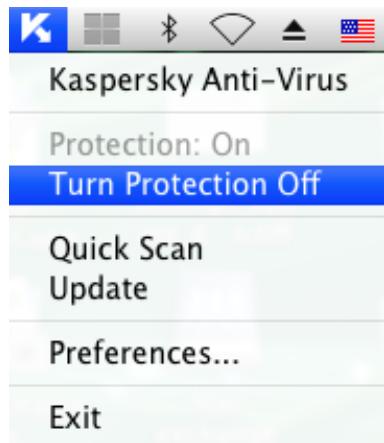
Figure 19. Disabling File Anti-Virus
- Open the application settings window (on page 35), select the Protection tab and uncheck the Enable File Anti-Virus box (see figure below).
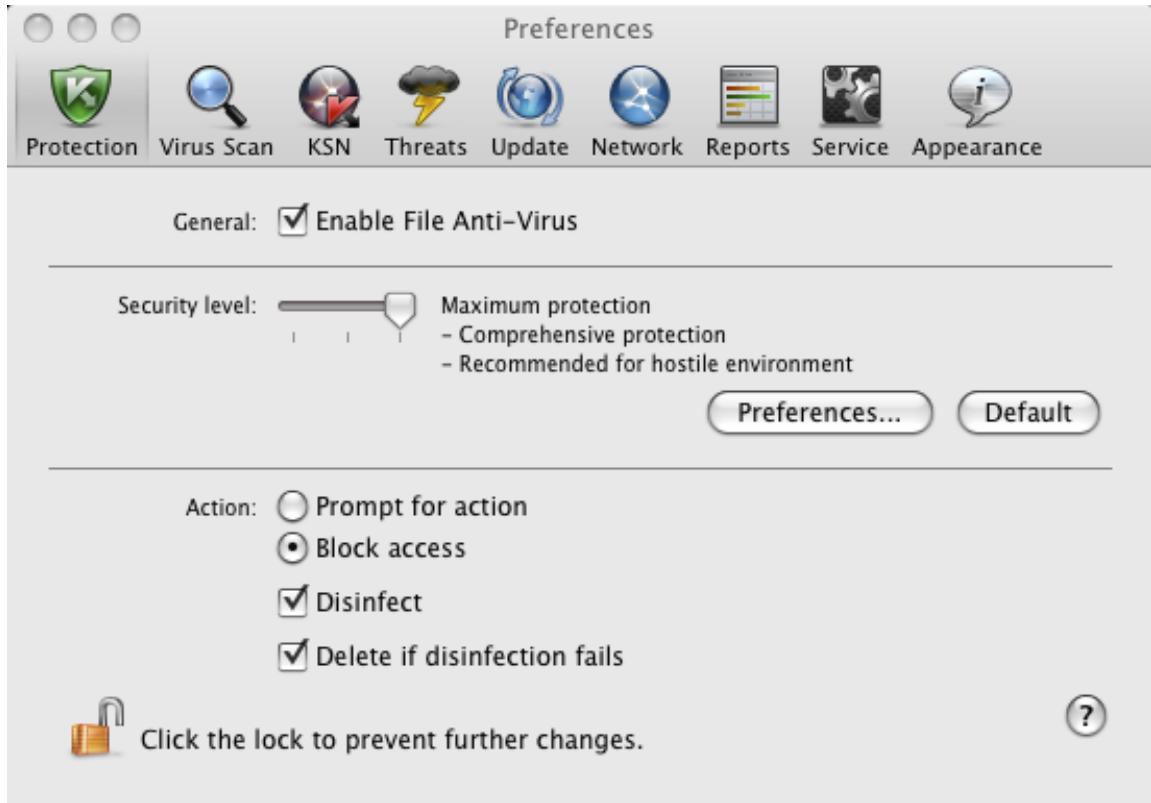
Figure 20. Application settings window. Protection
If you have disabled File Anti-Virus, it will not be re-enabled automatically when Kaspersky Anti-Virus is restarted. You will need to enable file system protection manually (see section "Enabling file system protection" on page 57).
RESTORING PROTECTION ON YOUR COMPUTER
If File Anti-Virus is disabled, it can be enabled only manually at the user's request. In this case, File Anti-Virus will not be re-enabled automatically after the operating system or Kaspersky Anti-Virus is restarted.
The following methods can be used to enable File Anti-Virus:
- Click the Kaspersky Anti-Virus icon (on page 31) and select Turn Protection On from the context menu that opens (see figure below).
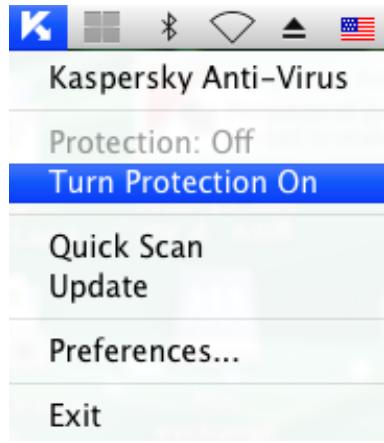
Figure 21. Enabling File Anti-Virus
- Open the application settings window (on page 35), select the Protection tab, and check the Enable File Anti-Virus box (see the figure below).
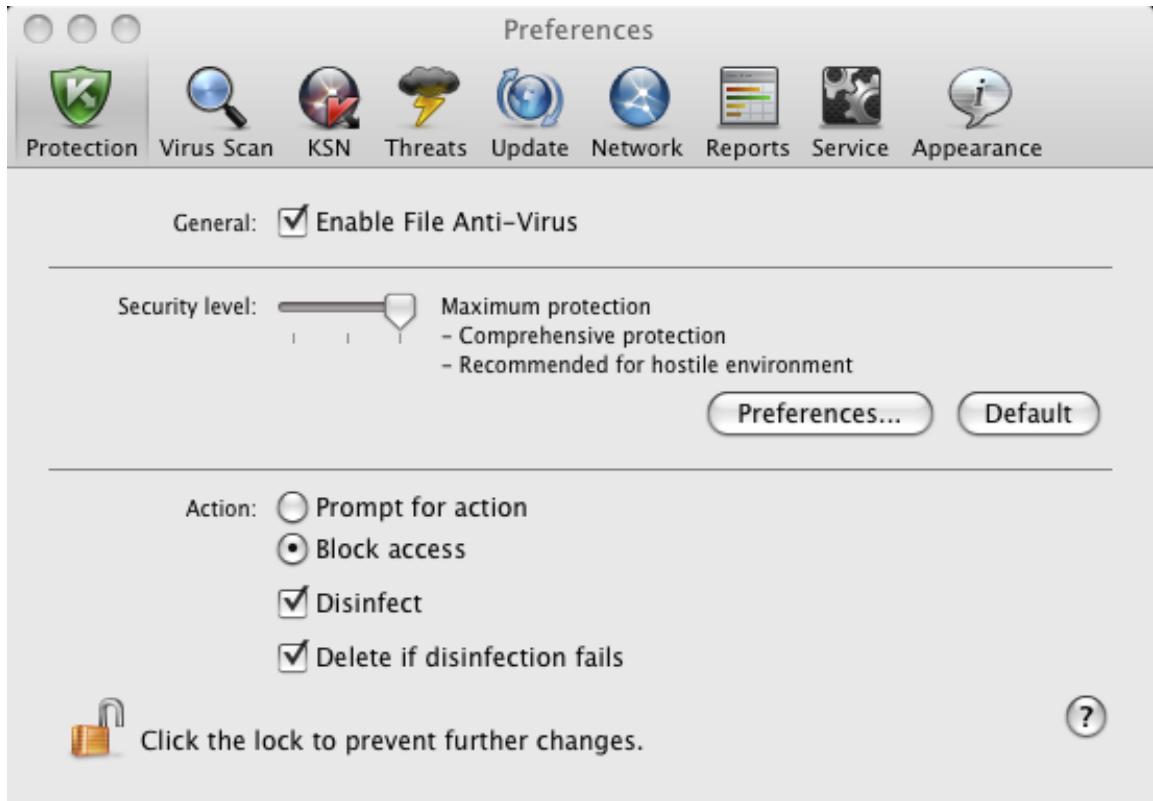
Figure 22. Application settings window. Protection
- Use the Security Assistant (see section "Security Assistant" on page 43). You significantly increase the risk of infecting your computer if you pause or stop protection, therefore this threat is immediately logged by the Security Assistant.
CONFIGURING FILE ANTI-VIRUS
File Anti-Virus is controlled using the following settings:
Security level.
The security level is a set of parameters that define the balance between the thoroughness and speed of scanning objects. There are three predefined security levels (see section "Selecting the security level" on page 58) with settings developed by Kaspersky Lab.
Action on detected object.
This action (see section "Selecting actions on objects" on page 63) defines how Kaspersky Anti-Virus will react when an infected or potentially infected object is detected.
SELECTING THE SECURITY LEVEL
File Anti-Virus provides protection for your computer's file system at one of the following levels:
Maximum protection provides the most complete scan of the files you open, save, or start.
- Recommended contains the settings recommended by Kaspersky Lab.
Maximum Speed - this level enables you to comfortably use other applications that require significant system resources, since the range of files scanned is smaller.
By default, File Anti-Virus uses the Recommended security level. You can increase or decrease the level of file system protection by selecting Maximum protection or Maximum speed accordingly, or by modifying the current settings.
To change the defined security level, do the following:
- Open the application settings window (on page 35) and select the Protection tab (see figure below).
- In the Security level section, move the slider bar to the required position. Modifying the security level changes the balance between the scan speed and the total number of files scanned: the fewer files scanned for viruses, the higher the scan speed.
If none of the preset security levels meets your needs, you can customize the scan settings. You are advised to select the level closest to your requirements as a basis and then modify its settings. This will change the name of the security level to Custom.
To modify the settings for the current security level, do the following:
- Open the application settings window (on page 35) and select the Protection tab (see figure below).
- In the Security level section, click the Preferences button.
-
In the window that opens edit the file protection settings:
-
on the General tab (see section "Specifying the types of files to scan" on page 60), specify the types of files to be scanned.
- on the Protection scope tab (see section "Creating a protection scope" on page 61), specify the drives or folders that are to be checked by File Anti-Virus.
-
on the Additional tab (see section "Configuring additional settings" on page 62), set the run mode of the component.
-
Click OK to save changes.
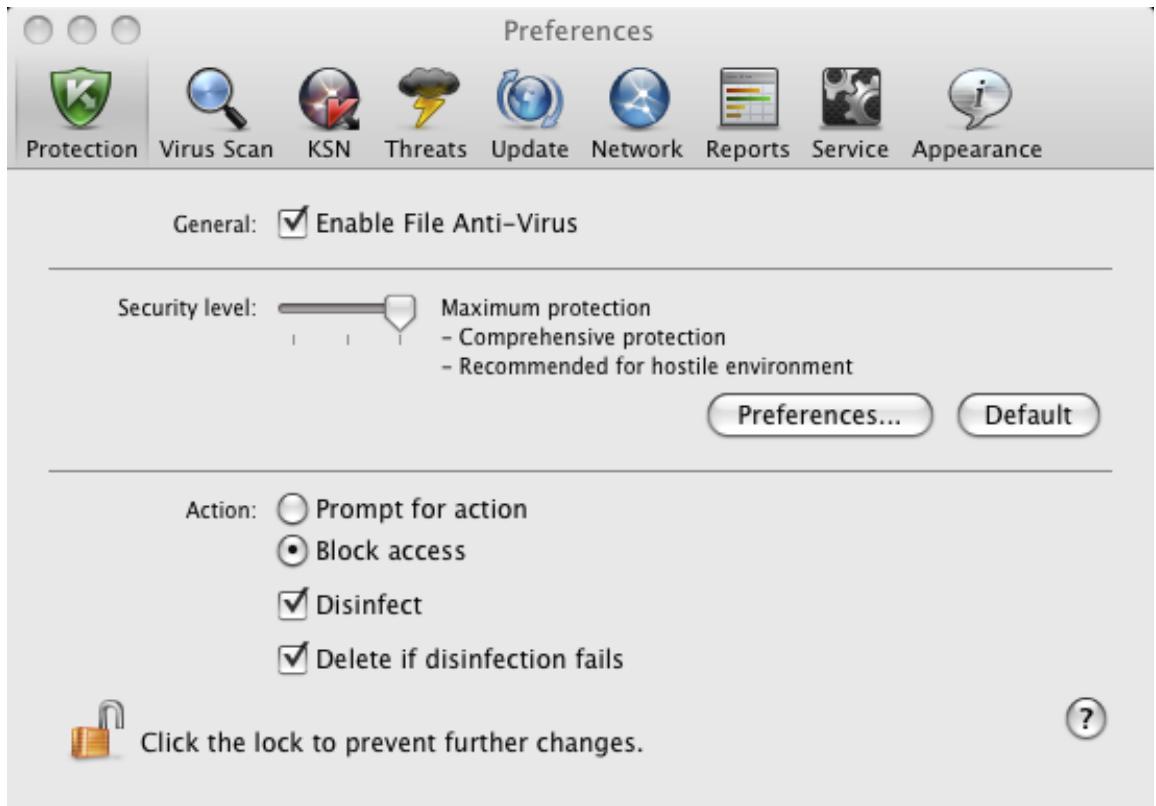
Figure 23. Application settings window. Protection
SPECIFYING THE TYPES OF FILES TO SCAN
By specifying the types of files to scan, you define which files by format and size File Anti-Virus will scan for viruses when they are opened, used and saved. You can also set the scan performance.
To specify the type of objects to be scanned by File Anti-Virus and set the scan performance:
- Open the application settings window (on page 35) and select the Protection tab.
- In the Security level section, click the Preferences button.
-
In the window that opens select the General tab (see figure below) and configure the following settings:
-
In the File types section, specify which formats of objects should be scanned for viruses by Kaspersky Anti-Virus when they are opened, run, or saved.
In the Optimization section, set the scan performance. - In the Compound files section, select which compound files should be scanned for viruses, and set a restriction on the scan of large-sized objects.
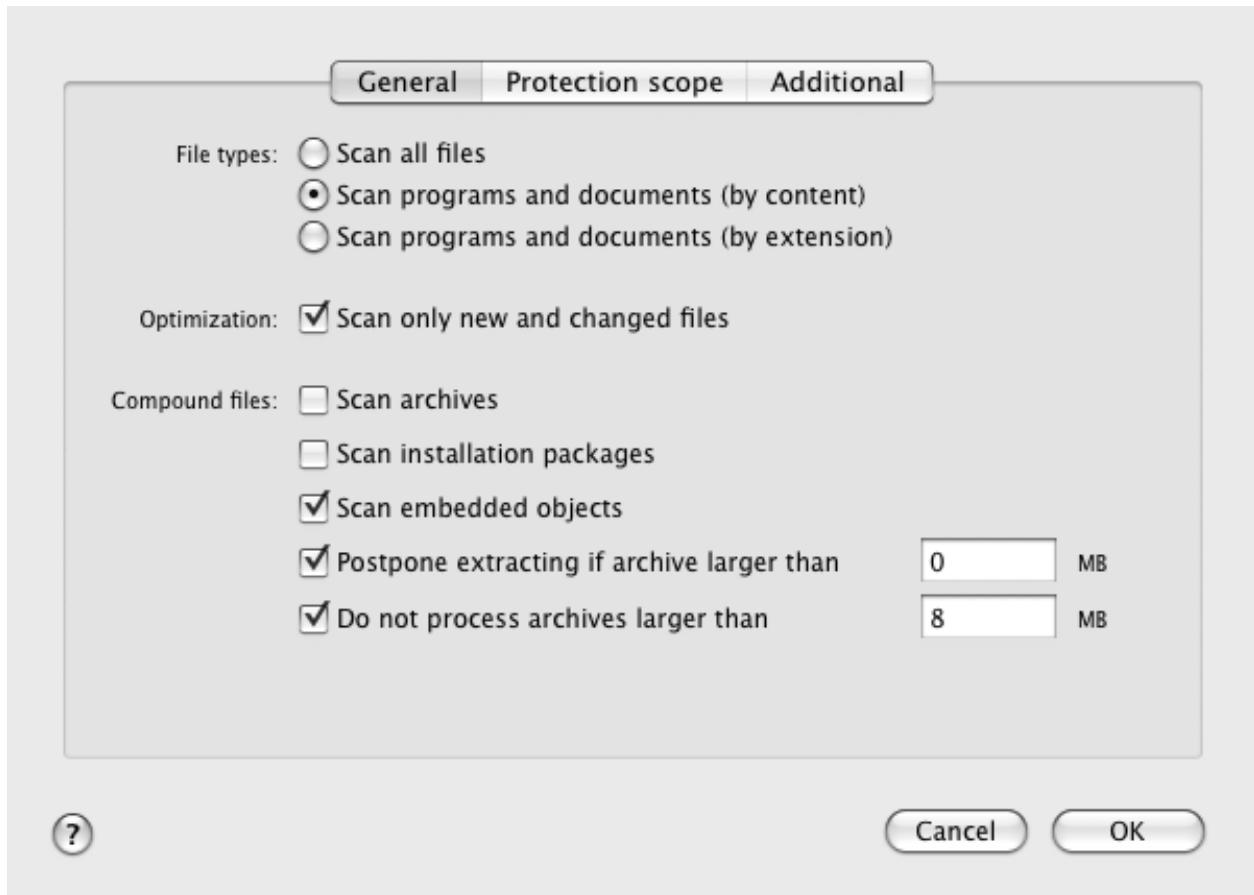
Figure 24. File Anti-Virus. Configuring scan settings
CREATING A PROTECTION SCOPE
By default, File Anti-Virus scans all files at the moment they are accessed, regardless of the media they are stored on, whether it is a hard disk drive, a CD / DVD-ROM, or a flash card.
To create a list of objects covered by the protection scope, do the following:
- Open the application settings window (on page 35) and select the Protection tab.
- In the Security level section, click the Preferences button.
- Select the Protection scope tab in the window that opens. (see figure below). The tab displays a list of objects that will be scanned by File Anti-Virus. By default, all objects located on the hard, removable and network disk drives connected to your computer are protected.
You can perform the following actions:
- Add object to be scanned.
Click the + button and in the window that opens select a folder or file.
- Edit an object on the list (only available for user-added objects).
Select the object and click the Edit button. Make the required changes in the window that opens.
- Temporarily disable scanning of object.
Select the object and uncheck the box next to it. File Anti-Virus will not control this object until the box is checked again.
- Delete an object (only available for user-added objects).
Select the object and click the - button.
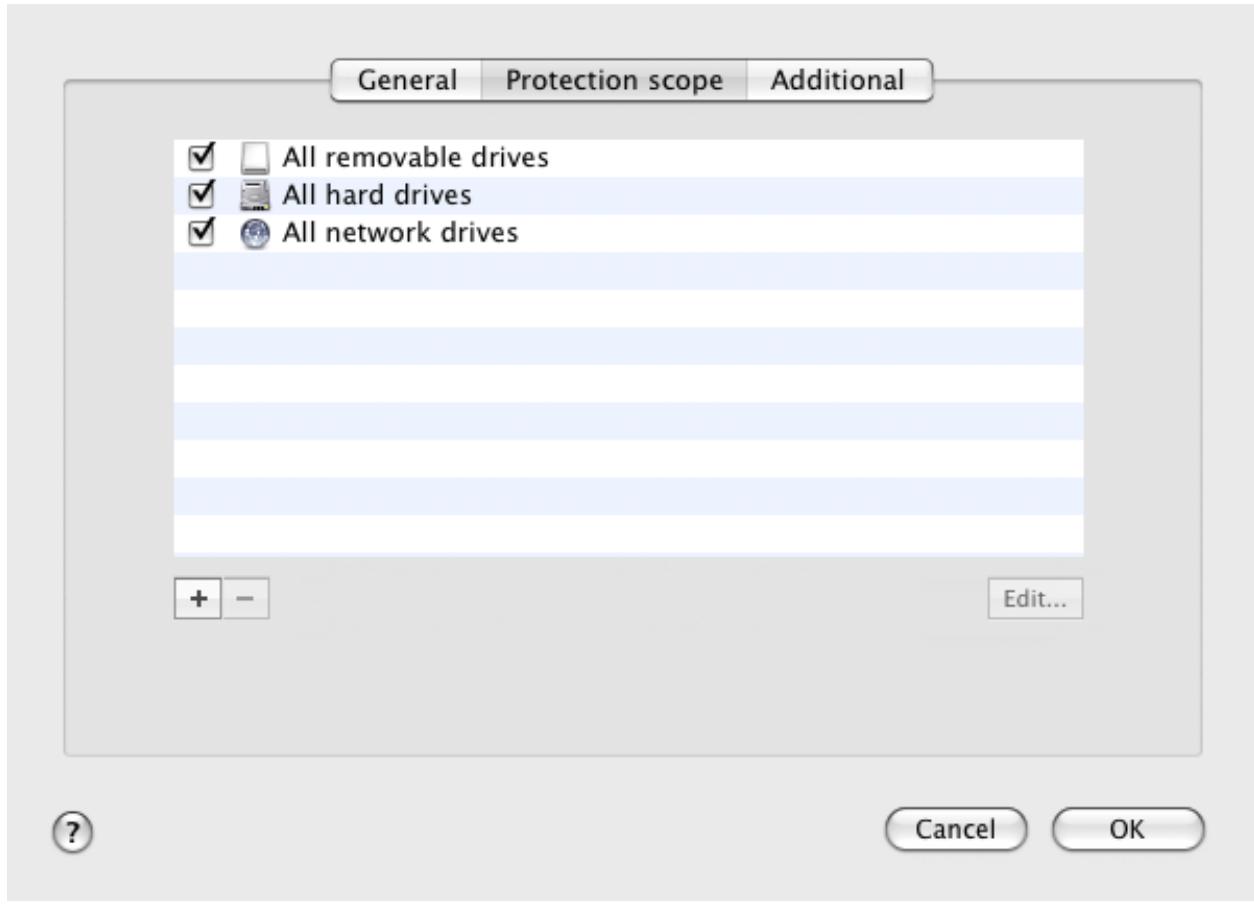
Figure 25. File Anti-Virus. Creating a protection scope
To limit the number of protected objects, you can:
- specify only the folders, disk drives, or files you want to protect;
create a list of objects that do not need protection (see section "Creating a trusted zone" on page 51); - combine the first and second methods, i.e. create a protection scope and exclude a number of objects from it.
CONFIGURING ADDITIONAL SETTINGS
You can configure the following additional settings for File Anti-Virus: scan mode for file system objects, iSwift to improve performance, and the component's schedule.
To configure additional settings of File Anti-Virus, do the following:
- Open the application settings window (on page 35) and select the Protection tab.
- In the Security level section, click the Preferences button.
-
In the window that opens select the Additional tab (see figure below) and configure the following settings:
-
Select File Anti-Virus operation mode in the Scan mode section.
In the Performance section, select a scan technology.
In the Pause task section, enable the scheduled pausing of File Anti-Virus and configure the schedule.
In the Heuristic analyzer section, configure the use of the heuristic analyzer by File Anti-Virus.
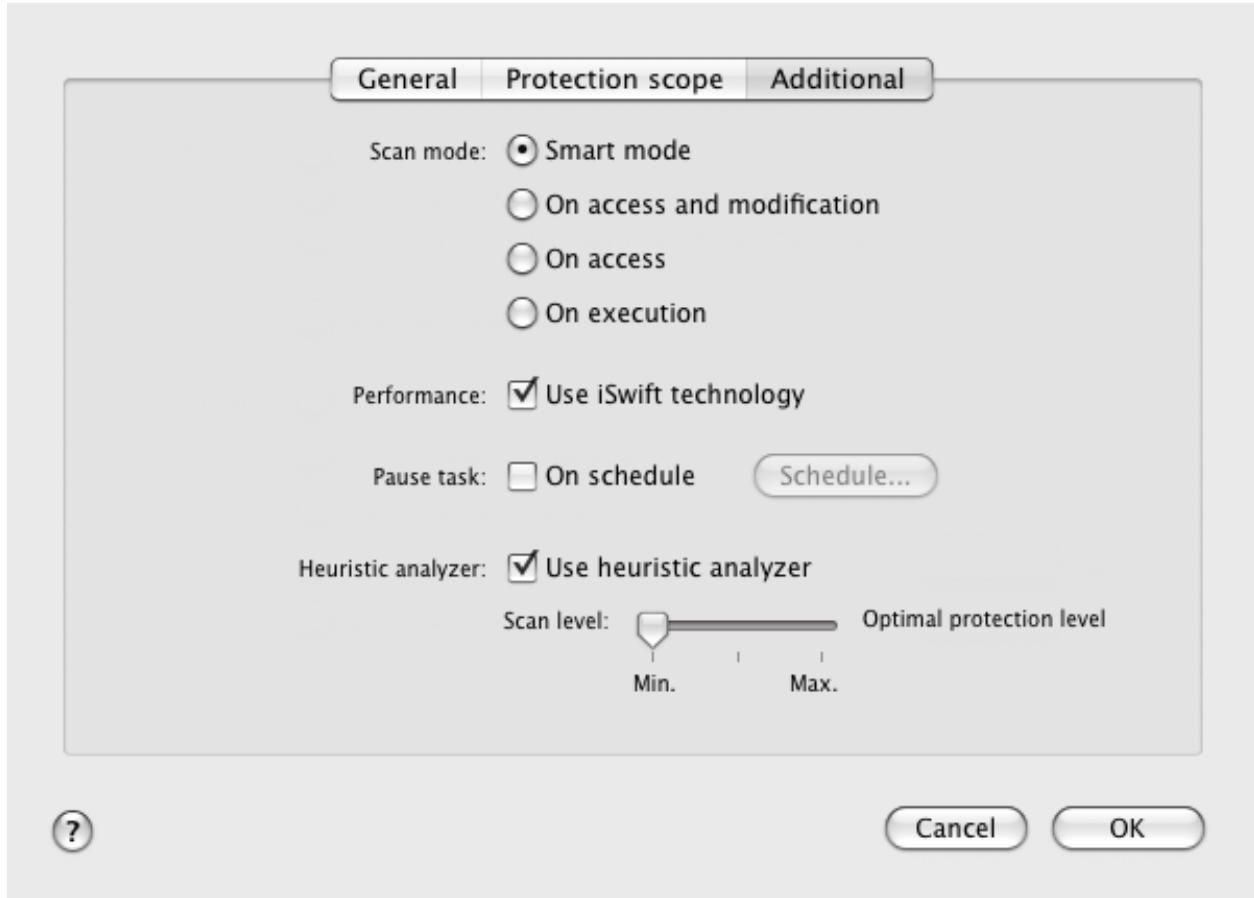
Figure 26. File Anti-Virus. Configuring additional settings
SELECTING ACTIONS ON OBJECTS
If a virus scan reveals that a file is infected or potentially infected, the subsequent behavior of File Anti-Virus depends on the status of the object and the selected action.
When the scan is complete, the object may be identified as:
malicious, for example, a virus or Trojan;
potentially infected when the scan cannot determine whether the object is infected or not. The application has probably found in the file a sequence of code from an unknown virus or modified code from a known virus.
By default, all malicious objects undergo disinfection and all potentially infected objects are placed in Quarantine (see section "Quarantine" on page 91).
To select action which File Anti-Virus needs to perform on detecting an infected or potentially infected object:
- Open the application settings window (on page 35) and select the Protection tab (see figure below).
- In the Action section, select the File Anti-Virus action.
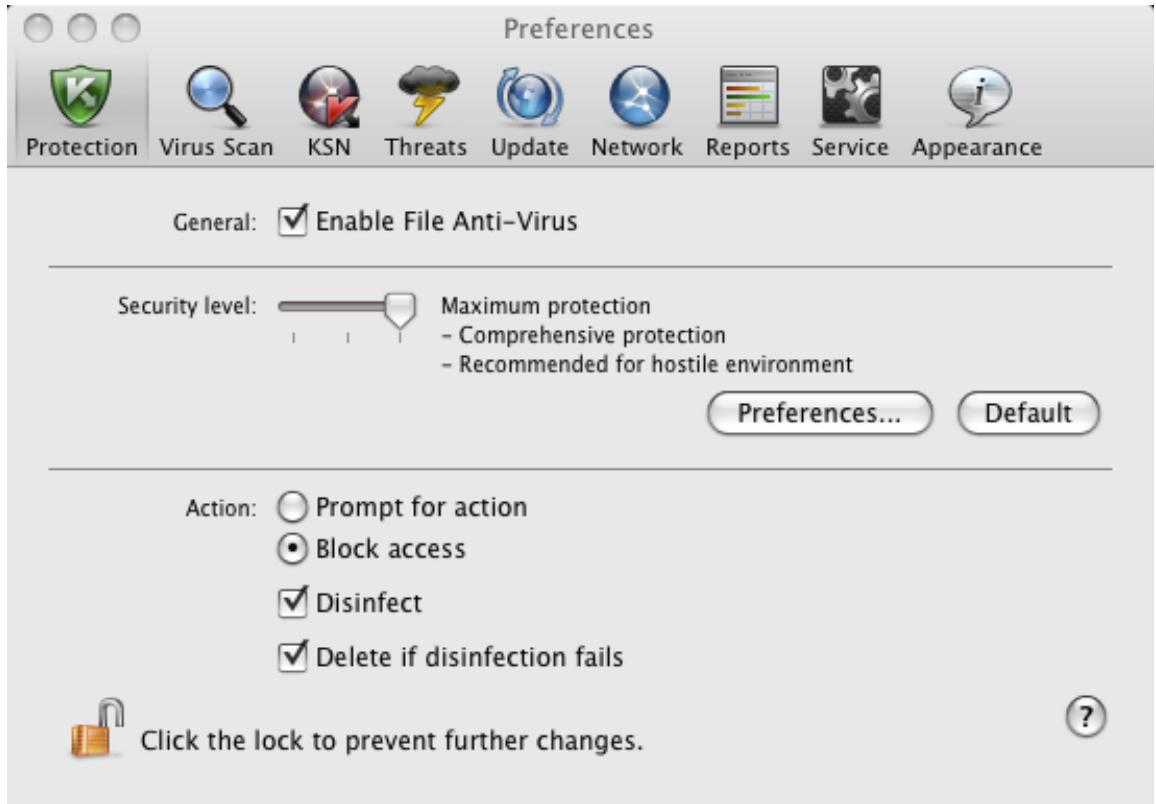
Figure 27. Application settings window. Protection
Before disinfecting or deleting an object, Kaspersky Anti-Virus creates a backup copy and stores it in Backup (on page 94) so that the object could be restored or disinfected later.
RESTORING DEFAULT FILE PROTECTION SETTINGS
You can restore the File Anti-Virus default settings at any time. Kaspersky Lab considers these settings to be optimal and has used them in its Recommended security level.
To restore the default File Anti-Virus settings:
- Open the application settings window (on page 35) and select the Protection tab (see figure below).
- In the Security level section, click the Default button.
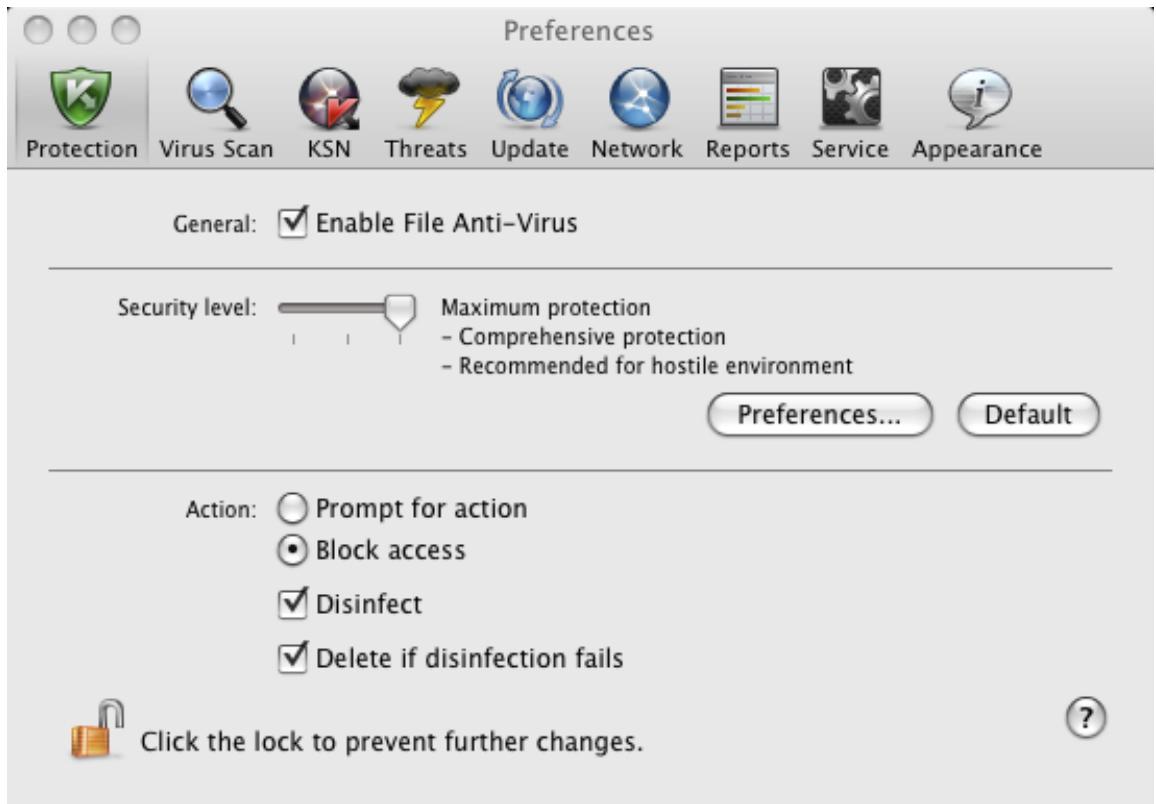
Figure 28. Application settings window. Protection
FILE PROTECTION STATISTICS
Summary statistics on File Anti-Virus (number of objects scanned since its most recent launch, number of dangerous objects detected and disinfected, name of the most recently scanned file) are displayed in the bottom part of the main application window (see section "Main application window" on page 33).
Kaspersky Anti-Virus also provides a detailed report on the operation of File Anti-Virus.
To view the report:
- Open the main application window (on page 33) and click the button.
- In the Running tasks section of the report window that opens, select File Anti-Virus.
If File Anti-Virus is currently disabled, you can view a detailed report on the results of its most recent launch in the Completed tasks section.
If File Anti-Virus returns an error when closing, view the report and try to restart the component. If you cannot solve the problem on your own, please contact Kaspersky Lab Technical Support Service (see section "Contacting Technical Support Service" on page 110).
Detailed information about File Anti-Virus is provided in the report window to the right on the following tabs:
- The Detected tab lists all dangerous objects detected by File Anti-Virus. For each object the name and path to the folder where it is stored are displayed, as well as the status it has been assigned by File Anti-Virus. If the malicious program that has infected the object is revealed, the object is assigned the corresponding status, for example, virus, Trojan, etc. If the type of malicious effect cannot be established precisely, the object is assigned the suspicious status. The action taken on the object is also specified next to the status (detected, disinfected).
-
The Events tab provides a full list of events logged during operation of File Anti-Virus, specifying the time, name, status and cause of each event. The events can have the following statuses:
-
information (for example, object not processed, skipped by type);
- warning (for example, a virus is detected);
-
comment (for example, archive is password-protected).
-
The Statistics tab provides information about the total number of scanned objects and, in separate columns, how many objects out of the total number scanned are archives, how many are dangerous, how many have been disinfected, how many have been placed in Quarantine, etc.
- The Preferences tab lists the main settings used by File Anti-Virus. To configure a component quickly, click the Change options button.
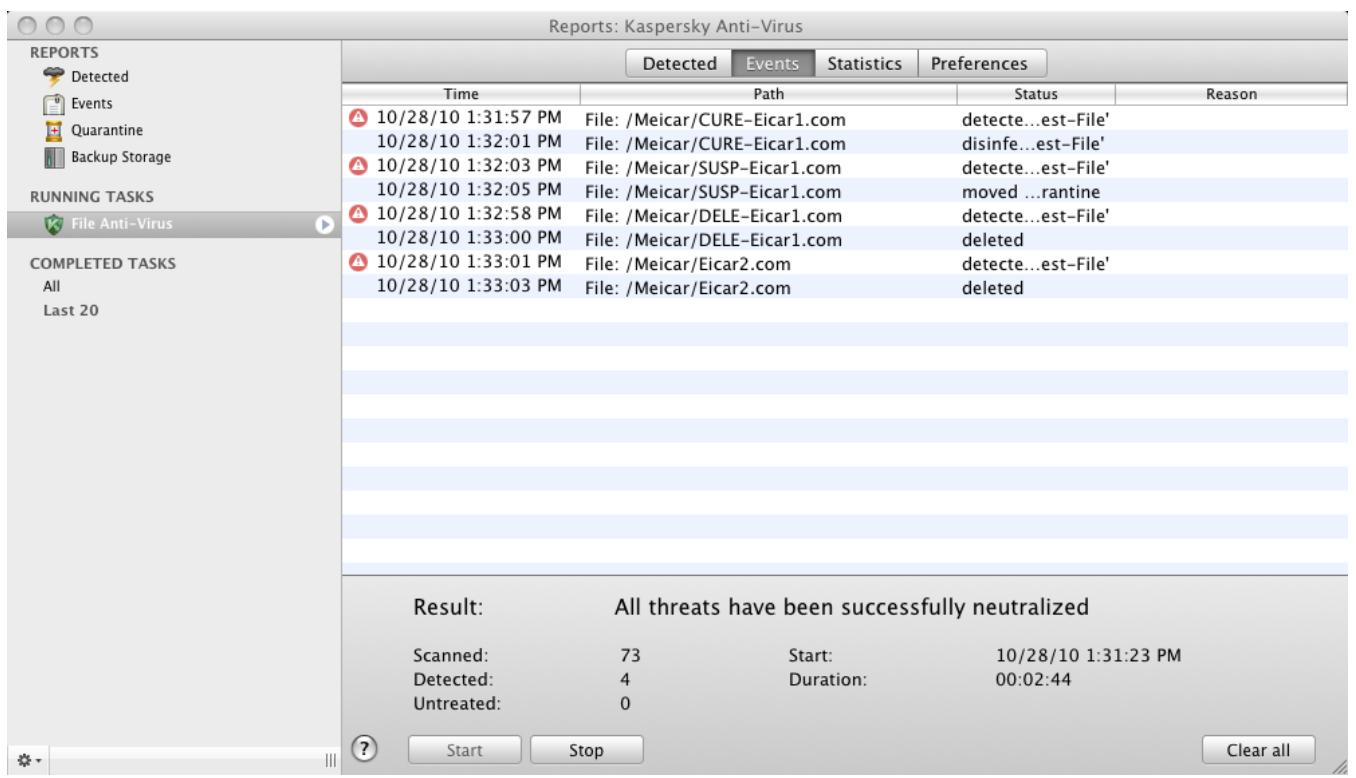
Figure 29. Report window. File Anti-Virus
VIRUS SCAN
In addition to the file system protection provided by File Anti-Virus (see section "File Anti-Virus" on page 54) in real-time mode, it is extremely important to scan your computer for viruses. This is required to stop the spread of malicious programs that have gone undetected by File Anti-Virus, because, for instance, the level of protection selected is low.
Kaspersky Anti-Virus offers the following preset virus scan tasks:

Virus Scan
Scan individual items for viruses, such as files, folders, disks, plug-and-play devices.
Full Scan
Search for viruses on your computer with a thorough scan of all hard drives.

Quick Scan
Scans only critical areas of the computer for viruses, including folders with operating system files and system libraries.
By default, these tasks are executed using the recommended settings. You can edit these settings (see section "Configuring virus scan tasks" on page 72), or create a schedule for running virus scan tasks (see section "Configuring the virus scan task schedule" on page 76).
IN THIS SECTION:
Managing virus scan tasks 66
Creating a list of objects to scan 70
Configuring virus scan tasks 72
79
Virus Scan statistics 80
MANAGING VIRUS SCAN TASKS
You can run virus scan tasks manually (see section "Launching / pausing virus scan task" on page 67) or automatically, by a schedule (see section "Configuring the virus scan task schedule" on page 76). You also have the option of creating user tasks in Kaspersky Anti-Virus (see section "Creating virus scan tasks" on page 69).
LAUNCHING / PAUSING VIRUS SCAN TASK
To start a virus scan task manually, do the following:
- Open the main application window (on page 33) and click the button.
- In the window that opens (see figure below), select the required task Full Scan, Quick Scan or Virus Scan. If you have selected the Virus Scan task, Kaspersky Anti-Virus asks you to define the scan scope. In addition to the pre-set tasks included in the application, the menu displays the user virus scan tasks (see section "Creating virus scan tasks" on page 69) that have been created.
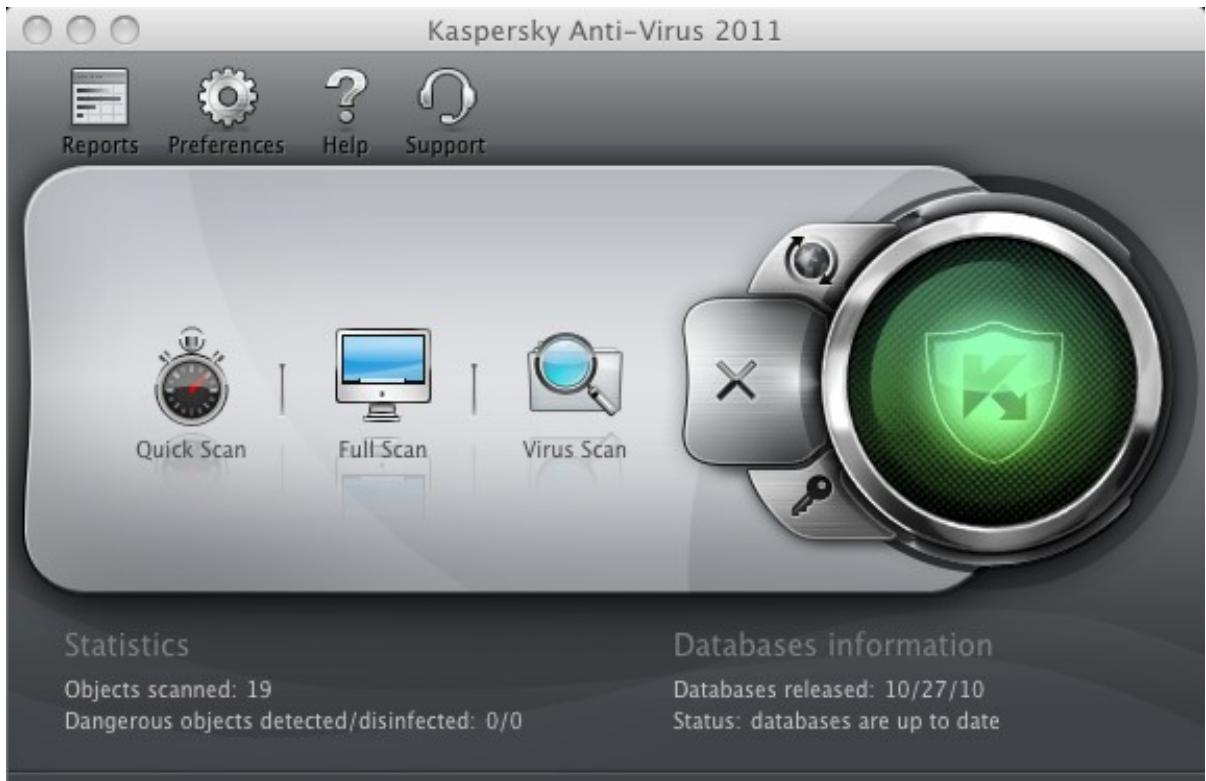
Figure 30. Virus Scan tasks
Information on currently running tasks is displayed in the left part of the main window, and also in the Running tasks section of the reports window (see section "Reports" on page 97). Information about executed tasks is displayed in the Completed tasks section of the report window (see figure below).
To pause a virus scan task, do the following:
- Open the main application window (on page 33) and click the button. Kaspersky Anti-Virus report window opens.
- In the Running tasks (see figure below) section select the name of the virus scan task and click the Stop button. This will pause the scan until you start the task again manually or it starts again automatically according to the schedule. To restart the scan, click the Start button. In the window that opens, Kaspersky Anti-Virus offers you to resume the interrupted scan or restart it.
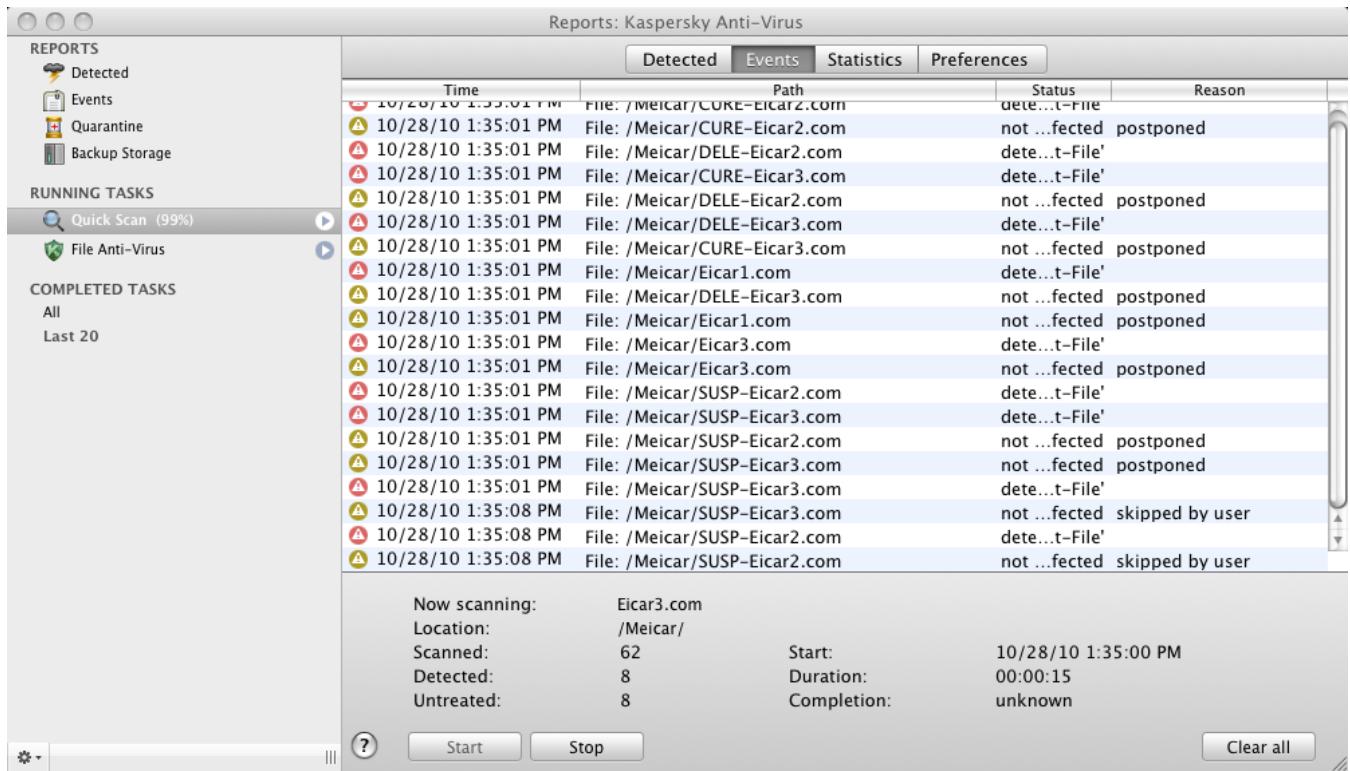
Figure 31. Report window. Virus Scan
CREATING VIRUS SCAN TASKS
To scan objects in your computer for viruses, not only can you use the virus scan tasks integrated into Kaspersky AntiVirus, but you can also create your own custom tasks. New tasks are created by modifying existing ones.
To create a new virus scan task, please do the following:
- Open the application preferences window (on page 35).
- Select the Virus Scan tab in the list to the left (see figure below) and select Quick Scan task or Full Scan task whose settings most closely match your requirements.
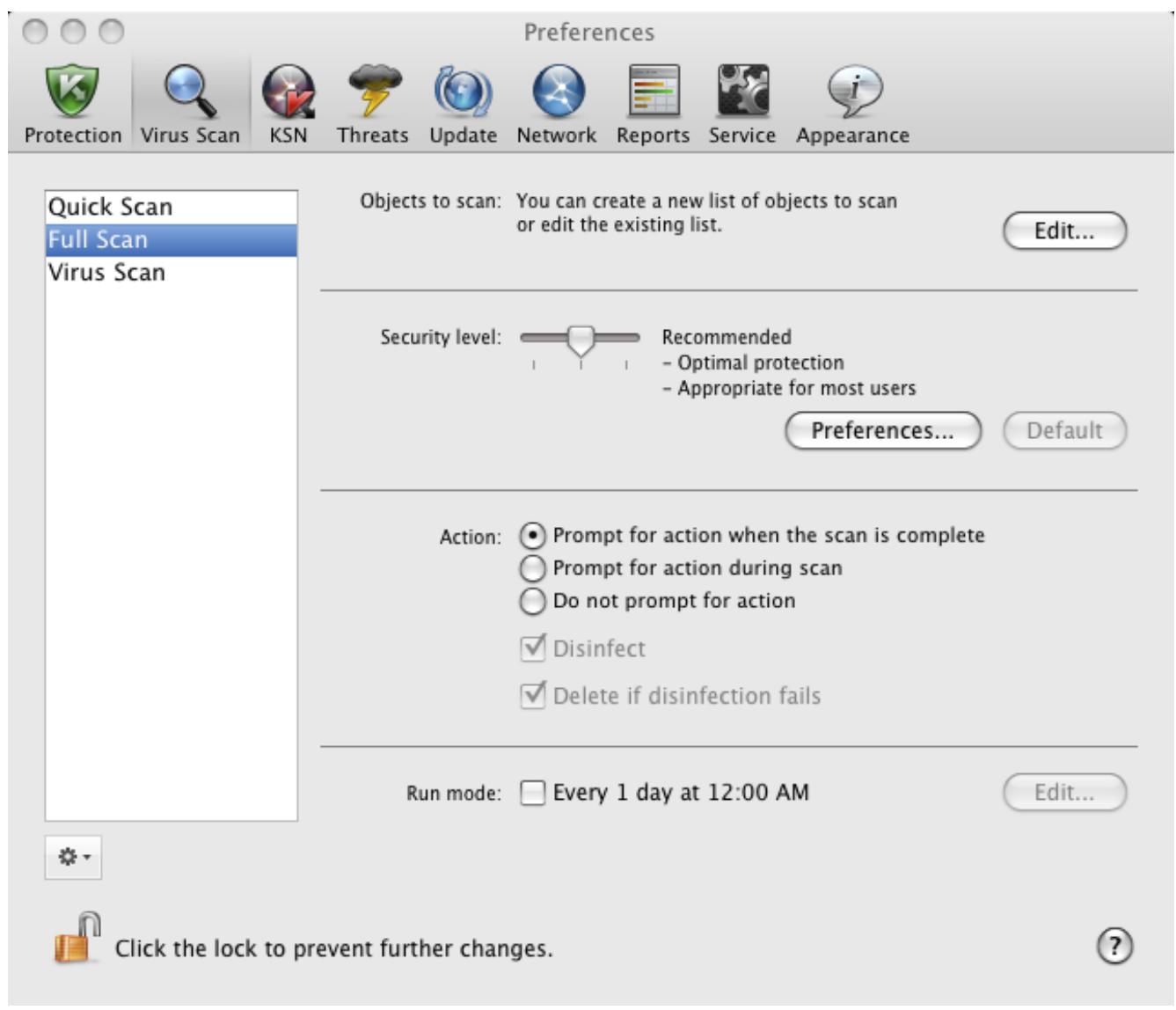
Figure 32. Application settings window. The Full Scan task
- Click the button under the list of virus scan tasks and in the window that opens select the Copy command.
- Enter the name of the new task in the window that opens and click OK. A task with the name you have specified appears in the task list.
The new task inherits all the properties of the task from which it was created. Therefore, you may need to configure some additional settings:
- modify the list of objects to scan (see section "Creating a list of objects to scan" on page 70);
specify the settings (see section "Configuring virus scan tasks" on page 72) to be used to execute the task; - create an automatic run schedule (see section "Configuring the virus scan task schedule" on page 76).
In addition to the preset virus scan tasks, Kaspersky Anti-Virus allows you to create up to six custom scan tasks.
You can rename and remove scan tasks.
Only user tasks can be renamed or deleted.
To rename a created task, do the following:
- Open the application settings window (on page 35).
-
Select the task in the list to the left (see figure above).
-
Click the button under the list of virus scan tasks and in the window that opens select the Rename command.
- Enter the name of the task in the window that opens and click OK. The task is renamed.
To delete a created task, do the following:
- Open the application preferences window (on page 35).
- Select the task in the list to the left (see figure above).
- Click the button under the list of virus scan tasks and in the window that opens select the Delete command. Confirm the action. The task is deleted from the list.
CREATING A LIST OF OBJECTS TO SCAN
The Full Scan and Quick Scan preset tasks already contain lists of objects to scan. The Full Scan task allows you to scan all files stored on all hard drives of your computer. While running the Quick Scan task, Kaspersky Anti-Virus only scans vulnerable objects: folders containing system files and system libraries.
The Virus scan task requires you to create a list of objects to scan (files, folders, drives, removable devices).
To view the list of objects to scan during execution of the Full Scan and Quick Scan tasks or edit it:
- Open the application settings window (on page 35) and select the Virus Scan tab.
- In the list to the left, select the task name: Full Scan or Quick Scan.
- To the right under Objects to scan click the Edit button. A window will open containing the list of objects (see figure below). Edit the list of objects, if necessary.
You can perform the following actions:
- Add an object to the list.
Drag an object into the window, click the + button and select a more suitable option (File or folder, All drives, Quarantine, etc.). If the object being added contains sub folders that should also be scanned, check the Include sub folders box in the file selection window. If the object being added contains symbolic links to other objects requiring a scan, check the Include symbolic links box in the file selection window that opens.
- Edit an object on the list (only available for user-added objects).
Select the object and click the Edit button. Make the required changes in the window that opens.
- Temporarily disable scanning of object.
Select the object and uncheck the box next to it. The virus scan task will not be executed for this object until the box is checked again.
- Delete an object (only available for user-added objects).
Select the object and click the - button.
When creating user tasks (see section "Creating virus scan tasks" on page 69) the same procedure is used to generate or modify the list of objects to scan.
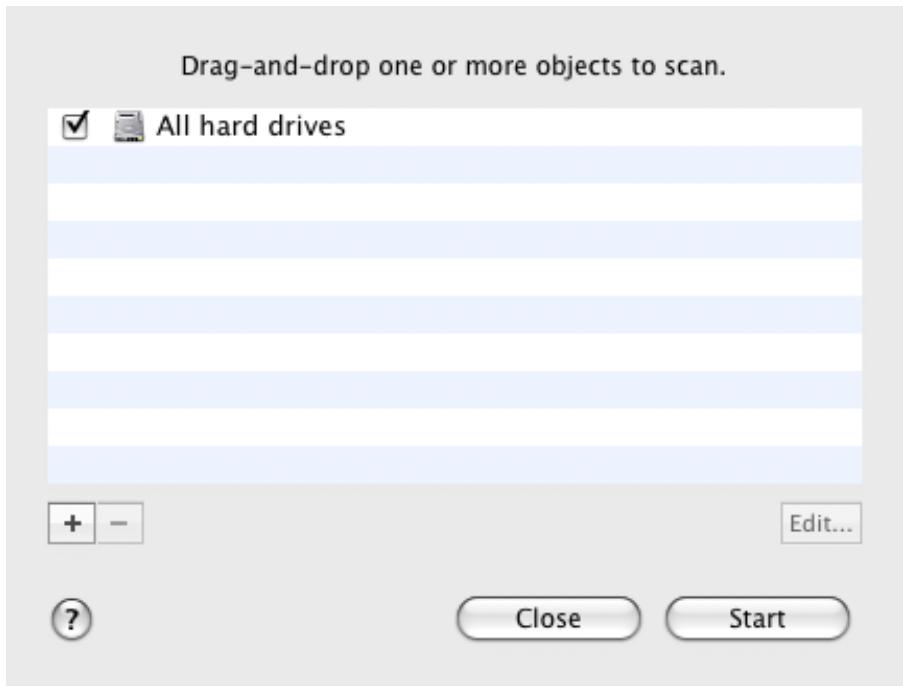
Figure 33. Creating a list of objects to scan
To select one or several objects to scan while running the Virus Scan task:
- Open the main application window (on page 33) and click the button.
- In the menu that opens select the Virus Scan task. A window will open in which to create a list of objects (see figure above). Edit the list using the algorithm described above.
CONFIGURING VIRUS SCAN TASKS
Tasks are executed on your computer according to the following settings:
Security level
The security level is a set of parameters that define the balance between the thoroughness and speed of scanning objects. There are three preset security levels (see section "Selecting the security level" on page 72) with settings developed by Kaspersky Lab.
Action on detected object
This action (see section "Selecting actions on objects" on page 74) defines how Kaspersky Anti-Virus should react when an infected or potentially infected object is detected.
Run mode
Automatically running virus scan according to a schedule (see section "Configuring the virus scan task schedule" on page 76) enables you to scan your computer for viruses in due time. Only available for the Quick Scan, Full Scan tasks, and custom tasks.
- Launching task under user account
Launching the task under a privileged user account (see section "Launching scan task under user account" on page 77) enables you to perform a timely scan, regardless of the rights of the current user. Only available for the Quick Scan, Full Scan tasks, and custom tasks.
In addition, you can set uniform values for the Security level and Action to be taken on detected objects for all virus scan tasks (see section "Assigning uniform values for all virus scan tasks" on page 78).
SELECTING THE SECURITY LEVEL
Each scan task ensures objects are scanned at one of the following levels:
Maximum protection - the most complete scan of the entire computer or individual disks, folders, or files. We recommend this level if you suspect that your computer is infected with a virus.
- Recommended contains the settings recommended by Kaspersky Lab.
- Maximum Speed - this level enables you to comfortably use other applications that require significant system resources, since the range of files scanned is smaller.
By default, virus scan tasks are executed at the Recommended security level. You can increase or decrease the thoroughness of the scan by selecting Maximum protection or Maximum speed accordingly, or by modifying the current settings.
To modify the security level of a virus scan task, do the following:
- Open the application preferences window (on page 35) and select the Virus Scan tab (see figure below).
- Select the task in the list to the left.
- In the Security level section, move the slider bar to the required position. Changing the security level changes the balance between the scan speed and the total number of files scanned: the fewer files scanned for viruses, the higher the scan speed.
If none of the preset security levels meets your needs, you can customize the scan settings. You are advised to select the level closest to your requirements as a basis and then modify its settings. This will change the name of the security level to Custom.
To modify the settings for the current security level, do the following:
- Open the application settings window (on page 35) and select the Virus Scan tab (see figure below).
- Select the task in the list to the left.
- In the Security level section, click the Preferences button.
- In the window that opens modify the settings (see section "Defining the types of objects to scan" on page 73) and click OK to save the changes.
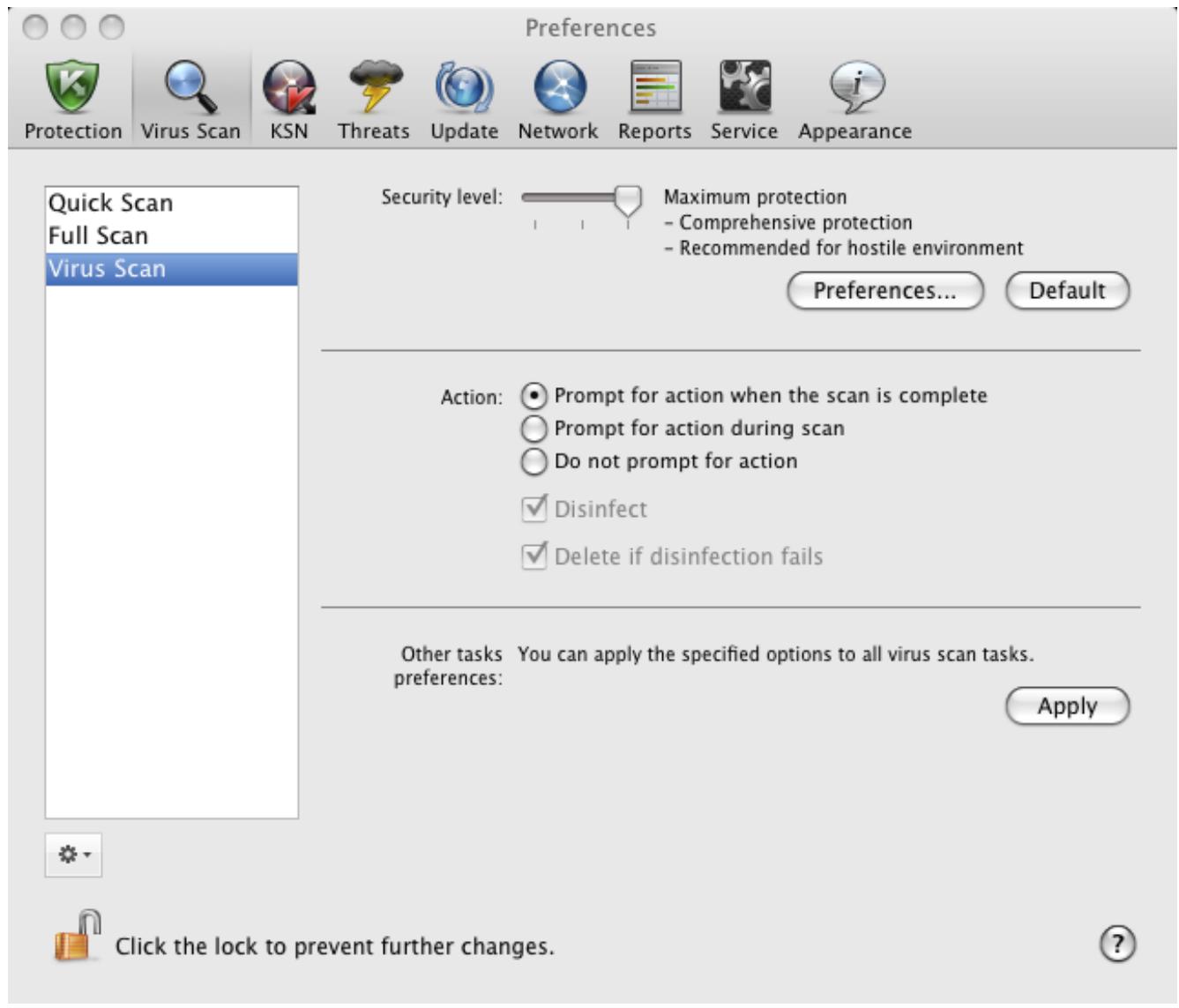
Figure 34. Application settings window. The Virus Scan task
SPECIFYING THE TYPES OF OBJECTS TO SCAN
By specifying types of objects to scan, you define the size and format of the files that Kaspersky Anti-Virus will scan while running this task.
To specify the types of objects to scan during the virus scan task, do the following:
- Open the application preferences window (on page 35) and select the Virus Scan tab (see figure below).
-
Select the task in the list to the left.
-
In the Security level section, click the Preferences button. In the window that opens (see figure below) configure the following settings:
-
In the File types section, specify the file formats that should be scanned by Kaspersky Anti-Virus when running the virus scan task.
In the Optimization section, configure the scan performance and use of scan technology.
In the Compound files section, specify which compound files should be scanned for viruses.
In the Heuristic analyzer section, configure the use of the heuristic analyzer in virus scan tasks.
File types: Scan all files
Scan programs and documents (by content)
Scan programs and documents (by extension)
Optimization: Skip if scan takes longer than
30
5.
100
MB
Compound files: Scan archives
Scan attachments
Scan email format files
Scan password-protected archives
Heuristic analyzer: Use heuristic analyzer
Scan level: Optimal protection level
Maximum performance

Figure 35. Virus Scan. Configuring scan settings
Cancel
OK
SELECTING ACTIONS ON OBJECTS
If a virus scan task reveals that an object is infected or potentially infected, the subsequent behavior of Kaspersky AntiVirus depends on the status of the object and the selected action.
When the scan is complete, the object may be identified as:
malicious, for example, a virus or Trojan;
potentially infected when the scan cannot determine whether the object is infected or not. The application has probably found in the file a sequence of code from an unknown virus or modified code from a known virus.
By default, all malicious objects undergo disinfection and all potentially infected objects are placed in Quarantine (see section "Quarantine" on page 91).
To select the action that Kaspersky Anti-Virus should perform if it detects an infected or potentially infected object:
- Open application settings window (on page 35), select the Virus scan tab and the name of the task in the list to the left (see figure below).
- In the Action section, select an action for Kaspersky Anti-Virus to take.
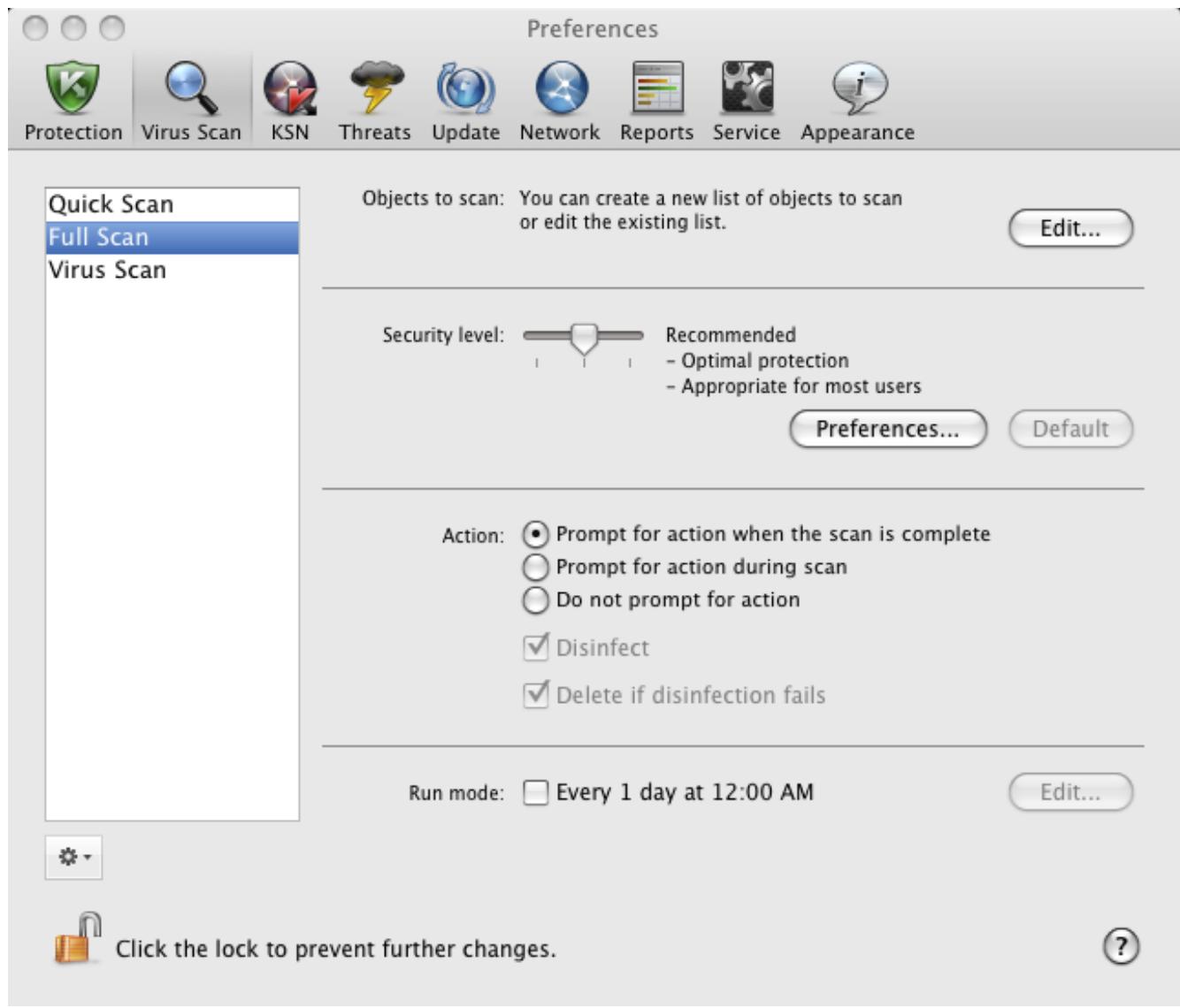
Figure 36. Application settings window. The Full Scan task
Before disinfecting or deleting an object, Kaspersky Anti-Virus creates a backup copy and stores it in Backup (on page 94) so that the object could be restored or disinfected later.
CONFIGURING THE VIRUS SCAN TASK SCHEDULE
All virus scan tasks on your computer can be run manually (see section "Launching / pausing virus scan tasks" on page 67). In addition, the Quick Scan and Full Scan tasks, as well as user-created tasks, can be run by Kaspersky AntiVirus according to a preset schedule.
To configure the startup of the Quick Scan and Full Scan tasks as well as custom virus scan tasks upon a schedule:
- Open the application settings window (on page 35) and select the Virus Scan tab.
- In the list to the left, select the name of a virus scan task and enable the scheduled task run in the Run mode section. Click the Edit button to configure the task settings.
- In the window that opens (see figure below), set the frequency with which the task will be launched.
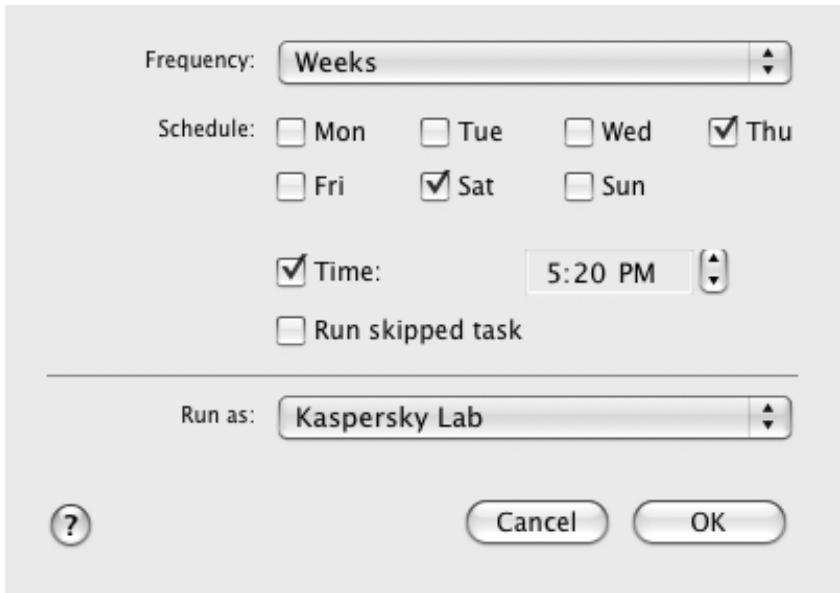
Figure 37. Configuring a virus scan task schedule
RUNNING SCAN TASKS UNDER USER ACCOUNT
The application allows the user to run virus scan tasks under a different user account. This ensures that the computer is scanned in due time, regardless of the rights of the current user. For example, you might need access rights to a certain object during a scan. By using this feature, you can configure tasks to run under a user account with the necessary privileges.
This service is disabled by default so that tasks are started under the current account, under which you have been logged in the operating system.
You can configure the Quick scan and Full scan tasks under a privileged user account, as well as user virus scan tasks created on their basis.
To specify an account, under which virus scan tasks should be started:
- Open the application preferences window (on page 35) select the Virus Scan tab.
- In the list to the left, select the name of a virus scan task and enable the scheduled task run in the Run mode section. Click the Edit button to configure the task under a user account.
- In the window that opens (see figure below), in the Run as section, select the account, under which the task will be started, from the dropdown list.
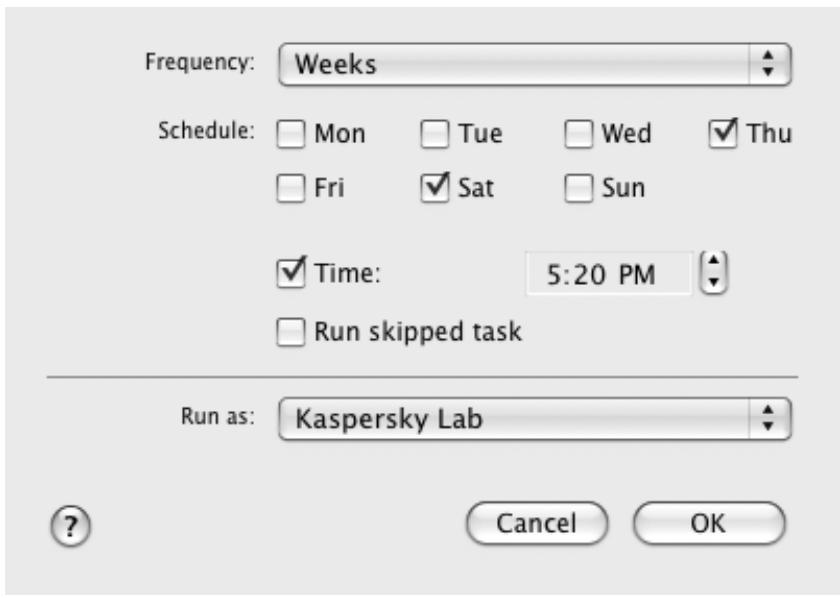
Figure 38. Configuring a virus scan task schedule
ASSIGNING UNIFORM SCAN SETTINGS TO ALL TASKS
By default, virus scan tasks included in the Kaspersky Anti-Virus distribution package are run according to the settings recommended by Kaspersky Lab experts. User tasks created on their basis inherit all the settings. You can not only modify the settings (see section "Configuring virus scan tasks" on page 72) of each task separately, but assign uniform values for all virus scan tasks. The Security level and Action settings in the Virus Scan task assigned to scan a particular object are used as a basis.
To assign uniform scan settings for all tasks:
- Open the application settings window (on page 35) and select the Virus Scan tab.
- In the list to the left select the Virus Scan task (see figure below).
- Select the security level (see section "Selecting the security level" on page 72) that most closely matches your requirements, modify the settings (see section "Specifying the types of objects to scan" on page 73) and select the action to take on infected or potentially infected objects (see section "Selecting actions on objects" on page 74).
- In the Other task preferences section, click the Apply button. Kaspersky Anti-Virus applies the values of the Security level and Action settings to other virus scan tasks, including custom ones.
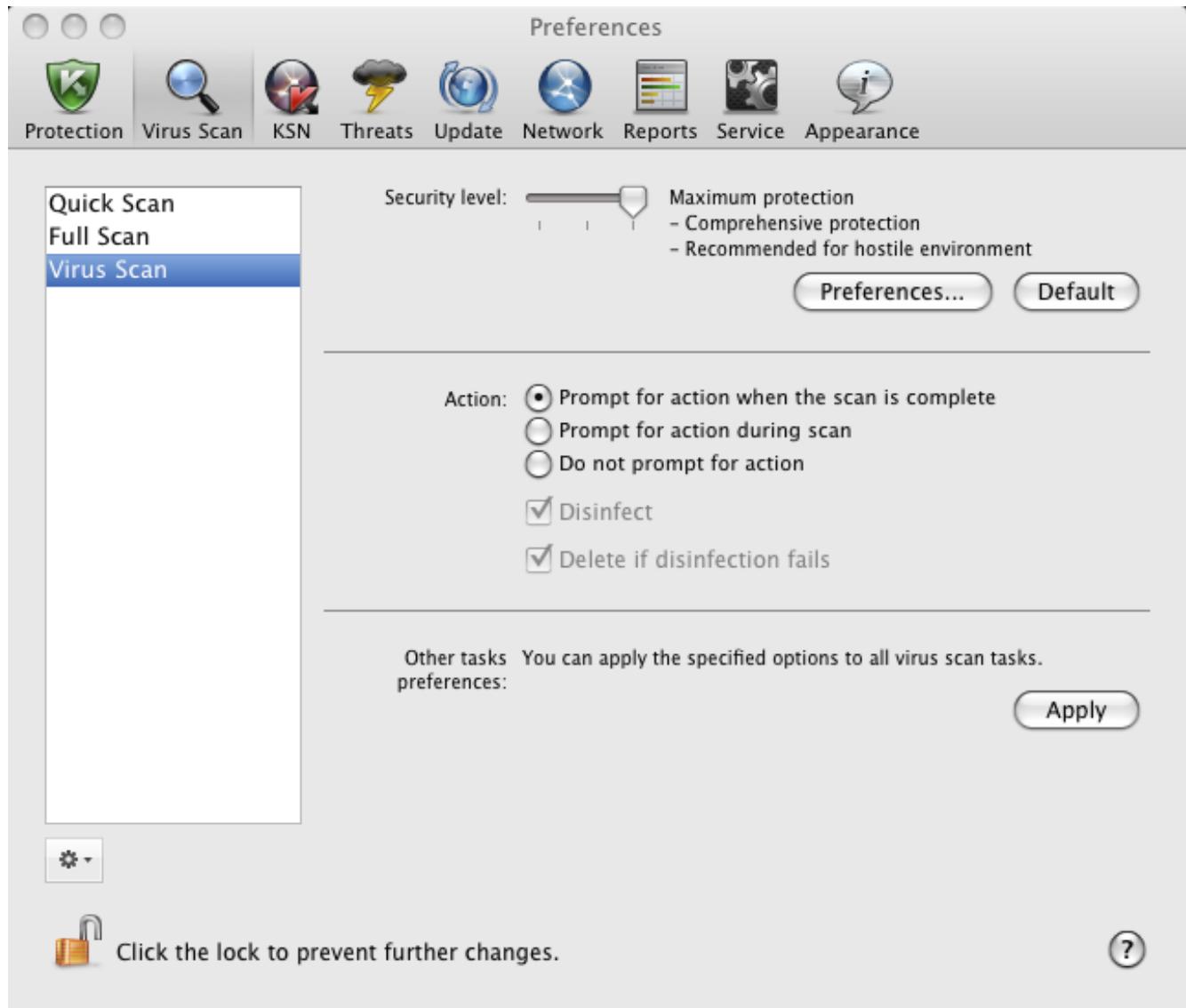
Figure 39. Application settings window. The Virus Scan task
RESTORING DEFAULT SCAN SETTINGS
You can restore the default virus scan settings at any time. They are considered optimal, recommended by Kaspersky Lab, and grouped in the Recommended security level.
To restore the default scan settings, do the following:
- Open the application settings window (on page 35), select the Virus Scan tab and then the name of the required task from the list on the left.
- In the Security level section (see figure below) click the Default button. This restores the recommended task settings.
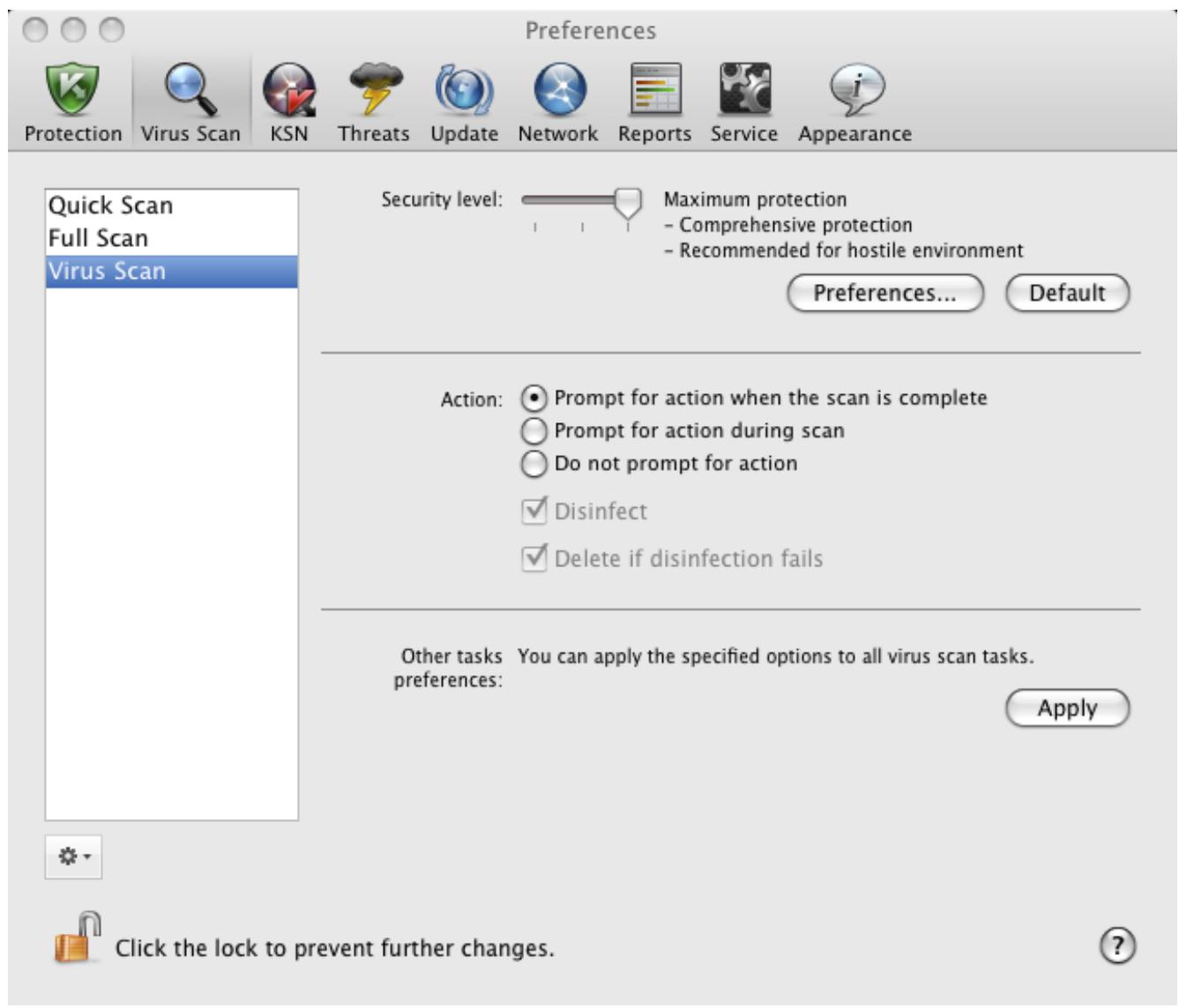
Figure 40. Application settings window. The Virus Scan task
VIRUS SCAN STATISTICS
A brief summary on the execution of every current task (in percentages) is provided in the main application window (see section "Main application window" on page 33).
Kaspersky Anti-Virus also provides a detailed report on the run of virus scan tasks.
To view a report on the run of the current task:
- Open the main application window (on page 33) and click the button.
- In the Running tasks section of the report window that opens, select the name of the required task.
If the task is already complete, information about the results are provided in the Completed tasks section.
Information about the progress of the current task or brief statistics on the results of the completed task are displayed in the lower part of the report window. It contains information on the number of objects scanned, the number of malicious objects detected and the number of objects to be processed. Scan start time, estimated completion time, and duration are also displayed.
If any errors occur during the scan, run the task again. If the attempt to re-run the task also results in an error, contact Kaspersky Lab Technical Support Service (see section "Contacting Technical Support Service" on page 110).
Detailed information about the execution of virus scan tasks is provided in the report window to the right on the following tabs:
- The Detected tab lists all the dangerous objects detected while the task was running. For each object, the name and the path to the folder, in which it is stored, are displayed, as well as the status assigned to it by Kaspersky Anti-Virus. If the malicious program that has infected the object is revealed, the object is assigned the corresponding status, for example, virus, Trojan, etc. If the type of malicious effect cannot be established precisely, the object is assigned the suspicious status. The action taken on the object is also specified next to the status (detected, disinfected).
-
The Events tab keeps a full list of events that occur while the virus scan task is running with the time, name, status and cause of each event. The events can have the following statuses:
-
information (for example, object not processed, skipped by type);
- warning (for example, a virus is detected);
-
comment (for example, archive is password-protected).
-
The Statistics tab provides information about the total number of scanned objects and, in separate columns, how many objects out of the total number scanned are archives, how many are dangerous, how many have been disinfected, how many have been placed in Quarantine, etc.
- The Preferences tab lists the main settings used to run the virus scan task. To configure a component quickly, click the Change options button.
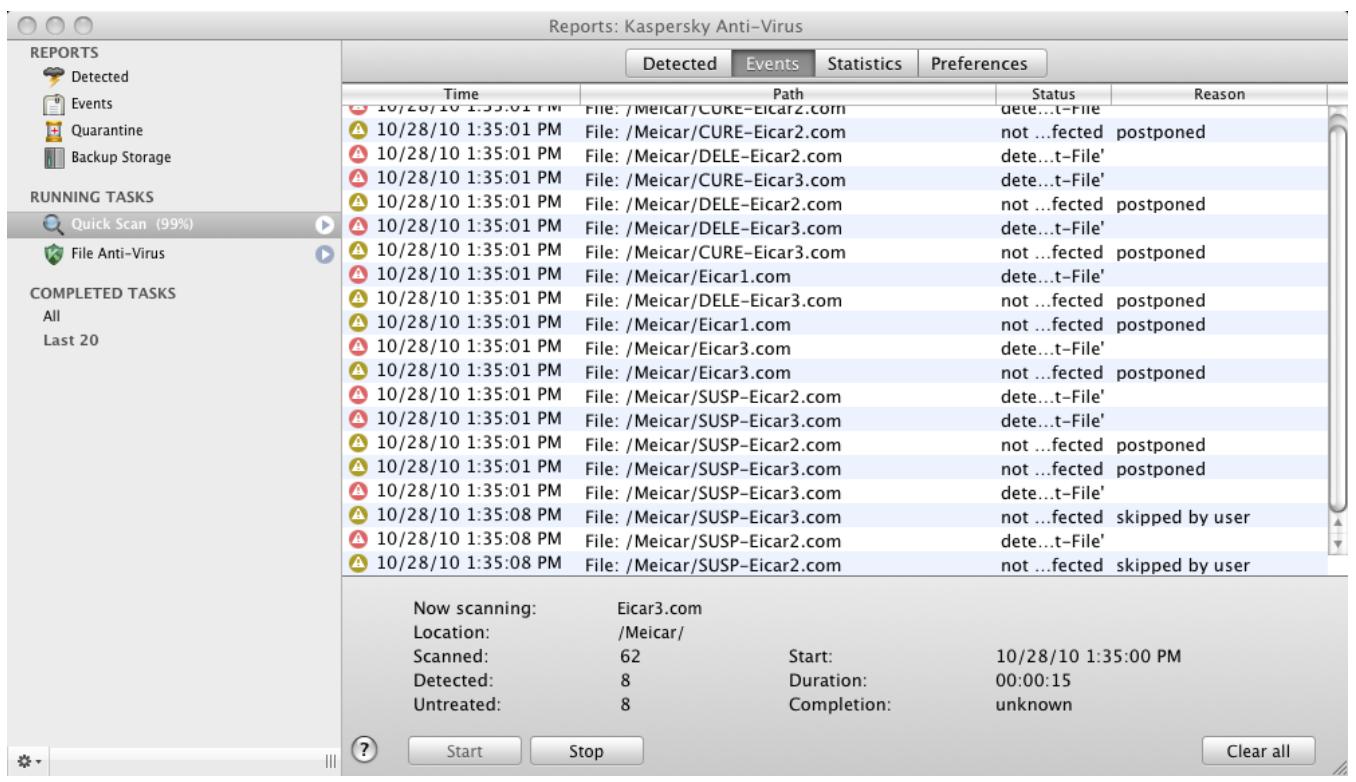
Figure 41. Report window. Virus Scan
UPDATING THE APPLICATION
Keeping anti-virus databases up-to-date is vital for the security of your computer. As new viruses, Trojans, and malicious software emerge daily, it is extremely important to update the application regularly to keep your data permanently protected.
An update of Kaspersky Anti-Virus means downloading and installing:
- Anti-virus databases
The Anti-virus databases protect the data on your computer. File Anti-Virus (on page 54) and virus scan tasks (see section "Scanning for viruses" on page 66) use them to find and deal with malicious objects on your computer. Virus databases are updated hourly with new threats and ways to fight them, so it's important to update them regularly.
Application modules
In addition to the databases, you can update the internal modules of Kaspersky Anti-Virus. Kaspersky Lab regularly releases update packages.
Kaspersky Lab update servers are the primary sources of Kaspersky Anti-Virus updates.
An Internet connection is required to download updates from the servers. If the Internet connection is established using a proxy server, adjust the network settings (see section "Configuring the proxy server settings" on page 89).
If you cannot access the Kaspersky Lab update servers (for example, your Internet connection is down), contact Kaspersky Lab Technical Support Service (see section "Contacting Technical Support" on page 110) to receive updates for Kaspersky Anti-Virus on a disk in ZIP format.
Updates can be downloaded in one of the following modes:
- Automatically. Kaspersky Anti-Virus regularly checks the update source for updates. During a virus outbreak the frequency of the checks may increase and decrease afterwards. If Kaspersky Anti-Virus detects new updates, it downloads and installs them on the computer. This is the default mode.
- By schedule. Kaspersky Anti-Virus is updated automatically in accordance with the schedule set.
- Manually. You can start the update of Kaspersky Anti-Virus manually.
During an update the application modules and anti-virus databases are compared with the ones currently available at the update source. If the most recent version of the databases and modules are installed on your computer, the bottom part of the main application window (see section "Main application window" on page 33) displays a message that the anti-virus databases are up-to-date. If the bases and modules differ from those currently available at the update source, only the missing components of the update will be installed on your computer. Databases and modules are not copied in their entirety, which allows increasing update speed and reducing Internet traffic.
Before updating the databases and modules, Kaspersky Anti-Virus creates backup copies so that a rollback could be performed, if necessary. The update rollback option (see section "Rolling back the last update" on page 83) may be useful if, for example, a new version of the databases contains an invalid signature that makes Kaspersky Anti-Virus block a safe application.
In case of a corruption of Kaspersky Anti-Virus databases, it is recommended to run the update task in order to download the actual set of databases for up-to-date protection.
While updating Kaspersky Anti-Virus, you can distribute the retrieved updates to a local source (see section "Updating from a local source" on page 84). The service allows you to update the databases and modules of Kaspersky Anti-Virus, which are used by the application, on other computers locally to reduce Internet traffic.
IN THIS SECTION:
Starting update 82
Rolling back the last update 83
Updating from a local source 84
Configuring the update 85
Update statistics 89
STARTING UPDATE
Updating Kaspersky Anti-Virus in a timely manner keeps your computer protected. If the anti-virus databases and modules are not updated, the information on your computer is at serious risk.
The bottom part of the main application window (see section "Main application window" on page 33) displays the following information about Kaspersky Anti-Virus updates: release date of the anti-virus databases, number of records contained in the databases installed on your computer, and information about their actuality. The number of records in the databases reflects the number of currently known threats against which the computer is protected.
You can start an update of the application at any time when Kaspersky Anti-Virus is running. To do so, click the button in the main window. Detailed information about the execution of this task is displayed in the report window (see section "Reports" on page 97).
At the same time as updates are downloaded from the Kaspersky Lab servers, they will be copied to a local source (see section "Updating from a local source" on page 84), given that the service is enabled.
Every time you start the application update, Kaspersky Anti-Virus first creates a backup copy of the anti-virus databases and modules being in use, and only after that starts updating them. This operation procedure allows you to return to the previous version of the databases, if necessary. The update rollback option may be useful if, for example, a new version of the databases contain an invalid signature that makes Kaspersky Anti-Virus block a safe application.
In case of a corruption of Kaspersky Anti-Virus databases, it is recommended to run the update task in order to download the actual set of databases for up-to-date protection.
To rollback the anti-virus databases, do the following:
- Open the application settings window (on page 35) and select the Update tab (see figure below).
- In the Rollback update section, click the Rollback update button.
You can view the results of the rollback in the report window (see section "Virus Scan statistics" on page 89).
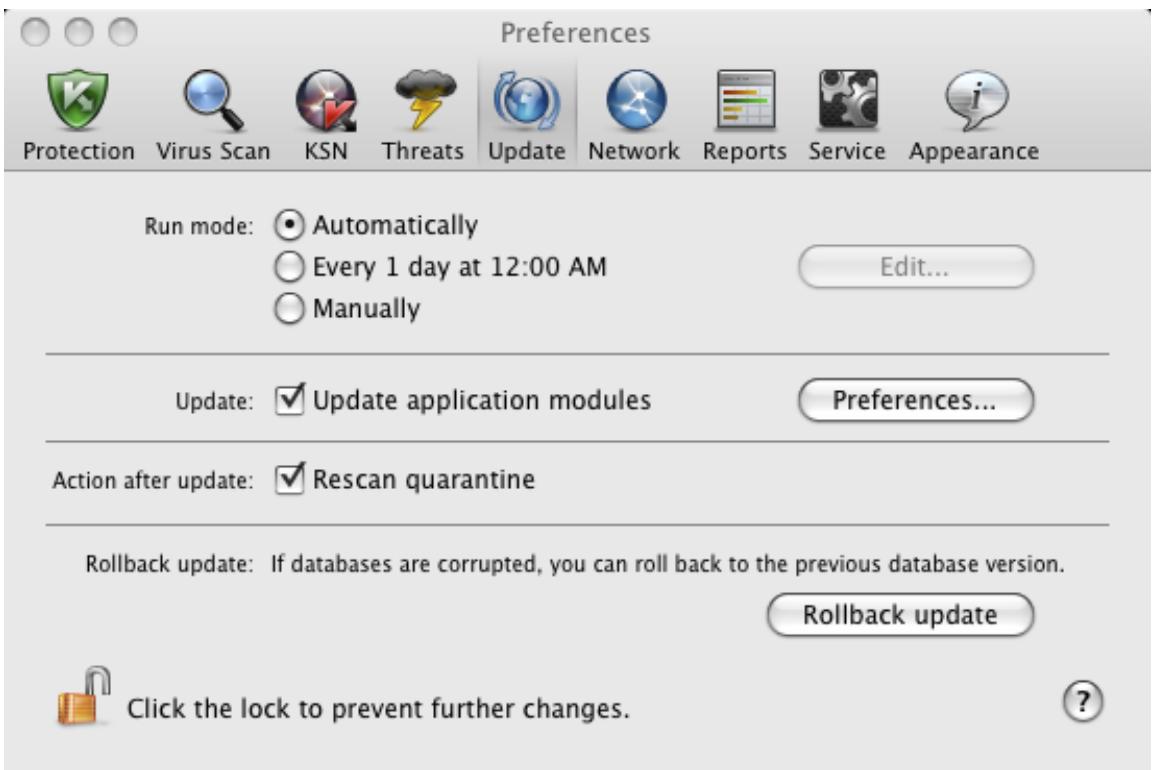
Figure 42. Application settings window. Update
UPDATING FROM A LOCAL SOURCE
If several computers are joined into a local network, there is no need to download updates of Kaspersky Anti-Virus for each of them separately, since this would significantly increase the network traffic. You can use the update distribution service to update anti-virus databases and modules, which are used by the application, locally on other computers, thus reducing Internet traffic. To do so, set up update distribution as follows:
- One of the computers on the network retrieves the Kaspersky Anti-Virus update package from the Kaspersky Lab update servers or from another web resource hosting the current set of updates. The updates retrieved are placed in a shared folder.
Shared folder should be created in advance.
- Other computers on the network refer to the shared folder as the update source.
To enable the update distribution service, do the following:
- Open the application settings window (on page 35) and select the Update tab (see figure below).
- In the Update section, click the Preferences button.
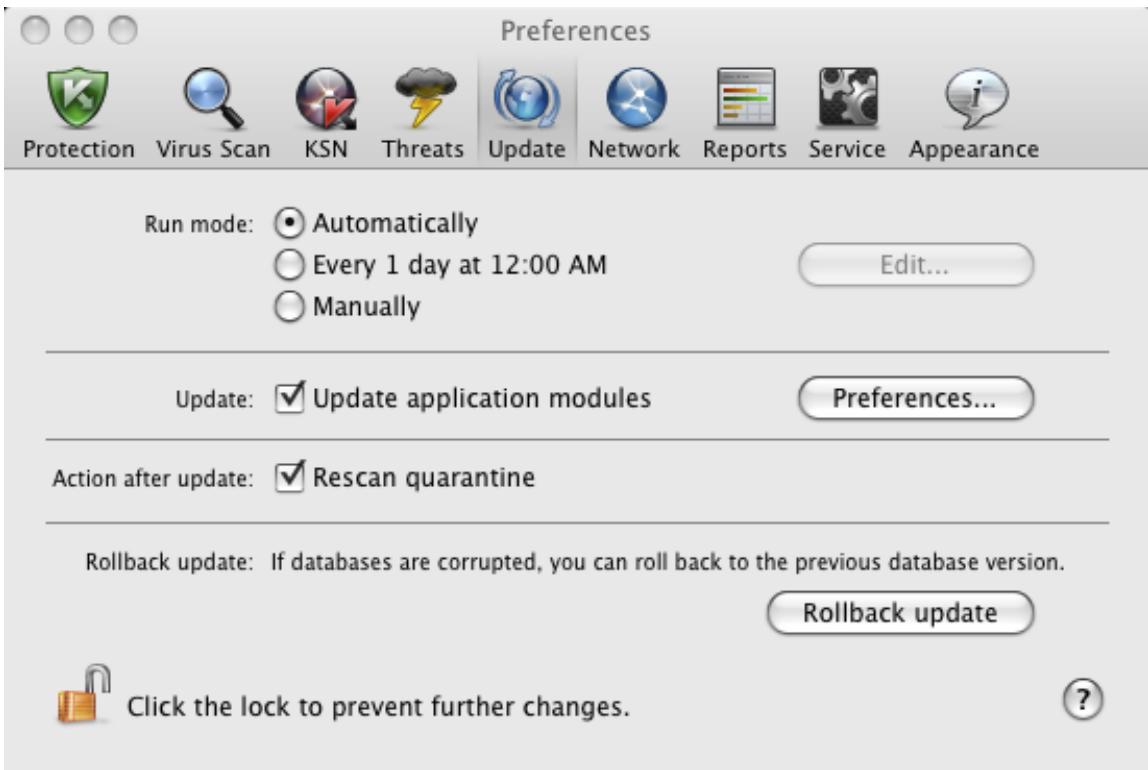
Figure 43. Application settings window. Update
- In the window that opens, select the Additional tab in the window that opens (see the figure below). Check the Copy updates to folder box and click the Select button.
- In the standard window that opens, select a shared folder in which retrieved updates should be saved.
Kaspersky Anti-Virus only retrieves its own update package from Kaspersky Lab servers.
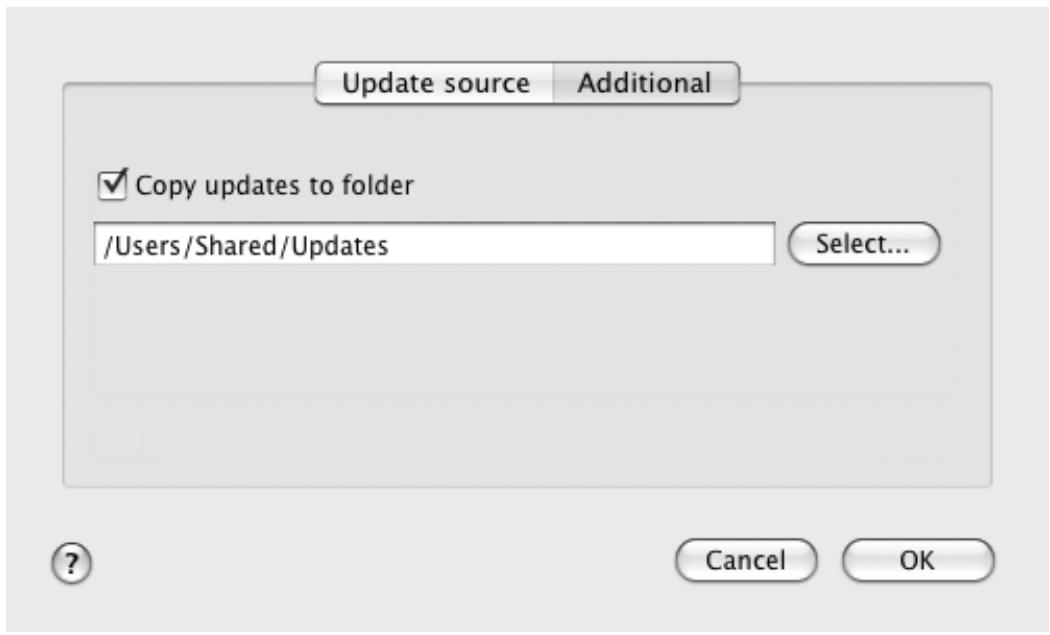
Figure 44. Configuring settings for the update distribution service
CONFIGURING THE UPDATE
Kaspersky Anti-Virus is only updated in accordance with the following settings:
Run mode
The choice of update mode determines whether the update is launched automatically (recommended by Kaspersky Lab), manually or scheduled. If the latter option is selected, you should create an update task startup schedule (see section "Configuring the update task schedule" on page 88).
- Update object
The update object determines what is to be updated: only the anti-virus databases or the application databases and the modules. Kaspersky Anti-Virus databases are always updated; application modules are updated only if the corresponding box is checked (see section "Selecting the update mode and objects" on page 86).
- Update source
Update source is a resource that contains actual files of anti-virus databases and modules for Kaspersky AntiVirus. Update sources can be HTTP and FTP servers, local or network folders.
Network settings
To download updates from Kaspersky Lab's update servers or sources other than local or network folders, your computers needs to be connected to the Internet. If the Internet connection is established using a proxy server, adjust the network settings (see section "Configuring the proxy server settings" on page 89).
SELECTING THE UPDATE MODE AND OBJECTS
When configuring the update of Kaspersky Anti-Virus, it is important to define the update object and startup mode.
To configure the update task run schedule:
- Open the application settings window (on page 35) and select the Update tab (see figure below).
- In the Run mode section, select the update task run mode.
To allow the application to copy and install not only anti-virus databases but also application modules when running the update:
- Open the application settings window (on page 35) and select the Update tab (see figure below).
- In the Update section, check the Update application modules box.
If module updates are available during the run of the update task, Kaspersky Anti-Virus retrieves and applies them after rebooting your computer. The downloaded module updates will not be installed until the computer restarts. If the next application update becomes available before the computer is restarted and the program module updates downloaded earlier are installed, the databases are only updated.
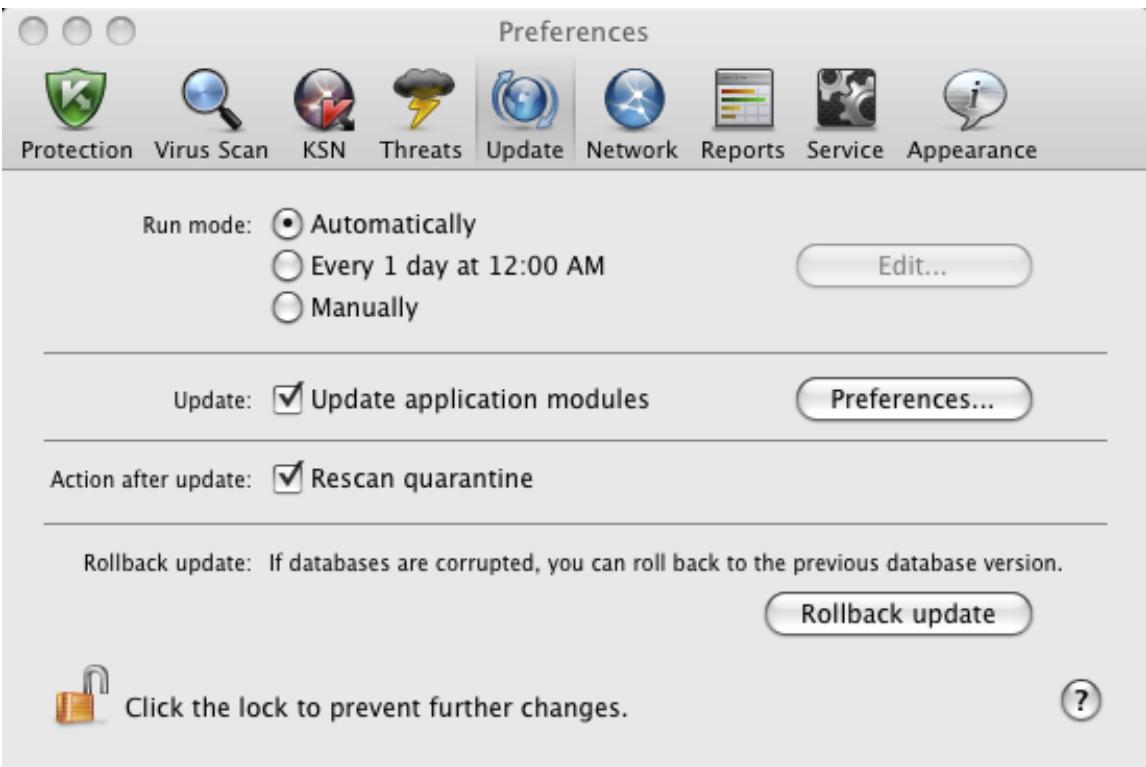
Figure 45. Application settings window. Update
SELECTING AN UPDATE SOURCE
Update source is a resource containing updates of the anti-virus databases and modules of Kaspersky Anti-Virus. Update sources can be HTTP and FTP servers, local or network folders.
The main update source is Kaspersky Lab's update servers. These are special websites where updates of databases and internal modules for all Kaspersky Lab products are stored.
If you cannot access Kaspersky Lab's update servers (for example, there is no Internet connection), contact Technical Support Service to receive the updates in ZIP format. You can copy the updates and upload them to an FTP or HTTP site, or save them in a local or network folder.
When ordering updates on removable media, specify if you want to have updates for the internal modules as well.
To select an update source for Kaspersky Anti-Virus:
- Open application settings window (on page 35) and select the Update tab.
- In the Update section, click the Preferences button.
- In the window that opens, select the Update source tab (see the figure below). Edit the list of update sources, if necessary.
By default, the list of update sources contains only Kaspersky Lab update servers. While performing an update, Kaspersky Anti-Virus refers to this list for the address of the first server on it and attempts to download the updates from this server. If the updates cannot be downloaded from the selected server, the application tries to connect and retrieve the updates from the next server. This continues until a connection is successfully established, or until all the available update servers have been tried. For subsequent updates the application first of all tries to access the server from which the most recent update was successfully made.
You can perform the following actions:
- Add a new update source to the list.
Click the + button and select the most suitable option from the dropdown list (Path - for a local or network folder or URL - for a HTTP or FTP server). In the window that opens specify the location of the new update source.
- Change the update source.
Select the update source in the list and click the Edit button. Make the required changes in the window that opens.
Note that such update source as Kaspersky Lab update servers cannot be edited or deleted.
- Temporarily disable retrieval of updates from the source.
Select the update source in the list and uncheck the box next to it. Kaspersky Anti-Virus will not be updated from this source until the box is checked again.
- Delete update source.
Select the update source in the list and click the - button.
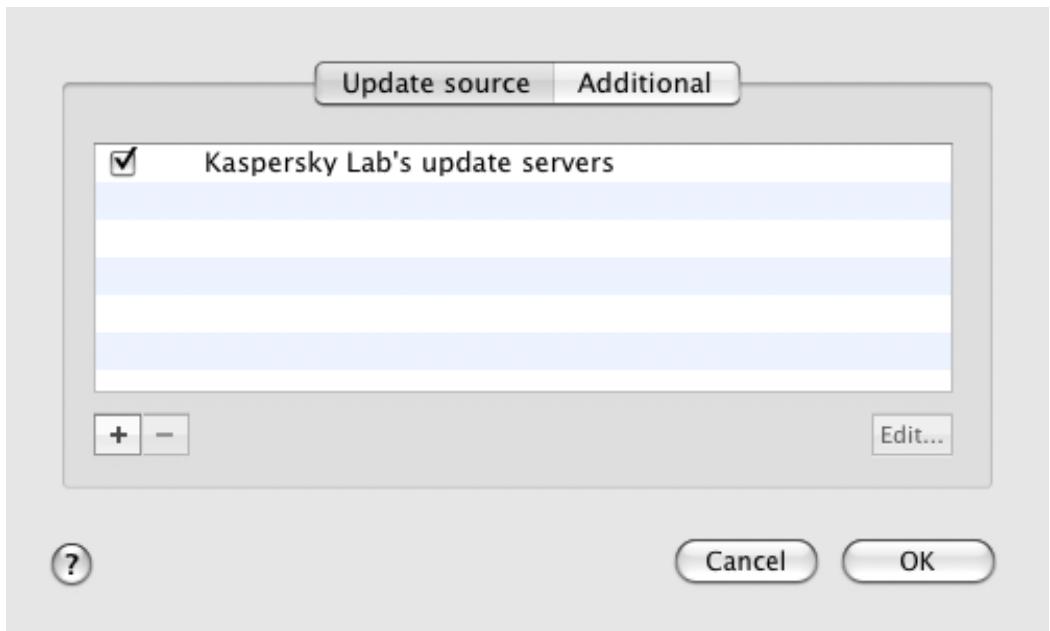
Figure 46. Selecting an update source
CONFIGURING THE UPDATE TASK SCHEDULE
Kaspersky Anti-Virus is automatically updated by default. You can select another update run mode: manual or scheduled.
To configure the startup of the scheduled update task for Kaspersky Anti-Virus:
- Open application settings window (on page 35) and select the Update tab.
- In the Run mode section, select the option to run a scheduled update and click the Edit button.
- In the window that opens (see figure below), set the frequency with which the task will be launched.
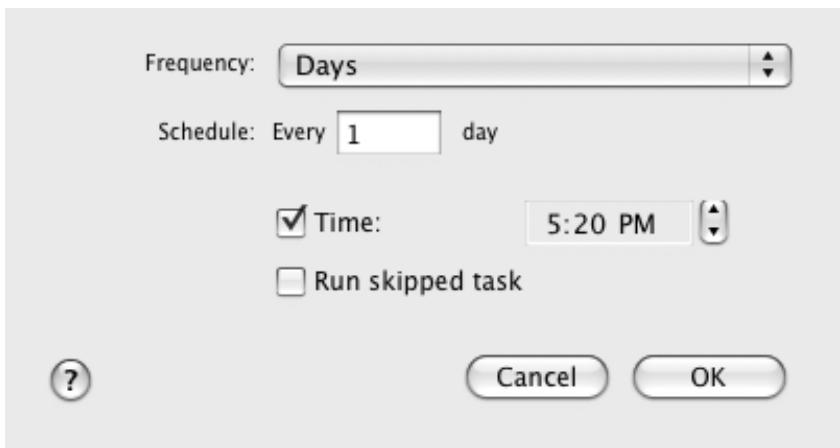
Figure 47. Configuring the update task schedule
CONFIGURING CONNECTION TO A PROXY SERVER
If your computer connects to the Internet through a proxy server, configure the settings for it. Kaspersky Anti-Virus uses these settings to update the anti-virus databases and modules.
To configure a connection to a proxy server, do the following:
- Open the application settings window (on page 35) and select the Network tab (see figure below).
- In the General section, check the Use proxy server box.
- In the Proxy server section, configure the proxy server.
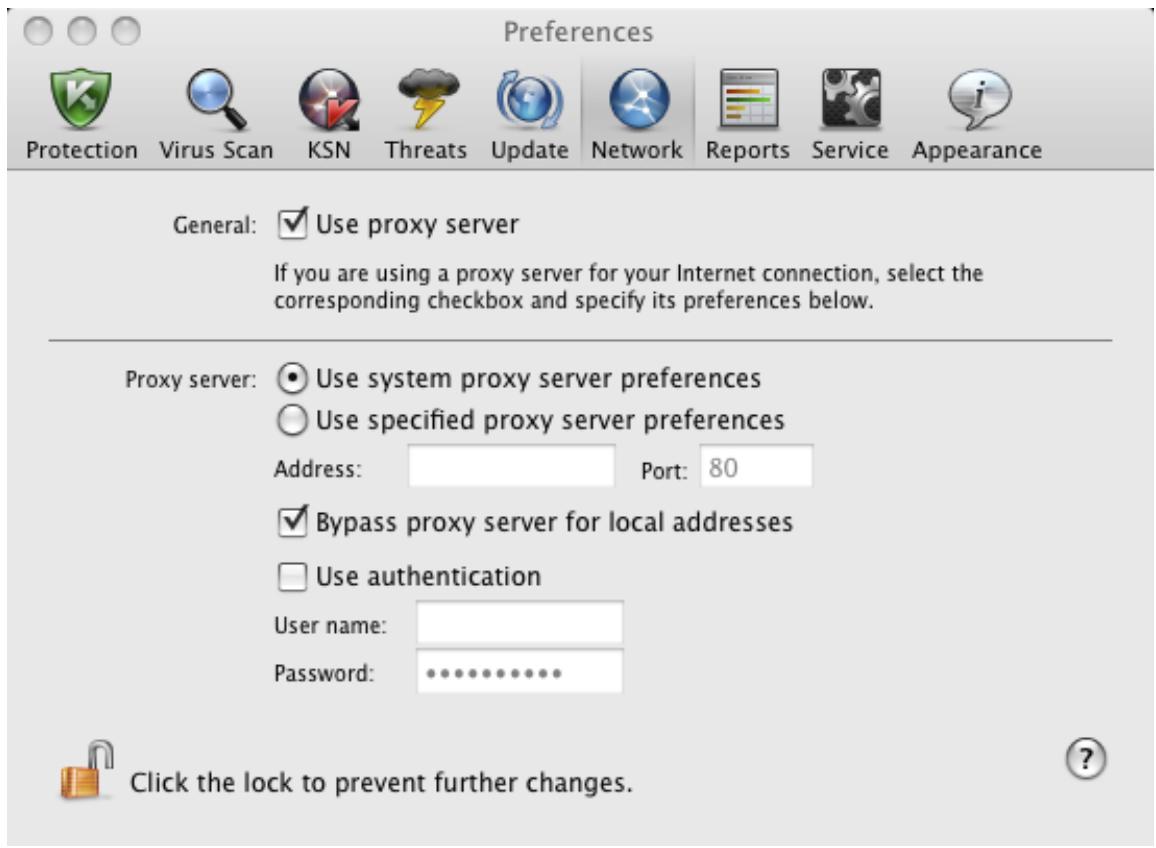
Figure 48. Application settings window. Network
If you are downloading the update from an FTP server, connection to the server is in passive mode by default. If this connection fails, it will attempt to connect in active mode.
By default, the time assigned to connect to an update server is one minute. If a connection cannot be established, after this period an attempt is made to connect to the next update source in the list. This continues until a connection is successfully established, or until all the available update servers have been tried.
UPDATE STATISTICS
Brief statistics on the current update service (release date of anti-virus databases, number of database records, information about the actuality of databases) are provided in the lower part of the main application window (see section "Main application window" on page 33).
If you have not yet updated Kaspersky Anti-Virus, there will be no information about the most recent update.
Kaspersky Anti-Virus provides a detailed report on the run of the virus scan task.
To view a report on the run of the current task:
- Open the main application window (on page 33) and click the button.
- In the Running tasks section of the report window that opens, select the Update task.
Information about the results of the latest updates can be viewed in the Completed tasks section.
Information about the progress of the current task or brief statistics on the results of the completed task are displayed in the lower part of the report window. If the update is completed successfully, the statistics include information about the size of the updates copied and installed, the speed with which they were performed, the start and completion time, and the duration of the task.
If the operation fails, make sure that the update settings are correct and that the update source is available. Restart the update. If the attempt also results in an error, contact Kaspersky Lab Technical Support Service (see section "Contacting Technical Support Service" on page 110).
Detailed information about the execution of virus scan tasks is provided in the report window to the right on the following tabs:
- The Events tab lists all operations performed during the update process in sequence, with the names of the updated objects, the paths to the folders in which they are stored, and the time taken to access them.
- The Preferences tab lists the main settings used to perform the update. To configure a component quickly, click the Change options button.
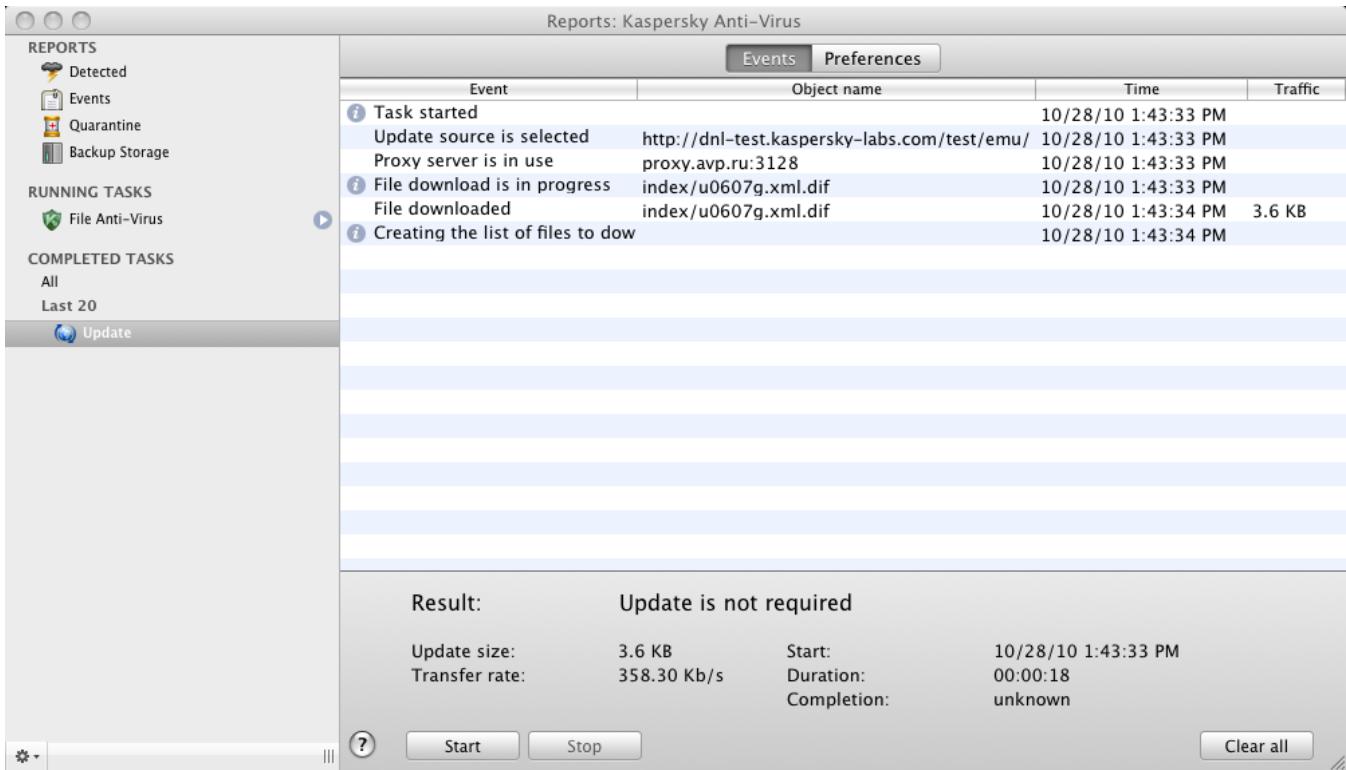
Figure 49. Report window. Update
REPORTS AND STORAGE
Kaspersky Anti-Virus allows you to move potentially infected objects to Quarantine, create copies of infected objects in Backup before disinfecting or deleting them, and create detailed reports on the operation of any application component.
IN THIS SECTION:
Quarantine 91
Backup Storage 94
Reports 97
Configuring reports and storages 98
QUARANTINE
Quarantine is a special repository containing the objects that are potentially infected with viruses.
Potentially infected objects are objects that Kaspersky Anti-Virus suspects of being infected by a virus or its modifications. The potentially infected status can be assigned to an object in the following cases:
The code of the object being analyzed resembles a known threat but is partially altered.
Kaspersky Anti-Virus databases contain threats that have been already analyzed by Kaspersky Lab specialists. If the databases do not yet contain any information about this modification of a malicious program, Kaspersky Anti-Virus recognizes objects infected with this modification as potentially infected ones and finds a threat that seems the most similar to this type of infection.
- The code of the detected object resembles a malicious program in terms of its structure, but Kaspersky Anti-Virus does not contain any records that would match it.
It could be a new type of threat, so Kaspersky Anti-Virus classifies it as a potentially infected object.
Potentially infected objects can be detected and placed in Quarantine by File Anti-Virus (see section "File Anti-Virus" on page 54) or during a virus scan (see section "Scanning for viruses" on page 66).
Additionally, you can move an object to Quarantine manually by clicking the Quarantine button in a special notification (see section "What to do when the application's notifications appear" on page 49) that appears on the screen when a potentially infected object is detected.
When Kaspersky Anti-Virus moves a potentially infected object to Quarantine, it is deleted from the current folder and saved in the Quarantine folder. Files in Quarantine are stored in a special format and are not dangerous.
VIEWING THE CONTENTS OF QUARANTINE
You can view the contents of Quarantine in the Quarantine section in the report window (see figure below).
To view the contents of Quarantine, do the following:
- Open the main application window (on page 33) and click the button. Kaspersky Anti-Virus report window opens.
- In the left part of the report window, select Quarantine. The contents of Quarantine are displayed in the right-hand part of the window.
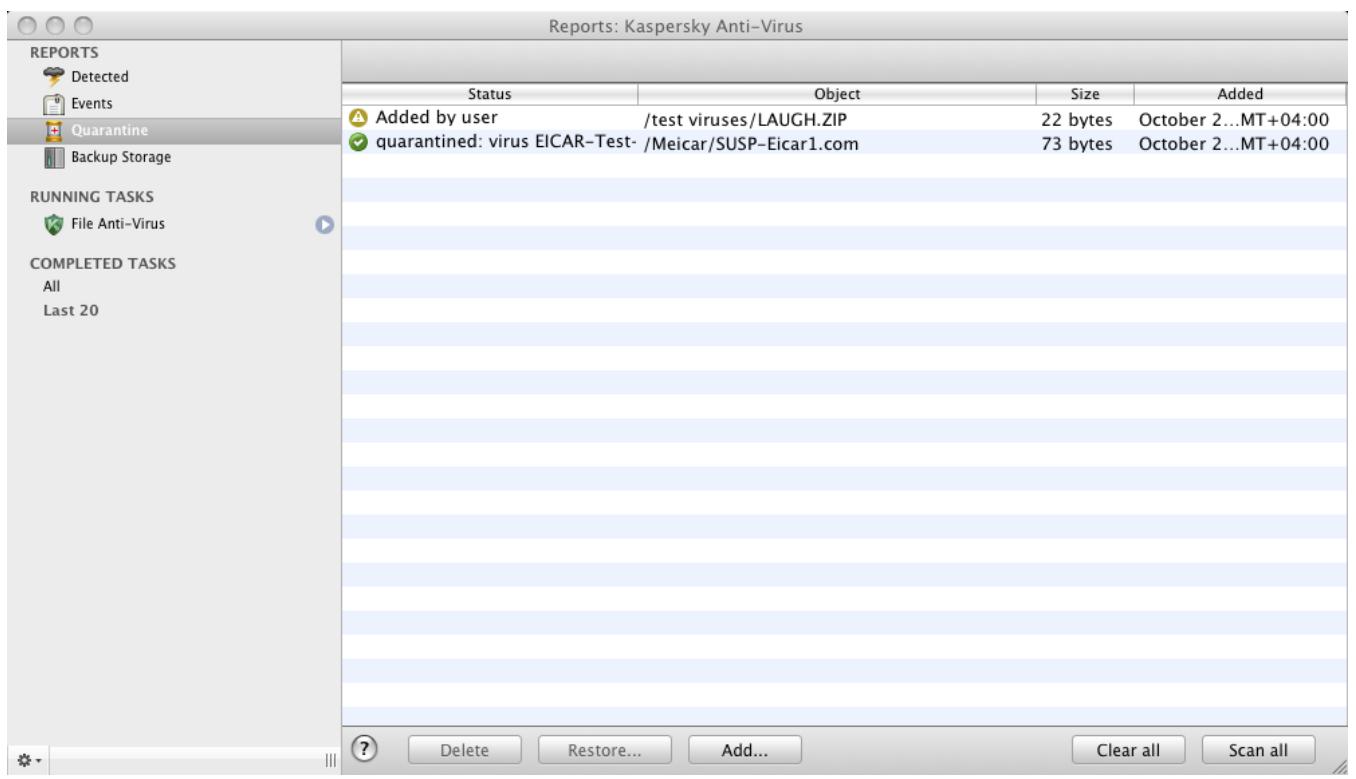
Figure 50. Report window. Quarantine
ACTIONS ON QUARANTINED OBJECTS
Kaspersky Anti-Virus allows you to take the following actions on potentially infected objects:
- Move files to Quarantine manually if you suspect them of being infected, but they have not been detected by Kaspersky Anti-Virus.
To do this, in the Quarantine window (see figure below), click the Add button and select the required file in the standard window that opens. It is added to the list with the added by user status.
Files moved to Quarantine manually may change their status if they have been scanned using the most recent databases no earlier than three days after they were scanned for the first time in Quarantine. If a file is assigned the false operation status, it will be automatically restored. If a file is identified as infected, it is deleted from Quarantine and a copy is stored in Backup Storage.
- Scan and disinfect all potentially infected objects in Quarantine using the current version of Kaspersky Anti-Virus databases.
To do this, in the Quarantine window (see figure below), click the Scan all button. After scanning and disinfecting any quarantined object, its status can change to infected, potentially infected, false operation, OK, etc.
The status of an object in Quarantine is changed only after it is scanned using anti-virus databases released no earlier than three days after the file was placed in Quarantine.
The infected status means that the object was identified as infected but the application did not manage to treat it. Kaspersky Anti-Virus deletes the object from Quarantine and saves a copy of it in Backup. All objects with the false operation status are restored to their original locations.
By default, Kaspersky Anti-Virus automatically scans objects in Quarantine after each update (see section "Scan of Quarantine after update" on page 94).
- Restore files to the folder specified by the user or the folder from which they were moved to Quarantine (by default).
To restore an object, select it in the Quarantine window (see figure below) and click the Restore button. Confirm the action. When restoring objects quarantined from archives, mail databases or mail format files, you should also specify the directory in which they will be restored.
We recommend that you only restore objects with the false positive, OK, and disinfected statuses since restoring other objects can lead to your computer becoming infected.
- Delete any object in Quarantine.
Only delete objects that cannot be disinfected. To delete an object, select one in the Quarantine window (see figure below) and click the Delete button. To clear Quarantine storage, click the Clear all button. You can also configure automatic deletion of the oldest objects in Quarantine (see section "Configuring Quarantine and Backup Storage" on page 99).
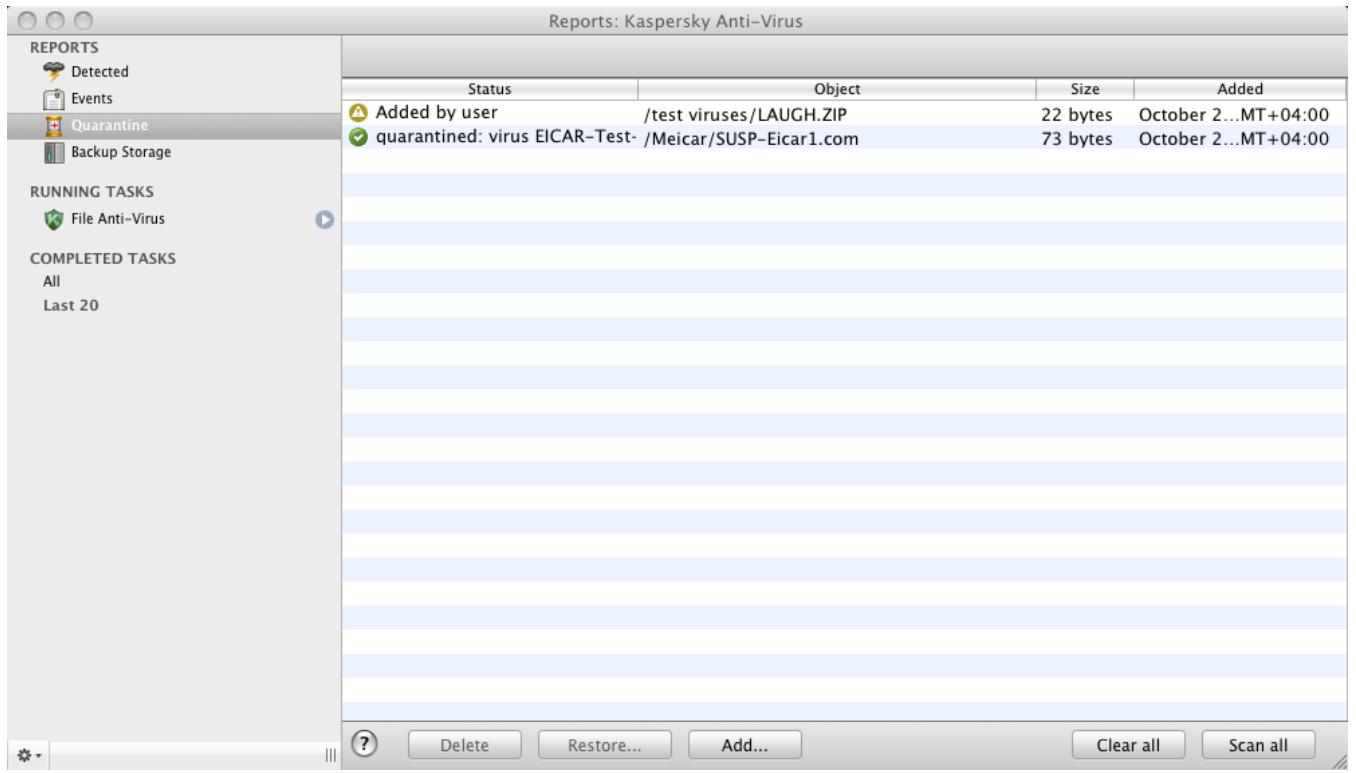
Figure 51. Report window. Quarantine
SCAN OF QUARANTINE AFTER UPDATE
Each package of anti-virus database updates contains new records to protect your computer from the most recent threats. Kaspersky Lab specialists recommend that you scan potentially infected objects stored in Quarantine immediately after update (see section "Quarantine" on page 91).
Quarantine stores objects whose contents include malware that was not properly identified by File Anti-Virus or during a virus scan task. Kaspersky Anti-Virus may be able to identify and eliminate the threat after a new update of the databases.
By default, Kaspersky Anti-Virus scans objects in Quarantine after each update. If an object still has the potentially infected status, it remains in storage. If the status changes to infected, the object is processed according to the selected action and removed from Quarantine. A copy of it is placed in Backup Storage (on page 94). If the scan has considered the object as not infected and more than three days have passed since the most recent update of the databases, the object is restored from Quarantine to its current location. If the databases have been updated within the last three days, the object remains in storage.
Kaspersky Anti-Virus will not be able to scan objects in Quarantine immediately after updating the databases if you are using Quarantine at that moment.
You can disable scan of quarantined objects after each application update by unchecking the corresponding box on the Update tab in the application settings window.
BACKUP STORAGE
Sometimes it is not possible to save objects in their entirety during the disinfection process. If a disinfected file contained important information that is partly or completely inaccessible following disinfection, you can attempt to restore the original object from its backup copy.
Backup copy is a copy of the original dangerous object that is created when first disinfecting or deleting the object, and saved in Backup Storage.
Backup Storage is a dedicated storage area containing backup copies of dangerous objects that have been processed or deleted. The main function of Backup is the ability to restore an original object at any time. Files in Backup are saved in a special format and are not dangerous for the operating system.
VIEWING THE CONTENTS OF BACKUP
You can view the contents of Backup Storage in the Backup Storage section of the report window (see figure below).
To view the contents of Backup, do the following:
- Open the main application window (on page 33) and click the button. Kaspersky Anti-Virus report window opens.
- In the left part of the report window, select the Backup Storage section. The contents of Quarantine are displayed in the right-hand part of the window.
The following information is provided for each backup copy: the full name of the object with the path to its original location, the time when it was moved, the status assigned after the scan, and its size.
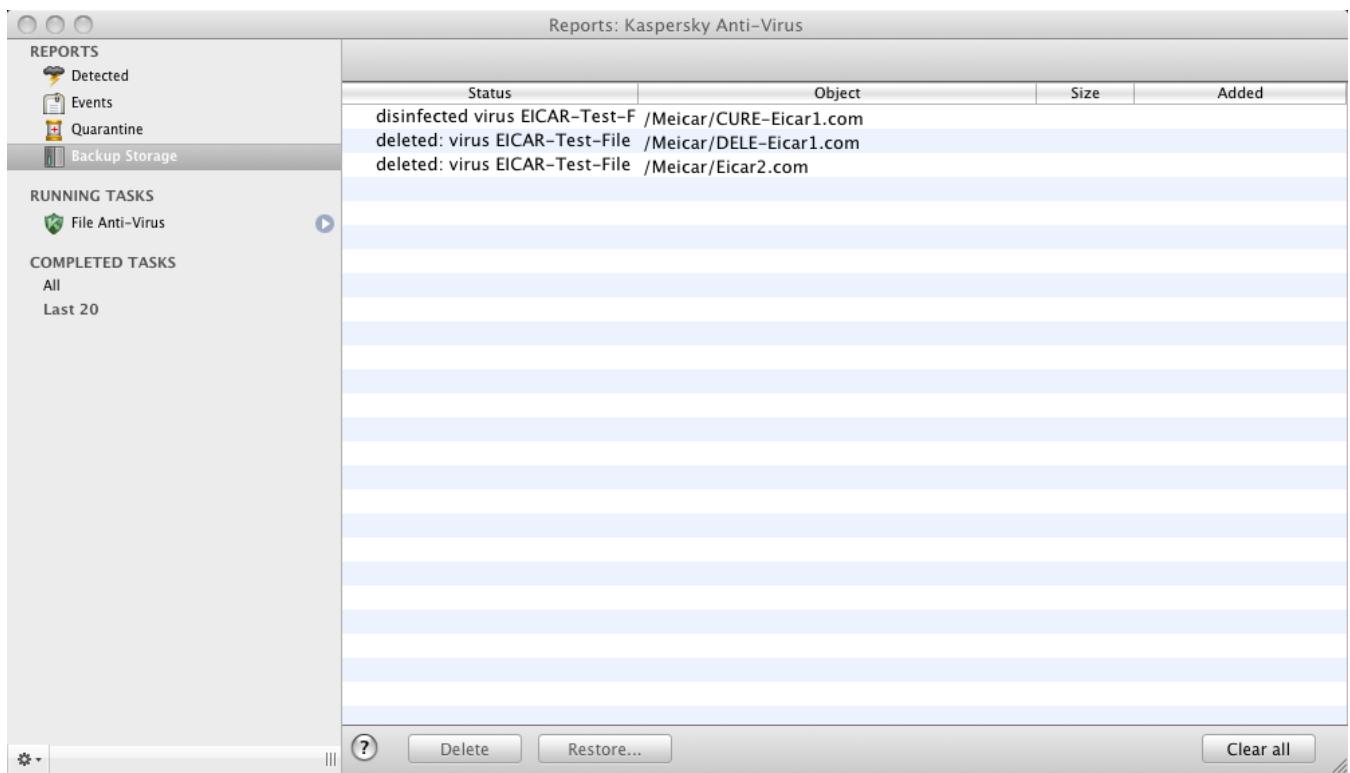
Figure 52. Report window. Backup Storage
ACTIONS ON BACKUP COPIES
Kaspersky Anti-Virus allows you to take the following actions on backup copies of objects:
- Restore selected backup copies from Quarantine.
To do this, in the Backup Storage window (see figure below), select the backup copy of the required object from the list and click the Restore button. Confirm the action. The object is restored to its original location with its original name. If there is an object with the same name in the original location (this situation is possible when restoring an object with a copy created prior to disinfection), a warning will pop up on screen. You can change the location of the object being restored or rename it.
We recommend that you scan the object for viruses immediately after restoring it. It is possible that the object will be disinfected using the updated databases without losing its integrity.
We do not recommend that you restore backup copies of objects unless absolutely necessary. This could lead to an infection on your computer.
- Delete backup copies of objects in Quarantine.
We recommend that you periodically view Quarantine and clear it. To delete an object, select it in the Quarantine window (see figure below) and click the Delete button. To clear Backup completely, click the Clear all button. You can also configure automatic deletion of the oldest objects in Backup Storage (see section "Configuring Quarantine and Backup Storage" on page 99).
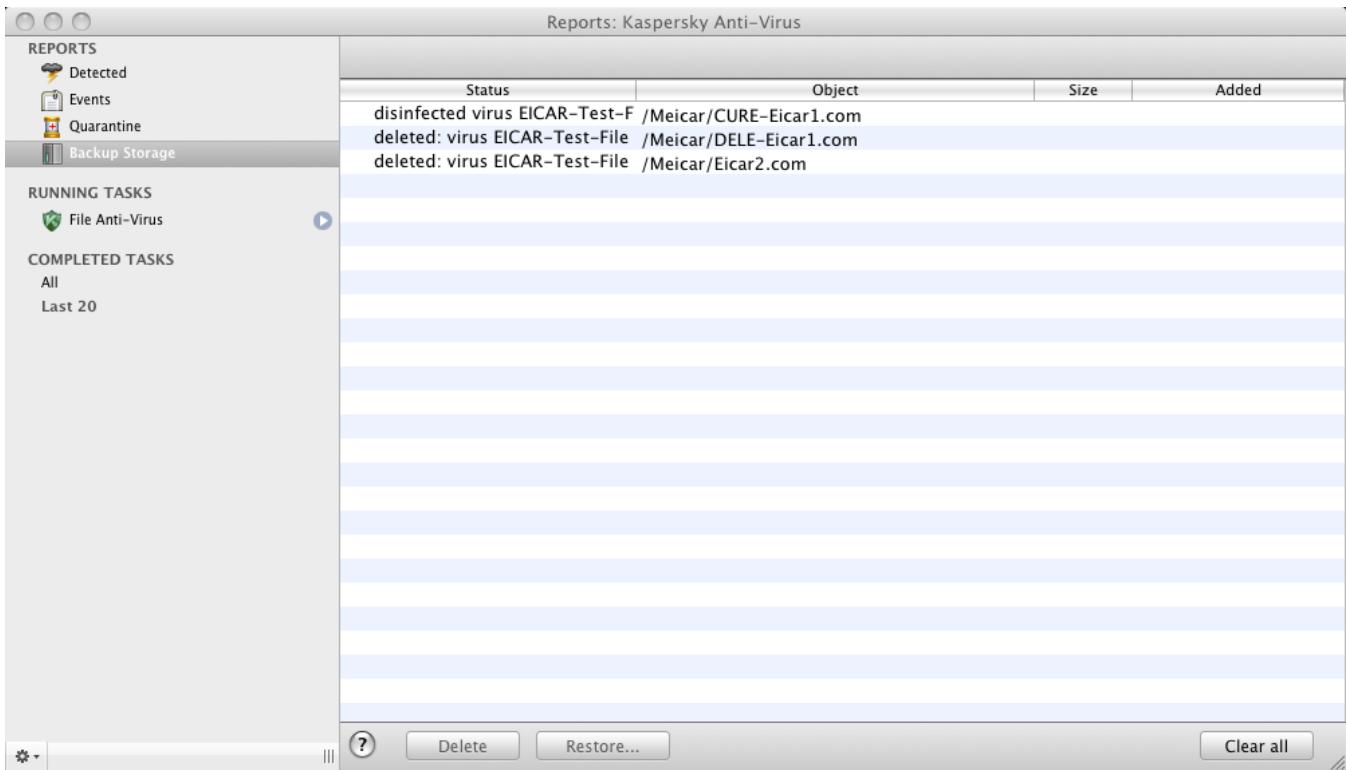
Figure 53. Report window. Backup Storage
REPORTS
Kaspersky Anti-Virus can provide a detailed report on its operation with a list of all events that have occurred while it was running. Besides that, a dedicated detailed report will be created for each application component: File Anti-Virus (see section "File protection statistics" on page 64), virus scan tasks (see section "Virus Scan statistics" on page 80), and update tasks (see section "Update statistics" on page 89).
To open the report window,
open the main application window (on page 33) and click the button.
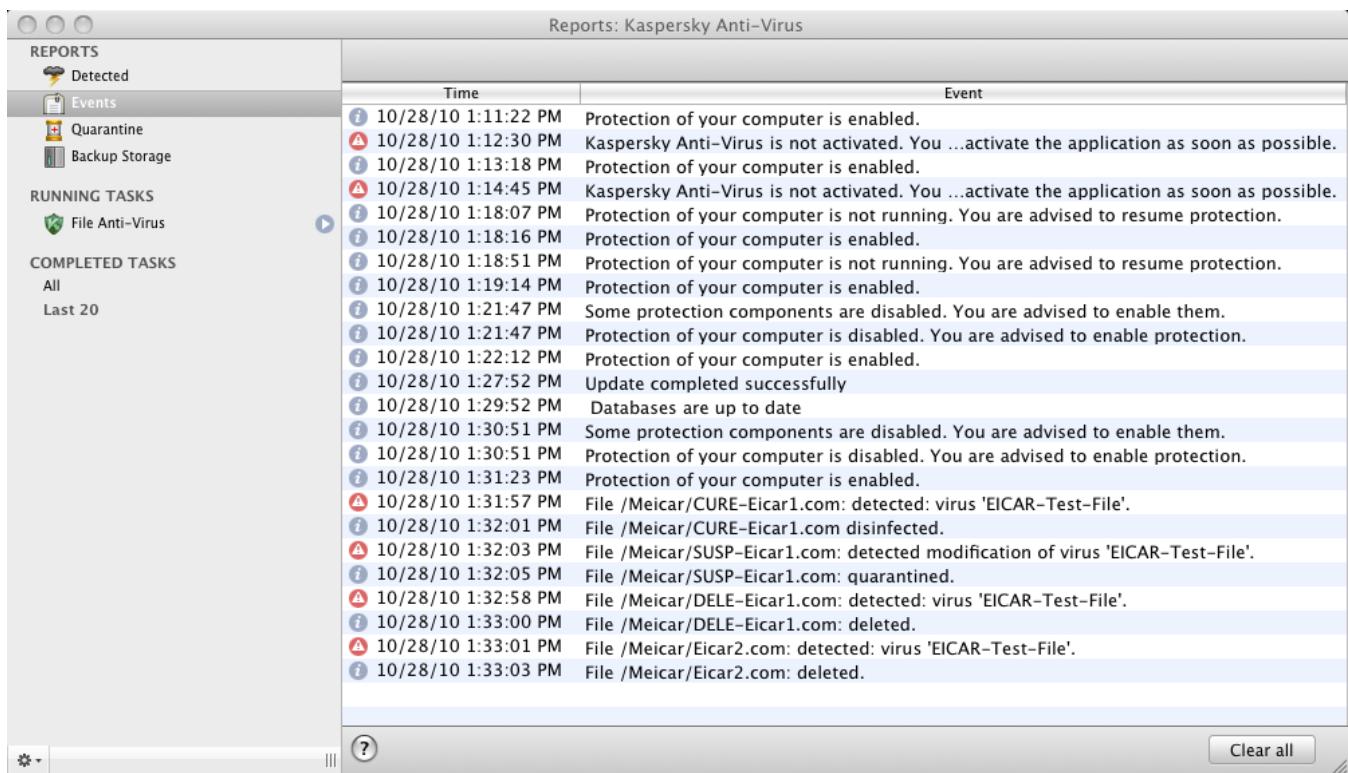
Figure 54. Kaspersky Anti-Virus report window
The report window contains the following sections:
-
Reports. Statistical information about dangerous objects detected and objects placed in Quarantine and Backup Storage, and a list of events logged during operation. All statistics are divided into subsections:
-
Detected. This is a list of all dangerous and suspicious objects detected by File Anti-Virus and virus scan tasks. To disinfect the dangerous objects immediately, click the Disinfect all button. To remove the records on detected objects from the report, click the Clear button. Note that this will not remove the dangerous and suspicious objects from your computer.
- Events. This is a list of all events logged during the operation of Kaspersky Anti-Virus. To delete information from the list, click the Clear all button.
Quarantine. A list of objects moved to Quarantine (see section "Quarantine" on page 91). -
Backup Storage. A list of objects placed in Backup Storage (on page 94).
-
Running tasks. This is a list of tasks being currently run by Kaspersky Anti-Virus. If no task is active and File Anti-Virus is disabled, the list will be empty.
Completed tasks. This a list of completed tasks. You may view all completed tasks or the twenty most recent ones. To clear the list, click the button in the bottom-left corner of the report window and select the Delete all completed tasks command.
From the report window you can manage the operation of File Anti-Virus, virus scans and update tasks: start and stop them. To do so, use the corresponding buttons in the component or task report window.
Kaspersky Anti-Virus can save reports in text format. This may be required if File Anti-Virus or another task returned a runtime error that cannot be deleted by the user. In such case, you can contact Kaspersky Lab Technical Support Service (see section "Contacting Technical Support Service" on page 110). In this case, you need to send a text report to Technical Support Service so that our specialists can study the problem in detail and fix it as quickly as possible.
To export a report of Kaspersky Anti-Virus into a text file:
- Select the required report or task in the report window.
- In the bottom-left corner of the window click the button, select the Export command, and in the window that opens specify the filename and the folder in which it will be saved.
CONFIGURING REPORTS AND STORAGES
On the Reports tab of the application settings window (see section "Application settings window" on page 35), you can adjust the settings for the creation and storage of reports as well as set the maximum storage time for objects in Quarantine and Backup.
CONFIGURING THE REPORT SETTINGS
To configure the settings for creating and saving reports, do the following:
- Open the application settings window (on page 35) and select the Reports tab (see figure below).
-
In the Reports section, adjust the following settings:
-
Allow informational events to be logged.
As a rule, these events are not important for security. To log these events in the report, check Log non-critical events box.
- Save only important events in the report that occurred during the most recent task.
This saves disk space by reducing the size of the report. If the Keep only recent events box is checked, the information in the report will be updated every time you restart the task: in this case important information (such as records about malicious objects detected) will be saved, and non-critical information will be overwritten.
- Set the storage period for reports.
The default storage duration for reports is 30 days. Then the reports will be deleted. You can change the maximum storage period or remove this restriction.
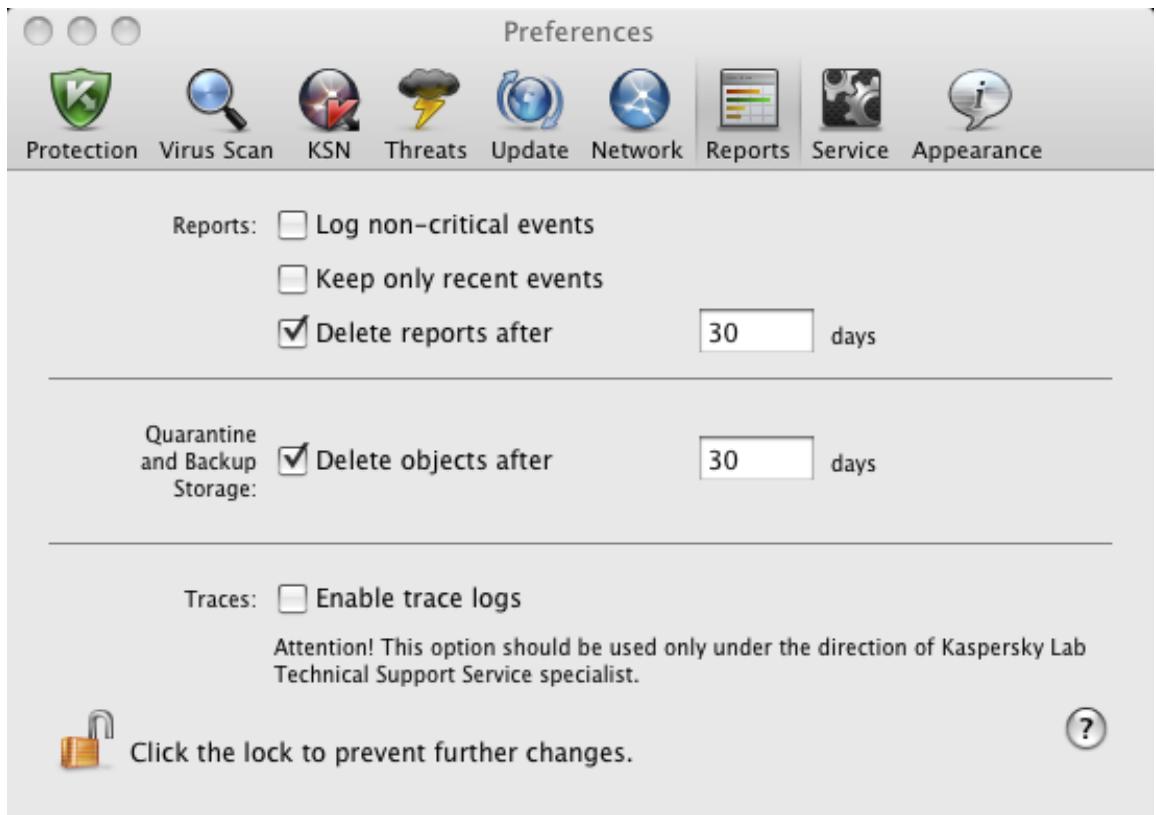
Figure 55. Application settings window. Reports
CONFIGURING QUARANTINE AND BACKUP STORAGE
By default, the storage term for objects in Quarantine and Backup is 30 days; when it expires, objects are deleted. You can change the maximum storage period for objects or remove this restriction at all.
To configure the settings for storing objects, do the following:
- Open the application settings window (on page 35) and select the Reports tab (see figure below).
- In the Quarantine and Backup Storage section, check the Delete objects after box and specify the period after which objects in storage are automatically deleted.
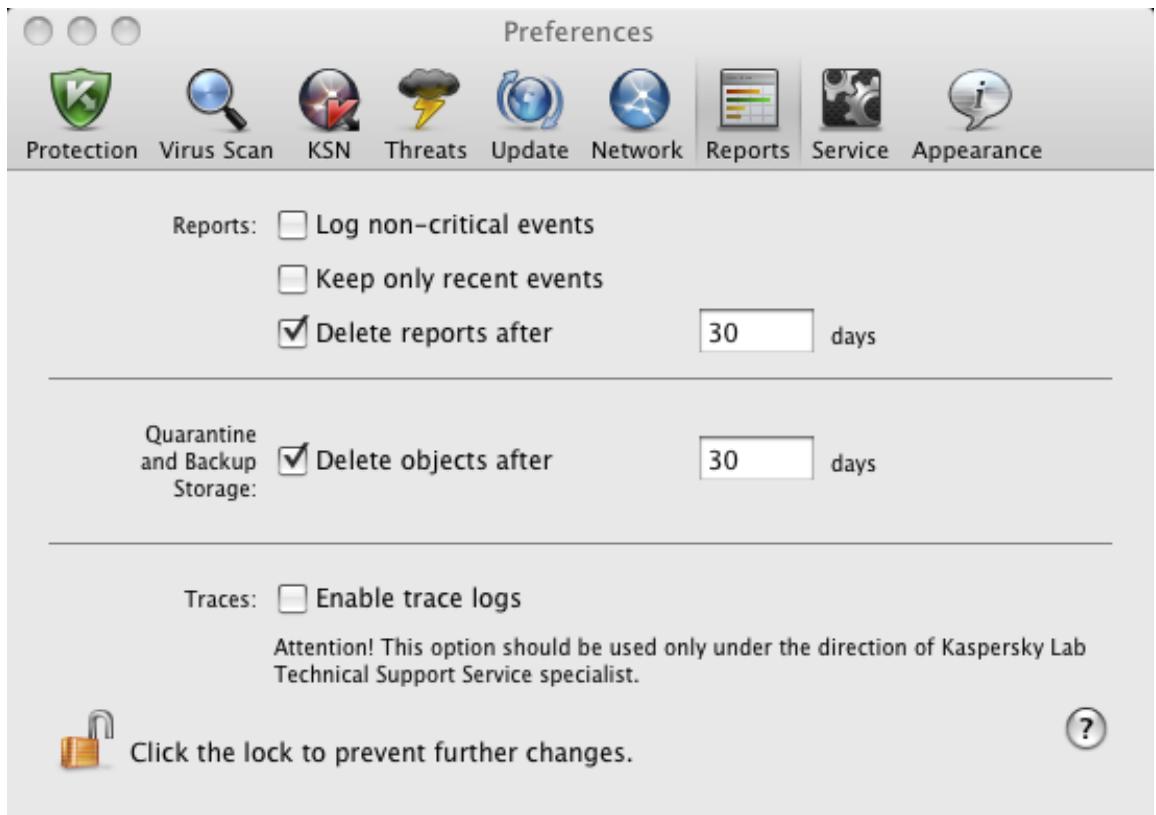
Figure 56. Application settings window. Reports
PARTICIPATING IN THE KASPERSKY SECURITY NETWORK
A great number of new threats appear worldwide on a daily basis. You can join Kaspersky Security Network to speed up the collection of statistical data on types and sources of new threats and help develop methods to neutralize them.
Kaspersky Security Network (KSN) is an infrastructure of online services that provides access to the online Knowledge Base of Kaspersky Lab, which contains information about reputation of files, web resources, and software. Using data from Kaspersky Security Network ensures an increased response time of Kaspersky Anti-Virus when encountering new types of threats, improves performance of some protection components, and reduces risk of false positives.
When you participate in Kaspersky Security Network, certain statistics collected while Kaspersky Anti-Virus protects your computer are sent to Kaspersky Lab automatically.
No privacy data of users is collected, processed, or stored.
Participating in Kaspersky Security Network is voluntary. You should make your decision on whether to participate while installing Kaspersky Anti-Virus; however, you can change it any time later.
To enable Kaspersky Security Network:
- Open the application settings window (on page 35) and select the KSN tab (see figure below).
- In the General section, click the Read full text of the statement button to read the terms of participation in Kaspersky Security Network. If you agree with all clauses of the Kaspersky Security Network Data Collection Statement, check the I agree to participate in Kaspersky Security Network box.
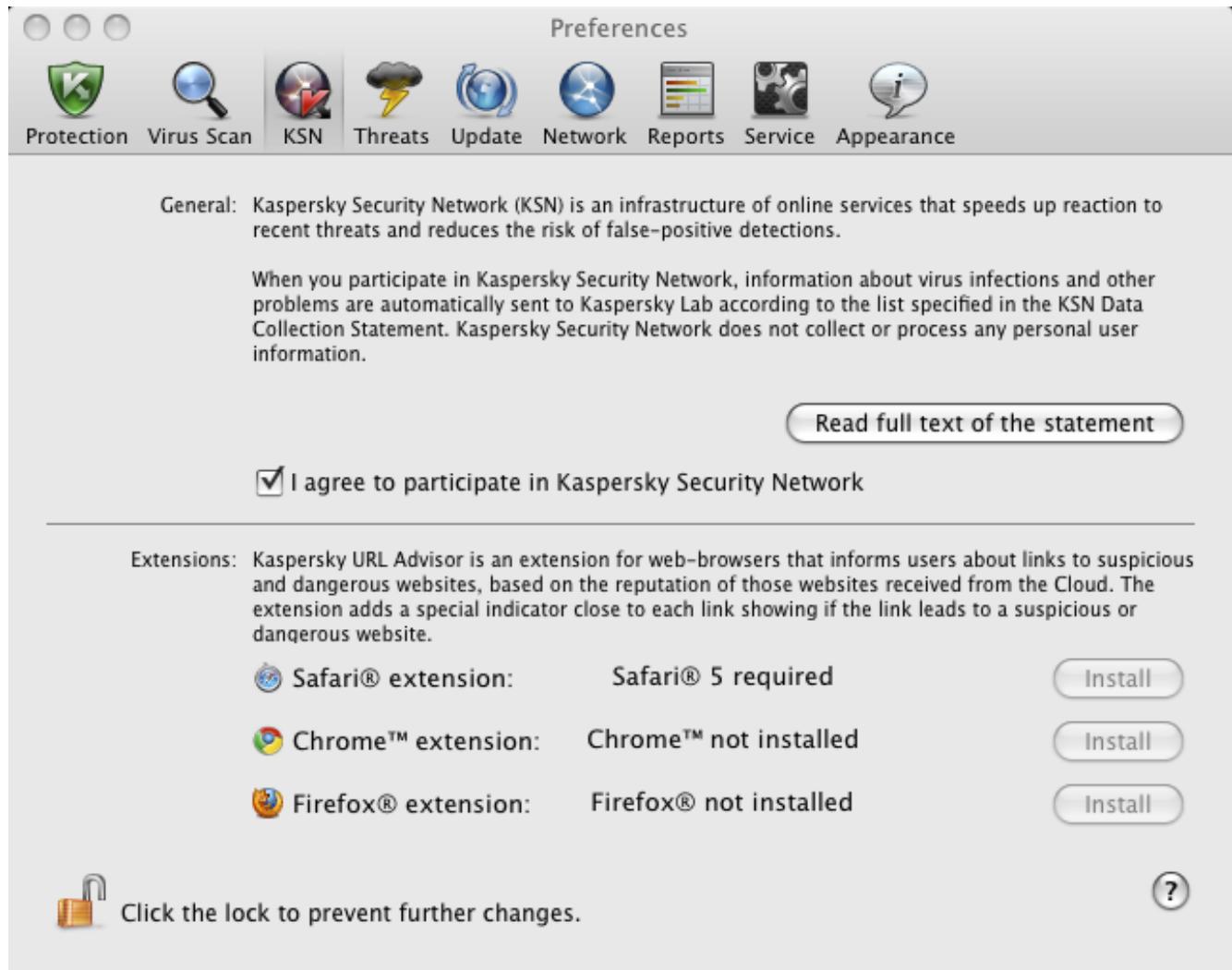
Figure 57. Settings window. KSN
While participating in Kaspersky Security Network, you can install extensions for such popular browsers as Safari®, Google™ Chrome™ Firefox®. Using data collected by Kaspersky Security Network, Kaspersky Anti-Virus will highlight links in browsers depending on risk.
To install browser extensions:
- the application settings window (on page 35) and select the KSN tab (see figure above).
- In the Extensions section, select the browser, for which you want to install an extension, and click the Install button.
WORKING WITH THE APPLICATION FROM THE COMMAND LINE
You can manage Kaspersky Anti-Virus using the command prompt.
Command prompt syntax:
kav
The following commands can be used as a
- help - helps with command syntax and list of commands;
- scan - scans objects for malware;
- update - starts the application update;
- rollback - rolls back the most recent update of Kaspersky Anti-Virus (the administrator rights are required for running this command);
- start - starts a component or a task;
- stop - stops a component or a task (administrator rights are required for executing this command);
status - displays the current status of a component or a task; - statistics - displays the operation statistics for a component or a task on the screen;
- export - exports the settings of a component or a task;
- import - imports the settings of a component or a task (administrator rights are required for executing this command);
- addkey - activates the application using a key file (administrator rights are required for executing this command);
- exit - closes the application (administrator rights are required for executing this command).
Each command has its own range of settings.
IN THIS SECTION:
Viewing Help 103
Virus Scan 103
Updating the application 105
Rolling back the last update 106
Starting / stopping a protection component or a task 107
Statistics on a component's operation or a task 108
Exporting protection settings 108
108
Activating the application 109
Closing the application 109
Return codes of the command line 109
VIEWING HELP
Use this command to view the application command line syntax:
kav [ -? | help ]
To get help on the syntax of a specific command, you can use one of the following commands:
kav
kav help
VIRUS SCAN
Command line modified to run the virus scan of a specified area has the following general appearance:
kav scan [
To scan for viruses, you can also use the tasks created in the application by starting the one you need from the command line (see section "Starting / stopping a protection component or a task" on page 107). The task will be run with the settings specified in the Kaspersky Anti-Virus interface.
Settings description
- KASPERSKY LAB END USER LICENSE AGREEMENT
- DEFINITIONS
- GRANT OF LICENSE
- ACTIVATION AND TERM
- TECHNICAL SUPPORT
- INFORMATION COLLECTION
- LIMITATIONS
- LIMITED WARRANTY AND DISCLAIMER
- EXCLUSION AND LIMITATION OF LIABILITY
- GNU AND OTHER THIRD PARTY LICENSES
- INTELLECTUAL PROPERTY OWNERSHIP
- GOVERNING LAW; ARBITRATION
- PERIOD FOR BRINGING ACTIONS
- ENTIRE AGREEMENT; SEVERABILITY; NO WAIVER
- RIGHTHOLDER CONTACT INFORMATION
- CONTENT
- KASPERSKY LAB END USER LICENSE AGREEMENT 3
- ADDITIONAL SOURCES OF INFORMATION 17
- KASPERSKY ANTI-VIRUS 2011 18
- INSTALLING THE APPLICATION 20
- LICENSE MANAGEMENT 25
- APPLICATION INTERFACE 31
- STARTING AND STOPPING THE APPLICATION 40
- ABOUT THIS GUIDE
- IN THIS SECTION
- IN THIS DOCUMENT
- ADDITIONAL SOURCES OF INFORMATION
- KASPERSKY ANTI-VIRUS 2011
- INSTALLING THE APPLICATION
- LICENSE MANAGEMENT
- APPLICATION INTERFACE
- STARTING AND STOPPING THE APPLICATION
- COMPUTER PROTECTION STATUS
- SOLVING TYPICAL TASKS
- ADVANCED APPLICATION SETTINGS
- WORKING WITH THE APPLICATION FROM THE COMMAND LINE
- CONTACTING TECHNICAL SUPPORT SERVICE
- APPENDIX
- GLOSSARY
- DOCUMENT CONVENTIONS
- APPLICATION PAGE AT THE KASPERSKY LAB WEBSITE
- APPLICATION PAGE AT THE TECHNICAL SUPPORT SERVICE WEBSITE (KNOWLEDGE BASE)
- USERS FORUM
- HELP SYSTEM
- FILE ANTI-VIRUS
- VIRUS SCAN
- UPDATE
- QUARANTINE
- BACKUP STORAGE
- REPORTS
- NOTIFICATIONS
- DISTRIBUTION KIT
- HARDWARE AND SOFTWARE SYSTEM REQUIREMENTS
- PREPARED FOR INSTALLATION
- KASPERSKY ANTI-VIRUS DEFAULT INSTALLATION
- KASPERSKY ANTI-VIRUS CUSTOM INSTALLATION
- PREPARED FOR USE AFTER INSTALLATION
- DELETING THE APPLICATION
- ABOUT LICENSE
- VIEWING LICENSE INFORMATION
- PURCHASING A LICENSE
- LICENSE NOT FOUND
- RENEWING A LICENSE
- ABOUT END USER LICENSE AGREEMENT
- ABOUT THE ACTIVATION CODE
- ABOUT THE KEY FILE
- KASPERSKY ANTI-VIRUS ACTIVATION
- TRIAL VERSION ACTIVATION
- ACTIVATING THE APPLICATION WITH AN ACTIVATION CODE
- ACTIVATING THE APPLICATION WITH A KEY FILE
- KASPERSKY ANTI-VIRUS ICON
- MAIN APPLICATION WINDOW
- APPLICATION SETTINGS WINDOW
- NOTIFICATION WINDOWS AND POP-UP MESSAGES
- ABOUT NOTIFICATIONS
- METHODS OF RECEIVING NOTIFICATIONS
- CONFIGURING RECEIPT OF NOTIFICATIONS
- ABOUT POP-UP MESSAGES
- CONFIGURING THE KASPERSKY ANTI-VIRUS INTERFACE
- CLOSING KASPERSKY ANTI-VIRUS
- CONFIGURING THE AUTOMATIC STARTUP OF KASPERSKY ANTI-VIRUS
- CONFIGURING THE POWER-SAVING MODE
- ASSESSING THE COMPUTER'S PROTECTION STATUS
- SECURITY ASSISTANT
- HOW TO PERFORM A FULL SCAN OF YOUR COMPUTER FOR VIRUSES
- HOW TO PERFORM A QUICK SCAN OF YOUR COMPUTER
- HOW TO SCAN A FILE, FOLDER OR DISK FOR VIRUSES
- HOW TO CONFIGURE A SCHEDULED SCAN OF YOUR COMPUTER
- HOW TO PURCHASE OR RENEW LICENSE
- TO PURCHASE A LICENSE
- TO RENEW A LICENSE
- HOW TO UPDATE APPLICATION DATABASES AND MODULES
- HOW TO EXPORT THE APPLICATION SETTINGS TO KASPERSKY ANTI-VIRUS INSTALLED ON ANOTHER COMPUTER
- WHAT TO DO IF FILE ACCESS IS BLOCKED
- WHAT TO DO IF YOU SUSPECT AN OBJECT OF BEING INFECTED WITH A VIRUS
- HOW TO RESTORE AN OBJECT THAT HAS BEEN DELETED OR DISINFECTED BY THE APPLICATION
- WHAT TO DO WHEN THE APPLICATION'S NOTIFICATIONS APPEAR
- CREATING A PROTECTION SCOPE
- SELECTING MALICIOUS PROGRAMS TO BE MONITORED
- CREATING A TRUSTED ZONE
- CREATING AN EXCLUSION RULE
- DISABLING FILE PROTECTION
- RESTORING PROTECTION ON YOUR COMPUTER
- CONFIGURING FILE ANTI-VIRUS
- SELECTING THE SECURITY LEVEL
- SPECIFYING THE TYPES OF FILES TO SCAN
- CONFIGURING ADDITIONAL SETTINGS
- SELECTING ACTIONS ON OBJECTS
- RESTORING DEFAULT FILE PROTECTION SETTINGS
- FILE PROTECTION STATISTICS
- FULL SCAN
- QUICK SCAN
- MANAGING VIRUS SCAN TASKS
- LAUNCHING / PAUSING VIRUS SCAN TASK
- CREATING VIRUS SCAN TASKS
- CREATING A LIST OF OBJECTS TO SCAN
- CONFIGURING VIRUS SCAN TASKS
- SECURITY LEVEL
- ACTION ON DETECTED OBJECT
- RUN MODE
- LAUNCHING TASK UNDER USER ACCOUNT
- SPECIFYING THE TYPES OF OBJECTS TO SCAN
- CONFIGURING THE VIRUS SCAN TASK SCHEDULE
- RUNNING SCAN TASKS UNDER USER ACCOUNT
- ASSIGNING UNIFORM SCAN SETTINGS TO ALL TASKS
- RESTORING DEFAULT SCAN SETTINGS
- VIRUS SCAN STATISTICS
- UPDATING THE APPLICATION
- ANTI-VIRUS DATABASES
- APPLICATION MODULES
- STARTING UPDATE
- UPDATING FROM A LOCAL SOURCE
- CONFIGURING THE UPDATE
- UPDATE OBJECT
- UPDATE SOURCE
- NETWORK SETTINGS
- SELECTING THE UPDATE MODE AND OBJECTS
- SELECTING AN UPDATE SOURCE
- CONFIGURING THE UPDATE TASK SCHEDULE
- CONFIGURING CONNECTION TO A PROXY SERVER
- UPDATE STATISTICS
- REPORTS AND STORAGE
- VIEWING THE CONTENTS OF QUARANTINE
- ACTIONS ON QUARANTINED OBJECTS
- SCAN OF QUARANTINE AFTER UPDATE
- VIEWING THE CONTENTS OF BACKUP
- ACTIONS ON BACKUP COPIES
- CONFIGURING REPORTS AND STORAGES
- CONFIGURING THE REPORT SETTINGS
- CONFIGURING QUARANTINE AND BACKUP STORAGE
- PARTICIPATING IN THE KASPERSKY SECURITY NETWORK
- VIEWING HELP
- SETTINGS DESCRIPTION
- EXAMPLE
- ROLLING BACK THE LAST UPDATE
- STARTING / STOPPING A PROTECTION COMPONENT OR A TASK
- STATISTICS ON A COMPONENT'S OPERATION OR A TASK
- EXPORTING PROTECTION SETTINGS
- IMPORTING PROTECTION SETTINGS
- ACTIVATING THE APPLICATION
- CLOSING THE APPLICATION
- RETURN CODES OF THE COMMAND LINE
- EMAIL QUERY TO TECHNICAL SUPPORT SERVICE
- TECHNICAL SUPPORT TELEPHONE SERVICE
- CREATING A TRACE FILE
- TO CREATE A TRACE FILE
- LIST OF OBJECTS TO SCAN BY EXTENSION
- PERMISSIBLE FILE EXCLUSION MASKS
- MASKS WITH RELATIVE FILE PATHS
- ALLOWED EXCLUSION MASKS ACCORDING TO THE VIRUS ENCYCLOPEDIA CLASSIFICATION
- A
- ACTIVE LICENSE
- ADDITIONAL LICENSE
- ARCHIVE
- B
- BLOCKING THE OBJECT
- D
- DANGEROUS OBJECT
- DATABASE UPDATES
- DATABASES
- E
- EXCLUSION
- F
- FALSEALARM
- FILE MASK
- G
- GROWL TECHNOLOGY
- H
- HEURISTIC ANALYZER
- 1
- INFECTABLE OBJECT
- INFECTED OBJECT
- K
- KASPERSKY LAB UPDATE SERVERS
- M
- MAXIMUM PROTECTION
- 0
- OBJECT DISINFECTION
- OLE OBJECT
- P
- POTENTIALLY INFECTED OBJECT
- PROTECTION
- PROTECTION STATUS
- Q
- R
- RECOMMENDED LEVEL
- RESTORATION
- S
- SUSPICIOUS OBJECT
- U
- UNKNOWN VIRUS
- UPDATE PACKAGE
- KASPERSKY LAB
- INFORMATION ABOUT THIRD-PARTY CODE
- PROGRAM CODE
- ADOBE ABI-SAFE CONTAINERS 1.0
- BOOST 1.39.0
- CURL 7.19.3
- EXPAT 1.2
- FMT.H
- GROWL 1.1.5
- INFO-ZIP 5.51
- LIBPNG 1.2.8
- LIBUTF
- LZMALIB 4.43
- MD5.H
- RFC1321-BASED (RSA-FREE) MD5 LIBRARY
- SHA1.C 1.2
- STLPORT 5.2.1
- TINYXML 2.5.3
- WEB-SOCKET-JS
- ZLIB 1.0.8, 1.2.3
- DEVELOPMENT TOOLS
- GCC 4.0.1
- PREAMBLE
- TERMS AND CONDITIONS FOR COPYING, DISTRIBUTION AND MODIFICATION
- NO WARRANTY
- OTHER INFORMATION
- INDEX
- C
- L
- N
- T
- V
Brand : KASPERSKY
Model : ANTI-VIRUS 2011
Category : Antivirus Software