
ZP80 - Network audio player SONOS - Free user manual and instructions
Find the device manual for free ZP80 SONOS in PDF.



| Product Type | Network Audio Player (ZonePlayer) |
| Connectivity | Ethernet (2 RJ45 ports), SonosNet wireless |
| Audio Outputs | Analog RCA (fixed/variable), Optical TOSLINK digital, Coaxial digital |
| Audio Input | Analog RCA |
| Power Supply | AC 100-240 V, 50–60 Hz |
| Power Consumption | Minimal in standby (designed to remain on) |
| Compatible Operating Systems | Windows XP/2000, Mac OS X 10.3 or later |
| Main Functions | Multi-room playback, digital music streaming, local source input, volume control, mute, wireless extension |
| Installation | Connect power, Ethernet cable to router, insert installation CD |
| Control Buttons | Mute (green), Volume +/-, white status indicator |
| Indicators | Solid white: normal operation; flashing: powering on or connecting; green mute indicator |
| Cleaning | Dry soft cloth only, no solvents |
| Safety | Do not expose to water or moisture, unplug during storms, do not open |
| Repairability | Only by an authorized Sonos repair center |
| Warranty | See terms at www.sonos.com/support |
| Included Cables | Ethernet cable, power cord |
| Technical Support | www.sonos.com/support, phone support by country |
Frequently Asked Questions - ZP80 SONOS
User questions about ZP80 SONOS
0 question about this device. Answer the ones you know or ask your own.
Ask a new question about this device
Download the instructions for your Network audio player in PDF format for free! Find your manual ZP80 - SONOS and take your electronic device back in hand. On this page are published all the documents necessary for the use of your device. ZP80 by SONOS.
USER MANUAL ZP80 SONOS
Sonos® Digital Music System
ZonePlayer ZP80
Setup Guide • Installatiehandleiding • Installationshandbok • Guide d'Installation Guida all'instrumentation • Installationshandbuch • Guía de configuración
THIS DOCUMENT CONTAINS INFORMATION THAT IS SUBJECT TO CHANGE WITHOUT NOTICE.
No part of this publication may be reproduced or transmitted in any form or by any means, electronic or mechanical, including but not limited to photocopying, recording, information retrieval systems, or computer network without the written permission of Sonos, Inc.
Sonos is a registered trademark of Sonos, Inc. in the United States, and a trademark of Sonos, Inc. in other countries. Sonosnet and all Sonos logos are trademarks of Sonos, Inc. in the United States and/or other countries.
Macintosh and Mac OS are trademarks of Apple Computer, Inc., registered in the U.S. and other countries. Windows XP and Windows 2000 are either registered trademarks or trademarks of Microsoft Corporation in the United States and/or other countries.
This product includes technology owned by Microsoft Corporation and under a license from Microsoft Licensing, GP. Use or distribution of such technology outside of this product is prohibited without a license from Microsoft Corporation and/or Microsoft Licensing, GP as applicable.
MPEG Layer-3 audio decoding technology licensed from Fraunhofer IIS and Thomson.
Sonos uses MSNTP software, which was developed by N.M. Maclaren at the University of Cambridge.
© Copyright, N.M. Maclaren, 1996, 1997, 2000; © Copyright, University of Cambridge, 1996, 1997, 2000.
All other products and services mentioned may be trademarks or service marks of their respective owners.
© 2004-2006 by Sonos, Inc. All rights reserved.
For the latest product documentation, go to www.sonos.com/support and click Documents.
ZP80 Setup Guide
Version: 060801
August, 2006
E5A10282MBMF
Sonos® ZonePlayer ZP80
Setup Guide 1
Installationshandbuch 17
Regulation Information
Europe
This product complies with the requirements of the R&TTE Directive (1999/5/ED). A copy of the full Declaration of Conformance may be obtained at http://eu.sonos.com.
C ∈ ① Attention In France, operation is limited to indoor use within the band 2.454-2.4835 GHz.
This equipment has been tested and found to comply with the limits for a Class B digital device, pursuant to part 15 of the FCC Rules. These limits are designed to provide reasonable protection against harmful interference in a residential installation. This equipment generates, uses and can radiate radio frequency energy and, if not installed and used in accordance with the instructions, may cause harmful interference to radio communications. However, there is no guarantee that interference will not occur in a particular installation. If this equipment does cause harmful interference to radio or television reception, which can be determined by turning the equipment off and on, the user is encouraged to try to correct the interference by one or more of the following measures:
Reorient or relocate the receiving antenna.
- Increase the separation between the equipment and receiver.
- Connect the equipment into an outlet on a circuit different from that to which the receiver is connected.
- Consult the dealer or an experienced audio technician for help. Modifications not expressly approved by the manufacturer may void the user's authority to operate the equipment under FCC rules.
Canada
This Class B digital apparatus complies with Canadian ICES-003 and RSS-210.
Industry Canada
The installer of this radio equipment must ensure that the antenna is located or pointed such that it does not emit RF field in excess of Health Canada limits for the general population; consult Safety Code 6, obtainable from Health Canada's Web site www.hc- sc.gc.ca/rpb.
RF Exposure Requirements
To comply with FCC and EU exposure essential requirements, a minimum separation distance of 20cm (8 inches) is required between the equipment and the body of the user or nearby persons.
Recycling Information

This symbol on the product or on its packaging indicates that this product shall not be treated as household waste. Instead please deliver it to the applicable collection point for the recycling of electrical and electronic equipment. By recycling this product correctly, you will help conserve natural resources and prevent potential negative environmental consequences. For more detailed information about recycling of this product, please contact your local city office, your household waste disposal service or the shop where you purchased the product.
Setup Guide
The ZonePlayer ZP80
The ZonePlayer ZP80 is designed to be used with an external amplifier. It contains both analog and digital outputs so that you can easily connect it to your existing audio equipment.
- Use a ZonePlayer ZP80 to create a music zone in a room where you already have an amplifier, such as your home theater system or the stereo system in your family room.
- Use a ZonePlayer ZP80 to create a music zone in your home office where you already have a computer or a pair of powered speakers.
- Use a ZonePlayer ZP80 if you have a distributed audio system that is driven from an amplifier in one central location with speaker wires home-run to this central location.
- Use a ZonePlayer ZP80 to extend the wireless range of your Sonos® Digital Music System. All ZonePlayers, including the ZP80, can be used as wireless extenders by using the Hidden Zone feature. For more information on this feature, you can go to the online help system included with your Desktop Controller software.
Your Computer Network
To play the digital music files stored on your computer, your computer network must meet the following requirements:
Network requirements
- You must have an Ethernet network interface connection in your computer. If you do not have one, you will need to buy and install a Network Interface Card (NIC) before proceeding.
- DSL/cable modem, or LAN-based, high-speed Internet connection.
- If you currently have a cable or DSL modem connected directly to your computer, you should install a router between your modem and your computer to enhance your computer's security, and to share the Internet connection with your Sonos Digital Music System and other devices. If you do not have a router, you should purchase and install one before proceeding.

Note: Your network must have a high-speed Internet connection, as the Sonos Digital Music System is designed to provide you with online software updates. Your Sonos system must be registered to receive these updates, so be sure to register during the setup process. We do not share your e-mail address with other companies.
Compatible operating systems
- Windows® XP, including Windows® XP Media Center
Windows® 2000
Macintosh® OS X, version 10.3 or later
For additional information
- For the latest product documentation, as well as the Sonos License Agreement and Limited Warranty, go to www.sonos.com/support and click Documents.
- To access the online help system included with your software, select Sonos System Help from the Help menu.
For answers to common or uncommon questions, visit our Web site at www.sonos.com/support and click .FAQs.
For the latest Sonos Digital Music System product news, go to http://www.sonos.com.
Technical support
Web site
For help with troubleshooting and support issues, visit our Web site at www.sonos.com/support. There you can visit our Forums, browse our Frequently Asked Questions (FAQ) pages, or request assistance.
Telephone
Visit our Web site at www.sonos.com/support and click Phone Support to find the correct telephone number for your country.
1-2-3 Setup

Note: The first ZonePlayer you install must connect to your home network using a standard Ethernet cable (supplied). If you should experience any difficulty during the setup process, please go to www.sonos.com/support for additional help.
IF you are setting up a new Sonos system
1 Attach the power cord and plug in the ZonePlayer ZP80.
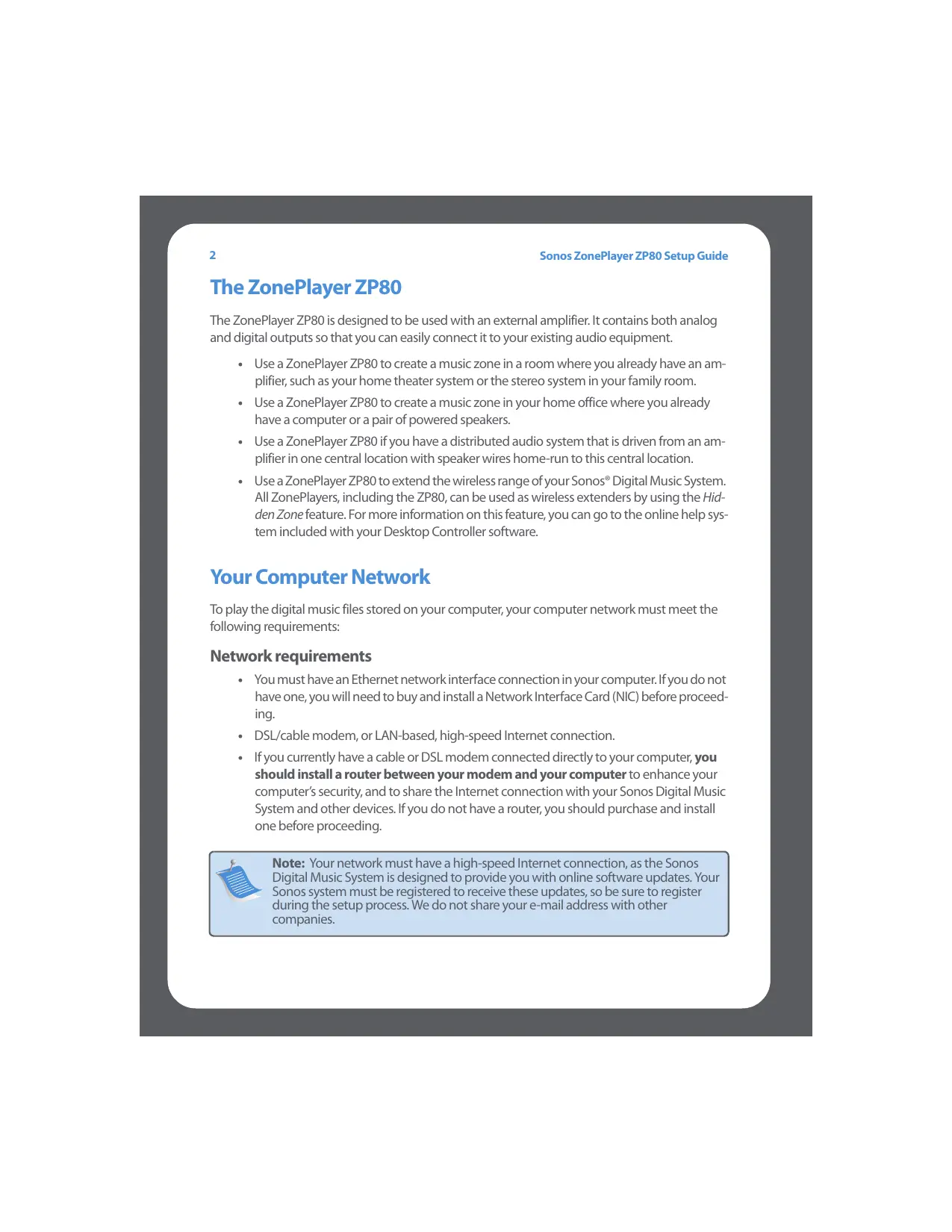
Connect a standard Ethernet cable (supplied) from either of the two (2) Ethernet switch connectors on the back of your ZonePlayer ZP80 to an open port on your router (see A in the diagram below). Do not connect the ZonePlayer directly to your cable or DSL modem unless your modem has a built-in router.
- If you don't have a router, go to http://faq.sonos.com/norouter for instructions.
If you have structured (built-in) wiring, connect the Ethernet cable into a live wall plate (see B in the diagram).
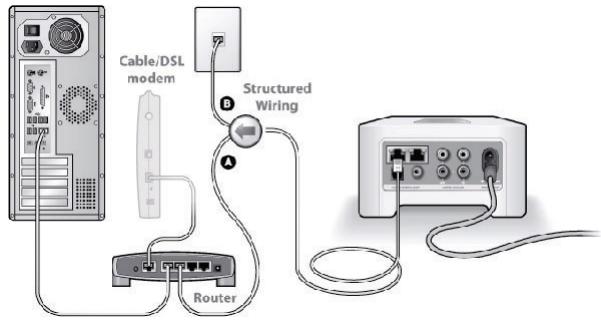
- If you don't have an open port on your router, you can disconnect your computer from the router and connect it to the ZonePlayer ZP80 instead. Then connect the ZonePlayer
into the router port the computer was previously plugged into.
If your router has only 1 port or no unused ports, go to http://faq.sonos.com/norouterport for additional information.
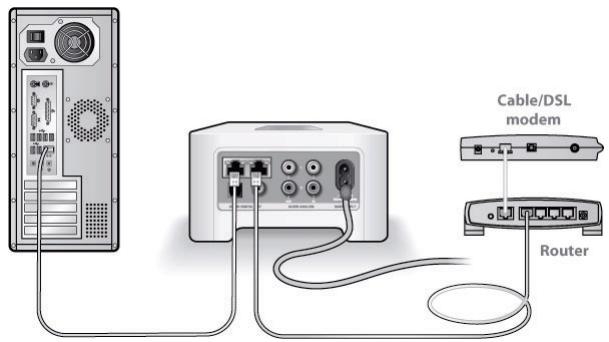
3 Insert the Sonos System Setup CD-ROM (included with your ZonePlayer) and follow the prompts to connect your ZonePlayer ZP80 and set up access to your music files.
For use with:
- Windows XP, including Windows XP Media Center
Windows 2000
Mac OS X
If your operating system is not one of these, go to http://faq.sonos.com/nodcr for setup assistance.

Note: Firewall software such as Norton Internet Security™, McAfee™ Personal Firewall, Windows® Service Pack 2, or Mac OS X built-in firewall, can block the operation of your Sonos Desktop Controller software. During installation, you may see prompts from your firewall software indicating that the Sonos application is attempting to perform certain operations. You should always allow full access to the Sonos application. You may also need to change the settings of your firewall software to ensure that Windows file sharing is not blocked. Please go to our Web site at http://faq. sonos.com/firewall for detailed instructions.
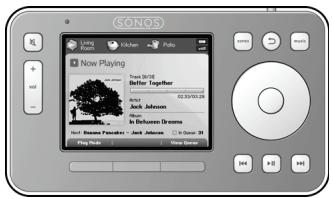
Plug your Sonos Controller into the power adapter and follow the prompts on the Controller's screen to add it to your music system. You can use the Controller while it is charging.
Now that your Sonos system is set up, you can connect the ZonePlayer ZP80 to an external amplifier such as your home theater or your computer (see "Using Line-Out" on page 7.)
IF you are adding to an existing Sonos system

Important: If you want to replace the wired ZonePlayer in your music system with a ZonePlayer ZP80, first add the new ZonePlayer ZP80 to your music system (steps below). You can then unplug the wired ZonePlayer, replace it with the ZP80, and move the original ZonePlayer to a new location.
1 Attach the power cord and plug in the ZonePlayer ZP80.
If you are making a wired connection, connect a standard Ethernet cable. If you are making a wireless connection, skip this step and continue.
Choose one of the following options:
- Use the Sonos Controller to add the ZonePlayer ZP80 to your music system by selecting System Settings Add a ZonePlayer from the Music menu. Or,
- Use the Desktop Controller software to add the ZonePlayer ZP80 to your music system by selecting Zones Set Up Zones Add.
During the setup process, you will be asked to press and release the Mute and Volume Up buttons simultaneously on the ZonePlayer you are adding to your music system.
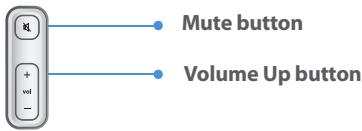
Now you are ready to connect the ZonePlayer ZP80 to an external amplifier, such as your home theater or computer (see "Using Line-Out" on page 7.)
Using Line-Out
Use the ZonePlayer's audio outputs to connect a home theater, computer, powered speakers, or an amplifier to the ZonePlayer ZP80.
Connecting to a home theater amplifier
For additional information on connecting audio devices, please go to our Web site at http://faq.sonos.com/cables.
- If you have digital inputs on your home theater or amplifier, you can use either a TOSLINK optical audio cable or a digital coaxial cable to connect the ZonePlayer ZP80's digital output to the digital input on the receiver.
If you have analog inputs on your home theater or amplifier, use a standard RCA audio cable to connect the ZonePlayer ZP80's analog audio output to the audio inputs on the receiver.
- Select the proper input channel on the receiver.
Controlling the volume from your home theater or amplifier
To control the volume exclusively from your home theater or amplifier, you can change the lineout level on this ZonePlayer to Fixed by selecting one of the following options:
- Using the Sonos Controller, from the Music menu, select System Settings. Select ZonePlayer Settings, and use the scroll wheel to highlight the ZonePlayer attached to the receiver. Select Line-Out Level, and choose Fixed.
- Using the Desktop Controller software, select Set Up Zones from the Zones menu. Select the ZonePlayer attached to the receiver, and then click Settings. Click the Line-Out tab, and choose Fixed.

Note: When you change the line-out level to Fixed on your ZonePlayer ZP80, you will not be able to adjust the volume or the equalization settings using your Sonos Controller.
Controlling the volume from your Sonos system
- Adjust your home theater or amplifier's volume to typical listening volume.
-
If the line-out level on this ZonePlayer is not currently set to Variable, you will need to change it:
-
Using the Sonos Controller, from the Music menu, select System Settings. Select ZonePlayer Settings, and use the scroll wheel to highlight the ZonePlayer attached to the receiver. Select Line-Out Level, and choose Variable.
Using the Desktop Controller software, select Set Up Zones from the Zones menu. Select
the ZonePlayer attached to the receiver, and then click Settings. Click the Line-Out tab, and choose Variable.
- Use the Sonos Controller to adjust the volume on your Sonos system so you can hear music. This may be at the high end of the volume scale.
- If desired, you can readjust the volume on your home theater system or amplifier so that the volume range for the Controller falls within your typical listening range.
Connecting to a computer or powered speakers
- If you are connecting to your computer: You will need a stereo mini to RCA Y-adapter audio cable (one 1/8-inch stereo miniplug to dual RCA male connectors) to connect the ZonePlayer's analog audio output to the computer's audio input.
- If you are connecting to powered speakers: You may need a Y-adapter audio cable (one 1/8-inch stereo miniplug to dual RCA male connectors) to connect the computer's speakers to the audio outputs on the ZonePlayer. If your speakers have a male 1/8-inch stereo plug, you will need to attach a female-to-female coupler between the speaker plug and the Y-adapter audio cable.
Using Line-In
You can easily stream an external source such as a CD player or portable music player through your Sonos Digital Music System using the audio-in connections on your ZonePlayer. The device will be automatically detected as soon as you plug it in.
-
Use a standard RCA cable to plug an external source like a CD player into the analog Audio In connections on the back of your ZonePlayer ZP80.
-
If you are connecting a portable music player to the ZonePlayer ZP80, you will need a 1/8 inch mini-stereo to RCA audio cable instead. Plug the mini-stereo end into the portable device and the RCA end into the Audio In connection on the ZonePlayer.
-
Choose one of the following options:
-
From the Sonos Controller, select Line-In Sources from the Music menu. Click Setup to select a source name for this device. Once setup is complete, simply select Line-In Sources from the Music menu, and touch Play any time you want to play music from this device.
- From the Desktop Controller software, select the Line-In tab from the Music Library. Select Edit Name to select a source name for this device. Once setup is complete, simply select Line-In Sources from the Music Library, and press Play Now any time you want to play music from this device.
A default (typical) line-in level is automatically assigned when you select a source name. If the volume sounds too low, you can select a higher line level for this device. You may experience clipping at higher volume levels if you set the level too high.
Line-in encoding settings
When you have line-in music sources attached to a ZonePlayer, line-in encoding determines how the Sonos Digital Music System will encode the data coming in from these sources. For multi-room audio, we recommend using the Compressed setting. For the highest quality sound, you can select Uncompressed encoding, but this selection requires more network bandwidth than compressed audio. For TV or DVD audio, we recommend using the Uncompressed setting.

Note: You will notice a delay when a line-in source is in use. When the Uncompressed encoding setting is selected, this delay is significantly reduced.
Adding More Sonos Components

Note: Thick walls, 2.4 GHz cordless telephones, and the presence of other wireless devices can interfere with or block the wireless network signals from your Sonos Digital Music System. If you are experiencing difficulty, it is advisable to relocate the ZonePlayer, change the wireless channel your music system is operating on, or make a wired connection (Ethernet cable) either from your router to the ZonePlayer, or from one ZonePlayer to another. For more information on wireless connections, go to www.sonos.com/support.
Add a ZonePlayer
You can connect the ZonePlayer ZP80 using a wired or a wireless connection.
- Connect to an external amplifier and plug in your ZonePlayer.
-
Choose one of the following options:
-
Using the Sonos Controller, select System Settings Add a ZonePlayer from the Music menu.
- Using the Desktop Controller software, select Zones Set Up Zones Add.
Add a Controller
You should charge your new Sonos Controller when you remove it from the packaging. Plug it into the power adapter, and then follow the Controller's on-screen prompts to add it to your music system (you can use the Controller while it is charging.)
ZonePlayer ZP80 Front
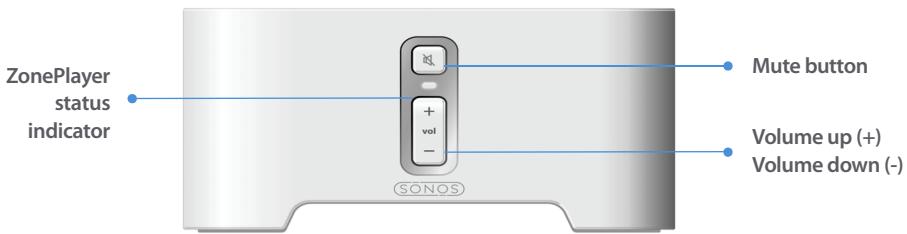
On/Off
Using the Sonos Controller, select Pause All from the Zone menu.
Using the Desktop Controller software, select Pause All from the Play menu.
Your Sonos Digital Music System is designed to be always on; the system uses minimal electricity whenever it is not playing music. To stop streaming music in all zones, you can use the Pause All feature.
ZonePlayer status indicator
- Flashes white when powering up or connecting to your Sonos Digital Music System.
Solid white when powered up and connected to your Sonos Digital Music System (normal operation).
Indicates the current status of the ZonePlayer. When the ZonePlayer is in normal operation, you can turn the white status indicator light on and off. For additional information, see the online help system included with your Desktop Controller software.
For a complete list of status indications, please go to http://faq.sonos.com/led.
Mute button
- Lights solid green when sound is muted.
- Flashes green rapidly when household mute or unmute is about to take place.
- Flashes green slowly when ZonePlayer is connecting to your music system.
To mute/unmute this ZonePlayer: Press the Mute button to mute or unmute this ZonePlayer.
To mute/unmute all ZonePlayers: Press and hold the Mute button for 3 seconds to mute all ZonePlayers in your household. Press and hold for 3 seconds to unmute all ZonePlayers.
Volume up (+)
Volume down (-)
Press these buttons to adjust the volume up and down.
Rear Panel Connectors
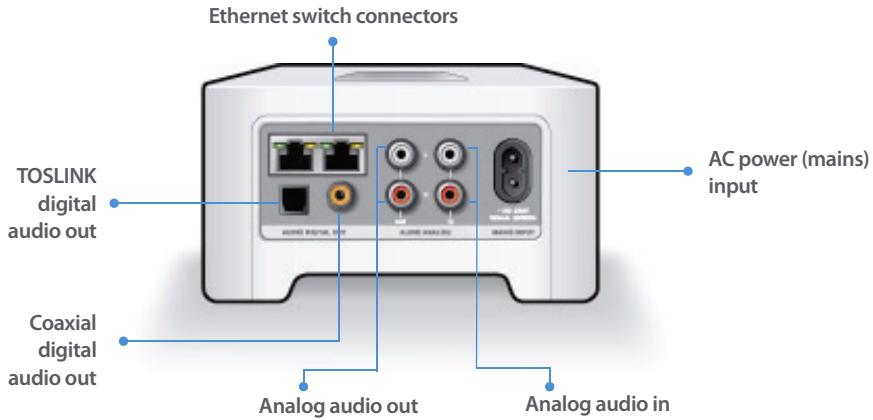
| Ethernet switch connectors (2) | Use Category 5 Ethernet cable to connect to a router, computer, or additional network device such as a network-attached storage (NAS) device. |
| AC power (mains) input (~100-240 V, 50-60 Hz) | Use the supplied power cord to connect to power outlet. |
| Analog audio in | Use a standard RCA audio cable to connect the audio outputs from a separate audio component such as a CD player, to the ZonePlayer's analog audio inputs. |
| Analog audio out (fixed/variable) | Use a standard RCA audio cable to connect the ZonePlayer's analog audio outputs to the audio inputs on a separate audio component, such as an amplifier or your home theater receiver. |
| TOSLINK™ digital audio out | You can use a TOSLINK optical audio cable to connect the ZonePlayer's TOSLINK digital audio output to the audio inputs on a separate audio component, such as an amplifier or your home theater receiver. |
| Coaxial digital audio out | You can use a digital coaxial cable to connect the ZonePlayer's coaxial digital audio output to the audio inputs on a separate audio component, such as an amplifier or your home theater receiver. |
Basic Troubleshooting

Warning: Under no circumstances should the product be repaired by anyone other than an authorized Sonos repair center, as this will invalidate the warranty. Please contact the Sonos Customer Service Center to locate an authorized repair center in your area. Do not open the system as there is a risk of electric shock.
If a problem occurs, you can try the troubleshooting suggestions listed below. If one of these doesn't remedy the problem, or you are not sure how to proceed, please contact the Sonos Customer Service Center and we'll be happy to help.
Web site
Visit our Web site at www.sonos.com/support. There you can visit our Forums, browse our Frequently Asked Questions (FAQ) pages, or request assistance.
Telephone
Visit our Web site at www.sonos.com/support and click Phone Support to find the correct telephone number for your country.
ZonePlayer not detected during setup
A network problem may be preventing the ZonePlayer from associating with the Desktop Controller software. If this is a wireless ZonePlayer, try moving the ZonePlayers closer together, or wire the ZonePlayer temporarily to see if the problem is related to wireless interference.
If you encounter this message when installing the first wired ZonePlayer, you can try the steps below to resolve this issue:
1. Check the firewall
Firewall software installed on the computer may be blocking the ports that Sonos uses to operate. First, disable all your firewalls and try to connect again. If this resolves the problem, then you should configure your firewall to work with the Sonos music system. You can go to our Website at http://faq.sonos.com/firewall for additional information. If this does not resolve the problem, you can try step 2.
2. Check the router
You can bypass your router's switch to determine whether there are any router configuration issues (note that the ZonePlayer and the computer still have Internet access in this configuration):
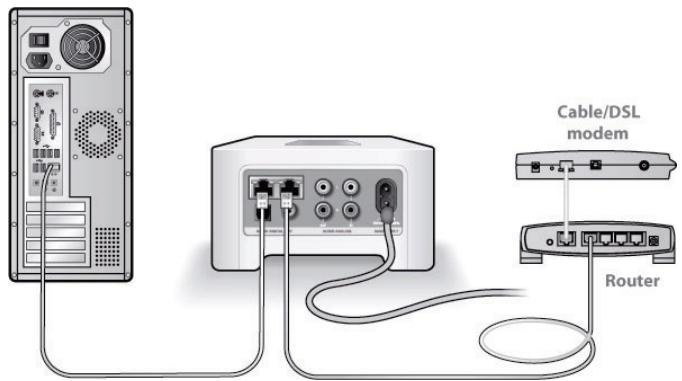
- Be sure that your cable/DSL modem is connected to the router's WAN (Internet) port.
- Temporarily remove any other components that are wired to your network.
- Connect an Ethernet cable from the computer directly to the back of the ZonePlayer, and then connect another Ethernet cable from the ZonePlayer directly to one of the LAN ports on your router.
- When you make a change to your network configuration, you may need to power cycle the ZonePlayer by unplugging the power cord, and then plugging it back in.
If you are not using a router, see http://faq.sonos.com/norouter.
3. Check the wiring
Check the link/activity lights on both the router and the ZonePlayer. They should be green, and there should be blinking activity lights.
- If the green link lights are not lit, try connecting to a different port.
If the link lights still do not light, try connecting a different Ethernet cable.
If you are still experiencing problems, please contact the Sonos Customer Service Center.
When adding the handheld Sonos Controller, it fails to detect the ZonePlayer(s)
Wireless interference or a network problem may be preventing the Controller from joining your Sonos Digital Music System.
1. Verify that this is not a DHCP or network problem.
- Disconnect the Ethernet cables from the back of the ZonePlayer so that it is not connected to your network.
- Unplug the ZonePlayer's power cord and then plug it back in.
- Once the status indicator light stops blinking white, try adding your Controller again.
If it works, your router's DHCP server may have run out of available IP addresses to assign to the Controller. In most cases you can log into your router by typing http://192.168.1.1 into your browser's address line (the IP address of your router may be different). Check the DHCP settings and increase the number of IP addresses available in the DHCP scope.
If your Controller still does not recognize the ZonePlayer after completing this step, you can try step 2.
2. Turn off any 2.4GHz cordless phones.
Some 2.4GHz cordless telephones can cause wireless interference. If turning off your 2.4GHz cordless phone resolves the problem, you should consider switching to a 5.8Ghz or 900Mhz phone (or change the wireless channel your Sonos system is operating on - see step 4 below.)
3. Put 108 Mbps wireless routers into 54 Mbps mode.
Sonos cannot function properly when a router is operating in "turbo" mode. In order to double the speed from 54 Mbps to 108 Mbps, the router goes into a wide bandwidth mode which utilizes most of the 2.4 GHz spectrum that the FCC has set aside for 802.11b/g devices. This means that interference (RF noise) will occur with any other 2.4 GHz device that is not operating on the same channel as the 108 Mbps device (usually channel 6). While it is possible to put all of your wireless devices on channel 6, it is unwise. The devices will have to compete for available bandwidth, and your entire Wi-Fi network will become sluggish and bogged down.
4. Change the wireless channel your Sonos system is operating on.
- Using the Desktop Controller software for Windows: From the File menu, select Preferences. Click the Advanced tab, and then select another wireless channel from the Wireless Channel list.
- Using the Desktop Controller software for Macintosh: From the Sonos menu, select Preferences. Click the Advanced tab, and then select another wireless channel from the Wireless Channel list.
It may take several seconds for the switch to take effect. If you have music playing, a short music dropout will occur during the wireless channel change.
Important Safety Information
| 1. Read these instructions. |
| 2. Keep these instructions. |
| 3. Heed all warnings. |
| 4. Follow all instructions. |
| 5. Do not use this apparatus near water. |
| 6. Clean only with dry soft cloth. Household cleaners or solvents can damage the finish on your ZonePlayers or Controllers. |
| 7. Do not block any ventilation openings. Install in accordance with the manufacturer's instructions. |
| 8. Do not install near any heat sources such as radiators, heat registers, stoves, or other apparatus that produce heat. |
| 9. Protect the power cable from being walked on or pinched, particularly at plugs, convenience receptacles, and the point where they exit from the apparatus. |
| 10. Only use attachments/accessories specified by the manufacturer. |
| 11. Unplug this apparatus during lightning storms or when unused for long periods of time. |
| 12. Refer all servicing to qualified service personnel. Servicing is required when the apparatus has been damaged in any way, such as power-supply cable or plug is damaged, liquid has been spilled or objects have fallen into the apparatus, the apparatus has been exposed to rain or moisture, does not operate normally, or has been dropped. |
| 13. The Mains plug should be readily available to disconnect the equipment. |
| 14. Warning: To reduce the risk of fire or electric shock, do not expose this apparatus to rain or moisture. |
| 15. Do not expose apparatus to dripping or splashing and do not place objects filled with liquids, such as vases, on the apparatus. |

Warning: To avoid damage to speakers, turn off the external amplifier before unplugging your ZonePlayer ZP80.

Installationshandbuch
Ethernet-Anschlüsse (2)
- Windows XP, including Windows XP Media Center
Windows 2000
Mac OS X
If your operating system is not one of these, go to http://faq.sonos.com/nodcr for setup assistance.

Sonos ZonePlayer ZP80.
- Sonos® Digital Music System
- ZonePlayer ZP80
- THIS DOCUMENT CONTAINS INFORMATION THAT IS SUBJECT TO CHANGE WITHOUT NOTICE.
- For the latest product documentation, go to www.sonos.com/support and click Documents.
- Sonos® ZonePlayer ZP80
- Regulation Information
- Europe
- Canada
- Industry Canada
- RF Exposure Requirements
- Recycling Information
- Setup Guide
- The ZonePlayer ZP80
- Your Computer Network
- Network requirements
- Compatible operating systems
- For additional information
- Technical support
- 1-2-3 Setup
- IF you are setting up a new Sonos system
- IF you are adding to an existing Sonos system
- Using Line-Out
- Connecting to a home theater amplifier
- Controlling the volume from your home theater or amplifier
- Controlling the volume from your Sonos system
- Connecting to a computer or powered speakers
- Using Line-In
- Line-in encoding settings
- Adding More Sonos Components
- Add a ZonePlayer
- Add a Controller
- ZonePlayer ZP80 Front
- On/Off
- ZonePlayer status indicator
- Mute button
- Volume up (+)
- Volume down (-)
- Rear Panel Connectors
- Basic Troubleshooting
- Web site
- Telephone
- ZonePlayer not detected during setup
- Check the firewall
- Check the router
- Check the wiring
- When adding the handheld Sonos Controller, it fails to detect the ZonePlayer(s)
- Verify that this is not a DHCP or network problem.
- Turn off any 2.4GHz cordless phones.
- Put 108 Mbps wireless routers into 54 Mbps mode.
- Change the wireless channel your Sonos system is operating on.
- Important Safety Information
- Installationshandbuch
Brand : SONOS
Model : ZP80
Category : Network audio player