
WPS-G - Wireless Print Server SMC - Free user manual and instructions
Find the device manual for free WPS-G SMC in PDF.


User questions about WPS-G SMC
0 question about this device. Answer the ones you know or ask your own.
Ask a new question about this device
Download the instructions for your Wireless Print Server in PDF format for free! Find your manual WPS-G - SMC and take your electronic device back in hand. On this page are published all the documents necessary for the use of your device. WPS-G by SMC.
USER MANUAL WPS-G SMC
AD-HOC (PEER-TO-PEER) MODE: 8
2 PRINT SERVER INSTALLATION 9
PREPARATION 9
CONFIGURATION SOLUTION TABLE 9
3. SOFTWARE INSTALLATION 11
INSTALLING THE PSADMIN AND PRINT SERVER'S DRIVER 11
USING PSADMIN 20
WIZARD 21
MANUAL SETUP 23
REFRESH 25
MULTIPLE PRINT QUEUES CONFIGURATION 26
UNINSTALLING THE PSADMIN ON WINDOWS PC 26
4.INTERNET PRINTER CONNECTION AND HP WEB JETADMIN 28
IPP OVERVIEW 28
IPX/SPX-COMPATIBLE PROTOCOL INSTALLATION 52
NETBEUI PROTOCOL INSTALLATION 53
WINDOWS 95/98/ME/NT/2000/XP/2003 MANUAL INSTALLATION PROCEDURE 53
UNINSTALLING NETWORK PRINT PORT ON WINDOWS 95/98/ME/NT/2000/XP/2003 55
7. TCP/IP LPR PORT PRINTING INSTALLATION 56
BASIC TCP/IP INSTALLATION OVERVIEW 56
ASSIGNING AN IP ADDRESS 56
WINDOWS NT LPR PORT PRINTING INSTALLATION 57
WINDOWS 2000/XP/2003 STANDARD TCP/IP PORT PRINTING INSTALLATION 58
UNIX INSTALLATION 62
8. UPGRAING PRINT SERVER 67
OVERVIEW 67
UPGRADING THE PRINT SERVER FROM PSADMIN 67
UPGRADING THE PRINT SERVER FROM WINDOWS NT/2000/XP/2003 (THROUGH TCP/IP)......67
UPGRADING THE PRINT SERVER FROM UNIX (THROUGH TCP/IP) 68
UPGRADING THE PRINT SERVER FROM BROWSER 68
9. TROUBLESHOOTING 70
GENERAL TROUBLESHOOTING OVERVIEW 70
POWER RELATED PROBLEMS 70
PRINT PORT RELATED PROBLEMS 71
WINDOWS 95/98/ME/NT/2000/XP/2003 TROUBLESHOOTING 71
MOVING THE PRINT SERVER TO A NEW SEGMENT 72
MOVING YOUR COMPUTER TO A NEW SEGMENT 73
NOVELL NETWARE TROUBLESHOOTING 73
TCP/IP TROUBLESHOOTING 73
APPENDIX 76
FREQUENTLY ASKED QUESTIONS 87
ADDITIONAL INSTALLATION INSTRUCTIONS 89
Trademarks
NetWare is a registered trademark of Novell Inc and Windows 95/98/Me and Windows NT/2000/XP/2003 are registered trademarks of Microsoft Corp. All other brands and product names are trademarks of their respective companies.
Copyright
No part of this publication may be reproduced in any form or by any means or used to make any derivative (such as translation, transformation or adaptation) without the express written consent of the manufacturer as stipulated by the United States Copyright Act of 1976.
FCC Compliance Notice: Radio Frequency Notice
This device complies with part 15 of the FCC Rules. Operation is subject to the following two conditions:
- This device may not cause harmful interference.
- This device must accept any interference received, including interference may cause undesired operation.
Note: This equipment has been tested and found to comply with the limits for a Class B digital device, pursuant to Part 15 of the FCC Rules. These limits are designed to provide reasonable protection against harmful interference in a residential installation. This equipment generates, uses and can radiate radio frequency energy and, if not installed and used in accordance with the instructions, may cause harmful interference to radio communications. However, there is no guarantee that interference will not occur in a particular installation. If this equipment does cause harmful interference to radio or television reception, which can be determined by turning the equipment off and on, the user is encouraged to try to correct the interference by one or more of the following measures: (1). Reorient or relocate the receiving antenna, (2). Increase the separation between the equipment and receiver, (3). Connect the equipment into an outlet on a circuit different from that to which the receiver is connected, (4). Consult the dealer or an experienced radio/TV technician for help.
Important Note:
FCC Radiation Exposure Statement
This equipment complies with FCC radiation exposure limits set forth for an uncontrolled environment. In order to avoid the possibility of exceeding the FCC radio frequency exposure limits, human proximity to the antenna shall not be less than 20~cm (8 inches) during normal operation.
This transmitter must not be co-located or operating in conjunction with any other antenna or transmitter.
FCC Caution: Any changes or modifications not expressly approved by the party responsible for compliance could void the user's authority to operate this equipment."
All contents are subject to change without prior notice.
C E ①

Part No. SMCWAPS-G
1. Introduction
Product Overview
The external print servers enhance capability by letting you place your printers at convenient locations directly on the Ethernet network, and by increasing network printer performance and management. Please note that the print server does not support printing with host-based printers, e.g. CAPT, GDI, PPA.
Network Management
The print servers support the Simple Network Management Protocol (SNMP), which remote printer management and a warning. A standard SNMP agent is permanent on these print servers. Any standard SNMP-based application can be used to access and manage these print servers.
Network configuration
The print servers provide an embedded web server that can be accessed via a proper web browser. We also subsidiary Windows-based PSAdmin utility which help administrator to setup print server environment.
Wireless Specifications
| Standard | Complies with IEEE 802.11b/g standard |
| Radio Frequency | 2.4Ghz ISM Band |
| Media Access Control Method | Carrier Sense Multiple Access / Collision Avoidance (CSMA/CA) with ACK |
| Modes | Ad-Hoc and Infrastructure (User definable) |
| Data Transfer Rate | 1, 2, 5.5, 6, 9, 11, 12, 18, 24, 36, 48, 54Mbps |
| Output Power | 15 ~ 20dBm |
| WEP (Wired Equivalent Privacy) Encryption | Support 64 and 128 bit Encryption |
Components and Features
Print server
- 1 USB2.0 port
POST (Power On Self Test)
LED Lights
Power: Green, indicating Power/POST process (flash 5 times)
WLAN Active: Green, indicating the linkage and data transmission via wireless connectivity.
USB: Green, indicating the linkage and data transmission of USB port.
1 setup CD for Windows 95/98/Me/NT/2000/XP/2003
1 external AC power adapter(5V/2A)
Normal (factory default) and Diagnostic Mode (select by DIP switch)
Built-in Reset Button
Before you start, you should prepare the following items:
One Windows-based computer with print server setup CD
One printer with a USB port
One USB printer cable
One 802.11b/g Access Point (optional)
Hardware Installation
To install the print servers, you need to complete these steps:
- Confirm that your printer USB port works well.
- Connect the print server to the network and printer, and plug in the print server.
Follow these instructions to install the print servers, please refer to any peripheral you are connecting to the print server:
- Turn off the printer's power.
- Connect the print server to your printer with the USB cable.
- Turn the printer's power on.
- Plug the AC power adapter into the power connector on the side of the print server.
- Wait 30 seconds until all the LEDs have stopped flashing (the WLAN LED will continue to flash if data is being transmitted via wireless connectivity).
Note: The Power LED should be flash five times when POST. Then WLAN LED should be flash 30 seconds to associate with the proper Access Point with best wireless signal. If not, please contact your local dealer for repair or replacement.
- It's highly recommended to configure the print server by wired connectivity first.
- Ensure that the print server's DIP is switched to NOR (Normal mode).
Network Environment
Wired Network with Print Server:
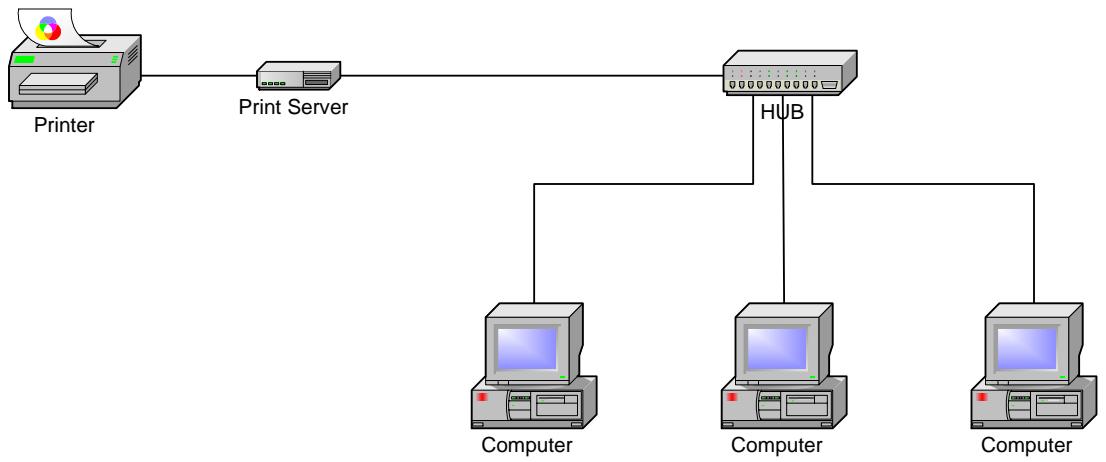
Wireless Network with Print Server:
Infrastructure (Access Point) Mode:
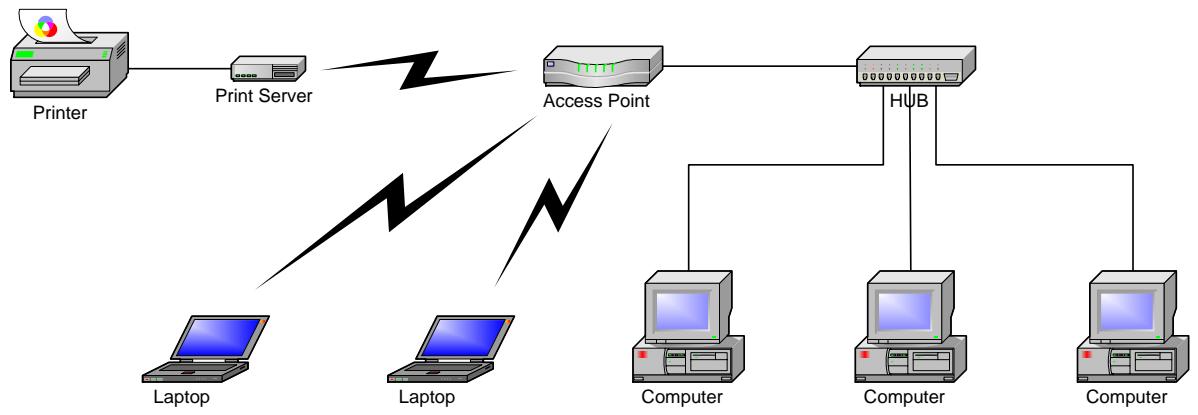
Ad-Hoc (PEER-to-PEER) Mode:
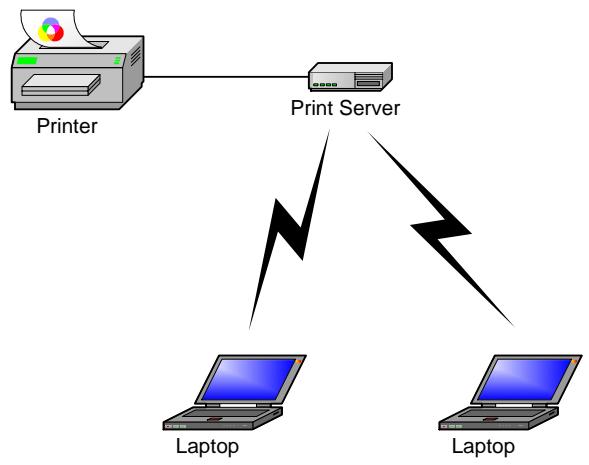
2. Print Server Installation
Preparation
To meet users' network printing needs in today's heterogeneous and multiple protocol networking environments, the print server supports industrial standard protocols, including TCP/IP, IPX/SPX, NetBEUI and AppleTalk. This means that the print server supports the most popular network operating systems today, including NetWare, Windows 95/98/Me/NT/2000/XP/2003, UNIX systems and Macintosh computer. As such, there might be several ways to deploy the print server on your network.
Supported Networks
Print server supports a variety of network protocols, including TCP/IP, IPX/SPX, NetBEUI and AppleTalk. In addition, we provide software for network configuration on the following networks:
Novell NetWare 3.12, 4.x, 5.x (Bindery and NDS)
Microsoft Windows 95/98/Me
Microsoft Windows NT/2000/XP/2003
Apple EtherTalk
- UNIX /Linux system
- Internet (via Internet Printer Connection software)
Configuration Solution Table
| Setup Operating System | Function | Remarks |
| PSAdmin utility / Setup Wizard | ||
| Windows 95/98/Me Windows NT/2000/XP/2003 | Install a single network on a peer-to-peer or client-server network | Easy printer installation runs from print server setup CD |
| Embedded Web server | ||
| Windows 95/98/Me Windows NT/2000/XP/2003 Mac OS, Linux... | Remote setup print server from private LAN | Follow standard browse, e.g. IE or Netscape |
| HP Web JetAdmin | ||
| Windows NT/2000/XP/2003 | Remote management of | Print server solution for continual management of multiple printers- anywhere on your LAN |
| print server, include alert and consumables | ||
| Internet Printing Protocol | ||
| Windows NT/2000/XP/2003 | Printing via the internet to Internet Printing Protocol-enabled print server | Allows saving distribution of HQ hardcopy document over Internet, replacing fax, mail |
Comment
Configuration solution Table has many installations way to setup Windows 95/98/Me, Windows NT/2000/XP/2003, NetWare, UNIX / Linux system and Mac computer. Firstly, we introduce PSAdmin utility, HP Web JetAdmin program and Internet Printing Protocol solution. Then we will discuss Embedded Web Server Installation with print server.
3. Software Installation
The PSAdmin is a proprietary Windows-based management program that can assist you in configuring and managing your print server in NetWare environments. The program can be installed from the setup CD of print server.
Installing the PSAdmin and Print Server's Driver
- To enable network communication with print server, your computer must have a proper IP address, e.g. 192.168.2.15. The Print Server is a DHCP-client by default.
- Insert the setup CD into your CD-drive, and the following message appears:
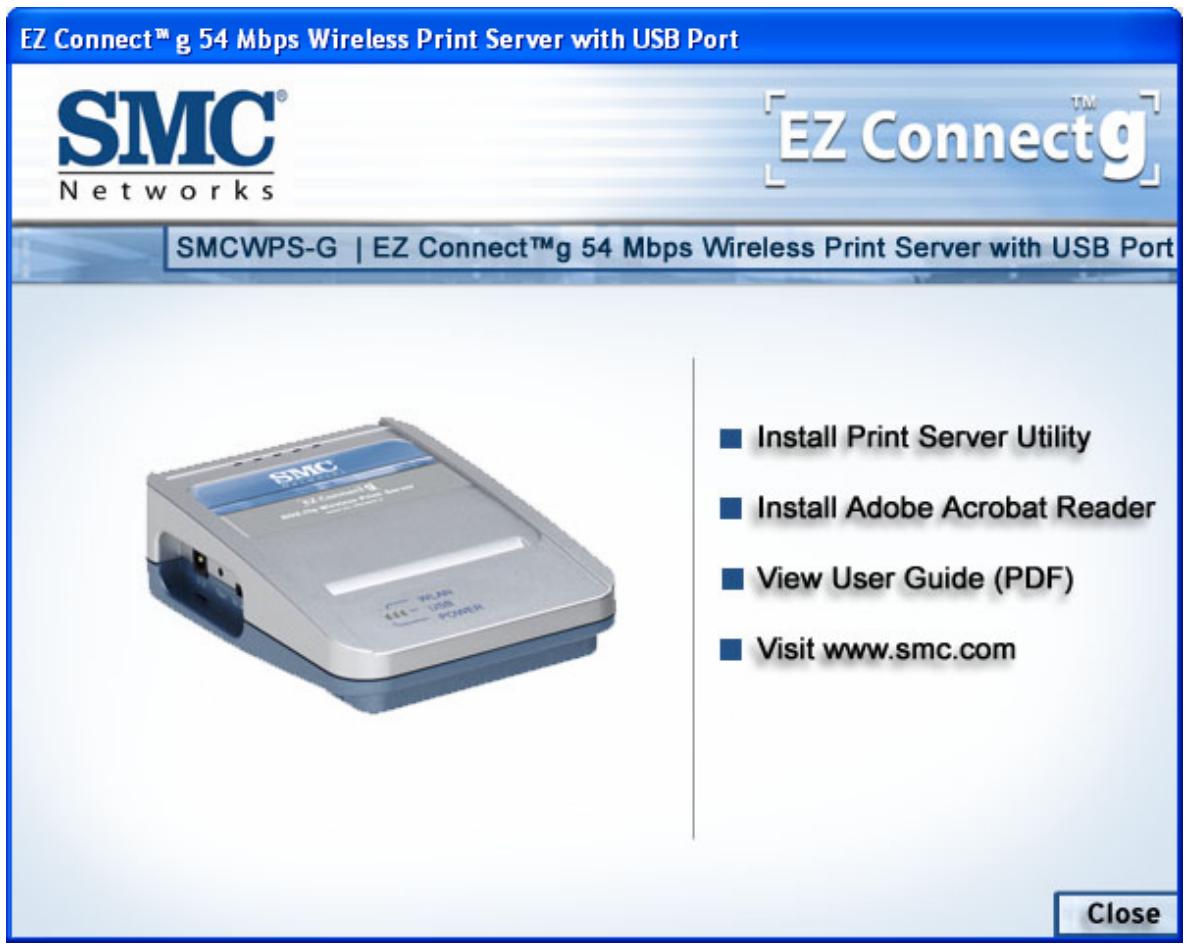
- Choose Setup Wizard to install the print server and configure the connected printer.
Note:
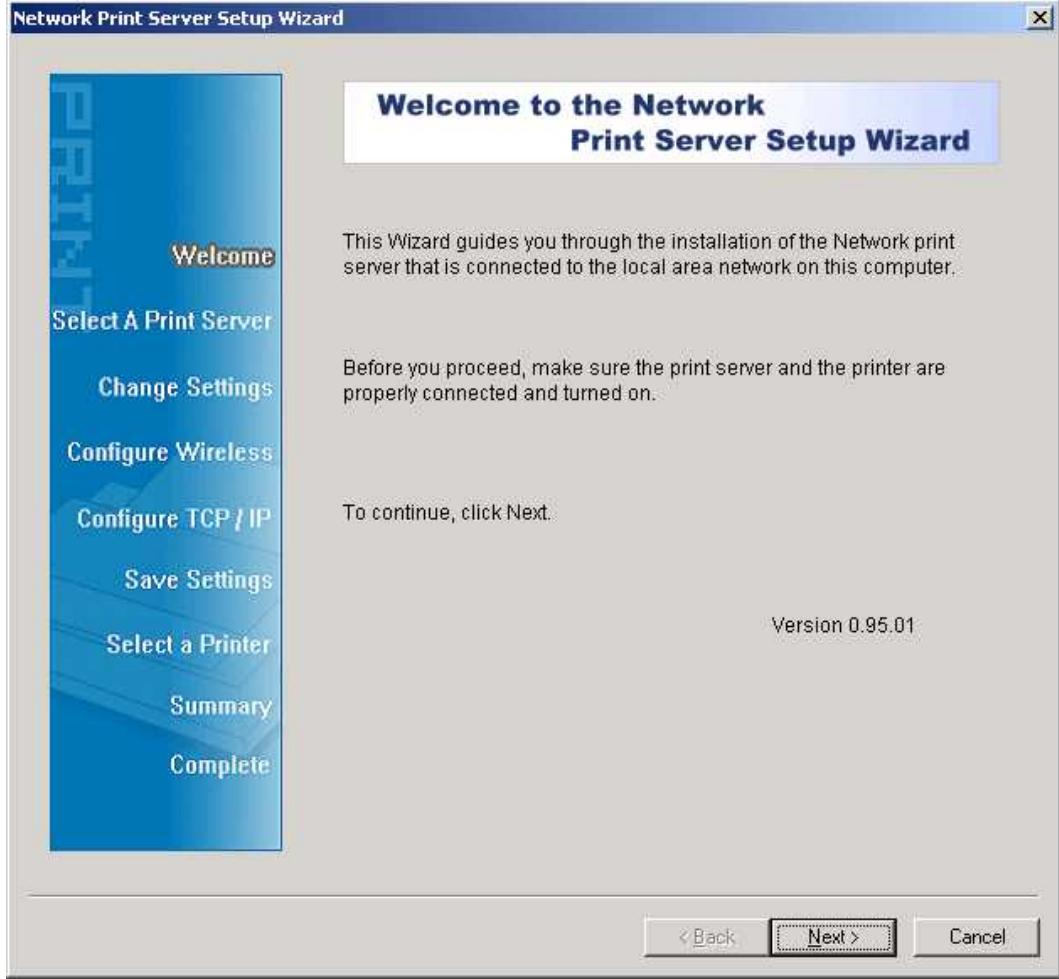
The setup CD will install the print server's driver, PSAdmin and Setup Wizard into your computer. The default installation directory will be C:\Program files\Network Print Monitor.
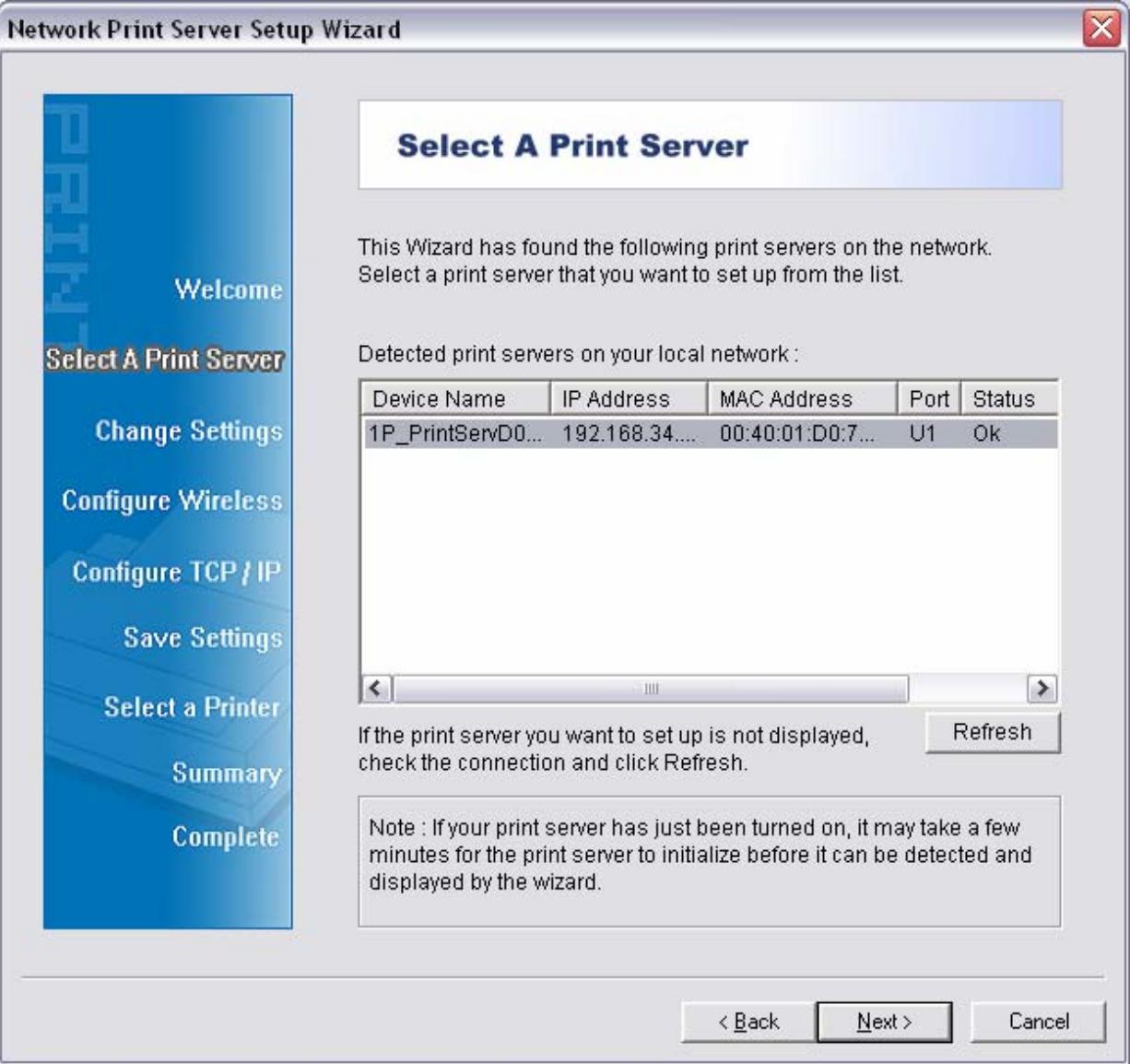
- Click Next, the wizard will automatically discover the print server.
- From the Select A Print Sever screen, select the print server that you want to configure and click Next.
6. On the Change Settings screen, select No or Yes:

Click No if you want the print server to keep using the default IP address and keep the default Infrastructure settings:
Infrastructure mode
SSID:
- Channel: 6
- Encryption: none
DHCP client: off
- IP address: DHCP client
Click Yes if you want change wireless settings or assign a static IP address to the print server:
- On the Basic Wireless Settings screen, select Communication Type according to your network:
Infrastructure
- Ad-Hoc
-
Enter the proper SSID of your wireless network.
-
Channel: optional
Data Transmit Rates: select Auto or others -
Transmit Mode: select Auto or others
-
On the Wireless Security screen, enable or disable WEP/WPA/WPA2 encryption, configure according to your wireless network and click Next.
- On the TCP/IP Settings screen, specify a fixed or dynamic IP address for the print server, a fixed IP address is highly recommended. Click Next.
Note:
The IP address of print server must be within the same subnet as your network adapter.
- In the setup wizard, select an already configured printer from the list, click Next, Next and then Finish to complete the installation.
or
Select Add New Printer if the print server is connected to a printer that hasn't been installed before and does not appear in the list.
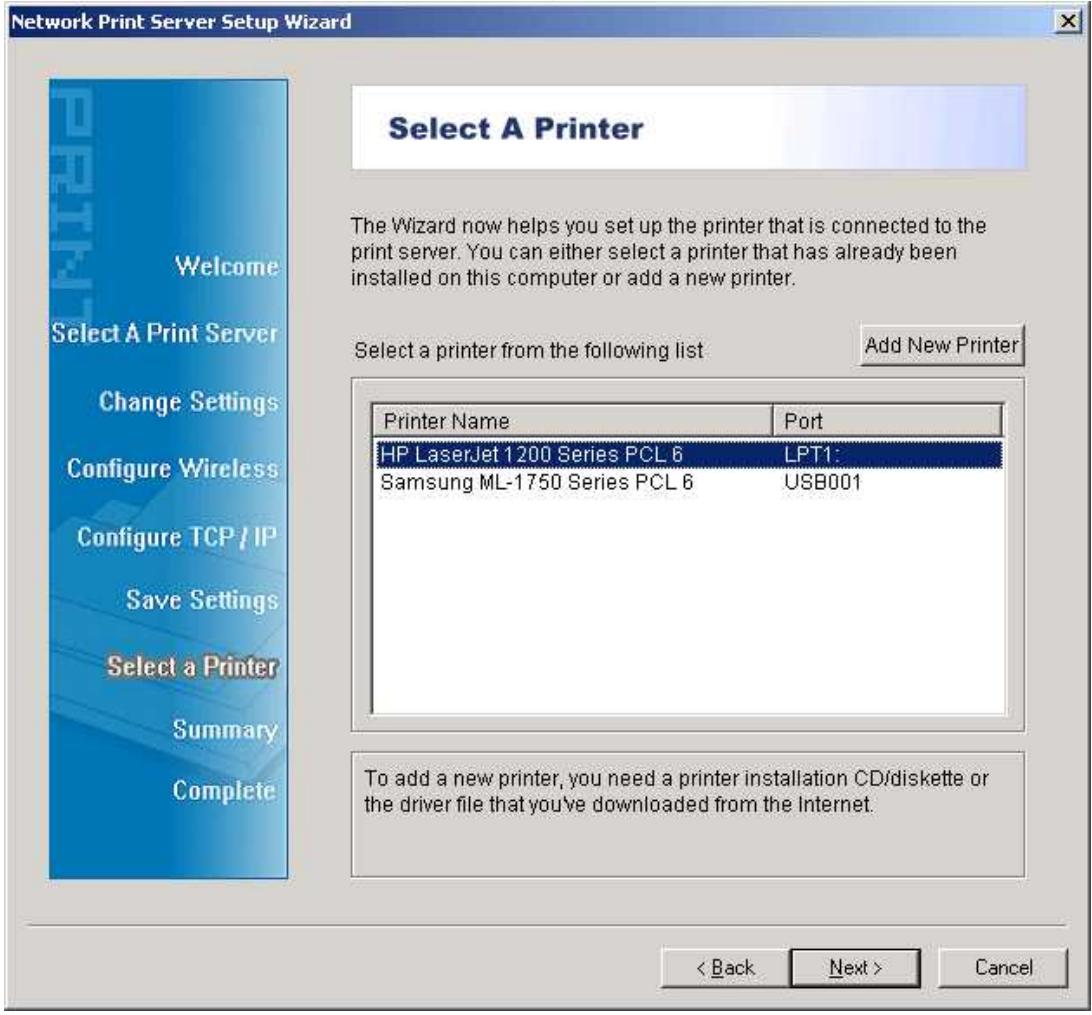
Network Print Server Setup Wizard


Select A Printer
The Wizard now helps you set up the printer that is connected to the print server. You can either select a printer that has already been installed on this computer or add a new printer.
Select a printer from the following list
Add New Printer
Printer Name
Port
Microsoft Office Document Image Writer
Microsoft Document...
EPSON Stylus C42 Series
LPT:PS7D98-2
EPSON Stylus C40 Series
LPT1:
Auto HP 4500 Color Printer on Bcn-file
BCN-FILEHP4500...
Auto 4050 PM Printer on Bcn-file
BCN-FILE4050PM...
Auto 4050 Customer Service on BCN-Fl...
XBCN-FILEHP5N
Adobe PDF
My Documents*.pdf
To add a new printer, you need a printer installation CD/diskette or the driver file that you've downloaded from the Internet.
<Back
Next>
Cancel
- Click Add New Printer to launch Windows Add Printer Wizard.
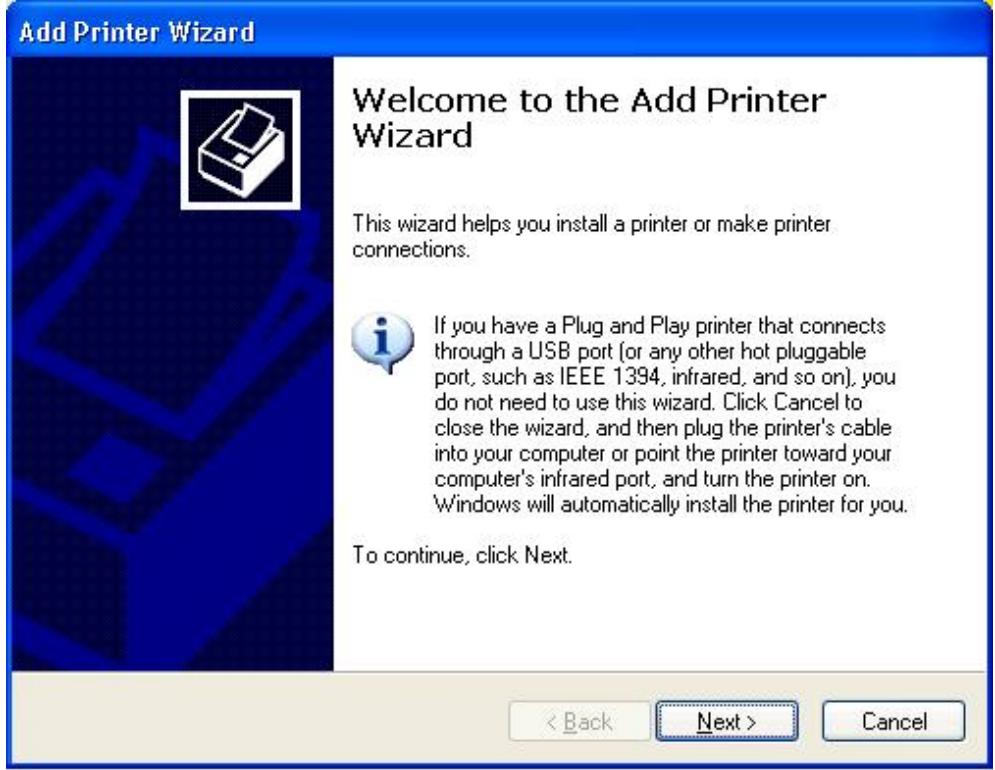
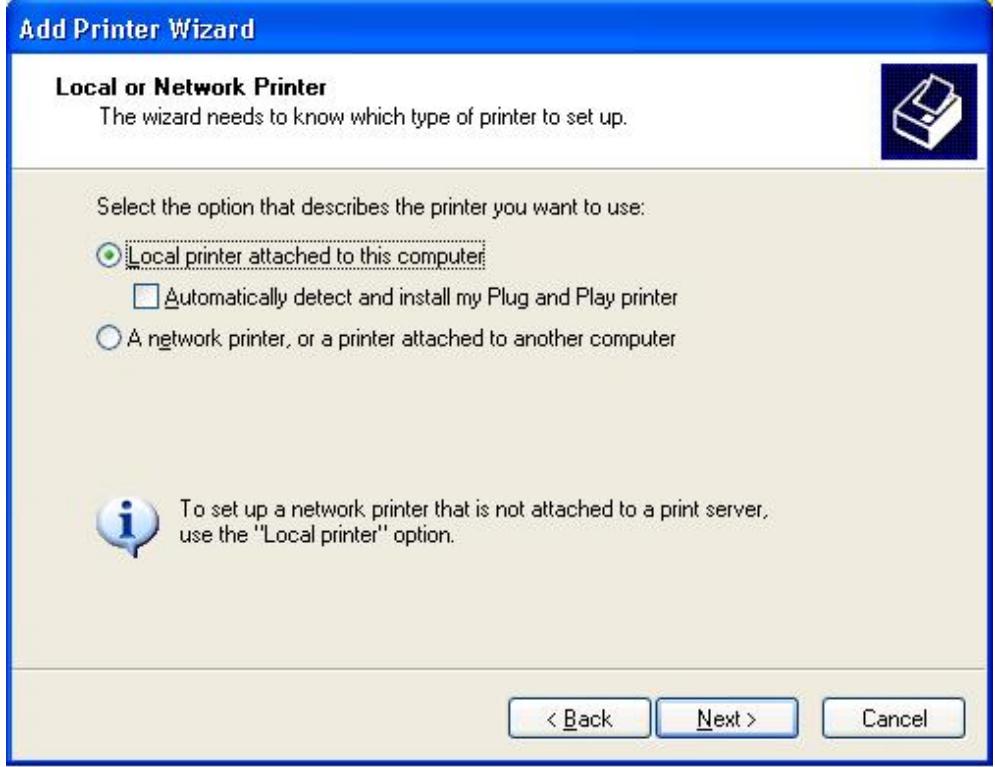
- Click Next and select Local Printer, make sure the Automatically detect and install my Plug and Play printer check box is NOT checked. Then click Next.
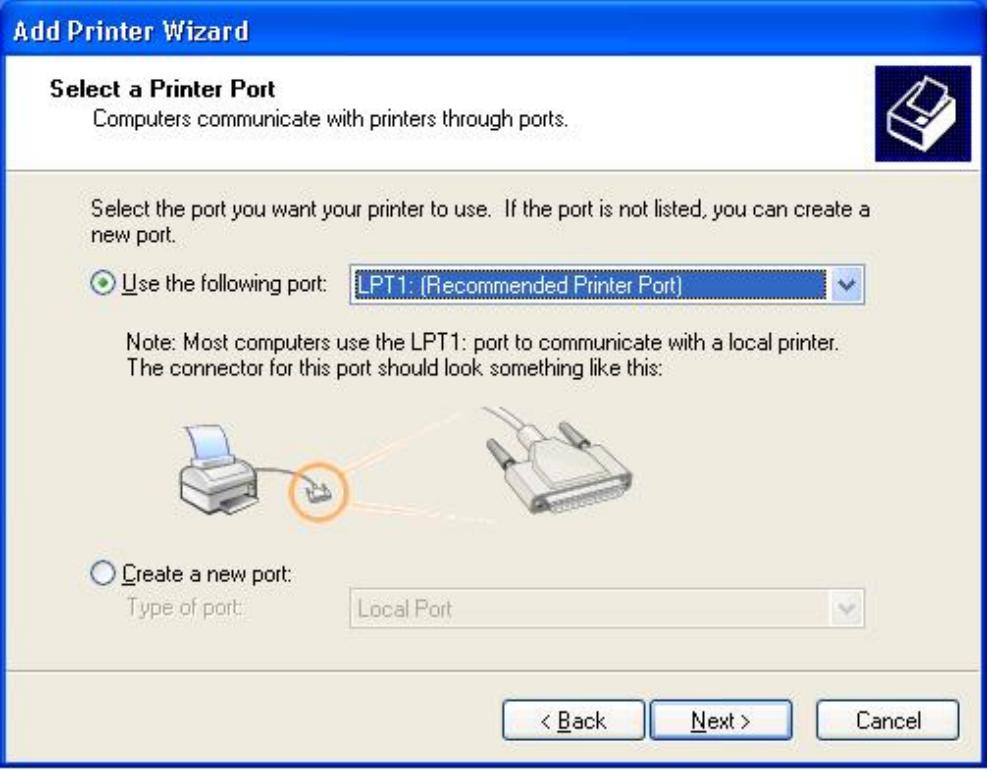
- Make sure the Use the following port radio-button is clicked and select LPT1: (recommended Printer Port) from the pull-down list. Then click Next.
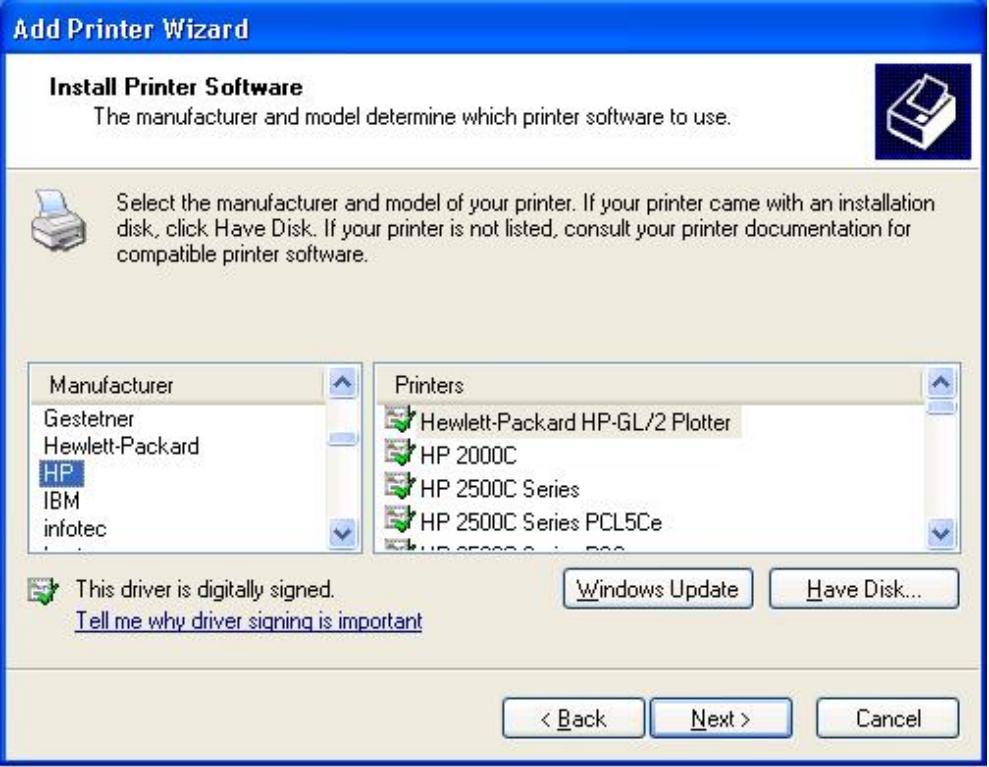
- Select Manufacturer and Printer from the lists of printer's driver. Then click Next.
- If you already have the printer's driver installed, you will be asked whether to keep it or to replace it. Click Next. Supply a name for the printer and choose whether you want to make it your default printer. Then click Next.
- Then, choose whether you want to share the printer with other network user, print a test page (please select No.), etc. Select the appropriate radio-button and click Next and Finish.
- In the setup wizard, finish the installation by highlighting the installed printer in the Select a Printer list and click Next, NEXT -> Finish.
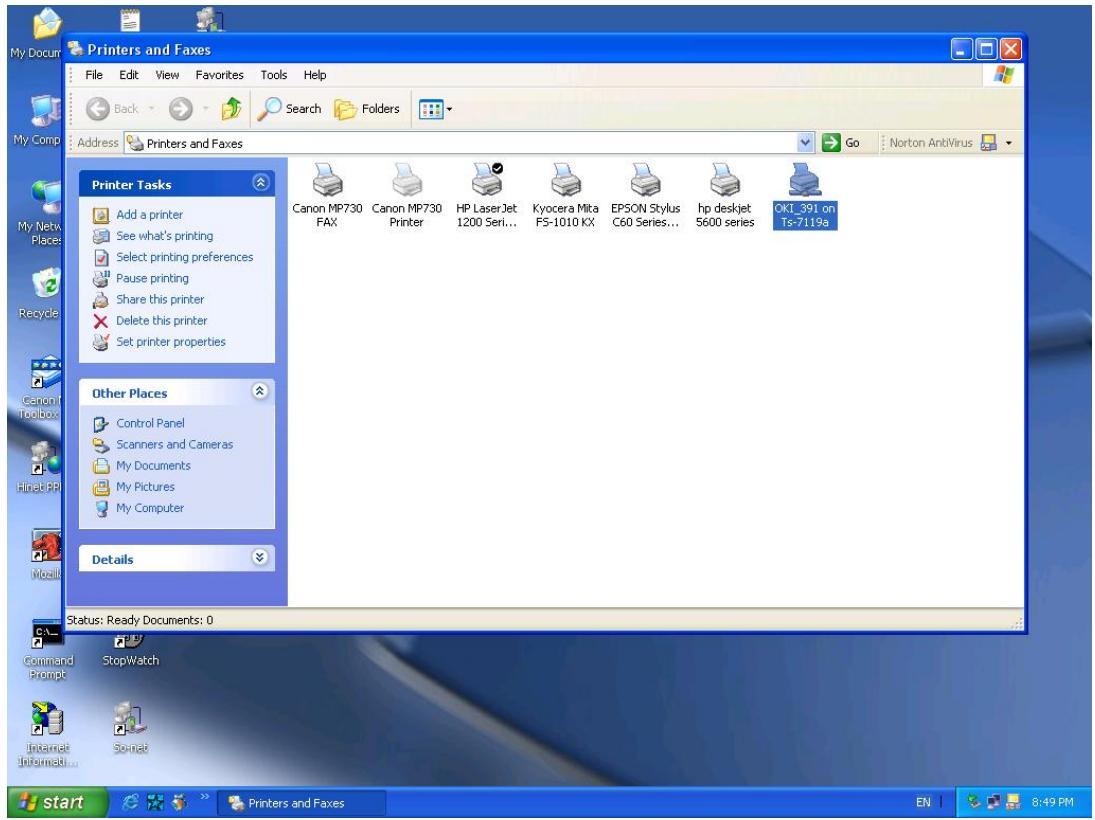
- From Windows system, go to start -> Printers and Faxes and highlight your newly installed printer.
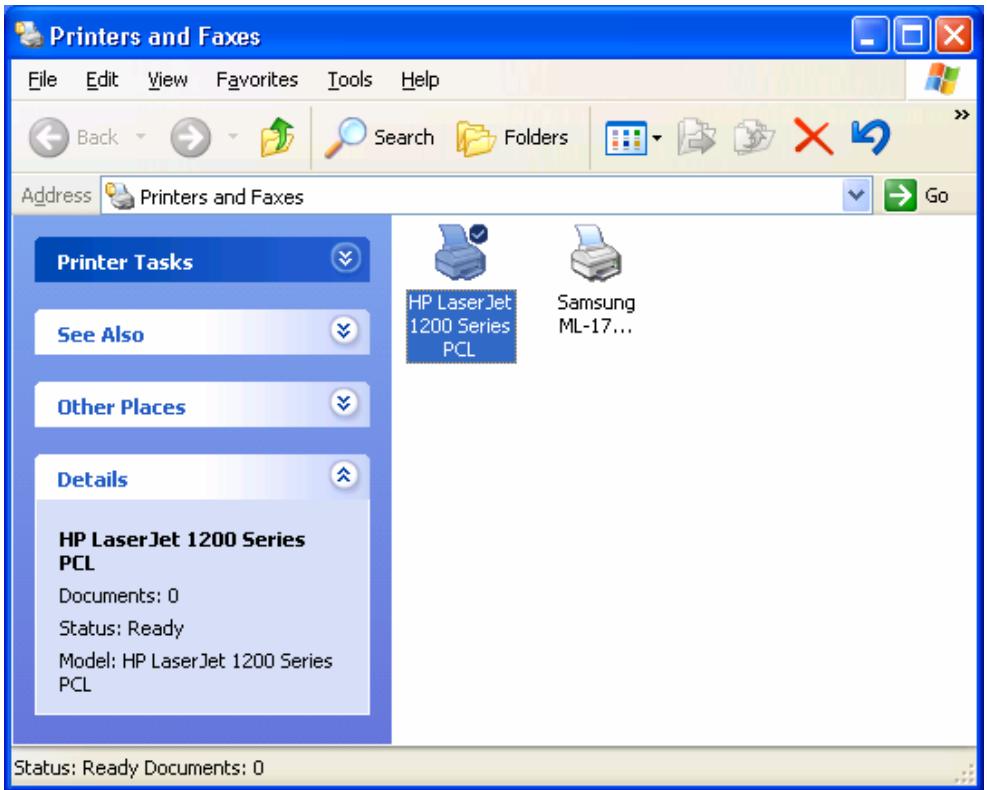
- Right-click, select Properties -> Ports and verify that the print server's port appears.
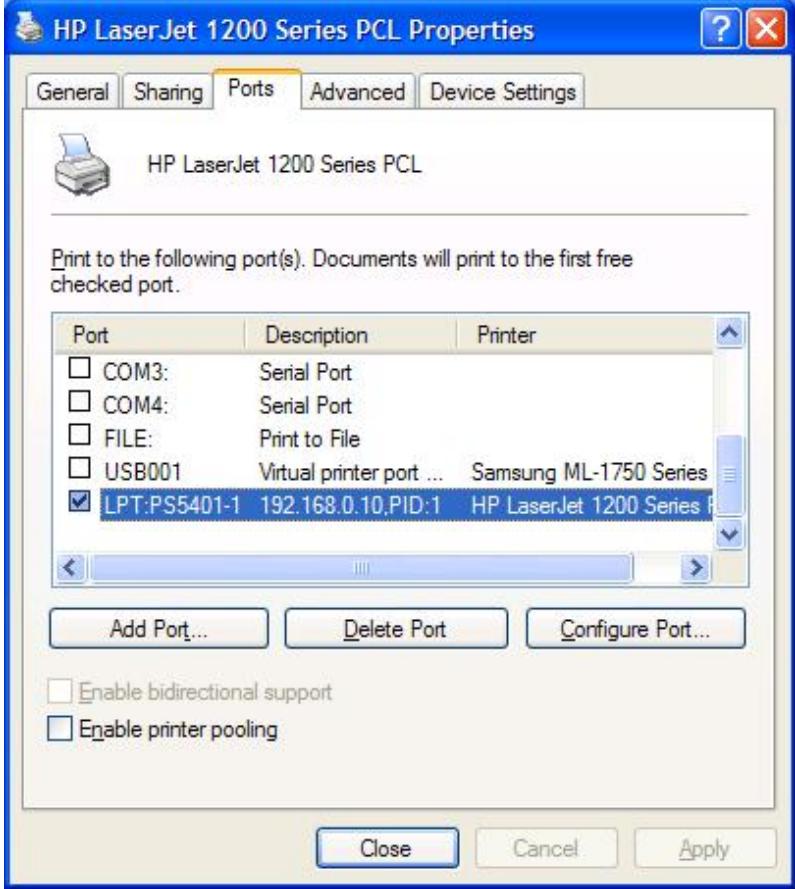
- Go to General; click Print Test Page to verify the configuration.
- Done.
Note:
If you want to install more print servers, start setup wizard from your Windows Start menu: start -> All Programs -> Network Print Server -> PSWizard and repeat the installation procedure.
Using PSAdmin
After the software of setup CD is successfully installed, starts PSAdmin utility from your Windows Start menu: start -> All Programs -> Network Print Server -> PSAdmin. The screen will then appear as follow picture.
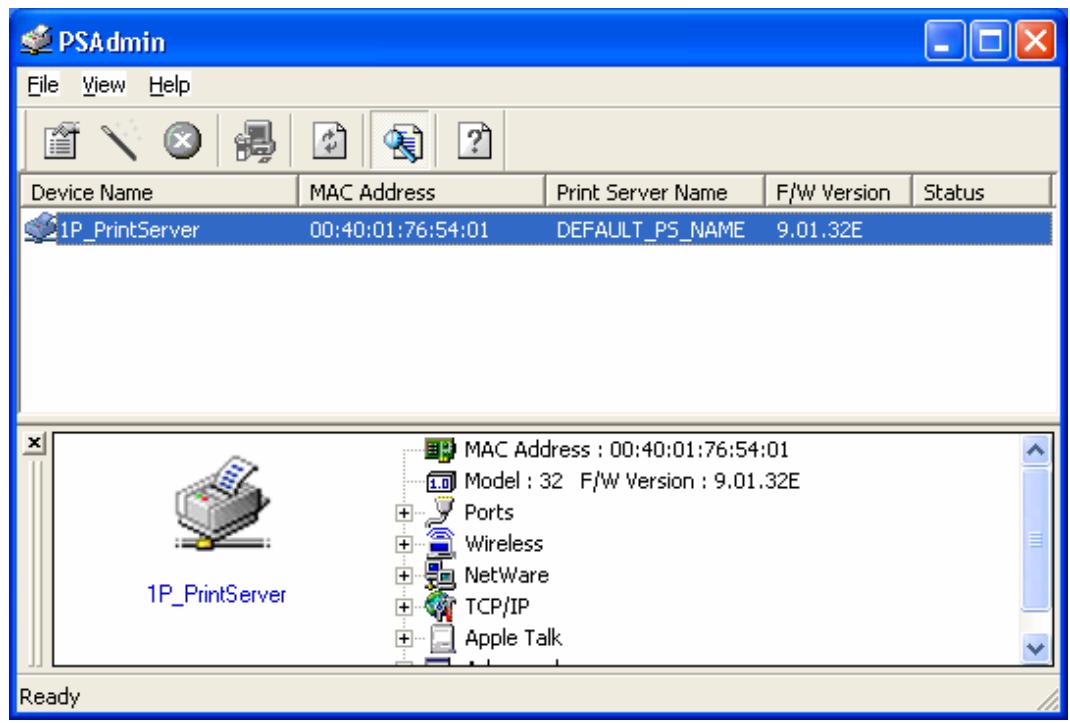
All print server(s) feature Novell NetWare function on the LAN will be displayed along with their respective device name, MAC Address, print server name, firmware version, and status. The terms are defined as follows:
Device Name: The name of the print server hardware used for identification purposes.
MAC Address: The Ethernet address of the print server.
Print server Name: The print server to which the device is attached.
Version: The firmware version of the print server.
Status: To come up a Printer's status presently.
Wizard
Wizard is a configuration program that can assist you in setting up the necessary parameters for your print server device to function. Setup a print server by using Wizard.
TCP/IP Wizard
- Click Wizard button just like a picture

.and select TCP/IP Wizard.
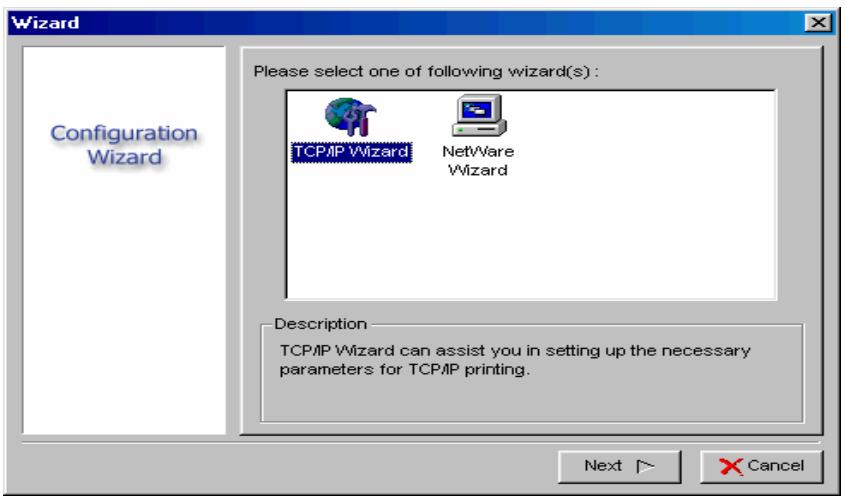
2 Select "Obtain an IP address from DHCP server". If there is a DHCP server on your network. This option allows the print server to obtain IP-related settings automatically from your DHCP server. This setting, by default, is disabled. If you would like to manually specify an IP address to the device, please skip to the following step.
3 In the IP Address option, type an IP address for the print server. The IP address must meet the IP addressing requirements of the network segment.
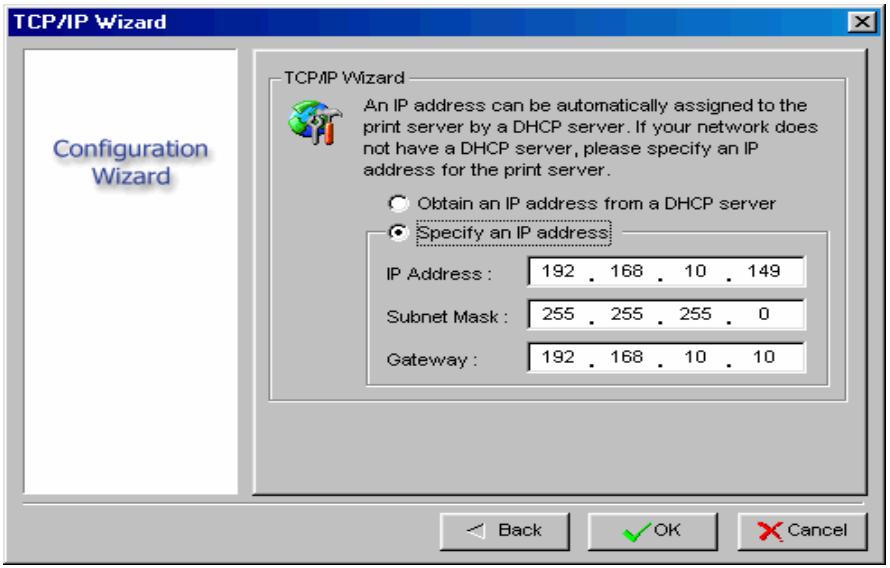
4 (Optional) In the Subnet Mask option, type the Subnet Mask your LAN or network segment is currently configured to use.
5 (Optional) In the Gateway field, type the IP address of gateway.
6 When done, click OK button. The program will save the above settings into the print server.
7 Done
NetWare Wizard
- Log into your NetWare file server as a Supervisor (Admin.) or equivalent.
- Click Wizard button just like a picture .and select NetWare Wizard, as follow picture.
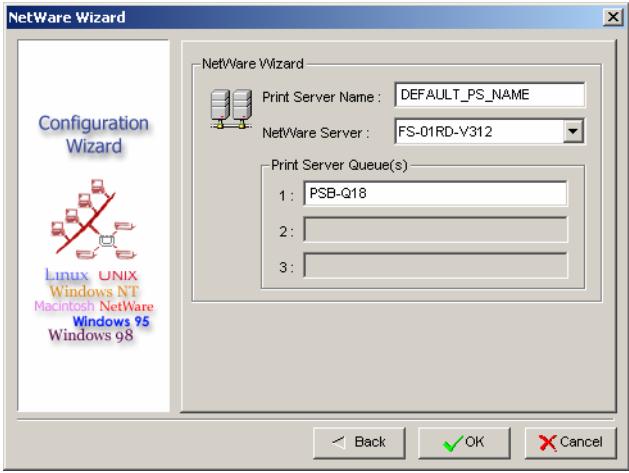
- Select the NetWare File Server to which the print server device will be attached.
- Type in a Print server.
- Type in a Print Queue Names.
Note: Each print queue corresponds to each print port of the print server.
- Click OK.
- Done.
- From your NetWare client computer, such as Windows 95/98/Me, create a printer that is connected (redirected) to one of the NetWare print queues serviced by the print server.
Manual Setup
Manual Setup is a configuration program designed for more experienced users of NetWare. To setup the print server by using Manual Setup follow the steps:
- Run PCONSOLE in NetWare 3.x or NetWare 4.x and create the necessary parameters (Refer to your Novell NetWare print server/Services manual for details).
- Log into your NetWare file server as a Supervisor (Admin.) or equivalent. From your Windows 95/98/Me, run PSAdmin.
- Select the print server that you wish to configure.
- Click Properties in the tool bar and the following screen will appear, Properties button just like a picture , as follow picture.
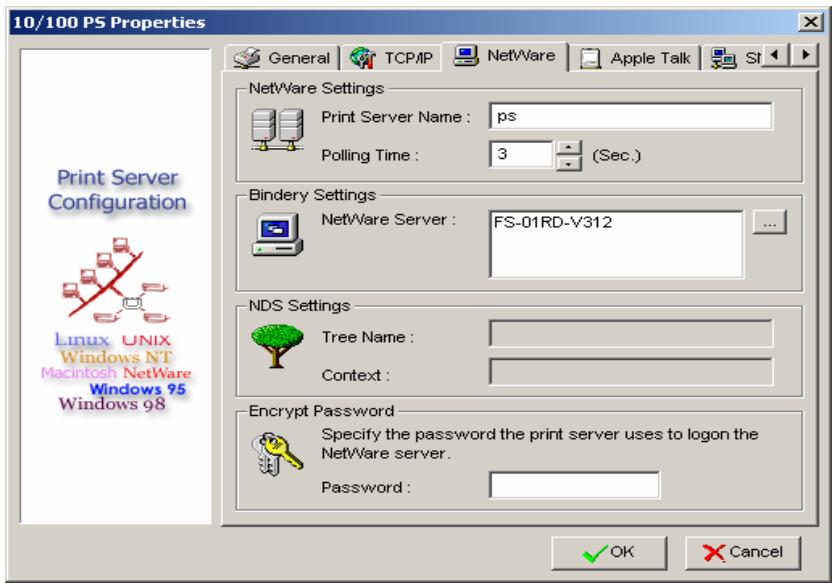
- Select NetWare and type in the Print server that created during PCONSOLE.
- (Optional) In Bindery Settings, Select NetWare file server(s) that print server can do Bindery mode.
- (Optional) In NDS Settings, Select NetWare file server(s), NetWare 4.x or later that print server can do NDS mode.
- Click OK. From your NetWare client computer, such as Windows 95/98/Me, create a printer that is connected (redirected) to one of the NetWare print queues serviced by the print server.
Properties -TCP/IP Options
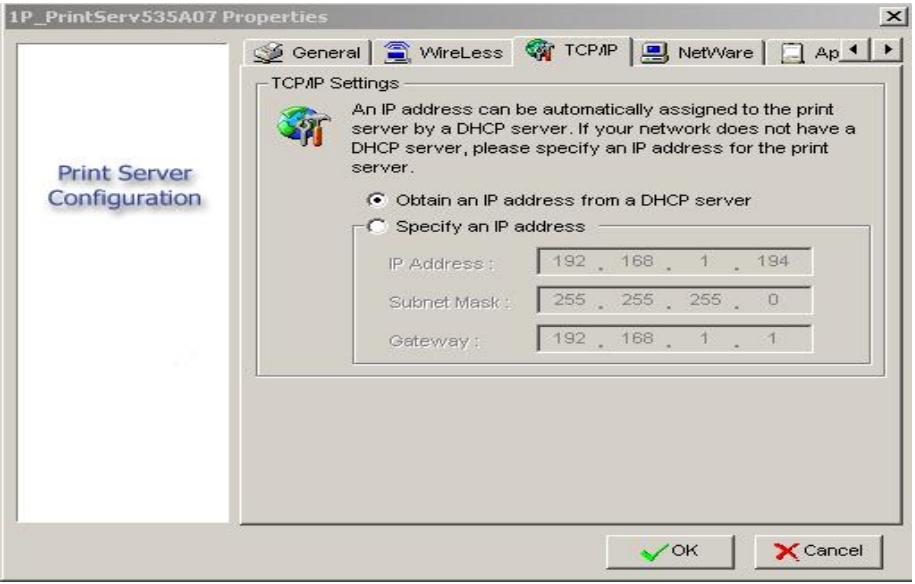
The TCP/IP options allow you to modify the print server's TCP/IP settings. Each option is detailed as follows.
Obtain an IP address from a DHCP server:
This option enables or disables the DHCP feature of the print server. When this option is enabled, the print server will obtain an IP address automatically from the DHCP server on your LAN. The default value is "Disable".
Note: 1. Once this option is enabled, the following IP address, Subnet Mask, Gateway will be grayed out and are not available for editing.
- While the print server supports DHCP, we strongly recommend you manually specify a fixed IP address to the print server.
Specify an IP address:
IP Address: This option shows the print server's current IP address maybe obtained from your DHCP server or manually specified. This option also allows you to manually specify an IP address to the print server, if DHCP option is disabled.
Subnet Mask: This option shows the print server's current subnet mask maybe obtained from the DHCP server or manually specified. This option also lets you manually specify a subnet mask to the print server, if DHCP option is disabled. This value is optional.
Gateway: This option shows the print server's current gateway address maybe obtained from the DHCP server or manually specified. The option also allows you to manually specify the IP address of the gateway to the print server, if DHCP option is disabled. This value is optional
Upgrade
Upgrade allows the user to upgrade the print server device. In order to upgrade the unit please perform the steps as follows:
- Click Upgrade button just like a picture , as shown as follow picture
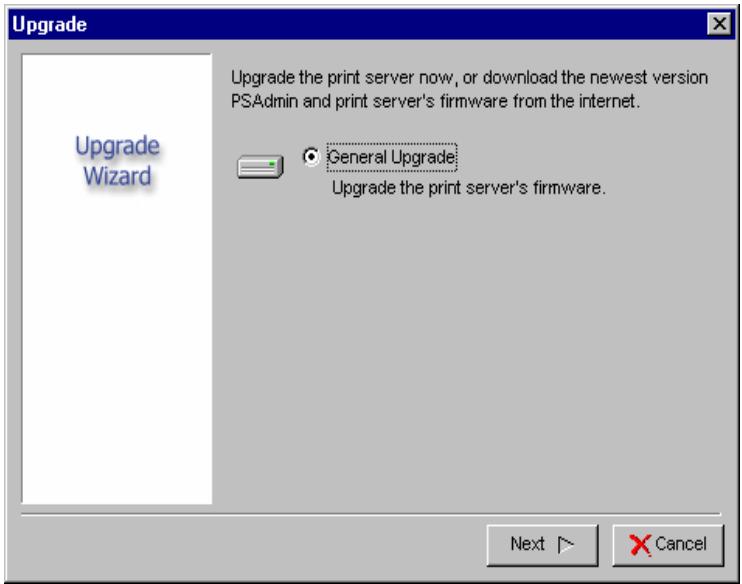
- Select General Upgrade. Make sure that the upgrade file is located in the same directory as PSAdmin.
Reset
- Click Reset button just like a picture

- Reset allows the user to reset the print server device in order to establish a new connection or for new settings to take effect.
Refresh
- Click Reset button just like a picture

- Refresh searches the network for all attached print server(s).
Note: Configure the print speed in the Advanced label, must match the printer's speed which connect to the print server. Undependable configuration will cause printer to abnormal printing.
Multiple Print Queues Configuration
To configure the print server to service multiple print queues, please follow the instructions listed below:
- Log into your NetWare file server as a Supervisor (Admin.) or equivalent.
- Run the PSAdmin from your Windows.
- Select the print server and to be configured.
- Click the Wizard icon in the tool bar.
- Type in a Print server and a Print Queue Name (For more detailed information about Wizard, please refer to the "Wizard" section in this chapter).
- Run the NetWare's PCONSOLE and create additional print queues.
- Select the Print server name you specify in Step 5.
- Select the "Print server Configuration" option and select the "Queue Serviced by Printer" option (For NetWare 4.x's PCONSOLE, please select "Printers" option and select "Printer 0" instead).
- Select the "Printer 0" and press the [Insert] key to add the print queues you create in Step 6 into the list (For NetWare 4.x's PCONSOLE, please select "Print queues assigned" option instead).
- Reset the print server by clicking the "Reset" icon from the PSAdmin. Done.
Note: Please refer to NetWare's Print server/Services manuals for detailed PCONSOLE commands.
Uninstalling the PSAdmin on Windows PC
To help users easily remove all installed software components of the PSAdmin from their Windows PC, and the PSAdmin software comes with un-installation wizard program that can automatically remove the software components from their Windows PC systems in minutes. Please follow the directions listed below to proceed with the un-installation procedure.
After the PSAdmin is removed, the print server is no longer accessible via the PSAdmin. You have to re-install the PSAdmin on your system in order to access the print server again.
Procedure:
- Click Start, point to Settings, and select Control Panel.
-
Double click the Add/Remove Programs icon.
-
Click Change or Remove Programs tab.
- Select Network Print Monitor for Windows 95/98/NT/2000/XP/2003 and click Change/Remove button.
- The un-installation wizard program will be launched.
- Follow the directions on the screen to complete the un-installation procedure.
4.Internet Printer Connection and HP Web JetAdmin
IPP Overview
Print server(s) support the Internet Printing Protocol (IPP). Using the appropriate software on your system, you can create an IPP print path from your system as Windows PC over the Internet.
Note: For incoming print path requests, the network administrator have to configure the firewall to accept incoming IPP requests.
Windows NT/2000/XP/2003
For Windows NT/2000/XP/2003, you can use a supported Web Browser, for example, Netscape or IE to view the embedded web server on the print server. Contact your administrator to get the IP address or URL of the printer and browse to the print server's web page.
For example, to install Windows 2000 by IPP service you must follow below information:
1.Click Start button.
2. Select Settings, and then select "Printers" option.
3. Click Add Printer icon. Appear welcome to the add printer wizard, Click Next.
4. Select Network printer option, and then click "Next".
5. Select Connect to a printer on the Internet or on your intranet option, appear as follow picture.
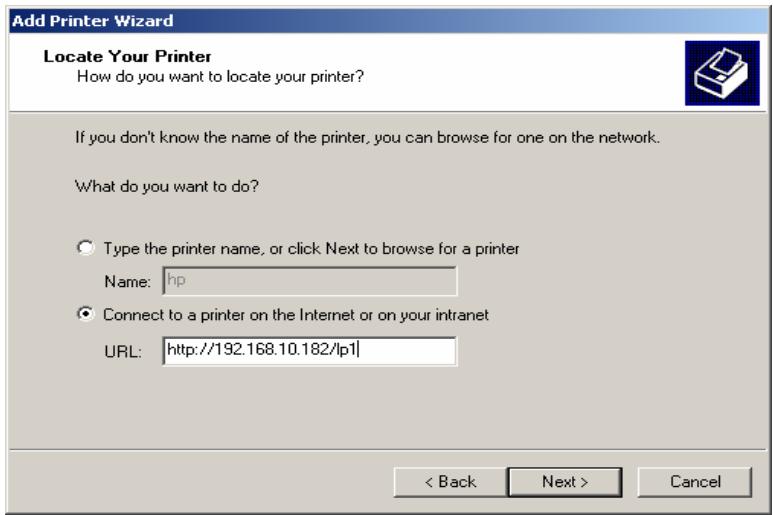
- In URL's box, input print server's IP address, for example, http://192.168.10.182/lp1. Then Click Next.
** One port should be the port name as lp1.
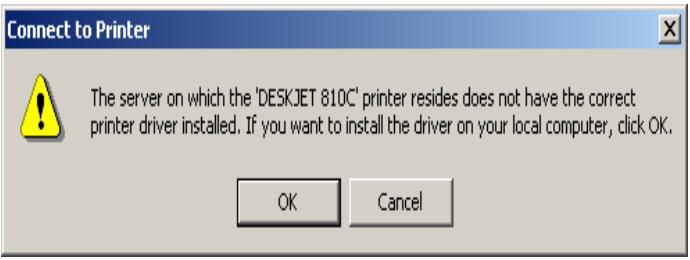
- It will check print server to connect to HP printer, if not, it will appear as follow picture. Then Click OK.
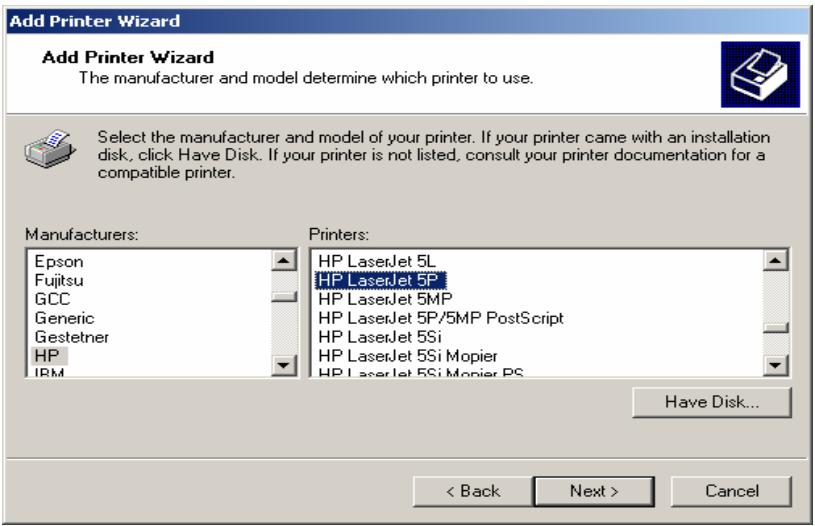
- Select the appropriate printer manufacturer and printer type and click "Next", appear as follow picture.
9.If you want your Windows-based programs to use this printer as the default printer, please select “Yes”, and Click Next. It will appear as follow picture
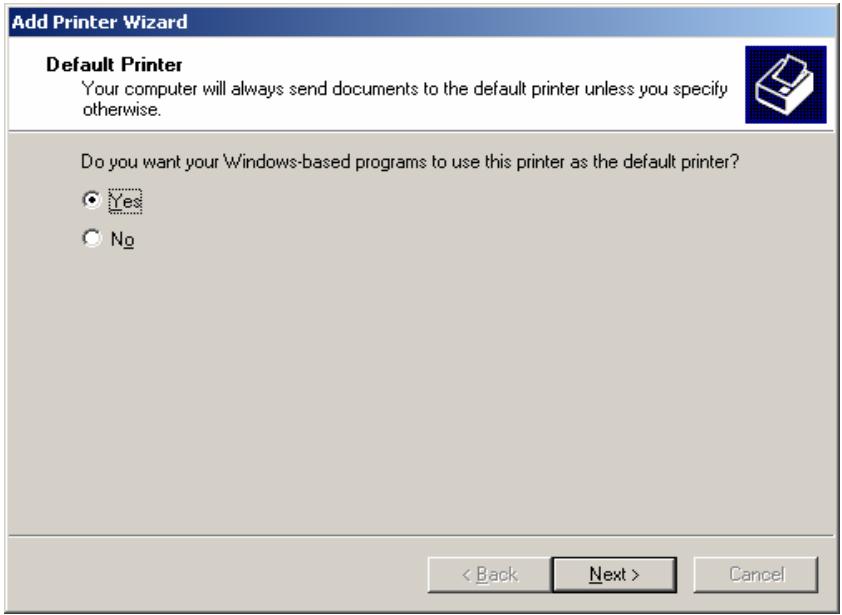
- Click Finish button.
- Done.
HP Web JetAdmin Overview
HP Web JetAdmin allows you to use a Web browse to revise, view, manage and diagnose devices connected to the print server or any standard printer MIB devices.
For more information about a procedure or Windows in the HP Web JetAdmin software, see about HP's relation document.
System Requirements
HP Web JetAdmin software runs on Microsoft Windows NT, HP-UX, Solaris, Red Hat Linux and SuSE Linux system. For information on supported operating systems and browser versions, we recommend IE or Netscape version 4 or higher. Please access HP Customer Care Online at http://www.hp.com/go/webjetadmin.
Note: When installed on a supported host server, HP Web JetAdmin can be accessed from any client through a supported Web browser by browsing to the HP Web JetAdmin host.
Installing HP Web JetAdmin
Before installing the HP Web JetAdmin software, you must have domain administrator or root privileges:
Download the installation files from HP Customer Care Online at
http://www_hp.com/go/webjetadmin/.
Follow the instructions on the screen to install the HP Web JetAdmin software.
Note: Installation instructions are also contained in the HP Web JetAdmin install file.
Confirming Installation and Supply Access
Confirming that the HP Web JetAdmin software is correctly installed by navigating to it with your browser as shown in the following. For example, http://serverdomainport/where server domain is the host name of your web server and port is the port number assigned during installation.
Supply users access to HP Web JetAdmin software by adding a link to your web server's home page that is addressed to HP Web JetAdmin's URL. For example: http://server/domain:port/
Configuring and Modifying a Device
Using your browser, navigate to HP Web JetAdmin's URL. For example:
http://server.domain:port/
Follow the instructions on the appropriate home page to configure or modify your printer.
Note: You can also substitute the server domain with TCP/IP address.
Removing HP Web JetAdmin Utility
To remove HP Web JetAdmin software from your web server, use the uninstall program provided with the software package.
5. Configuration from Embedded Web Server
Overview
The Print Server contains an embedded web server that can be accessed through a supported web browser on a LAN, for example, IE 4.0, Netscape 4.0 or above is recommended.
The embedded web server provides access to configuration and management pages for the print server and the connected peripheral device.
Using Embedded Web Server
Before you can use the embedded web server, the print server must be configured with an IP address. There are many ways to configure the print server's IP address. For example, the Windows-based of PSAdmin utility can easily set an IP address with the print server, please see the Properties - TCP/IP options of chapter 3.
After an IP address is established on the print server, perform the following step:
Status Menu
Once you have finished the IP address configuration with print server. You should be use web browser to view and management the print server. The status menu of the print server helps administrator control the print server's System, Printer, NetWare, TCP/IP, SNMP and AppleTalk of status for the time being.
Preparation
Enter the print server's IP address in the Address field of your Web browser. Press Enter. Then the print server page will appear. From here you can configure all print server settings.
Please follow this information in the status menu of the print server:
System Status
1.Click Status, it then appears the sub-menu.
2.Click System, it then as shown in the following picture.

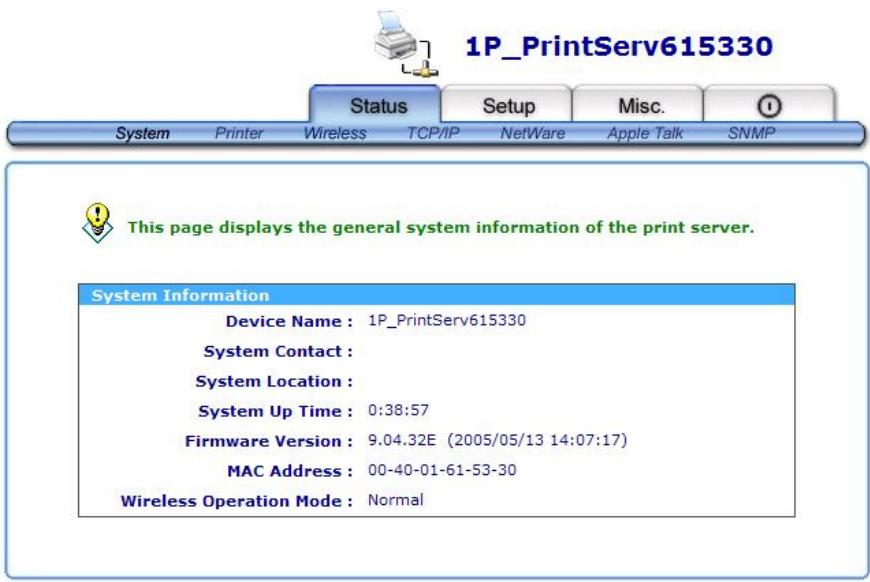
Device Name: This option allows you to view device name of the print server. To correct the print server's device name.
System Contact: This option allows you to view contact name of the print server. To check the print server's contact name who in charge of this device.
System Location: This option allows you to view Location name of the print server. To confirm the print server's location name where the print server is located in the office's LAN.
System Uptime: This option allows you to view uptime of the print server. When you start the print server, it will compute the print server from start time to power off time.
Firmware Version: This option allows you to view firmware version of the print server. To verify the print server's firmware version is newer in this time.
MAC Address: This option allows you to view Node ID of the print server. The Node ID is unique from any print server.
Wireless Operation Mode: This option allows you to view the current wireless mode of print server.
Printer Status
- Click Status, it then appears the sub-menu.
2.Click Printer, it then as shown in the following picture.
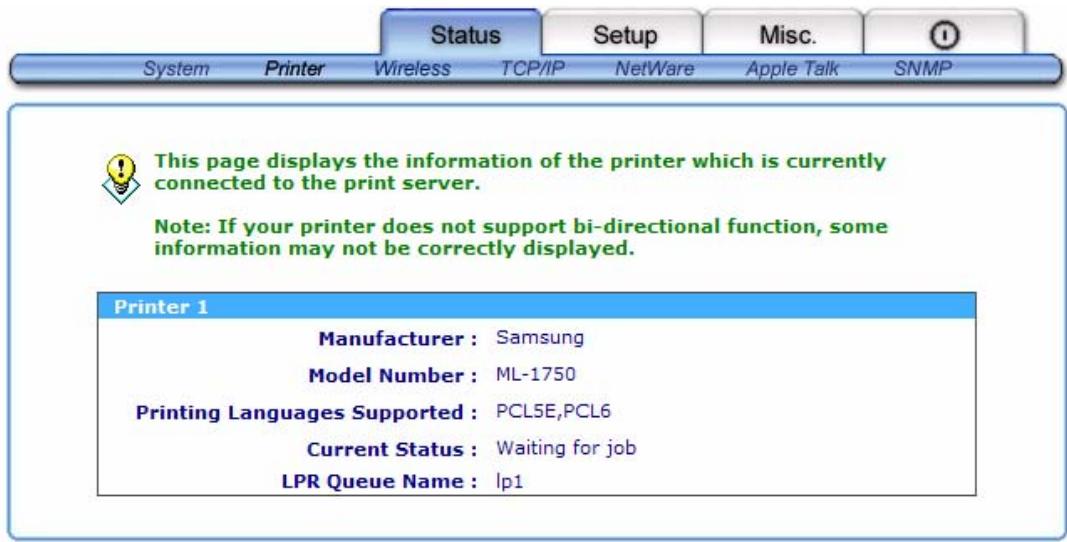
Manufacturer: This option allows you to view manufacturer of the printer. When the printer connected with the print server, it will be show in the manufacture box.
Model Number: This option allows you to view model of the printer. When the printer connected with the print server, it will be show in the model box.
Printing Language Supported: This option allows you to view command to set the printer. When the printer connected with the print server, it will be show in the command box.
Current Status: This option allows you to view status of the printer. When the printer connected with the print server, it will be show in the status box. For Example, Waiting for job. It is means the printer already to printing.
LPR Queue Name: This option allows you to view queue name of print server when you want to use the network printing via LPR setting. (default: Ip1)
Wireless Status
- Click Status, it then appears the sub-menu.
- Click Wireless, it then as shown in the following picture.
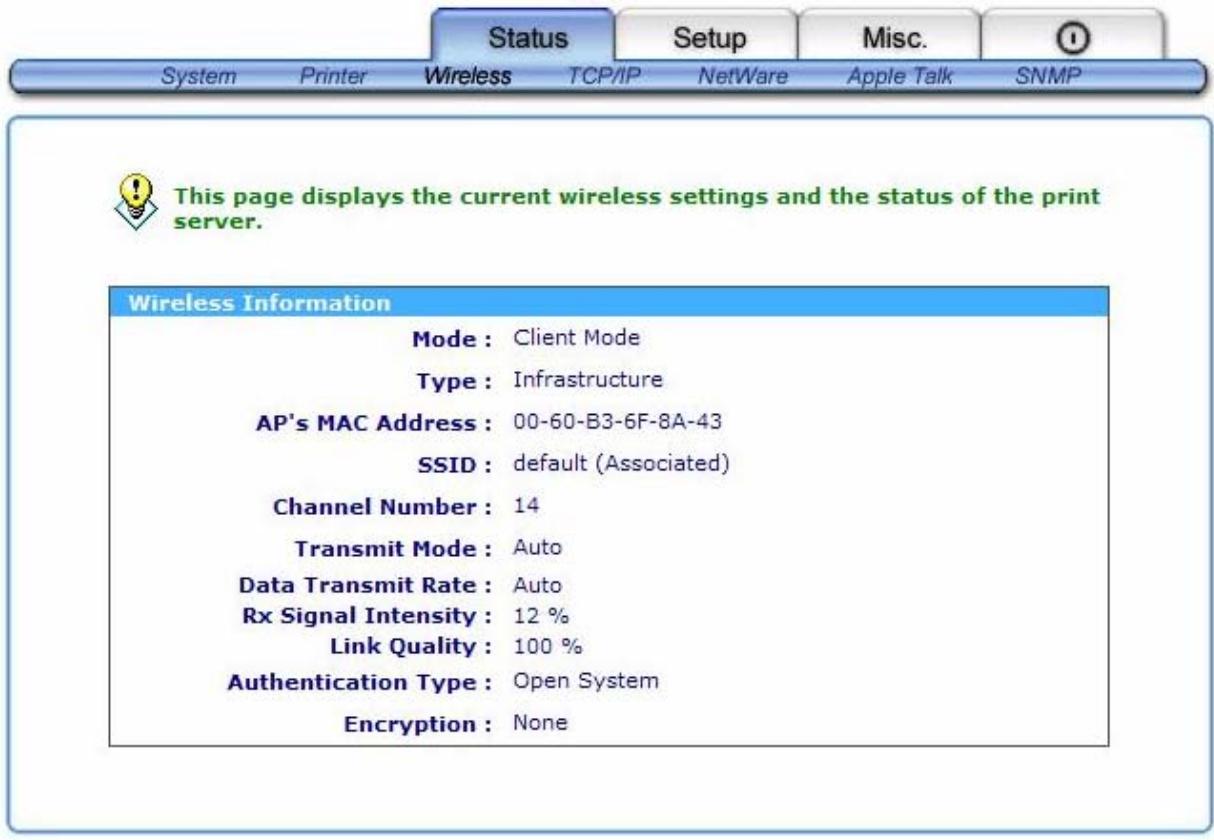
Mode: This option shows the wireless operation mode of your print server.
Type: Infrastructure or Ad-Hoc mode.
AP's MAC Address: This option shows the MAC address of Access Point that associated with print server.
SSID: The SSID of your wireless network.
Channel Number: Current channel number.
Transmit Mode: Current wireless transmit mode (802.11b or 802.11g)
Data Transmit Rate: Current wireless transmit rate.
Rx Signal Intensity and Link Quality: The wireless behavior of print server.
Authentication Type: The status of wireless authentication.
Encryption: This option shows the encryption type.
TCP/IP Status
1.Click Status, it then appears the sub-menu.
- Click TCP/IP, it then as shown in the following picture.
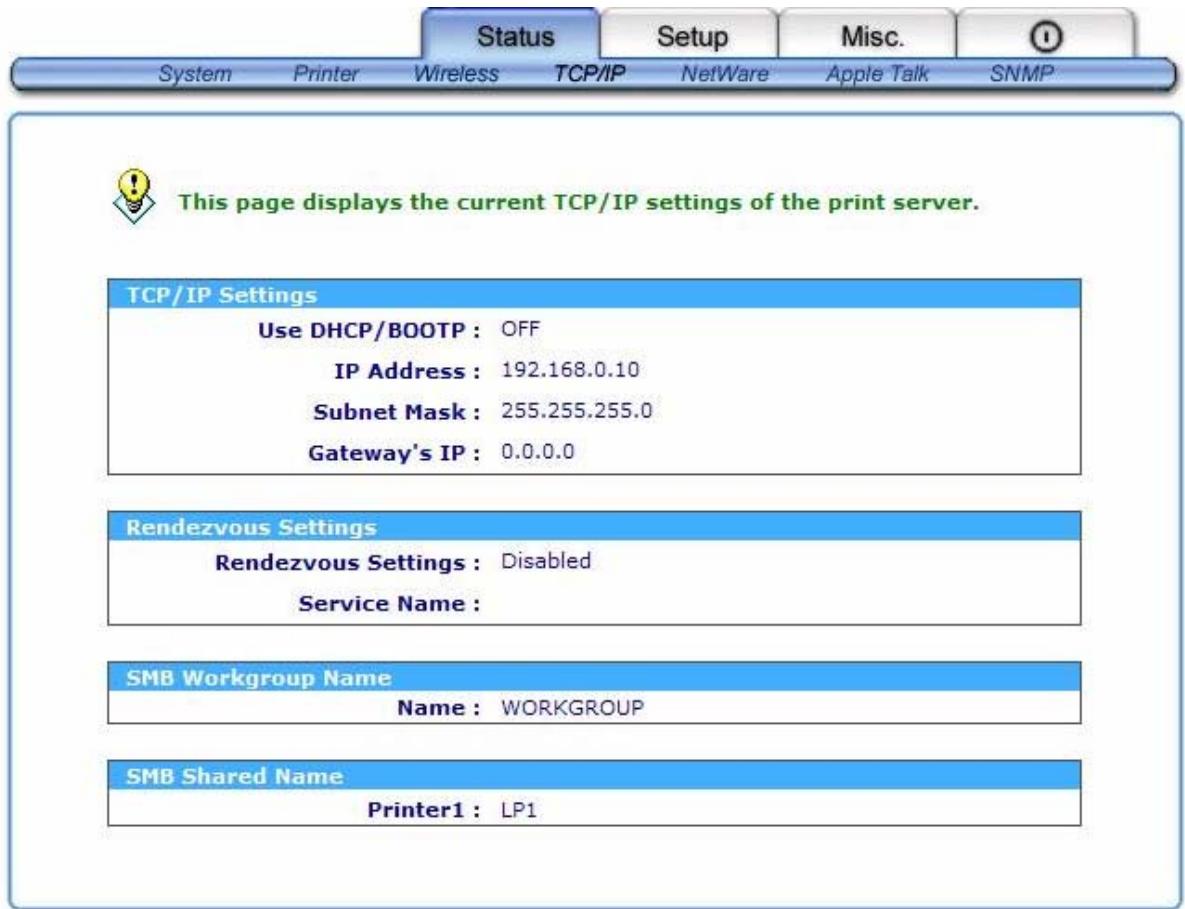
Use DHCP/BOOTP: This option allows you to view DHCP/BOOTP status. If there is a DHCP/BOOTP server on your network, this option allows the print server to obtain IP-related settings automatically from your DHCP server.
IP Address: This option allows you to view IP address from the print server. The IP address must meet the IP addressing requirements of the network segment.
Subnet Mask: This option allows you to view subnet mask from the print server.
Gateway's IP: This option allows you to view gateway from the print server.
Rendezvous Settings: This option allows you to view the Rendezvous status from the print server.
SMB Workgroup Name and Shared Name: This option allows you to view the SMB status.
Netware Status:
- Click Status, it then appears the sub-menu.
- Click Netware it then as shown in the following picture.
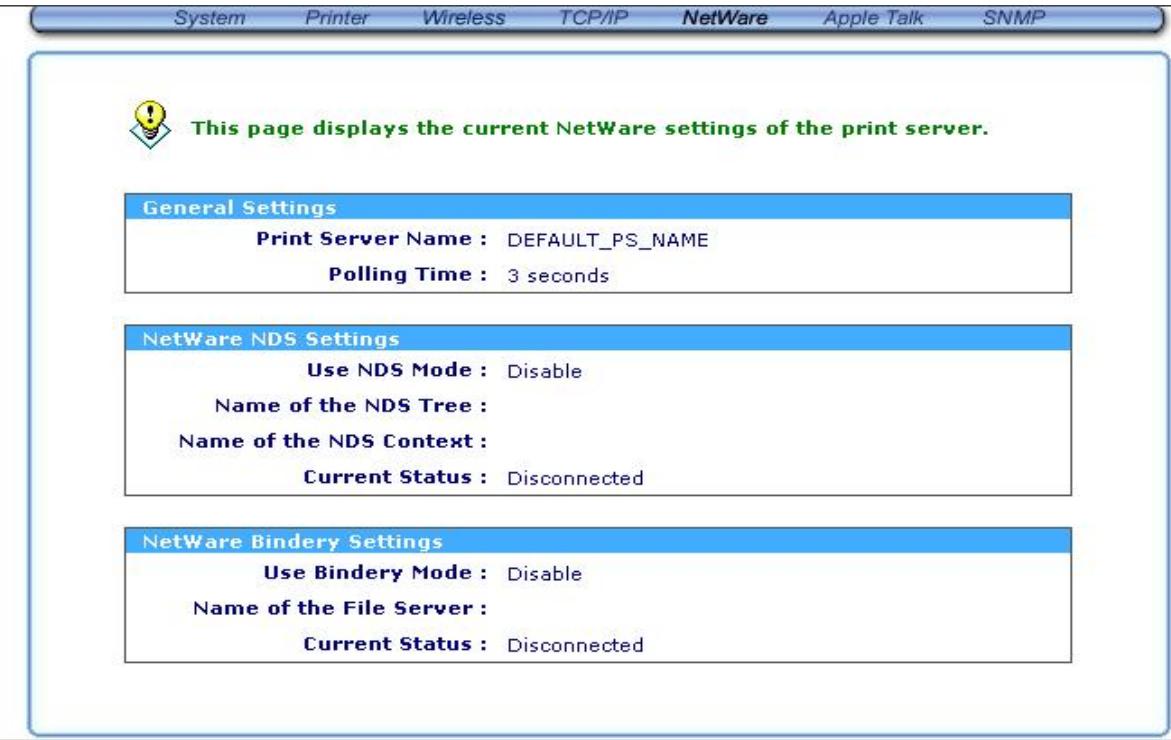
General Settings:
Print Server Name: This option allows you to view print server's name would be configured by PSAdmin utility.
Polling Time: This option allows you to view polling time from the print server. This function is search for NetWare Server by per time.
NetWare NDS Setting:
Use NDS Mode: Enable or Disable.
Name of the NDS Tree.
Name of the NDS Content.
Current Status: Connect or Disconnect.
NetWare Bindery Setting:
Use Bindery Mode: Enable or Disable.
Name of the File Server:
Current Status: Connect or Disconnect.
AppleTalk Status
- Click Status, it then appears the sub-menu.
2.Click AppleTalk, it then as shown in the following picture.
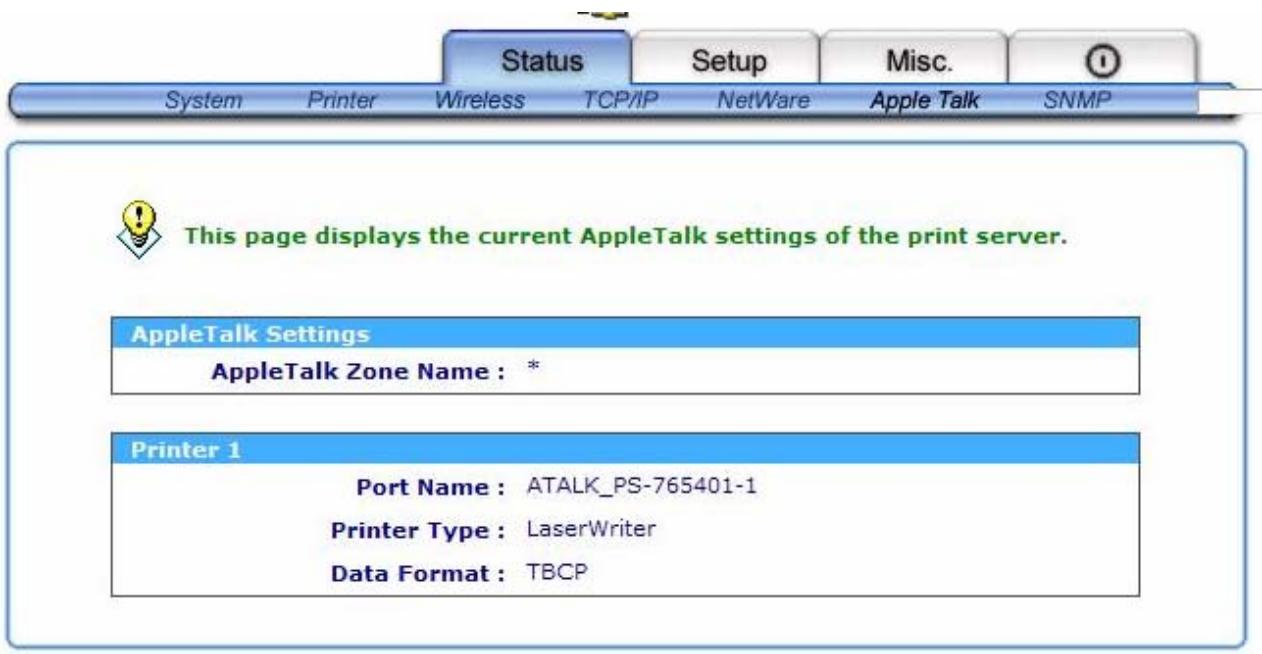
Zone Name: If no any zone exists, the print server itself displays the zone name as an asterisk (*) in the current AppleTalk Status of the print server in the web browser.
Port Name:
Printer Type: This option allows you to view printer type from the print server. If you are using a PostScript printer you can select the LaserWriter 8 icon from your Mac computer.
Data Format: This option allows you to view data format from the print server. If you are using a PostScript printer you can select ASCII, TBCP or BCP format from web configuration.
SNMP Status
1.Click Status, it then appears the sub-menu.
2.Click SNMP, it then as shown in the following picture.


This page displays the current SNMP settings of the print server.
SNMP Community Settings
SNMP Community 1: public, Read-Only
SNMP Community 2: public, Read-Only
SNMP Trap Settings
Send SNMP Traps: Disable
Use Authentication Traps: Disable
Send Traps to IP Address 1:0.0.0.0
Send Traps to IP Address 2:0.0.0
SNMP Communities: This option allows you to view SNMP communities from the print server. There are two communities that control message from the network management of the print server.
SNMP Traps: This option allows you to view SNMP traps from the print server.
Setup Menu
Meanwhile, you have finished the IP address configuration with print server. You should use web browser to configure the print server. The setup menu of the print server helps administrator to setup the print server's System, Printer, NetWare, TCP/IP, SNMP and AppleTalk.
Preparation
Enter the IP address of the print server as the URL. Then the print server's home page will appear in content of the web browser.
Please follow this information in the setup menu of the print server:
System Setup
1.Click Setup, it then appears the sub-menu.
2.Click System, it then as shown in the following picture.
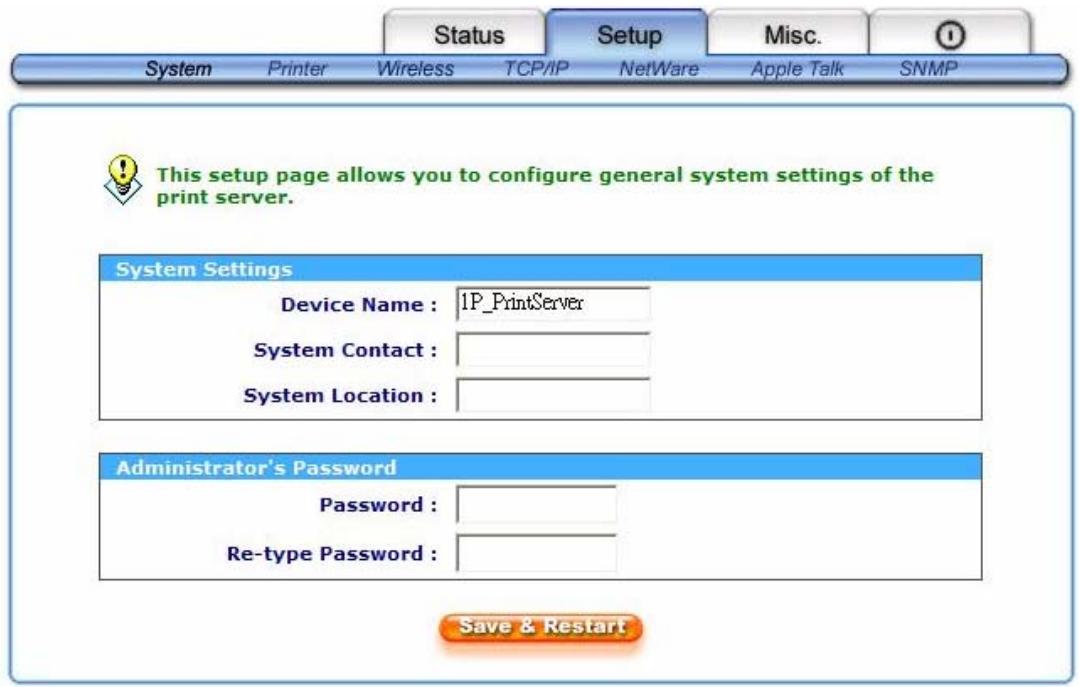
Device Name: This option allows you to input device name of the print server. To correct the print server's device name.
System Contact: This option allows you to input contact name of the print server. To check the print server's contact name who in charge of this device.
System Location: This option allows you to input Location name of the print server. To confirm the print server's location name where the print server is located in the office's LAN.
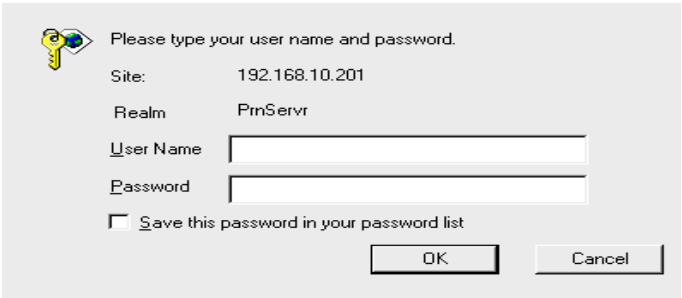
Password: This option allows you to input setup password of the print server. When you select setup menu of web configuration from the print server, it then as shown in the following picture.
Re-type Password.
-
User Name: You must be input the default administration user name, admin as login user name.
-
Password: The default password is empty or smcadmin. After setup password is completed from the print server, you shouldn't forget this password.
Printer Setup
- Click Setup, it then appears the sub-menu.
- Click Printer, it then as shown in the following picture.
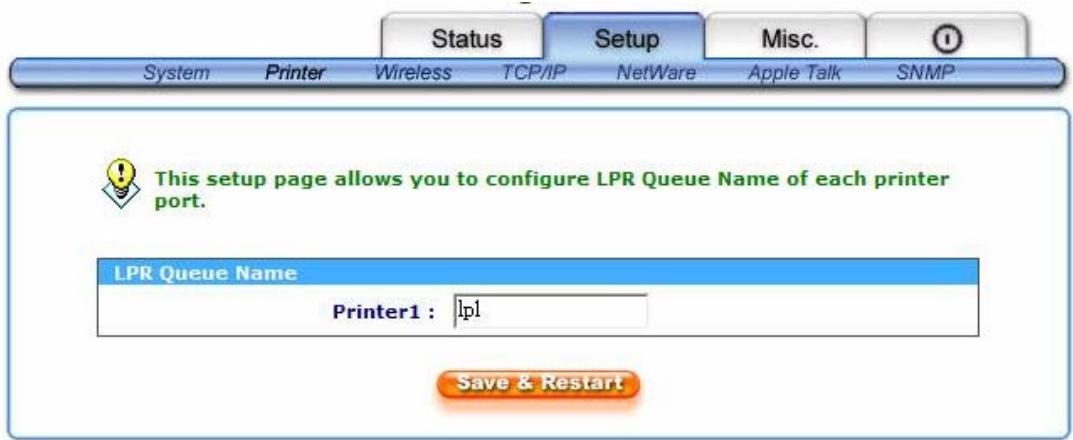
LPR Queue Name: This option allows you to define the queue name of the print server's port when you want to use the LPR printing.
Wireless Setup:
1.Click Setup, it then appears the sub-menu.
2. Click Wireless, it then as shown in the following picture.
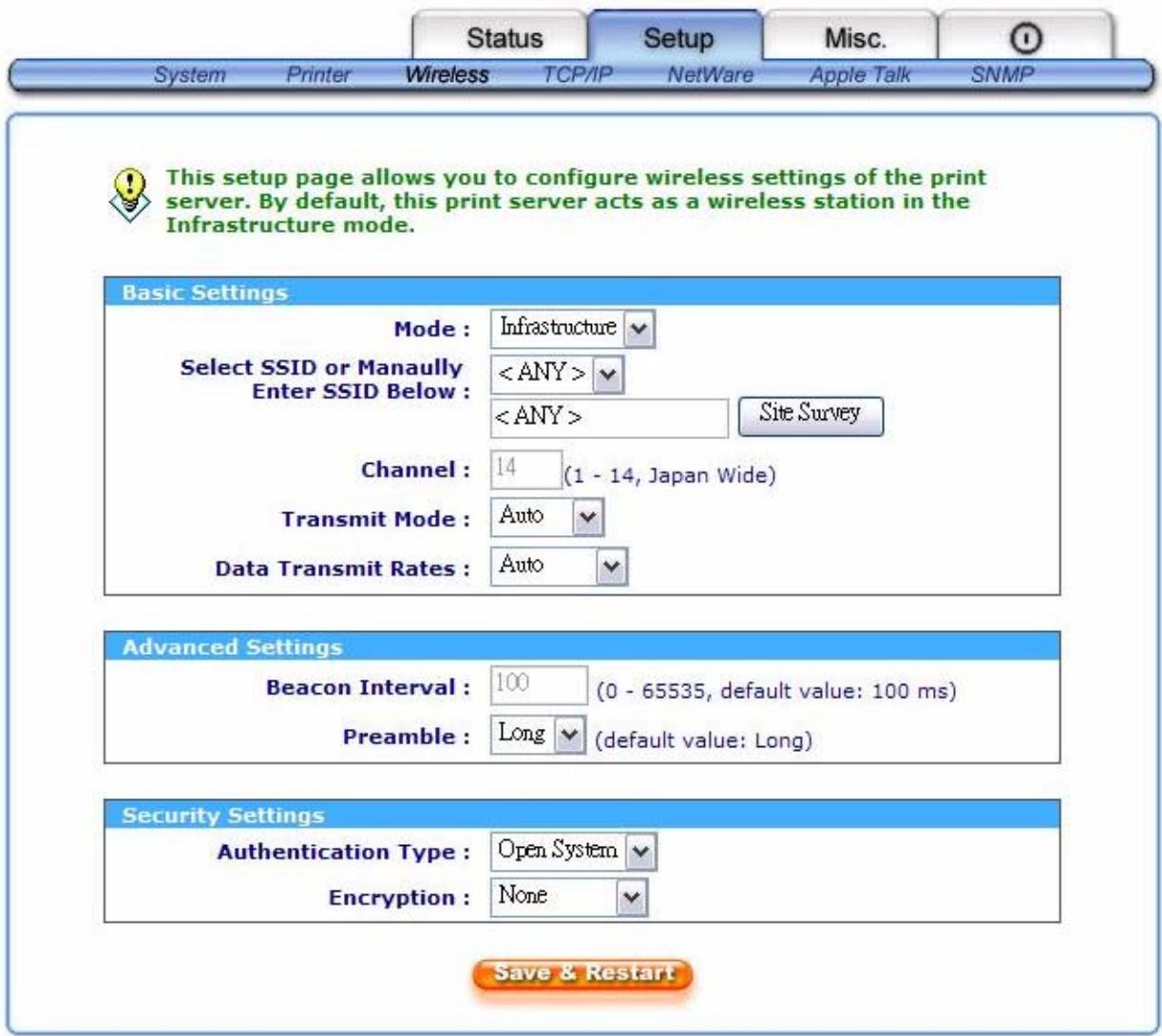
Basic Settings:
Mode: Infrastructure or Ad-Hoc mode.
Select SSD or Manually Enter SSD Below: You can use Site Survey to help you assign a SSD or input in manually.
Channel: Specify a Channel number that meet your wireless environment.
Transmit Mode: B only, G only or Auto.
Data Transmit Rates: Choose the transmit rate of your wireless print server.
Advanced Settings:
To avoid the unexpected problem, please use these default value.
Security Settings:
Authentication Type: Open System, Shared Key or WPA/WPA2.
Encryption: WEP-64/128bit for Open System/Shared Key. Or TKIP/CCMP for WPA/WPA2.
TCP/IP Setup:
- Click Setup, it then appears the sub-menu.
- Click TCP/IP, it then as shown in the following picture.
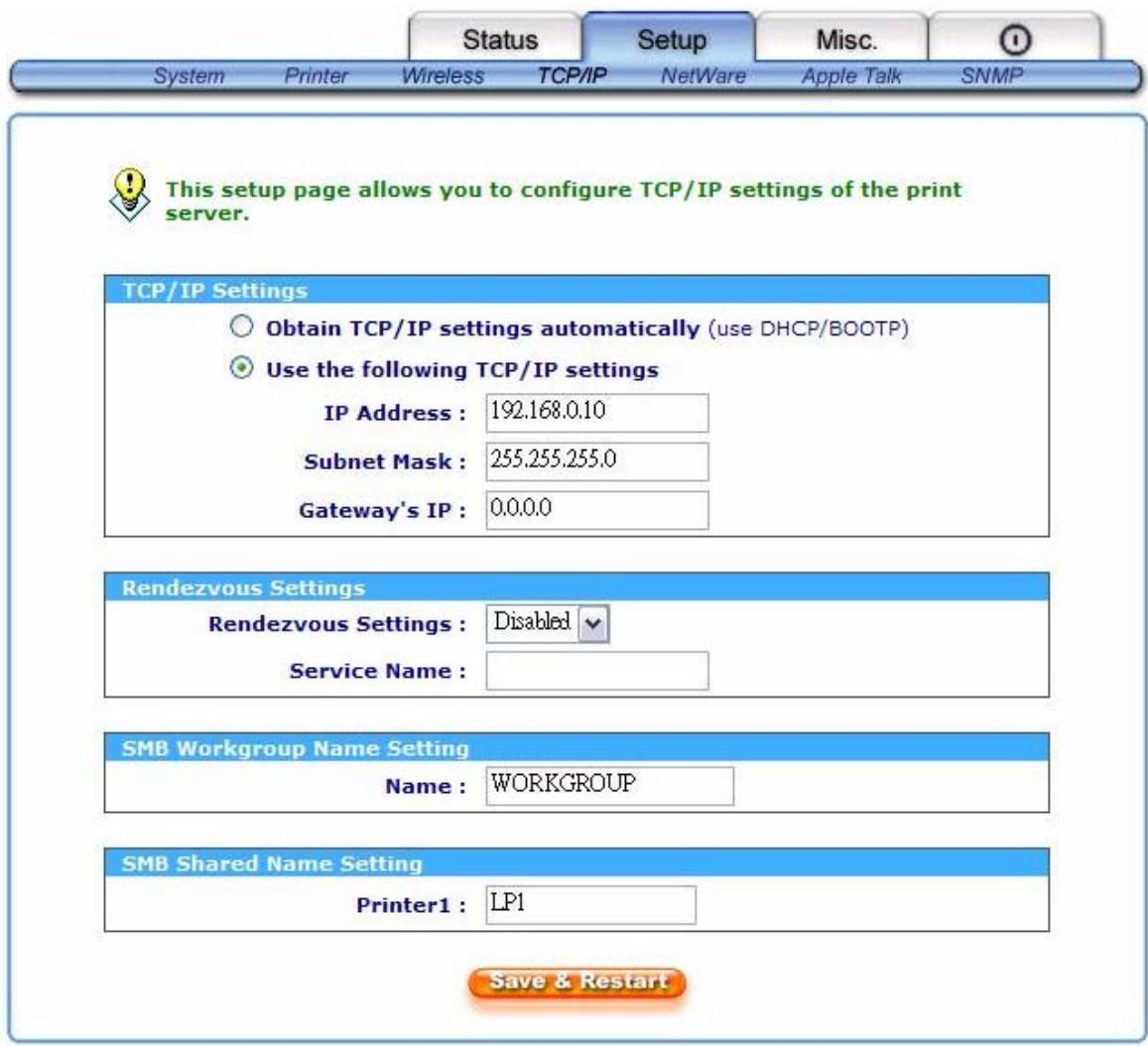
DHCP/BOOTP: This option allows you to select DHCP/ BOOTP option. If there is a DHCP/BOOTP server on your network. This option allows the print server to obtain IP-related settings automatically from your DHCP server.
IP Address: This option allows you to input IP address from the print server. The IP address must meet the IP addressing requirements of the network segment.
Note:
On the TCP/IP Setup screen, specify a fixed IP address is highly recommended.
Subnet Mask: This option allows you to input subnet mask from the print server. The IP address must meet the IP addressing requirements of the network segment.
Gateway: This option allows you to input gateway from the print server. This IP address of gateway must meet the router or gateway to go across of the network segment.
Rendezvous Settings: Enable/Disable the Rendezvous support for Mac OS 10.
SMB Worgroup/Shared Name Setting: This option allows you to change the SMB name of print server to support the SMB printing on Windows 2000 and above.
NetWare Setup
- Log into your NetWare file server as a Supervisor (Admin.) or equivalent.
- Select NetWare and type in the Print server that created during PCONSOLE Select the NetWare File Server to which the print server device will be attached.
3.Click Setup, it then appears the sub-menu. - Click NetWare, it then as shown in the following picture.

This setup page allows you to configure the NetWare function of the print server.


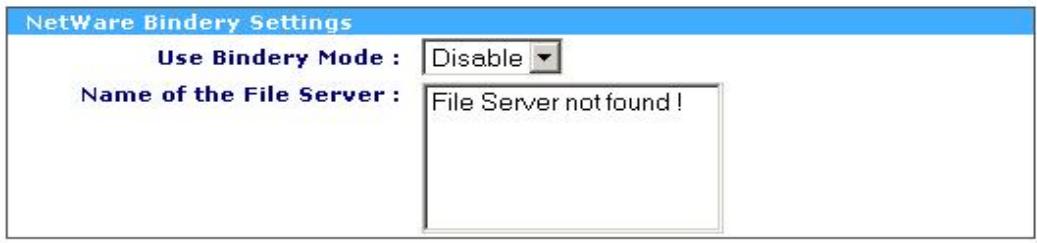

Print Server Name: This option allows you to input print server name which configured by PSAdmin utility or PCOMSOLE program.
Polling Time: The time interval in which the print server unit polls the file server for servicing of print queues.
Logon Password: This option allows you to input encrypted password from the print server. The print server login to NetWare server that administrator set password from selected print server.
NDS Mode: To Enable NDS Mode, if you want to setup NDS environment. To select Tree Name of NetWare then input context name in the Context box.
Bindery Mode: To Enable Bindery Mode, if you want to setup Bindery environment. To select File Server Name of NetWare.
Installing Print Server on NetWare 4.x/5.x
Due to its architecture and functionality, the print server must work under NetWare 4.x/5.x NDS Bindery Emulation. When you install the NetWare file server for the first time, by default, the installation program will automatically set up the Bindery Emulation function for you by adding "SET BINDERY CONTEXT =" in the AUTOEXEC.NCF file. By default, the bindery context will only be set on your organization (O) object.
If you have ever modified this line, or if you have ever added any organization units (OU) to your NDS tree after the NetWare system was installed, please read the following section before you install the print server.
For the purpose of illustration, we assume the NDS tress structure is as follows:
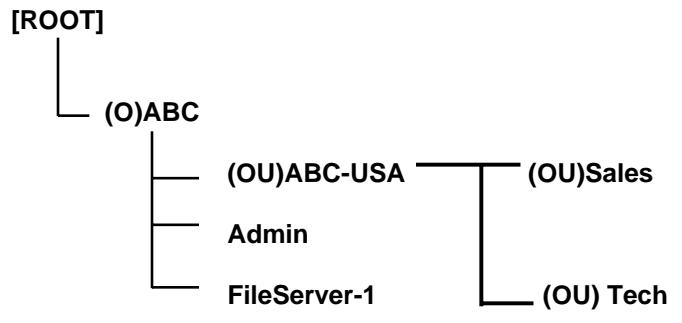
Installation Procedure
- At your file server console, type "load install".
- Select "NCF files options".
- Select "Edit AUTOEXEC.NCF file".
- Add or Modify the "SET BINDERY CONTEXT =" line to include the NDS organization (O) and all organization unit (OU) objects where users are located. For example: SET BINDERY CONTEXT = O=ABC; OU=SALES.OU=ABC-USA.O=ABC; OU=TECH.OU=ABC-USA.O=ABC;
- When done, save the new AUTOEXEC.NCF file. Please restart your NetWare file server in order for new settings to take effect immediately.
- Next, please refer to "Auto Setup" section in this chapter to finish installing your print server.
- Log into your NetWare file server as a Supervisor (Admin.) or equivalent via a Bindery connection.
- Run NetWare's PCONSOLE and add users to the "Queue Users" list.
- From your NetWare client computer, such as Windows 95/98/Me, create a printer that is connected (redirected) to the NetWare print queue serviced by the print server.
Note: Please refer to NetWare's Print Server/Services manuals for detailed PCONSOLE commands.
SNMP Setup
TCP/IP networks use a standard management protocol called Simple Network Management Protocol (SNMP). SNMP is widely used in the industry as a solution for remote network management and monitoring of networking devices. SNMP actually includes a protocol, a database structure specification, and a set of database objects. The database objects are contained in a standard database called Management Information Base (MIB) that is stored on the networking device called SNMP agent. The print server's SNMP implementation runs in a TCP/IP environment.
A host on the network running Network Management System (NMS) software can access the print server device by reading and writing the MIB objects stored in the device. The Network Management Systems are available from many third-party vendors, such as Hewlett-Packard's OpenView.
When accessing (traversing) MIB objects in the print server using NMS software called SNMP manager, you need to provide a community name in each SNMP request for authentication purpose. The print server supports up to two community names. The default community name is public (case-sensitive), with Read Only access right in default.
When an unusual condition or activity occurs, the SNMP agent alerts the SNMP manager through SNMP traps. Following list summaries SNMP trap messages that the print server will send out.
| Activities/SNMP Trap Messages | Description |
| Link Up or Link Down | When the network interface on the print server fails, a link down trap message is generated; if the network interface comes back to life, a link up trap message is sent. |
| Cold Start or Warm Start | When the print server restarts, the cold start or warm start trap message is generated. |
| Authentication Failure | When the print server received a SNMP request with a community name that does not match the community name the print server is configured with (stored in the print server's memory), an authentication failure trap message is generated. |
In the print server's SNMP implementation, the following MIB objects are available for updating.
| MIB Object Names | Description |
| system.sysContact | Indicates the network administrator's name. |
| system.sysName | Indicates the print server's name for identification. |
| system.sysLocation | Indicates the location of the print server. |
| snmp SNMPEnableAuthenTraps | Enables or disables the function of sending SNMP Authentication Failure trap message to the network administrator, if the community name within a SNMP request is not correct. |
Users can set up print server's SNMP functions by using their browsers.
1.Click Setup, it then appears the sub-menu.
2.Click SNMP, it then as shown in the following picture.

This setup page allows you to configure SNMP settings of the print server.
SNMP Community Settings
Support HP WebJetAdmin :
SNMP Community Name 1 :

Privilege :
SNMP Community Name 2 :

Privilege :
SNMP Trap Settings
Send SNMP Traps :
Use Authentication Traps :

Send Traps to IP Address 1:

Send Traps to IP Address 2 :

Save & Restart
SNMP Community: The print server supports up to two community names. The default community name is public (case-sensitive), with Read Only access right in default.
Support HP WebJetAdmin: This option allows user determine to disable/enable the Support HP WebJetAdmin.
SNMP Traps: Enable the function of sending SNMP Authentication Failure trap message to the network administrator, if the community name within a SNMP request is not correct.
AppleTalk Setup
The print server can print jobs submitted from Macintosh workstations connected to an Ethernet using AppleTalk protocol. The basic configuration is for the print server in an AppleTalk environment is performed simply by opening the Chooser window and selecting a printer that is connected to the print server.
1.Click Setup, it appears the sub-menu.
2.Click AppleTalk, it as shown in the following picture.
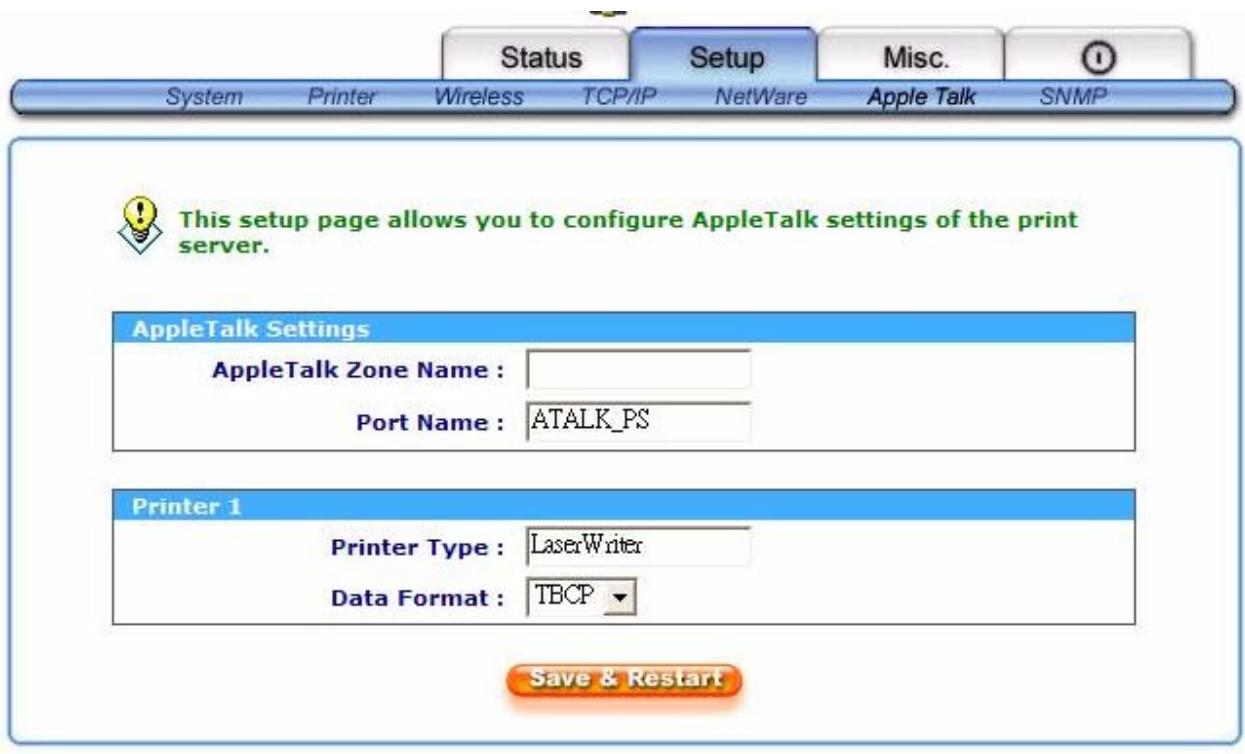
- Zone Name: In this option, type an AppleTalk Zone name that you want the print server to belong to or leave it in default (This enables the print server automatically search and link itself to the default zone that is set on the AppleTalk router, if found). We also assume that at least an AppleTalk Zone exists on the network. If no any zone exists, the print server itself displays the zone name as an asterisk (*) in the current AppleTalk Status of the print server in the web browser.
4.Port Name: In this option, type a name for identification purpose or just leave it in default (recommended).
Note: The default print server's Chooser name is as shown as follows:
- Printer Type: In this option, the LaserWriter of printer type by default (recommended).
6.Data Format: In this option, data format includes ASCII, TBCP and BCP.
Setting Up a Macintosh Computer
- At a Macintosh computer, from the Apple menu, select Chooser.
- The Chooser window then displays an Apple Zone list. Select the Zone name that you specified when configuring the PRINT SERVER.
Note: If you select a Zone that the PRINT SERVER doesn't belong to, as you specified in the previous section, no print server will be displayed in the Step 4.
- If you are using a PostScript printer you can select the LaserWriter 8 icon.
- The Chooser window then displays PRINT SERVER (s) featuring the support for AppleTalk protocol, along with its default Chooser Name in the right-hand Select A PostScript Printer dialog box.
Note: 1. You may change the default Chooser name and Zone name of a PRINT SERVER by using your web browser before proceeding with this installation. Please see the previous section in this chapter for details.
-
If you use Mac OS 8.x or 9.x, please make sure your printer support PostScript.
-
Click Setup... button and choose the PPD file matching your printer, and click OK. If your printer does not appear in the PPD file list, please contact your printer vendor. You may also use the Generic PPD if you do not need any printer specific features.
- Close the Chooser Windows.
- Done.
6. Network Print Monitor
Preparation
The print server supports TCP/IP, IPX/SPX and NetBEUI protocols under Windows 95/98/Me. Please make sure that the following steps have been completed before proceeding with installation under Windows PC.
Select A Desired Protocol
TCP/IP
The TCP/IP Protocol must be installed. For further information, please read "TCP/IP Protocol Installation" section in this chapter.
Note: If TCP/IP protocol is chosen, please refer to "Assigning an IP Address to the print server" section later in this chapter.
IPX/SPX
The IPX/SPX-compatible Protocol must be installed. For further information, please read "IPX/SPX-compatible Protocol Installation" section in this chapter.
NetBEUI
The NetBEUI protocol must be installed. For further information, please read "NetBEUI Protocol Installation" section in this chapter.
TCP/IP Protocol Installation
- Click Start, point to Settings and select Control Panel.
- Double click the Network icon.
- If the TCP/IP Protocol is not already installed, click Add.
- Select Protocol and click Add.
- Select Microsoft from the Manufacturers list.
- Select TCP/IP Protocol from the Network Protocols list.
- Specify an IP address, Subnet Mask, and Gateway address or specific "Obtain IP address automatically", if a DHCP server is available on the LAN.
- Restart the computer.
- Done.
Note: Using TCP/IP protocol to access the print server requires well-configured TCP/IP settings. If you are not familiar with these settings, please consult your network administrator for details or ask for help.
IPX/SPX-compatible Protocol Installation
- Click Start, point to Settings, and select Control Panel.
- Double click the Network icon.
- If the IPX/SPX-compatible Protocol is not already installed, click Add.
- Select Protocol and click Add.
- Select Microsoft from the Manufacturers list.
- Select IPX/SPX-compatible Protocol from the Network Protocols list and follow the instructions on the screen.
- Restart the computer.
- Done.
NetBEUI Protocol Installation
- Click Start, point to Settings, and select Control Panel.
- Double click the Network icon.
- If the NetBEUI is not already installed, click Add.
- Select Protocol and click Add.
- Select Microsoft from the Manufacturers list.
- Select NetBEUI from the Network Protocols box and follow the instructions on the screen.
- Restart your computer for new settings to take effect.
- Done.
Note: For more detailed information, please refer to your Microsoft Windows 9X/ME/NT/2000/XP/2003 manuals.
Windows 95/98/Me/NT/2000/XP/2003 manual Installation Procedure
Please perform the steps as follows to ensure a smooth installation:
- Run Setup from the print server's NetWare, Win 95/98/Me/NT/2000/XP/2003 Setup diskette
- The Network Print Monitor for Windows 95/98/Me Setup will then appear. Click Next.
- A message reading, "Setup is complete. You may add the Network Print Port by using the PSAdmin" will appear. Click OK.
- Click Start, point to Settings, and select Printers.
- Double-click the Add Printer icon.
- Select Local Printer and click Next.
- Select the appropriate printer manufacturer and printer type and click Next.
- Select LPT1 and click Next.
-
Type in the Printer Name and click Next.
-
A message reading, "After your printer is installed, Windows can print a test page so you can confirm that the printer is set up properly." Select No and click Finish.
- Double-click the newly created Printer Name icon.
- Select Printer and Properties.
- Click Details tab and select Add Port.
- In the Add Port dialog box, select Other, as shown in the following picture.
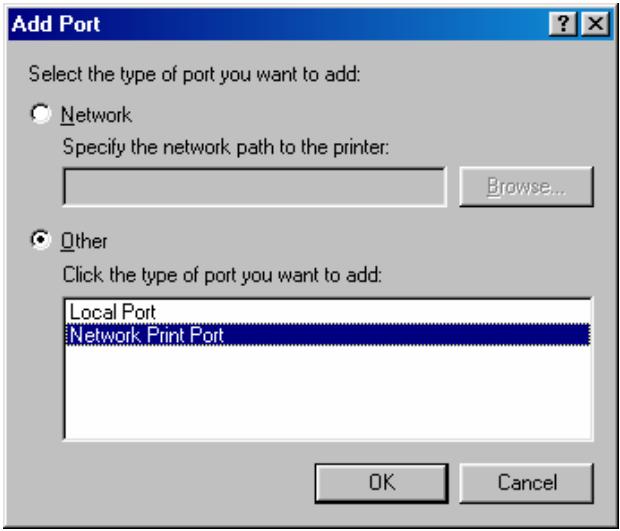
- Select the Network Print Port and click OK.
- The Add Port box will then appear, along with the print server's Node ID (The last 6 digits of the Node ID, located on the back of the print server unit). Select one printer server port from the list, which is now connected to (one of) your printer(s), as shown in the following picture.
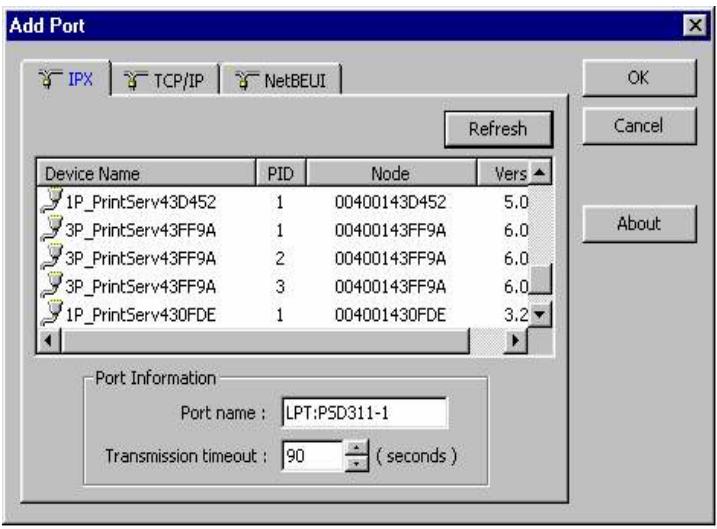
- By default, the computer will first search for the print server(s) on the network by using the IPX/SPX protocol.
If the IPX/SPX protocol is installed, the print server will be displayed along with its Node ID, as shown in Node column. (The last 6 digits of the Node ID, located on the back of the print server unit). Select one of the print server's ports from the list.
If the IPX/SPX protocol is not installed, no print server will be shown in the display box. Then please select TCP/IP or NetBEUI alternatively.
It starts again to search for the print server on the network by using the protocol you specify in the step above. When finished, the print server will be displayed along with the its Node ID, as shown in the following picture. (The last 6 digits of the Node ID, located on the back of the print server unit). Select one of the print server's ports from the list.
Uninstalling Network Print Port on Windows 95/98/Me/NT/2000/XP/2003
To provide users an easiest way to remove all of the Network Print Port components from Windows 95/98/Me, the Network Print Port software comes with un-installation wizard program to help users remove the software components from their Windows 95/98/Me/NT/2000/XP/2003 systems in minutes. Please follow the directions listed below to proceed with the un-installation procedure.
After the Network Print Port is removed, the print server is no longer accessible via the Network Print Port. You have to re-install the Network Print Port on your system in order to access the print server again.
Procedure:
- Click Start, point to Settings, and select Control Panel.
- Double click the Add/Remove Programs icon.
- Click Add/Remove tab.
- Select Network Print Monitor for Windows 95/98/Me and click Add/Remove button.
- The un-installation wizard program will be launched.
- Follow the directions on the screen to complete the un-installation procedure.
Note: We recommend you restart your computer after un-installation is finished.
7. TCP/IP LPR Port Printing Installation
Basic TCP/IP Installation Overview
When installing your print server in a TCP/IP environment, IP addresses are essential as a basic means of communications. It is therefore necessary to first assign an IP address to your print server unit. After assigning an IP address, the print server can be configured accordingly.
Assigning an IP Address
The first step to install a print server on a TCP/IP network is to assign the print server an IP address and other related TCP/IP settings before the print server can function. You can select the following two methods to specify an IP address the print server. Each method will be detailed in the following section.
- Use the Network Print Monitor utility.
- Manually specify (using DOS commands or UNIX text-mode commands. This applies to Windows NT/2000/XP/2003 and UNIX systems).
Note: The Network Print Monitor can only search for the print server(s) over the same network segment the Windows NT/2000/XP/2003/UNIX computer is located. You would like to install a print server on a different network segment.
DHCP
The print server supports DHCP feature, allowing the print server to obtain an IP address and related TCP/IP settings automatically from a DHCP server. While the print server supports DHCP, we strongly recommend you manually specify a fixed IP address to the print server. By default, the print server's DHCP function is enabled.
Windows NT LPR Port Printing Installation
- Click Start, point to Settings, and select Printer.
- Run Add Printer.
- The Add Printer Wizard screen will appear, Select My Computer and click Next
- Click Add Port.
- From the Printer Ports box as shown in the following picture, select the LPR Port.
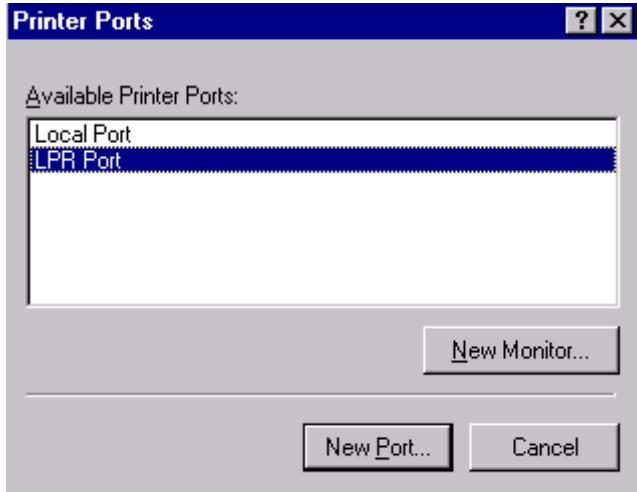
- The Add LPR compatible printers box will then appear as shown in the following picture. Type in the IP address assigned to the print server in the Name or address of server providing lpd box.
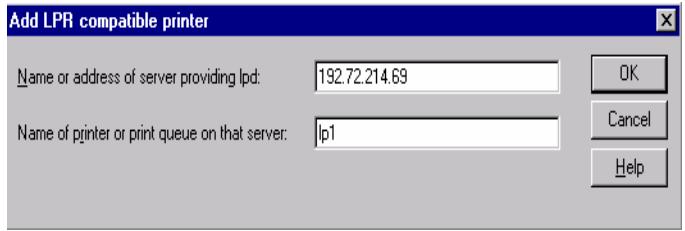
- In the Name of printer or print queue on that server box, type in a printer name, for example, lp1. Click OK.
- In the Printer Ports box, select Close.
- Click Next.
- Select the appropriate printer manufacturer and printer type list and click Next.
- Select Shared. Type in a new Share Name or leave it in default and click Next.
- A message reading, "After your printer is installed, Windows can print a test page so you can confirm that the printer is set up properly.", Select Yes (Recommended) and click Finish.
- Done.
Windows 2000/XP/2003 Standard TCP/IP Port Printing Installation
- Click Start, point to Settings, and select Printer.
- Run Add Printer, Click Next.
- The Add Printer Wizard screen will appear, Select Local Printer and click Next.
- From the type of Create a new port box as shown in the following picture, select the Standard TCP/IP Port, Click Next and Next.
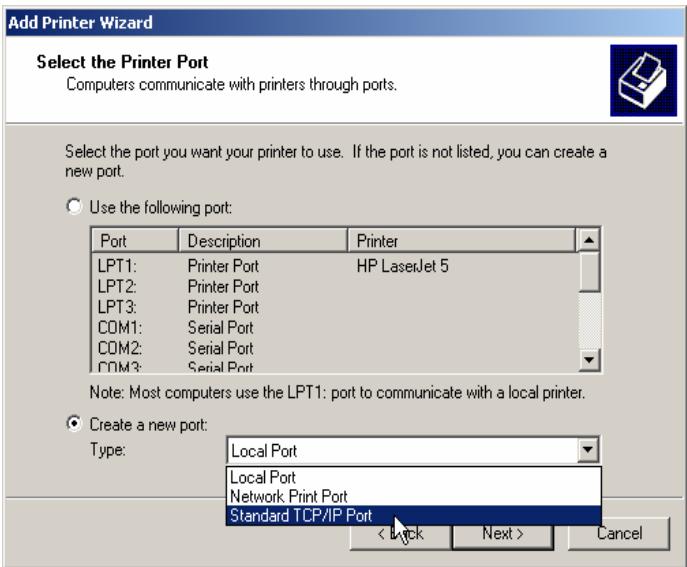
- The Add Standard TCP/IP Printer Port Wizard box will then appear as shown the picture as below, and type in the IP address assigned to the print server in the Printer Name or IP Address box, Click Next.
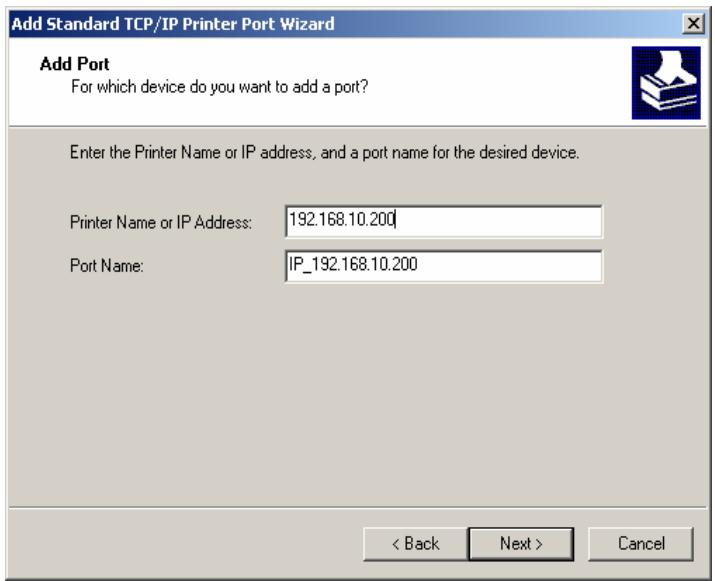
- In the Add Standard TCP/IP Printer Port Wizard box as shown in the following picture, Select Custom, Click Settings button, and click Next.
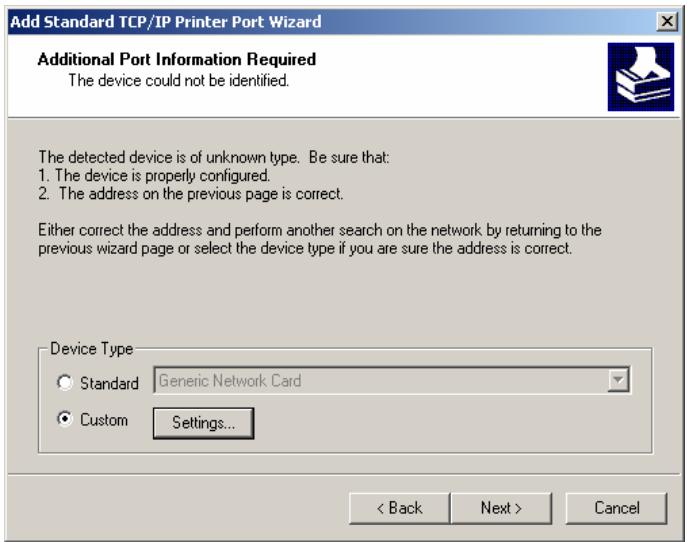
- In the Configure Standard TCP/IP Port Monitor box as shown in the following picture, select LPR form Protocol, type in a queue name, for example, lp1.
- Click OK, and Next.
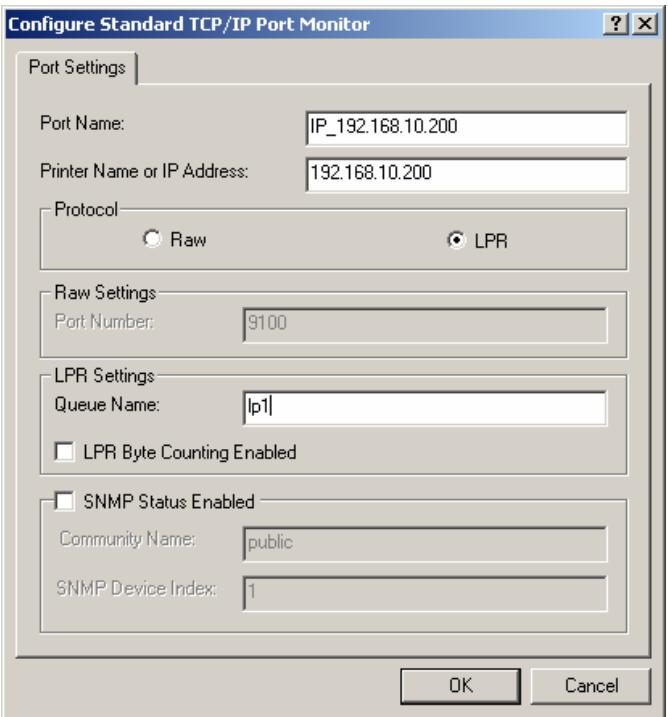
Note: Please DO NOT type any other name than Ip1 in this step.
- Click Finish.
- Select the appropriate printer manufacturer and printer type list and click Next.
-
Type in a new Printer name or leave it in default, and click Next button.
-
A message reading, "To confirm that the printer is installed properly, you can print a test page". Select Yes (Recommended) and click Finish.
- Done.
UNIX Installation
After the static IP address is assigned, the Print Server is ready to be configured. For some UNIX/Linux systems, we include the detailed installation procedures below. If you can't find the installation procedure corresponding to your UNIX system, please refer to your UNIX manuals for details about configuring your UNIX for the "remote printing system".
SCO UNIX 8.0.0 (Caldera Open Unix 8.0.0)
- Select "SCO Admin".
- Select "Printer Setup Manager".
- Enter /Printer / Add TCP / IP Printer...
- Name: Input a name you like. For example: Test.
Protocol Type: Choose "Ipd (BSD)".
Make/Model: Select the printer model. For example: EPSON LQ570.
Printer Connection Type: Choose "On Remote Server".
Remote System: Input the IP address of the printer server. For example: 192.168.1.250.
Remote Printer: Ip1 or Ip2 or Ip3. (fixed)
If the printer connected to the first print server port, please choose Ip1.
If the printer connected to the second print server port, please choose Ip2.
If the printer connected to the third print server port, please choose Ip3.
- Click "OK".
- Enter /Printer / Make Default.
System V Release 4 Unix
- For example: the print server has a static IP address: 192.168.1.100
- Input "Ipsystem -tbsd 192.168.1.100".
- Input "Ipadmin -pa1 -s 192.168.1.100!Ipl1". Ipl1 for the first print server port.
- Input "accept a1".
- Input "enable a1".
Redhat Linux 9
The Print Server can work under any Linux-based systems, including Slackware, RedHat, etc, without any problems.
Basically, the Linux's printing system is based on BSD system. Although many commercial Linux systems are available in the market and their commands will vary slightly, depending upon which version is used, the functionality of the Linux-based variants is exactly the same. Following are the outlined procedures (recommended for all users) on Red Hat Linux 7.2/7.3 or later with X-Window system installed.
a. Make sure that the TCP/IP is well configured on your RedHat system, including network interface card's driver and IP-related settings say, IP address, subnet mask, and gateway IP).
b. Log in root.
c. Assign Print Server an IP address. At shell mode:
c.1. arp -s
c.2. Execute tftp < Print Server's IP> get config.txt and quit tftp.
c.3. Edit the config.txt and modify the IP address, subnet mask, and gateway IP. When done, save the config.txt.
c.4. Execute tftp
d. Start X-windows by typing startx at the shell mode.
e. Open Printer Configuration.
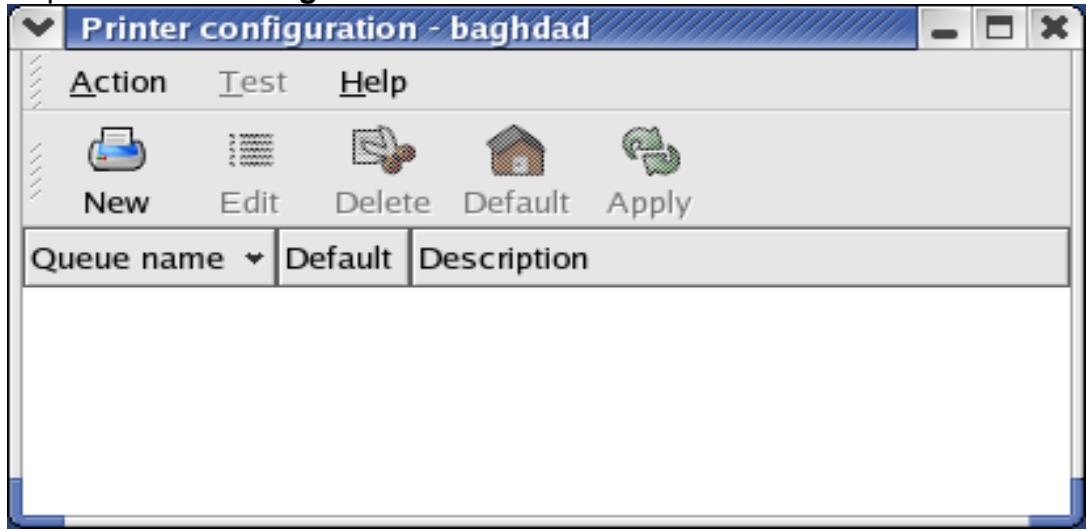
f. Click New button.
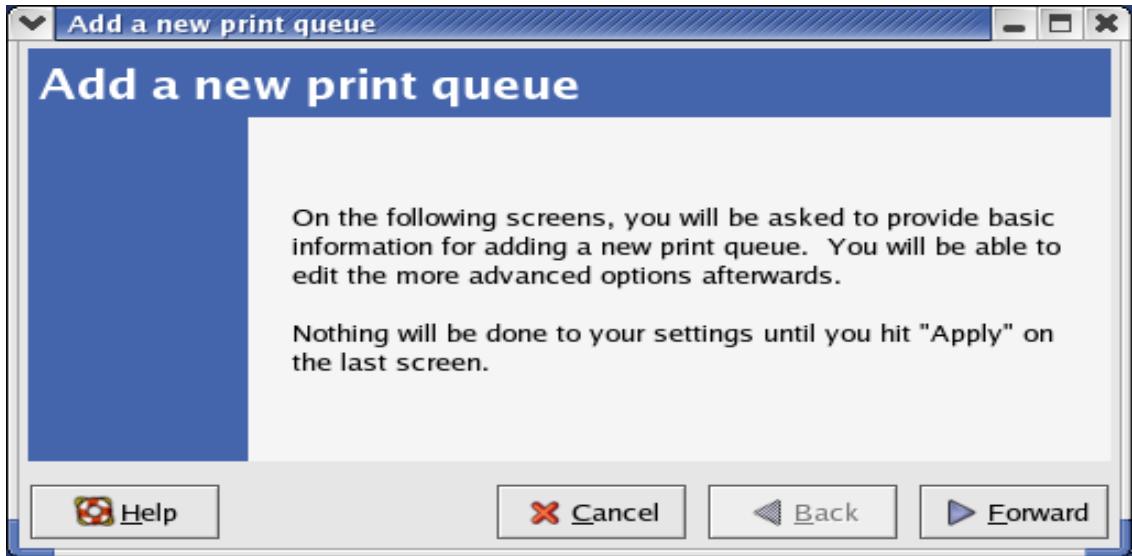
g. Click Forward button.
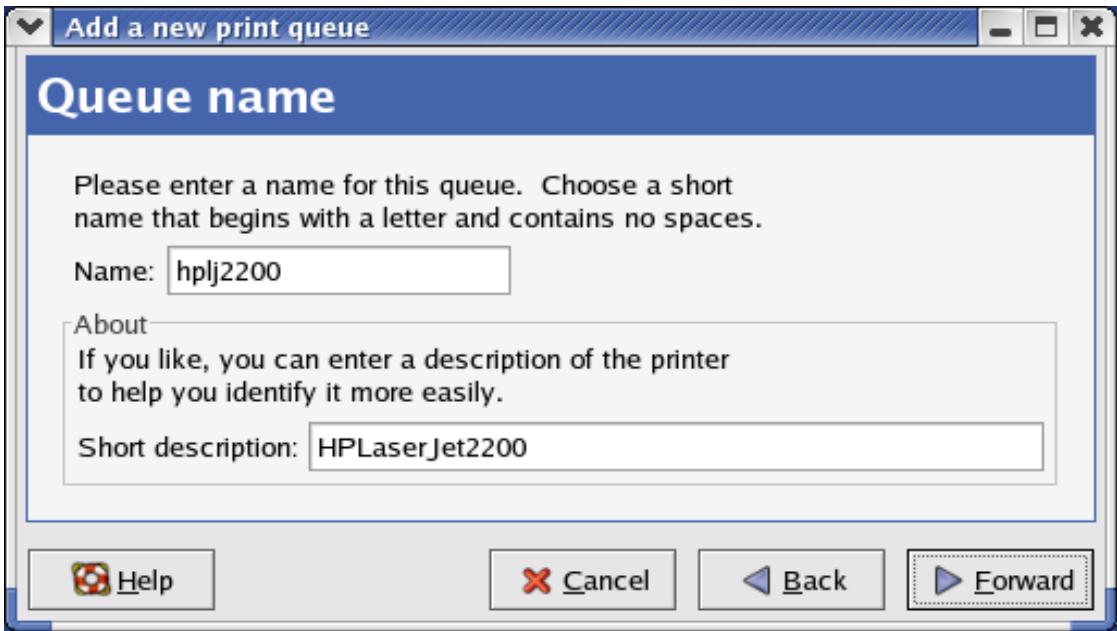
h. In the Name field, type a user-defined name, click Forward.
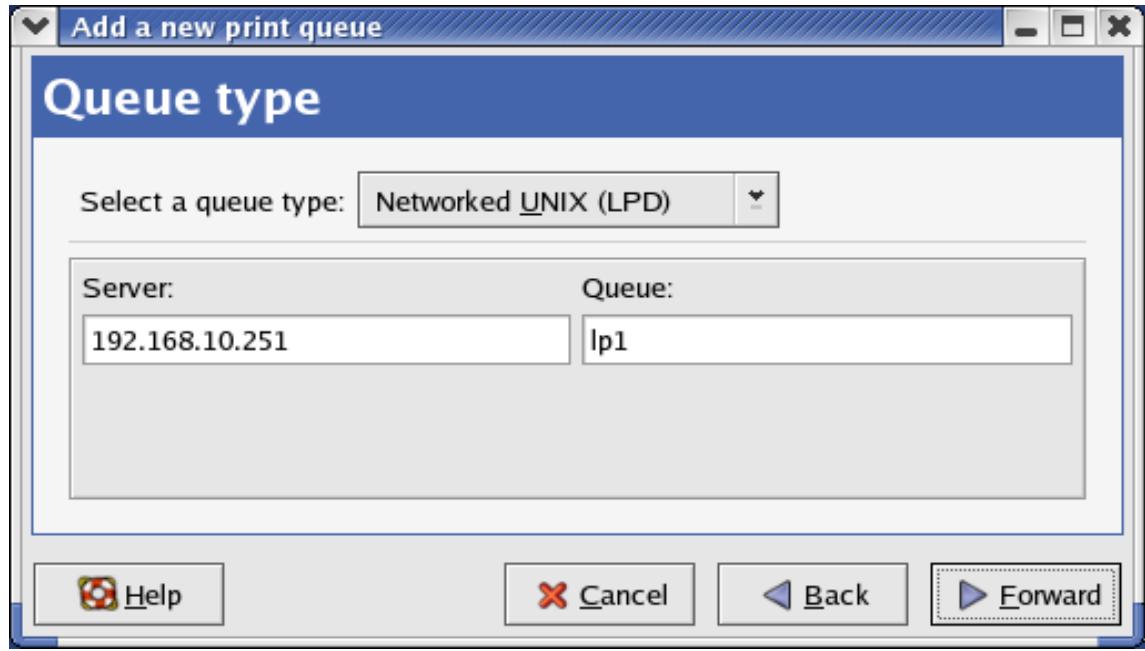
i. In the Queue Type field, choose Networked UNIX.
j. In the Server field, type the IP address of print server
k. In the Queue field, type a print server's port name, which connect to the printer. For example: lp1.
I. Click Forward button.
m. In the Printer field, choose Postscript Printer.
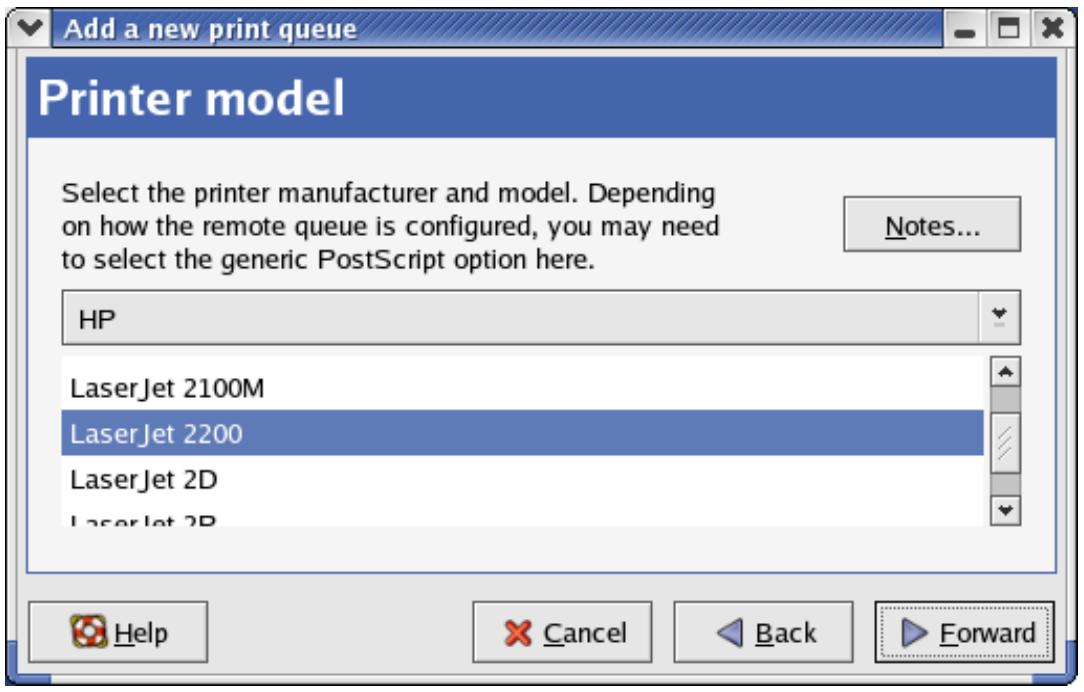
n. Choose the model of printer and click Forward.
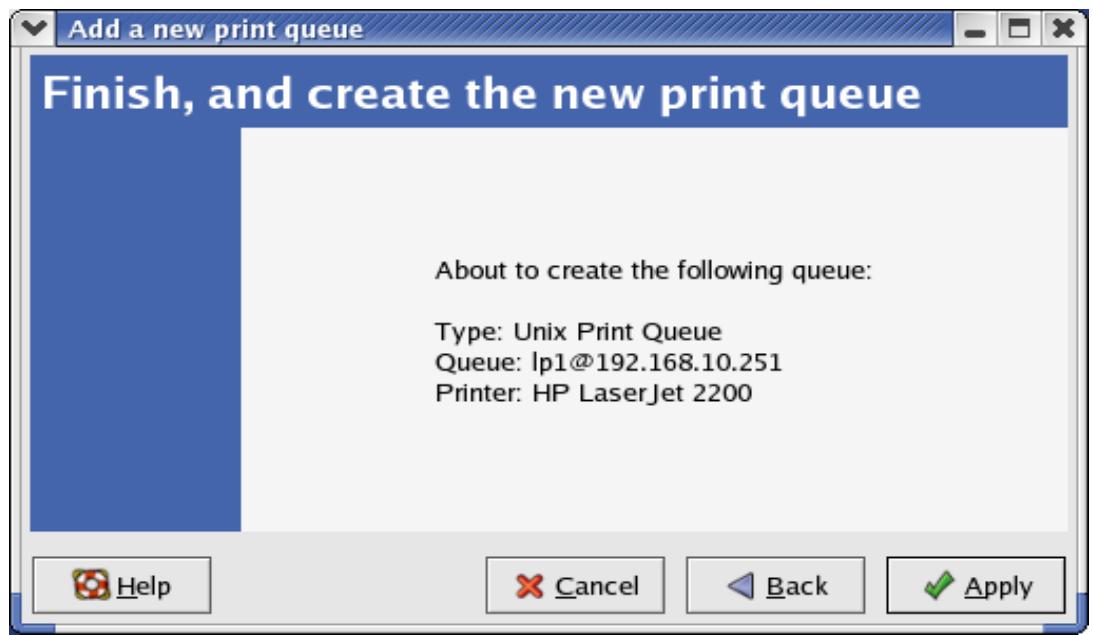
o. Done.
8.Upgrading Print Server
Overview
Upgrading print server will allow you to upgrade its firmware inside the print server while the newer software version of the print server is available from your local dealer. Depending on the different systems users might use, this chapter is divided into several Sections; please refer to the following lists for your systems.
- Upgrading the print server from PSAdmin
- Upgrading the print server from Windows NT/2000/XP/2003
- Upgrading the print server from UNIX system
- Upgrading the print server from WEB browser
Note: 1.Before you proceed to upgrade the print server, please ensure that the necessary binary file is located on your current working directory.
- Before upgrading the print server, ensure that it is not printing jobs. You have to wait until the print job is finished before you can proceed.
3.Be careful not to interrupt the file transfer. If the transfer is interrupted, the print server may have to be re-initialized by your dealer.
Upgrading the print server from PSAdmin
- Log into your NetWare file server as a Supervisor (Admin.) or equivalent.
- Ensure binary file is located in the PSAdmin directory.
- Run PSAdmin from your Windows PC.
- Click the Upgrade icon on tool bar.
Upgrading the print server from Windows NT/2000/XP/2003 (Through TCP/IP)
- Ensure binary file is located in your current working directory.
-
At NT/2000/XP/2003's DOS prompt, and type "ftp -i
put mpsXX.bin ". -
Wait for the transfer successful message.
- Done.
Upgrading the print server from UNIX (Through TCP/IP)
- Log in as root
- Ensure binary file is located in your current working directory.
- Type "tftp
". - At tftp prompt, type "get upgrade".
- Change to binary mode.
- At tftp prompt, type "put mpsXX.bin".
- Wait for the file transfer to complete.
- Quit from tftp.
- Done.
Upgrading the print server from Browser
- Ensure binary file is located in your current working directory.
- Enter the IP address of the print server as the URL.
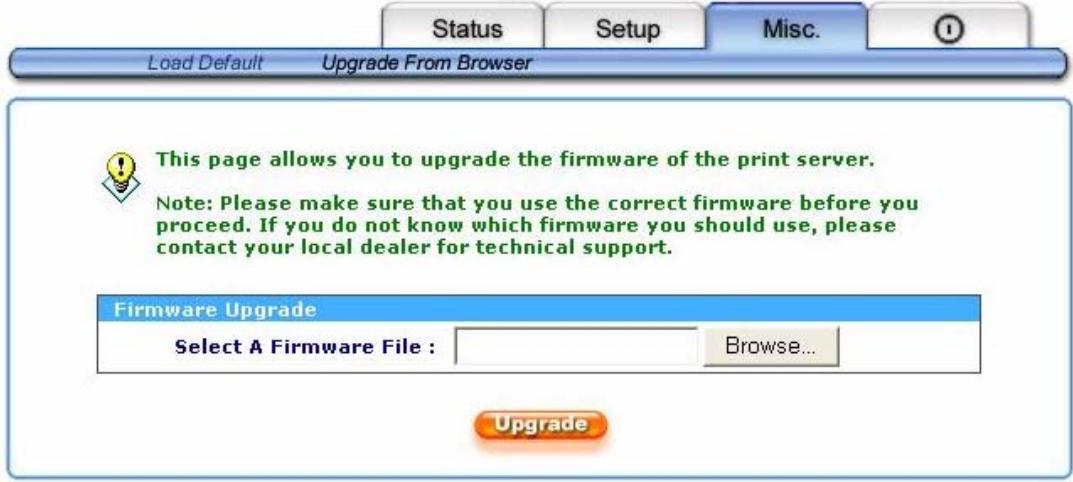
- Click Misc, and then choose Upgrade From Browser, it then as shown in the following picture.
-
Click Browse... and select the firmware file.
-
Click Upgrade.
- Done.
9. Troubleshooting
General Troubleshooting Overview
The most common problems, which cause the print server to perform improperly, are covered in this chapter. If a problem still exists after reading this chapter, please contact your dealer for technical support.
LED Light Indicators
The print server is equipped with LED lights to assist in diagnosing problems that are the result of the network and/or the print server hardware itself.
Power (Green)
When the print server unit is powered on, the Power LED will flash five times as part of the unit's Power On Self Test (POST). This indicates that the print server hardware is properly configured.
Note: Make sure that the LED flashes five times (POST) upon connecting the power. If the unit does not flash five times, contact your dealer for a replacement or repair.
WLAN (Green)
Data is being transmitted via the wireless connectivity.
USB (Green)
Data is being transmitted via the USB port.
Power Related Problems
The print server requires an external AC power adapter in order for it to function. If you have a power problem, check to see whether the power cord or its connectors are damaged. More importantly, check to see that the AC power adapter included with the print server matches the AC voltage in your country or area. Using an incorrect AC adapter will damage your print server.
Print Port Related Problems
Printing data failure may be caused by a loose connection of the print server to the USB port of the printer. Check to see if any of the pins on the USB connector are damaged. In addition, check the cable connection. If the pins are damaged, contact your dealer for a replacement connector.
Windows 95/98/Me/NT/2000/XP/2003 Troubleshooting
Multi-Segment LAN Environment Installation (through the Network Print Port)
If your print server and Windows 95/98/Me/NT/2000/XP/2003 are located on two different segments, and your Windows NT server is used as the router/gateway you will need to implement the following procedures in order for your print server to function properly:
Add the RIP for NWLink IPX/SPX compatible transport. See RIP for NWLink IPX/SPX compatible transport Installation Procedure later in this section.
- Add the frame type 802.2 for both Ethernet adapters. See Multi-Segment Frame Type 802.2 Installation later in this section.
RIP for NWLink IPX/SPX compatible transport Installation Procedure
- From your Windows NT server that is used as a router, select Start from the bottom left hand corner of the screen.
- Select Settings.
- Select Control Panel.
- Double-click the Network icon.
- Select Services.
- Select Add.
- In the Select Network Service box, select the RIP for NWLink IPX/SPX compatible transport. Click OK.
- Follows the directions on the screen.
- Done.
Multi-Segment Frame Type 802.2 Installation
- From your Windows NT server that is used as a router, select Start from the bottom left hand corner of the screen.
- Point to Settings, and select Control Panel.
- Double-click the Network icon.
- Select Protocols.Select the NWLink IPX/SPX Compatible Transport.
- Select Properties.
- Select your (first) network interface card and select Manual Frame Type Detection.
- Click Add.
- In the Frame Type field, select Ethernet 802.2.
- In the Network Number field, type in an unique 8-digit hexadecimal network number. For example: 12345ABC.
-
Select Add.
-
Repeat the Steps 8-12 for the other Ethernet adapter.
- Restart the computer.
- Done.
Moving the print server to A New Segment
If the print server is moved from one network segment to another after the initial installation, through the Network Print Port, the print server must be reconfigured on the original Windows NT server or on each Windows 95/98 computer using this print server in order for the print server's driver on each computer to re-establish a new connection.
Print Server Reconfiguration Procedure on Windows 95/98/Me
- Click Start on the bottom left hand corner of the screen.
- Select Settings and select Printers.
- Select your printer connected to the print server, and right-click the printer icon. Select Properties.
- Click Details tab.
- Click Port Settings as shown in the picture below. The print server will be displayed on the next print server's configuration screen.
Find your original print server according to its Port Name or other distinguished name and click this print server.
- Click OK and it returns to the printer's Properties page.
- Click OK.
- Done.
Print server Reconfiguration Procedure on Windows NT
- Click Start on the bottom left hand corner of the screen.
- Select Settings and select Printers.
- Select your printer connected to the print server, and right-click the printer icon. Select Properties.
- Click Ports tab.
- Click Configure Port. The print server will be shown on the next screen.
- Find your original print server according to its Port Name or other distinguished name and click this print server.
- Click OK and it returns to the printer's Properties page.
- Click OK.
9. Done!
Moving Your Computer to A New Segment
If you are using the print server through the Network Print Port on your NT or Windows 95/98/Me computer and your computer is going to be moved onto another segment, you have to reconfigure the print server on your computer to use your print server. However, this situation is like moving the print server to a new segment. Please refer to the "Moving the print server to a new segment" section for more detailed reconfiguration instructions.
Novell NetWare Troubleshooting
Many printing problems can be traced back to incorrect or incomplete print server installations. It is always wise to check the installation configurations first.
In some cases, if necessary, delete the print server, print queue(s) or other setting(s). Next recreate the necessary parameters or reconfigure the print server by running the PSAdmin.
TCP/IP Troubleshooting
When you are configuring a new print server on your NT/UNIX server through LPR Port printing under TCP/IP protocol, you might encounter the following problem in your initial installation steps:
"I can do the "arp" command. However, when I am going to ping or tftp the print server, it always shows Request timed out. I have checked the print server's power and it exactly passed the POST. Besides, the network cabling is OK. As such, I can't do tftp command to get and put the print server's configuration file and save its IP address permanently. I can't, therefore, continue installing the print server."
Regarding this problem, there are three possible causes:
A. The print server's Node ID you specified in the "arp" command is not correct.
If this is the case, please ensure the Node ID field in the corresponding entry of the print server's IP address in NT's ARP cache table is correct by typing the following command at NT's DOS prompt. "arp -a"
If the Node ID shown on the screen doesn't match the print server's Node ID, please follow the instructions below to reset the entry.
- At NT's DOS prompt, type "arp -d
" to delete the current entry. - Type "arp -s
" to specify a new ARP entry. - Refer to Chapter 7 for the detailed instructions to complete the installation.
B. The print server's IP address is duplicated or is as same as another computer's IP address on the network.
If this is the case, please consult your network administrator to obtain an unused IP address for your print server.
C. The print server is on one segment and your Windows NT server is on the other segment.
(This troubleshooting guide will also apply to a multiple-segmented network while installing the print server)
For example, assuming the print server is on Segment A, NT server is on Segment B, and there is a gateway computer between Segment A and Segment B. The network might be a complete TCP/IP network, or a hybrid of TCP/IP and IPX/SPX network.
If this is the case, you have to adopt the following steps, depending on which platform the gateway computer is.
a.If the gateway computer is a NT/UNIX server:
You have to do the same "arp" command to specify an entry on the NT/UNIX computer as a gateway in order for it to forward your subsequent "ping" or/and "tftp" commands to the print server.
b.If the gateway computer is a Novell NetWare file server:
- Due to the presence of this NetWare file server, the IPX/SPX protocol might be used on your network. Therefore, we strongly suggest you run the PSAdmin from any client computer and select "Manual Setup" to specify the print server's IP address (For more detailed information about Manual Setup, please refer to Chapter 3).
- If the solution described above is not applicable, you have to follow the instructions below to set up the print server's IP address.
For the purpose of explanation, we assume the NT server is on Segment A and its IP address is 192.72.214.66 (subset mask: 255.255.255.224), the print server is going to be installed on Segment B, with IP address, for example, 192.72.214.100.
- Find an unused IP address on Segment A for temporary use in the following steps, for example, 192.72.214.68.
- Connect your print server to Segment A as a networked node.
- On your NT server, type, for example, "arp -s 192.72.214.68 00-40-01-3F-02-AB". Please note, in this arp command you have to type 192.72.214.68 on purpose. Do not type this IP address as 192.72.214.100.
-
Type "ftp 192.722.214.68 get config.txt". The configuration file will then be retrieved and transferred to your NT server.
-
Type "edit config.txt" to modify this configuration file.
- In your editor, modify "BoxIPAddress" field from "0.0.0.0" to "192.72.214.100". Leave other options as default and do not change their values. When done, save this new file and quit from your editor. Please note, in this step you must specify an IP address which is valid on Segment B, such as 192.72.214.100 in this example, rather than 192.72.214.68.
- Type, for example, "fttp 192.72.214.68 put config.txt" to save this new configuration back to print server.
- Move the print server back to the Segment B.
- Done!
Appendix:
Diagnostic Mode (Wireless)
If you have no the twisted-pair cable to configure print server and have problems to configure it on wireless network. Please refer to the following steps:
- Change the print server to diagnostic mode by switching the DIP switch to DIAG mode.
- Change your wireless adapter to Ad-hoc mode, and the ESSID: WLAN-PS; Channel: 6
- Run PSAdmin to discover the print server.
- Select the wireless print server
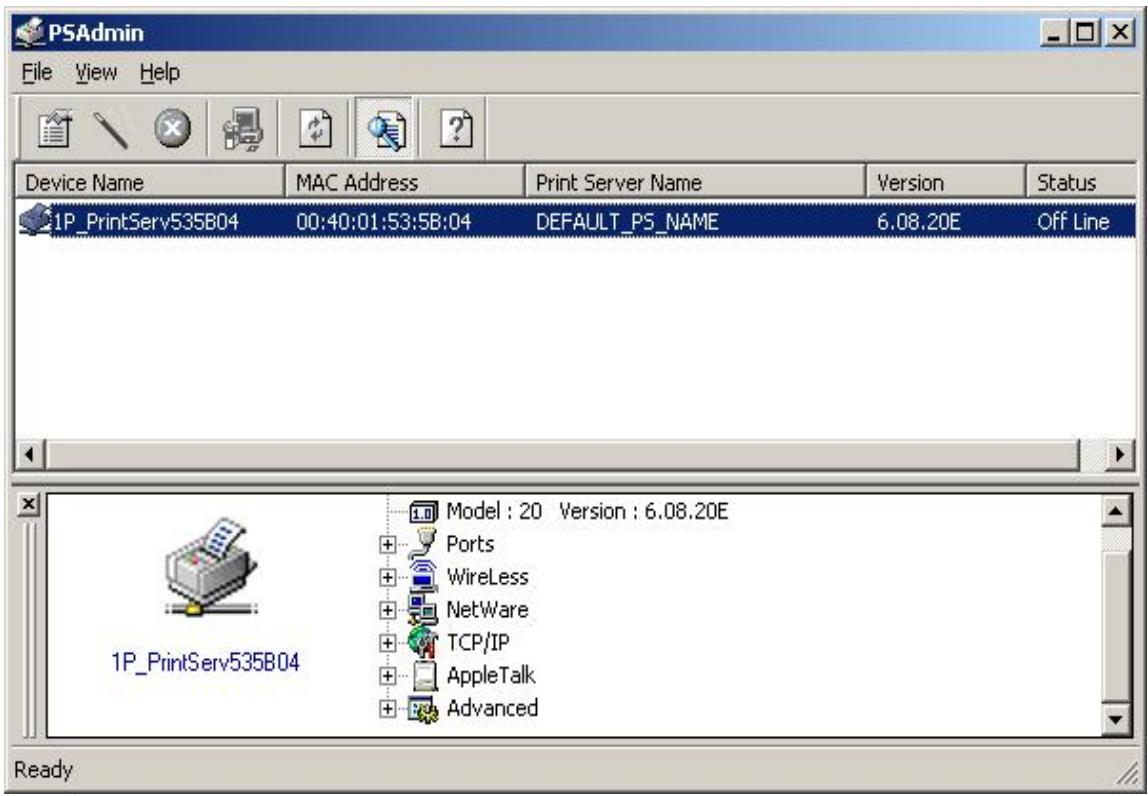
- Select wireless and input the ESSID, Channel, Rates that meet your network environment, then press ok.
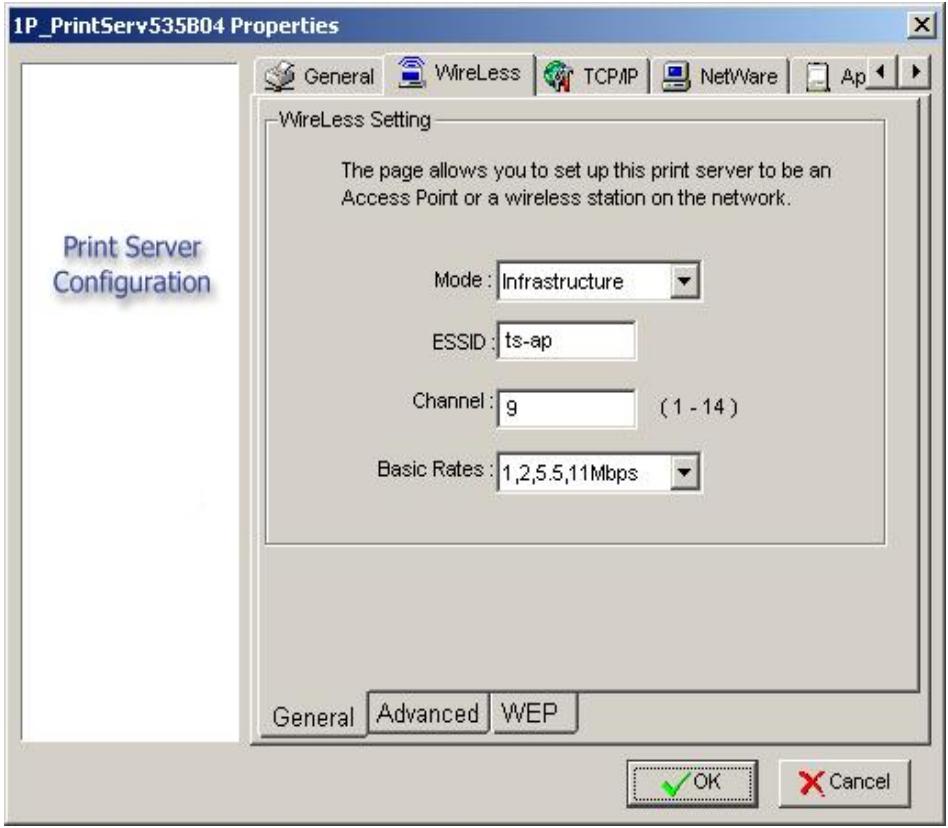
- Done. The print server will restart.
- Switch the DIP back to normal mode and change your wireless adapter setting.
Rendezvous with Mac OS X 10.3.7
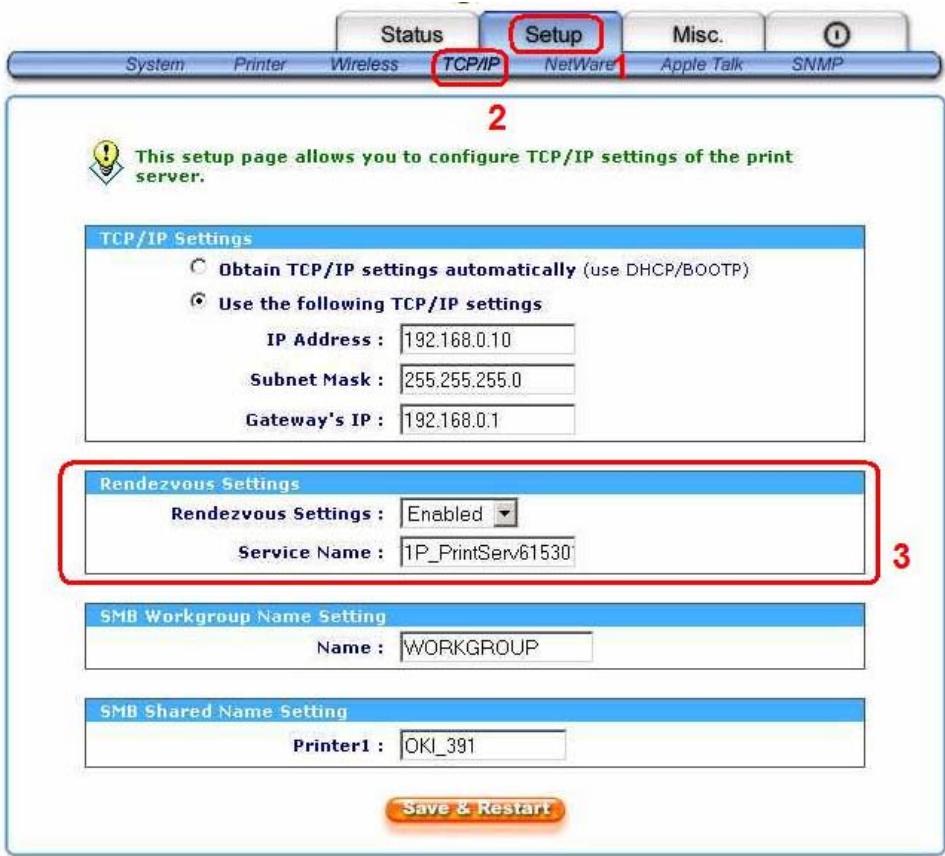
- Enable the Rendezvous settings from the print server's WEB configuration.
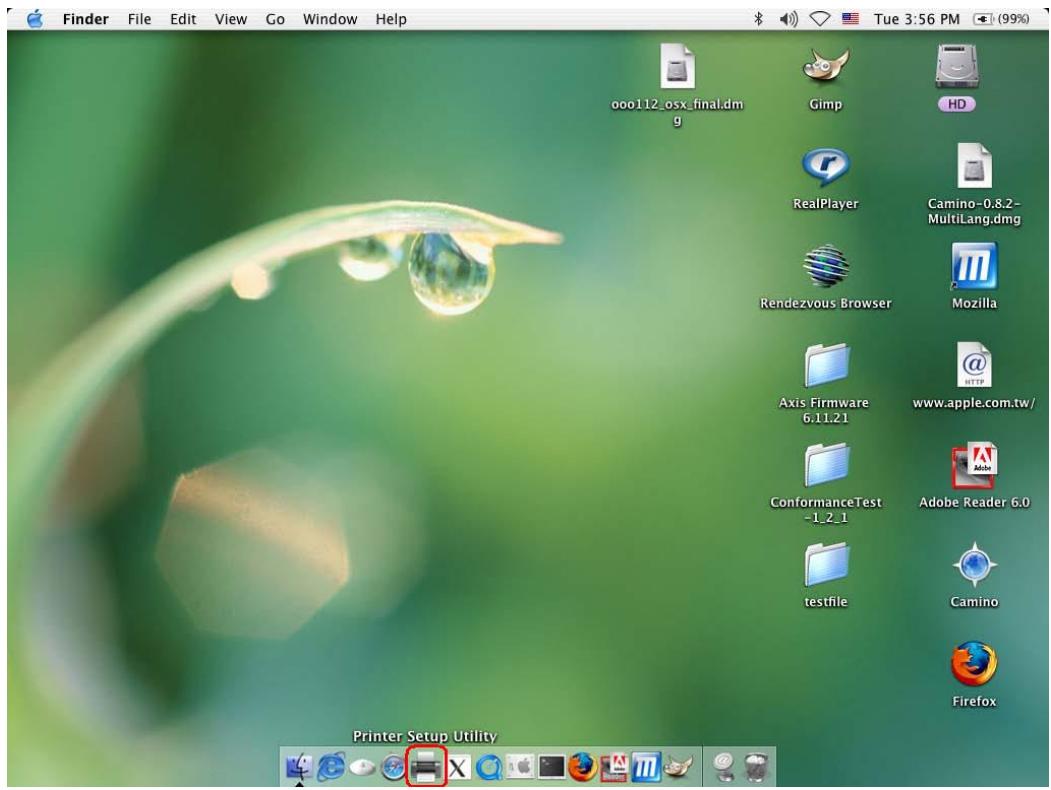
2. Click "Printer Setup Utility" from the bottom toolbox of Mac.
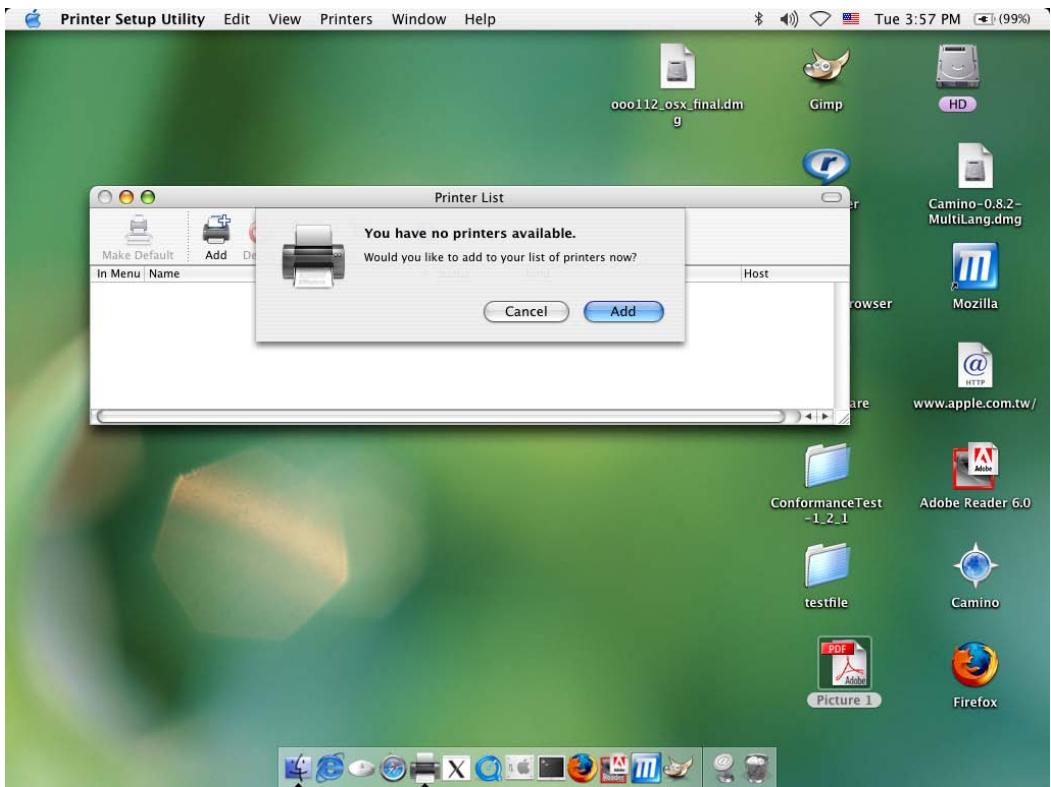
3. Click "Add".
- Choose "Rendezvous", and then Mac OS will automatically search the print server on the network.
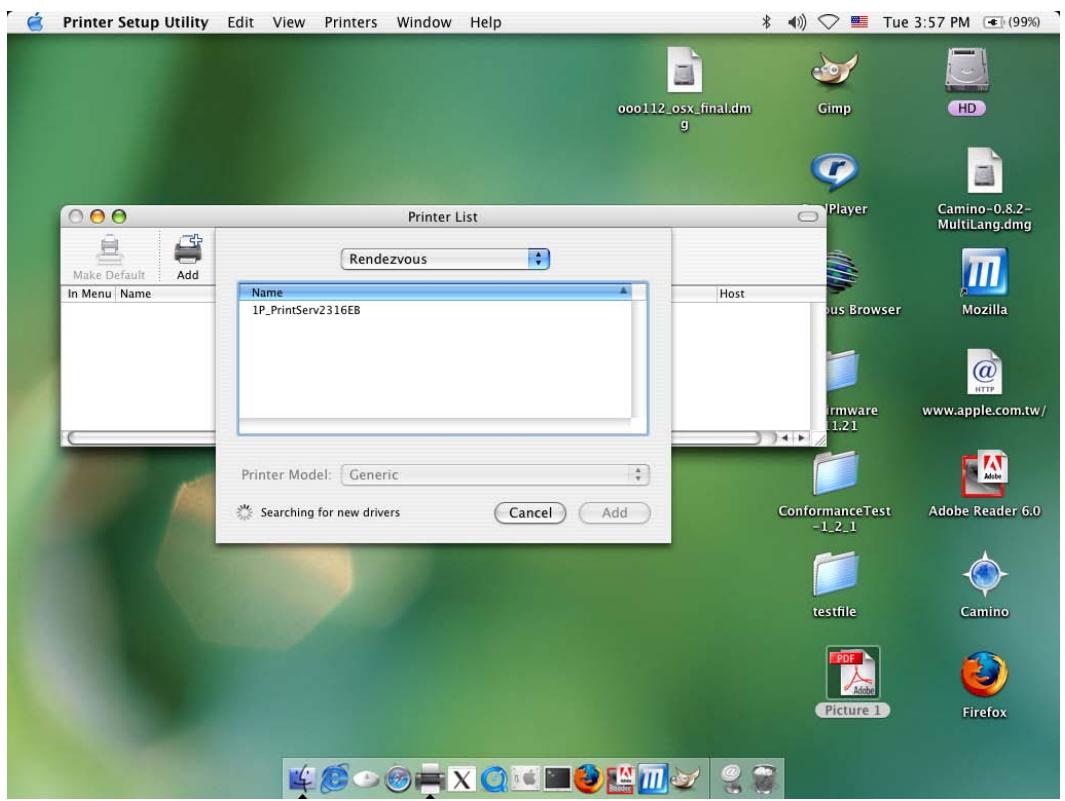
- Choose the proper printer model that connected to print server, and then click "Add".
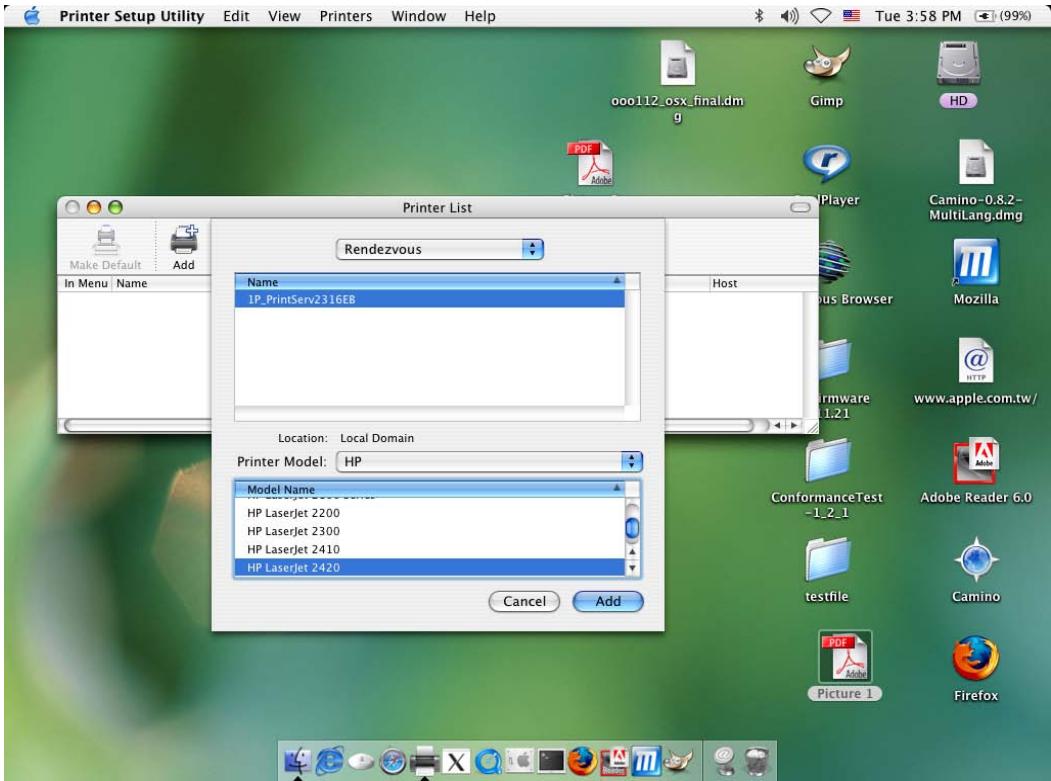
- Now the network printer with Rendezvous has been successfully installed.
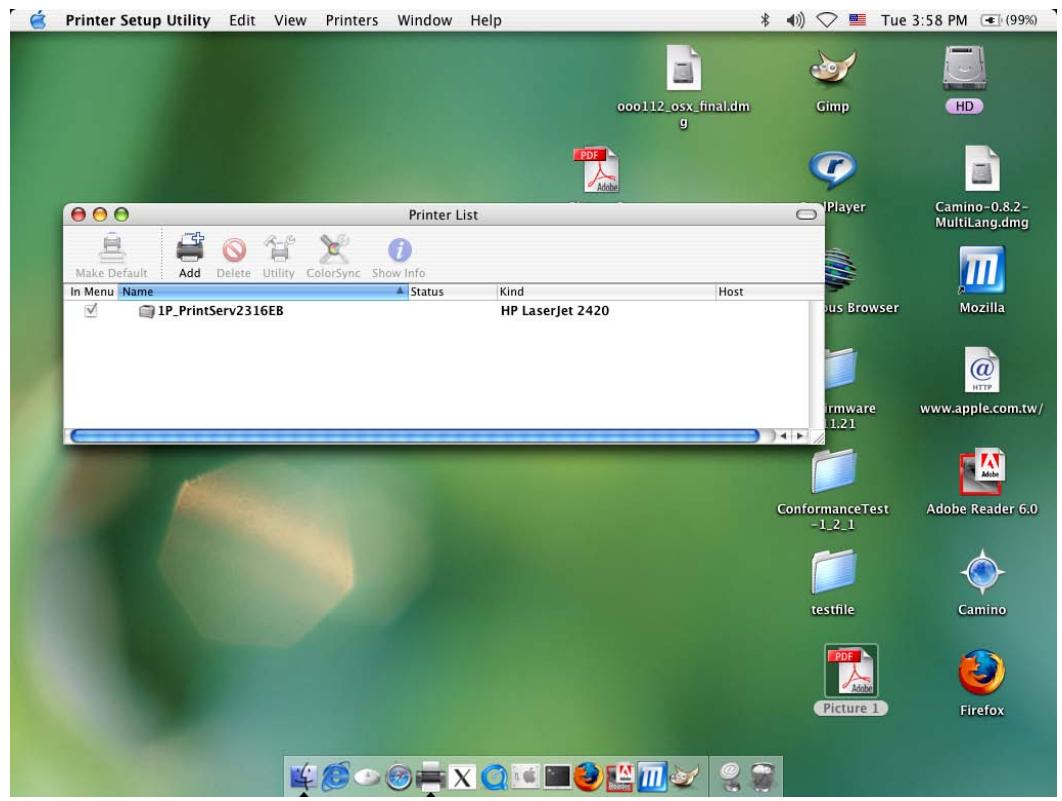
SMB Printing with Windows XP
- Enable the SMB settings from the print server's WEB configuration. Assume your computers use the "WORKGROUP" as the SMB workgroup name in Windows. Please assign the same SMB name to your print server. If print server uses the different SMB name from computers', the SMB printing won't active.
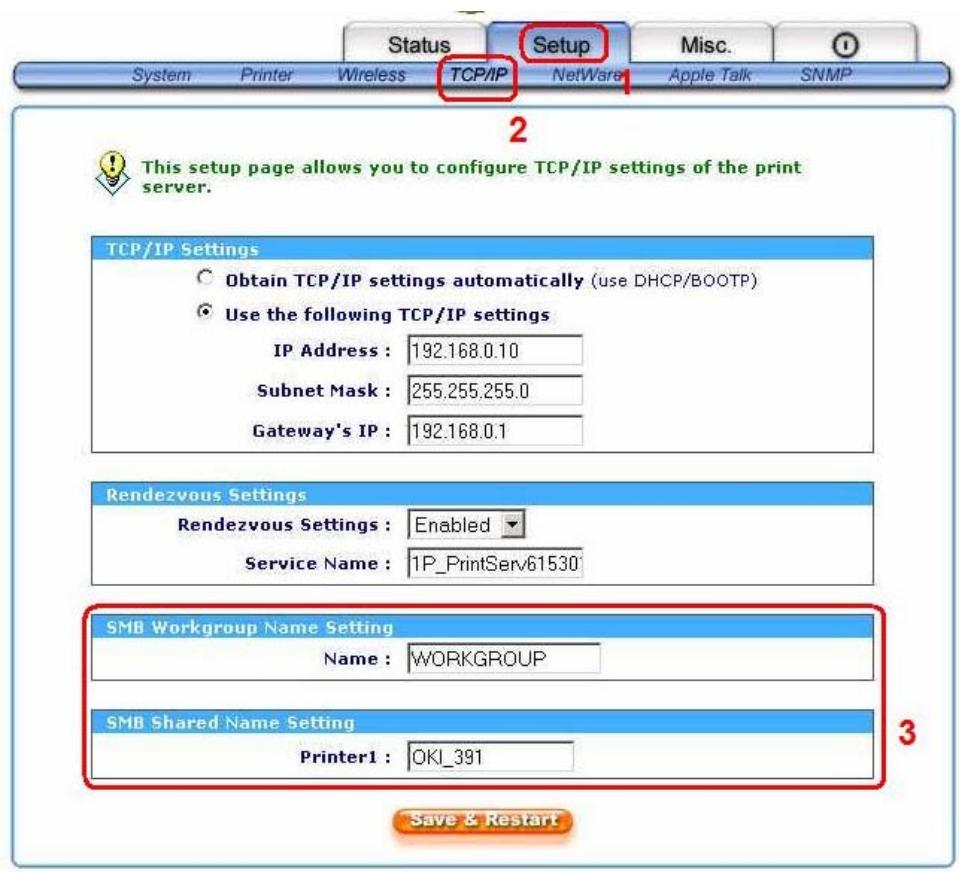
- Now you can find the print server from the SMB workgroup of Windows. Then, double click it.
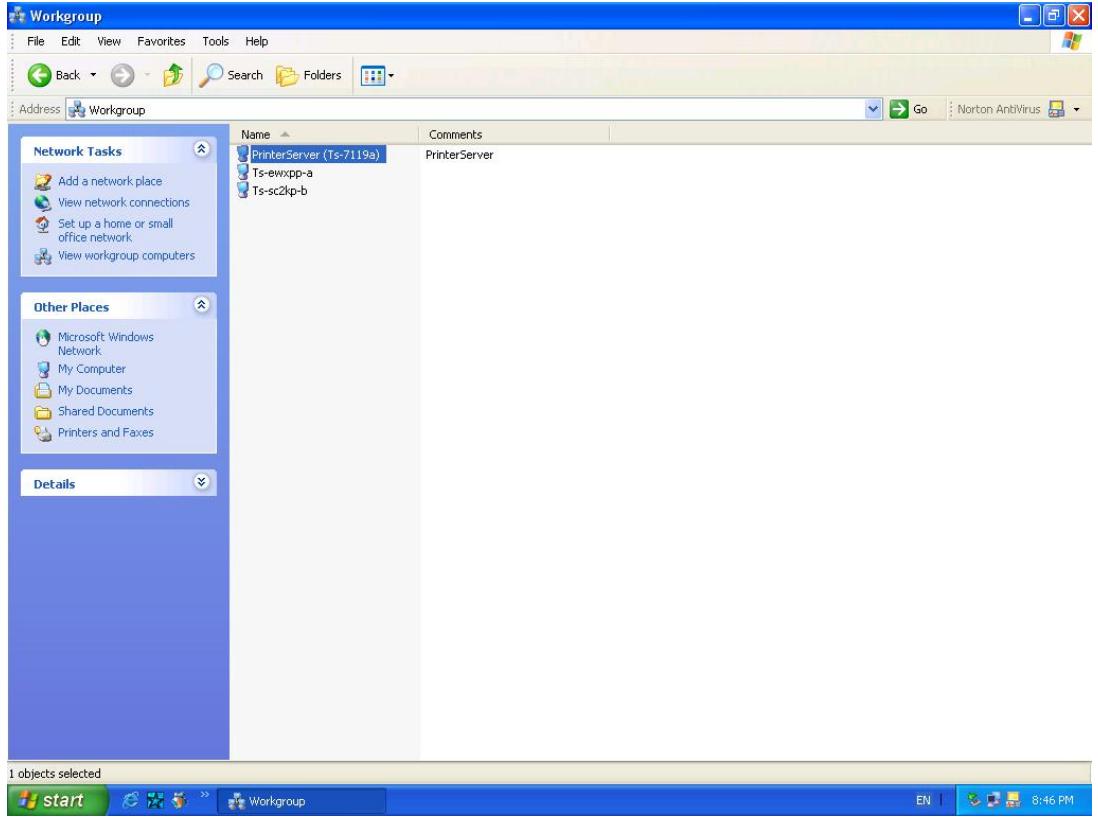
3. Double click it again.
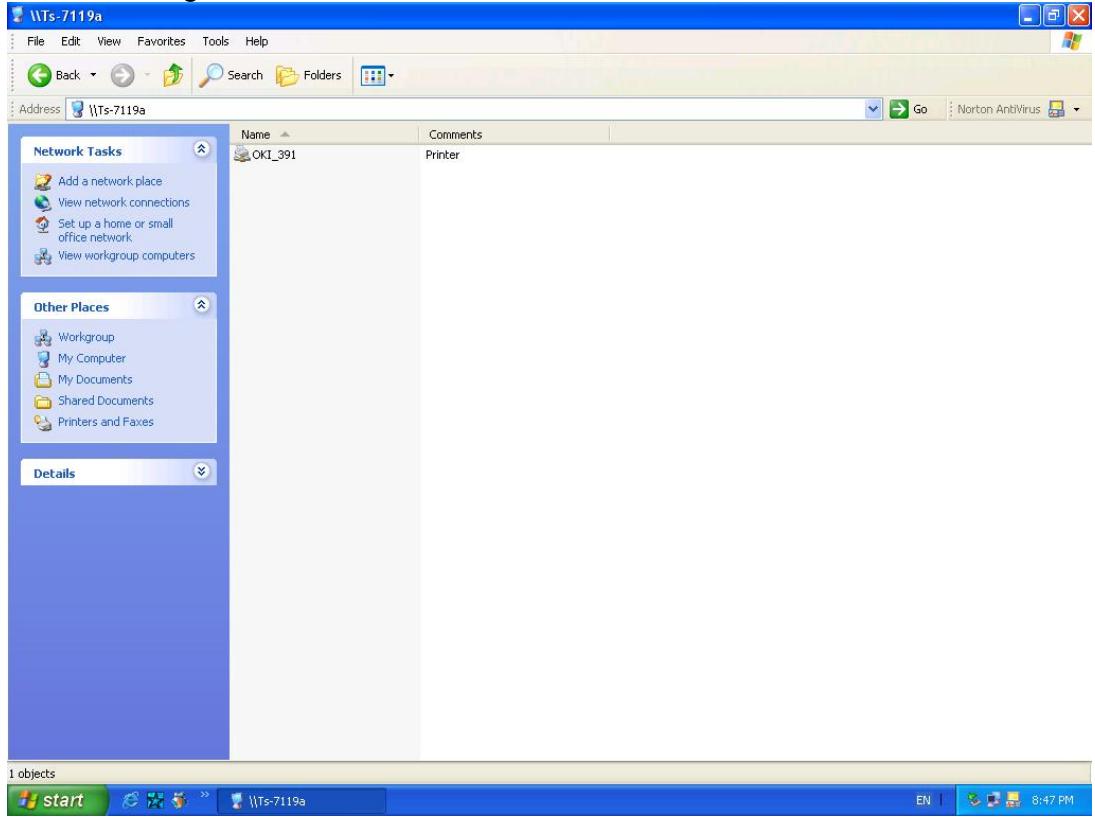
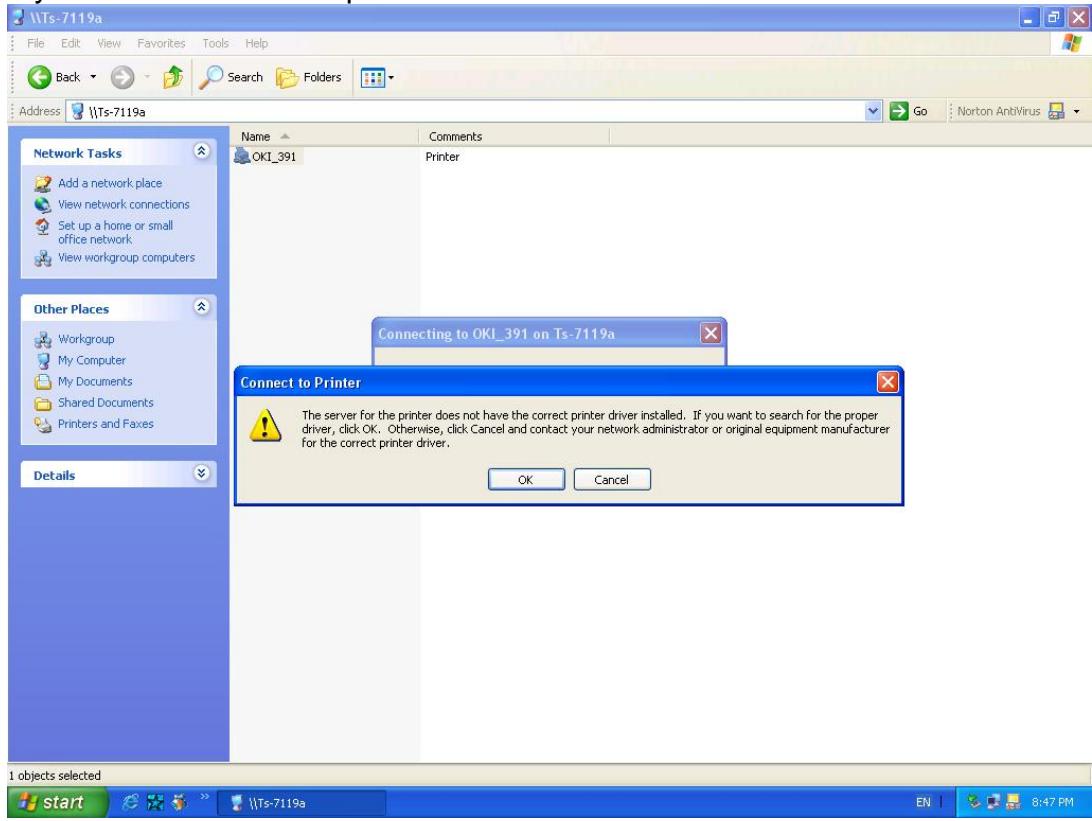
4. Now you have to install the printer's driver.
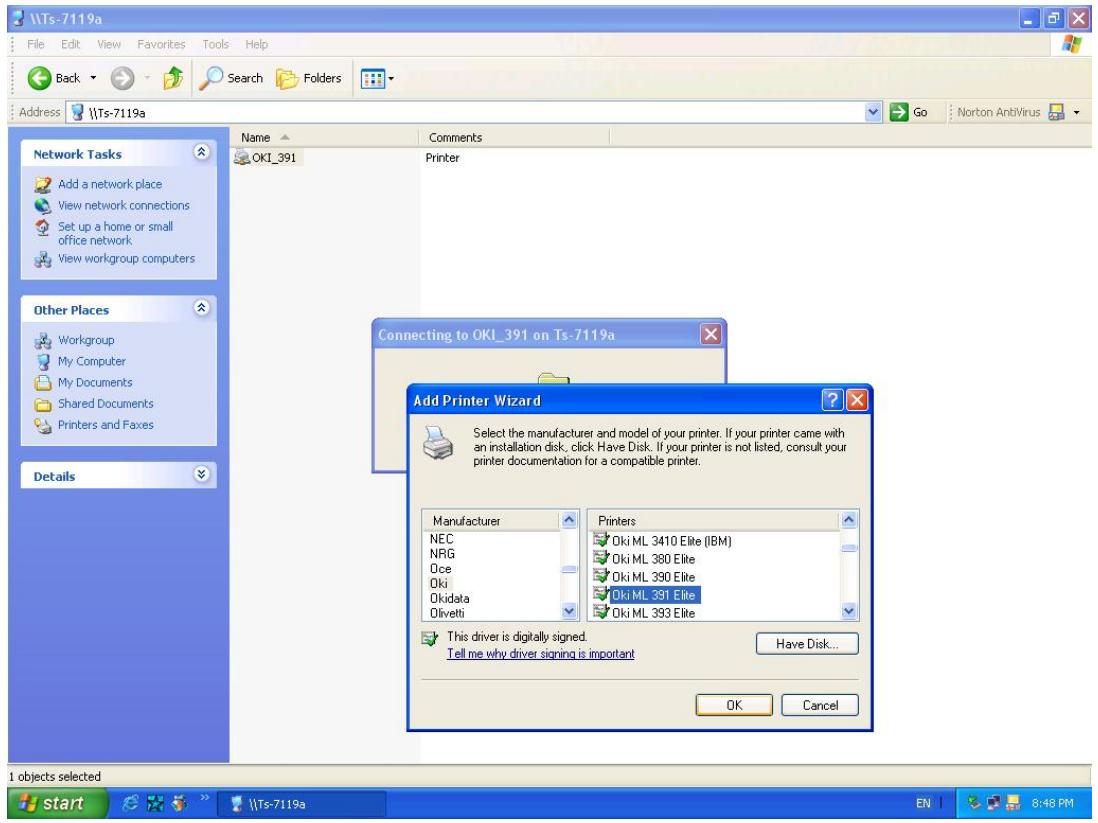
5. Choose it from the "Add Printer Wizard".
6. Install printer successfully.
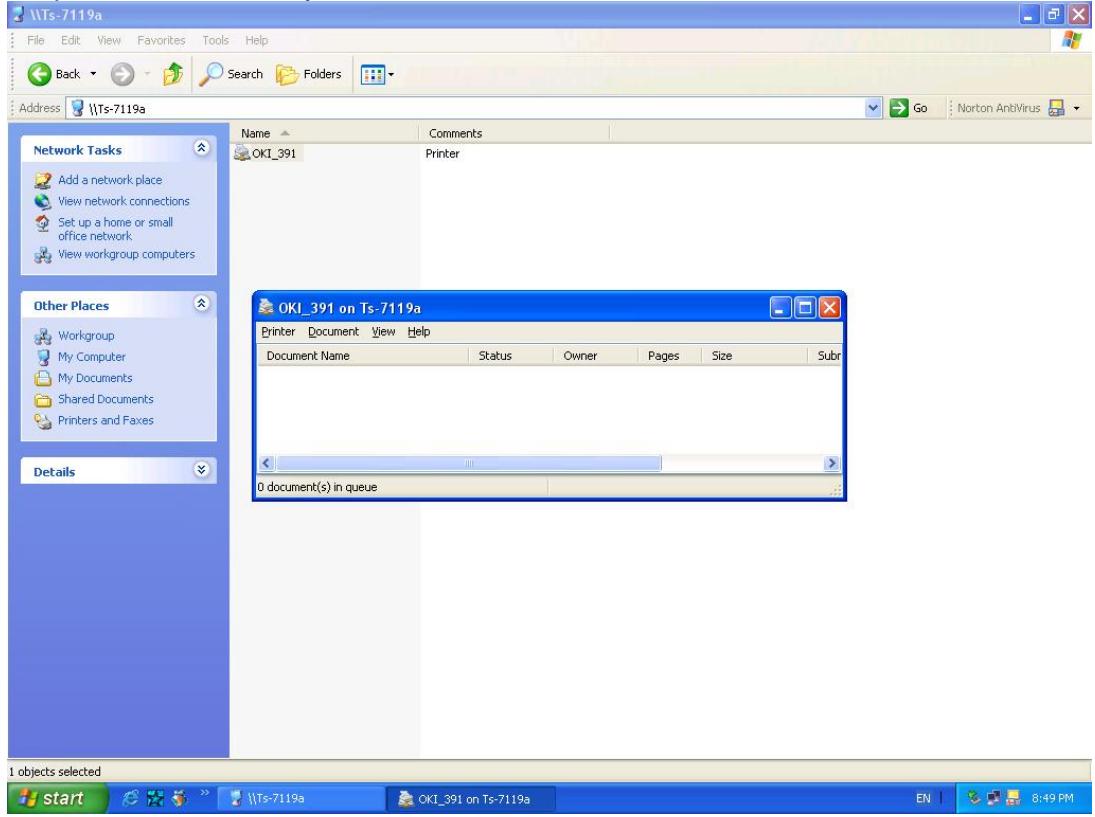
7. Now, you can find your printer's icon and you can use the SMB printing mode.
Reset Button
Reboot the Print server:
- Verify the power of print server is turned on.
- Press the reset button once, and then release it.
WARNING: This will restart the print server and stop all on-going and pending print jobs!
Perform a Factory Default:
- Disconnect the external power adapter.
- Hold down the reset button.
- Reconnect the external reset button. Wait about 5 seconds.
- Release the reset button.
- The print server will restart.
WARNING: This will erase all settings of print server to default and should be performed with caution!
After performing a factory default, the default settings will be:
Infrastructure mode
SSID:
- Channel: 6
- Encryption: none
- DHCP client: off
- IP address: 192.168.2.15
Frequently Asked Questions
Question A
Print jobs are sent to the print queue successfully, but fail to be sent to the printer.
Possible explanations
- The Print server Name/Print Queue configuration in PCONSOLE is incorrect.
- The Print server name specified and stored in the print server memory doesn't match the same one set in PCONSOLE.
- The network cable or power adapter connected to the print server is loose or disconnected.
- The printer is off-line, jammed or out of paper.
Solutions
- Check all the information in PCONSOLE.
- Check all the information of the print server by running PSAdmin.
- Check to see that if the network cabling and power adapter are properly connected.
- Recheck the print server connection by running the PSAdmin. It should read "Connected."
Question B
Print jobs start printing, but print very slowly or print unknown characters.
Possible explanation and solution
A printer driver is missing or is incompatible with that printer. Using a print driver that is not specific for the printer can cause printing errors. Install the proper printer driver. If these printer drivers are not available to you, please contact your printer manufacturer.
Question C
The upgrading process indication bar stops and does not seem to proceed again while upgrading the print server.
Possible Explanation
There might be a network problem. This causes the upgrading procedure to fail.
Solutions
- Check the network cabling, especially from the workstation running the PSAdmin to the print server unit.
- Run the PSAdmin and upgrade the print server again.
Question D
The Power LED light keeps blinking after POST.
Possible explanation and solution
The last upgrade process was not completed. The print server must be upgraded again by using the PSAdmin. Please see Chapter 3 for details.
Question E
The PSAdmin reports "Create Print server Error", "Create Printer Error", or "Create Print Queue Error" while using Auto Setup.
Possible Explanation
The print server name, the printer name, or the print queue name you specified in the Auto Setup dialogue box contains a space.
Solution
Check to see if there is a space in the print server name, the printer name, or the queue name. Type in a new name without a space between two characters or replace a space by a dash (-) or an underscore (_).
Question F
The PSAdmin reports "Print server AlreadyExists", "Printer AlreadyExists", or "Print Queue AlreadyExists" after specifying the print server name, or the print queue name in Auto Setup.
Possible Explanation
A same print server name or queue names exists in the specific NetWare file server as the one you specified in the Auto Setup dialogue box.
Solution
Specify a new print server name or queue name in the Auto Setup.
Question G
The setup Wizard can't find print server.
Possible Explanation
The Personal Firewall installed in your computer blocks the connection.
Solution
Please disable the Personal Firewall or adjust the security level to lower.
Additional Installation Instructions
Panasonic KX-P6100/6300/6500
If you are using a Panasonic KX-P6100/6300/6500 laser printer with the print server through the Network Print Port under Windows 95/98, please redirect the printer named "Panasonic KX-P6100 PCL" or "Panasonic KX-P6300 PCL", or "Panasonic KX-P6500 PCL" to the print server through the Network Print Port.
DO NOT redirect the printer named "Panasonic KX-P6100 GDI", "Panasonic KX-P6300 GDI", or "Panasonic KX-P6500 GDI" to the print server.
Please note that the print server doesn't support printing with host-based printers, e.g. CAPT, GDI, and PPA printers. Furthermore, the print server doesn't support any non-printing functions of MFP (Multiple Function Printer).
FOR TECHNICAL SUPPORT, CALL:
From U.S.A. and Canada (24 hours a day, 7 days a week)
(800) SMC-4-YOU; Phn: (949) 679-8000; Fax: (949) 679-1481
From Europe : Contact details can be found on www.smc.com
INTERNET
E-mail address:
techsupport@smc.com
Driver updates:
http://www.smc.com/index.cfm?action tech_support_drivers_downloads
World Wide Web:
http://www.smc.com/
For Literature or Advertising Response, Call:
U.S.A. and Canada: (800) SMC-4-YOU Fax (949) 679-1481
Spain: 34-91-352-00-40 Fax 34-93-477-3774
UK: 44 (0) 871 277 98 02 Fax 44 (0) 1234 831 413
France: 33 (0) 155 64 04 55 Fax 33 (0) 45 34 68 58
Italy: 39 02 739 12 68 Fax 39 02 739 14 17
Benelux: 31 (0) 654 776 790 Fax 31 (0) 172 242 393
Central Europe: 49 (0) 89 92861-0 Fax 49 (0) 89 92861-230
Nordic and Baltics 46 (0) 566 622 83 Fax 45 (0) 566 622 86
Eastern Europe: 420 266 794 421 Fax 420 266 794 423
Sub-Saharan Africa: 27 012 661 0232 Fax 34 93 471 3374
North West Africa: 34 93 477 4920 Fax 34 93 477 3774
CIS: 34934774920 Fax34934773774
PRC: 86-10-6235-4958 Fax 86-10-6235-4962
Taiwan: 886-2-87978006 Fax 886-2-87976288
Asia Pacific: (65) 238 6556 Fax (65) 238 6466
Korea: 82-2-553-0860 Fax 82-2-553-7202
Japan: 81-45-224-2332 Fax 81-45-224-2331
Australia: 61-2-8875-7887 Fax 61-2-8875-7777
India: 91-22-8204437 Fax 91-22-8204443
If you are looking for further contact information, please visit www.smc.com.