
BT-EDR - Bluetooth Adapter SMC - Free user manual and instructions
Find the device manual for free BT-EDR SMC in PDF.


User questions about BT-EDR SMC
0 question about this device. Answer the ones you know or ask your own.
Ask a new question about this device
Download the instructions for your Bluetooth Adapter in PDF format for free! Find your manual BT-EDR - SMC and take your electronic device back in hand. On this page are published all the documents necessary for the use of your device. BT-EDR by SMC.
USER MANUAL BT-EDR SMC
For SMCBT-EDR Bluetooth USB Dongle with EDR Technology
This document describes how to use IVT BlueSoleil™.
Contents
1 BlueSoleilTM Introduction 3
2 BlueSoleil™ Graphical User Interface 4
2.1 Start BlueSoleilTM 4
2.2 Exit BlueSoleilTM 4
2.3 BlueSoleilTM Main Window 5
2.3.1 My Device Icon 5
2.3.2 Remote Bluetooth Device Icons 6
2.3.3 Bluetooth Service Icons 7
2.4 Service Window 8
2.4.1 My Service Icons 10
3 Personal Area Networking 12
3.1 Introduction 12
3.2 Connect Two Computers 12
3.3 Computer with PAN acting as a TCP/IP Gateway 18
3.3.1 Connect to the Internet using ICS 19
3.3.2 Settings on the PAN server 20
3.4 PAN Configuration 22
3.4.1 My PAN Service 22
4 Dial-Up Networking 23
4.1 Introduction 23
4.2 Connect to a Dial-up Gateway from a Computer 23
5 Bluetooth Serial Port 27
5.1 Introduction 27
5.2 Connect Two Computers 27
5.3 Use SPP to Print a Document 30
5.4 SPP Configuration 32
5.4.1 My SPP Service 32
6 Bluetooth File Transfer 33
6.1 Introduction 33
6.2 Transfer files to/from a Computer 33
6.3 FTP Configuration 39
6.3.1 My FTP Service 39
7 LAN Access 40
7.1 Introduction 40
7.2 Access a Local Area Network (LAN) 40
8 Object Push 46
8.1 Introduction 46
8.2 Transfer Objects from a Computer to a Bluetooth Cellular Phone 46
8.3 Transfer Objects from a Bluetooth Cellular Phone to a Computer 51
8.4 Transfer Objects between Two Computers 55
8.5 Configure OPP Service 56
8.5.1 My OPP Service 56
9 Synchronization 57
9.1 Introduction 57
9.2 Exchange PIM Data with a Cellular Phone 57
9.3 Set up SYNC Connection between Two Computers 59
9.4 Synchronization Configuration 63
9.4.1 My Synchronization Service 63
10 Hardcopy Cable Replacement 64
10.1 Introduction 64
10.2 Print a Document Using a Bluetooth Printer 64
11 Human Interface Device 67
11.1 Introduction 67
11.2 Connect a Computer to a Bluetooth Mouse 67
11.3 Connect a Computer to a Bluetooth Keyboard 70
12 Connection Shortcut 73
12.1 Introduction 73
12.2 How to use Connection Shortcut 73
13 Bluetooth Glossary 75
1 BlueSoleil™ Introduction
BlueSoleil™ is a Windows-based Bluetooth Wireless software suite from IVT. It is fully compliant to the latest Bluetooth SIG specifications. BlueSoleil™ incorporates Bluetooth and computer technologies to enable users to wirelessly access computing devices, form networks, and exchange information.
BlueSoleil™ V1.4.8 includes nine Bluetooth profiles. The following table indicates which of these profiles is available for client and server devices.
| Profile Description | Client | Server | |
| PAN | Personal Area Networking | ✓ | ✓ |
| SPP | Serial Port | ✓ | ✓ |
| DUN | Dial-Up Networking | ✓ | |
| LAP | LAN Access | ✓ | ✓ |
| FTP | File Transfer | ✓ | ✓ |
| HID | Human Interface Device | ✓ | |
| HCRP | Hardcopy Cable Replacement | ✓ | |
| OPP | Object Push | ✓ | ✓ |
| SYNC | Synchronization | ✓ | ✓ |
| BIP | Basic Imaging | ✓ | ✓ |
| AV | AV | ✓ | ✓ |
| HS | Headset | ✓ | ✓ |
| FAX | FAX | ✓ | |
BlueSoleil™ supports more than ten Bluetooth chip-sets and HCI interfaces including USB, UART, PCMCIA and Compact Flash.
IVT BlueSoleil™ supports:
Windows 2000/XP
Windows 98SE/Me
This manual describes how to use BlueSoleil™:
How to start and exit BlueSoleiTM.
How to navigate the Main Window and Service Window.
How to use the Bluetooth profiles.
2 BlueSoleil™ Graphical User Interface
2.1 Start BlueSoleil™
After installing BlueSoleil™, there are two ways to start the program:
- A BlueSoleil™ shortcut icon on the Windows desktop.
- An IVT BlueSoleilTM program group entry in the Windows' Start | Programs menu.
Double-click the BlueSoleil™ shortcut icon on the desktop or click the BlueSoleil™ menu item on the Start | Programs | IVT BlueSoleil™ menu to start the BlueSoleil™ software.
The BlueSoleil™ icon will be displayed at the bottom right corner of the Windows desktop (Figure 2.1).
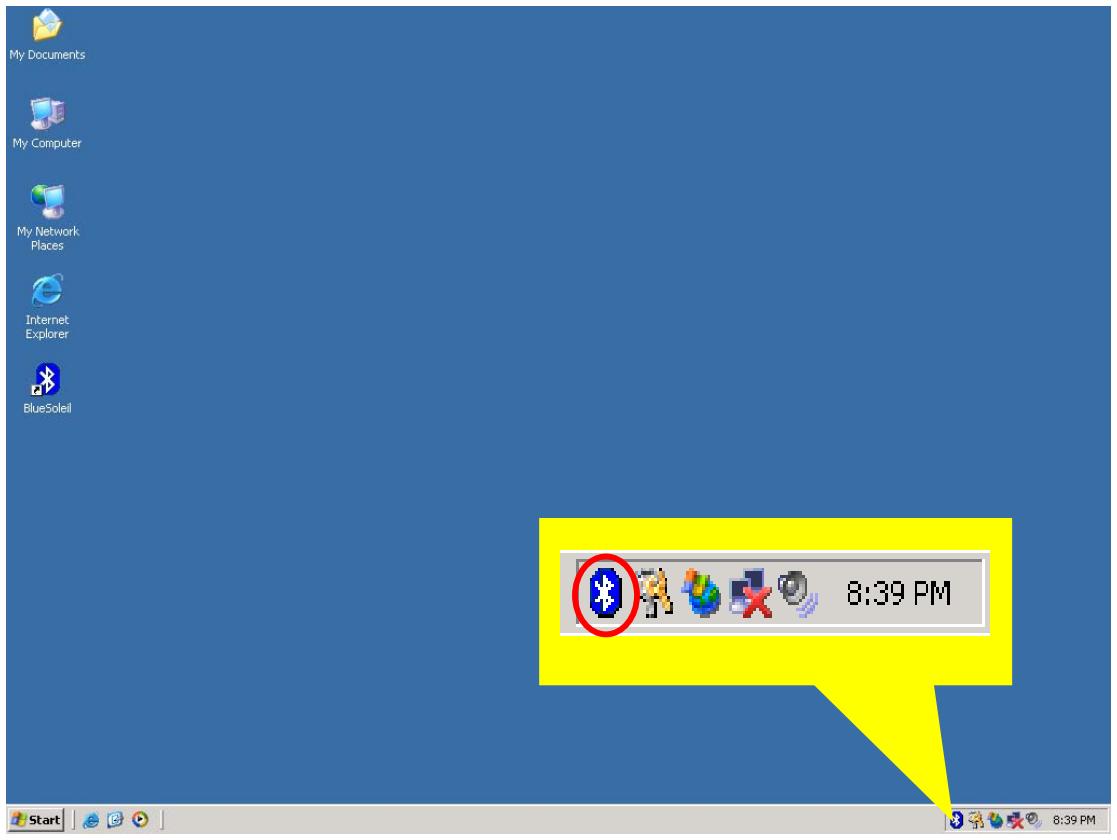
Figure 2.1: BlueSoleil™ icon
The BlueSoleil™ Main Window pops up as shown in Figure 2.2.
2.2 Exit BlueSoleilTM
To exit BlueSoleil™, right-click the BlueSoleil™ icon at the bottom right corner of the Windows task bar and select Exit on the pop-up menu.
Note: Selecting the Close button at the top right corner of the BlueSoleil™ window only hides the BlueSoleil™ window.
2.3 BlueSoleil™ Main Window
The BlueSoleil™ Main Window displays all surrounding Bluetooth devices. From the BlueSoleil™ Main Window users can search for surrounding Bluetooth devices and can execute connect/ disconnect functions.
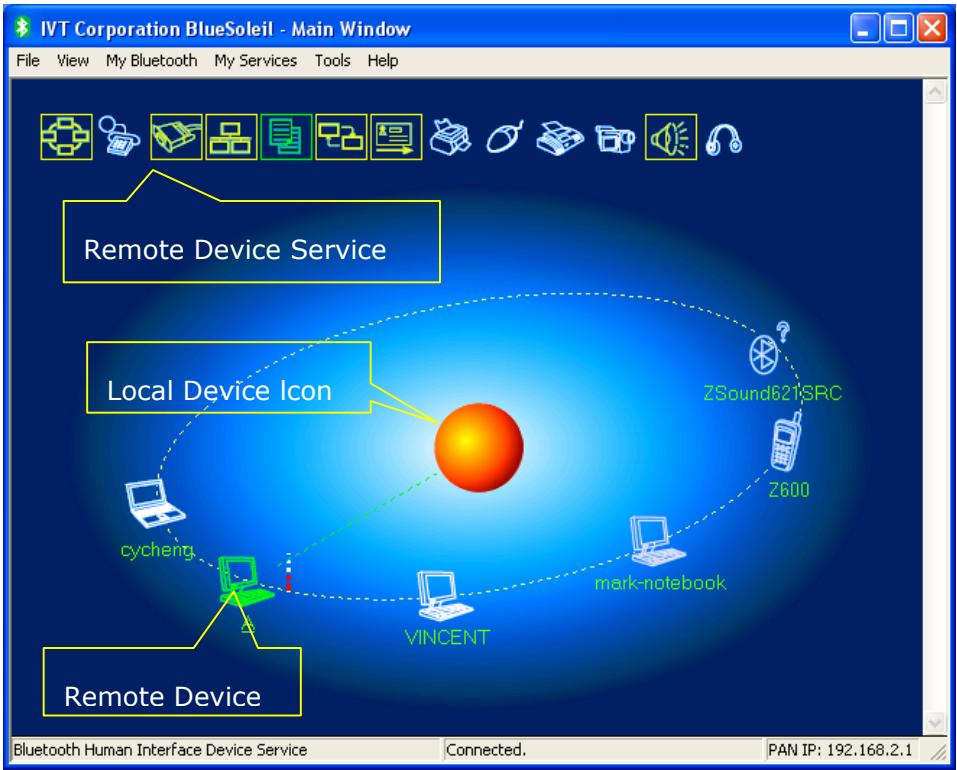
Figure 2.2: BlueSoleil™ Main Window
The main elements in the BlueSoleil™ Main Window are:
My Device Icon
Remote Bluetooth Device Icons
Bluetooth Service Icons
2.3.1 My Device Icon
This icon represents the client computer. It is called the 'My Device icon' or 'center ball' in this document.
Functions:
- Hover the mouse over the My Device icon to display the client Bluetooth device name and address.
- Double-click to start/ stop searching for surrounding Bluetooth devices.
- Right-click to display the pop-up menu with related operations.
2.3.2 Remote Bluetooth Device Icons
The icons in the table below represent the remote Bluetooth devices.
| Device Type | Icon |
| Headset | |
| Keyboard | |
| LAN Access Point | |
| Laptop | |
| Mobile | |
| Modem | |
| Mouse | |
| Personal Computer | |
| PDA | |
| Printer | |
| Scanner | |
| Unknown device |
The following colors are used to indicate the status of the remote Bluetooth device:
White (Idle) This is the normal status of the device.
Yellow (Selected) The device has been selected by the user.
Green (Connected) The device has been connected.
Functions:
- Single-click to select.
- Double-click to get the services remote Bluetooth device supports.
- Right-click to display the pop-up menu with related operations.
2.3.3 Bluetooth Service Icons
The Bluetooth Service Icons represent the Bluetooth services supported by the remote device.
| Bluetooth Service | Icon | |
| Personal Area Networking | ||
| Dial-up Networking | ||
| Serial Port | ||
| LAN Access | ||
| File Transfer | ||
| Information Synchronization | ||
| Object Push | ||
| Printer | ||
| Human Interface Device | ||
| FAX | ||
| Basic Imaging | |
| AV | |
| Headset |
The following colors are used to indicate the status of the Bluetooth service:
White (Idle)
This is the normal status.
Pink (Available)
The Bluetooth service is available for the selected device.
Yellow (Selected)
The service icon has been selected by the user.
Green (Connected)
The service is connected.
Functions:
- Hover the mouse over the icon to display the service name.
- Single-click to select the service.
- Double-click to connect.
- Click to display the pop-up menu with related operations.
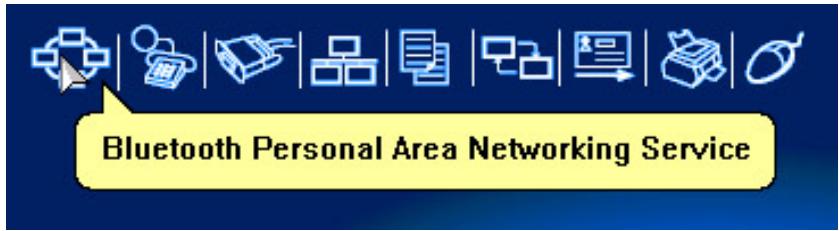
Figure 2.3: Bluetooth PAN Service Icon
2.4 Service Window
Select menu View | Service Window and the Service Window appears.
This window displays the Bluetooth services the my Bluetooth device' provides to remote Bluetooth devices. These services are calledmy Bluetooth services'.
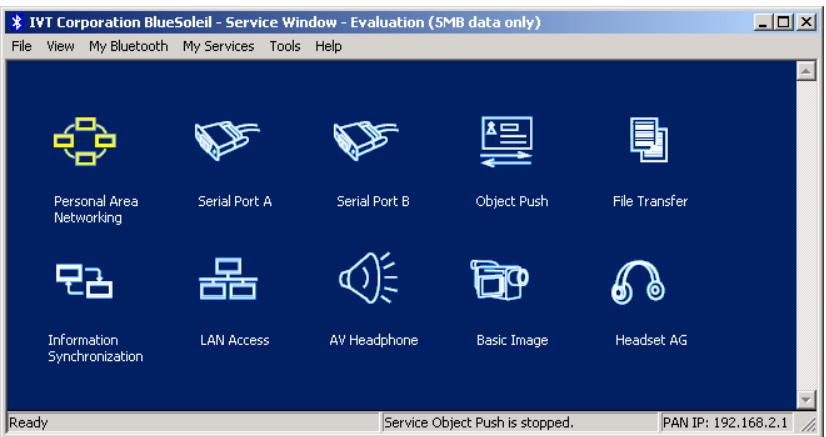
Figure 2.4: BlueSoleil™ Service Window
Main Elements:
My Service Icons
2.4.1 My Service Icons
These icons represent 'my Bluetooth services'.
| My Bluetooth Service | Icon |
| Personal Area Networking | |
| Serial Port A | |
| Serial Port B | |
| Object Push | |
| File Transfer | |
| Information Synchronization | |
| LAN Access | |
| AV Headset | |
| Basic Image |
Headset AG

The following colors indicate the status of the Bluetooth service:
White (Idle)
Normal status.
Pink (Started)
My Bluetooth service is started.
Green (Connected)
A remote device has connected to my Bluetooth service.
Functions:
- Single-click to select.
- Double-click to start/stop a service.
- Right-click to display the pop-up menu with related operations.
3 Personal Area Networking
3.1 Introduction
The Bluetooth Personal Area Networking (PAN) is a Bluetooth application, which enables devices to form an ad-hoc network or to access a remote network through a network access point.
The PAN application can be used in the following scenarios:
Two or more computers (or PDAs) can be connected through PAN and can visit each other using Windows Network Places or any application based on TCP/IP.
A computer (or PDA) can access a Local Area Network or the Internet through a PAN Network Access Point (NAP) bridge.
A computer with PAN installed acts as a TCP/IP gateway.
Each of these scenarios is now covered in more detail.
3.2 Connect Two Computers
This section outlines the steps involved in connecting two computers, Computer A and Computer B.
Computer A:
Notebook/LaptopPIII,800MHz,128M
A Bluetooth USB dongle
Windows 2000
IVT BlueSoleilTM
Computer B:
Desktop, PIII, 600MHz, 128M
A Bluetooth USB dongle
Windows 2000
IVT BlueSoleilTM
Step 1: Insert Bluetooth USB dongles in both computers.
Step 2: Start BlueSoleil™ in both computers.
Step 3: Set device name of each computer to anything you want. Here they are named Computer A and Computer B.
In the BlueSoleil™ Main Window of Computer A, click Tools | My Bluetooth Device. Enter 'Computer A' in the device name field in the My Bluetooth Device window.
Repeat for Computer B.
Step 4: Set the Security Level.
Click Tools | Configurations | Security, the Security Configuration panel pops up.
On the Security Configuration panel, select High in Security Level.
Note: If you check the Fixed Passkey and input a Bluetooth passkey, this passkey will be used as the default passkey. The other computer will then have to provide the same passkey during the connection procedure if it wants to connect to this computer.
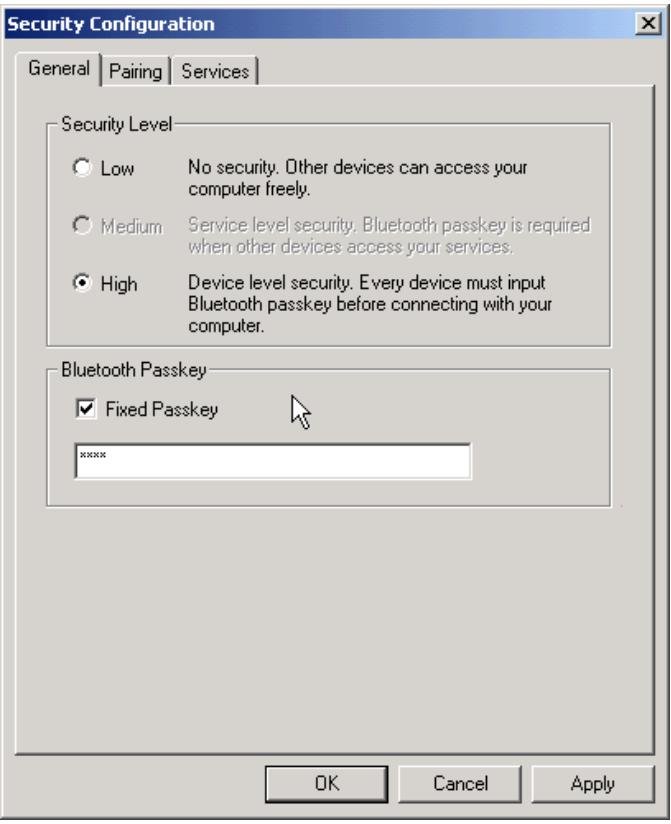
Figure 3.1: Security Configuration
Step 5: Start the PAN service on Computer A.
In the BlueSoleil™ Main Window, click View | Service Window.
In the Service Window, right-click the Personal Area Networking icon. Choose Start Service. (Figure 3.2)
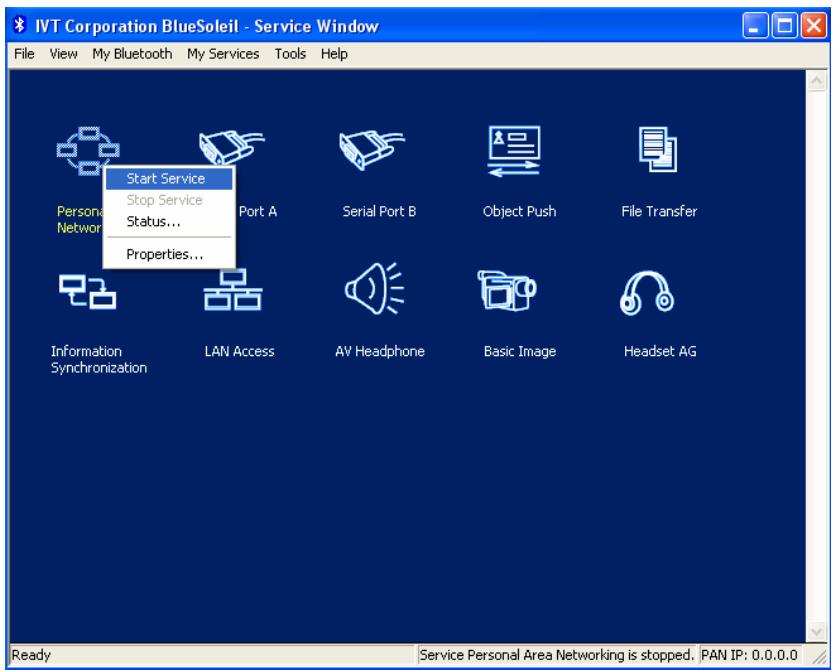
Figure 3.2: Start PAN Service on Computer A
Step 6: Search for Computer A on Computer B.
Double-click the My Device Icon (center ball). The surrounding discovered Bluetooth devices appear.
Check to see if Computer A appears. If it does not appear, double-click the My Device Icon again. Repeat the operation until you find Computer A.
Step 7: Find the PAN service on Computer A.
Double-click the Computer A device icon on Computer B.
Enter the Bluetooth passkey (if security is set to High on either side) to start the authenticating process. The Enter Bluetooth Passkey window pops up on Computer A. Input any characters or numbers, e.g. "12". The Enter Bluetooth Passkey window pops up on Computer B. Input exactly the same characters or numbers as you input for Computer A, e.g. "12". (Figure 3.3)
Once authentication is complete, the PAN service is found.
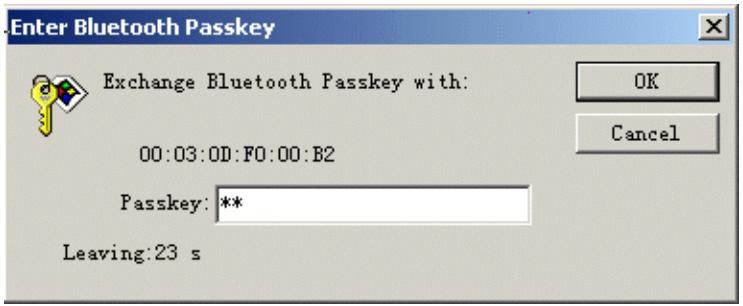
Figure 3.3: Input passkey
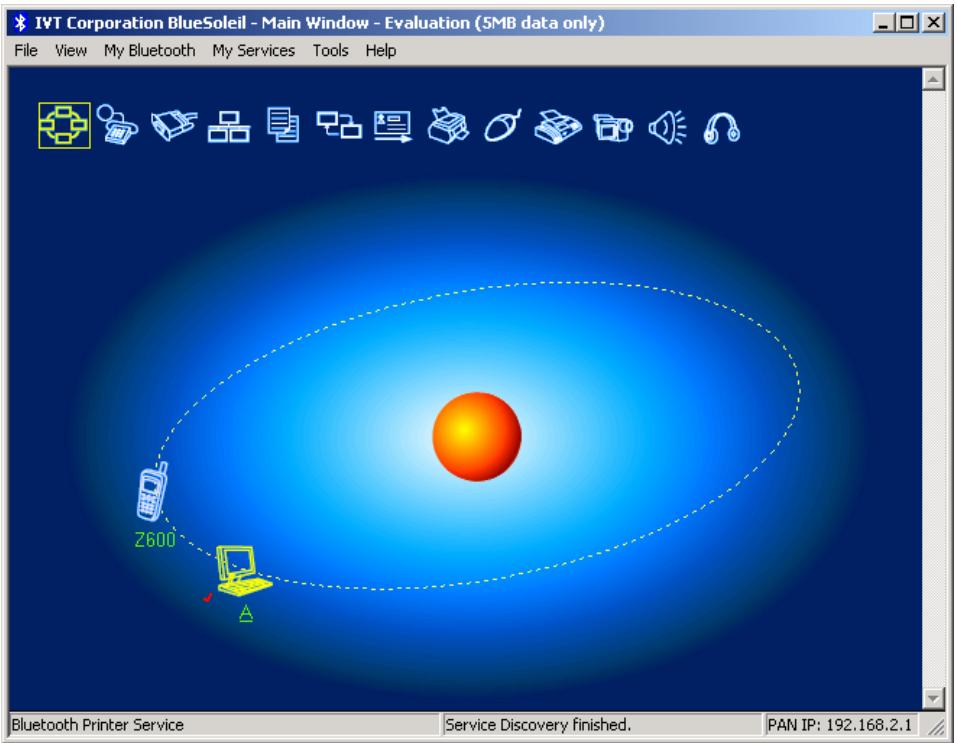
Figure 3.4: PAN service is found
Step 8: Connect to Computer A.
Right-click the PAN service icon; select Connect on the pop-up menu. (Figure 3.5)
The connection is established successfully (Figure 3.6). Wait until the valid IP address is shown on the bottom right status bar on both Computer A and Computer B.
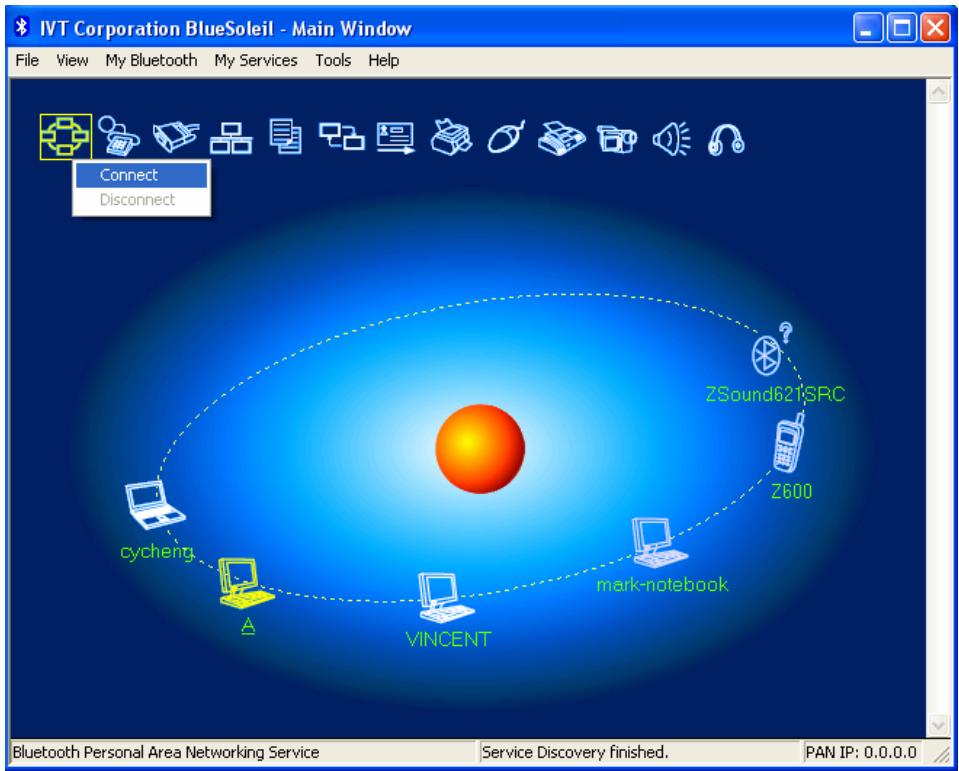
Figure 3.5: Connect to PAN Service
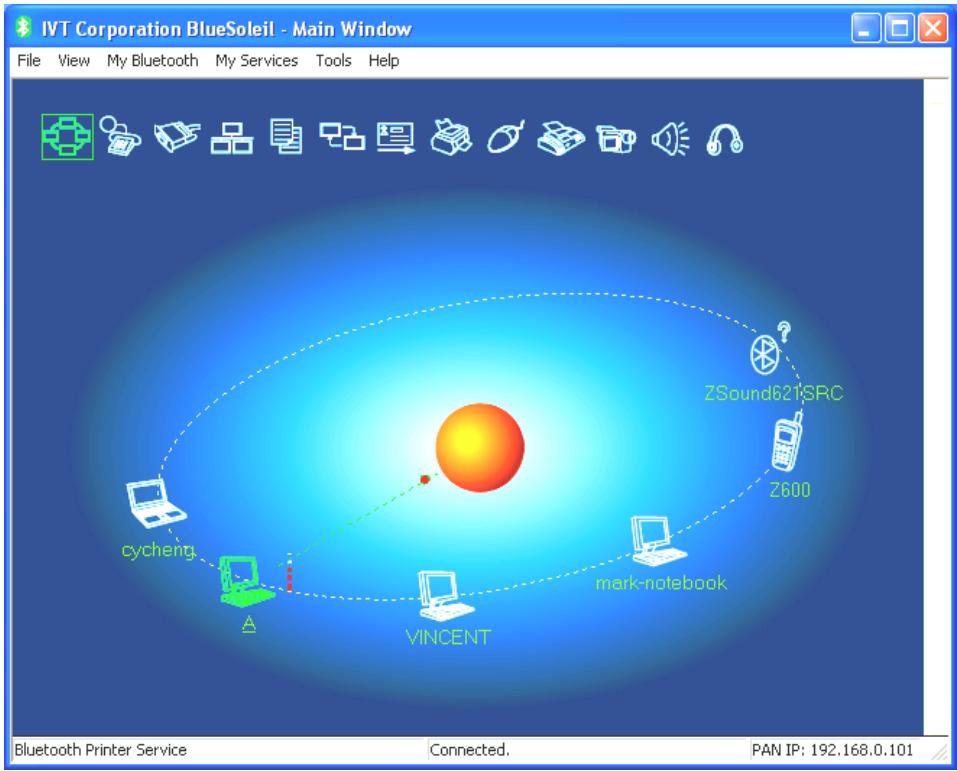
Figure 3.6: Connection is established successfully.
Step 9: Computer A and Computer B are now connected. On Computer B, go to Windows | My Network Places to find Computer A and copy files. Figure 3.7 shows where to input Computer A's name. In Figure 3.7, Computer A is named 'mike'.
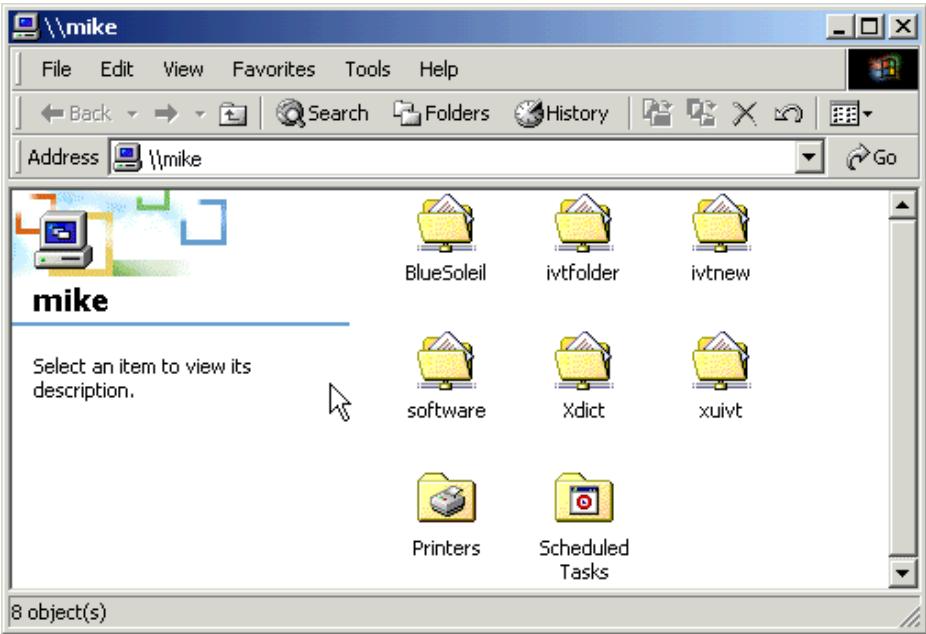
Figure 3.7: Find Computer A in My Network Places
Step 10: To disconnect the PAN connection, disconnect from either Computer
A or from Computer B.
On Computer B, right-click on the PAN service icon and choose Disconnect. (Figure 3.8)
On Computer A, right-click on the PAN service icon and choose Stop Service. (Figure 3.9)
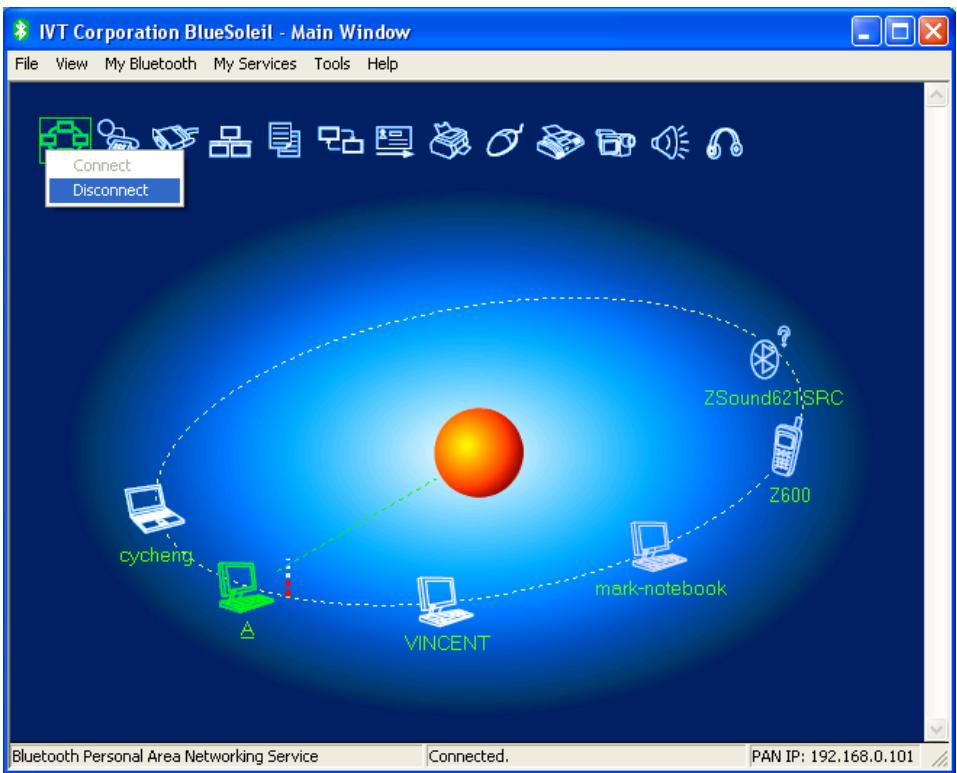
Figure 3.8: Disconnect the PAN service from Computer B
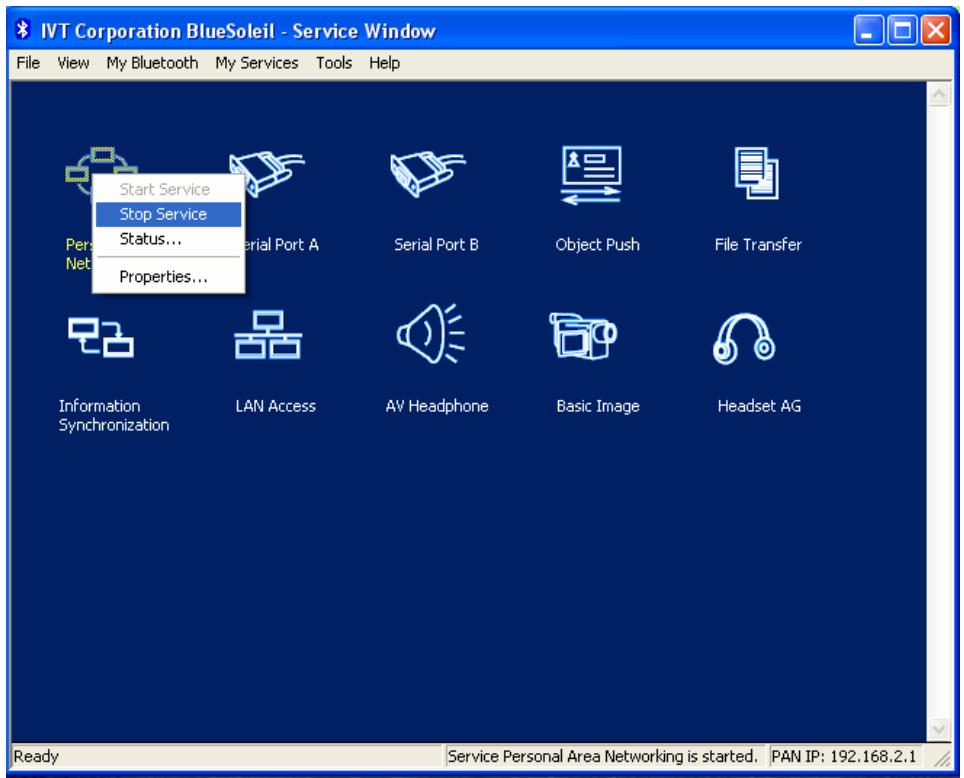
Figure 3.9: Stop the PAN service on Computer A
Advanced Usage:
Computer A is now the center node. Other computers, for example, Computers C, D and E, can connect to Computer A with BlueSoleil™ following the same steps as those for Computer B.
Computer A, B, C, D and E can access each other using the Windows Network Places. This forms a Bluetooth ad-hoc networking environment.
Note: Computer A can currently only support up to 7 connections. Also it takes about 1 minute before an IP address can be obtained on the client side (Computer B) unless a DHCP server is running on the server side (Computer A).
3.3 Computer with PAN acting as a TCP/IP Gateway
The following sections outline how to enable Computer B to access the Internet through Computer A.
Computer A:
Notebook/Laptop,PIII,800MHz,128M
A Bluetooth USB dongle
Windows 2000
IVT BlueSoleil™
Network Adapter connecting to the Internet
Computer B:
Desktop, PIII, 600MHz, 128M
A Bluetooth USB dongle
Windows 2000
IVT BlueSoleilTM
Step 1: Enable Internet access sharing on Computer A.
See "Section 3.2: Connect Two Computers", and complete Steps 1 to 7.
Refer to steps outlined in "Section 3.4.1 Connect to the Internet using ICS", to set up Internet sharing.
Step 2: Computer B can now access the Internet.
Advanced Usage:
Computer A is now the center node of the network. Other computers with BlueSoleil™ installed, for example, Computers C, D and E, can connect to Computer A following the same steps as those for Computer B.
Computers A, B, C, D and E can access each other using the Windows My Network Places and form a Bluetooth ad-hoc networking. Computers B, C, D and E can then access the Internet through Computer A.
Note: Computer A can currently only support up to 7 connections. Also it takes about 1 minute before an IP address can be obtained, unless Computer A is connected to a DHCP server.
3.3.1 Connect to the Internet using ICS
The PAN server can share a network connection with PAN clients with Windows ICS. ICS (Internet Connection Sharing) uses NAT (Network Address Translation) to share a network connection. PAN clients use internal network addresses (192.168.0.x). ICS is suitable for both dial-up and LAN connections.
For more detailed information about ICS and NAT, please refer to the Microsoft Windows help topic "Internet Connection Sharing".
3.3.2 Settings on the PAN server
Step 1: Right-click the My Network Places icon and select Properties. (Figure 3.10)
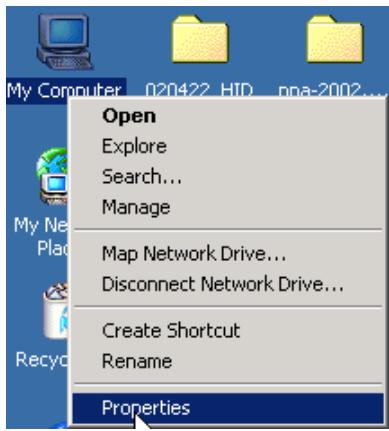
Figure 3.10: Select Properties on My Network Places
Step 2: Right-click the connection through which you access the Internet, and then select Properties. (Error! Reference source not found.)
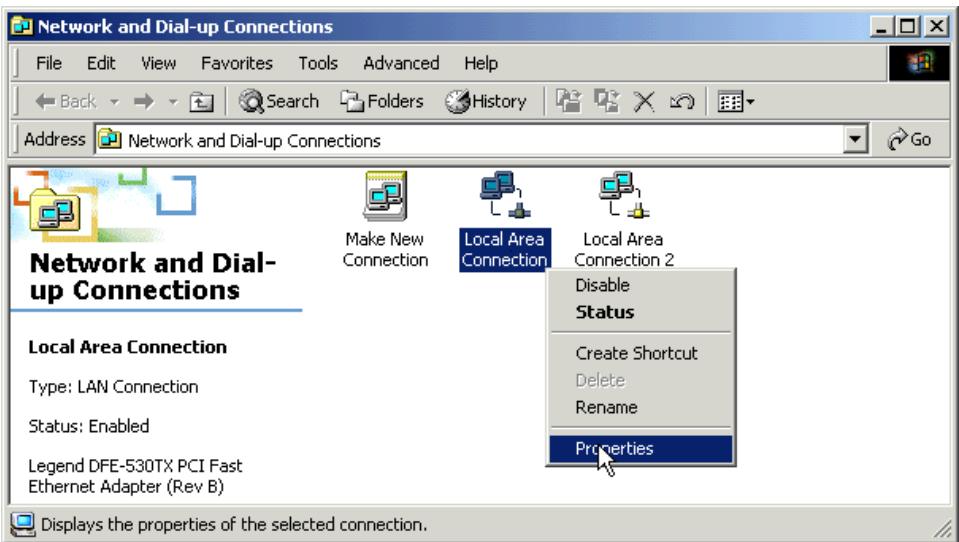
Figure 3.11: Click the connection through which you access the Internet
Step 3: On the Sharing tab, select the Enable Internet Connection Sharing check box. Figure 3.12 shows how to enable Internet Connection Sharing for a local area connection on Windows 2000. Figure 3.13 shows how to enable Internet Connection Sharing for a dial-up connection on Windows 2000.

Figure 3.12: Internet Connection Sharing for a Local Area Connection on Windows 2000
Step 4: If this connection is a dial-up one, and you want automatic dialing when another computer in your home network attempts to access external resources, then check the Enable on-demand dialing check box. Click OK.
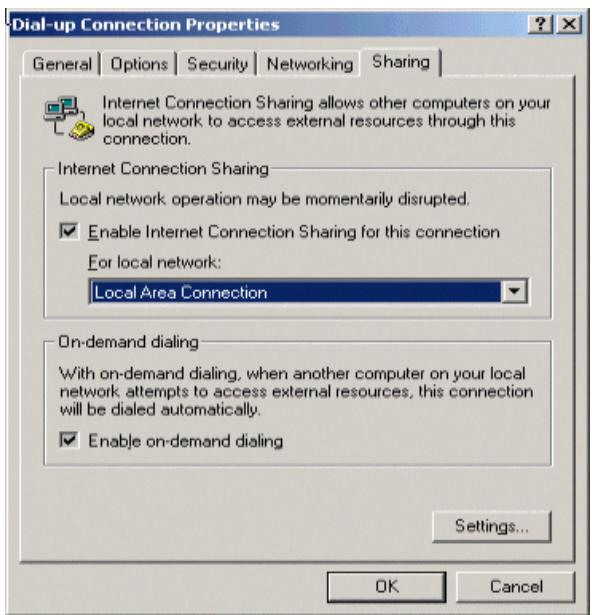
Figure 3.13: Internet Connection Sharing for a Dial-up Connection on Windows 2000
Step 5: A message window appears as shown in Figure 3.14. Click Yes. The IP address of the BT network adapter is changed to 192.168.0.1 and a DHCP server is started on BT network adapter.

Figure 3.14: Confirm Enabling Internet Connection Sharing
Note: The Internet Connection Sharing wizard will set the IP address of the BT network adapter to 192.168.0.1, and a DHCP server will be run on Computer A. PAN clients in the Bluetooth network can be set statically or dynamically to any IP address in the range 192.168.0.2 to 192.168.0.253.
3.4 PAN Configuration
3.4.1 My PAN Service
In the BlueSoleil™ Service Window, right-click the Personal Area Networking icon. On the pop-up menu, select Properties to configure my PAN service. (Figure 3.15)
Setting Items:
Auto start this service when my Bluetooth starts Check this option to automatically start my PAN service the every time BlueSoleil™ is started.
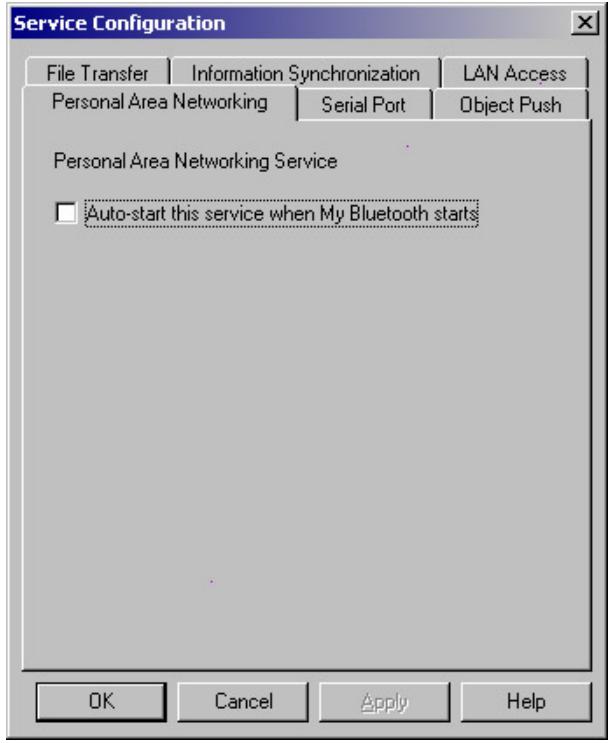
Figure 3.15: Service Configuration
4 Dial-Up Networking
4.1 Introduction
The Bluetooth Dial-up Networking (DUN) service allows a Bluetooth-enabled client to access the Internet wirelessly through a modem on another Bluetooth device or a cellular phone. The other Bluetooth device or the cellular phone is called the gateway (server) as it provides access to the public network.
The DUN profile can be used in the following scenario:
A Bluetooth computer accesses the Internet through a Bluetooth cellular phone or Bluetooth modem.
4.2 Connect to a Dial-up Gateway from a Computer
This section outlines the steps involved in a computer (client) accessing the Internet through a Bluetooth cellular phone.
Computer A:
Notebook/Laptop,PIII,800MHz,128M
A Bluetooth USB dongle
Windows XP
IVT BlueSoleil™
Bluetooth Cellular Phone:
Sony Ericsson T68 cellular phone
Step 1: Insert the Bluetooth USB dongle in the computer.
Step 2: Start BlueSoleil™ in the computer.
Step 3: Set device name of the computer to anything you want. Here it is named Computer A.
In the BlueSoleil™ Main Window of Computer A, click Tools | My Bluetooth Device. Enter `Computer A' in the device name field in the My Bluetooth Device window.
Step 4: Set the Sony Ericsson T68 to be discoverable so that Computer A can find the T68.
Press the Menu button on the T68 and scroll until you reach the Connect menu option, select Connect and scroll until you find Bluetooth. Select this option and scroll until you see Discoverable. Press the Yes button to confirm the selection.
The T68 will now enable itself to receive connection requests from other devices.
Step 5: Add Computer A to the paired device list in the T68.
Press the Menu button on the T68 and scroll until you reach the Connect menu option, select Connect and scroll until you find Bluetooth. Select this option and scroll until you see Discover. Press the Yes button to confirm the selection.
The T68 will now start searching devices. Once the T68 finds "ComputerA" on the screen, select it by pressing the Yes button. The Add to paired device? message appears on the
screen. Press Yes to confirm you want to initialize pairing.
The T68 will ask for the Bluetooth passkey. You can input any number, for example, "1".
On the BlueSoleil™ side, the Enter Bluetooth Passkey window pops up requesting the Bluetooth passkey. Input the sameBluetooth passkey you have input in the T68 and click OK.
- Once the pairing process is successfully complete, the T68 device icon is displayed in the Main Window of Computer A. At the meanwhile, the following dialog pops up asking you whether Create a Shortcut on the windows desktop. If you choose yes, a shortcut icon called DUN will occur on the desktop, otherwise the icon will not occur.

This is the icon on the desktop:
Step 6: Search for Bluetooth devices in Computer A until you find the T68.
Step 7: In the Main Window of Computer A, double click the T68 device to find its DUN service. If found, the DUN service icon in the Main Window will turn pink.
Step 8: In the Main Window of Computer A, double click the DUN service icon to connect to the DUN service on the T68.
Step 9: Once the two computers are connected, the Bluetooth Dial-up Networking (DUN) service icon in the Main Window will turn from pink to green.
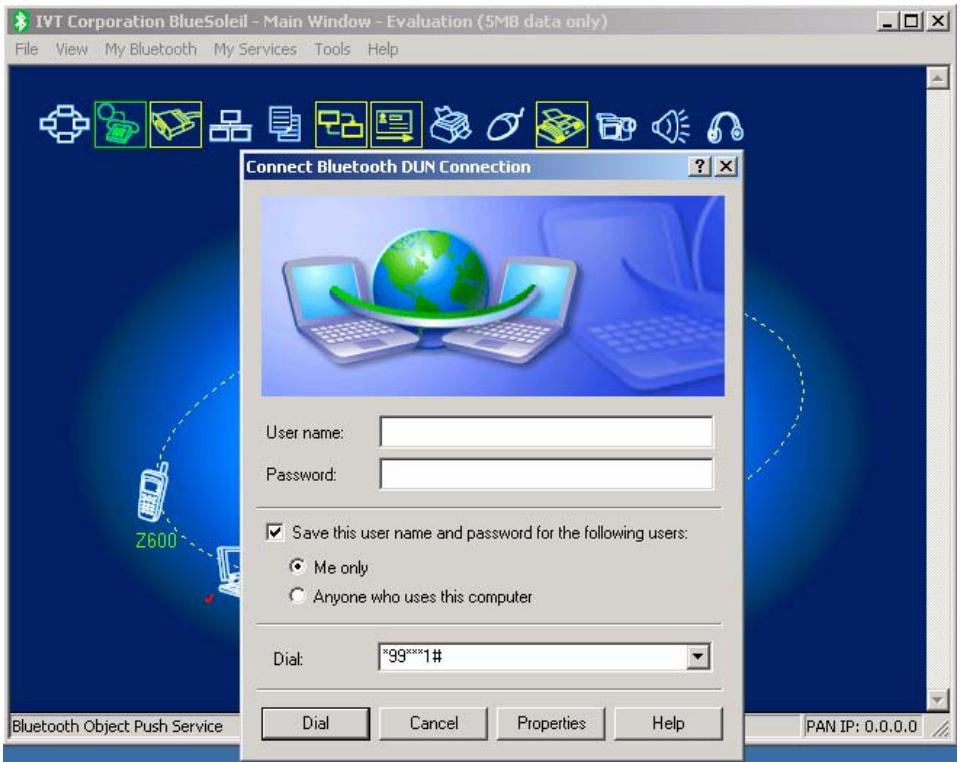
Figure 4.1: Connect BlueSoleil™ DUN Connection
Step 10: The Connect BlueSoleil™ DUN Connection window appears (Figure 4.1).
Input a valid username, password and the Internet Service Provider's (ISP's) phone number, then click the Dial button.
If the dial-up is successful, a small icon appears on the bottom right hand of the Windows taskbar, indicating that the dial up connection is successfully established.
If the dial-up fails, the Bluetooth connection between the two computers will be disconnected. In this case, to reconnect to the T68's DUN service, repeat Steps 8-9 above.
Step 11: Once the dial-up connection is established, users can browse web sites or access other Internet services from Computer A.
Step 12: There are three methods to disconnect the dial-up connection:
Method 1. Double-click the dial-up connection icon on the bottom right of the Windows taskbar. The BlueSoleil™ DUN Connection Status window appears. Click the Disconnect button to disconnect the dial-up connection (Figure 4.2).
Method 2. Right-click the Bluetooth Dial-up Networking icon in the Main Window, and then click the Disconnect menu item on the pop-up menu.
Method 3. Right-click the T68 device in the Main Window and select Disconnect | Bluetooth Dial-Up Networking.
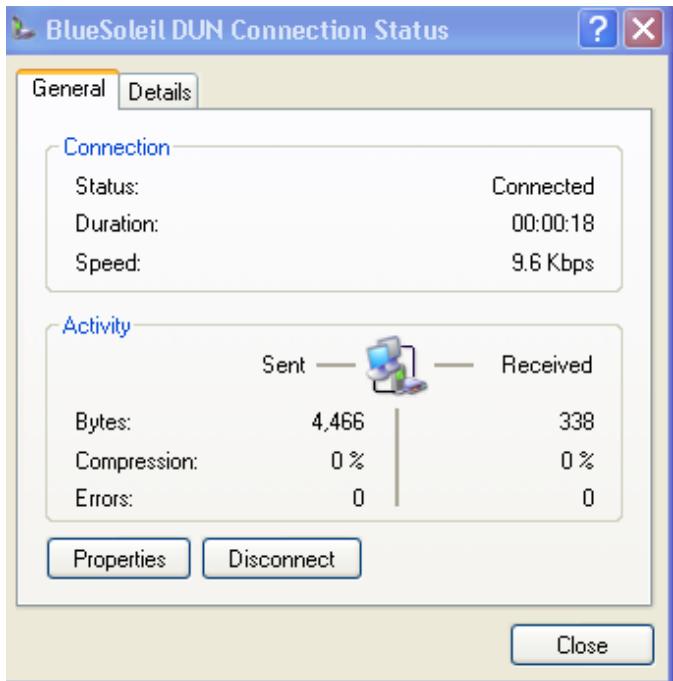
Figure 4.2: BlueSoleil™ DUN Connection Status window
5 Bluetooth Serial Port
5.1 Introduction
The Bluetooth Serial Port (SPP) provides a virtual serial port via Bluetooth as an alternative to a hardwired serial cable between a computer and device. Any program that uses a standard serial port can use the Bluetooth serial port without any change.
The SPP profile can be used in the following scenarios:
Connecting two computers through a Bluetooth serial port.
Using SPP to print a document.
Connecting a computer to any other device that supports SPP through a Bluetooth serial port.
5.2 Connect Two Computers
This section outlines the steps involved in connecting two computers, Computer A and Computer B using the Bluetooth Serial Port application.
Computer A:
Notebook/Laptop,PIII,800MHz,128M
A Bluetooth USB dongle
Windows 2000
IVT BlueSoleil™
Computer B:
Desktop,PIII,600MHz,128M
A Bluetooth USB dongle
Windows 2000
IVT BlueSoleilTM
Step 1: Insert the Bluetooth USB dongles into each computer.
Step 2: Start BlueSoleilTM in each computer.
Step 3: Set the device name of the each computer to anything you want. Here they are named Computer A and Computer B.
In the BlueSoleil™ Main Window of Computer A, click Tools | My Bluetooth Device. Enter `Computer A' in the device name field in the My Bluetooth Device window.
Repeat for Computer B.
Step 4: Set the security level to Low on Computer A and Computer B. (Use the Tools | Configurations | Security menu).
Step 5: Start the SPP service on Computer A.
In the BlueSoleil™ Main Window, click View | Service Window. In the Service Window, right-click the Serial Port icon. Select Start Service on the pop up menu. (Figure 5.1)
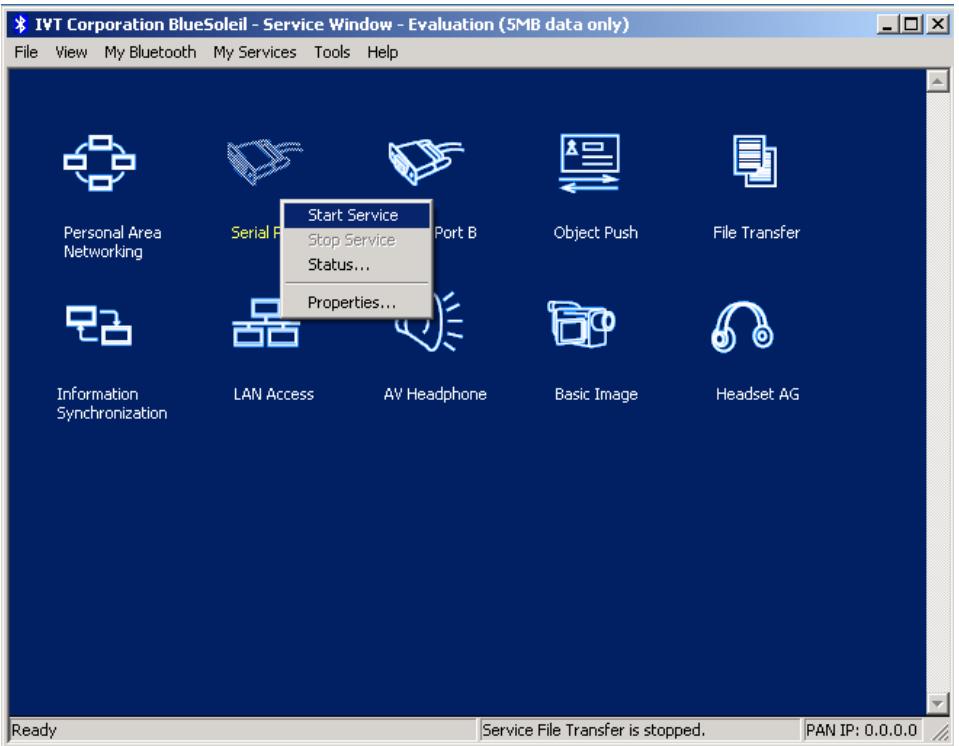
Figure 5.1: Start the SPP Service
Step 6: Connect Computer B to Computer A.
On Computer B double click the 'My Device icon' until you find the device, Computer A.
Double-click the Computer A device to find its SPP service (Figure 5.2). The Bluetooth Serial Port service icon turns pink.
Right-click the Bluetooth Serial Port service icon and select Connect. (Figure 5.3)
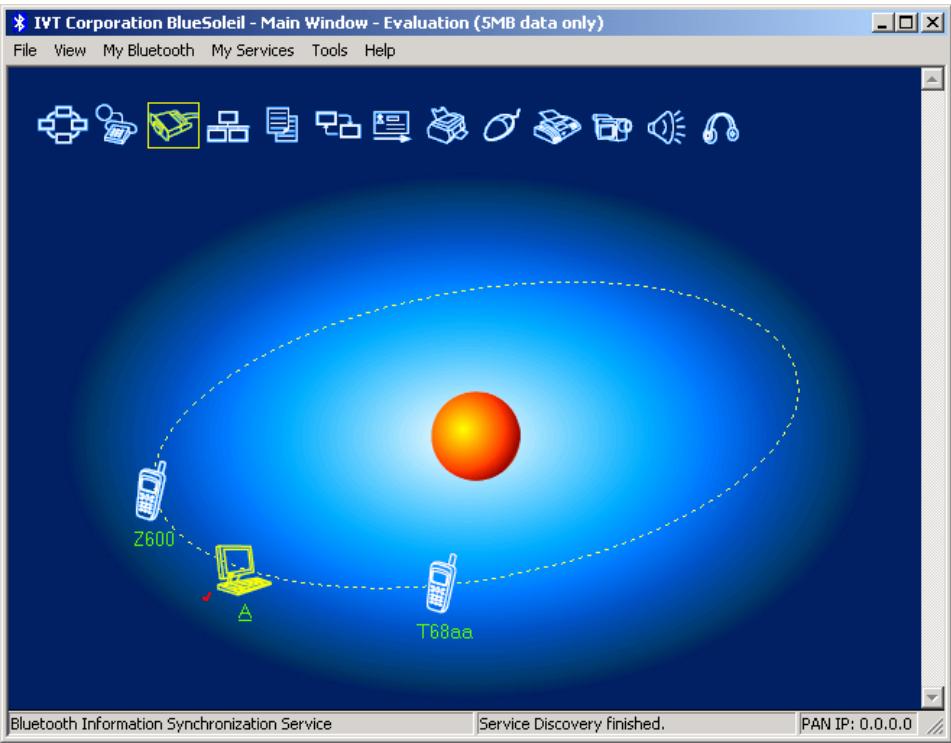
Figure 5.2: Double-click the Computer A device icon
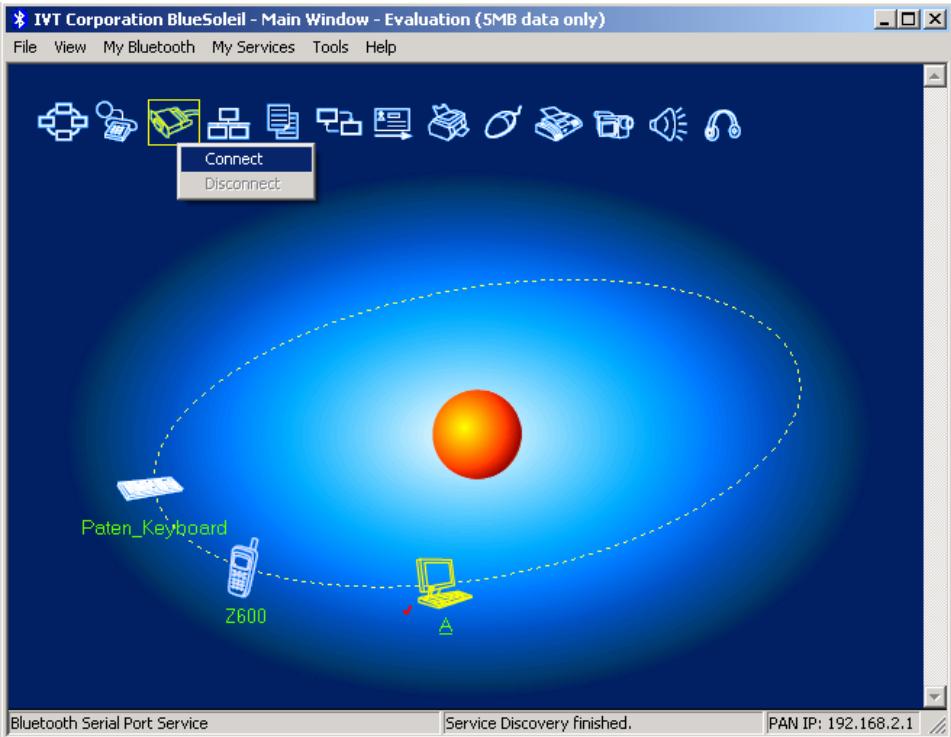
Figure 5.3: Choose Connect
The connection is established successfully as shown in Figure 5.4. Wait for 10 seconds until the serial port number is shown on the right bottom status bar on Computer B. (Figure 5.5)
*My Bluetooth COM Port 4 (COM4)is connected to remote device.
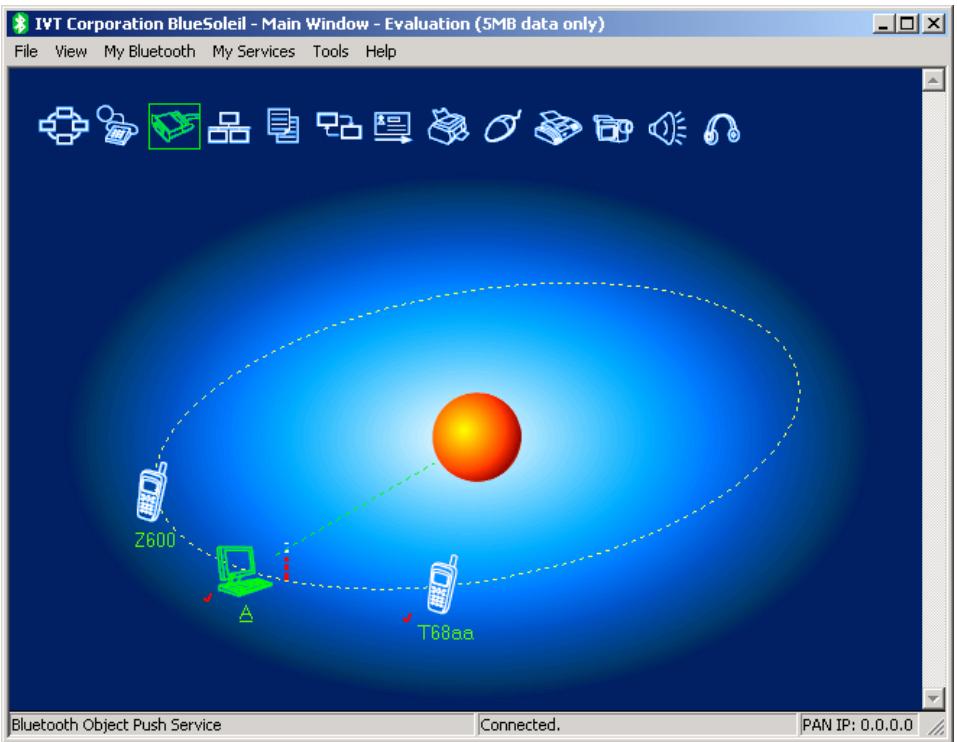
Figure 5.4: The connection is established successfully
Figure 5.5: The serial port number is shown
5.3 Use SPP to Print a Document
This section outlines the steps involved in connecting a computer to a Bluetooth Printer Adapter using SPP.
Computer A:
Notebook/Laptop,PIII,800MHz,128M
A Bluetooth USB dongle
Windows 2000
IVT BlueSoleilTM
Bluetooth Printer Adapter B:
HP Printer
Bluetooth Printer Adapter
Step 1: Insert the Bluetooth USB dongle into the computer.
Step 2: Start BlueSoleil™ in the computer.
Step 3: Set the device name of the computer to anything you want; here it is named Computer A.
In the BlueSoleil™ Main Window of Computer A, click Tools | My Bluetooth Device. Enter 'Computer A' in the device name field in the My Bluetooth Device window.
Step 4: Set the security level to Low in Computer A. (Use the Tools |
Configurations | Security menu).
Step 5: Connect Computer A to the Bluetooth Printer Adapter B using SPP.
Go to Computer A; double click the My Device icon' until you find the device Bluetooth Printer Adapter B.
Double-click the Bluetooth Printer Adapter B device to find it's SPP service.
Double-click the SPP service icon to start connecting SPP.
Step 6: Change the printer settings to use the connected Bluetooth serial port.
Step 7: Print a document.
5.4 SPP Configuration
5.4.1 My SPP Service
In the BlueSoleil™ Service Window, right-click the Serial Port icon. On the pop-up menu, select Properties to configure the 'my SPP service'.
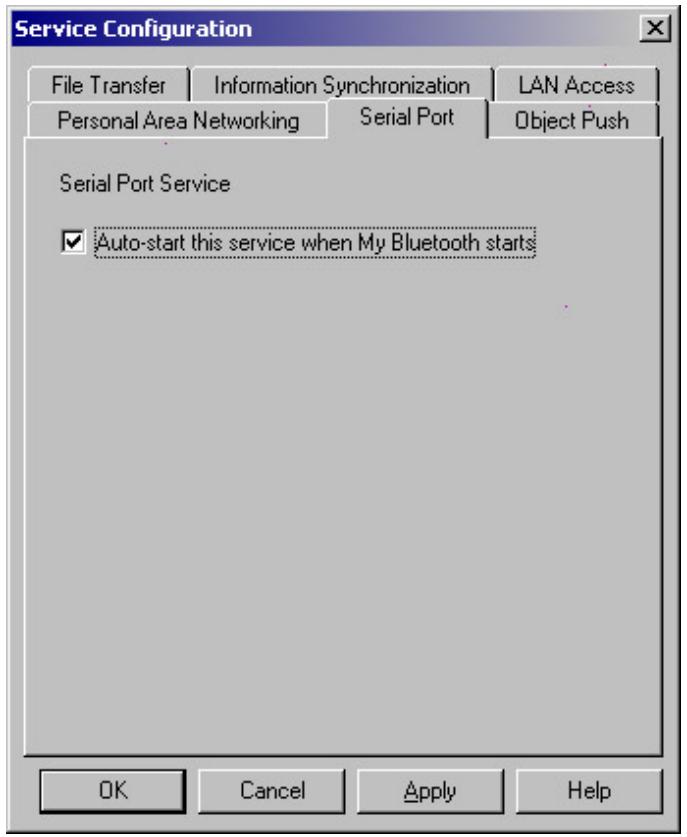
Figure 5.6: SPP Service Configuration.
Setting Items:
Auto start this service when my Bluetooth starts Check this option to automatically start my Bluetooth SPP service every time BlueSoleil™ is started. (Figure 5.6)
6 Bluetooth File Transfer
6.1 Introduction
The File Transfer profile (FTP) supports the file transfer usage model, which offers the ability to transfer files from one Bluetooth device to another.
The FTP profile can be used in the following scenarios:
A computer can transfer files to/from another computer.
A computer can transfer files to/from a PDA.
6.2 Transfer files to/from a Computer
This section outlines the steps involved in Computer A transferring files to/ from Computer B.
Computer A:
Notebook/Laptop,PIII,800MHz,128M
A Bluetooth USB dongle
Windows 2000
IVT BlueSoleilTM
Computer B
Desktop,PIII,600MHz,128M
A Bluetooth USB dongle
Windows 2000
IVT BlueSoleilTM
Step 1: Insert the Bluetooth USB dongles into each computer.
Step 2: Start BlueSoleil™ in each computer.
Step 3: Set device name of each computer to anything you want. Here they are named Computer A and Computer B,
In the BlueSoleil™ Main Window of Computer A, click Tools | My Bluetooth Device. Enter `Computer A' in the device name field in the My Bluetooth Device window.
Repeat for Computer B.
Step 4: Configure the FTP service on Computer A.
In the Service Window, right-click the File Transfer icon. Select Properties on the pop-up menu. (Figure 6.1)
The Service Configuration window pops up. (Figure 6.2)
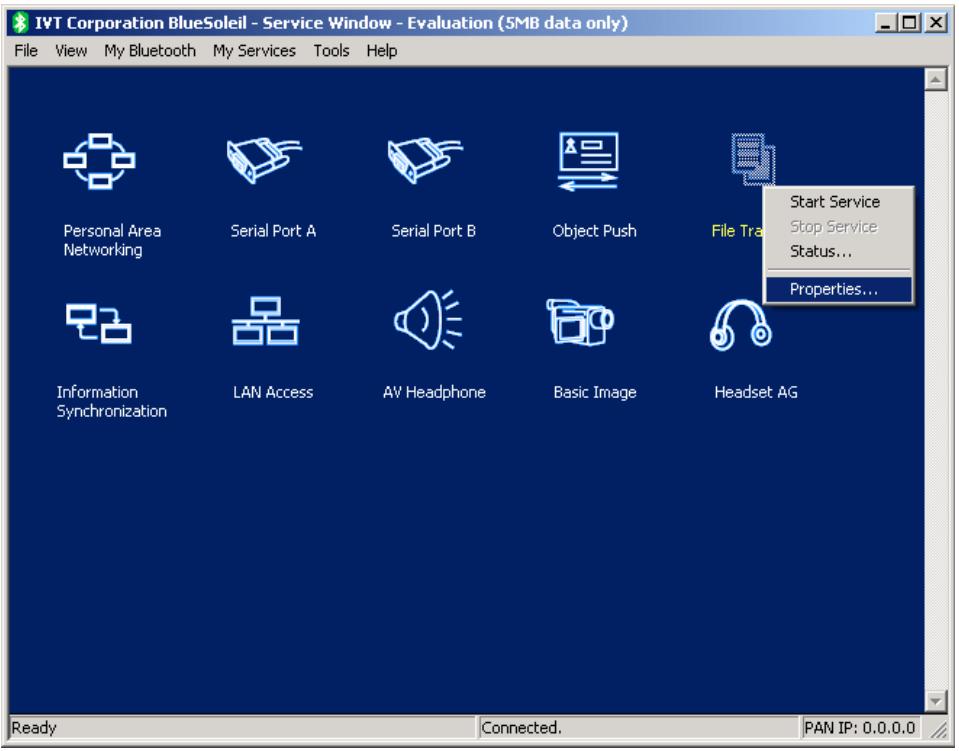
Figure 6.1: Service Window
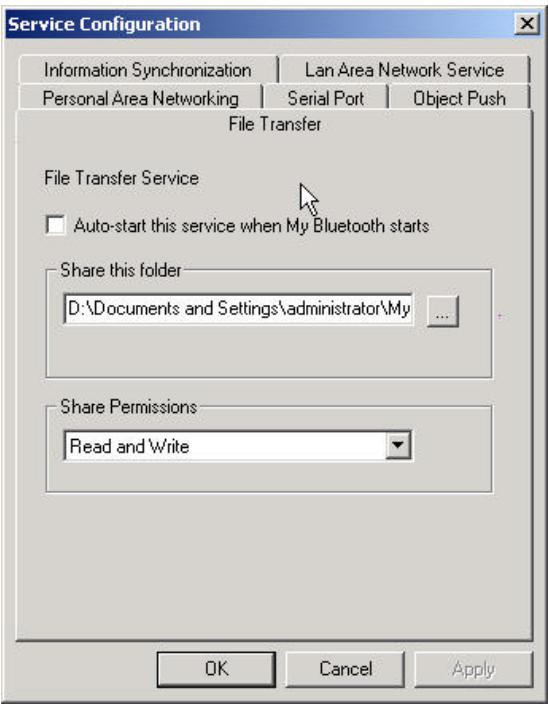
Figure 6.2: The Service Configuration window
In the Share this folder field input the folder that you want to share with other computers via Bluetooth. Click the button under Share this folder and a new window Set FTP Server Root Folder pops up. (Figure 6.3). Select the shared folder in the Look in box and click the Select button. (Figure 6.4)
For Share Permissions, select Read and Write so that other
computers can copy or delete files\directories to this directory.
Note: Do not share your Windows system directory in Read and Write mode. Other users may delete important Windows' files.
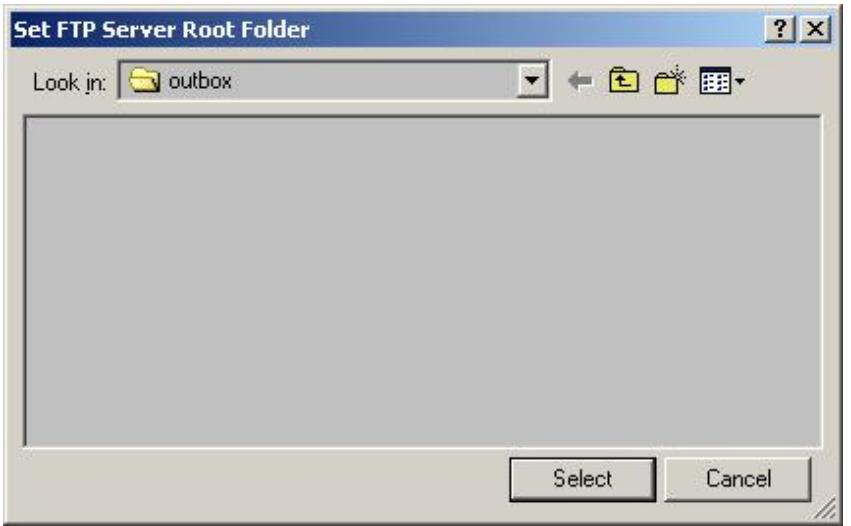
Figure 6.3: Set FTP Server Root Folder
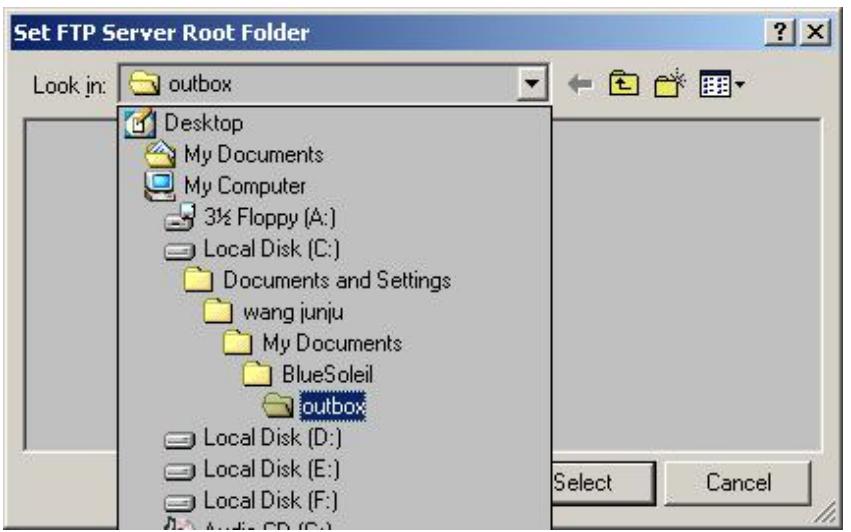
Figure 6.4: Select the shared folder
Step 5: Search for Computer A on Computer B.
Double-click the My Device icon until you find the device Computer A.
Step 6: Find the FTP service on Computer A.
Double-click the Computer A device icon on Computer B. (Figure 6.5)
Enter the Bluetooth passkey (if security is set to High on either side) to start authentication.
Once authentication is complete, the FTP service is found.
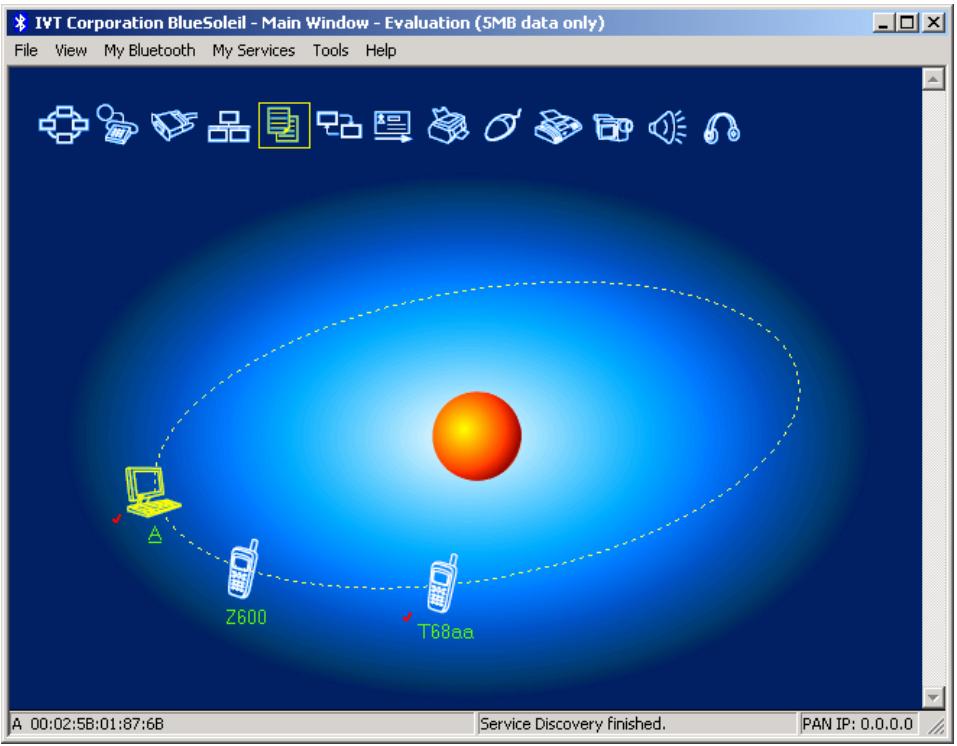
Figure 6.5: Double-click the Computer A device icon
Step 7: Connect to Computer A.
Right-click the FTP service icon; select Connect on the pop-up menu. The connection is now established (Figure 6.6). The remote folder is displayed in a Windows Explorer folder window (Figure 6.7).
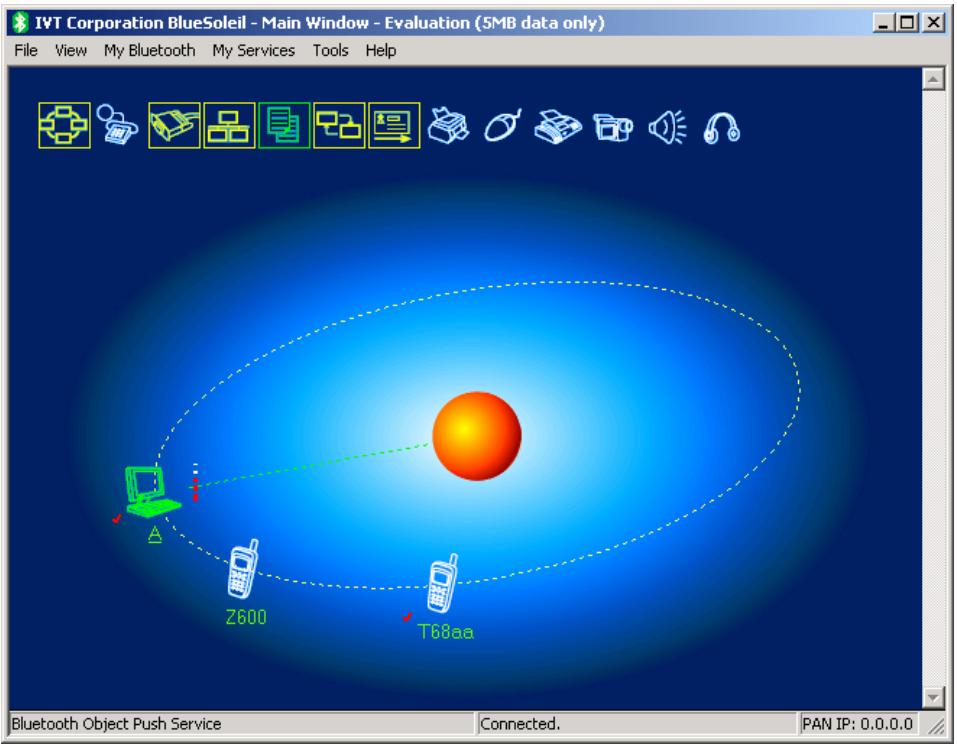
Figure 6.6: The connection is successfully established
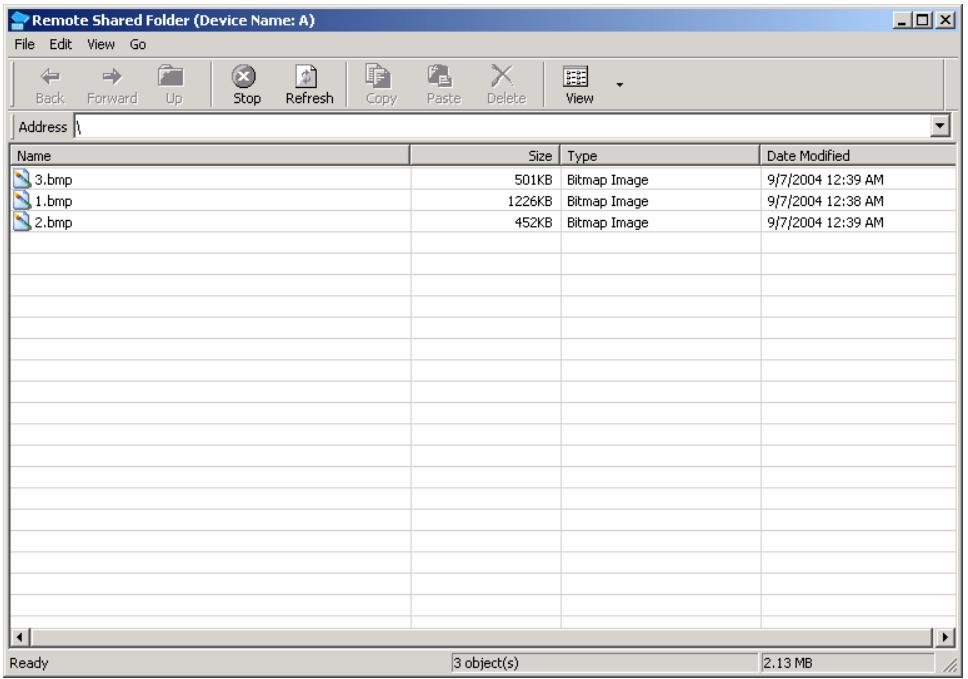
Figure 6.7: The remote folder is displayed
Step 8: Copy files and directories.
From Computer B to Computer A - upload Select files\directories on Computer B and drag files into the Remote Shared Folder. (Figure 6.8)
From Computer A to Computer B - download Select files\directories from the Remote Shared Folder and drag files into the desktop or a folder on Computer B. (Figure 6.9)
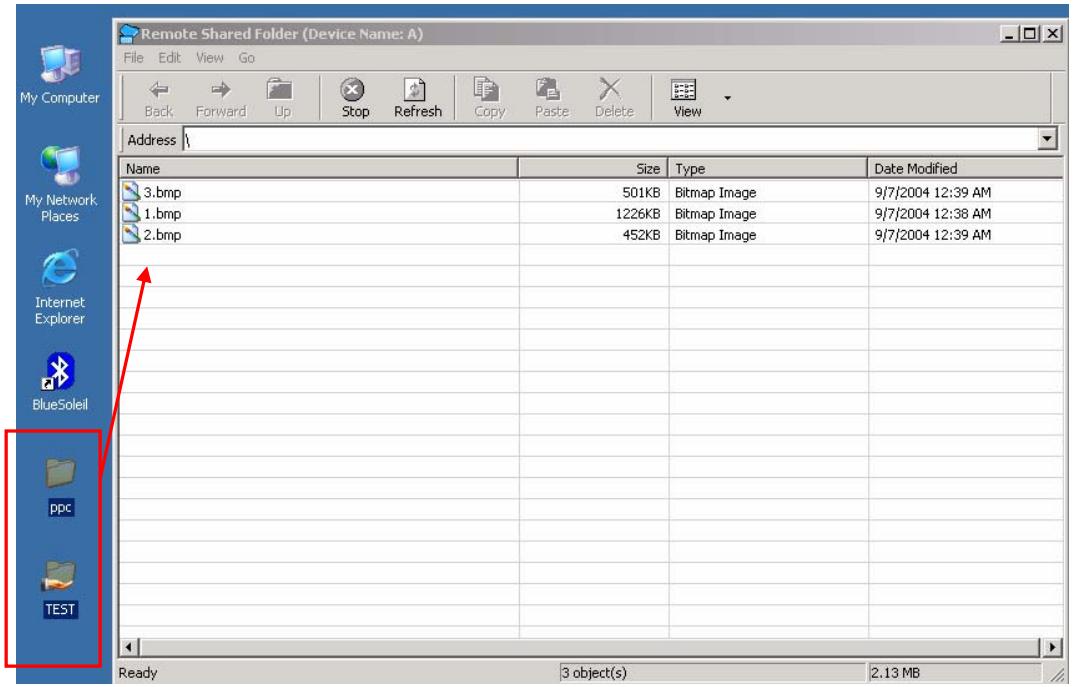
Figure 6.8: Upload files to Computer A
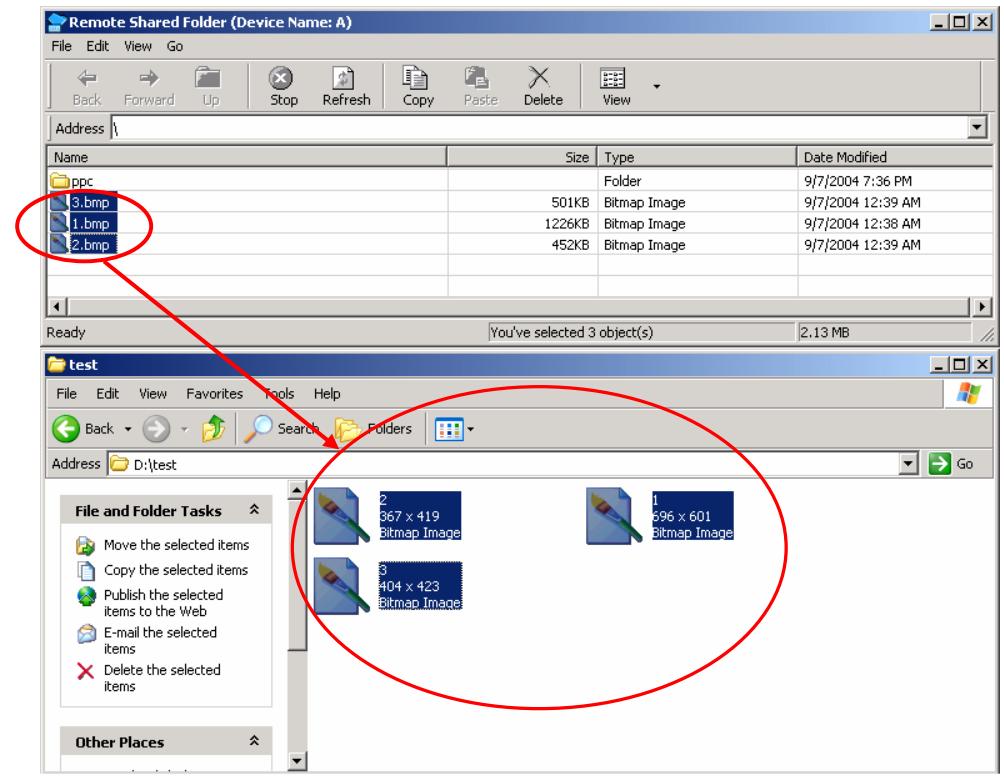
Figure 6.9: Download files from Computer A
6.3 FTP Configuration
6.3.1 My FTP Service
In the BlueSoleil™ Service Window, right-click the File Transfer icon. On the pop-up menu, select Properties to configure the 'my FTP service'.
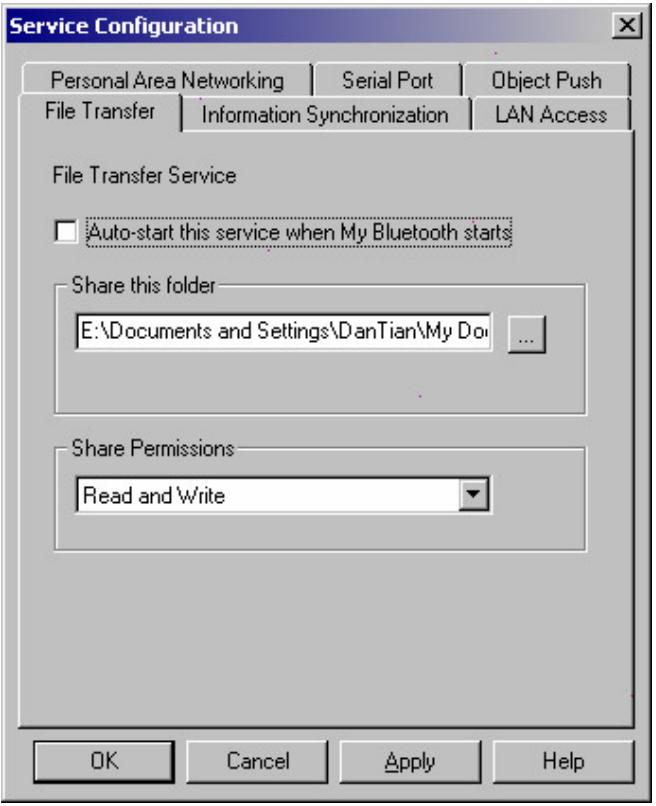
Figure 6.10: Configure FTP service
Setting Items:
Auto starts this service when my Bluetooth starts
Check this box to automatically start the File Transfer service every time BlueSoleil™ is started.
Root Directory
This sets the root directory that you want to share with other computers using Bluetooth.
Access Permissions
This sets the access permission remote computers have to the shared root directory.
7 LAN Access
7.1 Introduction
The Bluetooth LAN Access Profile (LAP) allows Bluetooth-enabled devices to access the services of a LAN using Point-to-Point Protocol. In this usage model, multiple data terminals use a LAN access point as a wireless connection to a Local Area Network (LAN). Once connected, data terminals operate as if they are connected to the LAN via dial-up networking and can access all the services provided by the LAN.
The LAN application can be used in the following scenarios:
A computer (or PDA) accesses a Local Area Network via a LAP Server.
A computer (or PDA) accesses a Local Area Network via a LAN access point.
Note: Before using the LAN Access Profile in Windows98/Me, ensure that a Dial-up Adapter and Windows's component direct cable are already installed on the computer. (See "Section Error! Reference source not found.: Error! Reference source not found.") Moreover, every operating system should have an installation of NetBEUI protocol; otherwise, it cannot use computer name to visit other computer.
7.2 Access a Local Area Network (LAN)
This section outlines the steps involved in connecting to a Local Area Network using the LAP application.
Computer A:
Notebook/Laptop,PIII,800MHz,128M
A Bluetooth USB dongle
Windows 2000
IVT BlueSoleilTM
Computer B:
Desktop, PIII, 600MHz, 128M
A Bluetooth USB dongle
Windows 2000
IVT BlueSoleilTM
Step 1: Insert Bluetooth USB dongles into both computers.
Step 2: Start BlueSoleil™ in both computers.
Step 3: Set the device name of each computer to anything you want. Here they are named Computer A and Computer B.
In the BlueSoleil™ Main Window of Computer A, click Tools | My Bluetooth Device. Enter 'Computer A' in the device name field in the My Bluetooth Device window.
Repeat for Computer B.
Step 4: Set the security level to Low on both Computer A and Computer B. (Use the Tools | Configurations | Security menu).
Step 5: Start the LAP service on Computer A.
In the Service Window, right-click the LAN Access icon. Select Start Service on the pop-up menu (Figure 7.1).
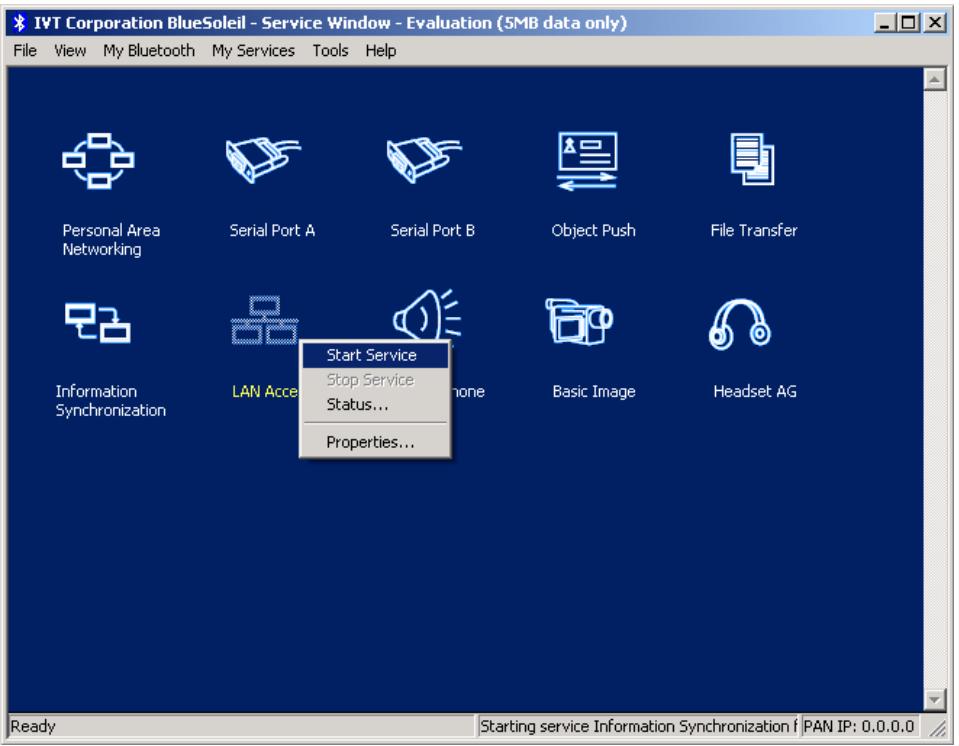
Figure 7.1: Select Start Service
Step 6: Make incoming connection on Computer A
Right-click on My Network Places; select Properties. (Figure 7.2)
On the Network and Dial-up Connections panel, right-click the Incoming Connection icon, and then select Properties on the pop up menu. (Figure 7.3)
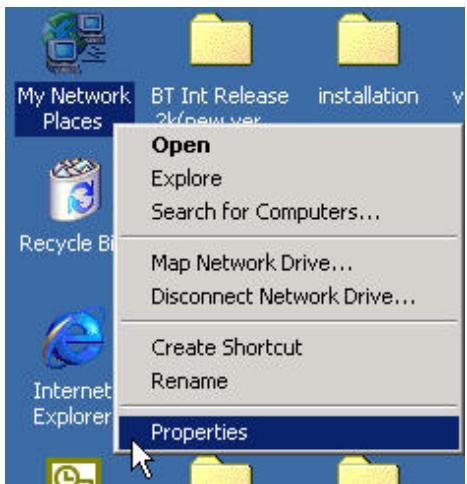
Figure 7.2: Right-click My Network Places
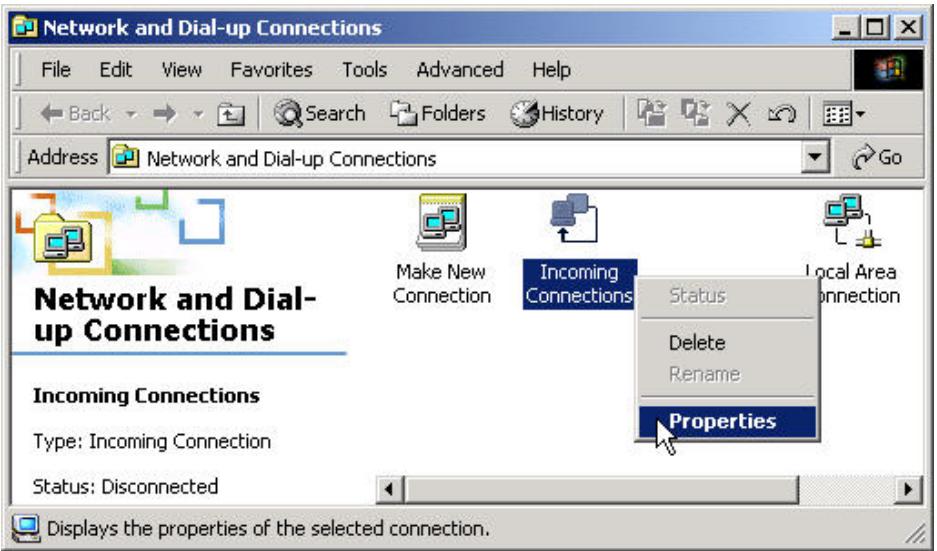
Figure 7.3: Select Properties on the pop up menu
Click Networking on the Incoming Connections Properties pop-up window. (Figure 7.4)
Choose Internet Protocol (TCP/IP) and click Properties. (Figure 7.5)
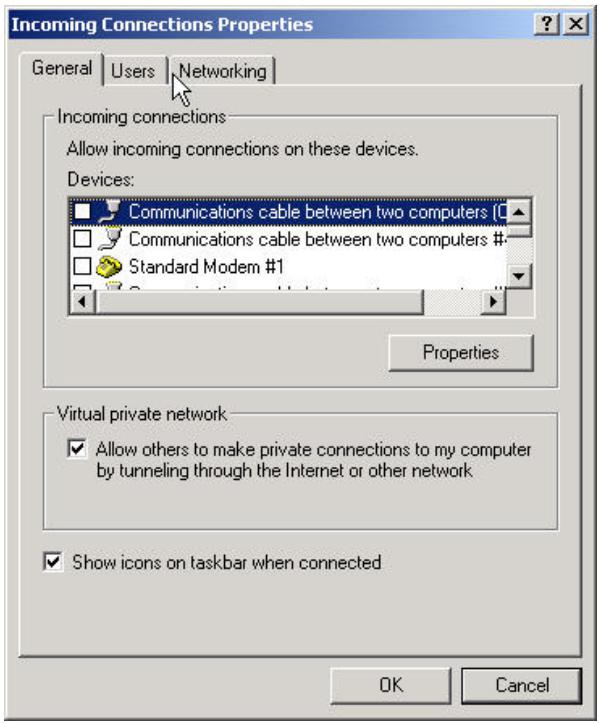
Figure 7.4: Incoming Connections Properties
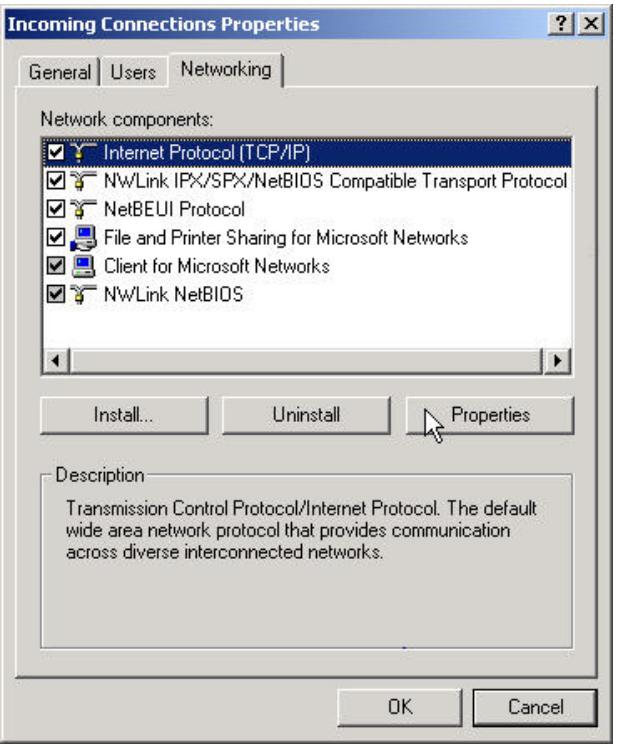
Figure 7.5: Choose Internet Protocol (TCP/IP)
Select Specify TCP/IP addresses, and input the two IP addresses. The subnet mask of the two IP addresses should be the same as the subnet of the LAN Computer A belongs to. (Figure 7.6)
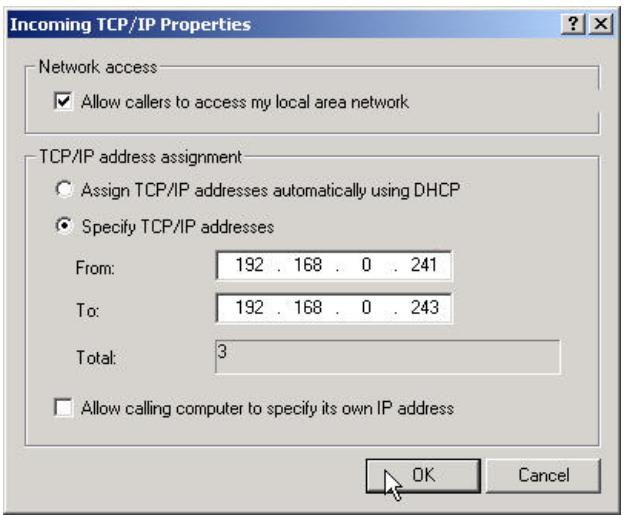
Figure 7.6: Input the IP addresses
Step 7: Search for Computer A on Computer B.
Double-click the My Device icon on Computer B until you find the device icon Computer A.
Step 8: Find the LAP service of Computer A.
Double-click the Computer A device icon on Computer B (Figure 7.7).
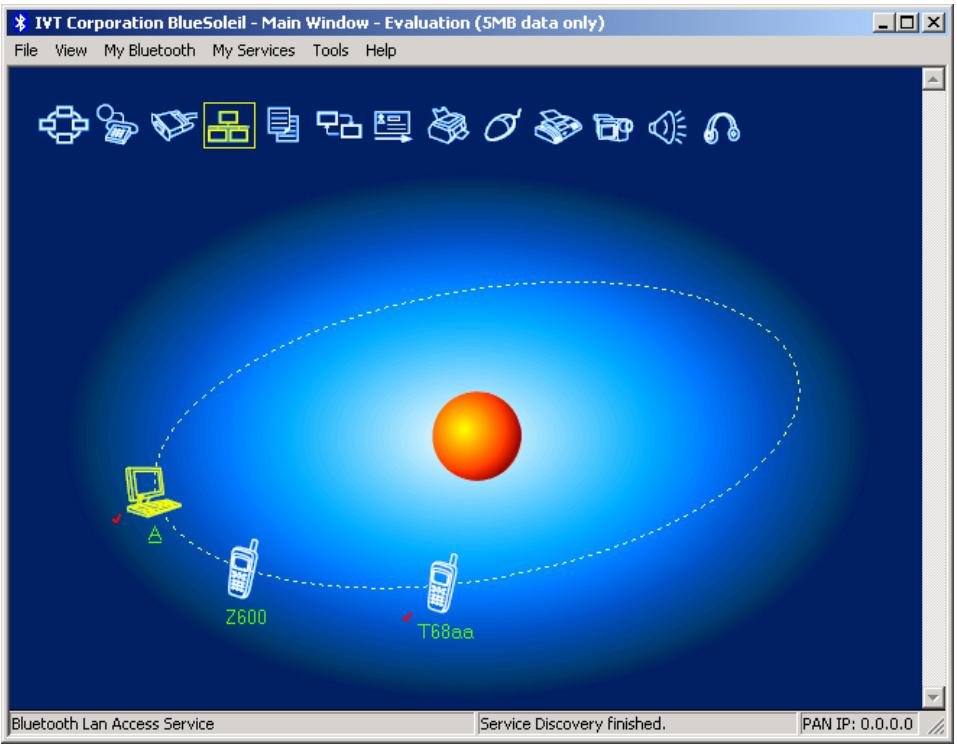
Figure 7.7: Double-click the Computer A device icon
Step 9: Connect to Computer A.
Right-click the LAP service icon; select Connect on the pop-up menu. (Figure 7.8)
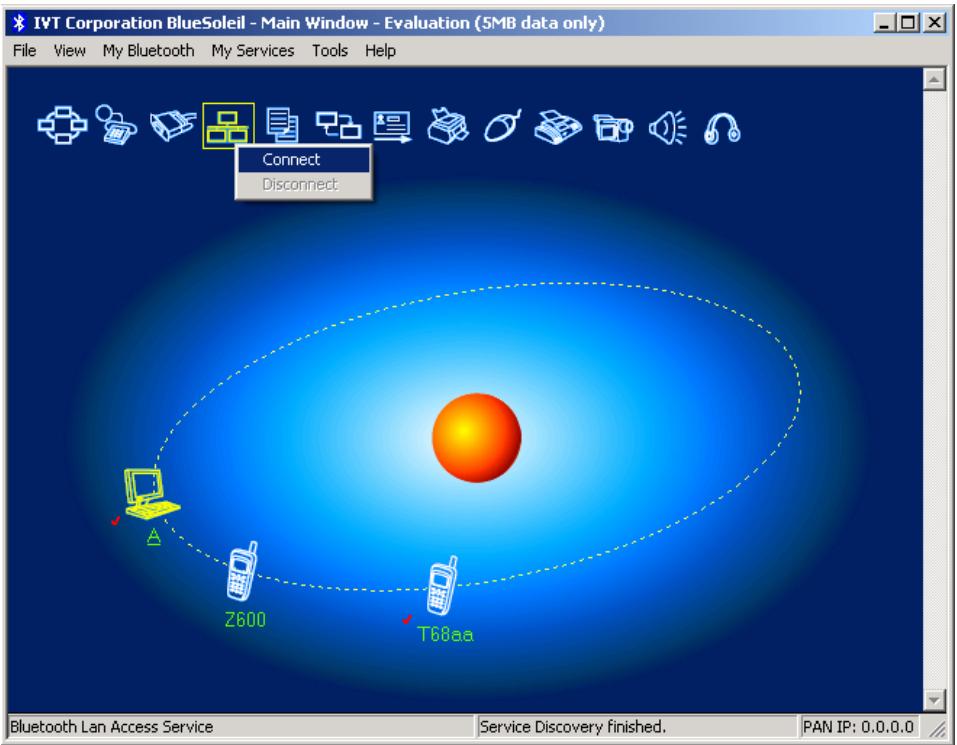
Figure 7.8: Select Connect
The Connect BlueSoleil™ LAP Connection window pops up.
Input a username and password. (Figure 7.9)
The connection is then established. (Figure 7.10)
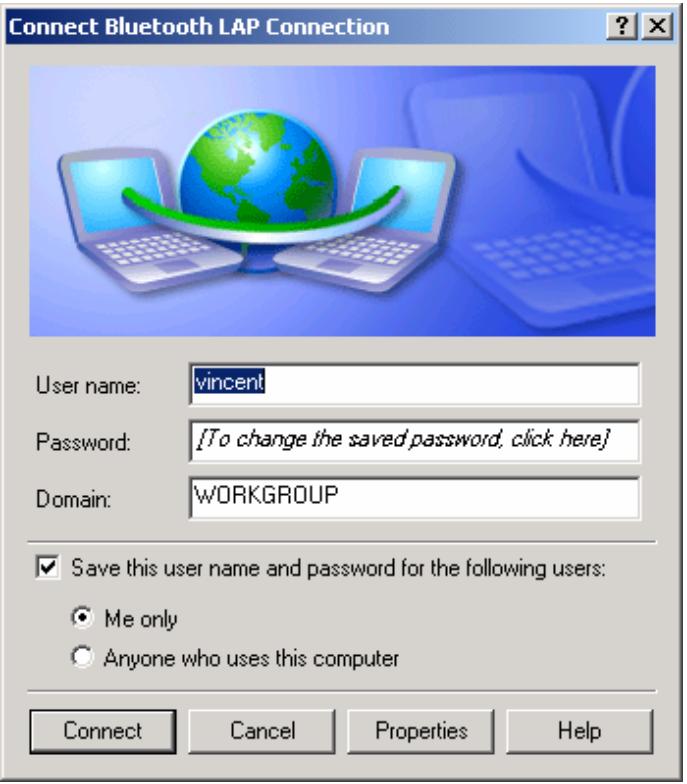
Figure 7.9: InputUsername and Password
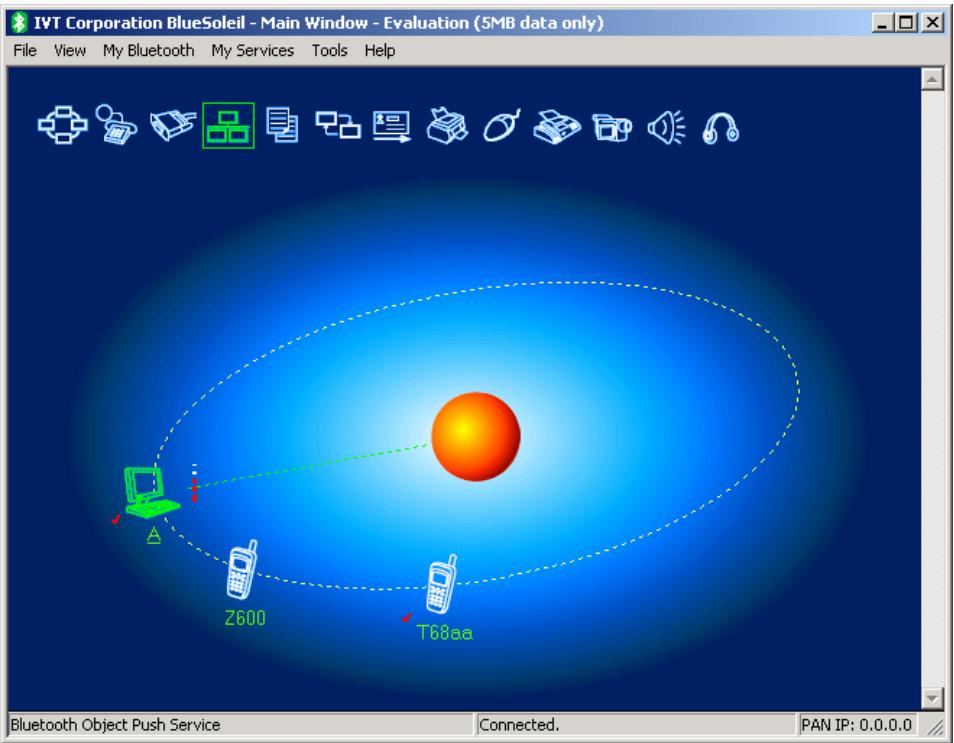
Figure 7.10: Successful connection to LAP
Step 10: Computer B can now access the LAN via Computer A.
8 Object Push
8.1 Introduction
The Bluetooth Object Push profile (OPP) is an application that offers a way to send and receive Personal Information Management (PIM) data objects from one Bluetooth device to another Bluetooth device.
The objects Object Push supports are:
Business cards (.vcf)
Calendar entries (.vcs)
Notes (.vnt)
Messages (*.vmg)
The OPP profile can be used in the following scenarios:
Connecting a computer to a Bluetooth cellular phone (or PDA), and transferring objects from the computer to the cellular phone (or PDA).
Connecting a computer to a Bluetooth cellular phone (or PDA), and transferring objects from the cellular phone (or PDA) to the computer.
Connecting two computers and transferring objects between them.
8.2 Transfer Objects from a Computer to a Bluetooth Cellular Phone
This section outlines the steps involved in transferring OPP objects from a Computer to a Bluetooth cellular phone.
Computer A:
Bluetooth Cellular Phone:
Sony Ericsson T68
Step 1: Insert the Bluetooth USB dongle into the computer.
Step 2: Start BlueSoleil™ in the computer.
Step 3: Set the device name of the Computer A to anything you want. Here it is named Computer A.
In the BlueSoleil™ Main Window of Computer A, click Tools | My Bluetooth. Enter 'Computer A' in the device name field in the My Bluetooth Device window.
Step 4: Configure the business card of Computer A.
Open the Service Configuration window and select the Object Push page. In the BlueSoleil™ Main Window, click My Services
(Figure 8.1).
Check the boxes, Send Business Card on Request, Accept Business Card, Accept Calendar Items, Accept Email Messages and Accept Notes.
To set 'my business card', click the box Send My Business Card (*.VCF). This opens the Open File window. Select a VCF file as your own business card and click the Open button. Click the OK button on the Service Configuration window. If you do not set a business card, the program will generate a business card file automatically using your computer name. (Figure 8.2)
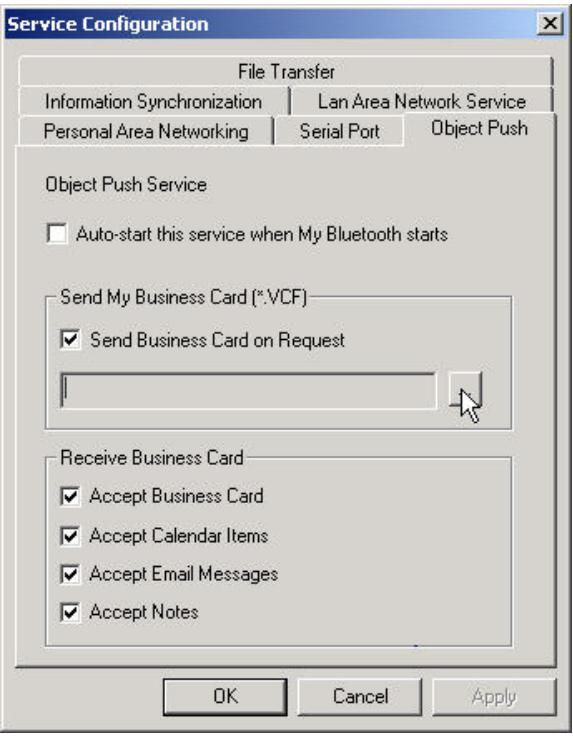
Figure 8.1: Service Configuration
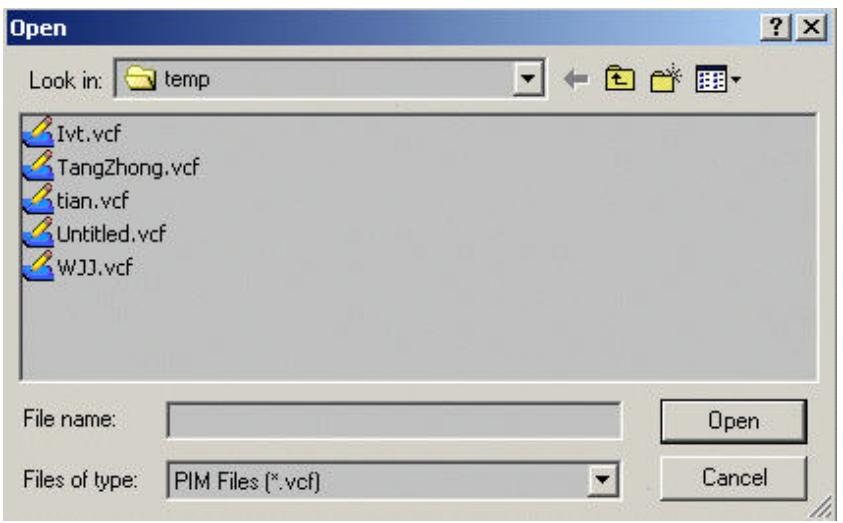
Figure 8.2: Open File
Step 5: To obtain a VCF card file from MS Outlook.
Open MS Outlook, and select the Contacts item in Outlook Shortcuts. (Figure 8.3)
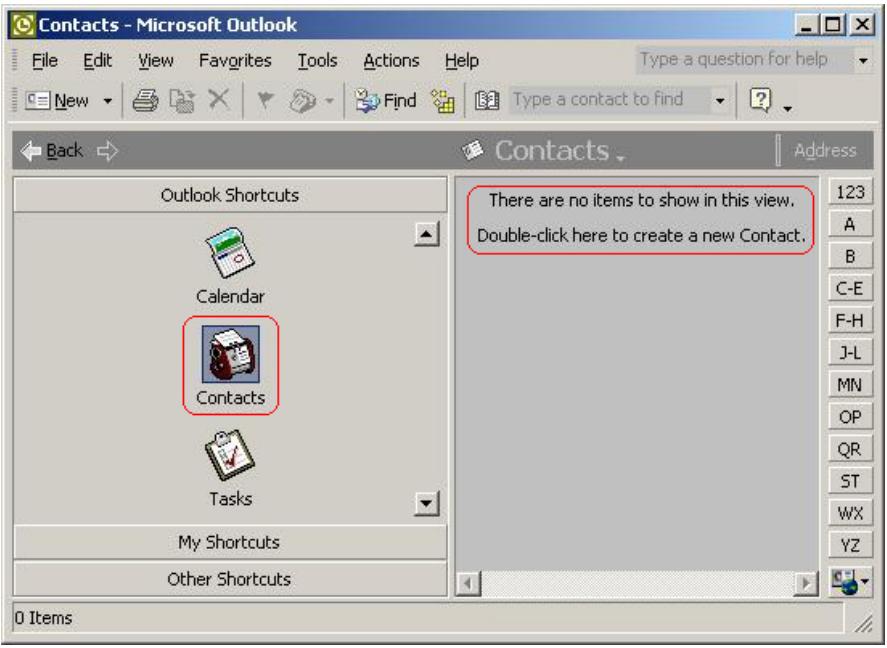
Figure 8.3: MS Outlook main window
If there are no contacts entered, the following message appears on the main window "There are no items to show in this view. Double-click here to create a new Contact." Double-click and a pop-up window appears. (Figure 8.4)
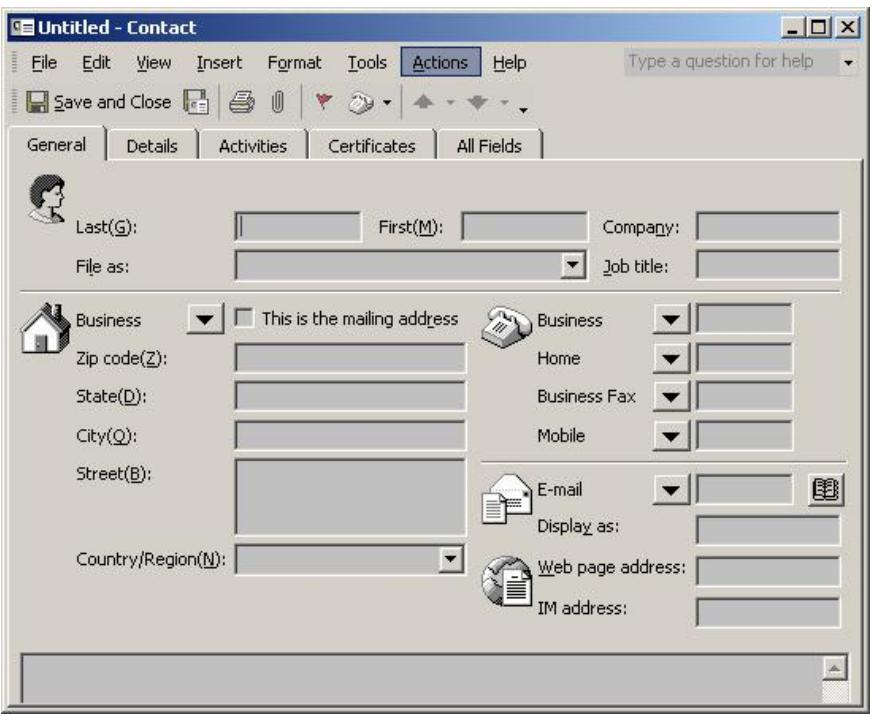
Figure 8.4: Create a new contact
Enter your Contact information. Click File | Save as and a Save As window pops up. Select the name of the file and the
directory where you want to save the file. Select the vCard Files (*.vcf) item in the Save as type box. Click the Save button. (Figure 8.5)
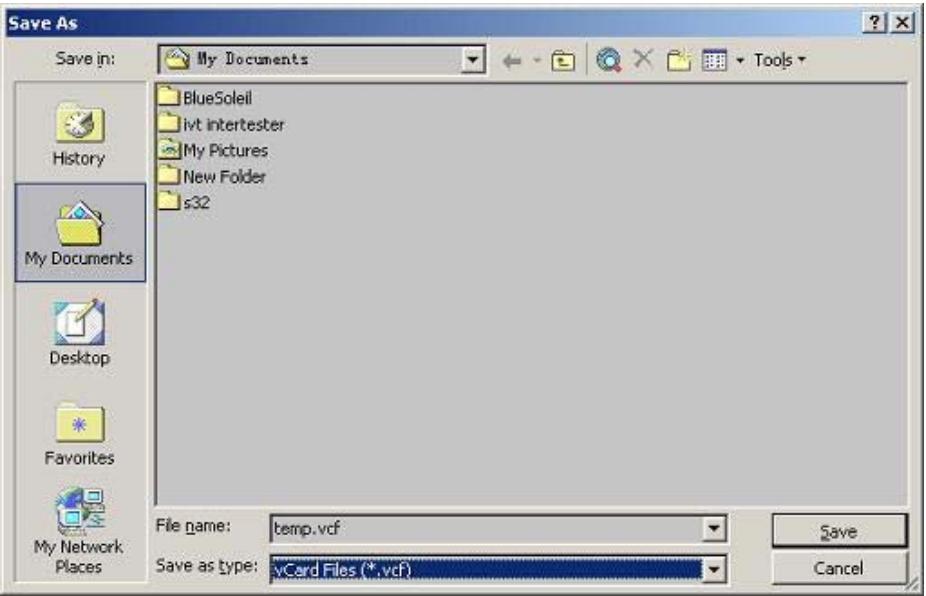
Figure 8.5: Save new Contact
Step 6: Set the T68 to be discoverable.
Press the Menu button on the T68 to find the menu list, and then select the Connect item. Press the Yes key to enter the Connect menu, and then select the Bluetooth item. Then select the Discoverable item.
Step 7: Search for Bluetooth devices in BlueSoleil™ on Computer A until it finds the T68 (or input the T68 device address directly).
Step 8: Double-click the T68 device to find its OPP service:
If your security attribute is set to High, the Enter Bluetooth Passkey window pops up (Figure 8.6).
Enter a passkey of your choice, such as "1", and click the OK button.
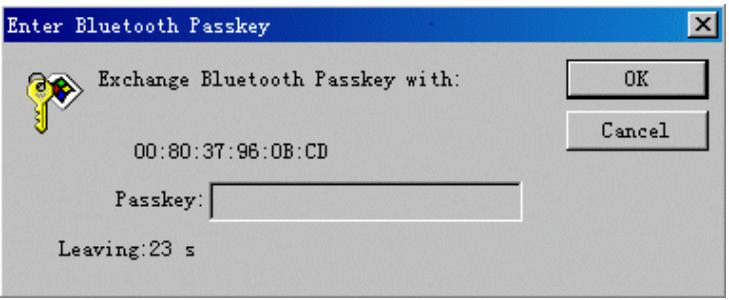
Figure 8.6: Enter the passkey
A message appears on the T68 to ask whether you want to Add to paired device? Press the Yes key, enter "1" and then press Yes again.
A message Pairing pops up. If pairing is successful, the message Pairing succeeded appears. If pairing is
unsuccessful, the message Pairing failed. Please try again.
Retry? In this case press Yes to retry or No to cancel.
If the pairing succeeds, you will see the services of the T68 include the OPP service. (Figure 8.7) If you have never created a shortcut DUN, the following dialog pops up asking you whether Create a Shortcut on the windows desktop. If you choose yes, a shortcut icon called DUN will occur on the desktop, otherwise the icon will not occur. For details, please refer to the related part of DUN.
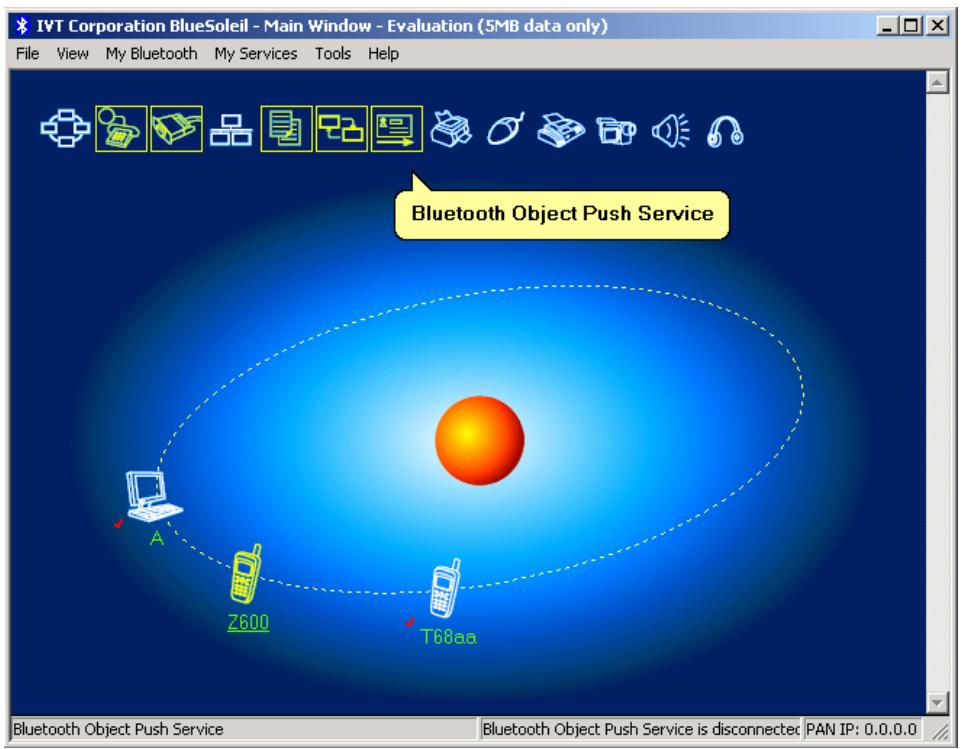
Figure 8.7: Find the services
Step 9: To send or get objects data, right-click the OPP service icon. There are four options (Figure 8.8) on the pop-up menu:
Send My Card: Click this menu item, and a business card from Computer A is sent to the T68.
Get Card: Click this menu item to receive a business card from the T68. Open the folder inbox to check if you have received the card. (Note: Open the My Documents folder on the computer and find a new folder called BlueSoleil. Open this folder to find the sub folders inbox and outbox. Inbox is used to deposit the objects received from other Bluetooth devices. Outbox is used to deposit the objects you want to send to other Bluetooth devices.)
Send Objects: Click this menu item to send an object in Computer A to the T68 (there are four types of object: .vcf, .vcs, .vmg, .vnt). Select the objects that you want to send in the window that pops up and click Open.
Exchange cards: Click this menu item to exchange business cards between Computer A and the T68.
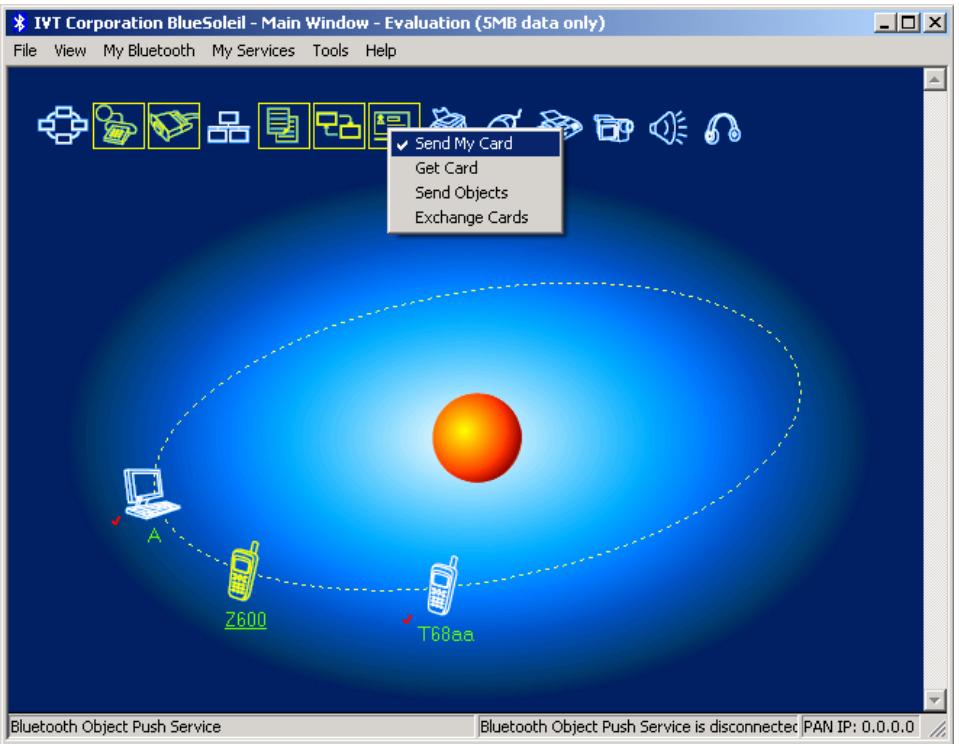
Figure 8.8: Four types of operation
8.3 Transfer Objects from a Bluetooth Cellular Phone to a Computer
This section outlines the steps involved in transferring OPP objects from a Bluetooth cellular phone to a computer.
Computer A:
Notebook/Laptop, PIII, 800MHz, 128M
A Bluetooth USB dongle
Windows 2000
IVT BlueSoleilTM
Bluetooth Cellular Phone:
Sony Ericsson T68
Step 1: Insert the Bluetooth USB dongle into the computer.
Step 2: Start BlueSoleil™ in the computer.
Step 3: Set the device name of the computer to anything you want. Here it is named Computer A.
In the BlueSoleil™ Main Window of Computer A, click Tools | My Bluetooth Device. Enter `Computer A' in the device name field in the My Bluetooth Device window.
Step 4: Configure the OPP service attribute of Computer A, and start the OPP service.
In the BlueSoleil™ Main Window, click My Services|Properties... (Figure 8.9).
The Service Configuration window pops up. Select the Object Push item. Configure My Business Card (See "Section 8.2: Transfer Objects from a Computer to a Bluetooth Cellular Phone", Step 4) and configure other OPP service attributes for Computer A.
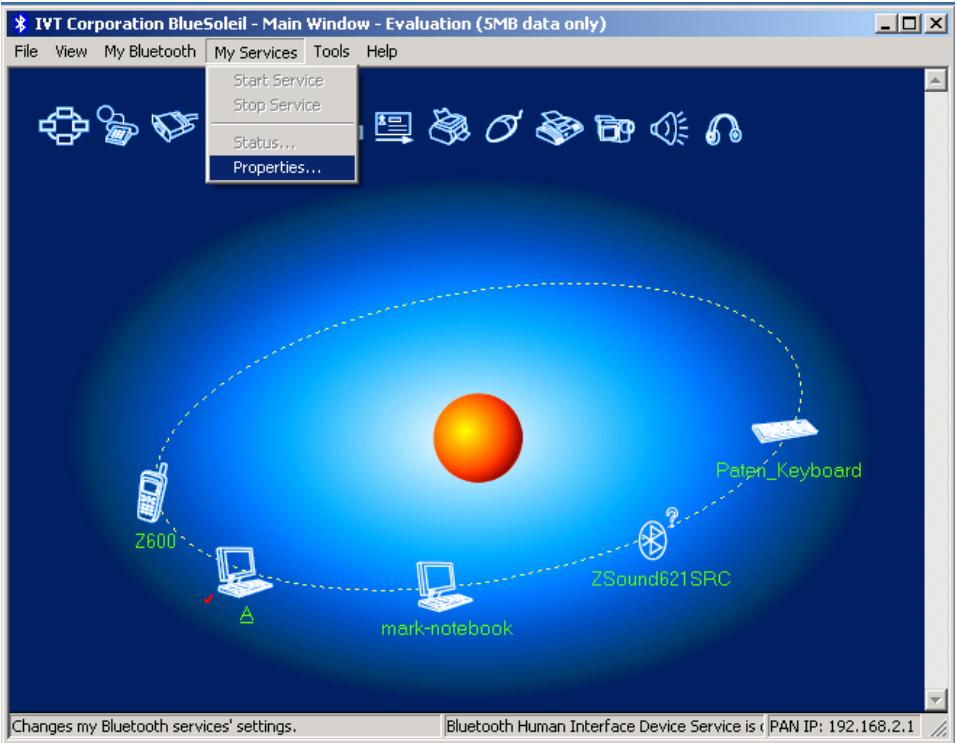
Figure 8.9: Configure the OPP service
In the BlueSoleil™ Main Window, select View | Service Window.
Right-click the Object Push icon, and select Start Service (Figure 8.10).
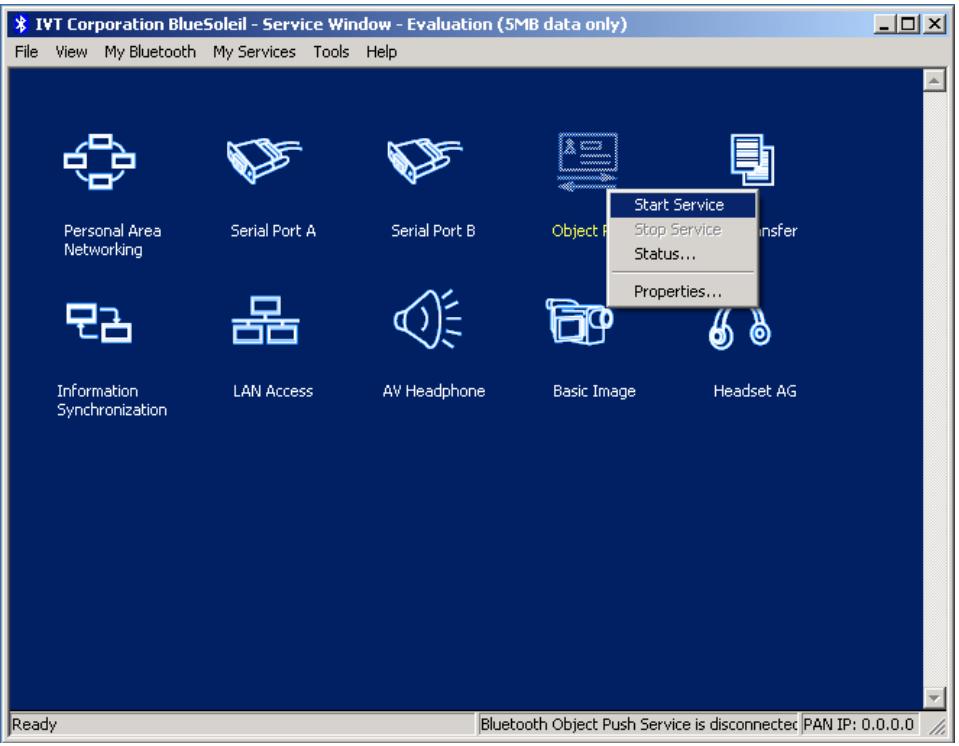
Figure 8.10: Select the Start Service
Step 5: Discover and pair Computer A on the T68.
Select Menu | Connect | Bluetooth | Discover on the T68. A list of the surrounding devices appears. Select 'Computer A'.
When the Add to paired device devices? message appears, press the Yes key and enter a passkey, for example "1". Use the same passkey on BlueSoleil™ as used on the T68. If you have never created a shortcut DUN, the following dialog pops up asking you whether Create a Shortcut on the windows desktop. If you choose yes, a shortcut icon called DUN will occur on the desktop, otherwise the icon will not occur. For details, please refer to the related part of DUN.
Step 6: Start the OPP operation.
Select Menu | Phone book | Business cards on the T68.
To send "my card" from the T68. From the Business cards menu, select Send my own and then select Via Bluetooth. The T68 searches the surrounding Bluetooth devices. To send the business card from the T68 to Computer A, select 'Computer A' on the T68 screen.
To select an object and send it. From the Business cards menu, select Send contact and then select Via Bluetooth. The T68 asks you to select the object that you want to send. Select an object and send it as specified above.
To receive a business card. From the Business cards menu, select Receive and then select Via Bluetooth. The T68 is now in discoverable status,
and you can send an object to it from other Bluetooth devices.
To send all business cards.
From the Business cards menu, select Send all and then select Via Bluetooth. Select the destination device Computer A. The T68 then sends all its *.vcf files to Computer A.
8.4 Transfer Objects between Two Computers
This section outlines the steps involved in transferring OPP objects between two Computers (Computer A and Computer B).
Computer A:
Step 1: Insert Bluetooth USB dongles in both computers.
Step 2: Start BlueSoleil™ in both computers.
Step 3: Set device name of each computer to anything you want. Here they are named Computer A and Computer B.
In the BlueSoleil™ Main Window of Computer A, click Tools | My Bluetooth Device. Enter 'Computer A' in the device name field in the My Bluetooth Device window.
Repeat for Computer B.
Step 4: Start the OPP service on Computer B (See "Section 8.3: Transfer Objects from a Bluetooth Cellular Phone to a Computer, Step 4) to provide the OPP service for Computer A.
Step 5: Search for Bluetooth devices in Computer A until it finds Computer B.
Step 6: Double-click on the Computer B device icon to find it's OPP service.
Step 7: Perform an OPP operation. (See "Section 8.3: Transfer Objects from a Bluetooth Cellular Phone to a Computer", Step 5)
8.5 Configure OPP Service
8.5.1 My OPP Service
In the BlueSoleil™ Service Window, right-click the Object Push icon. To configure 'my OPP service', select Properties on the pop-up menu.
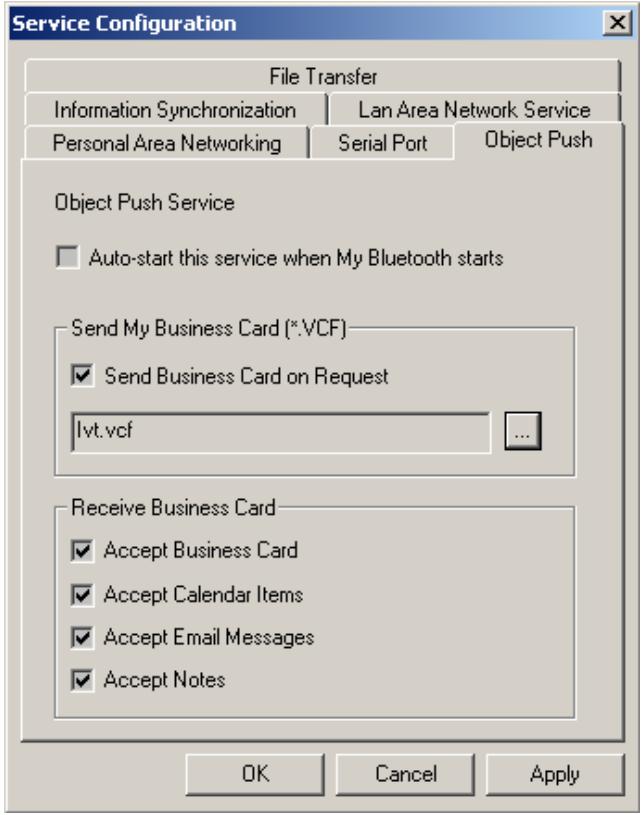
Figure 8.11: Configure OPP service
Setting Items:
Auto start this service when my Bluetooth starts Select this item if you want to automatically start the OPP service every time BlueSoleil™ starts.
My Business Card (.vcf) You must select your own business card (.vcf file) every time you start BlueSoleilTM. If you forget to do this, BlueSoleilTM creates a *.vcf file using your computer name and regards this file as your own business card.
Send Business Card on Request Select this item to allow other users to receive your business card.
Receive Business Card There are four possible items here. Each item represents one type of object. You may select the object types that you want to accept.
- Accept Business Card to accept business cards (*.vcf)
- Accept Calendar Items to accept calendar items (*.vcs)
Accept Email Messages to accept email messages (*.vmg)
Accept Notes to accept notes (*.vnt)
9 Synchronization
9.1 Introduction
Using Bluetooth Synchronization (SYNC), Bluetooth devices can synchronize messages, notes, calendars and cards with each other.
The objects Synchronization (SYNC) supports are:
Business cards (.vcf)
Calendar entries (.vcs)
Notes (.vnt)
Messages (*.vmg)
The SYNC application is typically used in the following scenarios:
A computer exchanging PIM (Personal Information Management) data with a cellular phone or PDA.
Two computers exchanging PIM data with each other.
9.2 Exchange PIM Data with a Cellular Phone
This section outlines the steps involved in connecting a computer to a Bluetooth cellular phone. The cellular phone works as a server that provides the SYNC service.
Computer A:
Bluetooth Cellular Phone:
Sony Ericsson T68
Step 1: Insert the Bluetooth USB dongle into the computer.
Step 2: Start BlueSoleilTM in the computer.
Step 3: Set the device name of the computer to anything you want. Here it is named Computer A.
In the BlueSoleil™ Main Window of Computer A, click Tools | My Bluetooth Device. Enter 'Computer A' in the device name field in the My Bluetooth Device window.
Step 4: Set the security level to Low on Computer A. (Use the Tools | Configurations | Security menu).
Step 5: Configure the T68.
Set T68 to be discoverable.
Press the Menu button on the T68 and select Connect | Bluetooth | Discoverable. Press Yes to confirm the selection.
To confirm Pairing.
Press the Menu button on the T68 and select Connect | Bluetooth | Discover. The T68 searches for Bluetooth devices and displays the devices found on screen. Select a device where BlueSoleil™ is running. Then select Add to paired device? to confirm pairing.
The T68 requests a passkey. Input any number (for example "1"). In the BlueSoleilTM application a window pops up asking for the passkey (Figure 2.1). Input the same passkey as in the T68 (for example, "1") and click OK. If you have never created a shortcut DUN, the following dialog pops up asking you whether Create a Shortcut on the windows desktop. If you choose yes, a shortcut icon called DUN will occur on the desktop, otherwise the icon will not occur. For details, please refer to the related part of DUN.
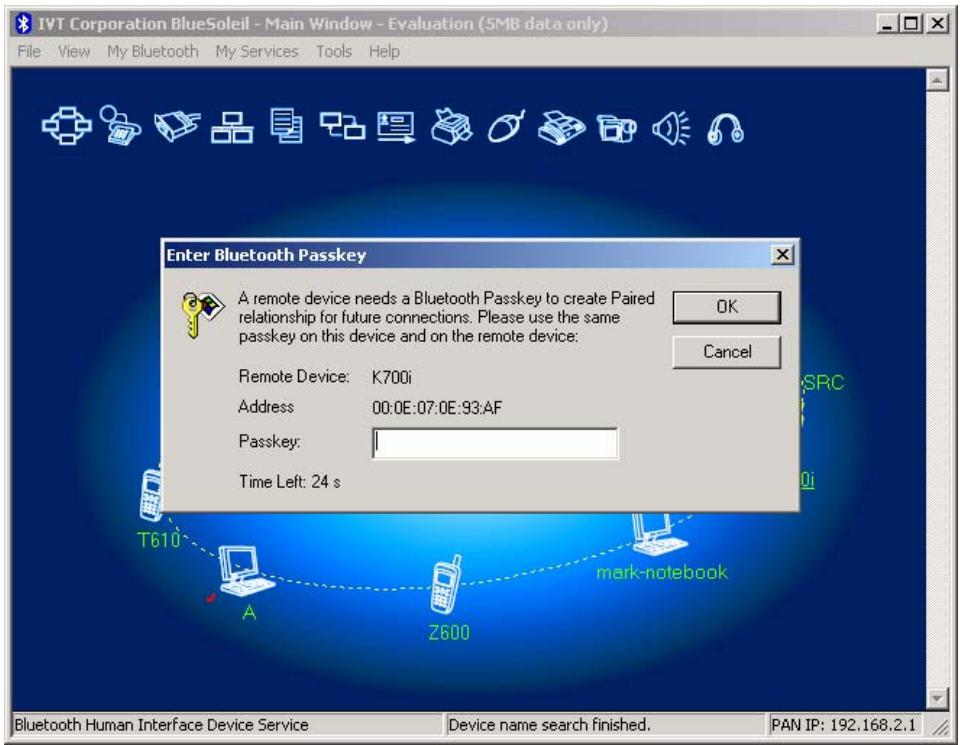
Figure 9.1: Input the passkey
Step 6: Start synchronization.
Now use the computer running BlueSoleil™ to start the synchronization. (See "Section 8.3: Transfer Objects from a Bluetooth Cellular Phone to a Computer", Step 6).
9.3 Set up SYNC Connection between Two Computers
This section outlines the steps involved in setting up a SYNC connection between two computers, Computer A and Computer B. Computer A works as a server that provides the BlueSoleil™ SYNC service. Computer B works as a client that uses the SYNC service provided by Computer A.
Computer A:
Step 1: Insert the Bluetooth USB dongles into each computer.
Step 2: Start BlueSoleilTM in each computer.
Step 3: Set the device name of the each computer to anything you want. Here they are named Computer A and Computer B.
In the BlueSoleil™ Main Window of Computer A, click Tools | My Bluetooth Device. Enter 'Computer A' in the device name field in the My Bluetooth Device window.
Repeat for Computer B.
Step 4: Set the security level to low on Computer A and Computer B. (Use the Tools | Configurations | Security menu).
Step 5: Start the BlueSoleil™ SYNC service on Computer A. Before starting the SYNC Server, it may need to be configured. To configure the server, follow the steps below:
In the Main Window click View | Service Window
In the Service Window, right-click the Information Synchronization icon. Select Properties on the pop up menu as shown in Figure 9.2.
Set the option you require, and then click OK. (Figure 9.3)
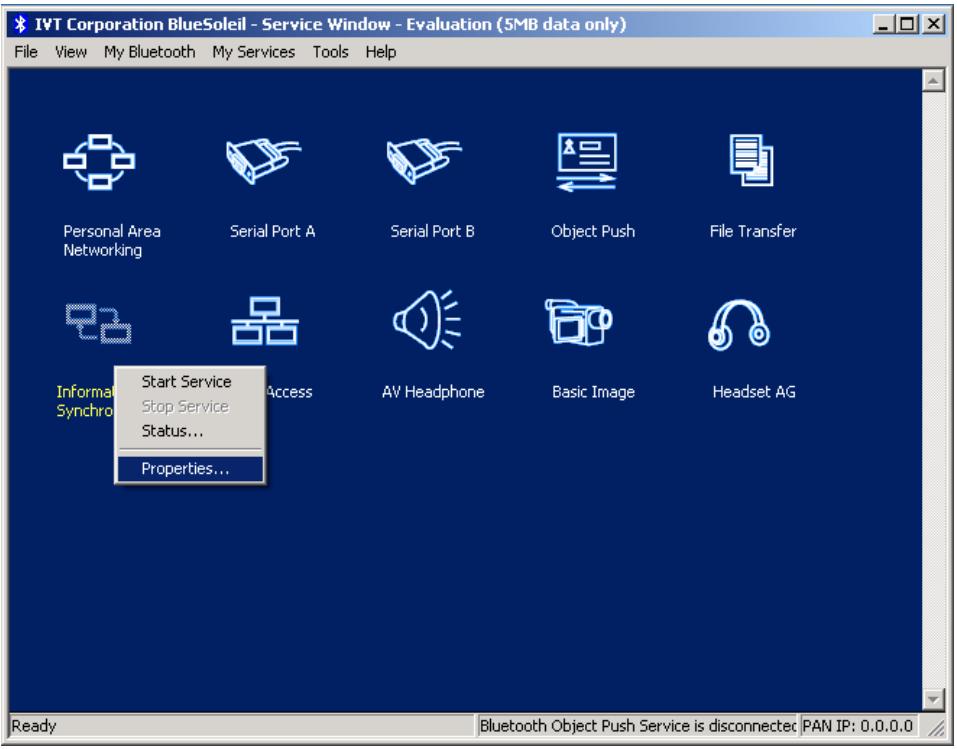
Figure 9.2: Select Properties on the Information Synchronization icon
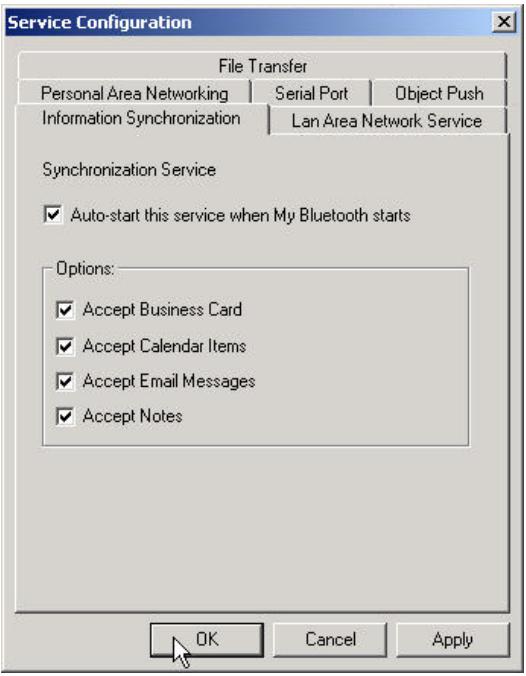
Figure 9.3: Service Configuration
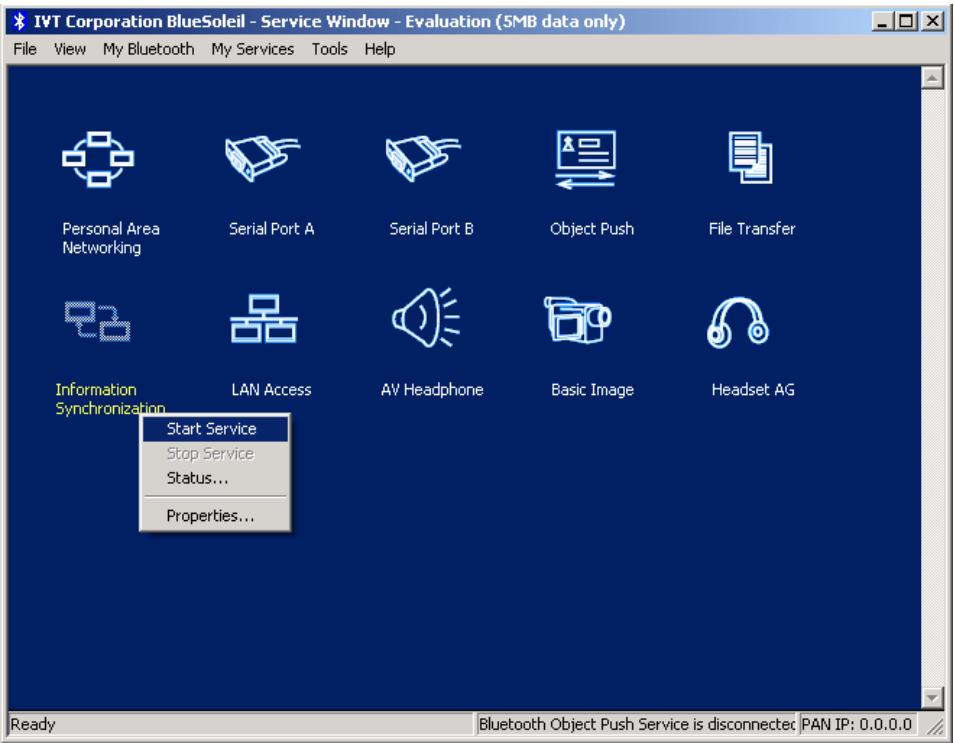
Figure 9.4: Select Start Service
Step 6: Start the SYNC client on Computer B.
Search the Bluetooth device and find the SYNC service. In the Main Window, click the My Device icon, and wait for a few seconds. When all device icons have appeared, click the Bluetooth device named Computer A. (Figure 9.5)
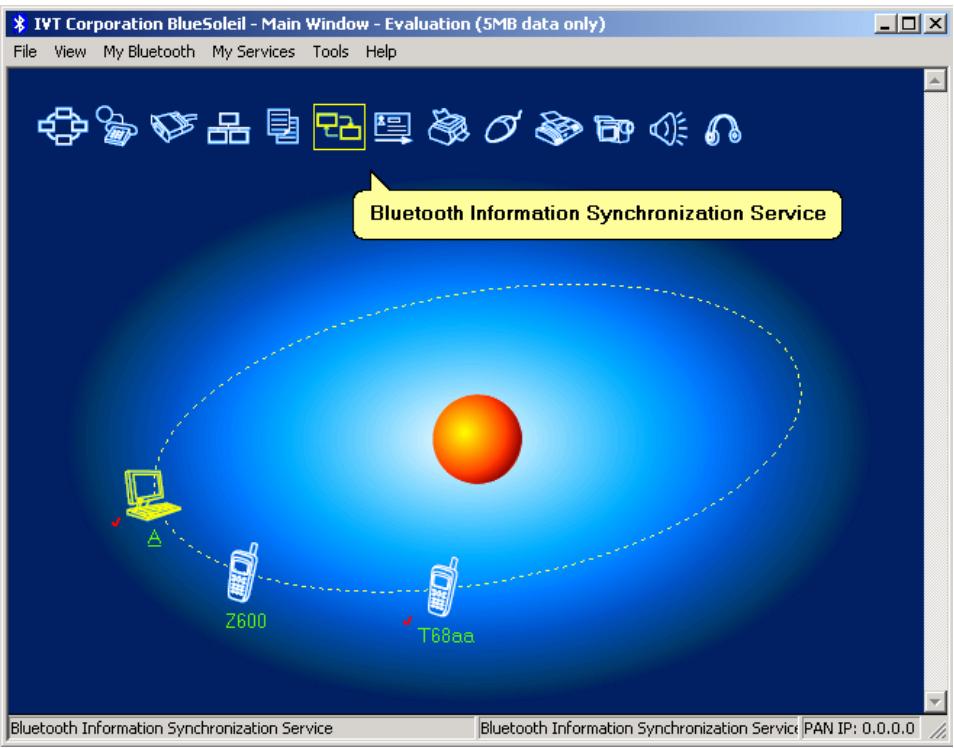
Figure 9.5: Click the Bluetooth device
Double-click the Bluetooth Information Synchronization service icon. The color of the SYNC service icon changes to green (Figure 9.6), indicating the connection is successfully established.
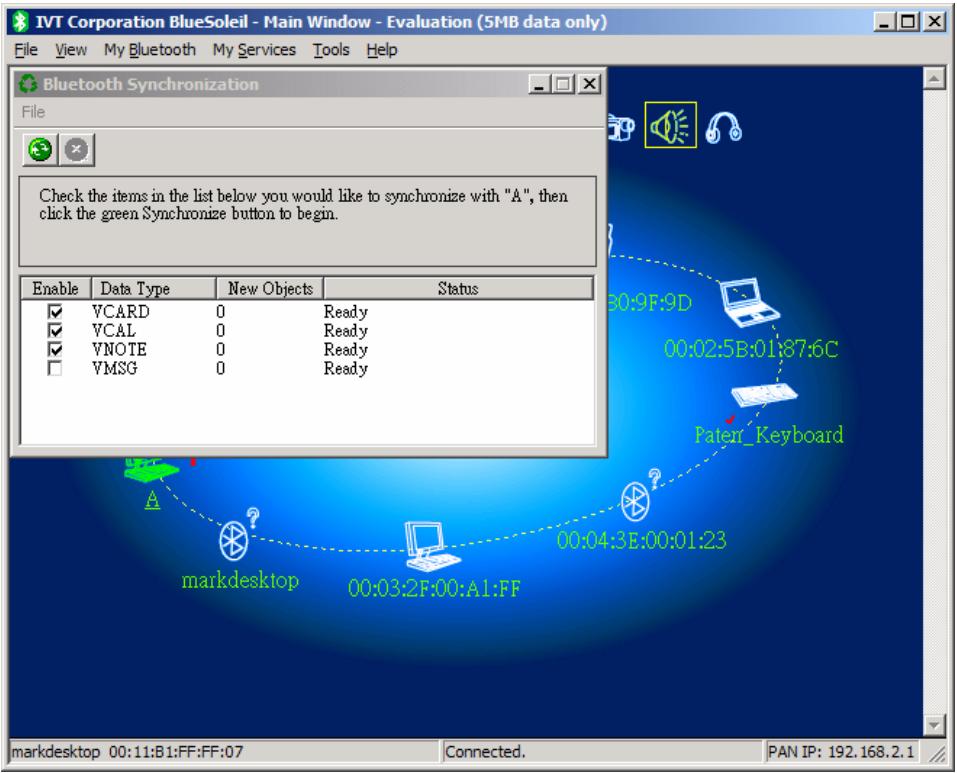
Figure 9.6: Connection is established successfully
The SYNC clients can now start synchronization. Press the green button to begin synchronization. (Figure 9.7).
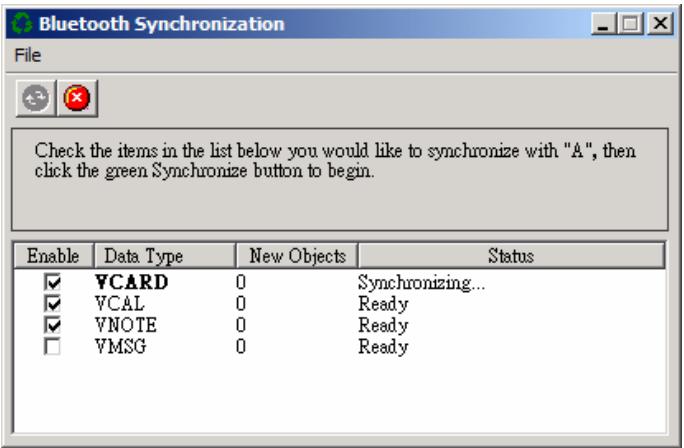
Figure 9.7: Press the green button
Advanced Usage:
Before synchronization select the data type that you want to exchange. Leave the checkbox unchecked to disable the object type that you do not support.
During synchronization push the red button if you want to stop the synchronization.
Click the yellow explore button to check the information data after synchronization.
9.4 Synchronization Configuration
9.4.1 My Synchronization Service
In the BlueSoleil™ Service Window, right-click the Information Synchronization icon. To configure the synchronization service select Properties on the pop-up menu. (Figure 9.8)
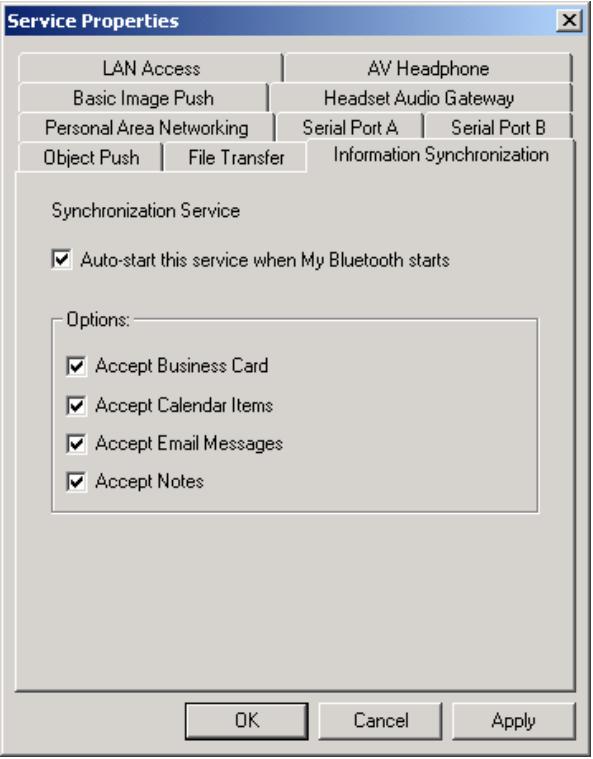
Figure 9.8: Service Configuration
Setting Items:
Auto start this service when my Bluetooth starts
Check this item to start my synchronization service automatically every time BlueSoleil™ is started.
Options
This service supports options for vCard, vCalendar, vMessage and vNote data types. You can select the data type you want to support.
10 Hardcopy Cable Replacement
10.1 Introduction
The Bluetooth Hardcopy Cable Replacement profile (HCRP) provides services to replace the cable between a host and peripheral device with a Bluetooth link. The most common devices using these services are laptops and desktop computers, however other devices are not excluded.
The HCRP profile can be used in the following scenario:
Print a document using a Bluetooth Printer.
10.2 Print a Document Using a Bluetooth Printer
This section outlines how to print a document from Computer A (client) using a Bluetooth Printer (server)
Computer A:
Bluetooth Printer B:
Bluetooth Printer
Step 1: Insert the Bluetooth USB dongle into the computer.
Step 2: Start BlueSoleil™ in the computer.
Step 3: Set device name of the computer to anything you want. Here it is named Computer A.
In the BlueSoleil™ Main Window of Computer A, click Tools | My Bluetooth Device. Enter 'Computer A' in the device name field in the My Bluetooth Device window.
Step 4: Turn on the Bluetooth printer to provide the HCRP service for Computer A.
Step 5: Search for Bluetooth devices on Computer A In the Main Window, double click the 'My Device icon'. Wait a few seconds. The discovered surrounding devices appear.
Step 6: Search the HCRP services of Printer B. Double-click the printer named 'Printer'. The HCRP service icon turns red.
Step 7: Connect the two devices.
Double-click the HCRP service icon to connect Computer A and the Bluetooth printer.
Step 8: The connection is established.
After the connection setup is completed, a dashed line between the My Device icon (or `center ball') and the Bluetooth Printer icon appears and the HCRP service icon turns green. (Figure 10.3)
If there is no driver installed for the Bluetooth printer, then BlueSoleil™ displays a message asking the user to install a driver for the Bluetooth Printer, see the Windows system icons in the bottom right hand corner of the Windows desktop. (Figure 10.1) Install the driver for the printer on Computer A and set its port to COMx.
If there is already a driver installed for the Bluetooth printer, a message appears indicating that the Bluetooth printer is ready (Figure 10.2). BlueSoleil™ sets the Bluetooth printer's port to COMx (e.g. COM3). If there are several drivers for the Bluetooth printer installed on Computer A, BlueSoleil™ automatically sets one of them as the Bluetooth printer.

Figure 10.1: Bluetooth Printer Driver is not installed
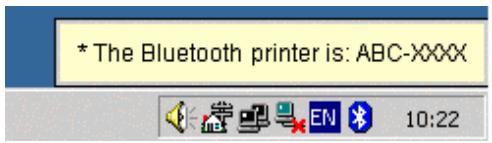
Figure 10.2: Bluetooth Printer Driver is ready
Step 9: Print documents.
Computer A and Bluetooth Printer B are now connected. On Computer A, open the document that you want to print. Select File |Print. Then select the Bluetooth printer and print.
Step 10: Disconnect the Bluetooth Printer.
Right-click the HCRP service icon; select Disconnect on the pop up menu. (Figure 10.3)
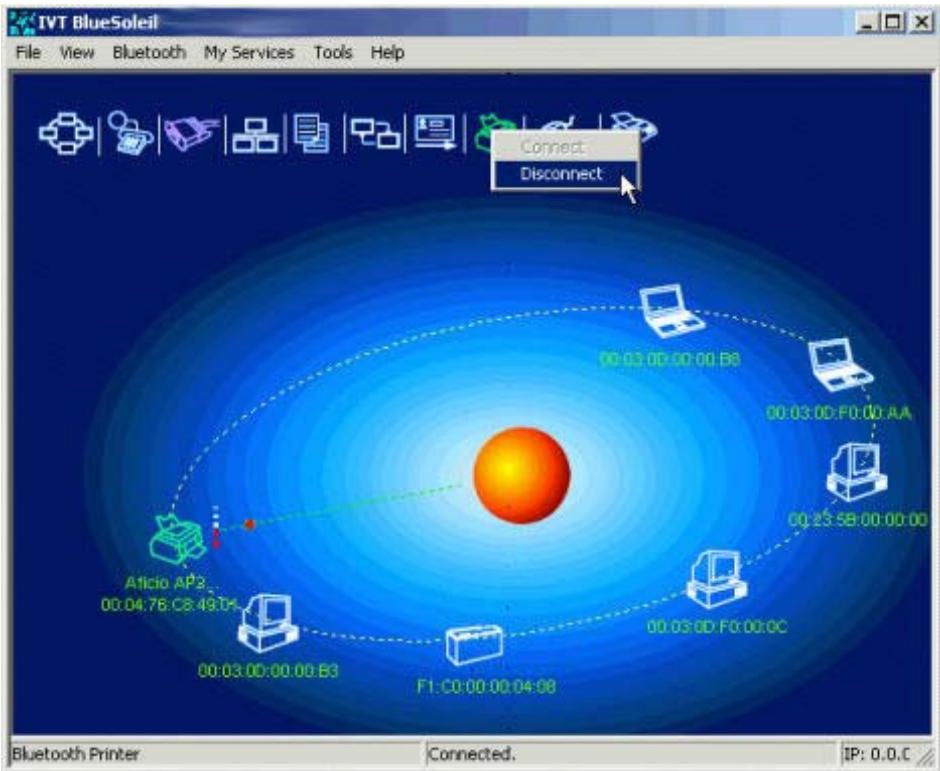
Figure 10.3: Disconnect from the Bluetooth Printer
11 Human Interface Device
11.1 Introduction
A typical Bluetooth Human Interface Devices (HID) is a Bluetooth-enabled mouse, keyboard or joystick. The HID service allows wireless communication to Bluetooth HID devices.
The HID profile can be used in the following scenarios:
Connecting a computer to a Bluetooth Mouse.
Connecting a computer to a Bluetooth Keyboard.
11.2 Connect a Computer to a Bluetooth Mouse
This section outlines how to connect a computer (Computer A) to a mouse (Bluetooth Mouse B).
Computer A:
Desktop, PIII, 800MHz, 128M
A Bluetooth USB dongle
Windows 2000
IVT BlueSoleilTM
Bluetooth Mouse B:
Bluetooth wireless mouse
Step 1: Insert the Bluetooth USB dongle into the computer.
Step 2: Start BlueSoleil™ in the computer and set the security level to low using the Tools | Configurations | Security menu.
Step 3: Set the device name of the computer to anything you want. Here it is named Computer A.
In the BlueSoleil™ Main Window of Computer A, click Tools | My Bluetooth Device. Enter `Computer A' in the device name field in the My Bluetooth Device window.
Step 4: Power on the Bluetooth mouse. (Bluetooth Mouse B)
Step 5: Search for Bluetooth devices in Computer A until you find Bluetooth Mouse B. In the Main Window, double-click the My Device icon ('center ball'). Wait a few seconds. The discovered surrounding devices appear.
Step 6: Double-click the Bluetooth Mouse B device icon to find it's HID service. If found, the HID service icon turns red. (Figure 11.1)
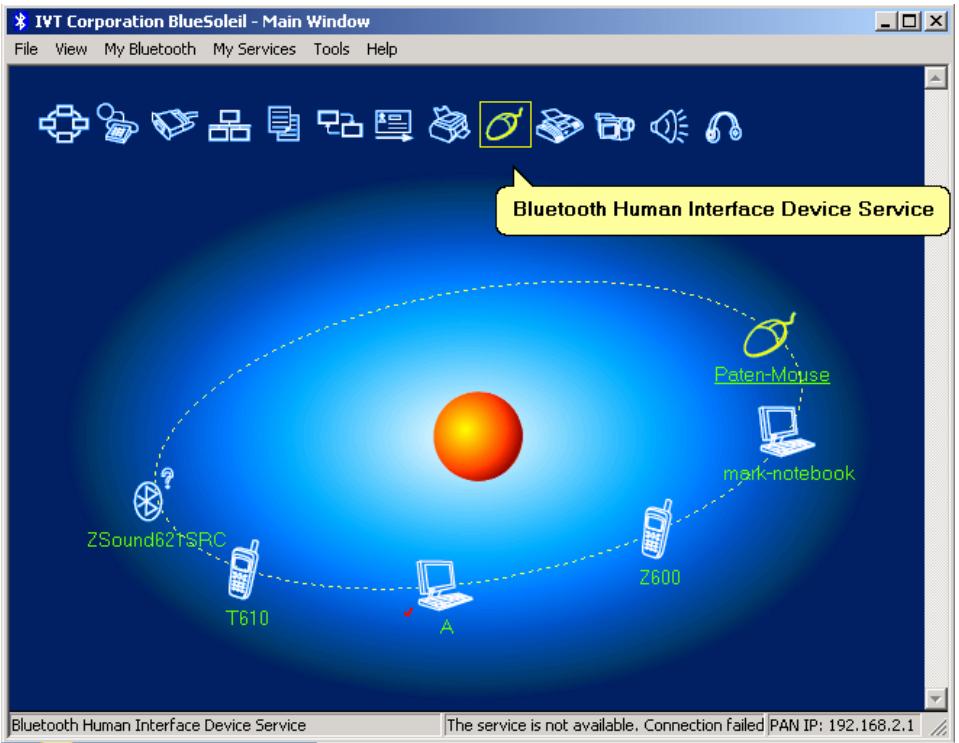
Figure 11.1: Find Bluetooth mouse and its service
Step 7: Double-click the HID service icon to connect to Mouse B. After the connection is successfully set-up, a dashed line appears between the center ball and the Mouse B icon. The HID service icon turns green (Figure 11.2).

Figure 11.2: Connect to Bluetooth mouse
Step 8: Install drivers for Bluetooth mouse.
If this is the first time Computer A has connected to a Bluetooth mouse, wait for a few seconds to allow Windows to install drivers for a Bluetooth mouse.
You will see two new devices in Computer A: Bluetooth HID Mouse in 'Human Interface Devices' class and HID-compliant mouse in 'Mice and other pointing devices' class. (Figure 11.3)
Step 9: Now the Bluetooth mouse is ready to use. You can use it as a legacy PS/2 or serial mouse.
Step 10: To disconnect Mouse B.
Right-click the HID service icon in the Main Window and click Disconnect. Alternatively right-click Mouse B in the Main Window and select Disconnect | Human Interface Device.
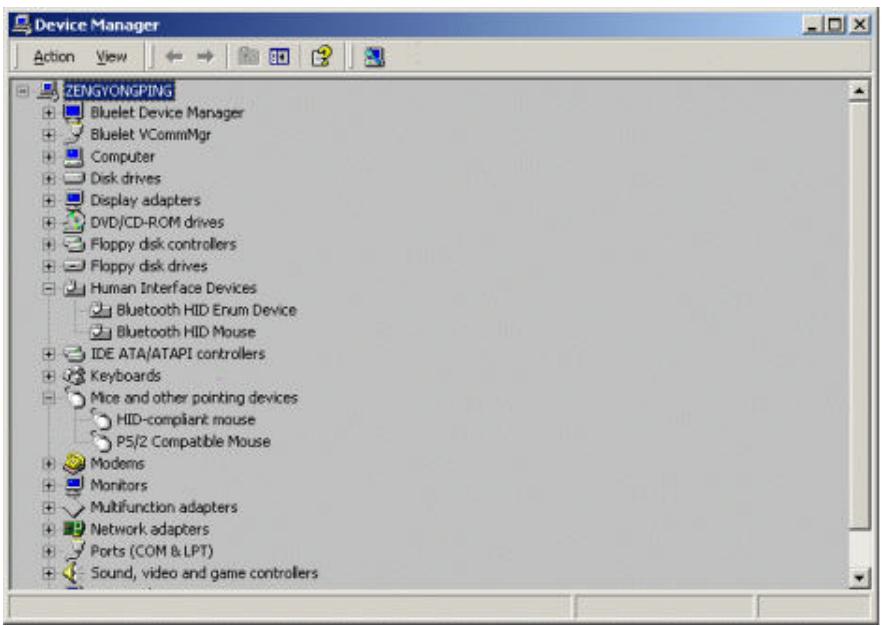
Figure 11.3: New HID mouse device in Device Manager
11.3 Connect a Computer to a Bluetooth Keyboard
This section outlines how to connect a computer (Computer A) to a keyboard (Bluetooth Keyboard B).
Computer A:
Desktop, PIII, 800MHz, 128M
A Bluetooth USB dongle
Windows 2000
IVT BlueSoleilTM
Bluetooth Keyboard B:
Bluetooth wireless keyboard
Step 1: Insert the Bluetooth USB dongle into the computer.
Step 2: Start BlueSoleil™ in the computer and set the security level to low using the Tools | Configurations | Security menu.
Step 3: Set device name of the computer to anything you want. Here it is named Computer A.
In the BlueSoleil™ Main Window of Computer A, click Tools | My Bluetooth Device. Enter 'Computer A' in the device name field in the My Bluetooth Device window.
Step 4: Power on the Bluetooth keyboard. (Bluetooth Keyboard B)
Step 5: Search for Bluetooth devices in Computer A until you find Bluetooth Keyboard B. In the Main Window, double click the 'My Device icon' (center ball). Wait a few seconds. The discovered surrounding devices appear.
Step 6: Double-click the Bluetooth Keyboard B device icon to find it's HID service. If found, the HID service icon turns red (Figure 11.4).
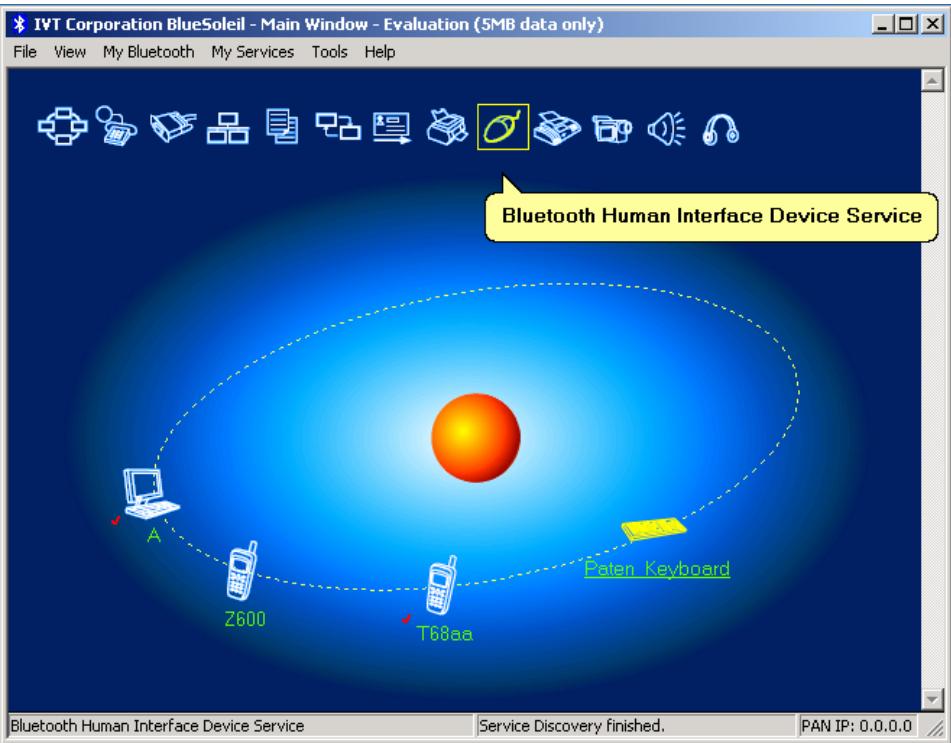
Figure 11.4: Find Bluetooth keyboard and its service
Step 7: Double-click the HID service icon to connect to Keyboard B. After the connection is successfully set-up, a dashed line appears between the center ball and the Keyboard B icon. The HID service icon turns green (Figure 11.5).
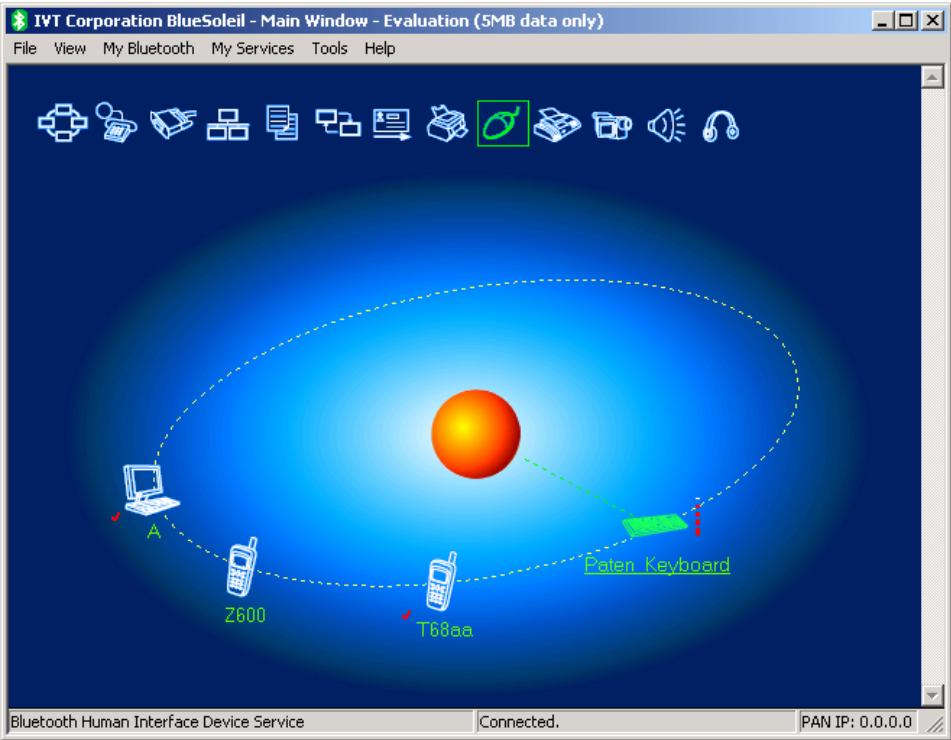
Figure 11.5: Connect to Bluetooth keyboard
Step 8: Install drivers for the Bluetooth keyboard.
If this is the first time Computer A has connected to a Bluetooth keyboard, wait for a few seconds to allow Windows install drivers for a Bluetooth keyboard.
You will see two new devices in Computer A: Bluetooth HID Keyboard in 'Human Interface Devices' class and HID Keyboard Device in 'Keyboards' class. (Figure 11.6)
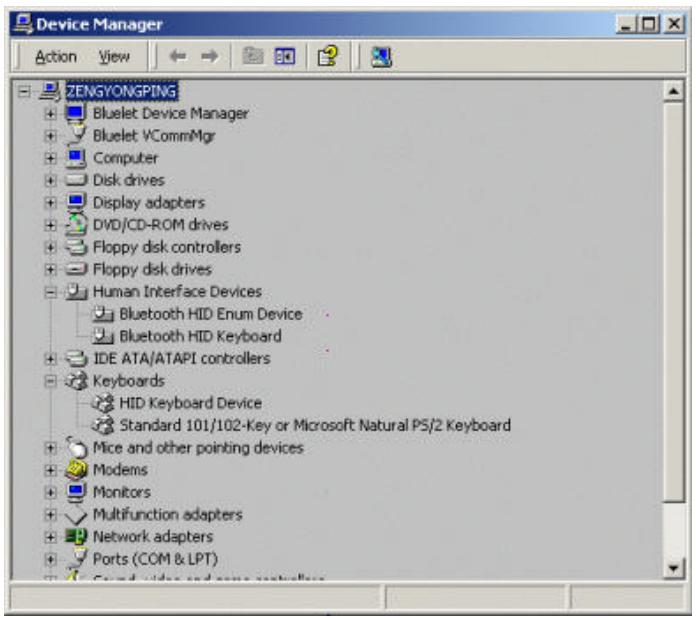
Figure 11.6: New HID keyboard device in Device Manager
Step 9: Now the Bluetooth keyboard is ready to use. You can use it as a legacy PS/2 keyboard.
Step 10: To disconnect Keyboard B.
Right-click the HID service icon in the Main Window and click Disconnect. Alternatively right-click Keyboard B in the Main Window and select Disconnect | Human Interface Device.
12 Connection Shortcut
12.1 Introduction
Connection shortcut profile is used to save time used in searching for devices and browsing services. Once a connection has been established, it can be saved as a shortcut. The shortcut is then used to re-establish the connection, without having to search for the remote Bluetooth device and required Bluetooth service.
12.2 How to use Connection Shortcut
This section outlines how to save a Bluetooth PAN connection as a connection shortcut.
Computer A:
Notebook,Laptop,PIII,800MHz,128M
A Bluetooth USB dongle
Windows 2000
IVT BlueSoleilTM
Computer B:
Desktop, PIII, 800MHz, 128M
A Bluetooth USB dongle
Windows 2000
IVT BlueSoleilTM
Step 1: Establish a PAN connection.
Step 2: Save the Bluetooth Personal Area Networking Service shortcut on Computer B.
Right-click the Computer A device icon and select Save Connection as Shortcut | Bluetooth Personal Area Networking Service. (Figure 12.1)
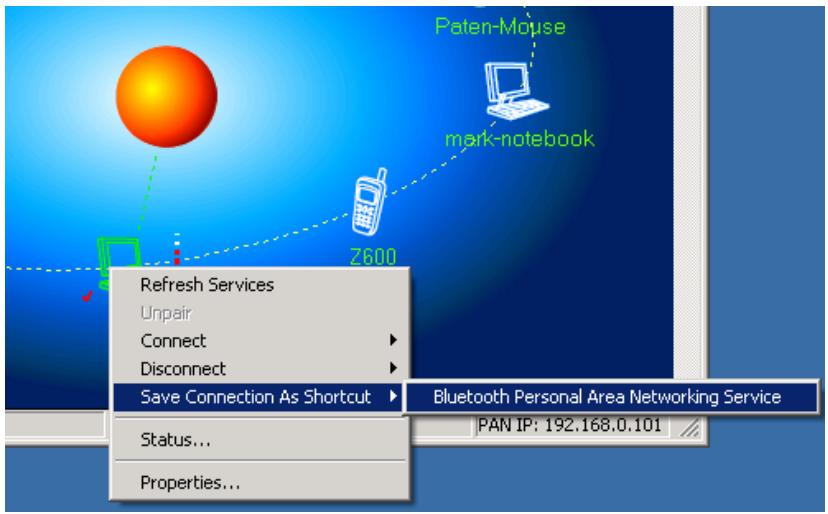
Figure 12.1: Save Bluetooth Personal Area Networking Service as connection shortcut
Step 3: Double click shortcut on your desk-top (Figure 12.22)
Figure 12.2: Bluetooth Shortcuts
Step 7: Once the connection is successfully established
Step 8: Start to use the PAN service provided by Computer A.
13 Bluetooth Glossary
Bluetooth Authentication Bluetooth authentication is the procedure to verify whether another Bluetooth enabled device has the right to access your computer. During this procedure, a Bluetooth passkey is requested on both sides of the connection. If the passkeys are the same, the authentication procedure is a success and the connection can be setup. If the passkeys are different, then authentication fails and a connection cannot be established.
Bluetooth Authorization Bluetooth authorization is the procedure to verify whether you are going to allow (authorize) other Bluetooth enabled devices to use Bluetooth services on your Bluetooth enabled device. Every Bluetooth service in your BlueSoleil™ has an authorization setting. The authorization devices list for each service records the devices that have been authorized for that service. The user can change the authorization status for each device.
Bluetooth Connection A Bluetooth connection refers to the Bluetooth link that can be set up between two Bluetooth devices. Connected Bluetooth devices have a server/ client relationship. One Bluetooth device provides services and another Bluetooth device uses these Bluetooth services.
Bluetooth Connection Shortcut Connection shortcut is used to save time used in searching for devices and browsing services. Once a connection has been established, it can be saved as a shortcut. The shortcut is then used to re-establish the connection, without having to search for the remote Bluetooth device and required Bluetooth service.
Bluetooth Device Bluetooth Devices can refer to either of the following:
(1) When referring to the local device configuration, a Bluetooth Device is the local Bluetooth hardware, e.g. USB dongle, UART device, PCMCIA card or BCSP device.
(2) When referring to the Bluetooth application, the Bluetooth device is the Bluetooth system as a whole, e.g. a Bluetooth modem, Bluetooth mobiles or a Bluetooth PDA. A computer together with the BlueSoleil™ and the Bluetooth dongle would also be addressed as a remote Bluetooth device by other Bluetooth devices.
Bluetooth Device Address A unique 48-bit address that distinguishes different Bluetooth transceivers. Every Bluetooth device has a unique address so that other devices can find it and communicate with it. The address appears in the form of 00:03:20:00:0D:0A.
Bluetooth Device Class According to the Bluetooth standard, every Bluetooth device is assigned a device type, which is represented in the Bluetooth device class. The Bluetooth device class is three bytes in length in the form of 04:01:00. On the computer side, the class may be Server, Desktop or Laptop. Users will be asked to select it during first time set-up.
Bluetooth Device Inquiry To use Bluetooth, the user has to first find the remote device. The searching procedure is called device inquiry. There are two kinds of inquiry procedure; General Inquiry and Limited Inquiry. General Inquiry will find all the Bluetooth devices in 'general discoverable mode' and 'limited discoverable mode'. Limited Inquiry will find only the devices in 'limited discoverable mode'.
Bluetooth Dial-up Networking This is the implementation of the Bluetooth Dial-up Networking profile (DUN). Using DUN, Bluetooth devices can dial-up to the Internet via a Bluetooth modem or a Bluetooth mobile phone.
Bluetooth FAX This is the implementation of the Bluetooth FAX profile (FAX). Using FAX, Bluetooth devices can send a FAX via a Bluetooth mobile.
Bluetooth File Transfer This is the implementation of the Bluetooth File Transfer profile (FTP). Bluetooth File Transfer enables the transfer files between Bluetooth devices.
Bluetooth HCRP This is the implementation of the Bluetooth Hardcopy Cable Replacement profile (HCRP). HCRP provides services to replace the cables between hosts and peripheral devices with a Bluetooth link. HCRP is mainly used for wireless printing.
Bluetooth Information Synchronization This is the implementation of the Bluetooth Synchronization profile (SYNC). Using Synchronization, Bluetooth devices can synchronize messages, notes, calendars and cards with each other.
Bluetooth LAN Access This is the implementation of the Bluetooth LAN Access profile (LAP). Using LAP, Bluetooth devices can access Local Area Network via LAN access points.
Bluetooth Object Push This is the implementation of the Bluetooth Object Push profile (OPP). Using OPP, Bluetooth devices can transfer messages, notes, calendars and cards with each other.
Bluetooth Passkey In the Bluetooth authentication procedure, a Bluetooth passkey is requested on both connection sides. The same Bluetooth passkey should be input on both sides. If the passkeys are the same, the authentication procedure is successful and connections can be setup. If the passkeys are different, the connection and authentication will fail.
Bluetooth Peripheral Device This is the implementation of the Bluetooth Human Interface Device profile (HID). By using HID, Bluetooth peripheral input devices such as a Bluetooth mouse or keyboard, can remotely interface with the host computer.
Bluetooth Personal Area Networking This is the implementation of the Bluetooth Personal Area Networking profile (PAN). Using PAN, Bluetooth devices can connect to each other to form ad-hoc networks. They can form a TCP/IP network or connect to a Local Area Network and the Internet.
Bluetooth Printer This is the implementation of the Bluetooth Hard-copy Cable Replacement profile (HCRP) as a printer. Bluetooth Printer allows Bluetooth devices to wirelessly print documents to a Bluetooth printer.
Bluetooth Security Bluetooth security is an important part of the Bluetooth wireless communication technology. Bluetooth security enables illegal access to your computer to be rejected. There are three levels of security: Low, Medium and High. In Low level, there is no security check. In Medium level, remote Bluetooth devices can browse your services. Security is set on every service. The service can be set to request or not to request for authentication and authorization. If you request for authentication, the remote device will be asked to enter the same passkey as the one in your computer. Otherwise, the Bluetooth passkey is not requested. If authorization is set, the remote device has to be in the authorized devices list.
Bluetooth Service A Bluetooth device may offer certain functions for other Bluetooth devices to use. These functions are called Bluetooth services. For example, a Bluetooth mobile phone can offer four services, which include synchronization, dial-up networking, file transfer and serial port. In BlueSoleil™, all services need to be started manually before use..
Bluetooth Service Browse A remote Bluetooth device can provide one or more Bluetooth services. To use the services that the remote device provides, the user has to first find the services. This is called service browse.
Bluetooth Serial Port This is the implementation of the Bluetooth Serial Port profile (SPP). SPP emulates a serial port over Bluetooth, for the Bluetooth device.
Bonding Bonding is the creation of a relationship between two devices, which are known to each other prior to the bonding procedure. A user initiates the bonding procedure and enters a passkey to create a bond between two devices. This differs from the authentication procedure where the user is requested to enter a passkey during the establishment of the link.
Connectable Bluetooth devices can be connectable or non-connectable. When the device is connectable, other devices can connect to it.
DHCP The Dynamic Host Configuration Protocol (DHCP) is an Internet protocol for automating the configuration of computers that use TCP/IP.
Bluetooth Dongle A Bluetooth device which can be added onto a computer or notebook to make it Bluetooth enabled, A Bluetooth dongle is typically a USB device.
General Discoverable Bluetooth devices have three modes: General discoverable, Limited discoverable and Non-discoverable mode. A Bluetooth device will respond to a General Inquiry if it is in general discoverable or limited discoverable mode.
HID A Human Interface device such as a keyboard or mouse.
ICS (Internet Connection Sharing) For more detailed information about ICS, please refer to the Microsoft Windows help topic: Internet Connection Sharing.
Limited Discoverable Bluetooth devices have three modes: General discoverable, Limited discoverable and Non-discoverable mode. In Limited discoverable mode, a Bluetooth device will only respond to a Limited Inquiry.
LAN A LAN is a Local Area Network.
LAN Access Point One of entities defined in the LA profiles, the LAN Access Point acts like a router between a Bluetooth piconet and an external network.
NAT Network Address Translation (NAT) is used to re-map IP numbers from one range to another range of network addresses.
Non-Connectable A Bluetooth devices can be connectable or non-connectable. When it is non-connectable, other devices cannot connect to it. This is used in BlueSoleil™ only when the user does not want another device to connect to their computer.
Non-discoverable Bluetooth devices have three modes: General discoverable, Limited discoverable and Non-discoverable mode. In Non-discoverable mode, a Bluetooth device will not respond to any inquiry, so another Bluetooth device will not be able to find it.
Non-pairable A Bluetooth device can be pairable or non-pairable. When it is non-pairable, it will not accept a bonding request from other devices.
Pairable A Bluetooth device can be pairable or non-pairable. When it is pairable, it will accept a bonding request from other devices. After the bonding process is finished successfully, two devices are paired. They now form a trusted relationship. There is no need to exchange Bluetooth Passkeys the next time they connect.
Piconet A collection of devices connected via Bluetooth wireless technology in an ad hoc fashion. A piconet starts with two connected devices, such as a portable PC and an Access Point, and may expand to eight connected devices. All Bluetooth devices are peer units and have identical implementations. However, when establishing a piconet, one unit will act as a master and the other(s) as slave(s) for the duration of the piconet connection. All devices have the same physical channel utilizing the same Frequency-hopping sequence, defined by the master device clock and the Bluetooth Device Address.
PIM Personal Information Management.
Radio Signal Strength Bluetooth operates on the 2.4G ISM band. The radio signal is stronger when the remote device is closer or the remote device has a higher radio output. The radio signal is weak when the remote device is distant or the remote device has a weak radio output. The strength of the remote device's radio signal affects the quality of the communication of the two Bluetooth devices. When the radio signal is weak, the Bluetooth data transfer speed is slow. However, if the two devices are too close and the radio signal is too strong, the Bluetooth data transfer speed is also slow because the "sound" is too loud to "hear". The radio signal strength is always referred to as RSSI in Bluetooth.
Remote Bluetooth Device My Bluetooth device sees all other Bluetooth enabled devices as remote Bluetooth devices. For example, a Bluetooth modem, Bluetooth mobiles or a Bluetooth PDA.
Start Bluetooth Service Start the selected Bluetooth service. Only after the service is started, can other devices browse the service and connect to it.
Stop Bluetooth Service Stop the selected Bluetooth service. After the service is stopped, other devices cannot browse the service or connect to it. The existing connection will be disconnected.
FOR TECHNICAL SUPPORT, CALL:
From U.S.A. and Canada (24 hours a day, 7 days a week)
(800) SMC-4-YOU; Phn: (949) 679-8000; Fax: (949) 679-1481
From Europe : Contact details can be found on www.smc.com
INTERNET
E-mail address:
techsupport@smc.com
Driver updates:
http://www.smc.com/index.cfm?action tech_support_drivers_downloads
World Wide Web:
http://www.smc.com/
For Literature or Advertising Response, Call:
U.S.A. and Canada: (800) SMC-4-YOU
Fax (949) 679-1481
Spain: 34-91-352-00-40
Fax 34-93-477-3774
Asia Pacific: (65) 238 6556
Fax (65) 238 6466
Korea: 82-2-553-0860
Fax 82-2-553-7202
Japan: 81-45-224-2332
Fax 81-45-224-2331
Australia: 61-2-8875-7887
Fax 61-2-8875-7777
India: 91-22-8204437
Fax 91-22-8204443
If you are looking for further contact information, please visit www.smc.com.