
8848M - Smartphone SMC - Free user manual and instructions
Find the device manual for free 8848M SMC in PDF.



User questions about 8848M SMC
0 question about this device. Answer the ones you know or ask your own.
Ask a new question about this device
Download the instructions for your Smartphone in PDF format for free! Find your manual 8848M - SMC and take your electronic device back in hand. On this page are published all the documents necessary for the use of your device. 8848M by SMC.
USER MANUAL 8848M SMC
Gigabit Ethernet Switch
24/48 auto-MDI/MDI-X 10/100/1000BASE-T ports
4 RJ-45 ports shared with 4 SFP transceiver slots
2 10GBASE extender module slots
Non-blocking switching architecture
Support for a redundant power unit
Spanning Tree Protocol, RSTP, and MSTP
Up to 32 LACP or static 8-port trunks
Layer 2/3/4 CoS support through eight priority queues
Layer 3/4 traffic priority with IP Precedence and IP DSCP
Full support for VLANs with GVRP
IGMP multicast filtering and snooping
Manageable via console, Web, SNMP/RMON
Security features: ACL, RADIUS, 802.1x
Supports IPv4/IPv6, dual protocol stack
From SMC's Tiger line of feature-rich workgroup LAN solutions
Information furnished by SMC Networks, Inc. (SMC) is believed to be accurate and reliable. However, no responsibility is assumed by SMC for its use, nor for any infringements of patents or other rights of third parties which may result from its use. No license is granted by implication or otherwise under any patent or patent rights of SMC. SMC reserves the right to change specifications at any time without notice.
Copyright © 2006 by
SMC Networks, Inc.
38 Tesla
Irvine, CA 92618
All rights reserved. Printed in Taiwan
Trademarks:
SMC is a registered trademark; and EZ Switch, TigerStack and TigerSwitch are trademarks of SMC Networks, Inc. Other product and company names are trademarks or registered trademarks of their respective holders.
LIMITED WARRANTY
Limited Warranty Statement: SMC Networks, Inc. ("SMC") warrants its products to be free from defects in workmanship and materials, under normal use and service, for the applicable warranty term. All SMC products carry a standard 90-day limited warranty from the date of purchase from SMC or its Authorized Reseller. SMC may, at its own discretion, repair or replace any product not operating as warranted with a similar or functionally equivalent product, during the applicable warranty term. SMC will endeavor to repair or replace any product returned under warranty within 30 days of receipt of the product.
The standard limited warranty can be upgraded to a Limited Lifetime* warranty by registering new products within 30 days of purchase from SMC or its Authorized Reseller. Registration can be accomplished via the enclosed product registration card or online via the SMC Web site. Failure to register will not affect the standard limited warranty. The Limited Lifetime warranty covers a product during the Life of that Product, which is defined as the period of time during which the product is an "Active" SMC product. A product is considered to be "Active" while it is listed on the current SMC price list. As new technologies emerge, older technologies become obsolete and SMC will, at its discretion, replace an older product in its product line with one that incorporates these newer technologies. At that point, the obsolete product is discontinued and is no longer an "Active" SMC product. A list of discontinued products with their respective dates of discontinuance can be found at:
http://www.smc.com/index.cfm?action customer_service_warranty.
All products that are replaced become the property of SMC. Replacement products may be either new or reconditioned. Any replaced or repaired product carries either a 30-day limited warranty or the remainder of the initial warranty, whichever is longer. SMC is not responsible for any custom software or firmware, configuration information, or memory data of Customer contained in, stored on, or integrated with any products returned to SMC pursuant to any warranty. Products returned to SMC should have any customer-installed accessory or add-on components, such as expansion modules, removed prior to returning the product for replacement. SMC is not responsible for these items if they are returned with the product.
Customers must contact SMC for a Return Material Authorization number prior to returning any product to SMC. Proof of purchase may be required. Any product returned to SMC without a valid Return Material Authorization (RMA) number clearly marked on the outside of the package will be returned to customer at customer's expense. For warranty claims within North America, please call our toll-free customer support number at (800) 762-4968. Customers are responsible for all shipping charges from their facility to SMC. SMC is responsible for return shipping charges from SMC to customer.
WARRANTIES EXCLUSIVE: IF AN SMC PRODUCT DOES NOT OPERATE AS WARRANTED ABOVE, CUSTOMER'S SOLE REMEDY SHALL BE REPAIR OR REPLACEMENT OF THE PRODUCT IN QUESTION, AT SMC'S OPTION. THE FOREGOING WARRANTY AND REMEDIES ARE EXCLUSIVE AND ARE IN LIEU OF ALL OTHER WARRANTYES OR CONDITIONS, EXPRESS OR IMPLIED, EITHER IN FACT OR BY OPERATION OF LAW, STATUTORY OR OTHERWISE, INCLUDING WARRANTYES OR CONDITIONS OF MERCHANTABILITY AND FITNESS FOR A PARTICULAR PURPOSE. SMC NEITHER ASSUMES NOR AUTHORIZES ANY OTHER PERSON TO ASSUME FOR IT ANY OTHER LIABILITY IN CONNECTION WITH THE SALE, INSTALLATION, MAINTENANCE OR USE OF ITS PRODUCTS. SMC SHALL NOT BE LIABLE UNDER THIS WARRANTY IF ITS TESTING AND EXAMINATION DISCLOSE THE ALLEGED DEFECT IN THE PRODUCT DOES NOT EXIST OR WAS CAUSED BY CUSTOMER'S OR ANY THIRD PERSON'S MISUSE, NEGLECT, IMPROPER INSTALLATION OR TESTING, UNAUTHORIZED ATTEMPTS TO REPAIR, OR ANY OTHER CAUSE BEYOND THE RANGE OF THE INTENDED USE, OR BY ACCIDENT, FIRE, LIGHTNING, OR OTHER HAZARD.
LIMITATION OF LIABILITY: IN NO EVENT, WHETHER BASED IN CONTRACT OR TORT (INCLUDING NEGLIGENCE), SHALL SMC BE LIABLE FOR INCIDENTAL, CONSEQUENTIAL, INDIRECT, SPECIAL, OR PUNITIVE DAMAGES OF ANY KIND, OR FOR LOSS OF REVENUE, LOSS OF BUSINESS, OR OTHER FINANCIAL LOSS ARISING OUT OF OR IN CONNECTION WITH THE SALE, INSTALLATION, MAINTENANCE, USE, PERFORMANCE, FAILURE, OR INTERRUPTION OF ITS PRODUCTS, EVEN IF SMC OR ITS AUTHORIZATION RESELLER HAS BEEN ADVISED OF THE POSSIBILITY OF SUCH DAMAGES.
SOME STATES DO NOT ALLOW THE EXCLUSION OF IMPLIED WARRANTYES OR THE LIMITATION OF INCIDENTAL OR CONSEQUENTIAL DAMAGES FOR CONSUMER PRODUCTS, SO THE ABOVE LIMITATIONS AND EXCLUSIONS MAY NOT APPLY TO YOU. THIS WARRANTY GIVES YOU SPECIFIC LEGAL RIGHTS, WHICH MAY VARY FROM STATE TO STATE. NOTHING IN THIS WARRANTY SHALL BE TAKEN TO AFFECT YOUR STATUTORY RIGHTS.
- SMC will provide warranty service for one year following discontinuance from the active SMC price list. Under the limited lifetime warranty, internal and external power supplies, fans, and cables are covered by a standard one-year warranty from date of purchase.
SMC Networks, Inc.
38 Tesla
Irvine, CA 92618
COMPLIANCES
FCC - Class A
This equipment has been tested and found to comply with the limits for a Class A digital device, pursuant to part 15 of the FCC Rules. These limits are designed to provide reasonable protection against harmful interference when the equipment is operated in a commercial environment. This equipment generates, uses, and can radiate radio frequency energy and, if not installed and used in accordance with the instruction manual, may cause harmful interference to radio communications. Operation of this equipment in a residential area is likely to cause harmful interference in which case the user will be required to correct the interference at his own expense.
You are cautioned that changes or modifications not expressly approved by the party responsible for compliance could void your authority to operate the equipment.
You may use unshielded twisted-pair (UTP) for RJ-45 connections - Category 3 or better for 10 Mbps connections, Category 5 or better for 100 Mbps connections, Category 5, 5e, or 6 for 1000 Mbps connections. For fiber optic connections, you may use 50/125 or 62.5/125 micron multimode fiber or 9/125 micron single-mode fiber.
Industry Canada - Class A
This digital apparatus does not exceed the Class A limits for radio noise emissions from digital apparatus as set out in the interference-causing equipment standard entitled "Digital Apparatus," ICES-003 of the Department of Communications.
CE Mark Declaration of Conformance for EMI and Safety (EEC)
SMC contact for these products in Europe is:
SMC Networks Europe,
Edificio Conata II,
Calle Fructuós Gelabert 6-8, 2a, 4a
08970 - Sant Joan Despi, Barcelona, Spain.
This information technology equipment complies with the requirements of the Council Directive 89/336/EEC on the Approximation of the laws of the Member States relating to Electromagnetic Compatibility and 73/23/EEC for electrical equipment used within certain voltage limits and the Amendment Directive 93/68/EEC. For the evaluation of the compliance with these Directives, the following standards were applied:
RFI Emission: Limit class A according to EN 55022:1998
- Limit class A for harmonic current emission according to EN 61000-3-2/1995
- Limitation of voltage fluctuation and flicker in low-voltage supply system according to EN 61000-3-3/1995
Immunity: Product family standard according to EN 55024:1998
- Electrostatic Discharge according to EN 61000-4-2:1995 (Contact Discharge: ± 4kV Air Discharge: ± 8kV )
- Radio-frequency electromagnetic field according to EN 61000-4-3:1996 (80 - 1000 MHz with 1 kHz AM 80% Modulation: 3 V/m)
- Electrical fast transient/burst according to EN 61000-4-4:1995 (AC/ DC power supply: ± 1kV , Data/Signal lines: ± 0.5kV )
- Surge immunity test according to EN 61000-4-5:1995 (AC/DC Line to Line: ± 1kV , AC/DC Line to Earth: ± 2kV )
- Immunity to conducted disturbances, Induced by radio-frequency fields: EN 61000-4-6:1996 (0.15 - 80 MHz with 1kHz AM 80% Modulation: 3V / m )
- Power frequency magnetic field immunity test according to EN 61000-4-8:1993 (1 A/m at frequency 50 Hz)
- Voltage dips, short interruptions and voltage variations immunity test according to EN 61000-4-11:1994 ( >95% Reduction @10 ms, 30% Reduction @500 ms, >95% Reduction @5000 ms)
LVD: EN 60950-1:2001
Warning: Do not plug a phone jack connector in the RJ-45 port. This may damage this device.
Australia AS/NZS 3548 (1995) - Class A

N11846
SMC contact for products in Australia is:
SMC Communications Pty. Ltd.
Suite 18, 12 Tryon Road,
Lindfield NSW2070,
Phone: 61-2-94160437
Fax: 61-2-94160474
Safety Compliance
Warning: Fiber Optic Port Safety
CLASS I LASER DEVICE
When using a fiber optic port, never look at the transmit laser while it is powered on. Also, never look directly at the fiber TX port and fiber cable ends when they are powered on.
Please read the following safety information carefully before installing the switch:
Warning: Installation and removal of the unit must be carried out by qualified personnel only.
- The unit must be connected to an earthed (grounded) outlet to comply with international safety standards.
- Do not connect the unit to an A.C. outlet (power supply) without an earth (ground) connection.
- The appliance coupler (the connector to the unit and not the wall plug) must have a configuration for mating with an EN 60320/IEC 320 appliance inlet.
-
The socket outlet must be near to the unit and easily accessible. You can only remove power from the unit by disconnecting the power cord from the outlet.
-
This unit operates under SELV (Safety Extra Low Voltage) conditions according to IEC 60950. The conditions are only maintained if the equipment to which it is connected also operates under SELV conditions.
France and Peru only
This unit cannot be powered from IT ^ supplies. If your supplies are of IT type, this unit must be powered by 230V(2P + T) via an isolation transformer ratio 1:1, with the secondary connection point labelled Neutral, connected directly to earth (ground).
Important! Before making connections, make sure you have the correct cord set. Check it (read the label on the cable) against the following:
| Power Cord Set | |
| U.S.A. and Canada | The cord set must be UL-approved and CSA certified. |
| The minimum specifications for the flexible cord are: - No. 18 AWG - not longer than 2 meters, or 16 AWG. - Type SV or SJ - 3-conductor | |
| The cord set must have a rated current capacity of at least 10 A | |
| The attachment plug must be an earth-grounding type with NEMA 5-15P (15 A, 125 V) or NEMA 6-15P (15 A, 250 V) configuration. | |
| Denmark | The supply plug must comply with Section 107-2-D1, Standard DK2-1a or DK2-5a. |
| Switzerland | The supply plug must comply with SEV/ASE 1011. |
| U.K. | The supply plug must comply with BS1363 (3-pin 13 A) and be fitted with a 5 A fuse which complies with BS1362. |
| The mains cord must be <HAR> or <BASEC> marked and be of type HO3VVF3GO.75 (minimum). | |
| Europe | The supply plug must comply with CEE7/7 (“SCHUKO”). |
| The mains cord must be <HAR> or <BASEC> marked and be of type HO3VVF3GO.75 (minimum). | |
| IEC-320 receptacle. | |
Warnings and Cautionary Messages
Warning: This product does not contain any serviceable user parts.
Warning: Installation and removal of the unit must be carried out by qualified personnel only.
Warning: When connecting this device to a power outlet, connect the field ground lead on the tri-pole power plug to a valid earth ground line to prevent electrical hazards.
Warning: This switch uses lasers to transmit signals over fiber optic cable. The lasers are compliant with the requirements of a Class 1 Laser Product and are inherently eye safe in normal operation. However, you should never look directly at a transmit port when it is powered on.
Caution: Wear an anti-static wrist strap or take other suitable measures to prevent electrostatic discharge when handling this equipment.
Caution: Use only twisted-pair cables with RJ-45 connectors that conform to FCC standards.
Warnings (in German)
Environmental Statement
The manufacturer of this product endeavours to sustain an environmentally-friendly policy throughout the entire production process. This is achieved though the following means:
- Adherence to national legislation and regulations on environmental production standards.
- Conservation of operational resources.
- Waste reduction and safe disposal of all harmful un-recyclable by-products.
Recycling of all reusable waste content. - Design of products to maximize recyclables at the end of the product's life span.
Continual monitoring of safety standards.
End of Product Life Span
This product is manufactured in such a way as to allow for the recovery and disposal of all included electrical components once the product has reached the end of its life.
Manufacturing Materials
There are no hazardous nor ozone-depleting materials in this product.
Documentation
All printed documentation for this product uses biodegradable paper that originates from sustained and managed forests. The inks used in the printing process are non-toxic.
Purpose
This guide details the hardware features of the switches, including Its physical and performance-related characteristics, and how to install each switch.
Audience
This guide is for system administrators with a working knowledge of network management. You should be familiar with switching and networking concepts.
Related Publications
The following publication gives specific information on how to operate and use the management functions of the switches:
The SMC8824M, SMC8848M Management Guide
Also, as part of both switches firmware, there is an online web-based help that describes all management related features.
TABLE OF CONTENTS
1 About the TigerStack II 10/100/1000 1-1
Overview 1-1
Switch Architecture 1-2
Network Management Options 1-3
Description of Hardware 1-3
10/100/1000BASE-T Ports 1-3
SFP Slots 1-4
10 Gigabit Ethernet Module Slots 1-4
Stacking Ports 1-4
Port and System Status LEDs 1-5
Optional Redundant Power Supply 1-8
Power Supply Sockets 1-8
Optional Media Extender Module 1-8
Features and Benefits 1-9
Connectivity 1-9
Expandability 1-10
Performance 1-10
Management 1-10
2 Network Planning 2-1
Introduction to Switching 2-1
Application Examples 2-2
Collapsed Backbone 2-2
Network Aggregation Plan 2-3
Remote Connections with Fiber Cable 2-4
Making VLAN Connections 2-5
Application Notes 2-6
3 Installing the Switch 3-1
Selecting a Site 3-1
Ethernet Cabling 3-2
Equipment Checklist 3-3
Package Contents 3-3
Optional Rack-Mounting Equipment 3-3
TABLE OF CONTENTS
Mounting 3-4
Rack Mounting 3-4
Desktop or Shelf Mounting 3-6
Installing an Optional Module into the Switch 3-7
Installing an Optional SFP or XFP Transceiver into the Switch 3-8
Connecting Switches in a Stack 3-9
Stacking Topologies 3-11
Connecting to a Power Source 3-12
Connecting to the Console Port 3-13
Wiring Map for Serial Cable 3-13
4 Making Network Connections 4-1
Connecting Network Devices 4-1
Twisted-Pair Devices 4-1
Cabling Guidelines 4-1
Connecting to PCs, Servers, Hubs and Switches 4-2
Network Wiring Connections 4-3
Fiber Optic SFP Devices 4-4
10 Gbps Fiber Optic Connections 4-5
Connectivity Rules 4-8
1000BASE-T Cable Requirements 4-8
10 Gbps Ethernet Collision Domain 4-8
1000 Mbps Gigabit Ethernet Collision Domain 4-9
100 Mbps Fast Ethernet Collision Domain 4-10
10 Mbps Ethernet Collision Domain 4-10
Cable Labeling and Connection Records 4-11
APPENDICES:
A Troubleshooting A-1
Diagnosing Switch Indicators A-1
Diagnosing Power Problems with the LEDs A-2
Power and Cooling Problems A-3
Installation A-3
In-Band Access A-3
Stack Troubleshooting A-4
B Cables . B-1
Twisted-Pair Cable and Pin Assignments B-1
10BASE-T/100BASE-TX Pin Assignments. B-2
Straight-Through Wiring B-3
Crossover Wiring B-4
1000BASE-T Pin Assignments B-5
Cable Testing for Existing Category 5 Cable B-5
Adjusting Existing Category 5 Cabling to Run 1000BASE-T . .B-6
Fiber Standards. B-6
C Specifications C-1
Physical Characteristics C-1
Switch Features C-3
Management Features C-3
Standards C-4
Compliances C-4
Extender Modules C-5
10G Extender Module (XFP) C-5
Warranty C-5
D German Instructions D-1
Eine Site Auswahlen (Selecting a Site - German) .D-1
Montage (Rack Mounting Instructions - German) .D-2
Rack-Montage D-2
E Ordering Information. E-1
TABLE OF CONTENTS
Glossary
Index
TABLES
Table 1-1 Port Status LEDs 1-5
Table 1-2 System Status LEDs 1-6
Table 1-3 Module LEDs 1-9
Table 3-1 Optional Transcievers 3-8
Table 3-2 Wiring Map for Serial Cable 3-13
Table 4-1 Maximum 10GBASE-SR 10 Gigabit Ethernet Cable Length 4-8
Table 4-2 Maximum 10GBASE-LR 10 Gigabit Ethernet Cable Length 4-9
Table 4-3 Maximum 10GBASE-ER 10 Gigabit Ethernet Cable Length 4-9
Table 4-4 Maximum 1000BASE-T Gigabit Ethernet Cable Length . . . 4-9
Table 4-5 Maximum 1000BASE-SX Fiber Optic Cable Length . . . . . . . . . . . . . . . . . . . . . . . . . . . . . . . . . . . . . . . . . . . . . . . . . . .
Table 4-6 Maximum 1000BASE-LX Fiber Optic Cable Length . . . . . . . . . . . . . . . . . . . . . . . . . . . . . . . . . . . . . . . . . . . . . . . . .
Table 4-7 Maximum 1000BASE-ZX Fiber Optic Cable Length . . . . 4-10
Table 4-8 Maximum Fast Ethernet Cable Length 4-10
Table 4-9 Maximum Ethernet Cable Length 4-10
Table A-1 Troubleshooting Chart .A-1
Table A-2 Power/RPS LEDs .A-2
Table B-1 10/100BASE-TX MDI and MDI-X Port Pinouts .B-2
Table B-2 1000BASE-T MDI and MDI-X Port Pinouts .B-5
Table E-1 TigerStack II 10/100/1000 Products and Accessories . . . . . E-1
FIGURES
Figure 1-1 Front Panels 1-2
Figure 1-2 Rear Panel 1-2
Figure 1-3 Port LEDs 1-5
Figure 1-4 System LEDs. 1-6
Figure 1-5 Power Supply Sockets 1-8
Figure 1-6 Single-Port 10GBASE Module (XFP) 1-8
Figure 2-1 Collapsed Backbone 2-2
Figure 2-2 Network Aggregation Plan 2-3
Figure 2-3 Remote Connections with Fiber Cable 2-4
Figure 2-4 Making VLAN Connections 2-5
Figure 3-1 RJ-45 Connections 3-2
Figure 3-2 Attaching the Brackets 3-5
Figure 3-3 Installing the Switch in a Rack 3-5
Figure 3-4 Attaching the Adhesive Feet 3-6
Figure 3-5 Installing an Optional Module 3-7
Figure 3-6 Inserting an SFP Transceiver into a Slot 3-8
Figure 3-7 Making Stacking Connections 3-10
Figure 3-8 Power Socket. 3-12
Figure 3-9 Serial Port (RJ-11) Pin-Out 3-13
Figure 4-1 Making Twisted-Pair Connections 4-2
Figure 4-2 Wiring Closet Connections 4-3
Figure 4-3 Making Connections to SFP Transceivers 4-5
Figure 4-4 Connecting to an XFP Transceiver 4-7
Figure B-1 RJ-45 Connector Pin Numbers .B-1
Figure B-2 Straight-through Wiring . B-3
Figure B-3 Crossover Wiring B-4
CHAPTER 1
ABOUT THE
TIGERSTACK II 10/100/1000
Overview
SMC's TigerStack II 10/100/1000 SMC8824M and SMC8848M are intelligent multilayer switches (Layer 2, 3) with 24/48 10/100/
1000BASE-T ports, four of which are combination ports* that are shared with four SFP transceiver slots (see Figure 1-1, Ports 21-24/45-48). The rear panel provides two slots for single-port 10 Gigabit Ethernet hot-swappable expansion modules, and two stacking ports. Units can be stacked up to eight high through the built-in stacking ports that provide a 48 Gbps stack backplane.
The switches include an SNMP-based management agent embedded on the main board, which supports both in-band and out-of-band access for managing the stack.
These switches can easily enhance your network with full support for Spanning Tree Protocol, Multicast Switching, Virtual LANs, and IP routing. It brings order to poorly performing networks by segregating them into separate broadcast domains with IEEE 802.1Q compliant VLANs, empowers multimedia applications with multicast switching and CoS services, and eliminates conventional router bottlenecks.
These switches can be used to augment or completely replace slow legacy routers, off-loading local IP traffic to release valuable resources for non-IP routing or WAN access. With wire-speed performance, these switches can significantly improve the throughput between IP segments or VLANs.
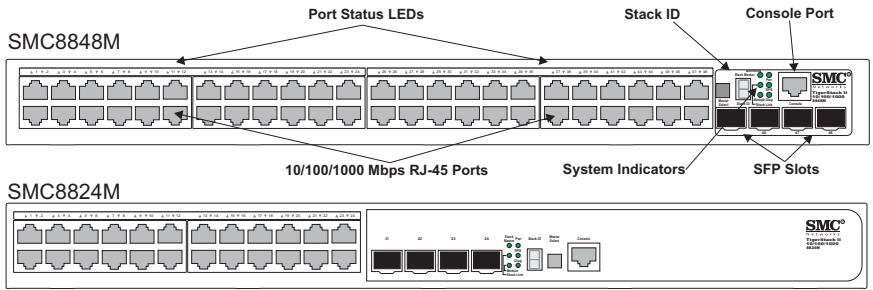
Figure 1-1 Front Panels

Figure 1-2 Rear Panel
Switch Architecture
These Gigabit Ethernet switches employ a wire-speed, non-blocking switching fabric. This permits simultaneous wire-speed transport of multiple packets at low latency on all ports. The switches also feature full-duplex capability on all ports, which effectively doubles the bandwidth of each connection.
For communications between different VLANs, these switches use IP routing. For communications within the same VLAN, they use store-and-forward switching to ensure maximum data integrity. With store-and-forward switching, the entire packet must be received into a buffer and checked for validity before being forwarded. This prevents errors from being propagated throughout the network.
These switches include built-in stacking ports that enable up to eight units to be connected together through a 48 Gbps stack backplane. The switch stack can be managed from a master unit using a single IP address.
These switches also include two slots on the rear panel for slide-in single-port 10GBASE modules with XFP transceivers.
Network Management Options
These switches contain a comprehensive array of LEDs for "at-a-glance" monitoring of network and port status. They also include a management agent that allows you to configure or monitor the switch using its embedded management software, or via SNMP applications. To manage each switch, you can make a direct connection to the console port (out-of-band), or you can manage the switches through a network connection (in-band) using Telnet, the on-board web agent, or SNMP-based network management software.
For a detailed description of both switches' advanced features, refer to the Management Guide.
Description of Hardware
10/100/1000BASE-T Ports
The switches contain 24/48 RJ-45 ports that operate at 10 Mbps or 100 Mbps, half or full duplex, or at 1000 Mbps, full duplex. Because all ports on these switches support automatic MDI/MDI-X operation, you can use straight-through cables for all network connections to PCs or servers, or to other switches or hubs. (See "1000BASE-T Pin Assignments" on page B-5.)
Each of these ports support auto-negotiation, so the optimum transmission mode (half or full duplex), and data rate (10, 100, or 1000 Mbps) can be selected automatically. If a device connected to one of these ports does not support auto-negotiation, the communication mode of that port can be configured manually.
SFP Slots
The Small Form Factor Pluggable (SFP) transceiver slots are shared with four of the RJ-45 ports (ports 21-24 for the SMC8824M and ports 45-48 for the SMC8848M). In its default configuration, if an SFP transceiver (purchased separately) is installed in a slot and has a valid link on its port, the associated RJ-45 port is disabled and cannot be used. The switch can also be configured to force the use of an RJ-45 port or SFP slot, as required.
10 Gigabit Ethernet Module Slots
These switches include two slots on the rear panel for hot-swappable single-port 10GBASE modules with XFP transceivers. Refer to "Optional Media Extender Module" on page 1-8 for more information on this module and the supported 10G transceivers.
Stacking Ports
Each unit includes two stacking ports that provide a 48 Gbps high-speed serial stack backplane connection. Up to eight SMC8824M or SMC8848M switches can be connected together using optional stacking cables. Note that the 24-port and 48-port switches can be mixed in the same stack. The Stack Master button enables one switch in the stack to be selected as the Master unit for managing the entire stack.
Port and System Status LEDs
These switches include a display panel for key system and port indications that simplify installation and network troubleshooting. The LEDs, which are located on the front panel for easy viewing, are shown below and described in the following tables.
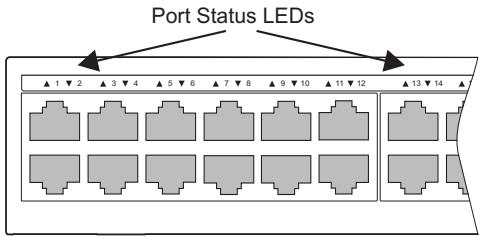
Figure 1-3 Port LEDs
Table 1-1 Port Status LEDs
| LED | Condition | Status |
| 1-24/1-48 (Link/Activity/ Speed) | On/Flashing Amber | Port has a valid link at 10 or 100 Mbps. Flashing indicates activity. |
| On/Flashing Green | Port has a valid link at 1000 Mbps. Flashing indicates activity. | |
| Off | There is no link on the port. |
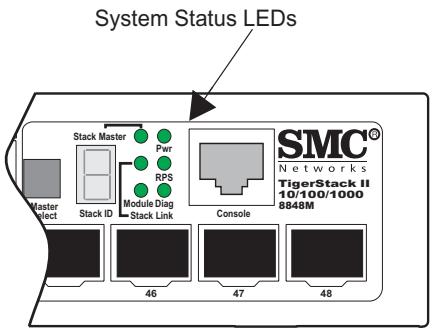
Figure 1-4 System LEDs
Table 1-2 System Status LEDs
| LED | Condition | Status |
| Power | Green | Internal power is operating normally. |
| Amber | Internal power supply fault. | |
| Off | Power off. | |
| Diag | Flashing Green | System self-diagnostic test in progress. |
| Green | System self-diagnostic test successfully completed. | |
| Amber | System self-diagnostic test has detected a fault. | |
| RPS | Green | Redundant power supply is receiving power. |
| Amber | Fault in redundant power supply, including thermal or fan failure. | |
| Off | Redundant power supply is off or not plugged in. | |
| Stack Master | Green | Switch is the Master unit of the stack. State may include topology discovery, IP assignment, or normal operations. |
| Flashing Green | Switch is the Master unit of the stack, system is initializing. | |
| Amber | Switch is operating as a Slave unit in the stack. | |
| Flashing Amber | System in Master arbitration/election state. | |
| Off | System in standalone mode. | |
| Stack Link | Green | Uplink and downlink operating normally. |
| Flashing Green | Uplink has failed. | |
| Flashing Amber | Downlink has failed. | |
| Off | No stacking link present. | |
| Module | Green | An expansion module is installed and operating normally. |
| Amber | An expansion module is installed but has failed. | |
| Off | There is no module installed. | |
| Stack ID | 1-8 | Indicates the switch stack ID. The Master unit is numbered 1. (Note that If the master unit fails and a backup unit takes over, the stack IDs do not change.) Slave units are numbered 2-8. |
| Off | In standalone mode. |
Optional Redundant Power Supply
SMC supports an optional Redundant Power Supply (RPS), that can supply power to the switch in the event the internal power supply fails.
Power Supply Sockets
There are two power sockets on the rear panel of each switch. The standard power socket is for the AC power cord. The socket labeled "RPS" is for the optional Redundant Power Supply (RPS).
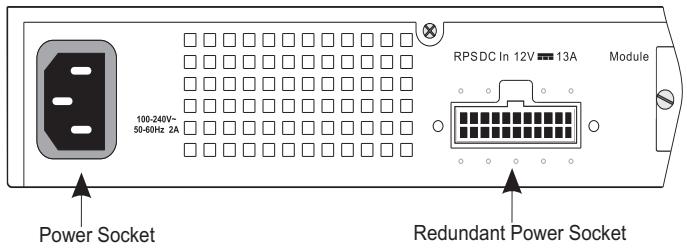
Figure 1-5 Power Supply Sockets
Optional Media Extender Module
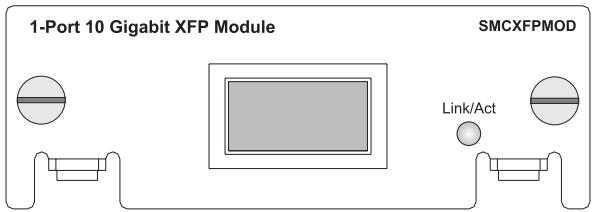
10GBASE XFP Module
Figure 1-6 Single-Port 10GBASE Module (XFP)
The module's XFP slot supports standard 10 Gigabit Ethernet (10G) XFP transceivers. All 10GBASE transceivers operate at 10 Gbps full duplex with support for flow control.
Extender Module LEDs
The optional 10GBASE slide-in module includes its own integrated LED indicators on the module's front panel. The following table describes the LEDs.
Table 1-3 Module LEDs
| LED | Condition | Status |
| Link/Activity | On/Flashing Green | Port has a valid link at 10 Gbps. Flashing indicates activity. |
| Off | There is no link on the port. |
Features and Benefits
Connectivity
24 or 48 10/100/1000 Mbps ports for easy Gigabit Ethernet integration and for protection of your investment in legacy LAN equipment.
- Auto-negotiation enables each RJ-45 port to automatically select the optimum communication mode (half or full duplex) if this feature is supported by the attached device; otherwise the port can be configured manually.
- RJ-45 10/100/1000BASE-T ports support auto MDI/MDI-X pinout selection.
- Unshielded (UTP) cable supported on all RJ-45 ports: Category 3 or better for 10 Mbps connections, Category 5 or better for 100 Mbps connections, and Category 5, 5e, 6 or better for 1000 Mbps connections.
- IEEE 802.3-2002 Ethernet, Fast Ethernet, Gigabit Ethernet, and IEEE 802.3ae 10 Gigabit Ethernet compliance ensures compatibility with standards-based hubs, network cards and switches from any vendor.
- Provides stacking capability via high-speed serial ports with 48 Gbps stacking bandwidth. Up to 8 units can be stacked together.
Expandability
Supports 1000BASE-SX, 1000BASE-LX and 1000BASE-ZX SFP transceivers.
- Optional 10G single-port expansion module with an XFP transceiver slot.
Performance
Transparent bridging.
- Aggregate duplex bandwidth of up to 128 Gbps for the SMC8824M or 176 Gbps for the SMC8848M.
- Switching table with a total of 8K MAC address entries and 2K IPv4 address entries or 1K IPv6 address entries.
- Provides store-and-forward switching for intra-VLAN traffic, and IP routing for inter-VLAN traffic.
Supports wire-speed switching.
Management
-
"At-a-glance" LEDs for easy troubleshooting.
Network management agent -
Manages switch (or entire stack) in-band or out-of-band
Supports console, Telnet, SSH, SNMP v1/v2c/v3, RMON (4 groups) and web-based interface -
Slave units provide backup stack management.
Introduction to Switching
A network switch allows simultaneous transmission of multiple packets via non-crossbar switching. This means that it can partition a network more efficiently than bridges or routers. These switches have, therefore, been recognized as one of the most important building blocks for today's networking technology.
When performance bottlenecks are caused by congestion at the network access point (such as the network card for a high-volume file server), the device experiencing congestion (server, power user or hub) can be attached directly to a switched port. And, by using full-duplex mode, the bandwidth of the dedicated segment can be doubled to maximize throughput.
When networks are based on repeater (hub) technology, the distance between end stations is limited by a maximum hop count. However, a switch turns the hop count back to zero. So subdividing the network into smaller and more manageable segments, and linking them to the larger network by means of a switch, removes this limitation.
A switch can be easily configured in any Ethernet, Fast Ethernet, Gigabit Ethernet, or 10G Ethernet network to significantly boost bandwidth while using conventional cabling and network cards.
Application Examples
The TigerStack II 10/100/1000 is not only designed to segment your network, but also to provide a wide range of options in setting up network connections and linking VLANs or IP subnets. Some typical applications are described below.
Collapsed Backbone
The TigerStack II 10/100/1000 is an excellent choice for mixed Ethernet, Fast Ethernet, and Gigabit Ethernet installations where significant growth is expected in the near future. In a basic stand-alone configuration, it can provide direct full-duplex connections for up to 24/48 workstations or servers. You can easily build on this basic configuration, adding direct full-duplex connections to workstations or servers. When the time comes for further expansion, just connect to another hub or switch using one of the Gigabit Ethernet ports built into the front panel, a Gigabit Ethernet port on a plug-in SFP transceiver, or a 10G transceiver on an optional module.
In the figure below, the 48-port switch is operating as a collapsed backbone for a small LAN. It is providing dedicated 10 Mbps full-duplex connections to workstations, 100 Mbps full-duplex connections to power users, and 1 Gbps full-duplex connections to servers.
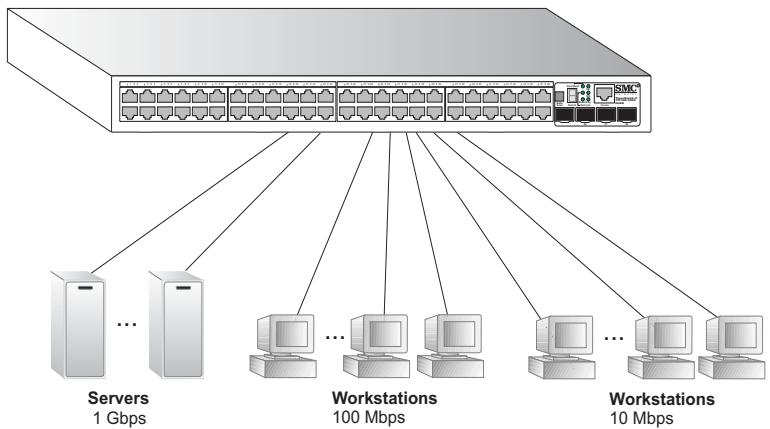
Figure 2-1 Collapsed Backbone
Network Aggregation Plan
With 24 or 48 parallel bridging ports (i.e., 24 or 48 distinct collision domains), a Gigabit switch stack can collapse a complex network down into a single efficient bridged node, increasing overall bandwidth and throughput.
In the figure below, the 10/100/1000BASE-T ports in a stack of 48-port Gigabit Ethernet switches are providing 1000 Mbps connectivity through stackable switches. In addition, the switches are also connecting several servers at 10 Gbps.
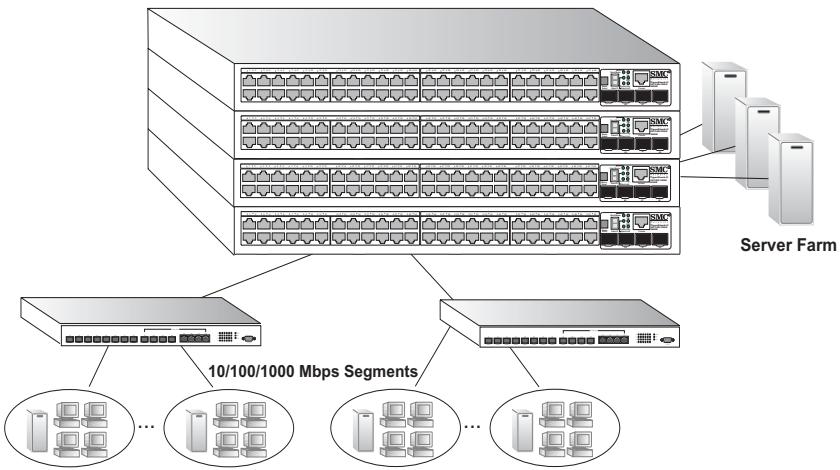
Figure 2-2 Network Aggregation Plan
Remote Connections with Fiber Cable
Fiber optic technology allows for longer cabling than any other media type. A 1000BASE-SX (MMF) link can connect to a site up to 550 meters away, a 1000BASE-LX (SMF) link up to 5km , and a 1000BASE-ZX link up to 100km . This allows a switch stack to serve as a collapsed backbone, providing direct connectivity for a widespread LAN.
A 1000BASE-SX SFP transceiver can be used for a high-speed connection between floors in the same building, and a 10GBASE-LR module can be used for high-bandwidth core connections between buildings in a campus setting. For long-haul connections, a 1000BASE-ZX SFP transceiver can be used to reach another site up to 100 kilometers away.
The figure below illustrates three TigerStack II 10/100/1000 switch stacks interconnecting multiple segments with fiber cable.
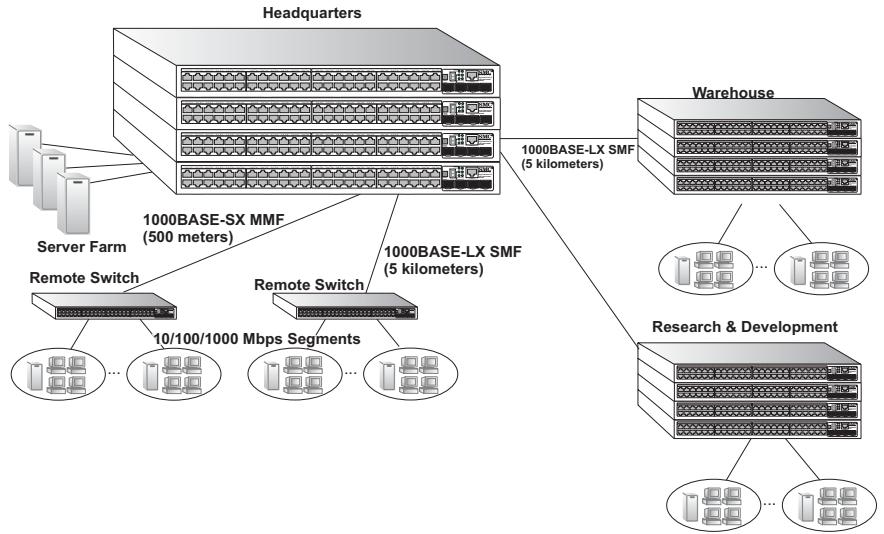
Figure 2-3 Remote Connections with Fiber Cable
Making VLAN Connections
These switches support VLANs which can be used to organize any group of network nodes into separate broadcast domains. VLANs confine broadcast traffic to the originating group, and can eliminate broadcast storms in large networks. This provides a more secure and cleaner network environment.
VLANs can be based on untagged port groups, or traffic can be explicitly tagged to identify the VLAN group to which it belongs. Untagged VLANs can be used for small networks attached to a single switch. However, tagged VLANs should be used for larger networks, and all the VLANs assigned to the inter-switch links.
These switches also support multiple spanning trees which allow VLAN groups to maintain a more stable path between all VLAN members. This can reduce the overall amount of protocol traffic crossing the network, and provide a shorter reconfiguration time if any link in the spanning tree fails.
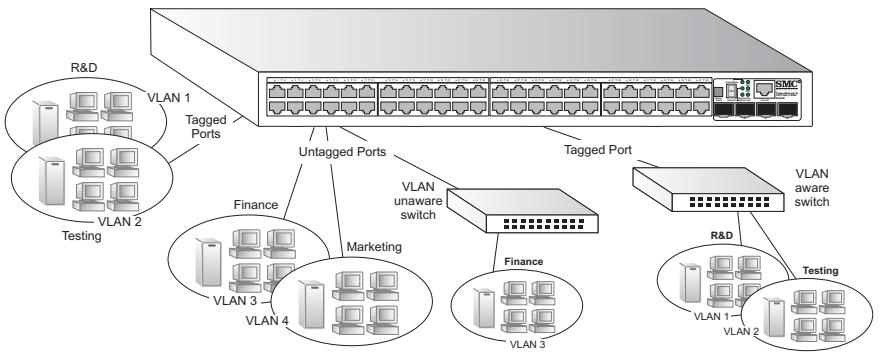
Figure 2-4 Making VLAN Connections
Note: When connecting to a switch that does not support IEEE 802.1Q VLAN tags, use untagged ports.
Application Notes
- Full-duplex operation only applies to point-to-point access (such as when a switch is attached to a workstation, server or another switch). When the switch is connected to a hub, both devices must operate in half-duplex mode.
- For network applications that require routing between dissimilar network types, you can attach these switches directly to a multi-protocol router.
- As a general rule, the length of fiber optic cable for a single switched link should not exceed:
1000BASE-SX: 550m (1805 ft) for multimode fiber
1000BASE-LX: 5 km (3.1 miles) for single-mode fiber
1000BASE-ZX: 100km (62.1 miles) for single-mode fiber
10GBASE-SR: 300m (984 ft) for multimode fiber
10GBASE-LR: 10km (6.2 miles) for single-mode fiber
10GBASE-ER: 40km (24.8 miles) for single-mode fiber
However, power budget constraints must also be considered when calculating the maximum cable length for your specific environment.
Selecting a Site
TigerStack II 10/100/1000 units can be mounted in a standard 19-inch equipment rack or on a flat surface. Be sure to follow the guidelines below when choosing a location.
-
The site should:
-
be at the center of all the devices you want to link and near a power outlet.
- be able to maintain its temperature within 0 to 50^ (32 to 122^ ) and its humidity within 5% to 95% , non-condensing
- provide adequate space (approximately five centimeters or two inches) on all sides for proper air flow
- be accessible for installing, cabling and maintaining the devices
-
allow the status LEDs to be clearly visible
-
Make sure twisted-pair cable is always routed away from power lines, fluorescent lighting fixtures and other sources of electrical interference, such as radios and transmitters.
- Make sure that the unit is connected to a separate grounded power outlet that provides 100 to 240 VAC, 50 to 60Hz , is within 2m (6.6 feet) of each device and is powered from an independent circuit breaker. As with any equipment, using a filter or surge suppressor is recommended.
Ethernet Cabling
To ensure proper operation when installing the switches into a network, make sure that the current cables are suitable for 10BASE-T,
100BASE-TX or 1000BASE-T operation. Check the following criteria against the current installation of your network:
- Cable type: Unshielded twisted pair (UTP) or shielded twisted pair (STP) cables with RJ-45 connectors; Category 3 or better for 10BASE-T, Category 5 or better for 100BASE-TX, and Category 5, 5e or 6 for 1000BASE-T.
Protection from radio frequency interference emissions - Electrical surge suppression
- Separation of electrical wires (switch related or other) and electromagnetic fields from data based network wiring
- Safe connections with no damaged cables, connectors or shields
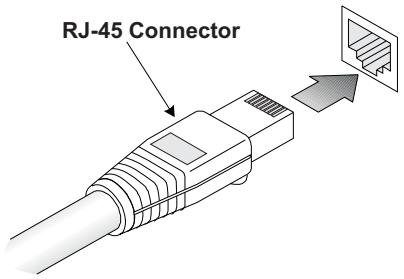
Figure 3-1 RJ-45 Connections
Equipment Checklist
After unpacking the TigerStack II 10/100/1000 unit, check the contents to be sure you have received all the components. Then, before beginning the installation, be sure you have all other necessary installation equipment.
Package Contents
- TigerStack II 10/100/1000 unit (SMC8824M or SMC8848M)
- Four adhesive foot pads
- Bracket Mounting Kit containing two brackets and eight screws for attaching the brackets to the switch
Power cord—either US, Continental Europe or UK - Console cable (RJ-45 to RS-232)
- This Installation Guide
- Installation and Management Guide CD
- SMC Warranty Registration Card—be sure to complete and return to SMC
Optional Rack-Mounting Equipment
If you plan to rack-mount the switches, be sure to have the following equipment available:
- Four mounting screws for each device you plan to install in a rack—these are not included
- A screwdriver (Phillips or flathead, depending on the type of screws used)
Mounting
A TigerStack II 10/100/1000 unit can be mounted in a standard 19-inch equipment rack or on a desktop or shelf. Mounting instructions for each type of site follow.
Rack Mounting
Before rack mounting the switch, pay particular attention to the following factors:
- Temperature: Since the temperature within a rack assembly may be higher than the ambient room temperature, check that the rack-environment temperature is within the specified operating temperature range (see page C-2).
- Mechanical Loading: Do not place any equipment on top of a rack-mounted unit.
- Circuit Overloading: Be sure that the supply circuit to the rack assembly is not overloaded.
- Grounding: Rack-mounted equipment should be properly grounded. Particular attention should be given to supply connections other than direct connections to the mains.
To rack-mount devices:
- Attach the brackets to the device using the screws provided in the Bracket Mounting Kit.
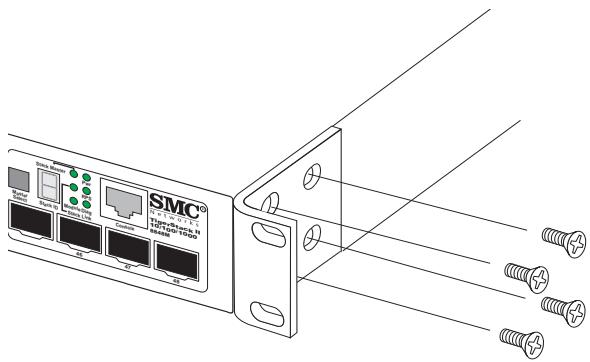
Figure 3-2 Attaching the Brackets
- Mount the device in the rack, using four rack-mounting screws (not provided).
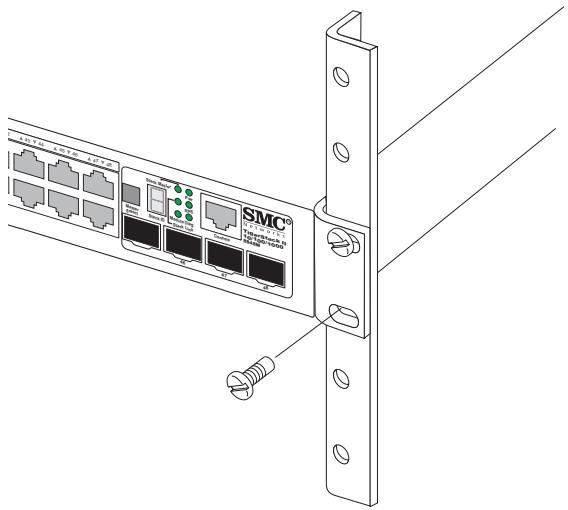
Figure 3-3 Installing the Switch in a Rack
- If installing a single switch only, turn to "Connecting to a Power Source" at the end of this chapter.
- If installing multiple switches, mount them in the rack, one below the other, in any order.
- If also installing an RPS, mount it in the rack below the other devices.
Desktop or Shelf Mounting
- Attach the four adhesive feet to the bottom of the first switch.
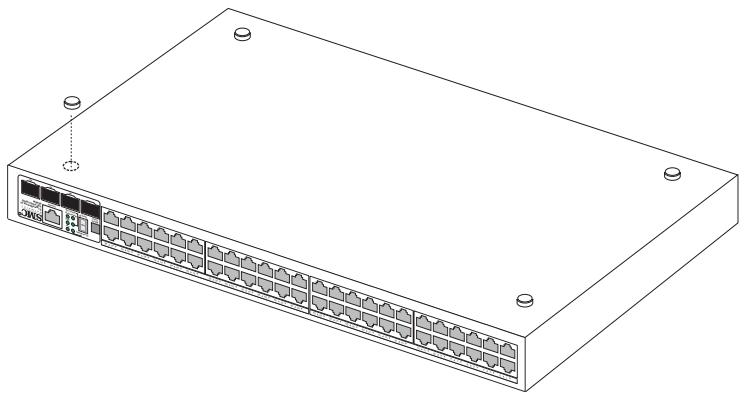
Figure 3-4 Attaching the Adhesive Feet
- Set the device on a flat surface near an AC power source, making sure there are at least two inches of space on all sides for proper air flow.
- If installing a single switch only, go to "Connecting to a Power Source" at the end of this chapter.
- If installing multiple switches, attach four adhesive feet to each one. Place each device squarely on top of the one below, in any order.
- If also installing an RPS, place it close to the stack.
Installing an Optional Module into the Switch
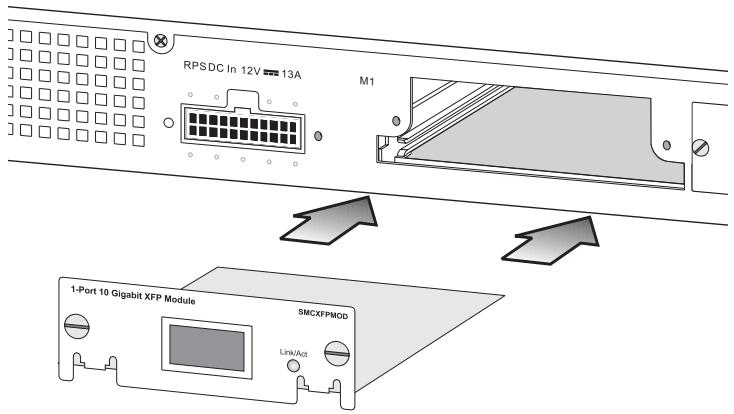
Figure 3-5 Installing an Optional Module
Note: The slide-in modules are hot-swappable, you do not need to power off the switch before installing or removing a module.
To install an optional module into the switch, do the following:
- Remove the blank metal plate (or a previously installed module) from the appropriate slot by removing the two screws with a flat-head screwdriver.
- Before opening the package that contains the module, touch the bag to the switch casing to discharge any potential static electricity. Also, it is recommended to use an ESD wrist strap during installation.
- Remove the module from the anti-static shielded bag.
- Holding the module level, guide it into the carrier rails on each side and gently push it all the way into the slot, ensuring that it firmly engages with the connector.
-
If you are sure the module is properly mated with the connector, tighten the retainer screws to secure the module in the slot.
-
The Module LED on the switch's front panel should turn green to confirm that the module is correctly installed and ready to use.
Installing an Optional SFP or XFP Transceiver into the Switch
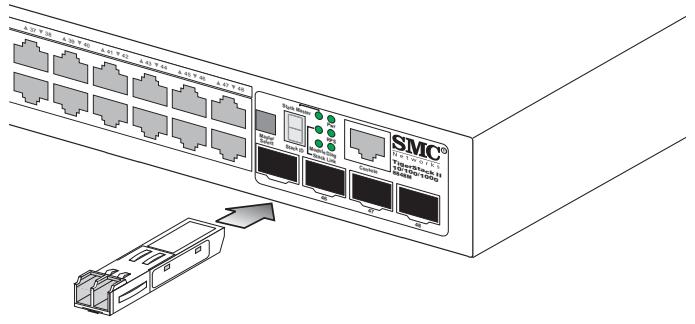
Figure 3-6 Inserting an SFP Transceiver into a Slot
The switch support the following optional transceivers:
Table 3-1 Optional Transcievers
| SFP | XFP |
| 1000BASE-SX (SMCBGSLCX1) | 10GBASE-SR (SMC10GXFP-SR) |
| 1000BASE-LX (SMCBGLLCX1) | 10GBASE-LR (SMC10GXFP-LR) |
| 1000BASE-ZX (SMCBGZLCX1) | 10GBASE-ER (SMC10GXFP-ER) |
To install an SFP or XFP transceiver, do the following:
- Consider network and cabling requirements to select an appropriate transceiver type. Refer to "Connectivity Rules" on page 4-8.
-
Insert the transceiver with the optical connector facing outward and the slot connector facing down. Note that SFP and XFP transceivers are keyed so they can only be installed in one orientation.
-
Slide the transceiver into the slot until it clicks into place.
Note: SFP and XFP transceivers are hot-swappable. The switch does not need to be powered off before installing or removing a transceiver. However, always first disconnect the network cable before removing a transceiver.
Note: SFP and XFP transceivers are not provided in the switch package.
Connecting Switches in a Stack
Figure 3-7 shows how the stack cables are connected between switches in a stack. Each stacking connection is a 48 Gbps full-duplex high-speed serial link using proprietary stacking cables. The switch supports a line- and ring-topology stacking configuration, or can be used stand alone. To ensure minimal disruption in case a unit or stacking cable fails, we recommend always use a ring-topology.
In line-topology stacking there is a single stack cable connection between each switch that carries two-way communications across the stack. In ring-topology stacking, an extra cable is connected between the top and bottom switches forming a "ring" or "closed-loop." The closed-loop cable provides a redundant path for the stack link, so if one link fails, stack communications can still be maintained. Figure 3-7 illustrates a ring-topology stacking configuration.
To connect up to eight switches in a stack, perform the following steps:
- Plug one end of the stack cable (ordered separately) in the Down (right) port of the top unit.
- Plug the other end of the stack cable into the Up (left) port of the next unit.
-
Repeat steps 1 and 2 for each unit in the stack. Form a simple chain starting at the Down port on the top unit and ending at the Up port on the bottom unit (stacking up to 8 units).
-
(Optional) To form a wrap-around topology, plug one end of a stack cable into the Down port on the bottom unit and the other end into the Up port on the top unit.
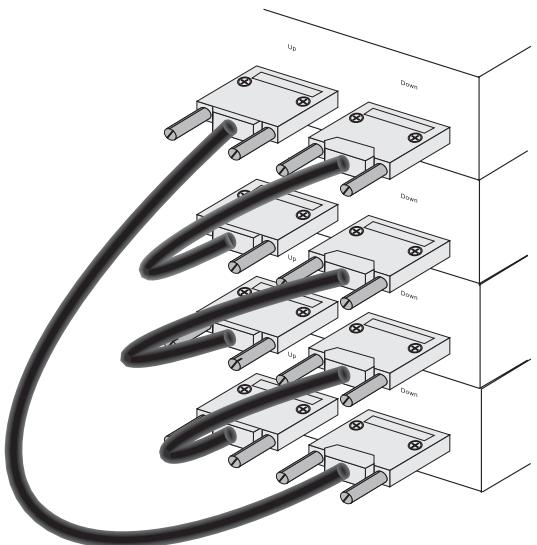
Figure 3-7 Making Stacking Connections
- Select the Master unit in the stack by pressing the Master button in on only one of the switches. Only one switch in the stack can operate as the Master, all other units operate in slave mode. If more than one switch in the stack is selected as Master, or if no switches are selected, the system will select the unit with the lowest MAC address as the Master.
Stacking Topologies
All units in the stack must be connected via stacking cable. You can connect units in a simple cascade configuration, connecting Down ports to Up ports, from the top unit to the bottom unit. Using this "line" topology, if any link or unit in the stack fails, the stack is split and two separate segments are formed. The Stack Link LEDs on the units that are disconnected flash to indicate that the stack link between them is not functioning. (See Table 1-2 "System Status LEDs" on page 1-6.)
When using line topology and a stack link failure occurs, the stack reboots and a Master unit is selected within each of the two stack segments. The Master unit will be either the unit with the Master button depressed or the unit with the lowest MAC address if the Master button is not depressed on any unit. When the stack reboots and resumes operations, note that the IP address will be the same for both of the stack segments. To resolve the conflicting IP addresses, you should manually replace the failed link or unit as soon as possible. If you are using a wrap-around stack topology, a single point of failure in the stack will not cause the stack to fail. It would take two or more points of failure to break the stack apart.
If the Master unit fails or is powered off, the backup unit will take control of the stack without any loss of configuration settings. The Slave unit with the lowest MAC address is selected as the backup unit.
Connecting to a Power Source
To connect a device to a power source:
- Insert the power cable plug directly into the socket located at the back of the device.
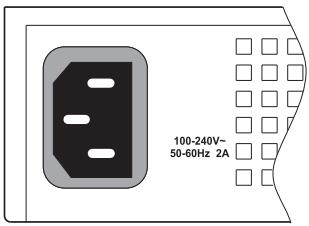
Figure 3-8 Power Socket
- Plug the other end of the cable into a grounded, 3-pin, AC power source.
Note: For international use, you may need to change the AC line cord. You must use a line cord set that has been approved for the socket type in your country.
- Check the front-panel LEDs as the device is powered on to be sure the Power LED is on. If not, check that the power cable is correctly plugged in.
- If you have purchased a Redundant Power Supply, connect it to the switch and to an AC power source now, following the instructions included with the package.
Connecting to the Console Port
The RJ-45 serial port on the switch's front panel is used to connect to the switch for out-of-band console configuration. The on-board configuration program can be accessed from a terminal or a PC running a terminal emulation program. The pin assignments used to connect to the serial port are provided in the following table.
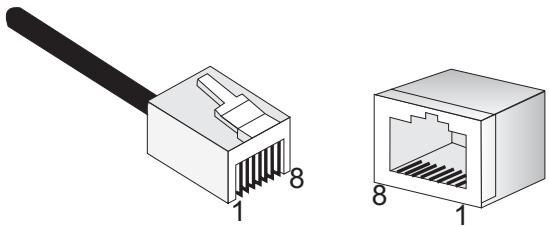
Figure 3-9 Serial Port (RJ-45) Pin-Out
Wiring Map for Serial Cable
Table 3-2 Wiring Map for Serial Cable
| Switch's 8-Pin Serial Port | Null Modem | PC's 9-Pin DTE Port |
| 6 RXD (receive data) | <--------> | 3 TXD (transmit data) |
| 3 TXD (transmit data) | ---------> | 2 RXD (receive data) |
| 5 SGND (signal ground) | --------> | 5 SGND (signal ground) |
No other pins are used.
The serial port's configuration requirements are as follows:
Default Baud rate—9,600 bps
- Character Size—8 Characters
- Parity—None
- Stop bit-One
Data bits-8
- Flow control—none
INSTALLING THE SWITCH
CHAPTER 4
MAKING NETWORK
CONNECTIONS
Connecting Network Devices
The TigerStack II 10/100/1000 units are designed to interconnect multiple segments (or collision domains). It can be connected to network cards in PCs and servers, as well as to hubs, switches or routers. It may also be connected to devices using optional XFP or SFP transceivers.
Twisted-Pair Devices
Each device requires an unshielded twisted-pair (UTP) cable with RJ-45 connectors at both ends. Use Category 5, 5e or 6 cable for 1000BASE-T connections, Category 5 or better for 100BASE-TX connections, and Category 3 or better for 10BASE-T connections.
Cabling Guidelines
The RJ-45 ports on the switch support automatic MDI/MDI-X pinout configuration, so you can use standard straight-through twisted-pair cables to connect to any other network device (PCs, servers, switches, routers, or hubs).
See Appendix B "Cables" for further information on cabling.

Caution: Do not plug a phone jack connector into an RJ-45 port. This will damage the switch. Use only twisted-pair cables with RJ-45 connectors that conform to FCC standards.
Connecting to PCs, Servers, Hubs and Switches
- Attach one end of a twisted-pair cable segment to the device's RJ-45 connector.
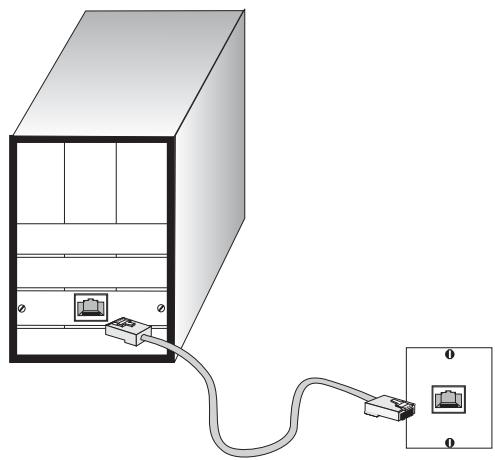
Figure 4-1 Making Twisted-Pair Connections
- If the device is a PC card and the switch is in the wiring closet, attach the other end of the cable segment to a modular wall outlet that is connected to the wiring closet. (See "Network Wiring Connections" on page 4-3.) Otherwise, attach the other end to an available port on the switch.
Make sure each twisted pair cable does not exceed 100 meters (328 ft) in length.
- As each connection is made, the Link LED (on the switch) corresponding to each port will light green (1000 Mbps) or amber (10/100 Mbps) to indicate that the connection is valid.
Network Wiring Connections
Today, the punch-down block is an integral part of many of the newer equipment racks. It is actually part of the patch panel. Instructions for making connections in the wiring closet with this type of equipment follows.
- Attach one end of a patch cable to an available port on the switch, and the other end to the patch panel.
- If not already in place, attach one end of a cable segment to the back of the patch panel where the punch-down block is located, and the other end to a modular wall outlet.
- Label the cables to simplify future troubleshooting. See "Cable Labeling and Connection Records" on page 4-11.
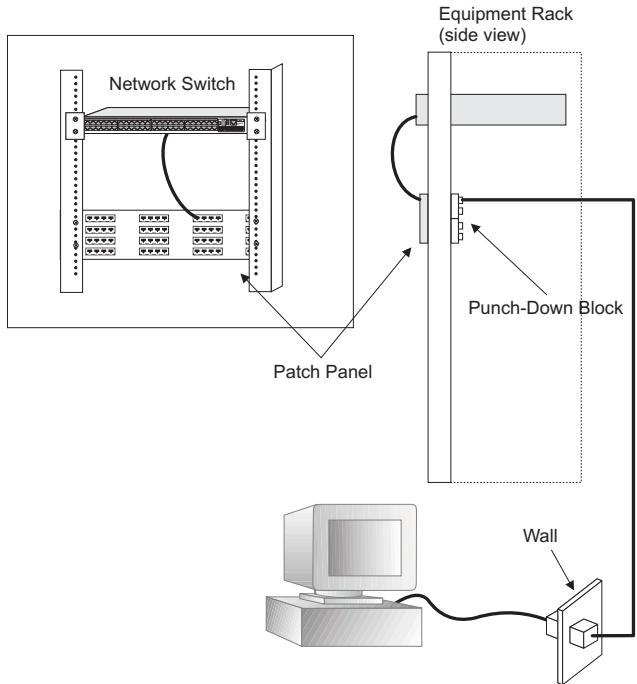
Figure 4-2 Wiring Closet Connections
Fiber Optic SFP Devices
An optional Gigabit SFP transceiver (1000BASE-SX, 1000BASE-LX or 1000BASE-ZX) can be used for a backbone connection between switches, or for connecting to a high-speed server.
Each single-mode fiber port requires 9/125 micron single-mode fiber optic cable with an LC connector at both ends. Each multimode fiber optic port requires 50/125 or 62.5/125 micron multimode fiber optic cabling with an LC connector at both ends.
Warning: These switches use lasers to transmit signals over fiber optic cable. The lasers are compliant with the requirements of a Class 1 Laser Product and are inherently eye safe in normal operation. However, you should never look directly at a transmit port when it is powered on.
Note: When selecting a fiber SFP device, considering safety, please make sure that it can function at a temperature that is not less than the recommended maximum operational temperature of the product. You must also use an approved Laser Class 1 SFP transceiver.
- Remove and keep the LC port's rubber cover. When not connected to a fiber cable, the rubber cover should be replaced to protect the optics.
-
Check that the fiber terminators are clean. You can clean the cable plugs by wiping them gently with a clean tissue or cotton ball moistened with a little ethanol. Dirty fiber terminators on fiber cables will impair the quality of the light transmitted through the cable and lead to degraded performance on the port.
-
Connect one end of the cable to the LC port on the switch and the other end to the LC port on the other device. Since LC connectors are keyed, the cable can be attached in only one orientation.
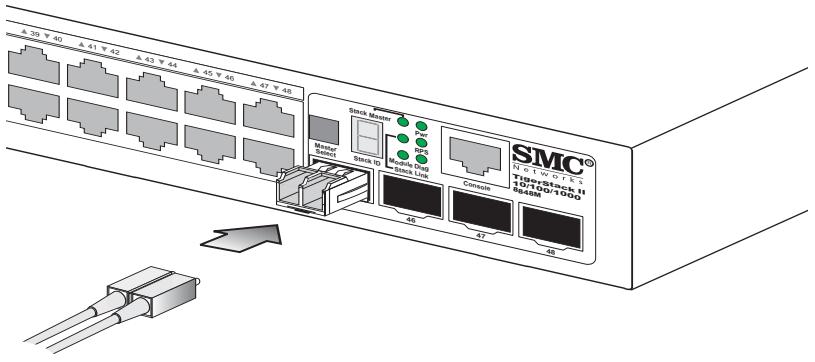
Figure 4-3 Making Connections to SFP Transceivers
- As a connection is made, check the Link LED on the switch corresponding to the port to be sure that the connection is valid.
The 1000BASE-SX, 1000BASE-LX and 1000BASE-ZX fiber optic ports operate at 1 Gbps full duplex. The maximum length for fiber optic cable operating at Gigabit speed will depend on the fiber type as listed under "1000 Mbps Gigabit Ethernet Collision Domain" on page 4-9.
10 Gbps Fiber Optic Connections
An optional 10 Gigabit transceiver (XFP) can be used for a backbone connection between switches.
Single-mode fiber ports require 9/125 micron single-mode fiber optic cable. Multimode fiber optic ports require 50/125 or 62.5/125 micron multimode fiber optic cable. Each fiber optic cable must have an LC connector attached at both ends.
Warning: These switches use lasers to transmit signals over fiber optic cable. The lasers are compliant with the requirements of a Class 1 Laser Product and are inherently eye safe in normal operation. However, you should never look directly at a transmit port when it is powered on.
Note: When selecting a fiber device, considering safety, please make sure that it can function at a temperature that is not less than the recommended maximum operational temperature of the product. You must also use an approved Laser Class 1 SFP transceiver.
- Remove and keep the port's protective cover. When not connected to a fiber cable, the cover should be replaced to protect the optics.
- Check that the fiber terminators are clean. You can clean the cable plugs by wiping them gently with a clean tissue or cotton ball moistened with a little ethanol. Dirty fiber terminators on fiber cables will impair the quality of the light transmitted through the cable and lead to degraded performance on the port.
- Connect one end of the cable to the LC port on the switch and the other end to the LC port on the other device. Since LC connectors are keyed, the cable can be attached in only one orientation.
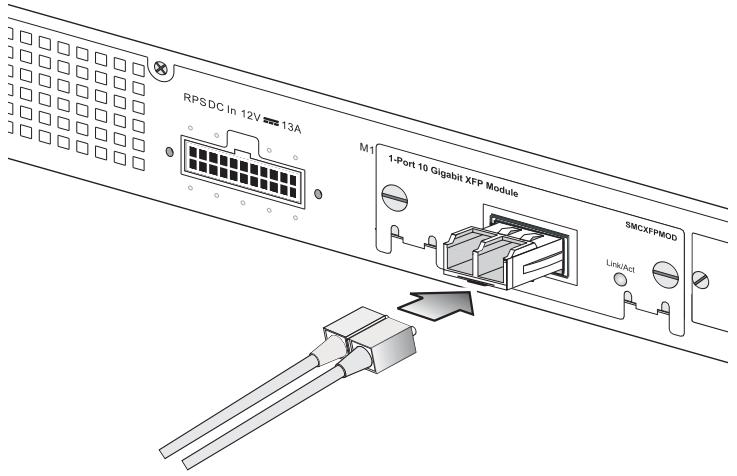
Figure 4-4 Connecting to an XFP Transceiver
- As a connection is made, check the Link LED on the module to be sure that the connection is valid.
The 10G fiber optic ports operate at 10 Gbps full duplex. The maximum length for fiber optic cable operating at 10 Gbps will depend on the fiber type as listed under "10 Gbps Ethernet Collision Domain" on page 4-8.
Connectivity Rules
When adding hubs (repeaters) to your network, please follow the connectivity rules listed in the manuals for these products. However, note that because switches break up the path for connected devices into separate collision domains, you should not include the switch or connected cabling in your calculations for cascade length involving other devices.
1000BASE-T Cable Requirements
All Category 5 UTP cables that are used for 100BASE-TX connections should also work for 1000BASE-T, providing that all four wire pairs are connected. However, it is recommended that for all critical connections, or any new cable installations, Category 5e (enhanced Category 5) or Category 6 cable should be used. The Category 5e specification includes test parameters that are only recommendations for Category 5. Therefore, the first step in preparing existing Category 5 cabling for running 1000BASE-T is a simple test of the cable installation to be sure that it complies with the IEEE 802.3-2002 standards.
10 Gbps Ethernet Collision Domain
Table 4-1 Maximum 10GBASE-SR 10 Gigabit Ethernet Cable Length
| Fiber Size | Fiber Bandwidth | Maximum Cable Length | Connector |
| 62.5/125 micron single-mode fiber | 160 MHz/km | 2-26 m (7-85 ft.) | LC |
| 62.5/125 micron single-mode fiber | 200 MHz/km | 2-33 m (7-108 ft.) | LC |
| 50/125 micron single-mode fiber | 400 MHz/km | 2-66 m (7-216 ft.) | LC |
| 50/125 micron single-mode fiber | 500 MHz/km | 2-82 m (7-269 ft.) | LC |
| 50/125 micron single-mode fiber | 2000 MHz/km | 2-300 m (7-984 ft.) | LC |
Table 4-2 Maximum 10GBASE-LR 10 Gigabit Ethernet Cable Length
| Fiber Size | Fiber Bandwidth | Maximum Cable Length | Connector |
| 9/125 micron single-mode fiber | N/A | 10 km (6.2 miles) | LC |
Table 4-3 Maximum 10GBASE-ER 10 Gigabit Ethernet Cable Length
| Fiber Size | Fiber Bandwidth | Maximum Cable Length | Connector |
| 9/125 micron single-mode fiber | N/A | 40 km (24.85 miles) | LC |
1000 Mbps Gigabit Ethernet Collision Domain
Table 4-4 Maximum 1000BASE-T Gigabit Ethernet Cable Length
| Cable Type | Maximum Cable Length | Connector |
| Category 5, 5e, 6 100-ohm UTP or STP | 100 m (328 ft) | RJ-45 |
Table 4-5 Maximum 1000BASE-SX Fiber Optic Cable Length
| Fiber Diameter | Fiber Bandwidth | Cable Length Range | Connector |
| 62.5/125 micron multimode fiber (MMF) | 160 MHz/km | 2-220 m (7-722 ft) | LC |
| 200 MHz/km | 2-275 m (7-902 ft) | LC | |
| 50/125 micron multimode fiber (MMF) | 400 MHz/km | 2-500 m (7-1641 ft) | LC |
| 500 MHz/km | 2-550 m (7-1805 ft) | LC |
Table 4-6 Maximum 1000BASE-LX Fiber Optic Cable Length
| Fiber Diameter | Fiber Bandwidth | Cable Length Range | Connector |
| 9/125 micron single-mode fiber | N/A | 2 m - 5 km (7 ft - 3.2 miles) | LC |
Table 4-7 Maximum 1000BASE-ZX Fiber Optic Cable Length
| Fiber Diameter | Fiber Bandwidth | Cable Length Range | Connector |
| 9/125 micron single-mode fiber | N/A | 70* - 100 km (43.5 - 62.1 miles) | LC |
- For link spans exceeding 70km , you may need to use premium single mode fiber or dispersion shifted single mode fiber
100 Mbps Fast Ethernet Collision Domain
Table 4-8 Maximum Fast Ethernet Cable Length
| Type | Cable Type | Maximum Cable Length | Connector |
| 100BASE-TX | Category 5 or better 100-ohm UTP or STP | 100 m (328 ft) | RJ-45 |
10 Mbps Ethernet Collision Domain
Table 4-9 Maximum Ethernet Cable Length
| Type | Cable Type | Maximum Length | Connector |
| 10BASE-T | Categories 3, 4, 5 or better 100-ohm UTP | 100 m (328 ft) | RJ-45 |
Cable Labeling and Connection Records
When planning a network installation, it is essential to label the opposing ends of cables and to record where each cable is connected. Doing so will enable you to easily locate inter-connected devices, isolate faults and change your topology without need for unnecessary time consumption.
To best manage the physical implementations of your network, follow these guidelines:
- Clearly label the opposing ends of each cable.
- Using your building's floor plans, draw a map of the location of all network-connected equipment. For each piece of equipment, identify the devices to which it is connected.
- Note the length of each cable and the maximum cable length supported by the switch ports.
- For ease of understanding, use a location-based key when assigning prefixes to your cable labeling.
- Use sequential numbers for cables that originate from the same equipment.
- Differentiate between racks by naming accordingly.
- Label each separate piece of equipment.
- Display a copy of your equipment map, including keys to all abbreviations at each equipment rack.
Diagnosing Switch Indicators
Table A-1 Troubleshooting Chart
| Symptom | Action |
| Power LED is Off | ·Check connections between the switch, the power cord, and the wall outlet. ·Contact your dealer for assistance. ·Contact SMC Technical Support. |
| Power LED is Amber | ·Internal power supply has failed. Contact your local dealer for assistance. |
| Diag LED is Amber | ·Power cycle the switch to try and clear the condition. ·If the condition does not clear, contact your local dealer for assistance. |
| Stack Master LED is Flashing Amber | ·The stack has not completed its initial configuration. Wait a few minutes for the process to complete. ·Check that all stacking cables are properly connected. |
| Stack Link LED is Flashing Green/Amber | ·The uplink/downlink has failed. ·For the indicated stack link, check that the stacking cables are properly connected. Replace the stacking cable if necessary. ·Power cycle the switch to try and clear the condition. |
| Link LED is Off | ·Verify that the switch and attached device are powered on. ·Be sure the cable is plugged into both the switch and corresponding device. ·Verify that the proper cable type is used and its length does not exceed specified limits. ·Check the adapter on the attached device and cable connections for possible defects. Replace the defective adapter or cable if necessary. |
Diagnosing Power Problems with the LEDs
The Power and RPS LEDs work in combination to indicate power status as follows.
Table A-2 Power/RPS LEDs
| Power LED | RPS LED | Status |
| Green | Green | Internal power functioning normally; RPS is present. |
| Green | Amber | Internal power functioning normally; RPS plugged in but faulty. |
| Green | Off | Internal power functioning normally; RPS not plugged in. |
| Amber | Green | Internal power faulty; RPS delivering power. |
| Off | Off | Both internal power and RPS unplugged or not functioning. |
Power and Cooling Problems
If the power indicator does not turn on when the power cord is plugged in, you may have a problem with the power outlet, power cord, or internal power supply. However, if the unit powers off after running for a while, check for loose power connections, power losses or surges at the power outlet, and verify that the fans on the unit are unobstructed and running prior to shutdown. If you still cannot isolate the problem, then the internal power supply may be defective.
Installation
Verify that all system components have been properly installed. If one or more components appear to be malfunctioning (such as the power cord or network cabling), test them in an alternate environment where you are sure that all the other components are functioning properly.
In-Band Access
You can access the management agent in the switch from anywhere within the attached network using Telnet, a Web browser, or other network management software tools. However, you must first configure the switch with a valid IP address, subnet mask, and default gateway. If you have trouble establishing a link to the management agent, check to see if you have a valid network connection. Then verify that you entered the correct IP address. Also, be sure the port through which you are connecting to the switch has not been disabled. If it has not been disabled, then check the network cabling that runs between your remote location and the switch.
Caution: The management agent can accept up to four simultaneous Telnet sessions. If the maximum number of sessions already exists, an additional Telnet connection will not be able to log into the system.
Stack Troubleshooting
If a stack fails to initialize or function, first check the following items:
- Check that all stacking cables are properly connected.
- Check if any stacking cables appear damaged.
- Check that only one Stack Master button is pressed in.
- Check that all switches in the stack are powered on.
After checking all items, reboot all the switches in the stack.
Switches in the stack may be configured using a ring- or line-topology. To ensure minimal disruption in case a unit or stacking cable fails, always use a ring-topology. When using ring-topology configuration and a switch fails, or a stacking cable is disconnected, the stack continues normal operation using line-topology stacking through the remaining stack connections.
If any changes occur to a slave unit, such as unit failure or insertion of a new unit, operation of the other units in the stack are not affected. On the other hand, if the master unit fails, the unit with the lowest MAC address is elected as the new master. The stack reboots, discovers the new stack topology, assigns identifiers to each unit, and checks the software images on each unit. This process makes take up two minutes.
If you do not connect a wrap-around cable from the bottom unit back up to the top unit in the stack, the failure of a single unit will cause the stack to break into two separate stacks. In this case, a master unit will be elected for both of the stacks. However, backup information inherited from the previous master unit will cause the same IP address to be used by both master units in the two stacks. You must therefore manually reconfigure the IP address of the management interface on one of the master units.
Twisted-Pair Cable and Pin Assignments
For 10BASE-T/100BASE-TX connections, a twisted-pair cable must have two pairs of wires. For 1000BASE-T connections the twisted-pair cable must have four pairs of wires. Each wire pair is identified by two different colors. For example, one wire might be green and the other, green with white stripes. Also, an RJ-45 connector must be attached to both ends of the cable.
Caution: Each wire pair must be attached to the RJ-45 connectors in a specific orientation.
Caution: DO NOT plug a phone jack connector into any RJ-45 port. Use only twisted-pair cables with RJ-45 connectors that conform with FCC standards.
Figure B-1 illustrates how the pins on the RJ-45 connector are numbered. Be sure to hold the connectors in the same orientation when attaching the wires to the pins.

Figure B-1 RJ-45 Connector Pin Numbers
10BASE-T/100BASE-TX Pin Assignments
Use unshielded twisted-pair (UTP) or shielded twisted-pair (STP) cable for RJ-45 connections: 100-ohm Category 3 or better cable for 10 Mbps connections, or 100-ohm Category 5 or better cable for 100 Mbps connections. Also be sure that the length of any twisted-pair connection does not exceed 100 meters (328 feet).
The RJ-45 ports on the switch base unit support automatic MDI/MDI-X operation, so you can use straight-through cables for all network connections to PCs or servers, or to other switches or hubs. In straight-through cable, pins 1, 2, 3, and 6, at one end of the cable, are connected straight through to pins 1, 2, 3, and 6 at the other end of the cable. When using any RJ-45 port on these switches, you can use either straight-through or crossover cable.
Table B-1 10/100BASE-TX MDI and MDI-X Port Pinouts
| Pin | MDI Signal Name | MDI-X Signal Name |
| 1 | Transmit Data plus (TD+) | Receive Data plus (RD+) |
| 2 | Transmit Data minus (TD-) | Receive Data minus (RD-) |
| 3 | Receive Data plus (RD+) | Transmit Data plus (TD+) |
| 6 | Receive Data minus (RD-) | Transmit Data minus (TD-) |
| 4,5,7,8 | Not used | Not used |
Note: The "+" and "-" signs represent the polarity of the wires that make up each wire pair.
Straight-Through Wiring
If the twisted-pair cable is to join two ports and only one of the ports has an internal crossover (MDI-X), the two pairs of wires must be
straight-through. (When auto-negotiation is enabled for any RJ-45 port on these switches, you can use either straight-through or crossover cable to connect to any device type.)
You must connect all four wire pairs as shown in the following diagram to support Gigabit Ethernet connections.
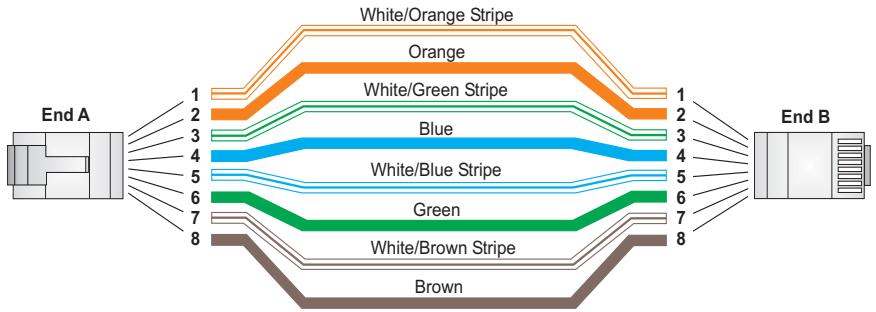
EIA/TIA 568B RJ-45 Wiring Standard 10/100BASE-TX Straight-through Cable
Figure B-2 Straight-through Wiring
Crossover Wiring
If the twisted-pair cable is to join two ports and either both ports are labeled with an "X" (indicating MDI-X) or neither port is labeled with an "X" (which indicates MDI), a crossover must be implemented in the wiring. (When auto-negotiation is enabled for any RJ-45 port on these switches, you can use either straight-through or crossover cable to connect to any device type.)
You must connect all four wire pairs as shown in the following diagram to support Gigabit Ethernet connections.
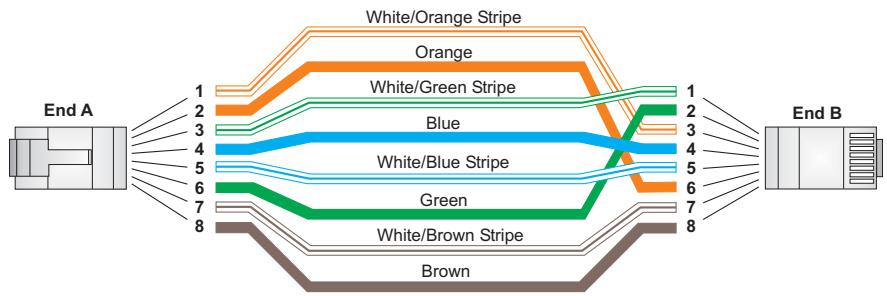
EIA/TIA 568B RJ-45 Wiring Standard 10/100BASE-TX Crossover Cable
Figure B-3 Crossover Wiring
1000BASE-T Pin Assignments
All 1000BASE-T ports support automatic MDI/MDI-X operation, so you can use straight-through cables for all network connections to PCs or servers, or to other switches or hubs.
The table below shows the 1000BASE-T MDI and MDI-X port pinouts. These ports require that all four pairs of wires be connected. Note that for 1000BASE-T operation, all four pairs of wires are used for both transmit and receive.
Use 100-ohm Category 5, 5e or 6 unshielded twisted-pair (UTP) or shielded twisted-pair (STP) cable for 1000BASE-T connections. Also be sure that the length of any twisted-pair connection does not exceed 100 meters (328 feet).
Table B-2 1000BASE-T MDI and MDI-X Port Pinouts
| Pin | MDI Signal Name | MDI-X Signal Name |
| 1 | Bi-directional Data One Plus (BI_D1+) | Bi-directional Data Two Plus (BI_D2+) |
| 2 | Bi-directional Data One Minus (BI_D1-) | Bi-directional Data Two Minus (BI_D2-) |
| 3 | Bi-directional Data Two Plus (BI_D2+) | Bi-directional Data One Plus (BI_D1+) |
| 4 | Bi-directional Data Three Plus (BI_D3+) | Bi-directional Data Four Plus (BI_D4+) |
| 5 | Bi-directional Data Three Minus (BI_D3-) | Bi-directional Data Four Minus (BI_D4-) |
| 6 | Bi-directional Data Two Minus (BI_D2-) | Bi-directional Data One Minus (BI_D1-) |
| 7 | Bi-directional Data Four Plus (BI_D4+) | Bi-directional Data Three Plus (BI_D3+) |
| 8 | Bi-directional Data Four Minus (BI_D4-) | Bi-directional Data Three Minus (BI_D3-) |
Cable Testing for Existing Category 5 Cable
Installed Category 5 cabling must pass tests for Attenuation, Near-End Crosstalk (NEXT), and Far-End Crosstalk (FEXT). This cable testing information is specified in the ANSI/TIA/EIA-TSB-67 standard. Additionally, cables must also pass test parameters for Return Loss and Equal-Level Far-End Crosstalk (ELFEXT). These tests are specified in the ANSI/TIA/EIA-TSB-95 Bulletin, "The Additional Transmission Performance Guidelines for 100 Ohm 4-Pair Category 5 Cabling."
Note that when testing your cable installation, be sure to include all patch cables between switches and end devices.
Adjusting Existing Category 5 Cabling to Run 1000BASE-T
If your existing Category 5 installation does not meet one of the test parameters for 1000BASE-T, there are basically three measures that can be applied to try and correct the problem:
- Replace any Category 5 patch cables with high-performance Category 5e or Category 6 cables.
- Reduce the number of connectors used in the link.
- Reconnect some of the connectors in the link.
Fiber Standards
The current TIA (Telecommunications Industry Association) 568-A specification on optical fiber cabling consists of one recognized cable type for horizontal subsystems and two cable types for backbone subsystems.
Horizontal 62.5/125 micron multimode (two fibers per outlet).
Backbone 62.5/125 micron multimode or single mode.
TIA 568-B will allow the use of 50/125 micron multimode optical fiber in both the horizontal and backbone in addition to the types listed above. All optical fiber components and installation practices must meet applicable building and safety codes.
Physical Characteristics
Ports
SMC8824M
20 10/100/1000BASE-T, with auto-negotiation
4 10/100/1000BASE-T shared with 4 SFP transceiver slots.
2 10GBASE extender module slots for XFP transceivers
Two slots for stacking transceivers
SMC8848M
44 10/100/1000BASE-T, with auto-negotiation
4 10/100/1000BASE-T shared with 4 SFP transceiver slots
2 10GBASE extender module slots for XFP transceivers
Two slots for stacking transceivers
Network Interface
Ports 1-24/48: RJ-45 connector, auto MDI/X
10BASE-T: RJ-45 (100-ohm, UTP cable; Category 3 or better)
100BASE-TX: RJ-45 (100-ohm, UTP cable; Category 5 or better)
1000BASE-T: RJ-45 (100-ohm, UTP or STP cable; Category 5, 5e, or 6)
*Maximum Cable Length - 100 m (328 ft)
Buffer Architecture
SMC8824M: 0.75 Mbytes
SMC8848M: 1.5 Mbytes (two switch ASICs - 0.75 Mbytes each)
Aggregate Bandwidth
SMC8824M: 128 Gbps
SMC8848M: 176 Gbps
Switching Database
8K MAC address entries, 1K static MAC addresses;
2K IP or 1K IPv6 entries in host table, 1K ARP entries,
512 IP or 256 IPv6 entries in routing table,
64 static IP routes, 256 IP interfaces; 32 multicast groups
LEDs
System: Stack Master, Stack Link, Module, Power, Diag (Diagnostics), RPS (Redundant Power Supply)
Port: Status (link, speed, activity)
Weight
SMC8824M: 3.72kg (8.44 lbs)
SMC8848M: 4.34kg (9.59 lbs)
Size
44.0 × 41.5 × 4.4 cm (17.3 x 16.3 x 1.7 in.)
Temperature
Operating: 0 to 50^ (32 to 122^ )
Storage: -40 to 70^ (-40 to 158^ )
Humidity
Operating: 5% to 95% (non-condensing)
AC Input
100 to 240V 50-60 Hz,2A
Power Supply
Internal, auto-ranging transformer: 100 to 240 VAC, 50 to 60Hz
External, supports connection for redundant power supply
Power Consumption
SMC8824M: 54 Watts (without expansion modules)
66 Watts (with two expansion modules)
SMC8848M: 89 Watts (without expansion modules)
105 Watts (with two expansion modules)
Maximum Current
SMC8824M: 0.59 A @ 110 VAC (without expansion modules)
0.72 A @ 110 VAC (with two expansion modules)
0.36 A @ 240 VAC (without expansion modules)
0.37 A @ 240 VAC (with two expansion modules)
SMC8848M: 0.97 A @ 110 VAC (without expansion modules)
1.16 A @ 110 VAC (with two expansion modules)
0.47 A @ 240 VAC (without expansion modules)
0.52 A @ 240 VAC (with two expansion modules)
Switch Features
Forwarding Mode
Store-and-forward
Throughput
Wire speed
Management Features
In-Band Management
Web, Telnet, SSH, or SNMP manager
Out-of-Band Management
RS-232 RJ-45 console port
Software Loading
TFTP in-band, or XModem out-of-band
Standards
IEEE 802.3-2002
Ethernet, Fast Ethernet, Gigabit Ethernet
IEEE 802.3ae 10 Gigabit Ethernet
IEEE 802.1D Spanning Tree Protocol
IEEE 802.1w Rapid Spanning Tree Protocol
IEEE 802.1s Multiple Spanning Tree Protocol
IEEE D802.1Q Virtual LAN
ISO/IEC 8802-3
Compliances
CE Mark
Emissions
FCC Class A
Industry Canada Class A
EN55022 (CISPR 22) Class A
EN 61000-3-2/3
VCCI Class
C-Tick - AS/NZS 3548 (1995) Class A
Immunity
EN 61000-4-2/3/4/5/6/8/11
Safety
CSA/CUS (CSA 22.2. NO 60950-1 & UL60950-1)
TUV/GS (EN60950-1)
CB (IEC60950-1)
Extender Modules
10G Extender Module (XFP)
Ports
1 slot for 10GBASE XFP transceiver
Communication Speed
10 Gbps
Communication Mode
Full duplex
Network Interface
XFP slot
Standards
IEEE 802.3ae 10 Gigabit Ethernet
Warranty
Limited Lifetime
SPECIFICATIONS
APPENDIX D
GERMAN INSTRUCTIONS
Eine Site Auswahlen (Selecting a Site - German)
Montage (Rack Mounting Instructions - German)
MONTAGE (RACK MOUNTING INSTRUCTIONS - GERMAN)
Table E-1 TigerStack II 10/100/1000 Products and Accessories
| Product Number | Description |
| SMC8848M | 48-port 10/100/1000 stackable managed switch with optional 10 Gigabit uplink |
| SMC8824M | 24-port 10/100/1000 stackable managed switch with optional 10 Gigabit uplink |
| SMCBGSLCX1 | 1-port 1000BASE-SX Small Form Pluggable (SFP) mini-GBIC transceiver |
| SMCBGLLCX1 | 1-port 1000BASE-LX Small Form Pluggable (SFP) mini-GBIC transceiver |
| SMCBGZLCX1 | 1-port 1000BASE-ZX Small Form Pluggable (SFP) mini-GBIC transceiver |
| SMCXFPMOD | 1-slot 10GBASE expansion module (XFP) |
| SMC10GXFP-SR | 1-port 10GBASE-SR 10G Small Form Pluggable (XFP) transceiver |
| SMC10GXFP-LR | 1-port 10GBASE-LR 10G Small Form Pluggable (XFP) transceiver |
| SMC8700S-30 | 1 stacking cable for inter-switch connection (30 cm) |
| SMC8700S-130 | 1 stacking cable for inter-switch connection (1.3 m) |
| SMCRPU14* | Redundant power unit with cables, supports one device |
- Also available in models for Continental Europe and the UK.
Note: For 10GBASE-ER, SMC recommends Finisar transceiver, part number FTRX-1611-3.
GLOSSARY
10BASE-T
IEEE 802.3 specification for 10 Mbps Ethernet over two pairs of Category 3 or better UTP cable.
100BASE-TX
IEEE 802.3u specification for 100 Mbps Fast Ethernet over two pairs of Category 5 or better UTP cable.
1000BASE-LX
IEEE 802.3z specification for Gigabit Ethernet over two strands of 50/125, 62.5/125 or 9/125 micron core fiber cable.
1000BASE-SX
IEEE 802.3z specification for Gigabit Ethernet over two strands of 50/125 or 62.5/125 micron core fiber cable.
1000BASE-T
IEEE 802.3ab specification for Gigabit Ethernet over 100-ohm Category 5 or 5e twisted-pair cable (using all four wire pairs).
1000BASE-ZX
Specification for long-haul Gigabit Ethernet over two strands of 9/125 micron core fiber cable.
10GBASE-ER
IEEE 802.3ae specification for 10 Gigabit Ethernet over two strands of 9/125 micron core single-mode fiber cable.
10GBASE-LR
IEEE 802.3ae specification for 10 Gigabit Ethernet over two strands of 9/125 micron core single-mode fiber cable.
10GBASE-SR
IEEE 802.3ae specification for 10 Gigabit Ethernet over two strands of 50/125 micron core multimode fiber cable.
10 Gigabit Ethernet
A 10 Gbps network communication system based on Ethernet.
Auto-Negotiation
Signalling method allowing each node to select its optimum operational mode (e.g., speed and duplex mode) based on the capabilities of the node to which it is connected.
Bandwidth
The difference between the highest and lowest frequencies available for network signals. Also synonymous with wire speed, the actual speed of the data transmission along the cable.
Collision
A condition in which packets transmitted over the cable interfere with each other. Their interference makes both signals unintelligible.
Collision Domain
Single CSMA/CD LAN segment.
CSMA/CD
CSMA/CD (Carrier Sense Multiple Access/Collision Detect) is the communication method employed by Ethernet, Fast Ethernet, or Gigabit Ethernet.
Glossary-2
End Station
A workstation, server, or other device that does not forward traffic.
Ethernet
A network communication system developed and standardized by DEC, Intel, and Xerox, using baseband transmission, CSMA/CD access, logical bus topology, and coaxial cable. The successor IEEE 802.3 standard provides for integration into the OSI model and extends the physical layer and media with repeaters and implementations that operate on fiber, thin coax and twisted-pair cable.
Fast Ethernet
A 100 Mbps network communication system based on Ethernet and the CSMA/CD access method.
Full Duplex
Transmission method that allows two network devices to transmit and receive concurrently, effectively doubling the bandwidth of that link.
Gigabit Ethernet
A 1000 Mbps network communication system based on Ethernet and the CSMA/CD access method.
IEEE
Institute of Electrical and Electronic Engineers.
IEEE 802.3
Defines carrier sense multiple access with collision detection (CSMA/CD) access method and physical layer specifications.
IEEE 802.3ab
Defines CSMA/CD access method and physical layer specifications for 1000BASE-T Gigabit Ethernet. (Now incorporated in IEEE 802.3-2002.)
IEEE 802.3ae
Defines the physical layer specifications for 10 Gigabit Ethernet.
IEEE 802.3u
Defines CSMA/CD access method and physical layer specifications for 100BASE-TX Fast Ethernet. (Now incorporated in IEEE 802.3-2002.)
IEEE 802.3x
Defines Ethernet frame start and stop requests and timers used for flow control on full-duplex links. (Now incorporated in IEEE 802.3-2002.)
IEEE 802.3z
Defines CSMA/CD access method and physical layer specifications for 1000BASE Gigabit Ethernet. (Now incorporated in IEEE 802.3-2002.)
LAN Segment
Separate LAN or collision domain.
Layer 2
Data Link layer in the ISO 7-Layer Data Communications Protocol. This is related directly to the hardware interface for network devices and passes on traffic based on MAC addresses.
LED
Light emitting diode used for monitoring a device or network condition.
Link Segment
Length of twisted-pair or fiber cable joining a pair of repeaters or a repeater and a PC.
Local Area Network (LAN)
A group of interconnected computers and support devices.
Glossary-4
Management Information Base (MIB)
An acronym for Management Information Base. It is a set of database objects that contains information about the device.
Media Access Control (MAC)
A portion of the networking protocol that governs access to the transmission medium, facilitating the exchange of data between network nodes.
Modal Bandwidth
Bandwidth for multimode fiber is referred to as modal bandwidth because it varies with the modal field (or core diameter) of the fiber. Modal bandwidth is specified in units of MHz per km, which indicates the amount of bandwidth supported by the fiber for a one km distance.
Network Diameter
Wire distance between two end stations in the same collision domain.
Redundant Power Supply (RPS)
A backup power supply unit that automatically takes over in case the primary power supply should fail.
RJ-45 Connector
A connector for twisted-pair wiring.
Switched Ports
Ports that are on separate collision domains or LAN segments.
TIA
Telecommunications Industry Association
Transmission Control Protocol/Internet Protocol (TCP/IP)
Protocol suite that includes TCP as the primary transport protocol, and IP as the network layer protocol.
UTP
Unshielded twisted-pair cable.
Virtual LAN (VLAN)
A Virtual LAN is a collection of network nodes that share the same collision domain regardless of their physical location or connection point in the network. A VLAN serves as a logical workgroup with no physical barriers, allowing users to share information and resources as though located on the same LAN.
INDEX
Numerics
10 Gbps connectivity rules 4-8
10 Mbps connectivity rules 4-10
100 Mbps connectivity rules 4-10
1000 Mbps connectivity rules 4-9
1000BASE-LX fiber cable lengths 4-9
1000BASE-SX fiber cable lengths 4-9
1000BASE-T
pin assignments B-5
ports 1-3
1000BASE-ZX fiber cable lengths 4-10
100BASE-TX
cable lengths 4-10
ports 1-3
10BASE-T ports 1-3
10BASE-T/100BASE-TX pin assignments B-2
10G modules 1-8
10GBASE-ER fiber cable length 4-9
10GBASE-LR fiber cable length 4-9
10GBASE-SR fiber cable length 4-8
A
accessories, ordering E-1
adhesive feet, attaching 3-6
air flow requirements 3-1
applications
collapsed backbone 2-2
network aggregation 2-3
remote connections 2-4
VLAN connections 2-5
B
brackets, attaching 3-5
buffer size C-1
C
cable
Ethernet cable compatibility 3-2
labeling and connection records 4-11
lengths 4-10
cleaning fiber terminators 4-4, 4-6
compliances
EMC C-4
safety C-4
connectivity rules
10 Gbps 4-8
10 Mbps 4-10
100 Mbps 4-10
1000 Mbps 4-9
console port, pin assignments 3-13
contents of package 3-3
cooling problems A-3
cord sets, international 3-12
D
DC input 1-8
desktop mounting 3-6
device connections 4-1
E
electrical interference, avoiding 3-1
equipment checklist 3-3
Ethernet connectivity rules 4-8, 4-9, 4-10
F
Fast Ethernet connectivity rules 4-10
features C-3
management 1-10
switch 1-8
full-duplex connectivity 2-1
G
grounding for racks 3-4
I
IEEE 802.3 Ethernet 1-9
IEEE 802.3ae 10 Gigabit Ethernet 1-9
IEEE 802.3u Fast Ethernet 1-9
IEEE 802.3z Gigabit Ethernet 1-9
indicators,LED 1-5
installation
connecting devices to the switch 4-2
desktop or shelf mounting 3-6
port connections 4-1
power requirements 3-1
problems A-3
rack mounting 3-4
RPU in racks 3-6
site requirements 3-1, D-1
wiring closet connections 4-10
L
laser safety 4-4, 4-6
LC port connections 4-4, 4-5
LED indicators
Diag 1-6
Link 1-5
Module 1-7
Power 1-6
problems A-1
RPU 1-6
Stack ID 1-7
Stack Link 1-7
Stack Master 1-7
location requirements 3-1, D-1
M
management
agent 1-3
features 1-10, C-3, C-4
out-of-band 1-3
SNMP 1-3
web-based 1-3
modules, 10G 1-8
modules, 10GBASE-LR C-5
mounting the switch
in a rack 3-4
on a desktop or shelf 3-6
N
network
connections 4-1
examples 2-2
0
optional modules, installation 3-7
optional redundant power unit 1-8
ordering information E-1
out-of-band management 1-3
P
package contents 3-3
pin assignments B-1
1000BASE-T B-5
100BASE-TX/10BASE-T B-2
console port 3-13
ports, connecting to 4-1
power, connecting to 3-12
problems, troubleshooting A-1
R
rack mounting 3-4
redundant power unit 1-8
RJ-45 port 1-3
connections 4-1
pinouts B-5
RPU
connecting 3-12
installing in a rack 3-6
installing on a desktop 3-6
RPU, optional redundant power unit 1-8
rubber foot pads, attaching 3-6
s
screws for rack mounting 3-3
site selection 3-1
SNMP agent 1-3
specifications
compliances C-3, C-4
environmental C-2
extender modules C-5
physical C-1
power C-2
standards
compliance C-4
IEEE C-4
status LEDs 1-5
surge suppressor, using 3-1
switch architecture 1-2
switching, introduction to 2-1
T
temperature within a rack 3-4
troubleshooting
in-band access A-3
power and cooling problems A-3
switch indicators A-1
Telnet A-3
twisted-pair connections 4-1
V
VLANs
tagging 2-5
W
web-based management 1-3
INDEX
FOR TECHNICAL SUPPORT, CALL:
From U.S.A. and Canada (24 hours a day, 7 days a week)
(800) SMC-4-YOU; (949) 679-8000; Fax: (949) 679-1481
From Europe: Contact details can be found on
www.smc-europe.com or www.smc.com
INTERNET
E-mail addresses:
techsupport@smc.com
european.techsupport@smc-europe.com
Driver updates:
http://www.smc.com/index.cfm?action tech_support_drivers_downloads
World Wide Web:
http://www.smc.com
http://www.smc-europe.com
FOR LITERATURE OR ADVERTISING RESPONSE, CALL:
U.S.A. and Canada: (800) SMC-4-YOU; Fax (949) 679-1481
Spain: 34-91-352-00-40; Fax 34-93-477-3774
UK: 44 (0) 1932 866553; Fax 44 (0) 118 974 8701
France: 33 (0) 41 38 32 32; Fax 33 (0) 41 38 01 58
Italy: 39 (0) 335 5708602; Fax 39 02 739 14 17
Benelux: 31 33 455 72 88; Fax 31 33 455 73 30
Central Europe: 49 (0) 89 92861-0; Fax 49 (0) 89 92861-230
Nordic: 46 (0) 868 70700; Fax 46 (0) 887 62 62
Eastern Europe: 34-93-477-4920; Fax 34 93 477 3774
Sub Saharian Africa: 216-712-36616; Fax 216-71751415
North West Africa: 34 93 477 4920; Fax 34 93 477 3774
CIS: 7 (095) 7893573; Fax 7 (095) 789 35 73
PRC: 86-10-6235-4958; Fax 86-10-6235-4962
Taiwan: 886-2-8797-8006; Fax 886-2-8797-6288
Asia Pacific: (65) 6 238 6556; Fax (65) 6 238 6466
Korea: 82-2-553-0860; Fax 82-2-553-7202
Japan: 81-45-224-2332; Fax 81-45-224-2331
Australia: 61-2-8875-7887; Fax 61-2-8875-7777
India: 91-22-8204437; Fax 91-22-8204443
If you are looking for further contact information, please visit www.smc.com, www.smc-europe.com, or www.smc-asia.com.