
1233A-TX - Ethernet network card SMC - Free user manual and instructions
Find the device manual for free 1233A-TX SMC in PDF.



User questions about 1233A-TX SMC
0 question about this device. Answer the ones you know or ask your own.
Ask a new question about this device
Download the instructions for your Ethernet network card in PDF format for free! Find your manual 1233A-TX - SMC and take your electronic device back in hand. On this page are published all the documents necessary for the use of your device. 1233A-TX by SMC.
USER MANUAL 1233A-TX SMC
EZ Connect ™ Ethernet LAN Card
To Begin
Operating systems
This network card is compatible and comes with drivers for the following operating systems:
- Microsoft Windows for Workgroup 3.11
- Microsoft Windows® 95/98/NT/2000
- Netware 4.11, 5.0, FreeBSD 3.0, Linux
Computer
A PC with an available PCI slot.
Package Checklist
Become familiar with the contents of the SMC10/100Mbps network card:
One Quick Start Guide
One PCI Network card
One 2 Metre Cat..5 cable
One Driver Disk
Install SMC 10/100Mbps Fast Ethernet LAN Card
Make sure that all computers are turned OFF and disconnected from power cord. Before installing cards in your computers, make sure you have the operating system installation disks or CD-ROM (especially for Windows based computer) and the installation CD provided in the SMC package.
The steps to install EACH network card are as follows:
- Shut down operating system.
- Turn off the computer.
- Unplug the computer main power cable for added security and to avoid electric shock.
- Remove the computer cover.
- Identify an available PCI expansion slot in each computer (PCI slots are usually smaller slots).
- Remove the corresponding plate from the computer chassis.
- Insert the network card and tighten the bracket screw of the network card into your computer.
- Replace the computer cover and reconnect the power cord to the computer.
- Repeat each step to install a network card in each computer.
Windows 95/98/2000/ME Network
Driver Installation
All versions of Windows may not respond the same. The typical steps are as follows:
- Restart your computer. Make sure you have your SMC Installation CD and Windows 95/98 CD available for driver installation procedures.
- "New Hardware Found" window displays and loads "New Hardware Wizard" program. "New Hardware Wizard" specifies the network hardware device (controller) to be installed.
Click "Next".
- Select "Display a list of drivers in a specific location" so that you can choose the driver you need.
Click "Next".
- Select the type of device from the list.Click on "Network Adapters".
Click "Next".
Click "Have Disk".
- You will be prompted to "Install from Disk". Insert the SMC CD containing the drivers and enter the path to the CD-ROM (e.g.if your CDRom drive is called D: and you have Windows 95, your path will be d:\Drivers\Win95 and click "OK".You can also browse your computer to find the location.
Simply click on Browse and select driver folder from your CDRom drive.
- Screen will display "SMC1233A-TX 10/100Mbps PCI NIC."
Click "OK".
- Your device will be recognised as a "SMC1233A-TX 10/100Mbps PCI NIC".
Click "Next".
You may be prompted to restart your machine after the installation is complete.
Windows XP Installation
Windows XP has a built in driver for the SMC1233A-TX card. The adapter card will be installed automatically. It will appear as e.g. ADMtek 983 10/100 network adapter card in the device manager.
Troubleshooting Driver Installation
- Double-click "My Computer" on your Windows desktop, double-click "Control Panel", and then double-click "System".
- Click on "Device Manager".
- Double-click on "Network Adapters".
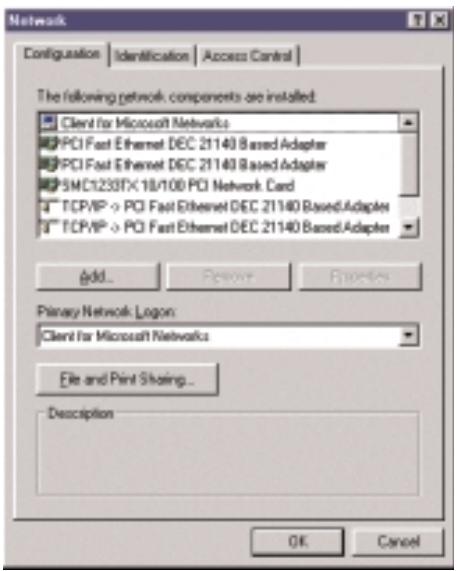
- If there is a problem with the installation of the driver, an exclamation point appears next to "SMC1233A-TX PC 10/100 Network card". Double-click on "SMC1233A-TX PCI 10/100 Network card". The "Properties" window opens and a message regarding the status of the device displays in the window. You will likely need to verify the network device or computer settings. If problem persists, uninstall and reinstall drivers.

EZ Connect™ LAN Adapter
Betriebssysteme
Information furnished by SMC brand is believed to be accurate and reliable.
However, no responsibility is assumed by SMC for its use, nor for any infringements of patents or other rights of third parties which may result from its use. No license is granted by implication or otherwise under any patent or patents by SMC.
SMC reserves the right to change specifications at any time without notice.
Trademarks
SMC is a registered trademark.
Other product and company names are trademarks or registered trademarks of their respective holders.
Warranty
Complete warranty information for all SMC products is available on the SMC web site at http://www.smc-europe.com.
EC Conformance Declaration
The information technology products comply with ISO/IEC Guide 22 and EN4501. They conform to the following specifications: EMC:EN55022 (1988)/CISPR-22(1985)Class A/Class B
EN50082-1:IEC 1000-4-2/3/4/6
These information technology products comply with the requirements of the LOW Voltage Directive 73/23/EC and the EMC directive 89/336/EEC.
Model
SMC1233A-TX
Standards
IEEE 802.3,10BASE-T
IEEE 802.3u,100BASE-TX
PCI Local Bus Specification, rev.2.0 or later
Interface
RJ-45 for 10BASE-T and 100BASE-TX
Power
+5 VDC @120mA (Standby); @160mA (Transmit)
10 Half 150mA
10 Full 160mA
100 Half 140mA
100 Full 140mA
Temperature
0^ to 50^ (normal
operating conditions)
Humidity 10% to 90% (non-condensing)
Safety Compliance
CE Mark,FCC,Part 15,Class B
Warranty
Limited lifetime
Drivers
Windows for Workgroup 3.11
Windows 95/98/NT/2000/XP
SCO Unixware 7
Netware 4.11,5.0
FreeBSD 3.0,
Linux,
Mac OS
For latest drivers visit
www.smc-europe.com