 EasyManual
COLOREDGE CG221 - Professional Monitor EIZO - Free user manual and instructions
Find the device manual for free COLOREDGE CG221 EIZO in PDF.


User questions about COLOREDGE CG221 EIZO
0 question about this device. Answer the ones you know or ask your own.
Ask a new question about this device
Download the instructions for your Professional Monitor in PDF format for free! Find your manual COLOREDGE CG221 - EIZO and take your electronic device back in hand. On this page are published all the documents necessary for the use of your device. COLOREDGE CG221 by EIZO.
USER MANUAL COLOREDGE CG221 EIZO
2-1.Before Connecting
2-2 Connecting the Signal Cable (D-Sub or DVI)
2-3 Connecting the Signal Cable (ADC)
2-4 Connecting Two PCs to the Monitor
2-5.How to install the Hood
2-6.How to remove the Tilt Stand
- ScreenManager
3-1.How to use the ScreenManager
3-2.ScreenManager Adjustments and Settings
3-3.FineContrast
3-4.Useful Functions
- ADJUSTMENT
4-1.Screen Adjustment
4-2. Displaying a low resolution
4-3.Color Adjustment
4-4.Power-save Setup
- MAKING USE OF USB (Universal Serial Bus
- TROUBLESHOOTING
- CLEANING
User's Manual
ColorEdge CG221
Calibration Color LCD Monitor
Important
Please read this User's Manual carefully to familiarize yourself with safe and effective usage procedures. Please retain this manual for future reference.
This manual is checked under the browser settings shown below. Text size can change for another one through browser setting.
Microsoft Internet Exproler:
Text size: Medium
Encoding: Western European
-
SPECIFICATION
-
GLOSSARY
APPENDIX/ ANHANG/
ANNEXE
FCC Declaration of
Conformity
Recycling Information
User's Manual
ColorEdge CG221
Calibration Color LCD Monitor
Important
Please read this User's Manual carefully to familiarize yourself with safe and effective usage procedures. Please retain this manual for future reference.
This manual is checked under the browser settings shown below. Text size can change for another one through browser setting.
Microsoft Internet Exproler:
Text size: Medium
Encoding: Western European
This manual uses the safety symbols below. They denote critical information. Please read them carefully.
| ! | WARNING Failure to abide by the information in a WARNING may result in serious injury and can be life threatening. |
| CAUTION Failure to abide by the information in a CAUTION may result in moderate injury and/or property or product damage. | |
| Indicates a prohibited action. | |
| Indicates to ground for safety. |
Copyright © 2006-2010 EIZO NANAO CORPORATION All rights reserved. No part of this manual may be reproduced, stored in a retrieval system, or transmitted, in any form or by any means, electronic, mechanical, or otherwise, without the prior written permission of EIZO NANAO CORPORATION. EIZO NANAO CORPORATION is under no obligation to hold any submitted material or information confidential unless prior arrangements are made pursuant to EIZO NANAO CORPORATION's receipt of said information. Although every effort has been made to ensure that this manual provides up-to-date information, please note that EIZO monitor specifications are subject to change without notice.
Apple, Macintosh, Power Macintosh and Power Mac are registered trademarks of Apple Inc.
VGA is a registered trademark of International Business Machines Corporation.
VESA is a registered trademark or a trademark of Video Electronics Standards
Association in the United States and other countries.
Windows is a registered trademark of Microsoft Corporation.
PowerManager is a trademark of EIZO NANDAOCORPORATION.
ScreenManager, ColorEdge and EIZO are registered trademarks of EIZO NANAO
CORPORATION in Japan and other countries.
Product specifications may vary depending on the region. Confirm the specifications in the manual written in the language of the region of purchase.
IMPORTANT!
This product has been adjusted specifically for use in the region to which it was originally shipped. If operated outside the region to which it was originally shipped, the product may not perform as stated in the specifications.
To ensure personal safety and proper maintenance, please read this section and the caution statements on the unit (refer to the figure below).
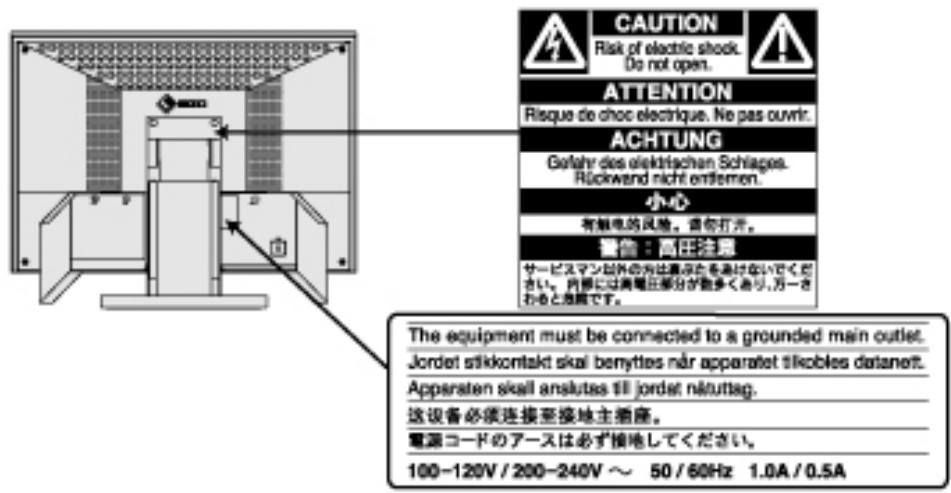
[Location of the Caution Statements]

WARNING
If the unit begins to emit smoke, smells like something is burning, or makes strange noises, disconnect all power connections immediately and contact your dealer for advice.
Attempting to use a malfunctioning unit may result in fire, electric shock, or equipment damage.
Do not open the cabinet or modify the unit.
Opening the cabinet or modifying the unit may result in fire, electric shock, or burn.

Refer all servicing to qualified service personnel.
Do not attempt to service this product yourself as opening or removing covers may result in fire, electric shock, or equipment damage.
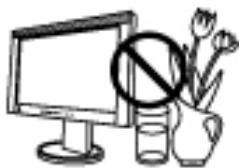
Keep small objects or liquids away from the unit.
Small objects accidentally falling through the ventilation slots into the cabinet or spillage into the cabinet may result in fire, electric shock, or equipment damage.
If an object or liquid falls/spills into the cabinet, unplug the unit immediately. Have the unit checked by a qualified service engineer before using it again.
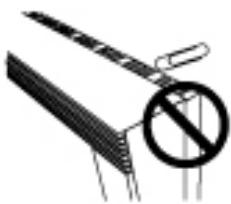
Place the unit at the strong and stable place.
A unit placed on an inadequate surface may fall and result in injury or equipment damage.
If the unit falls, disconnect the power immediately and ask your dealer for advice. Do not continue using a damaged unit. Using a damaged unit may result in fire or electric shock.
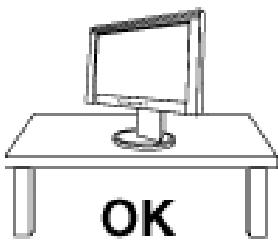
Use the unit in an appropriate location.
Not doing so may result in fire, electric shock, or equipment damage.
Do not place outdoors.
Do not place in the transportation system (ship, aircraft, trains, automobiles, etc.)
Do not place in a dusty or humid environment.
Do not place in a location where the steam comes directly on the screen.
Do not place near heat generating devices or a humidifier.
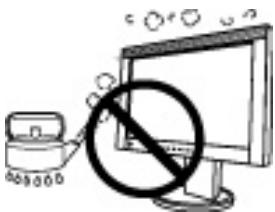
To avoid danger of suffocation, keep the plastic packing bags away from babies and children.
Use the enclosed power cord and connect to the standard power outlet of your country.
Be sure to remain within the rated voltage of the power cord. Not doing so may result in fire or electric shock.
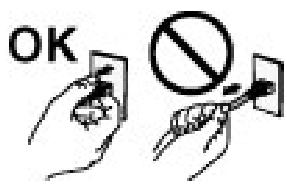
To disconnect the power cord, grasp the plug firmly and pull.
Tugging on the cord may damage and result in fire or electric shock.
The equipment must be connected to a grounded main outlet.
Not doing so may result in fire or electric shock.

Use the correct voltage.
-
The unit is designed for use with a specific voltage only. Connection to another voltage than specified in this User's Manual may cause fire, electric shock, or equipment damage.
-
Do not overload your power circuit, as this may result in fire or electric shock.
Handle the power cord with care.
-
Do not place the cord underneath the unit or other heavy objects.
-
Do not pull on or tie the cord.
If the power cord becomes damaged, stop using it. Use of a damaged cord may result in fire or electric shock.
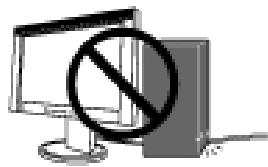
Never touch the plug and power cord if it begins to thunder.
Touching them may result in electric shock.
When attaching an arm stand, please refer to the user's manual of the arm stand and install the unit securely.
Not doing so may cause the unit to become unattached, which may result in injury or equipment damage. When the unit is dropped, please ask your dealer for advice. Do not continue using a damaged unit. Using a damaged unit may result in fire or electric shock. When reattaching the tilt stand, please use the same screws and tighten them securely.
Do not touch a damaged LCD panel directly with bare hands.
The liquid crystal that may leak from the panel is poisonous if it enters the eyes or mouth.
If any part of the skin or body comes in direct contact with the panel, please wash thoroughly. If some physical symptoms result, please consult your doctor.

Follow local regulation or laws for safe disposal.
The backlight of the LCD panel contains mercury.
CAUTION
Handle with care when carrying the unit.
Disconnect the power cord and cables when moving the unit. Moving the unit with the cord attached is dangerous. It may result in injury.
When handling the unit, grip the bottom of the unit firmly with both hands ensuring the panel faces outward before lifting.
Dropping the unit may result in injury or equipment damage.
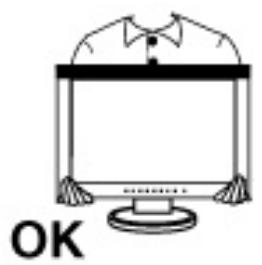
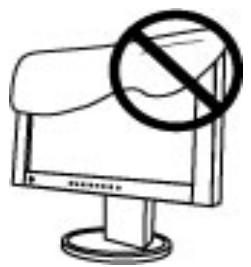
Do not block the ventilation slots on the cabinet.
- Do not place any objects on the ventilation slots.
- Do not install the unit in a closed space.
- Do not use the unit laid down or upside down.
Blocking the ventilation slots prevents proper airflow and may result in fire, electric shock, or equipment damage.
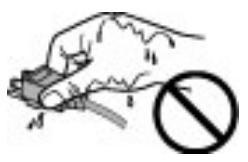
Do not touch the plug with wet hands.
Doing so may result in electrical shock.
Use an easily accessible power outlet.
This will ensure that you can disconnect the power quickly in case of a problem.
Periodically clean the area around the plug.
Dust, water, or oil on the plug may result in fire.
Unplug the unit before cleaning it.
Cleaning the unit while it is plugged into a power outlet may result in electric shock.
Notice for this monitor
In order to suppress the luminosity change by long-term use and to maintain the stable luminosity, use of a monitor in lower brightness is recommended.
The LCD panel is manufactured using high-precision technology.
However, missing pixels or lit pixels may appear on the LCD panel, this is not malfunction.
Percentage of effective pixels:99.9994%or higher.
The backlight of the LCD panel has a fixed life span. When the screen becomes dark or begins to flicker, please contact your dealer.
Do not press on the panel or edge of the frame strongly, as this may result in damage to the screen. There will be prints left on the screen if the pressed image is dark or black. If pressure is repeatedly applied to the screen, it may deteriorate or damage your LCD panel. Leave the screen white to decrease the prints.
Do not scratch or press on the panel with any sharp objects, such as a pencil or pen as this may result in damage to the panel. Do not attempt to brush with tissues as this may scratch the LCD panel.
When the screen image is changed after displaying the same image for extended periods of time, an afterimage may appear. Use the screen saver or timer to avoid displaying the same image for extended periods of time.
When the monitor is cold and brought into a room or the room temperature goes up quickly, dew condensation may occur inside and outside the monitor. In that case, do not turn the monitor on and wait until dew condensation disappears, otherwise it may cause some damages to it.
1. INTRODUCTION
Thank you very much for choosing an EIZO Color Monitor.
1-1. Features
The exclusive use calibration software calibrates the monitor characteristics and generate colorprofile.
Dual inputs compliant
DVI Digital input (TMDS) compliant.
ADC (Apple Display Connector) inputs compliant.
[Horizontal scanning frequency]
Analog: 31 - 94 kHz
Digital: 31 - 76 kHz
[Vertical scanning frequency]
Analog: 49 - 86 Hz Vertical (1600 x 1200: 49 - 76 Hz, 1920 x 1200: 49 - 61 Hz)
Digital: 59 - 61 Hz (VGA text: 69 - 71 Hz)) [Resolution] 1920 dots x 1200 lines
Support to sRGB standard
The height adjustable stand incorporated
Attaching the "Adjustment Certificate" to describe the grayscale and uniformity characteristics of the monitor individually.
1-2. Package Contents
Please contact your local dealer for assistance if any of the listed items are missing or damaged.
- LCD Monitor
- Power Cord
- Analog Signal Cable (FD-C16)
- Digital Signal Cable (FD-C39)
- EIZO USB Cable (MD-C93)
- EIZO LCD Utility Disk
-
User's Manual (in the CD-ROM)
-
Calibration software
"ColorNavigator" (in the CD-ROM) - Setup Guide
- ColorNavigator Quick Reference
- LIMITED WARRANTY
- Adjustment Certificate
- Cleaning kit "ScreenCleaner"
- Hood
NOTE
- Please retain the packing materials for future transference.
1-3. Controls & Connectors
Front
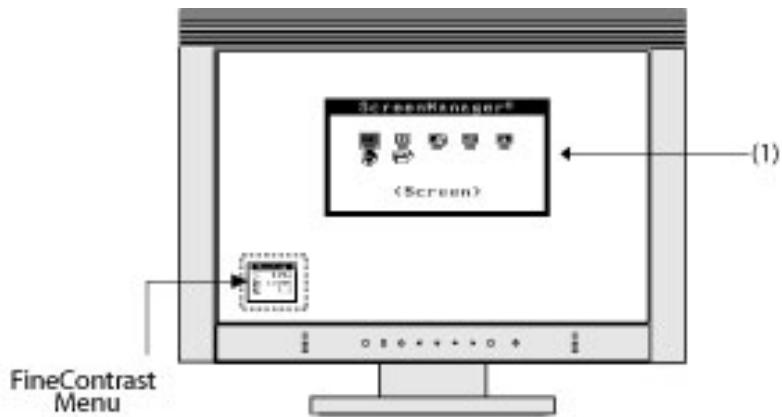
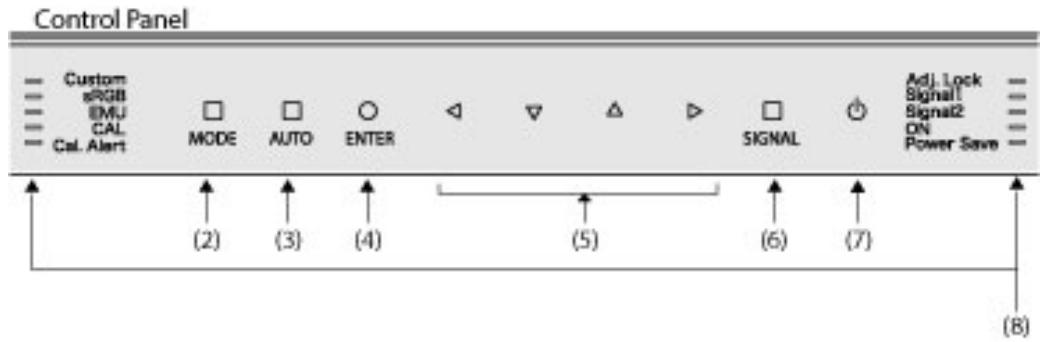
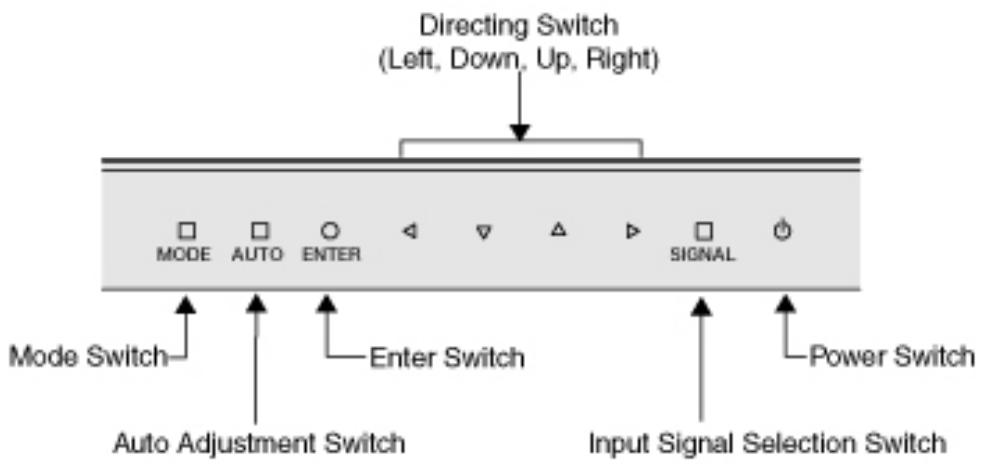
(1) ScreenManager®
(2) Mode Switch
(3) Auto Adjustment Switch
(4) Enter Switch
(5) Directing Switch (Left, Down, Up, Right)
(6) Input Signal Selection Switch
(7) Power Switch
(8) Indicator lamp ^*1
| Name | The monitor status when each lamp on | |
| Left Side | Custom | Custom mode of FineContrast Mode |
| sRGB | sRGB mode of FineContrast Mode | |
| EMU | EMU mode of FineContrast Mode | |
| CAL | CAL mode of FineContrast Mode | |
| Cal. Alert | Notify that the monitor needs to be recalibrated in CAL mode or EMU mode. | |
| Right Side | Adj. Lock | The monitor functions are locked. |
| Signal 1 | Input signal from SIGNAL 1 is displayed. | |
| Signal 2 | Input signal from SIGNAL 2 is displayed. | |
| ON | Operation | |
| Power Save | Power saving |
*1 The brightness of indicator lamps can be changed and turned off, when the screen is displayed (Operation mode). See "Indicator setting".
The power status of the monitor when each lamp on
| Indicator Lamp | Power status of the monitor | |
| ON | Power Save | |
| Light | Off | Operation |
| Off | Light | Power Saving |
| Off | Off | Power off |
NOTE
- The unit is designed to be operated with your bare fingers. If you touch the control panel with your gloved fingers or with something left on the control panel, it may not work.
- If there are waterdrops or dew condensation on the control panel, or operating with wet fingers, it may not work properly. In that case, be sure to dry or wipe it up before use.
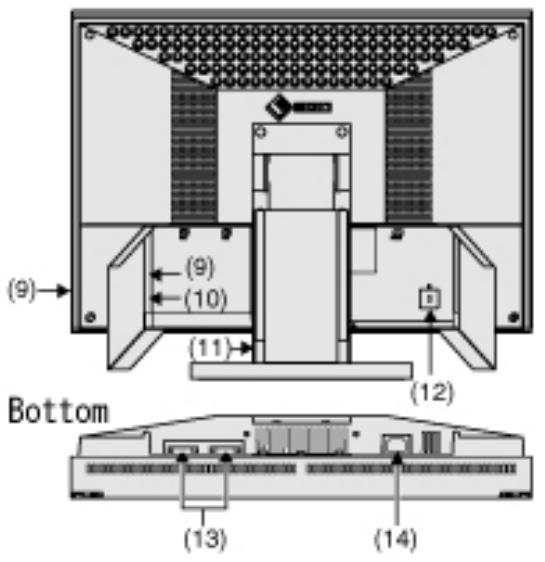
(9) USB Port (2 Downstream)
(10) USB Port (1 Upstream)
(11) Height Adjustable Stand (Detachable) ^2
(12) Security Lock Slot3
(13) DVI-I Input Connector (SIGNAL 1, SIGNAL2)
(14) Power Connector
2 The LCD monitor can be used with an optional arm stand by removing the stand. (See "2-6. How to remove the Tilt Stand").
3 Allows for connection of a security cable. This lock supports Kensington's MicroSaver security system.
2-1. Before Connecting
Before connecting your monitor to the PC, change the display screen settings (resolution and frequency) in accordance with the charts below.
NOTE
- When your computer and display support VESA DDC, the suitable resolution and the refresh rate are set by just plugging your display into the computer without any manual settings.
Analog Input
| Resolution | Frequency | Dot Clock | Remarks |
| 640 x 480 | 60 Hz | 202.5 MHz (Max.) | VGA |
| 640 x 480 | 67 Hz | Apple Macintosh | |
| 640 x 480 | ~ 85 Hz | VESA | |
| 720 x 400 | 70 Hz | VGA TEXT | |
| 800 x 600 | ~ 85 Hz | VESA | |
| 832 x 624 | 75 Hz | Apple Macintosh | |
| 1024 x 768 | ~ 85 Hz | VESA | |
| 1152 x 864 | 75 Hz | VESA | |
| 1152 x 870 | 75 Hz | Apple Macintosh | |
| 1280 x 960 | 75 Hz | Apple Macintosh | |
| 1280 x 960 | 60 Hz | VESA | |
| 1280 x1024 | ~85 Hz | VESA | |
| 1600 x 1200 | ~75 Hz | VESA | |
| 1680 x 1050 | 60 Hz | VESA CVT | |
| 1680 x 1050 | 60 Hz | VESA CVT RB (Reduced Blanking) | |
| 1920 x 1200 | 60 Hz | VESA CVT | |
| 1920 x 1200 | 60 Hz | VESA CVT RB (Reduced Blanking) |
Digital Input
The monitor supports the following resolutions only.
| Resolution | Frequency | Dot Clock | Remarks |
| 640 x 480 | 60 Hz | 162 MHz (Max.) | VGA |
| 720 x 400 | 70 Hz | VGA TEXT | |
| 800 x 600 | 60 Hz | VESA | |
| 1024 x 768 | 60 Hz | VESA | |
| 1280 x 960 | 60 Hz | VESA | |
| 1280 x 1024 | 60 Hz | VESA | |
| 1600 x 1200 | 60 Hz | VESA | |
| 1680 x 1050 | 60 Hz | VESA CVT | |
| 1680 x 1050 | 60 Hz | VESA CVT RB (Reduced Blanking) | |
| 1920 x 1200 | 60 Hz | VESA CVT RB (Reduced Blanking) |
2-2. Connecting the Signal Cable (For the Computer Employing D-Sub or DVI Connector)
NOTE
-
Be sure that the power switches of both the PC and the monitor are OFF.
-
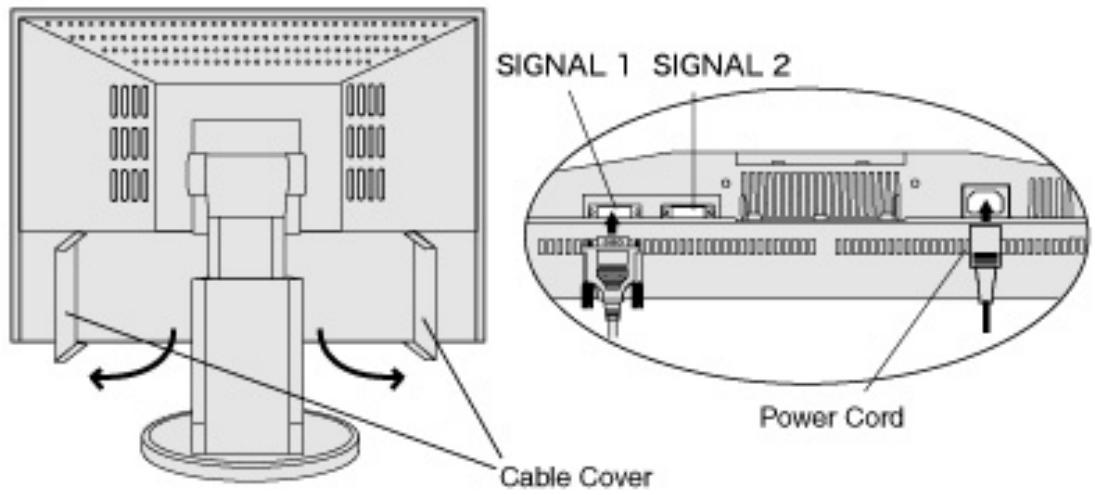
Open the cable cover and plug the signal cable into the connector at the rear of the monitor and the other end of the cable into the video connector on the PC.
After connecting, secure the connection with the screw-in fasteners.
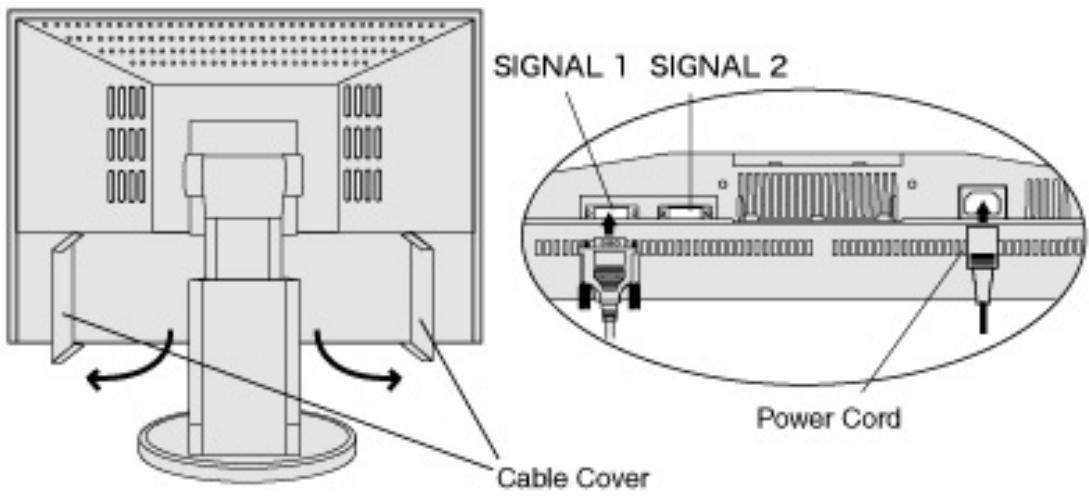
Analog Input
| Signal Cable | Connector | PC |
| Signal Cable (FD-C16 enclosed) | Video Output Connector / D-Sub mini 15 pin Input Connector (monitor) / DVI | Standard graphics card Power Macintosh G3 (Blue & White) Power Mac G4 (VGA) |
| Signal Cable (FD-C16 enclosed) +Adapter* | Video Output Connector / D-Sub 15 pin Input Connector (monitor) / DVI | Macintosh |
*Macintosh Adapter (Optional)
Digital Input
| Signal Cable | Connector | PC |
| Signal Cable (FD-C39 enclosed) | Video Output Connector / DVI Input Connector (monitor) / DVI | Digital graphics card Power Mac G4 / G5 (DVI) |
- Plug the power cord into the power connector on the rear of the monitor.
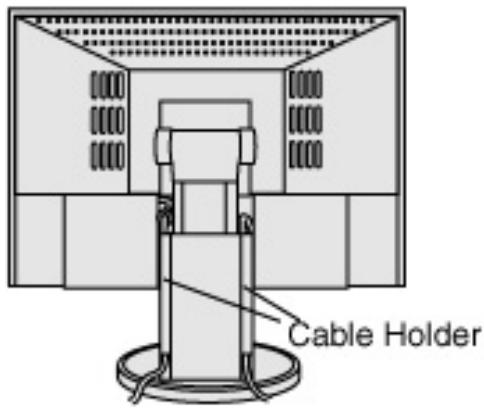
3.Close the cable cover and lead the power cord and signal cable into the cable holder at rear of the monitor.
NOTE
- The cables are recommended to lead with slight sag for the smooth motion of the stand.
- It's recommended to put away the signal cables into the left cable holder, and the USB cable and power cord into the right cable holder.
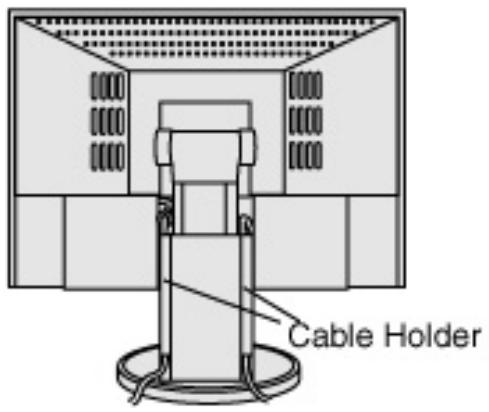
- Plug the other end of the power cord into a power outlet.

WARNING
Use the enclosed power cord and connect to the standard power outlet of your country.
Be sure to remain within the rated voltage of the power cord.
Not doing so may result in fire or electric shock.
The equipment must be connected to a grounded main outlet.
Not doing so may result in fire or electric shock.

- Turn on the monitor's main power and then switch on the PC's power.
The indicator lamp, "ON", will light up.
If an image does not appear, refer to the "6. TROUBLESHOOTING" for advice.
Whenever finished, turn off the PC and the monitor.
NOTE
- When turning on the monitor, the kid of the input signal (Signal1 or 2/ Analog or Digital) is displayed for a few seconds on the right top corner of the screen.
- Adjust brightness of the screen depending on the brightness of your environment.
- Be sure to take adequate rests. A 10-minute rest period each hour is suggested.
2-3. Connecting the Signal Cable (For the Computer Employing ADC)
When connecting a Power Mac G4 / G5 through ADC (Apple Display Connector), change the input signal settings of monitor in advance to turn on the Power Mac.
NOTE
-
Be sure that the power switches of both the PC and the monitor are OFF.
-
Open the cable cover and plug the signal cable into the connector at the rear of the monitor and the other end of the cable into the video connector on the PC.
After connecting, secure the connection with the screw-in fasteners.
| Signal Cable | Connector | PC |
| Signal Cable (FD-C39 enclosed) +ADC-DVI display adapter (commercially available) | Video Output Connector / ADC Input Connector (monitor) / DVI | Power Mac G4 / G5(ADC) |
NOTE
-
ADC-DVI display adapter is required if the monitor connects to Power Mac G4 / G5. The adapter is commercially available.
-
Plug the power cord into the power connector on the rear of the monitor.
3.Close the cable cover and lead the power cord and signal cable into the cable holder at rear of the monitor.
NOTE
- The cables are recommended to lead with slight sag for the smooth motion of the stand.
- It's recommended to put away the signal cables into the left cable holder, and the USB cable and power cord into the right cable holder.
- Plug the other end of the power cord into a power outlet.
Use the enclosed power cord and connect to the standard power outlet of your country.
Be sure to remain within the rated voltage of the power cord.
Not doing so may result in fire or electric shock.
The equipment must be connected to a grounded main outlet.
Not doing so may result in fire or electric shock.

- Touch the power switch while touching the Input Signal Selection switch.
The Input Selection menu is appeared on the screen.
Input Selection
Signal 1
OADC Standard
Signal 2
OADC Standard
NOTE
- The unit is designed to be operated with your bare fingers. If you touch the control panel with your gloved fingers or with something left on the control panel, it may not work.
-
If there are waterdrops or dew condensation on the control panel, or operating with wet fingers, it may not work properly. In that case, be sure to dry or wipe it up before use.
-
Change SIGNAL 1 (DVI-I Connector) in the Input Selection menu to "ADC".
Touch the Enter switch to complete the setting and the menu closes.
- Switch on the PCs power.
If an image does not appear, refer to the "6. TROUBLESHOOTING" for advice. Whenever finished, turn off the PC and the monitor.
NOTE
- When turning on the monitor, the kid of the input signal (Signal1 or 2/ Analog or Digital) is displayed for a few seconds on the right top corner of the screen.
- Adjust brightness of the screen depending on the brightness of your environment.
- Be sure to take adequate rests. A 10-minute rest period each hour is suggested.
- When changing the signal connector except ADC, open the Input Selection menu again and change the setting to "Standard".
- To
the settings in the menu through ScreenManager, the settings of Input Selection will revert to the default setting.
2-4. Connecting two PCs to the Monitor
Two PCs can be connected to the monitor through DVI-I connector and D-sub mini 15 pin connector on the back of the monitor.
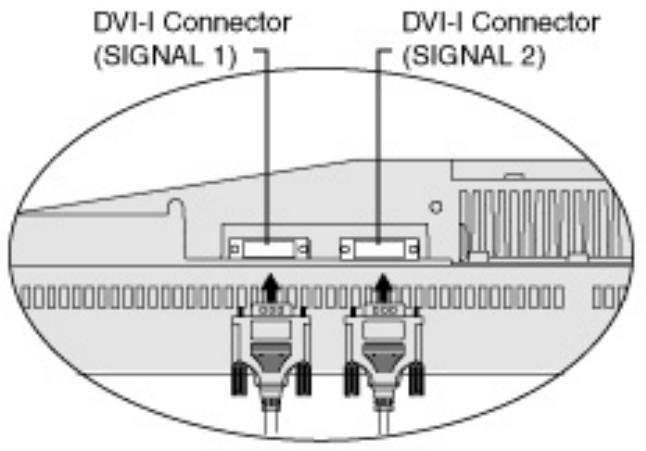
| PC 1 | PC 2 | |||||
| (EX.1) | Digital | ADC | Signal Cable (FD-C39 enclosed) +ADC-DVI display adapter (commercially available) | Signal Cable DD200 [FD-C39] (Optional) | DVI | Digital |
| (EX.2) | Digital | ADC | Signal Cable (FD-C39 enclosed) +ADC-DVI display adapter (commercially available) | Signal Cable (FD-C16 enclosed) | D-Sub mini 15 pin | Analog |
| (EX.3) | Digital | ADC | Signal Cable (FD-C39 enclosed) +ADC-DVI display adapter (commercially available) | Signal Cable (FD-C16 enclosed) + Adapter* | D-Sub 15 pin | Analog |
| (EX.4) | Digital | DVI | Signal Cable (FD-C39 enclosed) | Signal Cable FD-C16 enclosed) | D-Sub mini 15 pin | Analog |
| (EX.5) | Digital | DVI | Signal Cable (FD-C39 enclosed) | Signal Cable (FD-C16 enclosed)+Adapter* | D-Sub 15 pin | Analog |
| (EX.6) | Analog | D-Sub mini 15 pin | Signal Cable (FD-C16 enclosed) | Signal Cable (FD-C16 enclosed)+Adapter* | D-Sub 15 pin | Analog |
*Macintosh Adapter (Optional)
Selecting the Active Input
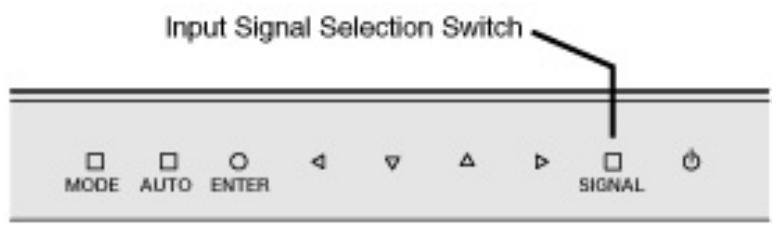
The Input Signal Selection switch on the control panel can be used to select either SIGNAL 1 or SIGNAL 2 as the active input at any time. Every time the switch is touched, the input changes. When switching the signal, the kind of the input signal (Signal 1 or 2/ Analog or Digital) is displayed for a few seconds on the right top corner of the screen.
The Priority Input Signal
This function is used to select which PC will have priority to control the monitor when utilizing two PCs. The monitor constantly checks the input signals and switches automatically in accordance with the "Input Priority" setting (see table below). Once a priority is set, whenever a change of signal is detected at the selected input, the monitor will switch the input to that signal. In this case of only one signal being present at either input, the monitor automatically detects and displays that signal.
| Priority Settings | Performance |
| 1(SIGNAL1) | If signals from both inputs are present, the monitor gives preference of Signal 1 in the following cases.When the power of the monitor is turned ON.When the signal input to Signal 1 is changed even if active input was Signal 2. |
| 2(SIGNAL2) | If signals from both inputs are present, the monitor gives preference to Signal 2 in the following cases.When the power of the monitor is turned ON.When the signal input to Signal 2 is changed even if active input was Signal 1. |
| Manual | The monitor will not detect signals automatically in this mode. Select the active input by pressing the input signal selection button on the monitor's control panel. |
NOTE
- When "1" or "2" is selected, the power saving mode of the monitor activates only if both PCs are in power saving mode.
2-5. How to install the Hood
The Hood can reduce light reflection for on screen color consistency.
Setup Procedure
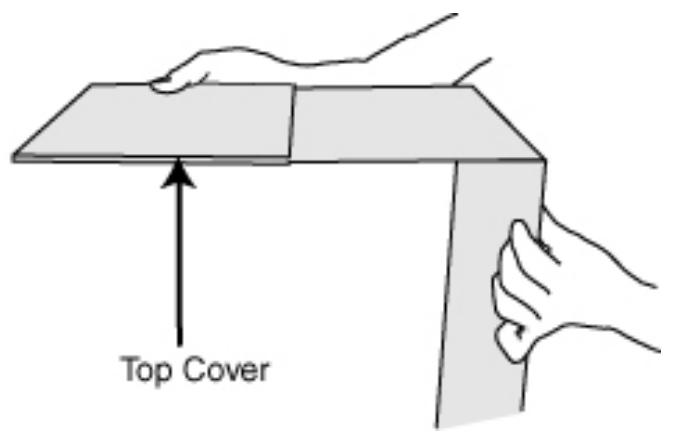
- Attach the top cover to either the left cover or right cover before attaching to the monitor.
NOTE
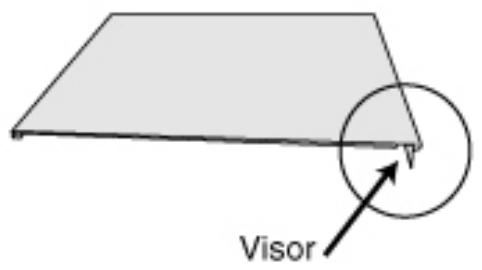
- Please attach the top cover so that the visor is in back. If the visor is in front, light will seep in through the back.
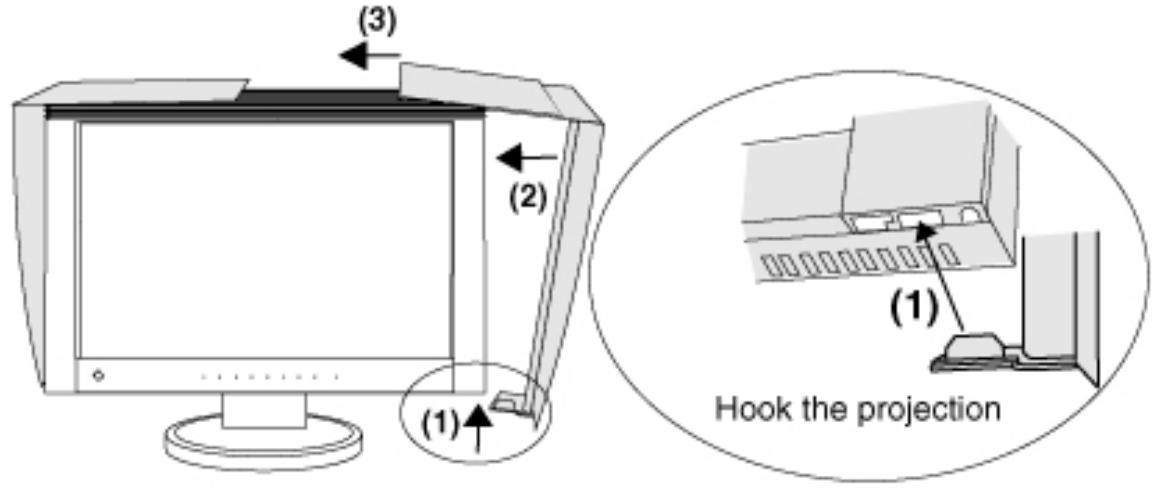
- Attach the left cover and right cover to the monitor.
(1) Firmly attach the left cover and right cover to the monitor from beneath.
(2) Make sure that the rubber cushions are firmly positioned against the side of the monitor.
(3) Slide the top cover to close.
2-6. How to remove the Tilt Stand
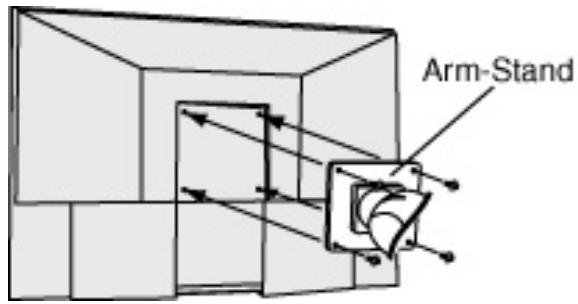
The LCD monitor can be used with an arm by removing the tilt stand and attaching the arm or stand to the LCD monitor.
NOTE
- If you will use the arm or stand of other manufacturers, confirm the followings to the manufacturers before selecting.
Hole spacing on the arm mounting: 100mm× 100mm (VESA compliant)
Supportable Weight: Total weight of the monitor (without stand) and attaching equipment such as a cable
TUV/GS approved arm or stand
- Please connect cables after attaching an arm stand.
Setup Procedure
1.Lay the LCD monitor down. Do not scratch the panel.
2. Remove the tilt stand by loosening the screws. (4 pcs of M4 x 14)
3. Attach an arm stand to the LCD monitor securely.
3-1. How to use the ScreenManager
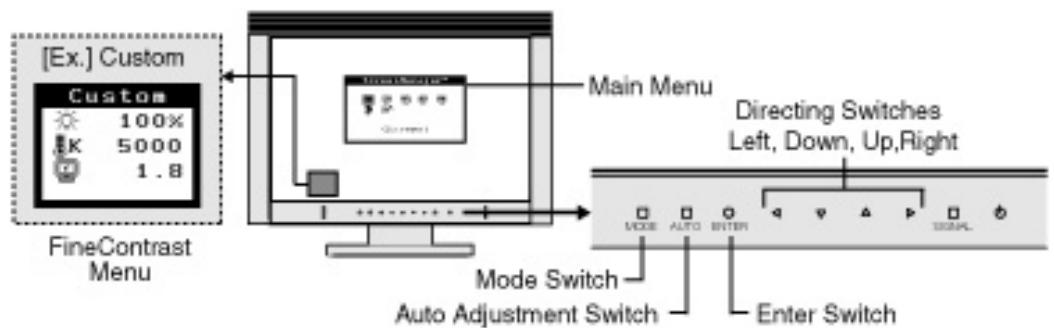
ScreenManager allows you to adjust screen performance though the main menu and select a FineContrast mode easily.
NOTE
1. Entering the ScreenManager
Touch the Enter switch once to display the main menu of the ScreenManager.
2. Making Adjustments and Settings
(1) Select the desired sub menu icon using the Directing switch and touch the Enter switch. The sub menu appears.
(2) Use the Directing switches to select the desired setting icon and touch the Enter switch. The setting menu appears.
(3) Use the Directing switches to make all required adjustments and touch the Enter switch to save the settings.
3.Exitting the ScreenManager
(1) To return to the main menu, select the
(2) To exit the ScreenManager, select
NOTE
- Double clicking the Enter switch at any time also exits the ScreenManager menu.
FineContrast menu
Touching the Mode switch allows you to select the best suited mode for screen display from 4 FineContrast modes; Custom, sRGB, EMU and CAL. To exit the menu, press the Enter switch.
3-2. ScreenManager Adjustments and Settings
The following table shows all the ScreenManager's adjustment and setting menus.
"" indicates adjustments of analog input only and "*" indicates digital input only.
| Main menu | Sub menu | Reference | |
| Screen | Clock | * | 4-1. Screen Adjustment |
| Phase | * | ||
| Position | * | ||
| Resolution | * | ||
| Range Adjustment | * | ||
| Smoothing | |||
| Signal Filter | * | ||
| Color(Custom)*1 | Brightness | 4-3. Color Adjustment | |
| Temperature | |||
| Gamma | |||
| Saturation | |||
| Hue | |||
| Gain | |||
| 6 Colors | ||||
| Reset | ||||
| PowerManager | DVI DMPM | ** | 4-4. Power-saving Setup | |
| VESA DPMS | * | |||
| Others | Screen Size | 4-2. Displaying a low resolutions | ||
| Border Intensity | ||||
| Input Priority | Select the priority input signal. | |||
| Off Timer | Set the monitor's off timer to on or off. | |||
| Beep | Set the monitor's beeper to on or off. | |||
| Menu Settings | Menu Size | Change the size of the menu. | ||
| Menu Position | Adjust the menu position. | |||
| Menu Off Timer | Set the menu displaying time. | |||
| Translucent | Set the transparency of the background. | |||
| Indicator | Adjust the brightness of the indicator lamps (see "Indicator setting"). | |||
| Reset | Return to the factory default settings. | |||
| Information | Information | Review the ScreenManager's settings, model name, serial number and usage time.*2 | ||
| Language | English, German, French, Spanish, Italian, Swedish, Chinese Simplified , Chinese Traditional and Japanese | Select the ScreenManager's language. | ||
1 The adjustable functions on the
3-3. FineContrast
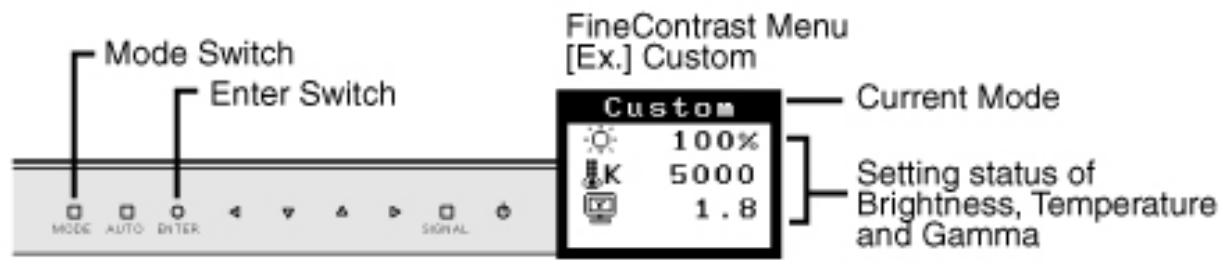
This function allows you to select the best suited mode for screen display.
To select the Mode
Touching the Mode switch allows you to select the best suited mode for screen display from 4 FineContrast modes; Custom, sRGB, EMU and CAL.
Exit
Touch the Enter switch to exit the menu.
FineContrast Mode
Selectable FineContrast modes are as follows.
| Custom | To adjust the color settings according to your preference. |
| sRGB | To display the screen images based on those original colors (ex. over the Internet). |
| EMU*1 | The mode only for calibration software |
| CAL*1 |
*1 When calibrating with provided software, these modes automatically will be switched.
Color Adjustment of the Mode Settings
Detailed Adjustments
The detailed color settings of each mode can be adjusted by using the
NOTE
- "EMU"mode and "CAL" mode can be adjusted only by Calibration Software "ColorNavigator".
3-4. Useful Functions
Adjustment Lock
Use the "Adjustment Lock" function to prevent any accidental changes.
| Locked function | Settings in the ScreenManager Auto Adjustment Switch |
| Unlocked function | Selecting of the FineContrast mode by the Mode switch. Adjustments of the FineContrast mode by the directing switches Input Signal Selection Switch Turning the power on and off by the Power button |
[To lock]
Turn off the monitor's power by touching the power switch. And then touch the power switch while touching the Auto Adjustment switch.
Turn off the monitor's power by touching the power switch. And then touch the power switch while touching the Auto Adjustment switch once again.
Off Timer
The off timer function causes the monitor to automatically enter a power off state after a predetermined amount of time has lapsed. This function was created to reduce afterimage characteristics that are particular to LCD monitors when the monitor screen is left on for a long period without use.
[Procedure]
(1) Select
(2) Select "Enable" and touch the Right and Left switches to adjust the "On Period" (1 to 23 hours).
[Off Timer System]
| PC | Monitor | Indicator lamp | |
| ON | Power Save | ||
| On period (1H-23H) | Operation | Light | Off |
| Power saving | Off | Light | |
| Last 15 min. in "On period"*1 | Operation | Flashing light | Off |
| Power saving | Off | Light | |
| "On period" expired | Power off | Off | Off |
*1 Advance notice will be given 15 minutes before the monitor automatically enters the "Power Off" mode. To delay entering the "Power Off" mode, touch the power switch during the advance notice period. The monitor will continue to operate for an additional 90 minutes.
[Power Resumption Procedure]
Touch the power switch to return a normal screen.
Indicator setting
The brightness of indicator lamps can be changed and turned off, when the screen is displayed (Operation mode).
[Procedure]
(1) Select
(2) If you desire to turn off the lamps, select "Off". The following lamp are turned off.
Custom / sRGB / EMU / CAL
Adj. Lock
Signal1 / Signal2
ON
If you desire to change the brightness of the lamps, select "High", "Medium" or "Low". (Default setting is "Medium")
EIZO Logo Appearing Function
When turning on the monitor, the EIZO logo is displayed for a while. If you desire to display or undisplay this logo, use this function. (Default is logo appearing.)
[To undisplay]
Turn off the monitor once, then touch the power switch while touching the Enter switch, and this logo is not displayed.
[To display]
Turn off the monitor once, then touch the power switch while touching the Enter switch, and this logo is displayed again.
4. ADJUSTMENT
The monitor displays the digital input image correctly based on its pre-setting data.
4-1. Screen Adjustment
Analog Input
Screen adjustments for the LCD monitor should be used in suppressing screen flickering and also for adjusting the screen to its proper position. There is only one correct position for each display mode. It is also recommended to use the ScreenManager function when first installing the display or whenever changing the system.
NOTE
- Allow the LCD monitor to stabilize for at least 30 minutes before making image adjustments.
Adjustment Procedure
- Touch the Auto Adjustment Switch on the control panel.
The message appears and remains on the screen for 5 seconds. While the message is on the screen, touch the Auto Adjustment switch again to automatically adjust the clock, phase, screen position and resolution. If you do not wish to do adjust the screen, do not touch the Auto Adjustment switch again.
NOTE
- The Auto Adjustment function is intended for use on the Macintosh and on AT-compatible PC running Windows. It may not work properly in either of the following cases. It does not work properly when an image is displayed only on a part of the screen (command prompt window,for example) or when a black background (wallpaper, etc.) is in use.
- It cannot work correctly using with some graphics cards.
If the appropriate screen cannot be made by using the Auto Adjustment switch, adjust the screen through the following procedures. If the appropriate screen can be made, proceed to step 5.
2.Prepare the display pattern for the analog display adjustment.
Windows
(1) Load the "EIZO LCD Utility Disk" to your PC.
(2) Start the “Screen Adjustment Utility” from the startup menu. If it cannot be started, open the screen adjustment pattern files.
Other than Windows
Download the "Screen adjustment pattern files" from our site: http://www.eizo.com.
NOTE
- For how to open and use the screen adjustment pattern files, refer to "Readme.txt".
3.Perform the auto size adjustment again with the analog screen adjustment pattern displayed.
(1) Display Pattern 1 in full screen on the monitor using the “ Screen Adjustment Utility” or the screen adjustment pattern files.
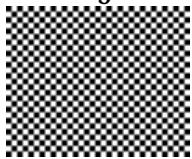
(2) Touch the Auto Adjustment Switch on the control panel. The message appears and remains on the screen for 5 seconds.
(3) While the message is on the screen, touch the Auto Adjustment switch again to automatically adjust the clock, phase, screen position and resolution.
- Adjust by using
menu in the ScreenManager.
(1) Vertical bars appear on the screen Use the <Clock> adjustment.
Select the
Do not continuously touch the Directing switches, as the adjustment value will change quickly and make it difficult to locate the most suitable adjustment point. If the horizontal flickering, blur or bars appear, proceed to
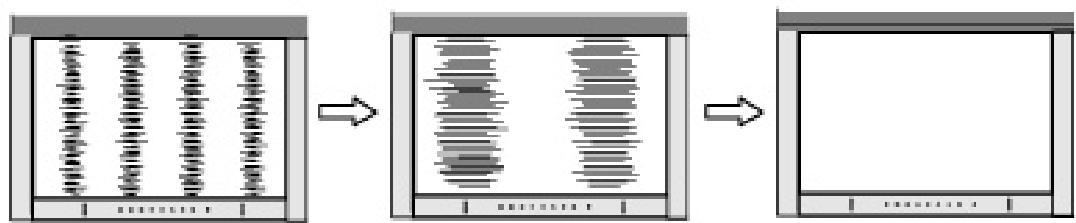
(2) Horizontal bars appear on the screen.
=> Use the
Select the
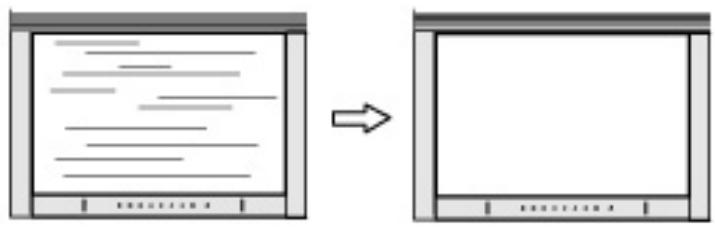
NOTE
- Horizontal bars may not completely disappear from the screen depending on the PC.
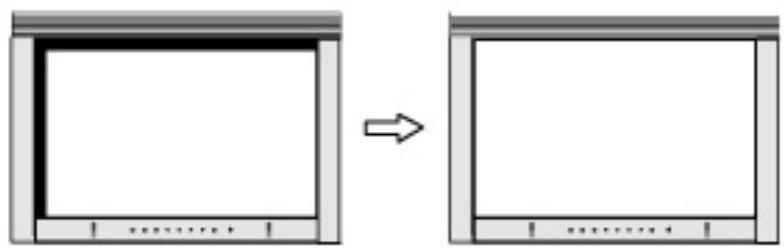
(3) The screen position is incorrect.
= > Use the
The correct displayed position of the monitor is decided because the number and the position of the pixels are fixed. The
Select
If vertical bars of distortion appear after finishing the
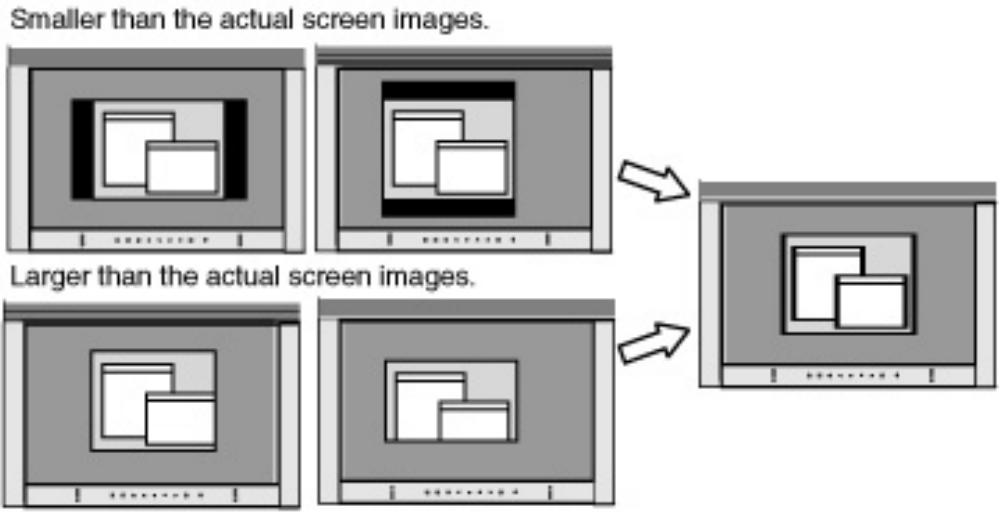
(4) Screen image is smaller or larger than the actual screen images.
= > Use the
Adjustment is needed when the input signal resolution and the resolution now being displayed are different.
Select
- Adjust the output signal range (Dynamic Range) of the signal.
Use theof menu.
This controls the level of output signal range to display the whole color gradation (256 colors).
[Procedure]
4-2. Displaying a Low Resolution
The lower resolutions are enlarged to full screen automatically. Using the
1.Enlarge the screen size when displaying a low resolution.
= > Select the
Select the
| Menu | Function |
| Full | Displays the picture on the screen in full, irrespective of the picture's resolution. Since the vertical resolution and the horizontal resolution are enlarged at different rates, some image may appear distorted. |
| Enlarged | Displays the picture on the screen in full, irrespective of the picture's resolution. Since the vertical resolution and horizontal resolution are enlarged at the same rates, some horizontal or vertical image may disappear. |
| Normal | Displays the picture at the actual screen resolution. |
Example: Displaying 1280 × 1024
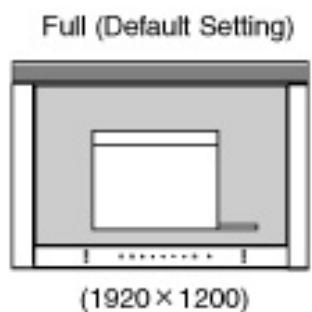
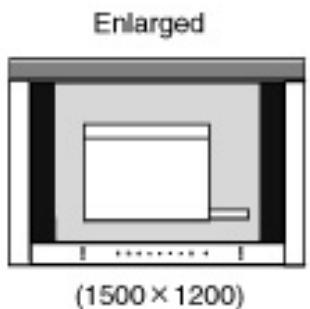
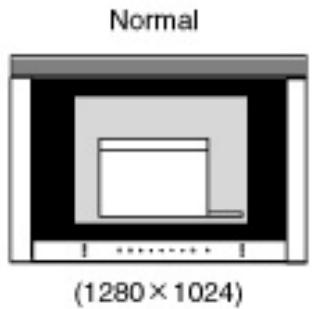
2.Smooth the blurred texts of the enlarged screen.
= > Switch the
When a low-resolution image is displayed in the “ Full” or “ Enlarged” mode, the characters or lines of the displayed image may be blurred.
Select the suitable level 1-5 (Soft-Sharp).
Select
NOTE
is disabled when the screen is displayed in the following resolutions.
1920 x 1200
The image size is doubled both in horizontally and vertically to (i.e. 1600 × 1200 enlarged from 800 × 600 ) provide clear focus which does not require this function.
"Normal" is selected in
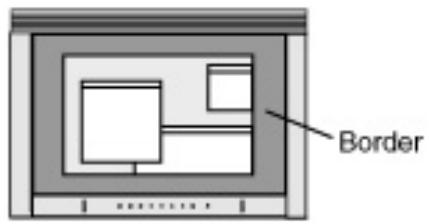
- Set the brightness of the black area surrounding the displayed image.
= > Set the
In the "Enlarge" mode or "Full Screen" mode, the outer area (border) is usually black.
Select
4-3. Color Adjustment
Color settings of each FineContrast mode can be adjusted and saved by using the
In the analog input, perform the
During color adjustments, the FineContrast mode cannot be changed. Select the mode in advance by using the Mode switch.
Adjustment Items
The adjustable items and displayed icons on the
"*": Settable/Adjustable
| Icons | Functions | FineContrast Modes | |||
| Custom | sRGB | EMU | CAL | ||
| Brightness** | * | * | - | - | |
| Temperature** | * | - | - | - | |
| Gamma** | * | - | - | - | |
| Saturation | * | - | - | - | |
| Hue | * | - | - | - | |
| Gain | * | - | - | - | |
| 6 colors | * | - | - | - | |
| Reset | * | - | - | - |
**These settings can be also adjusted on the FineContrast menu.
NOTE
- Allow the LCD monitor to stabilize for at least 30 minutes before making image adjustments. (Allow the monitor to warm Up for at least 30 minutes before making adjustments.)
- Performing the
of the menu returns the color settings of the selected mode to the default settings. - The values shown in percentages represent the current level within the specific adjustment. They are available only as a reference tool. (To create a uniform white or black screen, the percentages for each will probably not be the same.)
Adjustment Contents
| Menu | Function Descriptions | Adjustable Range |
| Brightness | To set the brightness of the screen | 0 ~ 100% |
| Temperature | To set the color temperature | 4000 ~ 10000 K in 500 K increments (including 9300 K). Default setting is 5000K |
| K | NOTE * The values shown in the Kelvin are available only as a reference tool. * Adjusting the <Gain> turns the <Temperature> adjustment "OFF". * Setting the temperature under 4000 K or over 10000 K invalidates the color temperature setting. (The color temperature's setting turns "OFF"). | |
| Gamma | To set the gamma value | 1.8 ~ 2.6 (in 0.2 increments) |
| NOTE * If setting the gamma value, the using the monitor in the digital signal input is recommended. If using the monitor in the analog input signal, set the gamma value from 1.8 to 2.2. | ||
| Saturation | To change the saturation | -100 ~ 100 Setting the minimum level (-100) turns the image to the monochrome. |
| NOTE * The <Saturation> adjustment may cause undisplayable color tone. | ||
| Hue  | To change the flesh color, etc. | -100 ~ 100 |
| NOTE * The <Hue> adjustment may cause undisplaysable color tone. | ||
| Gain | To change each color (red, green and blue) | 10 ~ 100% By adjusting the red, green and blue color tones for each mode, custom colors can be defined. Display a white or gray background image and adjust the <Gain>. |
| NOTE * The values shown in the percentage are available only as a reference tool. * Setting the <Temperature> invalidates the <Gain> adjustment. <Gain> setting returns to the default setting. | ||
| 6 colors | To adjust <Saturation> and <Hue> in each color (Red, Yellow, Green, Cyan, Blue and Magenta) | Hue: -100 ~ 100 Saturation: -100 ~ 100 |
| Reset | To return the color settings of the selected mode to the default settings | Select the <Reset>. |
4-4. Power-saving Setup
The
NOTE
- Do your part to conserve energy, turn off the monitor when you are finished using it. Disconnecting the monitor from the power supply is recommended to save energy completely.
- Even if the monitor is in a power saving mode, USB compliant devices function when they are connected to the monitor's USB (both the Upstream and the Downstream ports). Therefore, power consumption of the monitor will change according to the connected devices even if the monitor is in a power saving mode.
Analog Input
This monitor complies with the "VESA DPMS" standard.
To use the PC's Power Saving System (VESA DPMS).
[Procedure]
(1) Set the PC's power saving settings.
(2) Select "VESA DPMS" in the
[Power saving system]
| PC | Monitor | Indicator lamp | ||
| ON | Power Save | |||
| Operation | Operation | Light | Off | |
| Power saving | STAND-BYSUSPENDOFF | Power saving | Off | Light |
[Power Resumption Procedure]
Operate the mouse or keyboard to return to a normal screen.
This monitor complies with the "DVI DMPM".
[Procedure]
(1) Set the PC's power saving settings.
(2) Select "DVI DMPM" from the
[Power saving system]
| PC | Monitor | Indicator lamp | ||
| ON | Power Save | |||
| Operation | Operation | Light | Off | |
| Power saving | STAND-BYSUSPENDOFF | Power saving | Off | Light |
[Power Resumption Procedure]
Operate the mouse or keyboard to return to a normal screen.
5. MAKING USE OF USB (Universal Serial Bus)
This monitor provides a hub which supports the USB standard. When connecting to a USB compliant PC or another hub, the monitor functions as a hub which the USB compliant peripherals can be easily connected.
Required System Environment
- PC equipped with USB ports or another USB hub connected to the USB compliant PC
- Windows 98/Me/2000/XP//Mac OS 8.5.1 or later
- EIZO USB Cable (MD-C93, enclosed)
NOTE
- The USB hub function may not work properly depending on the PC, OS or peripherals. Please consult the manufacturer of each device about the USB support.
- Using the USB Rev . 2.0 compatible PC or peripherals is recommended.
- If the monitor is in the power saving mode, or if the monitor is connected to the power outlet with the monitor turned off, all the devices connected to the USB ports (upstream and downstream) work. Therefore, power consumption of the monitor varies with connected devices even in the power saving mode.
- The followings are procedures for the Windows 98/Me/2000/XP and Mac OS.
Connecting to the HUB USB
- Connect the monitor to the PC with the signal cable first, then turn on the PC.
- Connect the upstream port of the monitor to the downstream port of the USB compliant PC or another hub by using the USB cable.
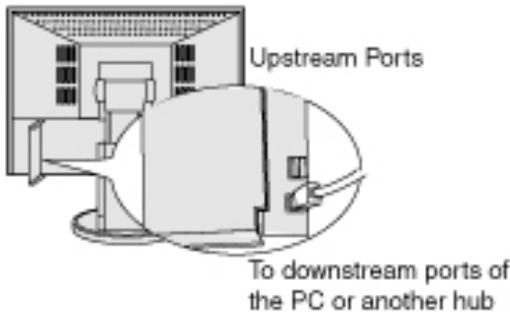
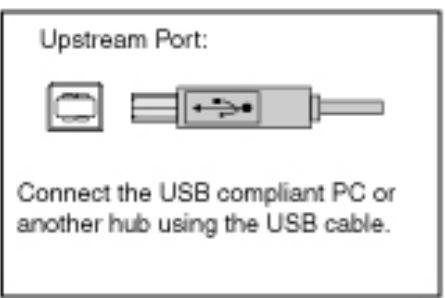
After connecting the USB cable, the USB function can be set up automatically.
- After setting up, the monitor's USB hub is available for connecting USB compliant peripherals to the downstream ports of the monitor.
Connecting Examples
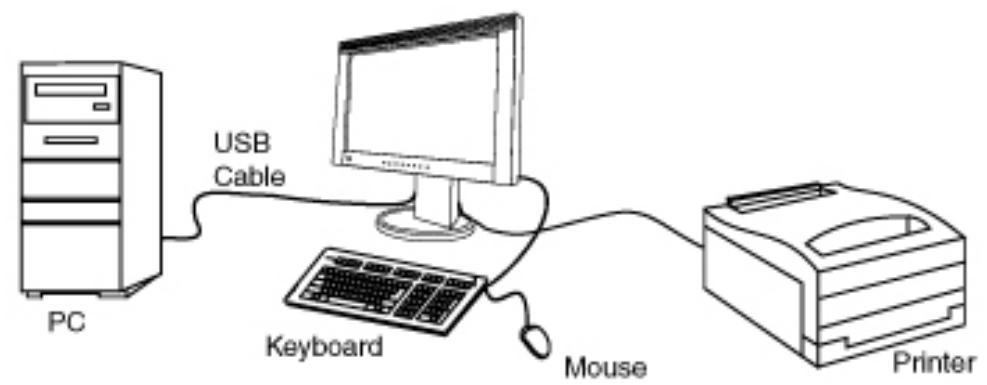
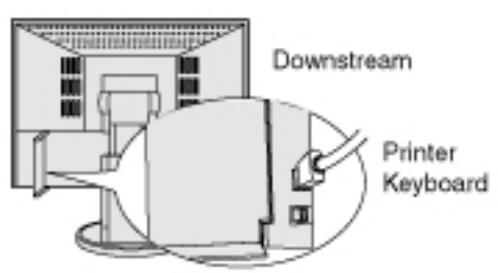
Downstream ports:

Connect the cables from USB compliant peripherals such as a mouse,keyboard,etc.
6. TROUBLESHOOTING
If a problem persists even after applying the suggested remedies, contact an EIZO dealer.
No picture problems : See No.1 ~ No.2
Imaging problems : See No.3 - No.14
Other problems : See No.15 ~ No.18
USB problems : See No.19 ~ No.20
| Problems | Points to check with possible solutions |
| 1. No picture Status of Indicator lamp "ON" is off. | [ ] Check that there is nothing left on the face of Power switch. Wipe the control panel, and then touch the Power switch again with dry finger. [ ] Check that the power cord is correctly connected. If the problem persists, turn off the monitor power for a few minutes, then turn it back on and try again. [ ] Try touching the power switch to turn it on again. |
| Status of Indicator lamp "ON" is light. | [ ] Check the Gain setting. |
| Status of Indicator lamp "Power Save" is light. | [ ] Switch the signal Input by touching the input signal selection switch on the front control panel. [ ] Try touching a key on the keyboard, or clicking the mouse. |
| 2. The message below appears. The message appears when the signal is not input. (This is displayed for about 40 seconds). Signal Check Signal 2 fH: 0.0kHz fU: 0.0Hz | These messages appear when the signal is not inputted correctly, even if the monitor functions properly. [ ] When the image is displayed correctly after a short time, there is no problem with the monitor. (Some PCs do not output the signal soon after powering on.) [ ] Check that the PC is turned ON. [ ] Check that the signal cable is properly connected the PC or graphics board. [ ] Switch the signal input by touching the Input Signal Selection switch on the control panel. |
| The signal frequency is out of range. Error signal frequency will be displayed in red. (Example) | [ ] Reboot the PC. [ ] Use the graphics board's utility software to change the frequency setting. (Refer to the manual of the graphics board.) fD: Dot Clock (Displayed only when the digital signal inputs) fH: Horizontal Frequency fV: Vertical Frequency |
| 3. Display position is incorrect. | [ ] Adjust the image position using the <Position>. [ ] If the problem persists, use the graphics board's utility software to change the display position if available. |
| 4. Screen image is smaller or larger than the actual screen images. | [ ] Adjust the resolution using the <Resolution>. |
| 5. Vertical bars of distortion appear. | [ ] Decrease the vertical bars using the <Clock>. |
| 6. The characters and images have several vertical bars on their right side. | [ ] Adjust the characters and images using the <Signal Filter>. |
| 7. Horizontal bars of distortion appear. | [ ] Decrease the horizontal bars using the<Phase>. |
| 8. Letters and lines appear blurred. | [ ] Adjust the blurred lines using<Smoothing>. |
| 9. Distortion appears like the figure below. | [ ] This happens when both composite (X-OR) input signal and separate vertical synchronizing signal are input. Please select one of the two. |
| 10.The screen is too bright or too dark. | [ ] Adjust the<Brightness> (The backlight of the LCD monitor has a fixed life span. When the screen becomes dark or begins to flicker, please consult your dealer.) |
| 11.Afterimages appear. | [ ] Do you use the screen saver or timer when displaying the same image for extended periods of time? [ ] Afterimages are particular to LCD monitors. Avoid displaying the same image for extended periods of time. |
| 12.The screen has defective pixels (e.g. slightly light or dark). | [ ] This is due to the characteristics of the panel itself, and not the LCD product. |
| 13.Fingerprints remain on the screen. | [ ] Leaving the screen white may solve the problem. |
| 14.The noise appears on the screen. | [ ] When entering the signals of analog input, select 1 to 4 in <Signal Filter> from the <Screen> menu to change the mode. |
| 15.The <Smoothing> cannot be selected. | [] <Smoothing> is disabled when the screen is displayed in the 1920 x 1200. [] <Smoothing> is disabled when "Normal" is selected in the <Screen Size> menu. [] The image size is doubled both in horizontally and vertically to (i.e. 1600 x 1200 enlarged from 800 x 600) provide clear focus which does not require this function. |
| 16.The Main menu of ScreenManager does not operate. | [] Check that there is nothing left on the face of Enter switch. Wipe the control panel, and then touch the Enter switch again with dry finger. If the problem persists, the adjustment lock is probably on. To unlock: switch the LCD monitor off. Then, while touching the Auto Adjustment switch, the power on. |
| 17.The Auto adjustment switch does not operate. | [] Check that there is nothing left on the face of Auto Adjustment switch. Wipe the control panel, and then touch the Auto Adjustment switch again with dry finger. If the problem persists, the adjustment lock is probably on. To unlock: switch the LCD monitor off. Then, while touching the Auto adjustment switch, switch the power on. [] The Auto sizing function is intended for use on the Macintosh and on AT-compatible PC running Windows. It may not work properly in either of the following cases. When running an AT-compatible PC on MS-DOS (Not windows). The background color for the "wall paper" or "desktop" pattern is set to black. |
| 18.Frequency does not change after installing "Monitor information file" in the attached utility disk on Windows 98/Me/2000/XP. | [] Use the graphics board's utility software to change the input signal frequency. |
| 19.USB function cannot be setup. | [ ] Check that the USB cable is correctly connected. [ ] Check that the PC and OS are USB compliant. (For verification of USB support, consult the manufacturer of each system) [ ] Check the PC's BIOS setting for USB. (For details, refer to the manual of the PC.) |
| 20.PC is hung up. / The peripherals connected to the downstream ports do not operate. | [ ] Check that the USB cable is correctly connected. [ ] Check the downstream ports by connecting the peripherals to other downstream ports. If the problem is solved by doing this, contact an EIZO dealer. (For details, refer to the manual of the PC.) [ ] Try executing the following method. Restarting the PC - Restarting the PC Connecting the PC and peripherals directly If the problem is solved by doing this, contact an EIZO dealer. |
7. CLEANING
Periodic cleaning is recommended to keep the monitor looking new and to prolong its operation lifetime.
NOTE
- Never use thinner, benzene, alcohol (ethanol, methanol, or isopropyl alcohol), abrasive cleaners, or other strong solvents, as these may cause damage to the cabinet or LCD panel.
Cabinet
To remove stains, wipe the cabinet with a soft, lightly moistened cloth using a mild detergent. Do not spray wax or cleaner directly into the cabinet. (For details, refer to the manual of the PC.)
LCD Panel
The LCD surface can be cleaned with a soft cloth, such as cotton or lens paper.
If necessary, stubborn stains can be removed by using the provided ScreenCleaner, or moistening part of a cloth with water to enhance its cleaning power.
8. SPECIFICATION
| LCD Panel | 56.4 cm (22.2 inch), TFT color LCD panel with Anti-Glare Hard Coating Viewing Angle: H: 170°, V: 170° (at contrast ratio 1:5) |
| Dot Pitch | 0.249 mm |
| Horizontal Scan Frequency | Analog: 31 - 94 kHz (Automatic) Digital: 31 - 76 kHz |
| Vertical Scan Frequency | Analog: 49 - 86 Hz (Automatic) (1600 x 1200: 49 - 76 Hz, 1920 x 1200: 49 - 61 Hz) Digital: 59 Hz - 61 Hz, (VGA Text : 69 - 71 Hz) |
| Resolution | 1920 dots x 1200 lines |
| Dot Clock (Max.) | Analog: 202.5 MHz, Digital: 162 MHz |
| Display Colors | 16 million colors (max.) |
| Display Area | 478 mm (H) x 299 mm (V) (18.8" (H) x 11.8" (V)) (Viewable image size: 564 mm (22.2")) |
| Power Supply | 100-120V/200-240V, 50/60 Hz, 1.0A/0.5A |
| Power Consumption | Min.: 90 W Max: 100 W (with USB) Power Saving Mode: Less than 2 W (for single signal input without USB) Power off: Less than 1 W |
| Recommended Brightness | 100cd/m² or less with color temperature of between 5000K to 6500K) |
| Input Connector | DVI-I x 2 |
| Analog Input Signal (Sync) | a) Separate, TTL, Positive/Negative |
| b) Composite, TTL, Positive/Negative | |
| Analog Input Signal (Video) | 0.7Vp-p/75 ohms, Positive |
| Input Signal (Digital) | TMDS (Single Link) |
| Signal registration | Analog: 45 (Preset: 29) Digital: 10 |
| Plug & Play | VESA DDC 2B / EDID structure 1.3 |
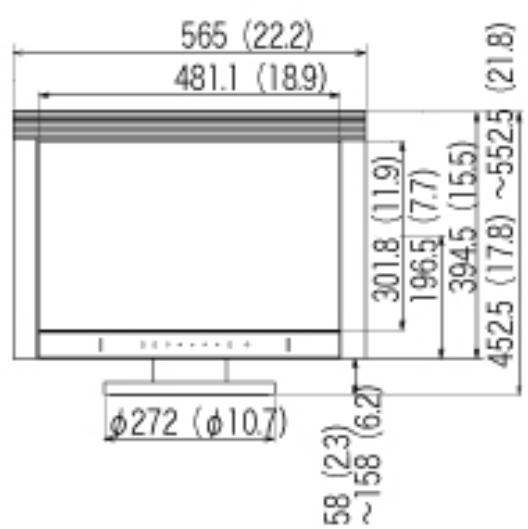
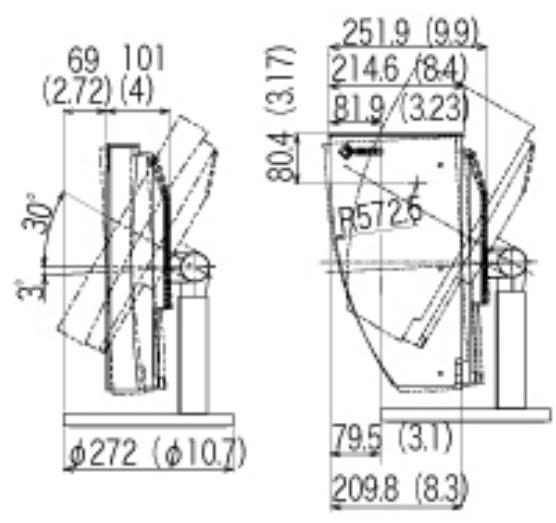
| Dimensions | 565 mm (W) x 452.5 - 552.5 mm (H) x 272 mm (D) (22.2"(W) x 17.8"- 21.8"(H) x 10.7"(D)) |
| Dimensions (with hood) | 574.6mm (W) x 460.6 - 560.6mm (H) x 353.9 mm (D) (22.6"(W) x 18.1"- 21.1"(H) x 13.9"(D)) |
| Dimensions (without stand) | 565 mm (W) x 394.5 mm (H) x 101 mm (D) (22.2"(W) x 15.5"(H) x 4"(D)) |
| Weight | 14.5 kg (32 lbs.) |
| Weight (with hood) | 15.5 kg (34.2 lbs.) |
| Weight (without stand) | 10.4 kg (22.9 lbs.) |
| Temperature | Operating: 0°C - 35°C (32°F - 95°F) Storage: -20°C - 60°C (-4°F - 140°F) Humidity 30% to 80% R.H. Non-condensing |
| USB standard | USB Specification Revision 2.0 |
| Communication speed | 480Mbps(high), 12 Mbps (full), 1.5 Mbps (low) |
| USB ports | Upstream port x 1, Downstream port x 2 |
Default settings
| Analog input | Digital input | ||
| Brightness | 60% | 60% | |
| Smoothing | 3 | ||
| Temperature | 5000K | ||
| FineContrast Mode | Custom | ||
| PowerManager | VESA DPMS | DVI DMPM | |
| Screen Size | Full | ||
| Input Priority | Signal 1 | ||
| Off Timer | Disable | ||
| Indicator | Medium | ||
| Menu | Menu Size | Normal | |
| Settings | Menu Off Timer | 45 seconds | |
| Beep | On | ||
| Language | English | ||
| Input Selection | Standard | ||
Beeper settings
| Short beep | ScreenManager item selected. ScreenManager parameter adjusted to minimum or maximum limit. Input Signal Selection switch touched. |
| Long beep | Auto Adjustment switch touched. ScreenManager data save executed. |
| 4 short beeps | Monitor not connected correctly. PC turned off. Monitor received unsupported signal frequency. |
| 2 short beeps every 15 sec. | Monitor is in the advance notice mode of the Off Timer. The power will be off within fifteen minutes. |
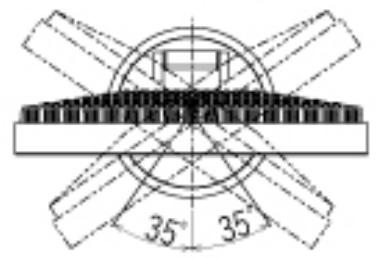
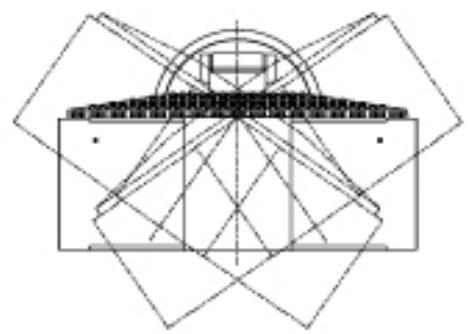
Unit mm (inches)
Pin Assignment
DVI-I Connector
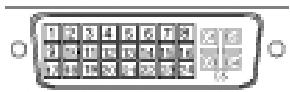
| Pin No. | Signal | Pin No. | Signal | Pin No. | Signal |
| 1 | TMDS Data 2- | 11 | TMDS Data 1/3 Shield | 21 | NC* |
| 2 | TMDS Data 2+ | 12 | NC* | 22 | TMDS Clock Shield |
| 3 | TMDS Data 2/4 Shield | 13 | NC* | 23 | TMDS Clock+ |
| 4 | NC* | 14 | +5V Power | 24 | TMDS Clock- |
| 5 | NC* | 15 | Ground (return for +5V, Hsync and Vsync) | C1 | Analog Red |
| 6 | DDC Clock (SCL) | 16 | Hot Plug Detect | C2 | Analog Green |
| 7 | DDC Data (SDA) | 17 | TMDS Data0- | C3 | Analog Blue |
| 8 | Analog Vertical Sync | 18 | TMDS Data0+ | C4 | Analog Horizontal Sync |
| 9 | TMDS Data1- | 19 | TMDS Data0/5 Shield | C5 | Analog Ground (analog R, G, & B return) |
| 10 | TMDS Data1 + | 20 | NC* |
(NC*: No Connection)
USB Ports (USB Specification Revision 2.0)
Upstream
Downstream
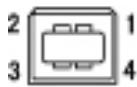
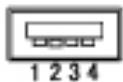
Series B Connector
Series A Connector
| No. | Signal | Remarks |
| 1 | VCC | Cable power |
| 2 | -Data | Serial data |
| 3 | +Data | Serial data |
| 4 | Ground | Cable Ground |
Clock
With the analog input signal display, the analog signal is converted to a digital signal by the LCD circuitry. To convert the signal correctly, the LCD monitor needs to produce the same number of clock pulses as the dot clock of the graphics system. When the clock pulse is not correctly set, some vertical bars of distortion are displayed on the screen.
Color Temperature (Temperature)
Color Temperature is a method to measure the white color tone, generally indicated in degrees Kelvin. At high temperatures the white tone appears somewhat blue, while at lower temperatures it appears somewhat red. Computer monitors generally give best performance at high temperature settings.
5000 K: Slightly reddish white.
6500 K: Warm-white tone, similar to white paper or daylight.
9300 K: Slightly bluish white.
DVI (Digital Visual Interface)
A digital flat panel interface. DVI can transmit digital data from the PC directly without loss with the signal transition method "TMDS".
There are two kinds of DVI connectors. One is DVI-D connector for digital signal input only. The other is DVI-I connector for both digital and analog signal inputs.
DVI DMPM (DVI Digital Monitor Power Management)
The Power management system for the digital interface. The "Monitor ON" status (operation mode) and the "Active Off" status (power-saving mode) are indispensable for the DVI-DMPM as the monitor's power mode.
Gain Adjustment
Adjusts each color parameter for red, green and blue. The color of the LCD monitor is displayed through the color filter of the LCD panel. Red, green and blue are the three primary colors. The colors on the monitor are displayed by combining these three colors. The color tone can change by adjusting the illumination amount passed through each color's filter.
Gamma
Generally, the relationship that the light intensity values of a monitor change nonlinearly to the input signal level is called "Gamma Characteristic". On the monitor, low gamma values display the whitish images and high gamma values display the high contrast images.
Phase
The phase adjustment decides the sampling timing point for converting the analog input signal to a digital signal. Adjusting the phase after the clock adjustment will produce a clear screen.
Range Adjustment
The Range Adjustment controls the level of output signal range to display the whole color gradation.
Resolution
The LCD panel consists of a fixed number of pixel elements which are illuminated to form the screen image. The EIZO CG221 display panel consists of 1920 horizontal pixels and 1200 vertical pixels. At a resolution of 1920 × 1200 , all pixels are displayed as a full screen.
sRGB (Standard RGB)
"International Standard for Red, Green, and Blue color space" A color space was defined with the aim of the color matching between applications and hardware devices, such as monitors, scanners, printers and digital cameras. As a standard default space, sRGB allows Internet users to closely match colors.
TMDS (Transition Minimized Differential Signaling)
A signal transition method for the digital interface.
VESA DPMS (Video Electronics Standards Association - Display Power Management Signaling)
The acronym VESA stands for "Video Electronics Standards Association", and DPMS stands for "Display Power Management Signaling". DPMS is a communication standard that PCs and graphics boards use to implement power savings on the monitor side.
Preset Timing Chart for Analog input
Based on the signal diagram shown below factory presets have been registered in the monitor's microprocessor.
FCC Declaration of Conformity
We, the Responsible Party
EIZO NANAO TECHNOLOGIES INC. 5710 Warland Drive, Cypress, CA 90630 Phone: (562) 431-5011
declare that the product
Trade name: EIZO
Model: ColorEdge CG221
is in conformity with Part 15 of the FCC Rules. Operation of this product is subject to the following two conditions: (1) this device may not cause harmful interference, and (2) this device must accept any interference received, including interference that may cause undesired operation.
This equipment has been tested and found to comply with the limits for a Class B digital device, pursuant to Part 15 of the FCC Rules. These limits are designed to provide reasonable protection against harmful interference in a residential installation. This equipment generates, uses, and can radiate radio frequency energy and, if not installed and used in accordance with the instructions, may cause harmful interference to radio communications. However, there is no guarantee that interference will not occur in a particular installation. If this equipment does cause harmful interference to radio or television reception, which can be determined by turning the equipment off and on, the user is encouraged to try to correct the interference by one or more of the following measures.
- Reorient or relocate the receiving antenna.
- Increase the separation between the equipment and receiver.
- Connect the equipment into an outlet on a circuit different from that to which the receiver is connected.
- Consult the dealer or an experienced radio/TV technician for help.
Changes or modifications not expressly approved by the party responsible for compliance could void the user's authority to operate the equipment.
Note
Use the attached specified cable below or EIZO signal cable with this monitor so as to keep interference within the limits of a Class B digital device.
- AC Cord
- Shielded Signal Cable (enclosed)
Canadian Notice
Recycling Information for customers in EU:
All recycling information is placed in the following websites.
Recycling Information for customers in USA:
All recycling information is placed in the Eizo Nanao Technologies, Inc.'s website.
http://www.eizo.com