
TWINTOUCH 720E - Consumer Electronics GENIUS - Free user manual and instructions
Find the device manual for free TWINTOUCH 720E GENIUS in PDF.


| Brand | Genius |
| Model | TWINTOUCH 720E |
| Product Type | Wireless keyboard and mouse set |
| Power Supply | 2 AA batteries for mouse, 2 AA batteries for keyboard |
| Operating Frequency | 27 MHz |
| Range | Approximately 10 meters |
| Interfaces | USB receiver |
| Compatible Operating Systems | Windows XP/2000/Vista |
| Mouse Functions | Left click, right click, scroll wheel (Magic-Roller) |
| Keyboard Functions | Multimedia keys, 4D pad, shortcut keys (Word, Excel, PowerPoint, Messenger, browser, mail, search, close, screen lock) |
| Identification Code | 256 ID codes with auto reset |
| Software Installation | Driver provided on CD |
| Maintenance and Cleaning | Clean with a soft, dry cloth. Avoid liquids. |
| Battery Safety | Do not mix battery types. Remove batteries if not used for a long time. Do not use manganese batteries. |
| Certifications | FCC Part 15 (Class B) |
Frequently Asked Questions - TWINTOUCH 720E GENIUS
User questions about TWINTOUCH 720E GENIUS
0 question about this device. Answer the ones you know or ask your own.
Ask a new question about this device
Download the instructions for your Consumer Electronics in PDF format for free! Find your manual TWINTOUCH 720E - GENIUS and take your electronic device back in hand. On this page are published all the documents necessary for the use of your device. TWINTOUCH 720E by GENIUS.
USER MANUAL TWINTOUCH 720E GENIUS
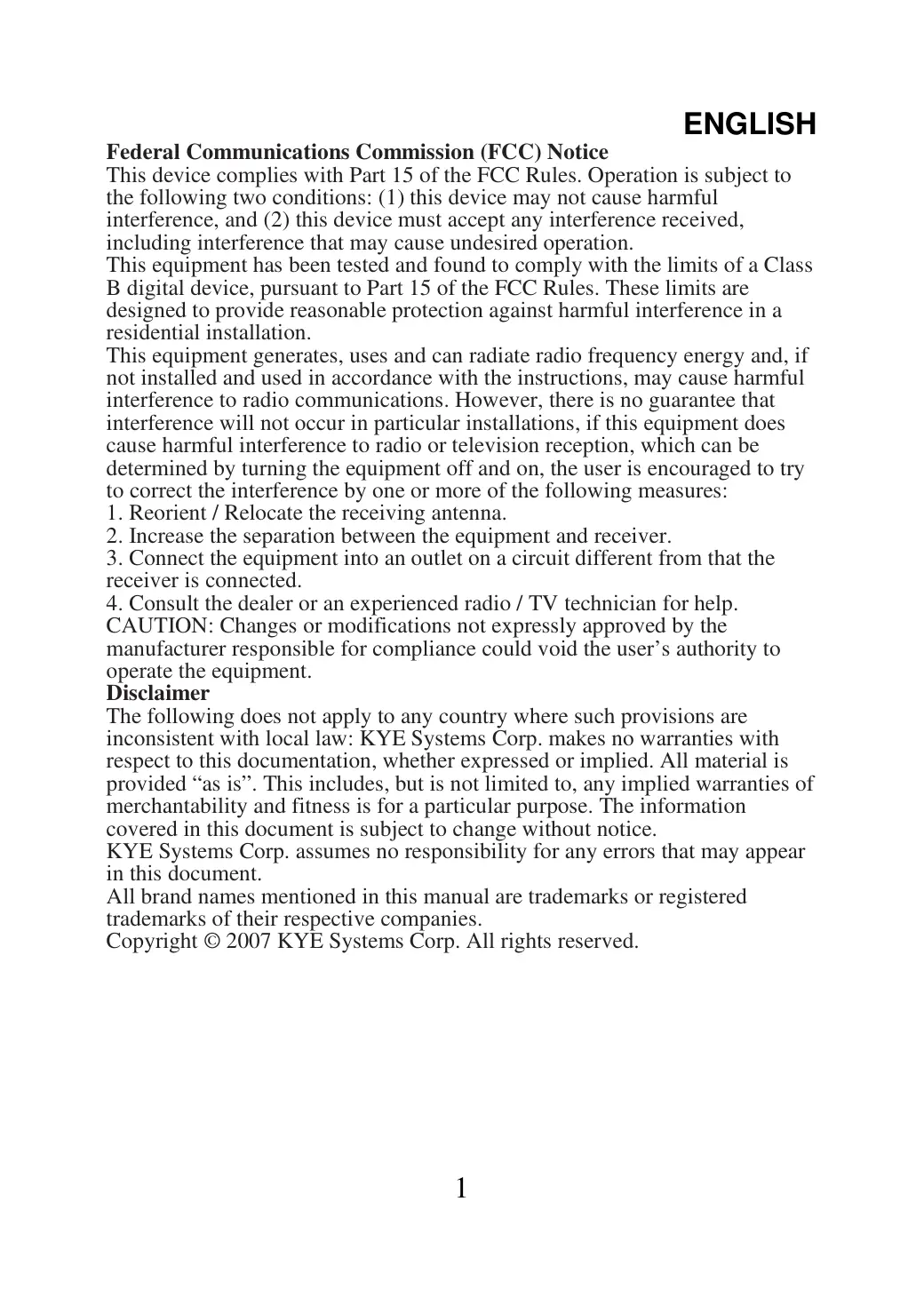
Federal Communications Commission (FCC) Notice
This device complies with Part 15 of the FCC Rules. Operation is subject to the following two conditions: (1) this device may not cause harmful interference, and (2) this device must accept any interference received, including interference that may cause undesired operation.
This equipment has been tested and found to comply with the limits of a Class B digital device, pursuant to Part 15 of the FCC Rules. These limits are designed to provide reasonable protection against harmful interference in a residential installation.
This equipment generates, uses and can radiate radio frequency energy and, if not installed and used in accordance with the instructions, may cause harmful interference to radio communications. However, there is no guarantee that interference will not occur in particular installations, if this equipment does cause harmful interference to radio or television reception, which can be determined by turning the equipment off and on, the user is encouraged to try to correct the interference by one or more of the following measures:
-
Reorient / Relocate the receiving antenna.
-
Increase the separation between the equipment and receiver.
-
Connect the equipment into an outlet on a circuit different from that the receiver is connected.
-
Consult the dealer or an experienced radio / TV technician for help.
CAUTION: Changes or modifications not expressly approved by the manufacturer responsible for compliance could void the user's authority to operate the equipment.
Disclaimer
The following does not apply to any country where such provisions are inconsistent with local law: KYE Systems Corp. makes no warranties with respect to this documentation, whether expressed or implied. All material is provided "as is". This includes, but is not limited to, any implied warranties of merchantability and fitness is for a particular purpose. The information covered in this document is subject to change without notice.
KYE Systems Corp. assumes no responsibility for any errors that may appear in this document.
All brand names mentioned in this manual are trademarks or registered trademarks of their respective companies.
Copyright © 2007 KYE Systems Corp. All rights reserved.
Hardware Installation
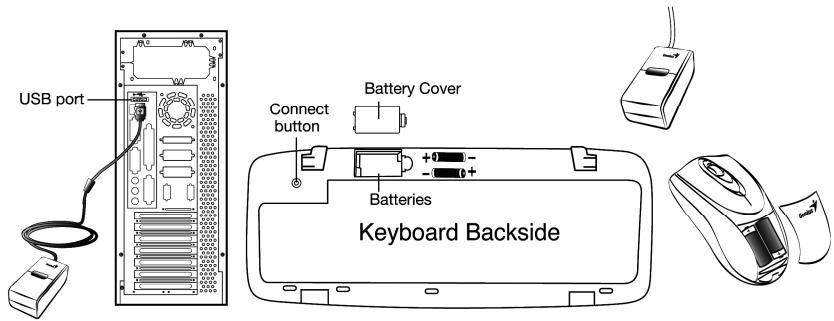
- Install two AA batteries each into the mouse and keyboard.
- Plug in your USB receiver to a USB port of your PC.
Software Installation
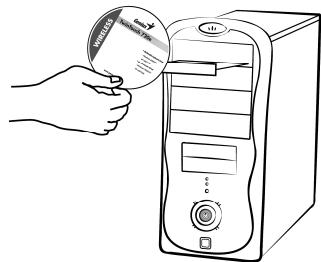
- Place your CD driver in your PC drive for software installation.
- Follow the instructions on the screen to finish the software installation.
Replace Batteries
If the mouse or keyboard does not work properly, then the batteries have lost their charge, so you need to replace them.
Warning: do not mix or use different types of batteries at the same time.
ID Channel Setting
The channel ID is factory preset. The green LED (data transmission indicator) will be lit constantly when the wireless device is in normal operation. In case your wireless devices do not work, reset the ID channel by:
- Press the connect button on the receiver and the LED will be blinking for connection.
- Press the connect button on each wireless device within 20 seconds and observe if the LED light on the receiver has gone off. If yes, it means the wireless device is ready for use.
ENGLISH
"Warning (Trouble shooting)
- The wireless desktop set provides 256 ID codes, and it selects the ID # for your wireless devices. You can only set up one wireless desktop at a time. If you have another 27Mhz wireless desktop set within 10 square meters, there may be interference between the wireless devices.
- Some of keyboard buttons may not work until the driver has been installed. We recommend you install the driver first before you use this product.
- To re-program other media programs, software installation is required.
Mouse Button Assignments
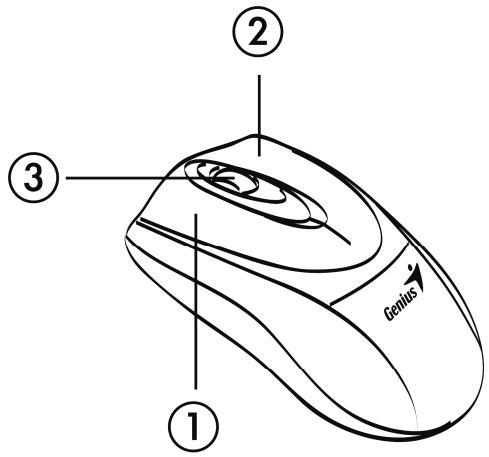
- Left Button: Provides traditional mouse functions like click, double click and drag.
- Right Button: Provides traditional mouse click function
- Magic-Roller: Scroll the button to surf the Internet and Windows documents.
Keyboard hot key definition

| Hot key | Description |
| 4D pad: Press up/down/left/right to scroll | |
| Control the playback of audio and video sources. | |
| Play and pause the audio or video sources. | |
| Stop play of audio or video CD. | |
| + | Turn up the volume. |
| - | Turn down the volume. |
| W | Access to MS Office Word file. |
| × | Access to MS Office Excel file. |
| Access to MS Office Power Point file. | |
| Activate Messenger. | |
| Open browser in Netscape or IE. | |
| Open mail folder. | |
| Search for a file or folder. | |
| Close current Window. | |
| *Windows Vista - Open photo Gallery file. *Windows XP/2000 - Open my picture file. | |
| *Windows Vista - Turn the screen into 3D mode. *Windows XP/2000 - Application switch mode. | |
| Turn system into Screen Lock mode. |
Notes on Battery Usage
When you use the battery, carefully read and strictly observe the Safety Instructions and the notes described below:
- Different battery types and surrounding temperatures may affect the battery performance.
- Avoid using batteries in extremely cold environments as low temperatures can shorten the battery life and reduce wireless device performance.
If you are using a new rechargeable battery or rechargeable battery that has not been used for an extended period of time (batteries that pass the expiry date are exceptions) it might affect the period of time you can use this device. Therefore, to maximize their performance and lifetime, we recommend that you fully charge the batteries and discharge them for at least one complete cycle before use.
The battery may feel warm when using the wireless device for an extended period of time. This is normal and not a malfunction.
The wireless device may feel warm when being used continuously or for an extended period of time. This is normal and not a malfunction.
If you will not be using the batteries for an extended period of time, remove them from the wireless device to prevent leakage or corrosion.
Always keep the terminals in a clean state.
Never use manganese batteries.
■ Risk of explosion if battery is replaced by an incorrect type. - Dispose of used batteries according to the instructions.