
SPEED WHEEL 5 PRO - Racing wheel GENIUS - Free user manual and instructions
Find the device manual for free SPEED WHEEL 5 PRO GENIUS in PDF.


| Product type | Racing wheel |
| Brand | GENIUS |
| Model | SPEED WHEEL 5 PRO |
| Compatibility | PC (Windows), PlayStation 3 |
| Power supply | USB (5 V) |
| Connectivity | USB wired, dedicated pedal cable |
| Rotation angle | 180 degrees (estimated) |
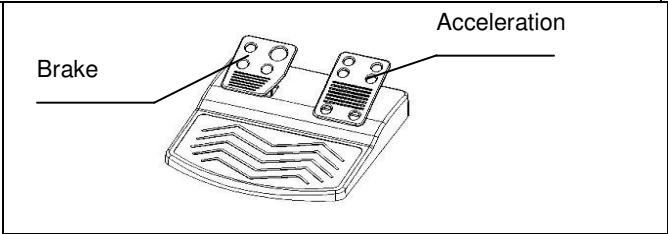
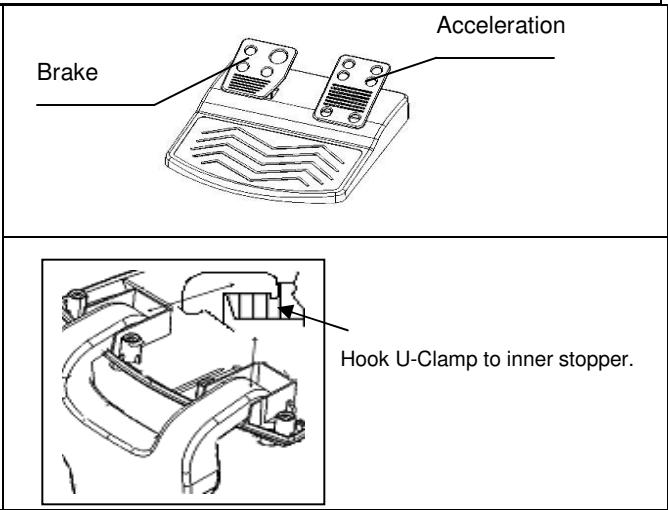
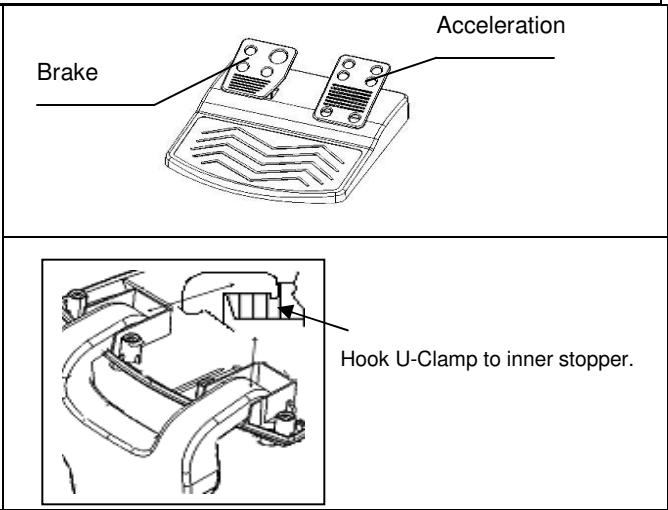
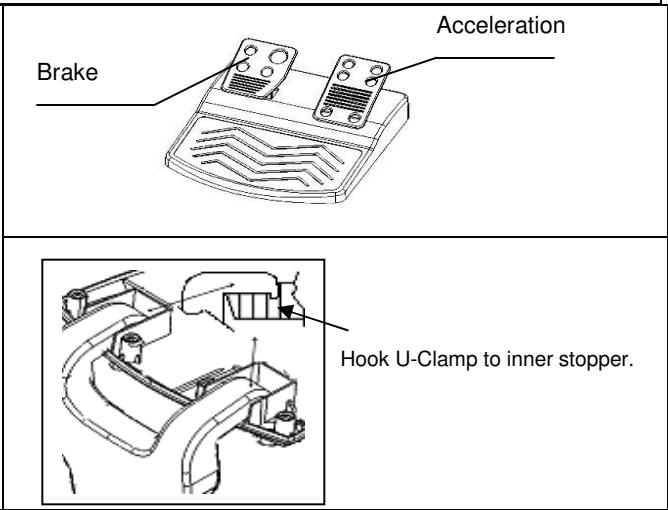
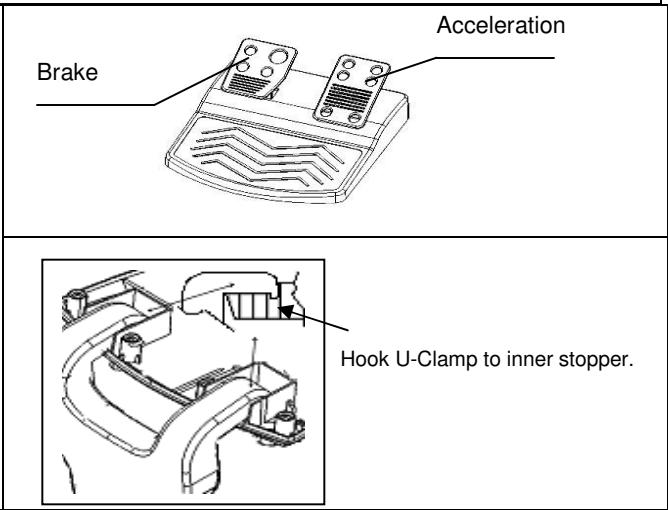
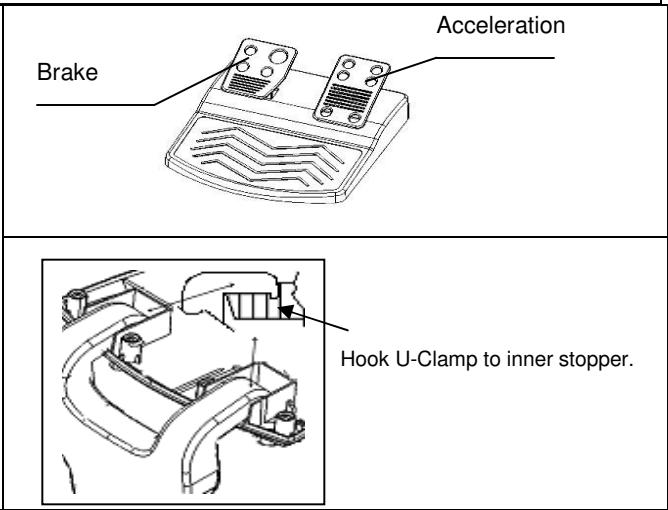
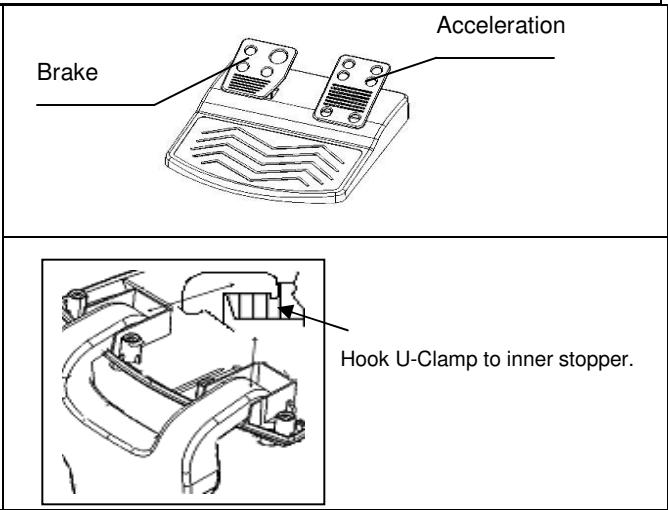
| Pedal set included | Yes, with accelerator and brake pedals |
| Turbo function | Configurable on buttons 1 to 8, speeds 2/4/8/16 Hz |
| Mapping function | Duplication of functions between buttons 5/6/7/8, pedals |
| PS3 mode | Supported via dedicated PS button |
| Number of buttons | 10 buttons + directional + special keys |
| LED indicator | Turbo/mapping indicator |
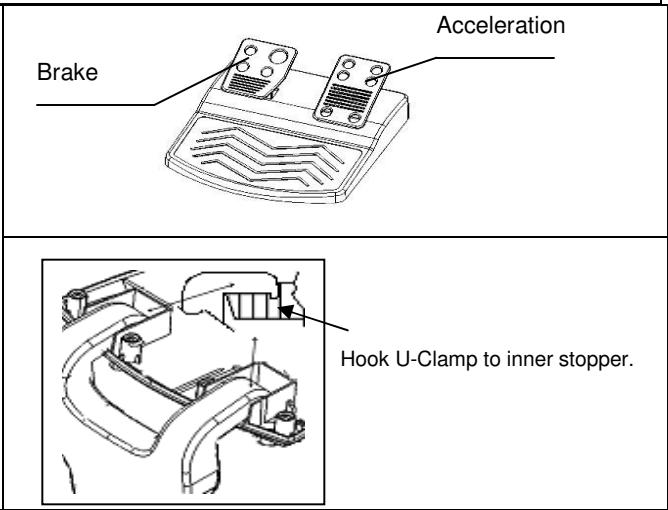
| Pedal power supply | Via the wheel (dedicated connection) |
| Dimensions (wheel) | Approximately 28 x 28 x 25 cm (estimated) |
| Weight | Approximately 1.5 kg (estimated) |
| Maintenance and cleaning | Clean with a soft, dry cloth, avoid liquids |
| Safety | Do not expose to moisture or excessive dust |
| Spare parts and repairability | Not specified |
| General information | Racing wheel with simple force feedback, suitable for simulation games |
Frequently Asked Questions - SPEED WHEEL 5 PRO GENIUS
User questions about SPEED WHEEL 5 PRO GENIUS
0 question about this device. Answer the ones you know or ask your own.
Ask a new question about this device
Download the instructions for your Racing wheel in PDF format for free! Find your manual SPEED WHEEL 5 PRO - GENIUS and take your electronic device back in hand. On this page are published all the documents necessary for the use of your device. SPEED WHEEL 5 PRO by GENIUS.
USER MANUAL SPEED WHEEL 5 PRO GENIUS
Federal Communications Commission (FCC) Notice
This device complies with Part 15 of the FCC Rules. Operation is subject to the following two conditions: (1) this device may not cause harmful interference, and (2) this device must accept any interference received, including interference that may cause undesired operation.
This equipment has been tested and found to comply with the limits of a Class B digital device, pursuant to Part 15 of the FCC Rules. These limits are designed to provide reasonable protection against harmful interference in a residential installation.
This equipment generates, uses and can radiate radio frequency energy and, if not installed and used in accordance with the instructions, may cause harmful interference to radio communications. However, there is no guarantee that interference will not occur in particular installations, if this equipment does cause harmful interference to radio or television reception, which can be determined by turning the equipment off and on, the user is encouraged to try to correct the interference by one or more of the following measures:
- Reorient / Relocate the receiving antenna.
- Increase the separation between the equipment and receiver.
- Connect the equipment into an outlet on a circuit different from that the receiver is connected.
- Consult the dealer or an experienced radio / TV technician for help.
CAUTION: Changes or modifications not expressly approved by the manufacturer responsible for compliance could void the user's authority to operate the equipment.
Disclaimer
The following does not apply to any country where such provisions are inconsistent with local law: KYE Systems Corp. makes no warranties with respect to this documentation, whether expressed or implied. All material is provided "as is". This includes, but is not limited to, any implied warranties of merchantability and fitness is for a particular purpose. The information covered in this document is subject to change without notice.
KYE Systems Corp. assumes no responsibility for any errors that may appear in this document.
All brand names mentioned in this manual are trademarks or registered trademarks of their respective companies.
Copyright © 2006 KYE Systems Corp. All rights reserved.
Speed Wheel 5 Pro/Speed Wheel 5
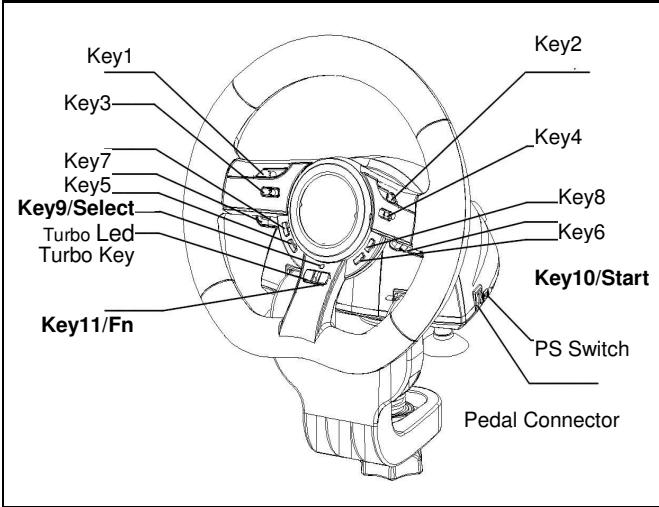
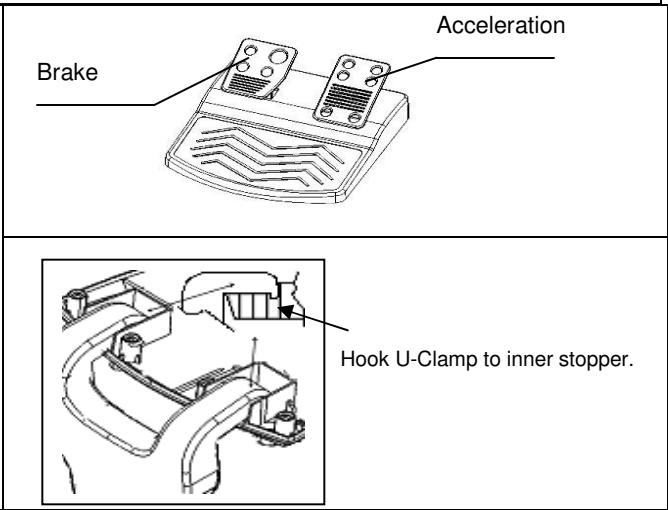
Software Installation: Install the driver first before you install Speed Wheel 5 Pro to the system. The Wheel will not support the vibration function, if the driver is not installed.
- Insert the driver CD into your CD-ROM; wait for a few seconds for your PC to load the disc; the auto run program is executed and the opening installation screen appears. Please follow the on-screen instructions.
- If your system doesn't launch the installation software automatically, you can locate the file in the directory of your CD drive and click on it, then follow the on-screen instruction to install the software.
Hardware Installation
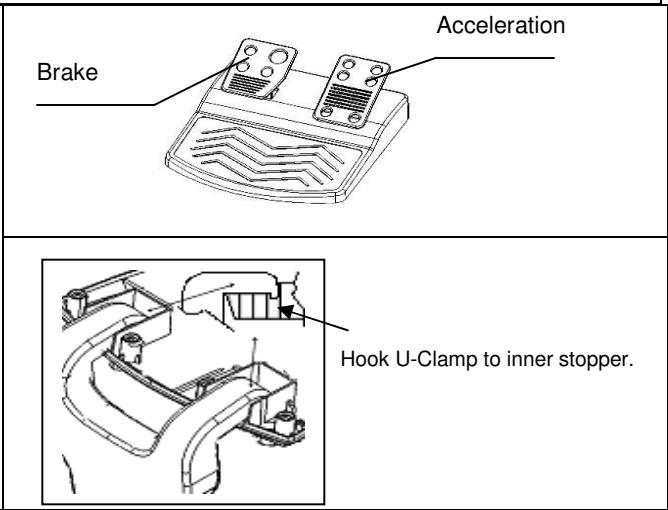
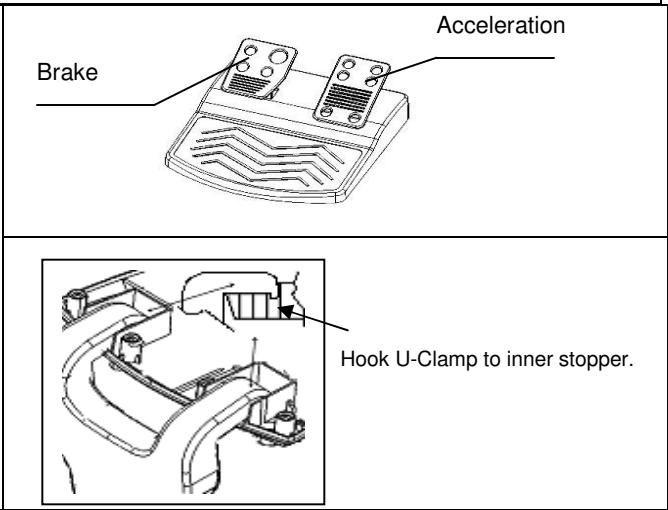
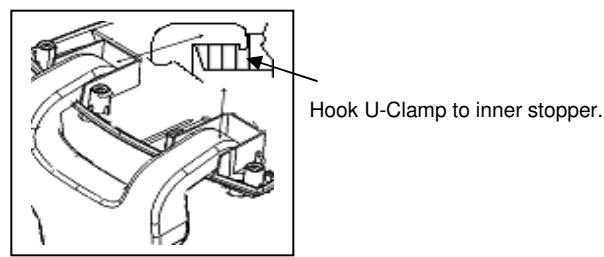
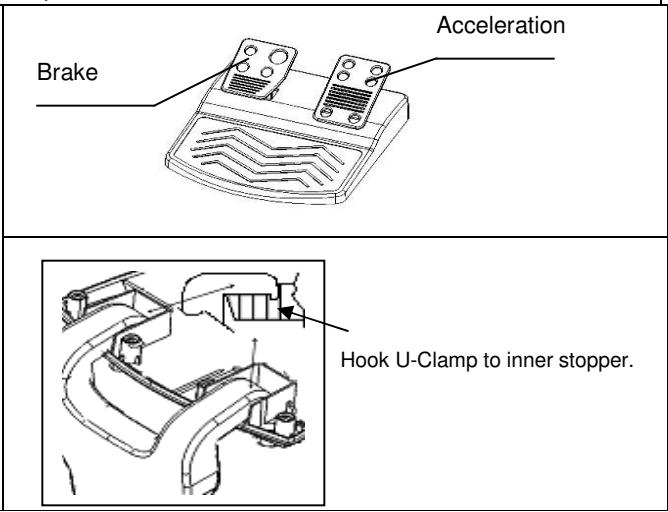
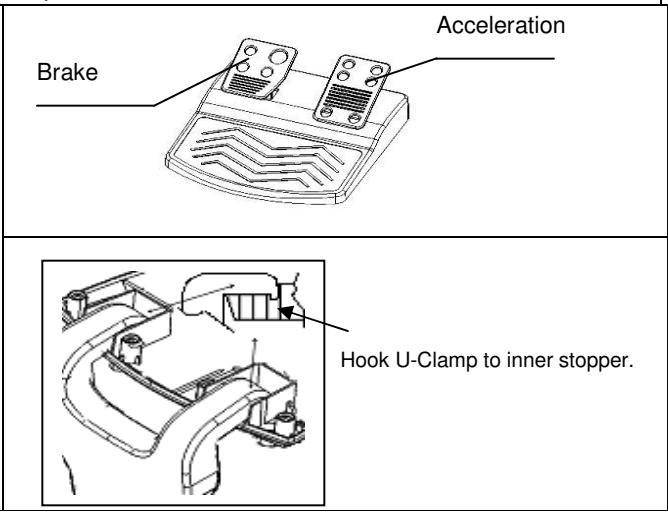
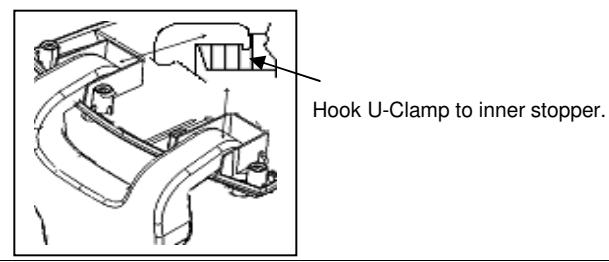
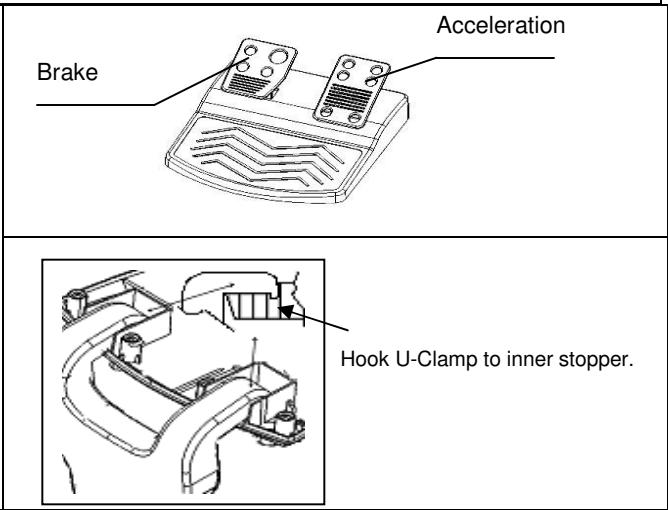
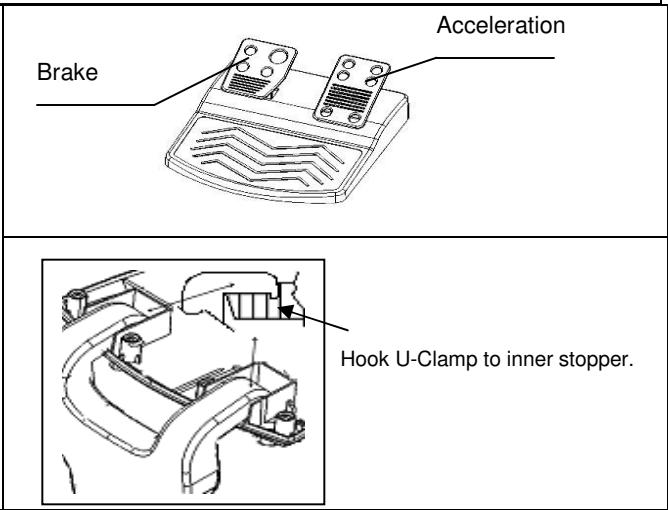
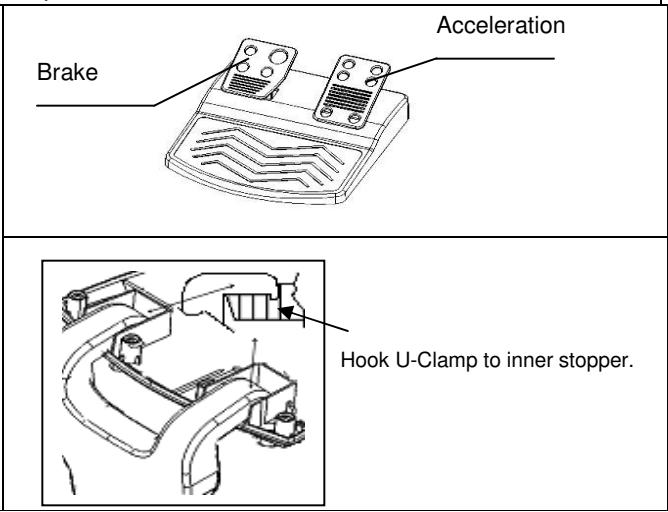
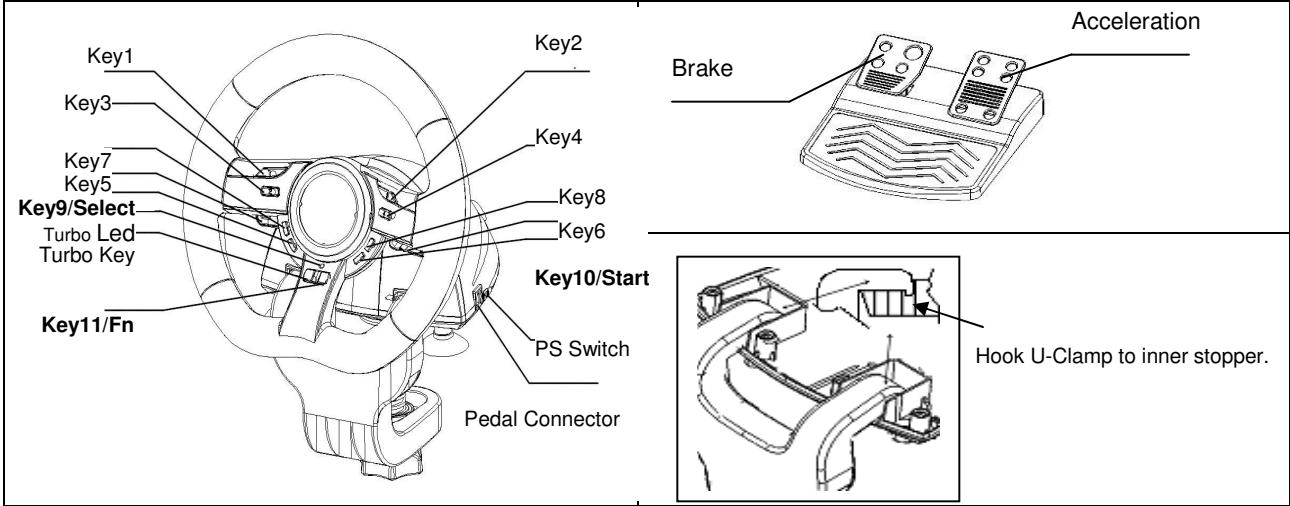
- Plug the Wheel to an USB port on the PC/PS or a USB Hub. And, connect the Pedal to the main unit with the included cable. After connection, system will "Find a new hardware" and complete the installation.
- Go to Game Controllers page and select "Advanced". It should work as a wheel. Or a game pad with compatible electrical function design. Check the installation again if it is not correct.
| Turbo Speed Setting | Key Remapping Setting | PS3 Mode | Select Key | Start Key | PS Key |
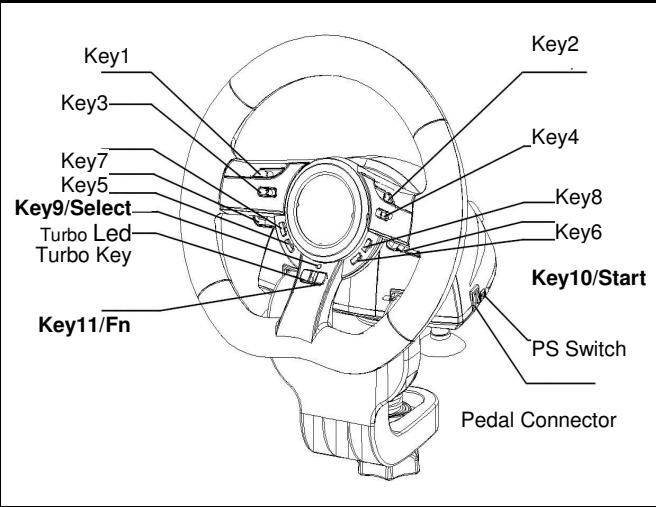
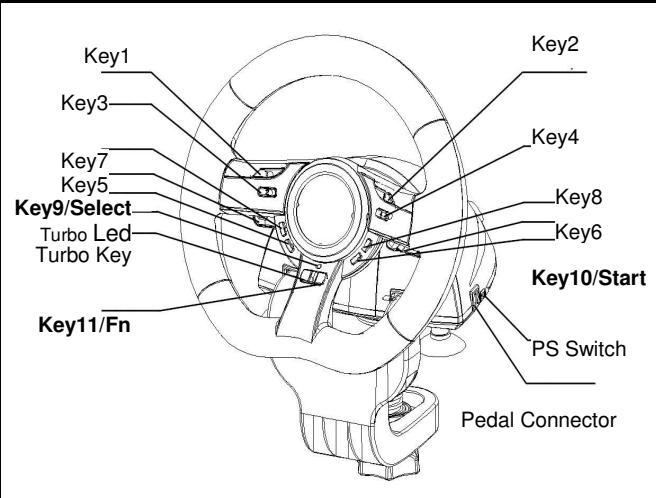
| Turbo+ Key10/Start | Key_10/START + Turbo | Switch to PS Position | Key_9 | Key_10 | Key_Fn at PS mode |
Turbo Function:
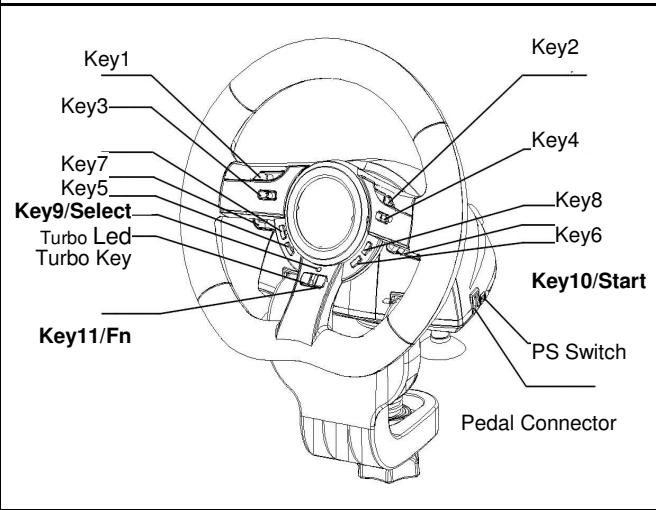
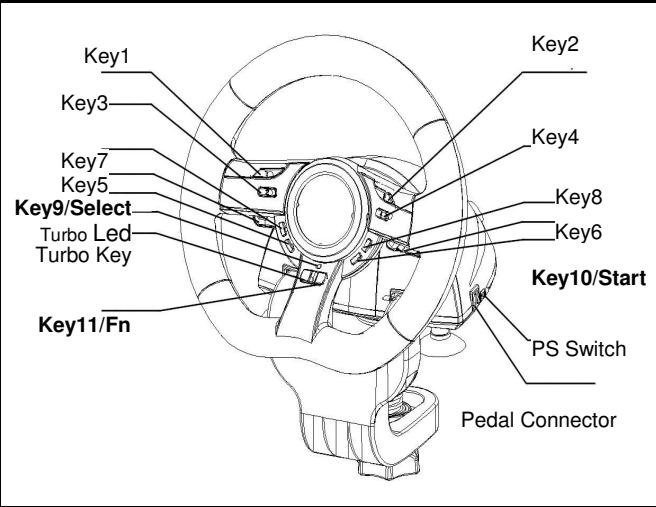
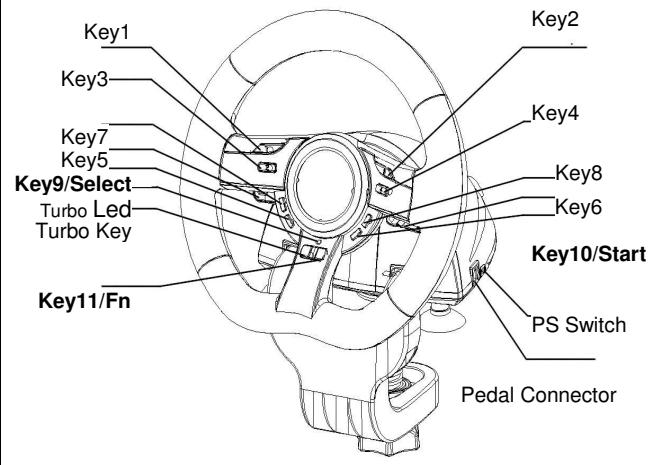
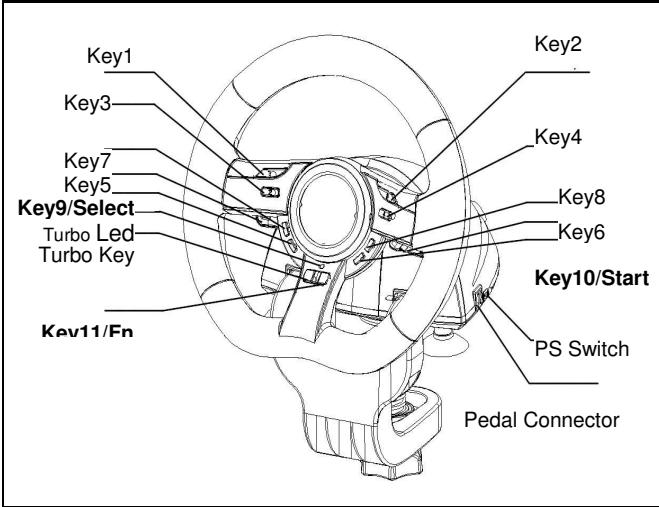
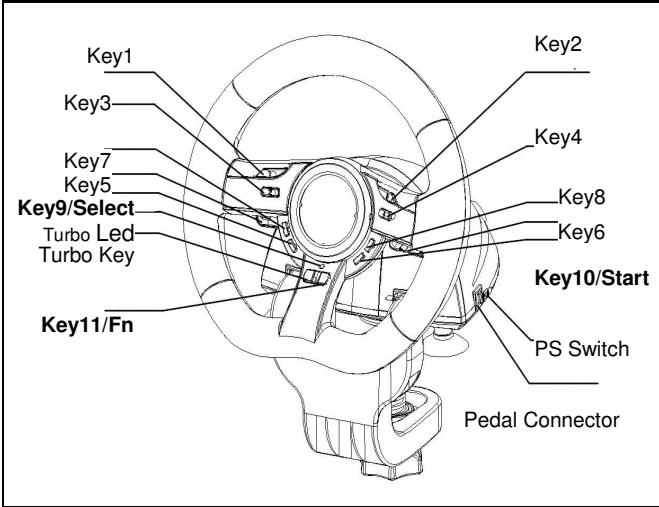
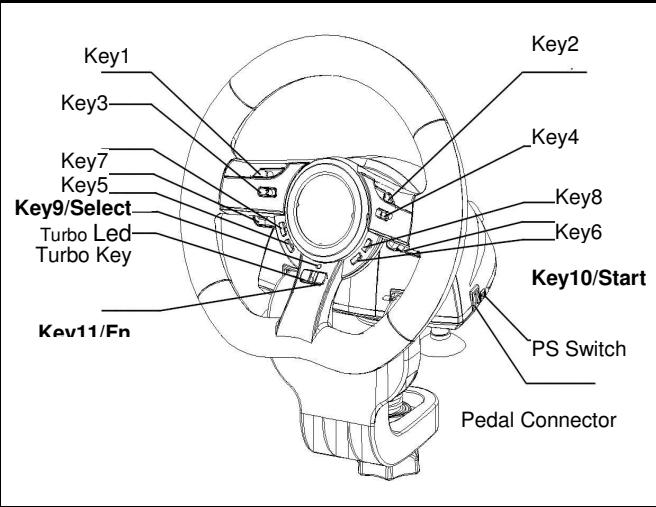
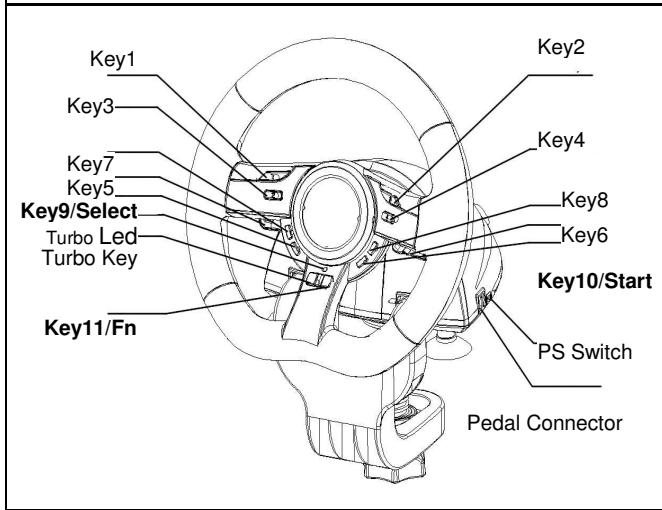
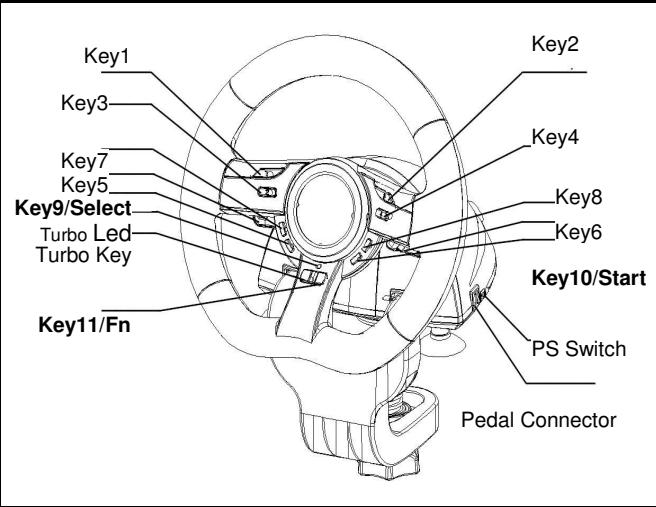
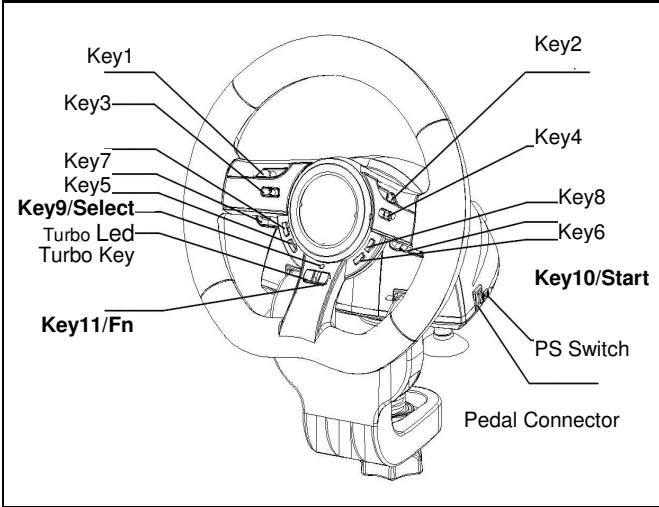
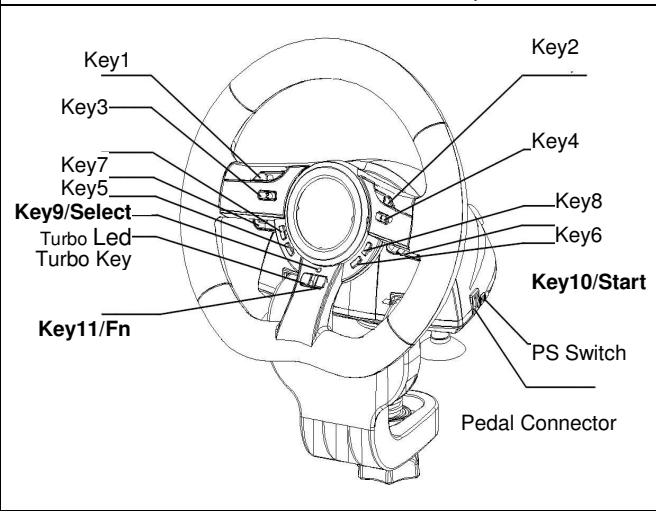
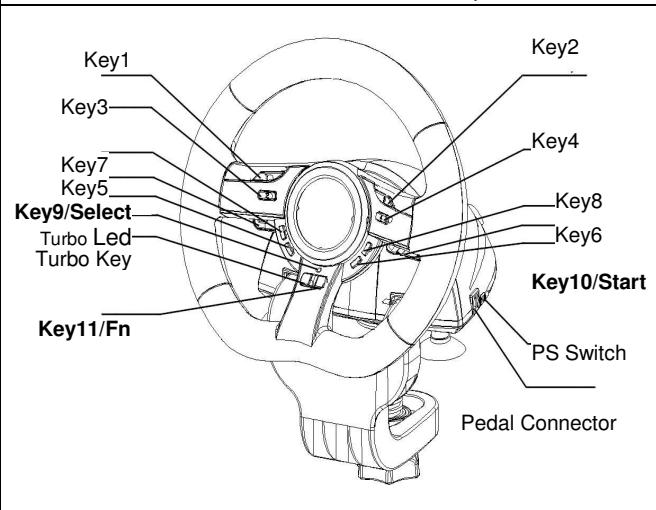
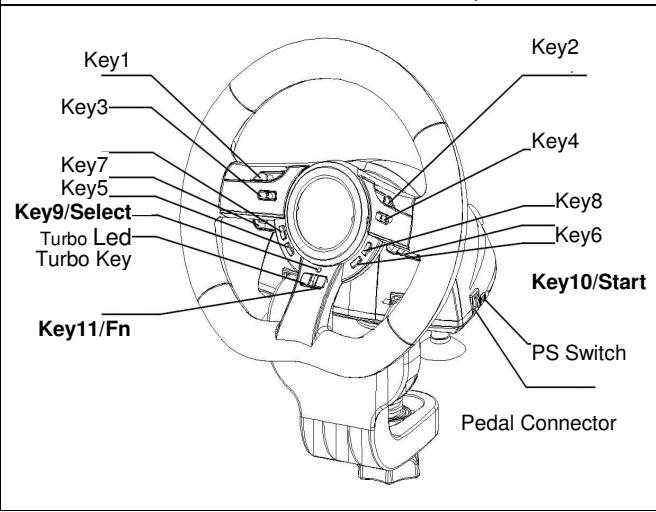
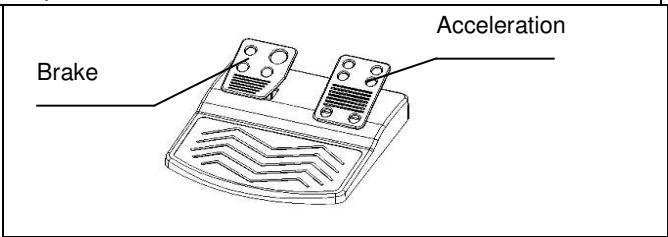
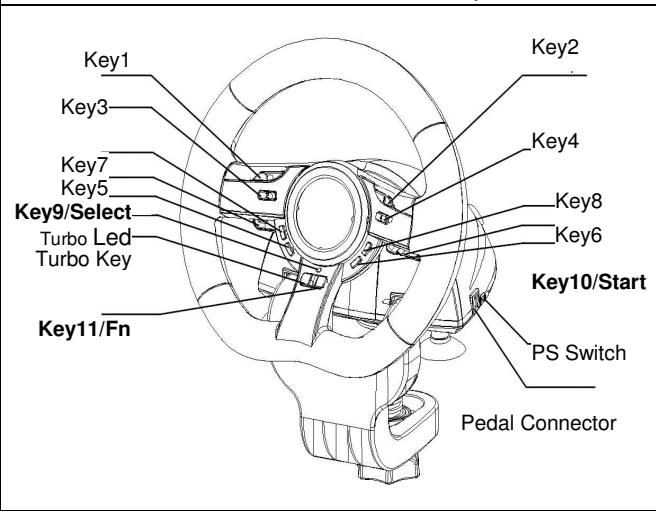
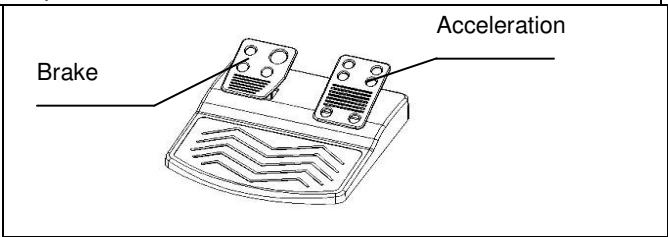
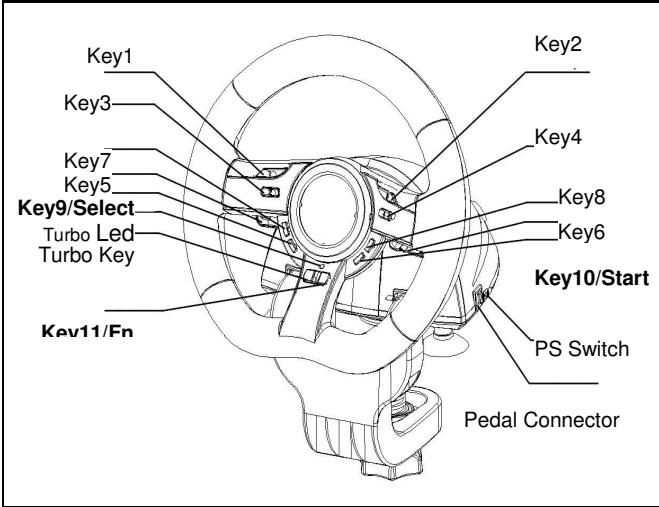
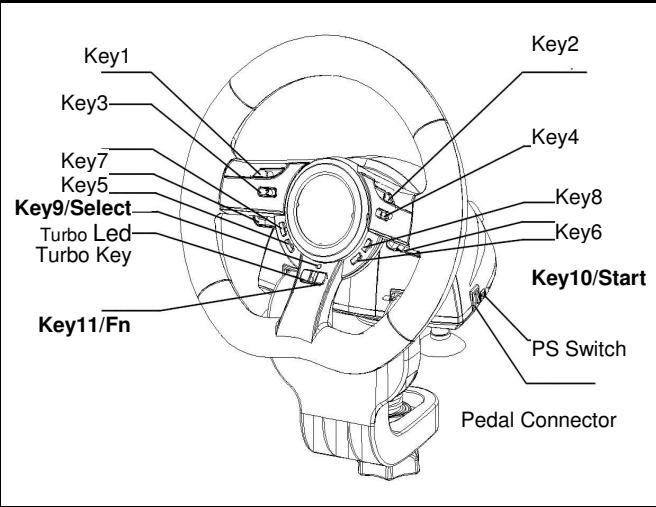
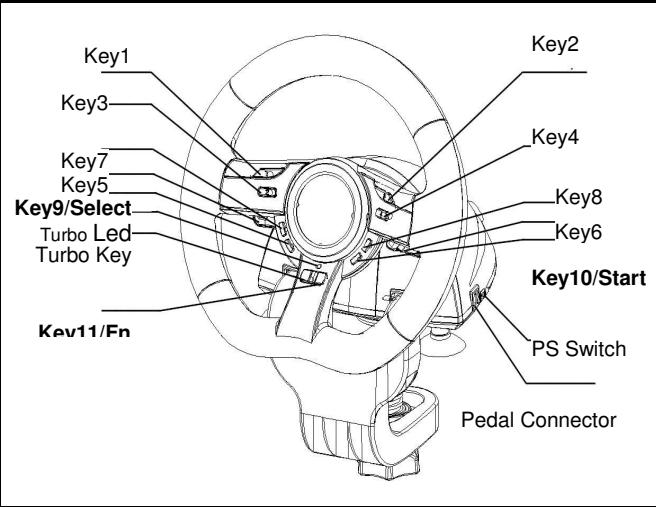
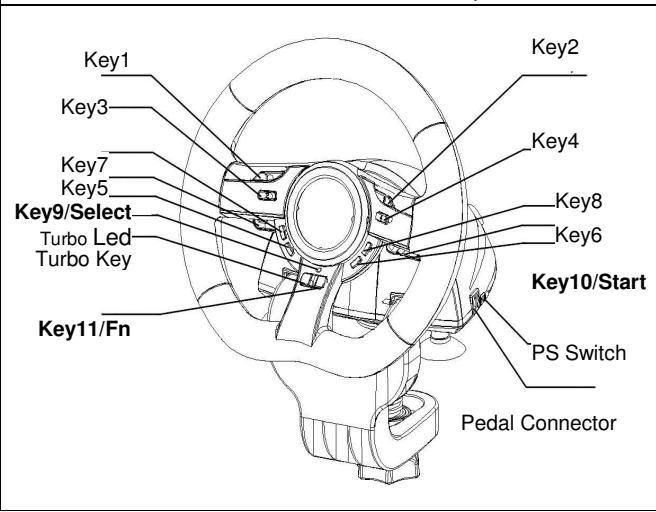
- Set/Clear Turbo Function: Press and hold the TURBO button, then press any action Key 1,2,3,4,5,6,7,8,11, or Brake Pedal to set the turbo function for it. Turbo LED will flash accordingly. To release the Turbo function, repeat the same procedures.
- Set Turbo Speed: Press and hold the Turbo button, then press the Key_10/START button only. The Turbo/Macro speed will be adjusted cyclically from 2->4->8->16->2 Hz, each time the Key_10/START button is pressed.
Direction Key Function for Game SetUp Page:
- Press Key9-Select for 2 seconds to set Direction-Key Mode. Turbo LED will be lit to show this mode. The following Key will act as each direction controlling: UP Key 5; DOWN Key 6; RIGHT Wheel Turn to right; LEFT Wheel Turn to left
- Press Key9-Select 2 seconds again to release Direction_Key Mode. Turbo LED will be at normal status.
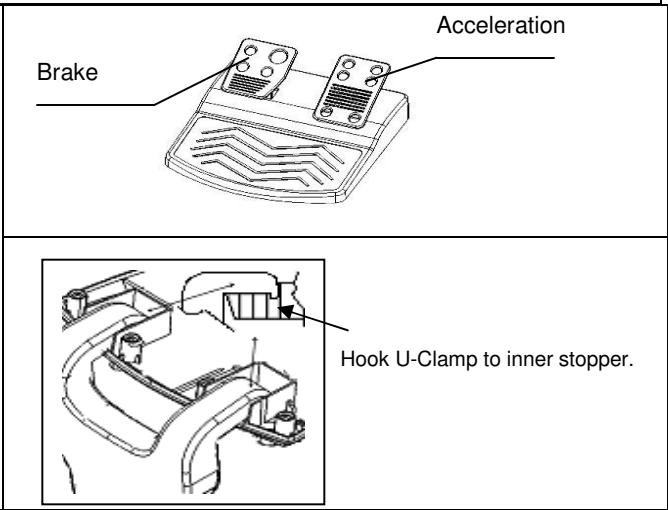
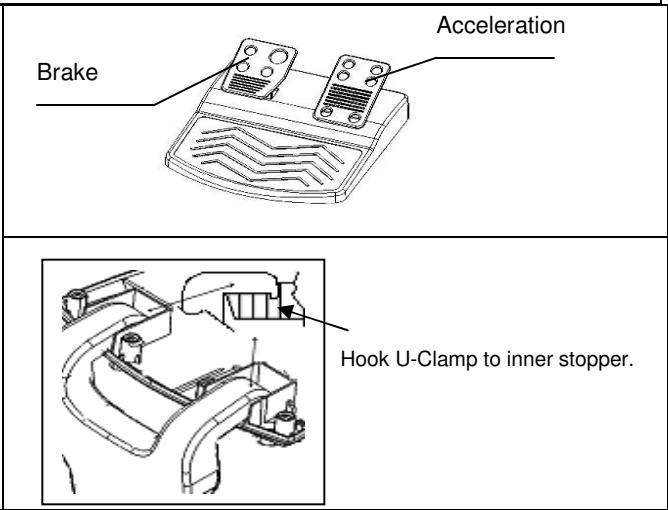
Key Mapping Functions: The main purpose of Key Mapping Function is to duplicate the function of SOURCE Key to TARGET KEY. For certain racing game, the brake and acceleration function may be not relative to the BRAKE pedal or ACCELERATION pedal. With the help of Key Mapping, we will be able to duplicate the function to our favor hardware key. Please note that we can only set the Key_Mapping function at Key 5/6/7/8, Brake Pedal and Acceleration pedal. For each Key_Mapping operation, you will only can duplicate one key to another.
- Set Key Mapping Function: Press and hold Key_10/Start, and press Key_Turbo at the same time. TURBO LED will be fast blinking. Press your favor TARGET key which you would like to copy that function to it. TURBO LED will be slow blinking now. Then, press the SOURCE key to duplicate its function to the TARGET key to complete the procedure. TURBO LED will be off to indicate the function duplication is complete. Proceed the procedures again for another function duplication.
- Release Key Mapping Function: Press and hold Key_10/Start, and press Key_Turbo at the same time. TURBO LED will be fast blinking. Press theTARGET key which you would like to release that function. TURBO LED will be slow blinking now. Then, Press and hold Key_10/Start, and press Key_Turbo at the same time to release the function. TURBO LED will be off to indicate the releasing is complete. Proceed the procedures again for each function releasing.
- The hardware function of the wheel buttons may vary in different games. Before proceeding to game settings from the OPTION inside the game, always read your game's manual carefully to set the best game settings.
Speed Wheel 5 Pro/Speed Wheel 5
YctaHObKa o6OpyDoBaHnA
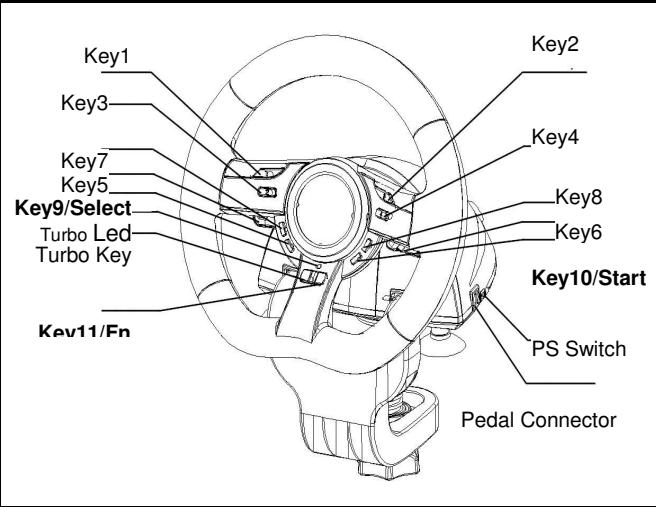
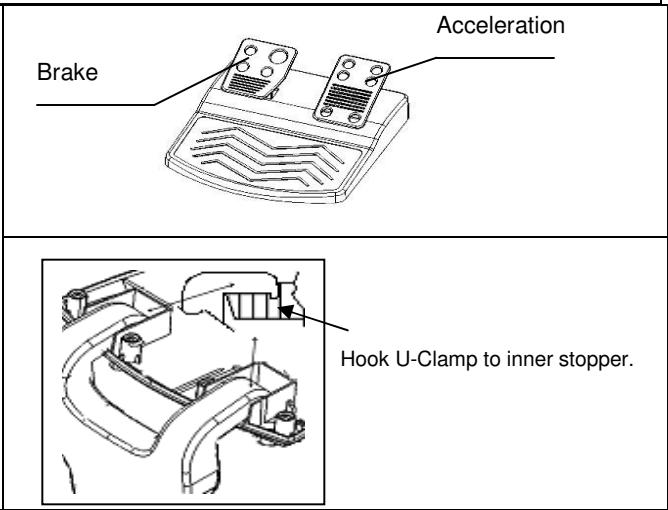
IopKIOHTe pybK npOry USB ha KOMMbItepe nnnn pnpCTaBke PS3. IOpKIOUHTe neJaNN K OCHOBHMy 6nOKy (kaebb BxOHT B KOMNKeT NOCTaBKn). Pocne 3TOrO oTKpoETcra OKHO "HaJdeHo HOBOE obopyoBaHme" N 6ydt POni3BeDHa yCTaHOBKa 3TOrO obopyoBaHna.
- BCTaBbTe KOMnAkrT-DnCK C npaiBepom B nickOBd KOMnAkrT-DnCKOB. IIOJQdIte HeckOJIbKO cekyH, YTObblnck 3arpy3nncra.
- Ecnn cnctema abTomatueeckn npouTeT yctaHOBJENHbI KOMNAKT-DINCK, OKTKPOEcTc OKHO yCTaHOBKn. CneDuYte INHCTpyKUJAM.
A. YctaHOBka yCTpOInCTBa
- Пдклочи Крови пьт Grandias К поту USB на Компьоте Или К сонценту OSB.
- Ecnny npabnblno nodklouhen K Kombltepy, Ho he pa6oTaET B KOHKpeTHOn Irpe, nepeiDHTe Ha cTpaHcy «IrpobbIe KOHTpOJIlepbI» N bIbepeITe «IOnOJIHNTeBHO”, a 3aTe m npOBepbTe, bIbpaH JIn dJa napAmetpa «Wheel»
| Turbo Speed Setting | Key Remapping Setting | PS3 Mode | Select Key | Start Key | PS Key |
| Turbo+ Key10/Start | Key_10/START + Turbo | Switch to PS Position | Key_9 | Key_10 | Key_Fn at PS mode |
Функця «Turbo»
- BkIIOUeHne n OTKIIOUeHne cyHKcun «Turbo»: haxMITE n ydepkxBaIte KhoNky TURBO. Дя HabTpoKnФyHKcUn «Turbo» Дя odHoi n3 KhoNOK (3a NcKJIIOUeHneM 9 n 10), haxMITE ha 3Ty KhoNky.
- Hacptpoika ckopoctn pa60tby fynkunn «Typ6o»: ydeprknBaite hakatoi kHONky TURBO, 3aTe m hajmte ToIbko ha KhONky START. Ппкдом haxatni Ha kHONky START ckopocstb pa60tby fynkunn «Typ6o» UKJIuueckn nepeKJIOuaeTc8: 2->4->8->16->2 Tc.
Функця Вьбopa HanpaBHeHЯ HabTpaHnce HacTpoKnИрbl
- YdepKbAte HkaToI KhoNky Select B TeueHne DByx cekyHd. 3arOpntcra HndnKaTOp Turbo (O3Naayet, TTO yHKzra Bb6opa HanpaBJeHna BkIouHeHa).
HanpaBHeHne BbIbpaTeTcNcIyUoM o6pa3OM: KhoNka 5 = BBEPX, KhoNka 6 = BHn3, nOBopOT pyJra BnPaBO = BnPABO, nOBopOT pyJra BnEBO = BJIeBO.
Speed Wheel 5 Pro/Speed Wheel 5
Hardwareinstallation
Speed Wheel 5 Pro/Speed Wheel 5
Speed Wheel 5 Pro/Speed Wheel 5
Speed Wheel 5 Pro/Speed Wheel 5
Speed Wheel 5 Pro/Speed Wheel 5
Instalacao do software
Speed Wheel 5 Pro/Speed Wheel 5
Instalacao do Software
Speed Wheel 5 Pro/Speed Wheel 5
Speed Wheel 5 Pro/Speed Wheel 5
Speed Wheel 5 Pro/Speed Wheel 5
Szoftver telepitése
Speed Wheel 5 Pro/Speed Wheel 5
Speed Wheel 5 Pro/Speed Wheel 5
Instalacija softvera
Speed Wheel 5 Pro/Speed Wheel 5
Instalare software
Speed Wheel 5 Pro/Speed Wheel 5
Eykataoan loyioikou
Speed Wheel 5 Pro/Speed Wheel 5
Yazilimin Kurulumu
Speed Wheel 5 Pro/Speed Wheel 5
YctaHOBJIeHnO6JaHaHHN
3'eHaTe KepMo 3 nopTom USB Ha PIK/PS3. 3'eHaTe PendaB 3 roNoBHOIO OdnHnueo 3a DOnOMoroIO Ka6eHIO, Ioo HadaeTbC. PicJra 3'eHaHHcNCTema nOKaXe "3HaIeHO HOBe oBnaHnH" Ta 3aBepWtB yCTaHOBnHnH.
| Turbo Speed Setting | Key Remapping Setting | PS3 Mode | Select Key | Start Key | PS Key |
| Turbo+ Key10/Start | Key_10/START + Turbo | Switch to PS Position | Key_9 | Key_10 | Key_Fn at PS mode |
Функця Turbo:
- YctahOBJIeHnB/BuaIaJIeHnFyHKuII Turbo:HaTncHITb Ta yTpIMyIte KhoNky TURBO,notim HaTncHITb 6yDb kHONky KIM KHOJOK 9-10,IO6 npns3HaunTu IIO cyHKUIO.
Speed Wheel 5 Pro/Speed Wheel 5
Speed Wheel 5 Pro/Speed Wheel 5
Speed Wheel 5 Pro/Speed Wheel 5
Programinés irangos idiegimas
Speed Wheel 5 Pro/Speed Wheel 5
BafnapamaJbIK kacaKaTaMaHbI opHaTy
Pyndi PIK/ Ouih KOHdbipfcbIHbH (PS3) USB ycHbHa KocbHbI. IepaIbI JxabIK XnHaFbIme6ipe KeIre H abapkbl Heri3ri 6nOKKa KocbHbI3. KoclbIM Jx3ere acpbJraH coH Kyue "KaHa KypbjfBbI Taabd" codaH coH opHaTybl aAkrTaHbI.
- Wheel dpaBepi xa3bIraH bIKaAM dNcKiHa dNcKi YcBiHa caJIbIHbI3; KOMnbIOTeP dNcKiHa JyKTereHwe biPHeWe ceKHyd Kytih3.
- Erep kombioTepeeri Jyue Jxha bikwam dnckiH e3diireHeN OKtBHe tIn opHaTbIraH 6oCa, e3diireHeN Jery 6aFapnAmacbi icke acbplnaDbI da, opHaTuDbI bactay beHBeSeti naDa 6oJaDbI. BeHBeTteri Hcckaynapra cyehhi3.
TexHnkaJIbIK Jx6IbIKTbI OpHaTy
- Wheel onbH nepheTakcbH KOMbIOpTeperi USB nopTbHa Hemece USB xa6bHa opHaTbHb3.
-
Erep oubH nepheTaKtacB kOMNbOtepre dpybc JkAflaHbIn, bipak OyBH OHaHaHaJa xMBC icTeMece, Game Controllers (OyBH KOHTpOnnepnepi) beIH aMbHb3 Da, "Advanced" (KocbIMsa) beIH TaHdAn, nepheKaTacBbHbH jkAIIbIaybIbI "Wheel" ekeHH TeKcepHj3.
| Turbo Speed Setting | Key Remapping Setting | PS3 Mode | Select Key | Start Key | PS Key |
| Turbo+ Key10/Start | Key_10/START + Turbo | Switch to PS Position | Key_9 | Key_10 | Key_Fn at PS mode |
Typ6oФункцЯсbl:
- Typ6oФункцясьн Ophaty/Axkbpaty: Typ6o TymmeWirin 6acbIn yctan TpybHb3 da coaH coH 9-10 TymewikTepeH backka Ke3 KeIrrhen TyMeWikTi cofah aphanfah Typ6oФункцясьн Ophaty wih 6acbHb3.
- Turbo JbIaMdbIbH opHaTy: TURBO 6aTbIPmacbH y3dikc3 6acbHb3, cOan coH START 6aTbIPmacbH 6ip pet 6acbHb3. Turbo JbIaMdbIf bI START 6aTbIPmacbH ep Ke3 6acbIFaH caBH 2->4->8->16->2 Iu aHaJIbIMdbI type 6aTaNAdbl.
OuHbIbI 6anTay 6eImine apHaJIaH 6eIceHdi 6aFbIT yHKcIraCbI:
- TaHday TuyMeuirin eki cekynd bacbIn yctan typbHb3, Typ6o wambl xaHaadbl da "BaFbIT cyHKnraCbHbH" 6eJceHdi Kyire KewipijreHdirin bIndpedi.
TemeHderinep 6aft-baFapdbb6ackapy peiin atkapadbl: 5-5i tyMeik=KOFAPbl (UP); 6-5bl tyMeik = TOMEH (DOWN); Pynbdl bHa 6py = OH (RIGHT); Pynbdl cofra 6py = COJI (LEFT). - Baft ΦyHKzIaBcH KaTaN aKbIpaTy yuih TaHay tyMeuiriH eki cekyHd bacbHb3. Typ6 oambl KaJIbITb Kyre KeWeedi.
TymMewiKФyHKcIaCbIHKaIraIayФyHKcIaIapbl
Kei6ip kapbic ObyHdapbHdaftekey MeH XblDAMDaTy fynKcIynapb TEKEIII neaIb He KbllAMATKblI IeJaBdapbHa KaTbICTb BoJIMayb MyMkiH. TyMeWIK fynKcIyrcbIH KaTaNay fynHKcIyrcbIH KEMeri apKblbI fynKcIyHbE3 KaaybHb3daftby TymMeWIKTepe Kwipin opHaTybHb3fa 60anaIb.
SpeedWheel 5 cepnacb tymeik yHKnucbH kaTaNay fynKcNcBn TEK faHa 5/6/7/8 TYMeiKepi, TEXEITIIN He KblAMATKblI neaIbapb yin H fana opHa Ta anaIb. Op6ip tymeik fynKcNcBn KaTaNay ypici bip teikTH FyHKuCbH ekHIb bip TeIKTe fHa KaTaNay MymkiHirige He.
- TyMeiK fynKcIaBn KaTaNay fynKcIaBn OpHaTy: 10/Start (Bactay) XeHe Turbo (Typ6o) TyMeuiri ekeyin Katap 6acbl n yctan typbHb3. Typ6o WAmbl XbInbJIbKTan TyMeiK fynKcIaBn KaTaNay fynKcIaBn HbN 6enCeHdi Kyre KeWipJREHirin KepCteDi. Ocbf yHKcIaBn TaafbHdaFbHb3 KeRrE COHfbl TyMeiKti bacHb3. Typ6o WAmbl Endi KaMEn XbInbIKTaAdb. Codah coH, COHfbl TyMeiKke fynKcIaBn KeWipy ysiH ER13TI TyMeiKti bacHb3 da, FyHKcIaBn KeWipy yprdicin aakTaHb3. Typ6o WAmbl EwiN fynKcIaBn KeWipipJREHirin Bindipei. BacKa fynKcIaBn KeWipy ysiH de ocb lypdicti kaTaNab3.
- Tymeik fHKnrcbH KaTajay fHKnrcbH axbipaty: 10/Start (Bactay) xeHe Turbo (Typ6o) Tymeir ekeyi H Ktap bacbl yctan TypbHb3. Typ6o lambl xbldam kblnbktaa bactaib. Herizr tyMeikTeK eipireh fHKnrcbH axbipatkbH3 KeIreH COHbI TyMeWKti bcsbHb3. Typ6o lambl endi jkaMeH kblbktai db. CoaH coH, fHKnraHb axbipaty uhi 10/Start Xane Typ6o fHKnrcbH kaTap bacbl yctan TypbHb3. Typ6o lambl ewi n fHKnraHb aXbipatbIfaHdbfBih biindipei. Op6ip fHKnraHb axbipaty uhi ocbl ypricti kaTanaHb3. TyMeik fHKnrcbH KaTajay fHKnrcbH axbipaty uhi SpeedWheel 5 KpbJfbcIn aXbipatyblh3fa da 60anaBl.
- Pynb TyuMeiikTepiHf yHKunnaapbAp oBbIHa aptpyPi 6OlybMyMkiH. OyBuHHbIH iHiDi eri IAPAMETP apKbIbO bHnnapaMetpJIepiOpHaTnac 6ypbH OByHHbIH eH OHtaJIbI npaMetpJIepiOpHaTy MaKCaTBIHda OHbIH HcCKayIbIFbIH MyKmrtOKbl NbIKaHbIHb3 a63aJ.
Speed Wheel 5 Pro/Speed Wheel 5
0jz1
Jgss s 1s
Jill Jai "j j j j j j j j j j j j j j j j j j j j j j j j j j j j j j j j j j j j j j j j j j j
| Turbo Speed Setting | Key Remapping Setting | PS3 Mode | Select Key | Start Key | PS Key |
| Turbo+ Key10/Start | Key_10/START + Turbo | Switch to PS Position | Key_9 | Key_10 | Key_Fn at PS mode |
:(yj)4c yj
10-9 15a la jj jbj biai (yj) aee yj jy jbi: (yjj) aee yj aai
145 (yjill) 2
: aalb baaa aaii aai gai