
GF112 - Video camera GENIUS - Free user manual and instructions
Find the device manual for free GF112 GENIUS in PDF.


| Product Type | Video Camera (webcam) |
| Brand | Genius |
| Model | GF112 |
| Power Supply | Via computer USB port |
| Connectivity | USB |
| Capture Button | Yes, for quick photo taking |
| Lens | Integrated fixed focal lens |
| Adjustable Base | Yes, allows camera orientation |
| Main Functions | Preview mode, snapshot mode, video clip mode, security monitoring system |
| Available Resolutions | RGB24 and I420, with multiple sizes up to 640x480 |
| Digital Zoom | Yes, zoom in/out and image panning |
| Image Capture | Yes, with email sending and continuous capture |
| Video Recording | Yes, with AVI to MPEG-1 conversion and animation creation |
| Security Surveillance | Motion detection, automatic recording, sound alerts |
| Messaging Compatibility | MSN Messenger, Yahoo Messenger, AIM |
| Included Software | Genius VideoCAM (Windows only) |
| System Requirements | USB port, CD-ROM for driver installation |
| Maintenance | Clean the lens with a soft, dry cloth |
| Safety | Do not expose to moisture, use only on stable surfaces |
| Warranty | Refer to the warranty provided by the manufacturer |
| Country of Manufacture | Not specified in the manual |
Frequently Asked Questions - GF112 GENIUS
User questions about GF112 GENIUS
0 question about this device. Answer the ones you know or ask your own.
Ask a new question about this device
Download the instructions for your Video camera in PDF format for free! Find your manual GF112 - GENIUS and take your electronic device back in hand. On this page are published all the documents necessary for the use of your device. GF112 by GENIUS.
USER MANUAL GF112 GENIUS
VideoCAM GF112 Features
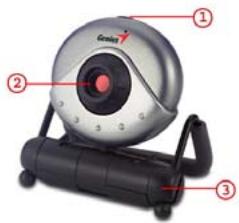
1 Snap Shot button
2 Lens
3 Adjustable base
Installing the VideoCAM GF112
- Please install the driver first and then connect VideoCAM GF112 to the USB port.
- Installing the VideoCAM GF112 driver
a. Insert the VideoCAM GF112 Installation CD into the CD-ROM drive.
b. The Autorun screen will bring up the installation screen. Click on "Driver" then simply follow the on-screen instructions.
c. Install "DirectX" from the CD.
Notice: If the Autorun screen doesn't start, please follow these steps:
- Click on "Start Menu".
-
Type D : \SETUP.EXE , then click “Enter” key. (Assume your CD-ROM is in Drive D)
-
Insert the VideoCAM GF112's USB cable to your desktop's or laptop's USB port.
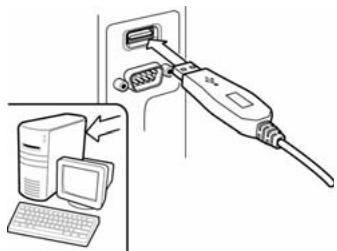
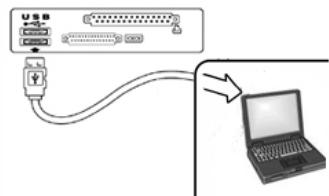
- Complete software and hardware installation. You can install the software you would like for video conferencing or chat with your friends.

NOTE
To remove the driver installation:
Windows Environment:
Please go to the taskbar and follow "Start" "Program" "VideoCAM GF112" Click "Uninstall", then follow the on-screen instructions to remove the driver.
Genius Application (Windows Only)
You can use our software to capture the real-time image, record or execute the simply security function.
To run the software, please go to the task bar and follow "Start" Click "Program" Choose "VideoCAM GF112" Click "VideoCAM GF112". Or you may execute the software by simply clicking the shortcut of "VideoCAM GF112".

NOTE
After installing the driver of VideoCAM GF112, the system will automatically create a file (C:\WINDOWS\Album or C:\WINNT\Album) to save the images you take using the Genius Application.
1. Description for the major icon

Preview mode

Snapshot mode

Video Clip Mode

Security monitoring system

Exit the Genius VideoCAM Series UI

Camera Control

NOTE


In the "camera control section", you can personalize your camer-
ngs for different circumstances.
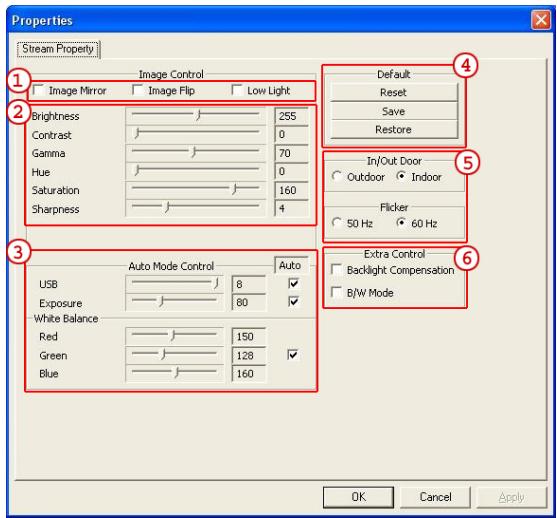
- You can flip the image horizontally or vertically by choosing "Image Mirror" or "Image Flip".
- When the light is not sufficient, you may click on "Low Light" to get a clear image.
You can adjust different values for different circumstances and environment
You may adjust values toward image appearance. Before adjusting values, you have to unclick "Auto" to unlock.
-Press“Reset”to return to the manufacturer's settings.
-Press "Restore" to return to the previous settings.
-Press "Save" to save the values you set up.
⑤ Select the correct frequency according to the country where you are using the web camera. (Before doing this, you will need to select "Indoor".)
-If your web camera is located in backlight position, you may click "Backlight compensation" to get a sharper image.
- You can have a black-and-white photo effect by clicking on "B/W Mode".
2. Preview Mode

You can use the function buttons on the control panel to zoom in/out and move upward/downward/left/right.
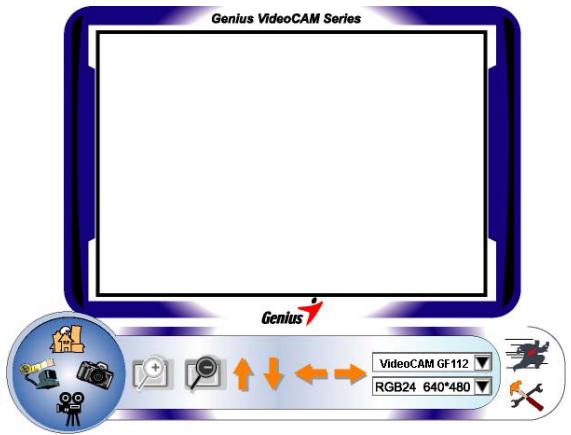

Zoom in the image

Zoom out the image

Move the image upward

Move the image downward

Move the image to the left

Move the image to the right
RGB24 640*480
Resolution Selection
There are 2 categories of resolution: RGB24 and
- You can select 5 different image resolutions for each of them. The file size of I420 will be smaller than
RGB24. So, I420 may be the better choice for
transmission.
3. Snapshot Mode

You can press the Snapshot button in the right of the circle to take a picture right away and share with your friends.
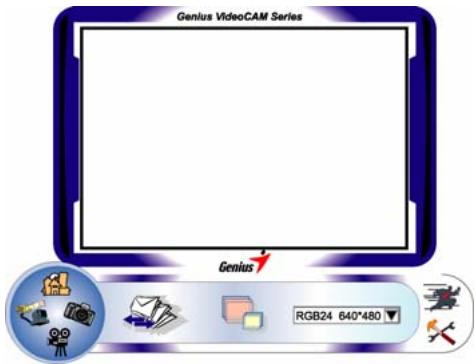

Send photo by e-mail

Shoot continuously

Zoom in the image

Zoom out the image

Move the image upward

Move the image downward

Move the image to the left

Move the image to the right
RGB24 640*480
Resolution selection
This section shows the resolution you selected in the "Preview Mode". If you want to change the resolution, please click "..."to go back to the "Preview Mode" to make the changes.
4. Video Clip Mode

You can record real-time image in this section.
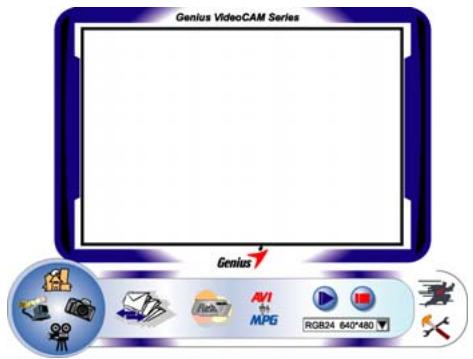

Send photo by e-mail

Convert AVI files into MEPG-1 format

Start recording

Stop recording Exit the Video Clip Mode
To Create animation
Press to start; Press to stop

Press to return to the video recording mode
This function has to be under the resolution of RGB24 320 x 240 or I420 320 x 240. Please make sure the resolution is correct before executing this function.
RGB24 640*480
Resolution selection
This section shows the resolution you selected in the "Preview Mode". If you want to change the resolution, please click " "to go back to the "Preview Mode" to make the changes.
5. Security Monitoring System

This function records any movements that appear in front of your monitor automatically. It can also record anytime until the HD is full. If there's no movement, it will shut down automatically after four seconds otherwise it will be active when detecting new movement. It's a great security monitoring system at times when you're not around.
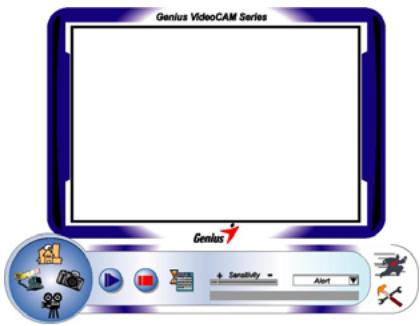

Start recording

Stop recording

Setup time of the security monitoring system
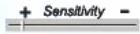
Set up the degree of the variance for every second of recording image. When the differences are over the setup degree, the system will alert you.
Set up the different alerting sound effects

NOTE
In "Security Monitoring System" section, you can record in any size of image resolution. If you want to change the resolution, please click "..."to go back to the "Preview Mode" and make the changes.
MSN Messenger, Yahoo Messenger, AIM
MSN Messenger
a. For live video function, you'll need MSN Messenger version 6 or later. If you don't have it, please refer to the website: http://www.msn messenger-download.com to download.
b. Now, get to sign onto MSN Messenger service.
c. Choose a friend on the contact list and Click "OK" to confirm.
d. Double-click on your friends, who are available to chat. Click on the web camera icon
e. Your friend will then receive an invitation message. When your friend confirms to talk, the video chat will start.
Yahoo Messenger
a. Download Yahoo Messenger at http://messenger.yahoo.com and finish the registration, if you don't have it.
b. Sign onto Yahoo Messenger.
c. From the main window, click Tools menu, then select "Start My Webcam".
d. Right-click on a name in your Messenger List and choose "View Webcam".
e. Your friend will then receive an invitation message. When your friend clicks YES, the video chat will start.
AOL Instant Messenger
a. You can download AOL Instant Messenger free at http://www.aim.com and finish the registration, if you don't have it.
b. Sign onto AOL Instant Messenger.
c. Click on "Show Messenger Lists" and choose the friend you want to start with video chat with.
d. Your friend will then receive an invitation message. When your friend confirms to talk, the video chat will start.

NOTE
Please make sure you already installed the camera driver and connected the camera to the computer before running video conferencing or video chat programs.
Please make sure you close other webcam programs before running the video conferencing or video chat program.