
DV611 - Digital video camera GENIUS - Free user manual and instructions
Find the device manual for free DV611 GENIUS in PDF.


User questions about DV611 GENIUS
0 question about this device. Answer the ones you know or ask your own.
Ask a new question about this device
Download the instructions for your Digital video camera in PDF format for free! Find your manual DV611 - GENIUS and take your electronic device back in hand. On this page are published all the documents necessary for the use of your device. DV611 by GENIUS.
USER MANUAL DV611 GENIUS
This device complies with Part 15 of the FCC Rules. Operation is subject to the following two conditions:
(1) this device may not cause harmful interference, and
(2) this device must accept any interference received, including interference that may cause undesired operation
Note: This equipment has been tested and found to comply with the limits for Class B digital devices, pursuant to Part 15 of the FCC rules. These limits are designed to provide reasonable protection against harmful interference in a residential installation. This equipment generates uses and can radiate radio frequency energy and, if not installed and used in accordance with the instructions, may cause harmful interference to radio communications. However, there is no guarantee that interference will not occur in a particular installation. If this equipment does cause harmful interference to radio or television reception, which can be determined by turning the equipment off and on, the user is encouraged to try to correct the interference by one or more of the following measures:
Reorient or relocate the receiving antenna.
■ Increase the separation between the equipment and receiver.
- Connect the equipment into an outlet on a circuit different from that to which the receiver is connected.
Use of shielded cable is required to comply with Class B limits in Subpart B of Part 15 of the FCC rules. Do not make any changes or modifications to the equipment unless otherwise specified in the manual. If such changes or
modifications should be made, you could be required to stop operation of the equipment.
SAFETY PRECAUTIONS
- Do not use this Digital Video Camera if it is emitting smoke (or an unusual odor), becomes unusually hot to be touched, produces a peculiar noise, or exhibits any other abnormal conditions.
- Do not expose the Digital Video Camera to moisture and make sure no water gets into the Digital Video Camera.
- Do not touch the power plug during a thunderstorm if you are using the AC power adapter. This may cause an electrical shock.
- Do not use the Digital Video Camera if any foreign objects have entered the Digital Video Camera.
- Do not place the Digital Video Camera in an unstable location such as on a wobbly table or sloping surface.
- Do not insert or drop metallic or other foreign objects into the Digital Video Camera through access points such as the SD memory card slot.
- Do not attempt to modify this Digital Video Camera.
- Never operate this Digital Video Camera in any way while driving a vehicle.
- Do not cover or wrap the Digital Video Camera or the AC power adapter with a cloth or quilt. Always use the Digital Video Camera and its accessories in well-ventilated locations.
■ Handle the Digital Video Camera carefully and do not bump the Digital Video Camera into any hard object. - Do not move the Digital Video Camera while it is switched on. (If you are using the AC power adapter, unplug the adapter from the AC power outlet after you have switched off the Digital Video Camera.) Ensure that any connector cords or cables to other devices are disconnected before moving the Digital Video Camera.
- When leaving the Digital Video Camera unused for long periods, such as during a vacation, always unplug the Digital Video Camera from the power source (batteries or AC power adapter) for safety.
Content
Section 1
Getting to Know Your
Digital Video
Camera 1-4
Overview
Standard Accessories
Front View
Rear View
Side View
Top/Bottom View
Section 2
Getting Up
and Running 4-7
Loading the Battery
Charging Battery
Inserting and Removing a SD
Card
Protecting Data on an SD Card
Turning the Digital Video
Camera On and Getting Started
Turning the Digital Video
Camera off
Section 3
Record Mode. 8-35
Button Function
LCD Monitor Information
MPEG-4 Movie Recording
Picture Recording
Voice Recording
Taking Close up Pictures
Using Digital Zoom
Options for Record Mode
Operations for Record Mode
Default Setting and Validation
Record Submenu Setting
Motion Stabilization
Date Printing
Movie Resolution
Picture Resolution
Effect
White Balance
Exposure
Sharpness
Setting
Sound Setting
Start-Up Screen
Time Setting
Format Card
TV System
Selecting Interface
Language
Default Setting
Flash (Picture Record Mode
Only)
Self-Timer (Picture Record
Mode Only)
Multi-Snap (Picture Record
Mode Only)
Night Mode (Picture Record
Mode Only)
AE Metering (Picture Record
Mode Only)
Two in One (Picture Record
Mode Only)
Section 4
Playback Mode. 36-51
Button Functions
LCD Monitor Information
MoviePlayback
Thamburger Function
Delete Movies
Lock Movies
Repeat Movies
PicturePlayback
Make Slide Show
About DPOF
Lock Pictures
VoicePlayback
Direction buttons Function
Section 5
Listening to
MP3 Music 52-54
MP3 Music
Transfer MP3 Music to the
Digital Video Camera
Listen to MP3 Music
Listen to MP3 Music with
earphone
Section 6
Viewing MPEG-4 Movie
on PC 55-56
MPEG-4 Movie
View MPEG-4 Movie on PC
Share MPEG-4 Movie
Section 7
Viewing Pictures and
Movies on a TV 56
Section 8
Transferring
Data to a Computer...57-66
Installing the Data to a
Computer
Connecting Your Digital Video
Camera to a Computer
Mass Storage Device Mode
PC Cam Mode
Installing Bundled Software
Getting Started With Photo
Express 4.0
Getting Started With Video
Studio 7.0
Section 9
Specifications and System
Requirements 67-68
Specifications
System Requirements
Section 1
Getting to Know Your Digital Video Camera
Overview
The Digital Video Camera with 3.2-Mega Pixel sensor can take DVD-Quality MPEG-4 movies. By way of using MPEG-4 technology, more videos can be taken within certain amount of memory. High quality images with up to 2976x2232 pixels can also be delivered smoothly. With a color LCD monitor, users can compose images and examine them easily.
Exposure and color balance can either be adjusted automatically or allowed to be changed manually. A 8x digital zoom increases user control over the movies and pictures you take. A MODE button can let you switch rapidly between taking movies, taking pictures and recording voice. The Digital Video Camera is also ideally suited for using as a PC Digital Video Camera hooked up to your home computer via high speed USB 2.0 port
32MB internal (built-in) memory allows you to take pictures and movies without a memory card. The memory card slot allows users to increase the storage capacity up to 512 MB.
Standard Accessories
Unpack the package and make sure all standard accessories listed are included:
- Digital Video Camera
Power Adaptor
USB Cable
AV Cable - NP60 Rechargeable Lithium Ion Battery
- Quick Guide
- CD-ROM (Driver, Ulead Software and User Manual)
- Earphone
- Strap
- Pouch
- AC Plug Adaptor for EU to US
Remote Control

NOTE
■ Accessory and components may vary by different retailer.
Front view
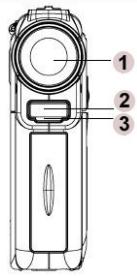
- Lens
- Flash
- Sef-Timer LED
Rear View
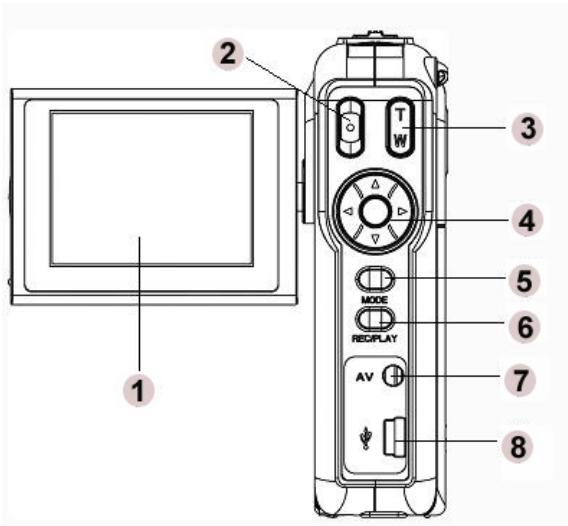
- TFT LCD
2.Shutter Button - Zoom In/out
- Direction Button
- Mode Button
- REC/Play Button
- Earphone/AV out port
- Mini USB/Adapter Port
Side View
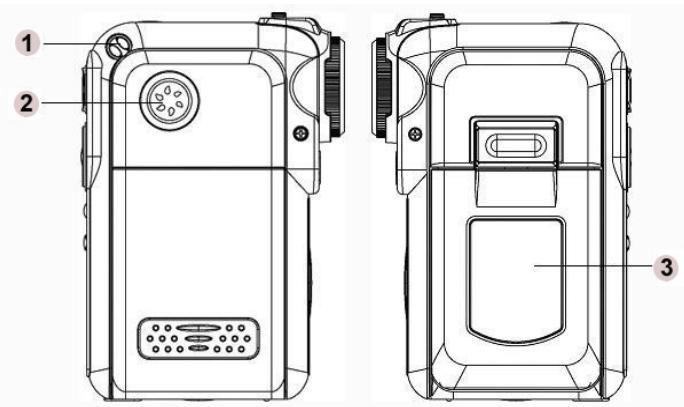
- Strap eyelet
- Speaker
- LCD Panel Cover
Top/Bottom View
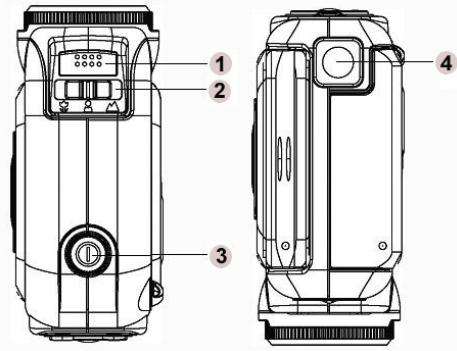
- Microphone
- Macro/Portrait/ Landscape Switch
- Power Button
- Tripod Mount
Section 2
Getting Up and Running
Loading the Battery
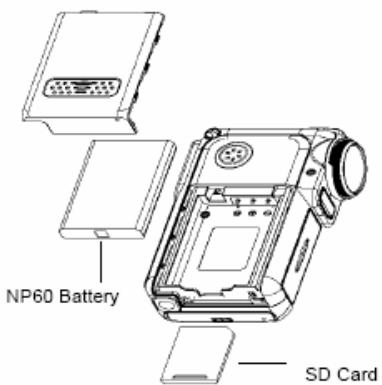
Before using the Digital Video Camera, you must load a NP60 rechargeable Li-ion battery.
- Follow the arrow direction and slide to eject the battery / SD cover.
- Face the battery up with letter side upward. Follow the battery injection direction according to the correct polarity marks (+ or -) and plug the battery into Digital Video Camera.
- Close the battery/SD Card Cover firmly.

NOTE
- NP60 is the widely-used rechargeable Li-ion battery developed by Nokia for mobile phone.

Charging Battery
Please fully charge the Li-ion Battery via power adaptor for up to ten hours before you use the Digital Video Camera for the first time.
(1) Plug the power adaptor cable into USB port.
(2) When charging the battery, the self-timer LED light keeps blinking. The LED light will stay on after the battery charge's complete.
(3) It takes three hours to fully recharge the battery each time.

Inserting and Removing a SD Card
The Digital Video Camera comes with 16 MB built-in memory which allows you to store pictures, movies, recorded voice and music. You can expand the memory capacity by using an optional SD or MMC memory card up to 512MB. To insert a memory card, refer to the figure above and:
- Open the battery/SD card cover.
- Insert the memory card until it locks into position.
To remove an installed SD card, press the card inwards to release it.
When the card pops out, gently remove it from its slot.

NOTE
- When a memory card is installed, movies and pictures are saved on the card rather than in the built-in memory.

Protecting Data on an SD Card
The SD card is read-only by locking the SD card. No pictures, movies and voice can be recorded when the SD card is locked. Make sure the lock is in writeable position before recording any media.
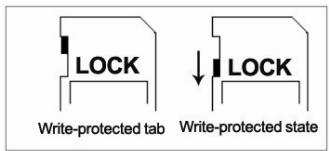
To prevent valuable data from being
accidentally erased from an SD memory
card you can slide the write-protected tab (on the side of the SD memory card) to “LOCK”.
Please format an SD memory card by this Digital Video Camera before use.
Turning the Digital Video Camera On and Getting Started
To turn on the Digital Video Camera:
(1) Flip out the LCD panel; the Digital Video Camera will turn on automatically.
(2) Or press the power button for one second to turn on it.
To take a movie, press the shutter button.
To take a picture, press the MODE button to switch to Picture Record Mode then press the shutter button to start taking pictures.
To record the voice, press the MODE button to switch to Voice Record Mode, and then press the shutter button to start the voice recording.
To view stored movies, pictures or listen to stored MP3 and voice recordings, press the REC/PLAY button once to switch to Playback Mode. Press a second time to return to Record Mode.
Turning the Digital Video Camera off
To turn off the Digital Video Camera, you can either press or hold the power button for one second, or you can place the panel back to its original position.
Section 3
Record Mode
Button Function
| Up Button Left Button Right Button Down Button Enter Button | Right button: Flash AUTO/OFF Left button: Self-Timer ON/OFF Up button: Invalid Down button: LCD Information ON/OFF Enter button: Menu ON |
| Power button: Press down for one second to turn on or turn off the Digital Video Camera. | |
| REC/PLAY button: Switch between Record Mode andPlayback Mode. | |
| MODE | MODE button: Press the MODE button to switch between Movie, Picture, and Voice Record Mode. |
| T W | Tele-Wide button: Digital Zoom in and out. |
| Shutter button: Start to take a movie, picture, or record voice. | |
| Macro switch: Switch between Macro Mode, Portrait Mode, and Normal Mode. |
Remote Control Button Function
| Record Mode | |
| SET | Right button:Flash AUTO/OFF Left button:Self-Timer ON/OFF Up button:Select resolution quality Down button:Wide/LCD Information ON/OFF Set button:Menu/OK |
| REC/PLAY | REC/PLAY button: Switch between Record Mode and Playback Mode. |
| MODE | Mode button: Switch among Picture record mode, Movie record mode, and Voice record mode |
| ● | Start/Stop button: Start to take picture, movie, or voice |
| T ZOOM W | T button: Zoom In W button: Wide/LCD Information ON/OFF |
| Playback Mode | |
| SET | Right button:Go to the next movie/picture.Left button:Go to the last movie/picture.Up button:Zoom inDown button:Zoom out/Information ON/OFFEnter button:Menu/OK |
| RECI/PLAY | REC/PALY button:Switch between RecordMode andPlayback Mode |
| MODE | Mode button: Go back to playback main menu. |
| ● | Start/Stop button: Start movie, voice or music playback / Stop |
| T ZOOM W | T button: Zoom in W button: Zoom out / Information ON/OFF |
LCD Monitor Information
The indicators below may display on LCD when movies and pictures are recorded :
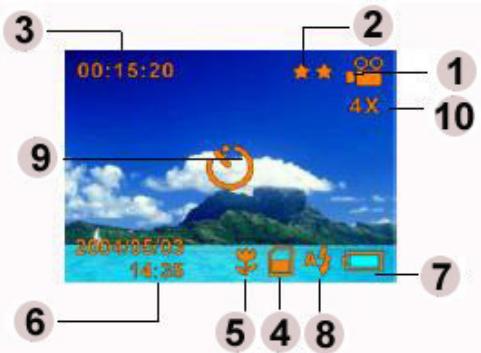
| (1) | Record Mode | |
| Movie Record Mode | ||
| Picture Record Mode | ||
| Voice Record Mode | ||
| Night Mode | ||
| Multi-Snap Mode | ||
| Two in One Mode | ||
| AE Metering Mode | ||
| (2) | Resolution | |
| Movie: | ★ High / ★ Standard/ ★ Low | |
| Picture: | ★ High / ★ Standard/ ★ Low | |
| (3) | Number of images or recording time of movie that can still be taken at current resolution. | |
| (4) | SD card inserted | |
| (5) | Macro Position Focusing | |
| (6) | Date/Time:YYYY/MM/DD HH:MM | |
| (7) | Battery indicator: Full power / medium power / low power / power exhausted | |
| (8) | A | Auto Flash |
| B | Flash Off | |
| (9) | C | Self-Timer Mode |
| (10) | 8X digital zoom | |

MPEG-4 Movie Recording
The Digital Video Camera is turned on in default mode of movie recording. You can
start recording a movie just by pressing the shutter button ( ). When a movie is recording, a time indicator will display on LCD monitor. To stop recording, press the shutter button again.
To view stored movies, press the REC/PLAY button once to switch to Playback Mode.
The table below shows the approximate number of video recording that you can take at each setting based on 32MB internal memory (19MB available for image storage) or using an optional memory card from 64MB to 512MB SD.
| Resolution | Image Quality | 32MB Internal Memory | SD Card | |||
| 64MB | 128MB | 256MB | 512MB | |||
| 640*480 (1.8Mbps) / 30 fps | High Quality | 1.19 min. | 3.25 min. | 7.5 min. | 15 min. | 30 min. |
| 640*480 (1 Mbps)/ 30 fps | Standard Quality | 2.15 min. | 7.5 min. | 15 min. | 30 min. | 60 min. |
| 320*240 (500 Kbps)/ 30 fps | Low Quality | 4.41 min | 15 min | 30 min | 60 min | 120 min |
- The above data shows the standard testing results. The actual capacity varies according to the shooting conditions and settings.
Picture Recording
Press the MODE button to switch to Picture Record Mode.
The table below shows the approximate number of shots that you can take at each setting based on 32MB internal memory (19MB available for image storage) or using an optional memory card from 64MB to 512MB SD.
| Resolution | Image Quality | 32MB Internal Memory | SD Card | |||
| 64MB | 128MB | 256MB | 512MB | |||
| 2976x2232 | High Quality | 10 | 33 | 68 | 136 | 279 |
| 2048x1536 | Standard Quality | 23 | 71 | 145 | 290 | 590 |
| 1024x768 | Low Quality | 87 | 269 | 551 | 1102 | 2234 |
- The above data shows the standard testing results. The actual capacity varies according to the shooting conditions and settings.
Voice Recording
- Press the MODE button to switch to Voice Record Mode.
- Press the shutter button ( ) to record voice.
- Press the shutter button ( ) again to stop.
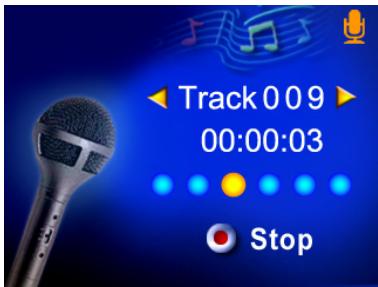
The table below shows the approximate number of voice recording that you can take at each setting based on 32MB internal memory (19MB available for image storage) or using an optional memory card from 64MB to 512MB SD.
| Mode | 32 MB internal memory | 64MB SD Card | 128MB SD Card | 256MB SD Card | 512MB SD Card |
| Voice Recording | 40.40 min. | 2 hrs | 4 hrs | 8 hrs | 16 hrs |
- The above data shows the standard testing results. The actual capacity varies according to the shooting conditions and settings.
Taking Close up Pictures
The Digital Video Digital Video Camera has two close-up picture modes to allow you to take pictures at close range.
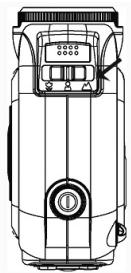
The Macro Mode ( ) should be used for objects located at about 20 cm., while the Portrait Mode ( ) should be used for objects located from 60 cm to 100 cm.
To take close-up pictures:
- Press the MODE button to switch to Picture Record Mode.
-
Shift the macro switch to Macro ( ) or Portrait ( ) positions. In Macro Mode, the macro icon ( ) will appear on the LCD monitor.
-
Press the shutter button to take the picture.

NOTE
Remember to turn the macro switch back to Normal ( ) when you are not taking close-up pictures.

Using Digital Zoom
The digital zoom magnifies images up to eight times when recording movies or taking pictures.
- To zoom in/out, press the Tele/Wide button.
- The digital zoom can be set from 1x to 8x and the magnification ratio is shown on the LCD monitor.
Options for Record Mode
| Movie Record Mode | Picture Record Mode |
| 1. Resolution | 1. Flash |
| 2. Effect | 2. Self-Timer |
| 3. White Balance | 3. Multi-Snap |
| 4. Exposure | 4. Night Mode |
| 5. Sharpness | 5. AE Metering |
| 6. Motion Stabilization | 6. Two in One |
| 7. Setting | 7. Resolution |
| 8. Effect | |
| 9. White Balance | |
| 10. Exposure | |
| 11. Sharpness | |
| 12. Date Printing | |
| 13. Setting |
Operations for Record Mode
| Operation | Screen | |
| 1. Press the Enter button when in Movie/Picture Record Mode. | 00:15:20 | |
| 4X | ||
| 2004/05/03 | ||
| 14:35 | ||
- There are total of six options in Movie Record Mode and twelve options in Picture Record Mode.
- Use the Up/Down buttons to move between main menu options.

Enter Button
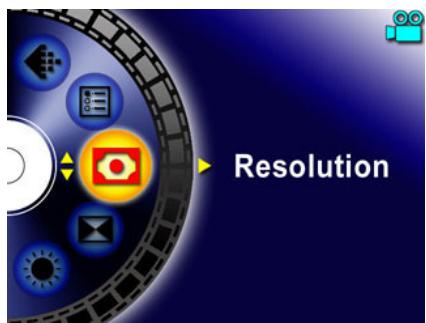
- Press the Enter/Right buttons to enter submenu of main option you select.
- Press the Left button to exit main menu.
Default Setting and Validation
The following table indicates the Digital Video Digital Video Camera's default settings as well as its validation.
- Always: The setting always keeps valid.
- One Time: The setting is only valid either once or till the Digital Video Digital Video Camera power off.
| Validation | Default Factory Setting | |
| Resolution | Always | High for Movie Standard for Picture |
| Effect | One Time | Normal |
| White Balance | One Time | Auto |
| Exposure | One Time | Level 5 |
| Sharpness | One Time | Level 5 |
| Flash | Always | Off |
| Self-Timer | One Time | Off |
| Multi-Snap | One Time | Off |
| Night Mode | One Time | Off |
| AE Metering | One Time | Center |
| Two in One | One Time | Off |
| Sound | Always | On |
| Start-Up Screen | Always | Optional |
| Format Card | One Time | Off |
| TV System | Always | Depends on shipping area |
| Language | Always | Depends on Shipping area |
| Volume | Always | Level 6 |
| Motion Stabilization | Always | Off |
| Date Printing | Always | Off |
Record Submenu Setting
Record submenu includes Digital Video Digital Video Camera setting and other advanced setting. You can use Up/Down buttons to move between options and press Enter button to validate the setting.
Motion Stabilization
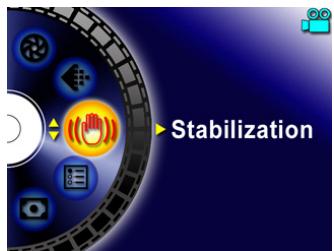
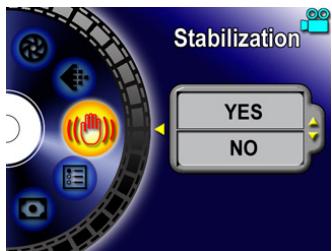
To enable Motion Stabilization:
- In Movie Record Mode, press Enter button to switch to Movie menu screen.
- Use Up/Down buttons to select Motion Stabilization then press Enter/Right buttons to switch to Motion Stabilization submenu.
- Use Up/Down buttons to move between two settings.
- Press Enter button to validate the setting and exit.
Motion Stabilization
Motion Stabilization Option

NOTE
The captured screen will be smaller when motion stabilization is enabled.
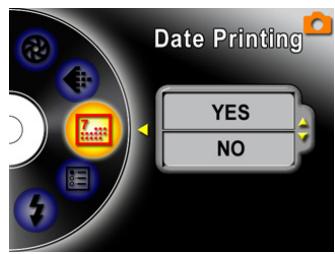
Date Printing
To change Picture Resolution
- In Picture Record Mode, press Enter button to switch to Picture menu screen.
- Use Up/Down buttons to select Resolution, then press Enter/Right buttons to switch to Date Printing submenu.
- Use Up/Down buttons to move between two settings.
- Press Enter button to validate the setting and exit.
Date Printing
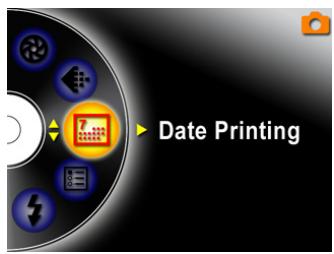
Date Printing Option
Movie Resolution
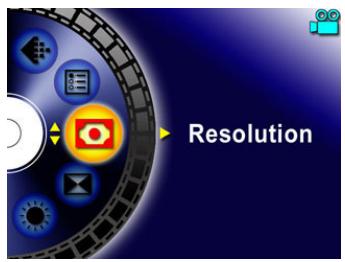
To change Movie Resolution:
- In Movie Record Mode, press the Enter button to switch to Movie menu screen.
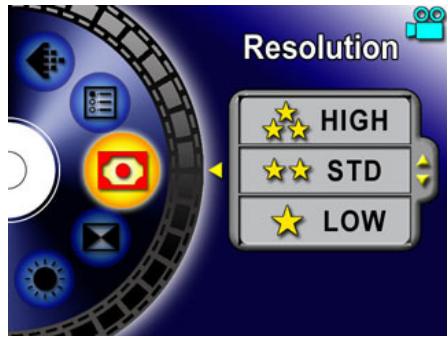
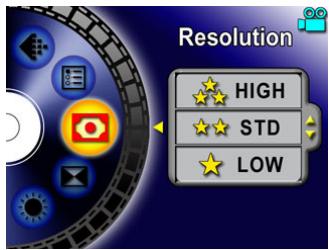
- Use the Up/Down buttons to select Resolution and then press the Enter/Right buttons to switch to Resolution submenu.
- Use the Up/Down buttons to move between three settings.
- Press the Enter button to validate the setting and exit.
Display Screen
Video Resolution Option
Picture Resolution
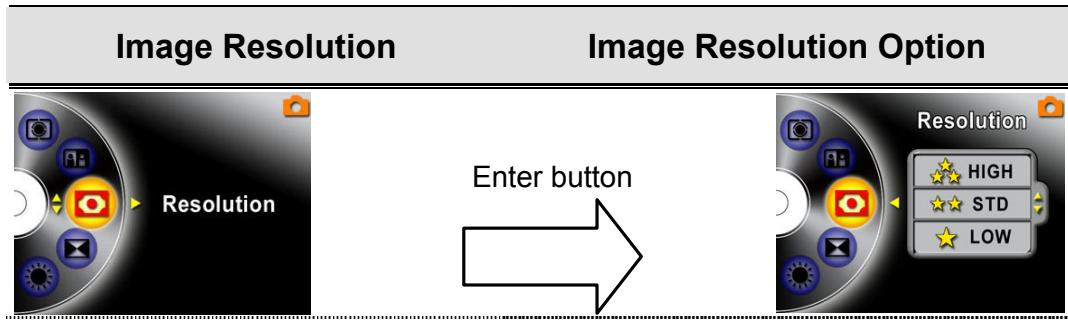
To change Picture Resolution
- In Picture Record Mode, press the Enter button to switch to Picture menu screen.
- Use the Up/Down buttons to select Resolution and then press the Enter/Right buttons to switch to Resolution submenu.
- Use the Up/Down buttons to move between three settings.
- Press the Enter button to validate the setting and exit.

Effect
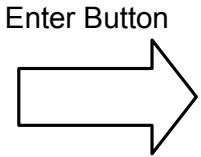
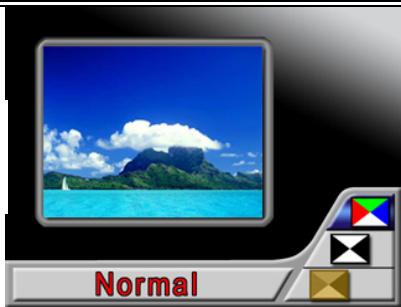
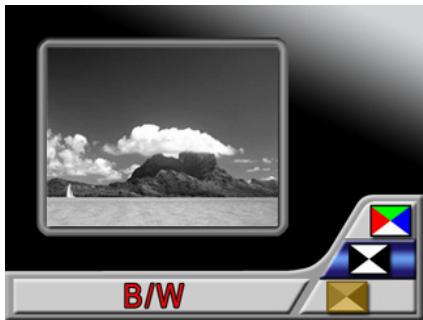
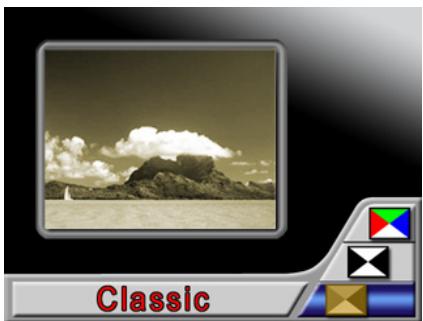
There are three modes which are Normal, Black/White and Classic.
To change Effect setting:
- In Movie/Picture Record Mode, press the Enter button to switch to menu screen.
- Use the Up/Down buttons to select Effect then press the Enter/Right buttons to switch to Effect submenu.
- Use the Up/Down buttons to move between three settings. The change can be previewed immediately.
- Press the Enter button to validate the setting and exit.

Display Screen
Effect Option
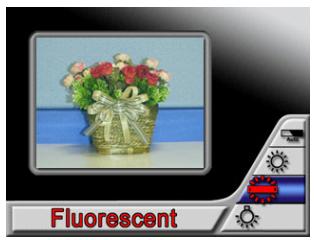
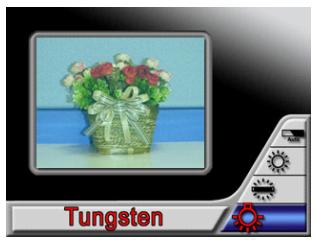
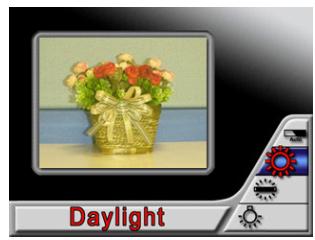
White Balance
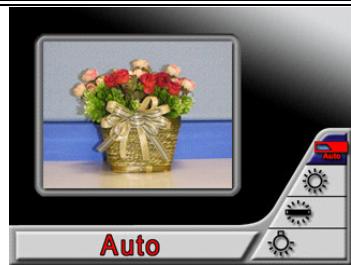
The Digital Video Digital Video Camera adjusts the color balance of images automatically. Three manual white balance settings are available:
- Auto (Default): The Digital Video Digital Video Camera automatically adjusts white balance.
- Daylight: Under outdoors
- Fluorescent: Under fluorescent light condition.
- Tungsten: Under tungsten light condition.
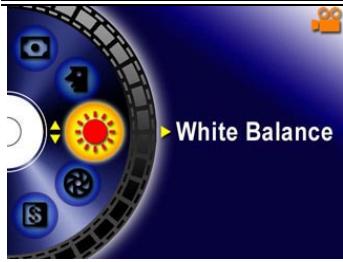
To change White Balance Setting:
- In Movie/Picture Record Mode, press the Enter button to switch to menu screen.
- Use the Up/Down buttons to select White Balance then press the Enter/Right buttons to switch to White Balance submenu.
- Use the Up/Down buttons to move between four settings. The change can be previewed immediately.
- Press the Enter button to validate the setting and exit.
Display Screen
W/B Option

Exposure
The Digital Video Digital Video Camera adjusts image exposure automatically. In certain circumstances you may wish to adjust the exposure compensation setting.
To change Exposure setting:
- In Movie/Picture Record Mode, press the Enter button to switch to menu screen.
- Use the Up/Down buttons to select Exposure, then the press Enter/Right buttons to switch to Exposure submenu.
- Use the Up/Down buttons to move between nine levels. The change can be previewed immediately.
- Press the Enter button to validate the setting and exit.
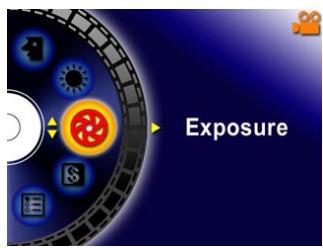
Display Screen
Change Exposure Setting
Sharpness
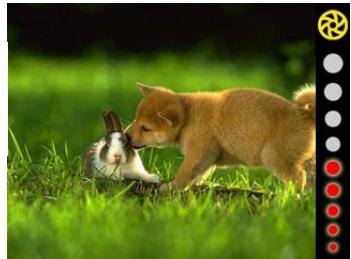
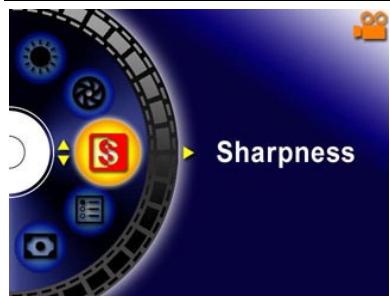
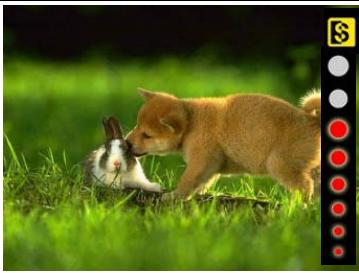
Your can soften and sharpen images to achieve different effects.
To change Sharpness setting:
- In Movie/Picture Record Mode, press the Enter button to switch to menu screen.
- Use the Up/Down buttons to select Sharpness then press the Enter/Right buttons to switch to Sharpness submenu.
- Use the Up/Down buttons to move between nine levels. The change can be previewed immediately.
- Press the Enter button to validate the setting and exit.
Display Screen
Change Sharpness Setting
Setting
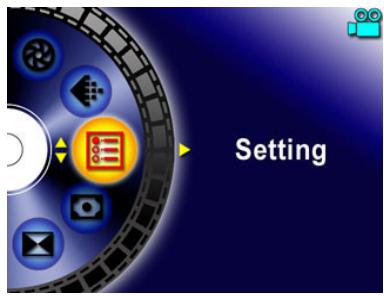
The Setting submenu contains seven options for configuring your Digital Video Digital Video Camera set up.
To change advanced setting:
- In Movie/Picture Record Mode, press the Enter button to switch to menu screen.
- Use the Up/Down buttons to select Setting then press the Enter/Right buttons to switch to Setting submenu.
- Use the Up/Down buttons to move between seven settings.
Display Screen
Setting Option
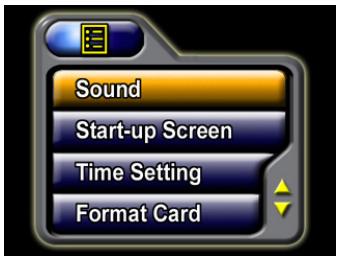
Seven options:
- Sound (operation sound)
- Start-Up Screen
- Time Setting
- Format Card
- TV System
- Language
- Default Setting
Sound Setting
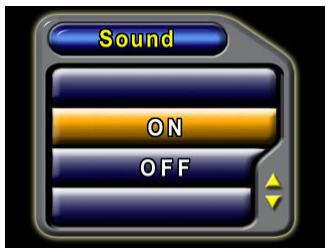
Enable or disable KeyPad tone and operation sound by using the Up/Down buttons, and then press the Enter button to validate the setting.
Submenu
Sound
Display Screen
Sound Setting
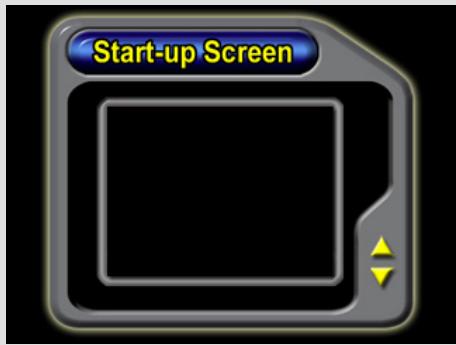
Start-up Screen
Customize the Start-Up Screen with your favorite pictures. Press the Up/Down buttons to select the picture you want and press the Enter button to validate the setting and exit.
| Submenu | Display Screen | Start-Up Screen |
| Start-Up Screen | Sound Start-up Screen Time Setting Format Card | Start-up Screen Format Card |
If you do not want to customize the start up screen, press the Up/Down buttons and selects Non Start-Up Screen.
Non Start-Up Screen
Time Setting
- Move between Date, Time and Exit by using the Left/Right buttons.
- Adjust date and time by using the Up/Down buttons, and then select SET to validate each change.
- Select EXIT to leave Time Setting without any change.
| Submenu | Display Screen | Time Setting |
| Time Setting | Sound Start-up Screen Time Setting Format Card | Time Setting DATE: 2004/05/04 TIME: 13:30 SET EXIT |
Format Card
- Select Format Card by using the Up/Down buttons.
- Select YES or NO by using the Up/Down buttons.
| Submenu | Display Screen | Format Card Options |
| Format Card Options | Sound Start-up Screen Time Setting Format Card | Format Card YES NO |
Yes : Format the SD Card / built-in memory
No (Default): Do not format SD Card / built in memory
TV System
- Select TV System by using the Up/Down buttons.
-
Ensure that the appropriate TV standard of your area is selected – either NTSC or PAL.
-
Wrong TV system setting may cause image flicker.
- NTSC standard: USA, Canada, Japan, South Korea and Taiwan etc.
PAL standard: UK, Europe, China, Australia, Singapore and Hong Kong etc.
| Submenu | Display Screen | TV System Options |
| TV System Options | TV System Language Default Setting Exit | TV System NTSC(60Hz) PAL(50Hz) EXIT |
Selecting Interface Language
- Select Language by using the Up/Down buttons.
| Submenu | Display Screen | Language Options |
| Language Options | TV System Language Default Setting Exit | This option allows you to select the language for the menus and the text display on the LCD monitor. |
Default Setting
To restore the default factory setting, select this option.
- Select Default Setting by using the Up/Down buttons.
- Select YES or NO by using the Up/Down buttons.
| Submenu | Display Screen | Default Setting Options |
| Default Setting Options | TV System Language Default Setting Exit | Default Setting YES NO |
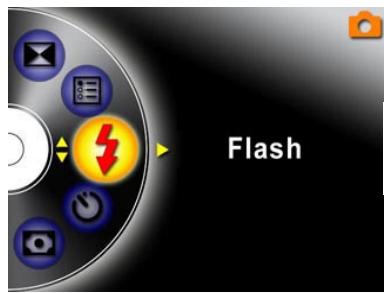
Flash (Picture Record Mode Only)
This Digital Video Digital Video Camera has two flash settings. Change the flash setting with either the hot key (Right button) or Option Setting.
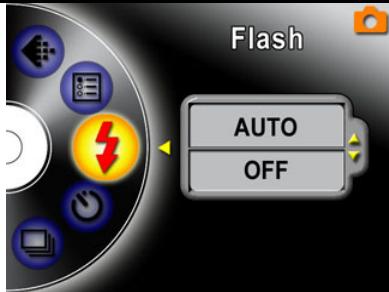
- Auto-flash(A): the flash fires automatically according to lighting conditions. Use this mode for general photography.
■ Flash Off( ) : the flash will not fire under any circumstances. Use this mode when taking images in a place where flash photography is prohibited, or when the subject is distant (beyond the range of the flash).
To change the Flash setting:
-
In Picture Record Mode, press the Enter button to switch to menu screen.
-
Use Up/Down buttons to select Flash, then press the Enter/Right buttons to switch to flash submenu.
- Use the Up/Down buttons to move between two settings.
- Press the Enter button to validate the setting and exit.

NOTE

The flash will be disabled automatically when battery power is low (
Flash
Flash Options

Self-Timer (Picture Record Mode Only)
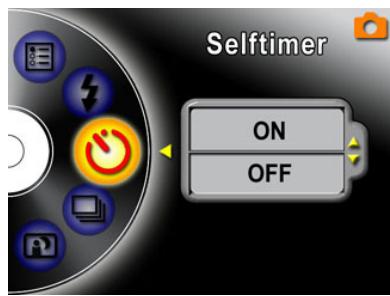
The self-timer allows you to take pictures with a ten-second time delay. To activate the Self-Timer with either the hot key (Left button) or Option Setting. The self-timer LED on the front of the Digital Video Digital Video Camera beneath the flash light will also blink. The speed of blinking will increase just before the picture is taken.
Self-Timer
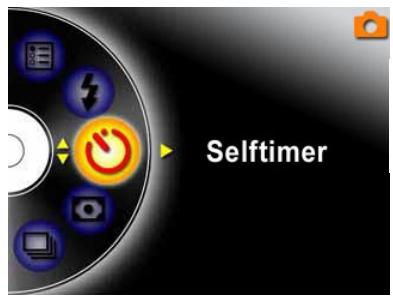
Selt-Timer Option
Multi-Snap (Picture Record Mode Only)
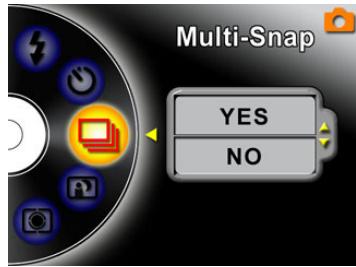
With the Digital Video Digital Video Camera set to Multi-Snap Mode, you can take five continuous pictures.
Multi-Snap
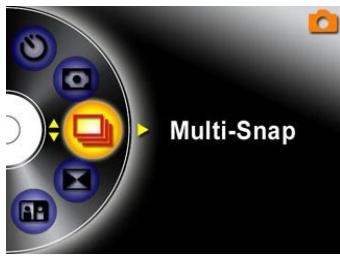
Multi-Snap Option
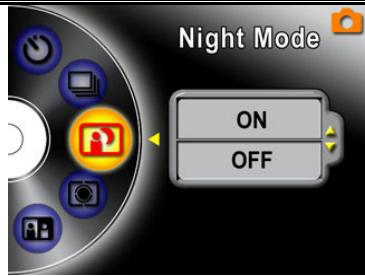
Night Mode (Picture Record Mode Only)
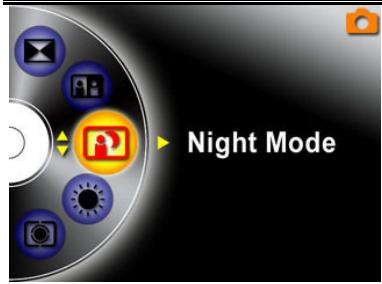
Use Night Mode for night scenes or low light conditions. A longer exposure captures more detail of background subjects.
Display Screen
Night Mode Option

NOTE
To avoid blurry pictures, place the Digital Video Digital Video Camera on a flat, steady surface, or use a tripod.

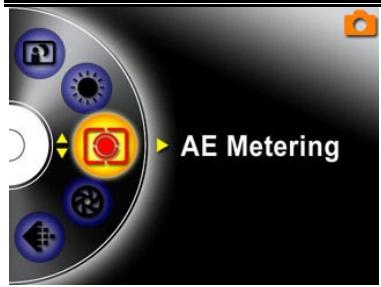
AE Metering (Picture Record Mode Only)
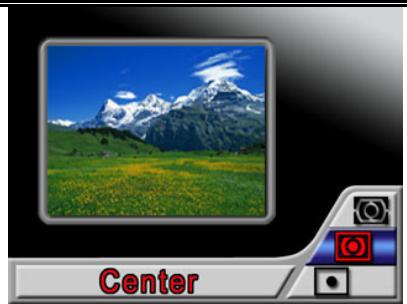
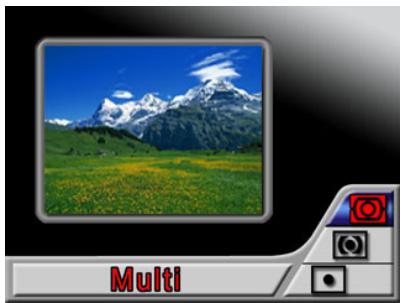
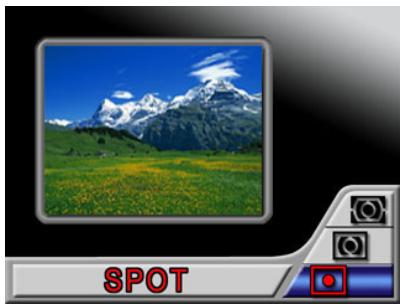
There are three settings which are Multi segment, Center-weighted, Spot AE Metering.
- Multi-segment: The exposure is determined by the entire screen.
- Center-Weighted: The exposure is determined mainly by the center of the screen.
- Spot: The exposure is determined by the small area in the center of the screen.
Display Screen
AE Metering Option
Two in One (Picture Record Mode Only)
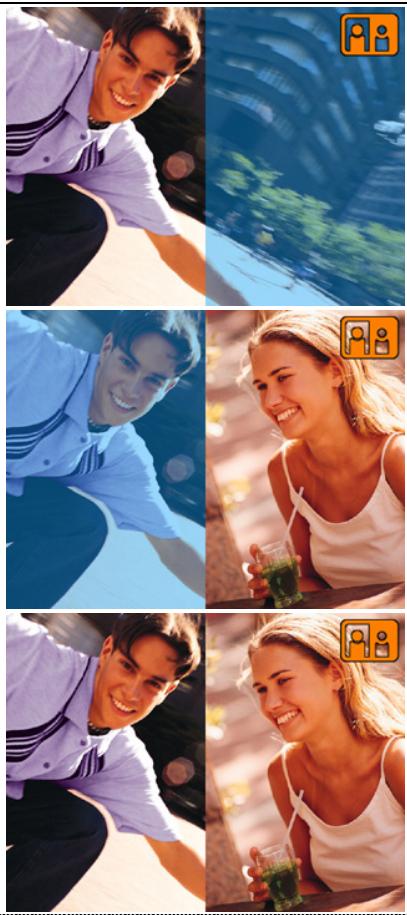
With Digital Video Digital Video Camera set to Two in One mode, you can combine two snapshots into one picture.
Display Screen
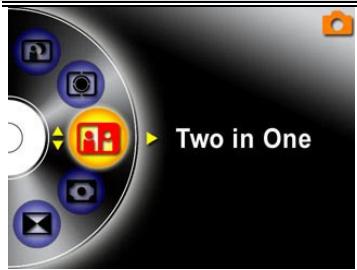
Two in One Option
Section 4
Playback Mode
Press REC/PLAY button to switch from Record Mode to Playback Mode.
The Playback Mode is for viewing and managing movies and pictures as well as listening to voice and music on the built-in memory or on an optional memory card.
| Operation | Display Screen |
| Press REC/PLAY button to switch from Record Mode toPlayback Mode Main Menu. • There are four options in the Playback Mode, movie, picture, voice, and music. • A folder icon will be shown if there is any movie, picture, voice, or MP3 file stored. • Up/Down or Mode button can be used to select the specific option. Press the Enter button to view movies/pictures or listen to voice/music. | Movie Picture Voice Music |
Button Functions
The direction buttons have the following functions in Movie and Picture Playback Modes.
| Up Button Left Button Right Button | Right button: Go to the next movie/ picture. Left button: Go to the last movie/ picture. Up button: Invalid Down button: Information ON/OFF Enter button: Enter to movie, picture, voice, or music option menu. |
| REC/PLAY | REC/PLAY button: Switch to movie/ picture Record Mode. |
| MODE | Mode button: Go back to playback main menu. |
| T W | Tele-Wide button: Digital Zoom in and out. |
LCD Monitor Information
Indicators on the LCD screen while in Playback Mode :
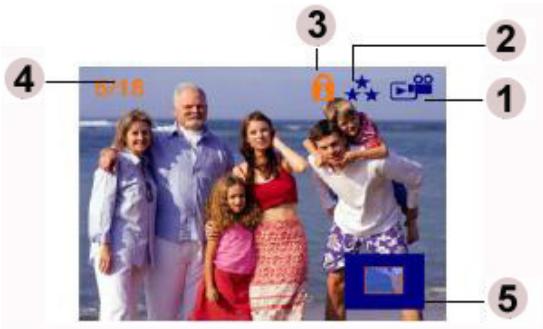
| (1) | Mode Indicator | |
| Movie Playback Mode | ||
| Picture Playback Mode | ||
| Voice Playback Mode | ||
| Music Playback Mode | ||
| (2) | Resolution Indicator | |
| Movie:High/Standard/Low | ||
| Picture:High/Standard/Low | ||
| (3) | Indicates the selected movie/picture is locked. | |
| Indicates the single movie/voice/MP3 is being repeated. | ||
| Indicates all of the movies/voices/MP3s are being repeated. | ||
| Indicates the slide show is playing. | ||
| (4) | Current Number/ Total number of movie, picture, voice, or music. | |
| (5) | Magnification Indicator. | |
Movie Playback
| Operation | Display Screen |
| 1. Use the Up/Down buttons to select the Movie option. 2. Press the Enter button to go to Movie Playback Mode. | Movie Picture Voice Music |
- Use the Right/Left buttons to go to the next or last movie.
- Press the Shutter button to play and press it again to pause.
- Press the Enter button to go to the movie option menu.
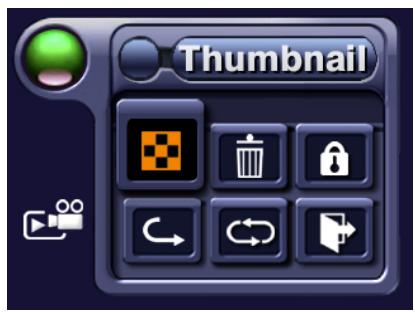
- Use the direction buttons to select six options, Thumbnail, Delete, Lock, Repeat One, Repeat All, or Exit.

Thumbnail Function
| Operation | Display Screen |
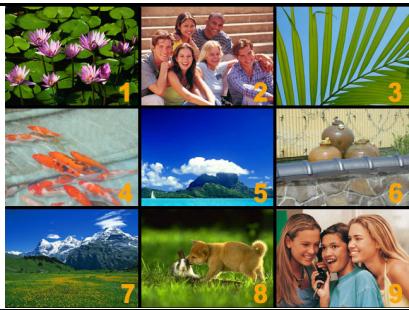
| 1. Use the direction buttons to select the Thumbnail option. | Thamburger |
- Press the Enter button to view nine thumbnail movies.
- To play a movie, use direction buttons to select the movie and press the Enter button to view.
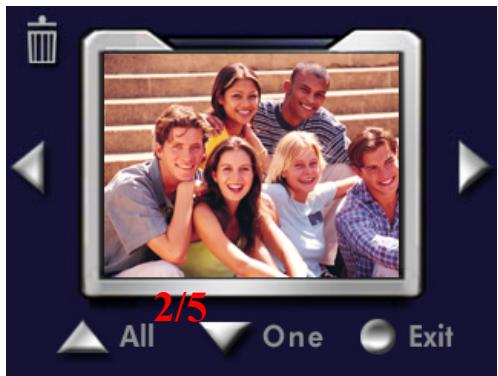
Delete Movies
| Operation | Display Screen |
| 1. Use the direction buttons to select the Delete option ( ). | Delete |
- Press the Enter button to go to the Delete menu.
- Use Right/Left buttons to select the movie.
- Use the Up button to delete all movies and Down button to delete single movie.
- Before a movie is deleted, a confirmation screen will appear; choosing “Yes” will execute the operation, “No” will cancel the operation.
- Press the Enter button to exit.

NOTE
If a memory card is installed, you can delete only those movies stored on the card.
Movies on a write-protected memory card cannot be deleted.
- The delete function will only erase unlocked movies. Locked movies must be unlocked before being deleted.

Lock Movies
Single or all movies can be locked. This function can prevent the movies from being deleted accidentally.
| Operation | Display Screen |
| 1. Use the direction buttons to select the Lock option ( ). 2. Press the Enter button to go to the Lock menu. | Lock Lock C C C C C C C C C C C C C C C C C C C C C C C C C C C C C C C C C C C C C C C C C C C C C C C C C C L L L L L L L L L L L L L L L L L L L L L L L L L L L L L L L L L L L L L L L L L L L L L L L L L L C C C C C C C C C C C C C C C C C C C C C C C C C C C C C C C C C C C C C C C C C C C C C C C C C c c c c c c c c c c c c c c c c c c c c c c c c c c c c c c c c c c c c c c c c c c c c c c c c c c C C C C C C C C C C C C C C C C C C C C C C C C C C C C C C C C C C C C C C C C C C C C C C C C C l l l l l l l l l l l l l l l l l l l l l l l l l l l l l l l l l l l l l l l l l l l l l l l l l l c c c c c c c c c c c c c c c c c c c c c c c c c c c c c c c c c c c c c c c c c c c c c c c c c L L L L L L L L L L L L L L L L L L L L L L L L L L L L L L L L L L L L L L L L L L L L L L L L L c c c c c c c c c c c c c c c c c c c c c c c c c c c c c c c c c c c c c c c c c c c c c c c c c l l l l l l l l l l l l l l l l l l l l l l l l l l l l l l l l l l l l l l l l l l l l l l l l l L L L L L L L L L L L L L L L L L L L L L L L L L L L L L L L L L L L L L L L L L L L L L L L L L l l l l l l l l l l l l l l l l l l l l l l l l l l l l l l l l l l l l l l l l l l l l l l l l l C C C C C C C C C C C C C C C C C C C C C C C C C C C C C C C C C C C C C C C C C C C C C C C C C E E E E E E E E E E E E E E E E E E E E E E E E E E E E E E E E E E E E E E E E E E E E E E E E E E e e e e e e e e e e e e e e e e e e e e e e e e e e e e e e e e e e e e e e e e e e e e e e e e e e c c c c c c c c c c c c c c c c c c c c c c c c c c c c c c c c c c c c c c c c c c c c c c c c c e e e e e e e e e e e e e e e e e e e e e e e e e e e e e e e e e e e e e e e e e e e e e e e e e E E E E E E E E E E E E E E E E E E E E E E E E E E E E E E E E E E E E E E E E E E E E E E E E E c c c c c c c c c c c c c c c c c c c c c c c c c c c c c c c c c c c c c c c c c c c c c c c c c E E E E E E E E E E E E E E E E E E E E E E E E E E E E E E E E E E E E E E E E E E E E E E E E E C C C C C C C C C C C C C C C C C C C C C C C C C C C C C C C C C C C C C C C C C C C C C C C C C e e e e e e e e e e e e e e e e e e e e e e e e e e e e e e e e e e e e e e e e e e e e e e e e e C C C C C C C C C C C C C C C C C C C C C C C C C C C C C C C C C C C C C C C C C C C C C C C C C D D D D D D D D D D D D D D D D D D D D D D D D D D D D D D D D D D D D D D D D D D D D D D D D D D C C C C C C C C C C C C C C C C C C C C C C C C C C C C C C C C C C C C C C C C C C C C C C C C C O O O O O O O O O O O O O O O O O O O O O O O O O O O O O O O O O O O O O O O O O O O O O O O O O O C C C C C C C C C C C C C C C C C C C C C C C C C C C C C C C C C C C C C C C C C C C C C C C C C G G G G G G G G G G G G G G G G G G G G G G G G G G G G G G G G G G G G G G G G G G G G G G G G G G C C C C C C C C C C C C C C C C C C C C C C C C C C C C C C C C C C C C C C C C C C C C C C C C C F F F F F F F F F F F F F F F F F F F F F F F F F F F F F F F F F F F F F F F F F F F F F F F F F F E E E E E E E E E E E E E E E E E E E E E E E E E E E E E E E E E E E E E E E E E E E E E E E E E F F F F F F F F F F F F F F F F F F F F F F F F F F F F F F F F F F F F F F F F F F F F F F F F F f f f |
Repeat Movies
This function automatically repeats playing single movie or all movies in order.
| Operation | Display Screen |
| 1. Use the direction buttons to select the Repeat One option (→) or Repeat All option (←). | Repeat One |
| 2. Press the Enter button to start repeating. | |
| Repeat All |
Picture Playback
| Operation | Display Screen |
| 1. Use the Up/Down buttons to select the Picture option. 2. Press the Enter button to go to Picture Playback Mode. | Movie Picture Voice Music |
| 3. Use the Right/Left buttons to go to the next or last picture. 4. While the picture is selected, use Tele/Wide buttons to magnify. 5. Use direction buttons to navigate the magnified picture. | 4/17 3004/06/29 |
| 6. Press the Enter button to go to the picture option menu. 7. Use the direction buttons to select six options, Thumbnail, Delete, Slide, DPOF, Lock, or Exit. | Thumbnail DPOF 音乐 |
Make Slide Show
This function automatically repeats all pictures in order.
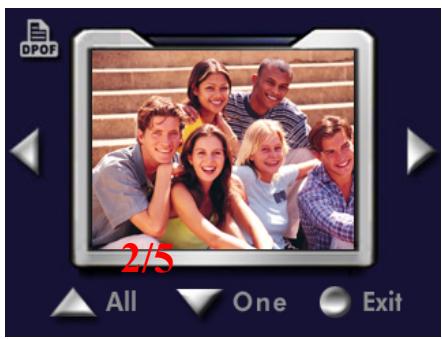
About DPOF
This Digital Video Digital Video Camera supports DPOF (Digital Print Order Format). DPOF makes printing your pictures extremely easy. After the DPOF is created on the memory card, all of the selected pictures can be printed simply by inserting the memory card into the memory-card slot of any DPOF compatible printer.
| Operation | Display Screen |
| 1. Use the direction buttons to select the DPOF option (DPOF). | DPOF |
- Press the Enter button to go to the DPOF menu.
- Use the Right/Left buttons to select the picture.
- Use Up button to set/cancel all DPOF pictures and Down button to set/cancel single DPOF picture.
- Before a picture is set/cancel DPOF, a confirmation screen will appear; choosing "Yes" will execute the operation, "No" will cancel the operation.
- Press the Enter button to exit.
Lock Pictures
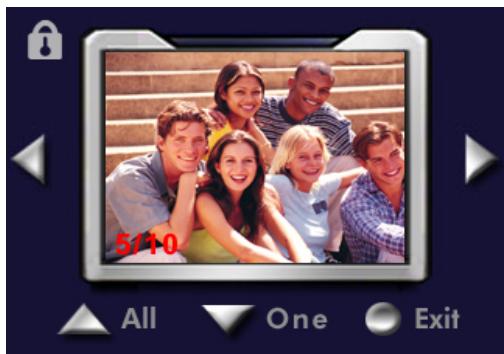
Single or all pictures can be locked. This function can prevent the pictures from being deleted accidentally.
| Operation | Display Screen |
| 1. Use the direction buttons to select the Lock option ( ). | Lock |
- Press the Enter button to go to the Lock menu.
- Use the Right/Left buttons to select the picture.
- Use the Up button to lock/unlock all pictures and Down button to lock/unlock single picture.
- Before a picture is locked/unlocked, a confirmation screen will appear; choosing "Yes" will execute the operation, "No" will cancel the operation.
- Press the Enter button to exit.
VoicePlayback
Direction buttons
In Voice Playback Mode, the direction buttons have the following functions:
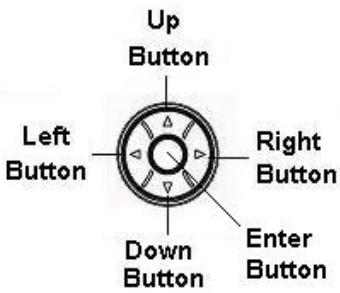
Right/Leftbuttons:
Select the last or next voice.
Up/Down buttons :
Adjust the voice playback volume.
Enter button :
Switch to voice option menu.
| Operation | Display Screen |
| 1. Use the Up/Down buttons to select the Voice option. 2. Press the Enter button to go to Voice Playback Mode. | Movie Picture Voice Music |
| 3. Use the Right/Left buttons to go to the next or last voice recording. 4. Press the Shutter button to start playing back the selected voice. Press it again to stop. 5. Use the Up/Down buttons to adjust the volume. 6. Press the Enter button to go to the voice playback option menu. | 29/42 Track029 00:00:03 Menu Stop |
- Use the Up button to select the Delete option and Down button to select the Repeat option.
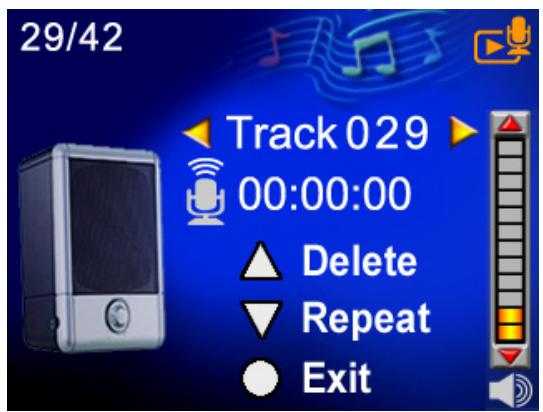
- Press the Up button once to repeat single voice; Press twice to repeat all voice recording.
- Press it again to disable the repeat function.
- The repeat icons will be different while selecting Repeat One option and Repeat All option.
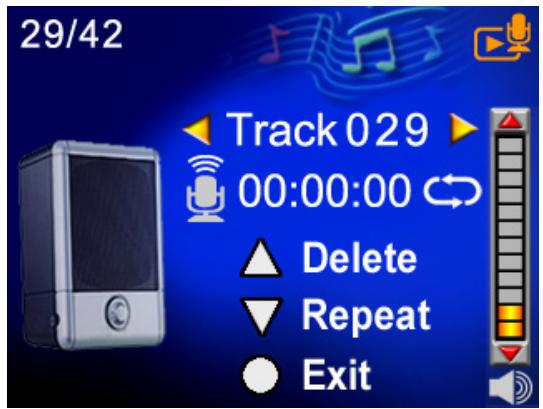
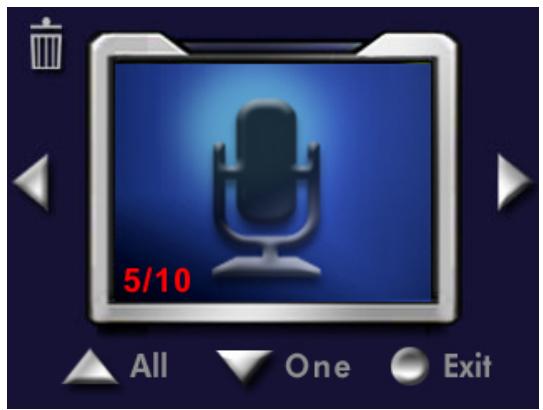
- To delete a voice, use Right/Left buttons to select the voice.
- Use the Up button to delete all voice recordings and Down button to delete single voice recording.
- Before a voice is deleted, a confirmation screen will appear; choosing "Yes" will execute the operation, "No" will cancel the operation.
- Press the Enter button to exit.
Section 5
Listening to MP3 Music
MP3 Music
MP3 is a compressed audio file format. MP3 music can be downloaded from some MP3 web sites.
Transfer MP3 Music to the Digital Video Digital Video Camera
- Install the Digital Video Camera driver on your computer.
- Connect your Digital Video Camera to the computer USB port.
- The Red LED will light when the Digital Video Camera is connected to the computer and in Mass Storage Mode.
- Create MP3 folder as My Computer\Removable Disk\MP3.
- Transfer MP3 music to the MP3 folder.
- Once all the music is transferred, disconnect the USB cable from the PC.

Listen to MP3 Music
| Operation | Display Screen |
| 1. InPlayback Mode, use the Up/Down buttons to select the Music option | Movie Picture Voice Music |
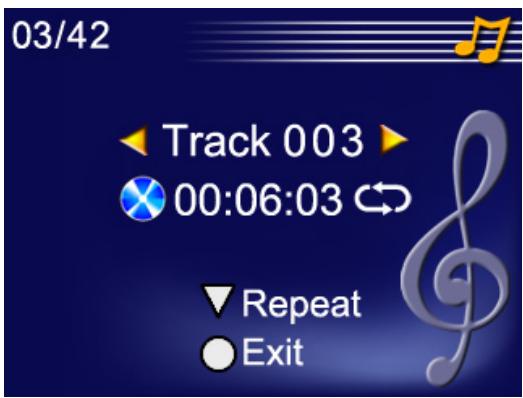
| 2. Use the Right/Left buttons to select MP3 you want to play. | 03/42 Track 003 00:06:03 Menu Play |
- Press the shutter button to play MP3
- Press the shutter button again to stop playing.
- Press the Up/Down buttons to adjust volume.
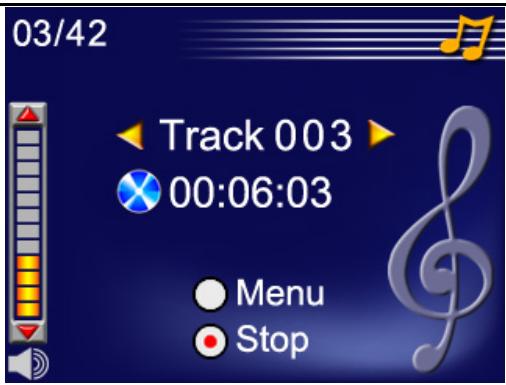
- Press the Enter button to go to repeat menu.
- Press the Down button once to repeat current MP3().
- Press Down button twice to repeat all MP3().
- Press Enter button to exit.
Listen to MP3 Music with earphone
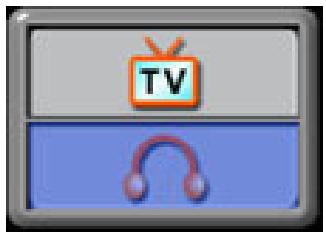
MP3 stored in the Digital Video Camera can be played either by the built-in speaker, Earphone, or TV.
When the earphone cable is plugged in the Digital Video Camera, the option menu of the Earphone/TV pops out on the LCD Screen.
Choose earphone or TV and press the Enter button to validate the setting.
Section 6
Viewing MPEG-4 Movie on PC
MPEG-4 Movie
MPEG-4, the multimedia format and compression standard, is a cutting-edge compression technology developed by MPEG (Motion Picture Expert Group). It not only enhances the image quality but also improves the efficiency of recording capacity.
MPEG-4 is adopted in this Digital Video Camera to take DVD-quality MPEG-4 movies. The MPEG-4 movie format of AVI is used in this Digital Video Camera.
View MPEG-4 Movie on PC
When playing an MPEG-4 movie for the first time, MPEG-4 Video Codec Xvid should be installed in the PC. To do this:
(1) Insert the CD-ROM into the computer's CD-ROM drive. Click "Install Device Driver" (Install MPEG-4 Video Codec Xivd) and follow the on-screen instructions to complete the installation.
(2) Start video player such as Widows Media Player to view MPEG-4 AVI Movies.
Share MPEG-4 Movie
You can share the recorded MPEG-4 movies with your friends via the internet or CD. Make sure MPEG-4 Video Codec Xvid is installed in your friends' PC. MPEG-4 Video Codec Xvid is available in the provided CD or can be downloaded from the Internet.
Section 7
Viewing Pictures and Movies on a TV
You can view stored movies and pictures on a television. To connect to a television:
-
Connect one end of the AV cable to your Digital Video Camera's AV Out port.
-
Connect the other end of the cable to a television.
-
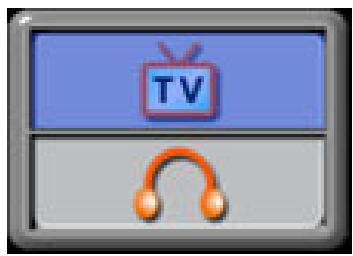
The option menu of Earphone/TV pops out on the LCD Screen.
-
Choose TV option and press the Enter button to validate the setting.
- The steps for viewing stored pictures and movies on a TV are exactly the same as for viewing them on the LCD monitor.

NOTE
The LCD monitor does not work when the Digital Video Camera is connected to a television.
Section 8
Transferring Data to a Computer
Installing the Data to a Computer
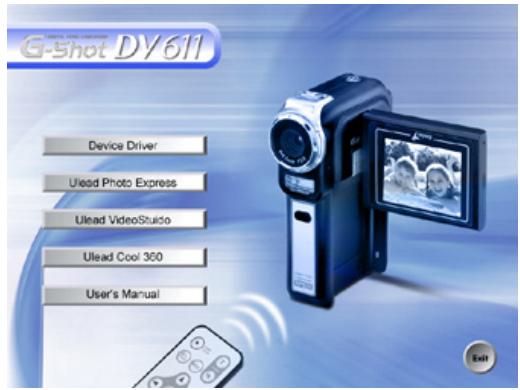
Before connecting this Digital Video Camera to a computer for the first time, you should install a driver on the computer. The driver is on the CD-ROM disc provided in the package. To install the driver:
- Insert the CD-ROM into the computer's CD-ROM drive. The autorun screen will appear.
- Click "Install Device Driver". Follow the on-screen instructions to complete the installation. Depending on your operating system, you may have to restart your computer after installing the driver.
Connecting Your Digital Video Camera to a Computer
You can transfer pictures, movies or voice recordings stored on your Digital Video Camera to a computer and send them by emails to friends or post them on
websites. To do this you should:
- Install the Digital Video Camera driver on your computer.
- Connect the computer and Digital Video Camera with the supplied mini USB 2.0 cable.
- Default mode is Mass Storage Mode when the Digital Video Camera connects to PC
- Transfer pictures or movies or MP3 or voice recordings
Mass Storage Device Mode
The RED LED will light up when the Digital Video Camera is connected to the computer. Movies, pictures and voice recordings can be found on your computer at "My Computer\Removable Disk\DCIM". Under this mode, you can read, delete, move, or copy any movie/picture/voice recording you want. Use the bundled Ulead application software to edit the movies or pictures.
PC Digital Video Camera Mode
When in Mass Storage Device Mode, press the MODE button to switch to PC Digital Video Camera Mode and the GREEN LED will light up. Under this mode, you can implement live video conference meetings or use video email over the Internet.
To use the Digital Video Camera as a PC Digital Video Camera, follow these steps: Step 1: Install the PC Digital Video Camera driver (same as USB driver)
Step 2: Connect the Digital Video Camera to your computer
Step 3: Run your application software (i.e. Windows NetMeeting)

NOTE
Video conferencing (or video editing) software is not included with the Digital Video Camera.
General System Requirements for Videoconferencing
To use the Digital Video Camera for videoconferencing, your computer system
must include:
Microphone
Sound card
■ Speakers or headphones
Network or Internet connection
Step1: Installing the PC Digital Video Camera Driver
The PC-Digital Video Camera driver included on the CD-ROM is exclusively for Windows. The PC Digital Video Camera function is not supported for Mac platforms.
- Insert the CD-ROM that came with the Digital Video Camera into your CD-ROM drive. The welcome screen appears.
- Click "DRIVER". Follow the on-screen instructions to complete the installation. After the driver installation is completed, restart your computer.
Step2: Connecting the Digital Video Camera to Your Computer
- Connect one end of the USB cable to an available USB port on your computer.
- Connect the other end of the USB cable to the USB connector on the Digital Video Camera.
- The PC Digital Video Camera Mode menu appears on the screen.
- Position the Digital Video Camera steadily on top of your computer monitor or use a tripod.
Step3: Running Your Application Software ( i.e. Windows NetMeeting)
To use Windows NetMeeting for videoconferencing:
- Go to Start Programs Accessories Communications NetMeeting to launch the NetMeeting program.
- Click the Start Video button to view live video.
- Click the Place Call button.
- Type the e-mail address or the network address of the computer that you are calling.
- Click Call. The person that you are calling must also have Windows NetMeeting running and be willing accept your call to start the videoconference.

NOTE
The video resolution for videoconferencing applications is generally 320 × 240 .
For more information about the operation of videoconference application software, refer to its respective help documentation.
Installing Bundled Software
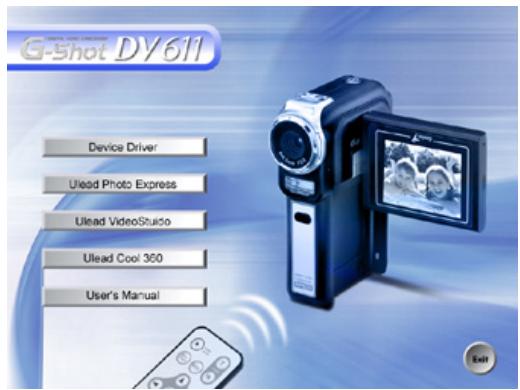
The CD-ROM supplied with this Digital Video Camera contains five pieces of software.
Ulead VideoStudio 7.0 is a user-friendly application that helps you read, edit and organize images.
Ulead Photo Express 4.0 allows you to edit movies and is equally easy to use.
Ulead Cool 360 is a Picture Panorama Editor that can create 360^ and Wide-angle picture panoramas
Acrobat Reader is a popular program that you need to have installed to read the User's Manual. Many computer users will find they already have this software installed on their computer.
MEPG4 Video Codec Xvid, this decode software has to be installed for correctly viewing the movies you record.
Detailed information can be found in the online help of all the bundled software.
To install the bundled software :
- Insert the CD-ROM into your computer's CD-ROM drive. The autorun screen appears.
- Select the piece(s) of software you want to install from the list. Follow the on-screen instructions to complete the installation.
Getting Started With Photo Express 4.0
- Click Start Select Programs Photo Express 4.0
- Photo Express 4.0 main Screen will appear on your desktop.
Viewing Images stored in the Digital Video Camera through Photo Express 4.0
To view images stored in the Digital Video Camera, you must switch to Mass Storage Device Mode.
- Select the image you want to open in the workspace from the browse bar on the left hand side.
- Double click the selected picture.

Capturing Digital Video Camera Images through
Photo Express 4.0
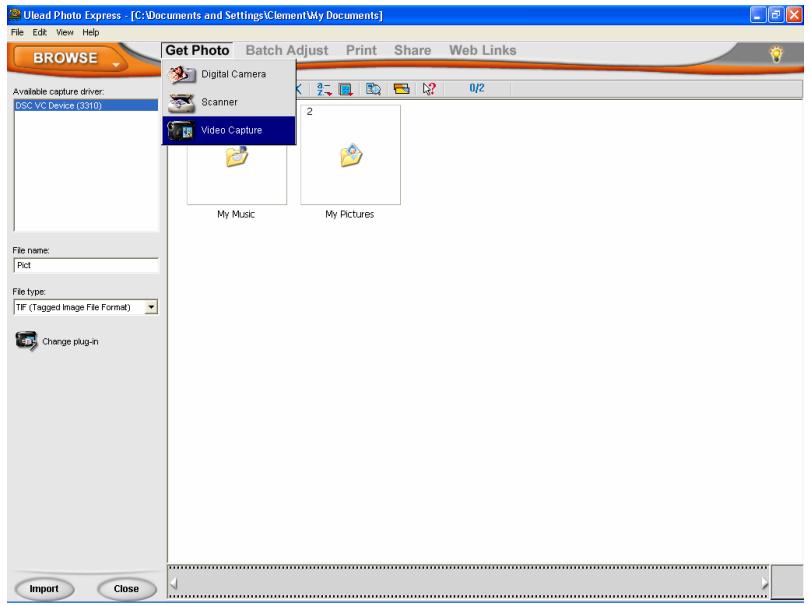
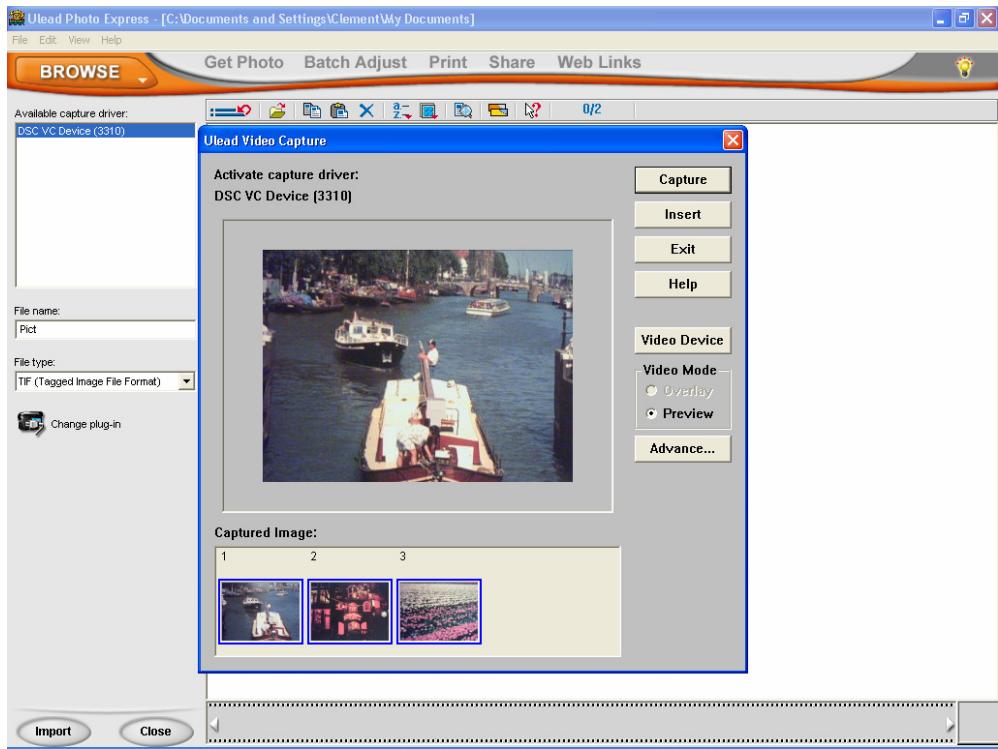
Before capturing a picture or video from the Digital Video Camera to the Photo Express 4.0 main screen, you must switch to PC Digital Video Camera Mode. Press MODE button to Switch to PC Digital Video Camera Mode. Under this mode, you can capture videos or pictures through Photo Express 4.0:
- Click the [Get Photo
] button.
- Click the [Import] button.
- Click the [Capture] button, and then choose your images.
- Click the [Insert] button, and click the [Exit] button to leave the screen.
Getting Started With Video Studio 7.0
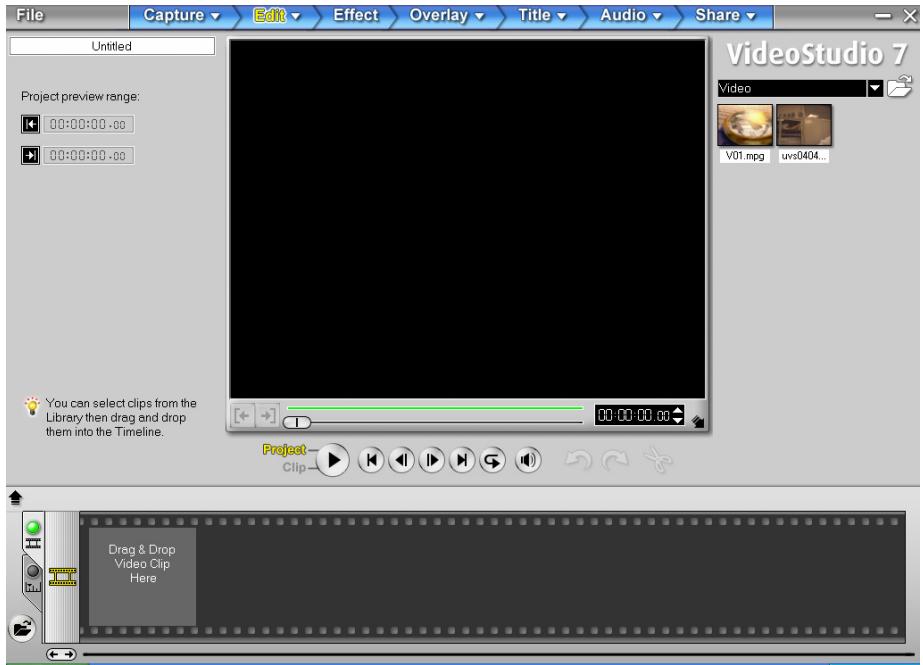
- Click Start Select Programs Video Studio 7.0
- The Video Studio main Screen will appear on your desktop.
Viewing Images stored in the Digital Video Camera through Photo Express 4.0
To view images stored in the Digital Video Camera, you must switch to Mass Storage Device Mode.
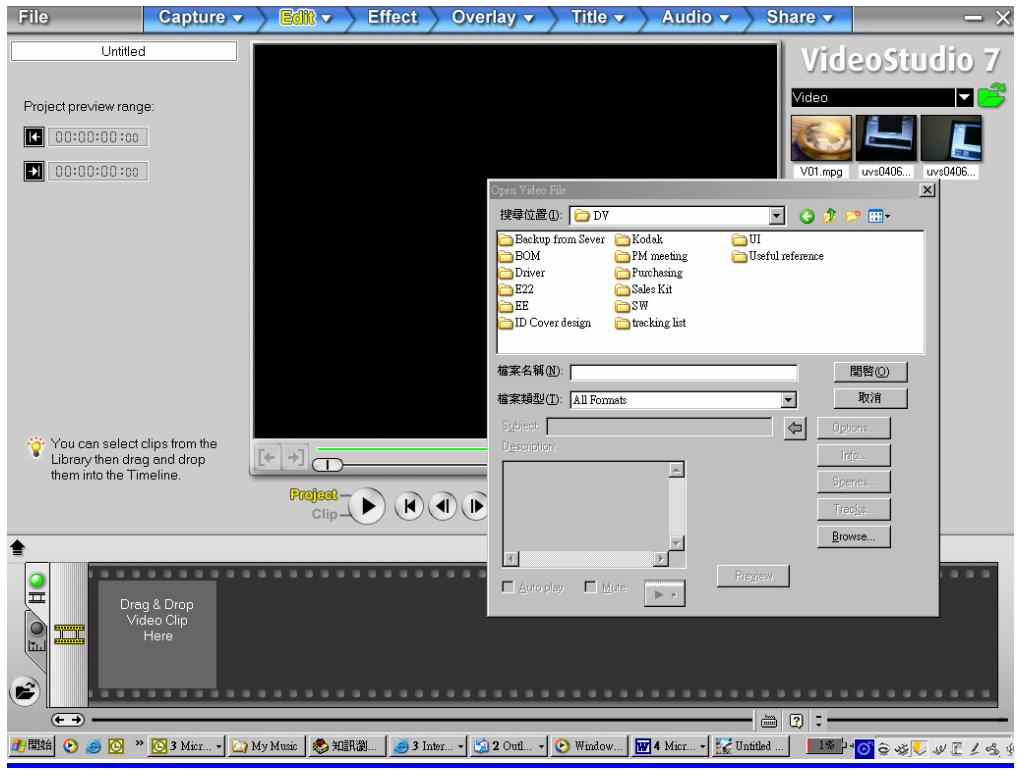
- Click the folder on the right hand side of the screen.
- Select the image stored in the Digital Video Camera and press the Open button to view.
Capturing Video through Video Studio 7.0
Press the MODE button to switch to PC Digital Video Camera Mode. Under this mode, you can view Digital Video Camera video through Video Studio: To capture a video/picture from the Digital Video Camera:
-
Click the Capture Capture▼ item.
-
Click the [Capture Video ] button.
- Click the [Capture Image ] button.
Section 9
Specifications and System Requirements
Specification
| Image Sensor | 3.2 Mega Pixel Sensor |
| Operation Modes | Movie Record、Picture Record、Voice Record、MP3 Player、PC Digital Video Camera、Mass Storage Device |
| Lens | f=8.54mm F3.0 |
| Focus Range | Normal: 100cm ~ Infinity; Portrait: 60cm ~ 100cm; Macro: center 20cm |
| Digital Zoom | 8X |
| Shutter | Electronical |
| LCD monitor | 2.0" Color LTPS LCD |
| Storage Media | Built-in 32MB Memory; SD/MMC Card Slot Support, can be expanded up to 512MB |
| Image Resolution | 2976x2232 ; 2048x1536 ; 1024x768 |
| Movie Resolution | VGA 640x480 / QVGA 320X240, 30 fps |
| White Balance | Auto/Manual (Daylight, Fluorescent, Tungsten) |
| Exposure | Auto/Manual |
| Self-Timer | 10 second delay |
| Flash | Auto/Off |
| File Format | Picture: JPEG, Movie: AVI, Voice: WAV |
| Image play | Single Image/Thumbnails/Slideshow |
| PC Interface | Mini USB 2.0 Port |
| TV out | NTSC/PAL Selectable |
| Battery | NP 60 Rechargeable Li-ion Battery |
| Dimension | 100*70*30mm |
| Weight | 136 g (without battery) |
System Requirement
| Windows 98SE/2000/ME/XP |
| Pentium MMX、Celeron or AMD Athlon® CPU |
| 64MB RAM |
| CD ROM |
| 500MB free HDD space |
| Available USB port |
| 16-bit Color Display |