
DV505 - Digital Camera GENIUS - Free user manual and instructions
Find the device manual for free DV505 GENIUS in PDF.


User questions about DV505 GENIUS
0 question about this device. Answer the ones you know or ask your own.
Ask a new question about this device
Download the instructions for your Digital Camera in PDF format for free! Find your manual DV505 - GENIUS and take your electronic device back in hand. On this page are published all the documents necessary for the use of your device. DV505 by GENIUS.
USER MANUAL DV505 GENIUS
WEEE Warning Message
Symbol for Separate Collection in European Countries
This symbol indicates that this product is to be collected separately.
The following apply only to users in European countries:
- This product is designated for separate collection at an appropriate collection point. Do not dispose of as household waste.
- For more information, contact the retailer or the local authorities in charge of waste management.
FCC STATEMENT

This device complies with Part 15 of the FCC Rules. Operation is subject to the following two conditions:
(1). This device may not cause harmful interference, and
(2). This device must accept any interference received, including interference that may cause undesired operation.
Note:
This equipment has been tested and found to comply with the limits for Class B digital devices, pursuant to Part 15 of the FCC rules. These limits are designed to provide reasonable protection against harmful interference in a residential installation. This equipment generates uses and can radiate radio frequency energy and, if not installed and used in accordance with the instructions, may cause harmful interference to radio communications.
However, there is no guarantee that interference will not occur in a particular installation. If this equipment does cause harmful interference
to radio or television reception, which can be determined by turning the equipment off and on, the user is encouraged to try to correct the interference by one or more of the following measures:
Reorient or relocate the receiving antenna
Increase the separation between the equipment and receiver
- Connect the equipment into an outlet on a circuit different from that to which the receiver is connected
Use of shielded cable is required to comply with Class B limits in Subpart B of Part 15 of the FCC rules.
Do not make any changes or modifications to the equipment unless otherwise specified in the manual. If such changes or modifications should be made, you could be required to stop operation of the equipment.
Product Information
- Product design and specifications are subject to change without notice. This includes primary product specifications, software, software drivers, and user's manual. This User Manual is a general reference guide for the product.
-
The product and accessories that come with your camera may be different from those described in this manual. This is due to the fact that different retailers often specify slightly different product inclusions and accessories to suit their market requirements, customer demographics, and geographical preferences. Products very often vary between retailers especially with accessories such as batteries, memory cards, cables, carrying cases/pouches, and language support. Occasionally a retailer will specify a unique product color, appearance, and internal memory capacity. Contact your dealer for precise product definition and included accessories.
-
The illustrations in this manual are for the purpose of explanation
and may differ from the actual design of your camera.
- The manufacturer assumes no liability for any errors or discrepancies in this user manual.
- For driver updates, you can check the "Download" section of our website, www.geniusnet.com
SAFETY INSTRUCTIONS
Read and understand all Warnings and Cautions before using this product.
Warnings
If foreign objects or water have entered the camera, turn the power OFF and remove the batteries.
Continued use in this state might cause fire or electric shock. Consult the store of purchase.
If the camera has fallen or its case has been damaged, turn the power OFF and remove the batteries.
Continued use in this state might cause fire or electric shock. Consult the store of purchase
■ Do not disassemble, change or repair the camera.
This might cause fire or electric shock. For repair or internal inspection, ask the store of purchase.
Do not use the camera in areas near water.
This might cause fire or electric shock. Take special care during rain, snow, on the beach, or near the shore.
- Do not place the camera on inclined or unstable surfaces.
This might cause the camera to fall or tilt over, causing injury.
- Keep the batteries out of the reach of children.
Swallowing batteries might cause poisoning. If the battery is accidentally swallowed, immediately consult a physician.
- Do not use the camera while you are walking, driving or riding a motorcycle.
This might cause you to fall over or result in traffic accident.
Cautions
| ■ Insert the batteries paying careful attention to the polarity (+ or -) of the terminals. Inserting the batteries with its polarities inverted might cause fire and injury, or damage to the surrounding areas due to the battery rupturing or leaking. | ⊗ |
| ■ Do not fire the flash close to anyone's eyes. This might cause damage to the person's eyesight. | ⊗ |
| ■ Do not subject the LCD monitor to impact. This might damage the glass on the screen or cause the internal fluid to leak. If the internal fluid enters your eyes or comes into contact with your body or clothes, rinse with fresh water. If the internal fluid has entered your eyes, consult a physician to receive treatment. | ⊗ |
| ■ A camera is a precision instrument. Do not drop it, strike it or use excessive force when handling the camera. This might cause damage to the camera. | ⊗ |
| ■ Do not use the camera in humid, steamy, smoky, or dusty places. This might cause fire or electric shock. | ⊗ |
| ■ Do not remove the battery immediately after long period of continuous use. The battery becomes hot during use. Touching a hot battery might cause burns. | ⊗ |
| ■ Do not wrap the camera or place it in cloth or blankets. This might cause heat to build up and deform the case, resulting in fire. Use the camera in a well-ventilated place. | ⊗ |
| ■ Do not leave the camera in places where the temperature may rise significantly, such as inside a car. This might adversely affect the case or the parts inside, resulting in fire. | ⊗ |
Before you move the camera, disconnect cords and cables.
Failure to do this might damage cords and cables, resulting in fire and electric shock.

Notes on Battery Usage
When you use the battery, carefully read and strictly observe the Safety Instructions and the notes described below:
- Different battery types and surrounding temperatures may affect the battery performance.
- Avoid using batteries in extremely cold environments as low temperatures can shorten the battery life and reduce camera performance.
- The battery may feel warm when using the camera for an extended period of time or using the flash continuously. This is normal and not a malfunction.
The digital video camera may feel warm when being used continuously or for an extended period of time. This is normal and not a malfunction.
If you will not be using the batteries for an extended period of time, remove them from the camera to prevent leakage or corrosion.
Always keep the terminals in a clean state.
Never use manganese batteries.
■ Risk of explosion if battery is replaced by an incorrect type. - Use only the type of battery that came with your camera. Using any other type of battery may damage the equipment and invalidate the warranty.
Table of Contents
1 Introducing the camera 1
1.1 System requirements.. 1
1.2 Features 1
1.3 Unpacking the video camera 2
1.4 About the camera 4
1.4.1 Front view. 4
1.4.2 Top view 4
1.4.3 Bottom view 5
1.4.4 Right view. 5
1.4.5 Left View.. 6
1.4.6 Back View 7
1.4.7 Adjusting the LCD display. 7
2 Getting started 12
2.1 Inserting an SD card 12
2.2 Inserting the batteries. 14
2.3 Turning on for the first time 15
2.4 Changing modes 15
2.5 Before you start 16
2.5.1 Setting the date and time.. 16
2.5.2 Setting the language.. 17
2.6 Shooting/Playing videos 18
2.6.1 Shooting a video clip 18
2.6.2 Playing back a video clip 19
2.7 Taking/viewing pictures 20
2.7.1 Taking a still picture 20
2.7.2 Viewing images.. 21
2.8 Voice recording 22
2.8.1 Taking a voice recording 22
2.8.2 Playing back a voice file 23
2.9 Connecting to a computer 24
2.10 Connecting to a TV. 25
3 Using the camera. 26
3.1 Movie mode 26
3.1.1 Movie mode icons.. 26
3.1.2 Quick access menu 28
3.2 MoviePlaybackmode 29
3.2.1 MoviePlaybackmodeicons.. 29
3.3 Photo mode 31
3.3.1 Photo mode icons.. 31
3.3.2 Using the macro function 32
3.3.3 Using the zoom function.. 33
3.3.4 Quick access menu 33
3.4 PhotoPlayback mode 35
3.4.1 PhotoPlaybackmodeicons.. 35
3.4.2 ..... 36
3.5 Voice mode 37
3.5.1 Voice mode icons 37
3.6 VoicePlayback mode 38
3.6.1 VoicePlaybackmodeicons 38
3.7 USB mode 39
3.7.1 Using the PC cam feature 39
3.7.2 Using the mass storage feature 39
3.7.3 Using DPS feature 39
4 Using the menus. 41
4.1 Movie menu. 41
4.1.1 Video size. 41
4.1.2 Video quality.. 43
4.1.3 White balance 44
4.1.4 Exposure adjustment (EV) 45
4.1.5 Color effect 46
4.2 Movie playback menu 47
4.2.1 Delete All 47
4.2.2 Unlock All. 48
4.3 Picture menu 49
4.3.1 Size 49
4.3.2 Image quality.. 50
4.3.3 White balance 51
4.3.4 Exposure adjustment (EV) 52
4.3.5 Color effects 53
4.3.6 Self-timer 54
4.3.7 Date stamp.. 55
4.4 Photo playback menu 56
4.4.1 Delete all 56
4.4.2 Unlock all.. 57
4.4.3 Slide show.. 58
4.4.4 DPOF 59
4.5 VoicePlayback Menu 61
4.5.1 Delete all 61
4.5.2 Unlock all.. 62
4.6 System menu 63
4.6.1 Date/time 63
4.6.2 Beep 63
4.6.3 Format 64
4.6.4 Default 65
4.6.5 Memory status 66
4.6.6 Language 66
4.6.7 TV system 67
4.6.8 Auto power off 68
4.6.9 Frequency 69
5 Installing software and drivers 70
5.1 Drivers 70
5.1.1 Mass Storage 70
5.1.2 PC camera 70
5.2 Presto! Video Works. 72
5.3 Presto! Mr. Photo 73
5.4 User's Manual. 74
Appendix 75
Specifications 75
Troubleshooting 77
1 Introducing the camera
Read this section to learn about the features and functions of the video camera. This chapter also covers system requirements, package contents, and descriptions of the hardware components.
1.1 System requirements
The video camera requires a PC with the following specifications:
Windows® XP, 2000, Vista (32bit) operating system
Intel® Pentium III 500MHz CPU or higher
- At least 32 MB of RAM or higher
Standard USB 1.1 port or higher
4x speed CD-ROM drive or higher
- At least 200MB of available disk space
Note: A USB 1.1 port will enable you to transfer files to and from your host PC, but transfer speed will be much faster with a USB 2.0 port.
1.2 Features
The video camera offers a variety of features and functions including:
Digital camcorder
Voice recorder
Digital camera (max. 12 Megapixels)
Additionally, the camera also features 4X digital zoom, USB mass storage, and an SD card reader.
1.3 Unpacking the video camera
The following items should be present in the package. If any item is missing or appears damaged, contact your dealer immediately.
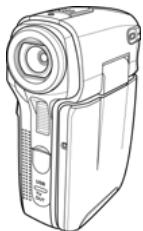
Video camera
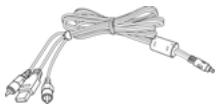
USB AV cable

4 x AAA alkaline batteries
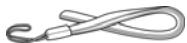
Wrist strap

Pouch

CD-ROM
(Driver and application software)

Quick Start Guide
1.4 About the camera
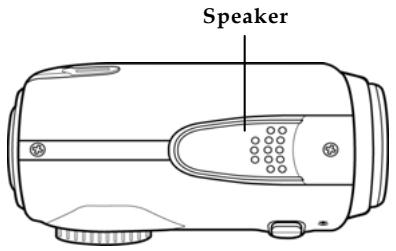
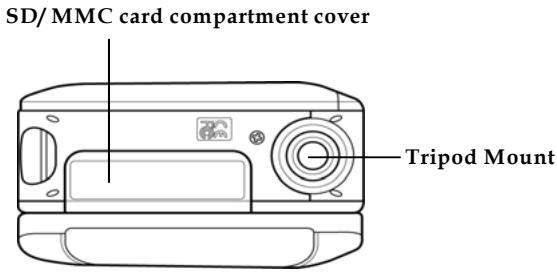
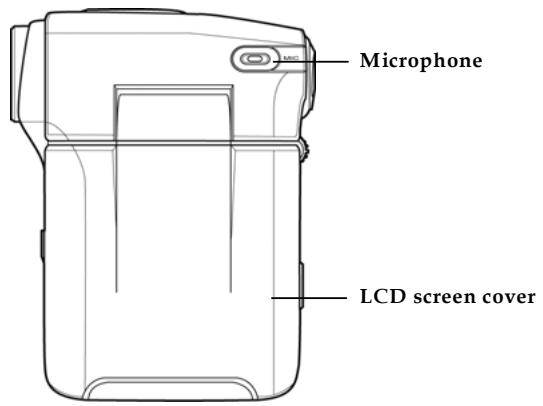
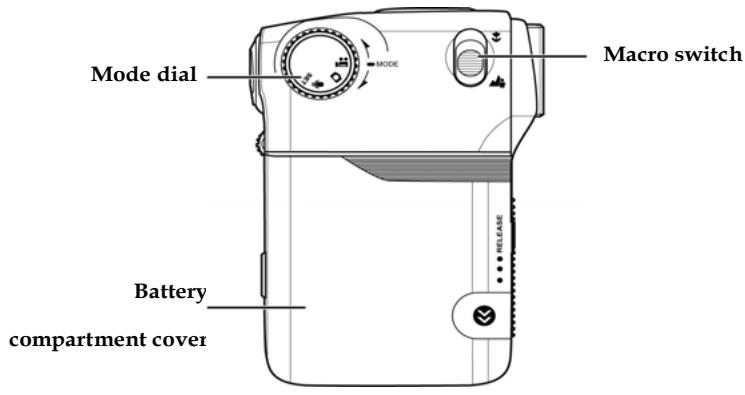
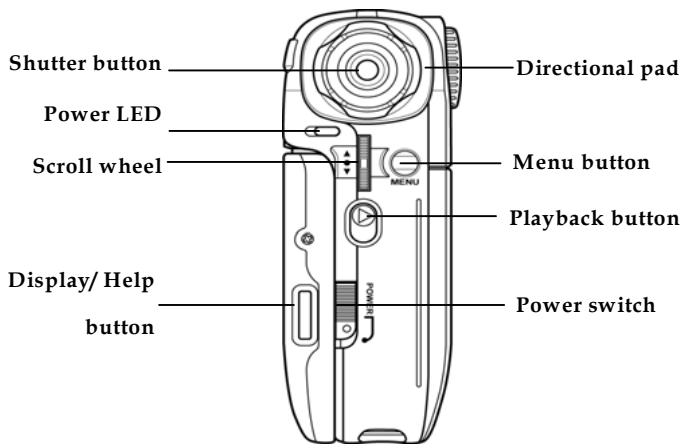
Refer to the following illustrations to familiarize yourself with the buttons and controls of this video camera.
1.4.1 Front view
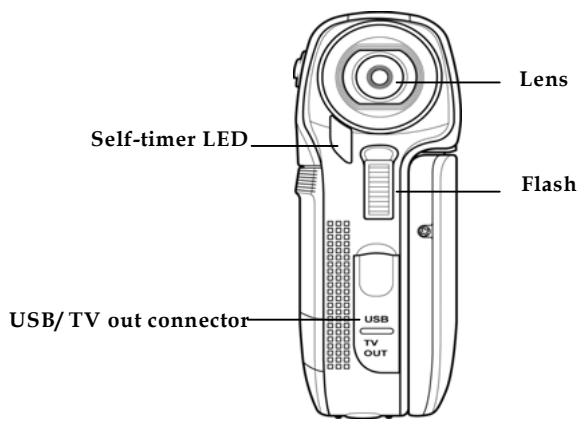
1.4.2 Top view
1.4.3 Bottom view
1.4.4 Right view
1.4.5 Left View
1.4.6 Back View
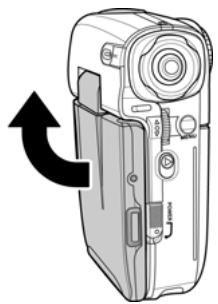
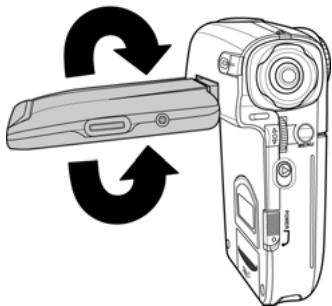
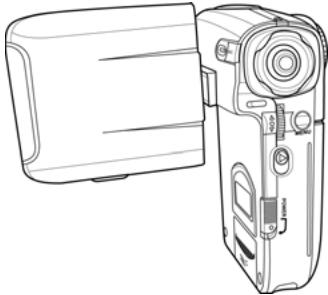
1.4.7 Adjusting the LCD display
Flip and twist the LCD screen as shown while capturing a still image or recording a video clip.
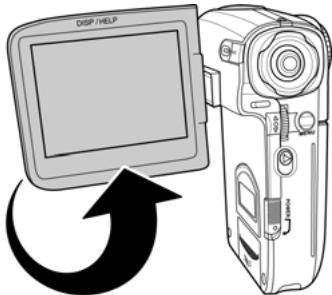
See the table below for a description of each button's function.
| Button | Name | Function |
| POWERJ | Power switch | Slide the power switch down to turn power on/off. |
| MENU | Menu button | Press to display main OSD menus. |
| MODE | Mode dial | Use to toggle Movie, Photo, Voice, and SET modes. |
| Directional pad | ● In Photo mode, press the directional pad up to select image size, press down to select image quality, press right to select selftimer, and press left to select flash mode. ● In Movie mode, press up to select image size, press down to select image quality, press right to select color effect, and press left to select white balance. ● In Movie/Photo/VoicePlayback mode, press left/right to select files to playback, press up to select files to delete, press down to select files to protect. | |
| ● In SET mode, press up/down to select menu items. | ||
| Shutter button | ● In Movie/Voice mode, press to begin or stop recording. ● In Photo mode, press to take a photo. ● In Movie/Voice Playback mode, press to start or stop playback. ● In Photo Playback mode, press to switch to thumbnail view. | |
| Macro switch | Move the switch to the position to enable Macro mode. | |
| Playback button | Press to enter playback mode. | |
| Display/Help button | Press once to display all OSD icons. Press again to turn all OSD icons off. Press a third time to display help diagrams, explaining all button functions. | |
| Scroll wheel | ● In Movie/Photo mode, move up to zoom in, and down to zoom out. ● In Movie Playback/VoicePlayback mode, press inwards to pause playback. Press again to resume. | |
| ● In Movie Playback/ VoicePlayback mode, move up/down to adjust playback volume. | ||
| ● In Photo Playback mode, move up/down to select the image you want to view. Press inwards and then move up and down to zoom in and out of a photo. | ||
| ● In SET mode, move up and down to highlight menu items and press inwards to select items. |
2 Getting started
Read this section to learn how to start using the video camera. This section covers basic functions such as switching on, inserting the battery and memory cards, and configuring preliminary settings. See later chapters for advanced functions.
2.1 Inserting an SD card
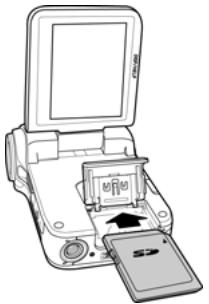
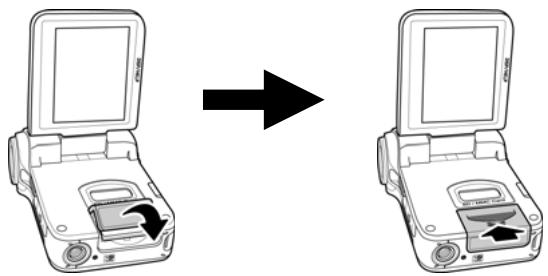
An SD card can be installed in the video camera to provide additional storage space for still images, video clips, or other files.
- Open the LCD screen cover and open the SD card compartment cover.
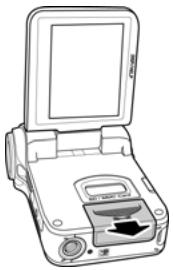
- Insert an SD card as shown. Make sure the gold contacts are facing away from the battery.
- Close the SD card compartment cover.
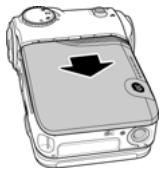
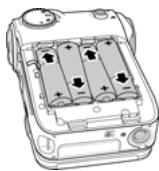
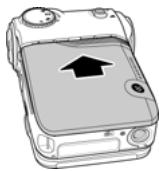
2.2 Inserting the batteries
This video camera is designed to use four AAA batteries. Only use the battery supplied or similar battery recommended by the manufacturer or your dealer.
Note: Install the batteries exactly as described here. Ensure that the polarity of the batteries is correct. Installing the batteries incorrectly could cause damage to the camera and possibly start a fire.
- Open the battery compartment cover.
- Insert the batteries as shown.
- Close the battery compartment cover.
2.3 Turning on for the first time
Slide the power switch to turn the video camera on/off.
2.4 Changing modes
The video camera can operate in four modes, Movie, Photo, Voice, and SET. Move the mode dial to toggle different modes.
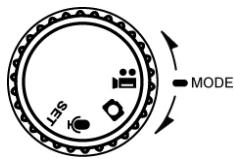
| 1 | Movie mode | |
| 2 | Photo mode | |
| 3 | Voice mode | |
| 4 | System settings | |
2.5 Before you start
Before you start using the video camera, some basic settings such as date and time and languages need to be configured.
2.5.1 Setting the date and time
- Turn on the video camera, and move the mode dial to SET. Move the scroll wheel up/ down to highlight Date/ Time. Press the scroll wheel inwards to confirm.
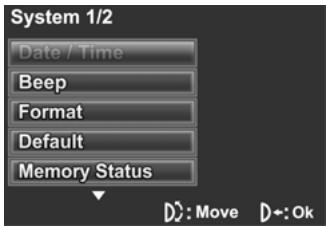
- Press left/ right on the directional pad to highlight each field.

- Adjust each value by pressing the directional pad up and down. Press the scroll wheel inwards to save your changes.
2.5.2 Setting the language
- Turn on the video camera, and rotate the mode dial to SET. Move the scroll wheel up/ down to highlight Language. Press the scroll wheel inwards to confirm.
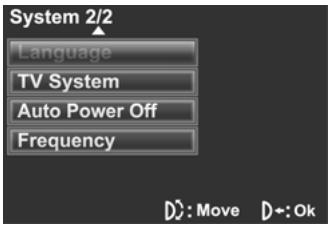
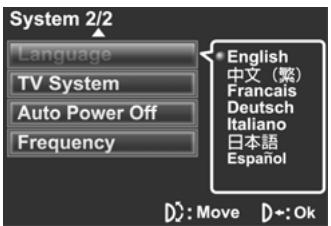
- Use the scroll wheel to select the desired language. After the language is selected, press the scroll wheel inwards to confirm.
2.6 Shooting/ Playing videos
2.6.1 Shooting a video clip
- Turn on the video camera and switch to Movie mode.
- Use the LCD screen to frame the video.
- Press the Shutter button to start recording.
- Press the Shutter button again to stop recording.
- The video clip is automatically saved with a unique file name.
Notes:
The maximum file size of each video recording file is 2G.
The size and quality affect the length of the recording.
High resolution and high quality settings will result in larger files, and therefore shorter length.
2.6.2 Playing back a video clip
- In Movie mode, press the Playback button and the most recent file displays on the LCD screen.
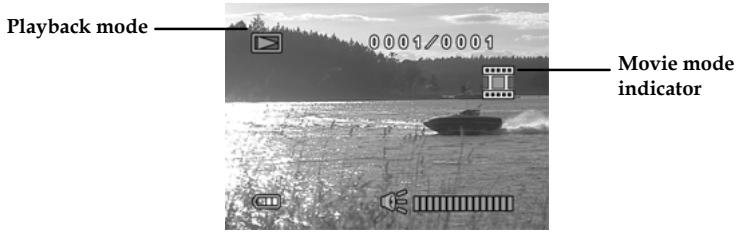
- Press the directional pad left and right to scroll through the video clips. Press the Shutter button to playback the video clip.
- To pause while playing back the video clip, press the scroll wheel inwards.
- When viewing the video clip, move the scroll wheel up and down to adjust the volume.
- Press the Shutter button to stop playing.
- To delete the current file, press the directional pad up. Highlight the OK option and press the Shutter button to confirm.
- Press the directional pad down to protect the current file. An icon displays on the screen when the file is protected. Press the directional pad down again to unlock the file.
- Press the Playback button again to return to Movie mode.
2.7 Taking/viewing pictures
2.7.1 Taking a still picture
- Turn on the camera and switch to Photo mode.
Photo mode
- Use the LCD screen to frame the picture.
- Press the Shutter button to capture the image.
- The picture is automatically saved with a unique file name.
2.7.2 Viewing images
- In Photo mode, press the Playback button and the most recent image displays on the LCD screen.
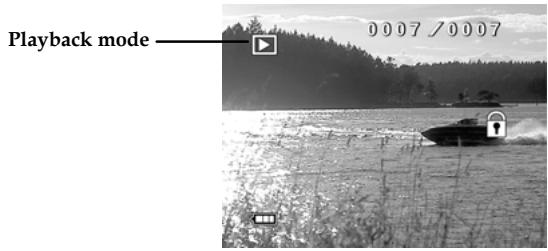
- Press the directional pad left and right to scroll through the images.
- Press the scroll wheel inwards to scale the image. Use the scroll wheel to move the zoomed image up and down, left and right.
- Press the directional pad up to display the Delete option. Use the directional pad to choose OK to delete the current picture.
- Press the directional pad down to protect the current picture. An icon displays on the screen when the file is protected. Move the directional pad down again to unlock the picture.
- Press the Playback button again to return to Photo mode.
2.8 Voice recording
2.8.1 Taking a voice recording
- Turn on the video camera and switch to Voice mode.
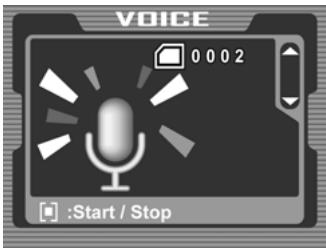
- Press the Shutter button to start recording.
- Press the Shutter button again to stop.
- The voice file will automatically be saved with a unique file name.
2.8.2 Playing back a voice file
- In Voice mode, press the Playback button and the most recent file is displayed on the LCD screen.
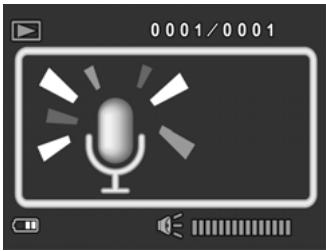
- Press the directional pad left and right to select the voice file you want to play. Press the Shutter button to playback the voice file.
- When playing a voice file, use the scroll wheel to adjust the volume.
- Press the scroll wheel inwards to pause playback.
- Press the Shutter button again to stop.
- Press the directional pad up to delete the current file. Use the directional pad to highlight OK and press the Shutter button to confirm.
- Press the directional pad down to protect the file. An icon displays on screen when the file is protected. Press the directional pad down again to unlock the file.
- Press the Playback button to return to Voice mode.
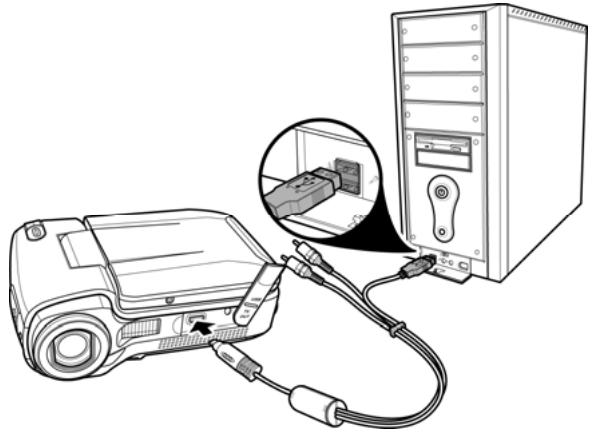
2.9 Connecting to a computer
Read this section to learn how to transfer files to a PC, show the video clips or photos on a TV.
Connect the video camera to a computer with the USB AV cable provided.
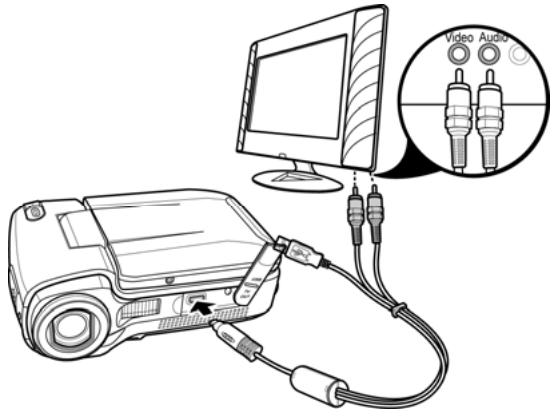
2.10 Connecting to a TV
Connect the video camera to a TV as shown with the USB AV cable provided.
3 Using the camera
Read this section to learn how to use the camera.
3.1 Movie mode
Use Movie mode to capture video clips and store them in internal memory or on an SD card.
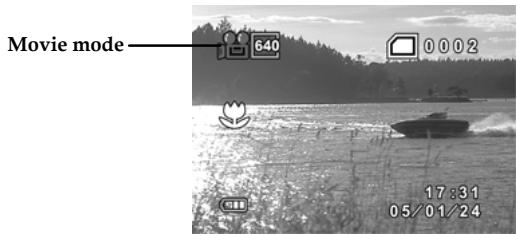
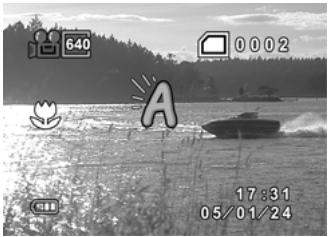
3.1.1 Movie mode icons
Use the following picture to familiarize yourself with the Movie mode icons and symbols.
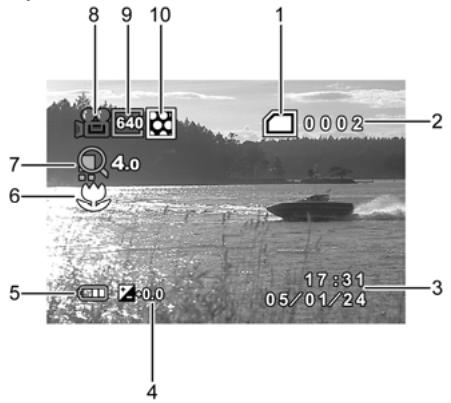
See the table below for a description of each icon and symbol.
| 1 | Memory status indicator : indicates that an SD card is inserted : indicates that SD card is used : indicates SD card is not inserted | |
| 2 | 0002 | Displays the number of files saved |
| 3 | 17:81 06/01/20 | Date and time |
| 4 | Z-0.0 | EV compensation indicator |
| 5 | Battery indicator | |
| 6 | Macro indicator | |
| 7 | 4c | Zoom indicator |
| 8 | Video mode indicator | |
| 9 | 640 | Image size indicator |
| 10 | Image quality indicator | |
3.1.2 Quick access menu
You can also make adjustments to the current settings by pressing the directional pad or the scroll wheel inwards.
In Movie mode, use the directional pad to display the quick access menu, where you can adjust file size, image quality, color effects, and white balance settings. Press the scroll wheel inwards to display the EV compensation setting.
To make adjustments, do the following:
- Press the directional pad up to select file size options.
- Press the directional pad down to select image quality options.
- Press the directional pad right to select color effect options.
- Press the directional pad left to select white balance options.
- Press the scroll wheel inwards to display the EV compensation. Move the scroll wheel up and down to adjust the EV value and press inwards to confirm.
3.2 MoviePlayback mode
Use Movie Playback mode to review all the movie files stored in the video camera.
3.2.1 MoviePlaybackmodeicons
Refer to the following picture to familiarize yourself with the Movie Playback mode icons and symbols.
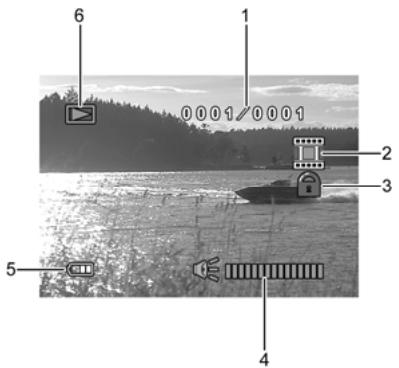
See the table below for a description of each icon and symbol.
| 1 | 0001/0001 | Displays the number of current video and the total number of taken video clips |
| 2 | Shows current file type | |
| 3 | File protect indicator | |
| 4 | Volume level | |
| 5 | Battery status indicator | |
| 6 | Playback mode icon |
3.3 Photo mode
Use Photo mode to capture still pictures and store them in the internal memory or on an SD card.
3.3.1 Photo mode icons
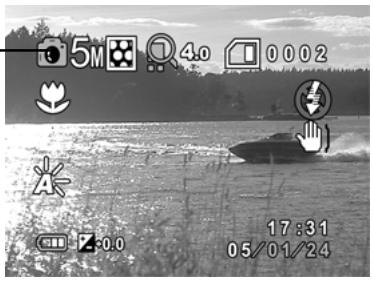
Use the following picture to familiarize yourself with the Photo mode icons and symbols.
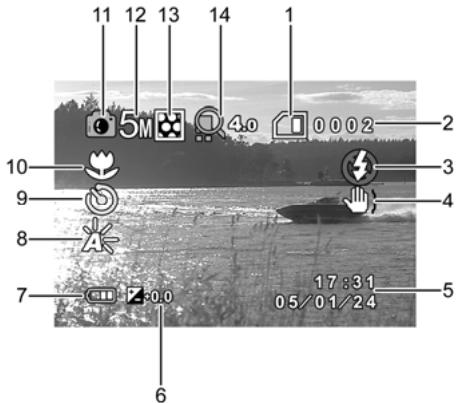
See the table below for a description of each icon and symbol.
| 1 | Memory status indicator : indicates that an SD card is inserted : indicates that SD card is used : indicates SD card is not inserted | |
| 2 | 0002 | Displays the number of files saved |
| 3 | Flash indicator | |
| 4 | 'Do not shake camera' indicator | |
| 5 | 17:39 08/01/20 | Date and time |
| 6 | 2:00 | EV compensation indicator |
| 7 | Battery indicator | |
| 8 | White balance indicator | |
| 9 | Self-timer indicator | |
| 10 | Macro indicator | |
| 11 | Photo mode indicator | |
| 12 | 5M | File size indicator |
| 13 | Image quality indicator | |
| 14 | 4.0 | Zoom indicator |
3.3.2 Using the macro function
This function can capture subjects close to the lens. In macro mode, subjects can be as close as 15-16 cm.
While in Photo mode, move the macro switch on the side of the video camera to activate macro function, and an icon displays on the LCD screen.
Move the macro switch again to cancel the macro function.
3.3.3 Using the zoom function
The camera is equipped with 4X digital zoom.
Move the scroll wheel up to get closer to a subject.
Move the scroll wheel down to move away from a subject.
The zoom ratio is displayed on the screen.
3.3.4 Quick access menu
You can also make adjustments of the current settings by pressing the directional pad or scroll wheel.
In Photo mode, use the directional pad to display the quick access menu, where you can adjust image size, self-timer, image quality, and flash settings. Press the scroll wheel inwards to display the EV compensation setting.
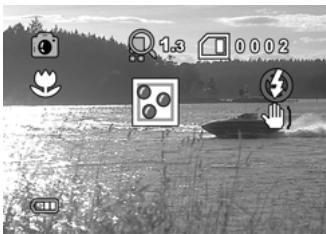
To make adjustments, do the following:
- Press the directional pad up to select file size options.
- Press the directional pad down to select image quality options.
- Press the directional pad left to select the flash mode.
-
Press the directional pad right to select selftimer.
-
Press the scroll wheel inwards to display the EV compensation. Move the scroll wheel up or down to adjust the EV value and press inwards to confirm.
3.4 Photo Playback mode
Use Photo Playback mode to review all the image files stored in the video camera.
3.4.1 PhotoPlaybackmodeicons
Refer to the following picture to familiarize yourself with the Photo Playback mode icons and symbols.
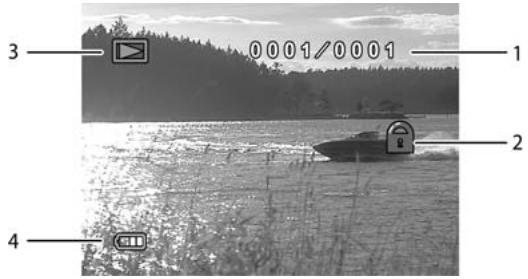
See the table below for a description of each icon and symbol.
| 1 | 0001/0001 | Displays the number of current image and the total number of taken pictures |
| 2 | File protect indicator | |
| 3 | Playback mode icon | |
| 4 | Battery status indicator |
3.4.2 Thumbnail mode
When in Photo Playback mode, press the Shutter button to show image as thumbnails.
- Turn on the video camera and make sure it is in Playback mode.
- The most recent image displays on the screen. Press the Shutter button to view four thumbnail images on the LCD screen.
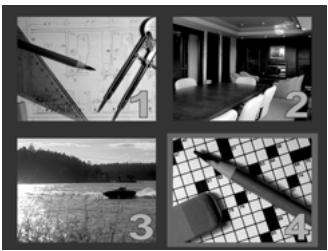
- Use the directional pad to highlight an image, press the Shutter button to view the image in full screen mode.
- Press the Shutter button again to return to thumbnail view.
Note: Only image files are shown in thumbnail mode.
3.5 Voice mode
Use Voice mode to record a voice file and store it in internal memory or on an SD card.
3.5.1 Voice mode icons
Refer to the following picture to familiarize yourself with the Voice mode icons and symbols.
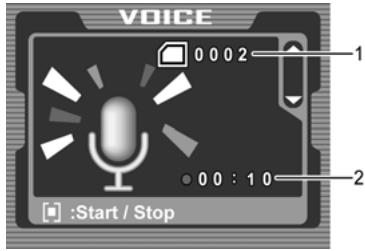
See the table below for a description of each icon and symbol.
| 1 | Displays the number of voice files recorded |
| 2 | Displays recording time |
3.6 Voice Playback mode
Use Voice Playback mode to play all the voice recordings stored in the video camera.
3.6.1 VoicePlaybackmodeicons
Refer to the following picture to familiarize yourself with the Voice Playback mode icons and symbols.
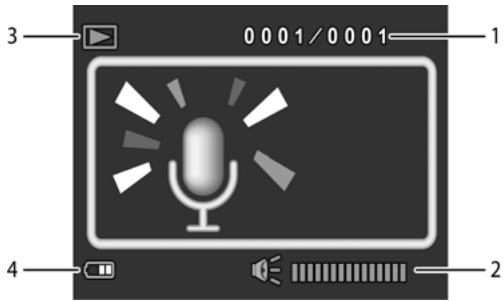
See the table below for a description of each icon and symbol.
| 1 | 0001/0001 | Displays the number of current recording and the total number of recordings |
| 2 | Volume level | |
| 3 | Playback mode icon | |
| 4 | Battery status indicator | |
3.7 USB mode
You can use USB mode to connect to a printer or a host PC. Before connecting to a printer or PC, refer to "Installing software and drivers" on page 70.
When the video camera is connected to a computer or printer using the USB AV cable, the following menu displays.
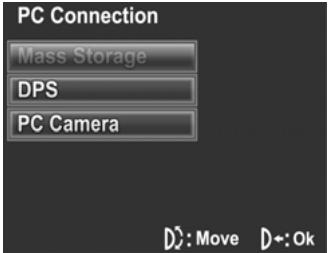
Use the directional pad to highlight an option and press the scroll wheel inwards to confirm.
3.7.1 Using the PC cam feature
When set as a PC cam, the video camera can be used as a webcam for video conferencing.
3.7.2 Using the mass storage feature
When used as a USB mass storage device, the video camera displays as a removable drive in Windows Explorer. Drag and drop files to and from the removable drives just like any other storage devices.
3.7.3 Using DPS feature
Connect to a printer using the USB AV cable exactly in the same way, as you would connect a PC.
4 Using the menus
Read this section to learn how to configure the camera settings and use the advanced features.
4.1 Movie menu
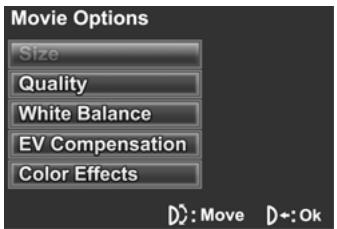
When in Movie mode, press the MENU button to show the Movie Options menu.
4.1.1 Video size
Use this option to set the size of the captured video clips. Larger video sizes contain more details and therefore use more memory space.
- Turn the video camera on and ensure it is in Movie mode.
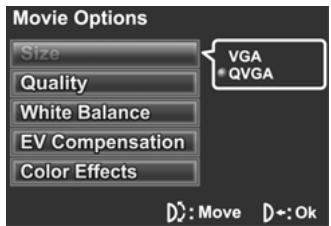
- Press the MENU button and use the scroll wheel to highlight the Size option. Press the scroll wheel inwards to display the submenu.
- Use the scroll wheel to select VGA or QVGA. Press the scroll wheel inwards to confirm.
- Press the MENU button again to exit the menu.
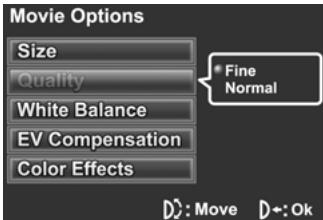
4.1.2 Video quality
There are two different levels of video quality setting. Higher quality video needs more memory storage space.
- Turn the video camera on and ensure it is in Movie mode.
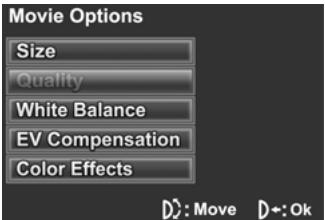
- Press the MENU button and use the scroll wheel to highlight the Quality option. Press the scroll wheel inwards to display the submenu.
- Use the scroll wheel to select Fine or Normal. Press the scroll wheel inwards to confirm.
- Press the MENU button again to exit the menu.
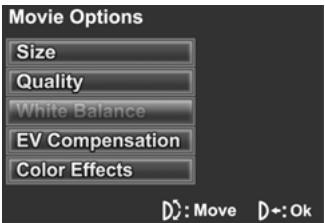
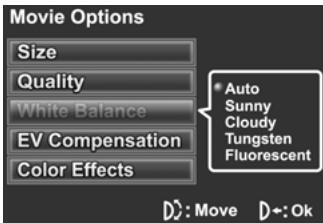
4.1.3 White balance
Use this option to correct color difference for different lighting conditions. When white balance is set to Auto, the video camera automatically compensates for different lighting conditions.
- Turn the video camera on and ensure it is in Movie mode.
- Press the MENU button and use the scroll wheel to highlight the White Balance option. Press the scroll wheel inwards to display the submenu.
- Use the scroll wheel to select Auto, Sunny, Cloudy, Tungsten, or Fluorescent. Press the scroll wheel inwards to confirm.
- Press the MENU button again to exit the menu.
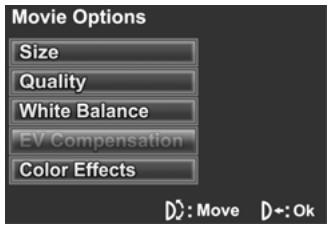
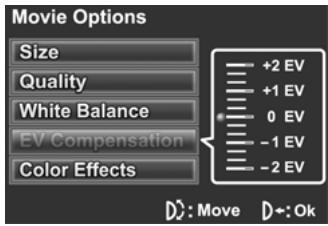
4.1.4 Exposure adjustment (EV)
Use this setting to change the exposure for pictures. Usually, this value is set to zero. Increase the value to light up a subject with strong back lighting, or decrease the value if taking a picture of something very bright.
- Turn the video camera on and ensure it is in Movie mode.
- Press the MENU button and use the scroll wheel to highlight the EV Compensation option. Press the scroll wheel inwards to display the submenu.
- Use the scroll wheel to adjust EV value, which ranges from -2 EV to +2 EV. Press the scroll wheel inwards to confirm.
- Press the MENU button again to exit the menu.
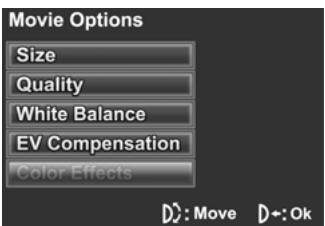
4.1.5 Color effect
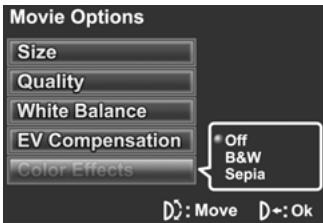
The camera can capture standard color images, black and white images, or sepia tone to give an old-fashioned look.
- Turn the video camera on and ensure it is in Movie mode.
- Press the MENU button and use the scroll wheel to highlight the Color Effects option. Press the scroll wheel inwards to display the submenu.
- Use the scroll wheel to select Off, B&W, or Sepia. Press the scroll wheel inwards to confirm.
- Press the MENU button again to exit the menu.
4.2 Movie playback menu
Use the playback menu to manage the files stored in the internal memory or on the SD card.
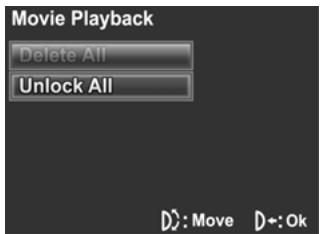
4.2.1 Delete All
Use this function to delete files.
- Turn the video camera on and ensure it is in Movie mode. Press the Playback button and then press the MENU button to display Movie Playback menu.
- Use the scroll wheel to highlight the Delete All option. Press the scroll wheel inwards to display the submenu.
- Use the scroll wheel to select OK or Cancel. Press the scroll wheel inwards to confirm.
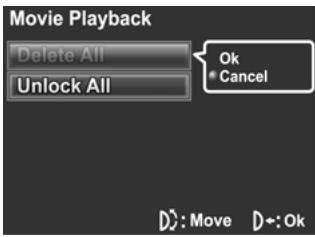
- Press the MENU button again to exit the menu.
Note: Once deleted, files cannot be recovered. Make sure the files are transferred to PC via the USB AV cable or saved to other storage devices. Files that have been protected will not be deleted. You have to unlock the files first before deleting them.
4.2.2 Unlock All
Use this function to unlock files that are protected to prevent accidental deletion.
- Turn the video camera on and ensure it is in Movie mode. Press the Playback button and then press the MENU button to display Movie Playback menu.
- Use the scroll wheel to highlight the Unlock All option. Press the scroll wheel inwards to display the submenu.
- Use the scroll wheel to select OK or Cancel. Press the scroll wheel inwards to confirm.
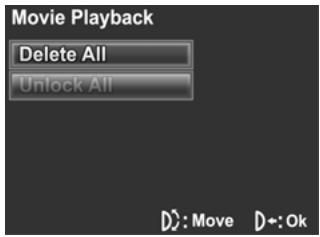
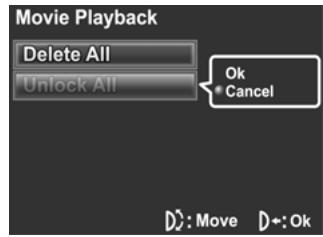
- Press the MENU button again to exit the menu.
Note: To lock a file, press the directional pad down in Playback mode. A lock icon is displayed to show that the file is protected.
4.3 Picture menu
In Photo mode, press the MENU button to show the Camera Options menu.
4.3.1 Size
Use this option to set the size of the captured image. Larger images contain more details and therefore use more memory space.
- Turn the video camera on and ensure it is in Photo mode.
- Press the MENU button and use the scroll wheel to highlight the Size option. Press the scroll wheel inwards to display the submenu.
- Use the scroll wheel to select 1M, 3M, 5M, or 12M. Press the scroll wheel inwards to confirm.
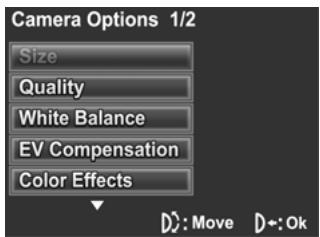
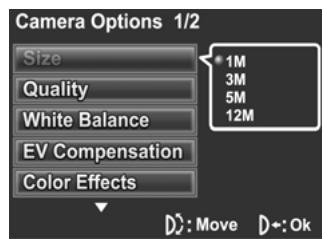
- Press the MENU button again to exit the menu.
4.3.2 Image quality
Use this option to set the quality of the captured image. Higher quality images contain more details and therefore use more memory space.
- Turn the video camera on and ensure it is in Photo mode.
- Press the MENU button and use the scroll wheel to highlight the Quality option. Press the scroll wheel inwards to display the submenu.
- Use the scroll wheel to select from Fine, or Normal. Press the scroll wheel inwards to confirm.
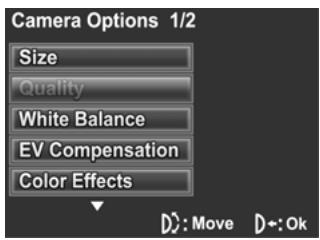
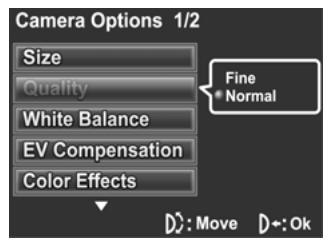
- Press the MENU button again to exit the menu.
4.3.3 White balance
Use this option to correct color difference due to lighting conditions.
- Turn the video camera on and ensure it is in Photo mode.
- Press the MENU button and use the scroll wheel to highlight the White Balance option. Press the scroll wheel inwards to display the submenu.
- Use the scroll wheel to select Auto, Sunny, Cloudy, Tungsten, or Fluorescent. Press the scroll wheel inwards to confirm.
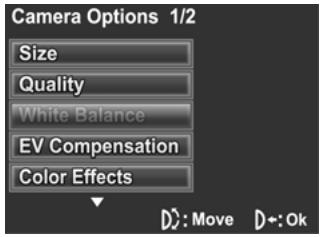
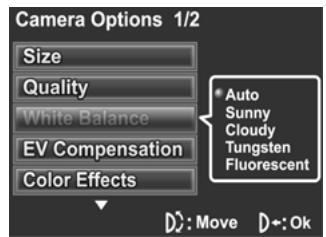
- Press the MENU button again to exit the menu.
4.3.4 Exposure adjustment (EV)
Use this setting to change the exposure for pictures. Usually, this value is set to zero. Increase the value to light up a subject with strong back lighting, or decrease the value if taking a picture of something very bright.
- Turn the video camera on and ensure it is in Photo mode.
- Press the MENU button and use the scroll wheel to highlight the EV Compensation option. Press the scroll wheel inwards to display the submenu.
- Use the scroll wheel to adjust EV value. The range is from -2 EV to +2 EV. Press the scroll wheel inwards to confirm.
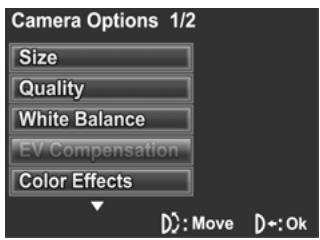
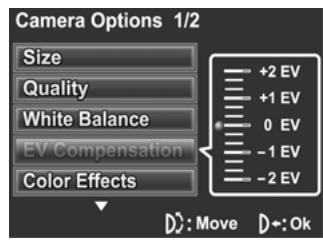
- Press the MENU button again to exit the menu.
4.3.5 Color effects
The camera can capture standard color images, black and white images, or sepia tone to give an old-fashioned look. When the color effect function is set to Off, it is set to color mode.
- Turn the video camera on and ensure it is in Photo mode.
- Press the MENU button and use the scroll wheel to highlight the Color Effects option. Press the scroll wheel inwards to display the submenu.
- Use the scroll wheel to select Off, B & W, or Sepia. Press the scroll wheel inwards to confirm.
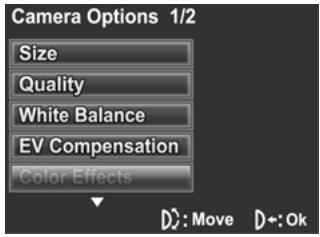
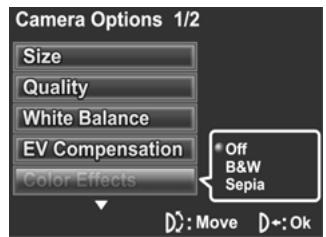
- Press the MENU button again to exit the menu.
4.3.6 Self-timer
This function allows you to capture an image of yourself by adding a specified time delay between when the Shutter button is pressed and when the picture is actually taken.
- Turn the video camera on and ensure it is in Photo mode.
- Press the MENU button and use the scroll wheel to highlight the Selftimer option. Press the scroll wheel inwards to display the submenu.
- Use the scroll wheel to select Off, 10 sec, or 20 sec. Press the scroll wheel inwards to confirm.
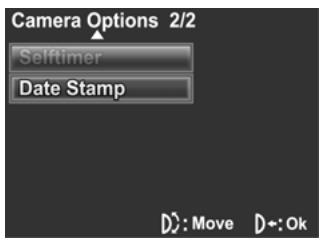
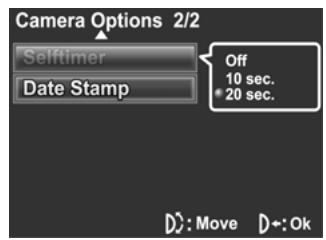
- Press the MENU button again to exit the menu.
- Press the Shutter button and the selftimer starts. An image is captured after the specified time delay.
4.3.7 Date stamp
Use this option to turn on/off the date stamp when a photo is taken.
- Turn the video camera on and ensure it is in Photo mode.
- Press the MENU button and use the scroll wheel to highlight the Date Stamp option. Press the scroll wheel inwards to display the submenu.
- Use the scroll wheel to select whether to show the date stamp on the screen. Press the scroll wheel inwards button to confirm.
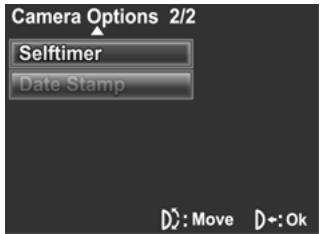
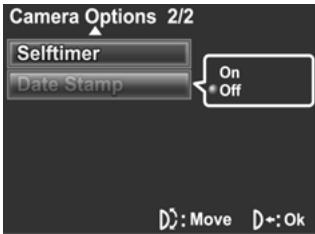
- Press the MENU button again to exit the menu.
4.4 Photo playback menu
4.4.1 Delete all
Use this function to delete files.
- Turn the video camera on and ensure it is in Photo mode. Press the Playback button and then press the MENU button to display the Photo Playback menu.
- Use the scroll wheel to highlight the Delete All option. Press the scroll wheel inwards to display the submenu.
- Use the scroll wheel to select OK or Cancel. Press the scroll wheel inwards to confirm.
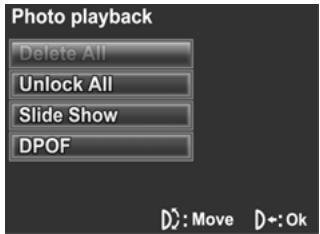
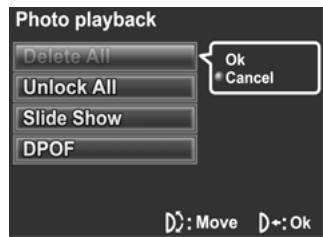
- Press the MENU button again to exit the menu.
Note: Once deleted, files cannot be recovered. Make sure the files are transferred to PC via the USB AV cable or saved to other storage devices. Files that have been protected will not be deleted.
4.4.2 Unlock all
Use this function to unlock all protected files.
- Turn the video camera on and ensure it is in Photo mode. Press the Playback button and then press the MENU button to display the Photo Playback menu.
- Use the scroll wheel to highlight the Unlock All option. Press the scroll wheel inwards to display the submenu.
- Use the scroll wheel to select OK or Cancel. Press the scroll wheel inwards to confirm.
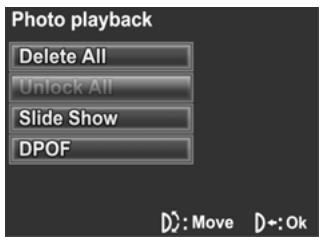
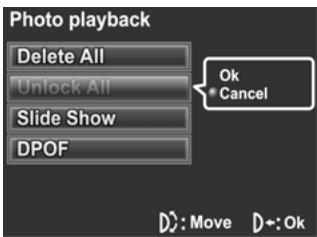
- Press the MENU button again to exit the menu.
Note: To lock a file, move the joystick down in Playback mode. A lock icon is displayed to show the file is protected.
4.4.3 Slide show
The camera includes a slide show function, which displays each image in turn with a regular interval between pictures.
- Turn the video camera on and ensure it is in Photo mode. Press the Playback button and then press the MENU button to display the Photo Playback menu.
- Use the scroll wheel to highlight the Slide Show option. Press the scroll wheel inwards to display the submenu.
- Use the scroll wheel to select Start or Cancel and press the scroll wheel inwards to confirm.
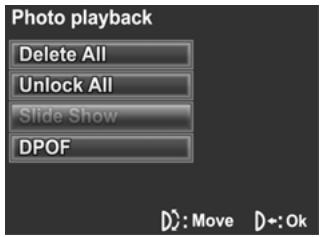
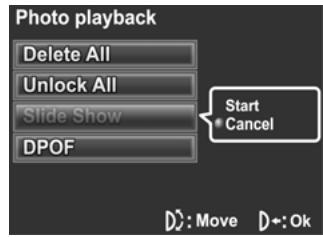
- The images will be displayed one after another. Press the Shutter button to stop the slide show.
4.4.4 DPOF
Use the DPOF (Digital Print Order Format) function to tag pictures stored in the memory card with print information. You can tag all pictures to be printed or select individual pictures.
- Turn the video camera on and ensure it is in Photo mode. Press the Playback button and then press the MENU button to display the Photo Playback menu.
- Use the scroll wheel to highlight the DPOF option. Press the scroll wheel inwards to display the submenu.
- Use the scroll wheel to select the option as below, and then press the scroll wheel inwards to confirm.
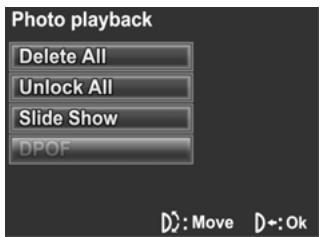
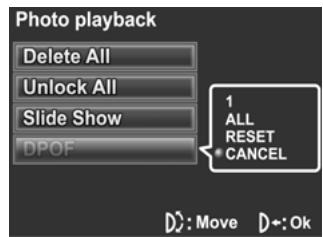
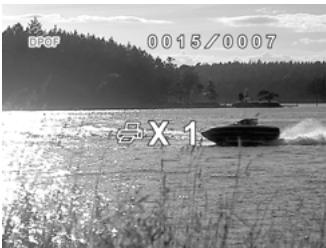
1: select a single print
The most recent picture is displayed on the screen. Press the directional pad up and down to set the number of prints, and press the directional pad left and right to select other photos. You can set a maximum of nine prints for each picture.
ALL: select to print all photos
RESET: select to reset setting
CANCEL: select to cancel all
Note: A memory card is required for DPOF function.
4.5 Voice Playback Menu
4.5.1 Delete all
Use this function to delete files.
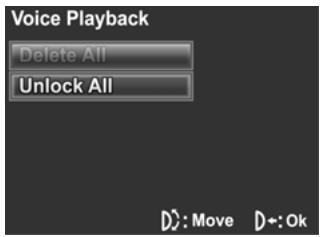
- Turn the video camera on and ensure it is in Voice mode. Press the Playback button and then press the MENU button to display the Voice Playback menu.
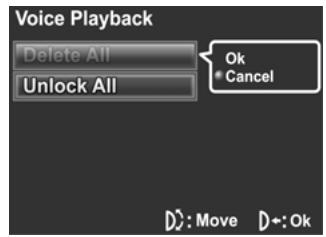
- Use the scroll wheel to highlight the Delete All option. Press the scroll wheel inwards to display the submenu.
- Use the scroll wheel to select OK or Cancel. Press the scroll wheel inwards to confirm.
- Press the MENU button again to exit the menu.
Note: Once deleted, files cannot be recovered. Make sure the files are transferred to PC via the USB AV cable or saved to other storage devices.
4.5.2 Unlock all
Use this function to unlock all protected files.
- Turn the video camera on and ensure it is in Voice mode. Press the Playback button and then press the MENU button to display the Voice Playback menu.
- Use the scroll wheel to highlight the Unlock All option. Press the scroll wheel inwards to display the submenu.
- Use the scroll wheel to select OK or Cancel. Press the scroll wheel inwards to confirm.
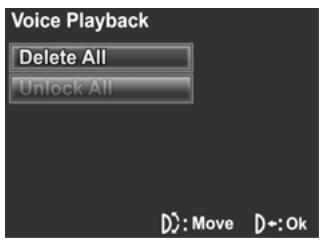
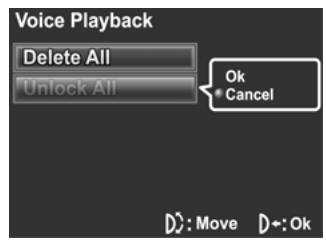
- Press the MENU button again to exit the menu.
4.6 System menu
The system menu is used to configure miscellaneous camera functions.
4.6.1 Date/time
See Section 2.5.1 "Setting the date and time".
4.6.2 Beep
- Turn on the video camera and switch to SET mode.
- Use the scroll wheel to highlight the Beep option. Press the scroll wheel inwards to display the submenu.
- Use the scroll wheel to select ON or OFF and press the scroll wheel inwards to confirm.
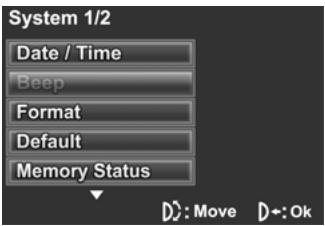
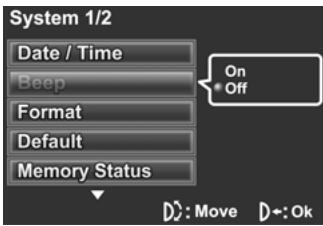
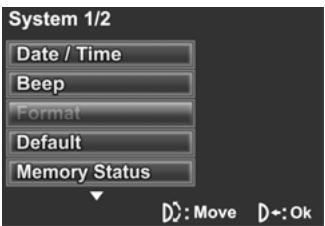
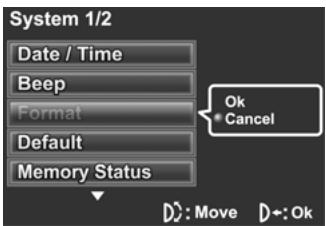
4.6.3 Format
Use this function to format the current storage media. This format action will delete everything on the media.
- Turn on the video camera and switch to SET mode.
- Use the scroll wheel to highlight the Format option. Press the scroll wheel inwards to display the submenu.
- Use the scroll wheel to select OK or Cancel, and press the scroll wheel inwards to confirm.
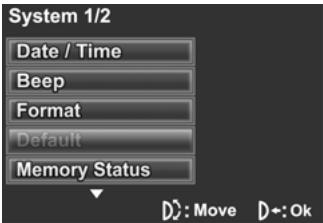
4.6.4 Default
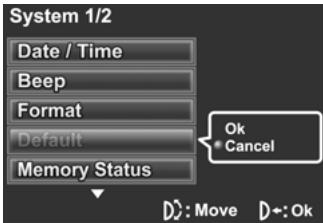
Use this option to reset all settings to the default.
- Turn on the video camera and switch to SET mode.
- Use the scroll wheel to highlight the Default option. Press the scroll wheel inwards to display the submenu.
- Use the scroll wheel to select OK or Cancel, and press the scroll wheel inwards to confirm.
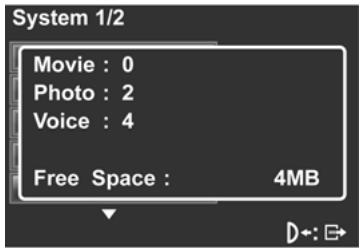
4.6.5 Memory status
This function displays the memory status and the number of video clips, photos, and voice files saved in the video camera.
- Turn on the video camera and switch to SET mode.
- Use the scroll wheel to highlight the Memory Status option. Press the scroll wheel inwards to display the submenu.
- The number of files saved and the free memory space are displayed on the screen. Press the scroll wheel inwards again to exit.
4.6.6 Language
Please refer to Section 2.5.2 "Setting the language".
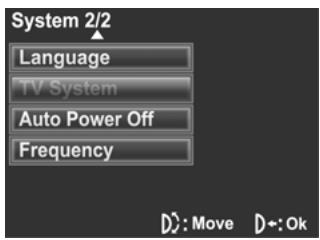
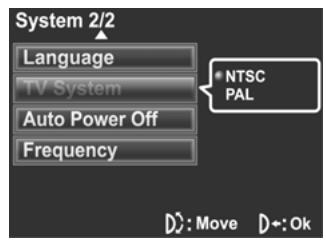
4.6.7 TV system
Use the TV option to set the TV system for the area.
- Turn on the video camera and switch to SET mode.
- Use the scroll wheel to highlight the TV System option. Press the scroll wheel inwards to display the submenu.
- Use the scroll wheel to select NTSC or PAL, and press the scroll wheel inwards to confirm.
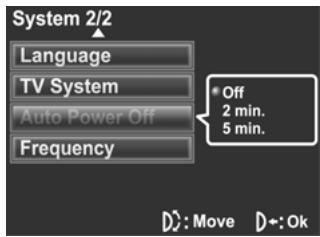
4.6.8 Auto power off
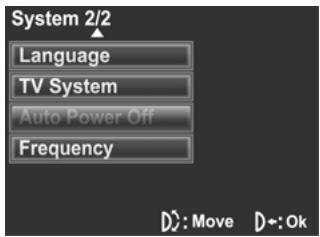
Use this function to switch the camera off automatically after a period of inactivity for power saving.
- Turn on the video camera and switch to SET mode.
- Use the scroll wheel to highlight the Auto Power Off option. Press the scroll wheel inwards to display the submenu.
- Use the scroll wheel to select Off, 2 min, or 5 min. Press the scroll wheel inwards to confirm.
4.6.9 Frequency
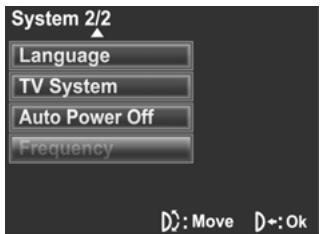
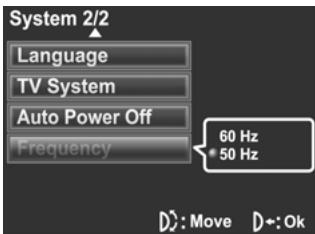
Use the Frequency option to set the frequency system for your area. To set the frequency:
- Turn on the video camera and switch to SET mode.
- Use the scroll wheel to highlight the Frequency option. Press the scroll wheel inwards to display the submenu.
- Use the scroll to select 60Hz or 50Hz . Press the scroll wheel inwards to confirm.
5 Installing software and drivers
Read this section to learn how to install drivers and software for the camera.
5.1 Drivers
You can use the "Mass Storage" and "PC Camera" functions of the camera on the PC.
5.1.1 Mass Storage
The digital camera offers Mass Storage function as a card reader device. You can treat this digital camera as an SD device. When the camera is connected, the camera memory or any installed SD/MMC card displays as Mass Storage in Windows Explorer. Files can be dragged and dropped in the same way as an ordinary disk.
5.1.2 PC camera
You will need to install a driver for the camera to use as a PC or Web Cam in all Windows operating systems (Windows XP/2000/Vista 32bit).
Note: Driver installation is required for all operating systems.
The digital camera can be used as a PC camera or a Web Cam. Please follow the instructions below:
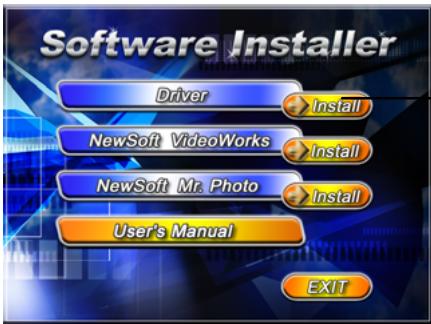
- Insert the supplied CD-ROM in the CD-ROM drive.
- If the CD-ROM does not automatically boot, use Windows Explorer to execute the InstallMgr.exe file in the root directory.
Install button
- Click the Install button to install the driver.
- Follow the on-screen instructions.
- Click Finish to restart the computer and finish the camera driver installation.
5.2 Presto! Video Works
Presto! Video Works is an advanced software application for editing video.
To install Presto! Video Works:
- Insert the supplied CD-ROM in the CD-ROM drive.
- If the CD-ROM does not automatically boot, use Windows Explorer to execute the InstallMgr.exe file in the root directory.
The following screen is displayed.
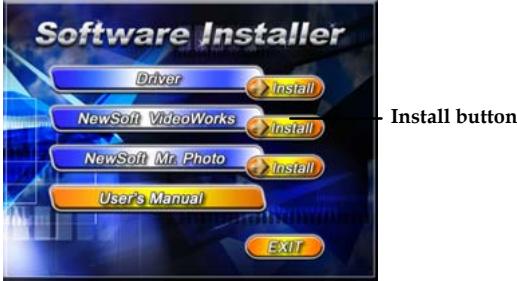
- Click the Install button to begin the installation process and follow the instructions on-screen.
More information about Presto! Video Works can be found in the help files when the application is started.
5.3 Presto! Mr. Photo
Presto! Mr. Photo is an advanced photo editing software application.
To install Presto! Mr. Photo:
- Insert the supplied CD-ROM in the CD-ROM drive.
- If the CD-ROM does not automatically boot, use Windows Explorer to execute the InstallMgr.exe file in the root directory.
The following screen is displayed.
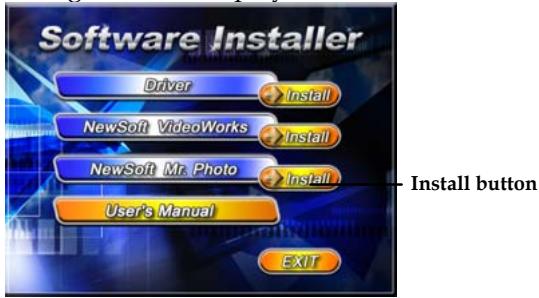
- Click Install to begin the installation process and follow the instructions on-screen.
More information about Presto! Mr. Photo can be found in the help files when the application is started.
5.4 User's Manual
You can download the user's manual in a wide range of languages and following the instructions below.
To view the user's manual:
- Insert the supplied CD-ROM in the CD-ROM drive.
- If the CD-ROM doesn't automatically boot, use Windows Explorer to execute the InstallMgr.exe file in the root directory.
The following screen is displayed.
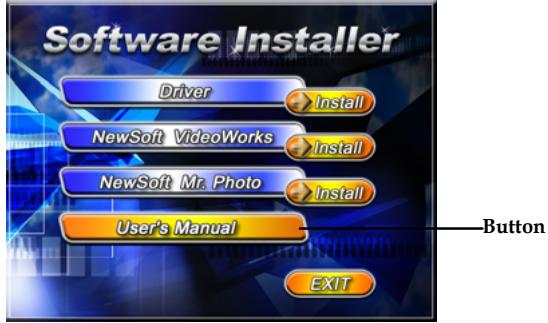
- Click User's Manual to download the user's manual. You can choose to download the user's manual in English, German, French, Spanish, Italian, Japanese or Traditional Chinese. You must have Acrobat Reader installed on your PC, as all user's manuals are in pdf format.
Appendix
Specifications
| General | |
| Imaging sensor | 1/2.5" CMOS 5.17 Megapixel sensor |
| Active pixels | 5.1 Megapixel |
| Storage media | Built-in 32 MB flash memory SD Card (MMC compatible), can support up to 4GB |
| Sensor sensitivity | Auto |
| Lens | Fixed focus lens Wide: F/3.1, f=7.5mm |
| Focus range | Normal: 1.5m~infinity Macro: 15~16cm |
| Still image | Formats: JPEG (DPOF, EXIF), Direct Print Resolution: 1M, 3M, 5M, 12M (Firmware interpolation) Quality: Fine, Normal |
| Movie clips | Motion JPEG (AVI) |
General
| Resolution: 640 x 480 pixels, 320 x 240 pixels Frame rate: 30 fps (max.) | |
| Zoom | 4X Digital Zoom |
| TFT Monitor | 2.4" TFT (480 x 234 pixels) |
| Strobe | Effective range: <1 m range Flash modes: Auto/Off |
| White balance | Auto/Sunny/Cloudy/Tungsten/ Fluorescent |
| EV compensation | -2.0 EV~+2.0 EV |
| Self-timer | Off, 10, 20 seconds |
| PC interface | PC Cam: USB 2.0 (full speed) Mass storage: USB 2.0 (full speed) |
| TV out format | NTSC/PAL |
| Shutter | Electronic shutter 1/4~1/2000 second |
| Auto power off | Off, 2 min., 5 min. |
| Power supply | Camera: 4 x AAA alkaline batteries |
| Dimensions | 98.3(L) x 68.2 (W) x 37 (H) mm |
General
Weight
< 136 ± 5 ~g (without batteries)
Troubleshooting
| Problem | Possible Cause | Solution |
| Cannot turn on the camera. | The batteries are not inserted correctly. The batteries have no power. | • Insert the batteries correctly. (See Section 2.2 “Inserting the batteries”). • Replace the batteries. |
| The camera suddenly turns off. | The auto power off function was enabled. The camera is running out of battery power. | • Turn the power on again. • Replace the batteries. |
| The captured image is not stored in memory. | Before the image is saved the power has been cut off. | ·When the battery indicator turns red, charge the batteries immediately. |
| The camera turns off when capturing image using self-timer. | The camera is running out of battery power. | ·Replace the batteries. |
| The image is out of focus. | The subject is beyond focus range. | ·Please take a picture within the available focus range and choose normal or macro mode. (See Section 3.3.2 “Using the macro function”). |
| Memory card cannot be used. | The memory card is protected. The memory card contains non-DCF images | ·Unlock the memory card. ·Format the memory card. (See Section |
| taken by other cameras. | 4.6.3 “Format”.) Before formatting the card, ensure you have backed up the files. | |
| All buttons are inactive. | Short circuit occurred when connecting the camera with other devices. | Remove the batteries from the camera and insert again. |