
DSC13M SMART - Digital Camera GENIUS - Free user manual and instructions
Find the device manual for free DSC13M SMART GENIUS in PDF.


| Brand | GENIUS |
| Model | DSC13M SMART |
| Product Type | Compact Digital Camera |
| Resolution | 13 Megapixels (CMOS sensor) |
| Optical Zoom | 3x |
| Screen | 2.7-inch LCD |
| Dimensions (W x H x D) | 95 x 60 x 25 mm |
| Weight | 120 g (without batteries) |
| Power Source | 2 AA batteries (alkaline or rechargeable) |
| Internal Memory | 16 MB |
| Storage Media | SD/SDHC card (up to 32 GB) |
| Image Formats | JPEG |
| Video Formats | AVI (640x480, 30 fps) |
| Connectivity | USB 2.0, AV output |
| Main Functions | Photo capture, video recording, digital zoom, face detection, self-timer, scene modes |
| Maintenance and Cleaning | Clean the lens with a soft, dry cloth; avoid moisture and dust |
| Safety | Do not expose to extreme temperatures; remove batteries if not used for extended periods |
| Spare Parts and Repairability | Batteries and charger available; contact customer service for other parts |
| General Information | GENIUS compact digital camera model DSC13M SMART; user manual available online |
Frequently Asked Questions - DSC13M SMART GENIUS
User questions about DSC13M SMART GENIUS
0 question about this device. Answer the ones you know or ask your own.
Ask a new question about this device
Download the instructions for your Digital Camera in PDF format for free! Find your manual DSC13M SMART - GENIUS and take your electronic device back in hand. On this page are published all the documents necessary for the use of your device. DSC13M SMART by GENIUS.
USER MANUAL DSC13M SMART GENIUS
| Introduction | 2 |
| Proper Care | 2 |
| Batteries | 2 |
| Package Contents | 3 |
| Device Installation | 3 |
| Getting to Know Your Camera | |
| Front | 3 |
| Rear | 4 |
| Getting Your Camera Ready | |
| Loading the Batteries | 4 |
| Button Modes | 5 |
| LCD Description | 5 |
| Getting Started | |
| Power On/Off | 5 |
| Battery Life Indicator | 5 |
| Auto Power OFF Function | 6 |
| Basic Operation | 6 |
| Movie recording | 6 |
| Image Resolution | 6 |
| Using the Self-Timer | 6 |
| Deleting Images | 6 |
| Using the Flash Light | 7 |
| Downloading Photos/Movies from camera | 7 |
| Using Genius VideoCAM Smart as a video camera 8 | |
Introduction
Congratulations are due for picking up one of the more powerful digital cameras currently available. We expect it will give you all the things you hoped for. But before you begin using it, please read through this manual carefully and follow the instructions to avoid any
possible damages caused by improper usage.
Proper Care
7.Do not place a battery in an environment subject to extremely high temperatures or humidity.
8.Remove the batteries if the camera will not be used for an extended period of time to avoid battery leakage.
9.Low temperatures (below 10C) may reduce the output efficiency of batteries, thereby shortening the operation time of camera.
10.If battery leakage happens, please remove batteries from the compartment and clean the base before loading the new batteries.
11.If you accidentally touch or get leakage stains on clothes, please wash with clean water. If the leakage gets in your eyes, please
| 3. Environments with lots of turbulence. |
| 4. Locations full of smoke, oil fumes or steam. |
| 5. Locations subject to a strong magnetic field. |
| 6. When it's raining or snowing. |
| Do not open the battery cover when the power is on. |
| If water has entered the camera, immediately turn the power OFF and remove the batteries. |
| 7. How to maintain your camera: |
| 1. If the lens, LCD display or the viewfinder surface is dirty, use a lens brush or a soft cloth to wipe the surface clean. Do not touch the lens with your fingers. |
| 2. Do not hit the camera with any solid object to avoid scratching the lens, LCD display or viewfinder surface. |
| 3. Do not use any detergent or volatile solution, which will cause the camera case and paint to dissolve or distort. Use a soft cloth. |
only.
Batteries
1.Use two "AAA" type batteries only.
2.Do not use different types of batteries together, or mix old and new batteries.
Caution for battery usage
Please follow these instructions to install the batteries.
1. Check the polarity marks on the battery (+ and -) before loading the batteries in the camera.
2. Turn the camera off before removing the batteries.
Caution for battery usage
Caution for battery usage
Please follow these instruct
1 Check the polarity marks on the battery (± and-)be
Package Contents
Device Instinct
1-1 Insert the DSC-1.3M Smart Soft
1-2 Click the Utility Driver button and wait a few seconds. Setup will guide
1.3 Please install DirectX 9 and Arcssoft software of the CD-ROM
1-3 Please install DirectA9 and Aresoft software of the CD ROM: Note : If the DSC-L 3M Smart Setup screen does not display automatically.
- Go to the Taskbar and click start, then Run.
2.2.Type D:\SETUP.EXE, WHERE D: is the de
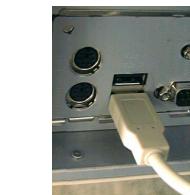
USB connector
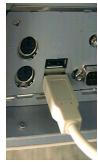
- When prompted, connect the DSC-1.3M Smart Camera to the USB port of your computer, as shown in the drawing.
Uninstall: 1. Click the Start button on Windows Taskbar, and choose Programs > DSC-1.3M
Smart> DSC-1.3M Smart Uninstall 2 Follow the install steps
2. Follow the Unshift 3 restart computer
- Connect DSC-1.3M Smart to your Computer
- When prompted, connect the DSC-1.3M S
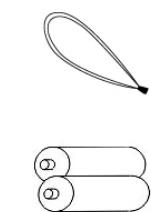
Strap
Users Manual
AAA Battery
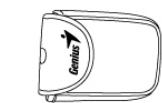
Bag
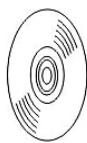
Software CD-ROM
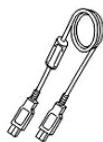
USB Cable
Make sure the follow
when you open it up.
Software CD-ROM (i)
Two AAA Batteries
Wrist Strap
USB Cable
Bag
User Manual
Make sure the following items are in the package
when you open it up.
Software CD-ROM (incl. Driver and Applications)
Two AAA Batteries
Wrist Strap
USB Cable
Bag
User Manual
Device Installation
1-1 Insert the DSC-1.3M Smart Software CD into the CD-ROM drive of your computer. 1-2 Click the Utility Driver button and wait a few seconds. Setup will guide you through the software setup sequence automatically. Just follow the on-screen prompts.
1-3 Please install DirectX 9 and Arcsoft software of the CD-ROM.
Note: If the DSC-1.3M Smart Setup screen does not display automatically,
-
Go to the Taskbar and click start, then Run.
-
Type D. SET OF EXE, WHERE D. is the designation of your CD-ROM drive, then press the Enter key.
Uninstall:
Getting to Know Your Camera
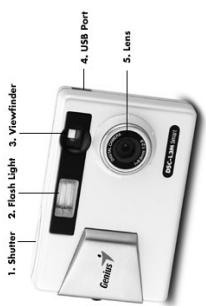
Front view
1.Shutter
-
Flash Light
-
Viewfinder
-
USB Port
-
Lens
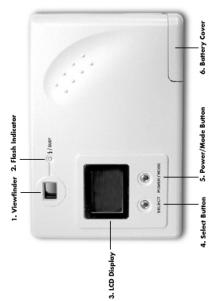
Rear View
-
Viewfinder
-
Flash Indicator
-
LCD Display
-
Select Butto
-
Power/Mode Button
-
Battery Cover
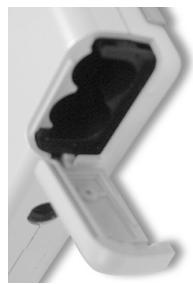
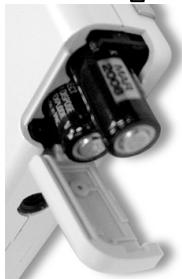
→
- Open the Battery Cover. then insert
as shown on the inside of the cover.
NOTE: We recommend Button Modes
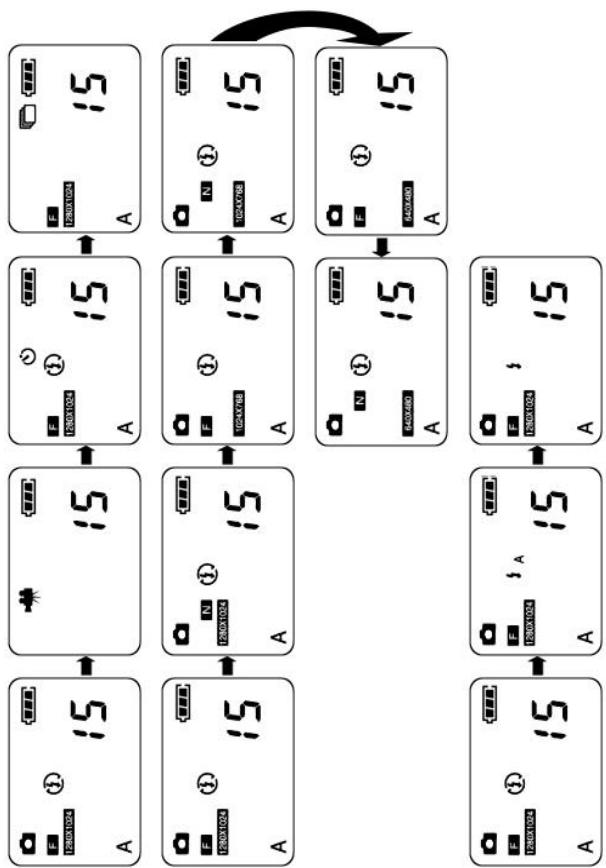
Shutter button: Press this button to take pictures or to capture video.
Select button: Press this button to change mode in the required function.
Power/Mode button: Press this button to power on your camera or switch to required function. The sequential order of functions is as
called Auto Power OFF.
Battery Life Indicator
(2) Low Battery Power
Note: If your batter power is low, you can't use the Flash light any more but you still can use the camera.
Basic Operation
Turn on the power of the camera.
Press and release the Shutter button to take a picture.
(At this time, you will hear one beep.)
The LCD will display and add up the nu
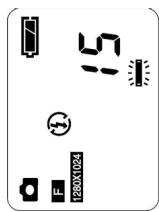
LCD Description
(1) Three Auto-Shot Mode
(2) Self-Timer
(3) Flash
(4) Motion Movie Mode
Movie recording
(1) Turn on the power of the camera.
(2) Press Mode button once and you
con of Capture appe
(3) Press Shutter button to stop recording.
Recorded images will be saved in the
cable to dow

then press Shutter again.

Press the Select button to change the Resolution mode.
F(Fine): High Quality: default value
N(Normal): Low Quality
F(Fine): High Quality: de
Power On/Off
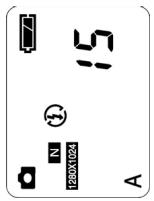
then press Shutter again, the camera will take a picture three times automatically.
Image Resolution
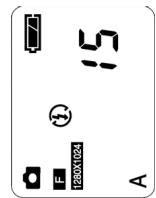
Press the Mode button once and the icon flashes. Then press the Select button until the icon appears. Press Shutter to confirm,
(10) Delete
(10)Delete
(11) Battery
(11) Battery Life Indicator
(11) Battery Life Indicators
(5) Still Image Mode
(6) Still Image Quality
(7) Still Image Resolution
(8) White Balance Mode
(9) Image/Movie Counter
(3) Still Image Mode
(6) Still Image Quality
(7) Still Image Resolution
(8) White Balance Mode
(9) Image/Movie Counter
Press the MODE button once ( ) and you will see the icon flash. Press the Select button
until the icon of Self-Timer appears, then press Shutter to confirm (and you will hear one
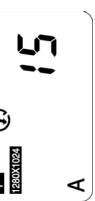
The camera will beep for 10 seconds. After 10 seconds, the camera takes a picture automatically.
Deleting Images
Delete recorded video or images. Press the Mode button four times until the icon of Delete ONE appears. Press the Select button to
switch to Delete ONE or Delete ALL mode. Then press the Shutter button to delete video or images.
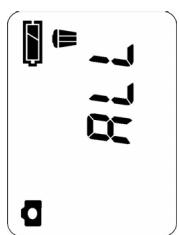
Delete all images.
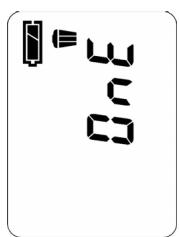
Delete the last image.
1
Using the flashlight
Your camera is equ
Turning on/off the flash light
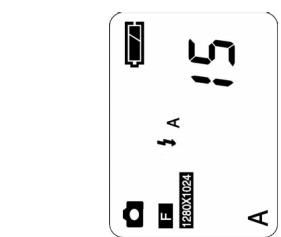
Press the MODE button three times until the icon flashes. Press the Select button to switch between flash light modes. Press the Shutter button to
confirm. If you choose Auto Flash mode or Force Flash mode, you will see the FLASH indicator blink. After the FLASH indicator stops
blinking, your camera has been charged. Now you can use the flashlight.
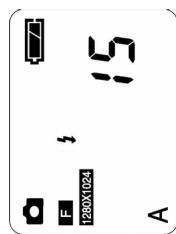
Auto Flash Mode: The camera will detect light automatically. If you are someplace with enough light, the
Flashlight won't be enable.
Force Flash Mode: The Flashlight will enable no matter where you are.
Note: During charging, the FLASH indicator blinks. Charging is completed when the FLASH indicator
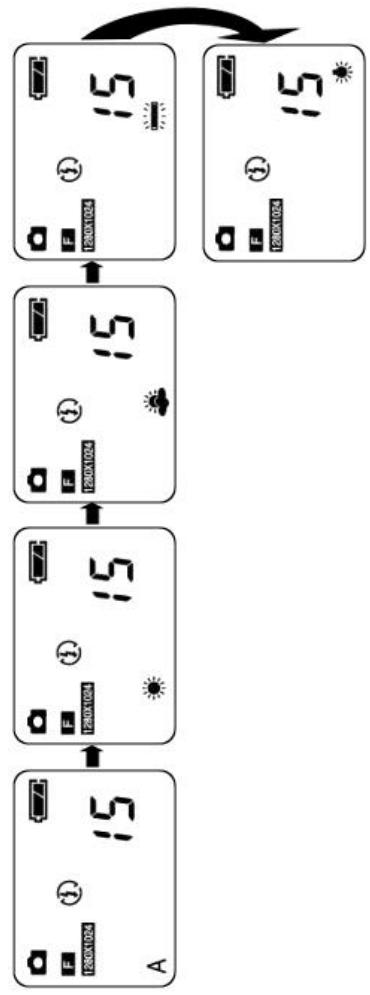
Cloudy.
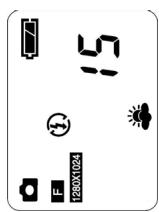
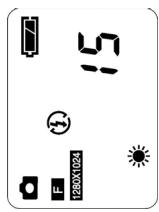
Sunny:
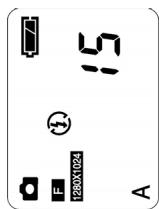
Auto:
Tungsten lamp:
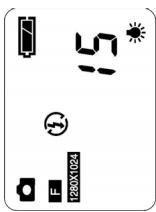
Fluorescent lamp(Strip lighting):
Downloading photos/video from camera
You have two methods to download photos/video from camera.
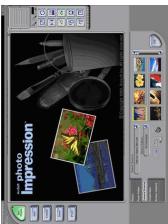
One: Connect the Camera to the USB port of your computer, as shown in the picture. Power on your computer. Click the
PhotoImpression icon on Windows Desktop, or choose Start > Program Files >
ArcSort PhotoImpression 3.0> PhotoImpression 3.0. The following PhotoImpression
main screen will appear.
I'm sure the AraSoft Pro

Using DSC-1.3M Smart as a video camera
Using DSC- 1.3M Smart as a video cameraConnect the DSC- 1.3M Smart Camera to the USB port of your computer, as shown in the picture.
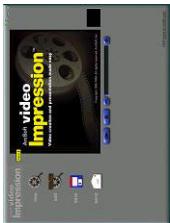
Power on the computer. Click the Start button on Windows Taskbar, and choose Programs > ArcSoft VideoImpression > VideoImpression.
The following Videolpression main screen will appear.
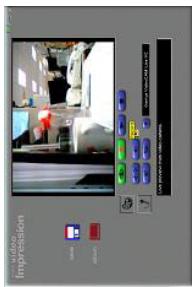
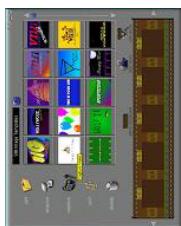
Click Capture button and the Capture screen will appear.
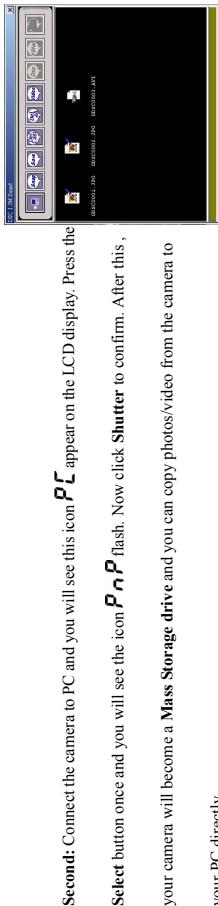
Second: Connect the ca Select button once and your camera will becor your PC directly.
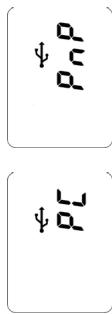
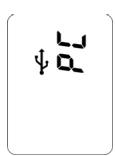
Select button once and you will see the icon PnP flash. Now click Shutter to confirm. After this ,your camera will become a Mass Storage drive and you can copy photos/video from the camera to
your PC directly.
Click Capture button a