
D610 - Digital Camera GENIUS - Free user manual and instructions
Find the device manual for free D610 GENIUS in PDF.


| Product type | Compact digital camera |
| Brand | GENIUS |
| Model | D610 |
| Sensor | CMOS 3.3 megapixels (interpolation up to 2976x2232) |
| Lens | Fixed focal length f=9.61 mm, aperture F/3.0 |
| Digital zoom | 4x (10 steps) |
| Image resolutions | 2976x2232, 2048x1536, 1600x1200, 1280x960 |
| File formats | JPEG (photo), AVI (video) |
| Memory capacity | 16 MB internal + SD/MMC slot (up to 512 MB) |
| Power supply | 2 AA alkaline batteries or CRV-3 battery, USB 5V (PC-CAM mode) |
| Dimensions | 93 × 56 × 38 mm |
| Weight | Approximately 120 g (without batteries) |
| LCD screen | Yes (not specified in inches) |
| Built-in flash | Modes Auto, Red-eye reduction, Off |
| ISO sensitivity | 100 |
| White balance | Auto, Sunlight, Tungsten, Fluorescent |
| Shutter speed | 1/4 s to 1/2000 s |
| Ports | USB 1.1, TV output (NTSC/PAL) |
| Special features | Macro (23-27 cm), self-timer 10 s, PC-CAM mode, DPOF |
| Required operating system | Windows 98SE/Me/2000/XP |
| Box contents | CD-ROM, USB cable, TV cable, wrist strap, case, AA batteries, manual, quick guide |
| Care & cleaning | Clean the lens and screen with a brush or soft cloth. Do not use detergent. |
| Safety instructions | Do not expose to sunlight, moisture, or shocks. Remove batteries if water enters. Use only batteries. |
| Repairability | Do not attempt to repair yourself. Contact an authorized dealer. |
Frequently Asked Questions - D610 GENIUS
User questions about D610 GENIUS
0 question about this device. Answer the ones you know or ask your own.
Ask a new question about this device
Download the instructions for your Digital Camera in PDF format for free! Find your manual D610 - GENIUS and take your electronic device back in hand. On this page are published all the documents necessary for the use of your device. D610 by GENIUS.
USER MANUAL D610 GENIUS
1-1 Attention 2
1-2 Before Using Your Camera 2
1-3 Operation Caution 3
1-4 Package Contents. 3
Chapter 2 Getting to Know Your Camera
2-1 Front View & Rear View. 4-5
2-2 Specifications 5-6
2-3 System Requirements. 6-7
Chapter 3 Controls, Operation, and Display
3-1 LED Indicators 7
3-2 LCD Monitor Display 7-8
3-3 Power supply. 8-9
3-4ShutterButton 9
3-5 Mode Dial 9
3-6 MENU/ENTER Button 9
3-7 Flash Button 10
3-8 Mode Display Button 10
3-9 Macro Button 10
Chapter 4 Navigating Modes and Menus
4-1 Mode Selection. 10
4-2 Record Mode. 11
4-3 Play Mode. 12-13
4-4 Movie Mode 13
4-5 Setup Mode 14-16
Chapter 5 Preparing Your Camera
5-1 Attaching the Strap. 16-17
5-2 Loading Batteries 17-18
5-3 Loading and Removing the Memory Card. 18-20
5-4 Setting Up the OSD Language 20
5-5 Setting Up the Date/Time 20
Chapter 6 Getting Started
6-1 Setup Mode 21
6-2 Record Mode 21-22
6-3 Play Mode 22-23
6-4 Movie Mode 23
6-5 PC Mode 23-26
6-6 TV-OUT Operation. 26
Chapter 7 Driver Installation
7-1 Installing the Camera Driver for PC 26-27
7-2 Installing the Applications for PC 27-29
7-3 Downloading photos/video from camera. 30
Chapter 1 Attention
Please read through this manual carefully before using the camera and follow the instructions to avoid any damages that may be caused by improper operation.
1-1 Attention
The software CD-ROM packaged with the camera is designed for PC only. To play this CD-ROM on a stereo or CD player may cause damage to it.
This camera is a precision electronic device. Do not attempt to service this camera yourself, as opening or removing covers may expose you to dangerous voltage points or other risks. Do not expose this camera under direct sunlight to avoid causing a fire.
1-2 Before Using Your Camera
Try to take some pictures before you perform the formal recording.
Before taking pictures with this camera of any important occasion (such as a wedding ceremony or on vacation), do test the camera beforehand to ensure that it functions well. Any additional loss caused by the malfunction of this product (such as costs of photography or any loss of benefit generated by the photography) is not the responsibility of our company and no compensation will be given for it.
Copyright information
Unless agreed by the right owner, all the pictures taken with this digital camera cannot be used in violation of copyright law. Moreover, when "No Photography" restriction is placed on site, you cannot record any live performance, improvisation or exhibits even for personal purpose. Any transfer of pictures or memory card wyith data must be conducted under the constraints of copyright law.
Notes on the LCD (Liquid Crystal Display) monitor
- If the liquid contacts the skin:
Please wipe dry the skin with a cloth and wash with large amounts of water.
- If the liquid gets in the eye:
Please immediately rinse with fresh water for at least 15 minutes and then consult with a physician to receive treatment as soon as possible.
- If anyone accidentally swallows the liquid:
Please rinse the mouth with water, drink large amounts of water and contact a physician to receive treatment as soon as possible.
1-3 Caution When Using the Camera
This product consists of intricate electrical parts. To ensure the camera photographs normally, do not drop or hit the camera when taking pictures.
-
Avoid using or placing the camera in the following locations:
-
Damp and dusty places.
- Sealed vehicles or places exposed to direct sunlight or places subject to extremely high temperatures or heat.
- Violently turbulent environment.
- Locations full of smoke, oil fumes or steams.
- Locations subject to strong magnetic field.
-
In a rain or snow environment.
-
Do not open the battery cover when the power is on.
- If water has entered the camera, immediately turn the power OFF and remove the batteries.
-
How to maintain your camera:
-
If the lens, LCD monitor or viewfinder surface is dirty, please use a lens brush or soft cloth to wipe the surface clean instead of touching the lens with your fingers.
- Do not use any solid object to hit the camera to avoid scratching the lens, LCD monitor or viewfinder surface.
- Do not use any detergent or volatile solution, which will subject the camera case and paint to solving or distortion. Use soft cloth only.
1-4 Package Contents
Please check if the following items are in the package when purchasing this product.
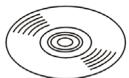
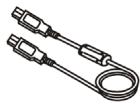
CD-ROM(incl. Camera Driver)
USB Cable
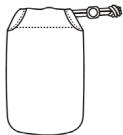
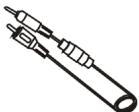
Pouch
TV -OUT Cable
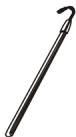
Wrist Strap
User's Manual

2 x AA Alkaline Batteries
Quick Guide
CD-ROM (incl. Camera Driver)
Pouch
Wrist Strap
2 x AA Alkaline Batteries
USB Cable
TV-OUT Cable
This User's Manual
Quick Guide
Chapter 2 Getting to Know Your Camera
2-1 Names of Parts
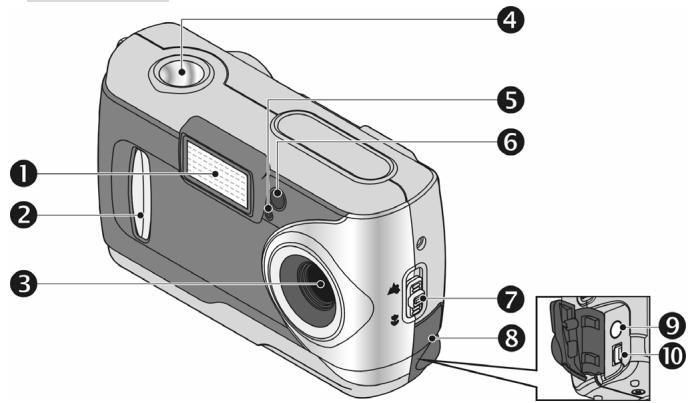
Front View
(1) Flash
(2) Lens Cover/Power Button
(3) Lens
(4) Shutter Button
(5) Self-timer LED
(6) Red-eye Reduction LED
(7) Macro Button
(8) Terminator Cover
(9) TV-Out
(10) USB Port
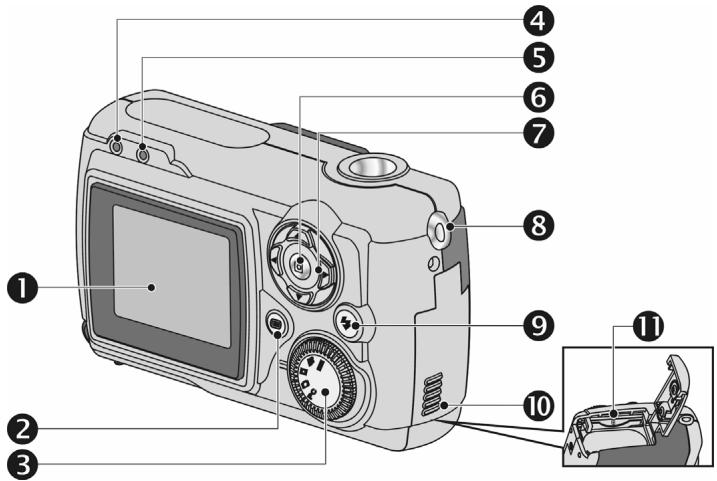
Rear View
(1) LCD Monitor
(7) Multi-Select Button
(2) Mode Display Button
(8) Strap Holder
(3) Mode Dial
(9) Flash Button
(4) Status LED
(10) Battery Cover
(5) Macro Mode LED
(11) Memory Card Slot
(6) ENTER Button
2-2 Specifications
- Lens: f = 9.61 mm
-
Image Sensor: 3.3 mega pixel CMOS sensor
Focus: F/3.0
Sensitivity: ISO 100 -
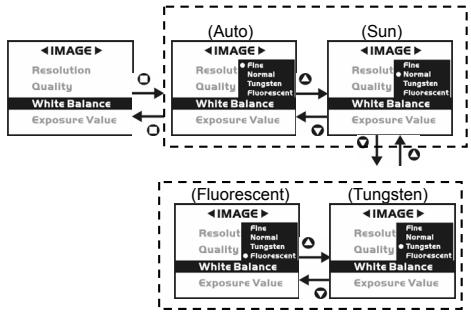
White Balance: Auto, Sun, Tungsten, Fluorescent.
- Shutter: Electrical
- Shutter Speed: 1/4 sec. ~ 1/2000 sec.
Storage Media: 16MB Internal Flash Memory SD Card (MMC compatible) Slot(support 4/8/16/32/64/128/256/512MB) - Image File Format: JPEG for Still image, AVI for Movie files.
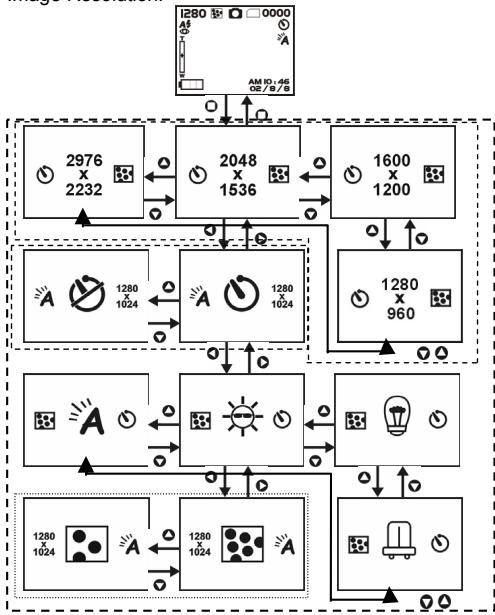
- Image Resolution:
2976x2232(Firmware Interpolation Technology)
2048x1536
1600 x 1200
1280 x 960
Digital Zoom: 10-Step 4X Digital Zoom - Focal Range Standard: 1.2 m Infinity
- Focal Range Macro: 23 27cm
Self-timer: 10 sec. delay
PC-CAM Mode: 640 x 480 Pixels, 10 fps 320 x 240 Pixels, 15 fps - Flash Mode: Auto, Red-eye reduction, Off
- TV-OUT: NTSC / PAL system selectable
PC Interface: USB (Ver. 1.1) - Movie File: Recording 80 sec. continuous movie file with 512 × 384 format (16MB internal memory)
- Record able Image Numbers (16MB): *For reference only, actual image numbers could be varied to objective and environment.
| 1280X960 | 1600X1200 | 2048X1536 | 2976x2232 | ||
| 16MB | Fine | 32 | 21 | 13 | 15 |
| Normal | 80 | 52 | 32 | 40 | |
Power Supply: 2 x AA Alkaline Batteries or supports CRV-3, USB 5V (PC-CAM Mode)
- Dimensions: 93 × 56 × 38 mm
Weight: About 120g (batteries excluded)
2-3 System Requirements
Please refer to the minimum system requirements for the digital camera. We recommend that you use a computer system that exceeds the minimum requirements in order to utilize the camera at its optimum efficiency. The minimum system requirement for the digital camera is as follows:
| System | Requirement |
| OS | Microsoft Windows 98SE/Me/2000/XP |
| CPU | Intel Pentium 166MHz or higher |
| Memory | Minimum 32 MB memory or above |
| CD-ROM | 4X or above |
| HDD | Hard drive with 10 MB free disk space minimum |
| Others | One standard USB 1.1 port |
Chapter 3 Controls, Operation, and Display
3-1 LED Indicators
This is what LED indicators located on the top of LCD monitor mean:
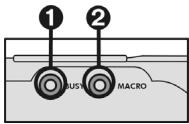
- Standby/Busy (Red LED),2. Macro Mode (Green LED)
| LED Status | Description | |
| Red | On | The camera is busy, please continue to perform the operation after the camera returns to blinking |
| Blinking | Camera is powered on and in standby mode | |
| Green | On | Macro mode |
| Off | Basic Mode for photography | |
3-2 LCD Monitor Display
(1) Image resolution
(2) Image quality
(3) Current working mode
(4) Memory card loaded symbol
(5) Possible number of shots
(6) Self-timer photography
(7) White balance display
(8) Morning/Afternoon display
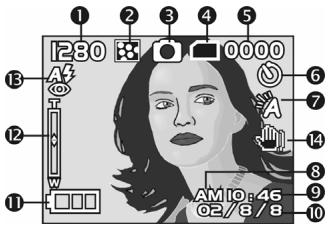
(9) Time display
(10) Date display
(11) Remaining battery power
(12) Zoom lever
(13) Flash status
(14) Stable Palm: Icon displays in darker environments & requires firm camera holding for clear shooting.
3-3 Power Supply
Slide the lens cover toward left gently and turn on the camera after two beeps sound.
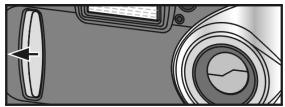
Slide the lens cover toward right gently and turn off the camera.
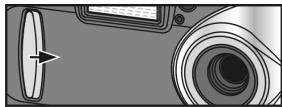
Use the lens cover located on the front of the camera to turn on/off camera. After you turn on the camera, the red LED will be blinking, and then the last image recorded appears on the LCD monitor.
※If no operation is carried out for a fixed amount of time (default: about 1 minute), the power is turned OFF to prevent battery wear. This is called "Auto Power OFF".
You can press the "Mode Display Button" to restart the camera.
※The following features will automatically save the configuration before turn off the camera unless you ever selected "Reset Default" to restore its factory anticipated settings.
- Resolution
- Quality
- OSD Language
- White Balance
- EV Compensation
-
TV-Out
-
Light Frequency
- PC Mode
3-4 Shutter Button
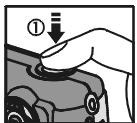
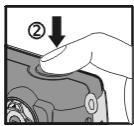
This camera is designed for 2-step shutter function. A [" ] mark will appear on the center position on the LCD monitor when you press and hold the Shutter button down half way. Then press the Shutter button down fully and the camera beeps; and releases the Shutter button to take a picture.
3-5 Mode Dial

-
You can select the working mode by using this Mode Dial:
-
PC Mode
- Record Mode
- Play Mode
- Movie Mode
- SET Setup Mode
3-6 MENU/ENTER Button
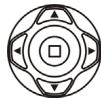
You can perform different operations in the different mode by using the MENU/ENTER button, e.g. select, confirm, go forward and backward.
3-7 Flash Button

This button is only working in the Record Mode. Press this button to select the desired flash mode while taking a picture and there are 4 modes available:
A Auto A Auto and Red-eye reduction Off A Auto
3-8 Mode Display Button

1 This button is only working in the Record Mode. Press this button and you can change the LCD monitor to several displays.
Standard Full Display Image Only LCD Monitor Off Only Operation Settings Standard
2 Press the "Mode Display Button" to enter the "Play Mode" to view the images when the camera is powered off.
3 In the Record Mode, the camera will be auto power off because of the power saving function. You can press the "Mode Display Button" to turn on the camera again.
3-9 Macro Button
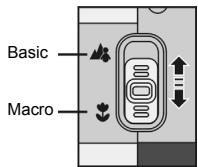
- Slide down and up the Macro button at the side of camera to switch between Basic and Macro modes. When you selected the Macro mode, the green LED located on the top of the LCD monitor will be on.
※If you selected the Macro Mode when using the camera, the flash off function will be enabled automatically.
Chapter 4 Navigating Modes and Menus
4-1 Mode Selection
4-2 Record Mode
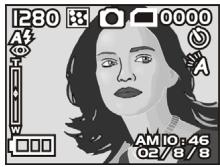
For more information, please refer to the "LCD Monitor Display" section.
Image Resolution:
4-3 Play Mode
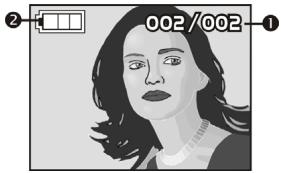
(1) Possible number of shots
(2) Remaining battery power
Index for Quick Menu:
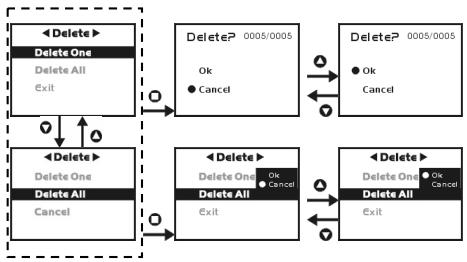
1. Delete Pictures
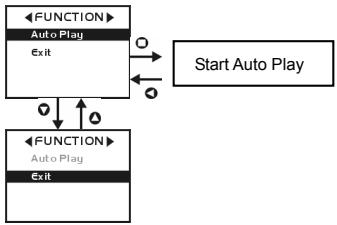
2. Slideshow
-
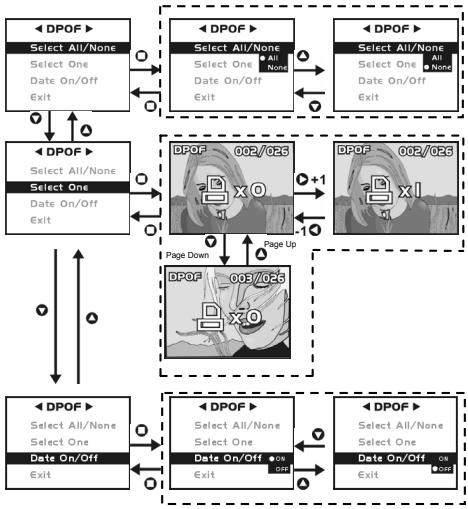
DPOF (Digital Print Order Format) Settings
-
With DPOF for printing your images, there are three options for you: print one image, print all images and print the recorded date or not.
- DPOF function can only be operated with the printer settings of the memory card inserted, not active with internal memory.
※ If no memory card is inserted, even there are images stored in the internal memory, the DPOF function will be disabled.
4-4 Movie Mode

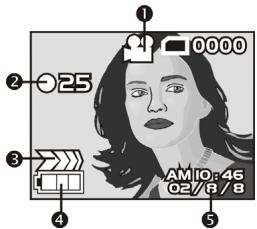
(1) Movie Mode
(2) Recorded Movie Time (seconds)
(3) Recording the movie pictures
(4) Remaining battery power
(5) Time/Date
4-5 Setup Mode SET
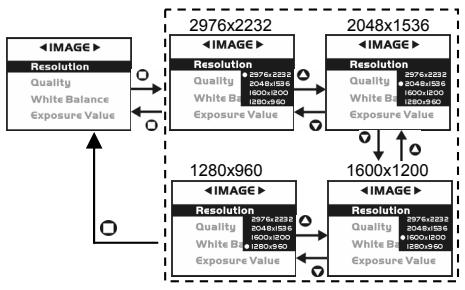
1. Image Resolution
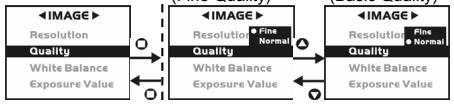
2. Image Quality:
3. White Balance:
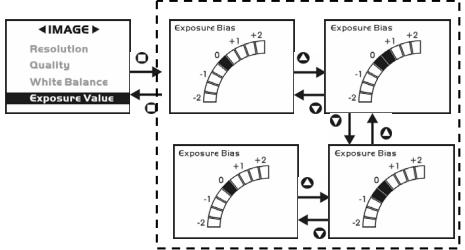
4. EV Compensation
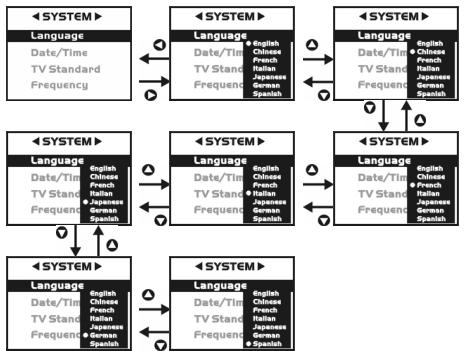
5. OSD Language
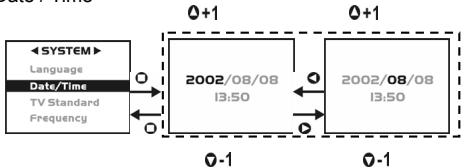
6. Date / Time
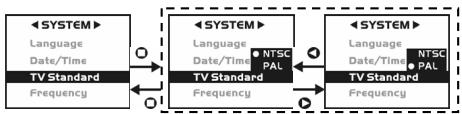
7. TV-Out Operation
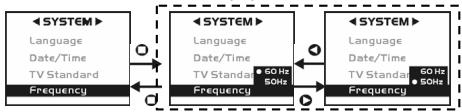
8. Light Frequency
Select the correct frequency type (50Hz or 60Hz) according to your region.
9. Format Media
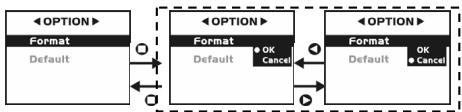
※If there is a memory card inserted, it will only format the memory card, not the internal memory.
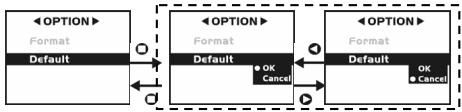
10. Reset to default factory anticipated settings
Chapter 5 Preparing Your Camera
5-1 Attaching the Strap
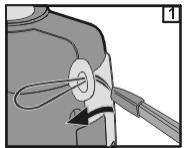
- Insert the thin end of strap into the strap holder.
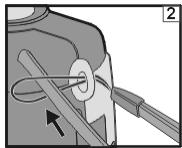
Pass the other end of strap through the loop.
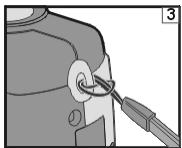
- Stretch the strap tightly.
5-2 Loading Batteries
- Turn off the power of camera.
Insert 2 x AA alkaline batteries or a rechargeable battery. Please make sure the batteries are full of power. If the batteries are in low power, please change new batteries as soon as possible to keep the camera operating normally.
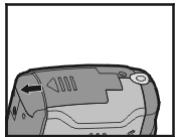
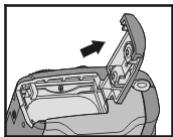
- Slide the switch on the battery cover in the direction indicated by the arrow.
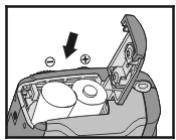
- Insert the batteries as indicated on the inner side of the cover.
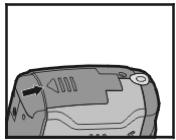
- Close and lock the battery cover.
NOTE:
Do not open the cover roughly to avoid damaging the battery compartment cover.
If the battery power indicator shows only one black block that means that power is available, and you can continue to use the flash.
When the battery indicator turns red, you cannot take still and movie pictures any more.
Any pre-setting date/time value will be retained in the camera's memory for about 3 minutes when replacing the batteries. We still suggest you to double check the date/time setting after changing new batteries.
5-3 Loading and Removing the Memory Card
Make sure to turn off the camera.
- Loading the memory card.
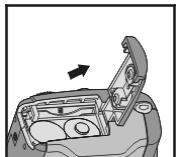
- Slide the switch on the battery cover in the direction indicated by the arrow.
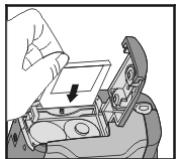
-
Insert the memory card in the direction of the arrow.
-
Removing the memory card
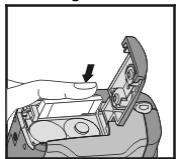
Press the memory card down gently.
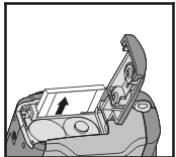
The memory card will bounce upward.
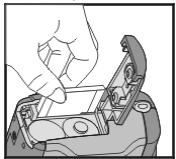
- Pull the memory card out with your fingers in the correct direction.
NOTE:
Before using the camera, please remember to insert the memory card into the slot. If the memory card is full or there are already images stored in it, you can turn the
Mode Dial to Setup Mode SET and then select "Format" item to format the memory card. Please make sure you backup any important data stored in the memory card.
- The specification of memory card applicable to this camera is SD or MMC (4/8/16/32/64/128/256/512MB).
- If inserting the memory card in the wrong direction, it won't be fitted in. Do not insert the card roughly to avoid damage.
- If the camera couldn't locate the memory card, please gently wipe the metal interface of the card with a soft cloth and reload the card again.
- Make sure to check if memory card is in unlock status. Or else, LCD monitor will display “ ” and you can't take picture or playback .
- LCD monitor will display “ 🏻 ” when no memory card being loaded .
- LCD monitor will display " " when memory card is loaded and working properly. In case LCD monitor still displays " " with card inserted, please refer to following possible cause and solutions:
-Image format can't be recognized by camera :
Please save image data to PC for backup and then format the memory card.
-Memory card get dirt :
Please use clean and soft cloth to clean memory card properly and insert again.
-Memory card malfunction:
Please contact memory card supplier for further assistance.
-Card slot in camera malfunction:
Please contact authorized dealer to request further assistance.
5-4 Setting Up the OSD Language
Before using the camera, please turn the Mode Dial to Setup Mode SET and then select "Language" to set the OSD language.
5-5. Date/Time
Before using the camera, please turn the Mode Dial to Setup Mode SET and then select "Date/Time" to set the date and time.
Chapter 6 Getting Started
6-1 Setup Mode 341
By using the Setup Mode, you can adjust the basic camera functions, including: Image Size, Image Quality, Self-timer, White Balance, EV Compensation, OSD Language, Date/Time, Preset Settings, Format Media, and TV-Out items. To setup these items, perform the following:
- Turn the Mode Dial to Setup Mode SET.
- Using the lens cover located on the front of the camera to turn on/off camera. After turn on the camera, the red LED will be blinking, and the Setup screen will be shown on the LCD monitor.
- Press the arrow button / on the MENU/ENTER Button to move and select the menu items.
- Press the arrow button on the MENU/ENTER Button to enter the selected menu items.
- Press the arrow button on the MENU/ENTER Button to return to the previous menu.
6-2 Record Mode
Record Mode offers you a quick and easy way to take the ideal pictures you want.
- Turn the Mode Dial to Record Mode
- Using the lens cover located on the front of the camera to turn on the camera. After turn on the camera, then the last image recorded appears on the LCD monitor.
- Press and hold the Shutter button down half way to focus the objects. The camera will process metering and a yellow [""] will appear in the center position of the LCD monitor. Press and hold the Shutter button continually and it will keep the metering value. Press the Shutter button down fully and release the Shutter button. Then you will hear two beeps sound and a picture has been taken.
- When taking a picture, you can press the Flash Button to set the desired flash modes: Auto, Red-eye reduction, and Off.
- Press the Mode Display Button to choose your favorite LCD display. There are five display modes: Standard Display, Full Display, Image Only, LCD Monitor Off, and Only Operation Settings.
- Using the MENU/ENTER Button to set the details settings for recording images, e.g., Image Resolution, Image Quality, Self-timer, and Light Frequency
settings. By pressing the button on the center of the MENU/ENTER Button , the menu items will appear on the LCD monitor. Press the arrow buttons
/ ▲ / ▲ / ▼ on the MENU/ENTER Button to move and select the desired menu items.
- Press the arrow buttons / on the MENU/ENTER Button to adjust the digital zoom and a message about digital zoom will appear on the left side of the LCD Monitor.
- Slide down and up the Macro Button on the side of camera to enable the Macro photography.
After you selected the Macro Mode, the Macro LED located on the top of the LCD monitor will be green.
※ If the low batteries power icon appears on the LCD Monitor, please change new batteries immediately to keep the camera operating normally.
※ If the "Memory is not enough!" warning message appears on the LCD monitor, it means the memory card is full, remove the memory card and insert a new one immediately.
6-3 Play Mode
In Play Mode, users can review the recorded still and movie pictures. To review the pictures, perform the following:
- Turn the Mode Dial to Play Mode
- Using the lens cover located on the front of the camera to turn on the camera. After you turn on the camera, the last image recorded appears on the LCD monitor.
- Press the arrow buttons / on the MENU/ENTER Button to review the previous and back image.
- Press the button on the center of the MENU/ENTER Button to enable the "Delete", "Slideshow" and "DPOF" functions.
- Press the arrow button on the MENU/ENTER Button to enter the selected menu items.
- Press the arrow button on the MENU/ENTER Button to exit the menu.
※ The DPOF function can only be operated with the memory card inserted.
If there is no image stored in the internal memory or on the memory card, a "No picture" message pops up on the LCD Monitor in the Play Mode.
Press the Mode Display Button to review the images when the camera is off. Press the Mode Display Button again and it will turn off the LCD Monitor.
6-4 Movie Mode
You can use Movie Mode to record movie pictures (not including audio). To record movie pictures, just do this:
- Turn the Mode Dial to Movie Mode
- Use the lens cover located on the front of the camera to turn on the camera. After you turn on the camera, the last image recorded appears on the LCD monitor.
- Press the Shutter button to start recording. Press the Shutter button again to stop recording.
- The LCD Monitor will show the recorded time (seconds) while you are recording your movie pictures.
※ To record the movie pictures, the maximum recording time depends on the free space of the memory card.
6-5 PC Mode

-
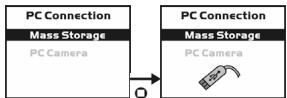
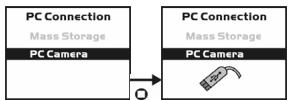
To select the PC Camera or Mass Storage items in the PC Connection menu, perform the following:
-
Power on the camera and turn the Mode Dial to PC. The PC Camera and Mass Storage menu items will appear on the LCD Monitor.
-
Press the arrow buttons / on the MENU/ENTER Button to move and select the desired menu items. Press the or button to confirm and save the settings.
-
" " message will pop up on the LCD Monitor, please connect the USB cable to the camera and PC to complete the configuration.
※ Once you save the settings, the camera will keep these menu settings until you change them again.
Turn your PC on if it isn't already on. Click the Start button in the Windows Taskbar, and select Programs > ArcSoft Videolmpression > Videolmpression. The following Videolmpression main screen will appear.
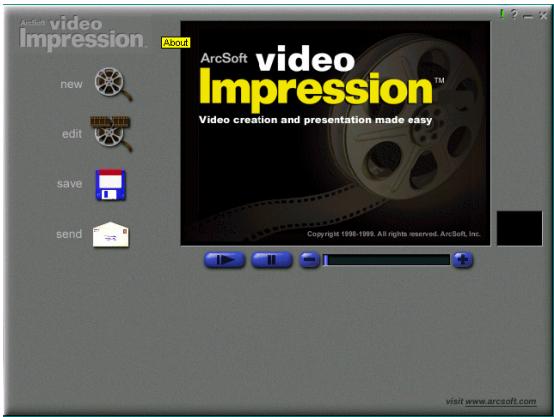
Click the New button
and the following Album screen will appear.
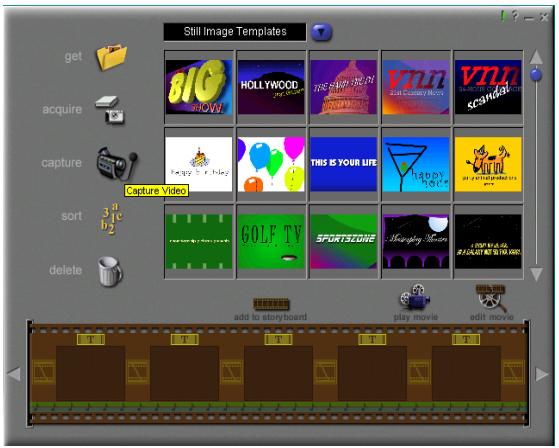
Click on Capture
capture

and the Capture screen will appear.
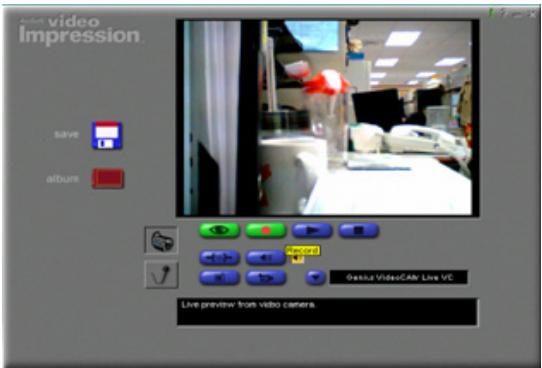
Then click on Record and you can capture the video.
If you want to stop capturing, press ESC or click on Pause

6-6 TV-Out Operation
Using the TV-Out function offered by the camera, you can transfer images to other display devices, e.g. TV or computer. To transfer the images, follow this method:
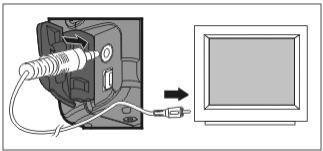
- Please select the correct video type for the connected device before transferring images. Turn the Mode Dial to Setup Mode set and select the correct video output type for your selection: NTSC or PAL.
- When you use this function; please use the video cable provided with the camera to connect the camera and output device.
- You can turn on the camera. There will no images shown on the LCD Monitor. All the images and information will be shown on the output device's display via the video output cable.
※ The camera will perform normally when you enable the TV-Out function. The only difference is the location to show the images, and the image information will be from the LCD Monitor to the video output device's display.
While using the camera, after you connect the video cable to the camera, the images will be no longer shown on the LCD Monitor. If you want to restore the display status on the LCD Monitor, please disconnect the video cable from the camera.
Chapter 7 Driver Installation
7-1 Installing the Camera Driver to the PC
You can use the PC Camera and Mass Storage functions of the camera via PC. To install the proper camera driver, just follow this:
- Insert the software CD-ROM supplied with the package into the CD-ROM drive.
- The Auto-run program will be executed and the welcome screen appears: (If your CD-ROM drive doesn't support the auto-run function, then double click on the "My Computer" icon on the desktop. Double click on the CD-ROM drive icon and click the InstallMgr.exe file in the root directory.
- Click the Install driver to install the driver, and this screen will appear:
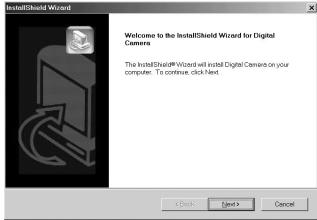
- Click on Next to continue the setup program. After you installed the camera driver successfully, this message appears on the screen:
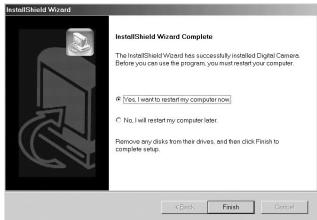
- Click Finish to restart the computer and finish the camera driver installation.
7-2 Installing the Software Applications to the PC
Install Arcsoft Software (Take Photo Impression Installation for example)
- Insert the software CD-ROM supplied with the package into the CD-ROM drive.
- The Auto-run program will be executed and the welcome screen appears. If your CD-ROM drive doesn't support the auto-run function, double click on the "My Computer" icon on the desktop. Then double click on the CD-ROM drive icon
and click the InstallMgr.exe file in the root directory.
- Click the Arcsoft Photolmpression to install, and this screen will appear:
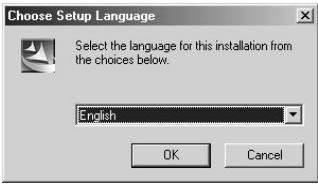
- Select the language for installation. Click OK to confirm your selection.
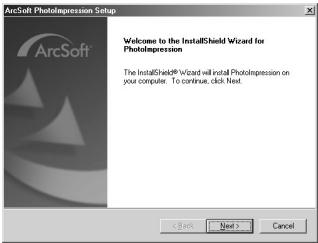
- You will see the Welcome screen. Click Next to continue.
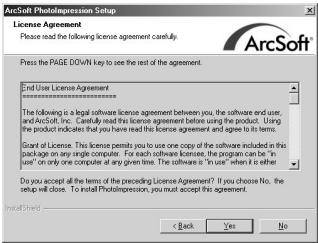
- Enter Software License Agreement window. Please click Yes to continue the installation.
- Please follow the instructions of installation Wizard to select a destination folder and the components you need.
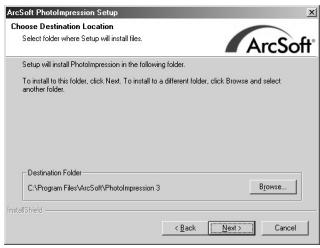
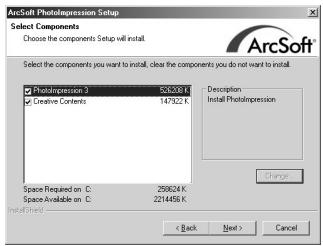
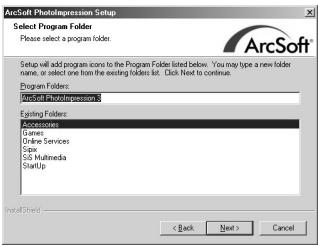
- Please select the program folder you want to install
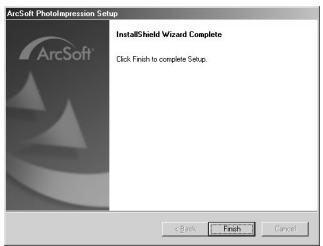
- When the installation is completed, the window below will appear. Click Finish to end the installation.
7-3 Downloading photos/video from camera

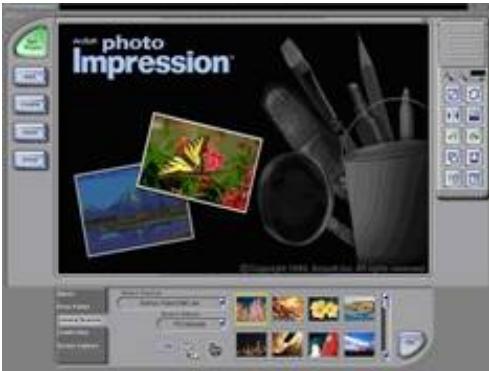
Turn on your PC if it isn't on already. Click on the Photolmpression icon 3 in the
Windows Desktop, or choose Start > Program Files > ArcSort Photolmpression 3.0 > Photolmpression 3.0. The following Photolmpression main screen will appear.
Note: Make sure the ArcSoft Photolpression software is installed. If not, please install it first. (Refer to the section "Installing the Digital Camera Software")
Click the Camera/Scanner button, then click on the Acquire button following Twain Interface window will appear.

The