BURNING ROM - Burning software NERO - Free user manual and instructions
Find the device manual for free BURNING ROM NERO in PDF.


User questions about BURNING ROM NERO
0 question about this device. Answer the ones you know or ask your own.
Ask a new question about this device
Download the instructions for your Burning software in PDF format for free! Find your manual BURNING ROM - NERO and take your electronic device back in hand. On this page are published all the documents necessary for the use of your device. BURNING ROM by NERO.
USER MANUAL BURNING ROM NERO
Nero Burning ROM Manual
Nero AG
Copyright and Trademark Information
The Nero Burning ROM manual and all its contents are protected by copyright and are the property of Nero AG. All rights reserved. This manual contains material that is protected by internationally valid copyright. No part of this manual may be reproduced, transmitted or transcribed without the express written permission of Nero AG.
All trade names and trademarks are the property of their respective owners.
Nero AG rejects any claims that transcend the clauses of the guarantee rights. Nero AG does not undertake any liability for the correctness of the content of the Nero Burning ROM manual. The contents of the software supplied, as well as of the Nero Burning ROM manual, may be changed without prior warning.
The trademarks mentioned here are named for information purposes only.
Copyright © 2007 Nero AG and its licensors. All rights reserved.
REV 1.0, SW 8.0.0.0
Contents
1 General Information 6
1.1 About the Manual 6
1.2 About Nero Burning ROM 6
1.3 Nero Burning ROM Versions 7
2 System Requirements 8
3 Formats Supported 9
4 Launching the Program 10
5 Working with Nero Burning ROM 11
5.1 Main Screen 11
5.2 Basic Steps 13
6 New Compilation 14
6.1 New Compilation Window 14
6.1.1 Multisession Tab 17
6.1.2 ISO Tab 19
6.1.3 UDF Tab 20
6.1.4 Label Tab 20
6.1.5 Audio CD Tab 22
6.1.6 CDA Options Tab 23
6.1.7 CD EXTRA Tab 23
6.1.8 Video CD Tab 24
6.1.9 Menu Tab 25
6.1.10 Boot Tab 25
6.2 Creating a New Compilation 26
7 File Selection 27
7.1 Selection Screen 27
7.2 Selecting Files 28
7.3 File Selection Details 29
7.3.1 Audio CD 29
7.3.2 Mixed Mode CD and CD EXTRA 29
7.3.3 Video CD/Super Video CD 30
7.3.4 miniDVD 31
7.3.5 Audiobook CD 31
7.4 Audio Track Properties window 32
7.4.1 Track Properties Tab 33
7.4.2 Indexes, Limits, Split Tab 34
7.4.3 Filters Tab 35
8 Burning a Compilation 36
8.1 Choosing a Burner 36
8.2 Burn Compilation Window 37
8.3 Burn Tab 38
8.4 Starting the Burn Process 39
9 Bootable Disc 41
9.1 Booting Requirements 41
9.2 Bootable Disc Template 41
9.3 Creating and Burning a Bootable Disc 42
10 Image File 43
10.1 Creating an Image File 43
10.2 Burning an image file 44
11 Copying 45
11.1 On-the-fly Copying Versus Copy Over Image 45
11.1.1 On-the-fly Copying 45
11.1.2 Copy Over Image 46
11.2 Compilation Window 46
11.2.1 Image Tab 47
11.2.2 Copy Options Tab 47
11.2.3 Read Options Tab 48
11.3 Copying a Disc 49
12 Audio Database 51
12.1 Creating an Audio Database 51
12.1.1 Creating a Program Database 51
12.1.2 Creating a User Database 52
12.2 Database Window 53
12.3 Nero's Title and CD Database Window 54
12.4 Create a New CD Entry Window 55
12.5 Changing a Database Entry 56
12.6 Adding a Database Entry 57
12.7 Defining Database Usage 58
12.8 Using a Database 59
13 Saving and Converting Audio Files 61
13.1 Save Tracks Window 61
13.1.1 AC3, AIF, MP4, OGG and WAV encoding options 62
13.1.2 MP3 and MP3PRO encoding options 63
13.2 Saving Audio Files 65
13.3 Encode Files Window 66
13.4 Converting Audio Files 67
14 LightScribe 69
14.1 CD Label Editor Window 69
14.2 Printing Labels 70
15 LabelFlashTM 73
15.1 Burn Label Window 73
15.2 Printing LabelFlashTM Labels and DiskT@2 74
16 Erasing a Rewritable Disc 76
16.1 Erase Rewritable Disc Window 76
16.2 Erasing a Disc 77
17 Advanced Operations 78
17.1 Saving Data Tracks 78
17.2 Updating the Virus Scanner 79
18 Configuration 80
18.1 Configuration Options 80
18.2 Expert Features 81
18.3 Customize Window 82
18.3.1 Customizing the Work Environment 83
19 Glossary 84
20 Index 90
Tab matrix 93
22 Contact 94
1 General Information
1.1 About the Manual
This manual is designed for all users who want to become acquainted with the proper use of Nero Burning ROM. It is task-based and explains how to achieve a particular objective on a step-by-step basis.
In order to make best use of this manual, please note the following conventions:
| Symbol | Meaning |
| ○ | Indicates warnings, preconditions or instructions that have to be followed strictly. |
| ○ | Indicates additional information or advice. |
| 1. Start ... | A number at the beginning of a line indicates a request for action. Carry out these actions in the order specified. |
| → | Indicates an intermediate result. |
| → | Indicates a result. |
| OK | Indicates text passages or buttons that appear in the program interface. They are shown in bold face. |
| Chapter | Indicates references to other chapters. They are executed as links and are shown in red and underlined. |
| [...] | Indicates keyboard shortcuts for entering commands. |
1.2 About Nero Burning ROM
The powerful burning software Nero Burning ROM allows you to burn your data, music and videos to disc. Nero Burning ROM gives you full, customized control of your burning projects. You can define the file system, the length of the file name and the character set as well as change the disc label, for example. And of course you can also customize the Nero Burning ROM toolbar and change the keyboard shortcuts.
Despite its wide range of features, Nero Burning ROM has remained an easy-to-use burning program that creates discs in just a few steps. You select the disc type to be burned (CD/DVD/Blu-ray/HD DVD), define the project type, add the required data and then start burning.
1.3 Nero Burning ROM Versions
Two different versions of Nero Burning ROM are available:
Full version and Essentials
Nero Burning ROM Essentials differs from the full version in the following ways:
No crossfade for audio tracks (see Audio Track Properties window)
No virus scanner (see Updating the Virus Scanner)
No simultaneous burning with multiple recorders (see Burn Tab for example)
No plug-ins
2 System Requirements
Nero Burning ROM is installed together with the Nero Suite and its system requirements are the same. You can find more detailed information on the system requirements in the Nero QuickStart Guide. In addition, the following requirements apply:
Optical device: CD-RAM and/or DVD-RAM recorder
Plus: 16-bit Windows® compatible sound card and speakers
Optional: LightScribe compatible recorder and medium

Using LightScribe® Direct Disc Labeling
When using a CD or DVD burner with LightScribe® support, your system requires the latest LightScribe® System Software.
If you have downloaded and installed an updated version of Nero 8 from the Nero web site, install the LightScribe™ System Software separately. You can download the latest version at http://www.nero.com/link.php?topic_id=114&gen_id=8.
LabelFlash™ recorder and LabelFlash™ disc
Blu-ray recorder and Blu-ray Disc
HD DVD recorder and HD DVD

Installation of the latest WHQL certified device drivers is recommended. WHQL stands for Windows® Hardware Quality Labs and means that the device driver certified by Microsoft® is compatible with Microsoft® Windows® and the respective hardware.
3 Formats Supported
Nero Burning ROM supports the following disc types:
CD
DVD
HD DVD
Blu-ray Disc

The recorder you have installed will determine which disc type (CD, DVD, HD DVD and/or Blu-ray Disc) can be burned.
With Nero Image Recorder, which is installed in Nero Burning ROM, you will always be able to create an image (see Creating an Image File), even if you have not installed a recorder. Nero Image Recorder is also suitable for creating an image of a disc type not supported by the installed recorder (see Expert Features). You can therefore create a DVD image for instance without having installed a DVD recorder.
Nero Burning ROM also supports burning and label printing using a recorder that supports LightScribe® or LabelFlash™ technology.
You can use Nero Burning ROM to burn the following formats:
| Disc formats | Audio formats | Video formats | Image formats |
| ■ Data disc: CD/DVD-ROM (ISO) CD/DVD/HD DVD-ROM/Blu-ray Disc (UDF) CD/DVD-ROM (UDF/ISO)■ Audio CD■ Mixed Mode CD■ CD EXTRA■ Video CD and Super Video CD■ miniDVD■ Audiobook CD■ DVD-Video■ Bootable disc (CD/DVD-ROM (Boot)) | ■ AIFF/AIF■ Audible Audiobook■ HE-AAC■ mp3PRO■ MP4 (audio)■ Nero Digital Audio■ PCM■ WAV■ WMA | ■ AVCHD■ AVI■ ASF■ DV-AVI■ MP4 (video)■ MPEG-1■ MPEG-2■ Nero Digital Video■ WMV■ Xvid | ■ BMP■ GIF■ JPEG■ PNG■ TIFF |
Nero Burning ROM supports Unicode.
4 Launching the Program
To launch Nero Burning ROM via Nero StartSmart, proceed as follows:
- Click on the Nero StartSmart icon.
The Nero StartSmart window is opened.
- Click on the button.
The list of Nero applications is displayed.
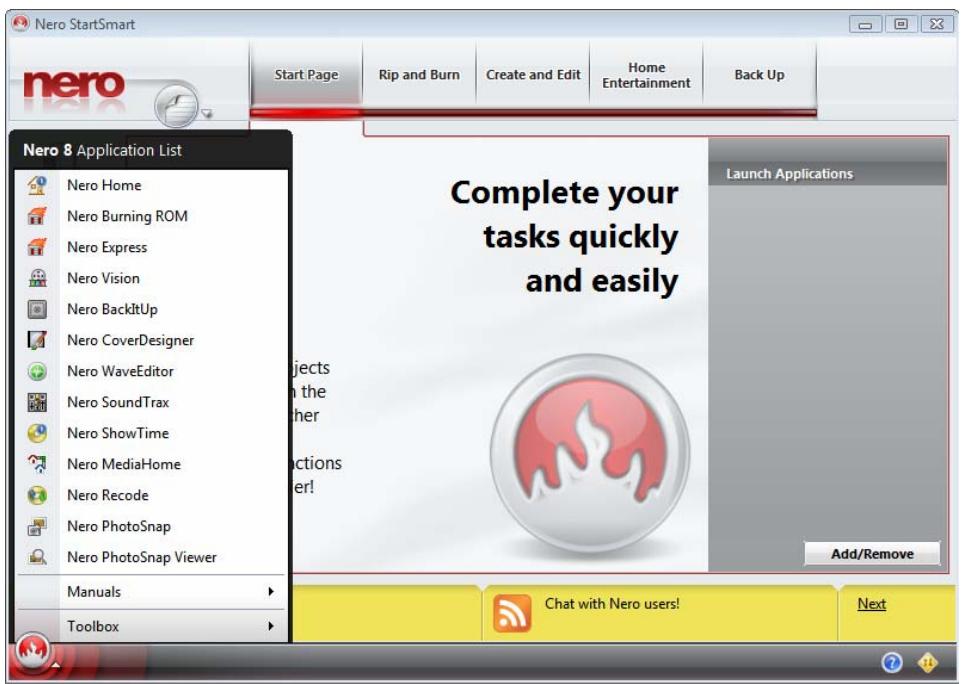
Fig. 1: Nero StartSmart
- Select the Nero Burning ROM entry in this list box.
The Nero Burning ROM window is opened.
You have successfully launched Nero Burning ROM via Nero StartSmart.
5 Working with Nero Burning ROM
5.1 Main Screen
The main screen in Nero Burning ROM is the starting point for all actions. It consists of a menu bar and a toolbar with buttons and a drop-down menu.
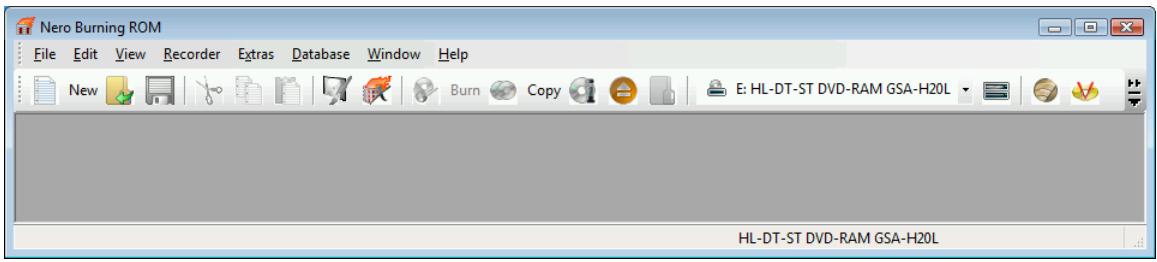
Fig. 2: Nero Burning ROM menu bar and toolbar
The main screen contains the following configuration options:
| Menu bar | |
| File | Opens the File menu containing file functions such as opening, saving and closing that you are already familiar with. You can also show the configuration options for the compilation, update the compilation, define configuration options (see Configuration) and start Nero CoverDesigner. |
| Edit | Opens the Edit menu which contains the file editing functions in the selection screen such as cutting, copying and deleting that you are already familiar with. You can also display the properties of a selected file. |
| View | Opens the View menu where you can customize the toolbar and the browser area (see Customize Window). You can also refresh the file browser here. |
| Recorder | Opens the Recorder menu containing functions for the recorder. You can select the recorder here, start the burn process, and erase a rewrites disc. You can also display information on the disc and eject it. |
| Extras | Opens the Extras menu containing editing functions for audio files. You can convert audio files into a different format, save audio files to an Audio CD, and display information on audio files. |
| Database | Opens the Database menu containing familiar database editing functions such as opening, creating, and importing. |
| Window | Opens the Window menu where you can alter the position of the compilation and browser areas. |
| Help | Opens the Help menu which contains the help options you are familiar with. You can also launch Nero Express, update your antivirus scanner, and enter a new serial number if necessary. |
| Toolbar | |
| Opens the New Compilation window where you can set options for a burn or copy process. | |
| Opens an existing compilation. | |
| Saves the active compilation. | |
| Cuts selected elements in the compilation (selection). | |
| Copies selected elements in the compilation (selection). | |
| Pastes a selection that was cut or copied beforehand. | |
| Launches Nero CoverDesigner with which you can create labels and covers. Information about a current compilation such as title, number, and names of the files is incorporated into the document data. For further information refer to the Nero CoverDesigner manual. | |
| Launches Nero Express. Nero Express is a wizard-driven application based on Nero Burning ROM. For further information refer to the Nero Express manual. | |
| Starts the burn process by opening the Burn Compilation window with the Burn tab. | |
| Starts the copy process by opening the New Compilation window with the Burn tab. | |
| Displays information on the disc inserted, such as contents (if any) and capacity for instance. | |
| Opens the selected drive. | |
| Shows or hides the file browser. | |
| Burner combo box | Displays available burners. |
| Open the Choose recorder window where you select an available burner for the burn process from a list . | |
| Opens the Burn Label window where you can create or load a label to print on the label or data side of a LabelFlash™ DVD (see LabelFlash™). This button is only available if a burner that supports LabelFlash™ is connected. | |
| Launches Nero CoverDesigner to create or load a label to be printed on the label side of a LightScribe® disc (see LightScribe®). This button is only available if a burner that supports LightScribe® is connected. | |
| Displays information on the program and version number. | |
| Opens the help. | |
5.2 Basic Steps
The main function of Nero Burning ROM is to select files and folders and to burn them to a disc. This is done in three basic steps:
In the New Compilation window select a disc type and the disc format and set the options on the tabs (see New Compilation).
In the selection screen select files that you want to burn (see File Selection).
Start the burn process (see Burning a Compilation).
6 New Compilation
6.1 New Compilation Window
In the New Compilation window select the disc type and configure the options for the disc format on the tabs. The window basically looks the same for all disc types. The only difference is the tabs that are available.
When you launch, the New Compilation window opens automatically. If the window is not open, click on the New button. In the default setting, CD-ROM (ISO) is selected and the Multisession tab is on top. If you have not installed a burner, the ISO tab is on top.
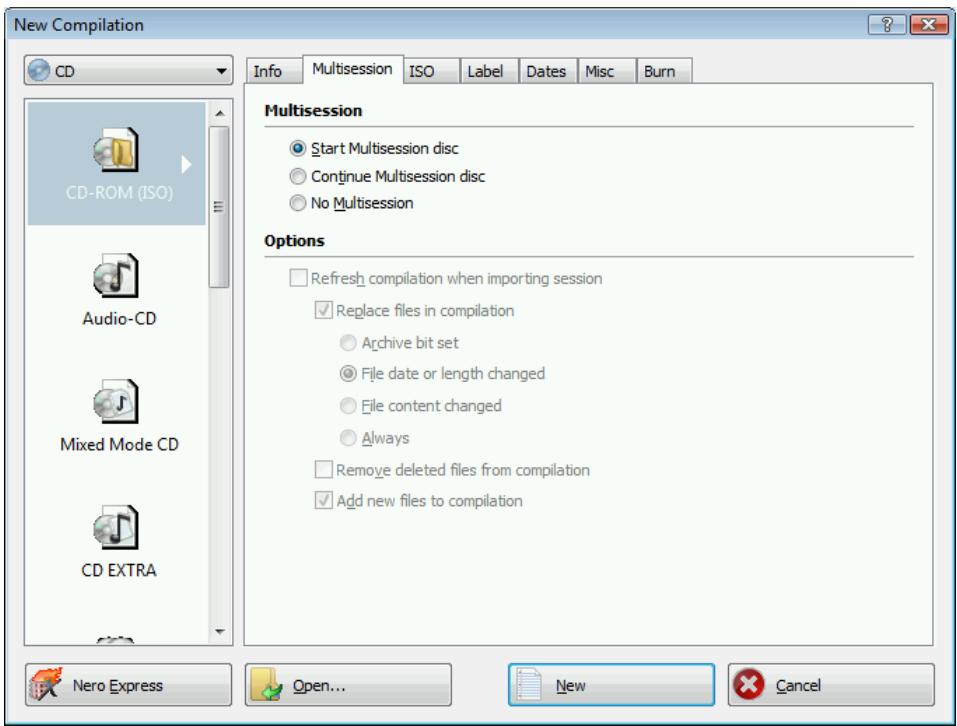
Fig. 3: New Compilation window, CD-ROM (ISO) disc type
The window consists of a drop-down menu, a list box, various tabs, and four buttons.
The drop-down menu can contain the entries CD, DVD, HD DVD, and Blu-ray Disc. The list box will contain different entries depending on the entry selected.

The burner installed will determine which disc type (CD, DVD, HD DVD and/or Blu-ray Disc) is displayed and burned. If the burner can only burn CDs, the combo box is grayed out.
With Nero Image Recorder which is installed in Nero Burning ROM, you will always be able to create an image (see Creating an Image File) even if you have not installed a burner. Nero Image Recorder is also suitable for creating an image of a disc type not supported by the installed burner(see Expert Features). You can therefore create a DVD image for instance without having installed a DVD burner.
The following entries are available in the combo box:
| Entry | Description |
| CD/DVD-ROM (ISO) | Creates a data CD/DVD. Any file type can be burned. The burned data complies with the ISO standard. |
| Audio CD | Creates a standard audio CD that can be played on all (audio) CD players at least. |
| Mixed Mode CD | Creates a CD with data and audio files in a single session. Usually a data file is followed by one or more audio files for instance (e.g. soundtrack for PC games). Older Audio CD players are often not capable of recognizing the data file as such and attempt to play it. |
| CD EXTRA | Creates a multisession CD with audio and data files that are stored in two sessions. The first session contains the audio files and the second session the data. Common CD players play the first session as audio CDs. The second session can only be used by PCs with a CD-ROM drive, it cannot be 'seen' by a normal CD player. |
| Copy CD/DVD/HD DVD/Blu-ray Disc | Copies a source disc to a CD/DVD/HD DVD/Blu-ray disc (see Copying). |
| Video CD | Creates a CD that can play video and/or picture files on almost all VCD and DVD players. When burning the Video CD (VCD), Nero Burning ROM automatically converts the files into the MPEG-1 format required by the video CD. |
| Super Video CD | Creates a CD that can play video and/or picture files on almost all SVCD and DVD players. The resolution is higher than with the VCD, and so the quality of the picture is usually better. When burning the Super Video CD (SVCD), Nero Burning ROM uses the DVD video plug-in to automatically convert the files to the MPEG-2 format required by the Super Video CD. |
| miniDVD | Creates a CD that uses the specifications of a DVD. The miniDVD has the same technical options and qualities as a DVD. It can easily be played on a PC, whereas there is no guarantee that it can be played in all DVD players. You can use Nero Burning ROM to burn a miniDVD if the DVD video title, i.e. a complete DVD folder structure, is already available. However, if you want to convert video files to a DVD video title, you can do so with Nero Vision but not with Nero Burning ROM. |
| CD/DVD-ROM (Boot) | Creates a bootable CD (see Bootable Disc). |
| CD/DVD-ROM/HD DVD/Blu-ray Disc (UDF) | Creates a data disc. Any file type can be burned. The burned data complies with the UDF standard. |
| CD/DVD-ROM (UDF/ISO) | Creates a data disc. Any file type can be burned. The burned data complies with the ISO and UDF standards. |
| Audiobook CD | Creates an audiobook CD. The file format of the original audiobook can be in AA (Audible Audio) or MP3 format, for example. The burned audiobook CD can be read and played by CD players. Since audiobooks can play for several hours, Nero Burning ROM saves the audiobook to multiple audio CDs. |
| DVD video | Creates a DVD that delivers high-quality playback of video and/or picture files on DVD players. You can use Nero Burning ROM to burn a DVD if the DVD video title, i.e. a complete DVD folder structure, is already available. However, if you want to convert video files to a DVD video title, you can do so with Nero Vision but not with Nero Burning ROM. |

The Nero Vision program works best for creating Video CDs and Super Video CDs. Nero Vision is an application in the Nero 8 Suite and is automatically installed during the main installation procedure. You will find more information in the Nero Vision manual.
The following buttons are available:
| Button | Meaning |
| Nero Express | Launches Nero Express. Nero Express is a wizard-driven application based on Nero Burning ROM. For further information refer to the Nero Express manual. |
| Open | Opens a file browser where you can find and open a saved compilation. |
| New | Opens the selection screen where you can select the files for burning. |
| Cancel | Closes the New Compilation window. |
You can set the options for the respective disc format on the tabs in the Compilation window. Refer to the matrix in the appendix for information on which tab is available for which disc type (see Tab matrix). The following tabs are available:
| Tab | Description |
| Info | Shows statistical information on the compilation. |
| Multisession | Contains options for configuring multisession discs (see Multisession Tab).This tab is only available if a burner is installed. |
| ISO | Contains options for configuring the ISO file system (see ISO Tab). |
| UDF | Contains options for configuring the UDF file system (see UDF Tab). |
| Label | Defines the label of the CD. |
| Dates | Allows you to define the date of the compilation and of the associated files. You can also specify a validity period for the disc.(You can access the data regardless of the validity period specified). |
| Misc. | Defines whether and which files are stored in the cache. If you have a LightScribe®burner, you can create or select the label that is to be printed on this tab. For the CD-ROM (ISO) disc type, you can convert the code for an AVI video to make it compatible with Xvid/MPEG-4 or DivX.We recommend that you only convert the code if you have experience with FourCC codes and AVI videos. |
| Audio CD | Contains options for configuring audio files. You can also enter additional information about the CD (see Audio CD Tab). |
| CDA Options | Defines the strategy used by Nero Burning ROM for handling CD-DA files from a source audio CD (see CDA Options Tab). |
| CD EXTRA | Contains options for configuring albums (see CD EXTRA Tab). |
| Video CD | Contains general options for Video/Super Video CD (see Video CD Tab). |
| Menu | Allows you to configure the appearance and content of the menu for the Video/Super Video CD (see Menu Tab). |
| Audiobook CD | Displays statistical information on the audiobook CD, such as the number of CDs required. |
| Boot | Contains options for configuring a bootable disc (see Bootable Disc and Boot Tab). |
| Burn | Contains options for configuring burning (see Burn Tab). |
6.1.1 Multisession Tab
The Multisession tab provides the option to create multisession discs for data discs.
Multisession discs can be burned in multiple sessions until you have reached the maximum disc capacity. A session is a self-contained data area that is burned using a single process, and consists of a lead-in (with the table of contents), one or more tracks, and a lead-out.
Discs without the multisession option, e.g. audio CDs, are burned in a single session.

Multisession discs are particularly suitable for backing up important files burned on a regular basis.
If a new multisession disc is being started, Nero Burning ROM also saves (if possible) the point of origin for the files. This information is used when continuing the multisession disc.
If a multisession disc is being continued, Nero Burning ROM automatically sets a cross reference to the imported session, i.e. the table of contents for the imported session is copied to the table of contents for the current session. You must define which session is being imported at the start of the burn process. The files in the previous sessions are retained and continue to take up space.
In the case of unchanged files, a cross reference is set to the file of the same name in the previous session. Check the Replace files in compilation and Add new files to compilation boxes to ensure that changes and new files are incorporated into the table of contents and burned again. The boxes are checked by default. In this case Nero Burning ROM automatically verifies whether the correct multisession disc has been inserted for continuation. If not, the disc is ejected.

If you uncheck the Finalize disc box on the Burn tab, you can always write additional sessions to the disc, but then only the last session will be visible and you will only be able to access data from the last session.
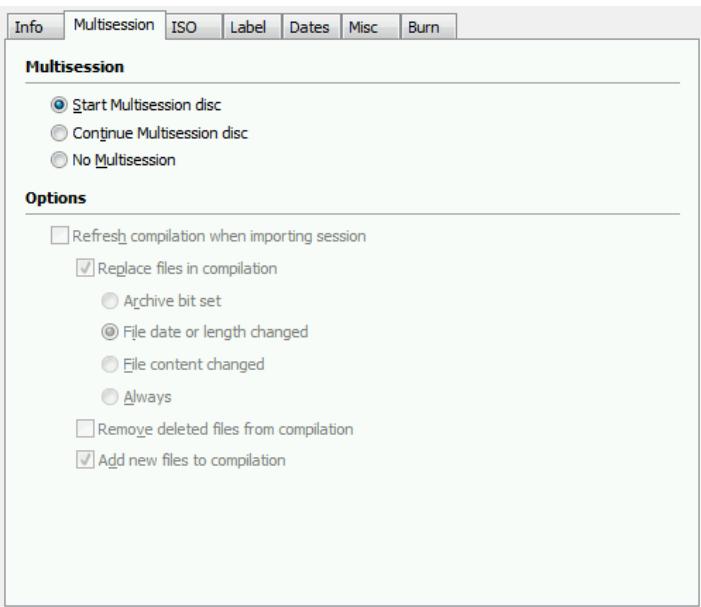
Fig. 4: Multisession tab
The Multisession tab contains the following radio buttons in the Multisession area:
| Start Multisession Disc | Burns the selected compilation in one session to the disc. If the disc already contains sessions, you can also select this option. Sessions are then not imported and cross references are not set. |
| Continue Multisession Disc | Continues a multisession disc by burning an additional session to a disc with at least one session. Cross references to the imported session are set in the process. |
| No Multisession | Creates a disc without a multisession. |
The Options area is only active if the Continue Multisession disc radio button is selected. It contains the following configuration options:
| Refresh compilation when importing session check box | Refreshes the session by creating a cross reference to the imported session. This function is useful if backups are always being burned from the same folder in which most of the files are the same. The cross reference saves space. If you want to burn totally different files in a further session, we recommend that you uncheck the box. |
| Replace files in compilation check box | Burns files of the same name again. This enables you to ascertain when the file should be burned again: ■ Archive Attribute Set ■ File date or length changed ■ File content changed ■ Always If the box is unchecked, Nero Burning ROM sets a cross reference to the file in the previous session. We recommend that you uncheck this box for backup discs. |
| Remove deleted files from compilation check box | Removes deleted files of the same name from the table of contents for the new session. A cross reference is not set to the file in the previous session, so you cannot access it anymore. (However the "removed" files are still on the disc and continue to take up space). We recommend that you uncheck this box for backup discs. |
| Add new files to compilation check box | Burns new files that have been added. We recommend that you check this box for backup discs. |
6.1.2 ISO Tab
The ISO tab provides options for configuring the ISO file system.
ISO 9660 is a system-independent standard. It can be read on all operating systems. The following features apply:
Permits eight characters (level 1) and/or 31 characters (level 2) for the file name.
Permits eight characters for the directory name.
- Restricts the maximum directory depth to eight levels (including root folder).
The characters A-Z, 0-9, and the underscore (___) are allowed.
Joliet is a standard that has been designed for Microsoft® Windows® 95 and Microsoft® Windows® NT. Up to 64 characters are supported in the file name (8 characters in DOS). The characters A-Z, a-z as well as foreign language characters may be used.
The following configuration options are available in the Data and File area:
| Data Mode combo box | Selects the mode for the data. Mode 1 and Mode 2/XA are available. Later model drives can easily read mode 1 and mode 2. Some older drives, however, cannot read mode 1 discs correctly. If the disc is also to be readable on older drives, you should select mode 2/XA. |
| File system combo box | Selects the file system used for the data. ISO 9660 only and ISO 9660 + Joliet are available.ISO 9660 only: ISO format alone is used.ISO 9660 + Joliet: ISO format is used and is enhanced by the Joliet standard. |
| File name length combo box | Defines the possible length of the file name. Level 1 and Level 2 are available. In level 1 the file name can be eight characters long and the file name extension (e.g. *.doc) three characters. In level 2 the file name can be 31 characters long. |
| Font combo box | Defines the font used. |
In the Relax restrictions area, the restrictions imposed by the selected file system can be relaxed. For example, you can allow a greater directory depth or more than 64 characters for Joliet names.
An indication appears in the Hints area if the disc cannot be read on all operating systems.
If it should be possible to read the disc on all operating systems, select ISO 9660 as the file system and uncheck all boxes in the Relax restrictions area.


If the disc is to be used mainly on Windows® computers and you want to use lowercase letters and foreign language characters for the file names, select ISO 9660 + Joliet as the file system.
6.1.3 UDF Tab
The UDF tab provides options for configuring the UDF file system. The UDF standard was developed by Osta (Optical Storage Technology Association) in response to the requirements of DVDs. The standard works on all platforms.
The following entries are available in the Options drop-down menu:
| Automatic Settings | Sets options automatically for the UDF file system. We recommend that you select this entry. |
| Manual Settings | Enables you to manually define the UDF partition type and the file system version. |
| Enable XBox™ compatibility mode | Creates a disc that is compatible with Xbox™. This entry is available if the No Multisession radio button is selected on the Multisession tab. |

A disc that is compatible with XBox^TM cannot be created as a multisession disc.
6.1.4 Label Tab
The Label tab provides options for configuring the name of the disc. The Automatic area is always available. The Manual area is only available if multiple file systems have been selected for the disc type on the ISO tab, e.g. the ISO 9660 + Joliet entry.
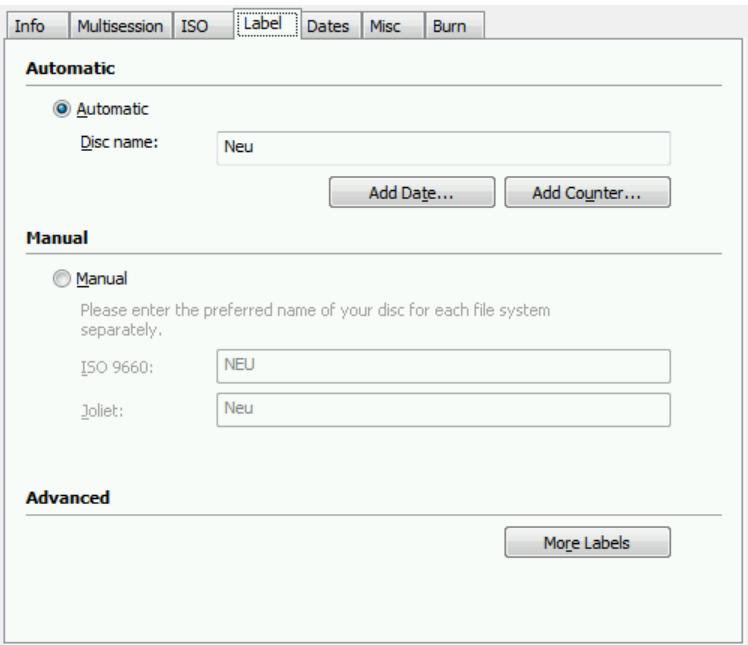
Fig. 5: Label tab
The following configuration options are available:
| Automatic area | |
| Automatic combo box | Enables the Disc name text box |
| Disc name text box | Defines the name of the disc. |
| Add date button | Opens the Date window containing option buttons for selecting a date. |
| Add Counter button | Opens the Counter window which contains various configuration options. In addition, you can define the counter type. There are two options: Compilation counter: Increments the counter with a new compilation. Disc counter: Increments the counter after burning. |
| Manual area | |
| Manual radio button | Enables the input fields in the Manual area and allows you to enter a unique disc name for each file system. The restrictions for this file system apply, including in connection with the given character set. Characters not allowed are replaced by underscores. |
| ISO 9660 text box | Defines the name for the ISO 9660 file system. |
| Joliet text box | Defines the name for the Joliet file system. |
| UDF text box | Defines the name for the UDF file system. |
| Advanced area | |
| More Labels button | Opens the More Labels window where you can enter additional information on the disc, such as the Publisher for instance. |
6.1.5 Audio CD Tab
The Audio CD tab provides options for configuring the audio CD.
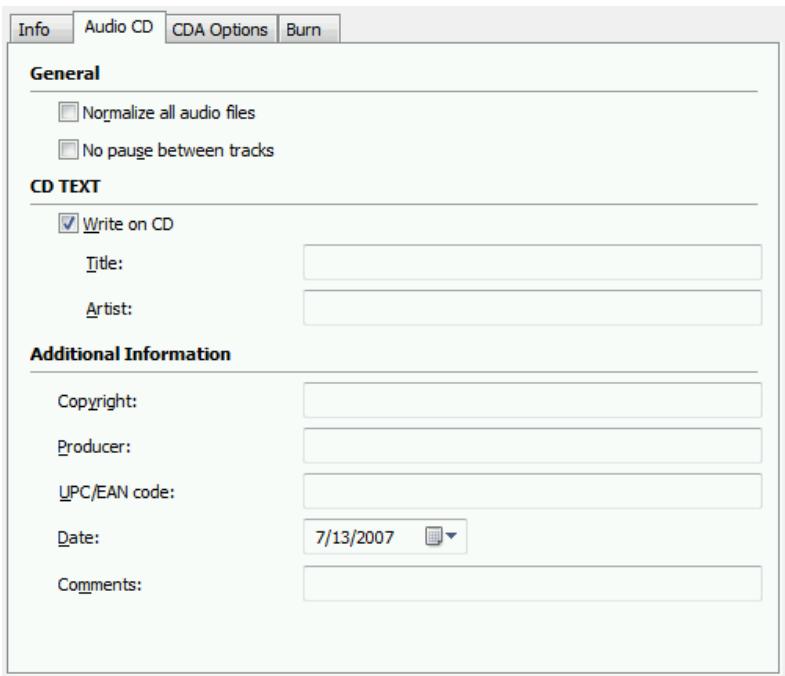
Fig. 6: Audio CD tab
The following check boxes are available:
| General area | |
| Normalize all audio files | Enables a filter that brings the volume of the audio files to be burned into line with one another. This is particularly recommended if the audio files originate from different sources. |
| No pause between tracks | Allows the audio files to merge into one another on the audio CD without a pause (just like in live recordings).If the box is unchecked, there are pauses of two seconds between the audio files. |
| CD Text area | |
| Write on CD | Enables the option for writing CD text. With CD players that support CD text, the title of the CD, the name of the audio file as well as the name of the artist appear in the display. |
In the Additional Information area you can enter additional information about the audio CD such as the producer or comments for instance.
6.1.6 CDA Options Tab
The CDA Options tab provides options for configuring CD-DA files on the audio CD.
The CDA file strategy area allows you to select the strategy that Nero Burning ROM should use for handling selected audio files from a source audio CD. In general there are two methods:
- Read the audio file and store it in the cache temporarily. The Audio CD can be burned in disc-at-once mode, which supports CD Text.
- Create a reference to the audio file and read it shortly before burning (track reference). The audio CD can only be burned in track-at-once mode.
The following options are available:
| CDA File Strategy area | |
| Entry in combo box Diskspace strategy | Saves the audio files temporarily to the Nero Burning ROM cache. If there is no space available, a reference is created to the audio file and is not read until shortly before burning. This entry is selected by default. |
| Entry in combo box Tempfile strategy | Saves the audio files temporarily to the Nero Burning ROM cache. If there is no space available, an error message is displayed. |
| Entry in combo box Reference strategy | Creates a reference to the audio file and reads it shortly before burning. The source medium can only be a CD/DVD drive, not a burner. The disc can only be burned in track-at-once mode. |
| Entry in the combo box Device dependent strategy | Creates a reference to the audio file if a CD/DVD drive is available. Otherwise the tempfile strategy is used. |
| Info button | Displays more detailed information on the CDA file strategy. |
| CDA File Strategy area | |
| List of drives | List of recognized drives and buners. |
| Read speed combo box | Selects the speed at which the CD is read. |
| Cache track on hard drive before burning check box | Saves the audio file in the cache before burning. |
| CDA File Strategy area | |
| Remove silence at the end of audio tracks check box | Removes silence at the end of individual audio files, i.e. music tracks transition smoothly from one to the next. |
6.1.7 CD EXTRA Tab
The CD EXTRA tab provides configuration options for albums.
| Info area | |
| Display panels | Displays information on the compilation. |
| Album area | |
| Album Identification text box | Defines a name for the album. This is particularly useful when the album is to comprise several CDs. |
| Number of volumes in album text box | Defines the number of discs that the compilation should contain. |
| Album set sequence number text box | Defines the album number of the current disc. |
| Pictures button | Opens the CD EXTRA Pictures window where you can select the pictures for the front and flipside of the CD and define the picture format. |
| Localization area | |
| Languages display panel | Displays available languages. When you select a language, you can add the title for the album in the Album title text box. |
| Add button | Opens the New Language window where you can select a new language from a country list. |
| Delete button | Deletes the selected language. |
| Album Title text box | Adds an album title to the language highlighted in the Languages list box. |
6.1.8 Video CD Tab
The Video CD tab provides the following configuration options for Video CD (VCD) and Super Video CD (SVCD):
| Generation area | |
| Create standard compliant CD check box | Generates a VCD/SVCD which can be played in a DVD player. |
| Store source pictures in check box | Generates an extra directory in the VCD/SVCD folder structure where the source formats of the pictures are stored automatically. You can assign a separate name for the extra directory. |
| Encoding resolution option fields | Defines the color format to which the video files will be converted; the option buttons PAL and NTSC are available. The PAL option - the dominant color format in Europe - is selected by default. |
| Advanced area - Video CD disc format | |
| Use CD-I application check box | Creates a VCD that can be played in a CD-i player. The respective program code is in the Configuration text box. |
| Advanced area - Super Video CD disc format | |
| Compatibility button | Opens the Super Video CD Compatibility Options window where you can set non-standard parameters for the SVCD. We recommend that you only use this option if you are familiar with standard formats and the creation of SVCDs. |
| Try to fit to disc size option field | Automatically adjusts the bit rate to the disc size entered. |
| User defined option field | Selects a bit rate. |

When adding pictures to a VCD/SVCD, Nero Burning ROM automatically creates a slide show. The image files contained in it are stored in a DAT file. This kind of file can no longer be modified or viewed using an image processing program. If you would like to save the original formats as well, check the Store source pictures in box.
6.1.9 Menu Tab
The following check box is available on the Menu tab for Video CD (VCD) and Super Video CD (SVCD):
| Enable menu check box | Enables the menu for the VCD/SVCD and the grayed-out Menu and Text areas. |
| Menu area | |
| Layout combo box | Selects the menu layout. |
| Header / Footer check box | Adds a default header or footer. Note that you must enter the content of the header and footer in the respective text boxes in the Text area. |
| Background mode combo box | Defines how the wallpaper is inserted, for example whether it should be maximized or minimized. |
| Background image combo box and button | Selects the wallpaper. You can also select none or load your own image. You can also define the color of the wallpaper. |
| Text area | |
| Header / Footer input options | Specifies the header/Footer text, font options and shadow. |
| Elements / References input options | Specifies text, font options and shadow for elements (lines and miniature view label) and references for elements. |
| Display first page check box | Opens the Menu Preview window which displays a preview of the menu. |
| As default button | Saves the current menu settings as default values. |
6.1.10 Boot Tab
The Boot tab provides configuration options for the bootable disc. The following configuration options are available in the Source of boot image data area:
| Bootable logical drive option field and combo box | Selects a logical drive for the template data. |
| Image File option field and combo box | Selects an image file for the template data. |
| Browse button | Opens the Open window where you can select an image file. |
| Boot Language combo box | Selects the language that appears when the drive boots. |
You can configure expert settings in the Advanced area. It may be necessary to make changes for certain image files. Refer to the documentation for relevant information on the boot image. We recommend that you only change the settings if you are familiar with creating bootable discs and boot images. The following configuration options are available:
| Enable expert features check box | Enables the following configuration options. |
| Emulation Type combo box | Selects an emulation type. |
| Start Message text box | Defines the message that opens during booting. |
| Load segment of sectors text box | Defines where the boot image starts and how the sectors behave after booting. |
| Number of loaded sectors text box | Defines how many sectors will be loaded. |
6.2 Creating a New Compilation
To create a new compilation, proceed as follows.
- Select the disc type you want from the drop-down menu in the New Compilation window.

The burner you have installed will determine which disc type (CD, DVD, HD DVD and/or Blu-ray Disc) can be burned. If the burner can only burn CDs, the combo box is grayed out. But with Nero Image Recorder which is installed in Nero Burning ROM you will always be able to create an image (see Image File) even if you have not installed a burner.
The combo box shows the disc formats that can be burned using this disc type.
- Select the disc format you want from the combo box.
The tabs for this disc format are displayed.

Select the Copy CD and Copy DVD entries to go to the copy process (see Copying).
- Configure the options you want in the tabs (see New Compilation Window).
- Click on the New button.
The New Compilation window is closed and the selection screen is opened. You have successfully created a new compilation. Now you can add files to the compilation (see File Selection).
7 File Selection
7.1 Selection Screen
The selection screen is the starting point for work that you want to do on compilations. The selection screen is opened in the main screen after you select the disc type and format and click on the New button.
The selection screen consists of the compilation area, the browser area, and a capacity scale.
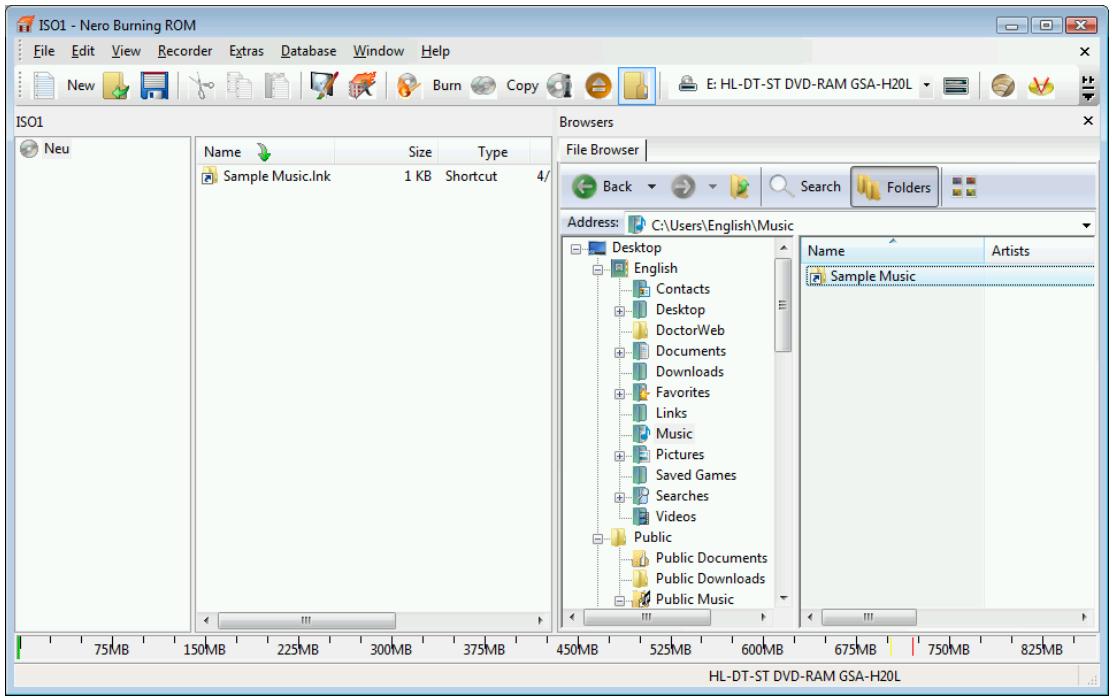
Fig. 7: Selection screen for the disc type CD-ROM (ISO)
The compilation area is named after the relevant compilation. Files and folders are compiled here for burning.
In the browser area (Browser), you can find the elements that you want to burn. There are four tabs: The File Browser is similar to other file browsers and provides a toolbar and address bar with typical functionality. In Media Search, Web Search, and Saved Searches you can use Nero Search to find files on the computer.

The search wizard Nero Search is an application in the Nero 8 Suite and is automatically installed while Nero 8 is being installed. You will find further information in the Nero Scout manual.

If the browser area is hidden, you can show it again using the button.
The bottom margin of the screen contains a capacity scale in MB (for data discs) or minutes (for Audio CDs). The exact magnitude of the scale will depend on which disc type you have selected.
When you are compiling files, a capacity bar indicates how much space the files need on the disc. The color of the capacity bar indicates whether the data will fit on the disc or not:
| Green capacity bar | The data will fit on the disc. |
| Yellow capacity bar (from the yellow mark on the scale) | The data might fit on the disc. The size of the disc that has been inserted will determine whether the data will fit or not. |
| Red capacity bar (from the red mark on the scale) | The data will not fit on the disc (unless you have inserted an oversize disc). |
The yellow and red marks are set by default for discs that are commercially available. The disc type you have selected will determine the exact scale value.

For example, blank CDs are available with a capacity of 650 MB or 700 MB. Therefore the yellow mark is set for CDs at 650 MB and the red at 700 MB.

If the capacity scale is hidden, you can show it again by clicking on the File > Options > Show compilation size menu and by checking the box Show compilation size in the Nero status bar.
7.2 Selecting Files
You select files by dragging them from the browser area to the compilation area in the selection screen. The same principle is used for all disc formats.
To select and compile files, proceed as follows:
-
Select the files/folders that you want to burn from the browser area.
-
Drag the required files/folders into the compilation area.
The files/folders are displayed in the compilation area and the capacity bar indicates how much space is required on the disc.

Nero Burning ROM supports virtual search folders in the Windows Vista™ operating system. The search is selected by dragging it into the compilation area. If you want to select the files of the search folder, you must open the search folder and drag the files into the compilation.
-
If you want to save the compilation with the selected files:
-
Click on the icon.
The Save As window is opened.
- Select a file name and a storage location and click on the Save button.
The compilation is saved and the Save As window is closed.
You have successfully selected the files for burning and can now start the burn process (see Burning a Compilation).
7.3 File Selection Details
There are certain details that you need to bear in mind when selecting files.
7.3.1 Audio CD
Two additional buttons are available in the compilation area for the audio CD disc format:
| Play | Plays the selected audio file. |
| Edit | Opens Nero WaveEditor. |

Nero WaveEditor is an application in the Nero 8 Suite and is automatically installed while Nero 8 is being installed.
You can use Nero WaveEditor to create your own audio files or to edit existing ones. You can also digitize records and store them on the hard drive. For further information refer to the Nero WaveEditor manual.
Source audio files for an audio CD may be stored on your hard drive as compressed audio files, or originate from one or more audio CDs. You can also select an M3U playlist as the source. Nero Burning ROM automatically finds the MP3 audio files for burning whose paths are stored in the M3U playlist.

Audio CDs with copy protection have been on the market for a while. It is not possible to either play or copy these using a computer. The copy protection is identifiable by a notice on the cover of the original CD.

If you select audio files directly from an audio CD in a drive, you cannot specify a CD Text for the CD because audio files that have a drive as the source can only be burned in track-at-once mode. CD Text can only be burned in disc-at-once mode.
If you want to specify a CD text for the audio files you have selected from the audio CD, save the audio files to your hard drive (see Saving Audio Files) and then add them to the compilation.
When you drag the required audio file into the compilation area, the Adding file(s) window is opened and the file analyzed.
If you have selected a file from an audio CD, the Enter Source CD Name window is opened where you are asked to assign a name to this CD.

The name that you assign to the CD is used by default as part of the file name. The name is also important if you select audio files from multiple audio CDs. During the burn process, Nero Burning ROM prompts you to insert the required CD and quotes the CD name you selected.
You can edit the audio files in the compilation or change the properties (see Audio Track Properties window).
7.3.2 Mixed Mode CD and CD EXTRA
The selection screen for the disc formats Mixed Mode CD and CD EXTRA contains one compilation area for audio tracks and one for data files.
To select files, proceed as follows:
- If you want to insert data files, click on the Data button.
The compilation area for data files is opened. - If you want to insert audio files, click on the Audio button.
The compilation area for audio files is opened.
You can continue selecting files (see Selecting Files).
7.3.3 Video CD/Super Video CD
The selection screen for the disc formats Video CD and Super Video CD contains a compilation area for video and picture files and an area for data. The compilation area for videos/pictures contains the Play button, which plays the selected video. The Data area contains data files that have been automatically added and the folder structure that is required to create a functioning VCD/SVCD.
To select files, proceed as follows:
- If you want to insert video files or pictures, click on the Videos/Pictures button.
The compilation area for video files and pictures is opened.
- Drag the desired files into the compilation area.
The files are displayed in the compilation area and the capacity bar indicates how much space is required on the disc. Nero Burning ROM automatically generates a slide show from the pictures that have been inserted. If you checked the Store source pictures in box beforehand, Nero Burning ROM automatically saves the original pictures in the PICTURES folder in the data area.
If an MPEG file does not have the appropriate features of a VCD or SVCD, Nero Burning ROM recognizes the wrong format and you have three options:
Turn Off Standard Compliance and Continue: Burns the file without changes to the CD. We recommend that you only select this option if you are experienced in creating VCD/SVCDs.
Re-Encode the Video File: Decodes the existing file, converts it to the correct resolution and frame rate, and encodes it again. Re-encoding is done before burning. This process requires both time and temporary memory space.
Cancel: Interrupts the addition of the video file, i.e. it is not added to the compilation.
- If you want to view the data area, click on the Data button.
The data area is opened. The area contains red folders generated by Nero Burning ROM. This preset folder structure is required to create a VCD/SVCD. If you checked the Store source pictures in box beforehand, you will also find the PICTURES folder in the data area.

Do not change the folder structure in the Data area in any way and do not drag any files into the preset folder. The folder structure is required as preset in order to create a functional VCD/SVCD.
You can continue selecting files (see Selecting Files).
7.3.4 miniDVD
The selection screen for the disc format miniDVD contains two preset folders in the compilation area: AUDIO_TS and VIDEO_TS.
To select files, proceed as follows:
- Drag the existing DVD folder structure of the video title ("Video_TS" folder) from the browser area into theVIDEO_TS folder in the compilation area.
The files are displayed in the compilation area and the capacity bar indicates how much space is required on the disc.
You can continue selecting files (see Selecting Files).
7.3.5 Audiobook CD
To select files, proceed as follows:
- Drag an audiobook file into the compilation area.
Nero Burning ROM analyzes the file and automatically cuts it if necessary so that it can be burned to multiple CDs. A list in the compilation area indicates how many CDs are being burned and how many minutes are allocated to each.
You can continue selecting files (see Selecting Files).
7.4 Audio Track Properties window
In the Audio Track Properties window you can view the properties of a selected audio file, i.e. a track, in the compilation, change them if necessary, and edit the audio file. You can open the window by marking the desired audio file (requirement: you are creating an Audio CD) and by selecting the Edit > Properties menu.
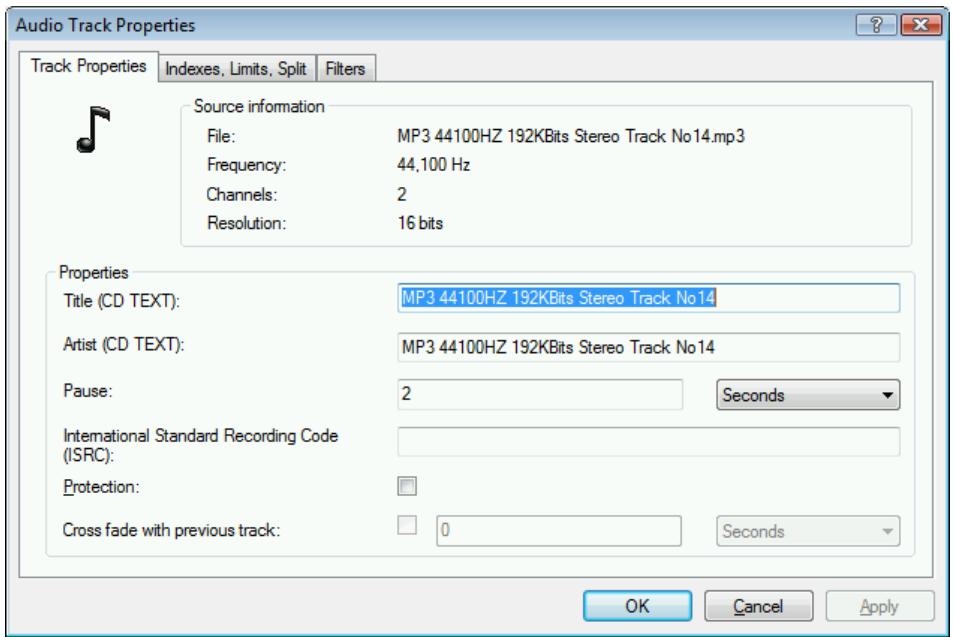
Fig. 8: Audio Track Properties window
The window contains the following tabs:
| Track Properties | Contains general options for configuring the audio file (see Track Properties Tab). |
| Indexes, Limits, Split | Contains options for splitting the audio file and for setting indexes. You can also play back the audio file (see Indexes, Limits, Split Tab). |
| Filters | Contains different filters that can be applied to the audio file. Different options are also available for configuring each filter (see Filters Tab). |

The audio file is edited using a non-destructive procedure. In other words, the actual recording is not changed, marks are simply set. The steps in the editing process can be undone at any time and no additional audio data is generated. The audio file is not actually changed until it is burned.
7.4.1 Track Properties Tab
The Track Properties tab contains general options for configuring the audio file.
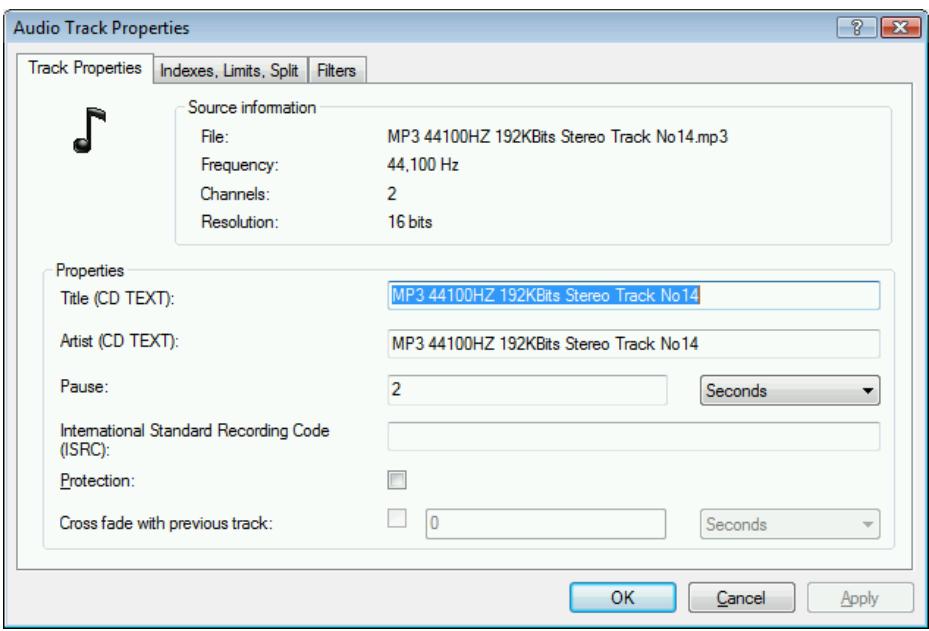
Fig. 9: Track Properties tab
General information on the selected audio file is displayed in the Source information area.
The Properties area offers the following configuration options:
| Title text box | Defines a title which is saved as CD text. |
| Artist text box | Defines the artist which is saved as CD text. |
| Pause text box | Defines the length of the pause between this and the subsequent audio file. You can specify the length of the pause in seconds or in sectors. |
| International Standard Recording Code text box | Identifies the CD title using a 12-character digital code. The ISRC is entered in the subcode and included silently. If you do not know the ISRC, you should leave this text box blank. |
| Protection check box | Enables copy protection. |
| Cross fade with previous track input options | Defines a crossfade between this and the previous audio file. You can specify the length of the crossfade in seconds or in sectors. |
7.4.2 Indexes, Limits, Split Tab
The Indexes, Limits, Split tab provides options for editing the audio file.
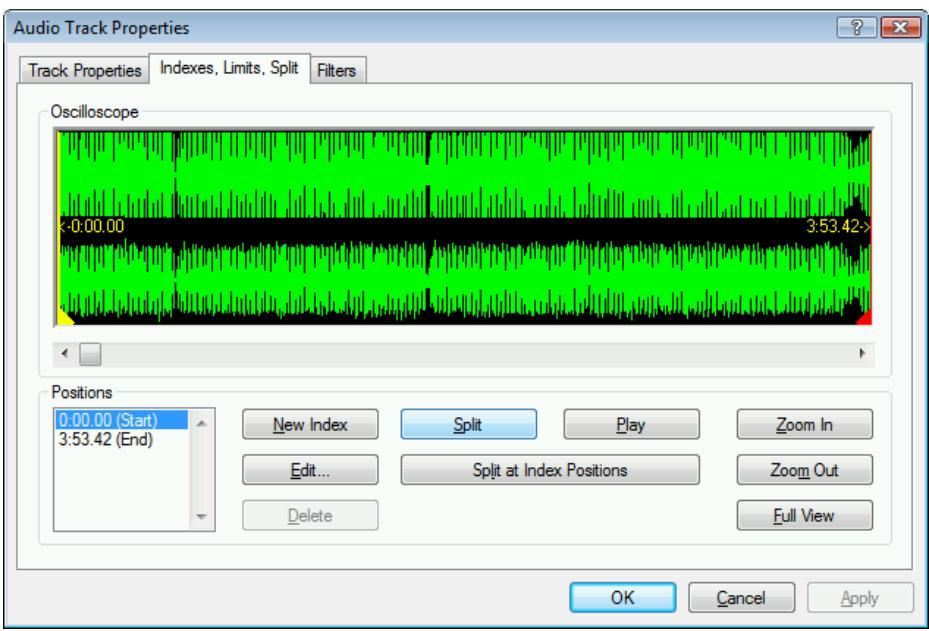
Fig. 10: Indexes, Limits, Split tab
The Oscilloscope area displays a graphical representation of the audio file. You can mark sections here to edit them.
The Positions area contains the following buttons:
| New Index | Sets a new index position at the selected position. For the CD player this is the position from which a new song starts and the player can also jump to it directly. However, not all CD players support this function. |
| Edit | Opens the Edit split position window where you can enter the precise position of a split. |
| Delete | Deletes a marked index position or the position for a split audio file. |
| Split | Physically splits the audio file into two separate audio files at the marked position. |
| Play | Plays the audio file from the marked position. During playback, the Stop button is shown. |
| Stop | Stops playback of the audio file. If playback is stopped, the Play button is shown again. |
| Split at Index Positions | Splits the audio file at the set index positions. |
| Zoom In | Enlarges the graphical representation of the file. |
| Zoom Out | Reduces the graphical representation of the file. |
| Full View | Displays the graphical representation of the file to fit precisely into the oscilloscope area. |
7.4.3 Filters Tab
The Filters tab offers various filters that are applied to the audio file. The following check boxes are available:
| Normalize | Sets the volume of the audio file to a specific level. The filter is suitable for bringing the volume of audio files from different sources into line with one another. |
| Declick | Removes clicking and scratching noises, such as those on old LPs for example. |
| Hiss Reduction | Reduces or removes the hiss on an audio file. All frequencies below a certain threshold (hiss level) are removed. |
| Fade In | Fades in the volume of an audio file from zero to full volume. This filter can be useful for shortening files. |
| Fade Out | Fades out the volume of an audio file from full volume to silence. This filter can be useful for shortening files. |
| Stereo Widening | Increases/reduces the stereo effect of an audio file. This filter only works if the original file was recorded in stereo. |
| Karaoke | Removes the vocal component of an audio file by removing audio components that are identical on both channels. |
| Echo | Contains options for echo effects. |
| Equalizer | Opens an equalizer so you can change the volume in different frequency ranges. |
The Test Selected Filters button plays the audio file and applies the activated filters. During playback you can change the configuration options for the filters and so control the effect.
8 Burning a Compilation
In order to burn your compilation, you must first select a burner. Then start the burn process. Before Nero Burning ROM burns the disc, the Burn Compilation window is opened where you can select or check burn options.
8.1 Choosing a Burner
If you have installed multiple burners, select a suitable burner for burning. To do so, proceed as follows:
- Click on the icon.
The Choose recorder window is opened.
- Select the desired burner.

The window shows useful information on the burner, for example which disc types are supported.
- If you would like to burn to a blank DVD, you can define the Book Type settings.

The Book Type determines which specification is recognized by the DVD player. With Nero Burning ROM you can define or change the Book Type. This is recommended particularly if your DVD player has difficulties with self-burned DVDs of the specification DVD-, DVD+ or DVD-RW. In this case, set the Book Type to DVD-ROM.
- Click on the Options button.
- Select the required option from the Book Type Settings drop-down menu.
Four Book Type settings are available:
Automatic: Automatically selects the most suitable Book Type for this DVD.
DVD-ROM: Sets the Book Type to DVD-ROM. Select this setting if the DVD should play on multiple DVD players.
Physical disc type: Selects the Book Type which is specified on the DVD.
Current recorder setting: Leaves the Book Type setting to the burner.
- Click on the OK button.
The selected burner is accepted and the Choose recorder window closed.
8.2 Burn Compilation Window
In the Burn Compilation window you can set or check the required burn options and then start the actual burn process.
The Burn Compilation window consists of a drop-down menu, a combo box, various tabs, and buttons.
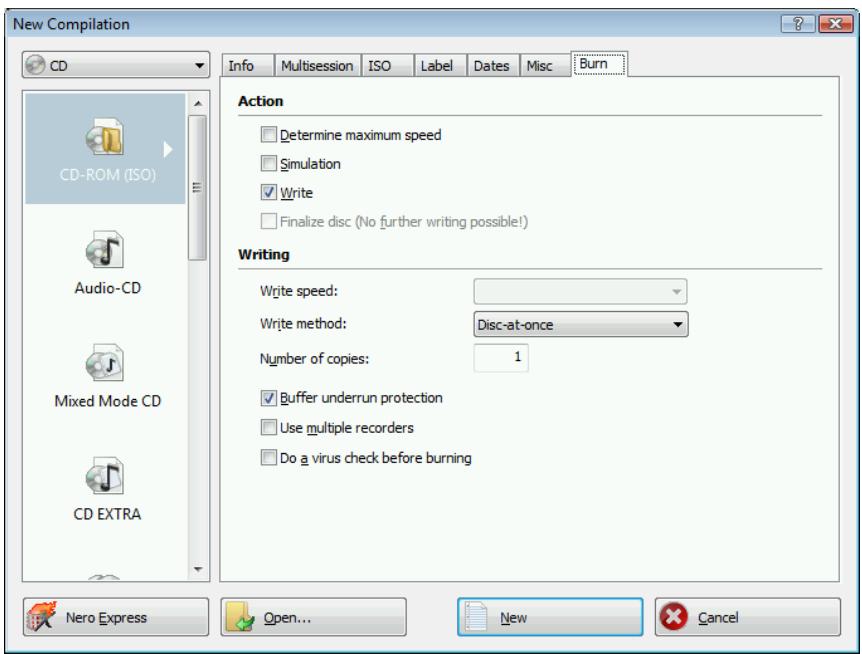
Fig. 11: Burn Compilation window for the disc type CD-ROM (ISO)
The selected disc format is displayed in the list box. If multiple disc types are available for this disc format, and if you have installed a suitable burner, you can select another disc type from the combo box.
The following buttons are available:
| Disc Info | Displays information on the disc inserted, such as contents (if any) or available capacity. |
| Burn | Starts the burn process if a burner is connected. If a burner is not connected, the Save Image File window is opened (see Creating an Image File). This button is only available if the Burn box is checked. |
| OK | Accepts all changes and closes the window. This button is only available if the Burn box is unchecked. |
| Cancel | Closes the Burn Compilation window. |
8.3 Burn Tab
The Burn tab provides options for the burn process.
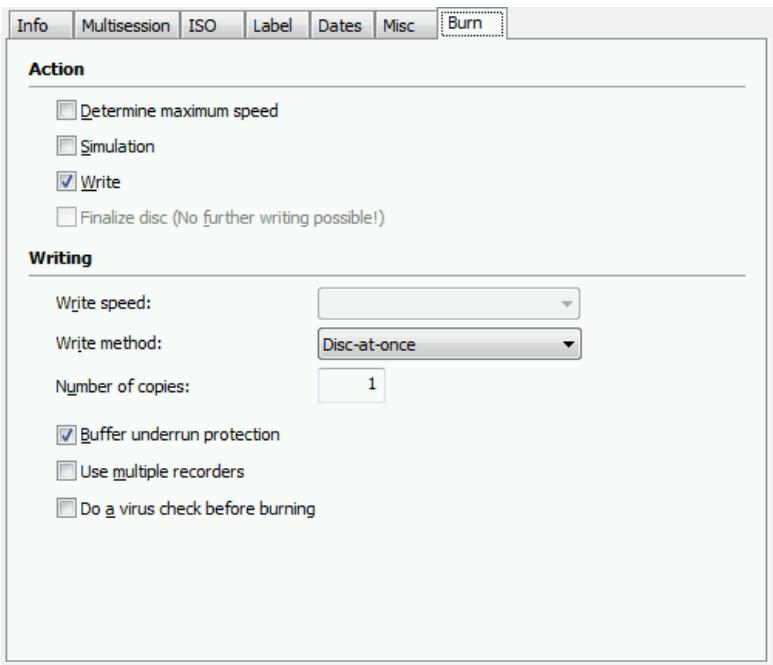
Fig. 12: Burn tab
The following configuration options are available:
| Action area | |
| Determine maximum speed check box | Determines how quickly the compiled files can be accessed. |
| Simulation check box | Simulates burning. In the process the simulation performs all steps that are also carried out during burning with the exception of setting the laser beam. A test determines whether there is a constant flow of data. |
| Burn check box | Enables the Burn button. |
| Finalize disc check box | Closes or fixes the disc so that you cannot write to this disc anymore. Depending on the disc format, finalizing may be necessary. Nero Burning ROM automatically checks the box for the relevant disc formats. |
| Writing area | |
| Write speed combo box | Selects the write speed at which the disc is burned. |
| Write Method combo box | Selects the method used to burn the disc. Disc-at-once and Track-at-once are available. Disc-at-once: Burns the entire disc in one go without having to switch off the laser between individual audio files. |
| Track-at-once: Burns each audio file (track) separately onto the disc, i.e. the laser is switched off and switched on again after each audio file. | |
| Number of copies text box | Defines the number of discs that are to be burned. The default is set to one disc. |
| Buffer overrun protection check box | Provides buffer overrun protection. This check box is only available if the selected burner supports a method which offers buffer overrun protection. |
| Use multiple recorders check box | When you click on the Burn button, a window is opened in which you can select the desired burners. The burn process is then carried out simultaneously on the selected burners. This check box is not available for the disc type Audiobook CD. |
| Do a virus check before burning check box | Checks the files in the compilation for possible viruses before burning. This check box is not available for the disc types Audio CD, VCD, SVCD, and Audiobook CD. |

The speed test and simulation are not required for burners that have a function for protecting against buffer underruns.

Audio, Video and Super Video CDs should always be burned using the disc-at-once method. This entry is selected by default for these disc formats.
8.4 Starting the Burn Process
To start the burn process, proceed as follows:
- Click on the Burn button in the main screen.
The Burn Compilation window is opened; the Burn tab is in front. - Check or select the options on the individual tabs.
- Insert an appropriate blank disc and click on the Burn button.

Many CD players cannot read rewritable CDs (CD-RW). You should therefore use normal CD-ROMs for burning Audio CDs.
The burn process starts.
On the screen a progress bar indicates the progress being made by the burn process.
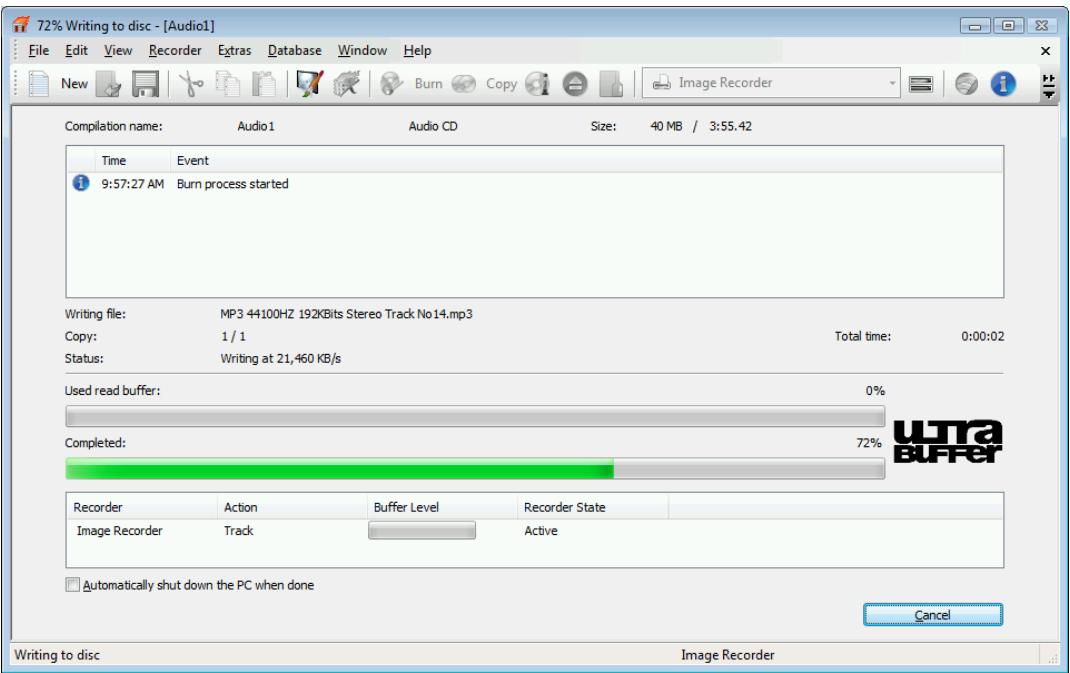
Fig. 13: Burn progress

During the burn process two check boxes are available:
Automatically shut down the PC when done: Shuts down the computer after the burn process has finished (as long as this is technically feasible).
Verify written data: Checks the data written to the disc after the burn process. You can use this option particularly when burning backups to ensure that all data has been written correctly.
When the burn process has finished, a dialog box is opened.
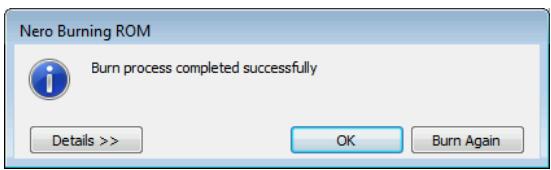
Fig. 14: "Burn process completed successfully" dialog box
- If you would like to display the extended area with the event log, click on the Details button.
- If you would like to start another burn process with the same compilation, click on the Burn Again button.
- Click on the OK button.
The burning process is complete. You can now remove the burned disc from the burner.
9 Bootable Disc
Using Nero Burning ROM you can create a bootable disc with which the computer can be started without having to access the hard drive. For this reason a bootable disc is often used as an "emergency disc" to start the computer if it is not possible to access the hard drive.
Bootable discs are created in accordance with the "El Torito" standard, an extension to the ISO-9660 standard which defines the structure of data discs. The disc contains a boot image and an ISO part. The boot image contains all files that are required to load the operating system and to start the computer. The ISO part can contain any number of data files that you can back up using this method.
9.1 Booting Requirements
To ensure that a computer can boot from disc, the start sequence must be set in the BIOS of the computer in such a way that the drive is addressed first as the boot drive (start sequence CD-ROM, C, A for instance). In the case of a SCSI CD-ROM drive, this must be connected to a SCSI adapter with a separate BIOS whose settings can be modified accordingly. (This will only work when there are no IDE hard drives present, as these precede the SCSI adapter in the boot sequence).
When booting from a disc, you can only start an operating system that does not write to the medium, such as "MS DOS" or "Linux". During booting Microsoft Windows 2000 and Microsoft Windows XP write to the medium from which they are being booted. This is not possible with a disc and so the process is canceled and the PC cannot be started.
9.2 Bootable Disc Template
For Nero Burning ROM, the template for creating a bootable disc can be either a logical drive (e.g. the C: drive) or a drive image file which contains the contents of a drive as a file sector for sector. If the template for the bootable disc is a logical drive, the bootable disc will emulate this when the system is booting. There are three emulation types:
- Floppy emulation: This requires a bootable floppy disc for creating the bootable disc. At startup the bootable disc emulates a floppy disc in drive A.: In the process, the drive letters increment, so that Drive A: corresponds to the bootable disc. Floppy drive A: can be accessed as B: after booting. The volume of the start data is limited by the capacity of the floppy disk (e.g 1.44 MB).
- Hard drive emulation: A bootable hard drive is required to create the bootable disc. At startup the disc emulates Drive C.: All drive letters from Drive C: increment by one. The volume of the start data is limited by the capacity of the CD (e.g. 700 MB) or DVD (8.5 GB). If, for instance, you have a 200 GB hard drive with only one (200 GB) partition, you cannot create a bootable disc from it without repartitioning your hard drive accordingly beforehand.
- No emulation: In this process the drive names are not changed. This type is used for bootable installation CDs. This setting is intended for users who do not require a floppy or hard drive emulation and who want to install their own device driver.
9.3 Creating and Burning a Bootable Disc
To create a bootable disc, proceed as follows:
- Click on the New button in the main Nero Burning ROM screen.
The New Compilation window is opened.
-
If you want to create a bootable CD, select the entry CD from the combo box and the entry CD-ROM (Boot) from the list box. If you want to create a bootable DVD, select the entry DVD from the combo box and the entry DVD-ROM (Boot) from the list box.
The tabs for the bootable disc are displayed; the Boot tab is in front. -
If the template data for the bootable disc should originate from a logical drive:
-
Select the Bootable logical drive option button in the Source of boot image data area.
- Select the entry you want from the drop-down menu.

If the logical drive you want does not appear in the drop-down menu, the reason for this is that the drive is bigger than the space available on the disc. Please note that for operating systems as of Microsoft Windows 2000 you need to have administrator rights in order to be able to access drives directly, which you will need to do if you are to create bootable discs.
-
If the template data for the bootable disc should originate from an image file:
-
Select the Image file option button in the Source of boot image data area.
- Click on the Browse button and select the desired image file.
- Select the language that should appear while the system is booting from the Boot locale drop-down menu.
-
Check the Enable expert features box and select the emulation type for the image file from the Emulation type drop-down menu.
-
Select any other options required on the tabs (see New Compilation Window).
-
Click on the New button.
The selection screen is displayed.
- Select the files/folders that should be written to the ISO part of the bootable disc and drag them into the compilation area.
The files/folders are displayed in the compilation area and the capacity bar indicates how much storage space is required on the disc.
You have now created the bootable disc and can start the burn process (see Starting the Burn Process).
10 Image File
You can use Nero Burning ROM and Nero Image Recorder to create an image file. Nero Image Recorder is automatically installed while Nero Burning ROM is being installed. An image file is an individual file on the hard drive that contains an image of a complete disc. You can burn copies of this image file as often as you like. The image file is exactly the same size as the original file.

The following estimate applies to audio CDs: The image file requires a capacity of approximately 10 MB for every minute of audio data.
10.1 Creating an Image File
To create an image file, proceed as follows:
- Click on the New button.
- Create a new compilation of your choice (see New Compilation).

Using Nero Burning ROM you can also create image files for disc types that the installed burner cannot burn. You can enable this function via the File > Options > Expert Features menu, Enable all supported recorder formats for image recorder check box. The dropdown menu in the Compilation window then makes available all supported disc types (CD, DVD, HD DVD and Blu-ray disc).
- Select the files that you want to burn (see Selecting Files).
- If you have installed multiple burners, select Nero Image Recorder from the combo box.
- Click on the Burn button.
The Burn Compilation window is opened; the Burn tab is in front.
- Click on the Burn button.
The Save Image File window is opened. - Specify a file name and a storage location for the image file and click on the Save button.
The image file is created and saved in the selected storage location. On the screen, a progress bar indicates the progress made while the file is being created. Once the creation process is over, a dialog box is opened. - Click on the OK button.
The dialog box is closed and you have successfully created the image file.
10.2 Burning an image file
To burn a saved image file, proceed as follows:
- Select a burner from the combo box (not Nero Image Recorder).
- Click on the button in the main screen.
The Open browser window is opened. - Select the desired image file and click on the Open button.
The Burn Compilation window with the Burn tab is opened. - Proceed with the burn process (see Burning a Compilation).
You have successfully burned an image file.
11 Copying
Nero Burning ROM can be used for copying discs. There are two methods for this:
On-the-fly copying
Copy over image
Each method has advantages and disadvantages which will depend on your requirements.
11.1 On-the-fly Copying Versus Copy Over Image
11.1.1 On-the-fly Copying
LOLWhen using the on-the-fly method, insert the original disc into a drive and a blank disc into the burner. The original disc in the drive is copied immediately without any time delay to the blank disc in the burner. The on-the-fly method allows you to copy very fast and does not require any additional storage space.
In order to be able to use the on-the-fly method, you will need at least two drives: one for reading the disc and a burner for writing. The following requirements apply to the drive and burner:
- The burner must have a function for protecting against buffer underruns or the drive must be capable of delivering the data sufficiently fast. The read speed must be at least as high as the write speed to ensure that a buffer overrun does not occur. It is more reliable when the read speed is twice as fast as the write speed.
The drive must be capable of delivering information on the number and type of sessions, otherwise Nero Burning ROM may not be able to produce an exact copy.
On-the-fly copying can have the following disadvantages:
If the burner does not have a function for protecting against buffer underruns, the on-the-fly method is highly sensitive to read errors. The reason for this is as follows: if errors occur while the disc is being read because it is scratched, it is not possible to try to eliminate the error by reading the disc several times for example because, in contrast to the copy-over-image method, there is not enough time (danger of buffer overrun).
- Index positions in audio files get lost. The reason for this is as follows:
Index positions only become identifiable if the corresponding position on the CD is read. However, on-the-fly copies can only be burned using the disc-at-once method. With this method the information on the index positions must be available before the burn process begins. This means that Nero Burning ROM cannot copy over index positions.
The quality of audio data read in may suffer. The reason for this is as follows: Nero Burning ROM reads several megabytes of data at a time from the drive, Nero Burning ROM transfers the data to the cache, and writes the data to the burner. If the data transfer slows down because the buffer in Nero Burning ROM is full for instance, the reading head of the drive has to jump back to a previous position. Some drives cannot position the read head precisely for Audio CDs, which means that corrupt audio data may be transferred sometimes.
11.1.2 Copy Over Image
With the copy-over-image method, an image of the original disc is saved to a file first. The image file is then burned to a blank disc. Copying using copy over image takes longer, but it often produces better results.
You must have sufficient storage space to use the copy-over-image method (see Image File).
The copy-over-image method is particularly suitable in the following situations:
Only one drive is available.
You would like to make several copies of the same disc.
- You think it likely that read errors may have occurred on the source CD (for example because it is scratched).
- You attach importance to the best possible reproduction (particularly in relation to index positions and the quality of audio CDs).
11.2 Compilation Window
In the Compilation window, define the options for copying at the beginning of the copy procedure. You can use the Copy button in the main screen to open the window.
The New Compilation window consists of a drop-down menu, various buttons, and tabs.
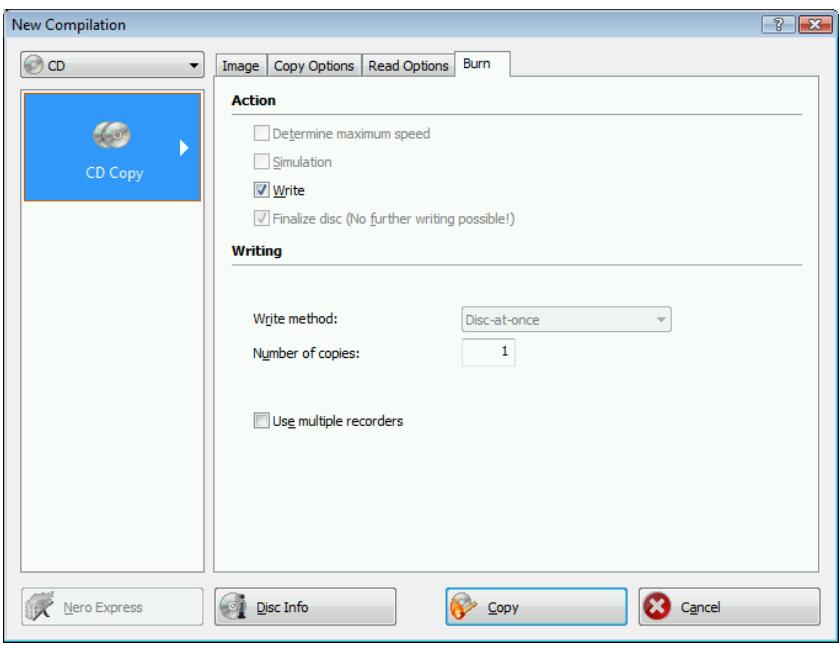
Fig. 15: Compilation window, Copy
The combo box contains the entries CD, DVD, HD DVD, and Blu-ray Disc. Only those disc types supported by the burner are displayed. If the burner can only burn CDs, the combo box is grayed out.
The following buttons are available:
| Disc Info | Displays information on the disc inserted, such as contents (if any) or available capacity for instance. |
| Copy | Starts the copy process. |
| Cancel | Closes the New Compilation window. |
The following tabs are available:
| Image | Displays the path to the temporary image file and provides information on the speed of the hard drive (see Image Tab). |
| Copy Options | Contains options for configuring copying (see Copy Options Tab). |
| Read Options | Contains options for configuring reading of the original disc (see Read Options Tab). |
| Write | Contains options for configuring the burn process (see Burn Tab). |
11.2.1 Image Tab
The Image tab provides the two areas Image file and Hard drive speed info. The Image file area is only active if the On-the-fly copying box on the Copy Options tab is unchecked.
The screen offers the following setting options:
| Image file area | |
| Path text box | Displays the path of the temporary image file. |
| Browse button | Opens the Save As window where you can specify a file name and a directory where the temporary image file should be stored. |
| Delete image file after disc copy check box | Deletes the temporary image file when the copy process is finished. |
| Hard drive speed info area | |
| List of drives | Lists the available drives and hard drives. |
| Test Speeds button | Tests the speeds of the available drives and adds the speed found to the list. |
11.2.2 Copy Options Tab
The following configuration options are available on the Copy Options tab:
| General area | |
| On-the-fly check box | Creates the copy using the on-the-fly method. If this box is unchecked, the copy is created using the copy-over-image method. |
| Source area | |
| Drive combo box | Selects the drive for reading the disc. If a copy over image is created, we recommend that you select the burner for reading in. |
| Read speed combo box | Defines the speed at which the disc is read in. |
11.2.3 Read Options Tab
On the Read Options tab you can select options for reading the original disc. The following options are available:
| Profile area | |
| Profile selection combo box | Selects predefined copy settings or a user-defined setting. In the case of predefined copy settings, Nero Burning ROM sets the configuration options automatically. You can select the configuration options yourself with a user-defined setting. |
| Data Track area for the disc type CD | |
| Ignore read errors check box | Ignores read errors on the original disc and continues the read process. If this box is unchecked, Nero Burning ROM may interrupt the burn process depending on the type of error that occurs. |
| Write defect sectors check box | Still passes on corrupt sectors (that have caused read errors) for burning. If this box is unchecked, corrupt sectors are not passed on and remain blank. |
| Read sectors in raw mode check box | Reads PQ subchannel data. |
| Read all subchannel data check box | Reads all subchannel data. |
| Audio tracks area for disc type CD | |
| Ignore read errors check box | Ignores read errors on the original disc and continues the read process. If this box is unchecked, Nero Burning ROM may interrupt the burn process depending on the type of error. |
| Read indexes of audio data check box | Reads the audio file indexes. |
| Read all subchannel data check box | Reads all subchannel data. |
| Advanced area for the disc type CD | |
| Read Media Catalog Number and ISRC check box | Reads the media catalog number, a globally unique number for compilations, and the ISRC (International Standard Recording Code), a globally unique number for audio recordings. |
| Use jitter correction check box | Removes scratches from audio and video files. |
| Error correction area for the disc type DVD | |
| Read with error correction option field | Performs error correction while reading. In the process, the checksum of a corrupt sector is adjusted so that the sector in itself is consistent. |
| Read retry count text box | Establishes the number of attempts that are made to correct errors. |
| Fast reading without error correct option field | Performs fast reading without error correction. |
| Handling of non-correctable read errors area for the disc type DVD | |
| Ignore read errors check box | Ignores read errors on the original disc. If this box is unchecked, Nero Burning ROM may interrupt the burn process depending on the type of error. |

With certain disc formats such as video CD and audio CD, read errors often have little or no impact because they are not perceptible when the CD is played.

Subchannel data contains additional information such as CD text or information on positions.
11.3 Copying a Disc

If you are not in possession of the copyright for the relevant disc and do not have authorization from the owner of the copyright, unauthorized copying violates national and international legislation.

Copy-protected Audio CDs cannot be copied using Nero Burning ROM.
To copy a disc, proceed as follows:
- Click on the Copy button in the main screen.
The New Compilation window is opened.
- Select the disc type you want from the drop-down menu.

Your installed burner or drive will determine which disc type (CD, DVD, HD DVD and/or Blu-ray Disc) you can select. If the burner can only burn CDs, the combo box is grayed out. But with Nero Image Recorder which is installed in Nero Burning ROM, you will always be able create an image (see Image File) even if you have not installed a burner.
- Select the options required on the tabs (see Compilation Window).
-
If you want to copy discs using the copy-over-image method:
-
Uncheck the On the fly box on the Copy Options tab.
-
Insert the disc that you want to copy into the burner.
-
Click on the Copy button.
A screen is displayed and a progress bar indicates the progress made while the temporary image file is being created. When the image file has been created, the disc is ejected. The Burner name: Waiting for Disc window is opened.
4. Remove the ejected original disc and insert the blank disc.
The burn or copy process starts. On the screen a progress bar indicates the progress being made during the burn or copy process.
-
If you want to copy discs using the on-the-fly method:
-
Check the On the fly box on the Copy Options tab.
- Select the drive that is to contain the disc to be copied from the Drive drop-down menu.
- Insert the disc that you want to copy into the selected drive.
- Insert a blank disc.
- Click on the Copy button.
The burn or copy process starts.
On the screen a progress bar indicates the progress being made during the burn or copy process.
- Proceed with the burn process (see Starting the Burn Process).
You have successfully copied a disc.
12 Audio Database
In Nero Burning ROM you can create, edit, and use audio databases. The database files contain information on the title, artist, and audio files of an audio CD. You can also use the database from the www.freedb.org web page; Nero Burning ROM provides an interface for this.
12.1 Creating an Audio Database
In order to be able to use a database in Nero Burning ROM, you must first create it. Nero Burning ROM provides two types of database:
Program database
User database
12.1.1 Creating a Program Database
You can use Nero Burning ROM to create a program database. The program database is populated with entries from the Internet database on the www.freedb.org website. Once you have created the program database, it is located locally on your hard drive.
The advantage over use of the interface is that you have fast read access to the database and can also change the entries in the database. No active Internet connection is required. The disadvantage, however, is that the program database cannot be updated automatically. In order to record information on recently issued Audio CDs, you must re-import the database or add the Audio CD to the database manually (see Adding a Database Entry).
There are two steps involved in the creation of a program database in Nero Burning ROM:
Download a database from the Internet
Import this database to Nero Burning ROM
To create the program database, proceed as follows:
- Download the database from the www.freedb.org website and save the database on your hard drive.

The database is at least 160 MB. Downloading of the database does not take place in Nero Burning ROM. Nero AG is not responsible for the www.freedb.org website, but just provides an interface to it.
2. Click on the Database > Import Internet Database menu in the main Nero Burning ROM screen.
A dialog box is opened informing you that the import may take several hours.

The import takes a long time because of the sheer size of the database and the numerous cross references that Nero Burning ROM creates.
Although you can cancel the procedure at any time, we advise against it because the procedure cannot be resumed. The database would have to be imported again, which would involve duplicate entries.
- Click on the Yes button.
A dialog box is opened, prompting you to download the database files from www.freedb.org.
- Click on the OK button.
The Browse Folder window is opened. - Specify the directory containing the downloaded database files and click on the OK button.
The Browse Folder window is opened. - Specify the directory in which Nero Burning ROM should create the database and click on the OK button.
The Current Operation window is opened and the database is created. Once the database has been created, the window is closed and a dialog box prompts you to confirm the database as your new program database. - Click on the Yes button.
You have successfully imported the Internet database. The Database menu contains the entries Open Program CD Database and Open Program Title Database.
12.1.2 Creating a User Database
Using Nero Burning ROM you can create a user database and populate it with your own entries. The user database is often used to store information about your own audio CD collection and to record information about self-burned audio CDs.
To create the user database, proceed as follows:
- In the main Nero Burning ROM screen click on the Database > Create New User Database menu.
The Browse Folder window is opened. - Select a destination path for the user database and click on the OK button.
The Current Operation window is opened. After the database has been created, the window is closed and a dialog box prompts you to confirm this database as your new user database. - Click on the Yes button.
You have successfully created a user database. The Database menu contains the options Open User CD Database and Open User Title Database.
12.2 Database Window
The Database window is the starting point for editing an entry in the database or adding a new entry. Nero Burning ROM has two database windows:
The Nero CD Database window with the imported database files from the program database.
The User CD Database window with customized database files from the user database.
Both database windows look the same and have the same functions.
The Database window consists of two lists and different input options. You can open the window via the Database > Open Program/User CD Database menu.
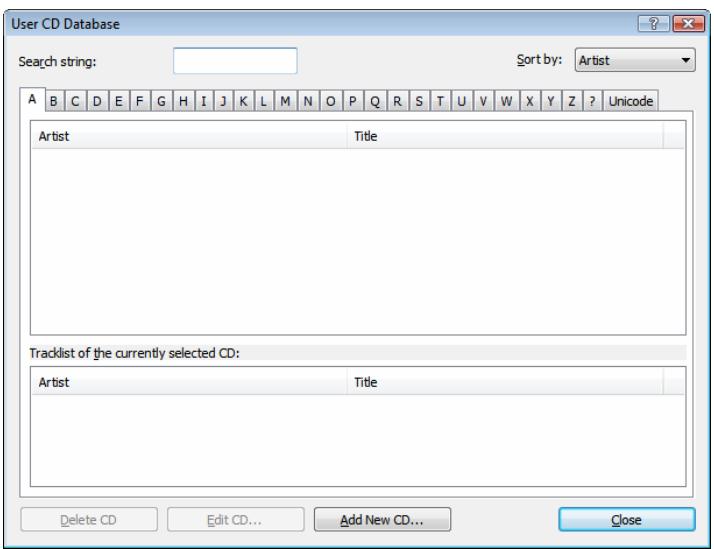
Fig. 16: Nero CD Database window
The top list displays artists and titles on a CD in alphabetical order. You can select first letters with the aid of tabs. The audio files of the marked CD are shown in the bottom list Tracklist of the currently selected CD.
The screen offers the following setting options:
| Search String text box | Displays the relevant tab after you enter a letter. |
| Sort By... combo box | Sorts the top list in alphabetical order. The options Artist and Title are available: Artist: Sorts the list according to the artist. Title: Sorts the list according to the title. |
| Delete CD button | Deletes the selected CD entry from the database. |
| Edit CD button | Opens the Create a New CD Entry window where you can view and change the entry for the selected CD. |
| Add New CD button | Opens the Nero's Title and CD Database window. You can select, create, and edit an entry here. |
| Close button | Closes the window. |
12.3 Nero's Title and CD Database Window
The Nero's Title and CD Database window always refers to an inserted audio CD. It contains the search result and is opened if you want to add a new entry to the database in the Database window. It is also opened with one of the following actions if you have set the database usage accordingly (see Defining Database Usage):
When copying an audio CD
When saving audio files on an audio CD
- When adding an audio file to an audio compilation

Nero Burning ROM searches in the program database, the user database, and the Windows Media Player database as well as in the Internet database on request.
During the search, either multiple CDs may be found, a "wrong" CD or no CDs at all.
Multiple CDs are found if different CDs have the same "fingerprint". This "fingerprint" is obtained from the start positions of the individual audio files, the number of audio files, and the playing time of the CD. Occasionally, different CDs may have the same characteristics. Then they cannot be distinguished from one another.
If a wrong CD is found, or no CD at all, the audio CD is not yet stored in the database.
The window contains editing and selection functions for the database entries found and two lists. The search result (always performed before the window is opened) is shown in the List of corresponding CD entries in the Nero CD database. A small icon always indicates the origin of an entry. The audio files of the selected CD are shown in the Tracklist of the currently selected CD list.
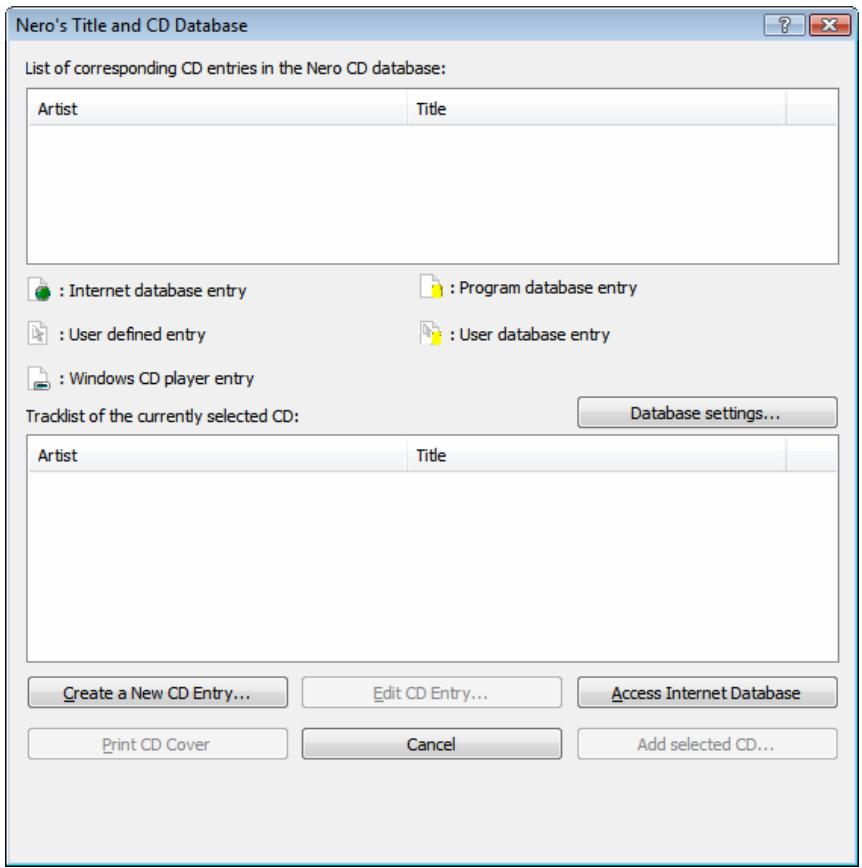
Fig. 17: Nero's Title and CD Database window
The window contains the following buttons:
| Database Settings | Opens the Options window with the Database tab where you can specify the paths for the databases. |
| Create a New CD Entry | Opens the Create a New CD Entry window where you can create a new entry. |
| Edit CD Entry | Opens the Create a New CD Entry window where you can view and change the entry for the selected CD. |
| Access Internet Database | Establishes a connection to the Internet database www.freedb.org and performs a search for the audio CD that has been inserted. |
| Print CD Cover | Opens Nero CoverDesigner. The information on the selected entry such as title, number, and names of the audio files is added to the document data. |
| Cancel | Closes the window. |
| Add Selected CD | Adds the selected entry to the database and closes the window. This button is only available if the window was opened via the database window. |
| Selected CD | Adds the information on the selected entry and closes the window. This button is only available if the window was opened with an action (see Using a Database). |
12.4 Create a New CD Entry Window
The Create a New CD Entry window refers to a database entry. Information on the CD title and the individual audio files is displayed for the database entry. The window is opened if you want to edit an existing database entry or add a new entry to the database. With the latter the text boxes are still empty.
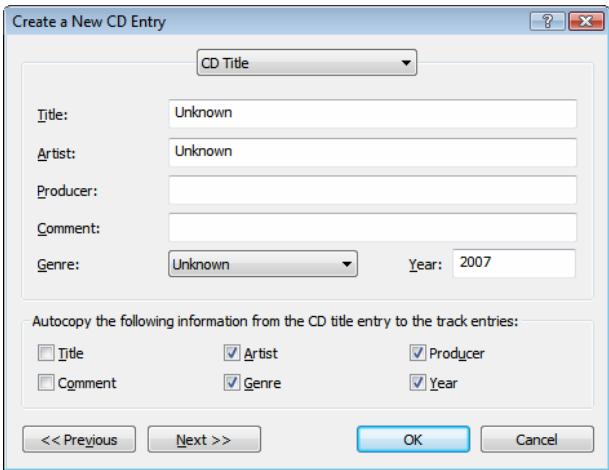
Fig. 18: Create a New CD Entry window
The window consists of a drop-down menu, six text boxes, six check boxes, and buttons.
The drop-down menu contains the options CD Title and Track. The track entries correspond to the audio files of the CD.
In the text boxes you can enter the relevant information on the CD title or on an audio file. The text boxes each refer to the entry which is selected in the drop-down menu.
The Autocopy the following information from the CD title entry to the track entries area is only available if you selected the CD Title entry from the drop-down menu. In this area you can define which of the entries you made for the CD title are added to the text boxes for the audio files.
The following buttons are available:
| Previous | Jumps back one entry in the drop-down menu and offers the text boxes for this entry. |
| Next | Jumps forward one entry in the drop-down menu and offers the text boxes for this entry. |
| OK | Adds the changes to the database and closes the window. |
| Cancel | Cancels the procedure and closes the window. |

The database entry can only be stored when the text boxes for title, artist, and genre have all been filled in for the CD title.
12.5 Changing a Database Entry
To change an entry, proceed as follows:
- If you want to open the program database, click on the Database > Open Program CD Database menu.
The Nero CD Database window is opened. - If you want to open the user database, click on the Database > Open User CD Database menu.
The User CD Database is opened. - Click on the Edit CD button.
The Create a New CD Entry window is opened. The CD Title entry is selected in the drop-down menu. The text boxes for the CD title are displayed. - Edit the information in the text boxes Title, Artist, Producer, Comment, Genre, and Year according to your requirements.
- Use the check boxes to define what information is to be added to the text boxes for the individual audio files.
- Click on the Next button.
The entry Track 1 is selected in the drop-down menu. The text boxes for the first audio file are displayed. - Edit the information in the text boxes according to your requirements.
- Repeat both of the previous steps for all audio files.

The database entry can only be saved if the text boxes for title, artist, and genre have been filled in for the CD title and all audio files.
- Click on the OK button.
The changes are incorporated and the window is closed.
You have successfully changed an entry in the database.
12.6 Adding a Database Entry
Using Nero Burning ROM you can add a new entry to your database. The new entry always refers to an audio CD that has been inserted. To add an entry to the program or user database, proceed as follows:
- If you want to open the program database, click on the Database > Open Program CD Database menu.
The Nero CD Database window is opened.
- If you want to open the user database, click on the Database > Open User CD Database menu.
The User CD Database window is opened.
-
Insert the audio CD to which the entry is to refer.
-
Click on the Add New CD button.
A dialog box is opened reminding you that Nero Burning ROM requires access to a CD for this function.
- Click on the OK button.
The Waiting for Disc window is opened. Nero Burning ROM performs a search in the background to find an entry for a corresponding Audio CD. When Nero Burning ROM has finished searching, the Nero's Title and CD Database window is opened. The search result is shown in the List of corresponding CD entries in the Nero CD database list.
- If you want to search through the Internet database www.freedb.org as well, click on the Access Internet Database button.
Nero Burning ROM performs the search in the Internet database and adds the search result.
-
If the audio CD does not appear in the List of corresponding CD entries in the Nero CD database list, you can create a new entry:
-
Click on the Create a New CD Entry button.
The Create a New CD Entry window is opened. The entry CD Title is selected in the drop-down menu. The text boxes for the CD title are displayed. - Enter the required information in the text boxes Title, Artist, Producer, Comment, Genre, and Year.
- Define in the check boxes what information will be added to the text boxes for the individual audio files.
-
Click on the Next button.
The entry Track 1 is selected in the drop-down menu. The text boxes for the first audio file are displayed. -
Enter the required information in the text boxes.
- Repeat the two previous steps for all audio files.
- Click on the OK button.
The Create a New CD Entry window is closed and the new entry created is added to the List of corresponding CD entries in the Nero CD database in the Nero's Title and CD Database window.
- Select the required entry and click on the Add selected CD button.
The Nero's Title and CD Database window is closed and the new entry is added to the database. A dialog box containing the message "The new entry has been successfully added to the database" is opened.
- Click on the OK button.
The dialog box is closed.
You have successfully added an entry to the database.
12.7 Defining Database Usage
The information from the databases can be used for various actions:
When copying an audio CD
When saving audio files on an audio CD
- When adding an audio file to an audio compilation
In addition, an entry that you added to the database can also be uploaded to the Internet database www.freedb.org.
In order to define when the database is used, you must define usage on the Misc. tab in the Options window. To do this, proceed as follows:
- Click on the File > Options menu.
The Options window is opened.
- Click on the Misc tab.
The Misc tab is opened with the display area Options.
-
Scroll down to the Database entry.
-
Define for the subentry Retrieve artist/title information from the Nero/Internet CD database when copying an Audio CD whether the database is to be used when copying an audio CD:
-
If you want the databases to be searched, select the option button Always.
- If you want Nero Burning ROM to ask whether the databases should be searched, select the option button Prompt.
-
If you do not want the databases to be searched, select the option button Never.
-
Define for the subentry Retrieve artist/title information from the Nero/Internet CD database when saving audio tracks whether the database should be used when you are saving audio files on an Audio CD:
-
If you want the databases to be searched, select the option button Always.
-
If you want Nero Burning ROM to ask whether the databases should be searched, select the option button Prompt.
-
If you do not want the databases to be searched, select the option button Never.
-
Define for the subentry Retrieve artist/title information from the Nero/Internet CD database when adding a track to the audio compilation whether the database should be used when adding audio files to an audio compilation:
-
If you want the databases to be searched, select the option button Always.
- If you want Nero Burning ROM to ask whether the databases should be searched, select the option button Prompt.
-
If you do not want the databases to be searched, select the option button Never.
-
Define for the subentry Submit new entries what happens when you have added a new entry to the database:
-
If you want the new entry to be uploaded to the Internet database www.freedb.org, select the option button Always.
- If you want Nero Burning ROM to ask whether the new entry should be uploaded to the Internet database www.freedb.org, select the option button Prompt.
- If you do not want the new entry to be uploaded to the Internet database www.freedb.org, select the option button Never.

We recommend that you only make available new entries to the general public on the Internet if they involve original CDs acquired by purchase and not audio CDs that you have compiled yourself. In addition, the information about the CD should be complete and correct.
Nero AG is not responsible for the Internet database www.freedb.org, but only provides an interface to it.
- Click on the OK button.
The changes are accepted and the Options window is closed. You have successfully configured database usage.
12.8 Using a Database
You can use the databases for the following actions:
When copying an audio CD
- When saving tracks on an audio CD
When adding a track to an audio compilation
Requirements:
You have defined the usage types Always or Prompt (see Defining Database Usage).
- You are performing one of the above actions.
The Nero's Title and CD Database window is opened, which displays the search result.
2. If you want to search the Internet database www.freedb.org as well, click on the Access Internet Database button.
Nero Burning ROM searches the Internet database and adds the search result.
-
If the Audio CD does not appear in the List of corresponding CD entries in the Nero CD database you can create an entry for this CD:
-
Click on the Create a New CD Entry button.
The Create a New CD Entry window is opened. The CD Title entry is selected in the drop-down menu. The text boxes for the CD title are displayed.
-
Enter the required information in the text boxes Title, Artist, Producer, Comment, Genre, and Year.
-
Define in the check boxes which information is to be added to the text boxes for the individual audio files.
-
Click on the Next button.
The Track 1 entry is selected in the drop-down menu. The text boxes for the first audio file are displayed.
-
Enter the required information in the text boxes.
-
Repeat both of the previous steps accordingly for all audio files.
-
Click on the OK button.
The Create a New CD Entry window is closed and the new entry is added to the List of corresponding CD entries in the Nero CD database in the Nero's Title and CD Database window.
- Select the required entry and click on the Selected CD button.
The Nero's Title and CD Database window is closed and the information for the entry is accepted.
13 Saving and Converting Audio Files
Using Nero Burning ROM you can convert an audio CD into a format you require and save it to the hard drive. You can also convert (transcode) audio files saved on the hard drive into a different format.
13.1 Save Tracks Window
In the Save Tracks window you can define the settings for the audio files that are to be stored on the hard drive. The window consists of a track list, control buttons, and various configuration options. You can open the window by clicking on the Extras > Save Tracks menu.
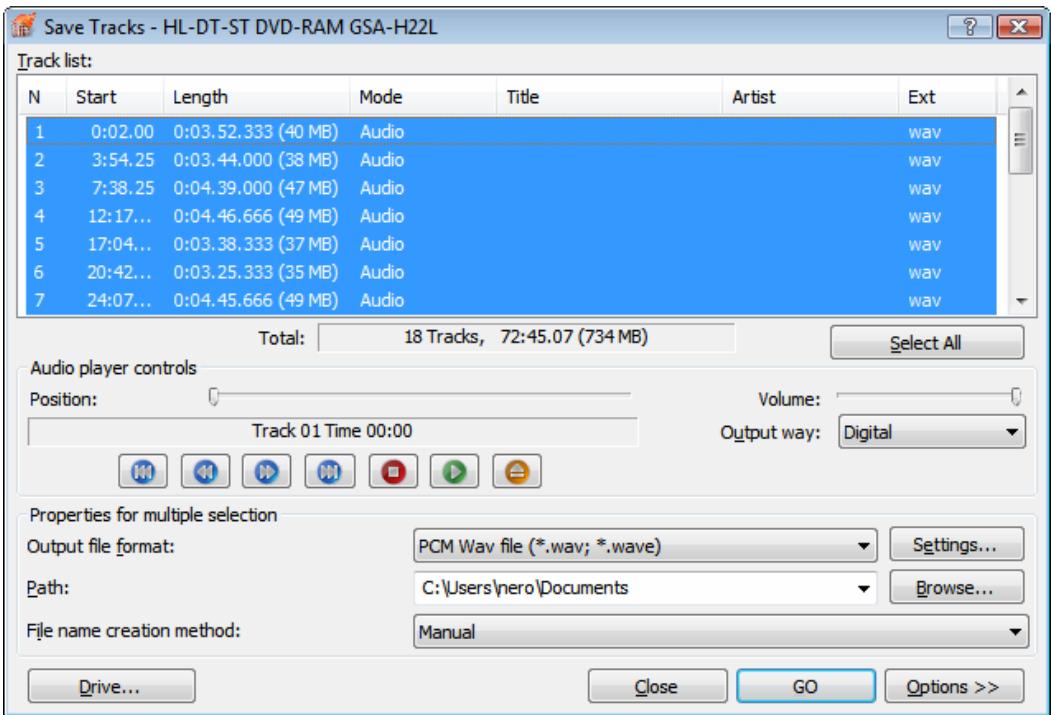
Fig. 19: Save Tracks window
The following setting options are available in the window:
| Upper area | |
| Tracklist combo box | Displays the audio files on the Audio CD. |
| Total display panel | Displays the number of audio files and their length. |
| Select All button | Selects the entire track list, i.e. all audio files. |
| Audio player controls area | |
| Position control | Represents the progress when playing an audio file or jumps to a selected position. |
| Control buttons | Control playback of an audio file. The functions of the control buttons correspond to the familiar control buttons on CD players. |
| Volume control | Makes playback of an audio file louder or quieter. |
| Output way combobox | Specifies how the audio file is played back: Analog: Transfers the audio data to the sound card directly. Digital: Extracts the audio data first. |
| Properties for multiple selection area | |
| Output file format combobox | Selects the output audio format for the selected audio file. |
| Settings... button | Opens a window in which you can set encoding options (see AC3, AIF, MP4, OGG and WAV encoding options and MP3 and MP3PRO encoding options). |
| Path combobox | Selects the storage location for the output file. |
| Browse... button | Opens a browser window where you can select a storage location. |
| File name creation method combobox | Selects the method to be used for creating the name of the output file. |
| Bottom area | |
| Drive... button | Opens a list box containing the entries Refresh, Change drive, and Eject. |
| Close button | Closes the window. |
| GO button | Starts the save process. |
| Options > button | Opens the extended area. |
| Extended area | |
| Jitter correction check box | Synchronizes data information by overlapping sectors. This prevents gaps from occurring. |
| Remove silence check box | Removes silence from the end of an audio file. |
| Automatically generate an M3U gallery of stored audio tracks check box | Generates a playlist of the audio files that are stored on the hard drive. The M3U file format compiles media files into a list. |
| Read speed combobox | Defines the speed at which the drive reads the files. |
13.1.1 AC3, AIF, MP4, OGG and WAV encoding options
Nero Burning ROM can encode audio files of an audio CD in AC3, AIF, MP4, OGG and WAV formats.
Set these options in dialog windows that you can open in the Save Tracks window via the Settings button. Depending on the output file format you have selected, a window is opened that includes encoding options that are easy to identify. The options to be set depend on the output file format.
The following settings are available for the different file formats:
| AC3 file format: AC3 encoder settings window | |
| Bite Rate combo box | Specifies the bit rate, i.e. the data flow per unit of time and the quality of the saved data. The default value of 128 is near CD quality. |
| File formate | |
| Frequency combo box | Specifies the scan rate per second and thus determines the frequency of scanning. The higher the frequency, the more frequently scanned. |
| Bits combo box | Specifies the scan accuracy and thus determines the quality of the individual scanner. |
| Channels combo box | Specifies which channels are recorded. |
| File format MP4: Nero Digital Audio Encoder Settings window | |
| Quality controller | Specifies the bit rate, i.e. the data flow per unit of time and the quality of the saved data. If the bit rate is small, less data is transferred, the file is then small, but quality is lower. If the bit rate is high, more data is transferred, the file size is then large, but the quality is high. |
| File format OGG: OGG Vorbis settings | |
| Constant Bit Rate check box | Specifies a constant bit rate, i.e. the data flow per unit of time and the quality of the saved data, is the same over the entire audio file. If the bit rate is small, less data is transferred, the file is then small, but quality is lower. If the bit rate is high, more data is transferred, the file size is then large, but the quality is high. The default value of 128 is near CD quality. |
| Variable Bit Rate check box | Specifies a variable bit rate, i.e. the data flow per unit of time and the quality of the saved data, adapts to the dynamic of the audio file. The bit rate, for example, can be lowered at quieter points in the track. You can set the variable bit rate between 0 and 100. 0 is the lowest quality, 100 the highest quality. |
13.1.2 MP3 and MP3PRO encoding options
Nero Burning ROM can encode audio files of an audio CD in MP3 and MP3PRO formats. Set these options in the mp3PRO window that you can open in the Save Tracks window via the Settings button. Ensure that you have selected mp3/mp3PRO as the Output file format.
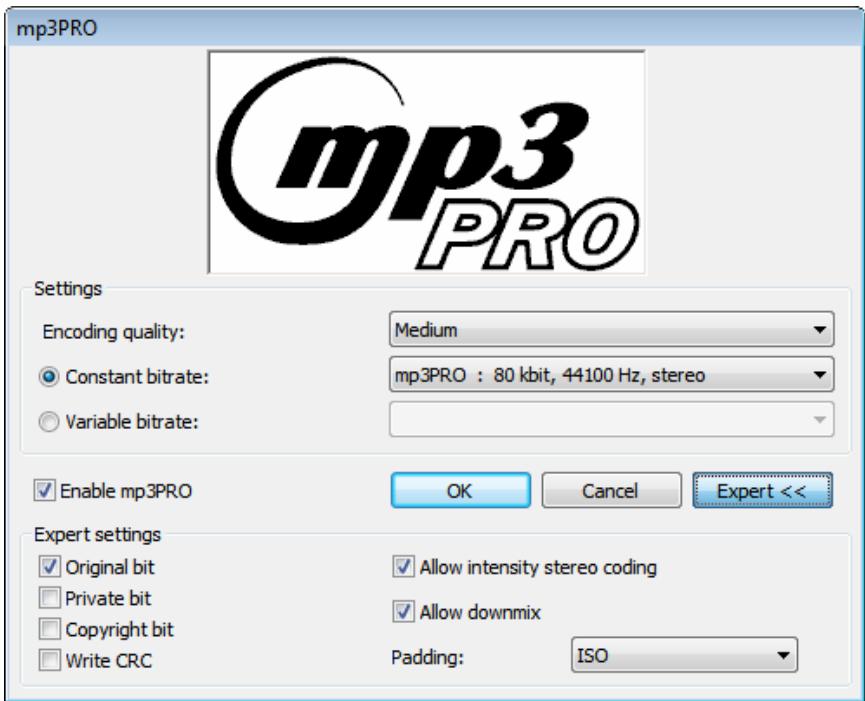
Fig. 20: mp3PRO window - Encoding options for MP3 and MP3PRO files
The following encoding options are available:
| Settings area | |
| Encoder quality combo box | Specifies the encoder quality. Fast, Medium and Highest entries are available. These settings specify whether you place more value on fast encoding (Fast) or \more value on a superior psychoacoustic encoder model for the very best results (Highest). |
| Constant Bit Rate check box | Selects a constant bit rate, i.e. the data flow per unit of time and the quality of the saved data, is the same over the entire audio file. If the bit rate is small, less data is transferred, the file is then small, but quality is lower. If the bit rate is high, more data is transferred, the file size is then large, but the quality is high. The default value of 128 for MP3 files is near CD quality. Select the options in the combo box that affect the bit rate: scan rate per second in kbit, scan frequency per second in Hertz and the channels. |
| Variable Bit Rate check box | Selects variable bit rate, i.e. the data flow per unit of time and the quality of the saved data, adapts to the dynamic of the audio file. The bit rate, for example, can be lowered at quieter points in the track. Select your desired quality level in the combo box. |
| Bottom area | |
| Enable Mp3PRO check box | Specifies the encoder method used. If you enable the check box, an MP3PRO file is created (*.mp3 file extension). If you disable the check box, an MP3 file is created (also *.pm3 file extension). |
| Expert button | Opens the Advanced area where you can configure Expert Features. |
| Expert Features advanced area | |
| Original Bit check box | Sets the original bit in the music file; the copy and original are differentiated. Check box enabled: Original Bit = 1, i.e. original. Check box disabled: Original Bit = 0, i.e. copy. |
| Private Bit check box | Sets the private bit in the music file. It is reserved for the user and is only used for informational purposes. |
| Copyright Bit check box | Sets the copyright bit in the music file which identifies protected content. Check box enabled: Copyright Bit = 1, i.e. protected. Check box disabled: Copyright Bit = 0, i.e. not protected. |
| Write CRC check box | Also sets a checksum in the music file that should ensure that transfer errors are identified. |
| Allow intensity stereo coding check box | Uses a special codec at high frequencies that only saves the directional information and volume. |
| Allow downmix check box | Mixes two stereo channels down to one mono signal. This option is useful when the output data is of such poor quality that a poor stereo signal is to be expected. An increase in quality is expected when downmixing to mono. |
| Padding combo box | Selects a padding type for MP3 blocks. We recommend padding type ISO that pads MP3 blocks according to the ISO specification. |
13.2 Saving Audio Files
Using Nero Burning ROM you can store audio files from an audio CD on the hard drive. In the process, the files are encoded, i.e. converted into a format that the computer can read. The audio file is usually also compressed.

Audio files from copy-protected audio CDs cannot be saved using Nero Burning ROM.
To save audio files, proceed as follows:
- Insert the desired audio CD into a drive.
- Click on the Extras > Save Tracks button.
The Save Tracks window is opened. - If you want to save only specific audio files, select the audio files that you want to save in the Track list.
- Select the required output format from the Output file format drop-down menu.
-
If you want to define the encoding options:
-
Click on the Settings button.
A window is opened.
-
Depending on the selected output form, define the encoding options such as bit rate, encoding quality, and frequency (see AC3, AIF, MP4, OGG and WAV encoding options and MP3 and MP3PRO encoding options)
-
Click on the OK button.
The window is closed and the changes accepted.
- If you want to specify a storage location for the output files, click on the Browse button and select a path.
- Select a File name creation method.

The default setting for the method for default names is Manual.
- If you want to make settings in the extended area, click on the Options button.
The extended area is opened.
-
Click on the GO button.
Conversion starts. The Progress window is opened and displays the progress made while saving. At the end of the save process, it is closed automatically. -
Click on the Close button.
The Save Tracks window is closed.
You have saved audio files.
13.3 Encode Files Window
In the Encode Files window, the audio files that are to be encoded are selected and the properties for the output defined. You can open the window via the Extras > Encode Files menu.
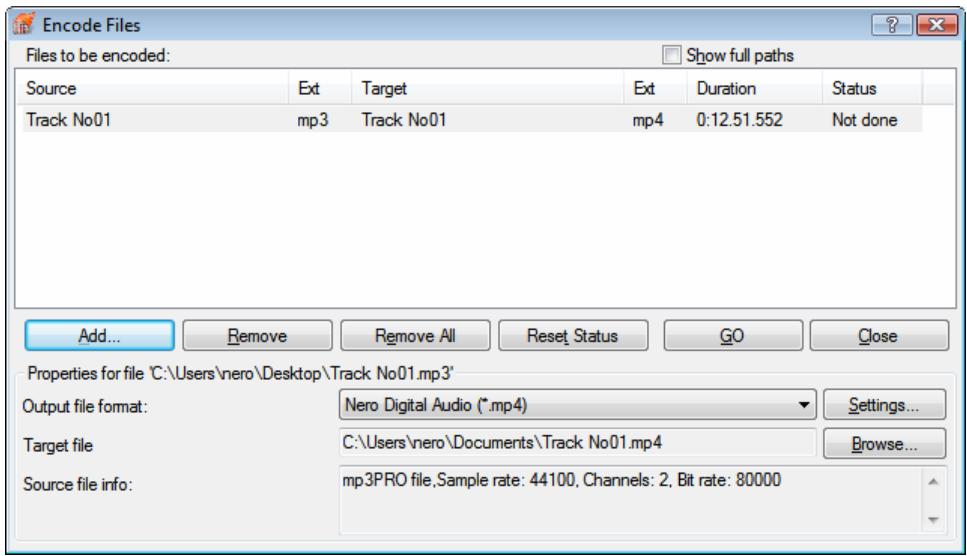
Fig. 21: Encode Files window
The window consists of a selection area and a properties area. The following configuration options are available:
| Selection area | |
| Files to be encoded list | Displays the selected files. Displays the selected files. |
| Show full paths check box | Displays the full source and destination paths for the files in the Files to be encoded list. |
| Add button | Opens the browser window where you can select a file to add it to the list of files to be encoded. |
| Delete button | Removes the selected file. |
| Remove All button | Removes all files from the list of Files to be encoded. |
| Reset Status button | Reset the status of the selected file to "to do". |
| GO button | Starts the encode process. |
| Close button | Closes the window. |
| Properties area | |
| Output file format combo box | Selects the output audio format for the selected audio file. |
| Settings... button | Opens a window where you can define options such as bit rate and frequency for the output audio file. |
| Target file/Target directory display panel | Displays the storage location of the output file or output files. |
| Browse button | Opens a browser window where you can select a storage location. |
| Source File Info display panel | Displays information on the selected audio file. |
13.4 Converting Audio Files
Using Nero Burning ROM you can transcode, i.e. convert, audio files that are stored on the hard drive into a different format.
To transcode a file, proceed as follows:
- Click on the Extras > Encode Files menu.
The Encode Files window is opened.
- Click on the Add button.
The familiar browser window Open is opened.
- Select the required file and click on the Open button.
- Repeat the two previous steps for each file that you want to convert.
- Select the required output format from the Output file format drop-down menu.
-
If you want to define encoding options:
-
Click on the Settings button.
A window is opened.
- Depending on the output format, define the encoding options such as bit rate, encoding quality, and frequency.
- Click on the OK button.
The window is closed and the changes accepted.
- If you want to specify a storage location for the output files, click on the Browse button and select a path.
- Click on the GO button.
The Progress window is opened and displays the progress made while saving. At the end of the save process, the window is closed automatically. The status of the file that was transcoded is set to "Done". - Click on Close.
You find the transcoded audio files on the selected storage location.
14 LightScribe®
If you have a LightScribe® burner, you can also print the label side of a LightScribe® CD/DVD with Nero Burning ROM. The label side of the disc has a special color or thermal layer which is heated by the laser in the burner so that images and text are printed.

This feature is only available for LightScribe® burners.
Using LightScribe® Direct Disc Labeling
When using a CD or DVD burner with LightScribe® support, you system requires the latest LightScribe® System Software.
If you have downloaded and installed an updated version of Nero 8 from the Nero web site, install the LightScribe™ System Software separately. You can download the latest version at http://www.nero.com/link.php?topic_id=114&gen_id=8.
14.1 CD Label Editor Window
In the CD Label Editor window you can create or load a label. The window is opened when you click on the Create button in the LightScribe area on the Misc tab for the current compilation.

The interface in the CD Label Editor window works on the same principle as Nero CoverDesigner. Basically, it is irrelevant whether you print the label on paper or directly onto an appropriate disc.
Please see the separate Nero CoverDesigner user manual for full instructions on how to make professional looking covers and labels.
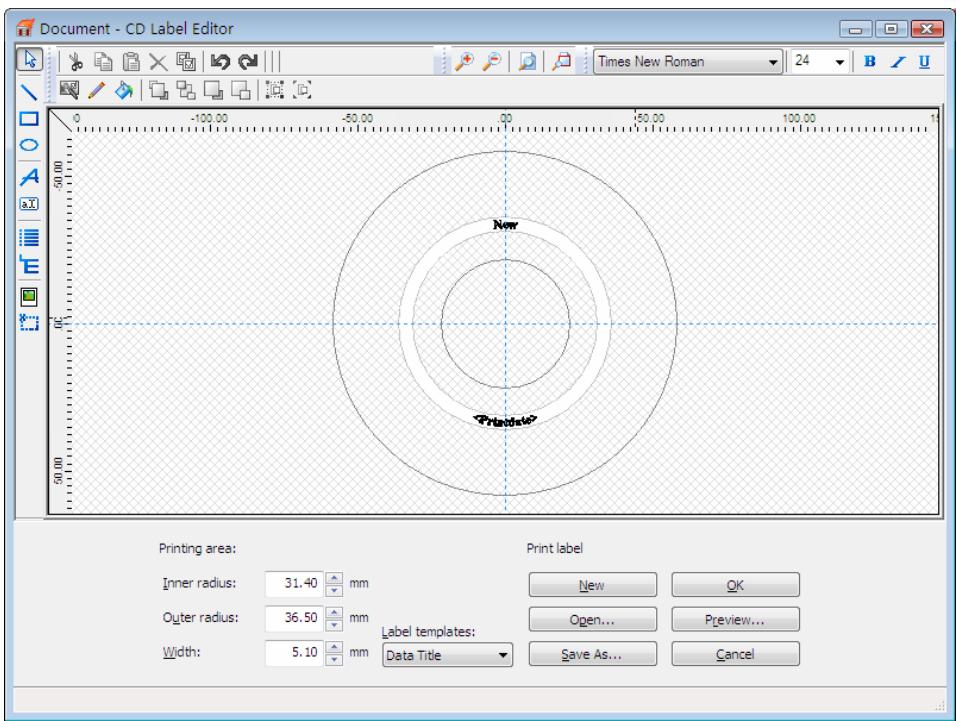
Fig. 22: CD Label Editor window for LightScribe
The screen offers the following setting options:
| Inner radius | Defines the distance between the label and the inner edge. |
| Outer radius | Defines the distance between the label and the outer edge. |
| Width | Defines the width of the print area. |
| Label templates | Contains a selection of different templates for designing the label. You can continue to edit and customize a selected template. |
| New | Generates a new label document. |
| Open | Opens an existing label which was created using Nero CoverDesigner. |
| Save As | Saves the label you have created. |
| OK | Adds the label you created to the compilation and closes the window. |
| Preview | Opens the Print Preview window that shows how the label should appear on the LightScribe® disc. |
| Cancel | Cancels the procedure and closes the window. |
14.2 Printing Labels
The process for printing the label is integrated into the usual burn process. First, burn the compilation, flip the disc over, and then burn the label.
To print a label, proceed as follows:
- Create a compilation (see Creating a New Compilation) and select the files to burn (see Selecting Files).
- Select a LightScribe® burner from the drop-down menu in the toolbar.
-
If you want to set the print options for LightScribe®:
-
Click on the File > Options menu
The Options window is opened.
- Click on the LightScribe tab.
The configuration options for LightScribe® are displayed.
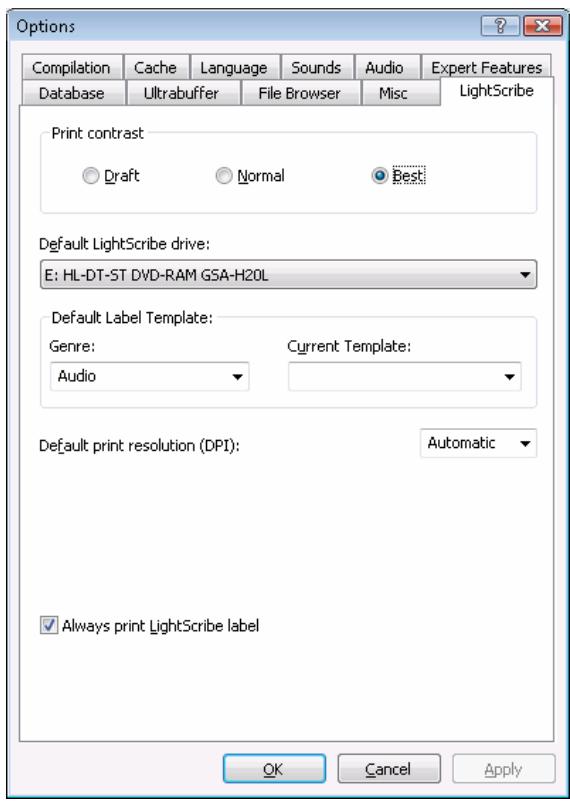
Fig. 23: Options window - LightScribe tab
- Select the desired printing quality from the Print contrast area. The better the quality, the longer the burner takes to print the label.
- Set the other options you require.
- Click on the OK button.
The changes will be saved and the window closed.
- Click on the Burn button.
The Burn Compilation window is opened.
- Click on the Misc tab.
- Check the Print Label box in the LightScribe area.
-
If you want to use an existing label:
-
Select the entry Use Nero CoverDesigner files from the drop-down menu in the LightScribe area.
The familiar browser window Open is opened. -
Select a Nero CoverDesigner file and click on the Open button.
The window is closed and the selected file accepted for this compilation.
-
If you want to create a label for this compilation:
-
Select the entry Use label from compilation from the LightScribe area.
The CD Label Editor window is opened. - Create a label.

The interface in the CD Label Editor window and the procedure for creating labels work on the same principle as Nero CoverDesigner. Please see the separate Nero CoverDesigner user manual for full instructions on how to make professional looking covers and labels.
-
If you want to change the label you have created, click on the Edit button.
-
Set the options you require in the tabs.
-
Insert a blank LightScribe® CD with the data side facing down and click on the Burn button.
The burn process starts and the compilation is burned. On the screen, a progress bar indicates the progress being made by the burn process. When the burn process is complete the disc is ejected. A dialog box is opened with the message "Please insert a LightScribe disc into the drive with the label side facing down".
- Insert the blank LightScribe® disc into the burner with the label side facing down and click on OK.
The LightScribe Print Properties window is opened and the print process starts. In the LightScribe Print Properties window a progress bar indicates the progress being made. When the print process has finished, a dialog box is opened with the message "Burn process completed successfully".
- Click on the OK button.
The disc is ejected.
You have printed a LightScribe® label.
15 LabelFlash™
If you have connected up a LabelFlash™ burner, you can also use Nero Burning ROM to print a label on the label and/or data side of a LabelFlash™ DVD.
The LabelFlash™ DVD has a special layer in the center of each side; when this is heated by the laser in the burner it is altered so that images and text are printed on the DVD. LabelFlash™ is a technology that enables both the label and the data side of DVDs in the burner to be printed. If the data side is printed, this is referred to as the DiscT@2™ procedure.

This feature is only available with a LabelFlash™ burner.
15.1 Burn Label Window
In the Burn Label window you can create or load a label and print it on a LabelFlash™ DVD.
The window is opened when you insert a blank LabelFlash™ disc or click on the icon in the toolbar.

The interface in the Burn Label window works on the same principle as Nero CoverDesigner. Basically, it is irrelevant whether you print the label on paper or directly onto an appropriate disc.
Please see the separate Nero CoverDesigner user manual for full instructions on how to make professional looking covers and labels.
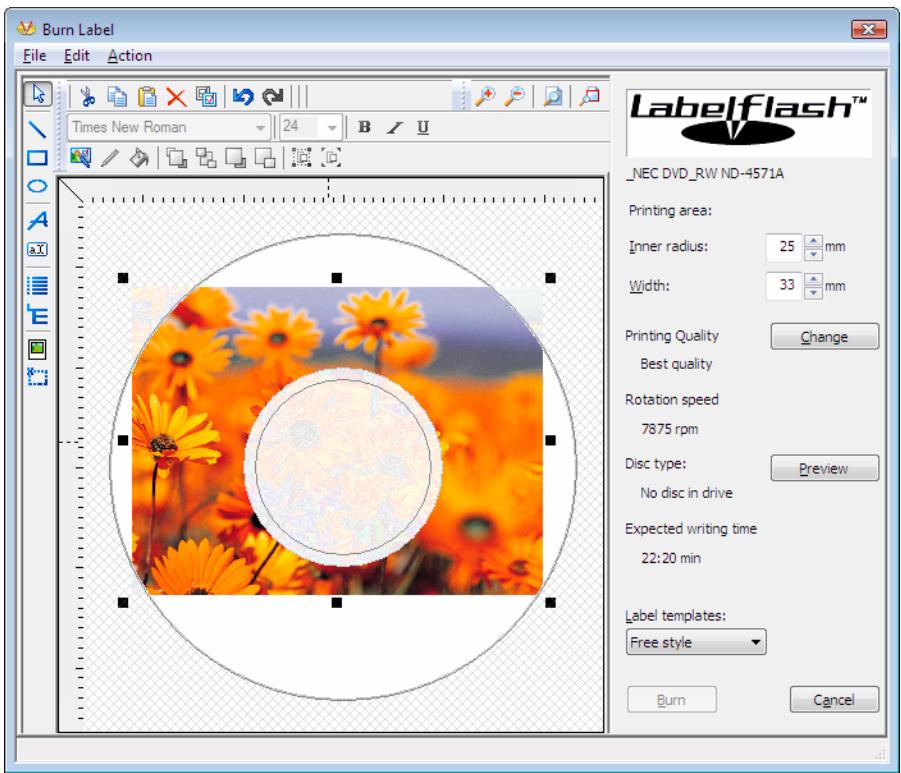
Fig. 24: Burn Label window for LabelFlash™/DiscT@2™
Information on the selected printing quality and rotation speed is displayed on the right-hand side of the screen. Under Disc type you can see whether the blank disc has been inserted with the label or data side. Either the LabelFlash™ or the DiscT@2™ logo is displayed in the Burn Label window depending on which side is inserted.
The screen offers the following setting options:
| Inner radius | Defines the distance between the label and the inner edge. |
| Width | Defines the width of the print area. |
| Printing quality | Opens the LabelFlash™ Print Properties window. This is where you can change the printing quality and the contrast level and display the changes made directly in the print preview. |
| Preview | Opens the Print Preview window that shows how the label should appear on the LabelFlash™ disc. |
| Label templates | Contains a selection of different templates for designing the label. You can continue to edit and customize a selected template. |
| Burn | Starts the print process. |
| Cancel | Cancels the process and closes the window. |

If you are creating a DiscT@2, Nero Burning ROM displays only the available print area for creating the label by default, i.e. the area on the data side of your DVD that is not already taken up by data. You cannot increase the radius of the print area.
15.2 Printing LabelFlash™ Labels and DiskT@2
Basically, it is irrelevant whether you print on the label or the data side when creating labels. The label is actually printed outside the normal burn process.

You can print on the label side of the DVD at any time.
We recommend that you print on the data side first when you have burned the compilation. It is not possible to burn data on a printed data side. When you insert a DVD on which data has already been burned, Nero Burning ROM automatically identifies the space that is still available on the data side and on which you can print.
To print a LabelFlash™ label on the front or a DiscT@2™ label on the flipside, proceed as follows:
- If you want to print a LabelFlash™ label on the label side, insert a blank LabelFlash™ disc into the burner with the label side facing down.
The Burn Label window is opened with the LabelFlash™ logo. - If you want to print a DiskT@2 on the data side, insert a blank LabelFlash™ disc with the data side facing down into the burner.
The Burn Label window is opened with the DiskT@2™ logo. - Create a label according to your requirements or open a label (File > Open menu) that you have already created with Nero CoverDesigner.

The interface in the Burn Label window and the process for creating a label work on the same principle as Nero CoverDesigner. Please see the Nero CoverDesigner user manual for full instructions on how to make professional looking covers and labels.
- If you want to change the area in which the label is printed, change the print area accordingly using the text boxes Inner Radius and Width.
-
If you want to view or change the print properties:
-
Click on the Change button.
The LabelFlash(TM) Print Properties window is opened.
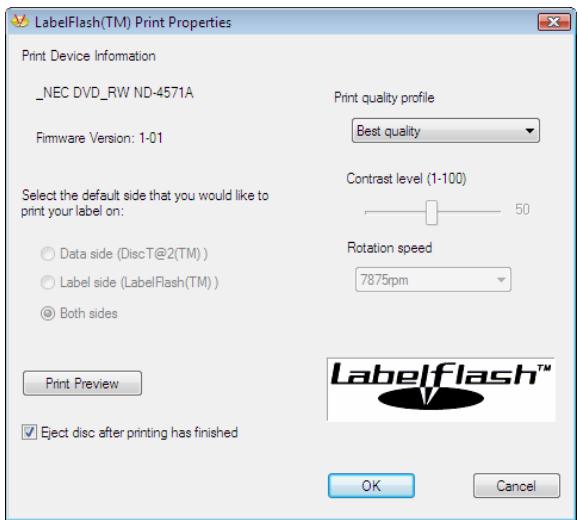
Fig. 25: LabelFlash™ Print Properties window
- If you want to change the printing quality, select a quality level from the Print quality profile drop-down menu.
- If you select the User defined entry from the Print quality profile drop-down menu, you can change the contrast level and the rotation speed.
- Click on the OK button.
The LabelFlash(TM) Print Properties window is closed and the changes accepted.
- Click on the Burn button.
The labeling procedure starts and the LabelFlash(TM) - printing or DiscT@2(TM) - printing window is opened. The window shows you the estimated printing time and the print progress. When printing is complete, a dialog box opens informing you about the successful print process.
- Click on OK.
The dialog box is closed and the disc ejected.
You have successfully printed a label.
16 Erasing a Rewritable Disc
Using Nero Burning ROM you can erase rewritable discs, i.e. discs with the RW specification, as long as your burner supports this function.
16.1 Erase Rewritable Disc Window
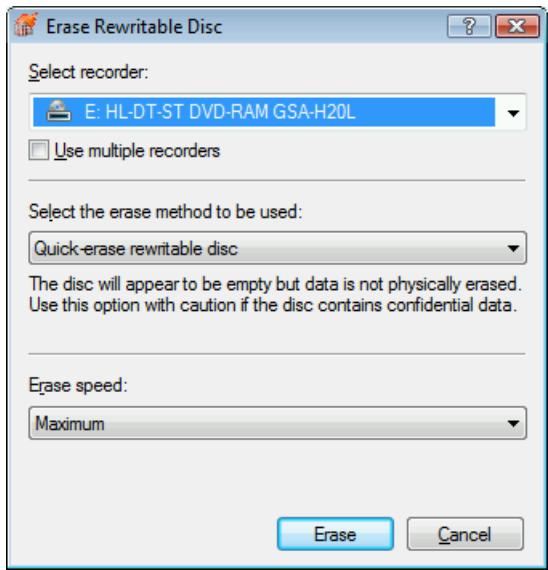
Fig. 26: Erase Rewritable Disc window
This window contains the following configuration options:
| Choose Recorder combo box | Selects a burner. |
| Use Multiple Recorders check box | Performs the erase action on multiple burners. |
| Select erase method to be used combo box | Selects an erase method. Two options are available: Quick-erase rewritable disc: Does not physically erase the disc fully, but only the references to the existing contents. The disc will appear to be empty even though the data is still physically available. Erasing a disc using this method takes between one and two minutes. Full-erase rewritable disc: Physically erases all data from the disc. The contents cannot be restored. Erasing the disc using this method takes longer than the other method, depending on the type of disc involved. |
| Erase speed combo box | Selects the speed at which the disc is erased. |
| Delete button | Starts the erase process. |
| Cancel button | Cancels the action and closes the window. |
16.2 Erasing a Disc
The following requirement must be met:
To erase a rewritesble disc, proceed as follows:
- Insert the disc that you want to erase.
- Select the Recorder > Erase Rewritable Disc menu from the main Nero Burning ROM screen.
The Erase Rewritable Disk window is opened. - If you have installed multiple burners, select the desired burner from the Choose recorder drop-down menu.
- If you want to erase data on multiple burners simultaneously, enable the check box Use multiple recorders and select the desired burners.
- Select an erase method from the Select erase method to be used drop-down menu.

If you want to erase confidential data, use the "full-erase" method to physically erase all of the data from the disc. Otherwise third parties could restore the contents.
- If required, select the erase speed from the Erase speed drop-down menu.
- Click on the Erase button.
The erase operation is started. A progress bar in a window informs you about the progress being made by the erase process. When all data has been fully erased, the window is closed and the disc ejected. You can now write to the disc again.
17 Advanced Operations
17.1 Saving Data Tracks
In addition to the option for saving audio files on an audio CD, Nero Burning ROM enables you to save data files on a disc. The result is an image file that can be burned to a blank disc later on. Using the Save Tracks command in Nero Burning ROM has the following advantages:
- Existing files can also be saved in non-standard formats, for example files that are available in the Apple Macintosh HFS format.
If required a copy of multisession CDs can be created. Requirement: The table of contents for the sessions does not contain any cross references to previous sessions (see Multisession Tab).

If you use the Save Tracks command to select formats other than ISO or HFS, such as native Unix file systems, we recommend that you burn the new image file on a blank disc.
To save files from a data disc, proceed as follows:
- Insert a data disc into a drive or a burner.
- Select Save Tracks from the Extras menu.
The Save Tracks window is opened. Basically, the window is identical to the window used for saving audio files (see Save Tracks Window). The Audio player controls area is grayed out. The track list displays the data files found on the disc. - Select the files that you want to save. If you want to save all files, click on the Select All button.
-
Set the desired options:
-
Select the desired output format from the Output file format drop-down menu.
- If you want to specify a storage location for the image file, click on the Browse button and select a path.
-
Set other options as required.
-
Click on the Start button.
The Progress window is opened; a progress bar displays the progress being made by the save process. When the save process is complete, the window closes automatically. - Click on Close.
You have successfully created an image file starting from a data disc. Now you can burn the image file to a disc (see Burning an image file).
17.2 Updating the Virus Scanner
A virus scanner that checks the data to be burned is integrated in Nero Burning ROM. This ensures that infected data will not be burned. We recommend that you update the virus scanner database regularly. The database is updated via an Internet connection.
To update the virus scanner, proceed as follows:
Requirement: You must have an active Internet connection.
- Click on the Help > Update Antivirus Scanner menu.
A dialog box is opened which reminds you to connect to the Internet.
- Click on OK.
Nero Burning ROM is connected to the FTP server av.nero.com and the antivirus files are downloaded. The Downloading File window is opened; a progress bar indicates the progress being made by the update process. When the database has been updated, a dialog box is opened with a message indicating that the database is now updated.
- Click on OK.
You have successfully updated the virus scanner database.
18 Configuration
18.1 Configuration Options
You can define options for working with Nero Burning ROM in the Options window. Open the window by clicking on the Options entry in the File menu.
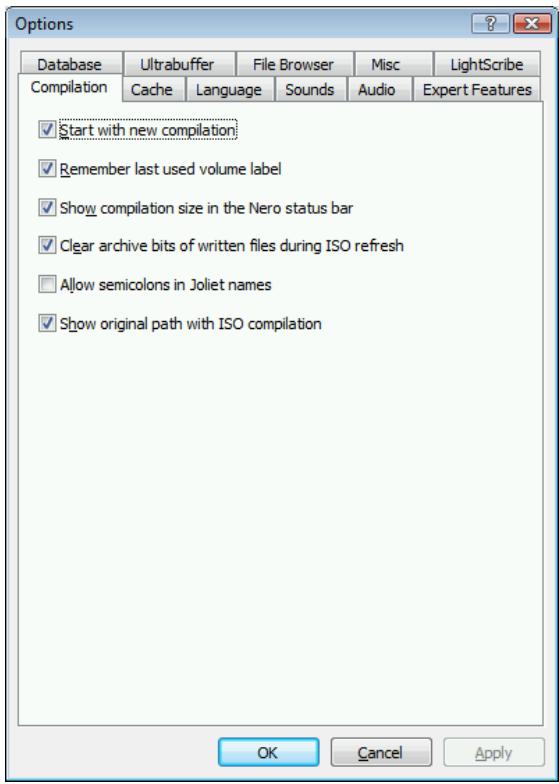
Fig. 27: Options window
The Options window contains the following tabs:
| Tab | Description |
| Compilation | Contains options for the compilation and the selection screen. |
| Cache | Contains options for the cache. |
| Language | Contains selection options for language and font. |
| Sounds | Contains selection options for sounds in connection with burn tasks. |
| Audio | Displays the directory for the audio plug-ins. |
| Expert Features | Contains options for configuring overburning and burning (see Expert Features).We recommend that you retain the default settings. |
| Database | Shows the path to the local Audio CD database and offers the option to use the Internet database. |
| Ultrabuffer | Defines the size of the RAM buffer. |
| File Browser | Contains options for configuring the file browser. |
| Misc | Contains options for configuring compilations, burning, the database, the user interface as well as advanced settings for Nero Burning ROM. |
| LightScribe | Contains options for configuring LightScribe® burners such as the print contrast (quality), default drive, and default template for instance. This tab is only available if a LightScribe® burner has been installed. |
18.2 Expert Features
The Expert Features tab in the Options window provides you with further configuration options for burning and overburning for instance. You can restore the default feature at any time by simply clicking on the Restore button.

Using Nero Burning ROM you can overburn a disc beyond the specified capacity. You can display the capacity of a disc using the button. Tolerances in the manufacturing process often cause the actual rewritable area on the disc to exceed the maximum specified capacity. This additional area is often 2-3 minutes long, but may also be shorter or longer. It is not technically possible to establish the precise extent of the excess capacity prior to burning.

During the overburn process, the following difficulties may arise: Read errors, sound errors, incorrectly written data, and error messages during the burn process.
Theoretically the burner could be damaged.
The following configuration options are available:
| Enable Disc-at-once CD overburning | Enables overburning for CDs in disc-at-once mode. |
| Relative maximum overburning size | Defines the relative maximum overburning size. The position of the yellow mark on the capacity indicator also changes. Caution: This is only a visual signal and does not create any extra space on the disc. |
| Absolute maximum overburning size | Defines the absolute maximum overburning size. The position of the red mark on the capacity indicator also changes. Caution: This is only a visual signal and does not create any additional space on the disc. |
| Enable DVD overburning | Enables overburning for DVDs. If the box is checked, you can specify the maximum DVD size in the text box. |
| Enable generation of short lead-out | Writes a short lead-out for CDs that are being burned in disc-at-once mode. This creates additional capacity of about 12 MB. |
| Do not eject disc after burning | Does not eject the disc after the burn process is complete. |
| Disable finalizing for burning a disc image | Disables finalizing when an image file is saved. |
Enable all supported recorder formats for image recorder
Enables all supported CD/DVD formats for Nero Image Recorder. It is now possible to create compilations that the installed burner cannot burn. You can therefore create a DVD compilation without a DVD burner for instance and create an image file using Nero Image Recorder. The same applies for HD DVD and Blu-ray Discs.

The Restore button resets all options in the Options window to the default setting.
18.3 Customize Window
In the Customize window you can adjust the work environment in Nero Burning ROM to suit your own individual requirements. You can open the window via the View > Customize menu.
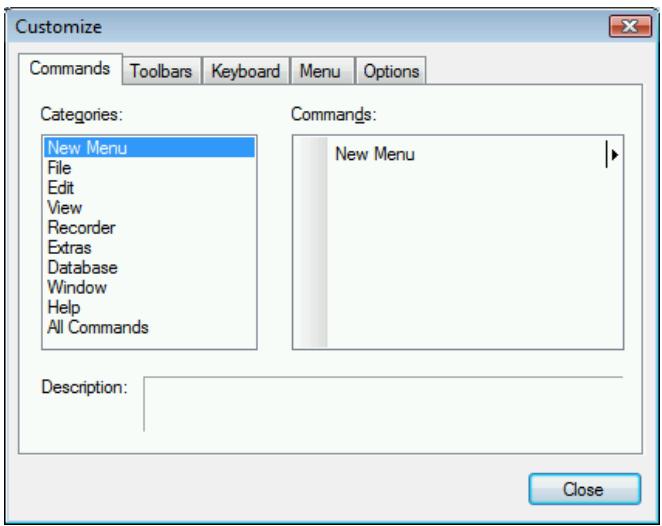
Fig. 28: Customize window
The window contains the following tabs:
| Tab | Description |
| Commands | Allows you to add commands to a toolbar. |
| Toolbars | Allows you to create, rename,remove toolbars or cancel changes.You cannot rename or remove the default Menu Bar and Standard toolbars. |
| Keyboard | Allows you to define keyboard shortcuts for commands. |
| Menu | Allows you to animate the menus in the menu bar and select shading. |
| Options | Contains the following options: ■ Show ScreenTips on toolbars ■ Show shortcut keys in ScreenTips ■ Large icons |
18.3.1 Customizing the Work Environment
In Nero Burning ROM you can customize your work environment to suit your individual requirements. To do this, proceed as follows:
- Click on the View > Customize menu.
The Customize window is opened.
-
If you want to create a new toolbar:
-
Click on Toolbars tab.
- Click on the New button.
The Toolbar Name window is opened.
- Enter a name in the Toolbar Name text box and click on the OK button.
The Toolbar Name window is closed and the new toolbar, which is still empty, is created. This is now in the Toolbars list box.
-
If you want to add commands to a toolbar:
-
Click on the Commands tab.
- Select a category from the Category selection list and then a command from the Commands list box.
- Drag the command to the desired toolbar.
The command is inserted.
- If you want to change the display for the picture and/or text, show the context menu and select the desired display type.
-
If you want to remove a command from the toolbar, drag the relevant icon out of the toolbar.
-
If you want to define keyboard shortcuts for commands:
-
Click on the Keyboard tab.
- Select a category from the Category selection list and then a command from the Commands list box.
In the Current Keys area the current key combination is displayed for this command, if it is available.
- Enter the new key combination in the Press New Shortcut Key text box.
-
Click on Assign.
The new key combination is assigned to the command. You can now use it in Nero Burning ROM. -
Define the other settings.
-
Click on Close.
The changes are accepted and the window closed.
You have successfully customized your work environment.
19 Glossary
AIF
Audio Interchange File Format. Audio format developed by Apple for Macintosh. There is no data compression when converting. AIF is the equivalent to Microsoft's WAV format.
Blue Book
Standard for CDs created in the formats CD Extra and Enhanced CD.
Blu-ray Disc
Abbreviated to BD. The Blu-ray Disc or Blu-ray is a possible successor to the DVD. The BD was developed by the BDA (Blu-ray Disc Association) in response to high-definition video requirements. Its storage capacity is approximately five times that of DVDs. Single-layer discs can store data volumes of up to 20 GB and dual-layer discs up to 50 GB. In BD burners a blue-violet laser is used, which can write the data "more tightly" on the disc.
Book Type
The Book Type defines the specification (e.g. DVD-, DVD+, DVD-ROM) of a DVD and is stored in the lead-in. Self-burned DVDs are sometimes not read by DVD players. This may be due to the fact that the players either cannot read or have difficulty in reading DVD-, DVD+ or DVD-RW. Using Nero Burning ROM you can set the Book Type of the self-burned DVD to DVD-ROM to guarantee playback.
Bootable CD
Booting refers to the loading of the operating system onto the computer when it starts up. This is normally done from the hard drive. If you do not want to or cannot boot from your hard drive, you can use a bootable CD to boot from the disc drive.
Cache
Fast temporary storage (buffer), which is used in different areas of a computer.
CD
Compact Disc. Widely used disc type. The following types of CD are available:
| CD-ROM | Compact Disc - Read Only Memory. Various computer readable forms of data such as programs, picture or audio data, for instance, can be stored in this format. |
| CD-R | Compact Disc - Recordable. Write-once disc. |
| CD-RW | Compact Disc - ReWritable. A disc that can be written to more than once. |
CD-DA
Compact Disc - Digital Audio. The first standard for audio CDs. An audio CD consists of multiple audio files whereby one file generally corresponds to one title/song; in addition, each file is subdivided into sectors.
CD-i
Compact Disc - Interactive. Format for multimedia CDs that combine video, audio, and data and can only be played using a CD-i player or CD-ROM drive that supports CD-i technology.
CD Text
Additional information on the CD that can store the title and artists of the individual pieces for instance. CD Text is stored in the so-called lead-in area of the CD before the audio data starts.
Not all CD players support CD Text. Despite this a CD with CD Text can still be played in the player.
You must have a CD burner which supports CD Text to enable the CD Text to be written to a CD. In particular, CD Text can only be written in disc-at-once mode. In particular, CD Text can only be written in disc-at-once mode.
Decoding
Decoding refers to the conversion of computer-readable audio files (e.g. mp3) into audio CD format. Decoding takes place at the same time as the burn process.
Digitalization
Conversion of analog signals to digital signals.
Disc
Disc is a data medium to which the data is saved. CD-R, DVD-R, and DVD+R are examples of write-once discs that are written to by a bruner and read by a dirve. Discs of the same type with different storage capacities are available, e.g. for DVD-R with 4.38 GB or as DVD-R DL (Dual Layer, with two data layers) with 7.95 GB.
Disc-at-once (DAO)
An entire CD/DVD is recorded without ever stopping the laser. This format is best for audio CDs that will be played in home and car stereo equipment.
DVD
Digital Versatile Disc or Digital Video Disc. DVD was originally designed for the movie and games market. In the meantime it has become possible to burn data and certain video films to a DVD-video disc and play them on all DVD-ROM drives. The following types are available:
| DVD-R | DVD-R is a non-rewritable format that is compatible with most DVD-ROM drives and DVD players. |
| DVD-RAM | Format of rewritable media that is compatible with most DVD-ROM drives and DVD players. Files can be copied and deleted. |
| DVD-RW | DVD ReWriteable. The DVD-RW is a rewritable disc that fulfills the same functions as a DVD-R, but is compatible with fewer DVD-ROM drives and DVD players. |
| DVD+R/RW | Format developed in cooperation with Hewlett-Packard, Mitsubishi Chemical, Philips, Ricoh, Sony, and Yamaha. DVD+RW is a rewritable format that is fully and immediately compatible with DVD players and DVD-ROM drives. |
EDC/ECC
Error Detection Code/Error Correction Code. Used to identify and correct scan errors which may be caused by scratches or dirt on the surface of a CD.
Emulation
Simulation of the structure and function of a system, for example a bootable disc can " emulate" a floppy drive.
Encode
Encoding is the conversion of audio files that are located on an audio CD into an audio format that the computer can read (e.g. mp3).
Finalizing
Definitive conclusion of the process of writing to a disc. After this it is not possible to write to the disc anymore. However, a finalized rewritable disc can still be erased. A disc is automatically finalized if it is burned using the disc-at-once method.
Firmware
The firmware in burners functions as the operating system of the drive and contains instructions which determine how the drive reacts to commands from the PC. Generally the firmware in modern burners can be updated, improving the support for discs from other manufacturers for instance.
HD DVD
High Definition DVD. A possible successor to the DVD with greater storage capacity. The format is recognized by the DVD Forum. The HD DVD was developed in response to high-definition video requirements. Single-layer discs can store data volumes of up to 15 GB. In HD DVD burners a blue-violet laser is used, which can write the data "more tightly" on the disc. This makes it possible to store large quantities of data.
HFS CD
File system used by Apple© Macintosh systems. This format is only suitable for Macintosh discs.
Image file
An individual file on the hard drive that contains an image of a complete disc. An image can be used if problems occur during the burn process or if there is no burner connected to the PC.
Index position
You can set index positions within an audio track. You can "jump" to these using a suitable CD player. Currently, only very few CD players can handle index positions.
Table of contents (TOC)
Indicates the content of each session. The table of contents is stored in the lead-in.
Jitter Correction
Many CD-ROM drives cannot read an individual sector on an audio CD, which means that small gaps may occur in the data stream. Audio correction synchronizes the data stream by overlapping the sectors and so gaps do not occur.
Cross fade with previous track
A crossfade is a merging between two audio tracks. The start of the new track begins softly, while the current track is still playing. The two tracks merge without a pause.
Label
Most CDs have an imprint or label. You can use different methods, such as screen printing for example, to apply a label to the CD.
Lead-in
The initial area of every session at the beginning of the disc is known as the lead-in. This is where the "table of contents" for your disc and additional information concerning the disc is stored.
Lead-out
The final area of a session. This area is located at the end of the disc. If the disc has not yet been finalized, the reference for the next session is stored here.
M3U playlists
An M3U playlist is a file that contains a list of paths to MP3 files. Nero Burning ROM can process M3U playlists, i.e. when creating an audio CD, all you need to do is drag an M3U playlist into the compilation area. You can also save information on the artist and the title of an audio file to the M3U playlist.
MP3
MPEG-1 Audio Layer 3 encoding method for saving audio files at a fraction of the original size (01:10 factor). You can estimate about 1 MB per minute as opposed to 10 MB for the original files.
The bit rate used can be used as a measure of quality. The higher the bit rate, the better the quality, but also the more memory required. For good audio quality, we recommend a bit rate of 80 kbit/s for mono and 160 kbit/s for stereo.
MP3PRO
Advanced MP3 encoder. Should further compress the audio files at lower bit rates and better quality. 64 kbit/s corresponds to approximately 128 kbit/s for MP3.
MP4
Nero Digital™ is an MPEG-4 storage format for audio and video files that was developed by Ahead Software. Nero Digital™ files can store additional information such as album covers as well.
MPEG
Motion Picture Experts Group. Standard that was developed for videos compressed at a higher ratio (e.g. SVCD and VCD).
| MPEG-1 | This format, which is a part of the MPEG compression family, has the highest compression rate. |
| MPEG-2 | There are only minor differences between MPEG-1 and MPEG-2. MPEG-2 works better with TV sets with interlacing and is a broadcasting standard. |
| MPEG-3 | Standard for defining high-definition TV. |
| MPEG-4 | This standard is the next generation of MPEG-2. |
NTSC
Standard for video and television in the United States and Japan. NTSC has more frames per second than PAL, but has fewer horizontal lines.
OGG
Format for digitalized or compressed audio files that have been encoded with the Vorbis method. OGG Vorbis is an Open Source encoder.
PAL
Video and TV standard in Europe. PAL has more horizontal lines than NTSC, but has fewer frames per second.
Photo CD
CD which is used for storing images, photos, slides, and other visual data. A photo CD generally consists of multisessions. The standard originates from Kodak and Philips.
Plug-in
Software used to add other features to a program (software) or to support troubleshooting.
Buffer underrun
Buffer underruns are caused when there is an interruption to the flow of data to the internal buffer of the burner. This is can be the fault of the software or the hardware itself. When recording, data is fed continuously to the burner's buffer in order to keep a steady flow of data which is required when recording. When something interrupts that steady flow, it can cause a buffer overrun and your disc is no longer useable.
Most modern burners have a protective mechanism against buffer underruns.
Red Book
This standard describes the CD-DA.
SCSI
Small Computer System Interface. Bus system to which different terminal devices such as a SCSI hard drive, streamers or a CD burner may be connected. At this time, SCSI is the only possibility of operating a CD-burner on a typically-used computer system.
Sector
Smallest addressable information unit on a CD. A sector is composed of 2,352 bytes of which - depending on the type of CD used - differing amounts are available as user data. A sector generally consists of a header, synchronization bits, and user data. It may also have error detection and correction data. A drive with a basic read speed of 1/75 seconds is required to read a sector.
Session
Discs such as CDs and DVDs are divided into tracks and sessions. A session is a self-contained data area that is burned using a single process, and consists of a lead-in, one or more tracks, and a lead-out. In principle, a session is comparable to the partition on a hard drive. A multisession disc can contain multiple sessions.
Simulation
Performs all steps in a burn process without using the laser beam. We recommend running a simulation if you are decompressing data before burning, e.g. when burning an audio CD from MP3 files. You can assume that if simulation is successful, the burn process will also be successful.
Track
Data unit that joins successive sectors on a disc. On an audio CD a track corresponds to a piece of music. Several tracks together with the lead-in and lead-out constitute a session.
Track-at-once (TAO)
Writing method in which each track is written individually to the CD. The writing process is interrupted briefly after each track, i.e. the laser switches off. With this writing method, writing to a CD can be paused and continued later.
Transcoding
Transcoding refers to the conversion from one audio format to another, e.g. WAV files to MP3 files.
VCD
Video Compact Disc, Video CD. Movies, audio, and video data is stored using the MPEG compression standard. VCDs can be played by the majority of CD-ROMs, DVD players, and DVD-ROM drives with the appropriate software for processing this video format.
Volume descriptor
Area at the beginning of a CD containing the structure of the file system. It may also contain additional and optional information about the CD (e.g. the name of the CD, the publisher, the copyright notice).
WAV
Audio format developed by Microsoft for Windows. There is no data compression when converting. WAV is the equivalent to Apple's AIF format.
Yellow Book
The Yellow Book is the standard for the format of CDs used for data storage.
20 Index
A
Album 23
Audio CD 15
Audio File 32
Compiling 29
Configuration Options 22
Audio Database 51
Creating 51
Audio File
Converting 67
Editing 11
Normalizing 22,35
Properties 32
Saving 65
Splitting 34
Audio Filters 35
Audio Formats 9
Audiobook CD 16
Compiling 31
B
Backups 17, 19
Verifying Data 40
Blu-ray Disc 14
BootDisc 15,25
Bootable Disc 41
42
Template 41
Browser Area 27
Buffer overrun protection 39
Burn
Burn Options 38
Virus Check 39
Write Method 38
Burner
Choosing 36
36
C
Capacity Bar 28
Capacity Scale 27
Showing 28
CD Entry
Creating 55
CD EXTRA 15,23
Compiling 29
CD Text 22, 29
Choose recorder 12
Code
Convert 17
Compilation
Burn 36
Compilation 28
Compilation Area 27
Configuration Options 80
Contact 94
Conventions 6
Copy Options 47
Copy Over Image 45, 46
Copy Protection 29,33
Copying 15,26,45
Crossfade 33
D
Data Disc 15
Data Mode 19
Data Tracks
Saving 78
Database 51
Using 58
Database Entry
Adding 57
Changing 56
Creating 55
Date
Specify 16
Declick 35
Disc
Copying 49
Fixing 38
Disc Format
Selecting 26
Supported 9
Tabs 16
Disc Formats 9
Disc Type
Select 26
Supported 9
Disc-at-Once 38
DiscT@2TM 73
DVD
Book Type Setting 36
DVD-Video 16
E
Echo Effect 35
Emulation 41
Equalizer 35
Expert Features 81
F
File name length 19
File System 19
Files Selecting 28
Font Defining 19
Format Supported 9
H
HD DVD 14
HFS Format Saving 78
1
Image File 43
Burning 44
Creating 43
Image Formats 9
Image Recorder 9,14,43 Enable Recorder Formats 82
Index
Reading 48
Setting 34
ISO 19
ISO 9660 19
ISRC 33
J
Jitter Correction 48
Joilet 19
K
Karaoke 35
Keyboard Shortcuts Defining 83
L
Label
Add20
Burning 12, 73
Printing 70, 74
Label Editor 69
LabelFlashTM 73
Launching the Program 10
LightScribe® 69
M
Main Screen 11
Menu Bar 11
11
miniDVD 15
Compiling 31
Mixed Mode CD 15
Compiling 29
Multisession Disc 17
Continuing 18
Starting 18
N
Nero Burning ROM
Retail 7
Steps 13
Nero CD Database 53
Nero CoverDesigner 69,73
Adding Information 55
Nero Search 27
Nero WaveEditor 29
0
On-the-fly 45
On-the-Fly Copying 45
Overburning 81
P
Program Database 51
R
Read Error Ignore 48
Read Speed 47
Rewritable CD 39
Rewritable Disc Erase 76
Erase Method 76
S
Search Performing 54
Search Folders 28
Selection Screen 27
Session
Importing 17
Silence Remove between audio files 23
Simulation 38
Super Video CD 15
Compiling 30
System Requirements 8
WHQL Certified Device Driver 8
T
Title and CD Database 54
ToolBar Creating 83
Track Properties 33
Track-at-Once 38
U
UDF 20
User CD Database 53
User Database 52
V
Video CD Compiling 30
Video formats 9
Video-CD 15
Virus Scanner 7, 79
Updating 79
W
WHQL Certified Drivers 8
Work Environment Customizing 83
X
XboxTM Creating a Compatible Disc 20
21 Tab matrix
This matrix shows which tabs are available for which disc format in the Compilation window. The tabs are listed in the top row with the disc formats in the left-hand column.
An "x" entered in a cell within the table indicates that the tab is available for this disc format. A "-" in a cell indicates that the relevant tab is not available for this disc format. The "Extra" column lists specific additional tabs that apply to the respective disc format.
| Info | Multisession | ISO | UDF | Title | Dates | Misc | Audio CD | CDA Options | Burn | Extra | |
| CD/DVD-ROM (ISO) | X | X | X | - | X | X | X | - | - | X | - |
| Audio CD | X | - | - | - | - | - | - | X | X | X | - |
| Mixed Mode CD | X | - | X | - | X | X | X | X | X | X | - |
| CD EXTRA | - | - | X | - | X | X | X | X | X | X | - |
| Video/Super Video CD | - | - | X | - | X | X | X | - | - | X | Video CD menu |
| miniDVD | X | - | X | - | X | X | X | - | - | X | - |
| CD/DVD-ROM (Boot) | X | - | X | - | X | X | X | - | - | X | Boot |
| CD/DVD/HD DVD-ROM/Blu-ray Disc (UDF) | X | X | - | X | X | X | X | - | - | X | - |
| CD/DVD-ROM(UDF/ISO) | X | X | X | X | X | X | X | - | - | X | - |
| Audiobook CD | - | - | - | - | - | - | - | - | - | X | Audio-book CD |
| DVD-Video | X | - | X | - | X | X | X | - | - | X | - |
22 Contact
Nero Burning ROM is a Nero AG product.
nero
BURNING ROM7
www.nero.com
Nero AG
Glendale, CA 91203-2335
USA
Web: www.nero.com
Help: http://support.nero.com
Fax: (818) 956 7094
Email: US-CustomerSupport@nero.com
Nero KK
Rover Center-kita 8F-B, 1-2-2 Nakagawa-chouou,
Tsunuki-ku, Yokohama, Kanagawa
Japan 224-0003
Web: www.nero.com
Help: http://support.nero.com
Copyright © 2007 Nero AG and its licensors. All rights reserved.