
S SERIES TOTAL STATION - Topographic measuring device TRIMBLE - Free user manual and instructions
Find the device manual for free S SERIES TOTAL STATION TRIMBLE in PDF.



User questions about S SERIES TOTAL STATION TRIMBLE
0 question about this device. Answer the ones you know or ask your own.
Ask a new question about this device
Download the instructions for your Topographic measuring device in PDF format for free! Find your manual S SERIES TOTAL STATION - TRIMBLE and take your electronic device back in hand. On this page are published all the documents necessary for the use of your device. S SERIES TOTAL STATION by TRIMBLE.
USER MANUAL S SERIES TOTAL STATION TRIMBLE
Trimble® S Series Total Station
User Guide
Corporate Office
Trimble Navigation Limited
645 North Mary Avenue
PO Box 3642
Sunnyvale, CA 94085
USA
www.trimble.com
Contact Information
Trimble Navigation Limited
Engineering and Construction Division
5475 Kellenburger Road
Dayton, Ohio 45424-1099
USA
800-538-7800 (toll free in USA)
+1-937-245-5600 Phone
+1-937-233-9004 Fax
www.trimble.com
Copyright and Trademarks
© 2004 - 2010, Trimble Navigation Limited. All rights reserved.
Autolock, TSC2, Tracklight, Trimble and the Globe & Triangle logo are trademarks of Trimble Navigation Limited, registered in the United States Patent and Trademark Office and other countries. Microsoft and Windows are either registered trademarks or trademarks of Microsoft Corporation in the United States and/or other countries. Magdrive is a trademark.
The Bluetooth word mark and logos are owned by the Bluetooth SIG, Inc. and any use of such marks by Trimble Navigation Limited is under license.
All other trademarks are the property of their respective owners.
This product is covered by the following patents: CH 465584, CH 466800, CH 885399, DE 69005105, DE 69005106, DE 69706653.3, EPO 465584,
EPO 466800, EPO 885399, J 2846950, J 3039801, SE 0203830-5, SE 524329, SE 524655, SE 8901219-9, SE 8901221-5, US 5229828, US 5313409, US 6115112, US 7307710, DE 60319016.2, JP 4268135, US 7382444, US 7441340, US 7589313 and D 526588.
Patents pending.
Release Notice
This is the January 2010 release version 7.0 of the Trimble S Series Total Station user guide, part number 57127002. It applies to the Trimble S Series Total Station.
The following limited warranties give you specific legal rights. You may have others, which vary from state/jurisdiction to state/jurisdiction.
Product Warranty Information
For applicable product warranty information, please refer to the Warranty Card included with this Trimble product, or consult your Trimble dealer.
Registration
To receive information regarding updates and new products, please contact your local dealer or visit www.trimble.com/register. Upon registration you may select the newsletter, upgrade or new product information you desire.
Notices
The product option Panel BT Attachment Part Number: 58240001 contains a Bluetooth device with ID: QD ID B010797.
Australia and New Zealand
This product conforms with the regulatory requirements of the Australian Communications

N 324
Authority (ACA) EMC framework, thus satisfying the requirements for C-Tick Marking and sale within Australia and New Zealand.
Canada
This Class B digital apparatus complies with Canadian ICES-003
This digital apparatus does not exceed the Class B limits for radio noise emissions from digital apparatus as set out in the radio interference regulations of the Canadian Department of Communications.
This device has been designed to operate with an antenna having a maximum gain of 2.0~dBi . Antennas having a higher gain are strictly prohibited per regulations of Industry Canada. The required antenna impedance is 50 ohms. To reduce potential radio interference to other users, the antenna type and its gain should be so chosen that the equivalent isotropically radiated power (EIRP) is not more than that required for successful communication. Operation is subject to the following two conditions: (1) this device may not cause interference, and (2) this device must accept any interference, including interference that may cause undesired operation of the device.
The Radio Side Cover 2.4 GHz Part Number: 58050019, 58010019 and 58021007 contains radio module with IC: 4492A-2410G
The product option Panel BT Attachment Part Number: 58240001 contains radio module with IC: 5325A-090103S
Europe
This product has been tested and found to comply with the requirements for a Class B device pursuant to European Council Directive 89/336/EEC on EMC, thereby satisfying the requirements for CE Marking and sale within the European Economic Area (EEA). These requirements are designed to provide reasonable protection against harmful interference when the equipment is operated in a residential or commercial environment.

The product option Panel BT Attachment Part Number: 58240001 contains a radio module that applies to the R&TTED 1999/5/EC.

Devices marked with Part Numbers 58052019, 58012019 and 58022019 contain a radio module that applies to the R&TTED 1999/5/EC and are intended to be used only in France.
Devices marked with Part Numbers 58050019, 58010019 and 58021019

0413

contain a radio module that applies to the R&TTED 1999/5/EC and are intended to be used in all European Community member states, except France.
The compliance to the applicable requirements is detailed in the official Declaration of Conformity document, which is filed at Trimble.
For product recycling instructions and more information, please go to www.trimble.com/ev.shtml.
Recycling in Europe: To recycle Trimble WEEE (Waste Electrical and Electronic Equipment, products that run on electrical power). Call +31 497 53 24 30, and ask for the "WEEE Associate". Or, mail a request for recycling instructions to:
Trimble Europe BV
c/o Menlo Worldwide Logistics
Meerheide 45
5521 DZ Eersel, NL

Japan
The Radio Side Cover 2.4 GHz Part Number: 58010019 contains radio module with certificate number: 005NYCA0416.


005NYCA0416
The product option Panel BT Attachment Part Number: 58240001 has certificate number: 005NYCA0338.


005NYCA0338
USA
Class B Statement - Notice to Users. This equipment has been tested and found to comply with the limits for a Class B digital device, pursuant to Part 15 of the FCC rules. These limits are designed to provide reasonable protection against harmful interference in a residential installation. This equipment generates, uses, and can radiate radio frequency energy and, if not installed and used in accordance with the instructions, may cause harmful interference to radio communication. However, there is no guarantee that interference will not occur in a particular installation. If this equipment does cause harmful interference to radio or television reception, which can be determined by turning the equipment off and on, the user is encouraged to try to correct the interference by one or more of the following measures:
-
Reorient or relocate the receiving antenna.
-
Increase the separation between the equipment and the receiver.
- Connect the equipment into an outlet on a circuit different from that to which the receiver is connected.
- Consult the dealer or an experienced radio/TV technician for help.
Changes and modifications not expressly approved by the manufacturer or registrant of this equipment can void your authority to operate this equipment under Federal Communications Commission rules. The antenna used for this transmitter must be installed to provide a separation distance of at least 20cm from all persons and must not be co-located or operated in conjunction with any other antenna or transmitter.
Devices marked with Part Numbers: 58050019, 58010019 and 58021019 contains radio module with FCC ID: HSW-2410G
The product option Panel BT Attachment Part Number: 58240001 contains radio module with FCC ID: PVH090103S
THIS DEVICE COMPLIES WITH PART 15 OF THE FCC RULES
OPERATION IS SUBJECT TO THE FOLLOWING TWO CONDITIONS:
(1) THIS DEVICE MAY NOT CAUSE HARMFUL INTERFERENCE. AND
(2) THIS DEVICE MUST ACCEPT ANY INTERFERENCE RECEIVED, INCLUDING INTERFERENCE THAT MAY CAUSE UNDESIRED OPERATION
Taiwan
Battery Recycling Requirements
The product contains a removable Lithium-ion battery. Taiwanese regulations require that waste batteries are recycled.

Important Information
Laser Safety
Before using the instrument, make sure that you understand this user guide, as well as all equipment and job site safety requirements.
This equipment has been tested and found to comply with IEC 60825-1 2007, 21 CFR 1040.10, and 1040.11 except for deviations persuant to Laser Notice No. 50, dated June 24, 2007.

Warning - Use of controls or adjustments or performance of procedures other than those specified herein may result in hazardous LED or laser radiation exposure. As with any bright light source, such as the sun, electric welding arcs or arc lamps, common sense applies. DO NOT look into the laser aperture when the laser is on. For further information regarding safe use of lasers, refer to the IEC 60825-1 June 24, 2007.
Queries
Address any questions you may have about laser safety to:
Trimble Navigation Limited
5475 Kellenburger Road
Dayton, OH USA 45424-1099
Attention: Laser Safety Officer, Quality Assurance Group
Phone (937) 233-8921 ext 824 or (800) 538-7800
Fax (937) 233-9661
Trimble S Series High Precision
The Trimble S Series High Precision is a CLASS 2 LASER PRODUCT:
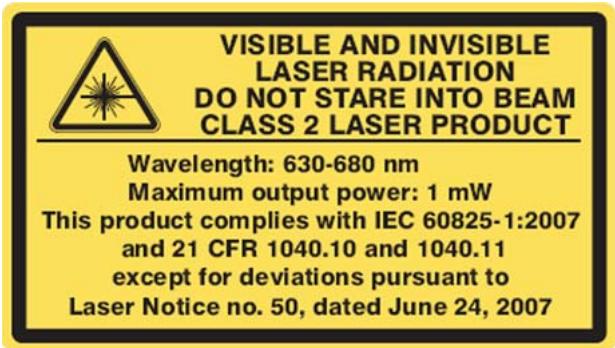
The instrument contains visible and invisible laser sources:
- A laser diode for distance measuring in DR mode and laser pointer function operating at 660nm (visible light), with a beam divergence of 0.4× 0.4 mrad and an output power of <1mW , while the emission is coaxial with the telescope. This mode operates in LASER CLASS 2.
- The laser diode for distance measuring in prism mode operates at 660nm (visible light), with a beam divergence of 0.4× 0.4 mrad and an output power of <0.017mW , while the emission is coaxial with the telescope. This mode operates in LASER CLASS 1.
- As an option, an Autolock laser diode operates at 785~nm (infrared, non-visible light), with a beam divergence of 38.5 mrad and an output power of < 0.35mW , while the emission is coaxial with the telescope. This mode operates in LASER CLASS 1.
When operating in prism mode with Autolock and/or distance measurement the accessible radiation does not exceed the limits of LASER CLASS 1.
Trimble S Series DR PLUS
The Trimble S Series DR PLUS is a CLASS 2 LASER PRODUCT
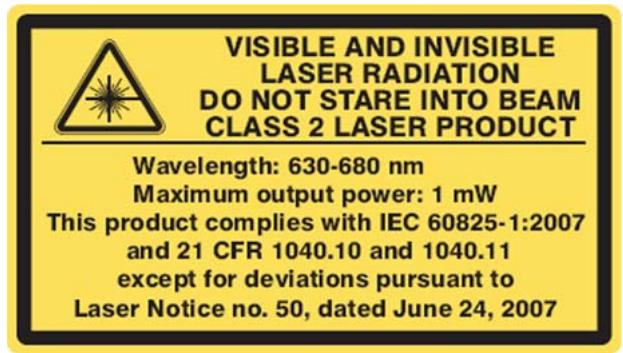
The instrument contains visible and invisible laser sources
- A laser diode for the distance measuring function operating at 905nm (infrared, non-visible light), with a beam divergence of 0.4× 0.8 mrad and an output power of <1.1mW , LASER CLASS 1.
- A laser diode for laser pointer function operating at 630 - 680nm (visible light), with a beam divergence of 0.3mrad and an output power of < 0.7mW , while the emission is coaxial with the telescope. This mode operates in LASER CLASS 2.
- As an option, an Autolock laser diode operates at 785nm (infrared, non-visible light), with a beam divergence of 38.5mrad and an out put power of <0.35mW , while the emission is coaxial with the telescope. This mode operates in LASER CLASS 1.
When operating in prism mode with Autolock and/or distance measurement the accessible radiation does not exceed the limits of LASER CLASS 1
Trimble Target ID
The Trimble Target ID is a LASER CLASS 1 PRODUCT
CLASS 1 LASER PRODUCT
Trimble MultiTrack Target
The Trimble MultiTrack Target is a LASER CLASS 1 PRODUCT
CLASS 1 LASER PRODUCT
Battery Safety

Warning - Do not damage the rechargeable Lithium-ion battery. A damaged battery can cause an explosion or fire, and can result in personal injury and/or property damage. To prevent injury or damage:
- Do not use or charge the battery if it appears to be damaged. Signs of damage include, but are not limited to, discoloration, warping, and leaking battery fluid.
- Do not expose the battery to fire, high temperature, or direct sunlight.
- Do not immerse the battery in water.
- Do not use or store the battery inside a vehicle during hot weather.
- Do not drop or puncture the battery.
- Do not open the battery or short-circuit its contacts.

Warning - Avoid contact with the rechargeable Lithium-ion battery if it appears to be leaking. Battery fluid is corrosive, and contact with it can result in personal injury and/or property damage. To prevent injury or damage:
- If the battery leaks, avoid contact with the battery fluid.
- If battery fluid gets into your eyes, immediately rinse your eyes with clean water and seek medical attention. Do not rub your eyes!
- If battery fluid gets onto your skin or clothing, immediately use clean water to wash off the battery fluid.

Warning - Charge and use the rechargeable Lithium-ion battery only in strict accordance with the instructions. Charging or using the battery in unauthorized equipment can cause an explosion or fire, and can result in personal injury and/or equipment damage. To prevent injury or damage:
- Do not charge or use the battery if it appears to be damaged or leaking.
- Charge the Lithium-ion battery only in a Trimble product that is specified to charge it. Be sure to follow all instructions that are provided with the battery charger.
- Discontinue charging a battery that gives off extreme heat or a burning odor.
- Use the battery only in Trimble equipment that is specified to use it.
- Use the battery only for its intended use and according to the instructions in the product documentation.
Environmental Information
NOTICE FOR TRIMBLE'S EUROPEAN UNION CUSTOMERS
Trimble is pleased to announce a new recycling program for our European Union customers. At Trimble, we recognize the importance of minimizing the environmental impacts of our products. We endeavor to meet your needs, not only when you purchase and use our products, but also when you are ready to dispose of them. That is why Trimble is actively pursuing, and will continue to pursue, the expanded use of environmentally friendly materials in all its products, and why we have established a convenient and environmentally friendly recycling program.
As Trimble makes additional recycling facilities available for your use, we will post their locations and contact information to our Recycling Instructions web page.
For product recycling instructions and more information, please go to www.trimble.com/environment/summary.html
Recycling in Europe:
To recycle Trimble WEEE,
Call +31 497 53 2430, and ask for the "WEEE Associate"
Or
Mail a request for recycling instructions to:
Trimble Europe BV
c/o Menlo Worldwide Logistics
Merheide 45
5521 DZ Eersel, NL
Declaration of Conformity
Trimble S Series Total Station

P/N 57008021 Rev. A
Declaration of Conformity (DoC)
C
Issuer's name:
Trimble AB
P.O.Box 64
SE-182 11 Danderyd
Sweden
Object of declaration:
Trimble® S6 Total Station
Type/Model
Part Number
S6X" High Precision
58440019
S6X*DR300+
58444019
S6X*DR Plus
58470021
X = Code of accuracy
The object of declaration described above fulfils the requirements of the Low Voltage Directive 2006/95/EC (LVD) and is in conformity with the essential requirements of the EMC Directive 2004/108/EC (EMCD) and R&TTE Directive 1999/5/EC (R&TTED) based on the following European harmonised standards:
LVD:
IEC/EN 60825-1:2007
(Safety of laser products)
EMCD:
EN 61326-1:2006
(EMC for electrical equipment for measurement, control & laboratory use)
Emission: Group 1 / Class B ISM equipment.
Immunity: Requirements for equipment intended for use in industrial locations.
R&TTED:
Health and Safety, Art. 3(1)(a)
EMC, Art. 3(1)(b)
EN 50371:2002, EN 60950:2001 + A11:2004 + COR:2004
EN 301489-17 V1.3.2 (2008-04)
Spectrum,
Art. 3(2)
EN 301489-1 V1.8.1 (2008-04)
EN 300328 V1.7.1 (2006-10)
Signed for and on behalf of:
Trimble AB
Date:
December 7, 2009
Name and function:
Peter Fredriksson, Director of Engineering

Signature:
Trimble AB
Box 64, Rinkebyvagen 17
SE-182 11 Danderyd, Sweden
Telephone No: +46 8 622 1000
Tel:4687532464
www.trinbly.com
Org No:556550-0782
VATNo:SE556550978201
Trimble S Series Total Station Accessories

Rev.A
EC-Declaration of Conformity
to the Essential Requirements of the applicable
Directives, 89/336/EC including amendments by
the CE marking Directive, 93/68/EEC
Product: Trimble USB to RS232 converters
Types / Models
Part Numbers
USB to RS232 Adaptor
53001007, 53001021
Cable H6 USB to DB9 RS232
53002007, 53002021
Cable 1.5m H6 USB to LEMO7M RS232
53004007, 53004021
Manufacturer: Trimble AB
P.O.Box 64
SE-182 11 Danderyd
Sweden
This declaration is based on the full compliance of the products with the following European harmonized standards:
EMC: EN 61000-6-2:2001
EN 61000-4-2 (1995) + A1 (1998) + A2 (2001)
EN 61000-4-3 (1996) + A1 (1998) + A2 (2001)
EN 61000-6-3:2001
CISPR 22 (1997), Class B

As manufacturer, we declare under our sole responsibility that the equipment follows the provisions of the Directive stated above.
Danderyd 2006-06-14
Original signed.
Martin Holmgren
R&D Manager
Trimble AB
Box 64, Rinkebyvagen 17
SE-182 11 Danderyd, Sweden
Telephone No: +46 8 622 1000
Telefax: +46 8 753 2464
www.trimble.com
Org.No:556550-9782
VAT.No:SE556550978201
Trimble Target ID

Rev.A
EC-Declaration of Conformity
to the Essential Requirements of the applicable
Directives, 89/336/EC and 73/23/EEC
including amendments by the CE marking Directive, 93/68/EEC
Product: Accessories - Trimble S6 Series
Types / Models
Target ID
Part Numbers
58314001, 58314019
Manufacturer: Trimble AB
P.O.Box 64
SE-182 11 Danderyd
Sweden
This declaration is based on the full compliance of the products with the following European harmonized standards:
EMC: EN 61000-6-2:2001
EN 61000-4-2 (1995) + A1 (1998) + A2 (2001)
EN 61000-4-3 (1996) + A1 (1998) + A2 (2001)
EN 61000-6-3:2001
CISPR 22 (1997), Class B
Electrical Safety: EN 61010-1:2001
Laser Safety: EN 60825-1:1994 + A1 (2002) + A2 (2001)

As manufacturer, we declare under our sole responsibility that the equipment follows the provisions of the Directive stated above.
Danderyd 2007-02-08
Original signed
Martin Holmgren
Engineering Manager
Trimble AB
Box 64, Rinkebyvagen 17
SE-182 11 Danderyd, Sweden
Telephone No: +46 8 622 1000
Telefax:+4687532464
www.trimble.com
Org.No:556550-9782
VAT.No:SE556550978201
Trimble 2.4 GHz Radio

EC-Declaration of Conformity
to the Essential Requirements of the applicable
R&TTE Directive, 1999/5/EC, Annex IV
Product: 2.4 GHz radio
Types / Models
Part Numbers
Robotic holder Global
58021019
Robotic holder France
58022019
Radio side cover 2.4GHz Global
58010019
Radio side cover 2.4GHz France
58012019
External radio 2.4GHz Global
58050019
External radio 2.4GHz Fr
58052019
Radio cover Trimble VX Global
58010011
Radio cover Trimble VX France
58012011
Radio cover SPS-series Global
58010012
Radio cover SPS-series France
58012012
Manufacturer: Trimble AB
P.O.Box 64
SE-182 11 Danderyd
Sweden
The product complies with the essential requirements of the R&TTE Directive, 1999/5/EC, as shown in the Technical Construction File TCF/2007-01-15_RA_Am.1 certified by the Notified Body 0413, reference number 608185.
Technical references
Article 3.1(a)
Health
1999/519/EC
Article 3.1(a)
El. Sa
EN 61010-1:2001
Article 3.1(b)
EMC
EN 301 489-17
Article 3.2
Radio
ETS 300 328-2 V1.6.1
EMCD
EMC
EN 61000-6-2:2001

0413

As manufacturer, we declare under our sole responsibility that the equipment follows the provisions of the Directive stated above.
Danderyd 2007-02-06
Original signed
Martin Holmgren
Engineering Manager
Trimble AB
Box 64, Rinkebyvagen 17
SE-182 11 Danderyd, Sweden
Telephone No: +46 8 622 1000
Telefax: +46 8 753 2464
www.trimble.com
Org.No:556550-9782
VAT.No:SE556550978201
Trimble Panel BT Attachment

Trimble.
EC-Declaration of Conformity
to the Essential Requirements of the applicable
R&TTE Directive, 1999/5/EC, Annex III
including amendments by the CE marking Directive, 93/68/EEC
Product:
Panel BT Attachment
Types / Models
Panel BT Attachment, (Yellow)
Panel BT Attachment, (Grey)
Part Numbers
58240001
58240012
Manufacturer:
Trimble AB
P.O.Box 64
SE-182 11 Danderyd
Sweden
This declaration is based on the full compliance of the products in accordance with European harmonized standards.
Technical references:
Article 3.1(a)
Article 3.1(a)
Article 3.1(b)
Article 3.2
EMCD
Health
El. Safety
EMC
Radio
EMC
1999/519/EC
EN 61010-1 (2001)
EN 301 489-17 V1.2.1 (2002-08)
ETS 300 328 V1.6.1 (2004-11)
EN 61000-6-2 (2001)

As manufacturer, we declare under our sole responsibility that the equipment follows the provisions of the Directive stated above.
Danderyd 2006-11-21
Original signed
Martin Holmgren
R&D Manager
Trimble AB
Box 64, Rinkebyvagen 17
SE-182 11 Danderyd, Sweden
Telephone No: +46 8 622 1000
Telefax: +46 8 753 2464
www.trimble.com
Org.No:556550-9782
VAT.No:SE556550978201
Trimble MultiTrack Target

Trimble.
EC-Declaration of Conformity
to the Essential Requirements of the applicable Directives, 89/336/EC and 73/23/EEC
including amendments by the CE marking Directive, 93/68/EEC
Product:
Accessories - Trimble S6 Series
Types/Models
Trimble MultiTrack target
Part Numbers
58003013
Manufacturer:
Trimble AB
Box 64, Rinkebyvagen 17
SE-182 11 Danderyd
Sweden
This declaration is based on the full compliance of the products with the following European harmonized standards:
EMC:
EN 61326 (1997) + A1 (1998) + A2 (2001) + A3 (2003) with requirements
according to table 4 and table A1 regarding the following tests:
Radiated emission, CISPR 16-1 Class B equipment
Electrostatic discharge immunity (ESD), EN 61000-4-2
Contact discharge ± 4kV Air discharge ± 8kV
Radiated immunity, EN 61000-4-3
Test level 10V / m in the frequency range 80 - 1000 MHz
Laser Safety:
EN 60825-1:1994 + A1 (2002) + A2 (2001)

As manufacturer, we declare under our sole responsibility that the equipment follows the provisions of the Directives stated above.
Danderyd 2007-05-30
Original signed
Martin Holmgren
Engineering Manager
Trimble AB
Box 64, Rinkebyvagen 17
SE-182 11 Danderyd, Sweden
Telephone No: +46 8 622 1000
Telefax: +46 8753 2464
www.trimble.com
Org.No:556550-9782
VAT.No:SE556550978201
Contents
1 Introduction
Welcome 2
Related Information 2
Technical Assistance 2
Your Comments 2
Registration 2
2 Inspection, Care and Maintenance
Inspecting the Container 4
Instrument Case 4
Storing the Carrying Straps 6
Battery Kit Accessory Case 8
Robotic Kit Accessory Case. 9
Traverse Kit 1 Accessory Case. 10
Traverse Kit 2 Accessory Case. 11
Attaching the Accessory Case to the Instrument Case 12
Care and Maintenance 13
Cleaning. 13
Getting Rid of Moisture 13
Transporting the Instrument. 14
Servicing 14
3 Getting Started
Battery 16
Battery Safety and Environment Information 16
Charging the Lithium-Ion Battery 17
Conditioning the Battery 18
Battery Charger LED Behavior. 19
Inserting the Internal Battery 20
Trimble Multi Battery Adapter 21
Connecting the Trimble Multi Battery Adapter 22
Instrument Description 24
Trigger Key 25
Face 2 Display 26
Optical Plummet 28
Handle 29
Laser and LED Information. 31
Trimble S Series High Precision 31
4 Setup
Setup. 36
Setup Stability 36
Measurement Stability 36
Starting the Instrument 37
Leveling. 38
Instrument Setup. 39
Radio Settings 40
Bluetooth® Settings 44
Reference HA. 45
Adjustments Menu 46
Firmware Version Information 57
Service Info 57
Select Language 58
Exit Menu. 59
The Laser Pointer 60
Aligning the Laser Pointer 60
Adjusting the Laser Beam. 62
Measuring the Instrument Height 65
Adjusting the Optical Plummet 67
Pre Measurement Check List 69
Attaching the Trimble CU. 70
Detaching the Trimble CU 71
Connecting a TSC2 73
Servo and Autolock Mode. 73
Robotic Mode. 75
Lifting the Instrument. 76
5 Instrument Operation Methods
Introduction 78
Conventional Measurement with Servo 78
Autolock Measurement. 78
Robotic Measurement. 79
6 Instrument Technology
Angle Measuring Technology 82
Correction for Mislevelment 82
Correction for Collimation Errors 82
Correction for Trunnion Axis Tilt 84
Averaging Measurements to Reduce Siting Errors 85
Distance Measuring Technology. 86
High Precision 86
DRPLUS. 86
Beam Divergence 87
Tracklight. 90
Servo Technology 91
Position Servo 92
Focus Servo 93
Power Management 95
Stand Alone 95
Instrument with Trimble CU Connected 95
Power Supply 97
Internal Power Supply 97
External Power Supply 98
Charging the Battery. 99
Battery Low Message 100
External Communication 100
Communication (Com) Connector. 100
USB Connector. 101
7 Options & Accessories
Autolock Technology. 104
Aiming 105
How to Check Aiming 105
Trimble Standard Rod 107
Trimble Target ID 107
Trimble MultiTrack Target 111
Features 111
Measures. 112
Fitting and Removing the Battery 113
Traverse Target 115
Traverse Target Kit 1. 115
Measuring the Target Height 116
Trimble Robotic Holder. 118
Power Management 119
Attaching a Battery. 120
Detaching a Battery 120
Attaching a Trimble CU. 122
Detaching a Trimble CU 123
Attaching the Trimble Robotic Holder to the Rod. 124
Detaching the Trimble Robotic Holder from the Rod 125
Radio. 126
Internal Radio. 126
External Radio 2.4 GHz. 126
Attaching the Battery 128
Detaching the Battery 129
Radio Antenna Extension Kit 130
Index
Introduction
In this chapter:
Welcome
Related Information
Technical Assistance
Your Comments
■ Registration
Welcome
Welcome to the Trimble S Series Total Station user guide. This manual describes how to setup and use the Trimble S Series Total Station. Even if you have used an optical total station before, Trimble recommends that you spend some time reading this manual to learn about the special features of this product.
Related Information
For more information about this product, please visit our web site at:
www.trimble.com
Technical Assistance
If you have a problem and cannot find the information you need in the product documentation, contact your local Distributor. Alternatively, do one of the following:
- Request technical support using the Trimble web site at wwwtrimmedble.com/support/support.htm
- Send an e-mail to trimble_support@trimble.com
Your Comments
Your feedback about the supporting documentation helps us to improve it with each revision. E-mail your comments to ReaderFeedback@trimble.com.
Registration
To receive information regarding updates and new products please register on the Trimble web site.
www.trimble.com/register
Inspection, Care and Maintenance
In this chapter:
Inspecting the Container
Instrument Case
Battery Kit Accessory Case
- Robotic Kit Accessory Case
Traverse Kit 1 Accessory Case
Traverse Kit 2 Accessory Case
Care and Maintenance
Transporting the Instrument
Servicing
Inspecting the Container
Inspect the shipping container. If the container arrives in poor condition, examine the equipment for visible damage. If damage is found, immediately notify the carrier and your Trimble sales representative. Keep the container and the packing material for the carrier to inspect.
Instrument Case
When unpacking the instrument, check that all ordered items are received. Below is an example of where all items can be placed in the instrument case. See figure 2.1.
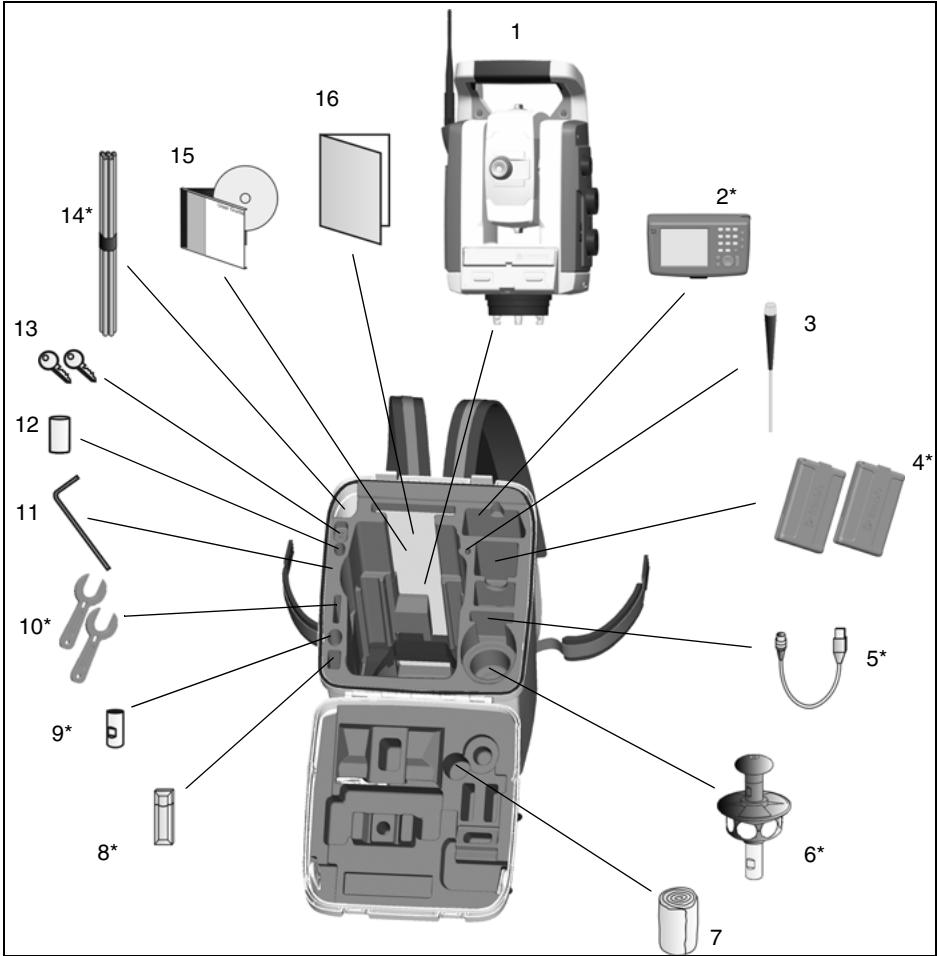
Figure 2.1 Position of items in the instrument case
Note - * Not included in the box.
Note - Some of the items described in figure 2.1 are optional and not all of the items are delivered with the instrument, some items are delivered with the accessory kits.
| Item | Description |
| 1 | Trimble S Series Total Station instrument |
| 2 | Trimble CU |
| 3 | Allen key |
| 4 | Internal batteries (2x) |
| 5 | Cable to USB for USB Memory or CF Card |
| 6 | 360° prism with mini-rod |
| 7 | Rain cover |
| 8 | USB memory |
| 9 | Mini-rod adapter |
| 10 | Tools for target ID (2x) |
| 11 | Tool for handle (Torx T30 key) |
| 12 | Tools for tribrach and optical plummet |
| 13 | Instrument case keys (2x) |
| 14 | Instrument height meter |
| 15 | Trimble S Series Total Station user guide CD |
| 16 | Getting Started Guide |

Caution - If the instrument is equipped with the optional DIN adapter for DIN tribrach, then the DIN tribrach must be removed before the instrument is placed in the instrument case. The DIN standard is mostly used in the German market.

Caution - When shipping an instrument, make sure that the Trimble CU is not attached to the instrument. Place the Trimble CU in its own compartment in the transport case to avoid damage to the instrument. See Figure 2.1
Storing the Carrying Straps
When you are not using the carrying straps, you can store them in the carrying strap compartment on the instrument case.

Tip - Put the waist straps into the carrying strap compartment first, before the shoulder straps.
To take out and use the carrying straps:
- Press the compartment lid lock downward and open the carrying strap compartment. See figure 2.2
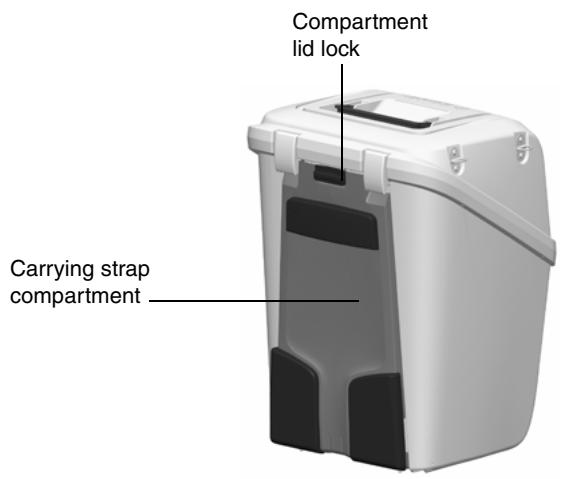
Figure 2.2 Instrument case with the carrying straps inside the compartment
- Lift the straps from the compartment. The straps are already attached to the instrument case. See figure 2.3
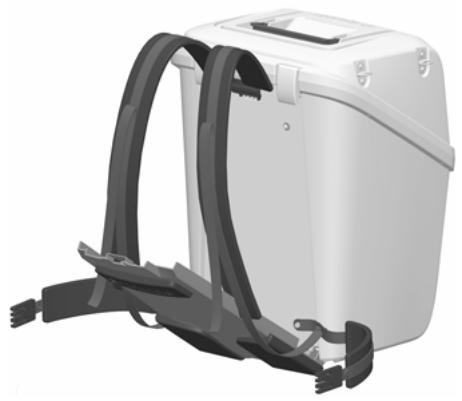
Figure 2.3 Fitting the carrying straps
- Close the compartment lid, making sure that you do not jam the carrying straps. See figure 2.4
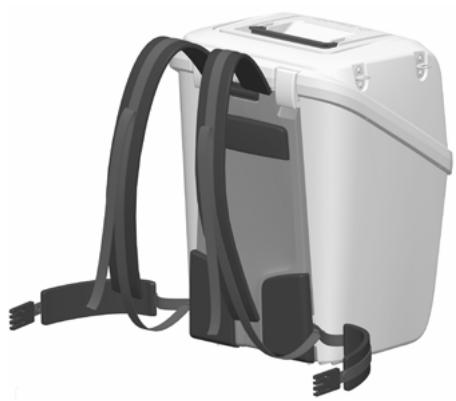
Figure 2.4 Instrument case with the carrying straps ready for use
Battery Kit Accessory Case
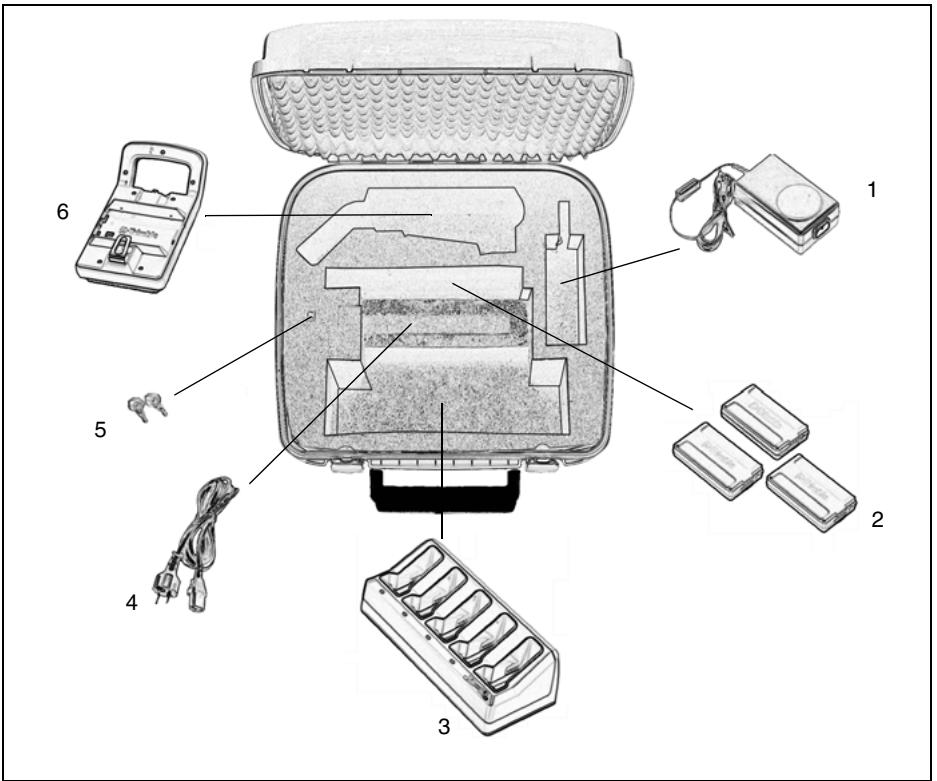
Figure 2.5 Contents of the battery kit accessory case
| Item | Description |
| 1 | Battery charger power supply |
| 2 | Batteries (3x) |
| 3 | Battery charger |
| 4 | Power cable |
| 5 | Accessory case keys (2x) |
| 6 | Multi-battery adapter |
Robotic Kit Accessory Case
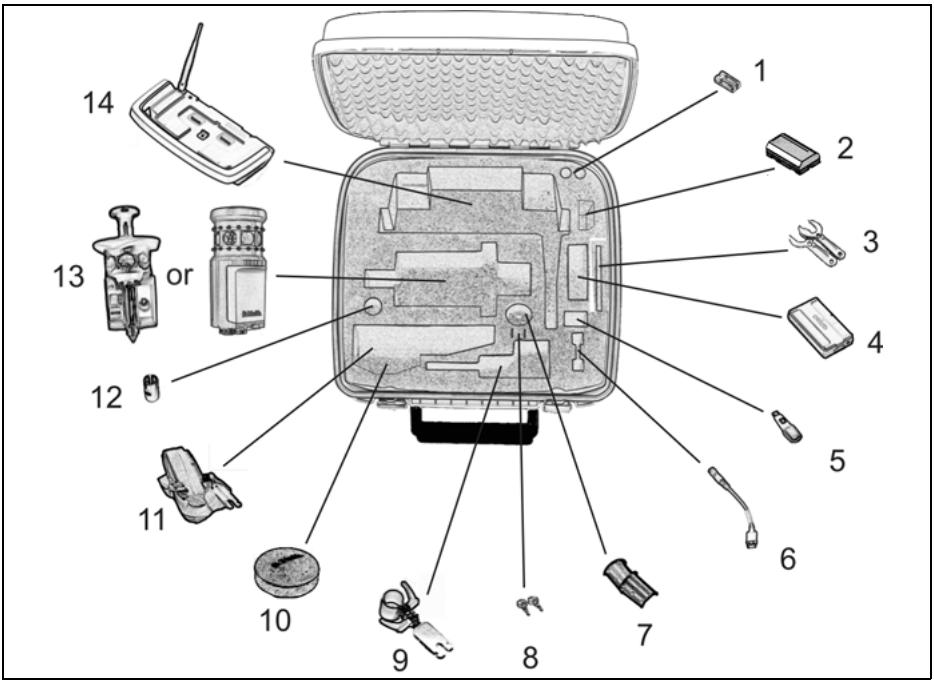
Figure 2.6 Contents of the robotic kit accessory case
| Item | Description |
| 1 | Trimble Advanced Holder |
| 2 | Size AA batteries (2x) |
| 3 | Battery |
| 4 | USB memory (not included) |
| 5 | USB A receptacle dongle cable |
| 6 | Rod adapter |
| 7 | Standard rod adapter |
| 8 | Accessory case keys (2x) |
| 9 | Carrying strap |
| 10 | Mini-rod adapter |
| 11 | 360° Prism with mini-rod and Target ID or Trimble MultiTrack Target |
| 12 | Tools for Target ID (2x) |
Traverse Kit 1 Accessory Case
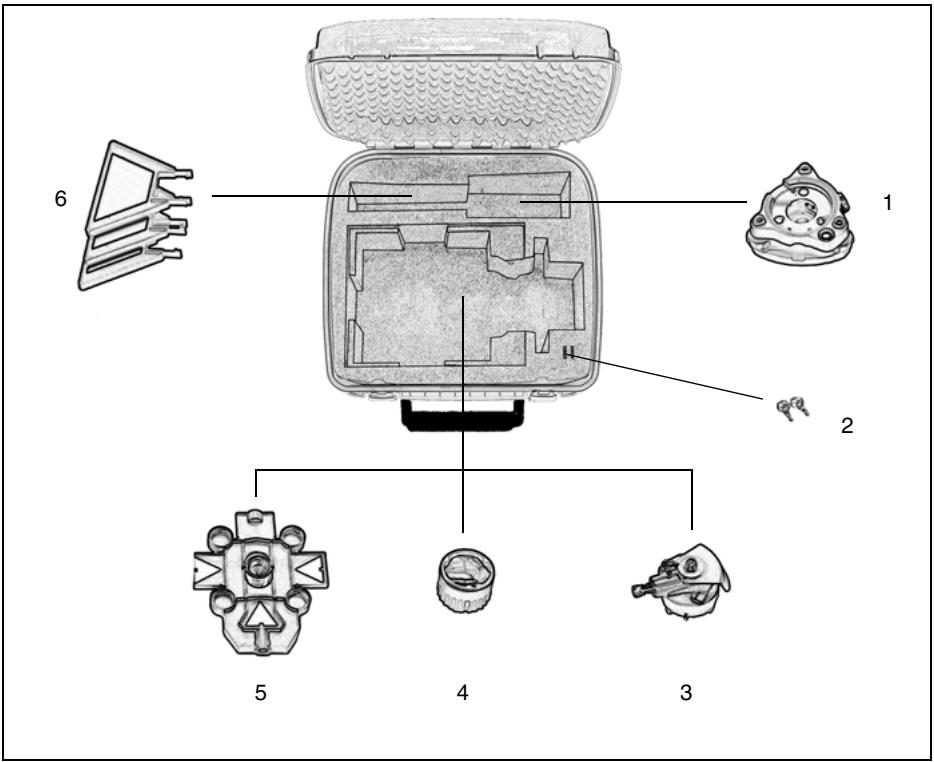
Figure 2.7 Contents of the traverse kit 1 accessory case
| Item | Description |
| 1 | Tribrach |
| 2 | Accessory case keys (2x) |
| 3 | Prism base with level and optical plumb |
| 4 | Prism |
| 5 | Sighting target |
| 6 | Extra sighting targets (3x) |
Traverse Kit 2 Accessory Case
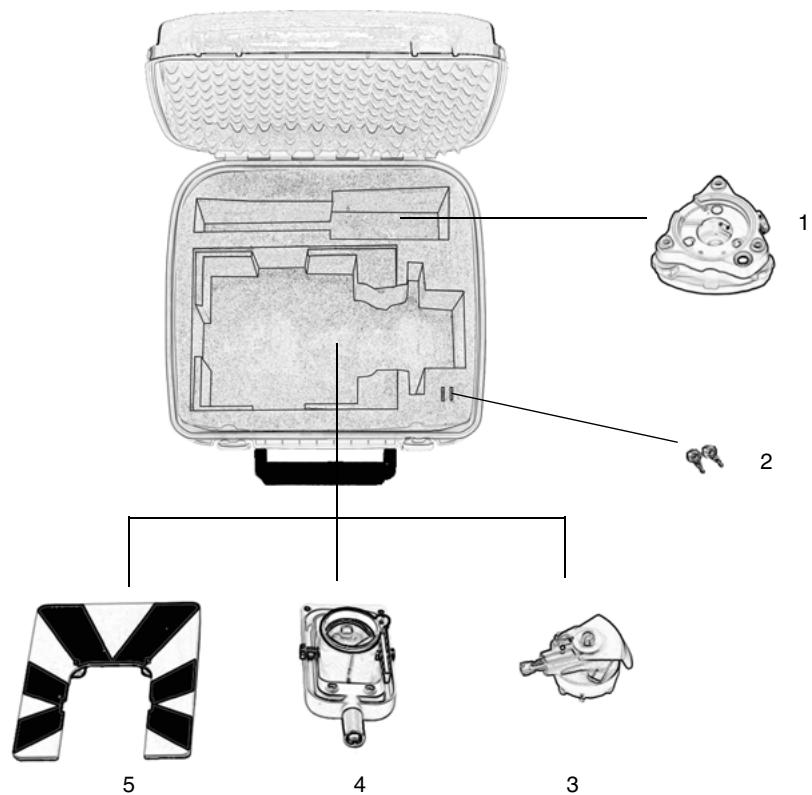
Figure 2.8 Contents of the traverse kit 2 accessory case
| Item | Description |
| 1 | Tribrach |
| 2 | Accessory case keys (2x) |
| 3 | Prism base with level and optical plumb |
| 4 | Prism |
| 5 | Sighting target |
Attaching the Accessory Case to the Instrument Case
The accessory case can be fitted on top of the instrument case for transport to a job site. Use straps (not included) as shown in figure 2.9.
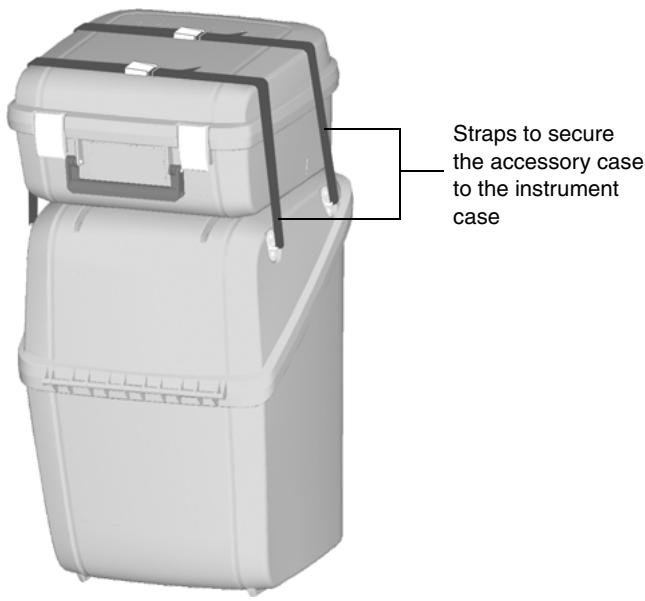
Figure 2.9 Accessory case fitted to the top of the instrument case
Care and Maintenance

Warning - Do not remove the instrument cover from the instrument. A Trimble S Series Total Station is designed to withstand normal electromagnetic disturbance from the environment but it contains circuits that are sensitive to static electricity. If an unauthorized person opens the instrument cover, the function of the instrument is not guaranteed and the warranty is invalidated.
The Trimble S Series Total Station is designed and tested to withstand field conditions, but like all precision instruments, it requires care and maintenance. Take the following steps to get the best results from the instrument:
- Do not subject the equipment to rough jolts or careless treatment.
- Keep the lenses and reflectors clean. Use only lens paper or other material that is designed for cleaning optical equipment.
- Keep the instrument protected and in an upright position, preferably in the instrument case.
- Do not carry the instrument while the instrument is mounted on a tripod. Doing so can damage the tribrach screws.
- Do not carry the instrument by the telescope barrel. Use the handle.
- When you need extremely precise measurements, make sure that the instrument has adapted to the surrounding temperature. Significant variations in instrument temperature can affect precision.
Cleaning

Caution - Never use strong detergents such as benzine or thinners on the instrument or the instrument case.
Be very careful when cleaning the instrument, especially when removing sand or dust from lenses and reflectors. Never use coarse or dirty cloth or hard paper. Trimble recommends that you use anti-static lens paper, a cotton wad, or a lens brush.
Getting Rid of Moisture
If the instrument has been used in damp weather, take the instrument indoors and remove the instrument from the instrument case. Leave the instrument to dry naturally. If condensation forms on the lenses, allow the moisture to evaporate naturally. Leave the carrying case open until all moisture has evaporated.
Transporting the Instrument
Always transport the instrument in a locked instrument case. For longer trips, transport the instrument in the instrument case and inside the original shipping container.

Caution - When shipping an instrument, make sure that the Trimble CU is not attached to the instrument. Place the Trimble CU in its own compartment in the transport case to avoid damage to the instrument. See Figure 2.1
Servicing
Note - There are no user-serviceable parts on the Trimble S Series Total Station.
Trimble recommends that you take the instrument to an authorized Trimble service workshop for service and calibration once a year. This is to guarantee that the specified accuracies are maintained.
When you send the instrument to a service center, clearly write the name of the sender and the receiver on the instrument case. If repairs are required, enclose a note in the instrument case. The note should clearly describe any fault or symptoms, and indicate that servicing is required.
Getting Started
In this chapter:
Battery
Instrument Description
Laser and LED Information
Battery
Before charging or using a battery it is important that you read and understand the battery safety and environment information.
Battery Safety and Environment Information

Warning - Do not damage the rechargeable Lithium-ion battery. A damaged battery can cause an explosion or fire, and can result in personal injury and/or property damage. To prevent injury or damage:
- Do not use or charge the battery if it appears to be damaged. Signs of damage include, but are not limited to, discoloration, warping, and leaking battery fluid.
- Do not expose the battery to fire, high temperature, or direct sunlight.
- Do not immerse the battery in water.
- Do not use or store the battery inside a vehicle during hot weather.
- Do not drop or puncture the battery.
- Do not open the battery or short-circuit its contacts.

Warning - Avoid contact with the rechargeable Lithium-ion battery if it appears to be leaking. Battery fluid is corrosive, and contact with it can result in personal injury and/or property damage. To prevent injury or damage:
- If the battery leaks, avoid contact with the battery fluid.
- If battery fluid gets into your eyes, immediately rinse your eyes with clean water and seek medical attention. Do not rub your eyes!
- If battery fluid gets onto your skin or clothing, immediately use clean water to wash off the battery fluid.

Warning - Charge and use the rechargeable Lithium-ion battery only in strict accordance with the instructions. Charging or using the battery in unauthorized equipment can cause an explosion or fire, and can result in personal injury and/or equipment damage. To prevent injury or damage:
- Do not charge or use the battery if it appears to be damaged or leaking.
- Charge the Lithium-ion battery only in a Trimble product that is specified to charge it. Be sure to follow all instructions that are provided with the battery charger.
- Discontinue charging a battery that gives off extreme heat or a burning odor.
- Use the battery only in Trimble equipment that is specified to use it.
- Use the battery only for its intended use and according to the instructions in the product documentation.
Disposal
-
Before disposal, discharge the battery.
-
Dispose of the used battery in an environmentally sensitive manner, according to local and national regulations, see also Environmental Information page ix.
Charging the Lithium-Ion Battery
The battery is supplied partially charged. Charge the battery completely before using it for the first time.
- To charge the battery, use only a charger that is recommended by Trimble for charging the Lithium-ion battery.
- Charge the battery before using the total station if the equipment has been stored for longer than six months.
The charger operates between 0^ (32^) and 40^ (104^) . Charging a battery at temperatures in the range of 0^ (32^) to 5^ (41^) will take longer than charging at room temperature.

Caution - Ensure that nothing obstructs the vents in the back of the charger. The bottom of the charger is hot during charging.

Figure 3.10 Battery charger
To charge the battery:
- Ensure that the vents in the back of the charger are unobstructed.
- Place the charger on a hard, flat and level surface, to ensure that there is airflow under the charger.
- To apply power to the charger, use the AC to DC converter. The charger scans the slots for a battery. The green light flashes on the slot that is being scanned.
-
Place the battery in any of the slots. For an explanation of the LED display, see page 19.
-
Charging takes approximately 3 hours per battery at room temperature. If several batteries are charging in the battery charger, the batteries will be charged sequentially, from left to right.
Leave a deeply discharged or shorted battery overnight in the charger to attempt to revive the battery. A shorted battery is typically revived as soon as the slot is scanned. If the Amber LED turns off, the battery is revived. If the Amber LED stays on, the battery is no longer functional and needs to be replaced.
Conditioning the Battery
Charge the battery as described above. Ensure that the vents in the back of the charger are unobstructed and that the charger is on a flat and level surface.
If the Amber LED for a slot is flashing, the battery occupying this slot requires conditioning.
A battery that has been subjected to 20 consecutive incomplete charge/discharge cycles requires conditioning and will trigger the conditioning-required indicator. A full charge/discharge cycle is defined as one that uses more than 90% of the battery capacity. A battery requires conditioning if the power gauge (a count of the battery capacity) in the battery is misreading the battery capacity by more than 8% . The battery is still safe to use, but the power gauge may no longer be accurate which may decrease the battery run time in the field.
Using all the battery capacity before charging will reset the indicator. The charger also has the capability to perform a conditioning cycle.
To condition the battery:
- Press the conditioning button on the back of the charger. Amber LEDs become solid, and all green LEDs start to flash. Release the conditioning button. See figure 3.11
In the conditioning mode, the charger discharges any battery that requires conditioning and then charges it.
Conditioning a single battery can take up to 24 hours. Conditioning five batteries can take up to 60 hours. Trimble recommends that you condition the battery or batteries on a weekend.

Caution - The bottom of the charger is hot during conditioning. Do not touch the bottom plate.
- If you press the conditioning button again when conditioning is in progress, you cancel conditioning. To succeed, a conditioning cycle must be uninterrupted.
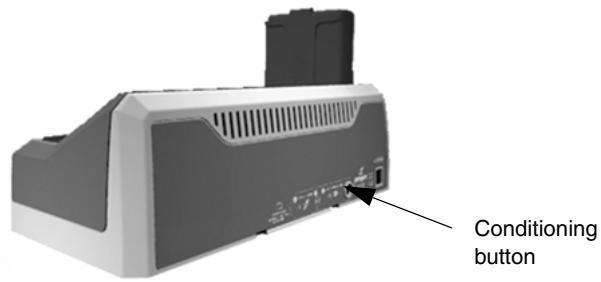
Figure 3.11 Battery charger conditioning button
Battery Charger LED Behavior
| Status | Amber LED | Green LED |
| No battery detected (or battery defective) | ON | OFF |
| Battery detected (charging not started) | ||
| Conditioning not required | OFF | OFF |
| Conditioning required | FLASHING | OFF |
| Charging in progress | ||
| Conditioning not required | OFF | FLASHING |
| Conditioning required | FLASHING | FLASHING |
| Conditioning in progress | ON | FLASHING |
| Conditioning done (battery fully charged) | ON | ON |
| Battery fully charged | ||
| Conditioning not required | OFF | ON |
| Conditioning required | FLASHING | ON |
For information about the battery power gauge LEDs see also Power Supply page 97
Inserting the Internal Battery
The Trimble S Series Total Station internal battery fits into the battery compartment on the side of the instrument. This battery can easily be removed and replaced. To insert the battery:
- Unclip the battery compartment door
- Slide the battery into the battery compartment with the battery connectors positioned towards the top of the instrument. See figure 3.12
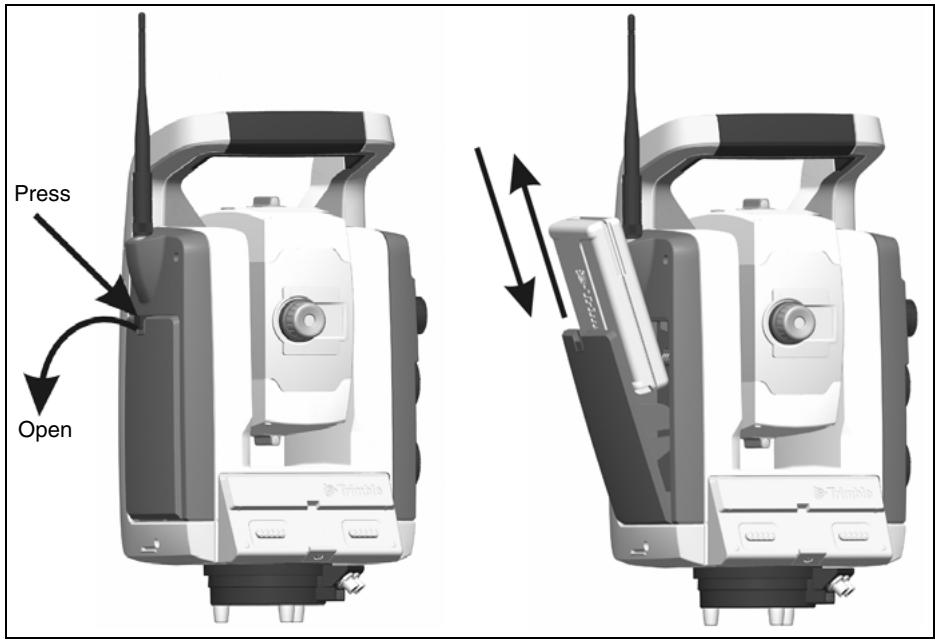
Figure 3.12 Removing and replacing the internal battery
Trimble Multi Battery Adapter

Warning - Use only the specified battery and cable with the Multi Battery Adapter. Use the adapter only to provide power to the specified Trimble product. Never attempt to charge batteries while they are in the adapter. Observe the warnings in the battery section of the manual.
The Multi Battery Adapter is an external battery adapter that holds and connects up to three Trimble S Series Total Station batteries. The Multi Battery Adapter has a hook so that the adapter can be attached to the tripod. See figure 3.13
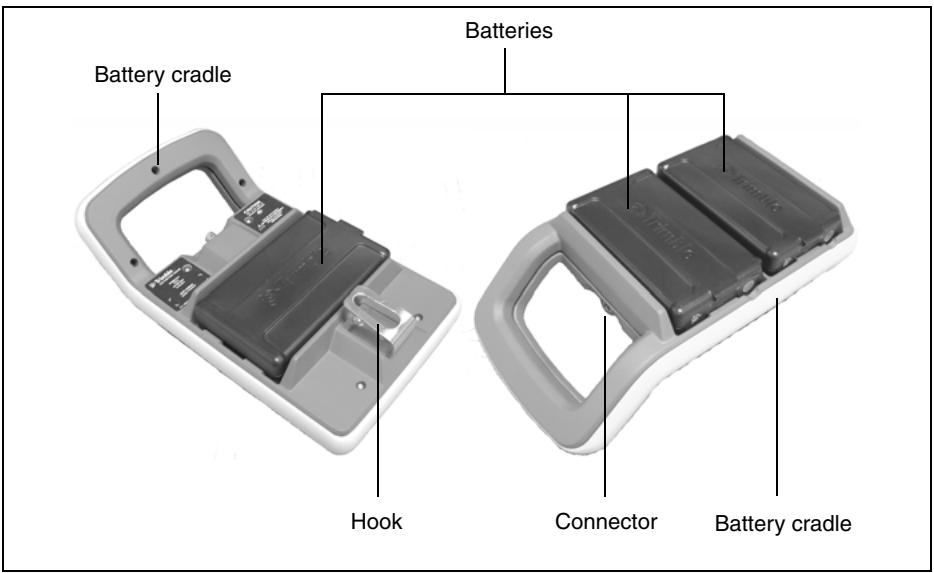
Figure 3.13 Multi Battery Adapter
Connecting the Trimble Multi Battery Adapter
The Trimble Multi Battery Adapter can be connected to the Trimble S Series Total Station instrument with a standard Trimble 6-pin Hirose battery cable. See figure 3.14

Caution - Use only the gray cables with 6-pin Hirose connectors from Trimble when connecting a cable to the instrument and Multi Battery Adapter.
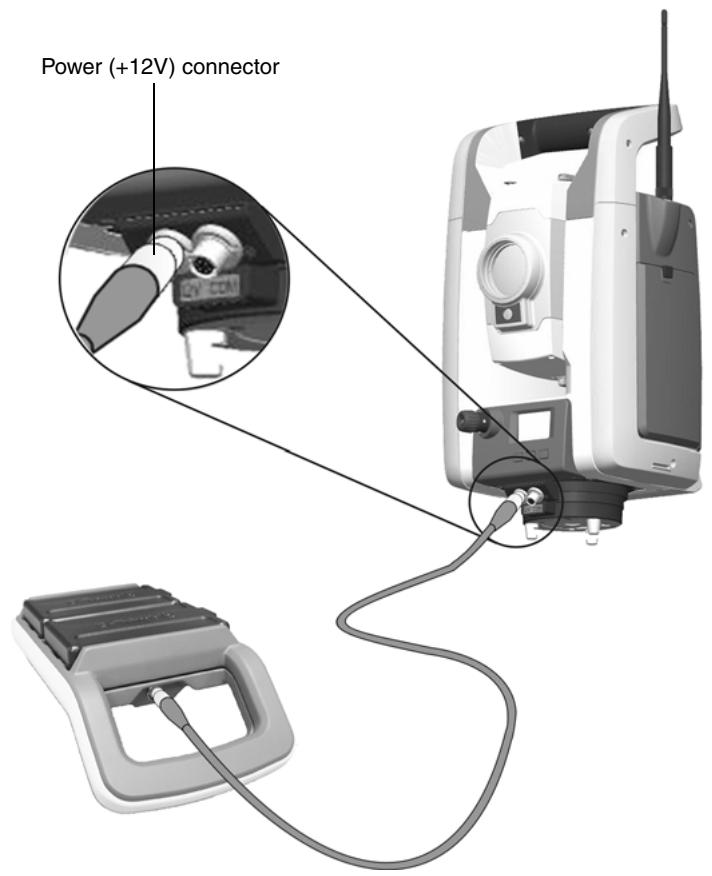
Figure 3.14 Connecting the Multi battery Adapter

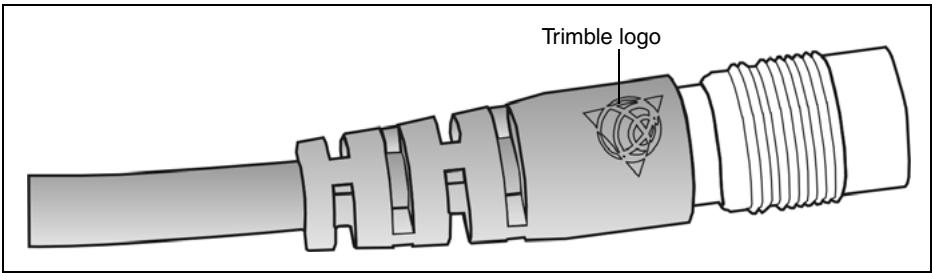
Tip - When connecting the cable to the instrument, keep the Trimble logo on the connector upward.
Instrument Description
This section describes the instrument controls. Trimble recommends that you take some time to familiarize yourself with the names and the locations of the controls. See figure 3.15 and figure 3.16
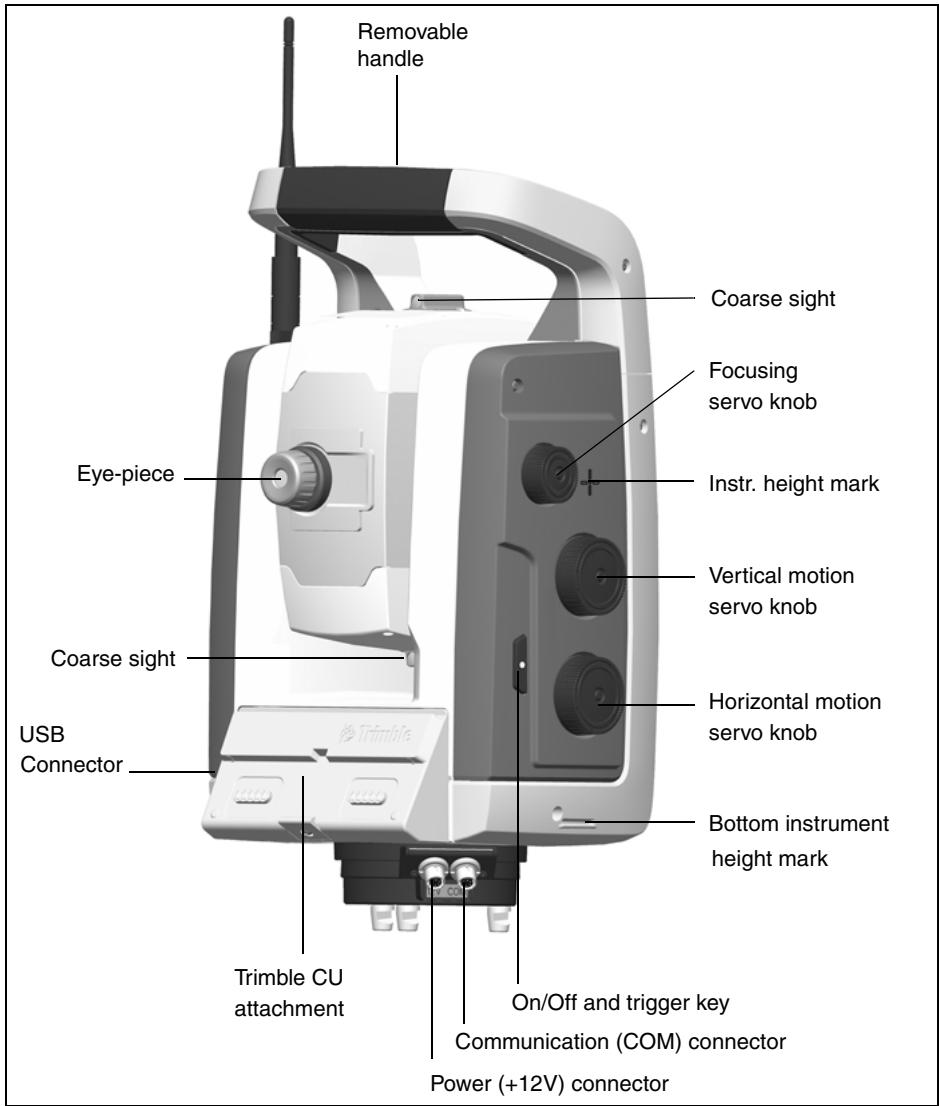
Figure 3.15 Operator's view of the Trimble S Series Total Station
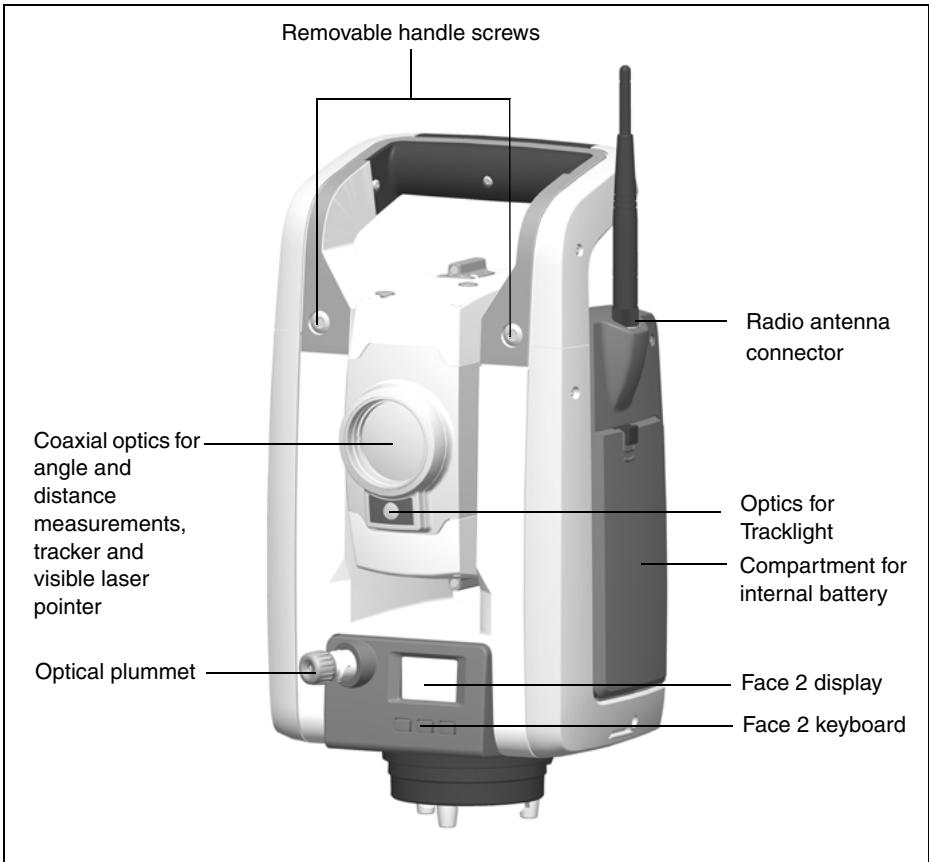
Figure 3.16 Front view of the Trimble S Series Total Station
Trigger Key
When there is no Trimble CU attached to the instrument, the trigger key functions as an On/Off key. An LED in the trigger key indicates if the instrument is turned on. A solid light indicates on and a flashing light indicates suspend mode.
When there is a Trimble CU running a field application software connected to the instrument, the trigger key performs the same function as the Enter key on the Trimble CU.
Face 2 Display
The face 2 display is a graphical display with a built-in backlight, and three control buttons. See figure 3.17
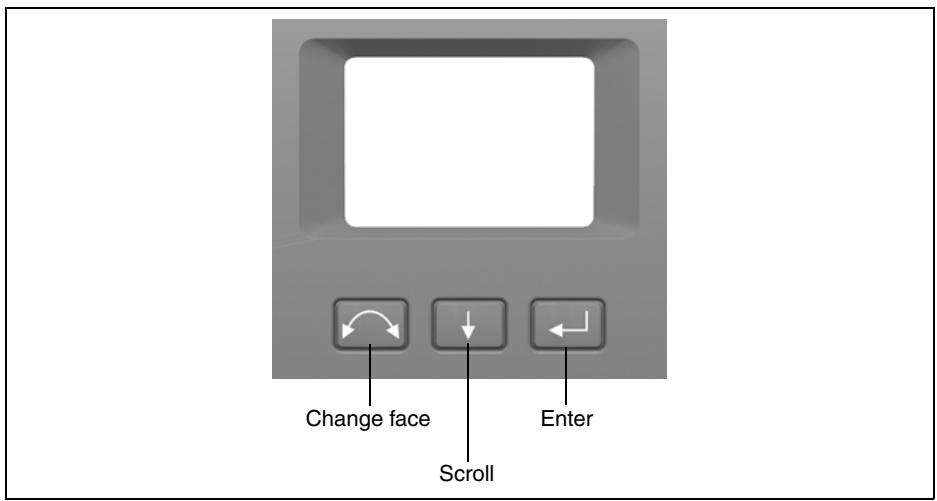
Figure 3.17 Face 2 display and keyboard
When a secondary function is available on a button, an icon appears at the bottom of the display. To access the secondary function, press and hold the appropriate key.
When a Trimble CU is attached to the instrument, the software running on the unit controls the face 2 display and keyboard, and determines which secondary functions are available. For details on how the software controls the face 2 display, refer to the field software documentation.
When there is no Trimble CU attached to the instrument, and you turn on the instrument using the trigger key, the face 2 display shows an electronic leveling screen. See figure 3.18
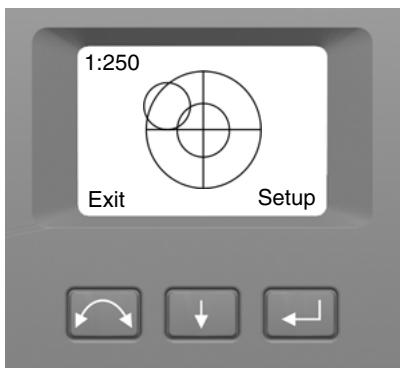
Figure 3.18 Electronic leveling screen on the face 2 display
For information on how to access the compensator menu and instrument setup menu from the face 2 display and keyboard. See Instrument Setup on page 39.
Optical Plummet
The instrument is equipped with an optical plummet, which has 2x magnification and a focusing range of 0.5m to infinity. The instrument can be positioned to an accuracy of 0.5mm at 1.5m over a ground mark.
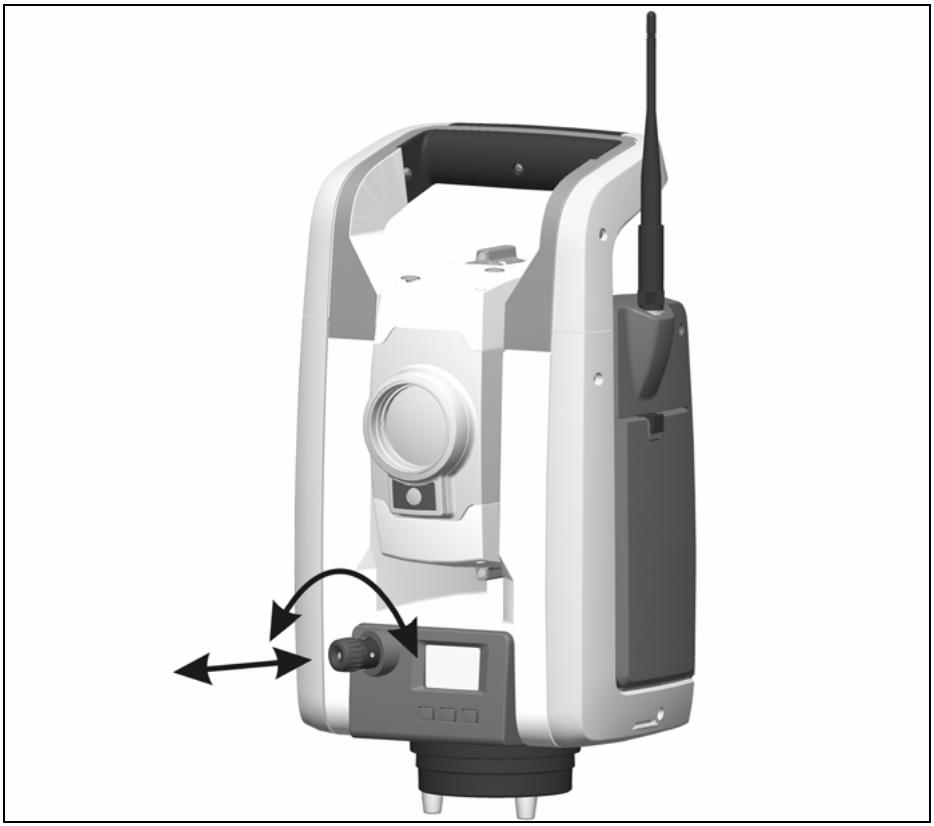
Figure 3.19 Optical plummet
As shown in figure 3.19:
- To focus the crosshairs, rotate the eye-piece.
- To focus the optical plummet to the ground, push in or pull out the optical plummet.
For information on how to adjust the optical plummet. See Adjusting the Optical Plummet on page 67.
Handle
The handle of the Trimble S Series Total Station instrument is detachable for measurements in confined spaces, or for instances where the handle obstructs the sighting line.
The instrument handle is placed so that it will not obscure measurements in the face 1 position, or restrict plumbing vertically beneath an overhead marker or sighting up a vertical shaft.
The handle can be removed by:
- Unscrew the two Torx screws securing the handle to the instrument, use a T30 Torx key.
- Slide the handle horizontally away from the front of the instrument. See figure 3.20 and figure 3.21
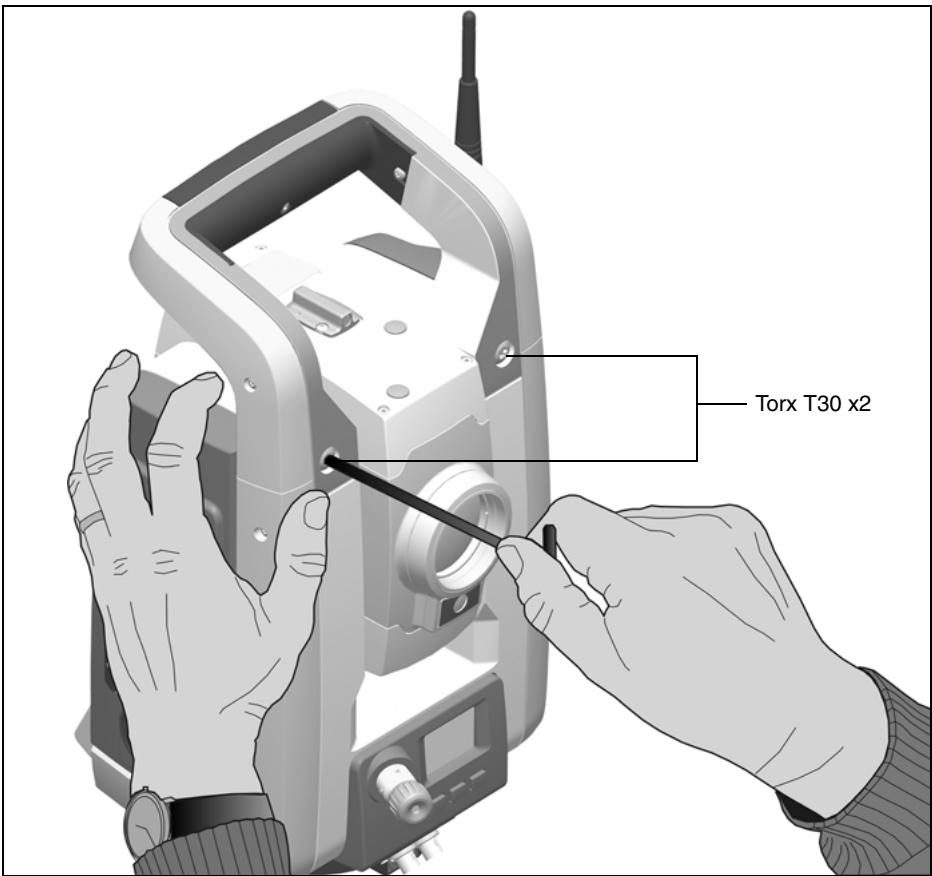
Figure 3.20 Removing the instrument handle
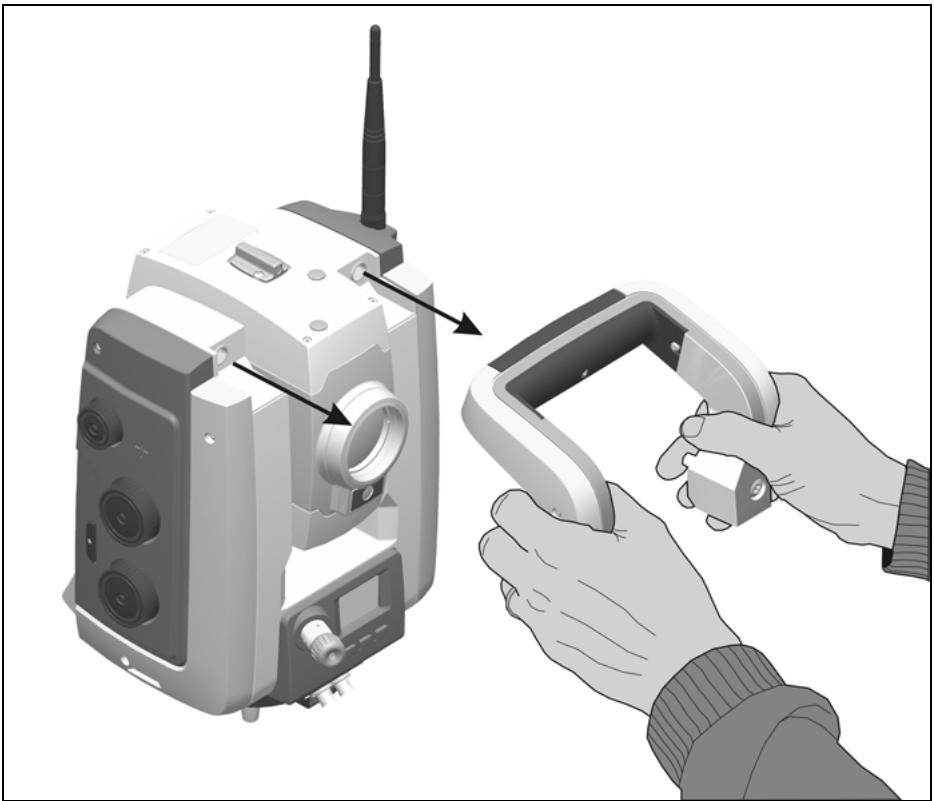
Figure 3.21 Detaching the instrument handle
Attaching the handle:
Attaching the handle is completed by reversing the above operations.

Caution - Make sure that the handle is firmly attached before you lift the instrument.
Laser and LED Information
For more information, See Laser Safety on page v.
Trimble S Series High Precision
The Trimble S Series High Precision, figure 3.22, has been tested, and complies with the regulations for a Class 2 Laser product.
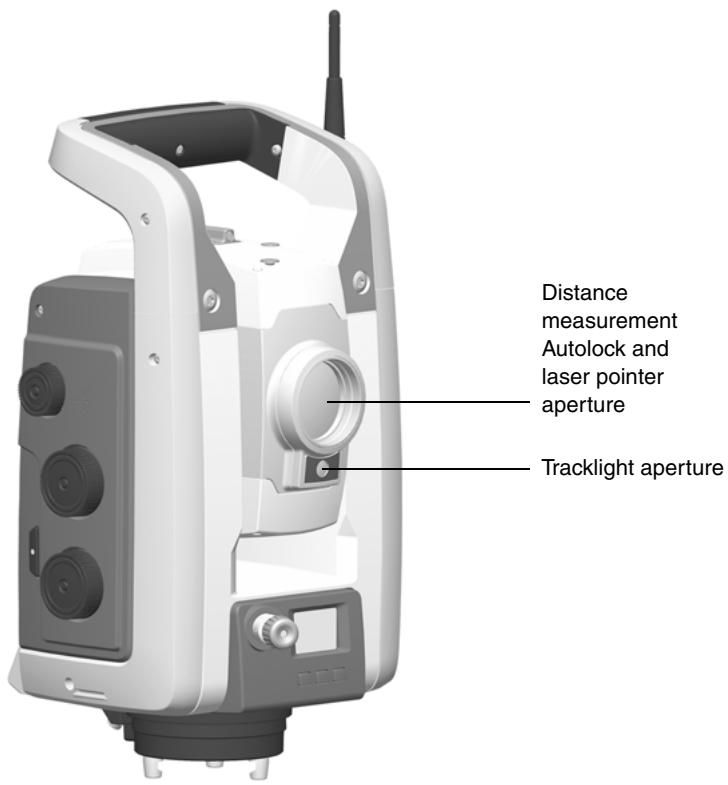
Figure 3.22 The Trimble S Series High Precision
The laser warning label on top of the distance measuring unit. See figure 3.23
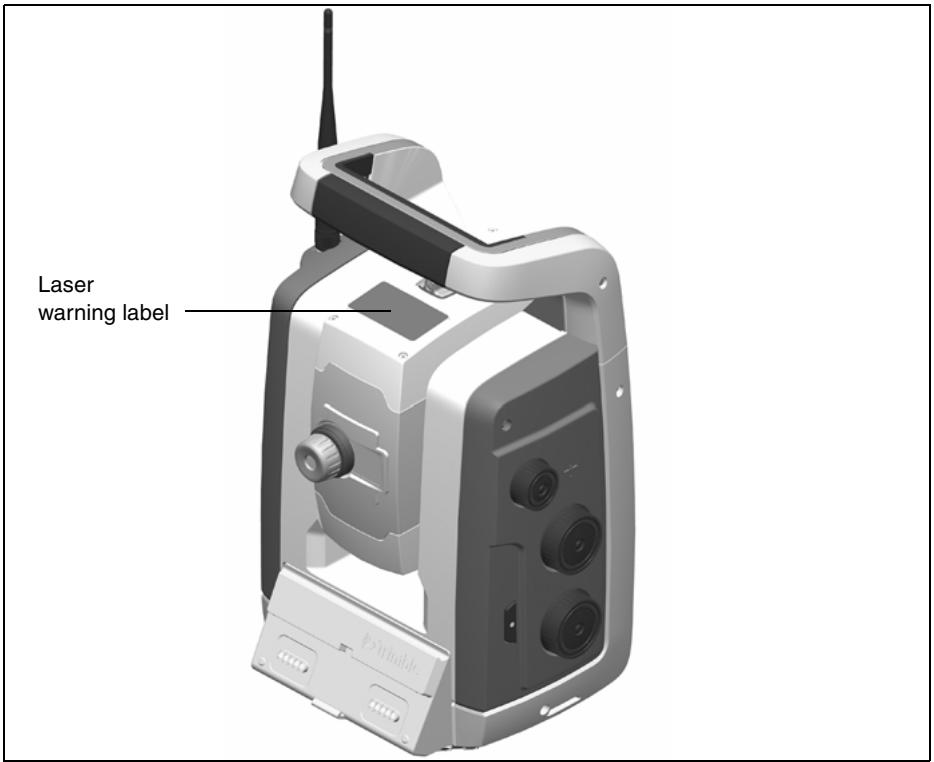
Figure 3.23 Location of laser warning label on a Trimble S Series High Precision
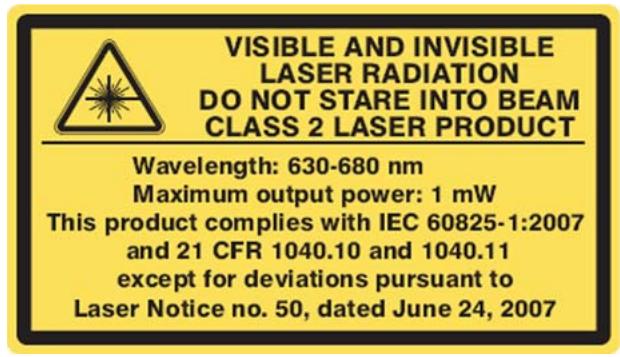
Figure 3.24 Laser pointer warning label
Trimble S Series DR PLUS Total Station
The Trimble S Series DR PLUS Total Station has been tested, and complies with the regulations for a Class 1 and Class 2 Laser product, see figure 3.25.
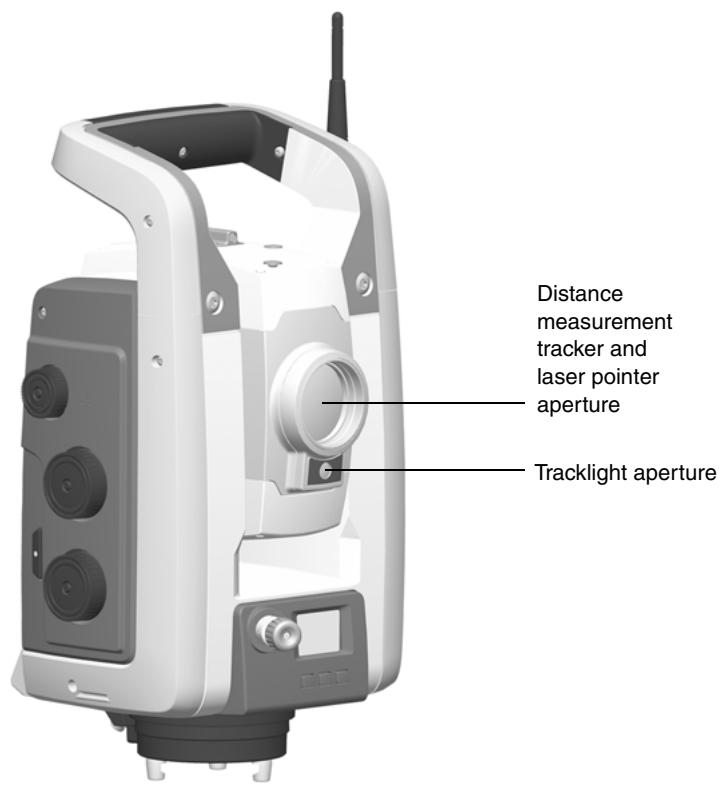
Figure 3.25 The Trimble S Series DR PLUS Total Station
The laser pointer warning label is on top of the distance measuring unit. See figure 3.26
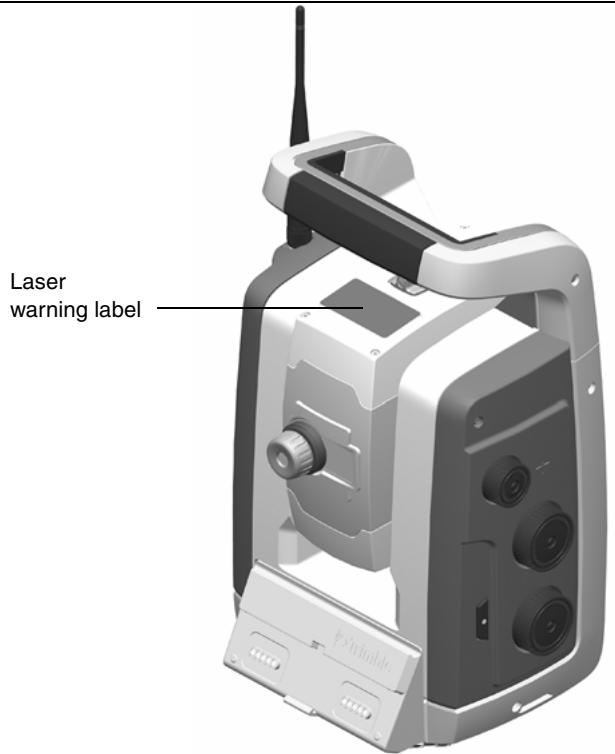
Figure 3.26 Location of the laser pointer warning label on a Trimble S Series DR PLUS Total Station
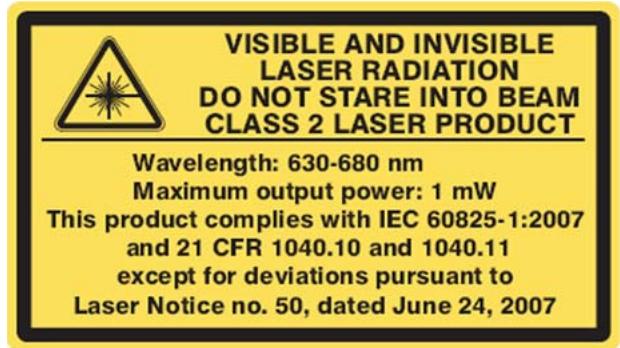
Figure 3.27 Laser pointer warning label
Setup
In this chapter:
Setup
Starting the Instrument
Leveling
Instrument Setup
The Laser Pointer
Measuring the Instrument Height
Pre Measurement Check List
Attaching the Trimble CU
Detaching the Trimble CU
Connecting a TSC2
Lifting the Instrument
Setup
An instrument setup with good measuring stability will increase the precision in the measurement result and allow you to utilize the measurement precision of the Trimble S Series Total Station to its full extent.
Setup Stability
When an instrument is setup it is important to consider the following:
- Set tripod legs wide apart to increase the stability of the setup. A setup where one leg is placed on e.g asphalt and the other two on soil will still be a stable setup provided that the tripod legs are set wide enough. If it is not possible to set the tripod legs wide apart due to obstacles, then the tripod can be lowered to increase stability.
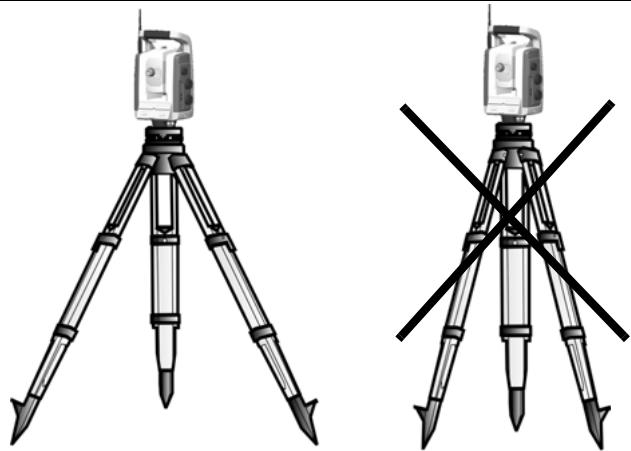
Figure 4.28 Correct instrument set up
- Make sure that all the screws on the tripod and/or tribrach are tightened to avoid any play.
- Any high quality tripod and tribrach can be used. However, Trimble strongly recommends the use of tripod heads made of steel, aluminium or similar material. Tripod heads of fiberglass or other composite materials are not recommended.
See Servo Technology on page 91 for more information.
Measurement Stability
Take into account that instruments require sufficient time to adjust to the ambient temperature. The following rule-of-thumb for a high precision measurement applies: Temperature difference in degree Celsius (^) x 2 = duration in minutes required for the instrument to adjust to the new temperature.
Avoid sighting across fields with intense heat shimmer by sun light, e.g. at noon.
Starting the Instrument
Note - Before following any of the instructions below, put the instrument in the face 2 position, i.e. the telescope eyepiece and face 2 keyboard and display are pointing towards you.
The face 2 display menus described in this chapter can only be accessed when there is no Trimble CU attached, please remove the Trimble CU before starting the instrument.
Start the instrument by pressing the trigger key.
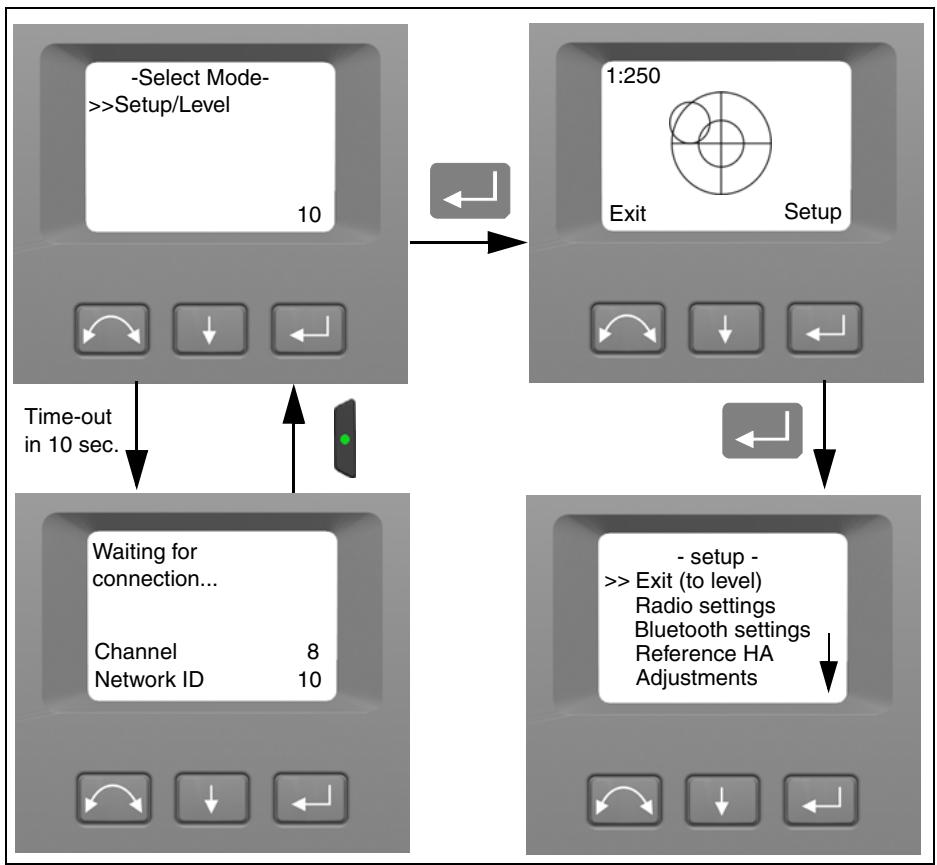
Once you start the instrument, the Select Mode menu appears in the face 2 display.
To go to Setup/Level press
Note - If no selection is made within 10 seconds the instrument will go to suspend mode. To return to the select mode menu press the trigger key.
Leveling
Once you have selected Setup/Level, the face 2 display appears with the electronic bubble for leveling. If there is a Trimble CU attached, the Trimble CU software controls the face 2 display. Figure 4.29 shows the leveling process.
To toggle between a graphical or numerical display make a long press on
To change the graphical displays sensitivity (zoom) make a short press on
To accept and enter the setup menu press
Note - Due to the high speed servo it is important to use a high quality tripod and tribrach.
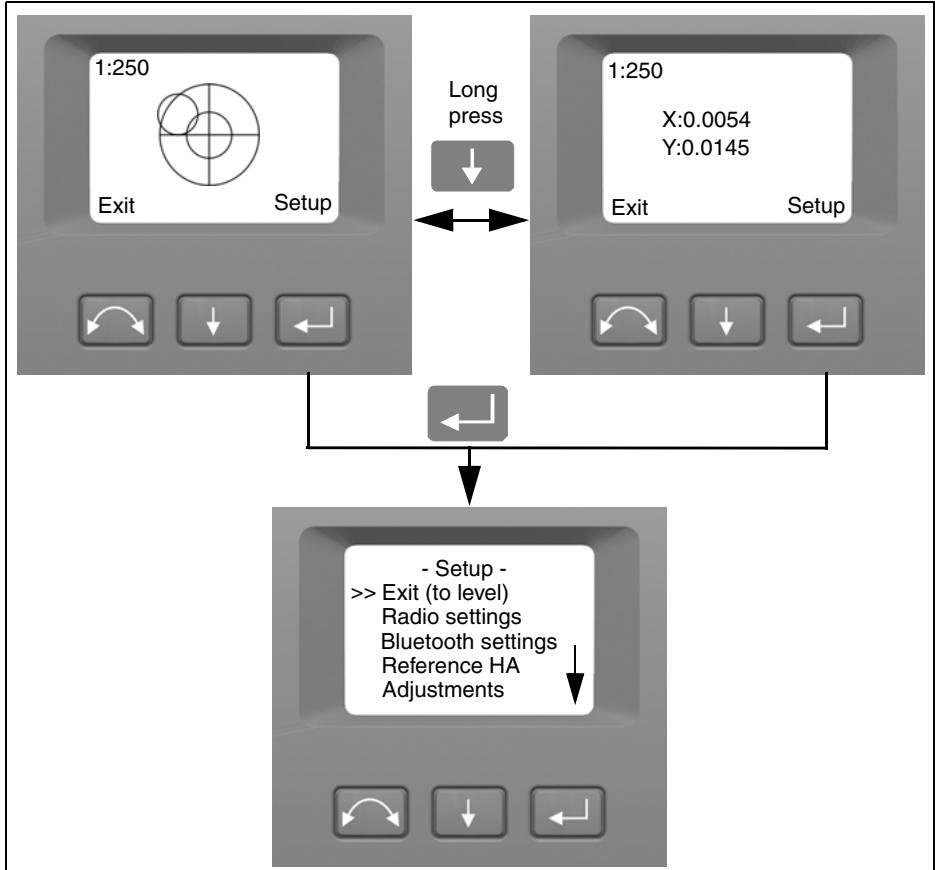
Figure 4.29 The leveling process
Note - If the instrument is inactive for longer than 300 seconds (5 minutes) it will go to suspend mode. See Power Management on page 95
Instrument Setup
With the face 2 display, you can access a number of instrument functions and routines without a Trimble CU attached:
In the leveling display select Setup by pressing , the Setup Menu appears:
Note - It is possible to access the instrument setup menu without levelling the instrument.
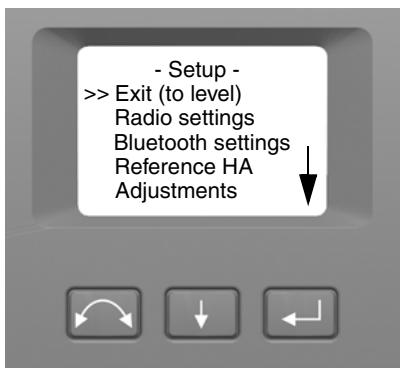
The instrument Setup menu is structured as follows:
- Exit (to level)
- Radio settings. See page 40.
- Bluetooth® settings
-
Reference Horizontal Angle. See page 45Adjustments. See page 46.
-
Back
Compensator calibration. See page 46.
HA/VA and trunnion axis collimation. See page 49.
Tracker collimation. See page 53. -
Laser pointer on/off. See page 55.
-
Firmware version information. See page 57.
Language settings
Radio Settings
In the Radio settings menu it is possible to set the radio channel and network ID number.
Set Radio Channel
- Press to scroll to Radio settings and then press .
- Press to scroll to Set radio channel and then press .
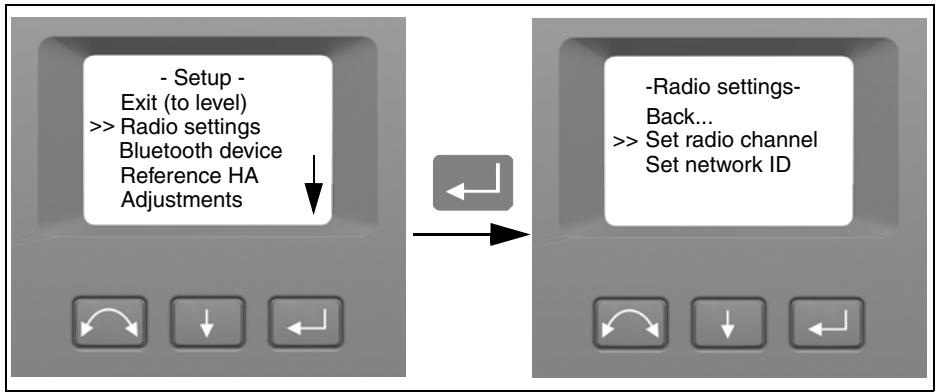
- To change the radio channel number press to select Next and then press to change the channel number in the display.
Note - a short press on the enter key will increment the radio channel in increments of 1, pressing and holding the enter key, will increment the radio channel in steps of 10.

- When you have found the channel number of your choice press to select Set and then press to store this channel number. You will then be returned to the Radio Settings menu.
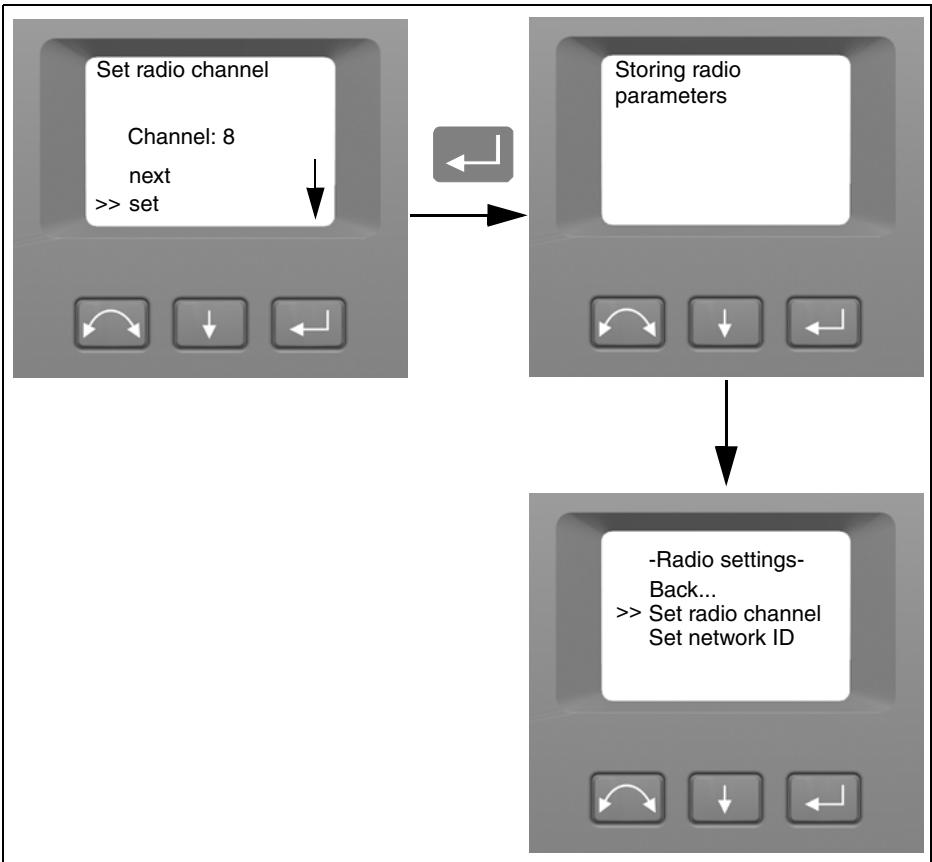
- If you want to cancel Press to select Cancel and then press to return to the Radio Settings menu.
- To return to the Setup menu Press to scroll to Back and then press .
Set Network ID
- Press to scroll to Radio settings and then press
- Press to scroll to Set network ID and then press
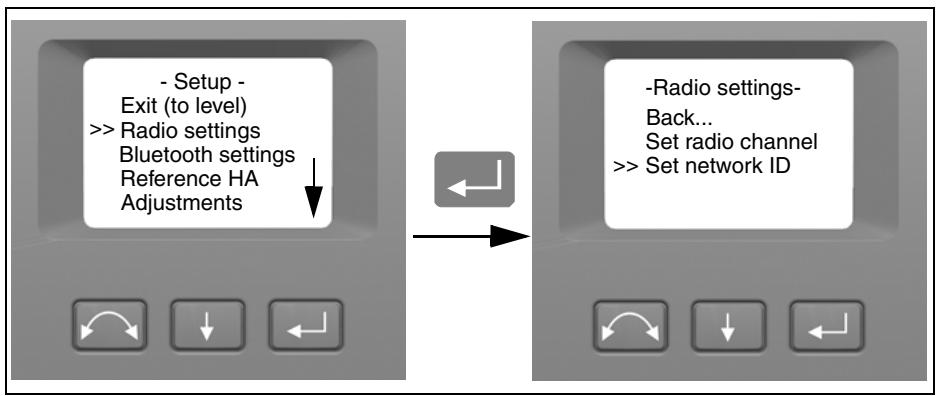
- To change the network ID number press to select Next and then press to change the channel number in the display.
Note - a short press on the enter key will increment the network ID in increments of 1, pressing and holding the enter key, will increment the network ID in steps of 10.
Network ID range 0-255
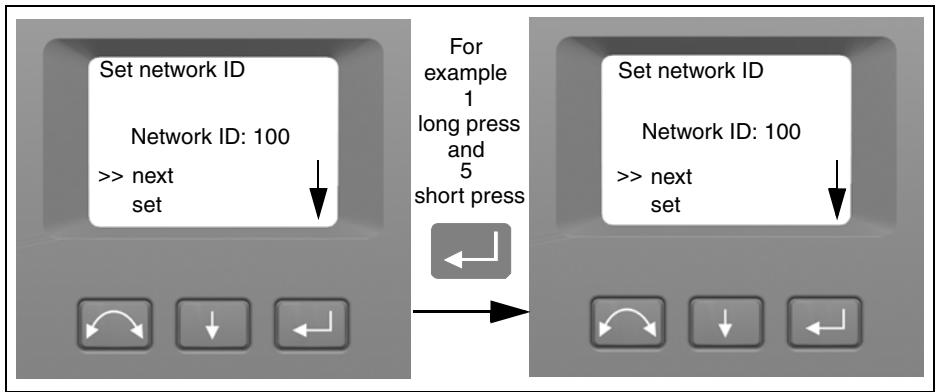
- When you have found the network ID number of your choice press to select Set and then press to store this network ID number. You will then be returned to the Radio Settings menu.
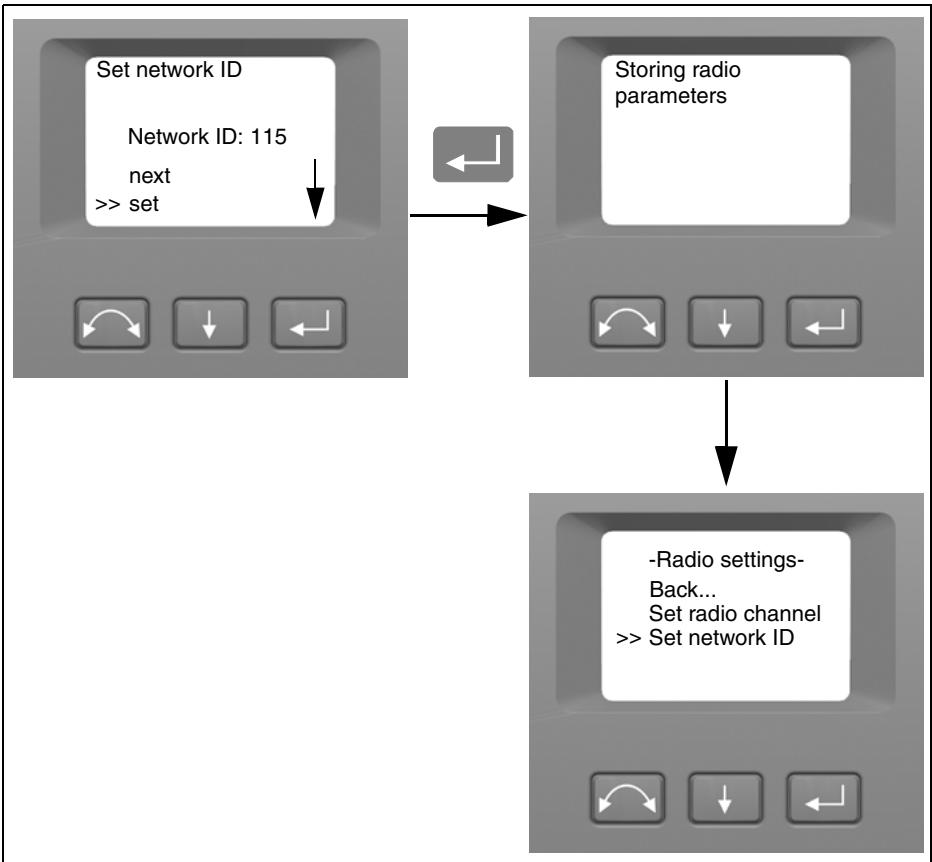
- If you want to cancel Press to select Cancel and then press to return to the Radio Settings menu.
- To return to the Setup menu Press to scroll to Back and then press .
Bluetooth® Settings
All Trimble S Series Total Station instruments are equipped with Bluetooth wireless technology for cable free operations. The Bluetooth antenna is located directly beneath the controller attachment plate in the face 1 position. In order to facilitate communications between a TSC2 controller or Tablet computer and the Trimble S Series Total Station instruments, first enable the Bluetooth wireless technology option in the instrument. This is carried out as follows.

Caution - Before starting the Bluetooth device, make sure that the regulations of the country that you are working in allows the use of Bluetooth wireless technology.
- Press to scroll to Bluetooth settings then press .
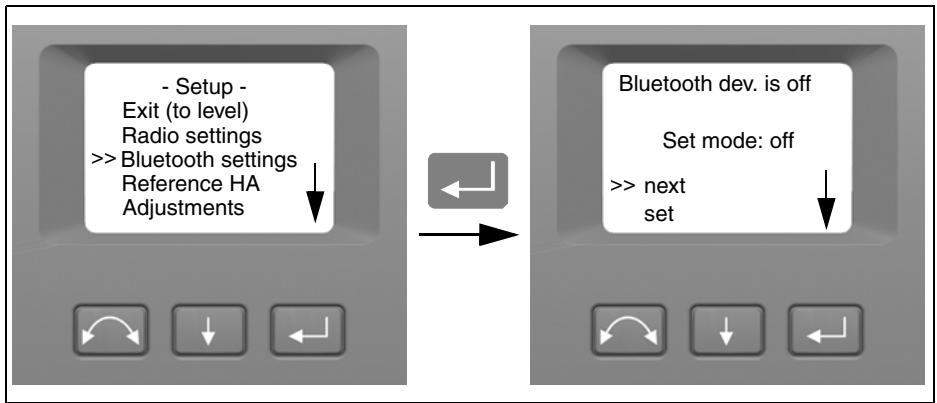
- To change the Bluetooth setting press to select Next and then press to select on or off
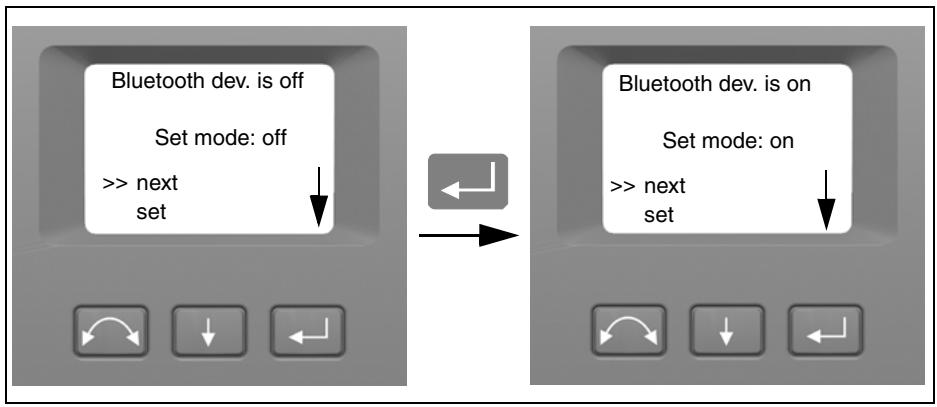
- When you have found the setting of your choice press to select Set and then press to store this setting. You will then be returned to the setup menu.
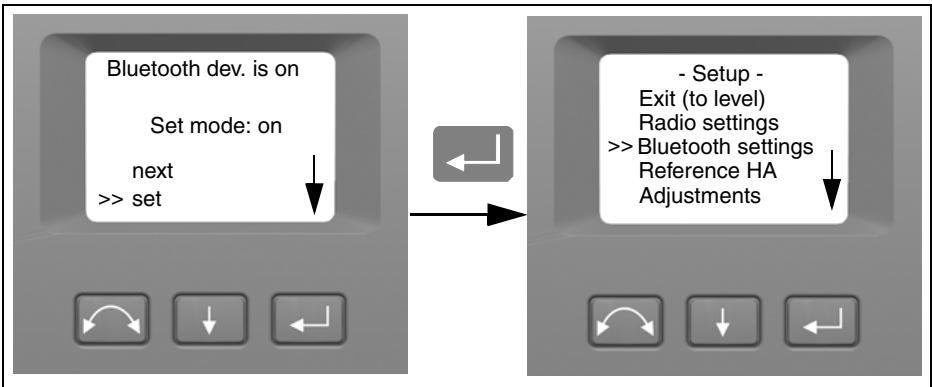
- If you want to cancel Press to select Cancel and then press to return to the setup menu.
Note - At delivery the Bluetooth device is by default in off mode. Any change to this setting made by an operator will become the default setting until changed again.
Note - To reduce power consumption and extend operation time, Trimble recommends that the Bluetooth device is switched off when not in use.
Reference HA
- Press to scroll to Reference HA and then press .
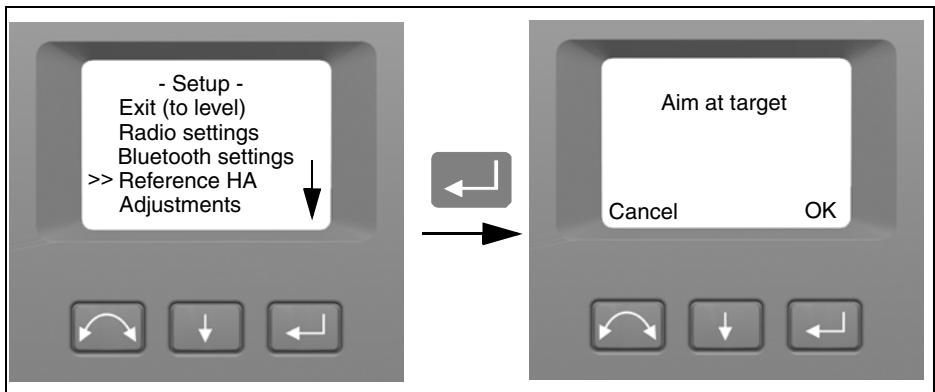
- Aim the instrument in face 2 towards the target and then press enter to set or to cancel.
Since the instrument is aimed at the reference target in face 2 while setting the reference HA, the instruments horizontal circle will be set to 180 degrees or 200 grads. This makes the reference HA 0 degrees or grads in face 1.
The Setup menu appears.
Adjustments Menu
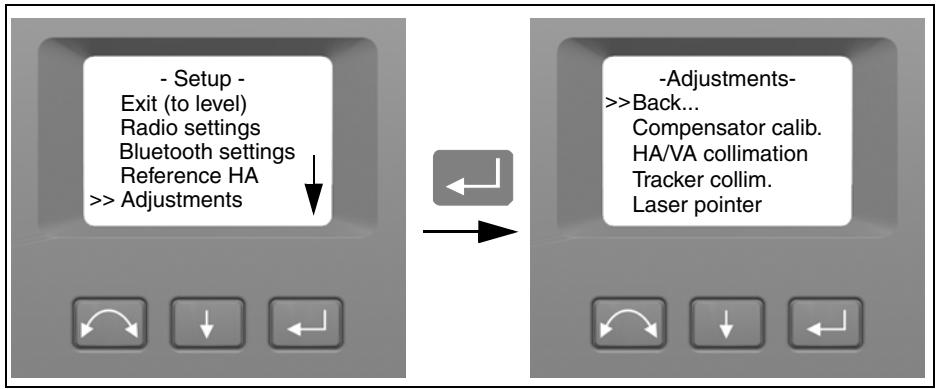
The adjustments menu contains all the instrument collimation and calibration routines.
- Press to scroll to Adjustments and then press
Compensator Calibration
To calibrate the compensator, the instrument needs to be in perfect balance. After calibration the compensator sensor will automatically adjust and allow for changes in that balance caused by the presence of a Trimble CU controller or the absence of an internal battery.
To minimize imbalance in the instrument:
- Do not have the Trimble CU mounted on the instrument.
- An internal battery must be present in the battery compartment.
- The instrument handle must be attached.
- The instrument will automatically position the telescope and distance unit for best balance.
To start the compensator calibration:
- Level the instrument. The instrument will automatically check if the compensator is within range before the calibration is started.
- Press to scroll to Compensator calib. and then press .
- Follow the instructions in the display. Figure 4.30.
Note - Trimble recommends that you regularly carry out a compensator calibration, particularly when measuring during high temperature variations and where the highest measurement accuracy is required.
The calibration process involves the instrument automatically reading the compensator value at a series of predetermined positions through the full rotation of the instrument. The process takes approximately one minute to complete. During the process the instrument should be on a stable platform, free from vibration and untouched by the user.
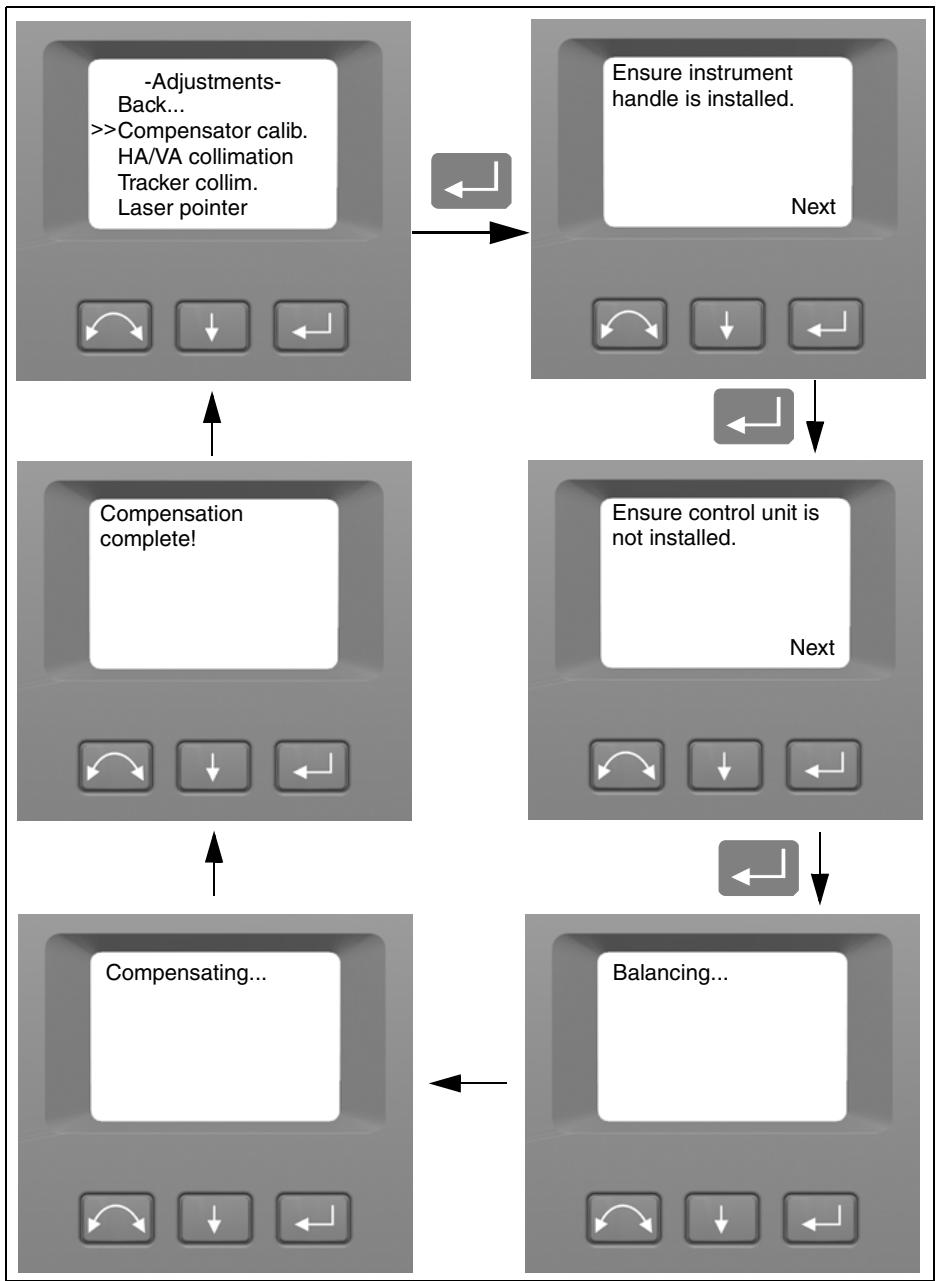
Figure 4.30 Compensator calibration routine
HA/VA Collimation and Trunnion Axis Tilt
The Trimble S Series Total Station instrument utilizes precise angle and distance measurements to determine the position of the point being measured. The instruments design facilitates the ability to measure all points with a single pointing to the target in the face 1 position. All electronic total stations are subject to collimation errors in both the horizontal and vertical angle measuring systems, and also errors caused by the axis of the telescope not being truly perpendicular to the vertical of the instrument.
In order to compensate for these errors, the collimation routine allows the operator to accurately determine the current errors in the instrument, and store the errors as corrections to be applied to all measurements made in a single pointing to a target. In this way the Trimble S Series Total Stations will always provide accurate measurements
The Collimation errors and Trunnion axis tilt will change over time, the most common changes being caused by
- Wear and tear with use
- Bumps and knocks during transit
Large changes in operating temperature
Trimble recommends that a collimation check and tilt axis check be carried out routinely as follows:
- After any long uncontrolled transport of the instrument (e.g. after service or shipment to a new location)
After any accidental knock or drop - At any time when the operating temperature changes by more than 10^ (18^)
- At any time when the instrument changes it's height above sea level by more than 500m (1640 Feet)
- At any time when the highest accuracy positions are required
- Routinely on a periodic basis (Monthly, weekly etc.)
Trimble also recommends that the operator keep a record of the dates and values measured so that any gross changes can easily be detected. Gross changes can indicate the need for a check by an approved service center.
The adjustment of the instrument for HA/VA collimation and Trunnion Axis tilt is a two stage process.
The Horizontal and Vertical collimation and the trunnion axis tilt correction have been measured and stored in the instrument at the factory.
In all calibrations, multiple sightings will be made in both faces to ensure that any minor pointing errors can be eliminated in the accurate determination of current collimation error values.
In a new instrument the values should be close to zero, over time these will change. The instrument allows a maximum value of 0.05 grads (0.045 degrees) in the HA, VA and Trunnion axis tilt values. If these values are exceeded, the instrument will need service to rectify a mechanical problem.
- Press to scroll to HA/VA collimation and then press
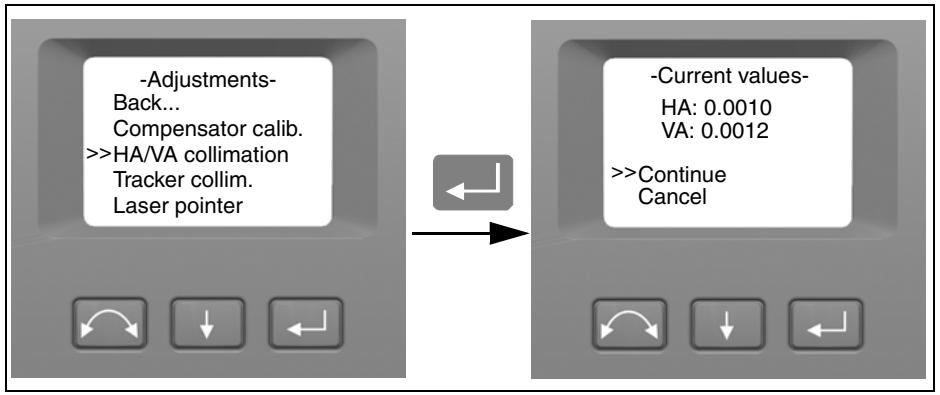
The current collimation values appear.
-
Press to scroll to one of the following:
-
Continue Then press to continue the HA/VA collimation test.
- Cancel. Then press to return to the Adjustments menu.
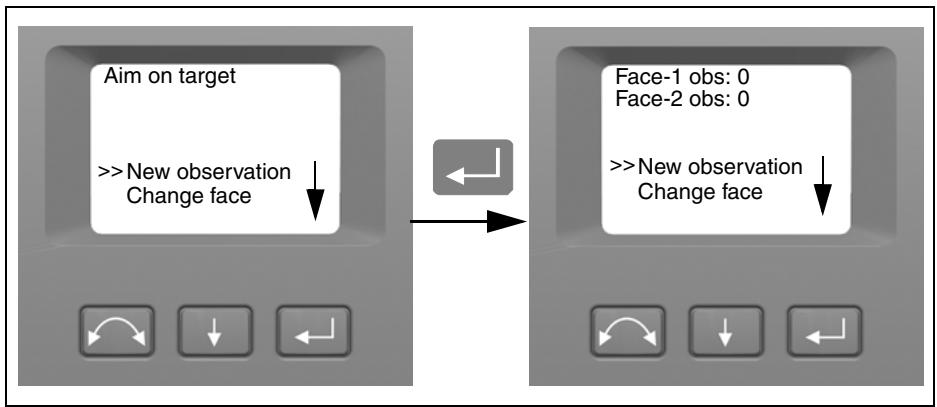
If you select Continue:
-
Press to scroll to one of the following:
-
New observation. Then press to continue the HA/VA collimation test.
-
Change face. Then press to change between face 1 and 2.
-
Cancel. Then press to return to the Adjustments menu.
If you select New observation:
a. Aim accurately in face 2 towards a point near the horizon at max. ± 5 grads ( ± 4.5 degrees) to the horizontal and at a minimum distance of 100m (328 ft.).
b. Press to scroll to New observation. Then Press to measure and record angles.
c. Re sight the instrument at the same point and press the enter key again. Repeat this process for a minimum of 5 sightings in face 2.
d. Press to scroll to Change face. Then press to change to face 1.
e. Aim accurately towards the same point as that used in face 2.
f. Press to scroll to New observation. Then Press to measure and record angles
g. Re sight the instrument at the same point and press the enter key again. Repeat this process for the same number of times as in face 2.
As observations are made on the first face (either face 1 or face 2), the angle values are stored and the counter increases. When one or more observations have been taken on each face, and the number of observations on each face are the same, the software calculates and displays the new horizontal and vertical collimation values.
- Press to scroll to one of the following:
Trunnion coll. Then press to continue to Trunnion collimation.
- Store correction. Then press to accept and store the new collimation values.
- Cancel. Then press to return to the adjustments menu.
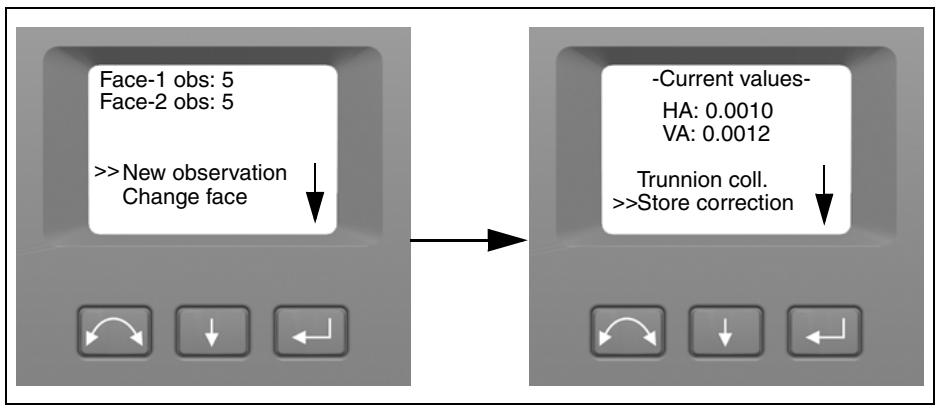
Select Trunnion coll. to continue with trunnion axis tilt collimation.
- Press to scroll to Trunnion coll. Then press to continue the Trunnion axis tilt test.
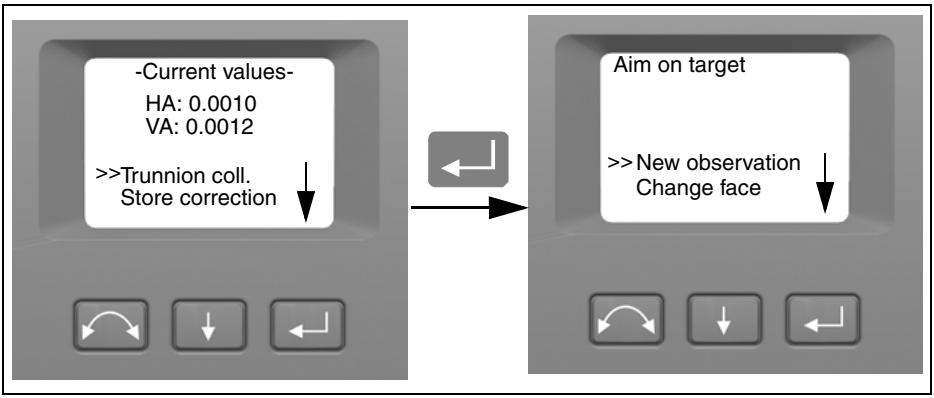
-
Press to scroll to one of the following:
-
New observation. Then press to continue the trunnion axis tilt test.
- Change face. Then press to change face.
- Cancel. Then press to return to the adjustments menu.
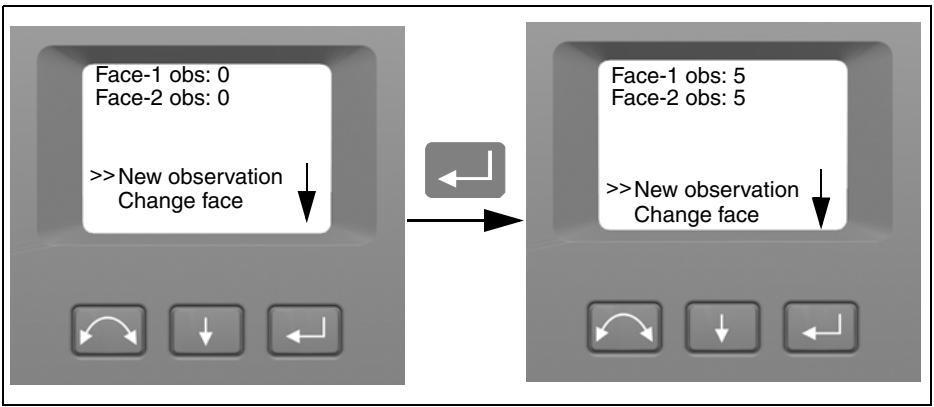
If you select New observation the number of observations in both faces appears:
a. Aim accurately in face 2 towards a point at least 15 grads (13.5 degrees) above or below the point where the collimation test was made at a minimum distance of 30m (66 ft.).
b. Press to measure and record angles.
c. Press to scroll to Change face. Then press to change face.
d. Aim accurately towards the point.
e. Press to measure and record angles.
As observations are made on the first face (either face 1 or face 2), the angle values are stored and the observation counter increases. When one or more observations has been taken on each face, and the number of observations on each face are the same, the software calculates and displays the new trunnion axis tilt value.
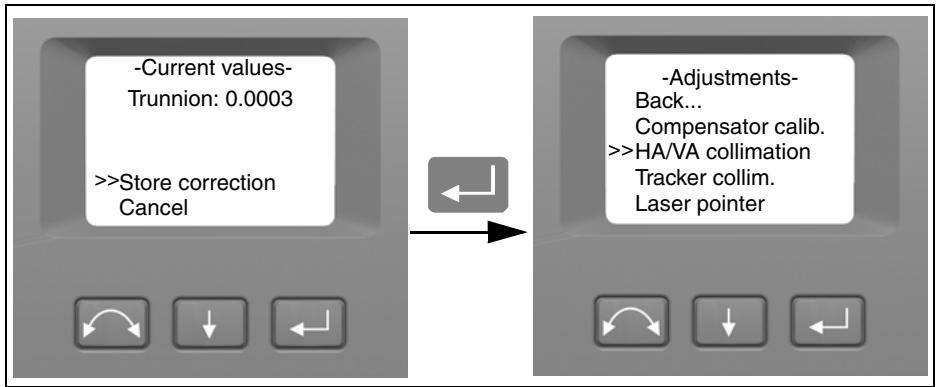
7. Press to scroll to one of the following:
- Store correction. Then press to accept the new trunnion axis tilt value. The Adjustments menu appears.
- Cancel. Then press to return to the Adjustments menu.
Note - The instrument will prohibit a trunnion axis tilt test if it is made towards a point with an angle less than 15 grades (13.5 degrees) from the point where the collimation test was made. The trunnion axis tilt determination accuracy will improve with a steeper angle towards the measured point. The minimum distance for the trunnion axis tilt measurement is 30 m (66 ft.).
Note - If the trunnion axis tilt correction value is greater than 0.05 grads (0.045 degrees), the message Fail Remeasure? appears. Press Yes and then repeat the measurement procedure. If the value is greater than 0.05 grads (0.045 degrees) and you answer No to the re measurement message, the instrument uses the correction value previously stored in the instrument. If the value is greater than 0.05 grads (0.045 degrees), then the instrument must be mechanically adjusted at the nearest authorized Trimble service center.
Autolock Collimation (Only on Instruments With Autolock Capability)
The instrument tracker unit is designed to be coaxial with the instrument cross hairs. If for any reason the alignment of the tracker deviates from the line of the telescope cross hairs, then errors in position of the point being measured would result. For this reason an Autolock collimation check needs to be carried out on a regular basis (under the same conditions as the HA/VA collimation check) to ensure that any slight misalignment is corrected for.
Perform the test over a similar distance as that you will be working on, but at least 100m . The prism target must be very still during the test (Trimble recommends that you use a tripod or bipod mount for the target) and must be in clear line of sight without any obstructing traffic. The instrument is calibrated to accurately point at the center of the target in both horizontal and vertical axes. The calibration is used to correct the positions of all points measured using the Autolock function. The measured calibration values are stored and used until a new set of calibration values are determined.
Note - The adjustment between the two optical axes, i.e. the Telescope and the Tracker, may differ. See Aiming on page 105
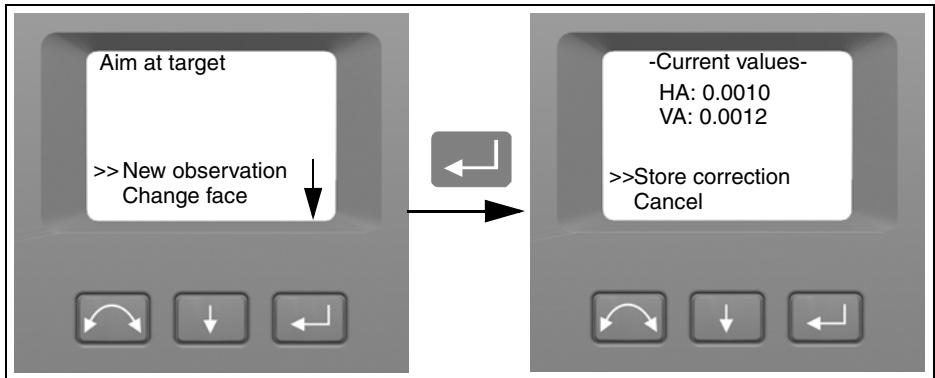
- Press to scroll to Tracker collim then press .
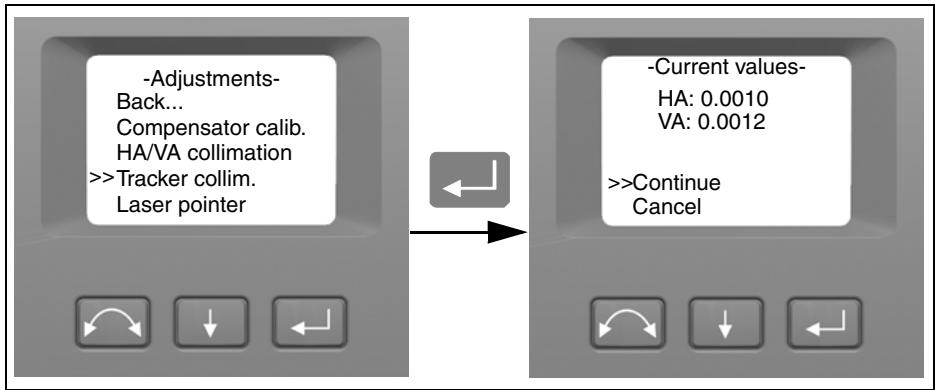
- Accurately aim towards a prism.
- Press to scroll to New observation and then press .
-
The instrument will measure to the target in both faces automatically and then display the current values.
-
Press to scroll to one of the following:
-
Store correction. Then press to save the correction values.
-
Cancel. Then press to return to the Adjustments menu
-
Once the instrument has stored the correction values, the Adjustments menu appears.
Laser Pointer
The laser pointer is a visible laser that is emitted from the telescope along the line of sight. The laser is used to visibly indicate the point being measured, and is especially useful when employing the DR reflectorless EDM for measurement. The laser pointer is clearly visible in areas of shadow, inside buildings and tunnels and also at night, however in bright sunshine it is generally not readily visible with the human eye.
The following controls allow the laser pointer to be switched On and Off.
Note: The laser pointer is mechanically aligned to the telescope cross hairs. The laser may require periodic adjustment to keep it perfectly aligned for measurement. In order to adjust the laser pointer it has to be switched On, see page 4-60
- Press to scroll to Laser pointer then press .
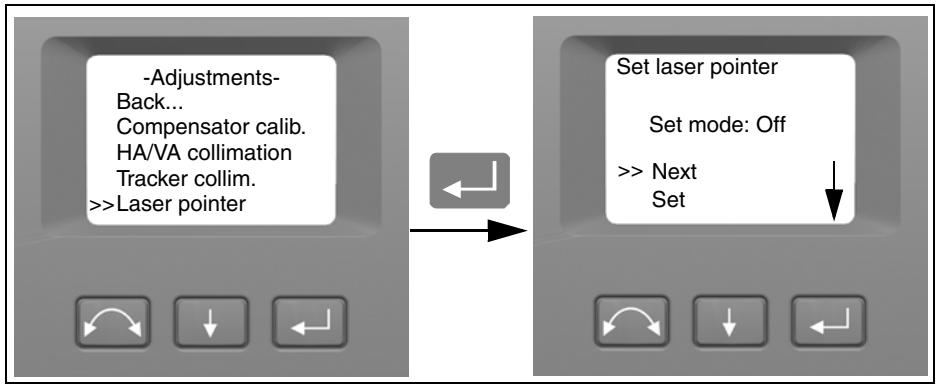
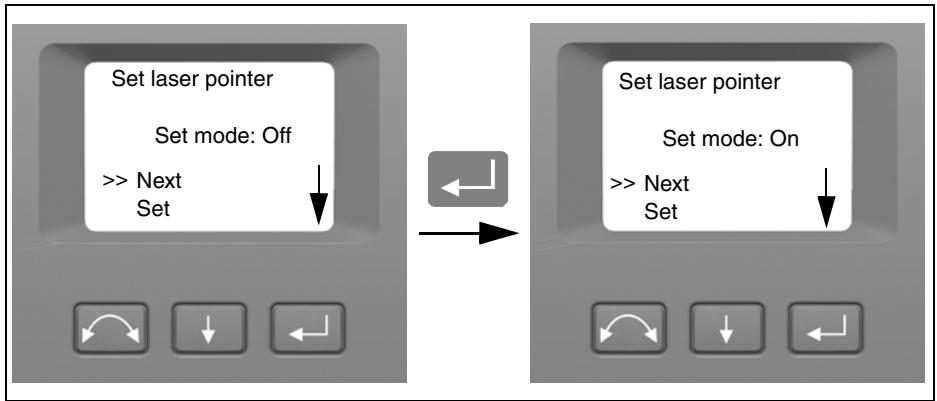
- To change the laser pointer setting press to select Next and then press to select On or Off
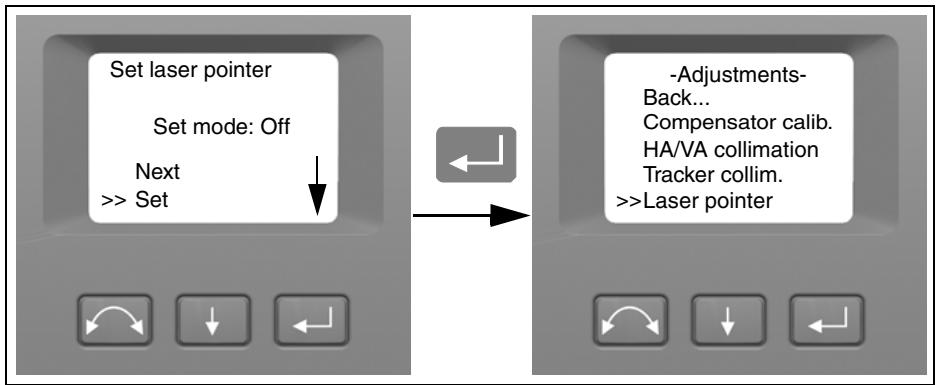
- When you have found the setting of your choice press to select Set and then press to store this setting. You will then be returned to the Adjustments menu.
- If you want to cancel Press to select Cancel and then press to return to the Adjustments menu.
With the laser pointer on, you can adjust the beam, For more information, see The Laser Pointer, page 60.
Back
- To return to the Setup menu, press to scroll to Back... and then press .
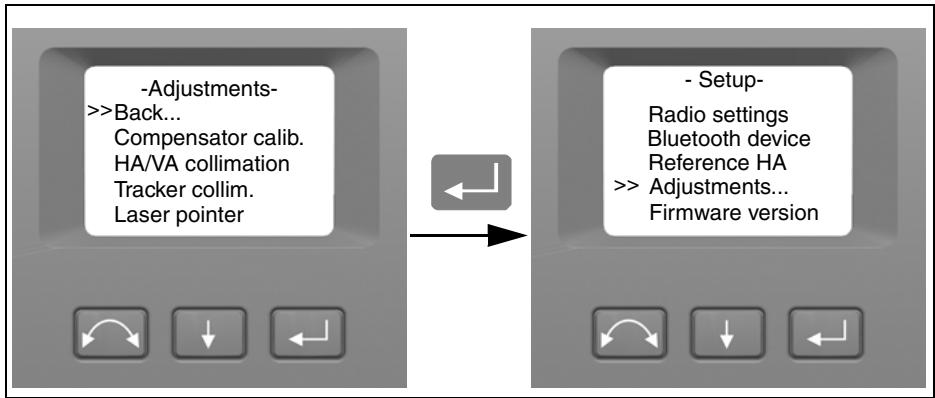
Firmware Version Information
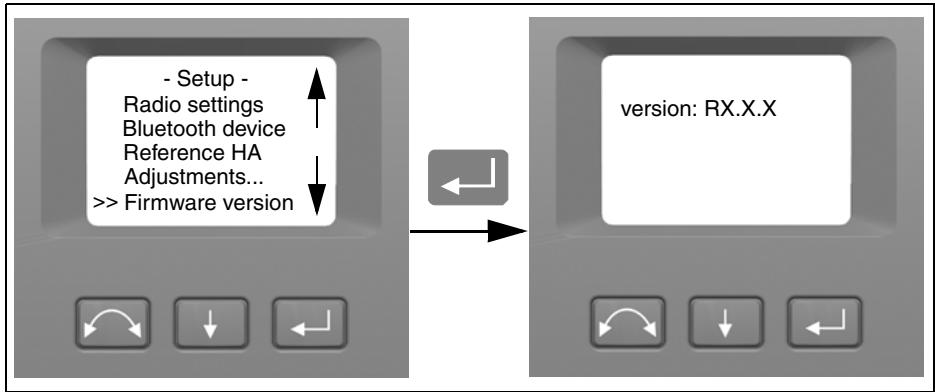
- Press to scroll to Firmware version and then press . The instrument firmware version appears on the screen. The program will return automatically to the Setup menu.
Service Info
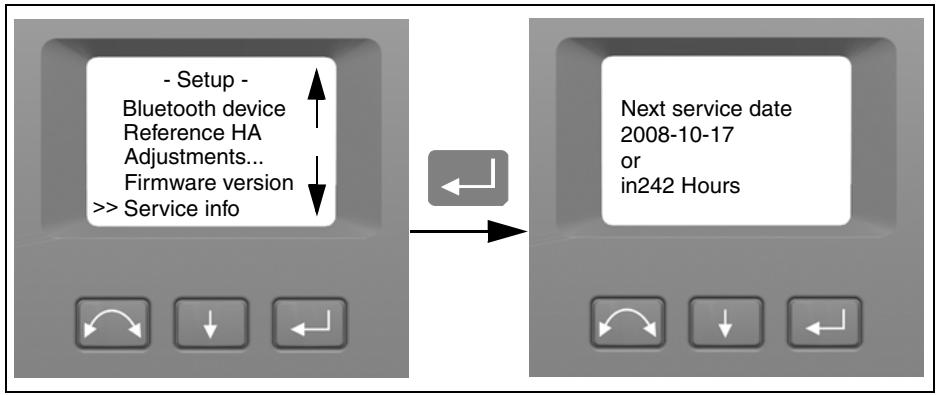
In the Service info menu it is possible to see the date for the next recommended service occasion or how many run time hours the instrument have left before service is recommended.
- Press to scroll to Service info and then press . The instrument service info appears on the screen. The program will return automatically to the Setup menu.
Select Language
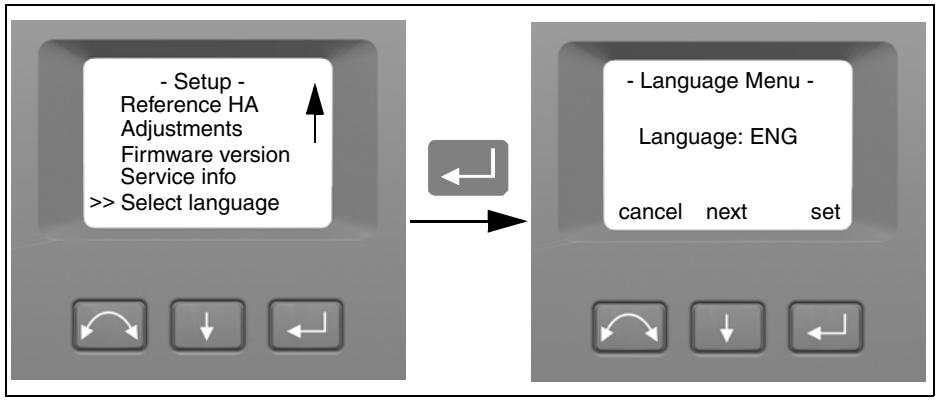
In the Select language it is possible to select the language for the Face 2 display.
- Press to scroll to Select language and then press .
- Press to scroll through the available languages.
- Press to set language.
Exit Menu
- To exit the Setup menu press to scroll to Exit (to level) and then press . The electronic level appears.
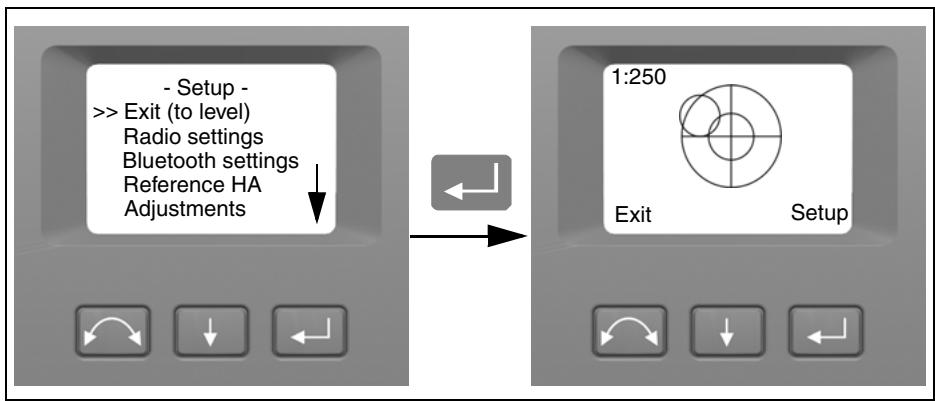
Note - If the instrument is left idle for more than 300 seconds (5 minutes) during any of the above routines, then the instrument goes to suspend mode.
The Laser Pointer
The Sseries High Precision Total Station uses a red laser beam to measure and as a laser pointer. The Trimble S Series DR PLUS Total Station uses a red laser only as a laser pointer. The laser pointer is coaxial with the line of sight of the telescope. If the instrument is well adjusted, the red laser pointer coincides with the line of sight. External influences such as shock or large temperature fluctuations can displace the red laser pointer relative to the line of sight.
Aligning the Laser Pointer

Caution - Viewing the laser spot on the adjustment target through the telescope is safe. Do not try to make the adjustment using a prism, the reflected light from a prism can be dazing.

Caution - Do not use the laser pointer as an aid when searching for prisms, the reflected light can daze your eyes. The reflected light will not damage your eyes, but might be uncomfortable.
To avoid faulty measurements using the laser pointer, use the supplied adjustment target to check the laser alignment regularly and before you attempt precise distance measurements:
- Setup the adjustment target 25-50 meter away, facing the instrument.
- Aim the instrument to the center of the target plate and then inspect the position of the red laser spot in relation to the telescope cross-hairs.
- If the red laser spot lies outside the cross-hairs, adjust the direction of the beam until it matches the cross-hairs, see Figure 4.31 or see Figure 4.32
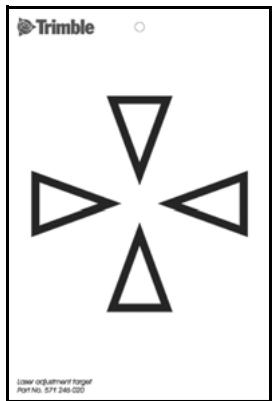
Figure 4.31 Adjustment target for DR PLUS

Figure 4.32 Adjustment target with reflective foil for High Precision
Adjusting the Laser Beam
- Pull out the two plugs from the adjustment ports on top of the telescope housing.
Figure 4.33
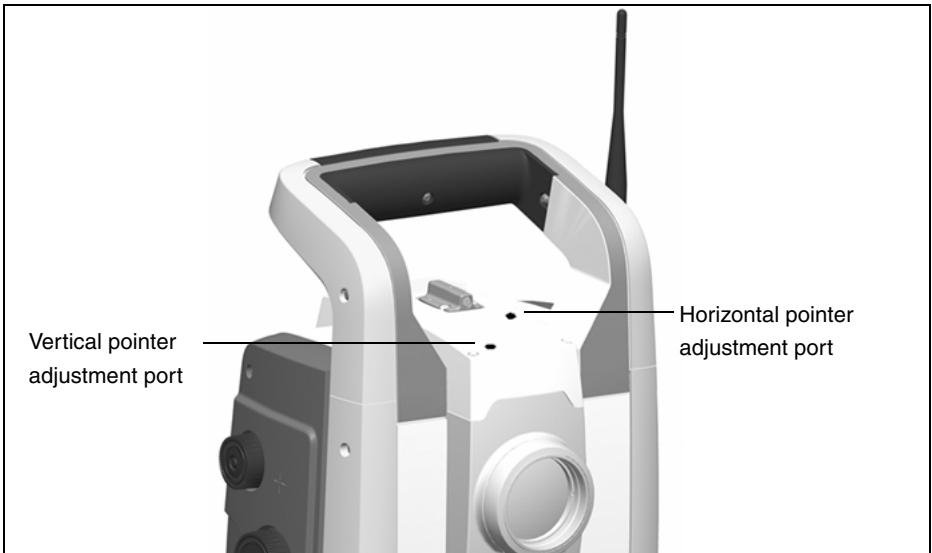
Figure 4.33 Laser pointer adjustment ports
- To correct the vertical position of the laser spot, insert the allen key into the vertical adjustment port and turn it as shown in figure 4.34.
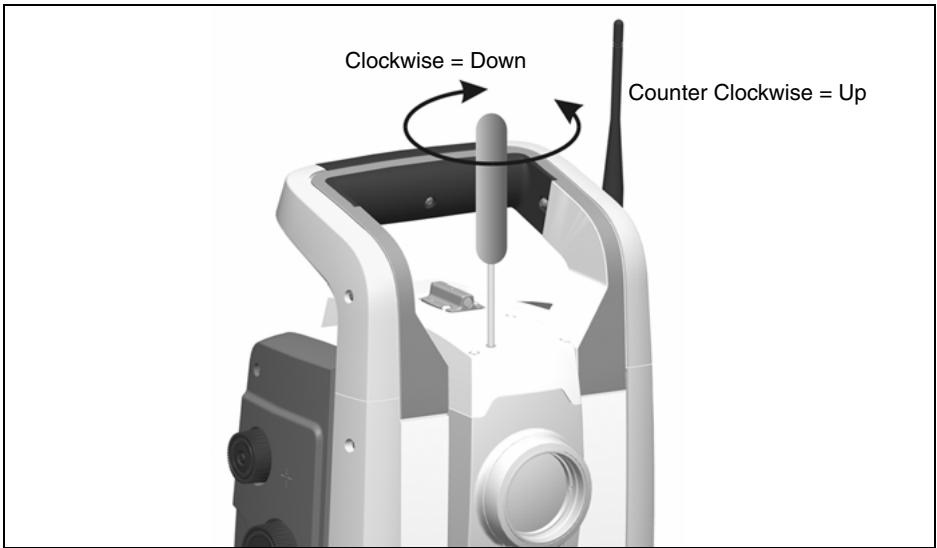
Figure 4.34 Vertical position adjustment
- To correct the horizontal position of the laser spot, insert the allen key into the horizontal adjustment port and turn it as shown in Figure 4.35.
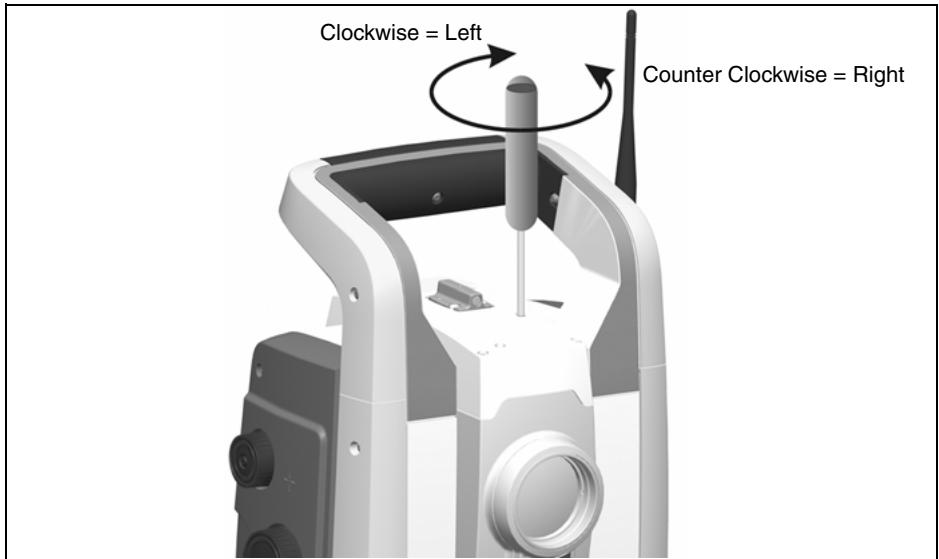
Figure 4.35 Horizontal position adjustment
- Check the alignment of the laser spot and the cross-hairs. Throughout the adjustment procedure, keep the telescope pointing to the adjustment target. The adjusting screws are of a high tension because they are self locking. The screws tighten automatically after you adjust them.
- Refit the plugs in the adjustment holes. Make sure that the plugs are correctly fitted for proper sealing against the cover.

Caution - To keep out moisture and dust, make sure that the plugs are correctly fitted in the adjustment ports.
Measuring the Instrument Height
There are two measurement marks on the side of the instrument. The top mark corresponds to the trunnion axis of the instrument. The bottom mark is 0.158m (0.518 ft.) below the top mark. Measure the bottom mark to the top ridge of the mark. Figure 4.36
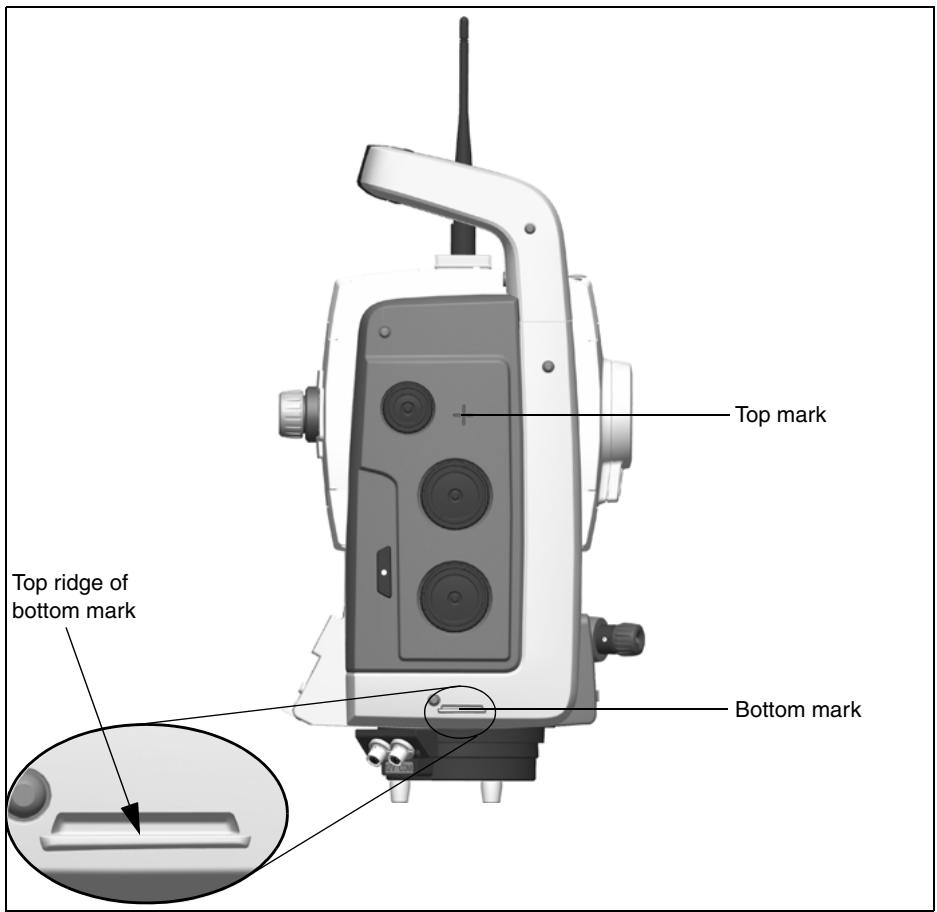
Figure 4.36 Instrument height marks
When there is a Trimble CU or TSC2 attached running a field application software, the software has additional functions that reduce the bottom mark measurement to the required vertical instrument height to the trunnion axis, see Figure 4.37 and the following paragraph.
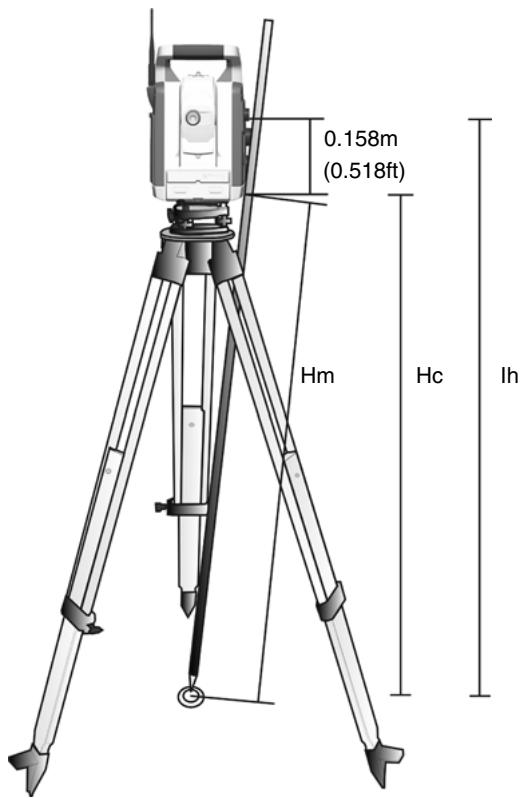
Figure 4.37 Instrument height measurement
The measured distance (Hm) is corrected for the slope of the measurement to obtain a vertical measurement to the bottom mark (Hc). The constant from the bottom mark to the top mark (0.158m / 0.518ft.) is added to the Hc to obtain the vertical instrument height from the ground mark to the trunnion axis (Ih). For more information, refer to the field software documentation.
Alternatively, to obtain an accurate measurement to the top mark (Ih), you can manually measure the slope distance from the ground to the bottom mark (Hm). To calculate the total instrument height (Ih), insert the measured slope distance (Hm) into the formula below:
$$ \mathrm {I h} = 0, 1 5 8 + \sqrt {\mathrm {H m} ^ {2} - 0 , 0 9 1 ^ {2}} $$
Adjusting the Optical Plummet
- Set up the instrument and level it over a ground mark so that the tripod height is 1.5 m ( ± 0.1 m ) (4.920 ft. ( ± 0.328 ft. )). Figure 4.38
- Note the position of the inner circle of the optical plummet in relation to the ground mark.
- Turn the instrument 200 grads (180 degrees).
- Note the position of the inner circle of the optical plummet in relation to the ground mark. If the inner circle of the optical plummet reticule moves in relation to the ground mark, you must adjust the plummet reticule location.
- Adjust out half of the error with the four adjustments screws on the optical plummet.
- Turn the instrument 200 grads (180 degrees).
- If there is no movement between the inner circle of the optical plummet reticle in relation to the ground mark, no further adjustment is needed.

Caution - When adjusting the optical plummet with the four adjustment screws it is important that the screws are correctly adjusted. When one screw is adjusted the opposite screw must be adjusted equally in the reverse direction, in order to keep the correct tension on the optics. Do not overtighten the screws, this might damage the optics.
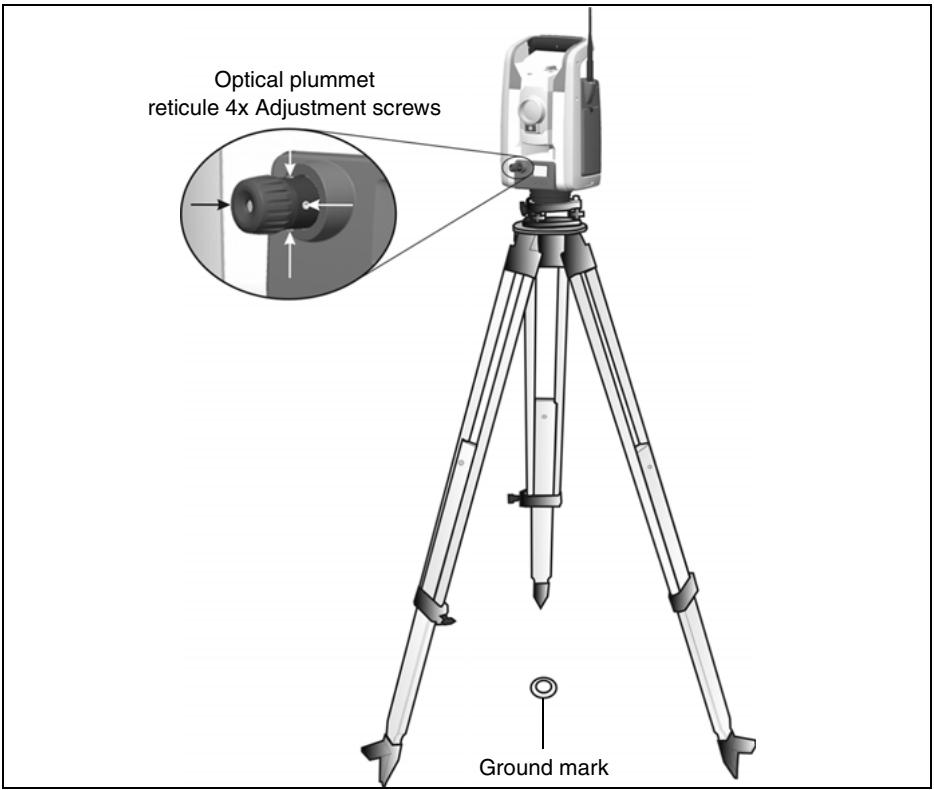
Figure 4.38 Optical plummet adjustment
Pre Measurement Check List
Before you begin measurement or stake out operations, check the following items:
- Lenses are clean
- Instrument is correctly leveled
- Collimation error
- Tracker collimation error (if the instrument is equipped with Autolock capability)
- Trunnion axis tilt
- Correct radio channel is selected (robotic measurements only)
- Laser Pointer beam alignment
Measure instrument height - Allow sufficient time for the instrument to adjust to the ambient temperature, see page 36
Attaching the Trimble CU
- Hook the top of the Trimble CU over the top edge of the panel attachment, Figure 4.39
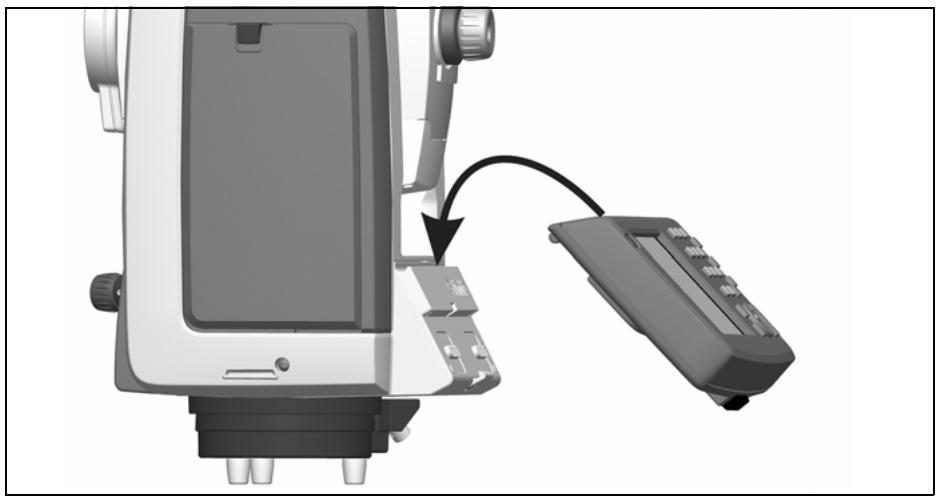
Figure 4.39 Attaching the Trimble CU to the instrument
- Push the bottom of the Trimble CU toward the panel attachment until it clicks into place, Figure 4.40
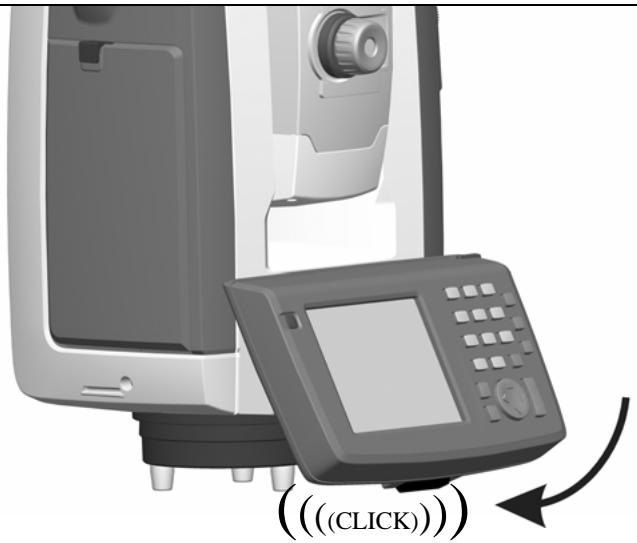
Figure 4.40 Attaching the Trimble CU
Detaching the Trimble CU
Caution - When the Trimble CU is removed from the instrument it is recommended to have the Trimble CU in suspend or off mode.
To remove the Trimble CU from the instrument when in on mode will not damage the equipment, but files that are being saved or written to when the Trimble CU is being removed might be damaged or lost.
- Push the lock release button on the bottom of the Trimble CU, Figure 4.41 (1)
- Lift the bottom of the Trimble CU away from the instrument, Figure 4.41 (2)

Figure 4.41 Detaching the Trimble CU
- Unhook the top of the Trimble CU from the top edge of the panel attachment and remove the Trimble CU from the instrument, Figure 4.42
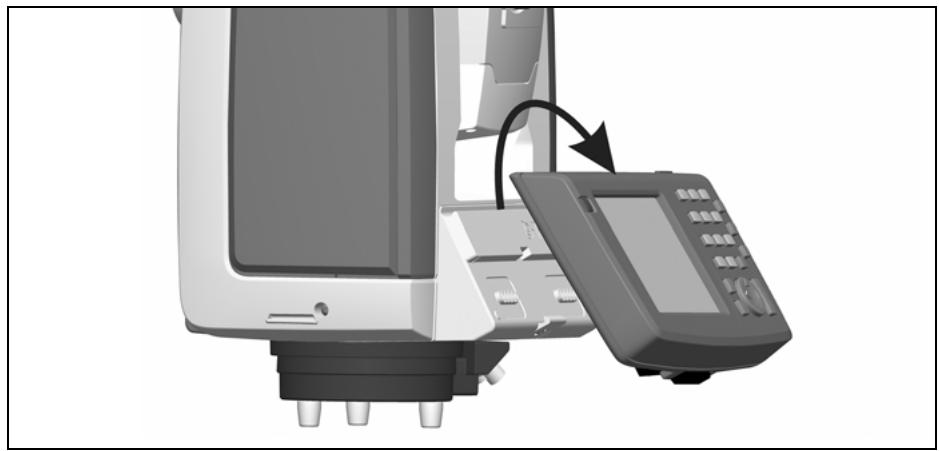
Figure 4.42 Detaching the Trimble CU
Connecting a TSC2
The TSC2 can be used as a controller for the Trimble S Series Total Station instrument.
Servo and Autolock Mode
A TSC2 controller can be connected to the Trimble S Series Total Station instrument with a cable or by use of the Bluetooth® wireless technology.
Connecting With Cable
The TSC2 is connected from the Trimble S Series Total Station com port to the USB connector on the TSC2 using cable part number 73840001.
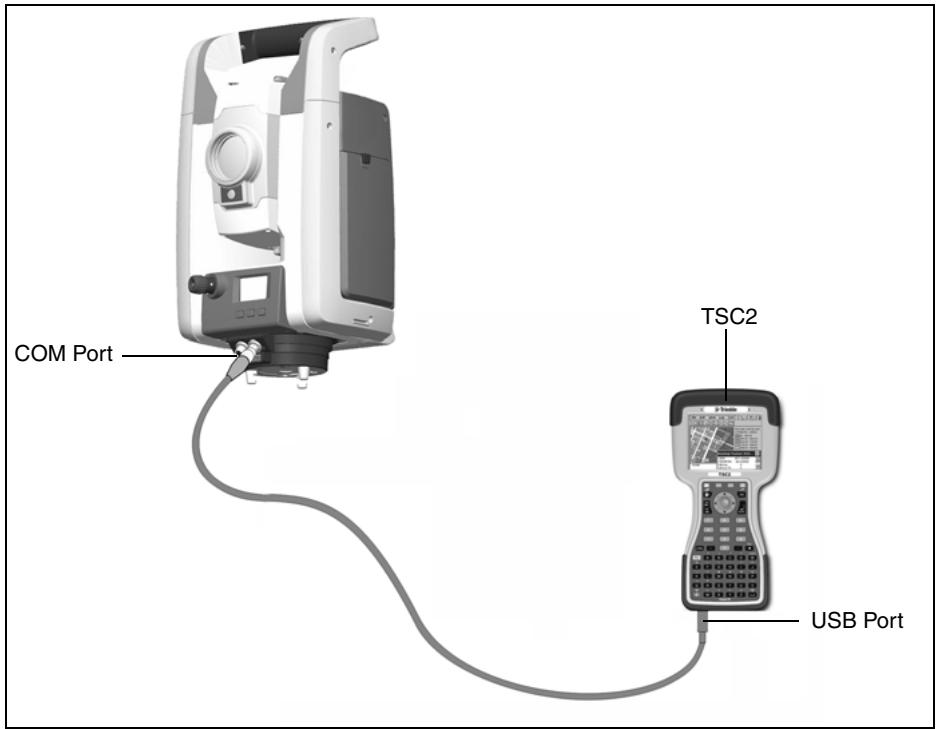
Figure 4.43 TSCe and TSC2 connected to the Trimble S Series Total Station with cable for servo and Autolock measurements.
Connecting With Bluetooth® Wireless Technology

Caution - Before starting the Bluetooth device, make sure that the regulations of the country that you are working in allows the use of Bluetooth wireless technology.
The TSC2 has integrated Bluetooth wireless technology.
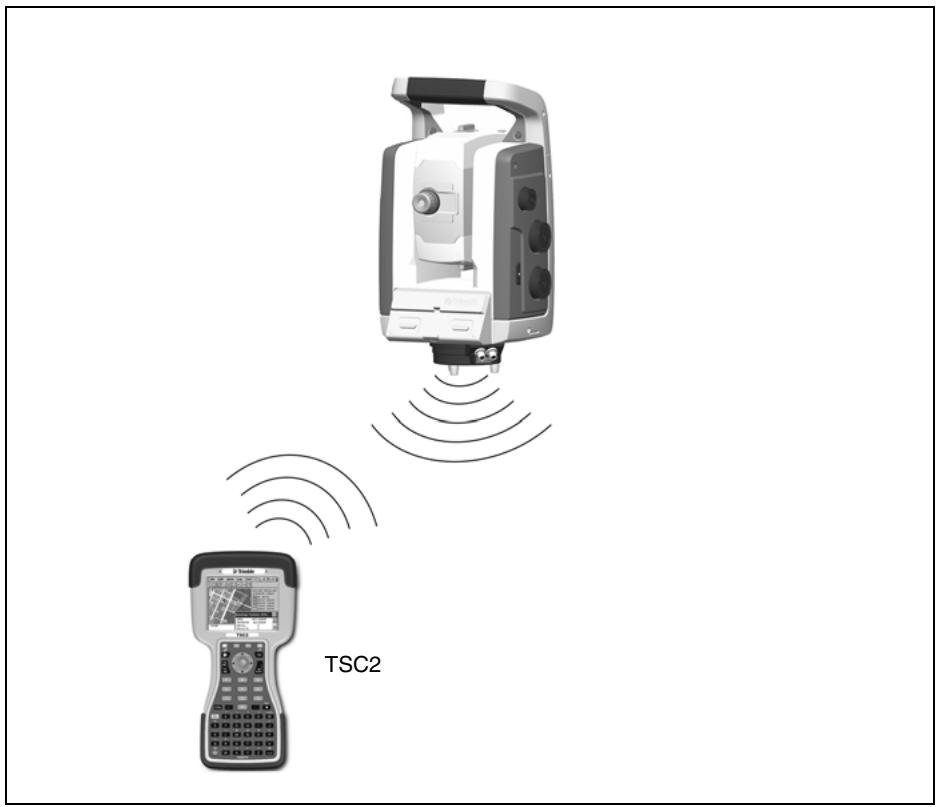
Figure 4.44 TSC2 connected to the Trimble S Series Total Station with Bluetooth wireless technology for servo and Autolock measurements.
Robotic Mode
The TSC2 is connected directly to the instrument via the integrated radio.
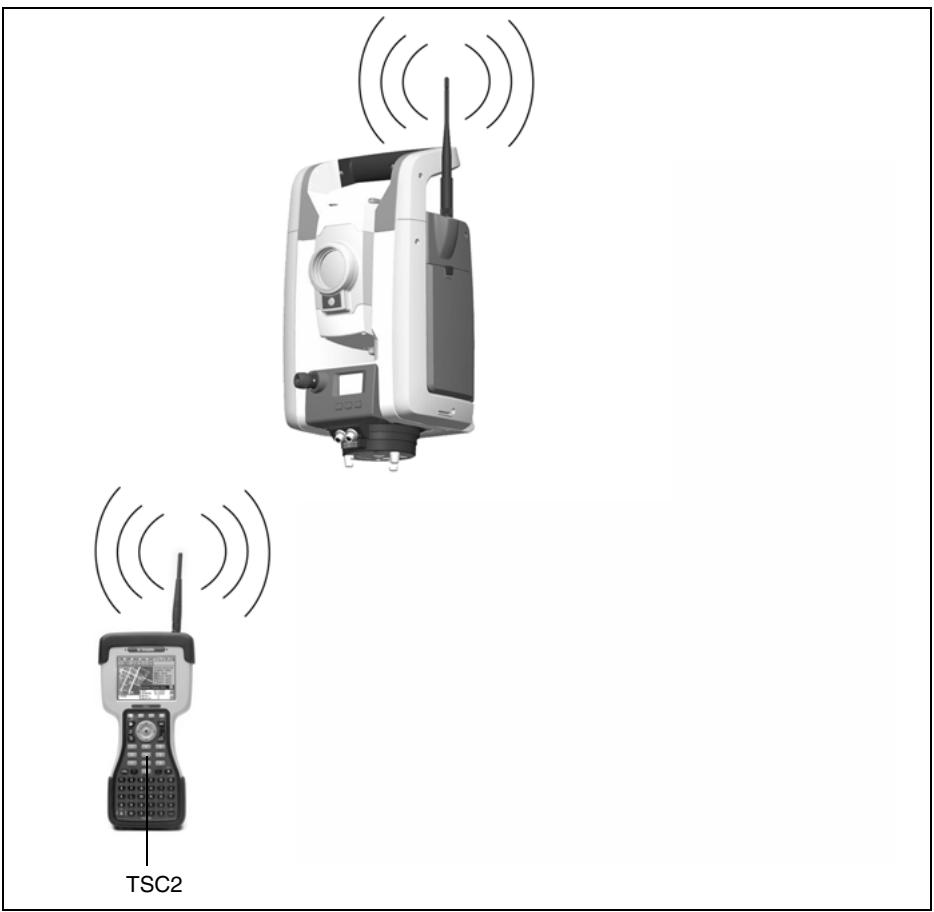
Figure 4.45 TSC2 connected to the S Series Total Station using the integrated radio for robotic measurements.
Lifting the Instrument
To lift the instrument, hold it as shown in Figure 4.46.
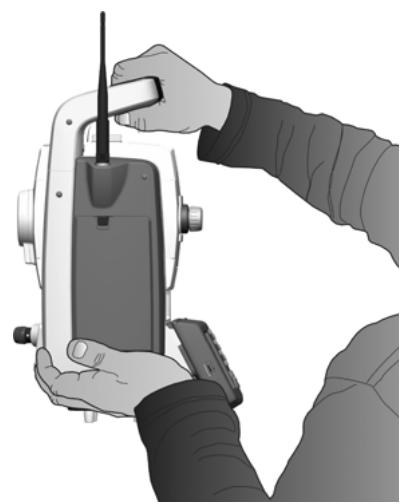
Figure 4.46 Correct way to lift the instrument
Do not hold the Trimble CU as you lift the instrument or you may accidentally push the lock release button, causing the Trimble CU to fall off the instrument, Figure 4.47
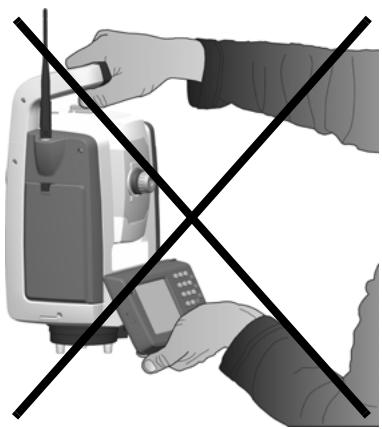
Figure 4.47 Wrong way to lift the instrument
Instrument Operation Methods
In this chapter:
Introduction
Conventional Measurement with Servo
Autolock Measurement
Robotic Measurement
Introduction
This chapter describes the following instrument operational methods for the Trimble S Series Total Station:
- Conventional measurement with servo
- Autolock measurement
- Robotic measurement
Conventional Measurement with Servo
The Trimble S Series Total Station is equipped with the servo system, which provides the following advantages for conventional measurement:
-
When combined with the Application software:
-
When setting/staking out, the instrument calculates and automatically aims towards the calculated position of the selected point.
-
The instrument will automatically point towards a selected reference target to check for instrument movement during measurements.
-
Surepoint™ technology corrects the instrument pointing for mislevelment and collimation / trunnion axis tilt errors in real time.
- Surepoint™ technology restores the instruments pointing after accidental bumps, vibration or wind.
- The servo drives are continuous and endless allowing for rapid repeat manual pointing of the instrument with no end stops.
Note - To obtain the correct point location with the instrument, you must aim correctly to the target.
Autolock Measurement
Combining the servo capability with the Autolock tracker provides the ability to carry out Autolock measurements. Autolock enables the instrument to automatically lock on to a prism, and then follow it precisely as it moves. This means that the instrument is taking care of the pointing, and that position can be continuously updated as the target moves around the jobsite. Autolock is especially useful for carrying out rapid site topo measurements and during stakeout using a conventional two person crew. It is also exceptionally useful for working in poor visibility and darkness conditions, and for automatically checking to reference targets during measurements.
Robotic Measurement
Combining the servo, tracker and radio capability enables the instrument to carry out measurements robotically. This enables a single operator to control the instrument and carry out measurements or set/stakeout from the rod at the point.
Instrument Technology
In this chapter:
Angle Measuring Technology
Distance Measuring Technology
Tracklight
Servo Technology
Power Management
Power Supply
External Communication
Angle Measuring Technology
The principles of angle measurement are based on reading an integrated signal over two opposite areas of the angle sensor and producing a mean angular value. This eliminates inaccuracies caused by eccentricity and graduation.
In addition, the angle measurement system compensates for the following automatic corrections:
- Instrument mislevelment (deviation of the plumb axis).
Horizontal and vertical collimation error.
Trunnion axis tilt. See page 84
Correction for Mislevelment
The Trimble S Series Total Station automatically corrects for mislevelments up to ± 6 . The instrument warns the operator immediately of any mislevelments in excess of ± 6 ( ± 0.11 grads).
The Trimble S Series Total Station also utilizes Surepoint™ to automatically correct the pointing of the telescope for all mislevelment and trunnion axis errors in real time during operation.
Corrections for the horizontal angle, vertical angle, and slope distance are calculated in the field application software and applied to all measurements.
Correction for Collimation Errors
The horizontal collimation error is the deviation of the sighting axis from its required position at right angles to trunnion axis.
The vertical collimation error is the difference between the vertical circle zero and the plumb axis of the instrument.
Traditionally, collimation errors were eliminated by observing angles in both instrument faces. In the Trimble S Series Total Station, a pre-measurement collimation test is performed to determine the collimation errors. Angular measurements are observed in both instrument faces, the collimation errors are calculated, and the respective correction values are stored in the instrument. The collimation correction values are then applied to all subsequent angle measurements. Angles observed in a single face are corrected for collimation errors, which eliminates the need to measure in both instrument faces.
Carry out a collimation test in the following situations:
- Whenever the instrument may have been roughly handled during transport.
- When the ambient temperature differs by more than 10^ ( 18^ ) from the previous collimation test.
- Immediately prior to high precision angle measurements in one face.
Trimble S Series Total Station With Autolock
A Trimble S Series Total Station with Autolock can automatically lock and track a prism target. Pointing errors caused by slight misalignment of the instruments tracker have a similar effect to the HA and VA Collimation errors detailed above.
To correct for the tracker collimation errors, carry out an Autolock collimation test. The Autolock collimation test automatically observes angular measurements to a target in both faces, the tracker collimation errors are calculated and the respective correction values are stored in the instrument. The Autolock collimation correction values are then applied to all subsequent angle measurements observed when Autolock is enabled. Angles observed in a single face are corrected for collimation errors, which removes the need to measure in both instrument faces.
Carry out an Autolock collimation test in the following situations:
- Whenever the instrument may have been roughly handled during transport.
- When the ambient temperature differs by more than 10^ ( 18^ ) from the previous collimation test.
- Immediately prior to high precision angle measurements using Autolock in a single face.
Correction for Trunnion Axis Tilt
The trunnion axis tilt error is the deviation of the trunnion axis of the telescope from its required position at right angles to the plumb axis of the instrument. See figure 6.48
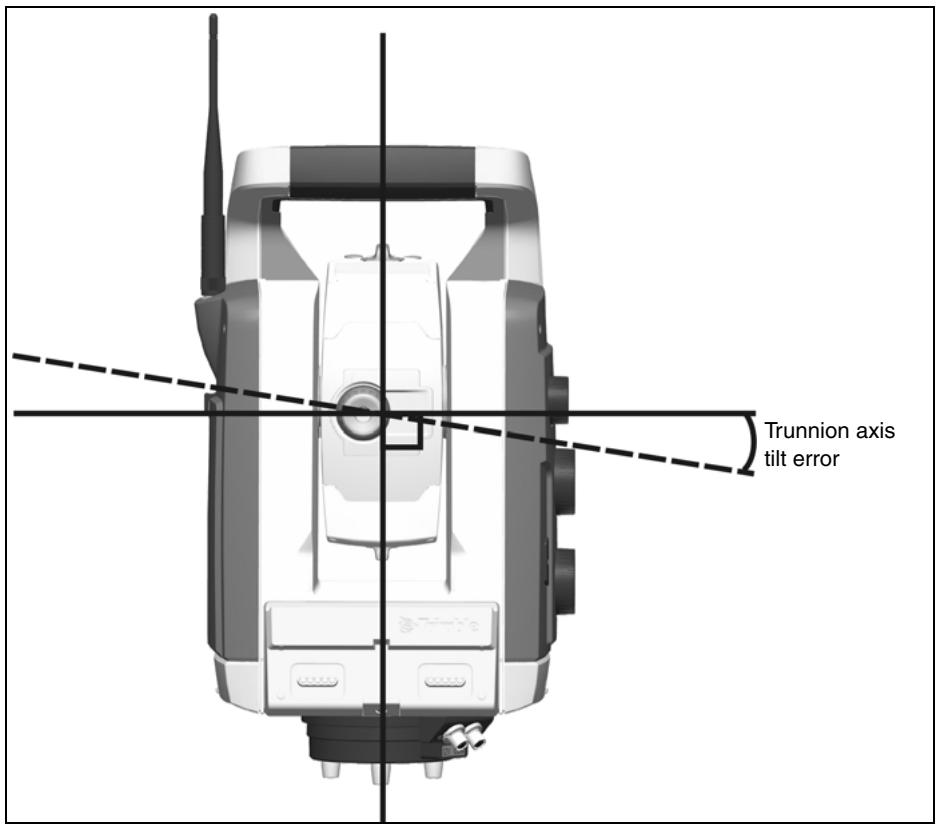
Figure 6.48 Trunnion axis tilt error
In the Trimble S Series Total Station instrument, perform a pre-measurement trunnion axis tilt test to determine the trunnion axis tilt error. Angular measurements are observed in both instrument faces, the trunnion axis tilt error is calculated, and the respective correction value is stored in the instrument. The trunnion axis tilt correction value is then applied to a correction to the horizontal angle value and an automatic repointing of the telescope using Surepoint™ technology.
Carry out a trunnion axis tilt test in the following situations:
- Whenever the instrument may have been roughly handled during transport.
-
When the ambient temperature differs by more than 10^ ( 18^ ) from the previous collimation test.
-
Immediately prior to high precision angle measurements in one face, especially where the vertical angles significantly deviate from the horizontal plane.
Averaging Measurements to Reduce Sighting Errors
The Trimble S Series Total Station instrument automatically reduces sighting errors caused by the misalignment of the instrument to the target or by pole movement during measurement. The following techniques can be used:
- Use Autolock. When Autolock is enabled, the instrument automatically locks onto and tracks the target. Manual sighting errors are reduced.
- Automatically average angles during distance measurement. When measuring in Standard mode, the instrument takes approximately 1.2 seconds to measure the distance. Angles returned to the instrument at 1000Hz , are averaged over the 1.2-second period to obtain an averaged angle measurement. The resultant angle measurement is an average of over 1200 observations.
- Use average measurement methods in the field software.
Distance Measuring Technology
Trimble S Series Total Station instruments are equipped with a combined distance unit. This means that the instrument can measure to a prism or to normal surfaces (direct reflex (DR) mode). The instrument is available with a High Precision distance unit or a DR PLUS distance unit. The following sections describe the two systems.
High Precision
The High Precision is a laser distance unit based on the phase comparison method. The distance unit is coaxial with the line of sight and transmits an intensity modulated optical measuring beam that is reflected by a prism or scattered by a natural surface on which the beam is directed. The phase difference between the transmitted light and the reflected received light is detected and represents the distance.
In prism-mode, the High Precision unit operates as a fast and precise long-range distance meter. In DR-mode, the High Precision unit transmits a collimated visible red laser beam to the target point and then calculates the distance between the transmitted and the received light.
The DR Standard distance unit software will detect erroneous single distance measurements such as those caused by an obstruction passing through the measurement beam, and will ignore such readings in the computation of the final distance.
DR PLUS
The DR PLUS is a pulsed laser distance unit that determines distances by precisely measuring the flight time of the transmitted light pulse. The distance unit generates many short laser pulses, which are transmitted through the telescope to the target. The pulses reflect off the target surface and return to the instrument where the unit determines the time difference between the transmitted pulses and the received pulses. The unit uses the time difference to calculate the distance to the target.
The DR PLUS distance unit includes additional functions that allow you to control the accuracy and precision of a DR measurement through the field application software.
field application software includes:
- Standard Deviation. This allows you to configure the required precision of the DR measurement before the distance will be accepted. The distance measurement process will be carried out by the instrument until the preset standard deviation value has been achieved. The default standard deviation value is 0.003m . Setting this value to a higher number gives shorter measurement time but is less accurate, especially when measuring to surfaces at greater distances or at oblique angles to the line of sight.
-
Weak Signal. This allows you to accept a DR measurement that is below the normal instrument specification. This is useful when measuring to poor reflective surfaces, or when trying to achieve the maximum range of the instrument.
-
Min.-Max Range. This allows you to specify the DR measurement interval. For example, when you measure to a small object at 50m with a background object at 200m , set the min.-max range from 2m to 100m . The distance meter is then tuned to provide a distance within the specified range and to ignore any signal from outside the defined range. By default, the min.-max range is 2 - 300m .
Beam Divergence
All distance meter measurement beams diverge as the range from the instrument increases. The divergence of the distance meter beam relates to an increase in the size of the area being sampled, not to a degradation of the measurement precision. See figure 6.49
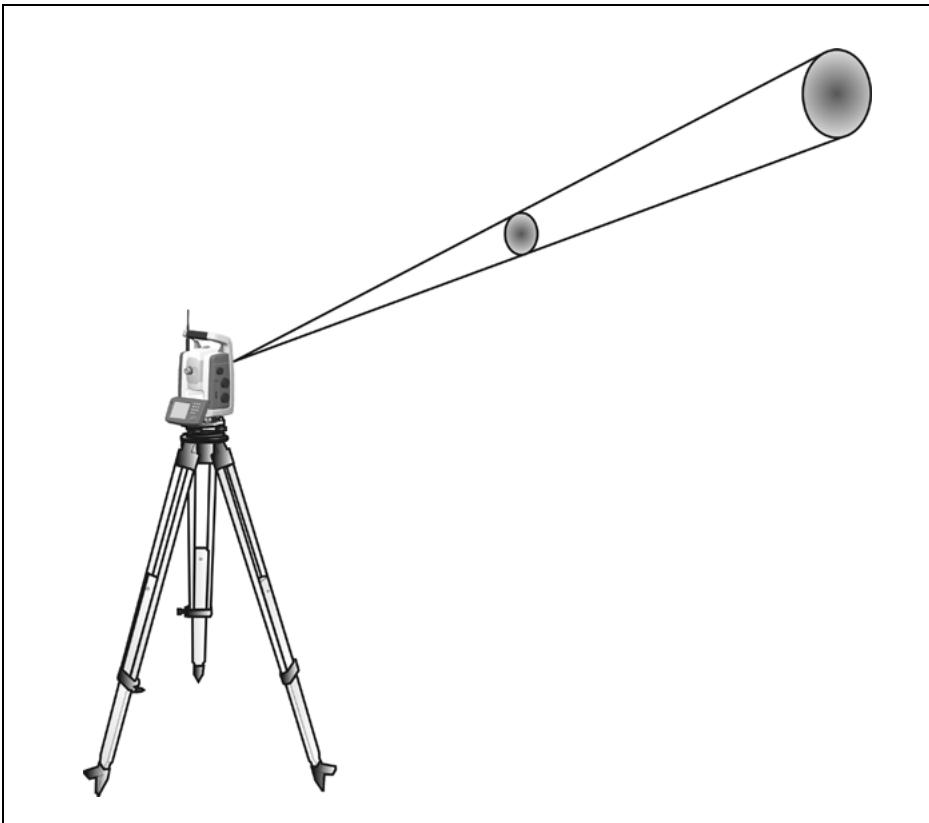
Figure 6.49 Beam divergence
A larger measuring area at longer range is generally better because it enables smaller objects, such as power lines and antennas, to be detected and accurately measured. With a smaller measuring area, these small objects can be easily missed. A smaller measuring area has advantages when measuring tight corners and vertices at close range. When observing measurements to a tight corner, the distance meter beam divergence introduces a range error caused by the size of the sampling area. See figure 6.50
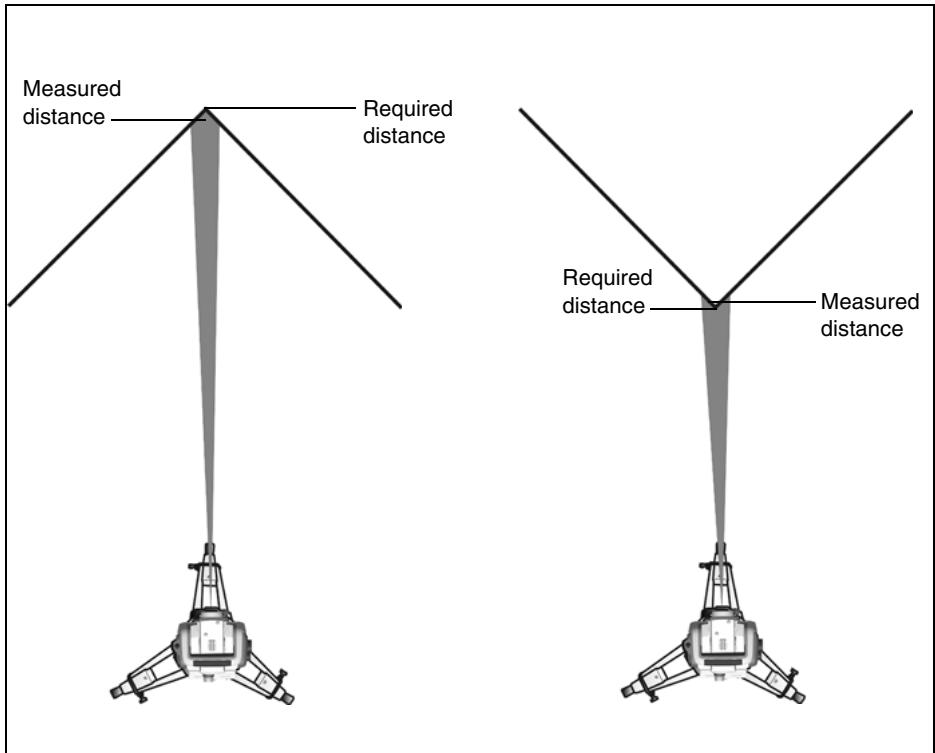
Figure 6.50 Measuring to an inner and an outer corner
Although the problem is reduced with a beam that uses a smaller measuring area, the error can not be completely eliminated. The most accurate solution to measure to tight corners and eliminates errors caused by beam divergence, is to use an offset measurement method such as that used in the field application software:
- Measure two points on the face of the building.
- Aim the instrument at the corner to store the correct horizontal and vertical angle. See figure 6.51
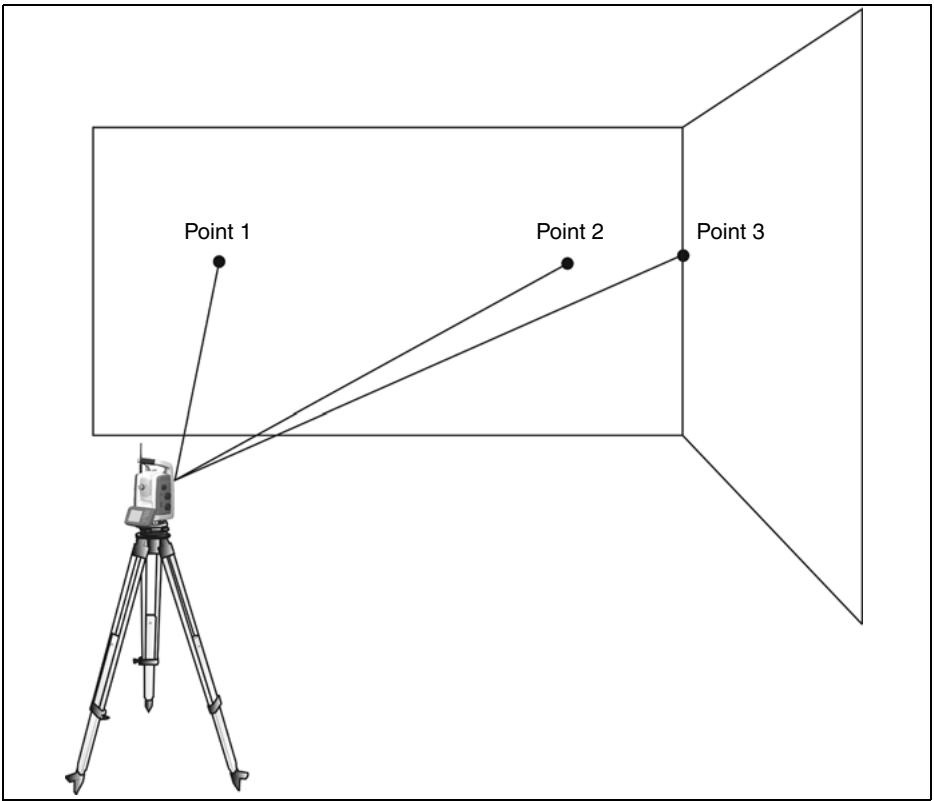
Figure 6.51 Offset measurement
With offset measurements, you can accurately measure difficult locations with DR instruments, and eliminate beam divergence errors. For more information, refer to the field application software documentation.
Tracklight
Tracklight® is a visible guide light that enables the rod holder to position themselves into the instruments current line of sight. The Tracklight can be used during stakeout in all operational modes, and is also of great benefit when operating in robotic mode as a means of checking that the instrument is tracking, or when trying to reacquire lock by walking into the sight line of the tracker, or using the remote joystick control in robotic mode. Tracklight consists of a flashing two-colored light, with each color lying in its own lateral projection sector. If the rod holder is to the left of the measuring beam, they will see a red flashing light; if they are to the right, they will see a green flashing light. See figure 6.52
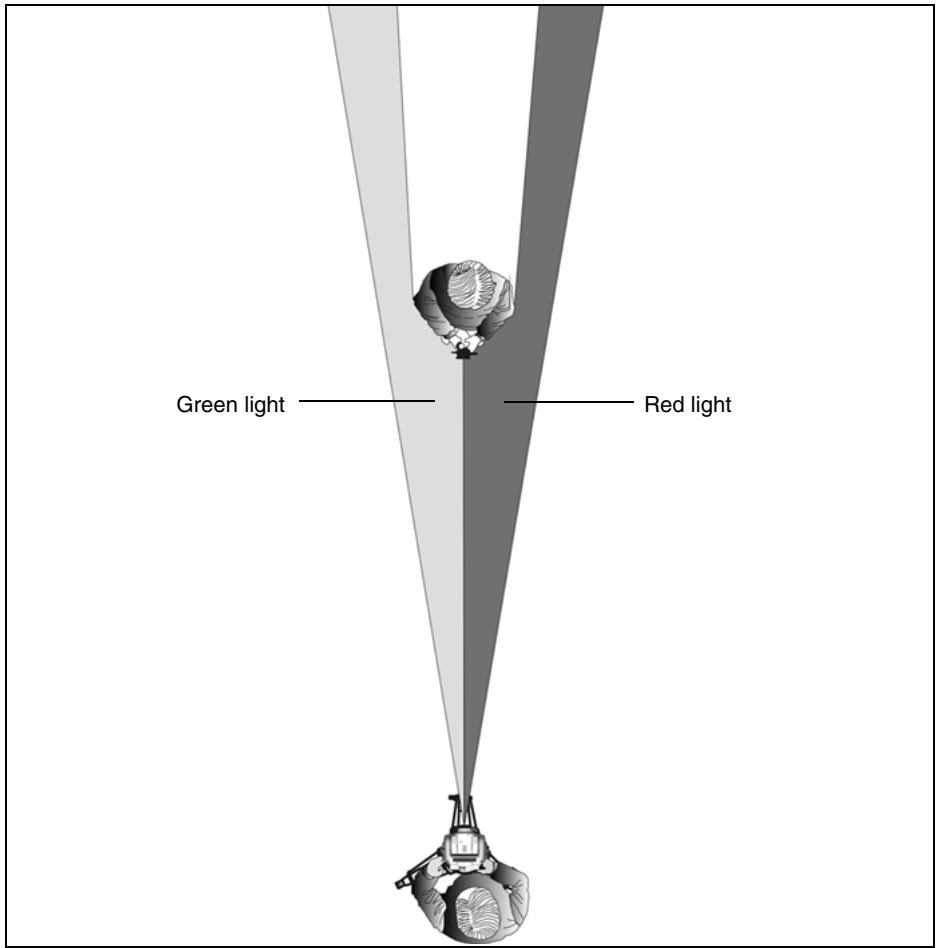
Figure 6.52 Tracklight

Tip - You can use the Tracklight for clearing sight lines and as an aid to find prisms in the dark or unfavorable sighting conditions.

Caution - Do not use the laser pointer as an aid when searching for prisms, the reflected light can dazzle your eyes. The reflected light will not damage your eyes, but might be uncomfortable.
Servo Technology
The Trimble S Series Total Station is equipped with servo controlled motors to position the instrument and focus the telescope.
Due to the high speed position servo and the SurePoint® technology used in the Trimble S Series Total Station it is important to use a high quality tripod and tribrach. It is also important to set up the tripod in a position for best stability, see figure Figure 6.53. If the setup, tripod and/or tribrach is/are unstable the instrument servos might oscillate slightly in an effort to compensate for that instability. An unstable setup that could negatively influence the resulting measurement precision. See Setup on page 36
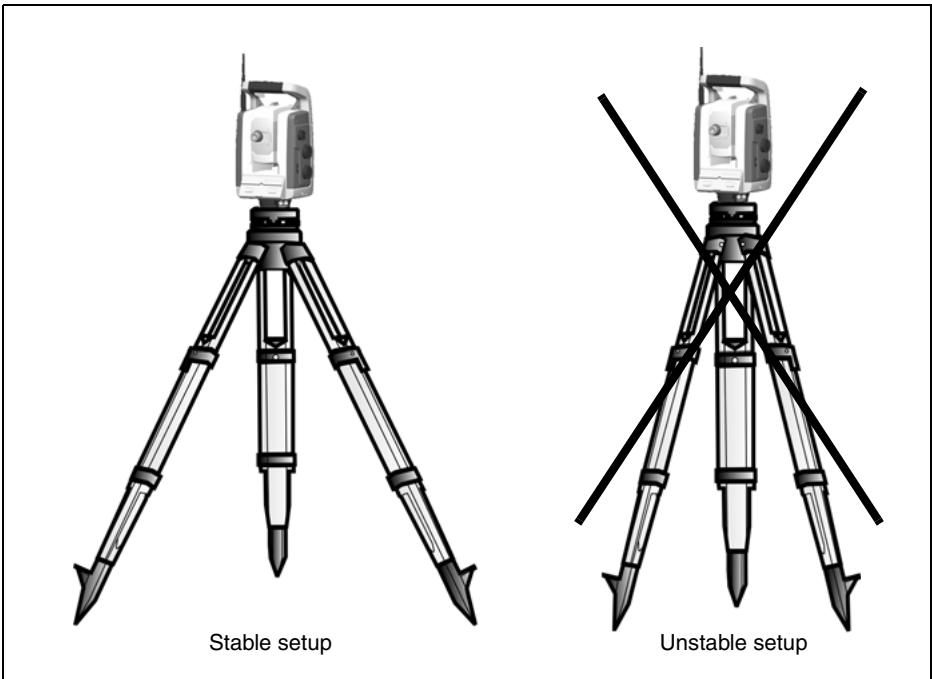
Figure 6.53 Tripod setup
Position Servo
The servo system is an electromagnetic Magdrive™, direct drive system, which gives high turning speeds and accuracy. The frictionless motion removes servo noise and reduces instrument wear. The system provides endless horizontal and vertical motion, including endless fine adjustment. The instrument uses servo when performing a number of different operations such as turning the horizontal and vertical motion knobs, for automatic test and calibration, or when using Autolock technology for robotic surveying. See figure 6.54
Note - Due to the high speed servo it is important to use a high quality tripod and tribrach.
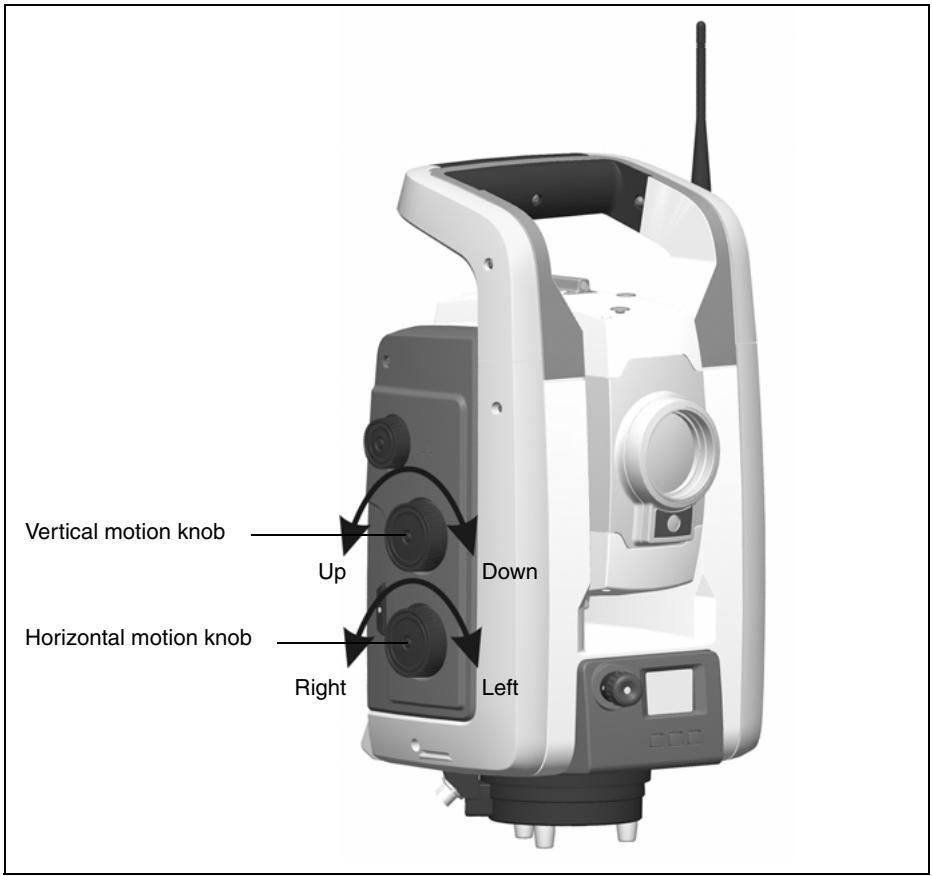
Figure 6.54 Position servo
Focus Servo
The instrument is equipped with a focus servo. The focus motion knob is on the side of the instrument for easy access.
The focus knob is connected to a servo motor that is integrated in the telescope. When you turn the focus motion knob, the servo motor adjusts the focusing lens. See figure 6.55
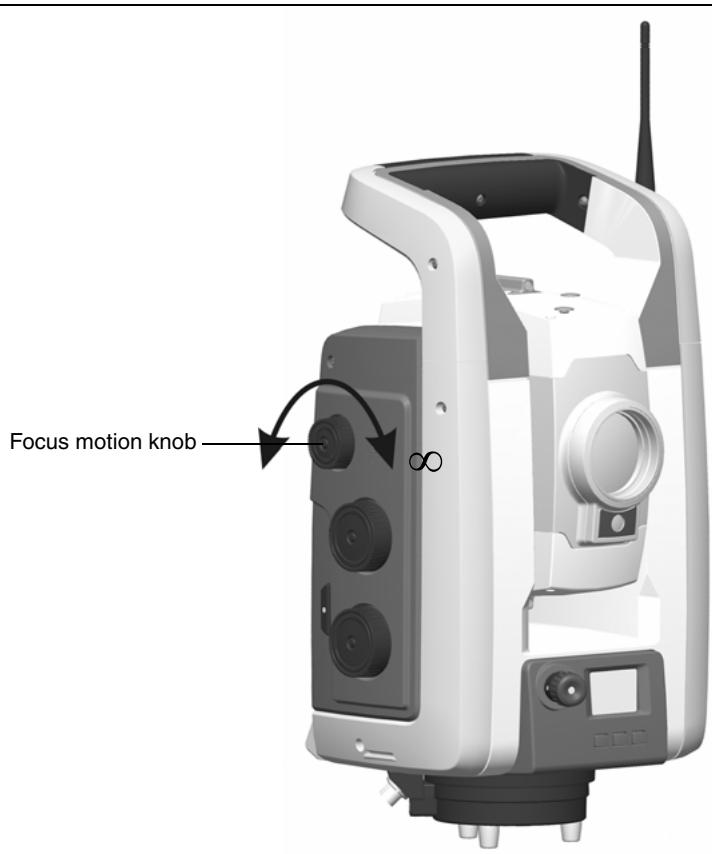
Figure 6.55 Focus servo
Power Management
The power management in the Trimble S Series Total Station instrument can set the instrument to one of three different modes.
- Off mode
- On mode
- Suspend mode
Stand Alone
Instrument only, no Trimble CU connected.
Off Mode
In the off mode the Trigger key LED and face 2 display is off.
Press the Trigger key for 1 second. to turn on the instrument. The instrument will also turn on if you connect a 12V power supply or data communication cable to the foot connector.
Note - During startup the Trigger key LED will flash once every second.
On Mode
In the on mode the Trigger key LED will be on solid, the face 2 display will be on.
To turn off the instrument press the Trigger key for 3 seconds.
The instrument will go to off mode if the battery is very low (battery capacity less than 2% ).
If not used for 300 seconds (5 min.) the instrument will go to Suspend mode.
Suspend Mode
In the suspend mode the Trigger key LED will flash once every other second, the face 2 display will be off.
To turn the instrument on press the Trigger key for 1 second or turn on the instrument from a remote application.
To turn the instrument off press the Trigger key for 3 seconds.
In Suspend mode the instrument will turn off automatically at suspend time out. The suspend time out is set in the Trimble CU operating system.
Instrument with Trimble CU Connected
Off Mode
In the off mode the Trigger key LED and face 2 display is off. The Trimble CU will be off or in suspend mode.
To turn the instrument on press the Trigger key for 1 second or press the Trimble CU power key. The instrument will also turn on if you connect a 12V power supply or data communication cable to the foot connector.
Note - During startup the Trigger key LED will flash once every second.
On Mode
In the on mode the Trigger key LED will be on solid, the face 2 display will be on. The face 2 display will be controlled by the Trimble CU application program. The attached Trimble CU will be on and the suspend mode back up battery in the Trimble CU will be charging.
To turn off the instrument press the Trigger key for 3 seconds or press the Trimble CU power key. Depending on the settings in the Trimble CU operating system the instrument will turn off or go to suspend mode.
The instrument will go to suspend mode if the battery is very low (battery capacity less than 2% ).
Suspend Mode
In the suspend mode the Trigger key LED will flash once every other second, the face 2 display will be off. The attached Trimble CU will be in suspend mode and the suspend mode back up battery in the Trimble CU will be charging.
To turn the instrument on press the Trigger key for 1 second or press the Trimble CU power key.
To turn the instrument off press the Trigger key for 3 seconds.
This will only turn off the instrument. The Trimble CU will be in suspend mode until suspend time out occurs.

Caution - When the Trimble CU is removed from the instrument it is recommended to have the Trimble CU in suspend mode.
Removing the Trimble CU from the instrument when in on mode will not damage the equipment, but files that are being saved or written to when the Trimble CU is being removed might be damaged or lost.
Power Supply
The power management in the Trimble S Series Total Station has been designed to deliver the most operating time in the field. The power management system includes the internal battery, optional external battery pack and the Trimble battery charger.
Internal Power Supply
The primary power supply for the Trimble S Series Total Station instrument is a rechargeable, removable Lithium-ion battery. The supplied battery is designed for use in the Trimble S Series Total Station instrument and features:
- Battery gauge to easily check power supply
Rugged design
- One battery type for Trimble S Series Total Station instrument and accessories.
The Trimble S Series Total Station battery is on the side of the instrument and is easily removed and replaced. See figure 6.56
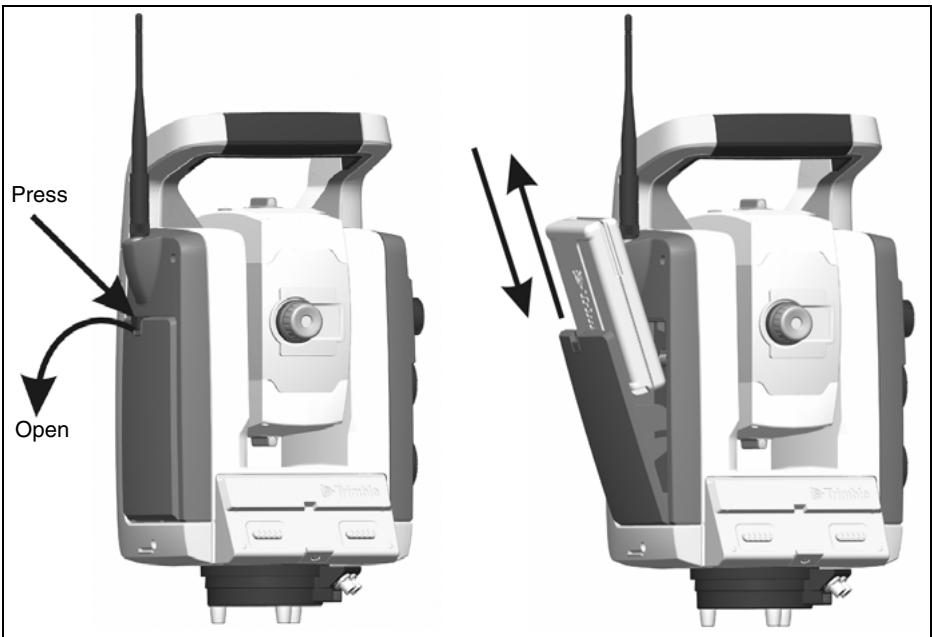
Figure 6.56 Removing and replacing the internal battery
To check the power supply in the Trimble S Series Total Station battery using the integrated battery gauge, press the button on the side of the battery. See figure 6.57

Figure 6.57 Internal battery power gauge and button
When you press the button, four LEDs on the Trimble S Series Total Station battery show the power level. Each LED corresponds to a power level of 25% so that when the power level is at 100% , all four LEDs are lit. If the battery is completely discharged, all LEDs are unlit.
When the button is pushed and all the LEDs flash, the battery needs to be reconditioned in the battery charger. See Conditioning the Battery on page 18.
When the battery capacity is between 0 and 10% one LED is flashing. A battery with a flashing LED might not be able to start an instrument or a Trimble CU. If started, with a battery with a flashing LED, the operating time will be between 5 and 15 minutes.
The capacity of the battery is 4.4Ah
External Power Supply
The Trimble S Series Total Station instrument has two external connectors in the base of the instrument; one for communication and one for an external power supply. External power can be provided by one of the following:
- Multi Battery Adapter
- Car battery
With the Trimble S Series Total Station Multi Battery Adapter, you can connect up to three Trimble S Series Total Station batteries. Connect the Multi Battery Adapter to the external power connector on the Trimble S Series Total Station instrument using a grey Trimble cable with 6-pin Hirose connector.
The Trimble S Series Total Station Multi Battery Adapter can be attached to a tripod or placed on the ground, and has a carrying handle.
As an alternative to the Multi Battery Adapter, An external 12V car battery can be used. Use one of the following cables:
- The Cable - 3.0m, Car battery (croc clips) to Hirose 6 pin.
- The Cable - 3.0m, Cigarette lighter to Hirose 6 pin

Caution - Use only the gray cables with 6-pin Hirose connectors from Trimble when connecting a cable to the instrument and Multi Battery Adapter.
Charging the Battery
The Trimble S Series Total Station instrument is provided with a battery charger that can charge five Trimble S Series Total Station batteries one after the other. Connect the charger to the AC to DC converter. Connect the AC to DC converter to 100V - 250V50Hz - 60Hz power. See figure 6.58.
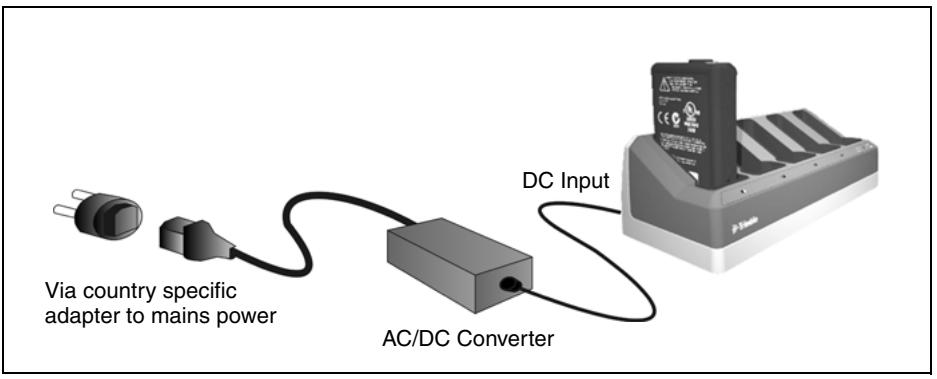
Figure 6.58 Charger and battery

Tip - The battery charger can also be used to charge the Trimble 7.4 V Li-Ion batteries, see figure Figure 6.59
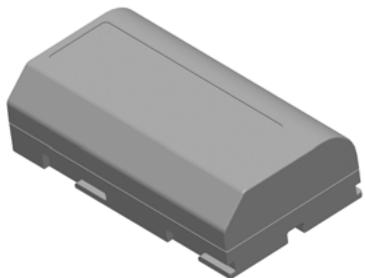
Figure 6.59 Trimble 7.4 V Li-Ion battery
Battery Low Message
If the battery capacity drops too low, the Bat Low message appears in the Trimble CU display window and the instrument shuts down. You must then change the battery within two hours to prevent losing instrument parameters and functions such as instrument height, target height, coordinates, bearing, and dual axis compensation. After that time, the system resets all parameters and functions to default values.
Note - This safety backup of the instrument parameters and functions will work only when Bat low appears on the display: it will not function if you remove the battery during operation.
External Communication
Communication (Com) Connector
The communication (COM) Connector on the base of the Trimble S Series Total Station instrument can be used for external communications to a computer or data collector.

Caution - Use only the gray cables with 6-pin Hirose connectors from Trimble when connecting a cable to the instrument.
USB Connector
The USB Connector, on the side of the panel attachment, can be used for communication between an attached TCU and a USB memory.
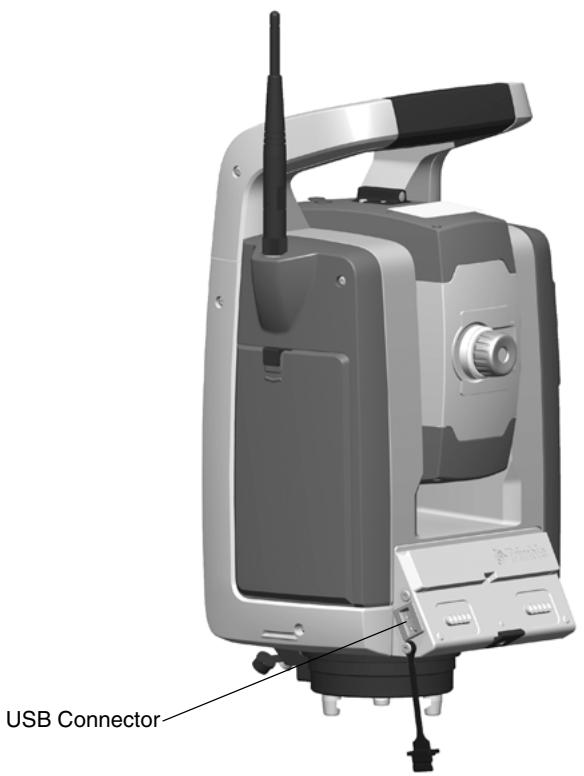
Figure 6.60 The USB Connector.
Options & Accessories
In this chapter:
Autolock Technology
Trimble Standard Rod
- Trimble MultiTrack Target
Traverse Target
Trimble Robotic Holder
Radio
Radio Antenna Extension Kit
Autolock Technology
The Trimble S Series Total Station is equipped with Autolock technology, which is used for a robotic or a conventional measurement with Autolock.
Autolock technology controls the instrument servos and aims the instrument correctly towards the target. See figure 7.61

Tip - To assure maximum performance from the Autolock technology keep the lens clean and dry.
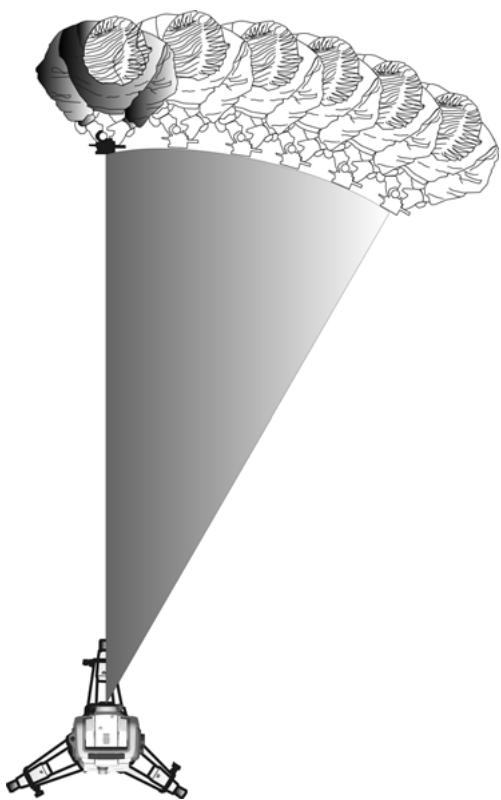
Figure 7.61 The Trimble S Series Total Station Autolock function.
The Trimble S Series Total Station can lock onto and track a target in two different modes depending on the type of target.
Passive mode:
In passive mode the instrument can lock onto and track a prism.
SplitVision:
When a Target ID is added to a prism the instrument will lock onto and track the active Target ID horizontally and the passive prism vertically.
Selection of the appropriate mode can be made via the field software interface while selecting the 360 target with Target ID prism type.
Note - Make sure to select the correct target in the field software to ensure correct lock and tracking of the target.

Caution - For precision measurements, when using the 360 degree prism, it is important to turn the prism, so that one of the prisms is pointed at the instrument.
Aiming
The adjustment between the two optical axes, the telescope and the tracker, may differ. The difference will make it seem like the instrument does not point towards the center of the prism, when using Autolock, figure 7.62. This is not a problem since the two axis have their own separate collimation data. It is however important to make collimation test for both axes.

Figure 7.62 Difference between aiming manually and Autolock
How to Check Aiming
You can check how well the instrument is calibrated by measuring toward the prism with and without Autolock and compare the measured angles:
- Aim manually at a prism and read out the horizontal and vertical angles.
- Turn on Autolock and let the instrument lock on to the same prism automatically, read out the horizontal and vertical angles.
- Compare the angles between manual and Autolock aiming.
If the difference between the read out angles is significant, you should carry out both a horizontal and vertical angle collimation adjustment, and a tracker collimation adjustment.
Trimble Standard Rod
The Trimble standard rod is available with the Trimble S Series Total Station. The rod contains the following features:
Graduated scale in meters and feet.
- Fixed target height positions
- 360^ prism comprising 7 × 25 ~mm prisms, prism constant 2 ~mm
- Leveling bubble
- Target id with mini rod (optional) can be fitted
The integrated mini rod can be easily connected to the standard rod or a conventional rod using the mini pole adapter
The target height from the tip of the mini rod to the center of the prism is 0.115m (0.377 ft.).
Trimble Target ID
The target ID is an optional unit that connects to the Trimble standard rod to transform the prism from a passive target to an active target. See figure 7.63
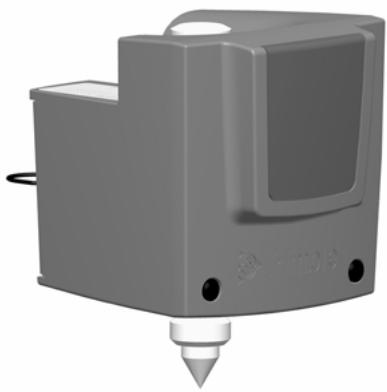
Figure 7.63 Trimble Target ID
You can configure the target ID to eight different IDs, which are then used by the Trimble S Series Total Station to ensure that the instrument locks onto and tracks only the target with the correct Target ID. Configure the Target ID through its own LED display. See figure 7.64
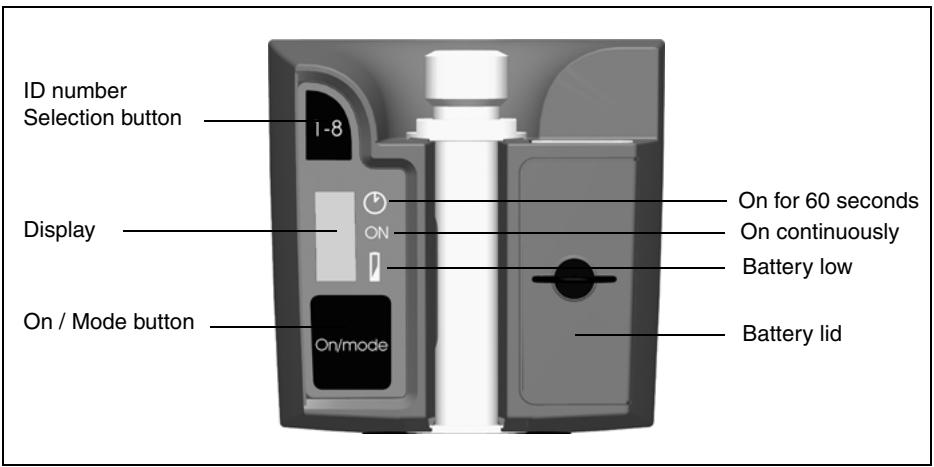
Figure 7.64 Target ID controls
Press the power button one or more times to access the following modes:
- On for 60 seconds
- On continuously
- Off
A bar appears beside the active mode.
When the Target ID is on, the current target ID appears. Press the ID number selection button to change the current target ID number.
The Target ID is powered by two AA size batteries that will operate the unit for approximately 12 hours continuous use. A dot appears beside the battery symbol when battery power is low.
Fitting and Removing the Target ID
- Screw the adapter and mini rod on to the top of the rod and tighten.
- Push the Target ID on to the mini rod until it locks in place. The spring lock will hold the Target ID in place.
Removing the Target ID is the reverse operation to fitting.
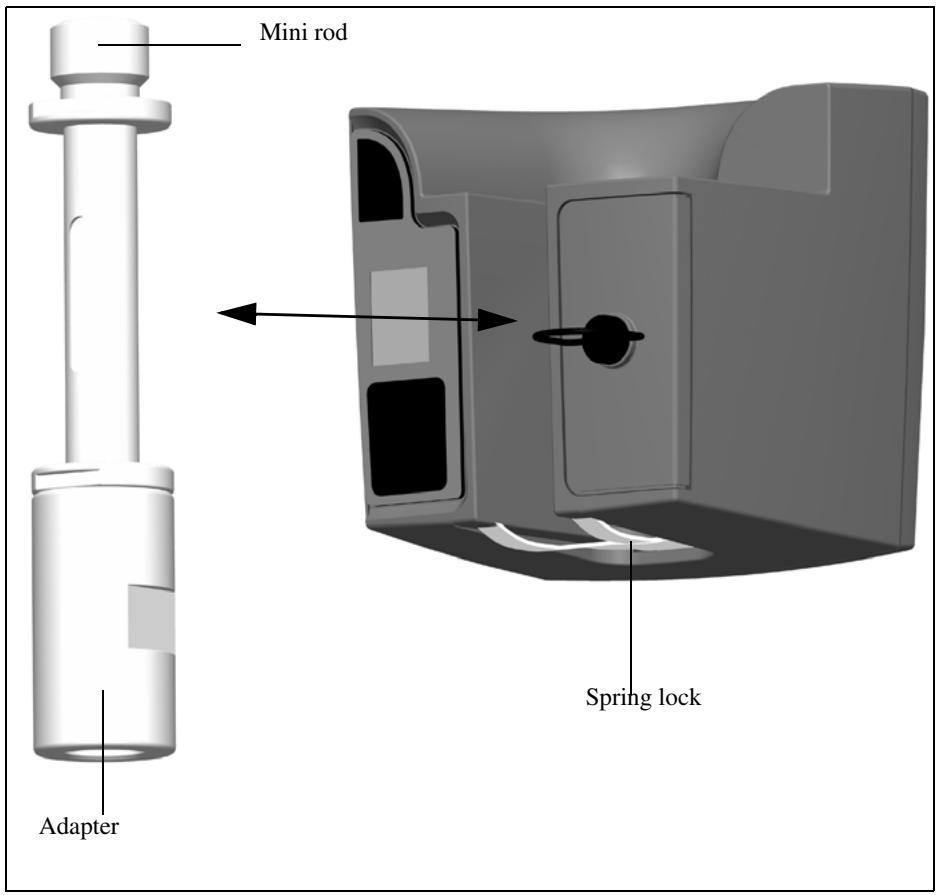
Figure 7.65 Fitting or removing the Target ID.
LED Information
The Target ID has been tested and complies with the regulations for a Class 1 LED product. See figure 7.64. See Laser Safety on page v.
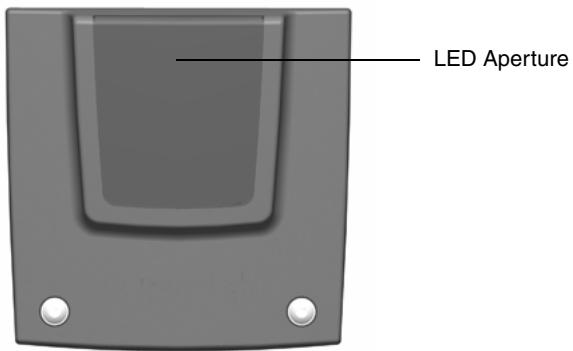
Figure 7.66 Target ID LED Aperture
Changing the Batteries in the Target ID
- Turn the screw securing the battery lid a quarter of a turn counter-clockwise and then remove the battery lid.
- Hold the target ID at an angle and let the two used batteries slide out.
- Insert two new AA size batteries.
- Fit the battery lid and then secure it by turning the screw a quarter of a turn clockwise. See figure 7.67
Battery lid securing screw
Battery lid

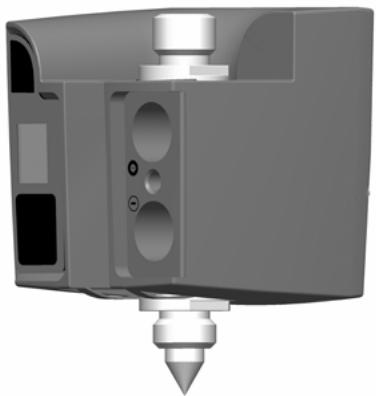
2x AA Size batteries
Figure 7.67 Target ID battery change
Trimble MultiTrack Target
The Trimble MultiTrack target provides fully coaxial passive and active tracking via an integrated 360^ prism ring and 2 active 360^ LED rings. The active LED rings support the selection of a unique ID to ensure that 8 different targets can be operated on a single site with full confidence that the correct target is always used.
Features
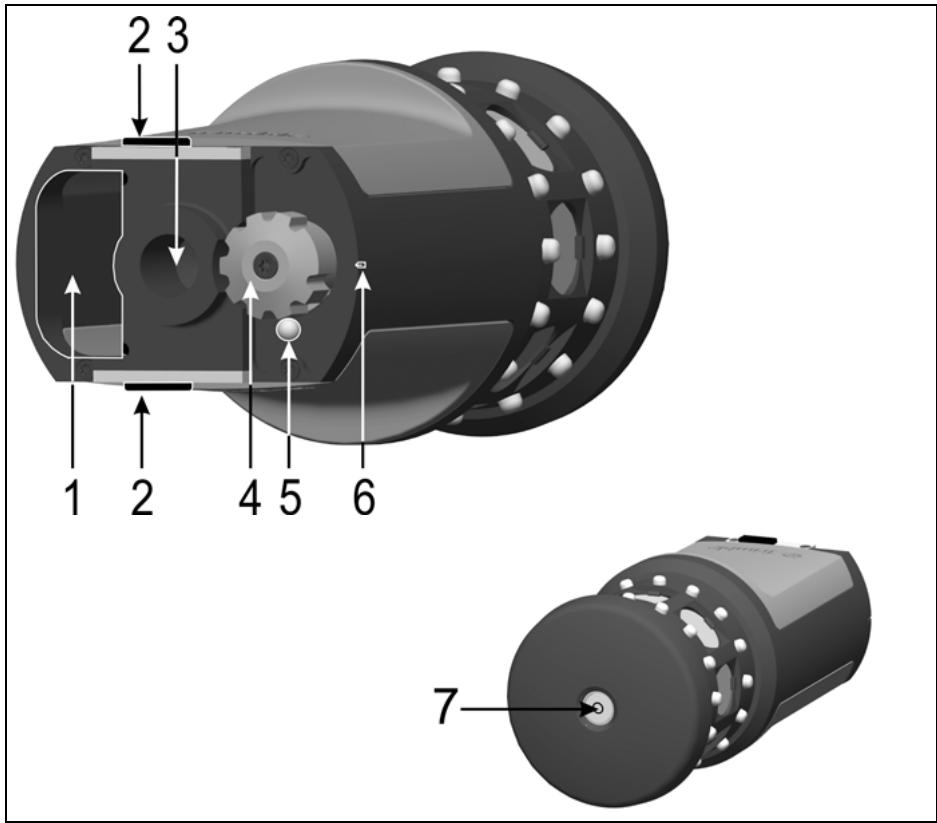
Figure 7.68 Trimble MultiTrack Target features
1 Battery compartment
2 Battery locks
3 5/8" Thread
4 Channel select (on/off switch)
5 On/Off and battery low indicator LED
6 Position indicator
7 Circular level
Measures
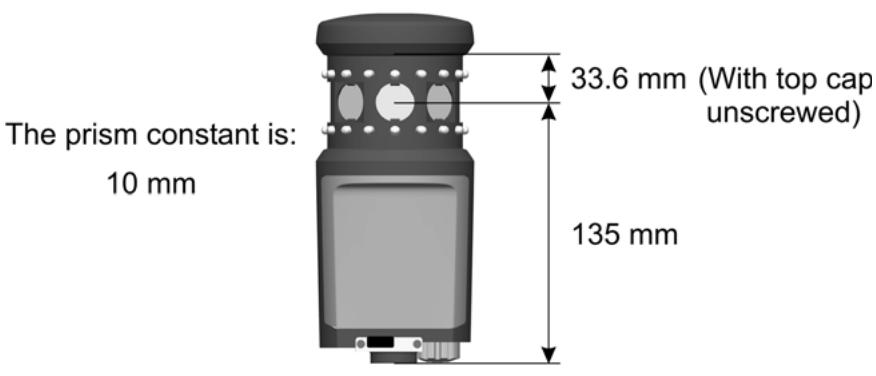
Figure 7.69 Trimble MultiTrack Target measures
Fitting and Removing the Battery
To fit the battery, push the battery in to the battery compartment (1) with the battery connectors (2) facing upwards and inwards until the battery locks clicks (3) in place.
To remove the battery, slide the battery locks open (4), The battery can now slide out of the battery compartment (5).
The battery is a Trimble 7.4 V Li-ion battery.
The Trimble MultiTrack Target will provide active tracking for up to 8 hours from one fully charged battery. When the on/off and battery low indicator LED starts to flash the battery will have approximately 40 minutes operation time remaining.
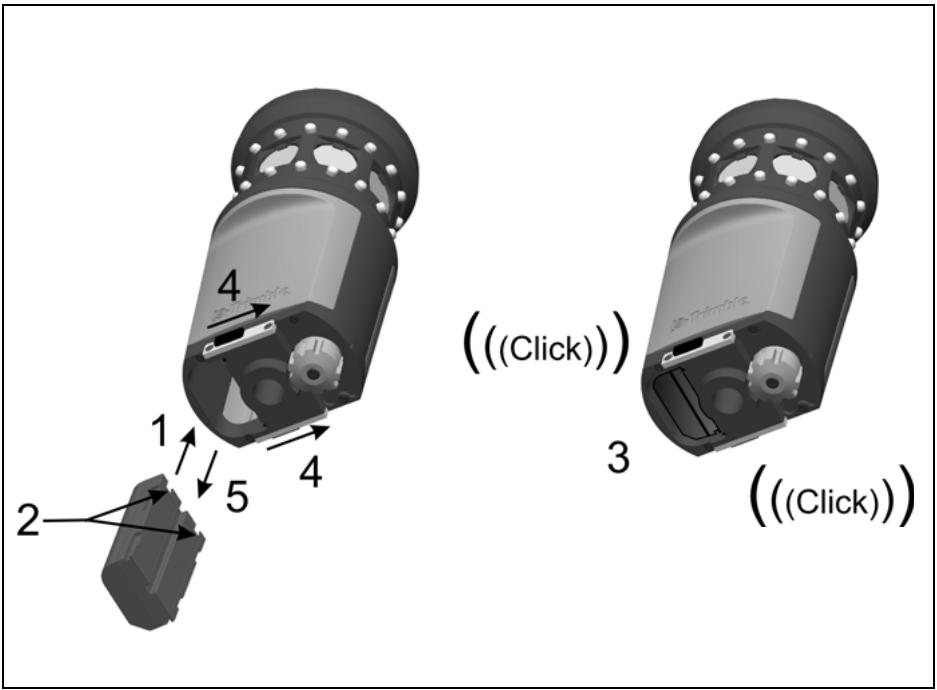
Figure 7.70 Fitting and removing battery on a Trimble MultiTrack Target
Specification Label
To read the specification label unscrew the top cap of the target (1).
Note - The accuracy specification for Active mode is valid within 15^ from horizontal. For vertical angles outside of this range it is recommended to use passive mode or to use a tiltable target to ensure the most precise results.
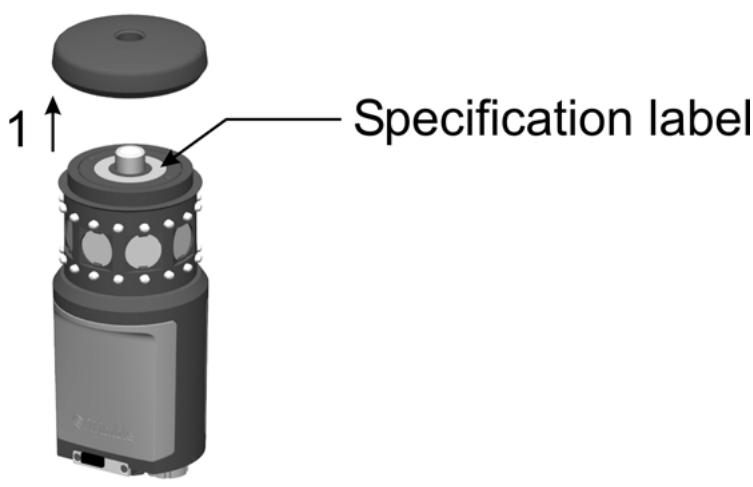
Figure 7.71 Location of Trimble MultiTrack Target specification label
Traverse Target
Traverse Target Kit 1
When assembling the Traverse target from the Traverse target kit 1 to the Prism base it is important to fit the supplied adapter to get a correct assembly.
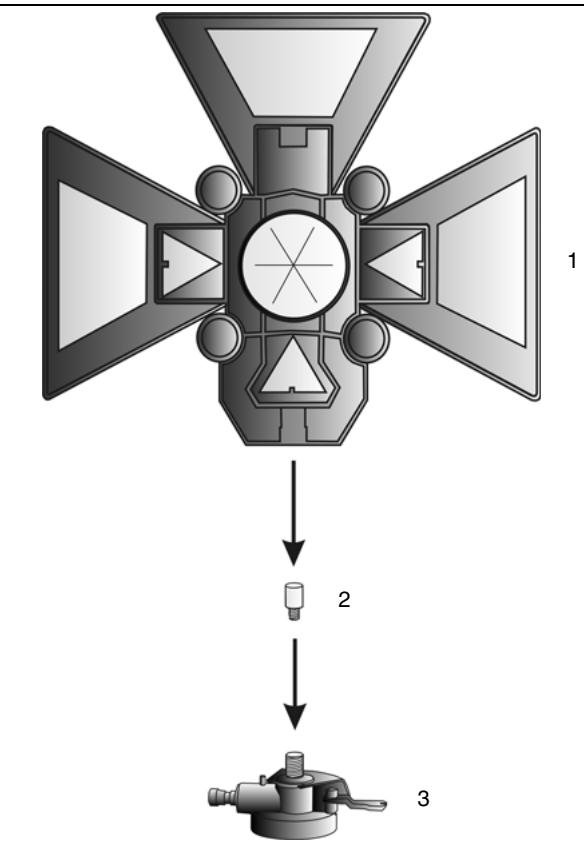
Figure 7.72 Assembling the traverse target
- Screw the adapter (2) on to the prism base (3) and tighten.
- Screw the target (1) on to the prism base (3)
Measuring the Target Height
There is a height measurement mark on the side of the prism base that can be turned out for easier reading of the height. The height measurement mark is 0.158m (0.518 ft.) below the target (signal) height. Measure to the top ridge of the mark. See figure 7.73
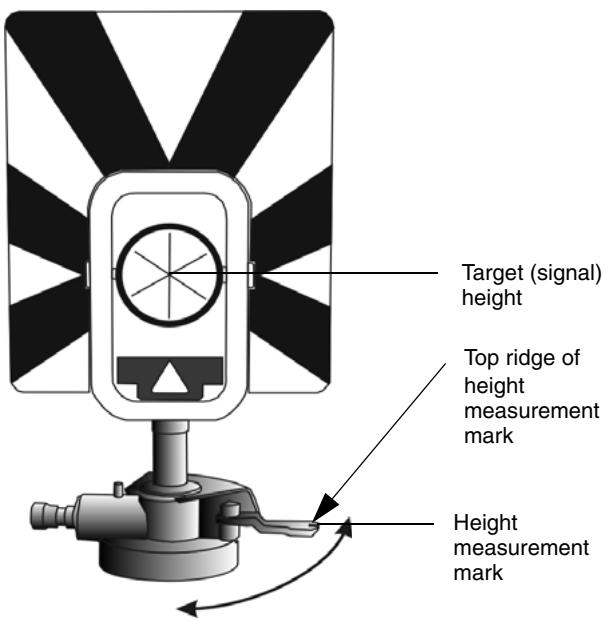
Figure 7.73 Target height marks
When there is a Trimble CU attached running a field application software, the software has additional functions that reduce the bottom mark measurement to the required vertical target (signal) height. See figure 7.74 and the following paragraph.
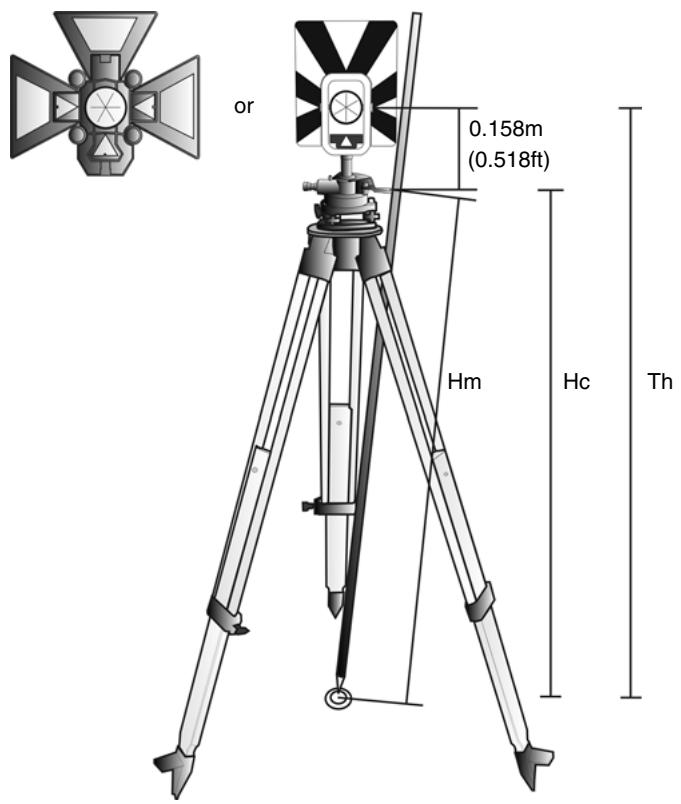
Figure 7.74 Target height measurement
The measured distance (Hm) is corrected for the slope of the measurement to obtain a vertical measurement to the bottom mark (Hc). The constant from the target height measurement mark to the target (signal) height (0.158 m/0.518 ft.) is added to the Hc to obtain the vertical target height from the ground mark to the target (signal) height (Th). For more information, refer to the field software documentation.
Alternatively, to obtain an accurate measurements to the target (signal) height (Th), you can manually measure the slope distance from the ground to the bottom mark (Hm). To calculate the total target height (Th), insert the measured slope distance (Hm) into the formula below:
$$ \mathrm {T h} = 0, 1 5 8 + \sqrt {\mathrm {H m} ^ {2} - 0 , 0 9 1 ^ {2}} $$
Trimble Robotic Holder
The Trimble Robotic Holder holds the Trimble CU when the instrument is operating in robotic mode. See figure 7.75
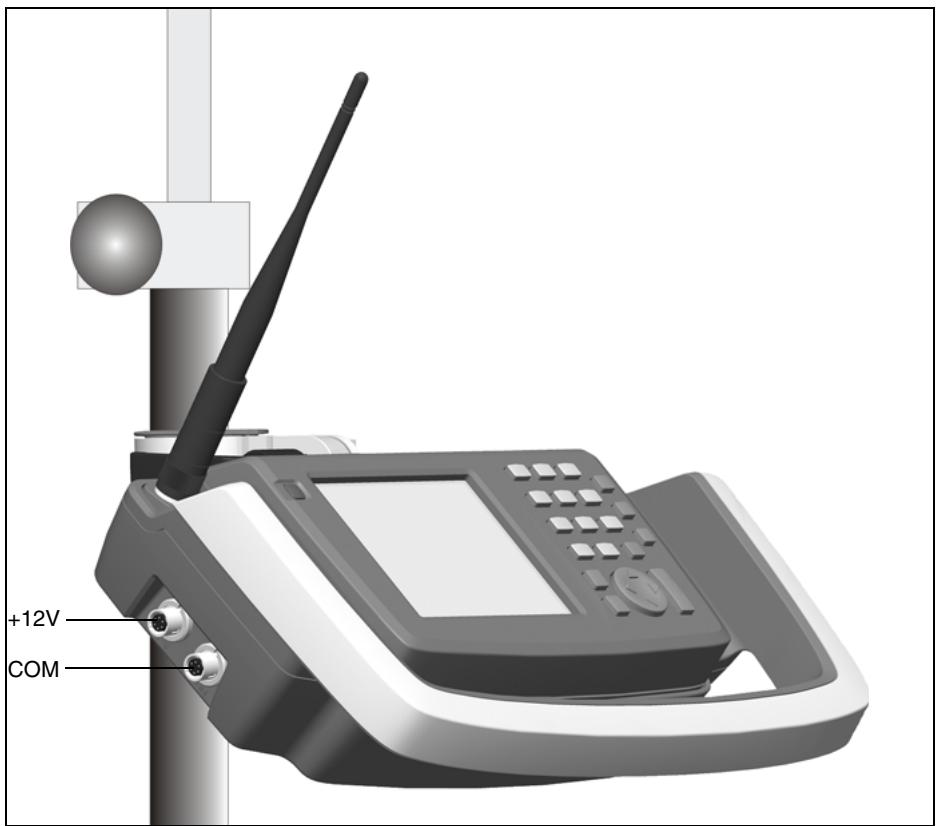
Figure 7.75 Trimble robotic holder with Trimble CU and radio
The Trimble Robotic Holder includes the following features:
- Secure Trimble CU connection with quick release
- Secure Trimble S Series Total Station battery connection with quick release
- Integrated 2.4 GHz radio
Rugged ergonomic design with safety bumper to protect the Trimble CU - Quick release from pole connector
- Two ports for external power supply and external communications (USB)
The Trimble S Series Total Station battery powers the Trimble CU and radio during robotic operation.
You can use a USB memory with the Trimble Robotic Holder to transfer data between the office and the field or between two field devices. Connect the USB memory through the USB dongle cable to the external communications port on the Trimble Robotic Holder. Use Microsoft Windows Explorer to transfer the files from the Trimble CU to the memory.

Caution - Use only the gray cables with 6-pin Hirose connectors from Trimble when connecting a cable to the Trimble Robotic Holder.
Power Management
Off Mode
In the off mode the Robotic Holder will be off. The Trimble CU will be off or in suspend mode.
To turn on the Robotic Holder and the Trimble CU press the Trimble CU power key. The Robotic Holder and Trimble CU will also turn on if you connect +12V or data communication cable to the side connector.
On Mode
In the on mode the Robotic Holder will be on. The attached Trimble CU will be on and the suspend mode back up battery in the Trimble CU will be charging.
To turn off the Robotic Holder and the Trimble CU press the Trimble CU power key. Depending on the settings in the Trimble CU operating system the instrument will turn off or go to suspend mode.
The Robotic Holder and the Trimble CU will go to suspend mode if the battery level is low (battery capacity less than 2% ).
Suspend Mode
In the suspend mode the Robotic Holder and the attached Trimble CU will be in suspend mode and the suspend mode back up battery in the Trimble CU will be charging.
To turn on the Robotic Holder and the Trimble CU press the Trimble CU power key.
The Robotic Holder and the Trimble CU will be in suspend mode until suspend time out occurs.

Caution - When the Trimble CU is removed from the Robotic Holder it is recommended to have the Trimble CU in suspend mode.
To remove the Trimble CU from the instrument when in on mode will not damage the equipment, but files that are being saved or written to when the Trimble CU is being removed might be damaged or lost.
Attaching a Battery
- Fit the battery on to the hooks on the holder (1).
- Push the battery on to the holder until it clicks into place (2). See figure 7.76
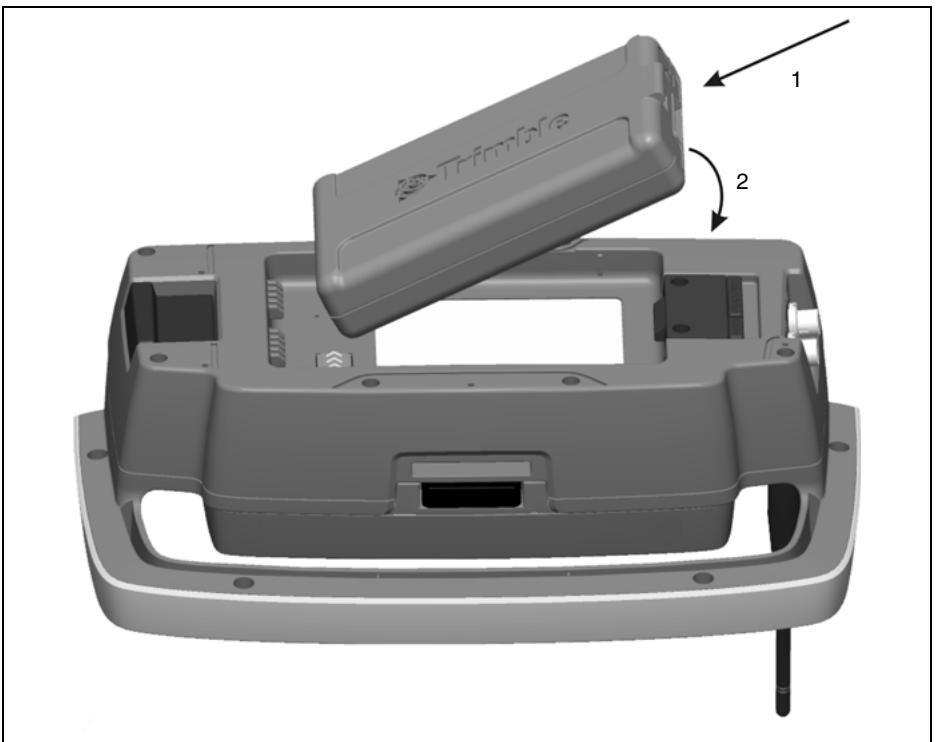
Figure 7.76 Attaching a battery to the Trimble Robotic Holder
Detaching a Battery
- Pull the battery lock mechanism away from the battery (1).
-
Lift up this side of the battery (2).
-
Remove the battery from the holder (3). See figure 7.77.
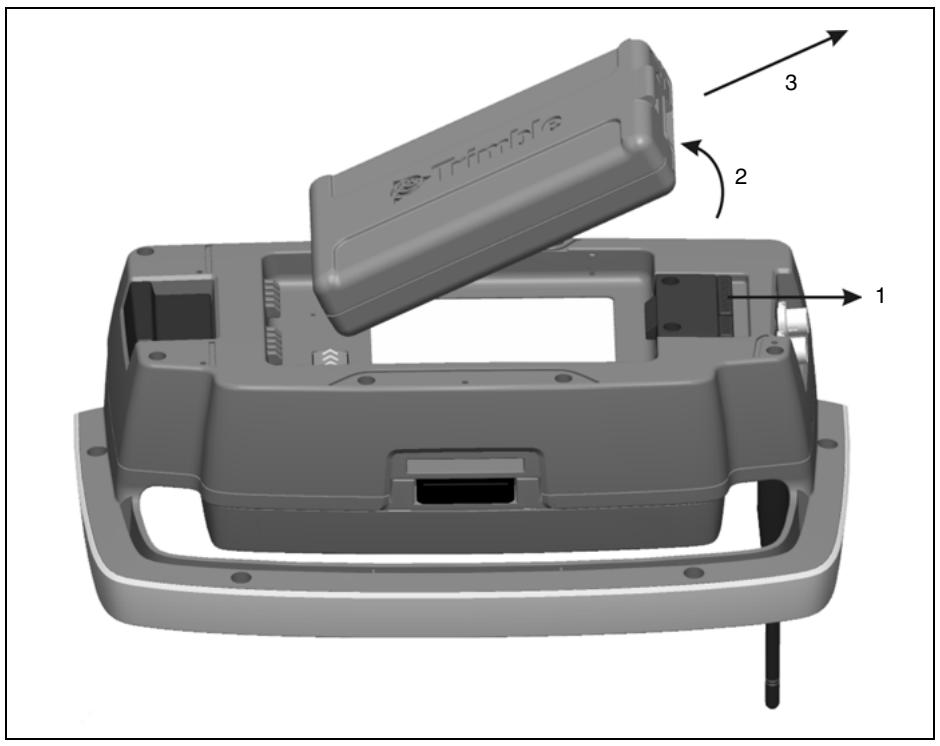
Figure 7.77 Detaching a battery from the Trimble Robotic Holder
Attaching a Trimble CU
- Hook the top of the Trimble CU over the top edge of the holder (1).
- Push the bottom of the Trimble CU towards the holder until it locks in place with a click (2), figure 7.78.
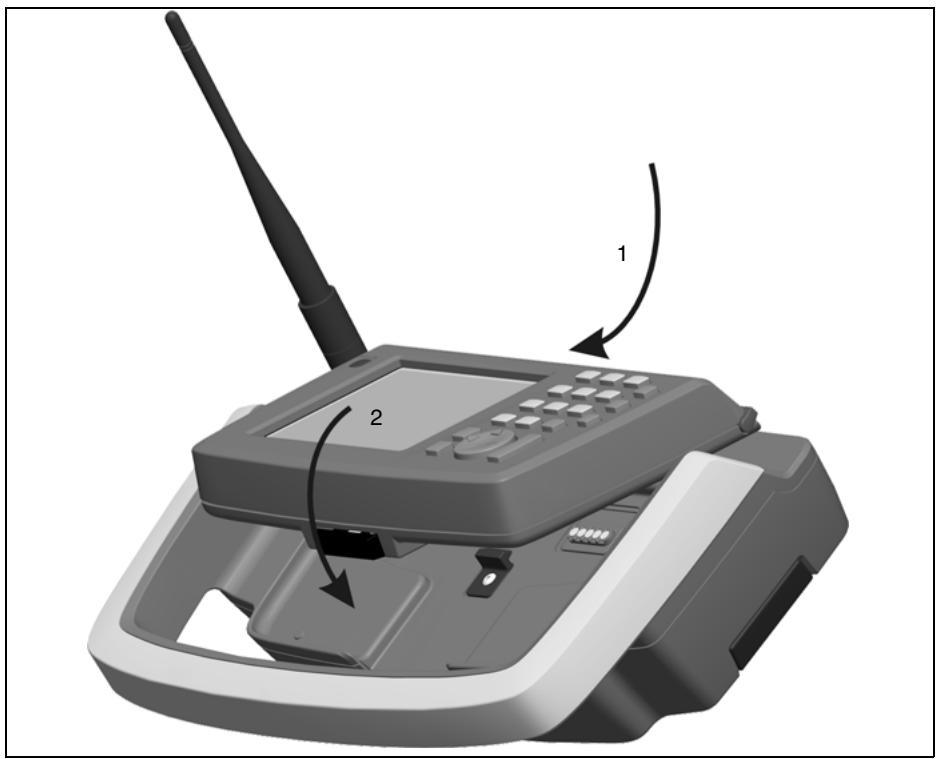
Figure 7.78 Attach Trimble CU to Trimble Robotic Holder
Detaching a Trimble CU

Caution - Make sure to switch off the Trimble CU before it is detached from the instrument.
- Push the lock release button on the bottom of the Trimble CU (1) and lift the bottom of the Trimble CU away from the holder (2).
- Unhook the top of the Trimble CU from the top edge of the panel attachment and remove the Trimble CU from the holder (3), figure 7.79.
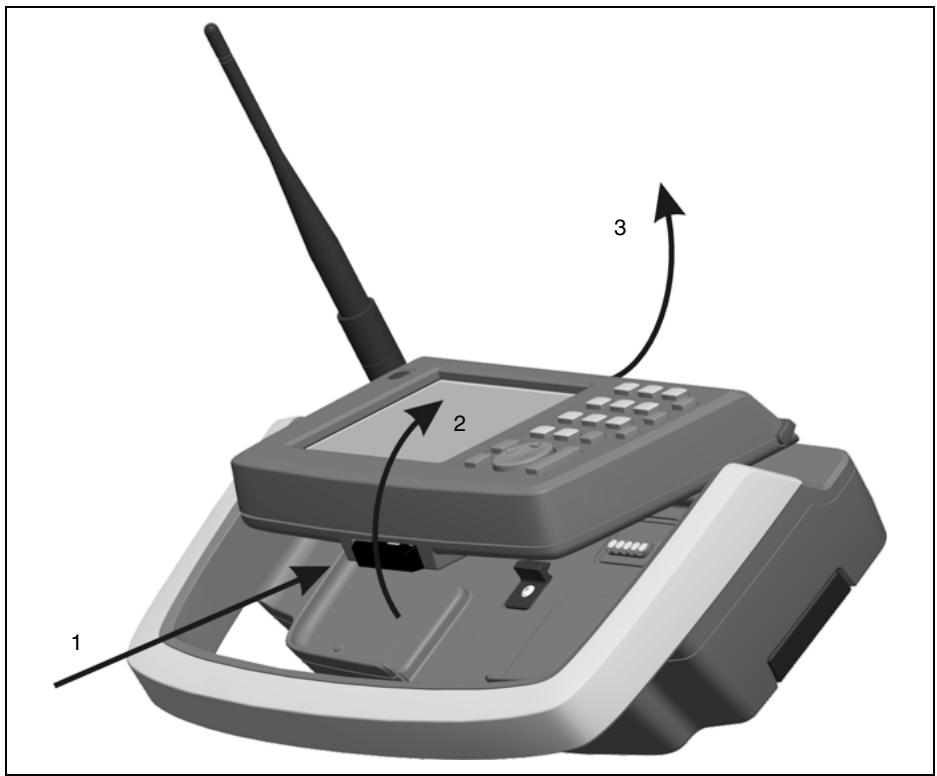
Figure 7.79 Detach Trimble CU from Trimble Robotic Holder
Attaching the Trimble Robotic Holder to the Rod
To attach the Trimble Robotic Holder, slide the holder onto the standard rod adapter until the holder locks into place with a click, figure 7.80.
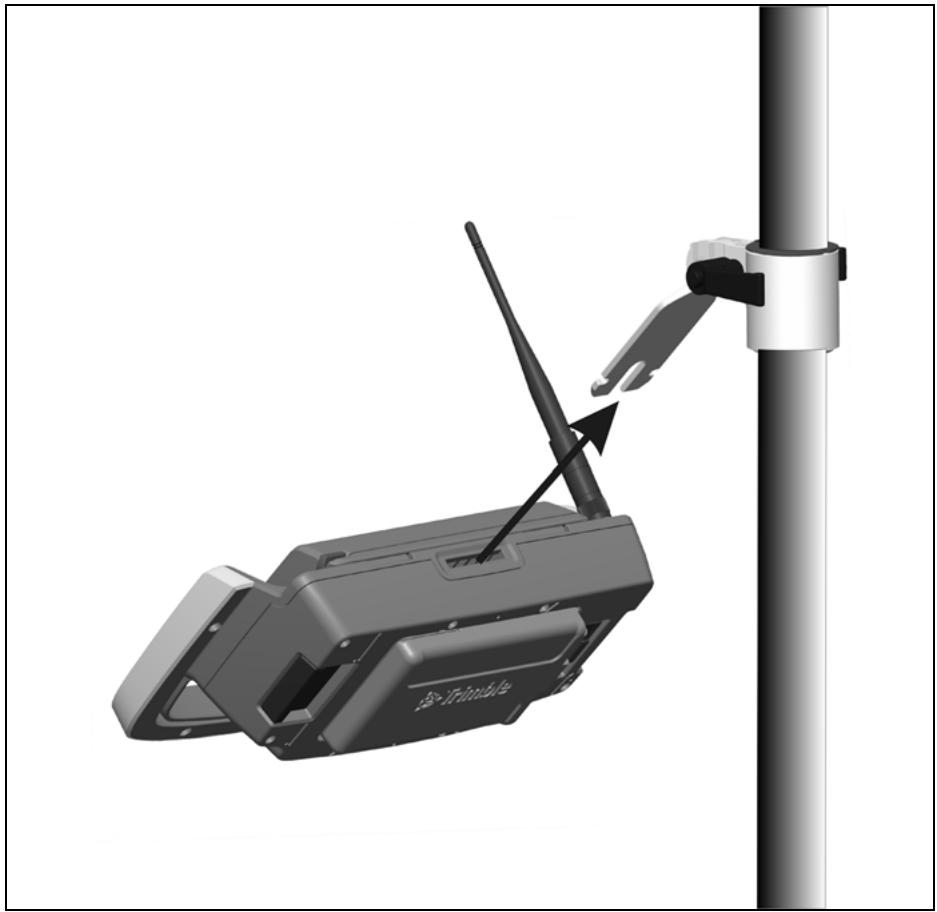
Figure 7.80 Attaching the Trimble Robotic Holder to the standard rod adapter
Detaching the Trimble Robotic Holder from the Rod
- To detach the Trimble Robotic Holder from the rod, pull the release mechanism (1)
- Slide the holder off the rod bracket (2).
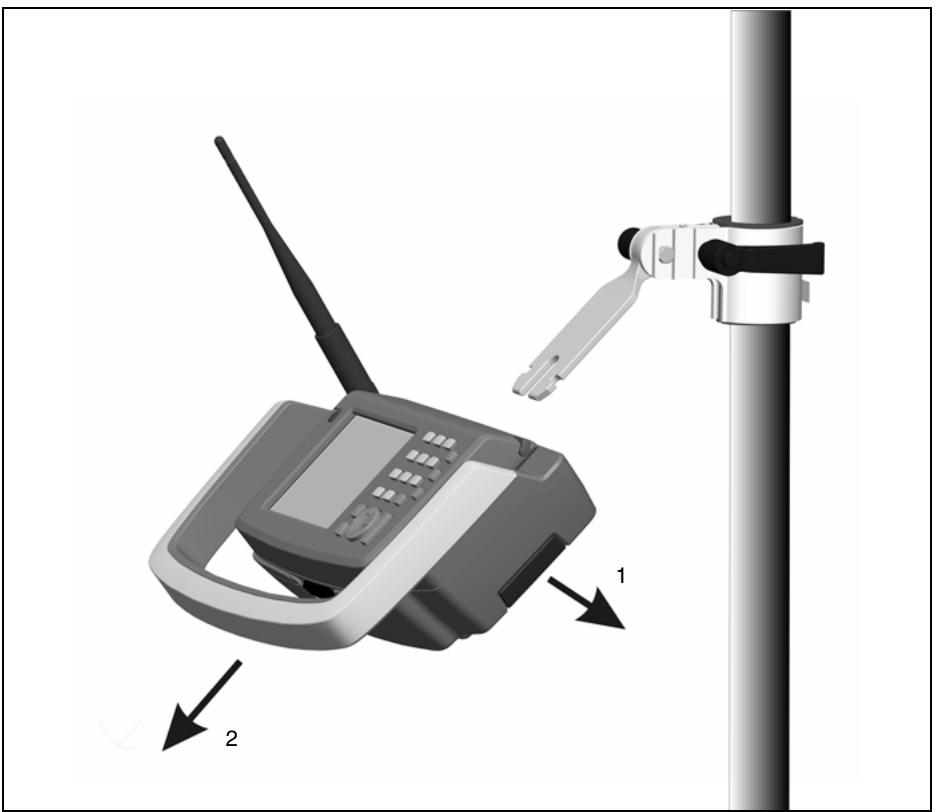
Figure 7.81 Detach Trimble Robotic Holder from standard rod adapter

Caution - The Trimble CU and Robotic holder are not designed for mounting on a vehicle. For vehicle or ATV always use the TSC2 controller, which has been designed to withstand the shock and vibration conditions associated with that type of use. Mounting the Trimble CU and Robotic holder in these situations is not recommended, and puts your equipment at risk of damage that is not covered by warranty.
Radio
Internal Radio
The Trimble S Series Total Station has an internal radio to support robotic operations.
The internal radio is a 100mW radio that operates in the public free 2.4 GHz band. The radio uses frequency hopping technology to reduce radio interference and maintain radio communications in even the harshest RF environment.
The Trimble S Series Total Station radio baud rate is 115200 bps. This high baud rate reduces the measurement latency, which ensures that a measurement viewed at the pole is received 100 msec after the measurement is sent from the instrument.
To maintain radio communication with the Trimble S Series Total Station instrument, the Trimble CU at the pole must also be connected to a 2.4 GHz external radio. The radio for the Trimble CU is available as an optional integrated module in the Trimble robotic holder. The radio for the TSC2 is also available as an optional integrated 2.4 GHz radio module.
External Radio 2.4 GHz
An external radio is available as an option for robotic measurements when using a controller not fitted with an internal radio. The External Radio 2.4 GHz uses one 7.4 V Li-Ion battery as power supply. This will give the radio 15 hours with a 2.4 Ah battery. For technical information see Internal Radio page 126.
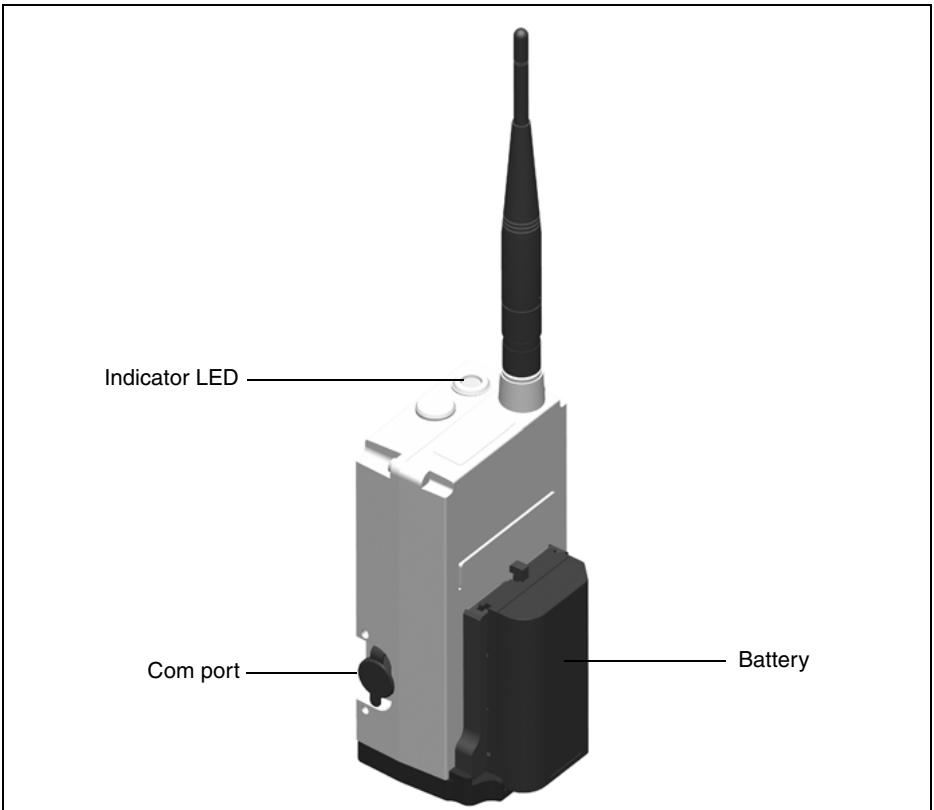
Figure 7.82 External radio 2.4 GHz
For information regarding charging of the battery. See Power Supply on page 97

Caution - Always remove the battery from the external radio after use.
Attaching the Battery
To fit the battery to the radio:
- Fit the battery to the battery holder.
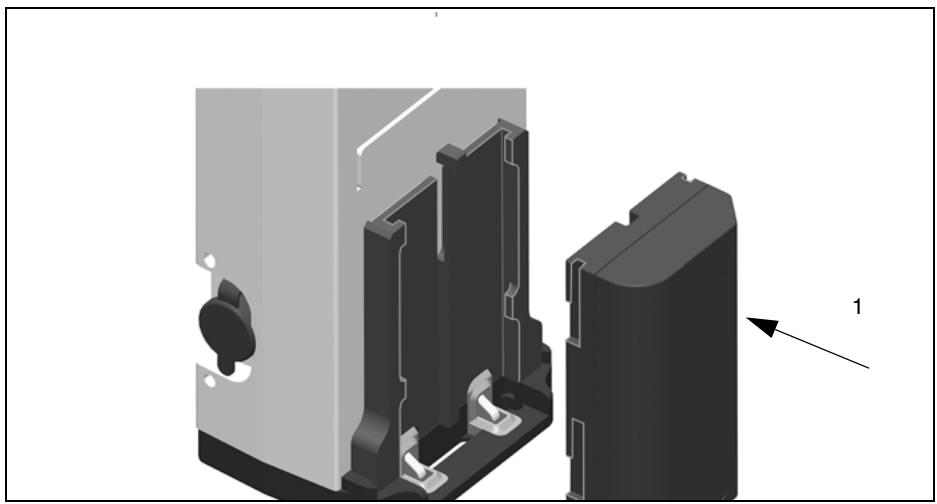
Figure 7.83 Fitting battery to external radio
- Push the battery downwards until the catch clicks in place.
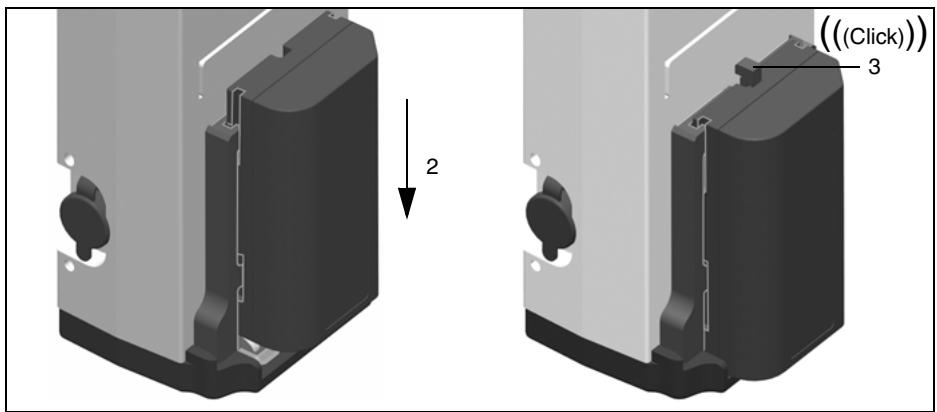
Figure 7.84 Fitting battery to external radio
Detaching the Battery
To remove the battery from the radio:
- Press the catch towards the radio.
- Slide the battery upwards.
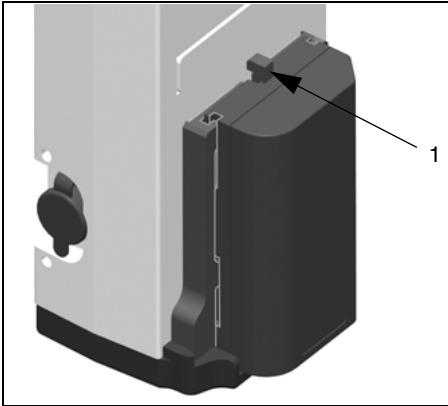
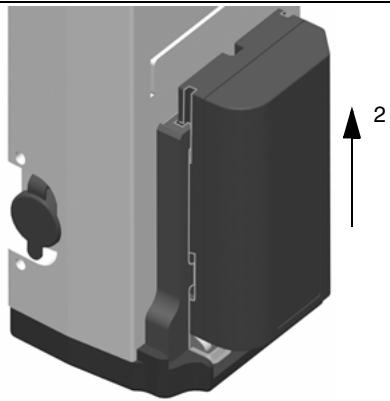
Figure 7.85 Removing battery from external radio
- Pull the battery away from the battery holder
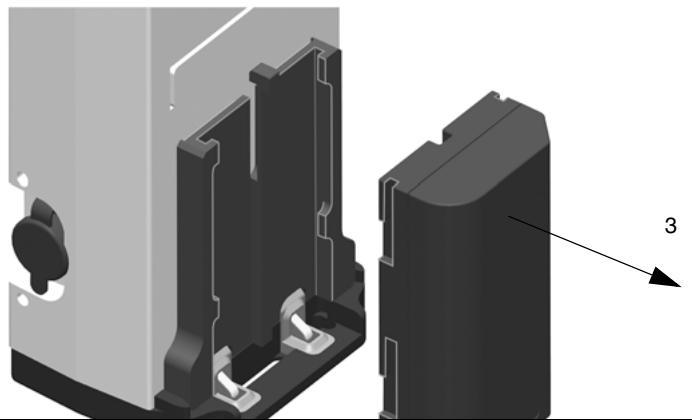
Figure 7.86 Removing battery from external radio
Radio Antenna Extension Kit
For extended radio range it is possible to fit an antenna extension kit to get the radio antenna to a higher position on the rod where it is clear from obstruction by the user or the rod itself. When working at the maximum radio range, this can make a significant difference.
The antenna extension kit consists of:
| Item | Description |
| a | Antenna holder |
| b | Antenna cable |
| c | Washer |
| d | Locking washer |
| e | Nut |
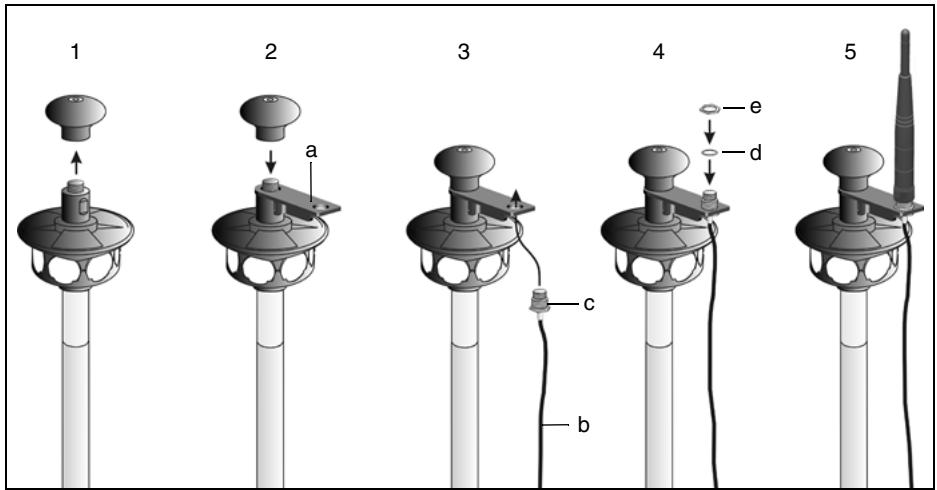
Figure 7.87 Fitting the antenna extension kit.
- Unscrew and remove the top part of the 360^ prism.
- Fit the antenna holder (a) over the thread and re-fit the top part of the 360^ prism.
- Fit the washer (c) on the antenna cable (b) and fit the antenna cable (b), from underneath, to the antenna holder.
- Fit the locking washer (d) and nut (e).
- Fit the antenna on top and connect the antenna cable to the antenna connector on the Trimble Robotic Holder.
Index
A
Accessory case
battery kit 8
fitting 12
robotic kit 9
traverse kit 1 10
traverse kit 2 11
adjusting
the laser beam 60-64
the optical plummet 67
adjustments menu 46
aligning the laser beam 60-64
aligning the laser pointer 60-64
Autolock
Aiming 105
Autolock technology 104
collimation 53-55,83
passive target 104
B
batteries
charging 17-18, 99
conditioning 18-19
connecting external 22
connecting internal 20
disposing of 16
external 21
safety and environment
information 16
battery change, Target ID 110
battery Charger LED Behavior 19
battery charging system 99
battery low 100
beam
adjustment 60-64
alignment 60-64
divergence 87
C
care and maintenance 13
carrying straps 6-7
charging the batteries 17-18, 99
cleaning 13
Collimation
error 82
test 49-53,82
communication 100
compensator calibration 46
Control Unit
attaching 70
detaching 71
correction for deviation of plumb
axis 82
D
Declaration of Conformity
Trimble 2.4 GHz radio xiv
Trimble Panel BT
Attachment xv
Trimble S Series xi
Trimble S Series
Accessories xii
Trimble Target ID xiii
DR PLUS, laser and LED
information 33-34
E
environmental information batteries 16
European Union ix
European Council Directive 89/336/EEC 2
exit menu 59
external battery 21
external power supply
power supply, external 98
F
Face 2 Display 26
firmware version 57, 58
H
HA/VA Collimation 49-53
handle
attaching handle 30
detaching handle 29
High Precision, laser and LED
information 31-33
1
instrument
attaching handle 30
detaching handle 29
height marks 65
height measurement 65-66
lifting 76
L
Language 58
laser and LED information
DR PLUS 33-34
High Precision 31-33
Target ID 110
laser pointer
adjustment target for DR PLUS 61
alignment 60-64
turning on or off 44, 55, 57, 58
warning label 33
laser warning label 31
LEDs, battery charger 19
levelling 38
lifting instrument 76
M
Min.-Max Range 87
Multi Battery Adapter 21
0
optical plummet 28, 67
P
packing for Transport 14
plumb axis correction 82
power management 97
precision measurement hints 36
R
radio
external 126
internal 126
radio noise emissions
Canada 2
Reference HA 45
Robotic Holder 118-125
S
safety
battery viii-ix
laser and LED v-viii
Servicing 14
servo
focus 93
Horizontal and vertical
position 92
site measurement
with Autolock 78
with robotic 79
with servo 78
standard Rod 107
T
target
height measurement 116- 117
height measurement
mark 116
target ID
battery change 110
laser and LED
information 110
option 107-110
Tracklight 90-91
Trigger key 25
trunnion axis tilt 49-53, 84
trunnion axis tilt test 84
U
USB Connector 101
W
warning label
laser 31
laser pointer 33
Weak Signal 86