
I-ONIX U82S - Audio Interface LEXICON - Free user manual and instructions
Find the device manual for free I-ONIX U82S LEXICON in PDF.


| Product Type | Desktop Audio Interface |
| Brand | Lexicon |
| Model | I-ONIX U82S |
| Microphone Inputs | 8 combo XLR/6.35 mm jack inputs with dbx® 60V preamps |
| Line Inputs | 8 6.35 mm TRS jack inputs (balanced or unbalanced) |
| Instrument Inputs | 2 6.35 mm TS high-impedance (Hi-Z) jack inputs |
| Main Outputs | 2 6.35 mm TRS jack outputs (left/right) |
| Headphone Outputs | 2 6.35 mm stereo jack outputs with independent level |
| Digital Input/Output | S/PDIF coaxial (RCA) stereo |
| MIDI | MIDI input and output (5-pin DIN) |
| Computer Connectivity | USB 2.0 (480 Mbit/s) |
| Sampling Rates | 44.1 / 48 / 88.2 / 96 kHz |
| Resolution | 24-bit |
| Phantom Power | +48 V per pair of inputs (switchable) |
| Power Supply | External power adapter 12V DC (2.5 A) |
| Dimensions (approx.) | 250 x 200 x 50 mm |
| Weight (approx.) | 1.2 kg |
| Included Software | Cubase LE 4, Pantheon II Reverb VST/AU, EZdrummer Lite |
| Drivers | ASIO, Windows and Mac OS X |
| Cleaning | Dry cloth only |
| Safety | Do not expose to moisture, do not open the unit, disconnect during storms |
| Repairability | Spare parts not user-provided; refer all repairs to qualified personnel |
Frequently Asked Questions - I-ONIX U82S LEXICON
User questions about I-ONIX U82S LEXICON
0 question about this device. Answer the ones you know or ask your own.
Ask a new question about this device
Download the instructions for your Audio Interface in PDF format for free! Find your manual I-ONIX U82S - LEXICON and take your electronic device back in hand. On this page are published all the documents necessary for the use of your device. I-ONIX U82S by LEXICON.
USER MANUAL I-ONIX U82S LEXICON
IMPORTANT SAFETY INSTRUCTIONS
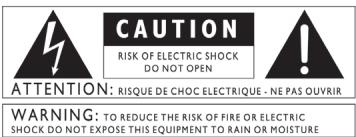
The symbols shown above are internationally accepted symbols that warn of potential hazards with electrical products. The lightning flash with arrowpoint in an equilateral triangle means that there are dangerous voltages present within the unit. The exclamation point in an equilateral triangle indicates that it is necessary for the user to refer to the owner's manual.
These symbols warn that there are no user serviceable parts inside the unit. Do not open the unit. Do not attempt to service the unit yourself. Refer all servicing to qualified personnel. Opening the chassis for any reason will void the manufacturer's warranty. Do not get the unit wet. If liquid is spilled on the unit, shut it off immediately and take it to a dealer for service. Disconnect the unit during storms to prevent damage.
SAFETY INSTRUCTIONS
NOTICE FOR CUSTOMERS IF YOUR UNIT IS EQUIPPED WITH A POWER CORD.
WARNING: THIS APPLIANCE SHALL BE CONNECTED TO A MAINS SOCKET OUTLET WITH A PROTECTIVE EARTHING CONNECTION.
The cores in the mains lead are coloured in accordance with the following code:
GREEN and YELLOW - Earth BLUE - Neutral BROWN -Live
As colours of the cores in the mains lead of this appliance may not correspond with the coloured markings identifying the terminals in your plug, proceed as follows:
- The core which is coloured green and yellow must be connected to the terminal in the plug marked with the letter E, or with the earth symbol, or coloured green, or green and yellow.
- The core which is coloured blue must be connected to the terminal marked N or coloured black.
- The core which is coloured brown must be connected to the terminal marked L or coloured red.
This equipment may require the use of a different line cord, attachment plug, or both, depending on the available power source at installation. If the attachment plug needs to be changed, refer servicing to qualified service personnel who should refer to the table below. The green/yellow wire shall be connected directly to the units chassis.
| CONDUCTOR | WIRE COLOR | ||
| Normal | Alt | ||
| L | LIVE | BROWN | BLACK |
| N | NEUTRAL | BLUE | WHITE |
| E | EARTH GND | GREEN/YEL | GREEN |
WARNING: If the ground is defeated, certain fault conditions in the unit or in the system to which it is connected can result in full line voltage between chassis and earth ground. Severe injury or death can then result if the chassis and earth ground are touched simultaneously.
WARNING FOR YOUR PROTECTION READ THE FOLLOWING:
KEEP THESE INSTRUCTIONS
HEED ALL WARNING
FOLLOW ALL INSTRUCTIONS
THE APPARATUS SHALL NOT BE EXPOSED TO DRIPPING OR SPLASHING LIQUID AND NO OBJECT FILLED WITHI LIQUID, SUCH AS VASES, SHALL BE PLACED ON THE APPARATUS.
CLEAN ONLY WITH A DRY CLOTH.
DO NOT BLOCK ANY OF THE VENTILATION OPENINGS. INSTALL IN ACCORDANCE WITH THE MANUFACTURER'S INSTRUCTIONS.
DO NOT INSTALL NEAR ANY HEAT SOURCES SUCH AS RADIATORS, HEAT REGISTERS, STOVES, OR OTHER APPARATUS (INCLUDING AMPLIFIERS) THAT PRODUCE HEAT.
ONLY USE ATTACHMENTS/ACCESSORIES SPECIFIED BY THE MANUFACTURER.
UNPLUG THIS APPARATUS DURING LIGHTNING STORMS OR WHEN UNUSED FOR LONG PERIODS OF TIME.
Do not defeat the safety purpose of the polarized or grounding-type plug. A polarized plug has two blades with one wider than the other. A grounding type plug has two blades and a third grounding prong. The wide blade or third prong are provided for your safety. If the provided plug does not fit your outlet, consult an electrician for replacement of the obsolete outlet.
Protect the power cord from being walked on or pinched particularly at plugs, convenience receptacles, and the point where they exit from the apparatus.
Use only with the cart stand, tripod bracket, or table specified by the manufacture, or sold with the apparatus. When a cart is used, use caution when moving the cart/apparatus combination to avoid injury from tip-over.

Refer all servicing to qualified service personnel. Servicing is required when the apparatus has been damaged in any way, such as power-supply cord or plug is damaged, liquid has been spilled or objects have fallen into the apparatus, the apparatus has been exposed to rain or moisture, does not operate normally, or has been dropped.
POWER ON/OFF SWITCH: If the equipment has a Power switch, the Power switch used in this piece of equipment DOES NOT break the connection from the mains.
MAINS DISCONNECT: The plug shall remain readily operable. For rack-mount or installation where plug is not accessible, an all-pole mains switch with a contact separation of at least 3 mm in each pole shall be incorporated into the electrical installation of the rack or building.
FOR UNITS EQUIPPED WITH EXTRNNALLY ACCESSIBLE FUSE RECEPTACLE: Replace fuse with same type and rating only.
MULTIPLE-INPUT VOLTAGE: This equipment may require the use of a different line cord, attachment plug, or both, depending on the available power source at installation. Connect this equipment only to the power source indicated on the equipment rear panel. To reduce the risk of fire or electric shock, refer servicing to qualified service personnel or equivalent.
DECLARATION OF CONFORMITY
Manufacturer's Name: Lexicon®
Manufacturer's Address: 8760 S. Sandy Parkway
Sandy, Utah 84070, USA
declares that the product:
Product name: I-ONIX U82S
Note: Product name may be suffixed by the letters EU.
Product option: all (requires Class II power adapter that conforms
to the requirements of EN60065, EN60742, or equivalent.)
conforms to the following Product Specifications:
Safety: IEC 60065-01 + Amd. 1
EMC: EN 55013 (2001+AI)
EN 55020 (1998)
Supplementary Information:
The product herewith complies with the requirements of the Low Voltage Directive 2006/95/EC and the EMC Directive 2004/108/EC.
Vice President of Engineering
8760 S. Sandy Parkway
Sandy, Utah 84070, USA
Date: April 30, 2009
European Contact: Your local Lexicon Sales and Service Office or
Harman Music Group
8760 South Sandy Parkway
Sandy, Utah 84070, USA
Ph: (801) 566-8800
Fax: (801) 566-7005
ELECTROMAGNETIC COMPATIBILITY
This unit conforms to the Product Specifications noted on the Declaration of Conformity. Operation is subject to the following two conditions:
- this device may not cause harmful interference, and
- this device must accept any interference received, including interference that may cause undesired operation.
Operation of this unit within significant electromagnetic fields should be avoided. - use only shielded interconnecting cables.
U.K. MAINS PLUG WARNING
A molded mains plug that has been cut off from the cord is unsafe. Discard the mains plug at a suitable disposal facility. NEVER UNDER ANY CIRCUMSTANCES SHOULD YOU INSERT A DAMAGED OR CUT MAINS PLUG INTO A 13 AMP POWER SOCKET. Do not use the mains plug without the fuse cover in place. Replacement fuse covers can be obtained from your local retailer. Replacement fuses are 13 amps and MUST be ASTA approved to BS1362.

If you want to dispose this product, do not mix it with general household waste. There is a separate collection system for used electronic products in accordance with legislation that requires proper treatment, recovery and recycling.
Private household in the 25 member states of the EU, in Switzerland and Norway may return their used electronic products free of charge to designated collection facilities or to a retailer (if you purchase a similar new one).
For Countries not mentioned above, please contact your local authorities for a correct method of disposal.
By doing so you will ensure that your disposed product undergoes the necessary treatment, recovery and recycling and thus prevent potential negative effects on the environment and human health.
Service Info
If you require technical support, contact Lexicon® Professional Customer Service. Be prepared to accurately describe the problem. Know the serial number of your unit, found on a sticker attached to the bottom of the I·ONIX U82S. If you have not already taken the time to fill out your warranty registration card and send it in, please do so now.
Before you return a product to the factory for service, we recommend you refer to the manual. Make sure you have correctly followed installation steps and operation procedures. If you are still unable to solve a problem, contact our Customer Service Department at (801) 568-7660 for consultation. If you need to return a product to the factory for service, you MUST contact Customer Service to obtain a Return Authorization Number. No returned products will be accepted at the factory without a Return Authorization Number. Please refer to the Warranty information on the following page, which extends to the first end-user. After expiration of the warranty, a reasonable charge will be made for parts, labor, and packing if you choose to use the factory service facility. In all cases, you are responsible for transportation charges to the factory. Lexicon Professional will pay return shipping if the unit is still under warranty.
Use the original packing material if it is available. Mark the package with the name of the shipper and with these words in red: DELICATE INSTRUMENT, FRAGILE! Insure the package properly. Ship prepaid, not collect. Do not ship parcel post.
Warranty
This warranty is valid only for the original purchaser and only in the United States.
- The warranty registration card that accompanies this product must be mailed (or online registration must be completed at www.lexiconpro.com) within 30 days after purchase date to validate this warranty. Proof-of-purchase is considered to be the burden of the consumer.
- Lexicon Professional warrants this product, when bought and used solely within the U.S., to be free from defects in materials and workmanship under normal use and service.
- Lexicon Professional's liability under this warranty is limited to repairing or, at our discretion, replacing defective materials that show evidence of defect, provided the product is returned to Lexicon Professional WITH RETURN AUTHORIZATION from the factory, where all parts and labor will be covered up to a period of 1 year. A Return Authorization number must be obtained from Lexicon Professional by telephone. The company shall not be liable for any consequential damage as a result of the product's use in any circuit or assembly.
- Lexicon Professional reserves the right to make changes in design or make additions to or improvements upon this product without incurring any obligation to install the same additions or improvements on products previously manufactured.
- The foregoing is in lieu of all other warranties, expressed or implied, and Lexicon Professional neither assumes nor authorizes any person to assume on its behalf any obligation or liability in connection with the sale of this product. In no event shall Lexicon Professional or its dealers be liable for special or consequential damages or from any delay in the performance of this warranty due to causes beyond its control.
Table of Contents
OWNER'S MANUAL 1
Service Info 4
Warranty 4
TABLE OF CONTENTS 5
INTRODUCTION 1
Features 1
Unpacking your I·ONIX U82S Desktop Recording
Interface 2
System Requirements 2
FRONT PANEL 3
REAR AND SIDE PANELS 6
CONNECTING THE I-ONIX U82S 8
Microphones 8
Line Level Sources. 8
Instruments 8
Computer/Digital Audio Workstation (DAW) 8
Headphones 8
Monitor Speakers 8
Example Connections. 9
U82S EXAMPLE PROJECT - RECORDING A GUITAR 10
Install Drivers, Control Software, and Cubase® LE 4....10
Activate Cubase LE 4. 10
Set Up Windows® Audio and MIDI (Optional) 11
Example Project Connections. 11
Connect theGuitar. 12
Connect the Computer. 14
Listen to the Guitar Input (Direct) 14
Set Up Cubase® LE 4 for Use with the I•ONIX U82S.15
(Windows®) 15
Set Up Cubase LE 4 for Use with the I · ONIX U82S... 16
(Mac®) 16
Record a Track in Cubase® LE 4 17
Create a New Project 17
Start Recording 18
Listen to the Recording. 18
Audio Mixdown 19
Options and Features in Cubase LE 4 19
Using the Pantheon II Reverb in Cubase LE 4 19
SPECIFICATIONS 21
Introduction
Congratulations and thank you for purchasing the Lexicon® I·ONIX U82S desktop recording interface!
The patent-pending I·ONIX U82S design fits where it makes the most sense, between your keyboard and monitor. With all level meters and gain level controls at your fingertips, you'll wonder why no one ever thought of it before.
Featuring newly designed dbx® 60V high-voltage, ultra-low noise microphone preamps on every channel, the I-ONIX U82S is more than equipped to provide professional recordings that keep your music sounding its best. The preamps run on a 60V supply to guarantee stability and provide you with a superior recording across a wide dynamic range. Performance driven A/D - D/A converters ensure pristine 24bit/96kHz audio to capture every subtle detail of your performance.
The Lexicon name is synonymous with "the world's best reverb." The Pantheon™ II VST/AU reverb plug-in features 6 reverb types with 16 adjustable parameters, and 35 factory presets that range from Vocal to Live Sound and Special Effects. It's easy to complete your mix and make your music sound its best with the exquisitely rich, full reverbs that made Lexicon famous.
Features
USB 2.0 connection to DAW - up to 480Mbps
44.1 to 96kHz sample rates, 24-bit resolution
Eight analog 14 and XLR combi-jacks on the rear panel for mic/line inputs
- Two side panel 14 " hi-Z instrument inputs
- Analog 1 14 TRS (Stereo Main) outputs
- dbx® 60V high-voltage, ultra-low noise mic preamps on all analog mic/ line inputs
- Stereo S/PDIF digital I/O
Supports Windows® and Mac® platforms
48V phantom power per combi-jack input for each input pair
- Input signal metering via 8 LEDs per channel
- Signal mixing and stereo bus signal metering
- Two 1 / 4 " high-output headphone connections
MIDI In/Out
Zero latency monitoring
Low latency ASIO drivers
- Lexicon Pantheon II VST/AU reverb plug-in
- Software suite includes Steinberg®s Cubase® LE 4, and Toontrack® EZdrummer® Lite
Unpacking your I-ONIX U82S Desktop Recording Interface
Each I·ONIX U82S desktop recording interface is shipped in one carton, containing the U82S unit and a software DVD for Windows® and Macintosh® systems. After unpacking, save all the packaging materials in case you ever have to ship the unit. Thoroughly inspect the I·ONIX U82S unit and packing materials for signs of damage. Report any shipment damage to the carrier that delivered the product or dealer from whom you purchased the product at once.
THE FOLLOWING ITEMS ARE INCLUDED:
U82S
- Installer DVD containing drivers, this manual, the Lexicon Pantheon II reverb plug-in, Cubase LE 4 Recording Software, and ToonTrack® EZDrummer Lite for Mac® and Windows®
USB cable
- Lexicon Professional warranty registration
Power Supply
Power Cord
NOTE: The full Cubase LE 4 manual is located on the software DVD.
System Requirements
Powerful software for audio recording requires a powerful computer with the right operating system software, processor and memory. Most computers currently sold already meet these requirements, or can be upgraded to be compatible with the I-ONIX U82S. As with all such systems, adding more RAM than the minimum will allow you to do more processing and improve performance.
Windows Vista (32-bit) and XP (32-bit)
- Multicore processor (Recommended)
1GB RAM (Recommended)
Minimum Display Resolution 1024 x 768 pixels
DVD-ROM drive - Internet access required for software license activation
Mac®
Intel® processor
1 GB RAM (Recommended)
OS X Version 10.4.9 or higher
Minimum Display Resolution 1024 x 768 pixels
DVD-ROM drive
- Internet access required for software license activation
Note: Adobe Reader is required to view the pdf documents on the DVD.
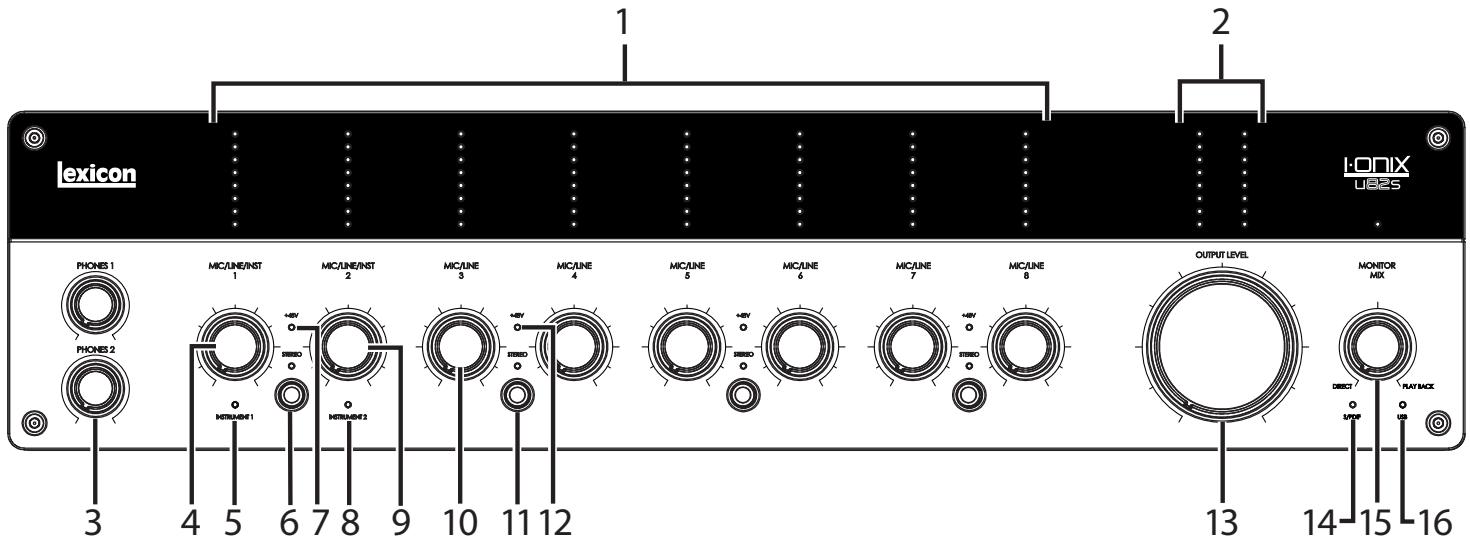
1. INPUT LEVEL LEDs
These indicate signal level for each input by showing the remaining headroom before clipping. Their values are:
Red Clipping
Yellow -3dB
Green -6dB
Green -9dB
Green -12dB
Green -18dB
Green -24dB
Green -30dB
2. MONITOR MIX LEVEL LEDs
These indicate signal level for each monitor mix output by showing the remaining headroom before clipping. Their values are:
Red Clipping
Yellow -4dB
Green -8dB
Green -13dB
Green -17dB
Green -25dB
Green -34dB
Green -42dB
3. PHONES 1 AND PHONES 2 LEVEL KNOBS
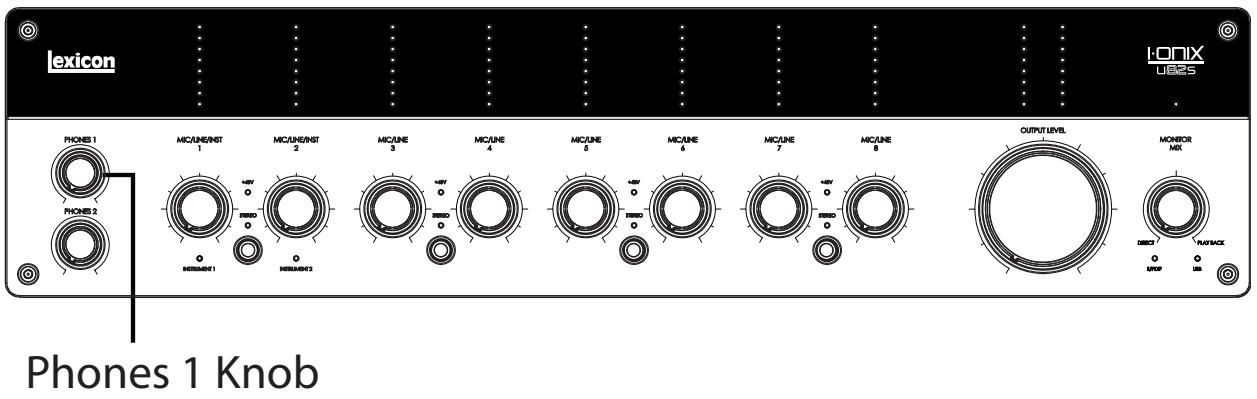
Adjust headphone output signal level here. The Phones 1 knob controls the Phones 1 level, and the Phones 2 knob controls the Phones 2 level.
4. MIC/LINE/INST 1 GAIN KNOB
Adjusts the input gain level for Mic/Line 1 or Instrument 1.
5. INSTRUMENT 1 LED
Lights when a 1/4'' plug is inserted into the Instrument 1 jack on the right side panel.
6. STEREO BUTTON AND STEREO LED - MIC/LINE/INST 1 AND MIC/LINE/INST 2
This button toggles between Stereo mode and Mono mode for the Mic/Line 1 input (or Instrument 1 input) and Mic/Line 2 input (or Instrument 2 input). The LED lights when Stereo mode is on.
In Stereo mode (Stereo LED is on), the Instrument 1 and Mic/Line 1 input signals are sent to the Left Main Out, while the Instrument 2 and Mic/Line 2 input signals are sent to the Right Main Out.
In Mono mode (Stereo LED is off), each pair of input signals is mixed together and sent to the Left and Right Main Outs as a mono signal. One pair includes Instrument 1 or Mic/Line 1 and Instrument 2 or Mic/Line 2.
7.48V LED
Lights when phantom power is active for the Mic/Line 1 and 2 input pair. Phantom power can be turned on for any combi-jack input pair via the 48V buttons on the back panel. Dynamic microphones do not require phantom power to operate, but are not harmed by it. Most condenser microphones do require phantom power to operate. If you are unsure about the phantom power requirements for your microphone, consult your microphone's documentation or contact the manufacturer.
8. INSTRUMENT 2 LED
Lights when a 1/4 plug is inserted into the Instrument 2 jack on the right side panel.
9. MIC/LINE/INST 2 GAIN KNOB
Adjusts the input gain level for Mic/Line 2 or Instrument 2.
10. MIC/LINE GAIN KNOB
Adjusts the input gain level for the indicated Mic/Line input.
11. STEREO BUTTON AND STEREO LED
This button toggles between Stereo mode and Mono mode for the Mic/Line inputs on either side of it. The LED lights when Stereo mode is on.
In Stereo mode (Stereo LED is on), the left input signal (Mic/Line 3, for example) is sent to the Left Main Out, while the right input signal (Mic/Line 4, for example) is sent to the Right Main Out.
In Mono mode (Stereo LED is off), each pair of input signals is mixed together and sent to the Left and Right Main Outs as a mono signal.
12. 48V LED
Lights when phantom power is active for the inputs on either side of the LED. Phantom power can be turned on for each combi-jack input pair via the 48V buttons on the back panel. Dynamic microphones do not require phantom power to operate, but are not harmed by it. Most condenser microphones do require phantom power to operate. If you are unsure about the phantom power requirements for your microphone, consult your microphone's documentation or contact the manufacturer.
13. OUTPUT LEVEL KNOB
Controls the Left and Right Main output level.
14. S/PDIF LED
Lights when a S/PDIF connection is detected. Note that S/PDIF communication is disabled unless a USB connection is established.
15. MONITOR MIX KNOB
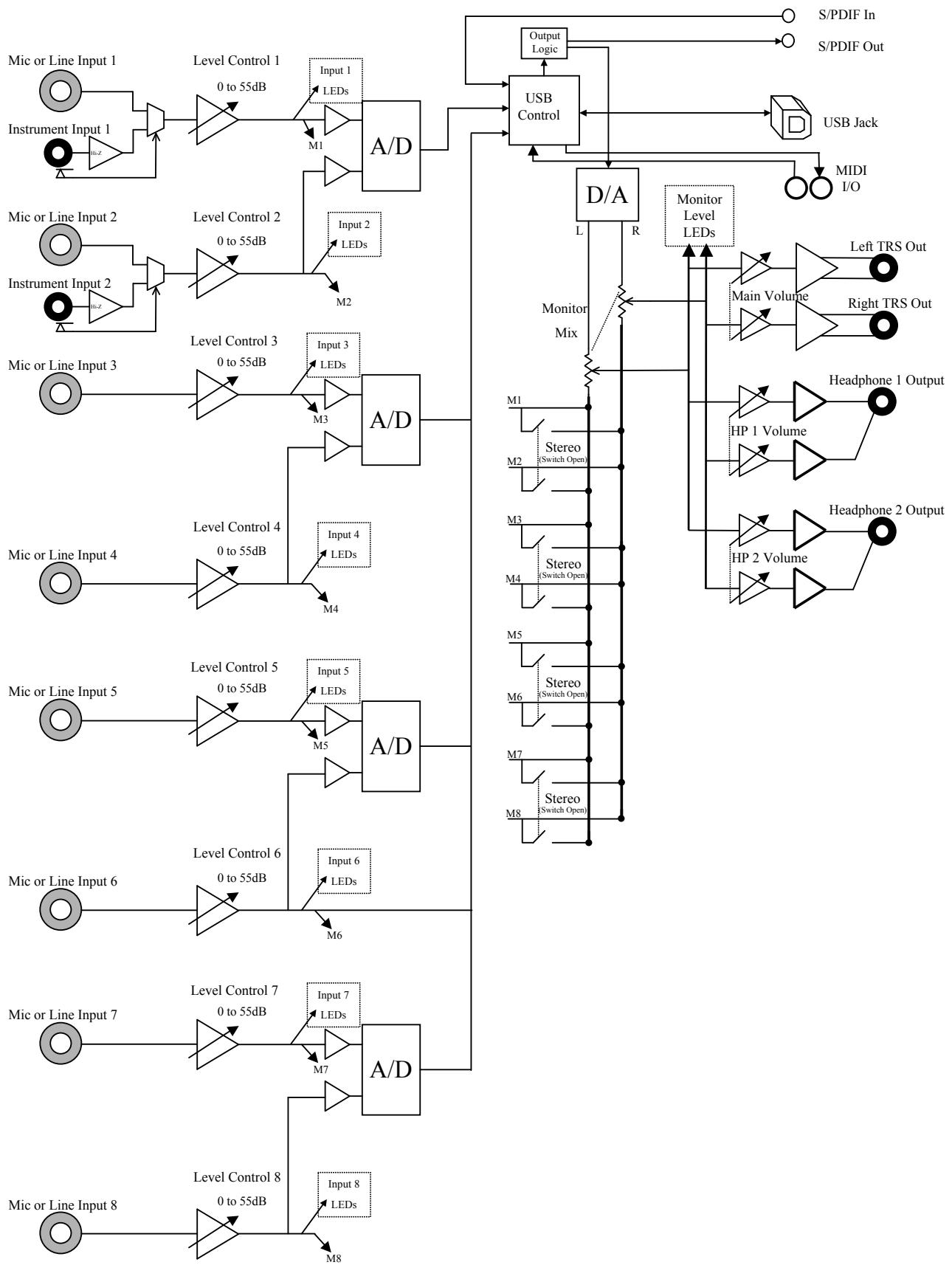
The I-ONIX U82S unit gives you the ability to hear your analog input signals directly and immediately while recording without having to adjust levels in software and before the delay caused by digital converters and computer recording latency. This zero-latency analog monitoring is controlled by the Monitor Mix knob, which you can use to adjust the blend between the live analog inputs (called "Direct") and any sounds coming back from the computer via USB ("Playback"). To hear only the live source input signals plugged into the U82S, turn the Mix knob fully left to Direct. To hear only the mix from the computer, turn the Mix knob fully right to Playback. Any signal coming in on the S/PDIF input is converted to analog and sent to the mix control so that you can monitor this input directly (via playback only) just like an analog input. The output from the Monitor Mix control is routed to the Main outputs and Headphone outputs.
16. USB LED
Lights when a USB connection is detected.
Rear and Side Panels
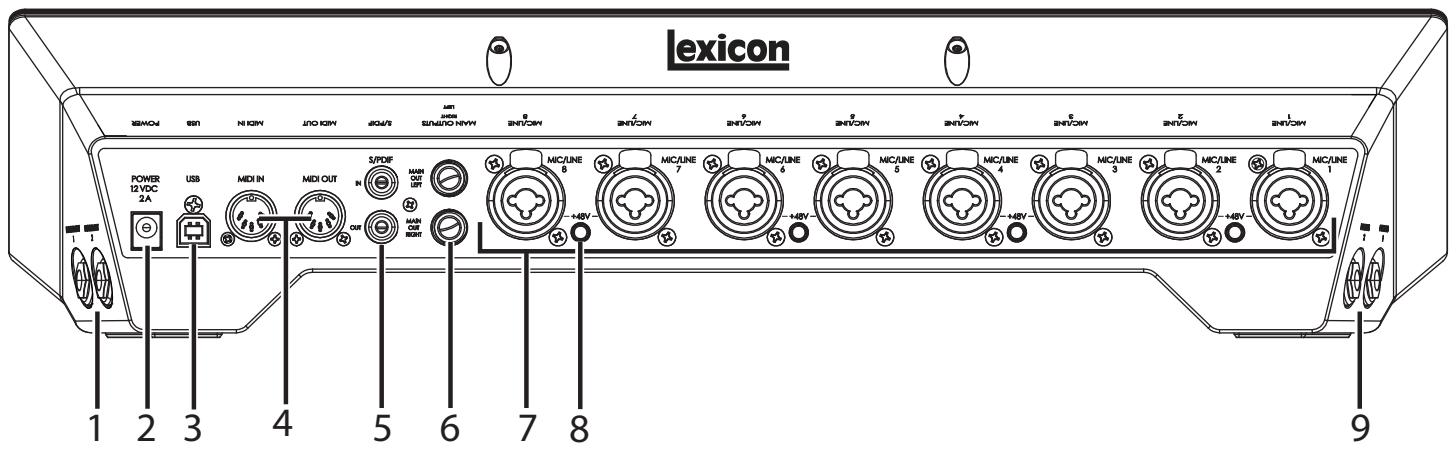
1. INSTRUMENT 1 AND INSTRUMENT 2 INPUTS
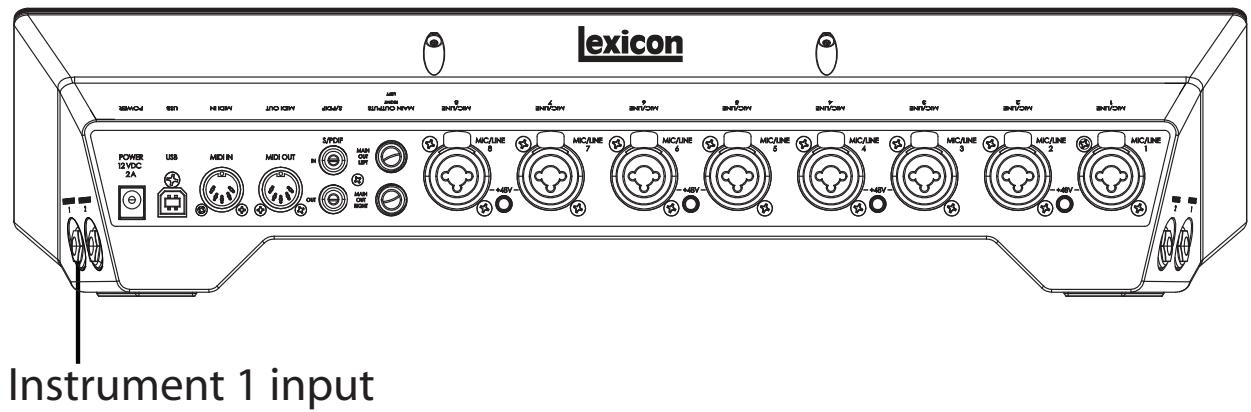
These unbalanced inputs accept 1/4 connectors and support instrument level sources (including guitars). Note that when the Instrument 1 input is connected, the Mic/Line input 1 is disabled. The same is true for the Instrument 2 and Mic/Line 2 inputs: when the Instrument is connected, the Mic/Line is disabled.
2. POWER JACK
Use only the included PS1225DC power supply.
3. USB PORT
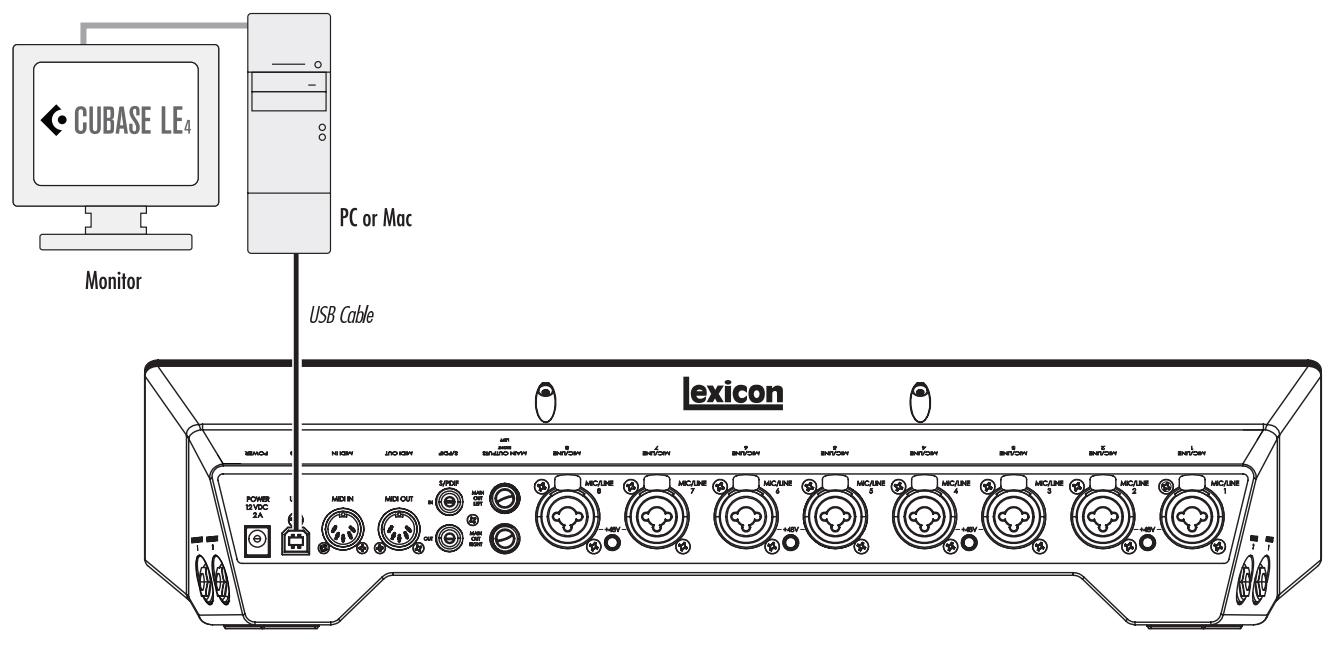
The USB Port is used to connect the U82S to your computer. A standard USB cable is included. The U82S is only compatible with USB 2.0.
4. MIDI IN AND OUT
The MIDI jacks provide MIDI input and MIDI output to and from your computer. Connect your MIDI keyboards, sound modules, and external controllers here.
5. S/PDIF IN AND OUT
The S/PDIF in and out ports are unbalanced phono (RCA) connectors that transmit and receive either a 16-bit or 24-bit two-channel audio stream. S/PDIF ports may be found on many professional and consumer CD and digital audio recorders. It is recommended to use 75-Ohm coaxial cable for S/PDIF transfers and keep the cable length to a maximum of 10 meters to minimize interference and data dropout.
6. MAIN OUTPUTS
These outputs support balanced TRS (Tip, Ring, Sleeve) or unbalanced TS (Tip, Sleeve) 14 connections. These outputs can be connected to a mixing board, power amplifier, powered studio monitors, recorder, or another line level input. For best performance, use balanced cables for these connections.
7. MIC/LINE INPUTS 1-8
These balanced inputs accept XLR or 1/4 connectors, and support mic and line level sources. Note that when the Instrument 1 input is connected, the Mic/Line input 1 is disabled. The same is true for the Instrument 2 and Mic/Line 2 inputs: when the Instrument is connected, the Mic/Line is disabled.
8.48V PHANTOM POWER BUTTON
This button enables the phantom power to the Mic/Line inputs on either side of it. When it's on, the +48V LED between the corresponding Gain knobs lights on the front panel. Dynamic microphones do not require phantom power to operate, but are not harmed by it. Most condenser microphones do require phantom power to operate. If you are unsure about the phantom power requirements for your microphone, consult your microphone's documentation or contact the manufacturer. This switch should be OFF if you are connecting any line-level source to the Mic In jacks.
9. HEADPHONE 1 AND HEADPHONE 2 JACKS
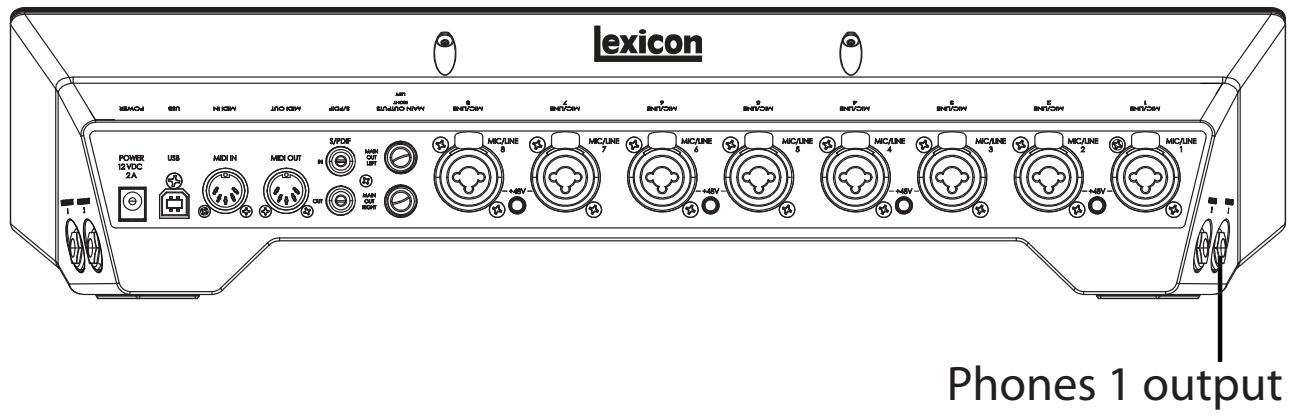
The Headphone outputs accommodate stereo headphones with a 1/4'' stereo plug. These outputs are the same as those sent to the Main Outputs, but with their own independent level controls.
Connecting the I·ONIX U82S
Microphones
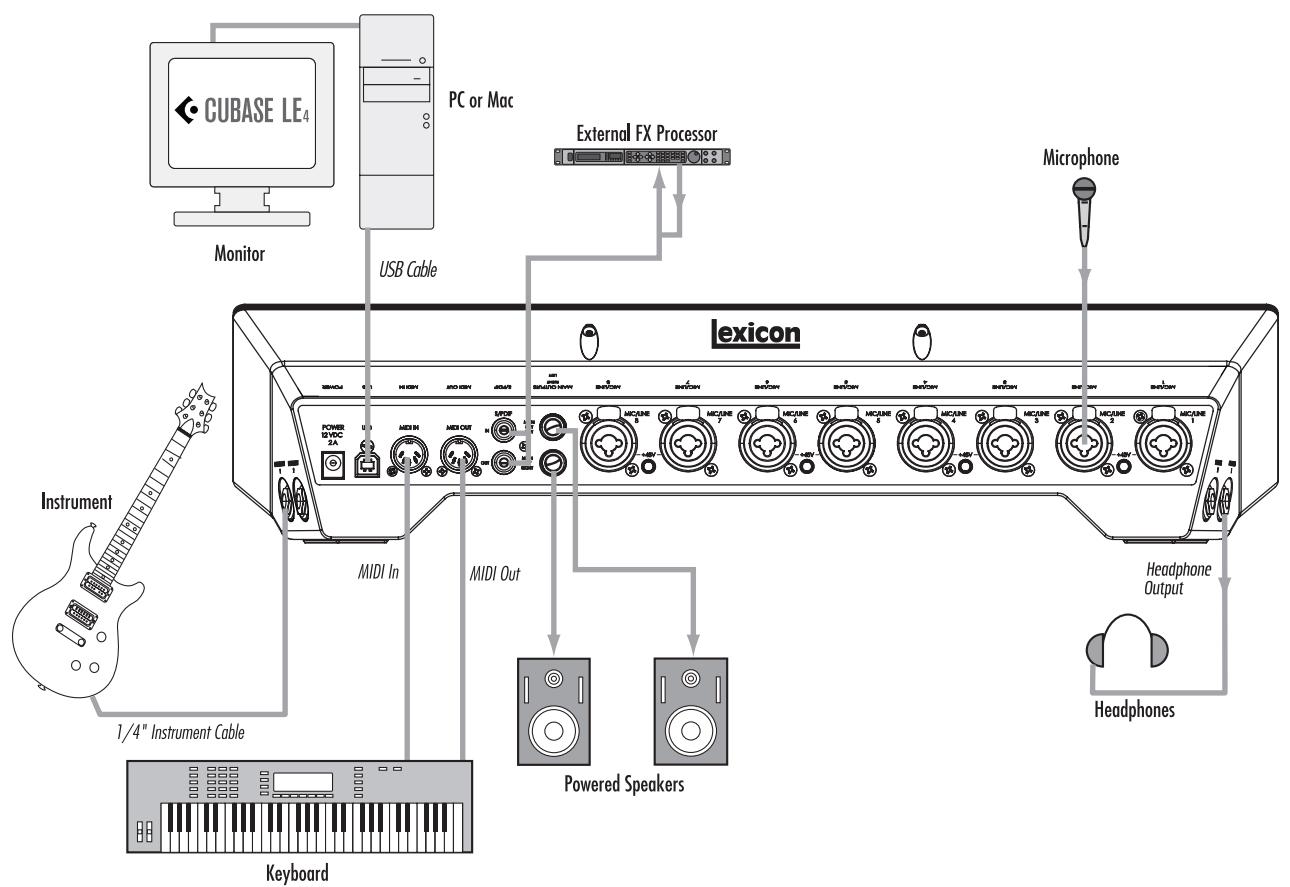
Plug an XLR cable directly from a microphone into the desired Mic/Line input on the U82S rear panel.
If your microphone requires phantom power, first make sure the microphone is connected, then press the +48V button/LED for the corresponding input pair on the rear panel. If your mics don't need phantom power, it is best to leave it off.
Note: Some microphones can be damaged by +48V phantom power. Consult your microphone's documentation before enabling +48V phantom power.
Line Level Sources
Line level sources include keyboards, drum machines, CD players, and external microphone preamps and effects. Plug a 1/4'' TS (unbalanced) or TRS (balanced) cable directly from the line level source into the desired Mic/Line input on the U82S rear panel.
Instruments
The Instrument jacks on the right side panel accept signals from instruments like electric guitars and basses. Plug a standard unbalanced 1/4'' TS (instrument) cable directly from the instrument into one of the Instrument input jacks on the right side panel of U82S.
Computer/Digital Audio Workstation (DAW)
Connect your computer's USB port to the USB port on the U82S rear panel using a standard USB 2.0 cable (included).
Headphones
Connect headphones to the Headphone jack(s) located on the left side panel. The Headphone jacks accept 1/4 TRS connectors. Adjust headphone volume with the Phones 1 or Phones 2 Level knobs.
Monitor Speakers
Using 14 cables, connect the L/R Main Output jacks on the rear panel to the appropriate inputs on your mixer, power amp, or powered monitors. Adjust the output volume with the Output Level knob. For best performance, use balanced cables.
U82S Example Project - Recording a Guitar
Follow the steps in this example to start using the U82S and become familiar with it. This example uses Cubase® LE 4, but the U82S works with many DAW applications.
Install Drivers, Control Software, and Cubase® LE 4
- Insert the DVD into your DVD-ROM drive. The Installer should start automatically.
If the Installer doesn't start automatically, you can start it manually by opening the appropriate file on the DVD:
Mac: Open Me
Windows®: InstallationMenu.exe
- Once the Installer is open, follow the on-screen instructions to install the software you wish to use.
Note: You must install the I·ONIX U82S Drivers to use the U82S with Cubase® LE 4. You must also install Cubase LE 4 to follow the steps in the example project on the following pages.
The latest drivers can also be downloaded from www.lexiconpro.com.
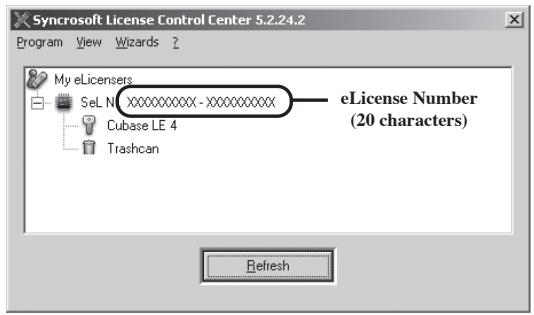
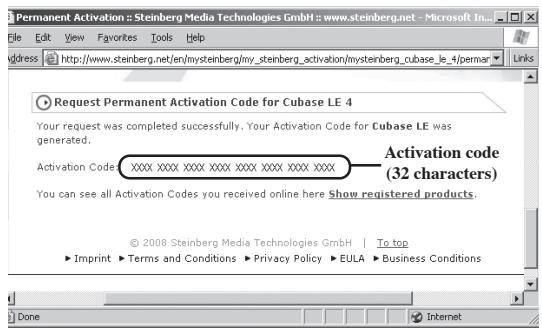
Activate Cubase LE 4
- Install Cubase LE 4.
- Start Cubase LE 4 and click Register Now or go to www.steinberg.net/en/mysteinberg
- Create a MySteinberg account (follow onscreen instructions) and log onto MySteinberg.
- Click Cubase LE 4 in the Activation & Reactivation section then click More in the Permanent Activation section.
- Type in your Soft-eLicense Number (Sel Nr.). This number can be found in the following locations:
Windows: Start > All Programs > Syncrosoft > License Control Center.
Mac: Applications > License Control Center.
- Select Lexicon in the Hardware Manufacturer field and click Request Activation Code.
- Copy your Activation code.
- Go back to the License Control Center window (where you found the eLicense Number) and click Wizards > License Download.
- Click Next then paste or manually enter the Activation Code. Click Enter, Next, then Start.
Once the license has been downloaded, click OK then Finish.
Set Up Windows® Audio and MIDI (Optional)
When the Drivers and Control Software were installed, Windows may have automatically selected them as your default audio and MIDI outputs. This means that your Windows sounds will be sent to the U82S rather than your computer's sound card. We need to check if these have been changed and return the settings to what they were before.
- Select Start>Control Panel > Sound and Audio Devices (XP) or Hardware and Sound (Vista).
- Select the Audio tab (XP) or Manage Audio Devices (Vista).
- Under Sound Playback > Default device (XP), or Playback (Vista), make sure your computer's sound card is selected as the default device.
- Under Sound Recording > Default device (XP), or Recording (Vista), make sure your computer's sound card is selected as the default device.
- Under MIDI Music Playback > Default device, open the pull-down menu and make sure Microsoft GS Wavetable Synth is selected as the default device (XP only).
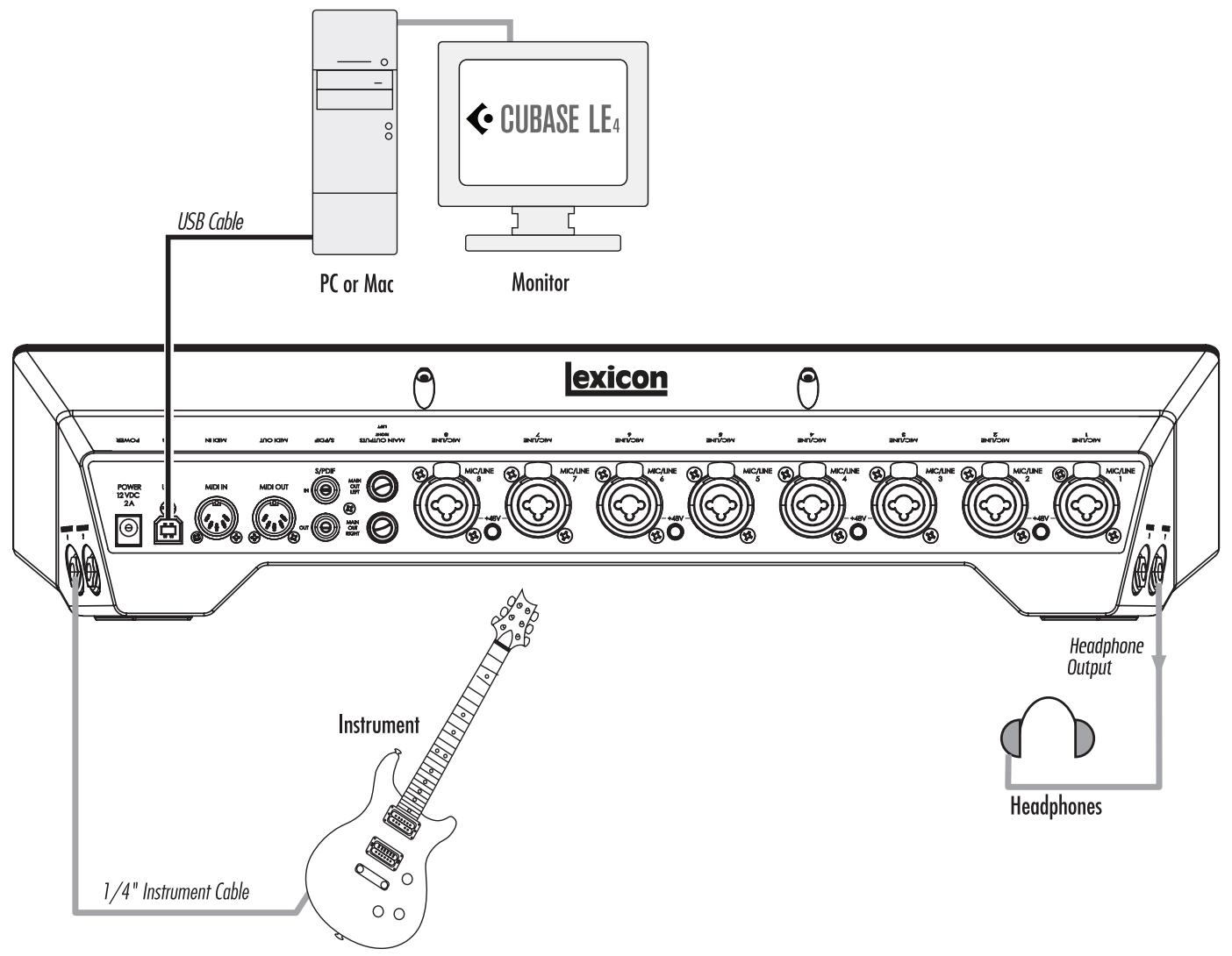
Example Project Connections
Connect the Guitar
- Turn the Mic/Line/Inst 1 knob all the way down.
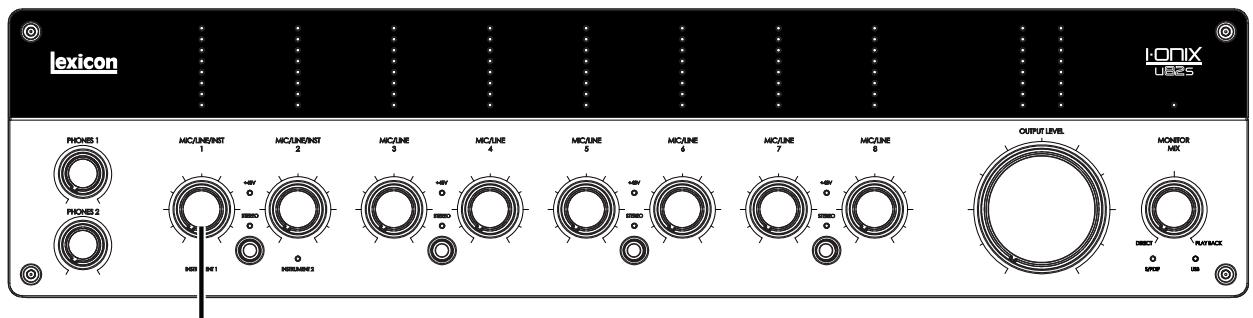
Mic/Line/Inst 1 Knob
- Connect your guitar to the Instrument 1 input on the right side panel.
Connect the Headphones
- Turn the Phones 1 knob all the way down.
- Connect your headphones to the Phones 1 jack on the left side panel.
Connect the Computer
Connect your computer's USB port to the USB port on the I·ONIX U82S rear panel using a standard USB cable (included).
Listen to the Guitar Input (Direct)
- Put on the headphones.
- Set the monitor mix to 12:00. This will let you hear an equal blend of the signals going into the U82S as well as signals coming from Cubase.
- Play the guitar.
- Gradually turn up the Phones 1 knob until you reach a comfortable listening level.
Set Up Cubase® LE 4 for Use with the I•ONIX U82S (Windows®)
- Make sure the included USB cable is connected to your computer and to the U82S and the U82S is turned on.
- Start Cubase® LE 4 (from the Start menu under Lexicon®).
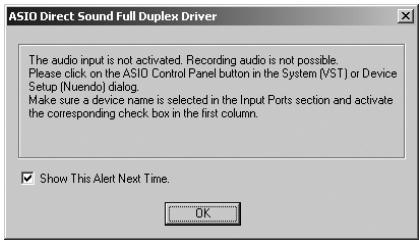
- If you see the warning shown below, click OK.
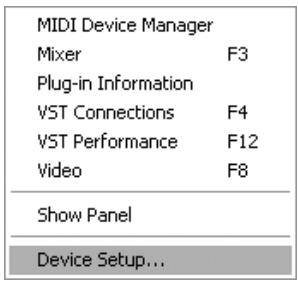
- Once you are in Cubase LE 4, go to Devices>Device Setup.
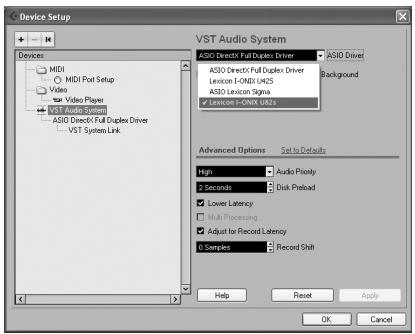
- Under Devices, click on VST Audio System and select Lexicon I·ONIX U82S from the ASIO Driver pull-down menu if it is not already selected. Click on Switch to switch the driver, then click OK in the Device Setup dialog. You are now ready to begin recording using your U82S and Cubase LE 4.
Note: In many cases you can improve performance by selecting a higher latency setting from the System Performance drop-down menu on the ASIO control panel (Devices > Device Setup > Lexicon I•ONIX U82S > Control Panel > ASIO).
Set Up Cubase LE 4 for Use with the I•ONIX U82S (Mac®)
-
Make sure the included USB cable is connected to your computer and to the U82S, and the U82S is turned on.
-
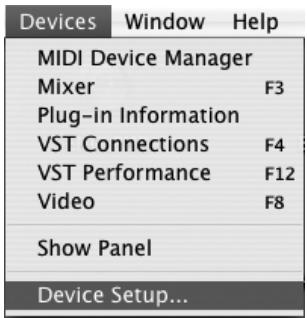
Open Cubase LE 4 (located in the Applications folder), and go to Devices>Device Setup as shown below.
- Click VST Audio System and select Lexicon I·ONIX U82S as the ASIO Driver if it is not already selected.
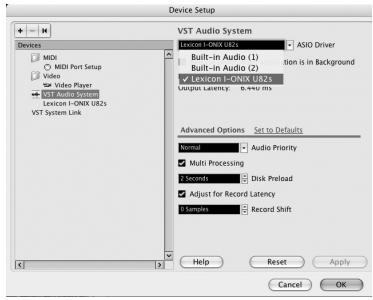
- Cubase® LE 4 will now ask you if you would like to switch the driver. Select Switch then OK.
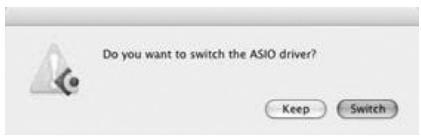
- Ensure the driver is loaded by clicking Reset. Then click OK.
Mac® OS 10.4.x users only: After selecting Lexicon I·ONIX U82S as the ASIO Driver, you may need to verify that your device inputs are active. To do this, follow these steps:
- Select Device VST Connections from the menu bar.
- When the VST Connections panel appears, click the Inputs tab.
- The box under the Audio Device column may say "Not Connected". If it does, click in this box and select Lexicon I·ONIX U82S to enable the U82S inputs.
- Close the VST Connections window.
You are now ready to start recording with Cubase LE 4, described in the next section.
Create a New Project
- In Cubase, click File > New Project. The New Project dialog opens.
- Select Lexicon I·ONIX U82S Mono In and click OK.
- Select a project folder and click Choose.
- Add a mono track by clicking Project -> Add Track -> Audio. Choose the Mono configuration and click OK.
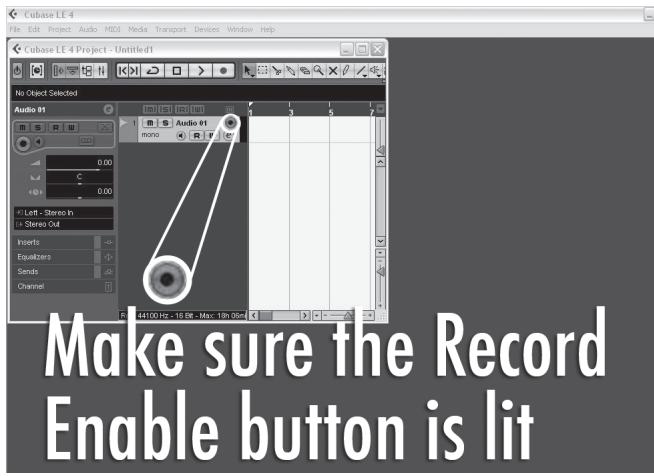
- In the Audio 1 window, the Record Enable button should already be red. If it isn't, click it so that it turns red.
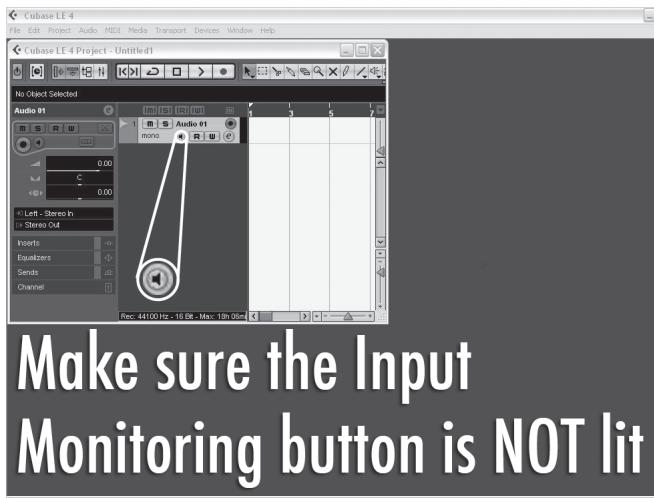
- In the Audio 1 window, click the Input Monitoring button so that it is not lit.
Start Recording
- Click the Record button on Cubase® LE 4's Transport control.
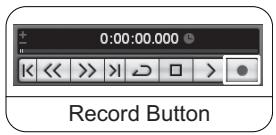
- Play the guitar.
- When you are finished recording press the Stop button.
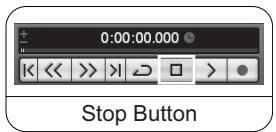
Listen to the Recording
- In Cubase, click the Go to Zero button.
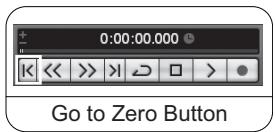
- Turn the Phones 1 knob all the way down.
- Put on the headphones.
- In Cubase, click the Play button.
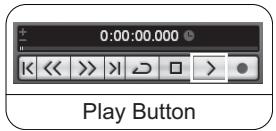
- On the U82S, gradually turn up the Phones 1 knob until you reach a comfortable listening level.
Once you add a track to your Cubase project the Input Routing field will default to U82S In 1. However if you connect instruments to other inputs on the U82S you will need to change the input routing for the track you are recording onto. Please refer to the chart below to see how the input routing labels in Cubase LE 4 correspond to the physical inputs on the U82S.
| U82S Input | Input Routing Labels for Mono Tracks in Cubase LE 4 (When using the Lexicon® I•ONIX U82S Mono In Project Template) |
| 1 | U82S In 1 |
| 2 | U82S In 2 |
| 3 | U82S In 3 |
| 4 | U82S In 4 |
| 5 | U82S In 5 |
| 6 | U82S In 6 |
| 7 | U82S In 7 |
| 8 | U82S In 8 |
Audio Mixdown
You can use the audio mixdown function in Cubase® LE 4 to create a .wav file from your Cubase project. The .wav file can then be burned onto a CD or played using your computer's media player. Cubase LE 4 does not mix-down to mp3 format; however, you can use other software to convert a .wav file to mp3 format.
To mixdown your project, you will first need to set the left and right locators; one way to set the locators is to press [Ctrl] + [A] on your computer's keyboard and then press [P]. You can also click and drag either of the markers to the desired position.
Once the locaters are set, go to File > Export > Audio mixdown. Click on the Choose button and name the file in the File name: field and select the location that you want the .wav file to be saved to in the Look in field and click the Save button. The file must first be saved onto your computer's hard drive before it can be burned onto a CD.
Next, select Wave File (.wav) in the 'File Format' field, set Sample Rate to 44.1kHz , set Bit Depth to 16 bit, and click Export.
Options and Features in Cubase LE 4
Cubase LE 4 contains many advanced features and options for recording, editing and mixing audio. To learn more about these features please see the Getting started and Operation Manual sections found in Cubase LE 4 under Help > Documentation.
Using the Pantheon II Reverb in Cubase LE 4
The Pantheon reverb can be set up in Cubase LE 4 in two ways: as an insert on an audio track, or as an insert on an FX channel.
To use the Pantheon as an insert on an audio track:
1. Make sure the U82S is powered on and connected to your computer (Pantheon II will function only when an I-ONIX device is detected).
2. Click the Inserts tab for the channel on which you wish to insert the Pantheon II reverb.
3. Click in a blank slot and choose Earlier VST Plug-ins > Lexicon > Pantheon II. You will hear the Pantheon II reverb only on the audio track on which it was inserted.
To use the Pantheon II as an insert on FX Channel:
- Make sure the U82S is powered on and connected to your computer (Pantheon II will function only when an I·ONIX device is detected).
- Add an FX channel. To do this, go to Project > Add track > FX Channel, then click on the Inserts tab for the FX Channel.
- Click in a blank slot and choose Earlier VST Plug-ins > Lexicon > Pantheon II.
- Click the Sends tab for any audio track that you would like to affect with reverb.
- Click in a blank slot and set the output to FX-1 Pantheon II.
- Click on the Power button and set the send level to the desired position. Any number of audio tracks can send signal to the FX channel.
Block Diagram
Specifications
| Microphone Inputs: | Female XLR Pin 2 Hot |
| Input Impedance: | 3kΩ balanced |
| Phantom Power: | +48 Volts |
| Maximum gain: | +58 dB |
| E.I.N. (at max gain): | -125 dB@58dB gain typical (150Ω source) |
| -128 dB@58dB gain typical A-weighted (150Ω source) | |
| Maximum Input Level: | +20 dB at minimum input gain |
| Frequency Response: | +0/-1.0 dB, 20Hz - 20kHz |
| THD+N: | <0.01% 20Hz - 20kHz, +4 dBu input level, + dBu output (mic input to main output) |
| <0.008% 1kHz, +4 dBu input level, +4 dBu output, (mic input to main output). | |
| Line Inputs: | 1/4" TRS balanced or unbalanced |
| Input Impedance: | 20kΩ balanced, 13kΩ unbalanced |
| Maximum Input Level: | +32 dBu |
| Frequency Response: | +0/-1.0 dB, 20Hz - 20kHz |
| THD+N: | <0.015%, 20Hz - 20kHz, +4 dBu (line input to main output) |
| Instrument Input: | 1/4" TS unbalanced |
| Input Impedance: | 1MΩ |
| Maximum Input Level: | +13 dBu |
| Frequency Response: | +0/-1.0 dB, 20Hz - 20kHz |
| THD+N: | <0.05%, 20Hz - 20kHz, +4 dBu input level, +4 dBu output, (instrument input to main output) |
| Line Outputs: | |
| Level: | 1/4" TRS balanced or unbalanced |
| Impedance: | >+18 dBu maximum |
| 32Ω Balanced, 16Ω Unbalanced | |
| Headphone Output: | 1/4" stereo jack 350mW per channel at 50Ω |
| MIDI Interface: | |
| Sample Rate: | 5 pin DIN connectors for MIDI in and MIDI out |
| 44.1, 48, 88.2, or 96 kHz (determined by computer application) | |
| Dynamic Range: | |
| A/D (24 Bit) 102 dB typical, A-weighted, 20Hz - 20kHz (Analog in, S/PDIF out) | |
| (44.1 kHz sample rate) | |
| D/A (24 Bit) 106 dB typical, A-weighted, 20Hz - 20kHz (S/PDIF in, Analog out) | |
| A/D/A (24 Bit) 101 dB typical, A-weighted, 20Hz - 20kHz (Analog to PC to Analog) | |
| Power Requirements: | |
| 24W, 12V DC | |
| Power adaptors available for: | |
| PS1225DC (USA) | |
| PS1225DC (Europe) | |
| PS1225DC (United Kingdom) | |
| PS1225DC (Australia) |
Lexicon® engineers are constantly working to improve the quality of our products. Specifications are therefore subject to change without notice.
Lexicon®
Harman Music Group
8760 South Sandy Parkway | Sandy, Utah 84070
U.S.A.
Phone: (801)-568-7660 | Fax: (801) 568-7662
I-ONIX U82S
Questions or comments?
Email us at: customer@lexiconpro.com
or visit us online at www.lexiconpro.com