
OMEGA - Audio Interface LEXICON - Free user manual and instructions
Find the device manual for free OMEGA LEXICON in PDF.


| Product Type | Desktop USB Audio Interface |
| Brand | Lexicon |
| Model | Omega |
| Dimensions (W x H x D) | 118 mm x 184 mm x 197 mm |
| Weight | 1.2 kg (2.65 lb) |
| Power Supply | PS0913-B AC adapter included |
| Number of Audio Inputs | 7 (2 XLR mic, 4 TRS line, 1 TS instrument) |
| Number of Audio Outputs | 2 TRS line, 1 stereo headphone |
| Digital Connectivity | Coaxial S/PDIF input and output (RCA) |
| MIDI | 5-pin DIN input and output |
| Audio Resolution | 24-bit |
| Sample Rates | 44.1 kHz and 48 kHz |
| Phantom Power | +48 V switchable on mic inputs 1 and 2 |
| Microphone Preamps | dbx® ultra-low noise |
| Monitoring | Latency-free analog monitoring with mix control |
| -20 dB Pad | Yes, on each mic input |
| Analog Insert | 2 TRS inserts on mic inputs |
| Headphone Output | 1 x 6.35 mm stereo jack, 100 mW per channel into 50 Ω |
| USB Connection | USB 1.1 (USB 2.0 compatible) |
| Supported Operating Systems | Windows 2000/XP, Mac OS X 10.2.8 or later |
| Included Software | Pro Tracks Plus™ (Windows) and BIAS® Deck 3.5 SE™ (Mac) |
| Maintenance and Cleaning | Clean with a dry cloth; avoid any liquid |
| Safety | Do not open the device; unplug during thunderstorms |
| Spare Parts and Repairability | Contact Lexicon customer service for any repairs |
| General Information | Complete desktop recording station with 6 USB audio streams |
Frequently Asked Questions - OMEGA LEXICON
User questions about OMEGA LEXICON
0 question about this device. Answer the ones you know or ask your own.
Ask a new question about this device
Download the instructions for your Audio Interface in PDF format for free! Find your manual OMEGA - LEXICON and take your electronic device back in hand. On this page are published all the documents necessary for the use of your device. OMEGA by LEXICON.
USER MANUAL OMEGA LEXICON
OMEGA™ Desktop Recording Studio
Owner's Manual



ATTENTION:
RISQUE DE CHOC ELECTRIQUE - NE PAS OUVRIR
WARNING: TO REDUCE THE RISK OF FIRE OR ELECTRIC SHOCK DO NOT EXPOSE THIS EQUIPMENT TO RAIN OR MOISTURE
The symbols shown above are internationally accepted symbols that warn of potential hazards with electrical products. The lightning flash with arrowpoint in an equilateral triangle means that there are dangerous voltages present within the unit. The exclamation point in an equilateral triangle indicates that it is necessary for the user to refer to the owner's manual.
These symbols warn that there are no user serviceable parts inside the unit. Do not open the unit. Do not attempt to service the unit yourself. Refer all servicing to qualified personnel. Opening the chassis for any reason will void the manufacturer's warranty. Do not get the unit wet. If liquid is spilled on the unit, shut it off immediately and take it to a dealer for service. Disconnect the unit during storms to prevent damage.
SAFETY INSTRUCTIONS
NOTICE FOR CUSTOMERS IF YOUR UNIT IS EQUIPPED WITH A POWER CORD.
WARNING: THIS APPLIANCE MUST BE EARTHED.
The cores in the mains lead are coloured in accordance with the following code:
GREEN and YELLOW - Earth
BLUE - Neutral
BROWN - Live
As colours of the cores in the mains lead of this appliance may not correspond with the coloured markings identifying the terminals in your plug, proceed as follows:
- The core which is coloured green and yellow must be connected to the terminal in the plug marked with the letter E, or with the earth symbol, or coloured green, or green and yellow.
- The core which is coloured blue must be connected to the terminal marked N or coloured black.
- The core which is coloured brown must be connected to the terminal marked L or coloured red.
This equipment may require the use of a different line cord, attachment plug, or both, depending on the available power source at installation. If the attachment plug needs to be changed, refer servicing to qualified service personnel who should refer to the table below. The green/yellow wire shall be connected directly to the units chassis.
| CONDUCTOR | WIRE COLOR | ||
| Normal | Alt | ||
| L | LIVE | BROWN | BLACK |
| N | NEUTRAL | BLUE | WHITE |
| E | EARTH GND | GREEN/YEL | GREEN |
WARNING: If the ground is defeated, certain fault conditions in the unit or in the system to which it is connected can result in full line voltage between chassis and earth ground. Severe injury or death can then result if the chassis and earth ground are touched simultaneously.
WARNING FOR YOUR PROTECTION PLEASE READ THE FOLLOWING:
KEEP THESE INSTRUCTIONS
HEED ALL WARNING
FOLLOW ALL INSTRUCTIONS
DO NOT USE THIS APPARATUS NEAR WATER
CLEAN ONLY WITH A DRY CLOTH.
DO NOT BLOCK ANY OF THE VENTILATION OPENINGS. INSTALL IN ACCORDANCE WITH THE MANUFACTURER'S INSTRUCTIONS.
DO NOT INSTALL NEAR ANY HEAT SOURCES SUCH AS RADIATORS,HEAT REGISTERS,STOVES,OR. OTHER APPARATUS (INCLUDING AMPLIFIERS) THAT PRODUCE HEAT.
ONLY USE ATTACHMENTS/ACCESSORIES SPECIFIED BY THE MANUFACTURER.
UNPLUG THIS APPARATUS DURING LIGHTNING STORMS OR WHEN UNUSED FOR LONG PERIODS OF TIME.
Do not defeat the safety purpose of the polarized or grounding-type plug. A polarized plug has two blades with one wider than the other. A grounding type plug has two blades and a third grounding prong. The wide blade or third prong are provided for your safety. If the provided plug does not fit your outlet, consult an electrician for replacement of the obsolete outlet.
Protect the power cord from being walked on or pinched particularly at plugs, convenience receptacles, and the point where they exit from the apparatus.
Use only with the cart stand, tripod bracket, or table specified by the manufacture, or sold with the apparatus. When a cart is used, use caution when moving the cart/apparatus combination to avoid injury from tip-over.

Refer all servicing to to qualified service personnel. Servicing is required when the apparatus has been damaged in any way, such as power-supply cord or plug is damaged, liquid has been spilled or objects have fallen into the apparatus, the apparatus has been exposed to rain or moisture, does not operate normally, or has been dropped.
POWER ON/OFF SWITCH: For products provided with a power switch, the power switch DOES NOT break the connection from the mains.
MAINS DISCONNECT: The plug shall remain readily operable. For rack-mount or installation where plug is not accessible, an all-pole mains switch with a contact separation of at least 3mm in each pole shall be incorporated into the electrical installation of the rack or building.
FOR UNITS EQUIPPED WITH EXTRNNALLY ACCESSIBLE FUSE RECEPTACLE: Replace fuse with same type and rating only.
MULTIPLE-INPUT VOLTAGE: This equipment may require the use of a different line cord, attachment plug, or both, depending on the available power source at installation. Connect this equipment only to the power source indicated on the equipment rear panel. To reduce the risk of fire or electric shock, refer servicing to qualified service personnel or equivalent.
ELECTROMAGNETIC COMPATIBILITY
This unit conforms to the Product Specifications noted on the Declaration of Conformity. Operation is subject to the following two conditions:
- this device may not cause harmful interference, and
- this device must accept any interference received, including interference that may cause undesired operation.
Operation of this unit within significant electromagnetic fields should be avoided.
- use only shielded interconnecting cables.
U.K. MAINS PLUG WARNING
A molded mains plug that has been cut off from the cord is unsafe.
Discard the mains plug at a suitable disposal facility.
NEVER UNDER ANY CIRCUMSTANCES SHOULD YOU INSERT A DAMAGED OR CUT MAINS PLUG INTO A 13 AMP POWER SOCKET.
Do not use the mains plug without the fuse cover in place.
Replacement fuse covers can be obtained from your local retailer.
Replacement fuses are 13 amps and MUST be ASTA approved to BS1362.
DECLARATION OF CONFORMITY
Manufacturer's Name: Lexicon Professional Manufacturer's Address: 8760 S. Sandy Pkwy. Sandy, UT 84070, USA
Declaresthattheproduct:
Product name: Lexicon OmegaTM Note: Product name may be suffixed by the letters-EU.
Product option: all (requires Class II power adapter that con forms to the requirements of EN60065, EN60742, or equivalent.)
Conforms to the following Product Specifications:
Safety: IEC 60065 (1998)
EMC: EN 55013 (1990) EN 55020 (1991)
Supplementary Information:
The product herewith complies with the requirements of the Low Voltage Directive 72/23/EEC and the EMC Directive 89/336/EEC as amended by Directive 93/68/EEC.
Vice-President of
Engineering
8760 S. Sandy Parkway
Sandy, Utah 84070, USA
Date: September 2003
European Contact: Your local Lexicon Professional Sales a Service Office or
Harman Music Group
8760 S. Sandy Pkwy.
Sandy, UT 84070 USA
Ph: (801) 566-8800
Fax: (801) 568-7583
SERVICE INFO
If you require technical support, contact Lexicon Professional Customer Service. Be prepared to accurately describe the problem. Know the serial number of your unit, it is printed on a sticker attached to the rear panel. If you have not already taken the time to fill out your warranty registration card and send it in, please do so now.
Before you return a product to the factory for service, we recommend you refer to the manual. Make sure you have correctly followed installation steps and operation procedures. If you are still unable to solve a problem, contact our Customer Service Department at (801) 568-7660 for consultation. If you need to return a product to the factory for service, you MUST contact Customer Service to obtain a Return Authorization Number.
No returned products will be accepted at the factory without a Return Authorization Number.
Please refer to the Warranty information on the following page, which extends to the first end-user. After expiration of the warranty, a reasonable charge will be made for parts, labor, and packing if you choose to use the factory service facility. In all cases, you are responsible for transportation charges to the factory. Lexicon Professional will pay return shipping if the unit is still under warranty.
Use the original packing material if it is available. Mark the package with the name of the shipper and with these words in red:
DELICATE INSTRUMENT, FRAGILE! Insure the package properly. Ship prepaid,not collect. Do not ship parcel post.
WARRANTY
This warranty is valid only for the original purchaser and only in the United States.
- The warranty registration card that accompanies this product must be mailed within 30 days after purchase date to validate this warranty. Proof-of-purchase is considered to be the burden of the consumer.
- Lexicon Professional warrants this product, when bought and used solely within the U.S., to be free from defects in materials and workmanship under normal use and service.
- Lexicon Professional's liability under this warranty is limited to repairing or, at our discretion, replacing defective materials that show evidence of defect, provided the product is returned to Lexicon professional WITH RETURN AUTHORIZATION from the factory, where all parts and labor will be covered up to a period of 1 year. A Return Authorization number must be obtained from Lexicon Professional by telephone. The company shall not be liable for any consequential damage as a result of the product's use in any circuit or assembly.
- Lexicon Professional reserves the right to make changes in design or make additions to or improvements upon this product without incurring any obligation to install the same additions or improvements on products previously manufactured.
- The foregoing is in lieu of all other warranties, expressed or implied, and Lexicon Professional neither assumes nor authorizes any person to assume on its behalf any obligation or liability in connection with the sale of this product. In no event shall Lexicon Professional or its dealers be liable for special or consequential damages or from any delay in the performance of this warranty due to causes beyond their control.
Table of Contents
Introduction 1
Features 1
Unpacking the OmegaTM 2
System Requirements. 2
The Front Panel. 3
The Rear Panel 5
Making Connections 7
Monitoring Audio 7
Recording Audio 7
Mixdown of Audio 8
Connections Diagram 9
Connections Diagram 9
Software Setup 10
Windows® Software Setup 10
Macintosh® Software Setup 15
Signal Routing Diagram 16
Specifications 17
INTRODUCTION
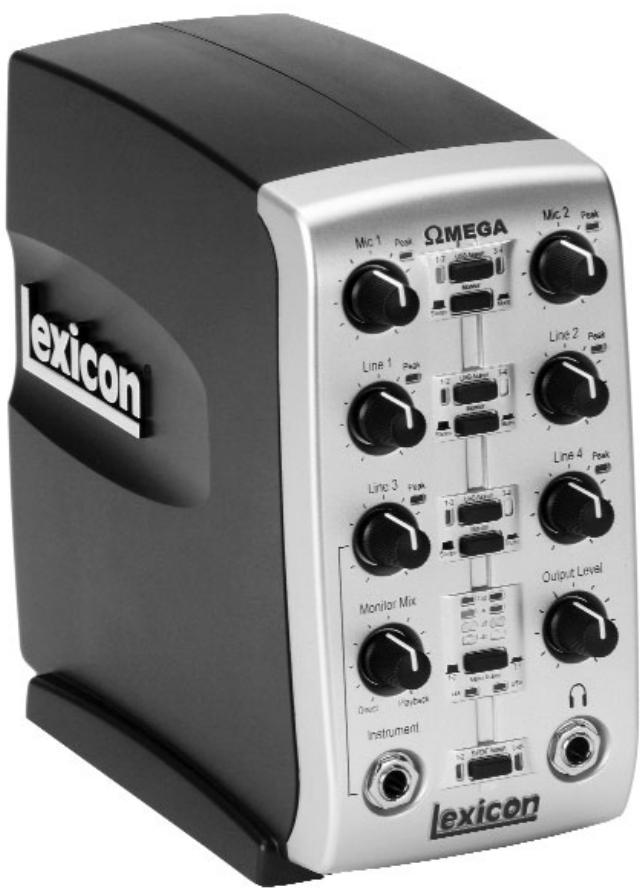
Congratulations on your purchase of the Lexicon OMEGATM desktop recording studio. The Lexicon OMEGA is a complete, USB-connected recording solution. Comprised of an intuitive I/O unit and multi-track recording software, the OMEGA works in conjunction with your computer to give you a compact, professional-quality audio production system and provides all the tools necessary for expert results. Complementing the OMEGA's analog and digital I/O, Pro Tracks PlusTM software for PC's offers integrated multi-track recording, editing and mixing of 32 audio tracks, unlimited MIDI tracks, DXi soft synth support, and an array of additional features. BIAS^® DeckTM 3.5 SE software for Mac's offers integrated multi-track recording, editing and mixing of 64 audio tracks, up to 99 virtual tracks and numerous additional features. Also included with the OMEGA is Lexicon's PantheonTM reverb plug-in. Lexicon reverbs have been used on professional recordings for over thirty years.
FEATURES
The OmegaTM desktop studio provides the following:
- 6 channels of 24-bit streaming audio via USB (4 record, 2 playback)
7 analog audio inputs - 2 - XLR mic inputs with extremely low noise dbx® preamps
20 dB Mic Pad
4-1/4" analog RF filtered TRS active-balanced line inputs
1 - 1/4" ultra-Hi-Z analog instrument input - 2 - 1/4" analog TRS servo-balanced, active line outputs
S/PDIF coaxial digital input and output
1/4" TRS insert on each mic input
MIDI In and Out
+48V phantom power
24-bit A/D and D/A converters, supporting sample rates of 44.1 kHz and 48 kHz
Zero-latency analog record monitoring with adjustable balance between input and playback - Stereo and Mono input source monitoring
Power supply included
UNPACKING THE OMEGA
The Omega™ is shipped in one carton, containing the interface hardware, Pro Tracks Plus™ software for Windows®-based systems, and BIAS® Deck 3.5 SE™ software for Mac®-based systems. After unpacking, save all the packaging materials in case you ever have to ship the unit. Thoroughly inspect the Omega and packing materials for signs of damage. Report any shipment damage to the carrier that delivered the product or dealer from whom you purchased the product at once.
The following items are included:
- Omega desktop audio interface
- Installer CD-Rom containing Pro Tracks Plus™ Recording Software and the Lexicon Pantheon™ Reverb Plug-in for Windows
- Installer CD-Rom containing BIAS^® Deck 3.5 SE™ Recording Software, BIAS^® Deck 3.5 SE™ Owner's Manual, and the Lexicon Pantheon™ Reverb Plug-in for Mac
- Installer CD-Rom containing Windows XP/2000 USB drivers
USB connector cable
This Owner's Manual
Pro Tracks Plus™ Owner's Manual - Lexicon Pantheon™ Reverb Plug-in User's Guide
Pro Track Plus™ Shortcut Guide - Omega Software Installation Guide
- Lexicon Professional warranty registration card
SYSTEM REQUIREMENTS
WINDOWS®
- Pentium® III 500 MHz (1.2 GHz recommended)
Windows 2000 or Windows XP
128 MB RAM (512 MB recommended)
100 MB of available hard disk space
EIDE/Ultra DMA 7200RPM hard disk type or better
MACINTOSH
Power PC, G4 Processor (450 MHz or faster)
Mac OS X version 10.2.8 or later
128 MB RAM minimum (512MB recommended)
20 MB available hard disk space
18 ms hard drive (average speed time) or faster
- QuickTime™ 3.0 or later
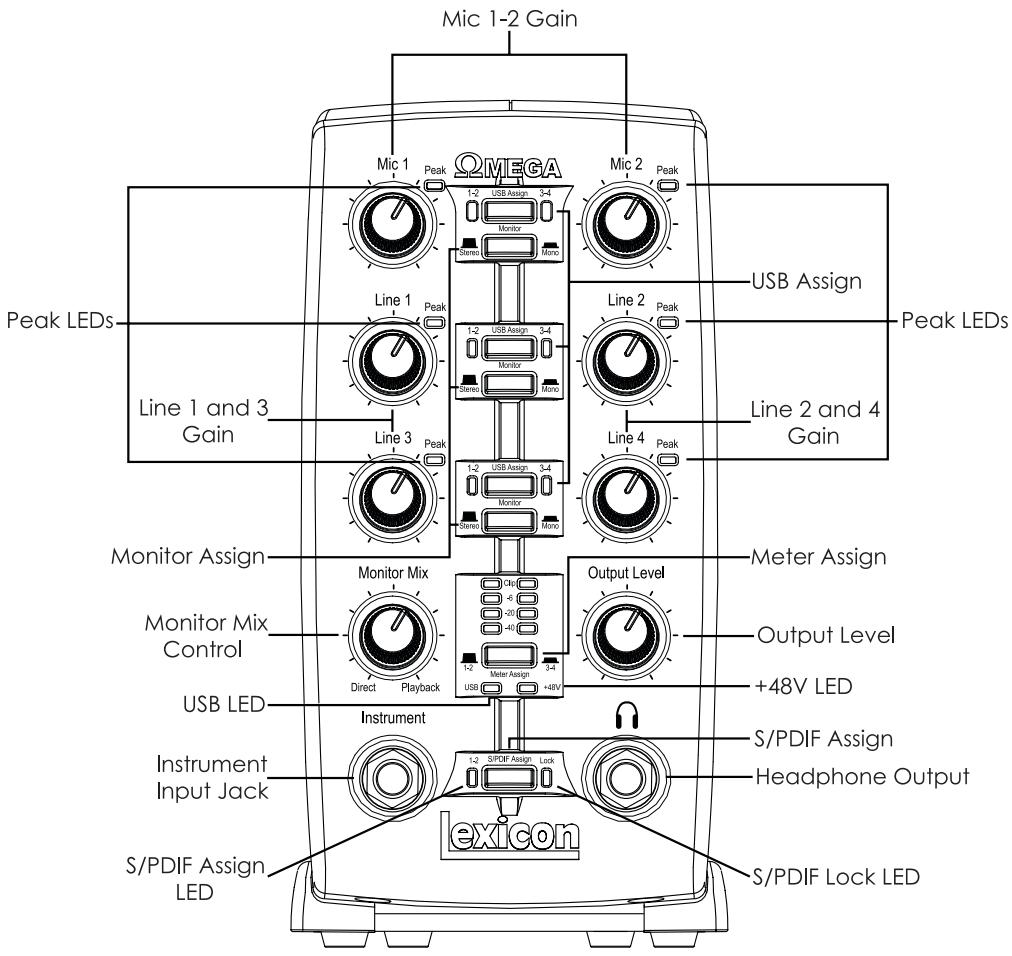
THE FRONT PANEL
The Omega's front panel offers the following features:
- Mic 1-2 Gain
These knobs adjust the input gain levels of the Mic 1 and Mic 2 inputs.
Line 1-4 Gain
These knobs adjust the input gain levels of the Line 1 through Line 4 inputs.
Peak LEDs
These LEDs will light when the input signal is within 5dB of analog clipping. If the Peak LEDs flicker occasionally, the signal is approaching clipping levels,
but does not necessarily indicate distortion or actual clipping.
USB Assign
These buttons select which USB audio bus (USB 1-2 or 3-4) that signal is streaming up to the computer on.
Monitor Assign
These buttons select whether analog audio sources are heard in stereo or mono. Audio sources plugged into the Omega are placed accordingly in the analog stereo field. Odd numbered inputs are routed to the left channel and even numbered inputs are routed to the right channel.
Monitor Mix Control
The Omega gives you the ability to monitor your analog input signals while recording without the delay incurred by A/D/A converters and computer recording latency. This zero-latency analog monitoring is controlled by the Monitor Mix knob, which you can use to blend and adjust the ratio between OMEGA analog inputs and computer audio playback. Any signal coming in on the S/PDIF input is converted to analog and sent to the mix control so that you can monitor this input directly just like an analog input. To listen to just the source input signal, turn the Mix knob fully left to Direct. The Output from the Mix control is routed directly to the Line and Headphone outputs. This ability to blend and control the relative levels of computer audio playback and latency-free live analog inputs is effective when overdubbing.
Output Level
This knob controls the overall output level of the Omega's Line and Headphone outputs.
- Meter Assign
This switch assigns which signals (signals assigned to USB 1-2 bus or USB 3-4 bus) are being monitored by the Omega's meter ladder. This LED Meter shows the signal level into the A/D converters. When the Meter's Clip LEDs light, analog input signals are clipping the A/D converter. Adjust the Mic and Line gain knobs so that the -6 dB yellow LED only lights occasionally.
USB LED
The USB LED indicates that the Omega is communicating with your computer via USB and audio and MIDI signals can pass in and out of the system. If the USB LED is blinking, the Omega is not
communicating with your computer.
+48V LED
This LED indicates that 48 Volt phantom power is active on the Mic 1 and 2 inputs. These inputs provide phantom power for condenser microphones that require it to operate. Phantom Power is activated by the switch labeled +48V Phantom on the bottom of the rear panel of the Omega.
S/PDIF Assign
This button assigns the S/PDIF digital input to the USB 1-2 audio bus. When S/PDIF is enabled, only digital audio can use the USB 1-2 bus and any analog inputs that were assigned to USB 1-2 are disabled. Analog inputs can still be assigned to the USB 3-4 bus while the S/PDIF Assign is enabled, allowing both digital and analog audio to be recorded simultaneously.
S/PDIF Assign LED
This LED lights when the S/PDIF input is assigned to the USB 1-2 bus.
S/PDIF Lock LED
The LED lights when the S/PDIF input has locked in with the Omega. If this LED is not lit, digital signal can not be received from external devices via the S/PDIF input.
- Headphone Output
The Headphone Output accommodates stereo headphones with a 1/4" stereo plug.
Instrument Input Jack
This 1/4" jack accepts unbalanced instrument sources such as electric guitar, acoustic guitar with a pickup, and electric bass. The input gain is adjusted using the Line 3 knob on the front panel respectively. When an instrument is plugged in, it disables the Line 3 audio input.
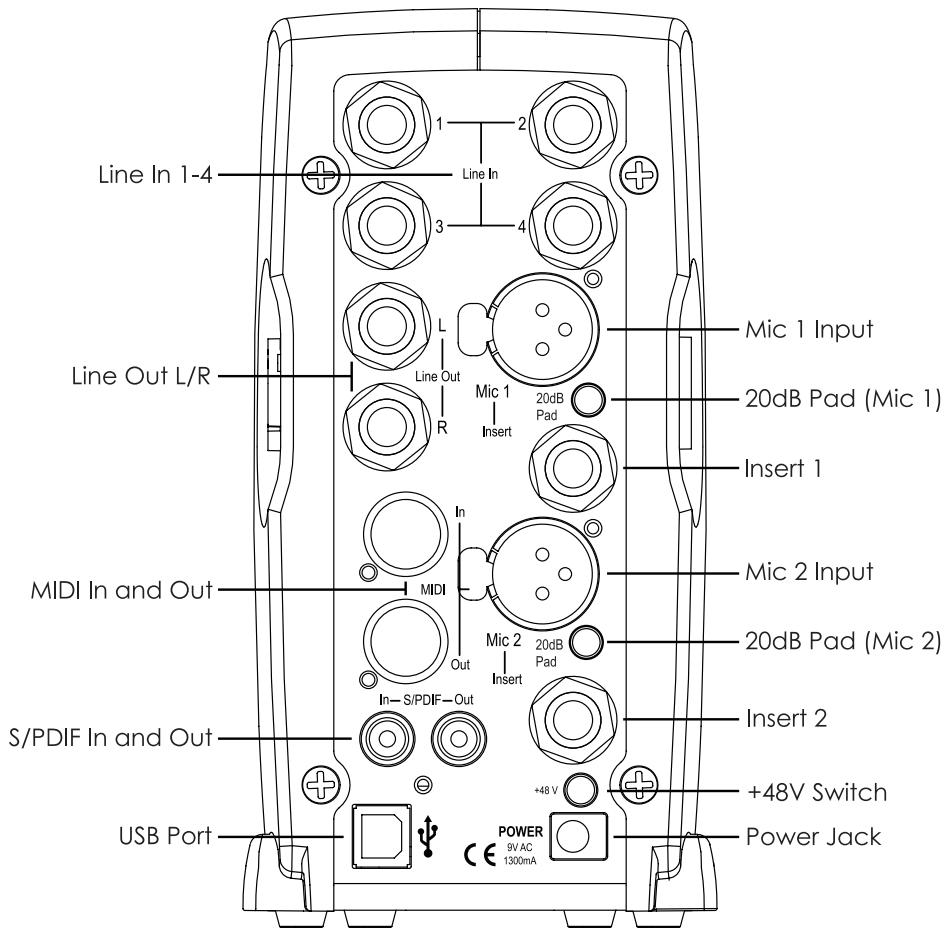
THE REAR PANEL
The OMEGA's rear panel offers the following features:
Line In 1-4
These 1/4" inputs can accept both balanced and unbalanced audio sources. The input gain is adjusted using the Line 1-4 knobs on the front panel respectively.
Line Out L/R
These outputs support balanced TRS or unbalanced TS 1/4" connections. These outputs can be connected to a mixing board, power amplifier, or another line level input.
- Mic 1-2 Inputs
These balanced XLR inputs feature high quality dbx® mic preamps designed specifically for microphone use. The input gain is adjusted using the Mic 1-2 knobs on the front panel respectively.
-20dB Pad
The -20dB pad is a resistive attenuator that drops the level coming from the mic input jacks. Its purpose is to give you a way of preventing overload of the preamp when incoming signals become excessive. Another purpose is to change the preamp's mic input into a line input. The Omega provides a pad of -20dB. This means when the
pad is on, the net gain of the preamp is 20dB lower than normal.
Insert 1-2
Each mic input is equipped with a TRS insert point. Inserts provide a send and return of the input channel's signal directly after the mic preamp and before the A/D converter. You can insert any line level analog processors such as compressor or equalizer for pre-processing of the mic signal before it is recorded. The tip is send and the ring is return.
S/PDIF In and Out
The S/PDIF in and out ports are unbalanced phono (RCA) connectors that transmit and receive either 16-bit or 24-bit two-channel audio stream. S/PDIF is used in many professional and consumer CD and digital audio recorders. It is recommended to use 75-Ohm coaxial cable for S/PDIF transfers and keep the cable length to a maximum of 10 meters to minimize interference and data dropout. The S/PDIF output only sends the stereo signal that is returned from the computer. Thus it is not affected by the setting of the Mix control.
+48V Switch
This switches on the phantom power to the Mic 1 and Mic 2 inputs. Dynamic microphones do not require phantom power to operate, but are not harmed by it. Most condenser microphones do require phantom power to operate. If you are unsure about the phantom power requirements for your microphone, consult your microphone's documentation or contact the manufacturer.
USB Port
The USB Port is used to connect the Omega to your computer. A standard USB cable is included. The Omega is compatible with USB 2.0 ports, but the USB 2.0 bus will switch to the slower USB v1.1 speed to work with the Omega.
MIDI In and Out
The MIDIJacks provide MIDI input and MIDI output to and from your computer. Connect your MIDI keyboards, sound modules, and external controllers here.
PowerJack
Use only the supplied PS0913-B power supply to power the Omega.
MAKING CONNECTIONS
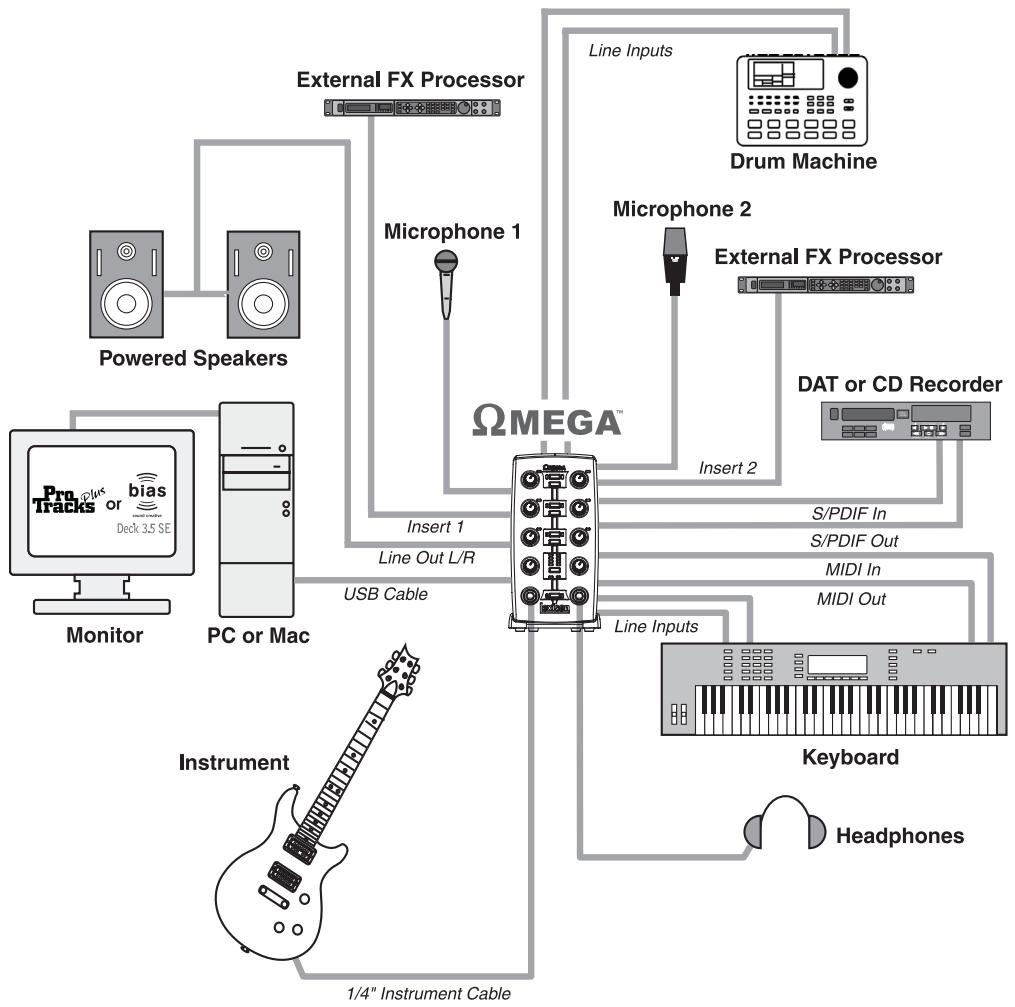
The OMEGA is both an 8 × 4 × 2 mixer and USB audio interface that can used in a variety of audio setups. This section describes how to make basic connections for the following applications:
Monitoring Audio
Recording Audio
- Connecting a Recorder for Mixdown
Monitoring Audio
Omega Line Outputs play the audio that is routed in Pro Tracks Plus™ or BIAS Deck SE™ to Analog Outputs 1-2, and can provide left and right outputs to a two-track deck for mixdown, or to another stereo destination.
Omega Line Outputs offer 24-bit digital-to-analog converters capable of nominal output of +4dBu / +2 dBV (balanced/unbalanced signal). The connectors are TRS jacks; unbalanced TS connectors are also supported.
Connecting headphones:
- Connect headphones to the Headphone jack located on the front panel of the Omega. The Headphone Output accepts a 1/4" TRS connector.
- Adjust headphone volume via the Output Level knob.
Connecting to monitor speakers with a power amp or self-powered monitor speakers:
- Using 1 / 4'' cables, connect the Line Outputs on the rear panel of the Omega to the appropriate inputs on your mixer, power amp, or powered speakers.
- Adjust headphone volume via the Output Level knob.
Connecting to a home stereo:
- Using 1/4" cables, connect the Line Outputs on the rear panel of the Omega to the appropriate inputs on your stereo.
Recording Audio
Digital and analog audio sources can be connected directly to the Omega.
Analog Audio:
Analog audio signals are output by microphones, synthesizers, mixers, and instruments with magnetic pickups.
Of these sources, microphones and magnetic pickup instruments output the quietest signals, and generally require the most amplification. Keyboards, preamps, and mixers output "line level" audio, which varies with each device between the -10 dBV and +4 dBu standards.
To connect an analog audio source:
- Plug an XLR or TRS cable directly into the desired Mic/Line Input on the Omega. The Mic Inputs accept XLR connectors, the Line Inputs accept TRS connectors.
To activate Phantom Power:
If your microphone requires phantom power, first make sure the microphone is connected, then press the Phantom Power switch (labeled +48V). The +48V LED on the front panel indicates the phantom power is active. If your mics don't need phantom power, it is best to turn it off.
Using the Analog Inserts:
The analog inserts require a 1/4" TRS to 2 × 1/4 " TS adapter cable. The signal from the tip should be routed to the input of your outboard processor and the output of your processor should be routed to the ring.
Digital Audio:
Digital audio represents analog waveforms using thousands of digital samples of the analog waveforms each second. All audio on your hard drive in a Pro Tracks Plus™ or Bias Deck SE™ session is digital audio.
The Omega provides digital inputs and outputs for S/PDIF format digital audio.
Connecting a S/PDIF device to the Omega:
- Use two 75 Ohm coaxial cables with male RCA connectors on both ends.
- Connect the device's S/PDIF output to the Omega's S/PDIF input jack, and the device's S/PDIF input to the Omega's S/PDIF output jack.
Connecting a Recorder for Mixdown
After you record and mix your sessions in either Pro Tracks Plus™ or Bias Deck SE™, you may want to mix them down to a DAT, audio cassette, or other stereo 2-track recording device.
Connecting an Analog Deck:
Connect your recorder (cassette deck or other analog device) to the Line Outputs on the back of the Omega. The Left and Right Line Outputs should be routed to the left and right inputs, respectively, on your recorder. These outputs are TRS jacks. You may need adapter cables if your mixdown deck has RCA jack inputs.
Connecting a Digital Deck:
If you have a DAT or other device that accepts S/PDIF connections, connect it to the S/PDIF In and S/PDIF Out RCA jacks on the back of the Omega.
CONNECTIONS DIAGRAM
WINDOWS® SOFTWARE SETUP
You must consult the Software
Installation Guide packaged with the
software CD-ROMs inside the Omega
box to ensure the successful installation
of the recording software and USB
drivers.
If you haven't already installed the
your software, please do so before continuing on to the next section.
Also, consider the following information
as it pertains to your computer's
operating system prior to installing the
USB drivers.
WINDOWS XP
Windows XP-based systems. You must install the USB drivers after you've
made the connection between your
computer's USB port and the USB port
of the Omega.
WINDOWS 2000
Windows 2000-based systems must
have the USB drivers installed before
making the connection between your
computer's USB port and the USB port
on the Omega.
Here are a couple USB Driver configuration notes that we'd like to draw your attention to once you've successfully completed the software installation.
Open Pro Tracks Plus™ and follow these steps:
WINDOWS® XP/2000
Go to Options>Audio. Click on the Drivers Tab. Select the Lexicon drivers as shown below. This is a typical setup.
Make sure that only the Lexicon Win USB drivers are highlighted.
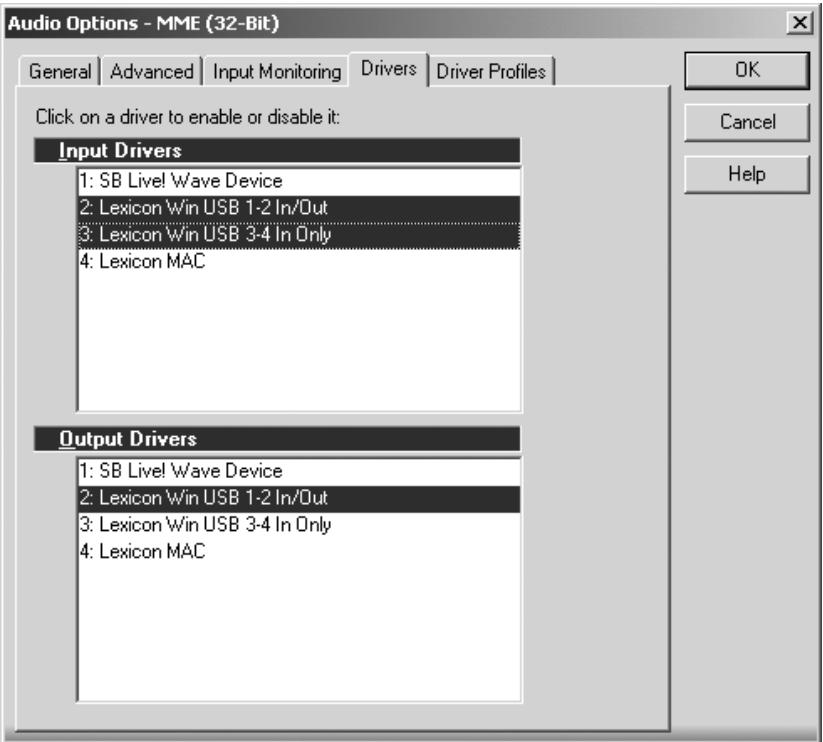
WINDOWSXP(16&24bitaudio)
WINDOWS® 2000 (16 bit audio)
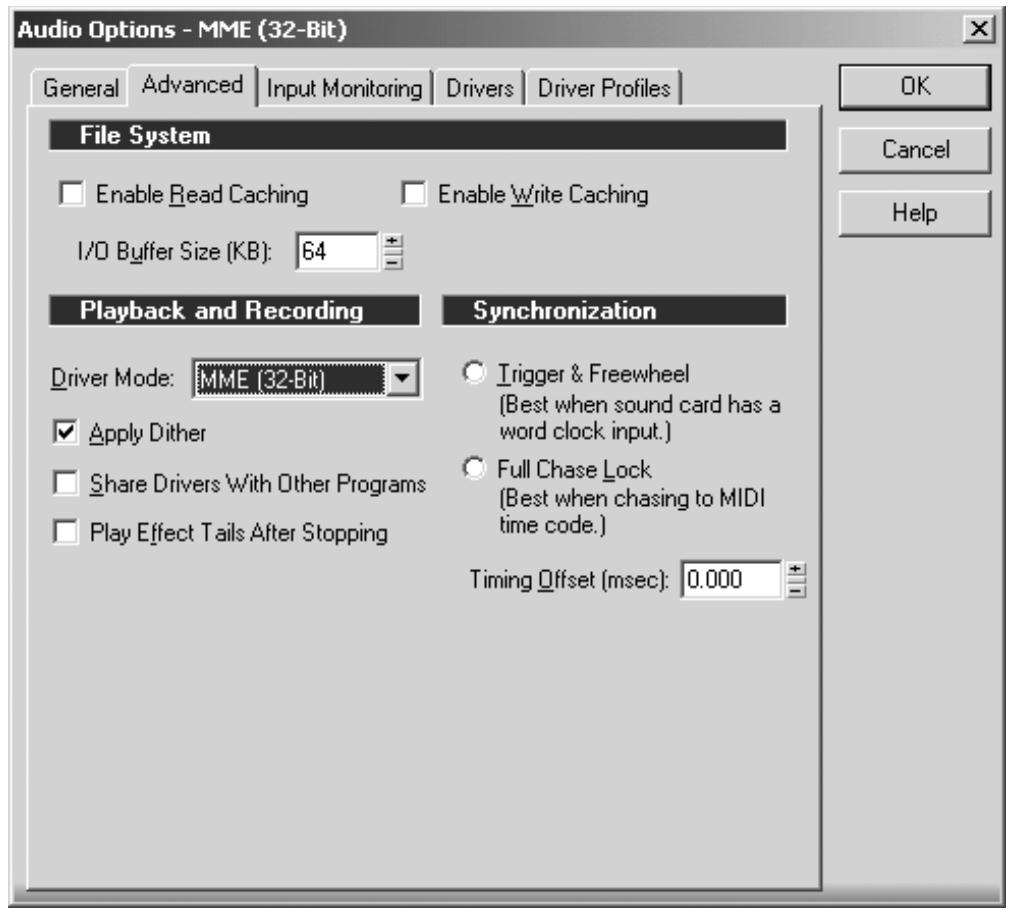
To set the drivers for Windows XP
(16 and 24 bit depths) and Windows
2000 (16 bit depth), Go to
Options>Audio. Click the Advanced
tab. Select WDK/KS in the Driver Mode
field underPlayback and Recording
section as shown below.
Audio Options - MME (32-Bit)
General
Advanced
Input Monitoring
Drivers
Driver Profiles
File System

Enable Read Caching

Enable Write Caching
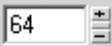
I/O Buffer Size (KB):
Playback and Recording
Driver Mode:



Apply Dither

Share Drivers With Other Programs

Play Effect Tails After Stopping
Synchronization

Trigger & Freewheel
[Best when sound card has a word clock input.]

Full Chase Lock
[Best when chasing to MIDI time code.]
Timing Offset [msec]:
0.000

OK
Cancel
Help
WINDOWS® 2000 (24 bit audio)
To set the drivers for Windows 2000
(24 bit depth), go to Options>Audio.
Click the Advanced tab. Select MME
(32-bit) in the Driver Mode field under
Playback and Recording
section as shown below.
WINDOWS® 2000 and WINDOWS® XP PLAYBACK AND RECORD TIMING
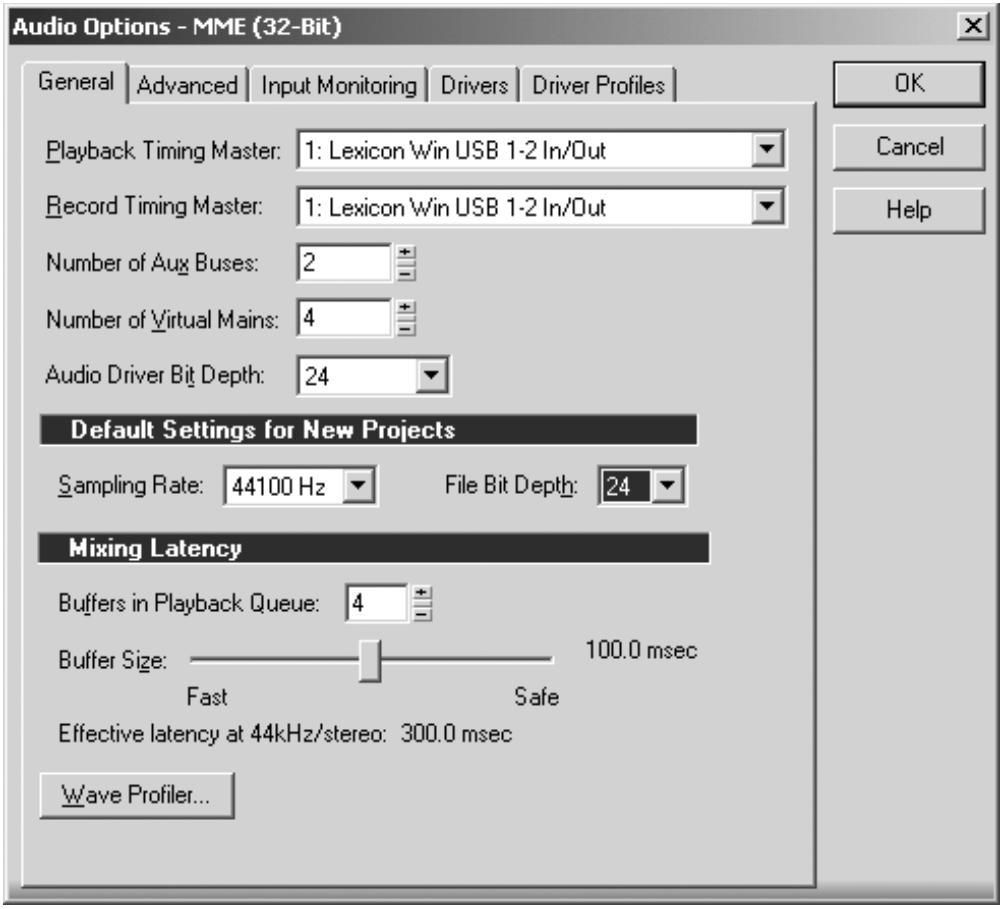
To set the Playback Timing and the Record Timing go to Options>Audio. Click the General tab. Select Lexicon Win USB 1-2 In/Out in the Playback Timing Master field and in the Record Timing Master field. Also, select your desired bit depth in the Audio Driver Bit Depth field and in the File Bit Depth field. (24 bit is shown below)
MACINTOSH® SOFTWARE SETUP
You must consult the Software
Installation Guide packaged with the software CD-ROMs inside the Omega box to ensure the successful installation of the recording software and USB setup.
If you haven't already installed the your software, please do so before continuing on to the next section.
Mac OS
A USB device must initialize itself with the host computer to operate correctly. The Omega Studio comprises several devices (audio and MIDI) and each of those must be initialized. Some Apple® Mac computers will not recognize all of these devices if the Omega Studio is powered on (and connected to the USB port) before the computer is turned on. The simplest way to avoid problems is to either turn on the Omega Studio or connect it to the USB port after the computer is booted. However, there is a way to fore a reinitialization after the computer is running.
- Make sure you close any applications which are using the Omega Studio.
- Press the Mic 1-2 USB Assign button and the Line 3-4 USB Assign button at the same time and then release them simultaneously. The blue USB light will flash and after three seconds the Omega Studio will be properly initialized.
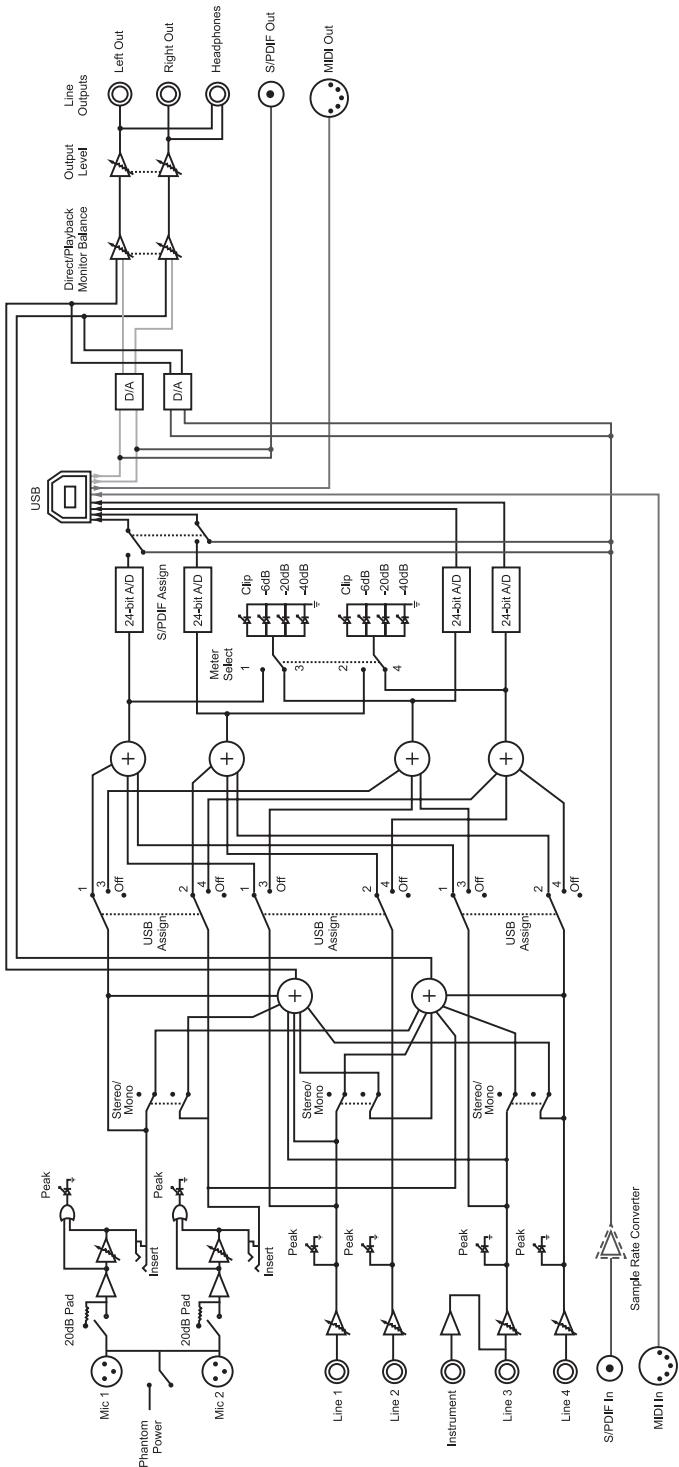
Omega Signal Routing Diagram
SPECIFICATIONS
| Microphone Inputs: | (2) Female XLR Pin 2 Hot |
| Input Impedance: | 600 Ohms balanced |
| Phantom Power: | +48 Volt |
| EIN: | -118dB @ 51dB gain (150 Ohm source impedance) -120 dB A-weighted |
| Maximum Input Level: | +18 dBu (150 Ohm source impedance) |
| Frequency Response: | +0, -0.2 dB 20 Hz - 20 kHz, ref. 1 kHz |
| THD+N: | <.005%, 20 Hz - 20 kHz |
| Insert Inputs: | (2) 1/4" TRS |
| Send Level (tip): | +19 dBu maximum |
| Maximum Return Level (ring): | +19 dBu maximum |
| Line Inputs: | (4) 1/4" TRS balanced or unbalanced |
| Input Impedance: | 20 kOhm balanced, 10 kOhm unbalanced |
| Maximum Input Level: | +22 dBu (40 Ohm source impedance) |
| Frequency Response: | +0, -0.2 dB 20 Hz - 20 kHz, ref. 1kHz |
| THD+N: | <.012% A/D/A, 20 Hz - 20 kHz |
| Instrument Input: | (1) 1/4" mono jack |
| Input Impedance: | 1 MOhm unbalanced |
| Maximum Input Level: | +19 dBu |
| Frequency Response: | +0, -0.25 dB 20 Hz - 20 kHz, ref. 1 kHz |
| THD+N: | <.0125% A/D |
| Crosstalk: | <-74dB any input or output to any recording channel, 20 Hz-20 kHz |
| <-95dB at 1 kHz typical | |
| Line Outputs: | (2) 1/4" TRS balanced or unbalanced |
| Level: | +19 dBu maximum |
| Impedance: | 110 Ohms |
| Headphone Output: | (1) 1/4" stereo jack |
| 100 mW per channel at 50 Ohms | |
| MIDI Interface: | 5 pin DIN connectors for MIDI in and MIDI out |
| Digital Audio Input: | Coaxial RCA (S/PDIF format) |
| Digital Audio Output: | Coaxial RCA (S/PDIF format) always transmits the audio data from the USB stream |
| D/A and A/D Conversion | |
| Sample Rate: | 44.1 kHz or 48 kHz (determined by computer application) |
| Dynamic Range: | |
| A/D | >101 dB typical, unweighted, 20 Hz - 20 kHz |
| >104 dB typical, A-weighted, 20 Hz - 20 kHz | |
| D/A | >107 dB typical, unweighted, 20 Hz - 20 kHz |
| >109 dB typical, A-weighted, 20 Hz - 20 kHz | |
| A/D/A | >100 dB typical, unweighted, 20 Hz - 20 kHz |
| >103 dB typical, A-weighted, 20 Hz - 20 kHz | |
| Analog Path: | >115 dB typical, unweighted, 20 Hz - 20 kHz |
| >118 dB typical, A-weighted, 20 Hz - 20 kHz | |
| USB Type B Socket: | Version 1.1, Version 1.1 hubs are not supported |
| Power Requirements: | PS0913-B adapter supplied |
| Dimensions: | 4.625"W x 7.25"H x 7.75"D (118mm x 184mm x 197mm) |
| Weight: | 2.65 lbs. |
Lexicon engineers are constantly working to improve the quality of our products. Specifications are, therefore subject to change without notice.

8760 South Sandy Parkway
Sandy, Utah 84070 U.S.A.
Phone: (801)-568-7660
Fax: (801)-568-7662
Questions or comments?
Email us at: customer@lexiconpro.com
or visit our World Wide Web home page
at:
www.lexiconpro.com