
HT-CT80 - SONY - Free user manual and instructions
Find the device manual for free HT-CT80 SONY in PDF.


| Product Type | Soundbar with wireless subwoofer |
| Brand | Sony |
| Model | HT-CT80 |
| Channel Configuration | 2.1 channels |
| Total Power Output | 300 W (total) |
| Audio Formats Supported | Dolby Digital, DTS, LPCM |
| Surround Sound Technology | S-Force PRO Front Surround |
| Wireless Subwoofer | Yes, wireless transmission |
| Bluetooth Streaming | Yes, with A2DP, SBC codec |
| NFC One-Touch Pairing | Yes |
| HDMI Output with ARC | Yes |
| Digital Optical Input | Yes |
| Analog Audio Input | Yes, mini stereo |
| Remote Control | Included |
| Wall-Mountable | Yes with supplied brackets |
| Dimensions (Soundbar) | 900 mm × 52 mm × 57 mm (W×H×D) |
| Dimensions (Subwoofer) | 190 mm × 382 mm × 386 mm (W×H×D) |
| Weight (Soundbar) | 2.0 kg |
| Weight (Subwoofer) | 7.6 kg |
| Power Consumption | 25 W (soundbar) |
| Standby Power Consumption | 0.5 W |
| Power Requirements | AC 220-240 V, 50/60 Hz |
| Included Accessories | Remote control, wall mount brackets, optical cable, operating instructions |
| Spare Parts & Reparability | Supported by Sony authorized service centers |
| Cleaning & Maintenance | Wipe with soft dry cloth; do not use solvents |
Frequently Asked Questions - HT-CT80 SONY
User questions about HT-CT80 SONY
0 question about this device. Answer the ones you know or ask your own.
Ask a new question about this device
Download the instructions for your in PDF format for free! Find your manual HT-CT80 - SONY and take your electronic device back in hand. On this page are published all the documents necessary for the use of your device. HT-CT80 by SONY.
USER MANUAL HT-CT80 SONY
Sound Bar
Operating Instructions
WARNING
Do not install the appliance in a confined space, such as a bookcase or built-in cabinet.
To reduce the risk of fire, do not cover the ventilation opening of the appliance with newspapers, tablecloths, curtains, etc.
Do not expose the appliance to naked flame sources (for example, lighted candles).
To reduce the risk of fire or electric shock, do not expose this appliance to dripping or splashing, and do not place objects filled with liquids, such as vases, on the appliance.
The unit is not disconnected from the mains as long as it is connected to the AC outlet, even if the unit itself has been turned off.
As the main plug is used to disconnect the unit from the mains, connect the unit to an easily accessible AC outlet. Should you notice an abnormality in the unit, disconnect the main plug from the AC outlet immediately.
Do not expose batteries or appliances with battery-installed to excessive heat, such as sunshine and fire.
Indoor use only.
For the Bar Speaker
The nameplate is located on the bottom.
Notice for customers: the following information is only applicable to equipment sold in countries applying EU directives.
This product has been manufactured by or on behalf of Sony Corporation, 1-7-1 Konan Minato-ku Tokyo, 108-0075 Japan. Inquiries related to product compliance based on European Union legislation shall be addressed to the authorized representative, Sony Belgium, bijkantoor van Sony Europe Limited, Da Vincilaan 7-D1, 1935 Zaventem, Belgium. For any service or guarantee matters, please refer to the addresses provided in the separate service or guarantee documents.
CE
Hereby, Sony Corp., declares that this equipment is in compliance with the essential requirements and other relevant provisions of Directive 1999/5/EC.
For details, please access the following URL:
http://www.compliance.sony.de/

Disposal of Old Electrical & Electronic Equipment (Applicable in the European Union and other European countries with
separate collection systems)
This symbol on the product or on its packaging indicates that this product shall not be treated as household waste. Instead it shall be handed over to the applicable collection point for the recycling of electrical and electronic equipment. By ensuring this product is disposed of correctly, you will help prevent potential negative consequences for the environment and human health, which could otherwise be caused by inappropriate waste handling of this product. The recycling of materials will help to conserve natural resources. For more detailed information about recycling of this product, please contact your local Civic Office, your household waste disposal service or the shop where you purchased the product.

Disposal of waste batteries (applicable in the European Union and other European countries with separate collection systems)
This symbol on the battery or on the packaging indicates that the battery provided with this product shall not be treated as household waste.
On certain batteries this symbol might be used in combination with a chemical symbol. The chemical symbols for mercury (Hg) or lead (Pb) are added if the battery contains more than 0.0005% mercury or 0.004% lead.
By ensuring these batteries are disposed of correctly, you will help prevent potentially negative consequences for the environment and human health which could otherwise be caused by inappropriate waste handling of the battery. The recycling of the materials will help to conserve natural resources.
In case of products that for safety, performance or data integrity reasons require a permanent connection with an incorporated battery, this battery should be replaced by qualified service staff only.
To ensure that the battery will be treated properly, hand over the product at end-of-life to the applicable collection point for the recycling of electrical and electronic equipment. For all other batteries, please view the section on how to remove the battery from the product safely. Hand the battery over to the applicable collection point for the recycling of waste batteries.
For more detailed information about recycling of this product or battery, please contact your local Civic Office, your household waste disposal service
or the shop where you purchased the product.
For the customers in Australia or New Zealand
It should be installed and operated with at least 20 cm and more between the radiator and person's body (excluding extremities: hands, wrists, feet and ankles).
Copyrights and Trademarks
This system incorporates Dolby* Digital Surround System.
* Manufactured under license from Dolby Laboratories. Dolby, and the double-D symbol are trademarks of Dolby Laboratories.
The BLUETOOTH ® word mark and logos are registered trademarks owned by Bluetooth SIG, Inc. and any use of such marks by Sony Corporation is under license.
The N Mark is a trademark or registered trademark of NFC Forum, Inc. in the United States and in other countries.
Android ™ is a trademark of Google Inc.
"ClearAudio+" is a trademark of Sony Corporation.
Other trademarks and trade names are those of their respective owners.
About these operating instructions
- The instructions in these Operating Instructions describe the controls on the remote control. You can also use the controls on the main unit if they have the same or similar names as those on the remote control.
- Some illustrations are presented as conceptual drawings, and may be different from the actual products.
Table of Contents
About these operating instructions ....5
Getting Started
What's in the box 7
Connecting with a TV and the subwoofer 8
Positioning the system ..... 10
Installing the Bar Speaker on a wall ....11
Turning on the system ...... 12
Listening
Listening to sound from a TV, cable/satellite box, etc. ..... 13
Listening to music from a USB device 14
Listening to music from a BLUETOOTH device .... 14
Sound Adjustment
Enjoying sound effects ...... 15
BLUETOOTH Functions
Listening to music from a BLUETOOTH device .... 16
Other Functions
Auto standby function ..... 18
Additional Information
Precautions 19
Troubleshooting 20
Guide to parts and controls .....23
playable types of files .....26
Supported audio formats ......26
Specifications 27
On BLUETOOTH communication ....28
Getting Started
What's in the box
Bar Speaker (1)

Subwoofer (1)

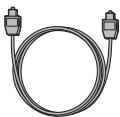
Optical digital cable (1)
Remote control (1)

R03 (size AAA) batteries (2)

Setting up the remote control

Connecting with a TV and the subwoofer
When there is an optical digital jack on your TV

Note
- Connect the supplied SS-WCT80 subwoofer only. Do not connect any other subwoofer.
When there is no optical digital jack on your TV
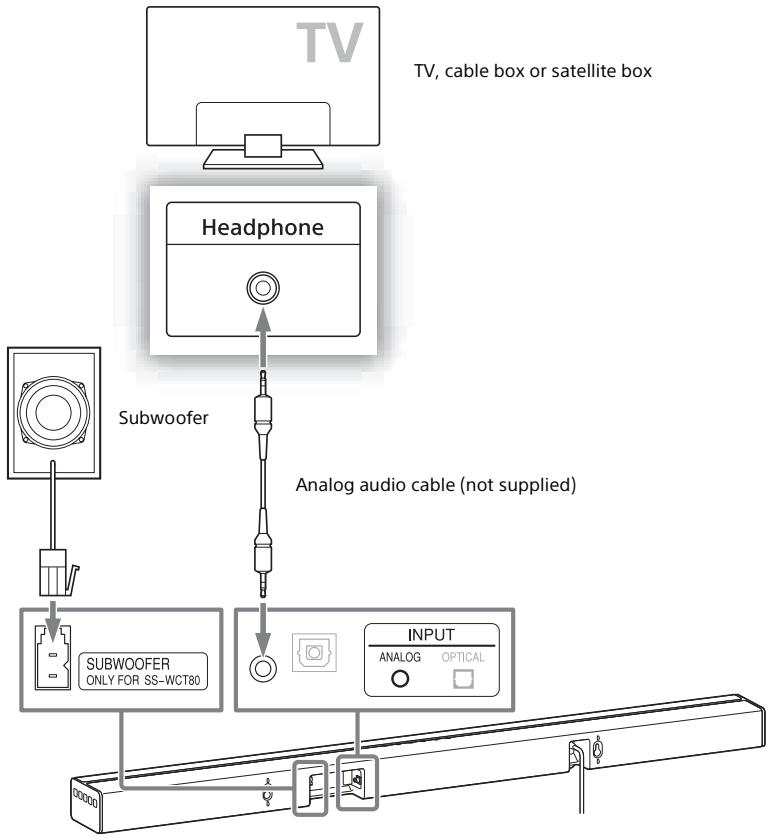
Notes
- Connect the supplied SS-WCT80 subwoofer only. Do not connect any other subwoofer.
- If the TV's headphone jack also serves as an audio output jack, check the TV's audio output settings. For details, refer to the TV's operating instructions.
Positioning the system
The illustrations below are examples of how to install the system.
Note
- Place the Bar Speaker so that the top panel is not blocked.
On a rack

On a wall
See "Installing the Bar Speaker on a wall" (page 11).

Note on installing the subwoofer
Place the subwoofer so that the rear panel is at least 10 cm away from the wall.

Installing the Bar Speaker on a wall
You can mount the Bar Speaker on a wall.
Notes
- Prepare screws (not supplied) that are suitable for the wall material and strength. As a plasterboard wall is especially fragile, attach the screws securely to two studs in the wall beam. Install the Bar Speaker horizontally, hung by screws in studs in a continuous flat section of the wall.
- Be sure to subcontract the installation to Sony dealers or licensed contractors and pay special attention to safety during the installation.
- Sony shall not be held responsible for accidents or damage caused by improper installation, insufficient wall strength, improper screw installation or natural calamity, etc.
1 Prepare screws (not supplied) that are suitable for the holes on the rear of the Bar Speaker.

More than 30 mm

Hole on the rear of the Bar Speaker
2 Fasten the screws to 2 studs in the wall.
The screws should protrude by 9 mm to 10 mm.
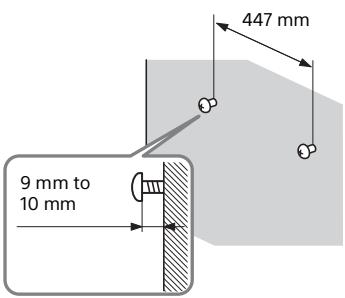
3 Hang the Bar Speaker on the screws.
Align the holes at the rear of the Bar Speaker with the screws, then hang the Bar Speaker on the two screws.

Turning on the system
1 Connect the AC power cord (mains lead).

2 Press the I/⏻ (on/standby) button.
An input indicator lights up.

Listening
Listening to sound from a TV, cable/satellite box, etc.
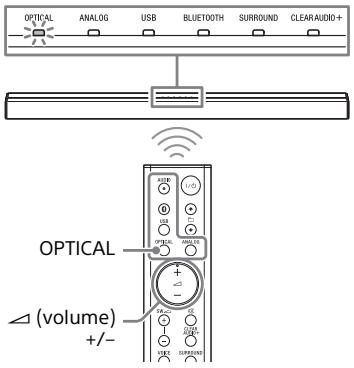
1 Press the input button of the jack to which you connected the device you want to listen.
The indicator of the selected device lights up.
OPTICAL button
TV that is connected to the OPTICAL jack
ANALOG button
Analog device that is connected to the ANALOG jack
USB button
USB device that is connected to the

(USB) port (page 14)

(BLUETOOTH) button
BLUETOOTH device that supports A2DP
2 Press (volume)+/- to adjust the volume.
Tip
- If you press INPUT on the Bar Speaker, the device changes cyclically as follows. OPTICAL → ANALOG → USB → BLUETOOTH
Listening to music from a USB device
You can play music files on a connected USB device.
For playable types of files, see " playable types of files" (page 26).
1 Connect the USB device to the ⬇ (USB) port.
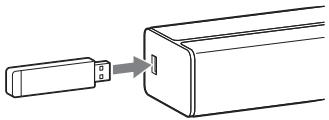
2 Press USB.
3 Press ▶ II (play/pause).
4 Press ↑ ↙ to select a folder to be played.
Note
- Turn off the system before removing the USB device to avoid data corruption or damage to the USB device.
Listening to music from a BLUETOOTH device
Refer to "BLUETOOTH Functions" (page 16).
Sound Adjustment
Enjoying sound effects
To set sound effects, press one of the sound effects buttons on the remote control.
Selecting the sound effects
Press SURROUND repeatedly during playback.
The surround effects change cyclically as follows.
CLEARAUDIO+ → SURROUND On → SURROUND Off
CLEARAUDIO+
The suitable sound setting is automatically selected for the sound source. The CLEARAUDIO+ indicator lights up.
SURROUND On
Sounds are played back with surround effects. The SURROUND indicator lights up.
SURROUND Off
The input source is down-mixed for 2 channels. The CLEARAUDIO+ and SURROUND indicators turn off.
Setting the Night mode
Sounds are played back enhanced with sound effects and clarity of dialog.
Press NIGHT.
The ANALOG indicator flashes twice. To inactivate the Night mode, press NIGHT again. The OPTICAL indicator flashes twice.
Setting the Voice mode
The Voice mode helps make dialogs clearer.
Press VOICE.
The ANALOG indicator flashes twice. To inactivate the Voice mode, press VOICE again. The OPTICAL indicator flashes twice.
Selecting multiplex broadcast sound (Dual Mono)
You can enjoy multiplex broadcast sound when the system receives a Dolby Digital multiplex broadcast signal.
Press AUDIO repeatedly.
The channel changes cyclically as follows.
Main → Sub → Main/Sub
Main
Outputs only the main channel. The OPTICAL indicator flashes twice.
Sub
Outputs only the sub channel. The ANALOG indicator flashes twice.
Main/Sub
Main sound is output from the left speaker and sub sound is output from the right speaker. The USB indicator flashes twice.
Setting Dolby DRC (Dynamic Range Control)
Useful for enjoying movies at low sound volume. DRC applies to Dolby Digital sources.
Hold down AUDIO for 5 seconds, then VOICE for 5 seconds to turn on or off Dolby DRC.
On
Compresses sound in accordance with the information contained in the content. The ANALOG indicator flashes twice.
Off
Sound is not compressed. The OPTICAL indicator flashes twice.
BLUETOOTH Functions
Listening to music from a BLUETOOTH device
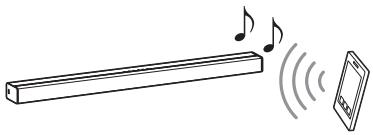
Pairing this system with a BLUETOOTH device
Pairing is the process required to create a link between BLUETOOTH devices to allow wireless connection. You must pair a device with the system before you start using the system.
Once BLUETOOTH devices are paired, there is no need to pair them again.
1 Press PAIRING on the Bar Speaker.
The BLUETOOTH indicator (blue) flashes quickly during BLUETOOTH pairing.
2 Turn on the BLUETOOTH function on the BLUETOOTH device, search for devices and select "HT-CT80."
If a Passkey is requested, enter "0000."
3 Make sure that the BLUETOOTH indicator (blue) lights up.
Connection has been established.
Note
- You can pair up to 8 BLUETOOTH devices. If the 9th BLUETOOTH device is paired, the least recently connected device will be replaced by the new one.
Listening to music of the registered device
1 Press (BLUETOOTH).
2 On the BLUETOOTH device, select "HT-CT80."
3 Make sure that the BLUETOOTH indicator (blue) lights up.
4 Start playback on the BLUETOOTH device.
Note
- When the system has pairing information, the system is in BLUETOOTH standby mode even when it is turned off.
Connecting to a BLUETOOTH device by One-touch functions (NFC)
By holding an NFC-compatible BLUETOOTH device near to the N-Mark on the system, the system and BLUETOOTH device proceed to complete pairing and the BLUETOOTH connection automatically.
Compatible devices
Smartphones, tablets, and music players with the NFC function built-in (OS: Android 2.3.3 or later, excluding Android 3.x)
1 Download, install, and start the "NFC Easy Connect" application.

Notes
- The application may not be available in some countries/regions.
- Depending on your BLUETOOTH device, this operation may not be required.
2 Touch the N-Mark of the Bar Speaker with the BLUETOOTH device.

3 Make sure that the BLUETOOTH indicator (blue) lights up.
Connection has been established.
Notes
- You can connect only one device at a time.
- Depending on your device, you may need to set the NFC function to on beforehand. Refer to the operating instructions of your device.
Tip
- If pairing and the BLUETOOTH connection fail, do the following.
- Relaunch "NFC Easy Connect" and move the BLUETOOTH device slowly over the N-Mark.
- Remove the case from the BLUETOOTH device if using a commercially available device case.
Other Functions
Auto standby function
The system enters standby mode automatically when you do not operate the system for about 15 minutes and the system is not receiving an input signal.
Additional Information
Precautions
On safety
- Should any solid object or liquid fall into the system, unplug the system and have it checked by qualified personnel before operating it any further.
- Do not climb on the Bar Speaker and subwoofer, as you may fall down and injure yourself, or system damage may result.
On power sources
- Before operating the system, check that the operating voltage is identical to your local power supply. The operating voltage is indicated on the nameplate on the bottom of the Bar Speaker.
- If you are not going to use the system for a long time, be sure to disconnect the system from the wall outlet (mains). To disconnect the AC power cord (mains lead), grasp the plug itself; never pull the cord.
- One blade of the plug is wider than the other for the purpose of safety and will fit into the wall outlet (mains) only one way. If you are unable to insert the plug fully into the outlet, contact your dealer.
- AC power cord (mains lead) must be changed only at a qualified service shop.
On heat buildup
Although the system heats up during operation, this is not a malfunction. If you continuously use this system at high volume, the system temperature at the rear and bottom rises considerably. To avoid burning yourself, do not touch the system.
On placement
- Place the system in a location with adequate ventilation to prevent heat
buildup and prolong the life of the system.
- Do not place the system near heat sources or in a place subject to direct sunlight, excessive dust, or mechanical shock.
- Do not place anything on the top of the Bar Speaker.
- If the system is being used in combination with a TV, VCR, or tape deck, noise may result and picture quality may suffer. In such a case, place the system away from the TV, VCR, or tape deck.
- Use caution when placing the system on a surface that has been specially treated (with wax, oil, polish, etc.), as staining or discoloration of the surface may result.
• Take care to avoid any possible injury from the corners of the Bar Speaker and subwoofer.
On operation
Before connecting other equipment, be sure to turn off and unplug the system.
If you encounter color irregularity on a nearby TV screen
Color irregularities may be observed on certain types of TV.
- If color irregularity is observed... Turn off the TV, then turn it on again after 15 to 30 minutes.
- If color irregularity is observed again... Place the system further away from the TV.
On cleaning
Clean the system with a soft, dry cloth. Do not use any type of abrasive pad, scouring powder, or solvent such as alcohol or benzine.
If you have any question or problem concerning your system, please consult your nearest Sony dealer.
Troubleshooting
If you experience any of the following difficulties while using the system, use this troubleshooting guide to help remedy the problem before requesting repairs. Should any problem persist, consult your nearest Sony dealer. Be sure to bring both your Bar Speaker and subwoofer, even if it seems as though only one has a problem, when you request to repair.
General
The power does not turn on.
→ Check that the AC power cord (mains lead) is connected securely.
The system does not work normally.
→ Disconnect the AC power cord (mains lead) from the wall outlet (mains), then reconnect after several minutes.
Sound
No TV sound is output from the system.
→ Press the input button of the jack to which you connected the TV (page 13).
→ Check the sound output of the TV. Refer to the operating instructions of the TV for the TV settings.
→ Increase the volume on the TV or cancel muting.
→ If no sound is output from an optical digital output jack or the TV does not have an optical digital output jack, connect the cable box or satellite box directly to the OPTICAL jack of the system.
The sound is output from both the system and the TV.
→ Turn off the sound of the TV.
The TV sound from this system lags behind the image.
→ When you are watching movies, you may hear the sound with a slight delay from the image.
No sound or only a very low-level sound of the device connected to the Bar Speaker is heard from the Bar Speaker.
→ Press the △ (volume) + button on the remote control and check the volume level (page 23).
→ Press the ☑ (muting) or △ (volume) + button on the remote control to cancel the muting function (page 23).
→ Make sure the input source is selected correctly. You should try other input sources by pressing a different input button on the remote control (page 13).
→ Check that all the cables and cords of the system and the connected device are firmly inserted.
No sound or only a very low-level sound is heard from the subwoofer.
→ Press the SW ▲ (subwoofer volume) + button on the remote control to increase the subwoofer volume (page 23).
→ A subwoofer is for reproducing bass sound. In the case of input sources that contain very little bass sound components (i.e., a TV broadcast), the sound from the subwoofer may be difficult to hear.
The surround effect cannot be obtained.
→ Depending on the input signal and the sound field setting, surround sound processing may not work effectively. The surround effect may be subtle, depending on the program or disc.
→ To play multi channel audio, check the digital audio output setting on
the device connected to the system. For details, refer to the operating instructions supplied with the connected device.
USB device
The USB device is not recognized.
→ Try the following:
① Turn the system off.
② Remove and reconnect the USB device.
③ Turn the system on.
→ Make sure that the USB device is securely connected to the ⬇ (USB) port.
→ Check if the USB device or a cable is damaged.
→ Check if the USB device is on.
→ If the USB device is connected via a USB hub, disconnect it and connect the USB device directly to the system.
→ Connect the USB device to the ANALOG jack of the system using an analog audio cable (not supplied).
BLUETOOTH device
BLUETOOTH connection cannot be completed.
→ Make sure that the BLUETOOTH indicator (blue) is lit (page 23).
| System status | BLUETOOTH indicator (blue) |
| During BLUETOOTH pairing | Flashes quickly |
| The system is attempting to connect with a BLUETOOTH device | Flashes |
| System status | BLUETOOTH indicator (blue) |
| The system has established connection with a BLUETOOTH device | Lit |
| The system is in BLUETOOTH standby mode (when the system is off) | Unlit |
→ Make sure the BLUETOOTH device to be connected is turned on and the BLUETOOTH function is enabled.
→ Bring this system and the BLUETOOTH device closer together.
→ Pair this system and the BLUETOOTH device again. You may need to cancel the pairing with this system using your BLUETOOTH device first.
Pairing cannot be achieved.
→ Bring this system and the BLUETOOTH device closer together.
→ Make sure this system is not receiving interference from a wireless LAN equipment, other 2.4 GHz wireless devices, or a microwave oven. If a device that generates electromagnetic radiation is nearby, move the device away from this system.
No sound is output from the connected BLUETOOTH device.
→ Make sure that the BLUETOOTH indicator (blue) is lit (page 23).
→ Bring this system and the BLUETOOTH device closer together.
→ If a device that generates electromagnetic radiation, such as a wireless LAN equipment, other BLUETOOTH devices, or a microwave oven is nearby, move the device away from this system.
→ Remove any obstacle between this system and the BLUETOOTH device
or move this system away from the obstacle.
→ Reposition the connected BLUETOOTH device.
→ Try changing the wireless frequency of the Wi-Fi router, computer, etc. to 5 GHz band.
→ Increase the volume on the connected BLUETOOTH device.
The sound is not in sync with the image.
→ When you are watching movies, you may hear the sound with a slight delay from the image.
Remote control
The remote control does not function.
→ Point the remote control at the center of the front panel (remote control sensor) of the system (page 23).
→ Remove any obstacles in the path between the remote control and the system.
→ Replace both batteries in the remote control with new ones, if they are weak.
→ Make sure you are pressing the correct button on the remote control (page 25).
Others
Sensors of the TV do not work properly.
→ The Bar Speaker may block some sensors (such as the brightness sensor) and the remote control receiver of your TV, or the “emitter for 3D glasses (infrared transmission)” of a 3D TV that supports the infrared 3D glass system or the wireless communication. Move the Bar Speaker away from the TV within a range that allow those parts to operate properly. For the locations
of the sensors and remote control receiver, refer to the operating instructions supplied with the TV.
Reset
If the system still does not operate properly, reset the system as follows:
1 Press SW △ (subwoofer volume) +, △ (volume) -, and NIGHT in sequence within 3 seconds.
All 6 indicators on the Bar Speaker flash once, and the settings return to their initial status.
2 Disconnect the AC power cord (mains lead).
Guide to parts and controls
For more information, refer to the pages indicated in parentheses.
Bar Speaker
Top, front, and side panels

1 OPTICAL indicator (page 13)
② ANALOG indicator (page 13)
③ USB indicator (page 13)
4 BLUETOOTH indicator (blue)
BLUETOOTH status
- During BLUETOOTH pairing: Flashes quickly
- BLUETOOTH connection is being attempted: Flashes
- BLUETOOTH connection has been established: Lit
- BLUETOOTH standby mode (when the system is off): Unlit
5 SURROUND indicator (page 15)
⑥ CLEARAUDIO+ indicator (page 15)
7 N-Mark (page 17)
When using the NFC function, touch your NFC-compatible device to the mark.
8 Remote control sensor
9 I/⏻ (on/standby) button
Turns on the system, or sets it to standby mode.
10 INPUT button (page 13)
11 PAIRING button (page 16)
12 VOL (volume) +/- buttons
13 ⬤ (USB) port (page 14)
Rear panel

1 Subwoofer jack
② ANALOG jack
3 OPTICAL jack
4 AC power cord (mains lead)
Remote control

1 AUDIO* button (page 15)
② I/⏻ (on/standby) button
③ (BLUETOOTH) button (page 13)
4 ↑ □ ↓ (select) buttons
⑤ USB button (page 13)
⑥ ANALOG button (page 13)
7 OPTICAL button (page 13)
8 △ (volume) +*/- buttons Adjusts the volume.
9 SW △ (subwoofer volume) +/- buttons Adjusts the volume of bass sound.
10 ☑ (muting) button Turns off the sound temporarily.
11 CLEARAUDIO+ button Automatically selects the suitable sound setting for the sound source.
12 SURROUND button (page 15)
13 VOICE button (page 15)
14 ▶ II* (play/pause) button Pauses or resumes playback.
15 NIGHT button (page 15)
16 ◀◀/▶▶ (previous/next) buttons
To go to the beginning of the previous or next file.
* The AUDIO, ▶▶II and △ + buttons have a tactile dot. Use it as a guide during operation.
playable types of files
| Codec | Extension |
| MP3 (MPEG-1 Audio Layer III) | .mp3 |
| AAC | .m4a |
| WMA9 Standard | .wma |
Notes
- Some files edited on a PC may not play.
- The system does not play coded files such as DRM and Lossless.
- The system can recognize the following files or folders in USB devices:
- up to 200 folders
- up to 150 files/folders in a single layer
- Some USB devices may not work with this system.
- The system can recognize Mass Storage Class (MSC) devices.
Supported audio formats
Audio formats supported by this system are as follows.
- Dolby Digital
• Linear PCM 2ch 48 kHz or less
Specifications
Bar Speaker (SA-CT80)
Amplifier section
POWER OUTPUT (rated) Front L + Front R: 12 W + 12 W (at 4 ohms, 1 kHz, 1% THD)
POWER OUTPUT (reference) Front L/Front R: 20 W (per channel at 4 ohms, 1 kHz)
Subwoofer amplifier section
POWER OUTPUT (reference) 40 W (at 8 ohms, 100 Hz)
Inputs OPTICAL ANALOG
USB Section ↓ (USB) port Type A
BLUETOOTH section
Communication system BLUETOOTH Specification version 4.0
Output BLUETOOTH Specification Power Class 2
Maximum communication range Line of sight approx. 10 m 1)
Maximum number of devices to be registered 8 devices
Frequency band 2.4 GHz band (2.4000 GHz - 2.4835 GHz)
Modulation method FHSS (Freq Hopping Spread Spectrum)
Compatible BLUETOOTH profiles 2) A2DP (Advanced Audio Distribution Profile)
Supported Codecs 3) SBC 4)
Transmission range (A2DP) 20 Hz - 20,000 Hz (Sampling frequency 44.1 kHz)
1) The actual range will vary depending on factors such as obstacles between devices, magnetic fields around a microwave oven, static electricity, cordless phone, reception sensitivity,
operating system, software application, etc.
2) BLUETOOTH standard profiles indicate the purpose of BLUETOOTH communication between devices.
3) Codec: Audio signal compression and conversion format
4) Subband Codec
Speakers
Front L/Front R speaker section
Speaker system 2-way speaker system, Acoustic suspension
Speaker Tweeter: 14 mm - 25 mm balance dome type Woofer: 35 mm × 120 mm cone type
General
Power requirements 220 V - 240 V AC, 50 Hz/60 Hz
Power consumption On: 21 W Standby mode: 0.5 W or less
Dimensions (approx.) (w/h/d) 901 mm × 52 mm × 84 mm
Mass (approx.) 2 kg
Subwoofer (SS-WCT80)
Speaker system Subwoofer system, Bass reflex
Speaker 130 mm cone type
Dimensions (approx.) (w/h/d) 170 mm × 245 mm × 300 mm
Mass (approx.) 2.7 kg
Design and specifications are subject to change without notice.
On BLUETOOTH communication
- BLUETOOTH devices should be used within approximately 10 meters (unobstructed distance) of each other. The effective communication range may become shorter under the following conditions.
- When a person, metal object, wall or other obstruction is between the devices with a BLUETOOTH connection
- Locations where a wireless LAN is installed
- Around microwave ovens that are in use
- Locations where other electromagnetic waves occur
- BLUETOOTH devices and wireless LAN (IEEE 802.11b/g) use the same frequency band (2.4 GHz). When using your BLUETOOTH device near a device with wireless LAN capability, electromagnetic interference may occur. This could result in lower data transfer rates, noise, or inability to connect. If this happens, try the following remedies:
- Use this system at least 10 meters away from the wireless LAN device.
- Turn off the power to the wireless LAN device when using your BLUETOOTH device within 10 meters.
- Install this system and BLUETOOTH device as closer to each other as possible.
- The radio waves broadcast by this system may interfere with the operation of some medical devices. Since this interference may result in malfunction, always turn off the power on this system and BLUETOOTH device in the following locations:
- In hospitals, on trains, in airplanes, at gas stations, and any place where flammable gasses may be present
- Near automatic doors or fire alarms
- This system supports security functions that comply with the BLUETOOTH specification to ensure secure connection during communication using BLUETOOTH technology. However, this security may be insufficient depending on the setting contents and other factors, so always be careful when performing communication using BLUETOOTH technology.
- Sony cannot be held liable in any way for damages or other loss resulting from information leaks during communication using BLUETOOTH technology.
- BLUETOOTH communication is not necessarily guaranteed with all BLUETOOTH devices that have the same profile as this system.
- BLUETOOTH devices connected with this system must comply with the BLUETOOTH specification prescribed by the Bluetooth SIG, Inc., and must be certified to comply. However, even when a device complies with the BLUETOOTH specification, there may be cases where the characteristics or specifications of the BLUETOOTH device make it impossible to connect, or may result in different control methods, display or operation.
- Noise may occur or the audio may cut off depending on the BLUETOOTH device connected with this system, the communications environment, or surrounding conditions.
If you have any questions or problems concerning your system, please consult your nearest Sony dealer.
http://www.sony.net/

- SOUND BAR
- WARNING
- FOR THE BAR SPEAKER
- NOTICE FOR CUSTOMERS: THE FOLLOWING INFORMATION IS ONLY APPLICABLE TO EQUIPMENT SOLD IN COUNTRIES APPLYING EU DIRECTIVES
- CE
- SEPARATE COLLECTION SYSTEMS)
- FOR THE CUSTOMERS IN AUSTRALIA OR NEW ZEALAND
- COPYRIGHTS AND TRADEMARKS
- ABOUT THESE OPERATING INSTRUCTIONS
- TABLE OF CONTENTS
- GETTING STARTED
- LISTENING
- SOUND ADJUSTMENT
- BLUETOOTH FUNCTIONS
- OTHER FUNCTIONS
- ADDITIONAL INFORMATION
- WHAT'S IN THE BOX
- CONNECTING WITH A TV AND THE SUBWOOFER
- WHEN THERE IS AN OPTICAL DIGITAL JACK ON YOUR TV
- NOTE
- WHEN THERE IS NO OPTICAL DIGITAL JACK ON YOUR TV
- NOTES
- POSITIONING THE SYSTEM
- ON A RACK
- ON A WALL
- NOTE ON INSTALLING THE SUBWOOFER
- INSTALLING THE BAR SPEAKER ON A WALL
- PREPARE SCREWS (NOT SUPPLIED) THAT ARE SUITABLE FOR THE HOLES ON THE REAR OF THE BAR SPEAKER
- FASTEN THE SCREWS TO 2 STUDS IN THE WALL
- HANG THE BAR SPEAKER ON THE SCREWS
- TURNING ON THE SYSTEM
- LISTENING TO SOUND FROM A TV, CABLE/SATELLITE BOX, ETC
- PRESS THE INPUT BUTTON OF THE JACK TO WHICH YOU CONNECTED THE DEVICE YOU WANT TO LISTEN
- OPTICAL BUTTON
- ANALOG BUTTON
- USB BUTTON
- (BLUETOOTH) BUTTON
- PRESS (VOLUME)+/- TO ADJUST THE VOLUME
- TIP
- LISTENING TO MUSIC FROM A USB DEVICE
- LISTENING TO MUSIC FROM A BLUETOOTH DEVICE
- ENJOYING SOUND EFFECTS
- SELECTING THE SOUND EFFECTS
- PRESS SURROUND REPEATEDLY DURING PLAYBACK
- CLEARAUDIO
- SURROUND ON
- SURROUND OFF
- SETTING THE NIGHT MODE
- PRESS NIGHT
- SETTING THE VOICE MODE
- PRESS VOICE
- SELECTING MULTIPLEX BROADCAST SOUND (DUAL MONO)
- PRESS AUDIO REPEATEDLY
- MAIN
- SUB
- MAIN/SUB
- SETTING DOLBY DRC (DYNAMIC RANGE CONTROL)
- ON
- OFF
- PAIRING THIS SYSTEM WITH A BLUETOOTH DEVICE
- LISTENING TO MUSIC OF THE REGISTERED DEVICE
- CONNECTING TO A BLUETOOTH DEVICE BY ONE-TOUCH FUNCTIONS (NFC)
- COMPATIBLE DEVICES
- AUTO STANDBY FUNCTION
- PRECAUTIONS
- ON SAFETY
- ON POWER SOURCES
- ON HEAT BUILDUP
- ON PLACEMENT
- ON OPERATION
- IF YOU ENCOUNTER COLOR IRREGULARITY ON A NEARBY TV SCREEN
- ON CLEANING
- TROUBLESHOOTING
- GENERAL
- THE POWER DOES NOT TURN ON
- THE SYSTEM DOES NOT WORK NORMALLY
- SOUND
- NO TV SOUND IS OUTPUT FROM THE SYSTEM
- THE SOUND IS OUTPUT FROM BOTH THE SYSTEM AND THE TV
- THE TV SOUND FROM THIS SYSTEM LAGS BEHIND THE IMAGE
- NO SOUND OR ONLY A VERY LOW-LEVEL SOUND OF THE DEVICE CONNECTED TO THE BAR SPEAKER IS HEARD FROM THE BAR SPEAKER
- NO SOUND OR ONLY A VERY LOW-LEVEL SOUND IS HEARD FROM THE SUBWOOFER
- THE SURROUND EFFECT CANNOT BE OBTAINED
- USB DEVICE
- THE USB DEVICE IS NOT RECOGNIZED
- BLUETOOTH DEVICE
- BLUETOOTH CONNECTION CANNOT BE COMPLETED
- PAIRING CANNOT BE ACHIEVED
- NO SOUND IS OUTPUT FROM THE CONNECTED BLUETOOTH DEVICE
- THE SOUND IS NOT IN SYNC WITH THE IMAGE
- REMOTE CONTROL
- THE REMOTE CONTROL DOES NOT FUNCTION
- OTHERS
- SENSORS OF THE TV DO NOT WORK PROPERLY
- RESET
- GUIDE TO PARTS AND CONTROLS
- BAR SPEAKER
- REAR PANEL
- PLAYABLE TYPES OF FILES
- SUPPORTED AUDIO FORMATS
- SPECIFICATIONS
- BAR SPEAKER (SA-CT80)
- AMPLIFIER SECTION
- SUBWOOFER AMPLIFIER SECTION
- BLUETOOTH SECTION
- SPEAKERS
- FRONT L/FRONT R SPEAKER SECTION
- SUBWOOFER (SS-WCT80)
- ON BLUETOOTH COMMUNICATION
Brand : SONY
Model : HT-CT80