
BRAVIA Signage - SONY - Free user manual and instructions
Find the device manual for free BRAVIA Signage SONY in PDF.


| Type of product | Professional Digital Signage Display |
| Brand | Sony |
| Model | BRAVIA Signage |
| Screen size | Multiple sizes available (32" to 98") |
| Display technology | LCD with LED backlight |
| Resolution | Full HD 1920x1080 or 4K UHD 3840x2160 depending on model |
| Brightness | Up to 700 cd/m² (typical 500 cd/m²) |
| Contrast ratio | 1200:1 (typical) |
| Viewing angle | 178° / 178° |
| Operating system | Android TV / Pro |
| Network connectivity | LAN (RJ45), Wi-Fi, Bluetooth |
| Input/Output ports | HDMI, DisplayPort, USB, RS-232C, IR |
| Features | 24/7 continuous operation capability |
| Mounting | VESA standard (400x400 mm for large sizes) |
| Power consumption | Standby <0.5W, typical operation approx. 150W for 55" |
| Weight | Varies with screen size; 55" model approx. 19 kg |
| Dimensions | Varies with screen size; 55" model approx. 1234 x 710 x 66 mm |
| Maintenance | Clean screen with soft dry cloth |
| Safety | Supports Kensington lock |
| Spare parts & repairability | Professional service network; replaceable parts include power supply, main board |
| Accessories | Remote control, AC adapter, stand (optional) |
| General info | Designed for 24/7 digital signage in commercial environment |
Frequently Asked Questions - BRAVIA Signage SONY
User questions about BRAVIA Signage SONY
0 question about this device. Answer the ones you know or ask your own.
Ask a new question about this device
Download the instructions for your in PDF format for free! Find your manual BRAVIA Signage - SONY and take your electronic device back in hand. On this page are published all the documents necessary for the use of your device. BRAVIA Signage by SONY.
USER MANUAL BRAVIA Signage SONY
BRAVIA Signage Free
用户指南
目录
介绍 3
How to obtain 4
Distribution Package 5
1. 概述 6
What is BRAVIA Signage Free? 6
Feature Overview 8
Supported media formats 10
Seamless Playback 13
2. 准备什么 14
3. 基础使用 15
3.1. Use slideshow playback 16
3.2. Create playlist and play 19
3.3.Configure playback schedule 26
4. 高级使用 31
4.1.Show telop text 32
4.2.Play with background music 35
4.3. Use presentation mode 37
5.补充信息和注意事项 38
Content Playback 39
Others 41
[Schedule settings] screen 43
6. 使用 BRAVIA 进行设置 44
6.1. Set up on a USB flash drive 45
6.2. Set up on the internal storage 48
6.3. End of operation using the internal storage 52
6.4. Update content in the internal storage 53
附录I.推荐的媒体格式规格 54
Video 54
Image 54
Audio 54
附录 II. 无缝播放规格 56
支持的平台 57
所需设置 58
可以无缝播放的内容组合 59
变更履历 60
Trademark Notices 69
介绍
How to obtain
Please obtain the software in one of the following ways.
- Download the package from the download page.
- Extract the downloaded Zip file and copy it to the root directory of the USB flash drive.
- Use the application pre-installed on the BRAVIA (*).
(*) Only some models have the application installed. Firmware updates may be required for use. Please refer to 6. Setup using BRAVIA for more information.
Distribution Package
The package contains the following. Please check its content before use.
- sony folder: Contains this software. Though you can use this software by copying it under the root folder of the USB flash memory, never change the files in this folder and folder name because it may not work correctly.
-
manual folder: Contains the user guides of the software
-
BRAVIASignageFree_UserGuide_ja.pdf: This document (Japanese)
o BRAVIASignageFree_UserGuide_en.pdf : This document (English) - BRAVIASignageFree_UserGuide_zhs.pdf: This document (Simplified Chinese)
• media folder: Contains sample contents for startup
- tools: Contains tools to convert slides created with Microsoft PowerPoint to image files. Refer to readme.txt on how to use.
- NOTICE.txt: Information related to open source licenses that this software uses
- eula: Text of End User License Agreement. Please agree before using.
- RELEASE_NOTE_ja.txt : Release note of the software (Japanese)
- RELEASE_NOTE_en.txt : Release note of the software (English)
About the latest product information, please visit the following URL:
- https://pro-bravia.sony.net/resources/software/bravia-signage-free/
1. 概述
What is BRAVIA Signage Free?
BRAVIA Signage Free (hereinafter referred to as “BSF”) is a software that allows you to play contents on the BRAVIA when you copy video, still images, and HTML content files to USB flash memory and insert it to a USB port on the BRAVIA.
BSF supports the following three playback modes:
[1] Slideshow playback
When you copy contents such as videos and images to a USB flash memory and insert it to a USB port on the BRAVIA, the BRAVIA automatically starts to play these files. If there are multiple files, they will be played in order of file name.
[2] Playlist playback
You can create playlists with contents that are saved to the USB flash memory inserted to a USB port on the BRAVIA.
Playlists are lists that specify the playback order of contents such as videos, still images, and HTML. For example, if you want to play content in the order of video A, still image B, and video C, the playlist will be in the order of video A, still image B, and video C.
You can create playlists with the remote control of the BRAVIA. If you create playlists beforehand, you can change playback contents just by switching playlists during signage operation.
[3] Scheduled playback
You can create playback schedules and set playback schedules to your created playlists.
You can create schedules and set playlists with the remote control of the BRAVIA. Schedules can be set by setting “Select day of the week” /” Select date and time”, “Starting time”, and “Ending time”. You can also set it to playback in the same way every day by not setting the day of the week or the date and time.
Feature Overview
In addition to the playback modes above, there are other playback configurations in BSF, and you can configure them all with the remote control of the BRAVIA. Changed configurations are saved at BRAVIA internal storage.
[1] BGM and on-screen text
You can specify BGM and on-screen text to go with playback contents. In on-screen text, you can also specify font color, text background color, and text crawl in. Text background color configuration allows you to select from “none”, “plain”, and “opaque”, but the background color can be fixed or transmitted depending on your selected font color. If the text is long, you can make it scroll from the right side to the left side of the screen using “crawl”.
[2] Transition effects and duration
You can select fade-out and fade-in as transition effects between playback contents, and playback duration for still images and HTML. This duration is never applied to videos. Videos play for their full durations.
[3] Playlists
You can create playlists with contents that are saved to the USB flash memory inserted to a USB port on the BRAVIA. A playlist is composed of a content file, playback duration, on-screen text, and BGM. There is also preview feature to check the playlist while creating it.
[4] Playback schedules
You can create playback schedules and set playback schedules to your created playlists. This allows you to start and stop playlists in accordance with the schedules.
[5] Presentation mode
Normally, playback contents are automatically switched, but you can manually switch them with presentation mode. This allows you to switch contents with the left and right buttons of the remote control after playback has started in all playback modes: slideshow, playlist, and scheduled playback.
Supported media formats
BSF supports playback of videos, still images, audio (BGM), and HTML. There is a separate document about recommended content formats. Refer to Appendix I. Recommended Media Format as needed when preparing contents.
Video
Supported video formats are as follows:
(1) MP4 formatted video with the following codecs:
• Video codecs: AVC
• Audio codecs: AAC-LC/HE-AAC
(2) MPEG TS formed video with the following codecs:
• Video codec: AVC/MPEG-2
• Audio codecs: AAC-LC/HE-AAC/MP1L2
(3) MP4 formatted 4K video with the following codecs (Available only on a BRAVIA 4K model. The maximum frame rate is 3840x2160@60p):
• Video codecs: AVC/HEVC
• Audio codecs: AAC-LC/HE-AAC
Image
Supported image formats are as follows:
- PNG, GIF, JPEG, BMP
- JPEG with 4K resolution (Available only on a BRAVIA 4K model)
Audio
Supported audio formats are as follows:
(1) MP4 formed audio with the following codecs:
• Audio codecs: AAC-LC/HE-AAC
(2) MP3 formatted audio with the following codecs:
- Audio codecs: MP3
HTML
BRAVIA also supports playback of HTML contents. Refer to “BRAVIA B2B HTML5 Solution Technical Manual” for more details.
Codec specifications
Specifications of codecs compatible with the above video and audio formats are as follows.
| Codec | Specifications |
| MPEG-4 Part 10 (AVC/H.264) | BP@L3, MP@L4, HP@L4, 3D in top-and-bottom, side-by-side is supported. |
| MPEG-4 Part 10 (4K) | BP@L4.2, MP@L4.2, HP@L4.2, 3D is not supported. |
| HEVC (4K) | MP@L5.1, M10@L5.1, 3D is not supported. |
| AAC-LC | 32k, 44.1k, 48k/384 kbps (max.)/up to 5.1ch |
| HE-AAC | 32k, 44.1k, 48k/(ISO/IEC 14496-3 compliant/profile level 3)/up to 2ch |
Seamless Playback
Seamless playback is a feature to transition content seamlessly without interruption.
BSF supports seamless playback for specific contents.
Refer to Appendix II. Seamless Playback Specifications as needed when preparing contents.
2. 准备什么
Before using this software, it is necessary to prepare the following hardware.
[1] BRAVIA
BRAVIAs which support professional mode.
[2] PC equipped with any of the following OSes
- Windows 10 (64 bit)
- Windows 11 (64 bit)
- macOS
[3] USB flash memory
- USB flash memory formatted to NTFS, FAT32, or exFAT (one USB flash memory is needed for every BRAVIA)
3. 基础使用
This section describes the basic use of the three playback modes. Before trying the following procedures, you will need to copy the provided sony folder from the BRAVIA Signage Free software (WQF-BS1F) under the root folder of the USB flash memory. The following descriptions are the procedures with sample contents.
[1] Slideshow playback (3.1. Use slideshow playback)
[2] Playlist playback (3.2. Create playlist and play)
[3] Schedule playback (3.3. Configure playback schedule)
3.1. Use slideshow playback
Slideshow playback is the playback mode for playing contents that are saved to a USB flash memory inserted to a USB port on the BRAVIA in order of file name. Still images and HTML (except for videos) are played for a fixed amount of time. You can change this time on the setting screen.
Procedure to play contents (Required)
[1] Create a media folder in the root folder of the USB flash memory and copy sample contents “01_cosmetic_landscape.jpg” and “02_cosmetic_portrait.jpg” to the media folder.
[2] Enable launch application from a USB flash memory as follows if you are using Android 10.0 or later model (please visit the following article about USB drive auto run setting).
- Pro settings > Settings > USB drive auto run > Launch web app Set to “Enable”.
[3] Insert the USB flash memory to a USB port on the BRAVIA.
[4] Contents copied in step [1] are played in order of file name. If contents do not start playing, check whether [Play mode] on the [Basic settings] screen is set to “Slideshow” or not. The [Basic settings] screen is displayed when you press and hold the “1” button on the remote control of the BRAVIA for 3 seconds when the BRAVIA Signage Free app has been launched from the USB.

Playback settings (Optional)
Content playback automatically starts after inserting the USB flash memory, but you can change the playback configuration.
The [Basic settings] screen is displayed when you press and hold the “1” button of the remote control of the BRAVIA for 3 seconds as stated above, but you can change the following settings on this screen. To operate the settings screen, use the left, right, up, and down buttons and the ENTER button of the remote control.
- Transition Effect
You can select fade-out and fade-in as a transition effect between playback contents.
- Duration
You can select a playback time for all contents. If videos are played, this setting time is not used. The video plays in full duration.

Other settings are described on the following pages.
3.2. Create playlist and play
Playlist playback is the playback mode for playing contents of created and selected playlists.
Playlists are lists that specify the playback order of contents such as videos, still images, and HTML as stated in 1. Overview, and you can create and edit playlists with the remote control of the BRAVIA. You can specify files in the media folder of the root folder of a USB flash memory inserted to the BRAVIA as contents of playlists.
You can operate the following screens with the left, right, up, and down buttons, the ENTER button, and the color buttons of the remote control.
Procedure to create playlists (Required)
1] Create a media folder in the root folder of the USB flash memory and copy sample contents “01_cosmetic_landscape.jpg” and “02_cosmetic_portrait.jpg” to the media folder.
[2] Insert the USB flash memory to a USB port on the BRAVIA.
[3] After inserting the USB flash memory, press and hold the “1” button of the remote control of the BRAVIA for 3 seconds when the BRAVIA Signage Free app has been launched from the USB and move to the [Basic settings] screen.

[4] Press the red button of the remote control and move to the [Playlist settings] screen.
| Playlist settings | ||
| Playlist | OK Cancel | |
| Red New Playlist Green Delete Playlist Yellow Preview | ||
[5] You can create a new playlist by pressing the red button of the remote control on the [Playlist settings] screen. After pressing the red button, a software keyboard is displayed and you can input the playlist’s name. For this procedure, input “Playlist1”.

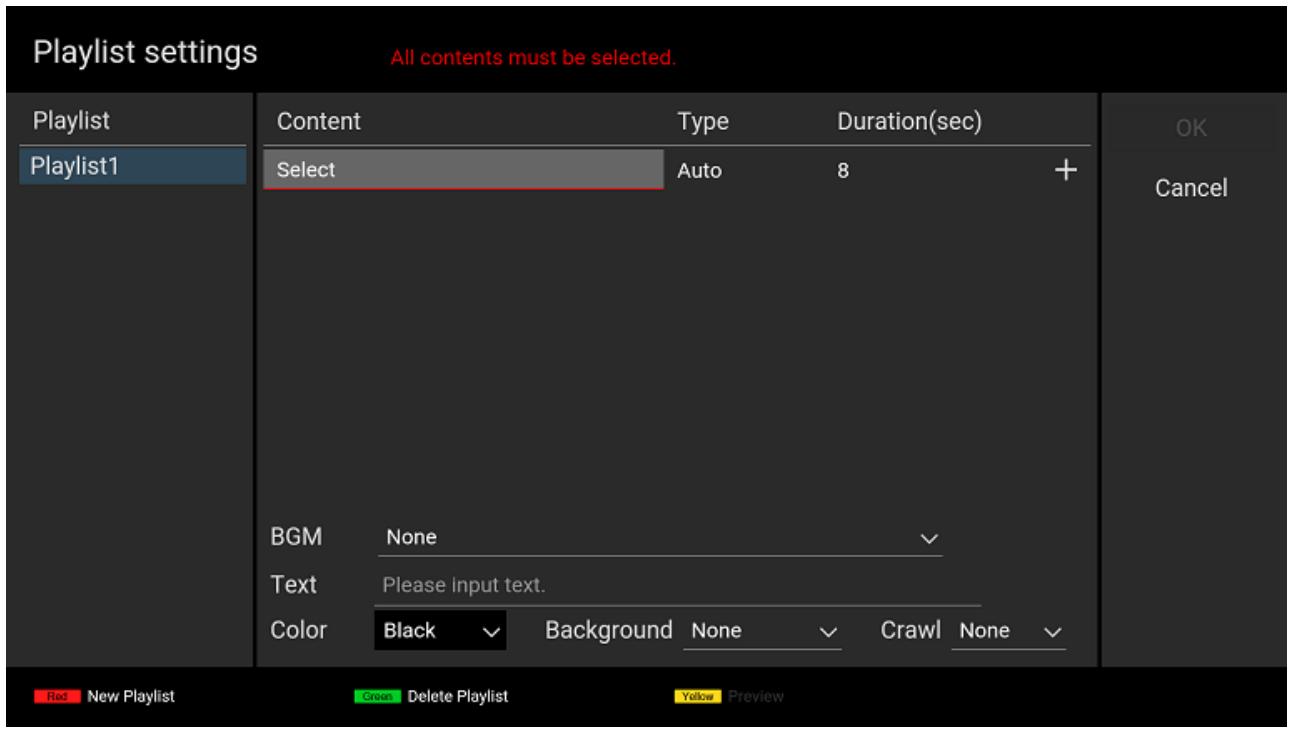
[6] Move to the right on the screen and focus on [Content], then select contents. After selecting your contents, the [Type] is automatically selected. For this procedure, select “01_cosmetic_landscape.jpg”.

[7] Next, focus on [Duration(sec)] and select the playback time. For this procedure, select “10”.

[8] Focus on “+” on this screen and press the ENTER button to specify a second content. Select the [Content] and [Duration(sec)] of the second content following the procedure in steps [6] and [7]. For this procedure, select “02_cosmetic_portrait.jpg” as [Content] and “10” as [Duration(sec)].


[9] Focus on the [OK] button on this screen and press the ENTER button of the remote control to save your edited playlist data and return to the [Basic settings] screen.
This ends playlist creation. Other settings on this screen are described on the following pages.
Procedure to change playback settings
(Required)
You need to change the playback settings to play the playlist you created above.
[9] Select “Playlist” as [Play mode] on the [Basic settings] screen.

[10] Select the playlist name from the dropdown menu to the right of the [Play mode] setting. For this procedure, select “Playlist1”
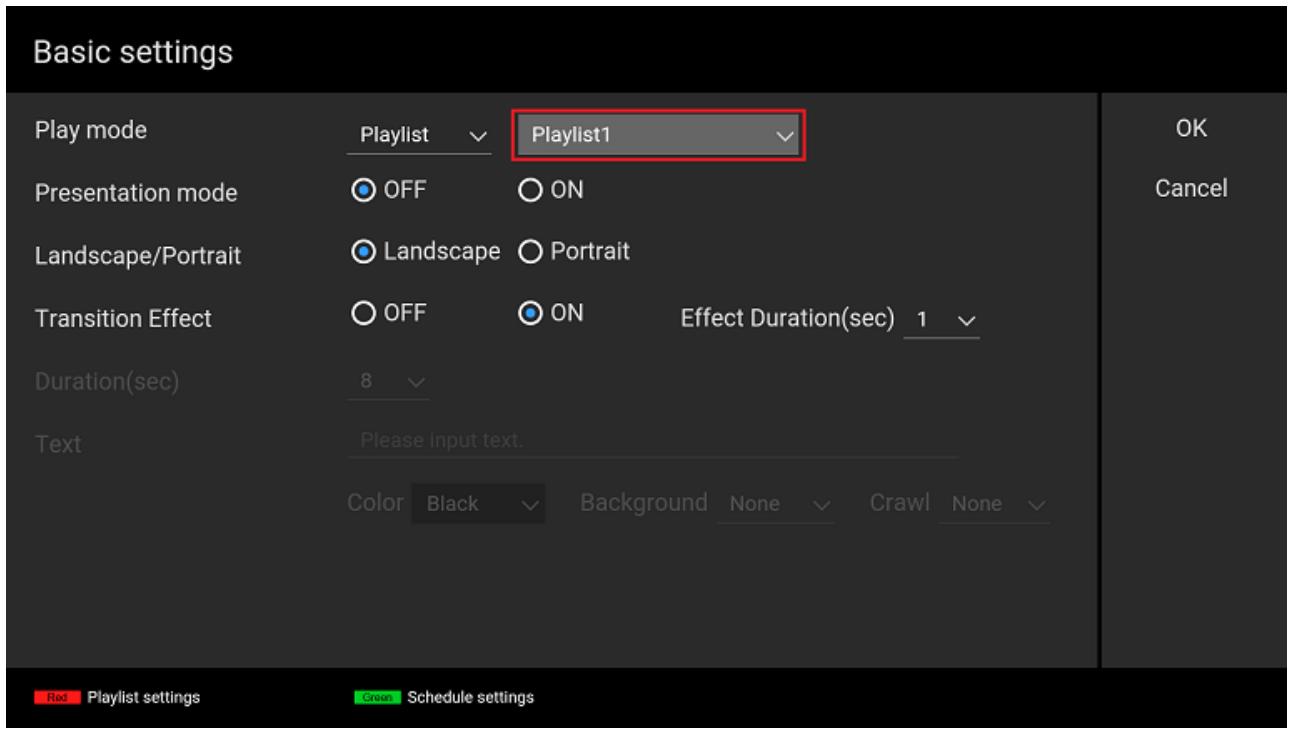
[11] Focus on the [OK] button on this screen and press the ENTER button of the remote control to start playing “Playlist1”.
3.3. Configure playback schedule
Scheduled playback is the playback mode for playing created playlists according to a playback schedule.
Schedules can be set by setting “Select day of the week” /” Select date and time”, “Starting time”, and “Ending time”. You can also set contents to play in the same way every day by not setting the day of the week or the date and time. You can operate the following screens with the left, right, up, and down buttons, the ENTER button, and the color buttons of the remote control.
Procedure to create playlists (Required)
Refer to 3.2. Create playlist and play for the procedure to create playlists.
Procedure to configure schedule (Required)
[1] The [Basic Setting] screen is displayed after editing and saving a playlist, press the green button of the remote control on the [Basic settings] screen and move to the [Schedule settings] screen.

[2] You can create a new schedule by pressing the red button of the remote control on the [Schedule settings] screen. After pressing the red button, a dialog is displayed and you can select the schedule type. For this procedure, specify the schedule of “Playlist1” to start playing at “09:00” and stop at “18:00” every day. Enable “Everyday” on the dialog, focus on the [OK] button, and press the ENTER button of the remote control.

[3] Next, focus on the newly added “Everyday” column and pressing the ENTER button of the remote control to edit [Begin], [End], and [Playlist]. For this procedure, select “09:00” as [Begin], “18:00” as [End], and “Playlist1” as [Playlist]. After finishing selection, press the Return button of the remote control.
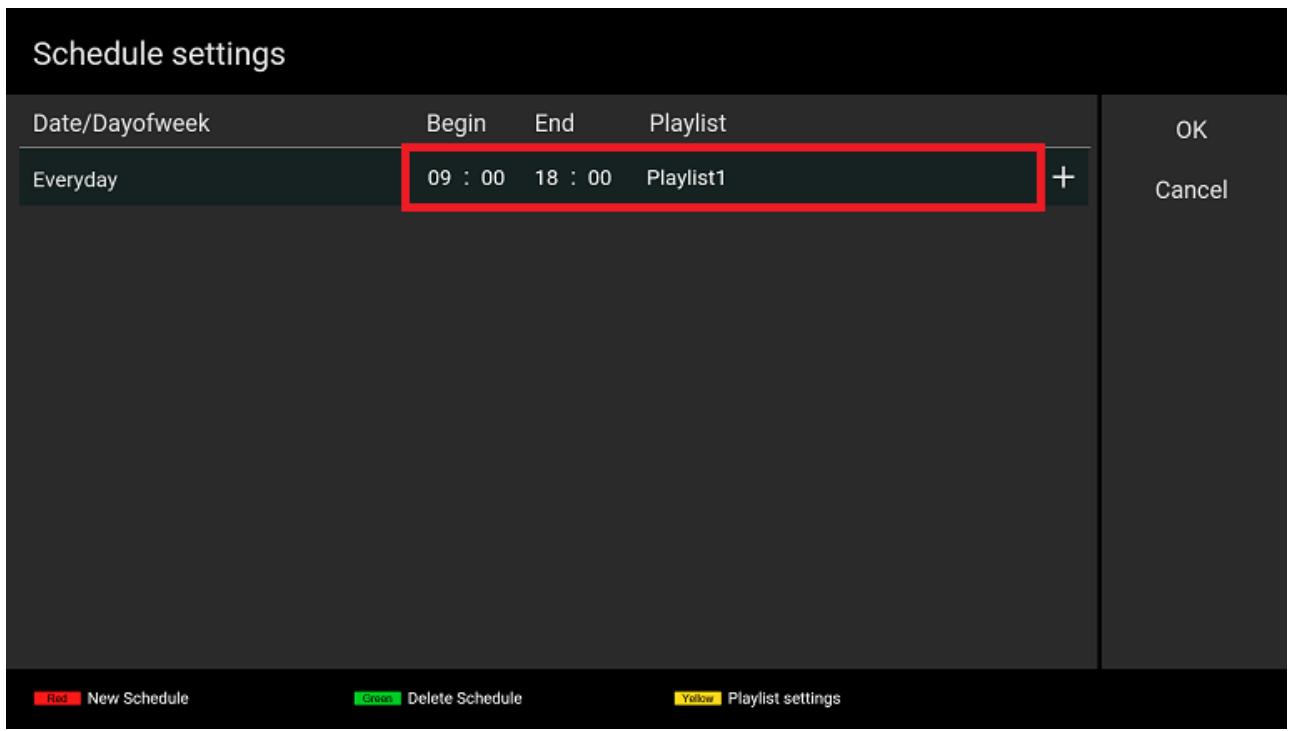
[4] Focus on the [OK] button on this screen and press the ENTER button of the remote control to save the edited schedule data and return to the [Basic settings] screen.
Procedure to change playback settings (Required)
You need to change the playback settings to make the playlist play according to the schedule you created above.
[5] Select “Schedule” as [Play mode] on the [Basic settings] screen.

[6] Focus on the [OK] button on this screen and press the ENTER button of the remote control to start playing “Playlist1” according to the schedule created above.
If a playlist does not play according to its set schedule, there may be discrepancies between the date and time configured on the BRAVIA and your edited schedule. If any contents are not played on the BRAVIA, press the DISPLAY button of the remote control. The Date/Time configured on the BRAVIA is displayed at the center of the screen, and the Date/Time of the next playback schedule is displayed at the lower right of the screen as shown below. Confirm the settings and reconfigure them in accordance with this information.

4. 高级使用
This section describes how to change playback settings not described in 3. Basic use. The following descriptions are the procedures with sample contents. Before trying the following procedures, you will need to copy the provided sony folder under the root folder of the USB flash memory. The following descriptions are the procedures with sample contents.
[1] On-screen text (4.1. Show on-screen text)
[2] BGM (4.2. Play with background music)
[3] Presentation mode (4.3. Use presentation mode)
4.1. Show telop text
You can specify on-screen text on playback contents in all playback modes: slideshow, playlist, and scheduled playback. This section describes the procedure.
Slideshow playback
[1] Execute steps [1] to [3] in 3.1. Use slideshow playback.
[2] Move to the [Basic settings] screen and specify the [Text] for [On-screen text]. Focus on [Text] and press the ENTER button of the remote control to specify on-screen text. For this procedure, enter “Try first telop text.”

[3] Next, you need to select the [Color] and [Background]. For this procedure, specify “Black” and “Opaque”. If [Background] is set to “Plain” or “Opaque”, the background color can be fixed or transmitted depending on your selected font color.

[4] Next, you need to set the [Crawl]. For this procedure, specify “Low”. If you specify an option other than “None”, on-screen text displayed scrolls from right to left during content playback.

[5] Focus on the [OK] button on this screen and press the ENTER button of the remote control to save edited settings and return to the content playback screen. Check whether or not “Try first telop text.” is displayed at the bottom of the screen with playback content.
Playlist playback
[1] Execute steps [1] to [8] in 3.2. Create playlist and play.
[2] Configure the [On-screen text] on the [Playlist settings] screen as in steps [2] to [4] in “Slideshow” above. One on-screen text can be configured for each playlist.
[3] Execute steps [9] to [11] in 3.2. Create playlist and play. Check whether or not “Try first telop text.” is displayed at the bottom of the screen with playback content.
4.2. Play with background music
You can specify background music (BGM) on playback contents in all playback modes: slideshow, playlist, and scheduled playback. This section describes the procedure.
The specified BGM is played while still images are played, but BGM is not played while videos and HTML are played.
Slideshow playback
[1] Execute step [1] in 3.1. Use slideshow playback.
[2] Copy the audio file to be used as BGM to the media folder of the USB flash memory. For this procedure, copy sample content “bgm.mp3”.
[3] Execute steps [2] and [3] in 3.1. Use slideshow playback. Check whether or not audio is output during content playback.
Playlist playback
[1] Execute steps [1] to [8] 3.2. Create playlist and play.
[2] Focus on [BGM] on the [Playlist settings] screen and specify the audio file to be used as BGM. For this procedure, specify “bgm.mp3”.

[3] Execute steps [9] to [11] in 3.2. Create playlist and play. Check whether or not audio is output during content playback.
4.3. Use presentation mode
If you enable presentation mode, you can manually switch to previous or following content with the left/right button of the remote control in all playback modes: slideshow, playlist, and scheduled playback.
How to use
- When you select “ON” for [Presentation mode] on the [Basic settings] screen and focus on the [OK] button on this screen, press the ENTER button of the remote control, the mode is changed.
- After you change the mode and return to the content playback screen, you can switch the contents with the left/right button of the remote control.
5. 补充信息和注意事项
This section describes supplementary information and cautionary notes that should be reviewed when using this software. Refer to 3. Basic use, 4. Advanced use, or error messages displayed on the screen of the BRAVIA for basic use.
Content Playback
Slideshow playback
- Content files with names that start with “.” or contain “#” cannot be played.
- To play HTML content, you need to copy the content to the media folder of a USB flash memory as follows:
○ Create a folder, then name the HTML file that is the entry point “index.html” and put it in the folder. If there is no HTML file named “index.html”, videos and still images that an HTML file refers to are played in the same way as regular videos and still images.
Videos and still images in the media folder are played in order of file name, but folders containing a file named “index.html” are used for HTML content.
For example, if the following media folders were copied to the root folder of the USB flash memory, each content would be played in the following order:
- 1_file.jpg
- 2_file.mp4
- 4_dir/index.html
- 5_dir/0_dir/index.html
- 5_dir/1_file.jpg
- 5_dir/2_file.mp4
- 6_dir/index.html
File and directory example)
media
+ 1_file.jpg
+ 2_file.mp4
+ 3_file.html
|
+ 4_dir
| + index.html
|
+ 5_dir
| + 0_dir
| | + file.jpg
| | + file.mp4
| | + index.html
|
| + 1_file.jpg
| + 2_file.mp4
| + 3_file.html
| + 4_file.css
|
+ 6_dir
+ 0_dir
| + file.jpg
| + file.mp4
| + sub.html
|
+ 1_file.jpg
+ 2_file.mp4
+ 3_file.css
+ index.html
- If you copy multiple audio files to the media folder in the root folder of the USB flash memory, the audio files are played as BGM in order of file name. Ordering details are the same as above.
Schedule playback
- With scheduled playback, the playlist stops playing at the scheduled end time, even if it is in the middle of playback.
- If the scheduled begin time arrives and the playlist does not start, the schedule may differ from the date/time set to the BRAVIA. In that case, press the DISPLAY button of the remote control to display the date/time set to the BRAVIA at the center of the screen and the begin time of the next scheduled playback is displayed at the lower right of screen. Use this information to check and change the settings as required.

BGM
- BGM is played while still images are played. BGM is not played while videos and HTML are played.
- When the BGM starts playing, the display of the content being played may be interrupted for a moment. For operation, we recommend using BGM which has a sufficiently long playback time.
Others
- When switching contents, a black image may occur due to loading.
- Depending on your model, when the video starts playing, there may be no sound output for the first second. When operating video content, it is recommended to use content without audio at the beginning, such as by delaying the audio start time.
[Basic settings] screen
- When operating the BRAVIA in a vertical orientation, use contents whose aspect ratio is 16:9, not 9:16. In that case, the top of the contents is on the right side of the BRAVIA screen. The sample content “02_cosmetic_portrait.jpg” is a sample content for portrait orientation.
- [Landscape/Portrait] setting is not used to rotate the configuration of displayed contents. It is not used to rotate on-screen text to match landscape or portrait orientation. This setting also does not rotate the setting screens.
[Playlist settings] screen
- You cannot select content files whose file names contain “#” from [Content] because such contents cannot be played.
- When the [Type] is set to “auto” and you select a content file from [Content], the [Type] is automatically selected according to the content file extension, but the BRAVIA does not differentiate between “Image” and “Image (4K)”. If the [Type] is set to “auto” and you select a still image file as [Content], “Image” is automatically selected. If you want to specify a still image with 4K resolution as [Content], you need to manually select “Image (4K)” from [Type].
- After creating a playlist, you cannot edit the playlist’s name.
- You select from content files saved to the USB flash memory when you edit [Content] on the [Playlist settings] screen. If you change the file paths of content files saved to the USB flash memory after editing the playlist, the contents will not be played. In such a case, the following screen will be displayed when you insert the USB flash memory. Check the playlist settings and the content file paths saved to the USB flash memory.
![SONY BRAVIA Signage - [Playlist settings] screen - 1](/content/2026/08/1723389/images/e83b564a673c169e37d71585f5e7275b2cea3190767b2dc0d157461d7ea13e4d.jpg)
Error Information
Content files that are set at playlists are not found in USB flash memory.
Content files saved in USB flashmeory may be deleted or the file path may be changed. Please check the file path in Playlist settings.
OK
[Schedule settings] screen
- In schedule settings, you can create the following types of schedules. If you create multiple types of schedules, schedules specifying “date” take priority over schedules specifying “day of week”.
- Schedule executed every day
- Schedule specifying “day of week” or “date”.
- The Date/Time set on the BRAVIA is initialized when the main power supply of the BRAVIA turns off or the BRAVIA is not connected to a network. Scheduled playback is supported only when the BRAVIA is connected to a network. Note that even in other conditions, there is a possibility that playlists do not play according to the set schedule.
6. 使用 BRAVIA 进行设置
This section describes the setup procedure using the application pre-installed on the BRAVIA. Please refer to 3. Basic Use for instructions on how to use this software after setup.
(*) Only some models have the application installed. Firmware updates may be required for use.
(*) If you are using the USB Clock Unit as a USB storage device, you cannot set it up using these instructions. Please refer to the Introduction section instead.
6.1. Set up on a USB flash drive
[1] Launch “BRAVIA Signage Free” from the home screen or apps list.

[2] Select “USB flash drive” as the storage to use.

[3] Insert your USB flash drive according to the instructions.
Insert a USB flash drive
Back
If there is data in the USB flash drive, the data may be overwritten following the setup process.

Check here for more information
BRAVIA Signage Free
User Guide
[4] When the USB flash drive is inserted, setup will begin automatically.
Preparing...
Do not remove the USB flash drive

Check here for more information
BRAVIA Signage Free
User Guide
[5] After completing the setup, remove the USB flash drive and select “Start Pro mode”. (If the BRAVIA is already in “ProMode”, you don’t need to switch modes.)
Preparation complete
Start Pro mode
Remove the USB flash drive and copy the contents to the media folder. When transition to Pro mode is complete, reinsert the USB flash drive.

Check here for more information BRAVIA Signage Free User Guide
[6] Use a PC to copy the contents to the media folder of the USB flash drive.
[7] After the BRAVIA has been rebooted and switched to “ProMode”, insert the USB flash drive again. (If the BRAVIA is already in “ProMode”, insert the USB flash drive as it is.)
[8] The application will launch and start playback the content. (It may take about 10 seconds to launch.)
6.2. Set up on the internal storage
[1] Launch “BRAVIA Signage Free” from the home screen or apps list.

[2] Select “Internal Storage” as the storage to use.

[3] Insert your USB flash drive according to the instructions.
Insert a USB flash drive
Back
If there is data in the USB flash drive, the data may be overwritten following the setup process.

Check here for more information
BRAVIA Signage Free
User Guide
[4] When the USB flash drive is inserted, preparation will begin automatically for setup to the internal storage.
Preparing...
Do not remove the USB flash drive

Check here for more information
BRAVIA Signage Free
User Guide
[5] After completing the preparation, remove the USB flash drive.
Ready for setup to the internal storage complete
Remove the USB flash drive, copy the contents to the media folder, and reinsert the USB flash drive, setup to the internal storage will begin. The setup requires permission for storage access by WebAppRuntime.

Check here for more information BRAVIA Signage Free User Guide
[5] Use a PC to copy the contents to the media folder of the USB flash drive.
[6] Insert the USB flash drive into the BRAVIA again to start the installation to be the internal storage. The installation may take some time depending on the size of the content.
[8] After completing the installation, remove the USB flash drive and select “Start Pro mode”. Thereafter, there is no need to use the USB flash drive. (If the BRAVIA is already in “ProMode”, you can start playback without switch the mode.)
Setup to the internal storage complete
Start Pro mode
Remove the USB flash drive.
Removing the USB flash drive enables you to start Pro mode.
When the transition to Pro mode is complete, the application launches, and content
playback starts.

Check here for more information
BRAVIA Signage Free
User Guide
[9] After the BRAVIA has been rebooted and switched to “ProMode”, the application will launch and start playback the content.
6.3. End of operation using the internal storage
[1] Press and hold the RC color key “red” during playback and select “Stop” in the dialog that appears.
[2] Launch “BRAVIA Signage Free” from the home screen or apps list.
[3] Please select “Stop” on following screen. (If stopped, setup is required again.)
Running on internal storage
Start playback
Select an operation.
Content update
If it stops, you will be required to perform setup again.
Stop

Check here for more information
BRAVIA Signage Free
User Guide
6.4. Update content in the internal storage
[1] Press and hold the remote commander color key “red” during playback and select “Stop” in the dialog that appears.
[2] Launch “BRAVIA Signage Free” from the home screen or apps list.
[3] Please select “Content Update” on following screen.
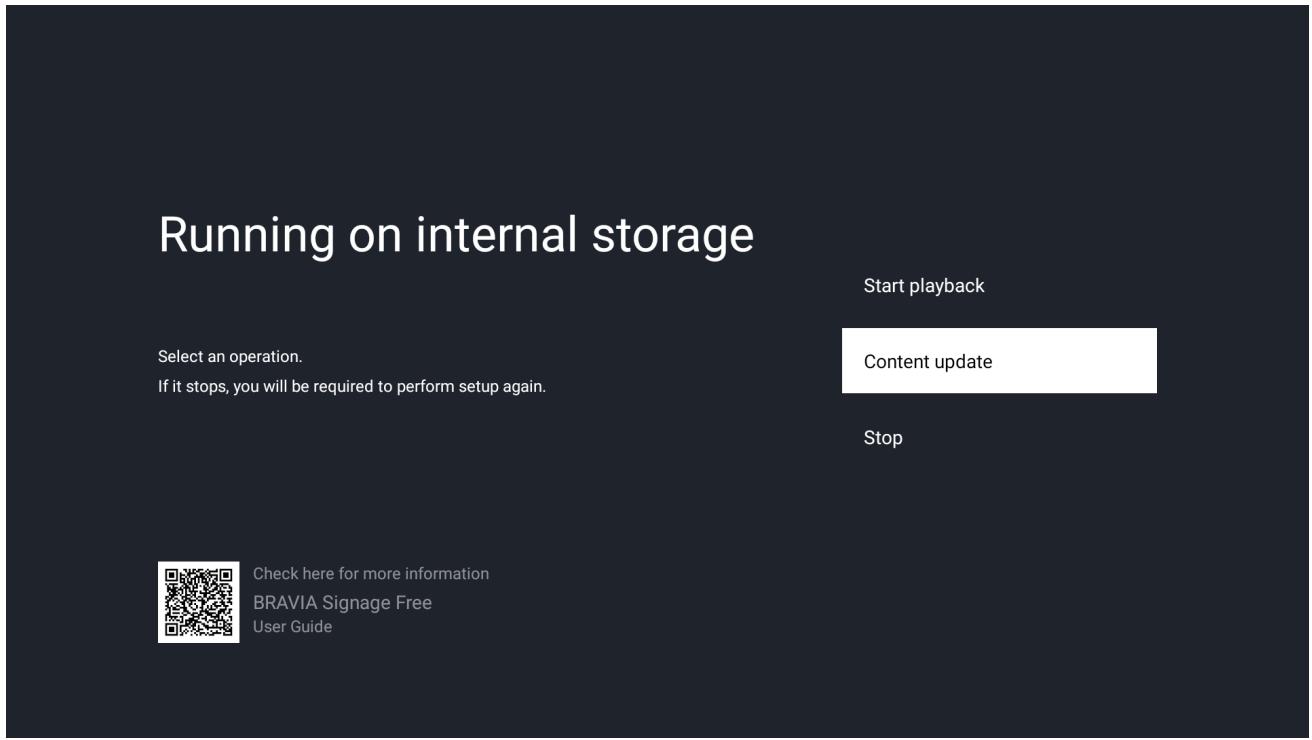
[4] Execute the setup procedure again. At that time, you can overwrite the contents of the internal storage by updating the contents of the USB storage device and performing the setup.
附录 I. 推荐的媒体格式规格
This section describes the recommended specifications of video, image, and audio formats that the BSF supports.
Video
| Container/Codec | Extension | Aspect Ratio | Resolution (Max.) | Bitrate (Max.) | Frame rate | Duration (Max.) |
| MP4 AVC | .mp4 | 16:9 | 3840x2160 (*1) | 30 Mbps | 30, 60 fps | 10 minutes/file |
| MP4 AVC/HEVC | .mp4 | 16:9 | 3840x2160 (*1) | 30 Mbps | 30, 60 fps | 10 minutes/file |
| MPEG TS AVC/MPEG2 | .m2ts | 16:9 | 3840x2160 (*1) | 30 Mbps | 30, 60 fps | 10 minutes/file |
(*1) The specifications when using a 4K model. If you use a 2K model, the max. resolution is 1920x1080.
Image
| Container/Codec | Extension | Aspect Ratio | Resolution (Max.) | Bit depth information |
| JPEG | .jpg, .jpeg | 16:9 | 3840x2160 (*1) | Based on JPEG specifications |
| BMP | .bmp | 16:9 | 1920x1080 | 8 bit (256 colors) bitmap |
| PNG | .png | 16:9 | 1920x1080 | 24bit RGB, 32bit RGBA format |
| GIF | .gif | 16:9 | 1920x1080 | 8 bit (256 colors) bitmap |
(*1) The specifications when using a 4K model. If you use a 2K model, the max. resolution is 1920x1080.
Audio
| Container/Codec | Extension | Bitrate (Max.) | Sampling rate | Channel (Max.) | Duration (Max.) |
| MP3 | .mp3 | 320 kbps | 44.1 kHz, 48 kHz | 2 channels | 10 minutes/file |
| AAC | .m4a | 320 kbps | 44.1 kHz, 48 kHz | 2 channels | 10 minutes/file |
附录 II. 无缝播放规格
本节介绍无缝播放的规格。
支持的平台
- WebAppRuntime 2.1.1 或更高版本
- 如何使用 BRAVIA 检查版本
■ 设置>应用程序>显示系统应用程序>选择 WebAppRuntime
所需设置
如果您想要无缝播放,请禁用过 Transition Effect。默认情况下启用 Transition Effect。
- Basic settings > Transition Effect > OFF
可以无缝播放的内容组合
可以无缝播放的内容组合如下表所示。此外,使用的内容必须符合“附录 I. 推荐的媒体格式规格”中所述的推荐规格。
行:正在播放的内容
排:即将播放的内容
| Container/Codec | MP4 AVC | MP4 AVC/HEVC | MPEG TS AVC/MPEG2 | JPEG(4K) | JPEG | BMP | PNG | GIF | HTML |
| MP4 AVC | √ | √ | √(*4) | √(*4) | √(*4) | ||||
| MP4 AVC/HEVC | |||||||||
| MPEG TS AVC/MPEG2 | |||||||||
| JPEG(4K) | √ | √ | √ | √ | √ | ||||
| JPEG | √ | √(*1) | √ | √(*2) | √(*2) | √(*2) | √(2,3) | ||
| BMP | √(*4) | √(*1) | √ | √ | √ | √ | √(*3) | ||
| PNG | √(*4) | √(*1) | √ | √ | √ | √ | √(*3) | ||
| GIF | √(*4) | √(*1) | √ | √ | √ | √ | √(*3) | ||
| HTML | √ | √ | √ | √ | √(*3) |
(* 1) 切换到静止图像 4K 时,仅第一次播放为非无缝播放。
(*2) 如果 WebAppRuntime 低于 2.1.3,且播放内容列表中包含视频,则不会无缝播放。要从 JPEG 无缝切换,请在播放列表设置中将 JPEG 类型设置为 4K 静态图像。即使是同一图像,静态图像和 4K 静态图像在显示器上的画质也不同。
(*3) 部分以 HTML 显示的内容可能无法无缝播放。
(*4) 支持 WebAppRuntime 2.1.3 或更高版本。
变更履历
BRAVIA Signage Free: 1.2.2
- Corrected documentation errors
BRAVIA Signage Free: 1.2.0
- Introduction
- Updated how to get the software.
- Chapter 6
- Added a chapter explaining the setup procedure using BRAVIA.
BRAVIA Signage Free: 1.1.1
- Appendix II
- Update seamless playback specifications.
BRAVIA Signage Free: 1.1.0
- Chapter 1
◦ Added seamless playback support.
- Chapter 3
- Added step to enable USB drive auto run.
- Appendix II
- Describes seamless playback specifications.
BRAVIA Signage Free: 1.0.0
- Whole document
- Changed the software name.
- Version changed to 1.0.0 due to the software name change.
Simple Media Player 2: 1.0.3
- Whole document
- Added descriptions about the sony folder.
- Chapter 5
◦ Added notes on BGM playback
◦ Added notes to “ “Others” ” “
- Appendix I
- Added additional model names in 2017 Late Android TV.
Simple Media Player 2: 1.0.1
- Whole document
- Details about “Crawl” in “On-screen text” changed to match the updated [Crawl] setting.
- Details about the sample content folder name changed to match the updated folder name.
- Chapter 5
- Details about “Schedule playback” added.
Simple Media Player 2: 1.0.0
- First edition of this document.
Trademark Notices
macOS is either registered trademark or trademark of Apple Computer, Inc. in the United States and/or other countries.
Windows and PowerPoint are either registered trademarks or trademarks of Microsoft Corporation in the United States and/or other countries.
BRAVIA is a trademark of Sony Corporation.
- BRAVIA SIGNAGE FREE
- 用户指南
- 目录
- 介绍
- 概述
- 准备什么
- 基础使用
- 高级使用
- 补充信息和注意事项
- 使用 BRAVIA 进行设置
- 附录I.推荐的媒体格式规格
- 附录 II. 无缝播放规格
- 变更履历
- TRADEMARK NOTICES
- HOW TO OBTAIN
- DISTRIBUTION PACKAGE
- WHAT IS BRAVIA SIGNAGE FREE
- [1] SLIDESHOW PLAYBACK
- [2] PLAYLIST PLAYBACK
- [3] SCHEDULED PLAYBACK
- FEATURE OVERVIEW
- [1] BGM AND ON-SCREEN TEXT
- [2] TRANSITION EFFECTS AND DURATION
- [3] PLAYLISTS
- [4] PLAYBACK SCHEDULES
- [5] PRESENTATION MODE
- SUPPORTED MEDIA FORMATS
- VIDEO
- IMAGE
- AUDIO
- HTML
- CODEC SPECIFICATIONS
- SEAMLESS PLAYBACK
- USE SLIDESHOW PLAYBACK
- PROCEDURE TO PLAY CONTENTS (REQUIRED)
- PLAYBACK SETTINGS (OPTIONAL)
- CREATE PLAYLIST AND PLAY
- PROCEDURE TO CREATE PLAYLISTS (REQUIRED)
- PROCEDURE TO CHANGE PLAYBACK SETTINGS
- (REQUIRED)
- CONFIGURE PLAYBACK SCHEDULE
- PROCEDURE TO CONFIGURE SCHEDULE (REQUIRED)
- PROCEDURE TO CHANGE PLAYBACK SETTINGS (REQUIRED)
- SHOW TELOP TEXT
- SLIDESHOW PLAYBACK
- PLAYLIST PLAYBACK
- PLAY WITH BACKGROUND MUSIC
- USE PRESENTATION MODE
- HOW TO USE
- CONTENT PLAYBACK
- SCHEDULE PLAYBACK
- BGM
- OTHERS
- [BASIC SETTINGS] SCREEN
- [PLAYLIST SETTINGS] SCREEN
- ERROR INFORMATION
- [SCHEDULE SETTINGS] SCREEN
- SET UP ON A USB FLASH DRIVE
- INSERT A USB FLASH DRIVE
- PREPARING
- DO NOT REMOVE THE USB FLASH DRIVE
- PREPARATION COMPLETE
- SET UP ON THE INTERNAL STORAGE
- READY FOR SETUP TO THE INTERNAL STORAGE COMPLETE
- SETUP TO THE INTERNAL STORAGE COMPLETE
- END OF OPERATION USING THE INTERNAL STORAGE
- RUNNING ON INTERNAL STORAGE
- UPDATE CONTENT IN THE INTERNAL STORAGE
- 附录 I. 推荐的媒体格式规格
- 支持的平台
- 所需设置
- 可以无缝播放的内容组合
- SIMPLE MEDIA PLAYER
- WHOLE DOCUMENT
- CHAPTER
Brand : SONY
Model : BRAVIA Signage