
SC016 - Soundcard SWEEX - Free user manual and instructions
Find the device manual for free SC016 SWEEX in PDF.

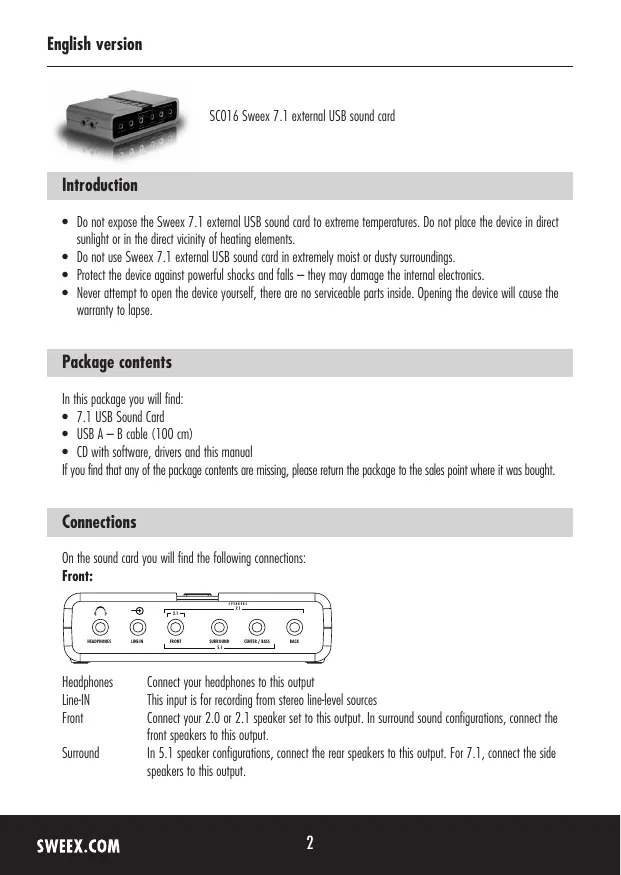

| Product type | USB 7.1 external sound card |
| Brand | SWEEX |
| Model | SC016 |
| Connectivity | USB 2.0 (A-B cable included, 100 cm) |
| Audio outputs | Headphones, Front (2.0/2.1), Surround (5.1/7.1), Center/Bass, Rear (7.1 only) |
| Audio inputs | Stereo Line-In, Mic 1 (mono/right channel), Mic 2 (left channel), S/PDIF IN |
| Digital output | S/PDIF OUT (optical, red indicator) |
| Power supply | Via USB port (5 V, no external power required) |
| Dimensions (approx.) | 9 x 4.5 x 1.5 cm (estimated) |
| Weight (approx.) | 100 g (estimated) |
| Supported operating system | Windows XP, Vista (specific drivers included) |
| Main features | 7.1 surround sound, volume and mute control, center/bass swap, automatic speaker detection |
| Maintenance and cleaning | Clean with a dry cloth; avoid humidity, extreme temperatures and shocks |
| Safety | Do not open the enclosure (no user-serviceable parts inside, warranty void) |
| Spare parts and repairability | Not applicable; no direct after-sales service for internal components |
| Warranty | 3 years from purchase date (excluding software, batteries and accumulators) |
| Package contents | Sound card, USB A-B cable, CD with drivers and manual |
Frequently Asked Questions - SC016 SWEEX
User questions about SC016 SWEEX
0 question about this device. Answer the ones you know or ask your own.
Ask a new question about this device
Download the instructions for your Soundcard in PDF format for free! Find your manual SC016 - SWEEX and take your electronic device back in hand. On this page are published all the documents necessary for the use of your device. SC016 by SWEEX.
USER MANUAL SC016 SWEEX
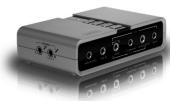
SC016 Swee7.1 external USB sound card
Introduction
- Do not expose the Sweex 7.1 external USB sound card to extreme temperatures. Do not place the device in direct sunlight or in the direct vicinity of heating elements.
- Do not use Sweeex 7.1 external USB sound card in extremely moist or dusty surroundings.
- Protect the device against powerful shocks and falls - they may damage the internal electronics.
- Never attempt to open the device yourself, there are no serviceable parts inside. Opening the device will cause the warranty to lapse.
Package contents
In this package you will find:
7.1 USB Sound Card
USB A-B cable (100 cm)
- CD with software, drivers and this manual
If you find that any of the package contents are missing, please return the package to the sales point where it was bought.
Connections
On the sound card you will find the following connections:
Front:
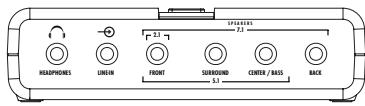
Headphones
Connect your headphones to this output
Line-IN
This input is for recording from stereo line-level sources
Front
Connect your 2.0 or 2.1 speaker set to this output. In surround sound configurations, connect the front speakers to this output.
Surround
In 5.1 speaker configurations, connect the rear speakers to this output. For 7.1, connect the side speakers to this output.
Center / Bass For 5.1 and 7.1 configurations, connect the center / bass channel to this output.
Back In 7.1 configurations, connect the rear speakers to this output. This output is not used for 5.1!
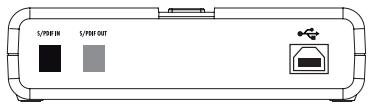
Back:
S/PDIF IN You can connect a S/PDIF source to this input for recording. Please note that it is not possible to use the soundcard as receiver, you cannot connect your DVD player, Xbox® or other device to the card and play it's sound back on the speakers
S/PDIF OUT This is the S/PDIF output, during operation, you will see a red light shine through. If you have trouble getting 5.1 / 7.1 surround sound from the S/PDIF OUT, please refer to the troubleshooting section of this manual.
USB Connect the USB port of your soundcard to your computer using the included cable.
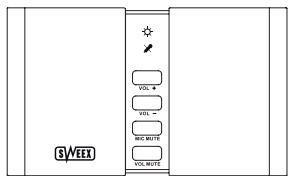
Top:
Power LED This light indicates that the card receives power from the computer.
Mic mute LED This light indicates that the microphone inputs are muted
Volume up Press this button to increase volume
Volume down Press this button to decrease volume
Mic mute This button mutes / unmutes the microphone inputs
Vol mute This button mutes / unmutes all outputs
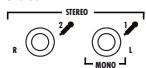
Side:
Mic 2 This is the secondary microphone input, in stereo it is mapped to the left channel.
Mic 1 This is the primary microphone input, used for mono recording and the right channel in stereo.
Software Installation
Connect the sound card to an USB port of your computer. Windows will automatically recognise the device and display the following message:
Windows XP
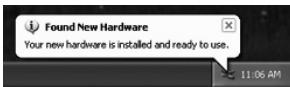
Note: The card is not yet ready to use! You still need to install the drivers and software, the drivers and software included with Windows XP will not work.
Vista
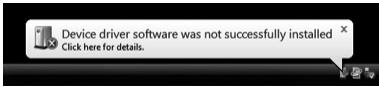
You can safely ignore this message.
Put the SweeX CD-ROM in your drive. The CD-ROM will start automatically. Click "Drivers and Software for XP and Vista" to start the installation.

Software and Drivers for XP and Vista
Follow the instructions on screen to install the driver. After driver installation is complete, you must restart your computer.
Usage
When installation is successful and after a reboot of the computer you will see the "USB Multi-Channel Audio Device" icon in the system tray at the bottom right of your screen:
Double-click the icon to start the software for configuring the sound card:
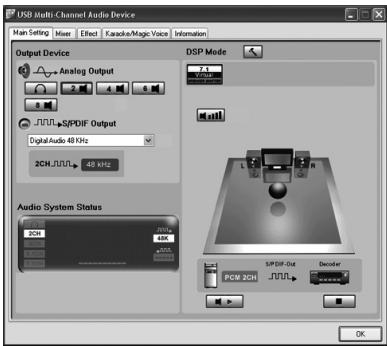
Windows XP
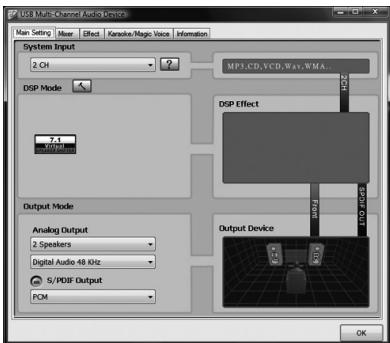
Windows Vista
The sound card will automatically adapt it's settings to the speakers you have connected (headphones / 2.0 or 2.1 / 5.1 / 7.1), in most cases you will not need to adjust any settings. If you notice that the card does not detect all speakers, you can change the "Analog Output" to manually select the right number of speakers.
Note:
In Windows Vista, you also have to change the "System Input" to the number of speakers you have. In Windows XP, this can be done through Start - Control Panel - Sound, Speech and Audio devices - Change the speaker settings - Advanced button
Uninstall
The software can be uninstalled through the "Add or remove Programs" icon from the Windows XP control panel, or the "Programs" icon in Vista's control panel.
Troubleshooting:
- I have 5.1 or 7.1 speakers and my center / bass channels are not working or give very distorted sound.
In this case the center / bass channels may be swapped to fix, open the sound card's software, you will see a small icon:

next to your speaker settings in the Analog Output section. Click it, check the "Swap center / bass output" checkbox and click OK.
- I cannot get more than 2 channels to play over the S/PDIF output
S/PDIF does not support more than 2 channels for normal uncompressed audio. This is not a limitation of the soundcard, but of S/PDIF itself. It is however possible to output already compressed 5.1/7.1 audio from a DVD through the S/PDIF output. To enable this, search for "S/PDIF Passthrough" in your DVD player software's settings and enable it.
My sound stutters
This can happen when there is not enough USB bandwidth available for the sound card. Try to connect it to a different USB port, or through a USB 2.0 hub, or try disconnecting other USB devices.
Warranty
- For this Swee x product a three year warranty period applies, beginning from of the date of purchase.
- In case of defect, return the product to your reseller with failure description, proof of purchase and all accessories.
- Warranty will be void in case of opened products, physical damage, misuse, modification, repair by unauthorised persons and using the product for other purposes than its intended use.
- We do not give support or warranty on supplied software, rechargeable batteries and batteries. Transaction of warranty only takes place at the sales point where the product is bought.
All brand names and associated rights mentioned in this manual are and stay property of the rightful owner.