
CD4200 - LCD Screen VIEWSONIC - Free user manual and instructions
Find the device manual for free CD4200 VIEWSONIC in PDF.



| Product type | Commercial LCD screen |
| Brand | VIEWSONIC |
| Model | CD4200 |
| Screen size | 42.02 inches (diagonal) |
| Native resolution | 1366 x 768 pixels |
| Aspect ratio | 16:9 |
| Brightness | 550 cd/m² (typ.) |
| Contrast | 1200:1 (typ.) |
| Viewing angle | 178° horizontal / 178° vertical (typ.) |
| Response time | 8 ms (GTG) |
| Displayable colors | 16.7 million |
| Video inputs | Composite (x2), S-Video (x2), Component YPbPr (x2), HDMI (x1), VGA D-Sub (x1) |
| Audio inputs | PC Audio In, Audio for Composite/S-Video/Component |
| Audio output | Built-in speakers 2 x 15 W (RMS), line out L/R, S/PDIF digital output |
| Power consumption | Less than 300 W |
| Power supply | AC 100-240 V, 50/60 Hz |
| Dimensions (W x H x D) | 1067 x 678 x 108 mm |
| Net weight | 28.8 kg |
| Main functions | Universal remote control, automatic picture control (APC), aspect ratio control (ARC), noise reduction, sleep timer, auto power off |
| Maintenance and cleaning | Clean with a dry, soft cloth. Do not use abrasive cleaners or solvents. |
| Safety | Do not expose to moisture. Unplug if not in use for extended periods. Have all repairs performed by qualified personnel. |
| Spare parts and repairability | Contact ViewSonic customer service or an authorized dealer for repairs. The lamp contains mercury: recycle according to regulations. |
| Warranty | 1 year parts and labor (subject to general terms) |
| General information | Product registration recommended at www.viewsonic.com. Model number: VS11778. |
Frequently Asked Questions - CD4200 VIEWSONIC
User questions about CD4200 VIEWSONIC
0 question about this device. Answer the ones you know or ask your own.
Ask a new question about this device
Download the instructions for your LCD Screen in PDF format for free! Find your manual CD4200 - VIEWSONIC and take your electronic device back in hand. On this page are published all the documents necessary for the use of your device. CD4200 by VIEWSONIC.
USER MANUAL CD4200 VIEWSONIC
LCD Commercial Display
- User Guide
- Guide de l'utilisateur
- Guía del usuario
Contents
Compliance Information 1
Important Safety Instructions 2
Declaration of RoHS Complianc. 3
Copyright Information 4
Product Registration 4
GENERAL INFORMATION 5
Features 5
Overview of the LCD-Control Buttons and Indicators 6
Overview of the LCD - Connections 7
Accessories 8
Remote Control 9
CONNECTIONS & APPLICATIONS 12
Connecting Video Devices via HDMI 12
Connecting Video Devices via DVI 13
Connecting PC via D-SUB 14
Connecting Devices via General Cables 15
CONTROLS & ADJUSTMENTS 16
General Adjustments 16
Turning the LCD On and Off 16
Initial Setup 17
Power Consumption 18
Adjusting the Volume 19
Switching Source 20
Viewing the Menus and On-Screen Display (OSD) 20
Switching Language Modes 21
Picture Control 22
Adjusting the Picture Setting 22
Adjusting the LCD Screen 24
Adjusting the Color Temperature 25
Reset Picture Settings 26
Sound Control 27
Adjusting the Sound Quality 27
Automatic Volume Control 28
Reset Audio Settings 29
System Info 30
PC mode Adjustments 31
Reset the Features 32
PROGRAMMING REMOTE CONTROL 33
Direct Device Code Setup 33
Searching for a Device Code 34
Device Codes 35
TROUBLESHOOTING 41
PC INPUT PRESET TIMING TABLE 44
SPECIFICATIONS 45
CUSTOMER SUPPORT 46
LIMITED WARRANTY 47
Table des Matieres
CONNEXIONS ET APPLICATIONS 59
This device complies with part 15 of FCC Rules. Operation is subject to the following two conditions: (1) this device may not cause harmful interference, and (2) this device must accept any interference received, including interference that may cause undesired operation.
This equipment has been tested and found to comply with the limits for a Class B digital device, pursuant to part 15 of the FCC Rules. These limits are designed to provide reasonable protection against harmful interference in a residential installation. This equipment generates, uses, and can radiate radio frequency energy, and if not installed and used in accordance with the instructions, may cause harmful interference to radio communications. However, there is no guarantee that interference will not occur in a particular installation. If this equipment does cause harmful interference to radio or television reception, which can be determined by turning the equipment off and on, the user is encouraged to try to correct the interference by one or more of the following measures:
- Reorient or relocate the receiving antenna.
- Increase the separation between the equipment and receiver.
- Connect the equipment into an outlet on a circuit different from that to which the receiver is connected.
- Consult the dealer or an experienced radio/TV technician for help.
Warning: You are cautioned that changes or modifications not expressly approved by the party responsible for compliance could void your authority to operate the equipment.
For Canada
This Class B digital apparatus complies with Canadian ICES-003.
Important Safety Instructions
-
Read these instructions completely before using the equipment.
-
Keep these instructions in a safe place.
-
Heed all warnings.
-
Follow all instructions.
-
Do not use this equipment near water. Warning: To reduce the risk of fire or electric shock, do not expose this apparatus to rain or moisture.
-
Clean with a soft, dry cloth. If further cleaning is required, see "Cleaning the Display" in this guide for further instructions.
-
Do not block any ventilation openings. Install the equipment in accordance with the manufacturer's instructions.
-
Do not install near any heat sources such as radiators, heat registers, stoves, or other devices (including amplifiers) that produce heat.
-
Do not attempt to circumvent the safety provisions of the polarized or grounding-type plug. A polarized plug has two blades with one wider than the other. A grounding type plug has two blades and a third grounding prong. The wide blade and the third prong are provided for your safety. If the plug does not fit into your outlet, consult an electrician for replacement of the outlet.
-
Protect the power cord from being tread upon or pinched, particularly at the plug, and the point where if emerges from the equipment. Be sure that the power outlet is located near the equipment so that it is easily accessible.
-
Only use attachments/accessories specified by the manufacturer.
-
Use only with the cart, stand, tripod, bracket, or table specified by the manufacturer, or sold with the equipment. When a cart is used, use caution when moving the cart/equipment combination to avoid injury from tipping over.

-
Unplug this equipment when it will be unused for long periods of time.
-
Refer all servicing to qualified service personnel. Service is required when the unit has been damaged in any way, such as: if the power-supply cord or plug is damaged, if liquid is spilled onto or objects fall into the unit, if the unit is exposed to rain or moisture, or if the unit does not operate normally or has been dropped.
Declaration of RoHS Compliance
This product has been designed and manufactured in compliance with Directive 2002/95/EC of the European Parliament and the Council on restriction of the use of certain hazardous substances in electrical and electronic equipment (RoHS Directive) and is deemed to comply with the maximum concentration values issued by the European Technical Adaptation Committee (TAC) as shown below:
| Substance | Proposed Maximum Concentration | Actual Concentration |
| Lead (Pb) | 0.1% | < 0.1% |
| Mercury (Hg) | 0.1% | < 0.1% |
| Cadmium (Cd) | 0.01% | < 0.01% |
| Hexavalent Chromium (Cr6+) | 0.1% | < 0.1% |
| Polybrominated biphenyls (PBB) | 0.1% | < 0.1% |
| Polybrominated diphenyl ethers (PBDE) | 0.1% | < 0.1% |
Certain components of products as stated above are exempted under the Annex of the RoHS Directives as noted below:
Examples of exempted components are:
- Mercury in compact fluorescent lamps not exceeding 5mg per lamp and in other lamps not specifically mentioned in the Annex of RoHS Directive.
- Lead in glass of cathode ray tubes, electronic components, fluorescent tubes, and electronic ceramic parts (e.g. piezoelectronic devices).
- Lead in high temperature type solders (i.e. lead-based alloys containing 85% by weight or more lead).
- Lead as an allotting element in steel containing up to 0.35% lead by weight, aluminium containing up to 0.4% lead by weight and as a cooper alloy containing up to 4% lead by weight.
Copyright Information
Copyright © ViewSonic® Corporation, 2007. All rights reserved.
Macintosh and Power Macintosh are registered trademarks of Apple Computer, Inc.
Microsoft, Windows, Windows NT, and the Windows logo are registered trademarks of Microsoft Corporation in the United States and other countries.
ViewSonic, the three birds logo, OnView, ViewMatch, and ViewMeter are registered trademarks of ViewSonic Corporation.
VESA is a registered trademark of the Video Electronics Standards Association. DPMS and DDC are trademarks of VESA.
ENERGY STAR® is a registered trademark of the U.S. Environmental Protection Agency (EPA).
As an ENERGY STAR® partner, ViewSonic Corporation has determined that this product meets the ENERGY STAR® guidelines for energy efficiency.
Disclaimer: ViewSonic Corporation shall not be liable for technical or editorial errors or omissions contained herein; nor for incidental or consequential damages resulting from furnishing this material, or the performance or use of this product.
In the interest of continuing product improvement, ViewSonic Corporation reserves the right to change product specifications without notice. Information in this document may change without notice.
No part of this document may be copied, reproduced, or transmitted by any means, for any purpose without prior written permission from ViewSonic Corporation.
Product Registration
To meet your future needs, and to receive any additional product information as it becomes available, please register your product on the Internet at: www.viewsonic.com. The ViewSonic Wizard CD-ROM also provides an opportunity for you to print the registration form, which you may mail or fax to ViewSonic.
| For Your Records | |
| Product Name: | CD4200 |
| ViewSonic 42” LCD Commercial Display | |
| Model Number: | VS11778 |
| Document Number: | CD4200-1_UG_ENG Rev. 1A 03-12-07 |
| Serial Number: | |
| Purchase Date: | |
Product disposal at end of product life
The lamp in this product contains mercury. Please dispose of in accordance with local, state or federal laws.
ViewSonic is concerned about the preservation of our environment. Please dispose of this product properly at the end of its useful life. For the recycling information, please refer to our website:
- USA: www.viewsonic.com/pdf/RecyclePlus.pdf
- Europe: www.viewsoniceurope.com
- Taiwan: recycle.epa.gov.tw
GENERAL INFORMATION
Features
Your LCD is designed with the latest technology and is a high-performance unit that includes the following special features :
Multi-sources input included D-SUB, HDMI, Composite, S-Video, and Component.
Universal remote control provides control of other devices such as Cable Converter, Satellite Receiver, DVD player, Audio Amplifier, VCR etc.
Embedded video enhance and noise Reduction features for the colorful and clearest picture possible.
Automatic Power Off feature after 10 minutes without a signal.
Component video input, resolution up to 720p, 1080i.
Automatic Picture Control (APC) and Aspect Ratio Control (ARC) functions for end user customization of viewing preferences.
Front Panel Overview
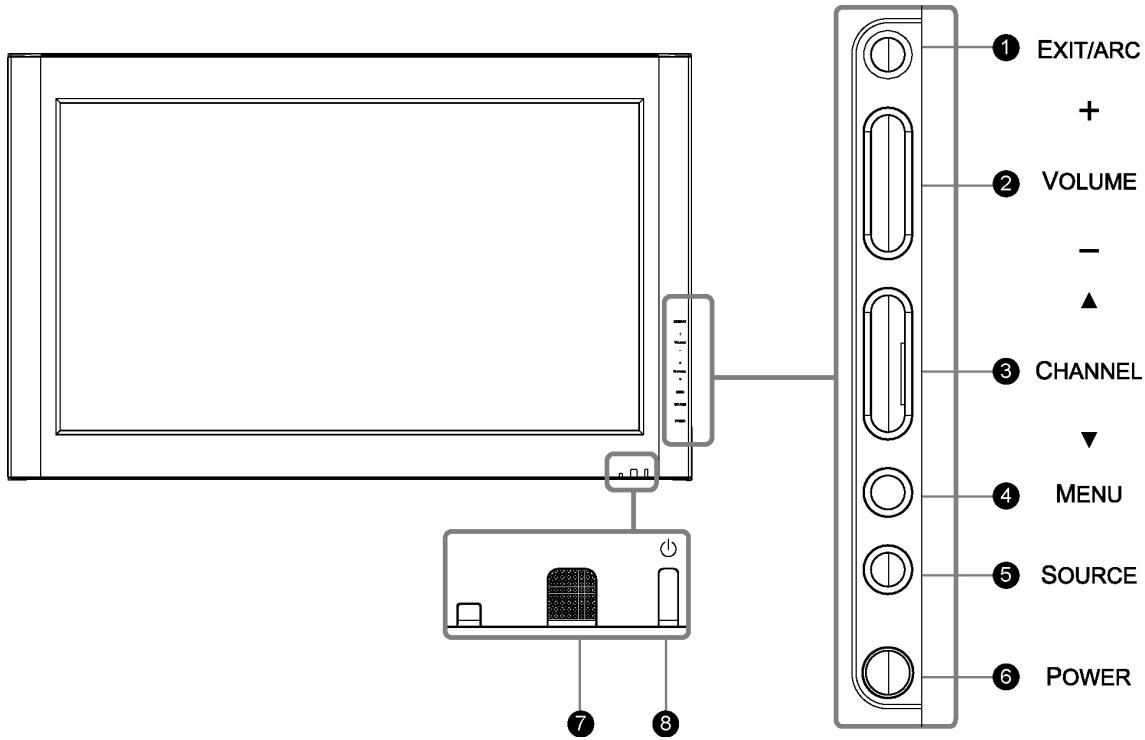
FUNCTION KEYS
- EXIT/ARC : Select the display output mode (Video mode: Normal, Full Screen, Zoom, Subtitle; PC mode: Normal, Full Screen).
- VOLUME (+/ -): Increase/decrease the volume or function as the left/right arrow button for menu.
- CHANNEL ( / ) : Change function as the up/down arrow button for menu.
- MENU : Display the main menu. When OSD (on-screen display) is appeared, press the button to select or access a sub-menu.
- SOURCE : Select the input source (Video 1, Video 2, YPbPr 1, YPbPr 2, HDMI, PC). Press SOURCE button on right side and the source menu will appear on the screen. Press the CHANNEL ( / ) button on right side to select your preferred source input and press MENU to confirm.
- POWER: Turn the LCD on or off.
- REMOTE CONTROL SENSOR : Aim the remote control towards this spot on the LCD.
- POWER INDICATOR : BULE LIGHT — power on
PURPLE LIGHT - power saving; standby
(often in PC mode)
RED LIGHT - power off
NOTE 1: These buttons on the LCD is only for basic settings.
NOTE 2 : The drawing of this LCD in the user manual is for your reference. The actual LCD appearance may differ depending on your purchase.
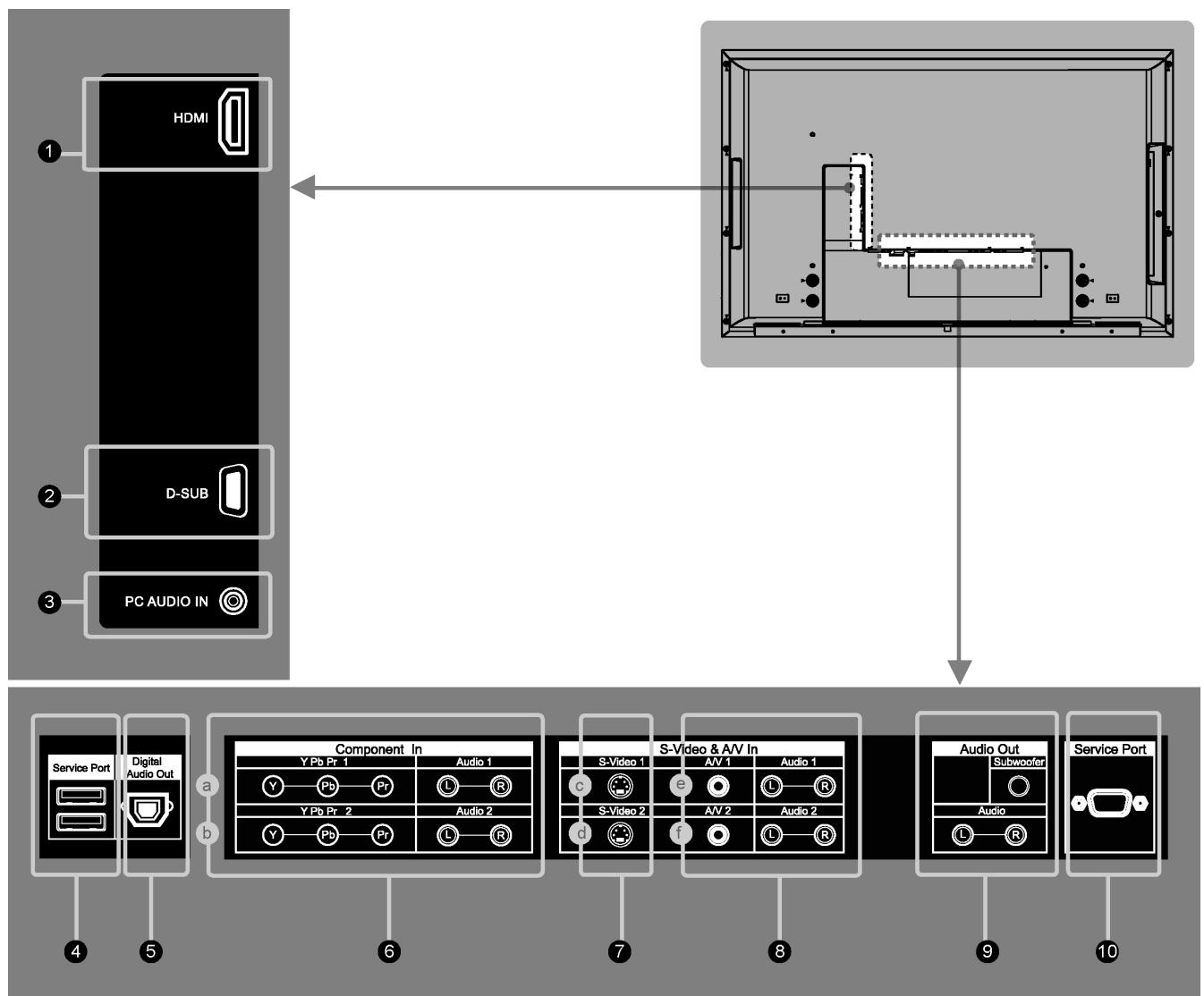
Side and Rear Panel
| Jack | Description | |
| 1 | HDMI (High Definition Multimedia Interface) | Connect to the HDMI jack of the LCD with an HDMI output, such as set-top box, DVD player, etc. You can also connect the LCD with a DVI output by using an HDMI-to-DVI cable or HDMI-to-DVI adapter. Please use an audio cable, when using HDMI-to-DVI cable or adapter. |
| 2 | D-Sub | Connect to the video output on your PC. Please use additional cable for a sound. |
| 3 | PC Audio In | Connect to the audio output jack of your PC. |
| 4 | Service Port | Only for service use. |
| 5 | Digital Audio Out | Connect to a digital audio component. |
| 6(a/b) | Component In | Connect to your LCD's component video (YPbPr) and audio (L/R) jacks. |
| 7(c/d) | S-Video | Connect to the S-Video output jack on your VCR or other video devices, for a sharper picture. |
| 8(e/f) | AV In | Connect to the Composite video and audio output jacks on your VCR or other video devices. |
| 9 | Audio Out | Connect to the audio input jacks on your Amplifier/Home theater. |
| 10 | Service Port | Only for service use. |
User's Manual
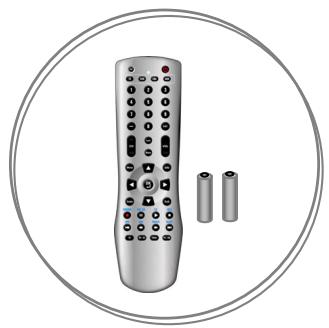
Remote Control & Batteries
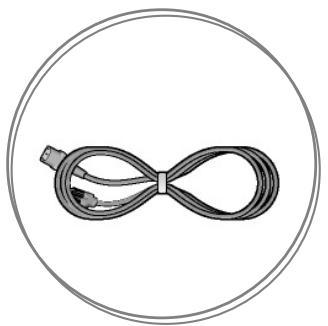
Power Cord
Quick Start Guide
Remote Control
This universal remote control can operate up to four devices. When using the remote control in LCD(TV) mode, please point the remote directly toward the Remote Control Sensor on the front panel. If you want to select other device, simply press one of the buttons: VCR, CBL, or AUX.
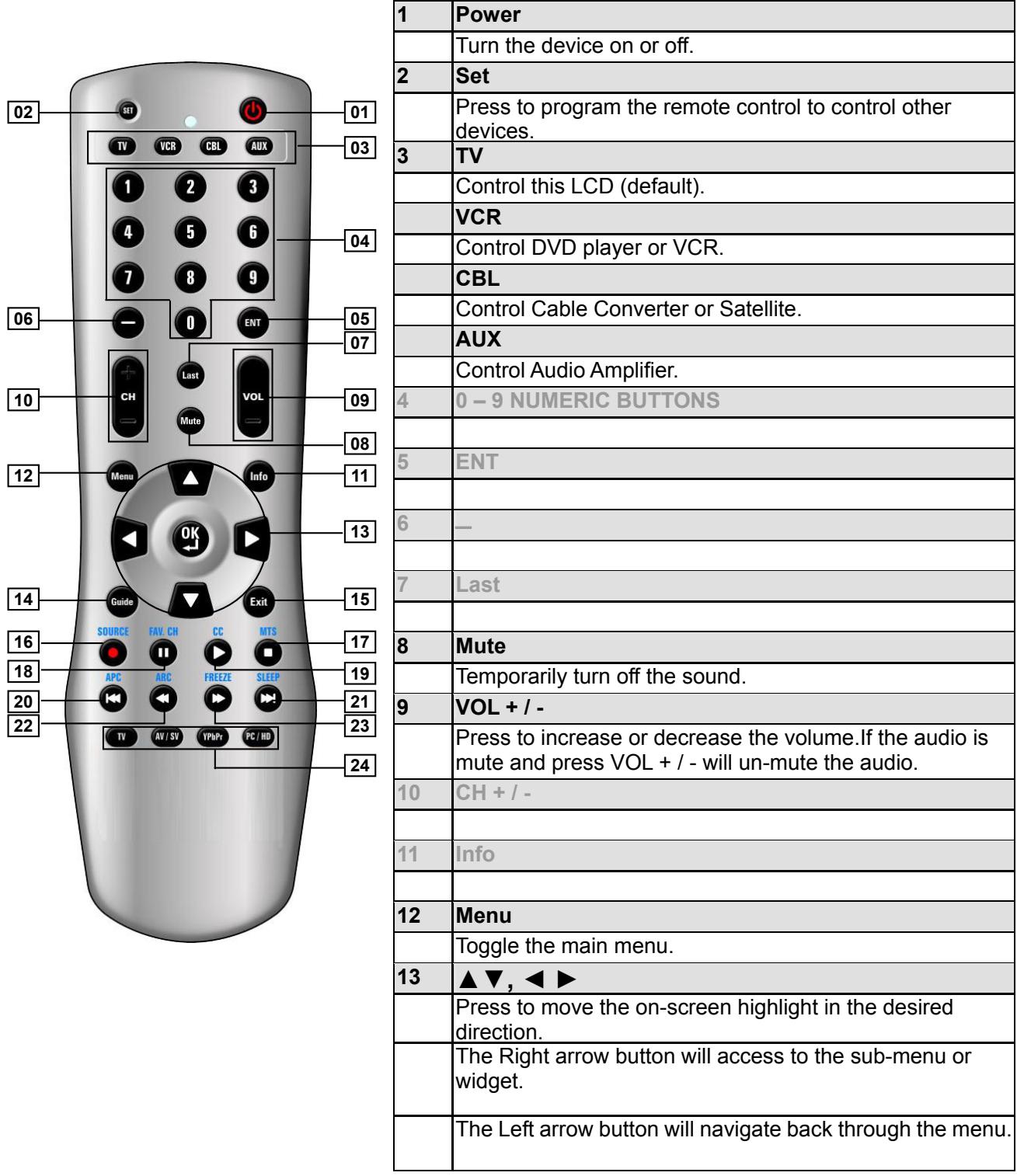
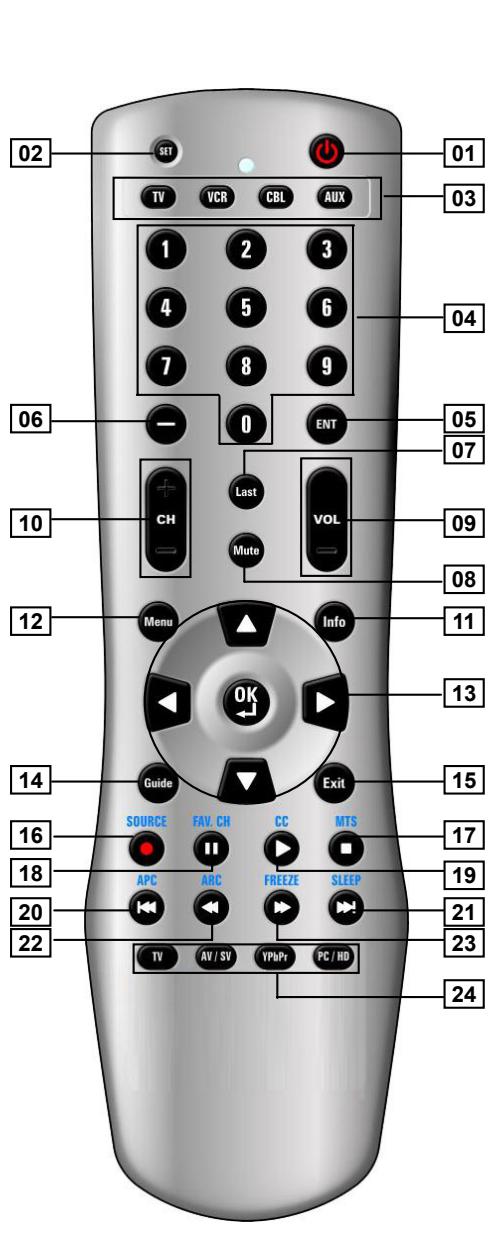
| OK | |
| Press to select a currently highlighted choice on-screen.Press to control some widgets, toggling between 2 different settings such as ON and OFF. | |
| 14 | Guide |
| 15 | Exit |
| Press to dismiss all UI screens and menus. | |
| 16 | Source |
| Press to select the signal source: the sequence is Video 1→Video 2→YPbPr 1→YPbPr 2→HDMI→PC. | |
| 17 | MTS |
| 18 | FAV.CH |
| 19 | CC |
| 20 | APC (Automatic Picture Control) |
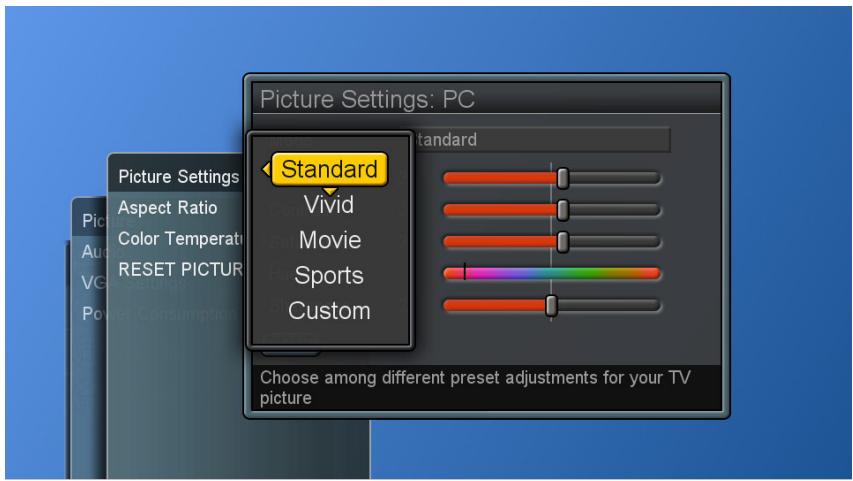
| Toggle screen luminosity between Standard→Vivid→Movie→Sports→Custom→Standard. | |
| 21 | SLEEP |
| 22 | ARC(Aspect Ratio Control) |
| Toggle the picture mode. The sequence is Normal→Full Screen→Zoom→Subtitle. | |
| 23 | FREEZE |
| 24 | TV |
| AV / SV | |
| Press to select Video 1 or Video 2 mode. | |
| YPbPr | |
| Press to select YPbPr 1 or YPbPr 2 mode. | |
| PC / HD | |
| Press to select PC or HDMI mode. |
NOTE : In page 8 and 9, the descriptions of buttons in gray are not available in this LCD.
Connecting Video Devices via HDMI
- This can be applied only if there is the HDMI Output connector on the external device.
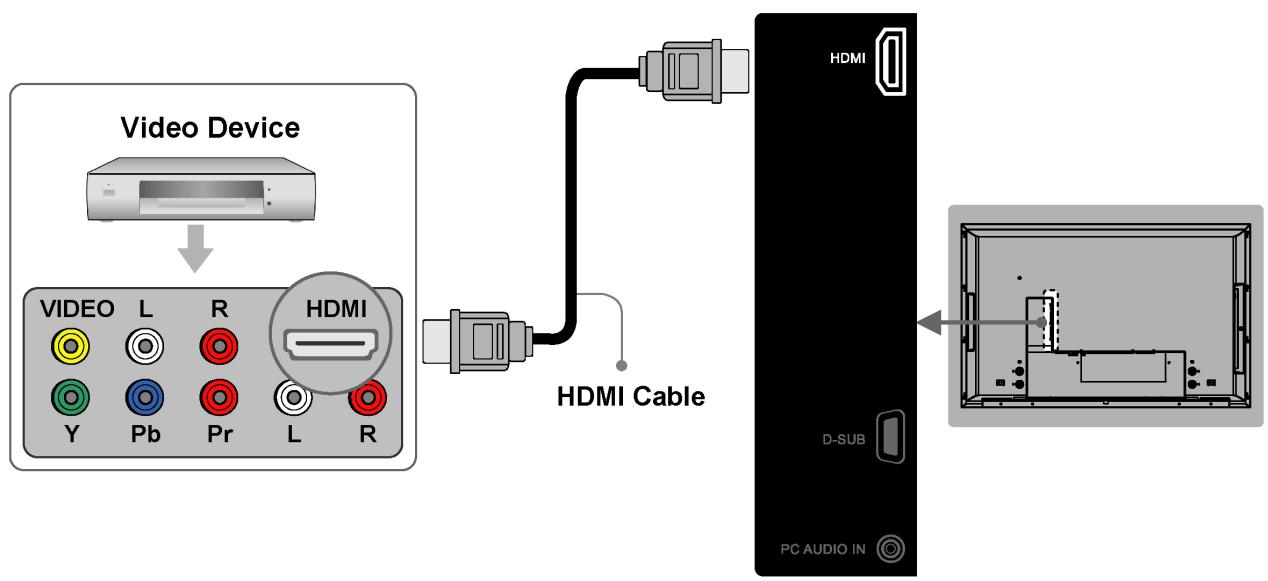
NOTE 1 : Video Device - e.g.: DVD Player, Set-top Box...etc.
NOTE 2 : HDMI - High-Definition Multimedia Interface
NOTE 3 : No sound connector is needed for an HDMI to HDMI connection.
NOTE 4 : Cables above are not offered.
- This can be applied only if there is the DVI Output connector on the external device.
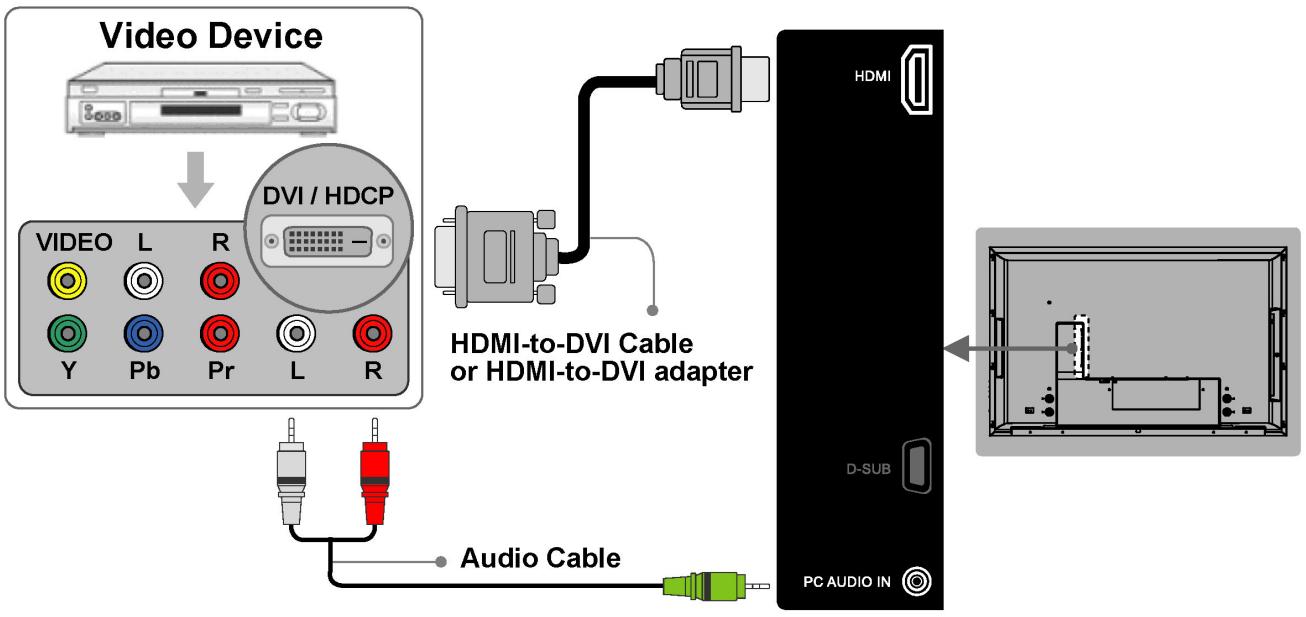
NOTE 1: To receive video, connect a HDMI-to-DVI cable or HDMI-to-DVI adapter between the HDMI connector on the LCD and the DVI connector on the DVD player/ Set-top box.
NOTE 2 : To receive sound, connect an audio cable between the PC Audio In jack on the LCD and Audio Out jack on the DVD player/ Set-Top box.
NOTE 3: Cables above are not offered.
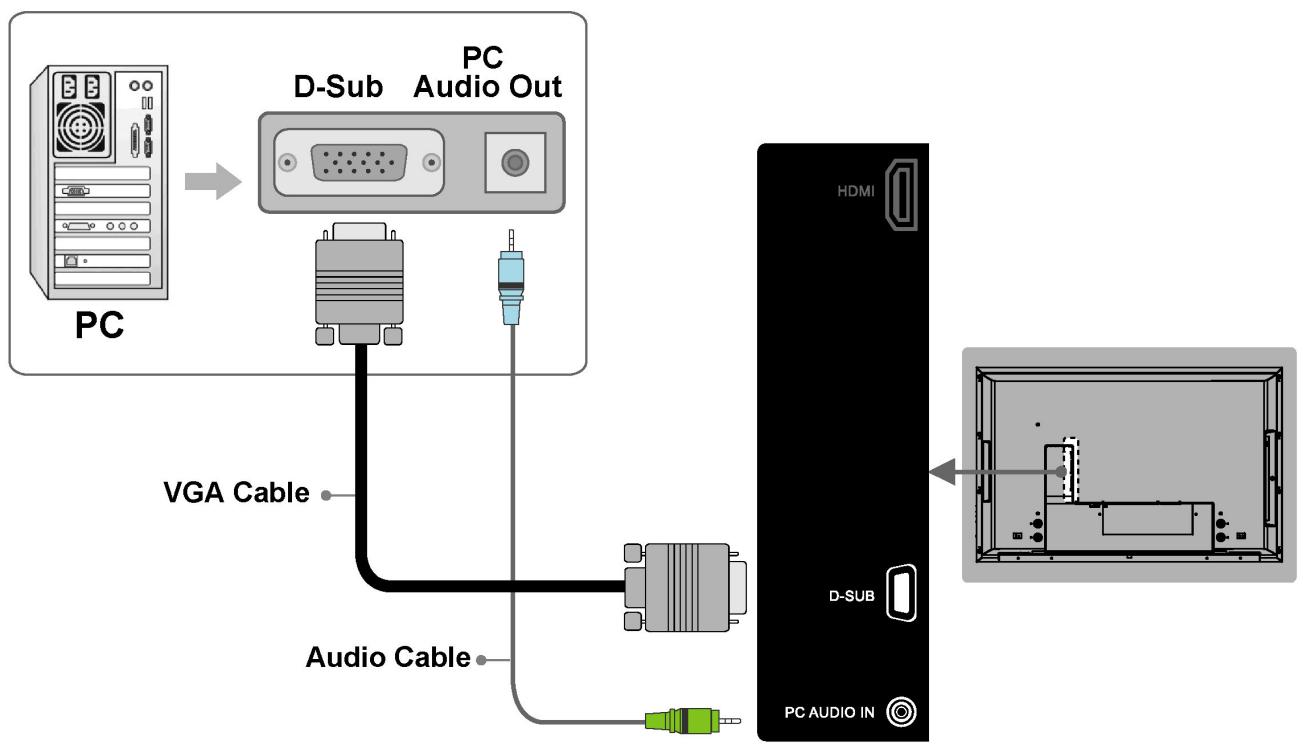
NOTE 1: To receive video, connect a VGA cable between D-Sub connector on the LCD and the D-Sub output connector on your PC.
NOTE 2 : To receive sound, connect a PC audio cable between PC Audio In jack on the LCD and the Audio Out jack of the sound card on your PC.
NOTE 3 : Cables above are not offered.
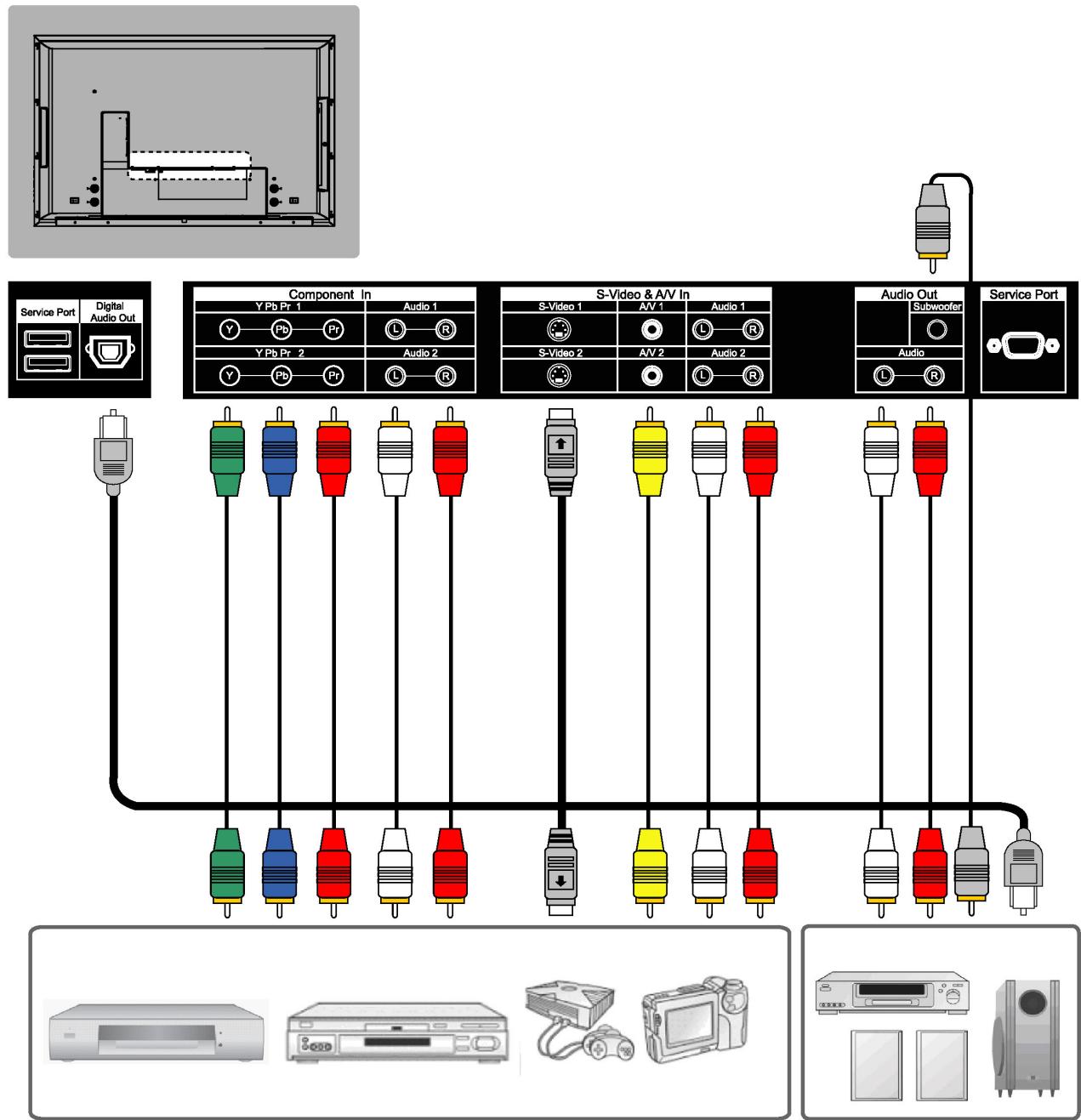
NOTE 1 : To enjoy best audio and video quality, the best to normal sequence of video quality is Component, S-video, A/V from the best quality to the normal one.
NOTE 2 : When using either Video of A/V(Composite In) or S-Video, make sure to connect an audio cable to Audio of A/V(Composite In).
NOTE 3 : Cables above are not offered.
General Adjustments
Turning the LCD On and Off
Turn On
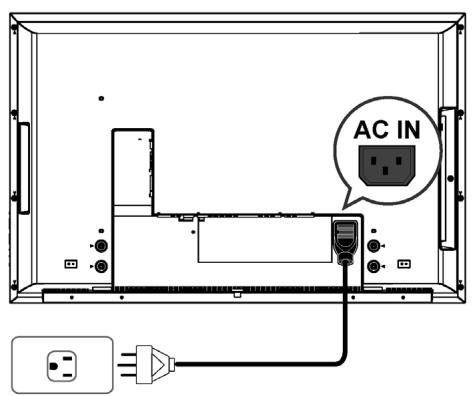
Plug the power cable into the AC-in socket located on the left rear of the LCD. Plug the other end into an electrical socket.
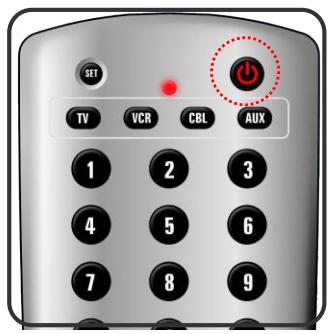
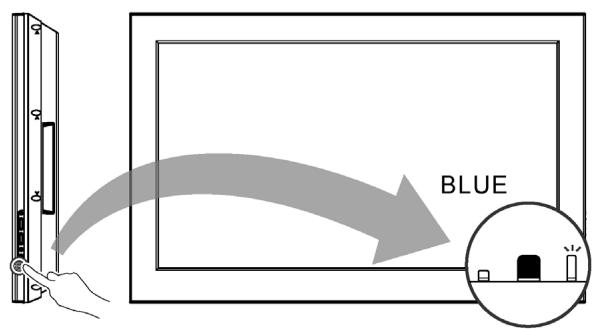
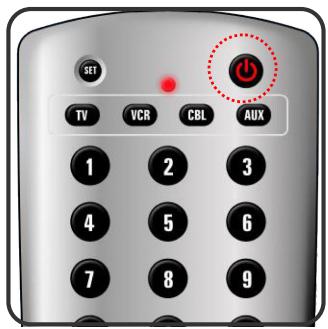
Press the power button on the remote control or right side of the LCD to turn it on. Please refer to page 16 to adjust Power Consumption settings.
The power status light found in the lower right corner of the LCD indicates the following :
BLUE LIGHT - power on
PURPLE LIGHT - Standby, power saving
(only available in PC mode)
RED LIGHT - power off
Turn Off
Press the power button on the remote control or right side of the LCD to turn it off.
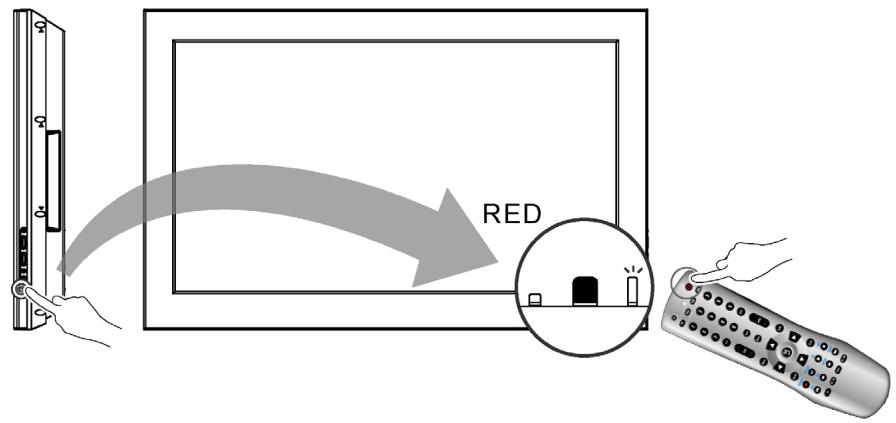
NOTE : “No Signal” appears, if there is no input source. The display will power off automatically, if the input source keeps unavailable.
Initial Setup
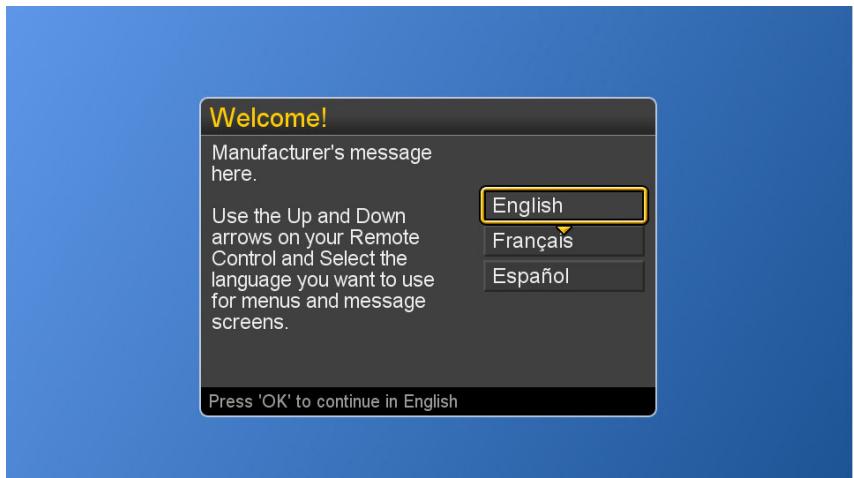
When the system powers on for the first time after purchase, the initial auto installation is enabled.
Language Selection
Press the Power button on the remote control. A welcome message is displayed. Use the buttons to select the language you prefer, and press OK button to continue.
Power Consumption
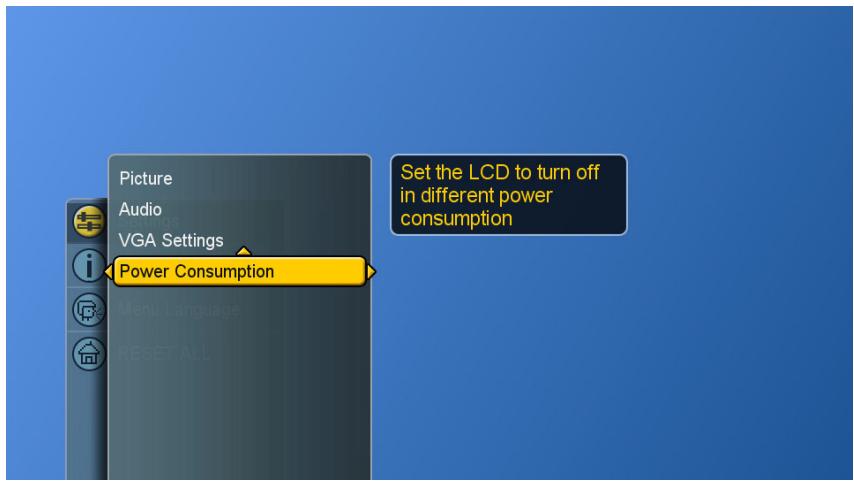
Power Consumption is a power management technique which helps to set up the POWER OFF status for the LCD.
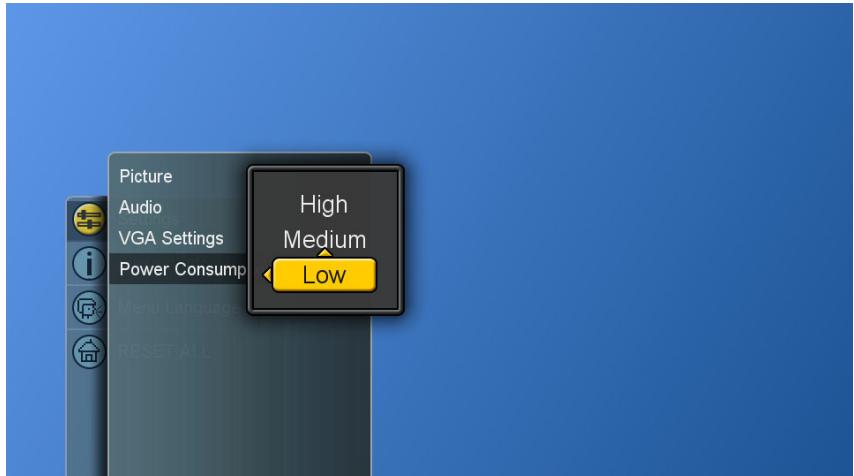
There are three modes: Low/Medium/High
Low : The power consumption is no more than 5W in the POWER OFF status. It takes about 12-15 seconds to turn on the LCD set.
Medium : The power consumption within the first hour is less than 35W and you can turn on LCD soon. After one hour, the power consumption is switched to around 5W and it takes 12-15 seconds to turn on the LCD.
High : The LCD can be turned on soon and the maximum power consumption would be less than 35W.
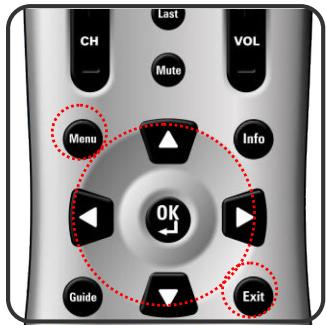
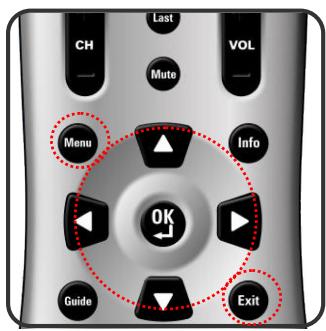
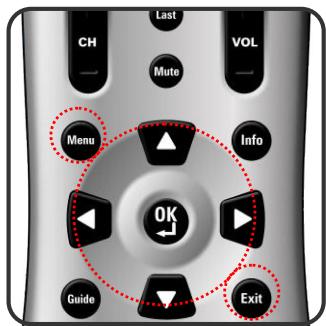
- Press the Menu button to display the main menu.
- Press the buttons to select Settings
- Press / buttons to select Power Consumption.
- Press button to display the sub-menu.
- Press and OK buttons to select Low, Medium or High.
- Press Exit button to dismiss all menu or press button to return to the previous screen.
Adjusting the Volume
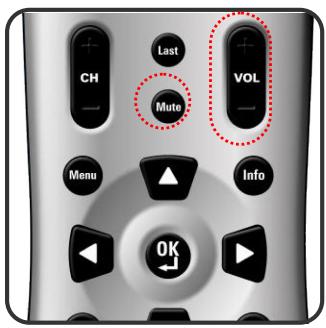
By pressing VOL + / - buttons either on this remote control or this LCD, a user can adjust the sound output of external devices which are connected to Audio Out sockets of this LCD.
Using Volume Control
Press the VOL + I - buttons to increase or decrease the volume.
Using Mute
At any time, you can turn off the sound using the Mute button.
-
Press the Mute button and the sound turns off.
-
Press Mute again or VOL + / - buttons to return audio back to the previous volume level.
Switching Source
- Refer to page 10~13 and connect external devices.
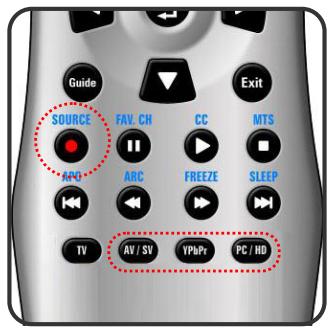
- Press AV/SV, YPbPr, PC/HD buttons to choose the source.
- A user can also press the SOURCE button repeatedly to choose the desired source.
- Select an input source as described below :
AV/SV switch to Video 1 or Video 2 mode.
YPbPr switch to YPbPr 1 or YPbPr 2 mode.
PC/HD switch to PC or HDMI mode.
Viewing the Menus and On-Screen Display (OSD)
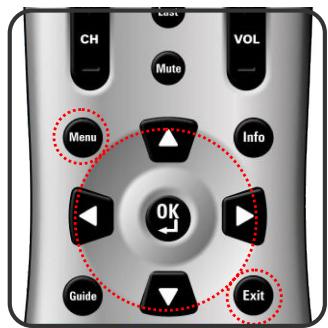
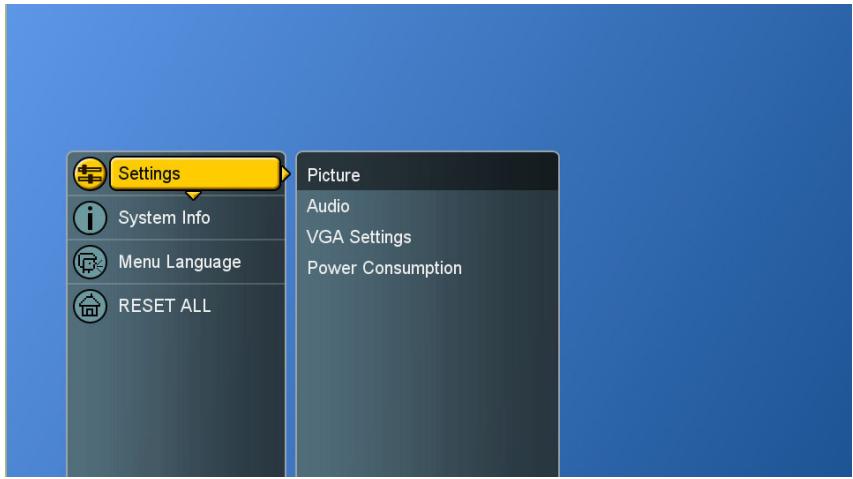
You can use the control buttons on the right side of the LCD or use the remote control to viewing the menus.
- With the power on, and then press the Menu button.
- The main menu appears on the screen
- Press the buttons to access the sub-menus and make adjustments.
- Press Exit button to dismiss all menu or press Menu button to return to the main menu.
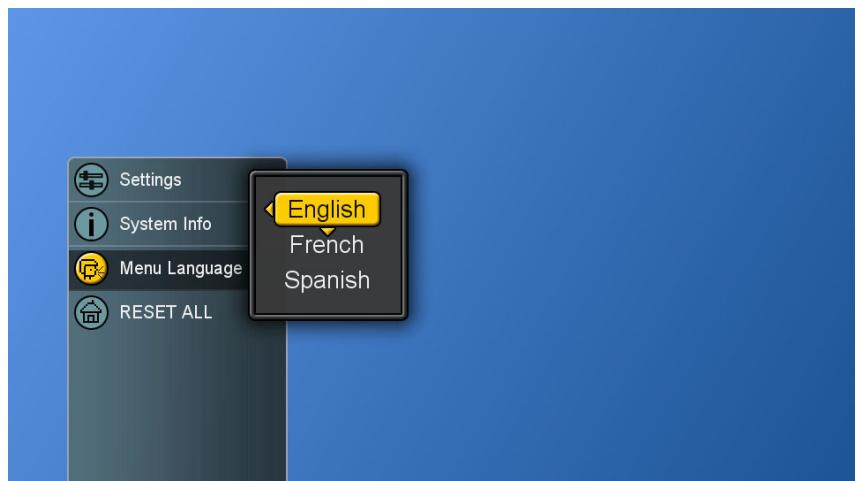
Switching Language Modes
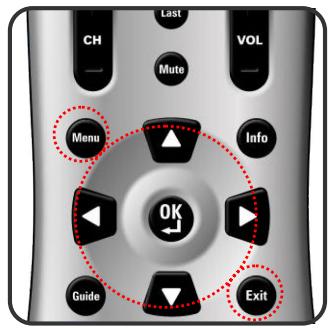
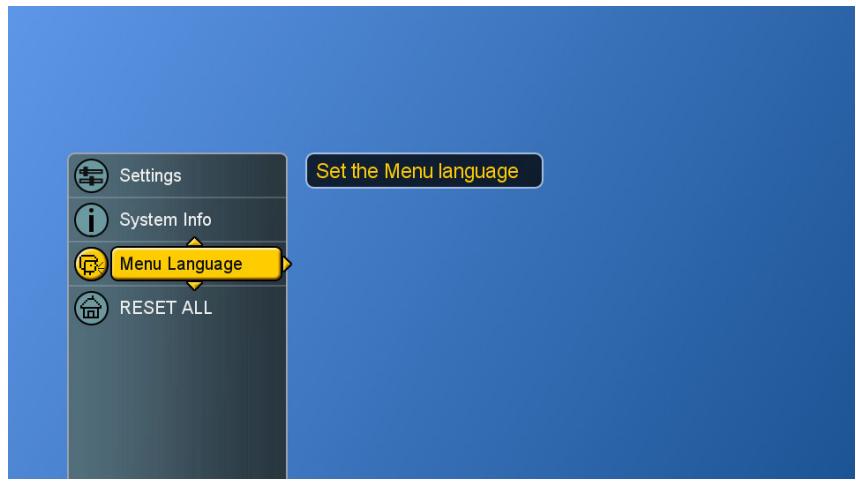
- Press the Menu button to display the main menu.
- Press the buttons to select Menu Language.
- Press button to display the sub-menu.
- Press and OK buttons to select the language.
- Press Exit button to dismiss all menu or press button to return to the previous screen.
Picture Control
Adjusting the Picture Setting
- Press the Menu button to display the main menu.
- Press the buttons to select Settings
- Press button to access Picture and Picture Settings.
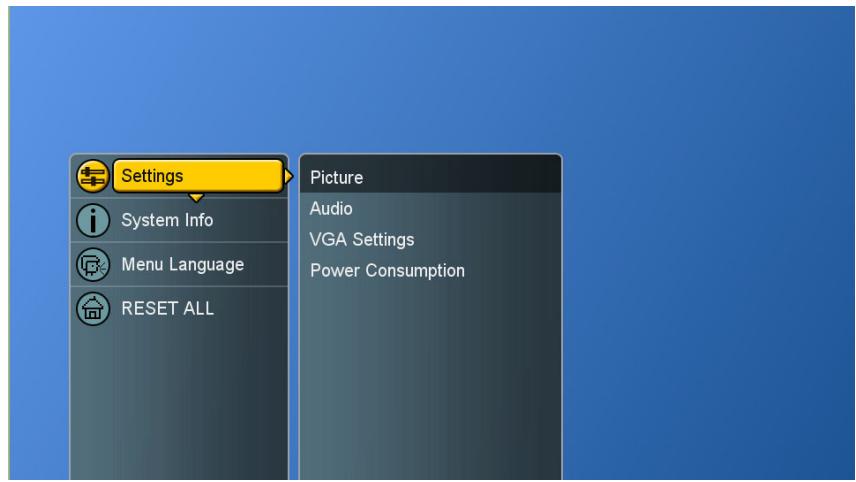
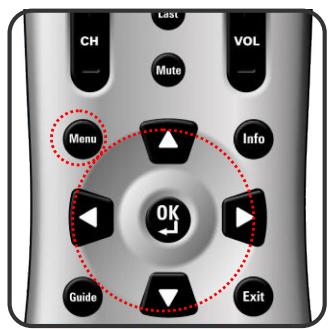
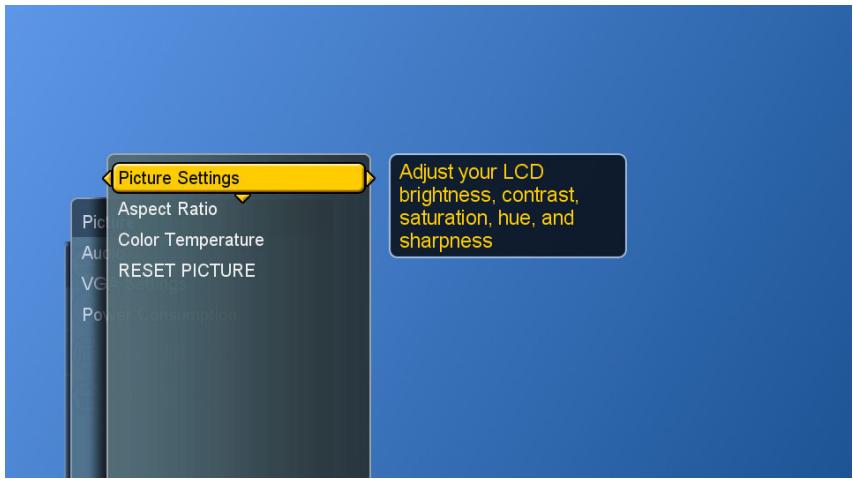
- "Picture Settings: PC". A user can make adjustment, when in "Custom" mode.
- Press and OK buttons to choose the desired item.
- Press buttons to adjust the degree and press buttons to choose other items.
Brightness : Darken and brighten picture brightness
Contrast : Increase and decrease picture contrast
Saturation : Deepen and lighten picture color
Hue : Modify the tint (flesh tone redness or greenness) of color
Sharpness : Soften and sharpen image
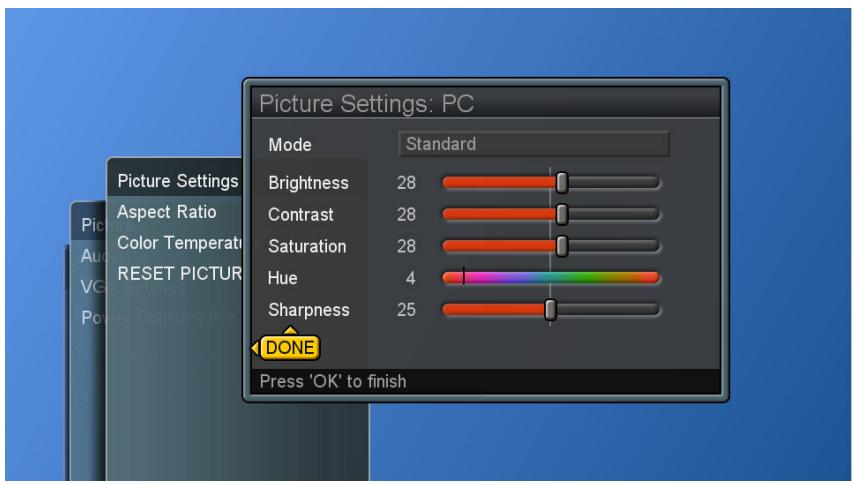
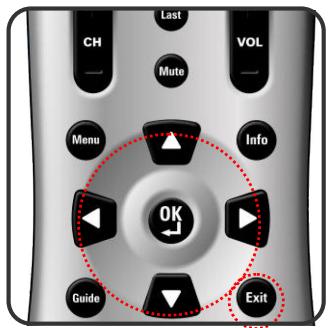
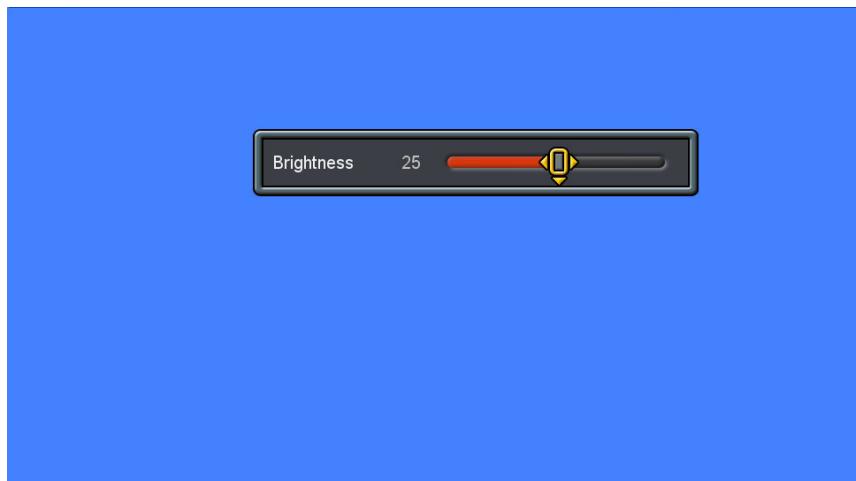
- Press OK button to return to the previous screen or press Exit button to dismiss all menu.
NOTE: Settings for Standard, Vivid, Movie, Sports are pre-configured.
Adjusting the LCD Screen
- Press the Menu button to display the main menu.
- Press the buttons to select Settings
- Press button to access Picture sub-menu.
- Press / button to select Aspect Ratio.
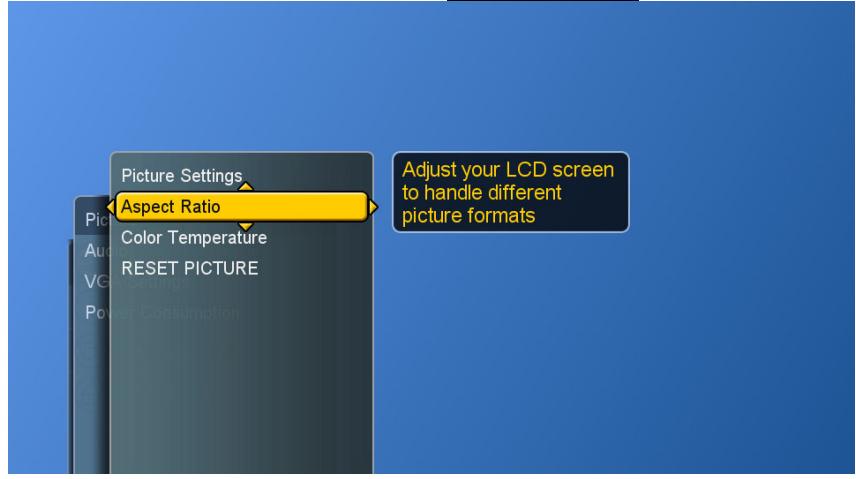
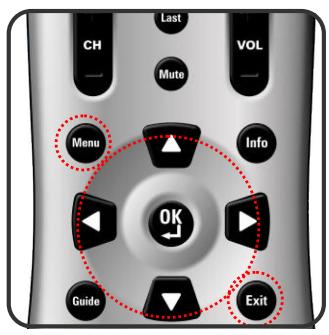
- Press button again to display the menu.
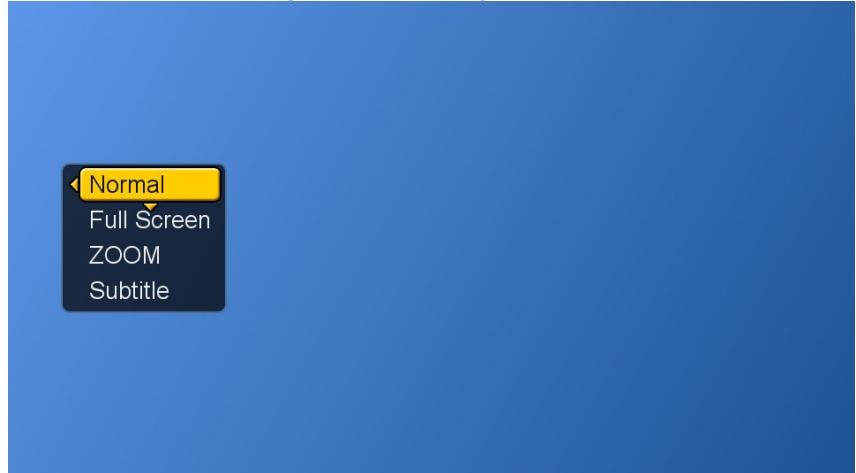
- Press buttons to choose the different modes and press OK to confirm.
Normal : display the image exactly as broadcast .
Full Screen: stretch the image to fit the screen (None of the image is cut off, but the image may appear distorted)
Zoom : scale the image larger, and will cut off part of the image
Subtitle : shift the image up to show the subtitle.
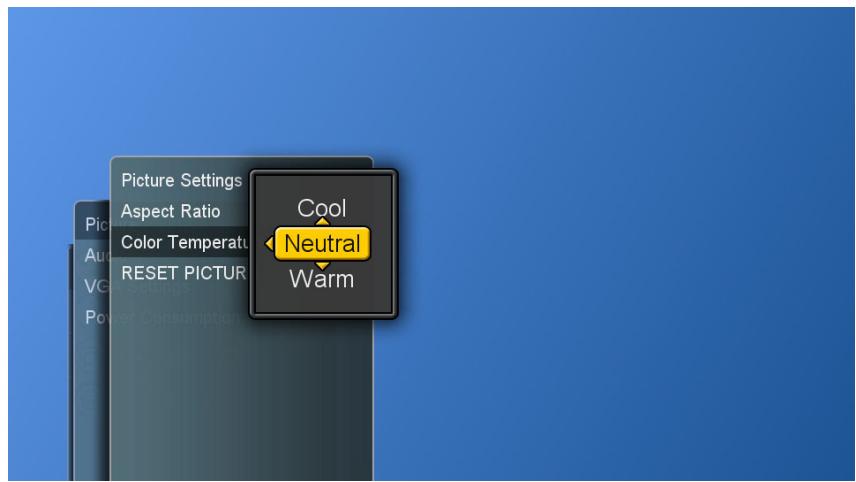
Adjusting the Color Temperature
Adjust the white balance of the picture.
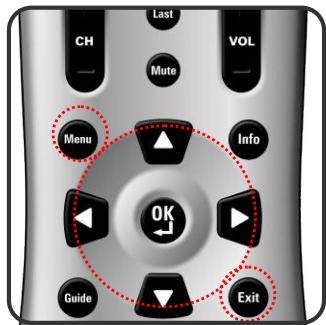
- Press the Menu button to display the main menu.
- Press the buttons to select Settings
- Press button to access Picture sub-menu.
- Press / buttons to select Color Temperature and then press button to display the menu.
- Press and OK buttons to choose Cool, Neutral or Warm.
Cool : a bluish white
Neutral : a normal white
Warm : a reddish white
- Press button to return to the previous screen or press Exit button to dismiss all menu.
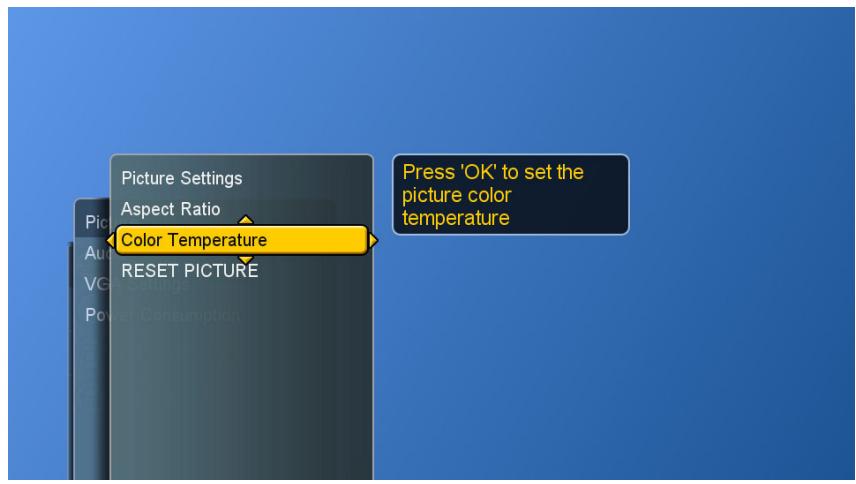
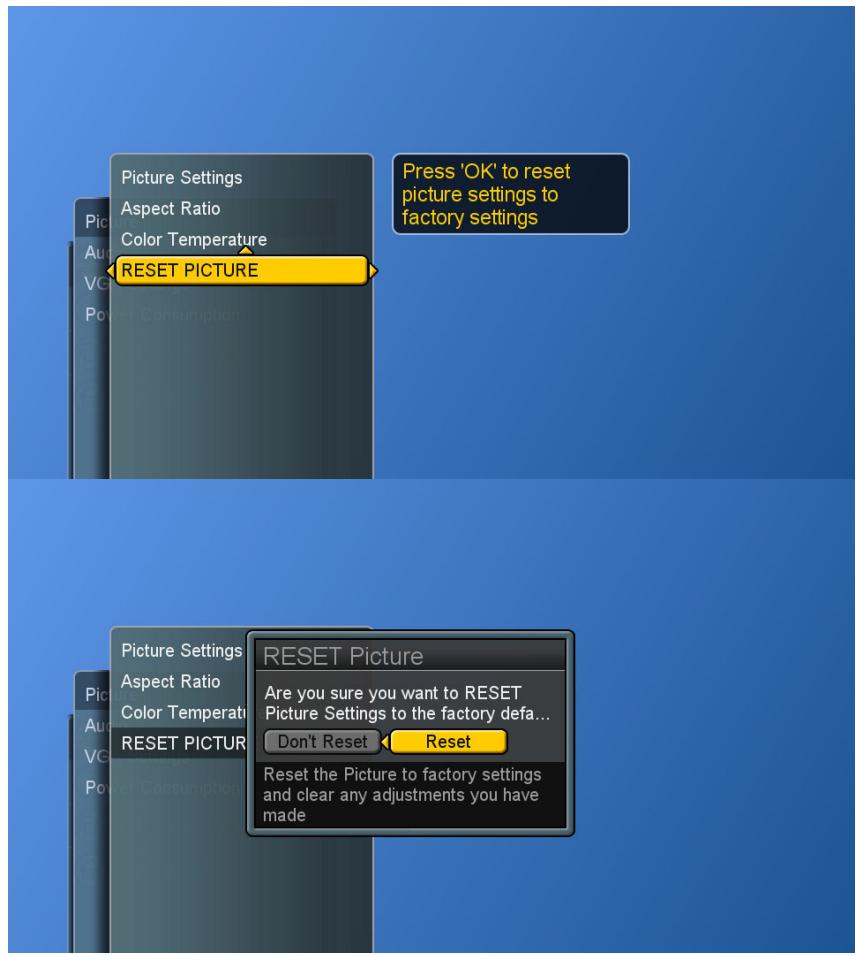
The user can reset the picture settings back to factory settings.
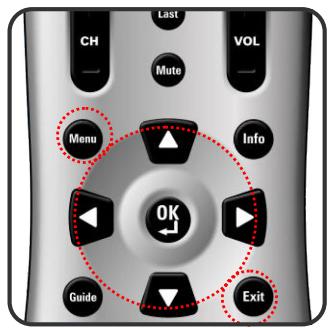
- Press the Menu button to display the main menu.
- Press the buttons to select Settings
- Press button to access Picture sub-menu.
- Press / buttons to select RESET PICTURE and then press button to display the menu.
- Press and OK buttons to reset picture settings.
Adjusting the Sound Quality
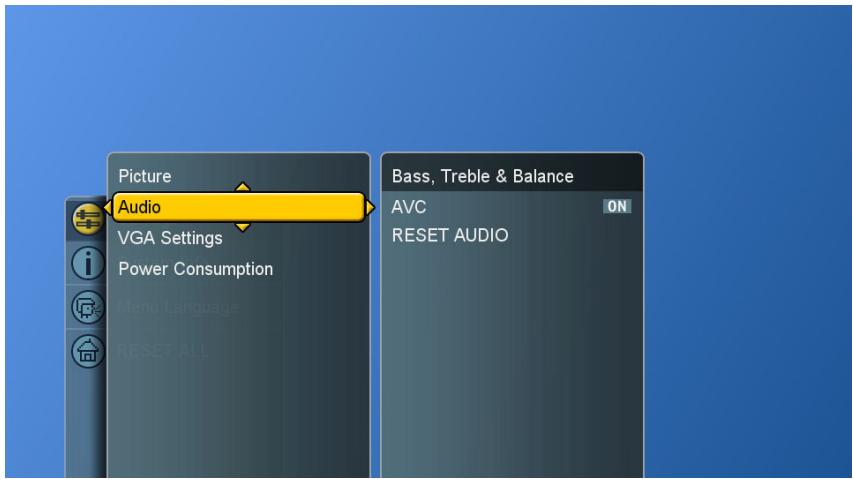
- Press the Menu button to display the main menu.
- Press the buttons to select Settings.
- Press / buttons to select Audio.
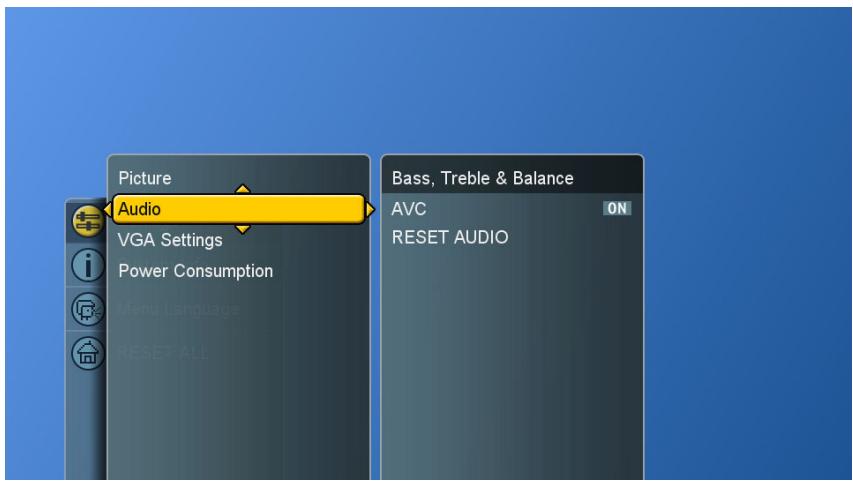
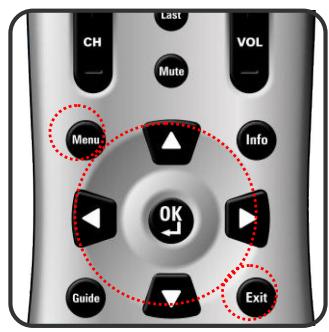
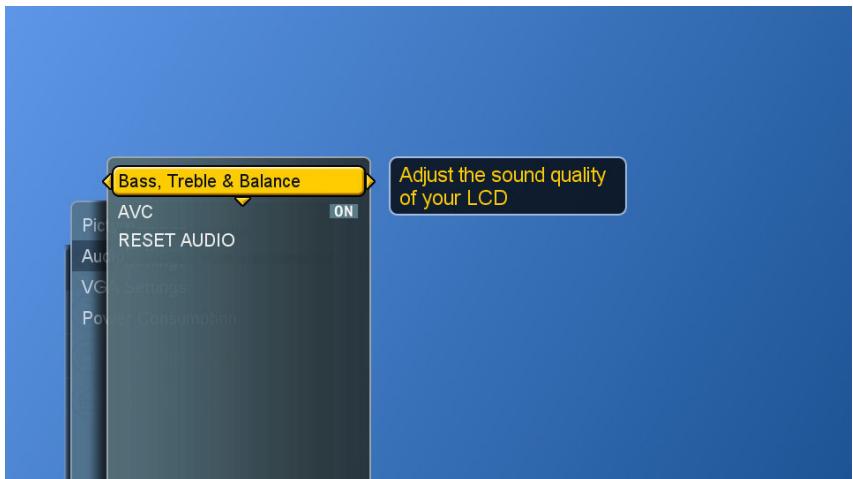
- Press button to select Bass, Treble & Balance and then press button again to display the menu.
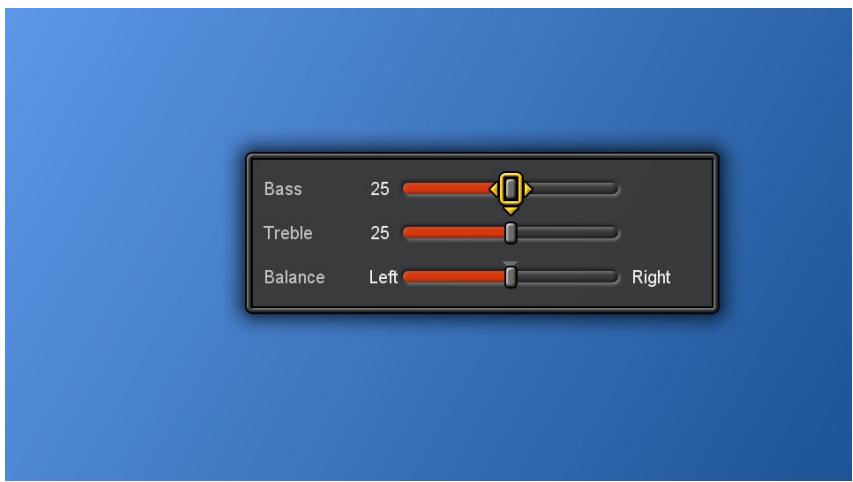
- Press buttons to choose the desired item and then press buttons to make adjustments.
- Press OK button to finish or Exit button to dismiss all menu.
Bass : Adjust low tone of sound.
Treble : Adjust high tone of sound.
Balance : Adjust the volume balance between the left and right speakers.
Automatic Volume Control
- Press the Menu button to display the main menu.
- Press the buttons to select Settings
- Press / buttons to select Audio.
- Press / button to select other items.
- Press OK button to switch between "ON" and "OFF".
Automatic Volume Control (AVC)
[ON]:AVC can avoid sudden increases or decreases of volume like commercials.
[ OFF ]: Under special circumstances, such as opera or symphony, volume can be performed in accordance with the original sound level.
Reset Audio Settings
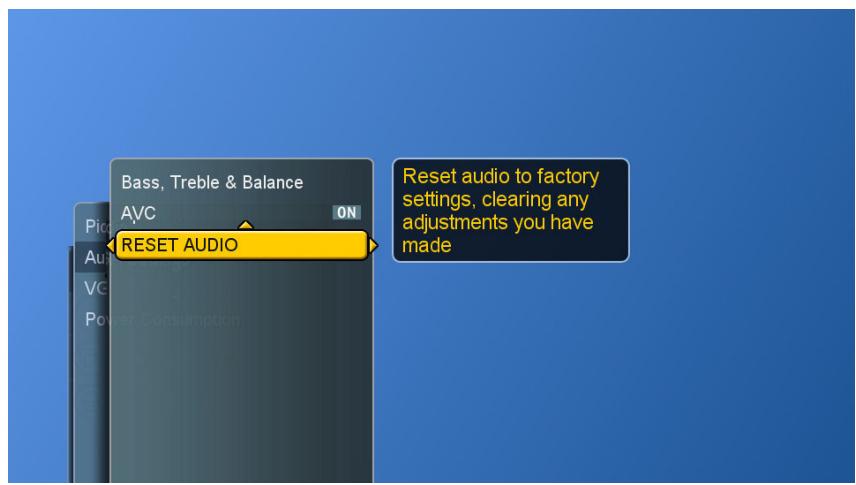
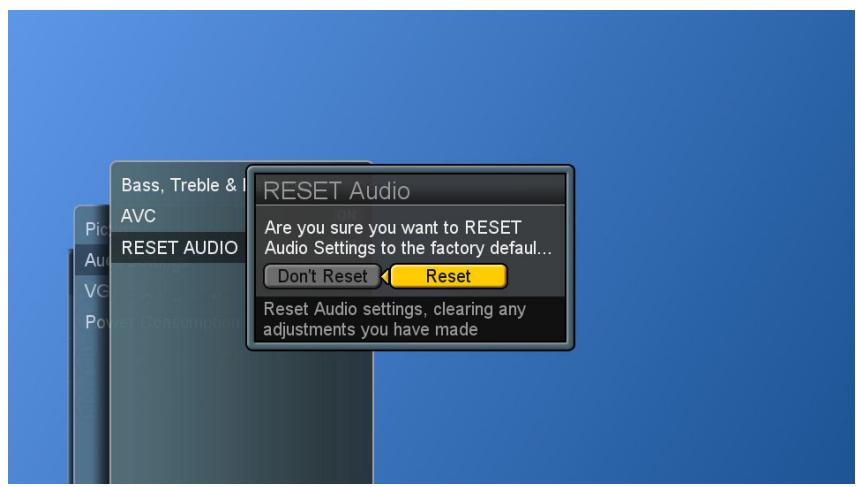
User can reset the audio settings back to factory settings.
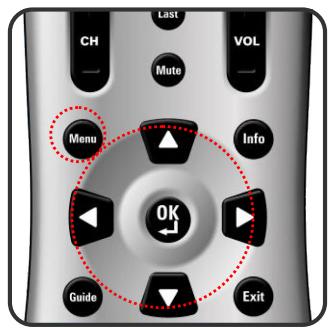
- Press the Menu button to display the main menu.
- Press the buttons to select Settings
- Press / buttons to select Audio.
- Press / button to select RESET AUDIO and then press button to display the menu.
- Press and OK buttons to reset audio settings.
System Info
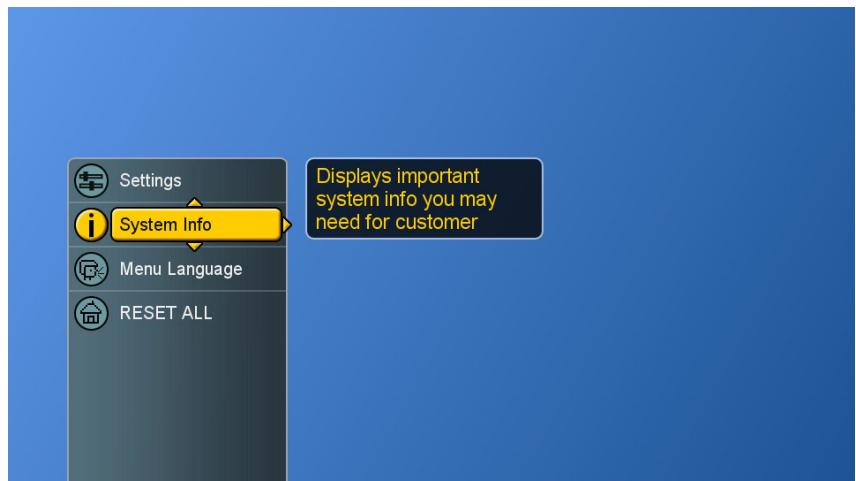
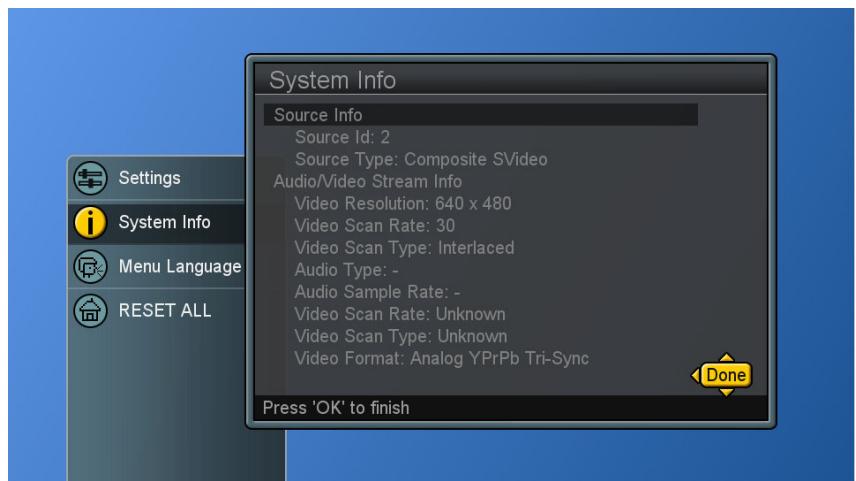
Display System Info.
- Press the Menu button to display the main menu.
- Press the buttons to select System Info.
- Press button to show the info.
- Press Exit button to dismiss all menu.
The "VGA Settings" allows the user to control certain VGA specific features. Please connect PC source in advance.
- Press Source button to select PC source.(see page 18)
- Press the Menu button to display the main menu.
- Press the buttons to select Settings
- Press / buttons to select VGA Settings.
- Press button to display the menu.
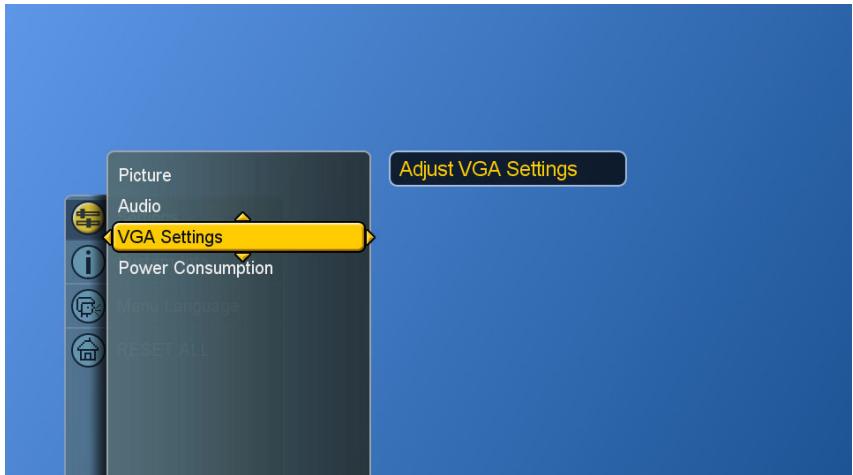
- Use buttons to make adjustments.
- Press Exit button to dismiss all menu.
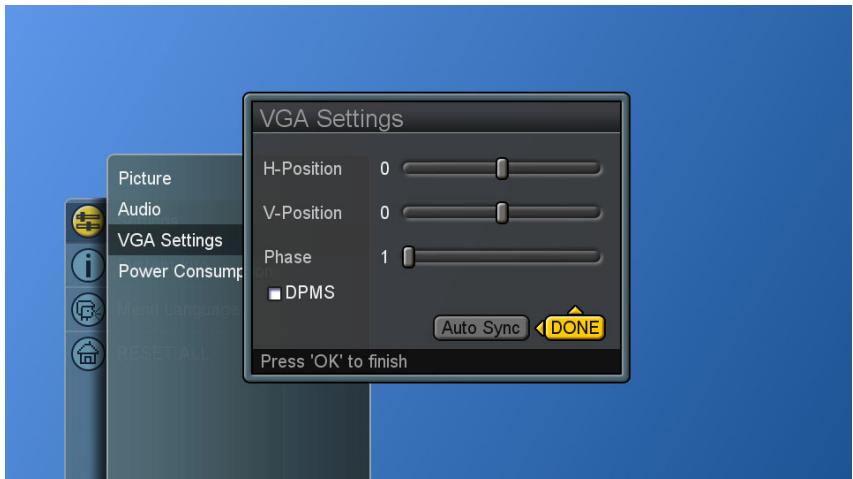
DPMS (Display Power Management Signaling): enables or disables the display power management mode when the VGA is the active input source using a checkbox. When checked, the feature is enabled.
Auto Sync : automatically attempts to determine the ideal horizontal, vertical, and phase adjustments for the current VGA input signal.
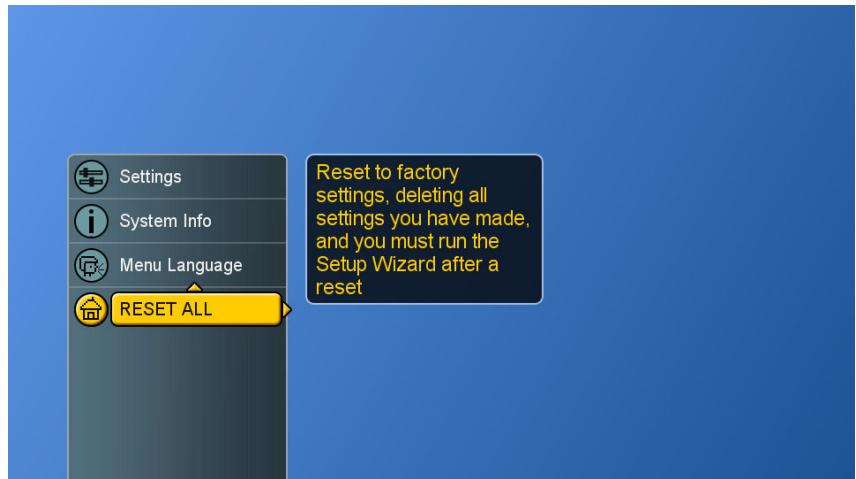
Reset the Features
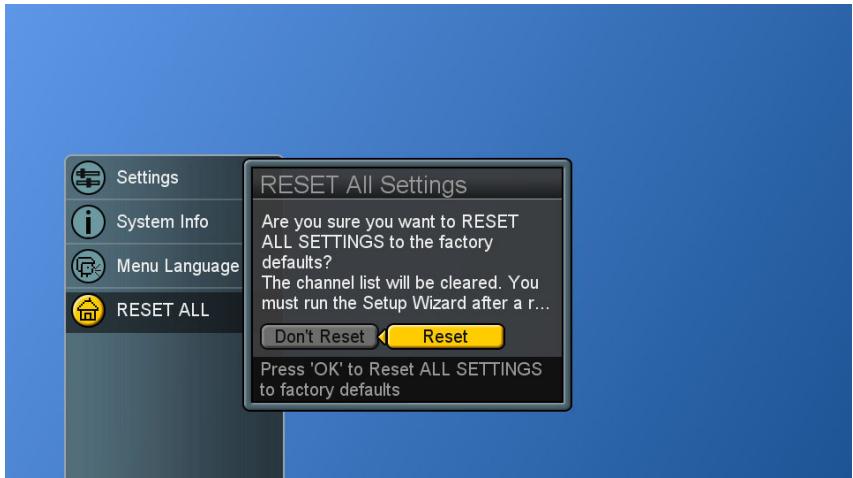
The user can reset all settings back to factory settings.
Following Reset, the Setup Wizard resumes to factory default mode.
- Press the Menu button to display the main menu.
- Press the buttons to select RESET ALL.
- Press the button to display "Reset All Settings" and OK button to reset all settings.
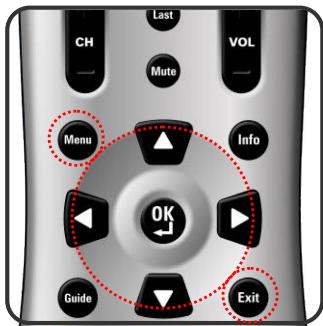
Direct Device Code Setup
Although your Remote Control is set up to provide control of this LCD, you can specify other devices to be controlled, according to the following steps:
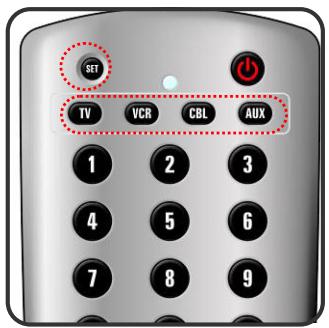
Each code in the following pages insists 5 digits from 0 to 9.
Mode <SET> (2 blinks) 5-digit device codes (2 blinks)
STEP 1 Locate the desired device in the Device code list.
STEP 2 Select the mode by pressing VCR, CBL, or AUX.
STEP 3 Depress and hold <<SET>> button for a minimum of 3 seconds until LED blinks twice.
STEP 4 Enter the 5-digit code for the desired device. The LED blinks located on the remote control once for every digit entered except for the last digit, where it shall blink twice to confirm that a valid code has been programmed.
| Mode | Device Assignment | Device Group no. |
| TV | Locked to this LCD (Default) | -------- |
| VCR | Universal VCR, DVD, PVR | 2 |
| CBL | Universal Cable, Satellite, Video Accessory | 0 |
| AUX | Universal Tuner, Amplifier, CD, Mini Disc. And Misc. Audio, Home Automation | 3 |
Example: [VCR] <
NOTE 1: Each digit must be entered within 10 seconds, or the Remote Control shall exit the current programming state.
NOTE 2 : Two short LED blinks indicate valid code.
NOTE 3 : A long LED display indicates invalid code sequence. The code should be re-entered.
Searching for a Device Code
If none of the codes listed under Device Codes list match your device, you can search for a set of commands that will work. Your Remote will sample all the codes in its system to find one that will allow you to control your device.
As the Remote searches its library, it starts with the most popular device in the category and works through to the end. To cycle through each available device code and sample its functions:
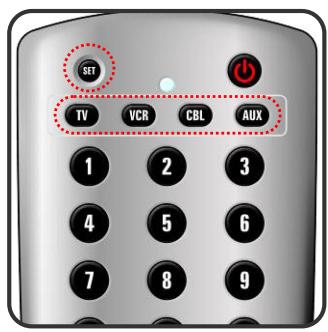
Mode < SET> (2 blinks) [9] [9] [1] (2 blinks) Device Group No. (2 blinks) Power [CH + ] [CH + ] [CH + ] SET (2 blinks)
STEP 1 Select the [MODE] by pressing VCR, CBL, or AUX.
STEP 2 Depress and hold <<SET>> button for a minimum of 3 seconds until LED blinks twice.
STEP 3 Enter the code sequence [9][9][1]. The LED blinks once for every digit entered except for the last digit, where it shall blink twice to confirm that [9][9][1] are entered correctly.
STEP 4 Press Power button. Then, pressing CH+ repeatedly to cycle through each corresponding function until your device turns off (or on).
STEP 5 Pressing SET button will store the new device code and returns to normal operation. The LED blinks twice in confirmation.
| Mode | Device Assignment | Device Group no. |
| TV | Locked to this LCD (Default) | -------- |
| VCR | Universal VCR, DVD, PVR | 2 |
| CBL | Universal Cable, Satellite, Video Accessory | 0 |
| AUX | Universal Tuner, Amplifier, CD, Mini Disc. And Misc. Audio, Home Automation | 3 |
Example: [VCR] <
Device Codes
The following sections list the available device codes for each device mode button. If there is more than one code listed for device, enter the first one, and then try the POWER button. If the device turns on (or off), the code is correct. If it does not, try the next code. Repeat until you find a code that works.
| Cable Converters | ||||
| ABC | 00003, 00008, 00014 | Paragon | 00000 | |
| Americast | 00899 | Philips | 00317, 01305 | |
| Bell & Howell | 00014 | Pioneer | 01877, 00877, 00144, 00533 | |
| Bell South | 00899 | Pulsar | 00000 | |
| Clearmaster | 00883 | Quasar | 00000 | |
| ClearMax | 00883 | RadioShack | 00883 | |
| Coolmax | 00883 | Regal | 00279, 00273 | |
| Daeryung | 01877, 00877, 00477, 00008 | Runco | 00000 | |
| Digi | 00637 | Samsung | 00000, 00144 | |
| Director | 00476 | Scientific Atlanta | 01877, 00877, 00477, 00008 | |
| Dumont | 00637 | Sony | 01006 | |
| Gehua | 00476 | Starcom | 00003, 00014 | |
| General Instrument | 00476, 00810, 00276, 00003, 00014 | Supercable | 00276 | |
| GoldStar | 00144 | Supermax | 00883 | |
| Hamlin | 00009, 00273 | Tocom | 00012 | |
| Hitachi | 00014 | Torx | 00003 | |
| Jerrold | 00476, 00810, 00276, 00003, 00012, 00014 | Toshiba | 00000 | |
| KNC | 00008 | Trans PX | 00276 | |
| LG | 00144 | Tristar | 00883 | |
| Memorex | 00000 | TS | 00003 | |
| Motorola | 00476, 00810, 00276, 01254, 01376 | V2 | 00883 | |
| MultiVision | 00012 | Viewmaster | 00883 | |
| Race | 01877, 00237 | Vision | 00883 | |
| Panasonic | 00000, 00008, 00107 | Vortex View | 00883 | |
| Panther | 00637 | Zenith | 00000, 00525, 00899 | |
| Satellite Receivers | ||||
| AlphaStar | 00772 | NEC | 01270 | |
| Chaparral | 00216 | Next Level | 00869 | |
| Crossdigital | 01109 | Panasonic | 00247, 00701 | |
| DirecTV | 00392, 00566, 00639, 01142, 00247, 00749, 01749, 00724, 00819, 01856, 01076, 01109, 00099, 01392, 01640, 01442, 01414, 01108 | Paysat | 00724 | |
| Dish Network System | 01005, 00775, 01505 | Philips | 01142, 00749, 01749, 00724, 01076, 00722, 00099, 01442 | |
| Dishpro | 01005, 00775, 01505 | Proscan | 00392, 00566 | |
| Echostar | 01005, 00775, 01505 | Proton | 01535 | |
| Expressvu | 00775 | RadioShack | 00869 | |
| GE | 00566 | RCA | 00392, 00566, 00855, 00143, 01392 | |
| General Instrument | 00869 | Samsung | 01276, 01109, 01108 | |
| GOI | 00775 | Sanyo | 01219 | |
| Goodmans | 01246 | SKY | 00856 | |
| Hisense | 01535 | Sony | 00639, 01640 | |
| Hitachi | 00819, 00222, 01250 | Star Choice | 00869 | |
| HTS | 00775 | Tivo | 01142, 01442 | |
| Hughes Network Systems | 01142, 00749, 01749, 01442 | Toshiba | 00749, 01749, 00790, 01285 | |
| I-Lo | 01535 | UltimateTV | 01640, 01392 | |
| JVC | 00775 | Uniden | 00724, 00722 | |
| LG | 01414, 01226 | US Digital | 01535 | |
| Magnavox | 00724, 00722 | USDTV | 01535 | |
| Memorex | 00724 | Voom | 00869 | |
| Mitsubishi | 00749 | Zenith | 00856, 01856 | |
| Motorola | 00869 | -------- | -------- | |
| Audio Amplifiers | ||||
| Bose | 30674 | Sansui | 30321 | |
| GE | 30078 | Shure | 30264 | |
| JVC | 30331 | Sony | 30689 | |
| Marantz | 30321 | Soundesign | 30078 | |
| Nakamichi | 30321 | Victor | 30331 | |
| NEC | 30264 | Wards | 30078 | |
| Optimus | 30395 | Yamaha | 30354, 30133 | |
| Realistic | 30395 | -------- | -------- | |
| Audio Amp/Tuners | ||||
| ADC | 30531 | Onkyo | 30842, 30135 | |
| Aiwa | 31405, 31243, 30121 | Optimus | 31023, 30670, 30531, 31074 | |
| Anam | 31609, 31074 | Panasonic | 31518, 30039 | |
| Audiotronic | 31189 | Philips | 31189, 31269 | |
| Bose | 31229 | Pioneer | 31023, 30150, 30014, 30630, 30531 | |
| Capetronic | 30531 | Proscan | 31254 | |
| Carver | 31189 | Qisheng | 31609 | |
| Coby | 31263 | Quasar | 30039 | |
| Denon | 31360, 31142, 30904 | RadioShack | 31263 | |
| Fonmix | 31360 | RCA | 31023, 31609, 31254, 30531, 31074 | |
| Glory Horse | 31263 | Sharper Image | 31263 | |
| Harman/Kardon | 30110 | Silsonic | 30176 | |
| Hitachi | 31273 | Sony | 31058, 31441, 31258, 31759 | |
| Inkel | 30027 | Sounddesign | 30670 | |
| Integra | 30135 | Stereophonics | 31023 | |
| JBL | 30110 | Sunfire | 31313 | |
| JVC | 30074, 31263 | Teac | 31074, 31267 | |
| Kenwood | 31313, 31570, 30027 | Technics | 31308, 31518, 30039 | |
| KLH | 31428 | Thorens | 31189 | |
| Magnavox | 31189, 31269, 30531 | Victor | 30074 | |
| Marantz | 31189, 31269, 30039 | Wards | 30014 | |
| MCS | 30039 | Yamaha | 30176, 31276, 31176 | |
| VCR | ||
| ABS | 21972 | |
| Admiral | 20048, 20209 | GE 20060, 20035, 20240 |
| Aiko | 20278 | General 20045 |
| Aiwa | 20037, 20479 | Go Video 20432 |
| Alienware | 21972 | GoldStar 20037, 20209, 20038, 20225 |
| America Action | 20278 | Haojie 20240 |
| American High | 20035 | Harman/Kardon 20081, 20038 |
| Amoisonic | 20479 | Harwood 20072 |
| Anam | 20162, 20037, 20240, 20278 | Hewlett Packard 21972 |
| Anam National | 20162 | HI-Q 20047 |
| Asha | 20240 | Hitachi 20037, 20042, 20055 |
| Audiovox | 20037, 20278 | Howard Computer 21972 |
| Beaumark | 20240 | HP 21972 |
| Bell & Howell | 20104 | Hughes Network Systems 20042, 20739 |
| Broksonic | 20184, 20121, 20209, 20002, 20479 | iBUYPOWER 21972 |
| Calix | 20037 | JVC 20045, 20067 |
| Canon | 20035 | KEC 20037, 20278 |
| Carver | 20081 | Kenwood 20067, 20038 |
| CCE | 20072, 20278 | KLH 20072 |
| Changhong | 20048, 20081 | Kodak 20035, 20037 |
| Citizen | 20037, 20278 | Kolin 20043 |
| Colt | 20072 | LG 20037, 20045, 20042, 20209, 20038 |
| Craig | 20037, 20047, 20240, 20072 | Logik 20072 |
| Curtis Mathes | 20060, 20035, 20162 | LXI 20037 |
| Cybernex | 20240 | Magnavox 20035, 20039, 20081 |
| CyberPower | 21972 | Magnin 20240 |
| Daewoo | 20045, 20104, 20278 | Marantz 20035, 20081 |
| Dell | 21972 | Marta 20037 |
| Denon | 20042 | Matsushita 20035, 20162 |
| DirecTV | 20739 | Media Center PC 21972 |
| Durabrand | 20039, 20038 | MEI 20035, 20162, 20037, 20048, 20039, 20047, 20240, 20104,20209, 20479 |
| Electrohome | 20037 | Memorex 20035 |
| Electrophonic | 20037 | MGA 20240, 20043 |
| Emerex | 20032 | MGN Technology 20240 |
| Emerson | 20035, 20037, 20184, 20240, 20045, 20121, 20043, 20209, 20002, 20278, 20479 | Microsoft 21972 |
| Fisher | 20047, 20104 | Mind 21972 |
| Fuji | 20035, 20033 | Minolta 20042 |
| Fujitsu | 20045 | Mitsubishi 20067, 20043 |
| Motorola | 20035, 20048 | |
| MTC | 20240 | |
| Multitech | 20072 | |
| NEC | 20035, 20037, 20048, 20104, 20067, 20038 | |
| Newave | 20037 | |
| Nikko | 20037 | |
| Noblex | 20240 | |
| Northgate | 21972 | |
| Olympus | 20035 | |
| Optimus | 21062, 20162, 20037, 20048, 20104, 20432 | |
| Orion | 20184, 20209, 20002, 20479 | |
| Panasonic | 21062, 20035, 20162, 20616, 20225 | |
| Penney | 20035, 20037, 20240, 20042, 20038 | |
| Pentax | 20042 | |
| Philco | 20035, 20479 | |
| Philips | 20035, 20081, 20739, 20618 | |
| Pilot | 20037 | |
| Pioneer | 20042, 20067 | |
| Polk Audio | 20081 | |
| Profitronic | 20240 | |
| Proscan | 20060 | |
| Protec | 20072 | |
| Pulsar | 20039 | |
| Qisheng | 20060 | |
| Quasar | 20035, 20162 | |
| Radix | 20037 | |
| Randex | 20037 | |
| RCA | 20060, 20035, 20240, 20042, 20880 | |
| Realistic | 20035, 20037, 20048, 20047, 20104 | |
| ReplayTV | 20616 | |
| Runco | 20039 | |
| Sampo | 20037, 20048 | |
| Samsung | 20240, 20045, 20432 | |
| Sanky | 20048, 20039 | |
| Sansui | 20067, 20209, 20479 | |
| Sanyo | 20047, 20240, 20104 | |
| ZT Group | ||
| DVD Player | ||||
| Aiwa | 20641, 21912 | Microsoft | 20522 | |
| Akai | 20770 | Mintek | 20717 | |
| Allegro | 20869 | Mitsubishi | 21521, 20521 | |
| Apex Digital | 20672, 20717, 20797, 21061, 20796, 21056, 21937, 20794, 21020, 21915 | Nesa | 20717 | |
| Blaupunkt | 20717 | Norcent | 21003 | |
| Blue Parade | 20571 | Onkyo | 20503, 20627, 21924, 20792 | |
| Broksonic | 20695 | Oritron | 20651, 21980 | |
| Changhong | 20627, 21061 | Panasonic | 20490, 21762, 21990 | |
| CineVision | 20869 | Philips | 20503, 20539, 20646, 21914 | |
| Coby | 21086 | Pioneer | 20525, 20571 | |
| Curtis Mathes | 21087 | Polaroid | 21086, 21061 | |
| CyberHome | 21024, 21023, 21129, 20816, 21117 | Polk Audio | 20539 | |
| Daewoo | 20833, 21172, 20869 | Portland | 20770 | |
| Denon | 20490 | Proscan | 20522 | |
| DVD2000 | 20521 | Qwestar | 20651 | |
| Emerson | 20591, 20675 | RCA | 20522, 20571, 20717, 20822 | |
| Enterprise | 20591 | Rio | 20869 | |
| Fisher | 21919 | Rotel | 20623 | |
| Funai | 20675 | Sampo | 20752, 20698 | |
| Gateway | 21158, 21073 | Samsung | 20490, 20573, 21932, 21075, 20820 | |
| GE | 20522, 20717 | Sansui | 20695 | |
| Go Video | 20744, 20833, 21099, 20783, 21075, 20869, 21730 | Sanyo | 20695 | |
| Greenhill | 20717 | Sharp | 20630, 20752 | |
| Harman/Kardon | 20582, 20702 | Sharper Image | 21117 | |
| Hitachi | 20573, 20664, 21919 | Sherwood | 20770 | |
| Hiteker | 20672 | Shinco | 20717 | |
| Initial | 20717 | Shinsonic | 20533 | |
| Integra | 20627, 21924 | Sonic Blue | 20869, 21099 | |
| JBL | 20702 | Sony | 20533, 20864, 21033, 21904, 21903 | |
| JVC | 20558, 20623, 20867 | SVA | 20717 | |
| Kenwood | 20490, 20534 | Sylvania | 20675 | |
| KLH | 20717, 21020, 21149 | Symphonic | 20675 | |
| Koss | 20651, 21980 | Teac | 20717, 21984, 20809 | |
| Lasonic | 20798 | Technics | 20490 | |
| LG | 20591, 20869, 20801 | Theta Digital | 20571 | |
| Liquid Video | 21980 | Toshiba | 20503, 20695 | |
| Lite-On | 21158, 21058 | Urban Concepts | 20503 | |
| Loewe | 20511 | Xbox | 20522 | |
| Magnavox | 20503, 20539, 21976, 21914, 20675 | Yamaha | 20490, 20539, 20545 | |
| Marantz | 20539 | Zenith | 20503, 20591, 20869 | |
| Memorex | 20695 | |||
There is no picture or sound.
- Make sure the AC adapter is connected.
- Verify that there is a valid source signal.
- Make sure the correct input mode is selected.
There is no picture from AV.

- Make sure the BRIGHTNESS is properly adjusted.
- The fluorescent lamp may have reached the end of its life. Contact an authorized service center.
- Make sure the video source is plugged into the composite video-in port.
There is no sound.
- Make sure the volume is not set to minimum.
- Make sure the sound is not muted
- Make sure that headphones are not connected.
There is no picture or sound, just noise.
- The source signal may be weak.
- Your provider may be experiencing difficulties.
- Check your input connections.
Picture is not clear.
- The source signal may be weak.
- The provider may be experiencing difficulties.
- Check input connections.
Picture is light or improperly tinted.
- Check the Hue, Saturation and Color adjustments.
- Reset the LCD to the factory default settings.
The picture is too dark.
- Select a different APC mode.
- Check the Brightness of Picture Settings.
- The fluorescent lamp may have reached the end of its life. Contact an authorized service center.
Remote control does not work.
Install new batteries.
- Make sure the remote sensor window isn't blocked.
- Make sure the system is in the right mode (TV / VCR / CBL / AUX)
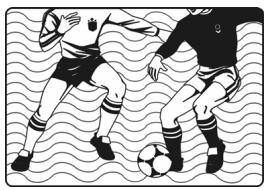
There are stripes on the screen or colors fade.

- There may be interference from other appliances.
- There may be interference between the video source cable and the power cable.
- Make sure the power and video cables are not touching. Check the Hue, Saturation and Color adjustments
The picture is not sharp.
- The signal source may be weak.
- The provider may be experiencing difficulties.
- Check input connections.
- Check the Sharpness of Picture Settings.
The picture moves.
- The source signal may be weak.
- The provider may be experiencing difficulties.
- Check input connections.
The picture is doubled or tripled.
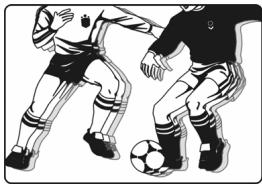
- The source signal may be weak.
- Check input connections.
The picture is spotted.
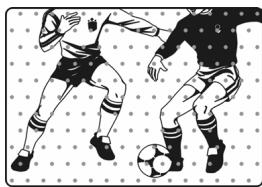
- There may be interference from other appliances nearby or around the LCD.
PC INPUT PRESET TIMING TABLE
PC / Timing Table
| No. | Mode Name Resolution | H.Freq. (KHz) V.Freq. (Hz) | H. Polarity V. Polarity | Pixel CLK (MHz) | Hor. Total CLK No. | Hor. Display CLK No. | Hor. Bck Porch CLK No. | Hor. Syth CLK No. | Vert. Total Line No. | Vert. Display Line No. | Vert. Bak Porch Line No. | Vert. Syc Width Line No. |
| 1 | VESA 72HZ 640*480 | 37.900 72.809 | - - | 31.500 | 832 | 640 | 128 | 40 | 520 | 480 | 28 | 3 |
| 2 | VGA 60HZ 640*480 | 31.469 59.941 | - - | 25.175 | 800 | 640 | 48 | 96 | 525 | 480 | 33 | 2 |
| 3 | SVGA 56HZ 800*600 | 35.16 56.25 | + + | 36.0 | 1024 | 800 | 128 | 72 | 625 | 600 | 22 | 2 |
| 4 | SVGA 60HZ 800*600 | 37.879 60.317 | + + | 40.0 | 1056 | 800 | 88 | 128 | 628 | 600 | 23 | 4 |
| 5 | XGA 60HZ 1024*768 | 48.363 60.004 | - - | 65.0 | 1344 | 1024 | 160 | 136 | 806 | 768 | 29 | 6 |
| 6 | US TEXT 70HZ 720*400 | 31.469 70.087 | - + | 28.322 | 900 | 720 | 54 | 108 | 449 | 400 | 35 | 2 |
| 7 | XGA(CVT) 60HZ 1280*768 | 47.396 59.995 | + - | 68.25 | 1440 | 1280 | 80 | 32 | 790 | 768 | 12 | 7 |
| 8 | WXGA(CVT) 60HZ 1360*768 | 47.368 59.959 | + - | 72 | 1520 | 1360 | 80 | 32 | 790 | 768 | 15 | 5 |
- The resolution and the frequencies are displayed on the screen may not exactly as same as this list.
| ITEMS | SPECIFICATIONS | |
| Panel | Screen Size | 42.02" TFT-LCD Panel |
| Aspect Ratio | 16:9 | |
| Resolution | 1366 x 768 | |
| Display Area (opening) H x V | 930.25 mm x 523.01 mm | |
| Pixel Pitch | 0.68 mm x 0.68 mm | |
| Display colors | 16,777,216 colors | |
| Contrast Ratio | 1200:1 (typ.) | |
| Brightness (center) | 500 cd / m² (typ.) | |
| Viewing Angle (CR>10) | 178° Hor. / 178° Ver. (typ.) | |
| Response Time (GTG) | 8 ms (typ.) | |
| Video Input | Composite Signal | CVBS x 2 |
| Y, C Signal | S-Video x 2 | |
| Component Signal | Y Pb Pr x 2 (720P / 1080i, HD ready) | |
| PC Input | HDMI Connection | HDMI x 1 |
| VGA Connection | D-Sub 15 pin | |
| Scanning Frequency | fH=31.5~60KHz / fV=56~75Hz | |
| Audio Input | Audio 1 | Composite |
| S-Video | ||
| Audio 2 | Component | |
| Audio 3 | PC | |
| Audio Output | Speaker (build-in) | 15W+15W (rms) @THD<10% |
| Line Out | Left/Right | |
| Digital Audio Out | S/PDIF (for HDMI). | |
| Feature | Function Keys | Power, Source, Menu, Up/Down(Channel), +/-(Volume), EXIT/ARC |
| Video Performance | 3D Comb-filter, 3D De-interlace, Aspect Ratio Control (ARC), Auto Picture Control, Video Enhance, Noise Reduction | |
| Audio Performance | Subwoofer, Auto Volume Control (AVC) | |
| Power | Power Supply | AC 100V~240V, 50/60Hz |
| Power Consumption | <300 W | |
| Dimension | W x H x D | 1067 mm*678 mm*108 mm |
| Weight (net) | Without Accessories | 28.8 Kg |
Customer Support
For technical support or product service, see the table below or contact your reseller.
NOTE: You will need the product serial number.
| Country/Region | Website | T = Telephone F = FAX | |
| United States | www.viewsonic.com | T= 800 688 6688 F= 909 468 1202 | service.us@viewsonic.com |
| Canada | www.viewsonic.com | T= 866 463 4775 F= 909 468 5814 | service.ca@viewsonic.com |
| Latin America (Mexico/Chile) | www.viewsonic.com | T= 866 323 8056 F= 909 444 5655 | sopport@viewsonic.com |
| United Kingdom | www.viewsoniceurope.com/uk | www.viewsoniceurope.com/ uk/Support/Calldesk.htm | |
| Europe, Middle East, Baltic countries, and North Africa | www.viewsoniceurope.com | Contact your reseller | |
| Australia/New Zealand | www.viewsonic.com.au | AUS= 1800 880 818 NZ= 0800 008 822 | service@au.viewsonic.com |
| Singapore/Malaysia/ Thailand | www.ap.viewsonic.com | T= 65 64616044 | service@sg.viewsonic.com |
| South Africa and other countries | www.ap.viewsonic.com | T= 886 2 2246 3456 F= 886 2 2249 1751 | service@sd.viewsonic.com |
| India | www.in.viewsonic.com | T= 1800 11 9999 | service@in.viewsonic.com |
| Hong Kong | www.hk.viewsonic.com | T= 852 3102 2900 | service@hk.viewsonic.com |
| Macau | www.hk.viewsonic.com | T= 853 700 303 | service@hk.viewsonic.com |
| Korea | www.kr.viewsonic.com | T= 080 333 2131 | service@kr.viewsonic.com |
Limited Warranty VIEWSONIC® LCD DISPLAY
What the warranty covers:
ViewSonic warrants its products to be free from defects in material and workmanship, under normal use, during the warranty period. If a product proves to be defective in material or workmanship during the warranty period, ViewSonic will, at its sole option, repair or replace the product with a like product. Replacement product or parts may include remanufactured or refurbished parts or components.
How long the warranty is effective:
ViewSonic LCD displays are warranted for 1 year for all parts including the light source and 1 year for all labor from the date of the first consumer purchase.
Who the warranty protects:
This warranty is valid only for the first consumer purchaser.
What the warranty does not cover:
- Any product on which the serial number has been defaced, modified or removed.
- Damage, deterioration or malfunction resulting from:
a. Accident, misuse, neglect, fire, water, lightning, or other acts of nature, unauthorized product modification, or failure to follow instructions supplied with the product.
b. Repair or attempted repair by anyone not authorized by ViewSonic.
c. Any damage of the product due to shipment.
d. Removal or installation of the product.
e. Causes external to the product, such as electrical power fluctuations or failure.
f. Use of supplies or parts not meeting ViewSonic's specifications.
g. Normal wear and tear.
h. Any other cause which does not relate to a product defect.
- Any product exhibiting a condition commonly known as "image burn-in" which results when a static image is displayed on the product for an extended period of time.
- Removal, installation, and set-up service charges.
How to get service:
- For information about receiving service under warranty, contact ViewSonic Customer Support (Please refer to Customer Support page). You will need to provide your product's serial number.
- To obtain warranted service, you will be required to provide (a) the original dated sales slip, (b) your name, (c) your address, (d) a description of the problem, and (e) the serial number of the product.
- Take or ship the product freight prepaid in the original container to an authorized ViewSonic service center or ViewSonic.
- For additional information or the name of the nearest ViewSonic service center, contact ViewSonic.
Limitation of implied warranties:
There are no warranties, express or implied, which extend beyond the description contained herein including the implied warranty of merchantability and fitness for a particular purpose.
Exclusion of damages:
ViewSonic's liability is limited to the cost of repair or replacement of the product. ViewSonic shall not be liable for:
- Damage to other property caused by any defects in the product, damages based upon inconvenience, loss of use of the product, loss of time, loss of profits, loss of business opportunity, loss of goodwill, interference with business relationships, or other commercial loss, even if advised of the possibility of such damages.
- Any other damages, whether incidental, consequential or otherwise.
- Any claim against the customer by any other party.
Effect of state law:
This warranty gives you specific legal rights, and you may also have other rights which vary from state to state. Some states do not allow limitations on implied warranties and/or do not allow the exclusion of incidental or consequential damages, so the above limitations and exclusions may not apply to you.
Sales outside the U.S.A. and Canada:
For warranty information and service on ViewSonic products sold outside of the U.S.A. and Canada, contact ViewSonic or your local ViewSonic dealer.
The warranty period for this product in mainland China (Hong Kong, Macao and Taiwan Excluded) is subject to the terms and conditions of the Maintenance Guarantee Card.
4.3: ViewSonic LCD Warranty
LCD_LW01 Rev. 1a 06-30-06
There are stripes on the screen or colors fade.
Check the Hue, Saturation and Color adjustments
4.3: ViewSonic LCD Warranty
LCD_LW01 Rev. 1a 06-30-06
CD4200-1_UG_ESP Rev. 1A 03-12-07
Fecha de compra:
4.3: ViewSonic LCD Warranty
LCD_LW01 Rev. 1a 06-30-06
- LCD Commercial Display
- Contents
- GENERAL INFORMATION 5
- CONNECTIONS & APPLICATIONS 12
- CONTROLS & ADJUSTMENTS 16
- Picture Control 22
- Sound Control 27
- PROGRAMMING REMOTE CONTROL 33
- TROUBLESHOOTING 41
- Table des Matieres
- CONNEXIONS ET APPLICATIONS 59
- For Canada
- Important Safety Instructions
- Declaration of RoHS Compliance
- Copyright Information
- Product Registration
- Product disposal at end of product life
- GENERAL INFORMATION
- Features
- Front Panel Overview
- FUNCTION KEYS
- Remote Control
- Connecting Video Devices via HDMI
- General Adjustments
- Turning the LCD On and Off
- Turn On
- Turn Off
- Initial Setup
- Language Selection
- Power Consumption
- Adjusting the Volume
- Using Volume Control
- Using Mute
- Switching Source
- Viewing the Menus and On-Screen Display (OSD)
- Switching Language Modes
- Picture Control
- Adjusting the Picture Setting
- Adjusting the LCD Screen
- Adjusting the Color Temperature
- Adjusting the Sound Quality
- Automatic Volume Control
- Automatic Volume Control (AVC)
- Reset Audio Settings
- System Info
- Reset the Features
- Direct Device Code Setup
- Searching for a Device Code
- Device Codes
- There is no picture from AV.
- There is no sound.
- There is no picture or sound, just noise.
- Picture is not clear.
- Picture is light or improperly tinted.
- The picture is too dark.
- Remote control does not work.
- There are stripes on the screen or colors fade.
- The picture is not sharp.
- The picture moves.
- The picture is doubled or tripled.
- The picture is spotted.
- PC INPUT PRESET TIMING TABLE
- Customer Support
- Limited Warranty VIEWSONIC® LCD DISPLAY
- What the warranty covers:
- How long the warranty is effective:
- Who the warranty protects:
- What the warranty does not cover:
- How to get service:
- Limitation of implied warranties:
- Exclusion of damages:
- Effect of state law:
- Sales outside the U.S.A. and Canada:
Brand : VIEWSONIC
Model : CD4200
Category : LCD Screen